
USER MANUAL
Dragon Touch Kidicam WT01 Kids Camera
V1.0

What’s in the Box
Product Specifications
Product Overview
Getting Started
Settings Menu
Warning
Troubleshooting
Contact Us
1
2
4
4
7
7
8
8
CONTENTS
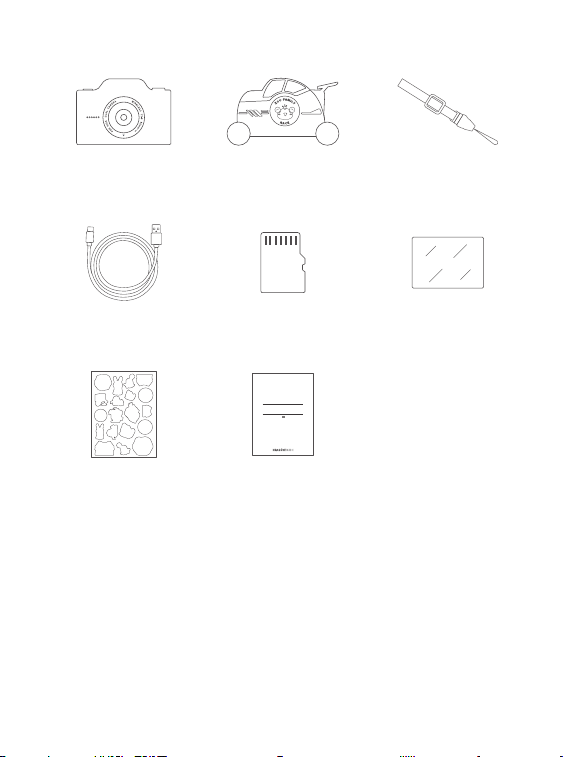
What’s in the box
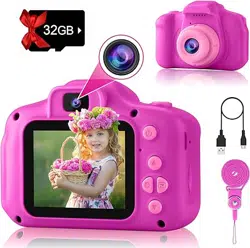
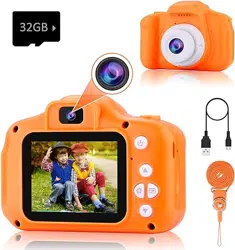
WT01 Kids Camera × 1 Lanyard × 1
USB Cable × 1 Screen Protector × 1
Carton Sticker × 1 Quick Start Guide × 1
V1.0
Quick Start Guide
Dragon Touch Kidicam WT01 Kids Camera
Racing Car Silicone
Protective Case × 1
32GB microSD Card × 1
1
Product Specifications
Dimension: 95x47x65mm
Display: 3” IPS display, 640x357 resolution
Image size: 48MP/32MP/24MP/12MP (16:9)
Video resolution: VGA/720P30FPS/1080P30FPS
File format: JPG, AVI
Wifi: Wifi supported
Battery: 3.7V 1000mAh lithium battery
Charging time: 3 hours
Input: DC 5V/1A
MicroSD card: Support maximum 32GB microSD card
Product Overview
3
4
5
1
2
1
2
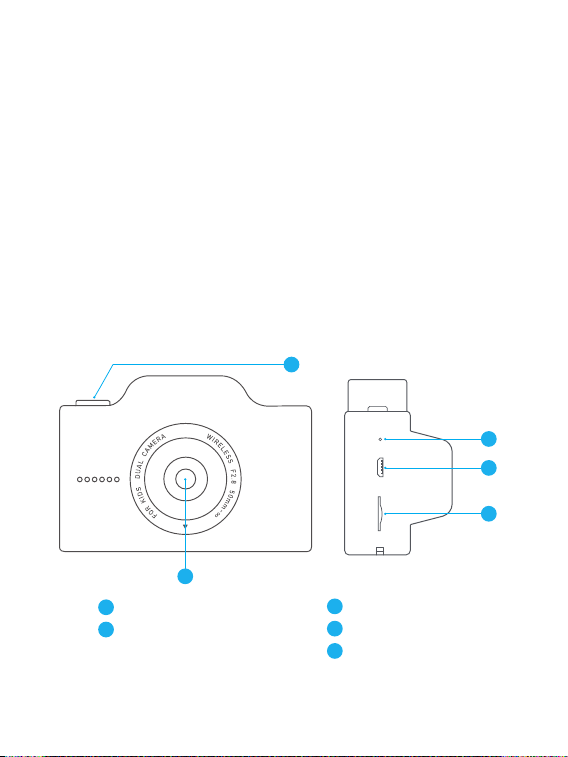
Power Button
Front Camera
3
4
5
Reset Button
Micro USB Port
MicroSD Card Slot
2
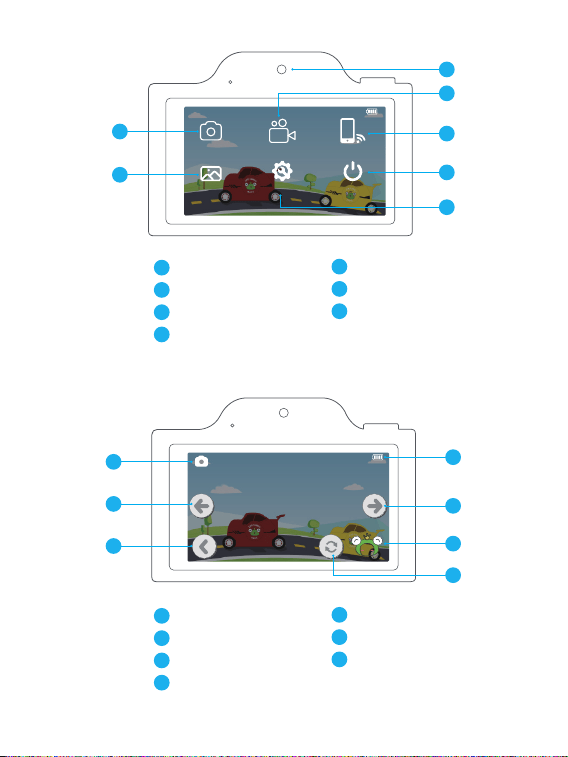
Pictures
Album Setting Power OFF
Video WIFI
1
2
3
4
Picture Mode
Album
Rear Camera
Video Mode
5
6
7
Wifi
Power Off
Setting
3
4
5
6
7
1
2
5
7
1
2
3
6
4
1
2
3
4
Current Mode
Switch Left
Back
Battery Status
5
6
7
Switch Right
Stickers/Filters
Switch Camera
3
Getting Started
1. Charging and Powering On
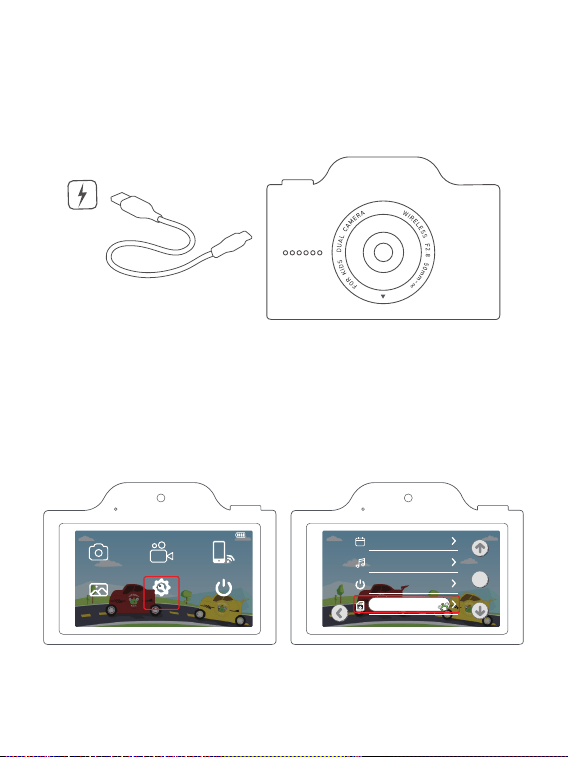
Connect the camera to a power supply using the USB cable included in the package.
After the charging is completed, press and hold the power button to turn on the
camera.
Pictures
Album Setting Power OFF
Video WIFI
20
Format
Auto Power Off
Sound
Date/Time
ok
2. Inserting Your MicroSD Card
Please insert a microSD card into the microSD card slot. Please format the microSD
card in this camera before using it.
Setting → Format → Confirm
4

3. Taking Photos and Videos
When the camera is on, choose the Picture Mode or Video Mode icon to take photos
or videos.
Under Picture mode, press the Power Button to take a photo.
Under Video mode, press the Power Button to record a video and press it again to
stop recording.
4. Playing Back Your Content
Choose Album to enter the playback interface. You can then scroll through the files
by tapping the left or right icon. Tap the back icon to return.
Choose the delete icon then confirm to delete the selected file.
5. Offloading Your Content
Option 1:
Insert the microSD card into a card reader (sold separately) then connect it to your
computer via a USB port. You can transfer files to your computer or delete selected
files by using file explorer.
Option 2:
Please first download and install the BiBi Cam app on the App Store or Google Play.
Or scan the QR code below to download the BiBi Cam app.
5
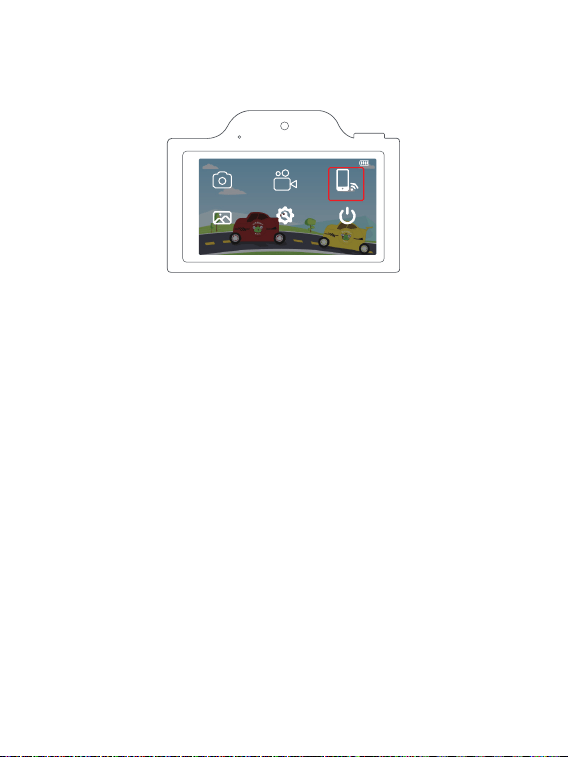
Choose the Wifi icon on the camera menu to turn on the Wifi. The Wifi name and
password will be shown on the screen. Go to your smartphone’s Wifi setting and
connect your phone to this Wifi.
Open the BiBi Cam app. It will automatically connect the camera, then you can
preview all photo and video files stored on your camera. Choose the files you want
to download, then click Save from the upper right menu. The files will be saved to
your phone.
Disconnect the Wifi network or click the Off icon on the camera to disconnect.
Note: Wifi connection will not be available when the battery runs low.
6. Powering Off
Choose the Power Off icon on the menu, or press and hold the Power button to
power off.
7. Reset Button
If the camera can’t be turned off or crashes, please insert a toothpick or steel needle
into the reset hole, press the Reset button, turn it on again after automatic
shut-down, then it can restore to factory default settings.
Pictures
Album Setting Power OFF
Video WIFI
6

Settings Menu
Photo size: 48MP/32MP/24MP/12MP
Language: English/繁体中文/简体中文/日本語/Français/Deutsche/한국어/Italiano/
Português/Pусский/Español/عربى
Photo mode: Off/3 consecutive shots/2 seconds selfie/5 seconds selfie/
10 seconds selfie
Video resolution: 1080FHD 1920X1080/1080P 1440x1080
Date/Time: You can set the date and time of the camera.
Sound: Off/low/mid/high
Auto Power Off: Off/1 minute/3 minutes/5 minutes
Format: Cancel/confirm
Please format the microSD card before using the camera. Reformatting erases all
your content, so please make sure you have downloaded your photos and videos
before reformatting.
Version: You can check the firmware version of the camera.
Reset: This setting will reset the camera to factory default settings.
Warning
1. This camera includes small components and is not recommended for children
under 3 years of age. Children should be under adult supervision while using this
product.
2. For your safety, please use the original USB cables provided to charge the camera.
3. Avoid exposing the camera to excessive heat, fire, or hot temperatures.
This camera is not waterproof. Do not expose the camera to splashing water.
4. The built-in battery cannot be removed or replaced. If damaged, please contact
the customer service. The charging should be done by an adult or under adult
supervision.
5. Do not smash or squeeze the camera to avoid damage to internal electronic
components.
7

Troubleshooting
Trouble Solution
The camera cannot be turned on
microSD card error
The camera crashes or cannot
be turned off
Document download error
Please recharge the camera or
try a different charging cable
then reboot.
Please format the microSD card or
insert a different microSD card.
Press the Reset button and
reboot.
Please disconnect the app and
try it again.
Contact Us
For any inquiries with Dragon Touch products, please feel free to contact us,
we will respond within 24 hours.
E-mail: [email protected]
Tel: 888-811-1140 (US) Mon-Fri (except holidays) 9am-5pm (EST)
Official website: www.dragontouch.com
The microSD, microSDHC, microSDXC and SD marks and logos are trademarks of
SD-3C, LLC.
8