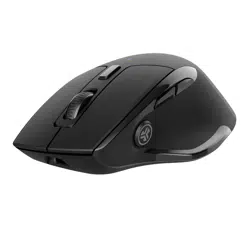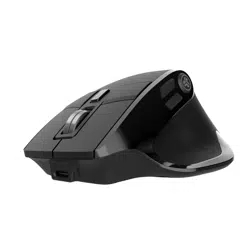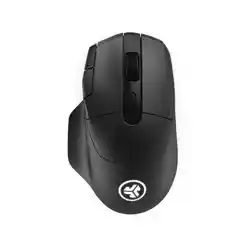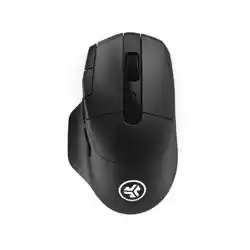
We love that you are rocking JLab!
We take pride in our products and fully stand behind them.
EPIC
MOUSE 2
YOUR WARRANTY
All warranty claims are subject to JLab authorization
and at our sole discretion. Retain your proof of
purchase to ensure warranty coverage.
CONTACT US
Reach out to us at [email protected]
or visit jlab.com/contact
1
2
REGISTER TODAY
jlab.com/register
Product updates | How-to tips
FAQs & more
L
I
M
I
T
E
D
T
W
O
Y
E
A
R
W
A
R
R
A
N
T
Y
S
U
P
P
O
R
T
T
E
A
M
#
T
E
A
M
J
L
A
B
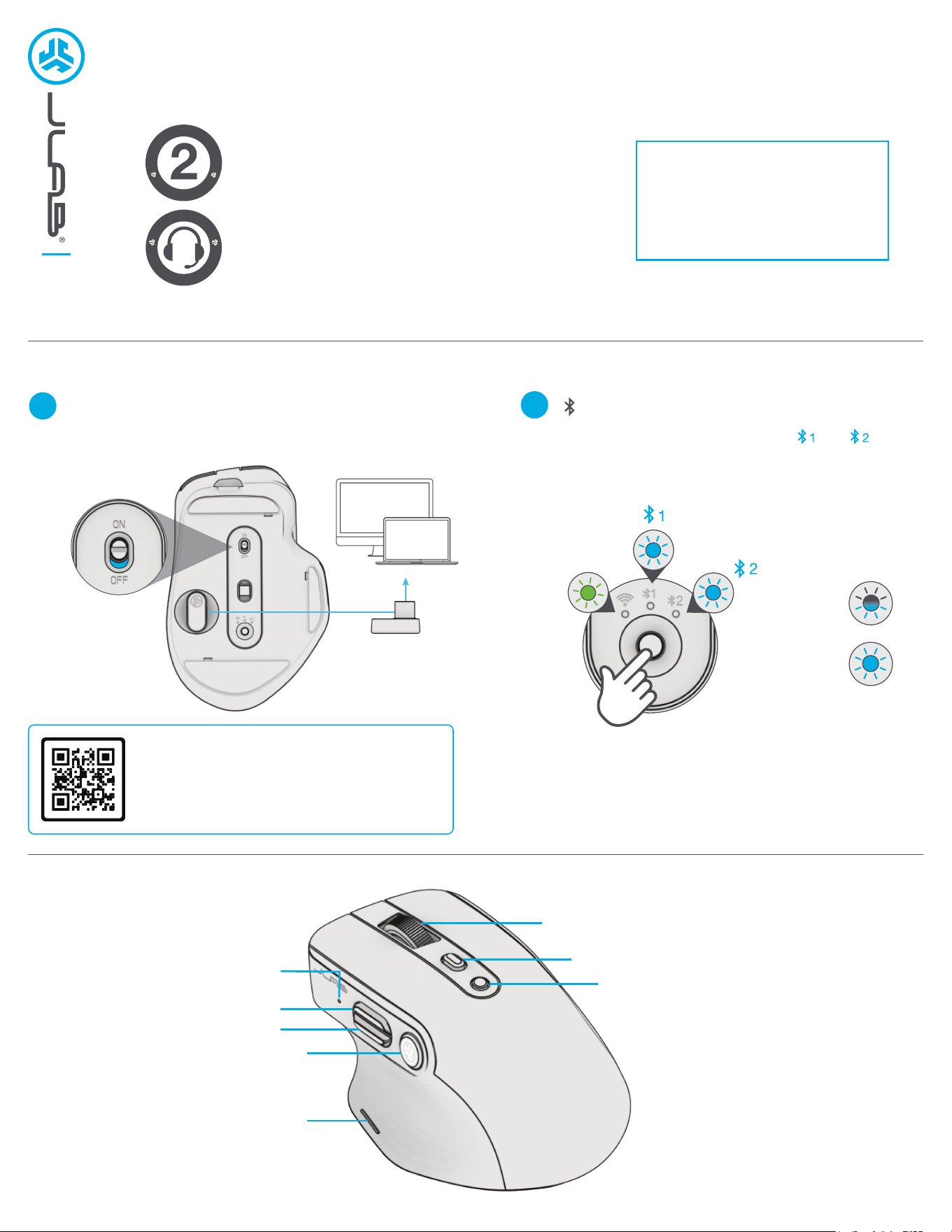
SETUP
INTERFACE
2.4 Connect
Plug in the USB-C dongle to computer and turn
ON. Epic Mouse 2 will auto connect.
Quick Press to switch between , , and .
Then Press Hold to enter Pairing Mode.
Select JLab Epic Mouse 2 in device settings.
Bluetooth Connect
2.4
Have a JLab Epic or JBuds Keyboard?
Scan the QR code to learn how to pair both
your devices with just one dongle.
PAIRING
MODE:
Flashing
PAIRED:
Solid
2.4
DPI Button:
mouse sensitivity
(1200, 1600, 2000, 2400)
Scroll + Side Scroll +
Middle Button
Infinite Scroll ON/OFF
L
R
Button 1
LED Indicator
Button 2
Button 3
Button 4
Change OS by
Press Hold 3s Button 3 + DPI Button
Windows = Green LED
Mac = White LED
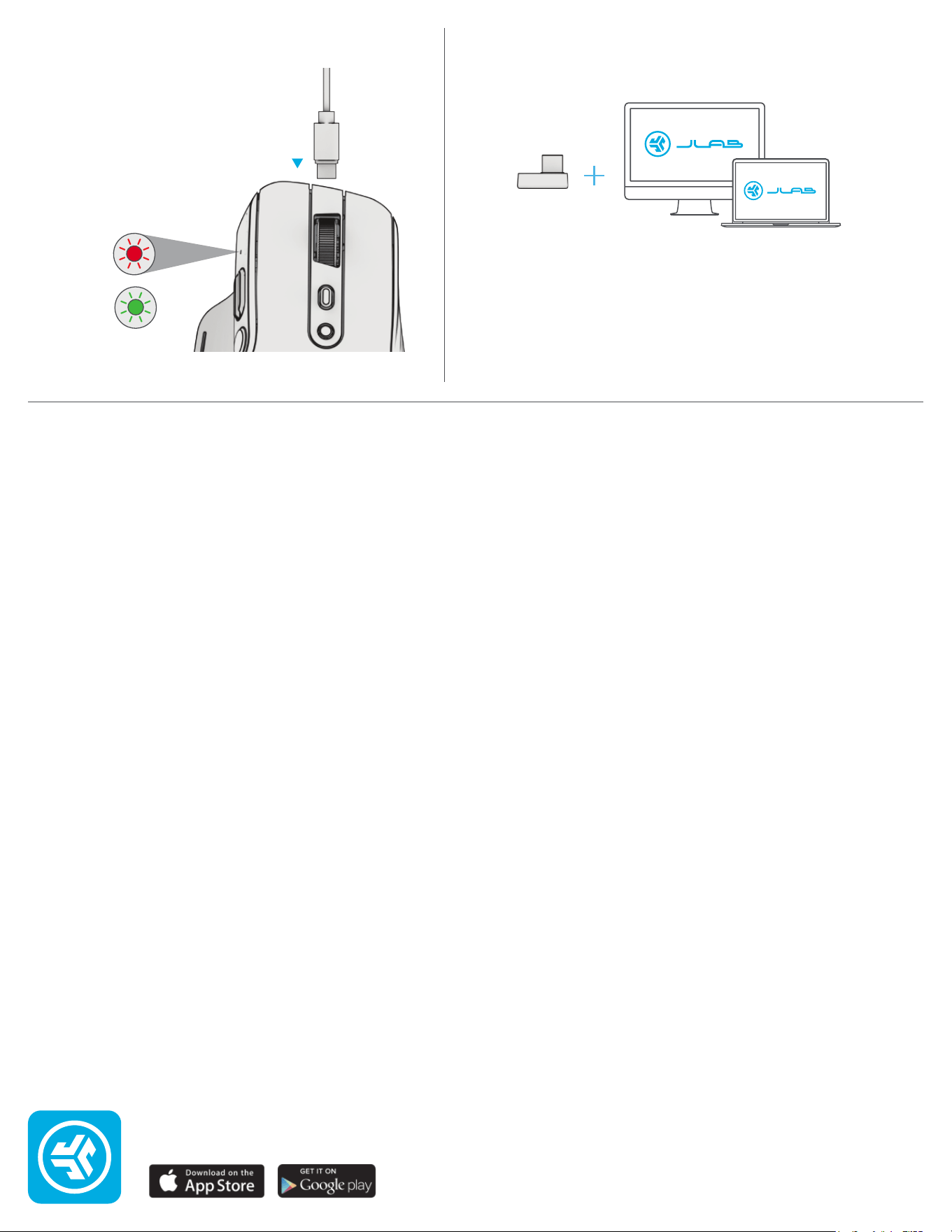
CHARGING
JLAB.COM
CUSTOMIZATION
Download the JLab Work App (for Mac and PC)
to fully customize the Epic Mouse 2 at: JLAB.COM/SOFTWARE
(USB-C dongle needs to be plugged in for customizing software)
Connect the Epic Mouse 2 to computer
or USB 5V 1A (or less) to charge.
Shop products | Product alerts | Burn-in your headphones
JLab Audio + Burn-in Tool
Needs
charging
Charged