
2
Table of Contents
Getting started
4 Device layout and functions
8 Turning the computer on and off
10 Unlocking the screen
10 Windows
Basics
11 Keyboard
13 Touchpad
15 Wired LAN
16 Wireless LAN
18 Bluetooth
19 Fingerprint recognition (optional)
22 Memory card slot
24 External display
26 Security slot
Apps and features
27 Using apps
27 Samsung Account
28 Samsung Settings
29 Samsung Notes
29 Samsung Flow
30 Samsung Studio
30 Samsung Gallery
31 Samsung Care+
31 Samsung Device Care
33 Samsung Pass
33 Bixby
35 Galaxy Book Smart Switch
35 Galaxy Book Experience
36 Online Support(S Service)
37 Screen Recorder
38 Second Screen
39 SmartThings
39 Quick Share
40 Quick Search
Settings & Upgrade
41 Display brightness
43 Volume
43 Accessibility
44 BIOS (Setup utility)
50 Battery
Troubleshooting
54 Windows recovery feature
54 Q&A

Table of Contents
3
Usage notices
57 Precautions for using the device
60 Ergonomic tips
63 Safety precautions
Appendix
72 Product specifications
73 Important safety information
75 Replacement parts and accessories
77 Regulatory compliance statements
83 WEEE symbol information
85 Samsung package Take-Back
program (USA only)
4
Getting started
Device layout and functions
Leaving the screen idle for extended periods may result in afterimages (screen
burn-in) or ghosting. Turn off the screen, or turn on the screen saver or power
saving mode when you are not using the computer.
•
Features or options may differ depending on the model.
•
The items marked as optional may not be provided or may be provided in
different locations.
•
Since some space on the storage device is reserved for system recovery and
operations, the available space on the storage device may be less than the
actual capacity.
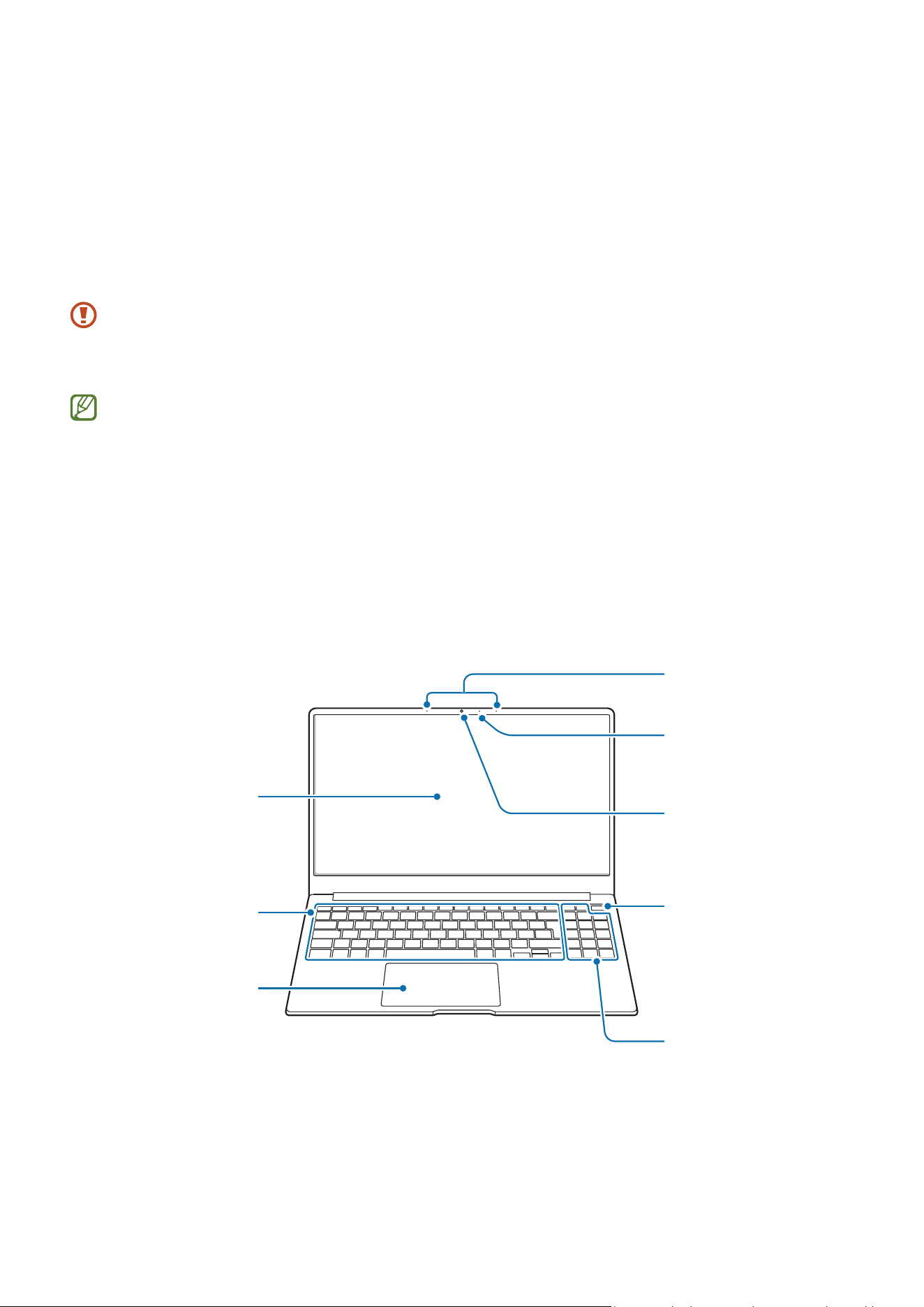
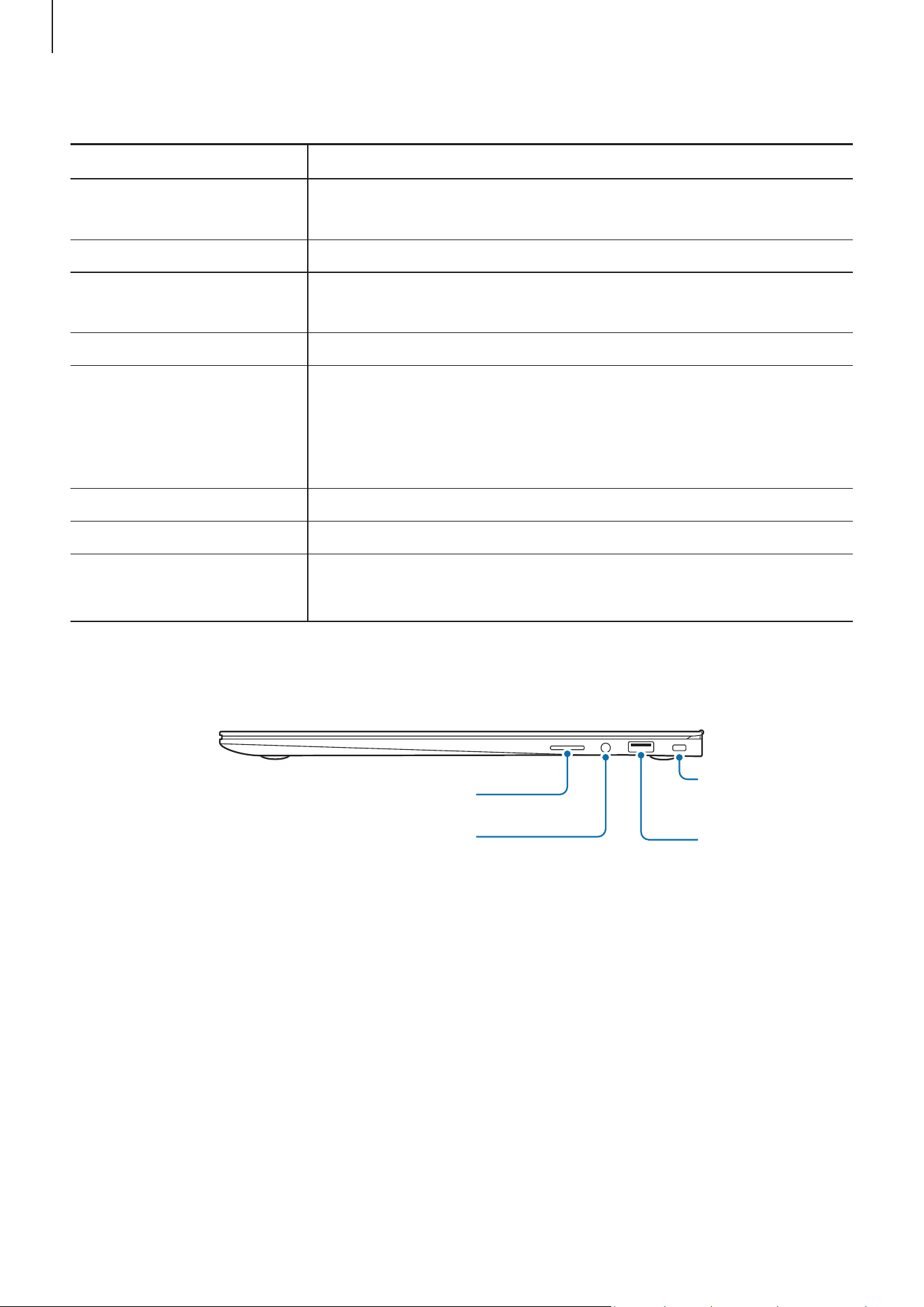
Front view
Microphone
Display
Numeric keypad
Camera
Camera indicator
light
Power button/
Fingerprint
recognition sensor
(optional)
Keyboard
Touchpad
Getting started
5
<Device layout and functions: Front view>
Name Description
Microphone
You can use the voice recording or video call features
through the built-in microphone.
Camera indicator light This indicates the camera operating status.
Camera
Using this camera, you can take still pictures and record
video.
Display The screen’s images are displayed here.
Power button/
Fingerprint recognition
sensor (optional)
•
Turns the computer on and off.
•
The fingerprint recognition sensor recognizes
fingerprints. Scans a fingerprint to sign in to Windows,
apps, and services.
Numeric keypad Enter numbers.
Keyboard Enter text or control computer functions.
Touchpad
•
Moves the cursor and selects options.
•
Functions as a mouse.
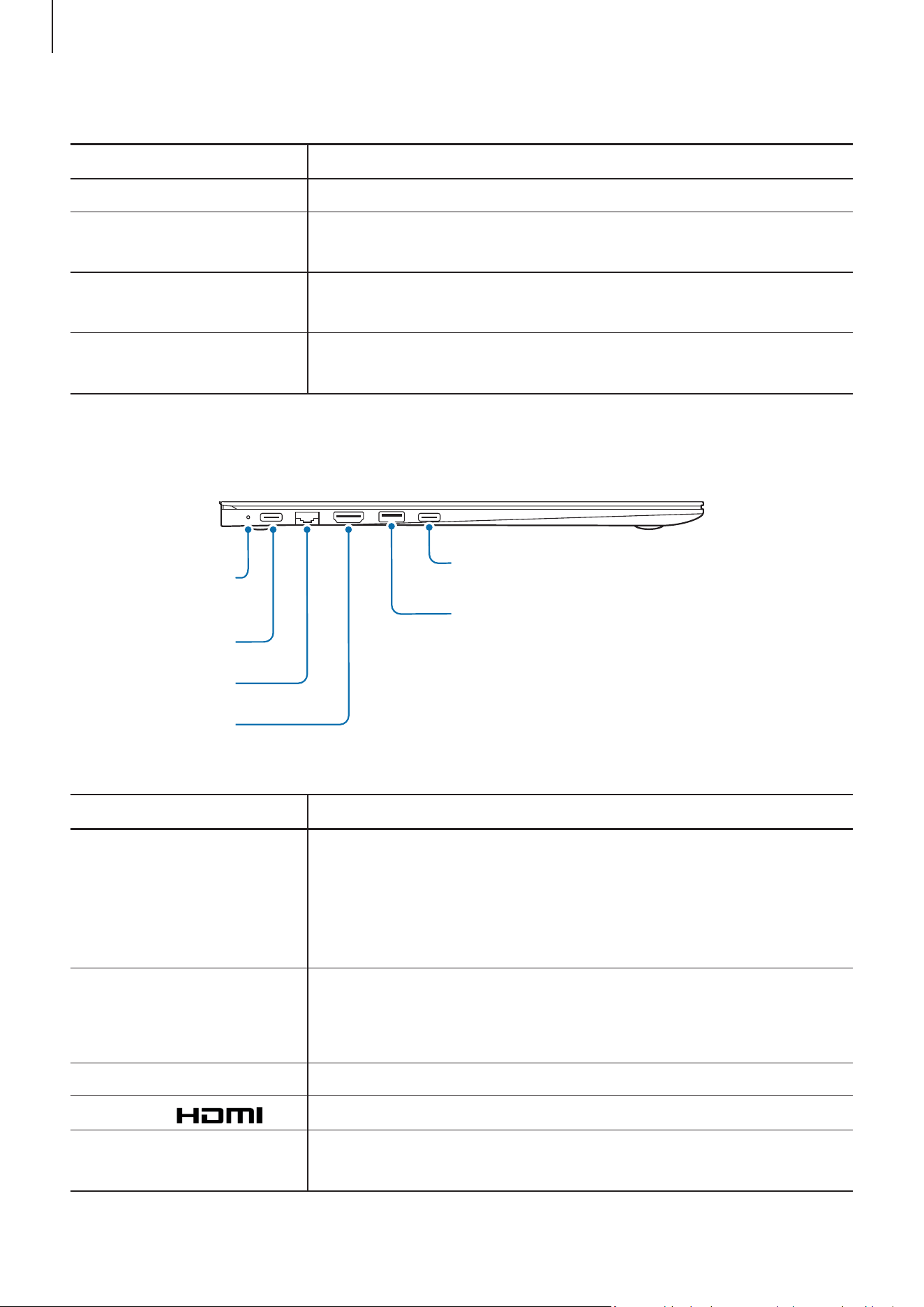
Right view
USB 3.2 port
Earpiece/Headset jack
Security slot
Memory card slot
Getting started
6
<Device layout and functions: Right view>
Name Description
Memory card slot Insert a memory card into the slot.
Earpiece/Headset jack
Connect an earpiece or a headset to the computer to listen
to audio.
USB 3.2 port
Connect various accessories, such as a mouse, camera, or
keyboard.
Security slot
Secure the computer by connecting an optional lock and
cable to it.
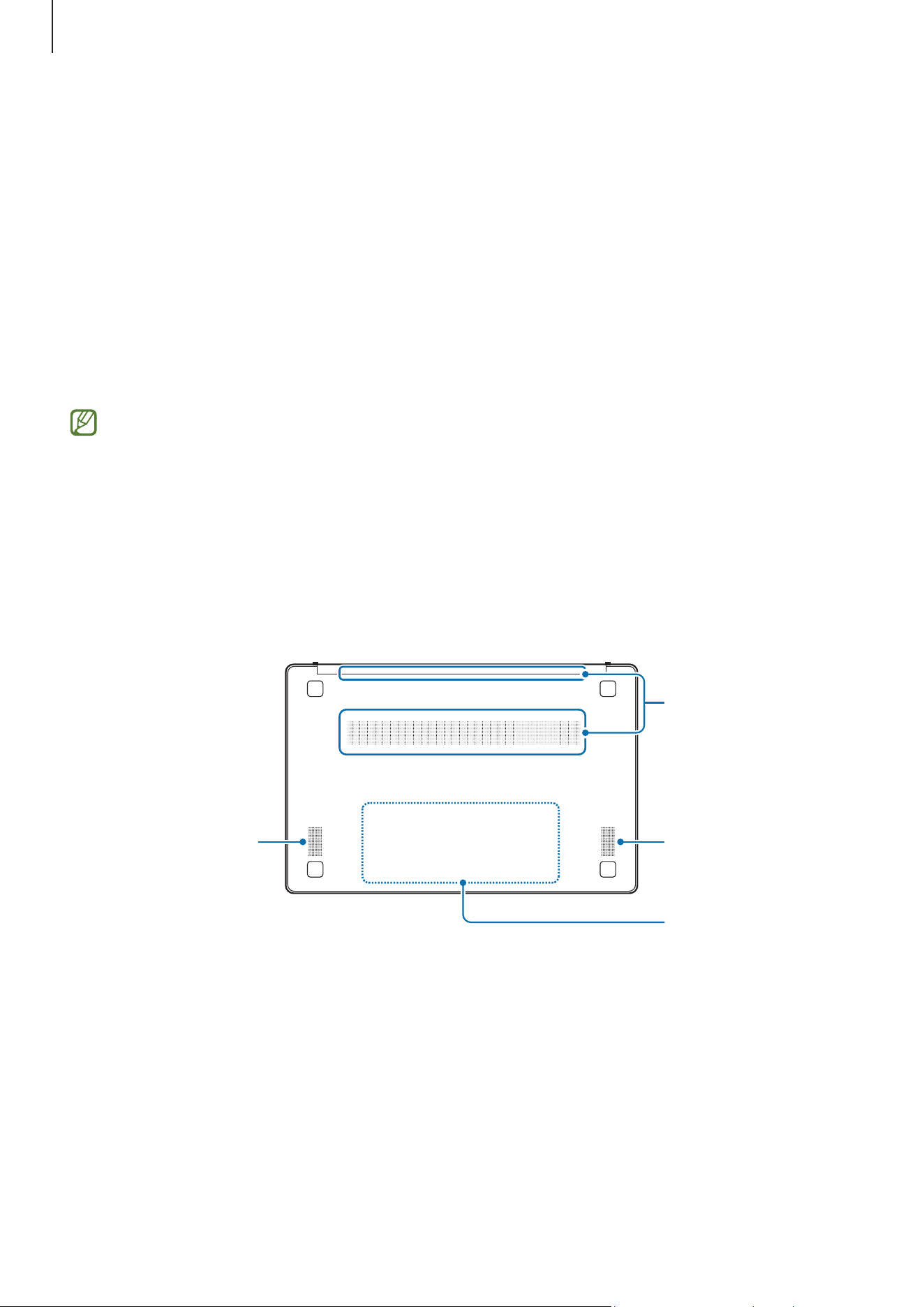
Left view
HDMI port
USB 3.2 port
Operating status
LED
USB Type-C port
USB Type-C port
Wired LAN port
<Device layout and functions: Left view>
Name Description
Operating status LED
Shows the operating status of the computer.
•
Red: Charging
•
Green: Fully charged
•
Blue: Turned on
USB Type-C port
•
Connect the supplied adapter to charge the computer.
•
Connect and charge a USB Type-C device, or connect to
an external display device.
Wired LAN port Connect the Ethernet cable to this port.
HDMI port
Used to connect an HDMI cable to an external device.
USB 3.2 port
Connect various accessories, such as a mouse, camera, or
keyboard.
Getting started
7
The charging feature of the USB Type-C port
Charging the computer
Connect an external power supply (sold separately) to the USB Type-C port to use it as
the auxiliary power or charge the computer.
Use an external power supply (sold separately) with a rating level higher than 10 W (5 V,
2 A) that supports USB Type-C or USB BC 1.2.
Charging a USB Type-C device
Connect and charge your USB Type-C device by connecting it to the USB Type-C port.
•
It may take longer to charge the battery when charging a connected device.
•
The battery power level may be reduced when charging a connected device
while the computer is powered by the battery.
•
The charging status of the connected device is not displayed on the computer.
•
This charging feature may not be available on some devices.
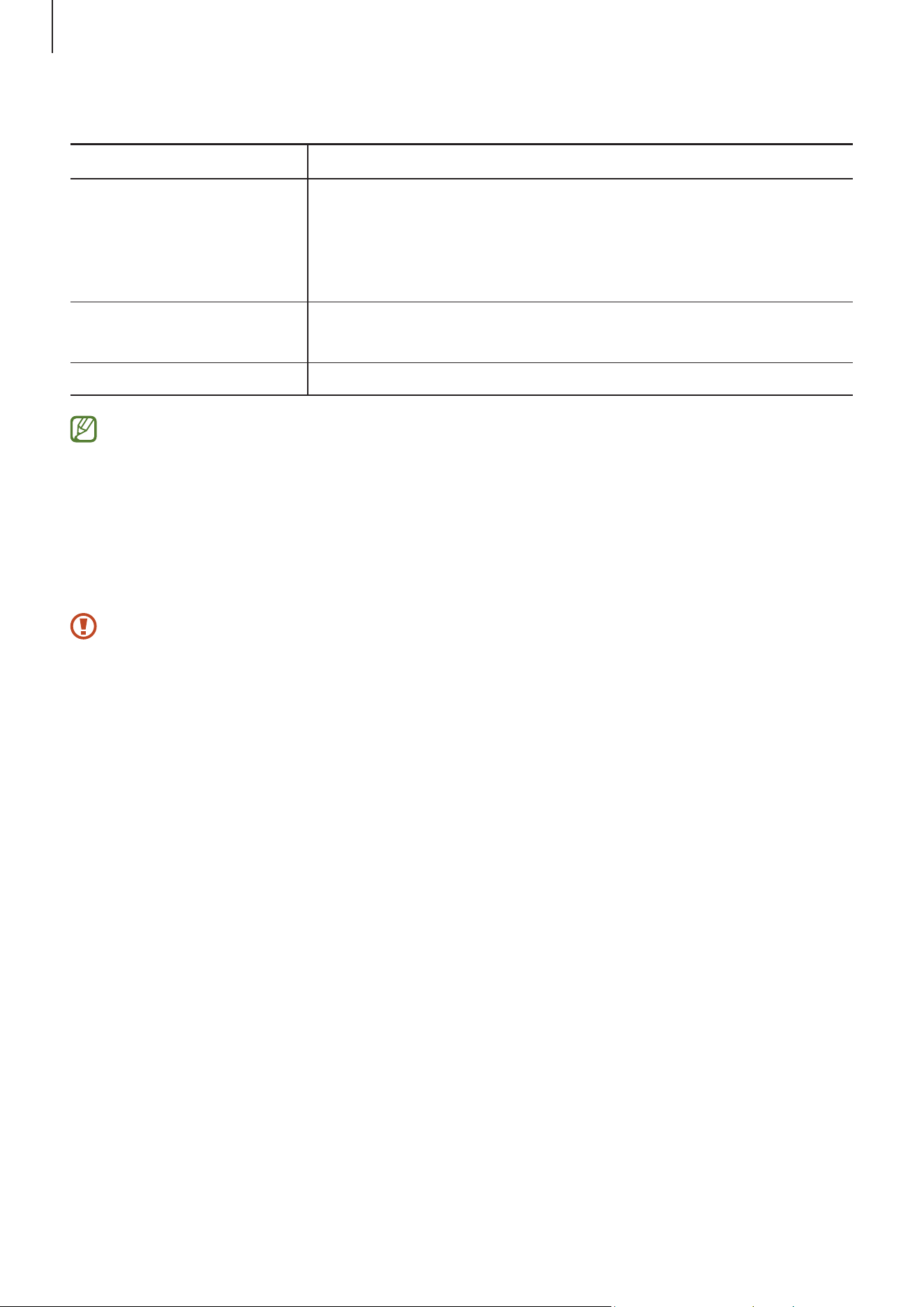
Bottom view
Fan vents
Internal battery
Speaker
Speaker
Getting started
8
<Device layout and functions: Bottom view>
Name Description
Fan vents
•
Sucks in outside air and discharges heat generated
inside the computer through these holes.
•
If the vents are blocked the computer may overheat.
Avoid blocking the vents as this may be dangerous.
Internal battery
Provides power to the computer when not connected to an
adapter.
Speaker Sound is emitted from the speakers.
If the case at the bottom of the device is replaced, the laser-carved model
name, serial number, and various logos will not be displayed anymore. For more
information, contact a Samsung Service Center.
Turning the computer on and off
Fully charge the battery using the supplied adapter before using the computer for
the first time.
Turning the computer on
1 Before turning on the computer, check that the battery is charged and charge it if
necessary.
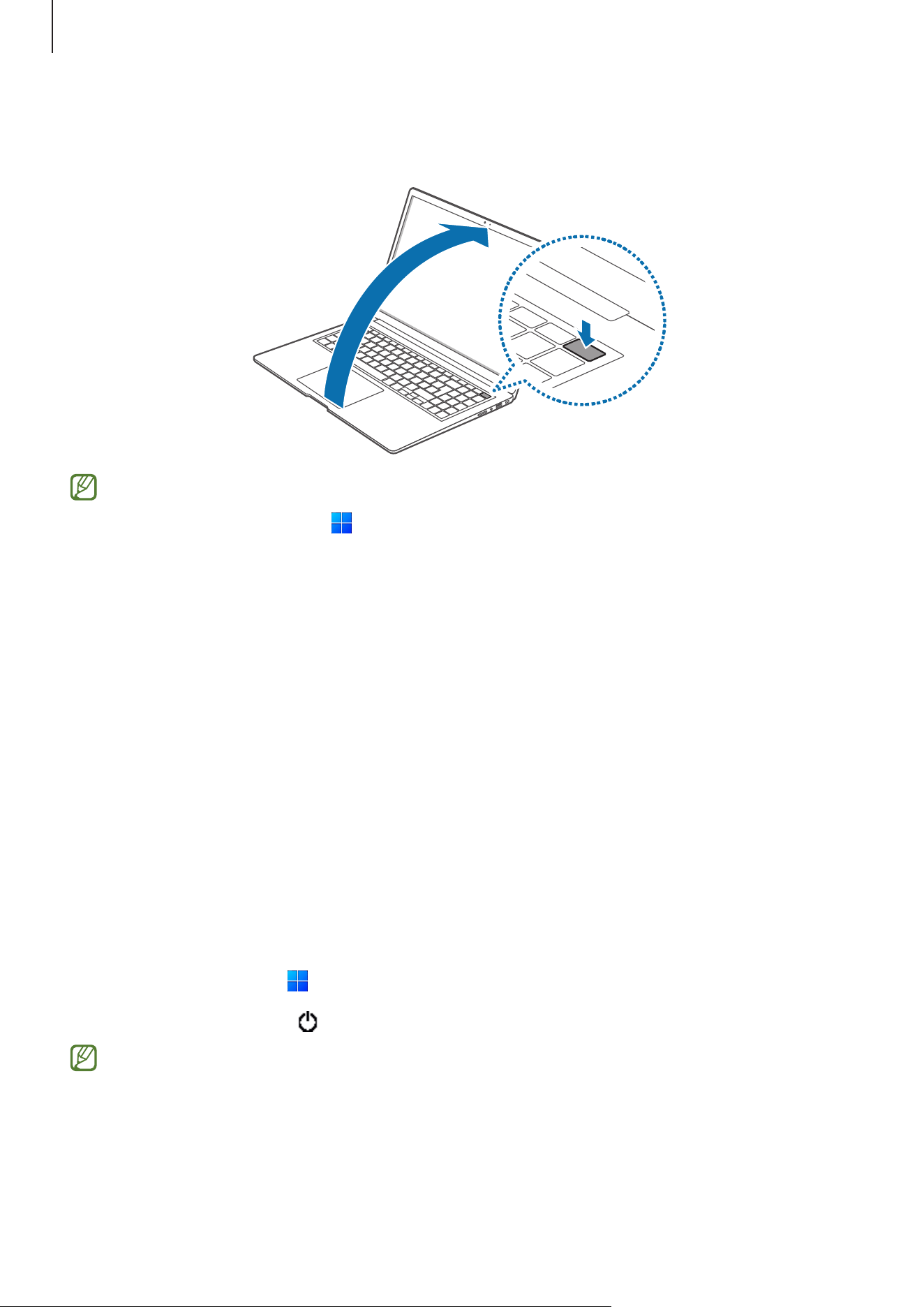
Getting started
9
2 Open the display panel. The computer automatically turns on.
If the computer does not turn on automatically, press the Power button.
Set the computer to not turn on automatically when the display panel is opened.
1 Select the Start icon ( )
→
All
→
Samsung Settings
.
2 Select
Advanced features
and select the
Auto booting
switch to turn it off.
About Windows Activation
When you turn the computer on for the first time, the Windows Activation screen
appears.
Follow the activation procedures according to the instructions on the screen to use the
computer.
The computer’s date and time may be incorrect when you turn it on for the first time.
They may also be incorrect if the battery has been fully discharged or removed. To set
the date and time, go to the desktop taskbar and right-click the date and clock area.
Then, select
Adjust date and time
and set the current date and time.
Turning the computer off
1 Select the Start icon (
).
2 Select the Power icon (
)
→
Shut down
.
Save all data before turning off the computer.
Getting started
10
Unlocking the screen
To unlock the lock screen, do one of the following:
•
Mouse: Click the lock screen.
•
Keyboard: Press any key.
•
Touchpad: Tap the touchpad.
If the account has a password, enter the password to log in after unlocking the screen.
Windows
Microsoft Windows is an operating system that is used to control a computer.
•
Images and available features may differ depending on the model and operating
system.
•
This manual is designed for Windows 11 and content may differ depending on the
OS version.
•
The image displayed on the desktop screen may differ between models and OS
versions.
Configuring the Windows Settings
You can configure the basic system settings, such as installing or uninstalling apps and
managing accounts, from the Windows Settings.
Select the Start icon (
)
→
Settings
.
Then, select an option you want to change after the
Settings
window screen appears.
You can also configure the settings from the Control Panel like previous OS
versions. Select the Start icon ( )
→
All
→
Windows Tools
→
Control Panel
.
11
Basics
Keyboard
Enter text or access computer functions with the keyboard.
•
Images and available features may differ depending on the model and operating
system.
•
The keyboard layout may differ depending on the country. The hot keys will be
mainly explained in this manual.
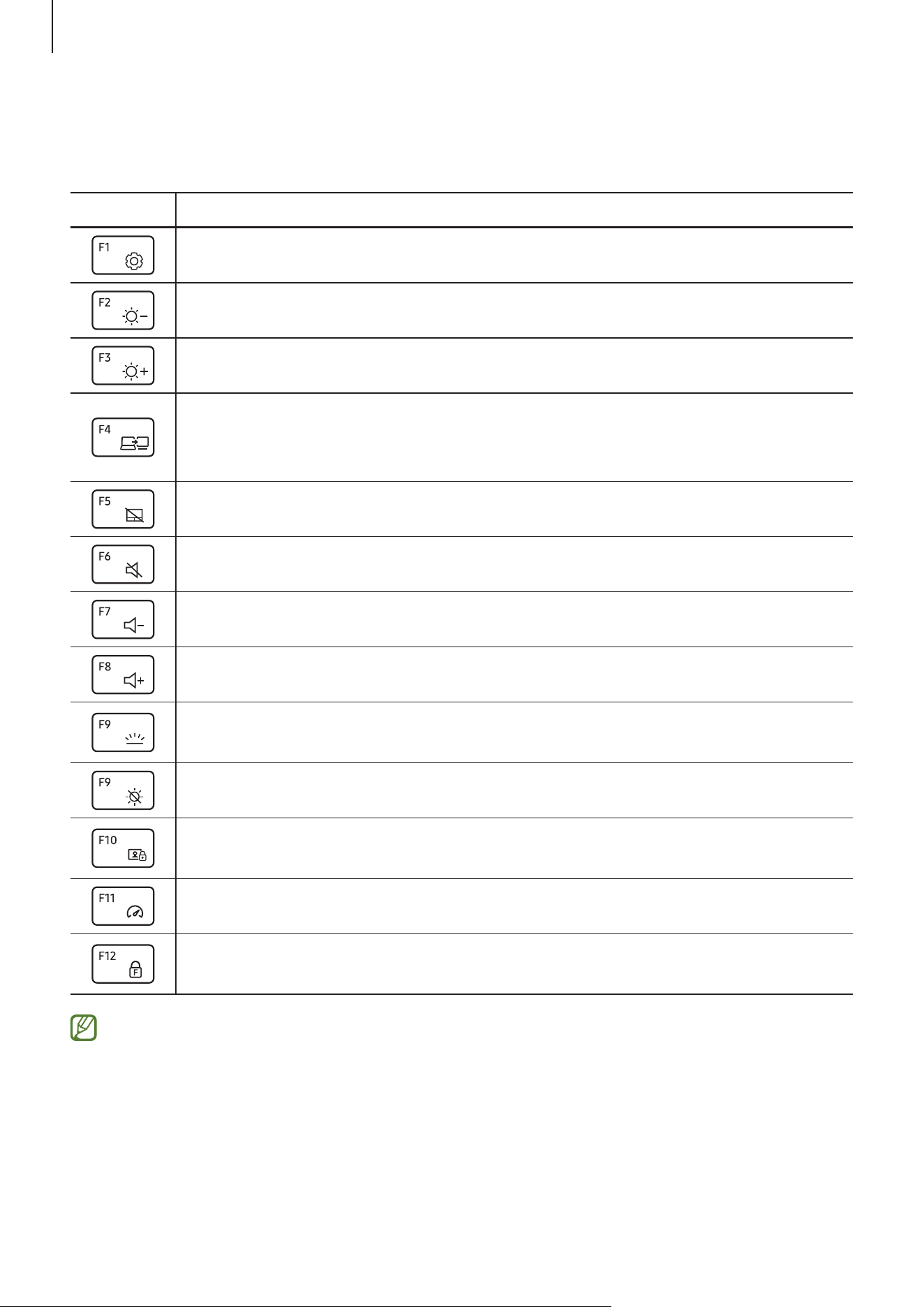
Using hot keys
To use keyboard hot keys, do one of the following:
•
Press and hold the
Fn
key and press a hot key.
•
Press and hold the
Fn
key and press the
F12
key. When the Fn Lock feature turns on,
press a hot key.
When the Fn Lock feature is on, hot keys are activated without pressing the
Fn
key.
Basics
12
Hot key functions
<Hot key functions>
Key Description
Samsung Settings
: Open the
Samsung Settings
app.
Screen brightness control: Decrease the brightness of the display.
Screen brightness control: Increase the brightness of the display.
Display/External monitor: Switch between the display and an external
display device when an external display device is connected to the
computer.
Touchpad: Turn the touchpad feature on or off.
Mute: Mute or unmute the audio.
Volume control: Decrease the volume.
Volume control: Increase the volume.
Keyboard backlight brightness: Turn the keyboard backlight on or off and
adjust its brightness.
Turn the display on or off.
Block camera and mic: Limit the use of the camera and the microphone
to prevent recording.
Performance mode: Change the system’s performance mode.
Fn Lock: Lock the
Fn
key so that hot keys can be used without pressing
the
Fn
key.
If the hot keys do not work properly, install the
Samsung Settings
app.
Basics
13
Touchpad
Use the touchpad to move the cursor or select an item. The left and right buttons of the
touchpad act the same as the left and right buttons of a mouse.
•
Use the touchpad only with fingers. The touchpad will not recognize actions of
other objects.
•
Images and the touchpad layout may differ depending on the model.
Basic touchpad functions
•
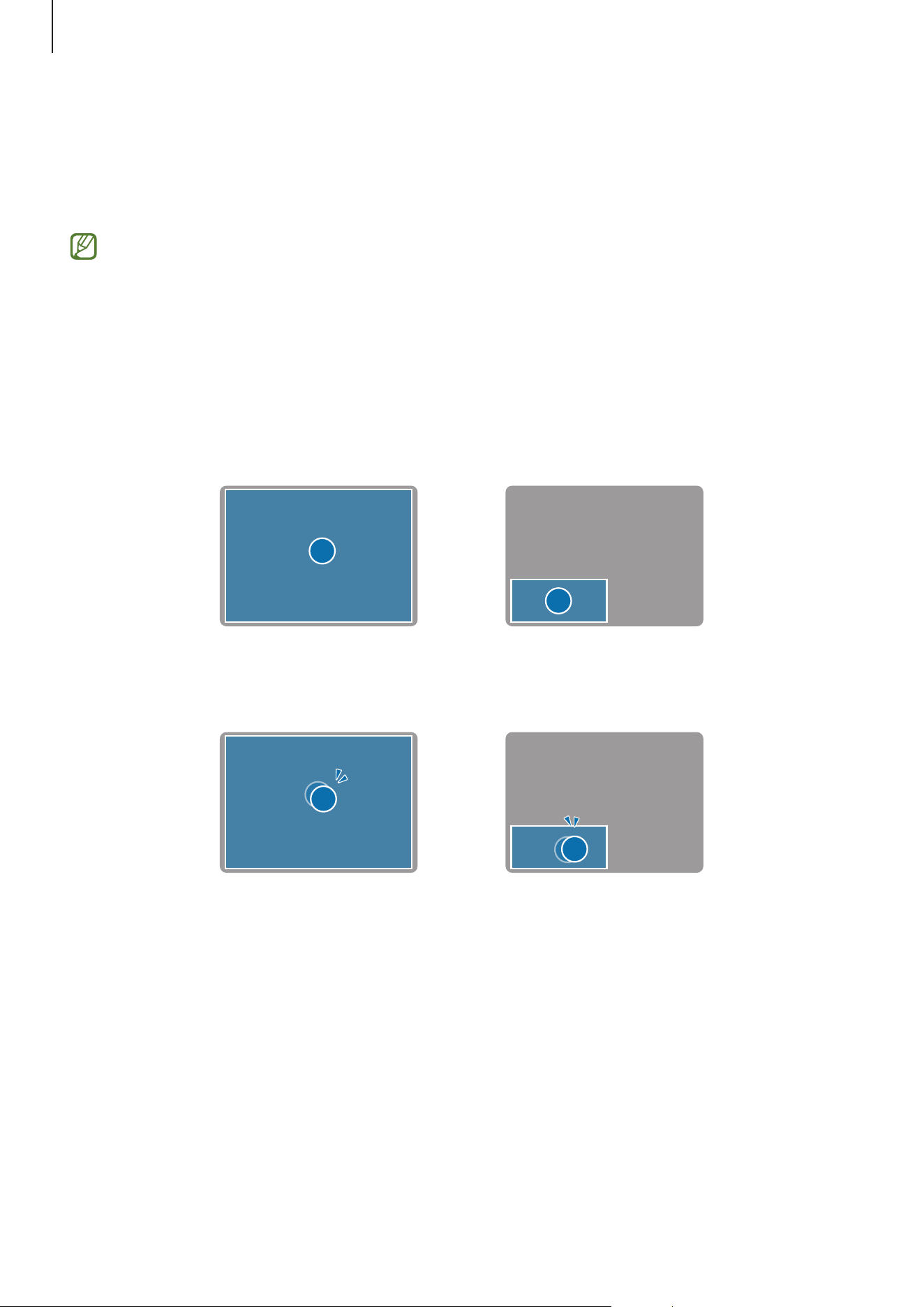
Moving: To move the cursor, move a finger on the touchpad.
•
Clicking: Tap the touchpad or press the left touchpad button.
Tap Click
•
Double-clicking: Double tap the touchpad or press the left touchpad button twice.
Tap-tap Click-click
Basics
14
•
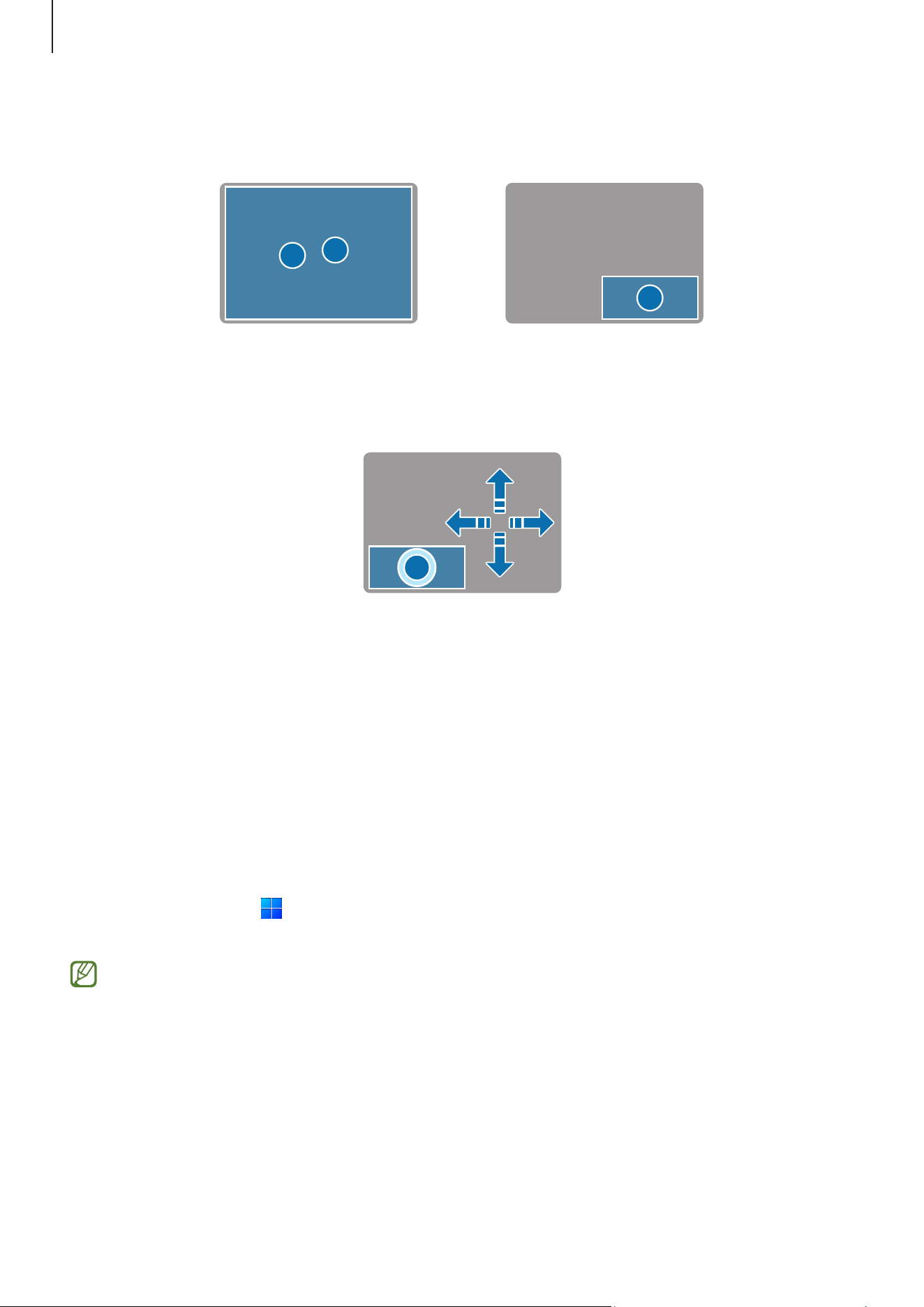
Right-clicking: Press the touchpad with two fingers simultaneously or press the
right touchpad button.
Tap Click
•
Dragging: To move an icon or an app to a desired location, press and hold it and then
drag it to the target position with the left touchpad button pressed.
Press and hold the left
touchpad button
Move
Gesture functions
•
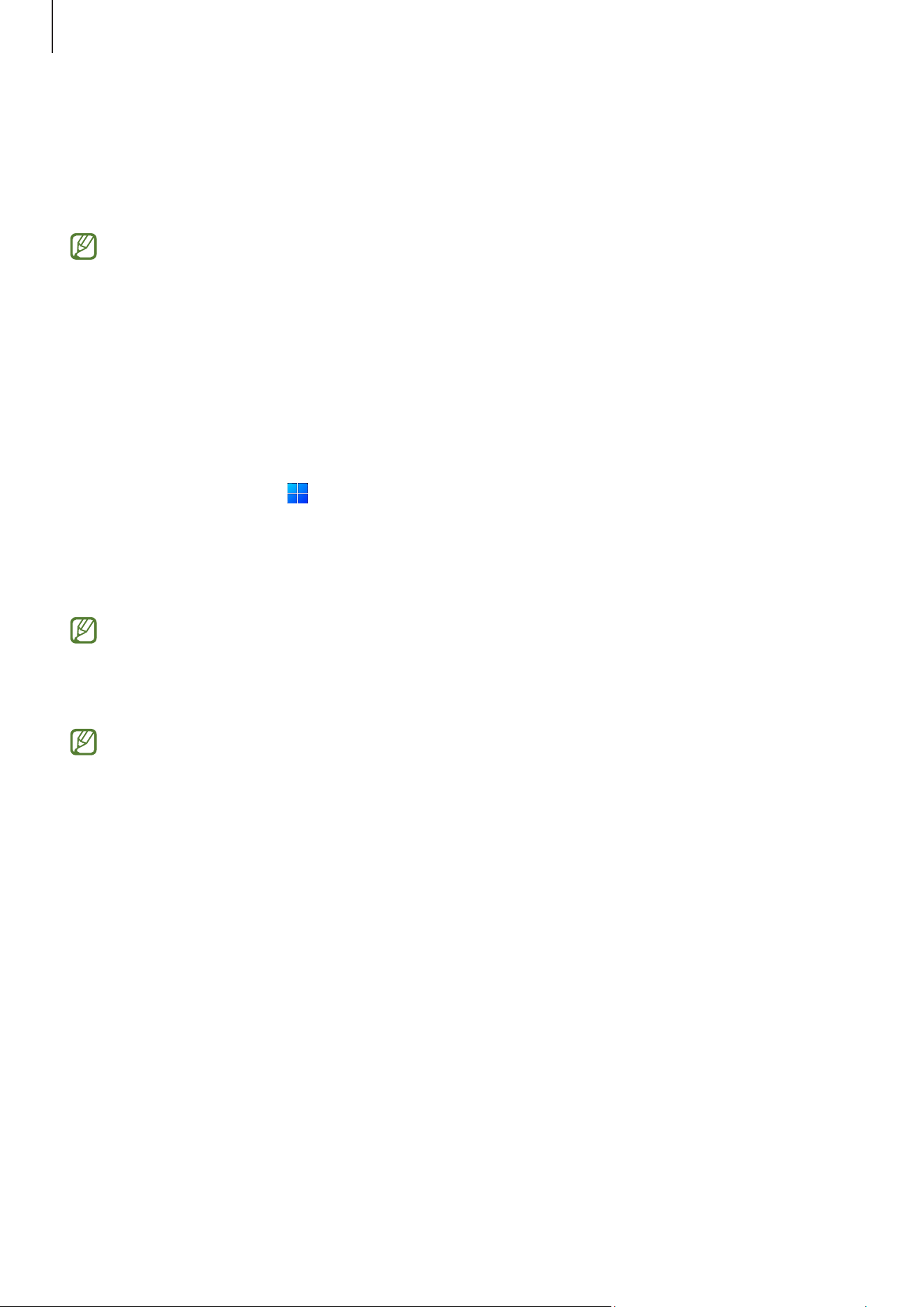
Swiping: To scroll up, down, left or right to a desired location, swipe with two fingers
on the touchpad.
•
Pinching: To zoom in, spread two fingers apart on the touchpad. Pinch to zoom out.
Configuring touchpad gestures
Configure touchpad gestures.
Select the Start icon (
)
→
Settings
→
Bluetooth & devices
→
Touchpad
and select the
desired options.
Some options in the touchpad settings may not be available depending on the
model.
Touchpad lock
Press and hold the
Fn
key and press the
F5
key to lock the touchpad.
Basics
15
Wired LAN
To access the Internet at home, set up an account with an Internet service provider (ISP).
Contact a local ISP.
•
Some features or procedures may differ depending on the model.
•
These descriptions are written for Windows 11, so some figures and descriptions
may differ from your operating system. Since the procedures for other Windows
operating systems are similar, use the computer referring to these descriptions.
Wired LAN
1 Connect a LAN cable to the LAN port on the computer.
2 Select the Start icon ( )
→
All
→
Windows Tools
→
Control Panel
.
3 Select
Network and Internet
→
Network and Sharing Center
→
Change adapter
settings
.
4 Right-click
Ethernet
and select
Properties
.
The LAN device name may differ depending on the computer’s network device.
5 Select
Internet Protocol Version 4 (TCP/IPv4)
from the list below
This connection
uses the following items
→
Properties
.
•
The Network Component name may differ depending on the operating system.
•
To add a network item such as a client, service, or protocol, select
Install...
under
the list of network items.
6 Configure the IP settings.
•
When using DHCP, select
Obtain an IP address automatically
.
•
When not using DHCP, contact the network administrator for the IP address. To
use a static IP address, select
Use the following IP address
and set the IP address
manually.
7 Select
OK
to save the settings.
Basics
16
Wireless LAN
Connect the computer to a wireless network to use the internet.
These descriptions are for computer models with a Wireless LAN card or device. A
Wireless LAN device is optional. The pictures in this manual may differ from the
actual product depending on the wireless LAN device model.
About Access Point (AP)
An Access Point (AP) is a network device that bridges wired and wireless LANs and
corresponds to a wireless hub in a wired network. Multiple devices can be connected to
an AP.
Connecting to a Wi-Fi network
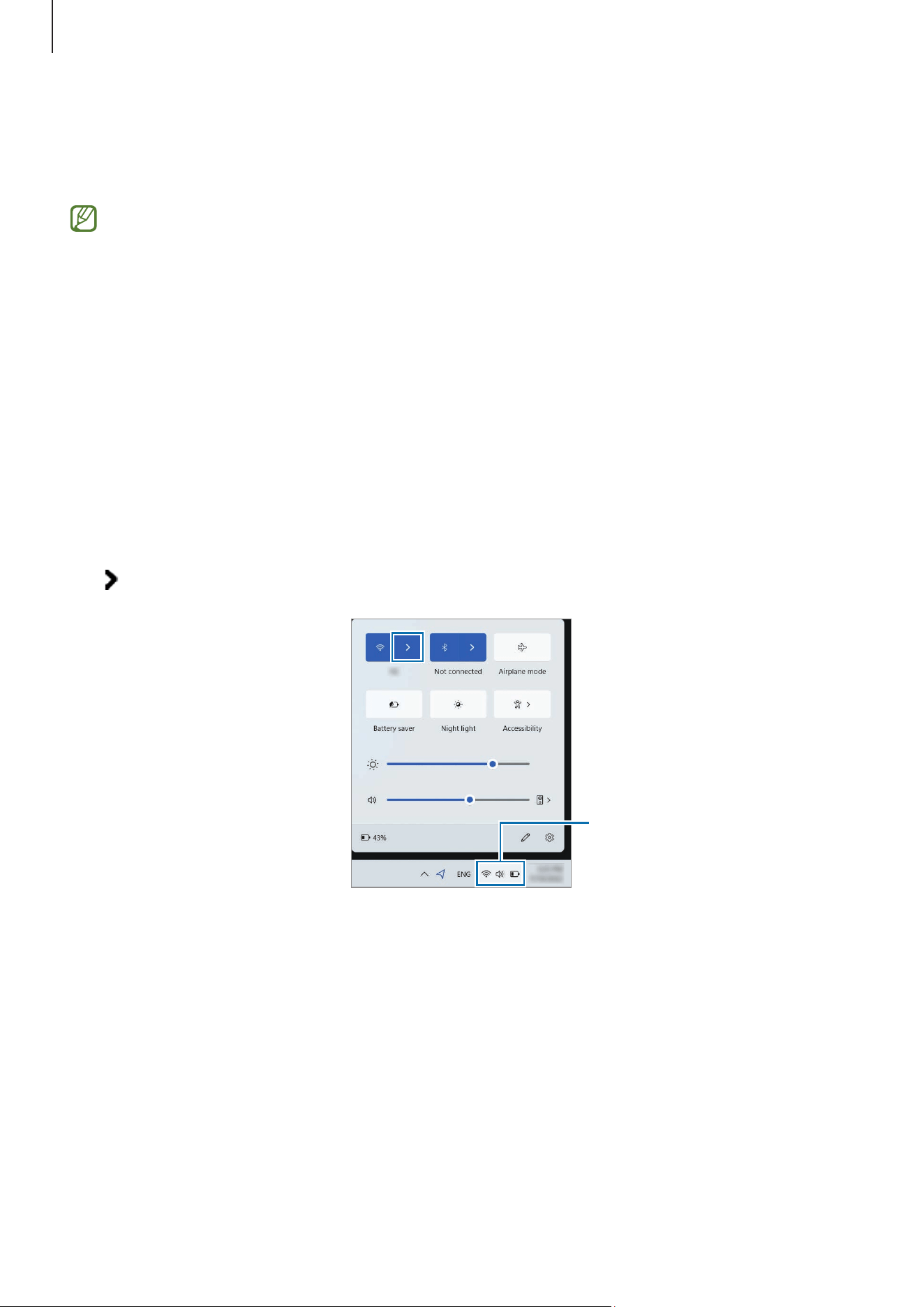
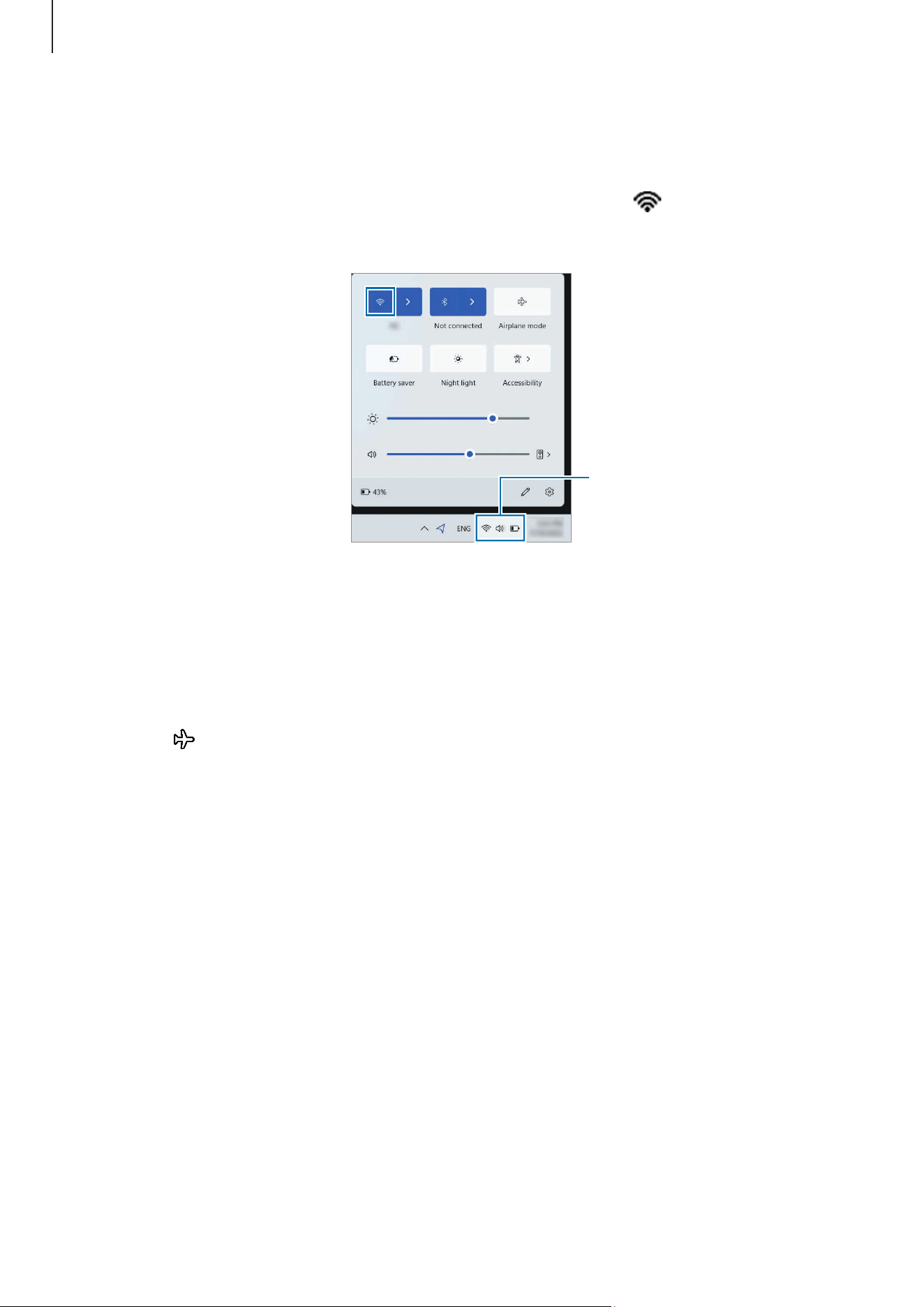
1 Select the status icons on the taskbar and select the Manage Wi-Fi connections icon
(
) on the
Wi-Fi
option.
Status icons
2 Select a network from the list of detected wireless networks and select
Connect
automatically
→
Connect
.
3 Enter a password, if necessary, and select
Next
.
Once the computer has been connected to a wireless network, it will attempt to
connect to it automatically when it is available. If you require a network password,
contact the system administrator.
Basics
17
Deactivating the Wi-Fi feature
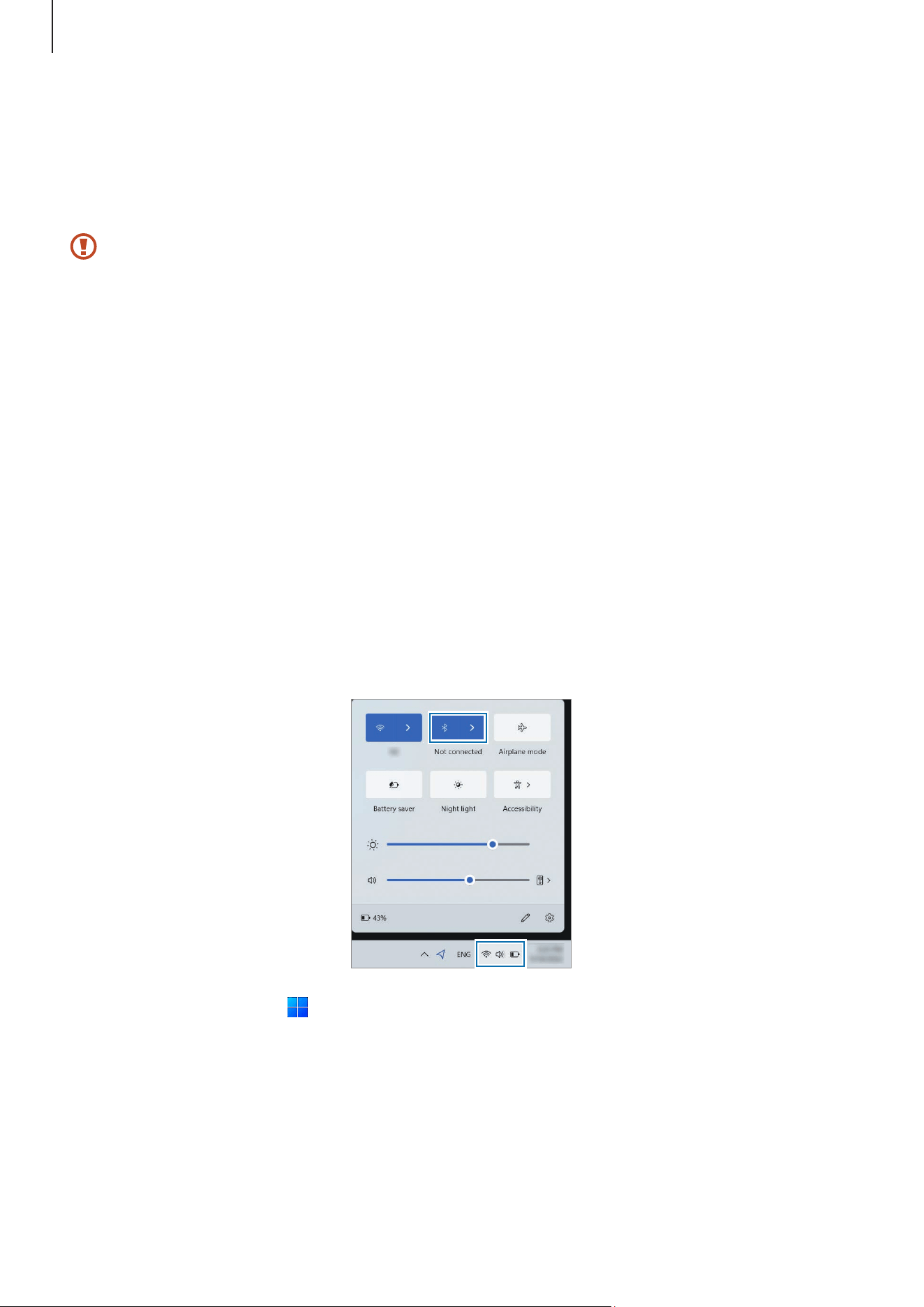
When you are not using the Wi-Fi feature, turn it off to save battery power.
Select the status icons on the taskbar and select the Wi-Fi icon (
).
The Wi-Fi feature is deactivated.
Status icons
Airplane mode
Set the computer to turn off all wireless functions on your computer. You can use only
non-network services.
To turn on
Airplane mode
, select the status icons on the taskbar and select the Airplane
mode icon (
).
Basics
18
Bluetooth
Use Bluetooth to listen to music or exchange data or media files with other
Bluetooth-enabled devices.
•
Samsung is not responsible for the loss, interception, or misuse of data sent or
received through Bluetooth.
•
Always ensure that you share and receive data with devices that are trusted
and properly secured. If there are obstacles between the devices, the operating
distance may be reduced.
•
Some devices, especially those that are not tested or approved by the Bluetooth
SIG, may be incompatible with your device.
•
Do not use the Bluetooth feature for illegal purposes (for example, pirating
copies of files or illegally tapping communications for commercial purposes).
Samsung is not responsible for the repercussion of illegal use of the Bluetooth
feature.
Pairing with other Bluetooth devices
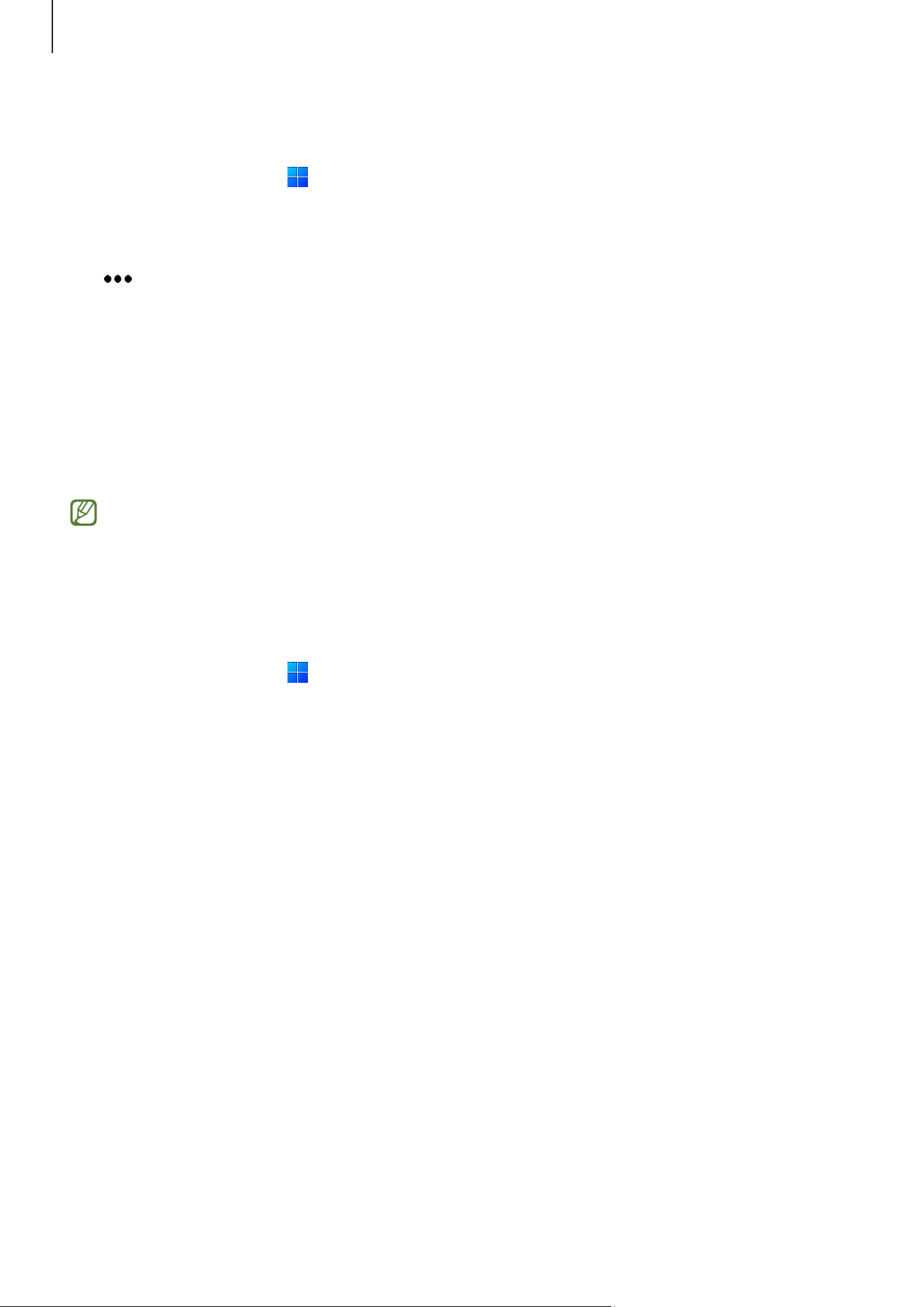
1 Select the status icons on the taskbar to ensure that Bluetooth is activated.
2 Select the Start icon ( )
→
Settings
→
Bluetooth & devices
→
Add device
.
3 Select
Bluetooth
to select a device you want to add and finish pairing.
Basics
19
Unpairing Bluetooth devices
1 Select the Start icon ( )
→
Settings
→
Bluetooth & devices
.
Your computer will display the paired devices.
2 On the device you want to unpair from your computer, select the More options icon
(
)
→
Remove device
.
The connection to the Bluetooth device will be disconnected.
Fingerprint recognition (optional)
You can sign in to Windows, apps, and services by teaching Windows to recognize your
fingerprint.
Remove the sticker from the fingerprint recognition sensor before using it.
Registering your fingerprint
Create a password and PIN first to use the fingerprint scan feature.
1 Select the Start icon ( )
→
Settings
→
Accounts
→
Sign-in options
.
2 Select
Fingerprint recognition (Windows Hello)
→
Set up
to start the fingerprint
registration.
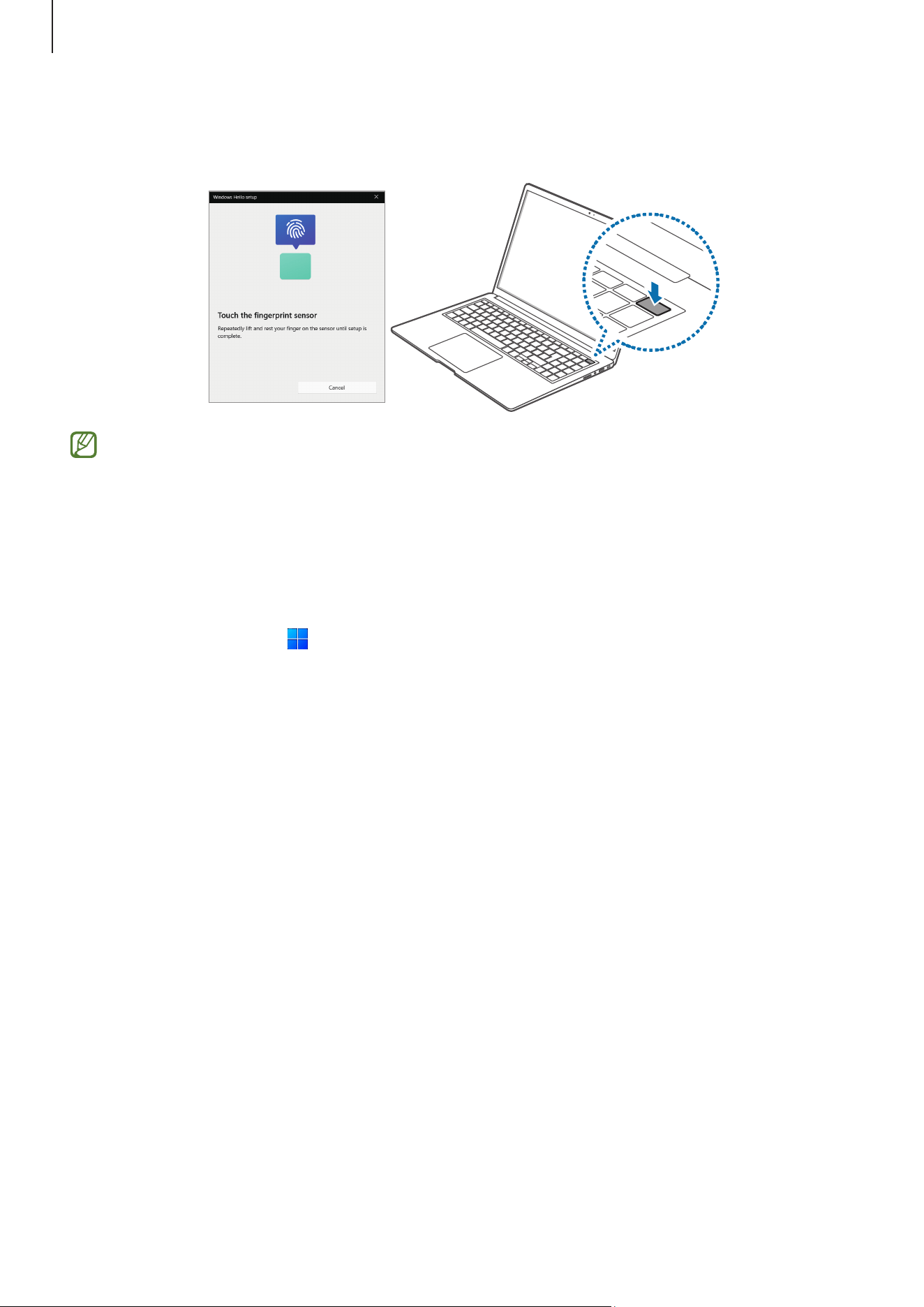
3 Select
Get started
on the
Windows Hello setup
window.
4 Enter the PIN number you set.
Basics
20
5 Repeatedly lift and rest your finger on the fingerprint recognition sensor until setup is
complete.
The fingerprint recognition sensor’s location may vary depending on the model.
6 Fingerprint registration is complete.
If you want to add another fingerprint, select
Add a finger
.
Removing a fingerprint
1 Select the Start icon ( )
→
Settings
→
Accounts
→
Sign-in options
.
2 Select
Fingerprint recognition (Windows Hello)
→
Remove
.
The fingerprint will be removed.
Unlocking the screen with a fingerprint
You can unlock the screen by resting your fingerprint on the fingerprint recognition
sensor.
Place a registered finger on the fingerprint recognition sensor.
The screen will be unlocked if the fingerprint is scanned correctly.

Basics
21
For better fingerprint recognition
•
Prevent the fingerprint recognition sensor from being scratched or damaged by
metal objects, such as coins, keys, and necklaces.
•
Ensure that the fingerprint recognition sensor and your fingers are clean and dry.
•
The fingerprint recognition sensor may not recognize fingerprints that are affected
by wrinkles or scars.
•
The fingerprint recognition sensor may not recognize fingerprints from small or thin
fingers.
•
If you bend your finger or use your fingertips, the fingerprint recognition sensor may
not recognize your fingerprints. Make sure to cover the entire fingerprint recognition
sensor with your finger.
•
To improve recognition performance, register the fingerprints of the fingers used
most often to perform tasks on the computer.
•
In dry environments, static electricity can build up in the computer. Avoid using this
feature in dry environments or before using the feature, discharge static electricity
by touching a metal object.
Basics
22
Memory card slot
Use a memory card to transfer data to other devices.
Memory cards are sold separately.
This computer supports the following types of memory cards.
<Supported memory card type>
Abbreviation Description
micro SD micro Secure Digital
micro SDHC micro Secure Digital High Capacity
micro SDXC micro Secure Digital eXtended Capacity
•
Some memory cards may not be fully compatible with the computer. Using an
incompatible card may damage the computer, the memory card, or the data
stored in it.
•
Use caution to insert the memory card in the indicated direction.
•
Store the card separately to prevent losing the card when moving the computer.
•
Memory card speeds vary.
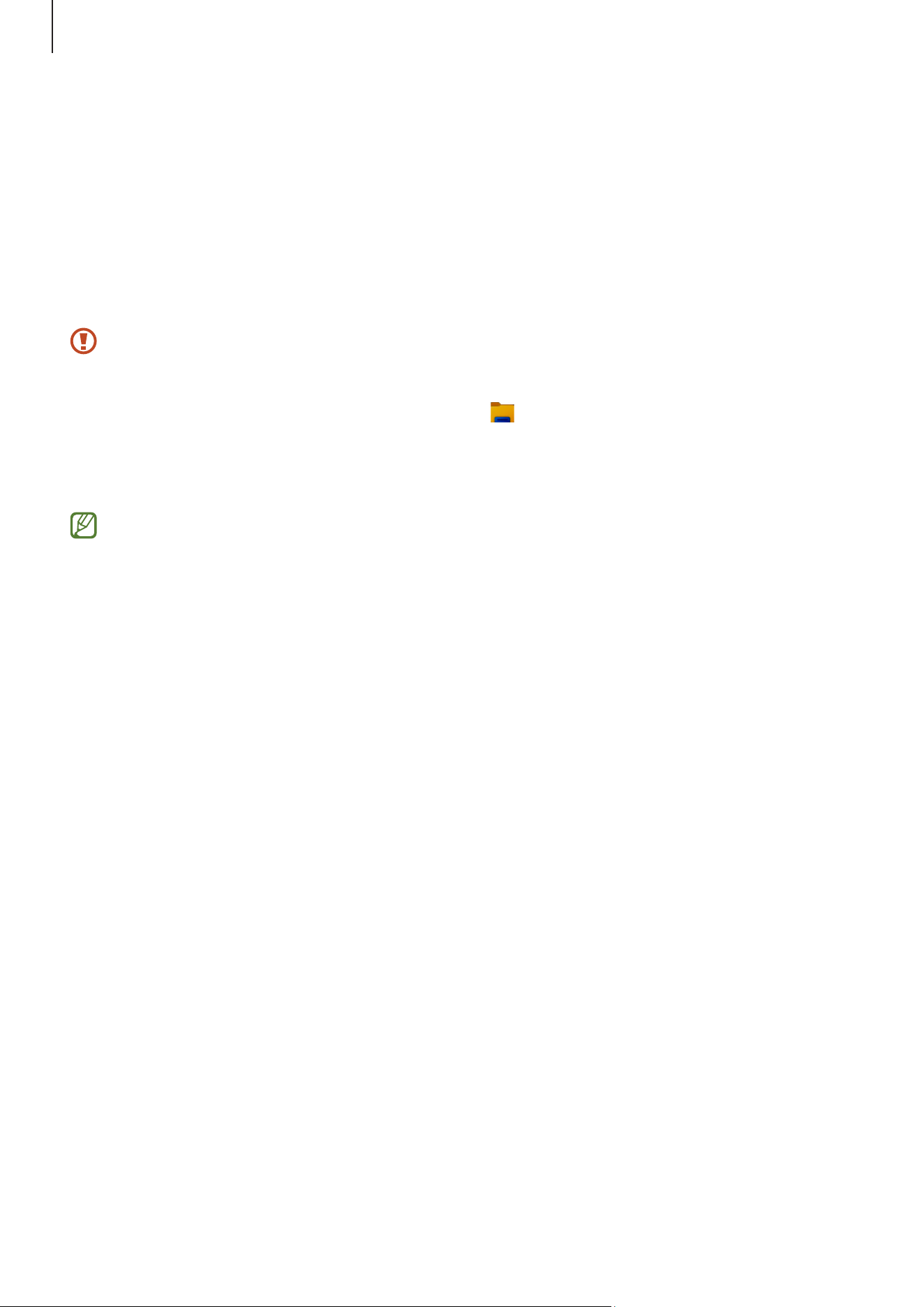
Inserting a memory card
If a memory card adapter or an unnecessary card is inserted in the memory card slot,
remove it. Then insert a memory card into the slot in the indicated direction.
Basics
23
Removing a memory card
When you push the card, it clicks and disengages from the memory card slot. Grasp the
end of the card and pull it out of the slot.
Formatting a memory card
Format the memory card to remove all data or before using it for the first time.
Formatting a memory card deletes all data saved on the card. If necessary, back up
important data before formatting the card.
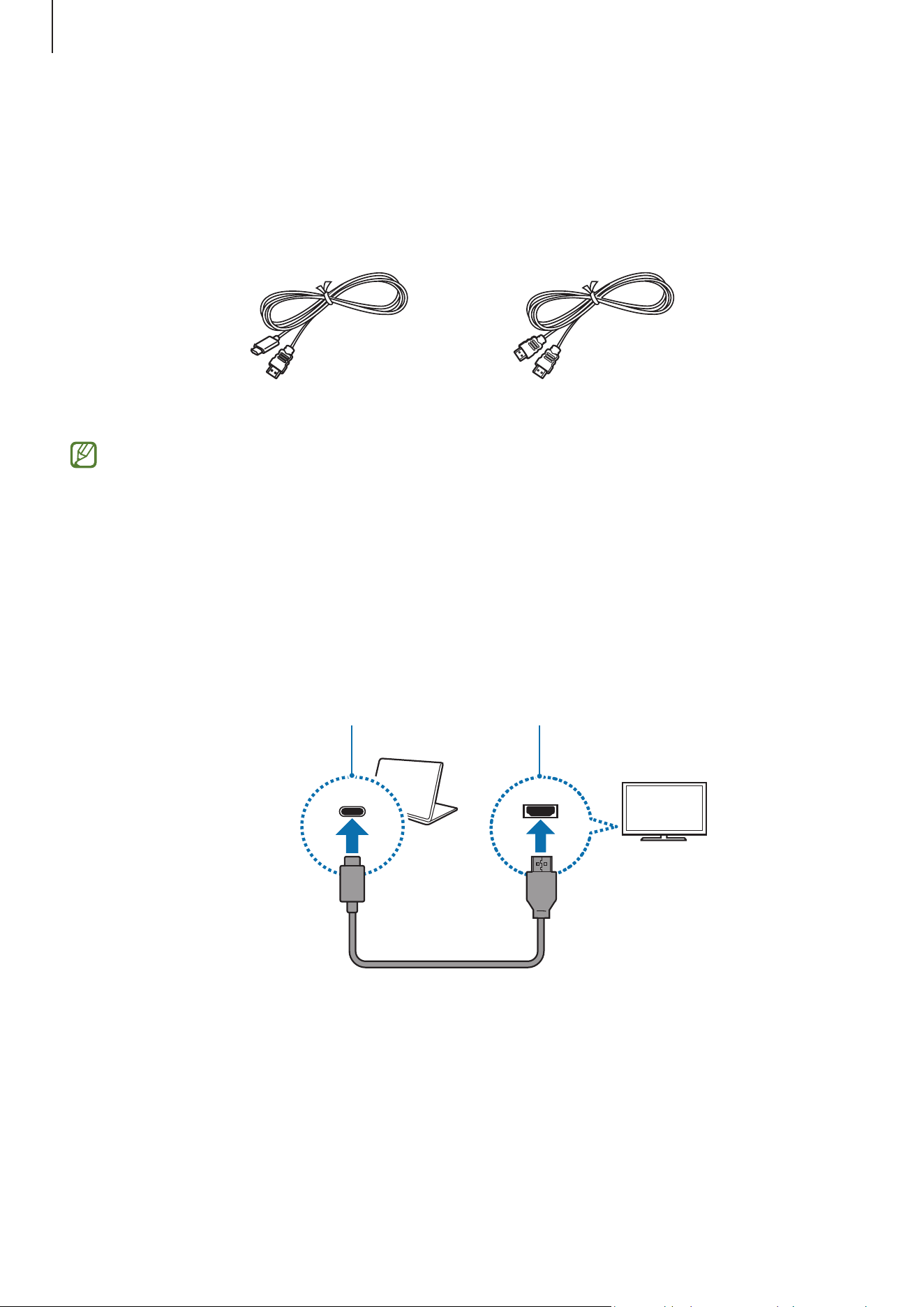
1 On the taskbar, select the File Explorer icon ( ).
2 Right-click the memory card drive, and then select
Format
.
3 Select
Start
.
•
To use a memory card to exchange data with a digital device, such as a digital
camera, formatting the data with the digital device is recommended.
•
When trying to use a formatted memory card in another digital device, format
the memory card again in the device.
•
Data protected by copyright laws cannot be reviewed or modified.
•
Inserting and removing a memory card repeatedly may damage the memory
card.
•
Secure Digital Input Output (SDIO) is not supported.
•
If the write-protect tab is in the locked position, you cannot format, write, or
delete data on the card.
Basics
24
External display
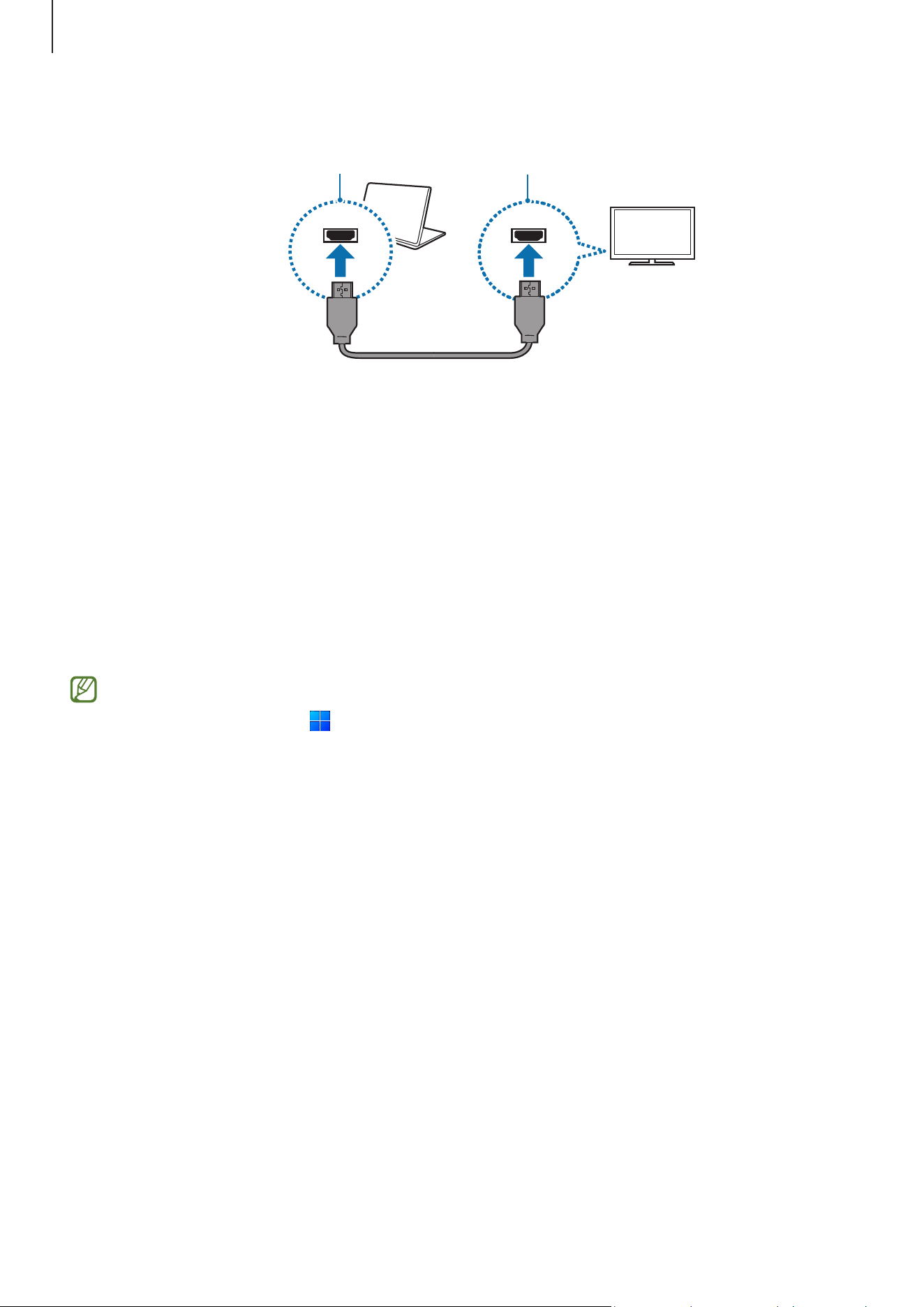
Connecting the computer to an external display device can be useful for presentations or
when watching a movie. The cables and adapters required to connect an external display
are sold separately. The computer supports HDMI cables and USB Type-C display cables.
USB Type-C display cable HDMI cable
Check the available ports on the display device to ensure that it is compatible with
the computer.
Connecting to a display
1 Connect the cable to the HDMI port or the USB Type-C port of the computer.
2 Connect the other end of the cable to the external display.
•
When using a USB Type-C display cable
USB Type-C port HDMI port
Basics
25
•
When using an HDMI cable
HDMI port HDMI port
3 Connect the power cord to the external display.
4 Turn on the display and change its display mode to one that supports an external
input.
5 Press and hold the
Fn
key and press the
F4
key.
6 Select a mode.
•
PC screen only
: Show the screen on the computer monitor only.
•
Duplicate
: Show the screen on both the computer and the external display.
•
Extend
: Extend the screen to the external display.
•
Second screen only
: Show the screen on the external display only.
You can also select the display mode in Windows settings.
Select the Start icon ( )
→
Settings
→
System
→
Display
→
Multiple displays
and
select
Detect
next to
Detect other display
.
Basics
26
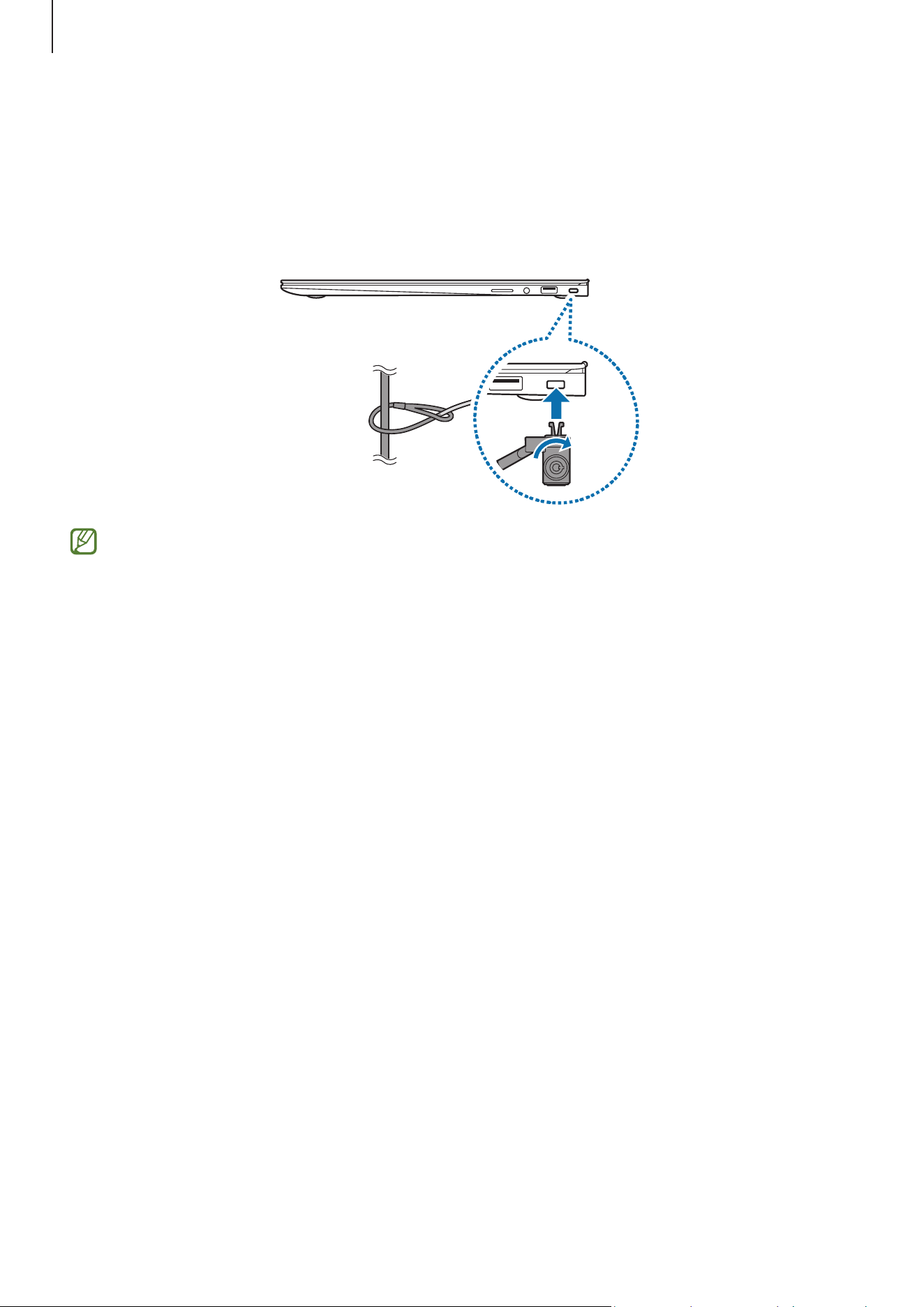
Security slot
You can secure the computer by connecting a lock and cable to the security slot.
Tie the lock and cable to a fixed object and install the other end of the cable to the
security slot.
To use this feature, you must purchase a lock and cable (sold separately). Your
product may differ from the one shown above. For more information, refer to your
lock’s manual.
27
Apps and features
Using apps
•
Images and features may differ depending on the model and the app version.
•
Some apps may not be supported depending on the model.
•
Apps that are provided by Samsung can be installed from
Microsoft Store
.
•
Third-party software related apps
For descriptions about and service requests for third-party apps, please contact
the relevant manufacturer. Some troubleshooting actions in response to service
requests may not work depending on the app manufacturer.
Samsung Account
Using the Samsung account, you can use a variety of Samsung services that are provided
through computers, mobile devices, TVs, and the Samsung website.
To check the list of services that can be used with your Samsung account, visit
account.samsung.com.
To use this feature, the computer must be connected to the internet.
1 Select the Start icon ( )
→
All
→
Samsung Account
.
2 Select
Sign in
and sign in to your Samsung account. If you do not have a Samsung
account, select
Create account
.
Finding your ID and resetting your password
If you forget your Samsung account ID or password, select
Find ID
or
Forgot password?
on the Samsung account sign-in screen. You can find your ID or reset your password after
you enter the required information.
Apps and features
28
Signing out of your Samsung account
When you sign out of your Samsung account, your data which is related to your Samsung
account will also be removed from your computer.
Select the Start icon (
)
→
All
→
Samsung Account
→
Sign out
.
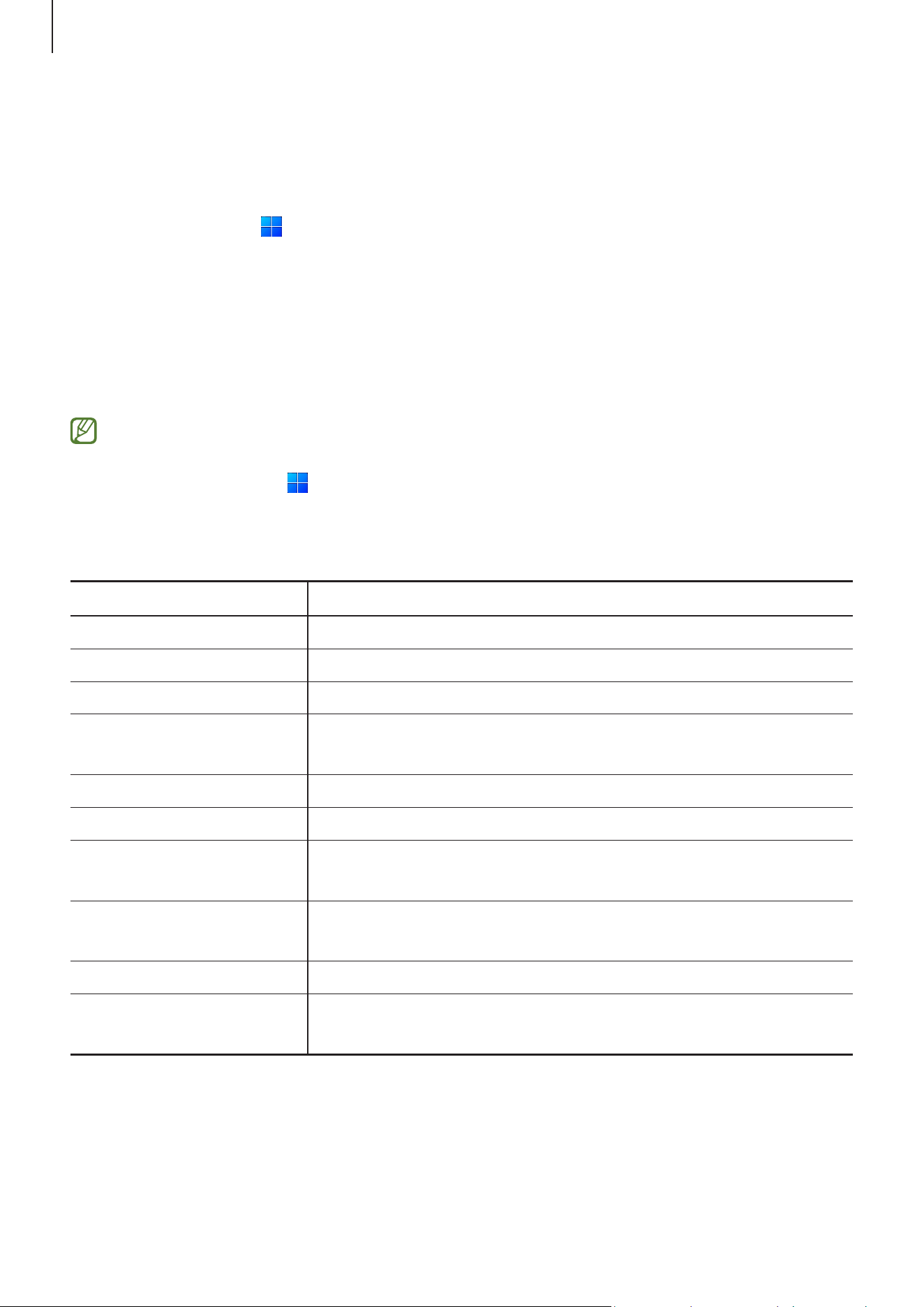
Samsung Settings
Samsung Settings
, a Samsung-integrated settings app, offers various settings
functions.
Images and features may differ depending on the model and the app version.
1 Select the Start icon ( )
→
All
→
Samsung Settings
.
2 Select an option to configure the corresponding feature.
<Samsung settings functions>
Menu Description
Connections
Set connection settings, such as the Bluetooth connection.
Connected devices
Change settings for computer connections.
Sound
Change settings for sounds.
Notifications
Change the notification settings, such as turning the app
notifications or do not disturb feature on or off.
Display
Change the display settings.
Security and privacy
Set the security and privacy status.
Advanced features
Turn on advanced features and change the settings that
control them.
Battery and
performance
Set the battery settings.
Keyboard
Set keyboard backlight settings.
About
Check out the computer and the Samsung Settings app
information.
Apps and features
29
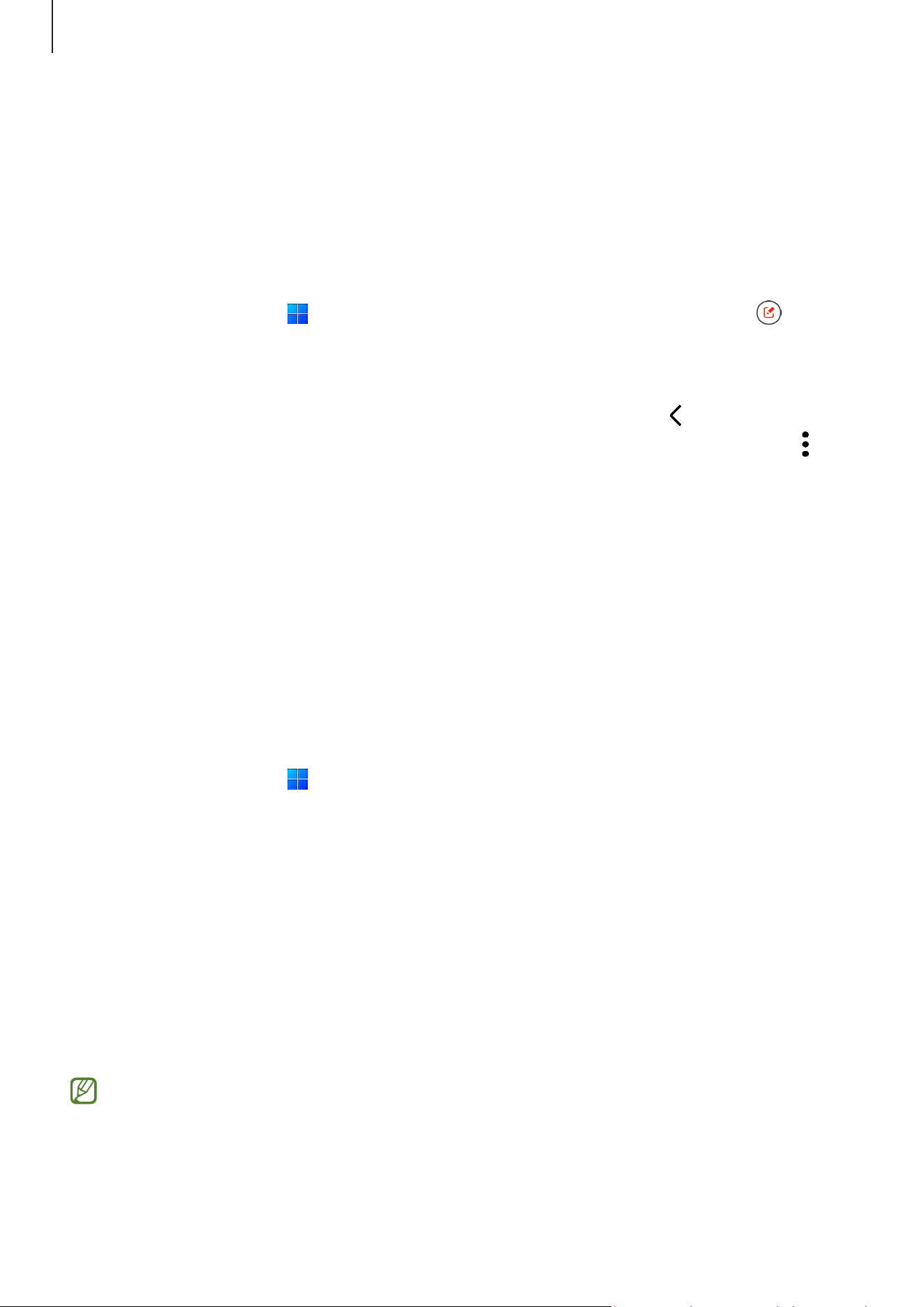
Samsung Notes
Create notes by entering text from the keyboard or by handwriting or drawing on the
screen. You can also insert images or voice recordings into your notes.
Creating notes
1 Select the Start icon (
)
→
All
→
Samsung Notes
→
the Create note icon ( ) and
create a note.
Select an input method from the toolbar on the right side of the screen.
2 When you are finished composing the note, select the Back icon ( ) to save it.
If you want to save the note in another file format, select the More options icon ( )
→
Save as file
.
Deleting notes
Right-click the note you want to delete on the note list and select
Delete
.
Samsung Flow
Connect your mobile device to your computer and use them together doing things like
checking notifications and sharing content.
1 Select the Start icon ( )
→
All
→
Samsung Flow
.
2 On your mobile device, open the Samsung Flow app.
If Samsung Flow is not installed, download it from the Galaxy Store or Play Store.
3 Select
Start
.
4 Select your mobile device from the detected devices list.
If the connection method selection pop-up window appears, select the method you
want.
5 Check the passkey on both devices and select
Ok
.
The devices will be connected.
•
This feature is only available on some Samsung Android devices.
•
Refer to the mobile device’s user manual for more information about how to use
Samsung Flow.

Apps and features
30
Samsung Studio
Create and edit videos using photos and videos in your computer.
1 Select the Start icon ( )
→
All
→
Samsung Studio
.
2 Select
New project
.
3 Select
Files
,
Folder
, or
Samsung Gallery
to add files and select
OK
.
4 Edit the video by inserting music or text.
5 When you are finished editing the video, select
Export
to save the video.
Samsung Gallery
Access images and videos stored in your computer.
Viewing images and videos
Select the Start icon ( )
→
All
→
Samsung Gallery
.
The images and videos stored on your computer will appear.
Editing images or videos
1 Select the Start icon ( )
→
All
→
Samsung Gallery
.
2 Select the images and videos you want to edit and select the Edit icon ( ).
Deleting images or videos
1 Select the Start icon ( )
→
All
→
Samsung Gallery
.
2 Select the images and videos you want to delete and select the Delete icon ( ).
The deleted images and videos will move to the Windows Recycle Bin.
Apps and features
31
Samsung Care+
The guaranteed services provided by
Samsung Care+
will cover certain problems that
may arise while using the product, such as damaged or lost computers.
Select the Start icon (
)
→
All
→
Samsung Care+
.
The website will appear. Refer to the website for more information.
•
To use this feature, the computer must be connected to the internet.
•
This feature may not be available depending on your model or region.
Samsung Device Care
You can back up and restore your computer's data or perform a factory data reset. You
can also check and clean up your computer's storage or memory, and update apps and
drivers on your computer.
Protect your privacy by turning on maintenance mode when you send your computer for
repairs.
Backing up and restoring data
1 Select the Start icon ( )
→
All
→
Samsung Device Care
.
2 Select
Backup and restore
→
Back up now
.
To restore your computer, select
Restore
of the backup image you want to restore.
Back up important data regularly before the computer has a problem.
Managing the storage
1 Select the Start icon ( )
→
All
→
Samsung Device Care
.
2 Select
Storage
.
3 Check the status of the used and available storage.
To delete files that you do not use anymore, select a category, select an item, and
then select
Delete
.
Apps and features
32
Updating apps and drivers
1 Select the Start icon ( )
→
All
→
Samsung Device Care
.
2 Select
Updates
.
Update apps and drivers regularly to keep your computer running smoothly and
maintain its performance.
•
To check for available updates, the computer must be connected to the internet.
•
Only apps that have been installed with this app can be updated.
Resetting the computer
1 Select the Start icon ( )
→
All
→
Samsung Device Care
.
2 Select
Factory reset
and select
Start factory reset
.
Back up apps and personal data to an external storage device before performing
the computer factory reset.
Using maintenance mode
1 Select the Start icon ( )
→
All
→
Samsung Device Care
.
2 Select
Maintenance mode
→
Turn on Maintenance mode
and follow the on-screen
instructions.
The computer will enter maintenance mode.
Optimizing the memory
1 Select the Start icon ( )
→
All
→
Samsung Device Care
.
2 Select
Optimize memory
.
Check the memory usage and clean up the unused memory.
Apps and features
33
Samsung Pass
On your computer, use the login or personal information saved in Samsung Pass on
your phone or tablet. When entering your Samsung account, ID, password, or personal
information, such as your address, use Samsung Pass to sign in or enter information.
•
To use this feature, you must complete the Samsung Pass setup on your phone or
tablet and also register your information first. Refer to the device’s user manual
for more information.
•
To use this feature, you must sign in your Samsung account. Use the same
Samsung account that was set up with Samsung Pass on your phone or tablet.
•
To use this feature, the computer must be connected to the internet.
1 Select the Start icon ( )
→
All
→
Samsung Pass
.
2 Select
Sign in
and follow the on-screen instructions to complete the setup.
3 On the sign-in page of the website or app, log in or enter the personal information
with Samsung Pass.
Bixby
Bixby is a user interface that helps you use your device more conveniently.
You can talk to Bixby or type text. Bixby will launch a feature you request or show the
information you want. Visit www.samsung.com/bixby for more information.
•
Bixby is only available in some languages, and it may not be available depending
on the region.
•
To use this feature, the computer must be connected to the internet.
Starting Bixby
Select the Start icon (
)
→
All
→
Bixby
. The Bixby intro page will appear. After you
select the language to use with Bixby, sign in to your Samsung account, and complete
the setup by following the on-screen instructions, the Bixby screen will appear.

Apps and features
34
Using Bixby
Say “Hi, Bixby” and say what you want. Alternatively, press the
Ctrl
,
Shift
, and
B
keys at
the same time and tell Bixby what you want.
For example, say “Hi, Bixby” and say “How’s the weather today?” The weather information
will appear on the screen.
If Bixby asks you a question during a conversation, say “Hi, Bixby” and answer Bixby. Or
select the Talk to Bixby icon (
) and answer Bixby.
Waking up Bixby using your voice
You can start a conversation with Bixby by saying “Hi, Bixby”.
1 Select the Start icon (
)
→
All
→
Bixby
.
2 Select the More options icon ( )
→
Settings
and select the
Wake with “Hi, Bixby”
switch to turn it on.
Now you can say “Hi, Bixby” and start a conversation.
Apps and features
35
Galaxy Book Smart Switch
Using the
Galaxy Book Smart Switch
app, you can transfer data from your previous
computer to your new computer.
•
To use this feature, both your computer and previous computer must be
connected to the same Wi-Fi network.
•
This feature may not be supported on some computers.
•
Samsung takes copyright seriously. Only transfer content that you own or have
the right to transfer.
1 On the previous computer, open the
Galaxy Book Smart Switch
app.
If you do not have the app, download it from
Microsoft Store
.
2 On your computer, select the Start icon ( )
→
All
→
Galaxy Book Smart Switch
.
3 Place the computers near each other.
4 On the previous computer, select
Send data
.
5 On your computer, select
Receive data
.
6 On the previous computer, select
Allow
.
7 On your computer, select an item to bring and select
Transfer
.
Transferring data increases the battery power consumption of your computer.
Ensure that your computer is sufficiently charged before transferring data. If the
battery power is low, data transfer may be interrupted.
Galaxy Book Experience
Using the
Galaxy Book Experience
app, you can check the information for various apps
or features provided by Samsung and use them.
1 Select the Start icon (
)
→
All
→
Galaxy Book Experience
.
2 Select the card you want.
3 Check the information of the app or feature, and select
Open
to open it.
Apps and features
36
Online Support(S Service)
A service associate can resolve any problems you have with your computer using the
online chat and remote control program. You can receive the help when you are having
trouble using Samsung software.
You can access the online service for free for a certain period of time after purchasing
your computer.
•
Online Support(S Service)
may not be offered or its version may be different
depending on the model or region.
•
If
Online Support(S Service)
is not installed, select the Start icon ( )
→
Microsoft Store
( ) and, search for
S Service
to download it.
1 Select the Start icon (
)
→
All
→
Online Support(S Service)
.
2 Read and agree to the terms and conditions.
This step appears only when the app runs for the first time.
3 Select
Online Talk
on the main page.
Select
Please enter the details of your inquiry.
, enter your inquiry, and then select
Request
.
4 You can speak to a service associate to resolve your computer’s problems.
Waiting times may vary depending on the network and number of waiting
customers.
Apps and features
37
Screen Recorder
Record the screen while using your computer.
1 Select the Start icon ( )
→
All
→
Screen Recorder
.
The screen recorder toolbar will appear on the top of the screen.
2 Select the Start recording icon ( ) to start recording.
After a countdown, recording will start.
•
To adjust the position and size of the recording area, select the Record part of the
screen icon (
) before starting recording.
•
To capture the screen, select the Screenshot icon ( ).
•
To record the screen with a video overlay of yourself, select the Webcam icon (
).
The web cam window will appear.
•
To change the screen recorder settings, select the Settings icon ( ) before starting
recording.
•
To write or draw on the screen, select the Pen tools icon ( ).
•
To add a text box on the screen, select the Text tools icon ( ).
3 When you are finished recording the screen, select the Stop recording icon ( ).
You can check the file in
Videos
or
Pictures
.
4 Select the Close Screen Recorder icon ( ) to finish the screen recorder toolbar.
•
Select the Minimize toolbar icon ( ) to expand or collapse the screen recorder
toolbar.
•
If your computer enters sleep mode while recording the screen, the recording
will be paused.
•
If your computer turns off abnormally while recording the screen, the recorded
file will not play normally.
•
Some apps or programs may not support the screen record or screen capture
features.
Apps and features
38
Setting the video resolution
1 Select the Start icon ( )
→
All
→
Screen Recorder
.
The screen recorder toolbar will appear on the top of the screen.
2 Select the Settings icon ( ).
The
Screen Recorder settings
window will appear.
3 Select
Video
and select the resolution you want under
Video resolution
.
You can set the video resolution only when recording in full screen mode.
Second Screen
Connect your computer and tablet to use the tablet as an additional display for the
computer.
•
Only Samsung tablets can be connected using this feature. To check out models
that support the Second Screen feature, visit the Samsung website.
•
This feature is only available on tablets running One UI version 3.1 or higher
software.
•
To use this feature, you must connect the computer and tablet to the Wi-Fi
network. It is not necessary to connect both devices to the same Wi-Fi network,
but it is recommended to connect them to the same Wi-Fi network for a stable
connection.
1 On your tablet, turn on the Second Screen feature.
2 Select the Start icon ( )
→
All
→
Second Screen
.
3 Select your tablet from the detected devices list.
Your computer’s screen will appear on the connected tablet.
If the computer has previously connected to a tablet, it will automatically
reconnect to that tablet.
Apps and features
39
SmartThings
Control and manage smart appliances and SmartThings compatible products.
Select the Start icon (
)
→
All
→
SmartThings
.
•
Home camera streaming: You can check the connected home camera's
live-streamed video.
•
Ring your phone or tablet: You can find the Galaxy phone or tablet signed in to your
Samsung account by ringing them.
•
Device control: You can control the frequently used devices or routines directly on
the main screen.
•
Settings: Configure settings for the SmartThings app.
•
To use this feature, you must sign in to your Samsung account.
•
You can connect devices through the SmartThings app on your phone or tablet.
•
Connected devices’ own problems or defects are not covered by the Samsung
warranty. When problems or defects occur on the connected devices, contact the
device’s manufacturer.
•
To use this feature, the computer must be connected to the internet.
•
When the network is connected, it enables SmartThings features.
Quick Share
Send content to nearby devices using Wi-Fi Direct or Bluetooth.
1 Select the Start icon ( )
→
All
→
Quick Share
.
2 Select a device to transfer the content to.
3 Select the content.
4 Accept the file transfer request on the other device.

Apps and features
40
Quick Search
Search for content on the computer quickly.
1 Select the Start icon ( )
→
All
→
Quick Search
.
2 Read the on-screen instructions and select
Start Quick Search
.
This step appears only when the app runs for the first time.
3 Select the search field to enter a keyword.
Content on your computer will be searched.
41
Settings & Upgrade
Display brightness
Adjust the display brightness to reduce eye strain and save power.
Controlling brightness using the keyboard
•
To dim the display screen, press and hold the
Fn
key and press the
F2
key.
•
To brighten the display screen, press and hold the
Fn
key and press the
F3
key.
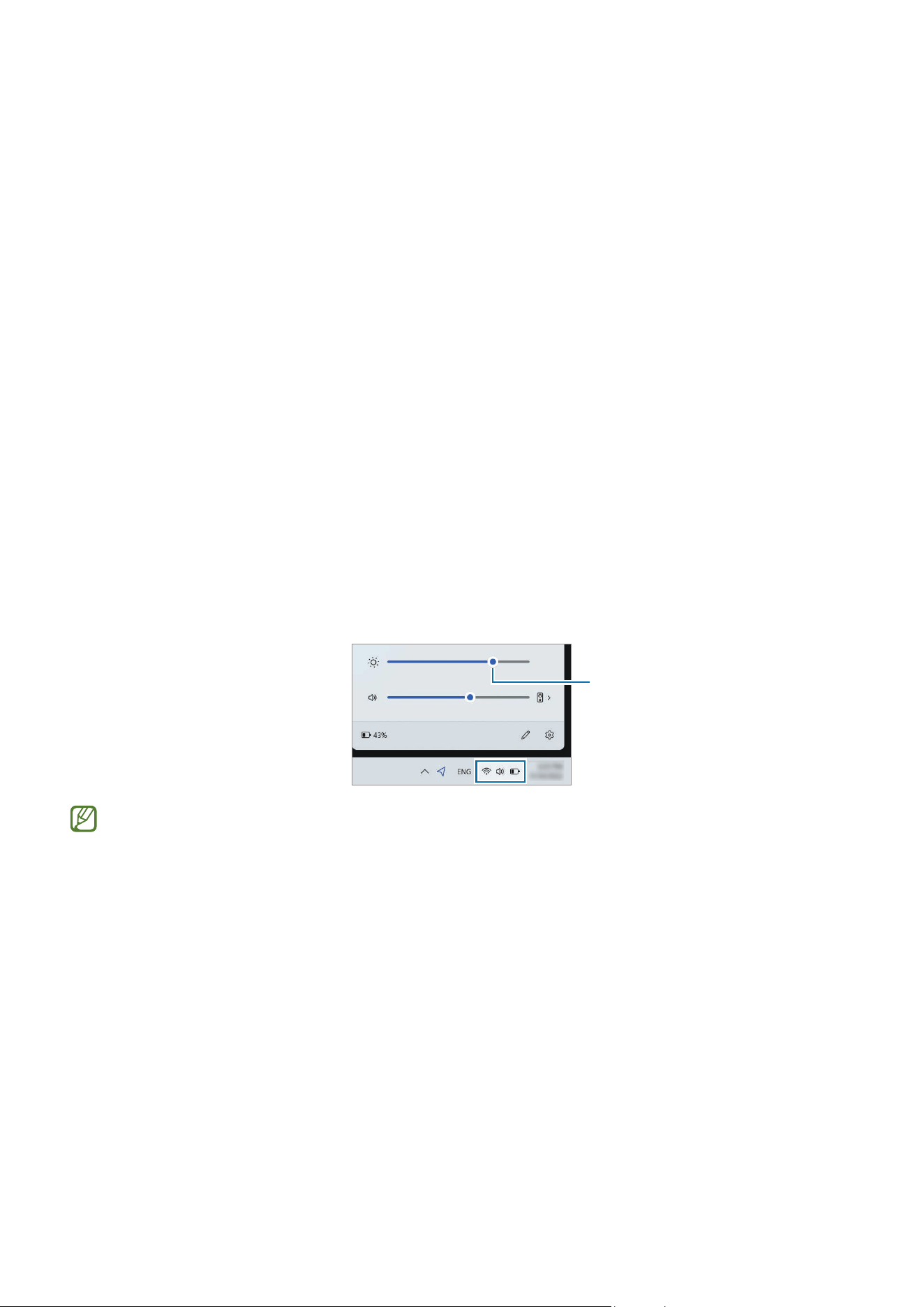
Controlling brightness using the taskbar
1 Select the status icons on the taskbar.
2 Drag the adjustment bar to the desired brightness.
Brightness adjustment bar
The display screen is automatically set to the brightest level when the adapter is
connected. The display screen automatically becomes dimmer when the adapter is
disconnected.

Settings & Upgrade
42
Changing display mode
Select the optimal screen settings based on your activity.
Some options may not be available depending on the model.
1 Select the Start icon ( )
→
All
→
Samsung Settings
.
2 Select
Display
→
Auto mode
, and then select an option.
•
Auto mode
: Optimizes the screen automatically for the currently running program.
•
Dynamic
: Makes scenes more vivid and clear.
•
Standard
: Appropriate for normal environments and convenient for most
situations.
•
Photo editing
: Appropriate for viewing photos.
•
Reading
: Appropriate for reading documents.
Optimizing the full screen color balance
Optimize the screen color by adjusting the color tones to your preference.
1 Select the Start icon ( )
→
All
→
Samsung Settings
.
2 Select
Display
→
Advanced color settings
.
3 Drag the color adjustment bar to the desired color tone.
Settings & Upgrade
43
Volume
Adjust the system volume or sound volume when playing music or video.
Controlling volume using the keyboard
•
To turn down the volume, press and hold the
Fn
key and press the
F7
key.
•
To turn up the volume, press and hold the
Fn
key and press the
F8
key.
•
To mute or unmute the volume, press and hold the
Fn
key and press the
F6
key.
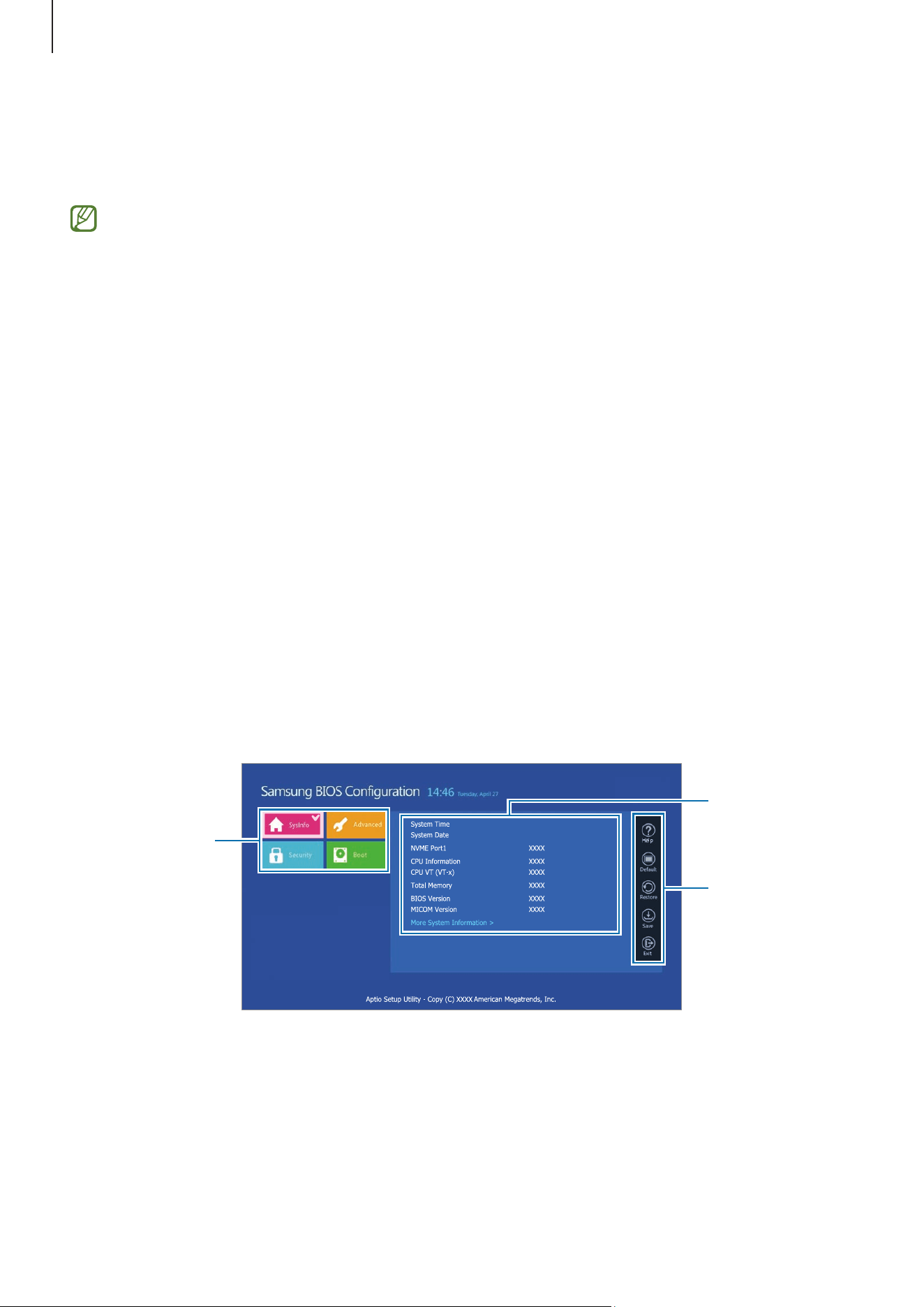
Controlling volume using the taskbar
1 Select the status icons on the taskbar.
2 Drag the adjustment bar to the desired volume.
Volume adjustment bar
Accessibility
Configure various settings to improve accessibility to the computer.
Select the Start icon (
)
→
Settings
→
Accessibility
and select a feature you want.
Refer to www.microsoft.com/en-us/windows/accessibility-features for more
information.
Settings & Upgrade
44
BIOS (Setup utility)
Define a boot password, change the boot priority, or configure the installed chipsets.
•
Incorrect settings may cause the system to malfunction or crash.
•
The BIOS setup screens, menus, and items may appear differently depending on
the model and BIOS version.
•
BIOS setup functions are subject to upgrades.
Entering the BIOS screen
1 Turn on the computer.
2 Before the Samsung logo appears, press the
F2
key several times.
•
If the computer is password-protected, press the
F2
key several times before the
password screen appears.
•
If the password screen or the Windows start screen appears, restart the computer
and try again.
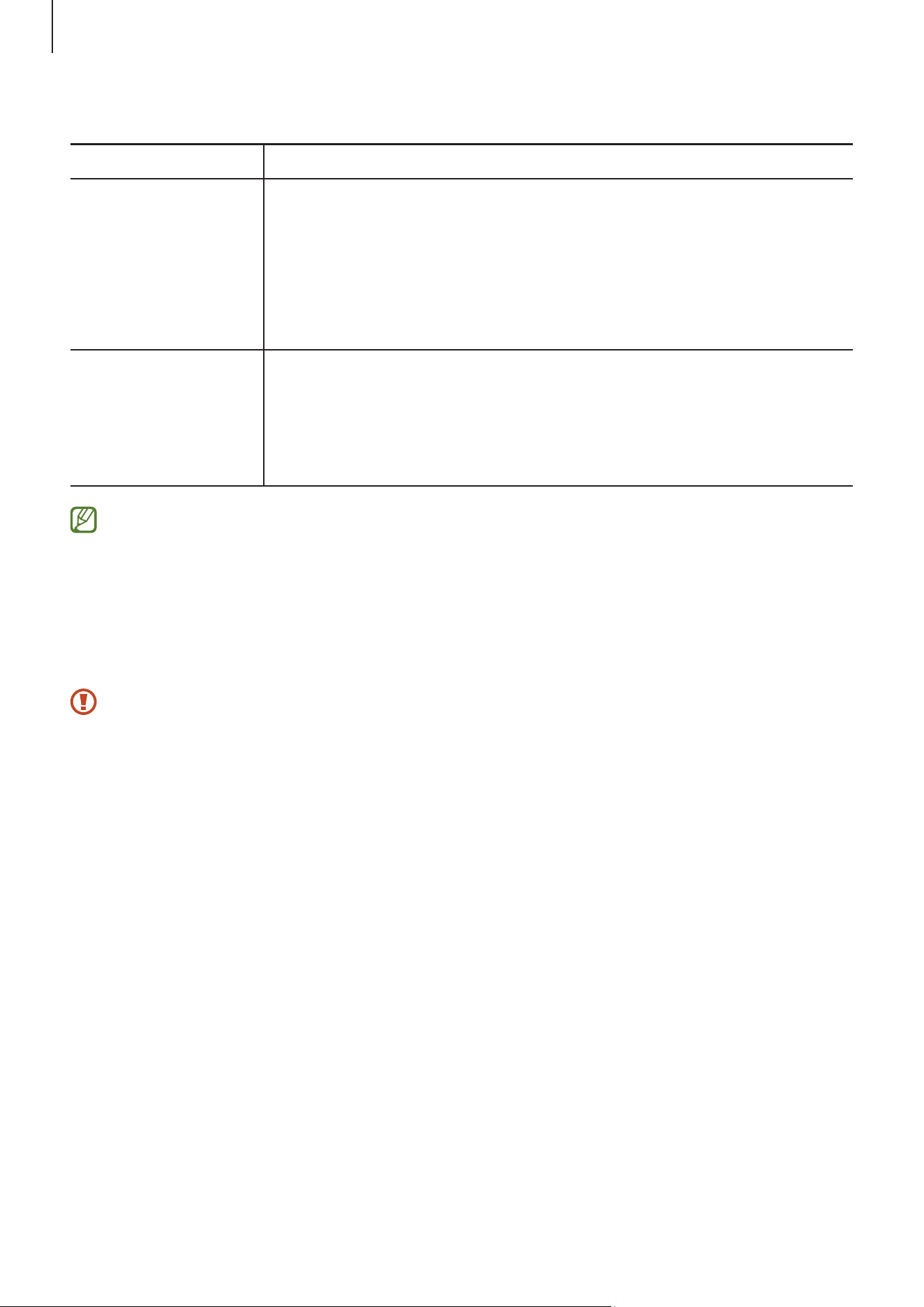
The BIOS screen
The BIOS setup screen appears as shown.
You can change BIOS settings using the keyboard or mouse.
Setup items
Setup tools
Setup menu
Settings & Upgrade
45
<BIOS screen functions>
Name Description
Setup tools
•
Help
: Get help with the BIOS setup.
•
Default
: Return to the default settings.
•
Restore
: Cancel changes.
•
Save
: Save settings.
•
Exit
: Exit BIOS setup.
Setup menu
•
SysInfo
: Check the computer’s specifications.
•
Advanced
: Configure the chipsets and additional functions.
•
Security
: Configure security functions.
•
Boot
: Configure accessories and boot-related settings.
The BIOS setup screen appears only in English.
Boot password
Setting a password with the BIOS enhances protection against viruses and hacking
attacks.
•
Do not forget your password or expose it to others.
•
If you forget the
Supervisor Password
or
HDD Password
, request assistance
from the Samsung Service Center. In this case, a service fee will be charged.
•
If you forget the
User Password
, disable the
Supervisor Password
, and the
User
Password
will also be automatically disabled.

Settings & Upgrade
46
Setting passwords
You can set passwords following these instructions on the BIOS setup screen.
•
Supervisor Password
(low security level): This password is required when turning on
the computer or entering the BIOS setup.
•
User Password
(low security level): This password is required to enter the BIOS
setup. This password will be deactivated automatically if the
Supervisor Password
is
disabled.
•
HDD Password
(high security level): This password is required to access the hard
disk drive (HDD) from another computer. This password may not be supported,
depending on the model or storage device.
Setting a boot password
1 Turn on the computer.
2 Before the Samsung logo appears, press the
F2
key several times.
3 Access the
Security
menu on the BIOS setup screen.
4 Select a password type (
Set Supervisor Password
,
Set User Password
, or
Set HDD
Password
).
If you cannot select an item or the
HDD Password Frozen
message appears, turn off
the computer and turn it on again. Then, press the
F2
key several times before the
Samsung logo appears to enter the BIOS setup screen.
5 Enter a password and select
OK
.
The password should be 8-20 characters and contain both uppercase and lowercase
letters and numbers.
6 Select
Save
→
OK
to save and restart.
•
To enable the
Password On Boot
option, set a
Supervisor Password
and enter
the password when starting up the computer.
•
For some models, if the password entered message appears in the
Setup Notice
window, select
OK
to complete the setup.
Settings & Upgrade
47
Removing a password
1 Turn on the computer.
2 Before the Samsung logo appears, press the
F2
key several times.
3 Access the
Security
menu on the BIOS setup screen.
4 Select a password type (
Set Supervisor Password
,
Set User Password
, or
Set HDD
Password
).
5 Enter the current password next to
Enter Current Password
.
6 Do not enter any characters next to
Create New Password
,
Confirm New Password
and select
OK
→
OK
.
7 Select
Save
→
OK
to save and restart.
For some models, to cancel the password, select
Cancel
in the
Setup Notice
window.
Changing the boot priority
Change the boot priority from the BIOS setup.
1 Turn on the computer.
2 Before the Samsung logo appears, press the
F2
key several times.
3 Access the
Boot
menu on the BIOS setup screen.
4 Select
Boot Device Priority
.
5 Select an option menu to open the list.
6 Select an option.
7 Select
Save
→
OK
to save and restart.
Select
Exit
→
OK
to restart without saving the changes.

Settings & Upgrade
48
Using the Battery Calibration feature
When charging/discharging the battery repeatedly for a short time only, the battery
usage time may be reduced by the difference between the actual battery charge and the
remaining charge display.
You can make the actual battery charge and the remaining charge display the same
by discharging the battery completely using the Battery Calibration feature, and then
recharging it again.
The terms may differ from the actual product depending on the computer model
and driver version.
1 Turn off the computer and then disconnect the adapter.
2 Turn the computer back on and press the
F2
key before the Samsung logo appears to
enter the BIOS setup screen.
3 Select
Advanced
→
Smart Battery Calibration
.
4 The Battery Calibration feature is activated and the battery is forcefully discharged.
To stop the operation, press the
Esc
key.
This operation requires 1-3 hours depending on the battery capacity and the
remaining battery charge.

Settings & Upgrade
49
Using the Smart Battery Power Off feature
Storing your computer in a discharged state for an extended period of time can shorten
battery life quickly. If you are not going to use your computer for a long period, more
than 3 months, you can use the Smart Battery Power Off feature to prevent the battery
life from quickly shortening.
•
After shutting down the computer, store it in a cool, dry environment to maintain
stable battery performance.
•
The battery must be charged at least 30 % before using this feature.
•
To use this feature, use the supplied adapter.
1 Turn off the computer and then disconnect the adapter.
2 Turn the computer back on and press the
F2
key before the Samsung logo appears to
enter the BIOS setup screen.
3 Select
Advanced
→
Smart Battery Power Off
.
4 Select
Yes
.
The computer will turn off automatically.
5 After connecting the adapter, turn on the computer again.
Settings & Upgrade
50
Battery
Fully charge the battery using the supplied adapter before using the computer for the
first time.
•
Use only Samsung-approved adapters, batteries, and cables. Unapproved
adapters or cables can cause the battery to explode or damage the computer.
•
Incorrectly connecting the adapter may cause serious damage to the computer.
•
To safely remove or replace the battery, it is recommended to take the computer
to a Samsung Service Center. You will be charged for this service if the repair is
not covered under warranty.
•
You can use the computer while it is charging, but the battery charging time may
increase. If the battery temperature rises too much, the charging may stop as a
safety measure.
•
To restore the battery power after cutting it, connect the adapter.
•
When you connect the adapter to a multiport adapter to charge the computer,
the charging speed message may appear, but the computer will be charged
normally.
•
If many devices are connected to the multiport adapter, the computer may not
be charged or the charging time may increase. In this case, connect the adapter
directly to the computer.
•
When the adapter is directly connected to the computer, the charging speed
message will not appear.
•
If the computer will not be used for an extended period, longer than 3 months,
you can use the Smart Battery Power Off feature to prevent the battery life from
quickly shortening. Refer to Using the Smart Battery Power Off feature for more
information.
•
The super fast charging feature supported by the adapter can be used only
with phones that support this feature. (Only for models that support super fast
charging feature by the adapter).
Settings & Upgrade
51
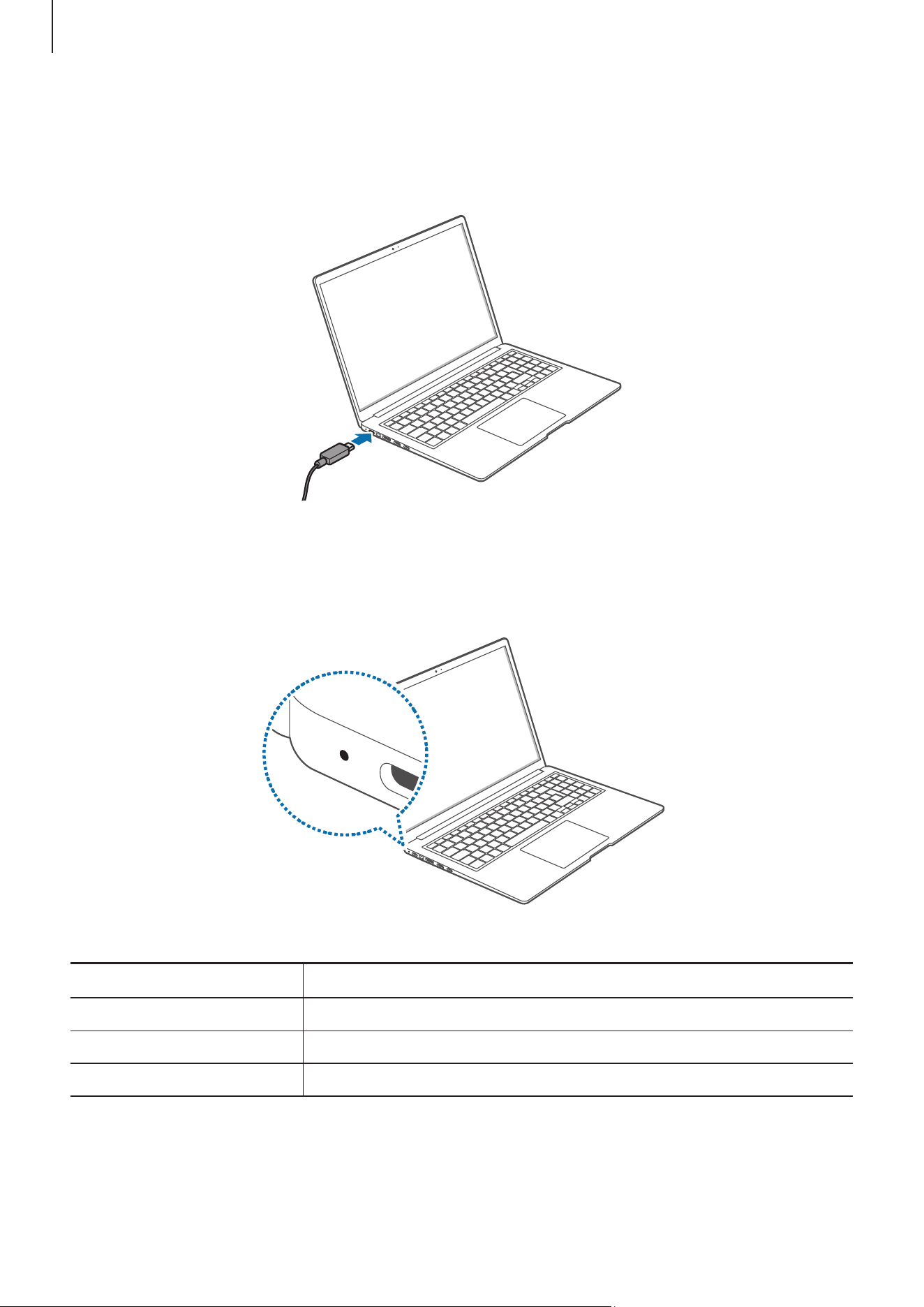
Charging the battery
1 Connect the adapter to the USB Type-C port of the computer.
2 Plug the adapter into an electric socket.
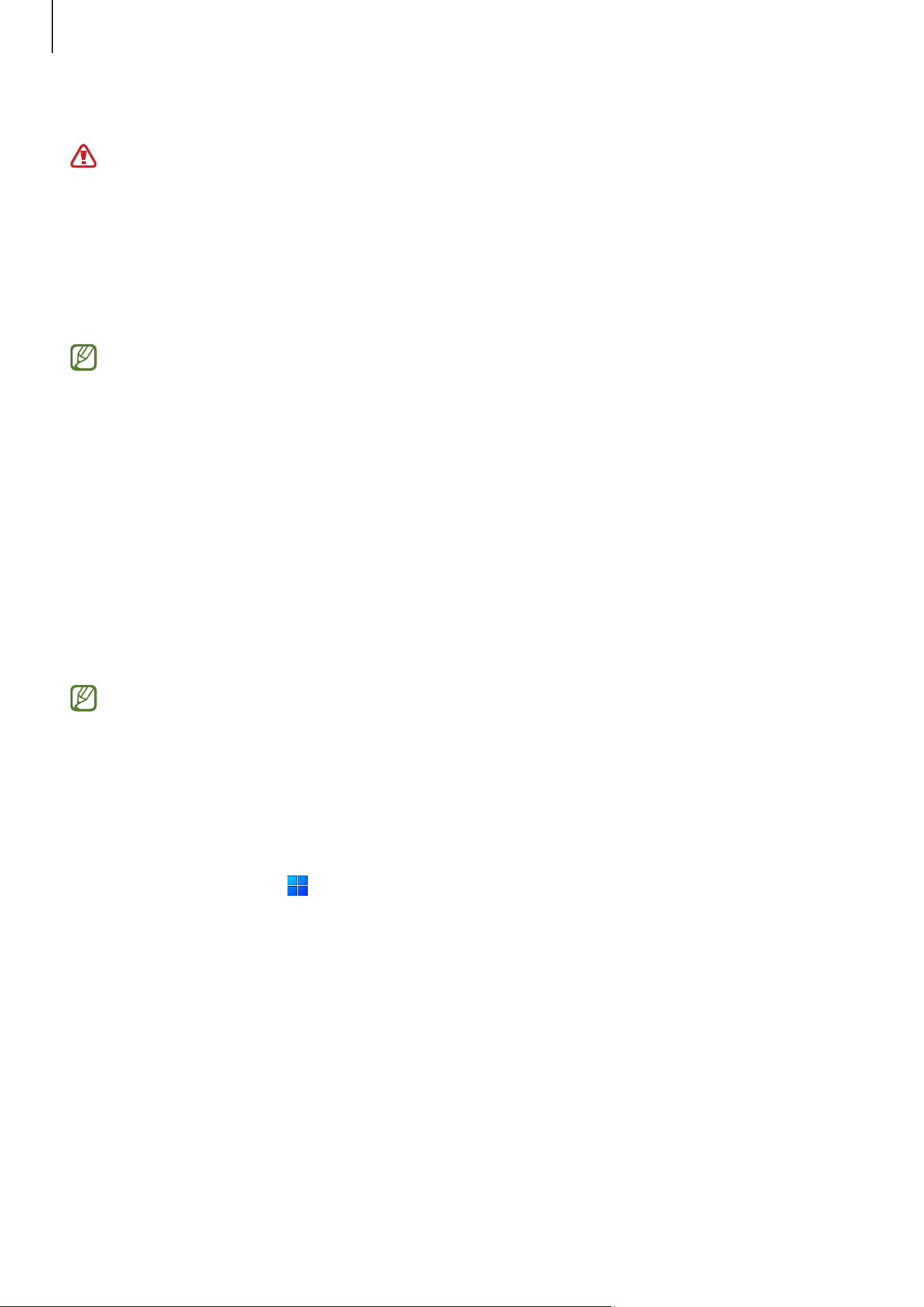
3 When the battery is fully charged, the operating status LED turns green. Disconnect
the adapter from the computer.
<Status of operating status LED>
Operating status LED Status
Red Charging
Green Fully charged
Blue Turned on
Settings & Upgrade
52
4 Unplug the adapter from the electric socket.
Do not allow the adapter to make contact with your skin for a long time. A
low-temperature burn may result.
Battery status
When the adapter is removed, move the cursor over the battery icon on the taskbar to
check the current battery charge.
The current battery charge may differ depending on the model.
Checking the current battery charge when the computer is turned off
Connect or disconnect the adapter from the computer to check the current battery
charge when the computer is turned off.
Saving battery power
Right-click the battery icon on the taskbar and select
Power and sleep settings
→
Battery saver
→
Turn on now
.
Battery saver mode is activated.
Battery saver mode is disabled when the adapter is connected.
Extending battery life
When charging your computer by connecting the adapter, turn on the Protect battery
feature. You can extend the battery life by limiting the maximum charge.
1 Select the Start icon ( )
→
All
→
Samsung Settings
.
2 Select
Battery and performance
and select the
Protect battery
switch to turn it on.

Settings & Upgrade
53
Battery usage time
Batteries are replaceable items and over time the battery’s capacity to hold a charge and
its power level is reduced. If a battery can only hold its charge for half of the time that it
could when new, it is recommended to purchase a new, replacement battery.
Checking battery life instruction messages
When the battery has expired, an instruction message may appear on the screen. To
prevent the computer from losing data and to use the computer safely, follow the
on-screen instructions.
When battery expiration is imminent
Batteries are consumable parts and the remaining battery life is currently low.
Continued use may result in charge or discharge failures. Whether or not batteries can
be used is determined based on safety evaluations. Please replace it with a new battery
(genuine) to prevent data loss and ensure safe usage.
When the battery has expired
Batteries are consumable parts and the current battery cannot be used as the battery
life has expired. Please replace it with a new battery (genuine) to prevent data loss and
ensure safe usage. Whether or not batteries can be used is determined based on safety
evaluations. To prevent data loss while replacing batteries, please be sure to save your
work first.
When the battery ages or its performance decreases
The battery performance has decreased so it can affect the battery life and computer
performance.
If you need help, contact a Samsung Service Center.
Instruction messages related to battery life are displayed properly when the
Samsung Settings
app is installed on your computer. The messages may vary
depending on the model and software version.
54
Troubleshooting
Windows recovery feature
If there are performance issues with the computer, reinstall Windows using the recovery
feature of Windows.
Reinstalling Windows will erase all data saved on the computer. Back up apps and
personal data to an external storage device before reinstalling Windows.
1 Select the Start icon (
)
→
Settings
→
System
→
Recovery
.
2 Select
Reset PC
.
3 Select
Keep my files
or
Remove everything
.
After the system is recovered, select the Start icon ( )
→
All
→
Microsoft Store
(
) to install the required Samsung apps.
Q&A
When experiencing problems with the computer, try these solutions.
Windows
How can I uninstall an app?
1 Select the Start icon ( )
→
Settings
→
Apps
→
Installed apps
.
2 On the list, select the More options icon ( ) next to the app you want to delete, and
then select
Uninstall
.

Troubleshooting
55
Samsung Device Care
What is a Recovery Area?
The computer has an additional partition for restoring data or saving backup files (only
for models with the
Samsung Device Care
app). This partition is called a Recovery Area
and it includes a recovery image comprised of the operating system and apps.
Why is the capacity representation of the hard disk drive (HDD) in
Windows different from the product specifications?
The capacity of the storage device (HDD or SSD) of the manufacturer is calculated
assuming that 1 KB = 1,000 Bytes. However, the operating system (Windows) calculates
the storage device capacity assuming that 1 KB = 1,024 Bytes, and therefore the capacity
representation of the HDD in Windows is smaller than the actual capacity. The capacity
representation in Windows may be smaller than the actual capacity because some apps
occupy a certain area of the HDD outside of Windows.
For models with the
Samsung Device Care
app, the HDD capacity representation in
Windows may be smaller than the actual capacity because the
Samsung Device Care
app uses a hidden area of 5–20 GB of the HDD to save the recovery image, and that
hidden area is not counted towards the total size available to Windows. The size of the
Samsung Device Care
app varies by model.
What is a recovery image?
This refers to the operating system, drivers, and software that are converted to a data
image. It is required to recover the computer and is embedded in the computer’s HDD.
However, this is not provided for storage devices where the capacity is less than 64 GB.
How can I restore a computer that does not have the Samsung Device
Care app?
Restore the computer with the recovery feature provided by Windows. Refer to the
Recover Functionality item in the help for more details.

Troubleshooting
56
Miscellaneous
The camera and the microphone are not working. How do I turn them on
again?
When recording protect mode is activated, the camera and microphone will not work.
Select the Start icon (
)
→
All
→
Samsung Settings
→
Security and privacy
and select
the
Block camera and mic
switch to set it
Off
.
The computer does not turn on automatically when the display panel is
opened.
To turn on the computer, the display panel should be opened greater than a certain
angle.
The angle may differ depending on the model.
If the computer LED does not turn on automatically, press the Power button.

57
Usage notices
Precautions for using the device
•
This user manual is specially designed to detail the computer’s functions and
features.
•
The user manual supplied with the computer may vary depending on the model.
•
Please read this manual when using the computer to ensure safe and proper use.
•
Optional accessories, some devices, and software referred to in this manual may not
be provided or may not be subject to upgrades. Note that the computer environment
referred to in the user manual may not be the same as your environment.
•
Descriptions are based on the computer’s default settings and the Windows 11
operating system. Available features and additional services may vary depending on
the computer or operating system.
•
This user manual describes procedures for using the touchpad, mouse and touch
screen. Instructions for using the touch screen are for models with the touch screen
feature.
•
Images and screenshots are those of the representative model of the series and may
differ in appearance from the actual product.
•
Content may differ from the final product and is subject to change without
prior notice. For the latest version of the manual, refer to the Samsung website,
www.samsung.com.
Instructional icons and expressions
Warning: situations that could cause injury to yourself or others
Caution: situations that could cause damage to the computer or other equipment
Note: notes, usage tips, or additional information
Usage notices
58
Copyright
Copyright © 2025 Samsung Electronics Co., Ltd.
This manual is protected under international copyright laws.
No part of this manual may be reproduced, distributed, translated, or transmitted in any
form or by any means, electronic or mechanical, including photocopying, recording, or
storing in any information storage and retrieval system.
Computer specifications or the contents of this manual may be changed without prior
notice if the computer’s functions are upgraded.
Trademarks
•
Samsung and the Samsung logo are trademarks or registered trademarks of
Samsung Electronics Co., Ltd.
•
Intel and Core are trademarks or registered trademarks of the Intel Corporation.
•
Microsoft, MS-DOS, and Windows are trademarks or registered trademarks of the
Microsoft Corporation.
•
Bluetooth
®
is a registered trademark of Bluetooth SIG, Inc. worldwide.
•
Wi-Fi
®
, Wi-Fi Direct
™
, Wi-Fi CERTIFIED
™
, and the Wi-Fi logo are registered
trademarks of the Wi-Fi Alliance.
•
HDMI, the HDMI logo, and the term High Definition Multimedia Interface are
trademarks or registered trademarks of HDMI Licensing LLC.
•
Manufactured under license from Dolby Laboratories. Dolby, Dolby Atmos, and the
double-D symbol are trademarks of Dolby Laboratories.
•
All other trademarks and copyrights are the property of their respective owners.
Usage notices
59
Energy Star (USA only)
As an ENERGY STAR
®
Partner, Samsung has determined that this Product meets the
ENERGY STAR Guidelines for energy efficiency. The ENERGY STAR Program has reduced
greenhouse gas emissions and saved energy through voluntary labeling. Samsung is
a proud ENERGY STAR Partner and commits to meet the guidelines for this product to
be ENERGY STAR certified. By selecting an ENERGY STAR certified product, you reduce
greenhouse emissions, save energy, and can lower operating cost. For more information,
see http://www.energystar.gov/.
•
The Power Management setting of this product has been enabled by default and has
various timing settings (of up to 300 minutes for energy saving. In case you don’t
want the power management setting enabled, select “Never”).
•
To change this in Settings, go to the System menu > Power & sleep menu > Screen/
Sleep timeout option.
This product can be awakened from sleep mode by pressing the Power button.
Data precautions
Samsung shall not be liable for any data loss. Please take care to avoid losing any
important data and back up your data to prevent any such data loss.
Operating system and software support
If you change the product’s factory OS (Operating System) to another OS or if you install
software which is not supported by the product’s original factory OS, you will not receive
any technical support, product exchange or refund, and a fee will be charged when
requesting a service.
Please use your computer with the original factory OS. If you install an OS other than the
factory OS, data may be deleted or the computer may not start.
Please use Windows 11 for this model.

Usage notices
60
Product capacity representation
Storage capacity representation
The capacity of the storage device (HDD, SSD) of the manufacturer is calculated
assuming that 1 KB = 1,000 Bytes.
However, the operating system (Windows) calculates the storage device capacity
assuming that 1 KB = 1,024 Bytes. Therefore, the available capacity of the HDD in
Windows is smaller than the actual capacity because of the difference in capacity
calculation. For example, for an 80 GB HDD, Windows calculates the capacity as 74.5 GB,
(80x1,000x1,000x1,000) Bytes/(1,024x1,024x1,024) Bytes = 74.505 GB.
In addition, the capacity representation in Windows may be even smaller because some
programs, such as Samsung Device Care, may reside in a hidden area of the HDD.
Memory capacity representation
The available memory capacity in Windows is less than the actual capacity of memory.
This is because some memory is required for regular system operations.
For example, for 1 GB (= 1,024 MB) memory installed, Windows may report the capacity as
1,022 MB or less.
Ergonomic tips
Maintaining proper posture during computer use is very important to prevent physical
injury. Improper or prolonged keyboard use may result in repetitive strain injury. Viewing
the monitor screen for extended periods of time may result in eye strain. Therefore,
please follow these guidelines carefully when setting up and using the computer.
Back and neck
•
Use an adjustable chair with firm, comfortable support.
•
Adjust the height of your chair so that thighs are horizontal to the floor and feet are
flat on the floor.
•
The back of the chair should support the lower back. Adjust the backrest to fit your
body properly.

Usage notices
61
•
Sit back fully in your chair and straighten the back and neck. Avoid leaning forward
or craning your neck toward the computer screen.
•
Avoid using the computer while lying down or on your lap. If the computer’s
temperature increases, there is a danger of burn injury.
•
The instructions in this manual have been prepared so that they can be applied
to the range of needs of general users. If the user is not included in the range,
the recommendations should be applied according to the user’s needs.
•
Images may differ from actual products.
Arms and hands
•
When using the keyboard and touchpad, the shoulders should be relaxed. The upper
arm and forearm should form an angle that is slightly greater than a right angle,
with the wrist and hand in almost a straight line.
•
Use a light touch when typing or using the touchpad and keep the hands and fingers
relaxed. Avoid rolling the thumbs under your palms or supporting the wrists on the
desk while typing.
•
Use an external keyboard and mouse when using the computer for long periods.
When using an external keyboard and mouse, position the devices at the same
height as the computer and within comfortable reach.
Eye position and display illumination
•
Position the screen at least 50 cm away from your eyes.
•
Adjust the height of the screen so that its top edge is equal to or just below the level
of your eyes.
•
Avoid setting the screen’s brightness settings excessively high.
•
Keep the screen clean.
•
If wearing glasses, clean them before using the computer.
•
When referring to printed content while typing, use a static paper holder to hold the
paper at about the same height as the monitor.
Usage notices
62
Hearing and volume control
•
Ensure that the volume is not too loud before using a headset or headphones.
Excessive exposure to loud sounds can cause hearing damage.
•
Always turn the volume down before plugging the headphones into an audio source
and use only the minimum volume setting necessary to hear your conversation or
music.
•
Avoid using headphones for long periods of time.
•
Default audio settings can be changed by software and driver updates without your
knowledge. Always recheck equalizer and volume settings before listening to audio.
•
To prevent possible hearing damage, do not listen at high volume levels for long
periods.
Operating conditions
•
Take at least a 10 minute break every hour.
•
Avoid using the computer in dark locations. Use the computer with as much ambient
light as you would when reading a book.
•
Indirect illumination is recommended. Use a curtain to prevent reflections and glare
on the screen.
•
While operating a computer and talking on a phone, use a headset. Using the
computer while holding a phone on your shoulder or with your neck may lead to
muscle strain or injury.
•
Keep frequently used items within reach.
•
Only use the computer within the temperature and humidity ranges specified in this
manual.
Use caution when exposed to flashing lights.
•
While using your computer, leave some lights on in the room and do not hold the
screen too close to your eyes.
•
Seizures or blackouts can occur when you are exposed to flashing lights while
watching videos or playing Flash-based games for extended periods. If you feel any
discomfort, stop using the computer immediately.

Usage notices
63
•
If anyone related to you has experienced seizures or blackouts while using a similar
product, consult a physician before using the computer.
•
If you feel discomfort, such as a muscle spasm, or disoriented, stop using the
computer immediately and consult a physician.
•
To prevent eye strain, take frequent breaks while using the computer.
Reduce the risk of repetitive motion injuries.
When you repetitively perform actions, such as pressing keys, drawing characters on a
touch screen, or playing games, you may experience occasional discomfort in your hands,
neck, shoulders, or other parts of your body. When using your computer for extended
periods, hold the computer with a relaxed grip, press the keys lightly, and take frequent
breaks. If you continue to have discomfort during or after such use, stop using the
computer and consult a physician.
Safety precautions
For your safety and security and to prevent damage, carefully read the following safety
instructions. This ’Safety precautions’ relate to computer use. Some of the content may
not be applicable to your computer.
•
Since this is commonly applied to Samsung computers, some pictures may differ
from actual products.
•
The product mentioned in this guide refers to all items supplied with the
computer including the battery, the adapter, and all other Samsung-provided
accessories.
Warning
Failure to follow the instructions marked with this symbol may result in physical injury
or fatality.
Power related
Handle the power cord with care.
•
Do not touch with wet hands.
•
Do not use a damaged power cord.
•
Do not overload a multi-outlet or an extension cord beyond the specified voltage/
current capacity.

Usage notices
64
•
Correctly insert the plug into the outlet.
•
Do not unplug the power cord by pulling on the cable.
•
Unplug the wall-mount adapter (integrated plug and power adapter) from the wall
outlet while holding the body and pulling it in the direction of the arrow.
Failure to do so may result in electric shock or fire.
Connect the power cord to the adapter firmly.
An improper connection may result in a fire.
Use the approved adapter or cable included in the product box.
If you use the unapproved adapter or cable, it cause the damage or malfunction of the
computer.
Use only properly earthed electric sockets or extension cords.
Unearthed electric sockets or extension cords may cause electric shock. Any connection
to unearthed electric sockets or extension cords may produce an electric field from a
current leak.
If water or other substances enter the product, disconnect the power cord and contact
a Samsung Service Center. For notebook computers that are supplied with an optional
removable battery, disconnect the battery.
Failure to do so may result in electric shock or fire caused by a computer malfunction.
Prevent dust from accumulating on the power cord or the electric socket. Regularly
wipe the power cord and the electric socket with a dry cloth.
Failure to do so may result in electric shock or fire.
Do not bend or damage the power cord or the adapter with a heavy or sharp-edged
object.
A damaged cable or cord may result in electric shock or fire.
Keep the battery, adapter, and power cord away from infants, children, and pets.
Failure to do so may result in electric shock or damage.

Usage notices
65
Battery usage related
Use manufacturer-approved batteries, adapters, accessories, and supplies.
•
Using generic batteries or adapters may shorten the life of your product or cause the
computer to malfunction. They may also cause a fire or cause the battery to explode.
•
Use only Samsung-approved battery and adapter specifically designed for your
device. Incompatible battery and adapter can cause serious injuries or damage to
your device.
•
Samsung cannot be responsible for the user’s safety when using accessories or
supplies that are not approved by Samsung.
Take care to not allow metal objects such as a key or clip to touch the battery terminals
(metal parts).
This may cause excessive current and result in fire, burns, or damage to the battery.
If the computer or the computer battery leaks, emits strange odors, or swells,
immediately stop using the computer and contact a Samsung Service Center.
Failure to do so may result in an explosion or fire.
Replace a run-down battery with a new, Samsung-approved battery.
Dispose of worn-out batteries properly.
•
There is a danger of fire or explosion.
•
The battery disposal method may differ depending on your country and region.
Dispose of the used battery in an appropriate way.
When removing the real time clock (RTC) battery, keep it away from infants and
children.
If a child swallows the battery, the child may suffocate. If this happens, immediately
contact a doctor.
Do not throw or disassemble the battery and do not put it into water.
There is a danger of injury, fire or explosion.
Charge the battery according to the instructions in the manual.
Failure to do so may cause an explosion or fire.

Usage notices
66
Usage related
Do not use the computer on heated floors or electric pads, or on beds, blankets, or
cushions that block the ventilation of the computer.
A blocked vent causes the computer to overheat, resulting in an explosion, fire, burns, or
computer malfunction.
Do not use the computer in hot or humid locations, such as a bathroom, sauna, or inside
a car during summer.
Failure to do so may result in computer malfunction or electric shock.
The computer can be used in locations with an ambient temperature of 10 °C to 35 °C
and a relative humidity of 20 % to 80 %RH.
To avoid suffocation, keep the plastic bag away from infants and children.
Putting a plastic bag over the head may result in suffocation.
Never heat the computer (or the battery) or put the computer (or the battery) into a fire
or microwave.
Failure to do so may result in an explosion or fire.
Before cleaning the computer, disconnect all the cables that are connected to the
computer. For notebook computers that are supplied with an optional removable
battery, disconnect the battery.
Failure to do so may result in electric shock or fire.
Keep the computer away from water or liquid.
Water or liquid entering the computer may short-circuit the computer, resulting in
electric shock or fire.
If the computer is dropped or broken, disconnect the power cord and contact a Samsung
Service Center. For notebook computers that are supplied with an optional removable
battery, disconnect the battery.
Using a broken computer may result in electric shock or fire.
Do not touch the computer’s surface or the vents for extended periods while the
computer is on.
Contact with the vent or the surface for extended periods may result in low-temperature
burns, such as redness on the skin.

Usage notices
67
Do not carry your device in your back pockets.
•
The device may be damaged, explode, or result in a fire if too much pressure is
applied to it.
•
You may be injured if you are bumped or fall.
Caution
Failure to follow instructions marked with this symbol may result in minor physical
injury or damage to the computer.
Installation related
Do not block the ports (holes), vents, etc., of the product and do not insert objects.
Damage to a component within the computer may cause electric shock or fire.
When using the computer on its side, ensure the vents are clear and facing upwards.
Failure to do so, may cause the internal temperature of the computer to rise and the
computer to malfunction or halt.
Keep the computer’s vents at least 15 cm away from walls and other objects.
Failure to do so may result in physical injury.
Do not place or use the computer on slanted or vibrating surfaces.
Failure to do so may result in computer malfunction or damage.
Do not place heavy objects on the product.
This may cause a problem with the computer. In addition, the object may fall and cause
injury or damage the computer.
Properly shut down, disconnect and secure the computer cables before moving it.
Failure to do so may damage the computer or cause someone to trip over a loose cable.
Usage related
Do not use the pen for unintended purposes, such as poking the body, like eyes or ears,
and do not put it in your mouth.
Doing so may result in physical injury.
Do not place a candle, lit cigar, etc., over or on the product.
There is a danger of fire.

Usage notices
68
Make sure to have the product tested by a safety service engineer after repairing the
product.
Using a repaired product without testing it for safety may cause an electric shock or fire.
In case of lightning, immediately turn the system off, then disconnect the power cord
from the wall outlet and phone line from modem.
There is a danger of electric shock or fire.
Connect only permitted devices to the connectors or ports of the computer.
Failure to do so may result in an electric shock or fire.
Close the display panel only after checking if the notebook computer is turned off.
The temperature may rise and it may cause deformation of the product.
Do not drop or hit the computer against anything.
Failure to do so may result in physical injury or computer malfunction.
When handling computer parts, follow the instructions on the manual supplied with the
parts.
Failure to do so may result in damage to the product.
If the product emits smoke or there is a burning smell, disconnect the adapter from
the wall outlet and contact a Samsung Service Center immediately. For notebook
computers that are supplied with an optional removable battery, disconnect the
battery.
There is a danger of fire.
Do not store your device near or in heaters, microwaves, hot cooking equipment, or high
pressure containers.
•
The battery may leak.
•
Your device may overheat and cause a fire.
Do not insert your fingers into the ports (holes), card slot, or vents.
There is a danger of injury or electric shock.
Use recommended computer cleansing solutions when cleaning the product and only
use the computer when it is completely dry.
Failure to do so may result in electric shock or fire.
Do not use the product if it is cracked or broken.
Broken glass or acrylic could cause injury to your hands and face. Take the device to a
Samsung Service Center to have it repaired.

Usage notices
69
When using wireless communication (LAN, Bluetooth, etc.) always follow applicable
instructions. For example, airlines and hospitals have strict requirements.
Avoid exposing a drive to magnetic fields. Security devices with magnetic fields include
airport walk-through devices and security wands. The airport security devices that
check carry-on luggage use X-rays instead of magnetism and will not damage a drive.
Keep the computer away from magnetic material.
•
Magnetic materials may cause computer malfunction or cause the battery to
discharge.
•
To avoid damaging the computer or magnetic stripe cards, such as credit cards, keep
magnetic stripe cards away from the computer.
Do not use your computer in a hospital or on an aircraft that can be interfered with by
radio frequency.
•
Avoid using your computer within a 15 cm range of a pacemaker, if possible, as your
computer can interfere with the pacemaker.
•
To minimize possible interference with a pacemaker, use your computer only on the
side of your body that is opposite the pacemaker.
•
If you use medical equipment, contact the equipment manufacturer before using
your computer to determine whether or not the equipment will be affected by radio
frequencies emitted by the computer.
•
When in a hospital, turn off your computer and follow all hospital regulations. Radio
frequencies emitted from the computer may affect medical equipment.
Upgrade Related
Do not attempt to upgrade the computer, unless you are qualified. Otherwise, contact a
Samsung Service Center or an authorized technician.
When you upgrade permitted devices, according to the manual, follow the specified
instructions in the manual to upgrade them. Do not disassemble any other parts by
yourself.
Failure to do so may result in computer malfunction, electric shock, or fire.
Take care when touching the product or parts.
The computer may be damaged or you may be injured.
Do not disassemble the power supply unit in any circumstances.
Failure to do so may result in electric shock, fire, or an explosion.

Usage notices
70
Shut down the computer and disconnect all cables before disassembling the computer.
For notebook computers that are supplied with an optional removable battery,
disconnect the battery.
Failure to do so may cause electric shock.
Make sure to close the computer cover before connecting the power after a reassembly.
There is a danger of electric shock if your body touches an internal part.
Never disassemble or repair the product by yourself.
There is danger of an accident. Use an authorized Samsung Service Center.
To connect a device that is not manufactured or authorized by Samsung, enquire at a
Samsung Service Center before connecting the device.
There is a danger of damaging the product.
Storage and movement related
Do not store the computer in an enclosed space, such as a computer bag, while it is
running.
Failure to do so may result in fire. Completely shut down the computer before putting
the computer into an enclosed space.
When carrying the notebook computer with other items, such as the adapter, mouse,
books etc., take care not to press anything against the notebook computer.
If a heavy object is pressed against the notebook computer, a white spot or stain may
appear on the display.
Do not operate or look at the computer while driving a vehicle.
There is a danger of a traffic accident. Please concentrate on driving.
For long periods of inactivity or storage, discharge the battery and separate it from the
computer (for external or removable battery types).

Usage notices
71
Cautions on preventing data loss (storage device (such as HDD, SSD,
eMMC) management)
Take care not to damage the data on a storage device (such as HDD, SSD, eMMC).
•
Subjecting the device to physical impacts may result in data loss.
•
Data may be lost when the computer is turned off or reset by a power failure while
the storage device (such as HDD, SSD, eMMC) is operating.
•
Data may be lost and irrecoverable because of a computer virus.
•
Data may be lost if the power is turned off while running an app.
•
Samsung is not liable for any loss of data on a storage device (such as HDD, SSD,
eMMC).
To prevent data loss caused by damage to a storage device (such as HDD, SSD, eMMC),
please back up the data frequently.
Make sure to store the Microsoft account and password you used during Windows
activation.
If you forget your Microsoft account or password, you might not be able to access or use
your data.
Display bad pixels
Samsung observes strict specifications regarding the quality and reliability of the
display. However, there is a small chance that a few pixels may be bad. A large number
of bad pixels can cause problems with the display, but a small number of bad pixels
does not generally affect computer performance.
Samsung’s quality standards for bad pixels are as follows:
•
Bright dot: 2 or fewer
•
Black dot: 4 or fewer
•
Combination (bright and dark): 4 or fewer
Clean the display screen with a soft cloth dampened with computer cleansing
detergent.
Do not use excessive force. Doing so may damage the display screen.
(NP UM Rev 5.0)

72
Appendix
Product specifications
The system specifications may differ depending on the derived model. For detailed
system specifications, refer to the product catalog.
<Product specifications>
Item Specification
Operating environment
•
Temperature: -5–40 °C for storage,
10–35 °C when operating
•
Humidity: 5–90 % for storage,
20–80 % when operating
AC/DC rating
[NP75xXGK/NP75xXGJ]
•
Input: 100–240 VAC, 50–60 Hz
•
Output: (PDO) 5 V, 3 A / 9 V, 3 A / 15 V, 3 A / 20 V, 2.25 A
(PPS) 3.3-20 V, 2.25 A
[NP75xXGL]
•
Input: 100–240 VAC, 50–60 Hz
•
Output: (PDO) 5 V, 3 A / 9 V, 3 A / 15 V, 3 A / 20 V, 3.25 A
(PPS) 5-20 V, 3.25 A
PC rating
[NP75xXGK/NP75xXGJ]
20 VDC, 2.25 A (45 W)
[NP75xXGL]
20 VDC, 3.25 A (65 W)
Overall Standby Power
consumption (All
network ports is “on”
condition)
[NP75xXGK/NP75xXGJ]
0.81 W
[NP75xXGL]
0.80 W
Appendix
73
•
Optional components may not be provided or different components may be
provided depending on the model.
•
The system specifications are subject to change without notice.
•
The Storage device capacity of a computer in which
Samsung Device Care
is
installed is smaller than the product specification.
•
For some models, it is not possible to add storage or add or replace memory
because of the computer’s design. To replace the storage, contact the Samsung
Service Center. You will be charged for this service.
•
The amount of memory that Windows can use may be smaller than the actual
amount of memory available.
Important safety information
Safety instructions
The system is designed and tested to meet the latest standards for safety of information
technology equipment. However, to ensure safe use of this product, it is important that
the safety instructions marked on the product and in the documentation are followed.
Always follow these instructions to help guard against personal injury and damage
to the system.
Setting up the system
•
Read and follow all instructions marked on the product and in the documentation
before operating the system. Retain all safety and operating instructions for future
use.
•
Do not use this product near water or a heat source such as a radiator.
•
Set up the system on a stable work surface.
•
The product should be operated only with the type of power source indicated on the
rating label.
•
Ensure that the electrical outlet to power the equipment is easily accessible in case
of fire or short circuit.
•
If the computer has a voltage selector switch, make sure that the switch is in the
proper position for your area.

Appendix
74
•
Openings in the computer case are provided for ventilation. Do not block or cover
these openings. Make sure you provide adequate space, at least 6 inches (15 cm),
around the system for ventilation when setting up your work area. Never insert
objects of any kind into the computer ventilation openings.
•
Ensure that the fan vents at the bottom of the casing are clear at all times. Do not
place the computer on a soft surface, doing so will block the bottom vents.
•
When using an extension cord with this system, make sure that the total power
rating on the products plugged into the extension cord does not exceed the
extension cord power rating.
•
For computers with glossy display bezels the user should consider the placement of
the computer as the bezel may cause reflections from surrounding light and bright
surfaces.
Care during use
•
Do not walk on the power cord or allow anything to rest on it.
•
Do not spill anything on the computer or its components. The best way to avoid spills
is to not eat or drink near the computer or its components.
•
Some products have a replaceable CMOS battery on the system board. There is a
danger of explosion if the CMOS battery is replaced incorrectly. Replace the battery
with the same or equivalent type recommended by the manufacturer.
Dispose of batteries according to the manufacturers instructions. If the CMOS
battery requires replacement ensure that a qualified technician performs the task.
•
When the computer is turned off, a small amount of electrical current still flows
through the computer.
To avoid electrical shock, always unplug all cables, remove the battery and modem
cables from the wall outlets before cleaning the system.
•
Unplug the system from the wall outlet and contact a Samsung Service Center if:
‒
The power cord or plug is damaged.
‒
Liquid has been spilled into the computer.
‒
The computer does not operate properly when the operating instructions are
followed.
‒
The computer was dropped or the casing is damaged.
‒
The computer performance changes.
Appendix
75
Operating instructions
1 When installing and operating devices please refer to safety requirements in the user
manual.
2 Devices can be used only with the equipment specified in the technical specifications
of the devices.
3 If any smell of burning or smoke is detected from the computer the unit should be
switched off and the battery removed. The unit should be checked by a qualified
technician before reuse.
4 Service and repair of devices should be carried out by authorized service centers.
5 Do not allow the portable computer to operate with the base resting directly on
exposed skin for extended periods of time. The surface temperature of the base
will rise during normal operation (particularly when AC Power is present). Allowing
sustained contact with exposed skin can cause discomfort or eventually a burn.
Replacement parts and accessories
Use only replacement parts and accessories recommended by manufacturer.
To reduce the risk of fire, use only No. 26 AWG or larger telecommunications line
cord.
Do not use this product in areas classified as hazardous. Such areas include patient
care areas of medical and dental facilities, oxygen rich environments, or industrial
areas.
Battery disposal
Do not put rechargeable batteries or products powered by non-removable
rechargeable batteries in the garbage.
Contact the Samsung Service Center for information on how to dispose of batteries that
you cannot use or recharge any longer. Follow all local regulations when disposing of old
batteries.
THERE IS RISK OF EXPLOSION IF BATTERY IS REPLACED BY AN INCORRECT TYPE.
DISPOSE OF USED BATTERIES ACCORDING TO THE INSTRUCTIONS.

Appendix
76
Laser safety
All systems equipped with CD or DVD drives comply with the appropriate safety
standards, including IEC 60825-1. The laser devices in these components are classified
as “Class 1 Laser Products” under a US Department of Health and Human Services
(DHHS) Radiation Performance Standard. Should the unit ever need servicing, contact an
authorized service location.
•
Laser Safety Note: Use of controls or adjustments or performance of procedures
other than those specified in this manual may result in hazardous radiation
exposure. To prevent exposure to laser beams, do not try to open the enclosure
of a CD or DVD drive.
•
Class 1M laser radiation when operating part is open. Do not view directly with
optical instruments.
•
Class 3B invisible laser radiation when open.
Avoid exposure to the beam.
Connecting and disconnecting the adapter
The socket-outlet shall be installed near the equipment and shall be easily accessible.
Do not unplug the power cord by pulling the cable only.
Power cord requirements
The power cord set (all plugs, cable and adapter plugs) you received with your computer
meets the requirements for use in the country where you purchased your equipment.
Power cord sets for use in other countries must meet the requirements of the country
where you use the computer. For more information on power cord set requirements,
contact your authorized dealer, reseller, or service provider.
India only
The power cord set must have a minimum current capacity and a nominal voltage rating,
as required by country’s power system.

Appendix
77
General requirements
The requirements listed below are applicable to all countries:
•
All power cord sets must be approved by an acceptable accredited agency
responsible for evaluation in the country where the power cord set will be used.
•
The power cord set must have a minimum current capacity of 7 A and a nominal
voltage rating of 125 or 250 volts AC, as required by each country’s power system
(USA only).
•
The appliance coupler must meet the mechanical configuration of an EN 60 320/
IEC 320 Standard Sheet C7 (or C5) connector, for mating with appliance inlet on the
computer.
Regulatory compliance statements
Wireless guidance
(If fitted with 2.4 G band, 5 G band or 6 G band)
Low power, Radio LAN type devices (radio frequency (RF) wireless communication
devices), operating in the 2.4 GHz/5 GHz/6 GHz Band, may be present (embedded) in the
notebook system. The following section is a general overview of considerations while
operating a wireless device.
Additional limitations, cautions, and concerns for specific countries are listed in the
specific country sections (or country group sections). The wireless devices in the system
are only qualified for use in the countries identified by the Radio Approval Marks on the
system rating label. If the country you will be using the wireless device in, is not listed,
please contact your local Radio Approval agency for requirements. Wireless devices are
closely regulated and use may not be allowed.
The RF field strength of the wireless device or devices that may be embedded in the
notebook are well below all international RF exposure limits as known at this time.
Because the wireless devices (which may be embedded into the notebook) emit less
energy than is allowed in radio frequency safety standards and recommendations,
manufacturer believes these devices are safe for use. Regardless of the power levels,
care should be taken to minimize human contact during normal operation.
Some circumstances require restrictions on wireless devices.
Examples of common restrictions are listed on the next page:

Appendix
78
•
Radio frequency wireless communication can interfere with equipment on
commercial aircraft. Current aviation regulations require wireless devices to be
turned off while traveling in an airplane.
802.11 (also known as wireless Ethernet or Wi-Fi) and Bluetooth communication
devices are examples of devices that provide wireless communication.
•
In environments where the risk of interference to other devices or services
is harmful or perceived as harmful, the option to use a wireless device may
be restricted or eliminated. Airports, hospitals, and oxygen or flammable gas
laden atmospheres are limited examples where use of wireless devices may be
restricted or eliminated. When in environments where you are uncertain of the
sanction to use wireless devices, ask the applicable authority for authorization
prior to use or turning on the wireless device.
•
Every country has different restrictions on the use of wireless devices. Since your
system is equipped with a wireless device, when traveling between countries
with your system, check with the local Radio Approval authorities prior to any
move or trip for any restrictions on the use of a wireless device in the destination
country.
•
If the system came equipped with an internal embedded wireless device, do not
operate the wireless device unless all covers and shields are in place and the
system is fully assembled.
•
Wireless devices are not user serviceable. Do not modify them in any way.
Modification to a wireless device will void the authorization to use it. Please
contact the manufacturer for service.
•
Only use drivers approved for country in which the device will be used. Refer
to the manufacturer System Restoration Kit, or contact the manufacturer’s
technical support for additional information.
Explosive Device Proximity Warning
Do not operate a portable transmitter (such as a wireless network device) near
unshielded blasting caps or in an explosive environment unless the device has been
modified to be qualified for such use.

Appendix
79
United States of America and Canada
USA and Canada Safety Requirements and Notices
Do not touch or move antenna while the unit is transmitting or receiving.
Do not hold any component containing the radio such that the antenna is very close to
touching any exposed parts of the body, especially the face or eyes, while transmitting.
Do not operate the radio or attempt to transmit data unless the antenna is connected; if
not, the radio may be damaged.
Use in specific environments:
The use of wireless devices in hazardous locations is limited by the constraints posed by
the safety directors of such environments.
The use of wireless devices on airplanes is governed by the Federal Aviation
Administration (FAA) in the USA and Transport Canada Civil Aviation (TCCA) in Canada.
The use of wireless devices in hospitals is restricted to the limits set forth by each
hospital.
Explosive Device Proximity Warning
Do not operate a portable transmitter (such as a wireless network device) near
unshielded blasting caps or in an explosive environment unless the device has
been modified to be qualified for such use.
Use On Aircraft Caution
FCC, FAA, and TCCA regulations prohibit airborne operation of radio-frequency
wireless devices because their signals could interfere with critical aircraft
instruments.
Other wireless devices
Safety notices for other devices in the wireless network:
Refer to the documentation supplied with wireless Ethernet adapters or other devices in
the wireless network.
The Part 15 radio device operates on a non-interference basis with other devices
operating at this frequency. Any changes or modification to said product not
expressly approved by Intel could void the user’s authority to operate this device.

Appendix
80
FCC Part 15 Information and Notices
Responsible Party – U.S. Contact Information
Samsung Electronics America, Inc.
85 Challenger Road.
Ridgefield Park, NJ 07660
Phone: 1-800-SAMSUNG (726-7864)
This device complies with Part 15 of the FCC Rules. Operation is subject to the following
two conditions: (1) this device may not cause harmful interference, and (2) this device
must accept any interference received, including interference that may cause undesired
operation.
This equipment has been tested and found to comply with the limits for a Class
B digital device pursuant to Part 15 of the FCC Rules. These limits are designed
to provide reasonable protection against harmful interference in a residential
installation. This equipment generates, uses, and can radiate radio frequency
energy. If not installed and used in accordance with the instructions, it may cause
harmful interference. If this equipment does cause harmful interference to radio
or television reception, which can be determined by turning the equipment off and
on, the user is encouraged to try to correct the interference by one or more of the
following measures:
•
Reorient or relocate the receiving antenna.
•
Increase the separation between the equipment and receiver.
•
Connect the equipment into an outlet on a circuit different from that to which
the receiver is connected.
•
Consult the dealer or an experienced radio/TV technician for help.
If necessary, the user should consult the dealer or an experienced radio/television
technician for additional suggestions. The user may find the following booklet helpful:
“Something About Interference.”
This is available at FCC local regional offices. Our company is not responsible for any
radio or television interference caused by unauthorized modifications of this equipment
or the substitution or attachment of connecting cables and equipment other than those
specified by our company. The correction will be the responsibility of the user. Use only
shielded data cables with this system.
Operation of transmitters in the 5.925-7.125 GHz band is prohibited for control of or
communications with unmanned aircraft systems.

Appendix
81
Health and safety information
Exposure to Radio Frequency (RF) Signals Certification Information
This product can contain an embedded radio transmitter and receiver. It is designed
and manufactured not to exceed the exposure limits for radio frequency (RF) energy set
by the Federal Communications Commission (FCC) of the U.S. government. These FCC
exposure limits are derived from the recommendations of two expert organizations, the
National Council on Radiation Protection and Measurement (NCRP) and the Institute of
Electrical and Electronics Engineers (IEEE). In both cases, the recommendations were
developed by scientific and engineering experts drawn from industry, government, and
academia after extensive reviews of the scientific literature related to the biological
effects of RF energy.
Before a new model is available for sale to the public, it must be certified to the FCC that
it does not exceed the exposure limit established by the FCC. Evaluation per each model
is performed in positions and locations (such as at the bottom on the body) as required
by the FCC.
For body worn operation, this model meets the FCC RF exposure guidelines when used
with Samsung accessory designated for this product. Non-compliance with the above
restrictions may result in violation of FCC RF exposure guidelines.
RF exposure or SAR information can be viewed on-line at www.fcc.gov/oet/ea/fccid/.
This site uses this product FCC ID number on the outside of the product. Sometimes it
may be necessary to remove the battery pack to find number. Once you have the FCC
ID number for a particular product, follow the instructions on the website and it should
provide RF exposure information or values for typical or maximum SAR for particular
product.
For corresponding model only
The Specific Absorption Rate (SAR) is a measure of the rate of absorption of RF energy
by the human body expressed in units of watts per kilogram (W/kg). The FCC wireless
devices to comply with a safety limit of 1.6 watts per kilogram (1.6 W/kg).
SAR level of this device while operating can be well below the maximum value. This is
because the device is designed to operate at multiple power levels so as to use only the
power required to reach the network. In general, the closer you are to a wireless base
station antenna, the lower the power output.

Appendix
82
Manufacturer information
Samsung Electronics Co., Ltd.
129, Samsung-Ro, Yeongtong-Gu, Suwon-City, Gyeonggi-Do, 16677, Korea
Samsung Electronics Vietnam Co., Ltd.
Khu Cong nghiep Yen Phong 1, Yen Trung, Yen Phong, Bac Ninh, Viet Nam
Tel: +84-222-369-6875
For the web or the phone number of the Samsung Service Center, refer to the Warranty
or contact the retailer where you purchased your product.
RTC caution
CAUTION: Danger of explosion if battery is incorrectly replaced. Replace only with the
same or equivalent type recommended by the manufacturer. Discard used batteries
according to the Manufacturer’s instruction.
Canada
Innovation, Science and Economic Development Statement:
This device contains licence-exempt transmitter(s)/receiver(s) that comply with
Innovation, Science and Economic Development Canada’s licence-exempt RSS(s).
Operation is subject to the following two conditions:
1 This device may not cause interference.
2 This device must accept any interference, including interference that may cause
undesired operation of the device.
Industry Canada Caution
The device for operation in the band 5150-5250 MHz is only for indoor use to reduce the
potential for harmful interference to co-channel mobile satellite systems.
Appendix
83
Innovation, Sciences et Développement économique Canada
L’émetteur/récepteur exempt de licence contenu dans le présent appareil est conforme
aux CNR d’Innovation, Sciences et Développement économique Canada applicables
aux appareils radio exempts de licence. L’exploitation est autorisée aux deux conditions
suivantes :
1 L’appareil ne doit pas produire de brouillage.
2 L’appareil doit accepter tout brouillage radioélectrique subi, même si le brouillage est
susceptible d’en compromettre le fonctionnement.
Avertissement:
Les dispositifs fonctionnant dans la bande 5 150-5 250 MHz sont réservés uniquement
pour une utilisation à l’intérieur a n de réduire les risques de brouillage préjudiciable aux
systèmes de satellites mobiles utilisant les mêmes canaux.
WEEE symbol information
Correct disposal of this product (Waste Electrical & Electronic Equipment)
(Applicable in countries with separate collection systems)
This marking on the product, accessories or literature indicates that the product and its
electronic accessories (for example, charger, headset, USB cable) should not be disposed
of with other household waste at the end of their working life.
To prevent possible harm to the environment or human health from uncontrolled waste
disposal, please separate these items from other types of waste and recycle them
responsibly to promote the sustainable reuse of material resources.
Household users should contact either the retailer where they purchased this product, or
their local government office, for details of where and how they can take these items for
environmentally safe recycling.
Business users should contact their supplier and check the terms and conditions of the
purchase contract. This product and its electronic accessories should not be mixed with
other commercial wastes for disposal.
For information on Samsung’s environmental commitments and product regulatory
obligations, such as REACH, visit our sustainability page available at www.samsung.com.

Appendix
84
India only
For more information on safe disposal and recycling visit our website
www.samsung.com/in or contact our Helpline numbers - 18002668282, 180030008282.
This product is RoHS compliant.
Correct disposal of batteries in this product
(Applicable in countries with separate collection systems)
This marking on the battery, manual or packaging indicates that the batteries in this
product should not be disposed of with other household waste at the end of their
working life. Where marked, the chemical symbols Hg, Cd or Pb indicate that the battery
contains mercury, cadmium or lead above the reference levels in EC Directive 2006/66.
If batteries are not properly disposed of, these substances can cause harm to human
health or the environment.
To protect natural resources and to promote material re-use, please separate batteries
from other types of waste and recycle them through your local, free battery return
system.
PO BOX 12987, DUBLIN. IE
Removing the battery (Europe only)
•
To remove the battery, contact an authorised service centre. To obtain battery
removal instructions, please visit www.samsung.com/global/ecodesign_energy.
•
For your safety, you must not attempt to remove the battery. If the battery is not
properly removed, it may lead to damage to the battery and device, cause personal
injury, and result in the device being unsafe.
•
Samsung does not accept liability for any damage or loss (whether in contract or
tort, including negligence) which may arise from failure to precisely follow these
warnings and instructions, other than death or personal injury caused by Samsung’s
negligence.

Appendix
85
USA only
This Perchlorate warning applies only to primary CR (Manganese Dioxide) Lithium coin
cells in the product sold or distributed ONLY in California USA.
“Perchlorate Material- special handling may apply, refer to
www.dtsc.ca.gov/hazardouswaste/perchlorate.”
WARNING! Never dispose of batteries in a fire because they may explode. Do not
disassemble, crush, puncture, heat, burn or reuse batteries. For more information, visit
call2recycle.org or call 1-800-822-8837. Alternatively, visit: www.samsung.com/recycling
or call 1-800-SAMSUNG.
Samsung package Take-Back program (USA only)
In partnering with select recyclers, Samsung offers packaging take-back at no cost to
you.
Simply call the following number for the locations nearest you.
CRT Processing, LLC
(877) 278-0799
Kathy Severson – Logistics contact
For more recycling information, go to our website: www.samsung.com/recycling or call
1-800-SAMSUNG.