User manual
Contents
Assembling your machine
Getting started
Connecting to the MyDyson™ app
Connecting to your smart home
Power and continuous monitoring
Information menu
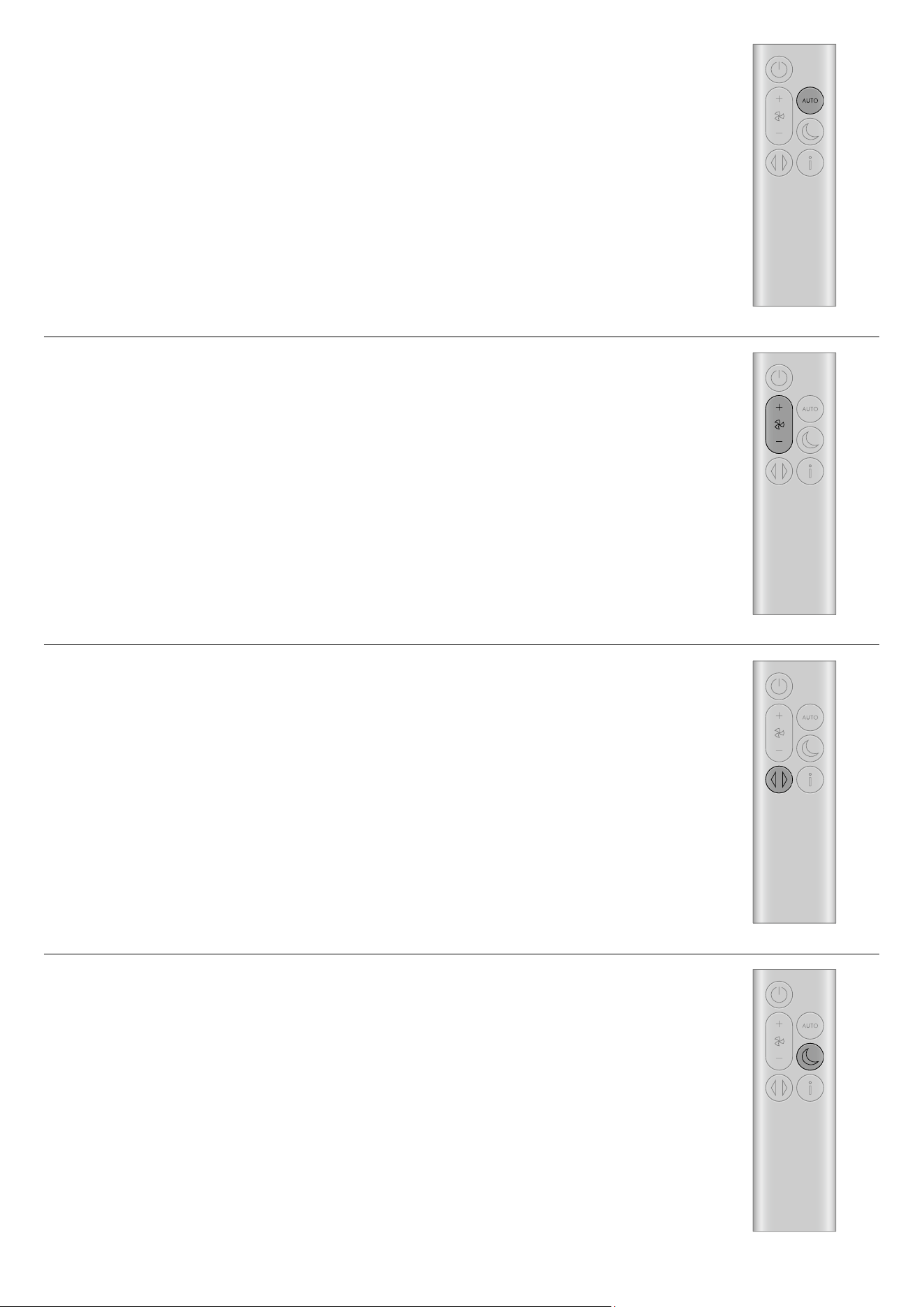
Auto mode
Airflow speed
Oscillation
Night mode and Sleep timer
Changing your HEPA+Carbon filter
Resetting your HEPA+Carbon filter life
Looking after your machine
Assembling your machine
Use both hands to lift your machine out of the box, by its base.
Do not lift out by the loop amplifier.
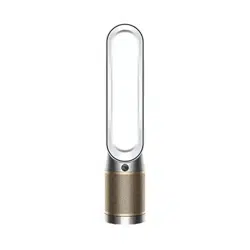
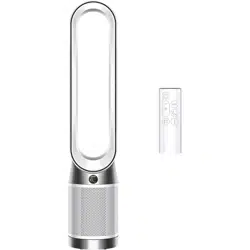
Dyson Purifier Cool PC1
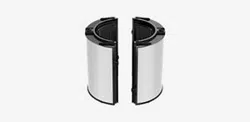
Supplied with a combined glass HEPA+Carbon filter.
Getting started
Place the remote control on top
of the machine with the buttons
facing down.
Plug in and switch on.
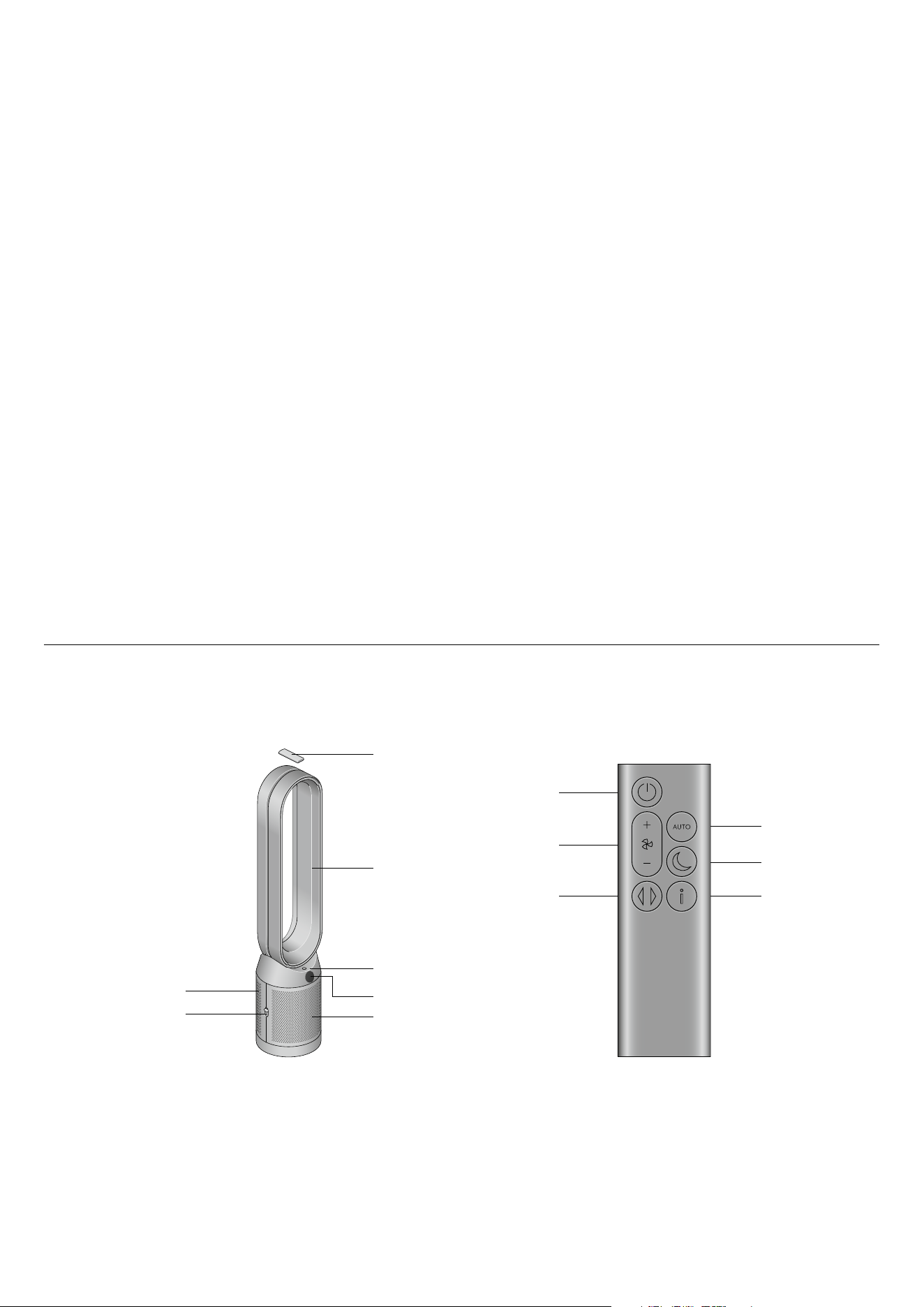
Remote control
Amplifier loop
Standby on/off
LCD screen
Filters (inside)
Shroud
Shroud release buttons
Standby on/off
Airflow speed
Oscillation on/off
Auto mode
Night mode
Information menu
Connecting to the MyDyson™ app
Take full control with the MyDyson™ app and access step-by-step setup and
support, control how and when your Dyson purifier operates, monitor air
quality with visual updates and automatically keep up to date with the latest
software updates.
Download the MyDyson™ app from the App Store or Google Play.
Open the app and follow the on-screen instructions to create a new account.
Apple and the Apple logo are trademarks of Apple Inc., registered in the U.S. and other countries.
App Store is a service mark of Apple Inc., registered in the U.S. and other countries.
Google Play and the Google Play logo are trademarks of Google Inc.
The Android robot is reproduced or modified from work created and shared by Google and used
according to terms described in the Creative Commons 3.0 Attribution License.
Connecting to your smart home
Using Amazon Alexa
Ask Alexa to enable the Dyson skill, to control your Dyson purifier or purifier
humidifier. And set a routine that automates how your machine works with
other devices in your home.
Using Google Assistant
Control all of your connected purifiers with Google or set a routine to
automate how your machine works with other devices in your home.
Just say “Hey Google” to get started.
Using Siri
Connect your Dyson machines to Siri Shortcuts and you’ll be able
to control them with your voice, on your Apple device.
Available on
Android™ stores
Power and continuous monitoring
Standby on/off
Press the Standby on/off button on your Dyson purifier or remote control to
stop your machine. It will continue to monitor the air quality.
Continuous monitoring
Continuous monitoring is turned off by default. Once turned on, it will always
be active until you turn it off again.
With continuous monitoring turned on, your Dyson purifier will gather air
quality and temperature information, which is displayed on the LCD screen
and in the MyDyson™ app.
Press and hold the Auto mode button on the remote control for five seconds
to turn it on. The LCD screen will indicate when continuous monitoring is on
or off.
Wi-Fi Connectivity
Wi-Fi is on by default. To turn the Wi-Fi on or off, press and hold the Standby
on/off button on your machine for five seconds.
Information menu
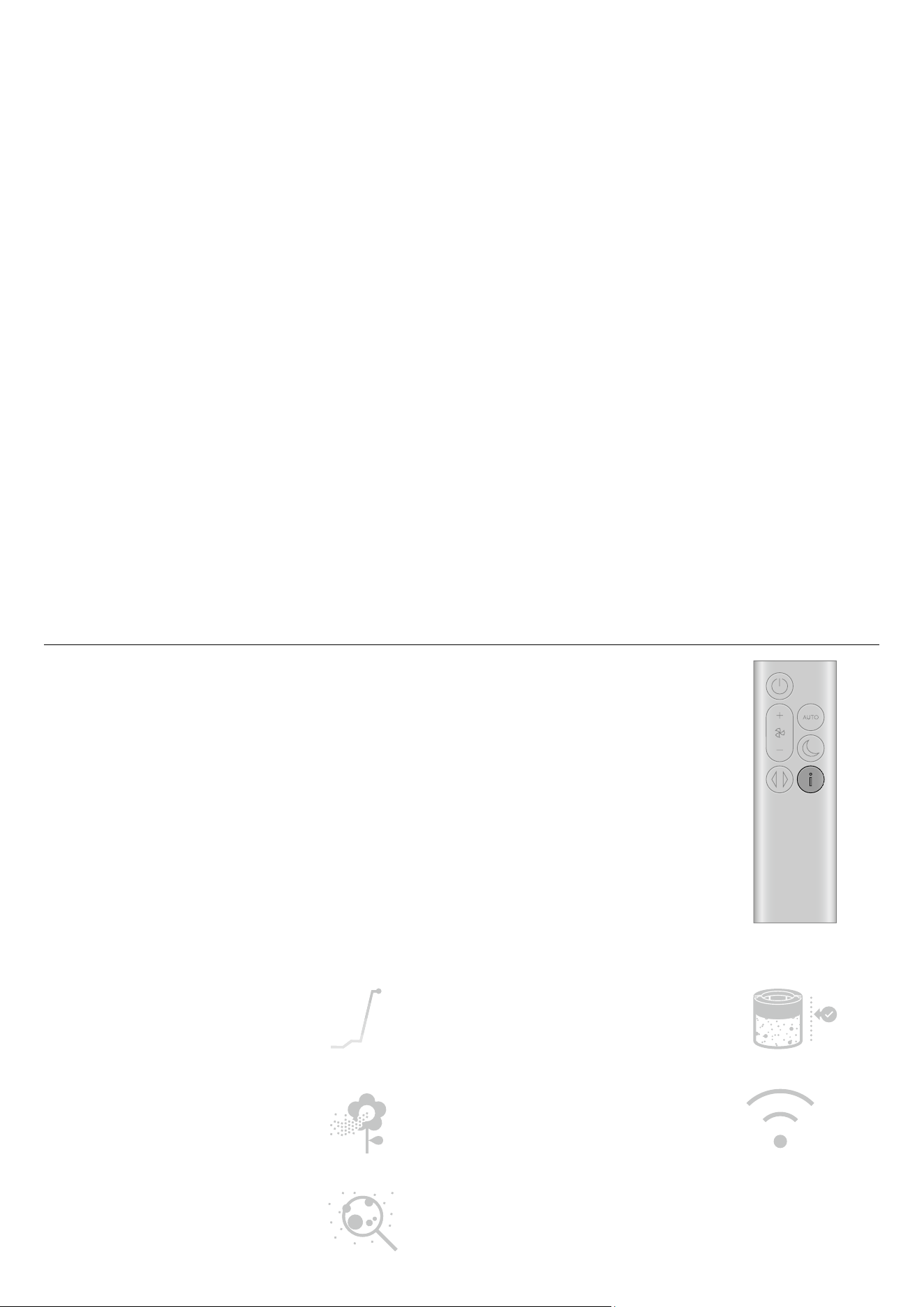
Press this button to scroll through the information being monitored by your
Dyson purifying fan.
Information about particulate matter and filter levels is shown on the
LCD screen.
When a particular type of pollutant causes air quality to decrease,
a symbol for the pollutant will show on the LCD screen.
Indoor air quality – 12 seconds
Monitor the current air quality with a graph
showing the last 12 seconds of data.
Particulate matter (PM10)
Larger microscopic particles up to 10 microns
in size, suspended in the air we breathe. These
include dust, and pollen.
Particulate matter (PM2.5)
Microscopic particles up to 2.5 microns in size,
suspended in the air we breathe. These include
smoke, and allergens.
Filters
The remaining filter life is shown
on the LCD screen and will indicate
when your filters need replacing.
Wi-Fi
The current status of connection to
the Wi-Fi network.
Auto mode
Set your Dyson purifying fan to Auto mode and the on-board sensors will
intelligently adjust the settings of the machine according to the air quality.
Air quality: your machine will pause when the target air quality has been
reached, switching on again when the air quality levels drop.
Airflow speed: the airflow speed will increase until the target air quality
has been reached.
Airflow speed
Press the Airflow speed button to increase and decrease the airflow speed.
Oscillation
Press the Oscillation button to circulate the air around the room and scroll
through the oscillation settings from 0° to 350°.
Customise your oscillation setting in the MyDyson™ app.
Night mode and Sleep timer
In Night mode, your Dyson purifying fan will continue to monitor and
respond to changes, but only using its quietest settings – and with its
LCD screen dimmed.
Press the Night mode and Sleep timer button to scroll through the
timer options.
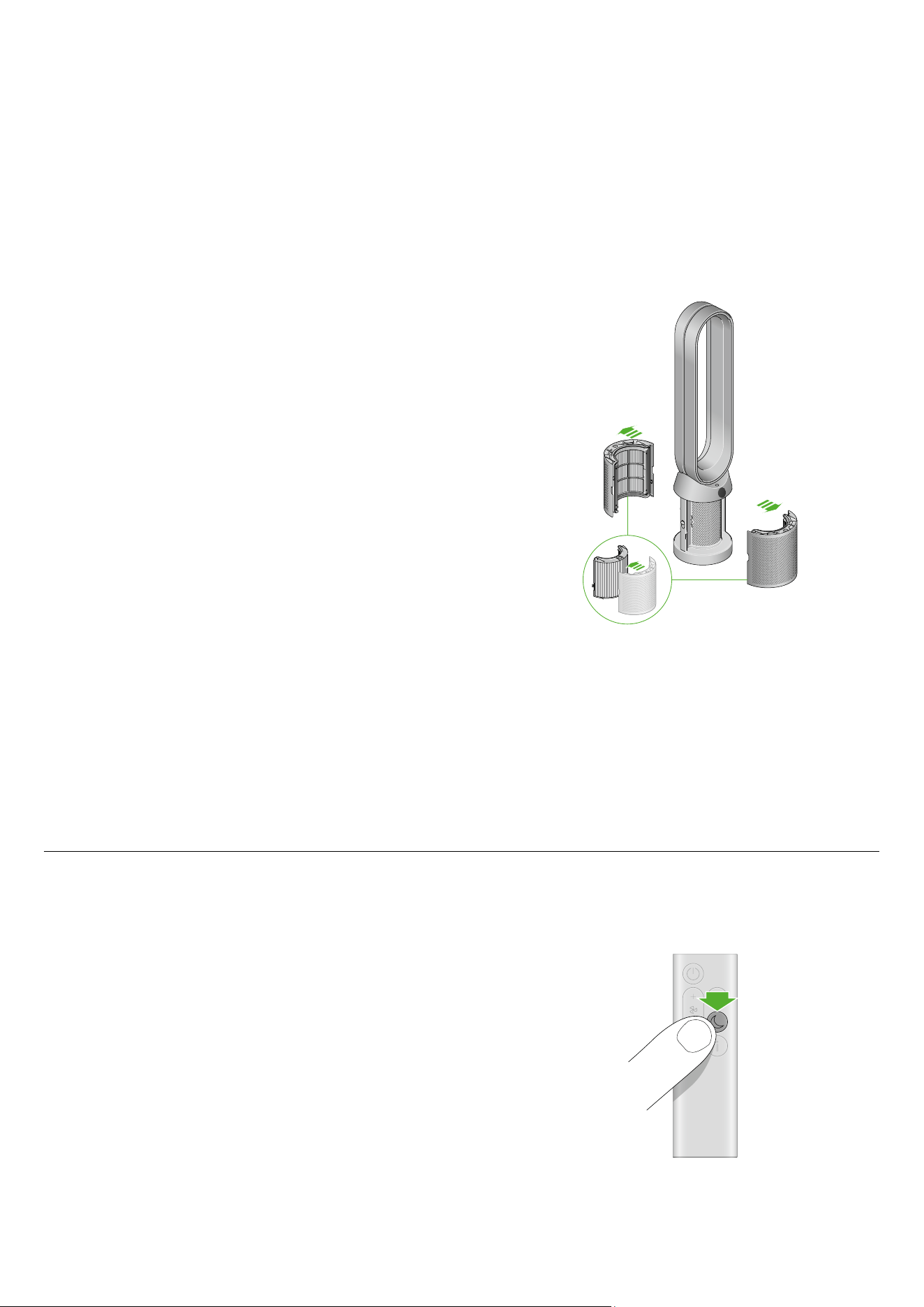
Changing your HEPA+Carbon filter
Before changing your filter, switch off and unplug your Dyson purifying fan.
The remaining filter life is displayed on the screen and will indicate when
your non-washable filters need replacing. Press the Information button
on your remote.
You’ll need to reset the filter life on your machine.
Dyson Purifier Cool PC1
Supplied with a HEPA+Carbon filter.
To change your HEPA+Carbon filter, push down on the buttons either side
of your machine to release the outer cover. Push down on the tabs to remove
the filter.
Push the replacement filter into the outer cover and make sure the tabs click
into place.
Put the outer covers into position on your machine and push firmly until they
both click securely into position.
Plug in and switch your machine, and reset your filter life.
Resetting your HEPA+Carbon filter life
It’s important to reset your filter life after you have replaced your filter.
Resetting your HEPA+Carbon filter life
Press and hold the Night mode button on your remote control.
The display on your machine will countdown from five, the filter life will
be reset and your machine is ready to use.
5
sec

Looking after your machine
To always get the best performance from your Dyson purifier, it’s important
to regularly clean it and check for blockages.
Cleaning your machine
If your machine is dusty, wipe with a damp lint-free cloth.
Look for blockages in the air inlet holes on the filter and the small aperture
inside the loop amplifier.
Use a soft brush to remove dust and debris.
Don’t use detergents or polishes to clean your machine.
Error codes
If your machine shows an error code, try turning it off and then on again.
If this doesn’t clear the error code contact Dyson Customer Care.
For more information and support for your machine go to the MyDyson™ app
or online: www.Dyson.com/support