User Manual


TABLE OF CONTENTS
2024-08 EN 5020070.50A.04
3
Table of Contents
IMPORTANT SAFETY INSTRUCTIONS .................. 6
General Information ............................................ 9
1 My bernette Embroidery ..................................... 11
1.1 Overview Machine .................................................. 11
Overview front controls ............................................... 11
Overview front ............................................................ 13
Overview Top .............................................................. 14
Overview back ............................................................ 14
Overview Embroidery Module ..................................... 15
1.2 Accessory ............................................................... 16
Included accessories .................................................... 16
Overview presser feet .................................................. 17
1.3 Overview User Interface .......................................... 17
Overview functions/visual information ......................... 17
Overview System Settings ............................................ 18
Overview Selection Menu Embroidery ......................... 18
Overview Functions and Views .................................... 18
1.4 Needle, Thread, Fabric ............................................ 20
Overview Needles ........................................................ 20
Example for Needle Description ................................... 21
Thread Selection ......................................................... 21
Needle/Thread Combination ........................................ 21
1.5 Important Embroidery information .......................... 22
Upper Thread .............................................................. 22
Bobbin Thread ............................................................ 22
Choosing the Embroidery Design ................................ 22
Embroidery Test .......................................................... 23
Embroidering Designs by Third-party Providers ............ 23
Underlay Stitches ........................................................ 23
The Size of the Embroidery Design .............................. 23
Satin or Leaf Stich ....................................................... 23
Step Stitch .................................................................. 24
Connecting Stitches .................................................... 24
2 Embroidery Preparation ...................................... 25
2.1 Connection and Switching On ................................ 25
Connecting the Machine ............................................. 25
Use of the Power Cable (only USA/Canada) ................. 25
Switching the Machine On .......................................... 25
Fixing the Touch Screen Pen ........................................ 26
2.2 Spool Pin ................................................................ 26
Horizontal Spool Pin .................................................... 26
Second Spool Pin ........................................................ 27
2.3 Attaching the Embroidery Module ......................... 28
2.4 Embroidery Foot .................................................... 29
Attaching the Embroidery Foot ................................... 29
Selecting the Embroidery Foot .................................... 30
2.5 Needle ................................................................... 30
Inserting the Embroidery Needle ................................. 30
2.6 Threading .............................................................. 31
Preparing the Threading ............................................. 31
Threading the Upper Thread ....................................... 31
Winding the Bobbin Thread ........................................ 34
Threading the Bobbin Thread ..................................... 36
2.7 Selecting the embroidery motif .............................. 37
2.8 Embroidery Hoops ................................................. 38
Overview Embroidery Hoop Selection ......................... 38
Selecting the Embroidery Hoop ................................... 38
Tear-away Stabilizers .................................................. 38
Cut-away Stabilizers ................................................... 38
Using Adhesive Spray ................................................. 39
Using Spray Starch ...................................................... 39
Using Iron-on Interfacing ............................................ 39
Using Paper-backed Adhesive Stabilizer ...................... 39
Using Water-soluble Stabilizer .................................... 39
Preparing the Embroidery Hoop .................................. 40
Attaching the Hoop .................................................... 41
Overview Embroidery Functions .................................. 42
Locating the Center of the Embroidery Design ............ 42
Centering the Needle to the Embroidery Hoop ........... 42
Embroidery Arm Return .............................................. 43
Grid On/Off ................................................................ 43
3 Setup Program .................................................... 44
3.1 Embroidery Settings ............................................... 44
Adjusting the Upper Thread Tension ........................... 44
Adjusting the Maximum Embroidering Speed ............. 44
Calibrating the Embroidery Hoop ................................ 44
Deactivating Securing Stitches .................................... 45
Adjusting the Thread Cut ........................................... 45
Adjusting the Height of the Embroidery Presser Foot .. 46
3.2 Selecting Personal Settings ..................................... 46
3.3 Monitoring Functions ............................................. 47
Activating the Upper Thread Indicator ........................ 47
Activating the Bobbin Thread Indicator ....................... 47
3.4 Sound On/Off ........................................................ 47

TABLE OF CONTENTS
4
2024-08 EN 5020070.50A.04
3.5 Machine Settings .................................................... 47
Adjusting the Brightness of the Display ....................... 47
Calibrating the Display ................................................ 48
Back to basic setting ................................................... 48
Updating the Machine Firmware ................................. 49
Checking the Firmware Version ................................... 49
Reviewing the Total Number of Stitches ...................... 50
Selecting a Language .................................................. 50
4 System Settings ................................................... 51
4.1 Calling up the tutorial ............................................. 51
4.2 Using eco Mode ..................................................... 51
4.3 Cancelling any Alterations with «clr» ...................... 51
5 Creative Embroidering ........................................ 52
5.1 Overview Embroidering ........................................... 52
Selecting and Changing the Embroidery Design .......... 52
Overview Editing Embroidery Design ........................... 53
Moving the Embroidery Design ................................... 53
5.2 Selecting and Changing the Embroidery Design ...... 54
5.3 Checking the Embroidery Time and the Embroidery
Design Size ............................................................. 54
5.4 Regulating the Speed .............................................. 54
5.5 Editing the Embroidery Design ................................ 55
Overview Editing Embroidery Design ........................... 55
Scaling Up the Embroidery Design View ...................... 55
Downsizing the Embroidery Design ............................. 55
Moving the embroidery design view ............................ 56
Moving the embroidery design in enlarged view .......... 56
Moving the Embroidery Design ................................... 56
Rotating the Embroidery Design .................................. 57
Altering the Embroidery Design Size Proportionally ...... 57
Mirroring Embroidery Designs ..................................... 57
Checking the Size and the Position of the Embroidery
Design ........................................................................ 58
Deleting an Embroidery Design ................................... 58
5.6 Creating Lettering ................................................... 59
Overview Embroidery Alphabets .................................. 59
Creating Words/Sentences .......................................... 59
Editing Words/Sentences ............................................. 60
Bending the Text ......................................................... 61
Altering the Stitch Density ........................................... 61
5.7 Combining Embroidery Designs .............................. 62
Combining Embroidery Designs ................................... 62
Deleting a Single Embroidery Design ........................... 62
5.8 Changing the Colors of the Embroidery Design ....... 63
Overview Changing the Color ..................................... 63
Changing the Colors .................................................. 63
Changing the Thread Brand ........................................ 63
5.9 Embroidering the Embroidery Design ..................... 64
Overview Embroidery Menu ........................................ 64
Adding Basting Stitches .............................................. 64
Moving the Hoop ....................................................... 65
Embroidery Sequence Control when the Thread Breaks
................................................................................... 65
Cutting Connecting Stitches ....................................... 66
Multi-colored Embroidery Design On/Off .................... 66
Color Indication .......................................................... 66
5.10 Administering Embroidery Designs ......................... 67
Administering Embroidery Designs .............................. 67
Saving Embroidery Designs in the Personal Memory .... 67
Saving the Embroidery Design on the USB Stick .......... 67
Overwriting the Embroidery Design in the Personal
Memory ..................................................................... 68
Overwriting the Embroidery on the USB Stick ............. 68
Loading an Embroidery Design from the Personal
Memory ..................................................................... 68
Loading an Embroidery Design from the USB Stick ...... 68
Deleting an Embroidery Design from the Personal
Memory ..................................................................... 69
Deleting an Embroidery Design from the USB Stick ..... 69
6 Embroidery .......................................................... 70
6.1 Embroidering via the Button «Start/Stop» .............. 70
6.2 Increasing the Embroidery Speed ........................... 70
6.3 Adjusting the Upper Thread Tension ...................... 71
7 BERNINA CutWork Tool ...................................... 72
7.1 Attaching Cutwork Tool ........................................ 72
7.2 Start to Cut ........................................................... 73
8 Maintenance and Cleaning ................................ 74
8.1 Cleaning and Maintenance Intervals ...................... 74
8.2 Cleaning the Display .............................................. 74
8.3 Cleaning the Bobbin Case ...................................... 74
8.4 Oiling the Needle Bar ............................................. 75
9 Errors and Faults ................................................. 76
9.1 Troubleshooting .................................................... 76
9.2 Error messages ...................................................... 78
10 Technical data ..................................................... 82
11 Appendix ............................................................. 83
11.1 Embroidery Designs ............................................... 83
Embroidery Designs .................................................... 83

TABLE OF CONTENTS
2024-08 EN 5020070.50A.04
5
Embellishment ............................................................ 83
Quilt Designs ............................................................... 86
Borders and Lace ......................................................... 88
Children ...................................................................... 90
Flowers ....................................................................... 92
Seasons ....................................................................... 94
Asia ............................................................................ 97
Sport and Hobbies ...................................................... 98
Animals ....................................................................... 102
CutWork ..................................................................... 105
Campaign ................................................................... 106
Index ..................................................................... 107

IMPORTANT SAFETY INSTRUCTIONS
6
2024-08 EN 5020070.50A.04
IMPORTANT SAFETY INSTRUCTIONS
Please be aware of the following basic safety instructions when using your
machine. Before using this machine, read instruction manual carefully.
DANGER
To protect against electric shock, the following instructions must be observed.
• Never leave the machine unattended when it is connected to the power
supply.
• Immediately after use and before cleaning, switch off the machine and
disconnect the power cable from the outlet.
In order to protect against injury, the following instructions must be adhered to.
• Do not look directly into the LED lamp with optical instruments
(e.g.magnifying glass).
• If the LED lamp is damaged or defective, have the LED lamp checked or
repaired at your local bernette dealer.
• Switch off the machine before working in the needle area.
• Before starting the machine, close all covers.
WARNING
To reduce the risk of burns, fire, electric shock or injury to persons, the following
instructions must be observed.
General Facts
• This machine may only be used for the purpose described in this instruction
manual.
Working Environment
• Do not use the machine outdoors.
• Only use the machine in dry rooms.
• Do not use the machine in a humid area.
• Do not use the machine in rooms where aerosol products (sprays) are being
used.
• Do not use the machine in rooms where oxygen is dispensed.

IMPORTANT SAFETY INSTRUCTIONS
7
2024-08 EN 5020070.50A.04
Technical Condition
• Never use the machine when it is damp.
• Do not use the machine if it is not working properly.
• Do not use the machine if a cable or the plug is damaged.
• Do not use the machine if it has been dropped, damaged or has fallen into
water.
• If the machine is damaged or does not work properly, have the machine
checked or repaired by your local bernette dealer.
• Keep all ventilation openings of the machine and the foot control free of
lint, dust and loose cloth.
• Do not use the machine if the ventilation openings are blocked.
Accessories and Supplies
• Only use the accessories recommended by the manufacturer.
• Always use the original bernette Stitch Plate.
An incorrect stitch plate can result in needle breakage.
• Use only straight needles of good quality.
Bent or damaged needles can cause needle breakage.
• The machine is double-insulated.
Only use original spare parts. See instructions for servicing of double-
insulated products.
• To lubricate the machine, only use oil recommended by bernette.
Safety Instructions
• While operating the machine, all protective inserts must be in place and all
covers must be closed.
Appropriate Use
• The machine may be used, cleaned and maintained by children older than
eight or by people with reduced physical, sensory or mental capabilities or if
there is a lack of experience and knowledge as long as they have been given
instructions.
• Furthermore, these persons must be supervised while working with the
machine, and/or they must know the safe operation of the machine and be
aware of the resulting hazards.
• Children are not allowed to play with the machine.
• Special care should be taken when the machine is operated by or in the
presence of children.
• Only use the machine with the supplied power cable.

IMPORTANT SAFETY INSTRUCTIONS
8
2024-08 EN 5020070.50A.04
• USA and Canada only: Do not connect power plug NEMA 1-15 to circuits
exceeding 150 volt-to-ground.
• If the machine is to be used in a country other than the country of origin,
obtain a power cable suitable for this country from a bernette dealer.
• Do not insert any objects into the openings of the machine.
• Do not place any objects on the foot control.
• While sewing, guide the fabric gently. Pulling and pushing the fabric can
cause needle breakage.
• Keep fingers away from all moving parts.
• Special care is required in the needle area.
• Only lift the machine by the handle.
• For activities in the needle area - such as threading the needle, changing the
needle, threading the looper or changing the presser foot - switch off the
machine.
• To switch off, set the power switch to «0».
• When protective covers are removed, when the machine is oiled or when
other cleaning and maintenance operations mentioned in this instruction
manual are carried out, switch off the machine and disconnect the power
plug from the outlet.
• Pull the plug out of the outlet by pulling on the plug. Do not pull on the
cable.
SAFE THESE INSTRUCTIONS

GENERAL INFORMATION
9
2024-08 EN 5020070.50A.04
General Information
Availability of the Instruction Manual
The short manual is part of the machine.
• Keep the short manual of the machine in a suitable place near the machine and have it ready for
reference.
• The latest version of the detailed instruction manual can be downloaded at www.bernette.com.
• When passing on the machine to a third party, enclose the short manual of the machine.
Proper Use
Your bernette machine is conceived and designed for private household use. It is intended for embroidering
fabrics and other materials as described in this instruction manual. Any other use is not considered proper.
bernette assumes no liability concerning consequences resulting from an improper use.
Equipment and Scope of Delivery
Example images are used in these instructions for the purposes of illustration. The machines shown in the
images and the accessories shown therefore do not always match the actual items included with your
machine. The supplied accessory can vary depending on the country of delivery. You can acquire any
accessories mentioned or shown that are not included in the scope of delivery as optional accessories from a
specialist bernette dealer. Further accessories can be found at www.bernette.com.
For technical reasons and in order to improve the product, changes may be made to the equipment of the
machine and the scope of delivery at any time and without prior notice.
Servicing of Double-insulated Products
In a double-insulated product two systems of insulation are provided instead of grounding. No grounding
means is provided on a double-insulated product nor should a means for grounded be added to the product.
Servicing a double-insulated product requires extreme care and knowledge of the system and should only be
done by qualified service personnel. Replacement parts for a double-insulated product must be identical to
the original parts in the product. A double insulated product is marked with the words: «Double-Insulation»
or «double-insulated».
The symbol may also be marked on the product.
Environmental Protection
BERNINA International AG is committed to environmental protection. We strive to minimize the
environmental impact of our products by continuously improving product design and our technology of
manufacturing.
The machine is labeled with the symbol of the crossed-out wastebin. This means that the machine should
not be disposed of in household waste when it is no longer needed. Improper disposal can result in
dangerous substances getting into the groundwater and thus into our food chain, damaging our health.
The machine must be returned free of charge to a nearby collection point for waste electrical and electronic
equipment or to a collection point for the reuse of the machine. Information on the collection points can be
obtained from your local administration. When purchasing a new machine, the dealer is obliged to take back
the old machine free of charge and dispose of it properly.
If the machine contains personal data, you are responsible for deleting the data yourself before returning the
machine.

GENERAL INFORMATION
10
2024-08 EN 5020070.50A.04
Explanation of Symbols
DANGER
Designates a danger with a high risk which can lead to serious injuries or even death unless it is avoided.
WARNING
Designates a medium-risk hazard which can lead to serious injuries if not avoided.
CAUTION
Designates a low-risk hazard which can lead to minor or moderate injuries if not avoided.
NOTICE
Designates a hazard which can lead to material damage if not avoided.
MY BERNETTE EMBROIDERY
11
2024-08 EN 5020070.50A.04
1 My bernette Embroidery
1.1 Overview Machine
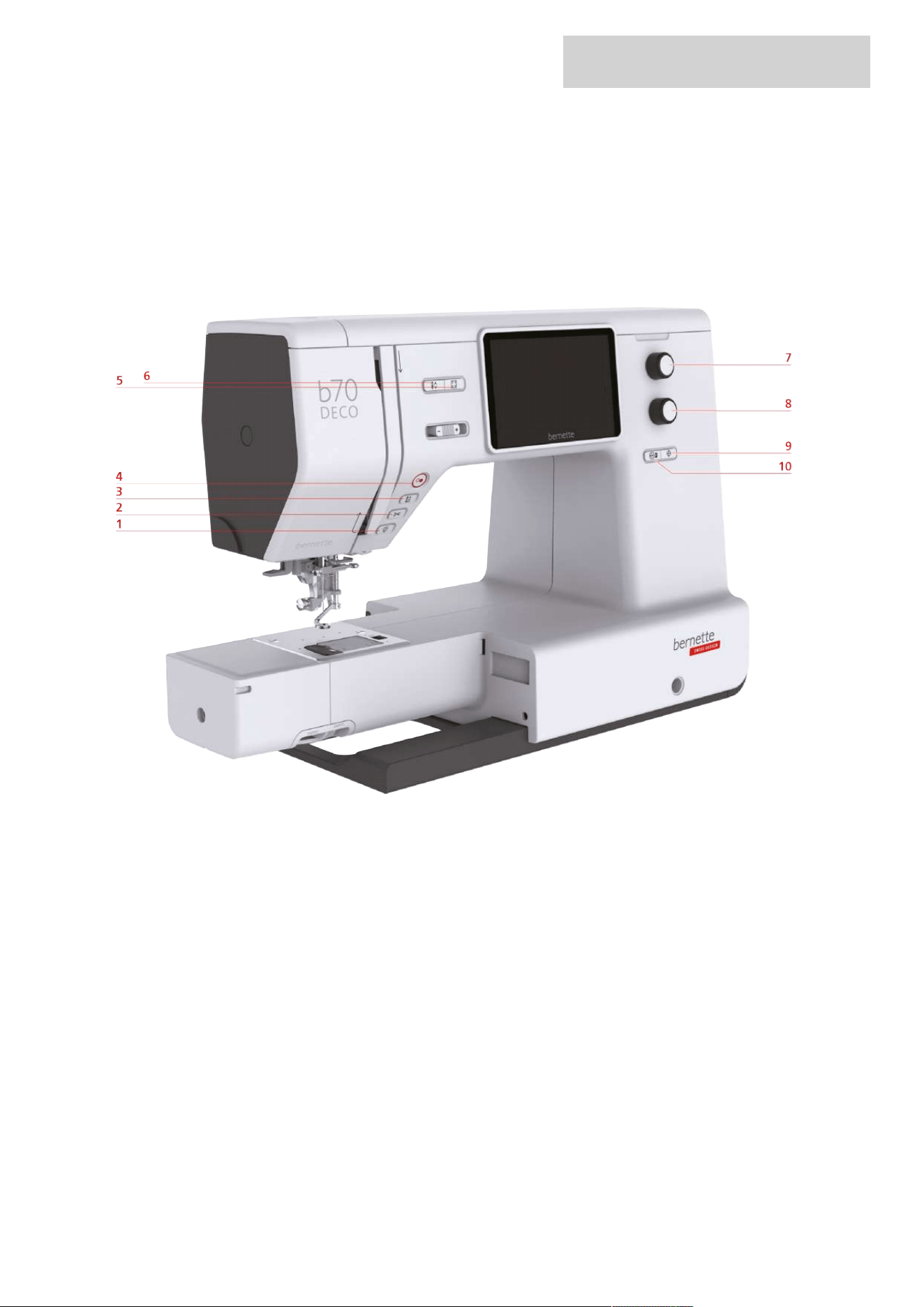
Overview front controls
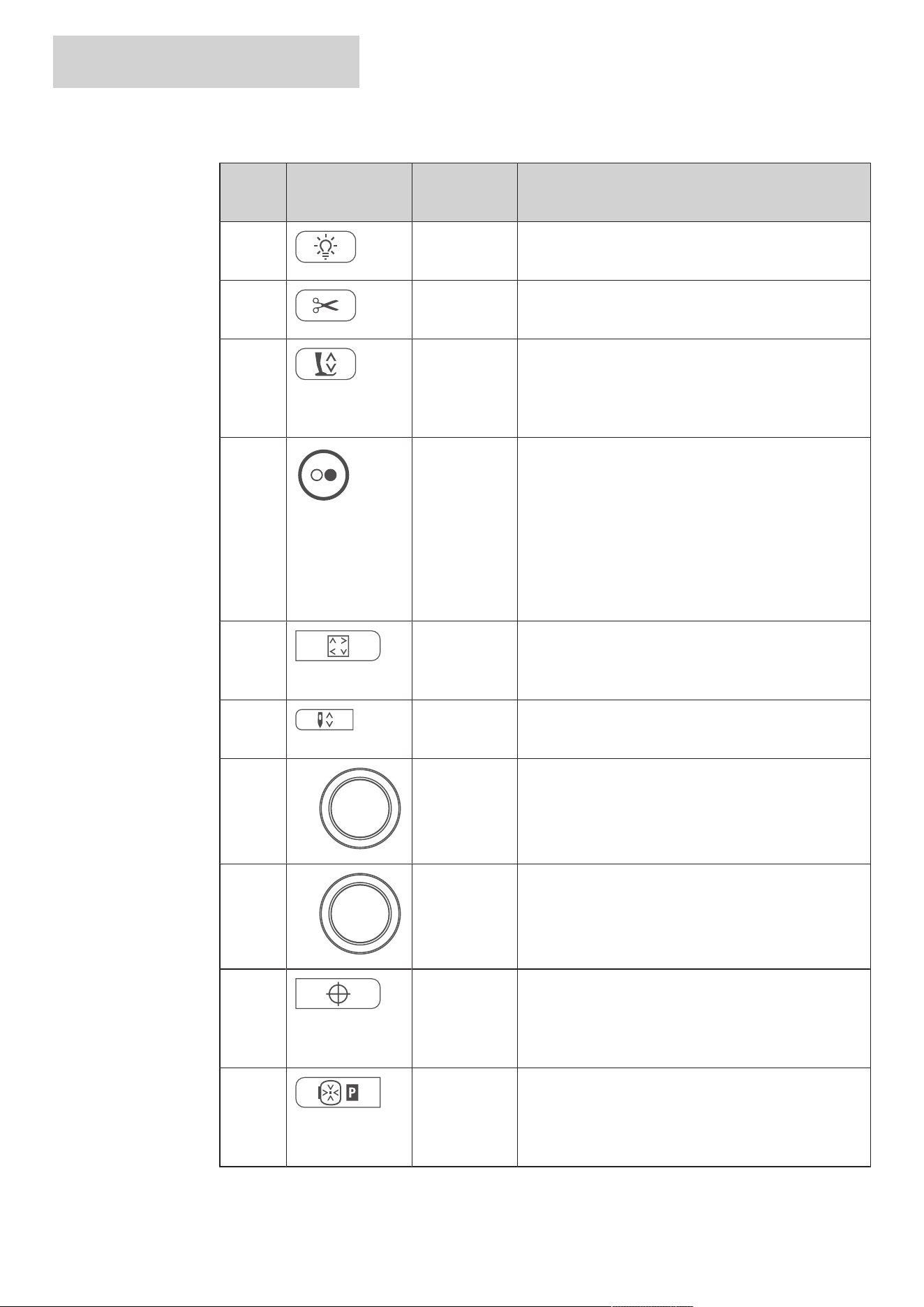
1 Sewing Light 6 Needle Up/Down
2 Thread Cutter 7 Upper Multi-function Knob
3 Presser Foot Up/Down 8 Lower Multi-function Knob
4 Start/Stop 9 Center Design
5 Check Embroidery Design Size 10 Centering the Needle to the Embroidery Hoop
MY BERNETTE EMBROIDERY
12
2024-08 EN 5020070.50A.04
Controls
Number Operating
Component
Name Purpose
1 Sewing Light To switch the sewing light on or off, press the button
«Sewing Light».
2 Thread Cutter > To cut the upper thread and bobbin thread
automatically, press the button «Thread Cutter».
3 Presser Foot
Up/Down
> Press the «Presser Foot Up/Down» button to raise
the presser foot into a hover position.
> To lift the presser foot, press the button «Presser
Foot Up/Down».
4 Start/Stop The button «Start/Stop» is used to change the presser
foot position and to start the machine.
> To start the machine, keep the button «Start/Stop»
pressed for 2 seconds.
> To raise the presser foot into its highest position,
briefly press the button «Start/Stop».
> Press the «Start/Stop» button again to raise the
presser foot into hover position.
5 Checking the
Motif Size
> To position the embroidery hoop according to the
needle position on the display, press the button
«Check Motif Size».
6 Needle Up/
Down
> To thread the bobbin thread, press the button
«Needle Up/Down».
7 Upper Multi-
function Knob
With the «Upper Multi-function Knob» setting values
can be changed in the embroidering and the Setup
Program.
8 Lower Multi-
function Knob
Use the «Lower Multi-function Knob» change the
setting values in the embroidery and setup program.
9 Center Design > To position the hoop so that the needle is exactly
over the center of the embroidery design or over
the beginning of the design, press the button
«Center Design».
10 Centering the
Needle to the
Embroidery
Hoop
> To facilitate threading the needle and to obtain
sufficient clearance from the needle to the hoop,
press the button «Centering the Needle to the
Embroidery Hoop».
MY BERNETTE EMBROIDERY
13
2024-08 EN 5020070.50A.04
Overview front
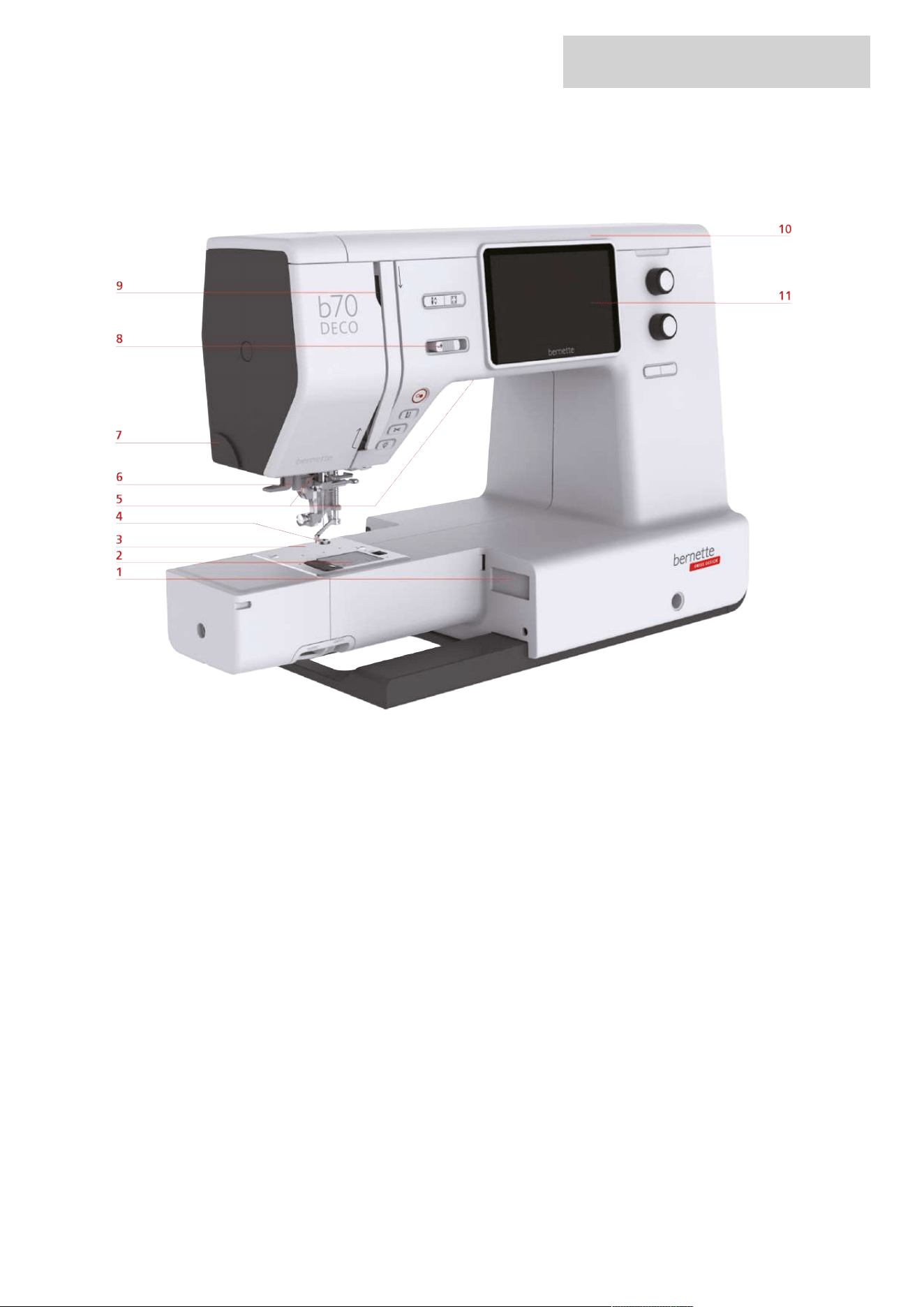
1 Connection for embroidery module 7 Thread cutter
2 Stitch plate cover 8 Slide speed control
3 Stitch plate 9 Thread take-up lever
4 Embroidery foot 10 Top cover
5 Sewing light 11 LCD Display
6 Needle threader
MY BERNETTE EMBROIDERY
14
2024-08 EN 5020070.50A.04
Overview Top
3
2
1
4
5
7
6
8
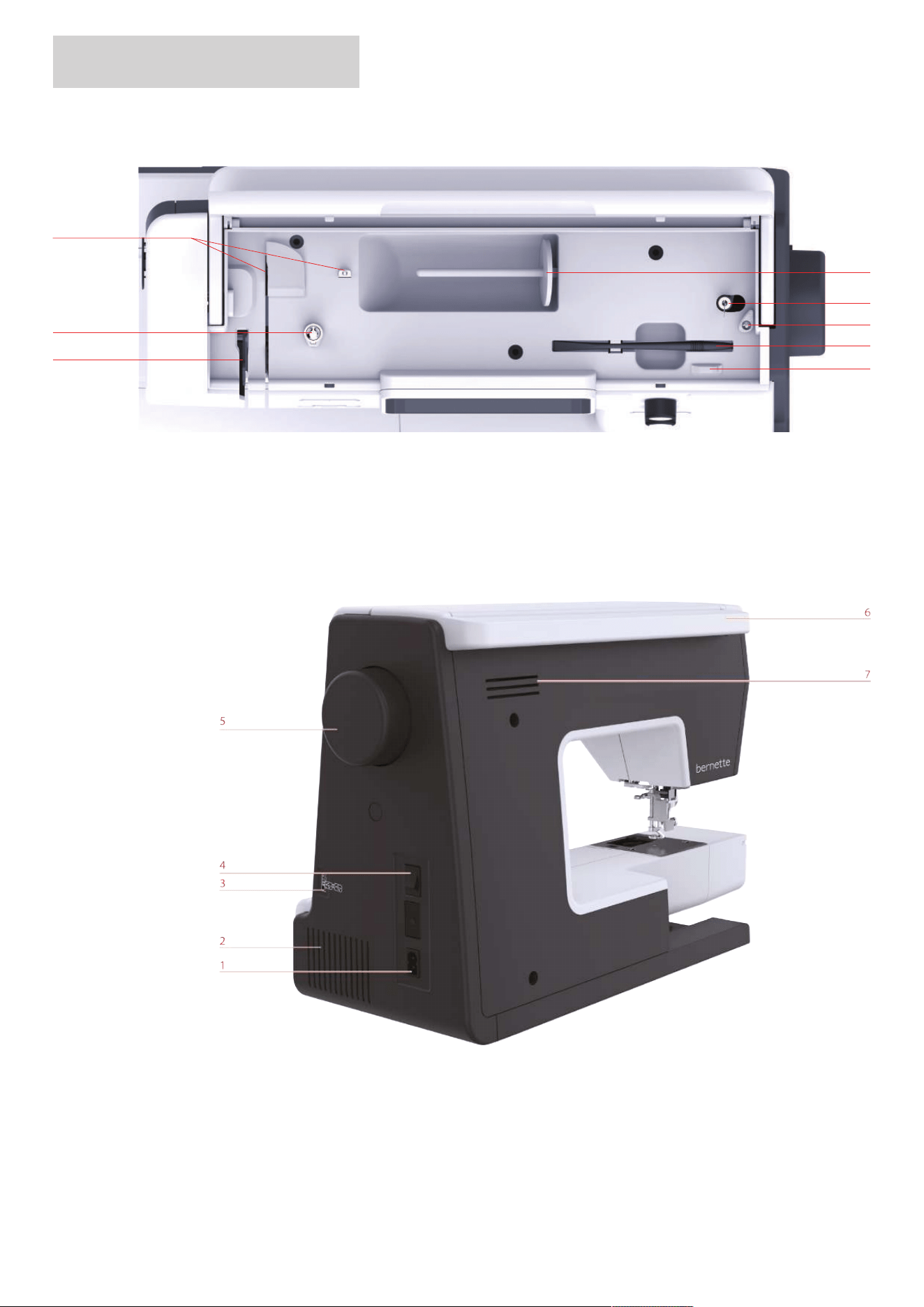
1 Thread Take-up Lever 5 Winding Unit and Holder for Second Spool Pin
2 Bobbin Winder Pretension 6 Stopper Winding Unit
3 Thread Guide 7 Touchscreen Pen
4 Spool Pin 8 Thread Cutter
Overview back
1 Power Cable Connection 5 Handwheel
2 Air Vents 6 Carry Handle
3 USB Port 7 Air Vents
4 Power Switch
MY BERNETTE EMBROIDERY
15
2024-08 EN 5020070.50A.04
Overview Embroidery Module
1
2
3
3
4
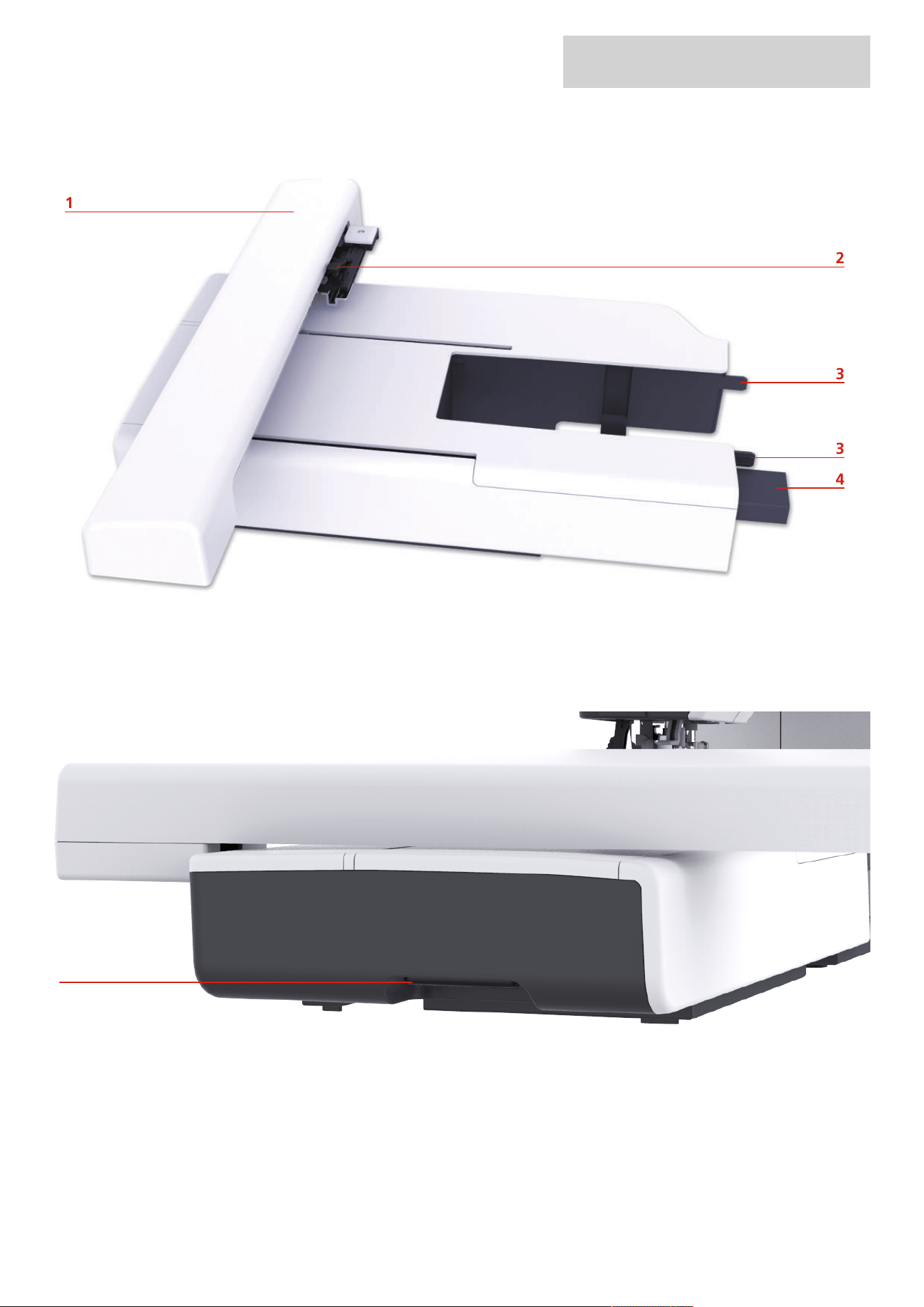
1 Embroidery Arm 4 Connection to the Machine
2 Coupling for Securing the Hoop 5 Release Button
3 Guide Rails for the Machine
5
MY BERNETTE EMBROIDERY
16
2024-08 EN 5020070.50A.04
1.2 Accessory
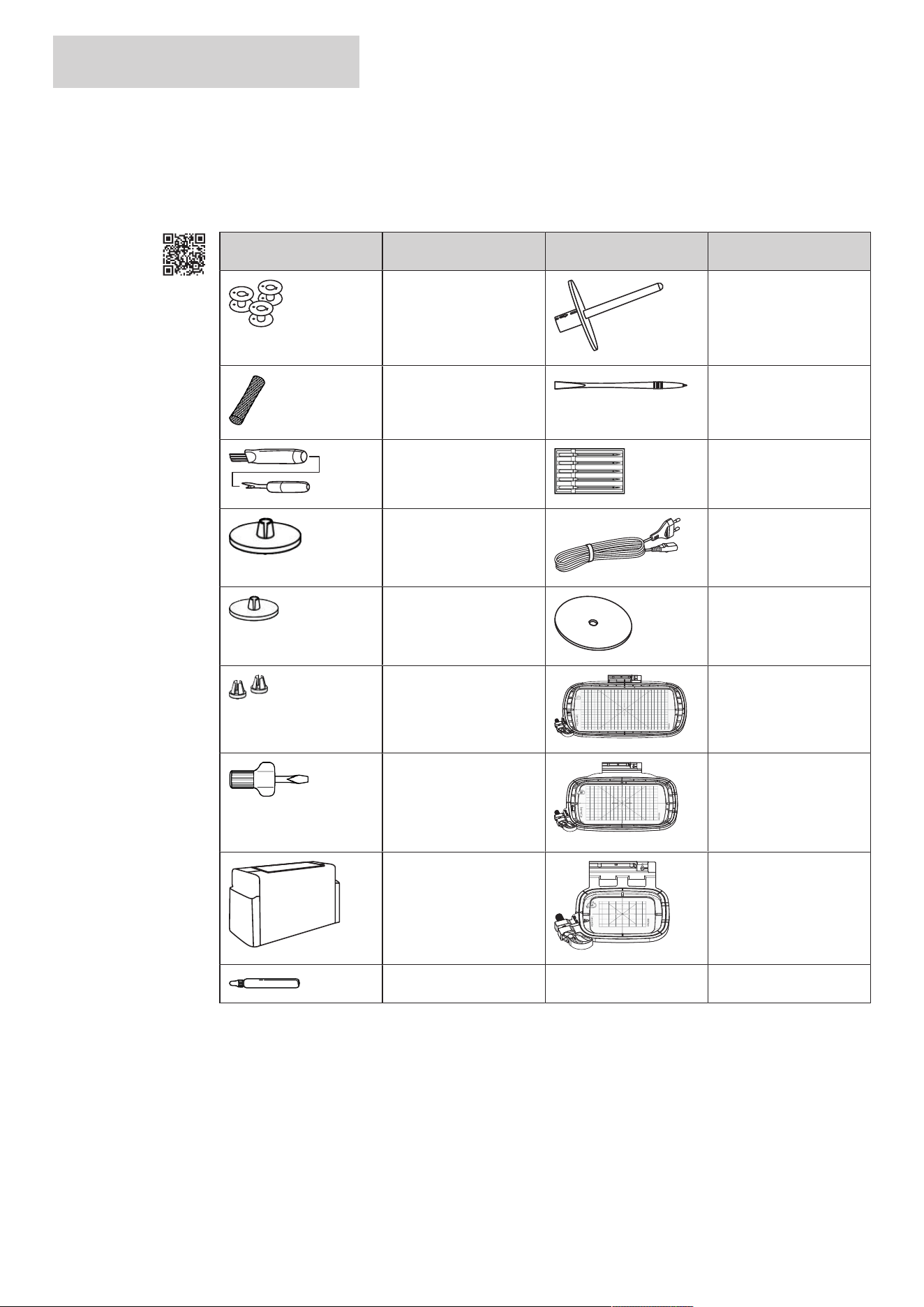
Included accessories
Visit www.mybernette.com/accessories for more accessory information.
Illustration Name Illustration Name
Bobbin (3x) Second Spool Pin
Spool Net Touch Screen Pen
Brush and Seam Ripper Needle Assortment
Spool Cap Large Power Cable
Spool Cap Medium Felt Disc
Spool Disc Small (2x) Embroidery Hoop Large,
160x260mm with
Embroidery Template
Screwdriver Embroidery Hoop
Medium,
120x180mm with
Embroidery Template
Dust Cover Embroidery Hoop Small,
50x70 mmwith
Embroidery Template
Lubricator
MY BERNETTE EMBROIDERY
17
2024-08 EN 5020070.50A.04
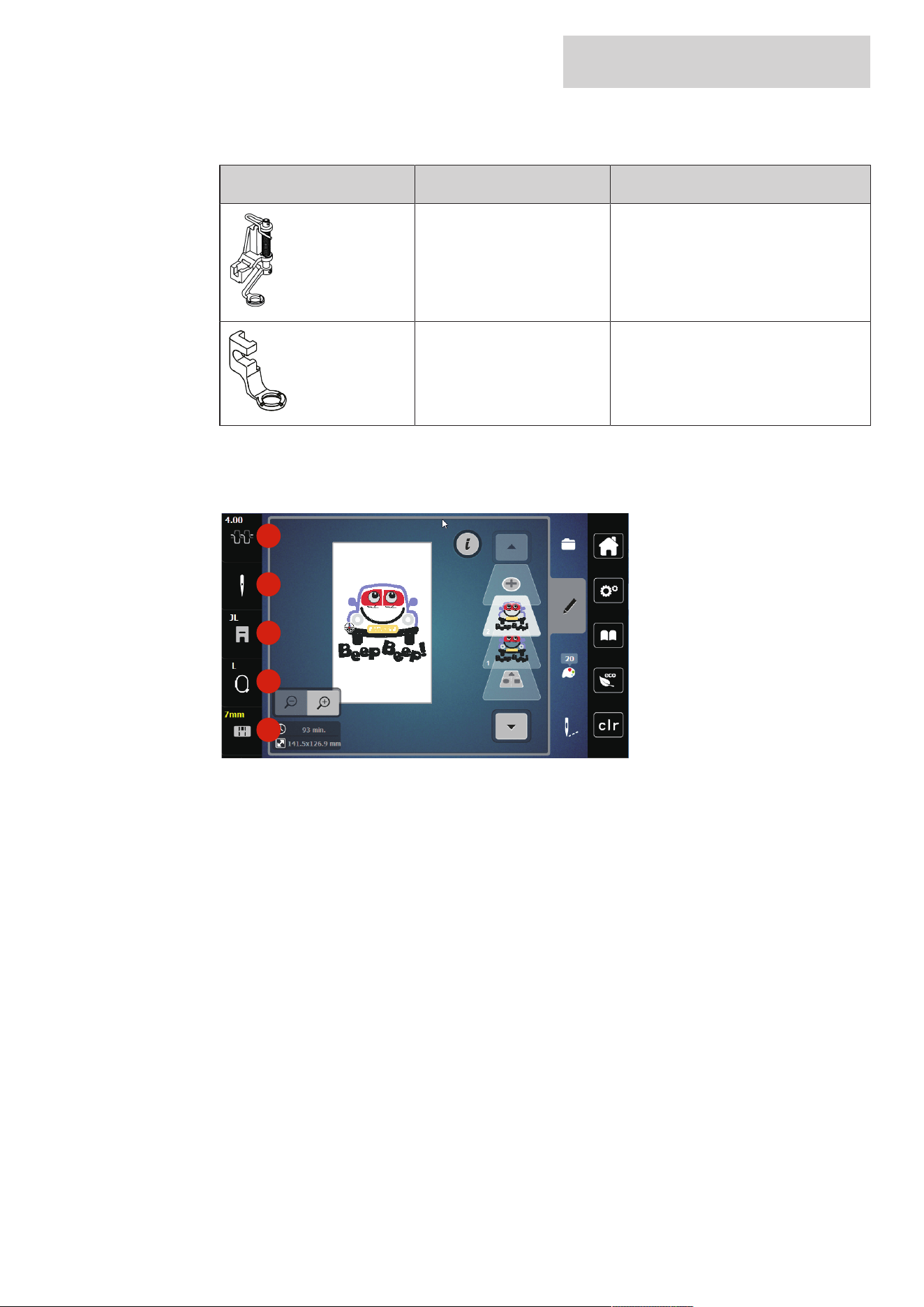
Overview presser feet
Illustration Name Purpose
Hopper embroidery foot (JX) To embroider
Embroidery foot (JL) To embroider
1.3 Overview User Interface
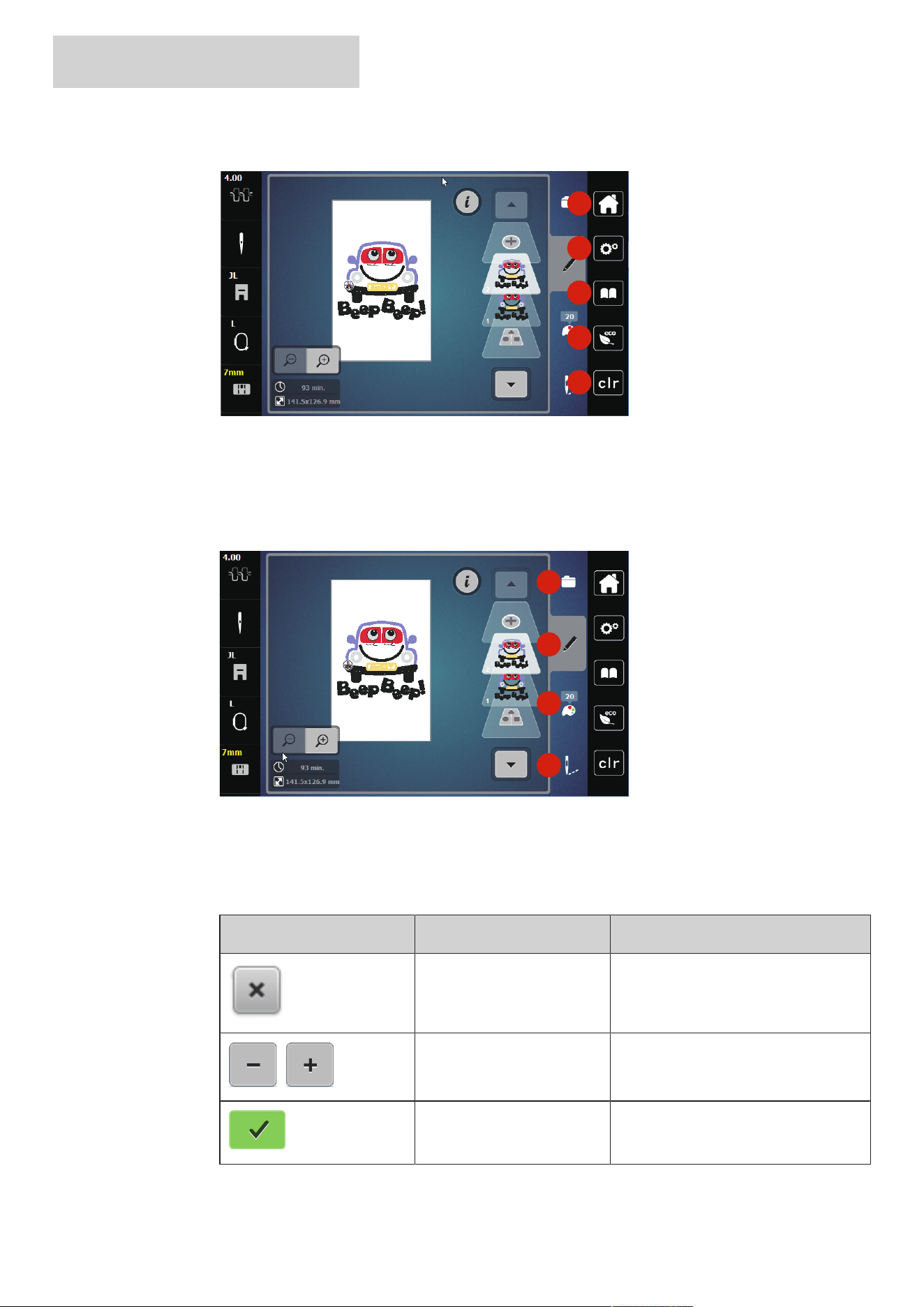
Overview functions/visual information
1
2
3
4
5
1 Upper thread tension 4 Embroidery hoop display/Embroidery hoop
selection
2 Needle selection 5 Stitch plate display
3 Embroidery foot display/Embroidery foot
selection
MY BERNETTE EMBROIDERY
18
2024-08 EN 5020070.50A.04
Overview System Settings
1
2
3
4
5
1 Home 4 eco Mode
2 Setup Program 5 Back to Default Setting
3 Tutorial
Overview Selection Menu Embroidery
1
2
3
4
1 «Selection» 3 «Color Information»
2 «Edit» 4 «Embroidery»
Overview Functions and Views
Illustration Name Purpose
Close The display is closed and the previously
made adjustments are saved.
«Plus» / «Minus» Change setting values.
Confirm Confirms the previously adjusted
alterations. The display is closed.
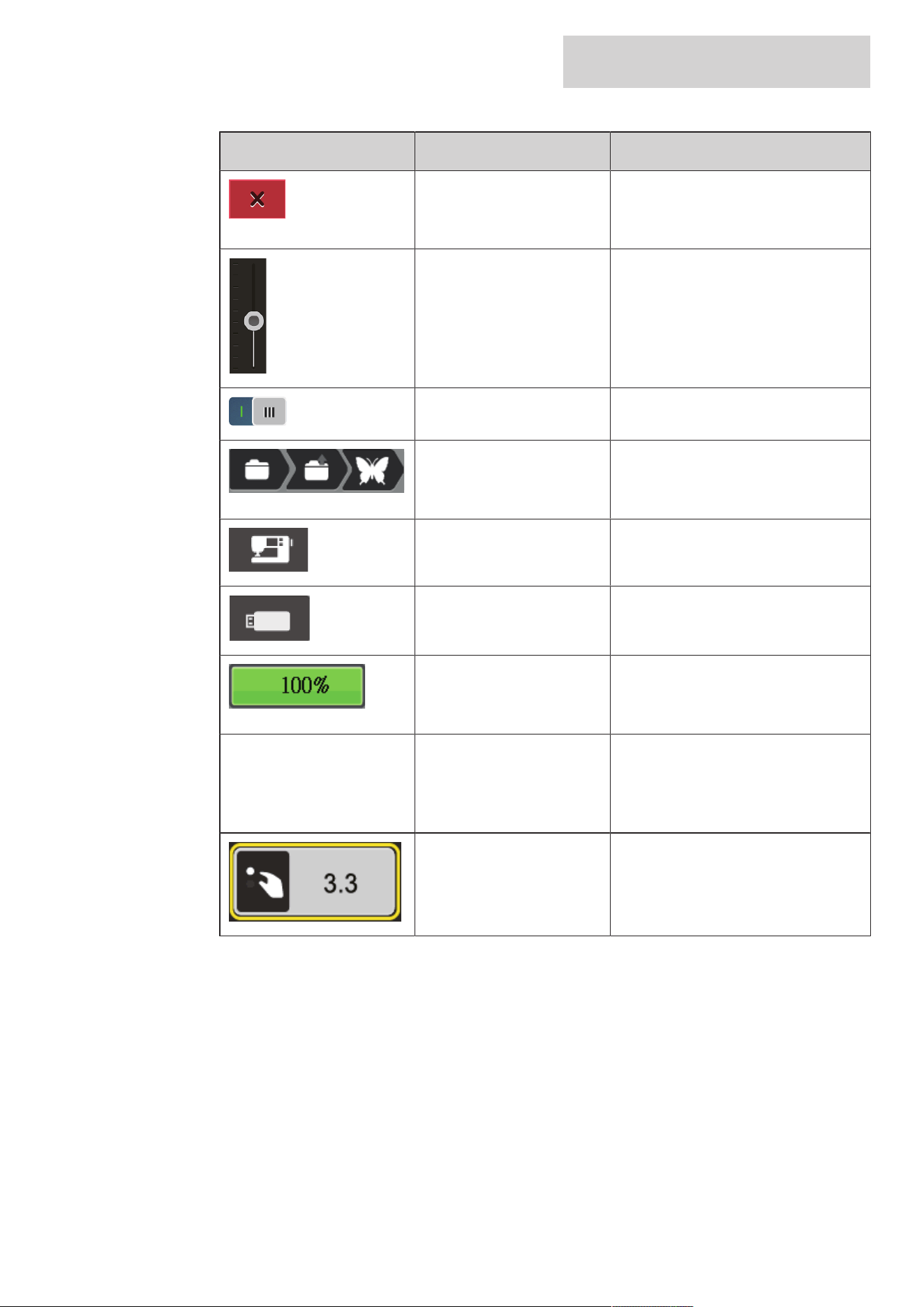
MY BERNETTE EMBROIDERY
19
2024-08 EN 5020070.50A.04
Illustration Name Purpose
Cancel The process is canceled. The display is
closed and the previously made
adjustments are not saved.
Slide By moving the slide the setting values
are changed.
Switch Activates or deactivates functions.
Process Navigation With the process navigation, you can
return from any display to the previous
the display.
Machine To load or save motifs on the machine.
USB Stick To load or save embroidery designs on
the USB stick.
USB Storage Space The percentage of used USB storage
(%) will be displayed in the green bar
icon.
Swipe Function By swiping the display using the
touchscreen pen or the finger upwards
or downwards, further functions can be
displayed.
Yellow-framed Icon Tap the yellow-framed icon to reset the
changes to the default setting.
MY BERNETTE EMBROIDERY
20
2024-08 EN 5020070.50A.04
1.4 Needle, Thread, Fabric
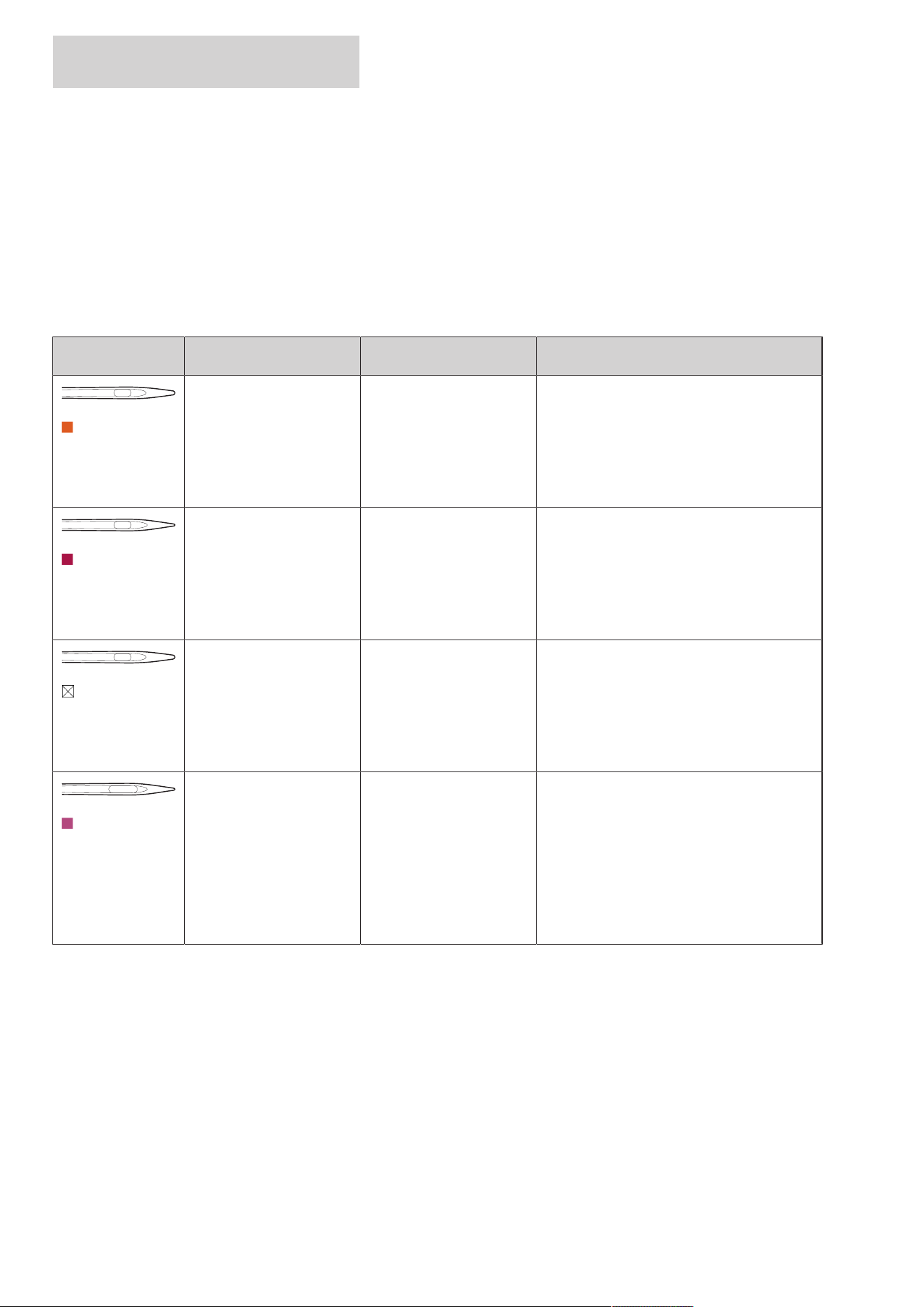
In the course of time a needle wears out. Therefore, the needle should be replaced regularly. Only a perfect
point results in a good stitching result. In general, the thinner the fabric, the finer the needle. The illustrated
needles are either standard or optional accessory, depending on the machine.
• Needle sizes 70, 75: for light-weight fabrics.
• Needle sizes 80, 90: for medium fabrics.
• Needle sizes 100, 110: for heavy fabrics.
Overview Needles
Illustration Needle Name Needle Description Purpose
Jersey/Embroidery
Needle
130/705HSUK
80/12
With a medium ball point. For woven fabrics (light, medium, heavy-
weight), knitwear, vinyl.
For general sewing, sewing on buttons and
buttonholes, zippers, hems and topstitching,
decorative sewing, embroidery.
Embroidery Needle
130/705H-E
75/11 – 90/14
With a light ball point and
a particularly wide eye
and wide groove.
For woven fabrics (light, medium, heavy-
weight), knitwear. For thicker threads.
For general sewing, sewing on buttons and
buttonholes, zippers, hems and topstitching,
decorative sewing, embroidery.
Fine Fabrics Needle
130/705HSES
70/10 – 90/14
With a light ball point. For fine, delicate materials, such as velvet.
For general sewing, sewing on buttons and
buttonholes, zippers, hems and topstitching,
decorative sewing, embroidery, patchwork,
quilting.
Metafil Needle
130/705HMETAFIL
80/12
With medium ball point
and long eye (2mm).
For woven fabrics (light, medium, heavy-
weight), knitwear. For sewing with special
effects and fancy threads, especially metallic
threads.
For embroidery with metallic thread. For
hems and topstitching, decorative sewing
and embroidery.
MY BERNETTE EMBROIDERY
21
2024-08 EN 5020070.50A.04
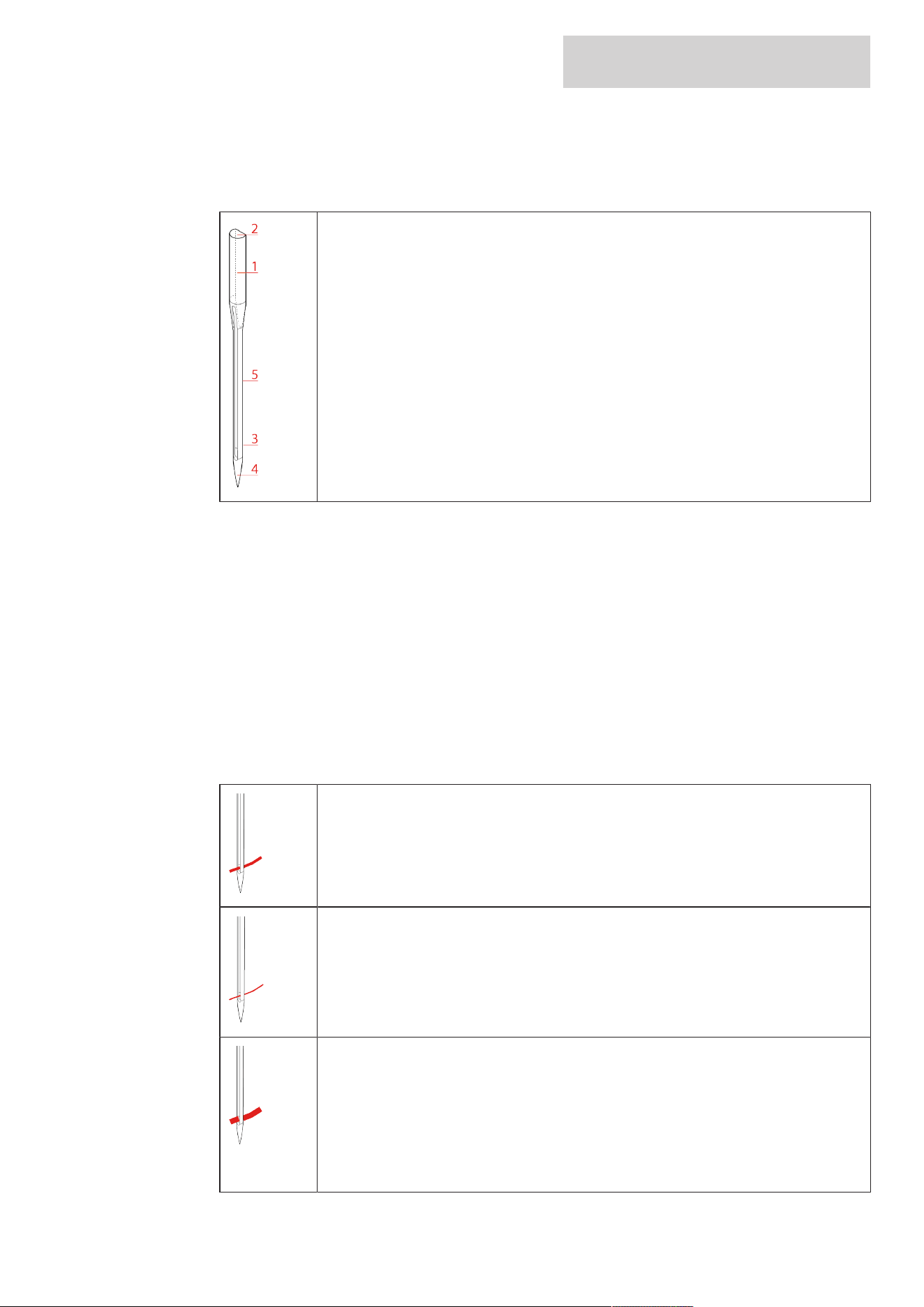
Example for Needle Description
The 130/705 system, which is the most common for household machines, is explained by the following
picture of a Jersey/Stretch needle.
130/705 H-S/70
130 = Shank length (1)
705 = Flat shank (2)
H = Needle scarf (3)
S = Needle point (here medium ball point) (4)
70= Needle size 0.7mm (5)
Thread Selection
For a perfect sewing result, thread and fabric quality play an important role.
We recommend purchasing quality threads to achieve good sewing results.
• Cotton threads have the advantage of being a natural fiber and therefore are especially suitable for
sewing cotton fabrics.
• Mercerized cotton threads have a slight sheen that remains even after washing.
• Polyester threads have a high tensile strength and are particularly colorfast.
• Polyester threads are more flexible and are recommended where a strong and elastic seam is required.
• Rayon threads are made of natural fibers and have a brilliant sheen.
• Rayon threads are suitable for decorative stitches and create a more beautiful effect.
Needle/Thread Combination
The needle/thread combination is correct, when the thread fits perfectly into the long
groove and goes easily through the needle eye. The thread can be optimally sewn.
The thread can break and skipped stitches can occur when there is too much clearance in
the long groove and the needle eye.
The thread can break and get stuck when the thread scrapes against the edge of the long
groove not fit well into the needle eye optimally.
MY BERNETTE EMBROIDERY
22
2024-08 EN 5020070.50A.04
1.5 Important Embroidery information
Upper Thread
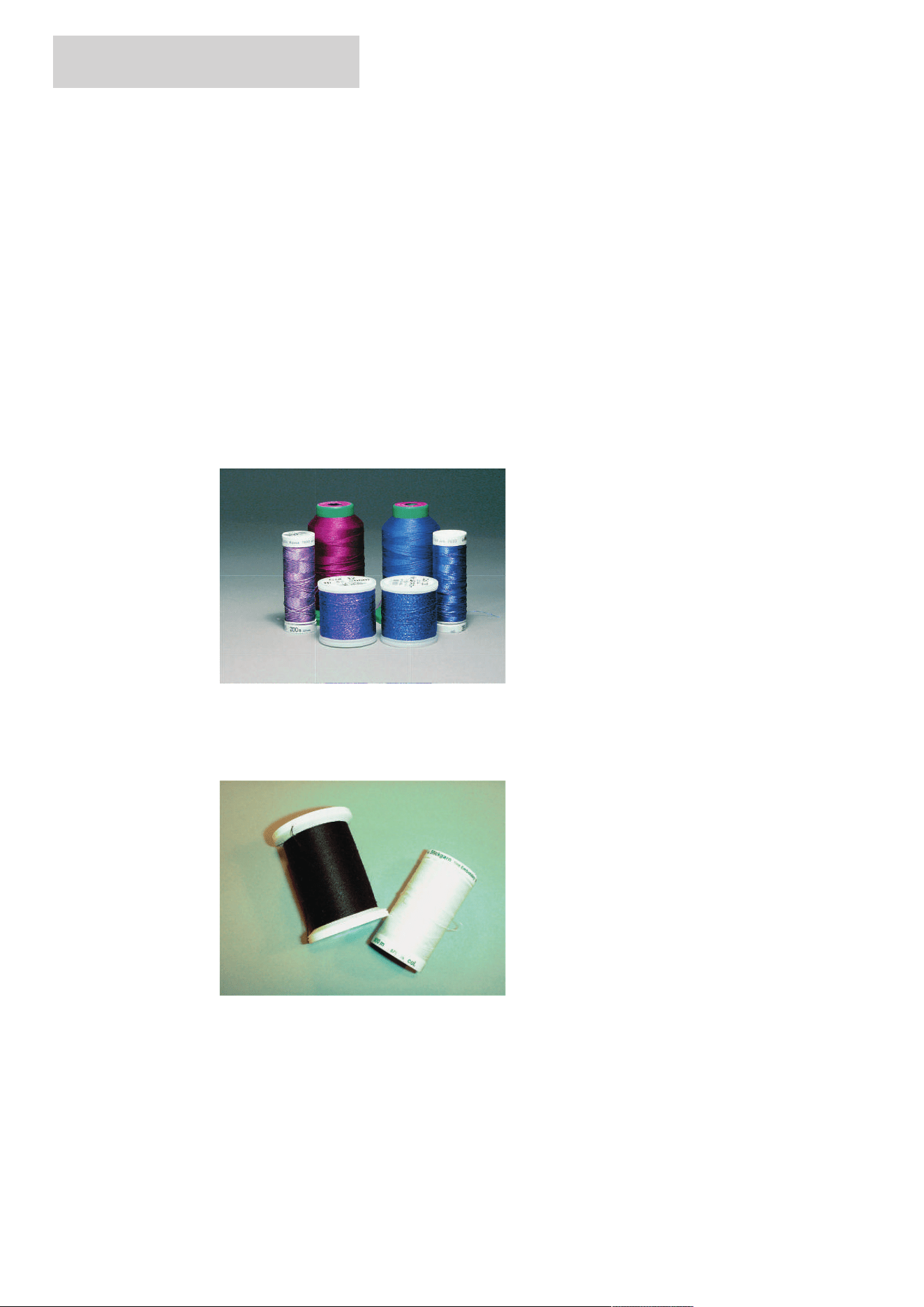
Good quality is important for embroidery threads so that the embroidery is not affected by thread
irregularities or thread breakage.
Embroidery is particularly effective if you use 40wt glossy rayon or polyester embroidery threads as upper
threads. They are available in a wide range of colors for beautiful embroidery.
• Polyester with a brilliant sheen is a hard-wearing, colorfast thread and has a high tensile strength which is
suitable for all types of embroidery.
• Rayon is a fine, natural-like fiber with a silky sheen that is suitable for fine embroidery which is not
subjected to too much strain.
• Metallic thread is a light to medium-weight thread suitable for special effects in embroidery.
• When working with metallic threads, the automatic bobbin thread cutter should be deactivated. The
other thread cutters shouldn't be used either because the knives are likely to wear off very quickly.
• When using metallic threads, the speed and the upper thread tension should be reduced.
Bobbin Thread
In most cases black or white bobbin thread is used for embroidering. When both sides should have the same
look, it is recommended to use the same color for bobbin and upper thread.
• Embroidery bobbin thread is an especially soft and light polyster thread which is suited to be used as
bobbin thread. This special bobbin thread ensures a steady thread tension and an optimal intertwining of
the upper and bobbin thread.
Choosing the Embroidery Design
Simple designs with a low stitch count are suitable for embroidery on fine material. Densely embroidered
designs, e.g. embroidered designs with multiple color and embroidery direction changes, are suitable for
medium and heavy-weight material.
MY BERNETTE EMBROIDERY
23
2024-08 EN 5020070.50A.04
Embroidery Test
For the embroidery test, always use the original material reinforced with the same stabilizer as will be used
later. For the embroidery test it is recommended to use the same colors, threads and needles which are
planned to be used for the embroidery project.
Embroidering Designs by Third-party Providers
bernette recommends loading embroidery designs of any file format onto a USB stick via the free program
«BERNINA Embroidery Software». Using «BERNINA Embroidery Software» ensures that embroidery designs
are read and embroidered correctly. «BERNINA Embroidery Software» can be downloaded as a free trial
version for 30 days at www.bernina.com/v9.
Underlay Stitches
Underlay stitches are the foundation of a motif and are used to stabilize the base material and hold it in
shape. They also prevent the covering stitches of the motif from sinking into the knit or the nap of the
material.
The Size of the Embroidery Design
Embroidery designs can be enlarged or downsized on the embroidery machine or on the PC using the
BERNINA Embroidery software (optional accessory). Scaling up/downsizing in a range of +/- 20 % provides
the best results.
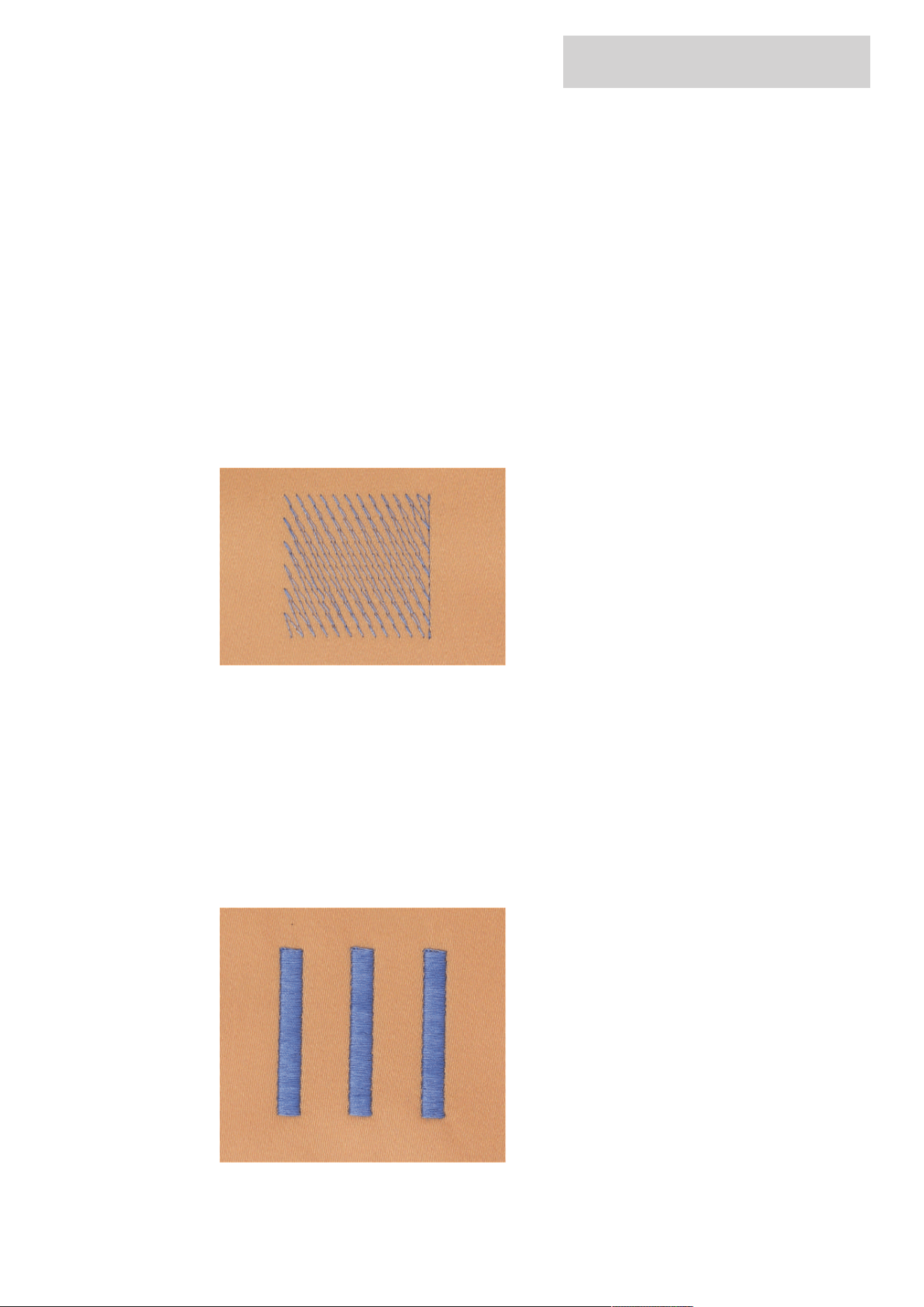
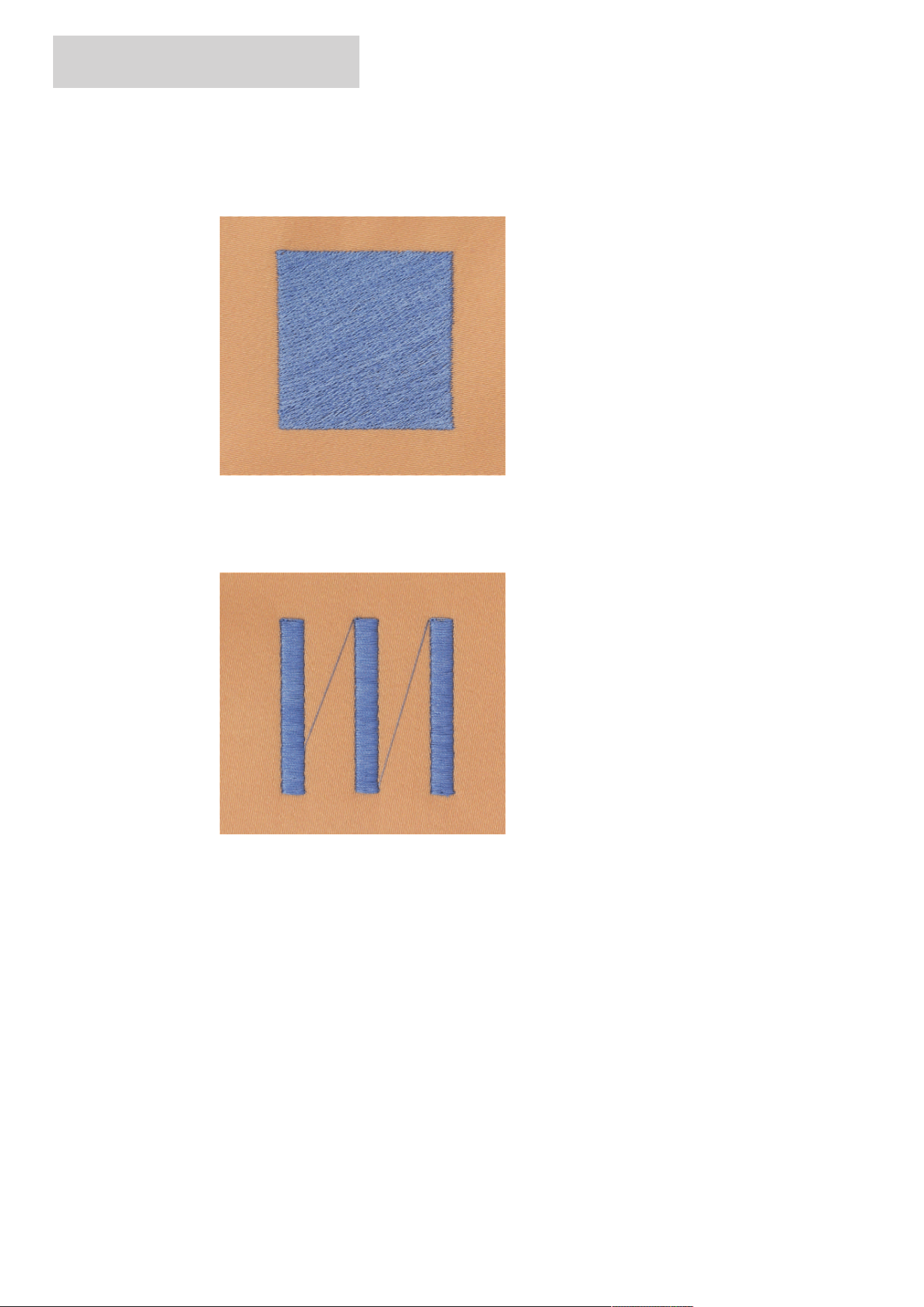
Satin or Leaf Stich
The needle moves left to right and vice versa. The result is a very dense, covering zig zag stitching to fill the
shape. Satin stitching fills are ideal for narrow and small shapes. Satin stitching is, however, not suitable for
larger areas, since wide stitches are too loose and do not cover the fabric properly. In addition there is the
risk that with too long stitches the threads could catch on something which would damage the embroidery.
MY BERNETTE EMBROIDERY
24
2024-08 EN 5020070.50A.04
Step Stitch
Many short, equally long stitches are embroidered in offset rows closely next to each other which results in a
densesly filled area.
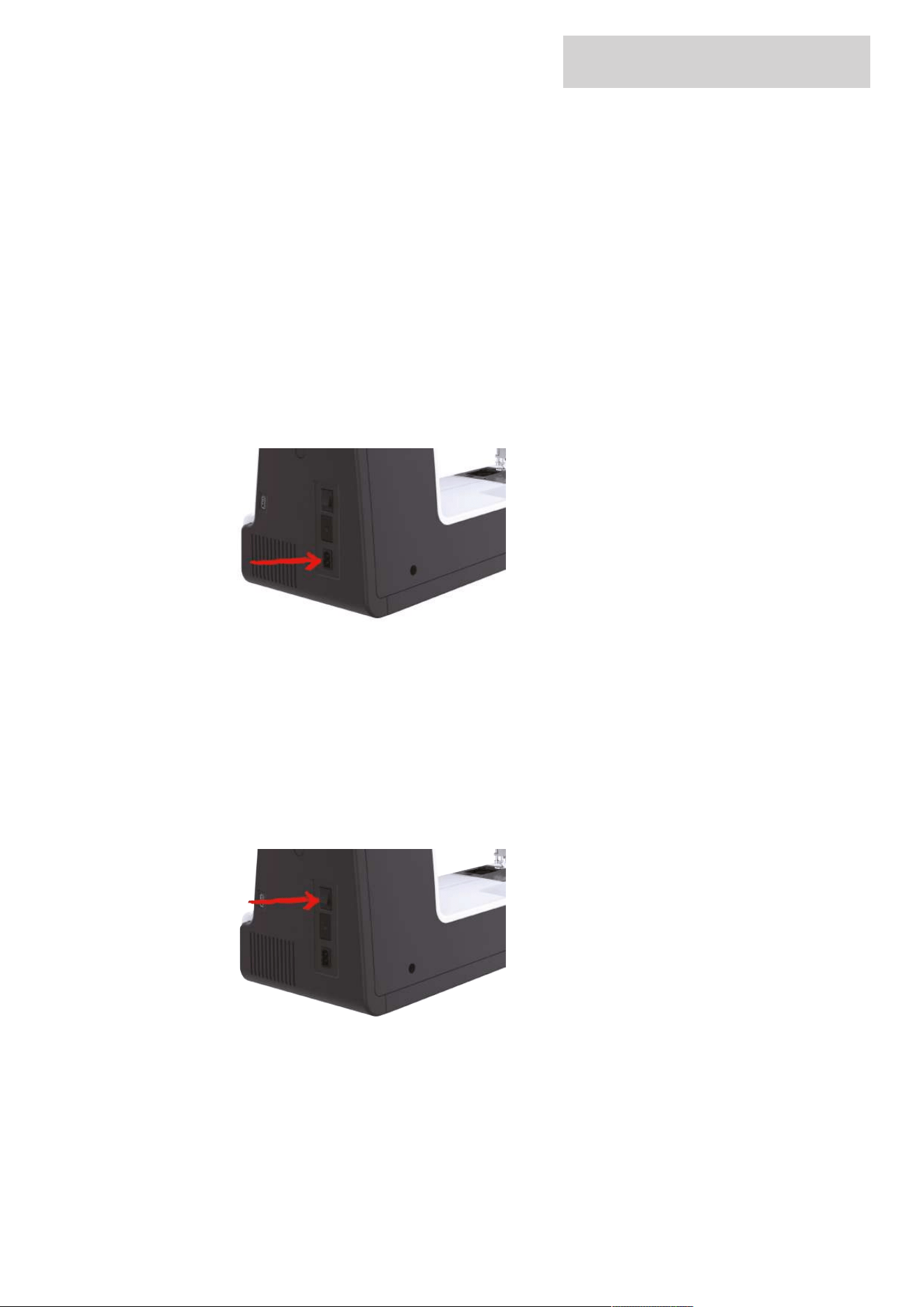
Connecting Stitches
Long stitches which are used to get from one part of the motif to the next. Before and after the connecting
stitch securing stitches are sewn. Connecting stitches are trimmed.
EMBROIDERY PREPARATION
25
2024-08 EN 5020070.50A.04
2 Embroidery Preparation
2.1 Connection and Switching On
Connecting the Machine
To ensure safe operation of the machine, only the supplied mains cable may be used. The supplied power
cable is designed for the voltage range applicable in the country of use. If the machine is to be used in a
country other than the country of origin, the power cable suitable for that country must be obtained from
the authorized bernette dealer.
The power cable for the USA and Canada has a polarized power plug (one contact is wider than the other).
To reduce the risk of an electric shock, the plug can only be inserted into the socket in one way. If the power
plug does not fit in the socket, reverse then insert the power plug. If the reversed power plug still does not
fit, an electrician must install an appropriate socket. Do not modify the power plug in any way.
> Insert the device connector of the power cable into the machine's power cable connection.
> Insert the power plug of the power cable into the socket.
Use of the Power Cable (only USA/Canada)
The machine has a polarized plug (one contact is wider than the other). To reduce the risk of electric shock,
the plug can only be plugged into the socket in one way. If the plug does not fit into the socket, turn the
plug. If it still does not fit, an electrician needs to be called to install an appropriate outlet. Do not modify the
plug in any way.
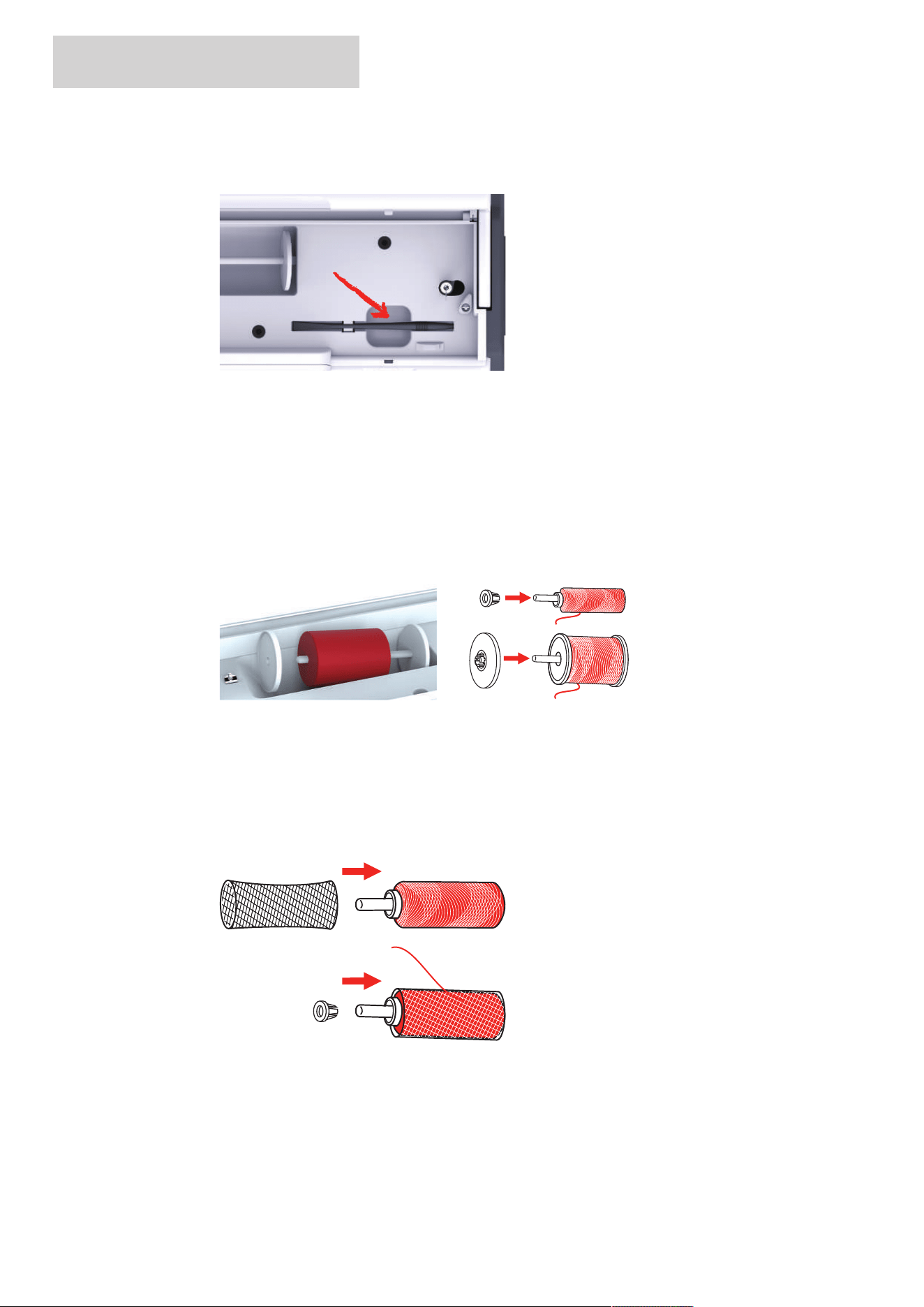
Switching the Machine On
> Set the power switch to «I».
EMBROIDERY PREPARATION
26
2024-08 EN 5020070.50A.04
Fixing the Touch Screen Pen
> Store the touchscreen pen on the top holder.
2.2 Spool Pin
Horizontal Spool Pin
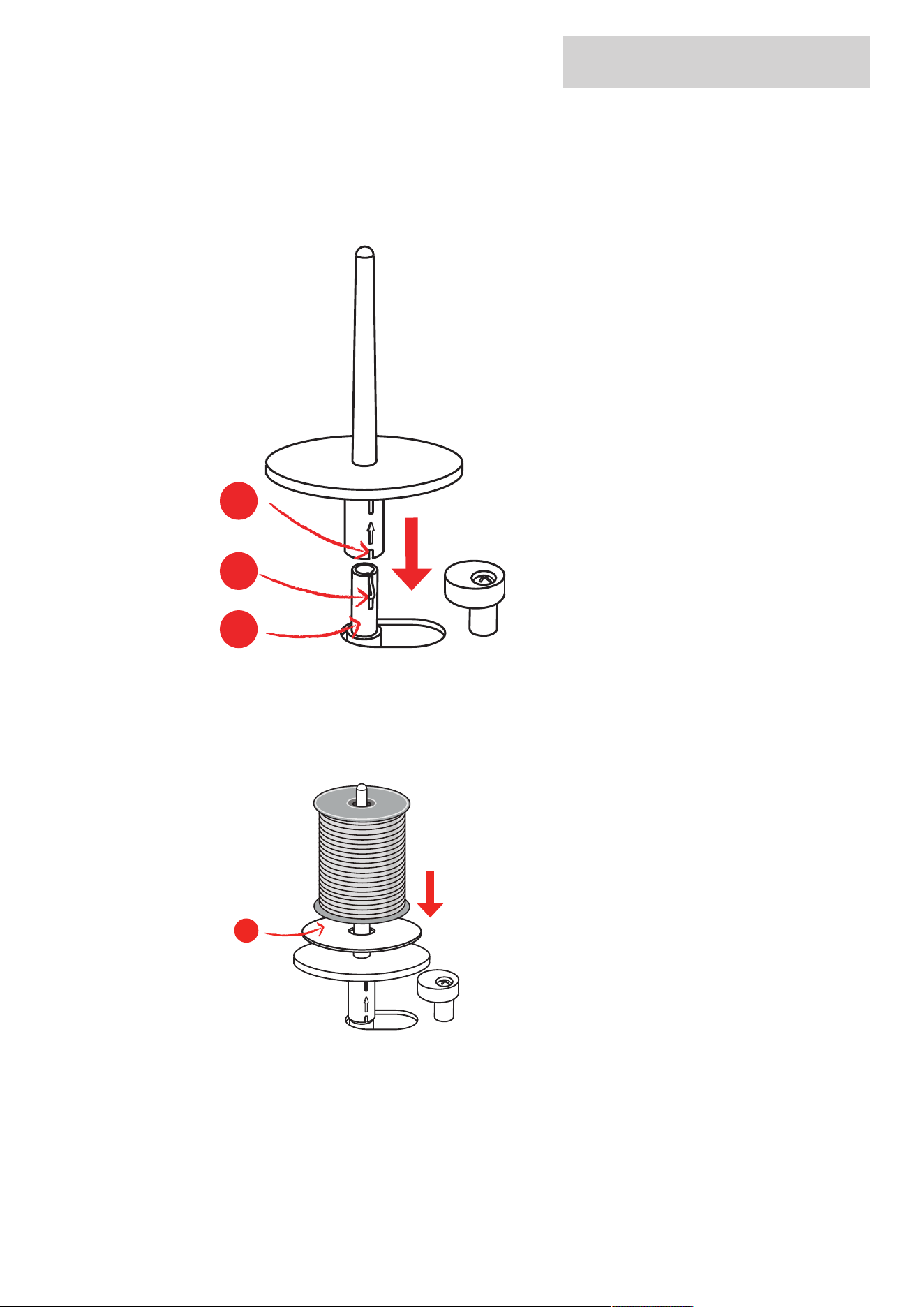
Placing the Thread Spool and the Spool Cap
Spool discs hold the thread spool in place for proper release of thread from the spool.
> Place the thread spool on the spool pin.
> Position the appropriate spool cap on the spool pin so that there is no space between the spool cap and
the thread spool.
Using the Spool Net
The spool net holds the thread on the thread spool and prevents the thread from knotting and breaking.
The spool net is only used with the horizontal spool holder.
> Pull the spool net over the thread spool. Ensure when doing so that the spool net does not slip off the
thread spool, e.g. double-insert the net over the thread spools or insert a part of the net into the thread
spool at the rear.
EMBROIDERY PREPARATION
27
2024-08 EN 5020070.50A.04
Second Spool Pin
Installing the Second Spool Pin
> Insert the second spool pin onto the end of the bobbin winding unit (1).
> Align the notch (2) with the spring (3) on the bobbin winding unit.
1
2
3
Inserting Thread Spool
The felt disc prevents the thread from sticking to the spool pin.
> Place the felt disc (1) on the second spool pin.
> Place the thread spool on the second spool pin.
1
EMBROIDERY PREPARATION
28
2024-08 EN 5020070.50A.04
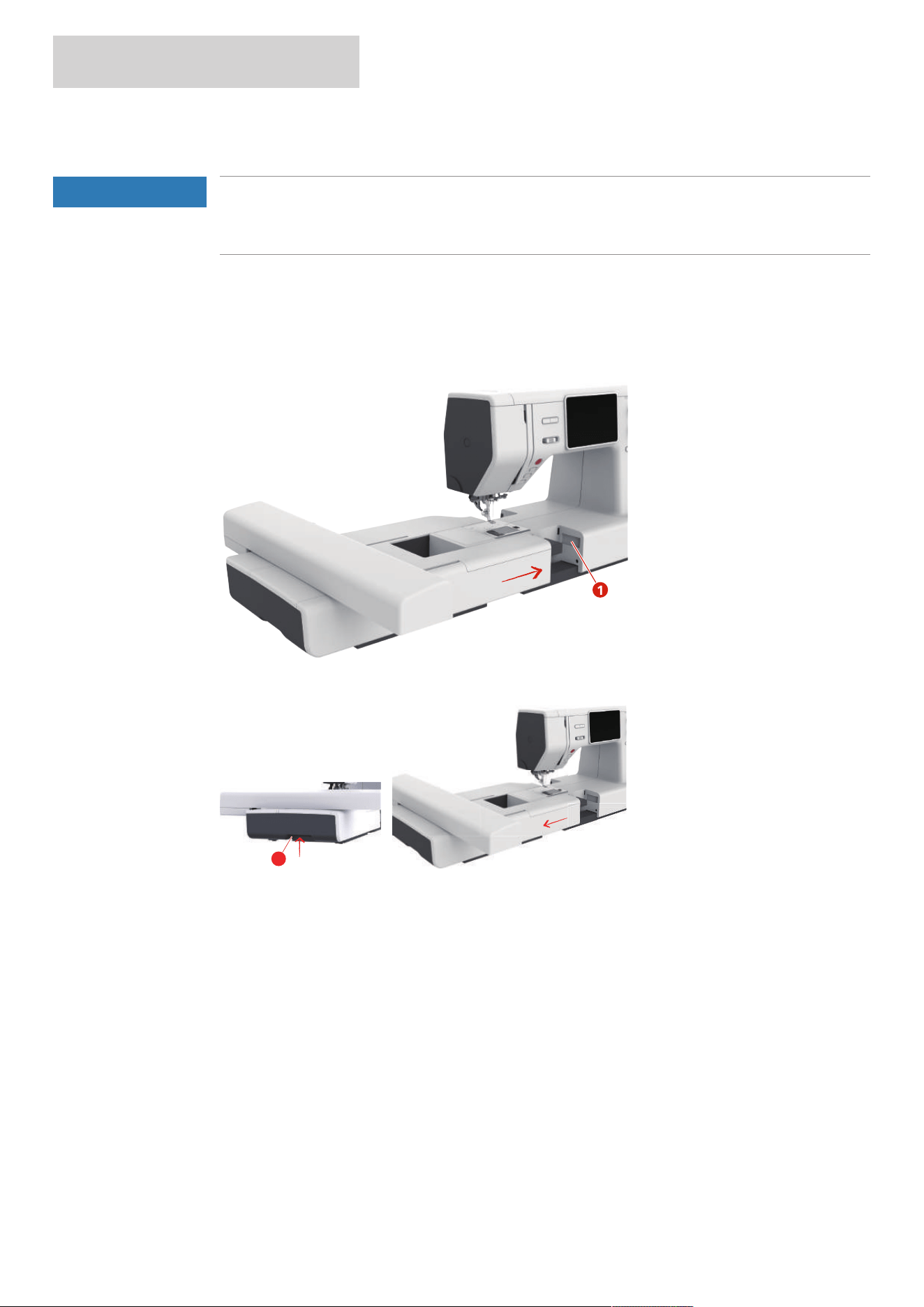
2.3 Attaching the Embroidery Module
NOTICE
Transporting the Embroidery Module
Damage to the embroidery module connection and machine.
> Remove the embroidery module before transporting the machine.
> Make sure that the module and the machine are placed on a stable, even surface.
> Ensure that the embroidery arm can move freely.
> Lift the embroidery module on the left side.
> Carefully push the module from left to right into the embroidery module connection (1) of the machine
so that it engages.
1
> Hold the embroidery module, press the release button and pull it out.
2
EMBROIDERY PREPARATION
29
2024-08 EN 5020070.50A.04
2.4 Embroidery Foot
Attaching the Embroidery Foot
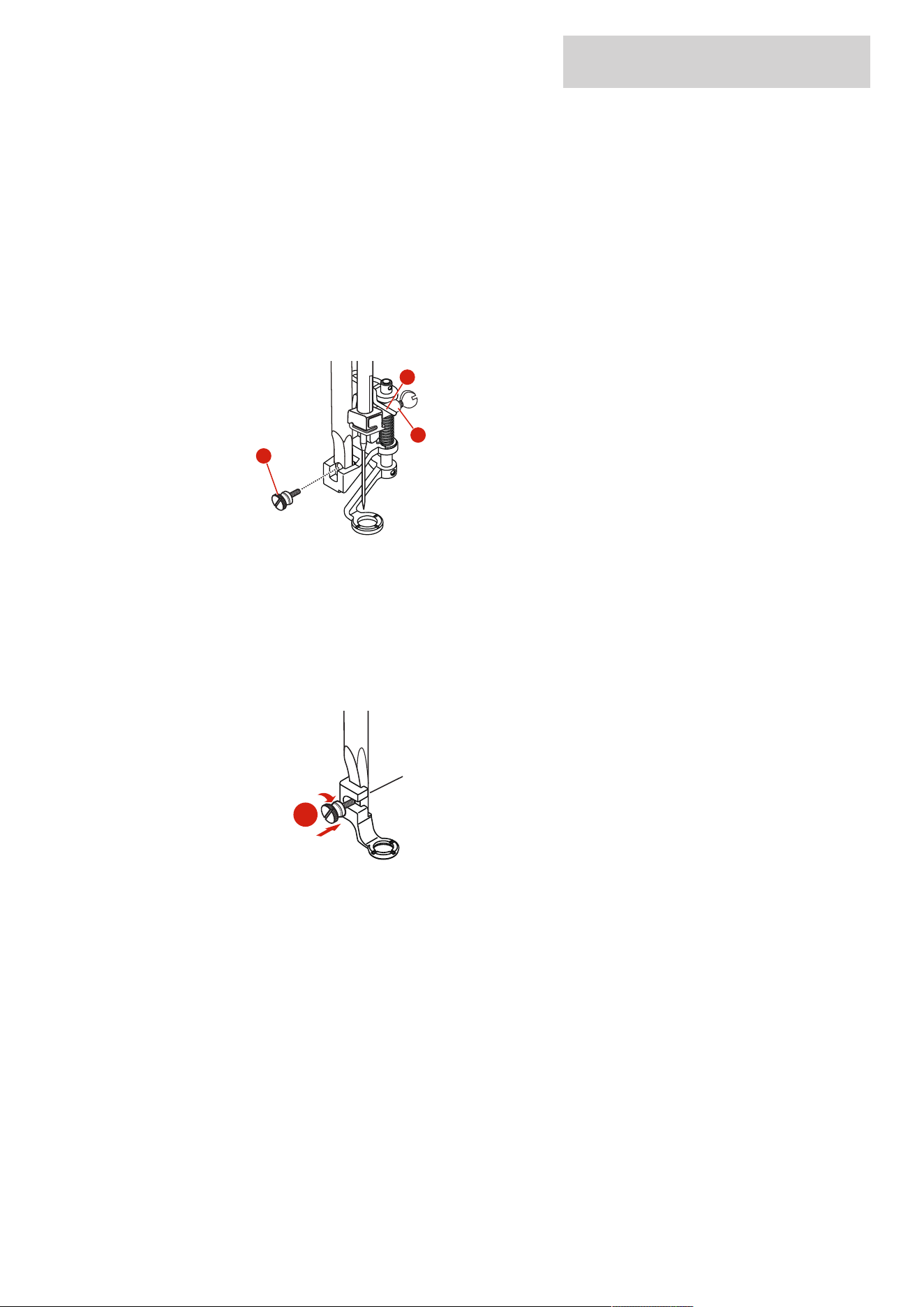
Mount the Hopper Embroidery Foot
> Raise the needle.
> Raise the presser foot.
> Switch the machine off and disconnect it from the power supply system.
> Attach the Hopper embroidery Foot (JX) to the presser foot bar, making sure that the spring (3) is over
the needle clamp screw (4).
> Tighten the screw (1).
4
3
1
> After starting the machine, select the embroidery foot in the «Presser Foot Sole Display».
Mount the Embroidery Foot
> Raise the needle.
> Raise the presser foot.
> Switch the machine off and disconnect it from the power supply system.
> Attach the Embroidery Foot (JL) from the back with the index finger to the presser foot bar and tighten
the screw (1).
1
> Important: After starting the machine, select the embroidery foot in the «Presser Foot Sole Display».
EMBROIDERY PREPARATION
30
2024-08 EN 5020070.50A.04
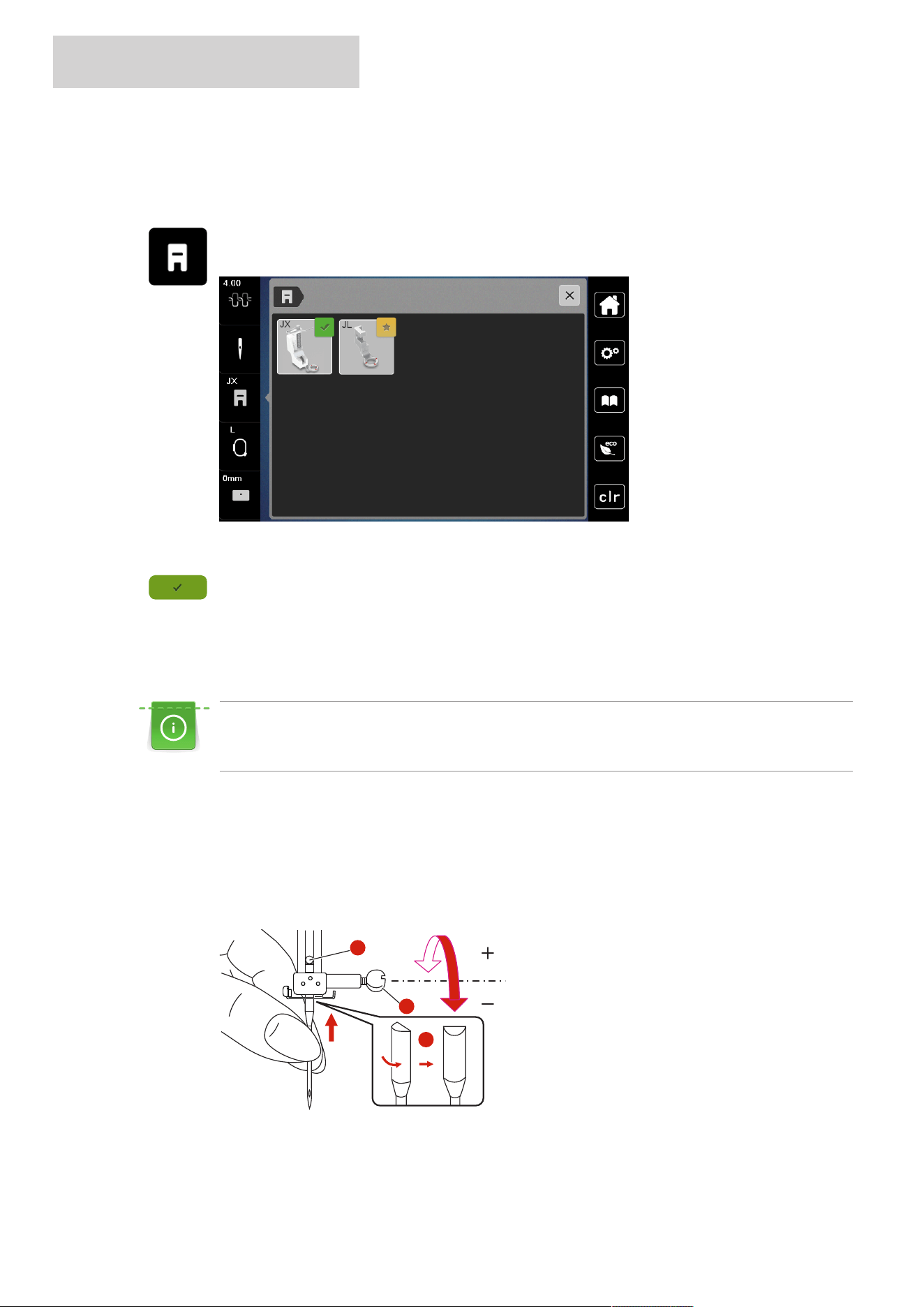
Selecting the Embroidery Foot
To ensure that the machine can set the correct standard height for the attached embroidery foot, the
embroidery foot must be selected in the «Presser foot sole display».
> Switch the machine on.
> Tap «Presser Foot Indicator/Presser Foot Selection».
– Any presser foot soles are displayed.
> Select the attached embroidery foot.
– A description of the selected embroidery foot is displayed.
> Tap «Confirm».
– The selected embroidery foot is displayed and the standard height is set.
2.5 Needle
Inserting the Embroidery Needle
Embroidery needles of the type 130/705 H-SUK provide a larger eye and are slightly rounded. This avoids
thread abrasion when using Rayon- and cotton embroidery thread. Depending on the embroidery thread
use a size No.70-SUK to No.90-SUK needle.
> Raise the needle.
> Switch the machine off and disconnect it from the power supply system.
> Remove the presser foot.
> Loosen the needle clamp screw (1) using the screwdriver and remove the needle.
> Hold the needle with the flat side (2) to the back.
> Push the needle up to the stop (3).
> Tighten the needle clamp (1) screw using the screwdriver.
1
3
2
EMBROIDERY PREPARATION
31
2024-08 EN 5020070.50A.04
2.6 Threading
Preparing the Threading
> Press the button «Presser Foot Up/Down » to raise the presser foot.
> Raise the presser foot.
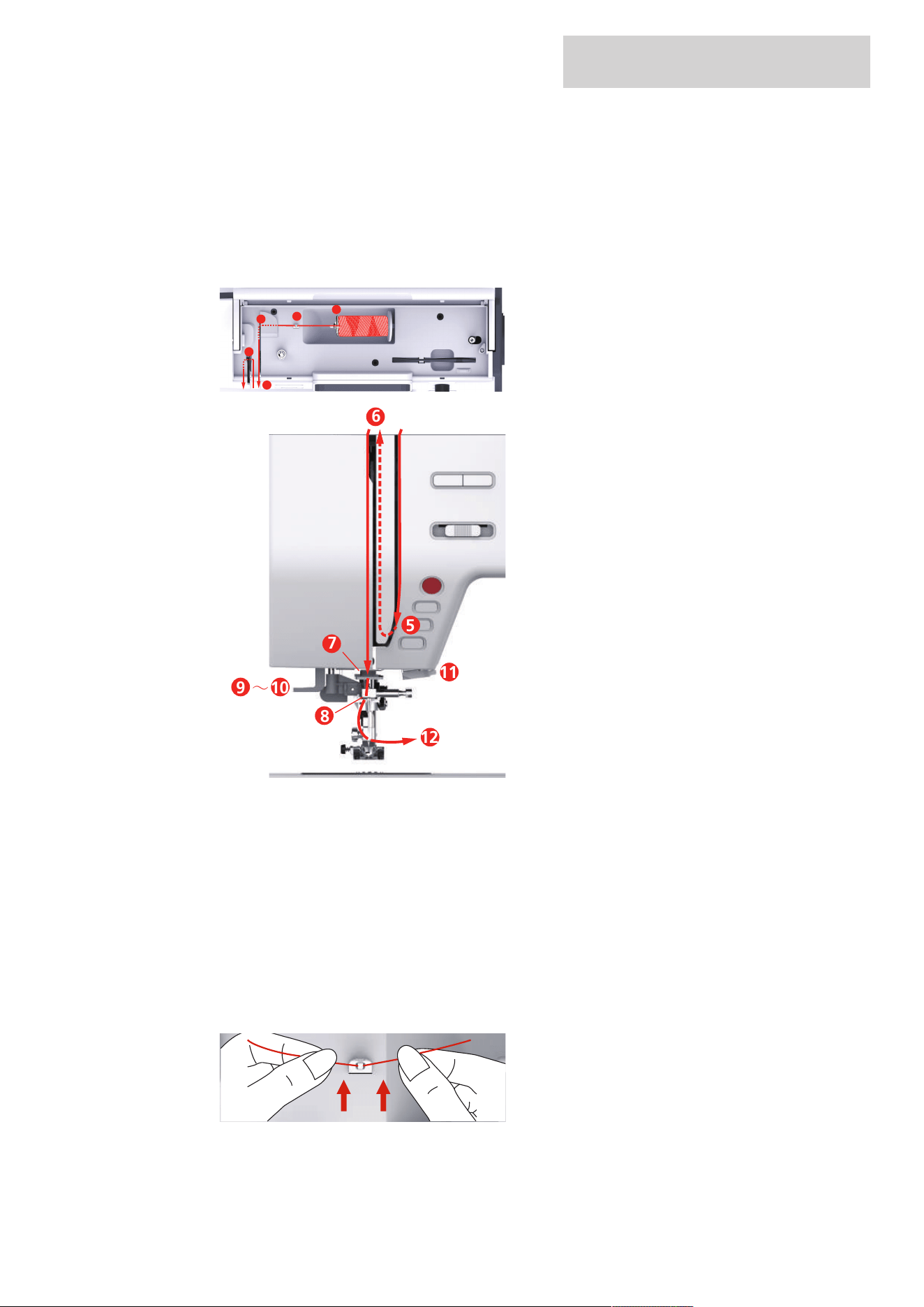
Threading the Upper Thread
1
2
4
6
3
5
6
9 10
12
11
7
8
∼
1 Spool Cap 7 Guide
2 Thread Guide 8 Guide
3 Thread Pretension 9 Thread Lever
4 Thread Tensions Discs 10 Wire Hook
5 Thread Take-up Lever Cover 11 Thread Cutter
6 Thread Take-up Lever 12 Thread
> Place the thread spool on the spool pin so that the thread unwinds clockwise.
> Fit the spool cap suitable for the spool.
> Feed the thread through the thread guide.
EMBROIDERY PREPARATION
32
2024-08 EN 5020070.50A.04
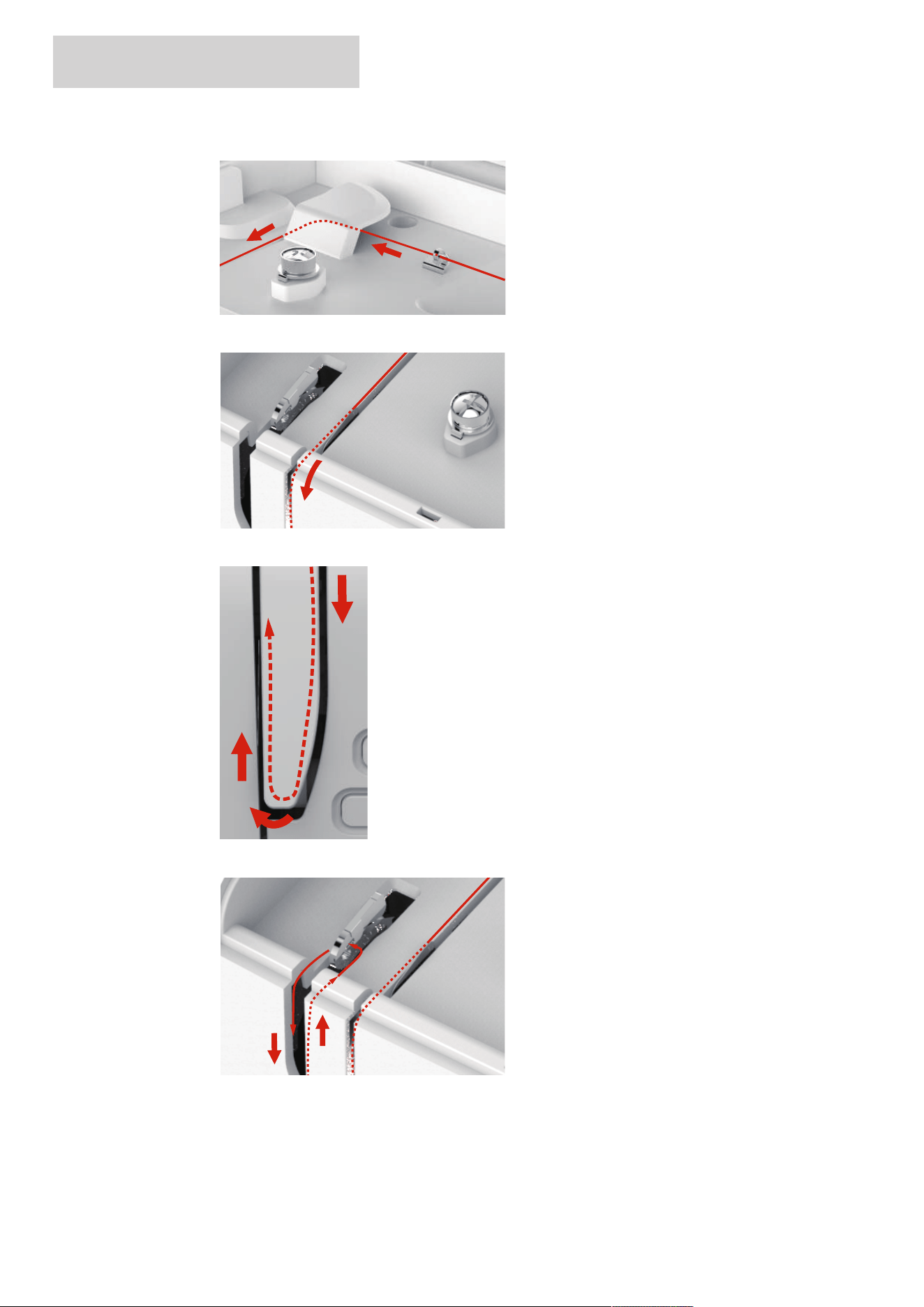
> Guide the thread through the thread pretension.
> Place the end of the thread down along the duct.
> Guide the htread downwards around the thread take-up lever cover.
> Guide the thread at the top from rigth to the left through the thread take-up lever and then down again.
> Guide the thread through the guides above the needle.
EMBROIDERY PREPARATION
33
2024-08 EN 5020070.50A.04
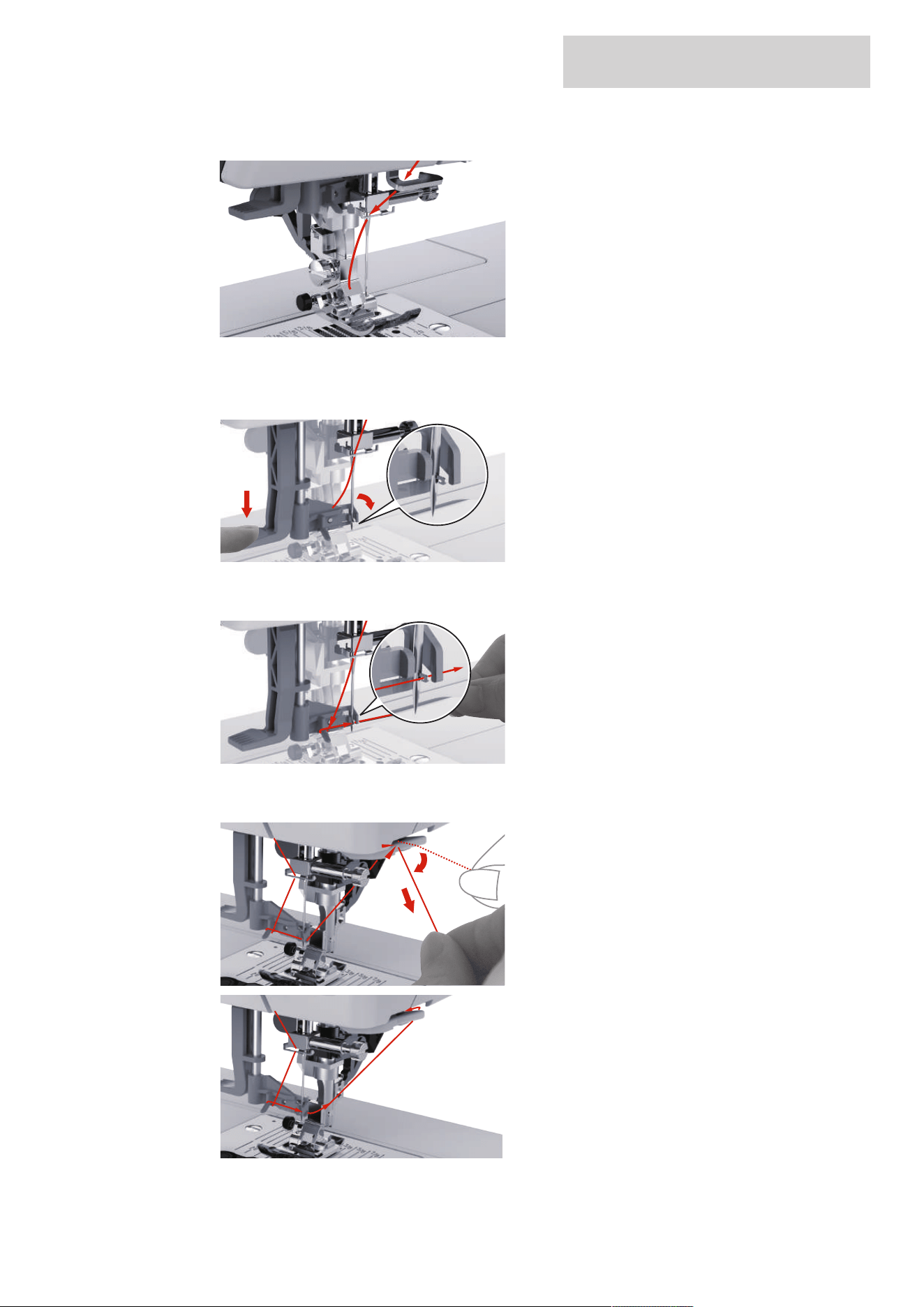
> Lower the presser foot.
> Press the threading lever down until it clicks into place.
– The wire hook goeas through the eye of the needle.
– To prevent damage to the threader, the presser foot is lowered automatically.
> Feed the thread around the thread guide.
> Guide the thread in front of the needle and underneath the wire hook and hold it.
> To cut off excess thread, take the thread end and carefully pull it over the thread cutter. Please Note:
Use the right thread cutter only when threading.
EMBROIDERY PREPARATION
34
2024-08 EN 5020070.50A.04
> To thread the needle, lift the needle-threading lever. Keep the thread loose when doing so.
– The wire hook moves backwards and pulls the thread through the needle eye into a loop.
> Pull the thread completely through the eye of the needle.
Winding the Bobbin Thread
1
2
4
3
1 Spool Cap 3 Bobbin Winder Pretension
2 Thread Guide 4 Spool Pin
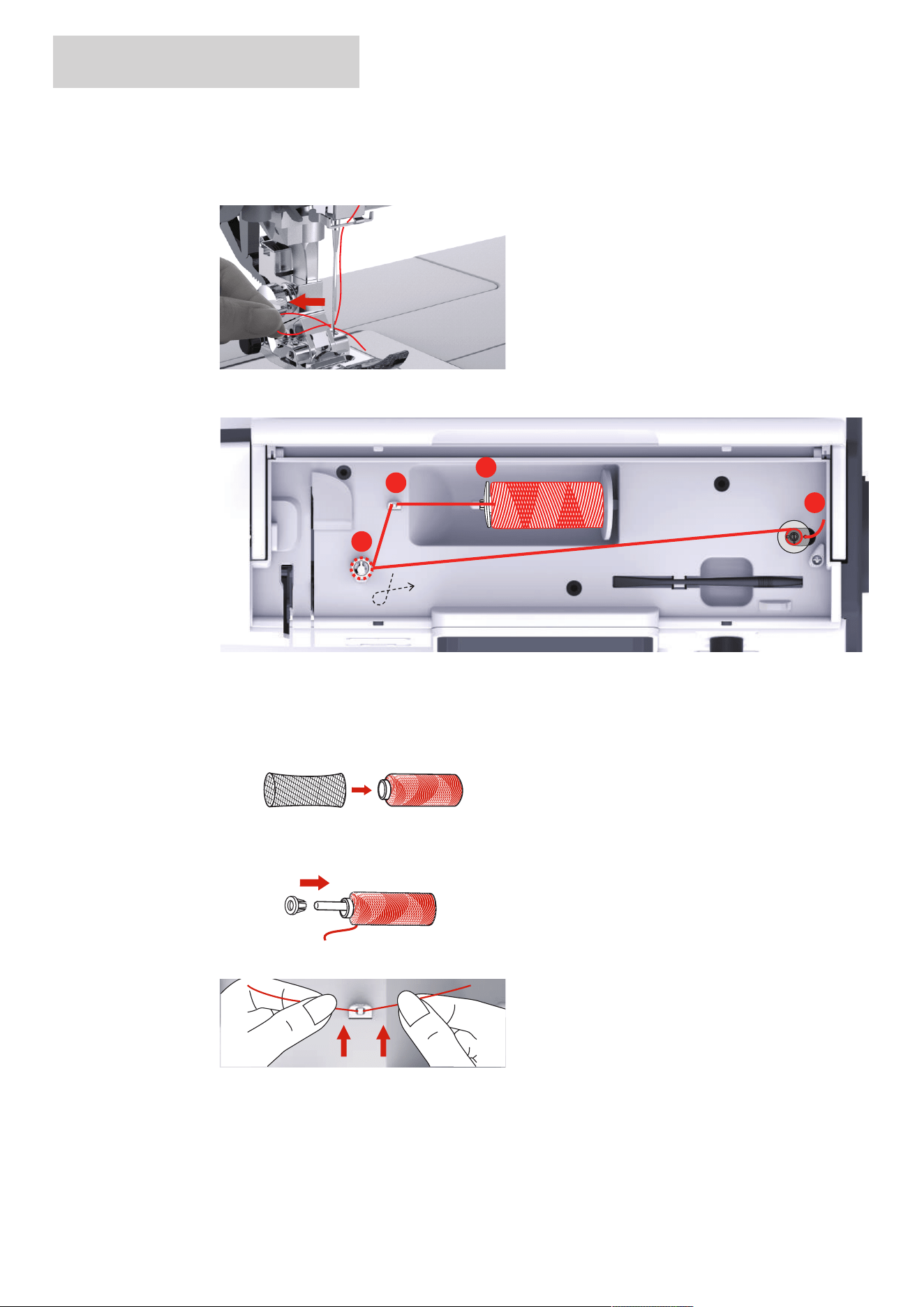
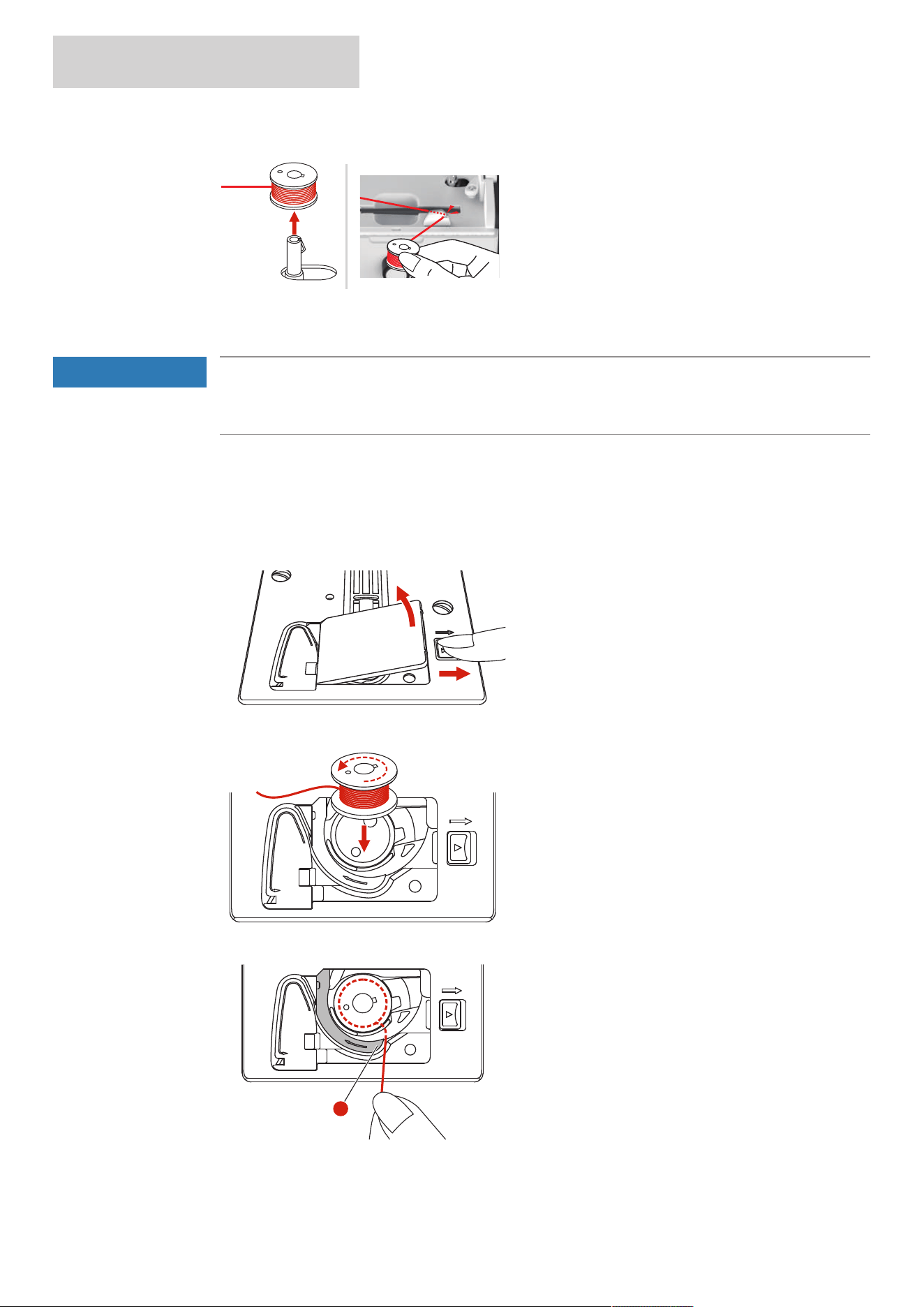
> To prevent slippery threads from catching or breaking, pull the spool net over the spool.
> Place the thread spool and the appropriate spool cap on the spool holder. Use the small spool cap on the
spool holder.
> Feed the thread through the thread guide.
EMBROIDERY PREPARATION
35
2024-08 EN 5020070.50A.04
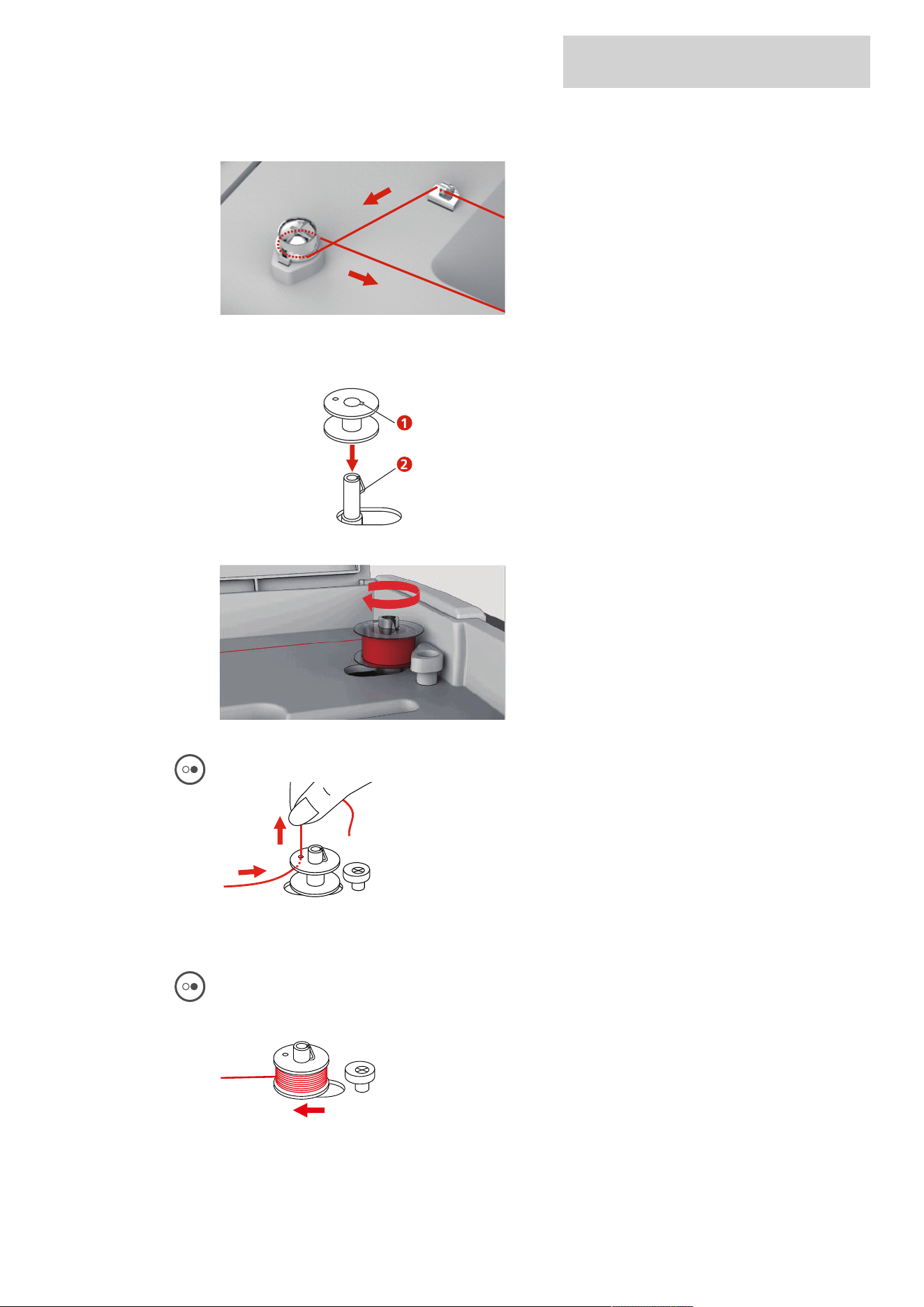
> Guide the thread around the bobbin winder pre-tension in the direction of the arrow.
> Pull the end of the thread through one of the inner holes on the bobbin and place the empty bobbin on
the bobbin winding unit.
1
2
> Push the bobbin to the rigth-hand position.
– The button «Start/Stop» flashes and the display for winding appears.
> Hold the end of the thread tightly with one hand.
> To start the winding process for a few revolutions and to stop it again, press the button «Start/Stop» so
that the thread is firmly seated on the bobbin.
> Cut the end of the thread above the inner hole.
> To continue the winding process, push the button «Start/Stop».
> To stop the winding process, press the button «Start/Stop».
> Push the bobbin winding unit to the left into the starting position.
EMBROIDERY PREPARATION
36
2024-08 EN 5020070.50A.04
> Remove the bobbin and cut the thread.
Threading the Bobbin Thread
NOTICE
Needle Breakage Caused by Unevenly Wound Bobbins
Unevenly wound bobbins can lead to incorrect thread tension or cause needles to break.
> Only use evenly wound bobbins.
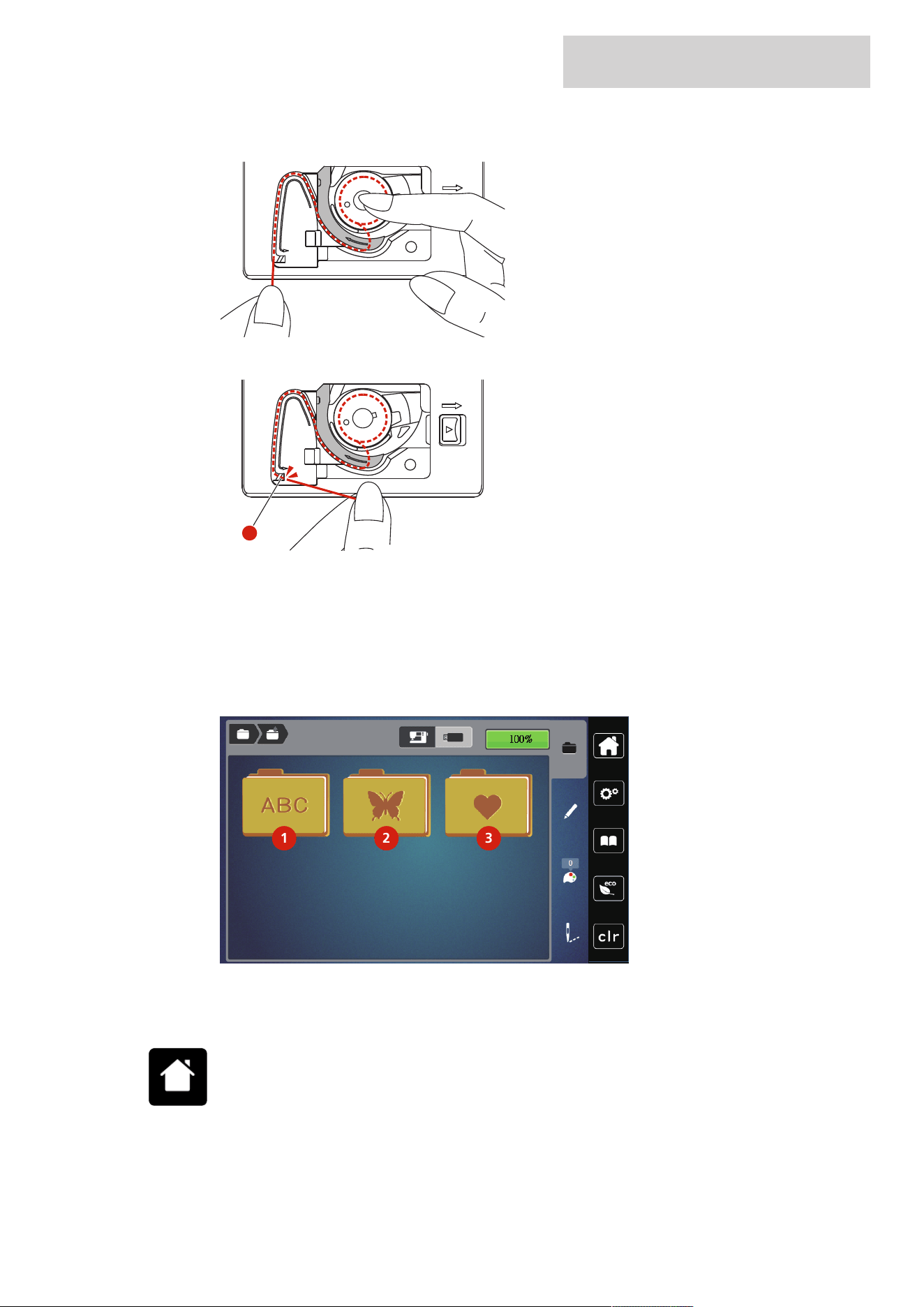
Prerequisite:
• The needle is raised.
• The presser foot is raised.
• The machine is switched off.
> To open the bobbin cover, push the handle to the right and remove the bobbin cover.
> Insert a new bobbin so that the thread is wound counterclockwise.
> Pull the thread into the slit (1).
1
> Press gently on the bobbin.
EMBROIDERY PREPARATION
37
2024-08 EN 5020070.50A.04
> Follow the arrow markings to bring the thread into the bobbin thread guide.
> To cut off excess thread, take the end of the thread and pull it over the thread cutter (2).
2
> Attach the bobbin cover.
2.7 Selecting the embroidery motif
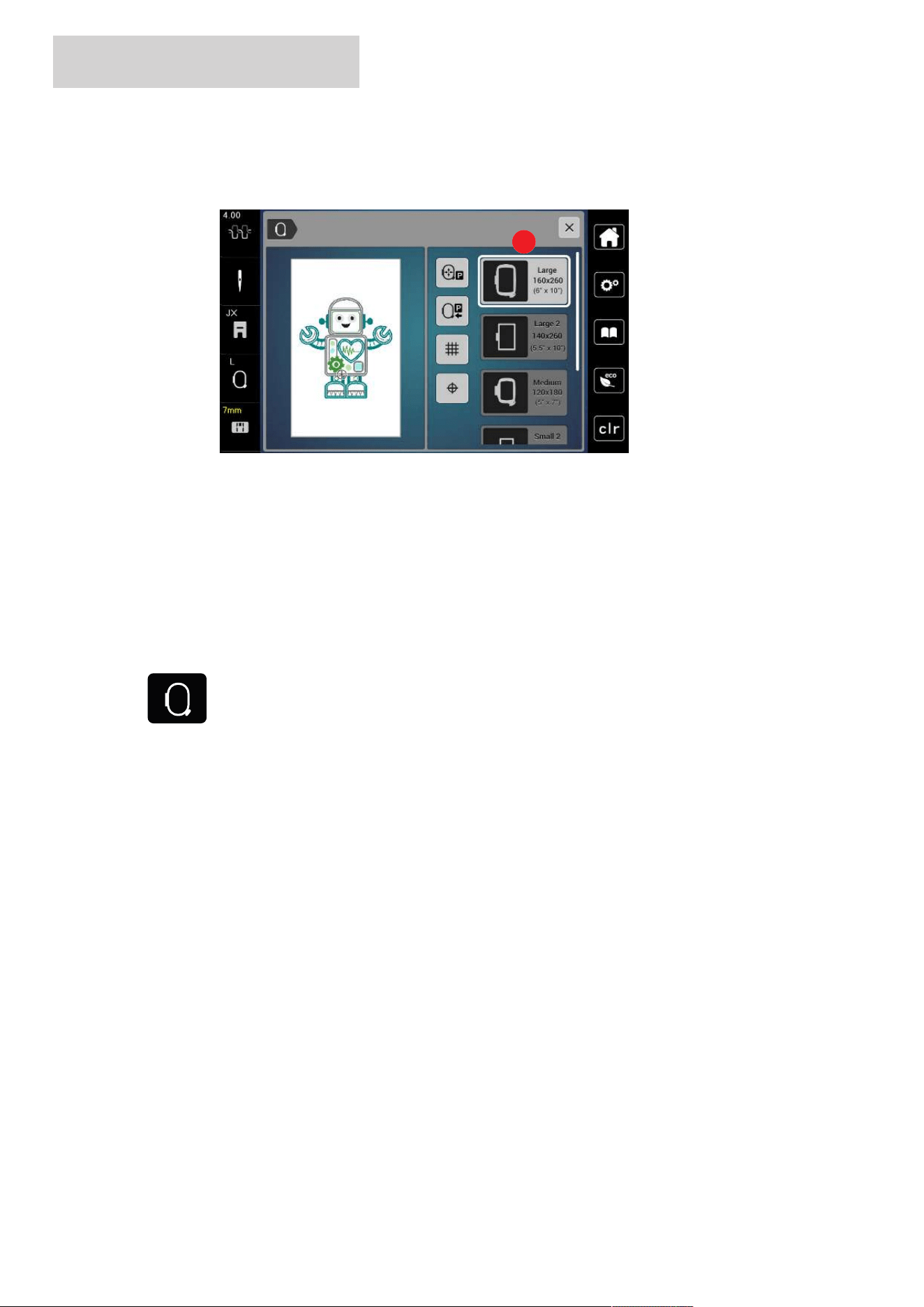
All of the embroidery designs can be either directly embroidered or can be changed using different functions
offered by the embroidering machine. You can find all embroidery designs at the end of the instruction
manual. In addition to that, embroidery designs can be downloaded from the personal memory or from the
USB stick (optional accessory).
1
2 3
1
2 3
1 Embroidery Alphabet 3 Personal Embroidery Design
2 Embroidery Designs
> Tap «Home».
> Select an alphabet, embroidery design or a personal embroidery design from one of the files.
EMBROIDERY PREPARATION
38
2024-08 EN 5020070.50A.04
2.8 Embroidery Hoops
Overview Embroidery Hoop Selection
1
1 Hoop Selection
Selecting the Embroidery Hoop
The best embroidery result is achieved when the smallest possible embroidery hoop for the embroidery
design is selected.
The embroidery design has a pre-set size which is displayed.
Prerequisite:
• The embroidery design is selected.
đ
> Tap «Hoop Indicator/Select Hoop».
– The presently attached embroidery hoop is displayed.
– The machine selects the optimal embroidery hoop according to the size of the embroidery design
automatically.
– If the preset embroidery hoop is not available, another desired embroidery hoop can be selected.
– When an embroidery hoop is attached which does not correspond with the selected one, the attached
hoop is considered active and the embroidery design area is displayed accordingly.
> Select the desired embroidery hoop.
Tear-away Stabilizers
Using a stabilizer ensure more stability of the embroidery project. A tear-away stabilizer suits all woven and
non-stretch materials. 1–2layers can be used. Stabilizers are available in different weights. With larger areas
to be embroidered the stabilizer will remain under the embroidery thread. The stabilizer is applied to the
wrong side of the fabric with temporary adhesive spray. Carefully cut away excess stabilizer after
embroidering.
Cut-away Stabilizers
Using a stabilizer ensure more stability of the embroidery project. A cut-away stabilizer suits all elastic
materials. 1–2layers can be used. Stabilizers are available in different weights. With larger areas to be
embroidered the stabilizer will remain under the embroidery thread. The stabilizer is applied to the wrong
side of the fabric with temporary adhesive spray. Carefully cut away excess stabilizer after embroidering.

EMBROIDERY PREPARATION
39
2024-08 EN 5020070.50A.04
Using Adhesive Spray
The application of spray adhesive is recommended for stretch and smooth materials and knitware. It prevents
the fabric from losing shape and slipping. Appliqués can be exactly positioned with spray adhesive. The spray
adhesive shouldn't be used near the machine to avoid contamination.
> Use the spray adhesive carefully at a distance 25–30cm (9–12inch) when spraying the stabilizer.
> Adhere the sprayed stabilizer to the wrong side of the fabric carefully, smoothing material so there are
no puckers.
> Position smaller parts such as pocket flaps or collars on the stabilizer.
> To avoid the possibility of getting hoop marks when working with napped materials or fleece, don't hoop
the parts but spray the stabilizer and hoop it.
> Adhere the fabric to be embroidered.
> Remove any adhesive residue before starting the machine.
Using Spray Starch
Spray starch is ideal for additional stiffening fine, loosely woven materials. Always use an additional stabilizer
on the wrong side of the material.
> Spray the area to be embroidered.
> Let it dry or press gently with a warm iron if necessary.
Using Iron-on Interfacing
Iron-on interfacings are available in a variety of weights. It is recommended to use an iron-on interfacing
which is easily removable from the basic fabric. An Iron-on interfacing suits all materials that are easily
distorted like stretch fabric such as tricot and jersey.
> Iron-on interfacings are ironed to the wrong side of the material using a warm iron.
Using Paper-backed Adhesive Stabilizer
Paper-backed adhesive stabilizers are intended to be used for fabrics such as jersey and silk as well as for
embroidery projects which are not suited to be hooped in the embroidery hoop.
> Place the stabilizer in the hoop, so that the paper side is up.
> Use a a pair of scissors to score the paper and remove paper in the hoop area.
> Position the fabric to be embroidered on the stabilizer and press it on place.
> Remove any adhesive residue before starting the machine.
Using Water-soluble Stabilizer
For lace embroidery it is recommended to hoop 1 - 3 layers of water-soluble stabilizer in the embroidery
hoop. As the embroidery design is not embroidered on the fabric, only the thread embroidered design is
left. The embroidery designs should be combined with short stitches otherwise the individual designs may
fall out.
Water-soluble stabilizers are ideal for fine, sheer fabrics where other stabilizers may show through the
embroidery stitches as well as for lace embroidery. The stabilizer dissolves in water. Water-soluble stabilizers
are an ideal protection for looped pile fabrics preventing the loops from being damaged. It prevents threads
from sinking into the material and keeps the fabric pile from poking though the embroidery.
> Place the stabilizer on the underside of the material.
> Use adhesive spray to adhere stabilizer if necessary.
> For material with a pile, reinforce with additional, suitable stabilizer on the wrong side.
> Place all the layers together into the embroidery hoop.
> After dissolving, lay the motif down flat and let dry.
EMBROIDERY PREPARATION
40
2024-08 EN 5020070.50A.04
Preparing the Embroidery Hoop
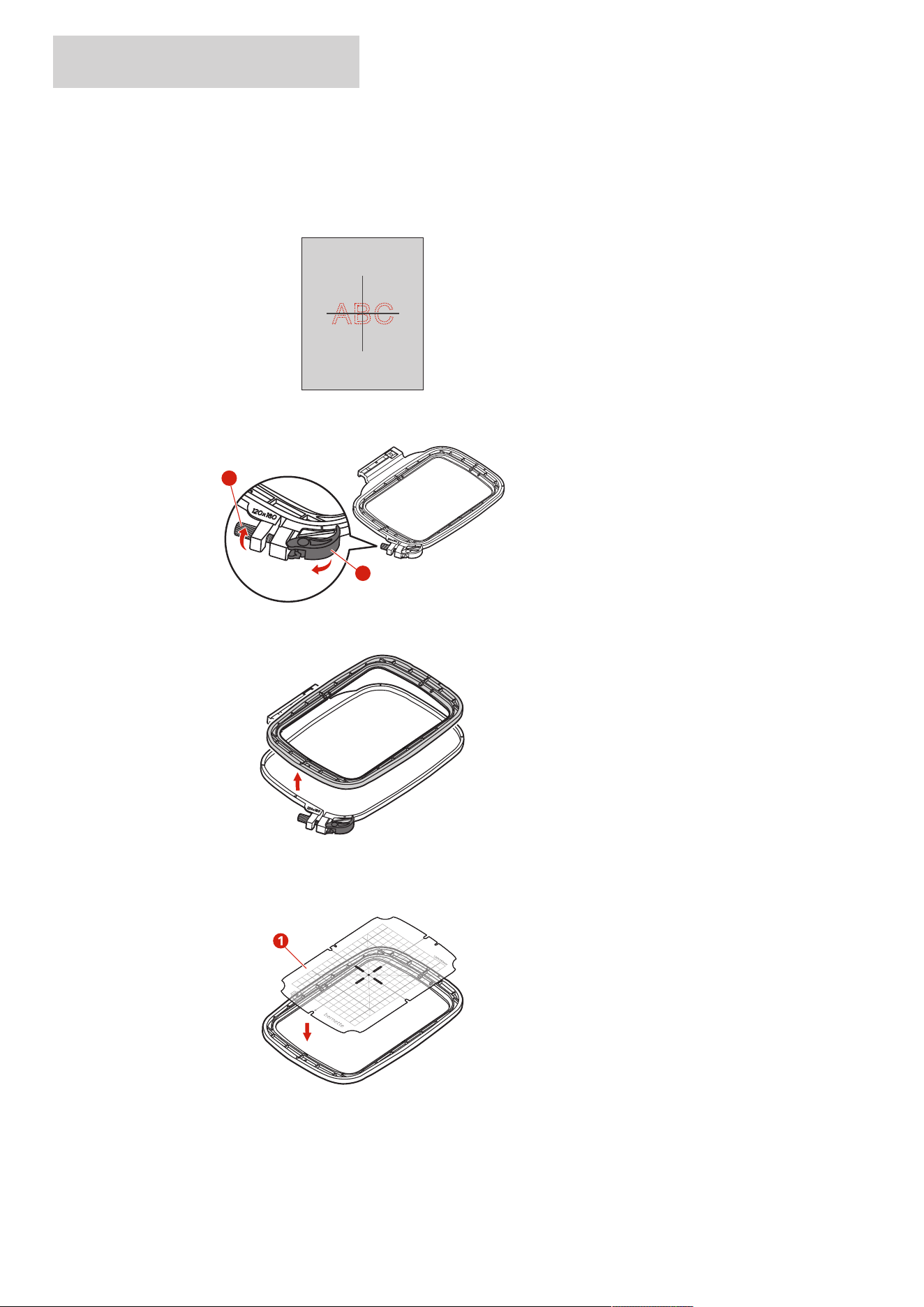
The embroidery hoop consists of an outer and an inner hoop. There is a corresponding template for every
hoop. The embroidery area is rasterized with 1cm (0.39in) squares. The center is marked with hole and
cross lines. The required marks can be transferred to the material.
> Loosen the screw (1) or open the quick release device (2) on the outer hoop.
– If a new type of fabric is used, the pressure must be adjusted by turning the screw.
1
2
> Remove the inner hoop.
> Place the template (1) in the inner hoop so that the bernette logo is aligned with the arrow marking at
the front edge so that it clicks into place.
1
> Place fabric under the inner frame so that it is at least 2cm above the hoop.
> Align the center of the embroidery design with the center of the template.
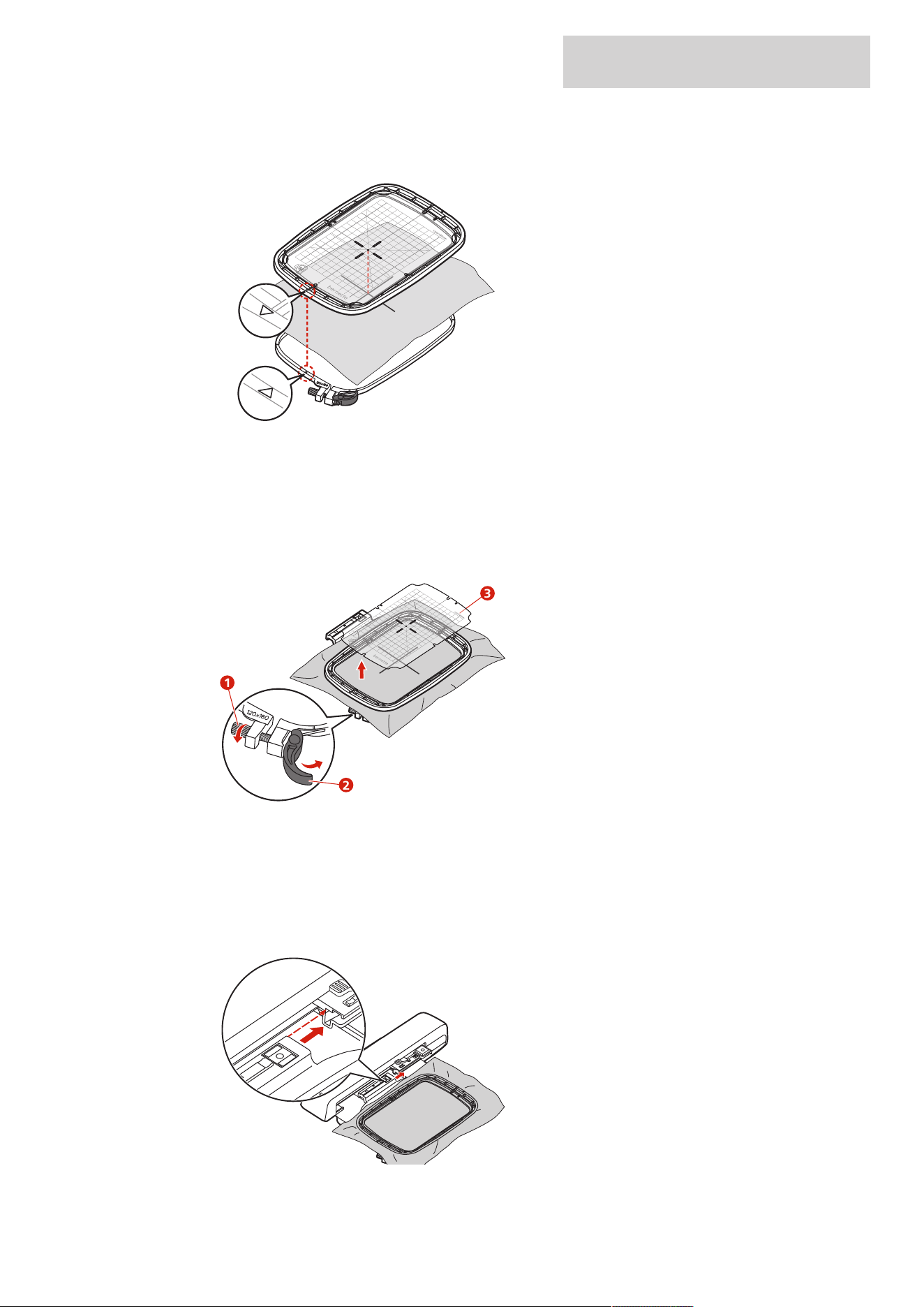
EMBROIDERY PREPARATION
41
2024-08 EN 5020070.50A.04
> Place the material and the inner hoop on the outer hoop so that the arrow markings of both hoops are
aligned.
> Fit the hoops into each other so that the material does not move.
> Hoop the fabric tautly in the embroidery hoop.
> Close the quick release device (2). If necessary, tighten screw (1).
> The inner hoop should protrude about 1 mm on the underside, this prevents the hoop from sticking to
the stitch plate.
> The quick release device (2) is for changing the same type (thickness) fabric easily and quickly.
> Remove the template (3) from the hoop.
1
3
2
Attaching the Hoop
> Raise the needle.
> Raise the embroidery foot.
> Position the hoop below the embroidery foot.
> Push the embroidery hoop into the embroidery module until it clicks into place.
– The hoop is attached.
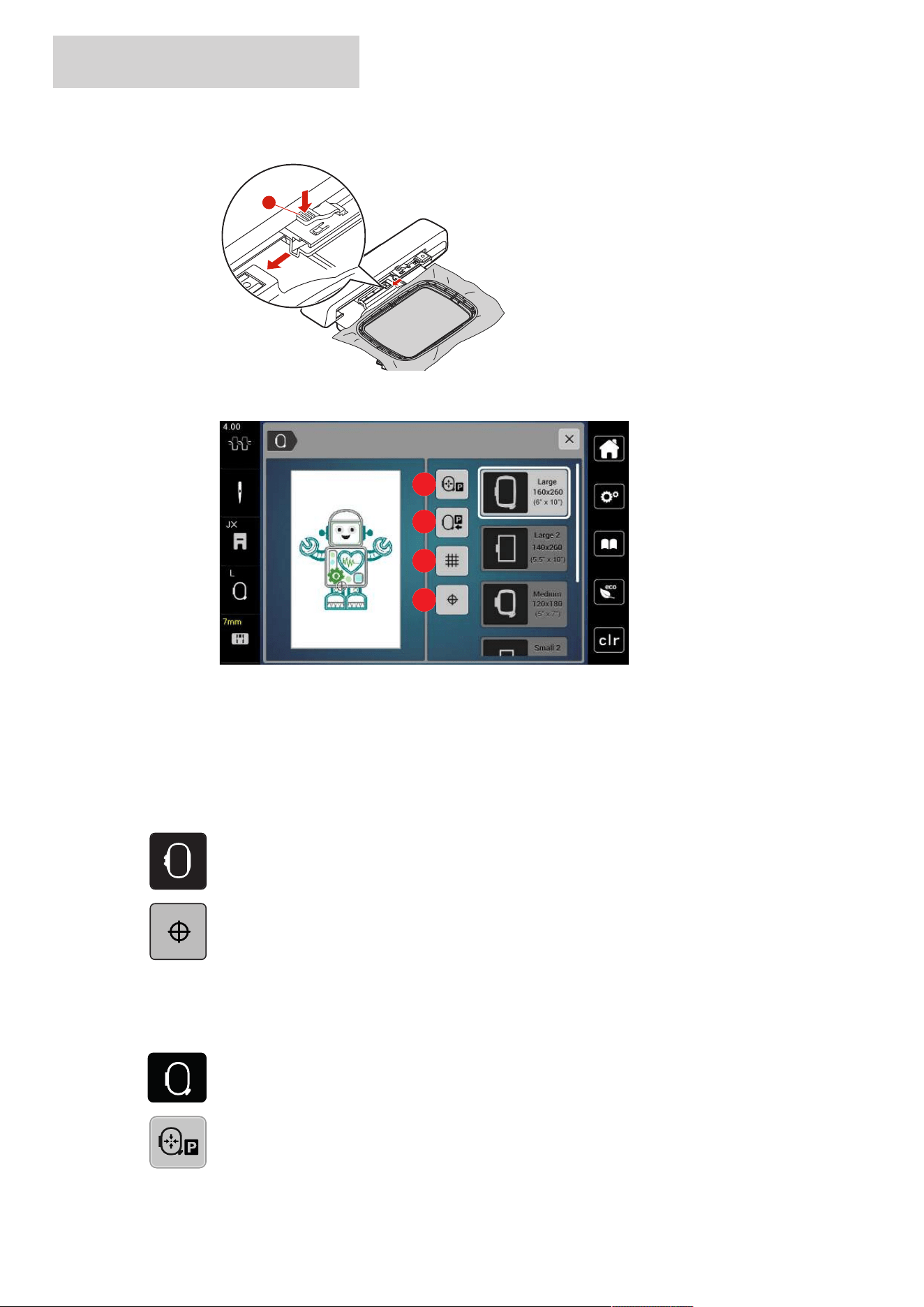
EMBROIDERY PREPARATION
42
2024-08 EN 5020070.50A.04
> To remove the hoop, press the securing lever and pull the hoop backwards.
1
Overview Embroidery Functions
1
2
3
4
1 Centering the Needle to the Embroidery
Hoop
3 Grid On/Off
2 Embroidery Arm Return 4 Center of Embroidery Design
Locating the Center of the Embroidery Design
The embroidery hoop is positioned so that the needle is exactly above the center of the embroidery design or
the motif begin.
> Tap «Hoop Indicator/Select Hoop».
> To position the hoop so that the needle is placed exactly over the center of the embroidery design, tap
«Center of Embroidery Design».
> To position the hoop so that the needle is placed exactly over the motif start, tap «Center of Embroidery
Design» again.
Centering the Needle to the Embroidery Hoop
Relocating the embroidery hoop facilitates threading when the needle is close to the embroidery hoop.
đ
> Tap «Hoop Indicator/Select Hoop».
> To move the embroidery hoop to the middle, tap «Center the Needle to the Embroidery Hoop».
> Thread the upper thread.
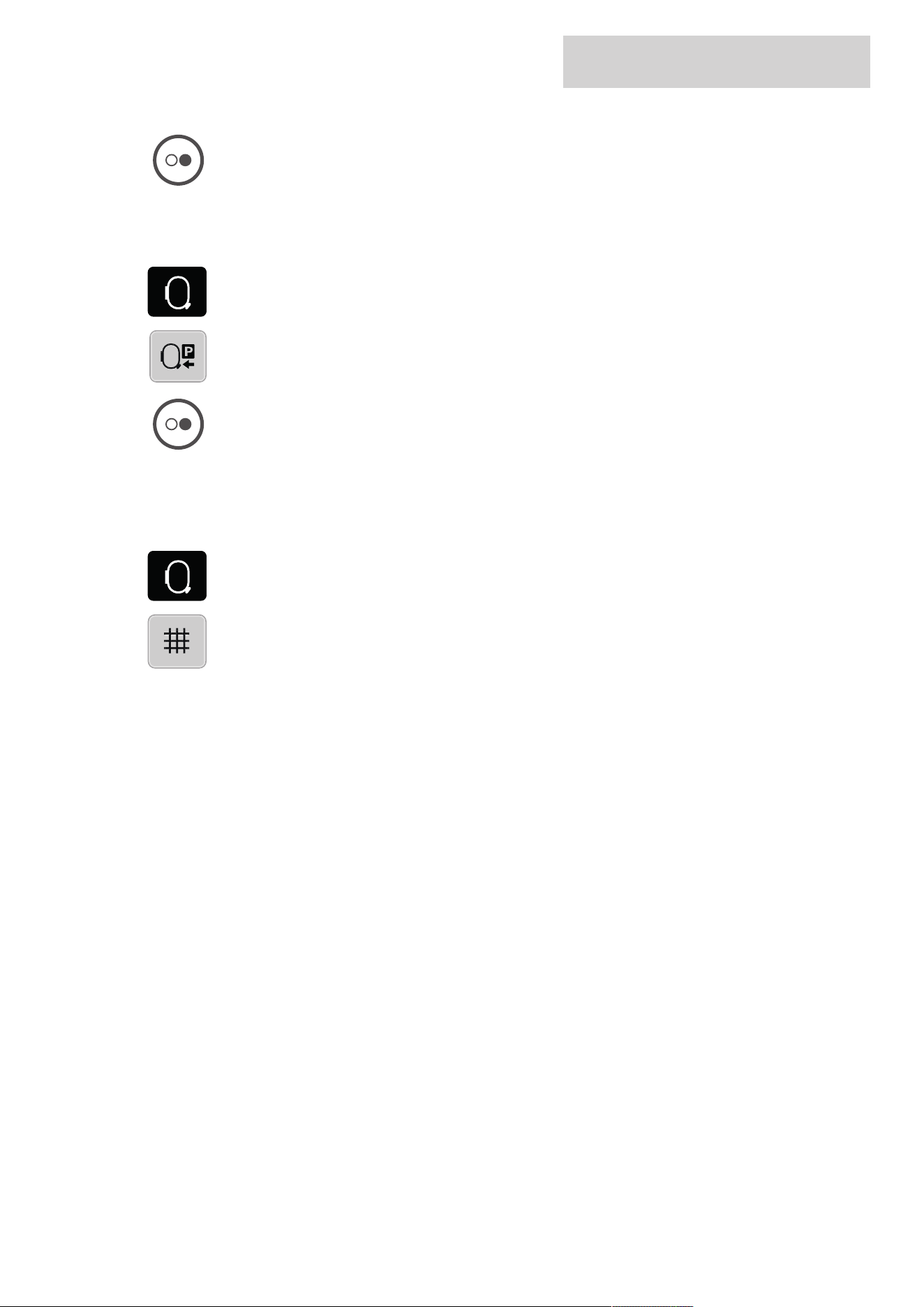
EMBROIDERY PREPARATION
43
2024-08 EN 5020070.50A.04
> To move the hoop back to its previous position, push the button «Start/Stop».
Embroidery Arm Return
The embroidery arm can be positioned for storage the embroidery module.
đ
> Tap «Hoop Indicator/Select Hoop».
> Remove the embroidery hoop.
> To move the embroidery arm horizontally to the left, tap «Move Hoop to the Left».
> To move the embroidery arm back to its previous position, press the «Start/Stop» button.
Grid On/Off
When the center of the hoop and the grid are displayed, the embroidery design can be positioned more
exactly.
đ
> Tap «Hoop Indicator/Select Hoop».
> To show the hoop center on the display, tap «Grid On/Off».
> To show the grid lines, tap «Grid On/Off» again.
> To hide the hoop center and the grid lines, tap «Grid On/Off» again.
SETUP PROGRAM
44
2024-08 EN 5020070.50A.04
3 Setup Program
3.1 Embroidery Settings
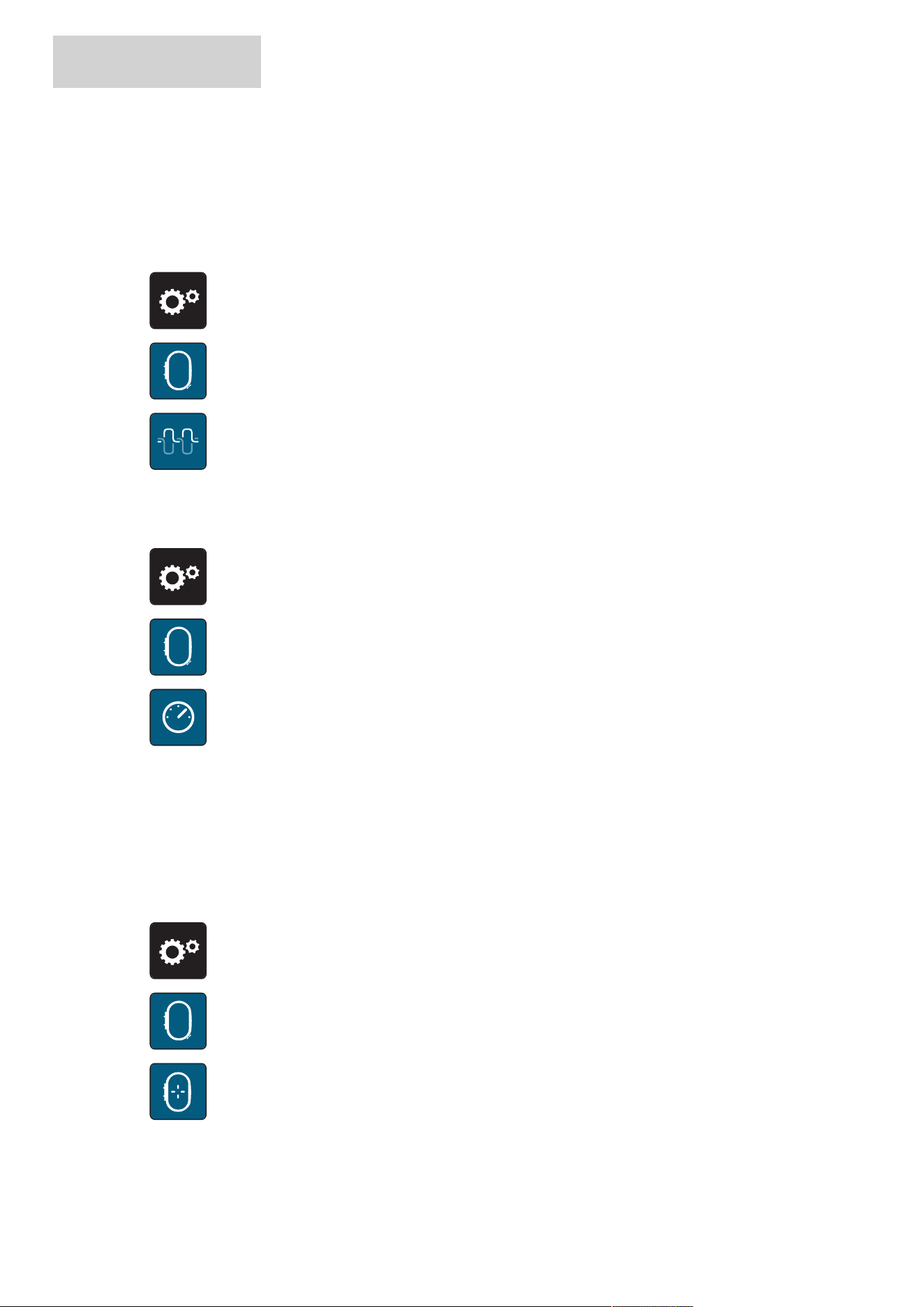
Adjusting the Upper Thread Tension
Changes to the upper thread tension in the Setup Program affect all of the embroidery designs.
> Tap «Settings».
> Tap «Embroidery Settings».
> Tap «Adjusting the Upper Thread Tension».
> Adjust the upper thread tension.
Adjusting the Maximum Embroidering Speed
The maximum speed can be reduced by this function.
> Tap «Settings».
> Tap «Embroidery Settings».
RPM
> Tap «Maximum Embroidery Speed».
> Set the maximum sewing speed.
Calibrating the Embroidery Hoop
The calibration of the embroidery hoop is the coordination of the needle to the center of the embroidery
hoop.
Prerequisite:
• The embroidery module is connected and the embroidery hoop with the appropriate embroidery
template is attached.
> Tap «Settings».
> Tap «Embroidery Settings».
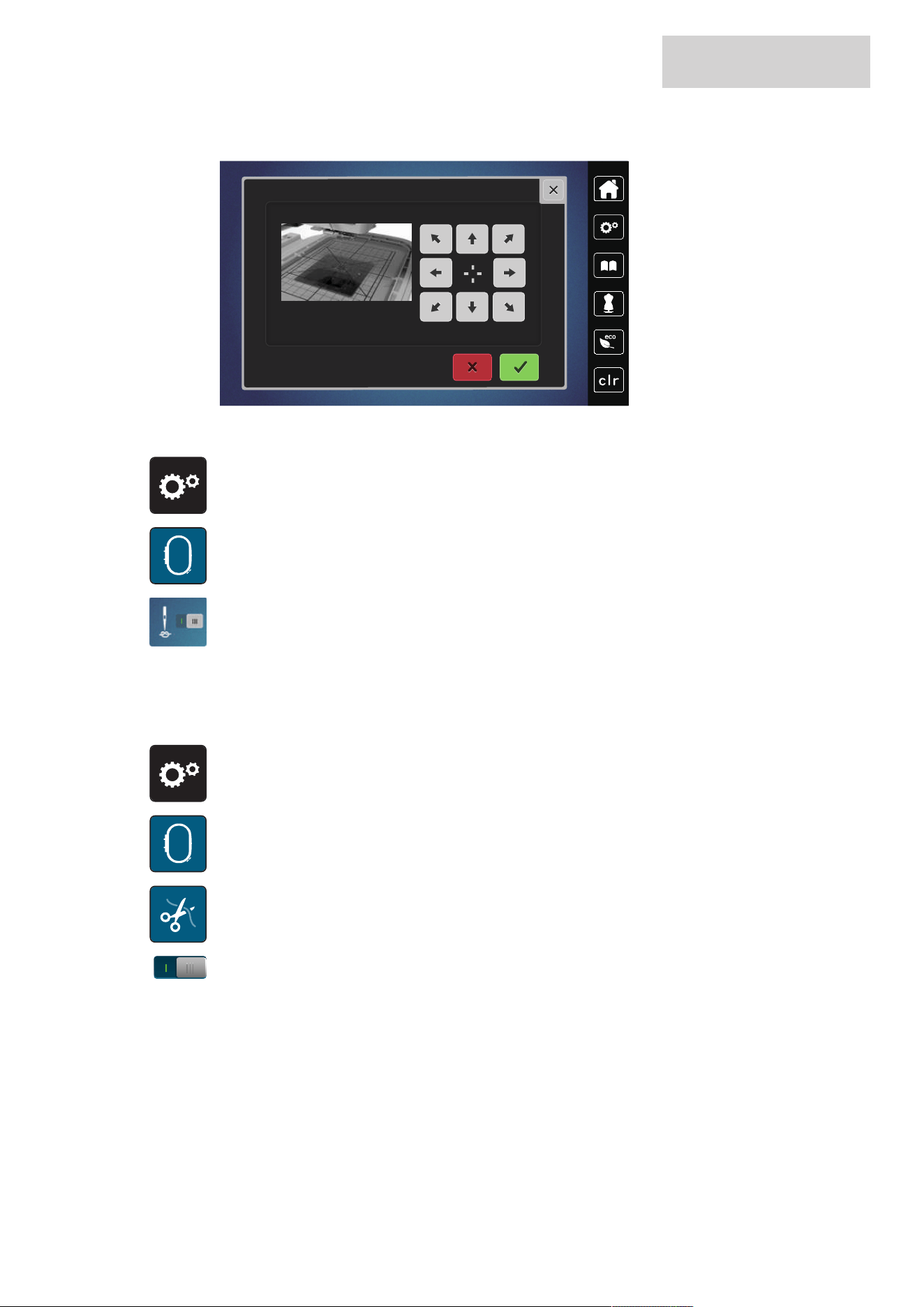
> Tap «Calibrating the Embroidery Hoop».
– The machine recognizes the size of the attached embroidery hoop automatically and moves to the
center of the hoop.
SETUP PROGRAM
45
2024-08 EN 5020070.50A.04
> Position the needle exactly in the center using the arrows on the display and confirm the position.
Deactivating Securing Stitches
> Tap «Settings».
> Tap «Embroidery Settings».
> Tap «Securing Stitches On/Off».
> Tap the switch in the lower left area to deactivate the securing stitches.
– No securing stitches will be sewn and the bobbin thread needs to be brought up manually and held
when embroidering is started.
> Tap the switch again to activate the securing stitches.
Adjusting the Thread Cut
> Tap «Settings».
> Tap «Embroidery Settings».
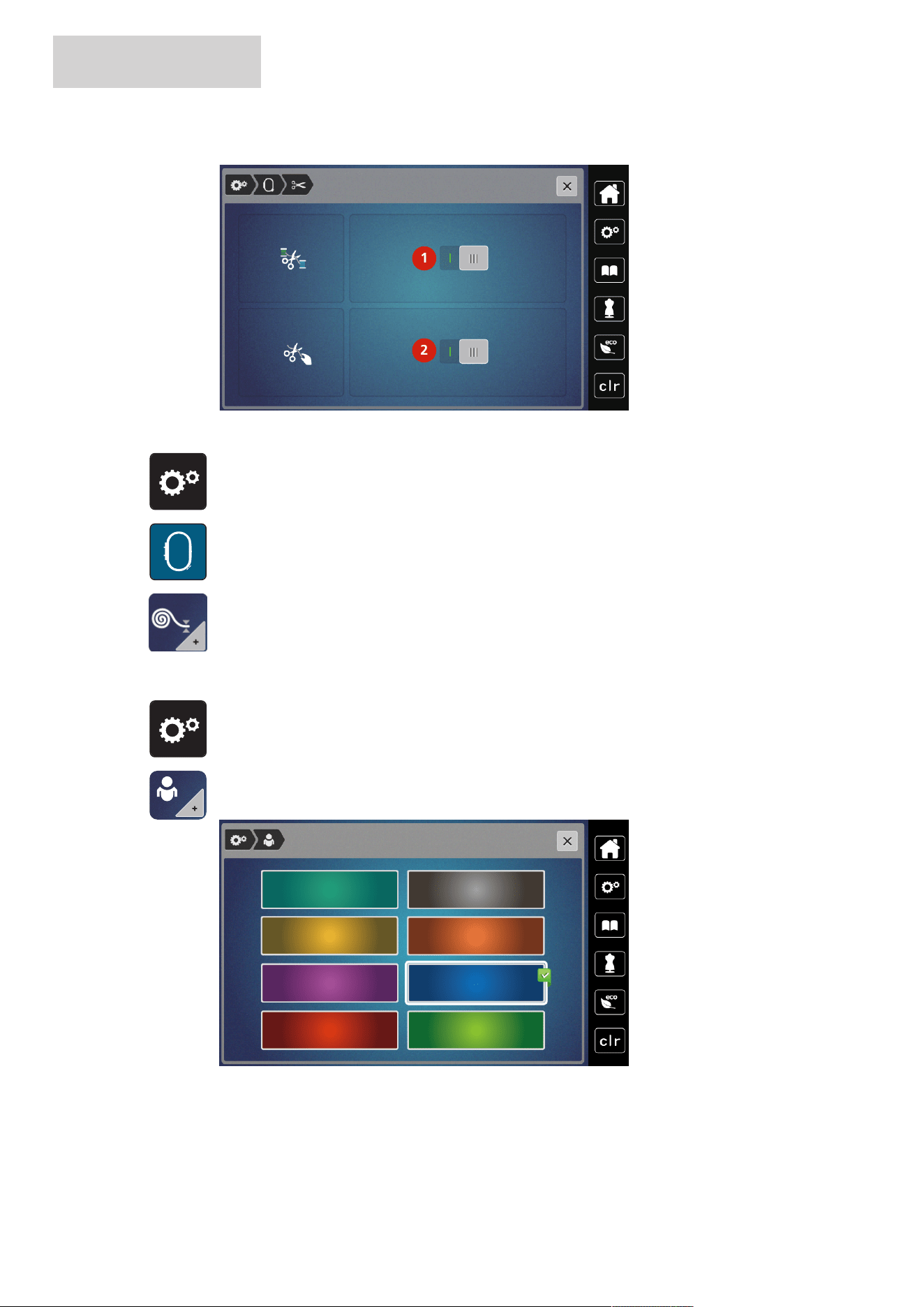
> Tap «Thread Cut Settings».
> To deactivate the automatic thread cut before changing a thread, tap the switch in the upper section of
the display (1).
> To activate the automatic thread cut before changing a thread, tap the switch in the upper section of the
display (1) again.
> To deactivate the manual thread cut after embroidering, tap the switch in the lower section of the display
(2).
– The machine won't stop for a manual thread cut.
> To activate the manual thread cut after embroidering, tap the switch in the lower section of the display
(2).
– The machine will stop after about 7 stitches.
SETUP PROGRAM
46
2024-08 EN 5020070.50A.04
> Cut the remaining thread with scissors.
1
2
Adjusting the Height of the Embroidery Presser Foot
> Tap «Settings».
> Tap «Embroidery Settings».
> Tap «Entering the Fabric Thickness».
> To set the distance between the embroidery foot and the stitch plate, turn the «Upper Multi-function
Knob» or «Lower Multi-function Knob», or tap «Plus» or «Minus».
3.2 Selecting Personal Settings
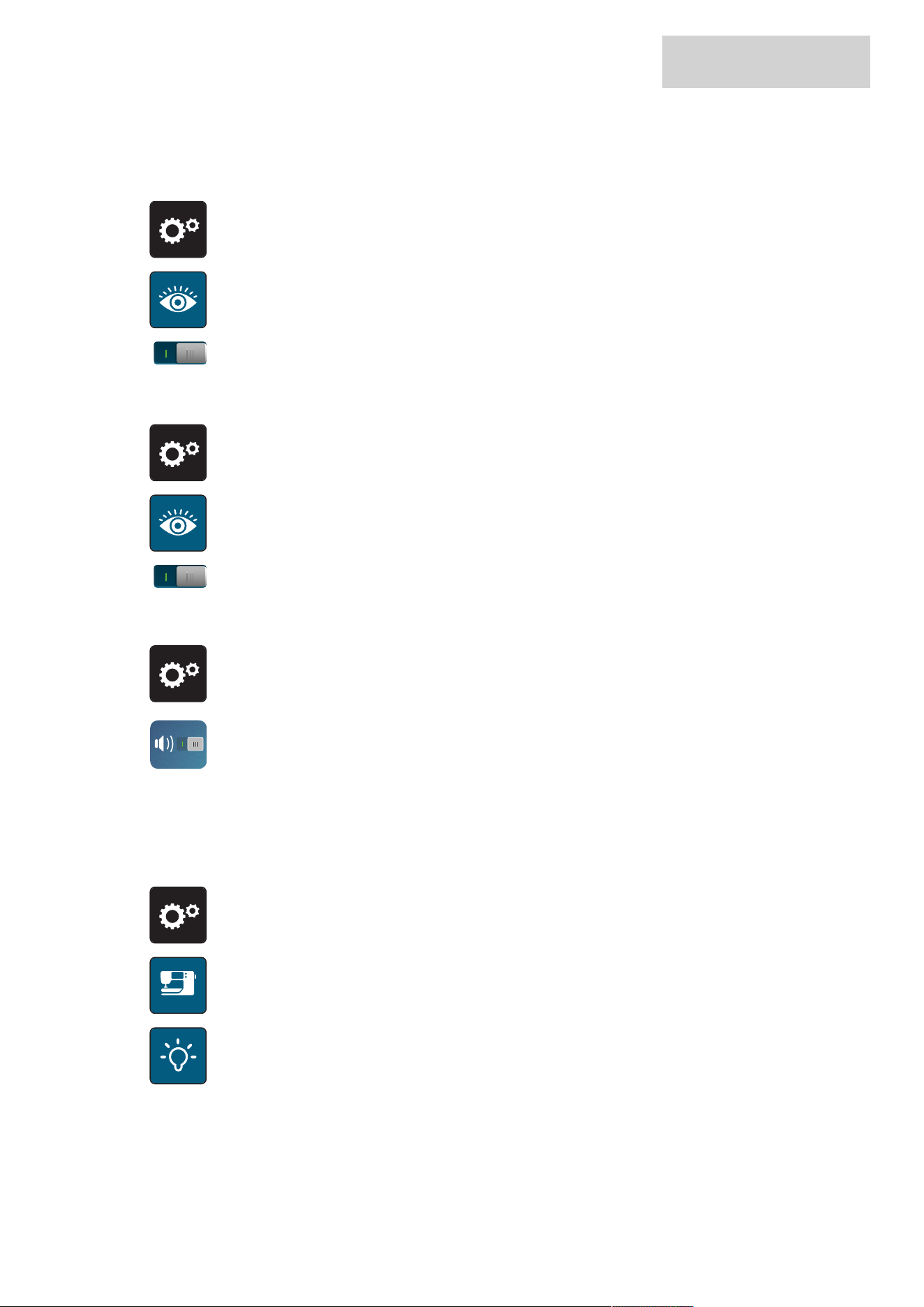
> Tap «Settings».
> Tap «Personal».
> Select the desired display color.
SETUP PROGRAM
47
2024-08 EN 5020070.50A.04
3.3 Monitoring Functions
Activating the Upper Thread Indicator
> Tap «Settings».
> Tap «Monitoring Functions».
> Tap the switch in the upper section of the display to deactivate the upper thread indicator.
> Tap the switch again to activate the upper thread indicator.
Activating the Bobbin Thread Indicator
> Tap «Settings».
> Tap «Monitoring Functions».
> Tap the switch in the lower section of the display to deactivate the bobbin thread indicator.
> Tap the switch again to activate the bobbin thread indicator.
3.4 Sound On/Off
> Tap «Settings».
> To switch off all sounds, tap «Switching Sounds On/Off».
> To switch on all sounds, tap «Switching Sounds On/Off» again.
3.5 Machine Settings
Adjusting the Brightness of the Display
The brightness of the display can be set to meet your individual needs.
> Tap «Settings».
> Tap «Machine».
> Tap «Light».
> Adjust the brightness of the display in the upper section of the screen.
SETUP PROGRAM
48
2024-08 EN 5020070.50A.04
Calibrating the Display
Further information on this topic can be found in the chapter “Troubleshooting”.
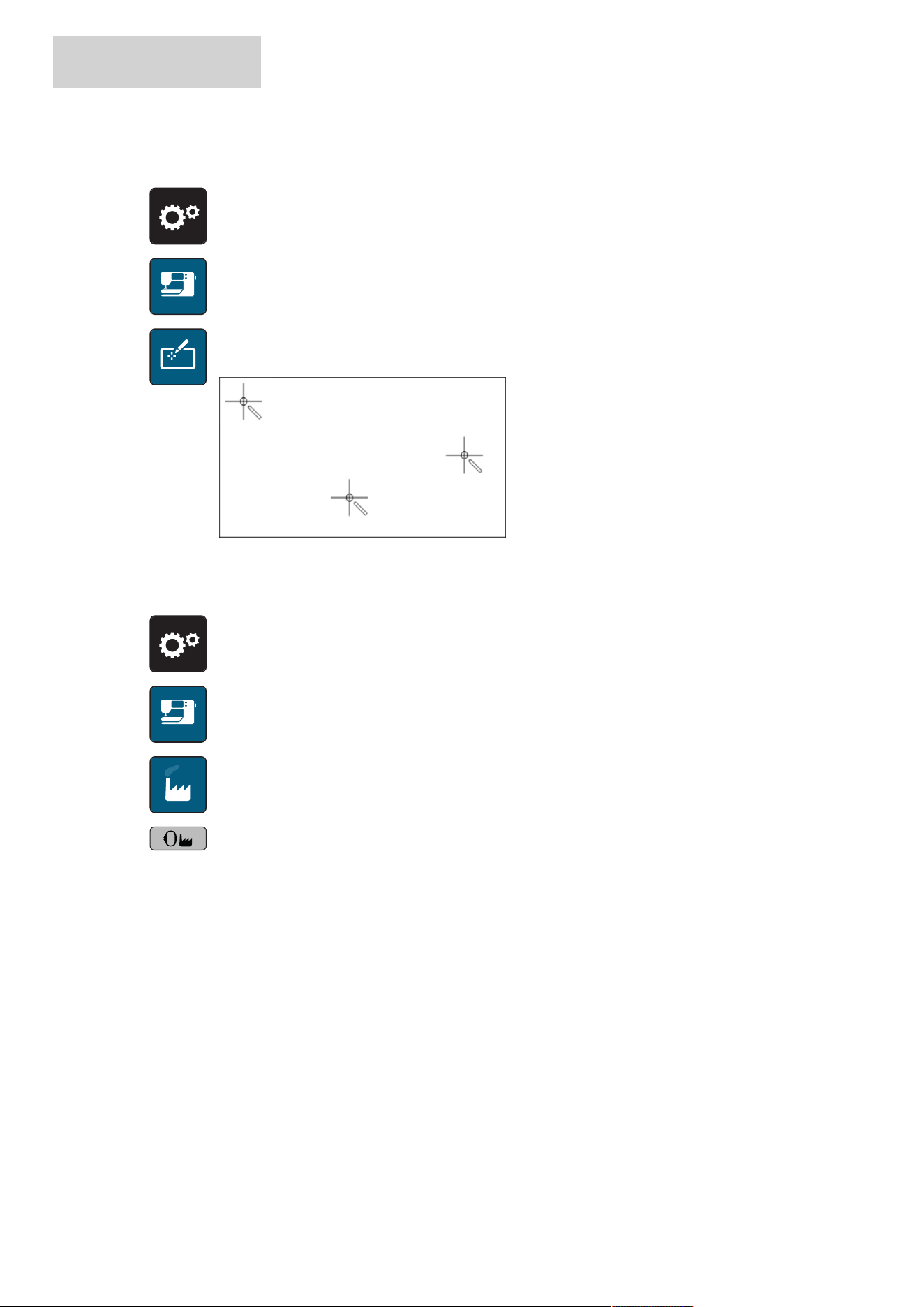
> Tap «Settings».
> Tap «Machine».
> Tap «Calibrating the Screen».
> Touch the crosses in sequence using the touchscreen pen.
Back to basic setting
CAUTION: Using this function will delete all individually made settings.
> Tap «Settings».
> Tap «Machine».
> Tap «Factory Setting».
> Tap the «Default Setting Embroidering», confirm and start the machine again.
SETUP PROGRAM
49
2024-08 EN 5020070.50A.04
Updating the Machine Firmware
The machine's current firmware and detailed step-by-step instructions for the update process can be
downloaded from https://www.bernette.com Personal data and settings are automatically transferred during
a firmware update.
NOTICE
USB Stick (Optional Accessory) has been Removed too Early
Firmware has not been updated and the machine cannot be used.
> Remove the USB stick (Optional accessory) only after the saved data has been transferred successfully.
> Insert the BERNINA USB Stick (optional accessory), FAT32 formatted, providing the latest software into
the port.
> Tap «Settings».
> Tap «Machine».
> Tap «Machine Data».
> To update the machine firmware, tap «Update».
Checking the Firmware Version
The firmware version of the machine is displayed.
> Tap «Settings».
> Tap «Machine».
> Tap «Machine Data».
SETUP PROGRAM
50
2024-08 EN 5020070.50A.04
Reviewing the Total Number of Stitches
The total stitch count of the machine and the number of stitches since the last service performed by a
bernette dealer are displayed.
Four millon stitches after a service, the symbol recommends maintenance by specialized bernette
dealer.
> Tap «Settings».
> Tap «Machine».
> Tap «Machine Data».
Selecting a Language
The user interface can be programmed in different languages according to the customer’s wish.
> Tap «Settings».
> Tap «Machine».
> Tap «Language».
> Select a language.
SYSTEM SETTINGS
51
2024-08 EN 5020070.50A.04
4 System Settings
4.1 Calling up the tutorial
The Tutorial gives information and explanations concerning various aspects of embroidering.
> Tap «Tutorial».
> Select the desired topic in order to view information.
4.2 Using eco Mode
If work is interrupted for an extended period, the machine can be put into energy-saving mode. Nothing can
be selected in the display and the machine cannot be started.
> Tap «eco Mode».
– The display goes to sleep. The power consumption is reduced and the sewing light is off.
> Tap «eco Mode» in the display.
– The machine is once again ready for operation.
4.3 Cancelling any Alterations with «clr»
Any alterations to designs can be reset to basic setting. Exceptions are saved designs which have been filed
in the personal memory and monitoring functions.
> Tap «Clear Settings».
CREATIVE EMBROIDERING
52
2024-08 EN 5020070.50A.04
5 Creative Embroidering
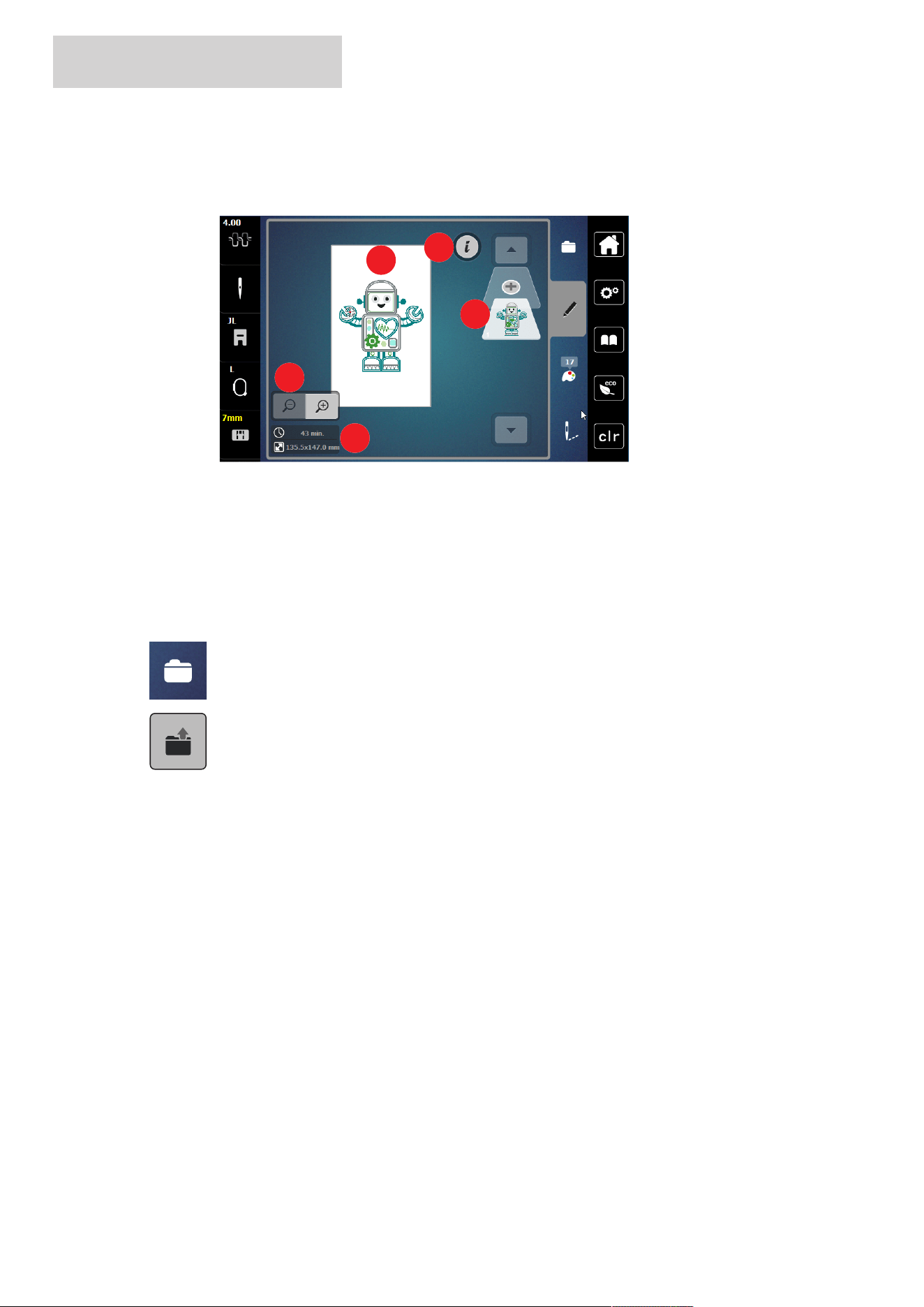
5.1 Overview Embroidering
1
2
3
4
5
1
Scaling up, Downsizing and Moving the
Embroidery Design View
4 i-Dialog
2 Embroidery Time/Embroidery Design Size in mm 5 Adding an Embroidery Design Layer
3 Area to be Embroidered
Selecting and Changing the Embroidery Design
> Tap «Selection».
> Tap «Loading the Embroidery Design».
> Select a new embroidery design.
CREATIVE EMBROIDERING
53
2024-08 EN 5020070.50A.04
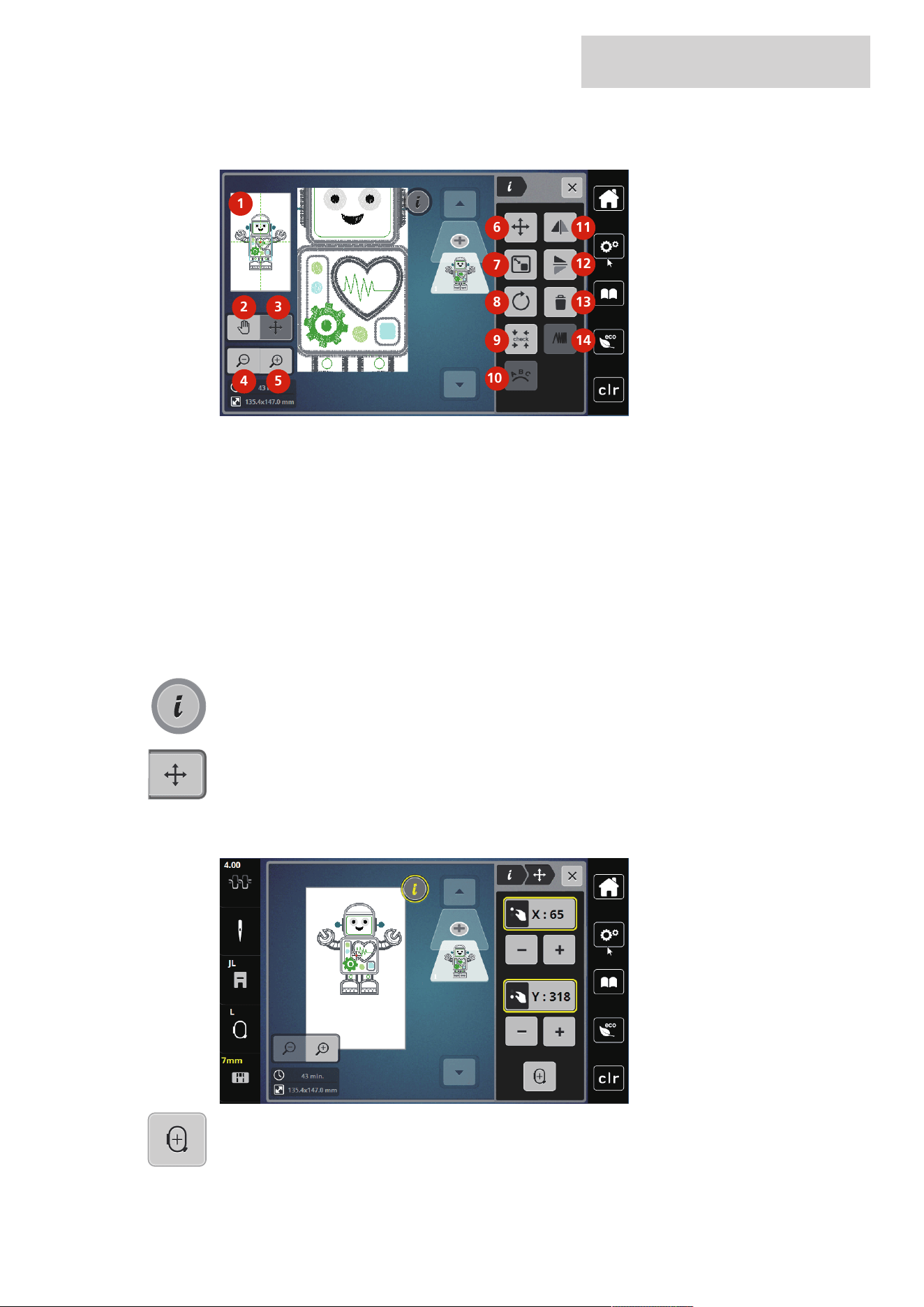
Overview Editing Embroidery Design
1
2 3
4
5
6
6
7
8
9
10
11
12
13
14
1 Preview all 8 Rotating the Embroidery Design
2 Move View 9 Check Embroidery Design Size
3 Moving the View of the Design 10 Bending the Text
4 Zoom Out 11 Mirror Image Left/Right
5 Zoom In 12 Mirror Image Up/Down
6 Moving the Embroidery Design 13 Deleting
7 Altering the embroidery design proportionally 14 Altering the Stitch Density
Moving the Embroidery Design
> Select the embroidery design.
> Tap «i-Dialog».
> Tap «Move the Embroidery Design».
> Turn the «Upper Multi-function Knob» to move the embroidery design horizontally.
> Turn the «Lower Multi-function Knob» to move the embroidery design vertically in 0.5-mm steps or
touch the «+»/«-» icon or touch the embroidery design, keep it pressed and move it as you like.
– The relocation is indicated in the yellow-outlined icons.
> Tap «Center Design in Hoop».
– The embroidery design is moved to the center of the hoop again.
CREATIVE EMBROIDERING
54
2024-08 EN 5020070.50A.04
5.2 Selecting and Changing the Embroidery Design
> Tap «Selection».
> Tap «Loading the Embroidery Design».
> Select a new embroidery design.
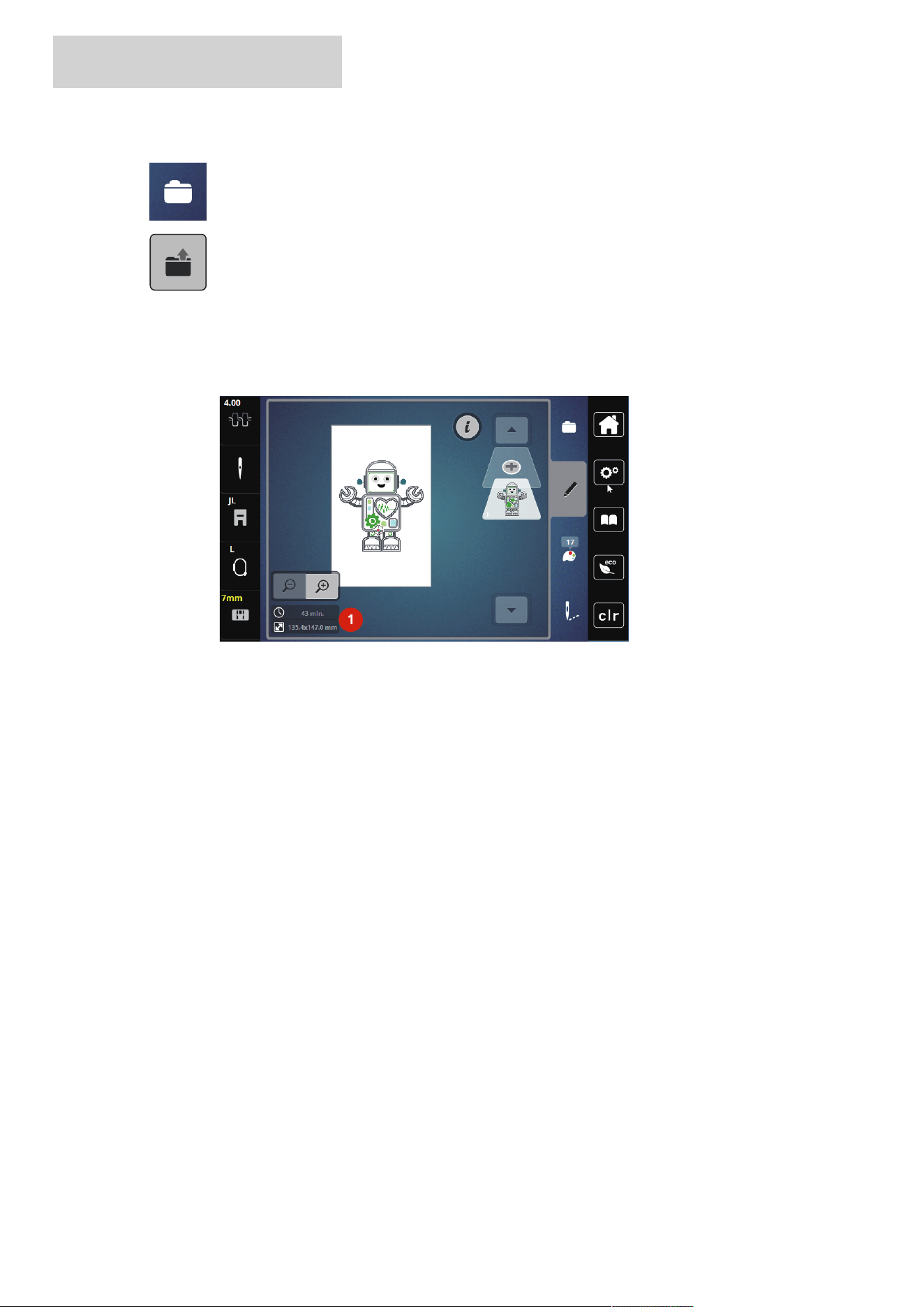
5.3 Checking the Embroidery Time and the Embroidery Design Size
In the selection menu «Edit» the estimated embroidery time in minutes as well as the width and height of
the embroidery design is indicated at lower left (1).
1
5.4 Regulating the Speed
Regulating the Speed with the Speed Control
The maximum possible sewing speed is infinitely variable via the speed control.
> To reduce the sewing speed, move the speed control to the left.
> To increase the sewing speed, move the speed control to the right.
CREATIVE EMBROIDERING
55
2024-08 EN 5020070.50A.04
5.5 Editing the Embroidery Design
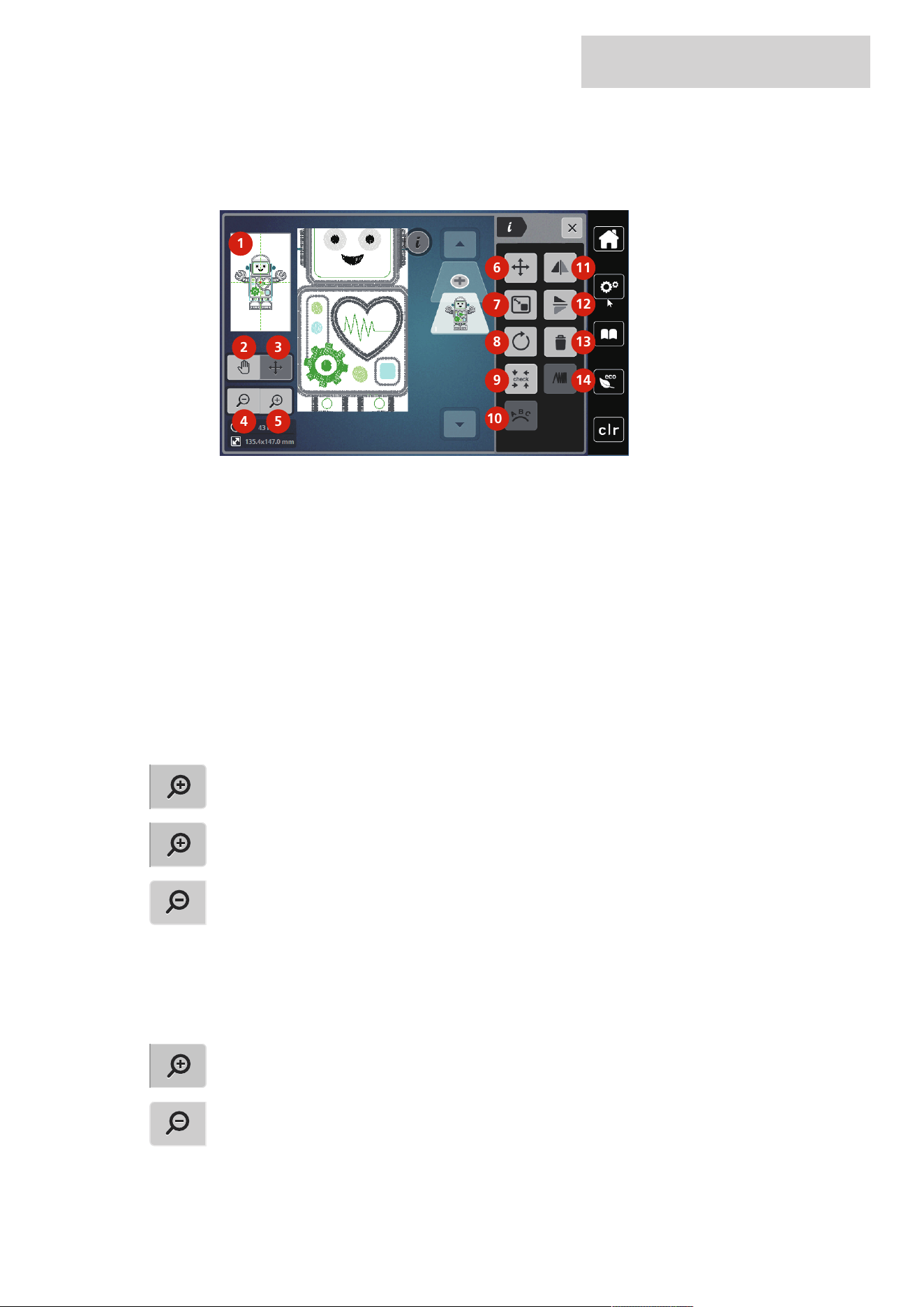
Overview Editing Embroidery Design
1
2 3
4
5
6
6
7
8
9
10
11
12
13
14
1 Preview all 8 Rotating the Embroidery Design
2 Move View 9 Check Embroidery Design Size
3 Moving the View of the Design 10 Bending the Text
4 Zoom Out 11 Mirror Image Left/Right
5 Zoom In 12 Mirror Image Up/Down
6 Moving the Embroidery Design 13 Deleting
7 Altering the embroidery design proportionally 14 Altering the Stitch Density
Scaling Up the Embroidery Design View
The view of the embroidery design can be scaled up. In addition to that, the view can be adjusted with or
without changing the embroidery position.
> Select the embroidery design.
> To edit the view of the embroidery design, tap «Zoom In».
> To increase the embroidery design view by one level each time, tap «Zoom In» oneto nine times.
> To return to editing mode, tap «Zoom Out» one to nine times.
Downsizing the Embroidery Design
The view of the embroidery design can be downsized. In addition to that, the view can be adjusted with or
without changing the embroidery position.
> Select the embroidery design.
> To enlarge the view of the embroidery design, tap «Zoom In».
> To minimize the enlarged embroidery design view by one level each time, tap «Zoom Out» oneto nine
times.
CREATIVE EMBROIDERING
56
2024-08 EN 5020070.50A.04
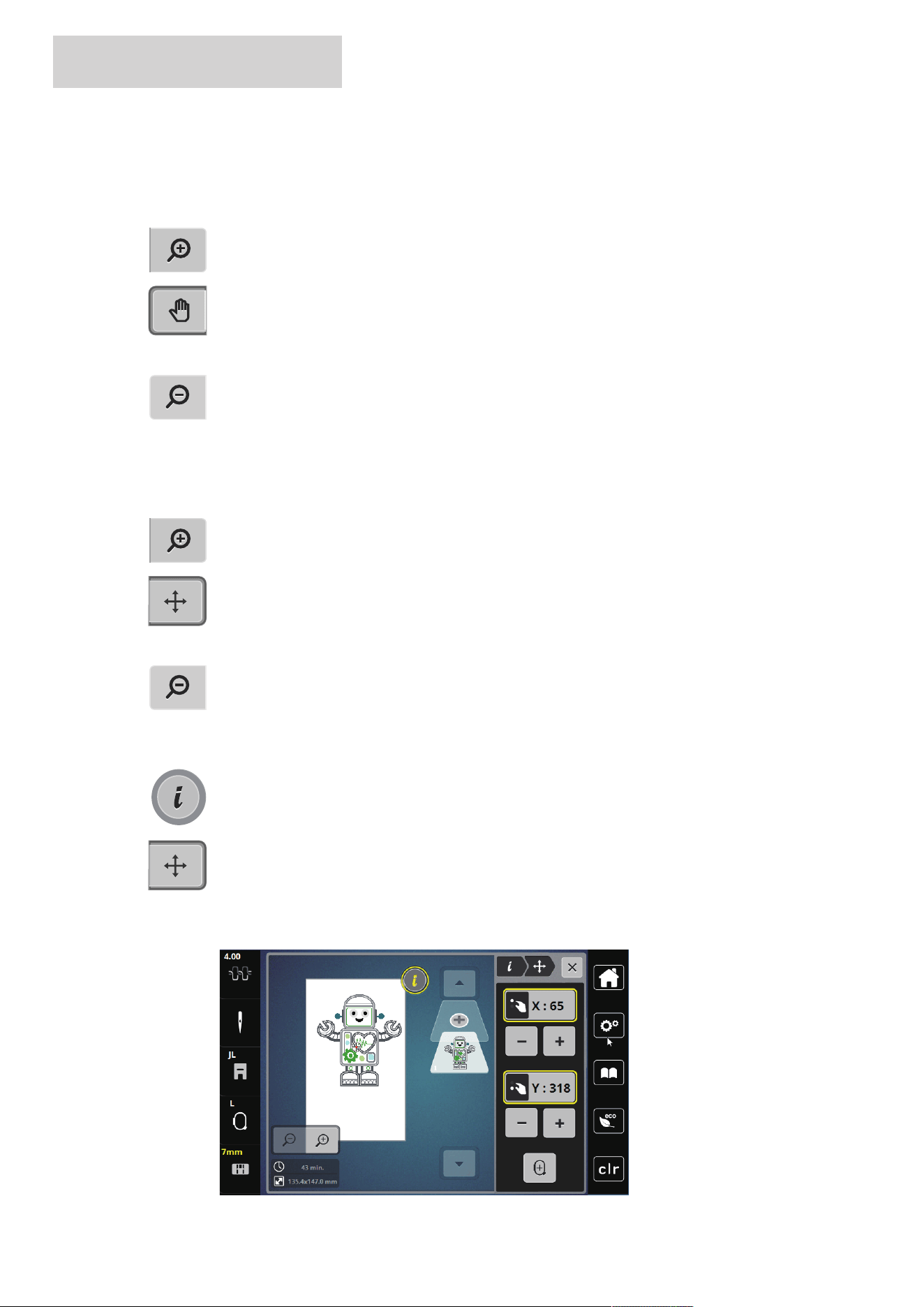
Moving the embroidery design view
The view of the embroidery design can be moved. In addition to that, the embroidery design position won’t
be changed.
> Select the embroidery design.
> To edit the view of the embroidery design, tap «Zoom In».
> Tap «Move View».
– «Move View» is activated (dark gray).
> Alter the view of the embroidery design.
– The embroidery position is not altered.
> To return to the previous view, tap «Zoom Out».
Moving the embroidery design in enlarged view
The view of the embroidery design can be moved when the embroidery position is changed.
> Select the embroidery design.
> To activate «Move the Embroidery Design», tap «Zoom In».
> Tap «Move the Embroidery Design».
– «Move the Embroidery Design» is activated (dark gray).
> Moving the embroidery design.
– The embroidery design position is altered.
> To return to the previous view, tap «Zoom Out» again.
Moving the Embroidery Design
> Select the embroidery design.
> Tap «i-Dialog».
> Tap «Move the Embroidery Design».
> Turn the «Upper Multi-function Knob» to move the embroidery design horizontally.
> Turn the «Lower Multi-function Knob» to move the embroidery design vertically in 0.5-mm steps or
touch the «+»/«-» icon or touch the embroidery design, keep it pressed and move it as you like.
– The relocation is indicated in the yellow-outlined icons.
CREATIVE EMBROIDERING
57
2024-08 EN 5020070.50A.04
> Tap «Center Design in Hoop».
– The embroidery design is moved to the center of the hoop again.
Rotating the Embroidery Design
> Select the embroidery design.
> Tap «i-Dialog».
> Tap «Rotate the Embroidery Design».
> To rotate the embroidery design clockwise, turn the «Upper Multi-function Knob» or «Lower Multi-
function Knob» to the right, or tap «Plus».
> To rotate the embroidery design counterclockwise, turn the «Upper Multi-function Knob» or «Lower
Multi-function Knob» to the left, or tap «Minus».
+90
> To rotate the embroidery design in 90°-steps, tap «Rotate the Embroidery Design +90°».
Altering the Embroidery Design Size Proportionally
The alteration is limited to +/- 20%.
> Select the embroidery design.
> Tap «i-Dialog».
> Tap «Change Design Size».
> To enlarge the embroidery design in proportion, turn the «Upper Multi-function Knob» or «Lower Multi-
function Knob» to the right, or tap «Plus».
> To minimize the embroidery design in proportion, turn the «Upper Multi-function Knob» or «Lower
Multi-function Knob» to the left, or tap «Minus».
Mirroring Embroidery Designs
Embroidery designs can be mirror-imaged both vertically and horizontally.
> Select the embroidery design.
> Tap «i-Dialog».
> To mirror-image the embroidery design vertically/perpendicular, tap «Mirror Image Left/Right».
> To mirror-image the embroidery design horizontally/across, tap «Mirror Image Up/Down».
CREATIVE EMBROIDERING
58
2024-08 EN 5020070.50A.04
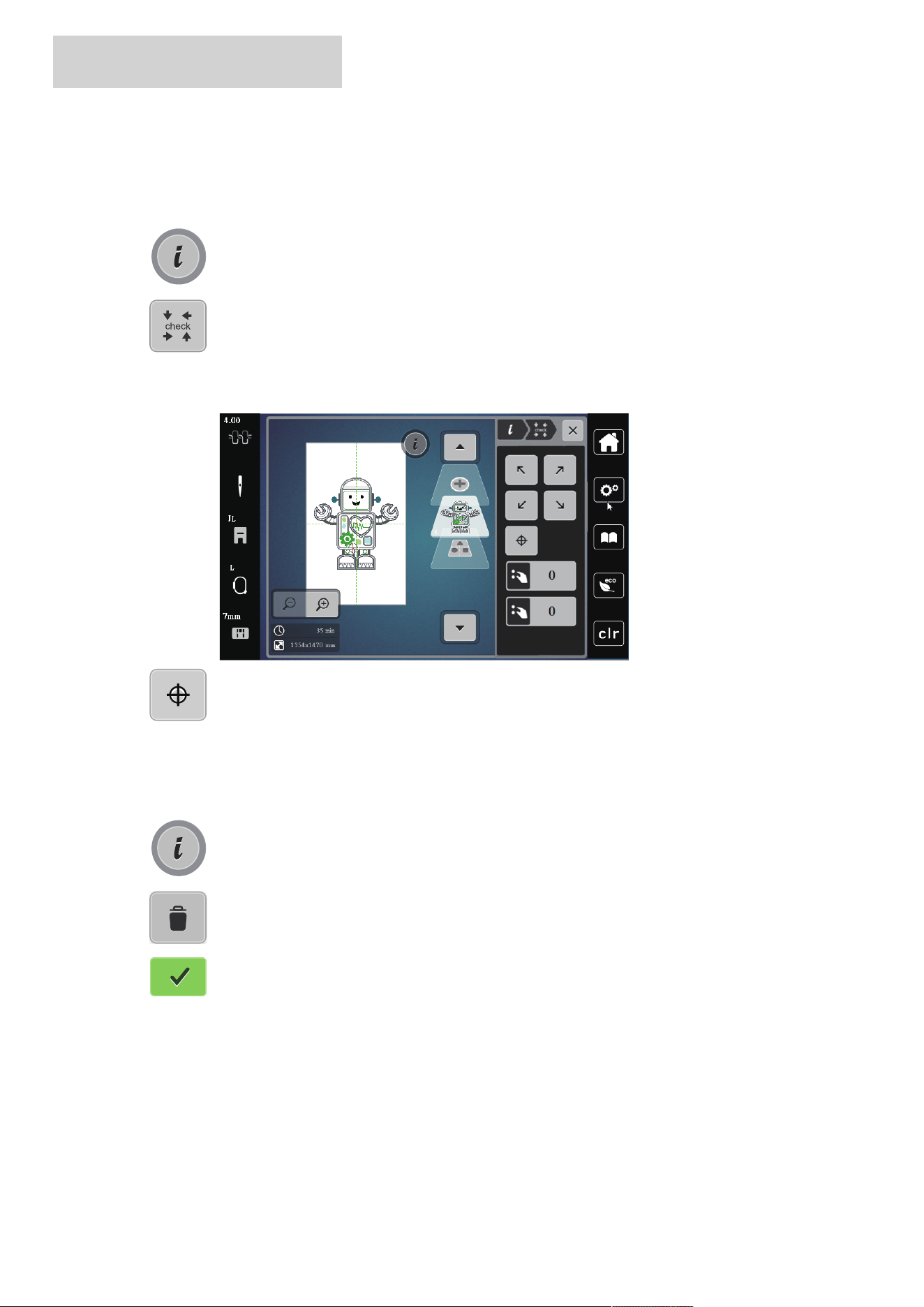
Checking the Size and the Position of the Embroidery Design
It can be checked whether or not the embroidery design matches the designated position/location on the
fabric.
> Select the embroidery design.
> Tap «i-Dialog».
> Tap «Check Embroidery Design Size».
– The embroidery hoop travels all the way until the needle is at the position as it is indicated in the
display.
– If the embroidery design hasn't been positioned correctly yet, the position can be altered via the
«Upper/Lower Multi-function Knobs» and the complete embroidery positions can be checked again.
> To position the needle in the center of the embroidery design, tap «Center of Embroidery Design».
> Turn the «Upper Multi-function Knob» to move the embroidery design horizontally.
> Turn the «Lower Multi-function Knob »to move the embroidery design vertically.
Deleting an Embroidery Design
The active embroidery design is deleted.
> Select the embroidery design.
> Tap «i-Dialog».
> Tap «Delete».
> To delete the embroidery design, tap «Confirm».
CREATIVE EMBROIDERING
59
2024-08 EN 5020070.50A.04
5.6 Creating Lettering
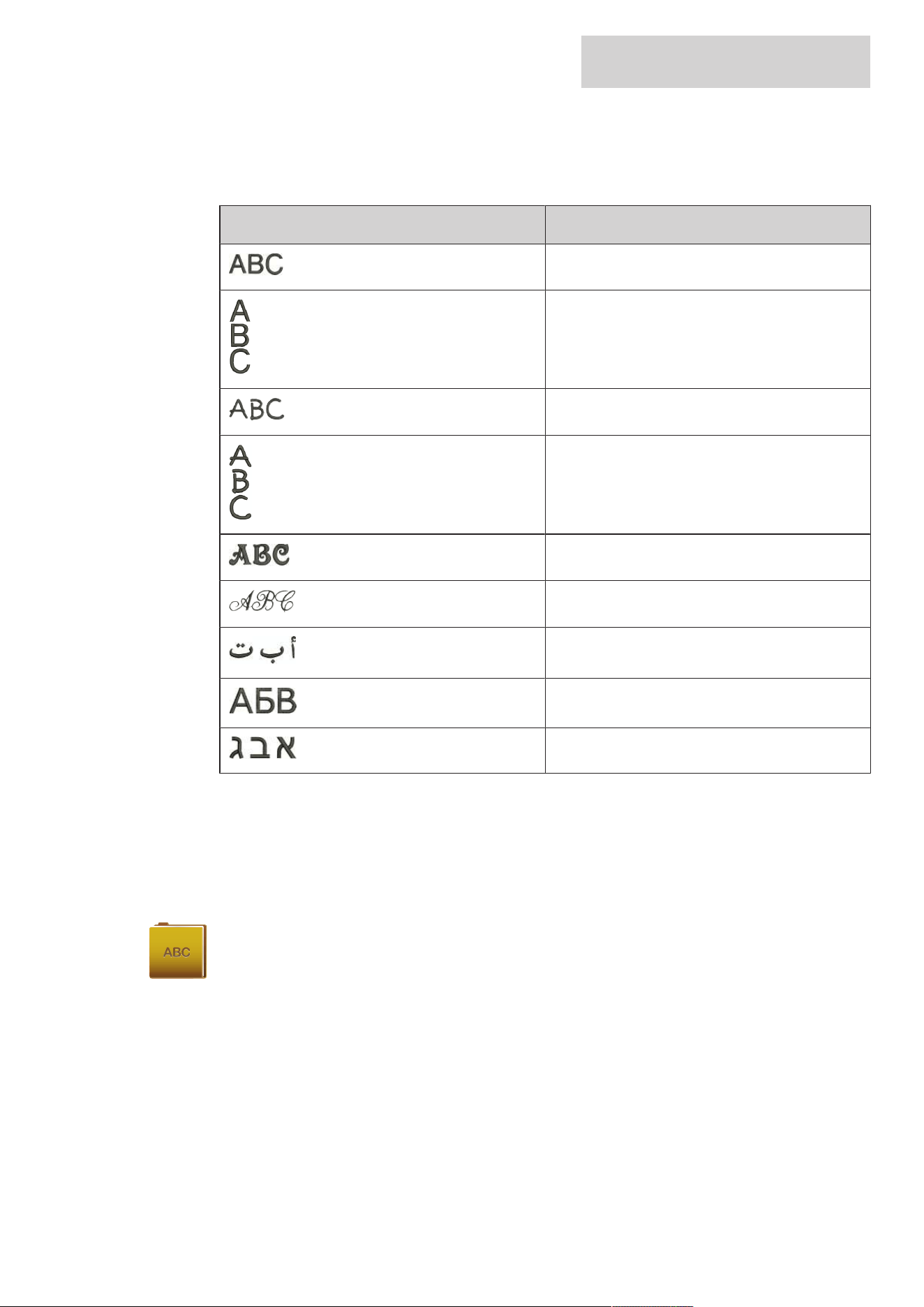
Overview Embroidery Alphabets
Embroidery Design Name
Swiss Block
Swiss Block vertical
Childs Play
Childs Play vertical
Victoria
Anniversary
Arabic
Cyrillic
Hebrew
Creating Words/Sentences
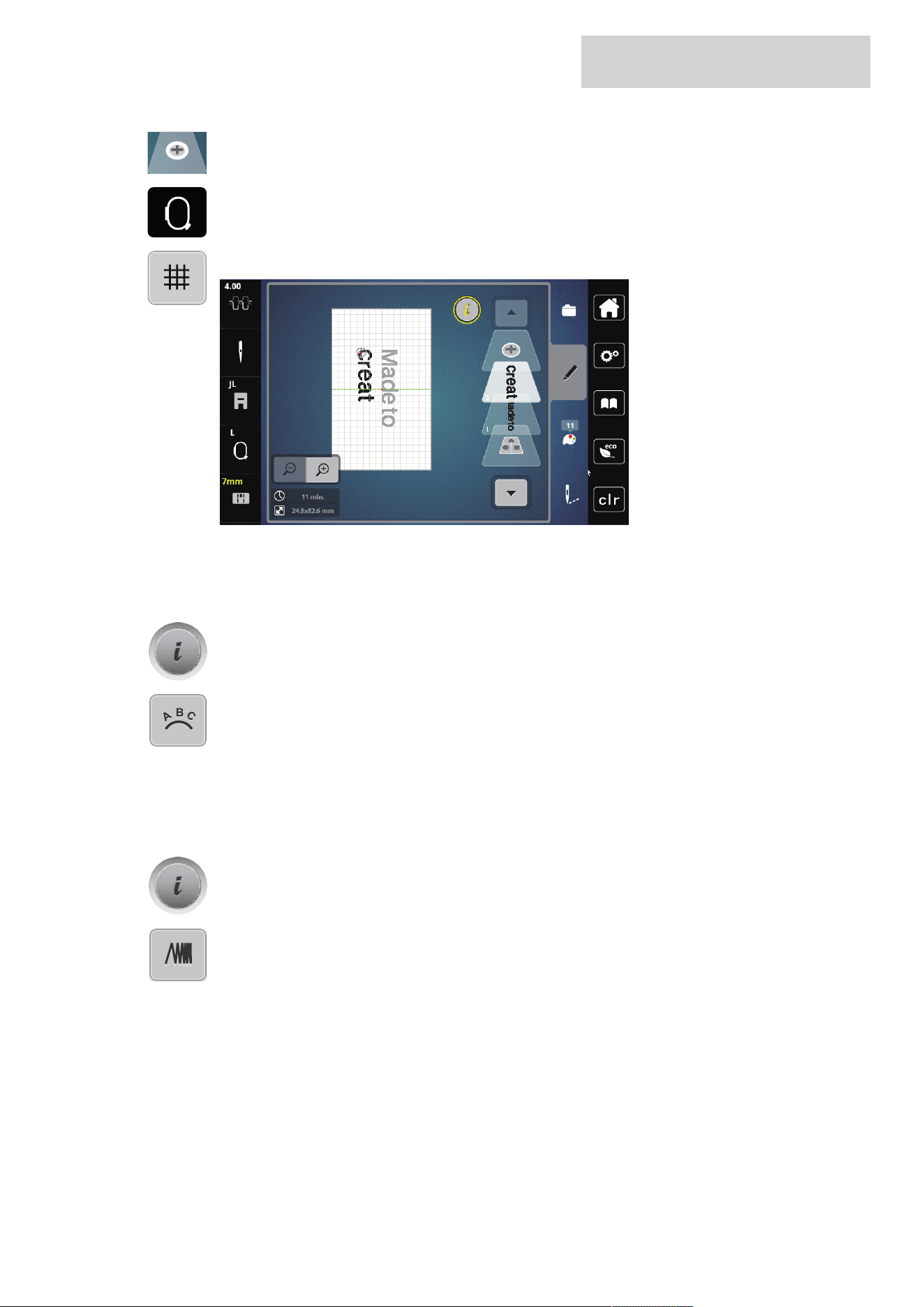
Lettering can be positioned within the hoop as you like. When the embroidery design is positioned outside
the area to be embroidered, the hoop is outlined in red on the display. With the Hoop Selection, it can be
checked whether or not the embroidery design can be embroidered in another hoop. When the lettering
does not fit in any hoop, two single words can be combined and positioned below each other as the
following example will show.
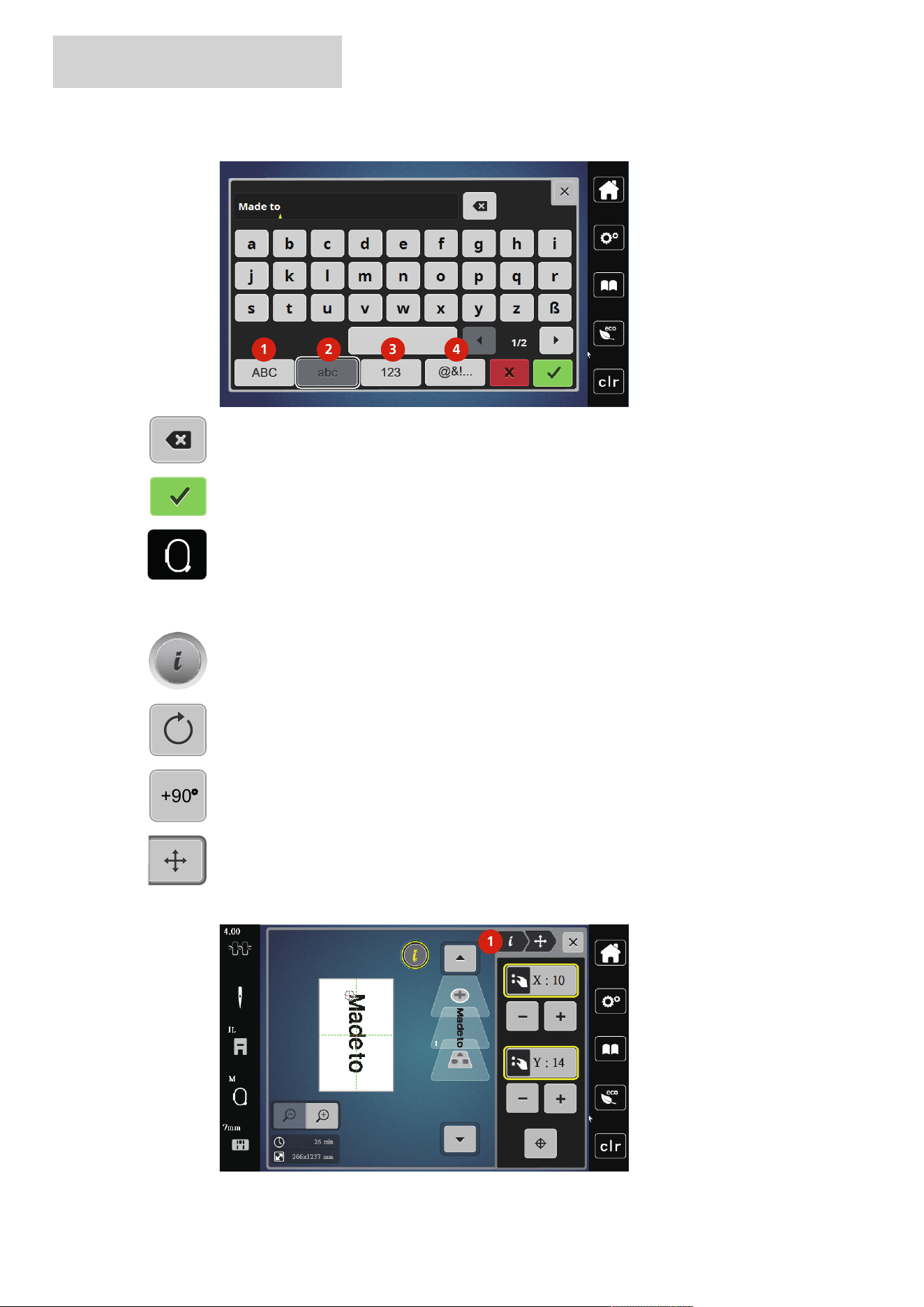
> Select the «Alphabets» folder.
> Select the font.
> Enter the text «Made to».
> To use large font, tap «Upper Case Characters» (1) (standard setting).
> To use small font, tap «Lower Case Characters» (2).
> To use numbers and mathematical characters, tap «Numbers and Mathematical Characters» (3).
CREATIVE EMBROIDERING
60
2024-08 EN 5020070.50A.04
> To use special characters, tap «Special Characters» (4).
1 2 3 4
> To delete single letters of the entered text, tap «Deleting».
> To accept the text, tap «Confirm».
đ
> Tap «Hoop Indicator/Select Hoop».
> Select the hoop.
> To return to editing mode, tap «Hoop Indicator/Select Hoop» again.
Editing Words/Sentences
> Tap «i-Dialog».
> Tap «Rotate the Embroidery Design».
+90
> To rotate the text by 90°, tap «Rotate the Embroidery Design +90°».
> Tap «i»(1).
> Tap «Move the Design».
> Turn the «Upper Multi-function Knob» to move the embroidery design horizontally or tap
«Plus»/«Minus».
> Turn the «Lower Multi-function Knob» to move the embroidery design vertically or tap «Plus»/«Minus».
1
1
CREATIVE EMBROIDERING
61
2024-08 EN 5020070.50A.04
> Tap «Adding an Embroidery Design».
> Enter and also rotate the text «create».
đ
> Tap «Hoop Indicator/Select Hoop».
> To position the text lines more precisely, tap «Grid On/Off».
Bending the Text
Texts can be arranged and designed arc-shaped. This function is only applicable to alphabets.
> Select an alphabet embroidery design.
> Tap «i-Dialog».
> Tap «Word Art».
> To change the distance between the characters in increments of one millimeter, turn the «Upper Multi-
function Knob» or tap «Plus»/«Minus».
> Turn the «Lower Multi-function Knob» to the left or right to curve the writing upward or downward, or
tap «Plus»/«Minus».
Altering the Stitch Density
> Select the embroidery design. This function is only applicable to alphabets.
> Select an alphabet embroidery design.
> Tap «i-Dialog».
> Tap «Alter Stitch Type/Stitch Density».
> Select the percentage value for the desired embroidery density.
CREATIVE EMBROIDERING
62
2024-08 EN 5020070.50A.04
5.7 Combining Embroidery Designs
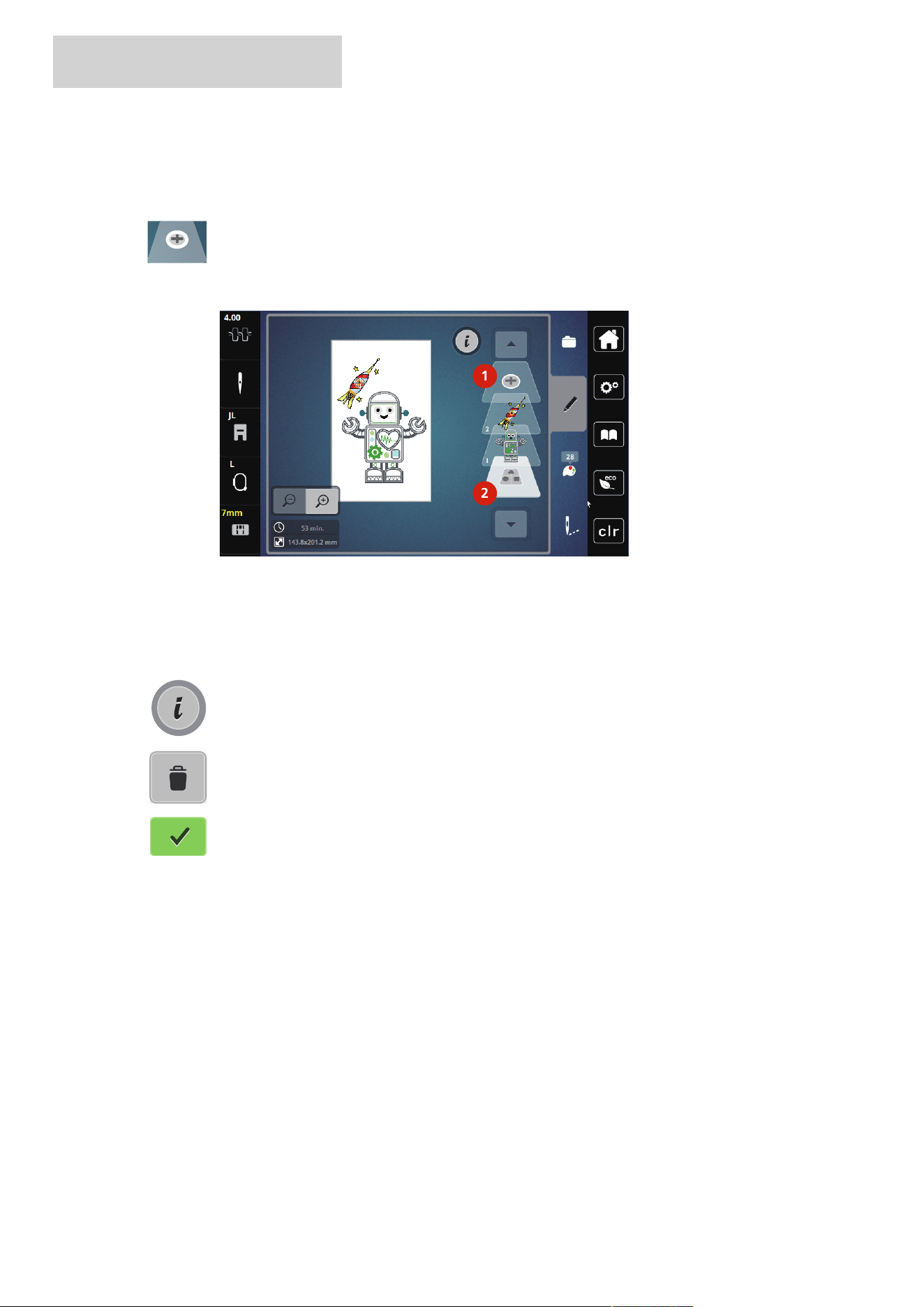
Combining Embroidery Designs
> Select the embroidery design.
> Tap «Adding an Embroidery Design»(1).
> Select another embroidery design.
> To select whole embroidery designs, tap «Select all Embroidery Designs».
– The size of the combination cannot be adjusted.
2
1
1 «Adding an Embroidery Design» 2 «Select all Embroidery Designs»
Deleting a Single Embroidery Design
> Select the embroidery design which is to be deleted.
> Tap «i-Dialog».
> Tap «Delete».
> Tap «Confirm».
CREATIVE EMBROIDERING
63
2024-08 EN 5020070.50A.04
5.8 Changing the Colors of the Embroidery Design
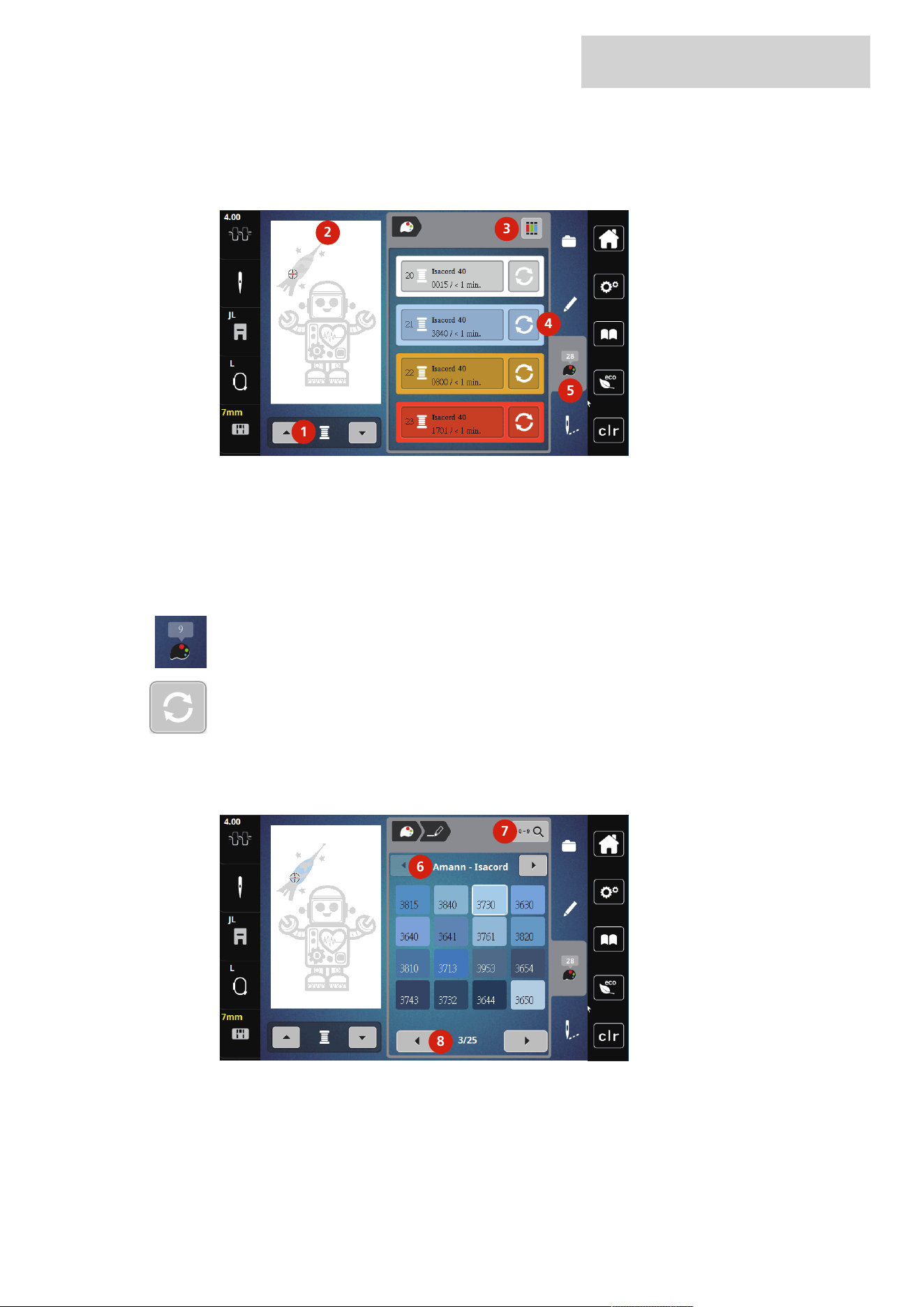
Overview Changing the Color
5
1
2
3
4
1 Colors of the Embroidery Designs 4 Altering Color
2 Preview for Selected Color 5 Color Information
3 Assign Thread Brand
Changing the Colors
> Select the embroidery design.
9
> Tap «Color Information».
> Tap «Altering Color/Brand» next to the color that needs to be changed.
> Changing colors by searching the theme brand.
– To display other thread brands, tap «Scroll» (6) in the upper right section of the display.
> To select the color by inputting the color number, tap «Color Selection via Number» (7).
> To display further colors, tap «Scroll» (8) in the lower right section of the display.
> Select the desired color.
6
7
8
Changing the Thread Brand
> Select the embroidery design.
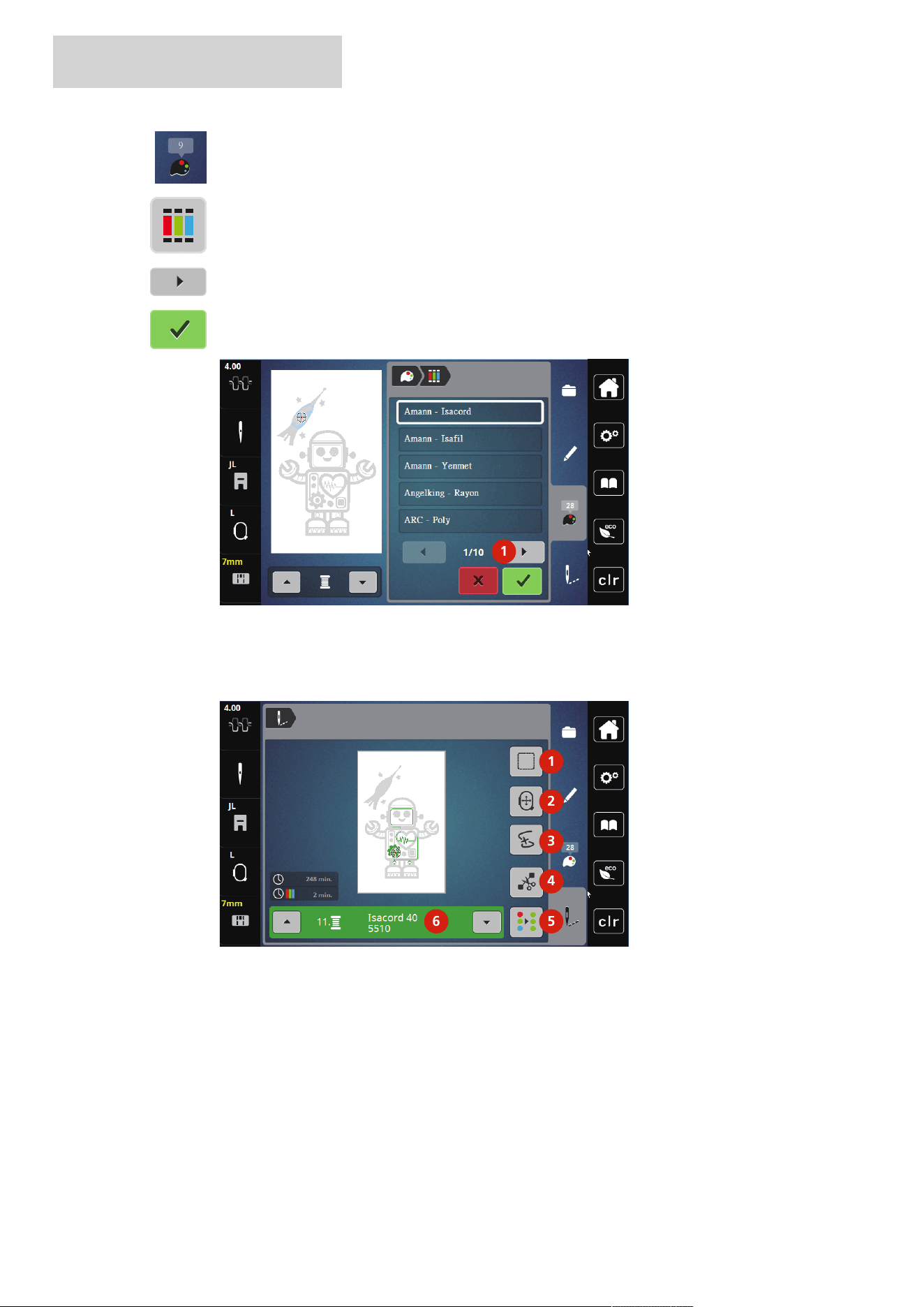
CREATIVE EMBROIDERING
64
2024-08 EN 5020070.50A.04
9
> Tap «Color Information».
> Tap «Assign Thread Brand».
> To display further thread brands, tap scroll (1).
> Select a thread brand and tap «Confirm».
– Any thread colors of the selected embroidery design will be matched with the selected thread brand.
1
5.9 Embroidering the Embroidery Design
Overview Embroidery Menu
1
2
3
4
56
1 Basting 4 Cut Connecting Stitches
2 Moving the Hoop 5 Multi-colored Embroidery Design On/Off
3 Embroidery Sequence Control 6 Color Indication
Adding Basting Stitches
The basting stitches can be embroidered along the embroidery design. As a result, the fabric and the
stabilizer are better fixed together.
> Select the embroidery design.
CREATIVE EMBROIDERING
65
2024-08 EN 5020070.50A.04
> Tap «Embroidery».
> To embroider the basting stitches along an embroidery design, tap «Basting».
> To deactivate the basting stitches, tap «Basting» again.
Moving the Hoop
If the embroidery project is so big that repeated rehooping is necessary, the embroidered design can be
moved again.
> Select the embroidery design.
> Tap «Embroidery».
> Tap «Move the Hoop».
> Turn the «Upper Multi-function Knob» to move the hoop horizontally.
> Turn the «Lower Mult-ifunction Knob» to move the hoop vertically.
Embroidery Sequence Control when the Thread Breaks
If the thread breaks, the needle can be repositioned in the embroidery design using the function Embroidery
Sequence Control.
> Select the embroidery design.
> Tap «Embroidery».
> Tap «Embroidery Sequence Control».
– A compact view of the embroidery design appears on the left side of the display. On the right side the
embroidery design is shown in enlarged view.
– Repositioning via Compact View
> Select the desired position in the overall view (1) (2).
– Repositioning via Stitch Bar
> Select the bar in the display(3) (4).
– Repositioning via Multi-function Knobs
> Turn the «Upper Multi-function Knob» to move the hoop stitch by stitch.
> Turn the «Lower Multi-function Knob» to move the hoop in large steps.
– Repositioning via Magnifier
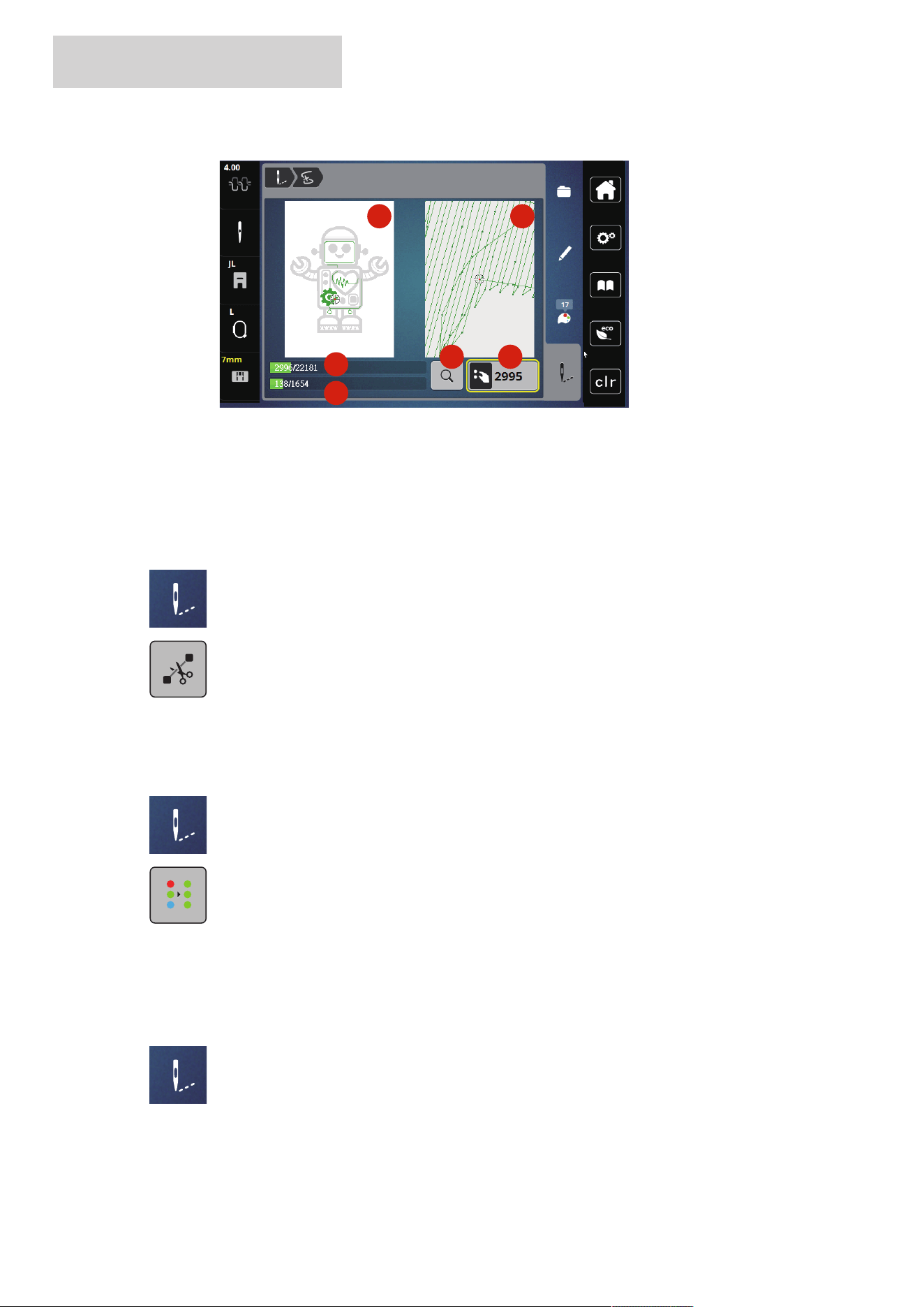
CREATIVE EMBROIDERING
66
2024-08 EN 5020070.50A.04
> To select the desired stitch via the input, tap «Magnifier» (6).
1 2
56
3
4
– The number in the yellow-framed icon (5) indicates the number of stitches of the embroidery process.
> Set the needle position back so that the new start is made a few stitches before the thread has broken.
Cutting Connecting Stitches
The function is activated as standard and the connection stitches are automatically cut. If the function is
deactivated, the connection stitches must be cut by hand.
> Select the embroidery design.
> Tap «Embroidery».
> To switch off the function, tap «Cut Connecting Stitches».
> To switch on the function, tap «Cut Connecting Stitches» again.
Multi-colored Embroidery Design On/Off
Multi-colored embroidery designs can also be embroidered in one color.
> Select the embroidery design.
> Tap «Embroidery».
> Tap «Multi-colored Embroidery Design On/Off».
– The embroidery design is embroidered in one color.
Color Indication
Every color of the embroidery design can be selected individually. The hoop moves to the first stitch of the
current color. The currently active color can be embroidered individually or in another sequence.
> Select the embroidery design.
> Tap «Embroidery».
> Touch the icon Scroll up to select the previous color of the embroidery design.
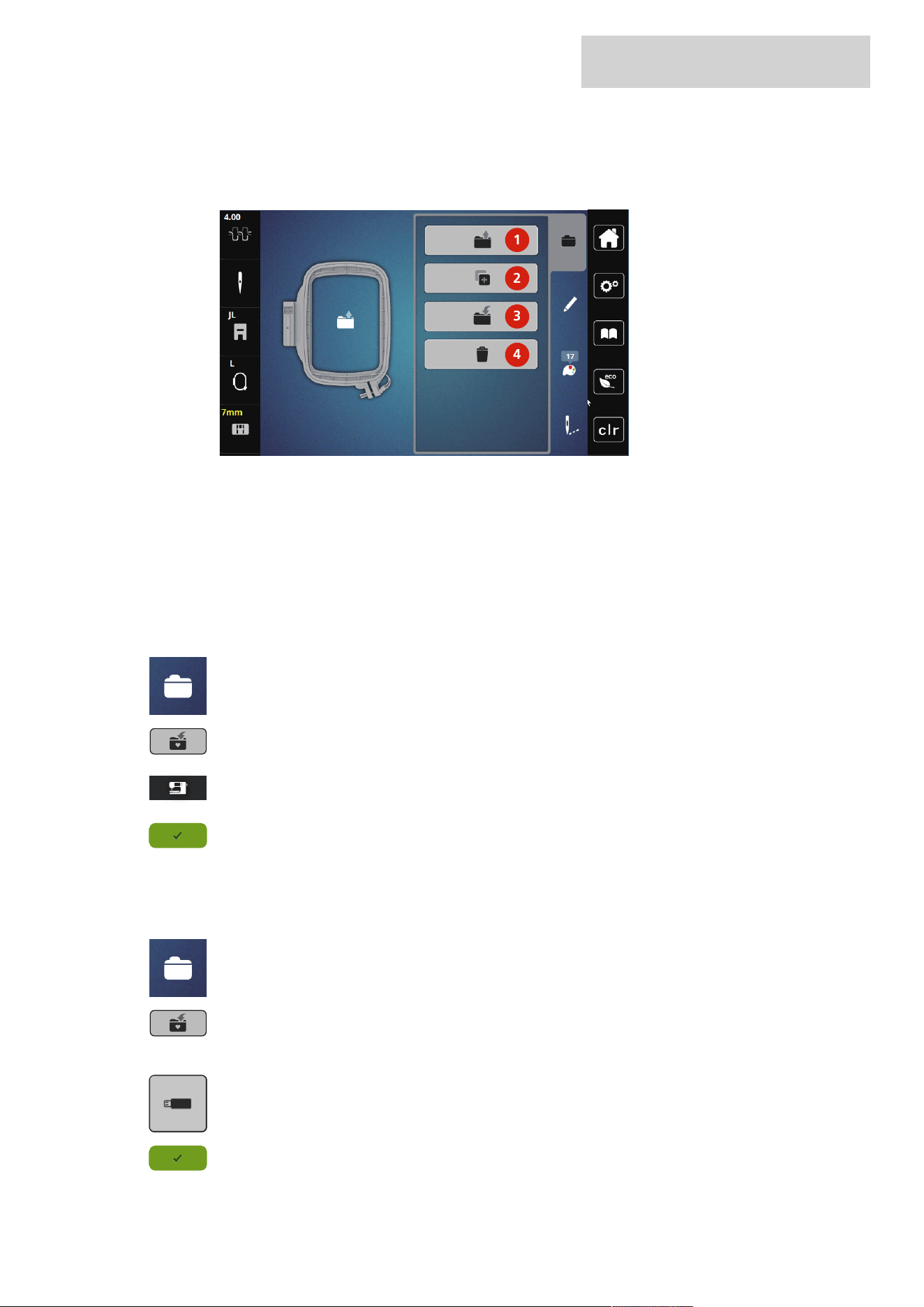
CREATIVE EMBROIDERING
67
2024-08 EN 5020070.50A.04
5.10 Administering Embroidery Designs
Administering Embroidery Designs
1
2
3
4
1 «Loading the Embroidery Design» 3 «Save Embroidery Design»
2 «Adding an Embroidery Design» 4 «Delete an Embroidery Design»
Saving Embroidery Designs in the Personal Memory
In the file «Save Embroidery Designs» any embroidery designs including individually edited embroidery
designs can be saved.
> Select the embroidery design.
> Edit the embroidery design.
> Tap «Selection».
> Tap «Save Embroidery Design».
– The embroidery design to be saved is outlined in yellow.
– The «Embroidery Machine» is activated.
> Tap «Confirm».
Saving the Embroidery Design on the USB Stick
> Select the embroidery design.
> Edit the embroidery design.
> Tap «Selection».
> Tap «Save Embroidery Design».
– The embroidery design to be saved is outlined in yellow.
> Insert the USB stick into the USB port of the machine.
> Tap «USB Stick».
> Tap «Confirm».
CREATIVE EMBROIDERING
68
2024-08 EN 5020070.50A.04
Overwriting the Embroidery Design in the Personal Memory
> Select the embroidery design.
> Edit the embroidery design.
> Tap «Selection».
> Tap «Save Embroidery Design».
– The embroidery design to be saved is outlined in yellow.
– The «Embroidery Machine» is activated.
> Select the embroidery design which is to be overwritten.
> Tap «Confirm».
Overwriting the Embroidery on the USB Stick
> Select the embroidery design.
> Edit the embroidery design.
> Tap «Selection».
> Tap «Save Embroidery Design».
– The embroidery design to be saved is outlined in yellow.
> Insert the USB stick into the USB port of the machine.
> Tap «USB Stick».
> Select the embroidery design which is to be overwritten.
> Tap «Confirm».
Loading an Embroidery Design from the Personal Memory
> Tap «Selection».
> Tap «Loading the Embroidery Design».
> Select «Personal Embroidery Design».
> Select the embroidery design.
Loading an Embroidery Design from the USB Stick
> Tap «Selection».
> Insert the USB stick into the USB port of the machine.
> Tap «USB Stick».
> Select a personal embroidery design.
CREATIVE EMBROIDERING
69
2024-08 EN 5020070.50A.04
> By tapping «Embroidery Design Name/Display Embroidery Design Image» you can switch between the
name of the embroidery design and the image of the embroidery design. This is only possible when
loading a design from the USB stick.
Deleting an Embroidery Design from the Personal Memory
The embroidery designs which are saved in the personal memory can be deleted individually.
> Tap «Selection».
> Tap «Delete».
– The «Embroidery Machine» is activated.
> Select the embroidery design which is to be deleted.
> Tap «Confirm».
Deleting an Embroidery Design from the USB Stick
> Tap «Selection».
> Tap «Delete».
> Insert the USB stick into the USB port of the machine.
> Tap «USB Stick».
> Select the embroidery design which is to be deleted.
> Tap «Confirm».
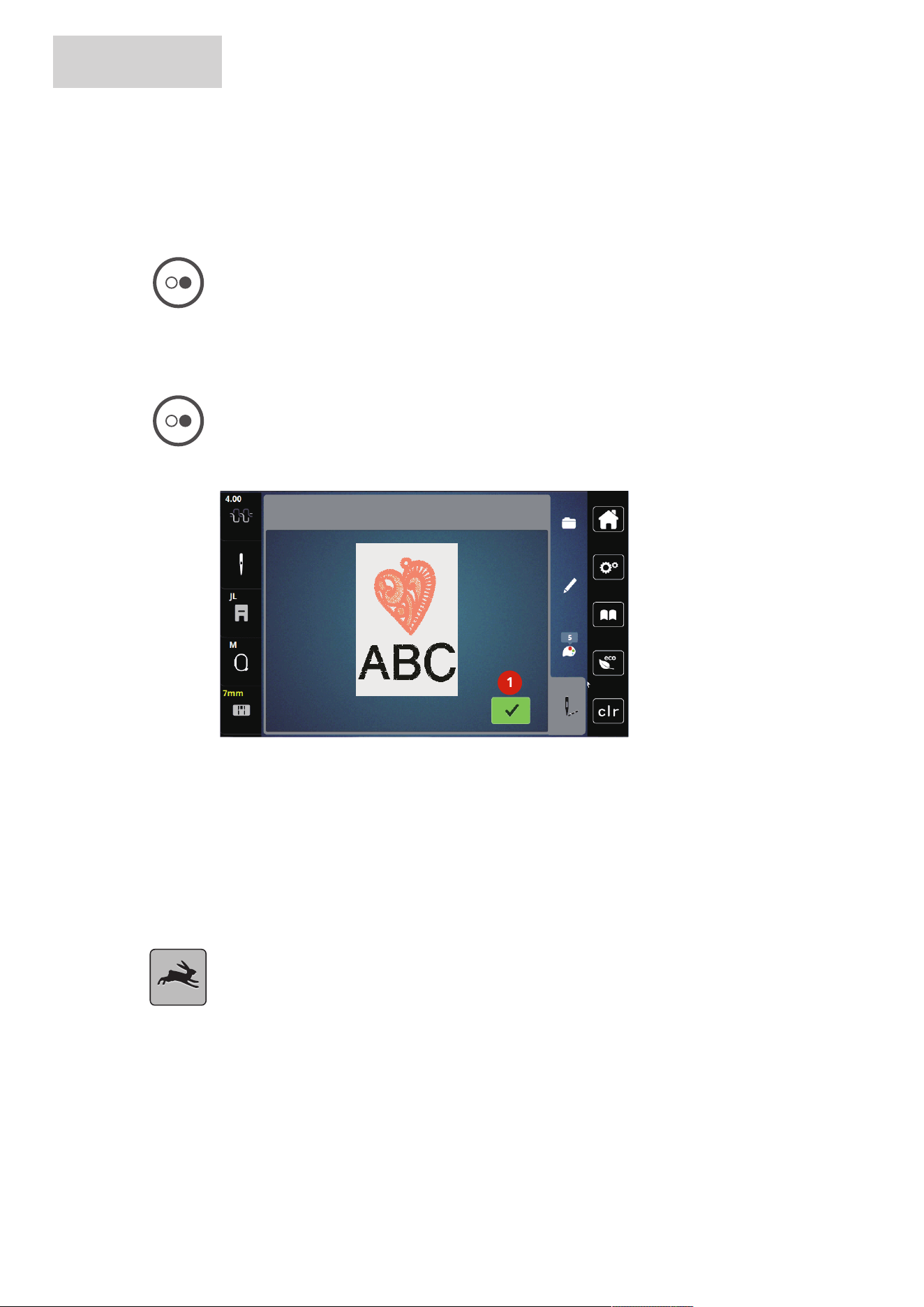
EMBROIDERY
70
2024-08 EN 5020070.50A.04
6 Embroidery
6.1 Embroidering via the Button «Start/Stop»
In case of a power cut the embroidery process is interrupted. After the restart the machine goes to the
position which was embroidered last.
> Push the button «Start/Stop» until the embroidery machine starts.
– All parts of the design being in the current color are embroidered.
– The embroidery machine stops automatically at the end.
– Both threads are cut automatically.
– The embroidery machine switches to the next color automatically.
> Change the upper thread.
> To embroider the new color, push the button «Start/Stop».
– After having completed the embroidery design, the machine stops automatically and the threads are
cut automatically.
> To end the embroidery design, tap «Confirm» (1).
1
1
6.2 Increasing the Embroidery Speed
To ensure the best embroidery quality, the speed when embroidering is reduced depending on the
embroidery position. Choose between the two options to either embroider at optimal or maximum speed.
Standard = optimal speed. It has to be considered that the quality of the embroidered embroidery design at
maximum speed cannot be ensured.
By switching the machine off and on, the optimal embroidery speed is activated.
Prerequisite:
• Embroidering has started.
> Tap «Embroidery Speed».
– The maximum speed is activated.
> Tap «Embroidery Speed» again.
– The optimal speed is activated.
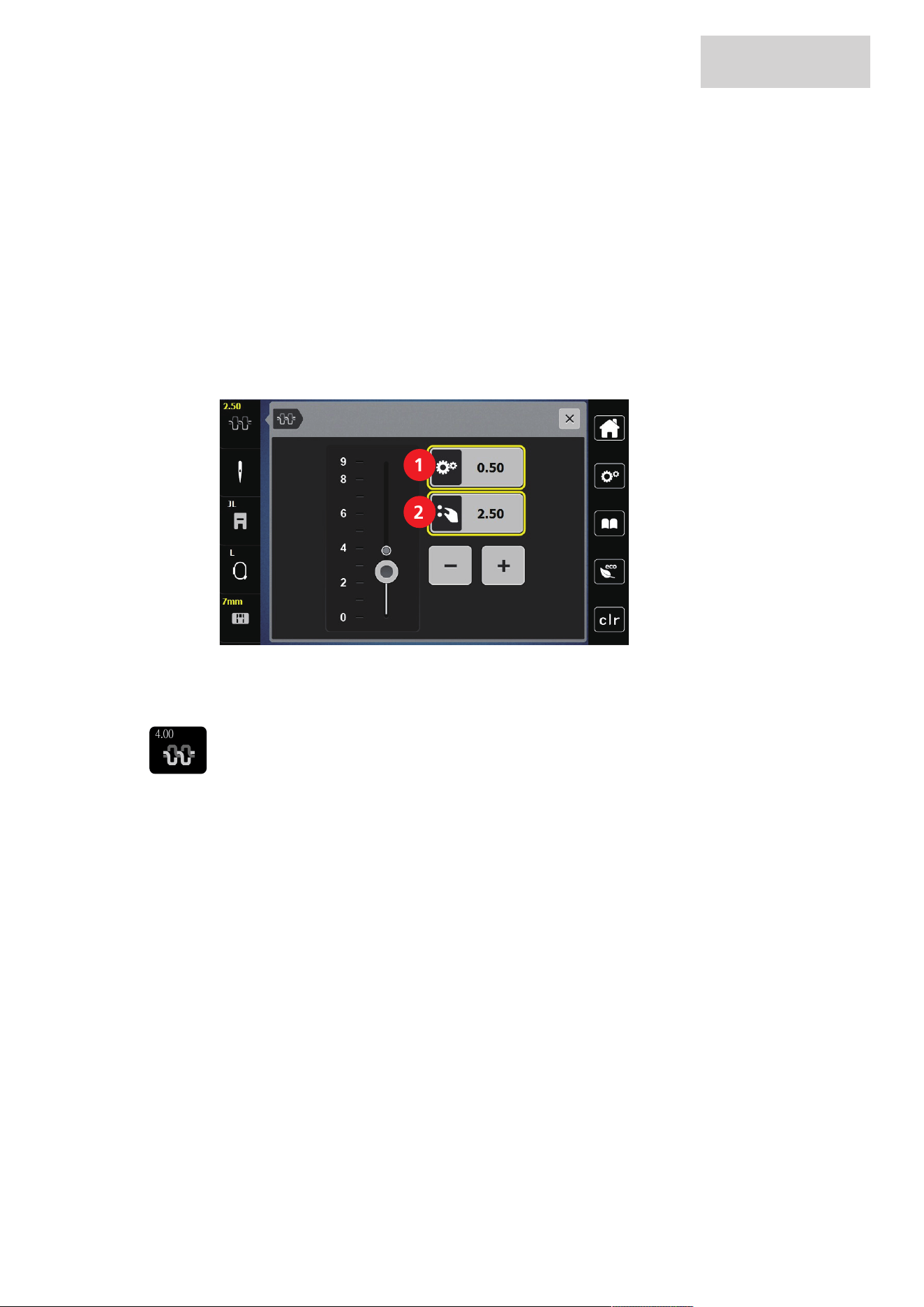
EMBROIDERY
71
2024-08 EN 5020070.50A.04
6.3 Adjusting the Upper Thread Tension
The default setting of the upper thread tension is set automatically as soon as a embroidery design is
selected.
When using different types of embroidery threads, the upper thread tension may vary. It may therefore be
necessary to adjust the upper thread tension individually according to the embroidery project as well as the
desired stitch.
The higher the upper thread tension is set, the tighter the upper thread is tensioned, and the bobbin thread
is pulled deeper into the fabric. When the upper thread tension is low, the upper thread is less tightened,
and the bobbin thread is pulled up less into the fabric.
Alteration of the upper thread tension affect the currently embroidery design. Permanent alterations of the
upper thread tension can be made in the Setup Program.
1
2
1 Permanent Alteration of Thread Tension 2 Thread Tension of the Current Embroidery
Design
4.00
> Tap «Upper Thread Tension».
> To increase or decrease the upper thread tension, move the slider.
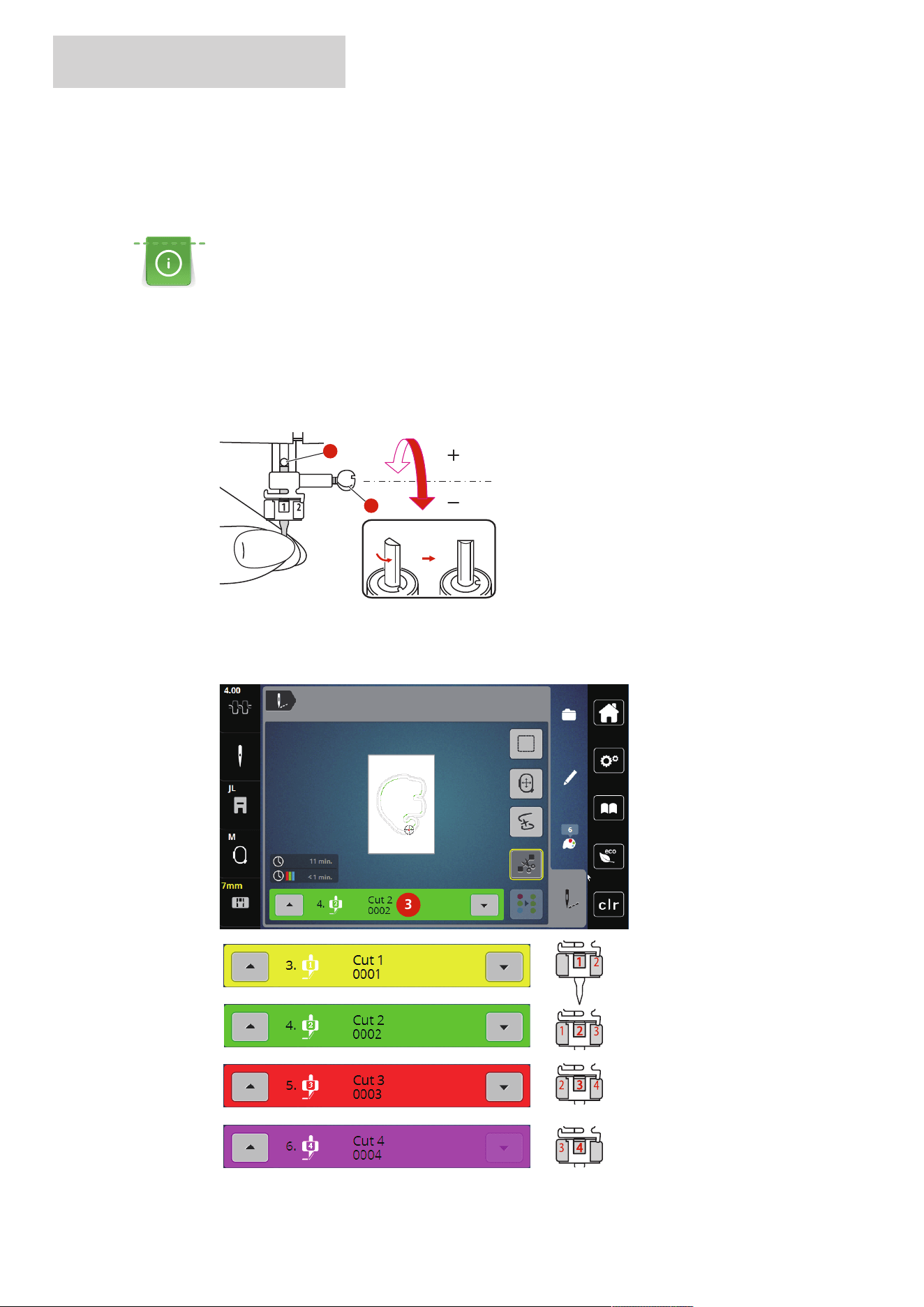
BERNINA CUTWORK TOOL
72
2024-08 EN 5020070.50A.04
7 BERNINA CutWork Tool
7.1 Attaching Cutwork Tool
The CutWork Tool is available optionally. It is not included in the standard delivery of this machine.
The CutWork Tool is a very sharp accessory. Special care is required when working with this tool and keep
fingers away from the sharp knife. You can find more information in the CutWork book, which is packaged
with the CutWork tool.
In CutWork Mode, the upper thread, bobbin thread and thread cut sensor are deactivated.
> Remove the embroidery foot.
> Remove the needle.
> Insert the CutWork Tool with the flat side to the back as far up as it will go (1). Tighten the fixing screw
(2).
1
2
> Attach the embroidery foot.
> Select the attached embroidery foot in the embroidery foot selection.
> Rotate the CutWork Tool according to the information on the color display (3).
3

BERNINA CUTWORK TOOL
73
2024-08 EN 5020070.50A.04
7.2 Start to Cut
> Press the button «Start/Stop» and start to cut.
– When it is completed, the machine stops automatically and return to Embroidery menu display.
> Turn the CutWork Tool knife according to the cutting position on the display of Color indication (3).
> Repeat the same actions.
– When the cutting is completed, the machine stops automatically and shows the embroidery finished
screen on the display.
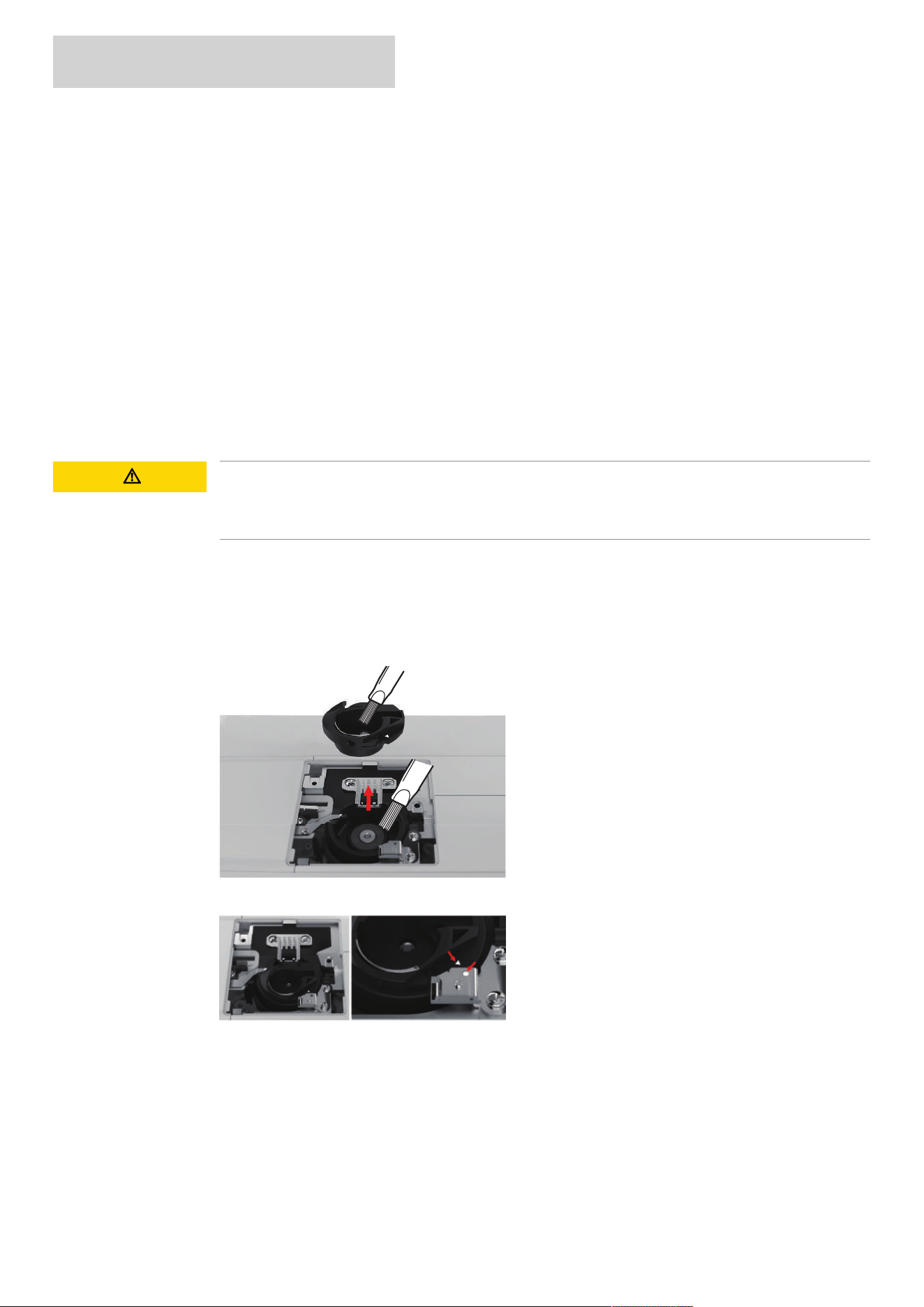
MAINTENANCE AND CLEANING
74
2024-08 EN 5020070.50A.04
8 Maintenance and Cleaning
8.1 Cleaning and Maintenance Intervals
To ensure the functionality and sewing quality of the machine, the machine must be cleaned and maintained
regularly. The intervals for cleaning and maintenance of the machine depend on various factors, such as the
fabrics and threads used.
As an advice to clean the machine, a message appears after 500,000 stitches.
As an advice to have the machine maintained, a message appears when 4,000,000 stitches have been sewn
after a service.
8.2 Cleaning the Display
> Clean the display when it is switched off with a soft slightly damp microfiber cloth.
8.3 Cleaning the Bobbin Case
CAUTION
Electronically Driven Components
Risk of injury near the needle and the hook.
> Switch the machine off and disconnect it from the power supply.
> Remove the presser foot and the needle.
> Open the bobbin cover and remove the top bobbin cover.
> Remove the stitch plate.
> Remove the bobbin from the bobbin case.
> Clean the bobbin case with the brush.
> Set needle to topmost position.
> Clean the shuttle race with the brush.
> Insert the bobbin into the bobbin case.
> Fit the stitch plate.
> Attach the top bobbin cover and close the bobbin cover.
> Fit the needle and presser foot.
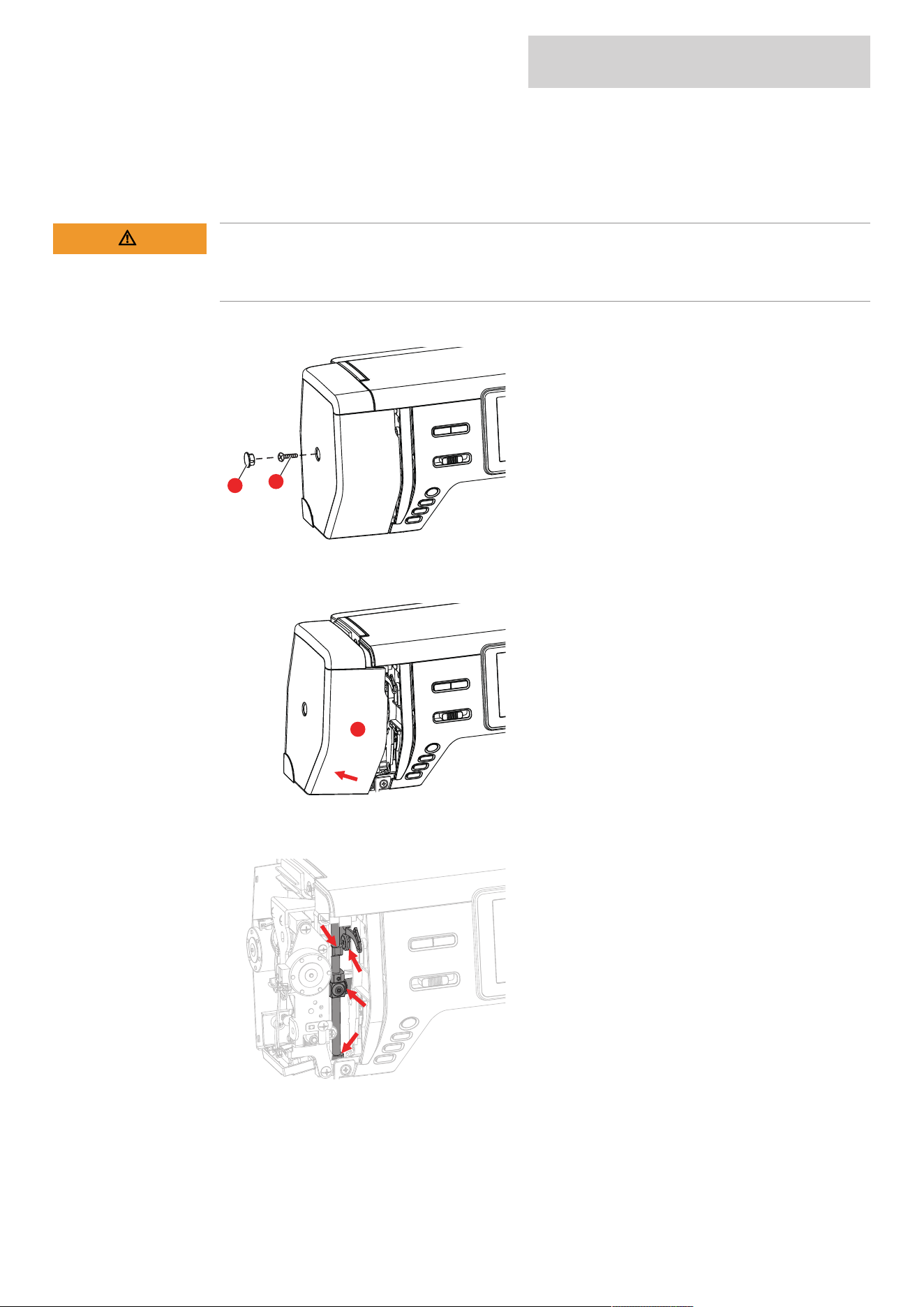
MAINTENANCE AND CLEANING
75
2024-08 EN 5020070.50A.04
8.4 Oiling the Needle Bar
The needle bar may not move smoothly without lubrication. If the machine is used frequently, the needle bar
should be oiled every 6 months to prevent blocking.
WARNING
Electronically Driven Components
Risk of injury near the needle bar.
> Switch the machine off and disconnect it from the power supply.
> Remove the protective cap (1) and screw (2).
1
2
> Remove the headframe cover (3).
– After removing the headframe cover, pay attention to the moving parts.
3
> Apply a drop of oil to the movement mechanism of the needle bar, including the connecting rod/needle
bar, needle bar holder and needle bar holder (apply oil to the points marked with an arrow).
> Remove the presser foot.
> Turn the handwheel a few times and remove any excess oil with a cloth.
> Attach the headframe cover again.

ERRORS AND FAULTS
76
2024-08 EN 5020070.50A.04
9 Errors and Faults
9.1 Troubleshooting
Fault Cause Solution
Uneven Stitch Formation
Upper thread too tight or
too loose.
> Adjust the upper thread tension.
Needle blunt or bent. > Replace the needle, make sure that a new BERNINA quality
needle is used.
Poor quality needle. > Use a new BERNINA quality needle.
Poor quality thread. > Use quality thread.
Incorrect needle/thread
combination.
> Match the needle with the thread size.
Incorrectly threaded. > Rethread.
Dust or thread remnants
under the tension spring of
the bobbin case.
> Remove any dust or thread remnants from under the tension
spring of the bobbin case.
Skipped Stitches
Incorrect needle. > Use the needle system 130/705H.
Needle blunt or bent. > Replace the needle.
Poor quality needle. > Use a new BERNINA quality needle.
The needle is incorrectly
inserted.
> Insert the needle with the flat side to the back as far up as it
will go into the needle holder and tighten the screw.
Incorrect needle point. > Match the needle point to the texture of the material.
Upper Thread Breaks
Incorrect needle/thread
combination.
> Match the needle with the thread size.
Upper thread is too tight. > Reduce the upper thread tension.
Incorrectly threaded. > Rethread.
Poor quality thread. > Use quality thread.
The stitch plate or the hook
tip is damaged.
> Contact your bernette dealer to have the damages repaired.
> Replace the stitch plate.

ERRORS AND FAULTS
77
2024-08 EN 5020070.50A.04
Fault Cause Solution
Lower Thread Breaks
The bobbin is not inserted
correctly.
> Remove the bobbin, reinsert it and pull on the thread.
– The thread should run easily.
The bobbin is wound
incorrectly.
> Check bobbin and thread correctly.
The stitch hole in the stitch
plate is damaged.
> Contact your bernette dealer to have the damages repaired.
> Replace the stitch plate.
Needle blunt or bent. > Replace the needle.
Needle Breaks
The needle is incorrectly
inserted.
> Insert the needle with the flat side to the back as far up as it
will go into the needle holder and tighten the screw.
Knotted thread. > Use quality thread.
Display is Inactive
Incorrect calibrating data. > Switch the machine off.
> Switch the machine on and at the same time press the
button «Center embroidery hoop to the needle/Center
embroidery design» and keep it pressed.
> Recalibrate the display.
The eco Mode is active. > Tap «eco Mode».
Speed Too Low
Unfavorable room
temperature.
> Place the machine in a warm room one hour before use.
Settings in the Setup
Program.
> Adjust the embroidery speed in the Setup Program.
> Adjust the slide.
The Machine doesn't Start
Unfavorable room
temperature.
> Place the machine in a warm room one hour before use.
> Connect the machine and switch it on.
The machine is damaged. > Contact your bernette dealer.
The Light of the Button
«Start/Stop» doesn't Light Up
Light is defect. > Contact your bernette dealer.
Neither the Sewing Light Nor
the Light on the Free Arm
Lights Up
Settings in the Setup
Program.
> Activate it in the Setup Program.
The sewing light is defect. > Contact your bernette dealer.
Upper Thread Indicator Fails
to Respond
Settings in the Setup
Program.
> Activate it in the Setup Program.
The upper thread indicator is
defect.
> Contact your bernette dealer.
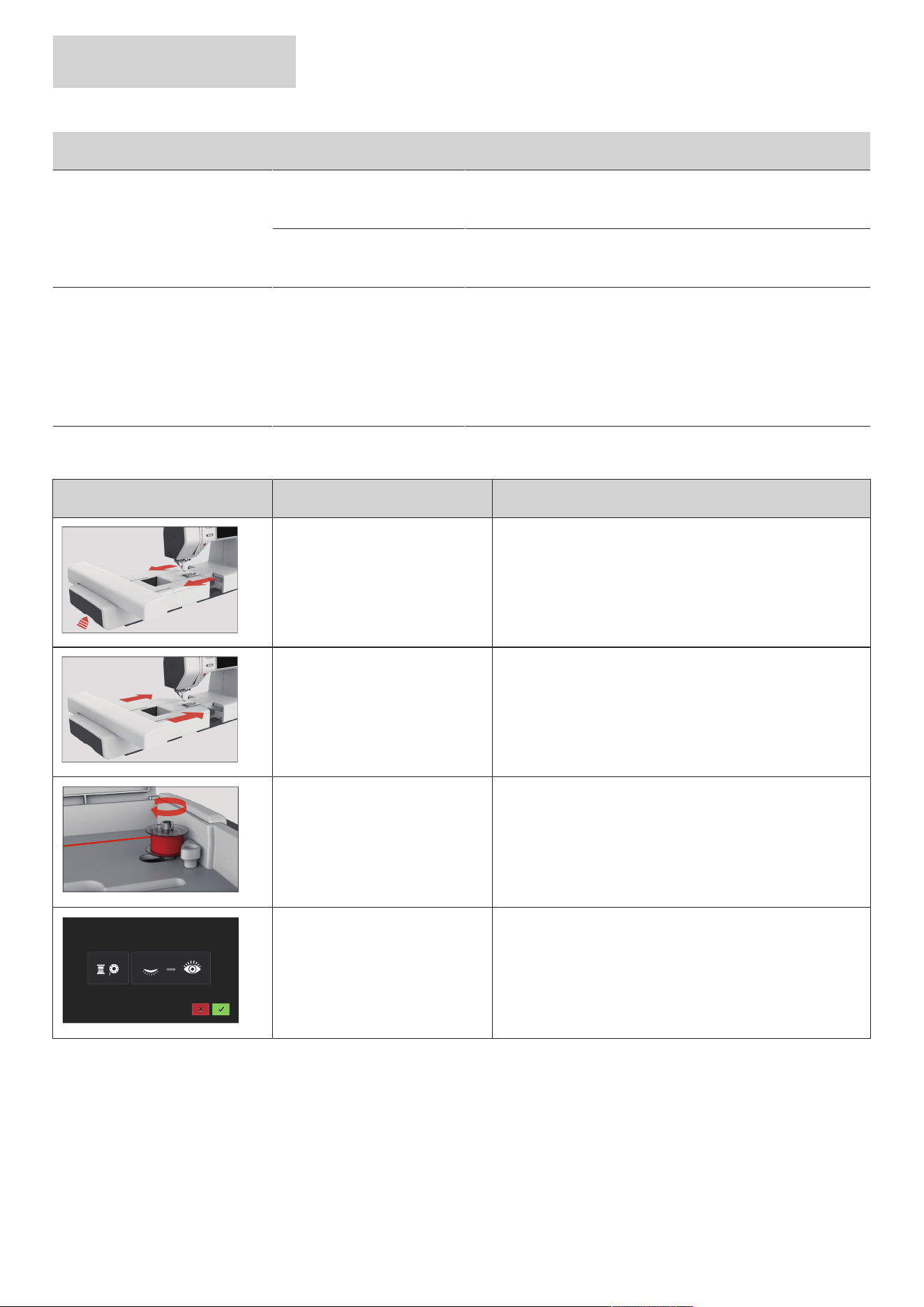
ERRORS AND FAULTS
78
2024-08 EN 5020070.50A.04
Fault Cause Solution
Bobbin Thread Indicator
doesn't React
Settings in the Setup
Program.
> Activate it in the Setup Program.
The bobbin thread indicator
is defect.
> Contact your bernette dealer.
Error during Software Update
The update process is
blocked and the hourglass
on the display is inactive.
> Remove the USB stick.
> Switch the machine off.
> Rename the firmware file from «.fw» to «.auto».
> Insert the USB stick.
> Switch the machine on.
– The update starts automatically.
9.2 Error messages
Message on the Display Cause Solution
The embroidery module must be
removed.
> Hold the embroidery module, press the release button
and pull the module out.
The embroidery module must be
connected.
> Push the embroidery module carefully from left to right
into the embroidery module connection of the machine.
The winding unit is activated. > Deactivate the winding unit.
The thread indicator is
deactivated.
> To switch on both thread indicators, tap «Confirm».
> To keep the thread indicators switched off, tap
«Cancel».
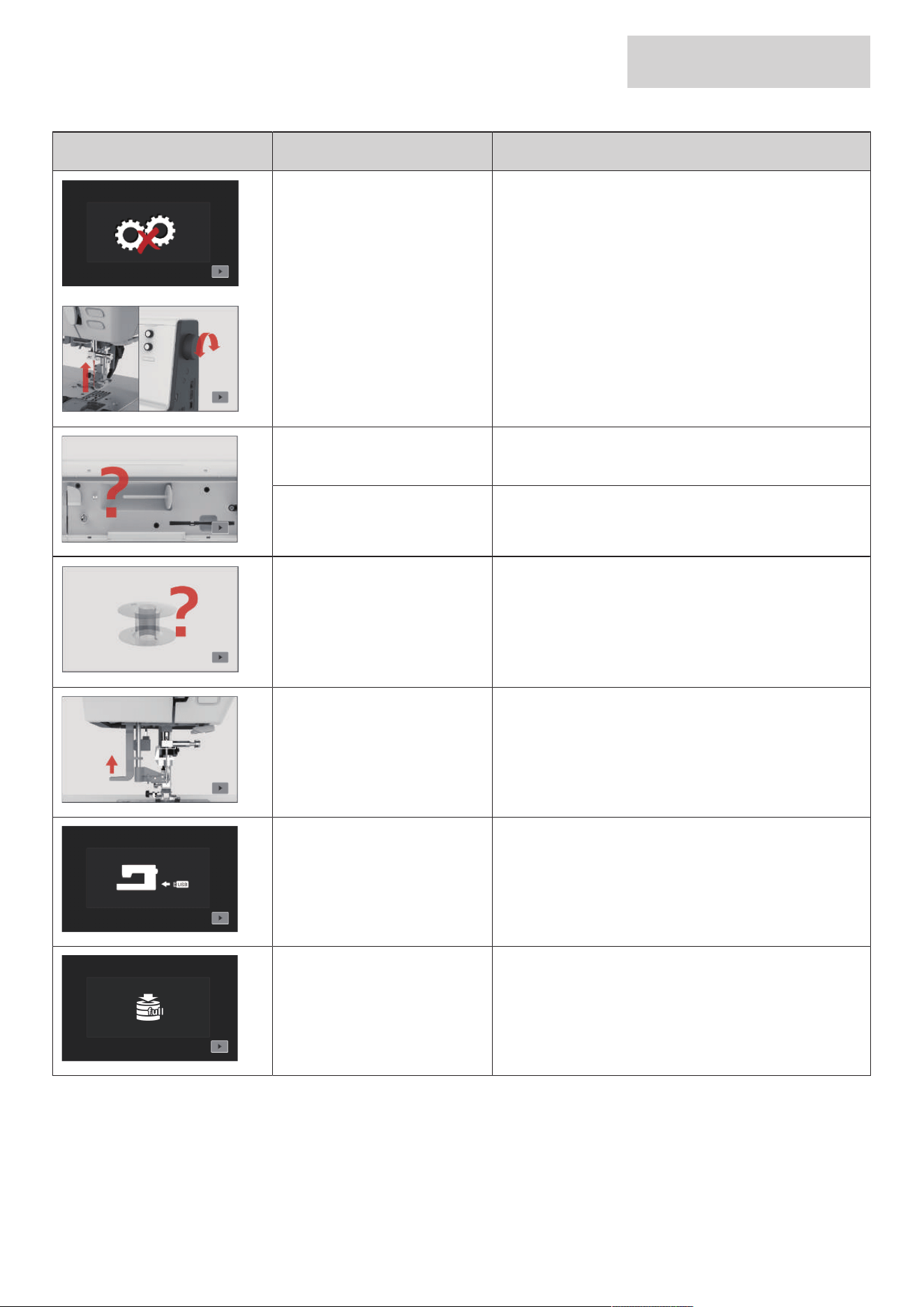
ERRORS AND FAULTS
79
2024-08 EN 5020070.50A.04
Message on the Display Cause Solution
The main motor is not running. > Turn the handwheel clockwise until the needle is at its
top position.
> Remove the stitch plate.
> Remove the thread remnants.
> Clean the hook.
> Remove the hook and make sure that there are no
pieces of broken needle points on the magnetic back of
the hook.
The upper thread is used up. > Insert a new thread spool.
> Rethread.
The upper thread is broken. > Rethread.
The bobbin thread is used up. > Remove the empty bobbin, wind it again and reinsert it.
The threader lever is not raised. > Raise the threader lever.
USB stick is not connected. > Insert the USB stick (optional accessory) into the port.
Not enough free memory
available on the USB stick
(optional accessory).
> Delete data on the USB stick (optional accessory).
> Overwrite data on the USB stick.
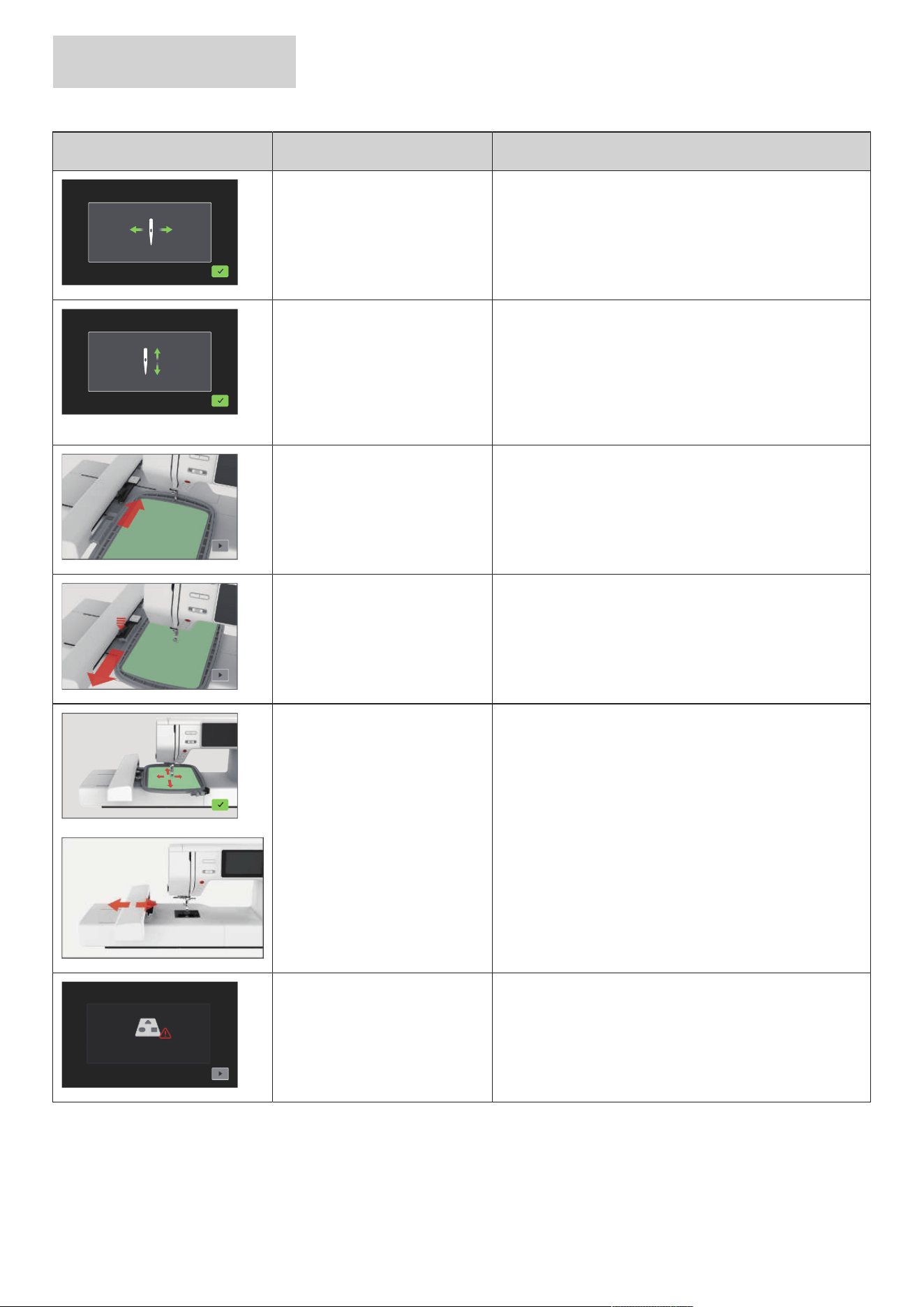
ERRORS AND FAULTS
80
2024-08 EN 5020070.50A.04
Message on the Display Cause Solution
The needle moves sideways. When the stitch plate is exchanged, this illustration appears
because the needle is likely to move.
The needle moves upwards. > Check whether there are any external objects near the
stitch plate.
> To raise the needle, tap «Confirm».
The hoop is not attached. > Attach the hoop.
The hoop is attached. > Remove the embroidery hoop.
The movement of the hoop
follows.
> Ensure that the process is not impaired.
> Tap «Confirm».
The maximum number of stitches
of 120,000 is reached.
> Select another embroidery design with less stitches.
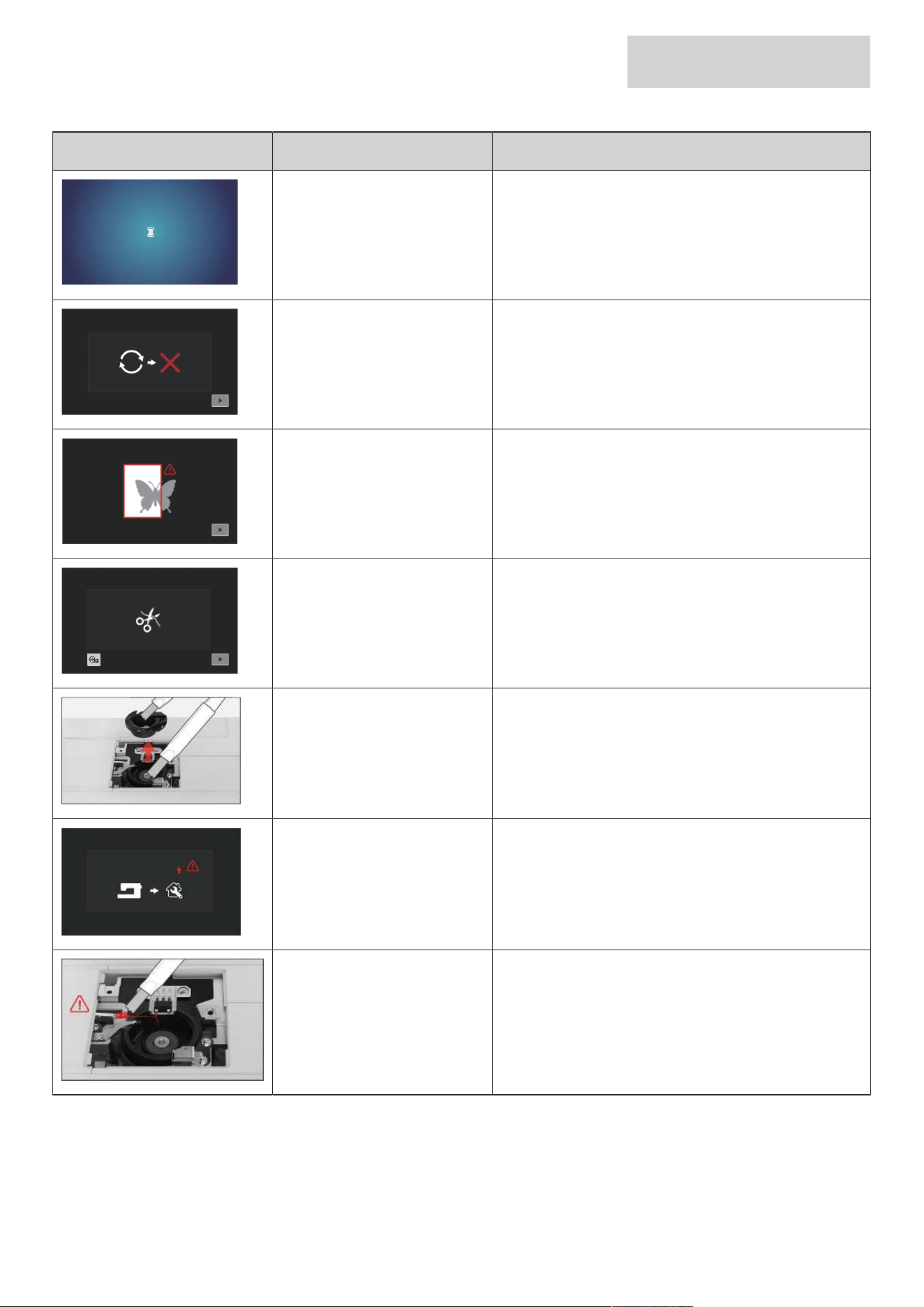
ERRORS AND FAULTS
81
2024-08 EN 5020070.50A.04
Message on the Display Cause Solution
Files are being loaded. > Wait for processing process.
Firmware update failed. > Check the update file on the USB stick.
> Tap «Cancel» and try the update again.
The embroidery design is partially
outside the embroidery hoop
and/or is too large for the hoop.
> Reduce the size of the embroidery design.
> Reposition the embroidery design.
> Attach a larger hoop.
This message appears when the
thread cutter is adjusted after
embroidery starts.
> Cut the thread manually.
500,000 stitches have been sewn
with the machine since the last
cleaning advice.
> Clean the machine.
> For reference to cleaning to be made again after
switching on the machine, tap «Cancel».
The machine has reached a stitch
count of 4,000,000 since the last
maintenance by a bernette
dealer.
> Contact your specialized bernette dealer to have the
machine maintained.
> For reference to maintenance to be made again after
switching on the machine, tap «Cancel».
The automatic thread cutter is
malfunctioning.
> Tap «Confirm».
> Clean the thread catcher.
> Contact your bernette dealer if the problem still occurs.
TECHNICAL DATA
82
2024-08 EN 5020070.50A.04
10 Technical data
Designation Value Unit
Sewign Light (LED) 300, 2 mA, Watt
Maximum Speed Embroidery Mode: 850 Stitches per Minute
Measurements (w × d × h) Without Embroidery Module: 509 x
200 x 315
With Embroidery Module: 710 x
475 x 315
mm
Weight Machine: 8.14
Embroidery Module: 3.65
kg
Energy Consumption 90 W
Input Voltage 100 – 240 V
Protection Class (Electrical Engineering) Protection Class II
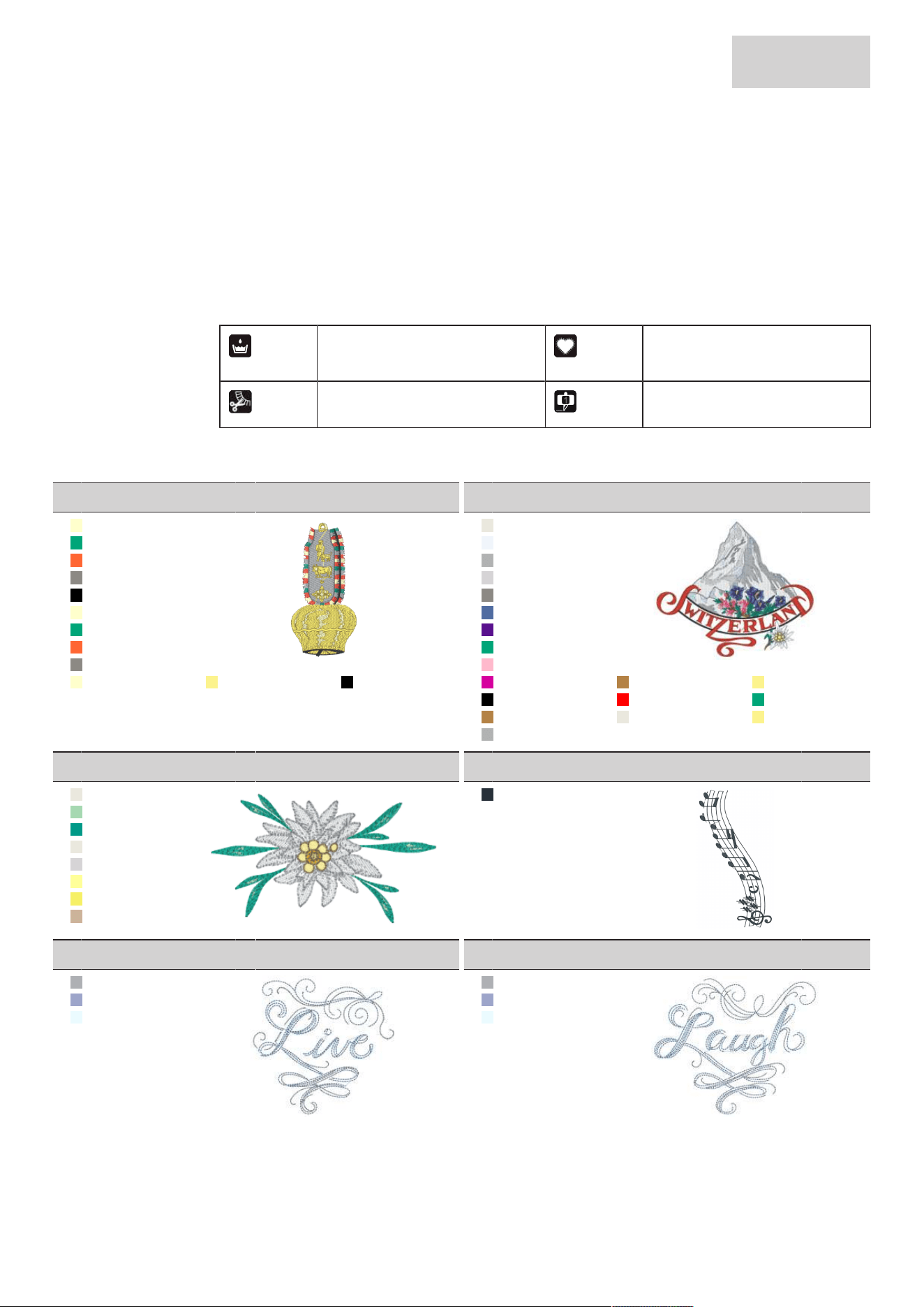
APPENDIX
83
2024-08 EN 5020070.50A.04
11 Appendix
11.1 Embroidery Designs
Embroidery Designs
Let your creativity run free. A vast selection of embroidery designs is at your disposal.
If you see one of the following pictograms below a number of the embroidery design, you can find
additional information at www.bernina.com/specialeffects.
Detached Point Appliqué
Fringe Embroidery CutWork Design (motif)
Embellishment
01_01_002_bell
50x103mm
2x4.1inch
10.373
1. Isacord 40 0250
2. Isacord 40 5100
3. Isacord 40 1701
4. Isacord 40 1972
5. Isacord 40 0020
6. Isacord 40 0250
7. Isacord 40 5100
8. Isacord 40 1701
9. Isacord 40 1972
10. Isacord 40 0250 11. Isacord 40 0230 12. Isacord 40 0020
01_02_019_swiss
150x129mm
5.9x5.1inch
20.511
1. Isacord 40 0003
2. Isacord 40 3650
3. Isacord 40 0142
4. Isacord 40 0182
5. Isacord 40 1972
6. Isacord 40 3410
7. Isacord 40 2900
8. Isacord 40 5100
9. Isacord 40 2560
10. Isacord 40 1950 11. Isacord 40 0941 12. Isacord 40 0230
13. Isacord 40 0020 14. Isacord 40 1703 15. Isacord 40 5100
16. Isacord 40 0941 17. Isacord 40 0003 18. Isacord 40 0230
19. Isacord 40 0142
01_03_edelweiss
103x58mm
4.1x2.3inch
8.192
1. Isacord 40 0003
2. Isacord 40 5450
3. Isacord 40 5010
4. Isacord 40 0003
5. Isacord 40 0182
6. Isacord 40 0520
7. Isacord 40 0704
8. Isacord 40 0934
01_04_12383-18
91x171mm
3.6x6.7inch
5.210
1. Isacord 40 3666
01_05_12490-03
118x113mm
4.6x4.5inch
6.706
1. Isacord 40 0131
2. Isacord 40 3450
3. Isacord 40 3840
01_06_12490-04
146x122mm
5.8x4.8inch
8.755
1. Isacord 40 0131
2. Isacord 40 3450
3. Isacord 40 3840
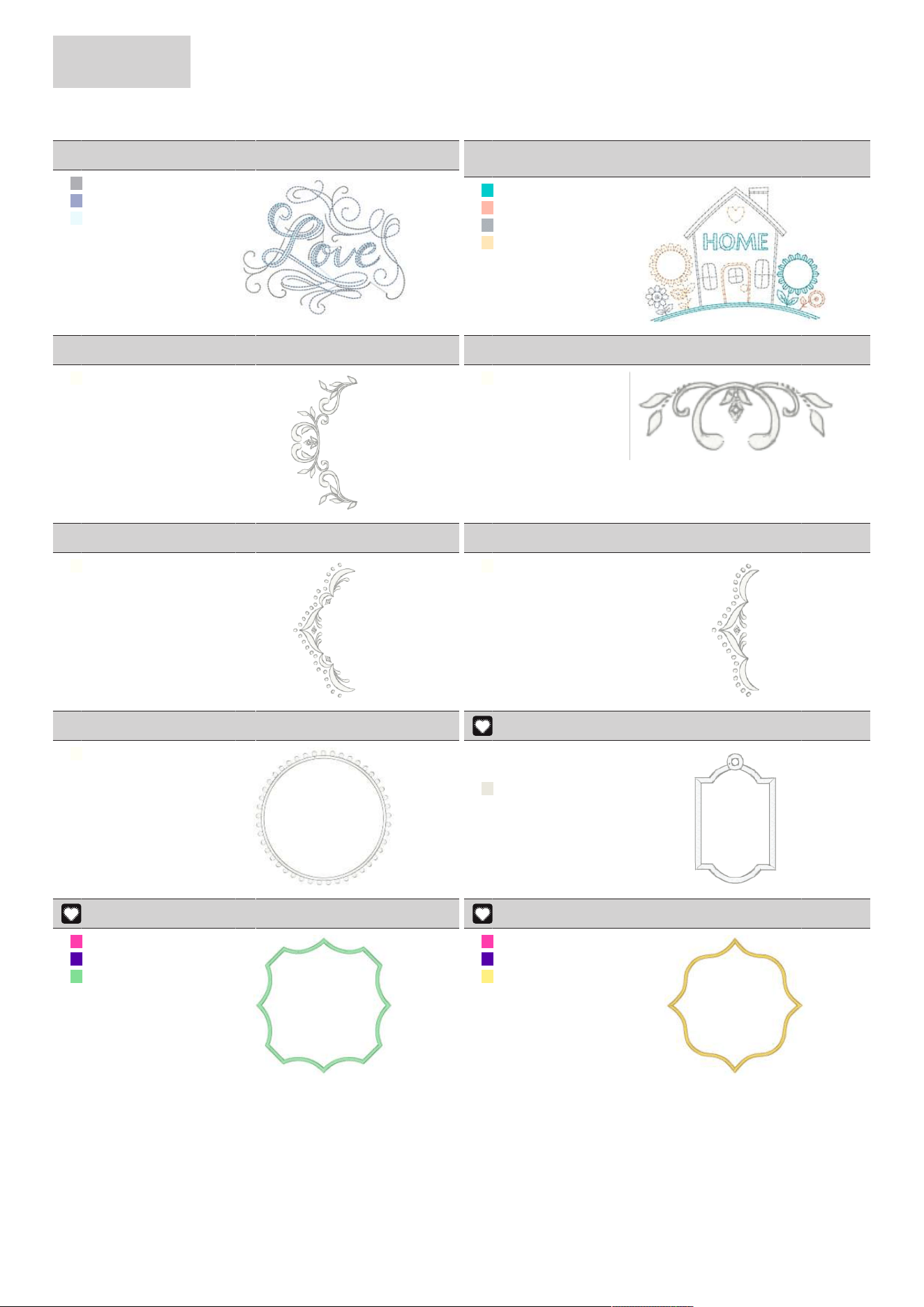
APPENDIX
84
2024-08 EN 5020070.50A.04
01_07_12490-05_sized
118x98mm
4.6x3.9inch
5.831
1. Isacord 40 0131
2. Isacord 40 3450
3. Isacord 40 3840
01_08_12535-03_1_size
d
155x116mm
6.1x4.6inch
7.191
1. Isacord 40 4220
2. Isacord 40 1532
3. Isacord 40 0105
4. Isacord 40 1060
01_09_12587-56
49x100mm
1.9x3.9inch
3.805
1. Isacord 40 0101
01_10_12587-57
58x20mm
2.3x0.8inch
1.458
1. Isacord 40 0101
01_11_12587-58
53x116mm
2.1x4.6inch
3.620
1. Isacord 40 0101
01_12_12587-59
33x95mm
1.3x3.7inch
2.322
1. Isacord 40 0101
01_13_12587-60
126x126mm
5x5inch
4.847
1. Isacord 40 0101
01_14_12606-33
43x70mm
1.7x2.8inch
2.370
1. 0001
2. 0002
3. Isacord 40 0003
01_15_12611-27
137x137mm
5.4x5.4inch
3.960
1. Applique 1
2. Applique 2
3. Isacord 40 5440
01_16_12611-28
140x140mm
5.5x5.5inch
3.648
1. Applique 1
2. Applique 2
3. Isacord 40 0713
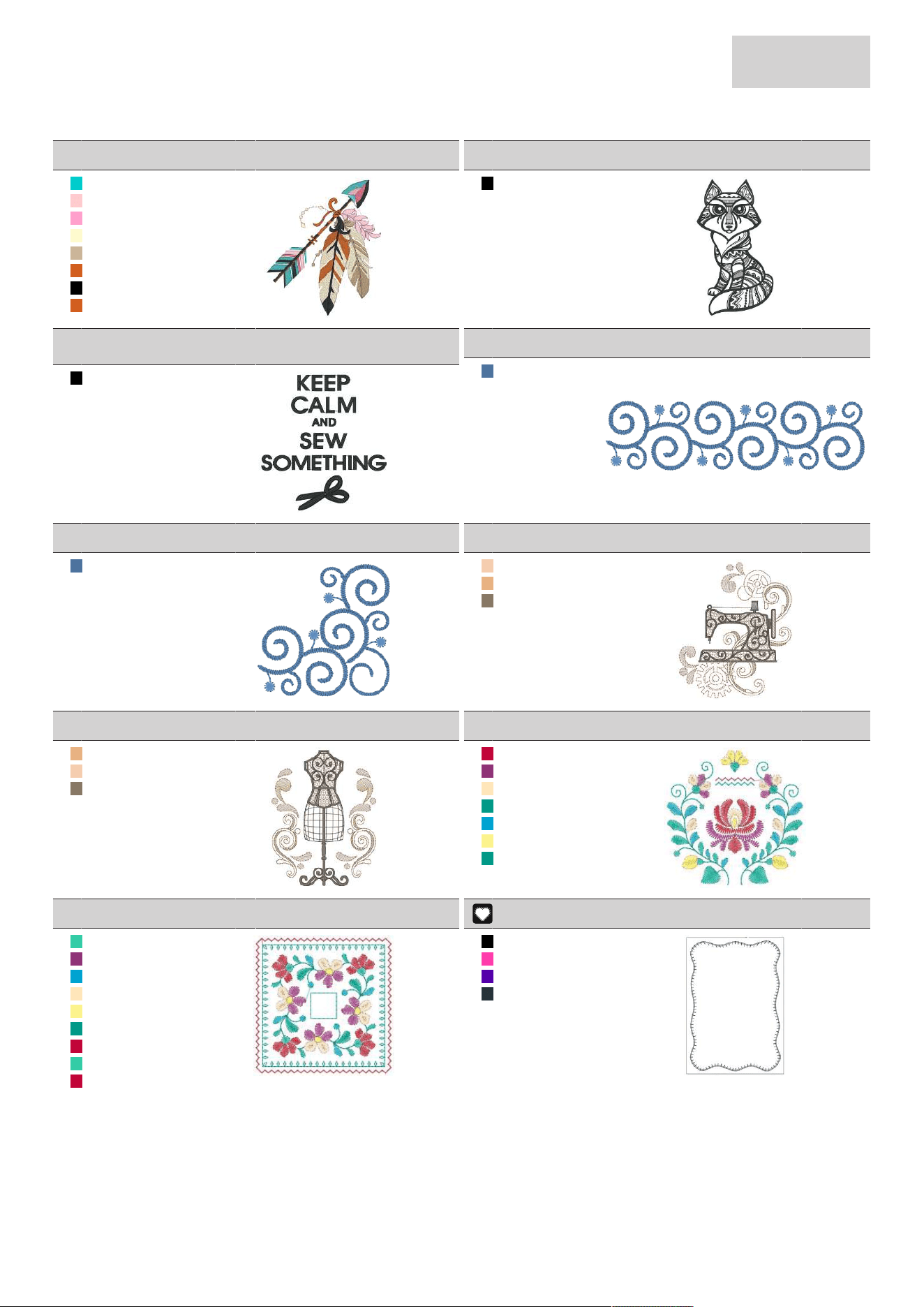
APPENDIX
85
2024-08 EN 5020070.50A.04
01_17_12670-03
121x144mm
4.8x5.7inch
18.526
1. Isacord 40 4220
2. Isacord 40 2155
3. Isacord 40 2220
4. Isacord 40 0660
5. Isacord 40 0934
6. Isacord 40 1321
7. Isacord 40 0020
8. Isacord 40 1321
01_18_12669-03
110x195mm
4.3x7.7inch
22.932
1. Isacord 40 0020
01_19_19999-002_check
_s
125x136mm
4.9x5.4inch
10.101
1. Isacord 40 0020
01_20_21013-29
152x40mm
6x1.6inch
7.570
1. Isacord 40 3631
01_21_21013-30
76x76mm
3x3inch
5.520
1. Isacord 40 3631
01_22_21021-04
123x150mm
4.8x5.9inch
16.181
1. Isacord 40 1760
2. Isacord 40 1141
3. Isacord 40 0776
01_23_21021-05
119x156mm
4.7x6.1inch
14.247
1. Isacord 40 1141
2. Isacord 40 1760
3. Isacord 40 0776
01_24_21027-01_s
123x122mm
4.8x4.8inch
6.186
1. Isacord 40 1805
2. Isacord 40 2723
3. Isacord 40 1060
4. Isacord 40 5010
5. Isacord 40 4103
6. Isacord 40 0230
7. Isacord 40 5010
01_25_21027-14
121x121mm
4.8x4.8inch
7.336
1. Isacord 40 5115
2. Isacord 40 2723
3. Isacord 40 4103
4. Isacord 40 1060
5. Isacord 40 0230
6. Isacord 40 5010
7. Isacord 40 1805
8. Isacord 40 5115
9. Isacord 40 1805
01_26_32078-03
123x173mm
4.9x6.8inch
1.263
1. Isacord 40 0020
2. Applique 1
3. Applique 2
4. Isacord 40 3666
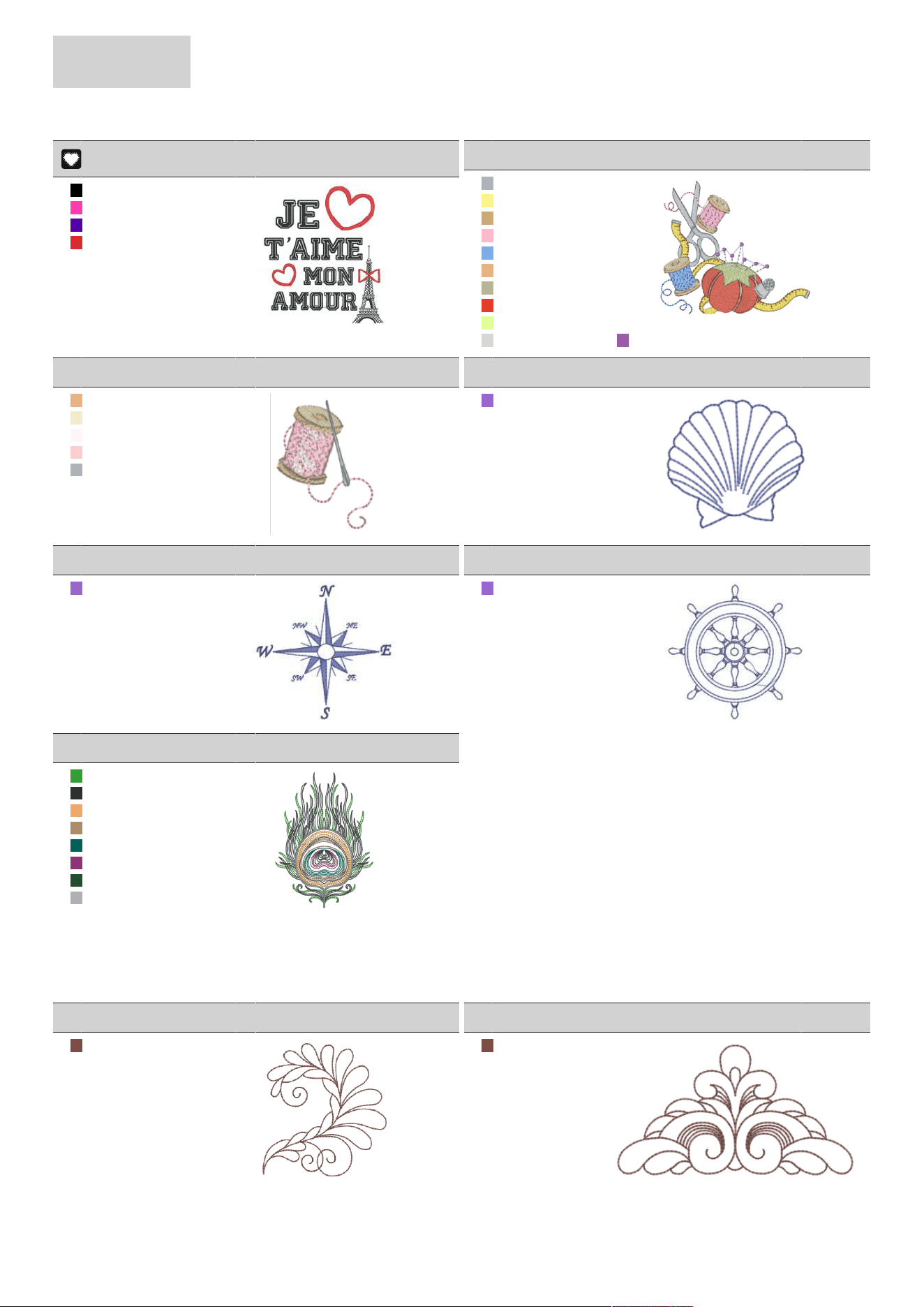
APPENDIX
86
2024-08 EN 5020070.50A.04
01_27_be790308_bernet
te
155x178mm
6.1x7inch
25.484
1. Isacord 40 0020
2. Applique 1
3. Applique 2
4. Isacord 40 1720
01_28_fb148_48
101x90mm
4x3.5inch
11.178
1. Isacord 40 0105
2. Isacord 40 0230
3. Isacord 40 0832
4. Isacord 40 2560
5. Isacord 40 3630
6. Isacord 40 1141
7. Isacord 40 6071
8. Isacord 40 1521
9. Isacord 40 6051
10. Isacord 40 3770 11. Isacord 40 2732
01_29_fb158_48
40x53mm
1.6x2.1inch
2.891
1. Isacord 40 1141
2. Isacord 40 0761
3. Isacord 40 2171
4. Isacord 40 2155
5. Isacord 40 0105
01_30_na597
57x53mm
2.2x2.1inch
922
1. Isacord 40 3210
01_31_na614
102x101mm
4x4inch
2.865
1. Isacord 40 3210
01_32_na617
96x96mm
3.8x3.8inch
2.635
1. Isacord 40 3210
01_33_nb843_48
88x121mm
3.4x4.8inch
8.979
1. Isacord 40 5510
2. Isacord 40 1776
3. Isacord 40 1030
4. Isacord 40 0853
5. Isacord 40 5005
6. Isacord 40 2723
7. Isacord 40 5555
8. Isacord 40 0131
Quilt Designs
02_01_12380-04
83x90mm
3.3x3.5inch
2.191
1. Isacord 40 1543
02_02_12380-22
110x61mm
4.4x2.4inch
2.489
1. Isacord 40 1543
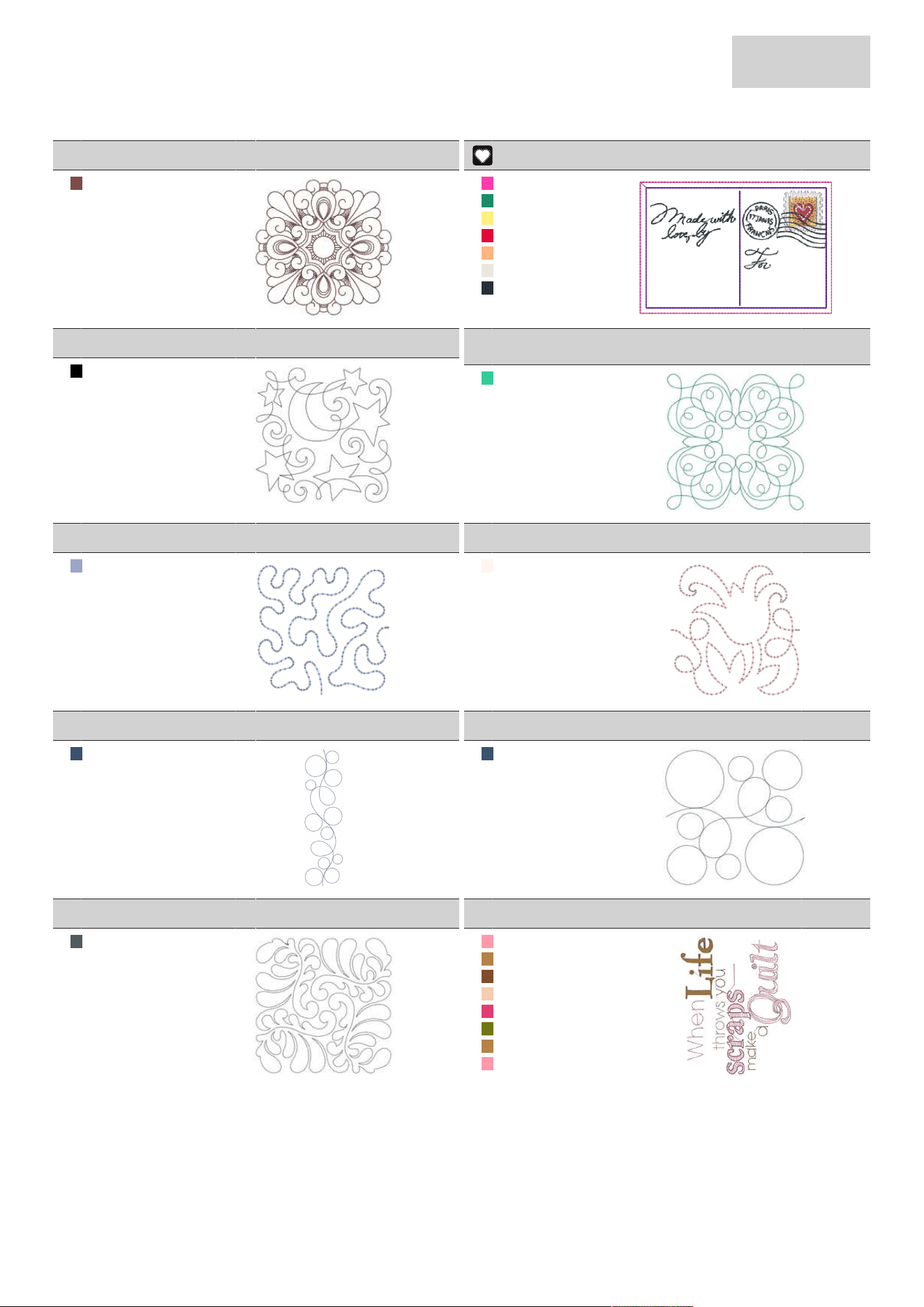
APPENDIX
87
2024-08 EN 5020070.50A.04
02_03_12380-43
124x124mm
4.9x4.9inch
8.262
1. Isacord 40 1543
02_04_12383-09
113x77mm
4.4x3inch
4.812
1. Applique 1
2. Applique 3
3. Isacord 40 0713
4. Isacord 40 1903
5. Isacord 40 1352
6. Isacord 40 0003
7. Isacord 40 3666
02_06_12607-20
122x122mm
4.8x4.8inch
1.057
1. Isacord 40 0020
02_07_bd289_l_bernett
e
155x155mm
6.1x6.1inch
4.926
1. Isacord 40 5210
02_08_bd502_48
62x61mm
2.4x2.4inch
1.141
1. Isacord 40 3450
02_09_bd513_48
64x64mm
2.5x2.5inch
952
1. Isacord 40 1860
02_10_bd796_48
47x173mm
1.9x6.8inch
520
1. Isacord 40 3654
02_11_bd800_48
126x122mm
5x4.8inch
608
1. Isacord 40 3654
02_12_bd837_48
124x124mm
4.9x4.9inch
1.631
1. Isacord 40 0138
02_13_nb934_48
132x165mm
5.2x6.5inch
9.197
1. Isacord 40 2152
2. Isacord 40 0941
3. Isacord 40 1233
4. Isacord 40 1760
5. Isacord 40 2521
6. Isacord 40 6043
7. Isacord 40 0941
8. Isacord 40 2152
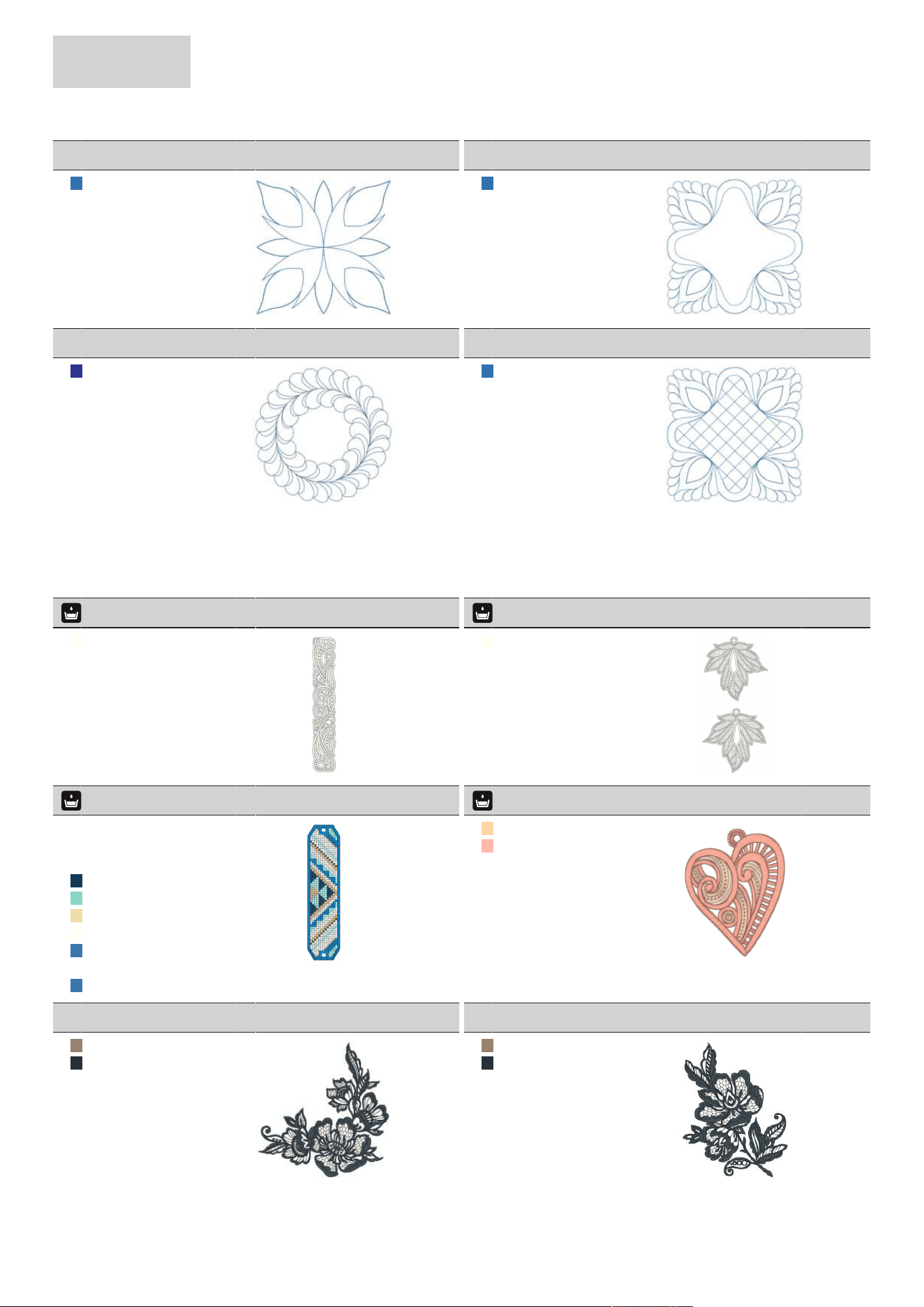
APPENDIX
88
2024-08 EN 5020070.50A.04
02_14_quilt-02
102x102mm
4x4inch
894
1. Isacord 40 3713
02_15_quilt-09
140x140mm
5.5x5.5inch
1.999
1. Isacord 40 3713
02_16_quilt-10
140x140mm
5.5x5.5inch
1.743
1. Isacord 40 3612
02_17_quilt-11
140x140mm
5.5x5.5inch
2.696
1. Isacord 40 3713
Borders and Lace
03_01_12398-29
26x153mm
1x6inch
13.031
1. Isacord 40 0670
03_02_12410-08
80x168mm
3.2x6.6inch
22.494
1. Isacord 40 0101
03_03_12594-03
36x152mm
1.4x6inch
28.823
1. 0001
2. 0003
3. 0003
4. Isacord 40 3644
5. Isacord 40 4740
6. Isacord 40 0532
7. Isacord 40 0101
8. Isacord 40 3722
9. 0003
10. Isacord 40 3722
03_04_12659-01
45x58mm
1.8x2.3inch
6.790
1. Isacord 40 1362
2. Isacord 40 1532
03_05_bc01505
118x123mm
4.7x4.8inch
16.453
1. Isacord 40 0722
2. Isacord 40 3666
03_06_bc01506
103x132mm
4.1x5.2inch
17.418
1. Isacord 40 0722
2. Isacord 40 3666
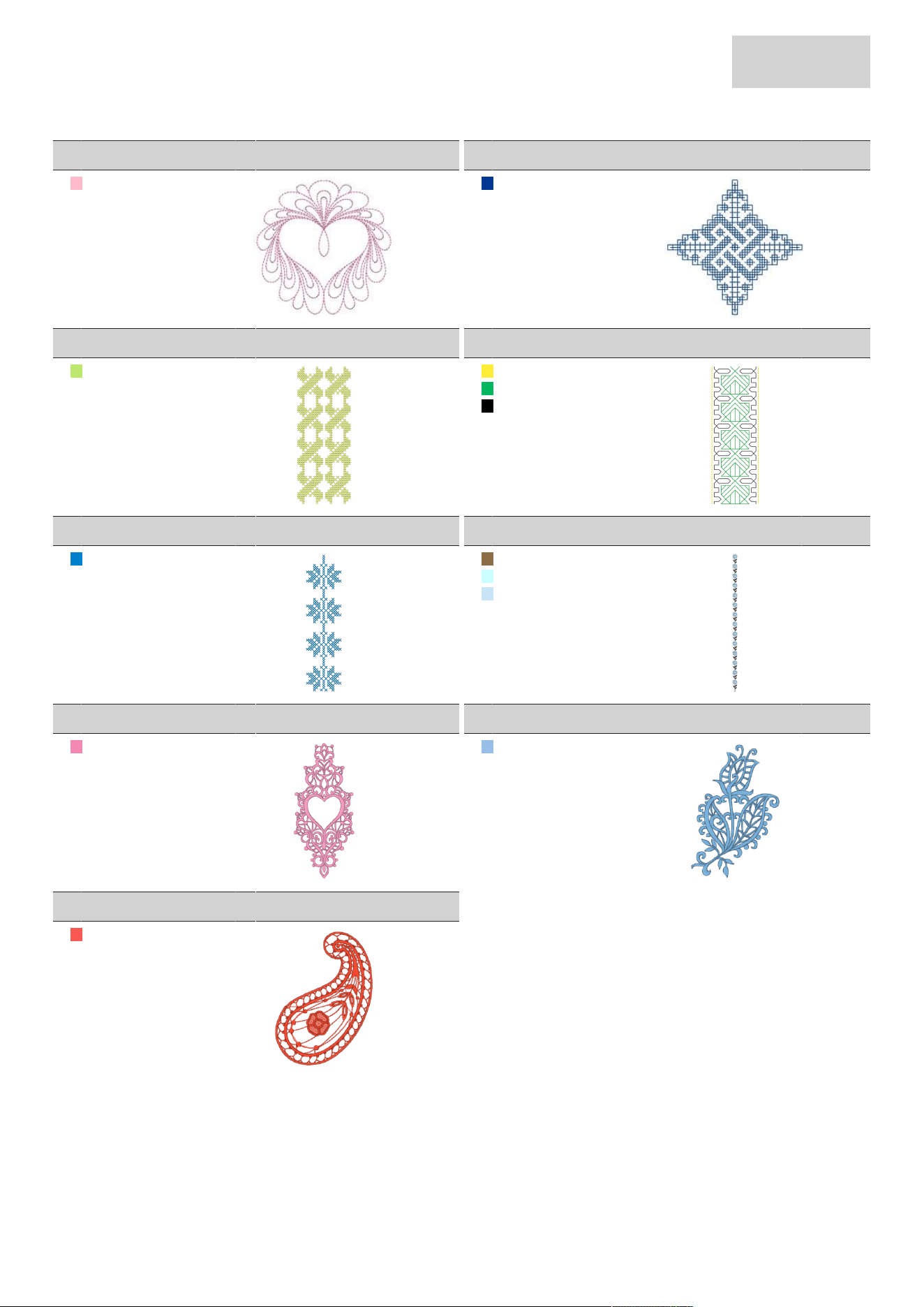
APPENDIX
89
2024-08 EN 5020070.50A.04
03_07_bd567_48
108x108mm
4.3x4.3inch
4.361
1. Isacord 40 2560
03_08_be790504
121x121mm
4.8x4.8inch
4.905
1. Isacord 40 3544
03_09_be790702
73x190mm
2.9x7.5inch
9.136
1. Isacord 40 6011
03_10_be790704
72x218mm
2.9x8.6inch
3.639
1. Isacord 40 0501
2. Isacord 40 5613
3. Isacord 40 0020
03_11_be790705
42x169mm
1.7x6.7inch
4.712
1. Isacord 40 3900
03_12_fq736_48
8x253mm
0.3x10inch
5.125
1. Isacord 40 0945
2. Isacord 40 4240
3. Isacord 40 3963
03_13_ny217
67x152mm
2.6x6inch
12.423
1. Isacord 40 2530
03_14_nx952
66x99mm
2.6x3.9inch
7.276
1. Isacord 40 3820
03_15_nx238
71x98mm
2.8x3.9inch
6.188
1. Isacord 40 1306
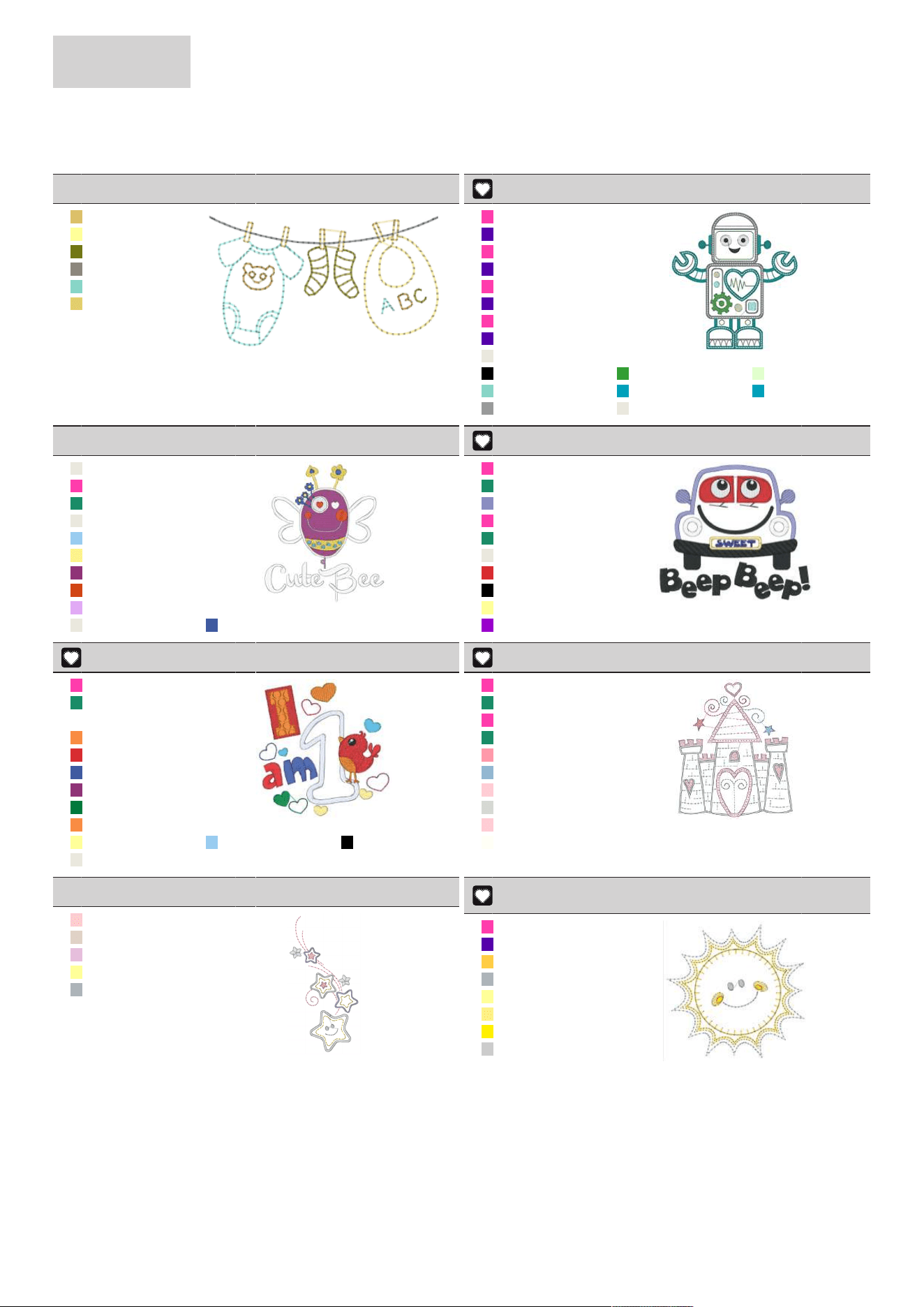
APPENDIX
90
2024-08 EN 5020070.50A.04
Children
04_01_12401-17
99x55mm
3.9x2.2inch
1.363
1. Isacord 40 0741
2. Isacord 40 0520
3. Isacord 40 6043
4. Isacord 40 0152
5. Isacord 40 4740
6. Isacord 40 0822
04_02_12590-03
135x147mm
5.3x5.8inch
22.175
1. Applique 1
2. Applique 2
3. Applique 1
4. Applique 2
5. Applique 1
6. Applique 2
7. Applique 1
8. Applique 2
9. Isacord 40 0003
10. Isacord 40 0020 11. Isacord 40 5510 12. Isacord 40 5650
13. Isacord 40 4740 14. Isacord 40 4410 15. Isacord 40 4410
16. Isacord 40 0108 17. Isacord 40 0003
04_03_be790306_4
132x151mm
5.2x6inch
18.421
1. Isacord 40 0003
2. Applique 1
3. Applique 3
4. Isacord 40 0003
5. Isacord 40 3910
6. Isacord 40 0230
7. Isacord 40 2723
8. Isacord 40 1301
9. Isacord 40 2640
10. Isacord 40 0003 11. Isacord 40 3332
04_04_be790307
142x127mm
5.6x5inch
19.736
1. Applique 1
2. Applique 3
3. Isacord 40 3130
4. Applique 1
5. Applique 3
6. Isacord 40 0003
7. Isacord 40 1720
8. Isacord 40 0020
9. Isacord 40 0520
10. Isacord 40 3541
04_05_be790313
99x102mm
3.9x4inch
8.694
1. Applique 1
2. Applique 3
3. Isacord 40 0017
4. Isacord 40 1200
5. Isacord 40 1720
6. Isacord 40 3332
7. Isacord 40 2723
8. Isacord 40 5415
9. Isacord 40 1200
10. Isacord 40 0520 11. Isacord 40 3910 12. Isacord 40 0020
13. Isacord 40 0003
04_06_cm193_48
107x128mm
4.2x5inch
12.448
1. Applique 1
2. Applique 3
3. Applique 1
4. Applique 3
5. Isacord 40 2152
6. Isacord 40 3652
7. Isacord 40 2250
8. Isacord 40 3770
9. Isacord 40 2250
10. Isacord 40 0101
04_07_cm368_48
70x140mm
2.8x5.5inch
4.406
1. Isacord 40 2155
2. Isacord 40 0184
3. Isacord 40 3045
4. Isacord 40 0520
5. Isacord 40 0105
04_08_cm376_48_Appli
que
100x98mm
3.9x3.8inch
2.786
1. Applique 1
2. Applique 2
3. Isacord 40 0703
4. Isacord 40 0105
5. Isacord 40 0520
6. Isacord 40 0713
7. Isacord 40 0605
8. Isacord 40 3971
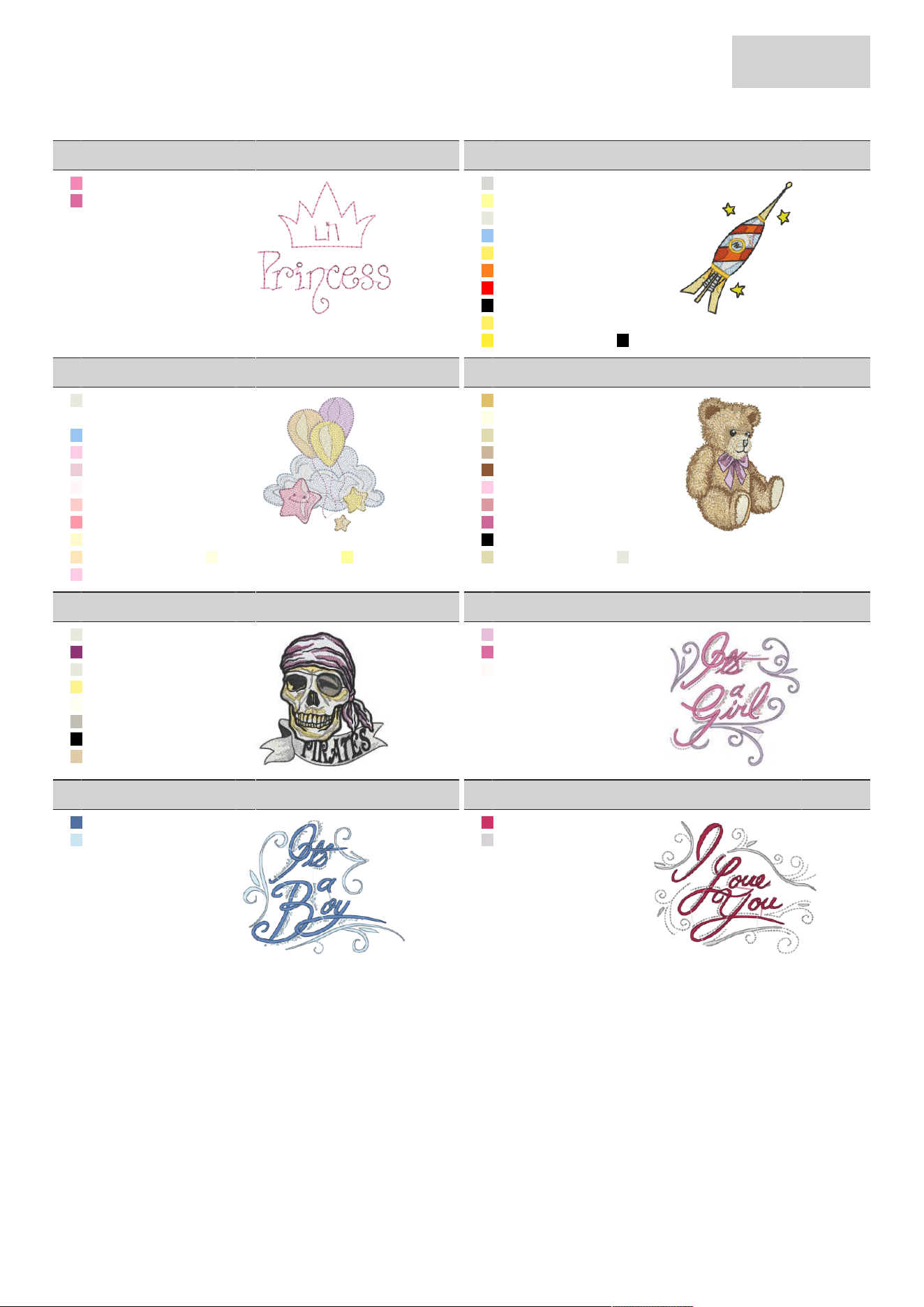
APPENDIX
91
2024-08 EN 5020070.50A.04
04_09_na667
84x84mm
3.3x3.3inch
1.003
1. Isacord 40 2530
2. Isacord 40 2532
04_10_nb302_48
68x80mm
2.7x3.2inch
5.524
1. Isacord 40 3770
2. Isacord 40 0520
3. Isacord 40 0003
4. Isacord 40 3730
5. Isacord 40 0506
6. Isacord 40 1106
7. Isacord 40 1703
8. Isacord 40 0020
9. Isacord 40 0506
10. Isacord 40 0501 11. Isacord 40 0020
04_11_ck229_3
89x98mm
3.5x3.9inch
14.213
1. Isacord 40 0003
2. Isacord 40 0015
3. Isacord 40 3730
4. Isacord 40 2650
5. Isacord 40 2655
6. Isacord 40 2171
7. Isacord 40 2155
8. Isacord 40 2152
9. Isacord 40 0660
10. Isacord 40 1060 11. Isacord 40 0270 12. Isacord 40 0520
13. Isacord 40 2650
04_12_cm428_48
78x106mm
3.1x4.2inch
15.876
1. Isacord 40 0741
2. Isacord 40 0970
3. Isacord 40 1140
4. Isacord 40 0934
5. Isacord 40 1134
6. Isacord 40 2650
7. Isacord 40 2153
8. Isacord 40 2600
9. Isacord 40 0020
10. Isacord 40 1140 11. Isacord 40 0003
04_13_ms974
94x99mm
3.7x3.9inch
22.005
1. Isacord 40 0003
2. Isacord 40 2723
3. Isacord 40 0003
4. Isacord 40 0230
5. Isacord 40 0670
6. Isacord 40 0150
7. Isacord 40 0020
8. Isacord 40 0861
04_14_nz612
96x100mm
3.8x3.9inch
8.194
1. Isacord 40 3045
2. Isacord 40 2532
3. Isacord 40 2170
04_15_nz613
103x84mm
4.1x3.3inch
7.271
1. Isacord 40 3410
2. Isacord 40 3963
04_16_nz611
100x81mm
3.9x3.2inch
6.030
1. Isacord 40 1906
2. Isacord 40 0182
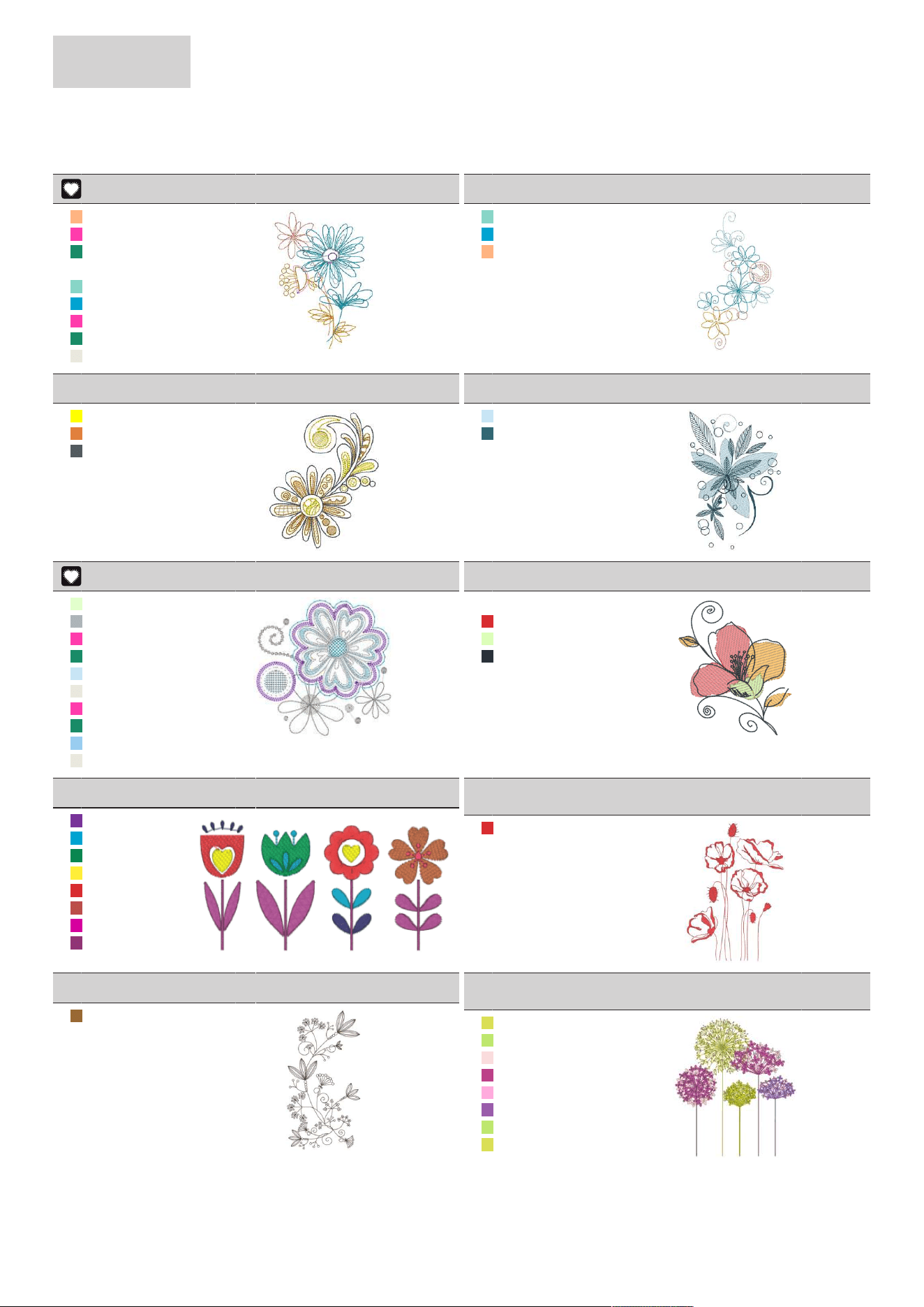
APPENDIX
92
2024-08 EN 5020070.50A.04
Flowers
05_01_12392-01
112x158mm
4.4x6.2inch
7.347
1. Isacord 40 1352
2. Applique 1
3. Applique 3
4. Isacord 40 1120
5. Isacord 40 4740
6. Isacord 40 4103
7. Applique 1
8. Applique 3
9. Isacord 40 0003
05_02_12392-13
112x204mm
4.4x8inch
5.295
1. Isacord 40 4740
2. Isacord 40 4103
3. Isacord 40 1352
4. Isacord 40 1120
05_03_21008-24
98x122mm
3.8x4.8inch
8.892
1. Isacord 40 0600
2. Isacord 40 0824
3. Isacord 40 0138
05_04_be790406
120x181mm
4.7x7.1inch
15.427
1. Isacord 40 3963
2. Isacord 40 4133
05_05_21012-04
123x124mm
4.9x4.9inch
15.185
1. Isacord 40 5650
2. Isacord 40 0105
3. Applique 1
4. Applique 3
5. Isacord 40 3963
6. Isacord 40 0003
7. Applique 1
8. Applique 3
9. Isacord 40 3910
10. Isacord 40 0003
05_06_80001-23
85x102mm
3.4x4inch
4.259
1. Isacord 40 1120
2. Isacord 40 1720
3. Isacord 40 5830
4. Isacord 40 3666
05_07_be790304_sized
115x60mm
4.5x2.4inch
5.771
1. Isacord 40 3110
2. Isacord 40 4103
3. Isacord 40 5411
4. Isacord 40 0501
5. Isacord 40 1720
6. Isacord 40 1332
7. Isacord 40 1950
8. Isacord 40 2723
05_08_be790401_bernet
te_new
155x221mm
6.1x8.7inch
9.118
1. Isacord 40 1720
05_09_be790402_sized
136x259mm
5.3x10.2inch
10.407
1. Isacord 40 1355
05_10_be790404_bernet
te
157x180mm
6.2x7.1inch
33.748
1. Isacord 40 6031
2. Isacord 40 6011
3. Isacord 40 2160
4. Isacord 40 2508
5. Isacord 40 2550
6. Isacord 40 2732
7. Isacord 40 6011
8. Isacord 40 6031
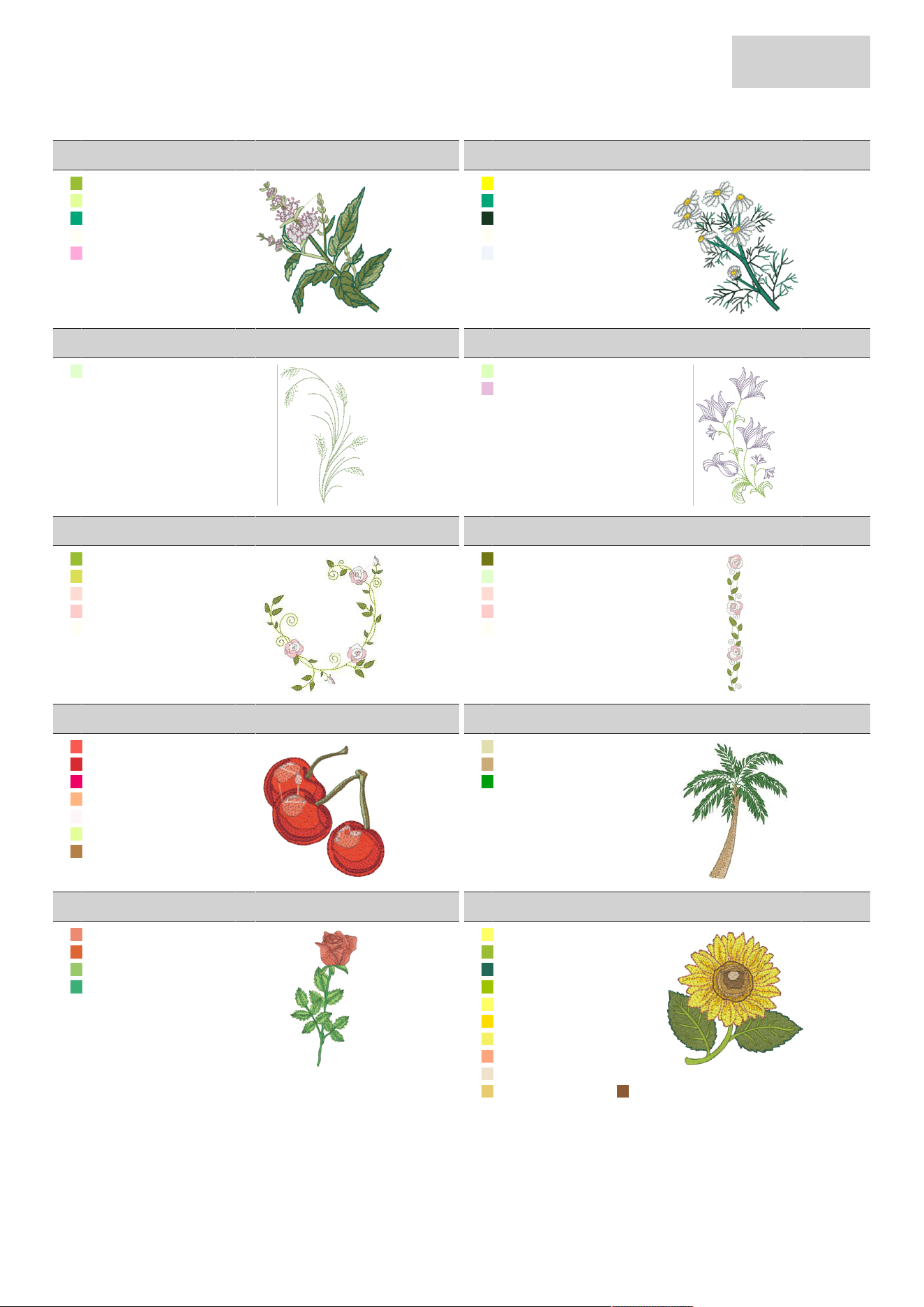
APPENDIX
93
2024-08 EN 5020070.50A.04
05_11_fl135
89x87mm
3.5x3.4inch
12.534
1. Isacord 40 5833
2. Isacord 40 6051
3. Isacord 40 5100
4. Isacord 40 0101
5. Isacord 40 2550
05_12_fl136
85x89mm
3.3x3.5inch
8.399
1. Isacord 40 0600
2. Isacord 40 5100
3. Isacord 40 5565
4. Isacord 40 0101
5. Isacord 40 3650
05_13_fq527_48
90x142mm
3.6x5.6inch
2.729
1. Isacord 40 5650
05_14_fq562_48
90x156mm
3.6x6.2inch
5.851
1. Isacord 40 5830
2. Isacord 40 3045
05_15_fq808_48
124x142mm
4.9x5.6inch
8.309
1. Isacord 40 5833
2. Isacord 40 6031
3. Isacord 40 1761
4. Isacord 40 2155
5. Isacord 40 0101
05_16_fq810_48
24x206mm
0.9x8.1inch
6.864
1. Isacord 40 6043
2. Isacord 40 5650
3. Isacord 40 1761
4. Isacord 40 2155
5. Isacord 40 0101
05_17_na146
63x69mm
2.5x2.7inch
7.882
1. Isacord 40 1306
2. Isacord 40 1720
3. Isacord 40 1900
4. Isacord 40 1352
5. Isacord 40 2171
6. Isacord 40 6051
7. Isacord 40 0941
05_18_nb039_48
97x127mm
3.8x5inch
11.584
1. Isacord 40 1140
2. Isacord 40 0832
3. Isacord 40 5513
05_19_rose_s
64x129mm
2.5x5.1inch
11.105
1. Isacord 40 1600
2. Isacord 40 1725
3. Isacord 40 5531
4. Isacord 40 5422
05_20_sunflower
91x88mm
3.6x3.5inch
17.101
1. Isacord 40 0220
2. Isacord 40 5833
3. Isacord 40 5233
4. Isacord 40 5912
5. Isacord 40 0220
6. Isacord 40 0608
7. Isacord 40 0704
8. Isacord 40 1430
9. Isacord 40 1172
10. Isacord 40 0822 11. Isacord 40 1154
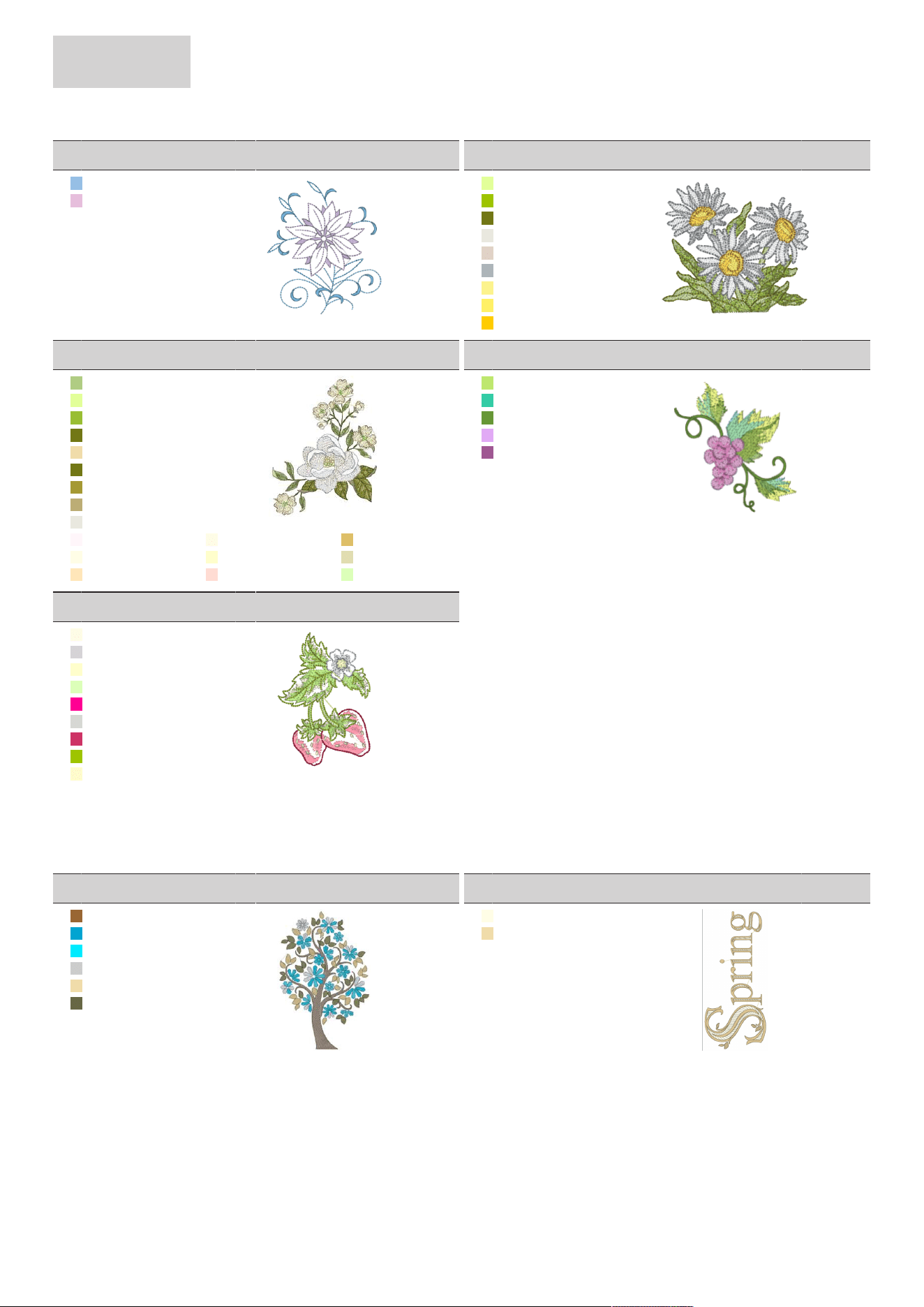
APPENDIX
94
2024-08 EN 5020070.50A.04
05_21_fp005
81x95mm
3.2x3.8inch
3.739
1. Isacord 40 3820
2. Isacord 40 3045
05_22_fm856
76x68mm
3x2.7inch
15.648
1. Isacord 40 6051
2. Isacord 40 5912
3. Isacord 40 6043
4. Isacord 40 0003
5. Isacord 40 0184
6. Isacord 40 0105
7. Isacord 40 0230
8. Isacord 40 0506
9. Isacord 40 0811
05_23_fq681_48
107x139mm
4.2x5.5inch
23.730
1. Isacord 40 5822
2. Isacord 40 6051
3. Isacord 40 5833
4. Isacord 40 6043
5. Isacord 40 0532
6. Isacord 40 6043
7. Isacord 40 0345
8. Isacord 40 0453
9. Isacord 40 0003
10. Isacord 40 2171 11. Isacord 40 0870 12. Isacord 40 0741
13. Isacord 40 0970 14. Isacord 40 0250 15. Isacord 40 1140
16. Isacord 40 1060 17. Isacord 40 1761 18. Isacord 40 5830
05_24_fp238
61x65mm
2.4x2.6inch
4.135
1. Isacord 40 6011
2. Isacord 40 5115
3. Isacord 40 5633
4. Isacord 40 2640
5. Isacord 40 2510
05_25_fq239_48
62x90mm
2.5x3.6inch
7.978
1. Isacord 40 0870
2. Isacord 40 0182
3. Isacord 40 0250
4. Isacord 40 5830
5. Isacord 40 1940
6. Isacord 40 3770
7. Isacord 40 1906
8. Isacord 40 5912
9. Isacord 40 0660
Seasons
06_01_12384-02
133x204mm
5.2x8inch
25.185
1. Isacord 40 1055
2. Isacord 40 4103
3. Isacord 40 4111
4. Isacord 40 3971
5. Isacord 40 0532
6. Isacord 40 0454
06_02_12384-11
84x190mm
3.3x7.5inch
12.644
1. Isacord 40 0970
2. Isacord 40 0532
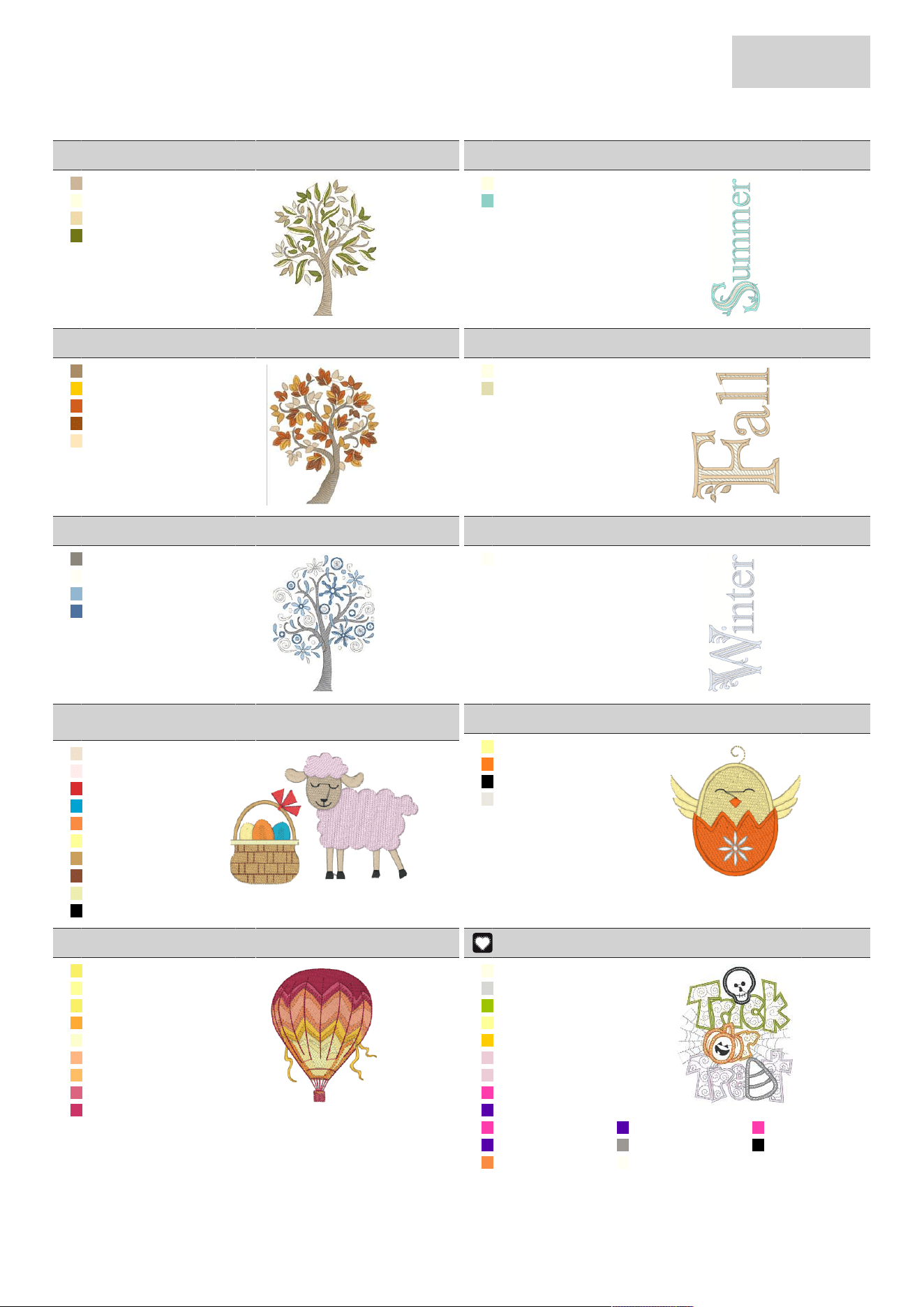
APPENDIX
95
2024-08 EN 5020070.50A.04
06_03_12400-03
123x161mm
4.9x6.4inch
19.416
1. Isacord 40 0934
2. Isacord 40 0270
3. Isacord 40 0532
4. Isacord 40 6043
06_04_12400-11
74x212mm
2.9x8.3inch
12.396
1. Isacord 40 0270
2. Isacord 40 4740
06_05_12427-01
134x168mm
5.3x6.6inch
24.884
1. Isacord 40 0853
2. Isacord 40 0811
3. Isacord 40 1321
4. Isacord 40 1115
5. Isacord 40 1060
06_06_12427-11
82x126mm
3.2x5inch
8.697
1. Isacord 40 0970
2. Isacord 40 1140
06_07_12443-03
120x161mm
4.7x6.4inch
17.327
1. Isacord 40 0152
2. Isacord 40 0101
3. Isacord 40 3652
4. Isacord 40 3631
06_08_12443-11
73x193mm
2.9x7.6inch
11.324
1. Isacord 40 0101
2. Isacord 40 0017
06_09_be790301_sized_
2
116x81mm
4.6x3.2inch
8.792
1. Isacord 40 1172
2. Isacord 40 2363
3. Isacord 40 1720
4. Isacord 40 4103
5. Isacord 40 1200
6. Isacord 40 0520
7. Isacord 40 0731
8. Isacord 40 1322
9. Isacord 40 6151
10. Isacord 40 0020
06_10_be790303
69x70mm
2.7x2.8inch
5.560
1. Isacord 40 0520
2. Isacord 40 1106
3. Isacord 40 0020
4. Isacord 40 0003
06_11_na006
72x92mm
2.9x3.6inch
12.011
1. Isacord 40 0506
2. Isacord 40 0520
3. Isacord 40 0704
4. Isacord 40 1102
5. Isacord 40 0250
6. Isacord 40 1352
7. Isacord 40 1220
8. Isacord 40 2320
9. Isacord 40 1906
06_12_hg747_48
124x147mm
4.9x5.8inch
18.448
1. Isacord 40 0970
2. Isacord 40 3770
3. Isacord 40 5912
4. Isacord 40 0520
5. Isacord 40 0811
6. Isacord 40 2655
7. Isacord 40 2655
8. Applique 1
9. Applique 2
10. Applique 1 11. Applique 2 12. Applique 1
13. Applique 2 14. Isacord 40 4073 15. Isacord 40 0020
16. Isacord 40 1200 17. Isacord 40 0101
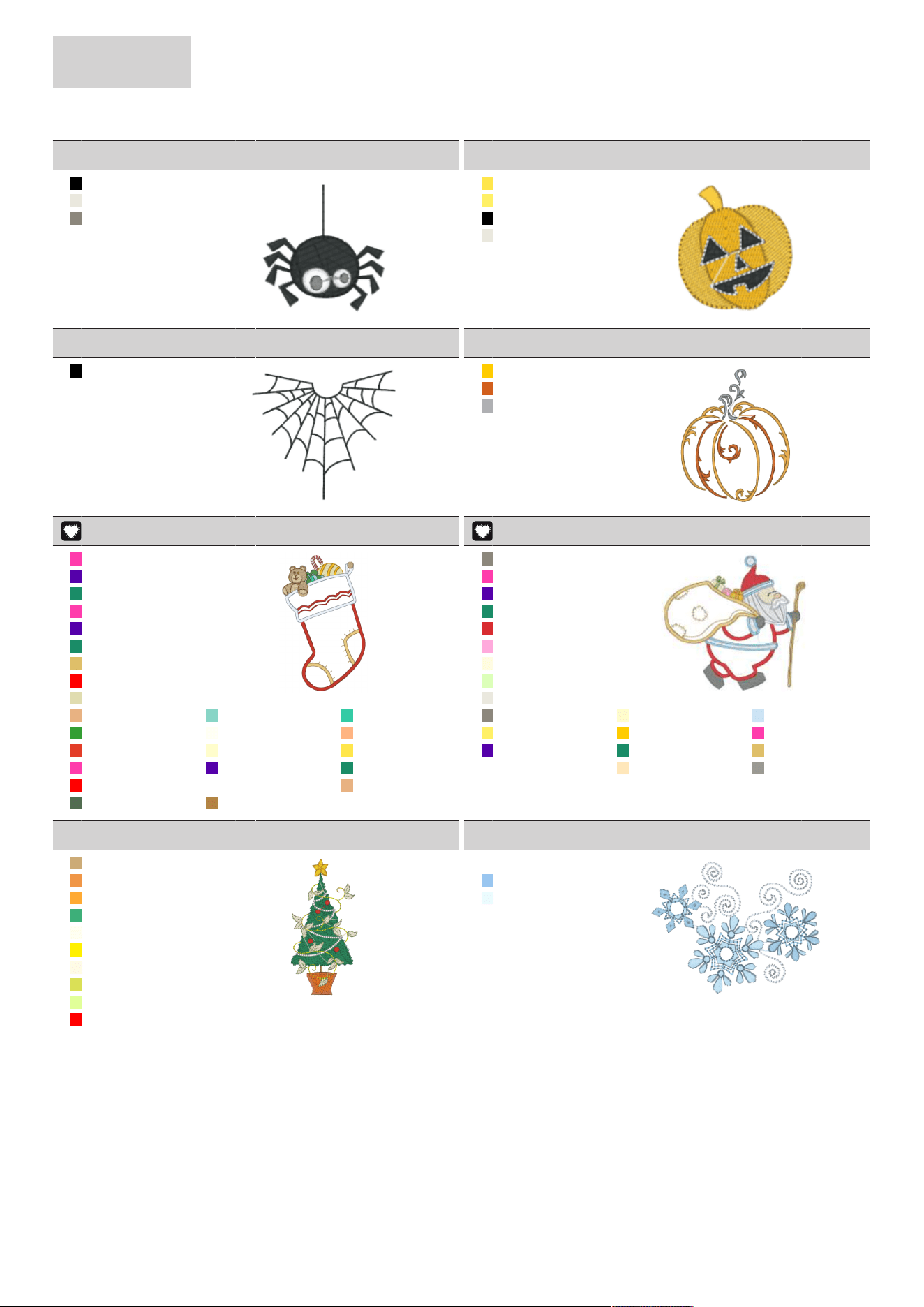
APPENDIX
96
2024-08 EN 5020070.50A.04
06_13_12421-03
46x48mm
1.8x1.9inch
2.327
1. Isacord 40 0020
2. Isacord 40 0003
3. Isacord 40 0152
06_14_12421-11
40x44mm
1.6x1.7inch
3.974
1. Isacord 40 0702
2. Isacord 40 0506
3. Isacord 40 0020
4. Isacord 40 0003
06_15_12421-37
67x61mm
2.6x2.4inch
1.322
1. Isacord 40 0020
06_16_fq749_48
78x95mm
3.1x3.7inch
5.772
1. Isacord 40 0811
2. Isacord 40 1321
3. Isacord 40 0131
06_17_he252
88x145mm
3.5x5.7inch
12.257
1. Applique 1
2. Applique 2
3. Applique 3
4. Applique 1
5. Applique 2
6. Applique 3
7. Isacord 40 0741
8. Isacord 40 1703
9. Isacord 40 1140
10. Isacord 40 1141 11. Isacord 40 4740 12. Isacord 40 5115
13. Isacord 40 5510 14. Isacord 40 0101 15. Isacord 40 1352
16. Isacord 40 1521 17. Isacord 40 0250 18. Isacord 40 0702
19. Applique 1 20. Applique 2 21. Applique 3
22. Isacord 40 1703 23. Isacord 40 0015 24. Isacord 40 1141
25. Isacord 40 5743 26. Isacord 40 0941
06_18_he255
133x127mm
5.2x5inch
17.217
1. Isacord 40 0152
2. Applique 1
3. Applique 2
4. Applique 3
5. Isacord 40 1720
6. Isacord 40 2550
7. Isacord 40 0270
8. Isacord 40 5830
9. Isacord 40 0003
10. Isacord 40 0152 11. Isacord 40 0660 12. Isacord 40 3962
13. Isacord 40 0506 14. Isacord 40 0811 15. Applique 1
16. Applique 2 17. Applique 3 18. Isacord 40 0741
19. Isacord 40 0015 20. Isacord 40 1060 21. Isacord 40 4073
06_19_he563
63x129mm
2.5x5.1inch
12.696
1. Isacord 40 0832
2. Isacord 40 1114
3. Isacord 40 1102
4. Isacord 40 5422
5. Isacord 40 0670
6. Isacord 40 0605
7. Isacord 40 0870
8. Isacord 40 6031
9. Isacord 40 6051
10. Isacord 40 1703
06_20_he919_48_3
89x69mm
3.5x2.7inch
5.213
1. Isacord 40 0015
2. Isacord 40 3730
3. Isacord 40 3840
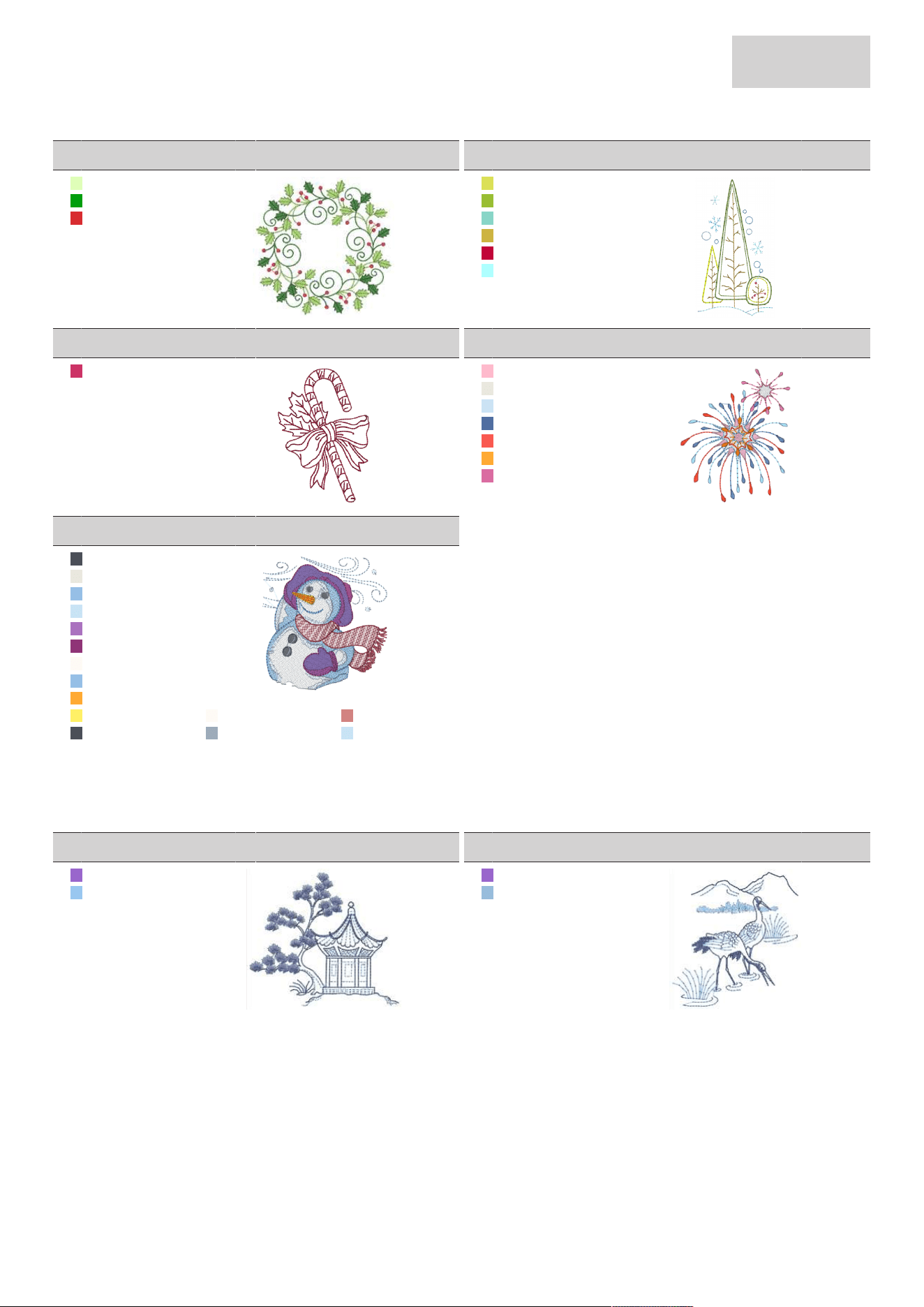
APPENDIX
97
2024-08 EN 5020070.50A.04
06_21_hg053_48
122x122mm
4.8x4.8inch
15.405
1. Isacord 40 5830
2. Isacord 40 5513
3. Isacord 40 1720
06_22_hg795_48
89x164mm
3.5x6.5inch
3.478
1. Isacord 40 6031
2. Isacord 40 5833
3. Isacord 40 4740
4. Isacord 40 0546
5. Isacord 40 1805
6. Isacord 40 4230
06_23_hd382
66x97mm
2.6x3.8inch
5.090
1. Isacord 40 1906
06_24_hd246
81x99mm
3.2x3.9inch
6.369
1. Isacord 40 2560
2. Isacord 40 0003
3. Isacord 40 3962
4. Isacord 40 3410
5. Isacord 40 1306
6. Isacord 40 1102
7. Isacord 40 2532
06_25_he179
89x95mm
3.5x3.8inch
15.887
1. Isacord 40 3265
2. Isacord 40 0003
3. Isacord 40 3820
4. Isacord 40 3963
5. Isacord 40 2910
6. Isacord 40 2723
7. Isacord 40 2170
8. Isacord 40 3820
9. Isacord 40 1102
10. Isacord 40 0506 11. Isacord 40 2170 12. Isacord 40 1921
13. Isacord 40 3265 14. Isacord 40 3572 15. Isacord 40 3963
Asia
07_01_fb276_48_sized
115x103mm
4.5x4.1inch
5.203
1. Isacord 40 3211
2. Isacord 40 3730
07_02_fb283_48
102x110mm
4x4.3inch
3.741
1. Isacord 40 3211
2. Isacord 40 3640
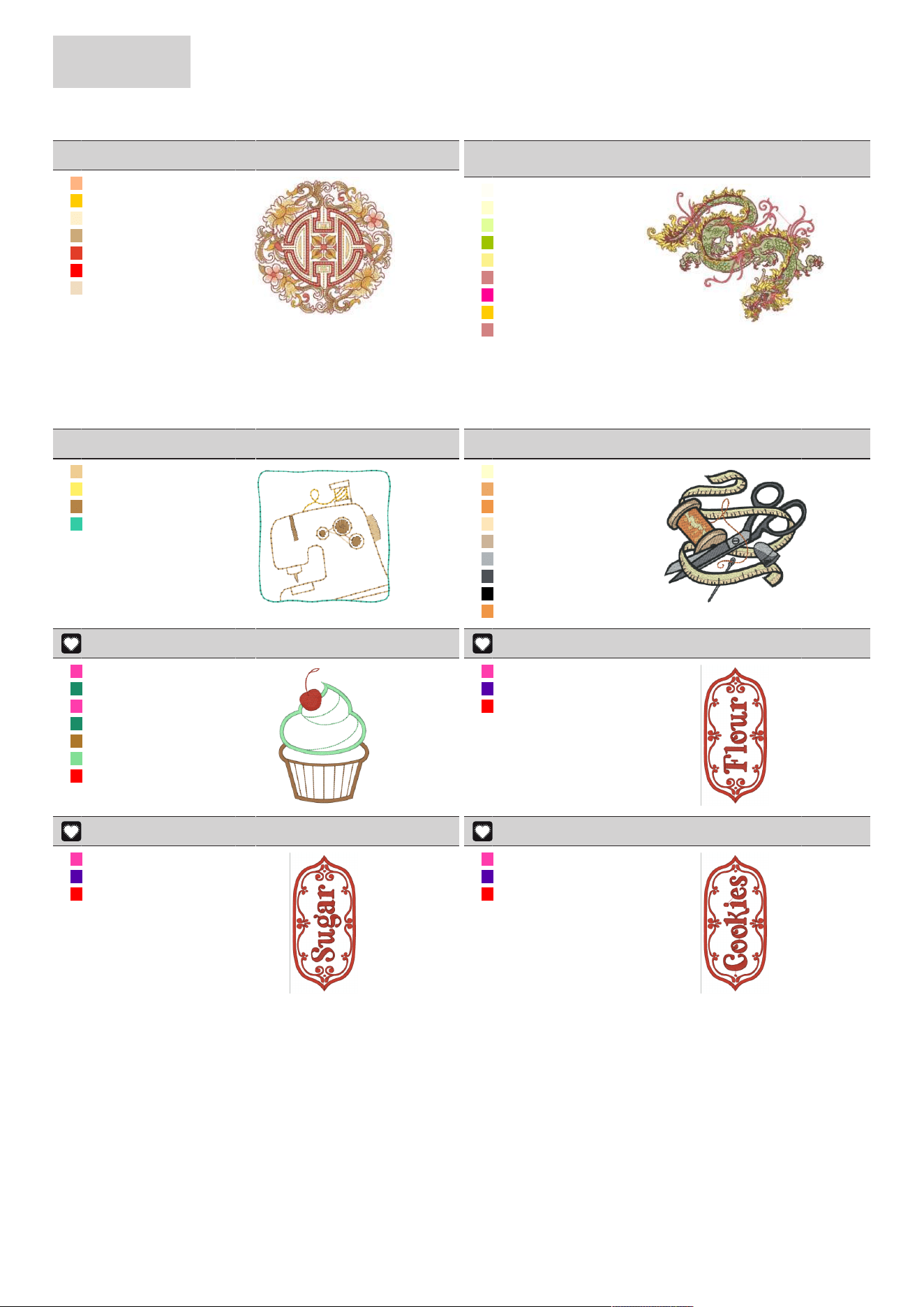
APPENDIX
98
2024-08 EN 5020070.50A.04
07_03_fq194_48
120x118mm
4.7x4.7inch
20.924
1. Isacord 40 1352
2. Isacord 40 0811
3. Isacord 40 0640
4. Isacord 40 0832
5. Isacord 40 1521
6. Isacord 40 1703
7. Isacord 40 0781
07_04_nb124_48_sized1
10%
155x119mm
6.1x4.7inch
41.343
1. Isacord 40 0101
2. Isacord 40 0250
3. Isacord 40 6051
4. Isacord 40 5912
5. Isacord 40 0230
6. Isacord 40 1921
7. Isacord 40 1940
8. Isacord 40 0811
9. Isacord 40 1921
Sport and Hobbies
08_01_12465-33
80x80mm
3.1x3.1inch
2.084
1. Isacord 40 0851
2. Isacord 40 0506
3. Isacord 40 0941
4. Isacord 40 5115
08_02_nx688
92x86mm
3.6x3.4inch
18.890
1. Isacord 40 0250
2. Isacord 40 1030
3. Isacord 40 1114
4. Isacord 40 1060
5. Isacord 40 0934
6. Isacord 40 0105
7. Isacord 40 3265
8. Isacord 40 0020
9. Isacord 40 1114
08_03_12611-08_1
80x120mm
3.1x4.7inch
5.764
1. Applique 1
2. Applique 3
3. Applique 1
4. Applique 3
5. Isacord 40 1032
6. Isacord 40 5440
7. Isacord 40 1703
08_04_12611-21
72x156mm
2.8x6.1inch
11.525
1. Applique 1
2. Applique 2
3. Isacord 40 1703
08_05_12611-22
72x156mm
2.8x6.1inch
12.524
1. Applique 1
2. Applique 2
3. Isacord 40 1703
08_06_12611-23
72x156mm
2.8x6.1inch
12.843
1. Applique 1
2. Applique 2
3. Isacord 40 1703
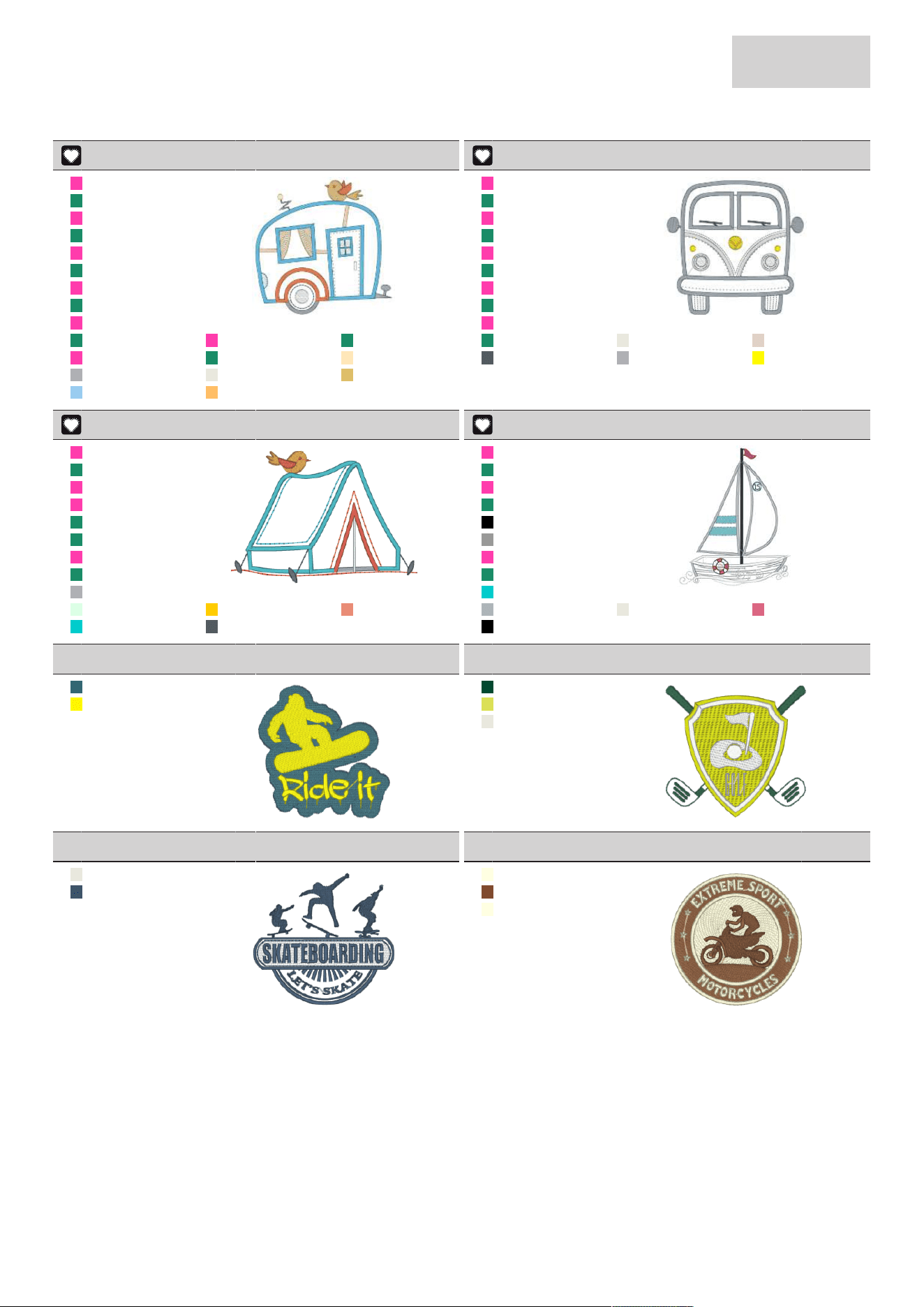
APPENDIX
99
2024-08 EN 5020070.50A.04
08_07_12677-01_sized
117x115mm
4.6x4.5inch
11.619
1. Applique 1
2. Applique 3
3. Applique 1
4. Applique 3
5. Applique 1
6. Applique 3
7. Applique 1
8. Applique 3
9. Applique 1
10. Applique 3 11. Applique 1 12. Applique 3
13. Applique 1 14. Applique 3 15. Isacord 40 1060
16. Isacord 40 0131 17. Isacord 40 0003 18. Isacord 40 0741
19. Isacord 40 3910 20. Isacord 40 1220
08_08_12677-02
116x115mm
4.6x4.5inch
12.189
1. Applique 1
2. Applique 3
3. Applique 1
4. Applique 3
5. Applique 1
6. Applique 3
7. Applique 1
8. Applique 3
9. Applique 1
10. Applique 3 11. Isacord 40 0003 12. Isacord 40 0184
13. Isacord 40 0138 14. Isacord 40 0131 15. Isacord 40 0600
08_09_12677-03_sized
117x82mm
4.6x3.2inch
6.245
1. Applique 1
2. Applique 3
3. Applique 1
4. Applique 1
5. Applique 3
6. Applique 3
7. Applique 1
8. Applique 3
9. Isacord 40 0131
10. Isacord 40 5050 11. Isacord 40 0811 12. Isacord 40 1600
13. Isacord 40 4220 14. Isacord 40 0138
08_10_80085-25
135x166mm
5.3x6.5inch
14.384
1. Applique 1
2. Applique 3
3. Applique 1
4. Applique 3
5. Isacord 40 0020
6. Isacord 40 0108
7. Applique 1
8. Applique 3
9. Isacord 40 4220
10. Isacord 40 0105 11. Isacord 40 0003 12. Isacord 40 2320
13. Isacord 40 0020
08_11_be790601_s
80x80mm
3.2x3.2inch
12.518
1. Isacord 40 4133
2. Isacord 40 0800
08_12_be790602
80x76mm
3.2x3inch
10.172
1. Isacord 40 5324
2. Isacord 40 6031
3. Isacord 40 0003
08_13_be790603
80x75mm
3.2x2.9inch
11.777
1. Isacord 40 0003
2. Isacord 40 3654
08_14_be790604
80x80mm
3.1x3.2inch
19.120
1. Isacord 40 0270
2. Isacord 40 1233
3. Isacord 40 0270
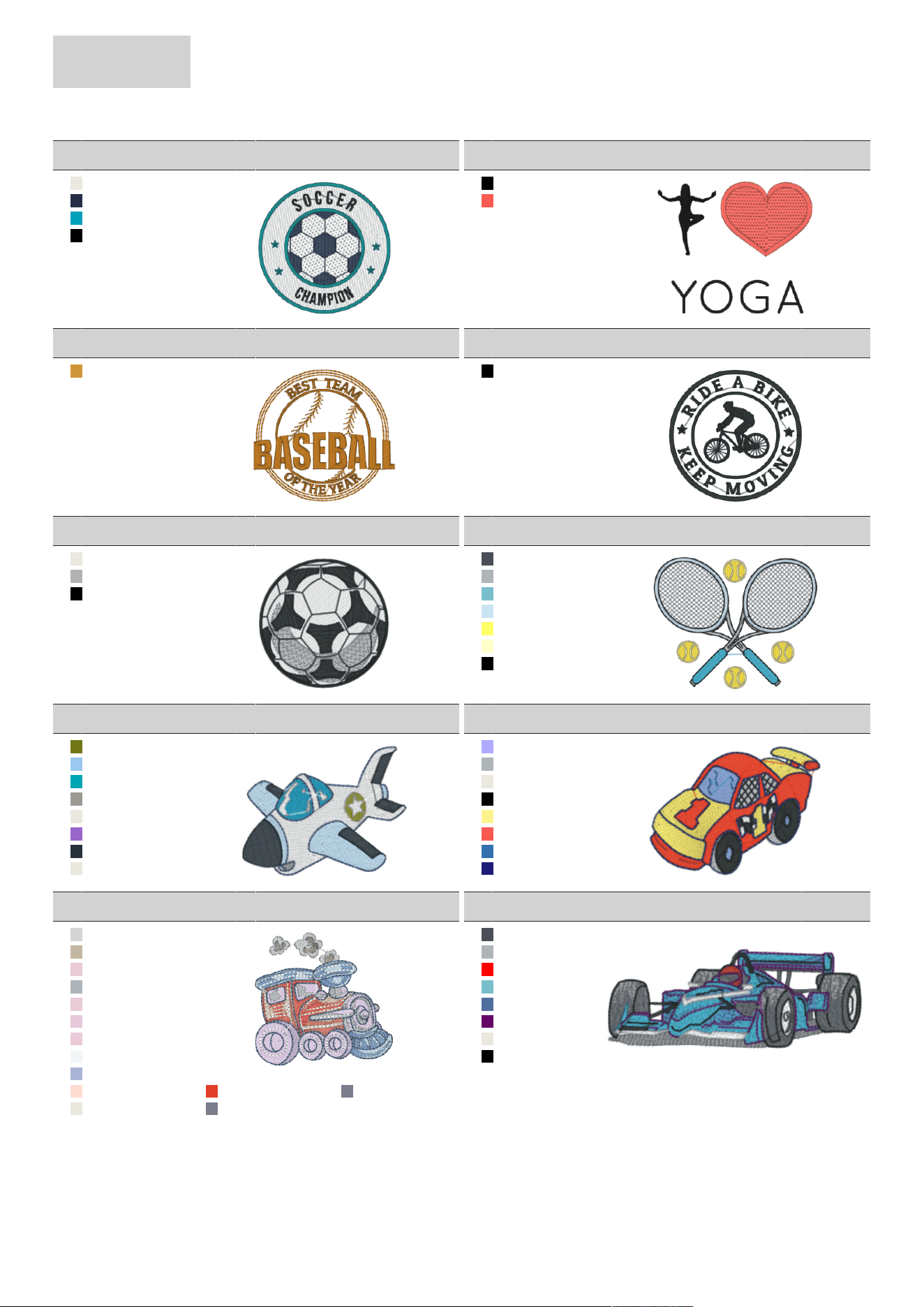
APPENDIX
100
2024-08 EN 5020070.50A.04
08_15_be790605
80x80mm
3.1x3.1inch
14.132
1. Isacord 40 0003
2. Isacord 40 3363
3. Isacord 40 4410
4. Isacord 40 0020
08_16_be790606_s
100x86mm
3.9x3.4inch
7.418
1. Isacord 40 0020
2. Isacord 40 1306
08_17_be790607
80x74mm
3.1x2.9inch
6.047
1. Isacord 40 0940
08_18_be790608
80x80mm
3.2x3.1inch
7.916
1. Isacord 40 0020
08_19_sp980
63x64mm
2.5x2.5inch
11.261
1. Isacord 40 0003
2. Isacord 40 0142
3. Isacord 40 0020
08_20_sp989
102x82mm
4x3.2inch
10.839
1. Isacord 40 3265
2. Isacord 40 0105
3. Isacord 40 4113
4. Isacord 40 3963
5. Isacord 40 0310
6. Isacord 40 0250
7. Isacord 40 0020
08_21_ck510
76x60mm
3x2.4inch
8.086
1. Isacord 40 6043
2. Isacord 40 3730
3. Isacord 40 4101
4. Isacord 40 4073
5. Isacord 40 0003
6. Isacord 40 3211
7. Isacord 40 3666
8. Isacord 40 0003
08_22_ck522
71x53mm
2.8x2.1inch
9.101
1. Isacord 40 3331
2. Isacord 40 0105
3. Isacord 40 0003
4. Isacord 40 0020
5. Isacord 40 0230
6. Isacord 40 1306
7. Isacord 40 3713
8. Isacord 40 3333
08_23_ck970
85x82mm
3.3x3.2inch
16.590
1. Isacord 40 0182
2. Isacord 40 0873
3. Isacord 40 2655
4. Isacord 40 0105
5. Isacord 40 2655
6. Isacord 40 3045
7. Isacord 40 2655
8. Isacord 40 3650
9. Isacord 40 3641
10. Isacord 40 1761 11. Isacord 40 1521 12. Isacord 40 3953
13. Isacord 40 0003 14. Isacord 40 3953
08_24_lt749_1
99x38mm
3.9x1.5inch
12.026
1. Isacord 40 3265
2. Isacord 40 0105
3. Isacord 40 1703
4. Isacord 40 4113
5. Isacord 40 3410
6. Isacord 40 2704
7. Isacord 40 0003
8. Isacord 40 0020
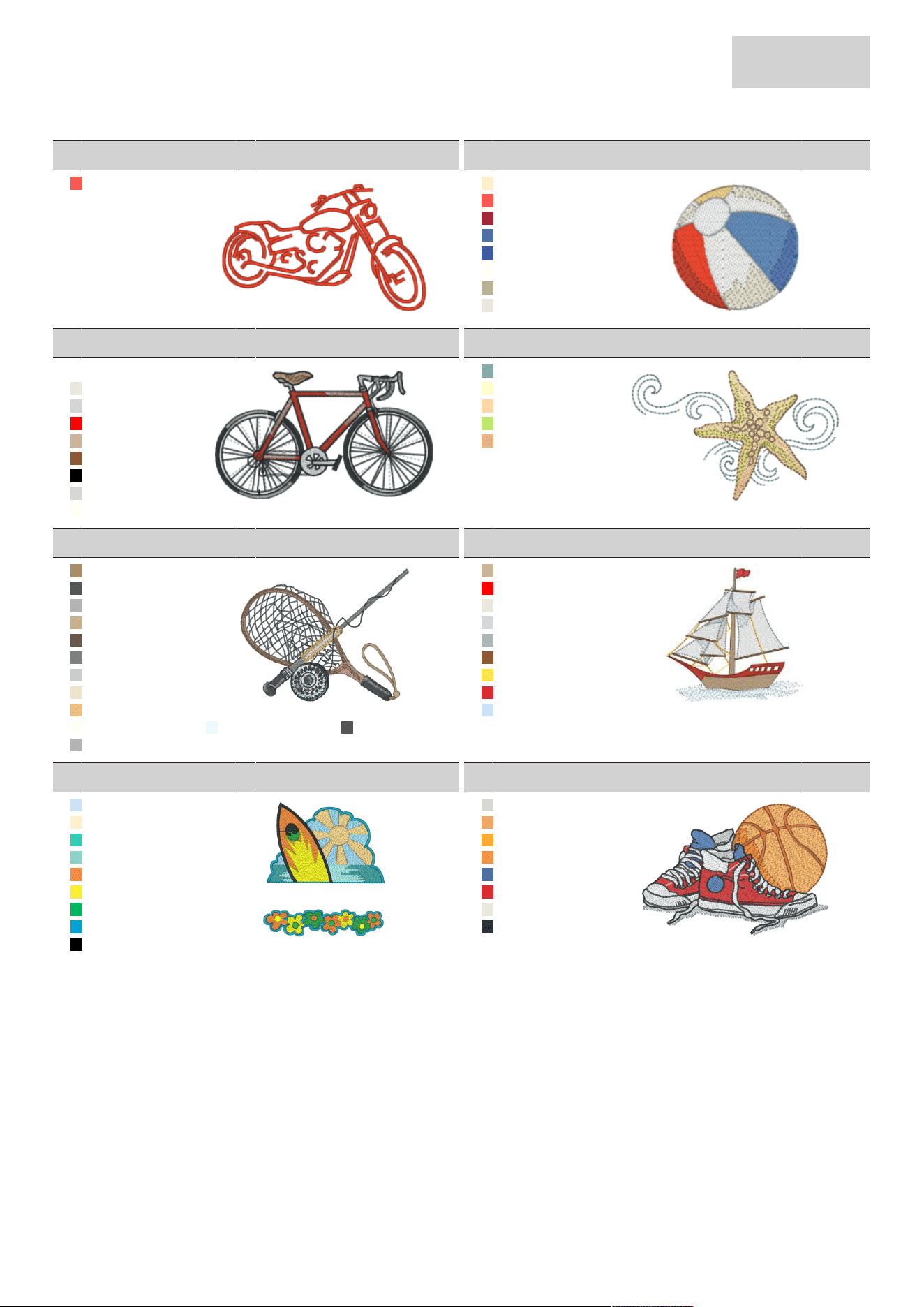
APPENDIX
101
2024-08 EN 5020070.50A.04
08_25_lt920
89x56mm
3.5x2.2inch
5.160
1. Isacord 40 1306
08_26_cm442_48
46x47mm
1.8x1.9inch
4.689
1. Isacord 40 0640
2. Isacord 40 1306
3. Isacord 40 1335
4. Isacord 40 3631
5. Isacord 40 3332
6. Isacord 40 0101
7. Isacord 40 6071
8. Isacord 40 0003
08_27_lt870
98x57mm
3.8x2.2inch
10.405
1. Isacord 40 0015
2. Isacord 40 0003
3. Isacord 40 0182
4. Isacord 40 1703
5. Isacord 40 0934
6. Isacord 40 1154
7. Isacord 40 0020
8. Isacord 40 3770
9. Isacord 40 0101
08_28_nb759_48
99x62mm
3.9x2.4inch
4.941
1. Isacord 40 4752
2. Isacord 40 0250
3. Isacord 40 1362
4. Isacord 40 6011
5. Isacord 40 1141
08_29_rc675_s
102x80mm
4x3.1inch
10.534
1. Isacord 40 0853
2. Isacord 40 4174
3. Isacord 40 0142
4. Isacord 40 1061
5. Isacord 40 1565
6. Isacord 40 0111
7. Isacord 40 3971
8. Isacord 40 1172
9. Isacord 40 0842
10. Isacord 40 0101 11. Isacord 40 3840 12. Isacord 40 4174
13. Isacord 40 0142
08_30_rc765_48
101x99mm
4x3.9inch
11.237
1. Isacord 40 0934
2. Isacord 40 1703
3. Isacord 40 0003
4. Isacord 40 0145
5. Isacord 40 0105
6. Isacord 40 1154
7. Isacord 40 0702
8. Isacord 40 1720
9. Isacord 40 3963
08_31_sr067
87x97mm
3.4x3.8inch
16.145
1. Isacord 40 3962
2. Isacord 40 0640
3. Isacord 40 4610
4. Isacord 40 4740
5. Isacord 40 1200
6. Isacord 40 0501
7. Isacord 40 5613
8. Isacord 40 4103
9. Isacord 40 0020
08_32_sr589
95x66mm
3.8x2.6inch
14.872
1. Isacord 40 3770
2. Isacord 40 1030
3. Isacord 40 1102
4. Isacord 40 1114
5. Isacord 40 3410
6. Isacord 40 1720
7. Isacord 40 0003
8. Isacord 40 3666
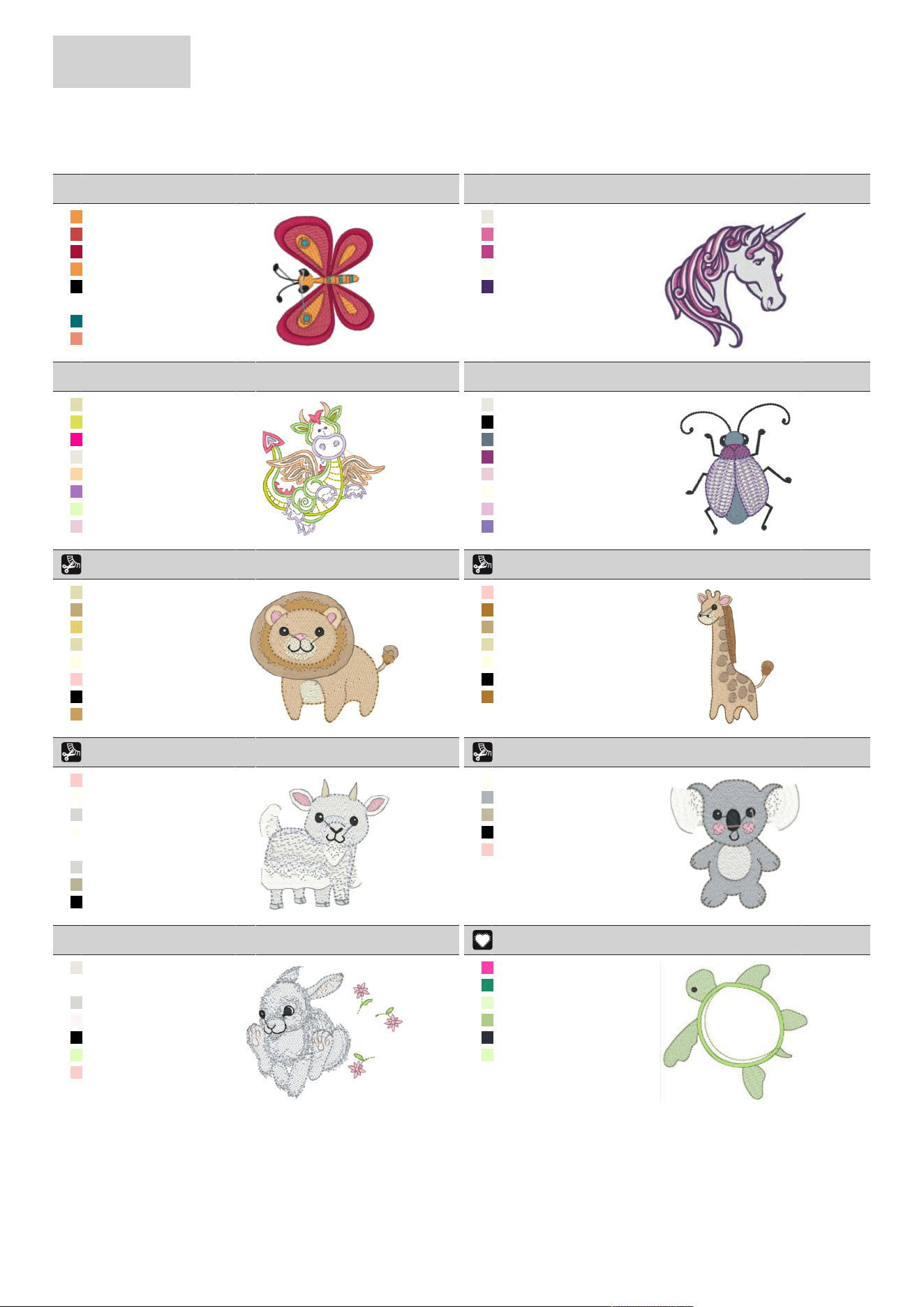
APPENDIX
102
2024-08 EN 5020070.50A.04
Animals
09_01_be790302_2
48x62mm
1.9x2.4inch
5.883
1. Isacord 40 1114
2. Isacord 40 1730
3. Isacord 40 2101
4. Isacord 40 1114
5. Isacord 40 0020
6. Isacord 40 0015
7. Isacord 40 4116
8. Isacord 40 1600
09_02_12672-02
138x133mm
5.4x5.3inch
32.505
1. Isacord 40 0003
2. Isacord 40 2532
3. Isacord 40 2508
4. Isacord 40 2170
5. Isacord 40 2702
09_03_cm022_48
89x97mm
3.5x3.8inch
10.327
1. Isacord 40 1140
2. Isacord 40 6031
3. Isacord 40 1940
4. Isacord 40 0003
5. Isacord 40 1362
6. Isacord 40 2910
7. Isacord 40 5830
8. Isacord 40 2655
09_04_cm142_48
57x67mm
2.2x2.6inch
4.590
1. Isacord 40 0003
2. Isacord 40 0020
3. Isacord 40 3852
4. Isacord 40 2723
5. Isacord 40 2655
6. Isacord 40 0670
7. Isacord 40 3045
8. Isacord 40 2920
09_05_cm211_48
80x71mm
3.2x2.8inch
6.983
1. Isacord 40 1140
2. Isacord 40 1123
3. Isacord 40 0822
4. Isacord 40 1140
5. Isacord 40 0970
6. Isacord 40 2155
7. Isacord 40 0020
8. Isacord 40 0731
09_06_cm213_48
58x102mm
2.3x4inch
7.867
1. Isacord 40 2155
2. Isacord 40 1032
3. Isacord 40 1123
4. Isacord 40 1140
5. Isacord 40 0970
6. Isacord 40 0020
7. Isacord 40 1032
09_07_cm220_48
71x72mm
2.8x2.8inch
7.791
1. Isacord 40 2155
2. Isacord 40 0101
3. Isacord 40 3770
4. Isacord 40 0101
5. Isacord 40 0015
6. Isacord 40 3770
7. Isacord 40 6071
8. Isacord 40 0020
09_08_cm226_48
63x63mm
2.5x2.5inch
6.417
1. Isacord 40 0101
2. Isacord 40 0105
3. Isacord 40 0873
4. Isacord 40 0020
5. Isacord 40 2155
09_09_cm286_48
98x82mm
3.9x3.2inch
10.572
1. Isacord 40 0003
2. Isacord 40 0015
3. Isacord 40 3770
4. Isacord 40 2171
5. Isacord 40 0020
6. Isacord 40 5830
7. Isacord 40 2155
09_10_cm362_48_sized
115x108mm
4.5x4.2inch
6.361
1. Applique 1
2. Applique 3
3. Isacord 40 5650
4. Isacord 40 5822
5. Isacord 40 3666
6. Isacord 40 5830
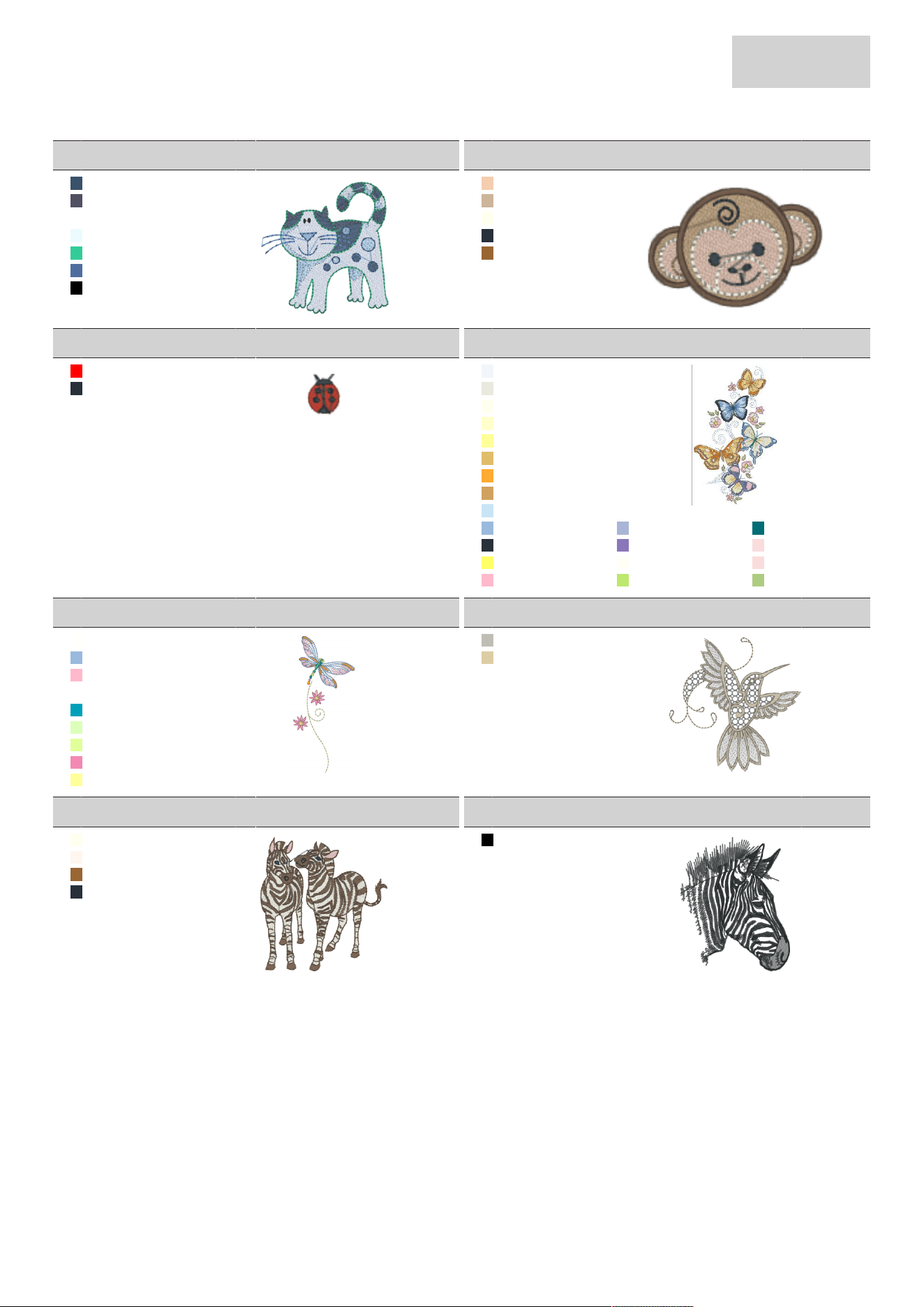
APPENDIX
103
2024-08 EN 5020070.50A.04
09_11_cm384_48
78x81mm
3.1x3.2inch
9.551
1. Isacord 40 3654
2. Isacord 40 2864
3. Isacord 40 0017
4. Isacord 40 3840
5. Isacord 40 5210
6. Isacord 40 3410
7. Isacord 40 0020
09_12_cm465_48_sized
48x33mm
1.9x1.3inch
4.073
1. Isacord 40 1760
2. Isacord 40 0934
3. Isacord 40 0670
4. Isacord 40 3666
5. Isacord 40 1055
09_13_dec104
10x13mm
0.4x0.5inch
376
1. Isacord 40 1703
2. Isacord 40 3666
09_14_fq617_48
118x198mm
4.6x7.8inch
29.827
1. Isacord 40 3650
2. Isacord 40 0003
3. Isacord 40 0670
4. Isacord 40 0250
5. Isacord 40 0520
6. Isacord 40 0741
7. Isacord 40 1102
8. Isacord 40 1133
9. Isacord 40 3963
10. Isacord 40 3640 11. Isacord 40 3641 12. Isacord 40 4116
13. Isacord 40 3666 14. Isacord 40 2920 15. Isacord 40 2160
16. Isacord 40 0220 17. Isacord 40 0101 18. Isacord 40 2160
19. Isacord 40 2560 20. Isacord 40 6011 21. Isacord 40 5822
09_15_fq624_48
64x144mm
2.5x5.7inch
4.447
1. Isacord 40 0010
2. Isacord 40 3640
3. Isacord 40 2560
4. Isacord 40 1120
5. Isacord 40 4410
6. Isacord 40 5830
7. Isacord 40 6051
8. Isacord 40 2530
9. Isacord 40 0520
09_16_fq945_48
94x95mm
3.7x3.7inch
9.413
1. Isacord 40 0150
2. Isacord 40 0861
09_17_lj599
93x98mm
3.7x3.9inch
19.780
1. Isacord 40 0670
2. Isacord 40 1860
3. Isacord 40 1055
4. Isacord 40 3666
09_18_wm785
85x103mm
3.3x4.1inch
11.411
1. Isacord 40 0020
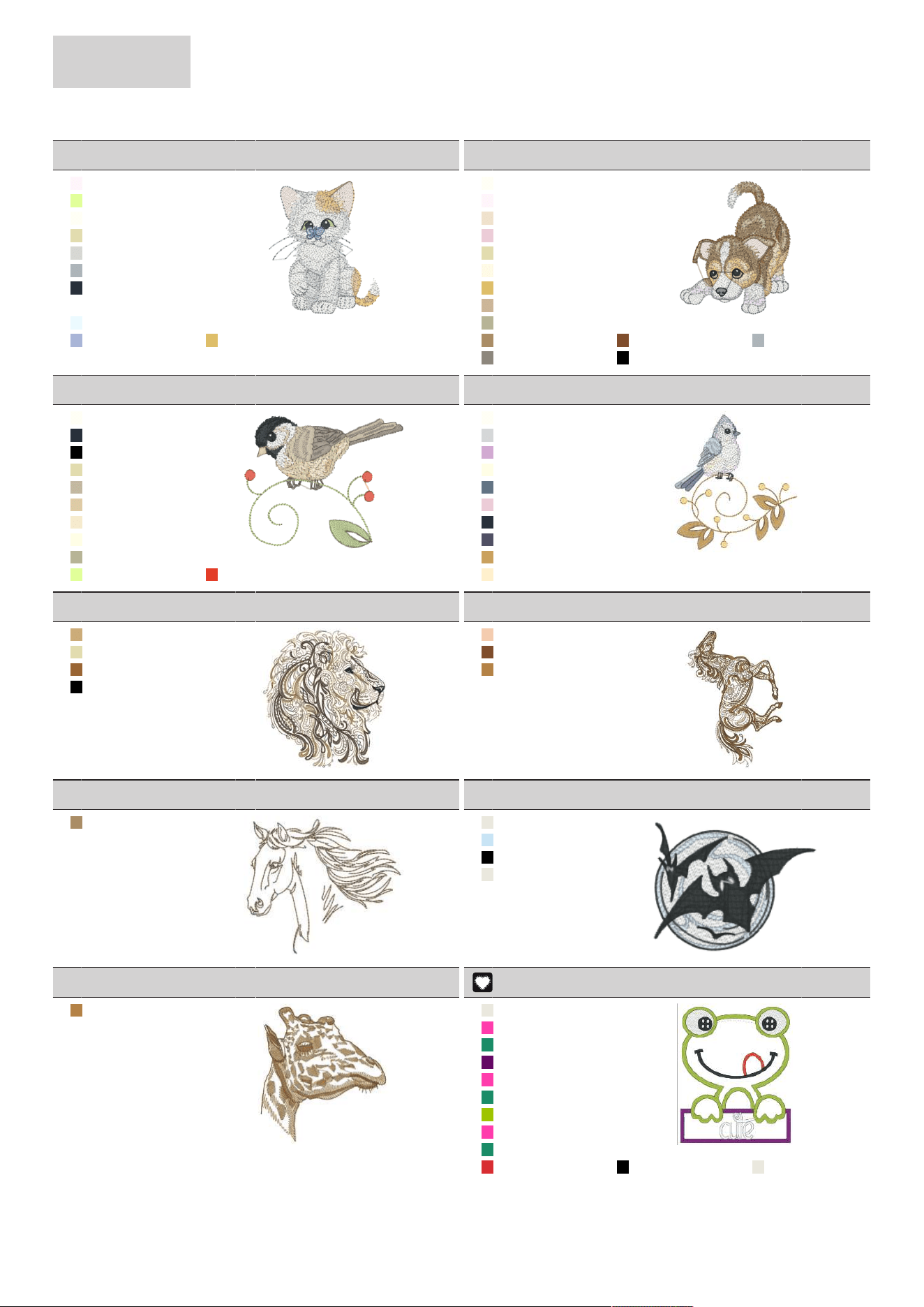
APPENDIX
104
2024-08 EN 5020070.50A.04
09_19_wp201_48
76x92mm
3x3.6inch
12.694
1. Isacord 40 2171
2. Isacord 40 6051
3. Isacord 40 0101
4. Isacord 40 1140
5. Isacord 40 3770
6. Isacord 40 0105
7. Isacord 40 3666
8. Isacord 40 0017
9. Isacord 40 3840
10. Isacord 40 3641 11. Isacord 40 0741
09_20_wp325_48
78x94mm
3.1x3.7inch
14.744
1. Isacord 40 0101
2. Isacord 40 2171
3. Isacord 40 1172
4. Isacord 40 2655
5. Isacord 40 1140
6. Isacord 40 0870
7. Isacord 40 0741
8. Isacord 40 0934
9. Isacord 40 6071
10. Isacord 40 0853 11. Isacord 40 1233 12. Isacord 40 0105
13. Isacord 40 0152 14. Isacord 40 0020
09_21_wp217_48
94x78mm
3.7x3.1inch
7.414
1. Isacord 40 0101
2. Isacord 40 3666
3. Isacord 40 0020
4. Isacord 40 1140
5. Isacord 40 0873
6. Isacord 40 0861
7. Isacord 40 0761
8. Isacord 40 0970
9. Isacord 40 6071
10. Isacord 40 6051 11. Isacord 40 1521
09_22_wp224_48
101x111mm
4x4.4inch
7.954
1. Isacord 40 0101
2. Isacord 40 0145
3. Isacord 40 3241
4. Isacord 40 0970
5. Isacord 40 3852
6. Isacord 40 2655
7. Isacord 40 3666
8. Isacord 40 2864
9. Isacord 40 0731
10. Isacord 40 0640
09_23_wp415_48
132x148mm
5.2x5.8inch
25.164
1. Isacord 40 0832
2. Isacord 40 1140
3. Isacord 40 1055
4. Isacord 40 0020
09_24_wp421_48
96x137mm
3.8x5.4inch
14.248
1. Isacord 40 1760
2. Isacord 40 1233
3. Isacord 40 0941
09_25_ws610_48_sized
120x105mm
4.7x4.1inch
4.502
1. Isacord 40 0853
09_26_hd267
65x51mm
2.6x2inch
6.884
1. Isacord 40 0003
2. Isacord 40 3963
3. Isacord 40 0020
4. Isacord 40 0003
09_27_wm784
106x114mm
4.2x4.5inch
6.996
1. Isacord 40 0941
09_28_be790305
118x146mm
4.7x5.7inch
13.014
1. Isacord 40 0003
2. Applique 1
3. Applique 3
4. Isacord 40 2704
5. Applique 1
6. Applique 3
7. Isacord 40 5912
8. Applique 1
9. Applique 3
10. Isacord 40 1720 11. Isacord 40 0020 12. Isacord 40 0003
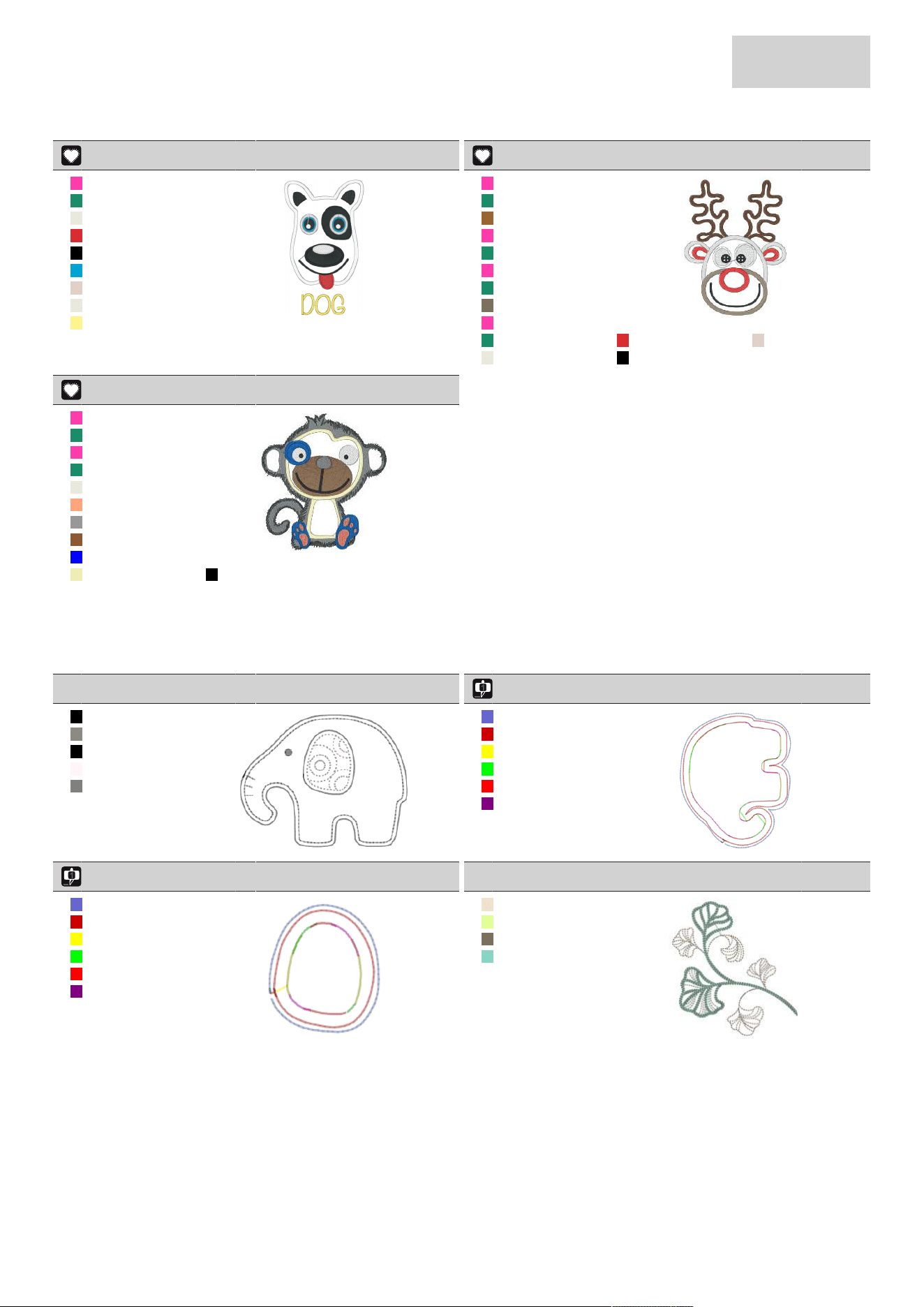
APPENDIX
105
2024-08 EN 5020070.50A.04
09_29_be790309_3
87x150mm
3.4x5.9inch
12.881
1. Applique 1
2. Applique 3
3. Isacord 40 0003
4. Isacord 40 1720
5. Isacord 40 0020
6. Isacord 40 4103
7. Isacord 40 0184
8. Isacord 40 0003
9. Isacord 40 0230
09_30_be790311
114x152mm
4.5x6inch
12.297
1. Applique 1
2. Applique 3
3. Isacord 40 1355
4. Applique 1
5. Applique 3
6. Applique 1
7. Applique 3
8. Isacord 40 0763
9. Applique 1
10. Applique 3 11. Isacord 40 1720 12. Isacord 40 0184
13. Isacord 40 0003 14. Isacord 40 0020
09_31_be790312
122x133mm
4.8x5.2inch
22.311
1. Applique 1
2. Applique 3
3. Applique 1
4. Applique 3
5. Isacord 40 0003
6. Isacord 40 1430
7. Isacord 40 0108
8. Isacord 40 1154
9. Isacord 40 3510
10. Isacord 40 6151 11. Isacord 40 0020
CutWork
10_01_cm594_48
96x76mm
3.8x3inch
1.275
1. Isacord 40 0020
2. Isacord 40 1972
3. Isacord 40 0020
4. Isacord 40 2171
5. Isacord 40 0111
10_02_cm594_48_cwa01
91x110mm
3.6x4.3inch
1.187
1. Isacord 40 3600
2. Isacord 40 1902
3. Cut 0001
4. Cut 0002
5. Cut 0003
6. Cut 0004
10_03_cm594_48_cwa02
43x50mm
1.7x2inch
408
1. Isacord 40 3600
2. Isacord 40 1902
3. Cut 0001
4. Cut 0002
5. Cut 0003
6. Cut 0004
10_04_fs344_48
94x101mm
3.7x4inch
7.228
1. Isacord 40 1172
2. Isacord 40 6051
3. Isacord 40 0763
4. Isacord 40 4740
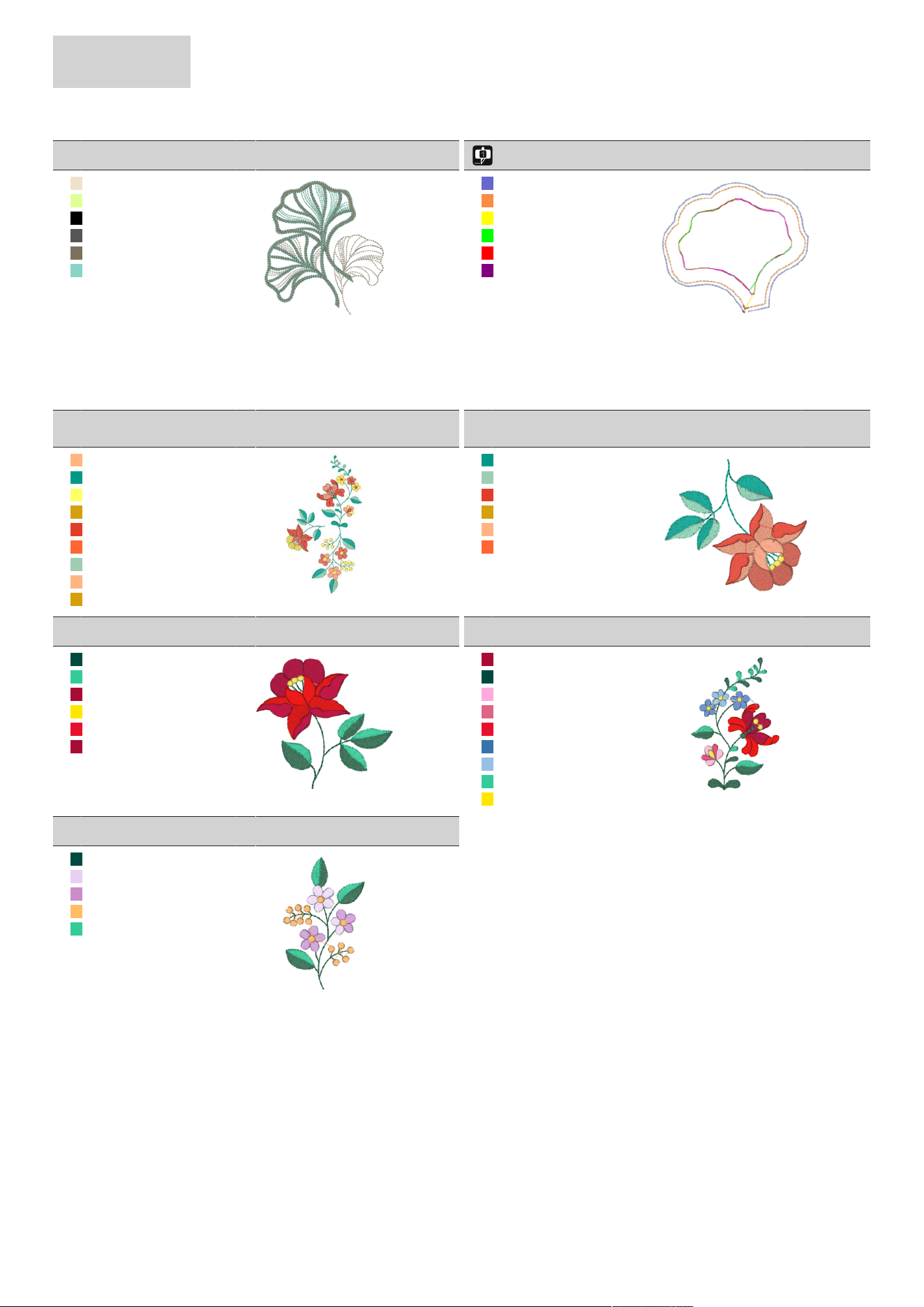
APPENDIX
106
2024-08 EN 5020070.50A.04
10_05_fs345_48
93x105mm
3.6x4.1inch
10.907
1. Isacord 40 1172
2. Isacord 40 6051
3. Isacord 40 0020
4. Isacord 40 4174
5. Isacord 40 0763
6. Isacord 40 4740
10_06_fs345_48_cwa
81x72mm
3.2x2.8inch
722
1. Isacord 40 3600
2. Isacord 40 1200
3. Cut 0001
4. Cut 0002
5. Cut 0003
6. Cut 0004
Campaign
11_01_campaign_3_ele
ments
119x217mm
4.7x8.5inch
15.675
1. Isacord 40 1352
2. Isacord 40 5010
3. Isacord 40 0310
4. Isacord 40 0504
5. Isacord 40 1521
6. Isacord 40 1701
7. Isacord 40 5220
8. Isacord 40 1352
9. Isacord 40 0504
11_02_campaign_1_ele
ment
75x69mm
3x2.7inch
5.711
1. Isacord 40 5010
2. Isacord 40 5220
3. Isacord 40 1521
4. Isacord 40 0504
5. Isacord 40 1352
6. Isacord 40 1701
11_03_fb060
76x73mm
3x2.9inch
5.731
1. Isacord 40 5335
2. Isacord 40 5210
3. Isacord 40 2101
4. Isacord 40 0311
5. Isacord 40 1704
6. Isacord 40 2101
11_04_fb062
60x91mm
2.4x3.6inch
5.425
1. Isacord 40 2101
2. Isacord 40 5335
3. Isacord 40 2550
4. Isacord 40 2320
5. Isacord 40 1704
6. Isacord 40 3710
7. Isacord 40 3820
8. Isacord 40 5210
9. Isacord 40 0311
11_05_fb069
53x87mm
2.1x3.4inch
3.237
1. Isacord 40 5335
2. Isacord 40 3040
3. Isacord 40 2830
4. Isacord 40 1220
5. Isacord 40 5210

INDEX
107
2024-08 EN 5020070.50A.04
Index
A
Altering the Stitch Density..................................................... 61
Attaching the Hoop .............................................................. 41
Attaching the Module........................................................... 28
C
Calibrating the Display.......................................................... 48
Calibrating the Embroidery Hoop.......................................... 44
Calling up the Tutorial .......................................................... 51
Checking the Firmware Version............................................. 49
Cleaning the Hook................................................................ 74
Combining Embroidery Designs ............................................ 62
D
Deactivating Securing Stitches............................................... 45
E
Embroidery Module .............................................................. 15
Embroidery Test.................................................................... 23
Environmental Protection........................................................ 9
Error Messages ..................................................................... 78
Explanation of Symbols......................................................... 10
F
Fitting the Embroidery Needle............................................... 30
I
Inserting the Spool................................................................ 27
Inserting the Spool Cap......................................................... 26
M
Maintenance and Cleaning ................................................... 74
N
Needle, Thread, Fabric ......................................................... 20
Needle/Thread Combination ................................................. 21
Needles Overview ................................................................. 20
O
Overview of Embroidery Designs........................................... 83
P
Power Cable ......................................................................... 25
USA/Canada ................................................................... 25
Preparing the Threading ....................................................... 31
R
Regulating the Speed............................................................ 54
Restoring the Default Settings............................................... 48
S
Safety Instructions .................................................................. 6
Selecting an Embroidery Design ............................................ 37
Selecting the Language......................................................... 50
Setting the Display Brightness ............................................... 47
Setting the Display Color ...................................................... 46
Setting the Lower Thread Indicator ....................................... 47
Setting the Upper Thread Indicator ....................................... 47
Sound On/Off ...................................................................... 47
T
Technical Specifications ........................................................ 82
Threading the Bobbin Thread................................................ 36
Threading the Upper Thread ................................................. 31
Troubleshooting ................................................................... 76
U
Updating the Machine Firmware........................................... 49
Using eco Mode ................................................................... 51
Using the Spool Net.............................................................. 26
W
Winding the Bobbin Thread .................................................. 34
www.mybernette.com/b70DECO
© BERNINA International AG
Steckborn CH, www.bernina.com
2024-08 EN
5020070.50A.04