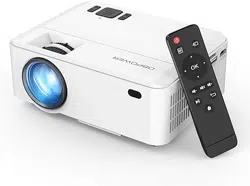
MINI LCD VIDEO PROJECTOR RD-821
USER MANUAL

A Big Thank You
We’re thrilled that you have chosen to purchase the Mini LCD Video
Projector. At DBPOWER, we’re committed to providing you with products
that enhance your daily life. We also aim to give our customers excellent
support. Should you have any questions or feedback about your new
product, simply get in touch with our customer support team at
1-855-888-5533, or by email at [email protected]
Enjoy your new product!
support@dbpowershop.com
1-855-888-5533

FCC Statement
Radiation Exposure Statement
Thisdevicecomplieswithpart15oftheFCCrules.Operationissubject tothe
followingtwoconditions:
(1)thisdevicemaynotcauseharmfulinterference,and (2)thisdevicemustaccept
anyinterferencereceived, including interference that may causeundesiredoperation.
Changes or modifications not expressly approved by the party responsible for
compliance could void the user’s authority to operate the equipment.
NOTE:Thisequipmenthasbeentestedandfoundtocomplywiththelimits for a
Class B digital device, pursuant to part 15 of the FCCRules. These limits are designed to
provide reasonable protection against harmful interference in a residential installation.
Thisequipment generates uses and can radiate radio frequency energy and, if not
installed and used in accordance with the instructions, may cause harmful interference to
radio communications. However, thereisnoguaranteethatinterferencewillnotoccur
in a particular installation. If this equipment does cause harmful interference to
radioortelevisionreception, whichcanbedeterminedbyturningtheequipmentoff
andon,theuserisencouragedtotrytocorrectthe interferencebyoneormore
ofthefollowingmeasures:
‐Reorientorrelocatethereceivingantenna.
‐Reorientorrelocatethereceivingantenna.
‐Reorientorrelocatethereceivingantenna.
‐Consult the dealer or an experienced radio/TV technician for help important announce-
ment Important .
This equipment complies with FCC radiation exposure limits set forth for an uncontrolled
environment. This equipment should be installed and operated with minimum distance
20cm between the radiator and your body.
This transmitter must not be co-located or operating in conjunction with any other
antenna or transmitter.

CONTENTS
Notice
Accessory List
Safety Notice
Projector Overview
Remote Control
User Manual
Bluetooth setting
Display Solutions
Connections
Menu Settings
Screen Mirroring
Android Screen
iOS Screen
Syncscreen Setting
WIFI Connection
More Setting
Projector Installation
Technology Features
01
01
02
03
04
05
07
09
10
16
18
19
21
23
24
25
26
27

NOTICE
- 01 -
ACCESSORY LIST
1 x AV signal cable
1 x Remote control (battery not included)
1 x HDMI cable
1 x Power Cable
1 x User manual
1 x Warranty card
1. Not recommended for PPTs, Word, Excel, or business presentations.
2. To connect the DBPOWER mini projector with a tablet or smartphone, please use Wi-Fi
screen mirroring feature or use external HDMI adaptor. For HDMI adaptor connection,
Android phones need to support MHL and an MHL to HDMI cable is required, iPhone & iPad
need a Lightning to HDMI cable adaptor.
3. To connect the mini projector to PCs or laptops, please adjust the PC/laptop display
resolution to 1280*720 for best clarity.
4. Please note that it is only suitable for use in dark rooms.
5. Dolby is not supported. Please turn off Dolby digital in your device.

SAFETY NOTICE
Please read the user manual carefully before using the projector.
Please use a standard power cord with ground wire to ensure stable power supply.
Please use the same power voltage as marked on the projector.
Please do not disassemble the projector by yourself; otherwise the warranty will be void.
Please do not look into the lens when the projector is operating, otherwise it may hurt your
eyes.
Please do not cover the projector ventilation holes with any material.
Please keep the projector away from water or any other liquid as it is not waterproof.
Please don’t put the projector in wet or moist conditions to prevent electric shock.
Please turn off and unplug from the power supply if not using the projector for a long time.
Please use the original packing foam or other anti-shock material when relocating the
projector.
Please contact our customer support if the projector has any problems.
This mini projector comes with a full 12-month warranty.
Please contact us if you want to know more information about the warranty. (Warranty service
does not include the frame, manual, packing and subjective ideas about the video, sound or
image aspects)
- 02-
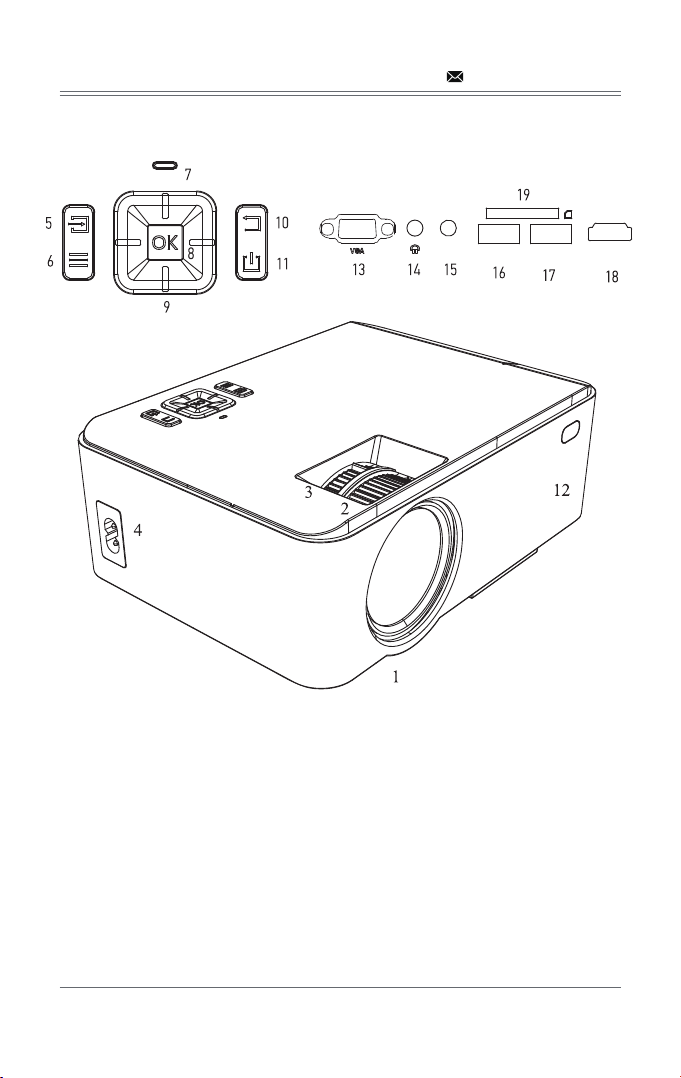
PROJECTOR OVERVIEW
- 03 -
1. Lens
2. Manual focus
3. Keystone
4. Power input
5. Source
6. Menu
7. Power indicator
8. OK
9. Direction buttons
10. ESC
11. Power button
12. IR
13. VGA
14. Earphone slot
15. AV
16. USB input slot
17. USB output slot
(5V power supply)
18. HDMI
19. SD
HDMIOUT5V
USB
AV
Caution
Do not submerge the remote control in water.
Do not put the remote control near fire or in wet/hot places.
Do not use old and new batteries together in the remote control.
Please take the batteries out if not using the remote control for a long time to avoid battery
leakage.
Please point the remote control at the IR receiver.
- 04 -
REMOTE CONTROL
7
8
9
10
11
12
13
1
2
3
4
5
6
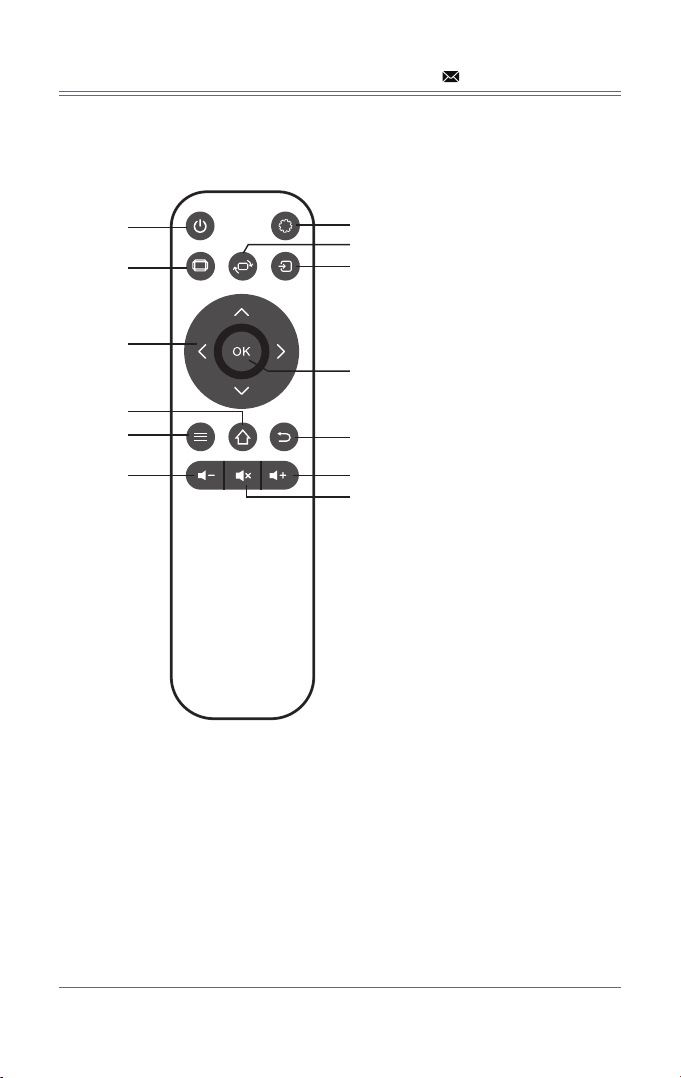
1. Power
2. Aspect ratio
3. Arrow keys
4. Home
5. Menu
6. Volume Down
7. Menu
8. Screen flip
9. Source
10. Enter
11. Return
12. Volume Up
13. Mute
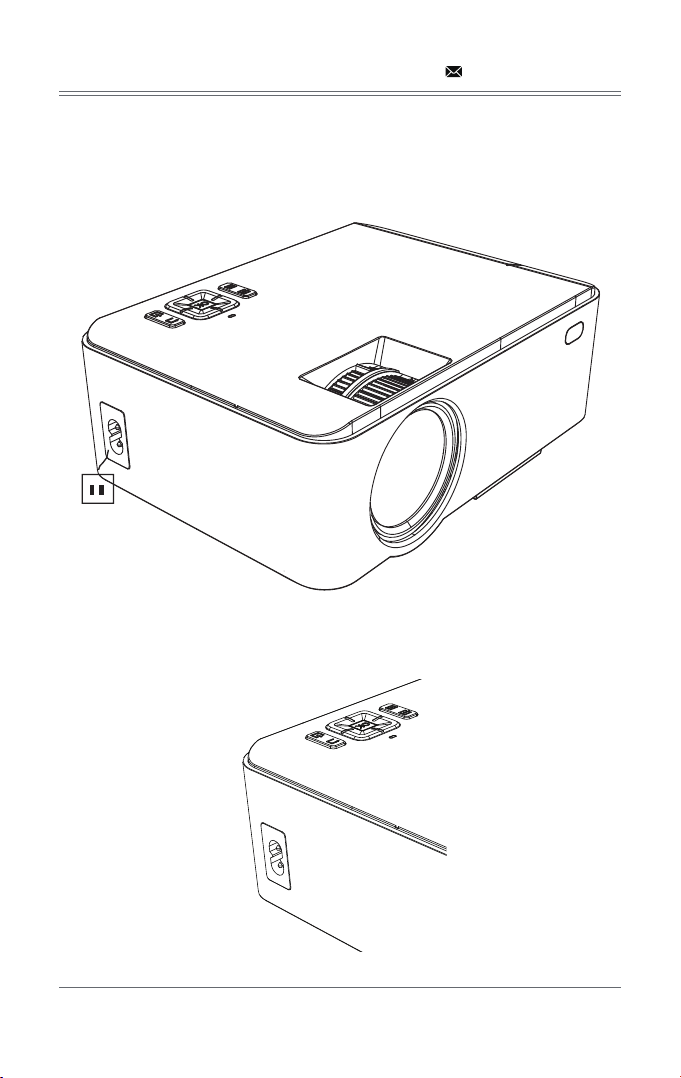
4.1.2 The projector will display an indicator light when connected to power.
USER MANUAL
4.1.1 Connect the power cable to the projector.
- 05 -
4.1 Connecting the projector to power
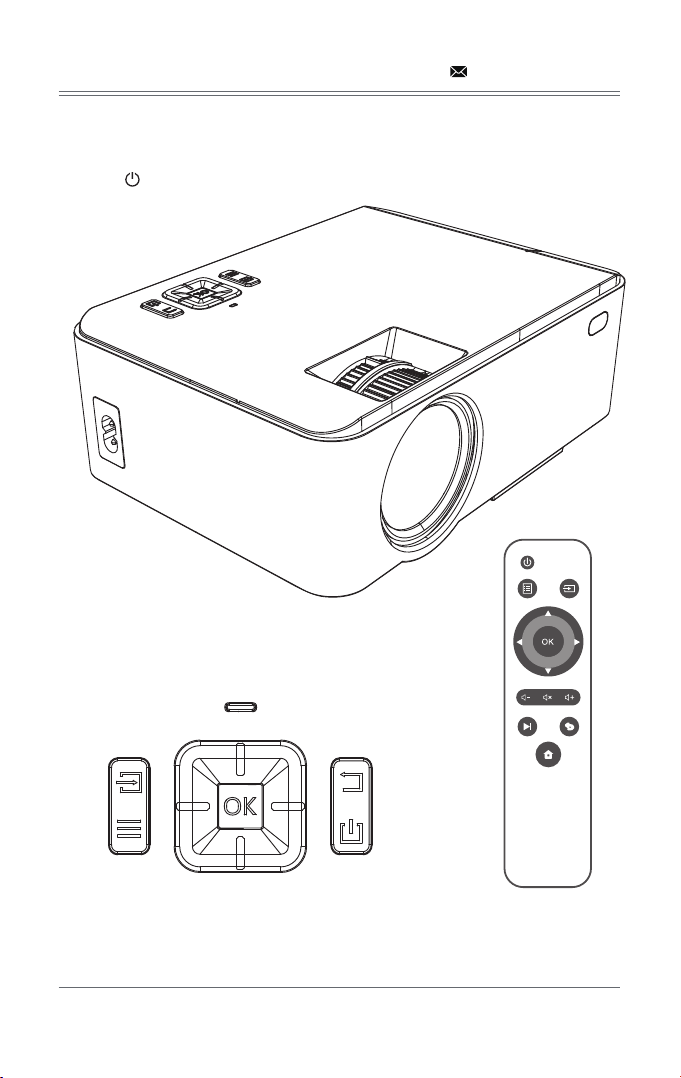
4.2 Power ON/OFF
Press the " " button on the projector or on the remote control to power on.
Projector
Remote Control
- 06 -
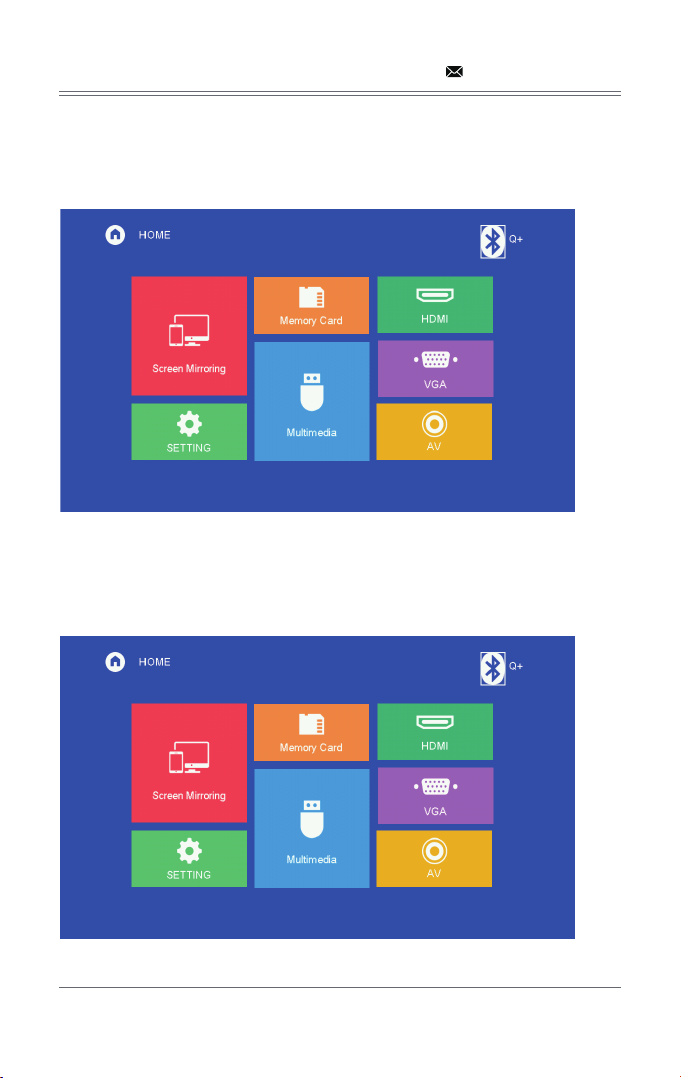
4.3 Multimedia boot screen
- 07 -
Aſter 10-20 seconds, the multimedia screen will be displayed.
SD
4.3.1 Bluetooth setting:
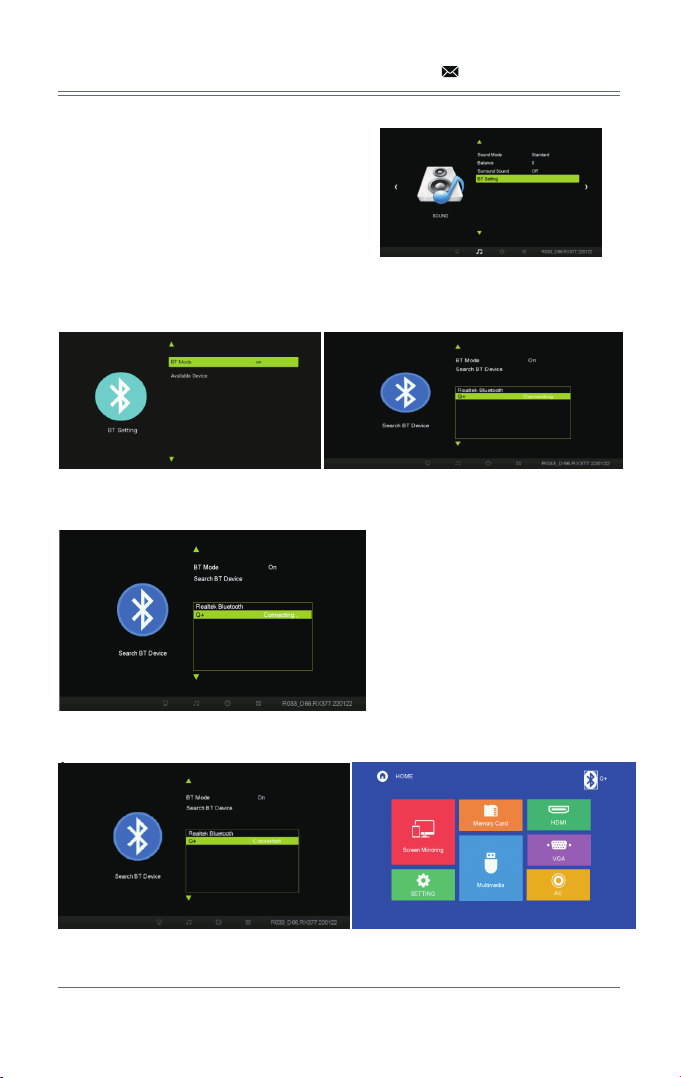
1.Select the setting function menu in the main interface and enter, or select the
Bluetooth shortcut key in the main interface and enter.
- 08 -
2. Aſter entering the setting function menu,
select the sound setting function, Select
Bluetooth settings.
3.Select the Bluetooth mode, use the right button, turn on the Bluetooth, select Search for
Bluetooth devices and confirm the search.
4.Select the Bluetooth device you will link to and confirm the link.
5.Successfully linked bluetooth device.
4.Select the Bluetooth device you will link to and
confirm the link.
- 09 -
4.4 Focus & keystone correction
DISPLAY SOLUTION
4.4.1 Image focusing
Make sure the projector is horizontal to the projector screen and adjust the focus by pressing
button 2.
You can display video or the menu to check adjustment.
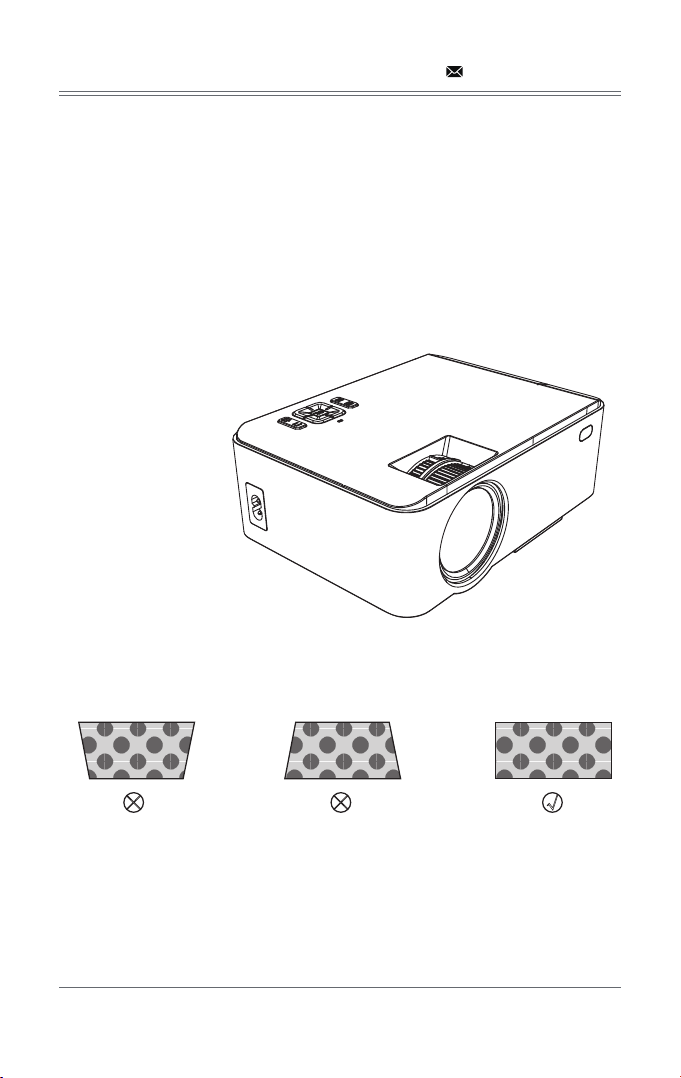
The projector uses an optical keystone correction function, so the image can be adjusted as
below:
However, this projector does not have a horizontal keystone correction function. The projector
must be placed horizontally to the projection screen. If you encounter this problem, it is
probably because the projector has not been placed horizontally to the projection screen, or the
projection screen is not vertically positioned.
Solution: Adjust the projector's position so that it is horizontal to the screen.
4.4.2 Keystone correction
× ×
√√
CONNECTIONS
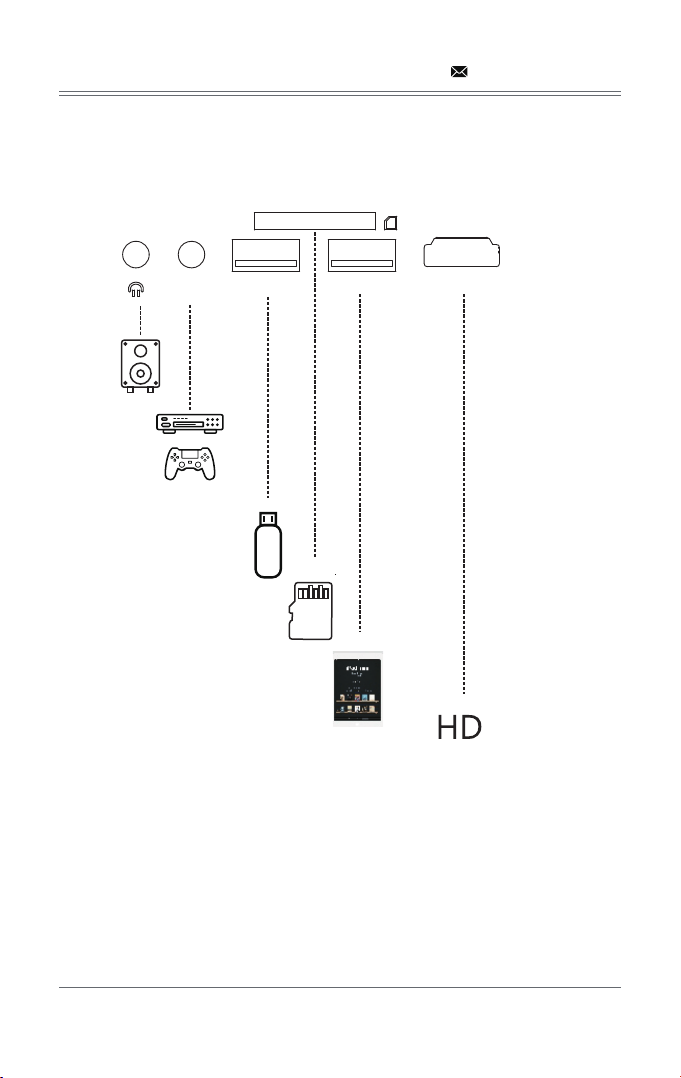
Connect multiple devices and applications.
- 10 -
5.1 Connections
HDMIOUT5V
USB
AV
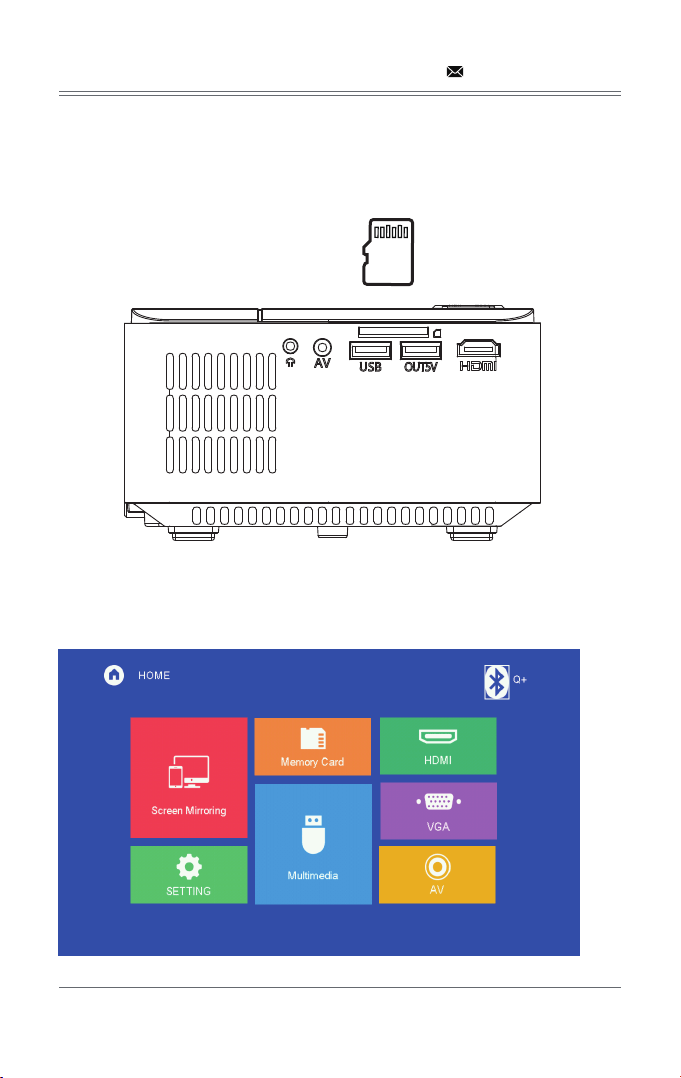
5.2.1 Insert the USB/SD card into the slot (picture).
5.2.2 Choose Memory Card or Multimedia from the HOME screen
- 11 -
5.2 Playing media from a USB/SD card
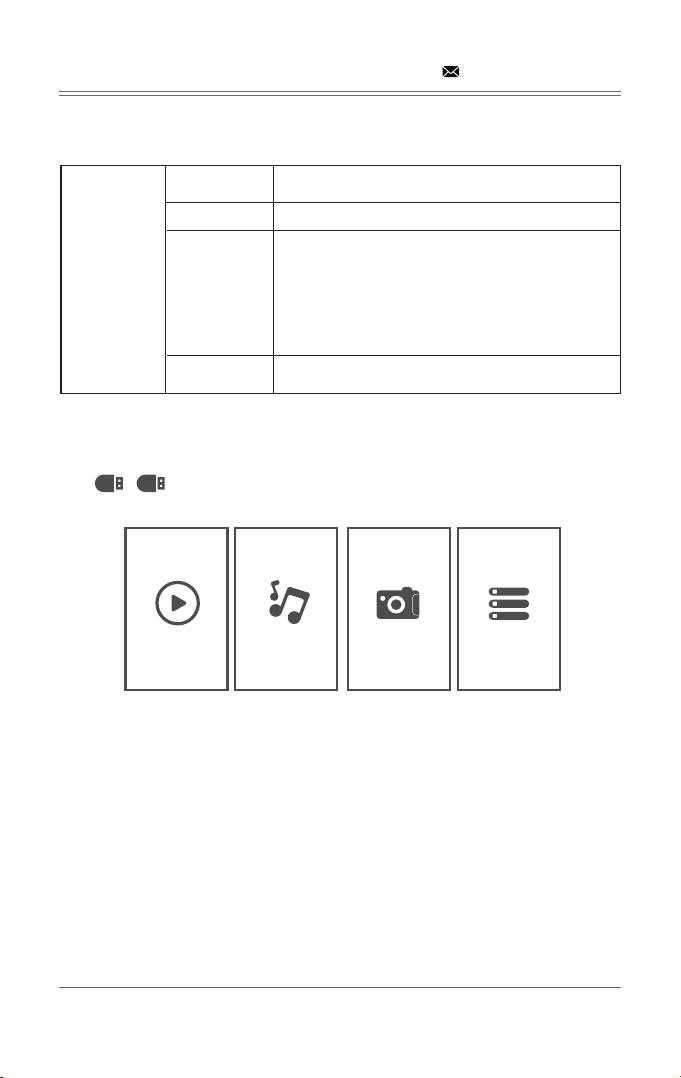
Supported multimedia formats
5.2.3 Choose the content which you need to display:
Video/music/photos/text.
5.2.4 Choose the file you want to display. Press “ OK ” to display .
- 12 -
Multimedia
Audio file MP3 / AAC / WAV / FLAC / WMA / M4A
Picture file JPG /PNG /BMP /JPEG
Text file TXT
Video file
MP4 / MKV / MOV / WMV / RMVB / RM / AVI / FLV / TRP /
VOB / 3GP / DIVX / TP / TS / MPG / M2TS / F4V / DAT
MOVIE MUSIC PHOTO TEXT
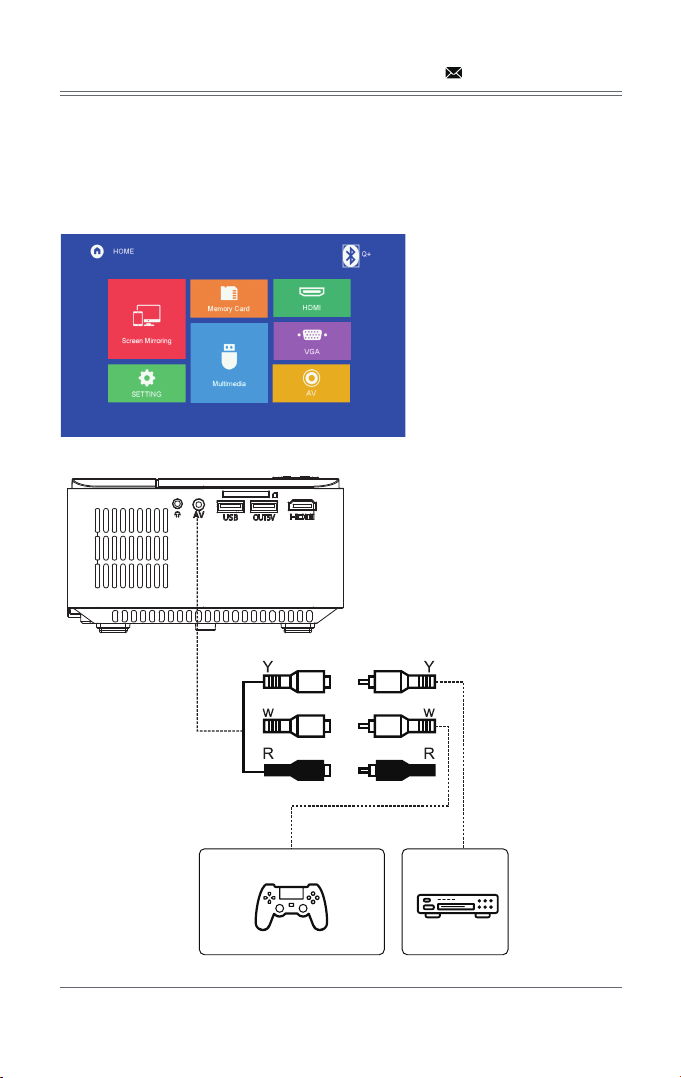
5.3 AV video connection
Use a 3-in-1 AV cable to connect to the projector as shown below. Once connected, select the
AV signal source.
- 13 -
Supports NTSC/PAL.
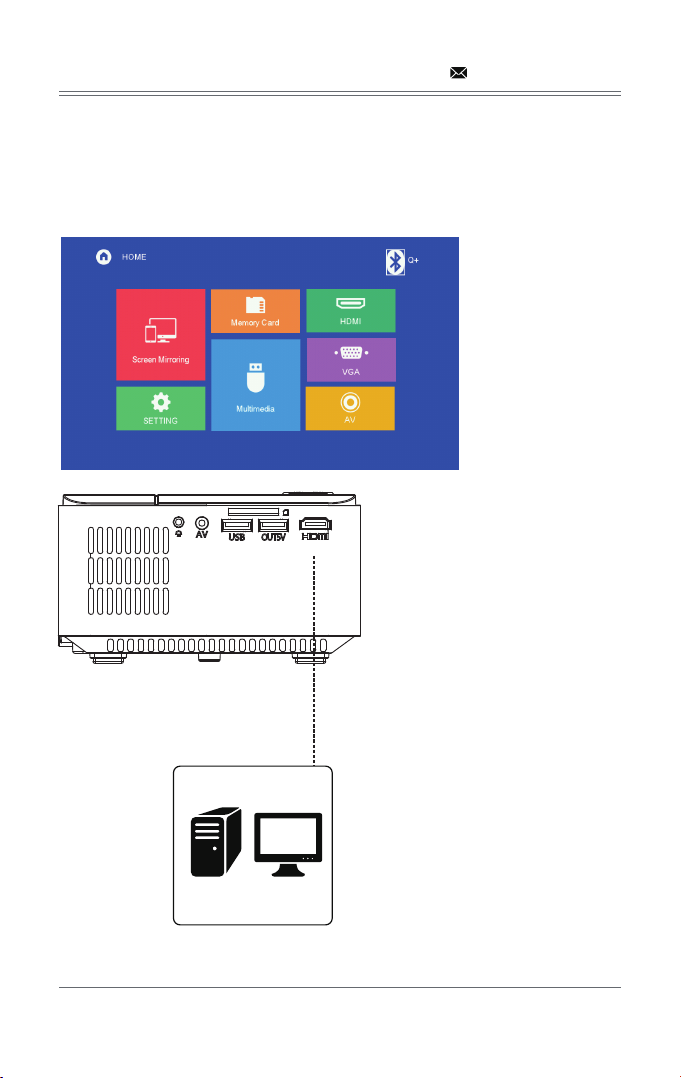
5.4 HDMI connection
5.4.1 Use the HDMI slot to connect computers and HDMI compatible devices. Once connected,
select the HDMI signal source.
Video Format Resolution:
576P, 480P, 720P, 1080P
- 14 -
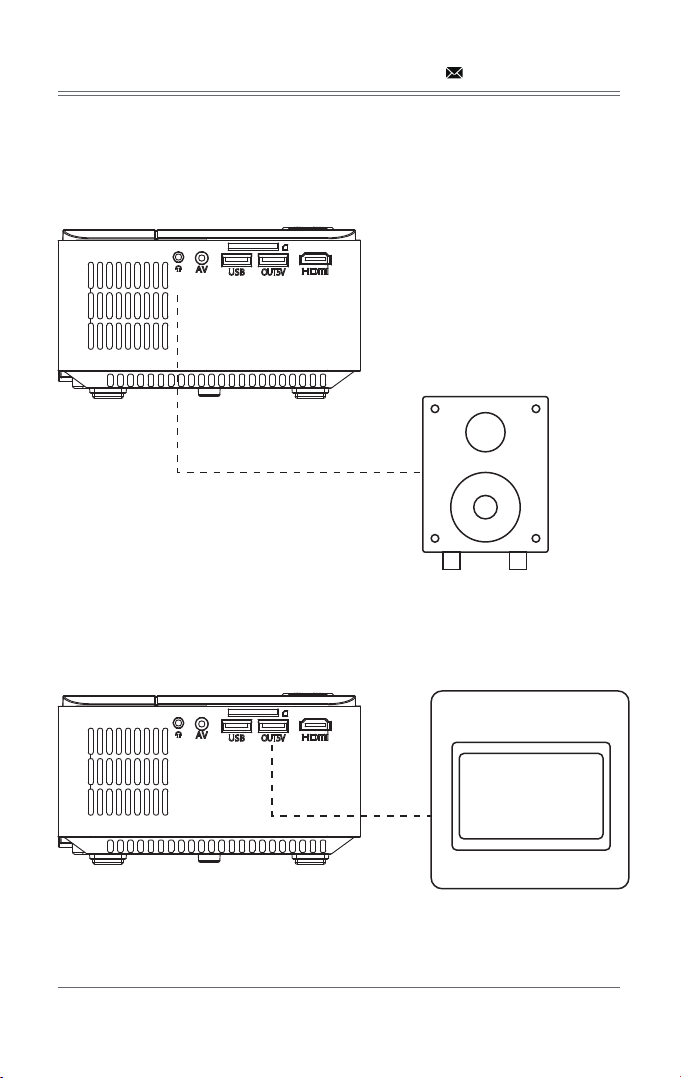
5.5 3.5mm audio connection
5.5.1 Use the 3.5mm audio jack to connect headphones and speaker equipment.
Note: This projector does not support Dolby sound.
- 15 -
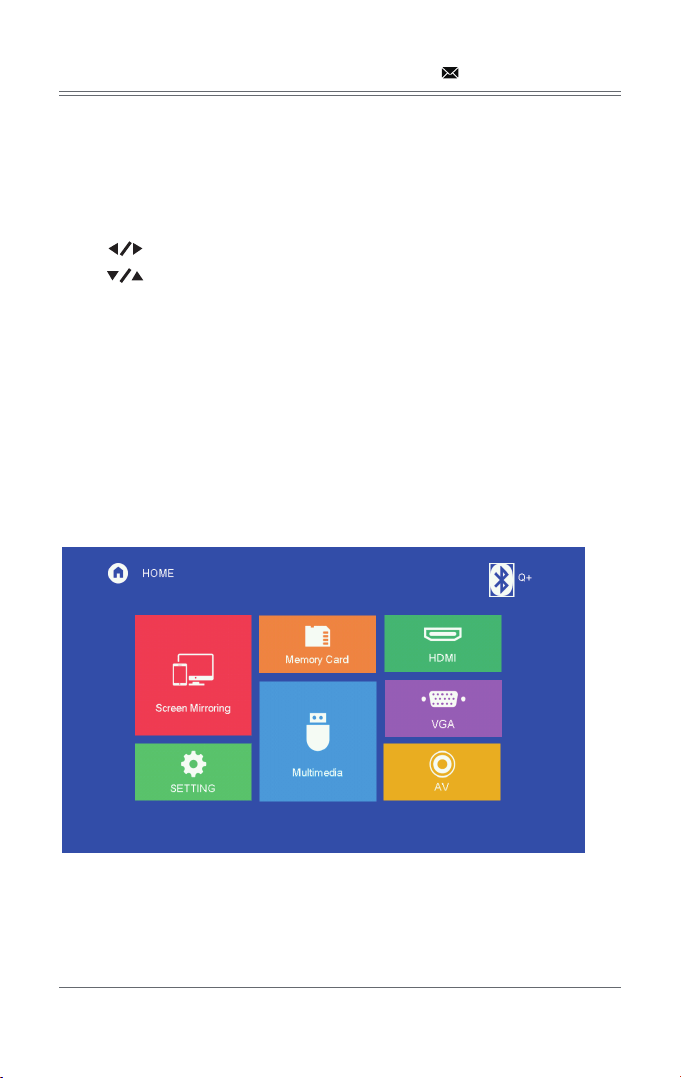
5.6 Other connection
USB output 5V for mobile table power supply.
MENU SETTINGS
6.1 Setting
6.2 Sub-menu functions
- 16 -
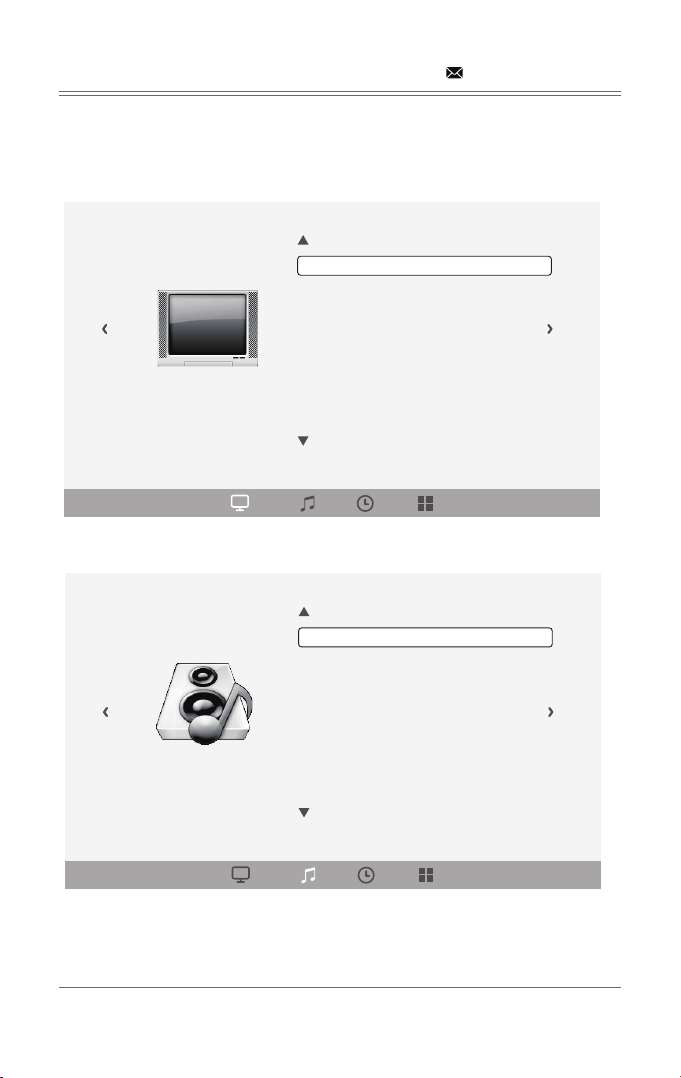
Press the " Menu " key or select " Setting " on HOME screen to enter the main menu, then
press “ ” to enter each sub-menu.
Press “ ” to select the sub-menu, then adjust the parameters per your needs, and press
the “OK” key to confirm.
6.2.1 PICTURE: Picture Mode , Color Temperature , Aspect Ratio , Noise Reduction , PC Adjust,
Reduce Display Size , Projection Direction.
6.2.2 SOUND: Sound Mode , Balance , Surround Sound.
6.2.3 TIME: Clock , Sleep Timer.
6.2.4 OPTION: OSD Language , Restore Factory Default , Color Range , Sostware Upadate(USB).
- 17 -
PICTURE
Picture Mode
Color Temperature
Aspect Ratio
Noise Reduction
PC Adjust
Reduce Display Size
Projection Direction
User
Medium
16:9
Middle
100%
Front
SOUND
Sound Mode
Balance
Surround Sound
Standard
0
Off
SCREEN MIRRORING
- 18 -
S Y NCSCREEN
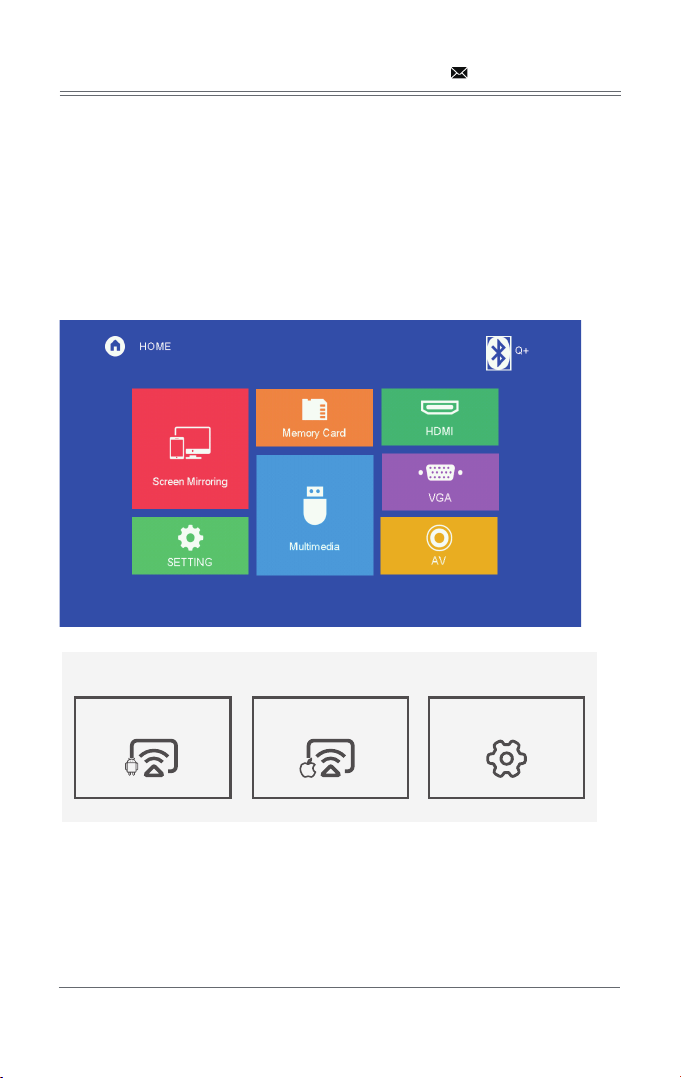
Android Screen IOS Screen SyncScreen Setting
Step 1: Select Screen Mirroring in the HOME screen.
Step 2: Press the OK key to enter the interface.
Step 3: Aſter entering into the interface, select the function you need.
Note: To return to HOME screen from Screen Mirroring interface, press the “Home” key on
remote control.
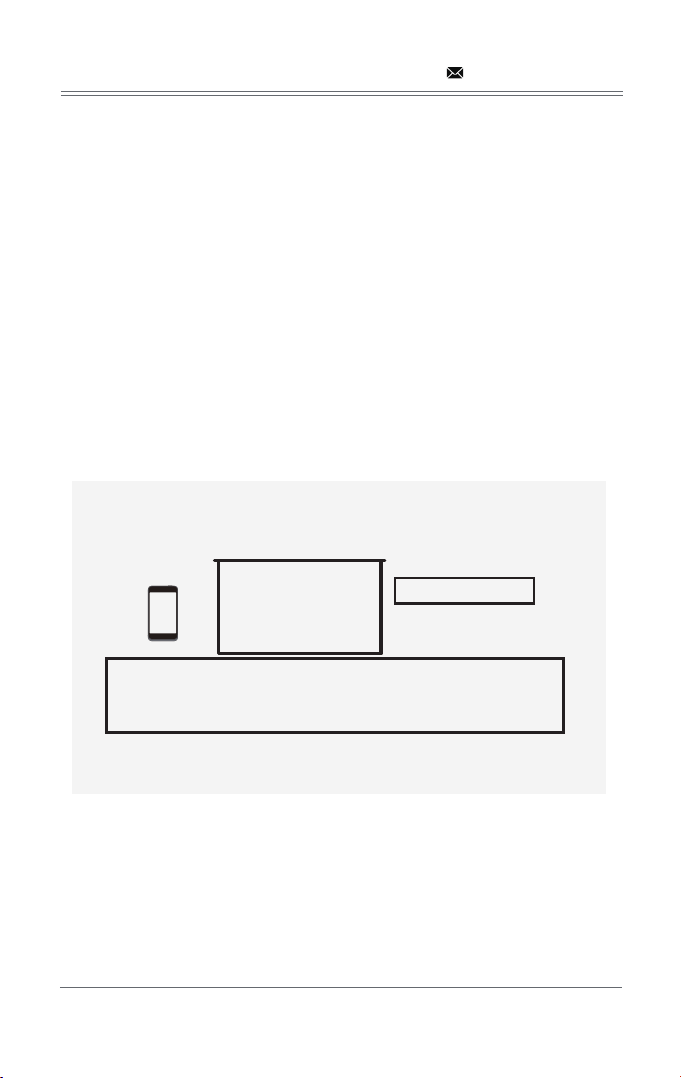
7.1 Android Screen
Android Screen has two connection methods:
7.1.1 Method 1: Wireless Connection (Recommeded)
Step 1: Select Android Screen in the Syncscreen interface
Step 2: Turn on the WLAN of Android device, choose the screen mirroring function on the
Android device, search for the device name of the projector and click to connect, and wait a few
seconds, then the mirroring will be successful.
Note: Diferent Android device have diferent positions and names for the screen mirroing
function, please refer to the manual of the Android device.
① The SSID is the device name of the projector.
② The instructions of Android Screen.
- 19 -
Android Screen
Android
SSID:DBPOWER_0B1F
Waiting for connection...
1: On your Android device, turn on WLAN
2: Launch the Screen Mirroring or Multi-screen function
3: Select DBPOWER_0B1F
Version:1.3.a_20200910
①
②
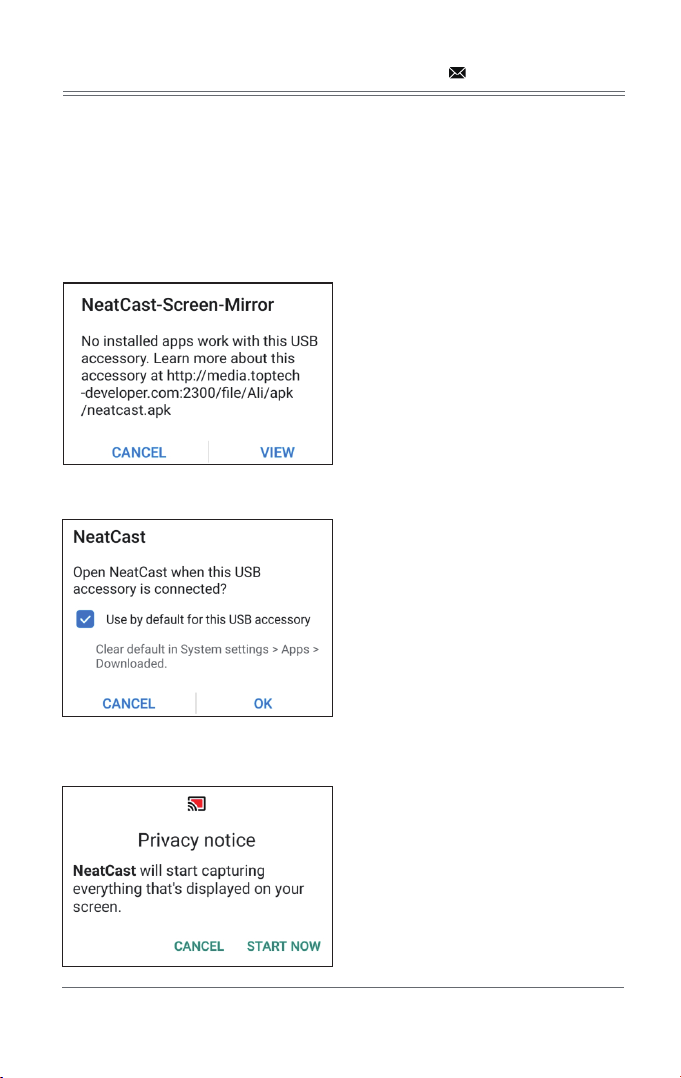
7.1.2 Method 2: Wired Connection
Step 1: Select Android Screen in the Syncscreen interface
Step 2: Connect your Android device to the projector OUT5V port with a USB cable
Step 3: For the first time, your Android device will pop up below “NeatCast-Screen-Mirror”
window, select “VIEW” to download and install the “NeatCast” APP
Step 4: Your Android device will pop up below “NeatCast” window , slelect “OK”
Step 5: When your Android device pop up the ”Privacy notice” window, select “START NOW”
to start the screen mirroring.
- 20 -
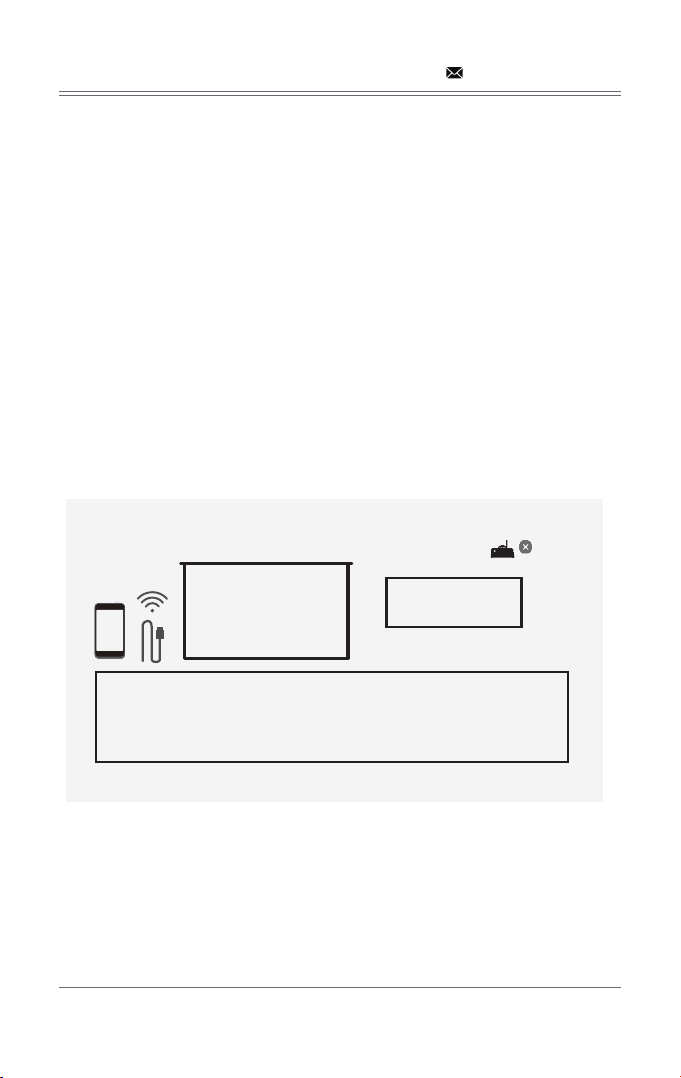
7.2 iOS Screen
iOS Screen has three connection methods:
7.2.1 Method 1: Wireless connection without Wi-Fi router
Step 1: Projector doesn’t need to connect Wi-Fi router.
Step 2: Turn on Wi-Fi on your iOS device and search for the network name of the projector, for
example: DBPOWER_ 0B1F, select it and enter the password “12345678”, then your iOS device
will connect to the projector.
Step 3: Turn on Screen Mirroring on your iOS device, select the device name of the projector.
① The device name and password of the projector.
② Projectot to Wi-Fi router connection indicator.
③ The instruction of iOS Screen.
- 21 -
Version:1.3.a_20200910
iOS Screen
iOS
SSID:DBPOWER_0B1F
password: 12345678
Waiting for connection...
1: On your iOS device, turn on Wi-Fi and connect to DBPOWER_0B1F
2: Open Control Center and Screen Mirroring
3: Select DBPOWER_0B1F
①
②
③
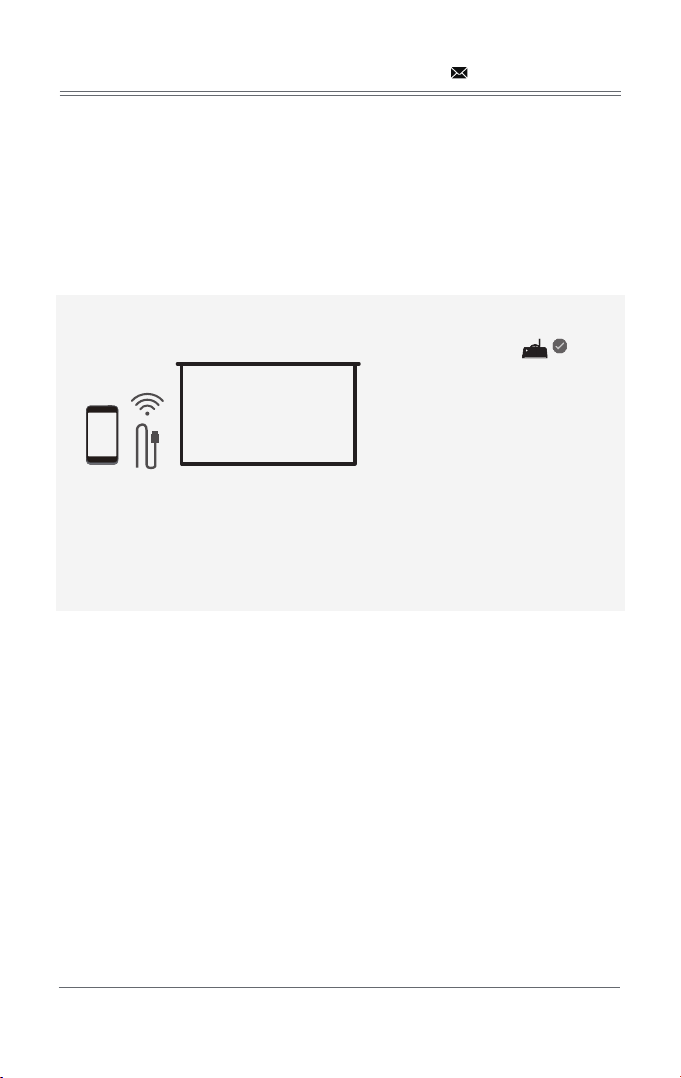
7.2.2 Method 2: Wireless connection with Wi-Fi router (Recommeded)
Step 1: Connect your projector to a Wi-Fi router (Refer to Wi-Fi connection method on page 24)
Step 2: Connect your iOS device to the same Wi-Fi router.
Step 3: Turn on Screen Mirroring on your iOS device, select the device name of the projector.
7.2.3 Method 3: Wired connection
Enter iOS Screen, connect your iOS device to the projector OUT5V port with a USB cable . Your
iOS device will receive a trust prompt, confirm “trust”, then the screen mirroring will start .
Note: If your iOS device doesn’t receive a trust prompt aſter connect to the projector, please use
the original iOS device cable to try again.
- 22 -
Version:1.3.a_20200910
iOS Screen
iOS
SSID:DBPOWER_OB1F
password: 12345678
1:
On your iOS device, turn on Wi-Fi and connect to NETGEAR-0045
2:
Open Control Center and Screen Mirroring.
3: Select DBPOWER_0B1F
NETGEAR-0045
Waiting for connection...
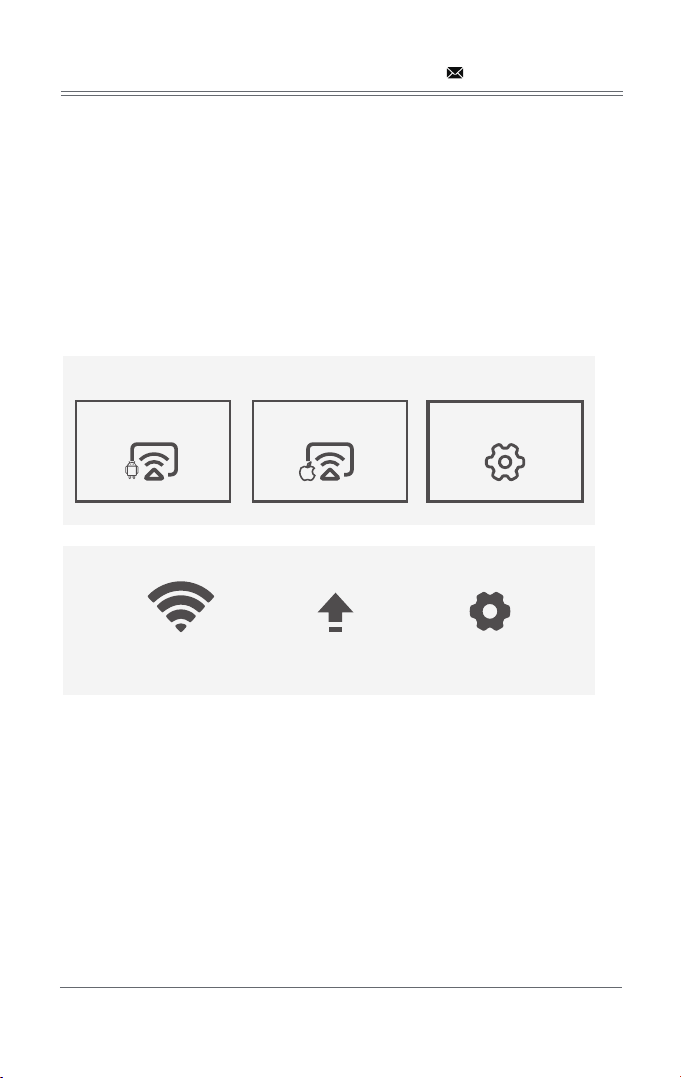
SYNCSCREEN SETTING
Step 1: Select SyncScreen Setting from syncscreen.
Step 2: Choose the setting you want.
The settings include three functions: WIFI / System Upgrade / More Setting.
WIFI: Search and Cormect WiFi.
System Upgrade: OTA upgrade / USB upgrade.
More Setting: System Reset / Mirror Mode / Airplay Mode / Language.
- 23 -
S Y NCSCREEN
Android Screen iOS Screen SyncScreen Setting
WIFI System Upgrade More Setting
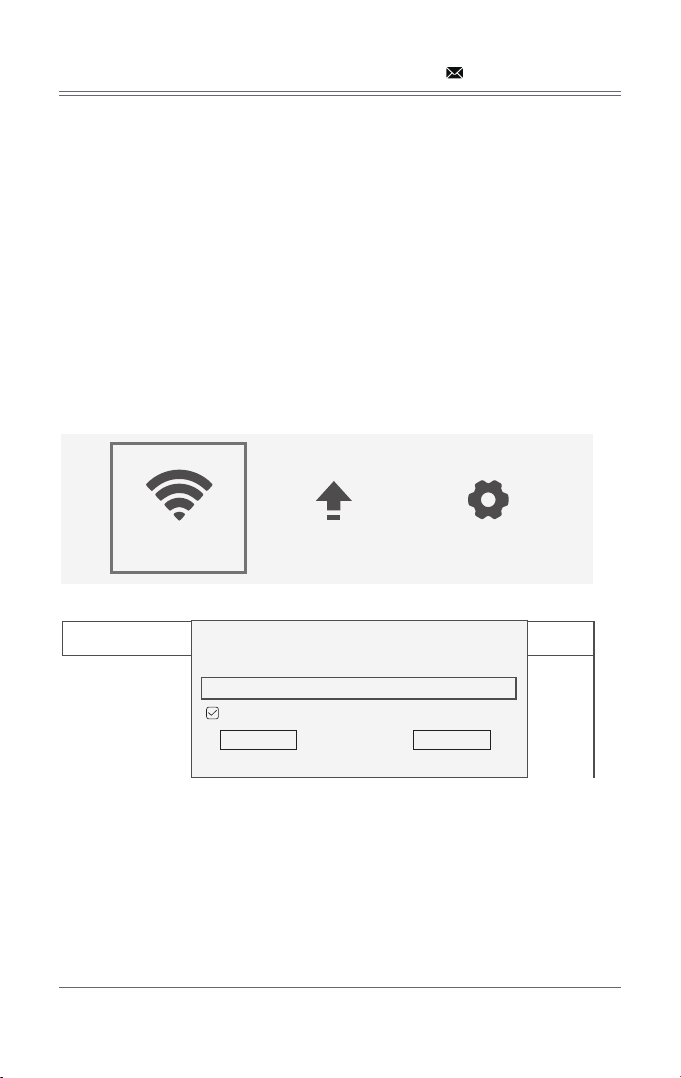
WIFI CONNECTION
Step 1: Select WIFI and press the OK key to enter the next interface.
Step 2: Select the Wi-Fi that you want to connect from the Wi-Fi list.
Step 3: Enter the correct password through the virtual keyboard.
Select the Wi-Fi that has been connected, press the OK key, and three options will pop up:
Disconnect: Disconnect the Wi-Fi connection this time, but it will be automatically
connected aſter restarting.
Forget: Forget the password. Aſter restarting, it will not automatically connect. The
password must be entered again for re-connection.
Cancel: Exit the menu.
- 24 -
WIFI System Upgrade More Setting
1
2
3
4
5
NETGEAR-0045H1
MIDVPN2.4G
DIRECT-Fb-AS-Q3
UCDOS_EXT
NETGEAR-040G3K
$WPA2
$WPA2
$WPA2
$WPA2
$WPA2
NETGEAR-0045
Display Password
Connect Cancel
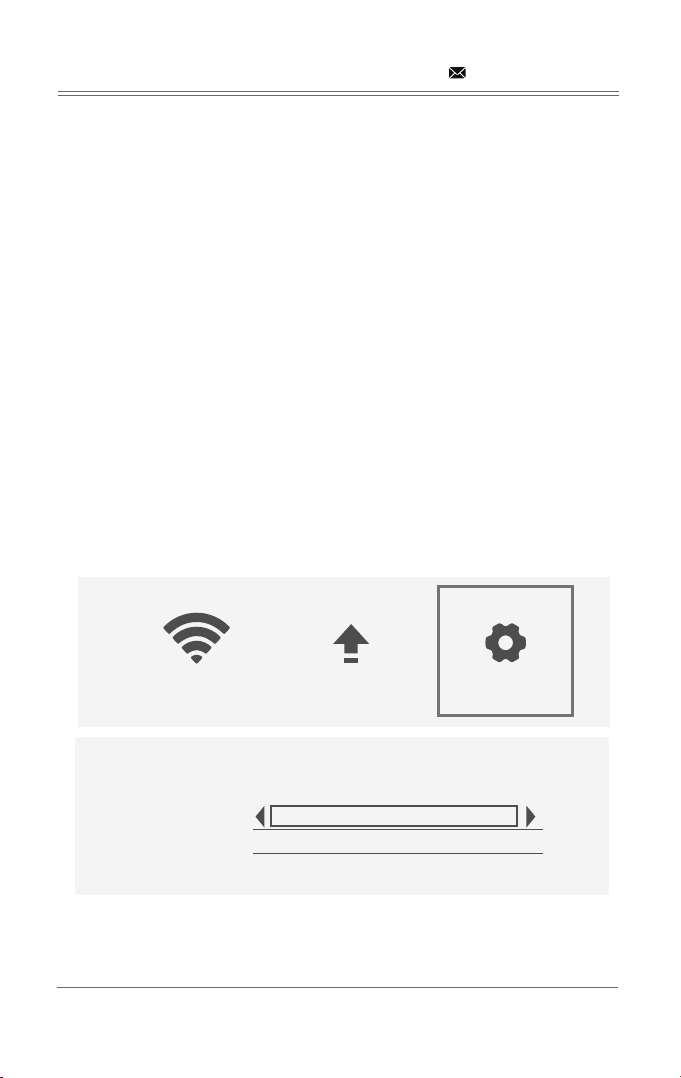
MORE SETTING
Step 1: Select More Setting, press OK key to enter the interface.
Step 2: Choose the setting you want.
System Reset:
Click Yes is to confirm the restoration, No is to exit the selection.
Mirror Mode: Smooth / Standard / Quick.
1)Smooth Mode: Requires higher network to optimize the effect of playing video, and caches
the video to ensure smooth pictures during playback.
2)Standard Mode: Reduces the cache and delay of the mirroring.
3)Quick Mode: No video caching function. When the network environment is poor, the clarity of
the mirroring will be lower to ensure smooth playback and reduce delay.
Airplay Mode: Can set the channels for 1, 6 and 11 routers. When the network is poor,
you can set other channels to avoid the jam and delay.
- 25 -
System Reset
Mirror mode
Airplay mode
Language
Smooth
6
English
WIFI System Upgrade More Setting
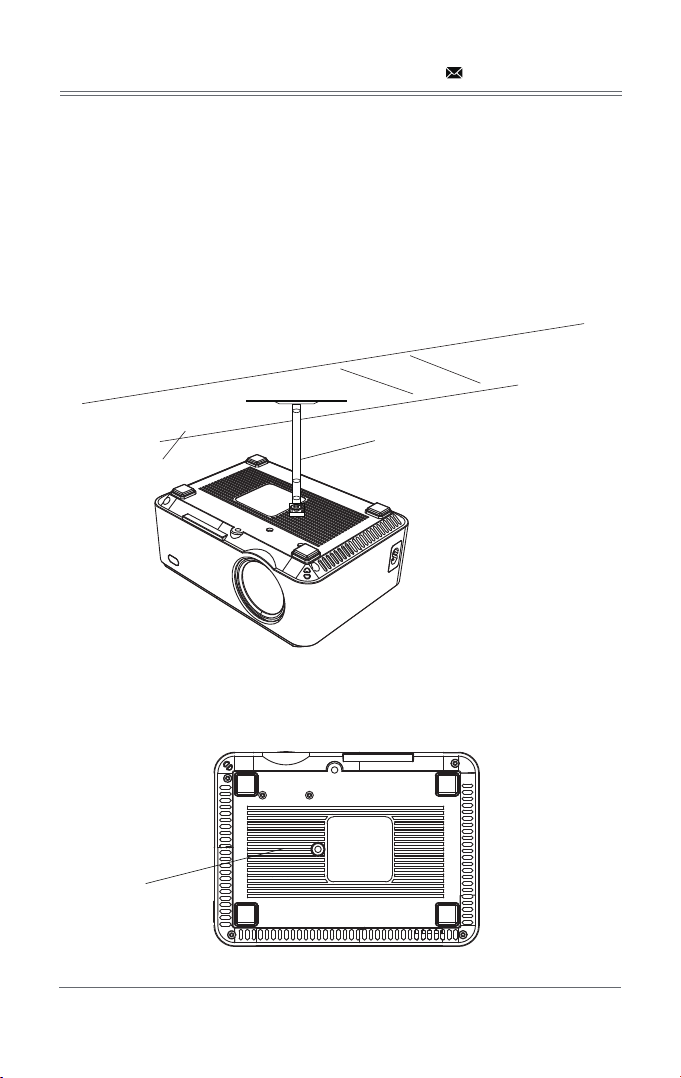
When ceiling mounting the projector, please ensure screws of a suitable quality are used, and
that screw depth is deep enough to prevent the projector from falling.
PROJECTOR INSTALLATION
7.1 Please refer to the following diagram for mounting the projector on
a ceiling.
Do not place the projector near heat sources to prevent the projector from overheating.
Ceiling
Bracket
Fixed Hanger Hole
- 26 -
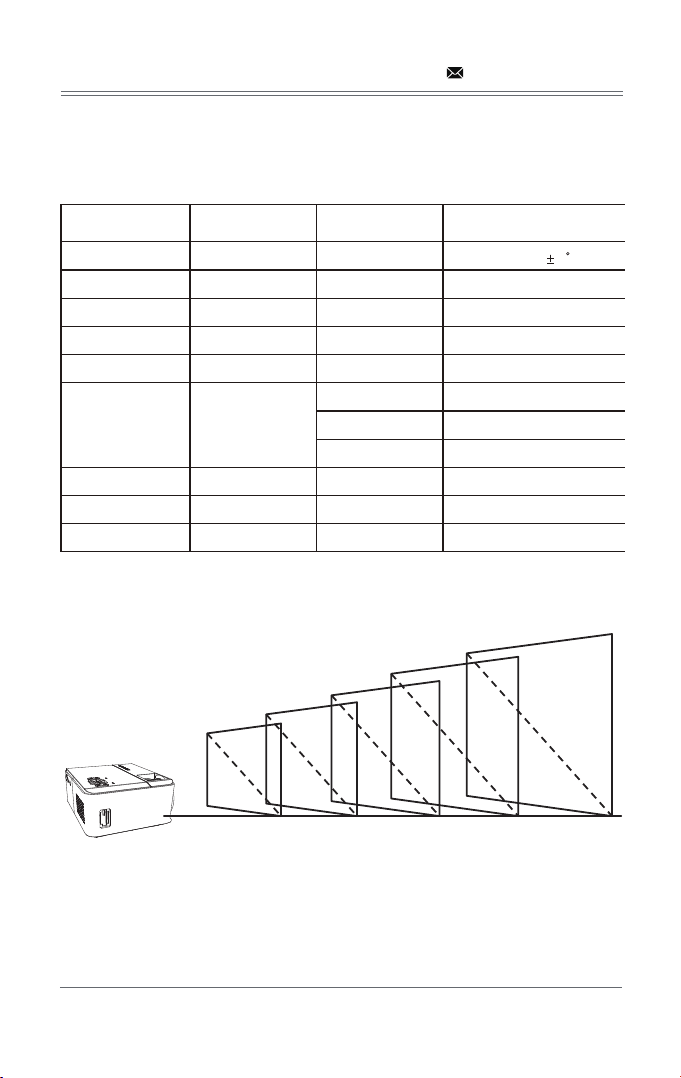
8.2 Projection distance and screen size
For reference only. The projection distance and screen size differ based on the configuration of
the projector.
TECHNOLOGY FEATURES
8.1 Basic parameters
Imaging
Technology
Resolution
Highest Resolution
Light
Life Span
Lens
Operation Mode
Throw Distance
Screen Size
Aspect Ratio
35
106cm 151cm 212cm 303cm 363cm
50
70
100
120
TFT LCD
1280x720 RGB
1920*1080
LED
50,000 hrs
Multichip Coated
Lens (F=125)
Manual
Operation
1-5M
32-200 Inches
4:3/16:9
Projection
Color Number
Keystone
Power Voltage
Integrated watt
Input
Output Earphone*1/OUT 5V(5V-1.5A)
Speaker
System support
Language support
Support multi-media
Support 23 Language
Unit size
Projector Ratio
New Weight
16.7M color by 8 bit R.G.B
signal input
100V-240V 50/60Hz
50W
USB*1/SD/HDMI/VGA/AV
204*149*83mm
1.4:1
1.05KG
Manual Correction 15
3W*1
- 27 -