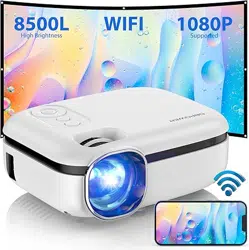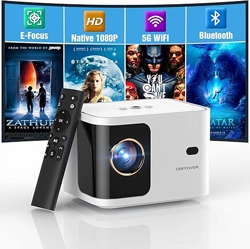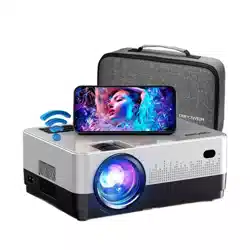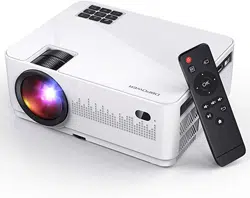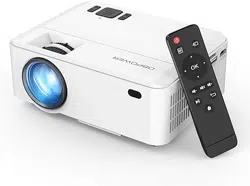
MINI LCD VIDEO PROJECTOR RD-820
USER MANUAL
www.dbpower.co/warranty
PLEASE VISIT US NOW
CUSTOMER SERVICE
ACTIVATE YOUR 12-MONTH WARRANTY
& GET EXCLUSIVE GIFT
Register within 7 days aſter receiving your new product.
[email protected] www.dbpower.co
NOTE
1. Only suitable for home entertainment in a dark environment. NOT for
presentation purposes.
2. Dolby audio is NOT supported.
3. DO NOT obstruct the air vents when using. UNPLUG & PREVENT DUST
from entering when not in use.

A Big Thank You
We’re thrilled that you have chosen to purchase the Mini LCD Video
Projector. At DBPOWER, we’re committed to providing you with
products that enhance your daily life. We also aim to give our
customers excellent support. Should you have any questions or
feedback about your new product, simply get in touch with our
customer support team at 1-855-666-9888, or by email at
Enjoy your new product!

CONTENTS
Notice
Accessory List
Safety Notice
IR Transmitter
User Manual
Display Solutions
Menu Settings
Projector Installation
Technology Features
01
01
02
04
05
09
16
17
18
NOTICE
- 01 -
ACCESSORY LIST
1 x AV signal cable
1 x Remote control (battery not included)
1 x HDMI cable
1 x Power Cable
1 x User manual
1 x Warranty card
1 x Operation guide

SAFETY NOTICE
Please read the user manual carefully before using the projector.
Please use a standard power cord with ground wire to ensure stable power supply.
Please use the same power voltage as marked on the projector.
Please do not disassemble the projector by yourself; otherwise the warranty will be void.
Please do not look into the lens when the projector is operating, otherwise it may hurt your
eyes.
Please do not cover the projector ventilation holes with any material.
Please keep the projector away from water or any other liquid as it is not waterproof.
Please don’t put the projector in wet or moist conditions to prevent electric shock.
Please turn off and unplug from the power supply if not using the projector for a long time.
Please use the original packing foam or other anti-shock material when relocating the
projector.
Please contact our customer support if the projector has any problems.
This mini projector comes with a full 12-month warranty.
Please contact us if you want to know more information about the warranty. (Warranty service
does not include the frame, manual, packing and subjective ideas about the video, sound or
image aspects)
- 02-
- 03 -
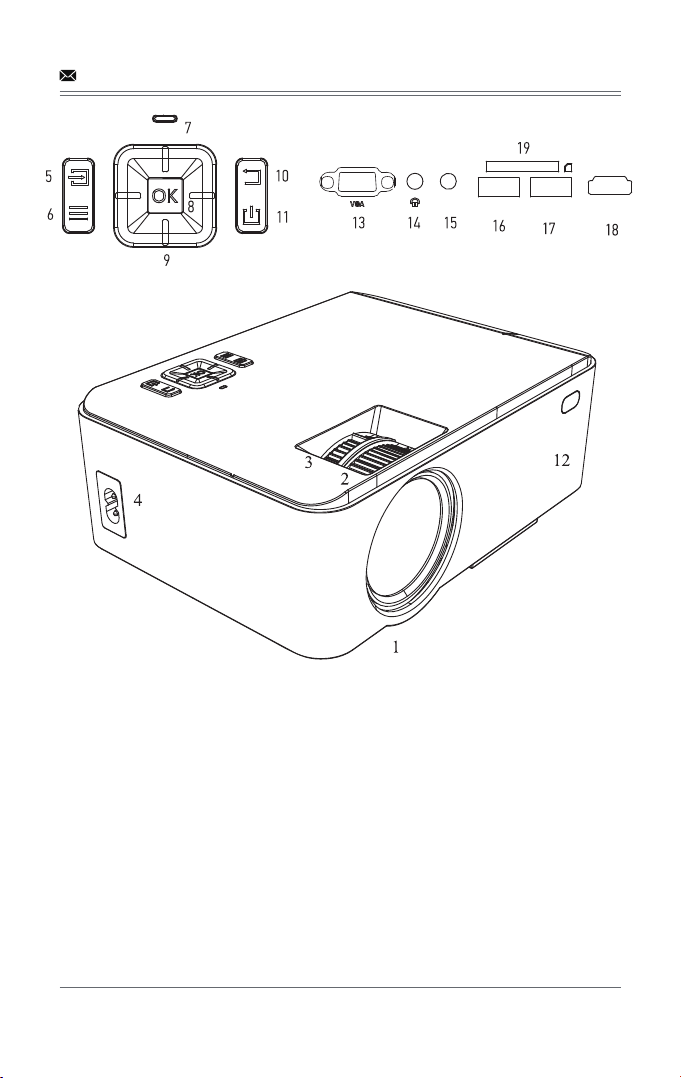
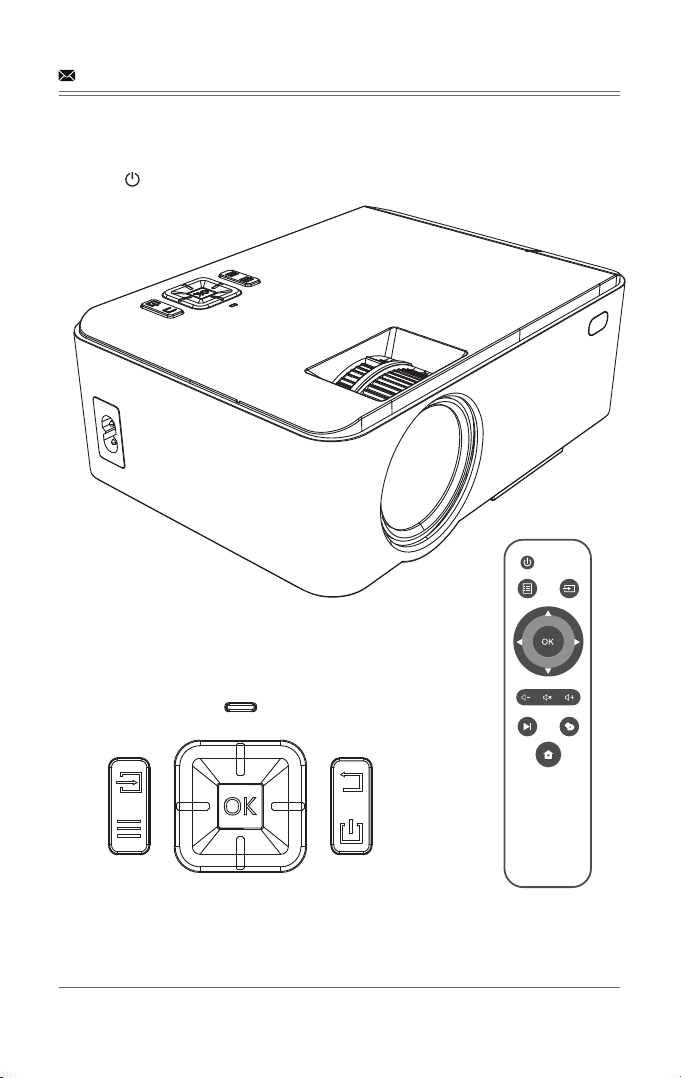
1. Lens
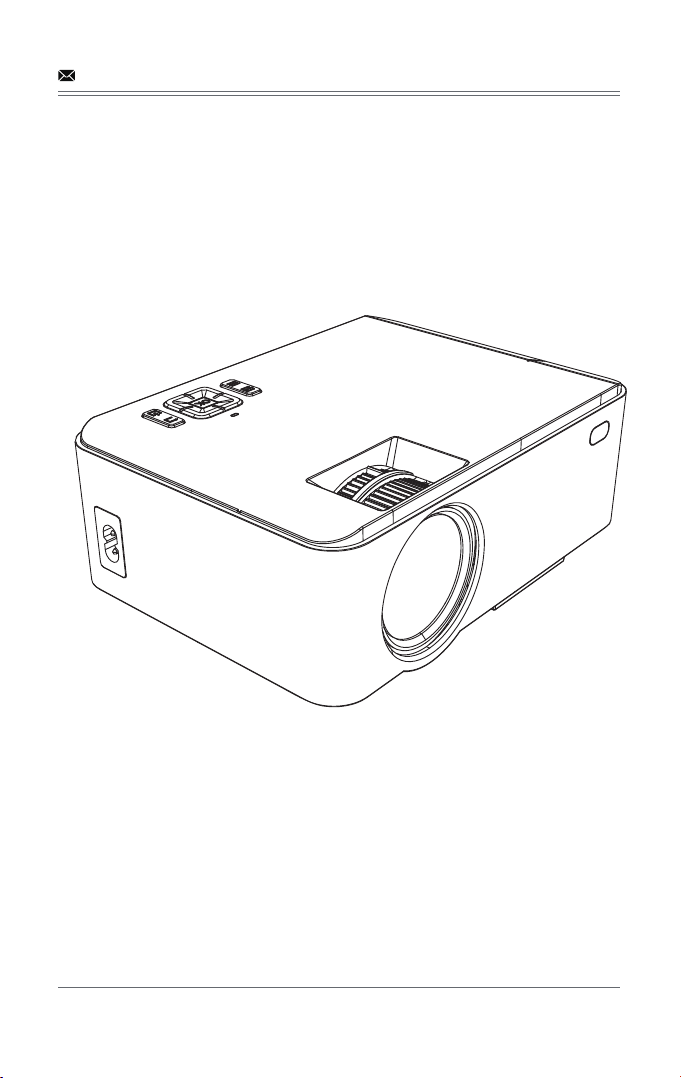
2. Manual focus
3. Keystone
4. Power input
5. Source
6. Menu
7. Power indicator
8. OK
9. Direction buttons
10. ESC
11. Power button
12. IR
13. VGA
14. Earrphone slot
15. AV
16. USB input slot
17. USB output slot
(5V power supply)
18. HDMI
19. SD
HDMIOUT5V
USB
AV
Caution
Do not submerge the remote control in water.
Do not put the remote control near fire or in wet/hot places.
Do not use old and new batteries together in the remote control.
Please take the batteries out if not using the remote control for a long time to avoid battery
leakage.
Please point the remote control at the IR receiver.
- 04 -
IR TRANSMITTER
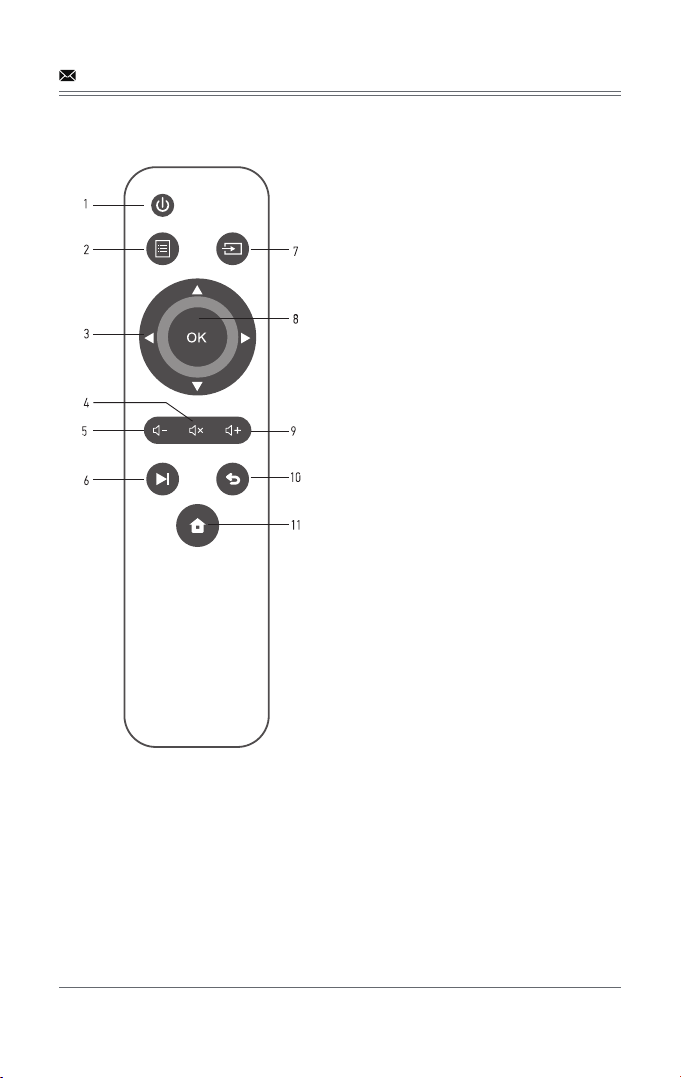
1. Power
2. Menu
3. Arrow keys
4. Mute
5. Volume Down
6. Play and Pause
7. Source
8. Enter
9. Volume Up
10. Exit
11. USB Homepage
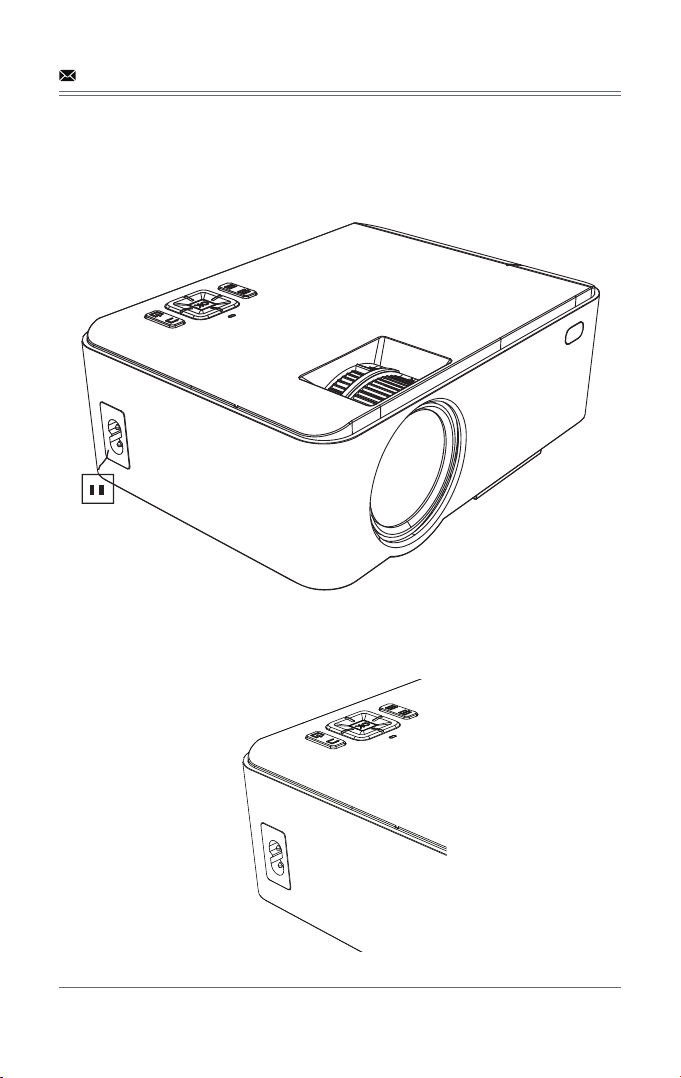
4.1.2 The projector will display an indicator light when connected to power.
USER MANUAL
4.1.1 Connect the power cable to the projector.
- 05 -
4.1 Connecting the projector to power
4.2 Power ON/OFF
Press the " " button on the projector or on the remote control to power on.
Projector
Remote Control
- 06 -
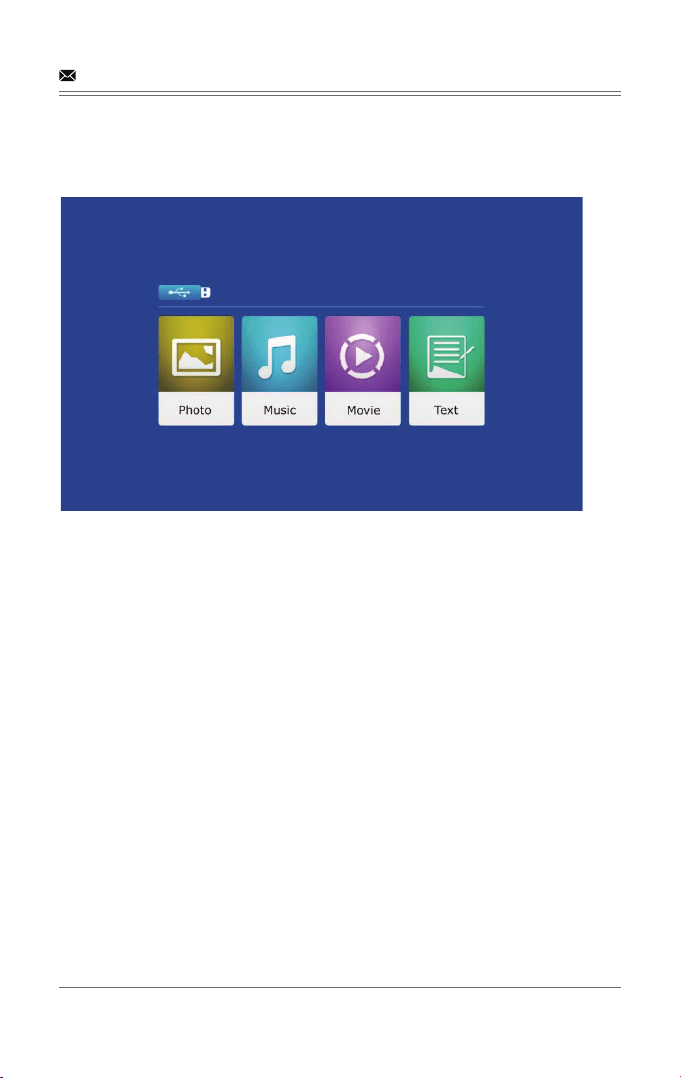
4.3 Multimedia boot screen
4.4 Focus & keystone correction
- 07 -
Aſter 2-5 seconds, the multimedia screen will be displayed.
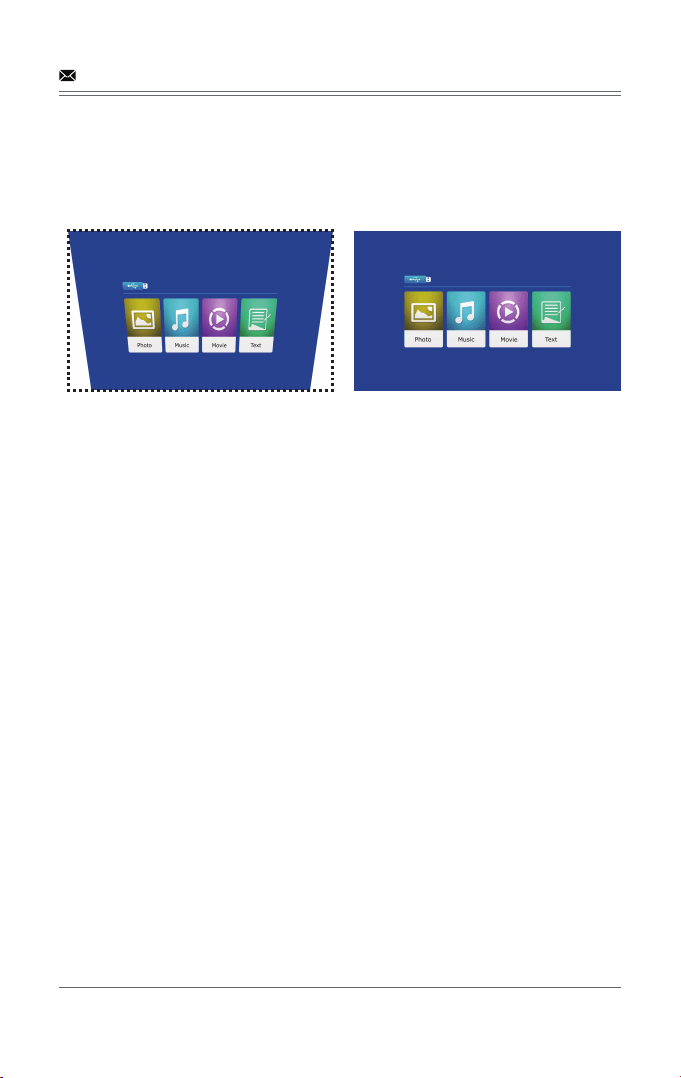
4.4.1 If the image is displayed as a trapezoid shape, you can adjust
it with the keystone correction function by pressing button 3.
This should normalize the display image.
SD
- 08 -
4.4.2 Image focusing
Make sure the projector is horizontal to the projector screen and adjust the focus by pressing
button 2.
You can display video or the menu to check adjustment.
DISPLAY SOLUTION
The projector uses an optical keystone correction function, so the image can be adjusted as
below:
However, this projector does not have a horizontal keystone correction function. The projector
must be placed horizontally to the projection screen. If you encounter this problem, it is
probably because the projector has not been placed horizontally to the projection screen, or the
projection screen is not vertically positioned.
Solution: Adjust the projector's position so that it is horizontal to the screen.
- 09 -
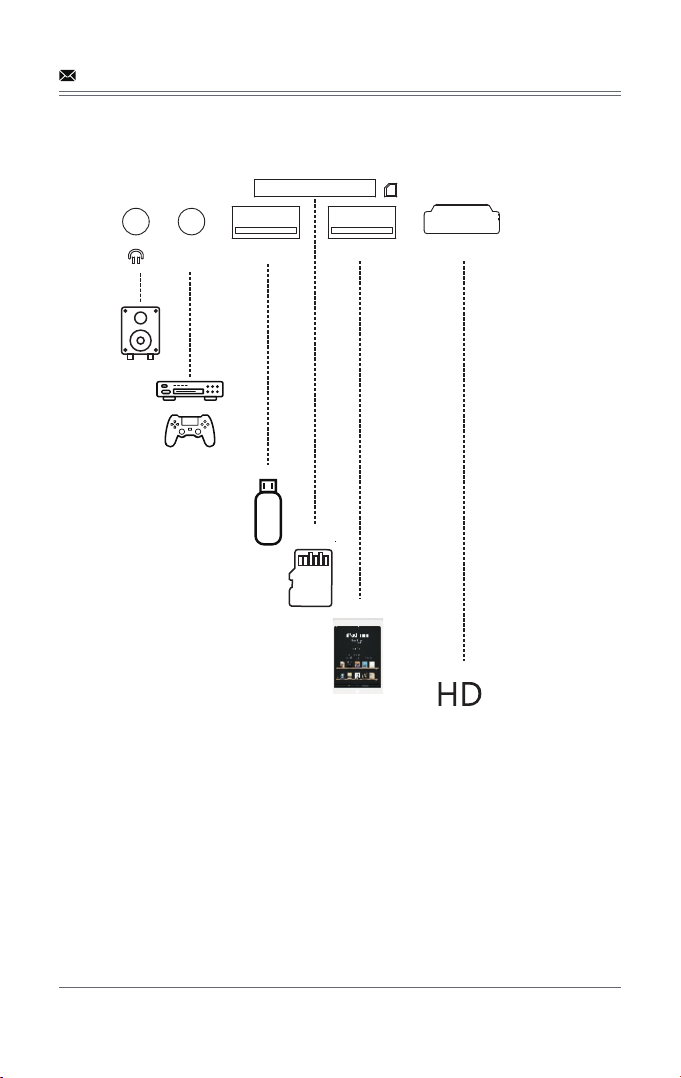
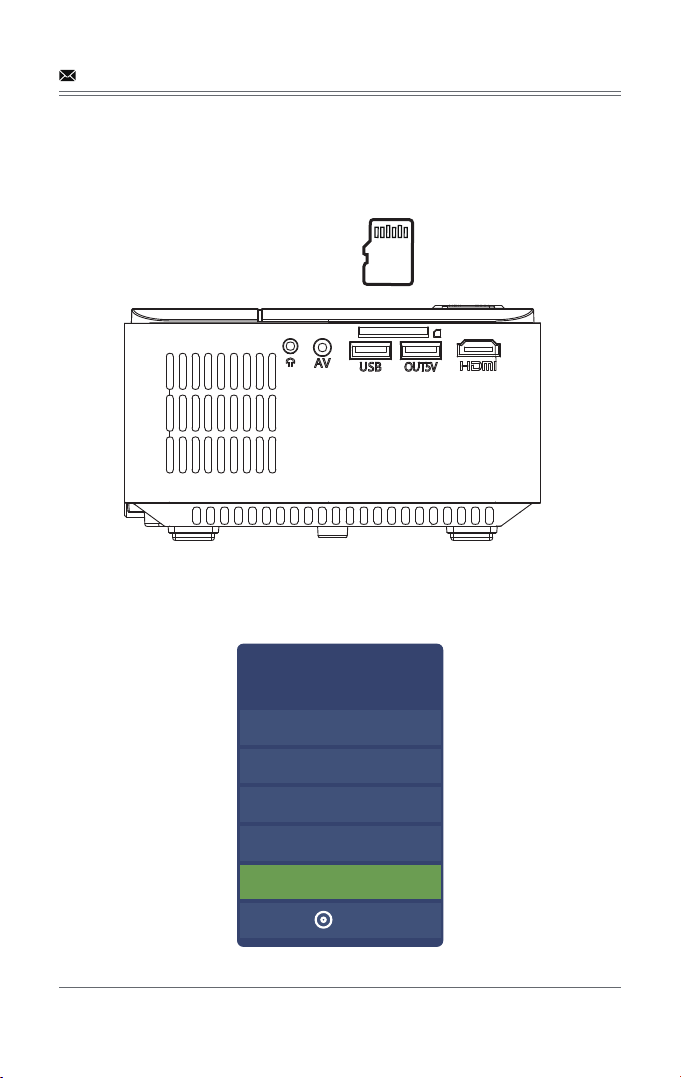
5.2.1 Insert the USB/SD card into the slot (picture).
5.2.2 Choose SD or USB as source from the menu.
- 11 -
5.2 Playing media from a USB/SD card
Input Source
AV
VGA
HDMI
MulitMedia
SD
OK
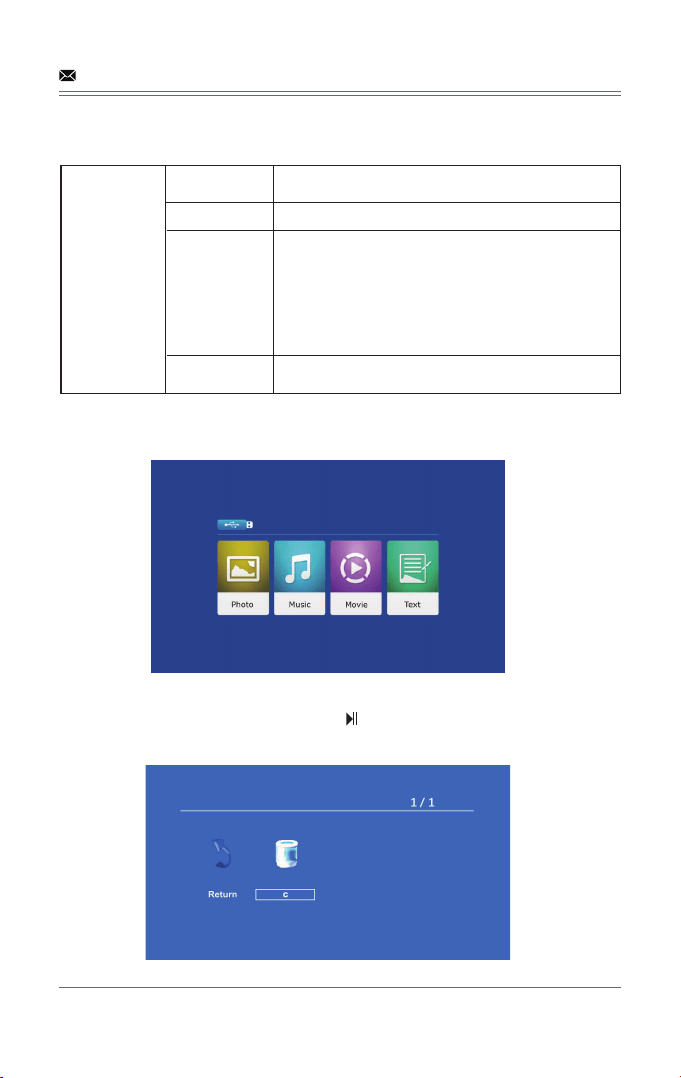
Supported multimedia formats
5.2.3 Choose the content which you need to display:
Video/music/photos/text.
5.2.4 Choose the file you want to display. Press “ ” to display or stop.
- 12 -
Multimedia
Audio file MP3/WMA/OGG/AAC/MA4/FLAC/APE/WAV
Picture file JPEG/BMP/PNG
Text file TXT
Video file
MPEG1、MPEG2、MPEG4、RM、AVI
RMVB、MOV、MKV、DIVX、FLV、VOB
M-JPEG(only unspported 640*480)
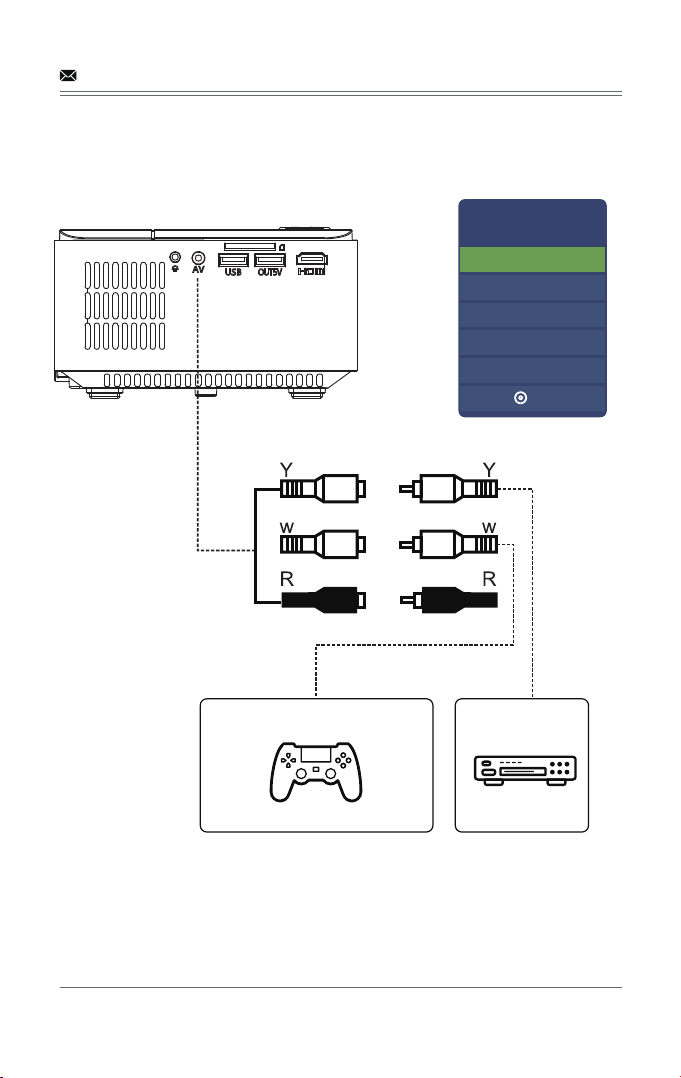
5.3 AV video connection
Use a 3-in-1 AV cable to connect to the projector as shown below. Once connected, select the
AV signal source.
- 13 -
Supports NTSC/PAL.
Input Source
AV
VGA
HDMI
MulitMedia
SD
OK
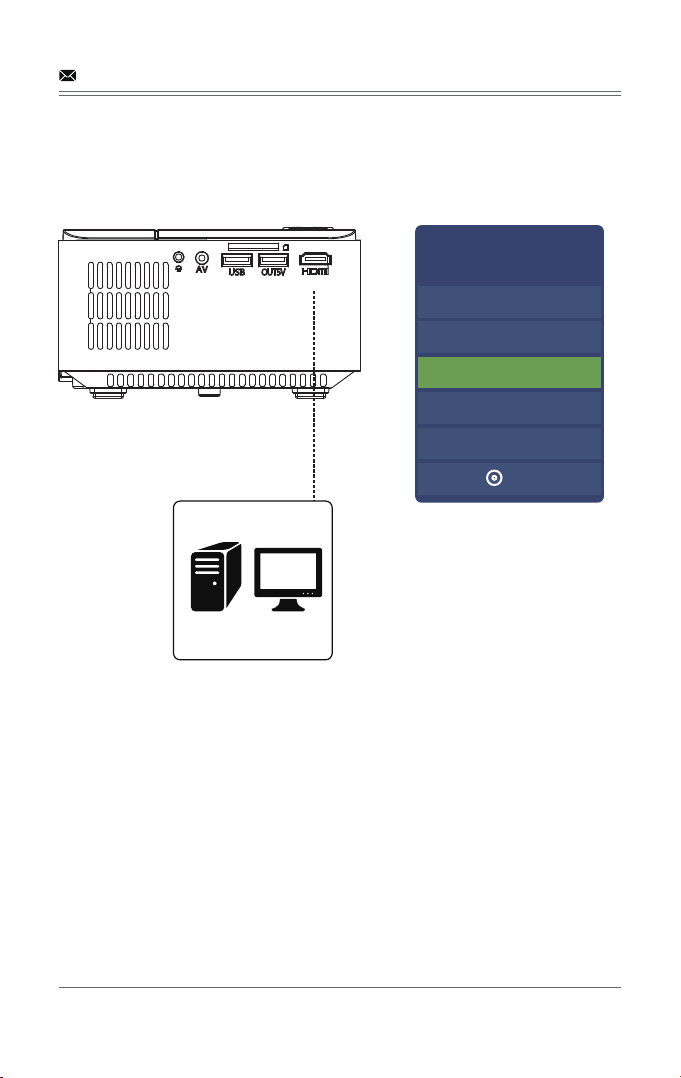
5.4 HDMI connection
5.4.1 Use the HDMI slot to connect computers and HDMI compatible devices. Once connected,
select the HDMI signal source.
Supported resolutions:
576P, 480P, 720P, 1080P, 640x480, 800x600, 1024x768, 1280x1024, 1280x720, 1440x900,
1920x1080, 1366x768, 1280x800, 1440x960, 1600x1200, 1680x1050
- 14 -
Input Source
AV
VGA
HDMI
MulitMedia
SD
OK
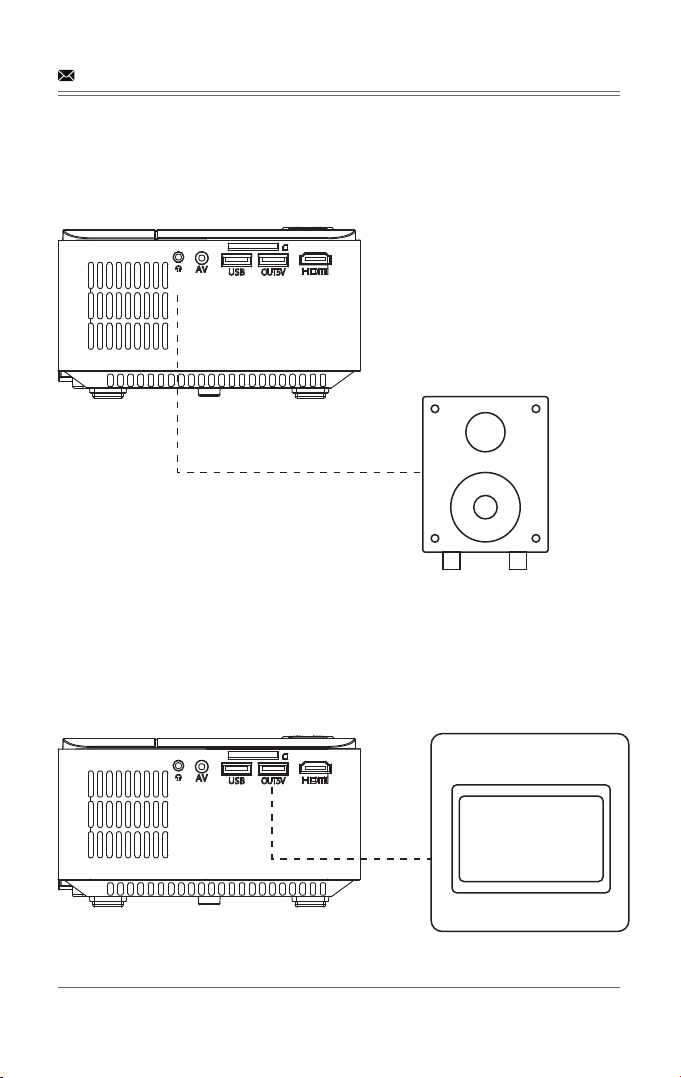
5.5 3.5mm audio connection
5.5.1 Use the 3.5mm audio jack to connect headphones and speaker equipment.
Note: This projector does not support Dolby sound.
- 15 -
5.6 Other connection
USB output 5V for mobile table power supply.
MENU SETTINGS
6.1 Remote control user guide
6.2 Function of sub-menus
- 16 -
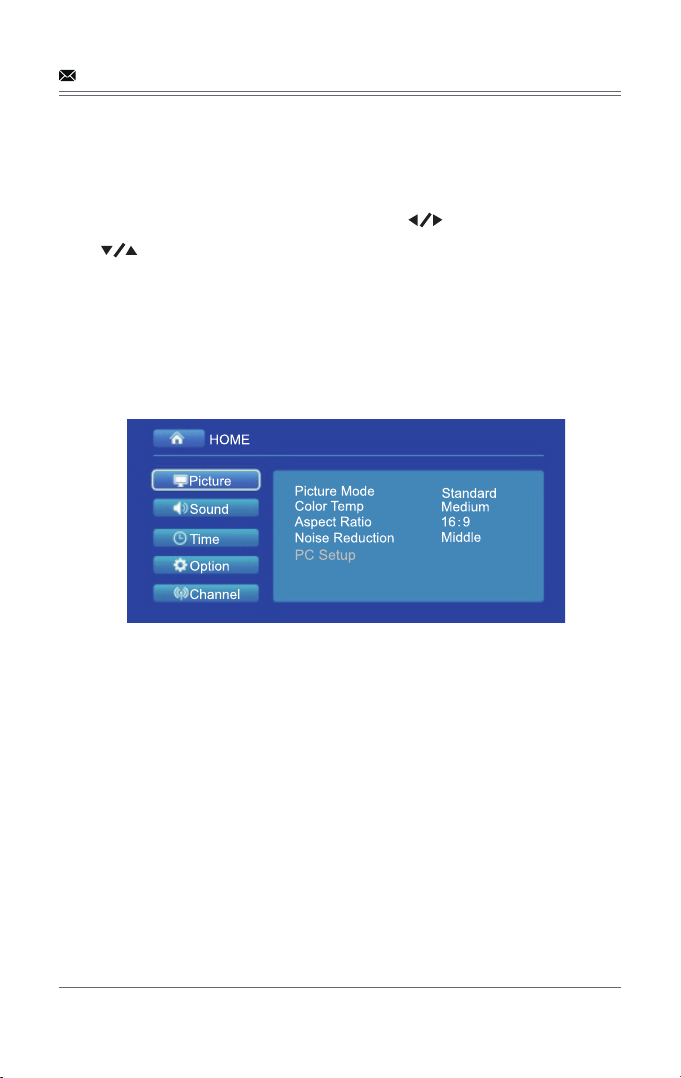
Press the “Menu” key to enter the main menu, then press “ ” to enter each sub-menu.
Press “ ” to select the sub-menu, then adjust the parameters per your needs, and press
the “OK” key to confirm.
6.2.1 Image sub-menu:Picture mode/color temperature/aspect ratio/noise reduction.
6.2.2 Time sub-menu
Clock/OFF time/ON time
auto shutdown timer/auto sleep.
6.2.3 Setting sub menu
Available adjustment: OSD language, restore factory settings, OSD duration, image flip, zoom.
6.2.4 Audio sub menu
Available adjustment: sound mode, balance, auto volume, surround sound.
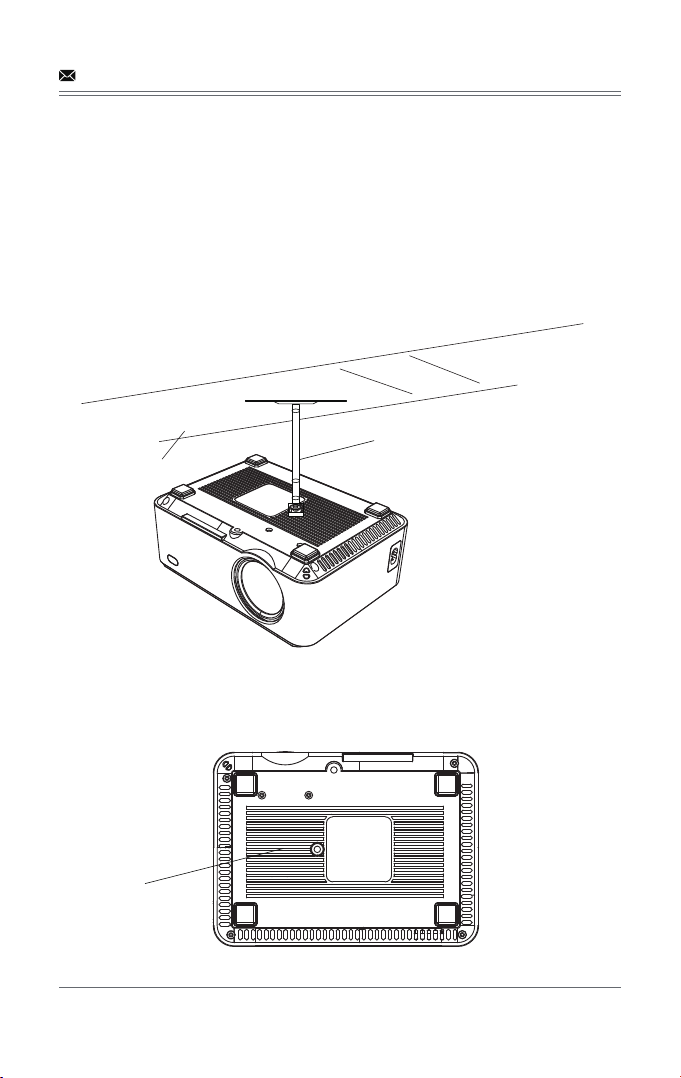
When ceiling mounting the projector, please ensure screws of a suitable quality are used, and
that screw depth is deep enough to prevent the projector from falling.
PROJECTOR INSTALLATION
7.1 Please refer to the following diagram for mounting the projector on
a ceiling.
Do not place the projector near heat sources to prevent the projector from overheating.
Ceiling
Bracket
Fixed Hanger Hole
- 17 -
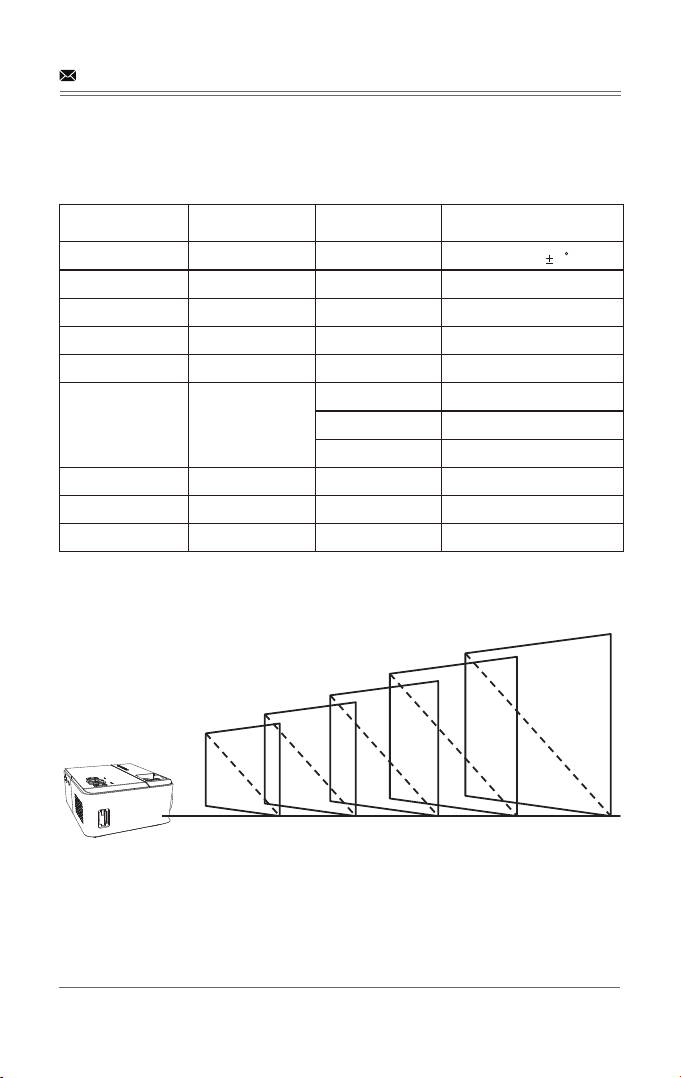
8.2 Projection distance and screen size
For reference only. The projection distance and screen size differ based on the configuration of
the projector.
TECHNOLOGY FEATURES
8.1 Basic parameters
Imaging
Technology
Resolution
Highest Resolution
Light
Life Span
Lens
Operation Mode
Throw Distance
Screen Size
Aspect Ratio
32
100cm 213cm 300cm 355cm 500cm
72
100
120
170
TFT LCD
800*480 RGB
1920*1080
LED
50,000 hrs
Multichip Coated
Lens (F=125)
Manual
Operation
1-5M
32-176 Inches
4:3/16:9
Color
Reproduction
Keystone
Power Voltage
Integrated watt
Input
Output Earphone USB (5V-500MA)
Speaker
System support
Language support
Support multi-media
Support 23 Language
Unit size
Projector Ratio
New Weight
18K
100V-240V 50/60Hz
50W
USB*2/SD/HDMI/VGA/AV
204*149*83mm
1.4:1
1.05KG
Manual Correction 15
3W*1
- 18 -

Made in China
or
Scan QR Code & Start Chatting
www.dbpower.co
Learn more about DBPOWER, please visit us at:
m.me/DbpowerDirect
1-855-666-9888
support@dbpower.co
www.dbpower.co