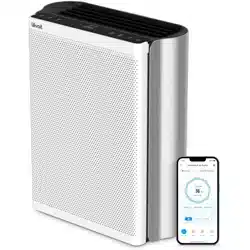
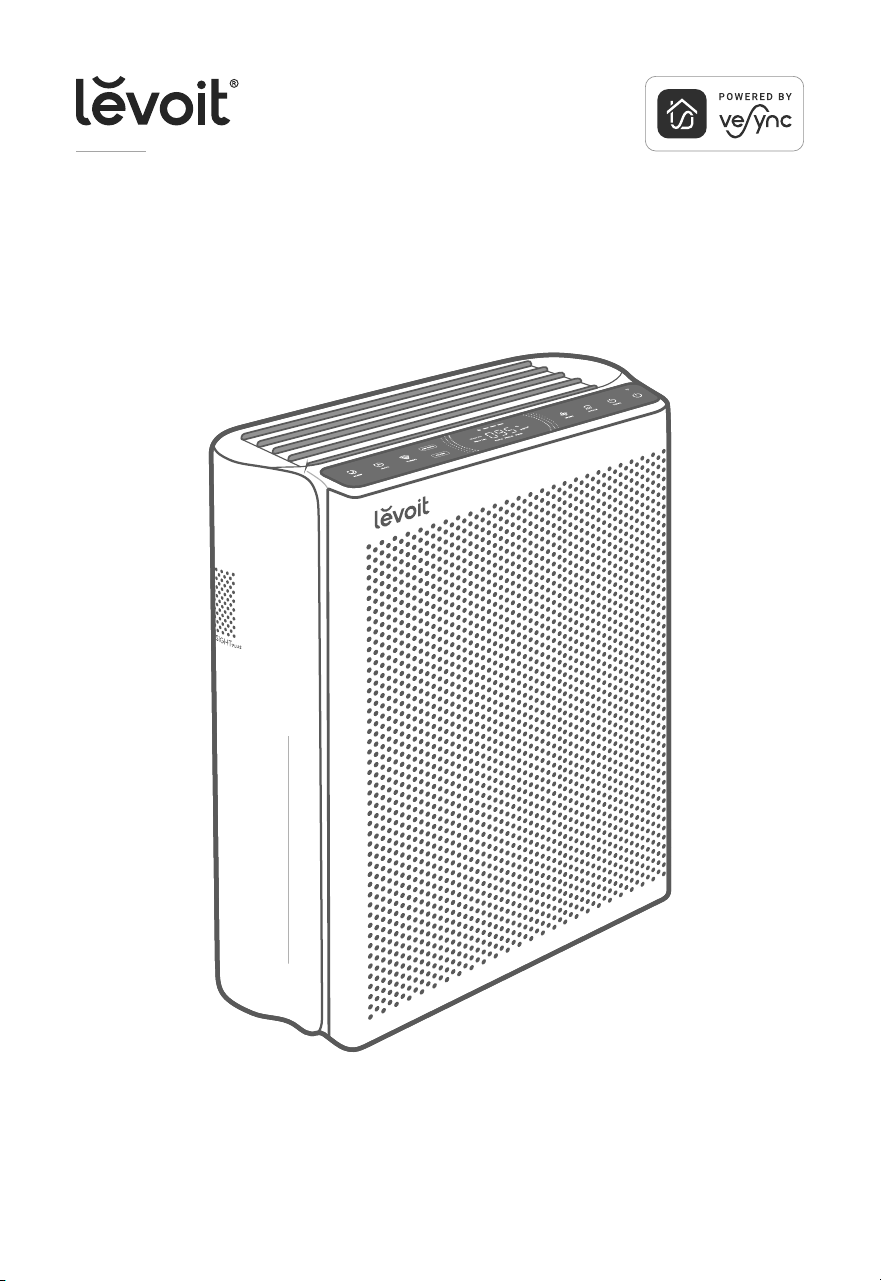
EverestAir™-P Smart Air Purier
Questions or Concerns?
Please contact us Mon–Fri, 9:00 am–5:00 pm PST/PDT
at [email protected] or at 1-888-726-8520.
USER MANUAL
2
Table of Contents
Package Contents
Specications
Safety Information
Getting to Know Your Smart Air Purier
Controls & Display
Getting Started
Using Your Smart Air Purier
About the Filter
Care & Maintenance
Troubleshooting
Warranty Information
Customer Support
2
2
3
5
6
8
10
15
17
20
24
26
Package Contents
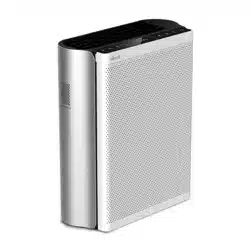
1 x Smart Air Purier
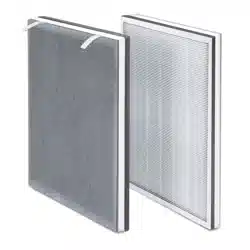
1 x Main 3-Stage Original Filter (Pre-Installed)
1 x User Manual
1 x Quick Start Guide
1 x Power Cord
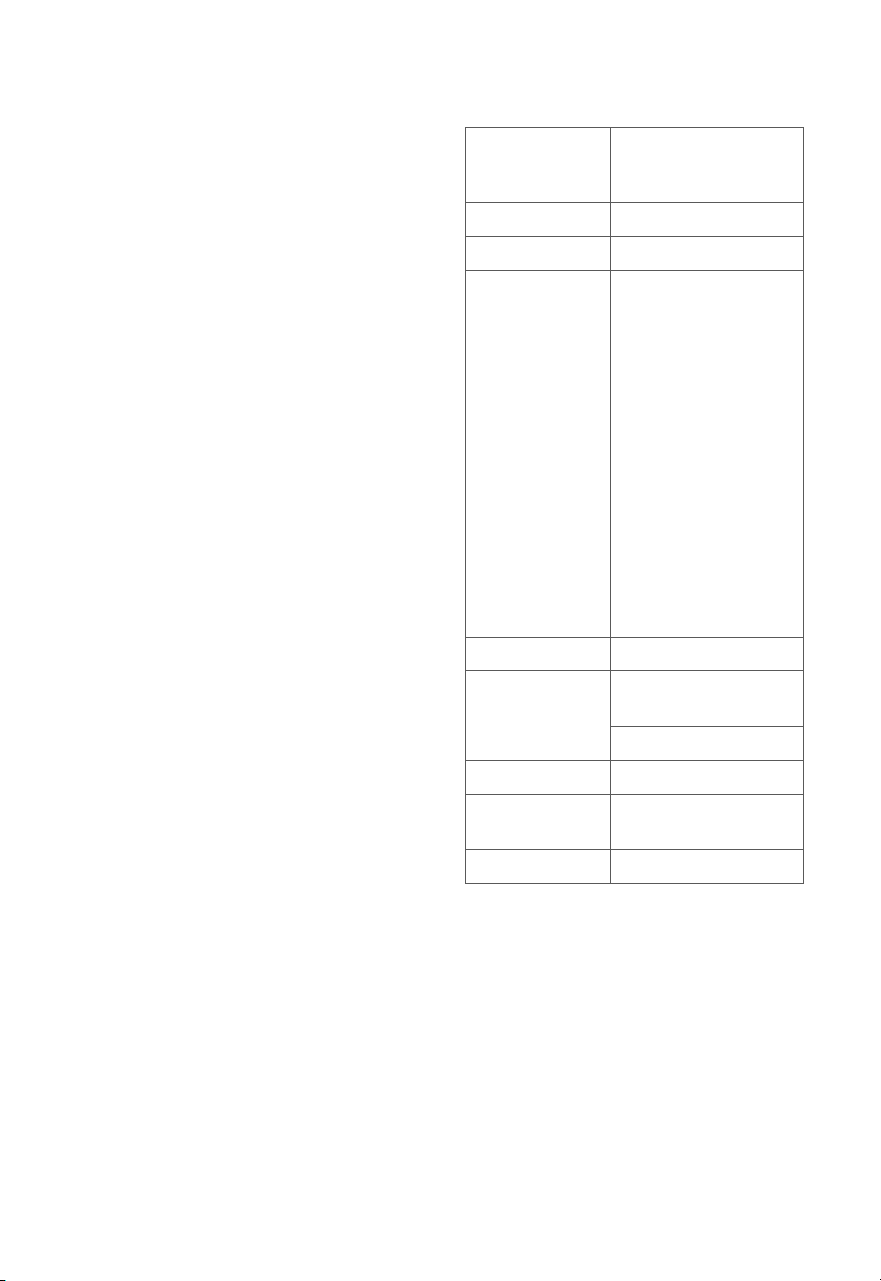
Specifications
Model LAP-EL551S-AUS
LAP-EL551S-AUSR
LAP-EL551S-WUSB
Power Supply AC 120V, 60Hz
Rating 70W, 1A
Ideal Room Size 549 ft² / 51 m²
• This Ideal Room
Size is based on
5 air changes per
hour (ACH).
1,373 ft² / 128 m²
• This Ideal Room
Size is based on
2 air changes per
hour (ACH).
Note: Eective for
larger rooms but
purication will take
longer.
CADR (CFM) 354 CFM / 602 m3/h
Operating
Conditions
Temperature:
14°–104°F / -10°–40°C
Humidity: < 85% RH
Noise Level 24–55dB
Dimensions 18.9 x 8.5 x 23.2 in /
48 x 21.6 x 58.9 cm
Weight 20.7 lb / 9.38 kg
Note: To access additional smart functions,
download the free VeSync app (see page 9).

3
SAFETY INFORMATION
• Only use your air purifier as described in
this manual.
• Do not use without removing the plastic
wrap from the filter. The air purifier will not
filter air, and may overheat, causing a fire
hazard.
• Do not use the air purifier outdoors.
• Keep the air purifier away from water, and
wet or damp areas. Never place in water
or liquid.
• Do not use in excessively humid areas.
• Keep the air purifier away from heat
sources.
• Do not use where combustible gases,
vapors, metallic dust, aerosol (spray)
products, or fumes from industrial oil are
present.
• Keep 5 ft / 1.5 m away from where oxygen
is being administered.
• Children should be supervised to ensure
that they do not play with the air purifier.
• Do not place anything into any opening in
the air purifier.
• Children should be supervised to ensure
that they do not insert fingers or objects
into the vent openings while the vents are
moving.
• Do not sit on or place heavy objects on
the air purifier.
• Keep the inside of the air purifier dry. To
prevent moisture buildup, avoid placing in
rooms with major temperature changes.
• Always unplug the air purifier before
servicing, cleaning or maintenance (such
as changing the filter).
• Do not use the air purifier if it is damaged
or not working correctly, or if the cord or
To reduce the risk of fire, electric shock, or other injury, follow all instructions and safety
guidelines.
General Safety
• Keep the air purifier near the outlet it is
plugged into.
• Never place the cord near any heat
source.
• Do not cover the cord with a rug, carpet,
or other covering. Do not place the cord
under furniture or appliances.
• Keep the cord out of areas where people
walk often. Place the cord where it will not
be tripped over.
Power & Cord
READ AND SAVE THESE
INSTRUCTIONS
plug is damaged. Do not try to repair it
yourself. Contact Customer Support (see
page 26).
• WARNING: To reduce the risk of fire or
electric shock, do not use this air purifier
with any solid-state speed controls (such as
a dimmer switch).
• WARNING: To Reduce The Risk Of Fire,
Electric Shock Or Injury To Persons, Do
Not Use Replacement Parts That Have Not
Been Recommended By The Manufacturer
(e.g. Parts Made At Home Using A 3D
Printer).
• Children should not clean or perform
maintenance on the air purifier without
supervision.
• This air purifier is not to be used by persons
(including children) with reduced physical,
sensory, or mental capacities, or lack of
experience and knowledge, unless they
have been given supervision or instruction
concerning the use of the appliance by a
person responsible for the safety.
• Not for commercial use. Household use
only.

4
• This appliance has a polarized plug (one
blade is wider than the other). To reduce
the risk of electric shock, this plug is
intended to fit in a polarized outlet only
one way. If the plug does not fit fully in the
outlet, reverse the plug. If it still does not
fit, contact a qualified electrician. Do not
attempt to defeat this safety feature.
• This air purifier uses standard North
American 120V, 60Hz outlets. If using
outside the US or Canada, check for
compatibility.
• If the power supply cord is damaged, it
must be replaced by Arovast Corporation
or similarly qualified persons in order to
avoid an electric or fire hazard. Please
contact Customer Support (page 26).
• Unplugging the power cord will disable
remote control of the air purifier and
temporarily disconnect the air purifier from
VeSync and other third-party apps.
Electromagnetic Fields (EMF)
Your Levoit air purifier complies with all
standards regarding electromagnetic fields
(EMF). If handled properly and according to the
instructions in this user manual, the appliance
is safe to use based on scientific evidence
available today.
SAFETY INFORMATION (CONT.)
5
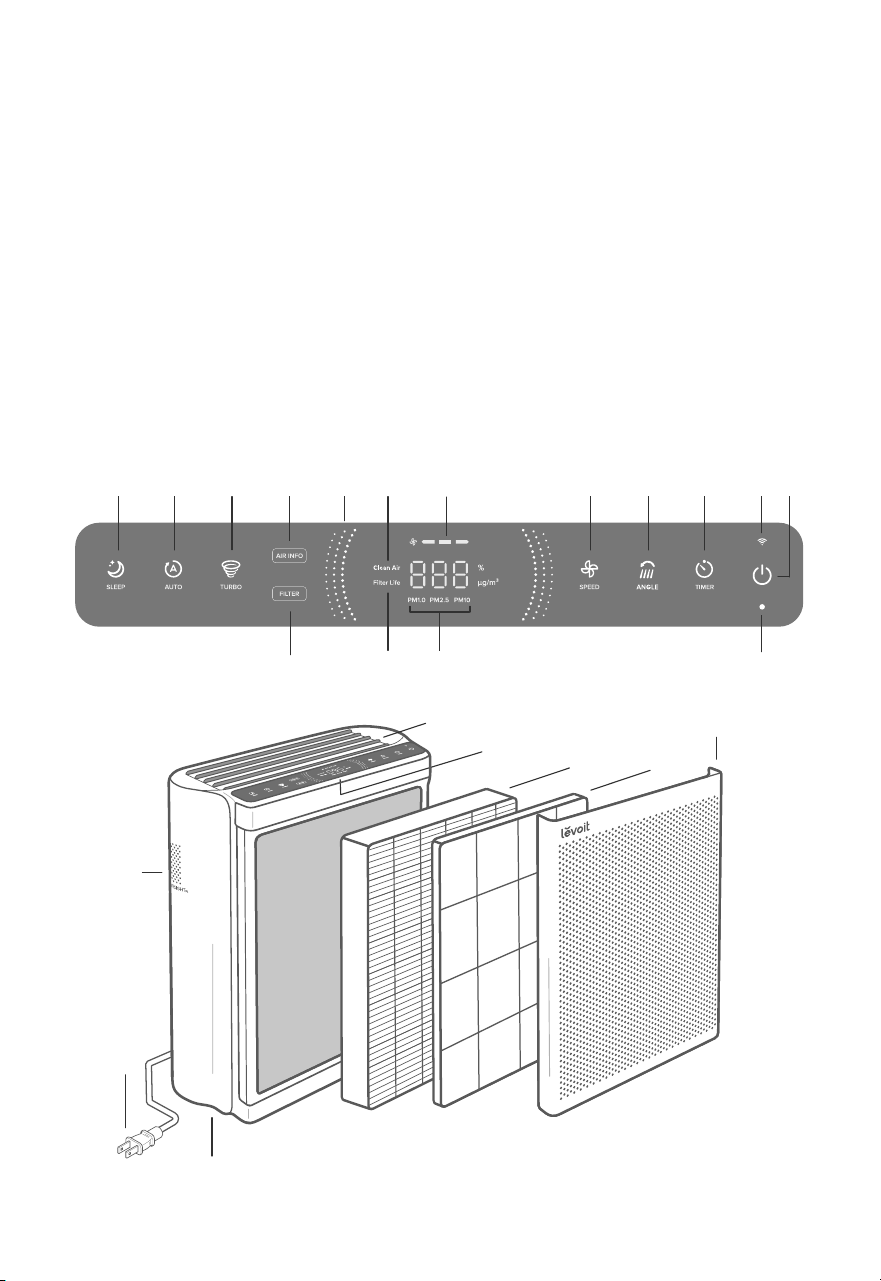
GETTING TO KNOW YOUR SMART AIR PURIFIER
A. Sleep Mode Button
B. Auto Mode Button
C. Turbo Mode Button
D. Air Info Button
E. Air Quality Indicator Rings
F. Clean Air Indicator
G. Fan Speed Indicators
H. Fan Speed Button
I. Vent Angle Button
J. Timer Button
K. Wi-Fi® Indicator
L. On/O Button
M. Filter Info Button / Check Filter Indicator
N. Filter Life Indicator
O. Particulate Matter (PM) Indicators
P. Light Sensor
Q. AirSight Plus™ 2.0 Laser Dust Sensor
R. Vents
S. Display
T. Main / Activated Carbon Filter
U. Washable Pre-Filter
V. Front Cover
W. Power Cord
X. Wheels (Underneath)
A
W
HB IC JD
M
Q
O
P
X
N
E
G
F K L
S
R
T U
V
6
CONTROLS & DISPLAY
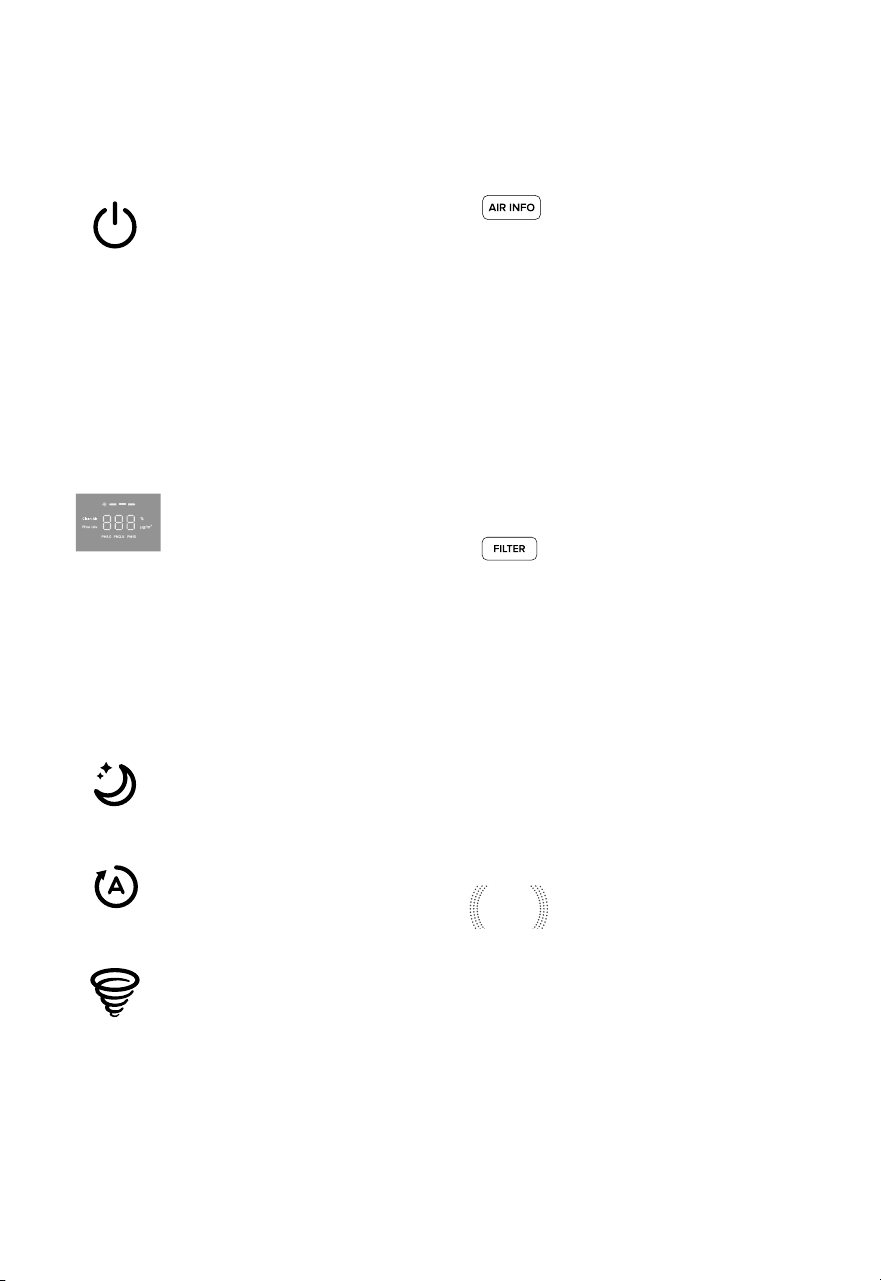
On/O Button
• Turns the air purier on/o.
• Press and hold for 5
seconds to connect the air
purier to the VeSync app.
See the in-app instructions
for more information.
• Press and hold for 15
seconds to reset the air
purier and disconnect from
Wi-Fi (see page 9).
Air Info Button
• Changes the type of air
quality information shown
on the center of the display.
• Cycles through air quality
readings for PM1.0, PM2.5,
PM10, and overall clean
air percentage (see Air
Information, page 11).
• The chosen air quality
information will stay on the
display until you restart the
air purier.
Filter Info Button
• Shows the lter life
percentage on the center
of the display. After a few
moments, the display
will return to its previous
setting.
• Button lights up when the
lter should be checked
(see Check Filter Indicator,
page 17).
• Press and hold for 3
seconds to reset the
indicator (see page 17).
Display
• Shows information related
to air quality and air purier
settings.
• By default, the display will
show the overall clean air
percentage.
• The display will reset to
default when the air purier
is turned on/o.
Sleep Mode Button
• Turns Sleep Mode on/o
(see page 10).
Auto Mode Button
• Turns Auto Mode on/o
(see page 10).
Turbo Mode Button
• Turns Turbo Mode on/o
(see page 10).
Air Quality Indicator Rings
• These indicators use an
automatic sensor to display
the air quality: Blue (Very
Good), Green (Good),
Orange (Moderate), and
Red (Bad).
• Note: You can also use the VeSync app to control these functions, as well as additional app-only
features (see page 9).
7
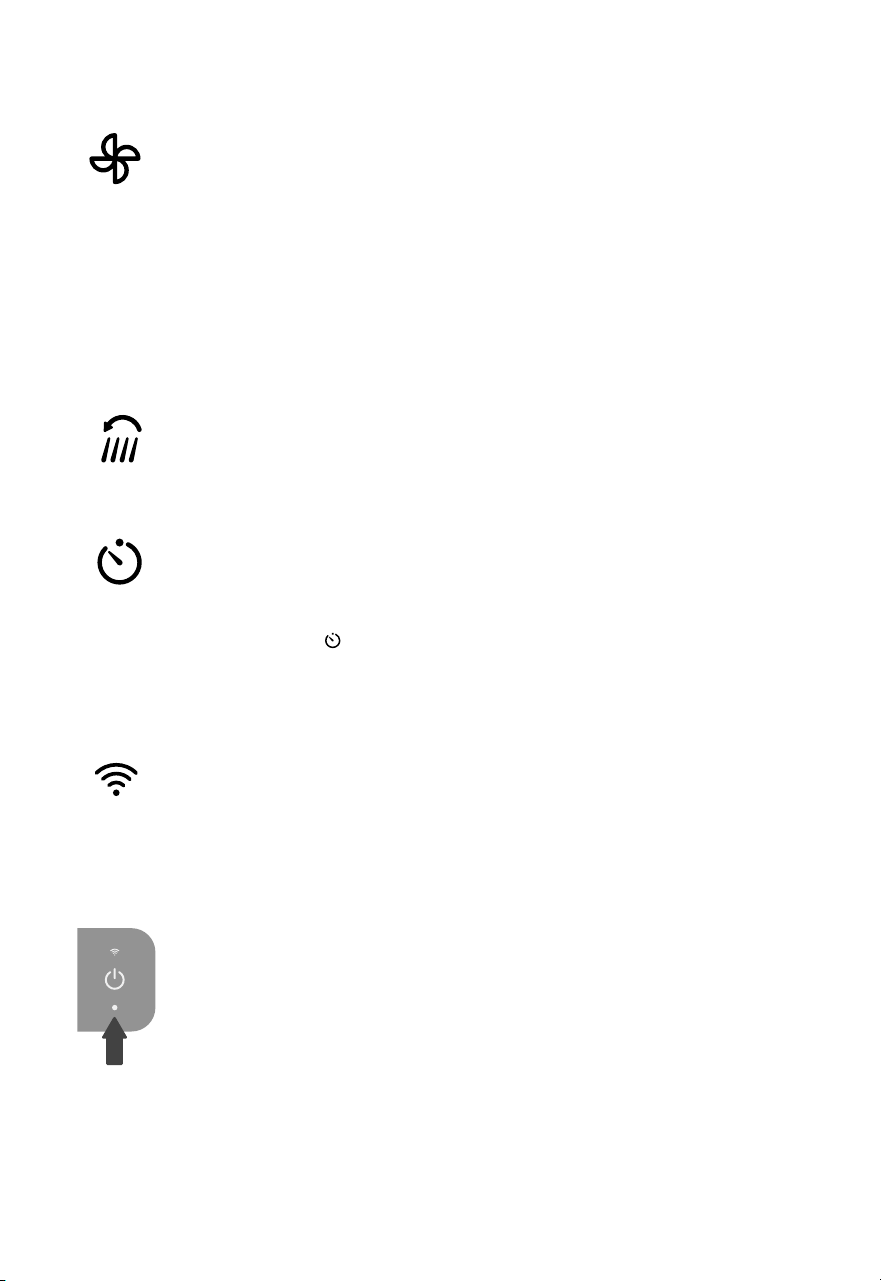
Fan Speed Button
• Cycles through fan speeds:
low (1 indicator will light up),
medium (2 indicators), and
high (3 indicators).
• Tapping the Fan Speed
Button while the air purier
is in Auto Mode, Turbo
Mode, or Sleep Mode (if the
display is on) will exit that
mode.
Wi-Fi® Indicator
• Turns on, o, or blinks to
indicate pairing status.
See the VeSync in-app
instructions for more
information.
Vent Angle Button
• Cycles through vent angles:
45º, 60º, 75º, and 90º (see
page 12).
Light Sensor
• This sensor detects the
amount of light in the room
to automatically adjust air
purier settings (see Light
Detection, page 14).
• Light Detection can be
turned on/o in the VeSync
app (see page 14).
CONTROLS & DISPLAY (CONT.)
Timer Button
• Cycles through timer
options from 1–12 hours
(see page 12).
• Press and hold for 2
seconds to begin cycling
through the timer options in
1-hour increments.
8
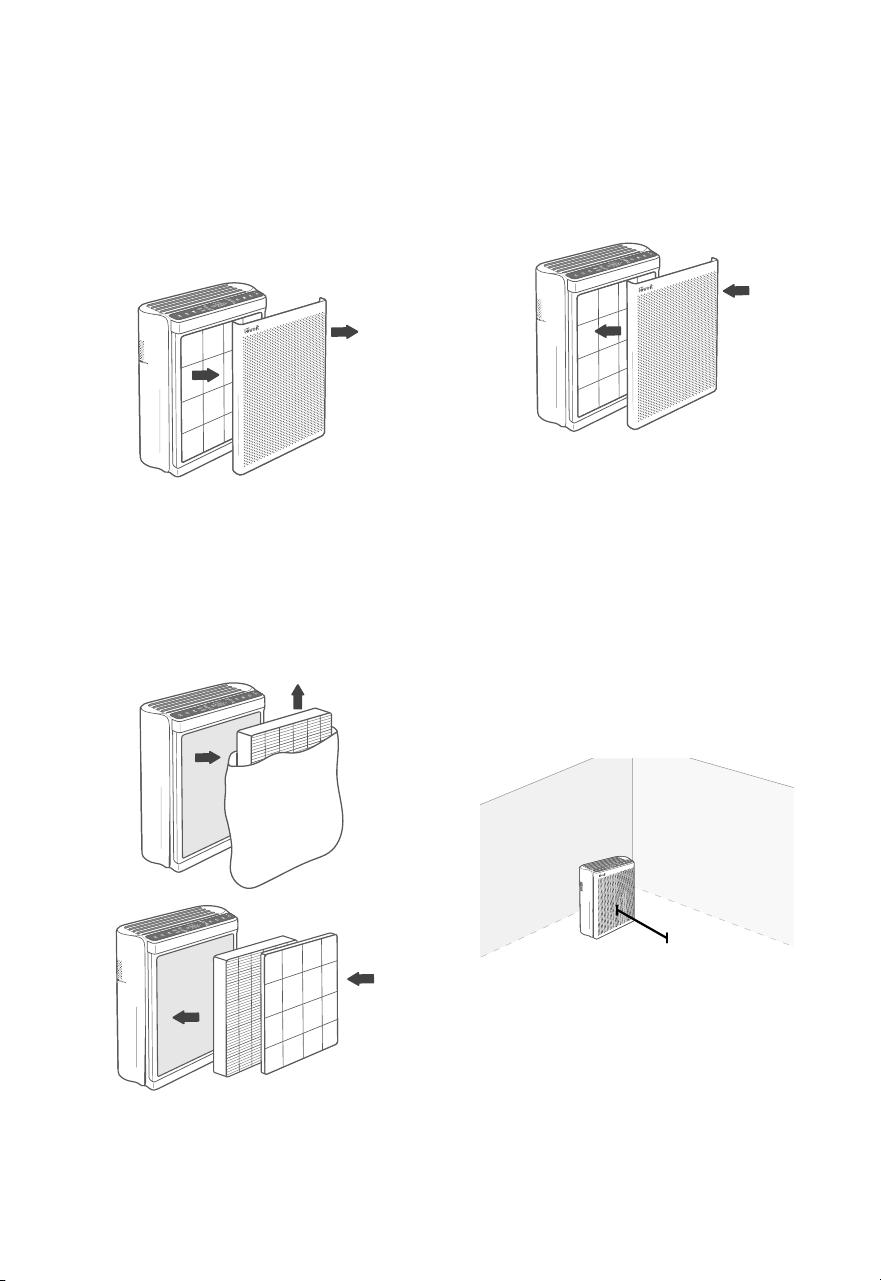
Note: Make sure the Main lter (the side with the
ribbon handle) is facing outward when you insert
the lter.
Note: The front cover attaches to the air purier
with magnets.
3. Place the front cover back on the air
purier. Make sure to align the tabs on
the cover with the slots on the bottom of
the air purier. [Figure 1.3]
Figure 1.3
GETTING STARTED
1. Place the air purier on a at, stable
surface such as the oor. Pull the front
cover to remove it. Pull the tabs to
remove the pre-lter from the air purier.
[Figure 1.1]
Figure 1.1
Figure 1.2
2. Remove the Main / activated carbon
lter from inside the air purier. Remove
the plastic packaging from the lter and
place the lter and pre-lter back into the
air purier. [Figure 1.2]
4. Insert the power cord into the back of the
air purier.
5. When using the air purier, allow at least
15 inches / 38 cm of clearance from the
front of the air purier. Keep away from
anything that would block airow, such as
curtains. [Figure 1.4]
Figure 1.4
15 in / 38 cm
9
• To disconnect Wi-Fi, press and hold for
15 seconds until the Wi-Fi indicator turns
o. This will restore the smart air purier’s
default settings and disconnect it from the
VeSync app.
• To reconnect, please follow the instructions
in the VeSync app for adding a device.
Note: You must create your own VeSync account
to access voice assistants.
Note: For Android™ users, choose “Allow” to
use VeSync.
Note: You must create your own VeSync
account to use third-party services and
products. These will not work with a guest
account. With a VeSync account, you can
also allow your family and friends to control
your smart air purier.
Note: Your phone must have Location
turned on while your phone is connecting to
your smart air purier. This is required to
establish the Bluetooth® connection. You
can turn Location o after your smart
air purier is nished connecting to
the VeSync app.
Note: The VeSync app is continually being
improved and may change over time. If there are
any dierences, follow the in-app instructions.
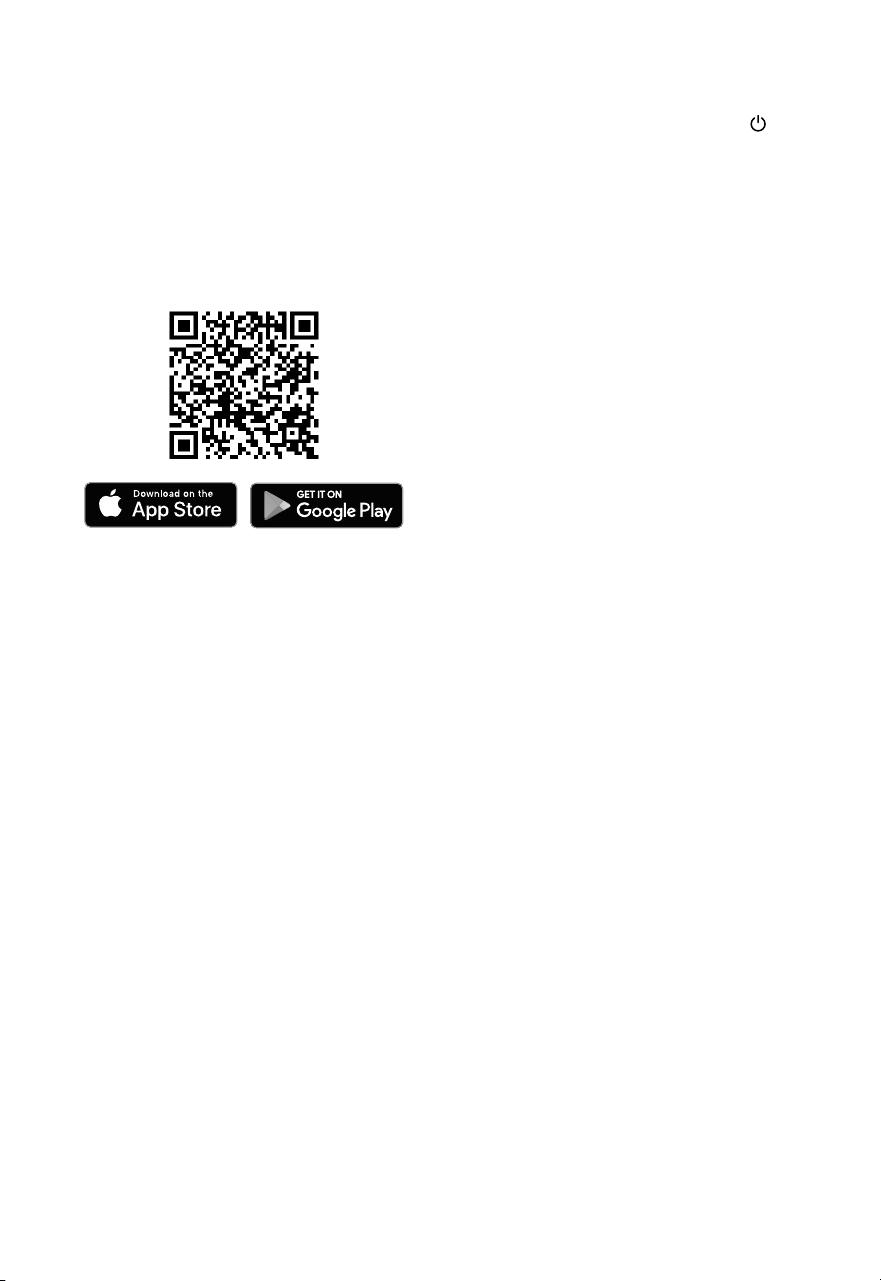
1. To download the VeSync app, scan the
QR code or search “VeSync” in the Apple
App Store® or Google Play Store.
You can use the VeSync app to connect
your smart air purier to Amazon Alexa or
Google Assistant™. Please follow the in-app
instructions to set up your voice assistant.
VeSync App Setup Wi-Fi Connection
Connect with Amazon Alexa or
Google Assistant™
2. Open the VeSync app. Log In or Sign
Up.
3. Follow the in-app instructions to set up
your smart air purier.
10
Sleep Mode operates quietly by using a fan
speed lower than low speed.
1. Tap to turn Sleep Mode on/o.
2. Sleep Mode will turn o the display after
6 seconds if no other buttons are tapped.
Note:
• When the display is turned o, tap
any button to turn the display back
on. If you don’t tap another button,
the display will turn o again after 6
seconds.
• will still turn on and stay on
if it’s time to check your lter (see
page17)
Auto Mode
Sleep Mode
Turbo Mode
USING YOUR SMART
AIR PURIFIER
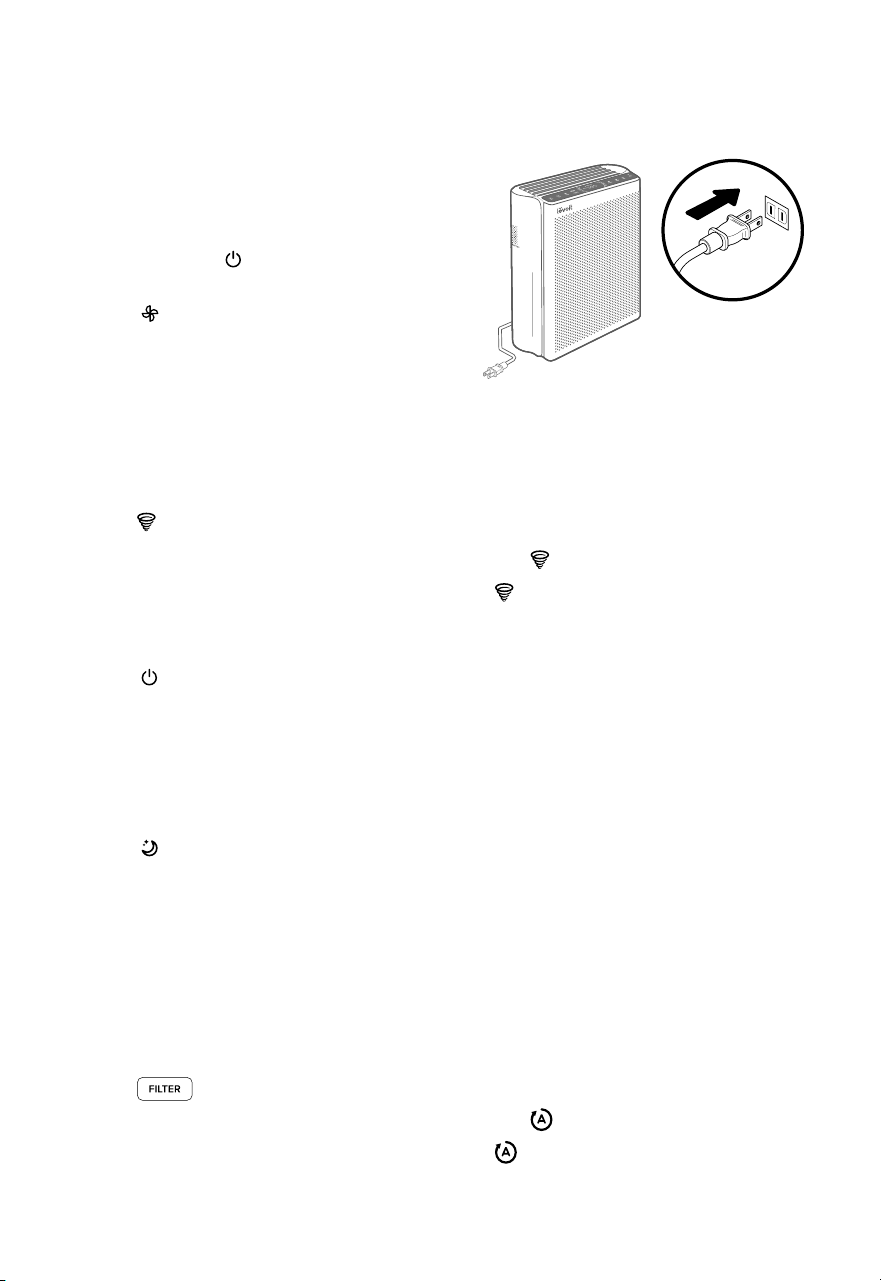
1. Plug in and tap to turn on the air
purier. [Figure 2.1]
2. Tap to change fan speed between
low, medium, and high.
Note:
• The fan speed indicators will light up
when active. 1 indicator will light up for
low, 2 for medium, and 3 for high.
• For best results, or to address a specic
air quality issue such as smoke, press
to run the air purier on Turbo
Mode turbo for 15–20 minutes before
using a lower speed.
• To eectively clean air, keep windows
and doors closed while the air purier
is on.
Note:
• Turbo Mode is the loudest air purier
mode, but cleans air the quickest.
• You can run the air purier in Turbo
Mode for 15–20 minutes to increase
air purication speed, or for specic
situations like heavy odors or visible
smoke. For serious air quality issues,
try running the air purier in Turbo
Mode for longer.
3. Tap to turn o the air purier.
Note: Using the VeSync app allows you to control
your air purier remotely and access additional
functions and features (see page 14).
Turbo Mode cleans your air very quickly by
using a fan speed higher than high speed.
1. Tap to turn Turbo Mode on/o.
2. will light up while Turbo Mode is
turned on.
Auto Mode uses AirSight Plus™ 2.0, a smart
laser dust sensor inside the air purier, to
adjust the fan speed automatically based on
air quality. For example, if the air quality is
bad, the fan will automatically be set to high
speed.
1. Tap to turn Auto Mode on/o.
2. will light up while Auto Mode is on.
Figure 2.1
11
USING YOUR SMART AIR PURIFIER (CONT.)
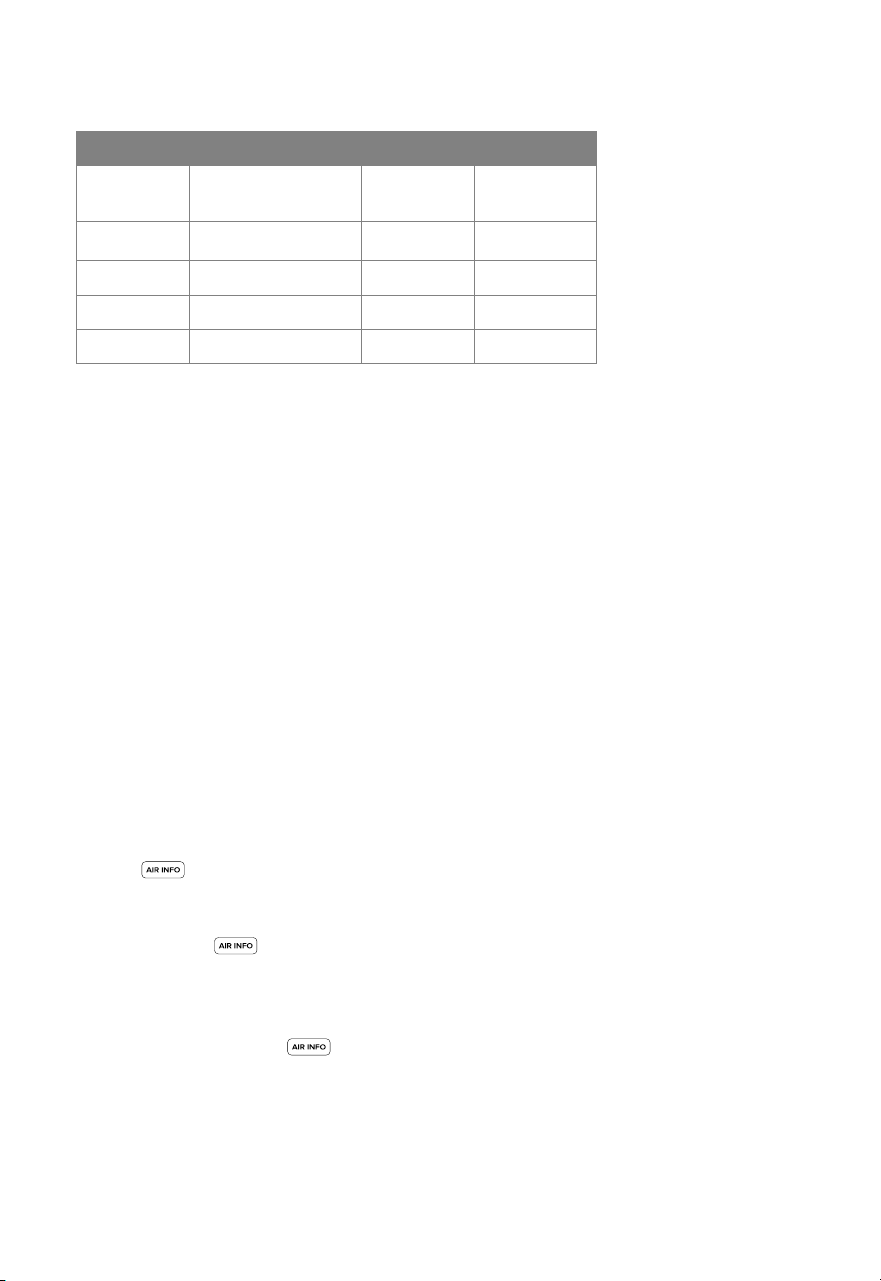
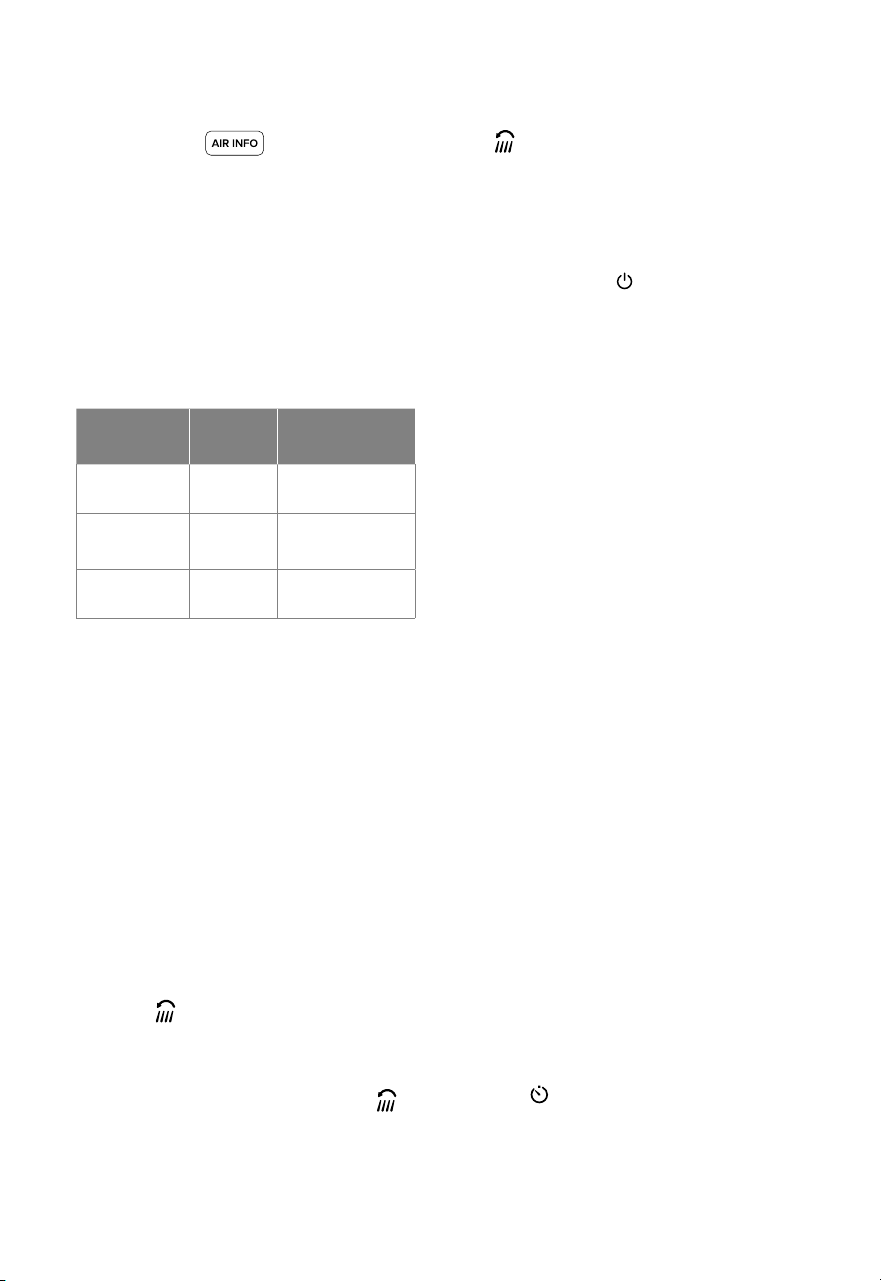
Air Quality Indicator Chart
Indicator
Color
Clean Air
Percentage Range
Air
Quality
Auto Mode
Fan Speed
Blue
90–100%
Very Good Sleep Mode
Green
80–89%
Good Low
Orange
70–79%
Moderate Medium
Red
0–69%
Bad High
Air Information
Clean Air Percentage
PM Values
Note:
• The air purier will take 5 seconds
to detect the air quality each time it
is turned on. During this time, the air
quality indicator rings will be blue. After
5 seconds, the air quality indicator
rings will change color based on the
detected air quality.
• Auto Mode does not use the Turbo
Mode.
• The VeSync app also supports ECO
Auto Mode (see page 14).
Note: The percentage is approximate. The
sensor can only detect airborne particles, not
odors or gasses.
Your air purier automatically scans your air
and analyzes the quality. By default, the air
purier shows the overall clean air percentage
on the center of the display.
1. Tap to change the air quality
information shown on the center of the
display.
2. Keep tapping to cycle through air
quality readings for PM1.0, PM2.5, PM10,
and overall clean air percentage. For more
information, see PM Values (page 11).
3. When you stop tapping , the
current air quality reading will stay on the
display until you restart the air purier.
If you restart the air purier, the display
will again show the overall clean air
percentage.
Clean air percentage is an estimated
measurement of the amount of clean air in the
room, between 0% (bad) to 100% (very good).
This percentage is calculated by an algorithm,
based on:
• The concentration of particles detected in the
air, including micro-particles.
• The change in detected particles in the air
during purication.
“PM” stands for “Particulate Matter,” and usually
refers to airborne particles oating in your air,
including dust and most allergens. Many of
these particles are too small to be seen with
the naked eye, and without air purication,
they stay in the air much longer than heavier
or larger particles.
Your air purier’s AirSight Plus 2.0 Laser
Dust Sensor detects the amount of airborne
particles that are in a given space (µg/m³).
Generally, the lower the number, the better
your air quality.
12
When you press to show PM
readings on the display, the number is the
estimated amount of airborne particles (µg)
that are detected per 1 cubic meter (m³) of air
volume.
The PM value (1.0, 2.5, or 10) refers to
particulate matter (PM) less than or equal to
1, 2.5, or 10 microns (µm) in size (measured
by the diameter of the particle). For example,
PM2.5 refers to particulate matter that is 2.5
microns or smaller.
Particulate
Matter (PM)
Size Examples
PM1.0 ≤ 1 µm
Fine dust,
micro-toxins
PM2.5 ≤ 2.5 µm
Dust, smoke, pet
dander
PM10 ≤ 10 µm
Pollen, ash, airborne
allergens
Vent Angle
Light Detection
Timer
You can set the vents on top of the air purier
to dierent angles to disperse puried air
throughout your room more eciently.
Puried air is typically dispersed in a xed
direction through the top of the air purier.
Having dierent vent angles is especially
eective in rooms with a lot of furniture or
other objects that can block airow, as well as
rooms with an unusual layout or high ceilings.
Light Detection uses the built-in light sensor to
automatically adjust air purier settings based
on the amount of light in the room.
You can set a timer for 1–12 hours.
1. By default, the vents disperse air at a
xed 75º angle.
2. Press to rotate the vents to a
dierent angle. The vents will cycle
through 45º, 60º, 75º, and 90º angles.
• The display will automatically turn o when
the room gets dark. If the air purier is in
Auto Mode, it will not use the high fan speed
or Turbo Mode, even when the air quality is
poor, to avoid making too much noise.
• When the room becomes light again, the air
purier will return to its previous settings.
The display will automatically turn back on,
and Auto Mode will no longer be limited.
1. Tap repeatedly to set a timer in 1-hour
increments, beginning with 1 hour. If you
don’t touch any buttons for 5 seconds, the
display will switch to showing the air quality
reading and the timer will start automatically.
Note: You can set a timer for 1–24 hours in the
VeSync app.
Note: If the vents start at a 75º angle, press
to change the vent angle to 90º. Press the button
repeatedly to rotate the vents down to 75º, 60º,
and 45º.
Note: Light Detection can be turned on/o in the
VeSync app (see page 14).
Note:
• Do not unplug the air purier while it is
running. Tap to turn o the air purier,
then unplug.
• The vents will not close if power is
unexpectedly cut o.
• The angle of the vents can be adjusted
to any angle between 45º–90° in the
VeSync app.
USING YOUR SMART AIR PURIFIER (CONT.)
3. lights up when the vents are rotating
and turns o when the vents reach the
desired angle.

13
Note: The air purier will remember the last timer
setting while turned o. When you restart the air
purier, you’ll also need to restart the timer.
• To cycle through timer options more
quickly, press and hold for 2
seconds.
2. The timer will count down from your
selected time.
• You can change the fan speed at any
time while the timer is on.
3. While the timer is on, you can tap to
show the remaining time (rounded up to
the nearest hour) for 5 seconds. Within
these 5 seconds, you can tap again
to add more time in 1-hour increments.
• The timer will restart if the time is
changed.
• You can see the exact remaining time
in the VeSync app.
4. When the timer is nished, the air purier
will turn o.
5. To cancel a timer, tap repeatedly until
the display reads “--H”.
Standby Mode
Memory Function
The air purier is in Standby Mode when it is
turned o, but plugged in.
When the air purier is plugged in and turned
o, it will remember its previous fan speed,
vent angle setting, Sleep Mode, Auto Mode,
and Turbo Mode. It will also remember the
in-app settings for Display O and Light
Detection.
When the air purier is unplugged and turned
o, it will only remember its previous fan
speed, Sleep Mode, Auto Mode, Turbo Mode,
and in-app Light Detection settings.
Note: The air purier will remember the last timer
setting while turned o, but will not automatically
resume the timer. When you restart the air purier,
you’ll also need to restart the timer.
Note:
• In Standby Mode, the laser dust sensor
will still detect the surrounding air
quality and give you updates in the
VeSync app.
• Display Lock (available in the VeSync
app) can be used while the air purier
is in Standby Mode to keep the air
purier from being turned back on.
USING YOUR SMART AIR PURIFIER (CONT.)

14
The VeSync app allows you to access
additional smart air purier functions,
including those listed below. As the app
develops, more features may become
available.
Remote Control
• Change any air purier settings
through the app, even while Display
Lock is on.
Light Detection
• Turn Light Detection on/o (see
page12).
Air Quality Updates
• View real-time air quality updates in
the app, including PM1.0, PM2.5, and
PM10 information.
• See your air quality history for the
previous week.
VeSync App Functions
Timer Function
• Set a timer for up to 24 hours (instead
of up to 12).
• Easily view the exact time remaining
on a timer.
Filter Replacement Info
• Keep tabs on the remaining lter life
by checking the lter life percentage
in the app.
• Shop for replacement lters.
Schedules
• Create and customize schedules
for your air purier to match your
routines.
Display Lock
• Turn the Display Lock on/o.
• Display Lock prevents current
settings from being changed on the
air purier.
• will ash to indicate that the
display is locked.
Vent Rotation Angle
• Set the vents to any angle between
45º–90°.
Auto Modes
• Select default Auto Mode or ECO
Auto Mode.
• ECO Auto Mode allows the fan
speed to turn on/o intermittently
when air quality is Very Good, to save
electricity. When air quality is poor,
the fan speed will be increased like
standard Auto Mode.
USING YOUR SMART AIR PURIFIER (CONT.)
15
ABOUT THE FILTER
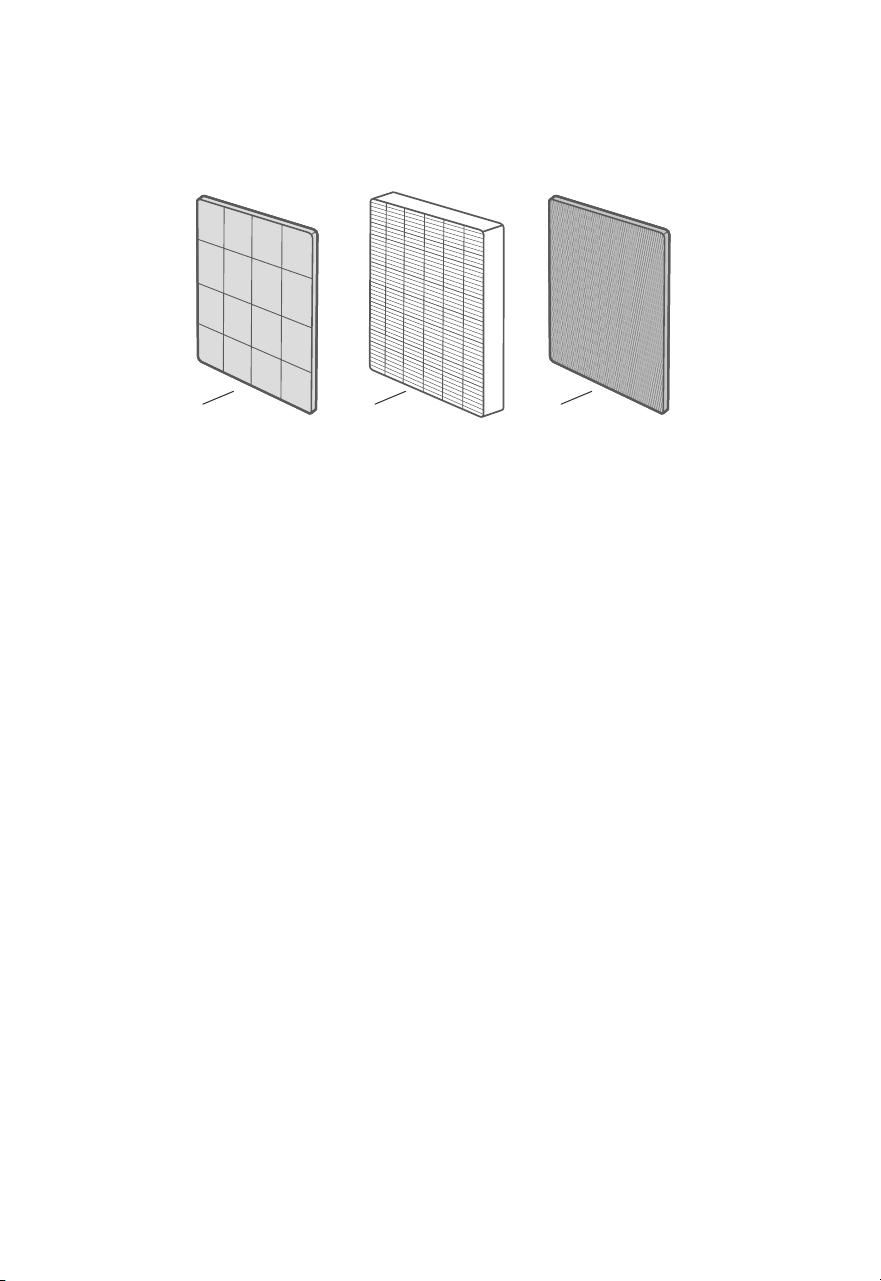
The air purier uses a 3-stage ltration system to purify air.
A. Washable Pre-Filter
• Captures large particles such as dust,
lint, bers, hair, and pet fur.
• Maximizes the lter’s life by
protecting it.
• Removable and washable to increase
ltering eciency (see Cleaning the
Pre-Filter, page 17).
B. Main Filter
• 99.97% ltration eciency for 0.1-
0.3μm airborne particulates, including
pollen, dust, and animal dander
allergens.
• Traps small particles such as ne
A B C
Note: Carbon lter eciencies decrease with use. If your air purier isn’t as eective at ltering odors or
gasses, make sure to replace the lter (see page 19).
Note: Levoit has not tested its air puriers for eectiveness against SARS-CoV-2 and makes no claims
that these air puriers help reduce the spread of COVID-19.
dust, smoke particles, and allergens
such as pollen and pet dander.
C. High-Eciency Activated Carbon Filter
• Physically adsorbs smoke, odors, and
fumes.
• Filters compounds such as
formaldehyde, benzene, ammonia,
and hydrogen sulde.
• Reduces household odors from food,
cigarettes, and pets.
• Tested to eectively lter volatile
organic compounds (VOCs).
According to the CDC, portable Main ltration units that combine a Main lter with a powered
fan system are eective at cleaning air within spaces to reduce the concentration of airborne
particulates, including SARS-CoV-2 (COVID-19) viral particles.
Sources:
https://www.cdc.gov/coronavirus/2019-ncov/community/ventilation.html#refphf
https://www.cdc.gov/mmwr/volumes/70/wr/mm7027e1.htm
COVID-19 Disclaimer

16
Moisture may damage the lter. This air
purier should be used in an area with a
humidity level below 85% RH. If you use the
air purier in excessively humid areas, the
surface of the lter may become moldy.
Do not add essential oils to the air purier or
lter. The lter will become damaged by the
oil and will eventually release an unpleasant
smell. Do not use diusers near the air
purier.
The air change rate is how many times all of
the air in a room can be puried (or “changed”)
by the air purier in 1 hour. Air changes
per hour (ACH) are calculated with the
recommended room size assuming 8 ft / 2.4
m ceilings. For smaller rooms, the air change
per hour will increase. This air purier can
change air 5 times per hour at the max speed
in a single, closed room up to 549 ft² / 51 m².
This is measured at ACH 5. The air purier is
eective for larger rooms, but air purication
will take longer, with fewer air changes per
hour. For example, the air purier’s eective
range is 1,373 ft² / 128 m² based on 2 ACH, or
purifying the air in the room 2 times per hour.
This air purier has a Clean Air Delivery Rate of
354 cubic feet per minute (CFM), or 602 m³/h.
Clean Air Delivery Rate (CADR) measures the
eciency of an air purier by indicating the
volume of clean air that an air purier produces
per minute. This is based on removal of dust,
pollen, and smoke, which are the 3 most
common indoor air pollutants. The higher the
CADR, the more particles the air purier will
remove and the larger the area it can clean.
The rating is measured at the air purier’s
highest speed.
Humidity
Essential Oils
Air Change Per Hour
Clean Air Delivery Rate
Note: Water or moisture will allow mold to
grow. To solve a mold problem, get rid of
the source of the moisture and clean up
the mold.
Note: To eectively clean air, keep windows
and doors closed while the air purier is on.
ABOUT THE FILTER (CONT.)
17
Resetting the Check
Filter Indicator
Reset the Check Filter Indicator when:
A. lights up. This is the Check
Filter Indicator light.
1. Replace the lter (see page 19).
2. Turn on the air purier.
CARE & MAINTENANCE
The Filter Button ( ) will light up as
a reminder to check the lter. Depending
on how often you use the air purier, the
indicator should turn on after about 12–15
months. You may not need to change your
lter yet, but you should check it when
lights up.
When your air purier is set up with the
VeSync app, you can also check the app to
see your remaining lter life. You will also
receive a notication from VeSync when it’s
time to check your lter.
The VeSync app uses a scientic algorithm to
determine your lter life based on air quality,
amount of use, and other factors. The lter
life percentage is based on 12 hours of daily
use.
Check Filter Indicator
Cleaning the Smart Air Purifier
• Unplug before cleaning.
• Wipe the outside of the air purier with
a soft, dry cloth. If necessary, wipe
the housing with a damp cloth, then
immediately dry.
• Vacuum the inside of the air purier.
• Do not clean with abrasive chemicals or
ammable cleaning agents.
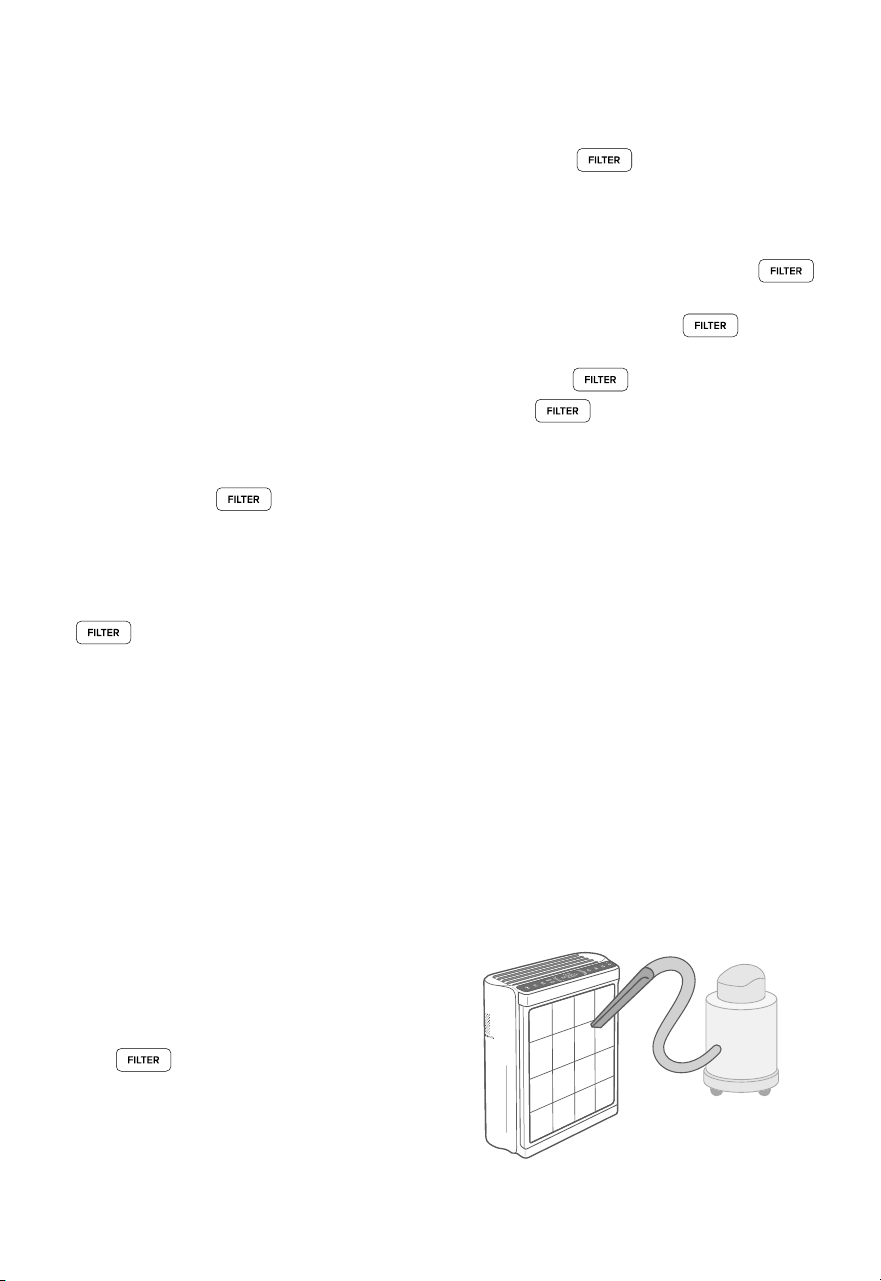
The pre-lter should be cleaned every 2–4
weeks to increase eciency and extend the
life of your lter. Clean the pre-lter using a
soft brush or vacuum hose to remove hair,
dust, and large particles. Optionally, you can
wash the pre-lter with water to remove dirt
and dust.
Note: Avoid scrubbing, scraping, or
vigorously brushing the pre-lter. Do not use
abrasive cleaning materials.
1. Open the front cover and pull the pre-
lter out to remove it.
2. Clean the surface of the pre-lter with a
vacuum. [Figure 3.1]
Cleaning the Pre-Filter
Figure 3.1
3. To reset the indicator light, press and
hold button for 3 seconds.
4. The indicator light will turn o when
successfully reset and the lter life
will show 100%.
B. The lter was changed before
lit up.
1. Press and hold the button
for 3 seconds.
2. The will ash for 3 seconds.
3. will stop ashing and turn o
when successfully reset. The lter life
will show 100%.
18
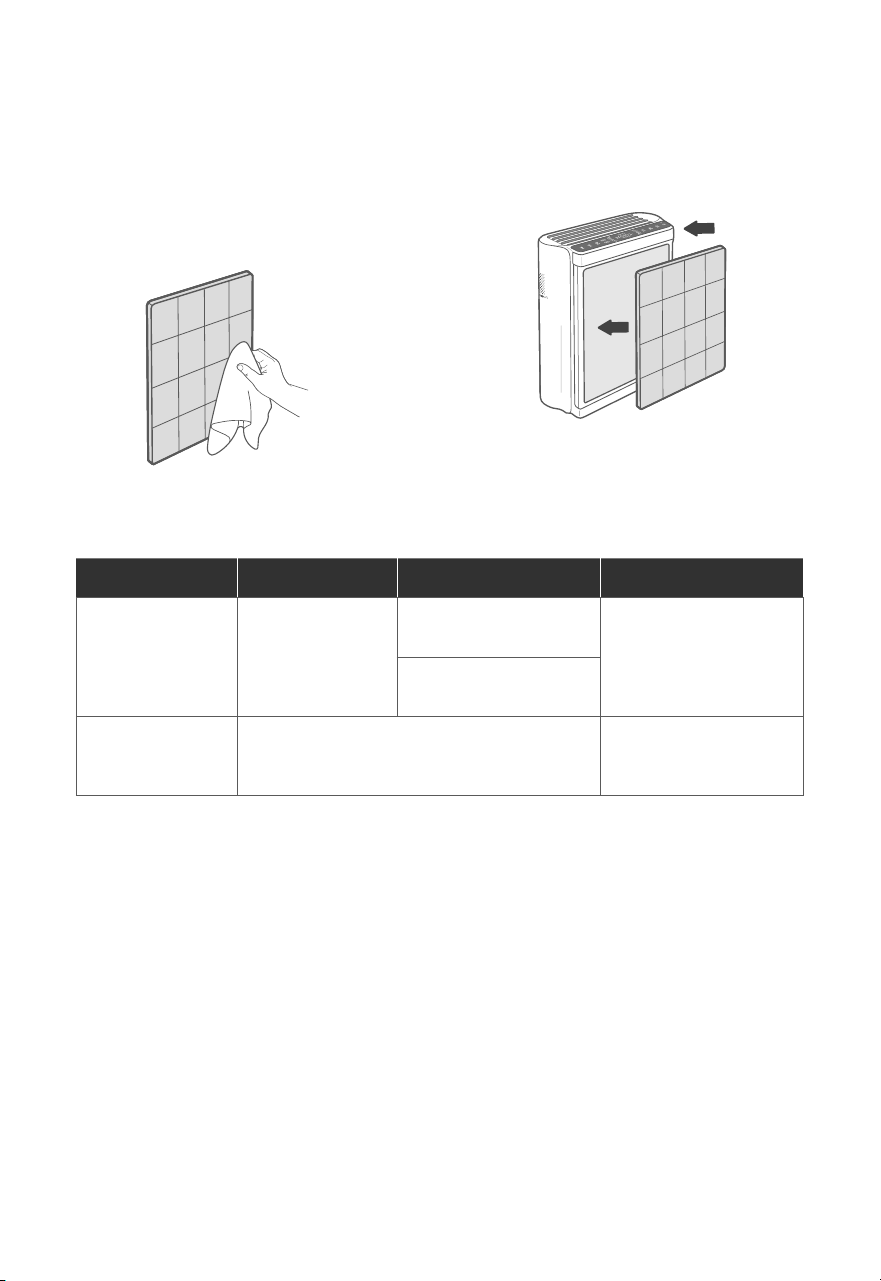
Filter When to Clean How to Clean When to Replace
Washable
Pre-Filter
Every 2–4 weeks
Use a soft cloth or
vacuum hose
Does not need to be
replaced
Wash with water and
mild detergent
Main /
Activated
Carbon Filter
Do not clean 12–15 months
CARE & MAINTENANCE (CONT.)
Figure 3.2
3. Rinse the pre-lter with water under a
faucet.
4. Wash the pre-lter with mild detergent
and a soft cloth. [Figure 3.2]
5. Allow the pre-lter to air-dry. Once
completely dry, place the pre-lter back
into the air purier. [Figure 3.3]
Figure 3.3
19
Cleaning the AirSight Plus 2.0
Laser Dust Sensor
Replacing the Filter
If not using the air purier for an extended
period of time, wrap both the air purier and
the lter in plastic packaging and store in a
dry place to avoid moisture damage.
Storage
CARE & MAINTENANCE (CONT.)
The Main / Activated Carbon Filter should be
replaced every 12–15 months. You may need
to replace your lter earlier or later depending
on how often you use your air purier. Using
your air purier in an environment with
relatively high pollution may mean you will
need to replace the lter more often, even if
is o.
You may need to replace your lter if you
notice:
• The air purier does not eectively lter
certain odors anymore
• Increased noise when the air purier is on
• Decreased airow from the top of the air
purier
• Unusual odors
• The Main lter is visibly dusty or discolored
after removing the pre-lter
When Should I Replace the
Filter?
Note:
• To maintain the performance of
your air purier, only use ocial
Levoit lters. For more information,
contact Customer Support (see
page 26).
• Remember to reset the
indicator light after changing the lter
(see page 17).
The AirSight Plus 2.0 Laser Dust Sensor
can be blocked by dust, which aects the
sensor’s accuracy.
Clean the sensor every 3 months. Using your
air purier in an environment with more dust
may mean you will need to clean the sensor
more often.
1. Unplug the air purier.
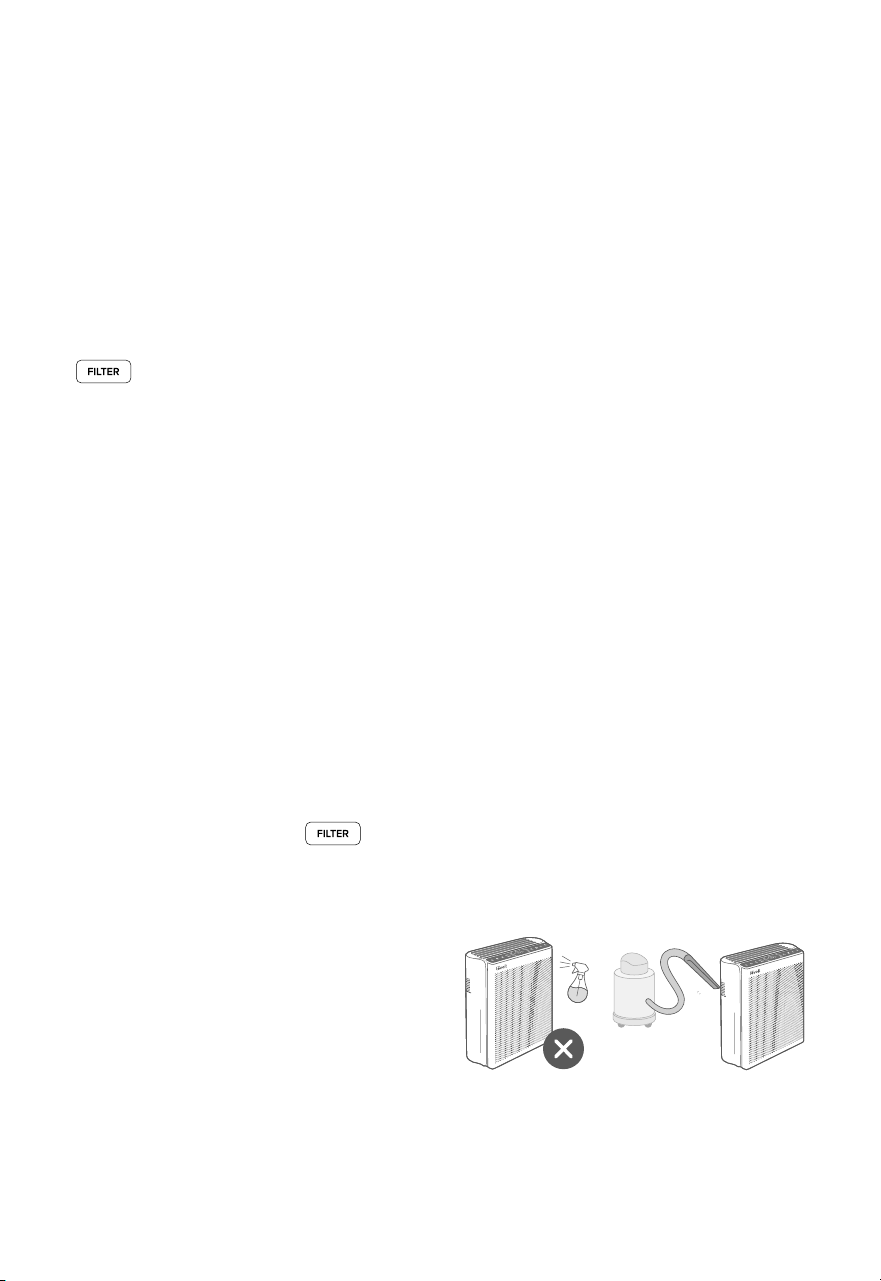
2. Place the end of a vacuum cleaner over
the sensor openings. [Figure 3.6]
3. Turn the vacuum on for at least 10
seconds to clean out dust.
1. Unplug the air purier, then pull the front
cover to remove it (see Getting Started,
page 8).
2. Remove the old lter from the air purier.
3. Clean out any remaining dust or hair
inside the air purier using a vacuum
hose.
Figure 3.6
4. Remove the plastic packaging from the
new lter and place the lter inside the
air purier. (see Getting Started, page 8).
5. Replace the front cover.
6. Plug in and turn on the air purier. Reset
the Check Filter Indicator (see page 17).
Note: Do not use water or liquids to clean
the air purier. [Figure 3.5]
Figure 3.5
20
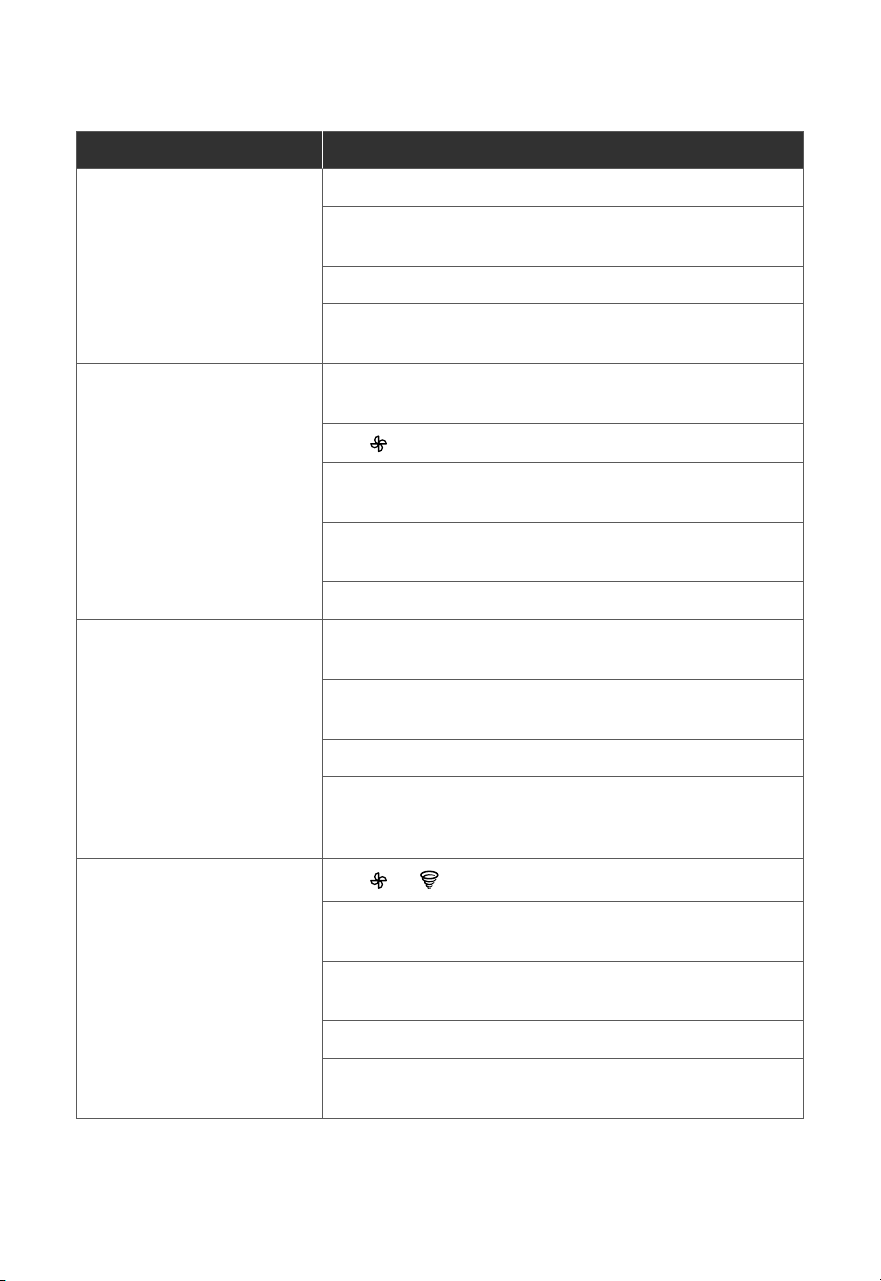
Problem Possible Solution
Air purifier will not turn on or
respond to button controls.
Plug in the air purier.
Check to see if the power cord is damaged. If it is, stop using
the air purier and contact Customer Support (see page 26).
Plug the air purier into a dierent outlet.
The air purier may be malfunctioning. Contact Customer
Support (see page 26).
Airflow is significantly
reduced.
Make sure the lter is removed from its packaging and
properly in place (see page 8).
Tap to increase the fan speed.
Leave 15 inches / 38 cm of clearance from the front of the air
purier.
The pre-lter may be clogged by large particles, such as hair
or lint, blocking airow. Clean the pre-lter (see page 17).
Replace the lter (see page 19).
Air purifier makes an unusual
noise while the fan is on.
Make sure the lter is properly in place with plastic packaging
removed (see page 8).
Make sure the air purier is operating on a hard, at, level
surface.
Replace the lter (see page 19).
The air purier may be damaged, or a foreign object may
be inside. Stop using the air purier and contact Customer
Support (see page 26). Do not try to repair the air purier.
Poor air purification quality.
Tap or to increase the fan speed.
Make sure no objects are blocking the front or top of the air
purier (the inlet or outlet).
Make sure the lter is removed from its packaging and
properly in place (see page 8).
Close doors and windows while using the air purier.
If the room is larger than 549 ft² / 51 m², air purication will
take longer.
TROUBLESHOOTING
21
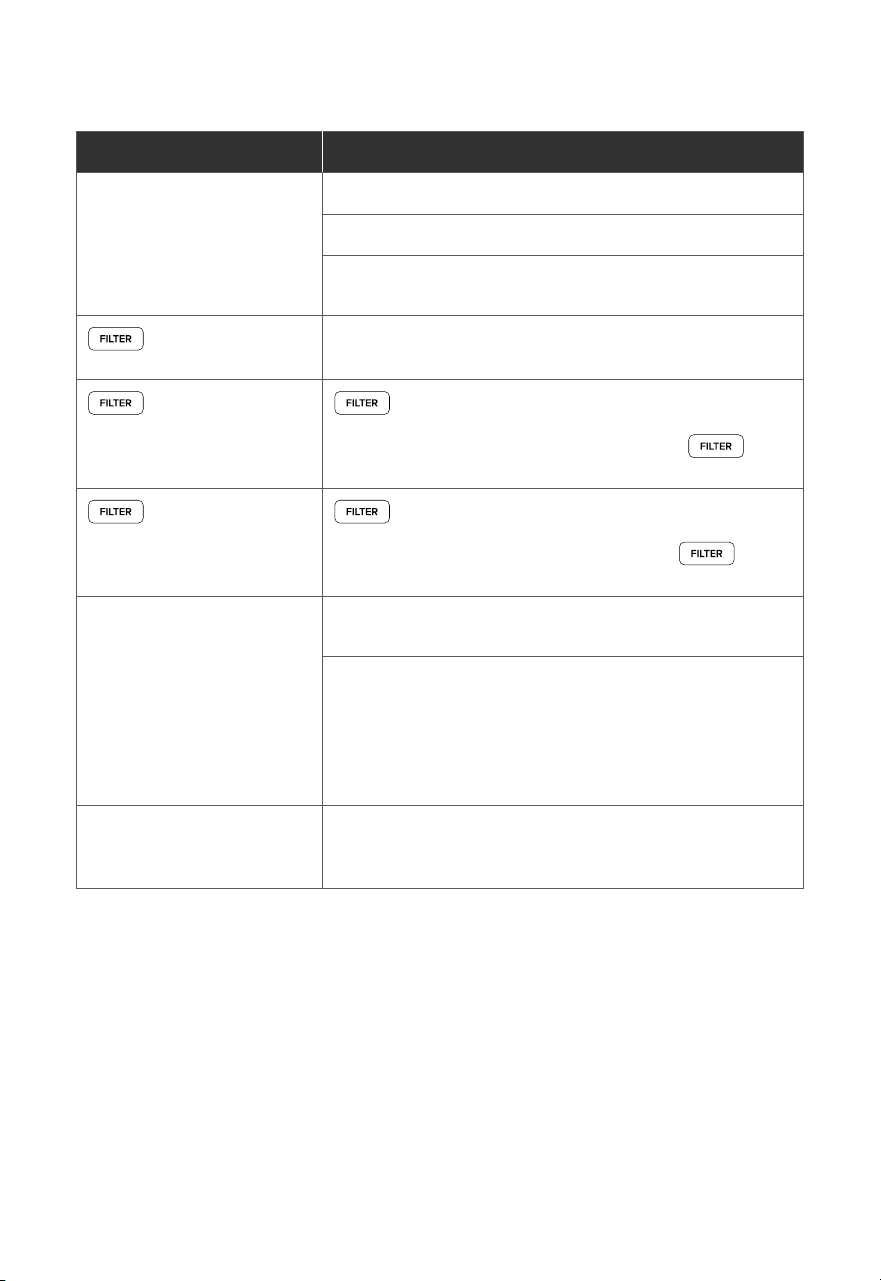
If your problem is not listed, please contact Customer Support (see page 26).
TROUBLESHOOTING (CONT.)
Problem Possible Solution
Strange smell coming from
the air purifier.
Clean the lter, or replace if necessary.
Contact Customer Support (see page 26).
Make sure not to use your air purier in an area with high
humidity or while diusing essential oils.
is still on after
replacing the filter.
Reset the Check Filter Indicator (see page 17).
has not turned on
after 12–15 months.
is a reminder for you to check the lter and will light
up based on how much the air purier has been used (see
page 17). If you don’t use your air purier often, will
take longer to turn on.
turned on before 12
months.
is a reminder for you to check the lter and will light
up based on how much the air purier has been used (see
page 17). If you run your air purier frequently, will
turn on sooner.
Air Quality Indicator always
stays red, and/or the PM
value is always very high.
The AirSight Plus 2.0 Laser Dust Sensor may need to be
cleaned (see page 16).
If you’re using an ultrasonic humidier near the air purier,
the mist may aect the accuracy of the AirSight Plus 2.0
Laser Dust Sensor. The sensor will detect the large mist
particles, and the Air Quality Indicator may turn red. Avoid
using an ultrasonic humidier near the air purier, or avoid
using Auto Mode.
Air Quality Indicator always
stays blue, even when the air
quality is poor.
The AirSight Plus 2.0 Laser Dust Sensor detects airborne
particles, but it cannot detect gas. Make sure there isn’t gas
polluting the air.

22
If your problem is not listed, please contact Customer Support (see page 26).
VESYNC APP TROUBLESHOOTING
My smart air purier isn’t connecting to the VeSync app.
• Make sure your phone has Bluetooth® turned on and is not currently connected to another
Bluetooth device.
• During the setup process, you must be on a secure 2.4GHz Wi-Fi® network. Conrm that the
network is working correctly.
• Make sure the Wi-Fi password you entered is correct.
• There should be no spaces at the beginning or end of the password.
• Test the password by connecting a dierent electronic device to the router.
• If you’re manually typing in the SSID and password, double check that both are entered
correctly.
• Try moving your air purier closer to the router. Your phone should be as close as possible
to your air purier.
• Your router may need to be at a higher location, away from obstructions.
• Make sure your air purier and router are away from appliances (such as microwave ovens,
refrigerators, electronic devices, etc.) to avoid signal interference.
• If you’re using a VPN, make sure it’s turned o while setting up your air purier.
• Disable portal authentication for your Wi-Fi network. If portal authentication is enabled, the
air purier will not be able to access your Wi-Fi network, and setup will fail.
My air purier is oine.
• Make sure the air purier is plugged in and has power, then refresh the VeSync menu by
swiping down on the screen.
• Make sure your router is connected to the internet and your phone’s network connection is
working.
• Delete the oine air purier from the VeSync app. Swipe left (iOS®) or press and hold
(Android™), then tap Delete. Recongure the air purier with the VeSync app.
Note: Portal authentication means that you need to sign in to your Wi-Fi network through a
web page before you can use the Internet.
Note: Power outages, internet outages, or changing Wi-Fi routers may cause the air purier
to go oine.

23
FEDERAL COMMUNICATION COMMISSION
INTERFERENCE STATEMENT – PART 15
FCC RADIATION EXPOSURE STATEMENT
FCC SDOC SUPPLIER’S DECLARATION
OF CONFORMITY
This device complies with Part 15 of the FCC Rules. Operation is subject to the following two
conditions:
1. This device may not cause harmful interference, and
2. This device must accept any interference received, including interference that may cause
undesired operation.
NOTE: This equipment has been tested and found to comply with the limits for a Class B digital
device, pursuant to Part 15 of the FCC Rules. These limits are designed to provide reasonable
protection against harmful interference in a residential installation. This equipment generates,
uses and can radiate radio frequency energy and, if not installed and used in accordance with
the instructions, may cause harmful interference to radio communications. However, there is no
guarantee that interference will not occur in a particular installation. If this equipment does cause
harmful interference to radio or television reception, which can be determined by turning the
equipment o and on, the user is encouraged to try to correct the interference by one or more of
the following measures:
• Reorient or relocate the receiving antenna.
• Increase the separation between the equipment and receiver.
• Connect the equipment into an outlet on a circuit dierent from that to which the receiver is
connected.
• Consult the dealer or an experienced radio/TV technician for help.
FCC Caution: Any changes or modications not expressly approved by the party responsible for
compliance could void the user’s authority to operate this equipment.
This equipment complies with FCC radiation exposure limits set forth for an uncontrolled
environment. End users must follow the specic operating instructions for satisfying RF exposure
compliance. To maintain compliance with FCC RF exposure compliance requirements, please
follow operation instructions as documented in this manual. This transmitter must not be co-
located or operating in conjunction with any other antenna or transmitter. This equipment should
be installed and operated with a minimum distance of 20cm between the radiator and your
body. The availability of some specic channels and/or operational frequency bands are country
dependent and are rmware programmed at the factory to match the intended destination. The
rmware setting is not accessible by the end user.
Arovast Corporation hereby declares that this equipment is in compliance with the FCC Part 15
Subpart B. The declaration of conformity may be consulted in the support section of our website,
accessible from www.levoit.com

24
Product Name EverestAir™-P
Smart Air Purier
Model
LAP-EL551S-AUS
LAP-EL551S-AUSR
LAP-EL551S-WUSB
For your own reference, we strongly recommend
that you record your order ID and date of
purchase.
Date of Purchase
Order ID
WARRANTY INFORMATION
Levoit Limited Product Warranty
Register your products at
h ttps://warranty.levoit.com/warranty to stay up to date
with important product information such as product
updates, limited warranties, usage and maintenance
recommendations, and notications concerning safety
warnings or product recalls. Registration is not required to
claim your limited warranty.
Two (2) Year Limited Consumer Product Warranty
Arovast Corporation (“Arovast”) warrants that the product
shall be free from defects in material and workmanship for
a period of 2 years from the date of original purchase
(“Limited Warranty Period”), provided the product was used
in accordance with its use and care instructions (e.g., in the
intended environment and under normal circumstances).
Your Limited Warranty Benets
During the Limited Warranty Period and subject to this
limited Warranty Policy, Arovast will, in its sole and
exclusive discretion, either (i) refund the purchase price
if the purchase was made directly from the online Levoit
store, (ii) repair any defects in material or workmanship,
(iii) replace the product with another product of equal or
greater value, or (iv) provide store credit in the amount of
the purchase price.
Who is Covered?
This limited warranty extends only to the original consumer
purchaser of the product and is not transferable to any
subsequent owner of the product, regardless of whether
the product transferred ownership during the specied
term of the limited warranty. The original consumer
purchaser must provide verication of the defect or
malfunction and proof of the date of purchase to claim the
Limited Warranty Benets.
Be Aware of Unauthorized Dealers or Sellers
This limited warranty does not extend to products
purchased from unauthorized dealers or sellers. Arovast’s
limited warranty only extends to products purchased from
authorized dealers or sellers that are subject to Arovast’s
quality controls and have agreed to follow its quality
controls. Please be aware, products purchased from an
unauthorized website or dealer may be counterfeit, used,
defective, or may not be designed for use in your country.
You can protect yourself and your products by making sure
you only purchase from Arovast or its authorized dealers.
If you have any questions about a specic seller, or if
you think you may have purchased your product from an
unauthorized seller, please contact our Customer Support
Team via [email protected]
Levoit Limited Product Warranty
Register your products at
https://warranty.levoit.com/warranty to stay up to date
with important product information such as product
updates, limited warranties, usage and maintenance
recommendations, and notications concerning safety
warnings or product recalls. Registration is not required to
claim your limited warranty.
Two (2) Year Limited Consumer Product Warranty
Arovast Corporation (“Arovast”) warrants that the product
shall be free from defects in material and workmanship for
a period of 2 years from the date of original purchase
(“Limited Warranty Period”), provided the product was used
in accordance with its use and care instructions (e.g., in the
intended environment and under normal circumstances).
Your Limited Warranty Benets
During the Limited Warranty Period and subject to this
limited Warranty Policy, Arovast will, in its sole and
exclusive discretion, either (i) refund the purchase price
if the purchase was made directly from the online Levoit
store, (ii) repair any defects in material or workmanship,
(iii) replace the product with another product of equal or
greater value, or (iv) provide store credit in the amount of
the purchase price.
Who is Covered?
This limited warranty extends only to the original consumer
purchaser of the product and is not transferable to any
subsequent owner of the product, regardless of whether
the product transferred ownership during the specied
term of the limited warranty. The original consumer
purchaser must provide verication of the defect or
malfunction and proof of the date of purchase to claim the
Limited Warranty Benets.
Be Aware of Unauthorized Dealers or Sellers
This limited warranty does not extend to products
purchased from unauthorized dealers or sellers. Arovast’s
limited warranty only extends to products purchased from
authorized dealers or sellers that are subject to Arovast’s
quality controls and have agreed to follow its quality
controls. Please be aware, products purchased from an
unauthorized website or dealer may be counterfeit, used,
defective, or may not be designed for use in your country.
You can protect yourself and your products by making sure
you only purchase from Arovast or its authorized dealers.
If you have any questions about a specic seller, or if
you think you may have purchased your product from an
unauthorized seller, please contact our Customer Support
Team via [email protected]
What’s Not Covered?
• Normal wear and tear, including parts that might
wear out over time (e.g., batteries, lters, cleaning
brush, essential oil pads, etc.).
• If the proof-of-purchase has been altered in any
way or is made illegible.
• If the model number, serial number or production
date code on the product has been altered,
removed or made illegible.
• If the product has been modied from its original

25
condition.
• If the product has not been used in accordance with
directions and instructions in the user manual.
• Damages caused by connecting peripherals,
additional equipment or accessories other than
those recommended in the user manual.
• Damages or defects caused by accident, abuse,
misuse, or improper or inadequate maintenance.
• Damages or defects caused by service or repair of
the product performed by an unauthorized service
provider or by anyone other than Arovast.
• Damages or defects occurring during commercial
use, rental use, or any use for which the product is
not intended.
• If the unit has been damaged, including but not
limited to damage by animals, lightning, abnormal
voltage, re, natural disaster, transportation,
dishwasher, or water (unless the user manual
expressly states that the product is dishwasher-
safe).
• Incidental and consequential damages.
• Damages or defects exceeding the cost of the
product.
Claiming Your Limited Warranty Service in 5 Simple
Steps:
1. Make sure your product is within the specied
limited warranty period.
2. Make sure you have a copy of the invoice and
order ID or proof-of-purchase.
3. Make sure you have your product. DO NOT dispose
of your product before contacting us.
4. Contact our Customer Support Team via support@
levoit.com
5. Once our Customer Support Team has approved
your request, please return the product with a copy
of the invoice and order ID.
Sole and Exclusive Remedy
THE FOREGOING LIMITED WARRANTY CONSTITUTES
AROVAST CORPORATION’S EXCLUSIVE LIABILITY, AND
YOUR SOLE AND EXCLUSIVE REMEDY, FOR ANY BREACH
OF ANY WARRANTY OR OTHER NONCONFORMITY OF
THE PRODUCT COVERED BY THIS LIMITED PRODUCT
WARRANTY STATEMENT. THIS LIMITED WARRANTY IS
EXCLUSIVE, AND IN LIEU OF ALL OTHER WARRANTIES.
NO EMPLOYEE OF AROVAST CORPORATION OR
ANY OTHER PARTY IS AUTHORIZED TO MAKE ANY
WARRANTY IN ADDITION TO THE LIMITED WARRANTY IN
THIS LIMITED PRODUCT WARRANTY STATEMENT.
Disclaimer of Limited Warranties
TO THE FULLEST EXTENT PROVIDED BY APPLICABLE
LAW, EXCEPT AS WARRANTED IN THIS LIMITED
PRODUCT WARRANTY POLICY, AROVAST CORPORATION
PROVIDES THE PRODUCTS YOU PURCHASE FROM
AROVAST CORPORATION “AS IS” AND AROVAST
CORPORATION HEREBY DISCLAIMS ALL WARRANTIES
OF ANY KIND, WHETHER EXPRESS OR IMPLIED,
STATUTORY, OR OTHERWISE, INCLUDING BUT NOT
LIMITED TO ANY WARRANTIES OF MERCHANTABILITY,
NON-INFRINGEMENT, AND FITNESS FOR PARTICULAR
PURPOSE.
Limitations of Liability
TO THE FULLEST EXTENT PROVIDED BY APPLICABLE
LAW, IN NO EVENT WILL AROVAST CORPORATION, ITS
AFFILIATES, OR THEIR LICENSORS, SERVICE PROVIDERS,
EMPLOYEES, AGENTS, OFFICERS, OR DIRECTORS BE
LIABLE FOR:
(a) DAMAGES OF ANY KIND ARISING OUT OF OR IN
CONNECTION WITH PRODUCTS PURCHASED FROM
AROVAST CORPORATION IN EXCESS OF THE PURCHASE
PRICE PAID BY THE PURCHASER FOR SUCH PRODUCTS,
OR
(b) INDIRECT, SPECIAL, INCIDENTAL, CONSEQUENTIAL,
OR PUNITIVE DAMAGES EVEN IF AROVAST
CORPORATION OR ONE OF ITS SUPPLIERS HAS BEEN
ADVISED OF THE POSSIBILITY OR LIKELIHOOD OF SUCH
DAMAGES.
AND REGARDLESS OF WHETHER CAUSED BY TORT
(INCLUDING NEGLIGENCE), BREACH OF CONTRACT,
OR OTHERWISE. OUR LIABILITY SHALL UNDER NO
CIRCUMSTANCES EXCEED THE ACTUAL AMOUNT PAID
BY YOU FOR THE DEFECTIVE PRODUCT, NOR SHALL
WE UNDER ANY CIRCUMSTANCES BE LIABLE FOR ANY
CONSEQUENTIAL, INCIDENTAL, SPECIAL OR PUNITIVE
DAMAGES OR LOSSES, WHETHER DIRECT OR INDIRECT.
EXCEPT AS COVERED BY THIS LIMITED PRODUCT
WARRANTY STATEMENT, AROVAST CORPORATION
SHALL NOT BE LIABLE FOR COSTS ASSOCIATED
WITH THE REPLACEMENT OR REPAIR OF PRODUCTS
PURCHASED FROM IT, INCLUDING, BUT NOT LIMITED TO,
LABOR, INSTALLATION, OR OTHER COSTS INCURRED BY
THE USER AND, IN PARTICULAR, ANY COSTS RELATING
TO THE REMOVAL OR REPLACEMENT OF ANY PRODUCT.
OTHER RIGHTS YOU MAY HAVE
SOME JURISDICTIONS DO NOT ALLOW FOR: (1)
EXCLUSION OF IMPLIED WARRANTIES; (2) LIMITATION
ON THE DURATION OF IMPLIED WARRANTIES; AND/
OR (3) EXCLUSION OR LIMITATION OF INCIDENTAL OR
CONSEQUENTIAL DAMAGES; SO THE DISCLAIMERS
IN THIS POLICY MAY NOT APPLY TO YOU. IN THESE
JURISDICTIONS YOU HAVE ONLY THE IMPLIED
WARRANTIES THAT ARE EXPRESSLY REQUIRED TO BE
PROVIDED IN ACCORDANCE WITH APPLICABLE LAW.
THE LIMITATIONS OF WARRANTIES, LIABILITY, AND
REMEDIES APPLY TO THE MAXIMUM EXTENT PERMITTED
BY LAW.
ALTHOUGH THIS LIMITED WARRANTY GIVES YOU
SPECIFIC LEGAL RIGHTS, YOU MAY HAVE OTHER RIGHTS
IN YOUR JURISDICTION. THIS STATEMENT OF LIMITED
WARRANTY IS SUBJECT TO APPLICABLE LAWS THAT
APPLY TO YOU AND THE PRODUCT. PLEASE REVIEW THE
LAWS IN YOUR JURISDICTION TO UNDERSTAND YOUR
RIGHTS FULLY.
CHANGES TO THIS POLICY
We may change the terms and availability of this limited
warranty at our discretion, but any changes will not be
retroactive.
This warranty is made by:
AROVAST CORPORATION
1775 Flight Way, Suite 150,
Tustin, CA 92782
USA

26
CUSTOMER SUPPORT
If you have any questions or concerns about
your new product, please contact our helpful
Customer Support Team.
Distributed by Arovast Corporation
1775 Flight Way, Suite 150,
Tustin, CA 92782
USA
Email: [email protected]
Toll-Free: 1-888-726-8520
Mon–Fri, 9:00 am–5:00 pm PST/PDT
Support Hours
*Please have your order invoice and order ID
ready before contacting Customer Support.
ATTRIBUTIONS
Amazon, Alexa, and all related logos are trademarks of Amazon.com, Inc. or its aliates.
Google, Android, and Google Play are trademarks of Google LLC.
App Store® is a trademark of Apple Inc.
Wi-Fi® is a registered trademark of Wi-Fi Alliance®.
iOS is a registered trademark of Cisco Systems, Inc. and/or its aliates in the United States and
certain other countries.
The Bluetooth® word mark and logos are registered trademarks owned by Bluetooth SIG, Inc. and
any use of such marks by Arovast Corporation is under license. Other trademarks and trade names
are those of their respective owners.
The energy eciency of this ENERGY STAR
certied model is measured based on a
ratio between the model’s CADR for Smoke
and the electrical energy it consumes, or
CADR/Watt.

NOTES

A2_24K04_us