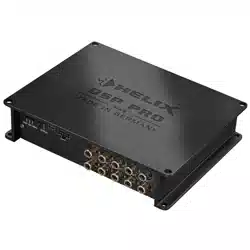
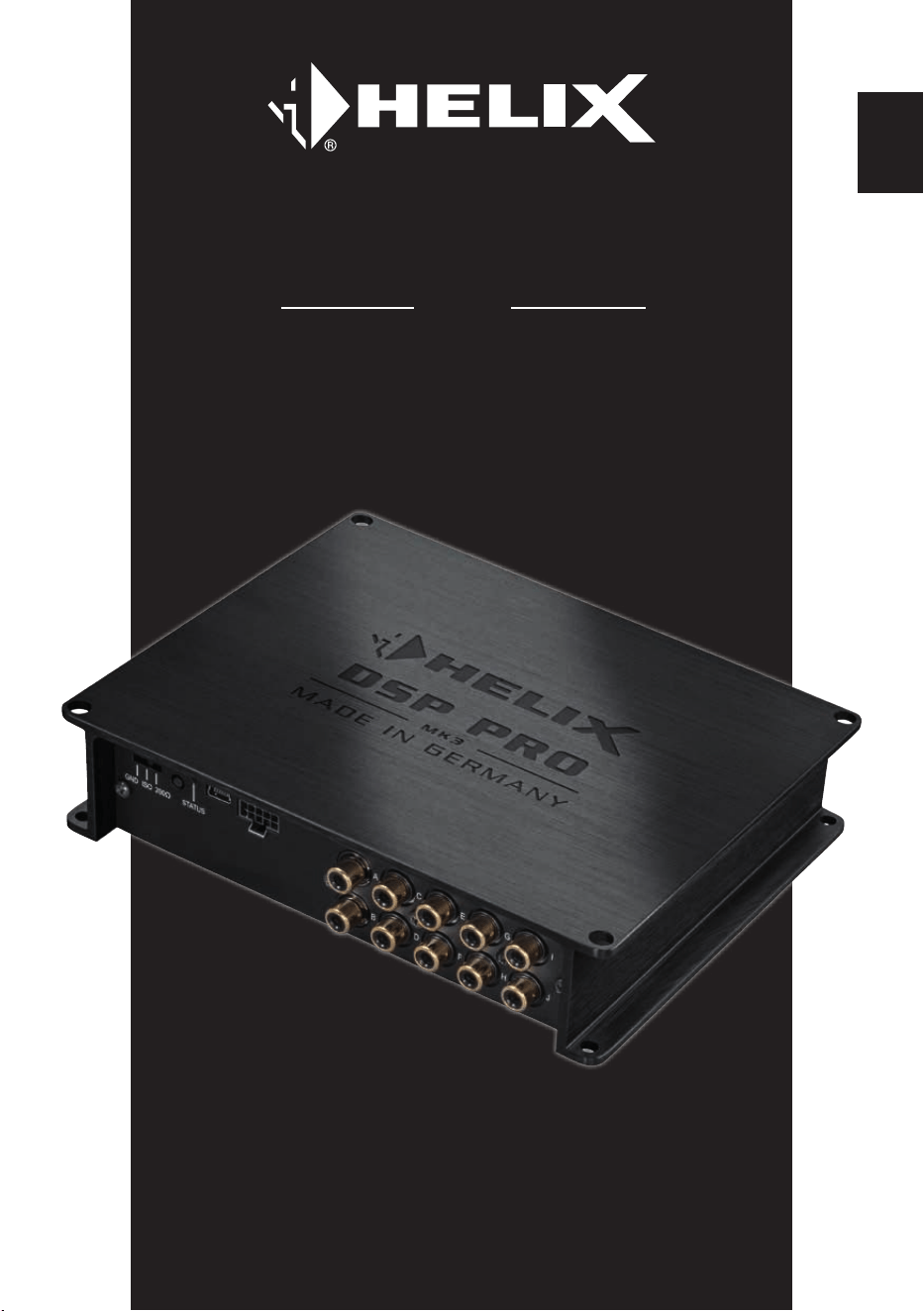
High-Res 10-Kanal DSP
High-Res 10-channel DSP
DSP PRO
MK3
User Manual
Bedienungsanleitung
de
en


3
Sehr geehrter Kunde,
Wir gratulieren Ihnen zum Kauf dieses hochwer-
tigen HELIX-Signalprozessors.
Audiotec Fischer setzt mit dem HELIX
DSP PRO MK3 neue Maßstäbe im Bereich der
Signalprozessortechnik. Dabei protieren Sie als
Kunde direkt von unserer nahezu 30-jährigen Er
-
fahrung in der Forschung und Entwicklung von Au-
diokomponenten.
Dieser Prozessor wurde von uns nach neuesten
technischen Erkenntnissen entwickelt und zeichnet
sich durch hervorragende Verarbeitung und eine
überzeugende Anwendung ausgereifter Technolo
-
gien aus.
Viel Freude an diesem Produkt wünscht Ihnen das
Team von
AUDIOTEC FISCHER
Allgemeines zum Einbau von HELIX-Kompo-
nenten
Um alle Möglichkeiten des Produktes optimal aus-
schöpfen zu können, lesen Sie bitte sorgfältig die
nachfolgenden Installationshinweise. Wir garan-
tieren, dass jedes Gerät vor Versand auf seinen
einwandfreien Zustand überprüft wurde.
Vor Beginn der Installation unterbrechen Sie
den Minusanschluss der Autobatterie.
Wir empfehlen Ihnen, die Installation von einem
Einbauspezialisten vornehmen zu lassen, da
der Nachweis eines fachgerechten Einbaus und
Anschlusses des Gerätes Voraussetzung für die
Garantieleistungen sind.
Installieren Sie Ihren HELIX DSP PRO MK3 an
einer trockenen Stelle im Auto und vergewissern
Sie sich, dass der Signalprozessor am Monta-
geort genügend Kühlung erhält. Montieren Sie
das Gerät nicht in zu kleine, abgeschlossene
Gehäuse ohne Luftzirkulation oder in der Nähe
von wärmeabstrahlenden Teilen oder elektroni-
schen Steuerungen des Fahrzeuges. Im Sinne
der Unfallsicherheit muss der Signalprozessor
professionell befestigt werden. Dieses geschieht
über Schrauben, die in eine Montageäche ein-
geschraubt werden, die wiederum genügend Halt
bieten muss.
Bevor Sie die Schrauben im Montagefeld befes-
tigen, vergewissern Sie sich, dass keine elektri-
schen Kabel und Komponenten, hydraulische
Bremsleitungen, der Benzintank etc. dahinter
verborgen sind. Diese könnten sonst beschädigt
werden. Achten Sie bitte darauf, dass sich solche
Teile auch in der doppelten Wandverkleidung ver-
bergen können.
Allgemeines zum Anschluss des HELIX
DSP PRO MK3 Signalprozessors
Der Signalprozessor darf nur in Kraftfahrzeu-
ge eingebaut werden, die den 12 V-Minuspol an
Masse haben. Bei anderen Systemen können der
HELIX Signalprozessor und die elektrische Anla-
ge des Kfz beschädigt werden. Die Plusleitung für
die gesamte Anlage sollte in einem Abstand von
max. 30 cm von der Batterie mit einer Hauptsiche-
rung abgesichert werden. Der Wert der Sicherung
errechnet sich aus der maximalen Stromaufnah-
me der Car-Hi Anlage.
Verwenden Sie zum Anschluss des Signalpro-
zessors an die Stromversorgung des Fahr-
zeugs ausschließlich den beiliegenden An-
schlussstecker!
Die Kabelverbindungen müssen so verlegt sein,
dass keine Klemm-, Quetsch- oder Bruchgefahr
besteht. Bei scharfen Kanten (Blechdurchführun-
gen) müssen alle Kabel gegen Durchscheuern
gepolstert sein. Ferner darf das Versorgungskabel
niemals mit Zuleitungen zu Vorrichtungen des Kfz
(Lüftermotoren, Brandkontrollmodulen, Benzinlei-
tungen etc.) verlegt werden.
Herzlichen Glückwunsch!
Allgemeine Hinweise
de
4
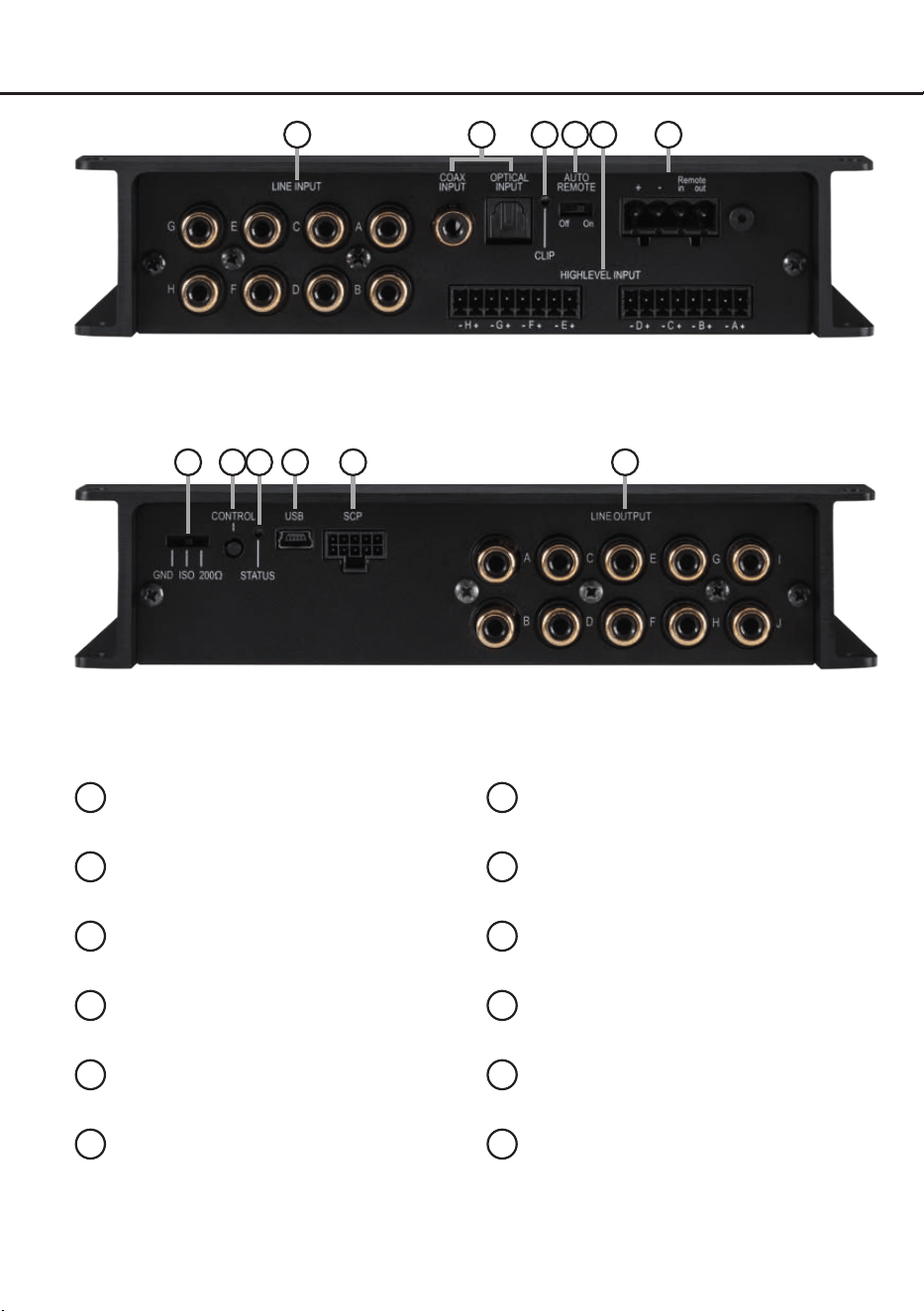
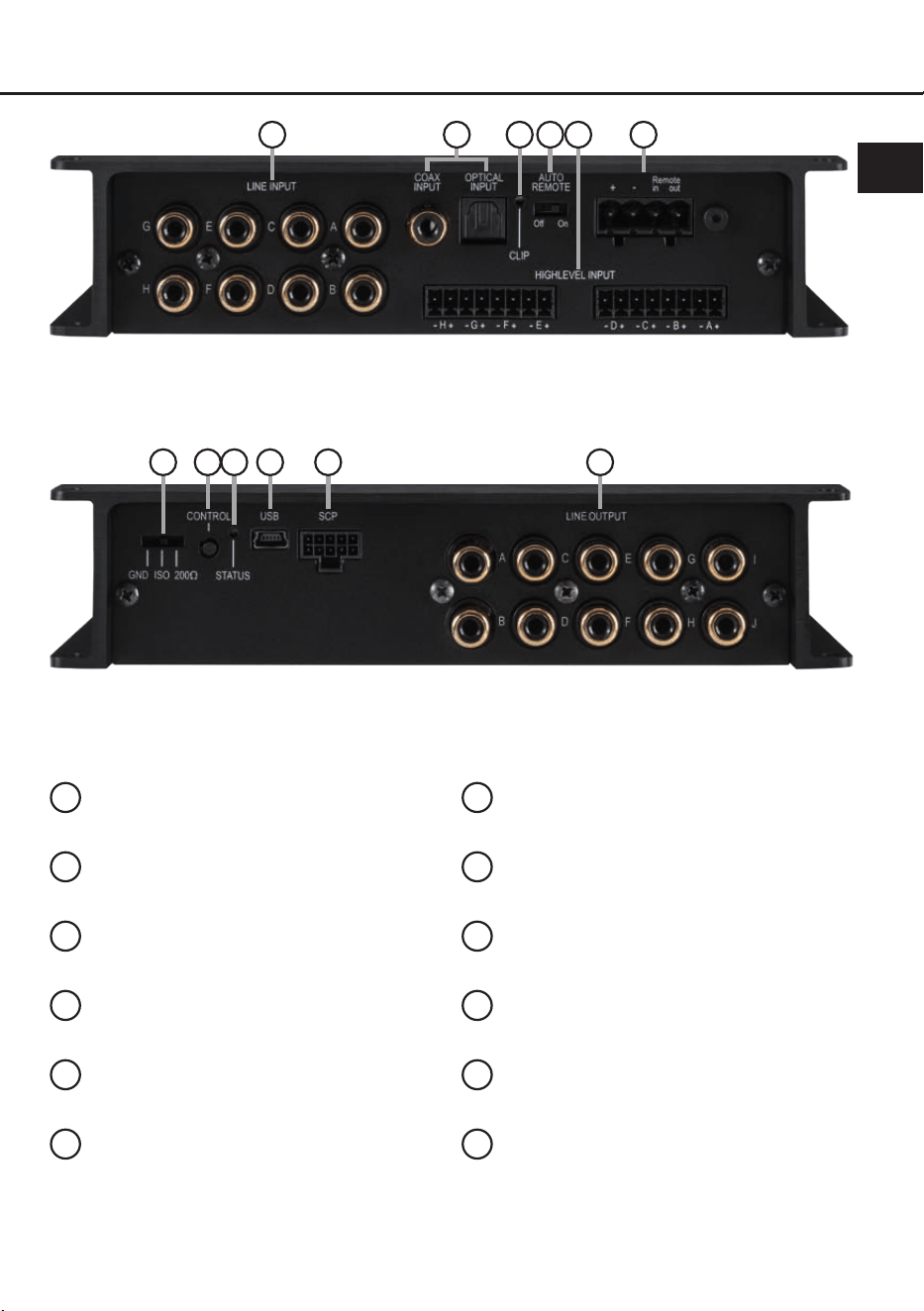
Anschluss- und Bedienelemente
1
3
52 6
1
Lowlevel-Vorverstärkereingänge
Seite 6, Punkt 3
2
Digitaleingänge (Coaxial & Optical)
Seite 7, Punkt 5
.
3
Clipping LED
Seite 11, Punkt 1
4
Auto Remote-Schalter
Seite 7, Punkt 6
5
Highlevel-Lautsprechereingänge
Seite 6, Punkt 4
6
Anschluss Stromversorgung & Remote
Seite 7, Punkt 7
7
Masseschalter
Seite 11, Punkt 4
8
Control Taster
Seite 11, Punkt 3
9
Status LED
Seite 11, Punkt 2
10
USB Eingang
Seite 8, Punkt 8
11
SCP (Smart Control Port)
Seite 12, Punkt 5
12
Vorverstärkerausgänge
Seite 10, Punkt 12
7 10 12118
4
9
5
de
Hardware-Konguration
Kongurieren Sie den HELIX DSP PRO MK3 in
der nachfolgenden Reihenfolge
Achtung: Für die Durchführung der nachfol-
genden Schritte werden Spezialwerkzeuge und
Fachwissen benötigt. Um Anschlussfehler und
Beschädigungen zu vermeiden, fragen Sie im
Zweifelsfall Ihren Einbauspezialisten und beach-
ten Sie zwingend die allgemeinen Anschluss- und
Einbauhinweise (siehe Seite 2).
1. Einstellung des Eingangsspannungsbe-
reichs („Voltage Range“) der analogen
Signaleingänge
ACHTUNG: Bei Nutzung des Highlevel-
Eingangs als Signaleingang ist es zwin-
gend notwendig, den Wertebereich vor
dem ersten Anschluss der Signalquelle an
dessen Ausgangsspannung anzupassen,
um Schäden am Signalprozessor zu ver-
meiden.
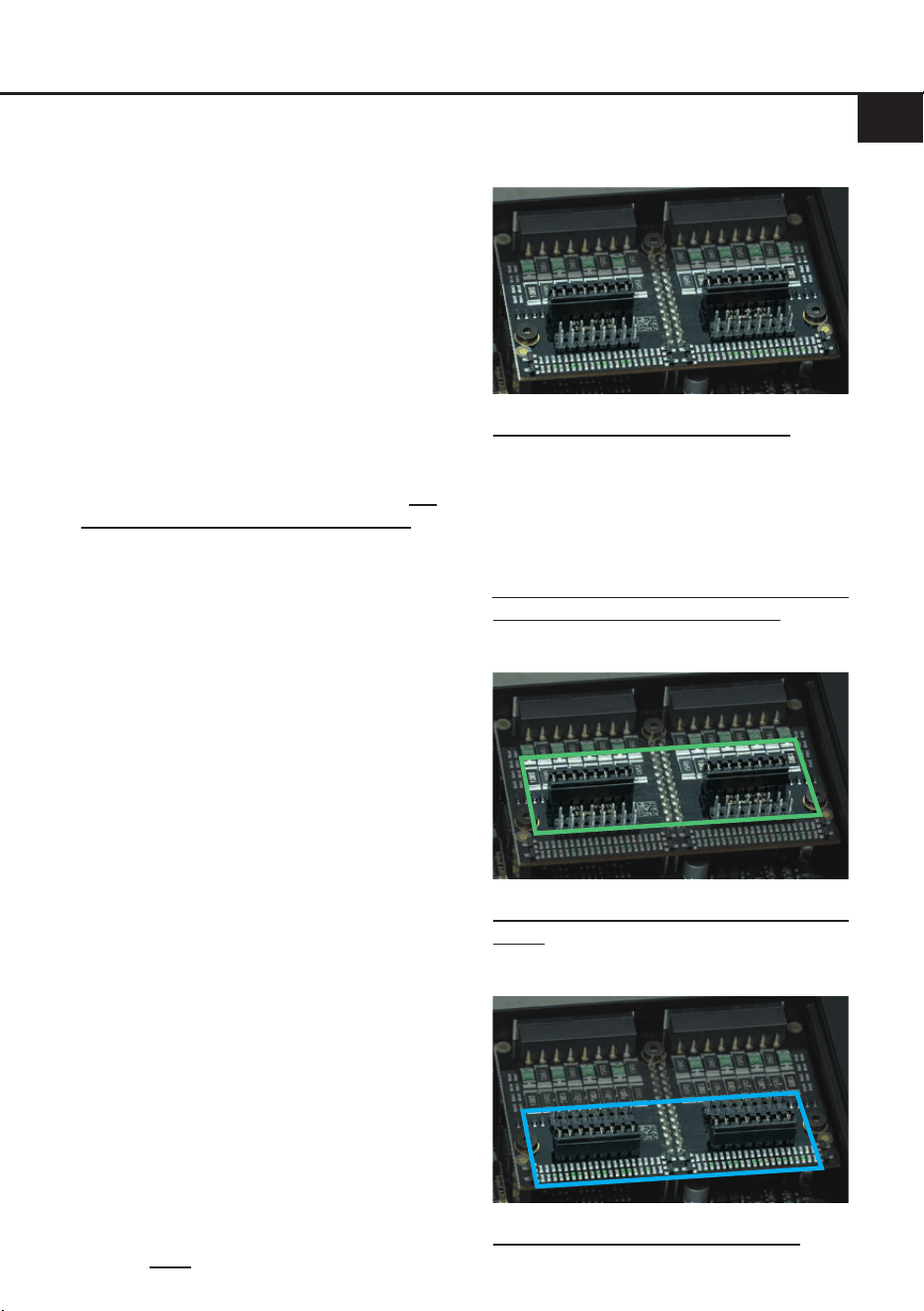
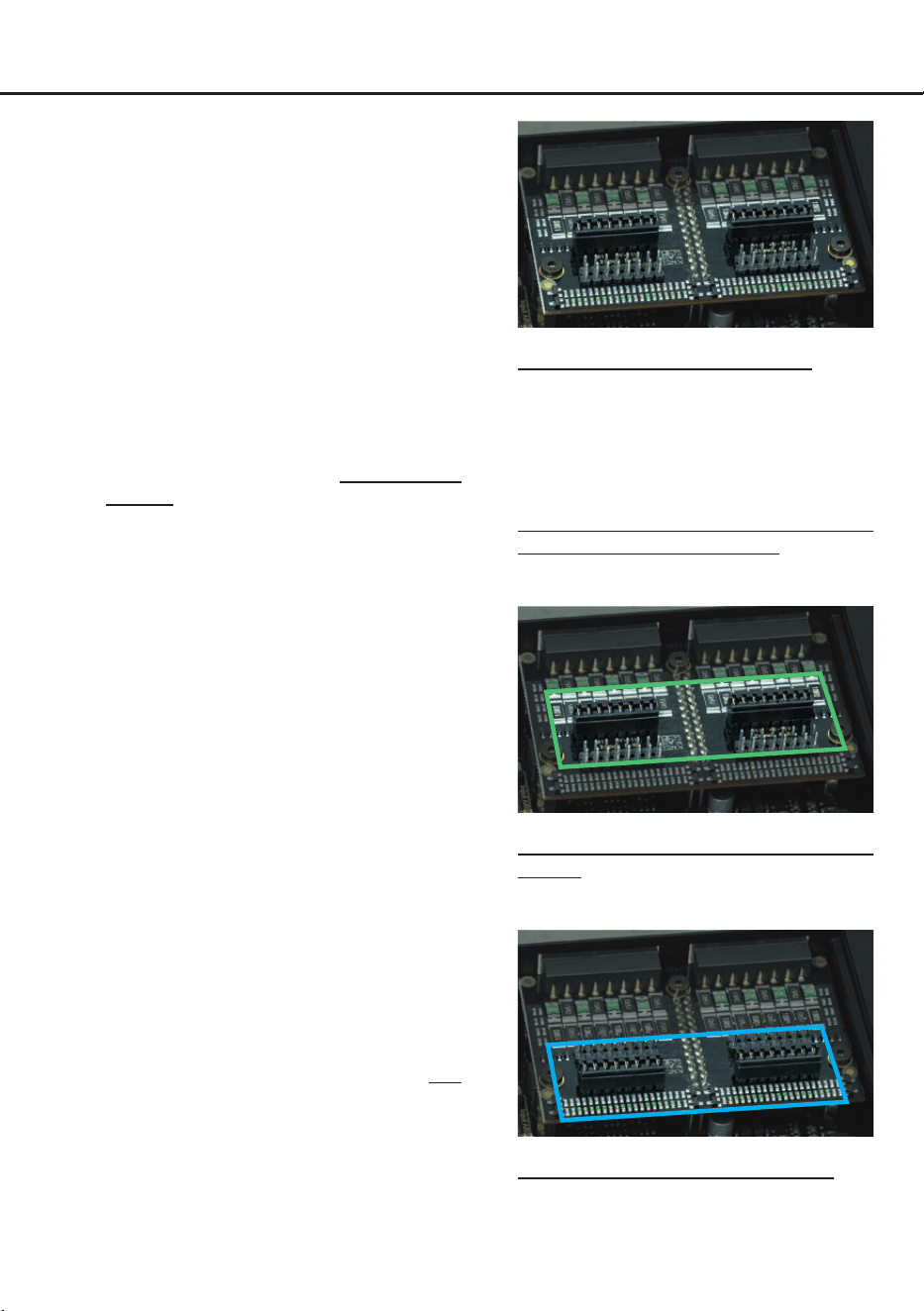
Die Anpassung des Spannungsbereichs („Vol-
tage Range“) des Highlevel-Eingangs erfolgt
als erster Schritt im Inneren des Geräts.
Entfernen Sie dazu das Seitenblech der Ge
-
räteseite mit dem USB-Eingang, indem Sie die
fünf Kreuzschlitzschrauben lösen. Nun kön
-
nen Sie das Bodenblech aus dem Kühlkörper
zur Seite hinausziehen und erhalten so Zugri
auf die zwei Steckbrücken („Jumper“), siehe
Abb. 1. Jeder dieser Jumper stellt den Werte
-
bereich für jeweils 4 Eingangskanäle gleichzei-
tig ein (J1 –
Kanal A - D und J2 – Kanal E - H).
Möchten Sie als Signalquelle ein herkömm-
liches Original- oder Aftermarket-Radio an-
schließen, so muss der Jumper auf den Span-
nungsbereich „H1: 4V - 11V“ (Low Voltage
Range) eingestellt werden. Dieser Bereich ist
werkseitig voreingestellt, siehe Abb. 2.
Möchten Sie als Signalquelle einen werkseitig
verbauten Verstärker anschließen, so empfeh
-
len wir, die maximale Ausgangsspannung zuvor
mit einem geeigneten Messgerät zu ermitteln
oder Ihren autorisierten HELIX Fachhändler zu
kontaktieren. Sollten Sie sich unsicher sein, so
empfehlen wir, den Jumper auf „H2: 12V - 32V“
(High Voltage Range) einzustellen, um even
-
tuelle Schäden am Gerät zu vermeiden. Dazu
müssen beide Jumper auf die werkseitig un
-
benutzte Stiftleiste umgesteckt werden, siehe
Abb. 3.
J 1
J 2
Übersicht Jumper-Steckpositionen:
Jumper 1 (J 1): Kanal A - D
Jumper 2 (J 2): Kanal E - H
Um die Position eines Jumpers zu ändern,
ziehen Sie diesen einfach nach oben hin ab
und stecken ihn auf die gewünschte Position.
Achten Sie darauf, dass der Jumper vollstän-
dig und nicht versetzt eingesteckt ist.
J 1
J 2
H1 – Low Voltage Range Konguration (werk-
seitig):
Wertebereich: Highlevel 4 - 11 Volt
J 1
J 2
H2 – High Voltage Range Konguration
Wertebereich: Highlevel 12 - 32 Volt
Abbildung 1
Abbildung 2
Abbildung 3
6
2. Voreinstellung der Eingangsempndlich-
keit der analogen Signaleingänge
ACHTUNG: Es ist zwingend notwen-
dig, die Eingangsempndlichkeit des
DSP PRO MK3 an die Signalquelle anzu-
passen, um eine bestmögliche Signal-
qualität zu garantieren und Schäden am
Signalprozessor zu vermeiden. Bei Nut-
zung des Highlevel-Eingangs ist es außer-
dem zwingend erforderlich die „Voltage
Range“ an die Ausgangsspannung Ihrer
Signalquelle anzupassen (siehe Seite 5,
Punkt 1).
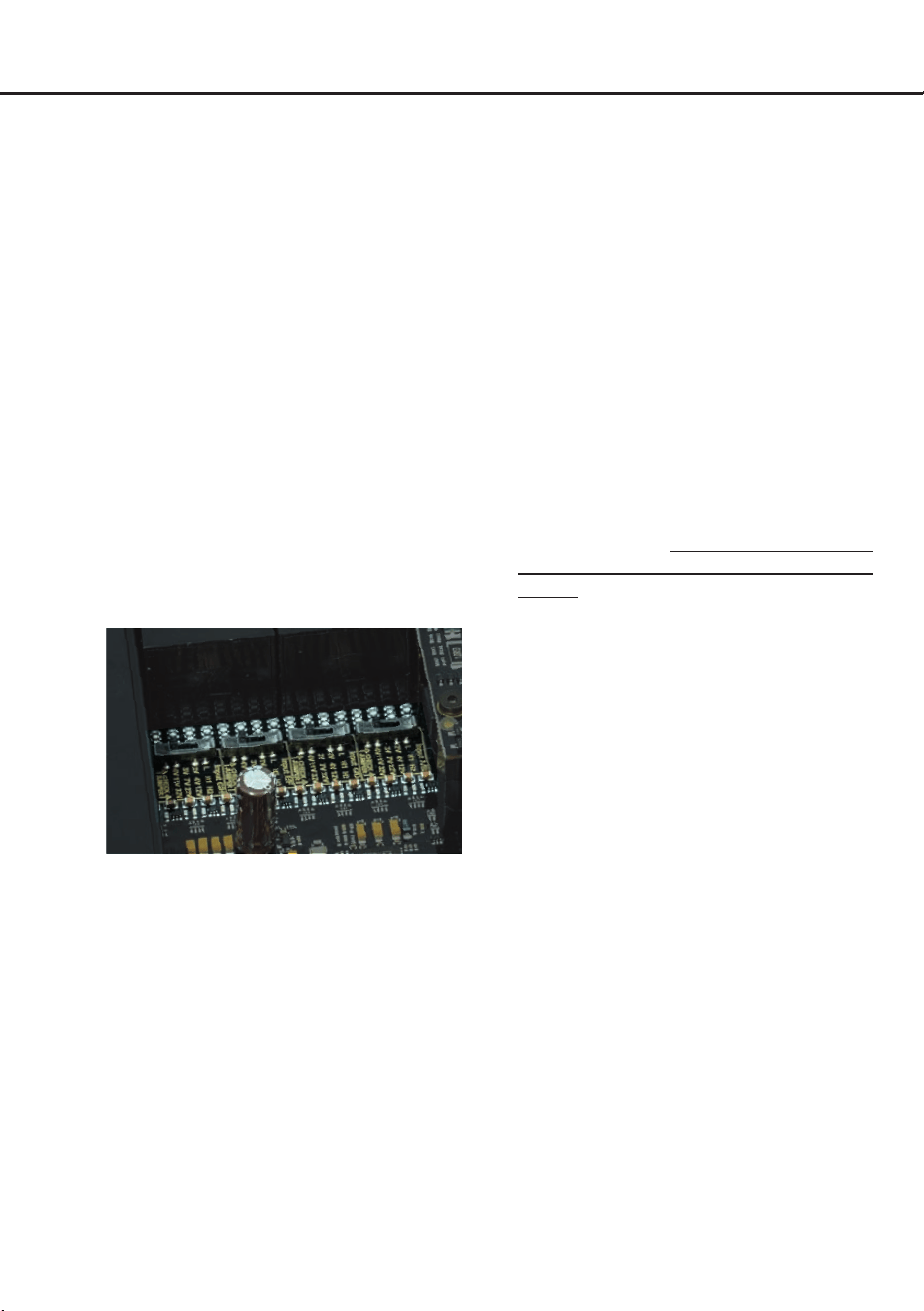
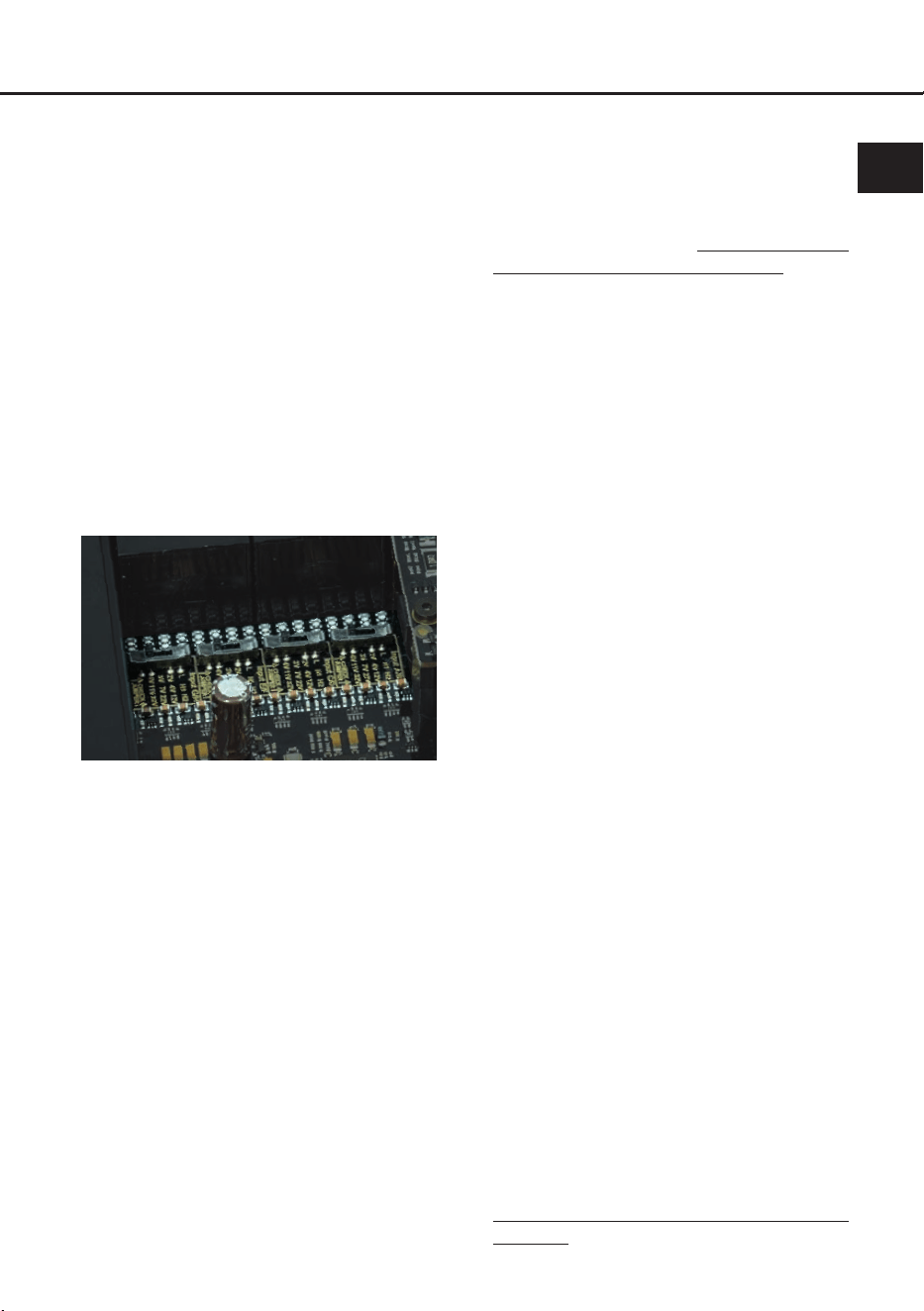
Mit Hilfe von vier Schiebeschaltern im Ge-
räteinneren kann die Eingangsempndlichkeit
für eine bestmögliche Signalqualität an die Si-
gnalquelle angepasst werden.
Werkseitig ist die Eingangsempndlichkeit auf
11 Volt (Highlevel) bzw. 4 Volt (Cinch) vorein-
gestellt. Dies ist in nahezu allen Fällen bereits
die optimale Einstellung.
Der Einstellbereich ist 2 / 3 / 4 Volt für die Vor-
verstärkereingänge bzw. , 4 / 7 / 11 Volt (H1 –
„Low Voltage Range“) oder 12 / 22 / 32 Volt
(H2 – „High Voltage Range“) für die High level-
Eingänge (je nach eingestelltem „Voltage
Range“-Bereich.
Sollte die Signalquelle eine niedrigere Aus-
gangsspannung liefern, kann die Eingangs-
empndlichkeit über die Schalter schrittweise
angehoben werden.
Sofern Ihre Signalquelle eine höhere Aus-
gangsspannung liefert, beispielsweise im
Falle eines vorgeschaltetem OEM / Werksver-
stärkers, muss die Eingangsempndlichkeit
über die Schalter zwingend abgesenkt wer-
den und die korrekte Konguration der „Vol-
tage Range“ Jumper überprüft werden.
Sollten Sie sich bzgl. der Ausgangsspannung
Ihrer Signalquelle nicht sicher sein, kontaktie-
ren Sie Ihren HELIX Fachhändler.
Nachdem Sie die Eingangsempndlichkeit
voreingestellt haben, können Sie den Signal-
prozessor wieder zusammenbauen.
3. Anschluss der Vorverstärkereingänge
Die acht Vorverstärkereingänge (Line In-
put) können mit entsprechenden Kabeln
an die RCA / Cinch-Ausgänge des Werks-
bzw. Nachrüstradios angeschlossen wer-
den. Im Signalprozessor lassen sich die
Signaleingänge über die DSP PC-Tool Soft-
ware frei den Vorverstärkerausgängen (Line
Output) zuweisen. Die Eingangsempndlich-
keit ist für alle Kanäle ab Werk auf 4 Volt ein-
gestellt. Es ist jedoch möglich, die Eingangs-
empndlichkeit im Geräteinneren optimal an
die Signalquelle anzupassen ( siehe Seite 6,
Punkt 2).
Die Einschaltautomatik des Signalprozessors
funktioniert bei den Vorverstärkereingängen
nicht, so dass der Remote-Eingang zwingend
belegt werden muss.
Achtung: Der Highlevel- und der Vorverstär-
kersignaleingang eines einzelnen Kanals darf
nicht gleichzeitig genutzt werden, da dies zu
Schäden an ihrem Autoradio führen kann.
Es ist aber zulässig, an einem Kanal den
Highlevel- und an einem anderen Kanal den
Vorverstärkersignaleingang zu verwenden.
4. Anschluss der Highlevel-Lautsprecherein-
gänge
Die acht Highlevel-Lautsprechereingänge
können direkt mit den Lautsprecherausgän-
gen des Werks- bzw. Nachrüstradios oder
Werksverstärkers mit Hilfe entsprechender
Kabel (Lautsprecherkabel mit max. 1 mm²
Querschnitt) verbunden werden.
Sollten Sie ein normales Werksradio anschlie-
ßen, empfehlen wir folgende Kanalbelegung:
Kanal A = Vorne links
Kanal B = Vorne rechts
Kanal C = Hinten links
Kanal D = Hinten rechts
Hardware-Konguration

7
de
Dabei müssen nicht zwingend alle Eingän-
ge belegt werden. Werden nur zwei Kanäle
belegt, empfehlen wir die Kanäle A und B zu
verwenden. Achten Sie bitte auf eine korrekte
Polung! Wenn Sie einen oder mehrere An-
schlüsse verpolen, kann dadurch die Funktion
des Signalprozessors beeinträchtigt werden.
Bei Verwendung dieses Eingangs muss der
Remote-Eingang nicht belegt werden, da sich
der Signalprozessor automatisch einschaltet,
sobald ein Lautsprechersignal anliegt.
Die Eingangsempndlichkeit ist für alle Ka-
näle ab Werk auf 11 Volt voreingestellt. Es ist
jedoch möglich, die Eingangsempndlichkeit
im Geräteinneren optimal an die Signalquelle
anzupassen (siehe Seite 6, Punkt 2).
Achtung: Verwenden Sie zum Anschluss
ausschließlich die mitgelieferten Stecker mit
integrierten Schraubklemmen.
Achtung: Der Highlevel- und der Vorverstär-
kersignaleingang eines einzelnen Kanals darf
nicht gleichzeitig genutzt werden, da dies zu
Schäden an ihrem Autoradio führen kann.
Es ist aber zulässig, an einem Kanal den
Highlevel- und an einem anderen Kanal den
Vorverstärkersignaleingang zu verwenden.
5. Anschluss einer digitalen Signalquelle im
SPDIF Format
Sofern Sie über eine Signalquelle mit ko-
axialem oder optischem Digitalausgang ver-
fügen, kann diese an den Signalprozessor
angeschlossen werden. Die Abtastrate (Sam-
pling Rate) muss zwischen 12 - 96 kHz für den
optischen Eingang und
12 - 192 kHz für den
Koaxialeingang liegen
. Das Eingangssignal
wird automatisch an die interne Abtastrate
angepasst. Werkseitig ist der Optical Input
aktiviert und die manuelle Einschaltung des
Eingangs über eine optionale Fernbedienung
konguriert. Möchten Sie den Eingang auto-
matisch, bei Anliegen eines Audiosignals, ak-
tivieren, können Sie dies in der DSP PC-Tool
Software unter dem Menüpunkt Signalma-
nagement im DCM kongurieren.
Die Einschaltautomatik des Signalprozessors
funktioniert bei Verwendung eines Digitalein-
gangs nicht, so dass der Remote-Eingang
zwingend belegt werden muss.
Wichtig: Das digitale Audiosignal einer Quel-
le ist üblicherweise nicht lautstärkegeregelt.
Das bedeutet, dass an den Signalausgängen
des HELIX DSP PRO MK3 der volle Pegel an-
liegt und die angeschlossenen Verstärker voll
ausgesteuert werden. Dies kann im Extremfall
die Lautsprecher zerstören. Wir raten deshalb
dringend dazu, eine optionale Fernbedienung
zur Einstellung der Lautstärke der digitalen
Signaleingänge zu verwenden!
Hinweis: Der HELIX DSP PRO MK3 kann
nur unkomprimierte, digitale Stereo PCM-
Signale mit einer Abtastrate zwischen 12 kHz
und 96 kHz / 192 kHz verarbeiten. Es können
keine MP3- oder Dolby-codierten Daten ver-
arbeitet werden, sondern ausschließlich Ste-
reosignale.
6. Konguration des Remote-Eingangs
Die Einschaltung des HELIX DSP PRO MK3
erfolgt automatisch bei Ansteuerung über die
Highlevel-Lautsprechereingänge (High level
Input) oder sobald ein Remote-Signal am
Remote-Eingang anliegt. Mit Hilfe des „Auto
Remote“-Schalters (Seite 4, Punkt 4) kann die
automatische Einschaltung deaktiviert wer-
den. Dies sollte vorgenommen werden, wenn
es beispielsweise zu Störgeräuschen beim
Ein- und Ausschalten des Signalprozessors
kommt.
On: Einschaltung über Highlevel-Lautspre-
chereingang aktiviert (Werkseinstel-
lung).
O: Einschaltung über Highlevel-Lautspre-
chereingang deaktiviert.
Hinweis: Wird die automatische Einschaltung
des Signalprozessors deaktiviert, muss der
Remote-Eingang belegt werden. Eine auto-
matische Einschaltung über den Highlevel-
Lautsprecher eingang ist dann nicht mehr
möglich.
7. Anschluss der Stromversorgung & Remote
Vor dem Anschluss des +12 V Versor-
gungskabels an das Bordnetz muss die
Autobatterie abgeklemmt werden.
Schließen Sie die Stromversorgung aus-
schließlich über den mitgelieferten Stecker mit
integrierten Schraubklemmen an. Achten Sie
unbedingt auf eine korrekte Polarität.
+: Anschluss für die Plusleitung. Das +12 V

8
Versorgungskabel ist entweder direkt an den
Pluspol der Batterie oder an einen Stromver-
teiler anzuschließen, der mit dem Pluspol der
Batterie verbunden ist.
Die Stromaufnahme des HELIX
DSP PRO MK3 ist mit ca. 650 mA zwar sehr
gering, trotzdem sollten Kabel mit mind.
1 mm² Querschnitt für die Spannungsversor-
gung verwendet werden.
–: Anschluss für die Masseleitung. Das Mas-
sekabel muss an einer nicht isolierten Stelle
mit dem Kfz-Chassis verbunden werden. Der
Kabelquerschnitt sollte den gleichen Durch-
messer wie die Plusleitung haben. Ein nicht
ausreichender Massekontakt führt zu uner-
wünschten Störgeräuschen und Fehlfunkti-
onen.
Remote in: Der Remote-Eingang dient zum
Einschalten des DSP PRO MK3, wenn die Vor
-
verstärker-Eingänge oder die Digitaleingänge
genutzt werden.
Sofern die am Highlevel-Eingang angeschlos
-
sene Signalquelle die automatische Einschal-
tung nicht aktiviert oder der Signalprozessor
bewusst nur über ein Remote-Signal ein- und
ausgeschaltet werden soll, muss dieser Ein
-
gang belegt werden.
Dazu muss der Remote-
Eingang des DSPs mit dem Remote-Ausgang
des Radios / der Head Unit verbunden wer-
den. Somit wird der Signalprozessor über das
Radio ein- und ausgeschaltet. Es wird drin-
gend davon abgeraten, den Remote-Eingang
des Signalprozessors über das Zündungsplus
des Fahrzeugs zu steuern, um Störgeräusche
beim Ein- und Ausschalten zu vermeiden.
Hinweis: Dieser Eingang muss nicht belegt
werden, wenn der Highlevel-Lautsprecher-
eingang (Highlevel Input) benutzt wird. Wie
Sie die automatische Einschaltung über den
Highlevel-Lautsprechereingang deaktivieren
können, ist auf Seite 7 unter Punkt 6 „Kon-
guration des Remote-Eingangs“ nachzulesen.
Remote out: Der Remote-Ausgang dient zum
prozessorgesteuerten Einschalten der am Line
Output angeschlossenen Verstärker. Verbin
-
den Sie dazu den Remote-Ausgang des DSPs
mit den Remote-Eingängen Ihrer Verstärker,
um diese über den DSP störungsfrei ein- und
auszuschalten.
Dieser Ausgang aktiviert sich automatisch, so
-
bald der Bootvorgang des DSP abgeschlossen
ist. Zudem wird dieser Ausgang bei aktiviertem
„Power Save Mode“ und bei Betriebssoftware-
Updates abgeschaltet.
Wichtig: Verwenden Sie niemals ein an
-
deres Signal als den Remote-Ausgang, um
angeschlossene Verstärker einzuschalten!
8. Anschluss an den Computer & Einschalten
Mit Hilfe des USB Eingangs kann der
DSP PRO MK3 über das beiliegende Kabel
mit dem Computer verbunden und anschlie-
ßend über das DSP PC-Tool konguriert
werden.
Hinweis: Es können keine USB Speicherme-
dien an den Signalprozessor angeschlossen
werden.
Bevor Sie den Signalprozessor das erste Mal
an einen Computer anschließen, gehen Sie
auf unsere Homepage und laden die aktu-
ellste Software Version des DSP PC-Tools
herunter. Es ist ratsam, regelmäßig nach Up-
dates der Software zu schauen, damit das
Gerät immer auf dem aktuellsten Stand ist.
Die Software sowie eine umfang-
reiche Knowledge Base nden Sie auf
www.audiotec-scher.com.
Es wird dringend empfohlen, die DSP PC-Tool
Knowledge Base vor der ersten Benutzung
durchzulesen, um Komplikationen und Fehler
zu vermeiden.
Wichtig: Stellen Sie sicher, dass der
DSP PRO MK3 bei der ersten Installation
der Software noch nicht am PC angeschlos-
sen ist. Verbinden Sie diesen erst, wenn die
Software samt der USB-Treiber vollständig
installiert ist.
Im folgenden Abschnitt lesen Sie die wich-
tigsten Schritte zum Anschluss und der ersten
Inbetriebnahme:
1. Laden Sie die DSP PC-Tool Software unter
www.audiotec-scher.com herunter und in-
stallieren diese auf ihrem Computer.
2. Schließen Sie danach den Signalprozes-
sor mit dem beiliegenden USB-Kabel an den
Computer an. Wenn Sie längere Distanzen zu
überbrücken haben, verwenden Sie bitte eine
aktive USB-Verlängerung mit integriertem Re-
peater.
3. Schalten Sie erst den DSP PRO MK3 ein
Hardware-Konguration
9
de
und starten Sie anschließend die Software.
Sofern die Betriebssoftware des Signalpro-
zessors nicht mehr aktuell ist, wird diese auto-
matisch aktualisiert.
9. Feineinstellung der Eingangsempndlich-
keit
ACHTUNG: Um Schäden am Signalpro-
zessor zu vermeiden, ist es zwingend not-
wendig die Eingangsempndlichkeit, wie
auf Seite 5 unter Punkt 2 beschrieben, vor-
eingestellt zu haben.
Mit Hilfe der DSP PC-Tool Software kann die
Eingangsempndlichkeit kanalübergreifend in
1 dB Schritten, bis maximal +6 dB, optimal an
die Signalquelle angepasst werden.
Hinweis: Schließen Sie während dieser Pro-
zedur keinen Verstärker an die Ausgänge des
Signalprozessors.
Die Clipping LED (siehe Seite 4, Punkt 3) des
DSP PRO MK3 bzw. die Clipping Anzeige des
DSP PC-Tools dienen dabei als Kontrollinstru-
ment.
Zur Feineinstellung gehen Sie bitte wie folgt
vor:
1. Schalten Sie den Signalprozessor ein.
2. Starten Sie die DSP PC-Tool Software.
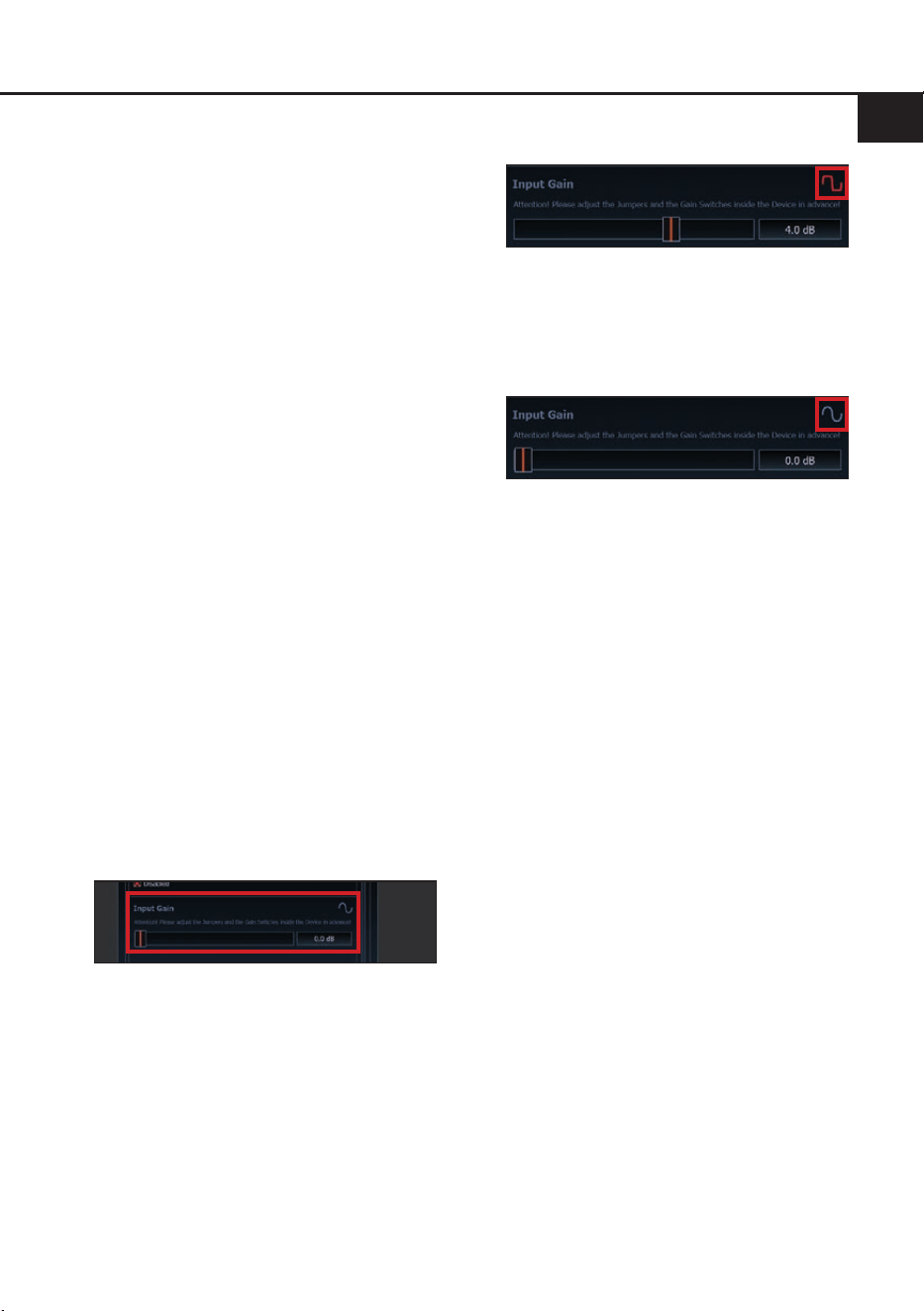
3. Die Feineinstellung der Eingangsempnd-
lichkeit nden Sie im Tab „Signalverwal-
tung“ des DCM-Menüs unter dem Punkt
„Main Input → Input Gain“.
4. Drehen Sie die Lautstärke Ihres Radios auf
90 % der Gesamtlautstärke und spielen
Sie ein geeignetes Testsignal, z.B. Rosa
Rauschen, (Vollaussteuerung 0 dB) ab.
5. Sollte die Clipping LED (siehe Seite 4,
Punkt 3) bzw. die Clipping Anzeige (siehe
Markierung im folgenden Bild) bereits rot
leuchten, ist die Voreinstellung der Ein-
gangsempndlichkeit nicht korrekt. Verrin-
gern Sie diese zuerst mit Hilfe der internen
Schiebeschalter wie auf Seite 6 im Punkt 2
beschrieben. Sobald die Clipping LED
bzw. Clipping Anzeige nicht mehr leuch-
tet, verfahren Sie weiter mit dem nachfol-
genden Punkt 6.
6. Erhöhen Sie die Eingangsempndlichkeit
mit Hilfe des Reglers der DSP PC-Tool
Software bis die Clipping LED / Clipping
Anzeige aueuchtet. Schieben Sie nun
den Regler zurück bis die Clipping LED /
Clipping Anzeige wieder erlischt.
10. Konguration des DSPs
Es wird dringend empfohlen, vor der er-
sten Inbetriebnahme des Soundsystems
die grundlegenden Einstellungen im DSP
mit Hilfe der DSP PC-Tool Software vorzu-
nehmen.
Nun können Sie den Signalprozessor mithilfe
der DSP PC-Tool Software frei kongurieren.
Nützliche Hinweise zur korrekten Einstellung
entnehmen Sie unserer Knowledge Base,
welche auf unserer Webseite bereit steht.
Achtung: Es wird dringend empfohlen, die
Lautstärke am Radio auf Minimum zu dre-
hen und an die Vorverstärker ausgänge des
DSP PRO MK3 noch nichts anzuschließen.
Speziell bei Verwendung in vollaktiven Syste-
men besteht sonst Zerstörungsgefahr für die
Lautsprecher.
11. Eingangssignal analysieren
Prüfen Sie nun mit Hilfe des Input Signal
Analyzers (ISA) der DSP PC-Tool Software
das Eingangssignal auf werkseitig einge-
stelltes Equalizing und Allpass-Filter. Infor-
mationen zum ISA nden Sie in der umfang-
reichen Knowledge Base unserer Webseite
www.audiotec-scher.com.
Achtung: Es wird dringend empfohlen, vor
der ersten Inbetriebnahme die Lautstärke
an der Signalquelle auf Minimum zu dre-
hen und an die Vorverstärker ausgänge des
DSP PRO MK3 noch nichts anzuschließen,
bis die grundlegenden Einstellungen im

10
Signalprozessor vorgenommen wurden. Spe-
ziell bei Verwendung in vollaktiven Systemen
besteht sonst Zerstörungsgefahr für die Laut-
sprecher.
12. Anschluss der Vorverstärkerausgänge
Die zehn Vorverstärkerausgänge (Line Out-
put) können Sie nun mit entsprechenden
Kabeln (RCA / Cinch-Kabel) mit den Vorver-
stärker- / Lowlevel- / Cinch-Eingängen der
nachgeschalteten Verstärker verbinden.
13. Sound Tuning
Nun können Sie Ihr Sound Setup erstellen.
Informationen rund um das Sound Tuning n-
den Sie in unserer umfangreichen Knowledge
Base auf audiotec-scher.com oder kontak-
tieren Sie Ihren HELIX Fachhändler vor Ort.
Hardware-Konguration

11
de
1. Clipping LED
In der Regel ist die LED aus und leuchtet nur
auf, wenn einer der Vorverstärker- oder High-
level-Signaleingänge übersteuert wird.
On (rot): Einer der analogen Signaleingänge
wird übersteuert. Senken Sie die
Eingangsempndlichkeit mit Hilfe
der vier internen Schiebeschalter
und der DSP PC-Tool Software ab,
bis die LED erlischt. Wie Sie die
Eingangsempndlichkeit absen-
ken, ist auf Seite 9 unter Punkt 9
nachzulesen.
Hinweis: Die LED hat keine Funktion bei An-
steuerung über einen der Digitaleingänge.
2. Status LED
Die Status LED zeigt den Betriebszustand des
Signalprozessors und dessen Speichers an.
Grün: DSP eingeschaltet und betriebsbereit.
Orange: Power Save Modus aktiv.
Rot: Protection Mode aktiv. Dieser kann
unterschiedliche Ursachen haben. Der
DSP PRO MK3 ist mit Schutzschaltungen
gegen Über- und Unterspannung sowie Über-
hitzung ausgestattet. Prüfen Sie in diesem
Fall alle Anschlüsse auf Fehler, wie z.B. Kurz-
schlüsse oder fehlerhafte Verbindungen. Ist
die Sicherheitsschaltung der Temperaturüber-
wachung aktiv, wird der Remote-Ausgang so-
wie die Signalausgabe abgeschaltet, bis ein
sicherer Betrieb wieder gewährleistet werden
kann.
Rot / grün langsam blinkend: Keine Betriebs-
software auf dem DSP installiert. Verbinden
Sie den Signalprozessor mit der DSP PC-Tool
Software und bestätigen Sie das automa-
tische Update der Betriebssoftware. Die aktu-
ellste Version des DSP PC-Tools nden Sie
auf www.audiotec-scher.com.
Rot / grün schnell blinkend: Aktuell ausge-
wählter Sound Setup-Speicherplatz ist leer.
Ein neues DSP Setup muss über die DSP
PC-Tool Software eingespielt werden oder
schalten Sie auf einen Speicherplatz mit vor-
handenem Sound Setup um.
3. Control Taster
Der DSP PRO MK3 bietet 10 interne Spei-
cherplätze für Sound Setups. Mit Hilfe des
Control Tasters lässt sich zwischen zwei
Speicherplätzen umschalten. Diese können
im DSP PC-Tool festgelegt werden. Zudem
kann durch langes Drücken des Tasters ein
Geräte-Reset durchgeführt werden.
1. Setup-Wechsel: Taster 1 Sek. drücken.
Werkseitig sind die Speicherbereiche eins
und zwei eingestellt. Der Umschaltvorgang
wird durch einmaliges rotes Blinken der
Status LED angezeigt. Alternativ kann zur
Umschaltung die optionale Fernbedienung
URC.3 verwendet werden. Um zwischen allen
internen Speicherplätzen umschalten zu kön-
nen, ist optionales Zubehör, wie z.B. die Fern-
bedienungen DIRECTOR und CONDUCTOR
notwendig.
2. Geräte-Reset: Taster länger als 5 Sek. ge-
drückt halten. Durch ein Geräte-Reset wird
der interne Speicher auf die Werkseinstellung
zurückgesetzt! Dies wird durch ein durchge-
hendes rotes Leuchten und grünes schnelles
Dauerblinken der Status LED angezeigt.
Achtung: Nach dem Resetten des Gerätes
kann der DSP PRO MK3 keine Audiosignale
mehr wiedergeben, bis das Gerät mit Hilfe
des DSP PC-Tools geupdated wurde.
4. Masseschalter
Beim HELIX DSP PRO MK3 ist die Signal-
masse galvanisch von der Bordnetzmasse
getrennt. Dies ist in den meisten Fahrzeugen
die beste Option, um Störgeräusche wie z.B.
von der Lichtmaschine zu unterbinden. Aller-
dings gibt es auch Fälle, wo die Massen der
Eingänge mit den Ausgängen direkt „hart“
oder über einen 200 Ohm Widerstand „weich“
verbunden werden müssen. Der Masseschal-
ter hat drei Positionen:
ISO: Massen galvanisch getrennt.
GND: Massen „hart“ zusammengeschaltet.
200Ω: Massen „weich“ gekoppelt.
Weitere Funktionen
12
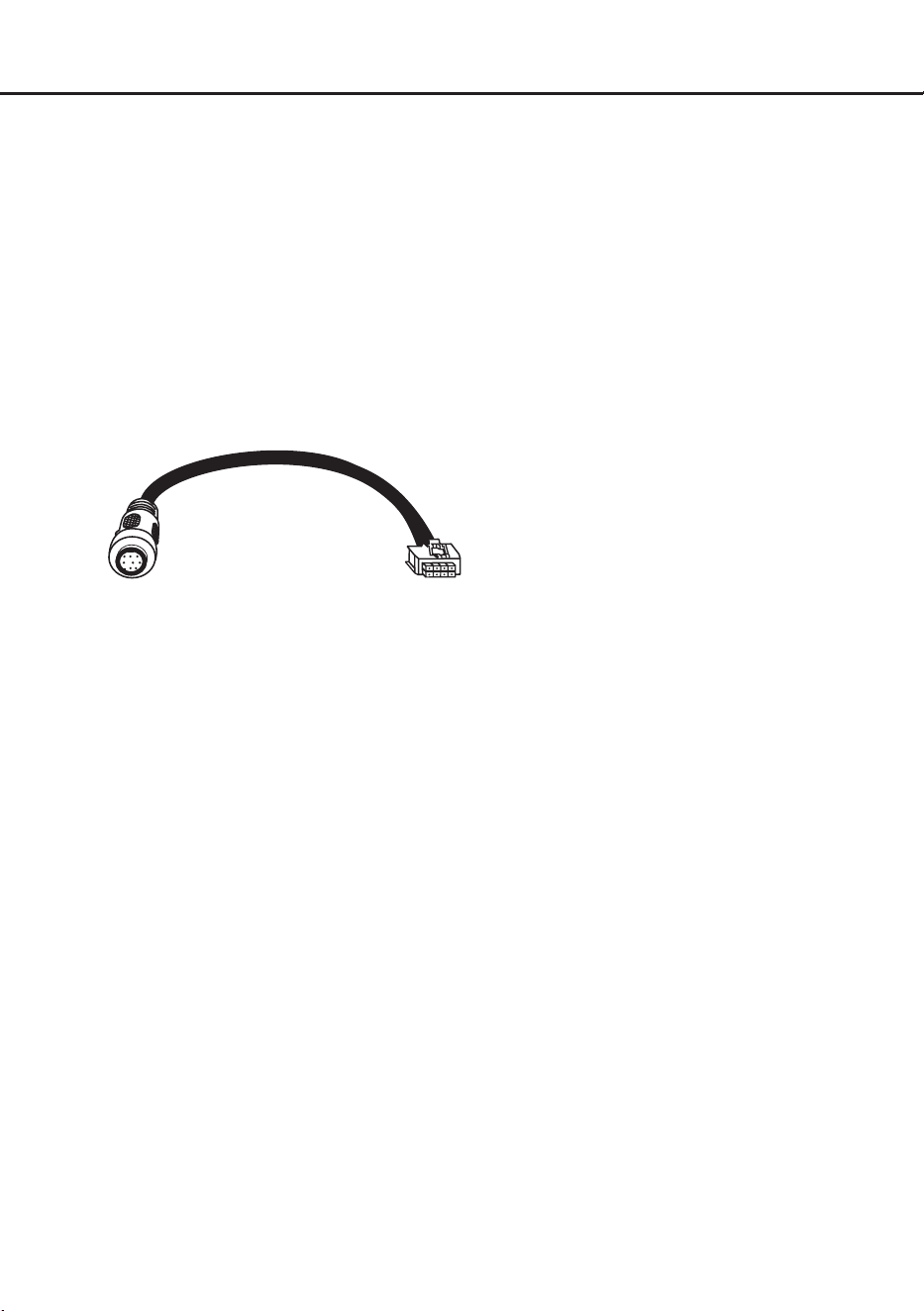
5. SCP (Smart Control Port)
Dieser Multifunktionseingang dient zum An-
schluss von HELIX Zubehörprodukten, wie
beispielsweise einer Fernbedienung, mit de-
ren Hilfe diverse Funktionen des Signalpro-
zessors gesteuert werden können.
Die Funktionalität muss je nach Typ der Fern-
bedienung zuerst im „Device Conguration
Menu“ der DSP PC-Tool Software oder an der
Fernbedienung selbst konguriert werden.
Achtung: Sofern das Zubehörprodukt keinen
NanoFit Stecker besitzt, verwenden Sie zum
Anschluss ausschließlich den mitgelieferten
NanoFit Adapter.
NanoFit Adapter
Weitere Funktionen
13
de
Virtual Channel Processing (VCP)
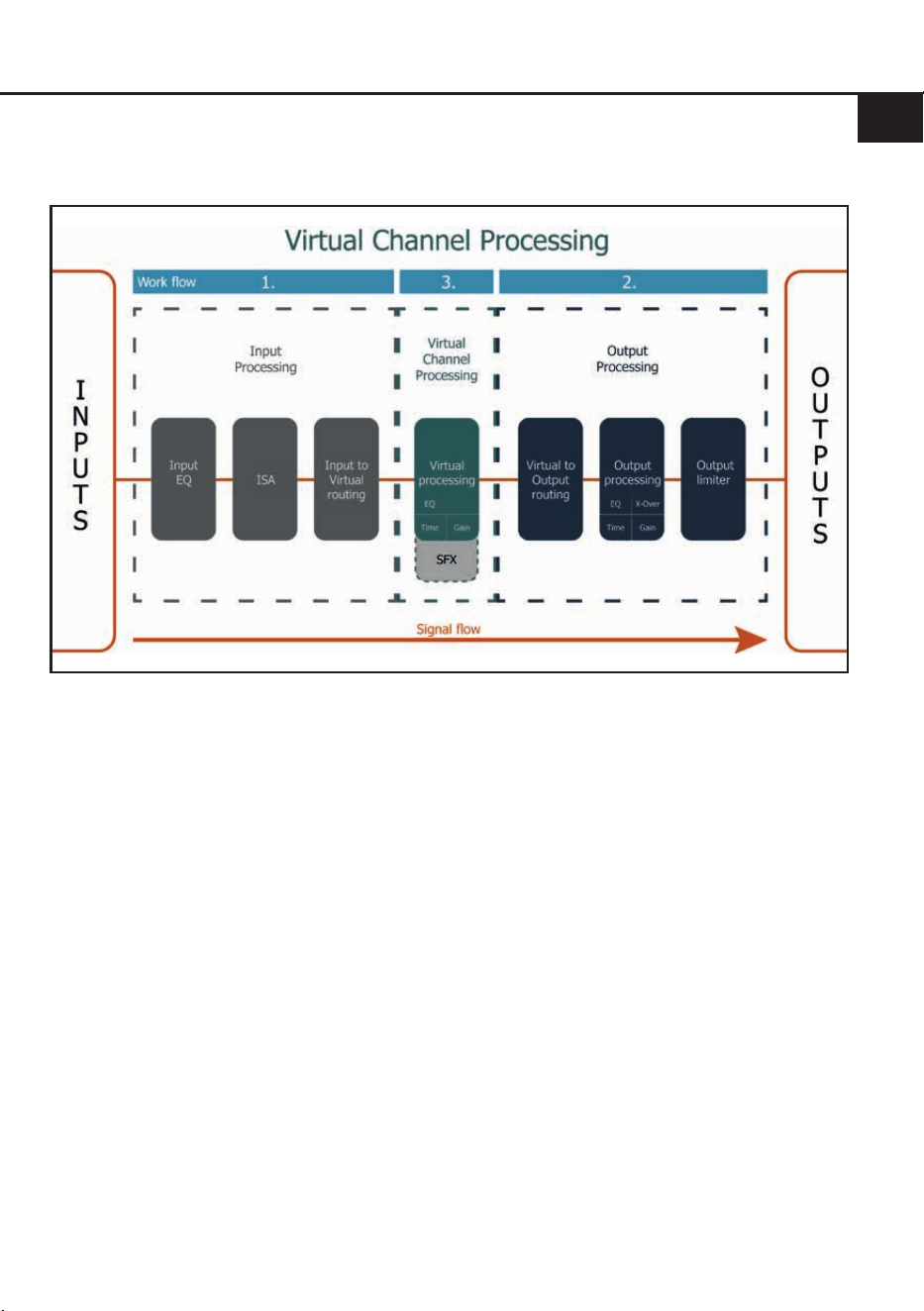
Das VCP erweitert den bisherigen Umfang des Gerätes um eine neue Ebene an prozessierten Kanälen,
welche sich zwischen den Ein- und Ausgängen bendet.
Insgesamt stehen acht zusätzliche prozessierte virtuelle Kanäle und zehn prozessierte Ausgangskanäle zur
Verfügung.
Diese virtuelle Kanalebene bietet diverse Vorteile, gerade in komplexen Systemkongurationen.
Die Hauptvorteile dieses Konzeptes sind folgende:
- Ausgangskanalübergreifender Gruppen-Equalizer
- Mehrwege-Konguration der DSP-Soundeekte (SFX)
- Zusätzliche Funktionen wie Rear Attenuation
Weiterführende Informationen zum VCP und dessen Konguration nden Sie in unserer Knowledge
Base auf www.audiotec-scher.com.
Der HELIX DSP PRO MK3 bietet neben dem Standard Routing das Virtual Channel Processing (VCP), ein
mehrstuges Signalverarbeitungs-Konzept, welches die perfekte Konguration komplexer Soundsysteme
ermöglicht und somit ganz neue Möglichkeiten des Klangtunings erönet.
14
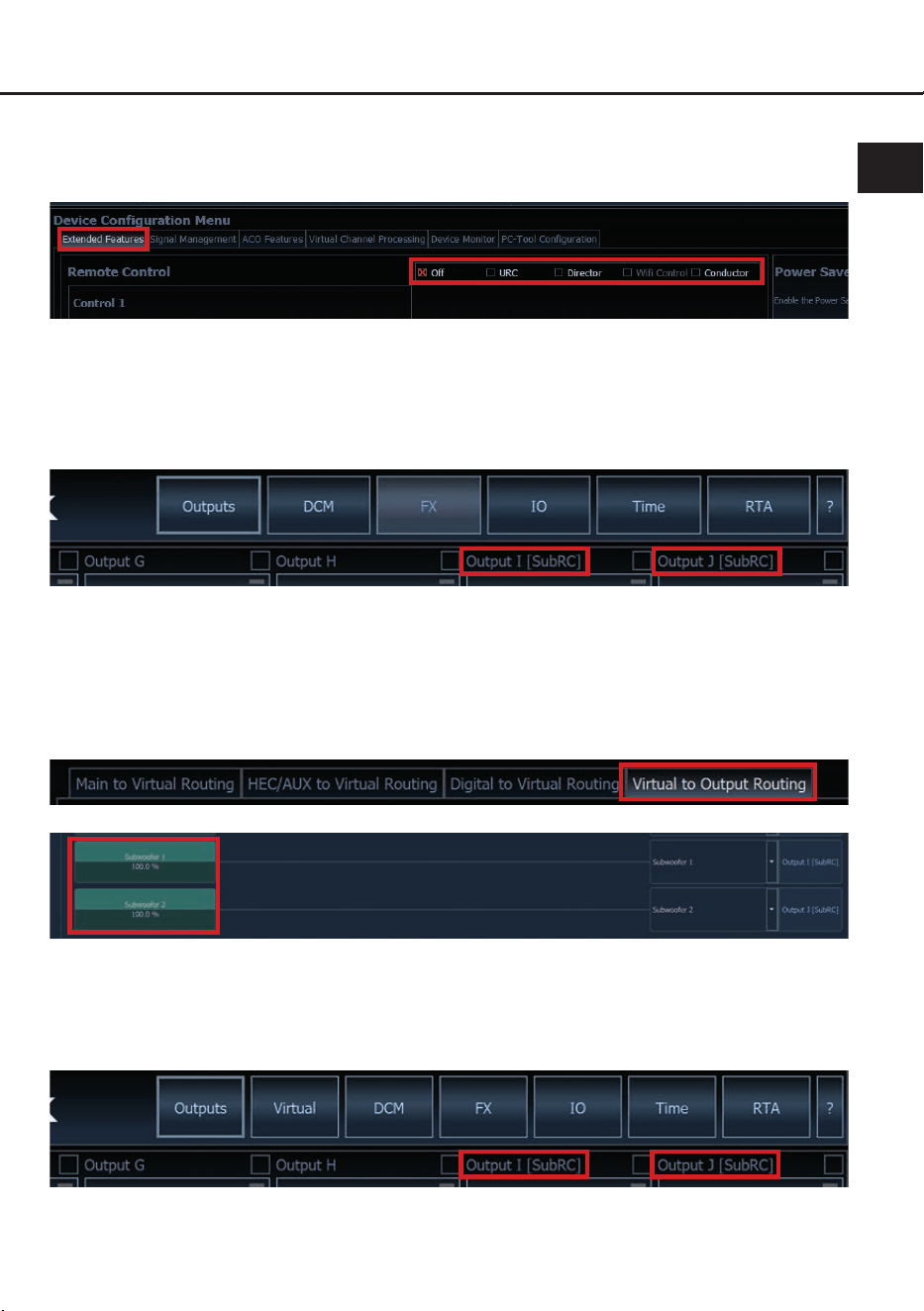
Zur Konguration einer Subwoofer-Fernbedienung müssen im DSP PC-Tool bestimmte Einstellungen
vorgenommen werden.
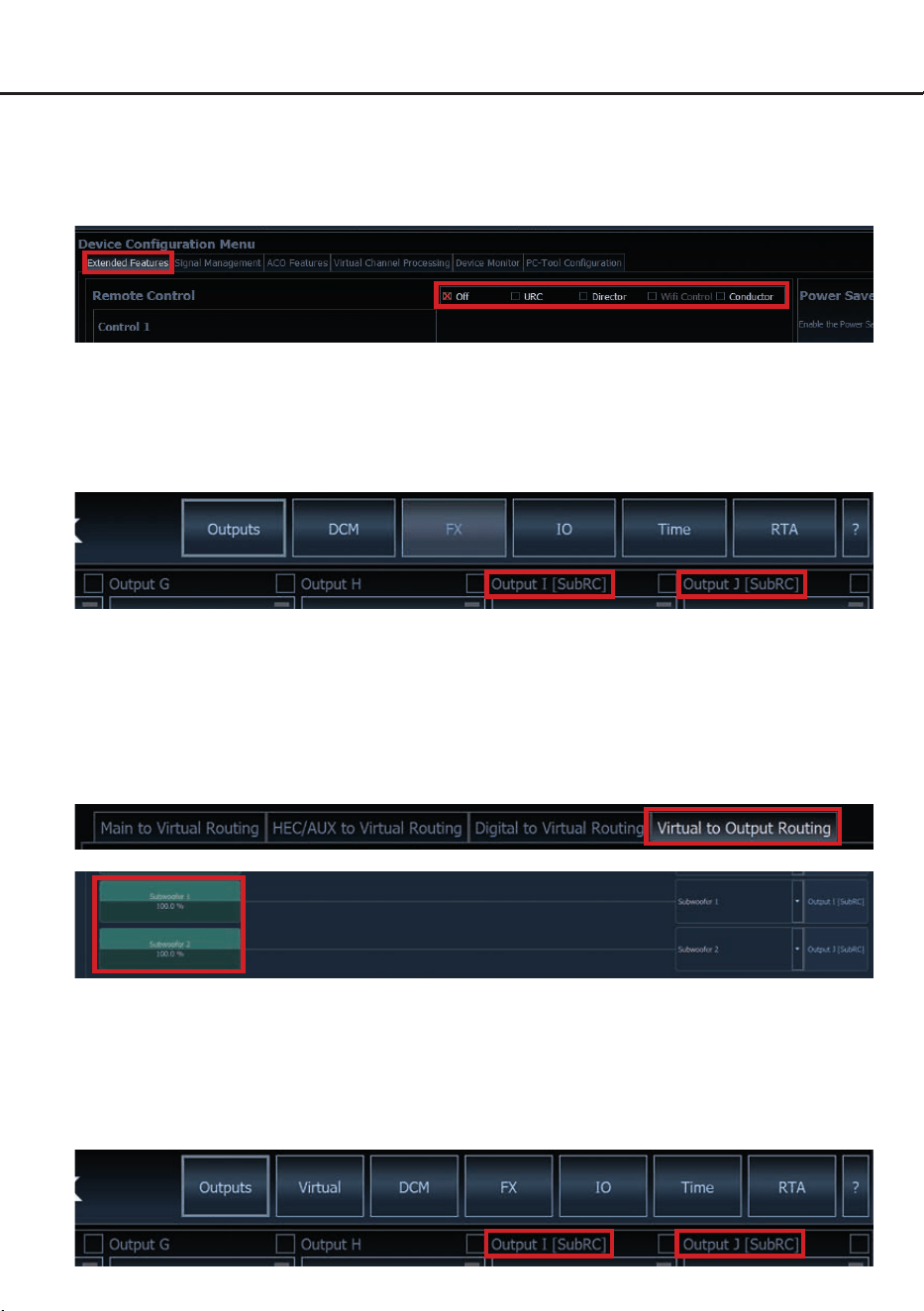
Zunächst muss die entsprechende Fernbedienung im Tab „Erweiterte Einstellungen“ im DCM Menü der
DSP PC-Tool Software aktiviert und je nach Modell konguriert werden.
Konguration einer Subwoofer-Fernbedienung
Bei aktiviertem VCP hingegen wird die Subwoofer-Fernbedienung den Ausgangskanälen zugeordnet,
welche im „Virtual to Output Routing“ mit einem der beiden virtuellen Subwoofer-Signalen versorgt wer-
den („Subwoofer 1“ oder „Subwoofer 2“). Dies kann jede beliebige Kombination an Ausgangskanälen
sein.
Im nachfolgenden Beispiel sind es die Vorverstärker-Ausgänge / Line Outputs I und J:
Hinweis: Bitte beachten Sie, dass den beiden virtuellen Subwoofer-Signalen „Subwoofer 1“ und / oder
„Subwoofer 2“ zuvor in den anderen Routing-Matrizen ein Eingangssignal zugewiesen werden muss.
Anschließend wird die Subwoofer-Regelung auch im „Outputs“ Menü hinter der Kanalbezeichnung als
[SubRC] angezeigt:
Bei nicht aktiviertem VCP ist die Subwoofer-Fernbedienung beim DSP PRO MK3 fest den Ausgangs-
kanälen I und J (Output Channels) zugeordnet. In diesem Fall ist es nicht entscheidend, welcher Aus-
gang in der IO-Routingmatrix mit „Subwoofer“ benannt wurde.
Im “Outputs” Menü wird angezeigt, auf welche Ausgänge die SubRC (Subwoofer-Fernbedienung) wirkt:

15
de
ACO Plattform-Features
Neben den einzigartigen DSP-Sound eekten bie-
tet die ACO-Plattform des DSP PRO MK3 zusätz-
lich eine Vielzahl an System-Features.
Im DCM Menü der DSP PC-Tool Software können
für einige dieser System-Features individuelle
Einstellungen vorgenommen werden.
Turn On & O Delay
Hier kann die Verzögerungzeit, mit welcher der
DSP ein- und ausgeschaltet werden soll, festge-
legt werden. Werkseitig sind 0,2 Sekunden einge-
stellt. Eine Änderung der Verzögerungszeit sollte
nur vorgenommen werden, wenn es beispielswei-
se zu Störgeräuschen beim Ein- und Ausschalten
des Signalprozessors kommt.
URC Setup Switch Conguration
Der ACO bietet Speicherplatz für zehn anstelle der
üblichen zwei Sound Setups.
Mit Hilfe einer optional erhältlichen URC Fernbe
-
dienung oder des Control Tasters (siehe Seite 11)
lässt sich zwischen zwei der zehn Sound-Setup
Speicherplätze umschalten. Diese zwei Speicher
-
plätze können in der „URC Setup Switch Con-
guration“ festgelegt werden. Werkseitig sind die
Speicherbereiche eins und zwei ausgewählt.
Um
zwischen allen internen Speicherplätzen umschal
-
ten zu können, werden die optional erhältlichen
Fernbedienungen DIRECTOR und CONDUCTOR
empfohlen.
Remote Output Conguration
An dieser Stelle kann festgelegt werden, ob der
Remote-Ausgang, der die angeschlossenen
Verstärker ein- bzw. ausschaltet, während eines
Sound-Setup-Wechselvorgangs kurzzeitig deakti-
viert werden soll. Standardmäßig ist dieses Fea-
ture aktiviert (ON).
ADEP.3 Conguration
Bei Ansteuerung des DSPs über die Highle-
vel-Eingänge kann es in Verbindung mit man-
chen Werksradios, die über eine sogenannte
„Class SB“-Ausgangsstufe verfügen, notwendig
sein, den ADEP.3-Schaltkreis an den Diagnose-
modus des Steuergeräts anzupassen. Im Bereich
„ADEP.3 SB compatibility mode & Advanced Noi-
se Suppression“ sollte eine Anpassung vorge-
nommen werden, wenn es bspw. zu Verzerrungen
im oberen Lautstärkebereich kommt. Standard-
mäßig ist der Kompatibilitätsmodus ausgeschaltet
(Disabled).
16
Einbau einer HELIX Extension Card
Der HELIX DSP PRO MK3 kann durch die Mon-
tage einer HELIX Extension Card (HEC) um wei-
tere Schnittstellen wie beispielsweise einem High
Denition Bluetooth
®
Audio Streaming Modul, ei-
ner High Resolution Audio USB Soundkarte etc.
erweitert werden.
Zur Montage einer HEC muss das Seitenblech
des DSP PRO MK3 demontiert und gegen das
der HEC beiliegende Seitenblech ausgetauscht
werden.
Achtung: Installieren Sie ausschließlich für
den DSP PRO MK3 vorgesehene HEC Modu-
le an der dafür vorgesehenen Position. Die
Benutzung eines nicht für das Gerät spezi-
zierten HEC Moduls oder eine Installation an
einer nicht dafür vorgesehenen Position im
Gerät kann zu Schäden am HEC Modul, dem
Signalprozessor, des Radios oder anderen an-
geschlossenen Geräten führen.
Im folgenden Abschnitt nun die wichtigsten Schrit-
te zum Einbau und der ersten Inbetriebnahme
eines HEC Moduls:
1. Ziehen Sie zunächst alle Steckverbindungen
vom Gerät ab.
2. Lösen Sie die fünf Kreuzschlitzschrauben des
Seitenblechs der Geräteseite mit dem USB
Eingang und entfernen dieses.
3. Ziehen Sie nun das Bodenblech zur Seite he-
raus.
4. Bereiten Sie das Modul für den Einbau in das
Gerät vor. Informationen dazu entnehmen Sie
bitte der Bedienungsanleitung des jeweiligen
HEC Moduls.
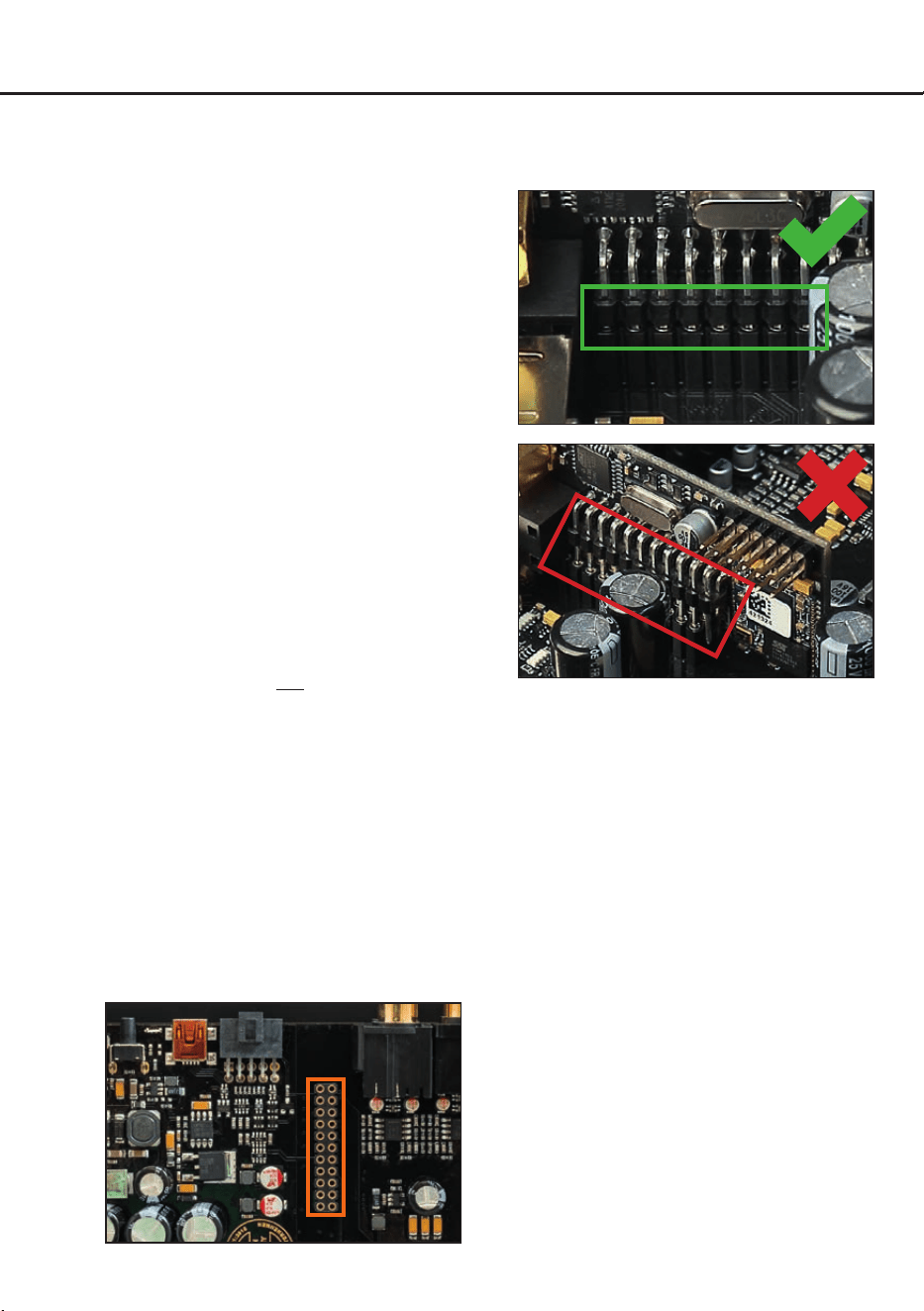
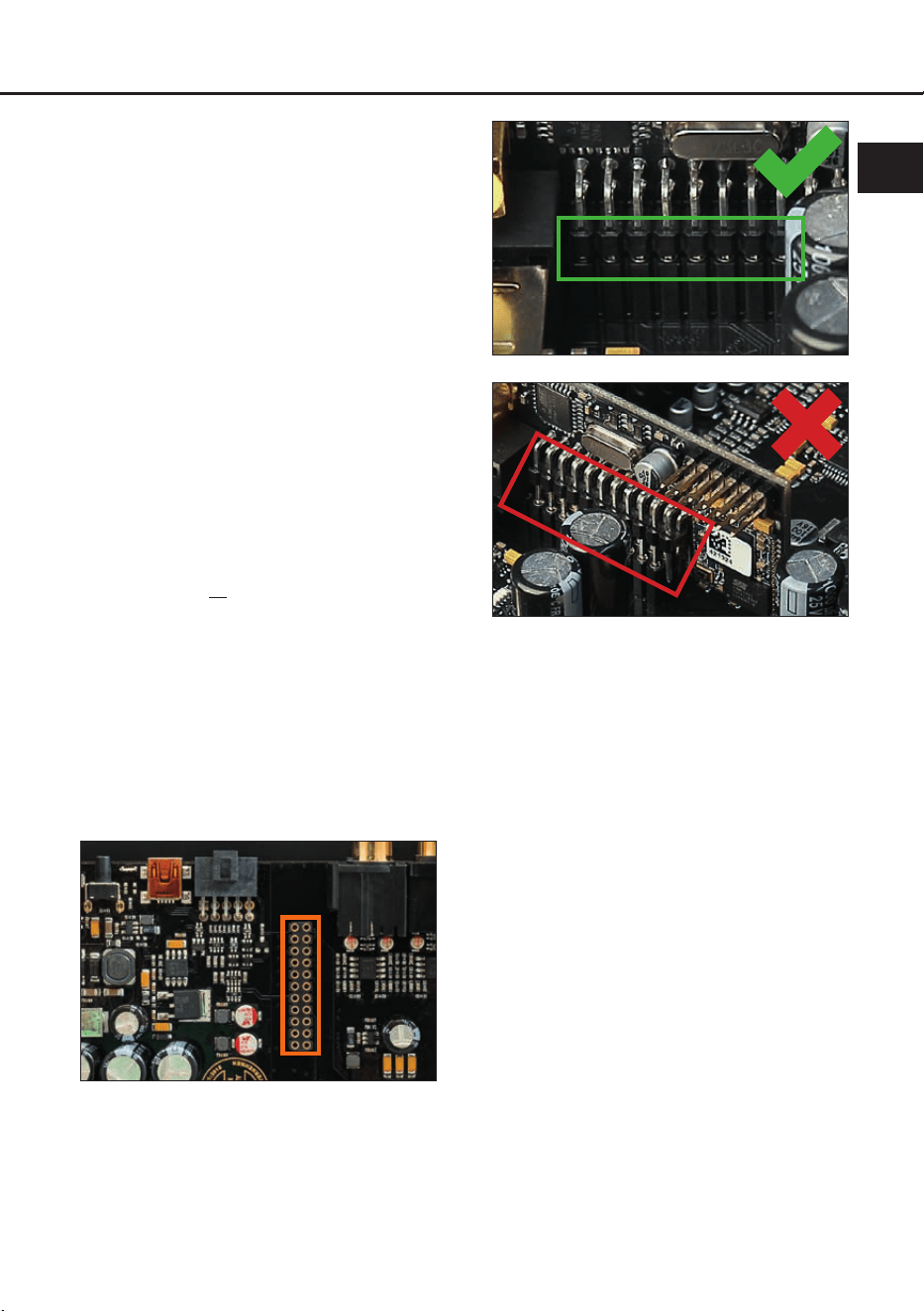
5. Stecken Sie das HEC Modul in den im Gerät
vorgesehenen Sockel (siehe Markierung im
nachfolgenden Bild).
6. Achten Sie auf den richtigen Sitz des HEC
Moduls und darauf, dass alle Kontaktstifte
vollständig im Sockel stecken.
7. Schieben Sie das Bodenblech wieder seit-
lich in das Gehäuse des Signalprozessors.
Anschließend befestigen Sie das neue, dem
HEC Modul beiliegende Seitenblech mit den
Kreuzschlitzschrauben.
8. Verschrauben Sie das HEC Modul mit dem
Seitenblech. Genaue Informationen zur
Befes tigung entnehmen Sie bitte der Bedie-
nungsanleitung des jeweiligen Moduls.
9. Schließen Sie alle Steckverbindungen wieder
an das Gerät an.
10. Schalten Sie den Signalprozessor ein. Das
installierte HEC Modul wird nun automatisch
vom Gerät erkannt und die Status LED des
HEC Moduls leuchtet grün.
11. Das Modul kann nun in der DSP PC-Tool Soft-
ware konguriert werden.

17
de
Technische Daten
Die Garantieleistung entspricht der gesetzlichen
Regelung. Von der Garantieleistung ausgeschlos-
sen sind Defekte und Schäden, die durch Über-
lastung oder unsachgemäße Behandlung ent-
standen sind. Eine Rücksendung kann nur nach
vorheriger Absprache in der Originalverpackung,
einer detaillierten Fehlerbeschreibung und einem
gültigen Kaufbeleg erfolgen. Technische Ände-
rungen, Druckfehler und Irrtümer vorbehalten!
Für Schäden am Fahrzeug oder Gerätedefekte,
hervorgerufen durch Bedienungsfehler des Ge-
rätes, können wir keine Haftung übernehmen.
Dieses Produkt ist mit einer CE-Kennzeichnung
versehen. Damit ist das Gerät für den Betrieb in
Fahrzeugen innerhalb der Europäischen Union
(EU) zertiziert.
Hinweis:
„Die Bluetooth
®
Wortmarke und die Logos sind eingetragene Warenzeichen der Bluetooth SIG, Inc. und jegliche Nutzung dieser Marken
durch die Audiotec Fischer GmbH geschieht unter Lizenz. Andere Handelsmarken und Handelsnamen gehören den jeweiligen Inhabern.“
Eingänge ....................................................................... 8 x Cinch
8 x Highlevel-Lautsprechereingang
1 x Optisch SPDIF-Format (12 - 96 kHz)
1 x Koaxial SPDIF-Format (12 - 192 kHz)
1 x Remote In
Eingangsempndlichkeit ................................................ Cinch: 2 / 3 / 4 Volt
Highlevel: 4 / 7 / 11 Volt oder 12 / 22 / 32 Volt
Ausgänge ...................................................................... 10 x Cinch
1 x Remote Out
Ausgangsspannung ....................................................... 8 Volt
Frequenzbereich............................................................10 Hz - 44.000 Hz
DSP Auösung ..............................................................64 Bit
DSP Rechenleistung .....................................................2 x 295 MHz (2,4 Mrd. MAC Operationen/Sek.)
Abtastrate ......................................................................96 kHz
DSP Typ ........................................................................2 x Audio Signalprozessor
Signalwandler ................................................................ A/D: AKM Velvet Sound 32 Bit
D/A: AKM Velvet Sound 32 Bit
Signal- / Rauschabstand (A-bewertet)........................... Digitaleingang: 116 dB
Analogeingang: 111 dB
Klirrfaktor (THD+N) ........................................................ Digitaleingang: < 0,0005 %
Analogeingang: < 0,001 %
Intermodulationsverzerrungen ....................................... Digitaleingang: < 0,002 %
Analogeingang: < 0,004 %
Übersprechen ................................................................> 90 dB
Betriebsspannung..........................................................9,6 - 17 Volt (max. 5 Sek. bis hinab zu 6 Volt)
Leistungsaufnahme .......................................................DC 12 V
3 A max.
Stromaufnahme .............................................................650 mA
Max. Remote-Ausgangsstrom .......................................500 mA
Zusätzliche Features ..................................................... HEC Slot, Masseschalter, Smart Control Port,
32 Bit CoProcessor, ADEP.3-Schaltkreis, Auto
Remote-Schalter
Abmessungen (H x B x T) .............................................40 x 177 x 150 mm
Garantiehinweis

18
General installation instructions for HELIX
components
To prevent damage to the unit and possible injury,
read this manual carefully and follow all installa-
tion instructions. This product has been checked
for proper function prior to shipping and is guaran-
teed against manufacturing defects.
Before starting your installation, disconnect
the battery’s negative terminal to prevent
damage to the unit, re and / or risk of inju-
ry. For a proper performance and to ensure full
warranty coverage, we strongly recommend to
get this product installed by an authorized HELIX
dealer.
Install your HELIX DSP PRO MK3 in a dry lo-
cation with sucient air circulation for proper
cooling of the equipment. The signal proces-
sor should be secured to a solid mounting sur-
face using proper mounting hardware. Be-
fore mounting, carefully examine the area
around and behind the proposed installation
location to insure that there are no electrical
cables or components, hydraulic brake lines or
any part of the fuel tank located behind the mount-
ing surface. Failure to do so may result in unpre-
dictable damage to these components and possi-
ble costly repairs to the vehicle.
General instruction for connecting the HELIX
DSP PRO MK3 signal processor
The HELIX DSP PRO MK3 signal processor
may only be installed in vehicles which have a
12 Volts negative terminal connected to the chas-
sis ground. Any other system could cause damage
to the signal processor and the electrical system
of the vehicle.
The positive cable from the battery for the entire
sound system should be provided with a main fuse
at a distance of max. 30 cm from the battery. The
value of the fuse is calculated from the maximum
total current draw of the car audio system.
Use only the provided connectors for connec-
tion of the HELIX DSP PRO MK3. The use of
other connectors or cables can result in dam-
age of the signal processor, the head unit /
radio or the connected ampliers / loudspeak-
ers!
Prior to installation, plan the wire routing to
avoid any possible damage to the wire harness.
All cabling should be protected against possible
crushing or pinching hazards. Also avoid routing
cables close to potential noise sources such as
electric motors, high power accessories and other
vehicle harnesses.
Congratulations!
General instructions
Dear Customer,
Congratulations on your purchase of this
innovative and high-qual ity HELIX product.
Thanks to more than 30 years of experience in
research and development of audio products the
HELIX DSP PRO MK3 sets new standards in the
range of digital signal processors.
We wish you many hours of enjoyment with your
new HELIX DSP PRO MK3.
Yours,
AUDIOTEC FISCHER
19
en
Connectors and control units
1
3
52 6
1
Lowlevel line inputs
Page 21, point 3
2
Digital inputs (Coaxial & Optical)
Page 22, point 5
.
3
Clipping LED
Page 24, point 1
4
Auto Remote switch
Page 22, point 6
5
Highlevel speaker inputs
Page 21, point 4
6
Power & Remote connector
Page 22, point 7
7
Ground lift switch
Page 25, point 4
8
Control pushbutton
Page 25, point 3
9
Status LED
Page 24, point 2
10
USB input
Page 23, point 8
11
SCP (Smart Control Port)
Page 25, point 5
12
Line outputs
Page 24, point 12
7 10 12118
4
9
20
Hardware conguration
Congure the HELIX DSP PRO MK3 as follows
Caution: Carrying out the following steps will re-
quire special tools and technical knowledge. In or-
der to avoid connection mistakes and / or damage,
ask your dealer for assistance if you have any
questions and follow all instructions in this manual
(see page 18). It is recommended that this unit will
be installed by an authorized HELIX dealer.
1. Setting the input voltage range (“Voltage
Range”) of the analog signal inputs
ATTENTION: When using the highlevel
input as signal input, it is mandatory to
adjust the “Voltage Range” to the output
voltage of the signal source before the rst
start up in order to avoid damage to the
signal processor.
At rst, the “Voltage Range” of the highlevel in-
put has to be set inside the device. Dismantle
the side panel where the USB input is located
by removing the ve Phillips screws and pull
out the bottom plate sideways. Now you have
access to the jumpers (see g. 1). Each jumper
sets the value range for 4 input channels at the
same time (J1 – channel A - D and J2 – channel
E - H).
If you want to connect a conventional OEM or
aftermarket radio as signal source, the jump
-
er must be set to “H1: 4V - 11V” (Low Voltage
Range). This range is preset by default, see
g. 2.
If you want to connect a factory-installed am
-
plier as signal source, we recommend to de-
termine its maximum output voltage previously
with a suitable measuring device or to contact
your authorized HELIX dealer. If you are not
sure, we recommend to set the jumper to
“H2: 12V - 32V” (High Voltage Range) to avoid
possible damage to the device. Therefore, both
jumpers have to be repositioned to the factory
unused multi-pin connector, see g. 3.
J 1
J 2
Overview jumper plug-in positions:
Jumper 1 (J 1): Channel A - D
Jumper 2 (J 2): Channel E - H
For repositioning a jumper simply pull it up-
wards and plug it into the desired plug posi-
tion.
Make sure that the jumper is reinserted prop-
erly and all pins are fully inserted.
J 1
J 2
H1 – “Low Voltage Range” conguration (by
default):
Value range: Highlevel 4 - 11 Volts
J 1
J 2
H2 – “High Voltage Range” conguration
Value range: Highlevel 12 - 32 Volts
Figure 1
Figure 2
Figure 3
21
en
2. Presetting the input sensitivity of the ana-
log signal inputs
ATTENTION: It is mandatory to prop-
erly adapt the input sensitivity of the
DSP PRO MK3 to the signal source in or-
der to achieve the best possible signal
quality and to avoid damage to the signal
processor. When using the Highlevel In-
put, it is also mandatory to adjust its “Volt-
age Range” to the output voltage of your
signal source (see page 20, point 1)
To achieve the best possible signal quality, the
input sensitivity can be adjusted to the signal
source by using the four slide switches inside
the device.
Input sensitivity is factory set to 11 Volts (high-
level) and 4 Volts (RCA / Cinch). This is de-
nitely the best setting in most applications.
The setting range is 2 / 3 / 4 Volts for the low-
level Line Inputs and 4 / 7 / 11 Volts (H1 – „Low
Voltage Range“) or 12 / 22 / 32 Volts (H2 –
„High Voltage Range“) for the Highlevel Inputs
(depending on the adjusted “Voltage Range”).
If the signal source provides a lower output
voltage, the input sensitivity can be increased
step by step via the switches.
If your signal source delivers a higher output
voltage – for example, if a factory-installed
amplier serves as signal source – the input
sensitivity must be lowered via the switches
and the correct conguration of the “Voltage
Range” jumpers must be checked.
If you are not sure regarding the signal sourc-
es output voltage, please contact your HELIX
specialist dealer. When you have preset the
input sensitivity you can reassemble the
device.
3. Connecting the pre-amplier inputs
These eight lowlevel line inputs can be con-
nected to signal sources such as head units
/radios using appropriate cables. Each in-
put can be assigned to any output using the
DSP PC-Tool software. Input sensitivity is
factory-set to 4 Volts for all channels. But it is
possible to optimally adapt the input sensitiv-
ity to the signal source inside the device (see
page 21, point 2).
The automatic turn-on circuit does not work
when using the pre-amplier inputs. In this
case the remote input has to be connected to
activate the HELIX DSP PRO MK3.
Important: It is strictly forbidden to use the
Highlevel and lowlevel Line Input of an indi-
vidual channel at the same time as this may
cause severe damage to the lowlevel line out-
puts of your head unit / car radio. Neverthe-
less it is possible to use the Highlevel Input
of one channel and the lowlevel Line Input of
another channel simultaneously.
4. Connecting the highlevel speaker inputs
The eight highlevel loudspeaker inputs can
be connected directly to the loudspeaker out-
puts of an OEM, aftermarket radio or factory
installed amplier using appropriate cables
(loudspeaker cables with 1 mm² / AWG 18
max.).
We recommend the following channel assign-
ment if a common car radio will be connected
to the signal processor:
Channel A = Front left
Channel B = Front right
Channel C = Rear left
Channel D = Rear right
Actually it is not mandatory to use all high level
speaker inputs. If only two channels will be
connected we recommend to use the chan-
nels A and B. Make sure that the polarity is
correct. If one or more connections have re-
versed polarity it may aect the performance
of the signal processor. If this input is used the
remote input does not need to be connected
as the signal processor will automatically turn
on once a loudspeaker signal is received.
Input sensitivity is factory-set to 11 Volts for all
channels. It is possible to optimally adapt the
input sensitivity to the signal source inside the

22
device (see page 21, point 2).
Attention: Solely use the pluggable screw-ter-
minal for the highlevel connector which is in-
cluded in delivery!
Important: It is strictly forbidden to use the
High level and lowlevel Line Input of an indi-
vidual channel at the same time as this may
cause severe damage to the lowlevel line out-
puts of your car radio.
Nevertheless it is possible to use the Highlevel
Input of one channel and the lowlevel Line In-
put of another channel simultaneously.
5. Connecting a digital signal source
If you have a signal source with a coaxial or
optical digi tal output you can connect it to the
signal processor using the appropriate input.
The sampling rate must be between 12 and
96 kHz for the Optical Input and 12 - 192 kHz
for the Coax Input. The input signal is auto-
matically adapted to the internal sample rate.
In standard conguration the Optical Input is
activated as well as the manual activation via
an optional remote control is congured.
Alternatively you can activate the automatic
turn-on feature in the DCM menu of the DSP
PC-Tool software.
The automatic turn-on circuit does not work
when a digital input is used. Therefore it is
mandatory to connect the remote input.
Important: The signal of a digital audio
source normally does not contain any infor-
mation about the volume level. Keep in mind
that this will lead to full level on the outputs of
the HELIX DSP PRO MK3 and your connect-
ed ampliers. This may cause severe damage
to your speakers. We strongly recommend to
use an optional remote control for adjusting
the volume level of the digital signal inputs!
Note: The HELIX DSP PRO MK3 can only
handle uncompressed digital stereo signals
in PCM format with a sample rate between
12 kHz and 96 kHz / 192 kHz and no MP3- or
Dolby-coded digital audio stream!
6. Conguration of the remote input
The DSP PRO MK3 will be turned on auto-
matically if the Highlevel Input is used or if a
signal is applied to the remote input terminal.
The Auto Remote switch (page 19, point 4) al-
lows to deactivate the automatic turn-on fea-
ture of the highlevel inputs. The feature should
be deactivated if there are e.g. noises while
switching on / o the signal processor.
On: Activation via highlevel speaker input is
enabled (by default).
O: Activation via highlevel speaker input is
disabled.
Note: If the automatic turn-on function is de-
activated it is mandatory to use the remote
input terminal to power up the signal proces-
sor! The highlevel signal will be ignored in this
case.
7. Connection to power supply & remote
Make sure to disconnect the battery before
installing the HELIX DSP PRO MK3!
Solely use the included screw-type terminal to
connect the HELIX DSP PRO MK3 to a power
supply. Make sure of correct polarity.
+: Connector for the +12 V power cable. The
positive wire has to be connected to the bat-
tery’s positive post or a power distribution
block. Though the current draw of the HELIX
DSP PRO MK3 is rather low (approx. 650 mA)
we recommend a minimum wire gauge of
1 mm² / AWG18.
–: Connector for the ground cable. The ground
wire must be connected to the vehicle chas-
sis at a non-insulated point. The cable should
have the same gauge as the +12 V wire. Inad-
equate grounding causes audible interference
and malfunctions.
Remote in: The remote input is used to switch
on the DSP PRO MK3 if the pre-amplier or
digital inputs are used. Additionally, this input
must be assigned, if the signal source which
is connected to the Highlevel Input is not acti-
vating the “automatic turn-on” function or if the
signal processor shall only be activated / de-
activated via a remote signal. The remote wire
should be connected to the remote output /
automatic antenna (aerial positive) output of
the head unit / car radio. This is only activated
if the head unit is switched on. Thus the signal
processor is switched on and o together with
the head unit.
We do not recommend controlling the remote
input via the ignition switch to avoid pop noise
during turn on / o.
Hardware conguration
23
en
Note: This input does not need to be assigned
if the Highlevel Input is used. To deactivate the
“automatic turn-on” function read the descrip-
tion in point 6 “Conguration of the remote
input”.
Remote out: The remote output is used for
turning on / o ampliers that are connected to
the Line Outputs of the HELIX DSP PRO MK3.
Therefore connect the remote output of the
DSP to the remote inputs of your ampliers
to switch them on and o via the DSP with-
out interfering signals. The remote output is
activated automatically as soon as the booting
process of the DSP is completed. Additionally
this output will be turned o during the “Power
Save Mode” or a software update process.
Important: Never use a dierent signal
than the remote output of the DSP to acti-
vate connected ampliers!
8. Connecting the PC & rst start-up
The USB input enables the connection of the
DSP PRO MK3 to a personal computer and
its free conguration with our DSP PC-Tool
software using the provided USB cable.
Please note: It is not possible to connect any
USB storage devices.
Prior to connecting the signal processor to
your PC visit our website and download the
latest version of the DSP PC-Tool software.
We strongly recommend to carefully read the
DSP PC-Tool knowledge base before using
the software for the rst time in order to avoid
any complications and failures.
Important: Make sure that the signal proces-
sor is not connected to your computer before
the software and USB driver are installed!
In the following the most important steps how
to connect and the rst start-up are described:
1. Download the latest version of the DSP
PC-Tool software (available on our website
www.audiotec-scher.com) and install it on
your computer.
2. Connect the signal processor to your com-
puter using the USB cable that is included in
delivery. If you have to bridge longer distanc-
es please use an active USB extension cable
with integrated repeater.
3. First turn on the signal processor and then
start the software. The operating software will
be updated automatically to the latest version
if it is not up-to-date.
9. Fine adjustment of the input sensitivity
ATTENTION: In order to avoid damage to
the signal processor, it is mandatory to
preset the input sensitivity as described
on page 21 in point 2.
The DSP PC-Tool allows to ne tune the input
sensitivity across all channels in 1 dB steps,
up to a maximum of +6 dB.
Note: Don‘t connect any ampliers to the out-
puts of the signal processor during this setup.
The Clipping LED (see page 19, point 3) of the
DSP PRO MK3 or the Clipping Indicator of the
DSP PC-Tool serves as monitoring tool.
For ne adjustment please proceed as fol-
lows:
1. Turn on the signal processor.
2. Start the DSP PC-Tool software.
3. The ne adjustment of the input sensitivity
can be found in the “Signal Management”
tab of the DCM menu under the item “Main
Input → Input Gain”.
4. Adjust the volume of your radio to approx.
90 % of the max. volume and playback
an appropriate test tone, e.g. pink noise
(0 dB).
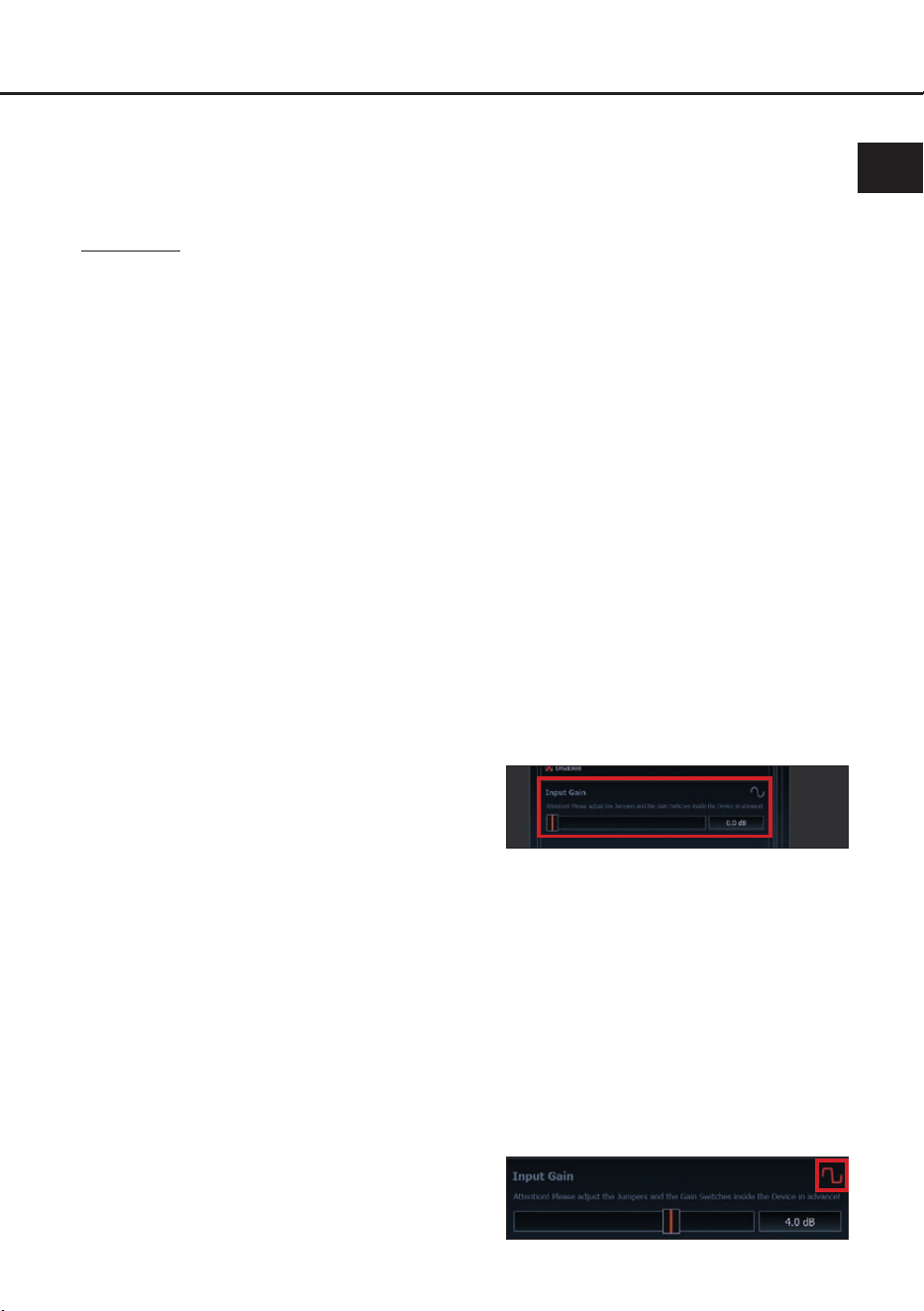
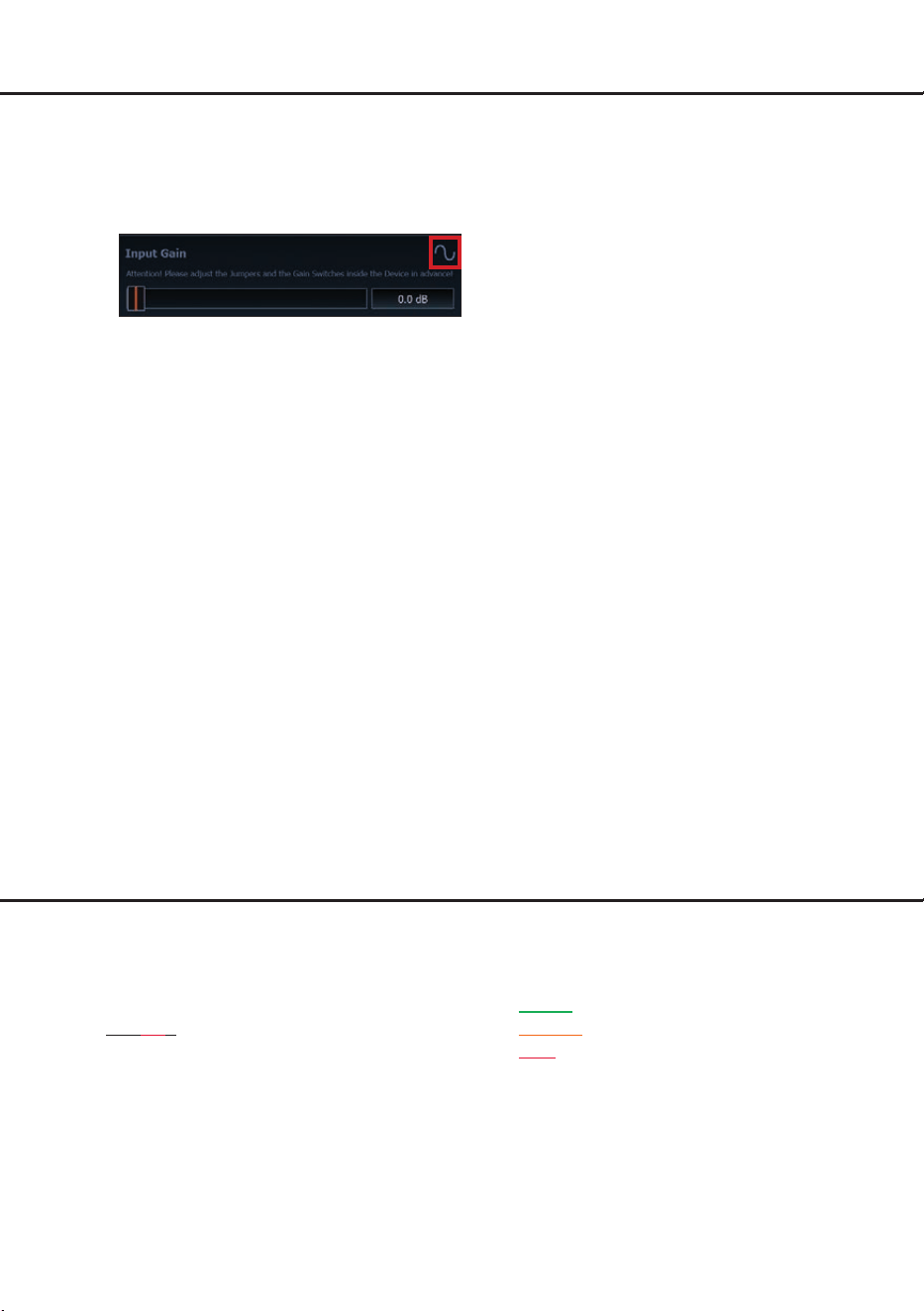
5. If the Clipping LED (see page 19, point 3)
or the Clipping Indicator (see marking in
the following picture) already lights up red,
the presetting of the input sensitivity is not
correct. In this case, rst reduce it using
the internal slide switches as described on
page 21, point 2. As soon as the Clipping
LED / Clipping Indicator turns o, continue
with the following point 6.
24
6. Increase the input sensitivity using the gain
control of the DSP PC-Tool Software until
the Clipping LED / Clipping Indicator lights
up. Now turn the control back until the Clip-
ping LED / indicator turns o again.
10. Conguration of the DSP
The general DSP settings should be con-
ducted with the DSP PC-Tool software be-
fore using the signal processor for the rst
time.
Now you are able to congure your
DSP PRO MK3 with our intuitive DSP PC-
Tool software. Useful hints for the correct set-
ting can be found in our knowledge base at
www.audiotec-scher.com.
Caution: We highly recommend to set the
volume of your car radio to minimum position
during rst start-up. Additionally no devices
should be connected to the signal processor.
Especially if the DSP PRO MK3 will be used
in fully active applications, a wrong setup can
destroy your speakers right away.
11. Analyzing the input signal
Check the input signal for factory-set equal-
izing and all-pass lters using the Input
Signal Analyzer (ISA) of the DSP PC-Tool
software. Information about the ISA can be
found in the extensive Knowledge Base on
our website www.audiotec-scher.com.
Caution: We highly recommend to set the
volume of your car radio to minimum position
during rst start-up. Additionally no devices
should be connected to the signal proces-
sor until general settings in the DSP PC-Tool
software have been made. Especially if the
DSP PRO MK3 will be used in fully active
applications, a wrong setup can destroy your
speakers right away.
12. Connecting the Line Outputs
The ten pre-amplier outputs (Line Output)
can now be connected to the pre-amplier /
lowlevel / RCA inputs of the external ampli-
ers using appropriate cables (RCA / Cinch
cables).
13. Sound tuning
Now you can create your sound setup.
Information about sound tuning can be
found in our extensive knowledge base at
audiotec-scher.com or contact your local
HELIX dealer.
Additional functions
1. Clipping LED
Normally the Clipping LED is o and only
lights up if one of the Line or Highlevel Inputs
is overdriven.
On (red): One of the analog signal inputs is
overdriven. Reduce the input sen-
sitivity using the four internal slide
switches until the LED goes out.
How to reduce the input sensitiv-
ity is described on page 23 under
point 9.
Note: The LED has no function when using
one of the digital inputs.
2. Status LED
The Status LED indicates the operating mode
of the signal processor and of its memory.
Green: DSP is ready for operation.
Orange: Power Save Mode is activated.
Red: Protection Mode is active. This may
have dierent root causes. The HELIX
DSP PRO MK3 is equipped with protection
circuits against over- and undervoltage as
well as overheating. Please check for con-
necting failures such as short-circuits or other
wrong connections. If the DSP is overheated
the internal temperature protection switches
o the remote and signal output until it reach-
es a safe temperature level again.
Hardware conguration
25
en
Red / green slow ashing: No operating soft-
ware installed. Connect the signal processor
to the DSP PC-Tool software and conrm the
automatic update of the operating system. You
will nd the latest version of the DSP PC-Tool
software at www.audiotec-scher.com.
Red / green fast ashing: The currently se-
lected sound setup memory is empty. A new
setup has to be loaded via the DSP PC-Tool
software or switch to a memory position with
existing sound setup.
3. Control pushbutton
The DSP PRO MK3 provides 10 internal
memory locations for sound setups. The Con-
trol pushbutton allows the user to switch be-
tween two memory positions. These can be
dened in the DSP PC-Tool. In addition a de-
vice reset can be made by pressing the button
for a longer period.
1. Setup switch: Press Control pushbutton for
1 second. The memory locations one and two
are dened by default. Switching is indicated
by a single red ash of the Status LED. Al-
ternatively, the optional URC.3 remote control
can be used for switching. To switch between
all internal memory locations, optional acces-
sories like the DIRECTOR display remote
control or CONDUCTOR are required.
2. Device reset: Press pushbutton for ve
seconds. This completely erases the internal
memory and is indicated by a continuous red
glowing and constant green ashing of the
Status LED.
Attention: After erasing the setups from mem-
ory the DSP PRO MK3 will not reproduce any
audio output until the device is updated via the
DSP PC-Tool software.
4. Ground Lift switch
The signal ground of the HELIX
DSP PRO MK3 is galvanically decoupled
from the power ground. In many cars this set-
up is the best way to avoid alternator noise.
Nevertheless, there are use cases where it
will be necessary to directly connect input and
output ground or to tie both grounds together
via a resistor. Therefore the Ground lift switch
has three positions:
ISO: Input and output ground separated.
GND: Input and output ground tied together.
200Ω: Input and output ground connected via
200 Ohms resistor.
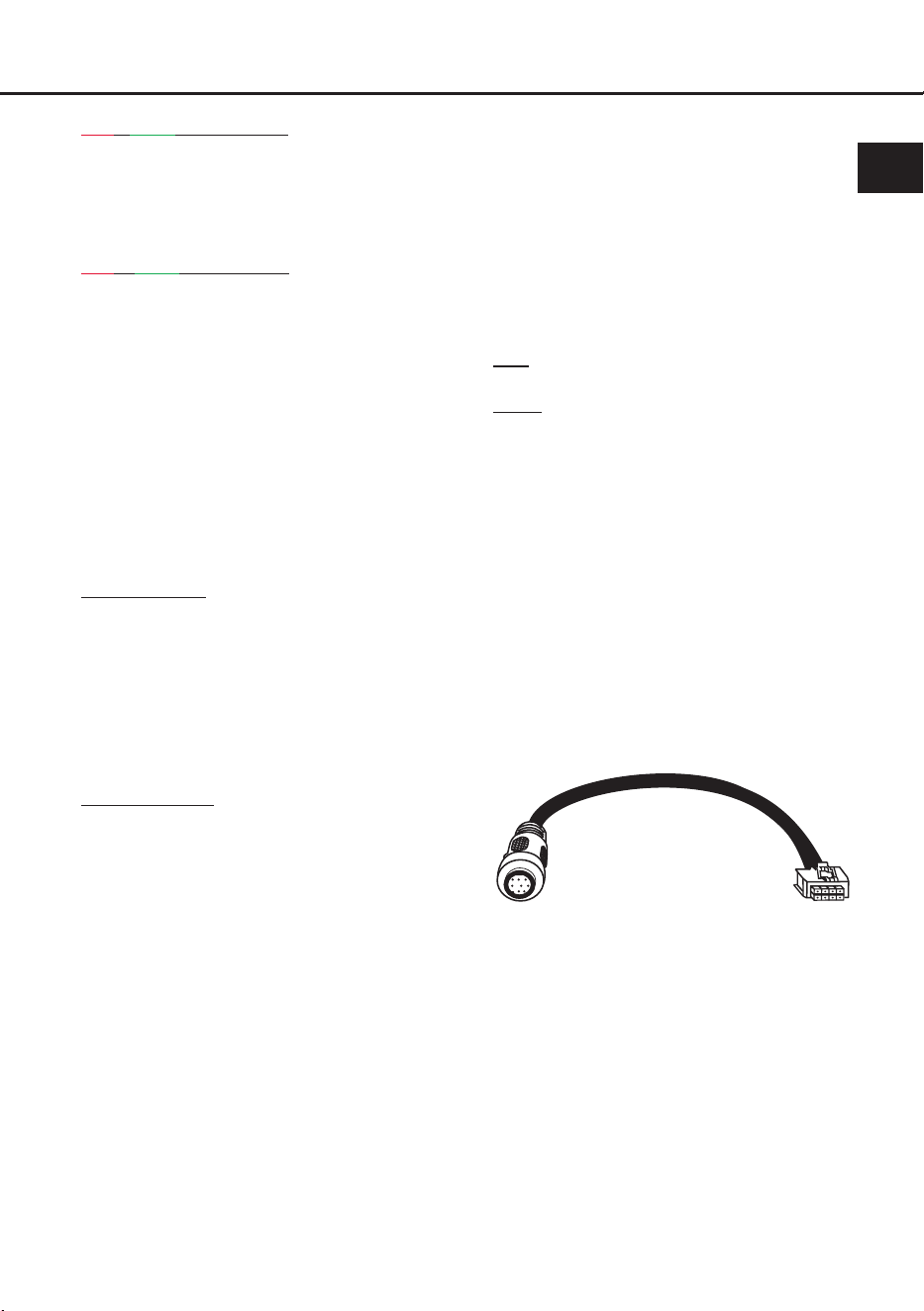
5. SCP (Smart Control Port)
This multi-functional input is designed for
HELIX DSP PRO MK3 accessory products
like a remote control which allows to adjust
several features of the signal processor. De-
pending on the type of remote control, at rst
its functionality has to be dened in the “ Device
Conguration Menu” of the DSP PC-Tool soft-
ware.
Attention: If the accessory product does
not have a NanoFit connector solely use the
NanoFit adaptor which is included in delivery
for connection.
NanoFit adaptor
26
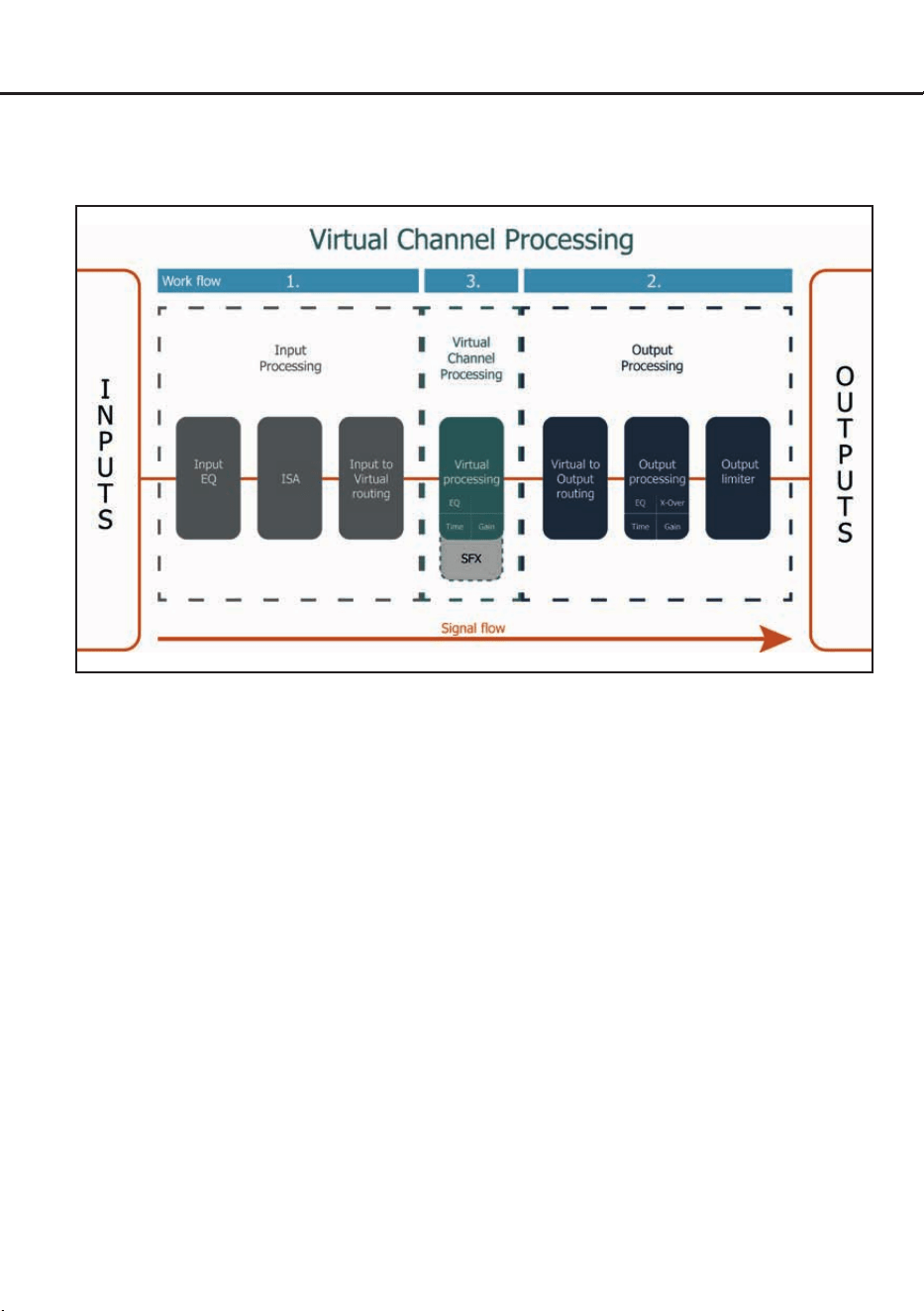
Virtual Channel Processing (VCP)
The VCP extends the previous scope of the device by an additional layer of processed channels, which
is located between the inputs and outputs. A total of eight additional processed virtual channels and ten
processed output channels are available.
This virtual channel layer oers several advantages, especially in complex system congurations.
The main advantages of this concept are:
- Cross-channel group equalizers that aect several output channels simultaneously
- Multi-way speaker conguration of DSP sound eects (SFX)
- Additional features such as Rear Attenuation
For further information about the VCP and its conguration, please refer to our Knowledge Base at
www.audiotec-scher.com.
In addition to standard routing, the HELIX DSP PRO MK3 oers Virtual Channel Processing (VCP), a
multi-stage signal processing concept that enables the perfect conguration of complex sound systems,
opening up completely new possibilities for sound tuning.
27
In order to congure a subwoofer remote control, specic settings have to be made in the DSP PC-Tool.
First, the appropriate remote control must be activated in the “Extended Features” tab in the DCM menu
of the DSP PC-Tool software and congured, depending on the model.
Conguration of a subwoofer remote control
When VCP is activated, the subwoofer remote control is tied to the output channels that are supplied
with one of the two virtual subwoofer signals (“Subwoofer 1” or “Subwoofer 2”) in the “Virtual to Output
Routing” matrix. This can be any combination of output channels.
In the following example these are the pre-amplier outputs I and J:
If the VCP is not activated, the subwoofer remote control of the DSP PRO MK3 is permanently as-
signed to the output channels I and J. In this case it does not matter which output is named “Subwoofer”
in the IO routing matrix.
In the “Outputs” menu you can also see to which outputs the SubRC (subwoofer remote control) is tied:
Afterwards, the subwoofer control is also displayed in the “Outputs” menu next to the name of the chan-
nel [SubRC]:
Note: Please note that an input signal must be assigned to the two virtual subwoofer signals
“ Subwoofer 1” and / or “Subwoofer 2” in the other routing matrices.
en

28
ACO platform features
Beside the unique DSP sound eects the
DSP PRO MK3 provides a bunch of new system
and DSP features.
In the DCM menu of the DSP PC-Tool software in-
dividual settings can be made for several of these
system features.
Turn On & O Delay
This function allows to determine the delay time
with which the DSP is switched on and o. The
factory setting is 0.2 seconds. The delay time
should only be modied if there are e.g. noises
while switching on / o the signal processor.
URC Setup Switch Conguration
The ACO provides ten internal memory locations
for sound setups instead of the common two.
By using an optional URC remote control or the
Control pushbutton (see page 25) it is possible to
toggle between two of the ten memory locations.
These two memory locations can be determined
in the “URC Setup Switch Conguration”. The
memory locations one and two are preassigned
by default. To switch between all internal memory
locations, the optionally available remote controls
DIRECTOR and CONDUCTOR are recommended.
Remote Output Conguration
This function controls if the remote output (which
switches on and o the connected ampliers) will
be temporarily deactivated during a sound setup
switch. This function is activated (ON) by default.
ADEP.3 Conguration
If the DSP PRO MK3 is connected to an OEM ra-
dio via the highlevel inputs it may happen that the
ADEP.3 circuit has to be adapted to the diagnostic
mode of the radio if the latter is equipped with a
so-called “class SB” output stage”.
In the “ADEP.3 SB compatibility mode & Advanced
Noise Suppression” section, an adjustment should
be made if there are e.g. distortions occur in the
upper volume range.
The compatibility mode is disabled by default.
29
HELIX Extension Card slot (HEC slot)
It is possible to extend the functionality of the
HELIX DSP PRO MK3 by inserting an optional
HELIX Extension Card (HEC) – for example a
High Denition Bluetooth
®
Audio Streaming mod-
ule, a High Resolution Audio USB soundcard etc.
To install a HELIX Extension Card it is necessary
to remove the side panel of the DSP PRO MK3
and replace it by the new side panel that comes
with the HEC module.
Attention: Install the HEC module only in the
designated device and its specic slot. Using
the HEC module in other devices or slots can
result in damage of the HEC module, the signal
processor, the head unit / car radio or other
connected devices!
Read in the following the steps how to install a
HEC module:
1. First disconnect all cables from the device.
2. Dismantle the side panel where the USB input
is located by removing the ve Phillips screws.
3. Pull out the bottom plate sideways.
4. Prepare the module for installing it into the de-
vice. Any further mounting information will be
found in the instruction manual of the respec-
tive HEC module.
5. Insert the HEC module into the specic slot
of the device which is marked in the following
picture.
6. Make sure that the HEC module is installed
properly and all pins are fully inserted into the
socket.
7. Reinsert the bottom plate and x the new side
panel which is delivered with the HEC module
with the ve Phillips screws.
8. Bolt the HEC module to the side panel. Pre-
cise mounting information will be found in
the instruction manual of the respective HEC
module.
9. Reconnect all cables to the device.
10. Turn on the signal processor. The HEC mod-
ule is automatically detected by the device
and the Status LED of the HEC module lights
up green.
11. Now you are able to congure the HEC mod-
ule in the DSP PC-Tool software.
en

30
Technical Data
Inputs ........................................................................... 8 x RCA / Cinch
8 x Highlevel speaker input
1 x Optical SPDIF (12 - 96 kHz)
1 x Coax SPDIF (12 - 192 kHz)
1 x Remote In
Input sensitivity ............................................................ RCA / Cinch: 2 / 3 / 4 Volts
Highlevel: 4 / 7 / 11 Volts or 12 / 22 / 32 Volts
Outputs ........................................................................ 10 x RCA / Cinch
1 x Remote Out
Output voltage ............................................................. 8 Volts
Frequency response .................................................... 10 Hz - 44,000 Hz
DSP resolution ............................................................. 64 Bit
DSP power .................................................................. 2 x 295 MHz (2.4 billion MAC operations/sec.)
Sampling rate .............................................................. 96 kHz
DSP type ..................................................................... 2 x Audio signal processor
Signal converters ......................................................... A/D: AKM Velvet Sound 32 Bit
D/A: AKM Velvet Sound 32 Bit
Signal-to-noise ratio (A-weighted) ............................... Digital input: 116 dB
Analog input: 111 dB
Total harmonic distortion (THD+N) .............................. Digital input: < 0.0005 %
Analog input: < 0.001 %
IM distortion (IMD) ....................................................... Digital input: < 0.002 %
Analog input: < 0.004 %
Crosstalk...................................................................... > 90 dB
Operating voltage ........................................................ 9.6 - 17 Volts (max. 5 sec. down to 6 Volts)
Power rating ................................................................ DC 12 V
3 A max.
Current draw ................................................................ 650 mA
Max. remote output current ......................................... 500 mA
Additional features ....................................................... HEC slot, Ground lift switch,
Smart Control Port, 32 Bit CoProcessor,
ADEP.3 circuit, Auto Remote switch
Dimensions (H x W x D) .............................................. 40 x 177 x 150 mm / 1.58 x 6.97 x 5.91”
The warranty service is based on the statutory
regulations. Defects and damage caused by over-
load or improper handling are excluded from the
warranty service. Any return can only take place
following prior consultation, in the original packag-
ing together with a detailed description of the error
and a valid proof of purchase.
Technical modications, misprints and errors ex-
cepted! We accept no liability for damage to the
vehicle or device defects caused by the incorrect
operation of the device. This product has been is-
sued a CE marking. This means that the device is
certied for use in vehicles within the European
Union (EU).
Note: “The Bluetooth
®
word mark and logos are registered trademarks owned by Bluetooth SIG, Inc. and any use of such marks by
Audiotec Fischer GmbH is under license. Other trademarks and trade names are those of their respective owners.”
Warranty Disclaimer

en

Audiotec Fischer GmbH
Hünegräben 26 · 57392 Schmallenberg · Germany
Tel.: +49 2972 9788 0 · Fax: +49 2972 9788 88
E-mail: helix@audiotec-scher.com · Internet: www.audiotec-scher.com