USER GUIDE
SMART COOKER™
V.20211110

TABLE OF CONTENTS
16
14
11
10
9
6
4
20
24
30
26

38
37
36
35
35
34
32
39
40
41

4 5
INTRODUCTION
Welcome to ® ! This guide contains detailed instructions for using your Smart
Cooker™ including helpful cooking tips, important safety and warranty information,
and much more.
Read through this guide to discover all that your Smart Cooker™ can do. And while we
know you’re excited to get cooking, please read through all safety information as well.
INTRODUCTION
5
INTRODUCTION
6 7
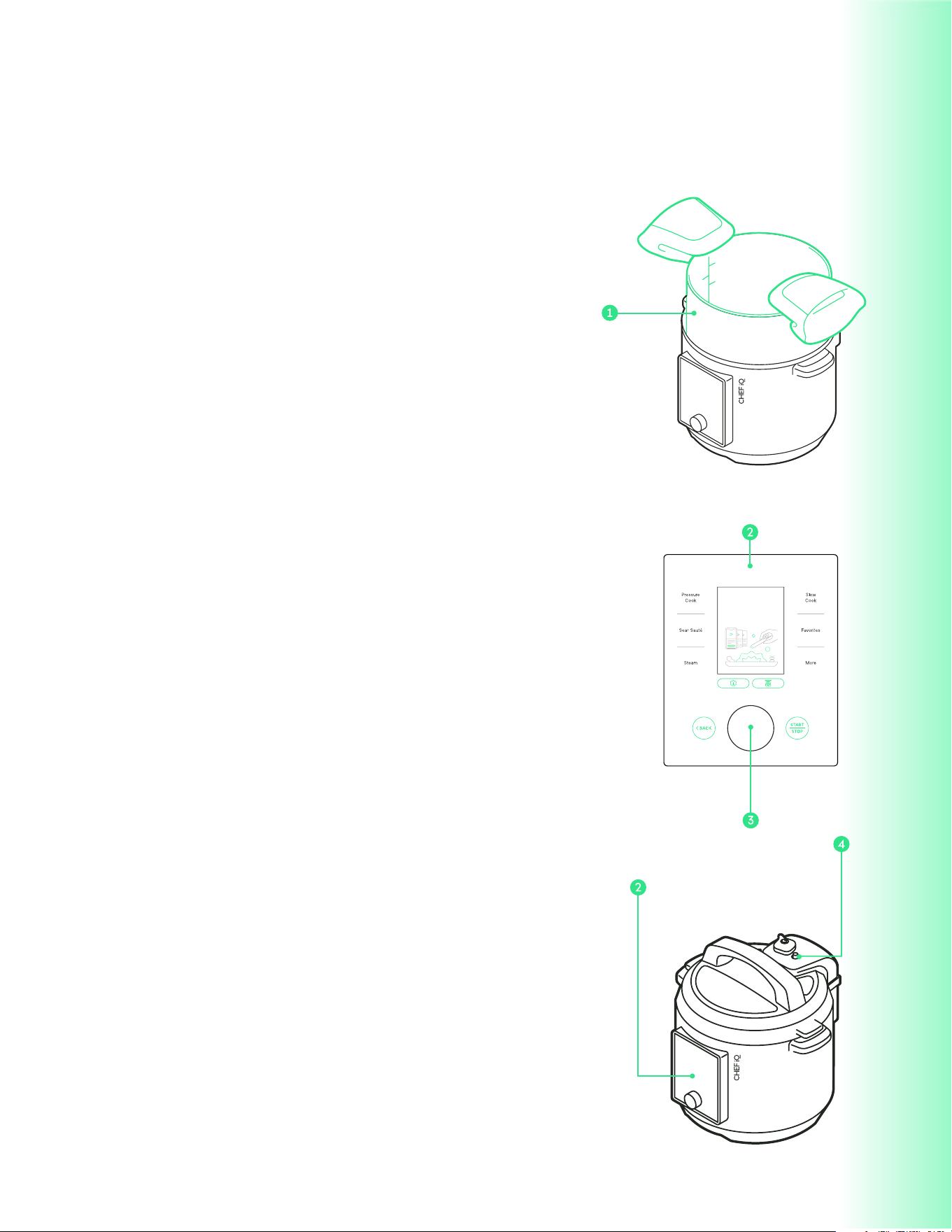
1. COOKING POT
Your Smart Cooker™ must be used with a 6-quart pot in-
sert. The nonstick one that comes with it includes handy
measurements inscribed inside. Use nonstick-safe utensils
when cooking and non-abrasive cleaners when cleaning
to protect nonstick coating from damage.
2. CONTROL PANEL
Look here for cooking functions, on-unit screen
instructions, scale, and more.
3. DIAL
Use the dial to navigate the on-unit screen of the Smart
Cooker™. Turn the dial right or left to move the cursor on
the screen and press the dial to make selections.
4. FLOATING VALVE
The red floating valve indicates whether the Smart Coo-
ker™ is pressurized or not. As the Smart Cooker™ becomes
pressurized, the valve will rise, sealing steam inside the
pot. When the valve is raised, the Smart Cooker™ lid will
lock and will only unlock after pressure is released. When
the machine is o or another cooking method is being
used, the valve remains flush with the lid.
DISCOVER.
CREATE.
PLATE.
SMART COOKER™
FEATURES
SMART COOKER™ FEATURES
7
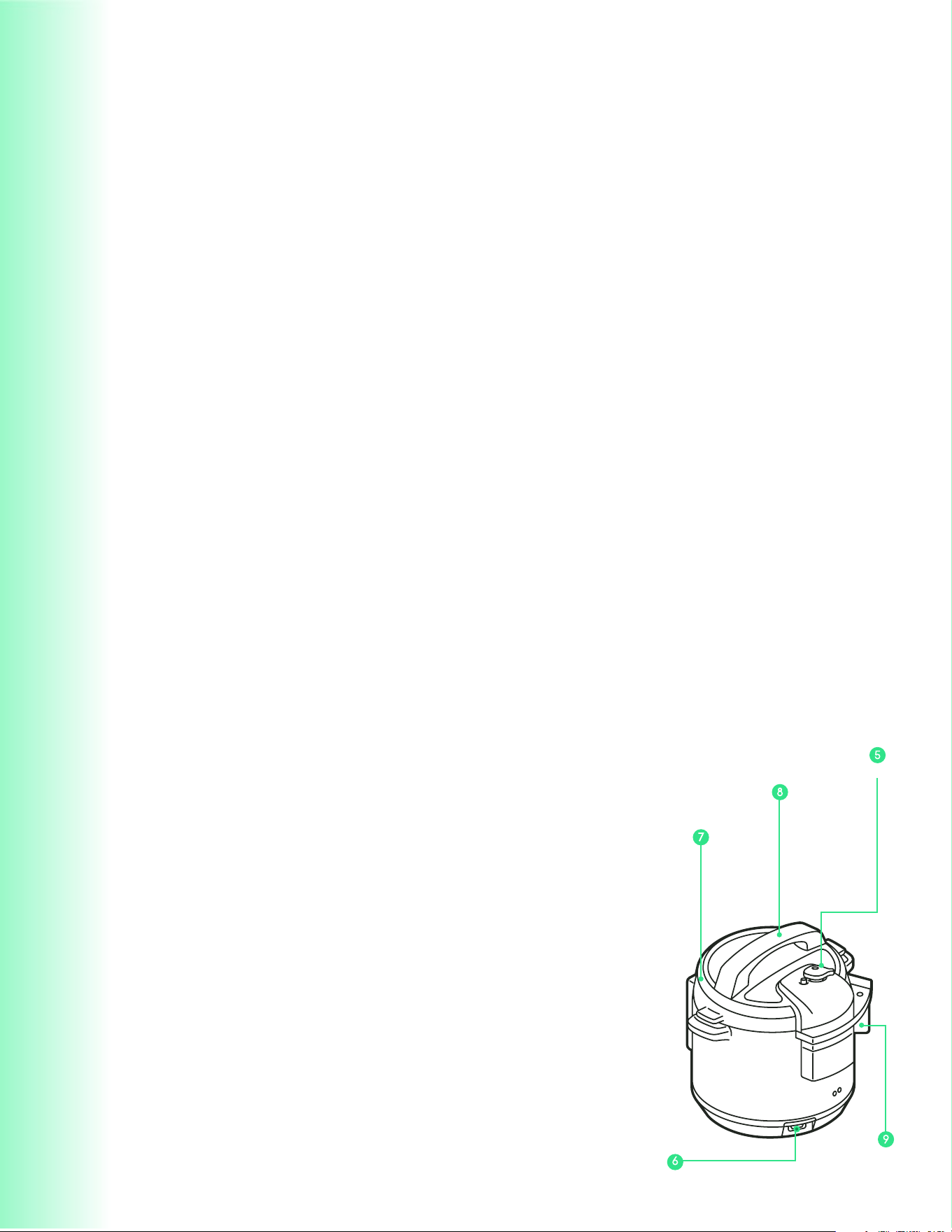
5. PRESSURE REGULATOR KNOB
Pressure (hot steam) is regulated and released via vents in
the pressure regulator knob. When cooking with pressure,
turn the knob to the “Sealed” position and keep face and
hands away from the knob. For non-pressure functions like
steam and slow cook, turn the pressure regulator knob to
the “Venting” position before cooking.
NOTE: THE KNOB IS REMOVABLE; BE CAREFUL WHEN HANDLING THE
LID AS IT CAN COME OFF.
WARNING: STEAM IS RELEASED FROM THE PRESSURE REGULATOR
KNOB. DO NOT PUT HANDS, FACE, OR OTHER BODY PARTS OVER OR
NEAR THE PRESSURE REGULATOR KNOB. STEAM IS HOT AND MAY
CAUSE BURNS.
6. POWER CORD
The power cord is detachable. Plug the power cord into
the Smart Cooker™ before plugging it into an outlet.
When not in use, unplug the power cord from the outlet
to protect against external power surges or other power
fluctuations.
7. LID
It’s essential that the lid be in place for certain cooking
functions, most especially pressure cooking. To secure
the lid, position the regulator knob over the condensa-
tion cup area at the back of the Smart Cooker™. Turn
the handle clockwise until lid is secure. When properly
aligned, the two wings on the lid will align with the two
handles on the Smart Cooker™ unit and the arrow on
the lid will align with the lock icon on the unit. When
pressure cooking, the lid will lock once pressure is re-
ached and will only unlock after pressure is released.
SMART COOKER™ FEATURES

8 9
8. HANDLE
The large single handle on top of the lid makes the lid
easy to maneuver. To close the lid, turn the handle clo-
ckwise. When the Smart Cooker™ is pressurized, the lid
will be locked. Once pressure is released, turn the handle
counterclockwise to open.
9. CONDENSATION CUP
The removable condensation cup collects liquids that
collect in the grooved rim (the condensation ring) of the
Smart Cooker™ and should be cleaned between uses.
10. GASKET
Also called a sealing ring, the flexible, silicone gasket fits
into the underside of the Smart Cooker™ lid, keeping the
steam inside in order to build pressure.
SMART COOKER™ FEATURES

9
Steam Rack
The steam rack is essential for steaming foods above
liquid. Insert the steam rack into the cooking pot with
its handles up to create a platform for large pieces of
food like fish, chicken, and whole vegetables. It can also
be used, with the handles facing down, as a platform
for the steam basket.
Steam Basket
Use the steam basket, paired with the steam rack, to
steam small pieces of food, such as chopped vegetables
and shellfish. Insert the steam rack into the cooking pot
with its handle folded, then place the steam basket on
the rack.
SMART COOKER™
ACCESSORIES
SMART COOKER™ ACCESSORIES

BEFORE FIRST USE
For best results, follow these steps before using your
Smart Cooker™ for the first time:
1. Remove all packaging materials, such as plastic bags and
pulp inserts.
2. Read and remove stickers from the Smart Cooker™.
3. Check to ensure that all Smart Cooker™ parts are accounted for.
4. Wipe down the exterior of the Smart Cooker™ with a damp
cloth.
5. Wash the cooking pot, gasket, accessories, and lid with warm,
soapy water. Dry thoroughly.
6. Attach the power cord to the Smart Cooker™. Plug the power
cord into an outlet.
BEFORE FIRST USE
10 11

SMART COOKER™
SAFETY GUIDE
When using electrical appliances, basic safety precautions should always be followed
including the following:
1. Read all instructions.
2. Do NOT touch hot surfaces. Use handles or knobs.
3. To protect against electrical shock, do NOT immerse the power cord, plug, or hou-
sing in water and/or other liquids.
4. Close supervision is necessary when any appliance is used by or near children.
5. Unplug your Smart Cooker™ from the outlet when not in use and before cleaning.
Let cool before putting on or taking o parts.
6. Do NOT use the Smart Cooker™ with a damaged power cord or plug.
7. Do NOT use your Smart Cooker™ if it malfunctions or has been damaged in any
manner. In such cases, contact ® Customer Support.
8. The use of accessories not recommended by ® may cause injuries and/or
damage to your Smart Cooker™.
9. Do NOT use outdoors.
10. Do NOT let power cord hang over edge of table or counter. Do NOT let power
cord come into contact with hot surfaces.
11. Do NOT place your Smart Cooker™ on or near a hot gas or electric burner. Do NOT
place your Smart Cooker™ in a heated oven.
12. Use extreme caution when moving any appliance containing hot oil and/or hot
liquids.
13. Always attach the power cord to your Smart Cooker™, then plug the power cord
into the wall outlet. To turn o your Smart Cooker™, remove the power cord from
the wall outlet.
14. Do NOT use your Smart Cooker™ for anything other than its intended use.
SAVE THESE INSTRUCTIONS!
IMPORTANT SAFEGUARDS:
SMART COOKER™ SAFETY GUIDE
11
California Proposition 65:
(Applicable to California residents only.)
12 13
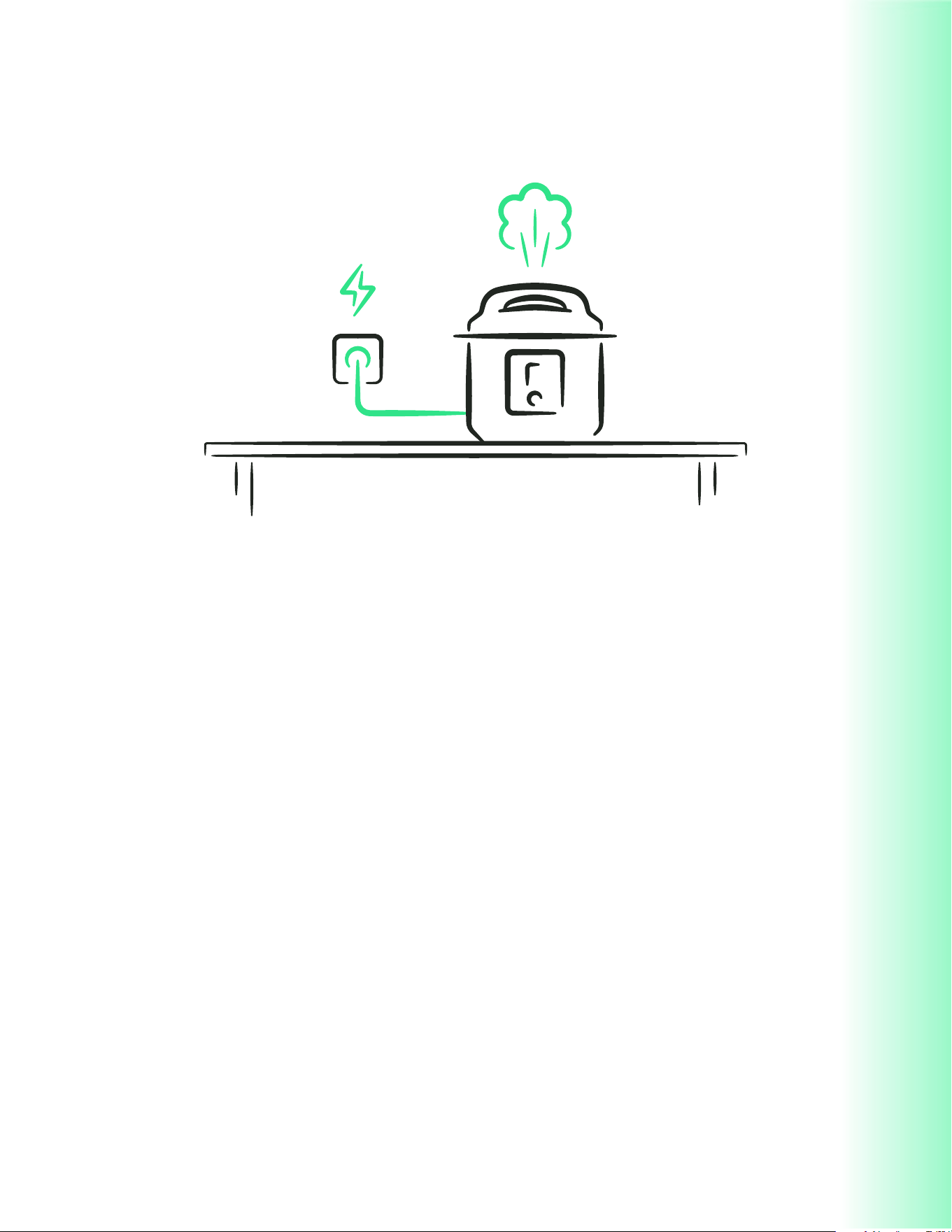
A short power supply cord is provided to reduce the hazards of entanglement or
tripping over a longer cord. Longer detachable power-supply cords or extension
cords are available and may be used if care is exercised in their use. If a longer
detachable power-supply extension cord is used:
1. The marked electrical rating of the extension cord should be at least as great
as the electrical rating of the appliance.
2. The cord should be arranged so that it will not drape over the countertop or
tabletop where it can be pulled on by children or tripped over unintentionally.
SHORT CORD INSTRUCTIONS:
SMART COOKER™ SAFETY GUIDE
13
DO NOT OPERATE APPLIANCE IF THE POWER CORD SHOWS ANY DAMAGE
OR IF APPLIANCE WORKS INTERMITTENTLY OR STOPS WORKING ENTIRELY.
Do not place the appliance on a stovetop or any other heatable surface.
1. Never pull or yank on cord or the appliance.
2. To insert plug, grasp it firmly and guide it into outlet.
3. To disconnect appliance, grasp plug and remove it from outlet.
4. Before each use, inspect the power cord for cuts and/or abrasion marks.
If any are found, this indicates that the appliance should be serviced, and
the power cord replaced. Please contact ® Support for assistance.
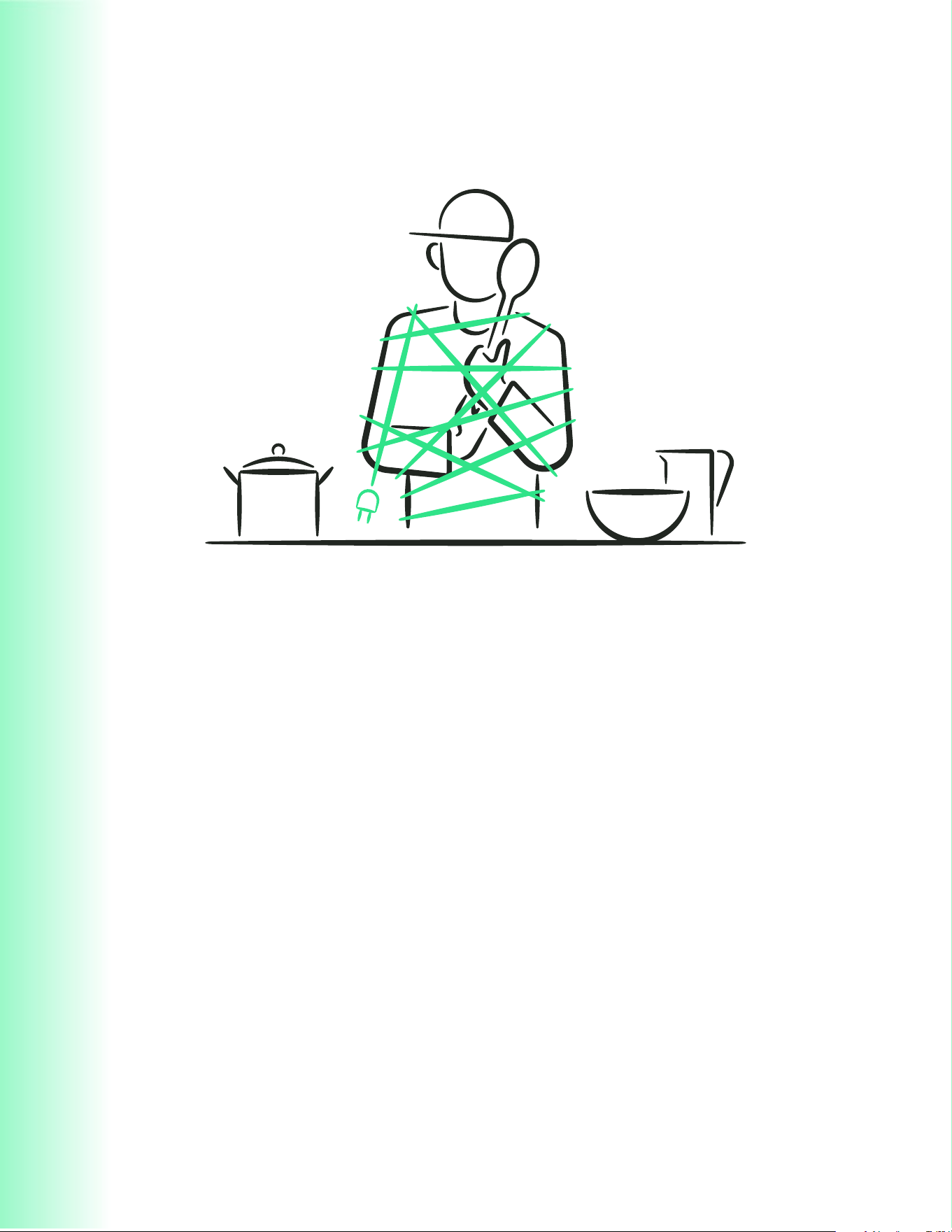
5. Never wrap the cord tightly around the appliance, as this could place
undue stress on the cord where it enters the appliance and cause it to
fray and break.
POWER CORD SAFETY TIPS:
SMART COOKER™ SAFETY GUIDE

14 15
COOKING FUNCTIONS
The Smart Cooker™ offers myriad ways to cook your
favorite foods. Most are displayed on, and selected
from, the control panel; look for others by pressing
More on the control panel:
COOKING FUNCTIONS

15
COOKING FUNCTIONS

16 17
PRESSURE COOK
WHAT IS PRESSURE COOKING?
Pressure cooking can seem miraculous. That’s because it cooks food much faster and
more deliciously than just about any other method all while using less energy. It works
by cooking foods in a sealed environment that does not allow steam to escape below
a pre-set pressure level. The trapped steam cooks foods at a higher temperature
(around 250˚F instead of 212˚F) while the pressure forces the liquid into foods making
them moist and flavorful. Pressure cooking turns tough cuts of meat fork tender in a
matter of minutes (as opposed to the hours it usually takes) and cooks dried beans
to silky perfection. But don’t stop there: You can cook eggs, cheesecake, pasta, and
more under pressure, and the Smart Cooker™ makes it safe, easy, and fun!
A few things to keep in mind when pressure cooking:
• A pressure cooker always requires some liquid for cooking; ½ cup is the minimum
amount needed to pressure cook in the Smart Cooker™.
• The Smart Cooker™ oers two pressure levels — high and low. Most foods cook
under high-pressure, which breaks them down quicker. Delicate foods sensitive
to overcooking, such as rice and eggs, work best with low-pressure.
• When the correct pressure is reached, the lid of the Smart Cooker™ will lock in
place. The lid will unlock only after pressure has been released.
• A pressure cooker recipe may start with a searing or sautéing step to help build
flavor.
• When pressure cooking foods that foam, froth, or bubble, such as rice, pasta, and
beans, fill the cooking pot halfway or less.
• When pressure cooking, add dairy products after pressure has been released
because dairy curdles under pressure; however, you can use butter for sautéing
foods before pressure cooking.
PRESSURE COOK
17
Pressure release options:
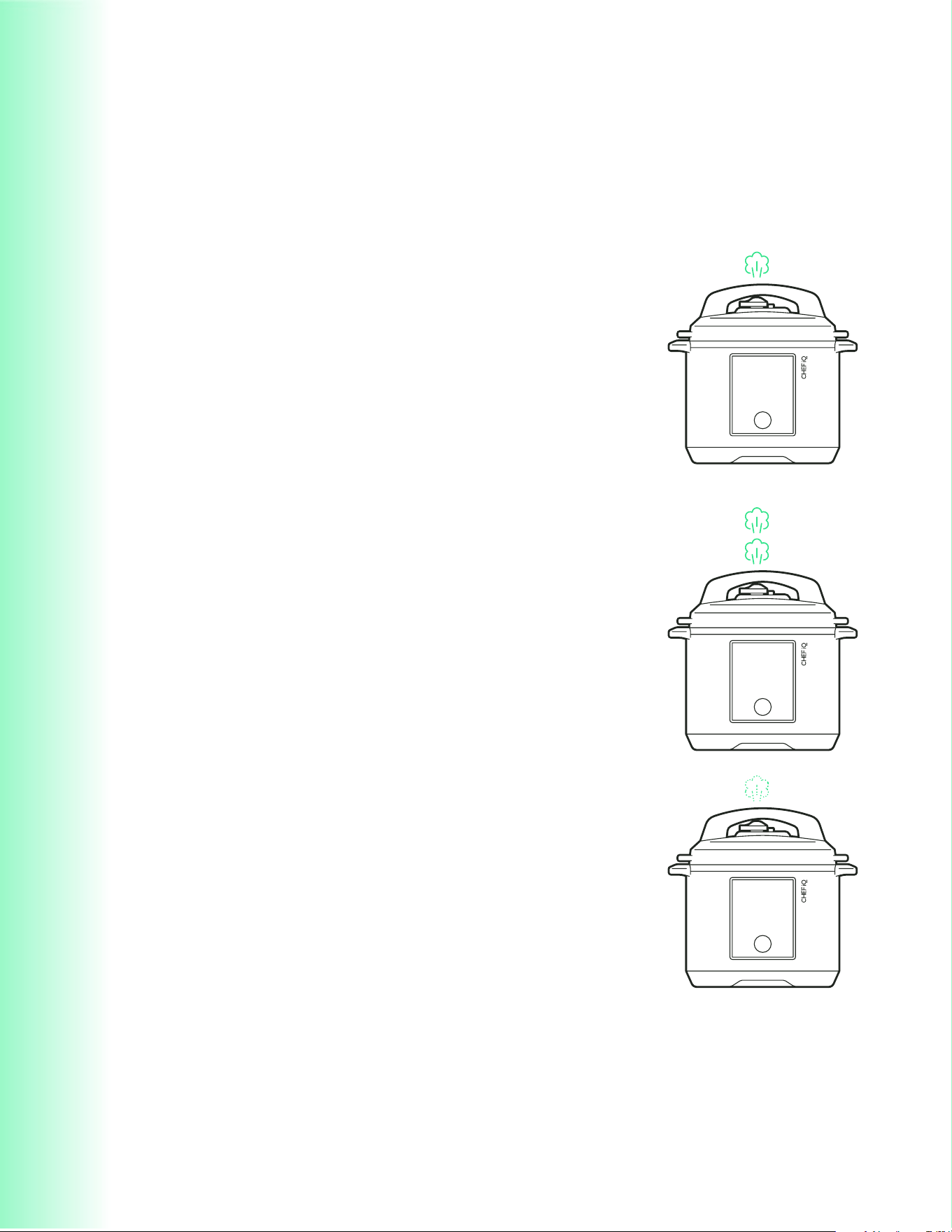
Pressure comes from steam contained within the Smart Cooker™. When
cooking time ends, the Smart Cooker™ releases pressure (steam) in one of
three ways:
QUICK
PULSE
NATURAL
As its name implies, quick release expels a strong jet
of steam very quickly. Recommended for most foods,
quick release lowers the pressure fast, helping to avoid
overcooking. The Smart Cooker™ issues an audible and
visual 10-second warning countdown before steam is
released.
Recommended for starchy foods like beans and pasta
that can foam if steam is released too quickly, pulse
expels jets of steam in spurts until all pressure has been
released. The Smart Cooker™ issues an audible and visual
10-second warning countdown before steam is released.
Recommended for foods unlikely to overcook, such as
soups and stews, natural release lets steam escape slowly
without any forceful expulsion. Natural release can take
15 minutes to 1 hour depending on the amount of food in
the pot. During Natural Release, the screen may display
“Food is Ready,” but you’ll not be able to unlock the lid
until all the red pressure valve has dropped level with
the lid.
NOTE: YOU CAN RELEASE STEAM MANUALLY AT ANY TIME BY
PRESSING AND HOLDING THE RELEASE BUTTON ON THE CONTROL
PANEL.
WARNING: STEAM İS RELEASED FROM THE PRESSURE REGULATOR
KNOB. DO NOT PUT HANDS, FACE, OR OTHER BODY PARTS OVER
OR NEAR THE PRESSURE RELEASE KNOB. STEAM İS HOT AND MAY
CAUSE BURNS.
PRESSURE COOK
18 19
HOW TO PRESSURE COOK
IN THE SMART COOKER™
IMPORTANT: IF YOU’RE USING A ® GUIDED COOKING RECIPE FROM THE APP, THOSE DIRECTIONS
INCLUDE COOKING PARAMETERS SENT DIRECTLY FROM THE APP TO YOUR SMART COOKER™ AND
DO NOT REQUIRE ADDITIONAL MANUAL INPUT ON THE UNIT. TO EXECUTE THE GUIDED COOKING
RECIPES, SIMPLY FOLLOW THE STEPS DISPLAYED IN THE RECIPE ON YOUR SMART DEVICE.
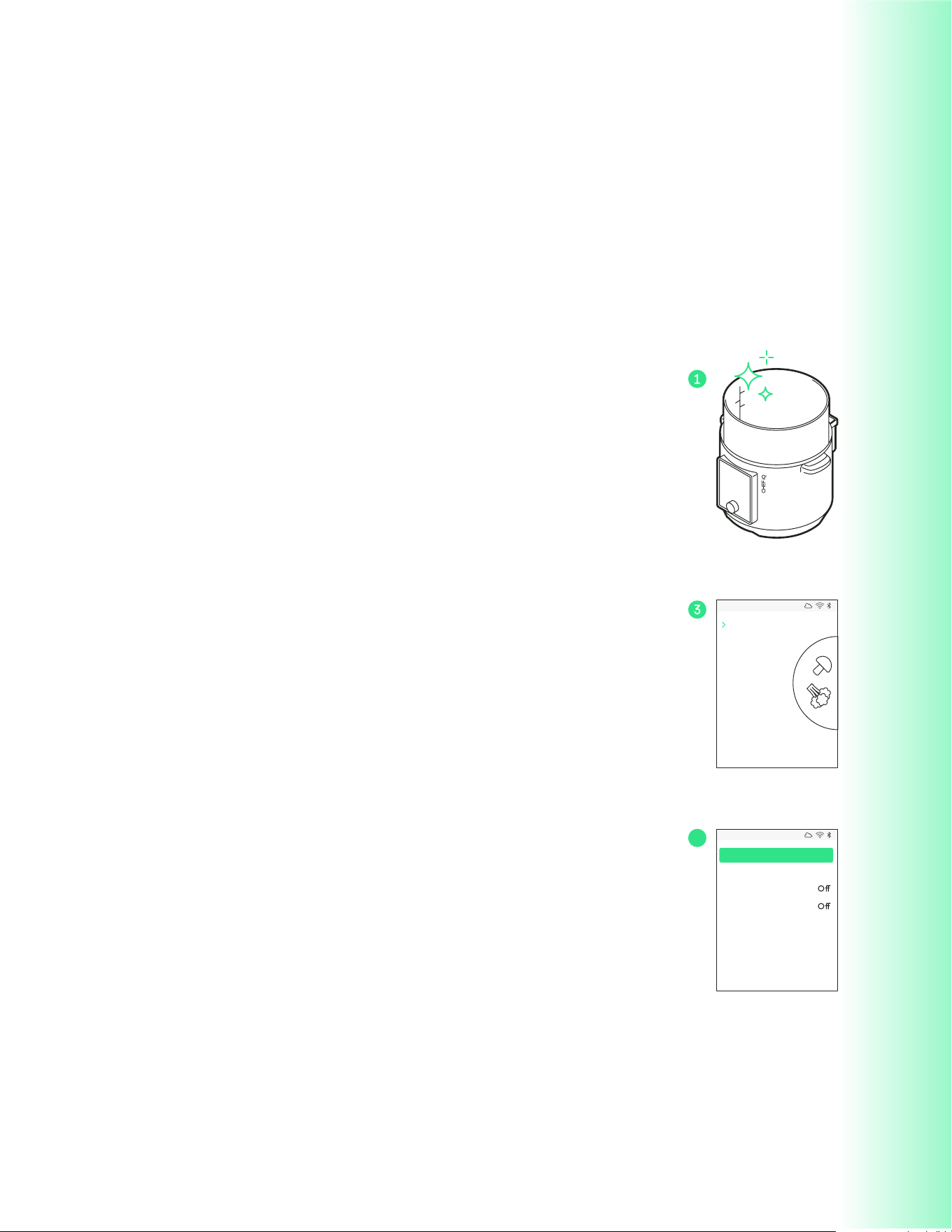
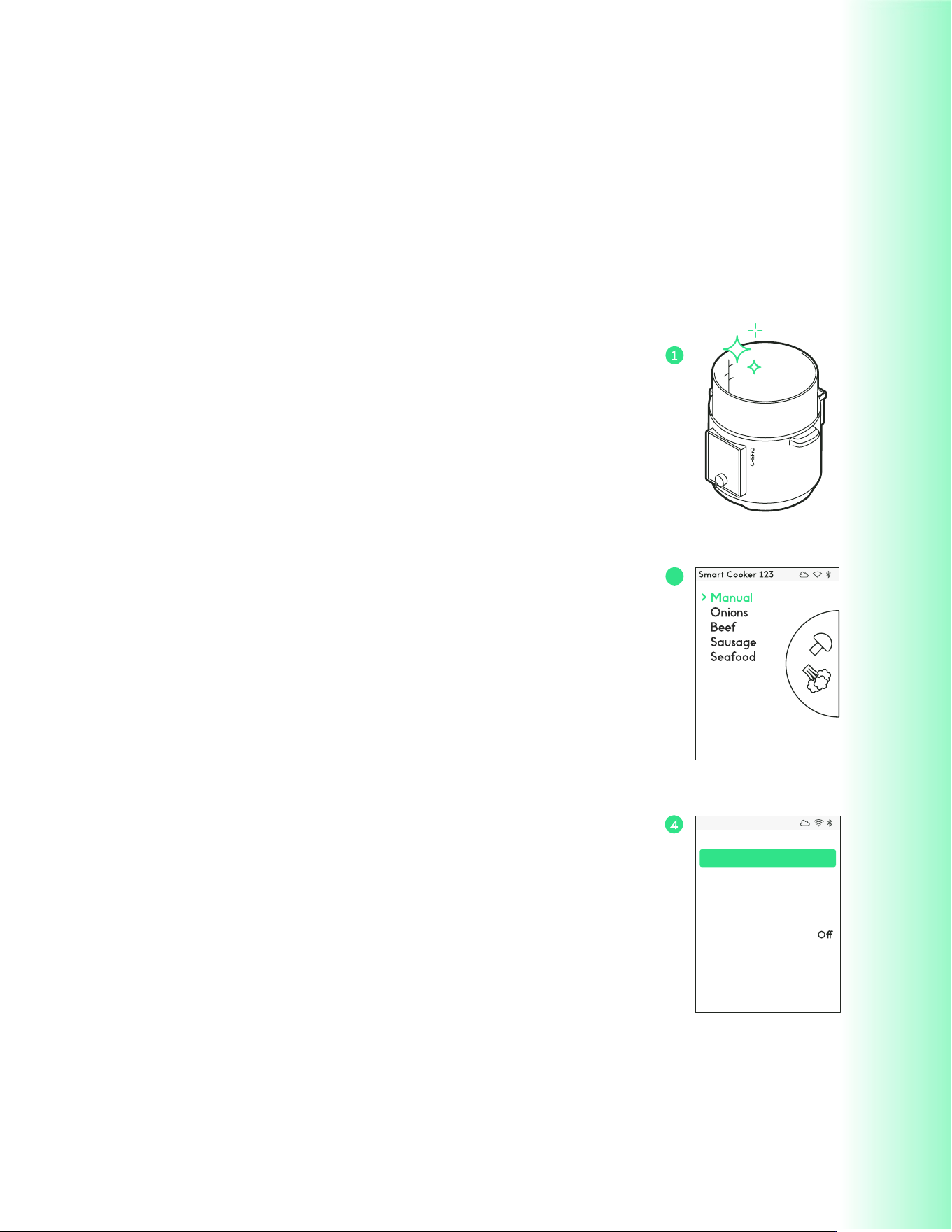
1. Ensure the cooking pot is clean and dry. Insert it into the
Smart Cooker™.
2. Press Pressure Cook on the control panel; the Pressure Cook
menu will display on the screen.
3. Use the dial to select Manual to cook with custom parameters
or select a food category to receive suggested cooking
parameters. (If selecting a food category, you’ll be prompted
to select details about the food you’re cooking in order to
determine the best time, pressure level, and release method
for the food.)
4. Use the dial to adjust the Cook Time, Pressure Level, Keep
Warm, Delay Start, and Pressure Release settings as desired.
If using suggested cooking parameters, however, it's best to
use the recommended settings.
NOTE: THE KEEP WARM SETTING WILL KEEP FOODS AT 165°F FOR UP TO 72
HOURS AFTER COOKING.
NOTE: DELAY START WILL NOT INITIATE COOKING UNTIL THE SET DELAY TIME
HAS ENDED. PLEASE FOLLOW PROPER FOOD SAFETY GUIDELINES WHEN
USING THIS FEATURE.
5. Select Continue to confirm the cooking parameters.
Smart Cooker 123
Manual
Chicken
Beef
Pork
Egg
Beans
Rice
Pasta
Stew
Soup
Chili
Smart Cooker 123
HighLow
On
Quick Pulse Natural
Cook Time
Pressure Level
Keep Warm
Delay Start
Pressure Release
20 min
Continue
PRESSURE COOK
4
4
19
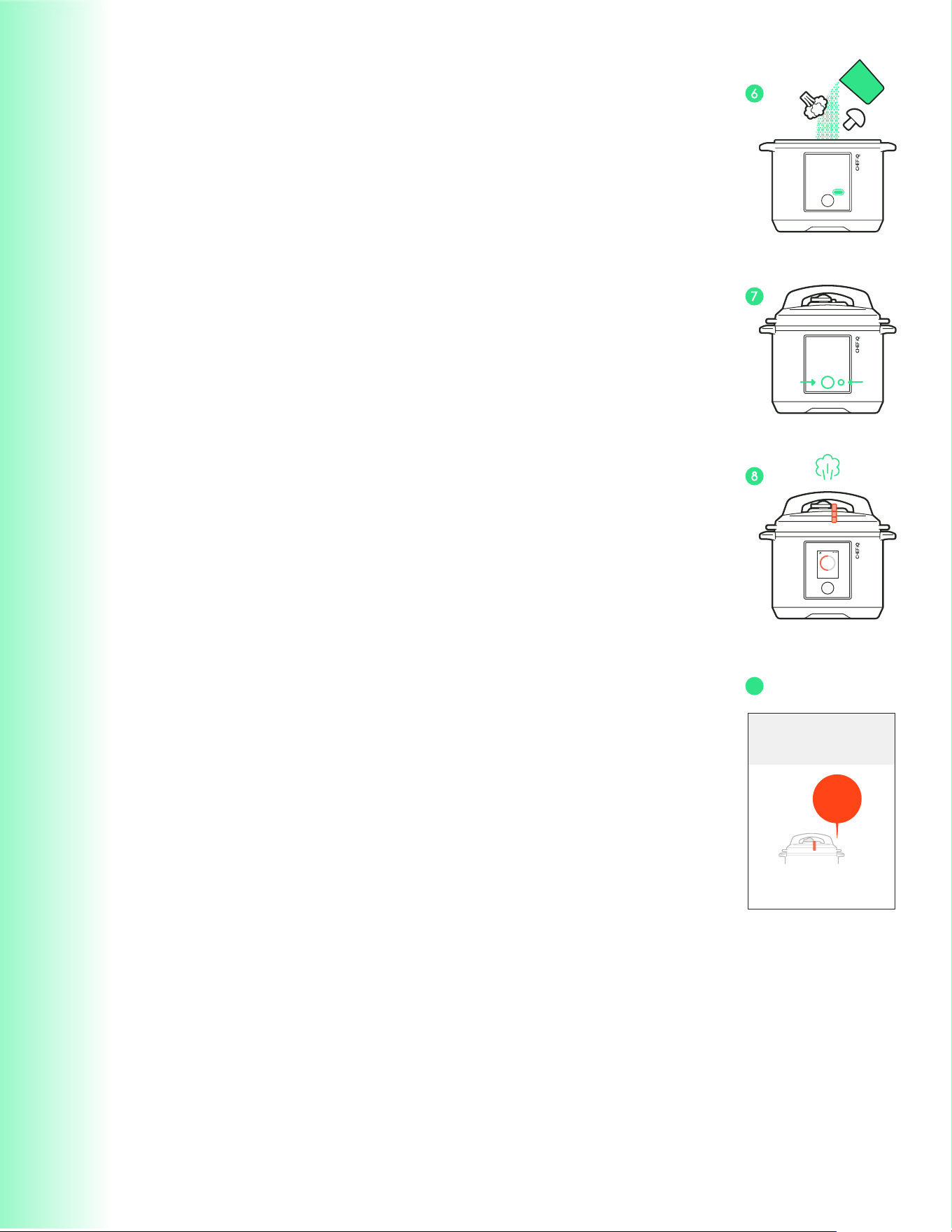
6. Place the food into the cooking pot no higher than the line
marked MAX PC.
7. Follow the directions on the checklist displayed on the unit’s
screen, which include pressing the Start/Stop button on the
control panel to start cooking. (If Delay Start was selected,
the Smart Cooker™ will begin the countdown to the start time.
If not, cooking will begin, and pressure will start to build.)
NOTE: THE LID MUST REMAIN ON IN ORDER FOR PRESSURE TO BUILD; A
MELODY WILL SOUND IF YOU OPEN THE LID WHILE THE SMART COOKER™ IS
BUILDING PRESSURE.
8. Once the set pressure level is reached, the red floating valve
will be fully risen, the lid locked, and the Cook Time will begin
to count down.
NOTE: YOU CAN CANCEL OUT OF COOKING AT ANY TIME BY PRESSING THE
START/STOP BUTTON.
9. When the Cook Time ends, pressure will release automatically
in one of three ways (Quick, Pulse, or Natural), depending
on what was set. To manually release pressure, press and
hold Release on the control panel.
10. If the Keep Warm function was selected, it will begin after
pressure cooking ends. Press Start/Stop to exit out of Keep
Warm and return to the main menu.
11. If Keep Warm was not set, press the Dial to return to the
main menu.
Poultry
�
Cooking
Remaining
10 hr
4 min
PRESSURE COOK
20 min 34 sec
Keeping Warm
FOOD IS
READY!
The floating
valve will
drop
when it is safe
to open lid.
10

20 21
SEAR/SAUTÉ
With the Sear/Sauté function, you can use your
Smart Cooker™ like you would use a skillet or sauté
pan on the stove.
SEAR/SAUTÉ
21
WHAT IS SEARING AND SAUTÉING?
Searing and sautéing are similar cooking methods in that both use direct, dry heat and
cook uncovered. Searing exposes the surface of foods to steady high heat with the
goal of browning the exterior to develop and deepen flavor. With searing, the food
is often not cooked through at this stage; rather the sear develops a flavorful crust
on the food before it’s finished with lower or moist heat. When searing, the Smart
Cooker™ sets the temperature to very high.
Sautéing also involves cooking with direct, dry heat but the food, usually smaller pieces,
is moved around in the pan as it cooks. (Sauté in French means to jump.) When sautéing,
the Smart Cooker™ allows you to adjust the temperature to low, medium, and high.
NOTE: FOR BOTH SAUTÉING AND SEARING, YOU’LL GET THE BEST BROWNING
AND MOST FLAVOR IF YOU SEAR OR SAUTÉ IN A LITTLE OIL OR BUTTER.
SEAR/SAUTÉ
22 23
HOW TO SEAR/SAUTÉ IN
THE SMART COOKER™
IMPORTANT: IF YOU’RE USING A ® GUIDED COOKING RECIPE FROM THE APP, THOSE DIRECTIONS
INCLUDE COOKING PARAMETERS SENT DIRECTLY FROM THE APP TO YOUR SMART COOKER™ AND
DO NOT REQUIRE ADDITIONAL INPUT ON THE UNIT. TO EXECUTE THE GUIDED COOKING RECIPES,
SIMPLY FOLLOW THE STEPS DISPLAYED IN THE RECIPE ON YOUR SMART DEVICE.
1. Ensure the cooking pot is clean and dry. Insert it into the
Smart Cooker™.
2. Press Sear/Sauté on the control panel; the Sear/Sauté menu
will display on the screen.
3. Select Manual to cook with custom parameters or select a
food category to receive suggested cooking parameters. (If
selecting a food category, you’ll be prompted to select details
about the food you are cooking in order to determine the
best time and temperature for the food.)
4. Use the dial to adjust the Cook Time, Temperature and
Keep Warm settings as desired. If using suggested cooking
parameters, however, it's best to use the recommended
settings.
NOTE: THE KEEP WARM SETTING WILL KEEP FOODS AT 165°F FOR UP TO 72
Smart Cooker 123
High
Sauté
On
Keep Warm
Cook Time
Temperature
Med
Sauté
Low
Sauté
Sear
Continue
30 min
3
SEAR/SAUTÉ
23
5. Select Continue to confirm the cooking parameters.
6. Place the food into the cooking pot no higher than the line marked
MAX PC.
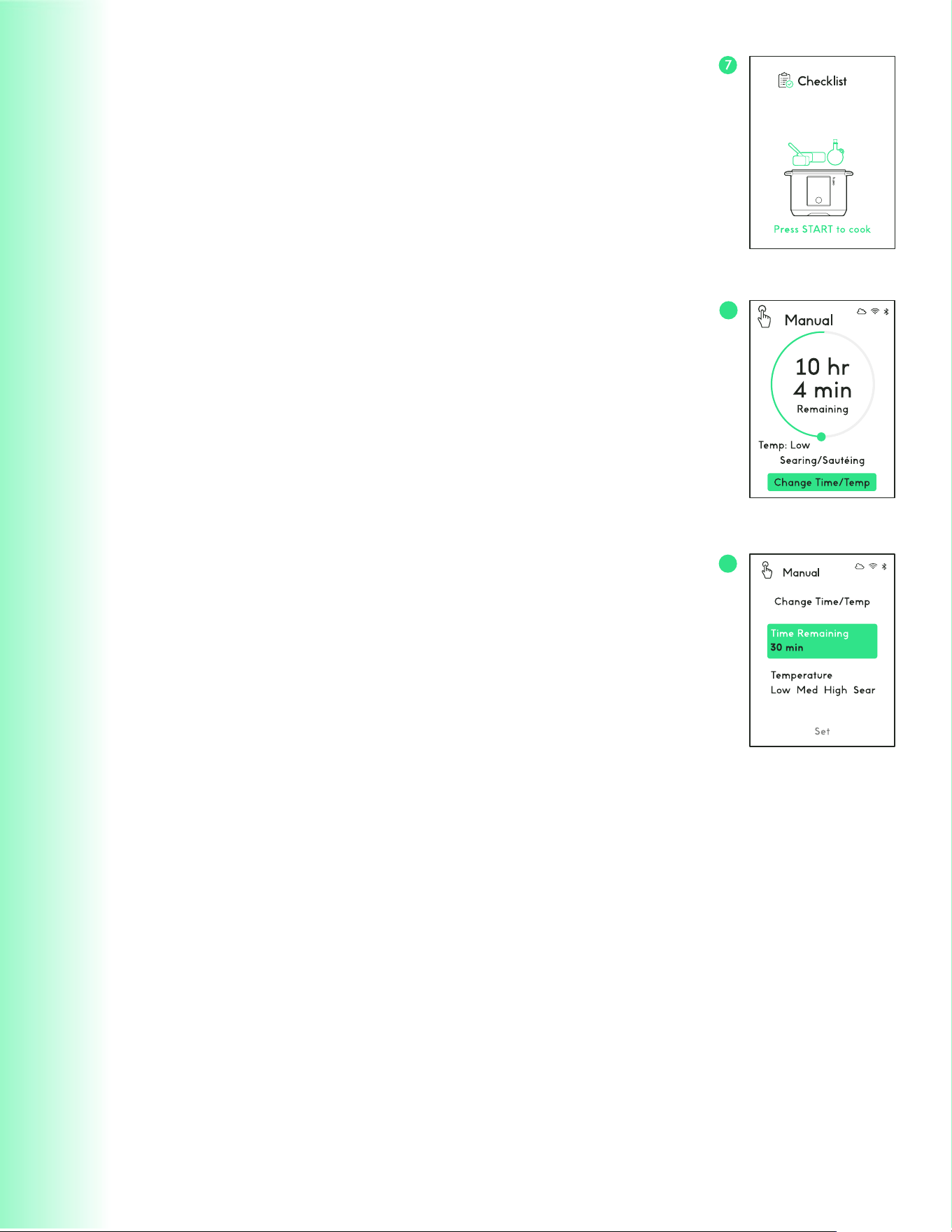
7. Follow the directions on the checklist displayed on the unit’s
screen, which include pressing the Start/Stop button on the
control panel to start cooking.
8. Cooking will start and the Cook Time will begin. To adjust
the Cook Time or Temperature while cooking, use the dial
to select Change Time/Temp and adjust to desired time and
temperature. Use the dial to go back to the cooking screen.
NOTE: YOU CAN CANCEL OUT OF COOKING AT ANY TIME BY PRESSING THE
START/STOP BUTTON.
9. The Keep Warm function (when selected) will begin after
cooking ends. Press Start/Stop to exit out of Keep Warm and
return to the main menu.
10. If Keep Warm was not set, press the Dial to return to the
main menu.
SEAR/SAUTÉ
8
9
24 25
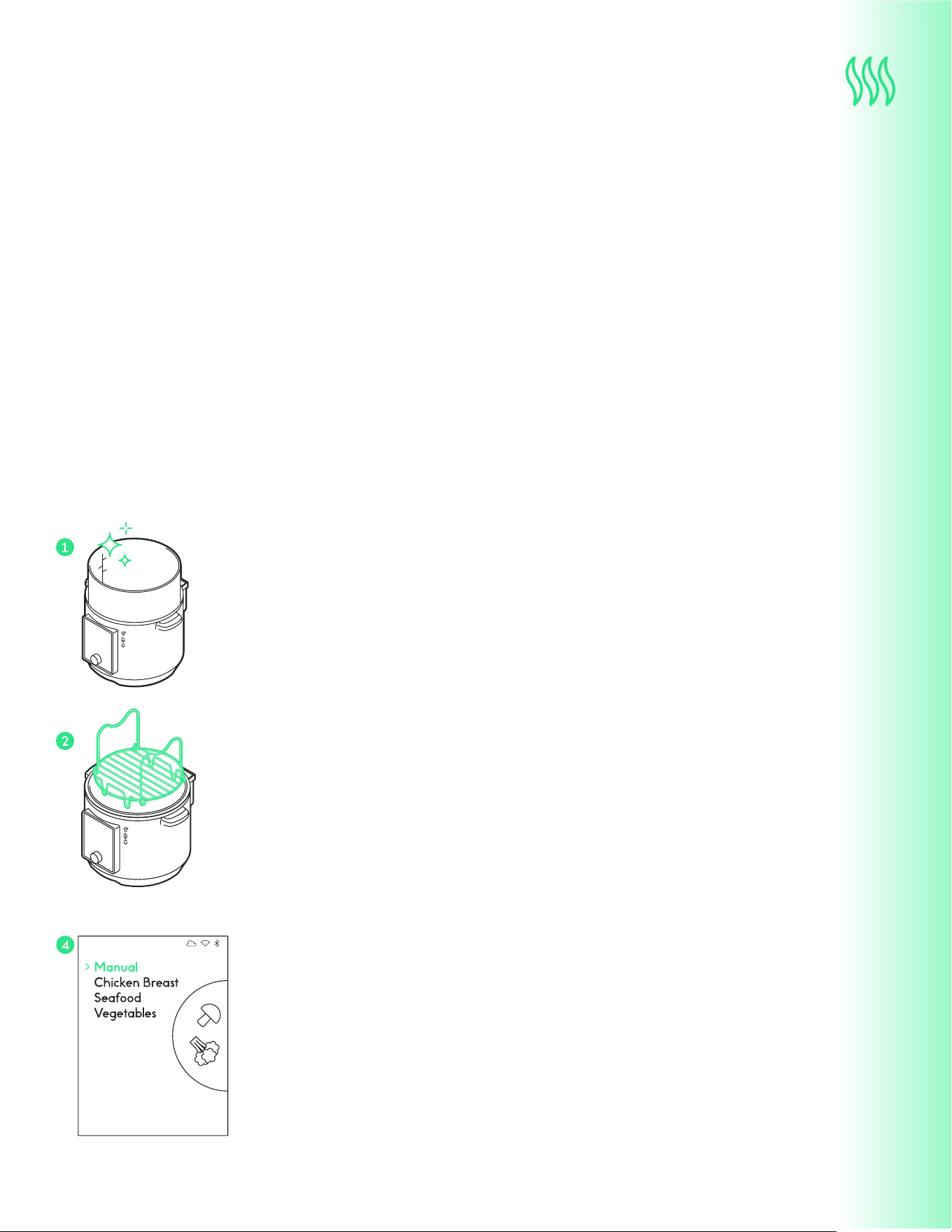
STEAM
WHAT IS STEAMING?
Steaming usually involves placing foods above simmering water; the vaporizing liquid
conducts heat to the food to gently cook it. When steaming in the Smart Cooker™,
the food sits on either the steam rack or in the steam basket set above the steaming
water. Steaming cooks foods gently, making it perfect for vegetables and seafood. It
requires no additional fats, and foods usually retain their shape and their nutrients.
HOW TO STEAM IN THE
SMART COOKER™
IMPORTANT: IF YOU’RE USING A ® GUIDED COOKING RECIPE FROM THE
APP, THOSE DIRECTIONS INCLUDE COOKING PARAMETERS SENT DIRECTLY
FROM THE APP TO YOUR SMART COOKER™ AND DO NOT REQUIRE ADDITIONAL
INPUT ON THE UNIT. TO EXECUTE THE GUIDED COOKING RECIPES, SIMPLY
FOLLOW THE STEPS DISPLAYED IN THE RECIPE ON YOUR SMART DEVICE.
1. Ensure the cooking pot is clean and dry. Insert it into the
Smart Cooker™.
2. Place food on steam rack or in steam basket. (Alternatively
add food after steam rack or basket has been inserted into
cooking pot.)
NOTE: STEAM BASKET MUST BE USED WITH STEAM RACK; INSERT RACK FIRST.
3. Press Steam on the control panel; the Steam menu will display
on the screen.
4. Select Manual to cook with custom parameters or select a
food category to receive suggested cooking parameters.
(If selecting a food category, you’ll be prompted to select
specific details about the food you’re cooking in order to
determine the best time for the food.)
STEAM
25
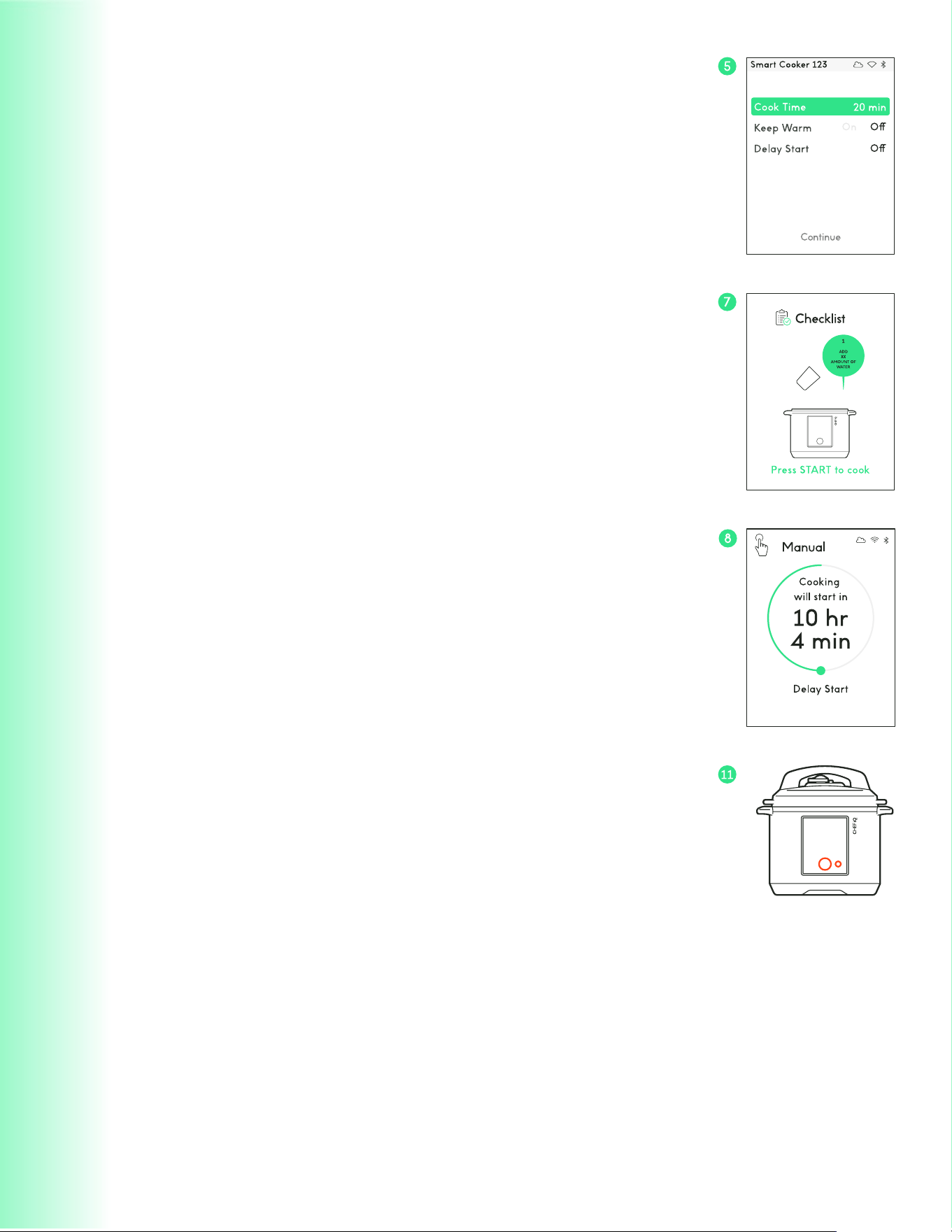
5. Use the dial to adjust the Cook Time, Keep Warm and Delay
Start settings as desired.
NOTE: THE KEEP WARM SETTING WILL KEEP FOODS AT 165°F FOR UP TO 72
HOURS AFTER COOKING.
NOTE: DELAY START WILL ALLOW YOU TO PUT CONTENTS INTO THE COOKING
POT BUT WILL NOT INITIATE COOKING UNTIL THE SET DELAY TIME HAS
ENDED. PLEASE FOLLOW PROPER FOOD SAFETY GUIDELINES WHEN USING
THIS FEATURE.
6. Press Continue when finished.
7. Follow the directions on the checklist displayed on the unit’s
screen, adding your food along with the rack or basket, which
include pressing the Start/Stop button on the control panel
to start cooking.
8. If Delay Start was selected, the Smart Cooker™ will countdown
to cooking. If not, cooking will start, and the Cook Time will
begin to count down.
9. To adjust the Cook Time while cooking, use the dial to select
Change Time and adjust to desired time. Use the dial to go
back to the cooking screen.
NOTE: YOU CAN CANCEL OUT OF COOKING AT ANY TIME BY PRESSING THE
START/STOP BUTTON.
10. The Keep Warm function (when selected) will begin after
cooking ends. Press Start/Stop to exit out of Keep Warm
and return to the main menu.
11. If Keep Warm was not set, press the Dial to return to the
main menu.
STEAM

26 27
SLOW COOK
With its ample, 6-quart cooking pot and its Delay
Start and Keep Warm functions, the Smart Cooker™
makes an excellent slow cooker. Plus, foods to be
slow cooked can be seared before slow cooking right
in the Smart Cooker™ cooking pot, which not only
boosts the flavor of the final dish, but also means one
less pot to clean.
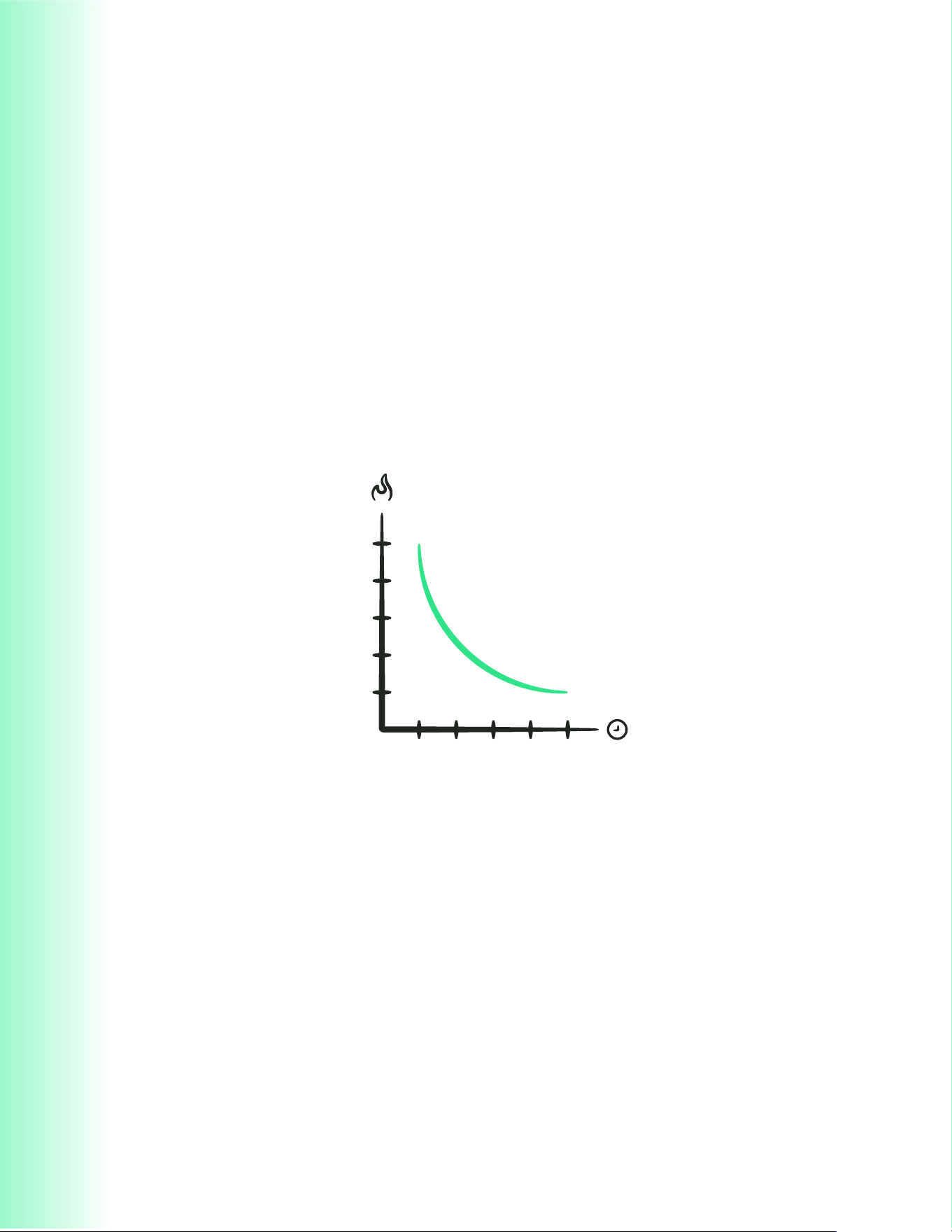
WHAT IS SLOW COOKING?
Slow cooking is exactly what is sounds like: slowly cooking foods
with low, steady, moist heat, usually in a covered pot and over a
long period of time, typically 4 hours or more. The resulting slow-
cooked foods become tender and flavorful. Slow cooking is not
pressurized and generally comes with low and high temperature
settings, which aect the total cooking time. High temperature
generally cooks a dish in 4-6 hours, while low generally takes 8-10
hours to reach the same result.
SLOW COOK
27
SLOW COOK
LOW
HIGH
2
4
6
8
10
28 29
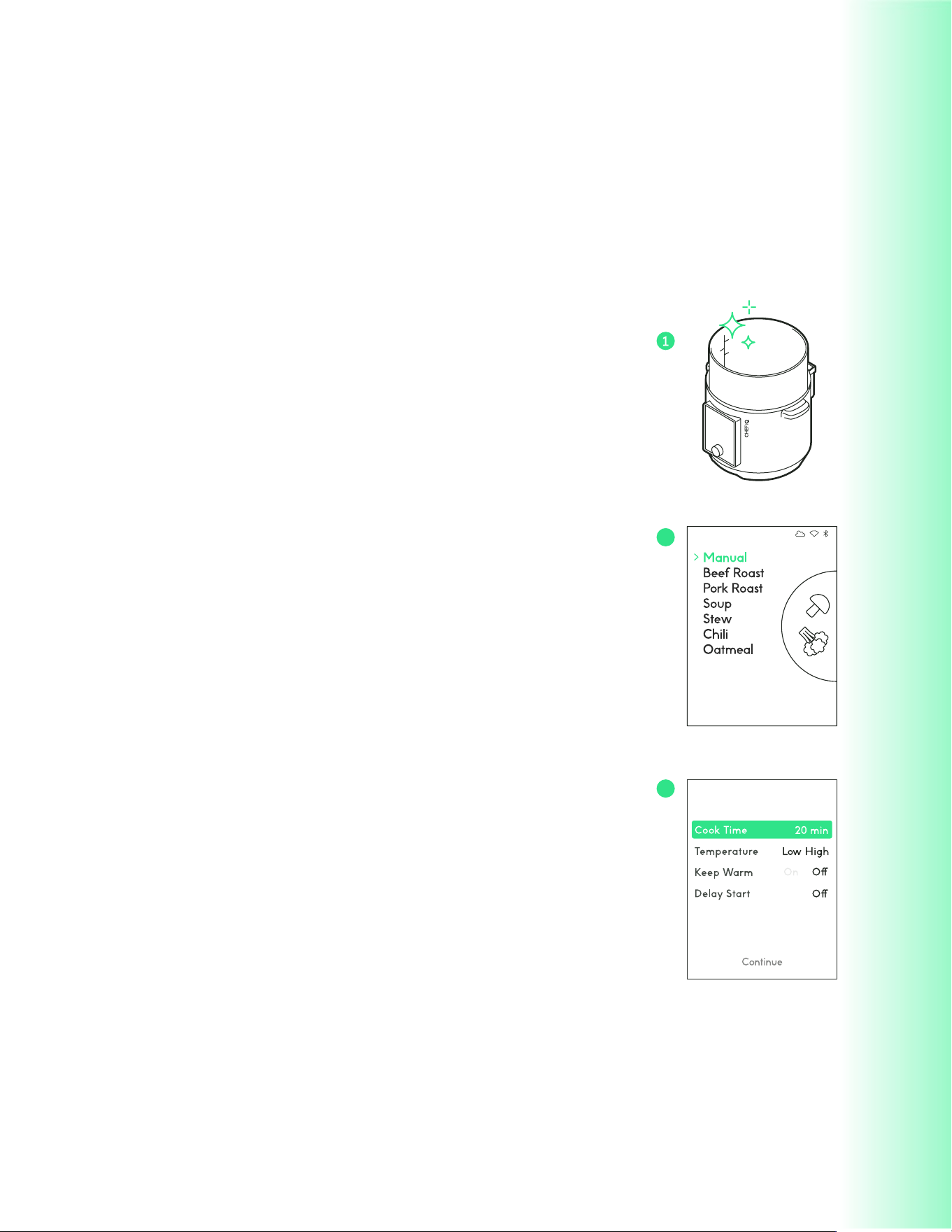
1. Ensure the cooking pot is clean and dry. Insert it into the
Smart Cooker™.
2. Press Slow Cook on the unit’s control panel. The Slow Cook
menu will display on the unit’s screen.
3. Select Manual to cook with custom parameters or select
a food category to receive suggested cooking parameters.
(If selecting a food category, you’ll be prompted to select
specific details about the food you are cooking in order to
determine the best time or temperature for the food.)
4. Use the dial to adjust the Cook Time, Temperature,
Keep Warm and Delay Start settings (if desired). If using
suggested cooking parameters, however, it's best to use
the recommended settings.
NOTE: THE KEEP WARM SETTING WILL KEEP FOODS AT 165°F FOR UP TO 72
HOURS AFTER COOKING.
NOTE: DELAY START WILL ALLOW YOU TO PUT CONTENTS INTO THE
COOKING POT BUT WILL NOT INITIATE COOKING UNTIL THE SET DELAY TIME
HAS ENDED. PLEASE FOLLOW PROPER FOOD SAFETY GUIDELINES WHEN
USING THIS FEATURE.
HOW TO SLOW COOK IN
THE SMART COOKER™
IMPORTANT: IF YOU’RE USING A ® GUIDED COOKING RECIPE FROM THE APP, THOSE
DIRECTIONS INCLUDE COOKING PARAMETERS SENT DIRECTLY FROM THE APP TO YOUR SMART
COOKER™ AND DO NOT REQUIRE ADDITIONAL INPUT ON THE UNIT. TO EXECUTE THE GUIDED
COOKING RECIPES, SIMPLY FOLLOW THE STEPS DISPLAYED IN THE RECIPE ON YOUR SMART DEVICE.
3
4
SLOW COOK
29
5. Press Continue when finished.
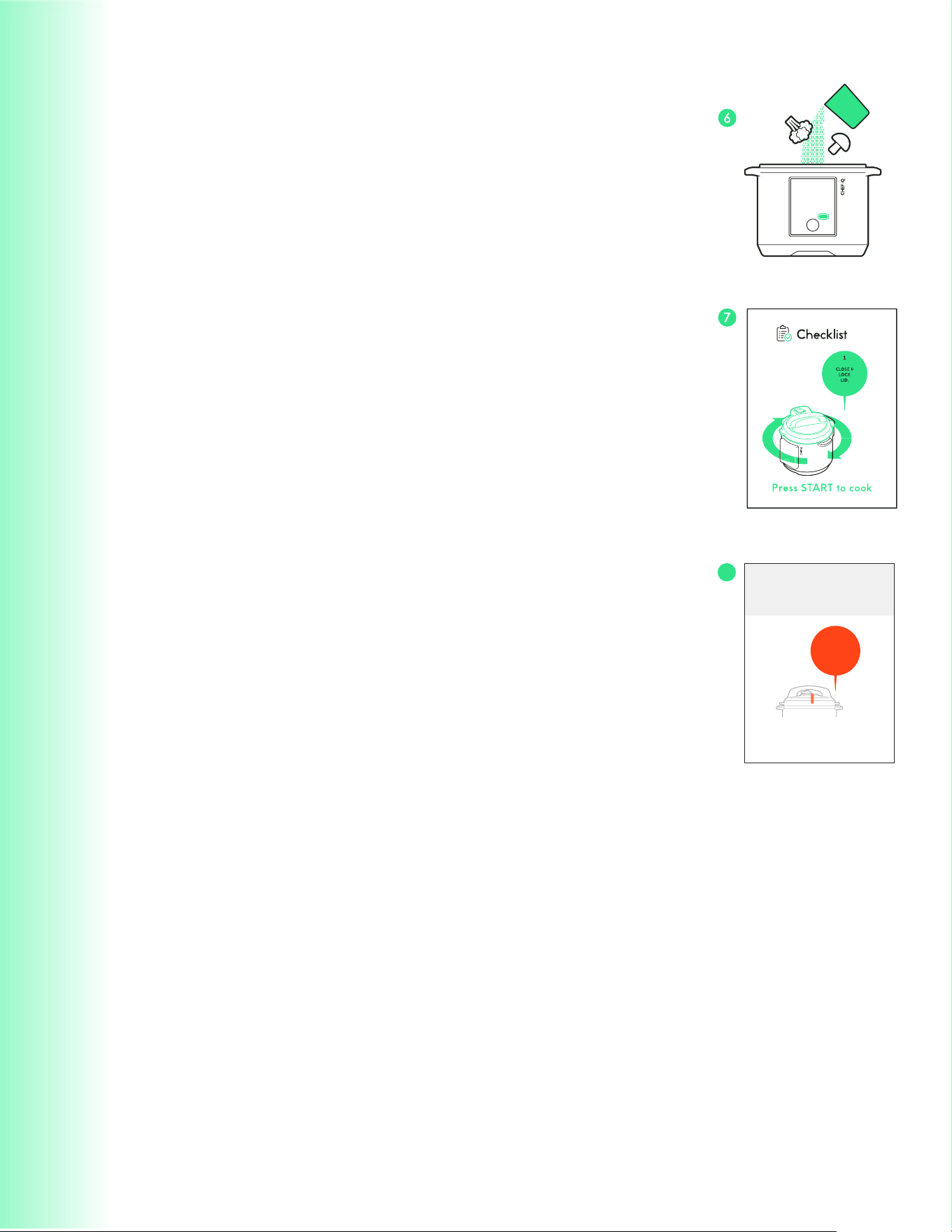
6. Insert the food into the cooking pot (do not fill past the
MAX line).
7. Follow the directions on the checklist displayed on the unit’s
screen, which include pressing the Start/Stop button on the
control panel to start cooking.
8. If Delay Start was selected, the Smart Cooker™ will
countdown to cooking. If not, cooking will start, and the
Cook Time will begin to count down. To adjust the Cook
Time or Temperature while cooking, use the dial to select
“Change Time/Temp” and adjust to desired time and
temperature. Use the dial to go back to the cooking screen.
NOTE: YOU CAN CANCEL OUT OF COOKING AT ANY TIME BY PRESSING THE
START/STOP BUTTON.
9. The Keep Warm function (when selected) will begin after
cooking ends. Press the Start/Stop button to exit out of
Keep Warm and return to the main menu.
10. If Keep Warm was not set, press the Dial to return to the
main menu.
20 min 34 sec
Keeping Warm
FOOD IS
READY!
The floating
valve will
drop
when it is safe
to open lid.
9
SLOW COOK
30 31
SOUS VIDE
SOUS VIDE
WHAT IS SOUS VIDE?
Sous vide (pronounced sue-veed) is a cooking technique that uses precise temperature
control to deliver consistent, restaurant-quality dishes. The French phrase sous vide
translates to “under vacuum,” which refers to the process of vacuum sealing a food
before submerging it into a temperature-controlled water bath. Because the target
temperature of the water is set to the target temperature of the food, there is no
danger of overcooking, creating perfect doneness every time. In addition, you can
prepare foods ahead of time, and then finish them o right before serving, which is
wonderful for entertaining.
HOW TO SOUS VIDE IN
THE SMART COOKER™
IMPORTANT: IF YOU’RE USING A ® GUIDED COOKING RECIPE FROM THE APP, THOSE DIRECTIONS
INCLUDE COOKING PARAMETERS SENT DIRECTLY FROM THE APP TO YOUR SMART COOKER™ AND
DO NOT REQUIRE ADDITIONAL MANUAL INPUT ON THE UNIT. TO EXECUTE THE GUIDED COOKING
RECIPES, SIMPLY FOLLOW THE STEPS DISPLAYED IN THE RECIPE ON YOUR SMART DEVICE.
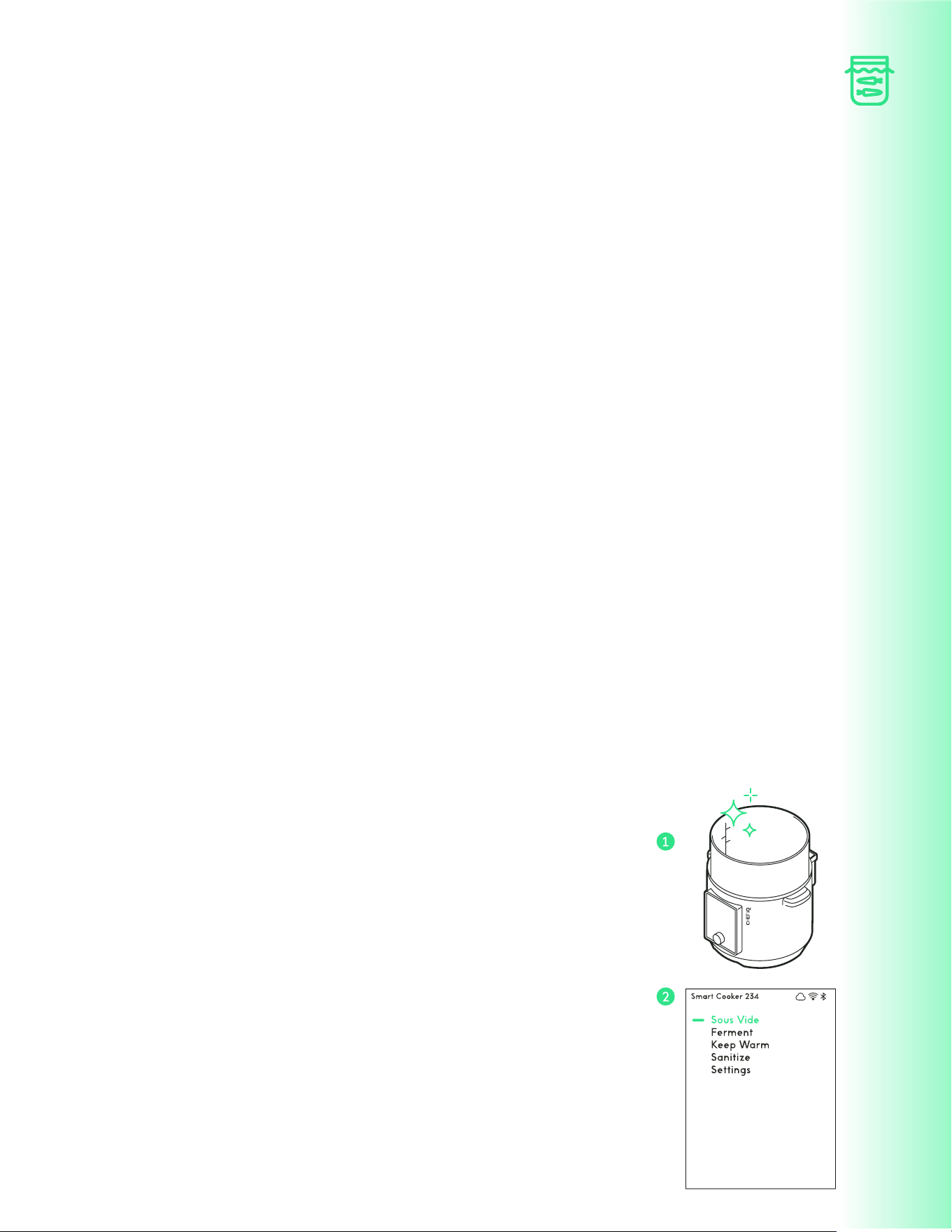
1. Ensure the cooking pot is clean and dry. Insert it into the
Smart Cooker™.
2. Press More on the control panel and use the dial to select
Sous Vide from the menu on the screen.
31
SOUS VIDE
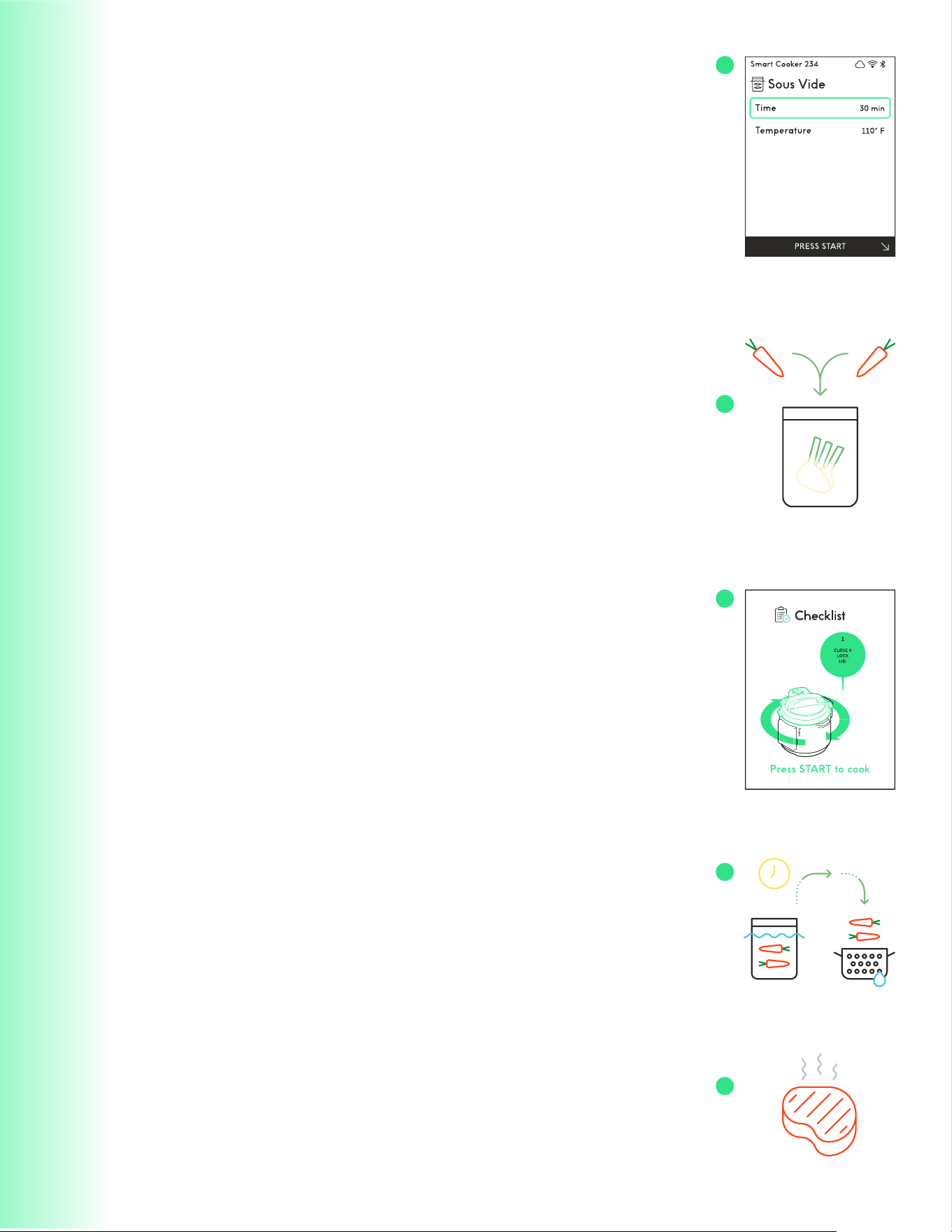
3. Use the dial to select your desired cooking time and
temperature. Select Continue to confirm the cooking
parameters.
4. Add at least 12 cups of water to the cooking pot. Close and
lock the lid and set the regulator knob to venting.
5. While the water comes to temperature, prepare your food.
You will need zip-top freezer bags or a vacuum sealer and
bags.
6. Season the food to taste. Put the food and any flavoring
ingredients in the bag in an even layer. You may need to use
multiple bags.
7. Once the water is at the desired temperature, add your
food. If using a vacuum sealer, follow the manufacturer’s
directions for sealing the bag. For zip-top bags, slowly lower
the open bag into the water. The water will press out the air.
Once your food is completely submerged, seal the bag.
8. Close and lock the lid and set the regulator knob to venting.
9. Set the timer and press Start.
10. When the time is done, remove the bags from the water.
If serving later, cool food in an ice bath and refrigerate.
Bring to room temperature before searing, if desired. If
using right away, let food rest in bags for at least 5 minutes
to reabsorb any juices in the bag. Open bags, remove food,
pat dry, and sear to finish, if desired.
11. To sear in the Smart Cooker, pour out the water from the
cooking pot and dry the pot. Add 1 to 2 Tbsp oil to the pot
and set the Smart Cooker™ to sear.
12. When the oil is hot, add the food and cook briefly to brown
it on the outside while keeping it perfectly cooked on
the inside.
3
6
9
10
12
32 33
SCALE
Most professional chefs use weight rather than volume to measure ingredients
because it’s more accurate. The Smart Cooker™ comes with an integrated scale,
which means you can easily measure ingredients by weight as you add them to the
cooking pot. Not only is measuring by weight easy and eicient, it also means there
are no measuring cups or spoons to clean!
SCALE

33
HOW TO USE THE
SMART COOKER™ SCALE
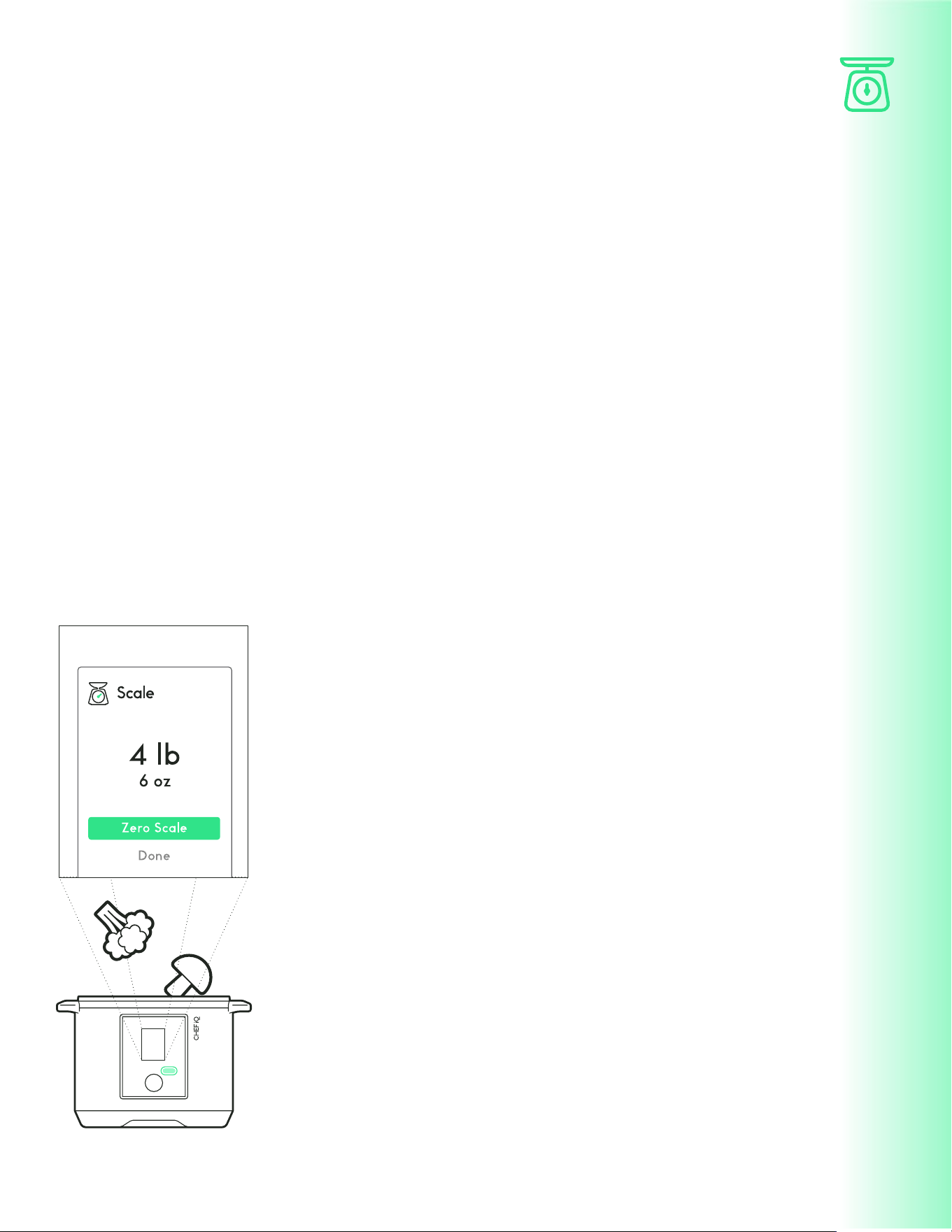
1. Before using the scale, set the desired measuring unit by
going to Settings, which you can access by pressing More
on the control panel. Under Weight Units, displayed on the
unit’s screen, choose either ounces or grams.
2. Ensure the cooking pot is clean and dry. Insert it into the
Smart Cooker™. Add steam rack, basket, or other cooking
vessel if using.
3. Press the Scale button on the control panel.
4. Use the control panel dial to select Zero Scale.
5. Add ingredient to the cooking pot, stopping when you have
reached desired weight.
6. To add the next ingredient by weight, reset scale to 0. Continue
adding and resetting scale as need to weigh all ingredients
needed up to this point in the recipe. When finished weighing
at this time in the cooking process, press Done.
7. You can add additional ingredients by weight after cooking
has started (unless the unit has built pressure, in which case
the lid is locked) by pressing Scale again. Reset to scale to 0
and add ingredient(s), resetting to 0 between each ingredient
as needed.
WARNING: IF ADDING INGREDIENTS DURING COOKING, POT AND CONTENTS
WILL BE HOT.
NOTE: THE SCALE IS VERY SENSITIVE. MOVING THE UNIT OR THE CORD WHILE
USING THE SCALE MAY AFFECT RESULTS.
SCALE
34 35
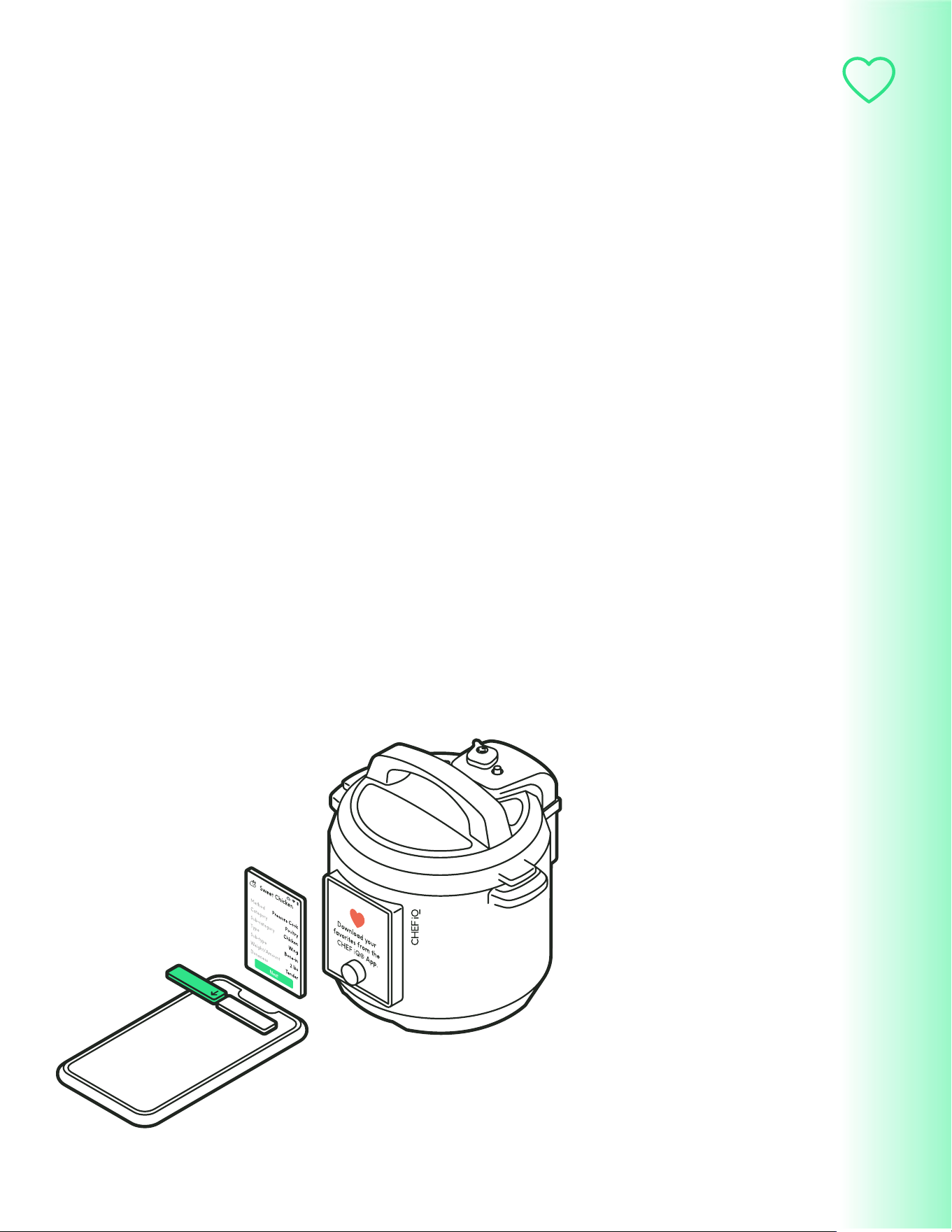
FAVORITES
When using the ® app, you can use the handy cooking calculator for discovering
the best cooking parameters for cooking your favorite foods. You can then relay them
right to the Smart Cooker™; to use these customized pre-sets, press Favorites on the
control panel.
NOTE: YOU CAN ALSO TWEAK THE PARAMETERS AS YOU LIKE BEFORE SAVING THEM AS FAVORITES.
FAVORITES

35
MORE
Look for additional cooking functions as well as general settings under More on the
control panel.
FERMENT
WHAT IS FERMENTING?
Fermenting is an age-old way of preserving foods by trans-
forming them through exposure to healthy bacteria naturally
or through inoculation. Fermentation continues today because
it develops flavors and introduces additional health benefits.
Dierent kinds of fermentation produce such disparate and
delicious foods as olives, cheese, beer, yogurt, miso, bread,
and wine. The Ferment function on the Smart Cooker™ holds
the temperature inside the cooking pot to 110°F, the optimum
temperature for fermenting yogurt. For best results, follow
the cooking guidelines from a trusted recipe when using the
Ferment function.
WARNING: WHEN USING THE FERMENT FUNCTION, FOLLOW PROPER
FOOD HANDLING SAFETY GUIDELINES.
MORE

36 37
KEEP WARM
The Keep Warm function keeps foods at 165˚F, a food-safe
temperature, for up to 72 hours after they’ve been cooked. While
this function can be set to occur automatically when programming
the Smart Cooker™ for other functions, it can also be set manually
from this menu, and can even keep food not cooked in the Smart
Cooker™ warm. Follow proper food safety guidelines when using
the Keep Warm function.
HOW TO SET KEEP WARM MANUALLY:
1. Insert the cooking pot into the Smart Cooker™.
2. Press More on the control panel. Select Keep Warm.
3. Use the dial to adjust Time in 30-minute increments as
desired.
4. Add cooked foods to the cooking pot if not in there alre-
ady. Close the lid and set the regulator knob to “Venting.”
5. Press Start/Stop on the control panel to start Keep
Warm.
6. Warming will begin.
7. To adjust the time while warming, use the dial to select
Change Time and adjust to desired time, then select Set.
When the time ends, the unit will cease heating and go into
sleep mode.
NOTE: YOU CAN CANCEL OUT OF WARMING AT ANY TIME BY PRESSING THE
START/STOP BUTTON.
MORE

37
SANITIZE
With its high-temperature, pressurized steam can be used to clean. It is advisable to
hand-wash items prior to steam cleaning.
HOW TO SANITIZE:
1. Ensure the cooking pot is clean and dry. Insert it into the
Smart Cooker™
2. Insert steam rack.
3. Add 1 ½ to 2 cups water to pot.
4. Place items to clean on steam rack.
5. Press More on the control panel. Select Sanitize.
6. Follow the directions on the checklist displayed on the
unit’s screen, which include pressing Start/Stop on the
control panel.
7. When the Time ends, press the Dial to return to the main
menu.
NOTE: YOU CAN RELEASE STEAM MANUALLY AT ANY TIME BY PRESSING
WARNING: STEAM IS RELEASED FROM THE PRESSURE REGULATOR
KNOB. DO NOT PUT HANDS, FACE, OR OTHER BODY PARTS OVER
OR NEAR THE PRESSURE RELEASE KNOB. STEAM IS HOT AND MAY
CAUSE BURNS.
MORE
38 39
SETTINGS
Settings includes the following options:
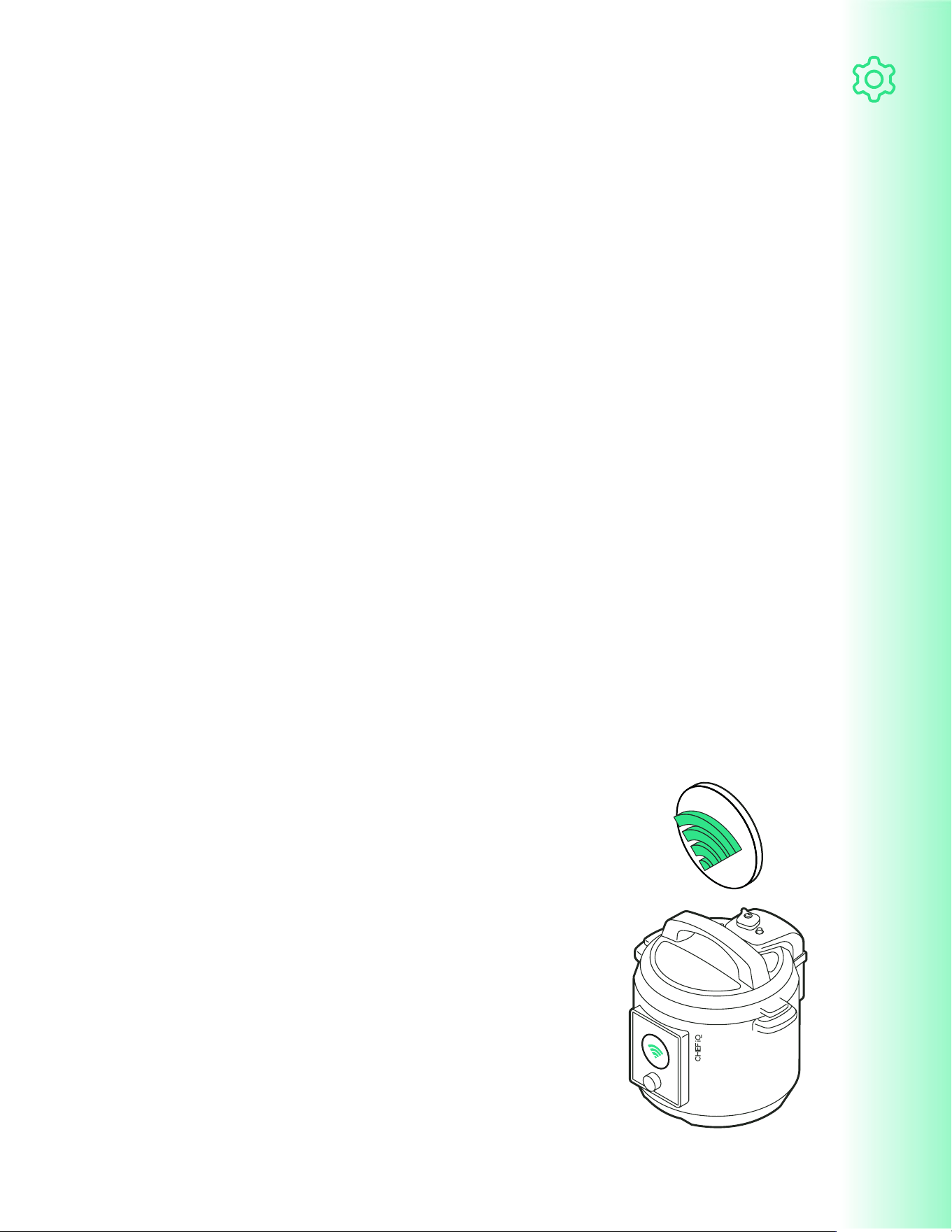
WIFI CONNECTION
Use the dial to adjust between enabling and disabling
WiFi connectivity.
WEIGHT UNITS
Use the dial to adjust the scale setting between ounces
and
grams.
SCREEN BRIGHTNESS
Use the dial to adjust brightness level. Press “Back”
on unit to set.
GENERAL SETTINGS
General Settings includes the following:
ABOUT SMART COOKER™
Offer technical information including model number
and firmware version.
FIRMWARE UPDATE
Lets you know if your firmware is up to date and
directs how to update it if necessary.
WIFI RESET
Resets wireless connection. If reset, the Smart
Cooker™ will no longer be paired.
FACTORY RESET
Resets Smart Cooker™ to factory setting, deleting all
favorites and wireless connection.
SETTINGS

39
CLEANING AND
MAINTENANCE
1. Clean Smart Cooker™ cooking pot, accessories, and parts after every use.
2. Unplug the Smart Cooker™ and let cool to room temperature before
cleaning.
3. After each use, remove the gasket from the underside of the lid. Wash the
gasket with warm, soapy water and dry the with a soft cloth or wash in the
top rack of the dishwasher
4. The lid, gasket, and all accessories are top-rack dishwasher safe.
5. Clean the condensation ring (the grooved channel on the unit) with a soft
cloth after each use.
6. Always reposition the gasket properly on the underside of the lid before
cooking. (See the How-To video on the app on correctly placing the gasket
back into the lid.)
7. Clean the outside of the Smart Cooker™ with a damp soft cloth or sponge.
8. Never use harsh chemical detergents, scouring pads, or powders on any of
the parts or components of the Smart Cooker™.
9. Periodically check that the valves on the underside of the lid are free of food
particles. If dirty, gently wipe with a damp towel.
10. Never immerse the Smart Cooker™ and/or power cord in water or any other
liquid.
11. Dry thoroughly before storing.
CLEANING AND MAINTENANCE

40 41
SMART COOKER™ FAQS
Why won’t the lid close?
The lid will not close if it’s not in correct position or if the gasket (sealing ring) is not
properly secured to the Smart Cooker™ lid. (See ® app for video instructions on
correctly placing the gasket back into the lid.) Check the gasket, then realign the lid.
Why is the red floating valve stuck in the popped-up position?
Occasionally trapped food particles can prevent the valve from lowering. Release
the pressure manually by pressing Release on the control panel. Then, once cooled,
check the underside of the lid for stuck-on food, and wipe clean with a damp cloth.
Why is steam coming from the rim of the lid during pressure cooking?
The gasket may have food stuck to it or be torn or damaged. Check that the
gasket is clean and in place, or if it needs to be replaced. If it is damaged,
contact ® Support.
Why is steam continuously coming out of the floating valve?
The pressure regulator knob may not be in the “Sealed” position. Ensure
that the pressure regulator knob is in the “Sealed” position and that the lid
is fully closed. As pressure builds, some steam will escape through the red
floating valve.
Why is the red floating valve not rising?
There is not enough water or liquid to build pressure. Add more water or
liquid. As a rule, use at least ½ cup of water when pressure cooking.
Why is the appliance’s screen blank after plugging the appliance in?
The cord may not be fully attached to the unit. There may be a bad power
connection, no power, or the appliance’s fuse may have blown. Try a different
power outlet to determine whether the outlet or appliance is causing the
power issue. If the issue is the Smart Cooker™, unplug it and contact ®
Support.
For more information about the Smart Cooker™ and ®,
visit
FAQ

41
® WARRANTY
All ® products are backed by a limited 1-year warranty.
Service centers and retail stores do not have the right to alter or change the Terms &
Conditions of this warranty.
WHAT THE WARRANTY COVERS:
® products are warranted against defects in material and workmanship
for a period of 1 year from the date of purchase, when used in accordance
with the ® User Guide. This warranty requires a proof of purchase
made within the USA, Canada, or Mexico*. Please note that products are
only approved for use in the United States and Canada. If the product is
damaged, does not work as it should, or is no longer available, a replacement
product of equal or lesser value will be sent at the discretion of ®
Support Team. We reserve sole discretion whether to require you to return
the purchased product to us prior to shipping you a replacement.
THIS WARRANTY DOES NOT COVER:
• Misuse: Damage that occurs from neglectful or improper use of products,
including, but not limited to, damage that occurs as a result of use with
incompatible voltage, regardless of whether the product was used with a
converter or adapter. See Safety Instructions for information on proper use.
• Poor Maintenance: General lack of proper care. See Cleaning and Maintenance
Instructions for information on proper maintenance.
• Commercial Use: Damage that occurs from commercial use.
• Normal Wear and Tear: Damage or degradation expected to occur due to normal
use over time
• Altered Products: Damage that occurs from alterations or modifications by
any entity other than ®, removal of rating label.
• Catastrophic Events: Damage that occurs from fire, floods or natural disasters.
• Loss of Interest: Claims of loss of interest or enjoyment.
*By connecting the ® product to the ® app, the 1-year + 3 months warranty will activate. This
connection will serve as a proof of purchase. In such cases where there is no connection, ® requires a
proof or purchase to include receipt, order confirmation, etc. at the discretion of the ® Support Team.
WARRANTY

42 43
EXTENDED WARRANTY:
Once your ® appliance is connected and paired to the ® App,
the extended warranty will be enacted.
Want to know more?
Please visit us at for additional information.
OTHER LIMITATIONS:
All warranties of any kind whatsoever, express, implied and statutory, are hereby
disclaimed. All implied warranties of merchantability and fitness for a particular
purpose are hereby disclaimed, provided that if any implied warranties of any kind
is required by any jurisdiction, including merchantability and fitness for a particular
purpose, the duration of such imposed implied warranty is limited to one (1) year.
This warranty does not cover, and ® shall not be liable for, incidental, indirect,
special or consequential damages, including without limitation, damage to, or loss of
use of the product, or lost sales or profits or delay or failure to preform this warranty
obligation. The remedies provided herein are the exclusive remedies under this
warranty, whether based on contract, tort or otherwise.
This Warranty gives you specific legal rights, and you may also have other rights
that vary from state to state or province to province. Some states or provinces do not
allow the exclusions or limitations set forth in this Warranty, so the above limitations
or exclusions may not apply to you depending on the jurisdiction of purchase.
® is a registered trademark of RJ BRANDS, LLC.
WARRANTY

43
NOTE:
This equipment has been tested and found to comply with the limits for a Class B
digital device, pursuant to part 15 of the FCC Rules. These limits are designed to
provide reasonable protection against harmful interference in a residential installation.
This equipment generates, uses and can radiate radio frequency energy and, if not
installed and used in accordance with the instructions, may cause harmful interference
to radio communications. However, there is no guarantee that interference will not
occur in a particular installation. If this equipment does cause harmful interference
to radio or television reception, which can be determined by turning the equipment
o and on, the user is encouraged to try to correct the interference by one or more
of the following measures:
— Reorient or relocate the receiving antenna.
— Increase the separation between the equipment and receiver.
— Connect the equipment into an outlet on a circuit dierent from that to which the
receiver is connected.
— Consult the dealer or an experienced radio/TV technician for help.
FCC STATEMENT
FCC STATEMENT