
PRO
QUICK START GUIDE
CL-3030

WARNING
• Never rely solely on ROVI products when driving. Always practice safe driving
habits and follow all driving laws and standards. ROVI products are not a
replacement for safe driving habits.
• Always survey your surrounding before driving and operating ROVI products.
ROVI products are not replacements for manually checking your surroundings
• Never drive while only looking into the built-in monitors of ROVI products. The
images and objects viewed from the screen will be different from the actual
distance to your vehicle.
• Do not operate or change settings on any ROVI products while driving or while
the vehicle is in motion. Always practice safe, hands-free, and
unobstructed driving.
• Mounting and installation locations are for recommendations only. The
placement recommendations may not apply to every type of vehicle. Please
ensure that installation and mounting location you choose will not obstruct
visibility, any safety features of the vehicle, or violate government
safety standards.
BEFORE USING ROVI...
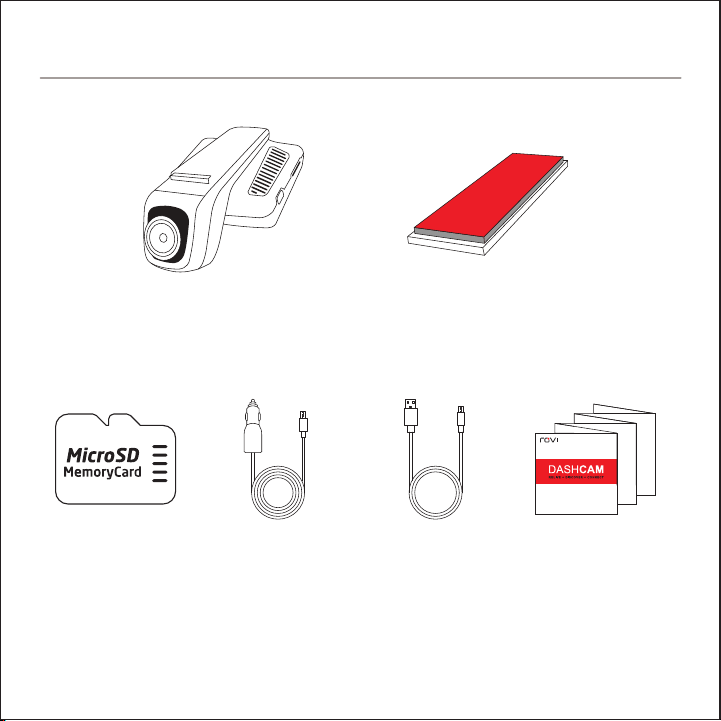
ROVI Dashcam
Flush Mount
(with adhesive)
Accessories sold separately. Available on RoviCams.com
8GB
MicroSD Card USB Car Charger
USB Charge
and Sync Cable Quick Start Guide
IN THE BOX
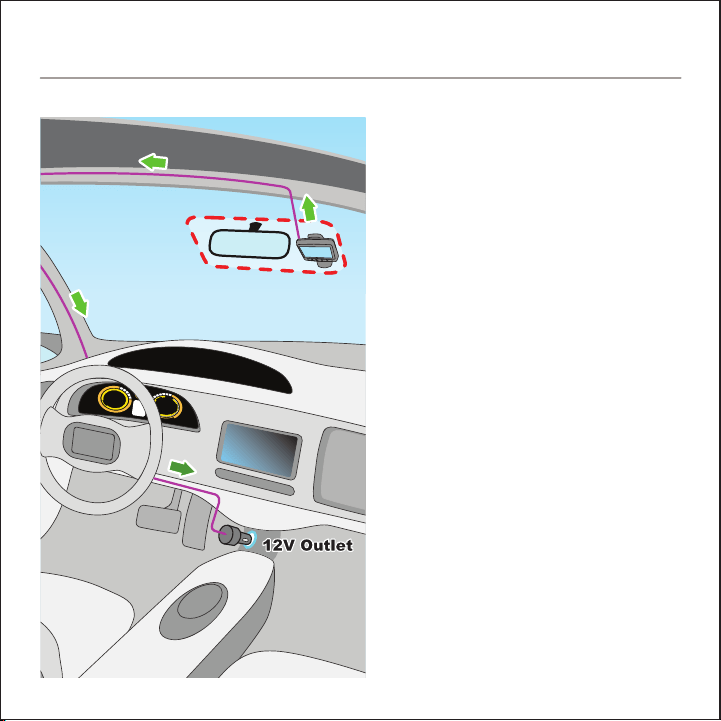
1. Insert the MicroSD card in the
ROVI dashcam. Push card
until it locks into place.
2. Determine mounting location
(See diagram for optimal
placement)
3. Remove the adhesive backing
and attach the ROVI dashcam
to the windshield.
4. Connect USB power cable to
the ROVI dashcam.
5. Route cable around windshield
so it is not obstructing visibility.
6. Plug the USB car charger into
the 12V socket.
7. Adjust the angle of the lens for
optimal viewing.
INSTALLATION
A
1
2
3
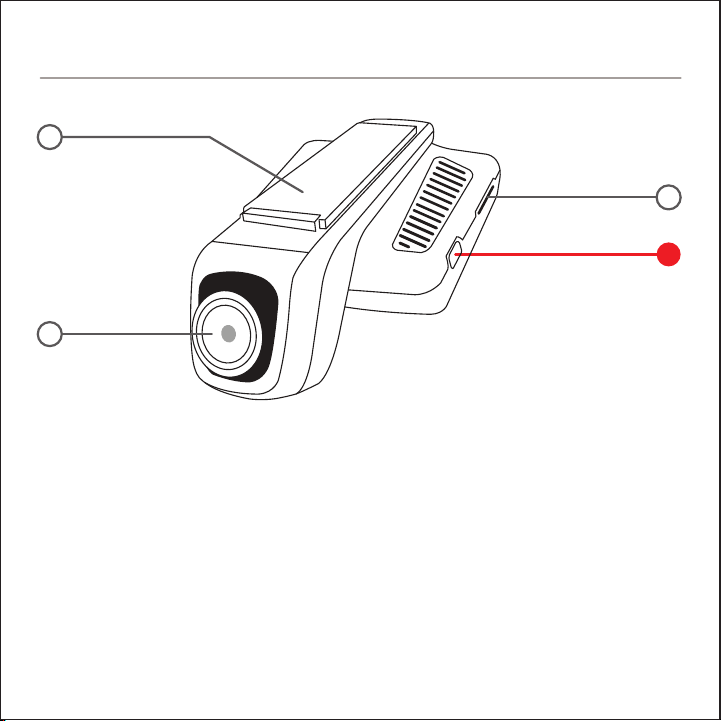
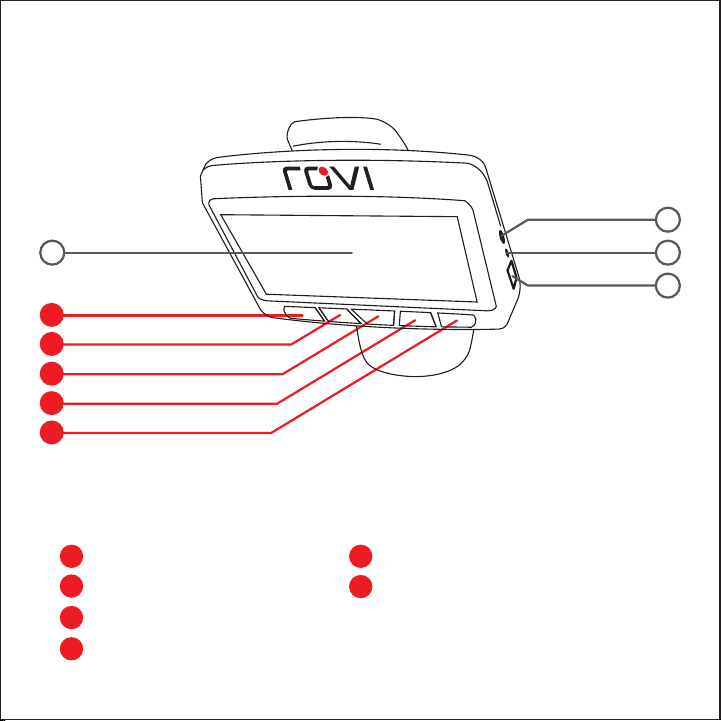
1. Flat Mount
2. Lens
3. MicroSD Card Slot
4. 2.5” Screen
5. AV Output
6. Reset Button
7. USB Power Connector
BUTTON LAYOUT
B
F
D
C
E
4 6
5
7
A Power on/off
B Mode Select
C Menu
D Up / Audio on/off
E Down / Wi-Fi
F OK / Record / Pause
MENU
MODE
NOT
RECORDING
RECORDING
FUNCTIONS
PLAYBACK
PHOTO
Mode
Switch
Mode
Switch
Mode
Switch
Mode
Switch
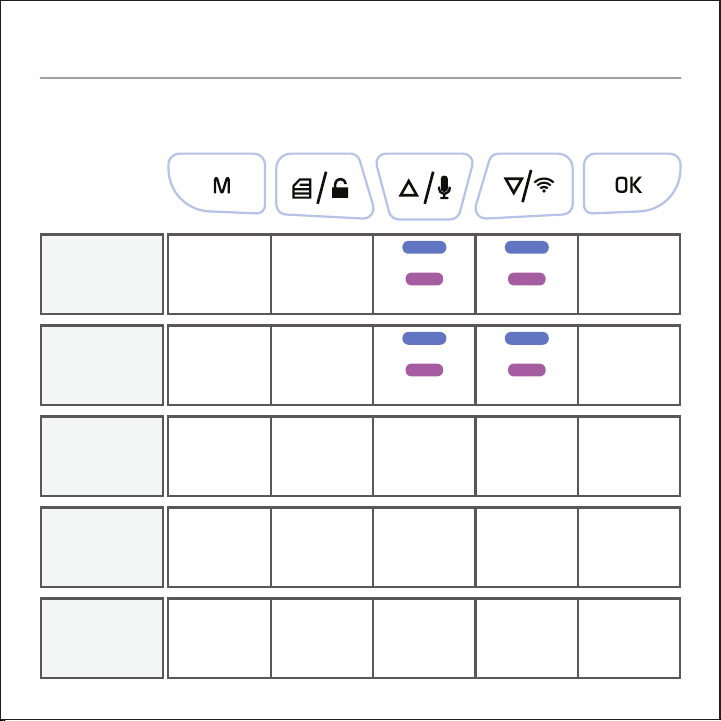
Start
Recording
Stop
Recording
Play/Pause
Take Photo
OK/Confirm
Menu
Lock Clip
Menu
Menu
Toggle
Menus
Zoom In
Toggle Sound
Next File
Zoom In
Up
Zoom Out
Wi-Fi Mode
Previous File
Zoom Out
Down
HOLD
PRESS
HOLD
PRESS
Zoom In
Toggle Sound
Zoom Out
Wi-Fi Mode
HOLD
PRESS
HOLD
PRESS
No
Function
BUTTON FEATURES

Lens
LCD
Resolution/FPS
Languages
Battery
Storage
TV Standard
Image Technology
Security Application
Working Temperature
170° Wide Angle
2.5” TFT LCD
MAX 1080p @30fps, 720p @30fps, 840x480, 640x480
English, Français (French), Español (Spanish), Português
(Portuguese), Deutsch (German), Italiano (Italian),
简体中文 (Simplified Chinese), 繁體中文 (Traditional Chinese),
pусский (Russian), 日本語 (Japanese), ไทย (Thai),
Polski (Polish), Český (Czech)
Built-In, Rechargeable
MAX: 32GB micro SD (Class 10 Required)
NTSC/PAL
H.264 / .MOV / 4X digital zoom / Wide Dynamic Range (WDR)
G-sensor / Motion detection
- 20°C ~ 60°C (- 4°F ~ 140°F)
SPECIFICATIONS
1. Download ROVI app from the App
Store (iOS) or Google Play (Android).
2. On the ROVI dashcam, turn on Wi-Fi
Mode by going into the settings menu
or holding the down arrow while
not recording.
3. On your mobile device, go to Wi-Fi
Settings and select the dashcam
SSID and enter the default password
(12345678) displayed on the
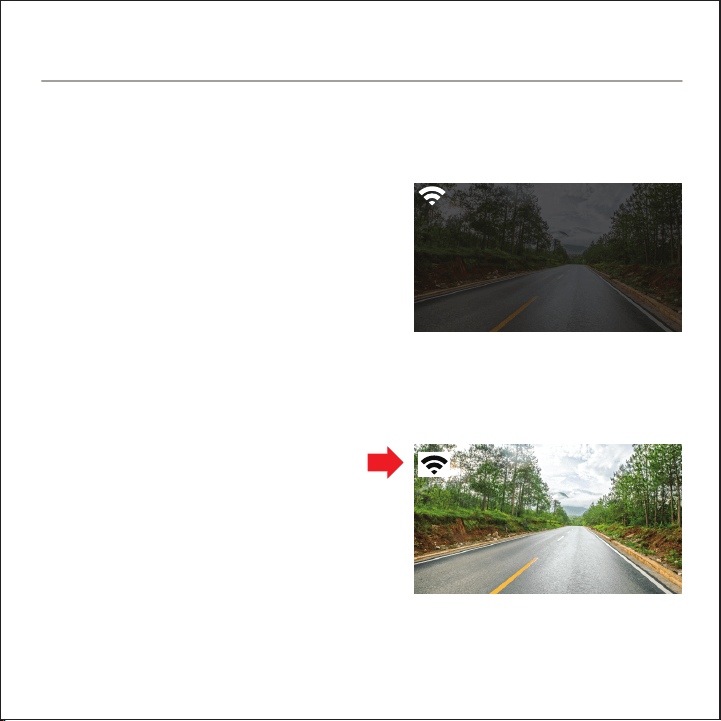
dashcam screen. (fig.1)
4. Once connected, the dashcam
screen will show a Wi-Fi icon at the
top left corner. (fig.2)
5. Open the ROVI app.
fig.1
fig.2
AP MODE
SSID: MB03_XXXXXXXXXXXX
PWD: 12345678
Please use phone WiFi
to connect
WI-FI APP SETUP
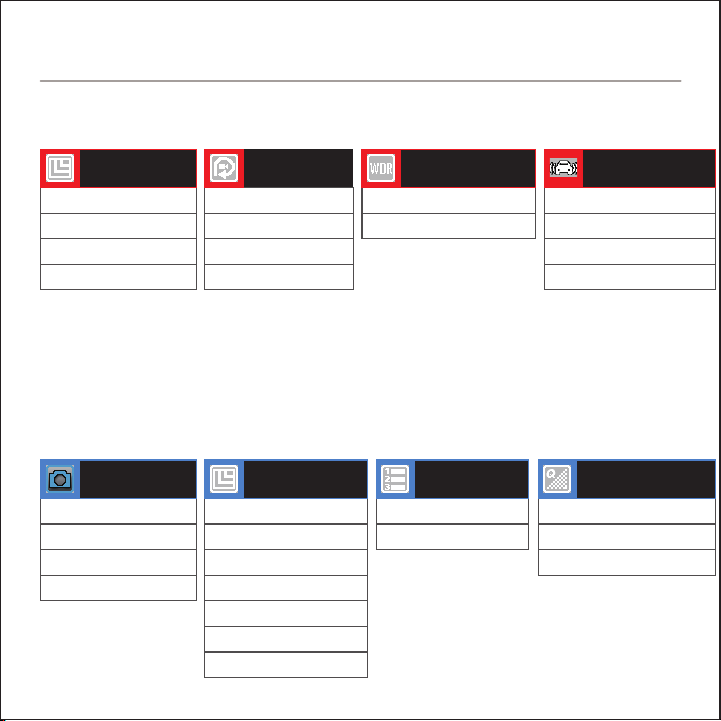
VIDEO RECORDING SETTINGS
PHOTO SETTINGS
1080 FHD 1920x1080
720p 1280x720
WVGA 848x480
VGA 640x460
VIDEO
RESOLUTION
OFF
3 Minutes
5 Minutes
10 Minutes
LOOP
RECORDING
OFF
ON
WIDE
DYNAMIC RANGE
OFF
Low
Medium
High
G-SENSOR
SENSITIVITY
Single
2 Second Timer
5 Second Timer
10 Second Timer
CAPTURE
MODE
12M 4032x3024
10M 3648x2736
8M 3264x2448
5M 2592x1944
3M 2048x1536
2M 1920x1080
1.3M 1280x960
PHOTO
RESOLUTION
OFF
ON
SEQUENCE
Superior
Normal
Economy
COMPRESSION
MENU LIST
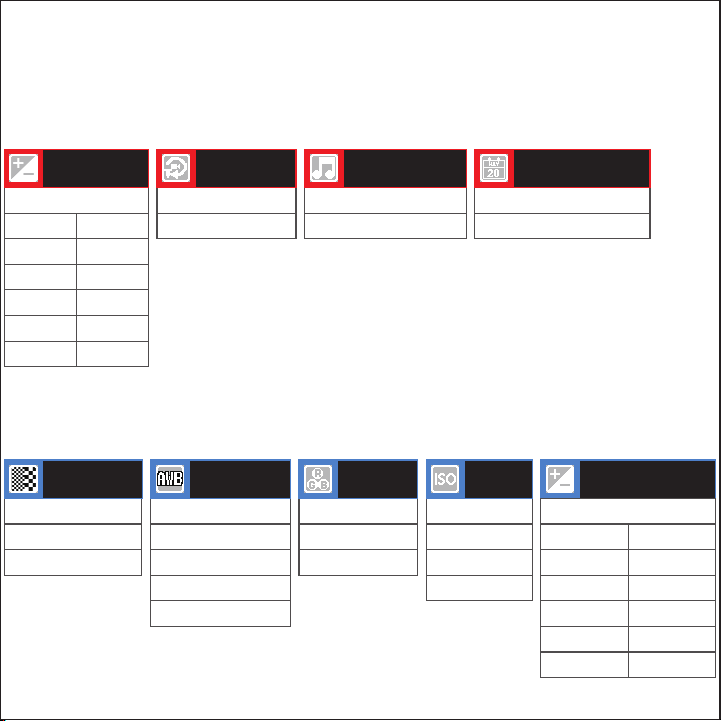
+ 0.0
EXPOSURE
OFF
ON
MOTION
DETECTION
OFF
ON
RECORD AUDIO
OFF
ON
DATE STAMP
Strong
Normal
Soft
SHARPNESS
Auto
Daylight
Cloudy
Tungsten
Fluorescent
WHITE
BALANCE
Color
Black & White
Sepia
COLOR
Auto
100
200
400
ISO EXPOSURE
+2.0
+5/3
+4/3
+1.0
+2/3
+1/3
-1/3
-2/3
-1.0
-4/3
-5/3
-2.0
+ 0.0
+2.0
+5/3
+4/3
+1.0
+2/3
+1/3
-1/3
-2/3
-1.0
-4/3
-5/3
-2.0
OFF
ON
ANTI-SHAKE
OFF
Date
Date / Time
DATE
STAMP
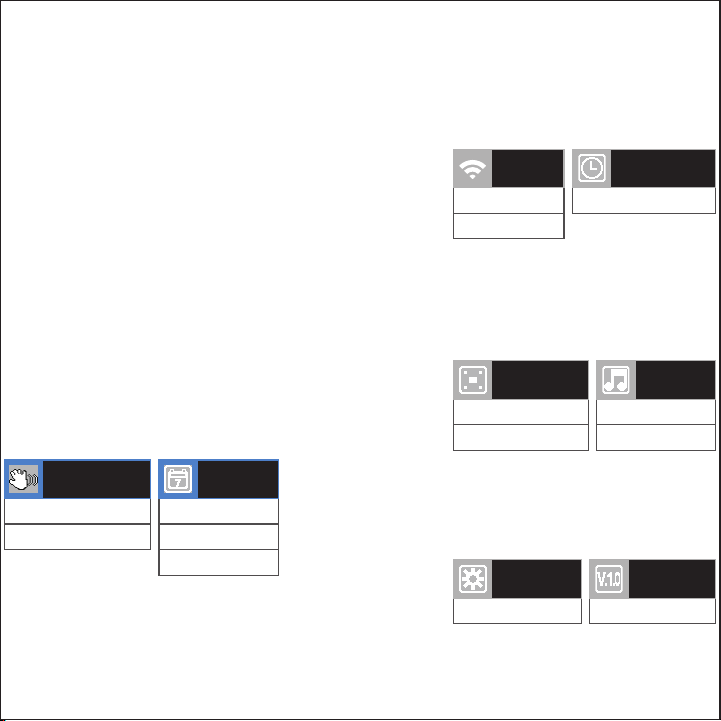
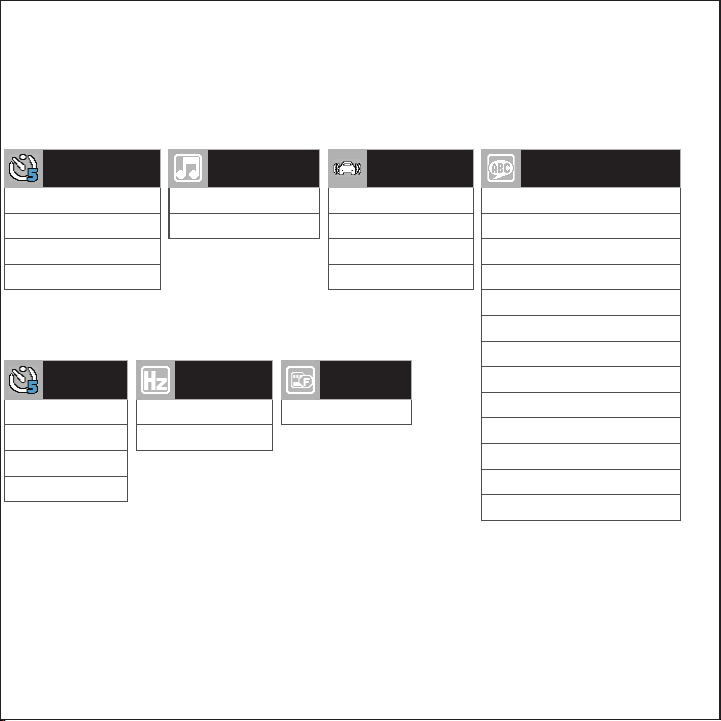
SYSTEM SETTINGS
OFF
ON
WI-FI
Manual Input
DATE / TIME
Restore Defaults
DEFAULT
SETTINGS
Firmware Version
VERSION
NTSC
PAL
AV OUT
OFF
ON
BOOT
SOUND
OFF
ON
KEY TONE
50 Hz
60 Hz
FREQUENCY
OFF
1 Minute
3 Minutes
5 Minutes
SCREEN
SAVER
Format SD Card
FORMAT
OFF
1 Minute
3 Minutes
5 Minutes
AUTO
POWER OFF
OFF
1 Minute
3 Minutes
5 Minutes
PARK GUARD
English
Français (French)
Español (Spanish)
Português (Portuguese)
Deutsch (German)
Italiano (Italian)
简体中文 (Simplified Chinese)
繁體中文 (Traditional Chinese)
pусский (Russian)
日本語 (Japanese)
ไทย (Thai)
Polski (Polish)
Český (Czech)
LANGUAGES

rovicams.com
THANK YOU FOR CHOOSING ROVI.
ENHANCE YOUR DRIVING EXPERIENCE.
FOR IMMEDIATE HELP AND SUPPORT,
AS WELL AS HOW-TO VIDEOS, PLEASE VISIT