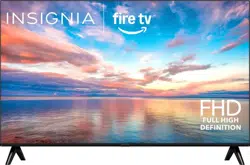

Before using your new product, please read these instructions to prevent any damage.
LED TV
User Guide
Illustrations in this guide are provided for reference only and may dier from actual product appearance.
Product design and specication may be changed without notice.

2
www.insigniaproducts.com
Contents
CHILD SAFETY . . . . . . . . . . . . . . . . . . . . . . . . . . . . . . . . . . . . . . . . . . . . . . . . . . . . . . . . . . . . . . . . . . . . . . . . . . . . . . . . . . . . 4
IMPORTANT SAFEGUARDS . . . . . . . . . . . . . . . . . . . . . . . . . . . . . . . . . . . . . . . . . . . . . . . . . . . . . . . . . . . . . . . . . . . . . . . . 5
WARNING . . . . . . . . . . . . . . . . . . . . . . . . . . . . . . . . . . . . . . . . . . . . . . . . . . . . . . . . . . . . . . . . . . . . . . . . . . . . . . . . . . . . . . . . . . . . . . . . . . . .5
CAUTION . . . . . . . . . . . . . . . . . . . . . . . . . . . . . . . . . . . . . . . . . . . . . . . . . . . . . . . . . . . . . . . . . . . . . . . . . .
. . . . . . . . . . . . . . . . . . . . . . . . . . .6
Introduction . . . . . . . . . . . . . . . . . . . . . . . . . . . . . . . . . . . . . . . . . . . . . . . . . . . . . . . . . . . . . . . . . . . . . . . . . . . . . . . . . . . . . . 8
Get the most out of your TV . . . . . . . . . . . . . . . . . . . . . . . . . . . . . . . . . . . . . . . . . . . . . . . . . . . . . . . . . . . . . . . . . . . . . . . . . . . . . . . . . . .8
TV components. . . . . . . . . . . . . . . . . . . . . . . . . . . . . . . . . . . . . . . . . . . . . . . . . . . . . . . . . . . . . . . . . . . . . . . . . . . . . . . . . . . 8
TV front . . . . . . . . . . . . . . . . . . . . . . . . . . . . . . . . . . . . . . . . . . . . . . . . . . . . . . . . . . . . . . . . . . . . . . . . . . . . . . . . . . . . . . . . . . . . . . . . . . . . . .8
Jacks and controls . . . . . . . . . . . . . . . . . . . . . . . . . . . . . . . . . . . . . . . . . . . . . . . . . . . . . . . . . . . . . . . . . . . . . . . . . . . . . . . . . . . . . . . . . . . .9
Remote control . . . . . . . . . . . . . . . . . . . . . . . . . . . . . . . . . . . . . . . . . . . . . . . . . . . . . . . . . . . . . . . . . . . . . . . . . . . . .
. . . . . . . . . . . . . . . . .10
Connecting a cable or satellite box . . . . . . . . . . . . . . . . . . . . . . . . . . . . . . . . . . . . . . . . . . . . . . . . . . . . . . . . . . . . . . . 11
HDMI (best). . . . . . . . . . . . . . . . . . . . . . . . . . . . . . . . . . . . . . . . . . . . . . . . . . . . . . . . . . . . . . . . . . . . . . . . . . . . . . . . . . . . . . . . . . . . . . . . . .11
AV (good) . . . . . . . . . . . . . . . . . . . . . . . . . . . . . . . . . . . . . . . . . . . . . . . . . . . . . . . . . . . . . . . . . . . . . . . . . . . . . . . . . . . . . .
. . . . . . . . . . . . .11
Coaxial (good) . . . . . . . . . . . . . . . . . . . . . . . . . . . . . . . . . . . . . . . . . . . . . . . . . . . . . . . . . . . . . . . . . . . . . . . . . . . . . . . . . . . . . . . . . . . . . . .12
Connecting an antenna or cable TV (no box). . . . . . . . . . . . . . . . . . . . . . . . . . . . . . . . . . . . . . . . . . . . . . . . . . . . . . 12
Connecting a DVD or Blu-ray player . . . . . . . . . . . . . . . . . . . . . . . . . . . . . . . . . . . . . . . . . . . . . . . . . . . . . . . . . . . . . . 13
HDMI (best). . . . . . . . . . . . . . . . . . . . . . . . . . . . . . . . . . . . . . . . . . . . . . . . . . . . . . . . . . . . . . . . . . . . . . . . . . . . . . . . . . . . . . . . . . . . . . . . . .13
AV (good) . . . . . . . . . . . . . . . . . . . . . . . . . . . . . . . . . . . . . . . . . . . . . . . . . . . . . . . . . . . . . . . . . . . . . . . . . . . . . . . . . . . . . . . . . . . . . . . . . . .13
Connecting a game console. . . . . . . . . . . . . . . . . . . . . . . . . . . . . . . . . . . . . . . . . . . . . . . . . . . . . . . . . . . . . . . . . . . . . . 14
HDMI (best). . . . . . . . . . . . . . . . . . . . . . . . . . . . . . . . . . . . . . . . . . . . . . . . . . . . . . . . . . . . . . . . . . . . . . . . . . . . . . . . . . . . . . . . . . . . . . . . . .14
AV (good) . . . . . . . . . . . . . . . . . . . . . . . . . . . . . . . . . . . . . . . . . . . . . . . . . . . . . . . . . . . . . . . . . . . . . . . . . . . . . . . . . . . . . . . . . . . . . . . . . . .14
Connecting a computer. . . . . . . . . . . . . . . . . . . . . . . . . . . . . . . . . . . . . . . . . . . . . . . . . . . . . . . . . . . . . . . . . . . . . . . . . . 15
Connecting to Ethernet . . . . . . . . . . . . . . . . . . . . . . . . . . . . . . . . . . . . . . . . . . . . . . . . . . . . . . . . . . . . . . . . . . . . . . . . . . 15
Connecting a USB ash drive . . . . . . . . . . . . . . . . . . . . . . . . . . . . . . . . . . . . . . . . . . . . . . . . . . . . . . . . . . . . . . . . . . . . . 16
Connecting headphones. . . . . . . . . . . . . . . . . . . . . . . . . . . . . . . . . . . . . . . . . . . . . . . . . . . . . . . . . . . . . . . . . . . . . . . . . 16
Connecting external speakers or a sound bar . . . . . . . . . . . . . . . . . . . . . . . . . . . . . . . . . . . . . . . . . . . . . . . . . . . . . 17
Digital audio using the digital optical audio jack . . . . . . . . . . . . . . . . . . . . . . . . . . . . . . . . . . . . . . . . . . . . . . . . . . . . . . . . . . . . . .17
Digital audio using the HDMI/ARC jack . . . . . . . . . . . . . . . . . . . . . . . . . . . . . . . . . . . . . . . . . . . . . . . . . . . . . . . . . . . . . . . . . . . . . . .18
Analog audio . . . . . . . . . . . . . . . . . . . . . . . . . . . . . . . . . . . . . . . . . . . . . . . . . . . . . . . . . . . . . . . . . . . . . . . . . . . . . . . . . . . . . . . . . . . . . . . .18
Connecting power . . . . . . . . . . . . . . . . . . . . . . . . . . . . . . . . . . . . . . . . . . . . . . . . . . . . . . . . . . . . . . . . . . . . . . . . . . . . . . . 19
Programming a universal remote control . . . . . . . . . . . . . . . . . . . . . . . . . . . . . . . . . . . . . . . . . . . . . . . . . . . . . . . . . 19
Common universal remote control codes. . . . . . . . . . . . . . . . . . . . . . . . . . . . . . . . . . . . . . . . . . . . . . . . . . . . . . . . . . . . . . . . . . . . .19
Setting up your TV . . . . . . . . . . . . . . . . . . . . . . . . . . . . . . . . . . . . . . . . . . . . . . . . . . . . . . . . . . . . . . . . . . . . . . . . . . . . . . . 20
Using your TV. . . . . . . . . . . . . . . . . . . . . . . . . . . . . . . . . . . . . . . . . . . . . . . . . . . . . . . . . . . . . . . . . . . . . . . . . . . . . . . . . . . . 20
Maintaining . . . . . . . . . . . . . . . . . . . . . . . . . . . . . . . . . . . . . . . . . . . . . . . . . . . . . . . . . . . . . . . . . . . . . . . . . . . . . . . . . . . . . 20
Cleaning the TV cabinet. . . . . . . . . . . . . . . . . . . . . . . . . . . . . . . . . . . . . . . . . . . . . . . . . . . . . . . . . . . . . . . . . . . . . . . . . . . . . . . . . . . . . .20
Cleaning the TV screen. . . . . . . . . . . . .
. . . . . . . . . . . . . . . . . . . . . . . . . . . . . . . . . . . . . . . . . . . . . . . . . . . . . . . . . . . . . . . . . . . . . . . . . .20
Troubleshooting. . . . . . . . . . . . . . . . . . . . . . . . . . . . . . . . . . . . . . . . . . . . . . . . . . . . . . . . . . . . . . . . . . . . . . . . . . . . . . . . . 20
Video and audio . . . . . . . . . . . . . . . . . . . . . . . . . . . . . . . . . . . . . . . . . . . . . . . . . . . . . . . . . . . . . . . . . . . . . . . . . . . . . . . . . . . . . . . . . . . . .20
Remote control . . . . . . . . . . . . . . . . . . . . . . . . . . . . . . . . . . . . . .
. . . . . . . . . . . . . . . . . . . . . . . . . . . . . . . . . . . . . . . . . . . . . . . . . . . . . . . .22
General. . . . . . . . . . . . . . . . . . . . . . . . . . . . . . . . . . . . . . . . . . . . . . . . . . . . . . . . . . . . . . . . . . . . . . . . . . . . . . . . . . . . . . . . . . . . . . . . . . . . . .22

3
Contents
www.insigniaproducts.com
CEC-compatible devices . . . . . . . . . . . . . . . . . . . . . . . . . . . . . . . . . . . . . . . . . . . . . . . . . . . . . . . . . . . . . . . . . . . . . . . . . . . . . . . . . . . . .24
Legal notices . . . . . . . . . . . . . . . . . . . . . . . . . . . . . . . . . . . . . . . . . . . . . . . . . . . . . . . . . . . . . . . . . . . . . . . . . . . . . . . . . . . . 26
ONE-YEAR LIMITED WARRANTY . . . . . . . . . . . . . . . . . . . . . . . . . . . . . . . . . . . . . . . . . . . . . . . . . . . . . . . . . . . . . . . . . . 27

https://www.cta.tech/Consumer-Resources.aspx
4
LED TV
CHILD SAFETY
PROPER TELEVISION PLACEMENT MATTERS
THE CONSUMER ELECTRONICS INDUSTRY CARES
• Manufacturers, retailers and the rest of the consumer electronics industry are
committed to making home entertainment safe and enjoyable.
• As you enjoy your television, please note that all televisions - new and old - must be
supported on proper stands or installed according to the manufacturer's
recommendations. Televisions that are inappropriately situated on dressers, bookcases,
shelves, desks, speakers, chests, carts, etc., may fall over, resulting in injury.
TUNE IN TO SAFETY
• ALWAYS follow the manufacturer’s recommendations for the safe installation of your
television.
• ALWAYS read and follow all instructions for proper use of your television.
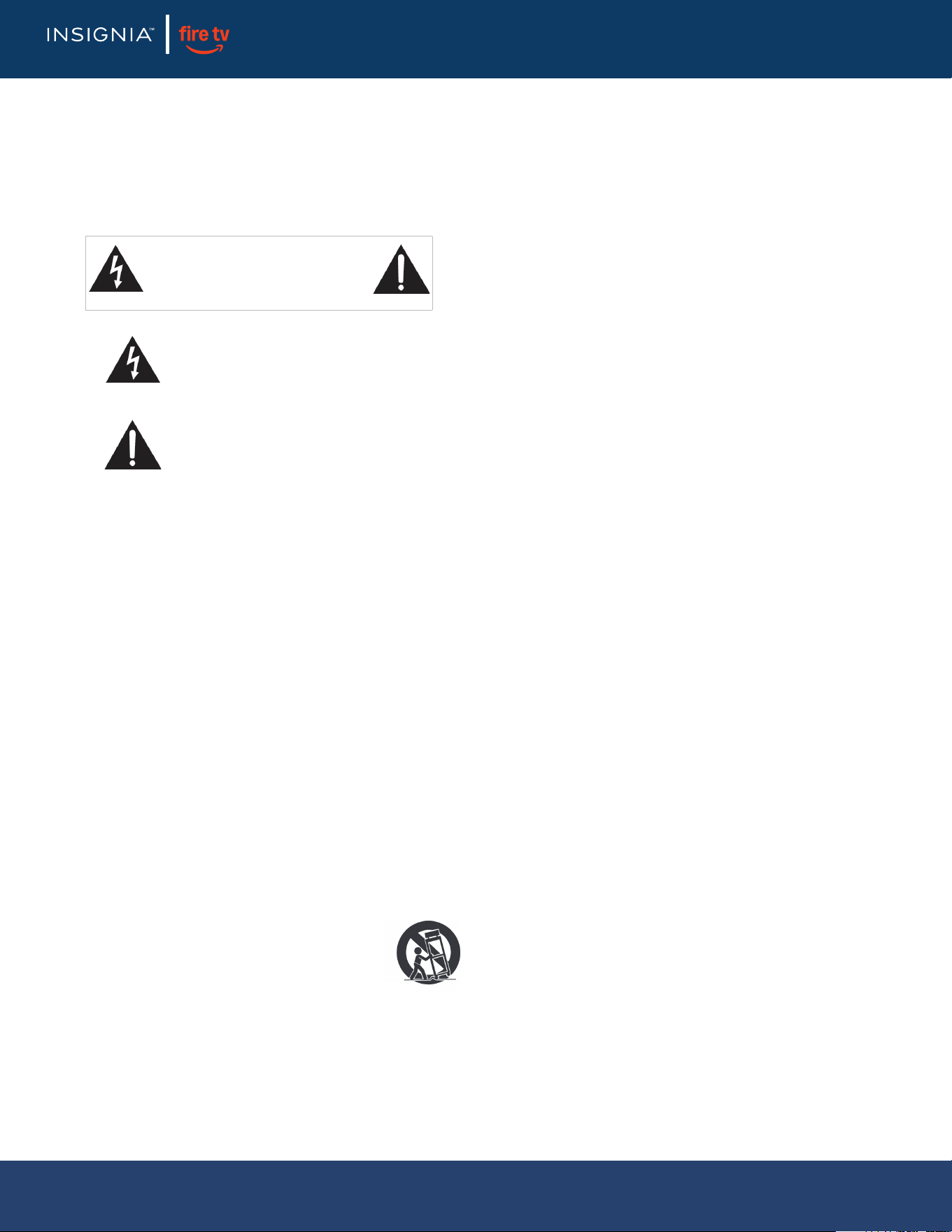
• NEVER allow children to climb on or play on the television or the furniture on which the
television is placed.
• NEVER place the television on furniture that can easily be used as steps, such as a chest
of drawers.
• ALWAYS install the television where it cannot be pushed, pulled over or knocked down.
• ALWAYS route cords and cables connected to the television so that they cannot be
trip
ped over, pulled or grabbed.
WALL MOUNT YOUR TELEVISION
• ALWAYS contact your retailer about professional installation if you have any doubts
about your ability to safely mount your television.
• ALWAYS use a mount that has been recommended by the television manufacturer and
has a safety certication by an independent laboratory (such as UL, CSA, ETL).
• ALWAYS follow all instructions supplied by the television and mount manufacturers.
• ALWAYS make sure that the wall where you are mounting the television is
appropriate. Some mounts are not designed to be mounted to walls with
steel st
uds or cinder block construction. If you are unsure, contact a professional
installer.
• Televisions can be heavy. A minimum of two people is required for a wall
mount installation.
MOVING AN OLDER TELEVISION TO A NEW PLACE IN YOUR
HOME
• Many new television buyers move their older CRT televisions into a secondary room
after the purchase of a at-panel television. Special care should be made in the
placement of older CRT televisions.
• ALWAYS place your older CRT television on furniture that is sturdy and appropriate for
its size and weight.
• NEVER place your older CRT television on a dresser where children may be tempted to
use the drawers to climb.
• ALWAYS make sure your older CRT television does not hang over the edge of your
furniture.
5
www.insigniaproducts.com
LED TV
IMPORTANT SAFEGUARDS
Electric shock hazard
To reduce the risk of re or electric shock, do not remove
any cover or expose the device to rain or moisture. No
user-serviceable parts are inside. Refer servicing to
qualied service technicians.
1 Read these instructions.
2 Keep these instructions.
3 Heed all warnings.
4 Follow all instructions.
5 Do not use this apparatus near water.
6 Clean only with dry cloth.
7 Do not block any ventilation openings. Install in
accordance with the manufacturer's instructions.
8 Do not install near any heat sources such as radiators,
heat registers, stoves, or other apparatus (including
ampliers) that produce heat.
9 Do not defeat the safety purpose of the polarized or
grounding-type plug. A polarized plug has two blades
with one wider than the other. A grounding type plug
has two blades and a third grounding prong. The wide
blade or the third prong are provided for your safety. If
the provided plug does not t into your outlet, consult
an electrician for replacement of the obsolete outlet.
10 Protect the power cord from being walked on or
pinched particularly at plugs, convenience receptacles,
and the point where they exit from the apparatus.
11 Only us
e attachments/accessories specied by the
manufacturer.
12 Use only with the cart, stand, tripod,
bracket, or table specied by the
manufacturer, or sold with the apparatus.
When a cart is used, use caution when
moving the cart/apparatus combination
to avoid injury from tip-over.
13 Unplug this apparatus during lightning storms or when
unused for long periods of time.
14 Refer all servicing to qualied service personnel.
Servicing is required when the apparatus has been
damaged in any way, such as power-supply cord or
plug is damaged, liquid has been spilled or objects
have fallen into the apparatus, the apparatus has been
exposed to rain o
r moisture, does not operate normally,
or has been dropped.
15 The wall plug is the disconnecting device. The plug
must remain readily operable.
16 Remote control batteries should not be exposed to
excessive heat such as sunshine, re, or the like.
CAUTION: Risk of re or explosion if the battery is
replaced by an incorrect type. Use consumer grade,
non-rechargeable carbon-zinc or alkaline batteries AAA
or AA type.
17 The apparatus should not be exposed to dripping or
splashing, and no objects lled with liquids, such as
vases, should be placed on the apparatus.
18 Your TV has four VESA mounting holes on the back
. If
you attach a wall-mount bracket or TV stand to the
back of your TV, the bracket or stand must be
securely attached using all four holes. If you do not
use all four mounting holes, your TV may fall and cause
property damage or personal injury. See the
documentation that came with your wall mount or TV
stand for complete mounting instructions.
WARNING
Stability hazard
A television set may fall, causing serious personal injury
or death. Many injuries, particularly to children, can be
avoided by taking simple precautions such as:
• ALWAYS use cabinets or stands or mounting methods
recommended by the manufacturer of the television
set.
• ALWAYS use furniture that can safely support the
television set.
• ALWAYS ensure the television set is not overhanging
the edge of the supporting furniture.
• ALWAYS educate children about the dangers of
climbing on furniture to reach the television set or its
controls.
• ALWAYS route cords and cables connected to your
television so they cannot be tripped over, pulled or
grabbed.
• NEVER place a television set in an unstable location.
• NEVER place the television set on tall furniture (for
example, cupboards, or bookcases) without anchoring
both the furniture and the television set to a suitable
support.
• NEVER place the television set on
cloth or other
materials that may be located between the television
set and supporting furniture.
CAUTION
RISK OF ELECTRIC SHOCK
DO NOT OPEN
This symbol indicates that dangerous
voltage constituting a risk of electric
shock is present within your TV. This
label is located on the back of your TV.
This symbol indicates that there are
important operating and
maintenance instructions in the
literature accompanying your TV.
6
www.insigniaproducts.com
LED TV
• NEVER place items that might tempt children to climb,
such as toys and remote controls, on the top of the
television or furniture on which the television is placed.
If the existing television set is going to be retained and
relocated, the same considerations as above should be
applied.
Lightning
For added protection for your device receiver during a
lightning storm, or when it is left unattended and
unused for long periods of time, unplug it from the
power outlet and disconnect any antenna or cable
system. This helps prevent property damage and
personal injury from lightning and power line surges.
Power lines
An
outside antenna system should not be located in the
vicinity of overhead power lines or other electric light or
power circuits, or where it can fall into such power lines
or circuits. When installing an outside antenna system,
take extreme care to keep from touching such power
lines or circuits as contact with them might be fatal.
Handling the LCD panel
• Your TV’s screen is made of glass. Do not drop your TV
or hit, jolt, or press hard against the LCD panel. If the
screen breaks, be careful of broken glass.
• If the LCD
panel is broken, make absolutely sure that
you do not touch the liquid in the panel. This may
cause skin inammation.
• If the liquid gets in your mouth, immediately gargle,
rinse, and consult with your doctor. Also, if the liquid
gets in your eyes or touches your skin, consult with
your doctor after rinsing for at least 15 minutes or
longer in clean water.
Replacement parts
When replacement parts are required, make sure that
the service technician uses replacement parts specied
by the manufacturer that have the same characteristics
as the original part. Unauthorized substitutions may
result in re, electric shock, personal injury, or other
hazards.
Safety check
After completing any service or repair to this device, ask
the service technician to perform routine safety checks
to determine that your TV is in correct operating
condition.
Power source
Operate your TV only from the type of power source
indicated on the marking label. If you are not sure of the
type of power supplied to your home, consult an
electrician or your local power company.
Servicing
These servicing instructions are for use by qualied
service personnel onl
y. To reduce the risk of electric
shock, do not perform any servicing other than that
contained in the operating instructions unless you are
qualied to do so.
CAUTION
Damage requiring service
Unplug this TV from the power outlet and refer
servicing to qualied service personnel under the
following conditions:
• When the power supply cord or plug is damaged or
frayed.
• If liquid has been spilled or objects have fallen into
your TV.
• If your TV has been exposed to rain or water.
• If your TV does not operate normally by following the
operating instructions. Adjust only those controls
covered by the operating inst
ructions because
incorrect adjustment of other controls may result in
damage and will often require extensive work by a
qualied technician to restore your TV to its normal
operation.
• If your TV has been dropped or damaged in any way.
• When your TV exhibits a distinct change in
performance.
Outdoor antenna grounding
If an outside antenna or cable system is connected to
your TV, make sure that the antenna or cable system is
grounded to provide some protection against voltage
surges and built-up static charges. Article 810 of the
National Electrical Code, ANSI/NFPA No. 70, provides
information with respect to
correct grounding of the
mast and supporting structure, grounding of the lead-in
wire to an antenna discharge unit, size of grounding
conductors, location of the antenna-discharge unit,
connection to grounding electrodes, and requirements
for the grounding electrode.
Note to CATV system installer
Article 820 of the National Electrical Code, ANSI/NFPA
No. 70 provides guidance for correct grounding.
Specically, it states that the cable ground must be
connected to the grounding system of the building as
close to the point of cable entry
as practical.
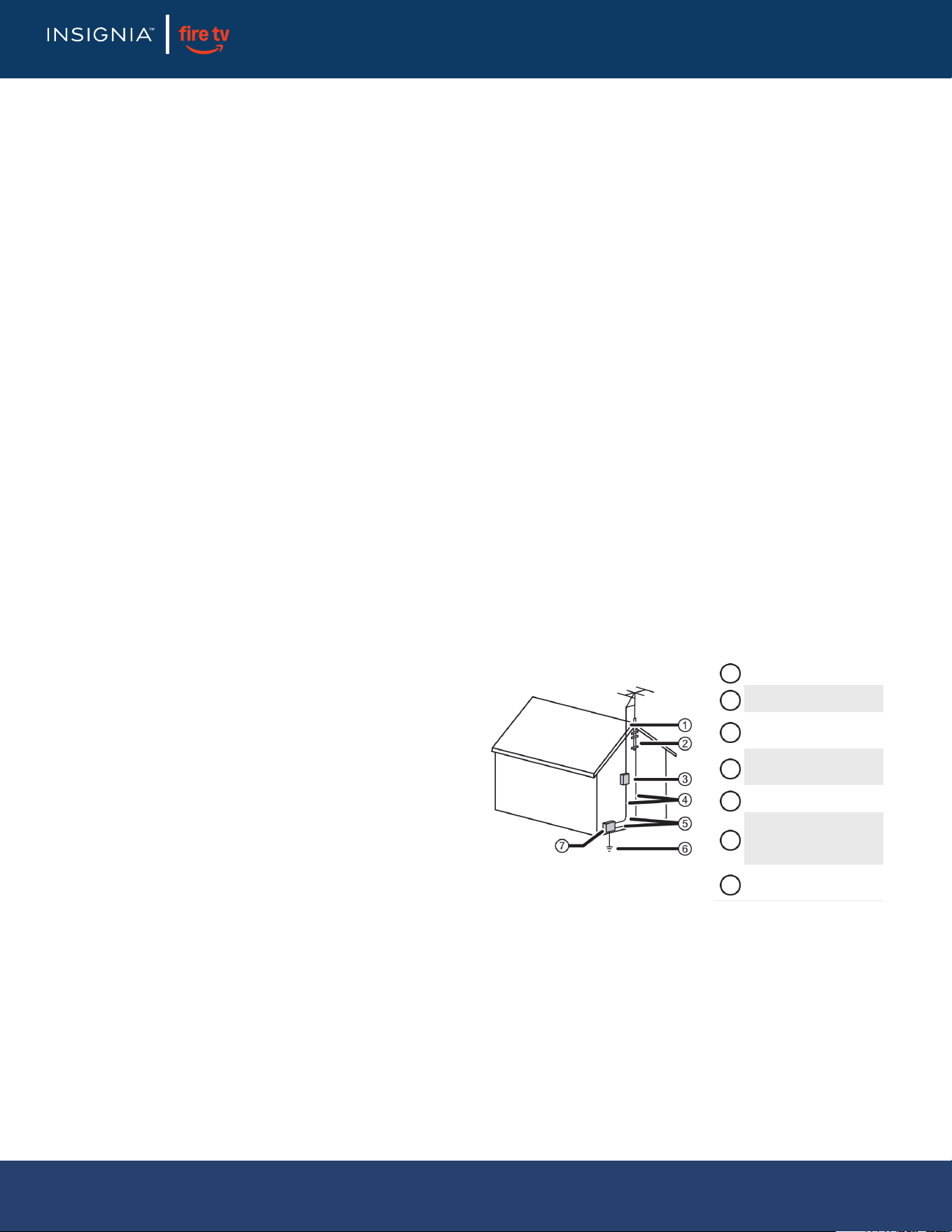
Antenna lead-in wire
Grounding clamp
Antenna discharge
unit
Grounding
conductors
Ground clamps
Power service
grounding electrode
system
Electric service
equipment
1
2
3
4
5
6
7

7
www.insigniaproducts.com
LED TV
Condensation
Moisture will form on the TV if the TV is brought from
cool surroundings into a warm room or if the
temperature of the room rises suddenly. When this
happens, the TV's performance may be impaired. To
prevent this, let the TV stand in its new surroundings for
about an hour before switching it on, or make sure that
the room temperature rises gradually.
Condensation may also form during the summer if the
TV is exposed to the breeze from an air conditioner. In
such cases, change the location of the TV.
Operating ambient temperature: 41°
~ 95° F (5° ~
35° C)
Mobile telephone warning
To avoid interference with your TV picture and sound,
operating problems, or even damage, keep your
cordless and cellular telephones away from the TV.
End of life directives
Your TV may contain materials that are regulated for
environmental reasons. Your TV also contains materials
that can be recycled and reused. To help protect the
environment, contact your local authorities for
information about disposal or recycling and about
nding a recycler in your area before you dispose of
your TV.
Non-active pixels
The LCD panel contains more than
3 million thin lm
transistors, which provide exceptionally sharp video
quality. Occasionally, a few non-active pixels may
appear on the screen as a xed blue, green, or red point.
These non-active pixels do not adversely aect the
performance of your TV, and are not considered defects.
Radiation Exposure Statement
This equipment complies with FCC radiation
exposure limits set forth for an uncontrolled
environment. This equipment should be installed and
operated with minimum distance 20 cm between the
radiator and your body.
8
www.insigniaproducts.com
LED TV
Introduction
Congratulations on your purchase of a high-quality, Insignia TV. Your TV comes with the latest technology and state-of-the-art
features, including:
• Fire TV Experience Built-In
• Voice Remote with Alexa
Get the most out of your TV
1 Access Your Favorite Content
• Fire TV seamlessly integrates live over-the-air TV and your favorite streaming content on the Home screen, with access to
thousands of channels, apps, and Alexa skills.
2 Unlimited Entertainment
• Watch over 1,000,000 movies and TV episodes from Netix, Prime Video, Hul
u, PlayStation Vue, HBO, and more.
3 Control It All With Your Voice—Voice Remote with Alexa
• Use your voice to control live TV playback, launch apps, search for content, control smart home devices, and more.
TV components
This section covers basic information for:
• TV front
• Jacks and controls
• Remote control
TV front
You can nd these items on the front of your TV.
IMPORTANT:
• To access all the described features, select Full (Recommended) during setup and make sure that you have a free Amazon account.
• For help, contact Amazon Fire TV Customer Service at www.amazon.com/retv/contactus
NOITPIRCSEDMETI
Remote control sensor Receives signals from the remote control. Do not block.
Power indicator Turns o when your TV is on. Lights when your TV is o (standby mode).
9
www.insigniaproducts.com
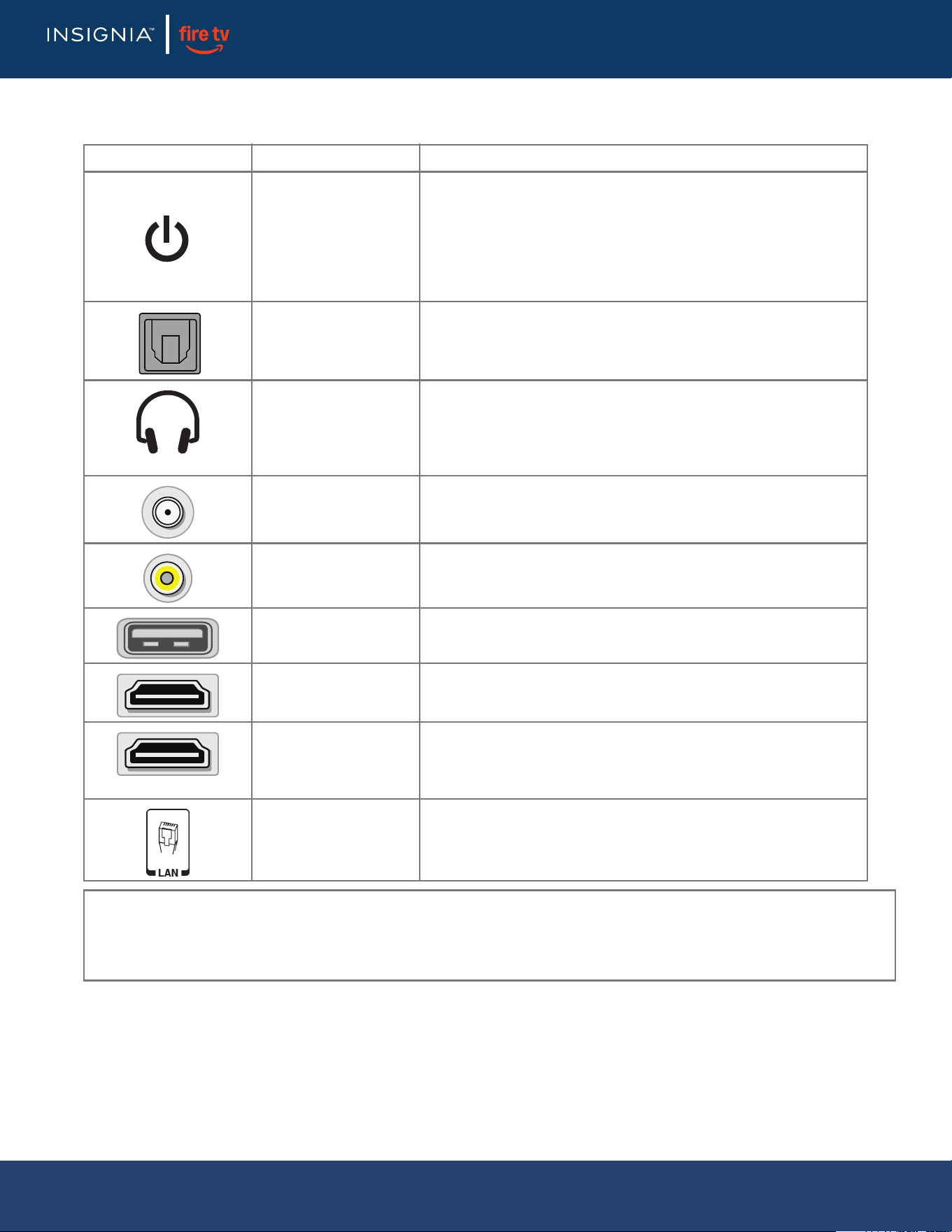
Jacks and controls
Your TV may have any of the following items:
ITEM DESCRIPTION FUNCTION
Power/Input button
Power—Turns TV power on or o. When your TV is o, the LED
indicator on the front of your TV lights.
Warning: When your TV is o, power still ows through it. To
completely disconnect power, unplug the power cord.
Input—Quickly press and release to open the Input Selection list,
press one or more times to select a video input source, then wait a
few seconds. Your TV switches to the source you selected.
Digital OPTICAL output
jack
Connect a sound bar, digital speaker system, or home theater system
to this jack to listen to TV audio through external speakers. See
Digital audio using the digital optical audio jack on page 17.
Headphone jack
OR
AUDIO OUT jack
On some TVs the headphone jack and audio out jack are combined
into one jack.
Connect headphones, a sound bar, analog speaker system, or a
home theater system to this jack to listen to TV audio through
external speakers. See Analog audio on page 18.
Antenna/Cable in jack
Connect an antenna or cable TV to this jack.
See Coaxial (good) on
page 12 or Connecting an antenna or cable TV (no box) on page 12.
Analog video and audio
(AV) jacks
Connect the video and audio for an AV device to these jacks. See AV
(good) on page 11, 13, or 14.
USB
Connect a USB ash drive to this jack to view compatible JPEG
picture les. See Connecting a USB ash drive on page 16.
HDMI
Connect an HDMI device to this jack. See HDMI (best) on page 11, 13,
or 14, or Connecting a computer on page 15.
HDMI/ARC
Connect an ARC-enabled home theater receiver to this jack.
OR
Connect an HDMI device to this jack. See
HDMI (best) on page 11, 13,
or 14, or Connecting a computer on page 15.
ETHERNET
Connect an Ethernet cable to this jack and to an Ethernet
connection.
CAUTIONS:
• Check the jacks for position and type before making any connections.
• Loose connections can cause poor audio or video quality. Make sure that all connections are tight and secure.
• The external audio/video equipment shown may be dierent from your equipment. If you have questions, refer to the documentation
that came with your equipment.
• Always unplug the power cord when connecting external equipment.
LED TV
10
www.insigniaproducts.com
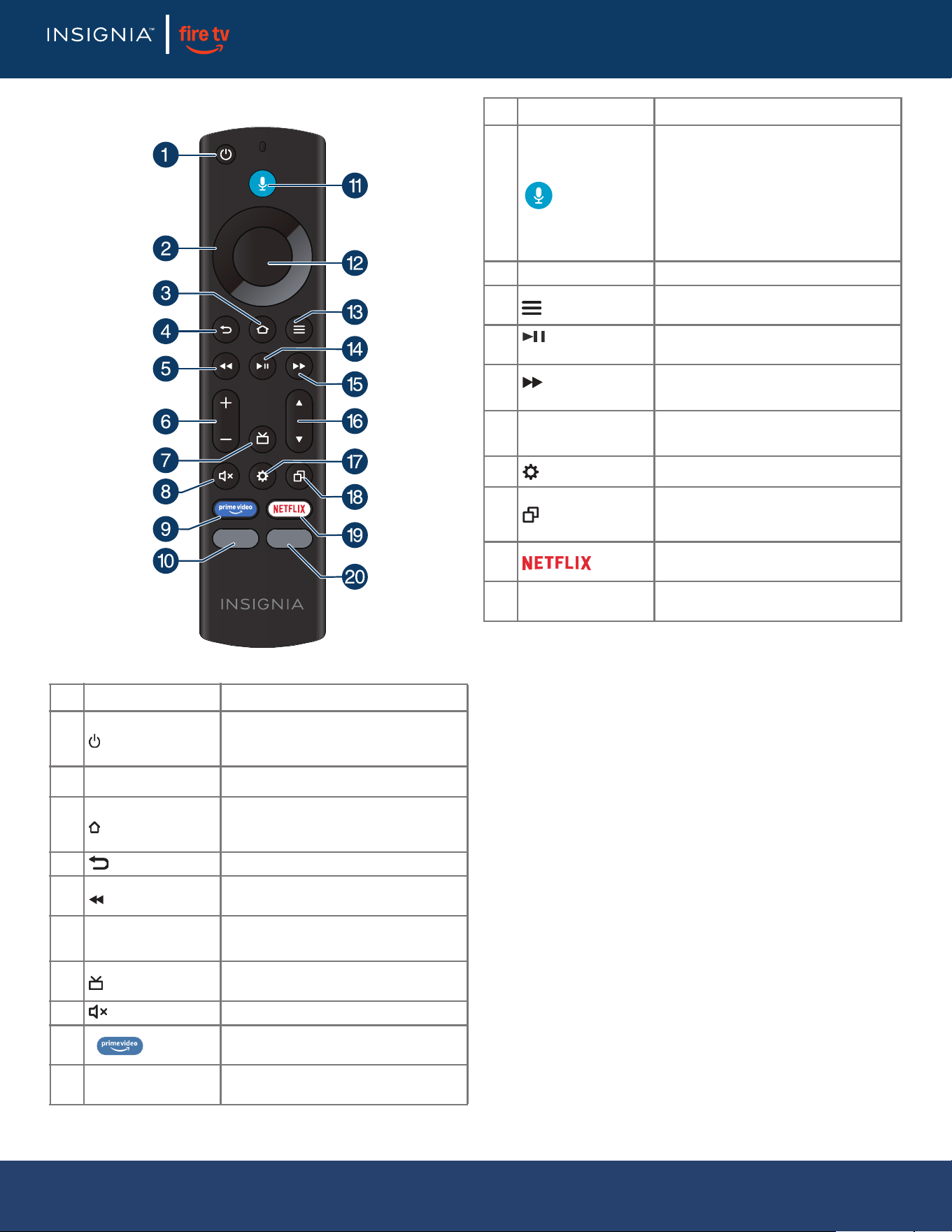
Remote control
# BUTTON FUNCTION
1 (power) button
Turn TV power on or o. When your
TV is o, the LED indicator on the
front of your TV lights.
2 Navigation Move up, down, left, or right.
3 (Home) button
Return to the Home screen (short
press) or to open Quick Settings
Overlay (long press).
4 (back) button Return to the previous screen.
5 (rewind) button
Skip back (short press) or rewind
(long press).
6
+/– (volume)
buttons
Increase (+) or decrease (–) the
volume.
7 (guide) button
Press to open the live TV Channel
Guide.
8 (mute) b
utton Mute or unmute the sound.
9 button
Launch Prime Video from any screen
or when your TV is o.
10 Partner Button 1
Launches the designated app from
any screen or when the TV is o.
11 (voice) button
Hold down to turn on the
Alexa-enabled microphone and start
voice input. Release the button to
end voice input. With Alexa, you can
use your voice to search for content,
control playback, and more.
(Alexa Voice Service requires an
Amazon account).
12 Select button Conrm a selection or action.
13 (menu) button
Activate on-screen contextual
commands.
14 (play/pause)
button
Start, resume, or pause playback.
15
(forward)
button
Skip forward (short press) or fast
forward (long press).
16
/ (channel
selection) buttons
Press to go to the next or previous
live channel.
17 (settings) but
ton Activates quick settings overlay.
18 (recents) button
Opens a row of recently watched
content so you can easily switch
between content.
19 button
Launch Netix from any screen, even
when your TV is o.
20 Partner Button 2
Launches the designated app from
any screen or when the TV is o.
# BUTTON FUNCTION
LED TV
11
www.insigniaproducts.com
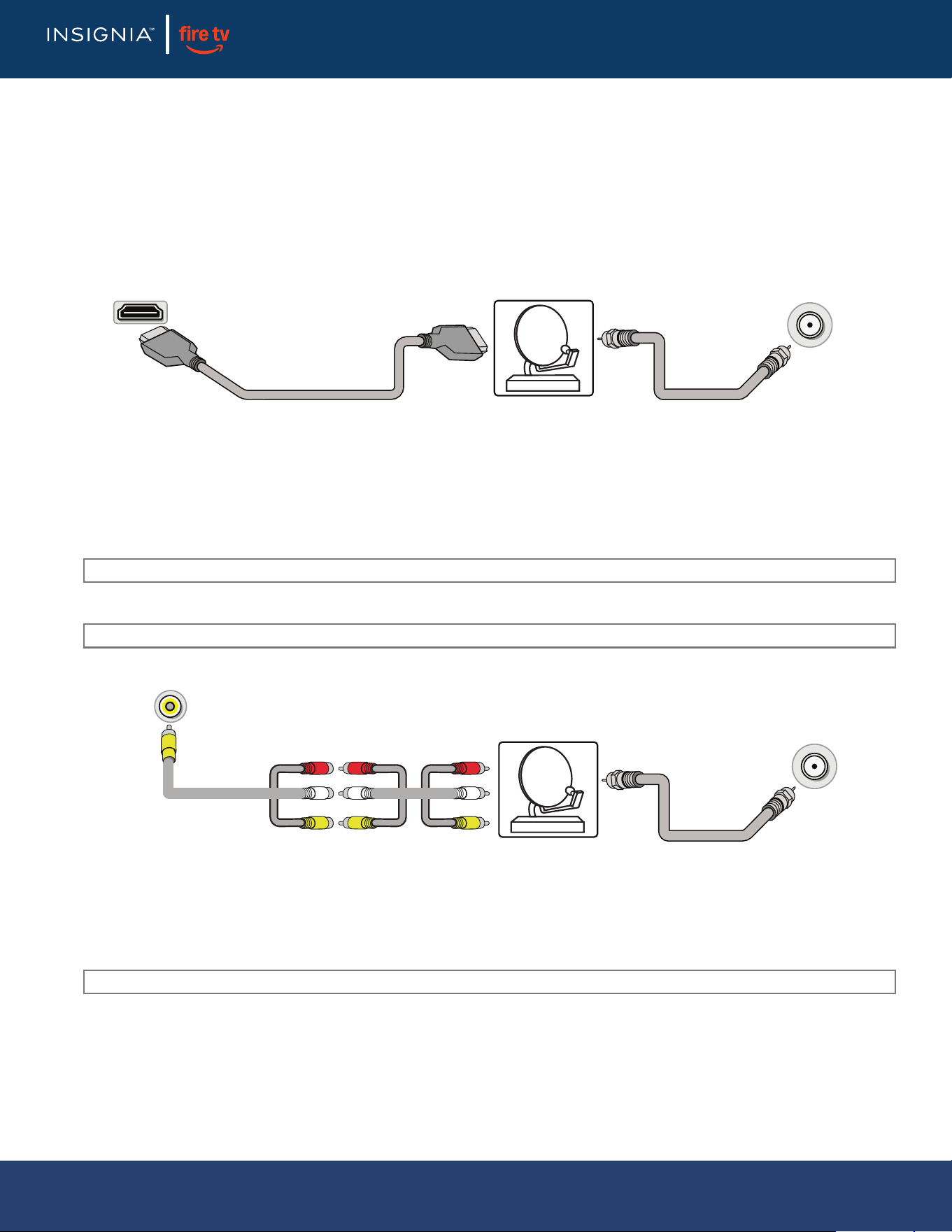
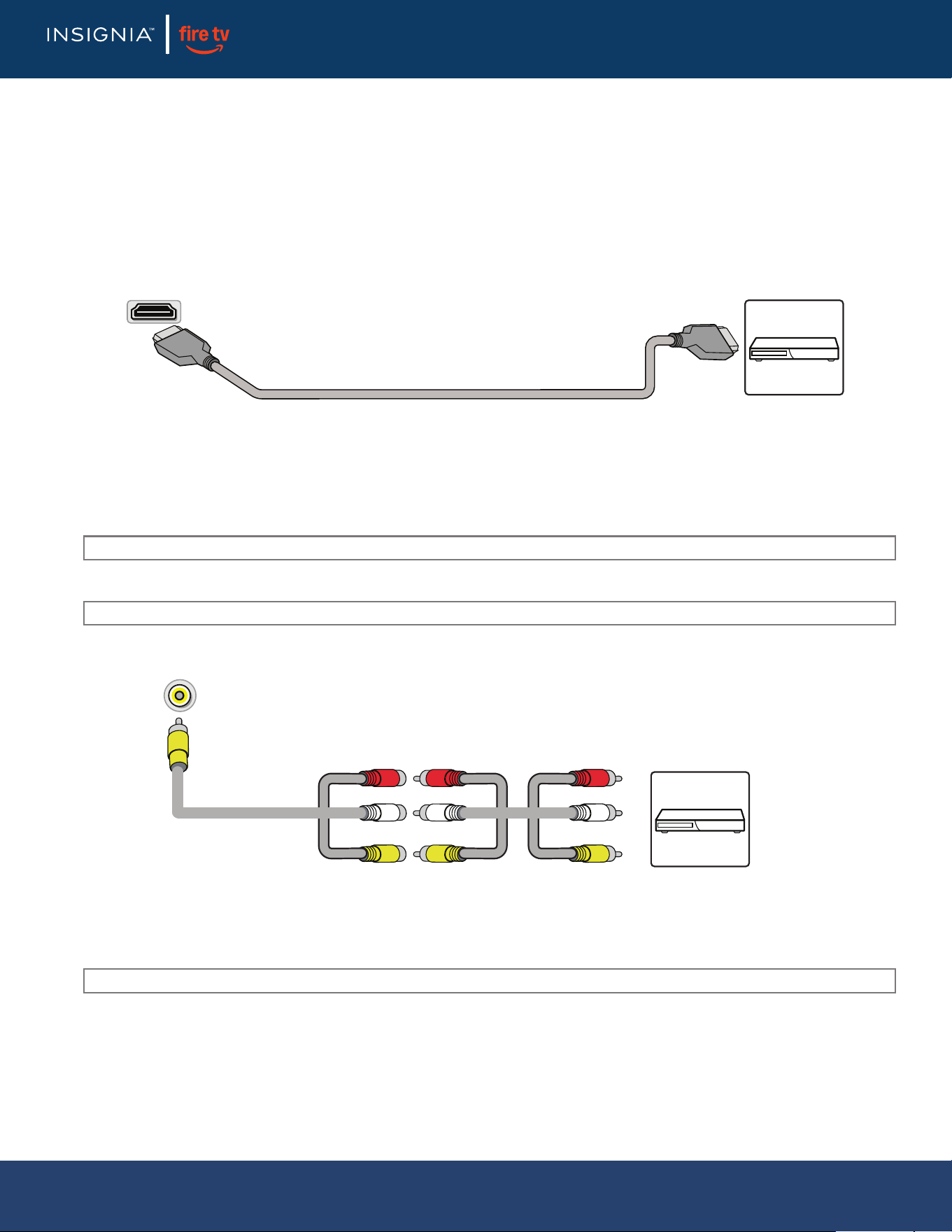
Connecting a cable or satellite box
Many cable or satellite TV boxes have more than one connection type. To get the best video, you should use the best
connection type available. See Jacks and controls on page 9.
You can connect a cable or satellite box using:
• HDMI (best)
• AV (good)
• Coaxial (good)
HDMI (best)
1 Make sure that your TV’s power cord is unplugged and all connected equipment is turned o.
2 Connect a coaxial cable (not provided) to the cable wall jack and to the cable-in jack on the cable or satellite box.
3 Connect an HDMI cable
(not provided) to one of the HDMI jacks on your TV and to the HDMI out jack on the cable or
satellite box.
4 Plug your TV’s power cord into a power outlet, turn on your TV, then turn on the cable or satellite box.
5 On the HOME screen, navigate to the INPUTS row, then select HDMI1, HDMI2, or HDMI3.
AV (good)
1 Make sure that your TV’s power cord is unplugged and all connected equipment is turned o.
2 Connect a coaxial cable (not provided) to the cable wall jack and to the cable-in jack on the cable
or satellite box.
3 Connect an AV in adapter cable (not provided) to the AV jacks on your TV and to the AV out jacks on the cable or satellite box.
4 Plug your TV’s power cord into a power outlet, turn on your TV, then turn on the cable or satellite box.
5 On the HOME screen, navigate to the INPUTS row, then select Composite.
Note: An HDMI cable carries both audio and video. You do not need to use any audio cables.
Note: Cables are often color-coded to match color-coded jacks.
IMPORTANT: When you connect the audio
using the AV jacks, the audio output is analog.
Cable or satellite box
HDMI Cable
Coaxial
cable
HMDI jack Cable wall jack
Video and audio jacks
Cable or satellite box Cable wall jack
Coaxial
cable
LED TV
12
www.insigniaproducts.com
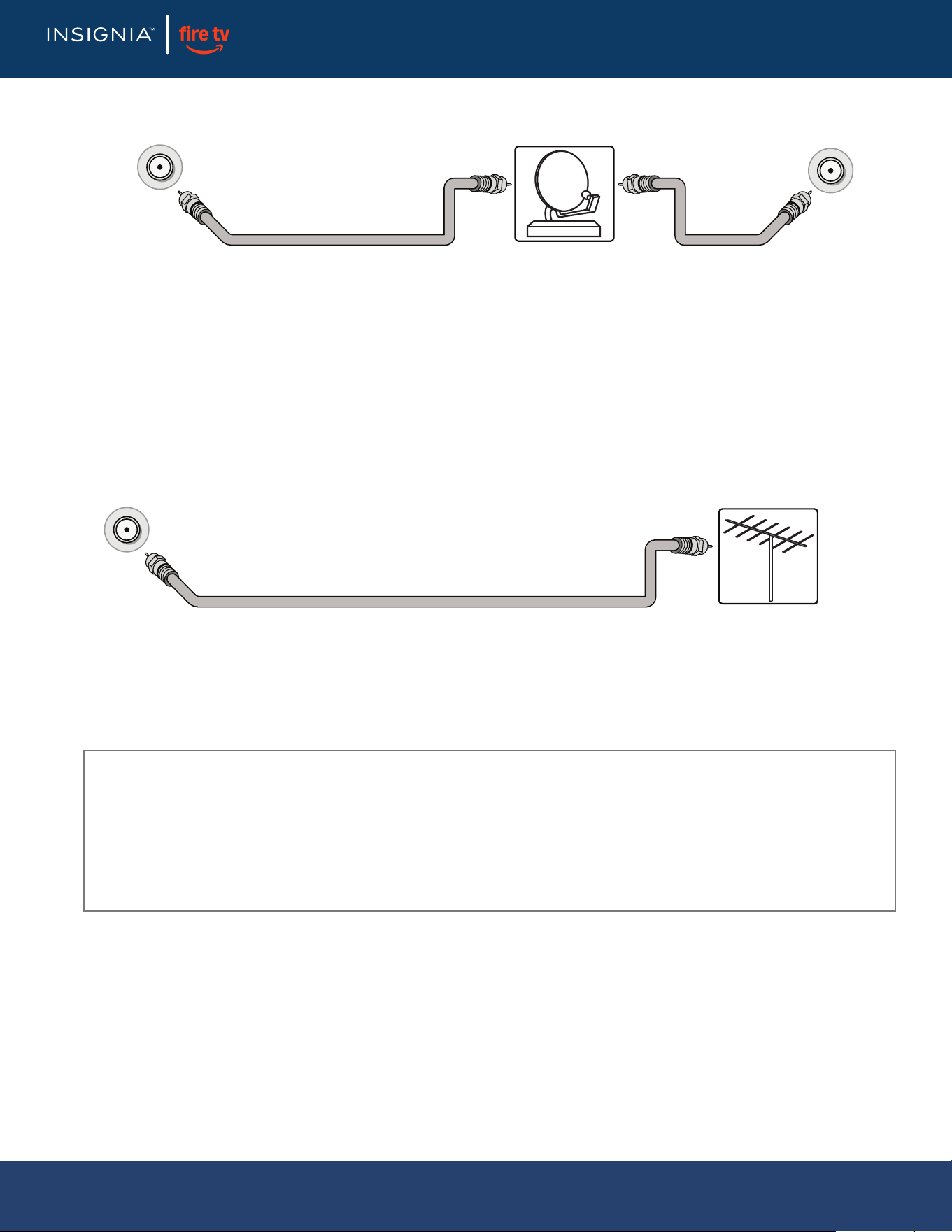
Coaxial (good)
1 Make sure that your TV’s power cord is unplugged and all connected equipment is turned o.
2 Connect a coaxial cable (not provided) to the cable wall jack and to the cable-in jack on the cable or satellite box.
3 Connect another coaxial cable (not provided) to the antenna/cable jack on your TV and to the coaxial out jack on the cable
or satellite box.
4 Plug your TV’s power cord into a power outlet, turn on your TV, then turn on the cable or satellite box.
5 On the HOME screen, navigate to the
INPUTS row, then select Antenna.
6 If you cannot tune to channels you know exist, scan for channels. Go to Settings > Live TV > Channel Scan.
Connecting an antenna or cable TV (no box)
1 Make sure that your TV’s power cord is unplugged and all connected equipment is turned o.
2 Connect a coaxial cable (not provided) to the antenna/cable jack on your TV and to the antenna or cable TV wall jack.
3 Plug your TV’s power cord into a power outlet, then turn on your TV.
4 On the HOME screen, navigate to the INPUTS row, then select Antenna.
5 If you cannot tune to channels
you know exist, scan for channels. Go to Settings > Live TV > Channel Scan.
Notes:
• Use a coaxial cable to eliminate interference and noise from radio waves.
• If the antenna is not installed correctly, contact qualied service personnel to correct the problem.
• If the signal level for a channel is weak, the picture may be distorted. Adjust the antenna or use a highly directional outdoor or set-top
antenna with a built-in amplier.
• If the picture quality is good on some channels and poor on others, the problem may be caused by a poor or weak signal from the
broadcaster or cable TV provider.
• If you connect to cable TV without a set-top box and experience poor picture quality, you may need to install a set-top box to improve
signal reception and picture quality. Contact your cable TV provider about upgrading to a set-top box.
• Many high-denition (HD) channels upscale standard-denition (SD) content. The picture displayed on your TV is still displayed as SD,
thus the picture quality will not be as clear or crisp as it would be if the content was originally recorded in HD.
Cable or satellite box
Coaxial cable
Cable wall jackAntenna/cable jack
Coaxial
cable
Coaxial cable
Antenna or cable TV (no box)
Antenna/cable
jack
LED TV
13
www.insigniaproducts.com
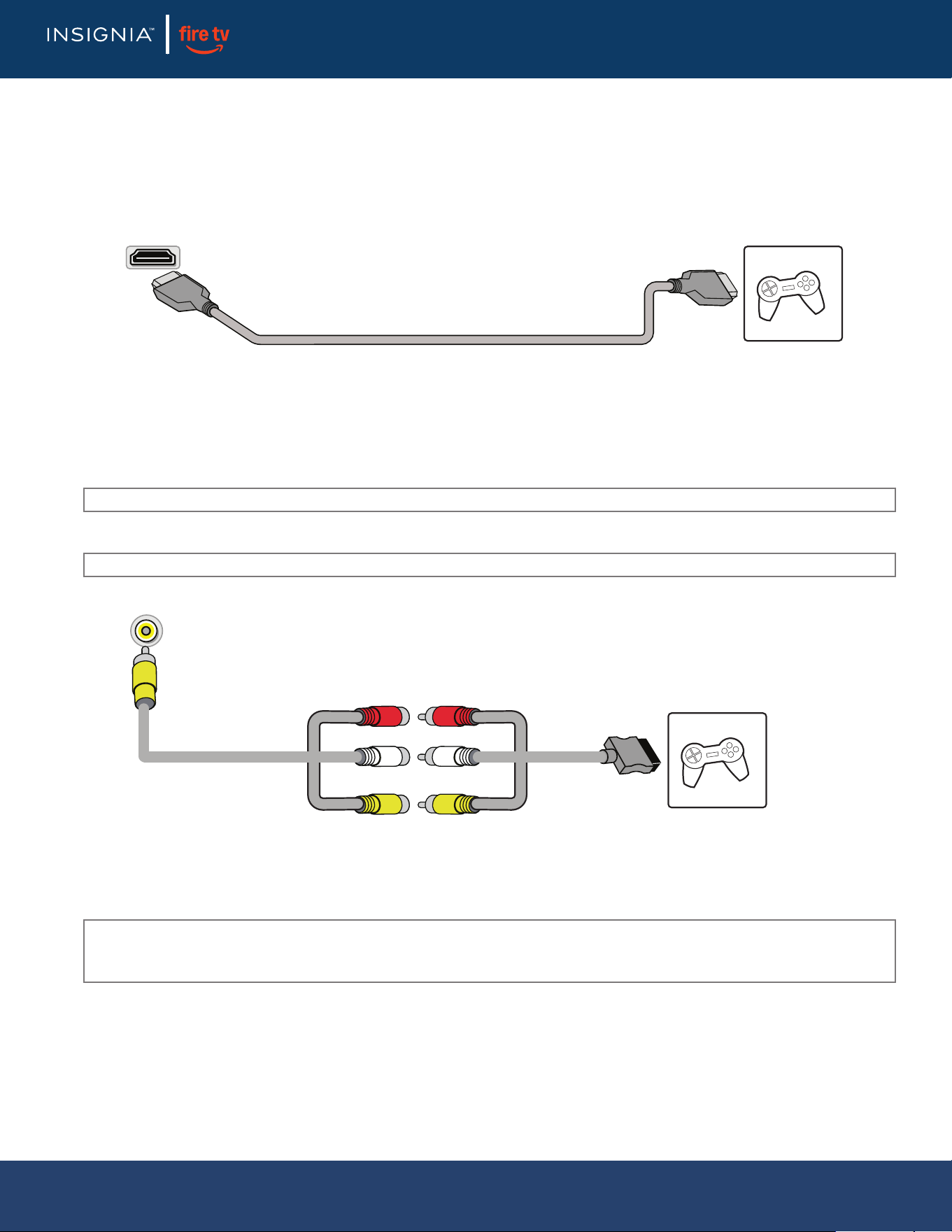
Connecting a DVD or Blu-ray player
Many DVD or Blu-ray players have more than one connection type. To get the best video, you should use the best connection
type available. See Jacks and controls on page 9.
You can connect a DVD or Blu-ray player using:
• HDMI (best)
• AV (good)
HDMI (best)
1 Make sure that your TV’s power cord is unplugged and the DVD or Blu-ray player is turned o.
2 Connect an HDMI cable (not provided) to one of the HDMI jacks on your TV and to the HDMI out jack on the DVD or Blu-ray
player
.
3 Plug your TV’s power cord into a power outlet, then turn on your TV and DVD or Blu-ray player.
4 On the HOME screen, navigate to the INPUTS row, then select HDMI1, HDMI2, or HDMI3.
AV (good)
1 Make sure that your TV’s power cord is unplugged and the DVD or Blu-ray player is turned o.
2 Connect an AV in adapter cable (not provided) to the AV jacks on your TV and to the AV out jacks on the DVD or Blu-ray player.
3 Plug your TV’s power cord into a power outlet, then turn on your TV and DVD or Blu-ray player.
4 If needed
, set the player to the correct output mode. See the documentation that came with the player.
5 On the HOME screen, navigate to the INPUTS row, then select Composite.
Note: An HDMI cable carries both audio and video. You do not need to use any audio cables.
Note: Cables are often color-coded to match color-coded jacks.
IMPORTANT: When you connect the audio using the AV jacks, the audio output is analog.
HDMI cable
DVD or Blu-ray
player
HDMI jack
DVD or Blu-ray
player
Video and audio jacks
LED TV
14
www.insigniaproducts.com
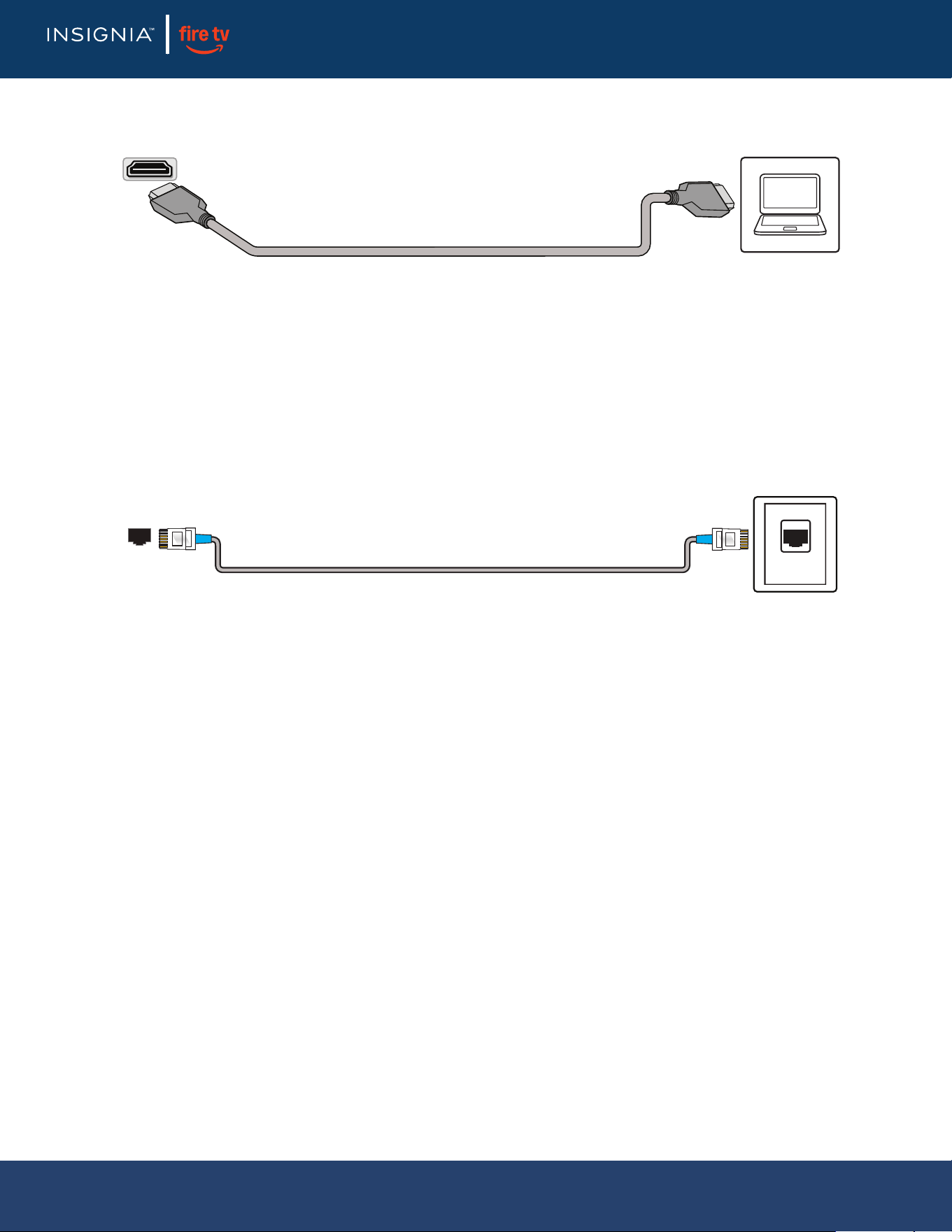
Connecting a game console
You can connect a game console using:
• HDMI (best)
• AV (good)
HDMI (best)
1 Make sure that your TV’s power cord is unplugged and the game console is turned o.
2 Connect an HDMI cable (not provided) to one of the HDMI jacks on your TV and to the HDMI out jack on the game console.
3 Plug your TV’s power cord into a power outlet, then turn on your TV.
4 Turn on the game console, then set it to the correct output mode. See the documentation that came with the console.
5 On the HOME screen, navigate to the INPUTS row, then select HDMI1, H
DMI2, or HDMI3.
AV (good)
1 Make sure that your TV’s power cord is unplugged and the game console is turned o.
2 Connect the console-specic AV cable to the AV jacks on your TV and to the AV jack(s) on the game console.
3 Plug your TV’s power cord into a power outlet, then turn on your TV.
4 Turn on the game console, then set it to the correct output mode. See the documentation that came with the console.
5 On the HOME screen, navigate to the INPUTS row, then select Composite.
Note: An HDMI cable carries both audio and video. You do not need to use any audio cables.
Note: Cables are often color-coded to match color-coded jacks.
IMPORTANT:
• Some older game consoles come with a special AV cable. See the documentation that came with your game console or check the
manufacturer’s website.
• When you connect the audio using the AV jacks, the audio output is analog.
HDMI cable
Game consoleHDMI jack
Game console
Console-specic AV cable
Video and audio jacks
LED TV
15
www.insigniaproducts.com
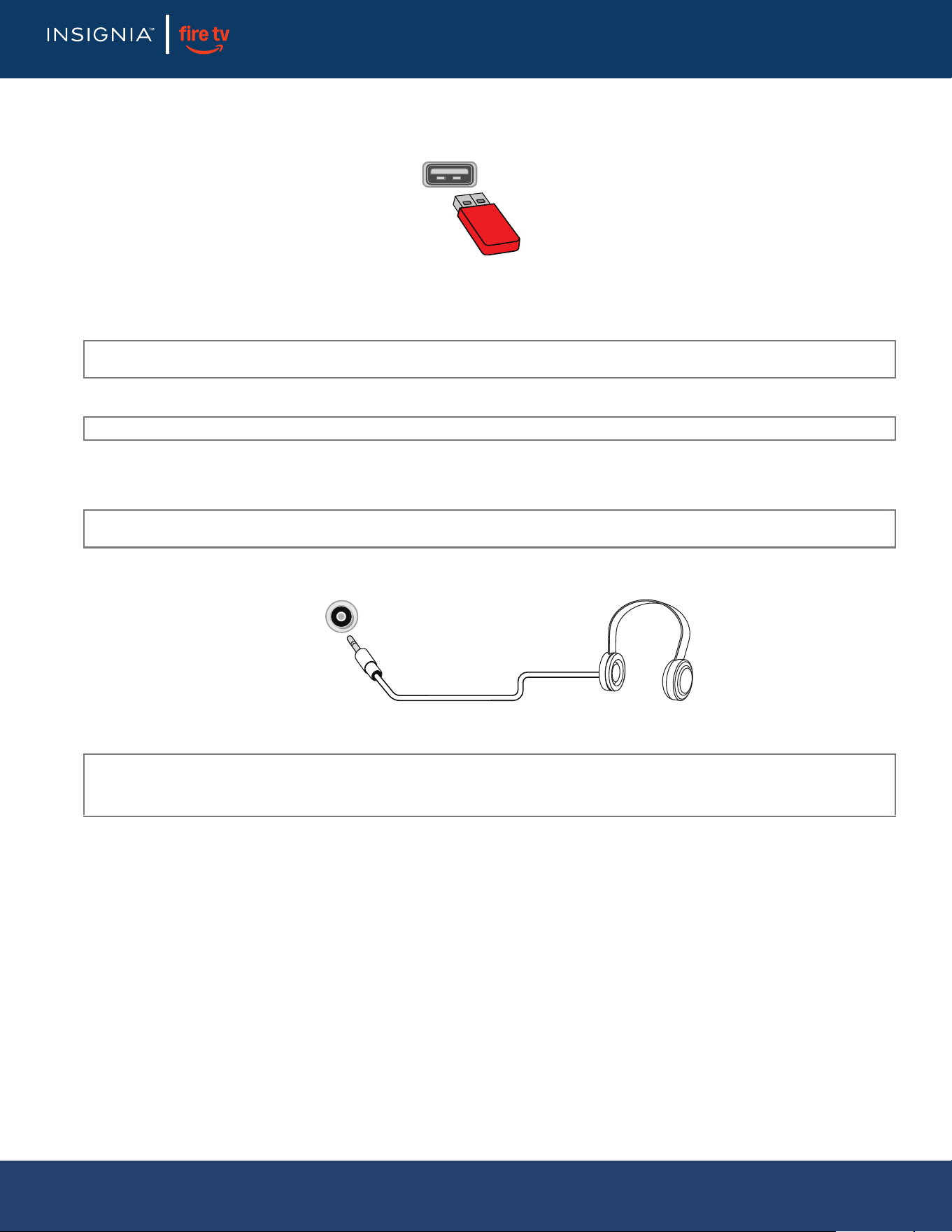
Connecting a computer
1 Make sure that your TV’s power cord is unplugged and the computer is turned o.
2 Connect an HDMI cable (not provided) to one of the HDMI jacks on your TV and to the HDMI out jack on the computer.
3 Plug your TV’s power cord into a power outlet, then turn on your TV and the computer.
4 On the HOME screen, navigate to the INPUTS row, then select HDMI1, HDMI2, or HDMI3.
5 Adjust the display properties on the computer, if necessary.
Connecting to Ethernet
To access the internet, you must connect to a LAN (Ethernet) network or use Wi-Fi to access the Internet.
• Connect an Ethernet cable (not provided) to the LAN jack on your TV and to your Ethernet connection.
HDMI cable
Computer
HDMI jack
LAN
LAN jack
Ethernet cable
Ethernet
connection
LED TV
16
www.insigniaproducts.com
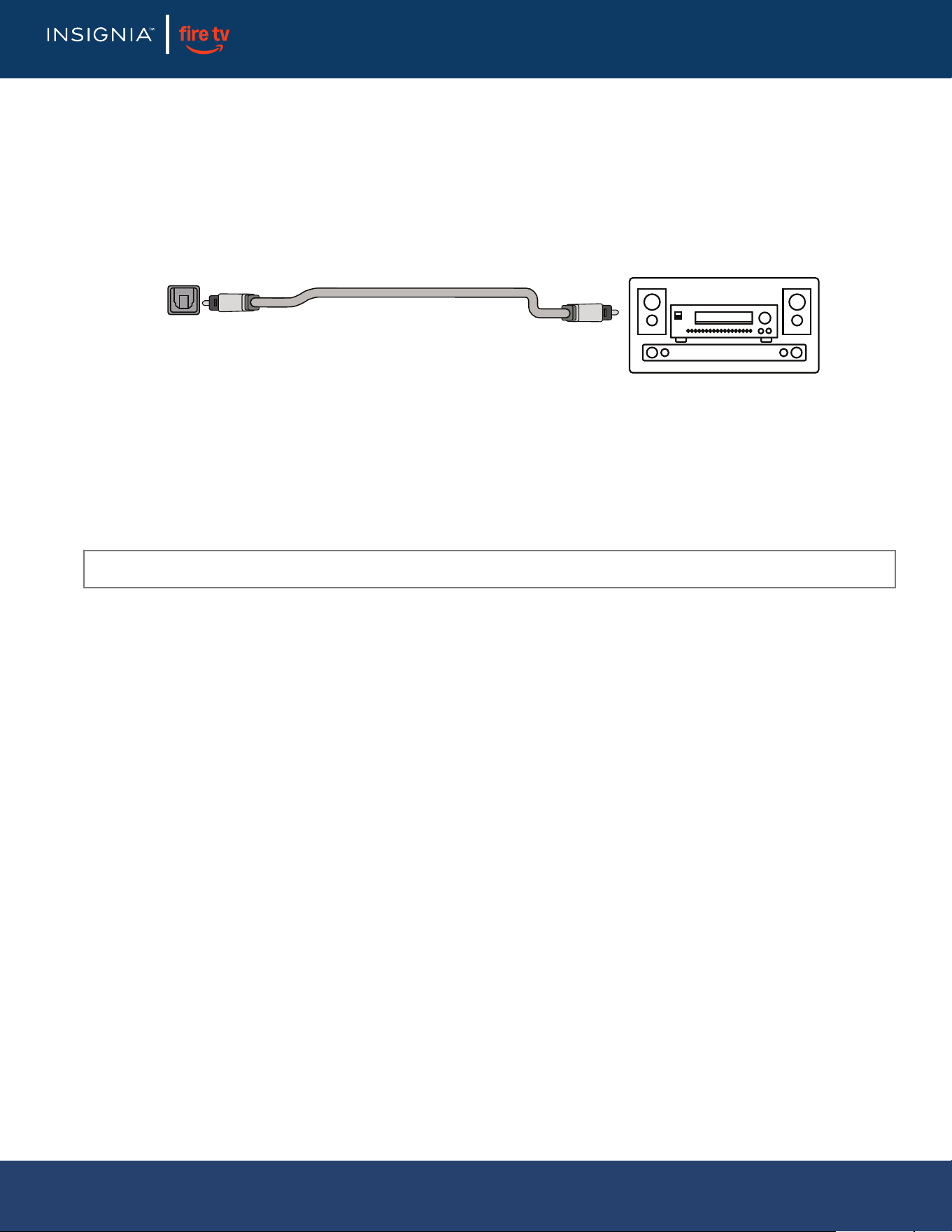
Connecting a USB ash drive
1 Plug a USB ash drive into the USB port on your TV.
2 When the “View Pictures” message appears, press MENU. The photos viewer opens.
Connecting headphones
When you connect headphones, the TV speakers are muted.
• Connect the headphones to the headphone jack on your TV.
CAUTION: Do not remove the USB ash drive or turn o the TV while using the USB ash drive. You may lose data or damage the USB ash
drive.
Note: The Photos viewer supports JPEG format images (with “.jpg” le extensions) and not all JPEG les are compatible with your TV.
WARNING: Loud noise can damage your hearing. When using headphones, use the lowest volume setting on your headphones that still
lets you hear the sound.
Notes:
• If you connect headphones when your TV is turned o, then you turn on your TV, the TV speakers are muted and the audio plays
through the headphones.
• You can also connect a home theater system, sound bar, or external speaker system to the headphone jack.
USB port
USB ash drive
Headphone/Audio out
jack
LED TV
17
www.insigniaproducts.com
Connecting external speakers or a sound bar
You can connect external speakers or a sound bar using:
• Digital audio using the digital optical audio jack
• Digital audio using the HDMI/ARC jack
• Analog audio
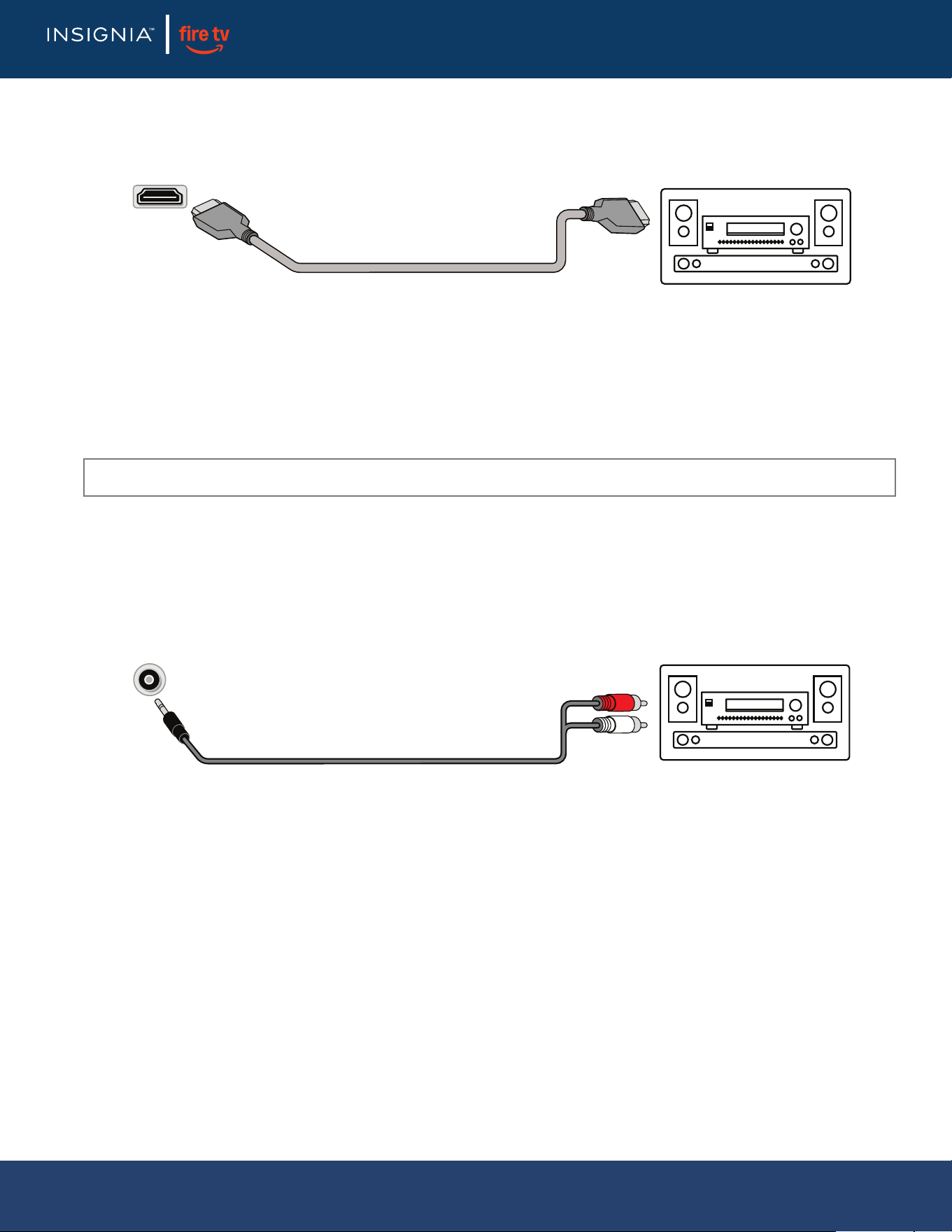
Digital audio using the digital optical audio jack
1 Make sure that your TV’s power cord is unplugged and the digital speaker system or sound bar is turned o.
2 Connect a digital optical audio cable (not provided) to the digital output jack on your TV and to the audio in jack on the
digital speaker system or sound bar.
3 Plug your TV’s power cord into a power outlet, then turn on
your TV.
4 Turn on the digital speaker system or sound bar, then set it to the correct source. See the documentation that came with
the digital speaker system or sound bar.
5 If you need to change the digital audio format, go to the Home menu, select Settings, then select Display & Sounds.
Select Audio Output, then select Digital Audio Format and change the setting to PCM or Dolby Digital.
6 If you want to turn o your TV speakers, go the Home menu, select Settings, then select Display & Sounds. Select Audio
Output, then select TV Speakers and change the setting to OFF.
Note: Depending on the audio device you are connecting, you may need to change the digital audio format for your TV. The default setting
is Auto.
Digital speaker system
Sound bar
Digital optical audio cable
Digital optical
audio jack
LED TV
18
www.insigniaproducts.com
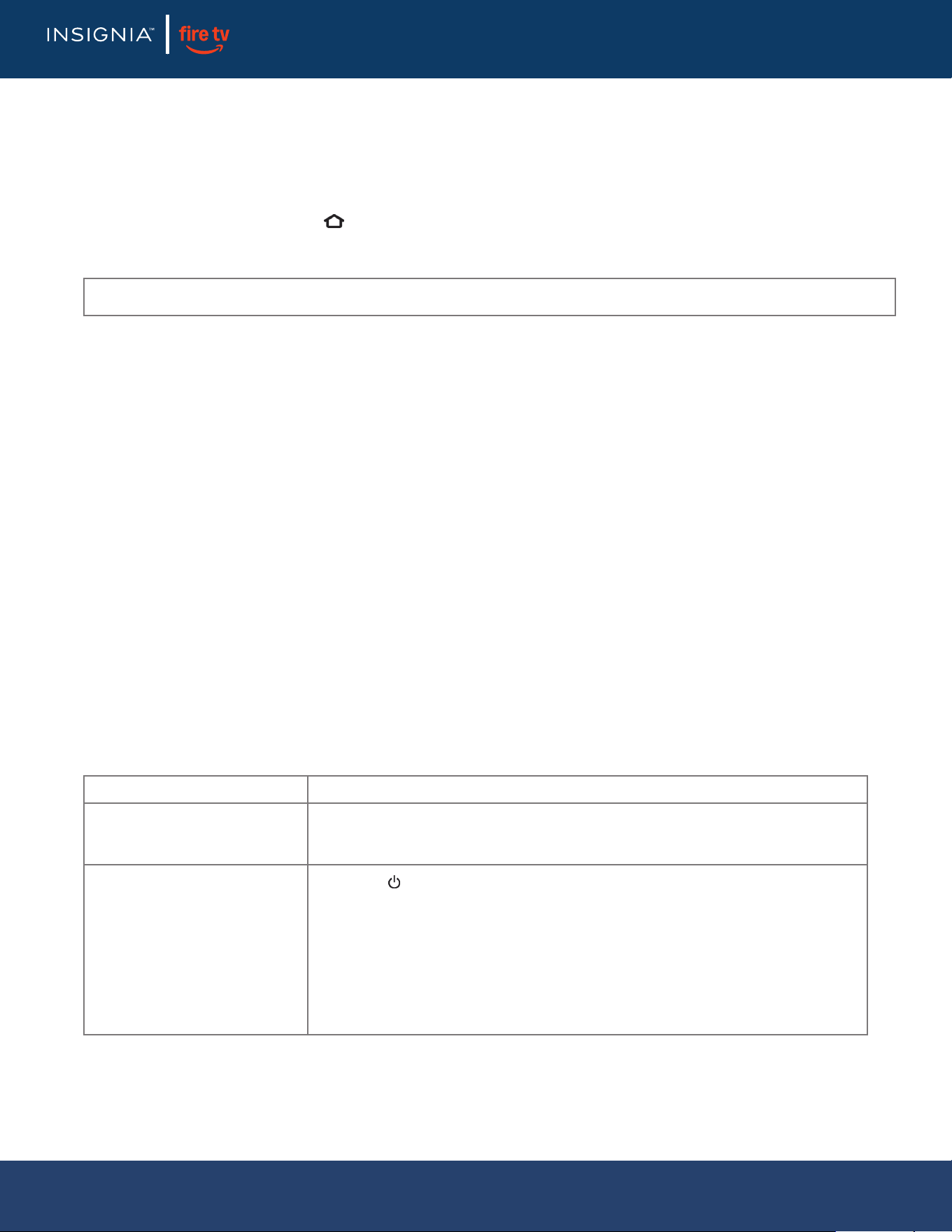
Digital audio using the HDMI/ARC jack
Your TV can send sound to an ARC device, like an AV receiver, to create a home theater that uses two or more speakers. When
you connect external speakers or a soundbar, sound plays through your TV speakers and the external speakers or soundbar.
1 Make sure that your TV’s power cord is unplugged and the digital speaker system or sound bar is turned o.
2 Connect an HDMI cable (not provided) to the HDMI/ARC jack on your TV and to the audio in jack on the digital speaker
system or sound bar.
3 Plug your TV’s power cord into a power outlet, the
n turn on your TV.
4 Turn on the digital speaker system or sound bar, then set it to the correct source. See the documentation that came with
the digital speaker system or sound bar.
5 If you need to change the digital audio format, go to the Home menu, select Settings, then select Display & Sounds.
Select Audio Output, then select Digital Audio Format and change the setting to PCM or Dolby Digital.
6 If you want to turn o your TV speakers, go the Home menu, select Settings, then select Display & Sounds. Select Audio
Output, then select TV Speakers and change the setting to OFF.
Analog audio
When you connect an analog speaker system or sound bar to the audio out jack, the TV speakers are muted.
1 Make sure that your TV’s power cord is unplugged and the analog speaker system or sound bar is turned o.
2 Connect an audio cable (not provided) to the audio out jack on your TV and to the audio in jacks on the analog speaker
system or sound bar.
3 Plug your TV’s power cord into a power outlet, then turn on your TV.
4 Turn on the analog speaker system or sound bar, then set it to the correct source. See the documentation that came with
the analog speaker system or sound bar.
Note: Depending on the audio device you are connecting, you may need to change the digital audio format for your TV. The default setting
is Auto.
Digital speaker system
Sound bar
HDMI cable
HDMI/ARC jack
Audio cable
Analog speaker system
Sound bar
Audio out jack
LED TV

19
www.insigniaproducts.com
Connecting power
1 If your power cord is not permanently connected to your TV, connect it to the power connector on your TV.
2 Connect the power cord to a power outlet.
CAUTION:
• Your TV should only be operated from the power source indicated on the label.
• Always unplug the power cord from the power outlet when you will not be using your TV for an extended period of time.
• If the power cord is permanently attached to your TV, do not try to unplug it from your TV.
LED TV
20
www.insigniaproducts.com
Setting up your TV
If you use an Ethernet cable to connect to the internet, see Connecting to Ethernet on page 15.
1 Make sure that you have connected the power cord to your TV and that you turned on your TV.
2 Make sure that you have installed the batteries in your new Voice Remote with Alexa.
3 Make sure that your remote is paired with your TV. Pairing should occur automatically.
If you have issues, press and hold (Home). If you continue to have issues, try re-inserting your batteries or replacing
t
hem, then repeat this step again.
4 Select your Wi-Fi network from the networks displayed on the screen.
5 Select your experience: Full (Recommended) or Basic.
• Full: Get the most out of your experience with access to live TV, over 1,000,000 movies and TV episodes, thousands of
apps, and Alexa skills. To get started, sign in or sign up for a free Amazon account.
• Basic: This experience is limited to live TV and only ve streaming apps. Alexa and the full App store are not included.
For more information about setting up your TV, go to: http://www.amazon.com/hel
p/retveditiontv
Using your TV
For information about using your TV, go to: http://www.amazon.com/help/retveditiontv
Maintaining
• Do not use your TV in areas that are too hot or too cold, because the cabinet may warp or the screen may malfunction. Your
TV works best in temperatures that are comfortable to you.
• Do not place your TV in direct sunlight or near a heat source.
Cleaning the TV cabinet
Clean the cabinet with a soft, lint-free cloth. If the cabinet is especially dirty, moisten a soft, lint-free cloth in a weak detergent
solution, squeeze the excess moisture from the cloth, then wipe the cabinet with the cloth. Use a clean cloth to dry the cabinet.
Cleaning the TV screen
Clean the screen with a soft, lint-free cloth.
Troubleshooting
Video and audio
Note: If your Wi-Fi network is password protected, have your Wi-Fi network password handy to connect your TV to the Internet. If your
network is hidden, select the Join Other Network tile from the list. If required, enter your network password using the on-screen keyboard.
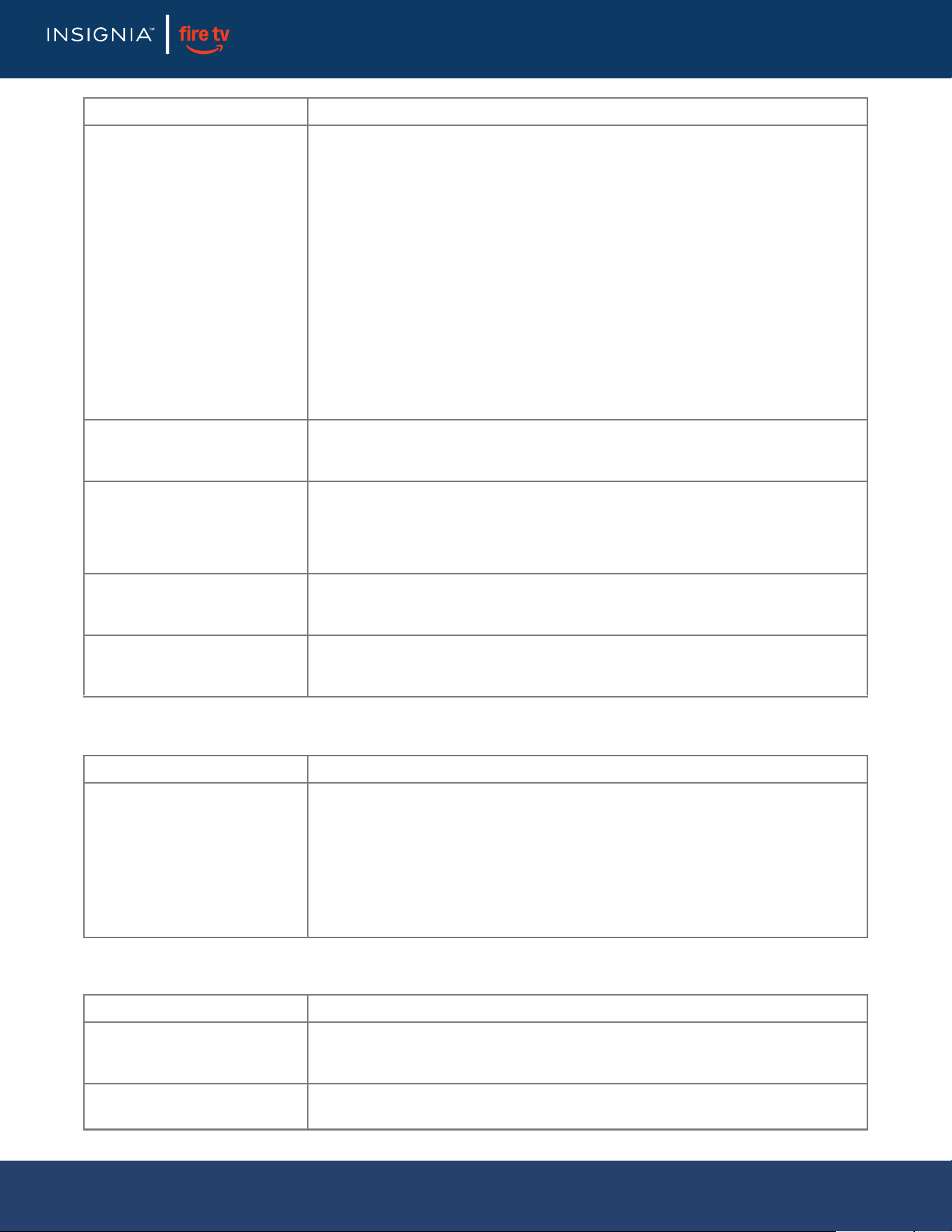
NOITULOSMELBORP
Picture does not ll the screen.
There
are black bars around the
picture.
• Press and hold Home until the Quick Settings menu opens. Select Display -
Picture Size, then change the setting. If Picture Size is grayed out (not available
to select), change the setting for Auto Aspect to O.
No picture (screen is not lit) and
no sound.
• Press (power) on the TV or the remote control.
• Make sure that the video cables are connected correctly and securely to your TV.
• Make sure that the power cord is plugged into a working outlet.
• Press Home, then navigate to the INPUTS row and select the input
you want to
watch.
• Try another channel. The station may be experiencing problems.
• Make sure that the incoming signal is compatible.
• Make sure that the antenna or cable TV is connected correctly and securely. See
Connecting a cable or satellite box on page 11 or Connecting an antenna or
cable TV (no box) on page 12.
LED TV
21
www.insigniaproducts.com
Dark, poor, or no picture (screen is
lit), but sound is good.
• Try another channel. The station may be experiencing problems.
• Make sure that the antenna or cable TV is connected correctly and securely. See
Connecting a cable or satellite box on page 11 or Connecting an antenna or
cable TV (no box) on page 12.
• Press and hold Home until the Quick Settings menu opens. Select Display -
Picture Size, then change the setting. If Picture Size is grayed out (not available
to select), change the setting for Auto Aspect to O.
• If you are using
an antenna and the signal strength is low, adjust the antenna or
use a highly directional outdoor antenna or set-top antenna with a built-in
amplier.
• Make sure that the video cables are connected correctly and securely to your TV.
• The video cable(s) you are using may be bad. Try a new set.
No color, dark picture, or color is
not correct.
• Try another channel. The station may be experiencing problems.
• Adjust the picture settings. Press and hold Home until the Quick Settings menu
opens. Select Picture, then adjust the Co
ntrast, Brightness, or Color settings.
• Make sure that the video cables are connected correctly and securely to your TV.
• Make sure that the antenna or cable TV is connected correctly and securely. See
Connecting a cable or satellite box on page 11 or Connecting an antenna or
cable TV (no box) on page 12.
• If you are using an antenna and the signal strength is low, adjust the antenna or
use a highly directional outdoor antenna or set-top antenna with a built-in
amplier.
TV or cable channel reception is
not good or c
onsistent.
• Try another channel. The station may be experiencing problems.
• Make sure that the antenna or cable TV is connected correctly and securely. See
Connecting a cable or satellite box on page 11 or Connecting an antenna or
cable TV (no box) on page 12.
• If you are using an antenna and the signal strength is low, adjust the antenna or
use a highly directional outdoor antenna or set-top antenna with a built-in
amplier.
Dotted lines or stripes appear on
the screen.
• Make sure that the antenna or cable TV is connected cor
rectly and securely. See
Connecting a cable or satellite box on page 11 or Connecting an antenna or
cable TV (no box) on page 12.
• If you are using an antenna and the signal strength is low, adjust the antenna or
use a highly directional outdoor antenna or set-top antenna with a built-in
amplier.
• Make sure that the video cables are connected correctly and securely to your TV.
• The video cable(s) you are using may be bad. Try a new set.
• Other devices (for example, a surround sound receiver, external speakers, fans,
or ha
ir dryers) may be interfering with your TV. Try turning o one device at a
time, then back on to determine which device is causing interference. After you
have determined which device is causing interference, move it further from the
TV to eliminate the interference.
Video description or voice guide
does not work.
• Make sure that your TV is not muted and the volume is turned up.
• Make sure that the options listed under the Accessibility menu are turned on.
Press Home menu, select Settings, then select Accessibility. Make sure that the
VoiceView and Audio Description options are set to O
N.
• Video descriptions are not available on all broadcasts.
• Some remote functions are not narrated.
NOITULOSMELBORP
LED TV
22
www.insigniaproducts.com
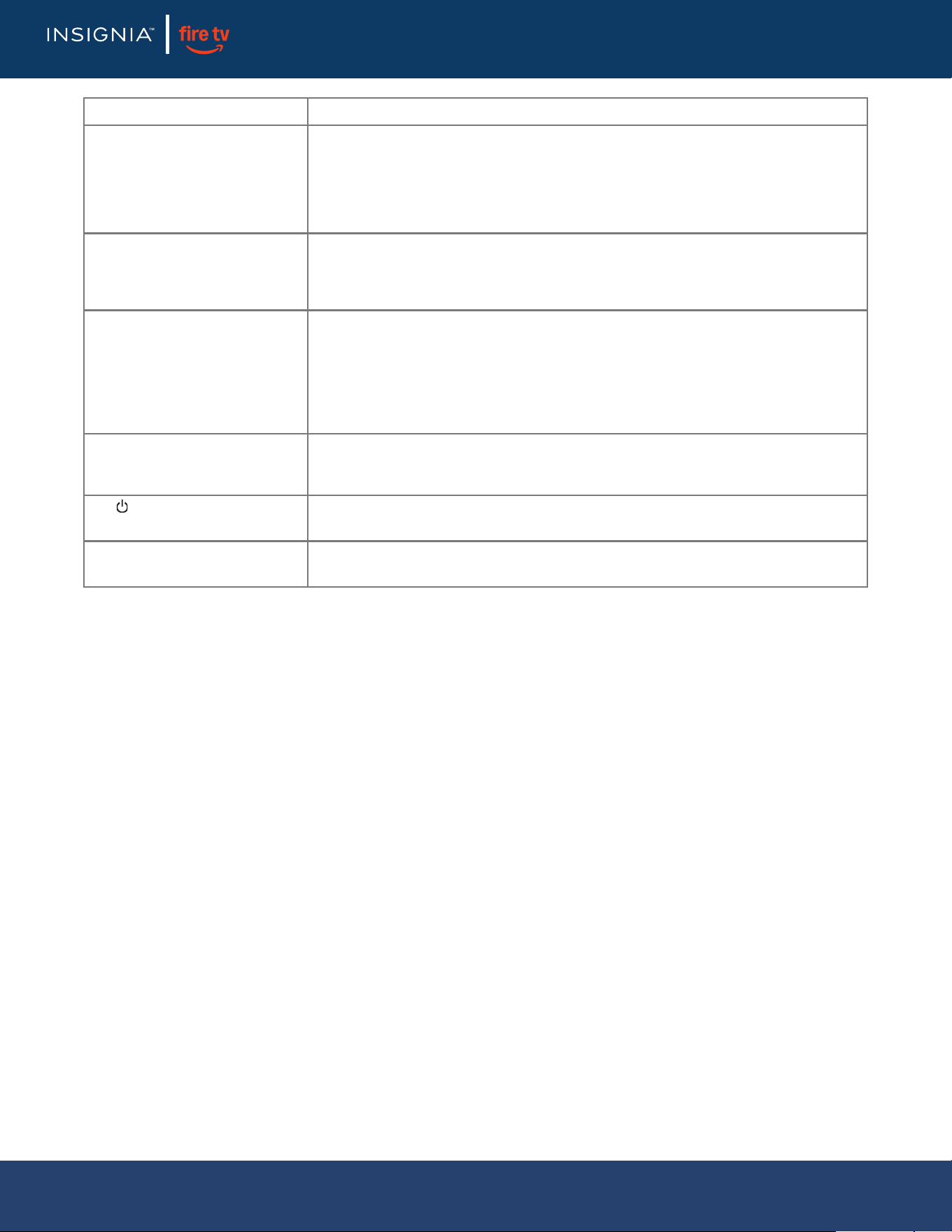
Remote control
General
Good picture, but no sound.
• Increase the volume.
• Make sure that the sound is not muted.
• Make sure that you do not have headphones connected. When headphones are
connected, the TV speakers are muted.
• Make sure that the TV speakers option is not turned o. Press and hold Home
until the Quick Settings menu opens. Select Sound, then select TV Speakers and
change the setting to On.
• If you are using a home theater system, soundbar, or external speaker system,
make sure it is turned on and is not muted.
• If you are using a home theater sys
tem, soundbar, or external speaker system
and have connected it with a digital optical cable, go to the Home menu, select
Settings, then select Display & Sounds. Select Audio Output, then select
Digital Audio Format and change the setting to PCM.
• Make sure that the audio cables are connected correctly and securely to your TV.
• Make sure that the antenna or cable TV is connected correctly and securely. See
Connecting a cable or satellite box on page 11 or Connecting an antenna or
cable TV (no box) on page 12.
• The audio cables you are using may be bad. Try a new set.
Good sound, but poor color.
• Adjust the contrast, color, and brightness settings. Press and hold Home until
the Quick Settings menu opens. Select Picture, then adjust the Contrast,
Brightness, or Color settings.
Audio noise.
• Other devices (for example, a surround sound receiver, external speakers, fans,
or hair dryers) may be interfering with your TV. Try turning o one device at a
time to determine which device is causing interference. After you have
determined which device is causing interference, move it further from the TV to
eliminate the interference.
No output from one of the
speakers.
• Adjust the audio
balance. Press and hold Home until the Quick Settings menu
opens. Select Sound, then select Balance and adjust the setting.
• Make sure that the audio cables are connected correctly and securely to your TV.
After images appear.
• Do not display a still image, such as a logo, game, or computer image, for an
extended period of time. This can cause a permanent after-image to be burned
into the screen. This type of damage is not covered by your warranty.
NOITULOSMELBORP
Remote control does not work.
• Make sure that the power cord
is plugged into a working outlet.
• Make sure that there are no obstructions between the remote control and the
remote control sensor on the front of the TV.
• If you have not paired your TV to the remote control, point the remote control
directly at the remote control sensor on your TV.
• The supplied batteries are wrapped tightly in clear plastic. Make sure that you
have removed this plastic from the batteries.
• Make sure that the batteries are installed correctly.
• Replace dead batteries with new batteries.
NOIT
ULOSMELBORP
No power.
• Make sure that the power cord is plugged into a working outlet.
• Unplug the power cord, wait 60 seconds, then plug the cord back in and turn on
your TV.
A no signal error message is
displayed.
• Press Home, then navigate to the INPUTS row and select the input you want to
watch.
NOITULOSMELBORP
LED TV
23
www.insigniaproducts.com
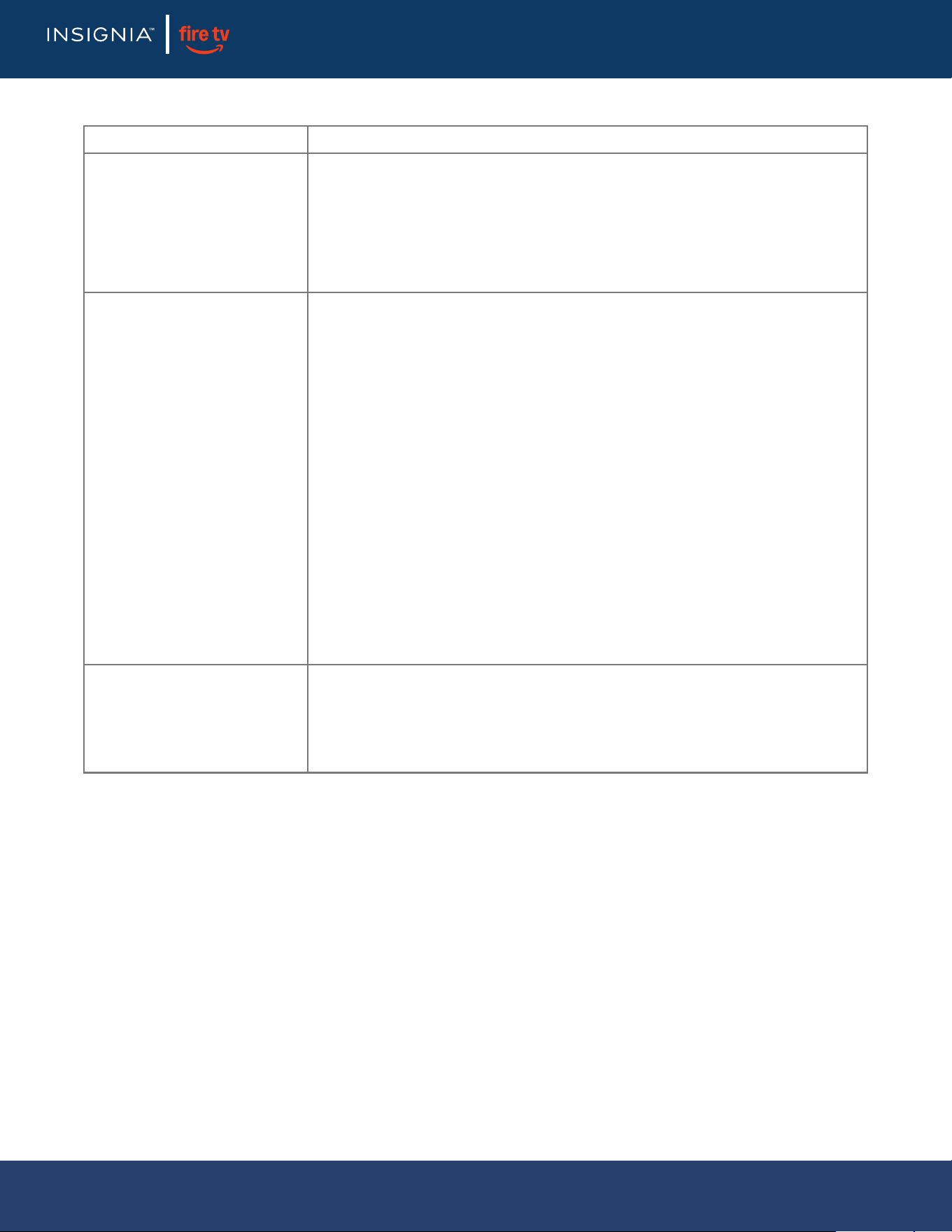
After Auto Channel Search, there
are no channels.
• Reception can vary by channel depending on the broadcast power level of a
given station. Contact your cable or satellite TV provider.
• Make sure that the antenna or cable/satellite TV is connected securely to your
TV.
• Try replacing the cable between the antenna/cable or cable/satellite box and
your TV.
One or more channels do not
display.
• If you are using a cable or satellite box, use the remote that came with that box
to change channels.
• Press Home, then navigate to the INP
UTS row and make sure that you have
selected the correct input for the device or service you are trying to use.
Password is lost.
• If you are having trouble with your password (PIN) for parental controls and
viewing restrictions, try resetting your PIN from your Prime Video Settings on
the Amazon website. Go to the Parental Controls section, enter a new 5-digit
PIN under Prime Video PIN, then select Reset Your PIN.
• If you need to reset a forgotten PIN and your TV has not been registered, you
need to perform a factory reset. Press Home, then select Settings.
Select Device
& Software, then select Reset to Factory Defaults.
Some settings cannot be
accessed.
• If a setting is grayed, the setting is not available in the current video input mode
(for example TV mode). Change to a dierent video input source. Press Home,
then navigate to the INPUTS row and select the input you want to watch.
The /INPUT button does not
work.
• Unplug the power cord, wait a few seconds, then plug the cord back in and turn
on your TV.
TV keeps turning o.
• Make sure that the sleep timer is not turned on. Press and hold Home until the
Quick Settings menu opens. Sel
ect Sleep Timer, then change the setting to O.
NOITULOSMELBORP
LED TV
24
www.insigniaproducts.com
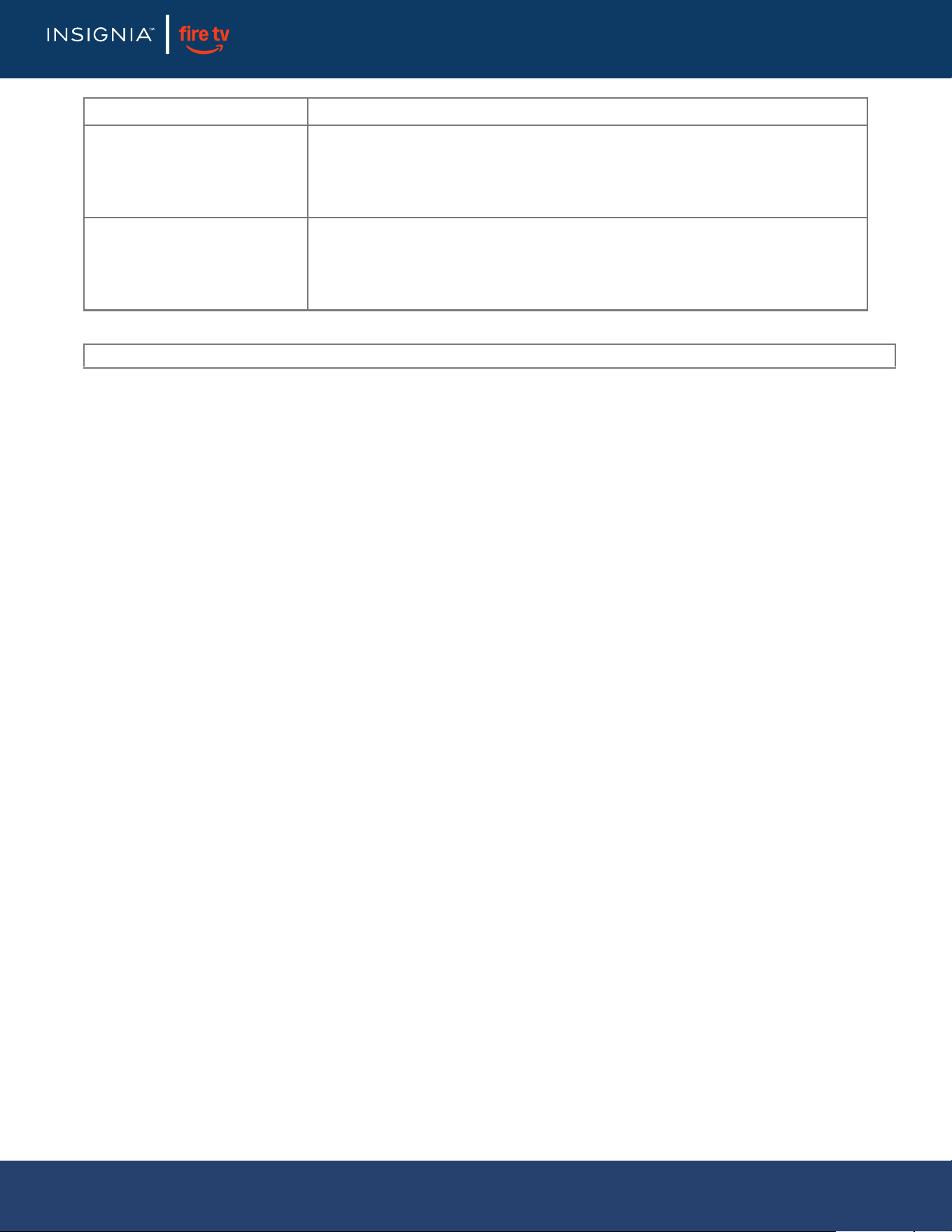
CEC-compatible devices
NOITULOSMELBORP
My TV is not displaying the video
from the connected CEC device.
• Make sure that the HDMI cable is connected securely to your TV and the device.
• Make sure that the device is connected to your TV with an HDMI cable.
• Make sure that the device is a CEC device. See the documentation that came
with the device for more information.
• Press Home, then navigate to the INPUTS row and make sure that the correct
video input is selected.
• On the Home menu, select Settings, then select Display & Sounds. Select
HDMI CEC Device Control and change the setting
to On.
My TV is not playing the audio
from the connected CEC device.
• Make sure that the HDMI cable is connected securely to your TV and the device.
• Make sure that the device is connected to your TV with an HDMI cable.
• Make sure that the device is a CEC device. See the documentation that came
with the device.
• Make sure that the TV volume is turned up and not muted.
• Make sure that the TV speakers option are not turned o. Press and hold Home
until the Quick Settings menu opens. Select Sound, then select TV Speakers and
change the setting to On.
• Make sure that the CEC control is turned on. On the Home menu, sel
ect
Settings, then select Display & Sounds. Select HDMI CEC Device Control and
change the setting to On.
• If you have connected an HDMI CEC audio receiver, adjust the volume on the
receiver. When your TV detects an audio receiver, the TV speakers may turn o
and sound plays through receiver speakers only.
• If you are using a home theater system, soundbar, or external speaker system,
make sure that it is turned on and is not muted.
• If you are using a home theater system, soundbar, or external speaker system,
make sure that you have selected the correct output mode.
• Depending on the digital audio device you have c
onnected, you may need to
change the digital audio format for your TV. The default setting is Auto. If you
need to change the digital audio format, go to the Home menu, select Settings,
then select Display & Sounds. Select Audio Output, then select Digital Audio
Format and change the setting to PCM or Dolby Digital.
My TV’s remote control does not
control the device.
• Depending on the device, all the buttons may not work.
• Make sure that the CEC control feature is turned on. On the Home menu, select
Settings, then select Display & Sounds. Select HDMI CEC Device Control and
change
the setting to On.
• The device may not support this feature. See the documentation that came with
the device for more information.
LED TV
25
www.insigniaproducts.com
My connected CEC device does
not turn o when I turn o my TV.
• Make sure that the CEC control feature is turned on. On the Home menu, select
Settings, then select Display & Sounds. Select HDMI CEC Device Control and
change the setting to On.
• The device may not support this feature. See the documentation that came with
the device for more information.
My TV does not turn on when I
turn on my connected CEC
device.
• Make sure that the CEC control feature is turned on. On the Home menu, select
Settings, then select Display & Sounds. Select HDMI CEC Device Control and
change the setting to On.
• The devi
ce may not support this feature. See the documentation that came with
the device for more information.
NOITULOSMELBORP
Note: If the problem is not solved by using these troubleshooting instructions, turn o your TV, then turn it on again.
LED TV
26
www.insigniaproducts.com
Legal notices
FCC Statement
This device complies with Part 15 of the FCC Rules. Operation is
subject to the following two conditions: (1) this device may not cause
harmful interference, and (2) this device must accept any interference
received, including interference that may cause undesired operation.
This equipment has been tested and found to comply with the limits
for a Class B digital device, pursuant to Part 15 of the FCC Rules. These
limits are designed to provide reasonable protection against harmful
interference in a residential installation. This equipment generate
s,
uses, and can radiate radio frequency energy and, if not installed and
used in accordance with the instructions, may cause harmful
interference to radio communications. However, there is no guarantee
that interference will not occur in a particular installation. If this
equipment does cause harmful interference to radio or television
reception, which can be determined by turning the equipment o and
on, the user is encouraged to try to correct the interference by one or
more of the following measures:
• Reorient or relocate the receiving antenna.
• Increase the separation between the equipment
and receiver.
• Connect the equipment into an outlet on a circuit dierent from
that to which the receiver is connected.
• Consult the dealer or an experienced radio/TV technician for
help.
Warning
Changes or modications not expressly approved by the party
responsible for compliance could void the user's authority to operate
the equipment.
Cables
Connections to this device must be made with shielded cables with
metallic RF/EMI connector hoods to maintain compliance with FCC
Rules and Regulations.
Canadian Notice
Analog and Digital Television Receiving Apparatus
– Appareil de réception de télévision analogique et numérique,
Canada BETS-7 / NTMR-7
IC Statement
This device complies with Industry Canada licence—exempt RSS
standard(s).
Operation is subject to the following two conditions: (1) this device
may not cause interference, and (2) this device must accept any
interference, including interference that may cause undesired
operation of the device.
This equipment complies with IC radiation exposure limits set forth for
an uncontrolled environment.
Restrictions in the 5 GHz band:
The device for operation in the band 5150-5250 MHz is only for indoor
use to reduce the potential for harmful interference to co-channel
mobile sat
ellite systems.
Restrictions dans labande 5GHz:
Dans la bande 5150 – 5250MHz, les appareils seront restreints aux
opérations intérieurs pour réduire toute possibilité d'intérference
dangereuse aux operations du systèmes satellite mobile dans le
méme canal.
Amazon Terms & Policies
Before using Fire TV Edition, please read the terms located at
www.amazon.com/deviceservices/support. Please also read all terms
and policies for services related to Fire TV Edition, including but not
limited to Amazon's Privacy Notice located at
www.amazon.com/privacy, Amazon's Conditions of Use located at
www.amazon.com/conditionsofuse, and any
other terms or usage
provisions available at www.amazon.com/deviceservices/support.
All terms, rules, notices, policies, and provisions are, collectively, the
“Agreements.”
By using Fire TV Edition, you agree to be bound by the terms of the
Agreements.
Amazon, Fire, and all related marks are
trademarks of Amazon.com, Inc. or its aliates.
Dolby License Notice and Trademark Acknowledgement
HDMI
The terms HDMI, HDMI High-Denition Multimedia
Interface, HDMI trade dress and the HDMI Logos
are trademarks or registered trademarks of HDMI
Licensing Administrator, Inc.
Fabricado con la autorización de Dolby Laboratories.
Dolby, Dolby Audio, y el símbolo de doble D son marcas
registradas de Dolby Laboratories Licensing Corporation.
LED TV

27
www.insigniaproducts.com
ONE-YEAR LIMITED WARRANTY
Denitions:
The Distributor* of Insignia branded products warrants to you, the original
purchaser of this new Insignia-branded product (“Product”), that the Product
shall be free of defects in the original manufacturer of the material or
workmanship for a period of one (1) year from the date of your purchase of the
Product (“Warranty Period”).
For this warranty to apply, your Product must be purchased in the United
States or Canada from a Best Buy branded retail store or online at
www.bestbuy.com or www.bestbuy.ca
and is packaged with this warranty
statement.
How long does the coverage last?
The Warranty Period lasts for 1 year (365 days) from the date you purchased the
Product. Your purchase date is printed on the receipt you received with the
Product.
What does this warranty cover?
During the Warranty Period, if the original manufacture of the material or
workmanship of the Product is determined to be defective by an authorized
Insignia repair center or store personnel, Insignia will (at its sole option): (1)
repair the Product with new or rebuilt parts; or (2) replace the Product at no
charge with new or rebuilt comparable
products or parts. Products and parts
replaced under this warranty become the property of Insignia and are not
returned to you. If service of Products or parts are required after the Warranty
Period expires, you must pay all labor and parts charges. This warranty lasts as
long as you own your Insignia Product during the Warranty Period. Warranty
coverage terminates if you sell or otherwise transfer the Product.
How to obtain warranty service?
If you purchased the Product at a Best Buy retail store location or from a Best
Buy online website ((www.bestbuy.com or www.bestbuy.ca), please take your
original receipt and the Product to any Best Buy store. Make sure that you place
the Product in its original packaging or packaging that provides the same
amount of protection as the original packaging.
To obtain warranty service, in the United States and Canada call
1-877-467-4289. Call agents may diagnose and correct the issue over the
phone.
Where is the warranty valid?
This warranty is valid only in the United States and Canada at Best Buy branded
retail stores or websites to the original purchaser of the product in the country
where the original purchase was made.
What does the warranty not cover?
This warranty does not cover:
• Food, beverage, and/or medicine loss/spoilage.
• Customer instruction/education
• Installation
• Set up adjustments
• Cosmetic damage
• Damage due to weather, lightning, and other acts of God, such as
power surges
• Accidental damage
• Misuse
• Abuse
• Negligence
• Commercial purposes/use, including but not limited to use in a place
of business or in communal areas of a multiple dwelling
condominium or apartment complex, or otherwise used in a place of
other than a private home.
• Modication of any part of the Product, including the antenna
• Display panel damaged by static (non-moving) images applied for
le
ngthy periods (burn-in).
• Damage due to incorrect operation or maintenance
• Connection to an incorrect voltage or power supply
• Attempted repair by any person not authorized by Insignia to service
the Product
• Products sold “as is” or “with all faults”
• Consumables, including but not limited to batteries (i.e. AA, AAA, C
etc.)
• Products where the factory applied serial number has been altered or
removed
• Loss or Theft of this product or any part of the product
• Display panels containing up to three (3) pixel failures (dots that are
dark or incorrectly illuminated) grouped in
an area smaller than one
tenth (1/10) of the display size or up to ve (5) pixel failures
throughout the display. (Pixel based displays may contain a limited
number of pixels that may not function normally.)
• Failures or Damage caused by any contact including but not limited
to liquids, gels or pastes.
REPAIR REPLACEMENT AS PROVIDED UNDER THIS WARRANTY IS YOUR
EXCLUSIVE REMEDY FOR BREACH OF WARRANTY. INSIGNIA SHALL NOT BE
LIABLE FOR ANY INCIDENTAL OR CONSEQUENTIAL DAMAGES FOR THE
BREACH OF ANY EXPRESS OR IMPLIED WARRANTY ON THIS PRODUCT,
INCLUDING, BUT NOT LIMITED TO, LO
ST DATA, LOSS OF USE OF YOUR
PRODUCT, LOST BUSINESS OR LOST PROFITS. INSIGNIA PRODUCTS
MAKES NO OTHER EXPRESS WARRANTIES WITH RESPECT TO THE
PRODUCT, ALL EXPRESS AND IMPLIED WARRANTIES FOR THE PRODUCT,
INCLUDING BUT NOT LIMITED TO ANY IMPLIED WARRANTIES OF AND
CONDITIONS OF MERCHANTABILITY AND FITNESS FOR A PARTICULAR
PURPOSE, ARE LIMITED IN DURATION TO THE WARRANTY PERIOD SET
FORTH ABOVE AND NO WARRANTIES, WHETHER EXPRESS OR IMPLIED,
WILL APPLY AFTER THE WARRANTY PERIOD. SOME STATES, PROVINCES
AND JURISDICTIONS DO NOT ALLOW LIMITATIONS
ON HOW LONG AN
IMPLIED WARRANTY LASTS, SO THE ABOVE LIMITATION MAY NOT APPLY
TO YOU. THIS WARRANTY GIVES YOU SPECIFIC LEGAL RIGHTS, AND YOU
MAY ALSO HAVE OTHER RIGHTS, WHICH VARY FROM STATE TO STATE OR
PROVINCE TO PROVINCE.
Contact Insignia:
1-877-467-4289
www.insigniaproducts.com
INSIGNIA is a trademark of Best Buy and its aliated companies.
*Distributed by Best Buy Purchasing, LLC
7601 Penn Ave South, Richeld, MN 55423 U.S.A.
©2025 Best Buy. All rights reserved.
LED TV
V0 ENGLISH
25-0201
For product inquiries or accessibility assistance, please contact us with the information below:
1-877-467-4289
www.insigniaproducts.com
INSIGNIA is a trademark of Best Buy and its aliated companies.
Distributed by Best Buy Purchasing, LLC
7601 Penn Ave South, Richeld, MN 55423 U.S.A.
©2025 Best Buy. All rights reserved.
