Before using your new product, please read these instructions to prevent any damage.
ASSEMBLY GUIDE
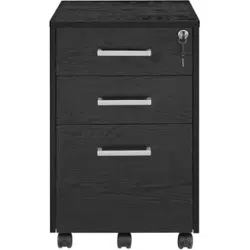
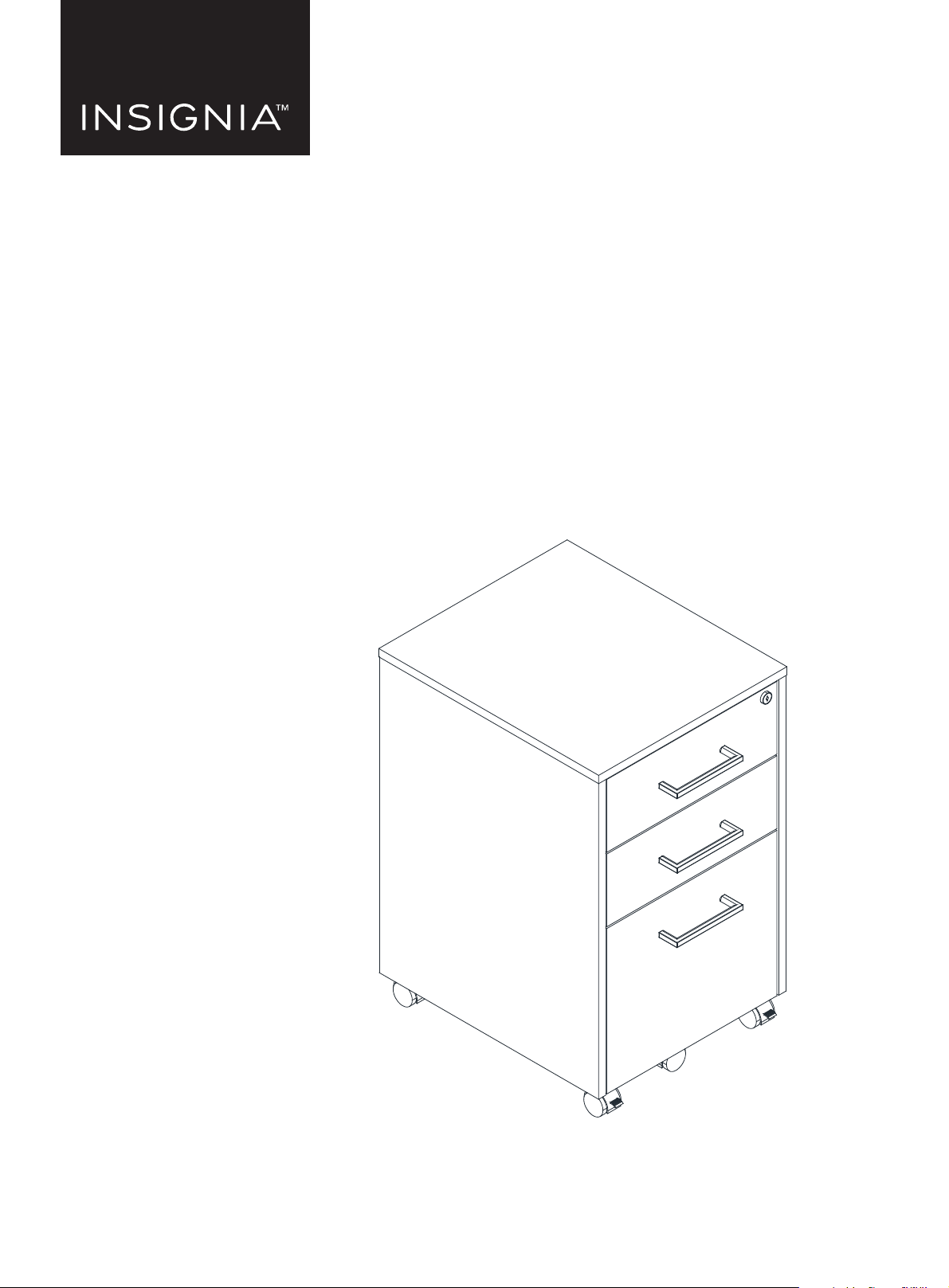
3-Drawer File Cabinet -
Black
NS-FCBK3

www.insigniaproducts.com
2
Contents
Introduction . . . . . . . . . . . . . . . . . . . . . . . . . . . . . . . . . . . . . . . . . . . . . . . . . . . . . . . . . . . . . . . . . . . . . . . . . . . . . . . . . . . . . . . . . . . . . . . . . . . . . .2
Safety information . . . . . . . . . . . . . . . . . . . . . . . . . . . . . . . . . . . . . . . . . . . . . . . . . . . . . . . . . . . . . . . . . . . . . . . . . . . . . . . . . . . . . . . . . . . . . . . .3
Features . . . . . . . . . . . . . . . . . . . . . . . . . . . . . . . . . . . . . . . . . . . . . . . . . . . . . . . . . . . . . . . . . . . . . . . . . . . . . . . . . . . . . . . . . . . . . . . . . . . . . . . . . .4
Dimensions. . . . . . . . . . . . . . . . . . . . . . . . . . . . . . . . . . . . . . . . . . . . . . . . . . . . . . . . . . . . . . . . . . . . . . . . . . . . . . . . . . . . . . . . . . . . . . . . . . . . 4
Parts included . . . . . . . . . . . . . . . . . . . . . . . . . . . . . . . . . . . . . . . . . . . . . . . . . . . . . . . . . . . . . . . . . . . . . . . . . . . . . . . . . . . . . . . . . . . . . . . . . 5
Hardware included. . . . . . . . . . . . . . . . . . . . . . . . . . . . . . . . . . . . . . . . . . . . . . . . . . . . . . . . . . . . . . . . . . . . . . . . . . . . . . . . . . . . . . . . . . . . . 6
Tools needed . . . . . . . . . . . . . . . . . . . . . . . . . . . . . . . . . . . . . . . . . . . . . . . . . . . . . . . . . . . . . . . . . . . . . . . . . . . . . . . . . . . . . . . . . . . . . . . . . . 6
Preparing to assemble your file cabinet . . . . . . . . . . . . . . . . . . . . . . . . . . . . . . . . . . . . . . . . . . . . . . . . . . . . . . . . . . . . . . . . . . . . . . . . . . . .7
Understanding KD cams and KD bolts . . . . . . . . . . . . . . . . . . . . . . . . . . . . . . . . . . . . . . . . . . . . . . . . . . . . . . . . . . . . . . . . . . . . . . . . . . 7
Assembling your file cabinet . . . . . . . . . . . . . . . . . . . . . . . . . . . . . . . . . . . . . . . . . . . . . . . . . . . . . . . . . . . . . . . . . . . . . . . . . . . . . . . . . . . . . .8
STEP 1: Preparing the cabinet bottom and back brace . . . . . . . . . . . . . . . . . . . . . . . . . . . . . . . . . . . . . . . . . . . . . . . . . . . . . . . . . . . 8
STEP 2: Preparing the cabinet side panels . . . . . . . . . . . . . . . . . . . . . . . . . . . . . . . . . . . . . . . . . . . . . . . . . . . . . . . . . . . . . . . . . . . . . .10
STEP 3: Assembling the cabinet sides and bottom. . . . . . . . . . . . . . . . . . . . . . . . . . . . . . . . . . . . . . . . . . . . . . . . . . . . . . . . . . . . . .12
STEP 4: Installing the back panel. . . . . . . . . . . . . . . . . . . . . . . . . . . . . . . . . . . . . . . . . . . . . . . . . . . . . . . . . . . . . . . . . . . . . . . . . . . . . . .13
STEP 5: Preparing the cabinet top . . . . . . . . . . . . . . . . . . . . . . . . . . . . . . . . . . . . . . . . . . . . . . . . . . . . . . . . . . . . . . . . . . . . . . . . . . . . .14
STEP 6: Installing the cabinet top . . . . . . . . . . . . . . . . . . . . . . . . . . . . . . . . . . . . . . . . . . . . . . . . . . . . . . . . . . . . . . . . . . . . . . . . . . . . . .15
STEP 7: Installing the cabinet stiffeners . . . . . . . . . . . . . . . . . . . . . . . . . . . . . . . . . . . . . . . . . . . . . . . . . . . . . . . . . . . . . . . . . . . . . . . .16
STEP 8: Preparing the drawer bottom brace . . . . . . . . . . . . . . . . . . . . . . . . . . . . . . . . . . . . . . . . . . . . . . . . . . . . . . . . . . . . . . . . . . . .17
STEP 9: Preparing the drawer sides . . . . . . . . . . . . . . . . . . . . . . . . . . . . . . . . . . . . . . . . . . . . . . . . . . . . . . . . . . . . . . . . . . . . . . . . . . . .18
STEP 10: Assembling the bottom drawer -1 . . . . . . . . . . . . . . . . . . . . . . . . . . . . . . . . . . . . . . . . . . . . . . . . . . . . . . . . . . . . . . . . . . . .19
STEP 11: Assembling the bottom drawer - 2. . . . . . . . . . . . . . . . . . . . . . . . . . . . . . . . . . . . . . . . . . . . . . . . . . . . . . . . . . . . . . . . . . . .20
STEP 12: Assembling the small drawers - 1 . . . . . . . . . . . . . . . . . . . . . . . . . . . . . . . . . . . . . . . . . . . . . . . . . . . . . . . . . . . . . . . . . . . . .22
STEP 13: Assembling the small drawers - 2 . . . . . . . . . . . . . . . . . . . . . . . . . . . . . . . . . . . . . . . . . . . . . . . . . . . . . . . . . . . . . . . . . . . . .24
STEP 14: Installing the lock . . . . . . . . . . . . . . . . . . . . . . . . . . . . . . . . . . . . . . . . . . . . . . . . . . . . . . . . . . . . . . . . . . . . . . . . . . . . . . . . . . . .26
STEP 15: Installing the file bars and extrusions . . . . . . . . . . . . . . . . . . . . . . . . . . . . . . . . . . . . . . . . . . . . . . . . . . . . . . . . . . . . . . . . .27
STEP 16: Installing and adjusting the drawers . . . . . . . . . . . . . . . . . . . . . . . . . . . . . . . . . . . . . . . . . . . . . . . . . . . . . . . . . . . . . . . . . .28
Cleaning your file cabinet . . . . . . . . . . . . . . . . . . . . . . . . . . . . . . . . . . . . . . . . . . . . . . . . . . . . . . . . . . . . . . . . . . . . . . . . . . . . . . . . . . . . . . . .30
Specifications . . . . . . . . . . . . . . . . . . . . . . . . . . . . . . . . . . . . . . . . . . . . . . . . . . . . . . . . . . . . . . . . . . . . . . . . . . . . . . . . . . . . . . . . . . . . . . . . . . . .30
Troubleshooting . . . . . . . . . . . . . . . . . . . . . . . . . . . . . . . . . . . . . . . . . . . . . . . . . . . . . . . . . . . . . . . . . . . . . . . . . . . . . . . . . . . . . . . . . . . . . . . . .30
ONE-YEAR LIMITED WARRANTY . . . . . . . . . . . . . . . . . . . . . . . . . . . . . . . . . . . . . . . . . . . . . . . . . . . . . . . . . . . . . . . . . . . . . . . . . . . . . . . . . . .31
Introduction
Congratulations on your purchase of a high-quality Insignia product. Your NS-FCBK3 represents the state of the art in file
cabinet design and is designed for reliable and trouble-free performance.

3
3-Drawer File Cabinet - Black
www.insigniaproducts.com
Safety information
WARNINGS:
• Units must be assembled with the instructions, parts, and hardware provided. Improper assembly or use could
cause structural failure, instability, tip over, and/or serious injury.
• Do not move the unit when loaded. Doing so could cause instability, product collapse, and/or serious injury.
• This product is intended to hold the maximum weight indicated:
• Top : Up to 80 lbs. (36.3 kg)
• Large Drawer: Up to 50 lbs. (22.7 kg)
• Small Drawer: Up to 30 lbs. (13.6 kg)
• This product is designed and intended for use with computer, fax, and printer equipment only. Improper loading
with a television or other heavy equipment could cause instability, and/or serious injury.
• Serious or fatal crushing injuries can occur from furniture tip-over. To help prevent tip-over:
• Verify that the furniture is stable on its own.
• Place heaviest items in the lower (large) drawer.
• Never allow children to climb or hang on drawers, doors, or shelves.
• Never open more than one drawer at a time.
• Remove items that might tempt children to climb, such as toys and remote controls, from the top of the furniture.
• File cabinets may tip over causing serious injury if not assembled, installed, or used properly.
• Always load the BOTTOM drawer first, then the top.
• Do not exceed the maximum load limit for each drawer as stated in this manual.
• Distribute files evenly front-to-back in each drawer.
• Before moving the cabinet, empty the contents of each drawer, starting with the TOP drawer first.
4
www.insigniaproducts.com
Features
• Three drawers organize all your papers and files
• Key lock on top drawer secures your private documents
• Plastic handles and metal rails make opening and closing drawers smooth and easy
• Caster wheels make it easy to move this cabinet from room to room
• Sharp black color adds a modern touch to your decor
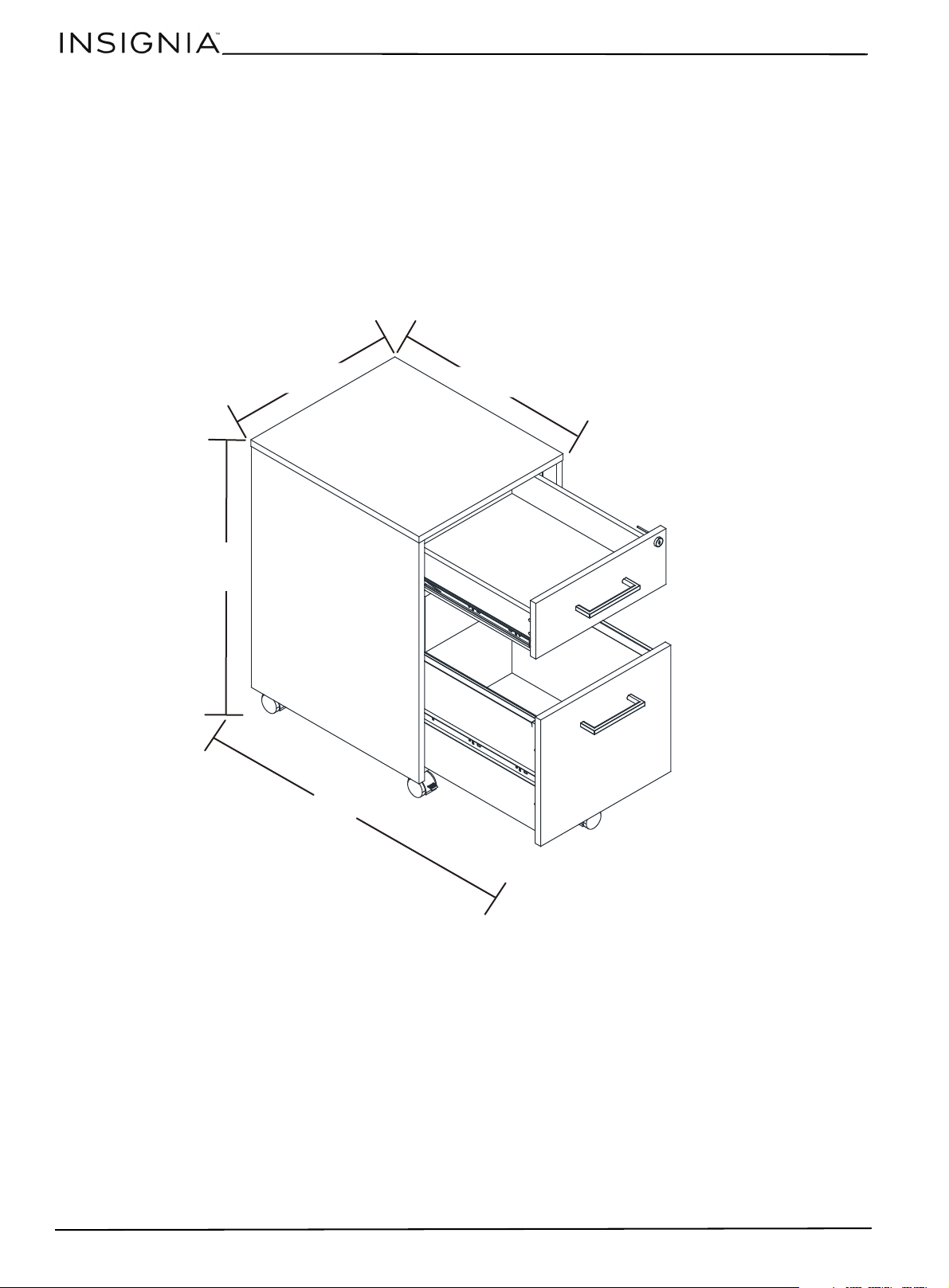
Dimensions
• Maximum weight for the top is 80 lbs. (36.3 kg)
• Maximum weight for the bottom drawer is 50 lbs. (22.7 kg)
• Maximum weight for the upper drawers is 30 lbs. (13.6 kg)
25.2 in. (64 cm)
Small drawers:
12.5 x 15.2 x 2.8 in. (31.8 x 38.7 x 7.1 cm)
15.5 in. (39.4 cm)
33.7 in. (85.5 cm)
18.1 in. (46 cm)
Large drawer:
12.3 x 15.6 x 9.3 in.(31.2 x 39.7 x 23.5 cm)
5
3-Drawer File Cabinet - Black
www.insigniaproducts.com
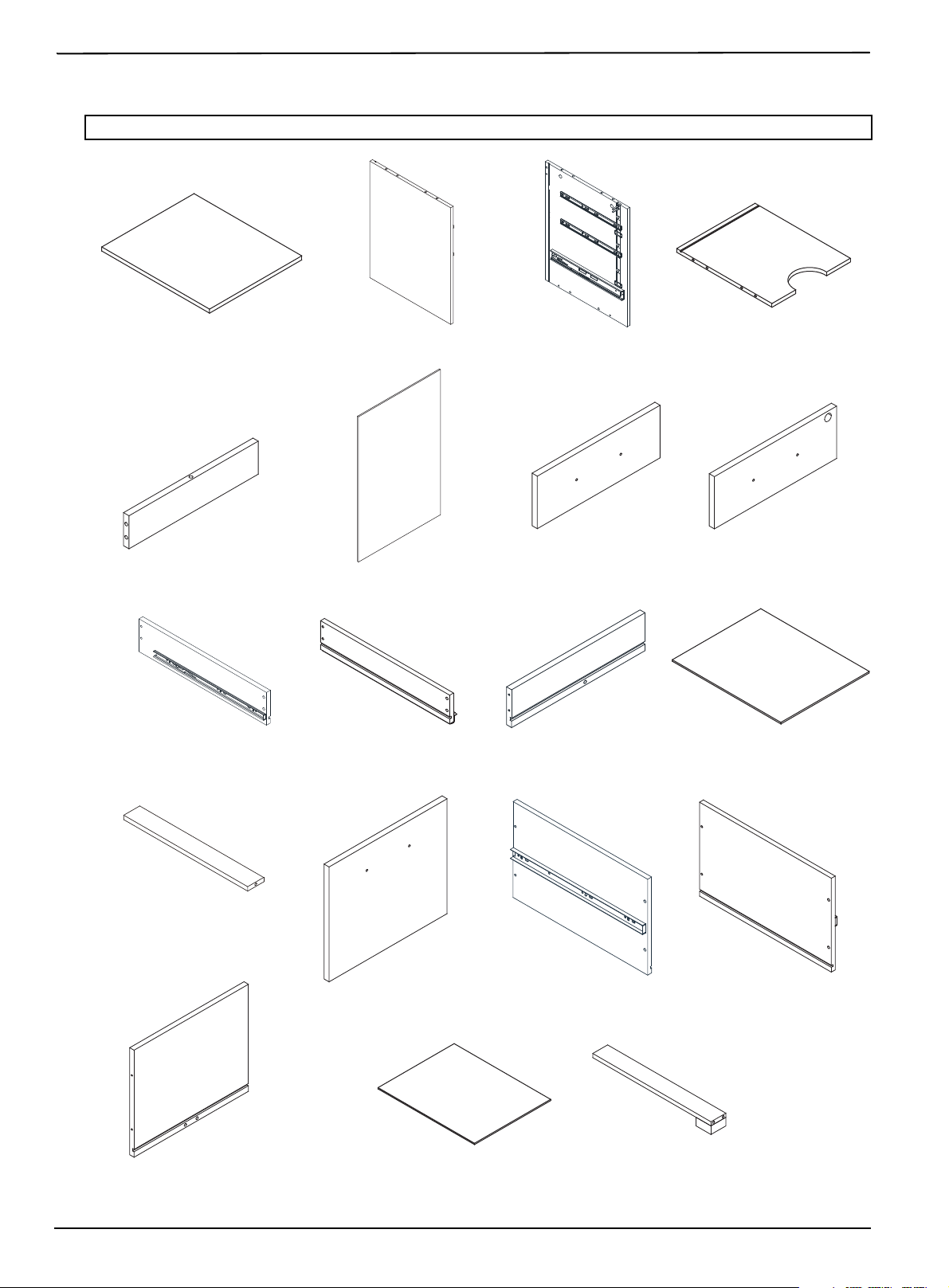
Parts included
Note: Parts are labeled on the side of each panel.
1
Cabinet top
2
Left side panel
3
Right side panel
4
Bottom panel
5
Back brace
6
Back panel
8
Top drawer face
9
Small drawer left side (2)
10
Small drawer right side (2)
11
Small drawer back (2)
12
Small drawer bottom (2)
13
Small drawer bottom brace (2)
7
Middle drawer face
14
Bottom drawer face
17
Bottom drawer back
15
Bottom drawer left side
16
Bottom drawer right side
18
Bottom drawer bottom
19
Drawer bottom brace
6
www.insigniaproducts.com
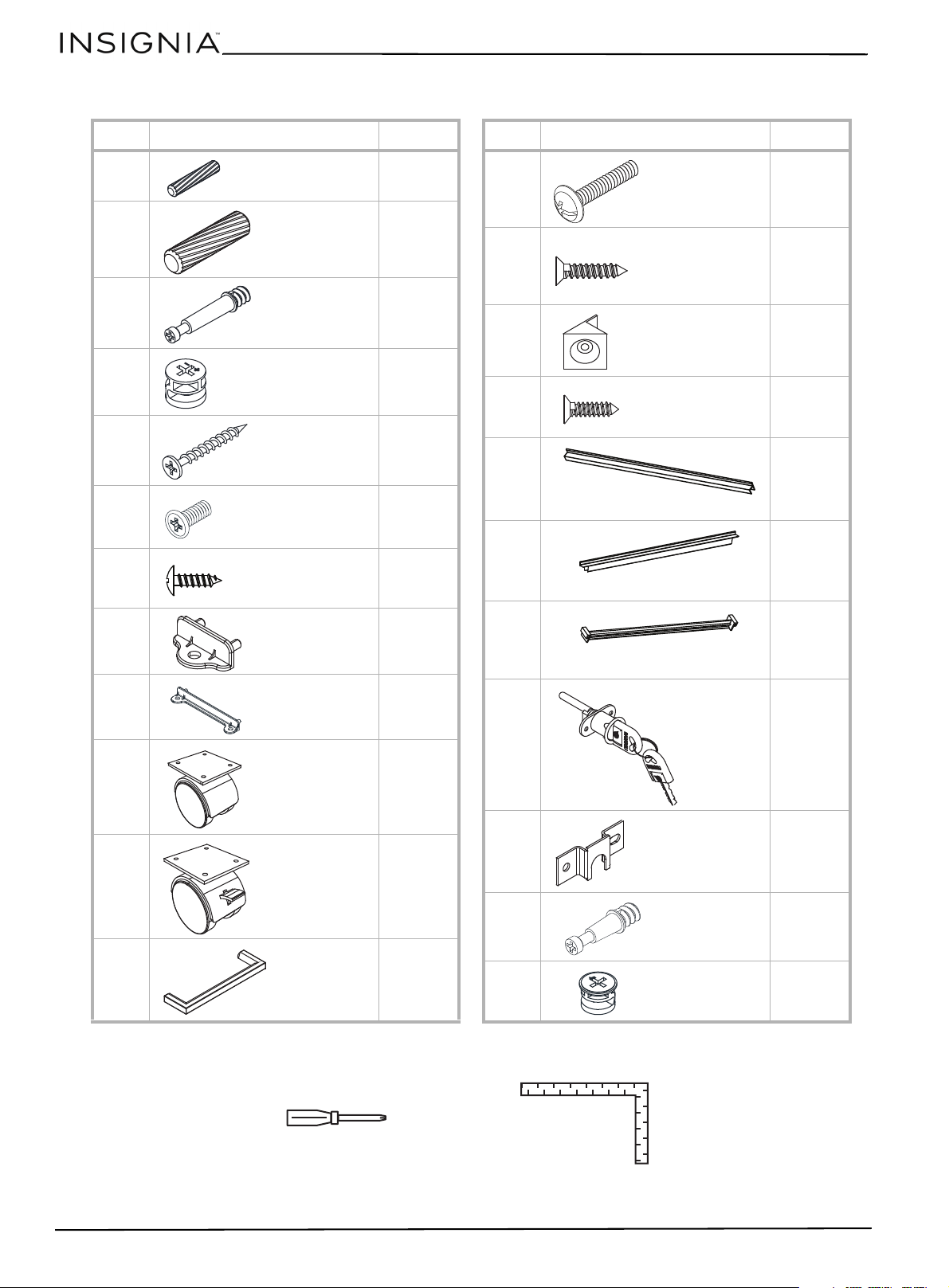
Hardware included
Tools needed
LABEL HARDWARE QTY.
A4
B11
C10
D10
E14
F8
G32
H4
I2
J3
K2
L3
Wooden dowels
5.8 x 30 mm
Wooden dowels
7.8 x 30 mm
KD Bolt (long)
KD Cam (large)
3.8 x 35 mm
screw
M6 × 12 mm
bolt
3.5× 12 mm
screw
Small drawer
face bracket
Large drawer
face bracket
Caster back
(non-locking)
Caster front
(locking)
Handle
LABEL HARDWARE QTY.
M6
N6
O6
P8
Q2
R1
S1
T1
U3
V2
W2
M4 x 25 mm
bolt
3 x 16 mm
screw
Cabinet
stiffeners
3.5 x 12 mm
screw
File side extrusion
File back extrusion
File bar
Lock
Drawer lock
KD Bolt (short)
KD Cam (small)
Phillips #2 screwdriver
Carpenter’s square
7
3-Drawer File Cabinet - Black
www.insigniaproducts.com
Preparing to assemble your file cabinet
1 Follow the assembly instructions carefully.
2 Make sure that all parts and hardware are included.
3 To prevent product damage, assemble your file cabinet on top of the box.
4 Have another person help you with lifting and assembly.
5 For the best results, do not fully tighten the screws until you have assembled all the other parts.
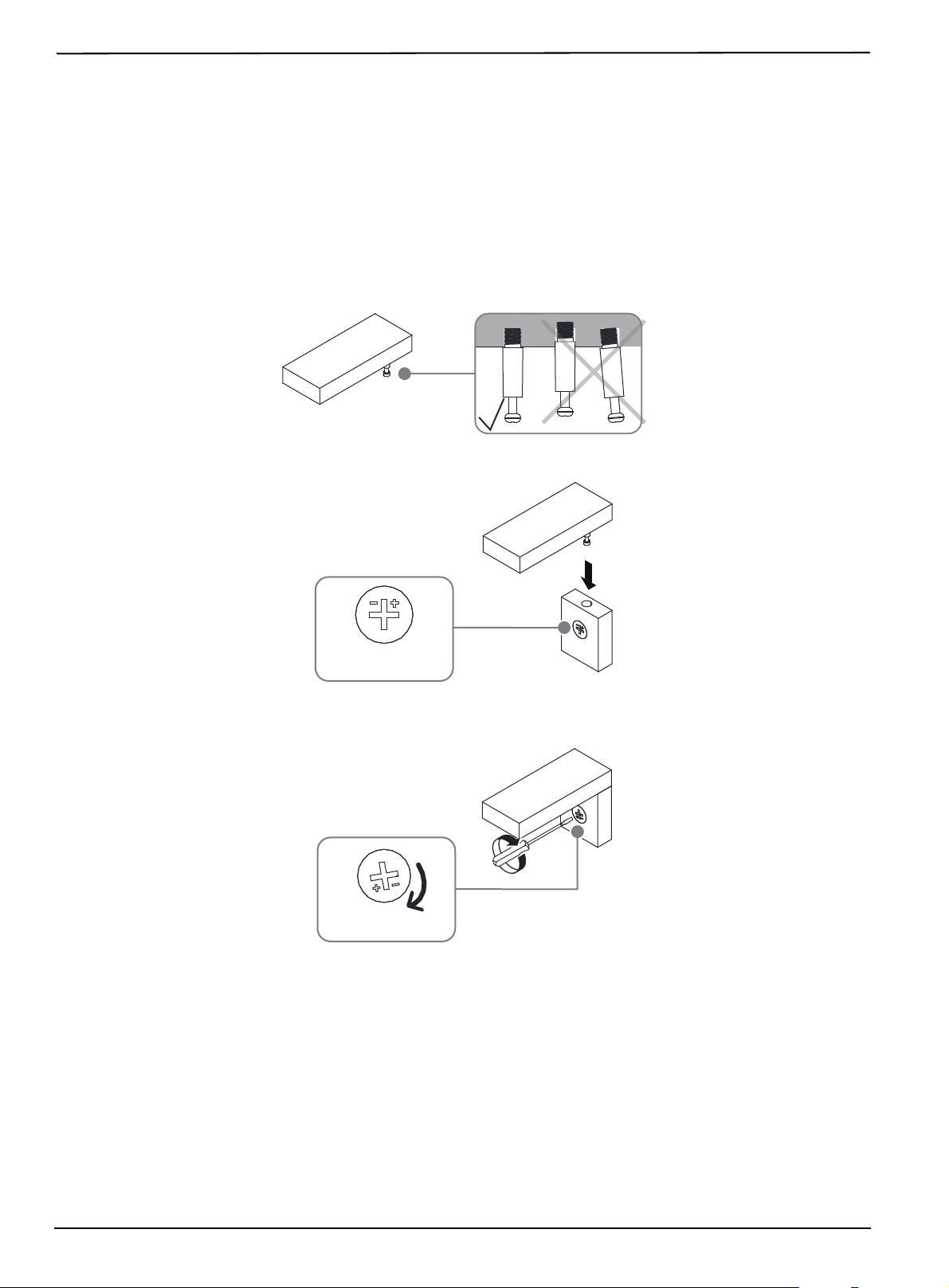
Understanding KD cams and KD bolts
1 Screw the KD bolts (C or V) into each piece with a Phillips screwdriver. Make sure that they are straight and flush
with each panel.
2 Align the KD cam (D or W) arrow toward to the hole, then insert the KD bolt into the hole of the cam lock.
3 Use a Phillips
screwdriver to turn the KD cam (D or W) clockwise until it is locked. The locked position is about a 1/2
turn (160°–185°). Do not overturn the KD cam.
8
www.insigniaproducts.com
Assembling your file cabinet
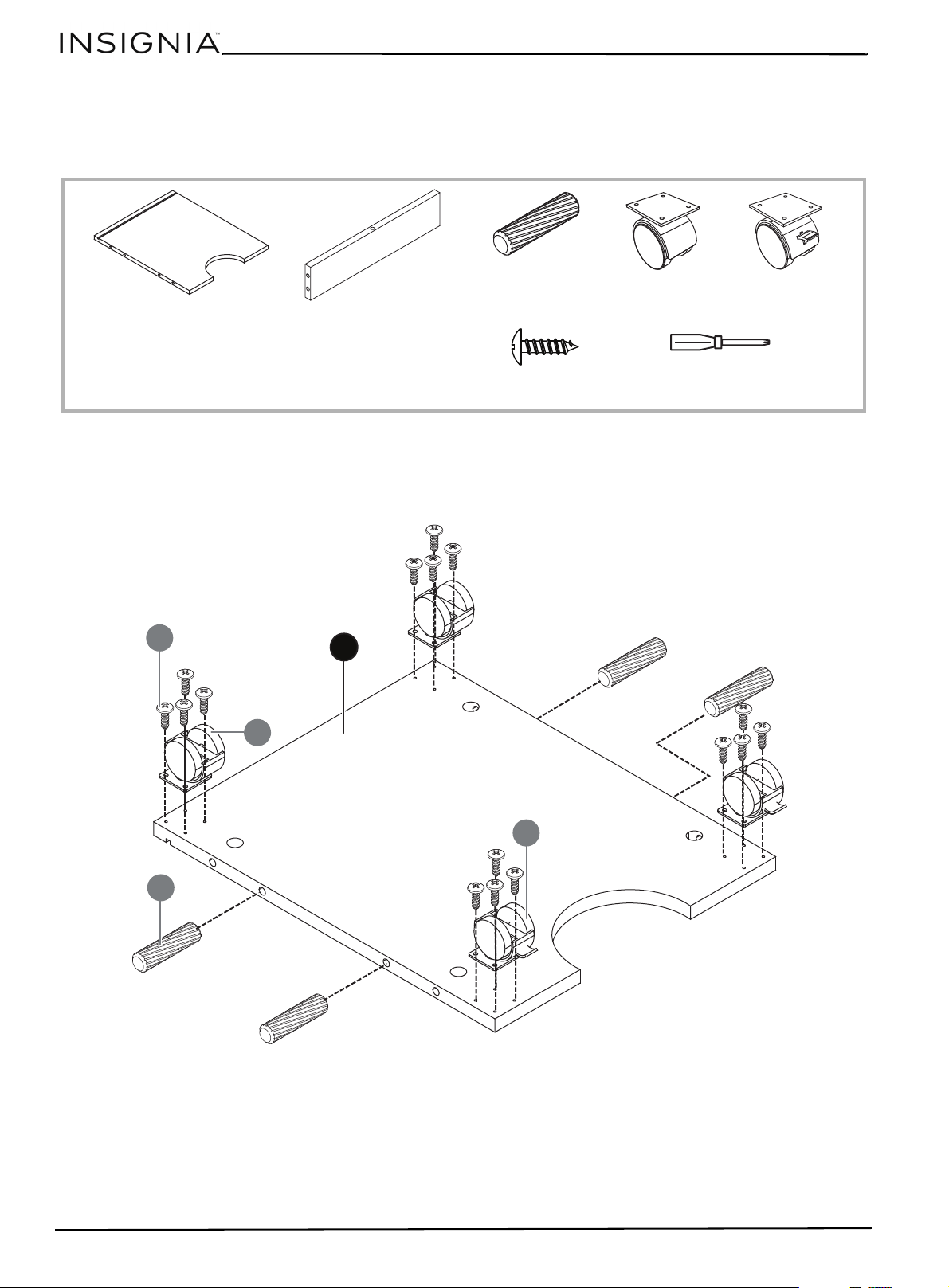
STEP 1: Preparing the cabinet bottom and back brace
You n e ed:
1 Insert four wooden dowels (B) into the edges of the bottom panel (4). Be careful not to insert the dowels into the
KD bolt holes. Tap the dowels to seat them.
2 Attach two locking casters (K) to the front edge of the bottom panel (4) and two non-locking casters (J) to the back
edge of the bottom panel, each with four 3.5 x 12 mm screws (G).
B Wooden dowels
7.8 x 30 mm (7)
Phillips screwdriver
4 Bottom panel
5 Back brace
J Caster back
(non-locking) (2)
K Caster front
(locking) (2)
G 3.5× 12 mm
screw (16)
B
K
4
J
G
9
3-Drawer File Cabinet - Black
www.insigniaproducts.com
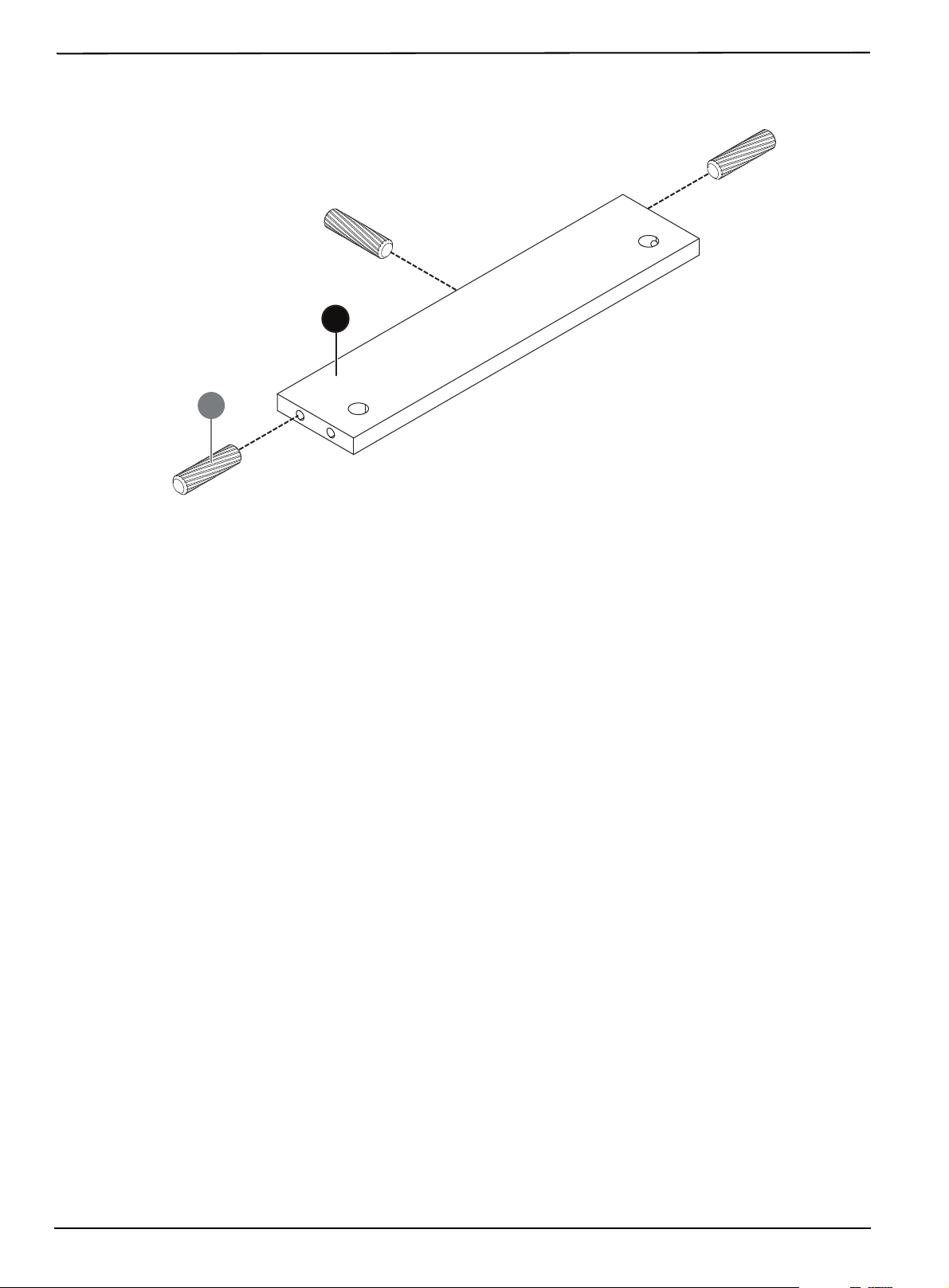
3 Insert three wooden dowels (B) into the edges of the back brace (5). Be careful not to insert the dowels into the KD
bolt holes. Tap the dowels to seat them.
B
5
10
www.insigniaproducts.com
STEP 2: Preparing the cabinet side panels
You n e ed:
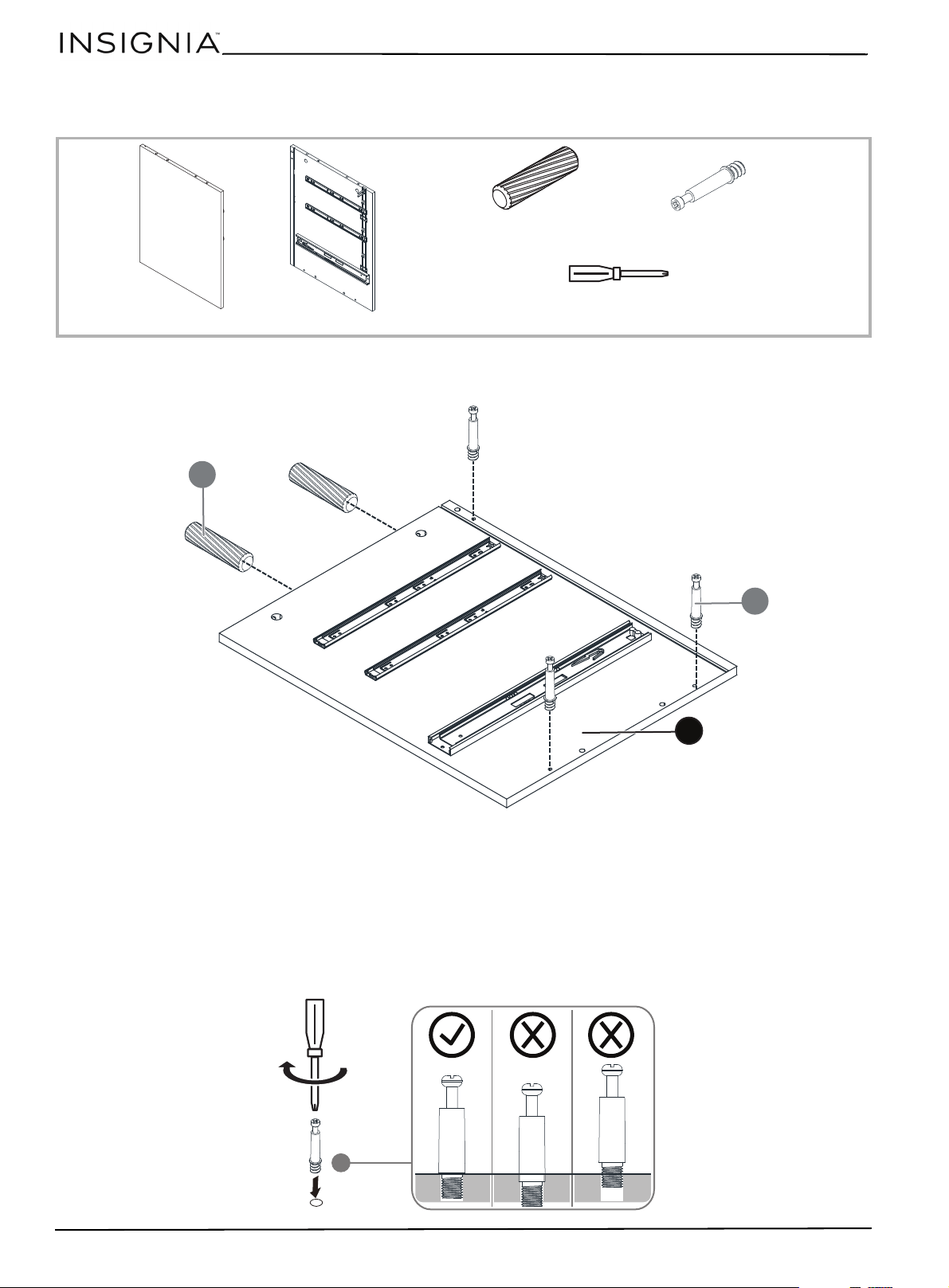
1 Insert two wooden dowels (B) into the bottom edge of the left side panel (2), then use a Phillips screwdriver to
attach three long KD bolts (C) into the side panel. Don’t overtighten.
B Wooden dowels
7.8 x 30 mm (4)
C KD Bolt (long) (6)
Phillips screwdriver
2 Left side panel
3 Right side panel
C
B
2
11
3-Drawer File Cabinet - Black
www.insigniaproducts.com
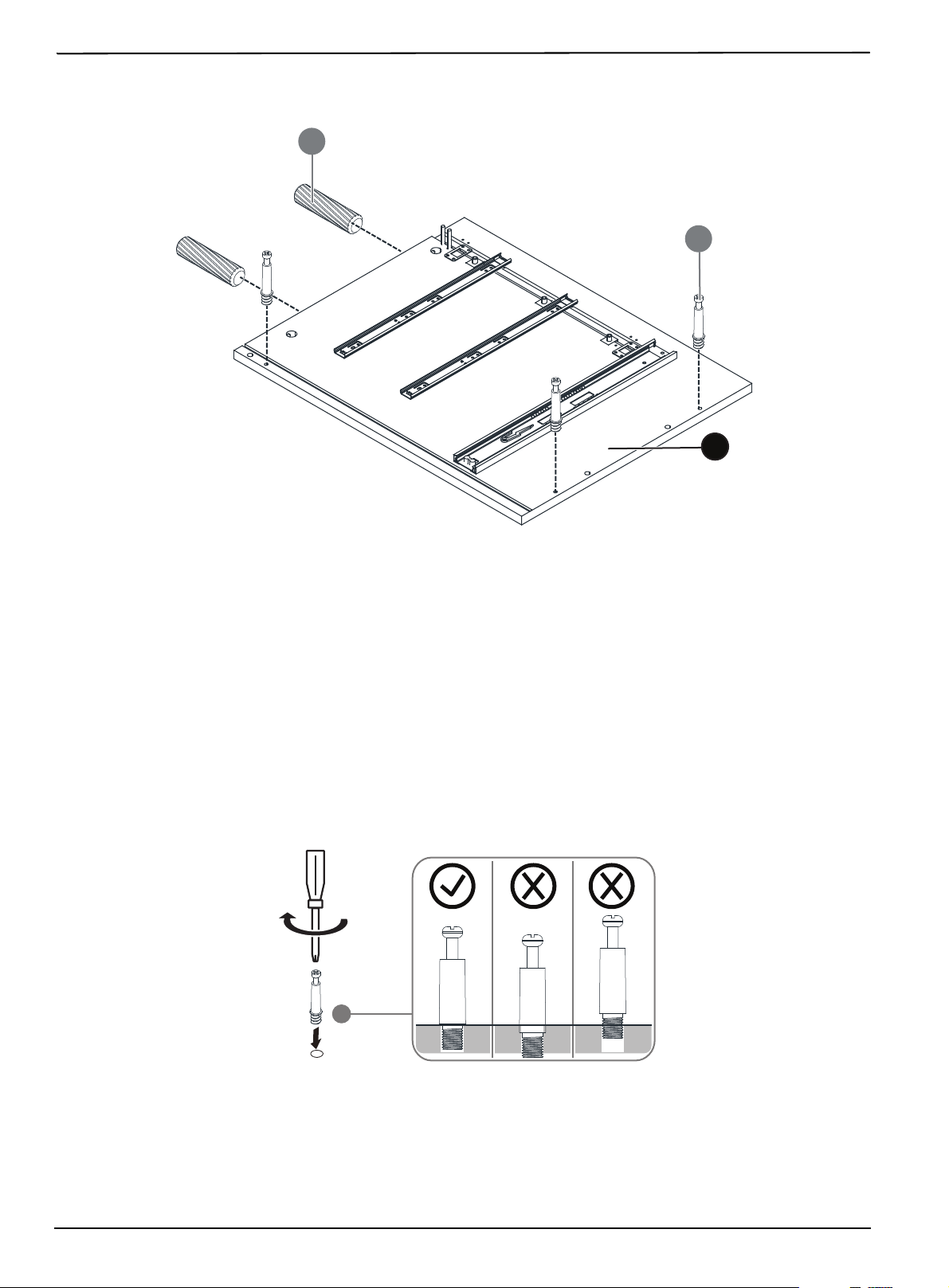
2 Insert two wooden dowels (B) into the edge of the right side panel (3), then use a Phillips screwdriver to attach
three long KD bolts (C) into the indicated holes the side panel. Don’t overtighten.
C
B
3
12
www.insigniaproducts.com
STEP 3: Assembling the cabinet sides and bottom
You n e ed:
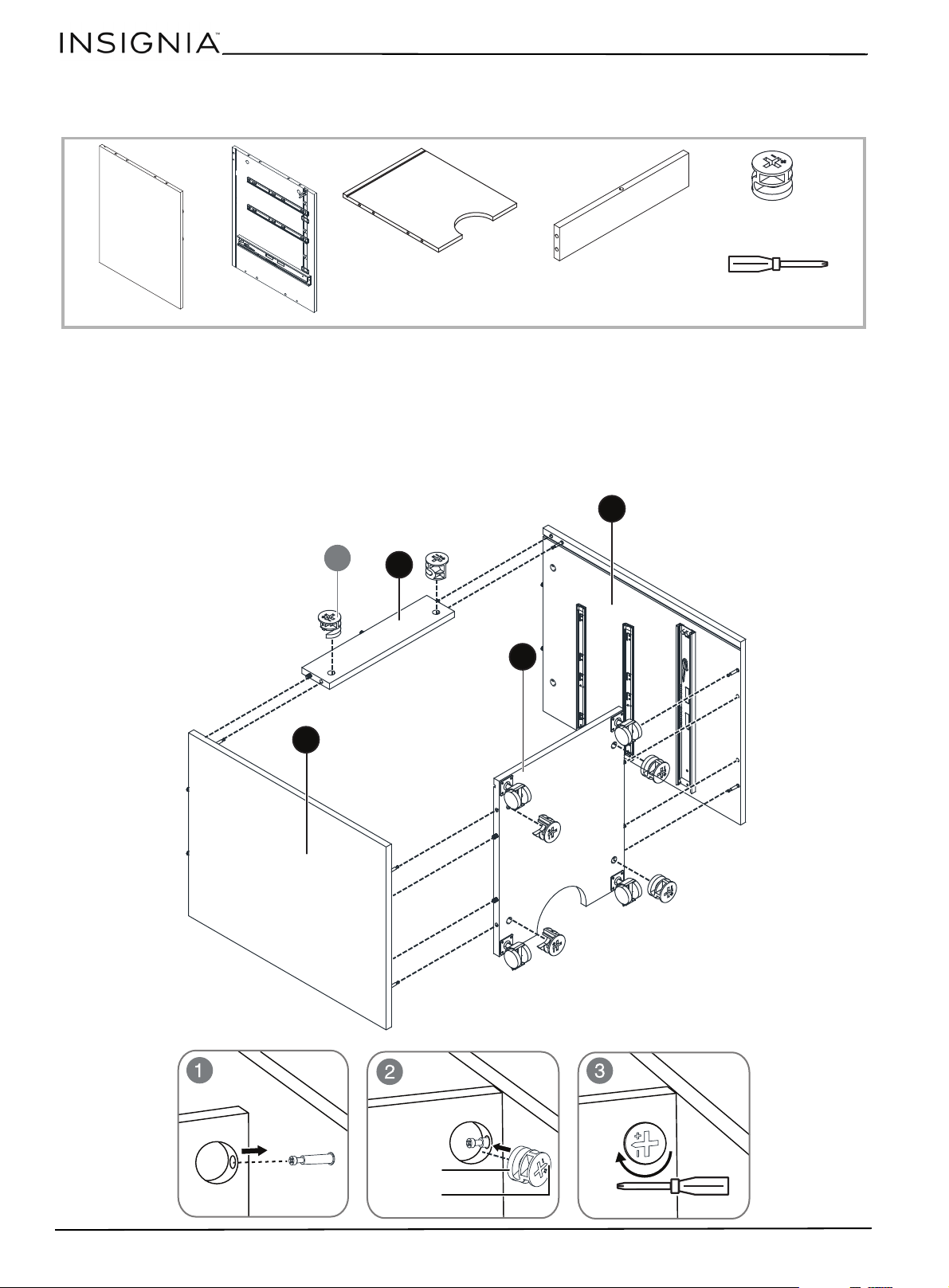
1 Lay the left side panel (2) flat on the floor, then align and attach the back brace (5) and the bottom panel (4). Make
sure that the edges of the panels are flush with each other.
2 Insert two large KD cams (D) into the back of the back brace (5), then insert four large KD cams (D) into the bottom
of the bottom panel (4). Make sure that the cam lock arrows are pointing toward their corresponding cam-lock
screw holes, then tighten the KD cams.
3 Place the right side panel (3) on the top of the assembled pieces, then align and attach it to the assembled pieces.
Make sure that the edges of the panels are flush with each other, then tighten the KD cams.
D KD Cam (large) (6)
Phillips screwdriver
2 Left side panel
4 Bottom panel
5 Back brace
3 Right side panel
4
D
3
5
2
Large KD cam
Arrow
13
3-Drawer File Cabinet - Black
www.insigniaproducts.com
STEP 4: Installing the back panel
You n e ed:
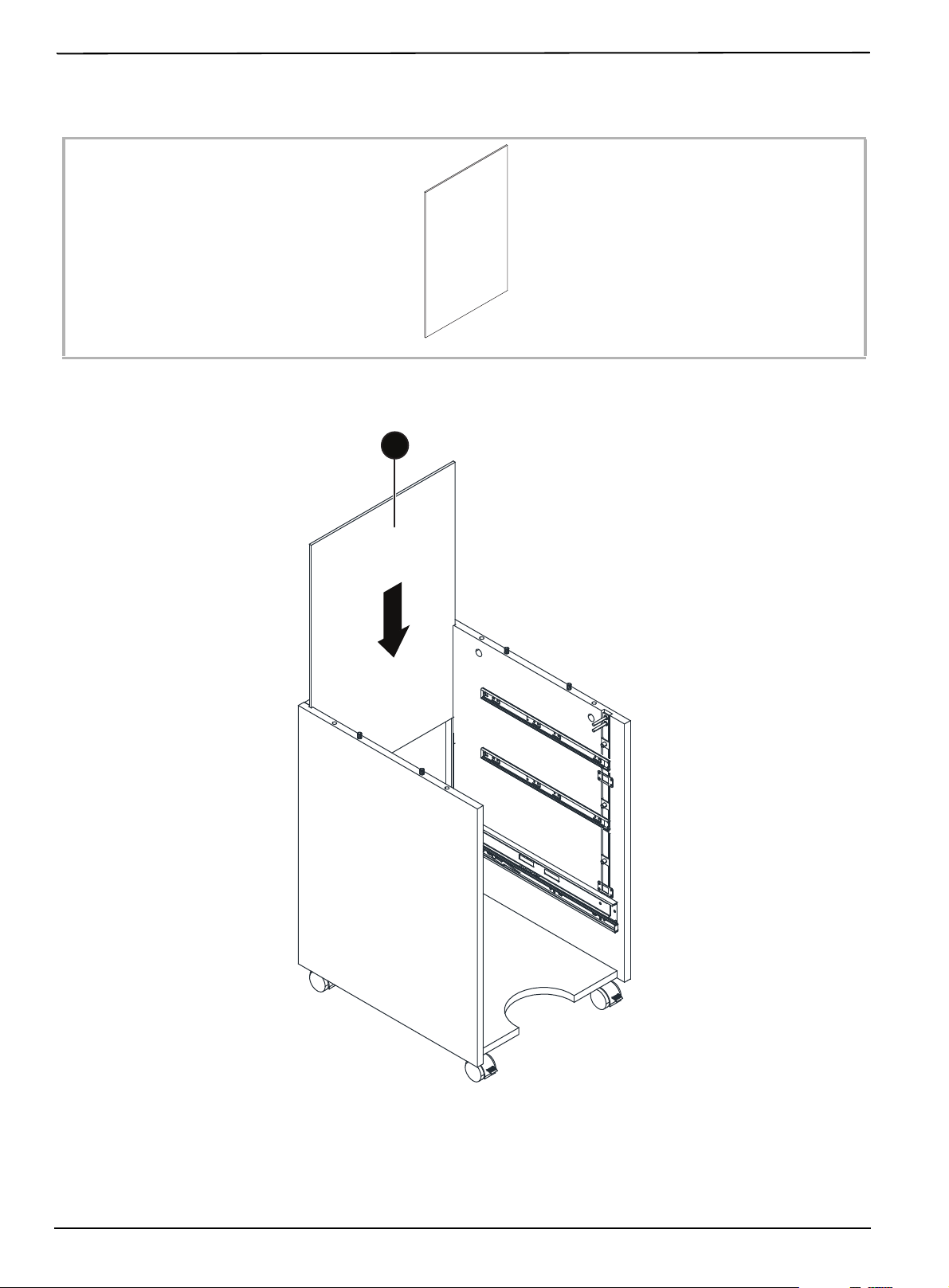
• Insert the back panel (6), then insert it into the channel in the back of the assembly. Make sure that the back panel
is fully inserted and that the top of the back panel is flush with the top of the assembly.
6 Back panel
6
14
www.insigniaproducts.com
STEP 5: Preparing the cabinet top
You n e ed:
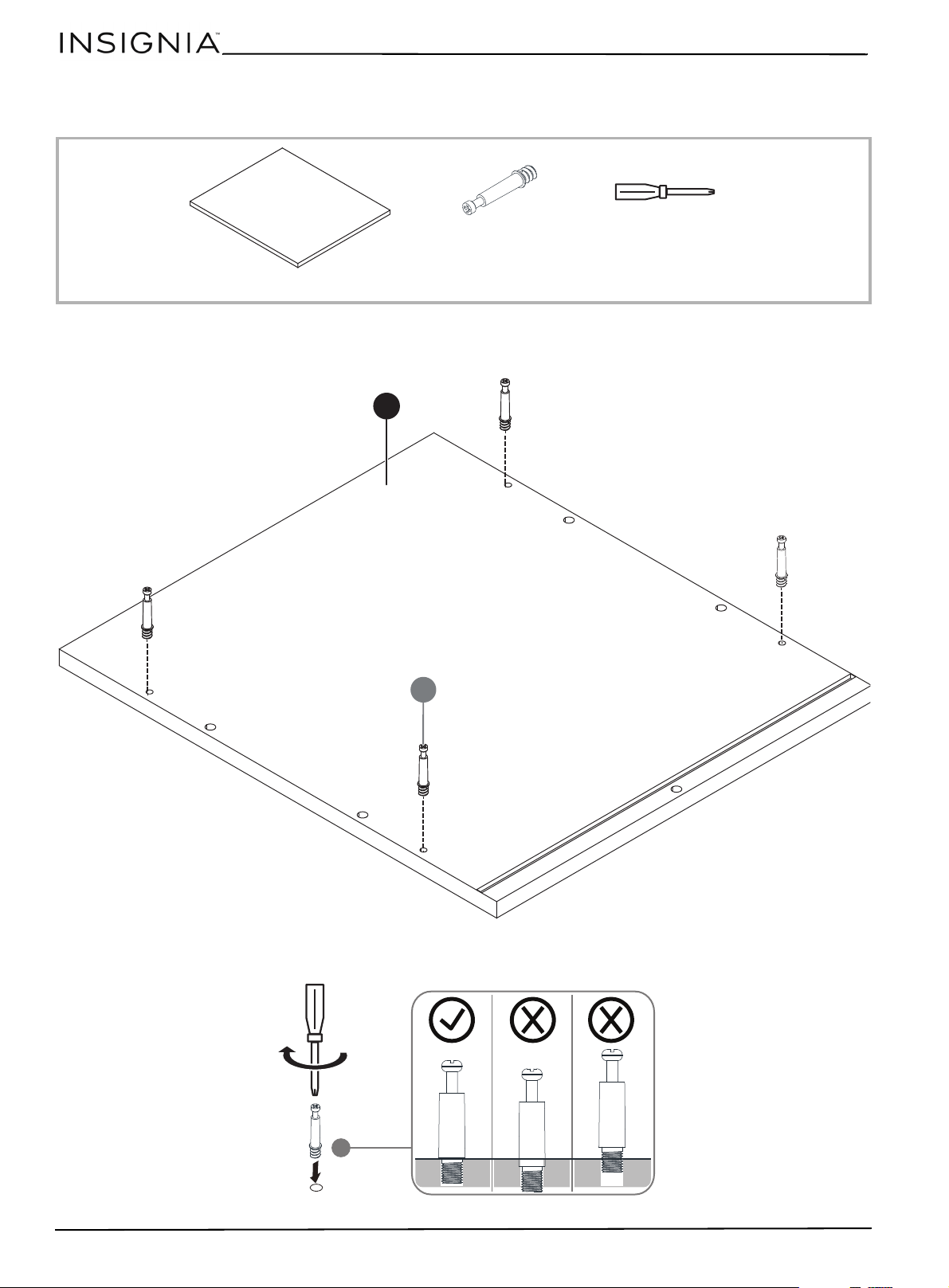
1 Use a Phillips screwdriver to attach four long KD bolts (C) into the outside holes in the cabinet top (1). Don’t
overtighten.
C KD Bolt (long) (4)
Phillips screwdriver
1 Cabinet top
1
C
15
3-Drawer File Cabinet - Black
www.insigniaproducts.com
STEP 6: Installing the cabinet top
You n e ed:
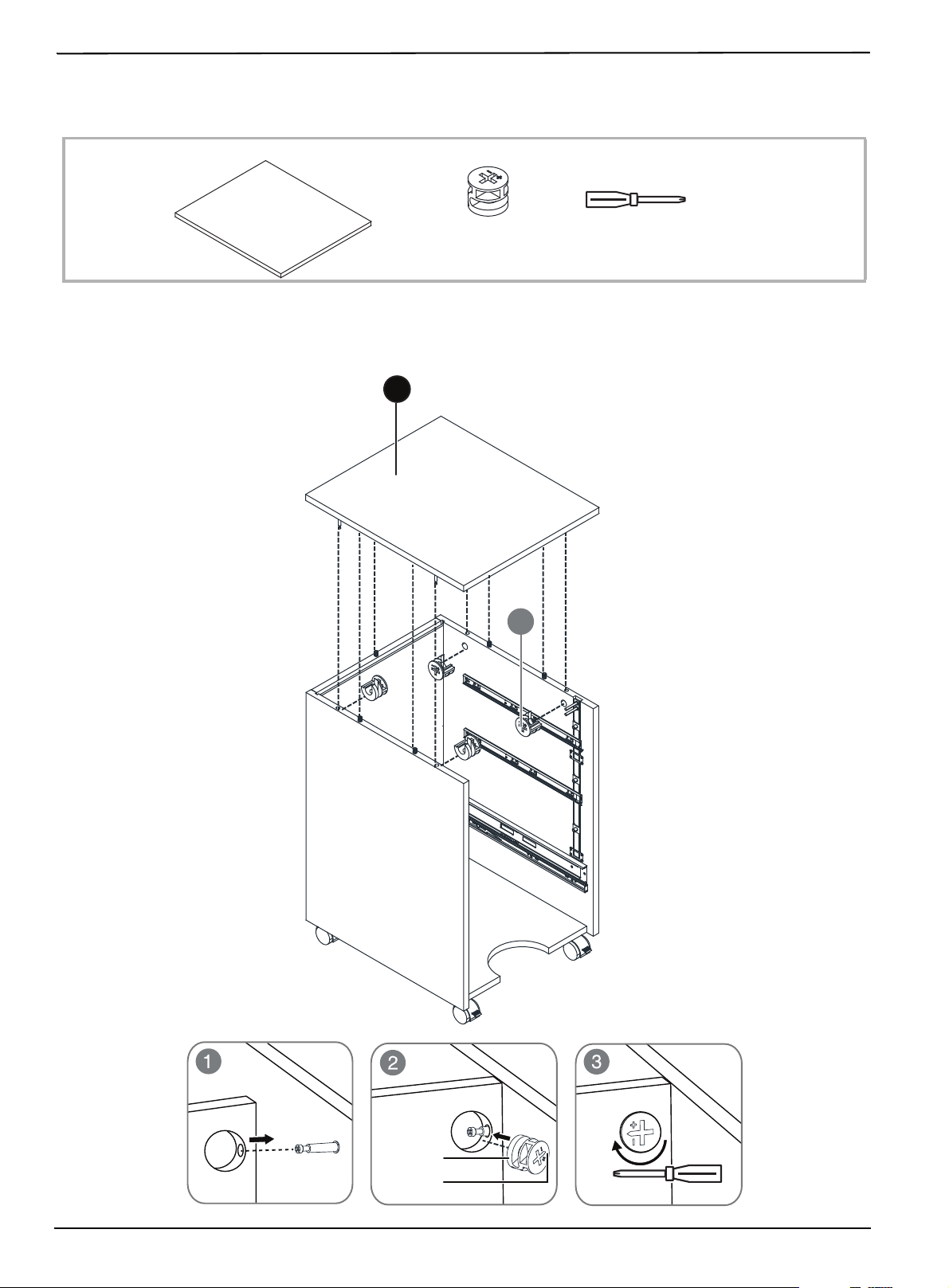
1 Place the cabinet top (1) on top of the assembly, align the KD bolts and dowels with the holes in the corresponding
pieces, then push the pieces together. Make sure that the edges of the panels are flush with each other.
2 Insert two large KD cams (D) into the left side panel and two large KD cams (D) into the right side panel. Make sure
that the cam lock arrows are pointing toward their corresponding cam-lock screw holes, then tighten the KD cams.
D KD Cam (large) (4) Phillips screwdriver
1 Cabinet top
1
D
Large KD cam
Arrow
16
www.insigniaproducts.com
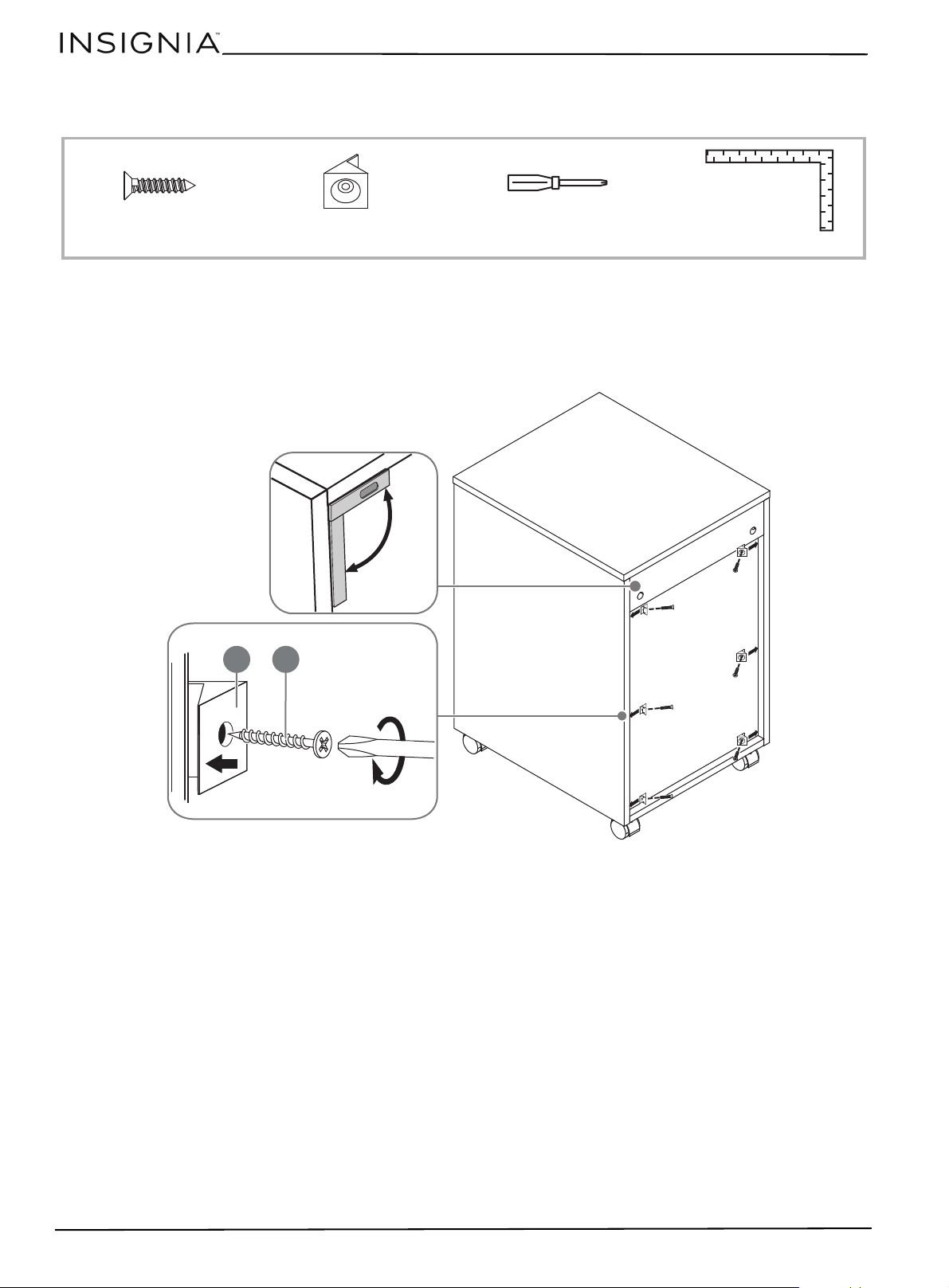
STEP 7: Installing the cabinet stiffeners
You n e ed:
1 Use a carpenter’s square to make sure that the cabinet is square.
2 Use a Phillips screwdriver to install six cabinet stiffeners (O) into the cabinet sides at equal intervals around the back
of the cabinet, using the 3 x 16 mm screws (N).
N 3 x 16 mm screw (6)
Phillips screwdriver
O Cabinet
stiffeners (6)
Carpenter’s square
°90
N
O
17
3-Drawer File Cabinet - Black
www.insigniaproducts.com
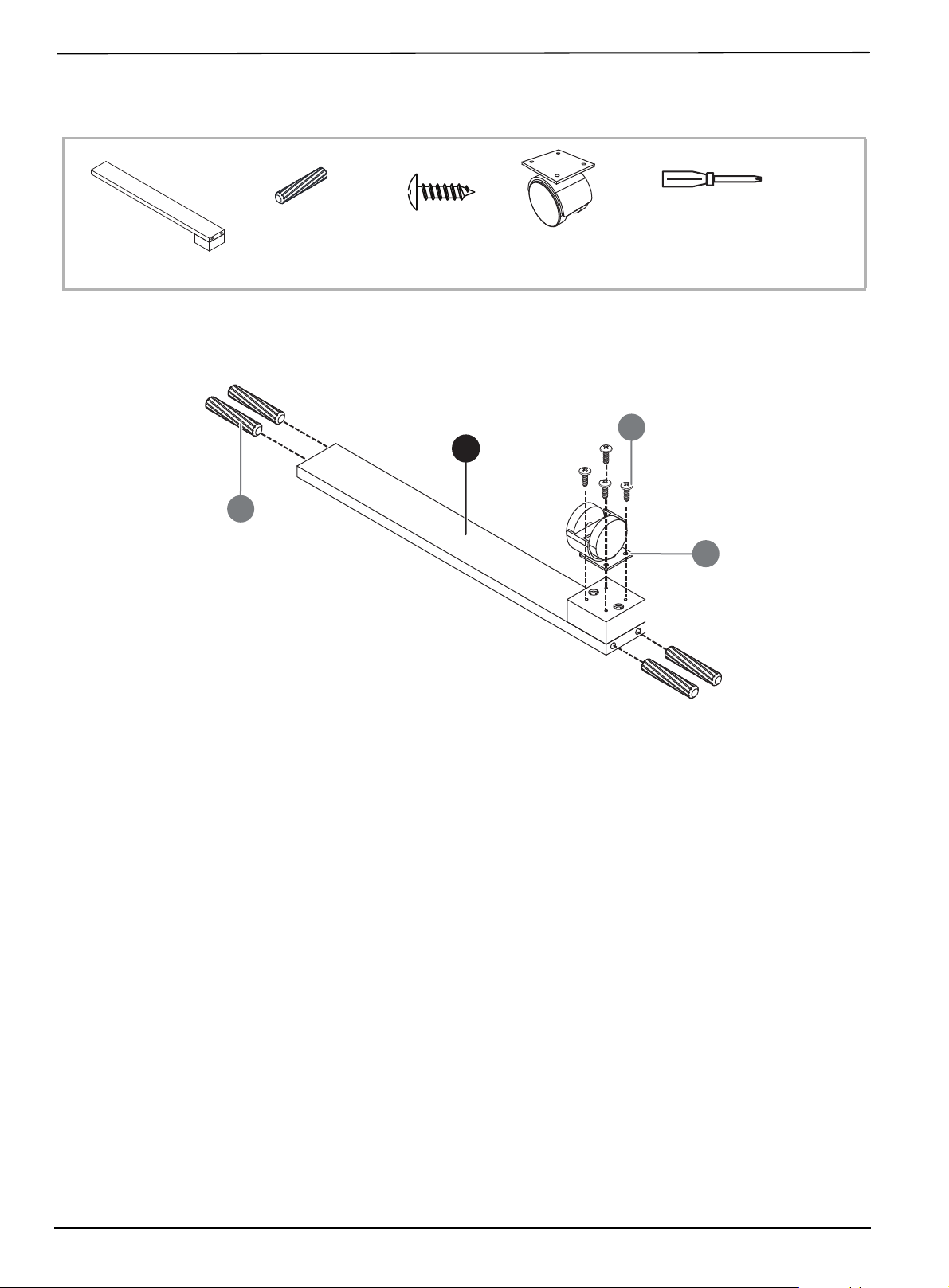
STEP 8: Preparing the drawer bottom brace
You n e ed:
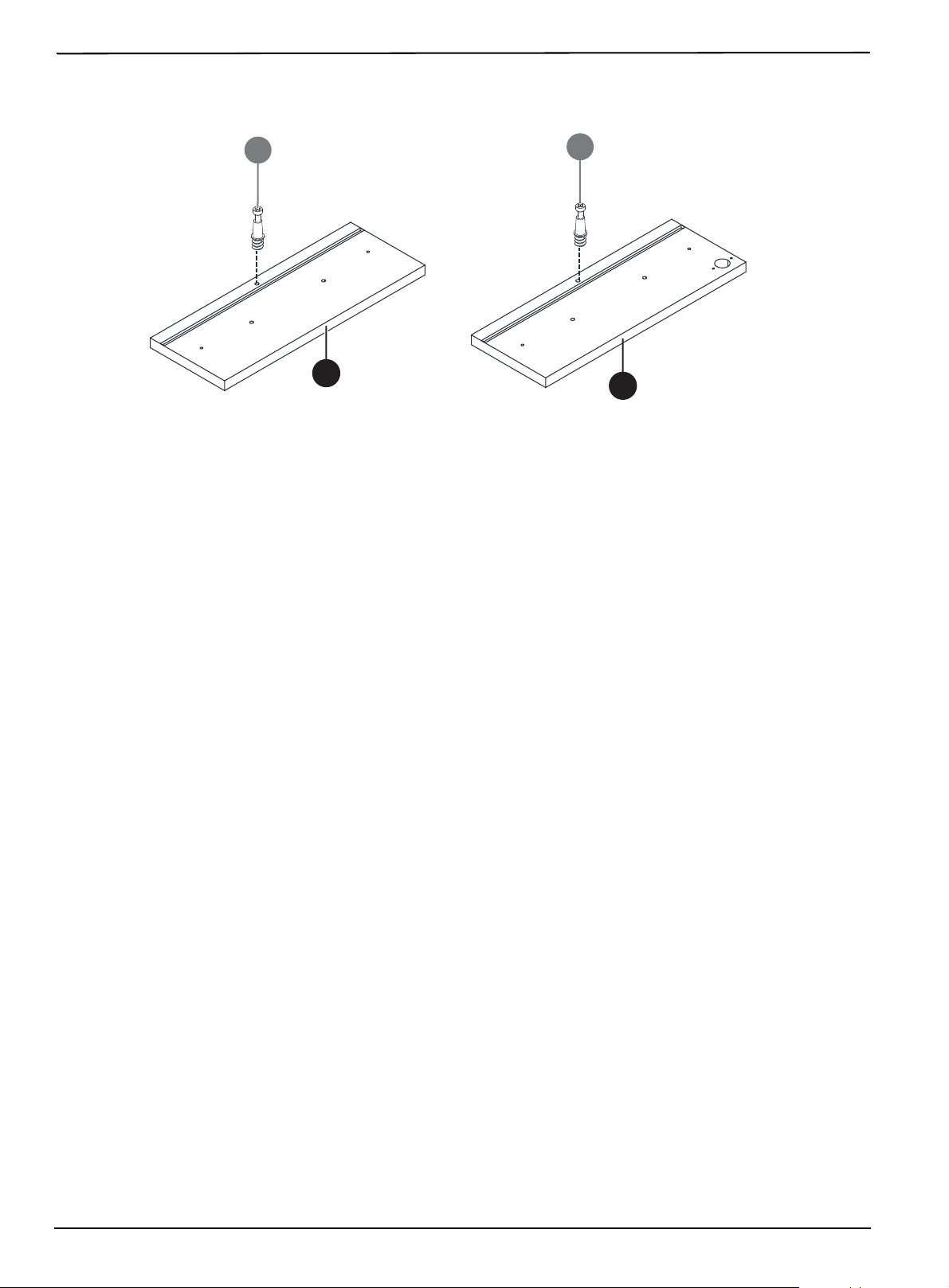
1 Insert four wooden dowels (A) into the edges of the drawer bottom brace (19). Tap the dowels to seat them.
2 Using a Phillips screwdriver, attach a non-locking caster (J) to the front mounting block of the bottom brace (19)
with four 3.5 x 12 mm screws (G).
A Wooden dowels
5.8 x 30 mm (4)
Phillips screwdriver
J Caster back
(non-locking) (1)
G 3.5× 12 mm
screw (4)
19 Bottom brace
J
G
1
9
A
18
www.insigniaproducts.com
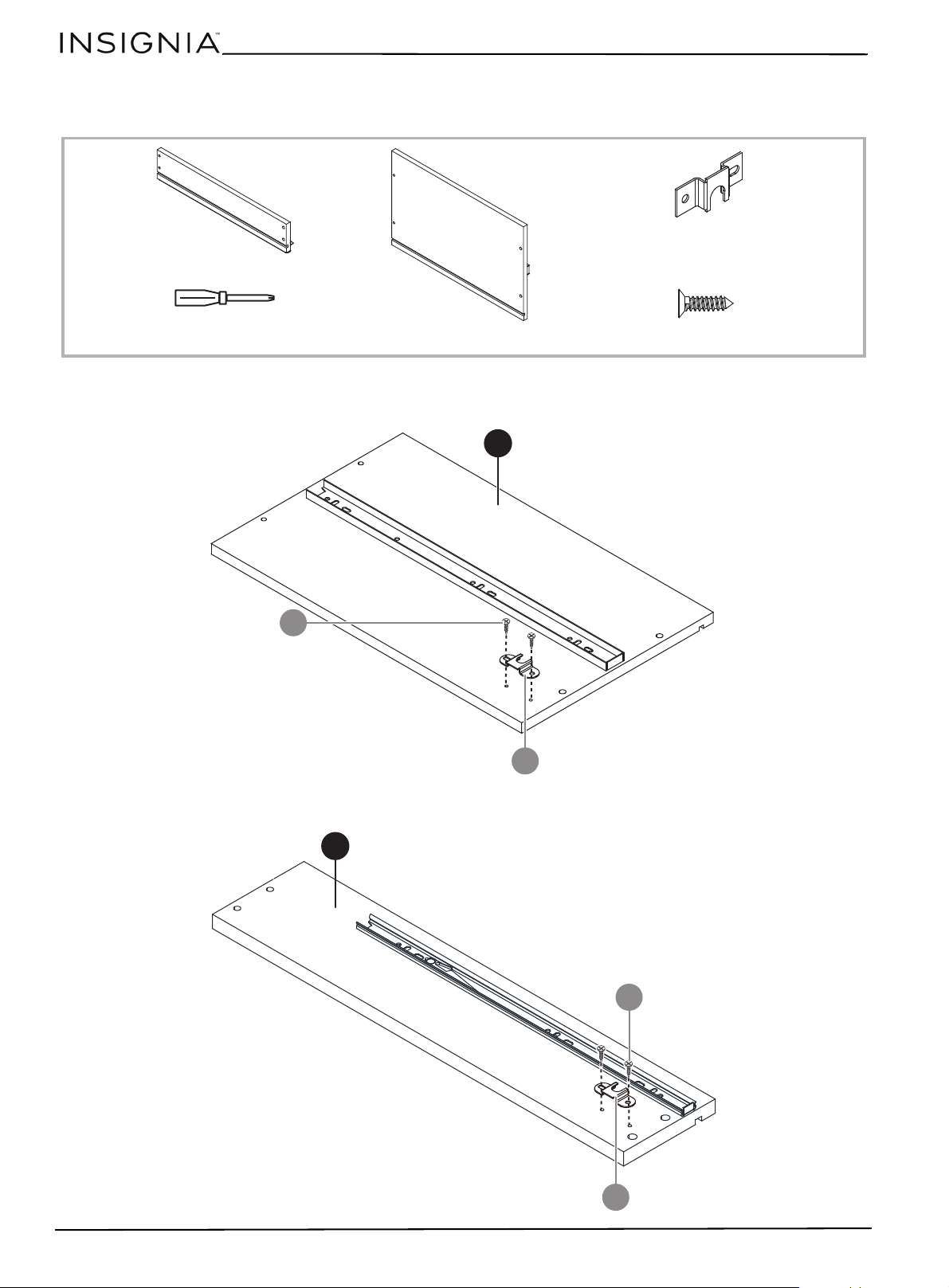
STEP 9: Preparing the drawer sides
You n e ed:
1 Use a Phillips screwdriver to attach the drawer lock (U) into the bottom drawer right side (16) with two 3.5 x
12 mm screws (P).
2 Use a Phillips screwdriver to attach the drawer locks (U) to the two small drawer right sides (10) with two 3.5 x
12 mm screws (P) each.
T
Phillips screwdriver
10 Small drawer right side (2)
16 Bottom drawer right side
P 3.5× 12 mm screw (6)
U Drawer lock (3)
U
1
6
P
1
0
U
P
X 2
19
3-Drawer File Cabinet - Black
www.insigniaproducts.com
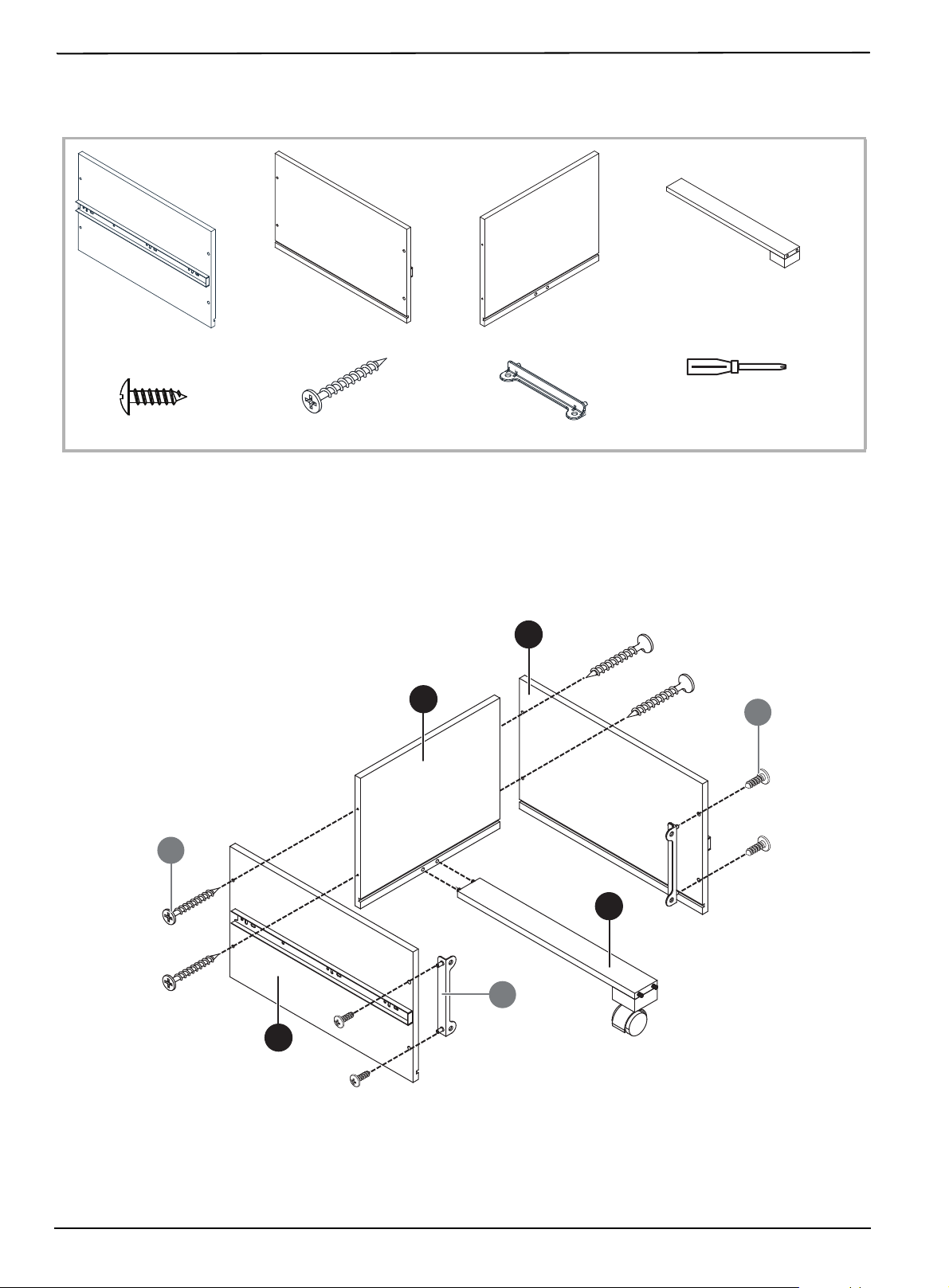
STEP 10: Assembling the bottom drawer -1
You n e ed
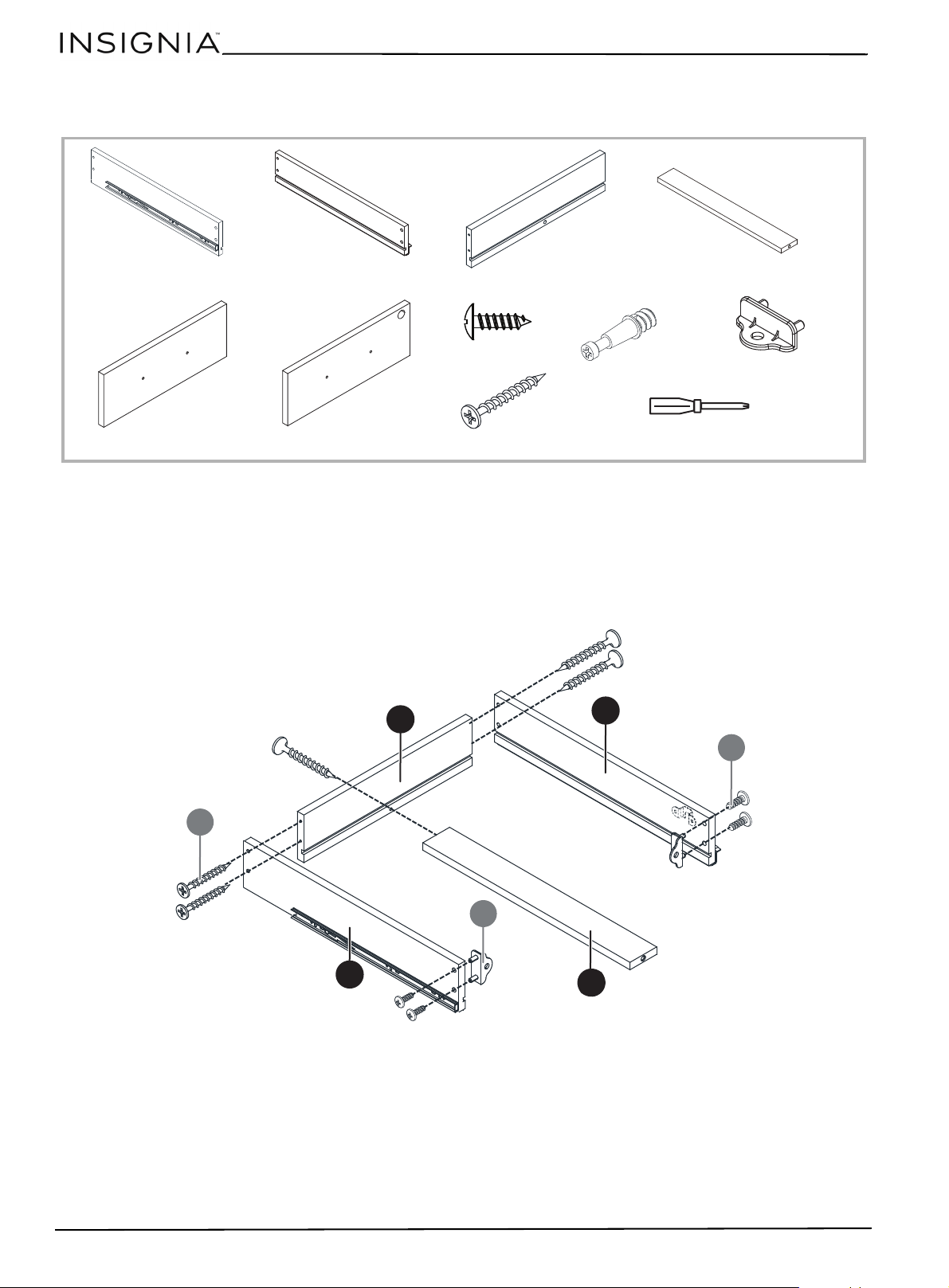
1 Use a Phillips screwdriver to attach the bottom drawer left side (15) and the bottom drawer right side (16) to the
bottom drawer back (17) with four 3.8 x 35 mm screws (E). Make sure that the grooves on the back and side panels
face the inside of the drawer. Don’t overtighten.
2 Use a Phillips screwdriver to attach the two large drawer face brackets (I), flat side out, to the insides of the left and
right drawer sides using four 3.5 x 12 mm screws (G). Don’t overtighten.
3 Press the dowels on the drawer bottom brace (19) into the corresponding holes in the bottom drawer back (17).
The caster should face down and be positioned to the front of the drawer.
Phillips screwdriver
E 3.8 x 35 mm screw (4)
G 3.5 x 12 mm screw (4)
I Large drawer face bracket (2)
15 Bottom drawer left side 16 Bottom drawer right side
17 Bottom drawer back
19 Drawer bottom brace
G
1
9
I
1
7
1
5
E
1
6
20
www.insigniaproducts.com
STEP 11: Assembling the bottom drawer - 2
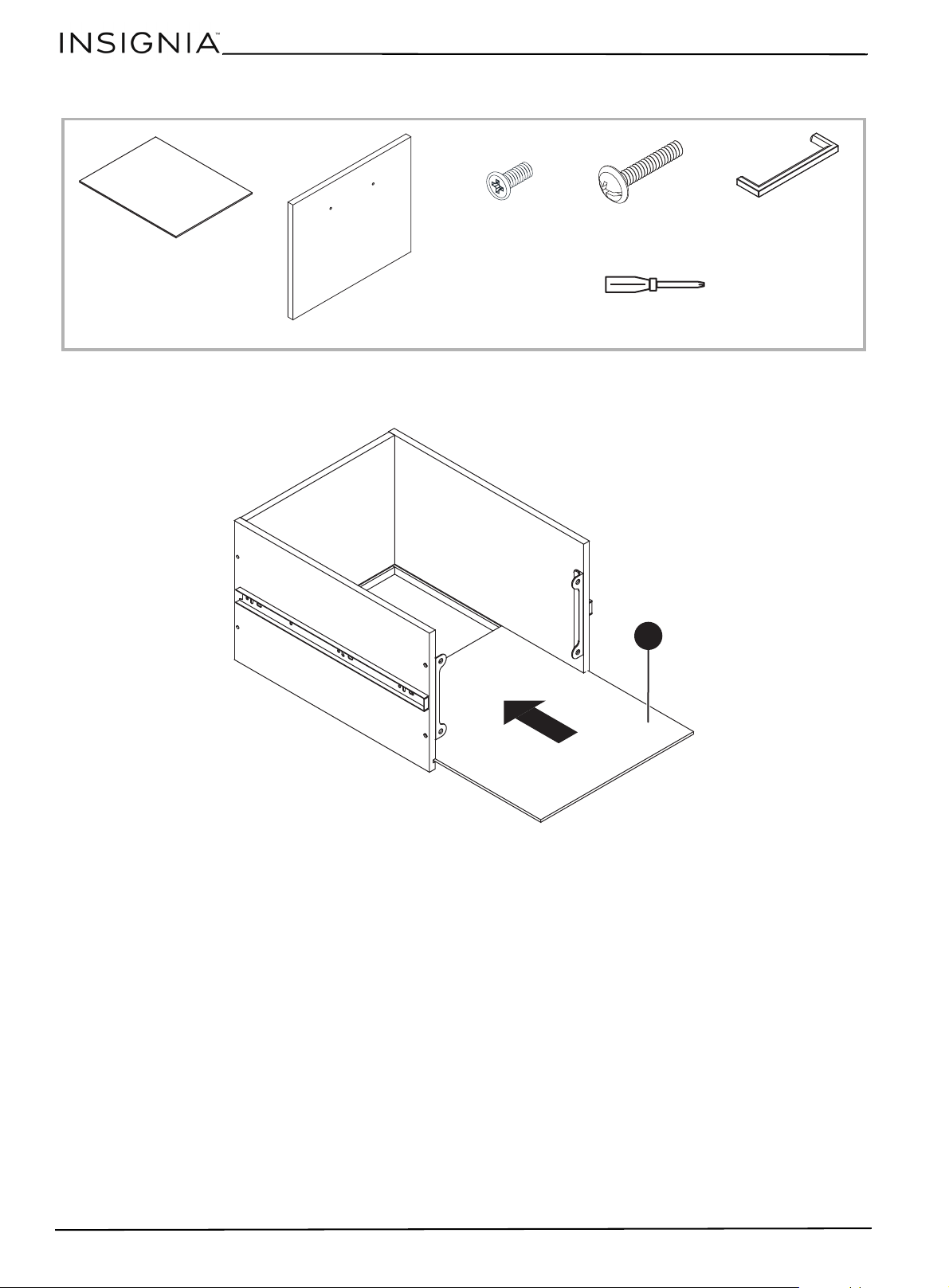
1 Slide the bottom drawer bottom (18) into the groove in the bottom of the bottom drawer. The front edge of the
drawer bottom should protrude slightly from the drawer assembly.
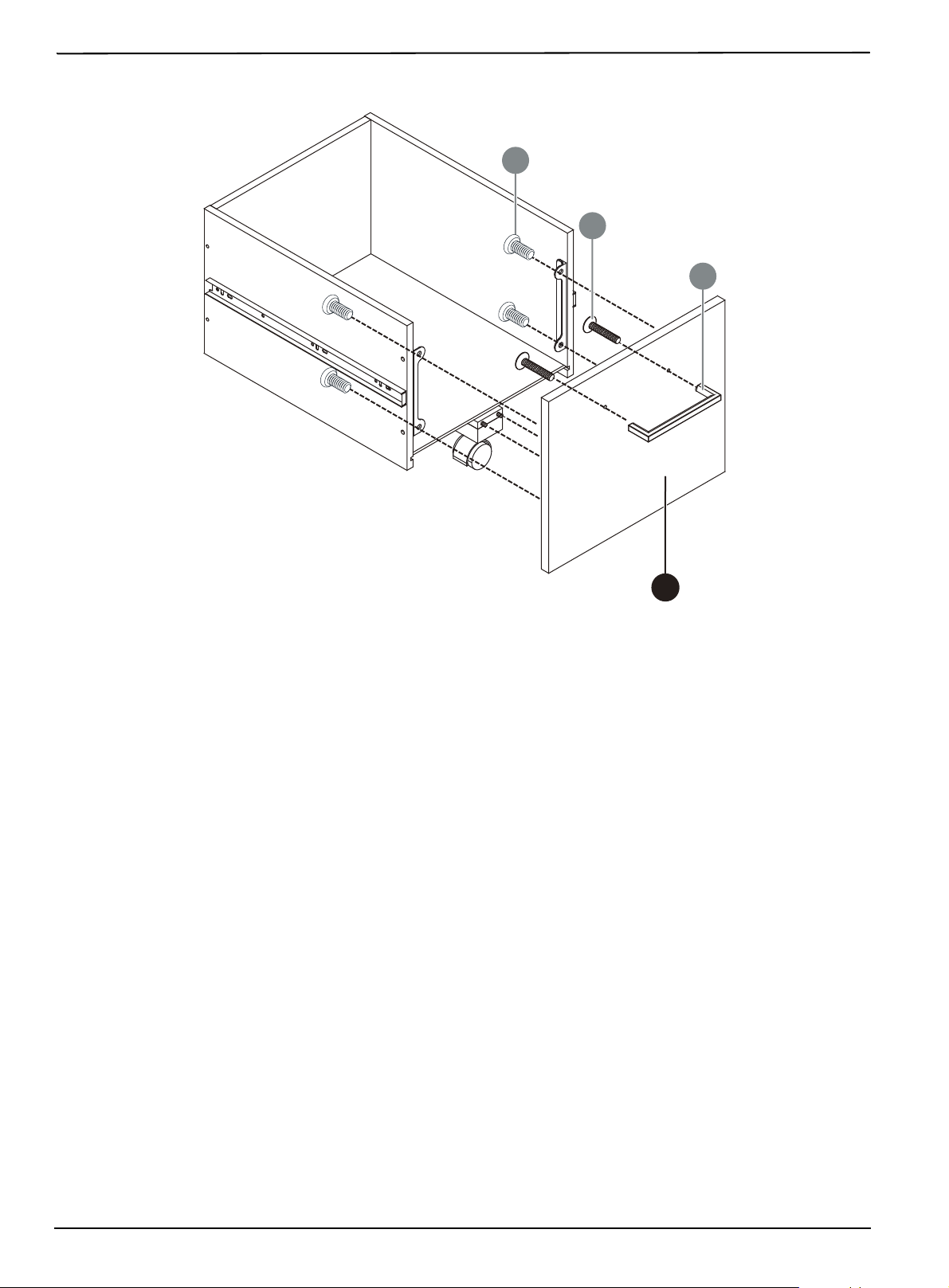
2 Use a Phillips screwdriver to attach the bottom drawer face (14) to the front of the bottom drawer using four 6 x
12 mm bolts (F). The two holes for the handle should be towards the top of the drawer.
Phillips screwdriver
18 Bottom drawer bottom
14 Bottom drawer face
F M6 × 12 mm
bolt (4)
M M4 x 25 mm
bolt (2)
L Handle (1)
1
8
21
3-Drawer File Cabinet - Black
www.insigniaproducts.com
3 Use a Phillips screwdriver to attach the handle (L) to the front of the bottom drawer using two 4 x 25 mm bolts (M).
1
4
M
L
F
22
www.insigniaproducts.com
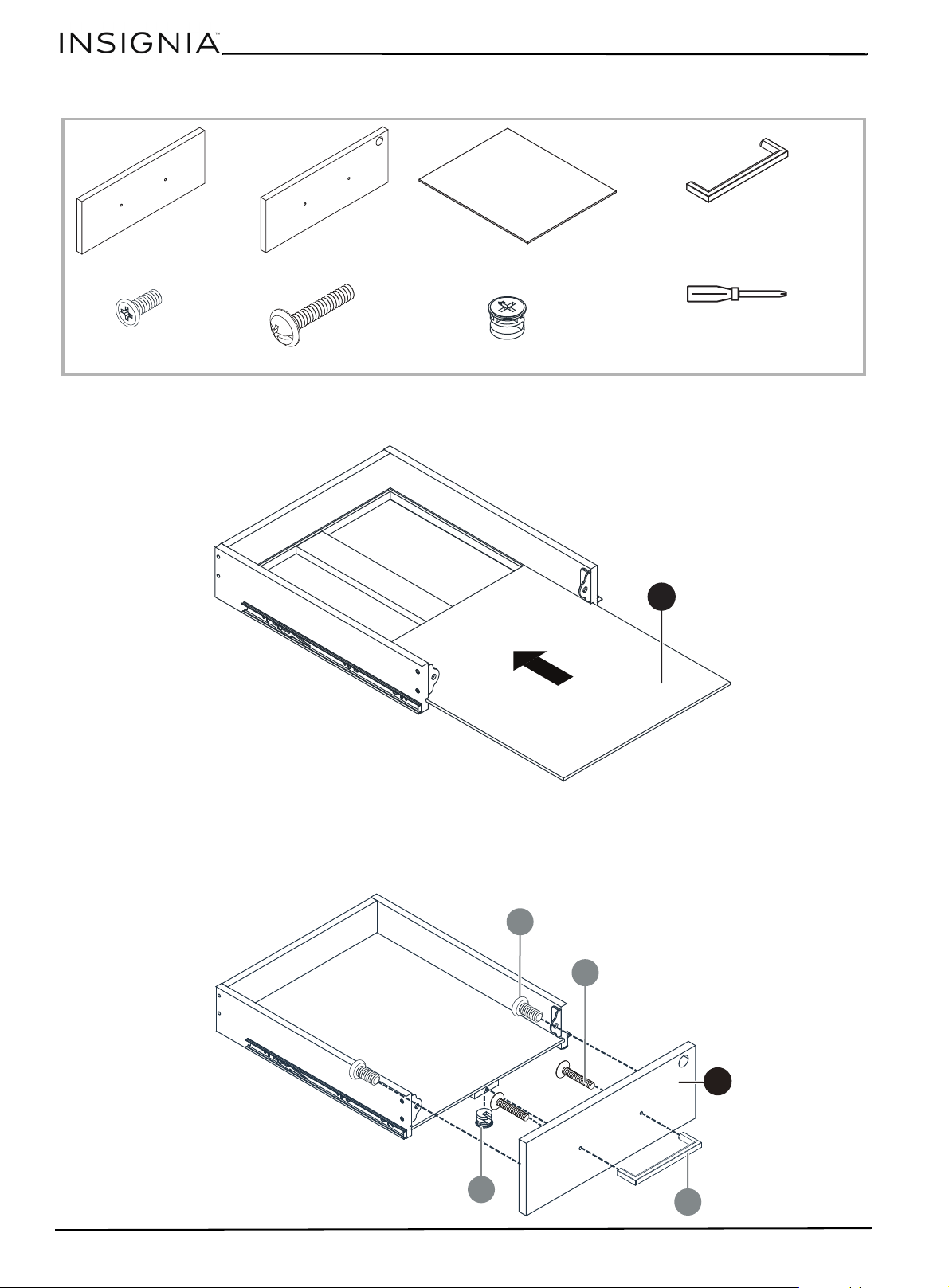
STEP 12: Assembling the small drawers - 1
You n e ed
1 Use a Phillips screwdriver to attach the small drawer left sides (9) and the small drawer right sides (10) to the small
drawer backs (11) with four 3.8 x 35 mm screws (E) each. Make sure that the grooves on the back and side panels
face the inside of the drawer. Don’t overtighten.
2 Use a Phillips screwdriver to attach two small drawer face brackets (H), flat side out, to the insides of the left and
right drawer sides using two 3.5 x 12 mm screws (G) each. Don’t overtighten.
3 Use a Phillips screwdriver to attach the small drawer bottom braces (13) to the small drawer backs (11) with one 3.8
× 35 mm screw (E).
Phillips screwdriver
E 3.8 x 35 mm screw (10)
G 3.5 x 12 mm screw (8)
H Small drawer face bracket (4)
9 Small drawer left side (2)
10 Small drawer right side (2)
11 Small drawer back (2)
13 Small drawer bottom brace (2)
8 Top drawer face
7 Middle drawer face
V KD Bolt (short) (2)
G
1
1
H
E
1
0
9
1
3
X 2
23
3-Drawer File Cabinet - Black
www.insigniaproducts.com
4 Use a Phillips screwdriver to attach a short KD bolt (V) to the insides of both small drawer faces (7 and 8). Don’t
overtighten.
V
8
V
7
24
www.insigniaproducts.com
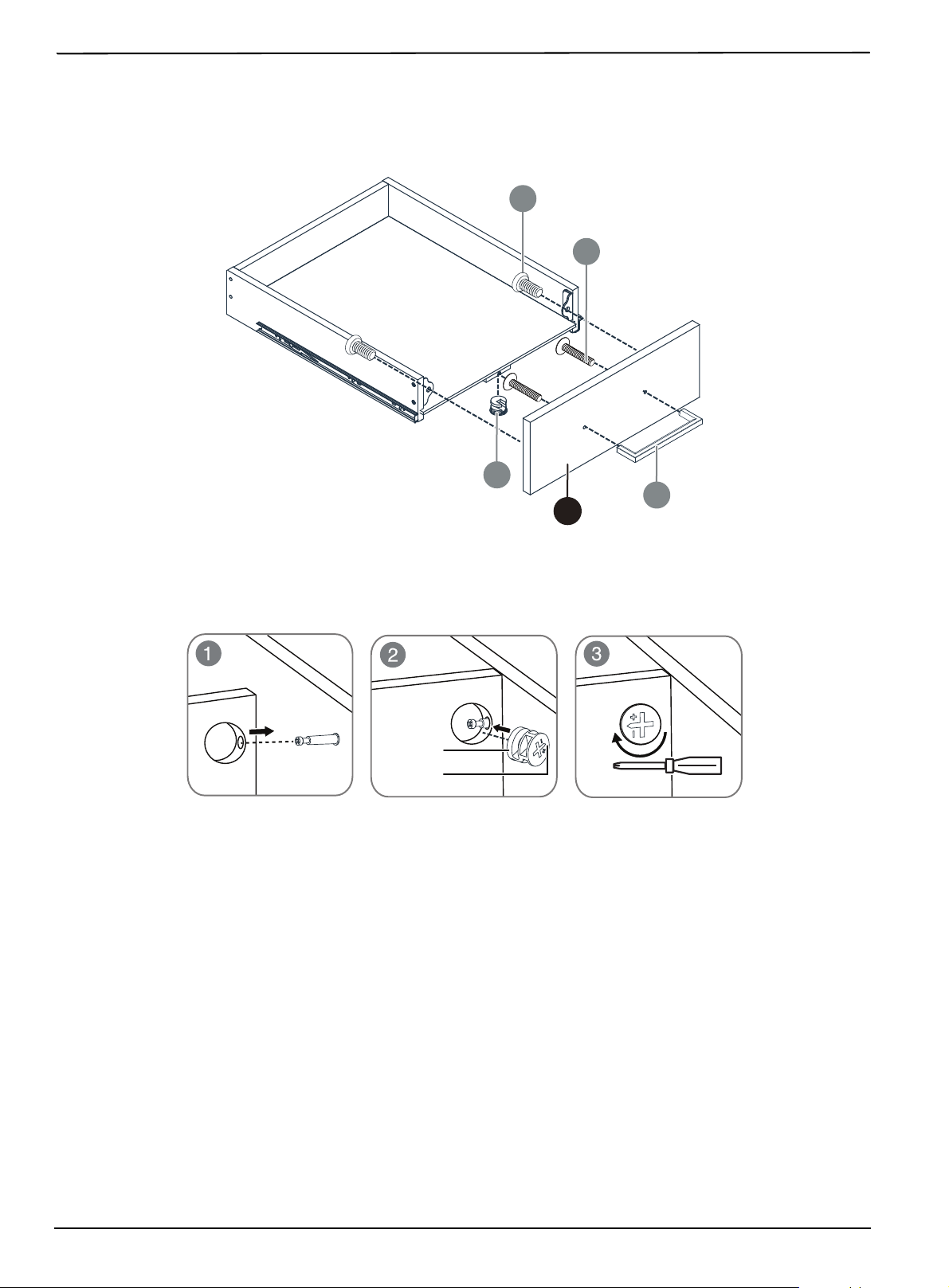
STEP 13: Assembling the small drawers - 2
1 Slide the small drawer bottoms (12) into the groove in the bottoms of both small drawers. The front edge of the
drawer bottoms should protrude slightly from the drawer assembly.
2 Insert a small KD cam (W) into the hole in the small drawer bottom brace (13).
3 Use a Phillips screwdriver to attach the top drawer face (8) to the front of one of the small drawers using two M6 ×
12 mm bolts (F), then tighten the KD cam on the small drawer bottom brace.
4 Use a Phillips screwdriver to attach the handle (L) to the front of the drawer using two 4 x 25 mm bolts (M).
Phillips screwdriver
M M4 x 25 mm bolt (4)
L Handle (2)
8 Top drawer face
7 Middle drawer face
12 Small drawer bottom (2)
W KD Cam (small) (2)
F M6 × 12 mm
bolts (4)
1
2
X 2
F
L
8
M
W
25
3-Drawer File Cabinet - Black
www.insigniaproducts.com
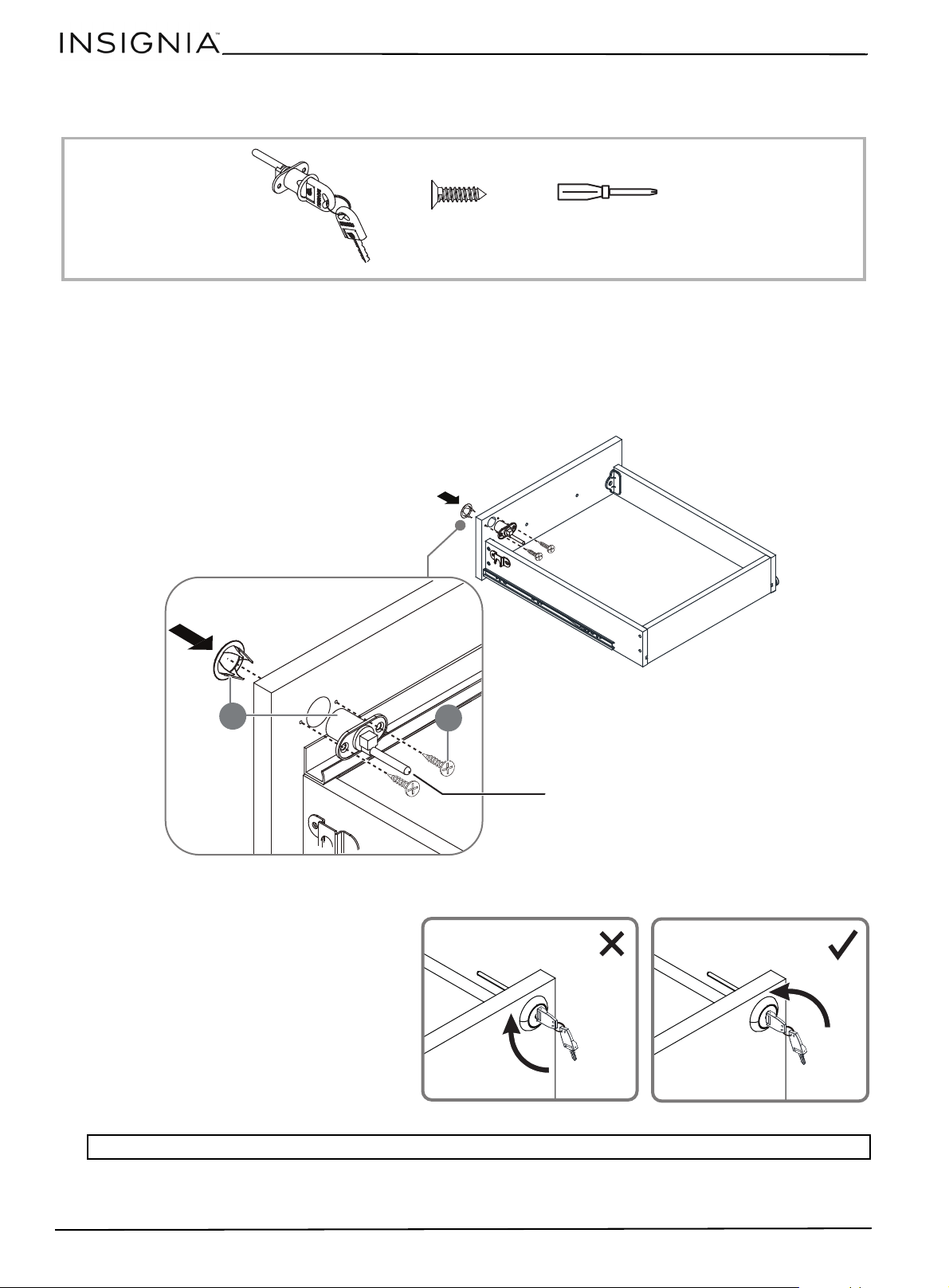
5 Insert a small KD cam (W) into the hole in the small drawer bottom brace (13).
6 Use a Phillips screwdriver to attach the middle drawer face (7) to the front of the other small drawer using two M6 ×
12 mm bolts (F), then tighten the KD cam on the small drawer bottom brace.
7 Use a Phillips screwdriver to attach the handle (L) to the front of the drawer using two 4 x 25 mm bolts (M).
L
W
F
M
7
Large KD cam
Arrow
26
www.insigniaproducts.com
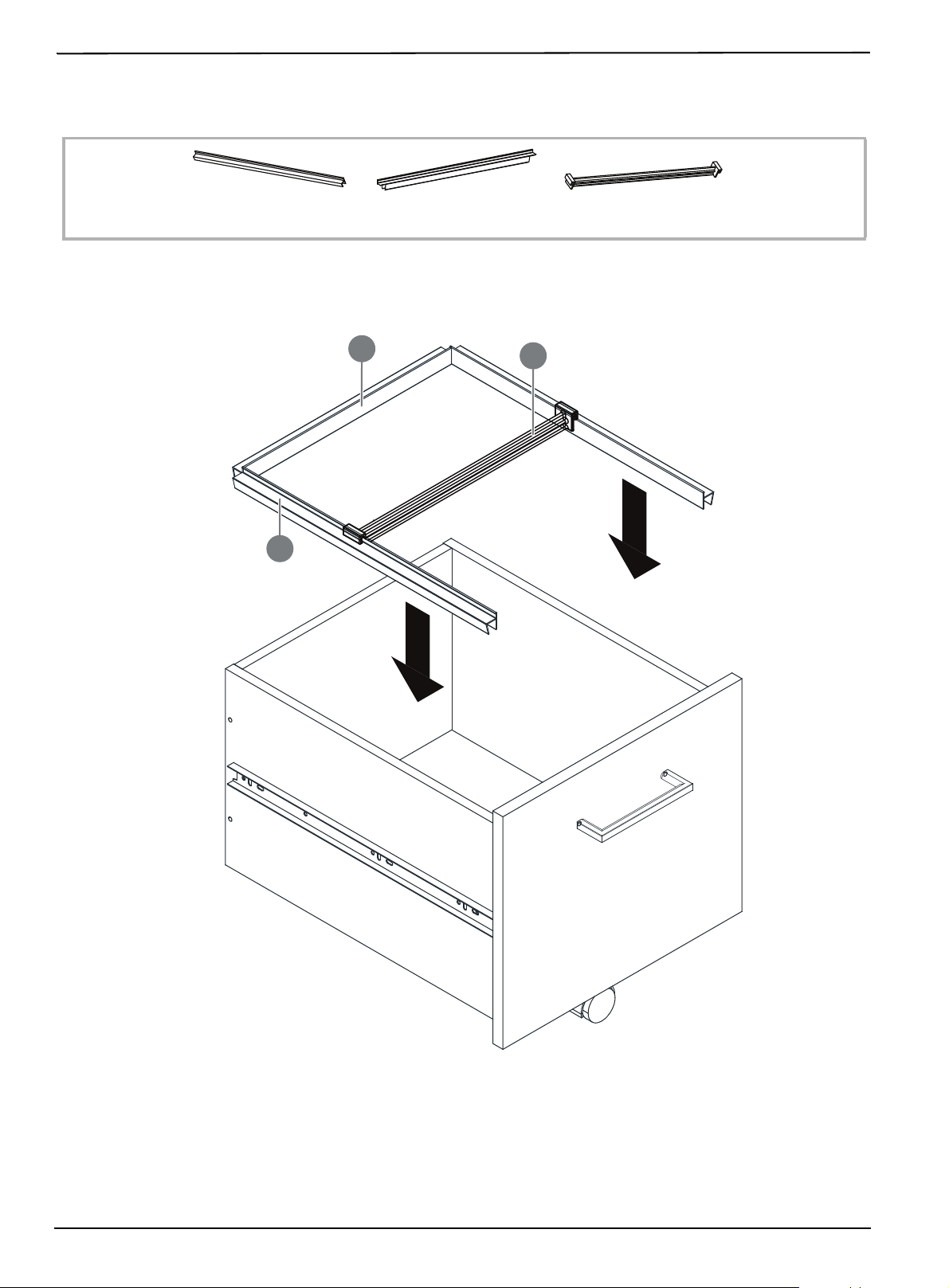
STEP 14: Installing the lock
You n e ed:
1 Remove the trim piece from the front of the lock (T), then fit the trim piece into the hole in the face of the top
drawer.
2 Fit the lock (T) into the hole in the back of the top drawer face with the tube facing down, then secure the lock in
place with two 3.5 x 12 mm screws (P) using a Phillips screwdriver.
3 Before completing the lock installation and tightening the screws, make sure that the key turns counter-clockwise
to open the lock.
Note: After installing the lock, make sure that the key rotates counter-clockwise to open the lock.
Phillips screwdriver
P 3.5× 12 mm
screw (2)
T Lock
T
P
Trim piece
Tube facing down
Clockwise
Counter-clockwise
27
3-Drawer File Cabinet - Black
www.insigniaproducts.com
STEP 15: Installing the file bars and extrusions
You n e ed:
1 Fit two file side extrusions (Q) to the sides of the bottom drawer and push them into place, then fit the file back
extrusion (R) to the back of the bottom drawer and push it into place.
2 (Optional for letter size files) place the file bar (S) in between the file rails on the front and back of the drawer.
Q File side extrusion (2) S File bar (1)R File back extrusion (1)
R
Q
S
28
www.insigniaproducts.com
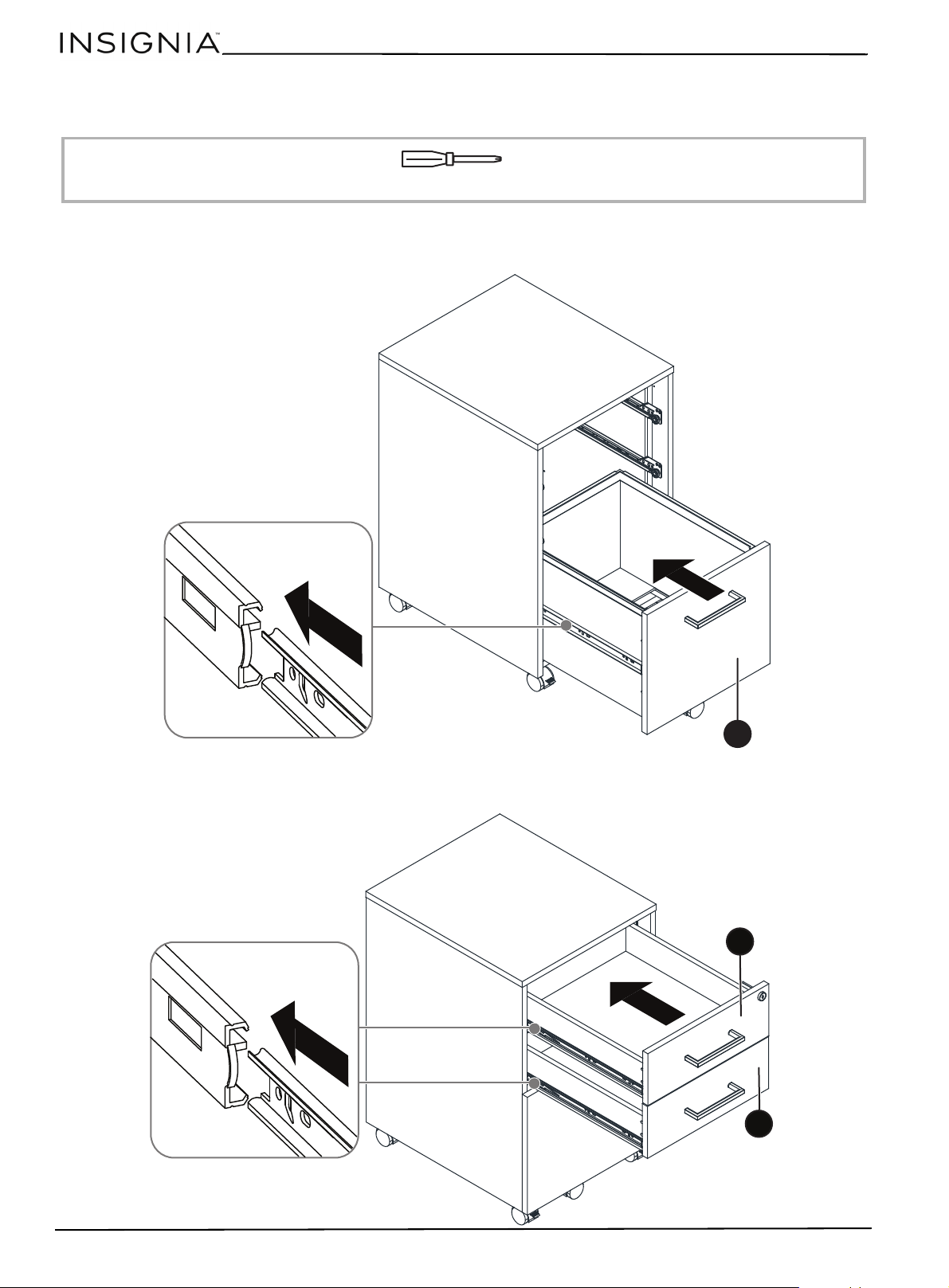
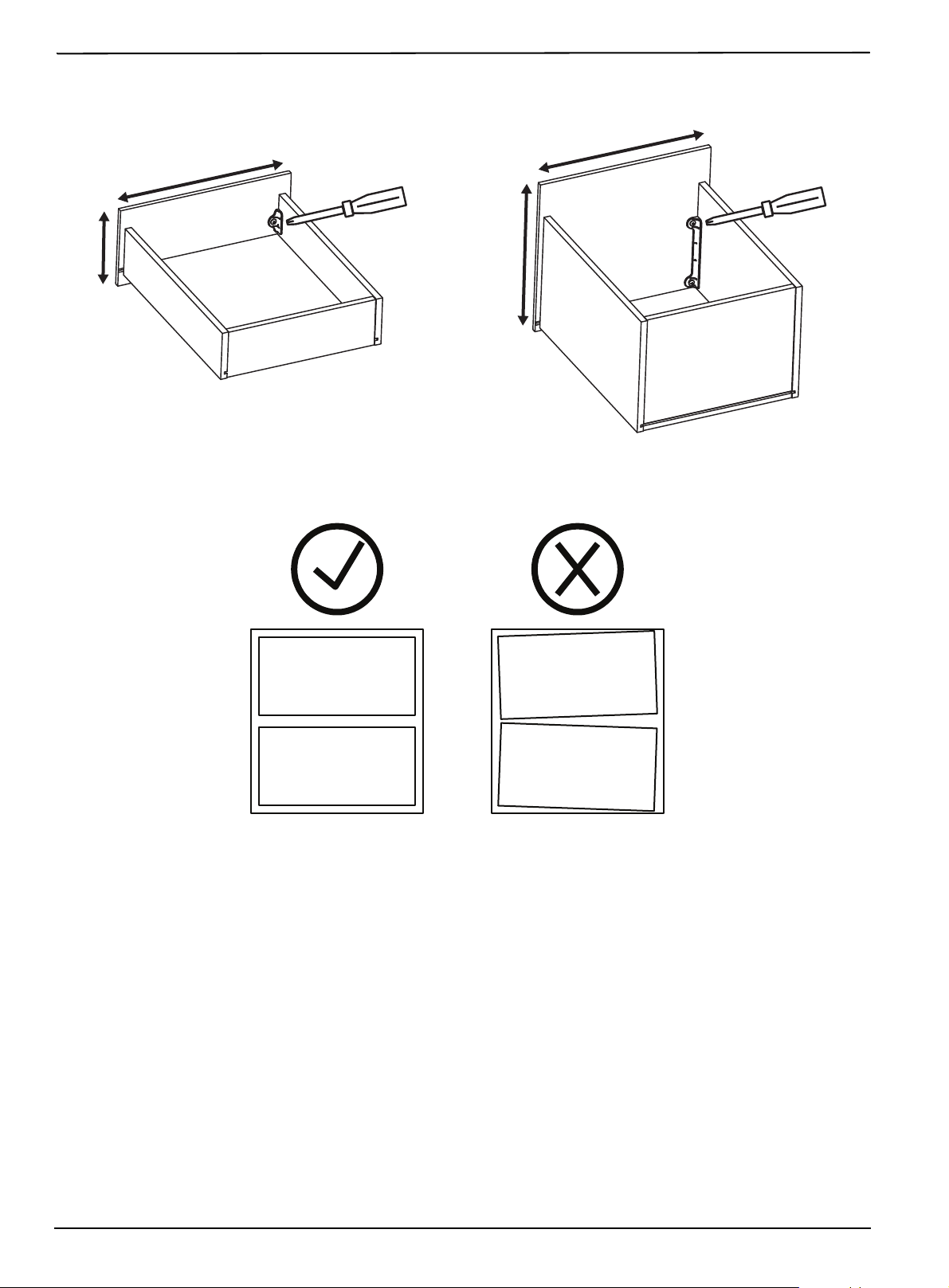
STEP 16: Installing and adjusting the drawers
You n e ed:
1 Align the rails on the sides of the bottom drawer with the tracks on the sides of the cabinet and push the drawer
into the cabinet.
2 Align the rails on the sides of the middle and top drawers with the tracks on the sides of the cabinet and push the
drawers into the cabinet.
Phillips screwdriver
1
9
8
7
29
3-Drawer File Cabinet - Black
www.insigniaproducts.com
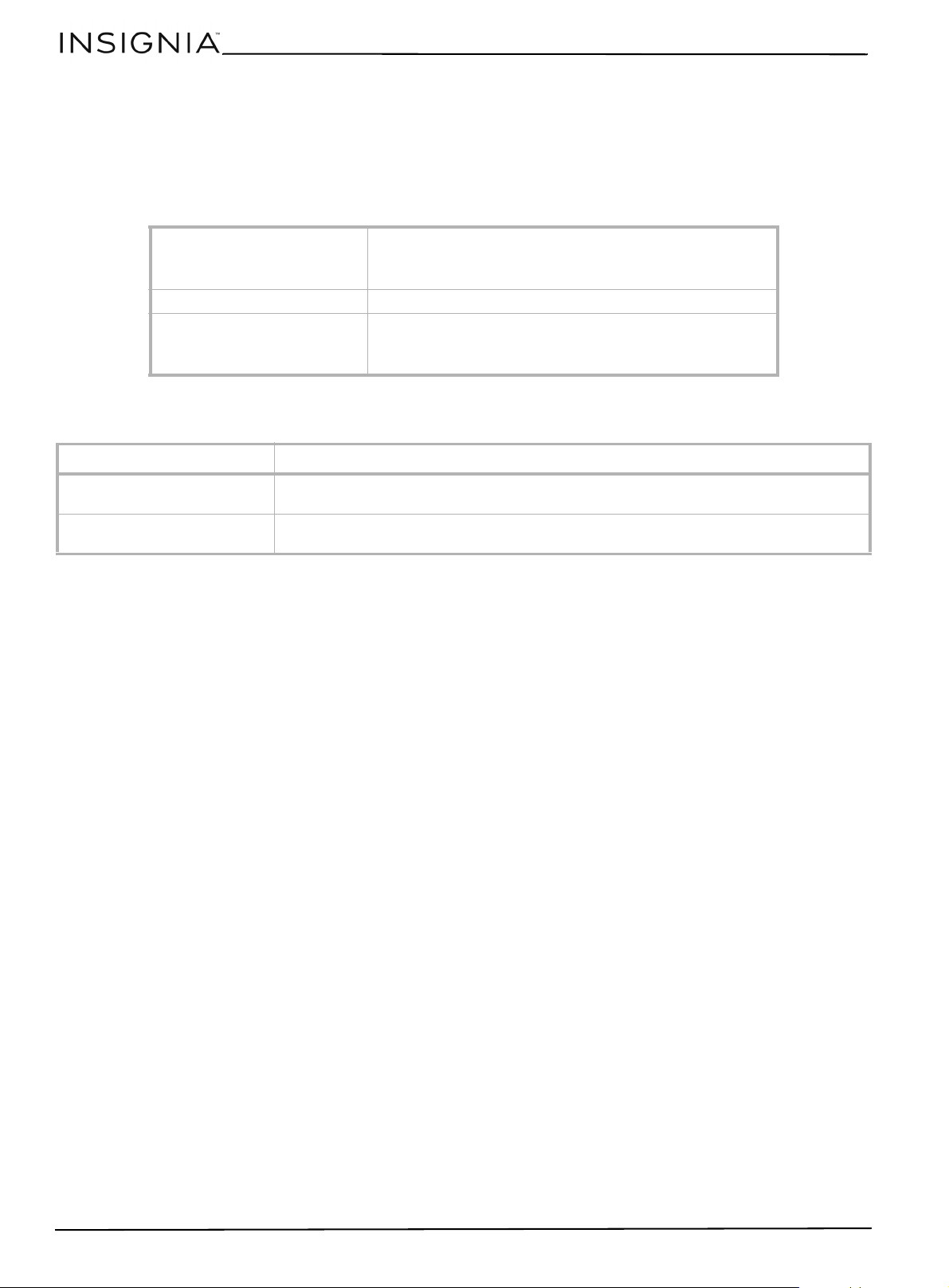
3 Use a Phillips screwdriver to loosen the screws holding the drawer faces, then align them with the file cabinet as
needed.
Drawer front view
30
www.insigniaproducts.com
Cleaning your file cabinet
• Clean the surface of your file cabinet with a duster or damp cloth only.
• Do not use abrasive cleaners.
Specifications
Troubleshooting
Dimensions (H × W × D) Cabinet: 15.5 x 18.1 x 25.2 in. (39.4 x 46 x 64 cm)
Bottom drawer: 12.3 x 15.6 x 9.3 in. (31.2 x 39.7 x 23.5 cm)
Upper drawer: 12.5 x 15.2 x 2.8 in. (31.8 x 38.7 x 7.1 cm)
Weight 45.8 lbs. (20.7 kg)
Maximum supported weight Top: 80 lbs. (36.3 kg)
Bottom drawer: 50 lbs. (22.7 kg)
Upper drawer: 30 lbs. (13.6 kg)
PROBLEM POSSIBLE SOLUTIONS
My file cabinet wobbles. Place your file cabinet on a solid, sturdy surface. Carpet may cause your file cabinet to
wobble.
A piece won’t fit. Loosen screws to let the pieces move more freely. After your file cabinet is assembled,
fully tighten the screws.

31
3-Drawer File Cabinet - Black
www.insigniaproducts.com
ONE-YEAR LIMITED WARRANTY
Definitions:
The Distributor* of Insignia branded products warrants to you, the original purchaser of this new Insignia-branded product (“Product”), that the
Product shall be free of defects in the original manufacturer of the material or workmanship for a period of one (1) year from the date of your
purchase of the Product (“Warranty Period”).
For this warranty to apply, your Product must be purchased in the United States or Canada from a Best Buy branded retail store or online at
www.bestbuy.com or www.bestbuy.ca and is packaged with this warranty statement.
How long does the coverage last?
The Warranty Period lasts for 1 year (365 days) from the date you purchased the Product. Your purchase date is printed on the receipt you received
with the Product.
What does this warranty cover?
During the Warranty Period, if the original manufacture of the material or workmanship of the Product is determined to be defective by an
authorized Insignia repair center or store personnel, Insignia will (at its sole option): (1) repair the Product with new or rebuilt parts; or (2) replace
the Product at no charge with new or rebuilt comparable products or parts. Products and parts replaced under this warranty become the property
of Insignia and are not returned to you. If service of Products or parts are required after the Warranty Period expires, you must pay all labor and
parts charges. This warranty lasts as long as you own your Insignia Product during the Warranty Period. Warranty coverage terminates if you sell or
otherwise transfer the Product.
How to obtain warranty service?
If you purchased the Product at a Best Buy retail store location or from a Best Buy online website (www.bestbuy.com or www.bestbuy.ca), please
take your original receipt and the Product to any Best Buy store. Make sure that you place the Product in its original packaging or packaging that
provides the same amount of protection as the original packaging.
To obtain warranty service, in the United States and Canada call 1-877-467-4289. Call agents may diagnose and correct the issue over the phone.
Where is the warranty valid?
This warranty is valid only in the United States and Canada at Best Buy branded retail stores or websites to the original purchaser of the product in
the country where the original purchase was made.
What does the warranty not cover?
This warranty does not cover:
• Food, beverage, and/or medicine loss/spoilage.
• Customer instruction/education
•Installation
•Set up adjustments
• Cosmetic damage
• Damage due to weather, lightning, and other acts of God, such as power surges
• Accidental damage
•Misuse
•Abuse
•Negligence
• Commercial purposes/use, including but not limited to use in a place of business or in communal areas of a multiple dwelling condominium
or apartment complex, or otherwise used in a place of other than a private home.
• Modification of any part of the Product, including the antenna
• Display panel damaged by static (non-moving) images applied for lengthy periods (burn-in).
• Damage due to incorrect operation or maintenance
• Connection to an incorrect voltage or power supply
• Attempted repair by any person not authorized by Insignia to service the Product
• Products sold “as is” or “with all faults”
• Consumables, including but not limited to batteries (i.e. AA, AAA, C etc.)
• Products where the factory applied serial number has been altered or removed
• Loss or Theft of this product or any part of the product
• Display panels containing up to three (3) pixel failures (dots that are dark or incorrectly illuminated) grouped in an area smaller than one
tenth (1/10) of the display size or up to five (5) pixel failures throughout the display. (Pixel based displays may contain a limited number of
pixels that may not function normally.)
• Failures or Damage caused by any contact including but not limited to liquids, gels or pastes.
REPAIR REPLACEMENT AS PROVIDED UNDER THIS WARRANTY IS YOUR EXCLUSIVE REMEDY FOR BREACH OF WARRANTY.
INSIGNIA SHALL NOT BE LIABLE FOR ANY INCIDENTAL OR CONSEQUENTIAL DAMAGES FOR THE BREACH OF ANY
EXPRESS OR IMPLIED WARRANTY ON THIS PRODUCT, INCLUDING, BUT NOT LIMITED TO, LOST DATA, LOSS OF USE OF
YOUR PRODUCT, LOST BUSINESS OR LOST PROFITS. INSIGNIA PRODUCTS MAKES NO OTHER EXPRESS WARRANTIES
WITH RESPECT TO THE PRODUCT, ALL EXPRESS AND IMPLIED WARRANTIES FOR THE PRODUCT, INCLUDING BUT NOT
LIMITED TO ANY IMPLIED WARRANTIES OF AND CONDITIONS OF MERCHANTABILITY AND FITNESS FOR A PARTICULAR
PURPOSE, ARE LIMITED IN DURATION TO THE WARRANTY PERIOD SET FORTH ABOVE AND NO WARRANTIES, WHETHER
EXPRESS OR IMPLIED, WILL APPLY AFTER THE WARRANTY PERIOD. SOME STATES, PROVINCES AND JURISDICTIONS DO
NOT ALLOW LIMITATIONS ON HOW LONG AN IMPLIED WARRANTY LASTS, SO THE ABOVE LIMITATION MAY NOT APPLY
TO YOU. THIS WARRANTY GIVES YOU SPECIFIC LEGAL RIGHTS, AND YOU MAY ALSO HAVE OTHER RIGHTS, WHICH VARY
FROM STATE TO STATE OR PROVINCE TO PROVINCE.
Contact Insignia:
1-877-467-4289
www.insigniaproducts.com
INSIGNIA is a trademark of Best Buy and its affiliated companies.
*Distributed by Best Buy Purchasing, LLC
7601 Penn Ave South, Richfield, MN 55423 U.S.A
©2022 Best Buy. All rights reserved.

For product inquiries, please contact us with the information below:
1-877-467-4289
www.insigniaproducts.com
INSIGNIA is a trademark of Best Buy and its affiliated companies.
Distributed by Best Buy Purchasing, LLC
7601 Penn Ave South, Richfield, MN 55423 U.S.A.
©2022 Best Buy. All rights reserved.
V3 ENGLISH
22-0798