©2021 Matco Tools. All Rights Reserved Matco Tools® and their respective logos are trademarks
or registered trademarks of Matco Tools in the United States and in other countries. 2012307
MDPROASSIST
REMOTE SUPPORT &
PROGRAMMING DEVICE
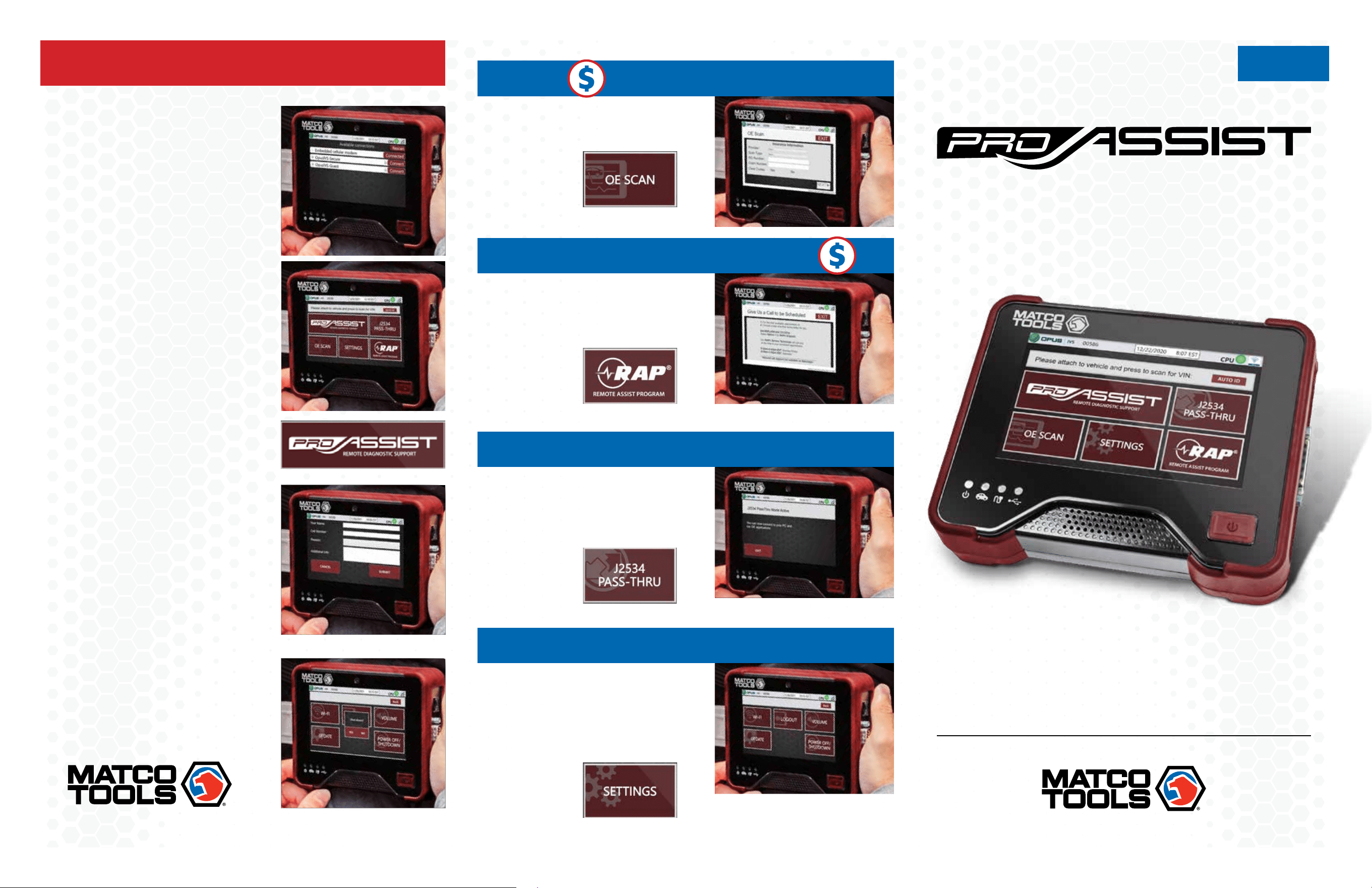
PROASSIST SET UP
OE SCAN
Select to request a comprehensive vehicle
scan performed by a factory trained remote
technician using OEM licensed software.
PROASSIST MENU
RAP REMOTE ASSISTED PROGRAMMING
ProAssist can be used to remotely
program and calibrate vehicle modules,
follow instructions on the screen and
contact our call center at 844-REFLASH
to schedule an appointment.
J2534 PASS-THRU
Functions as a stand-alone J2534
pass-thru device when used with your
PC and OE purchased subscription.
Use the included USB cable to connect
your ProAssist device to your PC.
SETTINGS
Wi-Fi: Confirm available Wi-Fi connections
Logout: Current user log out and log in
Volume: Select speaker volume
Update: Allows user to check
for software updates
Power Off/Shutdown: Use to shut down device
QUICK-START
GUIDE
3. IVS 360 - REMOTE
DIAGNOSTIC SUPPORT
∙ Select ProAssist to request a support
session with a live repair specialist
∙ IVS 360 can be used for assistance
in diagnosing vehicle systems or any
other repair related questions
4. IVS 360 - SUBMIT REQUEST
∙ Complete the necessary information
fields to submit your support request
∙ A IVS 360 technician will be calling
you on the number entered
∙ Double check for accuracy and make sure
the line is available to receive your call
2. INTERNET CONNECTION
∙ The ProAssist device should
automatically connect to the internet
with the internal cellular modem
∙ If the Wi-Fi icon in the upper-
right shows no network, refer to
Internet connection setup
5. POWER DOWN DEVICE
∙ Click Settings, then Power Off/Shut Down
∙ Following proper shutdown prevents
Windows OS corruption
1. POWER ON YOUR PROASSIST
∙ Connect the DLC cable to
the ProAssist device
∙ Connect 16-pin DLC cable to vehicle
∙ Turn ignition on
∙ The device will automatically
boot up to the login screen
∙ Enter login credentials created in step 1
REGISTER UNIT REGISTER UNIT
NEED SUPPORT?
Reach us by phone or email:
(844) 914-1900 / ProAssist@opusivs.com
MDPROASSIST
QUICK-START GUIDE
REGISTER UNIT
1. LOGIN OR REGISTER
FOR AN ACCOUNT
On your computer navigate to
www.matcodiagnostics.com
Login or register for an account
5. PROASSIST CUSTOMER
AGREEMENT
After you click "Activate" you'll be
directed to the OPUS ProAssist
Customer Agreement page.
Read the Customer Agreement.
8. COMPLETE YOUR
REGISTRATION FOR
PROASSIST
A confirmation email is
automatically sent to the email
address entered in the agreement.
Click on green COMPLETE YOUR
REGISTRATION button within
message to create user password.
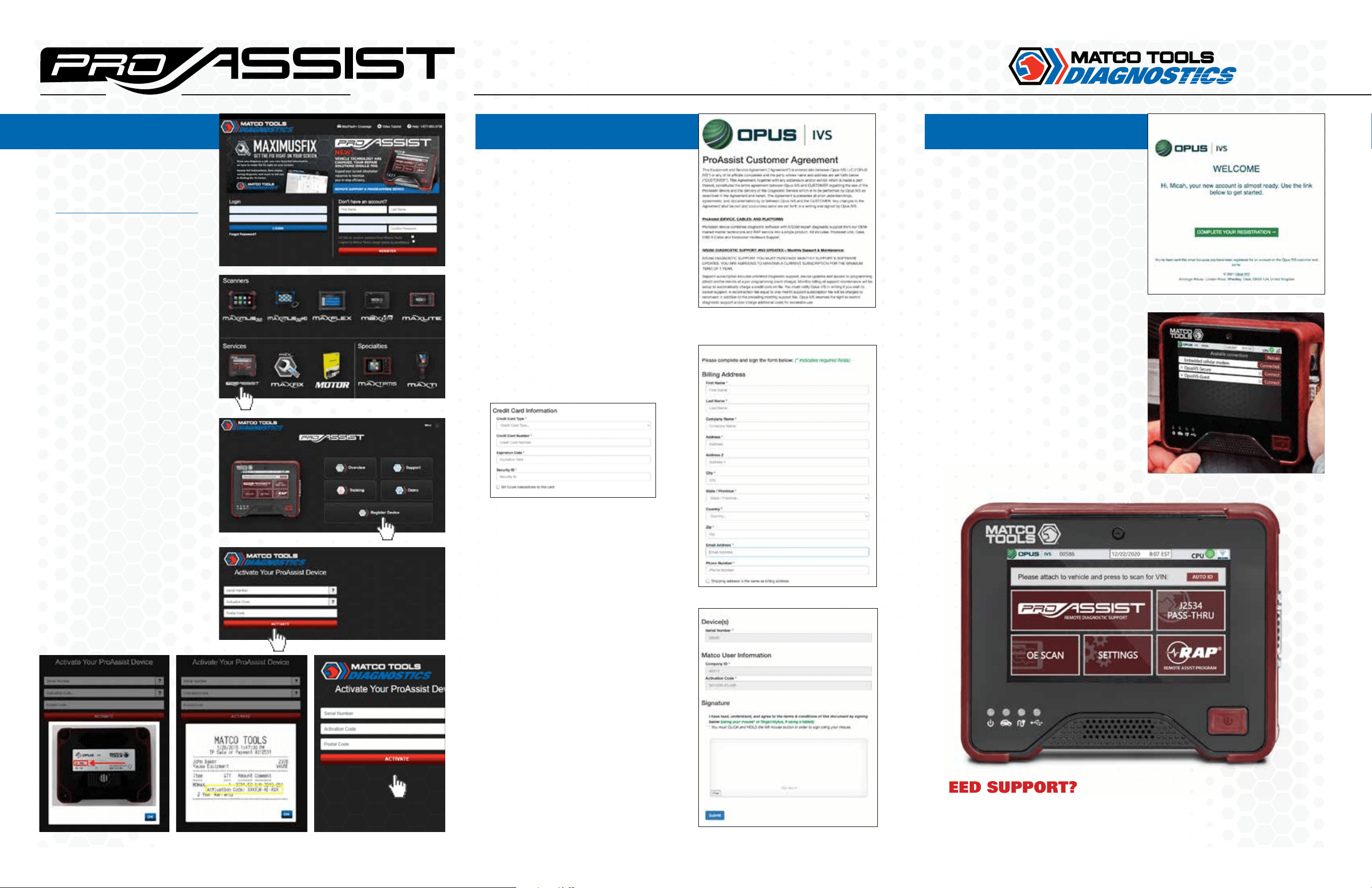
9. POWER ON AND SIGN IN
Power on your ProAssist device
and login to begin using it.
Username is the same email
address entered in the agreement.
Password will be what
user created in step 8.
6. ENTER YOUR INFO
Enter your billing address and
credit card information.
7. DEVICE INFO
Your device info will be populated
by the device. Add your signature
and any comments. CLICK and
HOLD submit button to sign.
2. CLICK ON THE
PROASSIST ICON
3. REGISTER YOUR
PROASSIST
Click on Register Device.
4. ACTIVATE YOUR
PROASSIST
Enter serial number,
activation code and postal
code. Click on Activate.
Enter serial number. Enter activation code. Enter postal code.