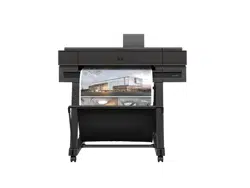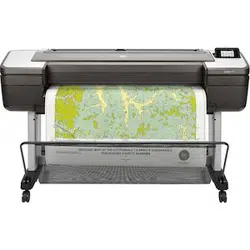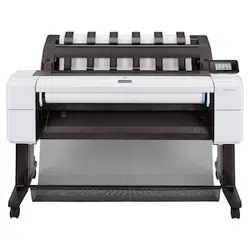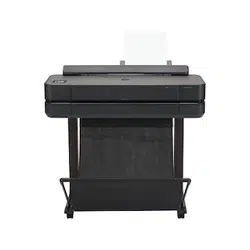

HP DesignJet Z6 Printer Series
HP DesignJet Z9
+
Printer Series
Self-serve Mode User Guide


i
Table of contents
Table of contents ......................................................................................................................................................... i
1 Managing Self-serve mode ......................................................................................................................... 1
Enabling and disabling Self-serve mode .................................................................................................. 1
Default settings in Self-serve mode .......................................................................................................... 1
2 Operating your printer in Self-serve mode ............................................................................................... 2
Logging in as printer administrator from front panel ............................................................................. 2
Logging out as printer administrator from front panel ........................................................................... 3
Accessing as printer administrator from Embedded Web Server .......................................................... 4
Managing the Administrator account ........................................................................................................ 4
Setting print quality by roll ......................................................................................................................... 5
General printer operation............................................................................................................................ 6


1
1 Managing Self-serve mode
Enabling and disabling Self-serve mode
Self-serve can be enabled for firmware JGR_04_18_45 or higher.
To activate Self-serve mode, call your service representative.
Default settings in Self-serve mode
By enabling Self-serve mode, the following settings are changed:
• Queue is set to ON
• Maximum number of jobs in history is set to 0
• Delete jobs on hold time is set to 2h
• Nesting is set to OFF
• Paper mismatch policy is set to Hold job and continue with next
• Automatic firmware download and upgrade is set to OFF
• Power auto-off due to inactivity is set to OFF
• Printer sleep time is set to 2h
• Administrator user is set (with the password chosen during enabling)
• Access control is set for all the front panel workflows, including the home screen
itself
2
2 Operating your printer in Self-serve mode
In Self-serve mode, the front panel is locked so that users are not able to operate the
printer without permission. To unlock the front panel and get complete control of your
printer (so you can view information about the printer, change printer settings, monitor
printer status, and perform tasks such as supplies replacement and calibrations) you
need to log in as administrator.
You can log in as administrator from front panel or remotely from the Embedded Web
Server.
Logging in as printer administrator from front panel
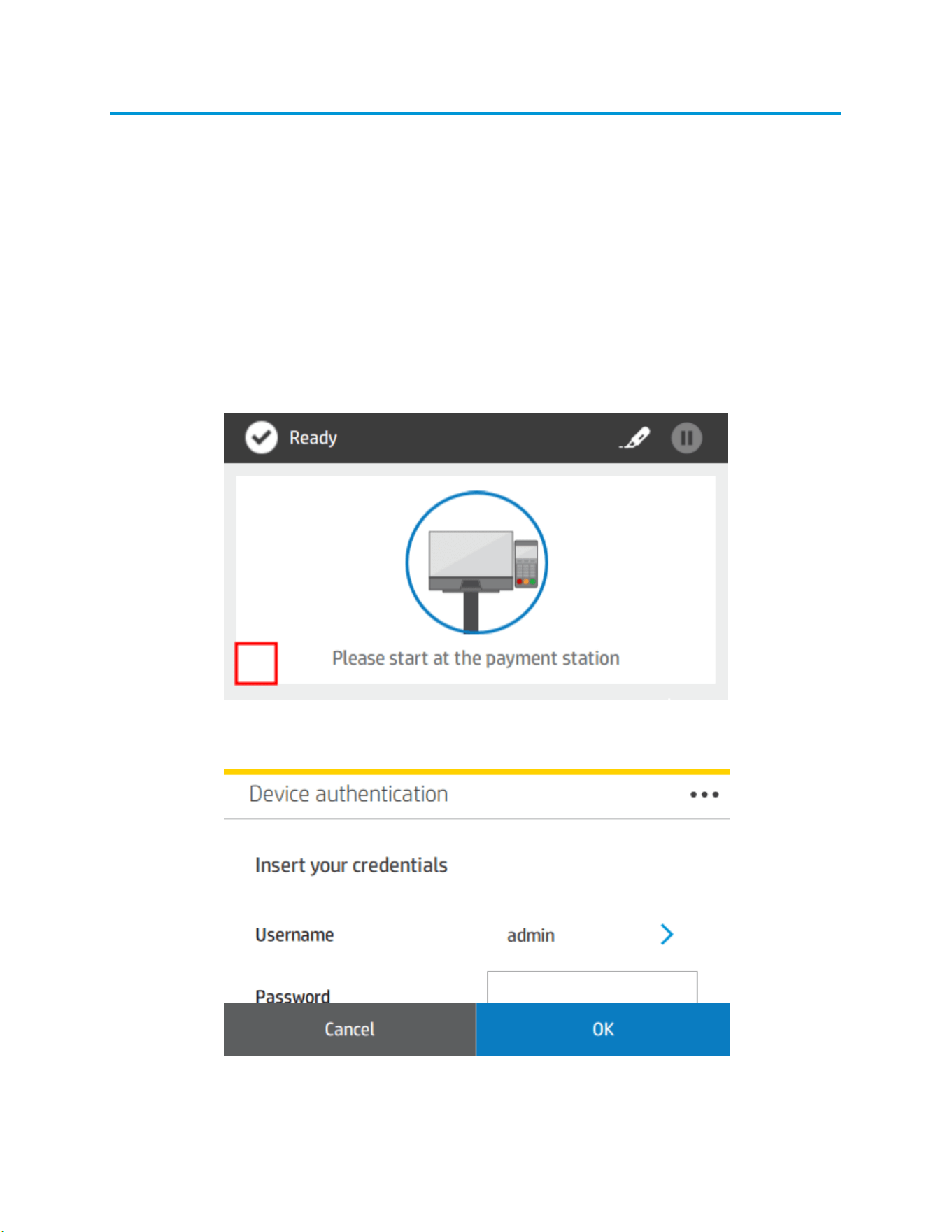
In a locked printer, enable the authentication dialogue by tapping for 3 seconds on the
bottom left corner of the locked widget (highlighted in red).
You are prompted with the authentication dialogue. Select admin and enter your
administrator password to unlock the full functionality of the printer.
3
Logging out as printer administrator from front panel
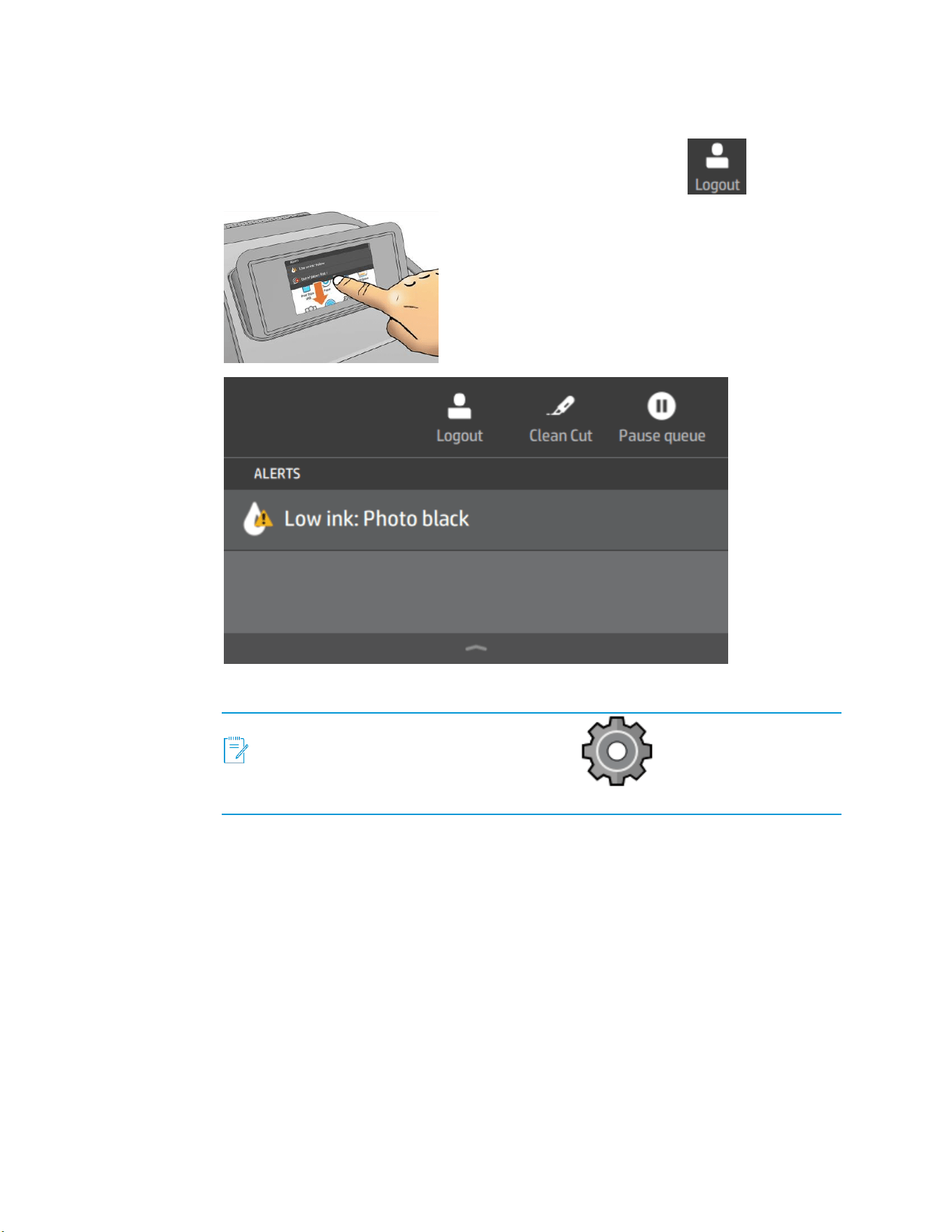
At the top of the all-apps page, swipe down the dashboard, and tap
.
By default, you are automatically logged out after 3 minutes of inactivity.
NOTE: To change the default time out, tap , then Security > User
sessions.
4
Accessing as printer administrator from the Embedded Web Server
To use the Embedded Web Server on any computer, open your web browser and enter
the printer's IP address in the browser's address bar. You can find your printer's IP address
in the printer’s front panel: tap and then Network.
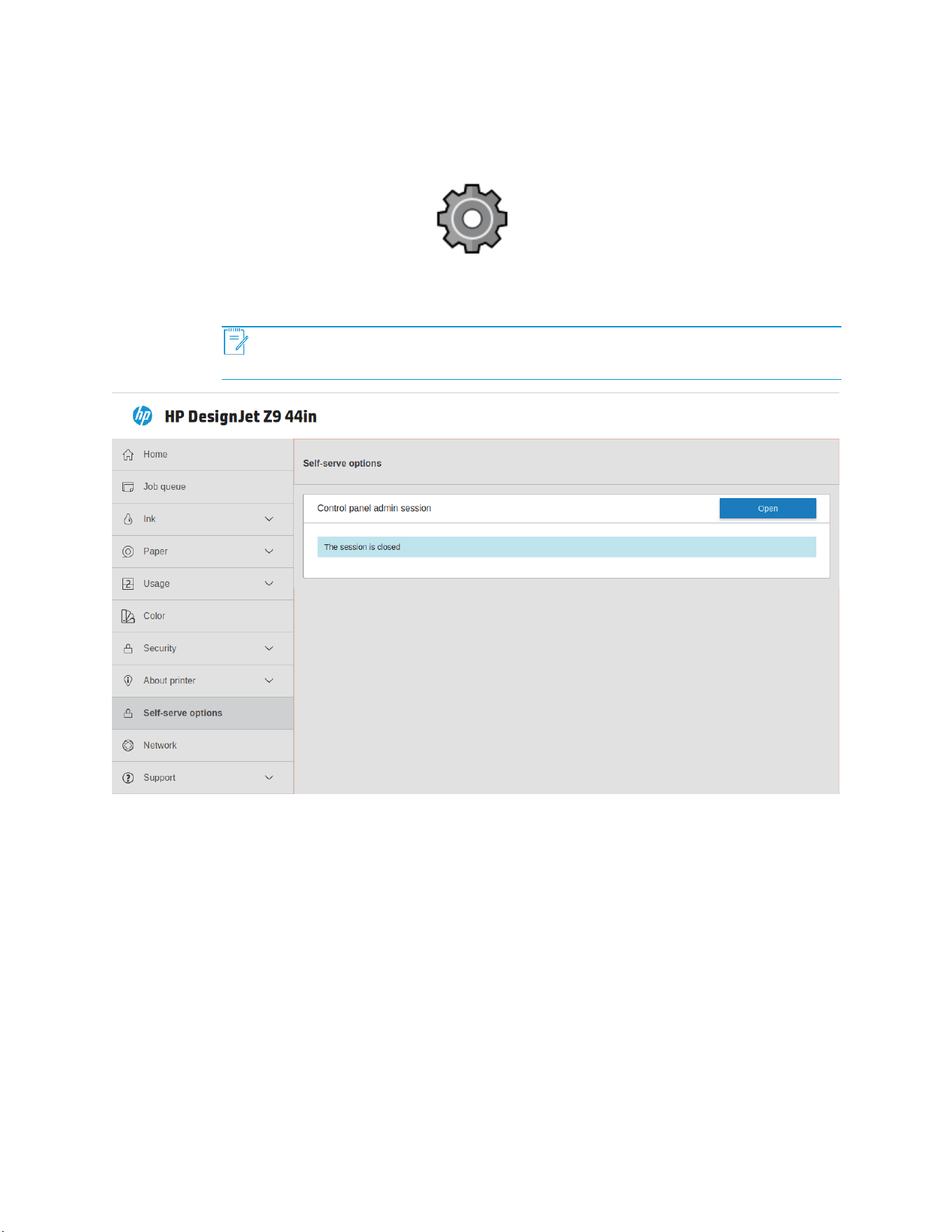
From the Embedded Web Server menu, click the Self-serve options to check the status of
the administrator session in the front panel, and open or close it remotely.
NOTE: You are prompted for administrator (admin) authentication to perform
these actions.
Managing the administrator account
From the Embedded Web Server menu, click Security and then Administrator password to
change the password of the administrator user account.
5
Setting print quality by roll
Tap Settings
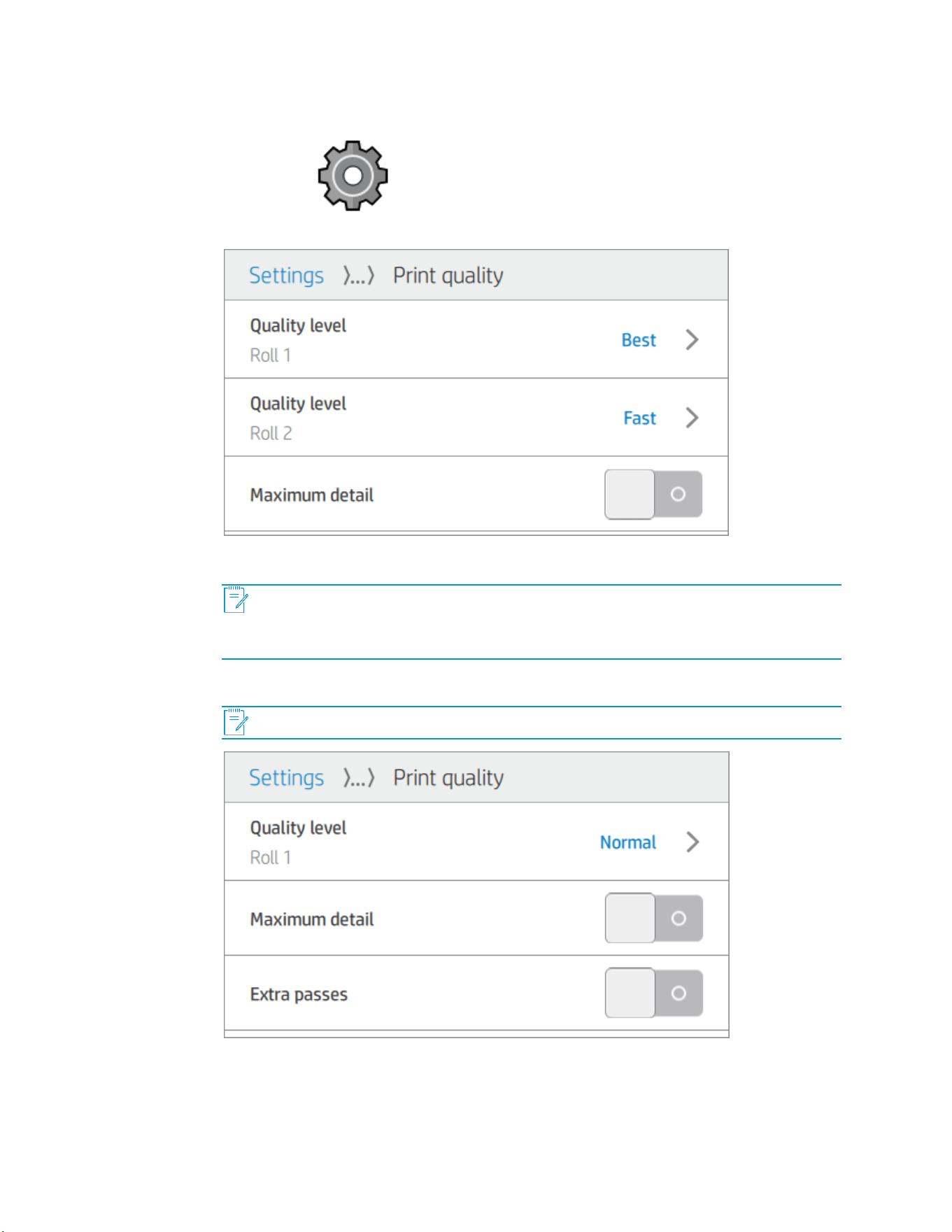
, then Default printing configuration > Print quality. In Self-serve
mode a different quality level for each roll is offered.
Print quality allows you to set the print quality to Fast, Normal, or Best.
NOTE: This is the default used for jobs coming from EFI ™ Self-serve M600
Station, for jobs coming from other applications (such as HP Click or driver) it can be
overridden.
NOTE: In single-roll models, you are offered only one quality level.