Front CoverBack Cover
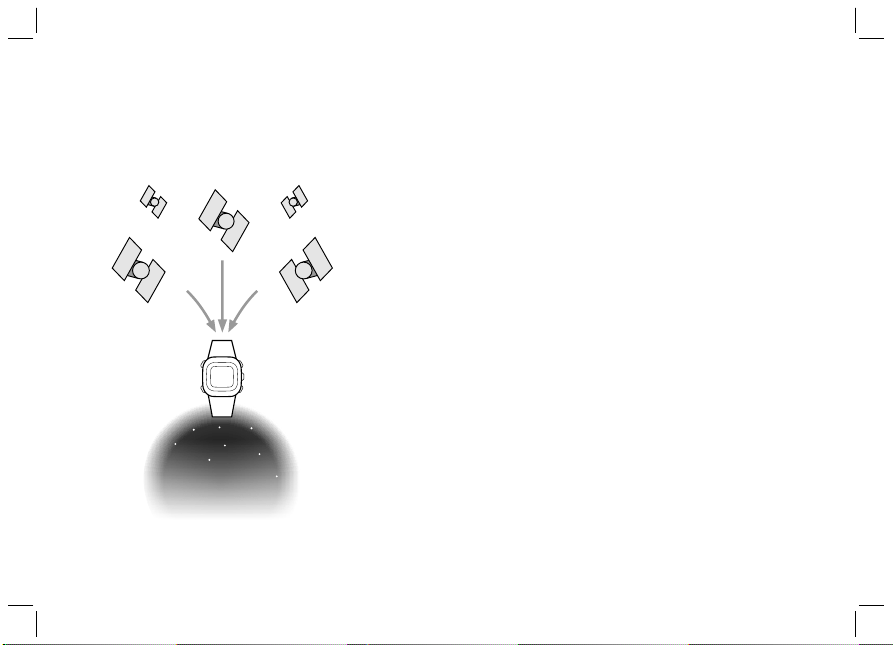
Satellite
Signal
Satellite
Signal
Satellite
Signal
A. Introduction A-01
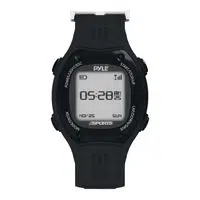
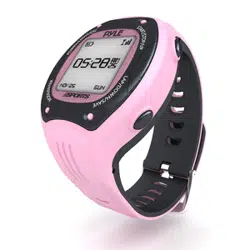
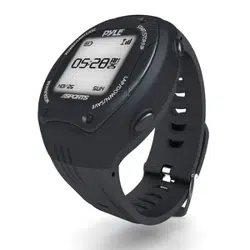
GPS watch combines personal training and
navigation functions into one compact wrist
computer. It is among the world’s smallest of its
kind and yet fully water resistance. It can
withstand immersion in 30 meters of water. The
GPS navigation function locates and tracks your
position wherever you go. GPS watch is powered
by a highly sensitive chip that tracks your
position even at weak signal condition. It can be
adopted for various kinds of outdoor activities
such as Jogging, Running, Biking, Hiking, Skiing,
Sailing, hunting, etc.
This package comes with a digitally coded Heart
Rate Monitor (HRM) chest strap and a USB
dedic ated cable. The HRM listens to your
physical condition and gives you warning reliably
as you do your workout. The USB clip cable
allows fast battery charging and data transfer to
and from PC in a snap. Data transfer is done by
GPS Master. It is a PC software that assists you
with your workout analysis, route planning and
training summary reporting. It is a helpful partner
that accompanies you to explore your physical
limits and beyond.
NAV
Master
A. Introduction: Warnings and Cautions
Make sure that you fully understand the functions and limitations of this
product before using it.
The performance of this product, like most Global Positioning System
equipment, depends on the satellites which are operated by the United States
government. The above satellite system may be subject to change which could
affect the accuracy and performance of this product and all GPS equipment.
This product is an assistant device for navigation, and it is NOT a substitute
for getting the navigating information from charts, maps, observations and
experienced navigators. DO NOT use this product for the navigation that
requires precise navigation or is devoted to vital matters.
This Watch and Chest Strap is a supplementary device for measuring heart
rate; it is NOT a substitute for medical devices. You should periodically
compare the heart rate readings acquired by this watch and Chest Strap with
the readings from a doctor.
Consult a doctor or trainer before setting your Upper and Lower heart rate
limits.
This product set, like most electronic or magnetic devices that may interfere
with pacemaker. While it is safe for patients with pacemakers to check with
their doctors before using this product set.
In case, there is doubt about the directions and positions of the way of the
navig ation, consult the par k adm inistrati on off ice b efore starting the
navigation.
DO NOT expose your watch to extreme hot or extreme cold situation.
DO NOT use this Watch and Chest Strap for commercial or professional
purposes.
DO NOT charge or connect the unit with the USB clip when it is wet. Wipe dry
and air dry before using.
Although this unit is water resistance, you cannot wear it for swimming. The
GPS and chest strap heart rate function do not work under water.
CAUTION
A-02
This product can only locate positions in
an outdoor environment or open area. The
more open the area is, the more accurate
and faster information it can collect to
locate the position.
The first position can be located within 1
minute at cold start, and 10 seconds for
hot start.
To use workout and navigation functions
with GPS, turn on the GPS receiver and
get the pos ition up dated befor ehand.
Otherwise, the GPS related features are
not wor king acc ording t o the curren t
situation as the receiver collects satellite
data constantly as long as the GPS of the
watch is on.
The Altitude is taken at Mean Sea Level
in meter/feet.
Rinse and wash the Chest strap with tap
water and wipe your it dry after each use.
DO NOT take heart rate measurement
when diving or under water.
DO NOT use hand cream on the skin that
is in contact w ith the sensor; it will
insulate the reception of the signals from
the skin to the sensor.
WARNING !
A. Introduction: FCC Compliance Statement
A-03
This device complies with Part 15 of the FCC Rules. Operation is
subject to the following two conditions: (1) This device may not
cause harmful interference, and (2) This device must accept any
interference received, including interference that may cause
undesired operation.
WARNING: Changes or modifications to this unit not expressly
approved by the party responsible for compliance could void
the user’s authority to operate the equipment.
NOTE: This equipment has been tested and found to comply
with the limits for a class B digital device, pursuant to Part 15
of the FCC Rules. These limits are designed to provide
reasonable protection against harmful interference i n a
residential installation. This equipment generates, uses and
radiates radio frequency energy. If it is not installed and used in
acco rdance with the instr uctions, it may caus e harmful
interference to radio communications.
However, there is no guarantee that interference will not occur in a
particular installation. If this equipment does cause harmful
inte rference to radio or telev ision rec eption, which c an be
determined by turning the equipment off and on, the user is
encouraged to try to correct the interference by one or more of the
following measures:
Reorient or relocate the receiving antenna.
Increase the separation between the equipment and receiver.
Consult the dealer or an experienced radio/TV technician for help.
FCC
Compliance
Statement
(For US)
A. Introduction: Care and Maintenance
CARE
MAINTENANCE
A-04
The watch is carefully designed and produced. In order to
utilize the features, it is advisable to use the watch in
conformity with below notes:
Avoid exposing the watch to extreme conditions for an
unreasonable time, and avoid rough uses or severe impacts
on the watch.
Clean the watch occasionally with a soft and moist cloth.
Brush the clip contacts at the bottom of the watch
regularly. Dirt building up on the surface of the contact
points may affect normal charging and data transfer.
DO NOT expose the watch to strong chemicals such as
gasoline and alcohol as they will damage the watch.
Store the watch in a dry place when it is not in use.
Remove the battery from the Chest Strap when it will not
be used for a long time.
Rinse and wash your Chest Strap with tap water and wipe
it dry after each use.
Do not bend or stretch the contact strips on the Chest
Strap, especially while transmitting.
Under the environment with high electrostatic discharge,
the PC connect operation may not be maintained. It is
advisable for users to reconnect the watch to the PC again
until normal operation.

Water resistance up to 30 meters
Heavy duty mineral glass lens
Compact size: measurement 46x71x16 mm
and Weight 55g only.
Dual-processor design optimizes the battery
life. The Battery of a fully single charge
keeps the watch running for a year without
using GPS function. Heavy usage of GPS
can last for around 8.5 hours.
Workout functions
5 fully customized profiles for fast workout
setup. Profiles can be configured from the
watch or through PC software.
3 configurable Views (screens) for each
profile
3 programmable fields for each view
A single workout log can have a maximum of
48,170 waypoints. If the number of workout
log files increases, the total number of
waypoints is slightly reduced. The memory of
this watch is able to keep 120 workout logs.
Smart Lap
Heart Rate Monitor
Digitally coded 2.4GHz wireless chest strap
4 target heart rate zones
Above/In/Below Zone timer
Audio above/In/Below zone alert
Navigation functions
Total 10 paths (routes) with a maximum of
99 waypoints for each path
3 Navigation Modes: Waypoint, Forward,
Backward
Heading pointer
Current speed, distance to waypoint and
destination, estimated time of arrival
Manual and automatic waypoint marking
(Smart Lap)
Electronic Compass
North Pole pointer
1 degree resolution with 16 cardinals
A. Introduction
B-01
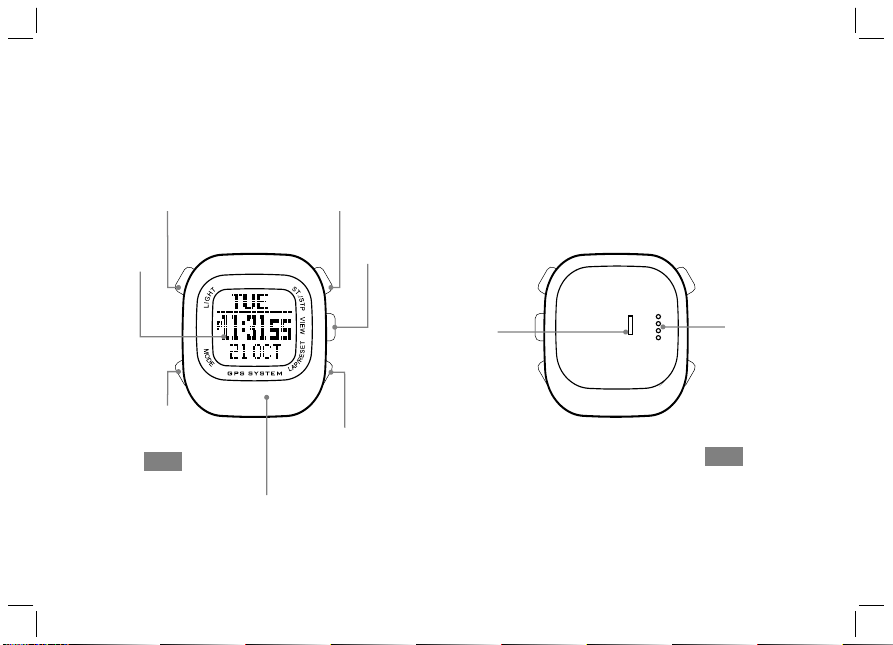
B. Unit Overview: Name of the Parts (Watch)
B-02
Front
[ tart/ top] S S [S/S]
Button
[ ]View
Button
Clip Guiding
Notch
LCD
Display
[Lap/Reset]
Button
[L/R]
Back
USB Cable
Contact points
[EL]
Light
Button
[Mode]
Button
GPS antenna location – always
direct antenna towards sky for
best GPS reception
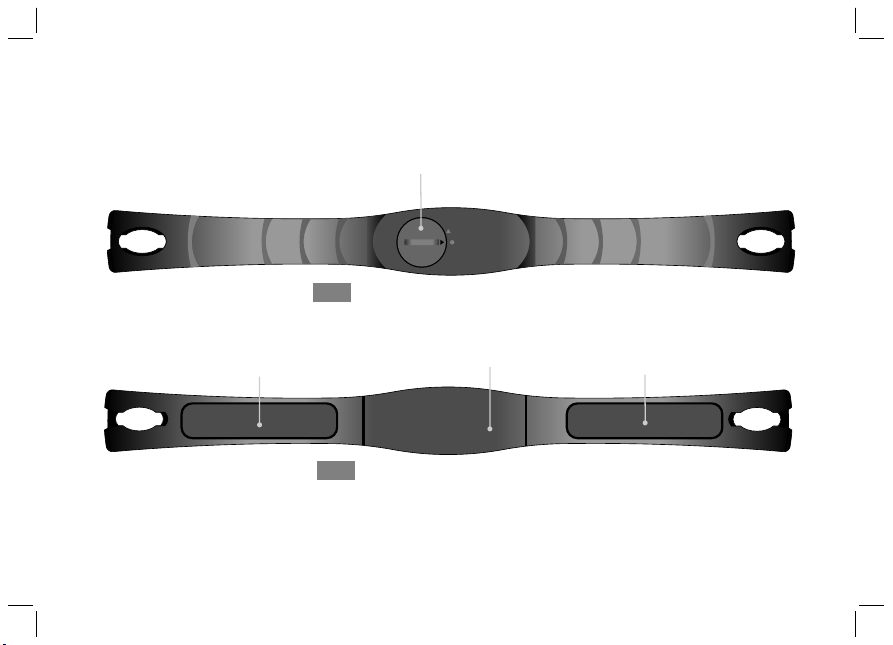
B. Unit Overview: Name of the Parts (Chest Strap)
B-03
Front
Back
Built-in
Antenna
(underneath
the case)
Conductive Contact Pad
Conductive Contact Pad
Battery
Hatch
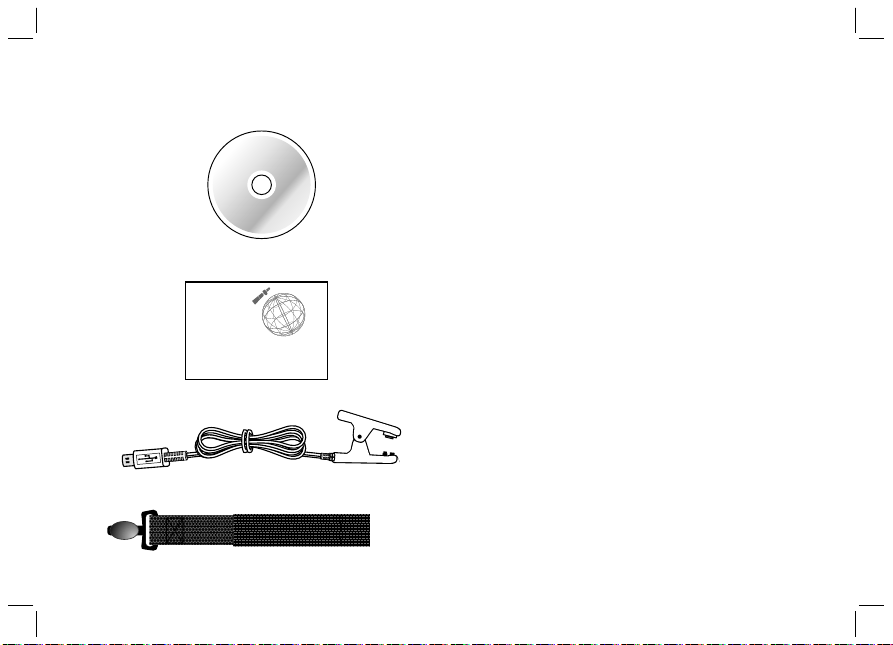
Manual
Elastic Bend
CD ROM
CD ROM
PC application software GPS Master
The detail instruction on how to use the watch
Manual
Instruction on how to use the watch
Elastic Bend
Mount the Chest Strap on users chest
USB cable
To charge the battery of the watch
To communicate with PC
B-04
B. Unit Overview: Major Functions Part 4
USB Cable
OWNER' S MANUAL
GPS Watch
GLO BAL P OSITI ONING S YSTEM
wit h Heart R ate Mon itor
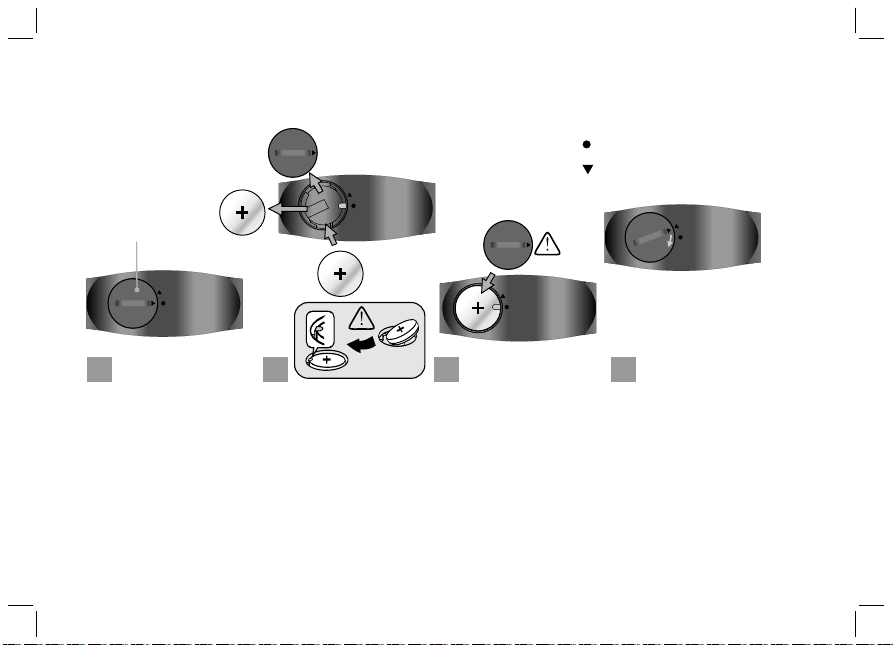
C. Setting Up: Replace Battery for the Chest Strap
C-01
Close position maker
Open position maker
Turn the battery hatch
anticlockwise until the
arrow aligns with the
op en pos ition m arker
(arrow). Then turn one
step further slightly until
the battery hatch pops
up.
Turn the battery hatch
clockwise until the arrow
aligns with the close
position marker (dot).
Put aside the battery
hatch. Replace the old
b a t t e r y w i t h a n e w
CR2032 battery with the
“+” side facing upward.
IMPORTANT: Be sure
that the b a ttery s its
b e n e a t h t h e m e t a l
battery hook.
Re -inst all the bat tery
hatch.
IMPORTANT: Be sure
that the O-Ring is placed
on its original position
(battery hatch) and all
the surfaces are clean.
1 42
3
CR2032
battery hatch
CR2032
New
CR2032
Old
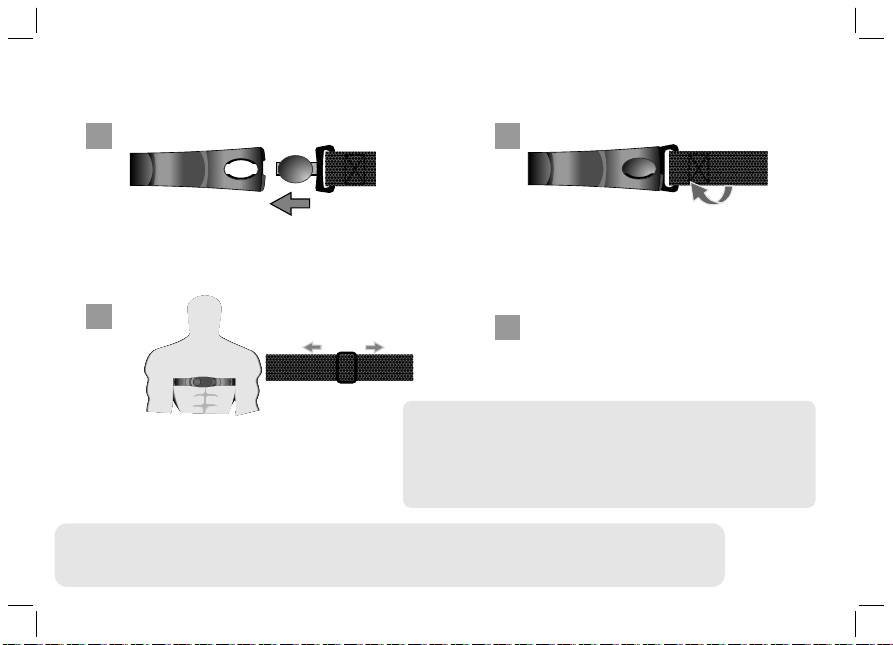
C. Setting Up: Fasten the Chest Strap on one’s chest
C-02
Note:
- Wetting the contacts with water or saliva can increase the conductivity.
- Make sure that the contacts are
.
- Use the Chest Strap in a place within 3 meters from the Watch, otherwise the Watch
CANNOT receive the data from the Chest Strap.
made firm contact with the user's skin during
measurement
- Clean the contacts occasionally by moist paper towel, and wipe it dry with dry paper to
remove grease.
1
4
2
3
Insert the connecter of the elastic band
into the hole at the end of the chest strap.
Center the Chest Strap against your chest
as high under your breasts as comfortable.
Adjust the Chest Strap with the elastic
band comfortably and allow for normal
breathing.
Twist the elastic band so that the whole
connecter is completely lodged into the
chest strap.
WARNING:
– DO NOT adjust the Chest Strap too tight, it may hinder the blood circulation and breathing.
- Avoid doing any awkward motion during measurement, it may create an inaccurate heart rate reading.
Lodge the free connector into the
other end of the Chest Strap as Step
1 and 2.
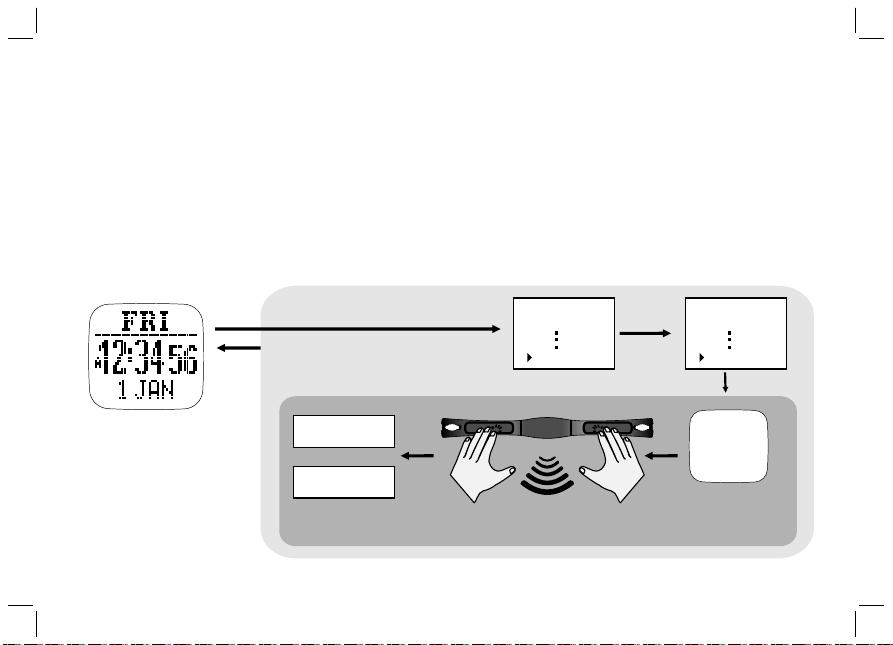
Strap Pairing
C. Heart rate Monitor Function: Strap Pairing
C-03
Strap Pairing
Every Chest Strap (HRM) is assigned a unique ID when it was manufactured in the factory. The watch
has to be paired up with it before use. This is to avoid interference with other users who are using the same
equipment. Pairing has been done in the factory. Should you replace the HRM with a new one, you have to pair
the new strap again.
To do the pairing, Hold [M] to go to Menu --> HRM--> Pairing. Then touch and hold the 2 conductive pads on
the Chest Strap for a few seconds. If the pairing is successful, the message “DONE!” will be displayed on the
watch.
Home time mode
Hold
[M]
[M]
Menu:
Workout
HRM
[V]
HRM:
On/Off
Pairing
Paring
Chest
Strap
.....
DONE!
FAIL
or
Touch the contacts
with both hand
C. Charge the Battery
C-04
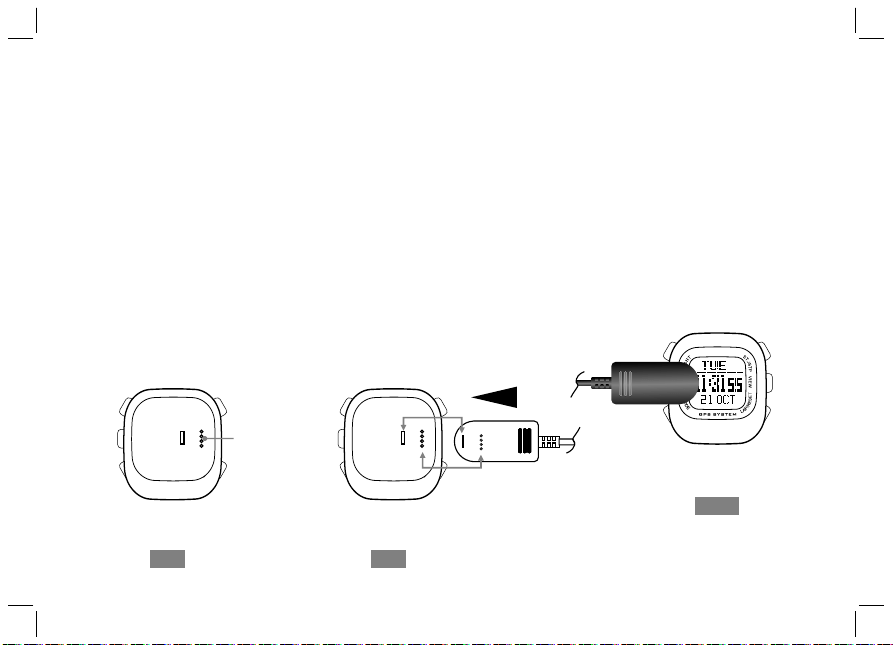
The watch has built-in a rechargeable lithium polymer battery. Charge it for at least 3 hours if it is going to be used
for the first time. If the battery is empty, the charging cycle will be completed in less than 2 hours. If the battery is
not empty, the charging time will be shorter. A quick 15-minute charging may keep GPS running for around 1.5
hours. The Battery of a single charge depends upon its usage. If the GPS is not activated, it can run for around a
year. If the GPS is ON, the battery is expected to run for approximately 8.5 hours. This rechargeable battery is
good for at least 500 charging cycles. Battery gauge function is provided. The approximate remaining time left,
when working with GPS, is calculated by pushing the [V] button once in TIME mode. This only serves as a rough
estimation. The actual life may vary as the operating conditions change. If the battery level is nearly empty, GPS
and Heart Rate Monitor functions will be disabled automatically. At this stage, the watch can still run for another 2
weeks with normal time keeping functions.
To charge the battery:
1) Align the clip guide and pins with the notch and contacts at the bottom of the watch
2) Make sure the clip is secured
3) Plug USB cable into any of the PC’s USB connectors
Back
USB Cable
Contacts point
Back
Front

D. Getting Start: Glossary
Waypoint
Waypoints are a set of coordinates that identify points in physical space. For the purpose of terrestrial
navigation, these coordinates usually include longitude and latitude, and sometimes altitude. The Waypoint
name is limited to 10 characters long. It can be named or renamed in GPS Master. Renaming can be done easily
by just kicking and dragging on the waypoint names.
Path
Path is a collection of waypoints. It can be treated independently as scattered waypoints; or linked in sequential
order (either forward or backward). Linked waypoints form a PATH (or route). GPS Watch has 10 Paths. Each
path has a maximum of 99 waypoints. Paths can be created by Lap-To-Waypoint function. Or they can be
created by GE (Google Earth) or GMaps (Google Maps) then they are imported to the watch through GPS
Master. The Path name can be 32 characters long.
Workout log
After workout/navigation has started, GPS Watch collects all the information into a log. The sampling interval is
controlled by the values in the TrackLog setting. Workout logs contain: starting time and date, workout
summary, lap details, speed, distance, HR and track data.
Pace
PACE is commonly used by runners to estimate the time required to go to a destination. It is defined as the
elapsed time needed per Km / Mile. It is another interpretation of speed but in reverse unit. The unit of PACE is
specified in Menu-->Settings-->System-->Units-->General.
E.g. if the unit is Km and PACE is 6 then it means that you are running at 6 minutes per Kilometer. It is equivalent
to 60/6 => 10 KmH. If PACE is smaller, it means that you are running faster.
Compass bearing
Compass bearing is equivalent to azimuth bearing. An azimuth bearing uses all 360° of a compass to indicate
direction. The compass is numbered clockwise with north as 0°, east 90°, south 180°, and west 270°. So a
bearing of 42° would be northeast and a bearing of 200° would be southwest, and so on.
D-01

D. Getting Start: Glossary
Lap-By-Distance (LBD)
Create a lap after the preset lap distance has reached
Lap-To-Waypoint (L2WP)
Create a waypoint at the end of a selected path whenever a lap is marked.
Cold Start
If GPS has been suspended for a long time, Satellite data collected earlier are not valid anymore. It takes about
30 seconds to collect sufficient satellite data to locate your position. This is known as the cold start.
Hot Start
If GPS has been terminated for only a short period of time before re-starting, satellite data is still valid. It takes
only a few seconds to locate your position. This is known as the Hot start.
GPS Master
GPS Master is a PC application software which is written to work with GPS watch. Workout log and paths can be
downloaded / uploaded easily via the USB cable. GPS Master provides a much better means for workout
analysis, path creation and manipulation.
%EMHR
%EMHR = percentage of HR with respect to the Estimated Maximum Heart Rate.
Estimated maximum HR is calculated as 220 – your age
Target HR Zone (Target Zone)
The region of HR is what you would like your expected highest and lowest HR to be during exercise.
D-02
D. Getting Start: Buttons Functions Summary
Press to turn ON the EL back light for about 3 seconds
Hold to enter Night Mode (Press once to exit)
Light
Buttons Names Major Functions
Mode
Press to select among the functional displays
Hold to enter the setting mode
Hold to fast exit to function modes when you are several levels down the menu
Press to exit setting or go back one level up the menu
ST./STP
D-03
VIEW
LAP/RESET
Press to move forward
Press to increase watch data
Press to Start/ Stop workout / Chronograph
Press to enter sub- modes or workout views
Press to make selection/confirmation
Hold to turn on GPS at Workout / Navigation Mode
Press to move backward
Press to decrease watch data
Press to Start/ Stop Workout / Chronograph
Press to take laps in Workout Mode
Hold to save Waypoint at Navigation Mode
Hold to clear workout data
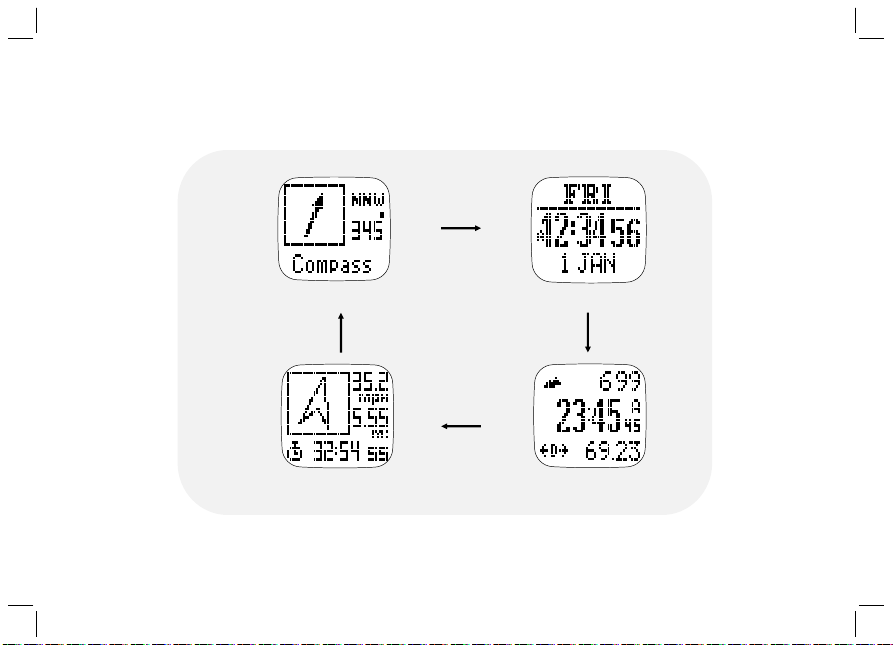
Main Function Modes
D. Getting Start: Main Function Modes
D-04
Time mode
Navigation
Compass
Workout mode
[M]
[M]
[M]
[M]

E. Workout Mode
Workout mode records and displays your current performance. You can keep records of and
review your performance as you are running or navigating in the wilderness. The workout
mode shows speed, distance traveled, workout time from the start, heart rate and other
usefut data regarding your current workout. It keeps records of your speed, heart rate and
altitude that you can view them on a PC graphically.
Workout mode works together with the Navigation mode. Start, stop, lap, GPS shortcut
operations are common to both modes. Performing these actions in either of these modes
has the same effect.
About the Workout Mode
The watch offers 5 activity profiles (defaults are Running, Cycling, Hiking, Sailing and User).
Name editing of these profiles can only be done in the PC application software. Text editing
is quite a painful task if it is done by a watch which only has 4 buttons. Each profile has 3
views (or screens). Each view has 3 data fields. Data fields can be selected freely from a
list of fields. This allows users to review selected fields in their own interest. Profile
configuration can also be done through the PC software quickly. You can store as many
profiles as you want in the PC. Its massive storage capacity is virtually no limit to the
number of possible profile combinations that you can think of.
E- 01
E. Workout Mode
How to start the Workout Mode
Press [M] in Time mode to enter the Workout mode
Press [S/S] to Start/Stop the Workout. GPS and HRM functions are
turned ON automatically at start if it has not been done manually.
Mark Laps
Press [L/R] to take Laps. The maximum number of laps for a single
workout session is 99.
Reset Workout / Navigation
When workout has been stopped, hold [L/R] until you see the RESET
popup message to reset workout/navigation. This clears the current
session of workout data and prepares you to start another new
workout. Workout data are recorded and stored automatically in the
memory at reset. If you don’ t want to keep it, you have to erase it
manually. Here is the key sequence: Menu> Workout > Delete >
Del Last.
Summary of workout history can be viewed from:
Menu > Workout > History.
How to change the Workout view
Press [V] to select among the 3 preset displays. These 3 displays will
be shown one by one cyclically if the ViewScan function has been
selected. Each display stays for about 3 seconds. To set/reset the
ViewScan: Menu > Workout > ViewScan > On/Off
Note: See next chapter to select the Workout profiles, customize the
display data and review the workout history.
E- 01
Workout mode
E. Workout Mode - GPS
E- 02
Workout mode
Hold
[H]
Fixing with
GPS
GPS Fixed
How to turn ON the GPS manually:
If GPS receiver has been stopped for a long time, say more than 2
hours, it is recommended to start the GPS manually, especially
when you want to have track logging done at the beginning of
workout. It is because the GPS cold start time is long. Usually it
takes approximate half a minute. During the cold start period, track
information is not available. you should have the GPS position
updated beforehand. To do this you can do either of the followings:
a) Menu> GPS> GPS ON or OFF (turn GPS ON); or Simply hold
[V] for 2 seconds at Workout / Navigation modes to toggle GPS
either ON or OFF.
b) Menu> GPS> Timeout
It can be chosen either 5 or 30 minutes. If GPS is lost and 30
minutes timeout is selected, the watch will try re-locate it position
via satellites in 30 minutes.
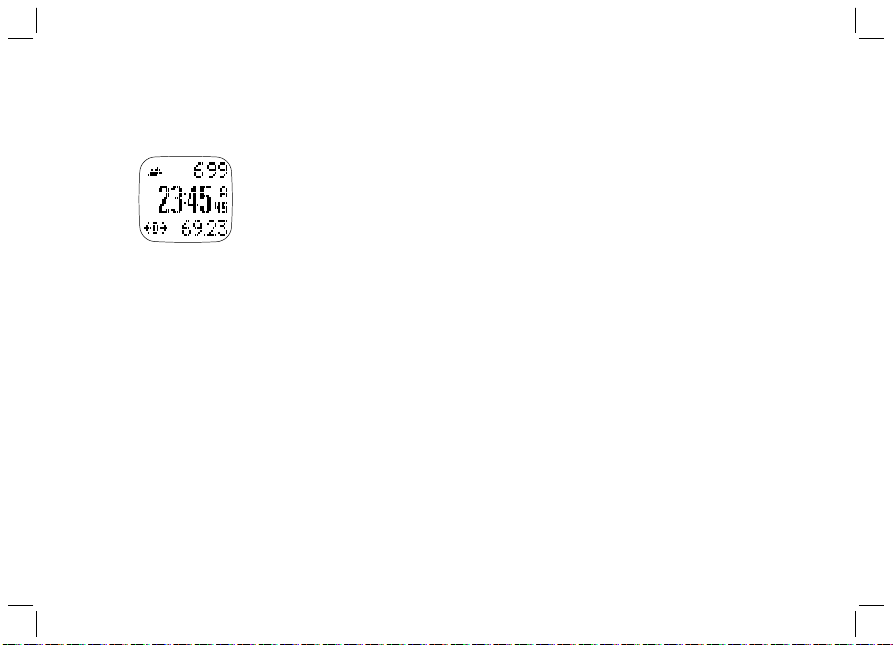
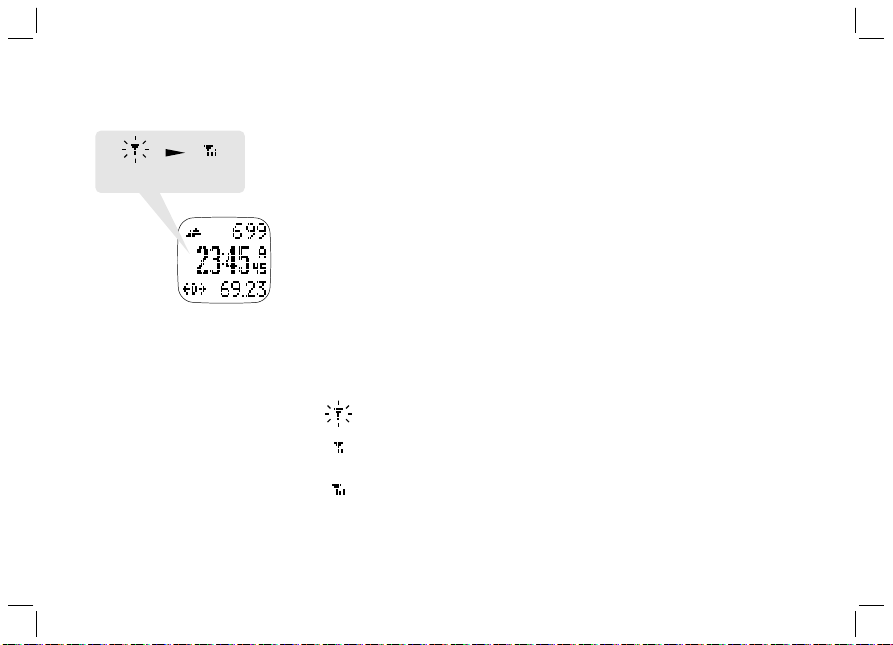
GPS status indicator
- When GPS is collecting satellite information, an “ANTENNA”
icon is flashing at the top right for most of the workout views.
- If GPS has a 2D location located, “GPS fixed” message will pop-
up and it will last for a few seconds. Icon at the top left is as
shown here.
- If more satellites are captured, GPS has a 3D location located.
Icon will be like this.
- If GPS loses contact with satellites and cannot fix its position,
GPS “GPS Lost” pop- up message will appear. It stays on the
LCD until any of the button is pressed.
E. Workout Mode - Workout Profile
E- 03
Workout mode
Line 1
Line 2
Line 3
[V]
[V]
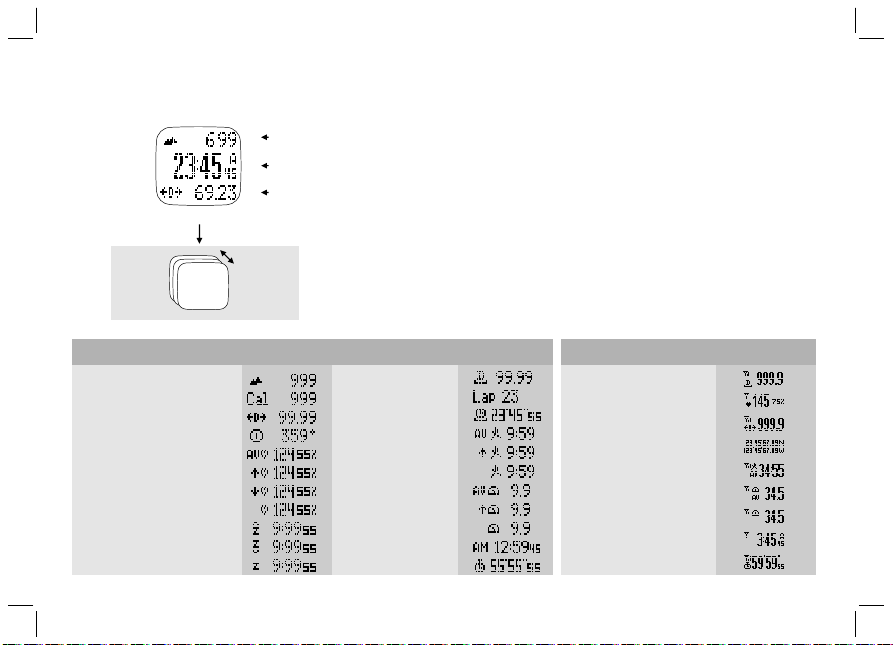
How to select Workout Profile
h Hold [M] under any mode to enter Setting Menu > Workout >
Profiles > Select
h Press [V] to confirm
How to customize the Workout view data
hHold [M] under any mode to enter Setting Menu > Workout >
Profiles > Customize > Select the desire profile > Select View 1
to 3; Line 1-3 data according to the table below.
How to reset to default setting
h Hold [M] under any mode to enter Setting Menu > Workout >
Profiles > Reset
- Altitude
- Calories
- Distance
- Heading
- Average Heart Rate
- Max Heart Rate
- Min Heart Rate
- Current Heart Rate
- Above target zone time
- Below target zone time
- Within target zone time
- Lap distance
- Lap number
- Lap Time
- Average Pace
- Maximum Pace
- Current Pace
- Average Speed
- Maximum Speed
- Current Speed
- Time of Day
- Workout Time
- Distance
- Current heart rate
- Lap distance
- Latitude & Longitude
- Average Pace
- Average Speed
- Current Speed
- Time of Day
- Workout Time
Line 1 and 3
Line 2

E. Workout Mode - Workout History
How to Delete the last or All records
Hold [M] under any mode to enter Setting Menu > Workout > Delete last one/Delete all.
Press [V] to confirm
Note: Number of Records depends on the size of the Memory.
E- 04
How to review Workout History from the watch
Hold [M] under any mode to enter Setting Menu > Workout > History
Then the summary of the latest record will be shown.
View Workout summary:
Workout data summary occupies 3 pages. At the Top right corner of first page is the record number.
Change the record number by pressing [S/S] or [L/R] button. The 2nd and 3rd lines are time and date
of the record. The last line is the total number of laps for this workout. This page stays for 5 seconds.
Then it is replaced by the next one. Pages 1, 2, and 3 are shown once at a time for 5 seconds
sequentially. The 2nd page shows workout time, distance, and average pace. The 3rd page shows
calorie consumption, average heart rate and average speed. After several cycles of display, it will go
back to the Time mode automatically. If you want to take a look at the details of individual laps, press
[V] to go into Lap Summary view. When you finish, press [M] to go back to previous menu or hold [M]
2 seconds to go back to the Time mode directly.
View Lap summary:
Lap summary consists of 2 pages. Record number is at the top left while current lap number is at
the top right corner .Change the lap number by pressing [S/S] or [L/R] button. Like the data summary,
these pages are shown alternatively. Page 1 shows lap time, lap distance, and lap average pace.
Page 2 shows the split time (elapse time from starting to this lap), average heart rate for this lap and
the lap speed.
Press [v] to switch back to Workout Summary view. If you finish, press [M] to go back to the Workout
menu or hold [M] 2 seconds to go back to the Time mode directly.

E. Workout Mode - Smart Lap
05E-
Smart Lap is a concept of marking laps or waypoints automatically. You can make use of Smart Lap to achieve the
following functions:
Lap-By-Distance (LBD): Menu> Workout>SmartLap> ByDist
When this function is turned ON, you can specify a fixed distance such that a new lap is marked
automatically whenever the lap distance is reached with the preset target. You just focus on your workout. It is no
need for you to push the lap button anymore. You are free to mark any new laps manually in between the Lap-By-
Distance period.
* If Alert is switched ON, a single beep will sound once when a new lap is marked.
Lap-To-Waypoint (L2WP) : Menu> Workout>SmartLap> ”Lap->WP”
This is a very useful feature for creating a PATH by the watch alone. One of the 10 PATHs has to be
dedicated for this purpose. This path is specified in the Lap->WP setting screen. If this function is ON, the
selected path is cleared at the beginning of Workout/Navigation. After that, whenever a new lap is created,
disregarding if it is added by Lap-By-Distance or by pushing lap button manually, the current location is added as
the latest waypoint of the dedicated path. The number of waypoints allowed is the same as that defined in the
regular paths.

E. Workout Mode - Application example - Backward tracking
06E-
A typical application for this is backward tracking. If you are going to explore the wilderness without planning and
want to return on the same path, you may:
- Set LBD to, say 200 meters, and turn it ON: Menu> Workout> SmartLap> ByDist>[ON, 200].
Remember that the maximum number of waypoints for a path is limited to 99. Set minimum LBD distance
accordingly and yet it will not exceed the limit. Waypoints beyond the path limit are ignored.
- Set L2WP path to Path9, and turn it ON: Menu> Workout>SmartLap> " Lap->WP" > [ON, Path9]
- Start Workout/Navigation trip: Navigation [S/S]
- If you want to stop and return, then press [S/S] to stop and hold [L/R] to reset and then you are ready to return
on the same path.
- Turn OFF L2WP: Menu> Workout> SmartLap> "Lap->WP”> [OFF]
- Select Path9 as the current path for navigation. Menu> Navigation> SelPath> Path9
- Set navigation mode to backward. Menu> Navigation> NavMode>Backward
- On the Navigation-Goto screen, select the last waypoint of Path9 as the current waypoint
- Start Navigation, follow the Heading Pointer. The watch will guide you from the last waypoint to the starting
point precisely.
E. Workout Mode - TrackLog interval
07E-
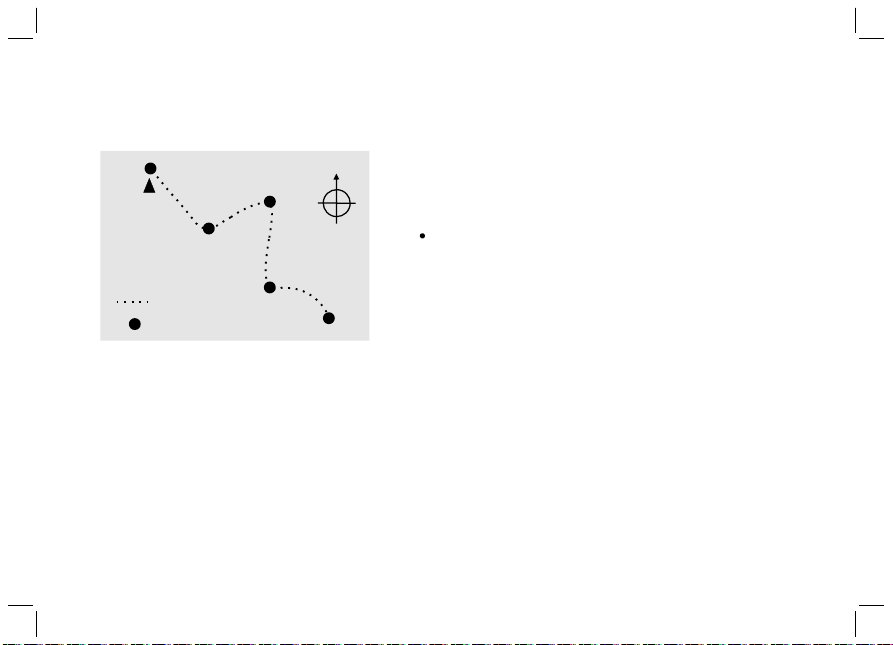
GPS watch records your track continuously. The sampling
interval is specified by the value in the TrackLog setting.
Default is 4 seconds. It can be set from 1 second to 10
minutes per point.
How to set the TrackLog time
Under any mode, Hold [M]
Menu > Workout > Tracklog
Press [S/S] or [L/R] to set the time
Note:
1% of the memory can store approximately 480 points.
Percentage of memory used for a workout period can be
estimated as Expected Workout Time per TrackLog Interval
divided by 48000 times 100%.
% of memory used = (Expected workout Time/TrackLog
interval)/48000 x 100%
1
2
3
4
5
08
Path
Track Log
10Min
10Min
10Min
10Min
Example: TrackLog has been set for 10Min

F. Navigation Function
- 01F
Navigation mode has 2 screens: Navigation and Goto screen. Navigation screen gives you all the information
you need when you are navigating to a waypoint. Goto screen allows you to pick a waypoint from the current
path.
Introduction
GPS watch is able to keep 10 paths simultaneously. But you can work on a single path at a time. This is known
as the current path. To select the current path: Menu > Navigation > SelPath. Each path has a maximum of
99 waypoints. Waypoints, in a path, may or may not have relationship with each other. If they have no
relationship, this path is just a collection of scattered waypoints. Waypoints can be linked sequentially to form
a route. You can navigate up or down a linked path until the first or last waypoint has been reached. Select you
navigation mode before navigation
Navigation modes
There are 3 navigation modes: Waypoint, Forward, and Backward modes. To pick your desired mode with
this key sequence – Menu > Navigation > Nav Mode.
Waypoint mode
The active waypoint is the destination. Select this mode if you want to go to the individual waypoints in the
current path. Then, pick the active waypoint on the Goto screen. This active waypoint is actually the
destination.
Forward mode
The last waypoint is the destination. Select this mode if you want to navigate from the first waypoint to the
last one in current path. Pick the nearest waypoint as the active waypoint on the Goto screen before you start.
If the active waypoint is reached, it will navigate to the next waypoint in the path. This repeats until the
destination (last waypoint) is reached.

F. Navigation Function
02F-
Backward mode
The first waypoint is the destination. Select this mode if you want to navigate along the path in reverse order.
For example: from the last waypoint to the first one on the current path. Pick the nearest waypoint on the
Goto screen before you start. If the active waypoint is reached, it will navigate you to the previous waypoint on
the path. This repeats until the destination (first waypoint) is reached.
Set Waypoint radius
You are treated as arrival at the active waypoint when you fall into the region of the waypoint within the radius
set in WP Radius setting. It can be adjusted in Menu > Navigation > WP Radius. The Default is 30 meters
(100 ft). The range is 10m~250m.
F. Navigation Function - How to navigate
03F-
Navigation
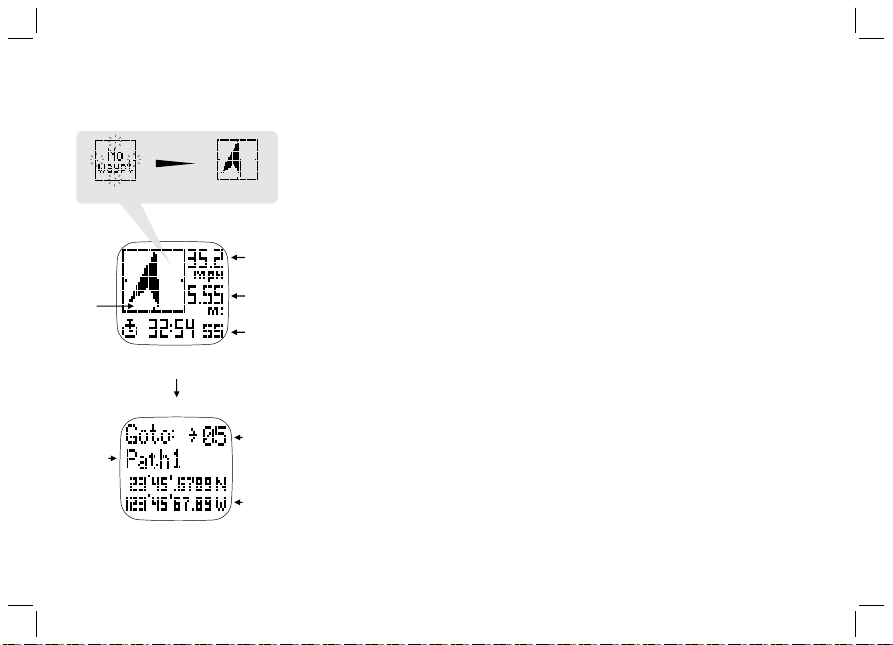
Setup the path and navigation mode as described before. Turn
ON GPS by Holding [V]. Or if you want to have workout logged,
just press [S/S] to start workout. Then wait for GPS to be fixed.
At the same time, you can pick the active waypoint by pressing
[V] to switch to the Goto screen.
Set Active Waypoint
On the Goto screen, browse the waypoints up and down on the
current path with [S/S] and [L/R] buttons. The sequence number
of the waypoint is shown at the top right. The Path name is in
the 2nd line . Other deta ils of t he wa ypoint are shown
consecutively in lines 3 and 4 across 3 pages.
- Page 1 shows the time, date, and name of a waypoint. The
name of the waypoint is limited to 10 characters long. Editing of
the waypoint name can only be done in the PC Master. A
D e f a u l t n a m e “ W a y p t X X ” i s a s s i g n e d t o a w a y p o i n t
automatically by the watch when it is marked manually or
created by Smart Lap. Where XX is a sequence number going
from 00 to 99.
- Page 2 shows the distance between the current position and
the heading to this waypoint if GPS has been fixed.
- Page 3 shows the latitude and longitude of this waypoint
Press [V] once again to go back to Navigation after the active
waypoint has been selected.
Direction
Current
Speed
Waypoint
Destination
Workout
Data View
[V]
Path
Name
Waypoint
No.
Navigation
data
Waypoint Data View
Hold
[V]
Fixing with GPS
GPS Fixed
F. Navigation Function
04
F-
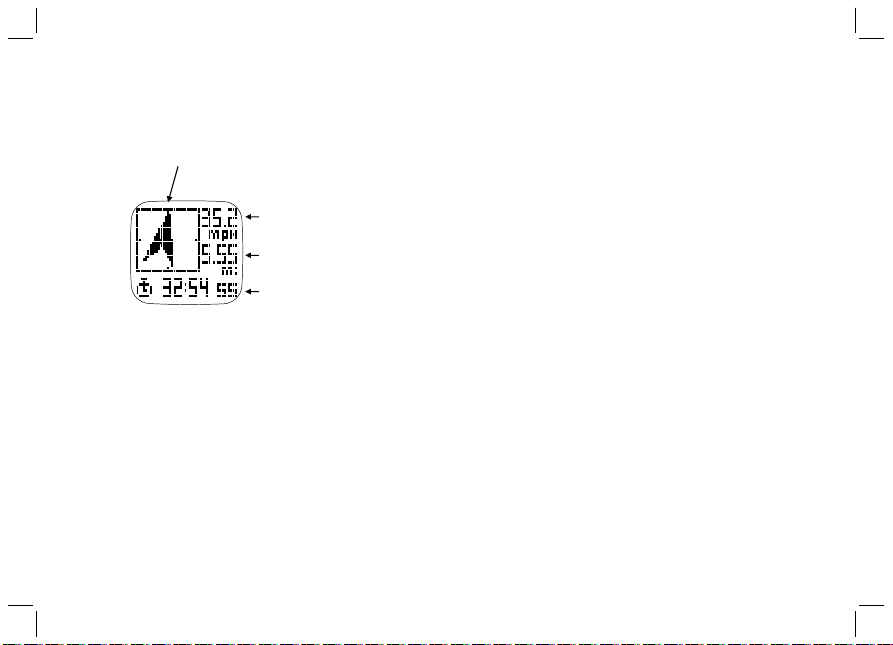
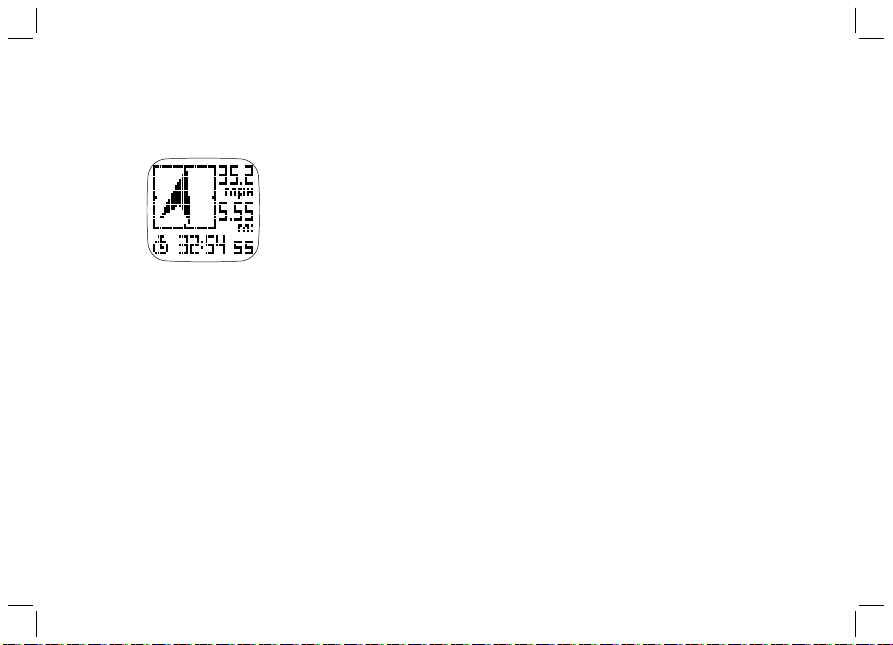
Follow the heading pointer
Once GPS has been fixed, the heading pointer starts to
work. Make sure that the electronic compass has been
calibrated properly (See compass calibration details in the
System Setting chapter) and the watch is maintained at
horizontal position. Tilting away from the horizontal position
will affect the accuracy of the heading pointer. If everything
is properly set, the pointer always points to the active
waypoint.
Your current speed and distance to the active waypoint
figures are shown at the top right of Navigation screen. Time
of Day, Workout Time, Distance to Destination, Estimated
Time to Destination, and Current HR are scrolling out once
at a time at the bottom line. When there is no HR datum, it
will not be shown at all and this part will be skipped.
When you are approaching the WP region of the active
waypoint within the preset radius, 3 beep tones will sound.
Beep tones will be suppressed if the Key Tone setting is
turned OFF. If you are navigating with Forward / Backward
mode, it directs you to the next waypoint automatically. This
process repeats until you arrive at the final destination.
Navigation
Heading pointer
Current
Speed
Waypoint
Destination
Workout
Data View
How to create Waypoints or a path in the PC
Note: You should have GPS Master installed in the PC first. See the
GPS Master installation and user’s manual for details.
Run GPS Master
Activate the Path Manager ( Path-->Path Manager)
Click NEW on the Current Path
Locate the desired position in the embedded Google Maps
(GMAP) and left click the mouse button. A new waypoint is just
created. It is assigned with a default name. If you want to change
this name, double click the waypoint place mark. A dialogue box
will appear. You can input a meaningful name there. The name of
waypoints is limited to 10 characters long.
Add as many points as you want. Waypoints are linked
sequentially.
Click Save Path as you finish adding waypoints. They will save
into the Current Path table.
Clip the watch and plug in the USB cable. Then Click the “PC-
>Watch” button in GPS Master. Path(s) in the Current Path table
will be transferred to the watch in seconds.
How to Start/Stop Workout session and Take Laps while
navigating
Press [S/S] to Start Workout. Push [S/S] again to Stop Workout
Press [L/R] to take Lap
F. Navigation Function
05F-
Navigation
G. Compass Mode Function
01G-
Compass Mode
Direction
Cardinal
directions
object B
object B
object C
Compass Directions
Bearing Directions
object C
object D
object D
horizonta l
angles
point A
N
W
908
SW
1358
NE
3158
point
A
08
08
N
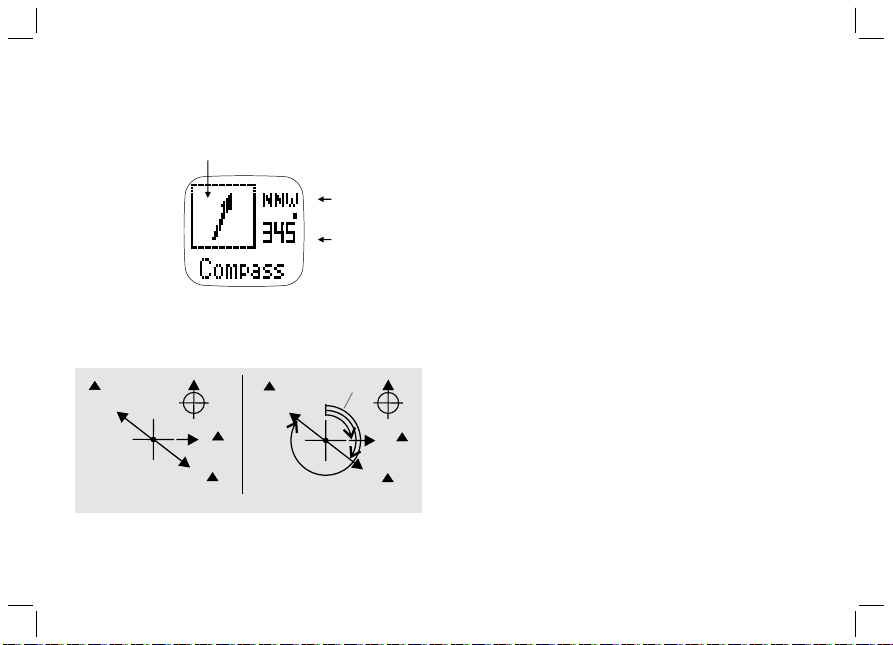
The Direction of an Object
The direction of an object from a point can be
specified in either cardinal direction or azimuth. This
watch includes both cardinal direction and azimuth.
The 16 cardinal directions
Cardinal directions are the most commonly used
forms of directions. They include North, South, East
and West. This electronic compass has Primary (NE,
NW, SE, SW) and Secondary (NNE, ENE, ESE, SSE,
SSW, WSW, WNW, NNW) InterCardinal directions as
well. Cardinal direction is shown at the top left corner.
The Azimuth
Azimuth is defined as the horizontal angle between
the North and the object measured clockwise. (The
North is 0 degree). Azimuth is shown in the middle
right.
Azimuth

G. Compass Function - Setting
02G-
How to calibrate the compass
How to set the magnetic declination of the compass
Hold [M] under any mode to enter setting mode: Menu > Settings > System >
Compass > Declinate
Press [S/S] or [L/R] to change the value
Press [V] to confirm
Note: Consult these websites for determining the declination at your location.
http://www.magnetic-declination.com/
http://www.ngdc.noaa.gov/geomagmodels/Declination.jsp
http://geomag.nrcan.gc.ca/apps/mdcal-eng.php
Hold [M] under any mode to enter setting mode: Menu > Settings > System >
Compass > Calibrate While calibrating, turn the watch 360 degree horizontally. You will
see the trace of dots forming the outline of a rectangular box when the watch is rotating.
Calibration is done when the outline is filled completely.
Note: Press any key to exit the calibration without any changes
H. Heart rate Monitor Function
01H-
How to Use Heart rate Monitor (HRM)
Working with the HRM is simple. Wear the chest strap as mentioned earlier. The strap should be turned ON by
itself. At the watch, press [S/S] in Workout mode. The watch will display an icon “HR” with the chest strap in a
couple of seconds. During your workout, the HR is stored at the rate as defined in the TrackLog. Press [S/S] again
to stop when you finish workout.
How to start the Heart Rate Monitor
There are 2 ways to activate the Heart Rate Monitor function:
1) Under Workout mode, the Heart Rate Monitor will start automatically when Workout starts.
2) Hold [M] under any mode to enter the Setting mode: Menu > HRM > On/Off
Heart Rate Data
Heart Rate Data
H. Heart rate (HR) Zone
02H-
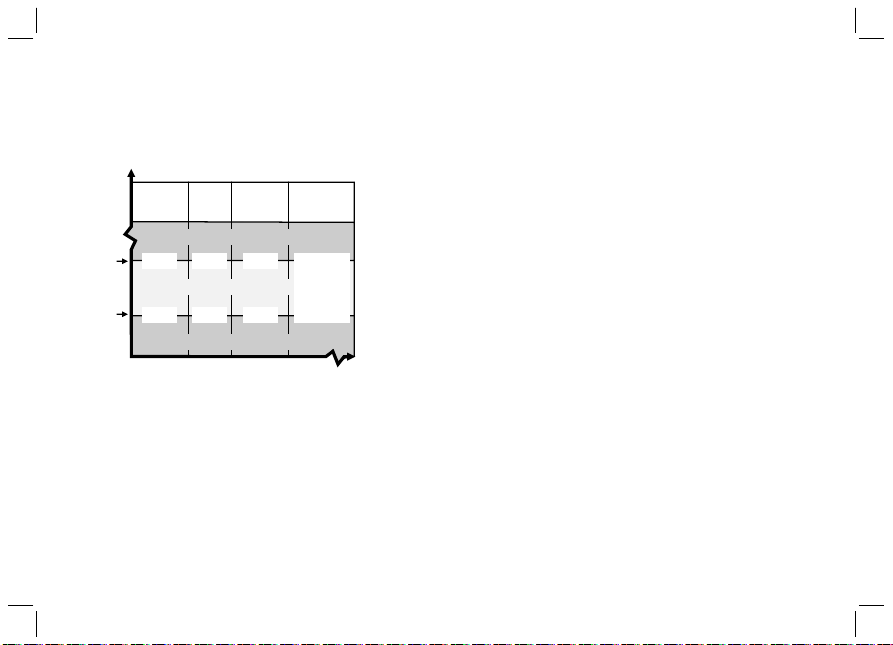
%
EMHR
Lower
Limit
Upper
Limit
Heart Rate Zone
Health
Fat
Burn
Aerobi cs
User
50% 55% 65%
65% 75% 80%
User
defined
In Zone
Above Zone
Below Zone
How to Use Target Heart Rate Zone
Setting target HR zone is very important for your personal
training plan. If you are not working in the target zone, alert
beeps will sound. You can adjust your pace of exercise to
maintain your HR in the target zone limits. There are 4 target
zone levels: Health, Fat Burn, Aerobics and User. The limits of
these zones are shown on the left table. If they do not fit your
training scheme, you are free to set your own target zone limits
in any of these settings.
How to select Heart Rate Zone
Hold [M] under any mode to enter Setting Menu > HRM > HR
Zone > Select
Select among Health / Fat burn / Aerobics / User
Press [V] to confirm > “Done” will be shown
How to set the HR Zone Limits
Hold [M] under any mode to enter Setting Menu > HRM > HR
Zone > Customize
Select among Health / Fat burn / Aerobics / User
Set the value by pressing [S/S] or [L/R]
Press [V] to confirm
How to reset all Heart Rate Zones
Hold [M] under any mode to enter Setting Menu > HRM > HR
Zone > ResetALL
I. PC Connection Function
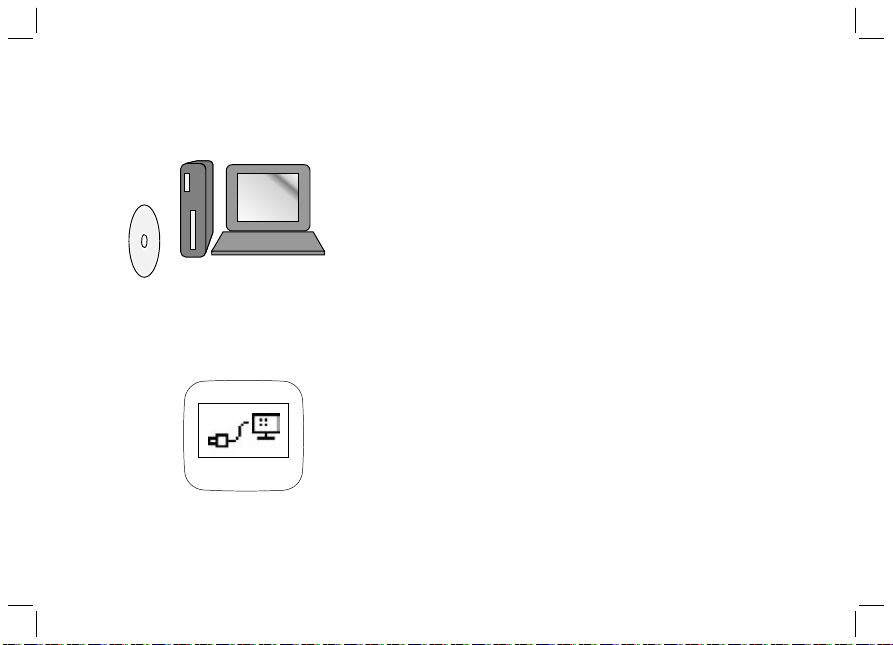
Install the bundled PC software into your PC in
order to connect your watch for data transfer and
making use of some special features.
The system requirements for the PC are as
follows:
Pentium II 300MHz or higher
64MB Main memory or higher
20MB hard disk space or more
256 color monitor or higher
Window XP/VISTA/7 operating system
CD-ROM drive
USB port
Follow the instructions in the GPS master setup
wizard to install the program. After installation,
restart your PC.
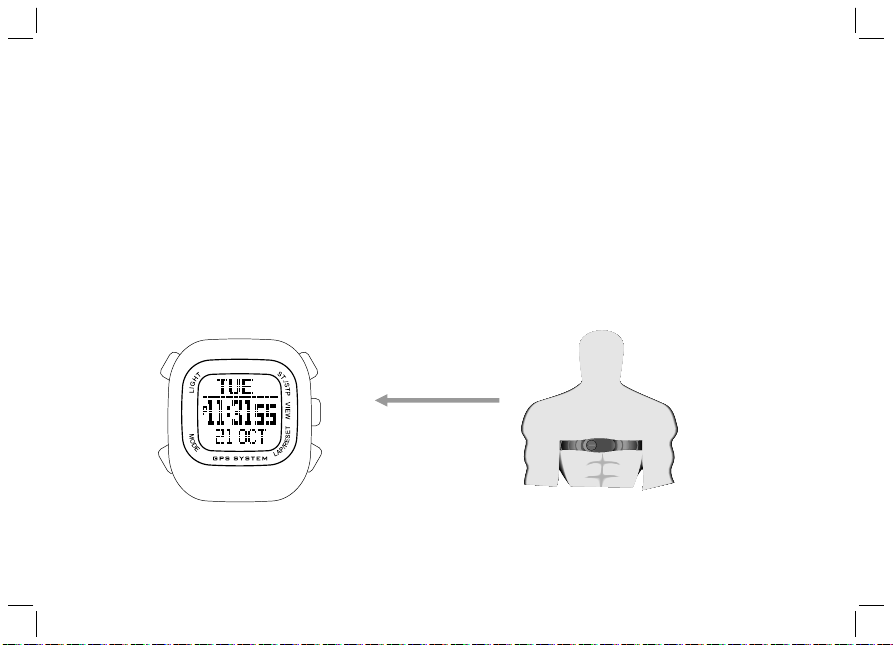
Clip the USB cable to the watch and plug the cable
into the PC’s USB connector. Once connected,
"Connected icon " will be shown on the watch’s
screen.
01I-
Personal Computer
the Watch connected
wit h the PC
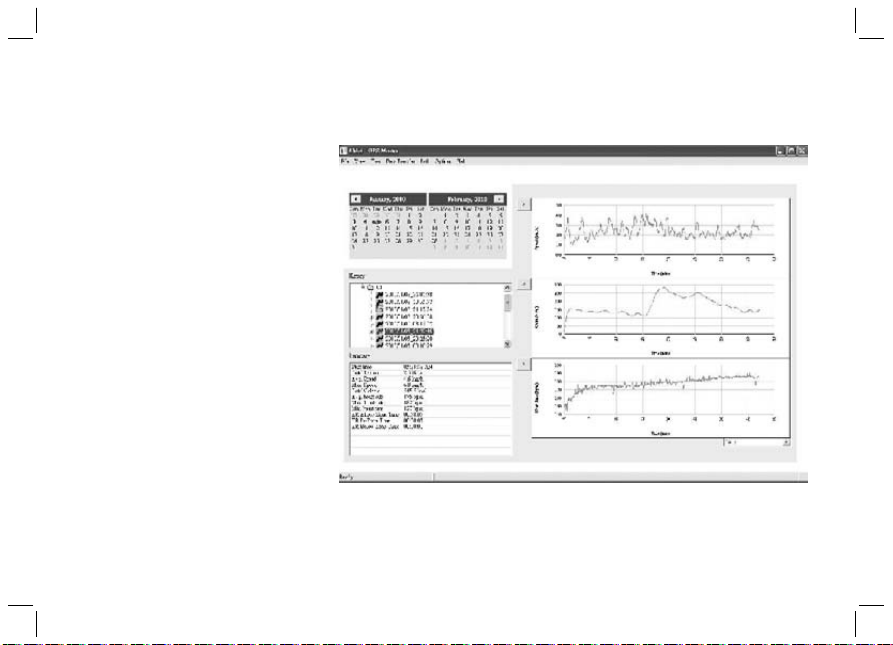
How to setup a new user
- Enter User name in the
New user dialogue box
- Press 'Add'
How to synchronize data
between the watch and the
PC
-On PC screen > Data
transfer > Receive the
Watch Data
- Workout data will be
shown on screen
PC Screen
I. PC Connection Function
02I-
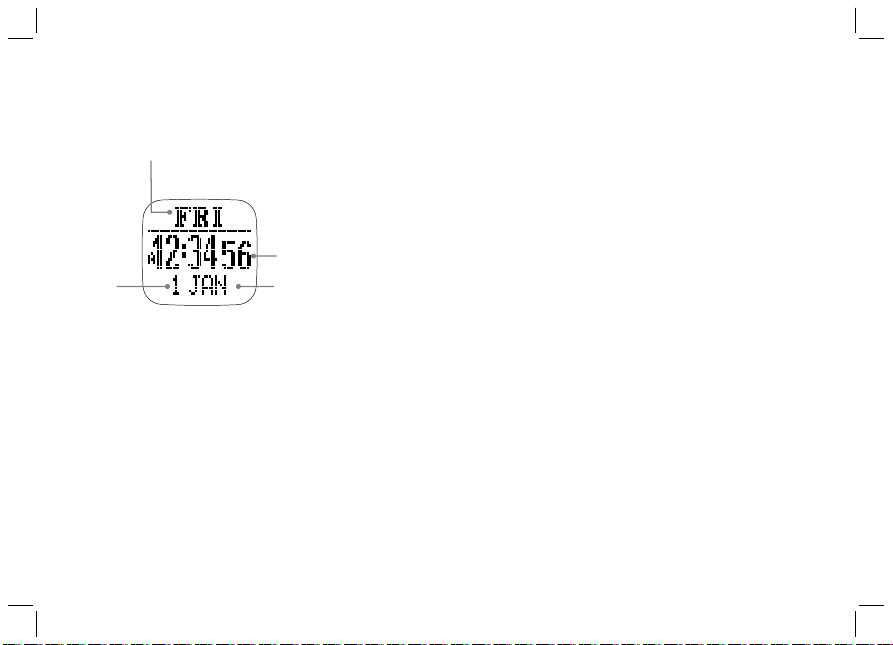
Home time mode
Date
Current time
Day of week
Month
J. Home Time Function
01J -
How to set Time Of Day
GPS watch is able to synchronize its clock with the
satellite's atomic clock automatically. This is done
whenever the GPS has fixed its position. Auto time zone is
another cool feature. It tries to set your current time zone
according to the longitude. In other words, when there is a
satellite and the GPS is turned on occasionally. The time is
synchronized with the satellite’s clock. You don’t need to
bother adjusting the watch. The time is always accurate. If
there is no satellite coverage, manual time setting is also
available.
Hold [M] under any mode to enter Setting Menu >
Settings > Time Date
Select Home Time/ Dual Time or Format
Time of Day Setting
GPS Update - Menu > Settings > TimeDate >
HomeTime > GPS Upd
GPS watch synchronized the time with the satellite atomic
clock whenever a GPS is first fixed when this option has
been turned ON.

J. Home Time Function
01J -
Time Zone
Menu>Settings>TimeDate>HomeTime>TimeZone
Set time zone according to your current location. It can be adjusted from +12:00 to -12:00 hours
from GMT in 0.5 hour step. Or it can be set to be updated automatically by GPS. When this
option is activated, GPS sets your time zone according to the longitude. It should work most of
the time, but there are exceptions. If the time zone set by GPS does not reflect your local time
correctly, adjust the time manually.
Manual time setting
Menu > Settings > TimeDate > HomeTime > Manual
Set time and date in the following sequence:
Second > Minute > Hour > Year > Month > Date
Press [S/S] or [L/R] to change the value
Dual Time Setting
Menu > Settings > TimeDate > DualTime
Press [S/S] or [L/R] to change the value per 30 min
Format
Menu > Settings > TimeDate > Format
Press [S/S] or [L/R] to choose 12 / 24 Hour Format
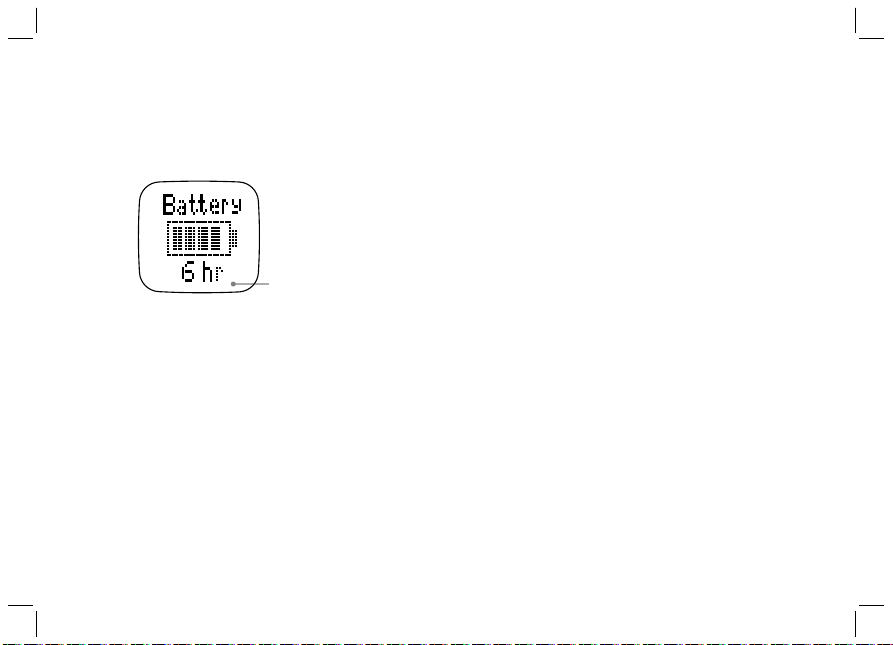
Battery Life Time
Remain
hour
K. Battery life - remaining power
01K -
Check Battery life - remaining power
Press [V] in Home time mode > Battery
Battery life remaining hours will be shown
L. Timer Function
01L -
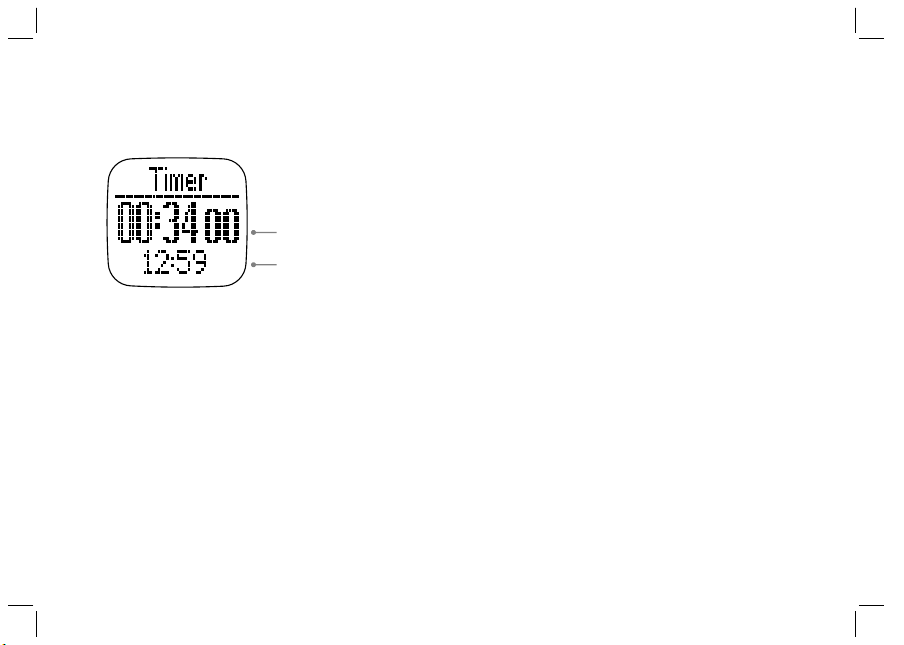
How to use Timer
i Press [V] in Home time mode > Battery >
Timer
i Press [S/S] to start or stop
i Press [L/R] to reset to the preset time
i Beep sound will be heard in the last 10
seconds
i Long beep will be heard once reaching
0:00:00
How to set Timer
Hold [M] under any mode to enter Setting Menu >
Settings > Timer
Press [S/S] or [L/R] to change the value:
Hour > Minute > Second
Timer mode
Current time
Timer time
M. Alarm Function
01
M -
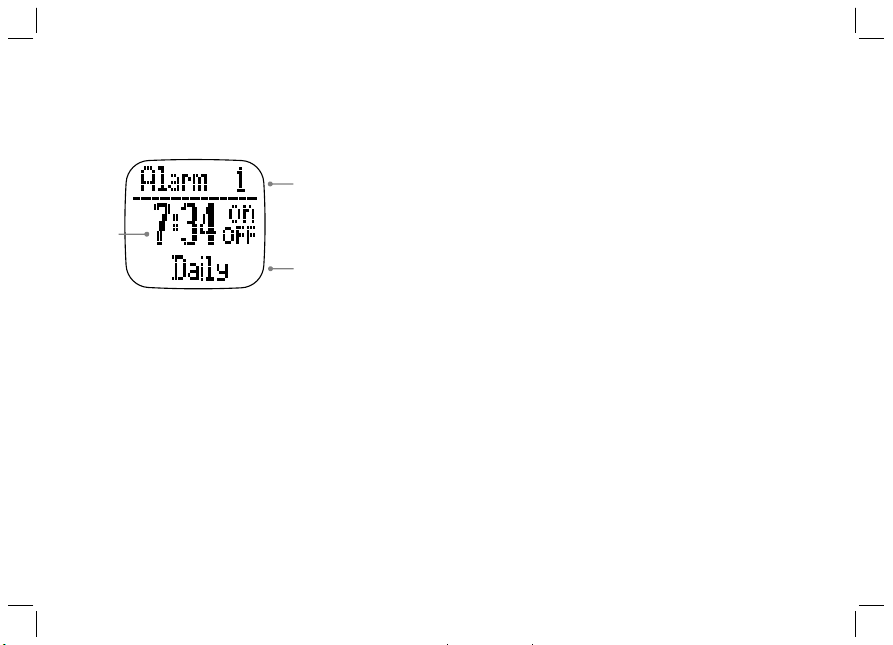
How to use the Alarm
Press [V] in Home time mode > Battery >
Timer > Alarm
Press [S/S] to select 1 - 5 Alarms
Press [L/R] to turn the alarm On/ Off
How to set the Alarm
Hold [M] under any mode to enter Setting Menu >
Settings > Alarms
Alarm no. > Hour-> minutes-> On/Off->
Daily/Sun-Sat/Mon-Fri
Press [S/S] or [L/R] to change the value
Alarm mode
Alarm
Day
Alarm
time
Alarm No.
N. Dual Time Mode
01N -
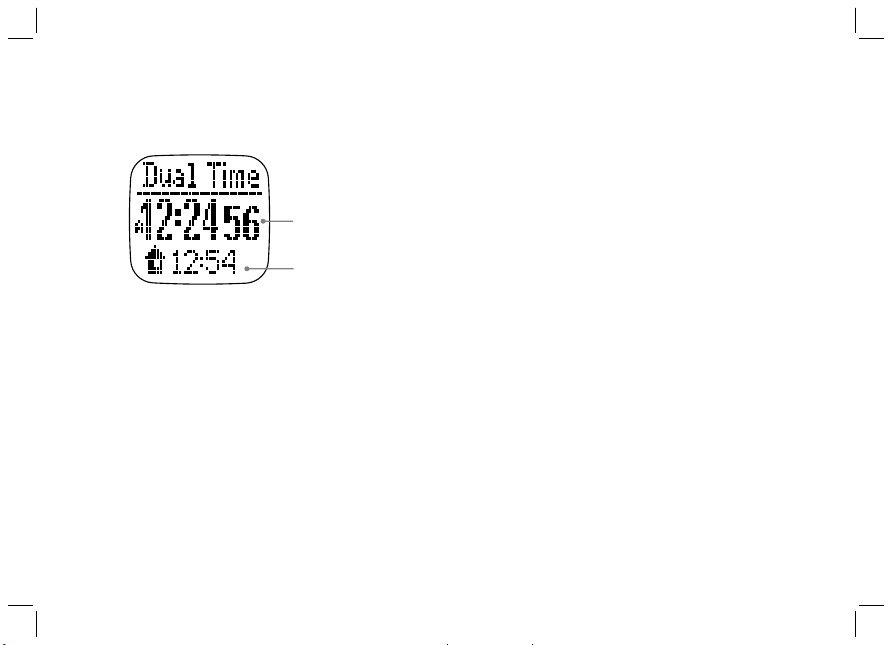
Dual Time mode
Home
Time
Dual
Time
How to use Dual Time
Press [V] in Home time mode > Battery >
Timer > Alarm > Dual Time
How to set Dual Time
Hold [M] under any mode to enter Setting Menu >
Settings > Time Date > Dual Time
Select Dual Time
Press [S/S] or [L/R] to change the value per
30 min

O. User settings
01O -
To get the accurate workout data, the
user’s data setup is important.
Hold [M] under any mode to enter
Setting Menu > Settings > User
Gender or BirthDate or Weight
Gender
Press [S/S] or [L/R] to select Male or
female
Press [M] to confirm
Date of Birth
Press [S/S] or [L/R] to change the value
Press [V] to confirm and set the following
data
Year > Month > Day
Press [M] to confirm
Weight
Press [S/S] or [L/R] to change the
value. Hold the button to change the
value faster
Press [M] to confirm
Note: To change the Unit, see the
subsequent chapter

P. System settings
01P-
For system setting
Hold [M] under any mode to enter
Setting Menu > Settings > System
S o u n d o r C o n t r a s t o r U n i t s o r
Compass or System Reset
Sound
Select Key Tone / Chime
Turn On/ Off
Press [M] to confirm
Contrast
Select from level 3 Lighter to 16 Darker
Press [M] to confirm
Units
Select General / Latlong
General > kg/M/km or lb/ft/mi
Bearing > Min'sec" or Decimal
Compass
Refer to the chapter - Compass
function mode settings
Language
Select languages
Press [V] to confirm
System Reset
Select No/Yes
Press [V] to confirm
NOTE: This will reset the watch to the
factory default settings.
All data will be cleared.
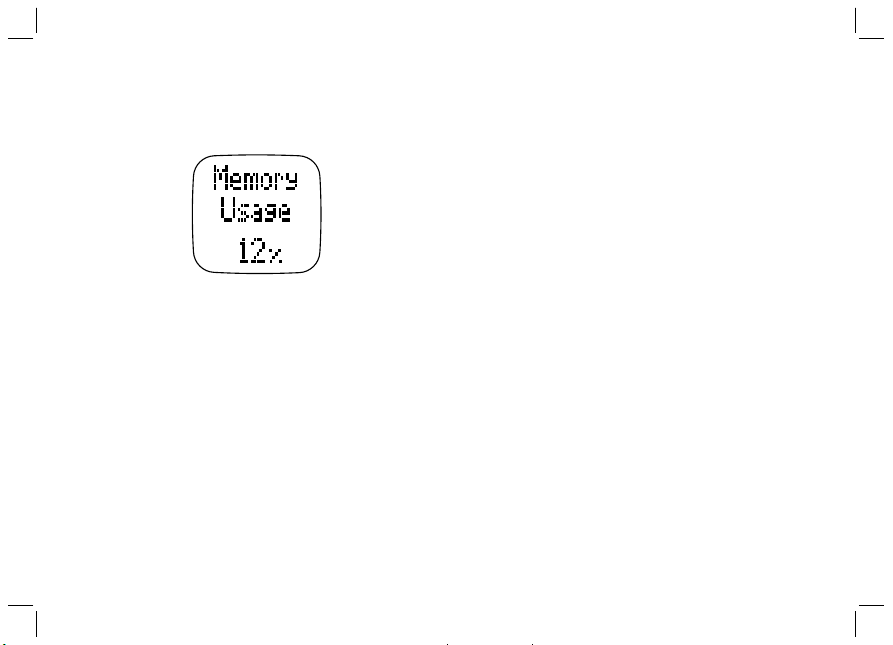
Q. Memory Usage
04Q -
Memory Usage
Display
How to check the Memory Usage
Hold [M] under any mode to enter
Setting Menu > Memory
R. Power Saving Mode
01R -
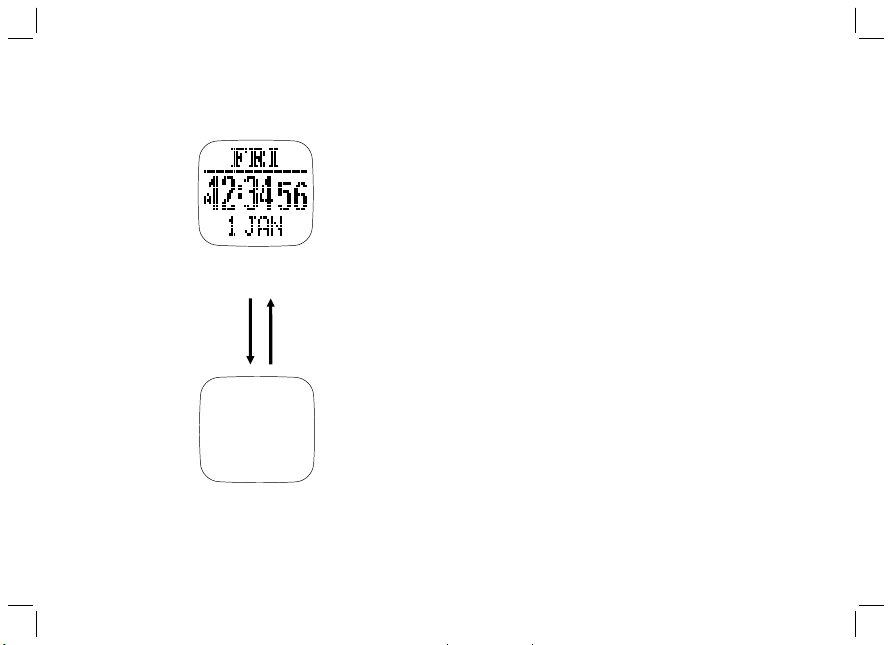
Home time mode
Power Saving Mode
This Watch has a Power Saving Function which
can turn off the LCD display so that the battery
can last longer.
While in the Power Saving Mode, the watch
function is still working normally. (i.e. The
timekeeping function is still running during the
Power Saving Mode.)
How to enter/exit the Power Saving Mode
To enter the Power Saving Mode, hold down
the [L/R] button in Home Time Mode for about 5
seconds and the LCD display will be turned off.
Press [L/R] button during Power Saving Mode
will exit the mode and the LCD display will be
resumed.
Power Saving Mode
(LCD display turned off)
Hold [L/R]
5 second
Hold [L/R]
5 second