1
PSGP310
www.pyleaudio.com
Personal GPS Training Watch
Quick Start Guide
2
What is GPS?
The Global Positioning System (GPS) is a space-based satellite navigation
system that provides location and time information in all weather conditions,
anywhere on or near the Earth where there is an unobstructed line of sight to four or
more GPS satellites. The system provides critical capabilities to military, civil and
commercial users around the world
CAUTION!
Before first time using device, please fully charge the device.
Device may get wet after activity, please be noted to dry device before connect
USB charging cable.
Before start training, please let antenna face to sky to get GPS fix
3
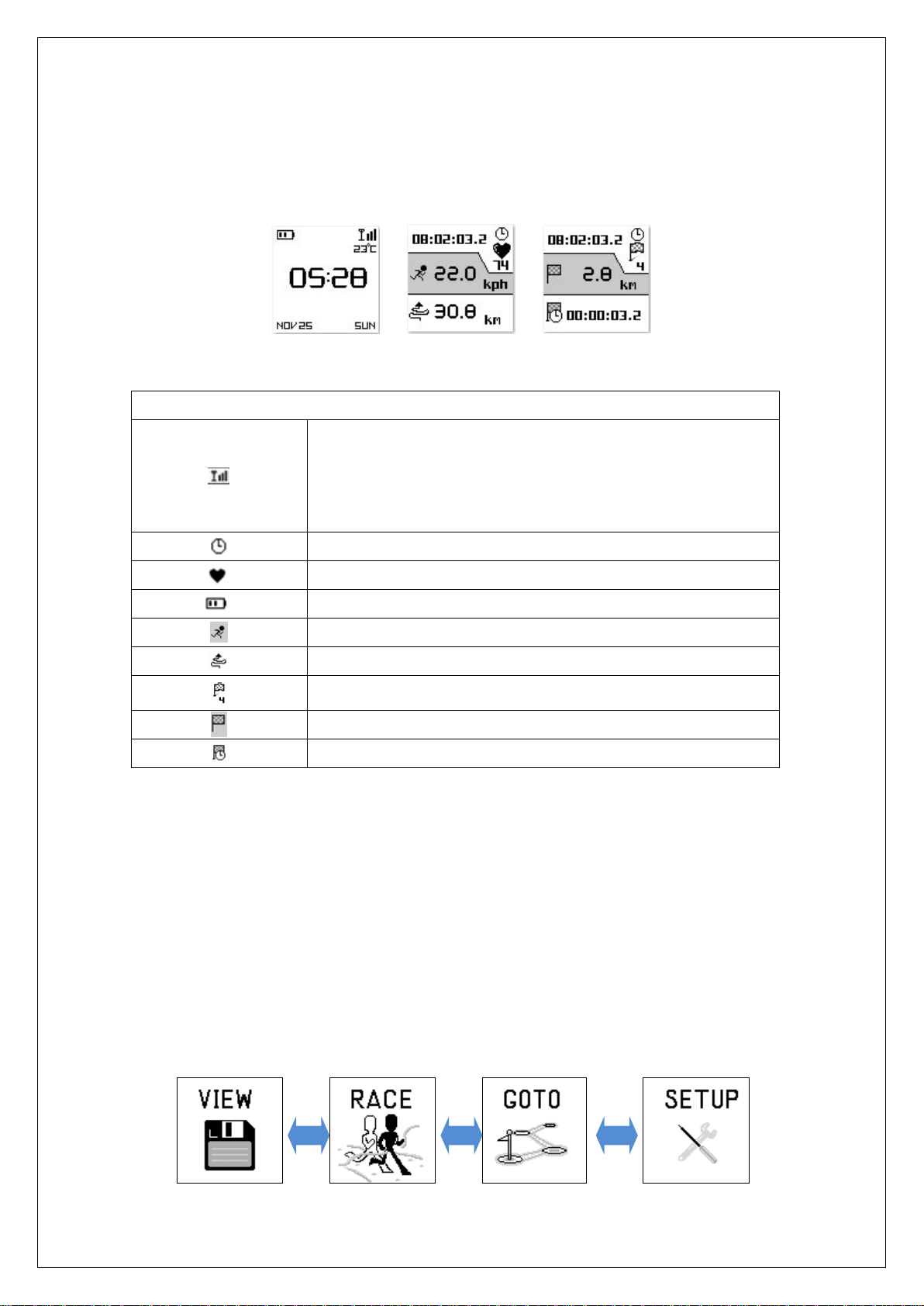
Symbol Explanation
Symbol Explanations
GPS status indicator
Solid with 1 bar: 3D fix with poor signal
Solid with 2 bar: 3D fix with good signal
Solid with 3 bar: 3D fix with strong signal
Timer icon when training is getting started
Heart rate monitor indication (PSGP410 only)
Battery capacity indication
Speed information indication
Distance information indication
Lap count indication
Current lap distance
Current lap time
Screen Pages Explanation
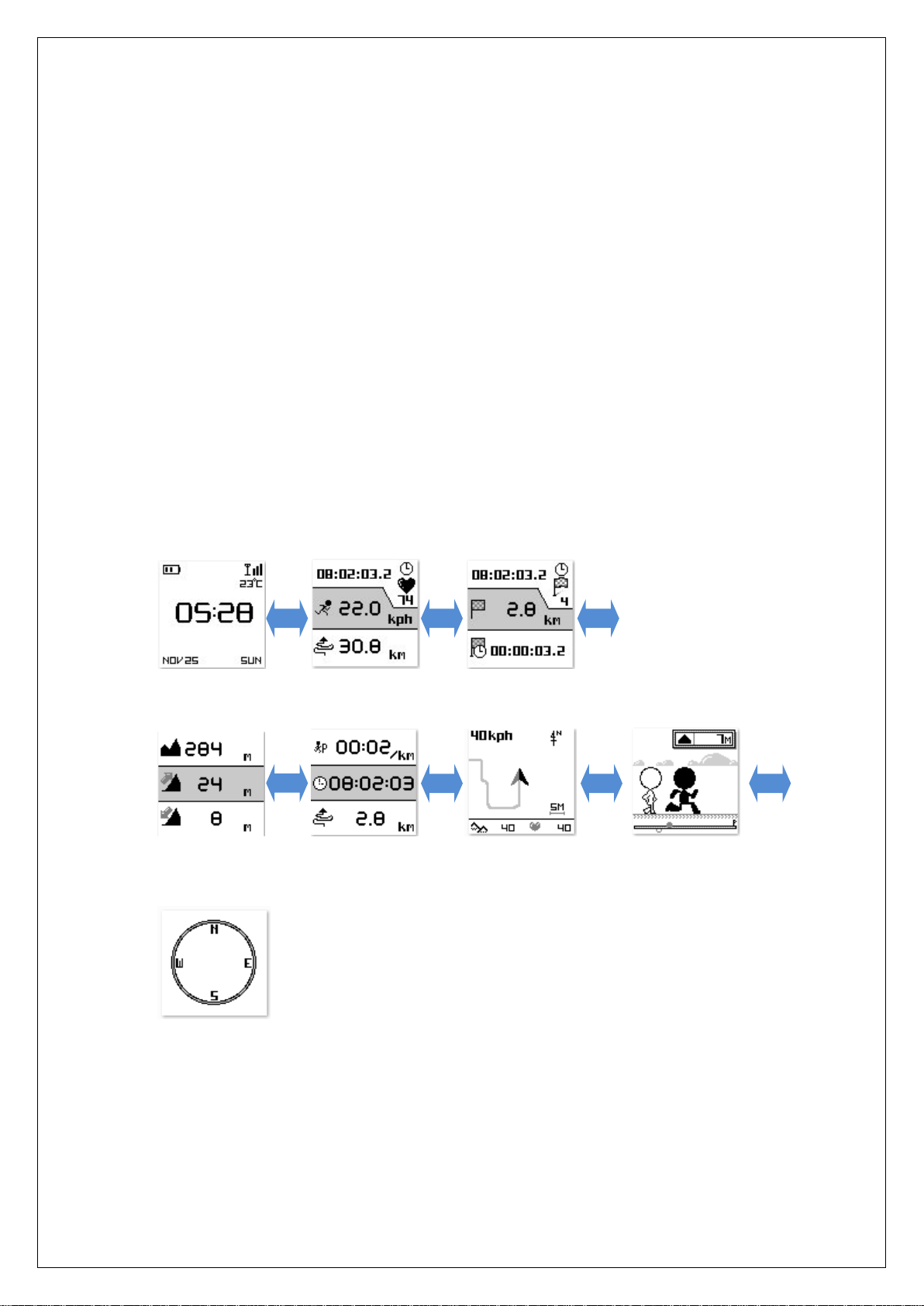
In Menu pages, there are five pages:
View Page: This page is for performance review.
Race Page: This page is setup for training conditions and GHOST.
Go to Page: This page is setup for ROUTE and location finding.
Setup Page: This page is setup for device, status check.
4
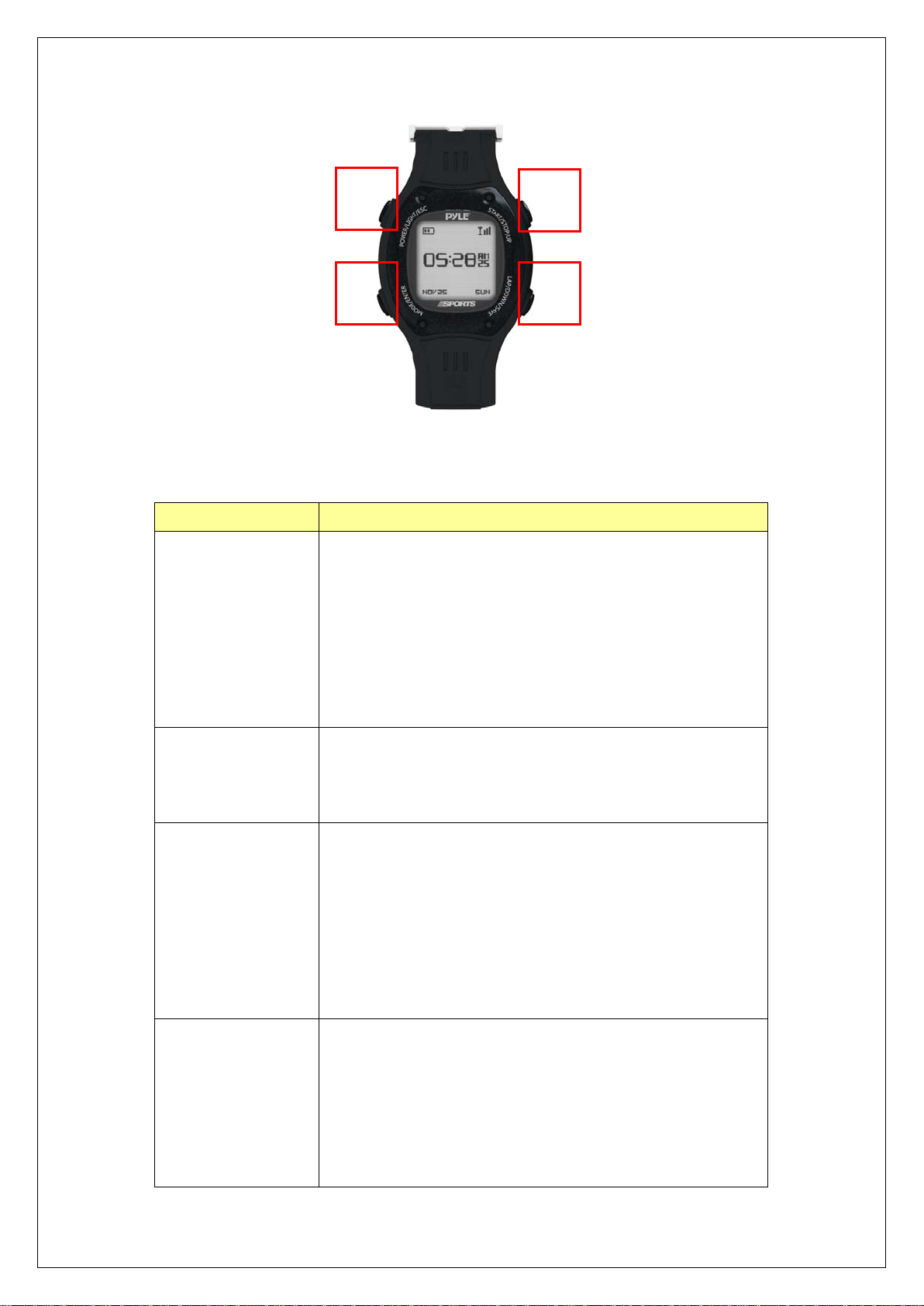
In Screen Pages, there are seven pages:
Time Page: This page shows time information.
Timer Page: You may start training and see the training performance there.
Split information Page: You may start training and see the training performance of
current lap there.
Custom Page1: The page item can be configurable and see the performance
information.
Custom Page2: The page item can be configurable and see the performance
information.
Ghost Page: The page will appear and how the race information when the GHOST
function is active.
Map Page: The page will appear the map information with current trace.
Ghost Page: The page will appear competition result when the GHOST function is
active.
Compass Page: This page will be available in W3.
Time Page Timer Page Split informaiton page
Custom Page1 Custom Page2 Map Page Ghost Page (if enable)
Compass page (PSGP410 only)
5
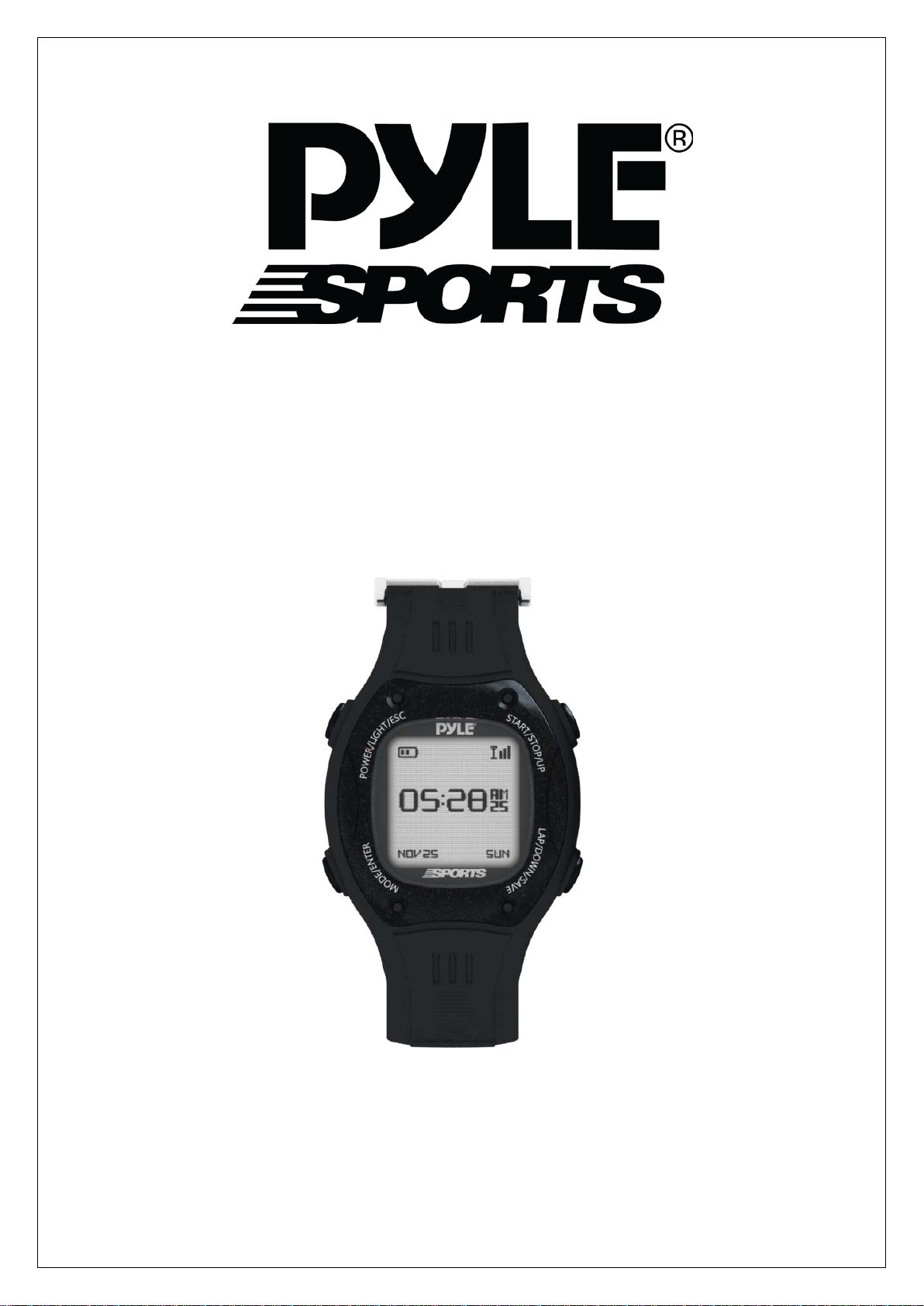
Button Definition
Button Description
1. Power/ESC Press 2 seconds to turn on/off device.
When device is on, quickly press this button will turn
on/off the backlight.
Press and hold this button for 10 seconds to do hardware
reset if the system is halted.
In Menu mode, press ESC button shortly to escape from
the current page and go back to the previous page.
2. PG /ENTER Switch between the screens of Menu and Screen pages.
Press 2 seconds to enter between Menu page and Screen
Page alternatively.
3. Up /Start/Stop
To press UP to up to scroll up highlighting an item in
Main Menu page.
In Timer page, press START button to start timer to start
training.
In Timer page, press STOP button to stop timer in
training.
In Map mode, press for zoom in.
4. Down/Lap/Save To press Down to scroll down highlighting an item in
Menu page.
In Timer page, when timer is counting for training, press
Lap button to create a lap.
Stop timer while in training, press SAVE button to save
training.
1
2 4
3
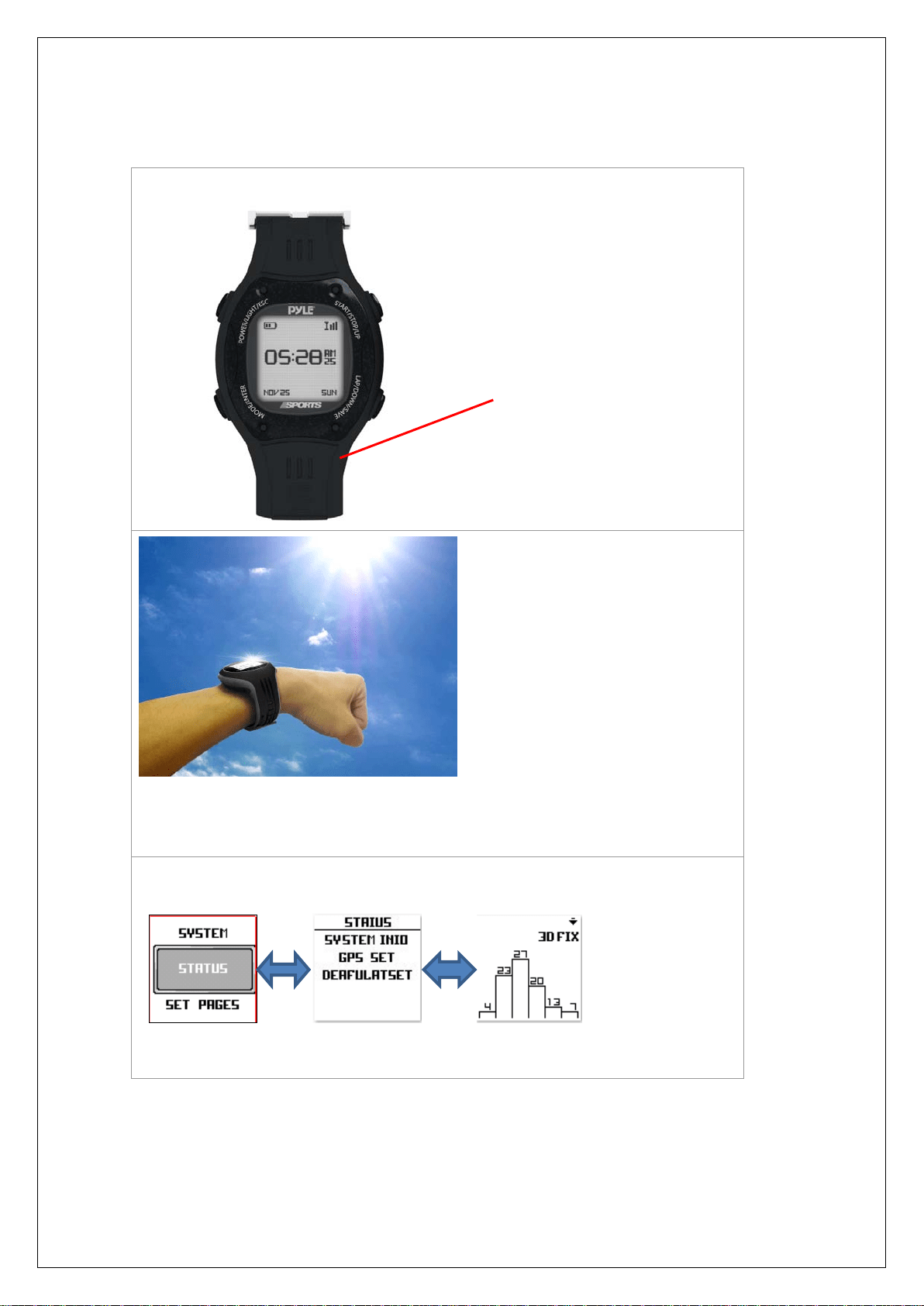
6
GPS Reception Check
The GPS antenna is located the
upper side of the watch. Face this
towards the sky for a better
reception.
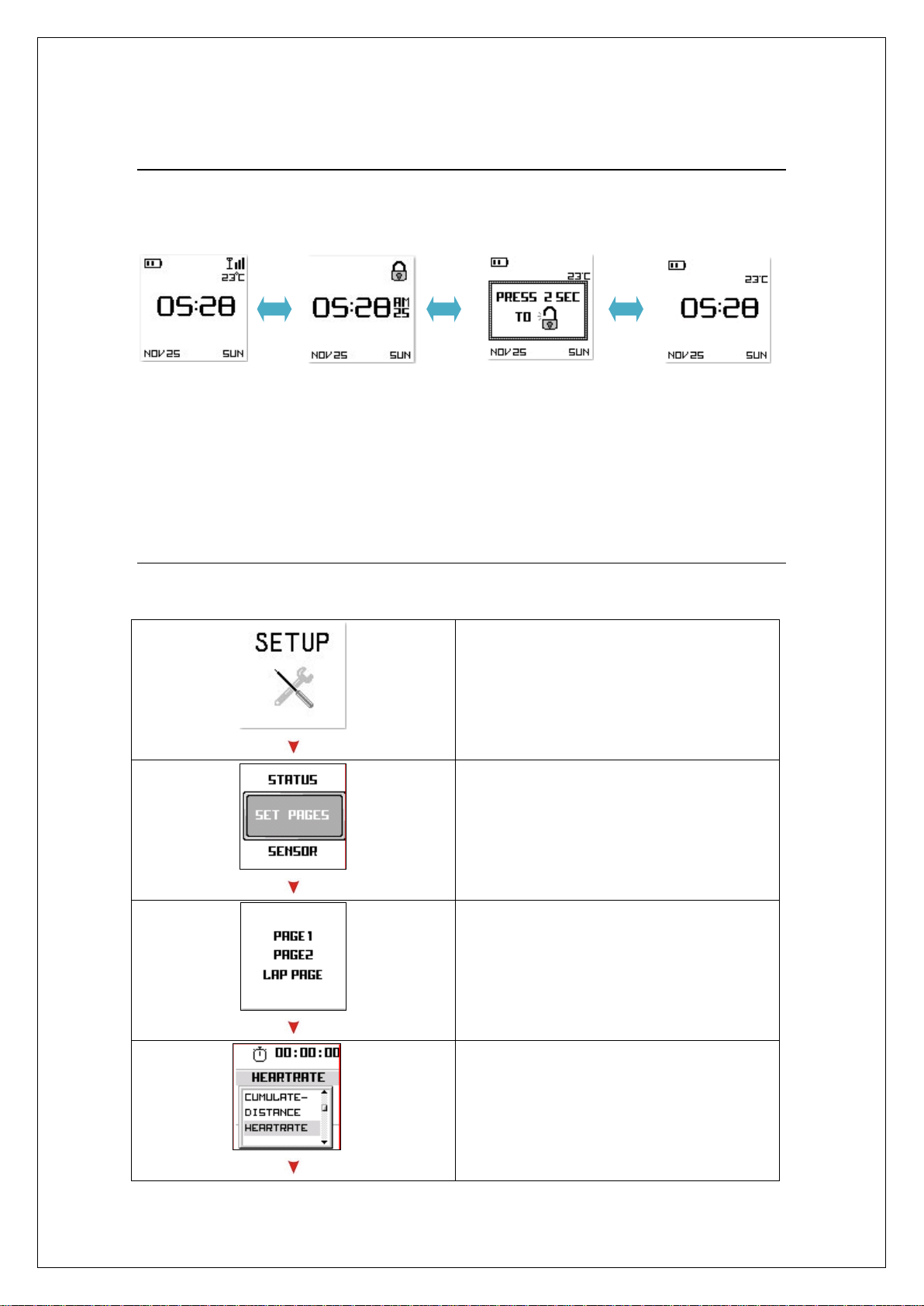
Please hold watch towards the sky
to get the best signal and to get
GPS fix for training.
You may check the GPS reception status with the screen below:
7
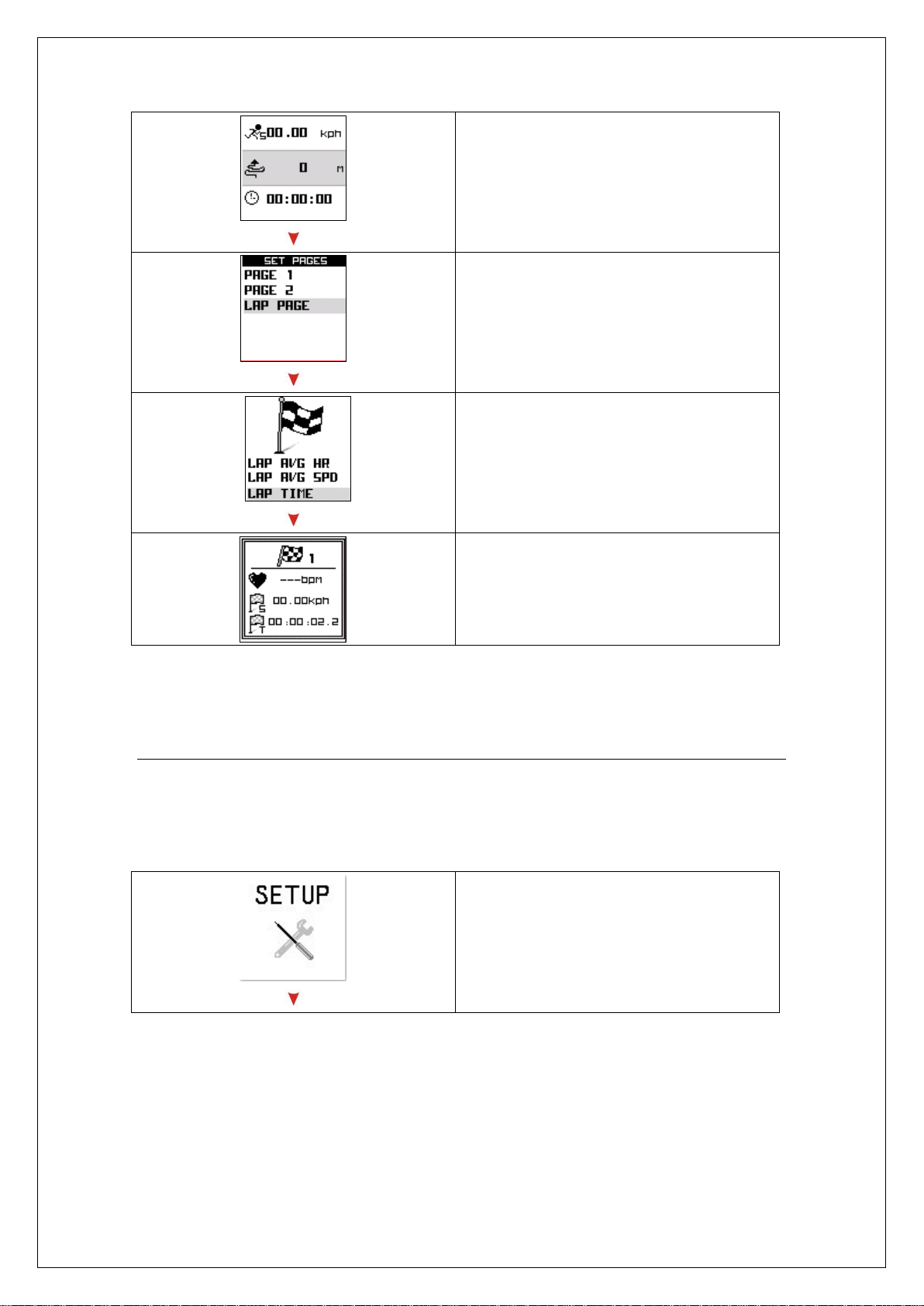
Make your device as a normal watch
Due to device can operate under Time Mode up to four weeks. So you can wear it as
normal watch. You may follow the bellow procedure to make it as watch:
If standby under time page for 3 minutes, the system will enter to Time Mode.
If you press any key, the system will pop message to ask you press any key for 2 sec to return normal
operation.
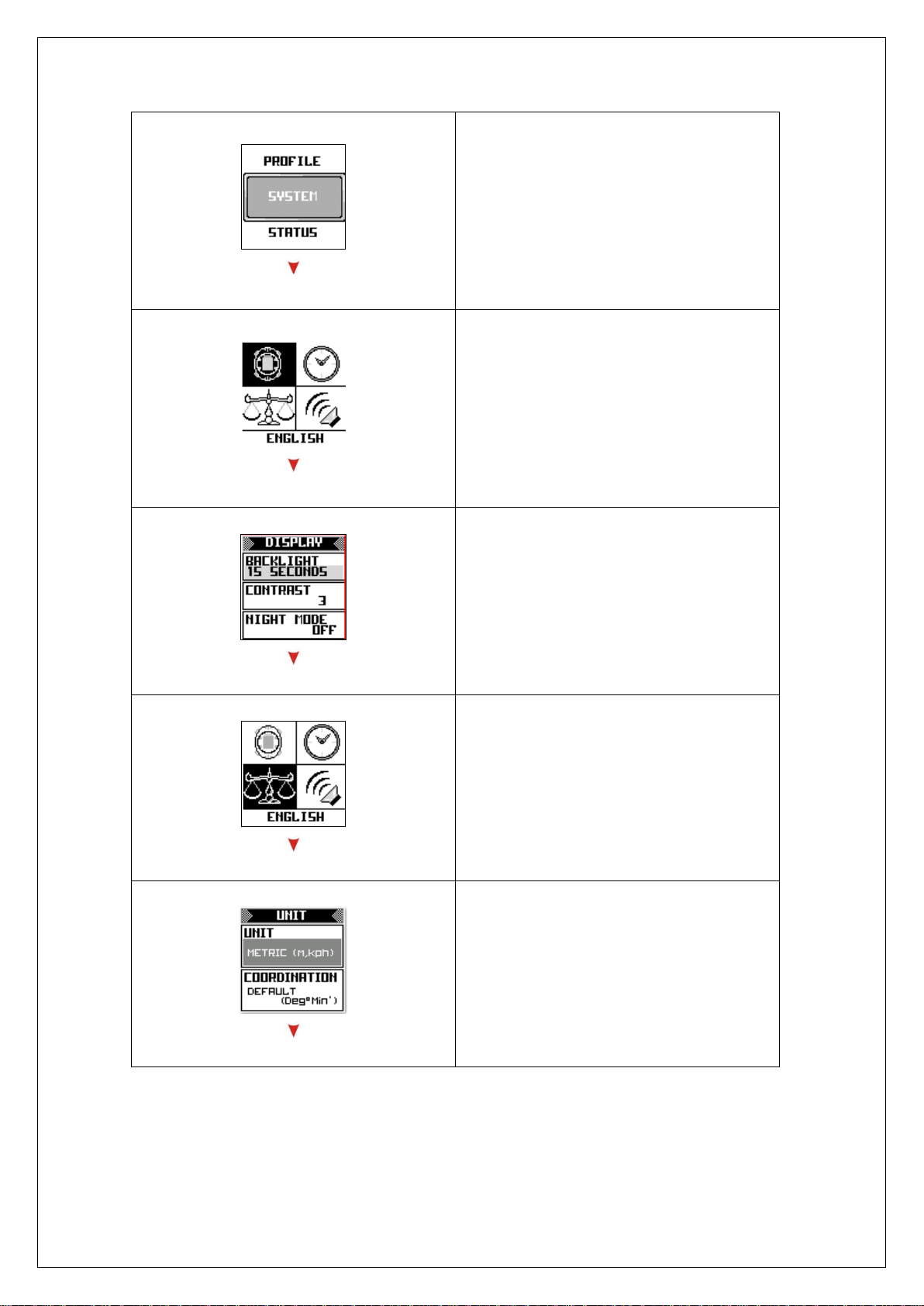
How to Set Up Custom Page
Set up the custom pages to give more information you like before your training.
1. Press ‘’Page button’’ 2s to enter
MAIN MENU and select SETUP.
2. Choose ‘’ SET PAGES’’ then press
‘’Enter button’’.
3. Chose ‘’ SET PAGE’ then press
‘’Enter button’’ to setup custom
page
.
4. You can select the parameter you
want to see.
8
5. After setup, you can see the
information on custom page.
6. You may setup “LAP PAGE” to edit
the information you want to see in
LAP page.
7. You can select the parameter for
LAP page.
8. The lap page will appear when the
lap is active in training.
How to configure your device before training
Before getting training, you may configure your device in the best condition to get
more accurate performance.
a. Device Setting
1. Please press Page button 2s to enter
Main MENU and then chose SETUP
9
2. To press UP and Down button to
select each item for definition.
3. To select Display icon to setup
display
4. You may setup the contrast,
backlight and night mode in this
item.
5. Go to select UNIT.
6. You may setup units and
coordination type that you prefer.
10
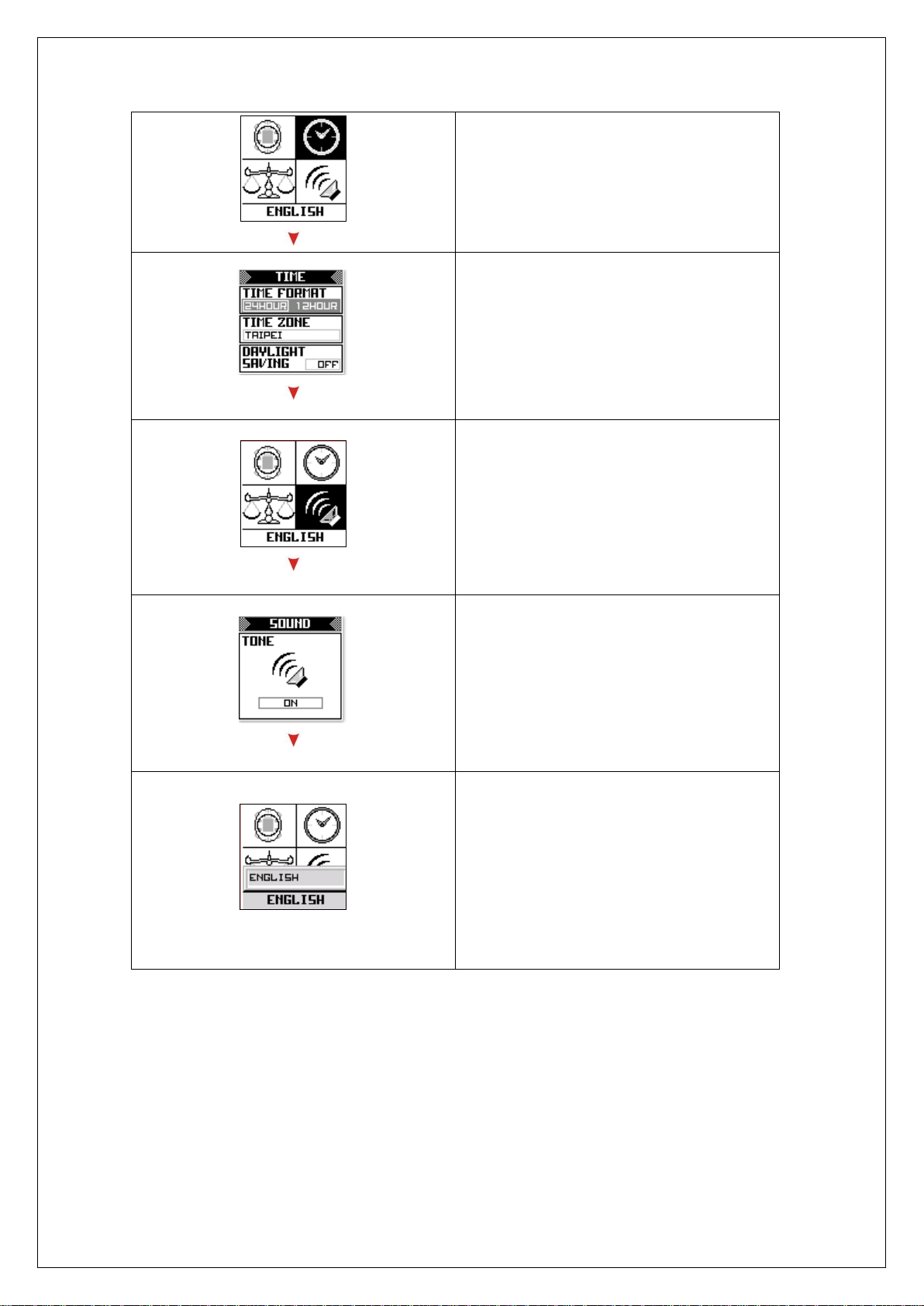
7. In order to record the more accurate
time, you can set the time zone in
this item.
8. To setup your time zone and daylight
saving. Your GPS will auto calibrate
the time to keep the best accuracy
of time by GPS.
9. To setup the beeper condition.
10. You can turn on or off beeper.
11. You can setup the language by this
icon. Select your favorite language.
11
b. User profile setting
Personal profile is important for calories calculation, maximum HRM zone reference,
you may setup by following the process below.
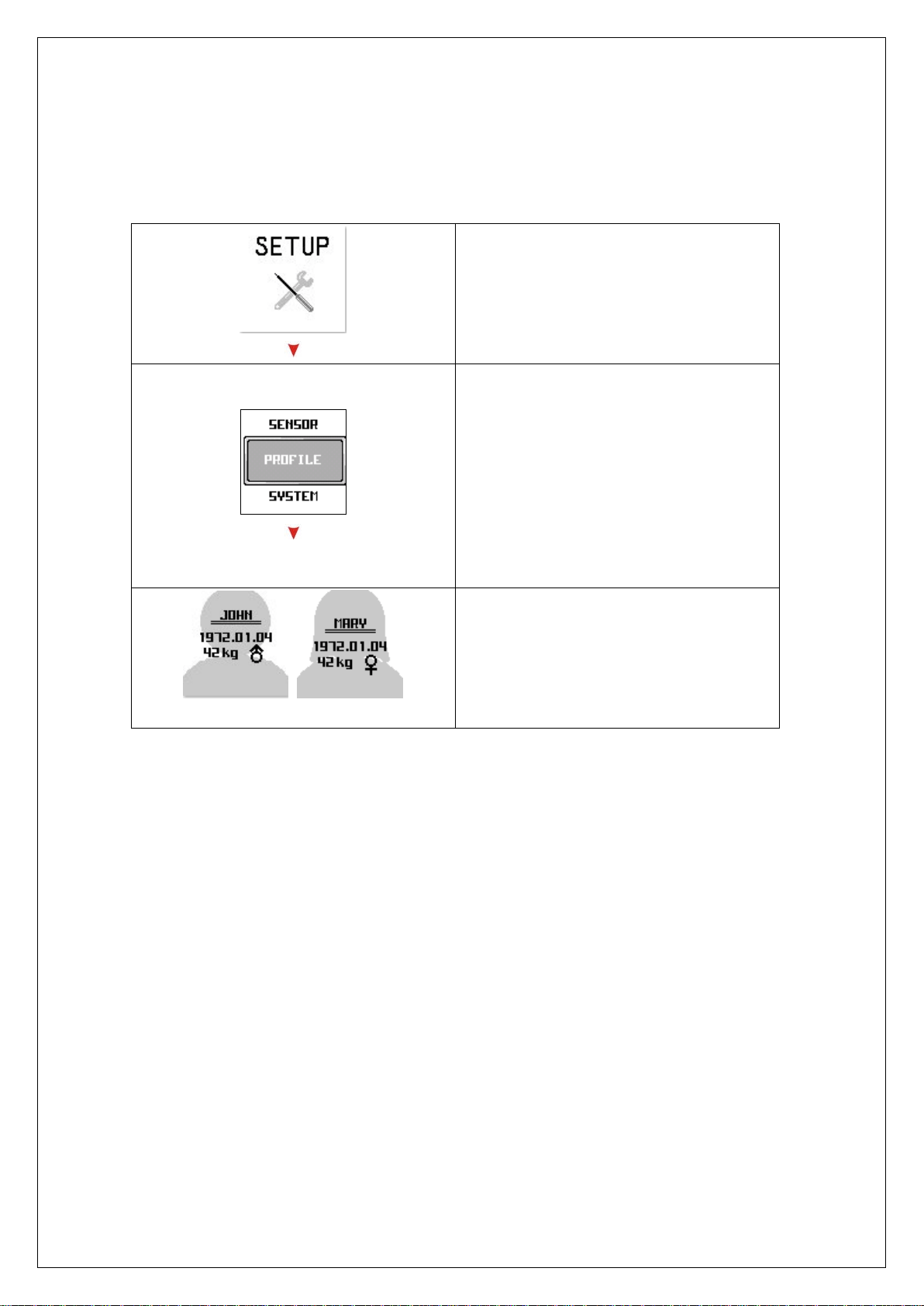
1. Please press Page button 2s to enter
Main MENU and then chose PROFILE
2. To press UP and Down button to
select PROFILE
3. You may setup your sex, height, age
into this item. The condition is
important for training preformation
calculation.
12
c. Sensors setting (PSGP410 only)
For personal training, in order to get more accurate performance, most trainers will
have their training with the accessories like HRM. You may setup by the following the
procedure below.
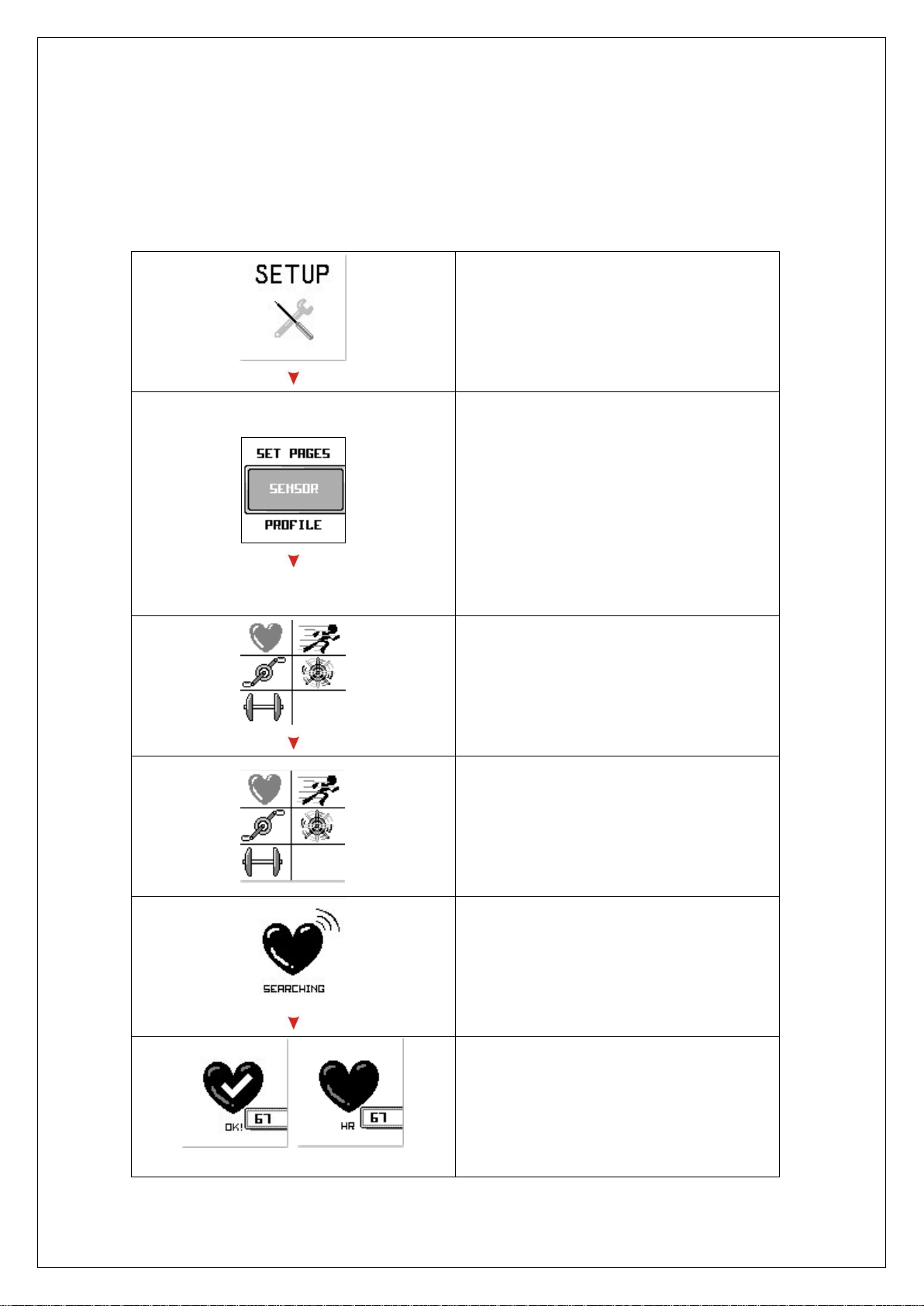
1. Please press Page button 2s to enter
Main MENU and then chose PROFILE
2. To press UP and Down button to
select SENSOR.
3. To select SENSOR, you may pair you
accessories like HRM, CADENCE
sensor, SPEED sensor, COMBO
sensor or POWER meter.
4. There are five sensors for paring and
use.
Ex. SCANNING for HRM.
5. HRM is PAIRING now.
6. HRM is Pairing OK.
13
d. Options setup for your personal training
To have your training with more statistic for further analysis, you may setup by
following the below procedure.
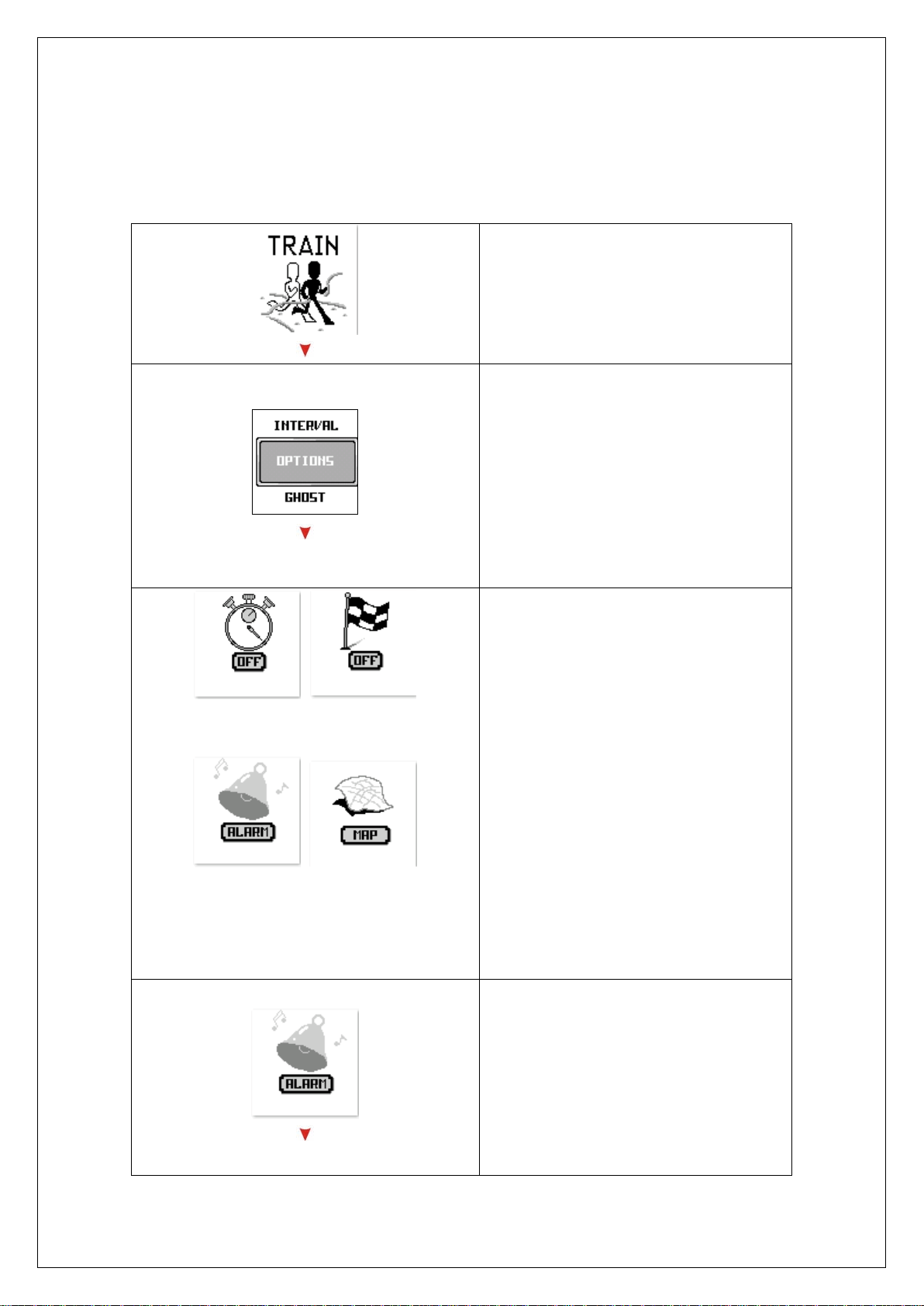
1. Please press Page button 2s to
enter Main MENU and then chose
RACE
2. To press UP and Down button to
select OPTIONS.
Auto Pause Auto Lap
Alarm Map Mode
3. You may setup the AUTO PAUSE,
AUTO LAP, ALARM, MAP MODE,
and LEVEL SETTING in this item.
AUTO PAUSE: System will calculate the
data in the setting period.
AUTO LAP: System will auto split by
setting distance or interval.
ALRAM: To set alarm and system will
alert you when in training.
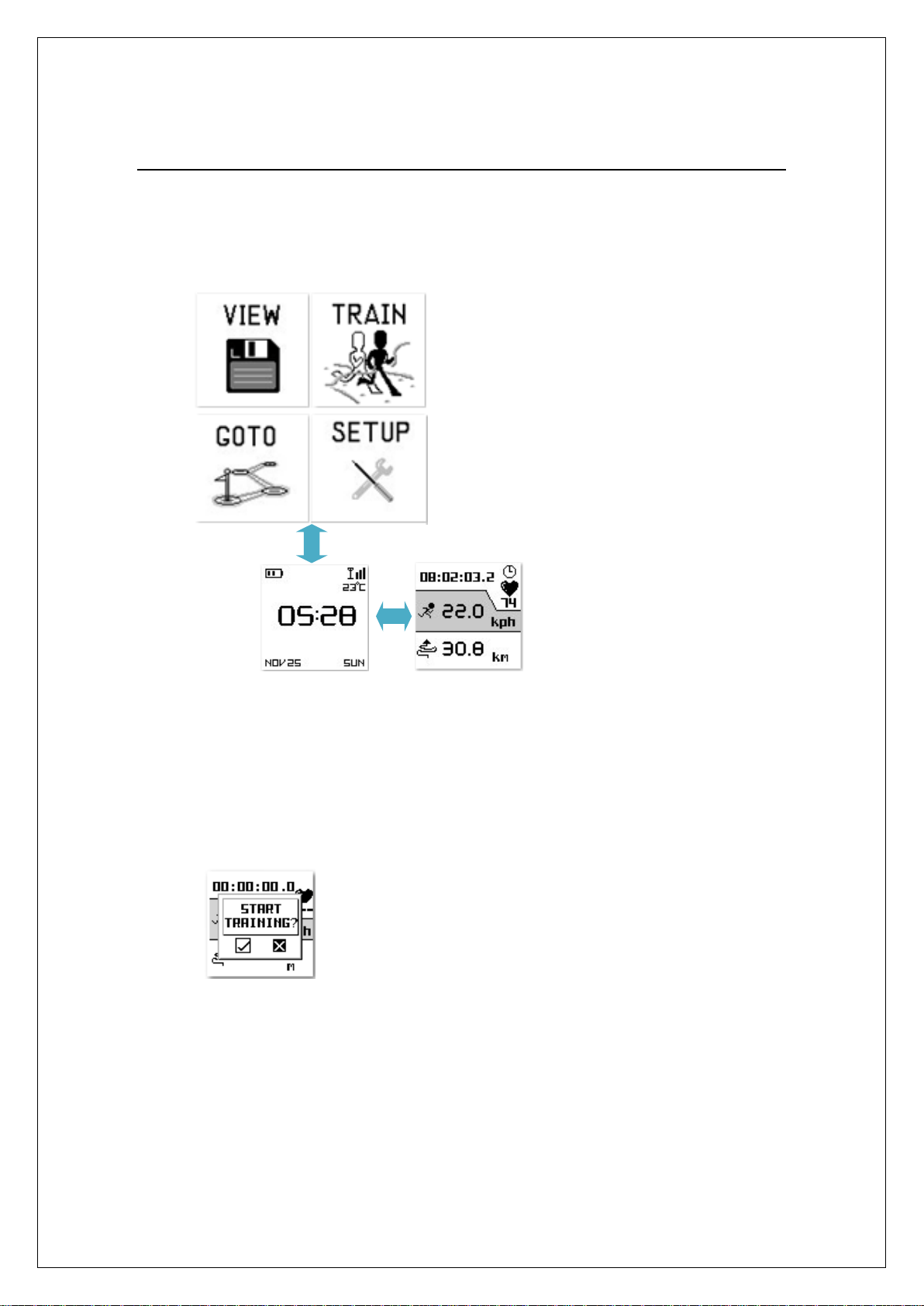
MAP MODE: You can setup the auto
zoom in/ out and orientation.
ALARM: There are six setting of alarm
for setup: HRM, SPEED, RPM, TIME,
DISTANCE, POWER alarm.
*HRM Alarm: Set alarm for the heart
rate zone.
SPEED Alarm: Set the alarm for speed
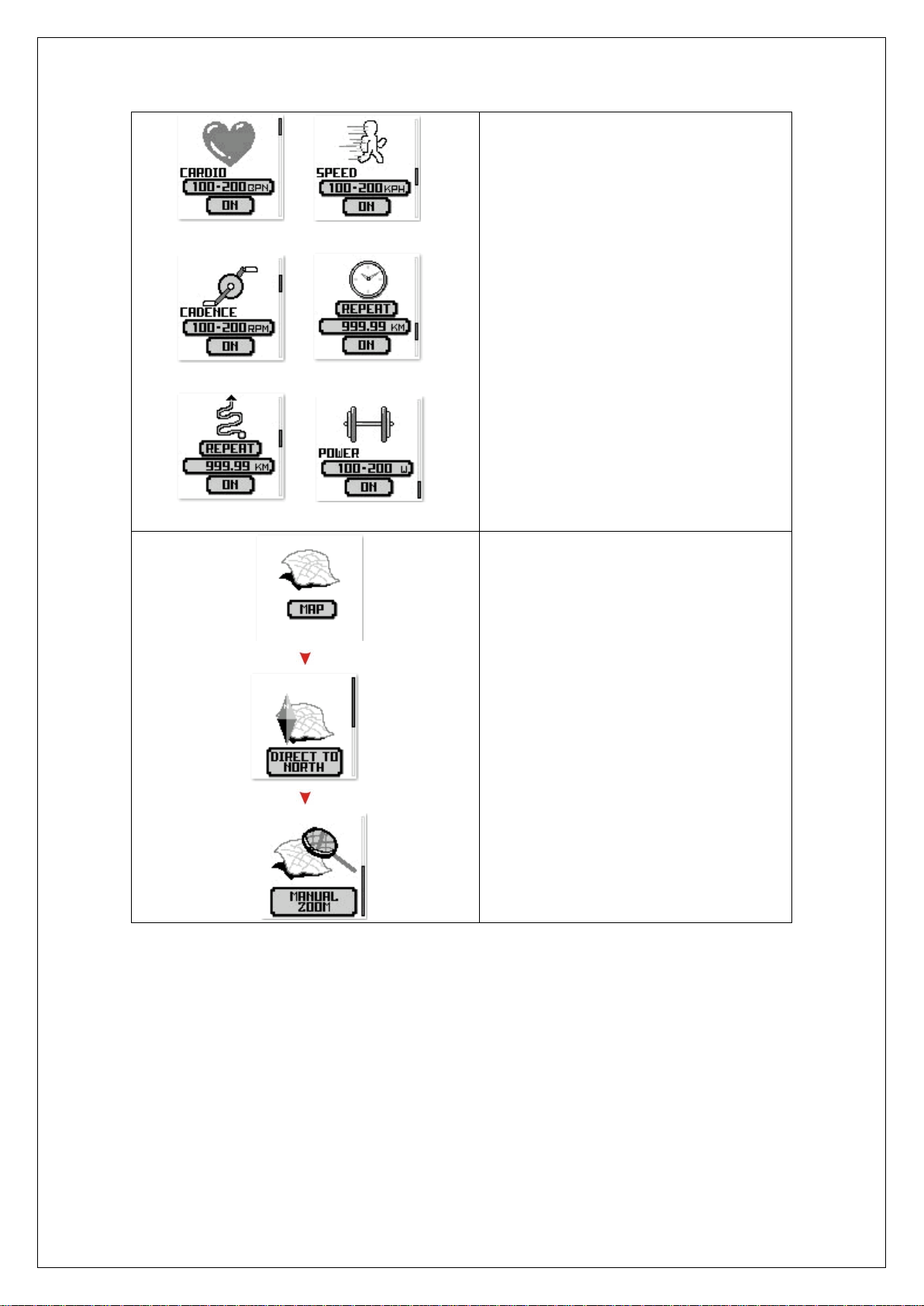
14
HRM Alarm Speed Alarm
RPM Alarm TIME Alarm
DISTANCE Alarm POWER Alarm
zone.
TIME Alarm: Set the alarm for the time
interval.
*RPM Alarm: Set the alarm for the
RPM zone.
DISTANCE Alarm: Set the alarm for the
particular distance.
*POWER Alarm: Set the alarm for
power consumption.
*Only available for (PSGP410
only)
4. MAP MODE: There two choices for
map orientation and scale.
ORIENATION: Direction to north and
bird eye view.
Scale: You may setup auto scale or
manual scale.
15
How to Start Your Training and Save Data
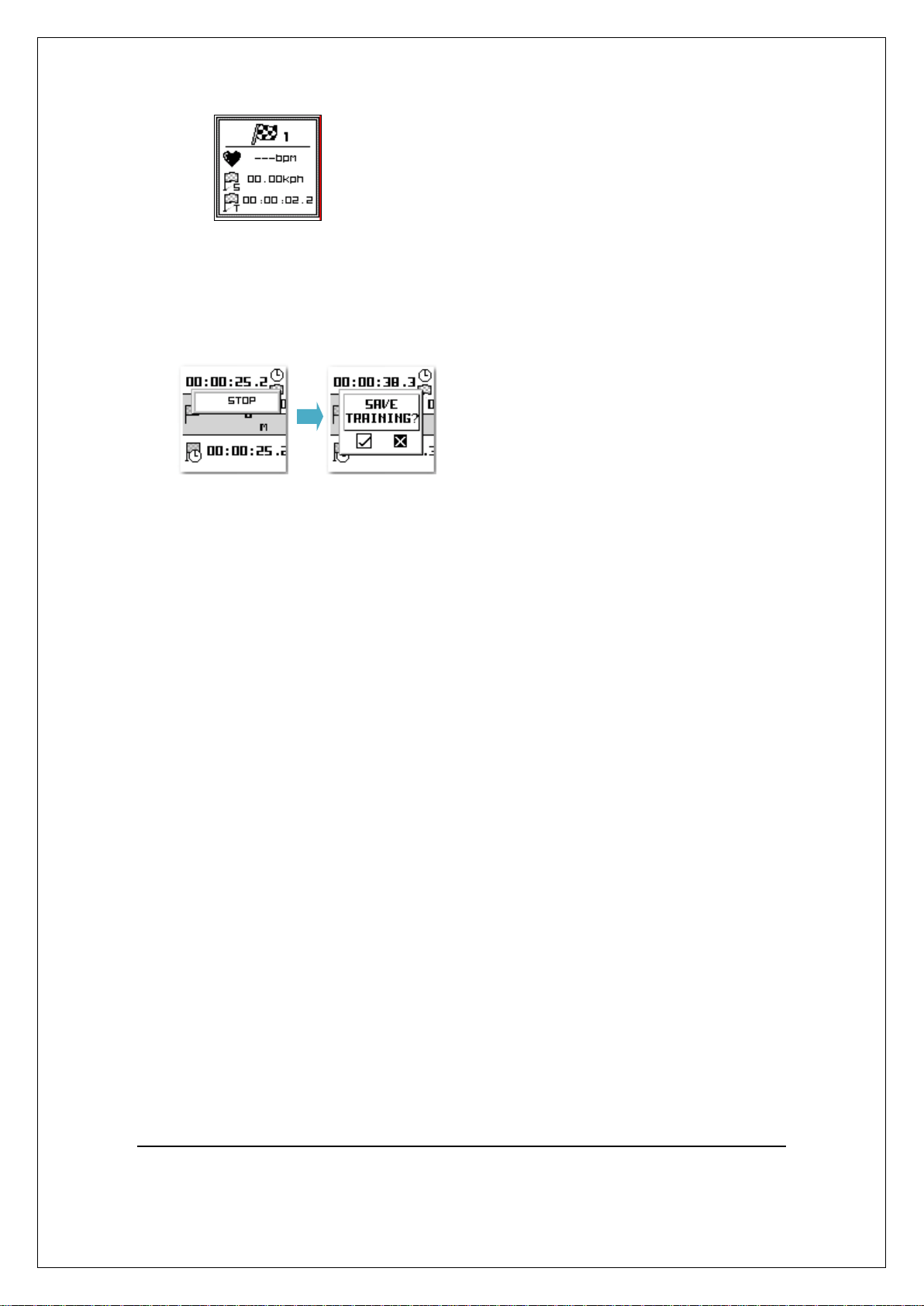
1. When in Menu page, please press and hold OK/ENTER key for 2 seconds.
The device will switch to Time page.
2. Press OK/ENTER button to timer page.
3. Press UP/START/STOP button to trigger training start page
After trigger the start training screen, please selection the YES/NO icon by UP
or DOWN key.
Determine the selection by press OK/ENTER button.
4. During the training, you can press Down/LAP button to take lap
Or press OK/ENTER to switch between four workout pages
16
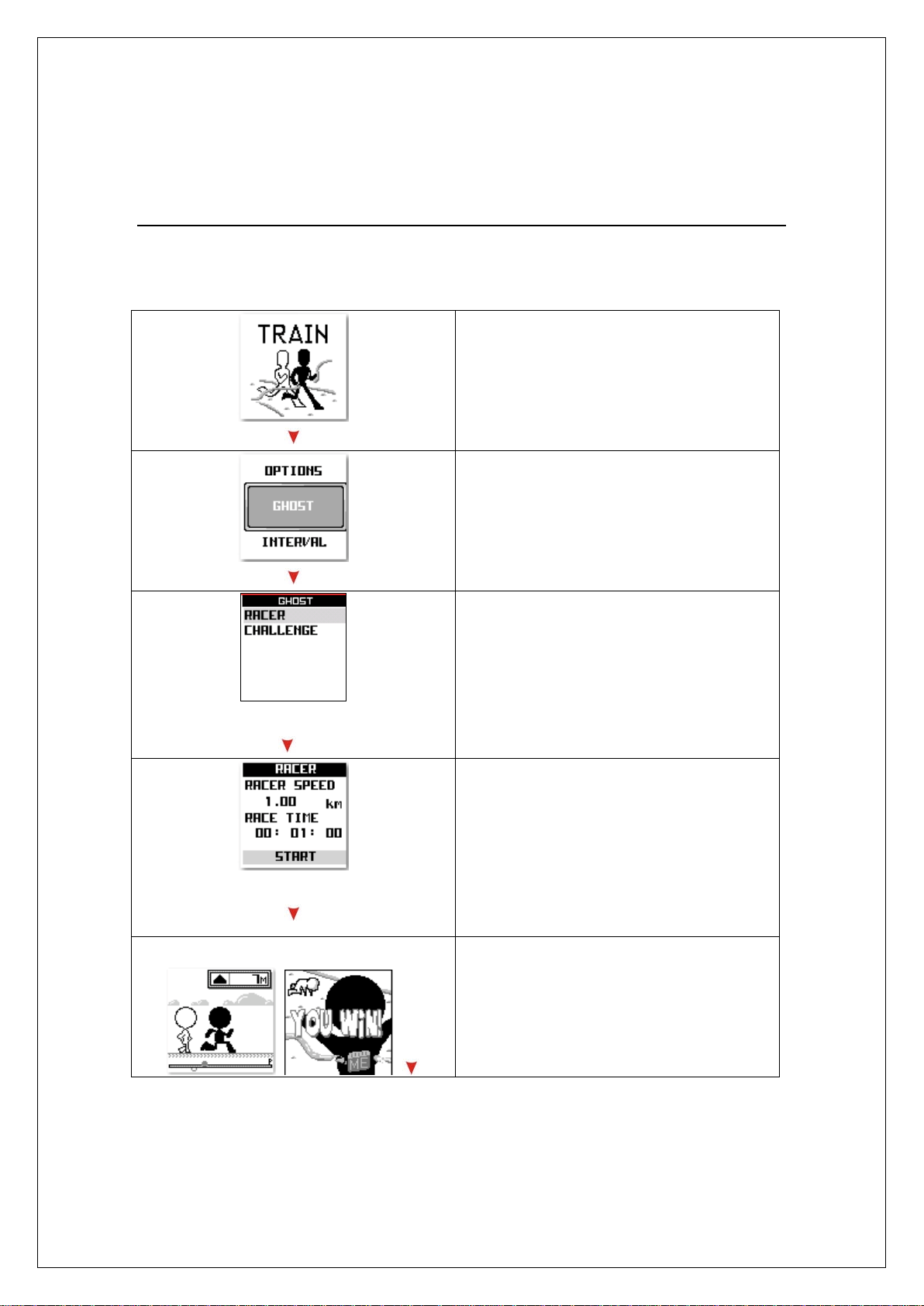
5. Save Workout
a. Press UP/START/STOP button to stop the workout
b. Press DOWN/LAP button to trigger the save screen popup
c. Determine the save or not to save by using OK button
Note
1. If you want to start training again after STOP, please press UP/START/STOP
button to resume current workout.
2. Please ensure 3D fix before get training.
17
How to Use GHOST
In order to improve your training performance; device provides GHOST to pretend
your coach to improve your performance through mutual training and reaction.
a. Race with your GHOST by TIME/DIST
Press “Page button” 2s to enter MAIN
MENU.
1. Press UP and DOWN to select
“GHOST”
2. There are two type for GHOST
setting:
a. RACER: To set the target distance
and time to finish.
b. CHALLENGE: To use the record to
create a ghost to race with you.
3. To set RACER time and distance.
4. Start for racing with GHOST. The
result page will show you once race
was finished.
18
b. Race with your GHOST by your previous record
Press “Page button” 2s to enter MAIN
MENU.
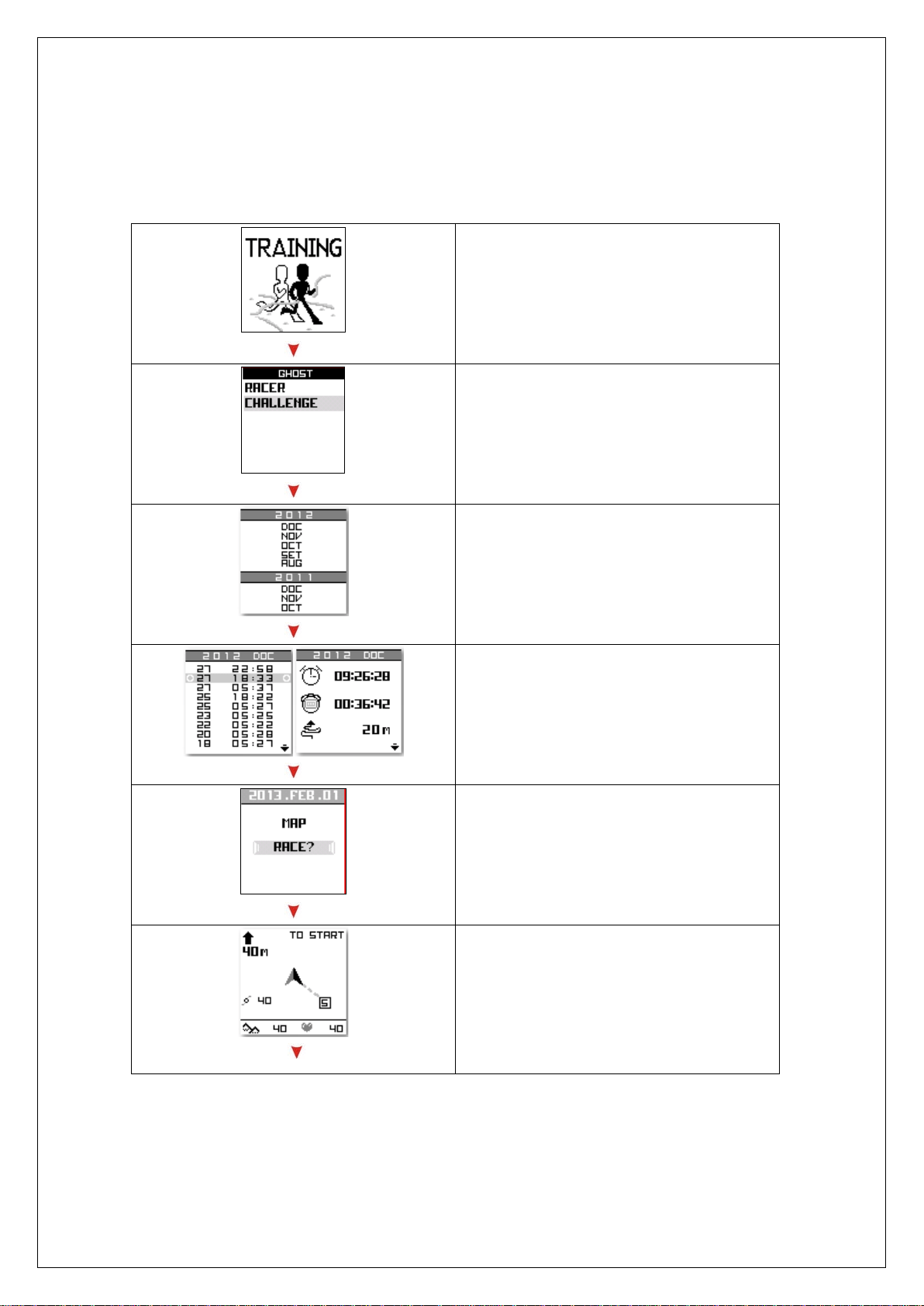
1. Set GHOST in CHALLENGE mode.
2. To select the record you want to
race.
3. You can find the interested record to
follow up.
4. You may select and press “RACE” to
start GHOST.
5. System will ask you to reach the
start point to start racing.
19
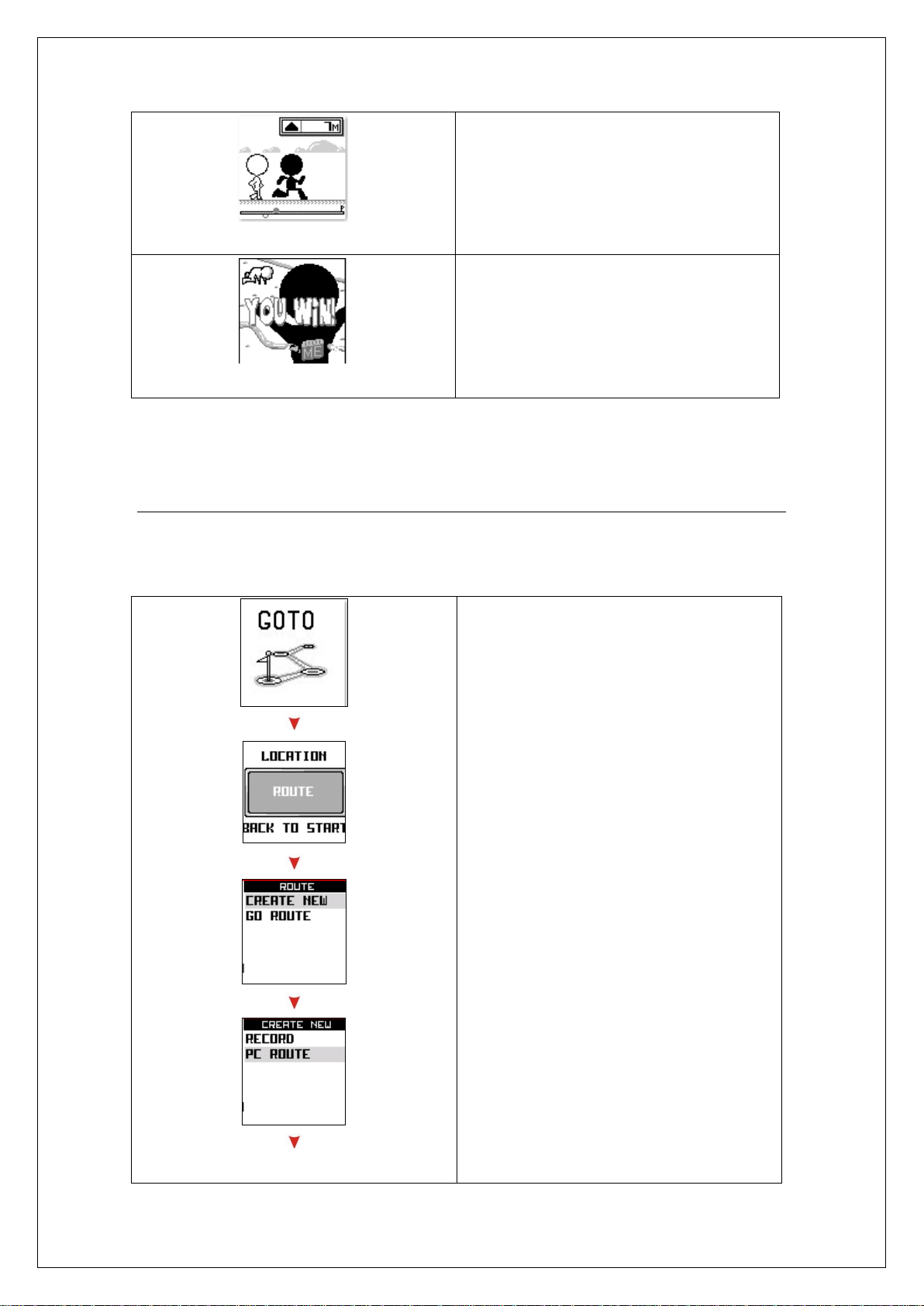
6. The race will be getting started while
start point is reached.
7. The result page will show you once
race was finished.
How to Create Routes and follow up
You create ROUTE according to the RECORD and make navigation according to
ROUTE you created.
a. To create a new ROUTE
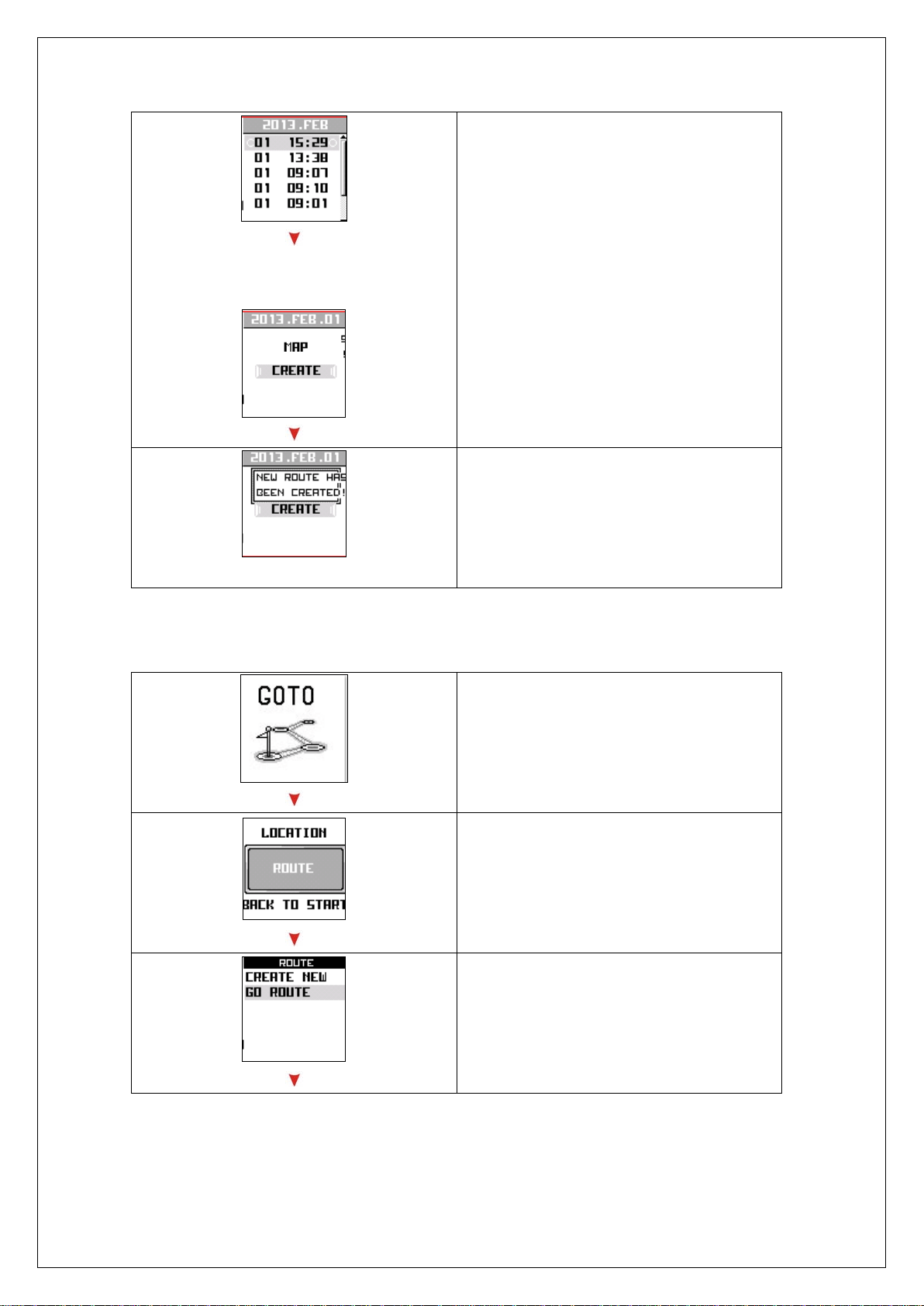
1. Press “PAGE button” 2s to enter
MAIN MENU and select GOTO page
and then press “OK”.
2. Select “ROUTE” and press “OK”.
3. Select “CREATE NEW” and press”
OK”
4. Press Up and Down button to switch
RECORD or PC ROUTE.
RECORD: The data from current
record in device.
PC ROUTE: The data transferred
from PC host.
20
5. Select which record to have a
compression to generate a new
ROUTE file.
6. Select “CREATE” and press “OK”
button.
7. The route has been created.
b. To make a navigation regarding ROUTE.
1. Press “PAGE button” 2s to enter
MAIN MENU and select GOTO page
and then press “OK”.
2. Select “ROUTE” and press “OK”.
3. Please press “GO ROUTE” to select
ROUTE file for navigation.
21
4. Select route file for navigation.
5. System will ask for START and
ROUTE. This will start when the
START point is reached.
How to Use Interval Training
In order to improve your training performance; device provides interval training to
build up the training model for your personal training.
a. Build a new Interval Training model
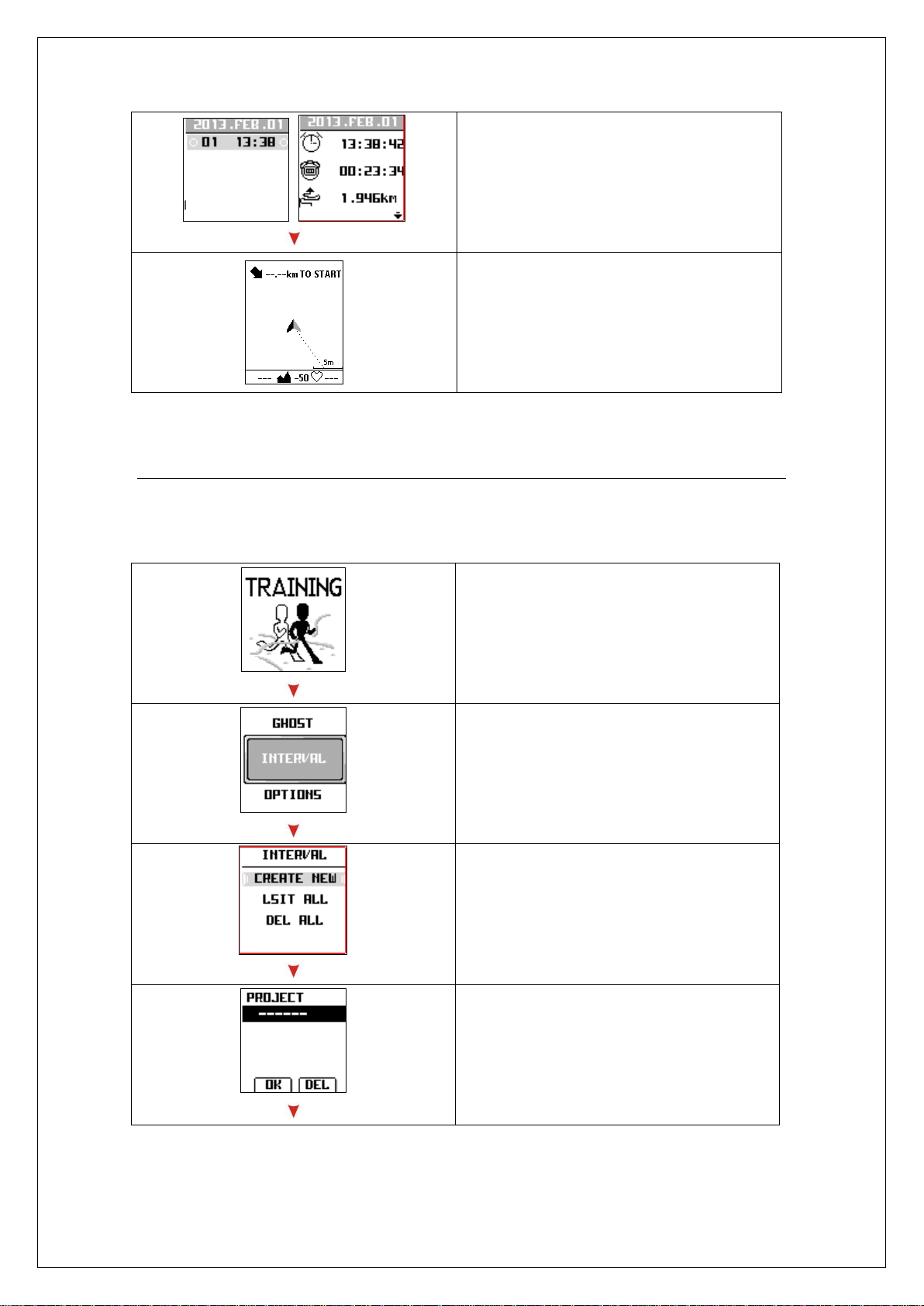
Press “Page button” 2s to enter MAIN
MENU.
5. Press UP and DOWN to select
“INTERVAL”
6. Press UP and DOWN to select
“CREATE NEW”
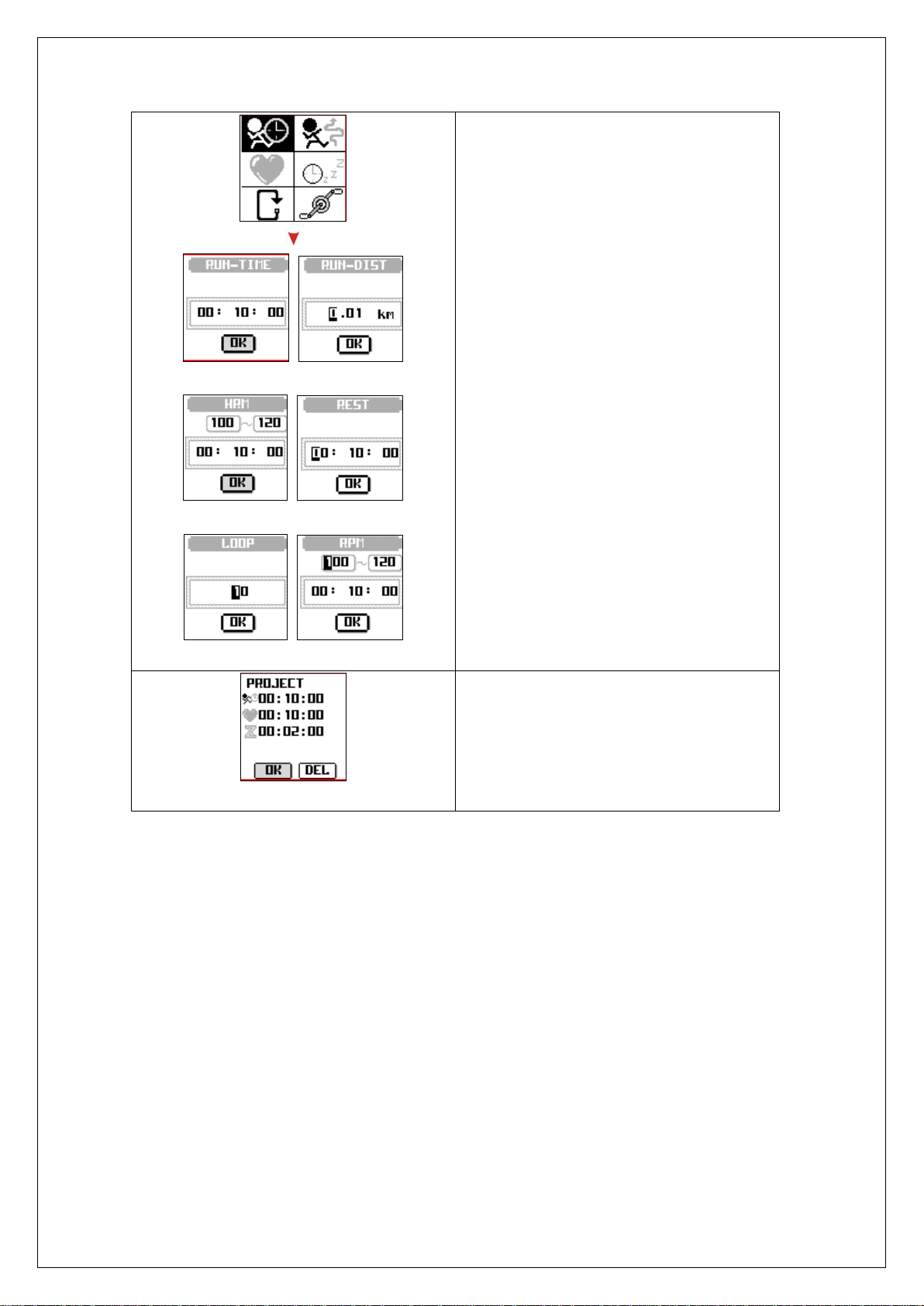
7. Press UP and DOWN to add new
section.
22
a. b.
c. d.
e. f.
8. There are six training plans for
selection:
a. Run-Time: Set the time interval for
running.
b. Run-Distance: Set the distance
interval for running.
c. *Heart Rate Zone-Time: Set the time
interval for specific running within
heart rate zone.
d. Rest time: Set the rest time without
anything.
e. Loop: Group the all sections and set
the times for loop.
f. *RPM-time: Set the time interval for
training within specific RPM.
*Only available for (PSGP410 only)
9. Select “OK” to finish creation.
23
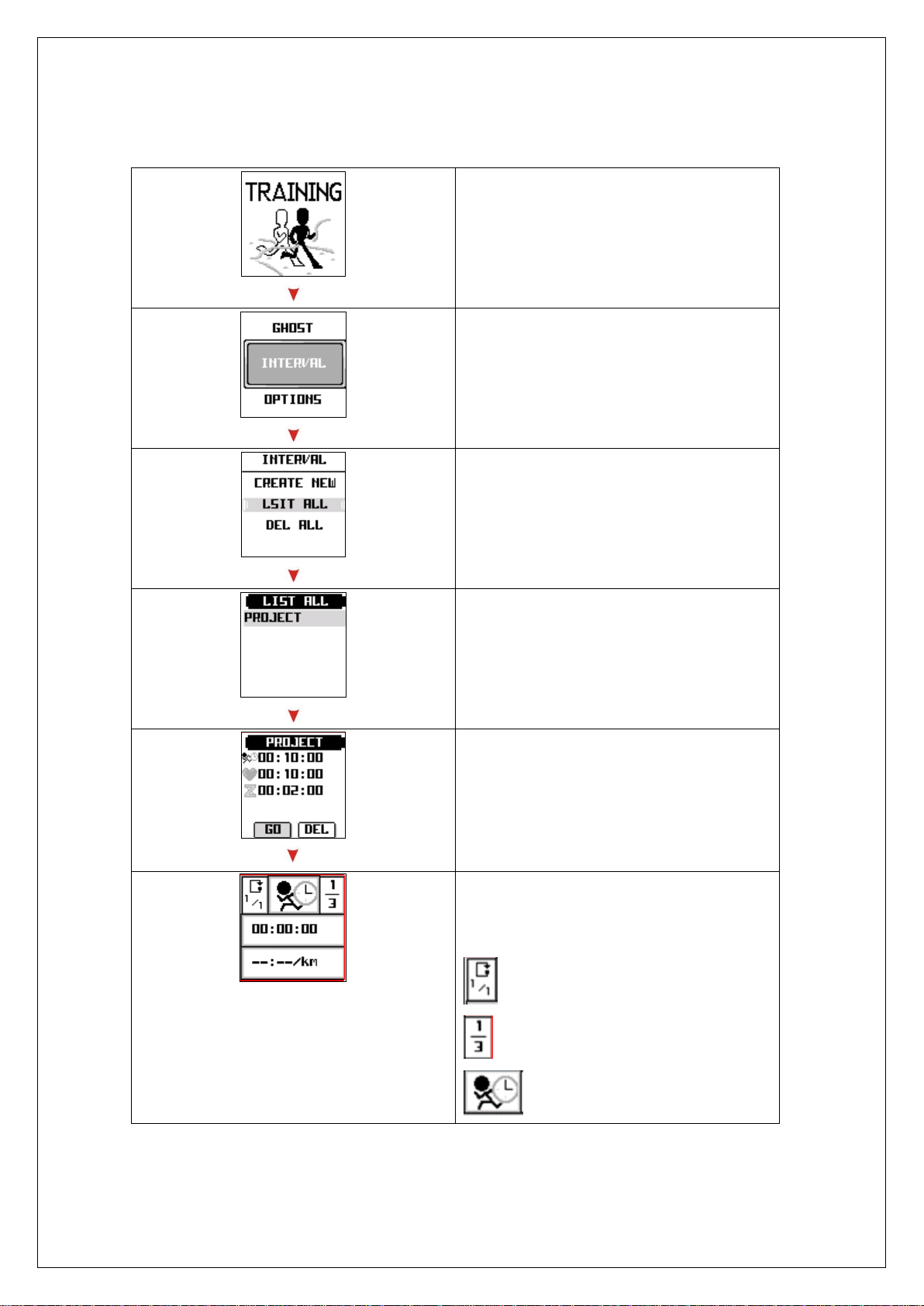
b. Start Interval Training
1. Press “Page button” 2s to enter
MAIN MENU.
2. Press UP and DOWN to select
“INTERVAL”
3. Press UP and DOWN to select “LIST
ALL”
4. The all training plans will appear and
press UP and DOWN to select the
training plan.
5. The detail training sections of plan
will appear and select “GO” to start
training.
6. The interval training page will
appear and show each plan you
perform.
: Loop number of total times
: The section number of each group.
: Section plan
24
How to Use Compass (PSGP410 only)
Due to the direction will be unreliable if in still as GPS limitation; W3 embeds 6 axis
e-compass and g-sensor to provide the reliable information without annoying
manual calibration.
a. Declination
Declination is a word used in astronomy to describe one of the two coordinates
of the equatorial coordinate system, the other being either right ascension or
hour angle. Declination is comparable to latitude, projected onto the celestial
sphere, and is measured in degrees north and south of the celestial equator.
To eliminate the offset, you can go to Compass\Declination to setup to cancel the
er ro r.
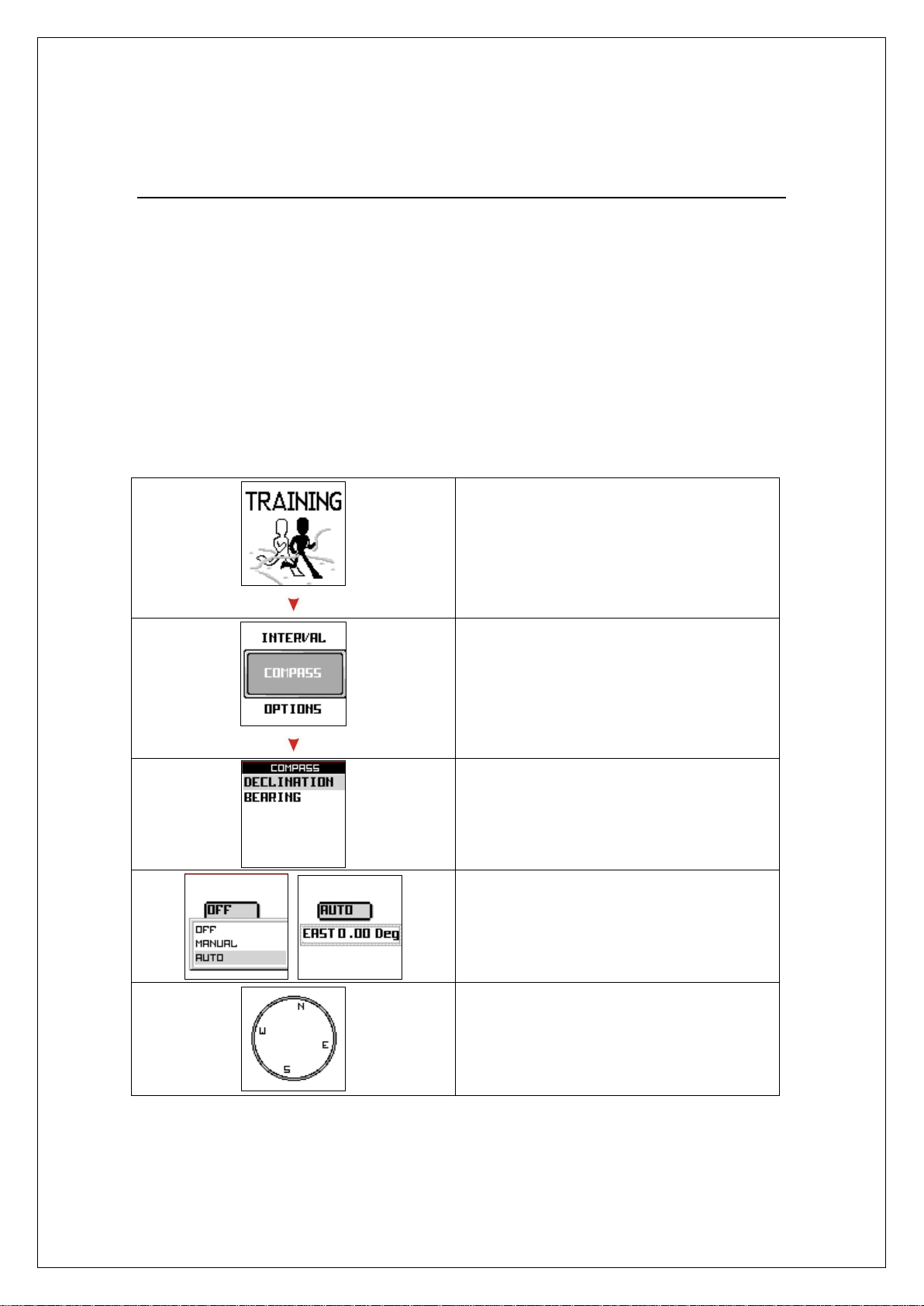
Press “Page button” 2s to enter MAIN
MENU.
Press UP and DOWN to select
“COMPASS”
Press UP and DOWN to select
“DECLINATION”
You can Manual or AUTO to input the
declination angle.
After input, the magnetic angel will be
offset according setup.
25
b. Bearing
Bearing means the actual compass direction of the forward course of our aircraft.
In land navigation, bearing means the angle between a line connecting us and
another object, and a north-south line.
You can set the bearing angle to given the direction for navigation.
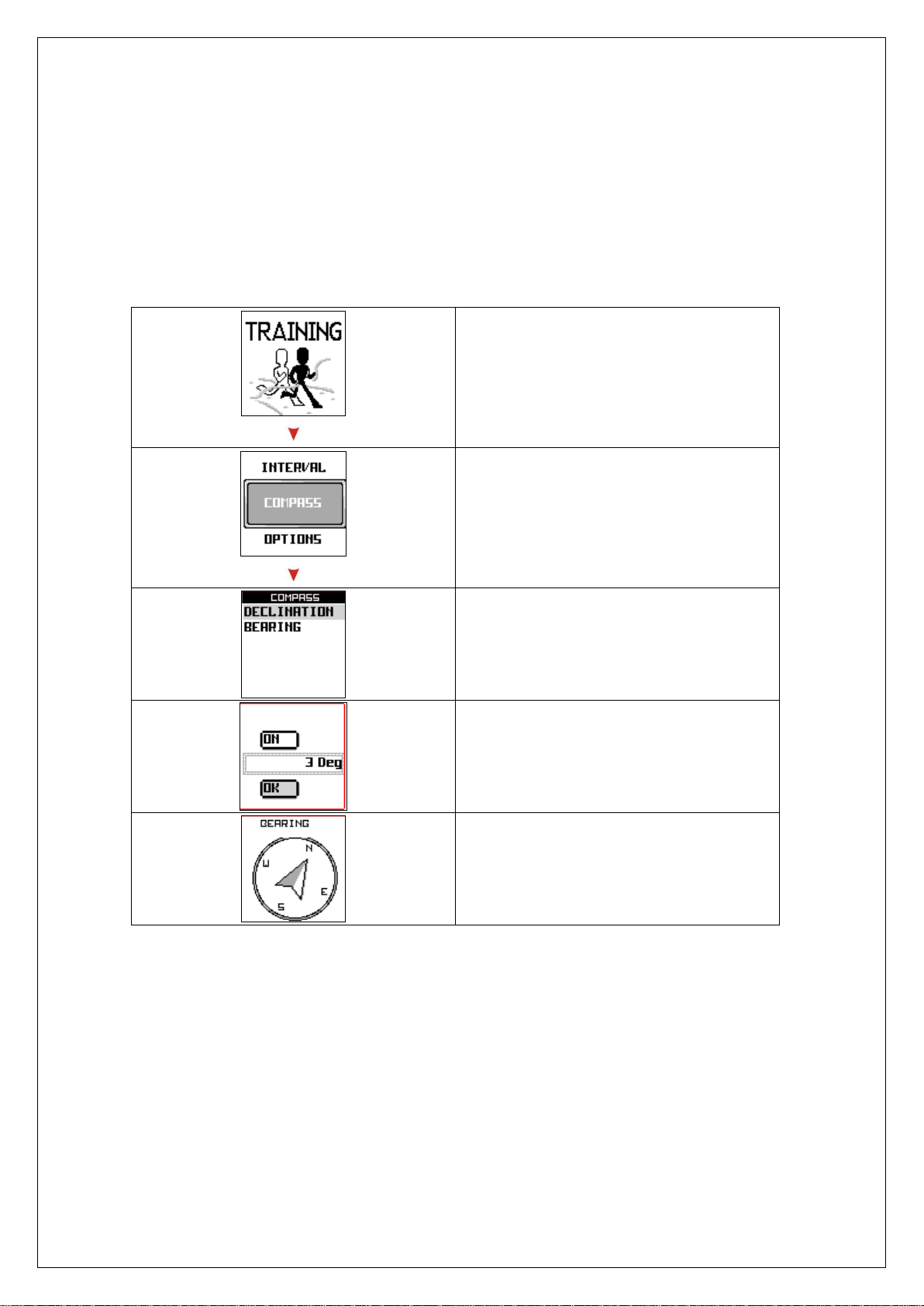
Press “Page button” 2s to enter MAIN
MENU.
Press UP and DOWN to select
“COMPASS”
Press UP and DOWN to select
“BEARING”
Put the angle between north pole.
Compass will offset according to give
you direction.
26
How to Upgrade Firmware
The bellowing procedure is only for firmware upgrade use.
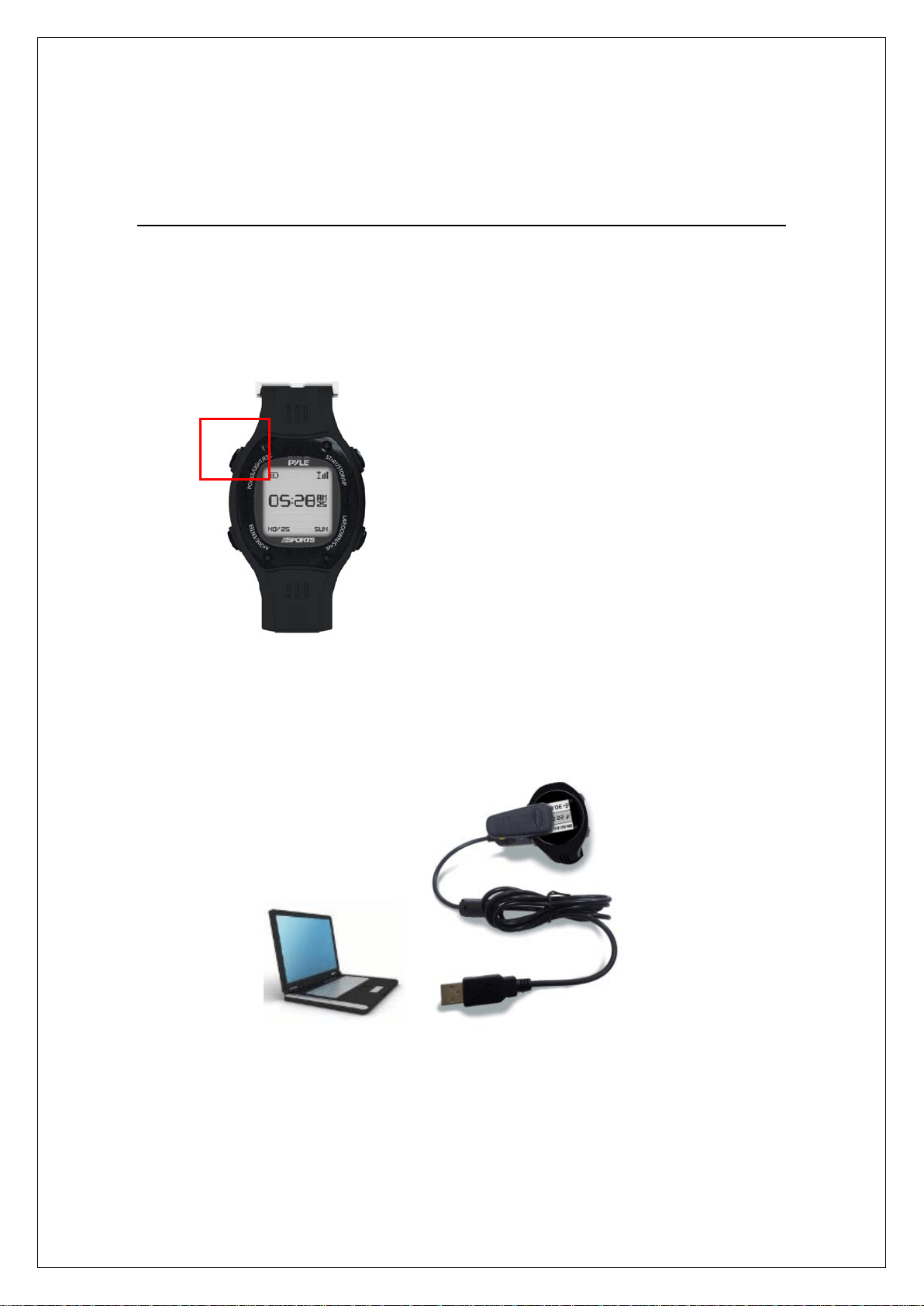
1. Please power off device.
2. Connect USB cable to device and PC
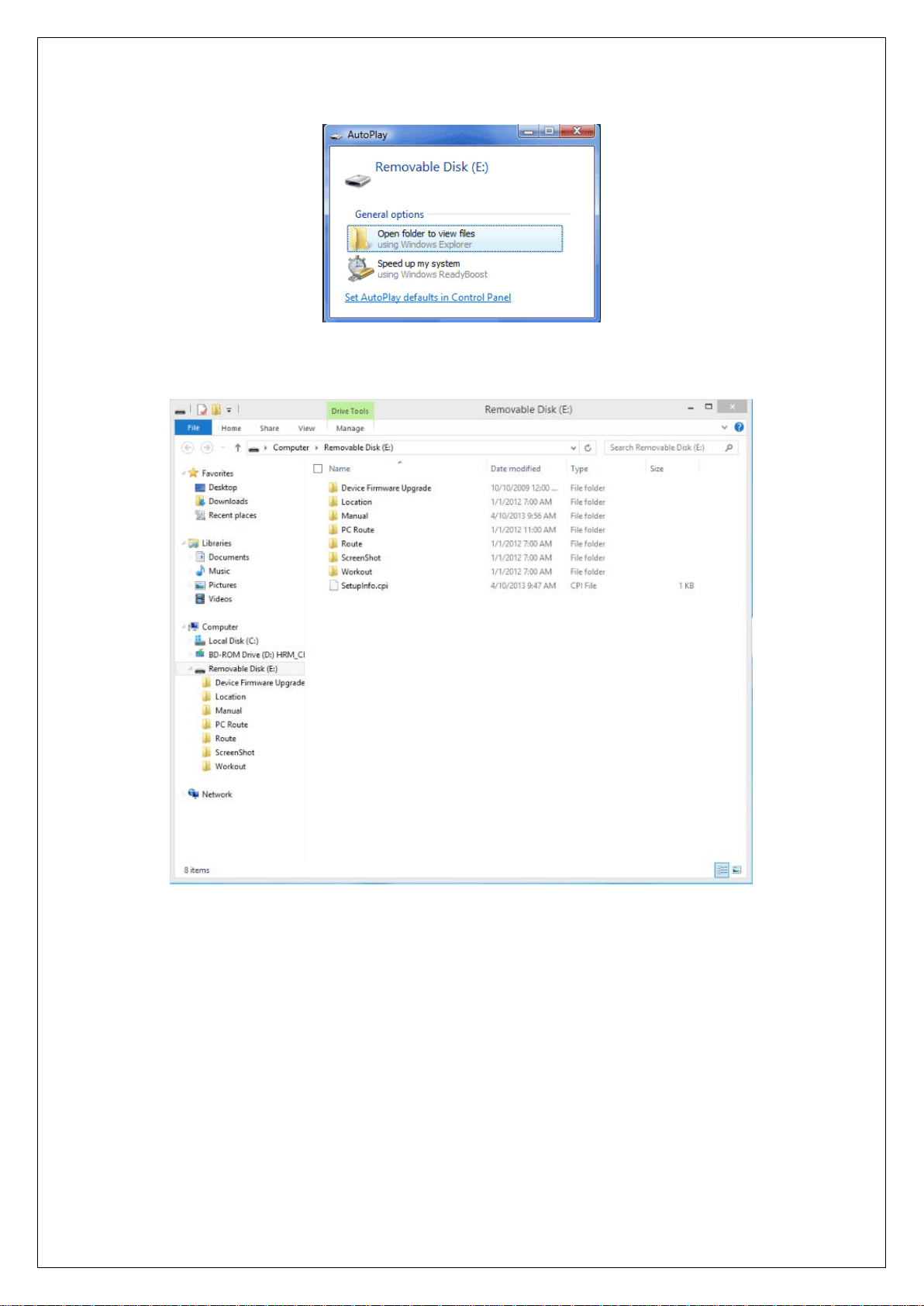
3. System will detect the device and creates the new storage device.
27
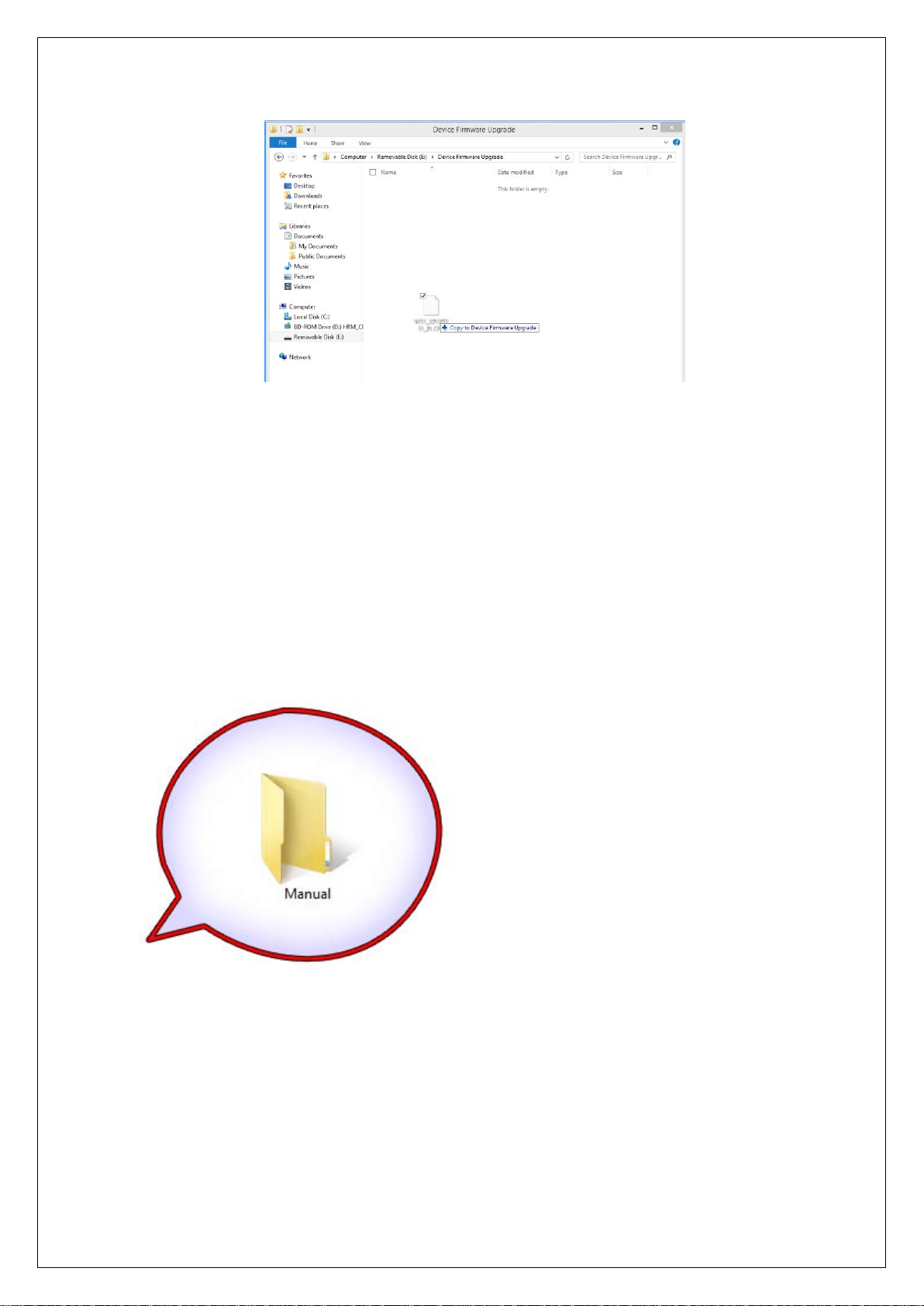
4. Select the folder “DEVICE FIRMWARE UPGRADE” of the storage device and enter
in.
5. Just copy and paste the firmware file into here; “DEVICE FIRMWARE UPGRADE”.
28
6. Remove cable, and power on device.
7. After few minutes, the firmware upgrade process will be done.
NOTE: Please don’t interrupt while in firmware upgrading.
NOTE:
User’s manual, PC Software located in “Manual” folder; you can install PC
Software accordingly.
Actually, the memory size of GPS devices can store up to 80 hours data by 2
seconds continuously. You may backup Manual to your PC and then erase this
folder to have the largest memory capacity.
29
UI Flow Chart
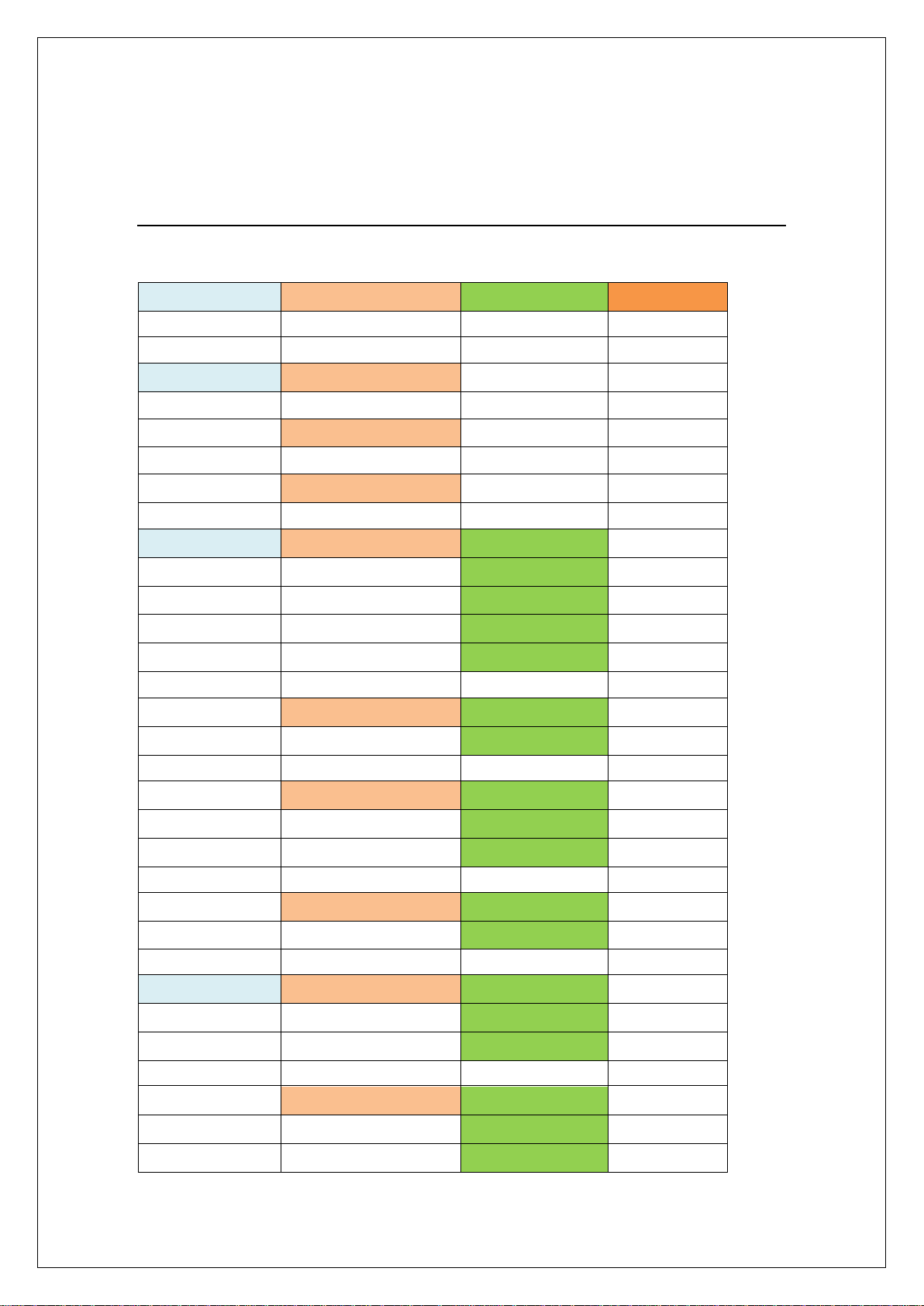
The below is the menu tree of device
TREE LEVEL1 TREE LEVEL2 TREE LEVEL3 TREE LEVEL4
VIEW WORKOUT
DEL ALL
MEMORY
TRAINING OPTIONS AUTO LAP
AUTO PAUSE
ALARM
MAP MODE
LEVEL SETTING
GHOST DIST/TIME
CHALLENGE
INTERVAL CREATE NEW
LIST ALL
DEL ALL
**COMPASS DECLINATION
BEARING
SETUP SET PAGES SET CUST PAGE 1
SET CUST PAGE 2
SET LAP PAGE
*SENSORS HRM
SPEEED
CADENCE
30
COMBO
POWER
PROFILE
SYSTEM SYSTEM INFO
GPS GET
DEFAULT SET
STATUS
GOTO ROUTE CREATE NEW RECORD
PC ROUTE
GO ROUTE
TRACK BACK
LOCATION
* Only available for (PSGP410 only)
** Only available for (PSGP410 only)