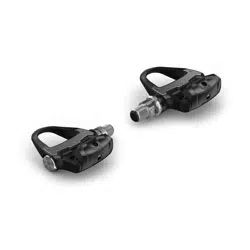
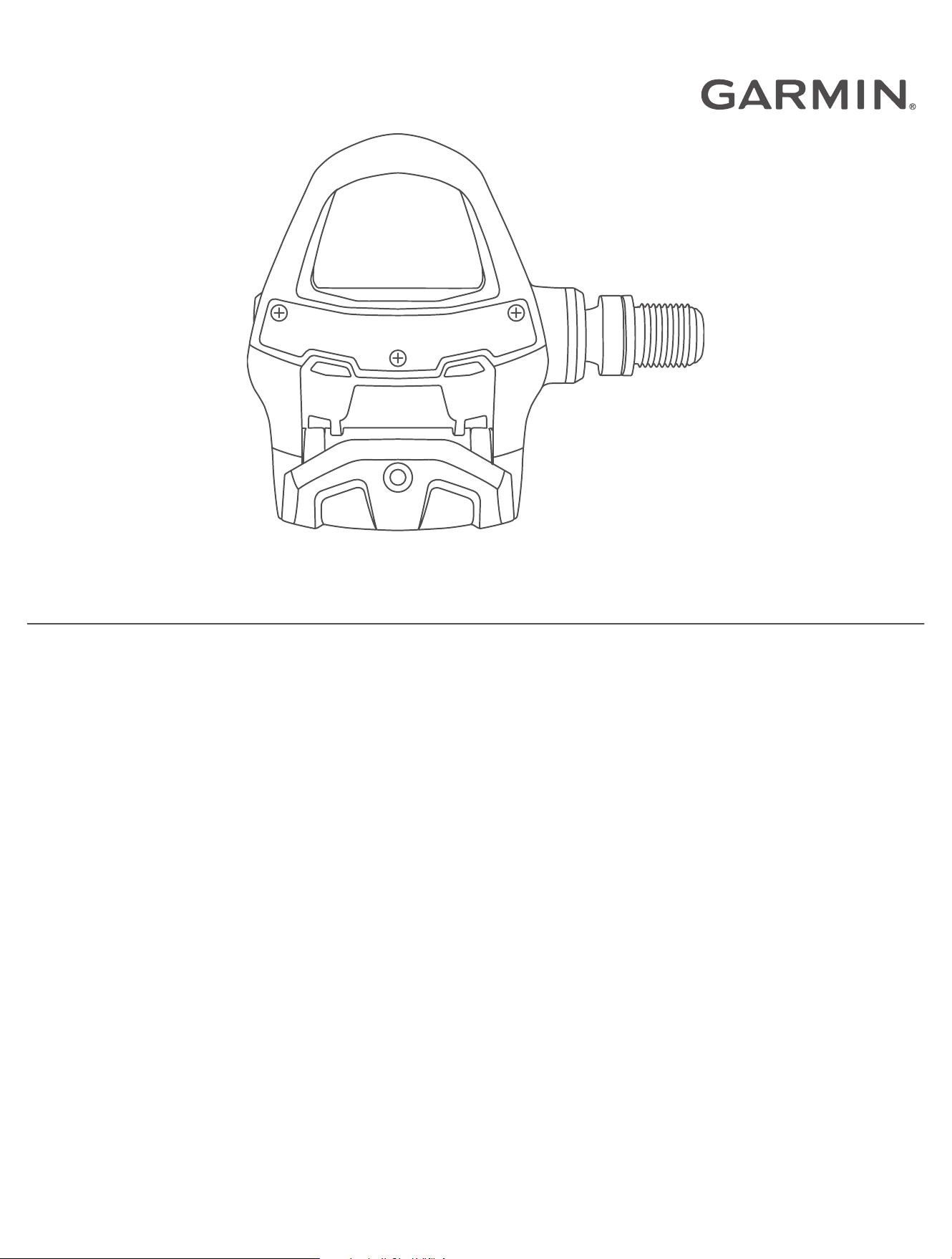
VECTOR
™
3 AND VECTOR 3S
Owner’s Manual

© 2017 Garmin Ltd. or its subsidiaries
All rights reserved. Under the copyright laws, this manual may not be copied, in whole or in part, without the written consent of Garmin. Garmin reserves the right to change
or improve its products and to make changes in the content of this manual without obligation to notify any person or organization of such changes or improvements. Go to
www.garmin.com for current updates and supplemental information concerning the use of this product.
Garmin
®
, the Garmin logo, ANT+
®
, Edge
®
, fēnix
®
, and Forerunner
®
are trademarks of Garmin Ltd. or its subsidiaries, registered in the USA and other countries. Garmin Connect
™
and
Vector
™
are trademarks of Garmin Ltd. or its subsidiaries. These trademarks may not be used without the express permission of Garmin.
The Bluetooth
®
word mark and logos are owned by the Bluetooth SIG, Inc. and any use of such marks by Garmin is under license. Mac
®
is a registered trademark of Apple
Computer, Inc. Training Stress Score
™
(TSS), Intensity Factor
™
(IF), and Normalized Power
™
(NP) are trademarks of Peaksware, LLC. Windows
®
is a registered trademark of
Microsoft Corporation in the United States and other countries. Other trademarks and trade names are those of their respective owners.
This product is ANT+
®
certified. Visit www.thisisant.com/directory for a list of compatible products and apps.
The FCC ID is located in the battery compartment. FCC ID: IPH-03220
M/N: A03220

Table of Contents
Introduction......................................1
Thank You................................................ 1
Getting Started........................................ 1
Tools Needed.......................................... 1
Installing the Vector Components......... 1
Installing the Shoe Cleats....................... 4
About the Vector 3S System.................. 4
Pairing Vector with Your Edge®
1030......................................................... 5
Your First Ride......................................... 5
Training............................................5
Pedal-Based Power................................. 5
Cycling Dynamics.................................... 6
Vector Data...................................... 6
Pairing Vector with the Garmin Connect
App........................................................... 7
Sending Your Ride to Garmin
Connect.................................................... 7
Customizing the Settings in the Garmin
Connect App............................................ 8
Device Information........................... 8
Vector Device Care.................................. 8
Maintenance Tips....................................8
Vector Specifications.............................. 9
Battery Information................................. 9
Overhauling the Vector Pedals............. 10
Vector Storage...................................... 12
Other Compatible Devices.............. 12
Edge 1000 Instructions......................... 12
Edge 520 and Edge 820 Instructions... 12
Forerunner® 935 and fēnix® 5
Series Instructions................................ 13
Appendix........................................ 13
Registering Your Vector System.......... 13
Upgrading Your Vector 3S to a Dual
Sensing System.....................................14
Power Data Fields................................. 14
Troubleshooting.................................... 16
Table of Contents i

Introduction
WARNING
Read all instructions carefully before installing and using the Vector system. Improper use could result in
serious injury.
See the Important Safety and Product Information guide in the product box for product warnings and other
important information.
NOTE: For more information, go to www.garmin.com/manuals/vector3 or support.garmin.com.
Thank You
Thank you for your Vector 3 or Vector 3S purchase. This manual covers both Vector systems.
Vector was designed for cyclists, by cyclists, to provide an outstanding experience of owning a precision power
measurement system for your bike.
Vector is simple, accurate, and easy to use.
Now it's time to put the power under your feet and get out there and ride.
Getting Started
1 Install the Vector components (Installing the Vector Components, page1).
2 Install the shoe cleats (Installing the Shoe Cleats, page4).
3 Pair the pedals with a compatible device (Pairing Vector with Your Edge
®
1030, page5).
4 Go for a ride (Your First Ride, page5).
5 View your ride data (Vector Data, page6).
6 Send your ride data to your Garmin Connect
™
account (Sending Your Ride to Garmin Connect, page7).
Tools Needed
• 15mm pedal wrench
• Bike grease
• 3mm hex key
• 4mm hex key
Installing the Vector Components
The installation steps for the Vector 3 and Vector 3S systems are very similar. Procedures that are specific to
the Vector 3S system are noted.
Preparing for the Installation
1 Remove the existing pedals.
2 Clean the threads, and remove old grease.
Introduction 1
Installing the Pedals
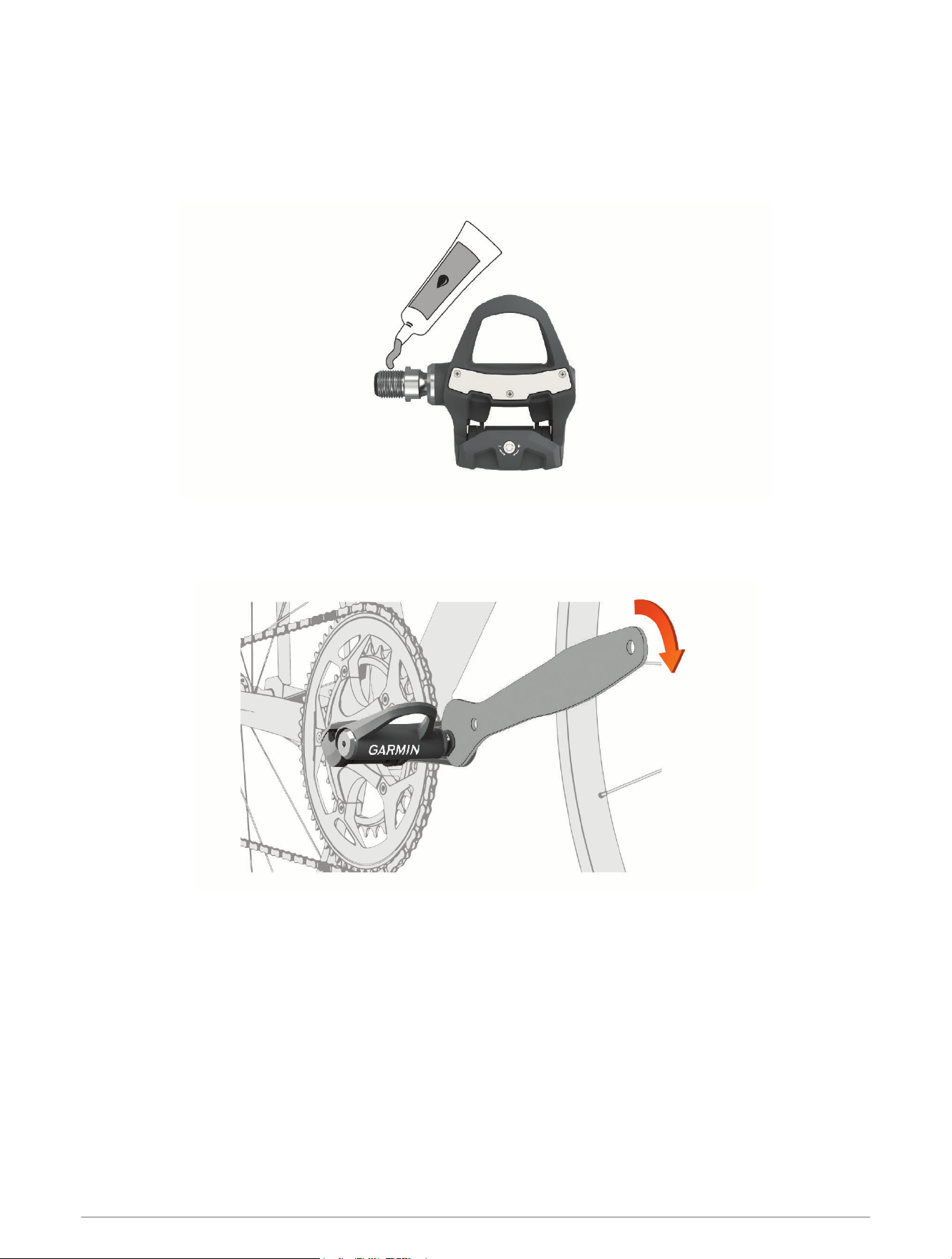
This procedure is for the Vector 3 system. The Vector 3S system installation is the same, but the power sensor
components are in the left pedal only. For more information, see About the Vector 3S System, page4.
1 Install the right pedal first.
2 Apply a thin layer of grease on the pedal spindle threads.
3 Insert the spindle into the crank arm.
4 Hand tighten the spindle.
5 Use the pedal wrench to tighten the spindle.
NOTE: Garmin
®
recommends torque of 25lbf-ft. (34N-m).
6 Repeat steps 2 through 5 to install the left pedal.
NOTE: The left pedal spindle has a left-handed (reverse) thread.
2 Introduction
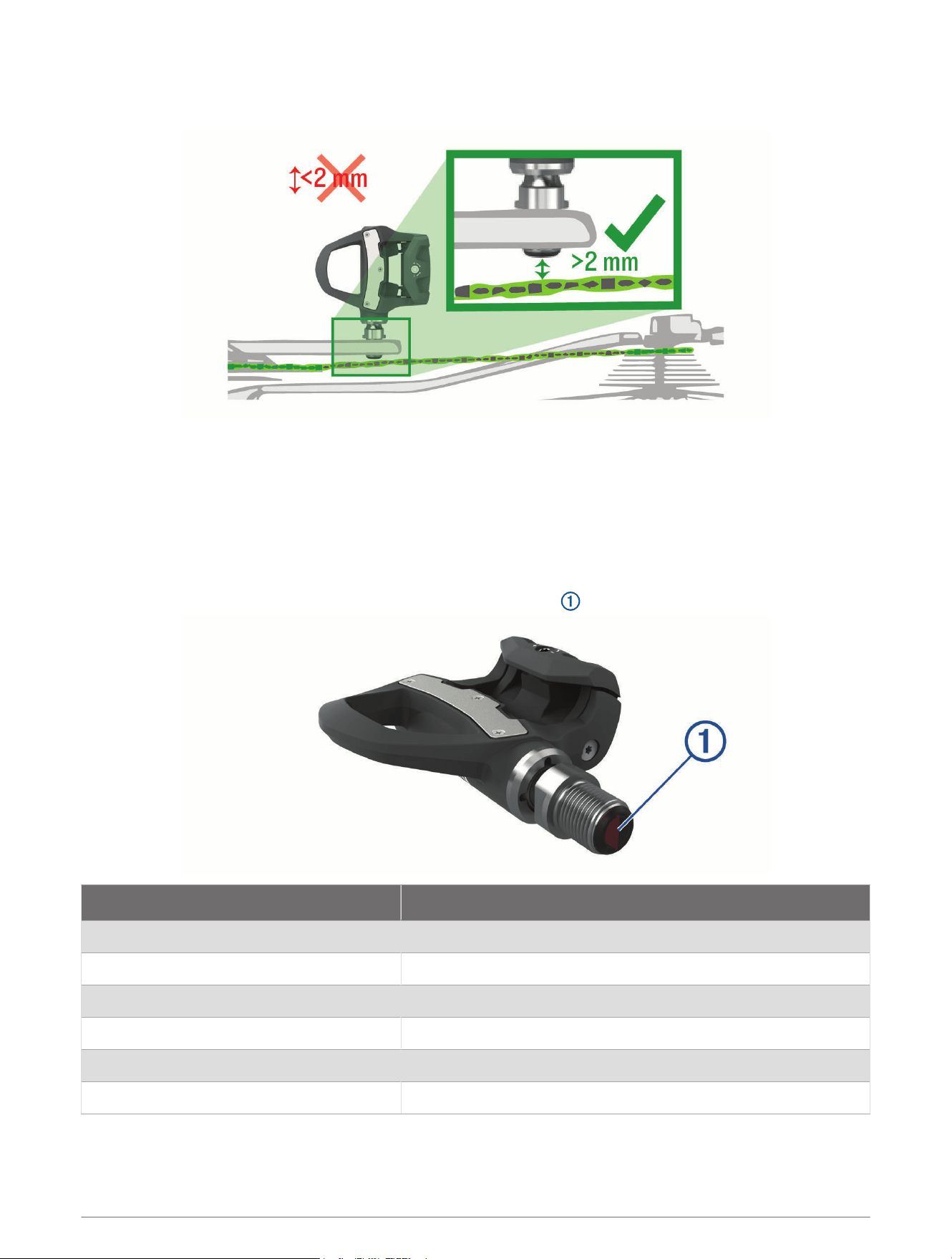
7 Move your bike chain to the largest chain ring and the smallest cassette gear.
8 Rotate the crank arm to check for clearance.
NOTE: Garmin recommends 2 mm or more between the pedal and the chain. If the pedal rubs the chain, you
can add one washer (included) between the spindle and the crank arm to increase clearance. To maintain an
equal q factor, you can add one washer to the left pedal spindle. Do not use more than one washer on each
pedal.
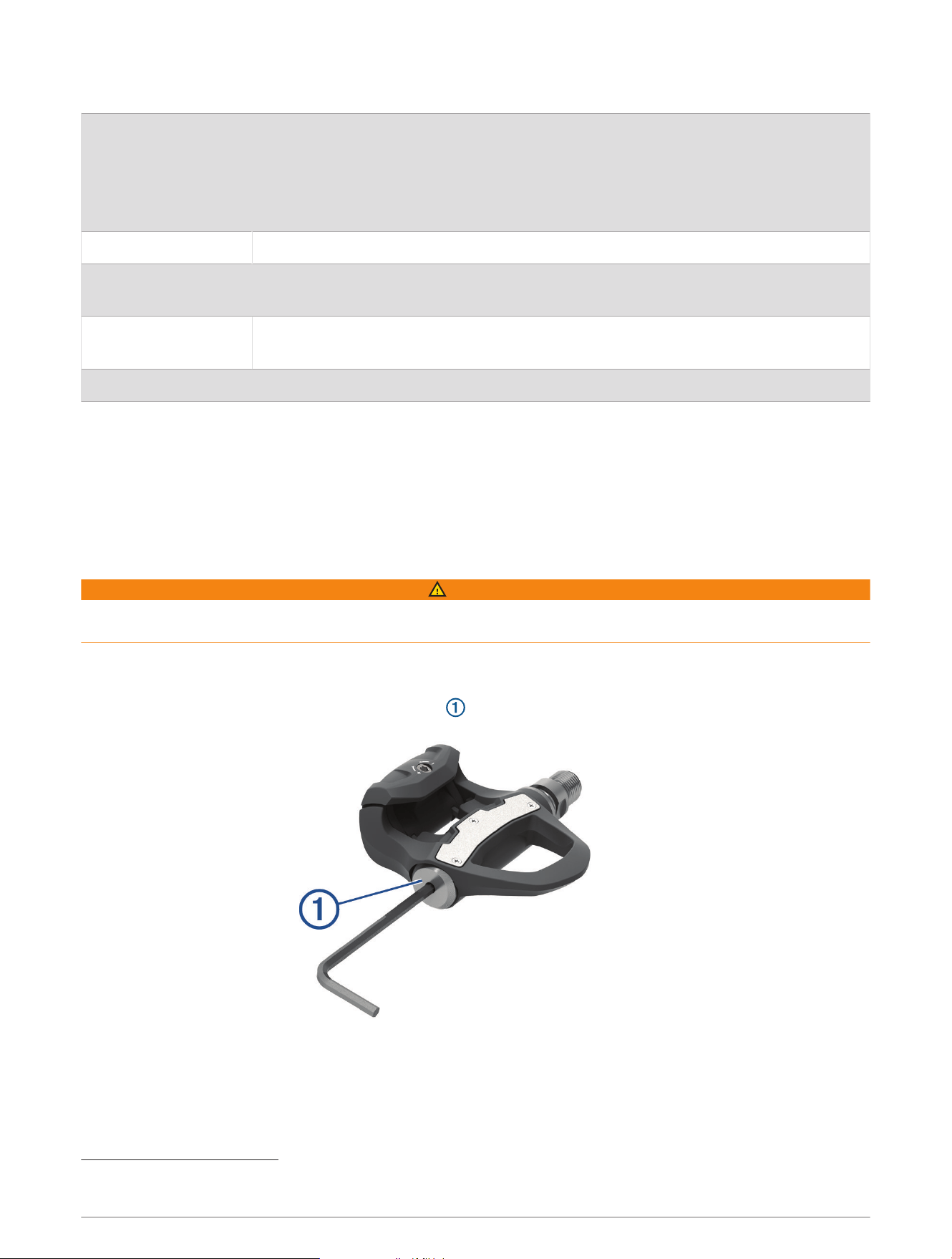
Pedal Status LED
LED flashes indicate the pedal status, including issues that require your attention. Error codes are cleared after
the issue is resolved and you have synced your Vector system with the Garmin Connect app or your compatible
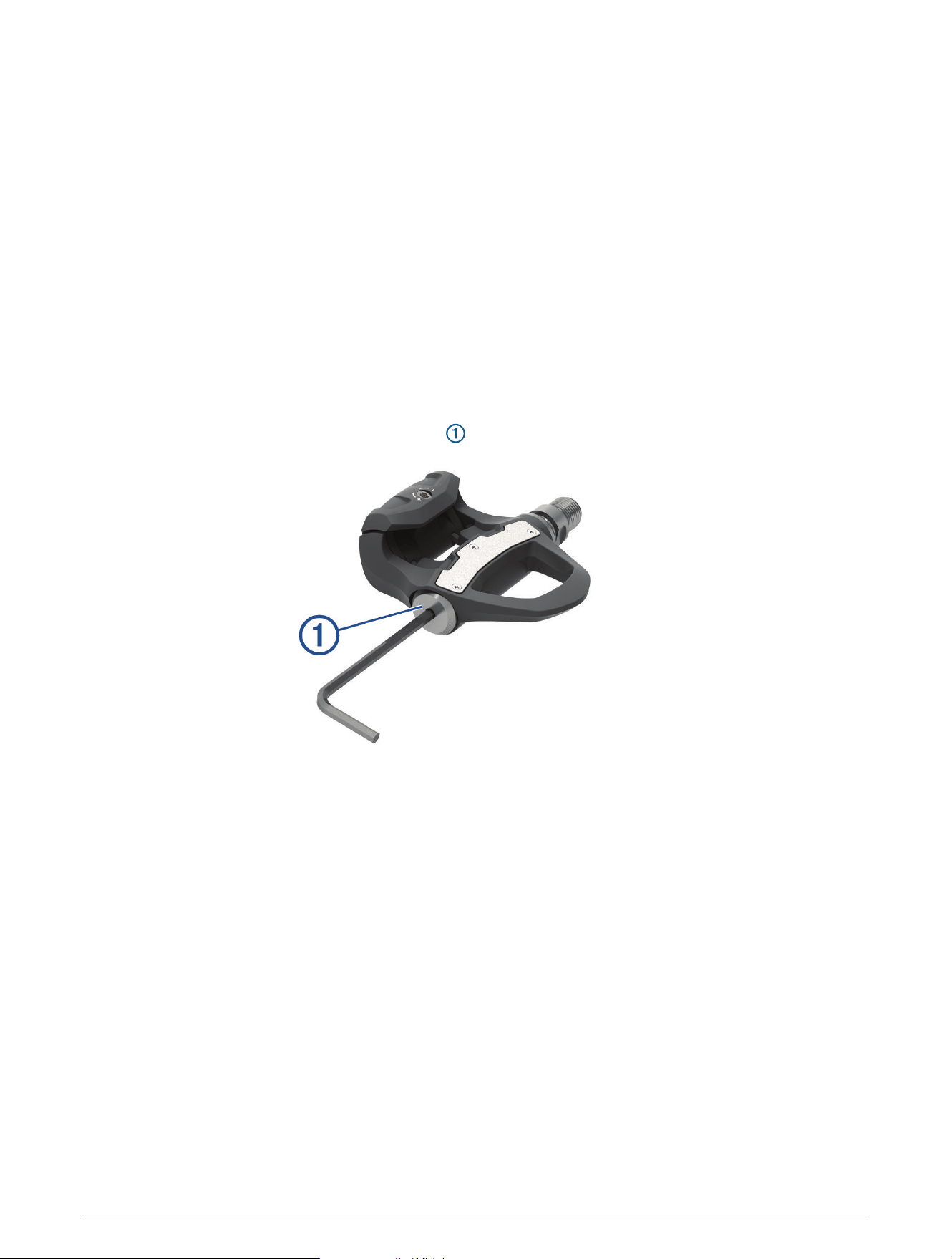
Garmin device. The LED is located on the inboard end of the spindle .
LEDActivity Status
1 red flash The Vector system is active and working properly.
3 green flashes every 10 seconds The pedal is searching for the other pedal.
Alternating red and green flashes A software update is in progress.
20 green flashes The software update was successful.
20 red flashes The software update failed.
1 red flash every 10 seconds The pedal batteries are low.
Introduction 3
Installing the Shoe Cleats
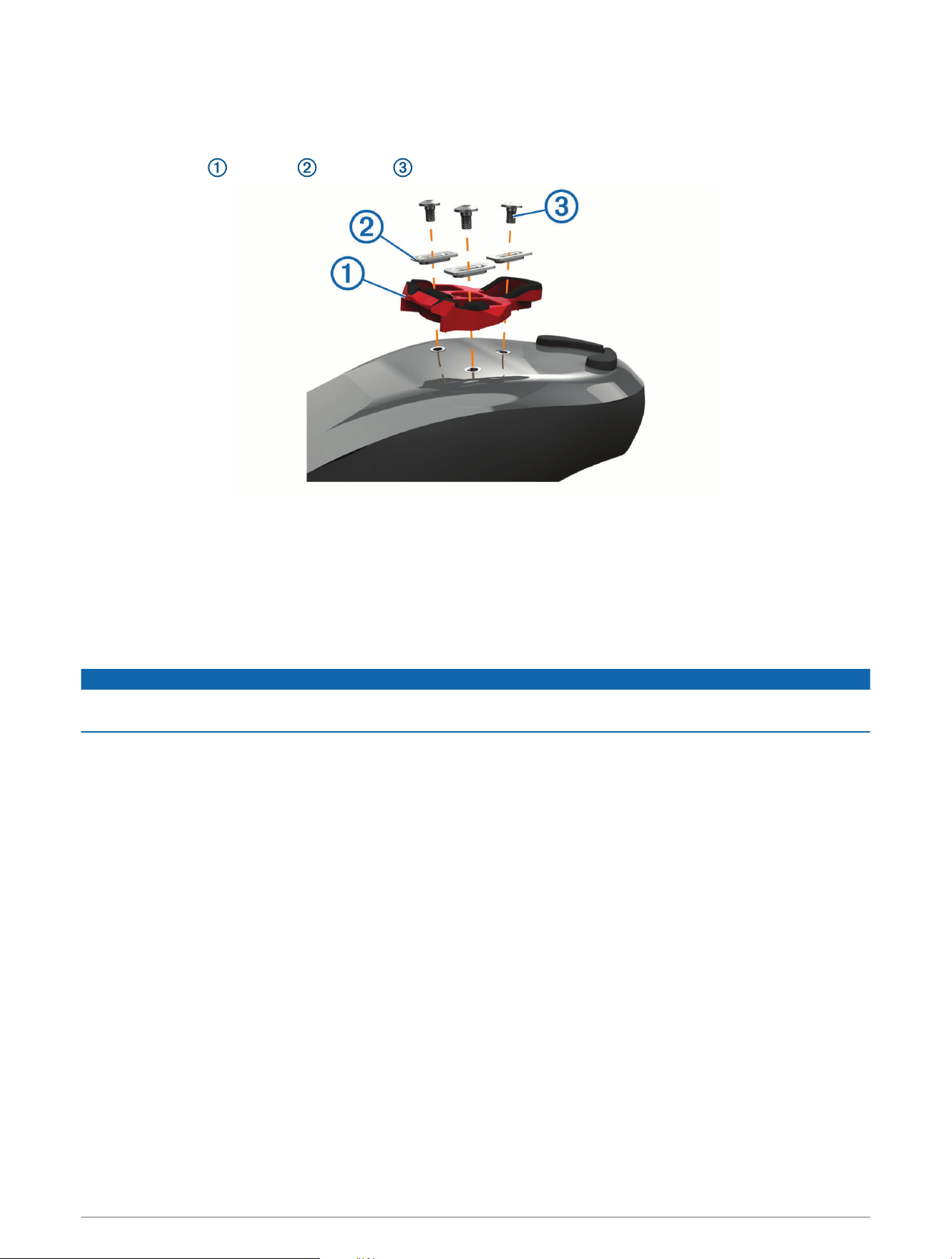
NOTE: The left and right cleats are the same.
1 Apply a thin layer of grease on the cleat bolt threads.
2 Align the cleat , washers , and bolts .
3 Use a 4mm hex key to loosely attach each bolt to the sole of the shoe.
4 Adjust the cleat to the shoe in your preferred position.
This can be adjusted after a trial ride.
5 Tighten the cleat firmly to the shoe.
NOTE: Garmin recommends a torque of 4 to 6 lbf-ft. (5 to 8 N-m).
Adjusting the Release Tension
NOTICE
Do not overtighten the release tension screw on the bottom of the pedal. The release tension should be
adjusted equally for both pedals.
Use a 3mm hex key to adjust the release tension of each pedal.
There is a window on the back of the pedal binding that shows the allowable range.
About the Vector 3S System
The single-sensing Vector 3S measures forces on the left pedal in order to approximate your total power. For
information about upgrading, see Upgrading Your Vector 3S to a Dual Sensing System, page14.
NOTE: The Vector 3S system does not support cycling dynamics.
4 Introduction
Pairing Vector with Your Edge
®
1030
Before you can view Vector data on the Edge device, you must pair the devices.
Pairing is the connecting of ANT+
®
wireless sensors. This procedure contains instructions for the Edge 1030.
If you have another compatible device, see Other Compatible Devices, page12, or go to www.garmin.com
/manuals/vector3.
1 Bring the Edge device within range (3m) of the sensor.
NOTE: Stay 10m away from other ANT+ sensors while pairing.
2 Turn on the Edge device.
3 Select > Sensors > Add Sensor > Power.
4 Rotate the crank arm.
5 Select your sensor.
6 Select Add.
When the sensor is paired with your device, is solid. You can customize a data field to display power data
(Customizing the Data Fields, page5).
Your First Ride
Before you ride with Vector for the first time, you must enter the crank length. The Vector system automatically
calibrates after each ride. You must also enter the crank length when you move Vector to another bike.
This procedure contains instructions for the Edge 1030 device. If you have another compatible device, see Other
Compatible Devices, page12, or go to www.garmin.com/manuals/vector3.
Entering the Crank Length
The crank length is often printed on the crank arm. This procedure contains instructions for the Edge 1030. If
you have another compatible device, see Other Compatible Devices, page12, or see your owner's manual.
1 Rotate the pedals a few times in order to activate Vector.
2 Select > Sensors.
3 Select your sensor.
4 Select Sensor Details > Crank Length.
5 Enter the crank length, and select .
Customizing the Data Fields
This procedure contains instructions for the Edge 830 and 1030 devices. If you have another compatible device,
see your owner's manual.
1 Hold a data field to change it.
2 Select a category.
3 Select a data field.
Training
Pedal-Based Power
Vector measures pedal-based power.
Vector measures the force you apply a few hundred times every second. Vector also measures your cadence or
rotational pedaling speed. By measuring the force, the direction of force, the rotation of the crank arm, and time,
Vector can determine power (watts). Because Vector independently measures left and right leg power, it reports
your left-right power balance.
NOTE: The Vector S system does not provide left-right power balance.
Training 5
Cycling Dynamics
Cycling dynamics metrics measure how you apply power throughout the pedal stroke, and where you apply
power on the pedal, allowing you to understand your particular way of riding. Understanding how and where you
produce power allows you to train more efficiently and evaluate your bike fit.
NOTE: You must have a compatible, dual sensing power meter connected using ANT+ technology to use cycling
dynamics metrics.
For more information, go to www.garmin.com/cyclingdynamics.
Using Cycling Dynamics
Before you can use cycling dynamics, you must pair the Vector power meter with your device (Pairing Vector
with Your Edge
®
1030, page5).
NOTE: Recording cycling dynamics uses additional device memory.
1 Go for a ride.
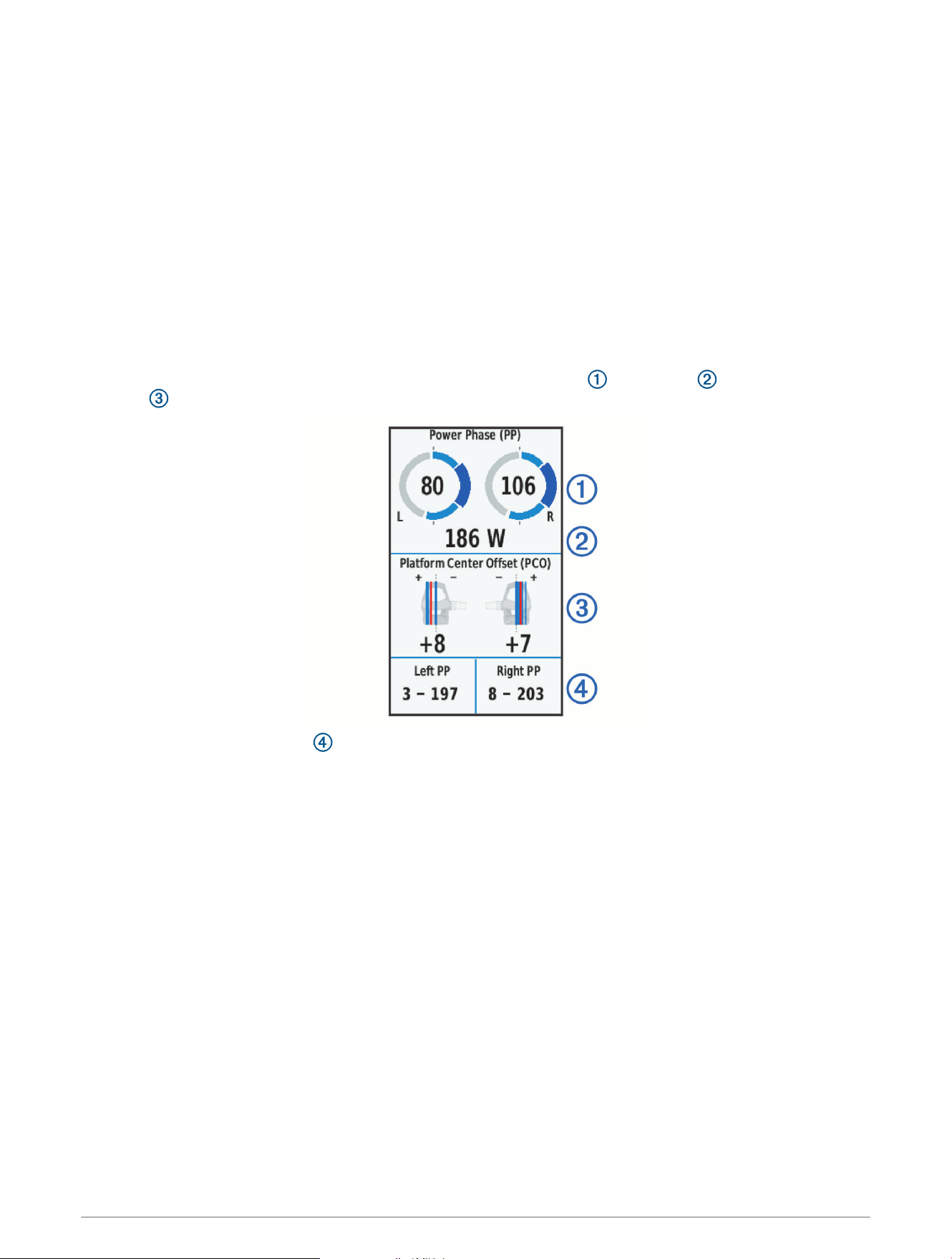
2 Scroll to the cycling dynamics screen to view your power phase data , total power , and platform center
offset .
3 If necessary, hold a data field to change it (Customizing the Data Fields, page5).
NOTE: The two data fields at the bottom of the screen can be customized.
You can send the ride to the Garmin Connect app to view additional cycling dynamics data (Sending Your Ride to
Garmin Connect, page7).
Power Phase Data
Power phase is the pedal stroke region (between the start crank angle and the end crank angle) where you
produce positive power.
Platform Center Offset
Platform center offset is the location on the pedal platform where you apply force.
Vector Data
Your ride data or history is recorded to your Edge device or another compatible Garmin device. This section
contains instructions for the Edge 1030.
NOTE: History is not recorded while the timer is stopped or paused.
When the device memory is full, a message appears. The device does not automatically delete or overwrite your
history. You should upload your history to your Garmin Connect account periodically to keep track of all your
ride data.
6 Vector Data
Pairing Vector with the Garmin Connect App
You can update Vector software and settings using the Garmin Connect app.
NOTE: The left pedal receives the software update. The left pedal sends the update to the right pedal.
1 From the app store on your smartphone, install and open the Garmin Connect app.
2 Rotate the crank arm.
3 Select an option to add your device to your Garmin Connect account:
• If this is the first device you have paired with the Garmin Connect app, follow the on-screen instructions.
• If you have already paired another device with the Garmin Connect app, from the settings menu, select
Garmin Devices > Add Device, and follow the on-screen instructions.
Sending Your Ride to Garmin Connect
• Sync your Edge bike computer with the Garmin Connect app on your phone.
• Use the USB cable that came with your Edge bike computer to send ride data to your Garmin Connect
account on your computer.
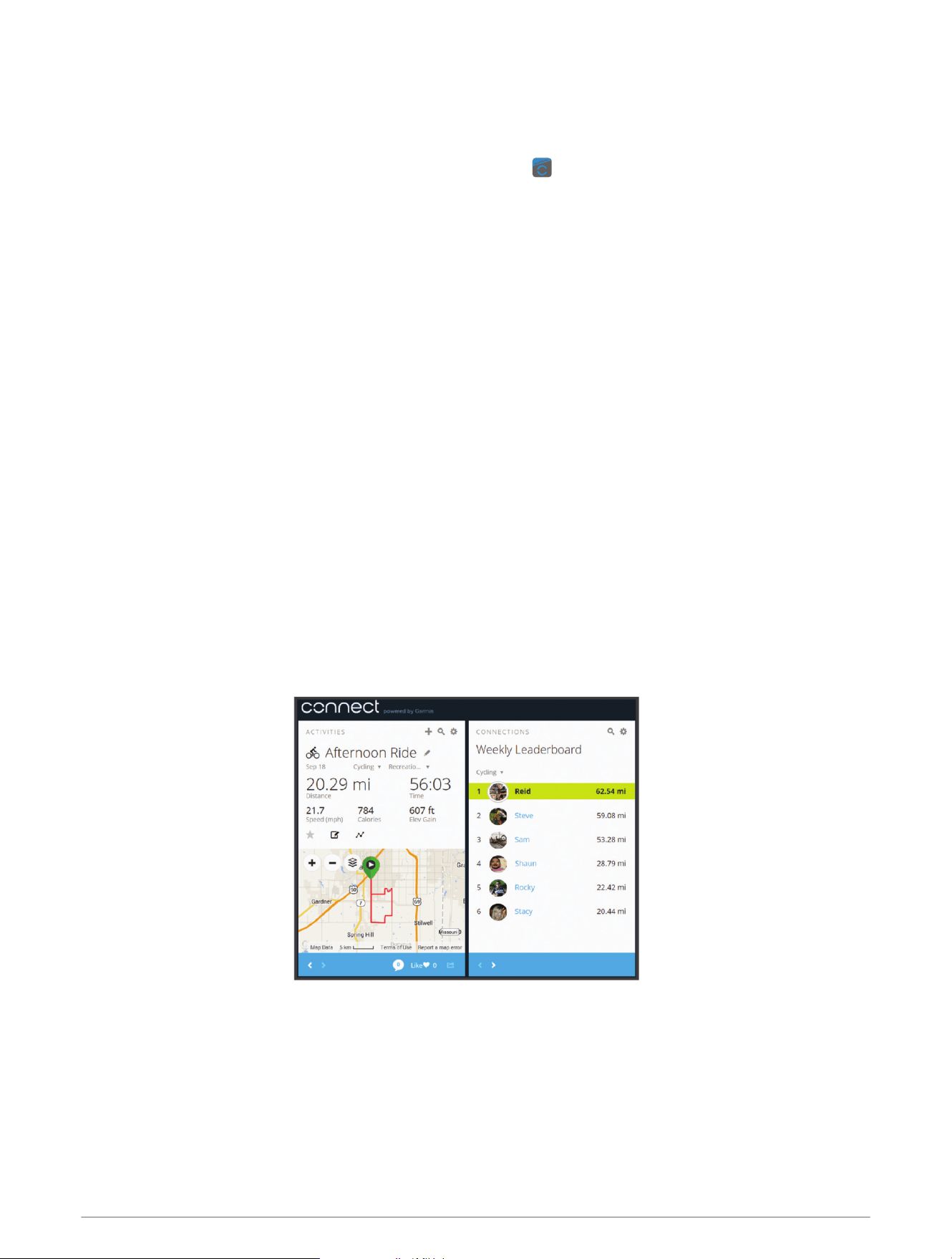
Garmin Connect
You can connect with your friends on Garmin Connect. Garmin Connect gives you the tools to track, analyze,
share, and encourage each other. Record the events of your active lifestyle including runs, walks, rides, swims,
hikes, triathlons, and more.
You can create your free Garmin Connect account when you pair your device with your phone using the Garmin
Connect app, or you can go to garminconnect.com.
Store your activities: After you complete and save an activity with your device, you can upload that activity to
Garmin Connect and keep it as long as you want.
Analyze your data: You can view more detailed information about your activity, including time, distance,
elevation, heart rate, calories burned, cadence, an overhead map view, pace and speed charts, and
customizable reports.
NOTE: Some data requires an optional accessory such as a heart rate monitor.
Share your activities: You can connect with friends to follow each other's activities or share links to your
activities.
Vector Data 7
Disconnecting the USB Cable
If your device is connected to your computer as a removable drive or volume, you must safely disconnect your
device from your computer to avoid data loss. If your device is connected to your Windows
®
computer as a
portable device, it is not necessary to safely disconnect the device.
1 Complete an action:
• For Windows computers, select the Safely Remove Hardware icon in the system tray, and select your
device.
• For Apple
®
computers, select the device, and select File > Eject.
2 Disconnect the cable from your computer.
Customizing the Settings in the Garmin Connect App
You can customize your crank length, scale factor, and cycling dynamics settings in the Garmin Connect app.
• From the settings menu in the Garmin Connect app, select Garmin Devices, and select your device.
• Sync your Vector system with the Garmin Connect app to apply the changes (Pairing Vector with the Garmin
Connect App, page7).
Device Information
Vector Device Care
NOTICE
Keep the components clean and free of debris.
Do not use a sharp object to clean the device.
Avoid chemical cleaners, solvents, and insect repellents that can damage plastic components and finishes.
Do not submerge or pressure wash the components.
Do not store the device where prolonged exposure to extreme temperatures can occur, because it can cause
permanent damage.
Replace components with Garmin parts only. See your Garmin dealer or the Garmin website.
Maintenance Tips
NOTICE
Some bike tools may scratch the finish of Vector components.
• Use wax paper or a towel between the tool and the hardware.
• After any bike adjustments, rotate the crank arm to check for clearance.
• Keep Vector components clean.
• When moving Vector to another bike, clean the threads and surfaces thoroughly.
• Go to www.garmin.com/manuals/vector3 for the latest updates and information.
8 Device Information
Vector Specifications
Battery type
User-replaceable, 3 options:
CR1/3N or 2L76, 3 V, 1 per pedal
LR44 or SR44, 1.5 V, 2 per pedal
NOTE: Garmin recommends replacing all of the batteries at the same time. Do not mix
the battery types.
Battery life Up to 120 hr. of riding time, with cycling dynamics
Operating temperature
range
From -14° to 122°F (from -10° to 50°C)
SR44 batteries may perform better in cold temperatures.
Wireless frequencies/
protocols
ANT+ 2.4 GHz @ 3 dBm nominal
Bluetooth
®
2.4 GHz @ 3 dBm nominal
Water rating IEC 60529 IPX7
1
Battery Information
The Vector system monitors the battery level of both pedals and sends status information to your Garmin
device.
NOTE: When you receive a low battery warning, you have approximately 10–20 hours of operation time
remaining.
Replacing the Batteries
WARNING
See the Important Safety and Product Information guide in the product box for product warnings and other
important information.
Each pedal uses one CR1/3N or 2L76 battery or two LR44 or SR44 batteries.
NOTE: Garmin recommends replacing all of the batteries at the same time. Do not mix the battery types.
1 Use a 4 mm hex key to remove the battery cover .
2 Remove the batteries.
3 Wait 5 to 10 seconds.
1
The device withstands incidental exposure to water of up to 1m for up to 30min. For more information, go to www.garmin.com/waterrating.
Device Information 9
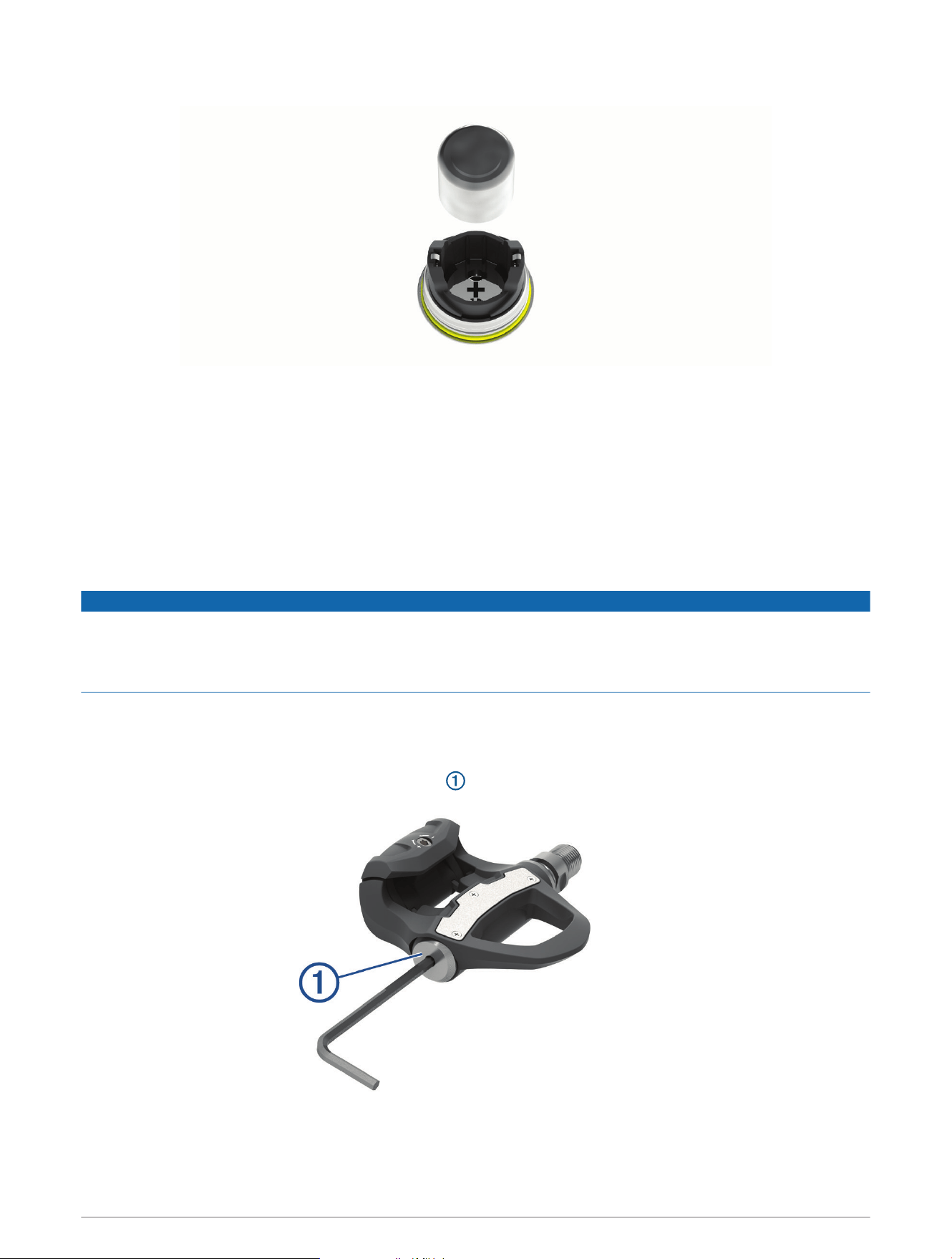
4 Insert the new batteries into the battery cover, observing polarity.
5 Replace the battery cover, and hand tighten it.
NOTE: Do not damage or lose the O-ring gasket.
6 Use a 4 mm hex key to gently tighten the battery cover.
NOTE: Do not over-tighten the battery cover. The cover is sufficiently tight when the O-ring gasket is no
longer visible.
The pedal LED flashes red once.
Overhauling the Vector Pedals
You can disassemble and reassemble the pedal spindles to clean and grease the components.
NOTICE
Garmin recommends overhauling one pedal at a time taking care to keep track of the small screws and seals.
You must obtain a 4 mm hex key, PH 00 screwdriver, 15 mm pedal wrench, 12 mm socket wrench with an outer
diameter that is less than 17 mm (typically a
1
/
4
in. drive), and bike grease. Use care not to damage any of the
Vector components.
NOTE: If you have the Vector 3S system, the right pedal has no battery carriage.
1 Use a 15 mm pedal wrench to remove the pedals.
NOTE: The left pedal spindle has a left-handed (reverse) thread attaching it to the crank arm.
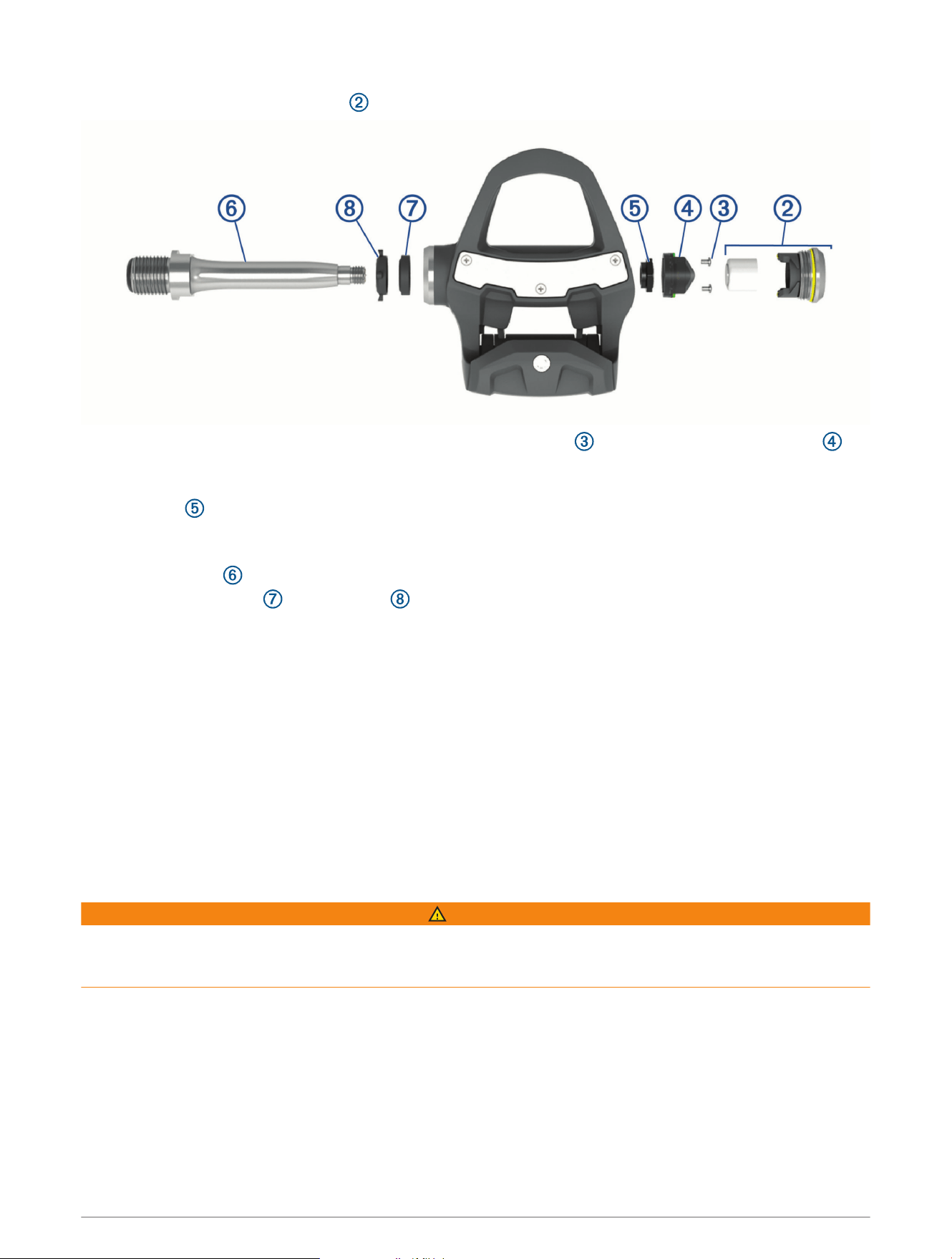
2 Use a 4 mm hex key to remove the battery cover .
10 Device Information
3 Set the battery cover and batteries aside.
4 Use a small Phillips screwdriver (PH 00) to remove the two screws from inside the battery carriage .
5 Remove the battery carriage.
6 While securely holding the wrench flats with a pedal wrench, use the 12 mm socket wrench to unscrew the
spindle nut .
NOTE: The right pedal has a black spindle nut and a reverse thread. The left pedal has a silver spindle nut.
The left spindle has a line on the wrench flats.
7 Slide the spindle out of the pedal body.
8 Remove the inner seal and outer seal from inside the pedal body.
NOTE: Both seals are cone shaped to fit the tapered spindle.
9 Remove all old grease from the components.
10 Insert the inner seal into the pedal body.
You should press it down so it is flush with the bearing.
11 Slide the outer seal on to the spindle.
12 Apply bike grease to the bearing inside the pedal body.
13 Apply a layer of bike grease to the spindle.
14 Insert the spindle into the pedal body.
If the outer seal moves, you should press it down so it is flush with the top of the spindle.
15 Replace the spindle nut.
16 While securely holding the wrench flats with a pedal wrench, use the 12 mm socket wrench to torque the
spindle nut to 7 lbf-ft. (10 N-m).
WARNING
To ensure that the spindle nut stays in place, you must tighten it to the recommended torque specification.
Failure to properly tighten the nut could cause the pedal to fall off during a ride, which could result in property
damage or serious bodily injury or death.
17 Replace the battery carriage and two screws.
18 Replace the batteries and battery cover, and hand tighten it.
NOTE: Do not damage or lose the O-ring gasket.
Device Information 11
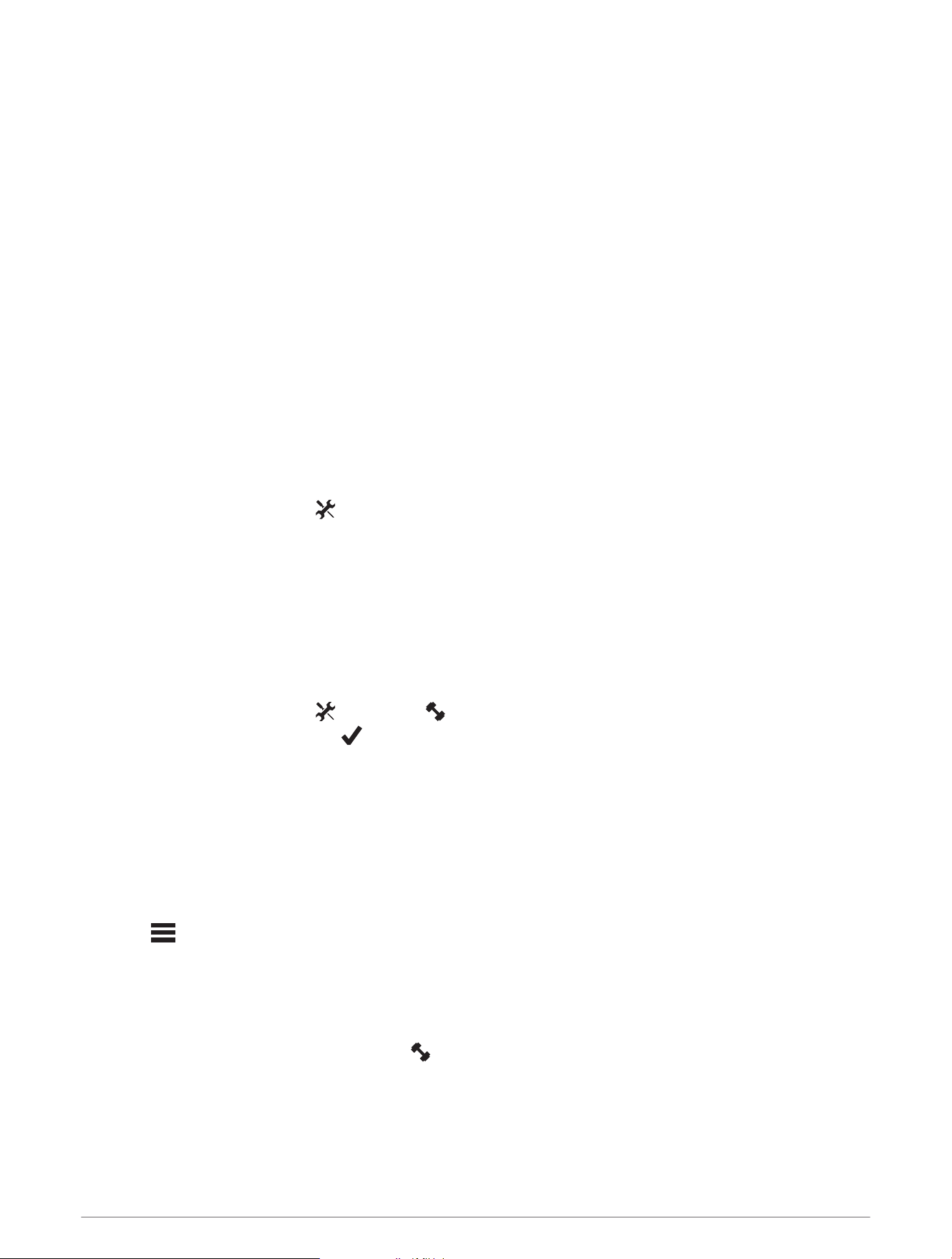
19 Use a 4 mm hex key to gently tighten the battery cover.
NOTE: Do not over-tighten the battery cover. The cover is sufficiently tight when the O-ring gasket is no
longer visible.
The pedal LED flashes red once.
20 Install the pedals (Installing the Pedals, page2).
Vector Storage
If you are transporting your bicycle or not using Vector for an extended period of time, Garmin recommends
removing Vector and storing it in the product box.
Other Compatible Devices
Edge 1000 Instructions
Pairing Vector with the Edge 1000
1 Bring the Edge device within range (3m) of the sensor.
NOTE: Stay 10m away from other ANT+ sensors while pairing.
2 Turn on the Edge device.
3 From the home screen, select > Sensors > Add Sensor > Power.
4 Rotate the crank arm a few times.
5 Select your sensor.
When the sensor is paired with your Edge device, a message appears, and the sensor status is Connected. You
can customize a data field to display Vector data.
Entering the Crank Length with the Edge 1000
The crank length is often printed on the crank arm.
1 Rotate the pedals a few times in order to activate Vector.
2 From the home screen, select > Sensors > > Sensor Details > Crank Length.
3 Enter the crank length, and select .
Edge 520 and Edge 820 Instructions
Pairing Vector with the Edge 520 and Edge 820
This procedure contains instructions for the Edge 520 and Edge 820. For more information about compatible
devices, go to www.garmin.com/manuals/vector3.
1 Bring the Edge device within range (3m) of the sensor.
NOTE: Stay 10m away from other ANT+ sensors while pairing.
2 Select or Menu.
3 Select Settings > Sensors > Add Sensor > Power.
4 Rotate the crank arm.
5 Select your sensor.
6 Select Add.
When the sensor is paired with your device, is solid. You can customize a data field to display power data.
12 Other Compatible Devices
Entering the Crank Length with the Edge 520 and Edge 820
The crank length is often printed on the crank arm.
1 Rotate the pedals a few times in order to activate Vector.
2 Select or Menu.
3 Select Settings > Sensors > Power.
4 Select your sensor.
5 Select Sensor Details > Crank Length.
6 Enter the crank length, and select .
Forerunner
®
935 and fēnix
®
5 Series Instructions
Pairing Vector with Your Forerunner 935 and fēnix 5 Series
This procedure contains instructions for the Forerunner 935 and fēnix 5 Series watches. For more information
about compatible watches, go to www.garmin.com/manuals/vector3.
1 Bring your compatible watch within range (3m) of the sensor.
NOTE: Stay 10m away from other ANT+ sensors while pairing.
2 Hold or MENU.
3 Select Settings > Sensors & Accessories > Add New > Power.
4 Rotate the crank arm.
5 Select your sensor.
After the sensor is paired with your device, the sensor status changes from Searching to Connected. Sensor
data appears in the data page loop or a custom data field.
Entering the Crank Length with the Forerunner 935 and fēnix 5 Series
The crank length is often printed on the crank arm.
1 Rotate the pedals a few times in order to activate Vector.
2 Hold or MENU.
3 Select Settings > Sensors & Accessories > Power.
4 Select your sensor.
5 Select Crank Length.
6 Enter the crank length, and select .
Appendix
Registering Your Vector System
Help us better support you by completing our online registration today.
• Go to the Garmin Connect app.
• Keep the original sales receipt, or a photocopy, in a safe place.
Appendix 13
Upgrading Your Vector 3S to a Dual Sensing System
Before you install the new right pedal, the left pedal must be paired and connected to a compatible Edge device
or the Garmin Connect app.
1 Review the Vector installation instructions (Installing the Vector Components, page1).
2 Remove the existing right pedal.
3 Install the new right pedal (Installing the Pedals, page2).
4 Rotate the crank arm.
5 Select an option to connect the right pedal to the left pedal:
• From your compatible Edge device, select > Sensors, select your sensor, select Sensor Details > Pair
Right Power Sensor, and enter the sensor ID found on the pedal.
• From the Garmin Connect app device settings, enable the Right Pedal, and enter the sensor ID found on
the pedal.
Power Data Fields
NOTE: This list contains power data fields for the Edge 1030 device. If you have another compatible device, see
your device owner's manual.
NOTE: Data fields that display pedal smoothness, torque effectiveness, and balance data are not supported by
the Vector S system.
Balance: The current left/right power balance.
Balance - 10s Avg.: The 10-second moving average of the left/right power balance.
Balance - 30s Avg.: The 30-second moving average of the left/right power balance.
Balance - 3s Avg.: The three-second moving average of the left/right power balance.
Balance - Avg.: The average left/right power balance for the current activity.
Balance - Lap: The average left/right power balance for the current lap.
Cadence: Cycling. The number of revolutions of the crank arm. Your device must be connected to a cadence
accessory for this data to appear.
Cadence - Avg.: Cycling. The average cadence for the current activity.
Cadence Bars: A bar graph showing your cycling cadence values for the current activity.
Cadence Graph: A line graph showing your cycling cadence values for the current activity.
Cadence - Lap: Cycling. The average cadence for the current lap.
PCO: The platform center offset. Platform center offset is the location on the pedal platform where force is
applied.
PCO - Avg.: The average platform center offset for the current activity.
PCO - Lap: The average platform center offset for the current lap.
Pedal Smoothness: The measurement of how evenly a rider is applying force to the pedals throughout each
pedal stroke.
Power: The current power output in watts. Your device must be connected to a compatible power meter.
Power - %FTP: The current power output as a percentage of functional threshold power.
Power - 10s Avg.: The 10-second moving average of power output.
Power - 10s Avg. watts/kg: The 10-second moving average of power output in watts per kilogram.
Power - 30s Avg.: The 30-second moving average of power output.
Power - 30s Avg. watts/kg: The 30-second moving average of power output in watts per kilogram.
Power - 3s Avg.: The 3-second moving average of power output.
Power - 3s Avg. watts/kg: The 3-second moving average of power output in watts per kilogram.
Power - Avg.: The average power output for the current activity.
Power Bars: A bar graph showing your power output.
Power Graph: A line graph showing your power output for the current activity.
14 Appendix

Power - IF: The Intensity Factor
™
for the current activity.
Power - kJ: The accumulated work performed (power output) in kilojoules.
Power - Lap: The average power output for the current lap.
Power - Lap Max.: The top power output for the current lap.
Power - Last Lap: The average power output for the last completed lap.
Power - Max.: The top power output for the current activity.
Power - NP: The Normalized Power
™
for the current activity.
Power - NP Lap: The average Normalized Power for the current lap.
Power - NP Last Lap: The average Normalized Power for the last completed lap.
Power Phase - L.: The current power phase angle for the left leg. Power phase is the pedal stroke region where
positive power is produced.
Power Phase - L. Avg.: The average power phase angle for the left leg for the current activity.
Power Phase - L. Lap: The average power phase angle for the left leg for the current lap.
Power Phase - L. Peak: The current power phase peak angle for the left leg. Power phase peak is the angle
range over which the rider produces the peak portion of the driving force.
Power Phase - L. Peak Avg.: The average power phase peak angle for the left leg for the current activity.
Power Phase - L. Peak Lap: The average power phase peak angle for the left leg for the current lap.
Power Phase - R.: The current power phase angle for the right leg. Power phase is the pedal stroke region where
positive power is produced.
Power Phase - R. Avg.: The average power phase angle for the right leg for the current activity.
Power Phase - R. Lap: The average power phase angle for the right leg for the current lap.
Power Phase - R. Peak: The current power phase peak angle for the right leg. Power phase peak is the angle
range over which the rider produces the peak portion of the driving force.
Power Phase - R. Peak Avg.: The average power phase peak angle for the right leg for the current activity.
Power Phase - R. Peak Lap: The average power phase peak angle for the right leg for the current lap.
Power - TSS: The Training Stress Score
™
for the current activity.
Power - watts/kg: The amount of power output in watts per kilogram.
Power - watts/kg Avg.: The average power output in watts per kilogram.
Power - watts/kg Lap: The average power output in watts per kilogram for the current lap.
Power Zone: The current range of power output (1 to 7) based on your FTP or custom settings.
Target Power: The target power output during an activity.
Time in Zone: The time elapsed in each power zone.
Time Seated: The time spent seated while pedaling for the current activity.
Time Seated Lap: The time spent seated while pedaling for the current lap.
Time Standing: The time spent standing while pedaling for the current activity.
Time Standing Lap: The time spent standing while pedaling for the current lap.
Torque Effectiveness: The measurement of how efficiently a rider is pedaling.
Trainer Resistance: The resistance force applied by an indoor trainer.
Appendix 15
Troubleshooting
Updating the Vector Software Using the Edge 520, 820, 1000, or 1030
Before you can update the software, you must pair your Edge device to your Vector system.
NOTE: The left pedal receives the software update. The left pedal sends the update to the right pedal.
1 Send your ride data to your Garmin Connect account.
Garmin Connect automatically looks for software updates and sends them to your Edge device.
2 Bring your Edge device within range (3m) of the sensor.
3 Rotate the crank arm a few times.
The Edge device prompts you to install any pending software updates.
4 Follow the on-screen instructions.
Resetting the Vector Pedals
If the device stops responding, you may need to reset it by disconnecting and reconnecting the battery cover.
This does not erase any of your data.
1 Use a 4 mm hex key to remove the battery cover and battery.
2 Replace the battery and battery cover, and hand tighten it.
NOTE: Do not damage or lose the O-ring gasket.
3 Use a 4 mm hex key to tighten the battery cover to 3.6 lbf-ft. (5 N-m).
The pedal LED flashes red once.
16 Appendix
Performing a Static Torque Test
NOTICE
The static torque test is intended for advanced cyclists and installation experts. This test is not required under
normal circumstances to achieve good results with the Vector system. This test is available for compatible
Edge devices.
Garmin recommends performing the static torque test a minimum of three times and averaging the reported
torque values.
1 Go to support.garmin.com.
2 Enter your product name.
3 Enter "torque test" to view the FAQ topic.
Following repeated static torque tests, if the reported torque value is consistently different than the expected
value, you can enter a scale factor for one or both pedals. The scale factor is stored in the pedal and adjusts
the power value that is calculated on the pedal. The scale factor is sent to the Edge device and stored on Edge
device.
Appendix 17
support.garmin.com
GUID-297604DF-2345-43A4-80D2-908E16676B29 v7July 2024