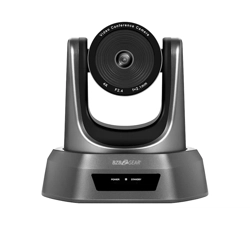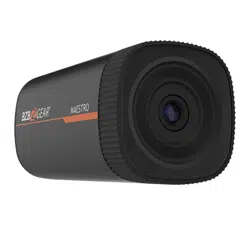
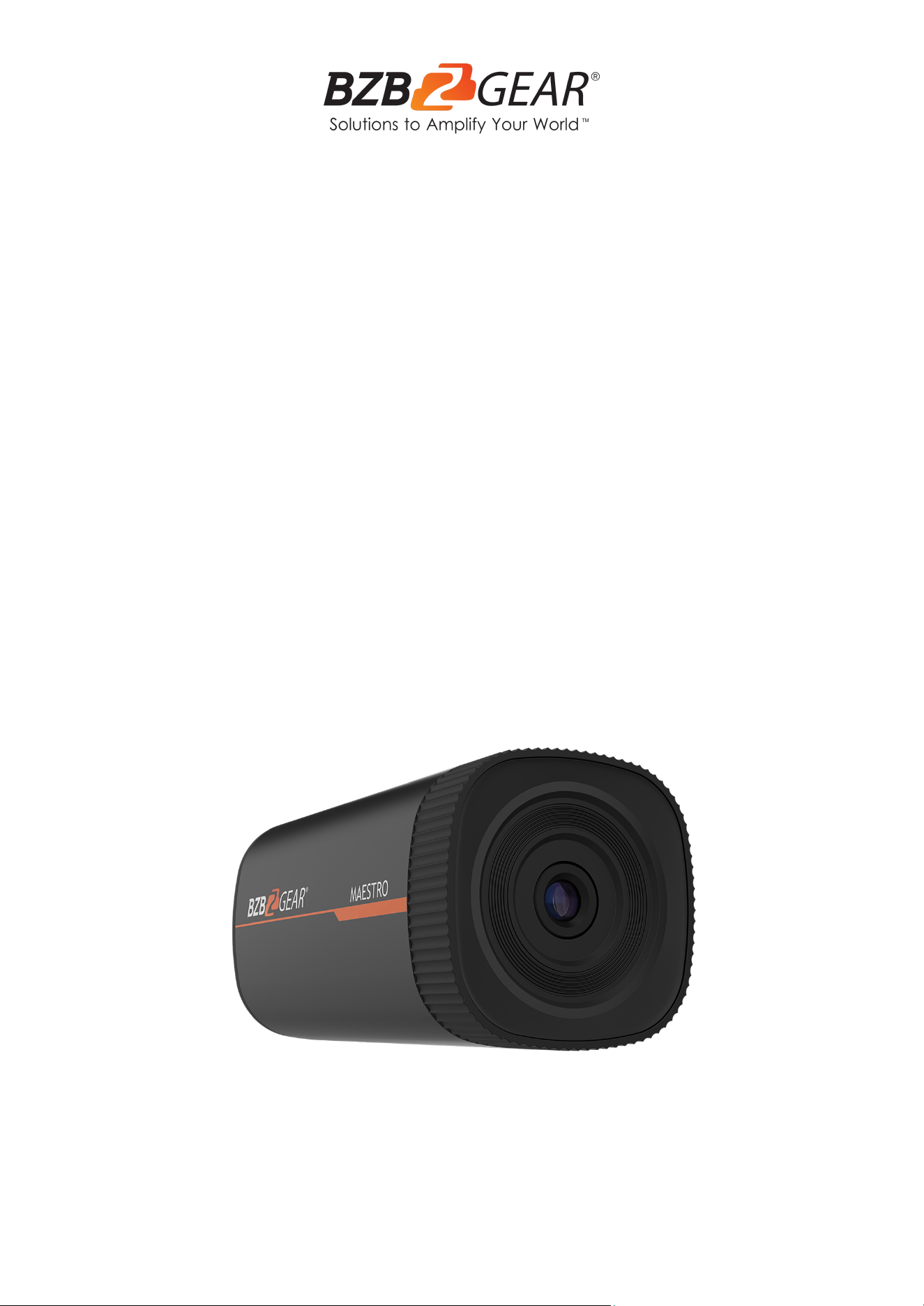
BG-MAESTRO
1080P Full HD 8MP Auto-Tracking Wide Angle ePTZ Camera
User Manual

BZBGEAR BG-MAESTRO PRODUCT MANUAL
Address: 830 National Drive #140, Sacramento, CA 95834, USA · Tel: +1(888)499-9906 · Email: support@bzbgear.com 2

BZBGEAR BG-MAESTRO PRODUCT MANUAL
Table of Contents
Statement 4
Safety Precaution 4
Packing List 6
Specifications 6
Interface 7
Dimensions 8
Web Interface Login and Tracking Settings 9
Web Client Login 11
Web Interface Preview Tab 11
Web Interface Configuration Tab 12
Audio Configure 13
Video Configure 14
Network Configure 22
Camera Configure 24
Logout 25
Tracking Configuration 26
Tech Support 27
Limited Product Warranty Terms 27
Mission Statement 28
Copyright 28
Address: 830 National Drive #140, Sacramento, CA 95834, USA · Tel: +1(888)499-9906 · Email: support@bzbgear.com 3

BZBGEAR BG-MAESTRO PRODUCT MANUAL
Statement
Please read these instructions carefully before connecting, operating, or configuring this
product. Please save this manual for future reference.
Safety Precaution
● To prevent damaging this product, avoid heavy pressure, strong vibration, or immersion
during transportation, storage, and installation.
● The housing of this product is made of organic materials. Do not expose to any liquid,
gas, or solids which may corrode the shell.
● Do not expose the product to rain or moisture.
● To prevent the risk of electric shock, do not open the case. Installation and maintenance
should only be carried out by qualified technicians.
● Do not use the product beyond the specified temperature, humidity or power supply
specifications.
● Wipe it with a soft, dry cloth when cleaning the camera lens. Wipe it gently with a mild
detergent if needed. Do not use strong or corrosive detergents to avoid scratching the
lens and affecting the image.
● This product does not contain parts that can be maintained or repaired by users.
Damage caused by dismantling the product without authorization from BZBGEAR is not
covered under the warranty policy.
● Installation and use of this product must strictly comply with local electrical safety
standards. The power supply of the product is ±12V, the max electrical current is 2A.
● This product should be placed on a stable desktop or other horizontal surface. Do not
install the product obliquely, otherwise it may display inclined image. Do not power on
before completely installation.
● Electromagnetic fields at specific frequencies may affect the video image. This product
is Class A. It may cause radio interference in household application. Appropriate
measure is required.
Address: 830 National Drive #140, Sacramento, CA 95834, USA · Tel: +1(888)499-9906 · Email: support@bzbgear.com 4

BZBGEAR BG-MAESTRO PRODUCT MANUAL
Introduction
The BG-MAESTRO is a compact ePTZ auto-tracking camera that delivers exceptionally
accurate tracking throughout its coverage area. Designed to be easily configured without
requiring additional software, the auto-tracking parameters are set through the web based
interface. Tracking is performed with the electronic pan, tilt, and zoom (ePTZ) capabilities
via a fixed lens to maintain a compact form factor. Power over ethernet (PoE) technology
further simplifies installation by requiring only one cable for power and internet connectivity.
The BG-MAESTRO features a 1/2.8” high quality 4K CMOS sensor and can simultaneously
output USB 3.0, 3G-SDI, and IP streaming in resolutions up to 1080p@30Hz. With 3x digital
zoom and ePTZ controls, the camera automatically tracks subjects between distances of
15ft to 50ft within its field of view.
Features
● Intelligent Tracking: Built-in leading image recognition and tracking algorithms track
targets stably, accurately, and quickly without any tracking host.
● Subject Tracking/Anti-Interference: The automated tracking stays locked on the
initial target without the auto tracking function redirecting itself to an interfering
subject passing through the frame.
● Smooth Tracking: The adjustable tracking modes, speed, and sensitivity ensure the
best possible shot based on the target's movements and desired frame.
● Tailor to the Environment: The tracking performance is not affected by the room’s
size or shape and can mask out objects that may interfere with tracking.
● Dynamic Exposure: Prevents issues with the darkening of tracked targets against
strong light backgrounds.
● Multiple Tracking Modes: Real-time tracking, movie tracking, and area tracking.
● Ultra HD: 1/2.8 inch high quality 4K CMOS sensor.
● Distortion-free Lens: 4K distortion-free lens with 3X digital zoom and EPTZ
controls.
● Low Noise and High SNR: The low-noise and high SNR CMOS sensor keeps the
picture clean and clear even in low light conditions.
● Multiple Video Compression Formats: USB supports H264, MJPG, YUY2, NV12
video compression formats and the network supports H.264, H.265 video
compression formats.
● Multiple Video Outputs: Simultaneously outputs HDMI/SDI, USB 3.0 and LAN
(Gigabit) video streams.
● Multiple Streams: Supports up to five streams simultaneously. Output a close-up
main-stream, close-up sub-stream, panoramic stream, panoramic sub-stream and
director stream.
● PoE Support: Power, control, and output video using one CAT cable.
● Flexible Installation: Wall mount and ceiling mount options available.
● Web Interface: Take control via a network connection to help meet different
deployment needs.
Address: 830 National Drive #140, Sacramento, CA 95834, USA · Tel: +1(888)499-9906 · Email: support@bzbgear.com 5
BZBGEAR BG-MAESTRO PRODUCT MANUAL
Packing List
● 1x BG-MAESTRO Camera
● 1x 10' USB 3.0 Cable
● 1x Metal Wall/Ceiling Mount (White)
● 1x User Manual
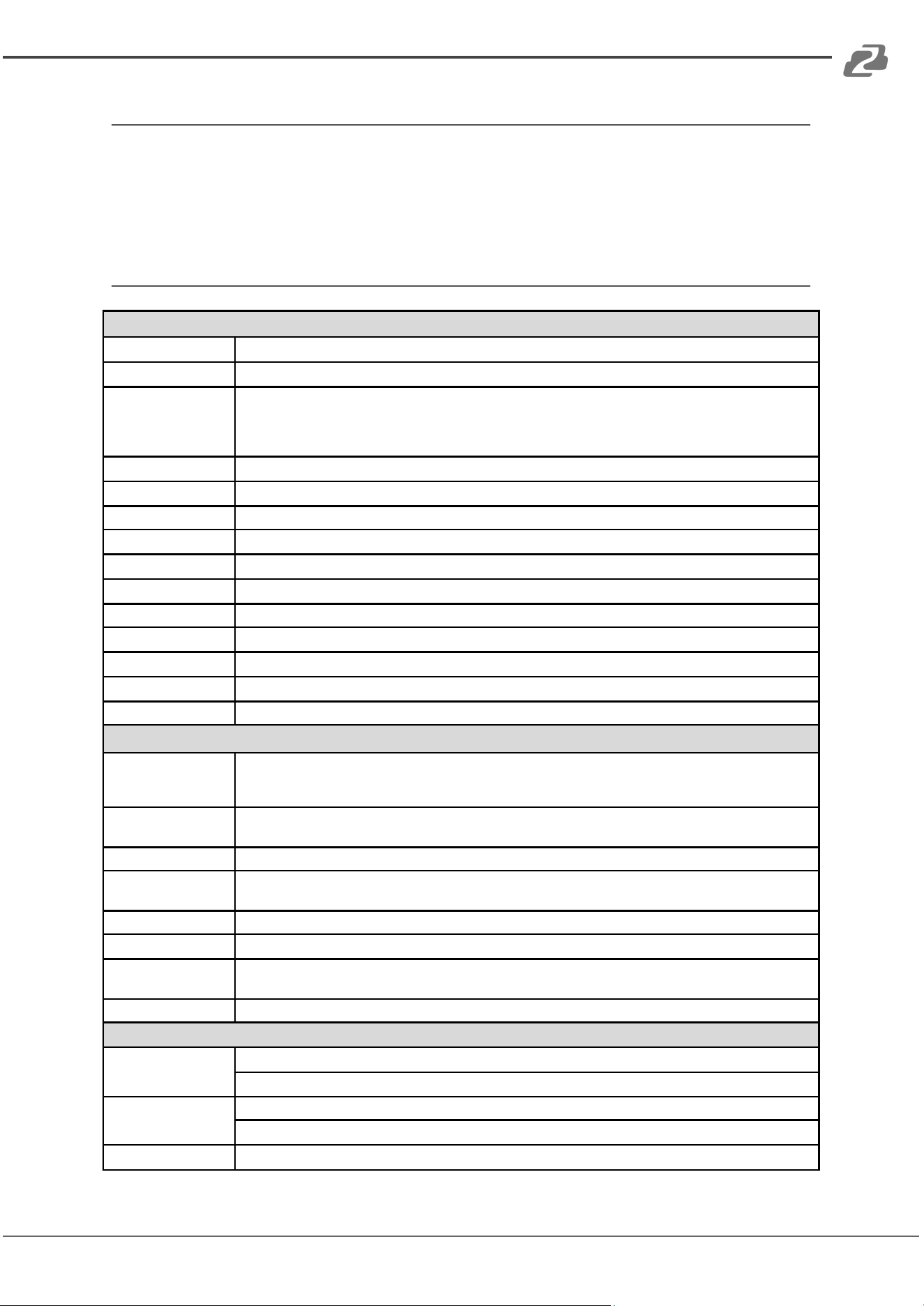
Specifications
Camera/Lens Parameters
Image Sensor
1/2.8" High Quality 4K CMOS Sensor
Effective pixels
8.28 Megapixel, 16:9
Video Format
SDI output: 1080p@30Hz/25Hz; 720p@60Hz/50Hz/30Hz/25Hz;
U3 output: 1920x1080p@30Hz /25Hz; 1280x720p@60Hz /50Hz /30Hz /25Hz; 960x540p@30Hz;
800x600p@30Hz; 640x360p@30Hz; 640x480p@30Hz; 352x288p@30Hz;
USB3.0 can be compatible with USB 2.0 output
View Angle
57.2° (D) /47° (H) /36° (V)
Focus
f=7.23mm
Aperture
F2.4+ 5%
Digital Zoom
3X
Minimum Illumination
0.5Lux (F1.8, AGC ON)
DNR
2D & 3D DNR
White Balance
Auto / Manual/ One Push/ Specified color temperature (2400K-7100K, step length is 100)
Focus
Manual
Exposure
Fixed
BLC
ON/ OFF
DNR
>50dB
Input/Output Interface
Video Interfaces
1xSDI / HDMI interface
1xUSB interface
1xLAN interface: 10M/100M adaptive Ethernet port (support POE)
Video Compression
Format
H.264, H.265, MJPEG, YUY2, NV12
Audio Input Interface
Double track 3.5mm linear Input
Audio Compression
Format
AAC, MP3, G.711A
Network protocol
RTSP, RTMP, ONVIF, GB/T28181
Control Interface
RS232, RS485, LAN
Communication
Protocol
VISCA, Pelco-D, Pelco-P, support baud rate 115200/38400/9600/4800/2400; Support VISCA Control
Protocols
Power Interface
HEC3800 power socket (DC12V)
Other Parameters
Input Voltage
Power Adapter: 12V
POE Supply: 48V
Input Current
Power Adapter: 0.42A (max)
POE Supply: 0.104A (max)
Power Consumption
5W (max)
Address: 830 National Drive #140, Sacramento, CA 95834, USA · Tel: +1(888)499-9906 · Email: support@bzbgear.com 6
BZBGEAR BG-MAESTRO PRODUCT MANUAL
Other Parameters
Stored Temperature
-10°C ~ +60°C
Stored Humidity
20% ~ 95%
Working Temperature
-10°C ~ +50°C
Working Humidity
20% ~ 80%
Dimension (W x H x D)
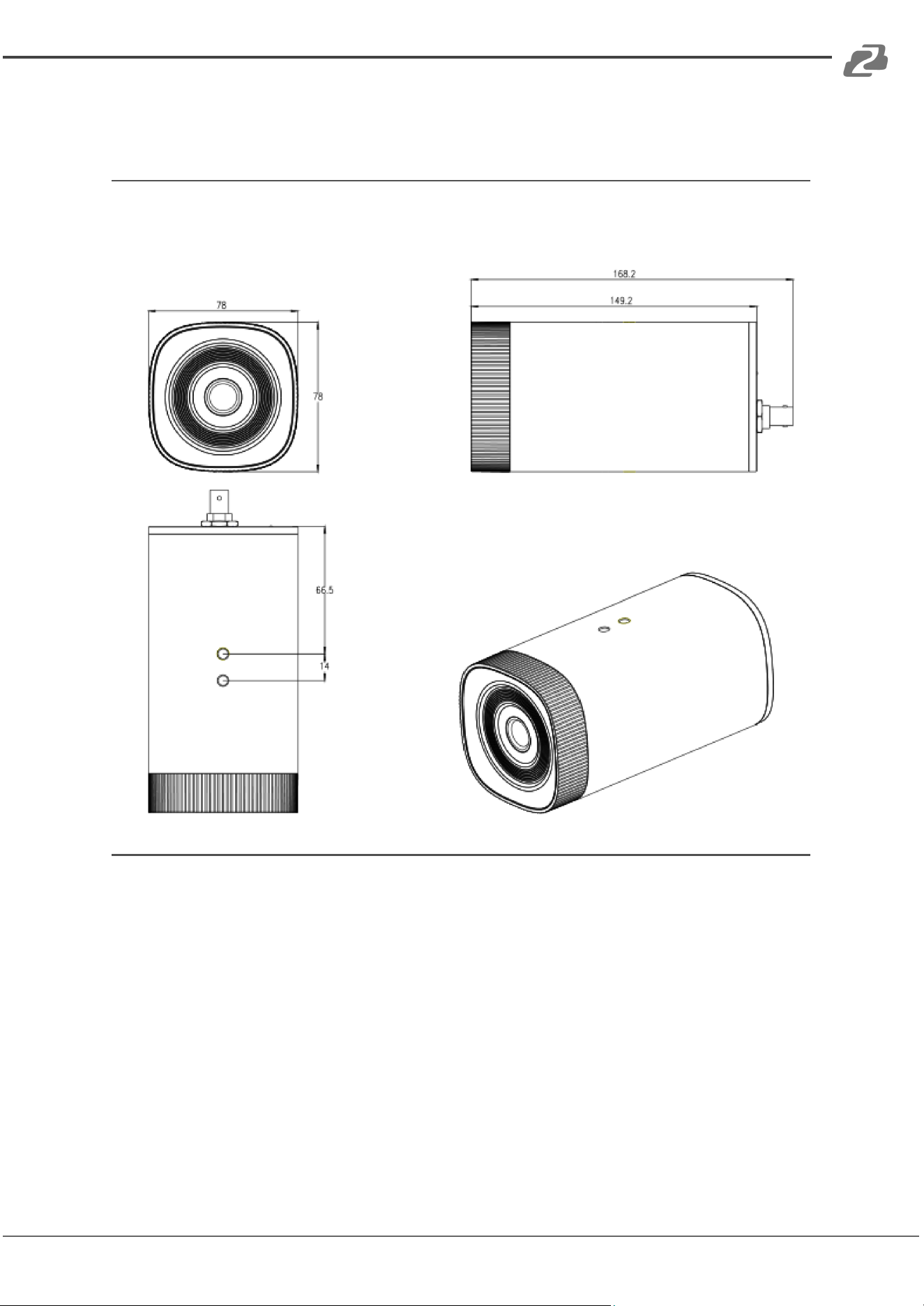
5.9 x 3.1 x 3.1in [149.2 x 78 x 78mm]
Weight
Approx. 1.17 lbs [0.53kg]
Application
Indoor
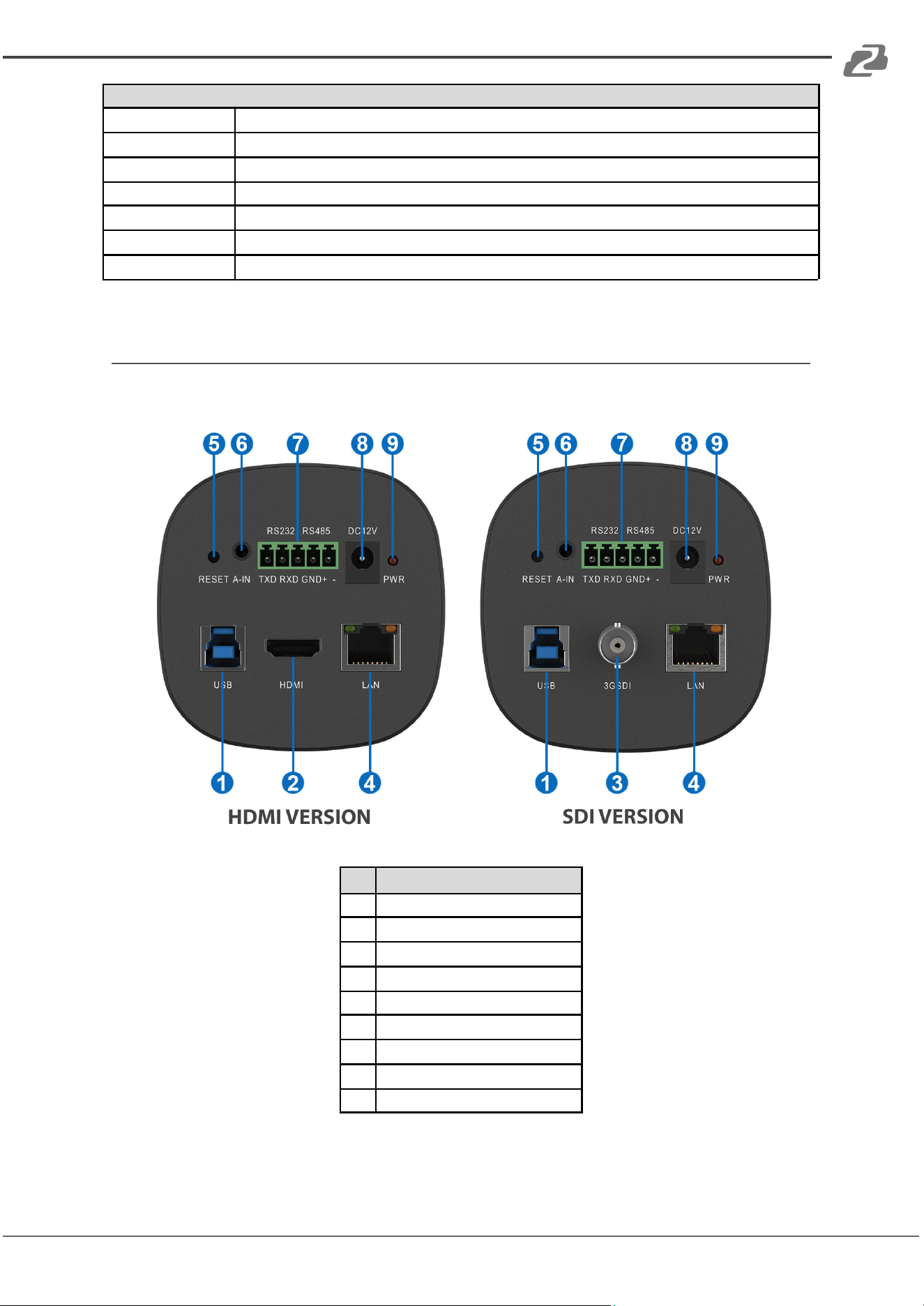
Interface
No.
Name
1
USB3.0 Interface
2
HDMI Interface
3
SDI Interface
4
LAN Interface
5
Reset button
6
A-IN
7
RS232/ RS485
8
Power Interface
9
Power Indicator
Address: 830 National Drive #140, Sacramento, CA 95834, USA · Tel: +1(888)499-9906 · Email: support@bzbgear.com 7
BZBGEAR BG-MAESTRO PRODUCT MANUAL
Dimensions
Address: 830 National Drive #140, Sacramento, CA 95834, USA · Tel: +1(888)499-9906 · Email: support@bzbgear.com 8
BZBGEAR BG-MAESTRO PRODUCT MANUAL
Web Interface Login and Tracking Settings
Network Connection
Connection Modes
Direct connection: Connect the camera directly to the computer using an ethernet cable.
Internet connection mode: Connect the camera and computer to a router or switch and
access via the local area network (LAN).
Note: Ensure power and network connections are secured to prevent video issues caused
by poor connection quality.
The computer must be on the same subnet as the camera to connect successfully. The
device will not be accessible otherwise. The camera default IP address is 192.168.5.163,
therefore the computer must be connected to the 192.168.5.x subnet.
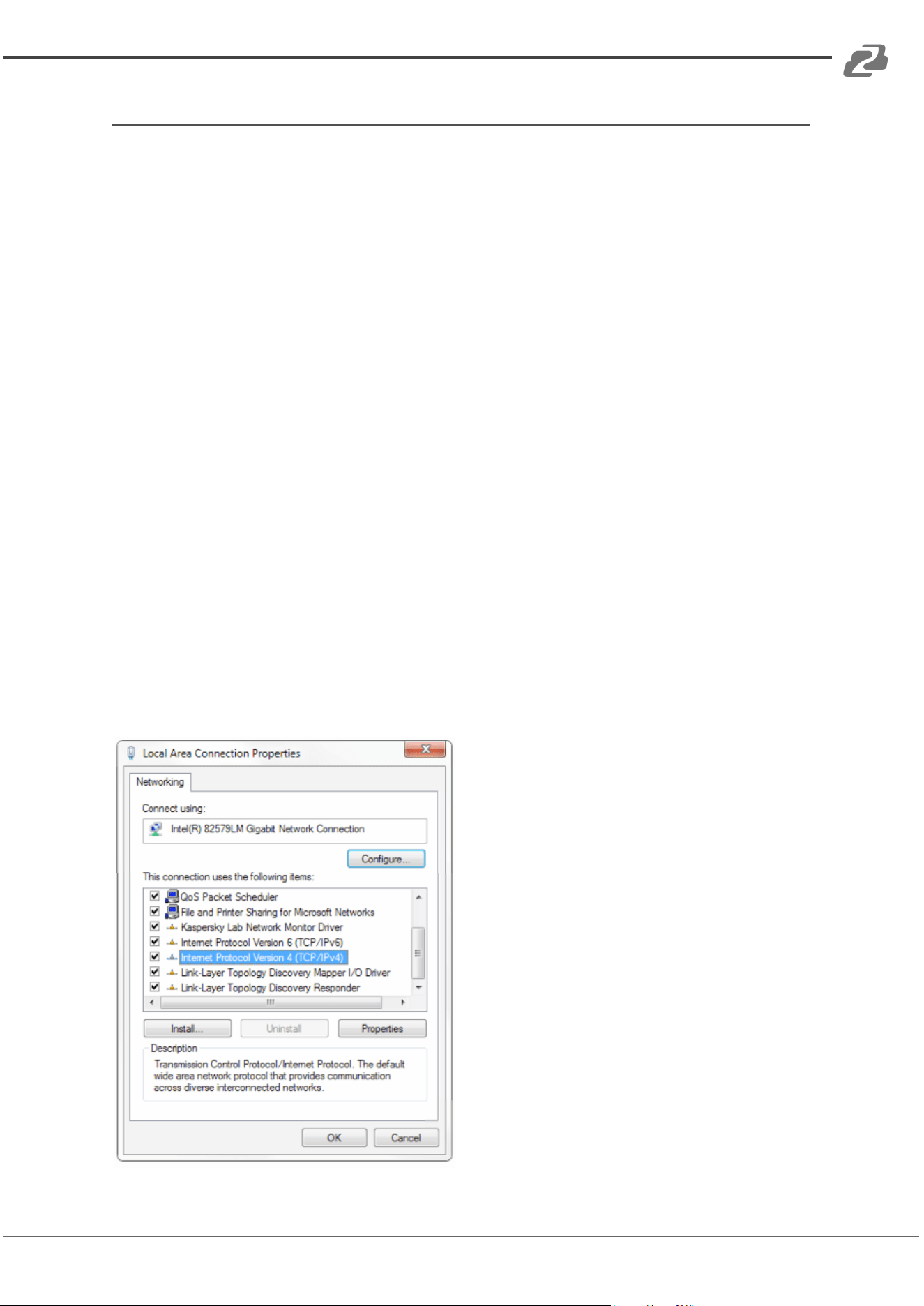
To connect to the camera, open the Local Area Connection Properties on the computer.
For Windows users right-click on the internet connection in the lower right corner of the
desktop.
Select “Open Network & Internet Settings”.
Select “Change Adapter Options”.
Right-click on your connection (Wi-Fi or Ethernet) and select “Properties”.
Select “Internet Protocol Version 4 (TCP/IPv4) as shown below and click “Properties”.
Address: 830 National Drive #140, Sacramento, CA 95834, USA · Tel: +1(888)499-9906 · Email: support@bzbgear.com 9
BZBGEAR BG-MAESTRO PRODUCT MANUAL
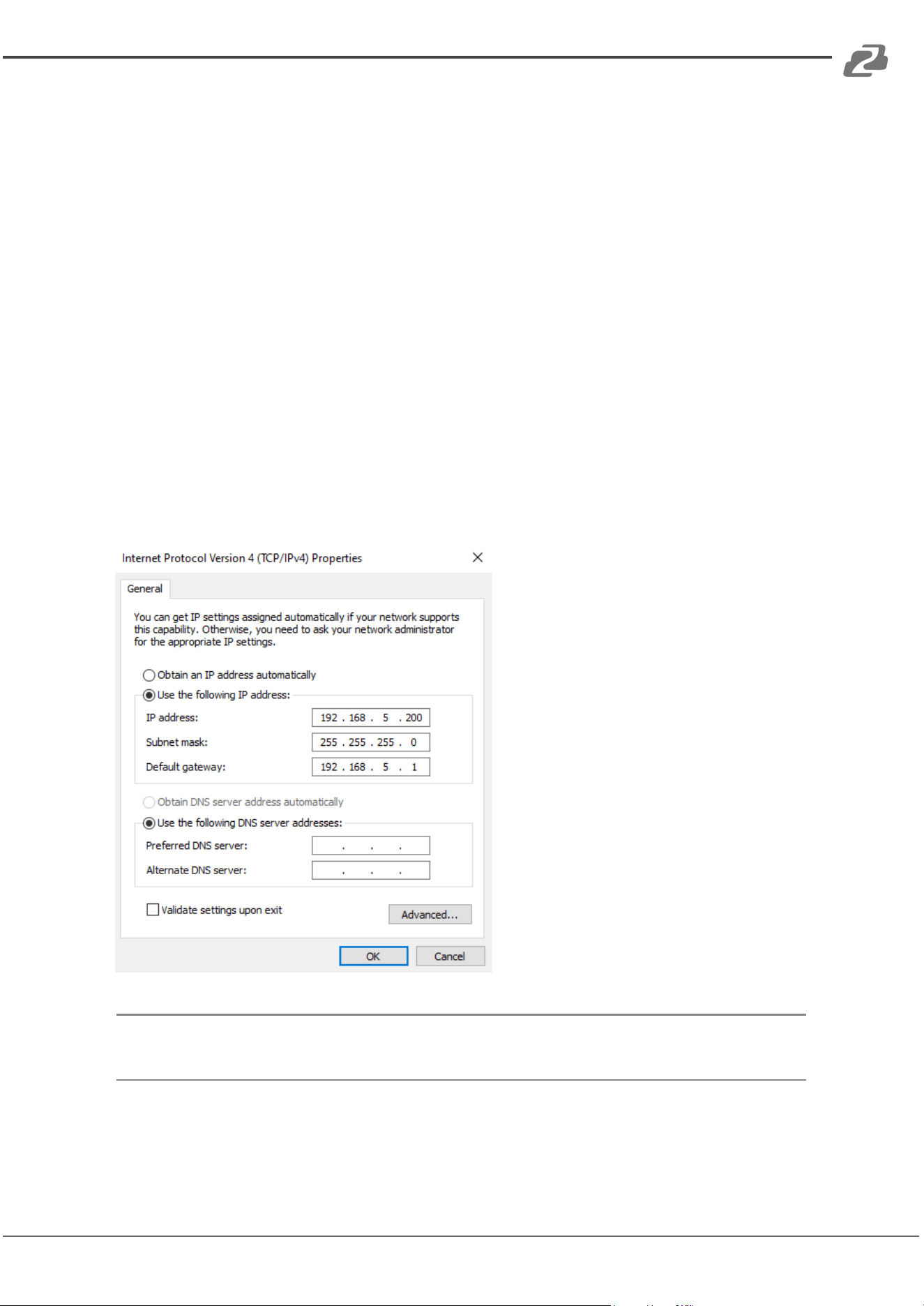
For the following steps refer to the diagram below.
Click on the bubble for “Use the following IP address”
In the IP address field enter a non-conflicting IP address on the same subnet as the
camera. If there is another device with the same IP address you will not be able to connect.
In the example below we are using 192.168.5.200
In the Subnet mask field enter 255.255.255.0
In the Default gateway field type 192.168.5.1
You can leave the DNS fields blank.
Click OK to apply your settings.
NOTE: When you are finished configuring the camera you will need to return to this screen
and click the bubbles for “Obtain an IP address automatically” and “Obtain DNS server
automatically” to restore internet connectivity to your computer. Also make sure to
reconnect any ethernet cables you may have unplugged.
CAUTION: The IP address to be added cannot be the same as other computers or devices
on the network.
Address: 830 National Drive #140, Sacramento, CA 95834, USA · Tel: +1(888)499-9906 · Email: support@bzbgear.com 10
BZBGEAR BG-MAESTRO PRODUCT MANUAL
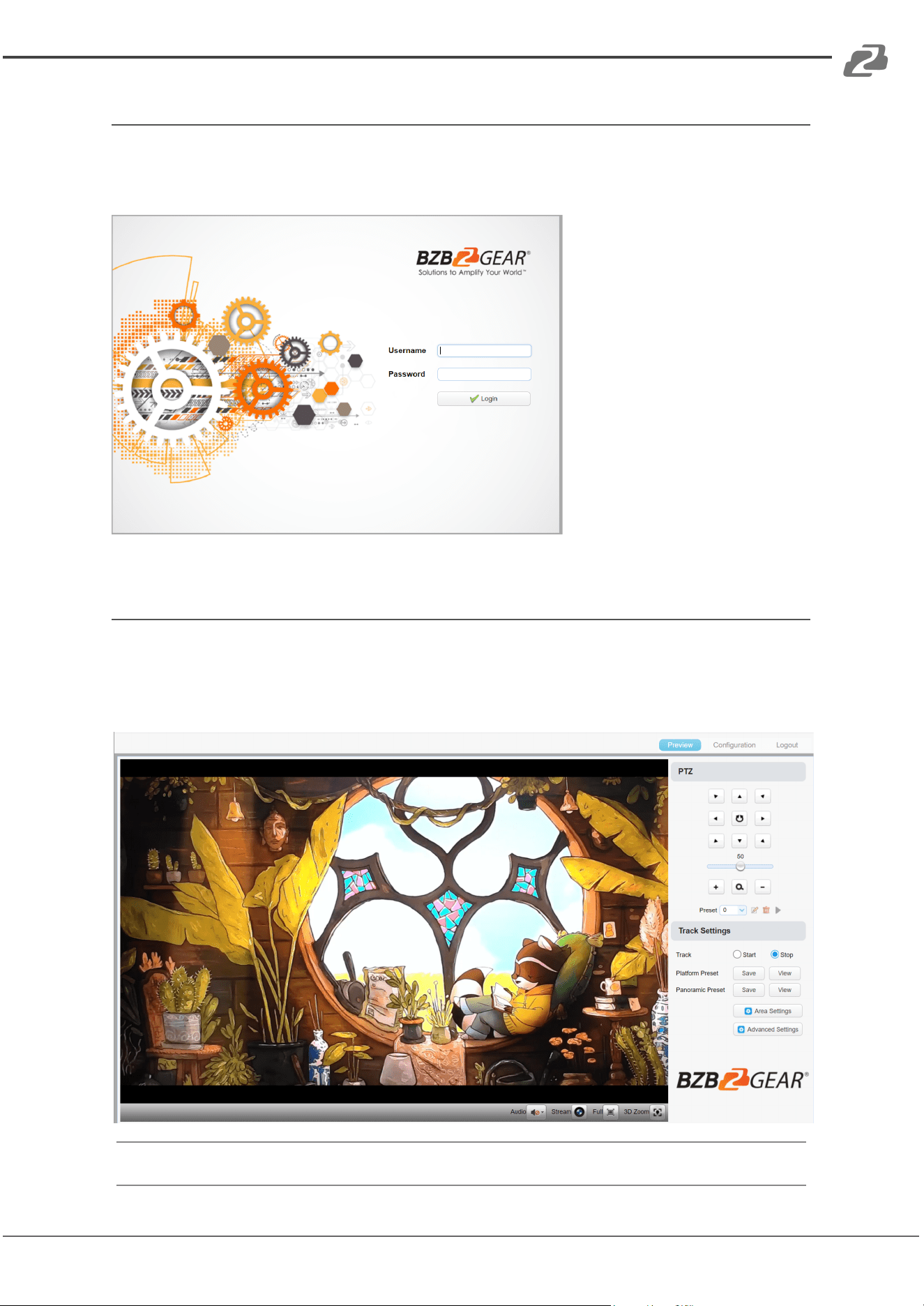
Web Client Login
Input the IP address of the device (192.168.5.163) in the address field of your web browser
and press the enter key to enter the Web Client login page.
Users can login as an
administrator and normal user.
To login as an administrator
the default
Username/Password: admin.
Admin users can preview,
playback, and configure
settings in the Web Client.
To login as a normal user
default
Username/Password: user1
or user2). Users can only
preview, playback, and logout,
they cannot configure the
camera settings.
Web Interface Preview Tab
In the Preview interface, users can utilize the PTZ, zoom, and focus controls as well as
preview embedded audio, the various available streams, 3D localization, and manage
preset positions. Administrators can also set up tracking configurations and turn tracking
on/off.
Note: Normal users cannot configure settings.
Address: 830 National Drive #140, Sacramento, CA 95834, USA · Tel: +1(888)499-9906 · Email: support@bzbgear.com 11
BZBGEAR BG-MAESTRO PRODUCT MANUAL
Web Interface Configuration Tab
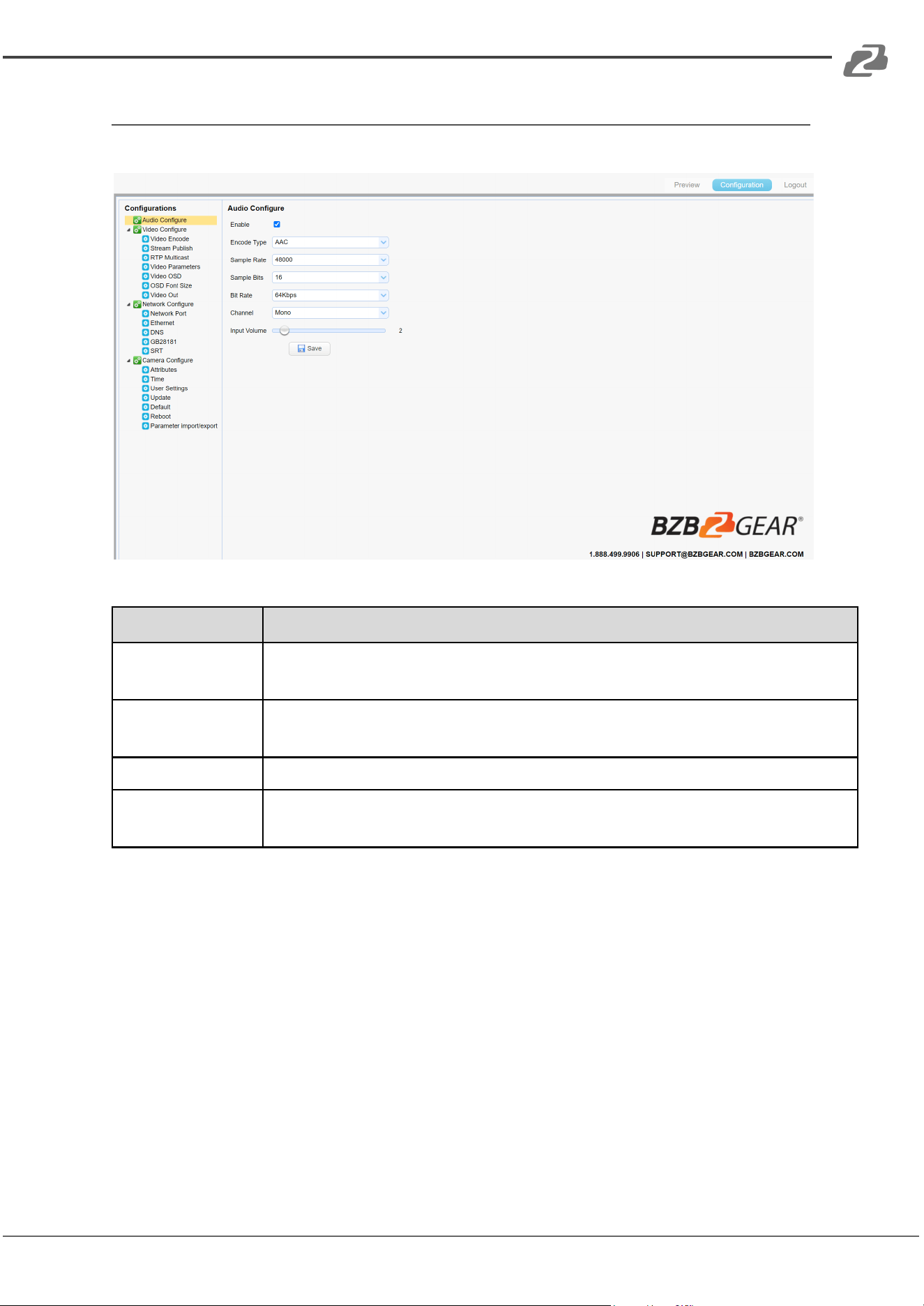
Click “Configuration” in the top left to enter into the device setting page.
Menu
Description
Audio Configure
Enable/Disable audio switch, compression format, sample rate, sampling
precision, bit rate, channel (mono/stereo), and input volume.
Video Configure
Video encode, stream publish, RTP multicast ,video parameters, video OSD,
OSD font size, output resolution.
Network Configure
Port, Ethernet, DNS, GB28181, SRT settings.
Camera Configure
System attributes, time, user management, update, factory reset, reboot, and
import/export configuration.
Address: 830 National Drive #140, Sacramento, CA 95834, USA · Tel: +1(888)499-9906 · Email: support@bzbgear.com 12
BZBGEAR BG-MAESTRO PRODUCT MANUAL
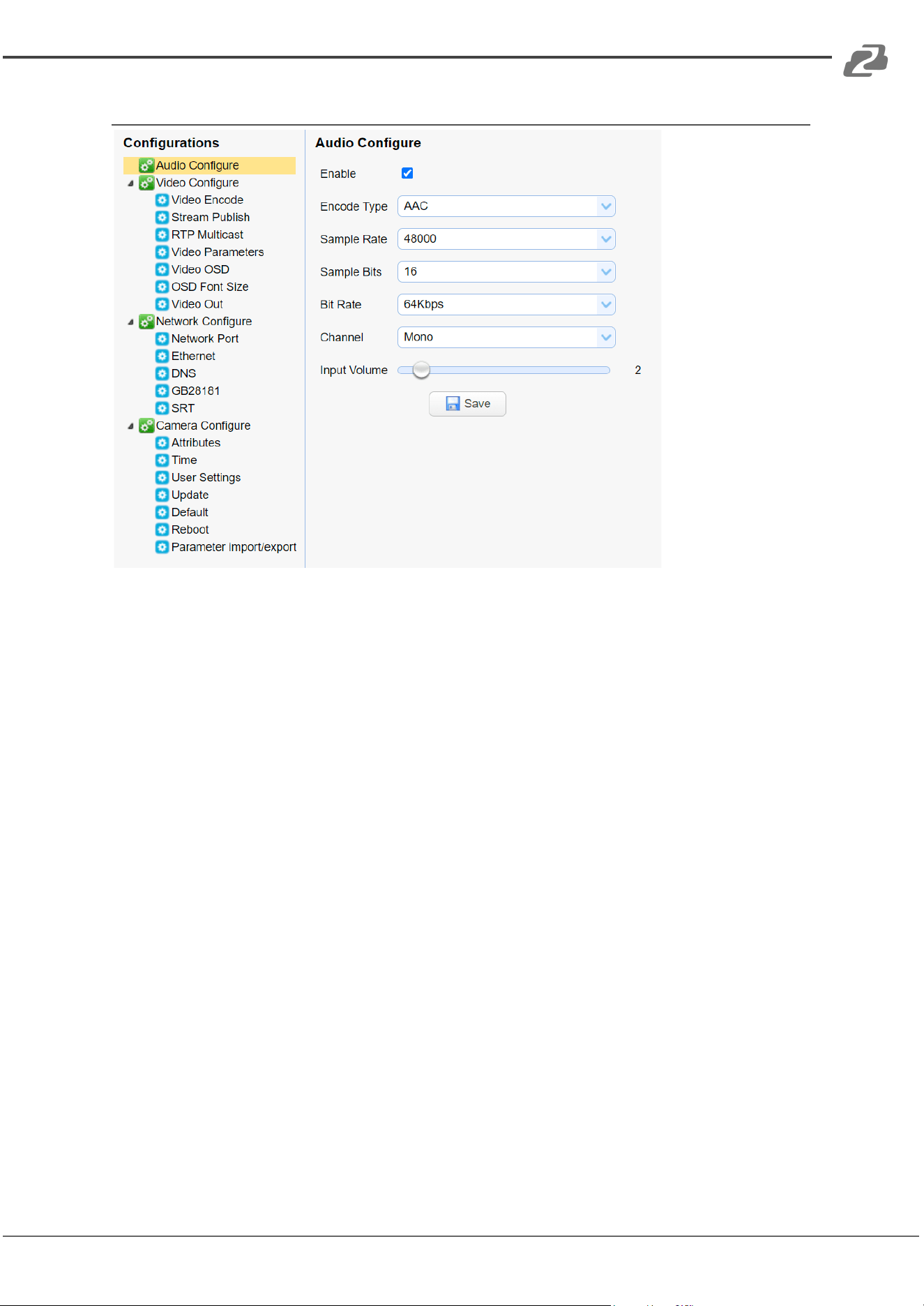
Audio Configure
Enable: Choose to enable/disable embedded audio (default: off).
Encode Type: Set audio compression format and the device will reboot automatically after
a change (AAC, MP3, G.711A)
Sampling Rate: Set the sampling frequency and the device will reboot automatically after a
change (16000, 32000, 44100, 48000)
Sampling Bits: Set sampling precision (16 bits)
Channel: Set audio compressing code rate (default 64bits, 32, 48, 96, 128bits optional)
Channel Type: Set audio channel type (default mono, stereo optional)
Input Volume: Set the input volume (default 2, 1-10 optional)
Address: 830 National Drive #140, Sacramento, CA 95834, USA · Tel: +1(888)499-9906 · Email: support@bzbgear.com 13
BZBGEAR BG-MAESTRO PRODUCT MANUAL
Video Configure
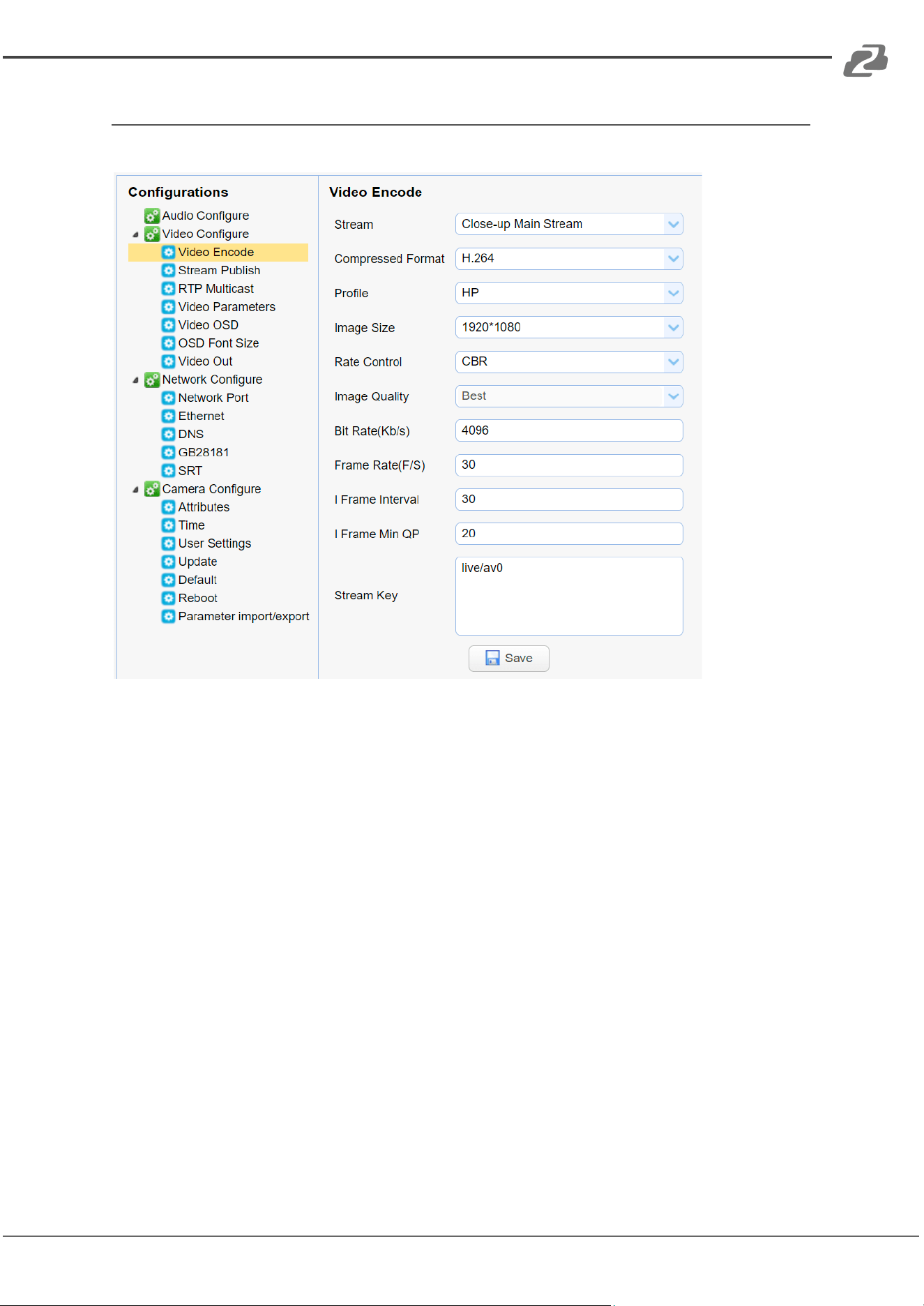
1. Video Encoding
Stream: Set different video output mode settings when running different streams. (close-up
main stream, close-up sub-stream, panoramic main stream, panoramic sub-stream, and
Inter PGM stream)
Compression Format: Set the video compression format, save and reboot to take effect
(main / secondary stream default: H.264, H.265 optional)
Profile: Set Profile mode (default HP, BP, MP optional)
Video Size: Set video image resolution, save and reboot to take it effect (close-up main
stream default 1920*1080, 1280*720, 640*480; close-up sub-stream default 320*180,
320*240,640*360, 640*480, 1280*720; panoramic main stream default 1920*1080,
1280*720, 640*480; panoramic sub-stream default 320*180, 320*240, 640*360, 640*480,
1280*720; Inter PGM stream default 1920*1080, 1280*720, 640*480)
Rate Control: Set rate control mode (default CBR [controlled bit rate], VBR [variable bit rate]
save and reboot to take effect.
Image Quality: Set the image quality which can be changed only when the rate control is
set to VBR (main stream is defaulted to best, secondary stream is default to better (options
are best, better, good, bad, worse, worst).
Bit Rate(Kb/s): Set the video bit rate (close-up main stream default 4096Kb/s; close-up
sub-stream default 512Kb/s; panoramic main stream default 4096Kb/s; panoramic
sub-stream default 512Kb/s; and broadcast code stream default 4096Kb/s, (64-40960Kb/s
optional).
Address: 830 National Drive #140, Sacramento, CA 95834, USA · Tel: +1(888)499-9906 · Email: support@bzbgear.com 14
BZBGEAR BG-MAESTRO PRODUCT MANUAL
Frame Rate (F/S): Set the video frame rate (close-up main stream, close-up sub-stream,
panoramic main stream, panoramic sub-stream, and broadcast code stream default 30F/S,
main stream 5-30F/S optional).
I Frame Interval: Set the key frame interval (close-up main stream, close-up sub-stream,
panoramic main stream, panoramic sub-stream, and broadcast code stream default 30,
main stream 1-150F optional).
I Frame Minimum QP: Set the key frame minimum QP (default 20, 10-51 optional).
Stream Name: When streaming via RTSP or RTMP, users can modify the stream name
(close-up main stream(default live/av0), close-up sub-stream(default live/av1), panoramic
main stream(default live/av2), panoramic sub-stream(default live/av3), and broadcast code
stream(default live/av4).
(Covered by one or more claims of the HEVC patents listed at patentlist.accessadvance.com)
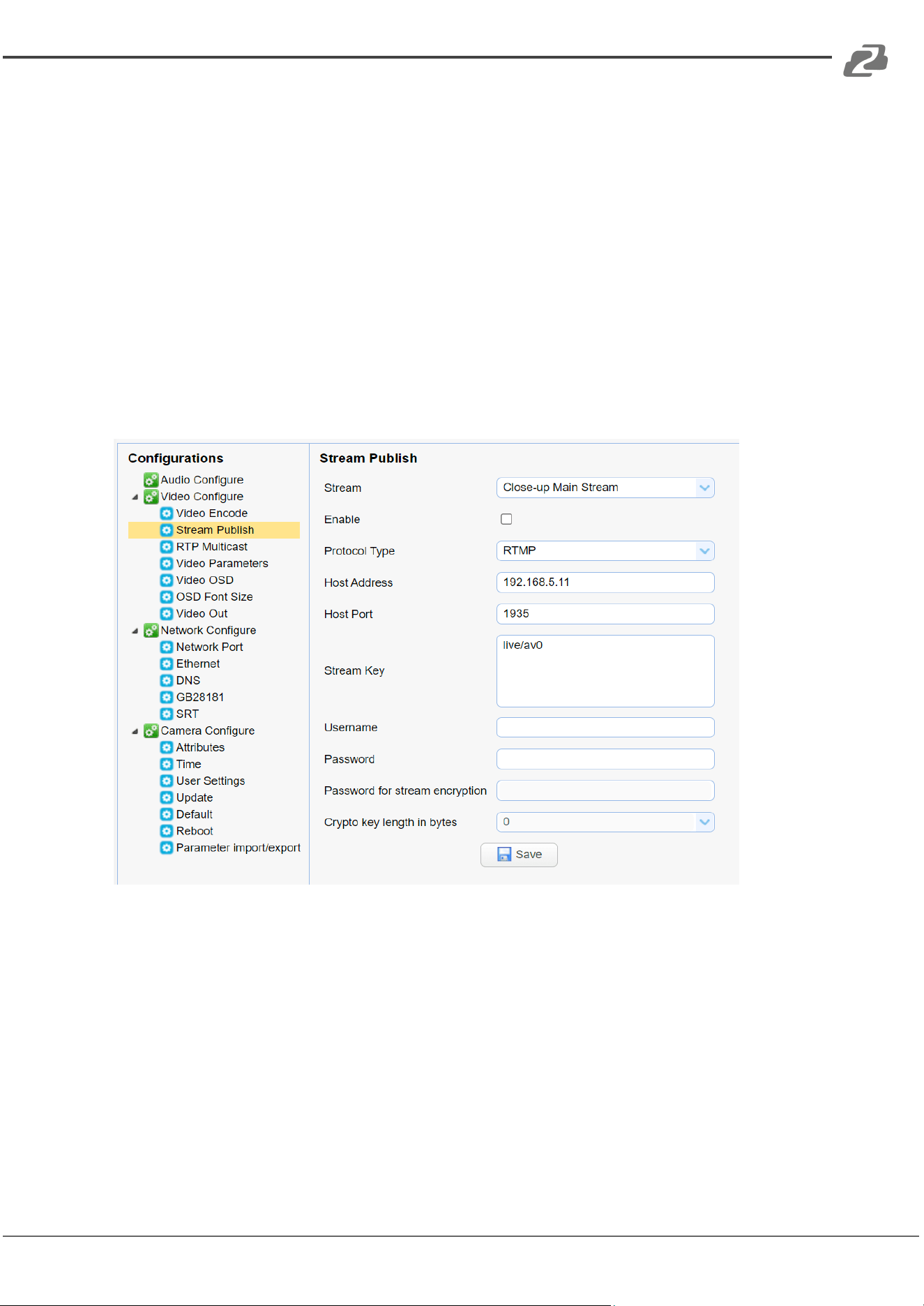
2. Stream Publish
Stream: You can set close-up main stream, close-up sub-stream, panoramic main stream,
panoramic sub-stream, and broadcasting stream
Enable: Turn on/off stream publish
Protocol Type: Set protocol (default RTMP protocol, RTSP, SRT are optional)
Host Address: Server IP address (default 192.168.5.11)
Host Port: Server port number (default 1935, 0-65535 optional)
Stream Name: Choose a different stream name (live/av0, live/av1, live/av2, live/av3,
live/av4 optional).
User: Set the user name.
Password: Set the password.
Password for stream encryption: Set SRT stream password.
Crypto key length in bytes: Set the length of the SRT stream password.
Address: 830 National Drive #140, Sacramento, CA 95834, USA · Tel: +1(888)499-9906 · Email: support@bzbgear.com 15
BZBGEAR BG-MAESTRO PRODUCT MANUAL
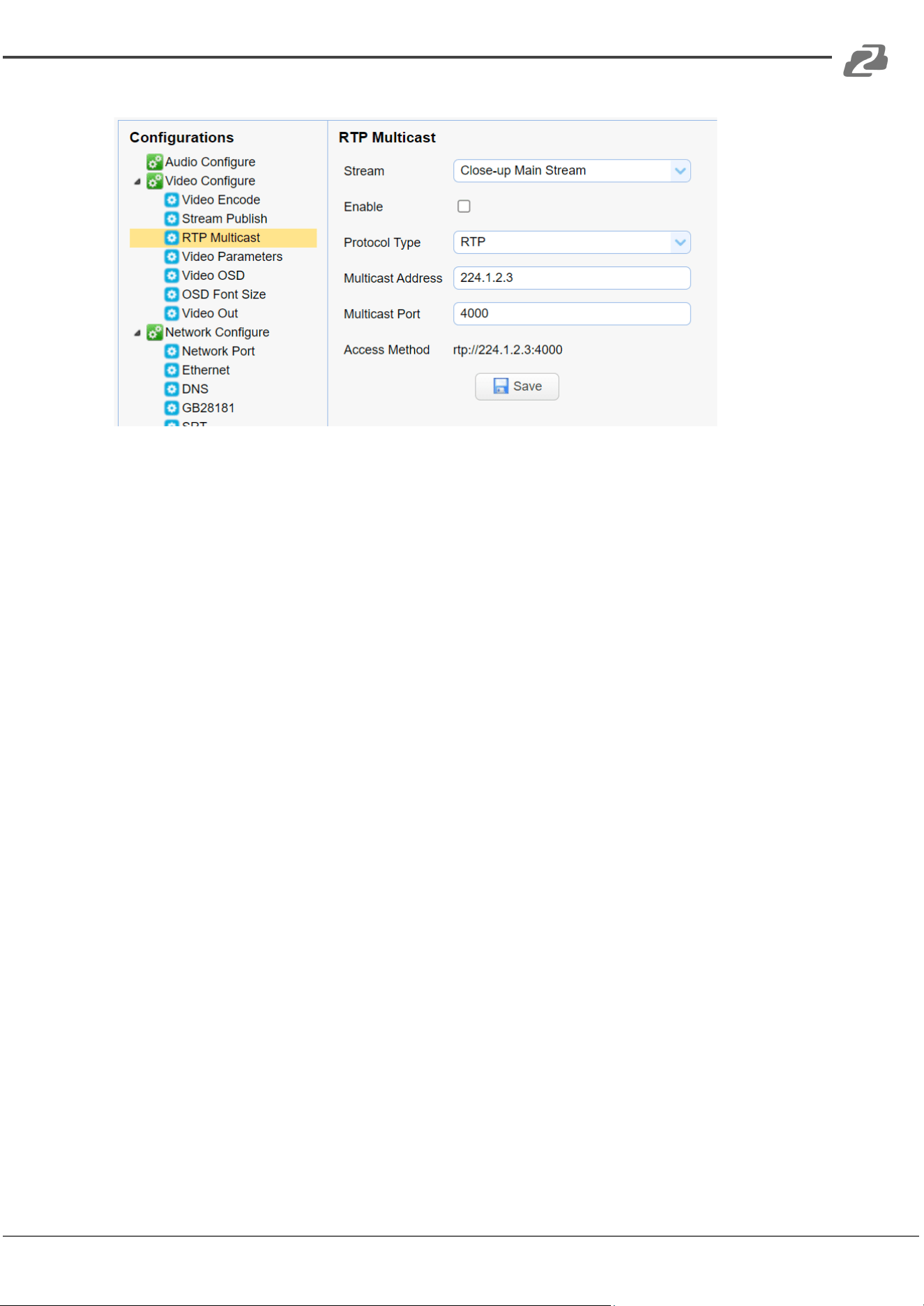
3. RTP Multicast
Stream: Set multicast or unicast on close-up main stream, close-up sub-stream, panoramic
main stream, panoramic sub-stream, and inter PGM stream.
Enable: Turn on/off multicast (enabled) or unicast (disabled).
Protocol Type: Set multicast protocol (default RTP multicast, TS multicast optional)
Multicast Address: Default 224.1.2.3. The IP address can be edited.
Multicast Port: Main Stream Default Port: close-up main stream default 4000,close-up
sub-stream default 4002,panoramic main stream default 4004,panoramic sub-stream
default 4006,inter PGM stream default 4008.
Access Method: Address changes depending on stream, multicast address, and multicast
port entered (i.e. rtp: //224.1.2.3:4000; udp: //@224.1.2.3:4000)
Address: 830 National Drive #140, Sacramento, CA 95834, USA · Tel: +1(888)499-9906 · Email: support@bzbgear.com 16
BZBGEAR BG-MAESTRO PRODUCT MANUAL
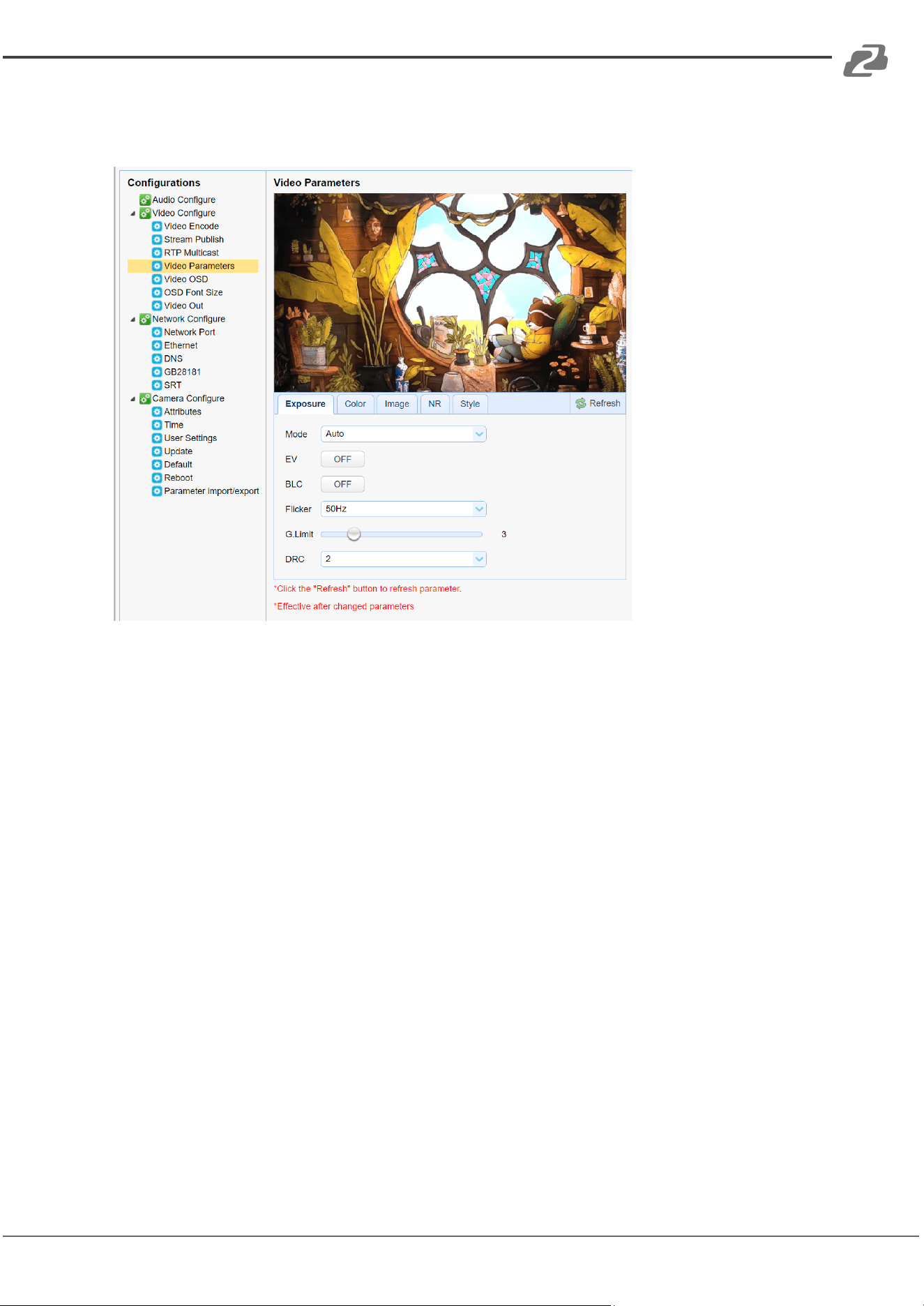
4. Video Parameters
a. Exposure: Exposure mode, EV, back light compensation, flicker, gain limit, DRC, shutter
speed, and brightness can be set depending on mode selected.
Exposure Mode: Set the exposure mode (the default is auto, manual, SAE, and bright
available).
EV: Set the exposure compensation value. Turn EV to ‘On’ when auto mode is active
(default 0, -7 to 7 optional).
BLC: Set back light compensation, usable auto mode is active (default is off).
Flicker: Set anti-flicker mode, usable when auto or bright modes are active (50Hz, closed,
60Hz).
Gain Limit: Set the gain limit, only valid when mode is set to auto or bright (default 4, 0-15).
DRC: Set the dynamic range (default off, 1-8 optional).
Shutter Speed: Active when the mode is set to manual or SAE (default 1/50, 1/25, 1/30,
1/50, 1/60, 1/90, 1/100, 1/120, 1/180, 1/250, 1/350, 1/500, 1/1000, 1/2000, 1/3000, 1/4000,
1/6000, 1/10000 available).
Bright: Set the brightness value when bright mode is active (default 11, 0-23 available).
Gain: Set the gain value, when manual or SAE modes are active (default 1, 0-20 optional)
Address: 830 National Drive #140, Sacramento, CA 95834, USA · Tel: +1(888)499-9906 · Email: support@bzbgear.com 17
BZBGEAR BG-MAESTRO PRODUCT MANUAL
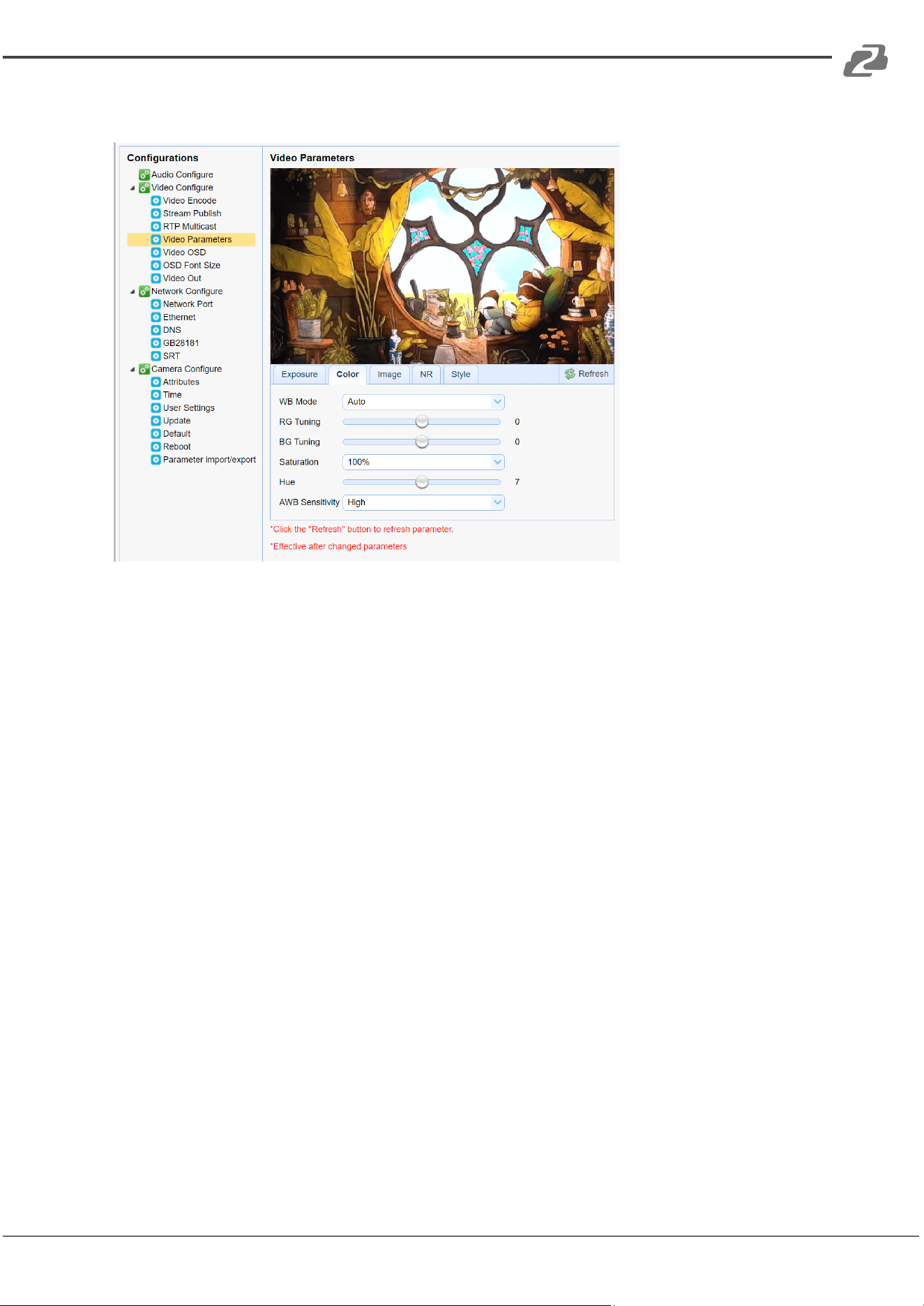
b. Color: White balance, saturation, color, white balance, sensitivity, color temperature, gain
red and blue gain can be set.
White Balance Modes: Set the white balance mode (the default automatic, 2400K-7100K,
manual, One-push optional).
RG Tuning: default 0, -10~10 (only available in automatic mode)
BG Tuning: default 2, -10~10 (only available in automatic mode)
Saturation: Set the saturation (default 36, 0-127 optional).
HUE: Set the chroma (default 4, 0-8 optional).
AWB Sensitivity: Set the white balance sensitivity (only available in automatic mode
high/medium/low)
RG: Sets the red gain in manual mode (default 36, 0-255 optional).
BG: Sets the Blue gain in manual mode (default 36, 0-255 optional).
NOTE: Click the “Adjust” button when in One-push white balance mode to correct the
image.
Address: 830 National Drive #140, Sacramento, CA 95834, USA · Tel: +1(888)499-9906 · Email: support@bzbgear.com 18
BZBGEAR BG-MAESTRO PRODUCT MANUAL
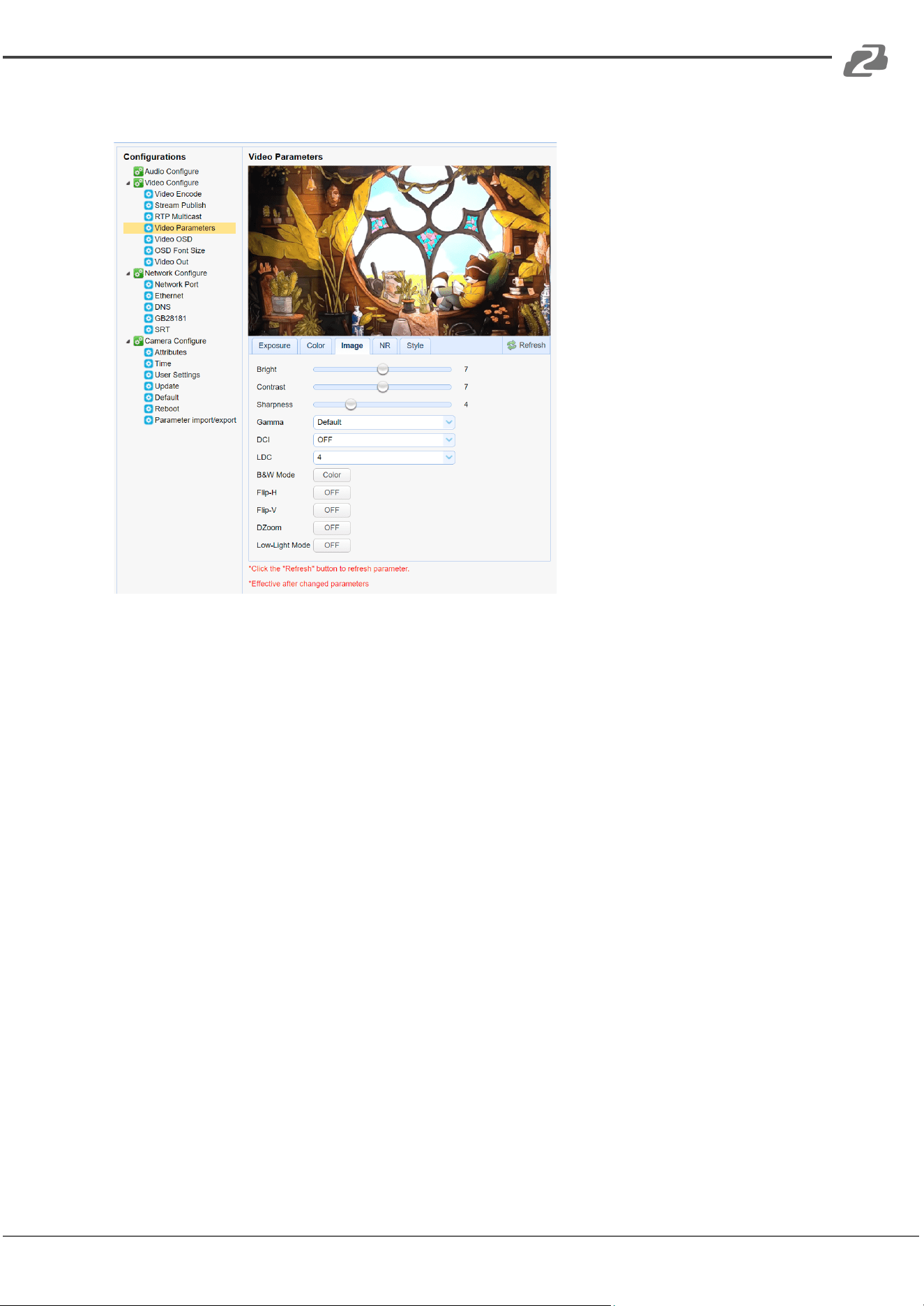
c. Image: Bright, contrast, sharpness, gamma, DCI, LDC, B&W mode, flip-h, flip-v, dzoom,
and low-light controls.
Bright: Set the image brightness (default 7, 0-14 optional).
Contrast: Set the contrast (default 7, 0-14 optional).
Sharpness: Set the sharpness value (default 4, 0-15 optional).
Gamma: Gamma value setting (default, 0.45, 0.50, 0.55, 0.63 optional).
DCI: Change dynamic contrast level (default off, off-8 optional)
LDC: Change the lens distortion correction level (default 4 , off-8 optional)
B&W Mode: Set black and white mode (default color, black/white optional).
Flip-H: Flip the image horizontally (default off).
Flip-V: Flip the image vertically (default off).
DZoom: default off
Low-Light Mode: default off
Address: 830 National Drive #140, Sacramento, CA 95834, USA · Tel: +1(888)499-9906 · Email: support@bzbgear.com 19
BZBGEAR BG-MAESTRO PRODUCT MANUAL
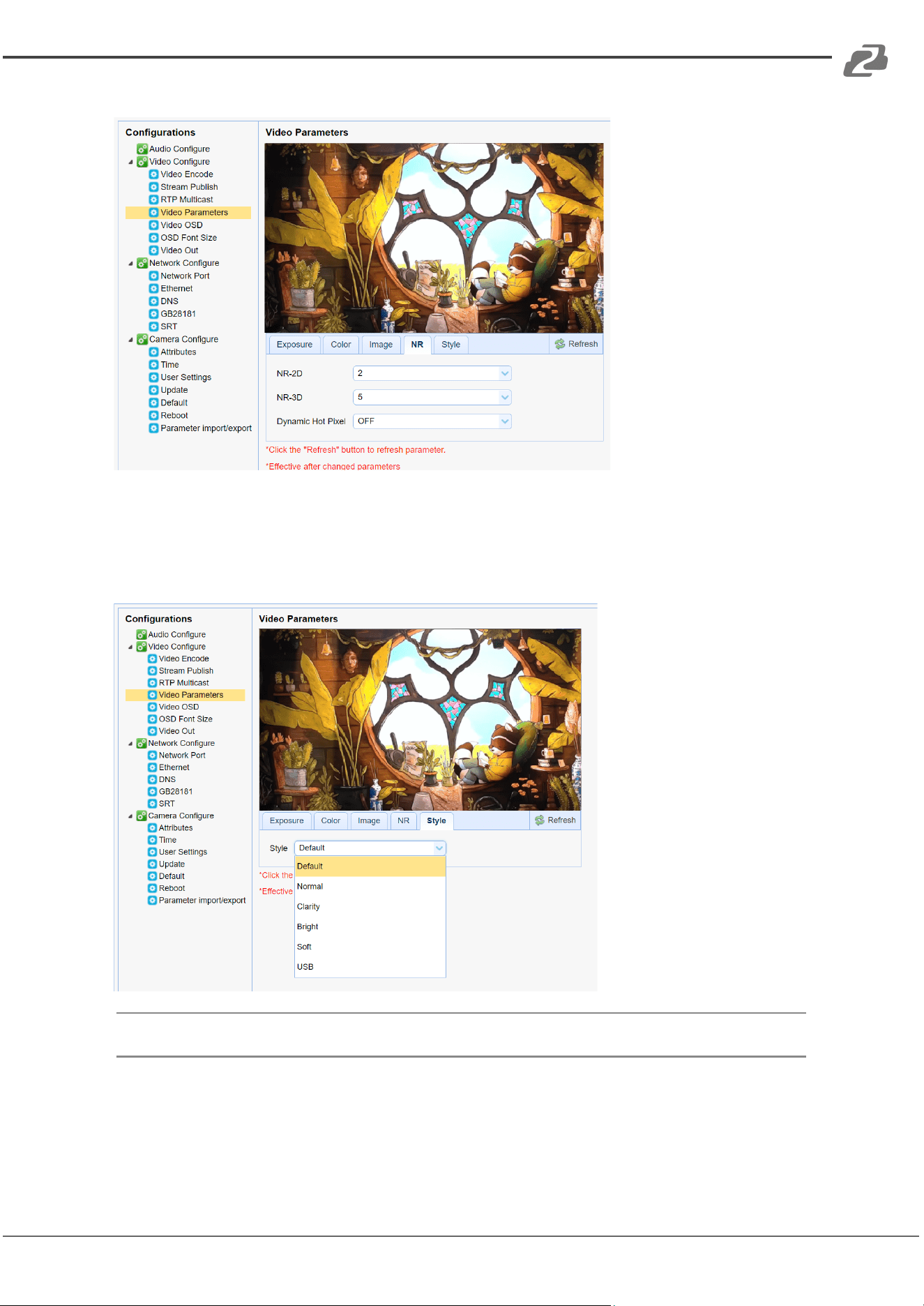
d. Noise Reduction: 2D noise reduction, 3D noise reduction
2D Noise Reduction: Set 2D noise reduction level (default 2, 1-7, off, auto).
3D Noise Reduction: Set 3D noise reduction level (default 5, 1-8, off).
Dynamic Hot Pixel: Assist in removing pixels that read too bright (default off 1-5 available)
e. Style: select the picture style default, standard, clear, bright, soft or USB.
Note: Click “Refresh” for any video parameters (a, b, c, d, e) to take effect.
Address: 830 National Drive #140, Sacramento, CA 95834, USA · Tel: +1(888)499-9906 · Email: support@bzbgear.com 20
BZBGEAR BG-MAESTRO PRODUCT MANUAL
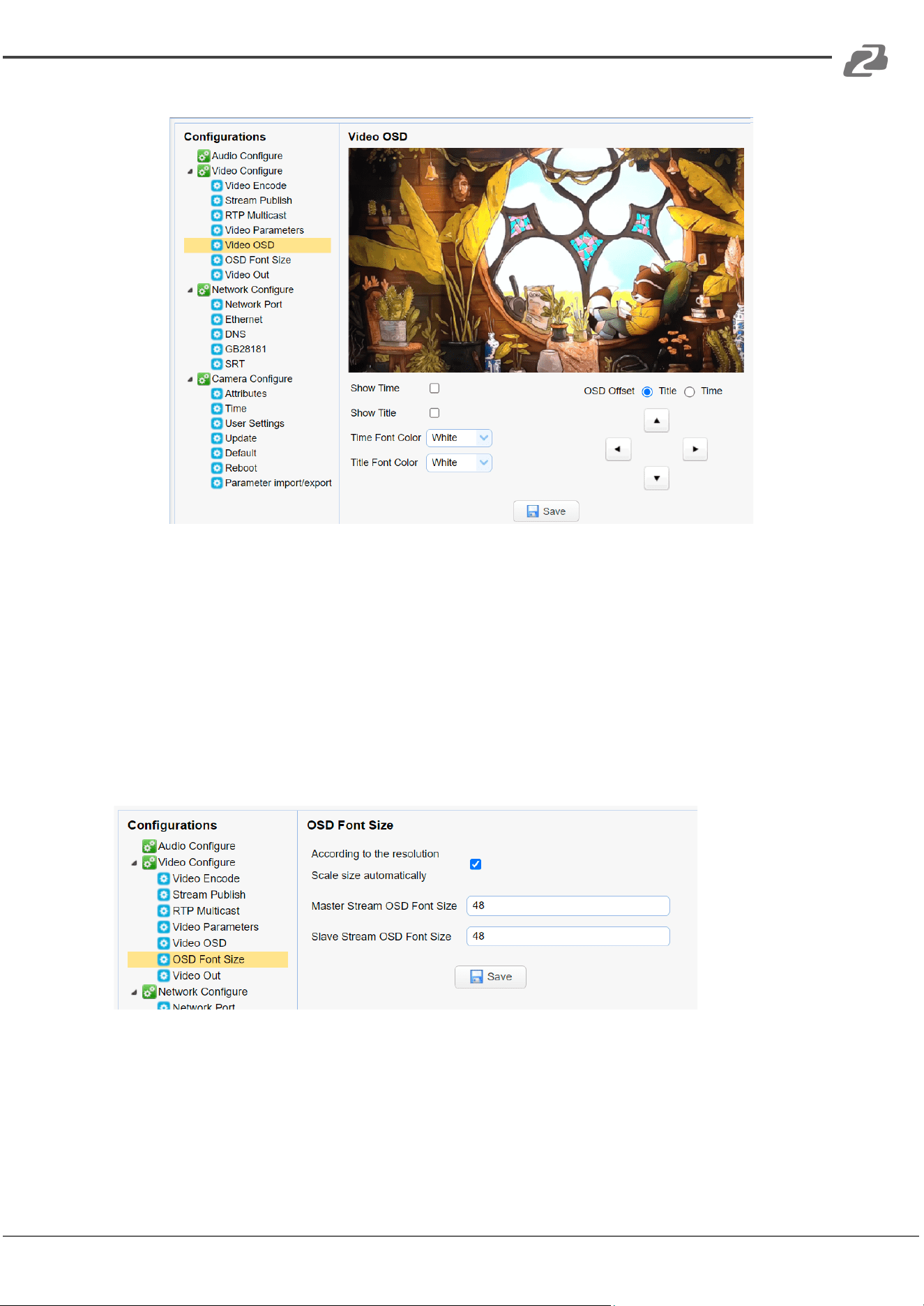
5. Video OSD
Show Time: Check to show the date and time on the image (set in Camera Configure -
Time).
Show Title: Check to show the device name on the image (set in Camera Configure -
Attributes).
Time Font Color: Set font color of time and date (white, black, yellow, red, and blue)
Title Font Color: Set font color of title (white, black, yellow, red, and blue).
OSD Offset and Arrow Keys. Set the display position of the date/time and title. Click on
the "up, down, left, right" buttons to move the selected OSD position.
(NOTE: Click on the "Save" button for settings to take effect.)
6. OSD Font Size
According to the resolution scale size automatically: check to enable text size scaling to
auto,
Main Stream Character Size: Set the character size of the display, the device will
automatically restart after changed and saved (default 48, 28-200 optional)
Secondary Stream Character Size: Set the character size of the display, the device will
restart automatically after changed and saved (default 48, 28-200 optional)
(NOTE: Click on the "Save" button for settings to take effect.)
Address: 830 National Drive #140, Sacramento, CA 95834, USA · Tel: +1(888)499-9906 · Email: support@bzbgear.com 21
BZBGEAR BG-MAESTRO PRODUCT MANUAL
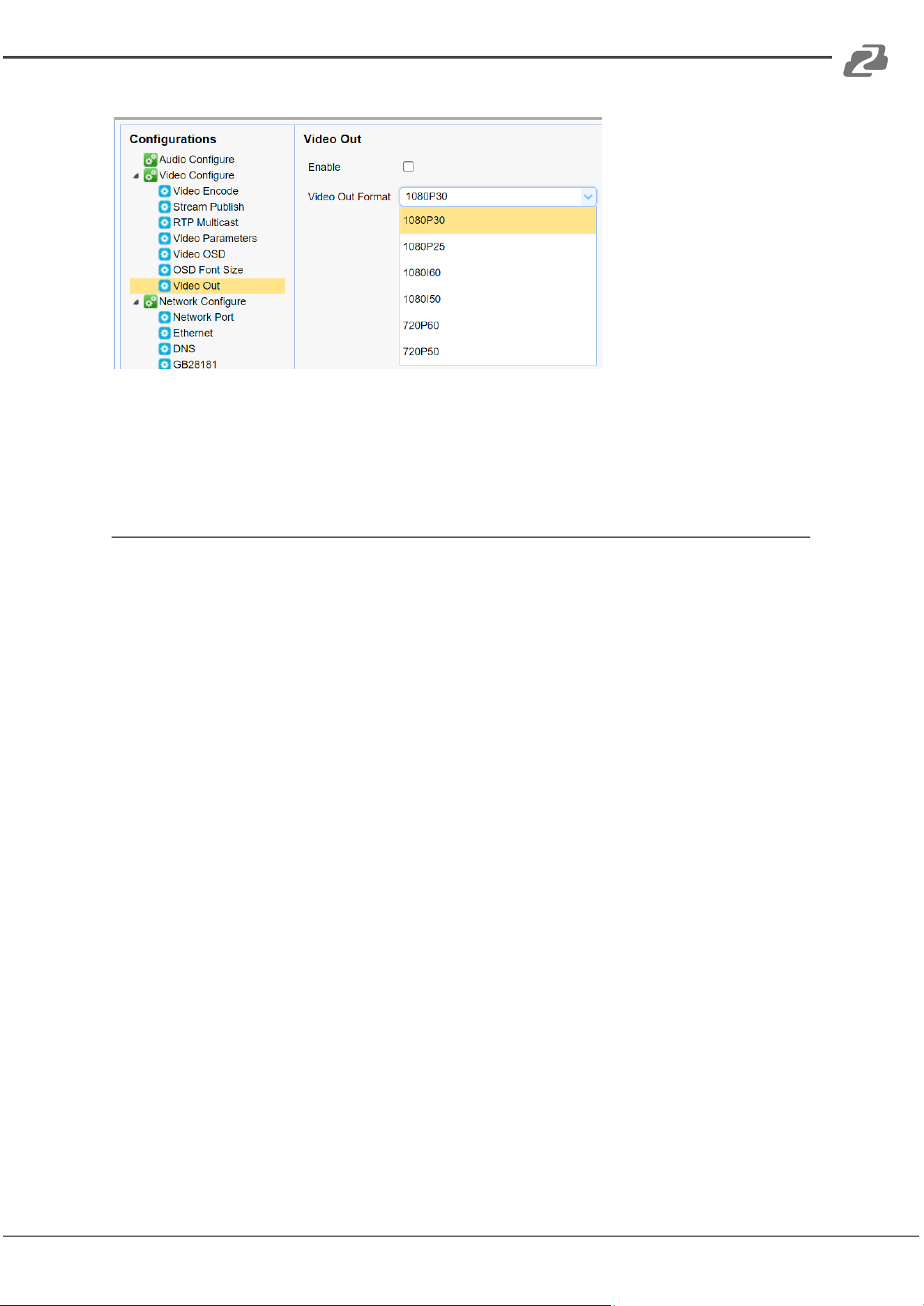
7. Video output
Enable: check to enable video output through the HDMI/SDI port. (OFF by default)
Output Format: 1080P30, 1080P25, 1080I60, 1080I50, 720P60, 720P50
(NOTE: Click on the "Save" button for settings to take effect.)
Network Configure
1. Network Port
Port Data : Set the data port, the device will restart automatically after changed (default
3000, 0-65535 optional)
Port Web: Set the Web port, the device will restart automatically after changed (default is
80, 0-65535 is optional)
Port Onvif: Set the Onvif port, the device will restart automatically after changed (default
2000, 0-65535 optional)
Port Soap: Set the Soap port (default 1936, 0-65535 optional)
Port RTMP: Set the RTMP port (default 1935, 0-65535 optional)
Port RTSP: Set the RTSP port, the device will restart automatically after changing (default
554, 0-65535 optional).
Port Visca: Set the Visca port, the device will restart automatically after changing (default
1259,0-65535 optional).
Port WebSocket: Set the WebSocket port, change and save it and restart the device to
take effect (default 8088, 0-65535 optional)
(NOTE: Click on the "Save" button for settings to take effect.)
RTSP Obtaining method: rtsp: // device IP address: 554 / live / av0 (av0 close-up main
stream, av1 close-up sub-stream, av2 panoramic main stream, av3 panoramic sub-stream,
av4 broadcast code stream.)
RTMP Obtaining method: rtmp: // device IP address:1935/live/ av0 (av0 close-up main
stream, av1 close-up sub-stream, av2 panoramic main stream, av3 panoramic sub-stream,
av4 broadcast code stream.)
Address: 830 National Drive #140, Sacramento, CA 95834, USA · Tel: +1(888)499-9906 · Email: support@bzbgear.com 22
BZBGEAR BG-MAESTRO PRODUCT MANUAL
2. Ethernet Parameters
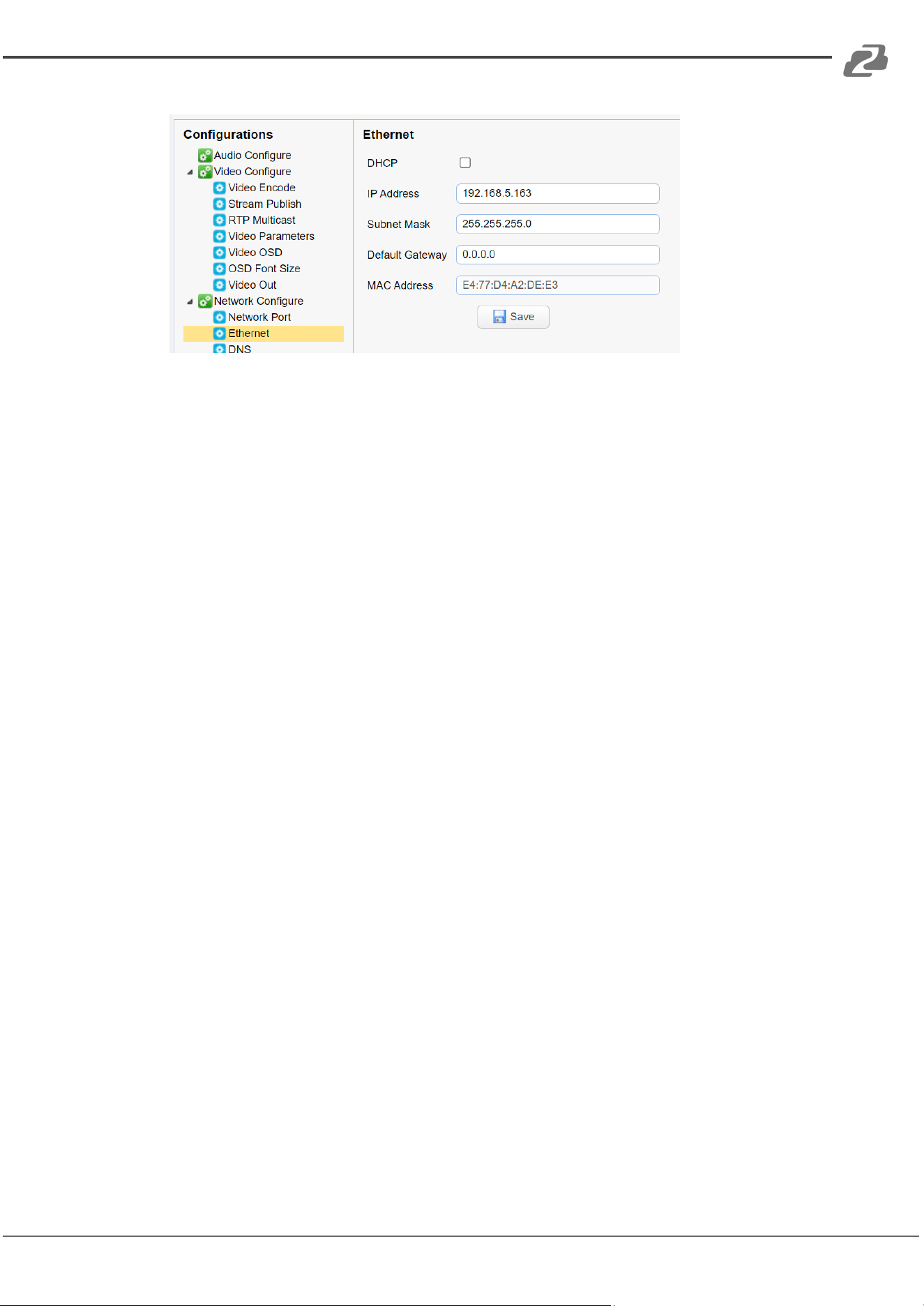
DHCP: Check to enable or disable to obtain an IP address automatically. Save changes and
reboot the device to takes effect (default: OFF)
IP Address: Set the IP address, save changes and reboot the device to take effect (default
192.168.5.163). Note: This IP address is the same one used to login to the Web Interface.
Subnet Mask: Set the subnet mask (default 255.255.255.0).
Default Gateway: Set the default gateway (default 0.0.0.0).
MAC Address: The parameter is read-only and cannot be modified.
(NOTE: Click on the "Save" button for settings to take effect.)
3. DNS parameters
Preferred DNS Server: Set the preferred DNS server. (Default 0.0.0.0).
Alternate DNS Server: Set the alternate DNS server. (Default 0.0.0.0).
(NOTE: Click on the "Save" button for settings to take effect.)
4. GB28181
Enable: Check to enable/open GB28181.
ClockSync: Check to enable time synchronization.
Video Type: select which stream will be modified (main stream/secondary stream)
Registration Valid Time(s) (in seconds): 3600 Range 5-65535
Heartbeat Time (seconds): 60 Range 1-65535
Register ID: 34020000001320000001
Register User name: IPC
Register Password: 12345678
Equipment Belong: Users can add their own ID.
Administrative Region: Users can add their own.
Alarm Areas: Users can add their own.
Device Address: Users can add their own.
Local SIP Port: 5060 Range 0-65535
Server IP: IP address of the GB28181 computer/server.
Server SIP Port: 5060 Range 0-65535
Server ID: 34020000002000000001
(NOTE: Click on the "Save" button for settings to take effect.)
Address: 830 National Drive #140, Sacramento, CA 95834, USA · Tel: +1(888)499-9906 · Email: support@bzbgear.com 23

BZBGEAR BG-MAESTRO PRODUCT MANUAL
5. SRT
Port SRT: Set the SRT port (default 9000, 0-65535 optional)
Password for stream encryption: Set the SRT password. (the default is empty, the
password is between 10-80 characters)
Crypto key length in bytes: Set the length of the SRT password (default 0, 16, 24, 32
optional)
(NOTE: Click on the "Save" button for settings to take effect.)
Camera Configure
1. Attributes
Device Name: Set the device name (default name is CAMERA-1).
Device ID: Default is 1 and is Read-Only.
System Language: Set the system language (default Simplified Chinese, English).
(NOTE: Click on the "Save" button for settings to take effect.)
2. Time
Date Format: Set the date format (YYYY-MM-DD, MM-DD-YYYY, or DD-MM-YYYY).
Date Separator: set the date separator (‘/’, ‘-’, or ‘.’).
Zone: Set the time zone.
Hour Type: Set the time type 24 or 12.
NTP Enable: Check to enable NTP mode.
Update Interval: Set the NTP server to automatically update the time(1-10 days). NTP
Enable must be checked.
NTP Host URL: Set NTP server address or domain name (default time.nits.gov).
NTP Server Port: Sets the NTP server port (default 123).
Time Settings: Set the time setting method (Synchronize with computer time, synchronize
with NTP server, and Set manually)
New Time: Time settings must be set to “Set manually” to edit
(NOTE: Click on the "Save" button for settings to take effect.)
3. User Settings
Authority: Set the user type (admin, User 1, User 2)
User Name: set the username for the selected authority.
Password: Set a password for the selected authority.
Confirm Password: Confirm passwords are the same.
Click the "Save" button, and the setting will take effect when the "Save successful"
message pops up.
NOTE: Username and password are case-sensitive.
Address: 830 National Drive #140, Sacramento, CA 95834, USA · Tel: +1(888)499-9906 · Email: support@bzbgear.com 24

BZBGEAR BG-MAESTRO PRODUCT MANUAL
4. Update
Normal users can only read the camera version information but can not modify or update.
Update File: Click the “Choose File” button to browse to and select the firmware upgrade
file in the pop-up window.
Click on the "Upgrade" button and the upgrade dialog will appear. The device will reboot
automatically after the update completes successfully.
NOTE: Endure the power and network stay connected during this process or the upgrade
will fail.
5. Default
Click the "Restore Factory Defaults" button and then click “Yes” in the pop-up window to
restore the cameras’ factory default settings and attributes.
6. Reboot
Click the "Reboot" button and choose “Yes” in the pop-up window, to reboot the device.
7. Parameter import/export
Click “Choose File” and click the “Import” button to import a camera configuration file. Click
the “Export” button to export the camera configuration file when connected via USB.
Logout
Click the "Logout" button in the top right and select “Yes” in the pop-up window to exit the
web interface.
Address: 830 National Drive #140, Sacramento, CA 95834, USA · Tel: +1(888)499-9906 · Email: support@bzbgear.com 25
BZBGEAR BG-MAESTRO PRODUCT MANUAL
Tracking Configuration
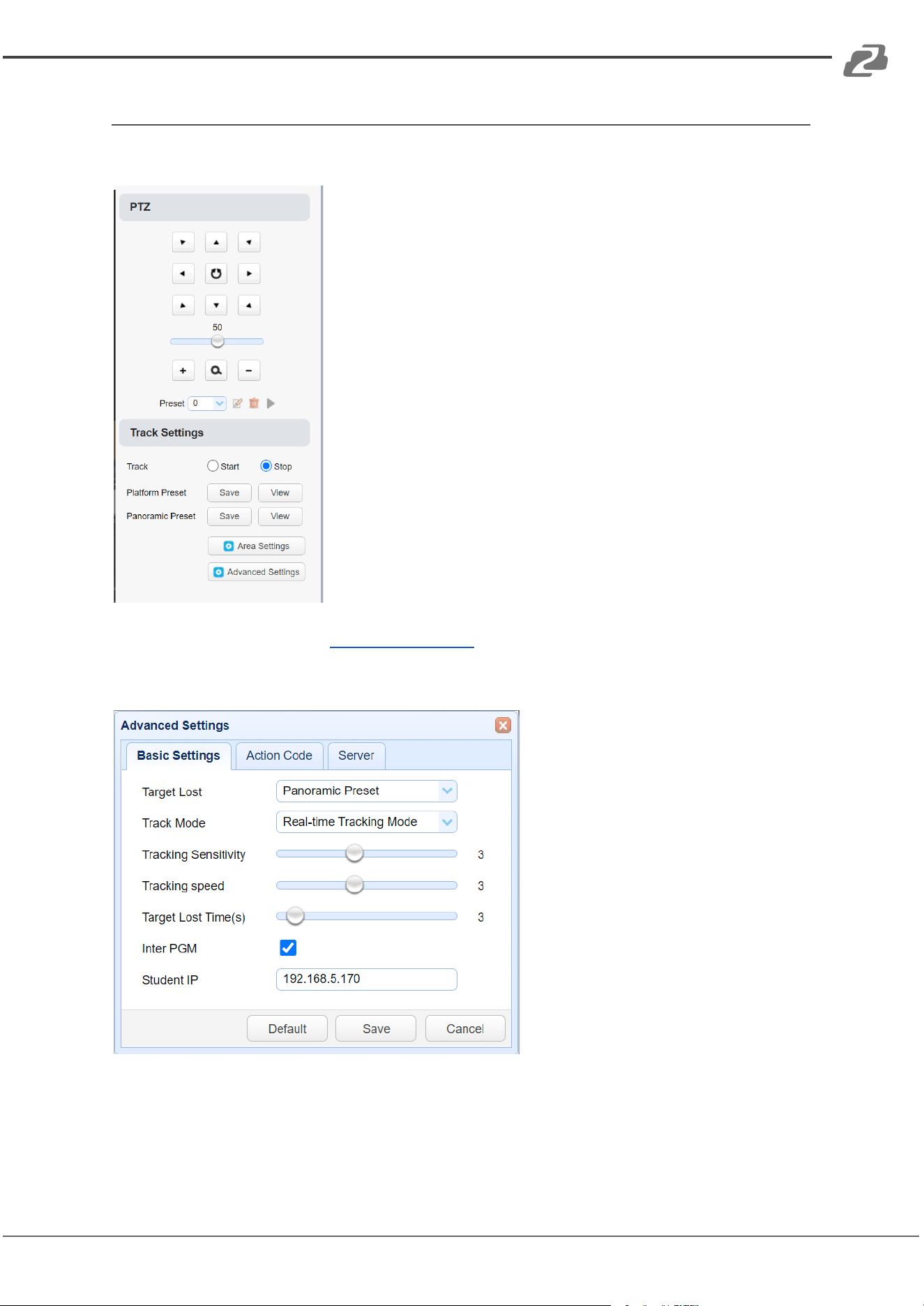
Follow these steps to set up tracking.
1. Click the “Stop” radial button to disable tracking and
enable the “Platform Preset,” “Panoramic Preset,” and “Area
Settings.”
2. Adjust the camera position and zoom using the arrow
keys and for the frame the platform and then click “Save” next
to “Platform Preset.”
3. Use the controls again to perform the same set up for
the “Panoramic Preset” (typically a wider shot the camera
uses to locate a subject should the tracking target be lost).
4. Click “Area Settings
5. Highlight the area by clicking and dragging the red box
to select the platform/stage and then click the “Enable
Platform Area” check box to have the camera focus on that
area for tracking.
6. Click the “Mask Area” tab and select areas/objects
you would like the tracking to ignore such as doorways,
windows, etc.
NOTE For additional assistance please the MAESTRO
product webpage on www.bzbgear.com for video instructions.
Use the “Advanced Settings”
controls to manage the advanced
tracking settings.
Target Lost: Lens will return to the
assigned preset.
Track Mode: Real-time Tracking
Mode (constantly follows target),
Movie Mode (moves a frame at a
time), Area Tracking Mode (camera
tracking only moves after you
approach the edge of the frame)
Tracking Sensitivity: The higher the
sensitivity the smaller the movement
needed to trigger the camera
tracking movement.
Tracking Speed: How quickly the
camera pans while tracking.
Target Lost Time(s): How long in seconds for the camera to return to the selected “Target
Lost” camera preset position should the tracking subject be lost.
Address: 830 National Drive #140, Sacramento, CA 95834, USA · Tel: +1(888)499-9906 · Email: support@bzbgear.com 26

BZBGEAR BG-MAESTRO PRODUCT MANUAL
NOTE
The Inter PGM, Student IP, Action Code and Server tabs and settings are for a move
advanced setup with multiple cameras and a camera server which are not currently
supported for normal use and should be disregarded.
Tech Support
Have technical questions? We may have answered them already!
Please visit BZBGEAR’s support page (bzbgear.com/support) for helpful information and
tips regarding our products. Here you will find our Knowledge Base
(bzbgear.com/knowledge-base) with detailed tutorials, quick start guides, and step-by-step
troubleshooting instructions. Or explore our YouTube channel, BZB TV
(youtube.com/c/BZBTVchannel), for help setting up, configuring, and other helpful how-to
videos about our gear.
Need more in-depth support? Connect with one of our technical specialists directly:
Phone
1.888.499.9906
Email
support@bzbgear.com
Live Chat
bzbgear.com
Limited Product Warranty Terms
Pro Line: 5-year warranty from the date of purchase for AV/Broadcasting products bought
on or after August 1, 2024.
Essential Line: 3-year warranty from the date of purchase for AV/Broadcasting products
bought on or after August 1, 2024.
Cables: Lifetime Limited Product Warranty.
For complete warranty information, please visit bzbgear.com/warranty.
For questions, please call 1.888.499.9906 or email support@bzbgear.com.
Address: 830 National Drive #140, Sacramento, CA 95834, USA · Tel: +1(888)499-9906 · Email: support@bzbgear.com 27

BZBGEAR BG-MAESTRO PRODUCT MANUAL
Mission Statement
BZBGEAR is a breakthrough manufacturer of high-quality, innovative audiovisual equipment
ranging from AVoIP, professional broadcasting, conferencing, home theater, to live
streaming solutions. We pride ourselves on unparalleled customer support and services.
Our team offers system design consultation, and highly reviewed technical support for all
the products in our catalog. BZBGEAR delivers quality products designed with users in
mind.
Copyright
All the contents in this manual and its copyright are owned by BZBGEAR. No one is allowed
to imitate, copy, or translate this manual without BZBGEAR’s permission. This manual
contains no guarantee, standpoint expression or other implies in any form. Product
specification and information in this manual is for reference only and subject to change
without notice.
All rights reserved. No reproducing is allowed without acknowledgement.
Address: 830 National Drive #140, Sacramento, CA 95834, USA · Tel: +1(888)499-9906 · Email: support@bzbgear.com 28