


CONTENTS
NOTE..............................................................................................................................1
PRODUCT OVERVIEW..........................................................................................2-3
REMOTE CONTROL...................................................................................................4
PROJECTOR INSTALLATION METHOD...............................................................5
CONNECTING..............................................................................................................6
FOCUS...........................................................................................................................6
KEYSTONE CORRECTION........................................................................................6
SELECT SIGNAL SOURCE.........................................................................................7
CONNECT AN IPHONE/IPAD SCREEN MIRRORING....................................8-9
CONNECT AN ANDROID PHONE/TABLET........................................................10
CONNECT A WINDOWS DEVICE..........................................................................10
WIRELESS WIFI CONNECTION-WIFI TRANSFER............................................11
CONNECT AN IPHONE/IPAD...........................................................................11-12
CONNECT AN ANDROID PHONE/TAPLET...................................................11-12
MORE TIPS ABOUT NETFLIX, PRIME VIDEO, HULU, ETC.............................13
USB DRIVE CONNECTION................................................................................14-17
CONNECT HDMI DEVICES.....................................................................................18
CONNECT AV VIDEO DEVICES..............................................................................18
CONNECT 3 5MM AUDIO DEVICES.....................................................................18
USING BLUETOOTH PLAYBACK....................................................................19-21
PROJECTOR SETTING.....................................................................................22-26
MAINTENANCE........................................................................................................27

1
Do not look directly into the lens while the projector is running, as strong light
may damage your eye.
1
Do not block the air outlet to prevent the projector from cooling down because
internal electronics are damaged.
Keep the projector and accessories out of the reach of children.
Please make sure that the working environment of the projector is dry and
ventilated.
Do not place the projector in a place that is too hot or cold which will shorten
the life of the device” The recommended working environment is 5.C - 35.C.
Do not press hard on the projector, as it may damage the product.
Do not throw, hit, or shake the projector to avoid damaging the circurt board.
Any questions after receiving the projector, please feel free to contact us
through Amazon Support, we will quickly and correctly solve your problem
within 24 hours and give you a satisfactory answer.
2
3
4
5
6
7
8
PLEASE READ THROUGH THIS USER’S MANUAL
FOR PROPER USE OF THIS PRODUCT.
NOTE
2
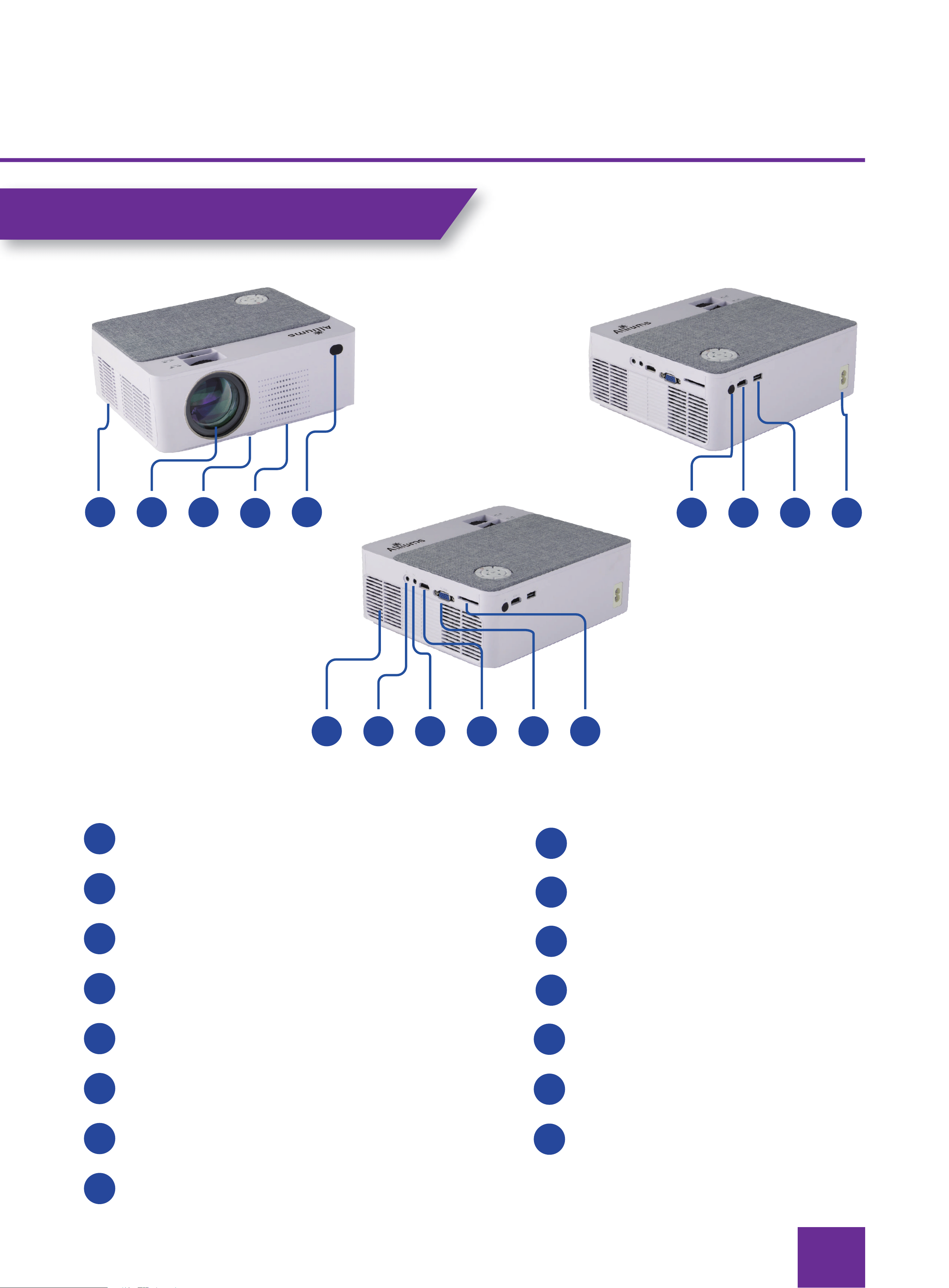
Level-Stand Adjustment
Focus Len
IR Receiver
IR for Remote Contro
HDMI 1 Port
USB 1 Port
Power Switch
Speaker
VGA Port
SD Port
AV Port
HDMI Port
3.5mm Port for Audio Output
Cooling Window
Detachable Dust Screen
1
2
3
4
5
6
11
7
8
9
10
13
12
14
15
1
2
3
4
5
6
7
8
13
14
15
9
10
11
12
PRODUCT OVERVIEW
3
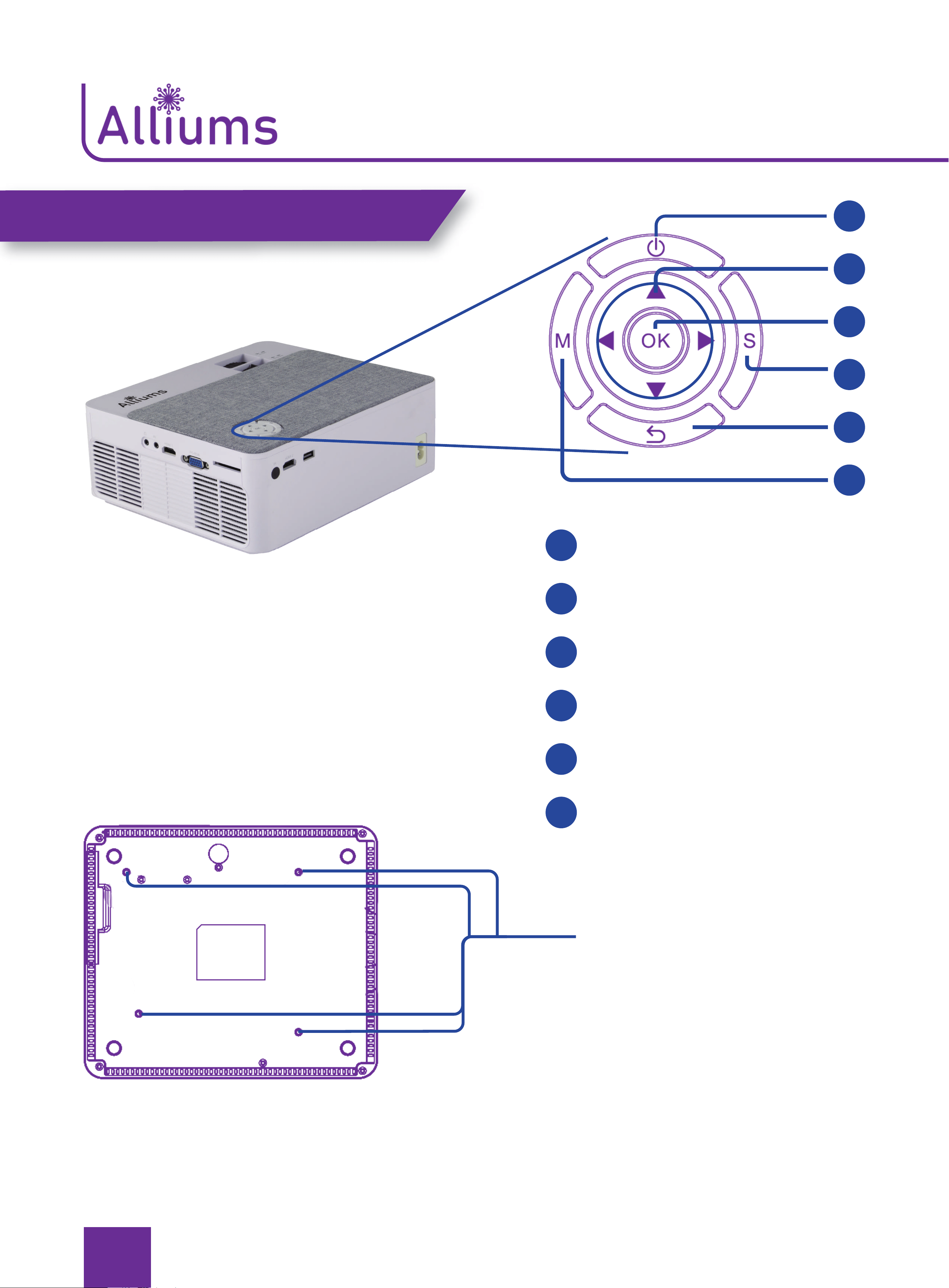
Ceiling Mount
Hole of Projector
(can be used by removing
the footpad, the ceiling
mount hole size is M5)
Power
Arrow Keys
OK
Input Source Key
Return
Menu
1
1
2
2
3
3
4
4
5
5
6
6
PRODUCT OVERVIEW
4
1
2
3
4
5
6
7
8
9
10
11
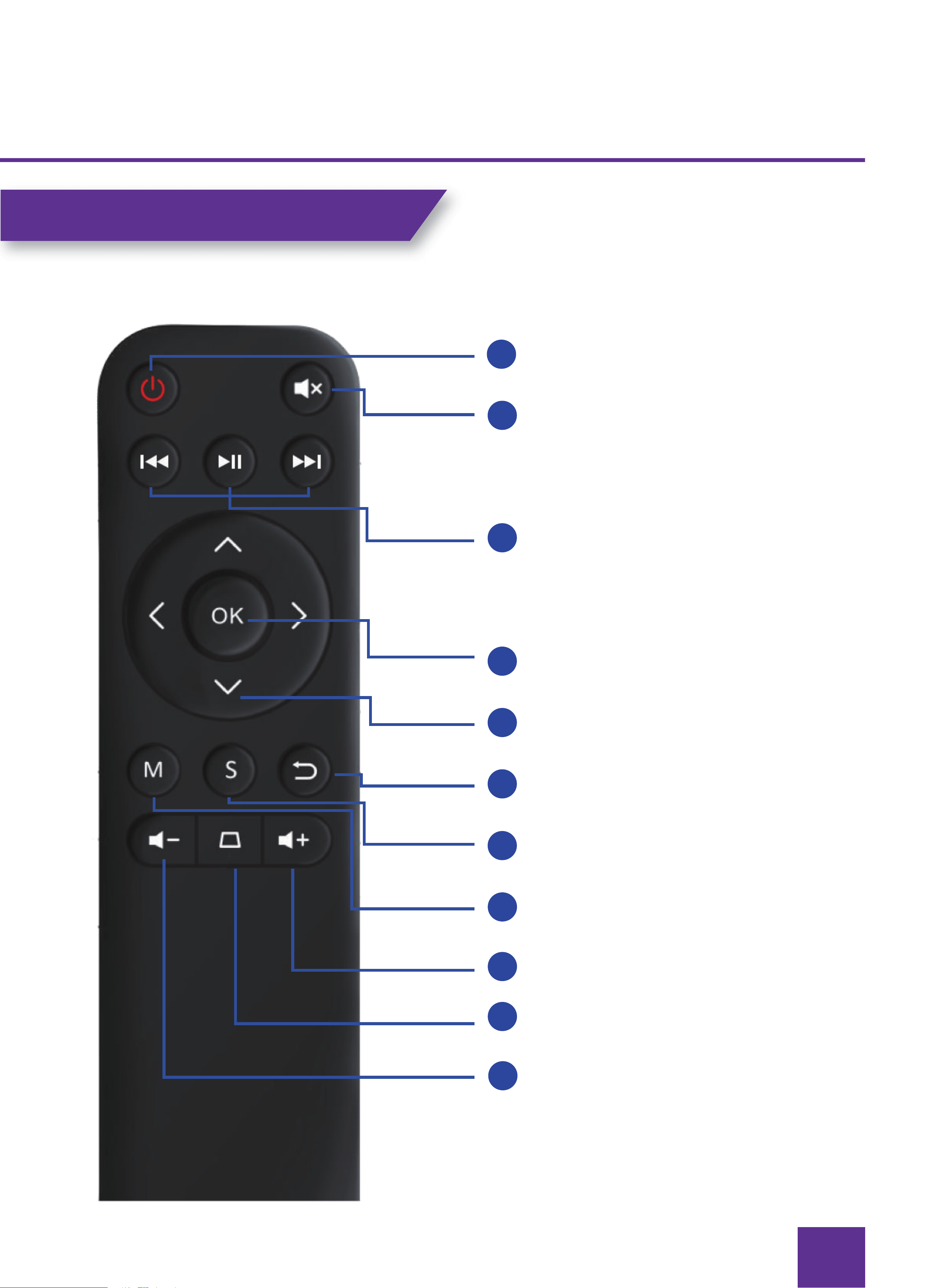
Power Source
Mute
Multimedia play key
Ok
Arrow Keys
Return
Input Source Key
Menu
Volume Up
Keystone
Volume Down
REMOTE CONTROL
5
PROJECTOR INSTALLATION METHOD
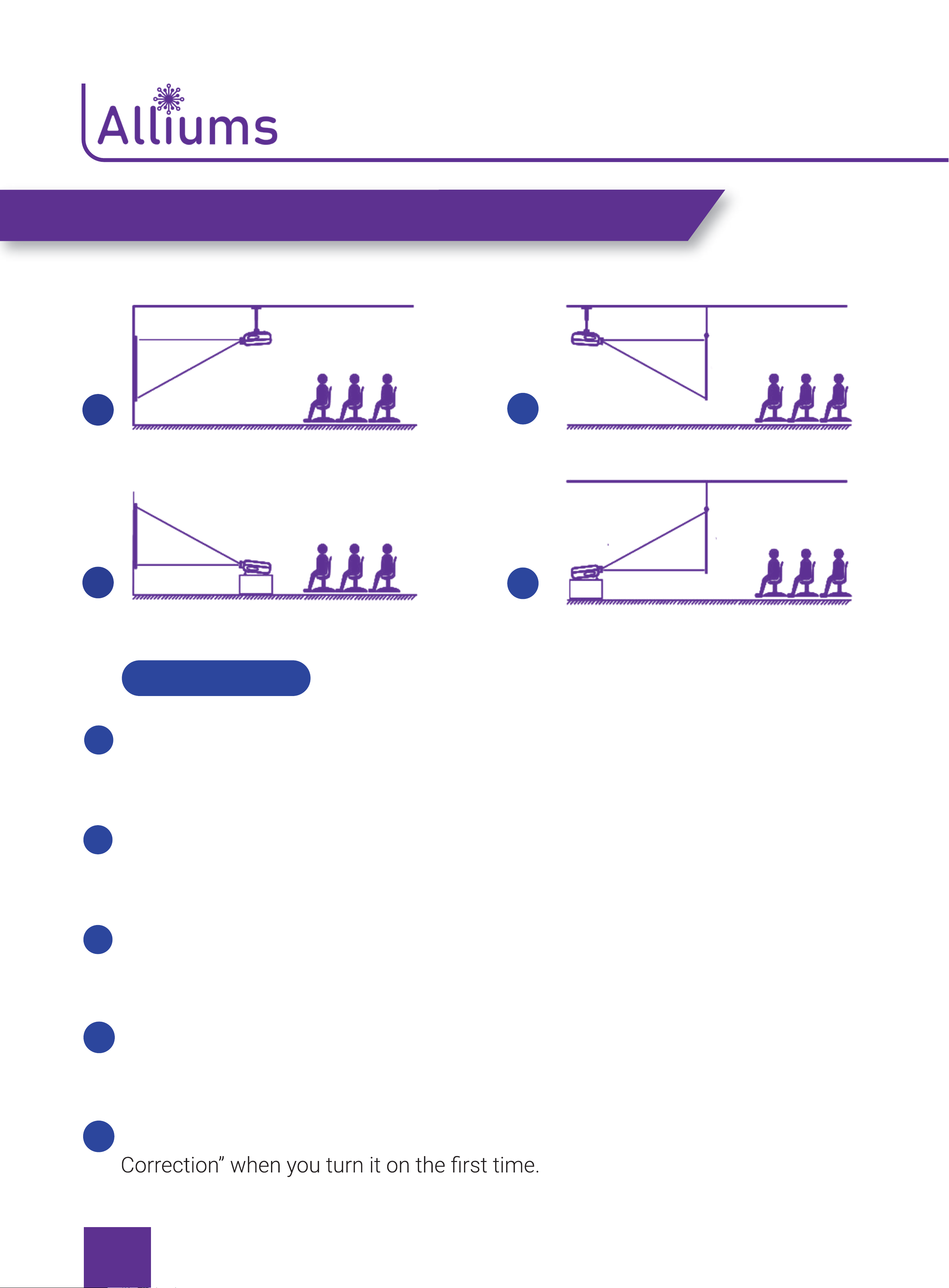
When using the ceiling mount method, the projector cannot be higher than
the upper edge of the screen, otherwise, it will affect the image effect or
keystone correction.
Please install the projector on the symmetrical axis of the screen to avoid
trapezoidal distortion of the left and right images.
In order to avoid damage, the installed projector should be well ventilated,
and no objects should cover or block the projector’s vents.
Please disconnect the power during the installation process to avoid
electric shock or projector circuit failure.
For the newly installed projector, you need to set “Image Flip” and “Image
WARM TIPS
1
2
3
1
2
3
4
4
5
6
CONNECTING
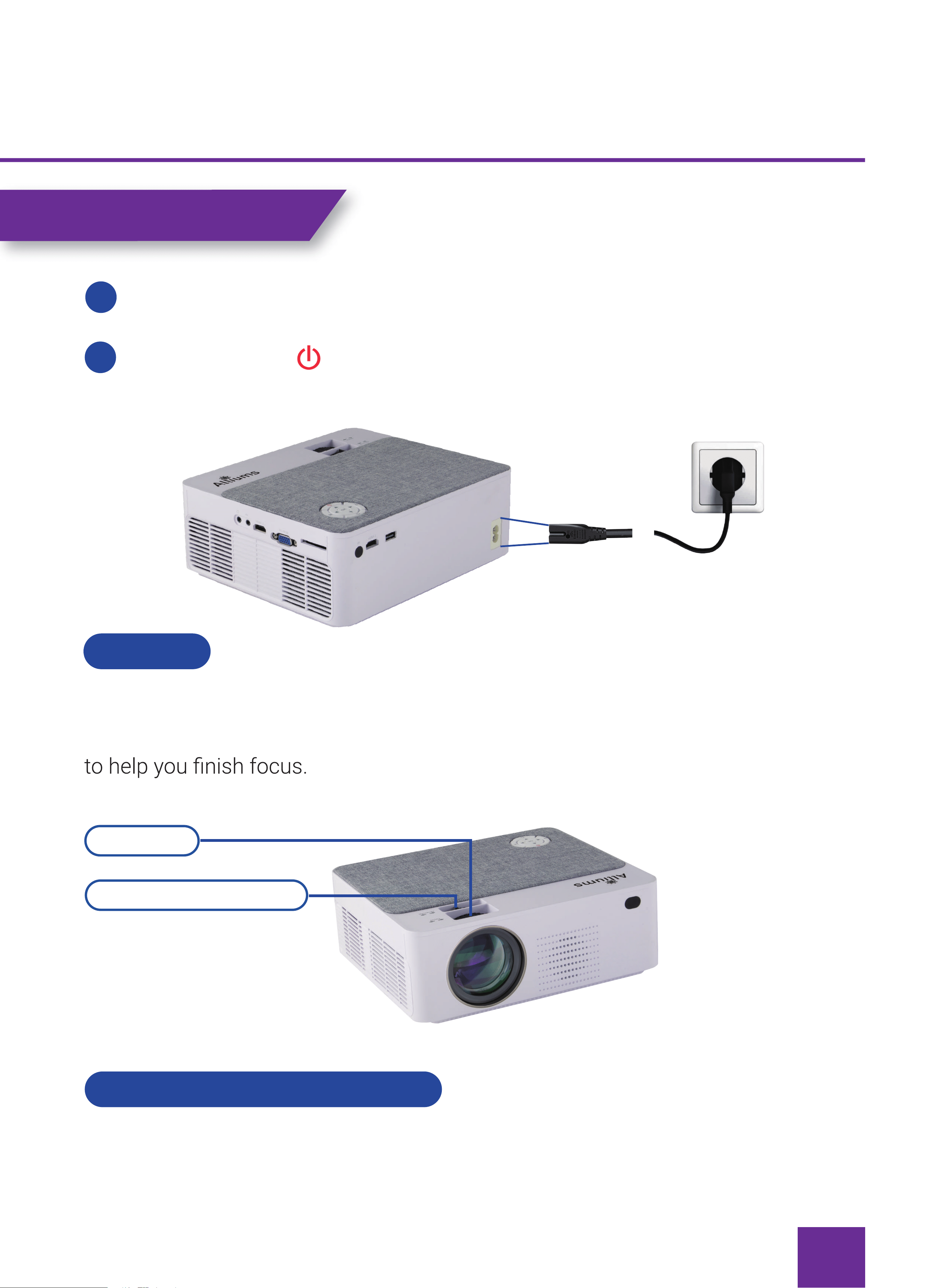
Plug the power cord into a power outlet, the projector enters standby.
Press the button” “on the project or or on the remote control.
FOCUS
KEYSTONE CORRECTION
1
2
Let the projector be perpendicular to the wall, with the focusing button to make
the picture clear. When focusing, you can broadcast programs
In different angle you put the projector, the projection will Deformation like a
trapezoid, use the keystone correction to make it correctly.
Focusing
Keystone Correction
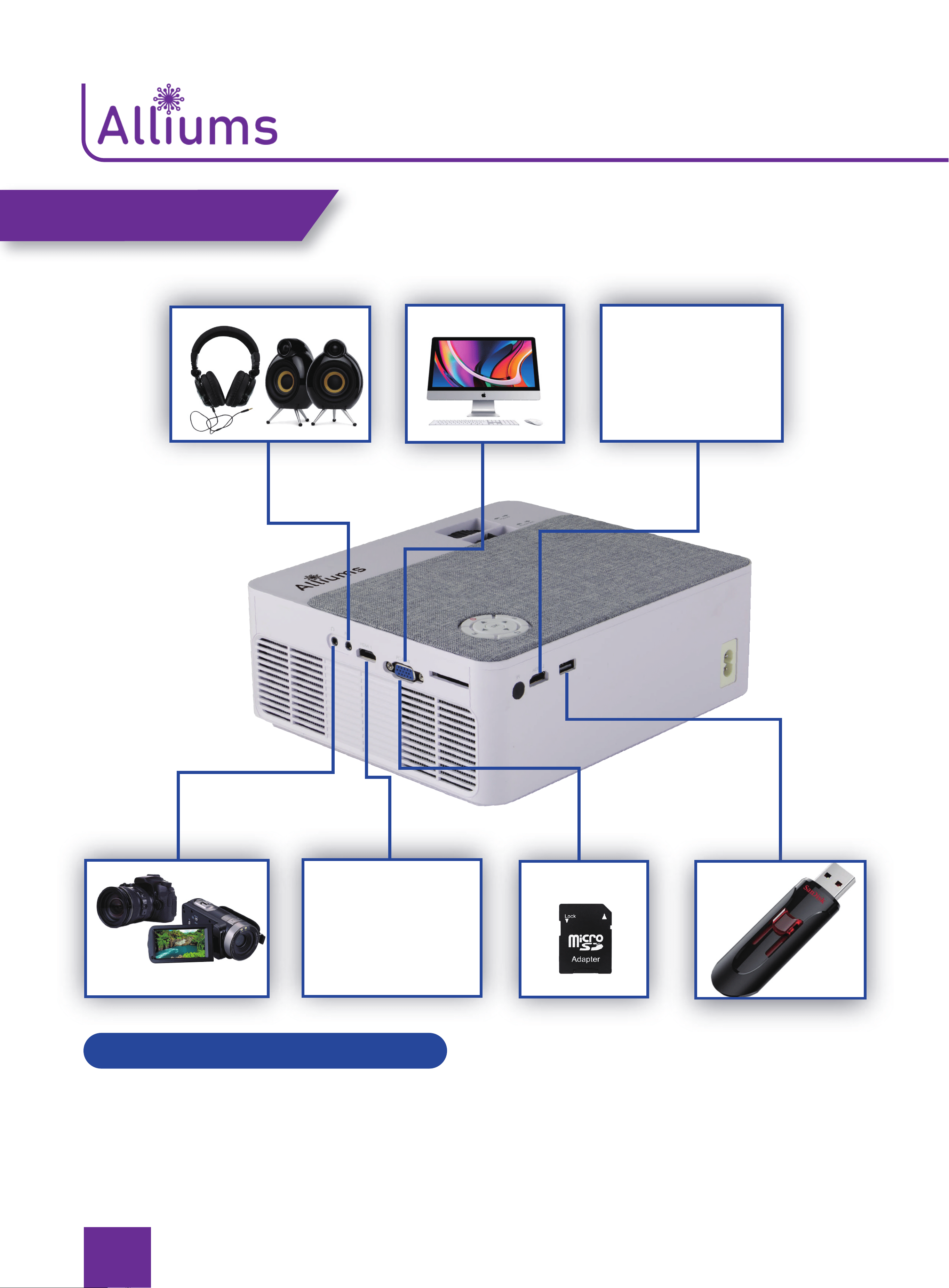
7
CONNECTING
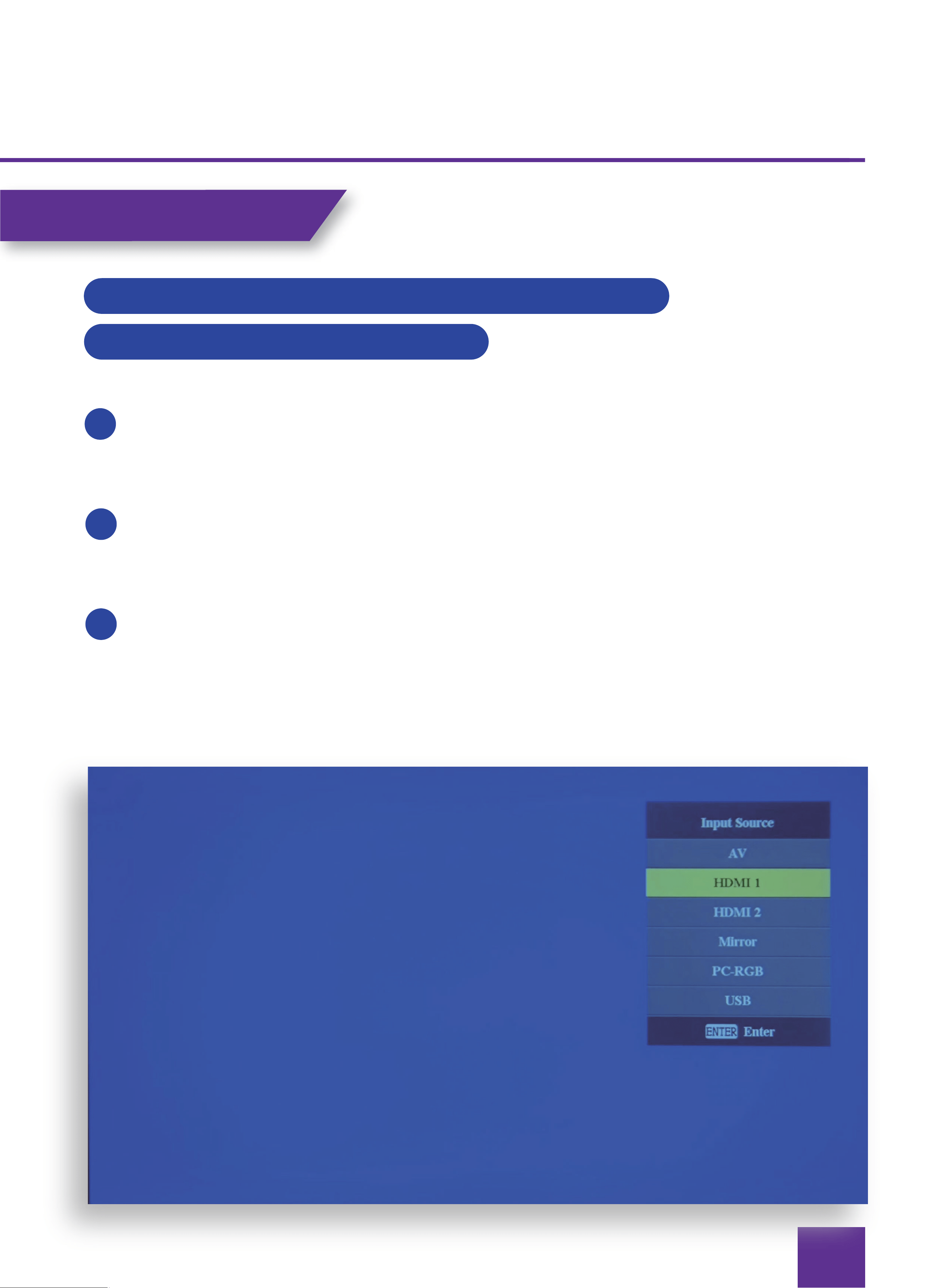
SELECT SIGNAL SOURCE
Press the desired source option on the homepage or the input source key (S) of the
remote Select the desired signal source.
HDMI
HDMI
8
WIRED SCREEN MIRRORING CONNECTION
CONNECT AN IPHONE/IPAD
Press the signal source key “S “ of the projector or the remote control and
select “Mirror”.
Plug an original USB charging cable into the USB 1 port of this projector.
Please select “Trust this device” when the iPhone asks “Trust” or “Don’t trust”,
and enter the Your iPhone password to connect.
CONNECTING
1
2
3
9
CONNECTING
WIRELESS SCREEN MIRRORING CONNEION
REQUIRES CELLULAR DATA TRAFFIC TRANSFER
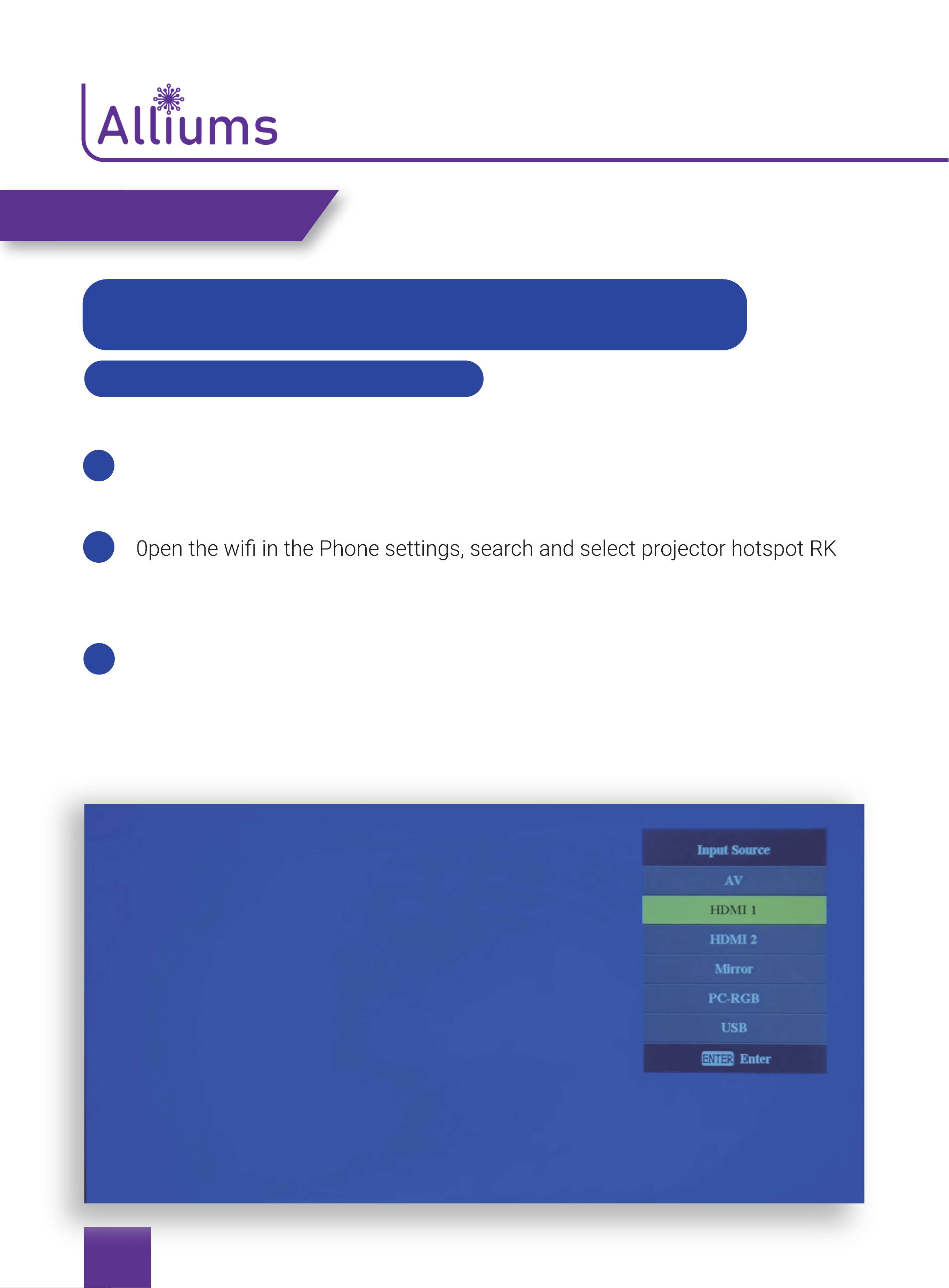
CONNECT AN IPHONE/IPAD
Press the signal source key “S “ of the projector or the remote control and
select “Mirror”.
-
cast-****** , enter the password to connect (Note: The hotspot name is on the
projector screen “SSID:RKcast-******”, the password is “PSK: “12345678”).
Slide the phone interface from the bottom up to enter the control center
(Fullscreen phones slide down from above, those with home button slide up
from below), then open “Screen Mirroring “.Then search and select the
projector device (Note: The name of the projector device is RKcast-******),
click to connect.
1
2
3
10
CONNECTING
CONNECT AN ANDROID PHONE/TABLET
Press the signal source key” S “ of the projector or the remote control and
select”Mirror”.
device (Note: The name of the projector device is RKcast-******), click to
connect.
CONNECT A WINDOWS DEVICE
Press the signal source key” S “ of the projector or the remote control and
select”Mirror”.
Search and select the projector device:RKcast-****** and click Connect”.
1
1
2
2
3
11
CONNECT AN IPHONE/IPAD
Press the signal source key “S “ of the projector or the remote control and
select ”Mirror”.
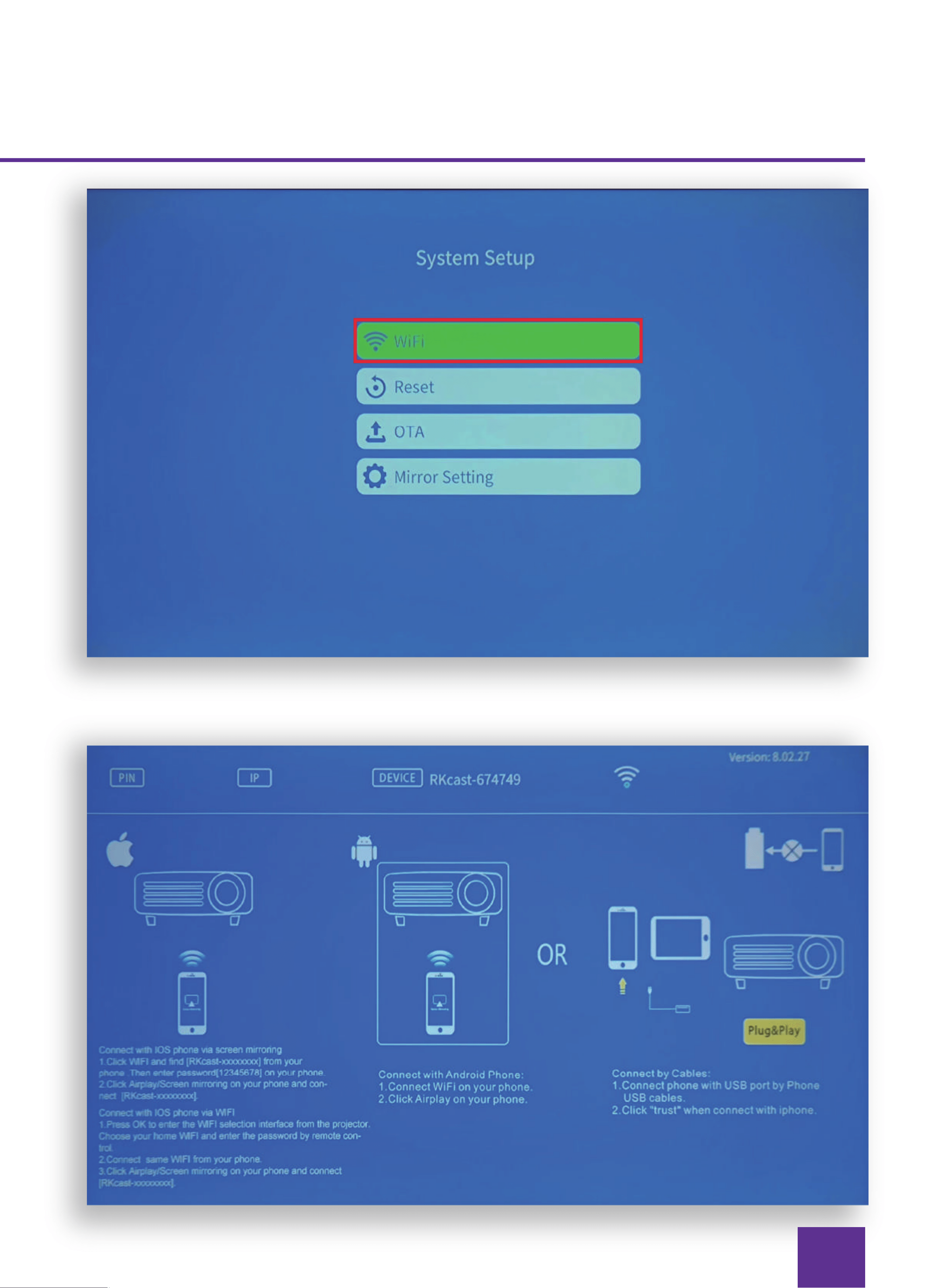
select your home wireless network in theprojector display interface,
enter the password.
0pen the phone WiFi settings, connect to your home wireless network.
Slide the phone interface from the bottom up to enter the control central (Full-
screen phones slide down from above, those with home button slide up from
below), then open “Screen Mirroring”. Then search and select the projector
device. (Note: the name of the projector device is RKcast-******), click to
connect.
CONNECT AN ANDROID PHONE/TABLET
Press the signal source key “S “ of the projector or the remote control and
select “Mirror”.
the phone display interface, enter the password of the wireless network and
connect. E WIFI IN THE PHONE SETTINGS, THEN SELECT YOUR HOME
projector device (Note: The name of the projector device is RKcast-******),
click to connect.
WIRELESS WiFi CONNECTION-WiFi TRANSFER
1
1
2
2
3
3
4
12
13
CONNECTING
MORE TIPS ABOUT NETFLIX, PRIME VIDEO, HULU, ETC
It works with youtube, chrome, safari, facetime when you connect it to a smart
phone directly.
And it doesn’t support play-protected video when you connect it to your smart-
-
tion protocol, the projector has no right to recognize when it is connected directly
to the phone via the USB interface.
-
-
Last but not least. this projector does not support Dolby sound. So there will be no
movies, and so on). In this case, please kindly turn off the Dolby sound on your
device or apps.
The instruction for your reference to turn off the Dolby sound (Settings > Display &
Sounds > Audio > Dolby Digital Output > and then turn Dolby Digital (OFF).
14
CONNECTING
USB DRIVE CONNECTION
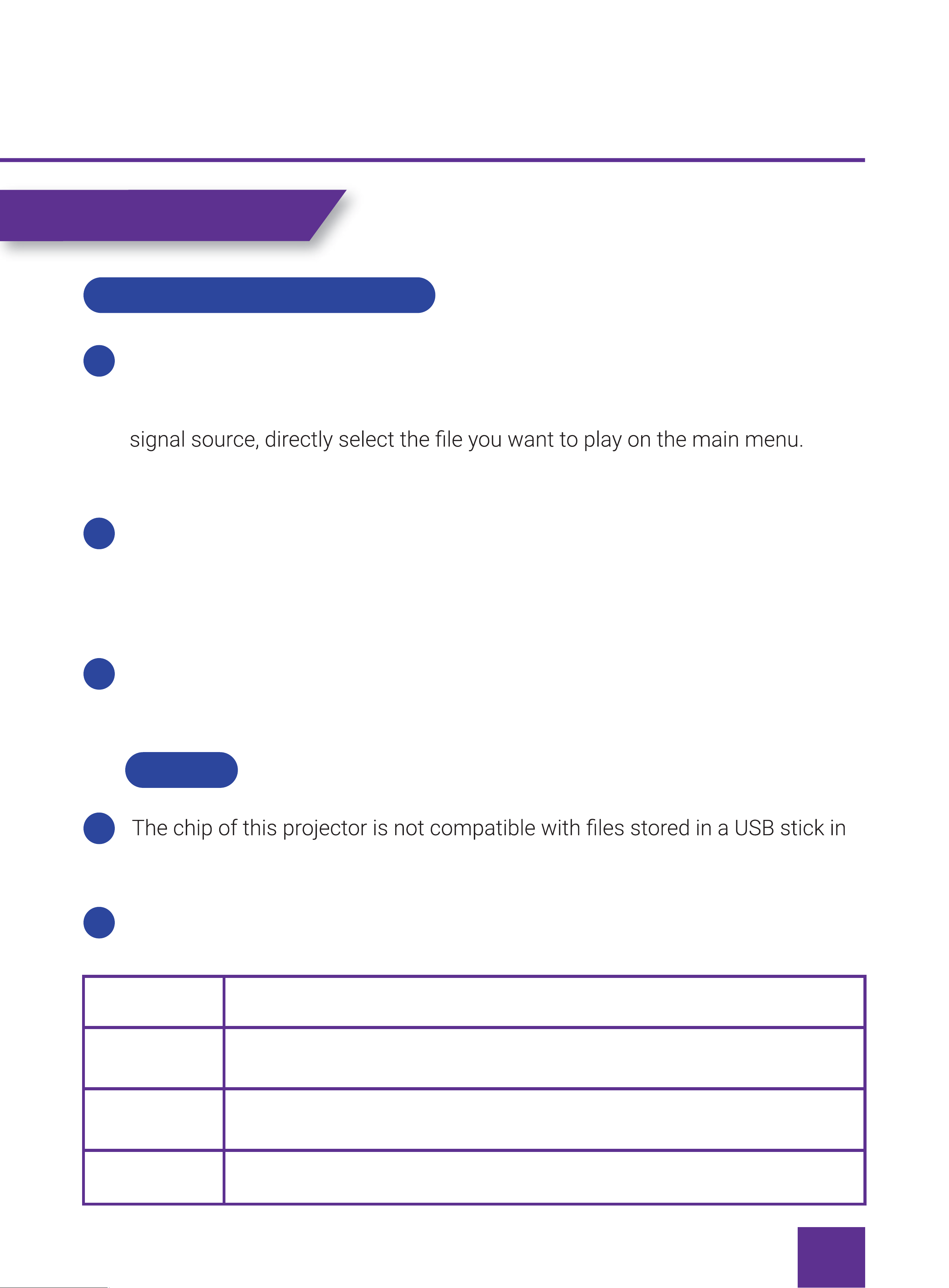
Different from other devices,when you connect a USB drive via USB 2 Port, a
USB icon will pop up in the upper right corner the main menu indicate that the
device is successfully connected. you don’t need to click ”S” to select the USB
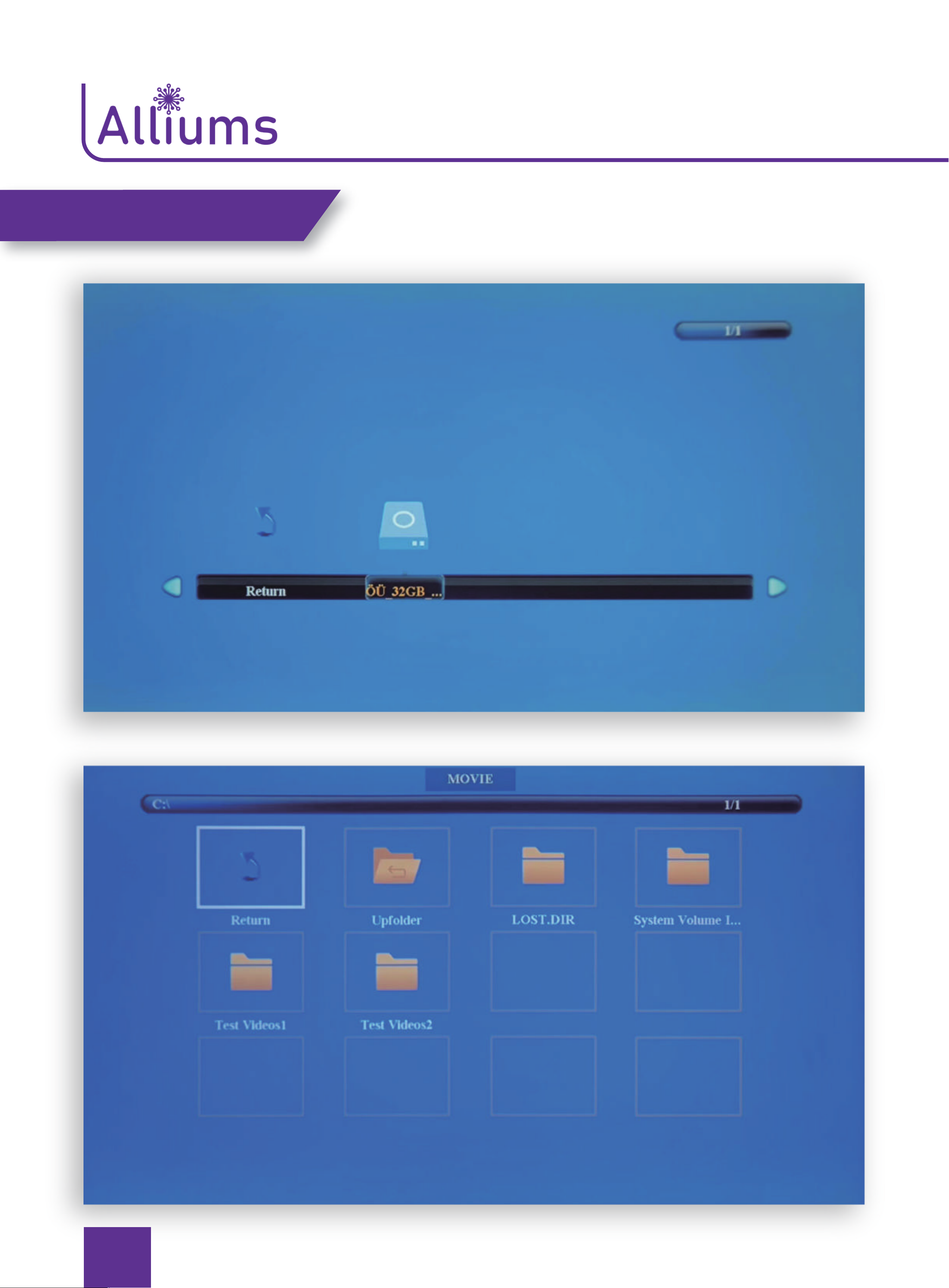
To play a video stored in a USB Drive, select”MOVIE” on the main menu and
press the “OK”.
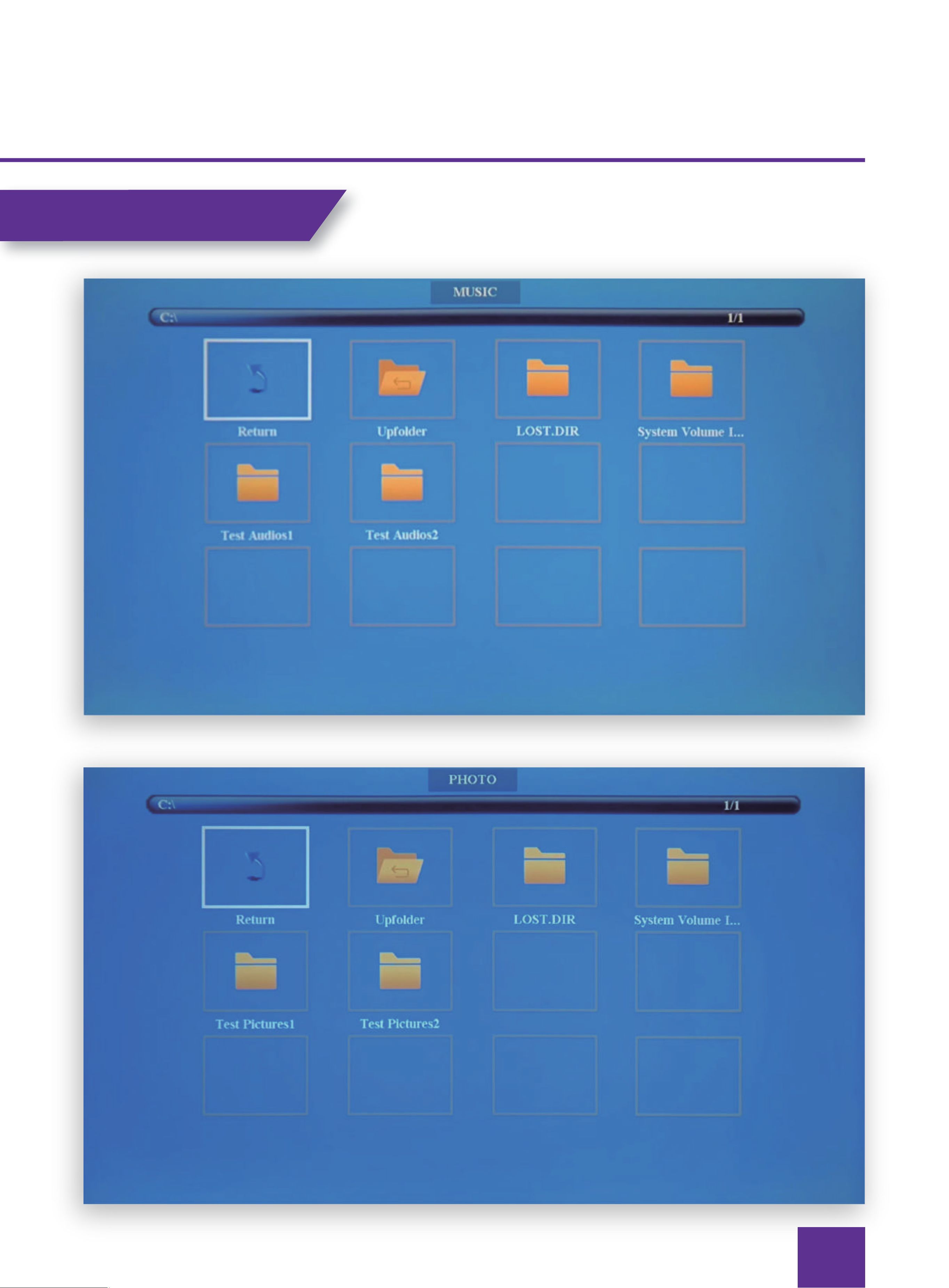
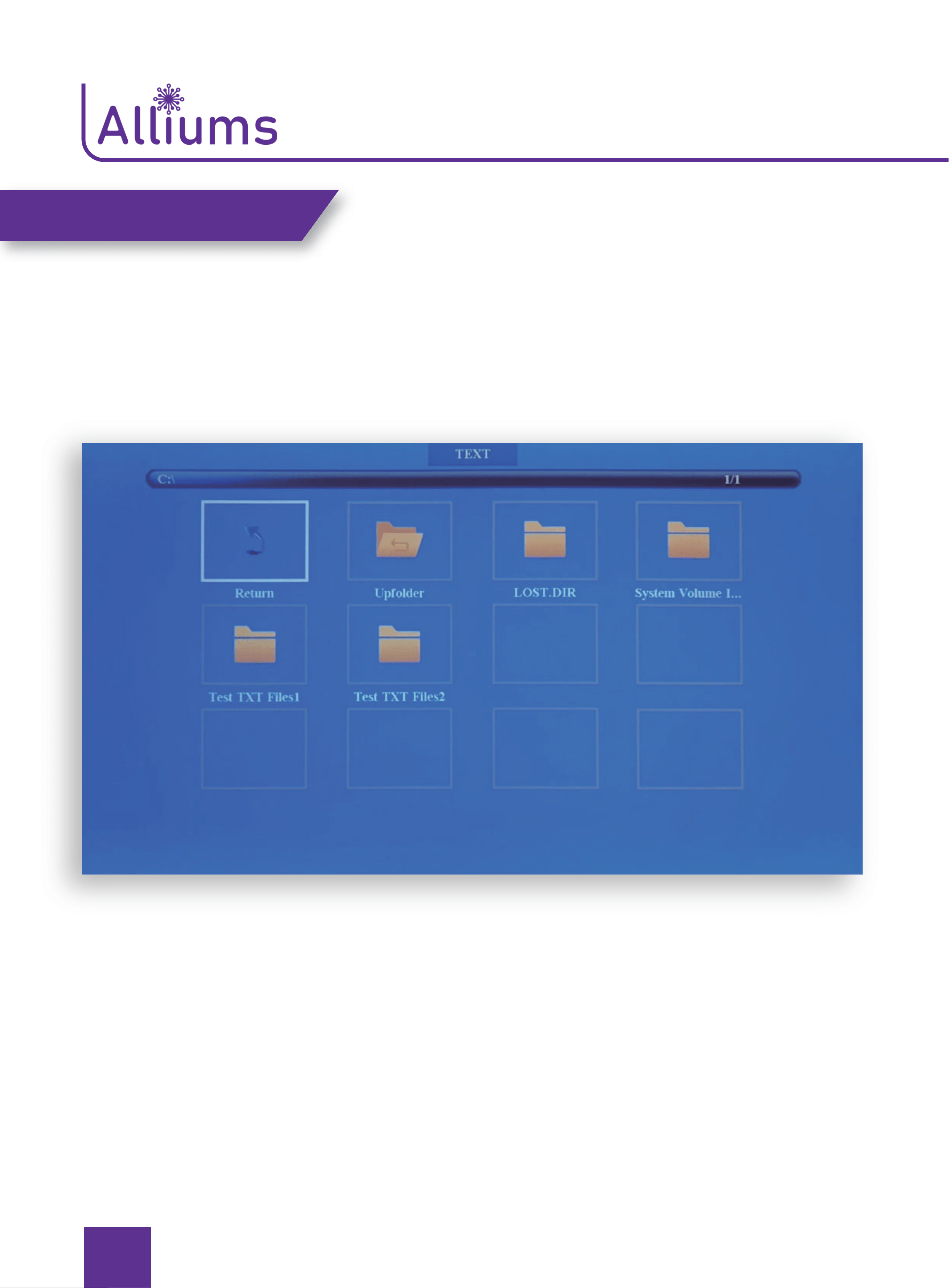
To play a picture, music,or text stored in a USB drive, Select” Photo/Music/
Text” on the main menu, and press the “OK.
PPT format.
If you want to play PPT, please store the PPTdocument on your mobile phone,
laptop, then connect this projector to them.
Video Format
Audio Format
Photo Format
File Format
TXT
BMP/JPG/PNG/JPEG
MP3/AAC/FLAC/ WMA/ PCM
AVI/FLV/MKV/MP4/MPG/WMV/RMVB/RM/MOV
1
1
2
2
3
NOTE
15
CONNECTING
16
MUSIC
CONNECTING
17
CONNECTING

18
CONNECT HDMI DEVICES
HDMI interface can be connected with the computer or other devices with the
HDMI output interface.
Press “S “ to hoose the media signal channel: “HDMl1” or “HDMl2”.
If there is no HDMI port on your laptop, you need an HDMI adapter.
CONNECT AV VIDEO DEVICES
Use the 3 in 1 video cable(lncluded in the package) to connect with AV.
Press “S “ to hoose the media signal channel: “AV”.
CONNECT 3 5MM AUDIO DEVICES
Support 3.5mm earphones and other cable sound devices.
CONNECTING
1
1
2
2
NOTE

19
USING BLUETOOTH PLAYBACK
Pairing to Bluetooth Wireless Speakers or Sound Bar.
1
2
NOTE
Bluetooth is OFF by default when the projector powers ON Bluetooth can be turned
ON or OFF from the“Setting”-”OPTIONS Menu.
Enable Bluetooth on the receiver(external speakerssoundbaretc.) to which you
wish to connectDevices such assmart-phones tablets or computers are not
Bluetooth receivers and will not connect to the projector. To eliminate
confusion, you should disable Bluetooth on all receivers to which you do not
wish to connect.The Bluetooth pairing list is not acceptable, it needs to show
what is the step to turn on the proiector and show the picture on the manual.
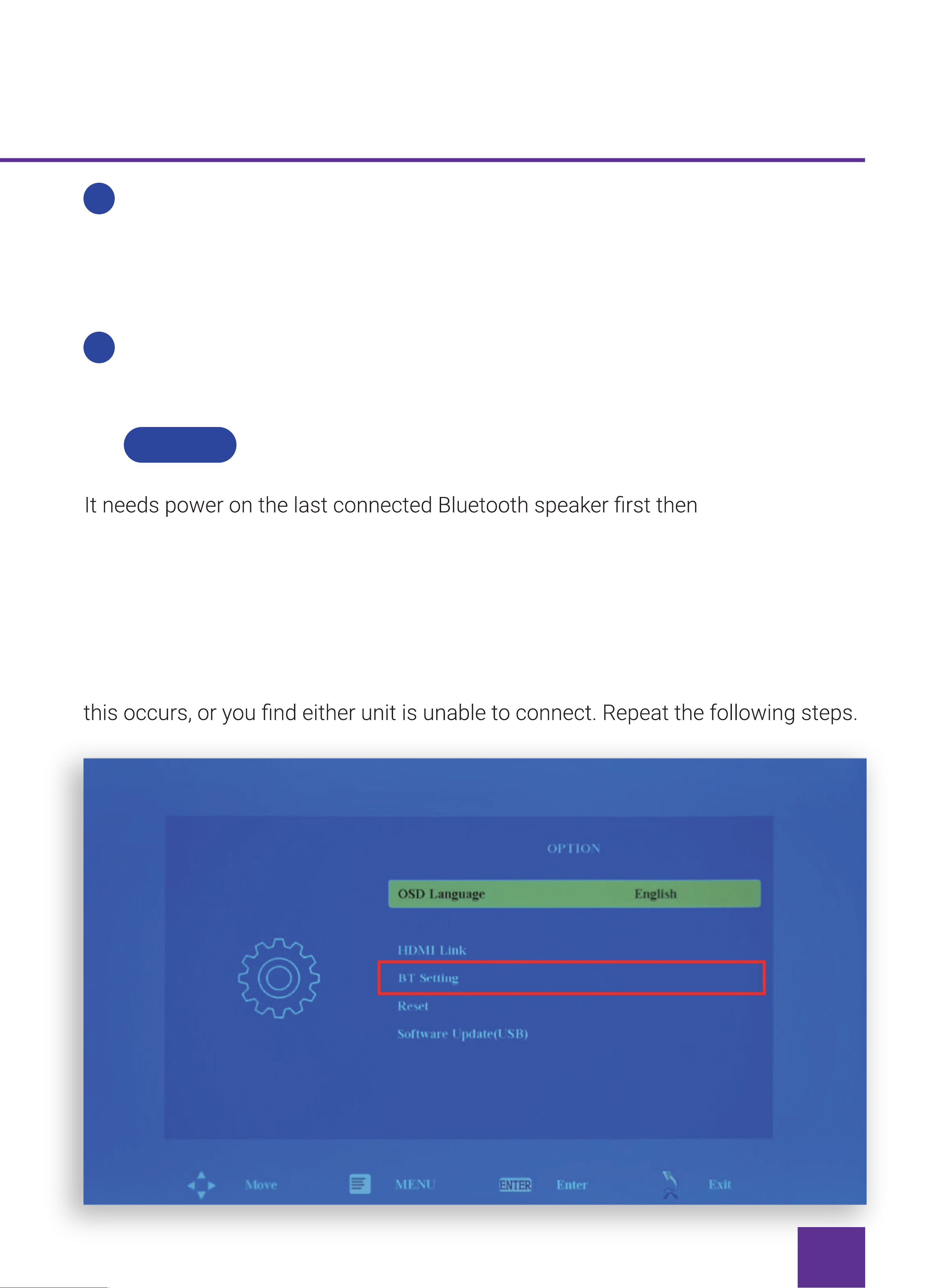
Power on the projector and make sure the projector’s Bluetooth is on
and in pairing mode(see the note above). Press the Menu key from the
remote>>>select OPTION>>>select BT Setting>>>Select the BT Mode>>>press
the navigation >l<to turn on the bluetooth>>>Select Search BT press the OK
key from the remote when the Scan shows on the screen, press the OK key
again>>>When the screen shows “Searching, pl.…”>>>the Bluetooth
devices name will be shown on the screenselect it and press the OK key to
connect it.
20
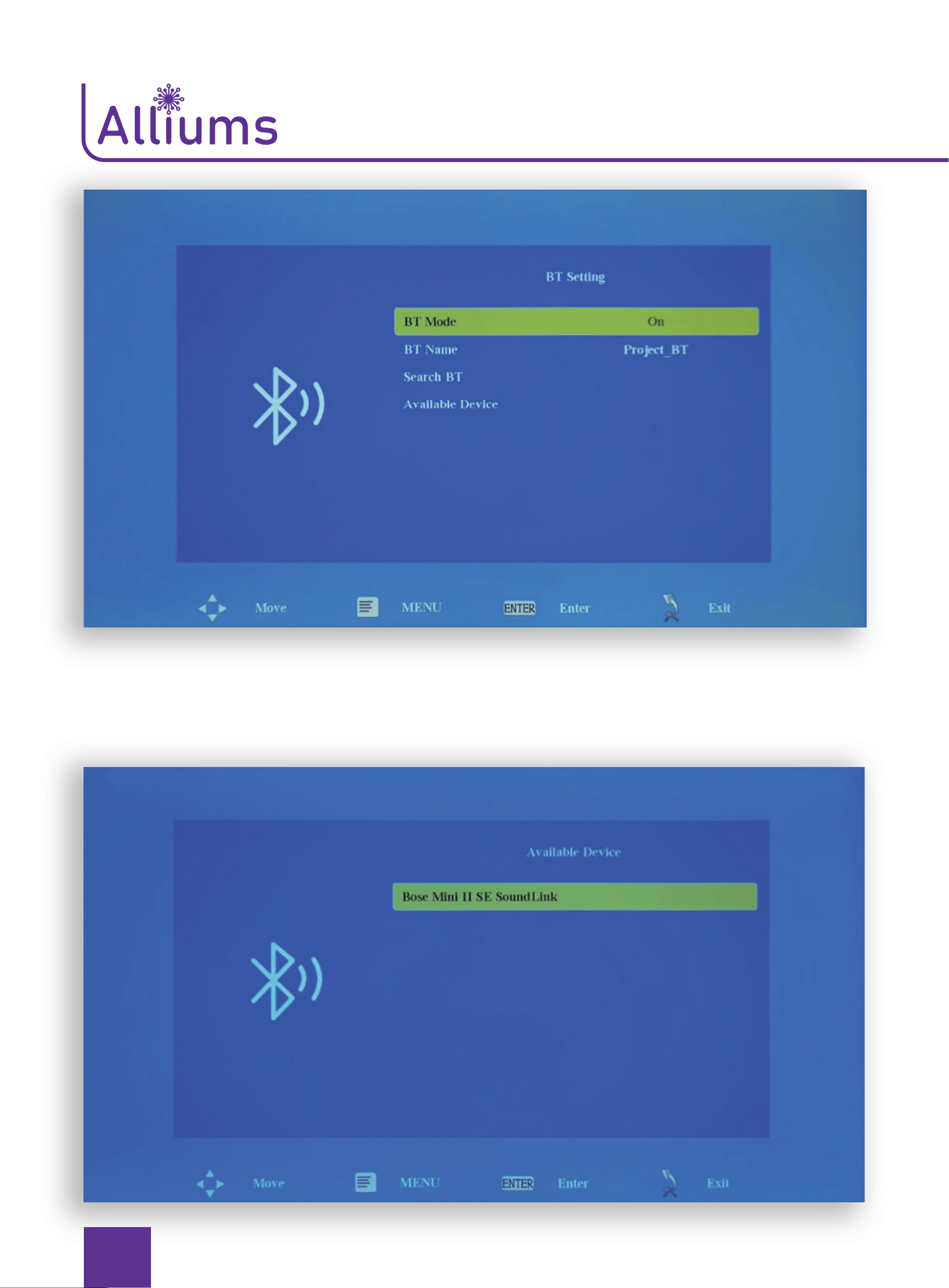
When successfully paired,it will show”Bluetooth Connected” on the menu. Exit
the menu, the sound will come out from the Bluetooth speaker The paired
device will be listed in “Available Device.
It can connect the last Bluetooth speaker automatically when the unit is
Vpowered on again.
4
3
NOTE
turned on the projector if it can’t connect last devices automatically,please
repeat steps 2~3.
After the initial pairing the projector and the Bluetooth speakers will stay paired
unless unpaired manually by the useror erased due to a reset of either device. If
21
22
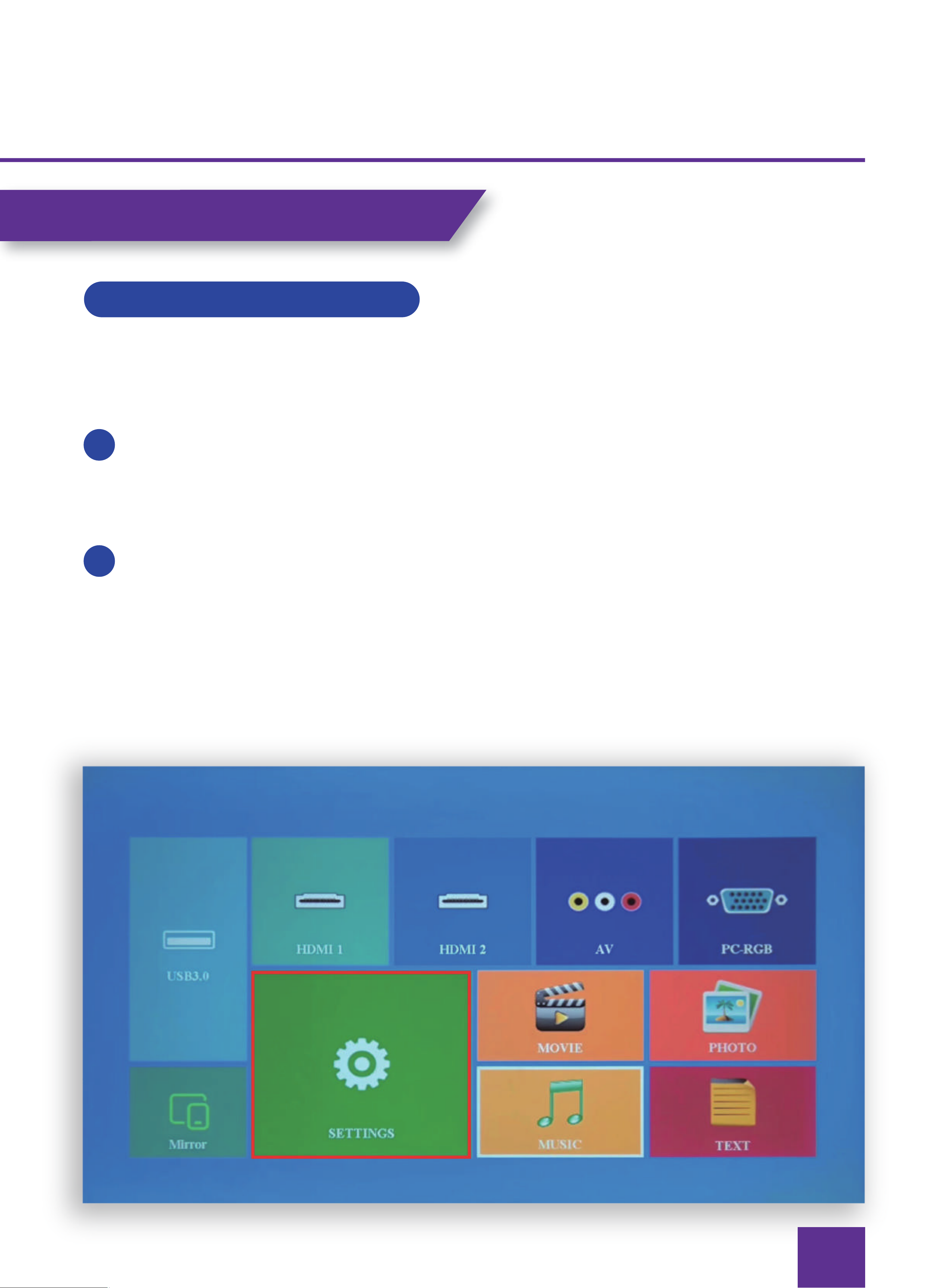
Click “Setting” of the projector menu.
PICTURE” /”SOUND”/”TIME”/”OPTION” can be set manually. After you select
the properties (PICTURE/SOUND/TIME/OPTION) you want to set, please
press arrow keys on the operation panel to select the setting range of the
properties.
PROJECTOR SETTING
PROJECTION SETTINGS
1
2
23
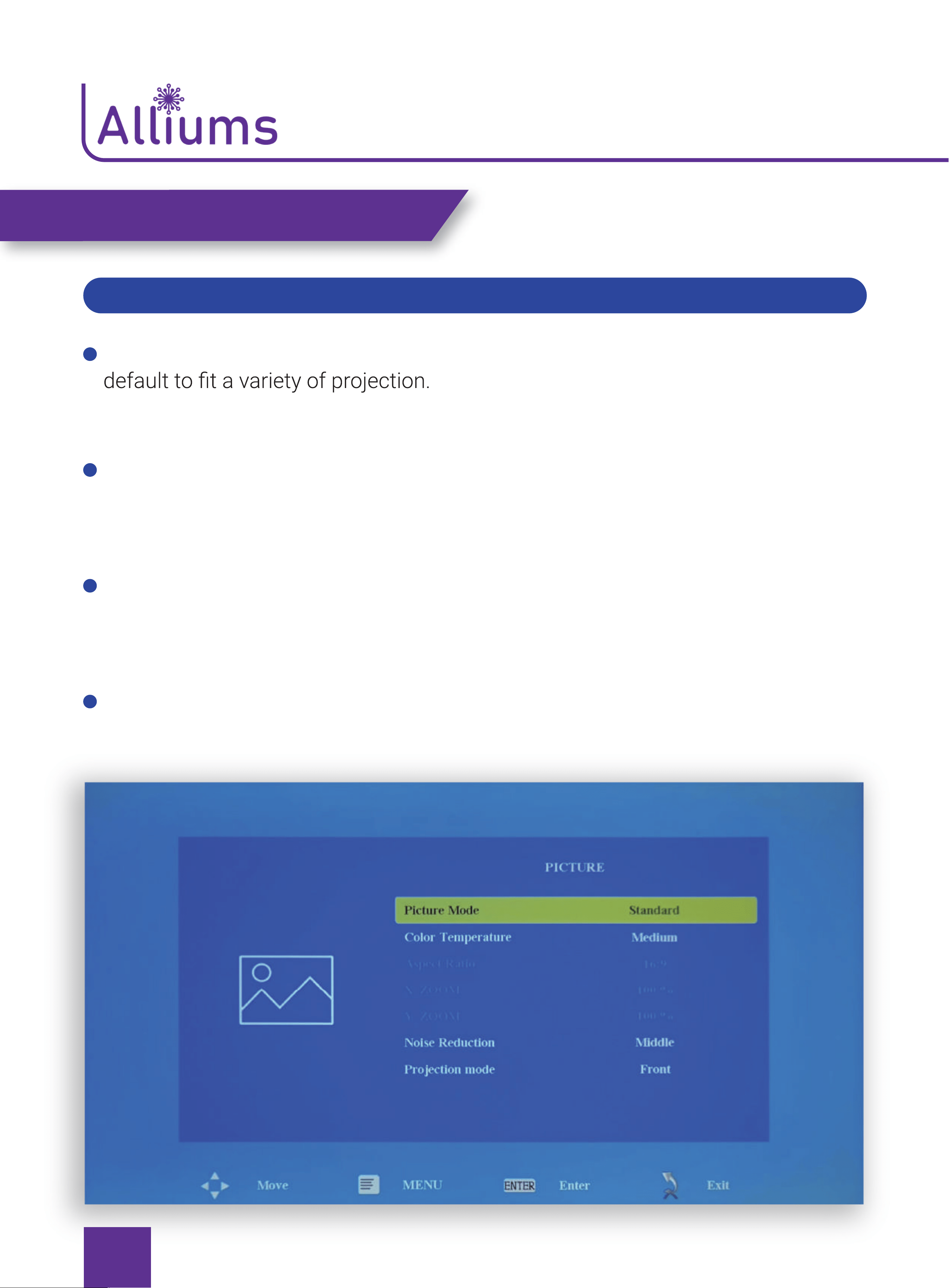
OPTIONS RELATED TO “PICTURE”ARE SET ON THIS SCREEN
Picture Mode: “User”, “Standard”, “Dynamic”, “Mild”, and other image modes are
Color Temperature: “Cool”, ”Medium” and “Warm” and other multiple color
temperature modes are default for different color preferences.
Noise Reduction: Set the noise reduction strength.”Off”, ”Low”, ”Middle”, ”High” are
default.
Projection Mode: “Front”, “Celling Front”, “Rear”, “Celling Rear” are the default for
different installation modes.
PROJECTOR SETTING
24
PROJECTOR SETTING
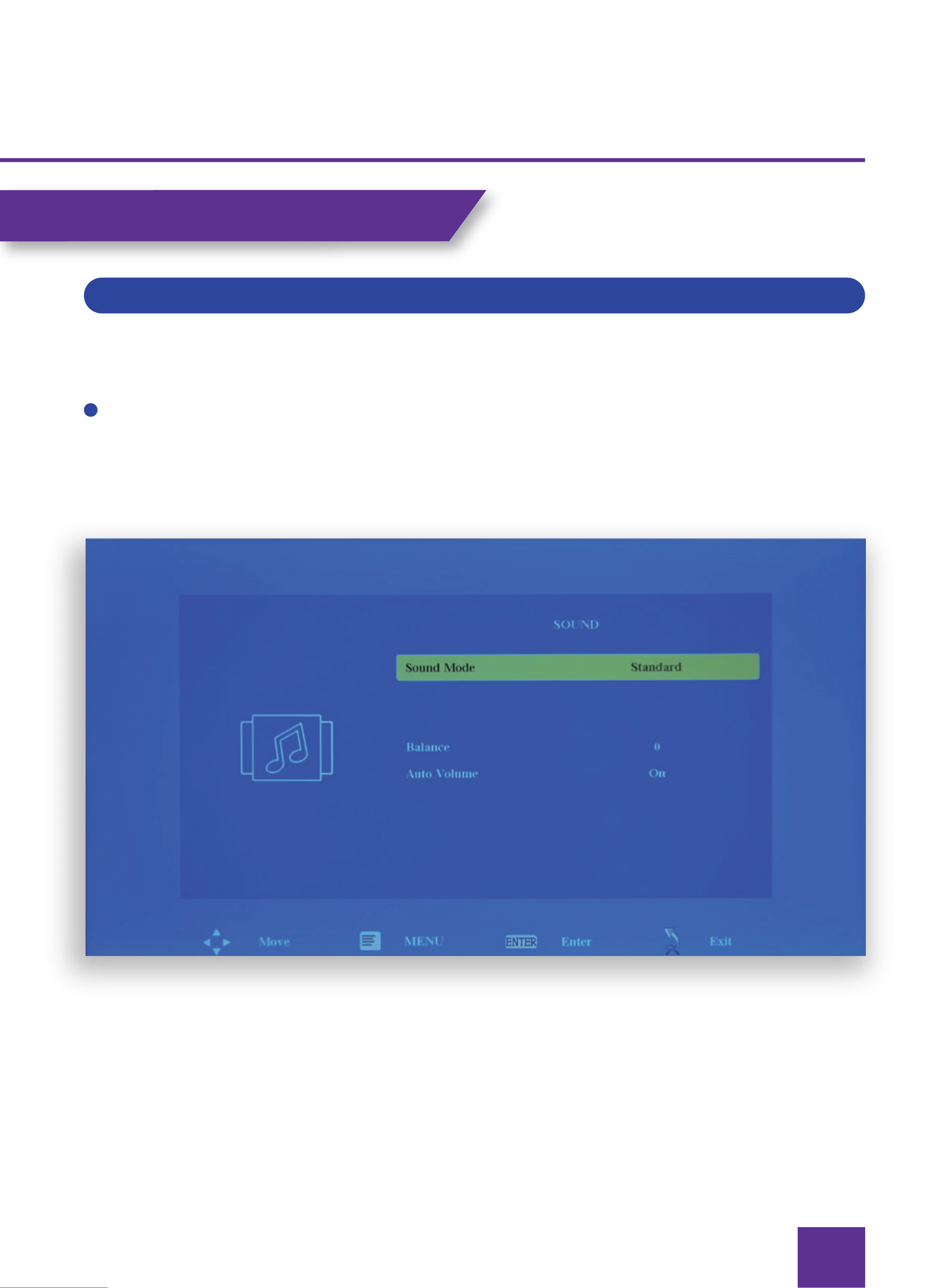
Sound Mode:”Standard”,”Movie”, “Music” , ”Sports”, ”User” modes are default.
OPTIONS RELATED TO “SOUND”ARE SET ON THIS SCREEN
25
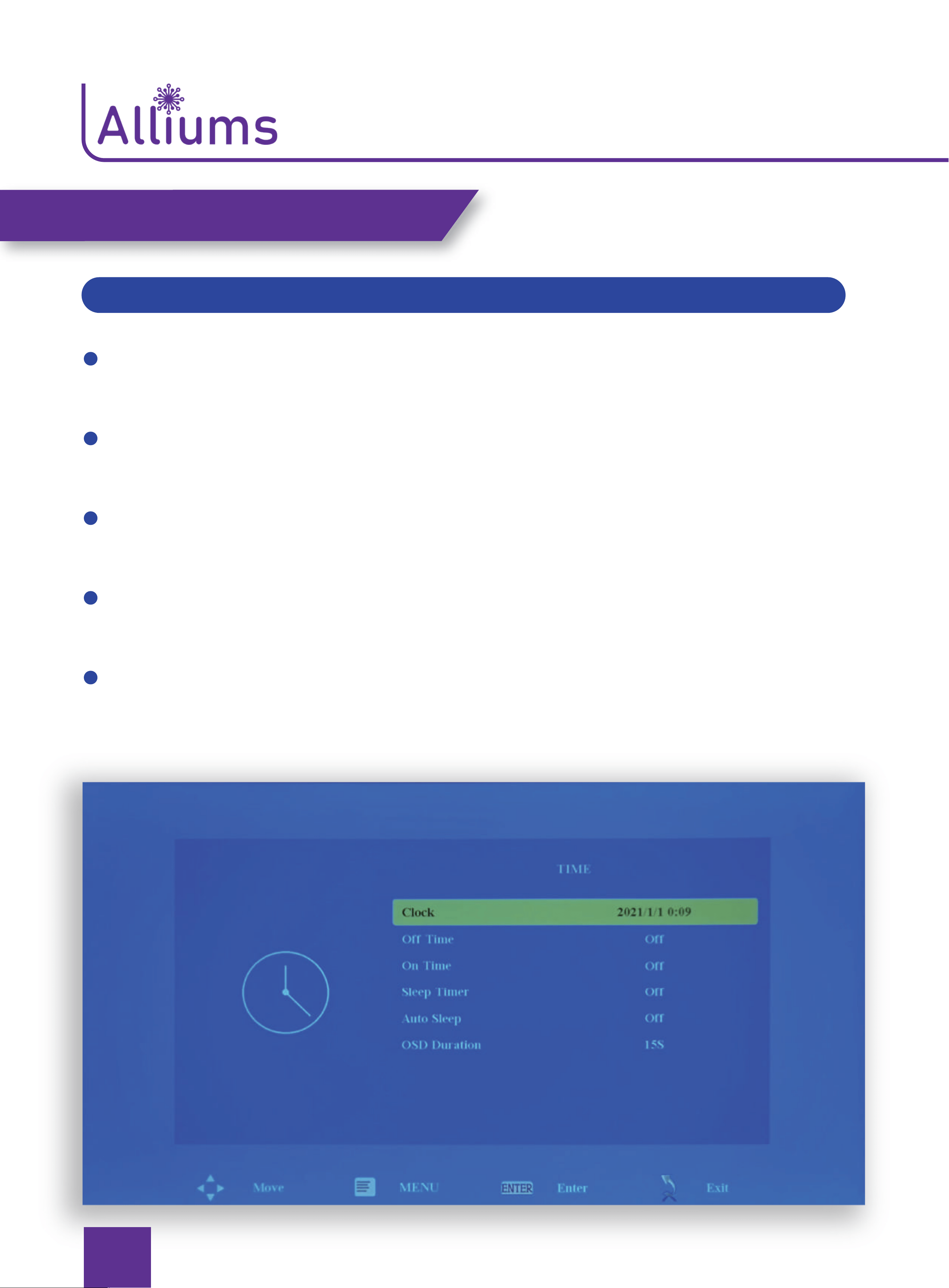
Clock: Set the system time which is the reference for using other time-related
functions.
Off Time: Set the automatic off time On Time: Set the automatic on time.
Sleep Timer: The system will automatically sleep to save energy.
Auto Sleep: The system will automatically sleep to save energy when no
change occurs on the screen for a period.
OSD Duration: Set the on-screen display Menu lasting time.
OPTIONS RELATED TO “TIME”ARE SET ON THIS SCREEN
PROJECTOR SETTING
26
PROJECTOR SETTING
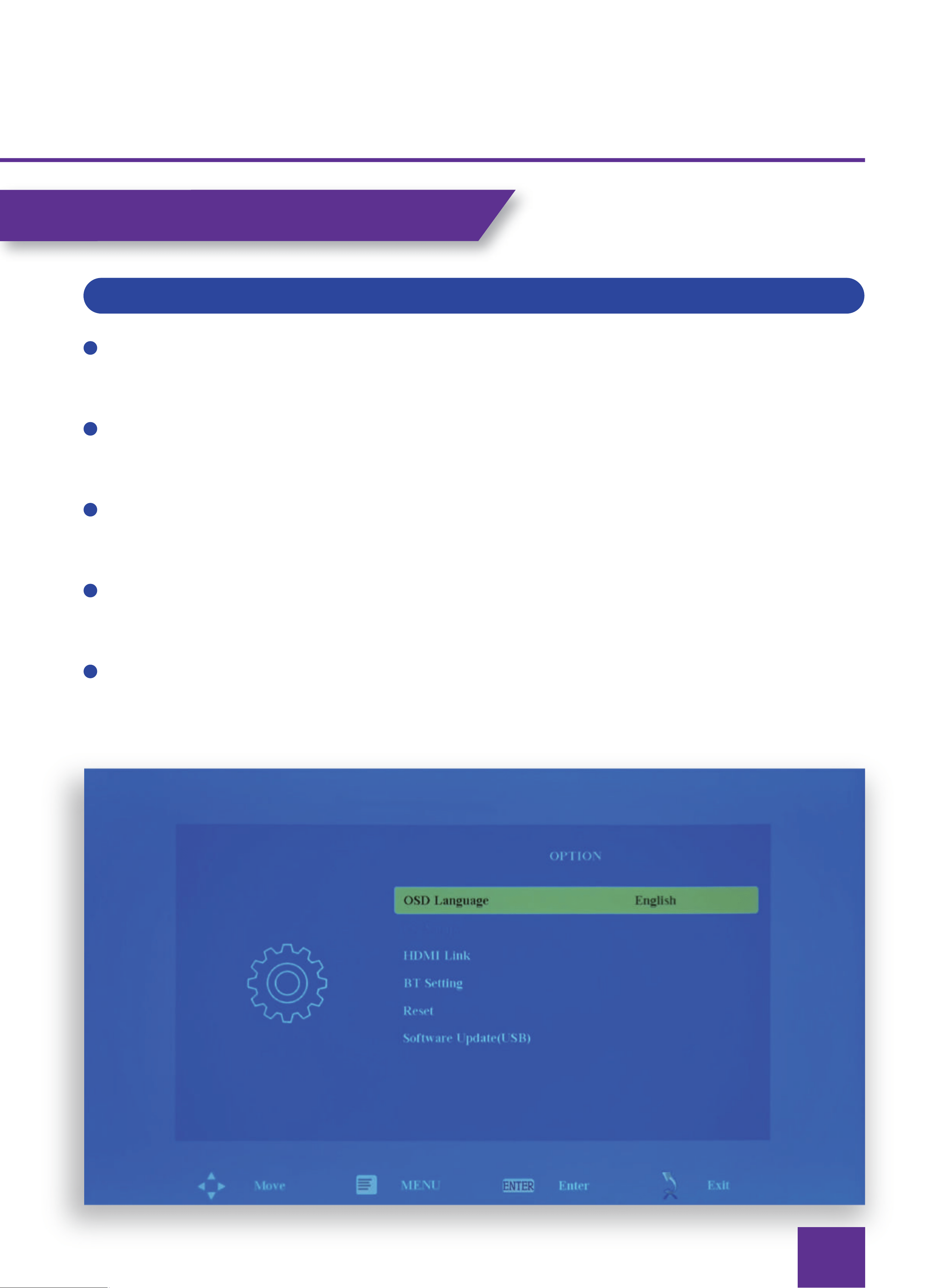
OPTIONS RELATED TO “OPTION”ARE SET ON THIS SCREEN
OSD Language: Set the language in the system with English as default.
HDMI Link: : ”Enable HDMI Link”,”Auto PowerOn”,”Device Auto Standby” CEC
Function.
BT Setting: ”BT Mode”, ”BT Name”, ”Search BT”, ”Available Device”.
Reset: Restore the factory default setting.
Software Update(USB):Update the software system version (USB storage device
with correct software upgrading package needs be inserted).

27
MAINTENANCE
6
Dust prevention: Excessive dust will affect the heat dissipation of the projector
the actual environment.
Ventilation : As the projector integrates the sound & photo-electricity, the
optical source will produce heat during its operation. Therefore, it shall be
ensured that no objects around will block the air inlet and outlet of the
projector to improve its working stability and service life.
Cleaning: Excessive dust on the projector surface shall be cleaned in a timely
manner, as it will affect the heat dissipation.
Lens maintenance: Lens, as the core component of the projector,is directly
cloth for the glass lens surface. Hard cloth or abrasives shall not be used.
Moisture protection: The projector is vulnerable to the damp air. Its operating
humidity is about 45%- 60%.
Vibration prevention: The projector shall be strictly protected from strong
impact, extrusion and vibration. Try not to move and knock the projector
during its normal operation, which will cause the internal circuit faults.
1
2
3
4
5
28
TROUBLESHOOTING GUIDE
BLURRY IMAGE
Adjust focus ring/keystone.
Projector and screen/wall must be in effective distsance.
REMOTE UNRESPONSIVE
Make sure remote points at IR rece iver directly.
Do not cover IR rece iver.
Try a new pair of AAA batteries.
UPSIDE DOWN IMAGES
AUTO ON/OFF
Go to Menu>TIME> Auto On/Auto Off and set the time to automatically. Turn on/
off the projector.
Go to Menu>TIME>Sleep Time to adjust the time period before the projector
automatically turns off.
FACTORY RESET
Go to Menu > OPTION > Factory Reset to estore factory settings as needed.
LANGUAGE SETTINGS
Go to Menu > OPTION > OSD Language to select the language.
DOLBY SOUND
Turn off the Dolby sound on your device or apps: Settings > Display & Sounds >
Audio > Dolby Digital Output > turn Dolby Digital OFF.
WHY IS THE AUDIO OF THE PROJECTOR AVAILABLE BUT WITHOUT DISPLAY?
The video format is not supported by the projector.
Encryption applied to the videos or media player which holds the video.
If th e lamp of the projector is off with only audio playing, the lamp is
defective.
7.
6.
5.
4.
3.
2.
1.
8.
29
DEFECTIVE PRODUCTS & RETURNS
contacted Customer Support via www.alliums.com.au
addressing your order number.
Make sure to NOT dispose of your product before contacting us. Once our
Customer Support Team has reached to your request approval, please return the
unit with its order number.
DISPOSAL
To prevent possible harm to the environment or human health
from uncontrolled waste disposal,
ask your local council where to dispose of your projector and
its related accessories.
You should not dispose your appliance and its related
accessories away with the daily normal household waste.
ALLIUMS CUSTOMER SUPPORT
Feel free to contact our helpful customer support team with
any questions regarding your product!
Your satisfaction is our priority.
Please provide your order number when you contact our customer
support services.
www.alliums.com.au
suppor[email protected]