INDEX
™
SLEEP MONITOR
Owner’s Manual

© 2025 Garmin Ltd. or its subsidiaries
All rights reserved. Under the copyright laws, this manual may not be copied, in whole or in part, without the written consent of Garmin. Garmin reserves the right to change
or improve its products and to make changes in the content of this manual without obligation to notify any person or organization of such changes or improvements. Go to
www.garmin.com for current updates and supplemental information concerning the use of this product.
Garmin
®
and the Garmin logo are trademarks of Garmin Ltd. or its subsidiaries, registered in the USA and other countries. Body Battery
™
, Garmin Connect
™
, Garmin Express
™
, and
Index
™
are trademarks of Garmin Ltd. or its subsidiaries. These trademarks may not be used without the express permission of Garmin.
The BLUETOOTH
®
word mark and logos are owned by Bluetooth SIG, Inc. and any use of such marks by Garmin is under license. Mac
®
is a trademark of Apple Inc., registered in the
U.S. and other countries. Other trademarks and trade names are those of their respective owners.
M/N: A04990

Table of Contents
Introduction......................................1
Getting Started........................................ 1
Device Overview...................................... 1
Activating the Sleep Band.......................2
Putting On the Index Sleep Monitor Sleep
Band......................................................... 3
Module Status LED.................................. 5
Pairing and Setup............................. 6
Pairing Your Device with the Garmin
Connect App............................................ 6
Setting an Alarm...................................... 6
System Settings...................................... 7
Waking Up the Module............................ 8
Viewing Your Sleep Data.........................8
Manually Syncing Data with the Garmin
Connect App............................................ 9
Sleep Tracking................................. 9
Body Battery............................................ 9
Pulse Oximeter........................................ 9
Heart Rate Variability Status................ 10
Skin Temperature.................................. 10
Breathing Variations............................. 10
Device Information......................... 11
Charging the Device.............................. 11
Connecting the Device to Your
Computer............................................... 11
Updating the Software Using the Garmin
Connect App.......................................... 12
Device Care............................................12
Specifications........................................14
Troubleshooting............................. 14
Resetting the Device............................. 14
My phone will not connect to the sleep
band....................................................... 14
Pairing failed on my sleep band........... 15
How do I check the battery level?........ 15
My sleep band will not sync with the
app......................................................... 15
Getting More Information..................... 15
Table of Contents i

Introduction
WARNING
See the Important Safety and Product Information guide in the product box for product warnings and other
important information.
Getting Started
When using your Index Sleep Monitor sleep band the first time, you should complete these tasks to set it up and
get to know the basic features.
• Plug the sleep band into the charger to turn the sleep band on (Activating the Sleep Band, page2).
• Download the Garmin Connect
™
app to your phone, and pair the devices (Pairing Your Device with the Garmin
Connect App, page6).
• Charge the sleep band (Charging the Device, page11).
• Check for software updates (Updating the Software Using the Garmin Connect App, page12).
Software updates provide changes and improvements to privacy, security, and features.
• Activate the sleep band before sleeping (Activating the Sleep Band, page2).
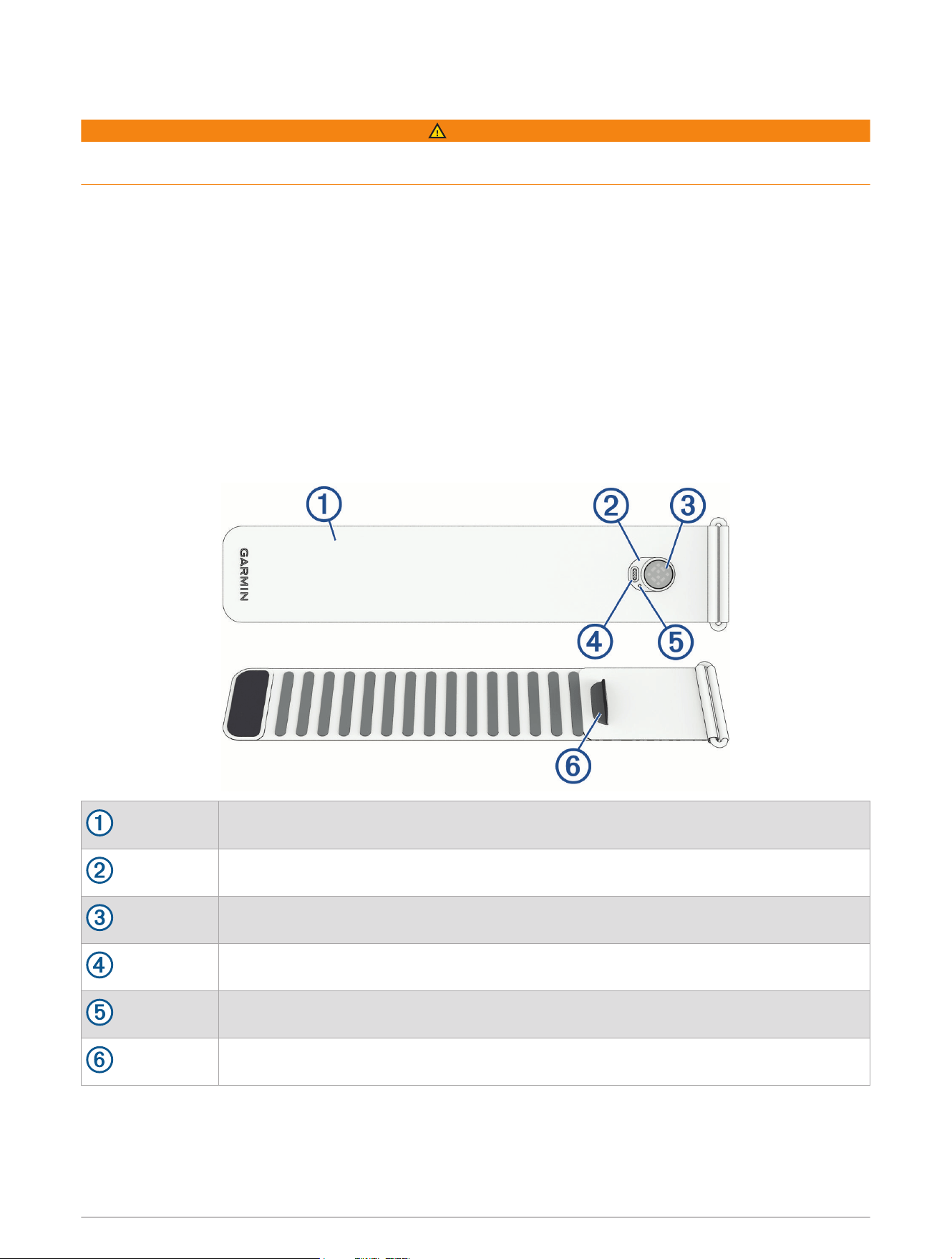
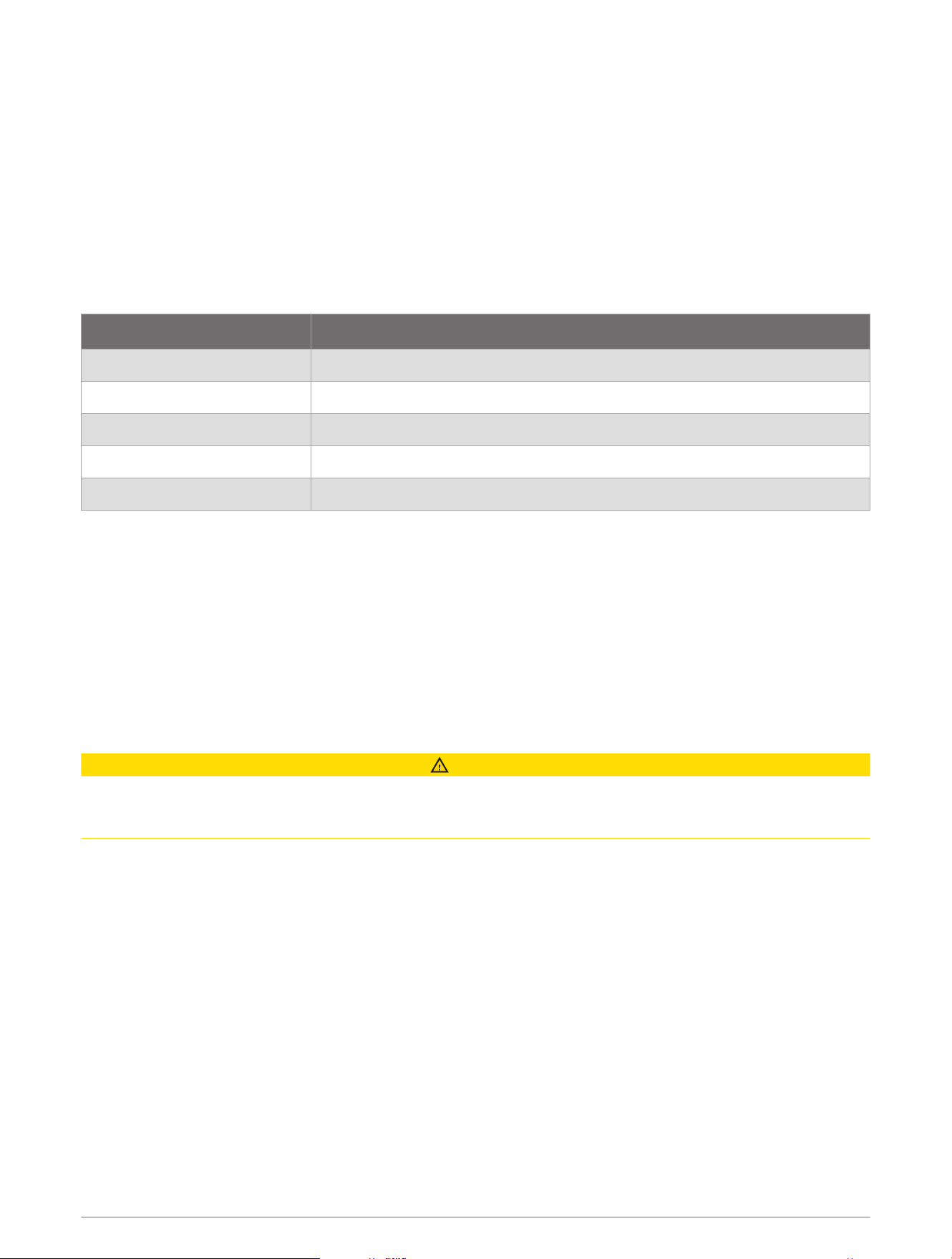
Device Overview
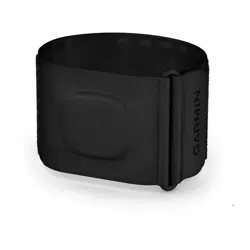
Sleep band
Module
Sensor
Charging port
LED
Module pocket opening
Introduction 1
Activating the Sleep Band
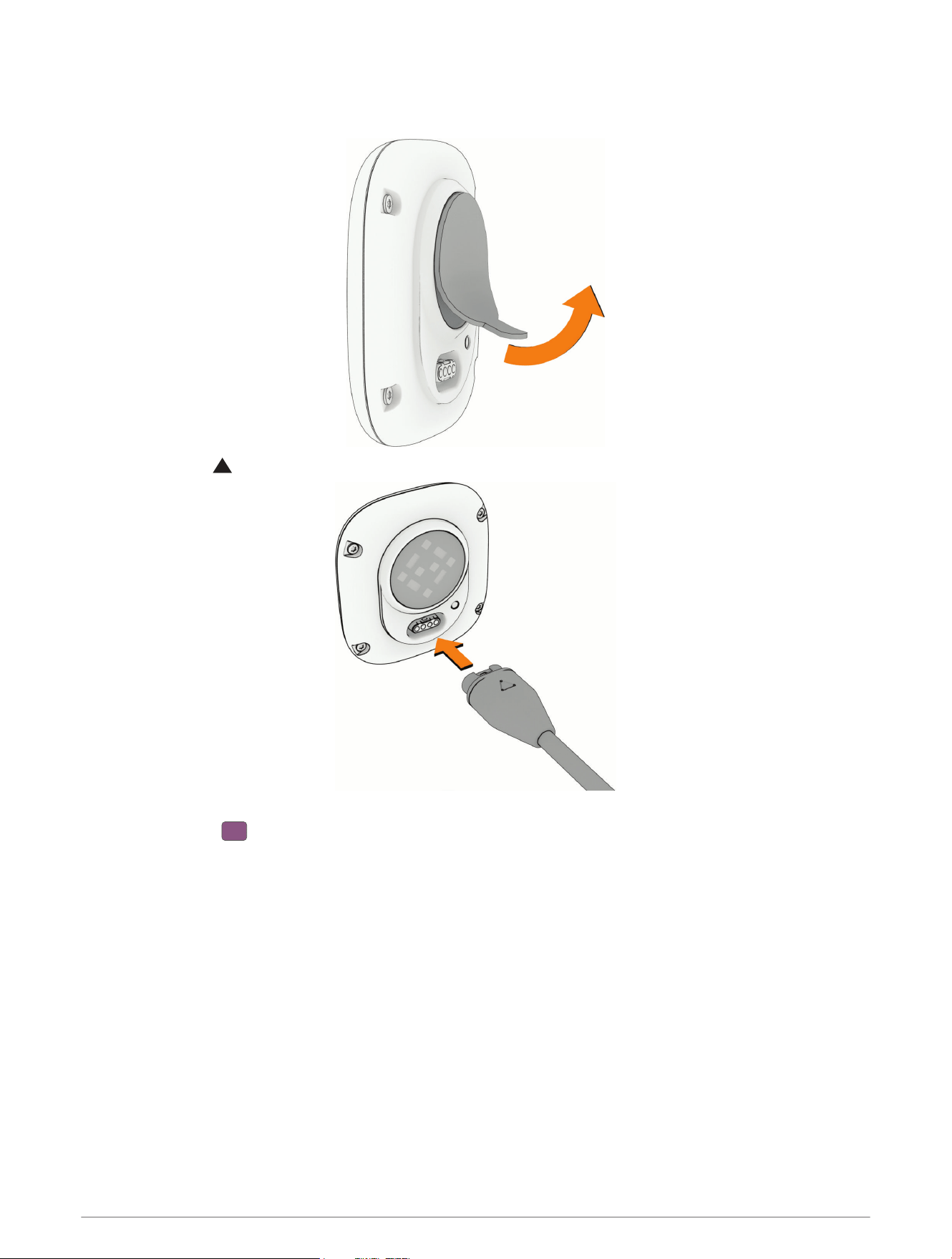
1 Remove the protective film from the sensor on the back of the module.
2 Plug the cable ( end) into the charging port.
3 Plug the other end of the cable into a USB charging port.
The LED flashes in active pairing mode (Pairing Your Device with the Garmin Connect App, page6).
2 Introduction
Putting On the Index Sleep Monitor Sleep Band
While you are sleeping, the sleep band monitors your movement and sleep patterns. You can view your sleep
statistics on your Garmin Connect account (Sleep Tracking, page9).
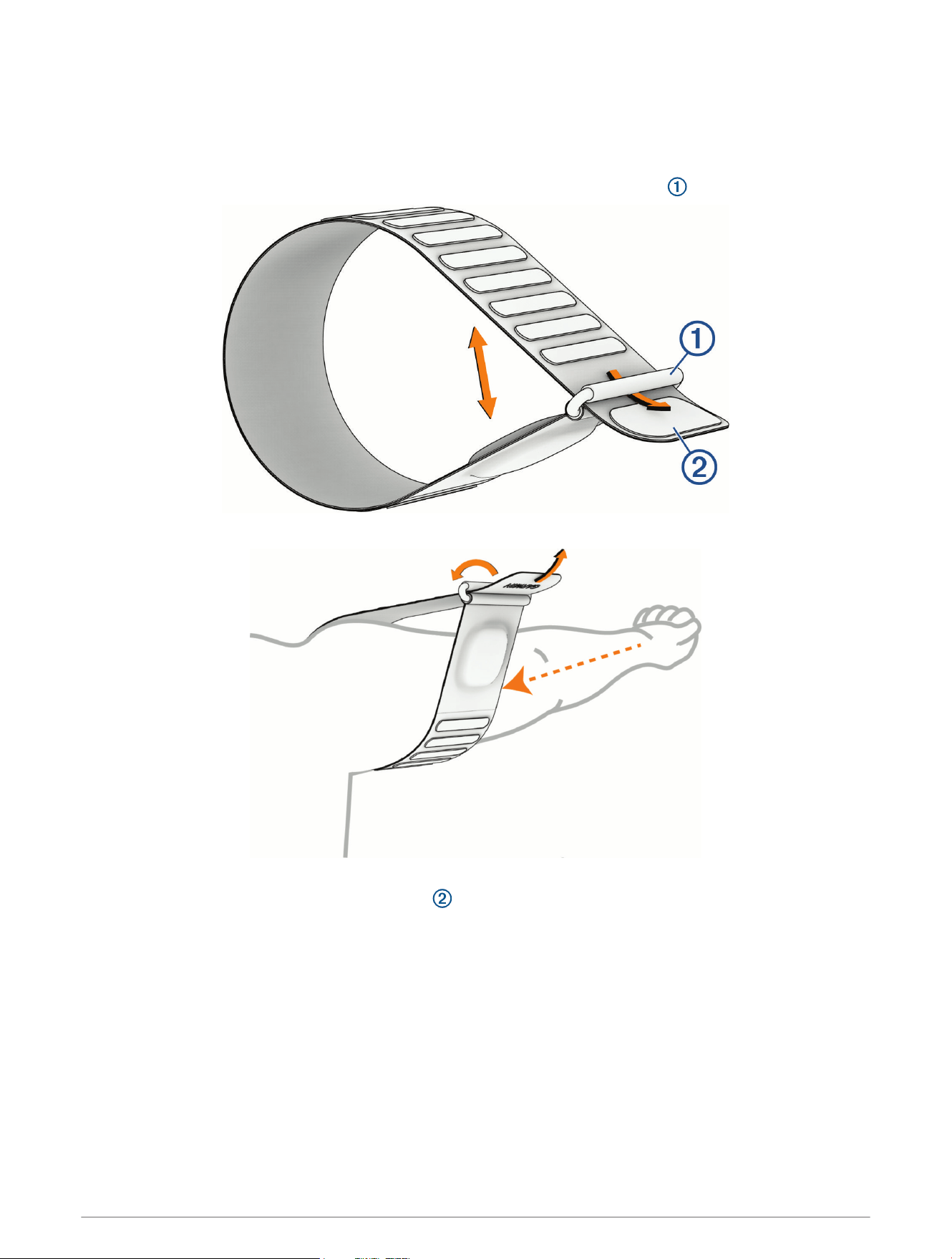
1 Unfold the sleep band.
2 Form a loop with the band by threading the sleep band through the retaining bar .
3 Place your arm into the loop, and slide the sleep band to your upper arm.
The sleep band should be above your elbow.
4 Bend your arm, and fasten the end of the band onto a hook and loop section.
Introduction 3
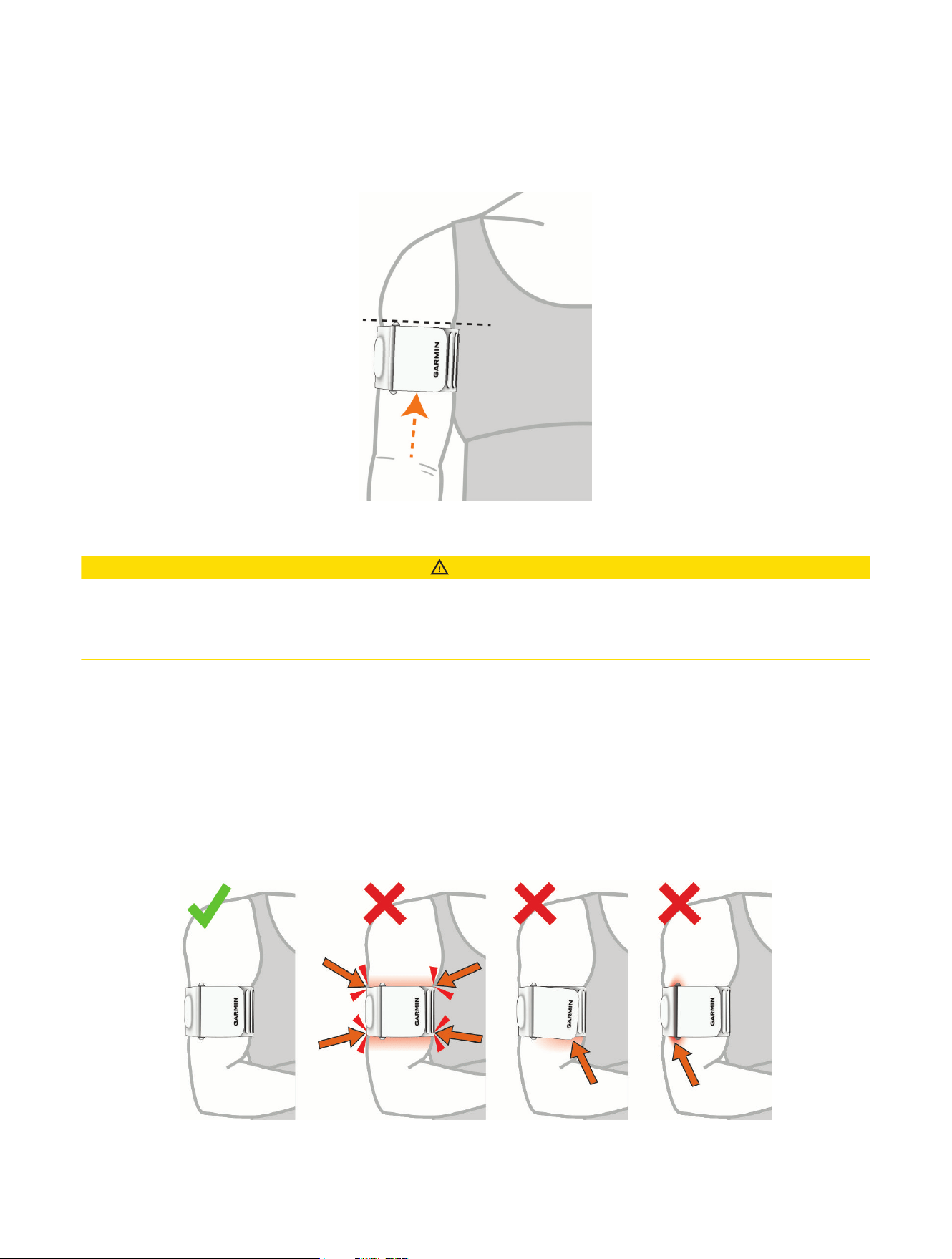
5 If necessary, remove the sleep band from your arm, and adjust the band so it is comfortable (Tips for
Wearing the Sleep Band, page4).
TIP: After you have adjusted the sleep band to fit properly on your arm, you should be able to slide the
fastened sleep band on and off without adjusting it for every use.
6 Position the module where you will not lay on it during sleep.
Tips for Wearing the Sleep Band
CAUTION
Some users may experience skin irritation after prolonged use of the sleep band, especially if the user has
sensitive skin or allergies. If you notice any skin irritation, remove the sleep band and give your skin time to heal.
To help prevent skin irritation, ensure the sleep band is clean and dry, and do not overtighten the sleep band on
your arm.
The Index Sleep Monitor sleep band should be lightly snug on the arm while remaining comfortable.
NOTE: It may be easier to adjust the sleep band before wearing it.
• For larger arms, fasten the hook and loop strap closer to the retaining bar.
• After you adjust the sleep band for a proper fit, keep the loop formed so you can slide the sleep band on and
off during use without additional adjustment.
• Check your sleep band fit to minimize discomfort during sleep.
NOTE: It may take time to find a comfortable fit.
• Make sure the module pocket lays flat against the skin with no puckering.
• Do not overtighten the sleep band on the arm.
• Position the module pocket and retaining bar on the outside of the arm, so that the module faces out.
TIP: You can adjust the module closer to the inside of your arm if that is more comfortable.
4 Introduction
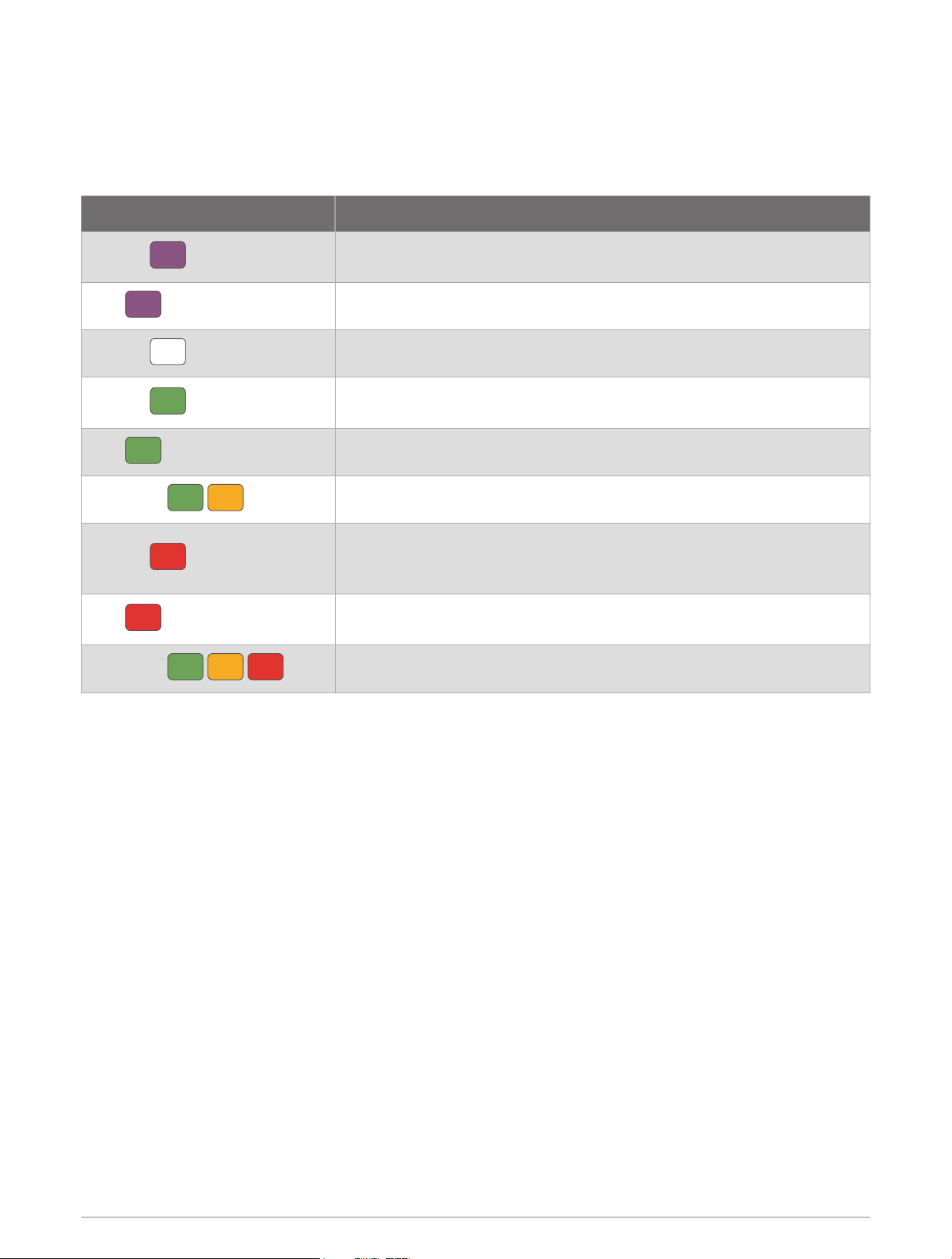
• Avoid laying directly on top of the module.
• Avoid tight clothing that could compress the sleep band.
• Wash the sleep band regularly, and before wearing it for the first time (Machine Washing, page13).
Module Status LED
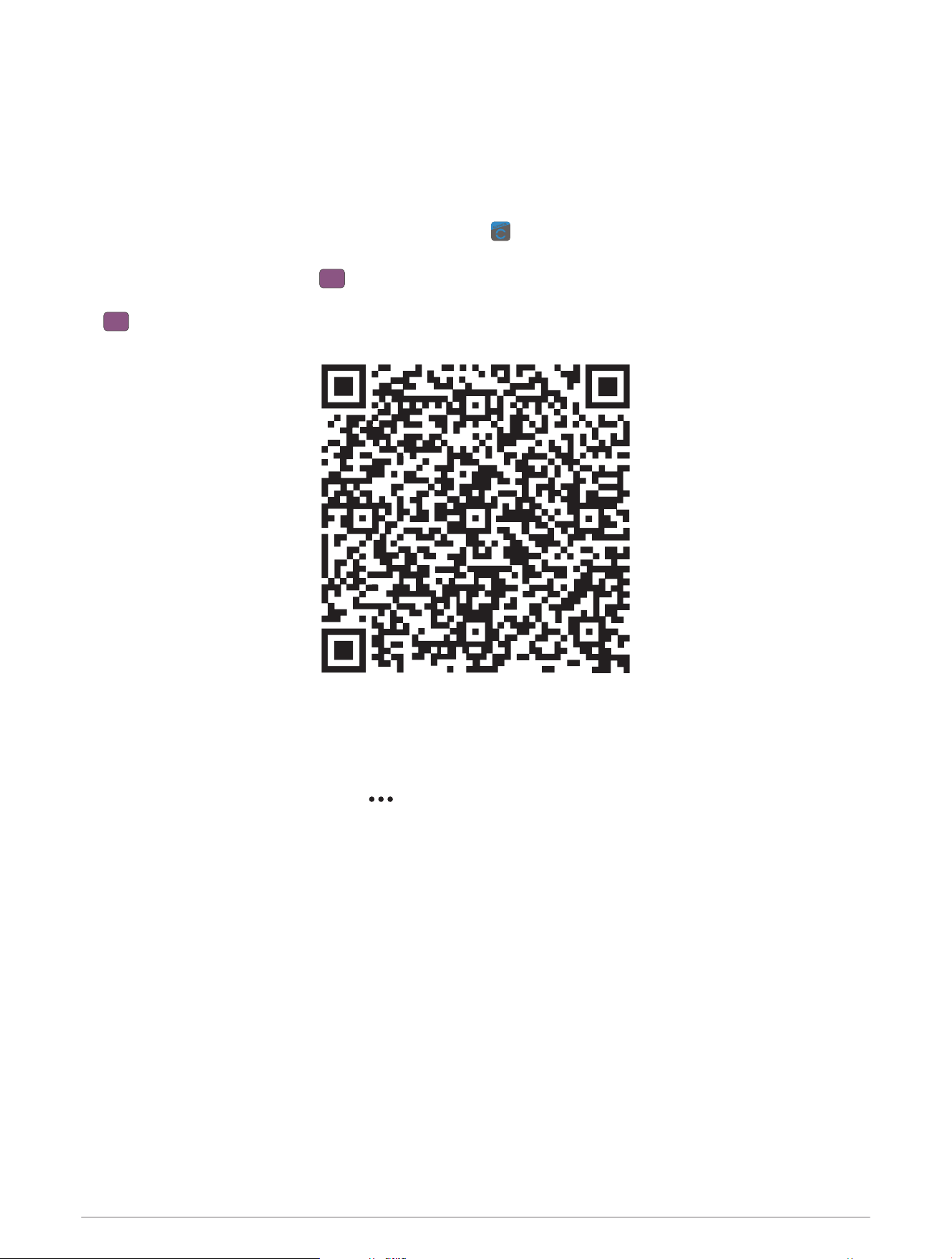
LED Activity Status
Flashing
The module is in active pairing mode. The device is in pairing mode for 5
minutes.
Solid
The module is paired.
Flashing
The module is turning on.
Flashing
The module is charging. As the charge increases, the flash period
increases until it is fully charged.
Solid
The module is fully charged.
Alternating
The module is updating software.
Flashing
Pairing failed or the battery level is critically low. You should pair again,
or charge the module (Pairing Your Device with the Garmin Connect App,
page6).
Solid
An error occurred. You may need to reset the module (Resetting the
Device, page14).
Alternating
The module is resetting to factory default values.
Introduction 5
Pairing and Setup
Pairing Your Device with the Garmin Connect App
To use the connected features of the Index Sleep Monitor sleep band, it must be paired with the Garmin
Connect app.
1 Bring your phone within 10 m (33 ft.) of your device.
2 From the app store on your phone, install and open the Garmin Connect app.
3 Plug the module into a power source with the USB cable (Activating the Sleep Band, page2).
The device status LED flashes in active pairing mode. The device is in pairing mode for 5 minutes.
TIP: To manually enter pairing mode, tap the module firmly and rapidly up to 15 times until the LED flashes
(Module Status LED, page5).
4 Scan the QR code with your phone.
5 Follow the on-screen instructions on the Garmin Connect app to complete the pairing process.
Setting an Alarm
Before you can set an alarm, your Index Sleep Monitor device must be awake and connected to the Garmin
Connect app.
1 From the Garmin Connect app, select > Garmin Devices.
2 Select the Index Sleep Monitor device.
3 Select Alarms > Add Alarm.
4 Select Time to set the alarm time.
5 Select Repeat to set or customize the alarm recurrence.
6 To set an alarm to gently wake you in the 30-minute window before your scheduled alarm based on optimal
sleep timing, turn on Smart Wake Alarm.
NOTE: Your alarm will always go off at your selected time in addition to any earlier alarms. For example, if
you set your alarm for 8:00 am, the alarm may gently alert you to wake up some time between 7:30 and 8:00
am.
7 Select Save.
8 To set and save additional alarms, select Add Alarm and repeat steps 4 through 7.
6 Pairing and Setup

Editing an Alarm
1 From the Garmin Connect app, select > Garmin Devices.
2 Select the Index Sleep Monitor device.
3 Select Alarms > Edit.
4 Select an alarm.
5 Select an option.
6 Select Save.
Snoozing or Stopping an Alarm
You can use the Garmin Connect app to set an alarm (Setting an Alarm, page6).
As the module is vibrating, select an option:
• To snooze the alarm, quickly tap the module twice.
• To stop the alarm, quickly tap the module four times.
You can set the vibration level in the Garmin Connect app (Setting the Vibration Level, page7).
System Settings
Setting Your Sleep Schedule
Your device uses your sleep schedule as a guide to accurately measure your sleep. Use the Garmin Connect app
to set your typical sleep hours.
1 From the Garmin Connect app, select > Garmin Devices.
2 Select the Index Sleep Monitor device.
3 Select System > Sleep Schedule.
4 Select the day range you want to set.
5 Select Bed Time and Wake Time, and enter the specific times.
Setting the Vibration Level
1 From the Garmin Connect app, select > Garmin Devices.
2 Select the Index Sleep Monitor device.
3 Select System > Alert Vibration.
4 Select the vibration level.
NOTE: A higher vibration level decreases battery life.
Pairing and Setup 7
Waking Up the Module
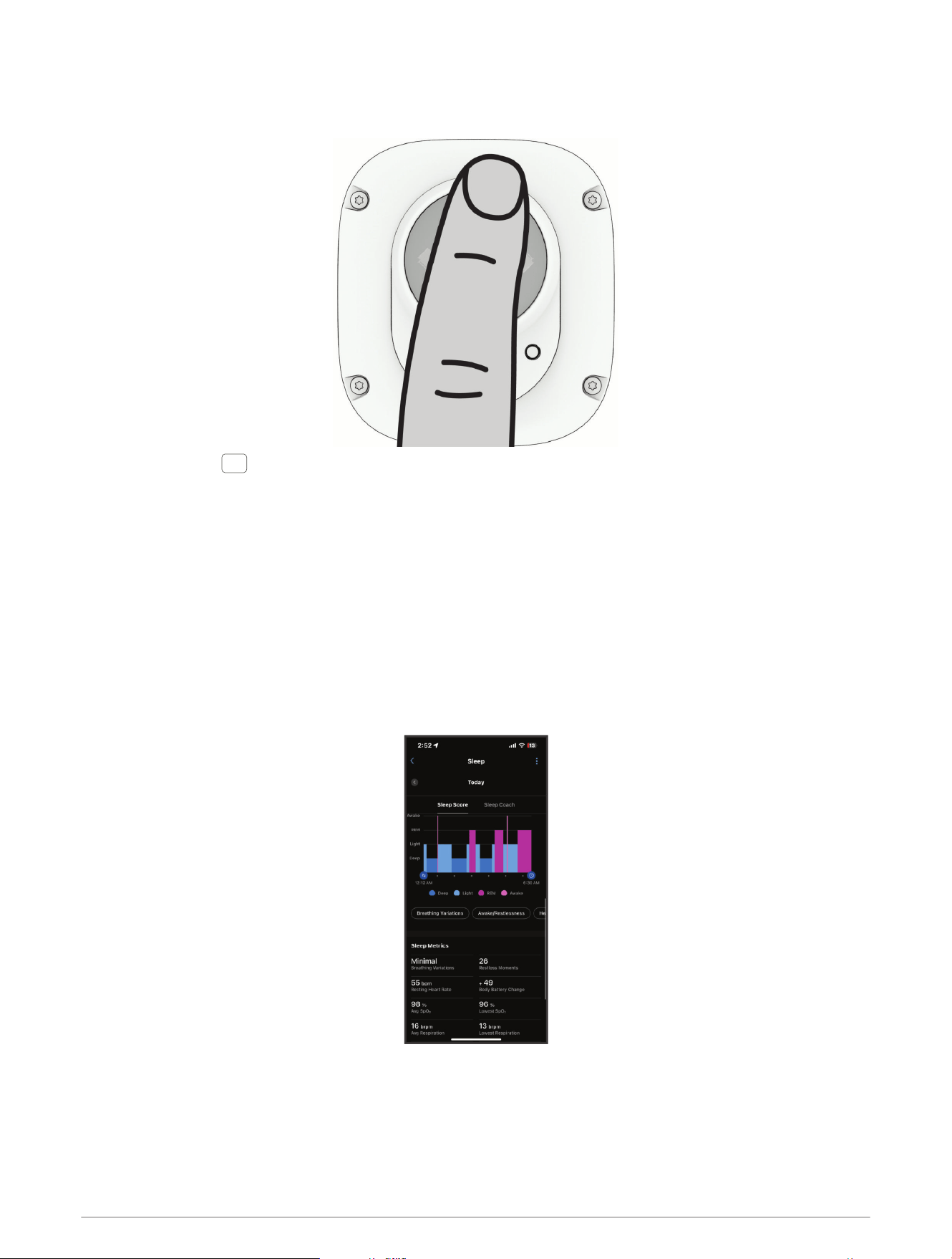
Place your finger over the sensor on the back of the module for 5 seconds.
The LED flashes as the device turns on.
Viewing Your Sleep Data
To view your sleep data in the Garmin Connect app, both your Index Sleep Monitor device and Garmin Connect
app must be awake and connected.
1 After you wake up and finish sleeping, remove the sleep band from your arm.
2 Bring the sleep band near the paired phone.
3 Open the Garmin Connect app.
NOTE: The app must be open or running in the background.
4 Wait a few minutes for the sleep band to sync the sleep data to the Garmin Connect app.
The sleep data also syncs to a compatible Garmin
®
watch that is paired with Garmin Connect.
5 View your sleep data in the Garmin Connect app or on your Garmin primary wearable.
8 Pairing and Setup

Manually Syncing Data with the Garmin Connect App
The Index Sleep Monitor device periodically syncs data with the Garmin Connect app automatically when your
device is awake and connected to the Garmin Connect app. You can also manually sync data at any time.
1 Bring the device near the paired phone.
2 Open the Garmin Connect app.
TIP: The app can be open or running in the background.
3 Select > Garmin Devices.
4 Select the Index Sleep Monitor device.
5 Select .
6 Wait while the data syncs.
7 View your sleep data in the Garmin Connect app.
Sleep Tracking
While you are sleeping, the Index Sleep Monitor sleep band automatically detects your sleep and monitors your
movement during your normal sleep hours. You can set your sleep schedule in the Garmin Connect app. Sleep
statistics include total hours of sleep, sleep stages, sleep movement, resting heart rate, Body Battery
™
change,
and more. Your sleep coach provides sleep need recommendations based on your sleep and activity history,
and HRV status. You can view detailed sleep statistics and set your sleep schedule on your Garmin Connect
account (Setting Your Sleep Schedule, page7).
For more information, go to www.garmin.com/garmin-technology/health-science/sleep-tracking/.
Body Battery
Your sleep band analyzes your heart rate variability, sleep quality, and sleep stages to determine your overnight
Body Battery change. You can expect to see the highest Body Battery change with a good night's sleep. Activity
and stress combine to drain your energy throughout the day, while naps and restful moments can slow things
down or even give you a boost.
NOTE: Illness, alcohol consumption, and stress can prevent you from fully charging your Body Battery overnight.
Sync your sleep band with your Garmin Connect account to view your most up-to-date Body Battery change,
long-term trends, and additional details.
Pulse Oximeter
The Index Sleep Monitor sleep band has a pulse oximeter feature to gauge the saturation of oxygen in your
blood. Knowing your oxygen saturation can be valuable in understanding your overall health and help you
determine how your body is adapting to altitude. Your sleep band gauges your blood oxygen level by shining
light into the skin and checking how much light is absorbed. This is referred to as SpO
2
.
On your Garmin Connect app, your pulse oximeter readings appear as an SpO
2
percentage. Here you can
view additional details about your pulse oximeter readings, including trends over multiple days, as well as any
variations in your oxygen saturation percentage (Breathing Variations, page10). For more information on pulse
oximeter accuracy, go to garmin.com/ataccuracy.
Tips for Erratic Pulse Oximeter Data
If the pulse oximeter data is erratic or does not appear, you can try these tips.
• Clean and dry your arm before putting on the sleep band.
• Wear the sleep band at heart level.
• Avoid wearing sunscreen, lotion, and insect repellent under the sleep band.
• Avoid scratching the optical sensor on the back of the module.
Sleep Tracking 9
Heart Rate Variability Status
Your Index Sleep Monitor sleep band analyzes your heart rate readings while you are sleeping to determine your
heart rate variability (HRV), which is the changing length of time between two heartbeats. Training, physical
activity, sleep, nutrition, and healthy habits all impact your heart rate variability. HRV values can vary widely
based on gender, age, and fitness level. A balanced HRV status may indicate positive signs of health such as
good training and recovery balance, greater cardiovascular fitness, and resilience to stress. An unbalanced or
poor status may be a sign of fatigue, greater recovery needs, or increased stress. For best results, you should
consistently wear the sleep band while sleeping. The sleep band requires three weeks of consistent sleep data
to display your heart rate variability status.
Sync your sleep band with your Garmin Connect account to view your current heart rate variability status and
trends.
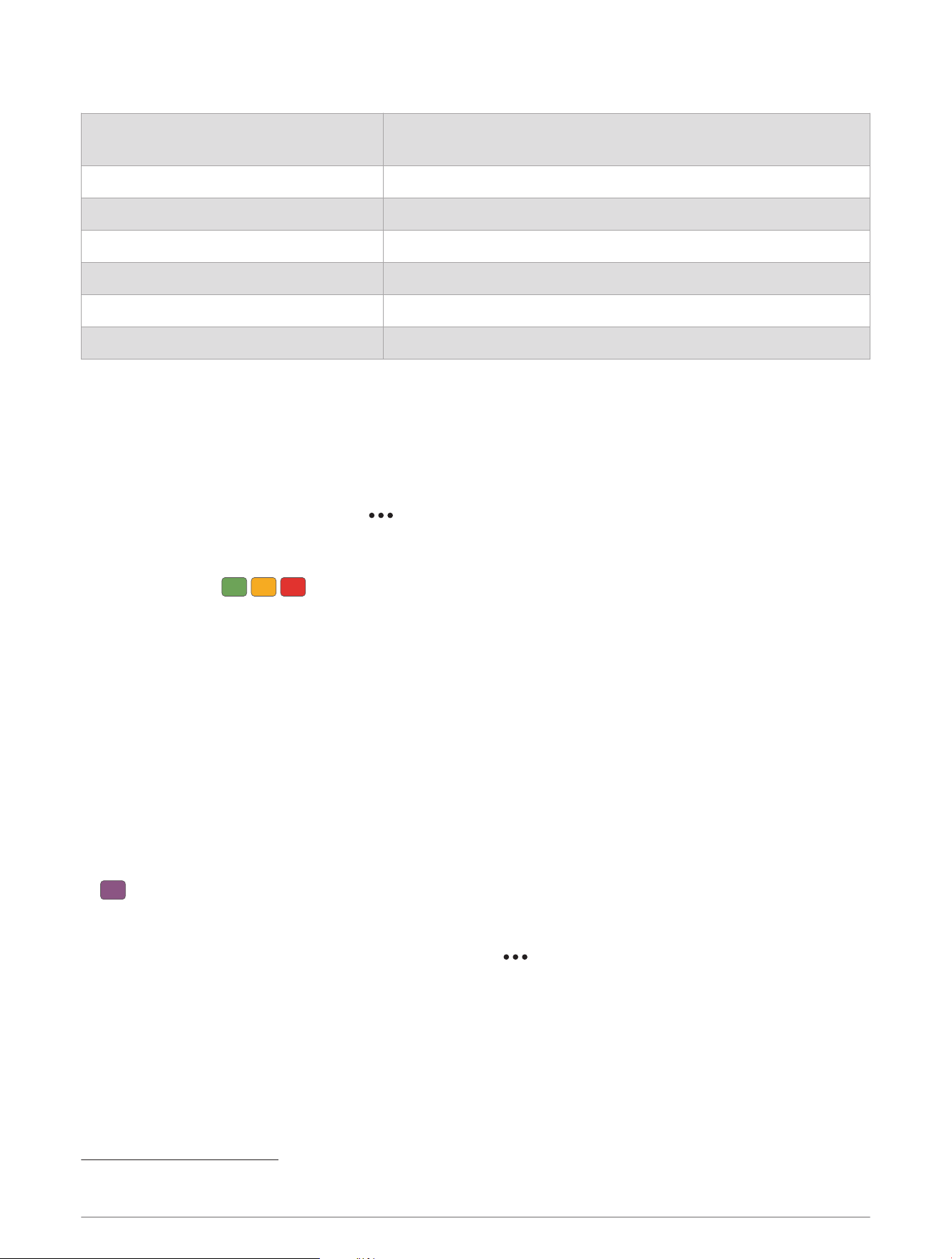
Status Description
Balanced Your seven-day average HRV is within your baseline range.
Unbalanced Your seven-day average HRV is above or below your baseline range.
Low Your seven-day average HRV is well below your baseline range.
Poor Your HRV values are averaging well below the normal range for your age.
No Status There is insufficient data to generate a seven-day average.
Skin Temperature
The module on the Index Sleep Monitor sleep band has a sensor designed to track variations in your skin
temperature overnight. Your skin temperature changes over time, which can be related to your recent activity
and sleep environment. Skin temperature can also be a sign of changes in your overall body temperature,
potentially providing an early indication of illness. Watch the trends for clues to improve your sleep and health.
TIP: For women, you can also use skin temperature variations to better track your menstrual or ovulation cycle.
For more information, go to www.garmin.com/garmin-technology/health-science/womens-health/.
You must wear your sleep band for three nights to establish your skin temperature baseline.
Breathing Variations
CAUTION
The Index Sleep Monitor device is not a medical device and is not intended for use in the diagnosis or
monitoring of any medical condition. For more information on pulse oximeter accuracy, go to garmin.com
/ataccuracy.
The optical heart rate sensor on the Index Sleep Monitor device has a pulse oximeter feature that can measure
your overnight breathing variations. Breathing variation insights are provided to enhance awareness of your
sleep environment and general wellness. Occasional or frequent breathing variations may be due to your
individual lifestyle factors or your sleeping environment. Contact your doctor or healthcare provider if you're
concerned about your level of breathing variations.
On your Garmin Connect account, you can view additional details about breathing variations, including trends
over multiple days.
10 Sleep Tracking
Device Information
Charging the Device
WARNING
This device contains a lithium-ion battery. See the Important Safety and Product Information guide in the product
box for product warnings and other important information.
NOTICE
To prevent corrosion, thoroughly clean and dry the contacts and the surrounding area before charging.
NOTE: The device will not charge when it is outside of the approved temperature range (Specifications,
page14).
Your device comes with a proprietary charging cable. For optional accessories and replacement parts, go to
buy.garmin.com, or contact your Garmin dealer.
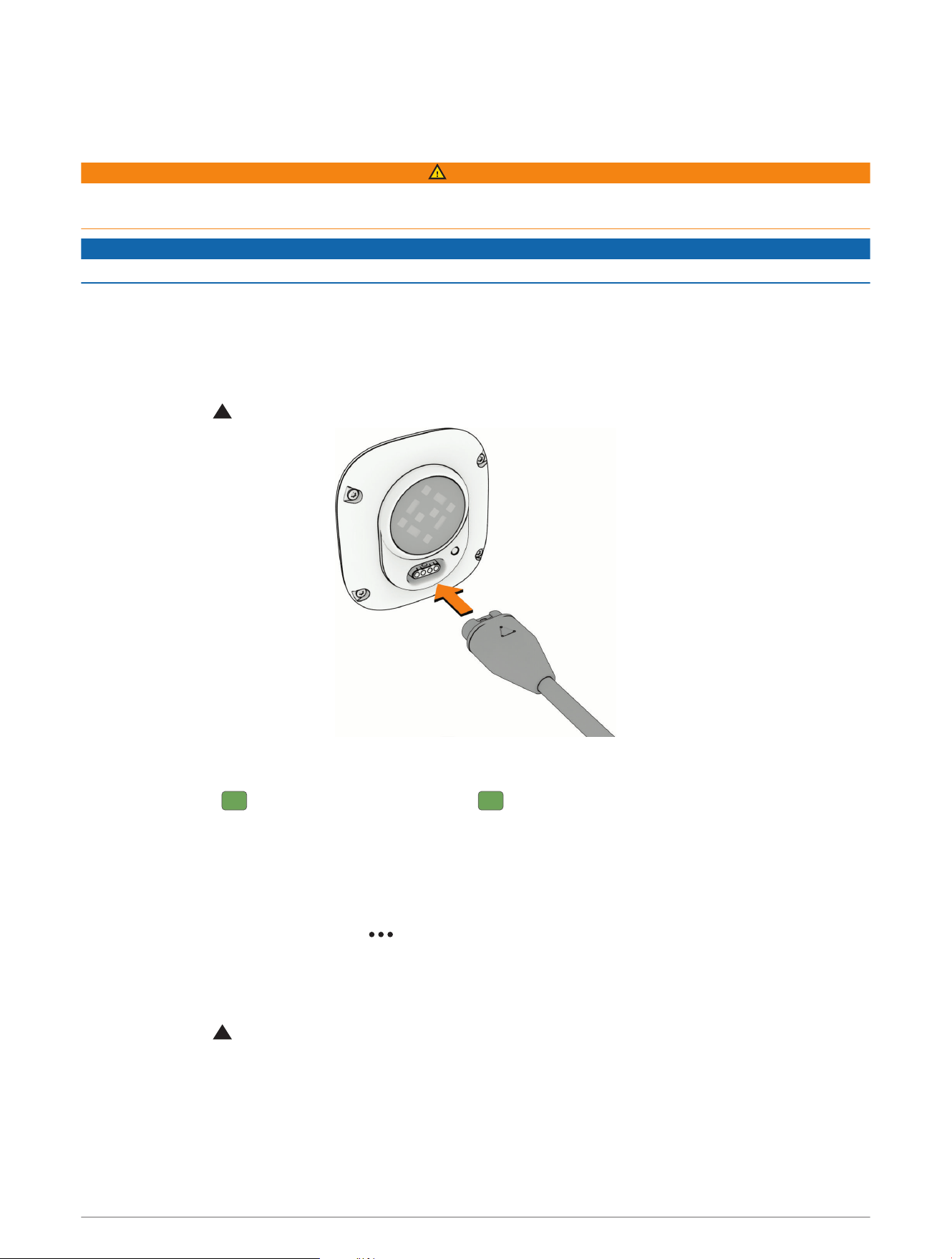
1 Locate the back of the module.
2 Plug the cable ( end) into the charging port.
3 Plug the other end of the cable into a USB charging port.
4 Charge the device completely.
The LED flashes while charging. The LED is solid when charging is complete.
Fully charging the device can take up to 2 hours.
Connecting the Device to Your Computer
You can connect the Index Sleep Monitor device to your computer to install software updates or transfer activity
files or data to your computer.
1 From the Garmin Connect app, select > Garmin Devices.
2 Select the Index Sleep Monitor device.
3 Select System > USB File Access.
4 Enable File Access Over USB.
5 Plug the cable ( end) into the charging port on the device.
6 Plug the other end of the cable into a computer USB port.
Depending on your computer operating system, the device appears as either a portable device, a removable
drive, or a removable volume.
NOTE: Mac
®
operating systems do not detect the device by default. You must use Garmin Express
™
software
to interact with files on your device.
Device Information 11

Updating the Software Using the Garmin Connect App
Before you can update your device software using the Garmin Connect app, you must have a Garmin Connect
account, and you must pair the device with a compatible phone (Pairing Your Device with the Garmin Connect
App, page6).
Sync your device with the Garmin Connect app (Manually Syncing Data with the Garmin Connect App, page9).
When new software is available, the Garmin Connect app automatically sends the update to your device.
Device Care
NOTICE
Avoid extreme shock and harsh treatment, because it can degrade the life of the product.
Avoid chemical cleaners, solvents, and insect repellents that can damage plastic components and finishes.
Do not store the device where prolonged exposure to extreme temperatures can occur, because it can cause
permanent damage.
Do not wash the module in the washing machine. The module should withstand occasional rain or water
splashes. Putting the module in the washing machine or dryer may damage the module (Machine Washing,
page13).
Do not use a sharp or abrasive object to clean the module.
Avoid scratching the sensor on the back of the module.
12 Device Information
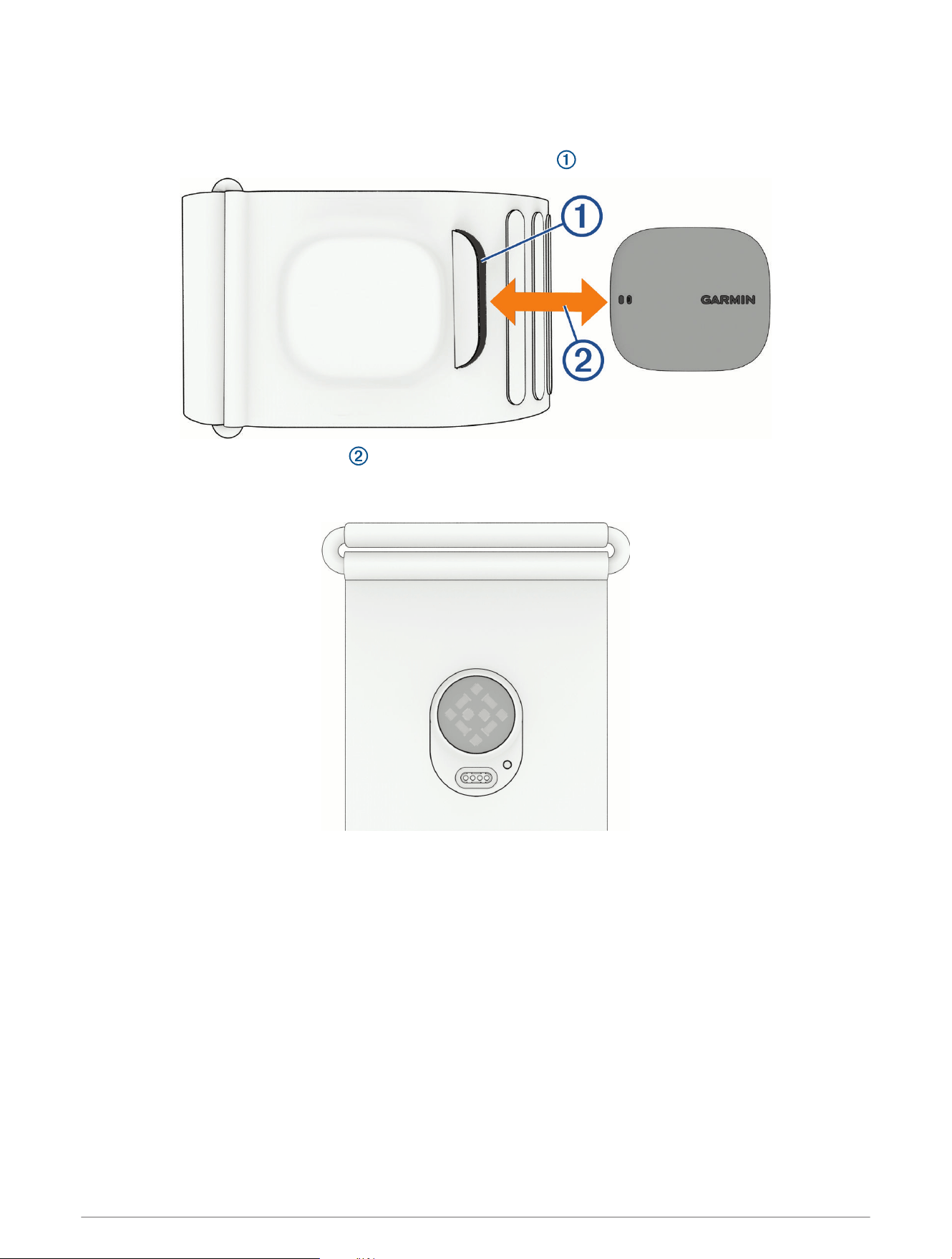
Removing and Inserting the Module into the Sleep Band
You must remove the module from the Index Sleep Monitor to wash the sleep band (Machine Washing,
page13).
1 Release the hook and loop fasteners to open the module pocket on the sleep band .
2 Slide the module out of the pocket .
3 To insert the module, slide it into the open pocket with the Garmin logo facing up.
TIP: When the module is in the sleep band, the sensor and charging port must be clear of any fabric.
Machine Washing
Before washing the sleep band in a washing machine, you must remove the module from the pocket (Removing
and Inserting the Module into the Sleep Band, page13).
• Attach the hook and loop closures on the sleep band before washing.
• Wash the sleep band in the washing machine with a regular load of laundry or by itself.
• Place the sleep band in a washing bag or mesh laundry bag to prevent the strap from getting tangled.
• Use a small amount of mild detergent.
NOTE: Do not use bleach or detergents that contain harsh chemicals, fabric softener, bleach, or abrasive
materials.
• Run the washing machine on the gentle cycle, with warm water at a maximum temperature of 40°C (104°F).
• When air drying the sleep band, hang it up or lay it flat.
Device Information 13
Specifications
Sleep band
S/M: 32.6 x 6.4 x 0.06 cm (12.8 x 2.5 x 0.02 in.)
L/XL: 45.2 x 6.4 x 0.06 cm (17.8 x 2.5 x 0.02 in.)
Battery type Rechargeable, built-in lithium-ion battery
Battery life Up to 7 nights, with SpO
2
Operating temperature range From -20° to 60°C (from -4° to 140°F)
Charging temperature range From 0° to 45°C (from 32° to 113°F)
Wireless frequency 2.4 GHz @ -2.39 dBm max.
Water rating 5ATM
1
Troubleshooting
Resetting the Device
You can reset the Index Sleep Monitor to the factory default values.
NOTE: Resetting the device deletes long-term data such as skin temperature and heart rate variability (HRV).
1 From the Garmin Connect app, select > Garmin Devices.
2 Select the Index Sleep Monitor device.
3 Select System > Factory Reset.
The LED flashes continuously, until the reset is complete.
NOTE: Resetting the device can take up to 10 minutes.
4 Pair again (Pairing Your Device with the Garmin Connect App, page6).
My phone will not connect to the sleep band
If your phone will not connect to the sleep band, you can try these tips.
• Turn off your phone, and turn it back on again.
• Enable Bluetooth
®
technology on your phone.
• Update the Garmin Connect app to the latest version.
• Before you retry the pairing process, remove your sleep band from the Garmin Connect app and the Bluetooth
settings on your phone.
• When the device is unpaired, plug the sleep band into a USB charging port, unplug the sleep band, and then
tap the module firmly and rapidly up to 15 times.
(Pairing failed on my sleep band, page15)
• If you bought a new phone, remove your sleep band from the Garmin Connect app on the phone you intend to
stop using.
• On your phone, open the Garmin Connect app, and select > Garmin Devices > Add Device to enter pairing
mode.
1
The device withstands pressure equivalent to a depth of 50m. For more information, go to www.garmin.com/waterrating.
14 Troubleshooting
Pairing failed on my sleep band
You can follow these steps to retry the pairing process.
1 Remove your sleep band from the Garmin Connect app and the Bluetooth settings on your phone.
2 Plug the sleep band module into a USB charging port.
(Module Status LED, page5)
3 Unplug the sleep band module from the USB charging port.
4 Tap the module firmly and rapidly up to 15 times.
5 Retry the pairing process (Pairing Your Device with the Garmin Connect App, page6).
NOTE: After 5 minutes of inactivity, the device LED flashes indicating that pairing mode is closed. If
necessary, repeat step 4 to initiate pairing mode.
How do I check the battery level?
There are two different ways to check the battery level.
• On the Garmin Connect app, select > Garmin Devices, and select the Index Sleep Monitor.
• Remove the Index Sleep Monitor from your arm, and quickly check the LED.
The device status flashes when the battery level is critically low.
My sleep band will not sync with the app
• Verify that you have completed the setup process (Activating the Sleep Band, page2).
• Remove the sleep band from your arm immediately after waking so the sleep band syncs immediately to the
Garmin Connect app.
• Bring the sleep band within range of your phone.
• Place your finger over the sensor on the back of the module for 5 seconds to wake it up.
• If your devices are already paired, turn Bluetooth off on your phone, and turn it back on.
• If your devices are already paired, make sure the Garmin Connect app is awake or running in the background.
• If your devices are already paired, remove the Index Sleep Monitor from the Bluetooth settings on your phone,
and pair the devices again (Pairing Your Device with the Garmin Connect App, page6).
• If your devices are not paired, enable Bluetooth technology on your phone.
• On your phone, open the Garmin Connect app, select > Garmin Devices, select the Index Sleep Monitor,
and select to manually sync.
Getting More Information
• Go to support.garmin.com for additional manuals, articles, and software updates.
• Go to buy.garmin.com, or contact your Garmin dealer for information about compatible devices and
replacement parts.
• Go to www.garmin.com/ataccuracy.
This is not a medical device. The pulse oximeter feature is not available in all countries.
Troubleshooting 15

support.garmin.com
GUID-4462687B-8DF5-4719-872E-E16754F9D4B0 v2August 2025