

English - 2
TABLE OF CONTENTS
01 Checking the Components 3
02 Product Overview 4
Front side . . . . . . . . . . . . . . . . . . . . . . . . . . . . . . . . . . . . . . . . . . . . . . . 4
Rear side. . . . . . . . . . . . . . . . . . . . . . . . . . . . . . . . . . . . . . . . . . . . . . . . 4
03 Using the Remote Control 5
How to use the Remote Control . . . . . . . . . . . . . . . . . . . . . . . . . . . 5
Setting the
(Sound Control). . . . . . . . . . . . . . . . . . . . . . . . . . . .7
Output specications for each sound mode . . . . . . . . . . . . . . . . .7
‒ Using the subwoofer only . . . . . . . . . . . . . . . . . . . . . . . . . . . . . . 7
‒ Using the subwoofer and surround speaker together . . . . . 7
‒ For using the subwoofer and surround speaker
(SWA-9500S, optional) together . . . . . . . . . . . . . . . . . . . . . . . . 8
Adjusting the Soundbar Volume with the
TV Remote Control. . . . . . . . . . . . . . . . . . . . . . . . . . . . . . . . . . . . . . . 8
04 Connecting the Soundbar to
Other Units 9
Connecting the Power and Devices . . . . . . . . . . . . . . . . . . . . . . . . 9
‒ Manually Connecting the Subwoofer and Surround
Speakers . . . . . . . . . . . . . . . . . . . . . . . . . . . . . . . . . . . . . . . . . . . . 10
‒ Status of rear indicator in subwoofer and surround
speakers . . . . . . . . . . . . . . . . . . . . . . . . . . . . . . . . . . . . . . . . . . . . 11
Speaker layout guide. . . . . . . . . . . . . . . . . . . . . . . . . . . . . . . . . . . . .11
‒ Recommended speaker layout. . . . . . . . . . . . . . . . . . . . . . . . . 11
05 Connecting to a TV 12
Connect to a TV that supports HDMI ARC
(Audio Return Channel) . . . . . . . . . . . . . . . . . . . . . . . . . . . . . . . . . .12
Connecting Using an Optical Cable . . . . . . . . . . . . . . . . . . . . . . . .13
Connecting to Bluetooth . . . . . . . . . . . . . . . . . . . . . . . . . . . . . . . . .13
Connecting via Wi-Fi (Wireless Network) . . . . . . . . . . . . . . . . . 14
Using the Q-Symphony Feature . . . . . . . . . . . . . . . . . . . . . . . . . . .15
06 Connecting an External Device 15
Connecting via HDMI Cable . . . . . . . . . . . . . . . . . . . . . . . . . . . . . . .15
Connecting using an Optical Cable . . . . . . . . . . . . . . . . . . . . . . . .16
07 Connecting a Mobile Device 16
Connecting to Bluetooth . . . . . . . . . . . . . . . . . . . . . . . . . . . . . . . . .16
Connecting via Wi-Fi (Wireless Network) . . . . . . . . . . . . . . . . . .17
Using Group Play . . . . . . . . . . . . . . . . . . . . . . . . . . . . . . . . . . . . . . . 18
Connecting to Apple AirPlay . . . . . . . . . . . . . . . . . . . . . . . . . . . . . 18
Using Tap Sound. . . . . . . . . . . . . . . . . . . . . . . . . . . . . . . . . . . . . . . . 18
08 Installing the Soundbar on a Wall 19
Precautions when installing . . . . . . . . . . . . . . . . . . . . . . . . . . . . . .19
Wall Mount Components . . . . . . . . . . . . . . . . . . . . . . . . . . . . . . . . .19
Installing the Surround Speakers on a Wall . . . . . . . . . . . . . . . .21
09 Installing the Soundbar on
top of the TV Stand 21
Components . . . . . . . . . . . . . . . . . . . . . . . . . . . . . . . . . . . . . . . . . . . .21
10 Software Update 22
Automatic update . . . . . . . . . . . . . . . . . . . . . . . . . . . . . . . . . . . . . . 22
USB update . . . . . . . . . . . . . . . . . . . . . . . . . . . . . . . . . . . . . . . . . . . . 22
Reset . . . . . . . . . . . . . . . . . . . . . . . . . . . . . . . . . . . . . . . . . . . . . . . . . . 22
Security Update Information. . . . . . . . . . . . . . . . . . . . . . . . . . . . . 22
11 Troubleshooting 23
12 Licences & Other Information 25
English - 3
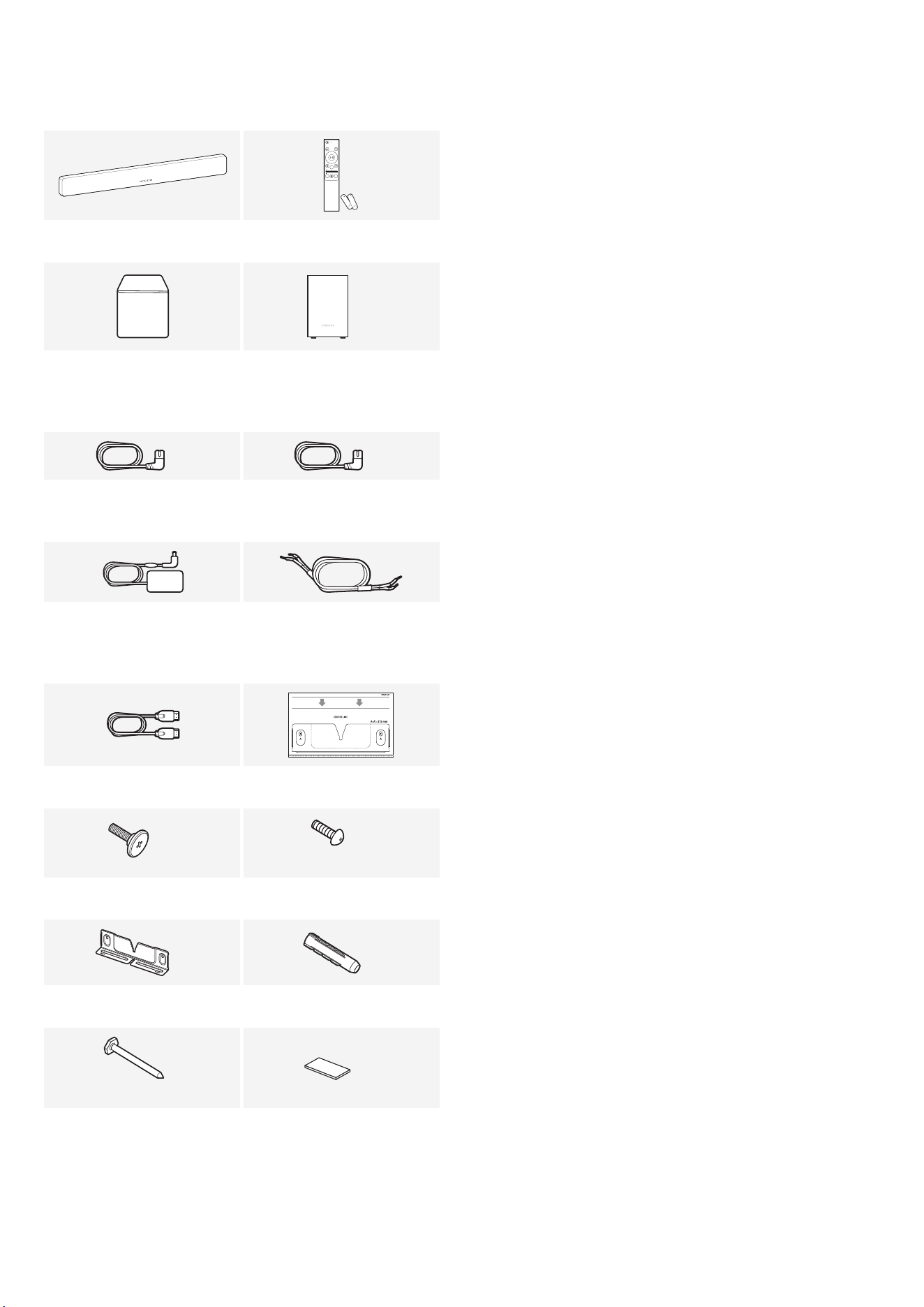
01 CHECKING THE
COMPONENTS
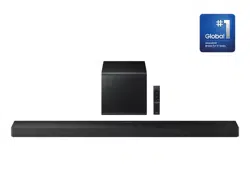
SOUNDBAR
Soundbar Remote Control / Battery
POWER
x 2
Subwoofer
Surround speaker
(Left / Right)
(HW-QS750F)
x 3 x 2
Power cable
(HW-QS750F)
Power cable
(HW-QS700F)
AC/DC adapter for surround
speakers
(HW-QS750F)
Surround speaker cable
(HW-QS750F)
HDMI Cable Wall-mounting Guide
x 1
x 2
(M4 x L10)
Holder Screw Screw
x 1
x 2
Wall-mounting Bracket Holder Anchor
x 2
(M5 x L55)
x 4
Screw for mounting on wall Rubber Foot
• Refer to the information label located on the bottom or rear of
the product for details about power consumption and supply
specications.
• To purchase additional components or optional cables, contact a
Samsung Service Center or Samsung Customer Care.
• For more details about the wall mount and rubber foot, see 19~21
page.
• To enhance the product, product design, specications, and app
interface may change without prior notice.
• The color and shape of parts may vary from what is depicted.
English - 4
02 PRODUCT OVERVIEW
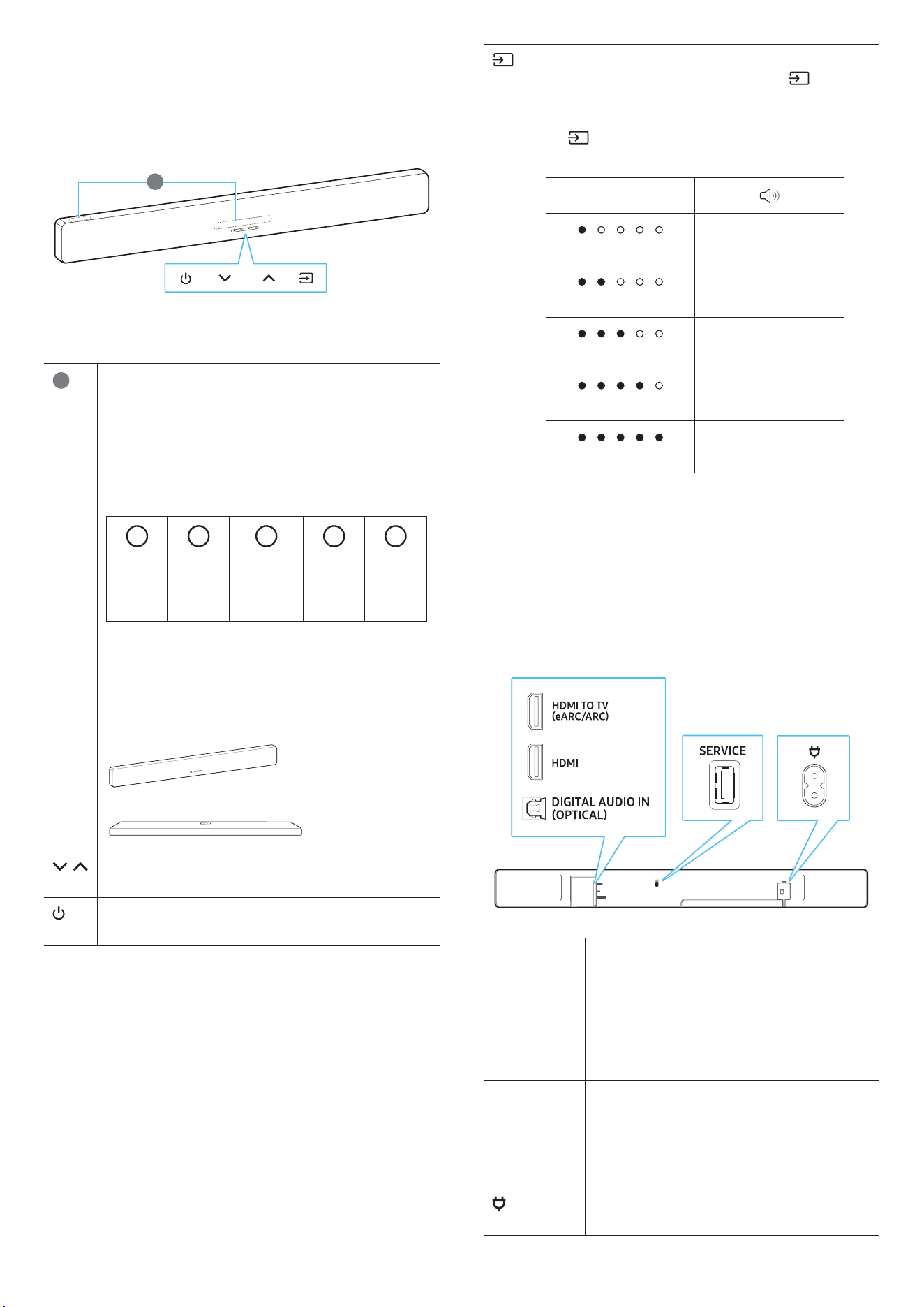
Front side
1
* The orientation of the product image is based on the standard for
wall-mounted installation.
1
LED indicator
• The LED indicator may blink, turn on, or change color,
depending on the current mode or state. The color
and number of LED indicators represent the active
modes as follows.
• Multi-color LED changes to white, turquoise, green,
red, or blue, depending on the mode or status.
W W
M
W W
White
LED
White
LED
Multi-
color
LED
White
LED
White
LED
Note
• The LED indicator may light up on only one side,
depending on the installation direction.
[ When wall-mounted ]
[ When table-mounted ]
(Volume) Button
Adjusts the volume.
(Power) Button
Turn the power on or off.
(Source) Button
You can switch the source by pressing the (Source)
button.
To put the Bluetooth into pairing mode, press and hold
the (Source) button on the soundbar for 3 seconds
or longer.
LED indicator
White On → Off
TV ARC or eARC
White On → Off
HDMI
White On → Off
Wi-Fi
White On → Off
Bluetooth
White On → Off
Digital Audio In
• When you turn on the soundbar, it may take 4 to 5 seconds for the
sound to start.
• If audio plays from both the TV and soundbar, open the TV's
Audio Settings menu, then select External Speaker instead of TV
Speaker.
Rear side
DIGITAL AUDIO IN
(OPTICAL)
HDMI TO TV
(eARC/ARC)
HDMI
SERVICE
DIGITAL
AUDIO IN
(OPTICAL)
Connect to a digital (optical) output terminal of
a TV or external device.
(Please see page 16.)
SERVICE
Use this port to update rmware through USB.
HDMI TO TV
(eARC/ARC)
Use this HDMI port to connect to a TV. (Please
see page 12.)
HDMI
This port is used for connecting an HDMI
cable to transmit digital video and audio
simultaneously.
Connect to an HDMI output of external devices.
(Please see page 15.)
Connect the power cable to this power port.
(Please see page 9.)
English - 5
03 USING THE REMOTE
CONTROL
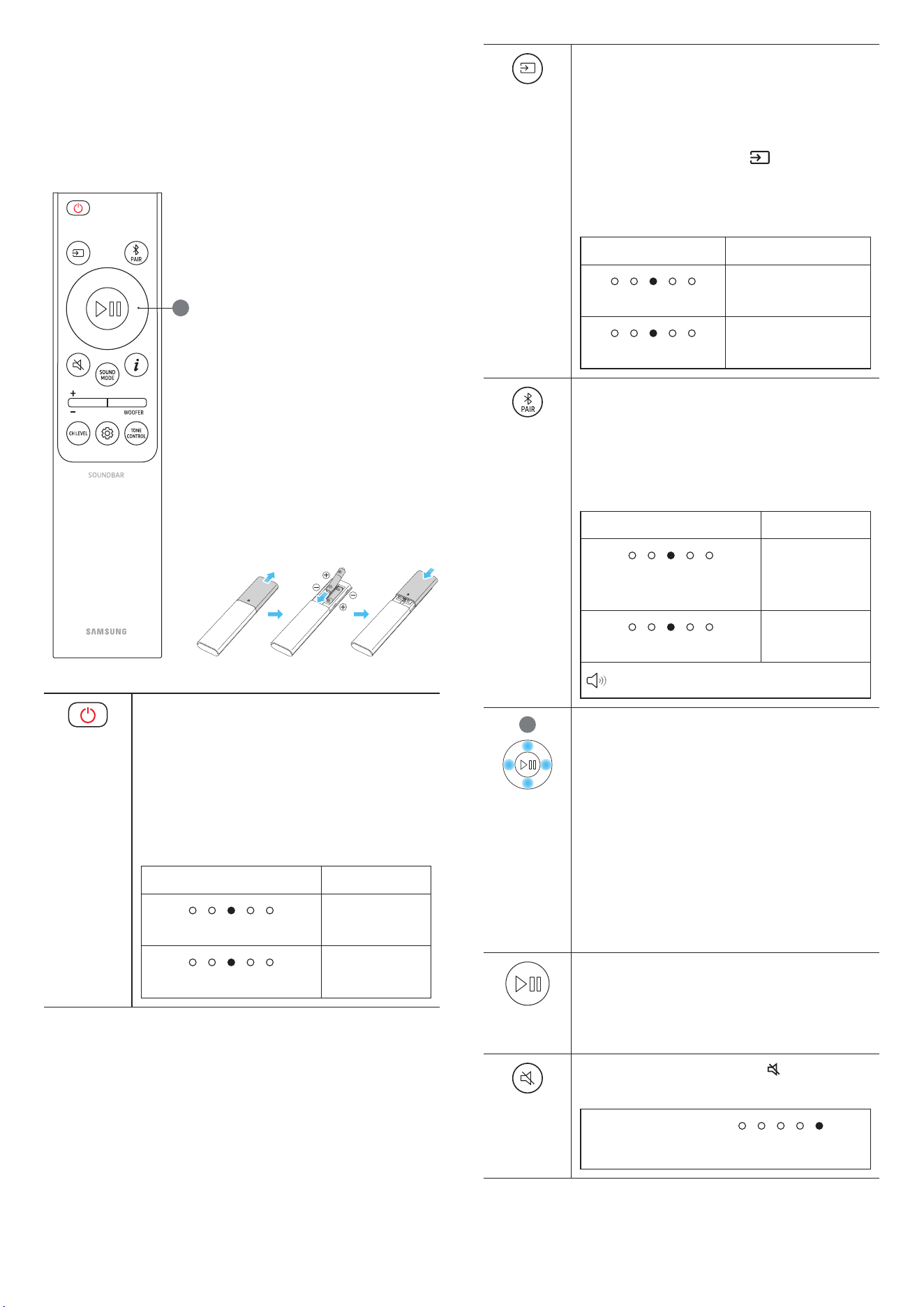
How to use the Remote Control
1
Install Batteries (AAA battery X 2)
Slide the battery cover in the direction
of the arrow until it is fully removed.
After inserting the batteries (1.5V, AAA)
in the correct direction, slide the back
cover onto the remote control in the
direction of the arrow.
(POWER)
Turns the soundbar on or off.
The soundbar will automatically turn off in the
following situations. (Power saving mode)
• TV ARC or eARC, HDMI, Wi-Fi, BT, D.IN Mode:
No audio signal input for 18 minutes or longer
• In the case of BT, it won't work if it is connected
to another device, even if there is no audio
signal input.
LED indicator Status
Cyan blinking x1
On
Red blinking x3
Off
(Source)
• You can choose the device connected to the
soundbar.
• Turn voice feedback on or off
You can turn voice feedback on or off.
With the soundbar turned off (in Standby
mode), press and hold the
(Source) button
on the remote control for 5 seconds.
Whenever you change the voice feedback
settings, the LED indicator will change.
LED indicator Status
Cyan blinking x1
On
White blinking x1
Off
(Bluetooth
connection)
Puts the soundbar into the Bluetooth pairing
mode. Press this button to change the LED
indicator as below:
• The multi-color LED will sequentially change
from Red → Green → Blue until the pairing is
complete.
LED indicator Status
Red → Green → Blue
blinking
Pairing
Cyan blinking x3
Connection
successful
Ready to connect via Bluetooth.
1
(Up/Down/
Left/Right)
Use the Up/Down/Left/Right buttons to make
ne adjustments.
• Skip a song
Press the Right button to skip to the next song.
Press the Left button to go to the previous
song.
• ID SET
Use this option if the subwoofer or surround
speakers aren't connected and need to be
reconnected.
Hold the Up button for 5 seconds to perform ID
SET. (Please see page 10.)
(Play/
Pause)
Starts or pauses playback.
(Mute)
To mute the soundbar, press the
(Mute) button.
Press it again to unmute.
LED indicator:
White blinking
English - 6
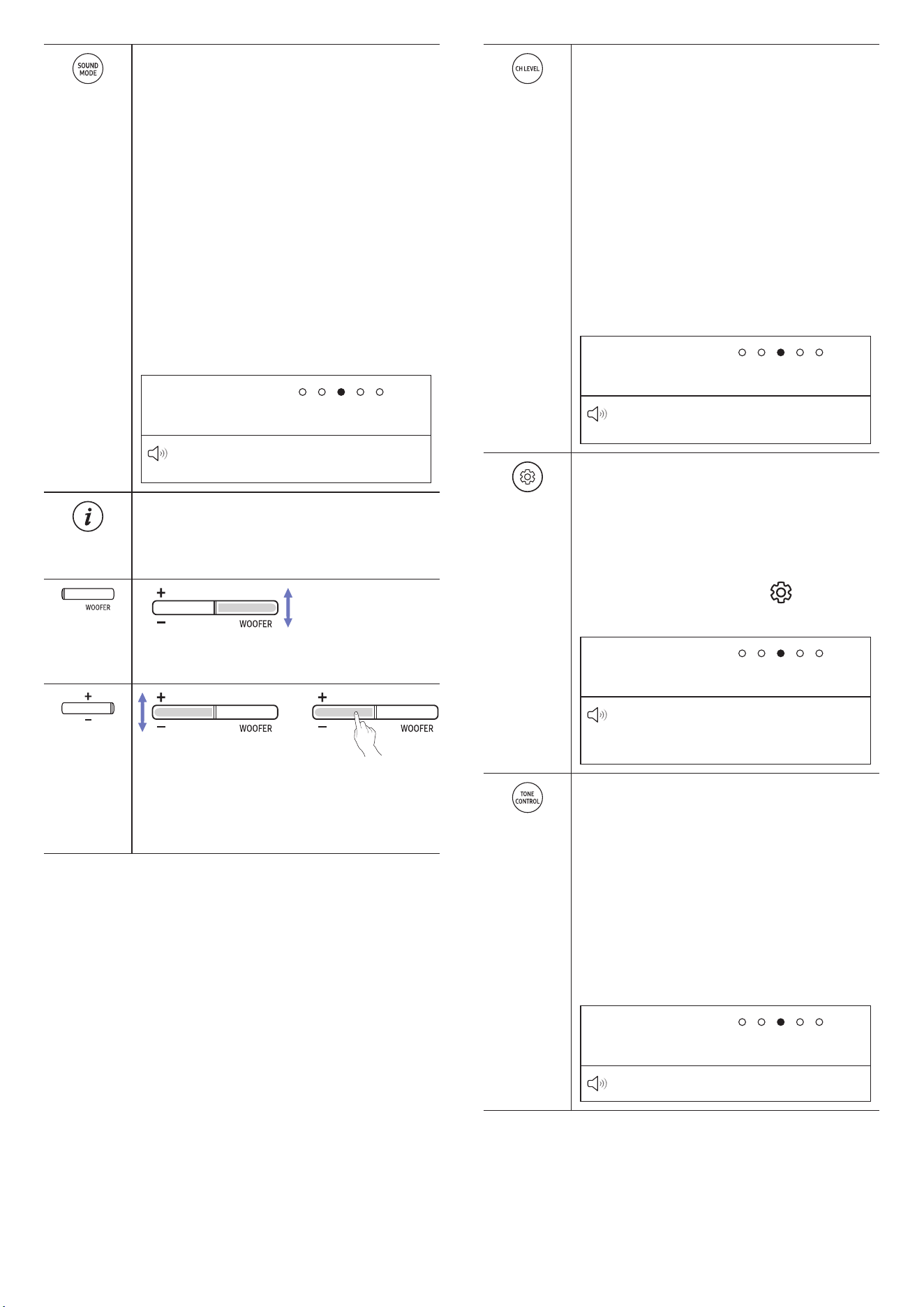
(Sound
mode)
Select the desired sound mode from among
Surround, Game, Standard, Adaptive Sound, and
DTS Virual:X.
• Surround
Surround sound will be activated.
• Game
This mode is optimized for gaming, providing a
more immersive sound experience.
• Standard
The original sound will be played back.
• Adaptive Sound
In this mode, content is analyzed in real time
and optimal sound is played based on the type
of content.
• DTS Virtual:X
It delivers immersive 3D sound for all content.
LED indicator:
White blinking X1
Surround → Game → Standard → Adaptive
Sound → DTS Virtual:X
(Info)
Press the button to display information about the
current function. (See page 4)
When connected to Dolby Atmos®, the LED
indicator blinks cyan 3 times.
(Woofer
(bass)
Level)
You can adjust the woofer (bass) levels by sliding
the button up or down.
(Volume)
Press the Up or Down button to adjust the volume.
• (Mute)
Press the Volume button. Press it again to
unmute.
(Channel
level)
You can adjust the volume of each speaker,
including the Center, Front top, Rear and Rear top
speakers.
• To adjust the volume of each speaker, select
the Center or Front top in the sound settings,
then use the Up/Down buttons to adjust the
volume between -6 and +6.
• When the surround speakers are connected,
select Rear or Rear top and then use the Up/
Down buttons to adjust the volume within the
range of -6 to +6.
• The Rear top can be selected when
connected to the HW-QS700F model and
SWA-9500S (sold separately).
LED indicator:
White blinking X1
Center Level → Front Top Level → Rear
Level → Rear Top Level
(Sound
Control)
You can select audio features such as Voice
enhancement, Night mode, Sync, Sound
grouping, Private rear sound, Moderate base, and
Virtual.
To adjust a sound setting, press the Up or Down
button to select your desired option.
• (Please see Page “Setting the
(Sound
Control)” of 7.)
LED indicator:
White blinking X1
Voice enhancement → Night mode →
Sync → Sound grouping → Private rear
sound → Moderate base → Virtual
(Tone
control)
Adjust the treble and bass levels by pressing the
respective buttons. After selecting an option, use
the Up/Down buttons to adjust the settings. This
feature is available in all sound modes except
Standard mode.
• Adjust the treble or bass levels by selecting
TREBLE or BASS in the Sound Control. Then,
use the Up/Down buttons to adjust the volume
level within the range of -6 to +6.
• When adjusting the BASS levels, the woofer
levels will also be affected.
LED indicator:
White blinking X1
Treble → Bass

English - 7
Setting the (Sound Control)
• Voice enhancement: Improves the dialog quality in videos and TV
shows, making it easier to hear.
• Night Mode: Optimizes the listening experience at night by
lowering the volume while keeping spoken dialog clear.
• Sync: If the video and audio are out of sync when played through
the TV and soundbar, go to the Sound Control and select Sync.
Then, use the Up/Down buttons to adjust the audio delay
between 0 and 300 milliseconds.
‒ Sync is supported only in certain functions.
• Sound Grouping: The full sound is played through both the
soundbar and rear speakers, making it ideal for a group of people
in a large space.
‒ When the surround speakers are connected for the rst
time, the sound grouping menu will be available. After that,
the menu will remain available, regardless of whether the
surround speakers are connected.
‒ In Sound Grouping mode, sound modes won't affect the audio.
‒ Sound will only come from specic speakers, not from all
speakers. This may vary by model.
• Private Rear Sound: This feature allows you to send audio to only
the surround speakers, so you can listen without being disturbed.
‒ In this mode, no sound will come from the soundbar or
subwoofer. Only the Front channels of the surround speakers
will produce sound.
‒ In Private Rear Sound mode, sound modes won't affect the
audio.
‒ When the soundbar is turned off or the connection to the
surround speakers is lost, this mode will turn off.
‒ The Private Rear Sound menu will only be available when a
surround speaker is connected.
‒ When connecting Q-symphony, the Private Rear Sound mode
will automatically turn off and can't be turned back on.
• Moderate Bass: When turned On, the subwoofer is muted and
bass will be output through the soundbar. When turned Off, the
subwoofer is turned on, and no bass will be output through the
soundbar.
• Virtual: While Surround sound mode is on, it provides extended
sound effects when playing Dolby/DTS content.
This feature can be set by using the Up/Down buttons.
• To adjust the sound of each frequency, press and hold the
(Sound Control) button for about 5 seconds. You can select
150Hz, 300Hz, 600Hz, 1.2kHz, 2.5kHz, 5kHz, or 10kHz with the
Left/Right buttons, and make adjustments within the range of -6
to +6 using the Up/Down buttons.
(This feature only works when the sound mode is set to
Standard.)
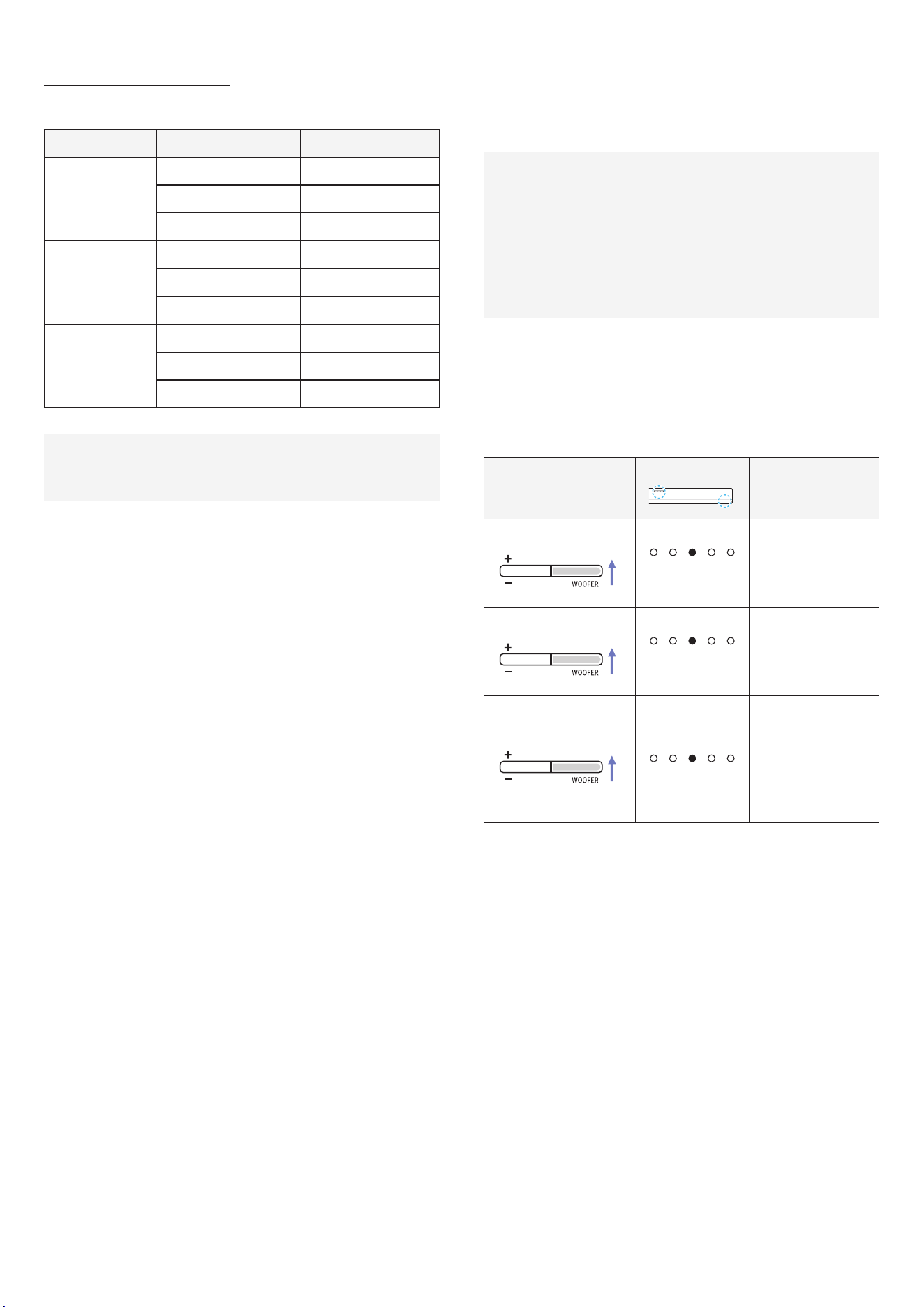
Output specications for each sound
mode
Using the subwoofer only
[ HW-QS700F ]
Effect Input Output
Surround
Game
2.0 Channel 3.1.2 Channel
5.1 Channel 3.1.2 Channel
Dolby Atmos® 3.1.2 Channel
Standard
2.0 Channel 2.1 Channel
5.1 Channel 3.1 Channel
Dolby Atmos® 3.1.2 Channel
Adaptive Sound
DTS Virtual:X
2.0 Channel 3.1.2 Channel
5.1 Channel 3.1.2 Channel
Dolby Atmos® 3.1.2 Channel
Using the subwoofer and surround speaker together
[HW-QS750F]
Effect Input Output
Surround
Game
2.0 Channel 5.1.2 Channel
5.1 Channel 5.1.2 Channel
Dolby Atmos® 5.1.2 Channel
Standard
2.0 Channel 2.1 Channel
5.1 Channel 5.1 Channel
Dolby Atmos® 5.1.2 Channel
Adaptive Sound
DTS Virtual:X
2.0 Channel 5.1.2 Channel
5.1 Channel 5.1.2 Channel
Dolby Atmos® 5.1.2 Channel
English - 8
For using the subwoofer and surround speaker (SWA-
9500S, optional) together
[ HW-QS700F ]
Effect Input Output
Surround
Game
2.0 Channel 5.1.4 Channel
5.1 Channel 5.1.4 Channel
Dolby Atmos® 5.1.4 Channel
Standard
2.0 Channel 2.1 Channel
5.1 Channel 5.1 Channel
Dolby Atmos® 5.1.4 Channel
Adaptive Sound
DTS Virtual:X
2.0 Channel 5.1.4 Channel
5.1 Channel 5.1.4 Channel
Dolby Atmos® 5.1.4 Channel
The surround speakers won't produce sound for 2-channel output
while Standard effect mode is active. To turn on sound for the
surround speakers, change the effect mode to Surround.
Adjusting the Soundbar Volume with the
TV Remote Control
This feature allows you to adjust the soundbar volume using the TV’s
remote control.
• This function can only be used with an IR remote control.
Bluetooth remote controls (those that need pairing) aren't
supported.
• The above item only operates in certain input modes of the
soundbar.
• Manufacturers that support this feature
Samsung, VIZIO, LG, Sony, Sharp, PHILIPS, PANASONIC,
TOSHIBA, Hisense, RCA
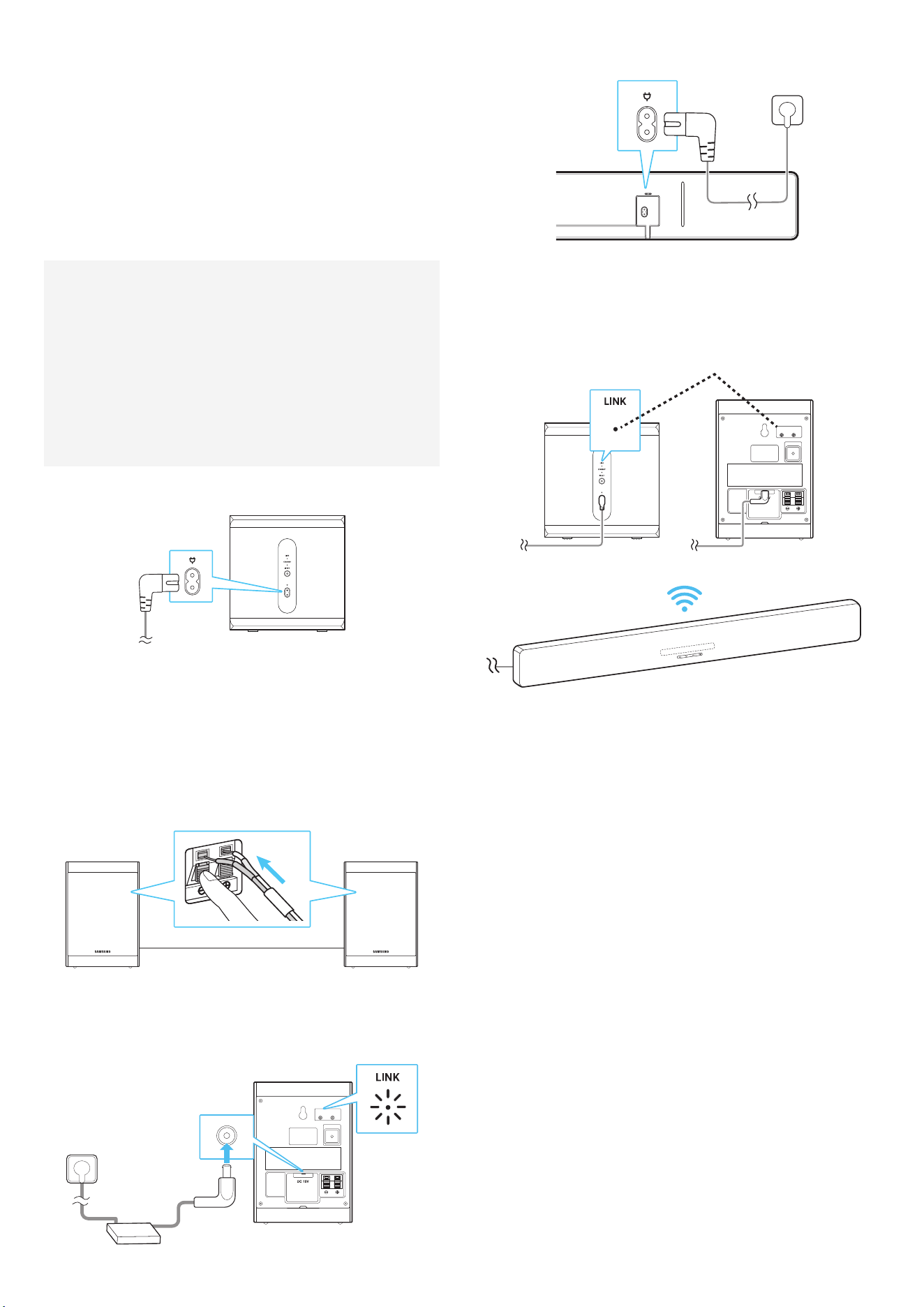
1. Turn off the soundbar.
2. Push the Woofer Level button up and hold for 5 seconds.
When you press and hold the Woofer Level button for up to 5
seconds, the mode will change in the following sequence: OFF-
TV REMOTE, (default) SAMSUNG-TV REMOTE, and then ALL-TV
REMOTE.
Remote control button
Display
Status
5 seconds
Red blinking X1
OFF-TV REMOTE
(Default)
Disables the TV
remote control.
5 seconds
Cyan blinking X1
SAMSUNG-TV
REMOTE
Controls the
soundbar with a
Samsung TV IR
remote control.
5 seconds
Blue blinking X1
ALL-TV REMOTE
Controls the
soundbar with
a different TV
manufacturer's
and Samsung TV IR
remote control.
English - 9
04 CONNECTING THE
SOUNDBAR TO OTHER
UNITS
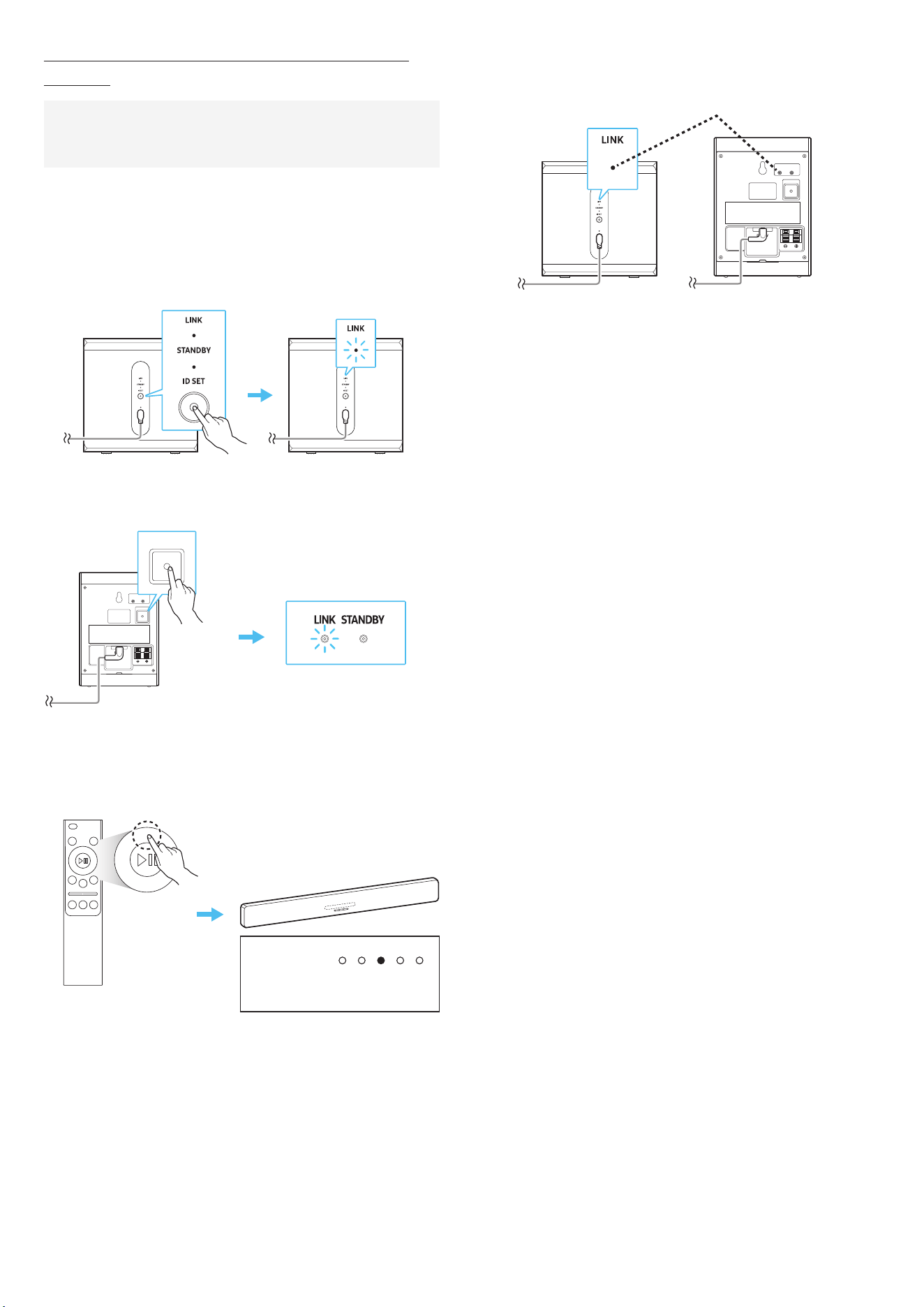
Connecting the Power and Devices
Using the power cords, connect the subwoofer, surround speakers,
and soundbar to an electrical outlet in the following order:
• Refer to the information label located on the bottom or rear of
the product for details about power consumption and supply
specications.
• Always grip the plug rmly and pull it directly when
disconnecting the power cord from the wall outlet. Do not pull
on the power cord itself.
• Once all devices are connected, connect the soundbar and
other devices to an electrical power outlet.
• Surround speakers may not be included, depending on the
product model.
1. Connect the power cord to the subwoofer.
Rear side of subwoofer
Power cable
2. Connect the speaker cables to the left and right surround
speakers.
• When connecting the speaker cables to each surround
speaker, match the cables with the same color.
• Make sure to insert the cable fully. Be careful not to insert any
wire covered by the insulation sleeve.
• The length of the surround speaker cable is 6 meters.
Connecting to the
speaker cable
(HW-QS750F only)
+: Red, -: Black
Rear side
Surround speaker Surround speaker
3. Connect the power cable to the rear of the left surround speaker.
LINK STANDBY
ID SET
Left rear side of surround speakers
(HW-QS750F only)
4. Connect the power cord to the soundbar.
Rear side of Soundbar
Power cable
5. Connect the soundbar, subwoofer, and surround speakers to a
power outlet. When the soundbar is turned on, the subwoofer and
surround speakers will automatically connect to it.
LINK STANDBY
ID SET
LINK LED - Blue indicator on
Rear side of
subwoofer
Rear side of
Surround Speakers
Soundbar
Note
• First, connect the subwoofer and surround speakers to a power
outlet, then turn on the soundbar once it is plugged in. When the
soundbar is powered on, the subwoofer and surround speakers
will automatically connect.
• If you disconnect the power cord while the soundbar is on, and
reconnect it to a power outlet, the soundbar will automatically
turn on.
English - 10
Manually Connecting the Subwoofer and Surround
Speakers
Before manually connecting the speaker units
• Make sure the soundbar, subwoofer, and surround speakers
are connected to a power outlet.
1. Press and hold ID SET button on the rear side of the subwoofer
and surround speakers for 5 seconds or longer.
• The red indicator on the rear of each speaker will turn off, and
the blue indicator will blink rapidly.
Rear side of
Subwoofer
Rear side of
subwoofer
Blue indicator
blinking fast
5 seconds5 seconds
LINK STANDBY
ID SET
ID SET
Left rear side of
surround speakers
Blue indicator
blinking fast
5 seconds
2. Press and hold the Up button on the Remote Control for 5
seconds.
5 seconds
LED
indicator:
Red → Green → Blue blinking
3. Make sure the LINK LED indicator turns blue (indicating a
successful connection).
LINK STANDBY
ID SET
LINK LED - Blue indicator on
Rear side of
subwoofer
Left rear side of
surround speakers
When the soundbar is properly connected to the subwoofer and
surround speakers, the LINK LED indicator will stop blinking and
turn solid blue.
Note
• Surround speakers may not be included, depending on the
product model.
• How to reset the Tx module
1) Press and hold the Left button on the Remote Control for 5
seconds.
2) Follow the instructions in the Manually Connecting the
Subwoofer and Surround Speakers section.
English - 11
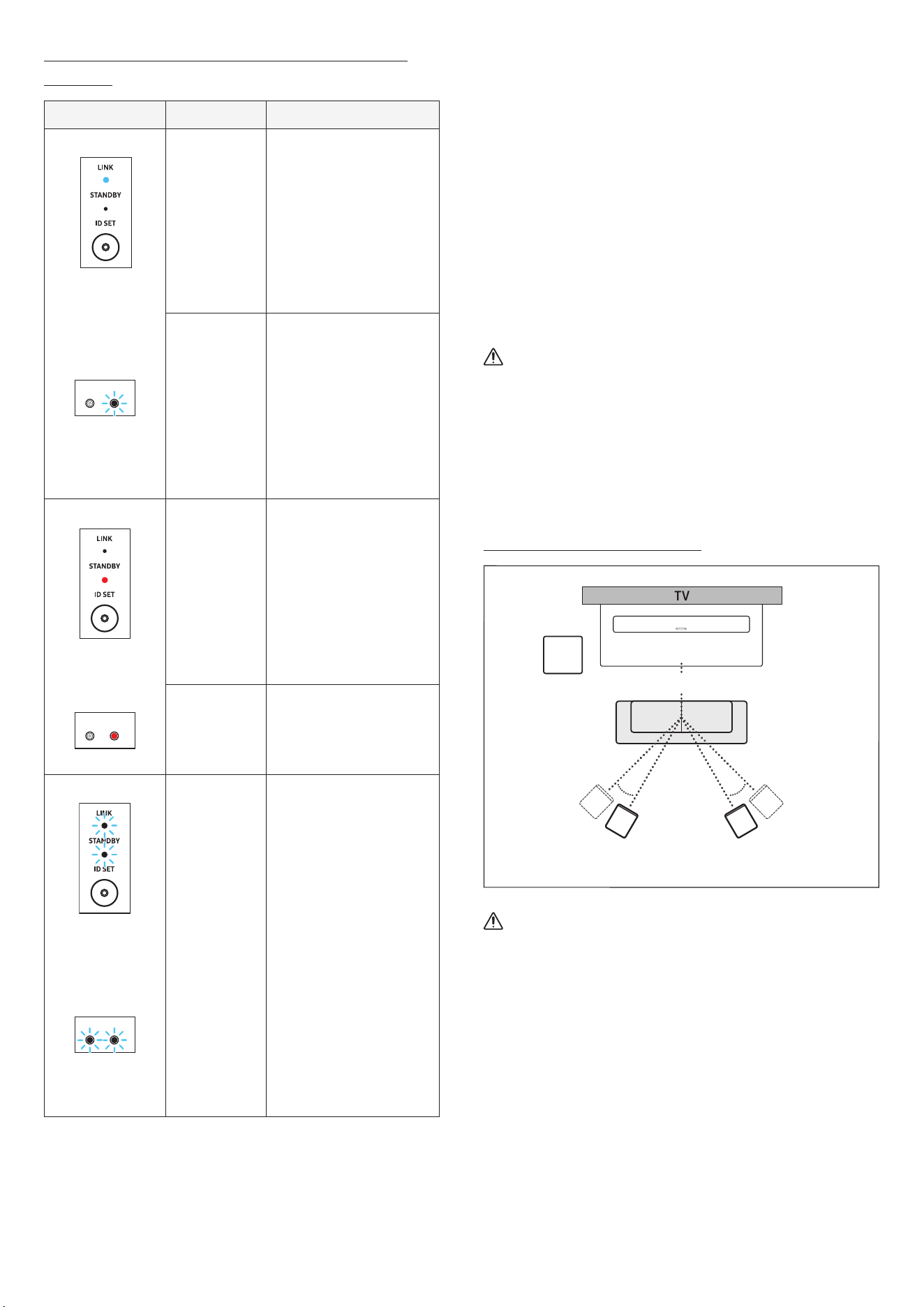
Status of rear indicator in subwoofer and surround
speakers
LED Status Troubleshooting
Subwoofer
(Blue
indicator on)
Connection
successful
(normal
operation)
-
(Blue indicator
blinking)
Surround speaker
LINK STANDBY
Restore
connection
Check if the soundbar's
power cable is securely
connected or wait for
about 5 minutes. If the
blinking continues,
manually connect the
subwoofer and surround
speakers. Please see Page
10 .
Subwoofer
(Red
indicator on)
In standby
(with
soundbar
turned off)
Check if the soundbar's
power cable is securely
connected.
(Red indicator on)
Surround speaker
LINK STANDBY
Connection
unsuccessful
Try reconnecting. Refer
to manual connection in
Page 10 .
Subwoofer
(Red and blue
indicator blinking
simultaneously)
(Red and blue
indicator blinking
simultaneously)
Surround speaker
LINK STANDBY
Product
malfunction
Contact a Samsung
Service Center (at 1588-
3366 with call charges on
callers).
Note
• When the soundbar is turned off, the subwoofer enters Standby
mode and the red indicator will turn on.
• If there is a nearby device using the same frequency as the
soundbar, interference may occur, causing the sound output to be
interrupted.
• The wireless signal from the soundbar can be transmitted up to
10 meters under normal installation conditions, but this distance
may vary, depending on the operating environment. If there is
a steel wall or reinforced concrete between the soundbar and
the subwoofer or surround speakers, the wireless signal will be
blocked, preventing the product from functioning properly.
• Surround speakers may not be included, depending on the
product model.
• Surround speakers may vary, depending on the product model.
Caution
• A wireless antenna is built into the subwoofer and surround
speakers. Keep away from water and moisture.
• For optimal sound quality, avoid placing obstacles around the
subwoofer or surround speakers.
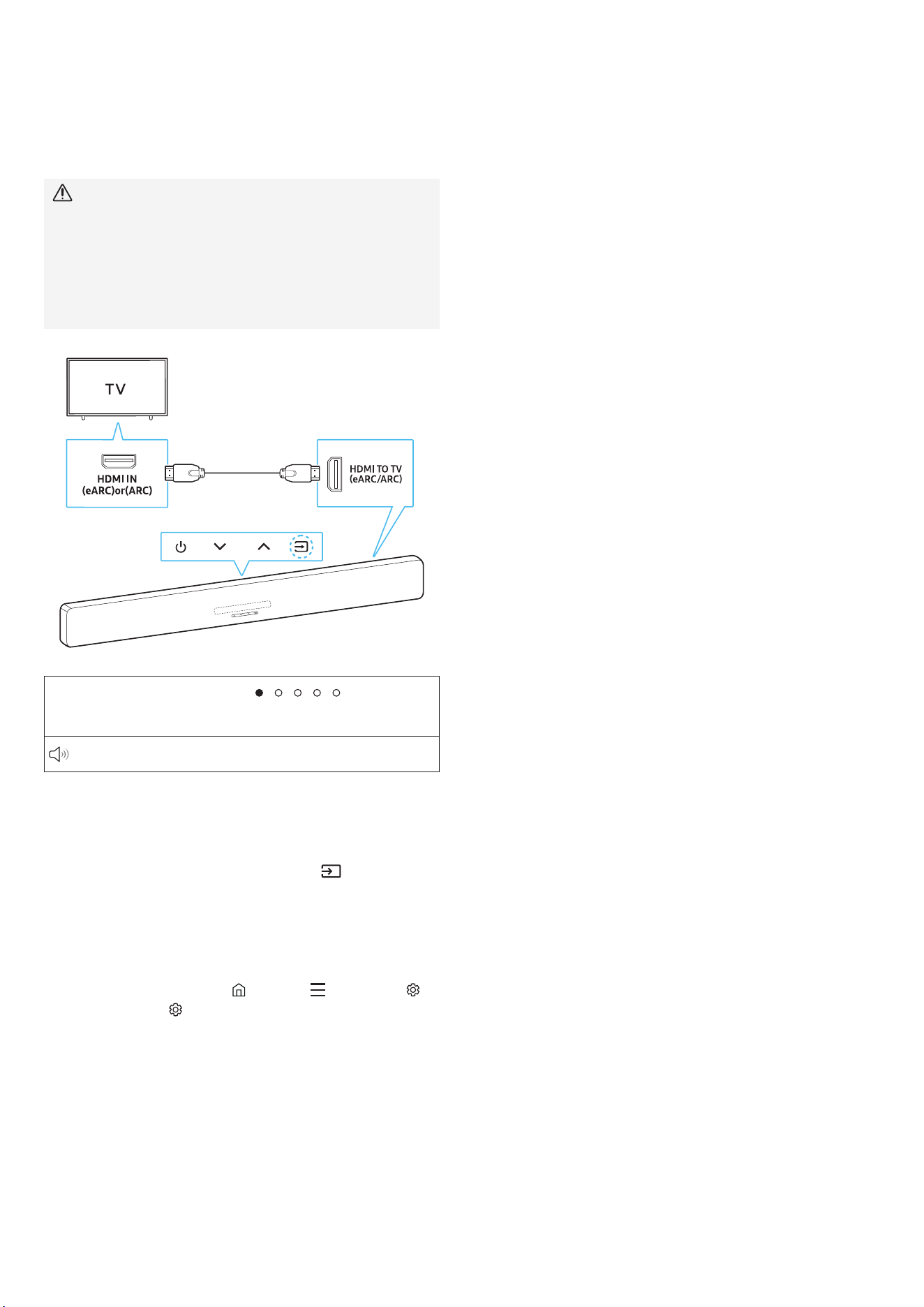
Speaker layout guide
Recommended speaker layout
150°
150°
135°
135°
0°
Subwoofer
Soundbar
Surround
speaker
(Left)
Surround
speaker
(Right)
Caution
• A wireless antenna is built into the subwoofer and surround
speakers. Keep away from water and moisture.
• For optimal sound quality, avoid placing obstacles around the
subwoofer or surround speakers.
• Surround speakers may not be included, depending on the
product model.
English - 12
05 CONNECTING TO A TV
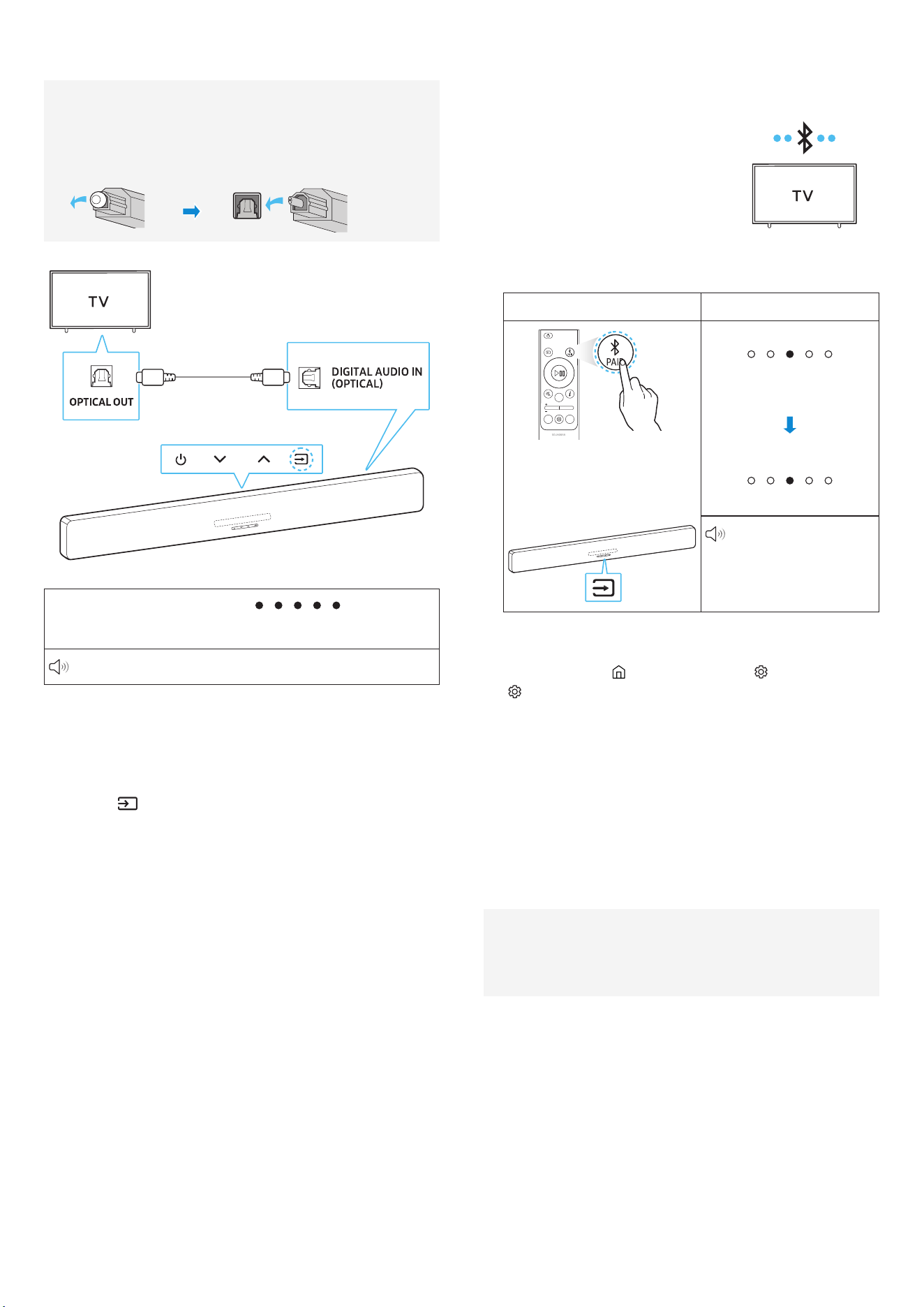
Connect to a TV that supports HDMI ARC
(Audio Return Channel)
Caution
• If both an HDMI cable and an optical cable are connected, the
HDMI cable signal will take priority.
• When connecting the TV and soundbar with an HDMI cable,
make sure to connect the ports labeled eARC or ARC. If the
correct port isn't used, the TV won't make any sound.
• Using HDMI cables certied by HDMI.org is recommended.
HDMI cable
(Included in box)
Front of soundbar
Rear of
soundbar
LED indicator:
White ON → OFF
TV ARC or eARC
1. While the soundbar and TV are turned off, connect the HDMI
cable as shown in the diagram above.
2. Turn on the soundbar and TV.
3. TV sound will play through the soundbar.
• If there is no sound from the TV, press the
(Source) button
on the soundbar or remote control to switch to the appropriate
connected mode.
• To connect with eARC, the eARC function in the TV menu
should be turned on. Refer to the TV user manual for details
about how to congure the settings.
(e.g.) Samsung TV: Home ( ) → Menu ( ) → Settings ( )
→ All Settings ( ) → Sound → Expert Settings → HDMI-eARC
Mode (Auto))
• You can use the volume buttons on your TV remote control to
adjust the soundbar volume.
Note
• When connecting a TV and soundbar that support HDMI ARC
(Audio Return Channel) using an HDMI cable, digital video and
audio data can be transmitted without a separate optical cable.
• Using a coreless HDMI cable is recommended whenever possible.
If using a cored HDMI cable, ensure its diameter is less than 14
mm.
• This function won't work if the HDMI cable doesn't support ARC.
• If the broadcast audio is encoded in Dolby and the "Digital Output
Audio Format" in your TV is set to PCM, changing the settings to
Dolby Digital, Dolby Digital+, or Auto is recommended for optimal
sound.
Changing the setting will provide better sound quality. (The
TV menu may use different terms for Dolby Digital and PCM,
depending on the manufacturer.)
• ARC/eARC protocol supports Dolby Atmos®.
• Check if the content you want to use support Dolby Atmos®.
English - 13
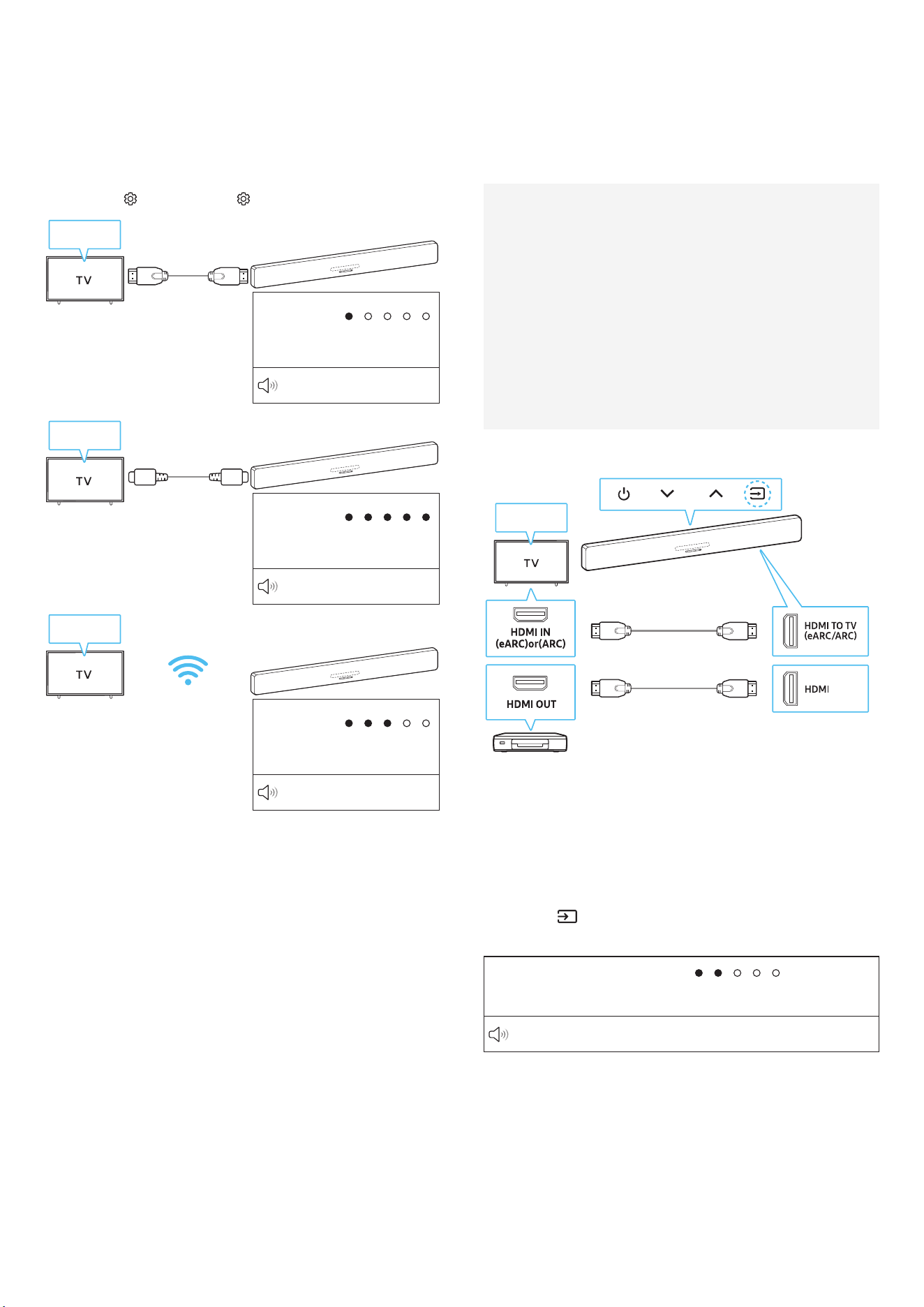
Connecting Using an Optical Cable
Pre-connection Checklist
• If both an HDMI cable and an optical cable are connected, the
HDMI cable signal will take priority.
• When using an optical cable, make sure to remove the cap
from the optical cable before use.
Optical cable (sold
separately)
Rear of soundbar
Front of soundbar
LED indicator:
White ON → OFF
Digital Audio In
1. While the TV and soundbar are turned off, connect the DIGITAL
AUDIO IN (OPTICAL) on the soundbar to the OPTICAL OUT port on
the external device using an optical cable (sold separately), as
shown in the above diagram.
2. Turn on the soundbar and TV.
3. Press the
(Source) button on the remote control to switch to
D.IN mode.
TV sound will play through the soundbar.
Connecting to Bluetooth
Connecting your Samsung TV to the soundbar via Bluetooth allows
you to enjoy stereo sound without the need for cables.
• Only one Samsung TV can be
connected via Bluetooth at a time.
• You can connect to a Samsung TV
with Bluetooth support. Make sure
to check your TV’s specications.
Connecting to Bluetooth for the rst time
1.
Bluetooth pairing button LED indicator
[Pairing]
Red → Green → Blue
blinking
[Connection successful]
Cyan blinking x3
(Or)
3 seconds
or longer
Ready to connect via
Bluetooth.
2. Open the Bluetooth menu on the Samsung TV you want to
connect.
(Examples: Home (
) → Menu → Settings ( ) → All Settings
( ) → Sound → Sound Output → Bluetooth Speaker List →
Soundbar Q-series (Bluetooth))
3. Select “Q-series Soundbar” from the list on the TV screen.
On the Samsung TV Bluetooth device list, “Need Pairing” or
“Paired” will appear for a device. To connect Samsung TV to the
soundbar, select the corresponding message to establish the
connection.
4. You can now enjoy Samsung TV audio through the soundbar.
• Once you have successfully connected the soundbar to your
Samsung TV via Bluetooth, you can use the BT READY mode to
reconnect.
If the Device Fails to Connect
• When a previously connected soundbar (e.g., If Q-Series
Soundbar) appears in the Samsung TV speaker list, delete it.
• Repeat steps 1 through 3.

English - 14
Disconnecting the Soundbar from the Samsung TV
Press the (Source) button on the soundbar or remote control and
switch to any other mode besides BT.
• Ending the connection may take a few seconds as the TV waits for
a response from the soundbar.
(The disconnection time may vary, depending on the Samsung TV
model.)
What is the difference between BT READY and BT
PAIRING?
• BT READY: In this mode, you can connect a previously connected
TV or mobile device with the soundbar.
• BT PAIRING: In this mode, you can connect a new device to the
soundbar.
(Press the PAIR button on the remote control, or press and hold
the (Source) button for 3 seconds or longer.)
Precautions when connecting to Bluetooth
• Position the device you are connecting to the soundbar via
Bluetooth within 1 meter.
• If prompted for a PIN code when connecting to a Bluetooth
device, enter <0000>.
• The soundbar will automatically turn off after 18 minutes of
inactivity in Standby mode.
• The soundbar may have difculty scanning for available
Bluetooth devices or connecting properly under the following
conditions:
‒ If there are nearby electronic devices or equipment causing
radio interference.
‒ If multiple Bluetooth devices are simultaneously paired with
the soundbar.
‒ If the Bluetooth device is turned off, out of range, or
experiencing a malfunction.
• Electronic devices may cause radio interference. Keep any device
that generates electromagnetic waves away from the soundbar.
(e.g., microwave oven, wireless LAN, etc.)
• Press and hold the Tone Control button on the remote control for
30 seconds or longer to turn Bluetooth on or off.
When you turn Bluetooth on or off, the soundbar will
automatically restart.
Connecting via Wi-Fi (Wireless Network)
Pre-connection Checklist
• Wi-Fi connection is only available on a Samsung TV.
• Check if the wireless router (Wi-Fi) is turned on and the TV is
connected to the wireless router.
• Connect the soundbar and TV to the same Wi-Fi network.
• If your wireless router (Wi-Fi) uses a DFS channel, you won't
be able to connect the TV and soundbar via Wi-Fi. Contact your
Internet Service Provider for more details.
• Check your TV's manual since the menu may vary, depending
on the year of manufacture.
• Connect the soundbar to the wireless router rst so that you
can connect the soundbar and TV via Wi-Fi. See page 17 to nd
how to establish a Wi-Fi connection.
1. For more information on how to connect your soundbar to a Wi-Fi
network, go to 17, “Connecting via Wi-Fi (Wireless Network)”.
2. On the TV Sound menu, change the input source to soundbar.
• For Samsung TVs released in 2017 or later
Home (
) → Menu → Settings ( ) → All Settings ( ) →
Sound → Sound Output → Q-series Soundbar (Wi-Fi)
Note
• Wi-Fi Dolby Atmos connectivity is only available on some
Samsung TVs and soundbar.
• Press and hold the Channel Level button on the Remote Control
for 30 seconds or longer to turn Wi-Fi on or off.
When you turn Wi-Fi on or off, the soundbar will automatically
restart.
English - 15
Using the Q-Symphony Feature
• If you connect the soundbar to a Samsung TV that supports
Q-Symphony, sound will play from both the soundbar and TV at
the same time. You can enjoy a richer, more immersive sound
with the TV's surround sound.
• When the soundbar is connected to your TV, “Q-Symphony” will
appear on your TV.
(Settings ( ) → All Settings ( ) → Sound → Sound Output)
TV menu
HDMI Cable
LED
indicator:
White ON → OFF
TV ARC or eARC
TV menu
Optical cable (sold
separately)
LED
indicator:
White ON → OFF
Digital Audio In
TV menu
Wi-Fi
LED
indicator:
White ON → OFF
Wi-Fi
Note
• It will work with the codec supported by the TV.
• This feature is only supported when connected via HDMI cable,
optical cable (sold separately), or Wi-Fi.
• The messages displayed on the TV may vary, depending on the
model.
• Check and see if your soundbar and TV are connected to the same
Wi-Fi network/frequency.
• This function is only available on some Samsung TVs and
soundbar.
06 CONNECTING AN
EXTERNAL DEVICE
Connecting via HDMI Cable
Pre-connection Checklist
• If any secondary audio settings are on, turn them off in your
audio output options.
• Check if the content you want to use support Dolby Atmos®.
• Choose an HDMI cable that meets the required HDMI input/
output specications.
• To receive UHD signals, you must use an HDMI cable certied
by HDMI.org.
• To receive UHD signals, check the video playback
specications of your TV and external device and also the
settings of the device in use.
• Refer to your TV or external device manual for more details.
Rear panel of
soundbar
External Device
HDMI Cable
HDMI cable
Front panel of soundbar
TV menu
1. Use an HDMI cable to connect the HDMI OUT port on the external
device to the HDMI port at the rear of the soundbar.
2. Use an HDMI cable (included) to connect the HDMI IN port of
the TV to the HDMI TO TV (eARC/ARC) port at the rear of the
soundbar.
3. Turn on the soundbar, TV, and external device.
4. Press the (Source) button on the soundbar or remote control
to switch to HDMI mode.
LED indicator:
White ON → OFF
HDMI
English - 16
Note
• When using Dolby Atmos®: Please see Page “Output
specications for each sound mode” of 7 if the inputted source is
Dolby Atmos®/DTS Virtual:X.
• Conguring Dolby Atmos® in BD Player or Other Devices
Check the audio output options in the settings menu on the
BD player or other device. "No Encoding" should be selected for
bitstream in the audio output options.
Example) When using a Samsung BD Player: go to Home Menu →
Sound → Digital Output and then select Bitstream (Unprocessed)
UHD signal support specications (3840 x 2160p)
Frame
rate
(fps)
Color
depth
RGB
4:4:4
YCbCr
4:4:4
YCbCr
4:2:2
YCbCr
4:2:0
< 60
8 bit O O O O
10 bit - - O O
12 bit - - O O
120
8 bit - - - -
10 bit - - - -
• Supported specications may vary based on the external device
connected to the soundbar or the usage conditions.
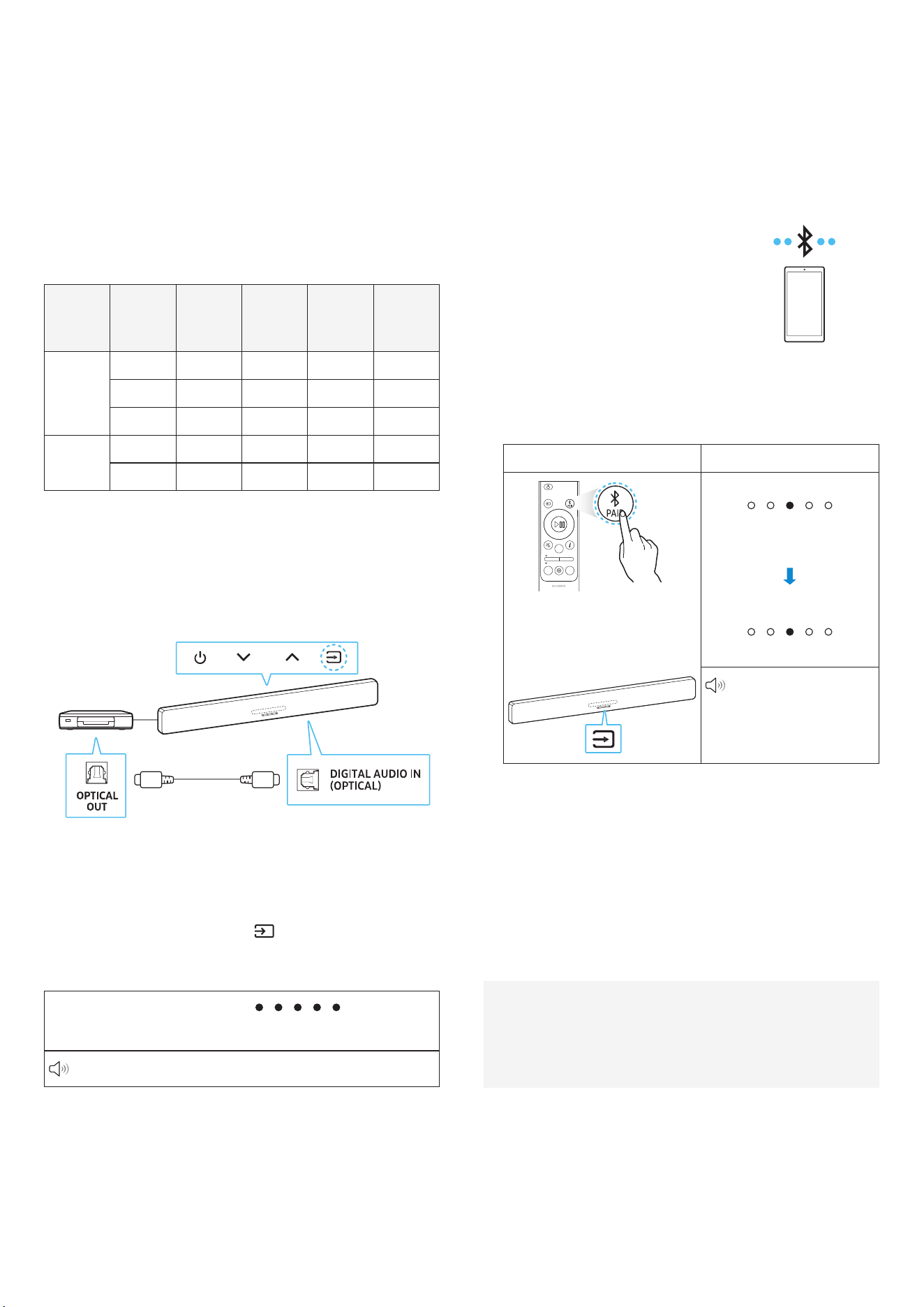
Connecting using an Optical Cable
BD / DVD player/
set-top box /
game console
Front panel of soundbar
Optical cable
(Sold separately)
Rear panel of soundbar
1. Use an optical cable (sold separately) to connect the DIGITAL
AUDIO IN (OPTICAL) port on the soundbar to the OPTICAL OUT
port on the external device.
2. Turn on the soundbar and external device.
3. Select D.IN mode by pressing the
(Source) button on the
soundbar or the remote control.
4. Your soundbar will play audio from the external device.
LED indicator:
White ON → OFF
Digital Audio In
07 CONNECTING A MOBILE
DEVICE
Connecting to Bluetooth
Connecting your mobile device to the soundbar via Bluetooth allows
you to enjoy stereo sound without the need for cables.
• The soundbar will turn on if you
try to connect a previously paired
Bluetooth device while the soundbar
is turned off.
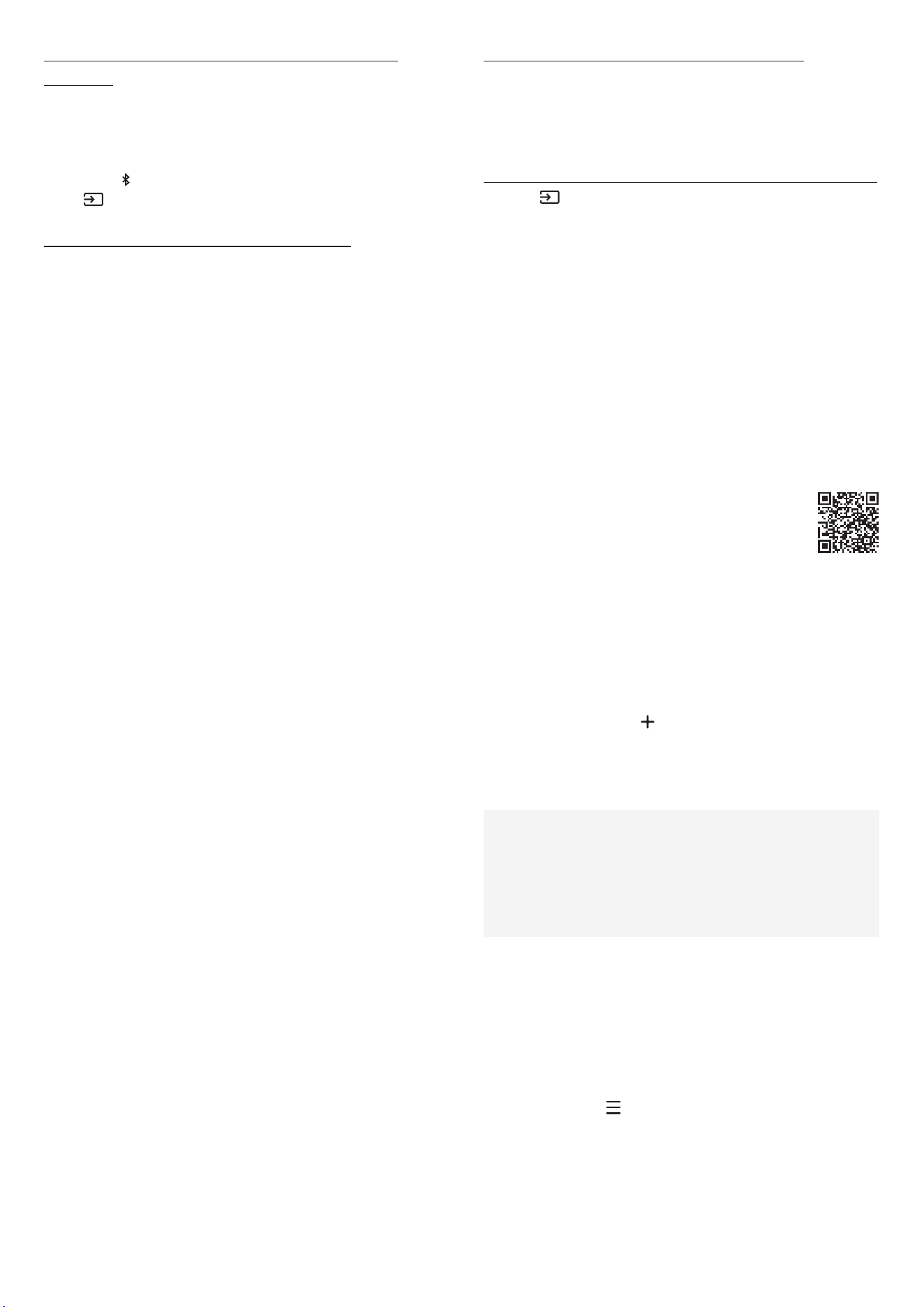
Connecting to Bluetooth for the rst time
• Position the device you are connecting to the soundbar via
Bluetooth within 1 meter (3.28 feet).
1.
Bluetooth pairing button LED indicator
[Pairing]
Red → Green → Blue
blinking
[Connection successful]
Cyan blinking x3
(Or)
3 seconds
or longer
Ready to connect via
Bluetooth.
2. Select “Q-series Soundbar” when it appears on the list in the
device.
• When the mobile device and soundbar are connected, [Mobile
device name] → “BT” will appear on the soundbar's front panel
display.
3. Enjoy music from your mobile device connected via Bluetooth
through the soundbar.
• Once you have successfully connected the soundbar to your
mobile device via Bluetooth, you can use the BT READY mode
to reconnect.
If the Device Fails to Connect
• When a previously connected soundbar (e.g., "Q-series
Soundbar") appears in the speaker list of your mobile device,
delete it.
• Repeat steps 1 through 2.
English - 17
What is the difference between BT READY and BT
PAIRING?
• BT READY: In this mode, you can connect a previously connected
TV or mobile device with the soundbar.
• BT PAIRING: In this mode, you can connect a new device to the
soundbar.
(Press the PAIR button on the remote control, or press and hold
the (Source) button for 3 seconds or longer.)
Precautions when connecting to Bluetooth
• Position the device you are connecting to the soundbar via
Bluetooth within 1 meter.
• If prompted for a PIN code when connecting to a Bluetooth
device, enter <0000>.
• The soundbar will automatically turn off after 18 minutes of
inactivity in Standby mode.
• The soundbar may have difculty scanning for available
Bluetooth devices or connecting properly under the following
conditions:
‒ In case there are nearby electronic devices or equipment
causing radio interference.
‒ If multiple Bluetooth devices are simultaneously paired with
the soundbar.
‒ If the Bluetooth device is turned off, out of range, or
experiencing a malfunction.
• Electronic devices may cause radio interference. Keep any device
that generates electromagnetic waves away from the soundbar.
(e.g., microwave oven, wireless LAN, etc.)
• The soundbar supports SBC data (44.1kHz, 48kHz).
• Only connect to Bluetooth devices that support A2DP (AV).
• When connecting the soundbar to a Bluetooth device, keep them
as close to each other as possible.
• The greater the distance between the soundbar and Bluetooth
device, the lower the audio quality will be.
The Bluetooth connection may be lost if the devices are out of
range.
• The Bluetooth connection may not work properly in areas with
weak signal reception.
• A Bluetooth device may experience noise or malfunction under
the following conditions:
‒ If a part of your body comes in contact with the signal
transceiver of the Bluetooth device or soundbar
‒ In corners or when there is an obstacle in proximity, such as a
wall or partition, where electrical changes may occur.
‒ When exposed to radio interferences by other products
operating on the same frequency ranges, such as medical
equipment, microwave ovens, and wireless LAN devices.
‒ Obstacles such as doors and walls may degrade audio quality
even if the devices are within operational range.
• Note that your soundbar can't be paired with other Bluetooth
devices while Bluetooth audio is being played.
• This wireless device may cause electrical interference during
operation.
Disconnecting a connected Bluetooth device
Refer to the Bluetooth device's user manual for more details.
• The connection with the soundbar is disconnected.
• If the soundbar is disconnected from the Bluetooth device, the
multi-color LED indicator on the soundbar blinks red three times.
Disconnecting the soundbar from the Bluetooth device
Press the (Source) button on the soundbar or remote control and
switch to any other mode besides BT.
• Ending the connection may take a few seconds as the
Bluetooth device waits for a response from the soundbar. (The
disconnection time may vary, depending on the Bluetooth
device.)
Connecting via Wi-Fi (Wireless Network)
For SmartThings to work properly, a specic or higher version of the
OS is required.
For more information on OS versions, please see the SmartThings
App description in the app marketplace for your OS.
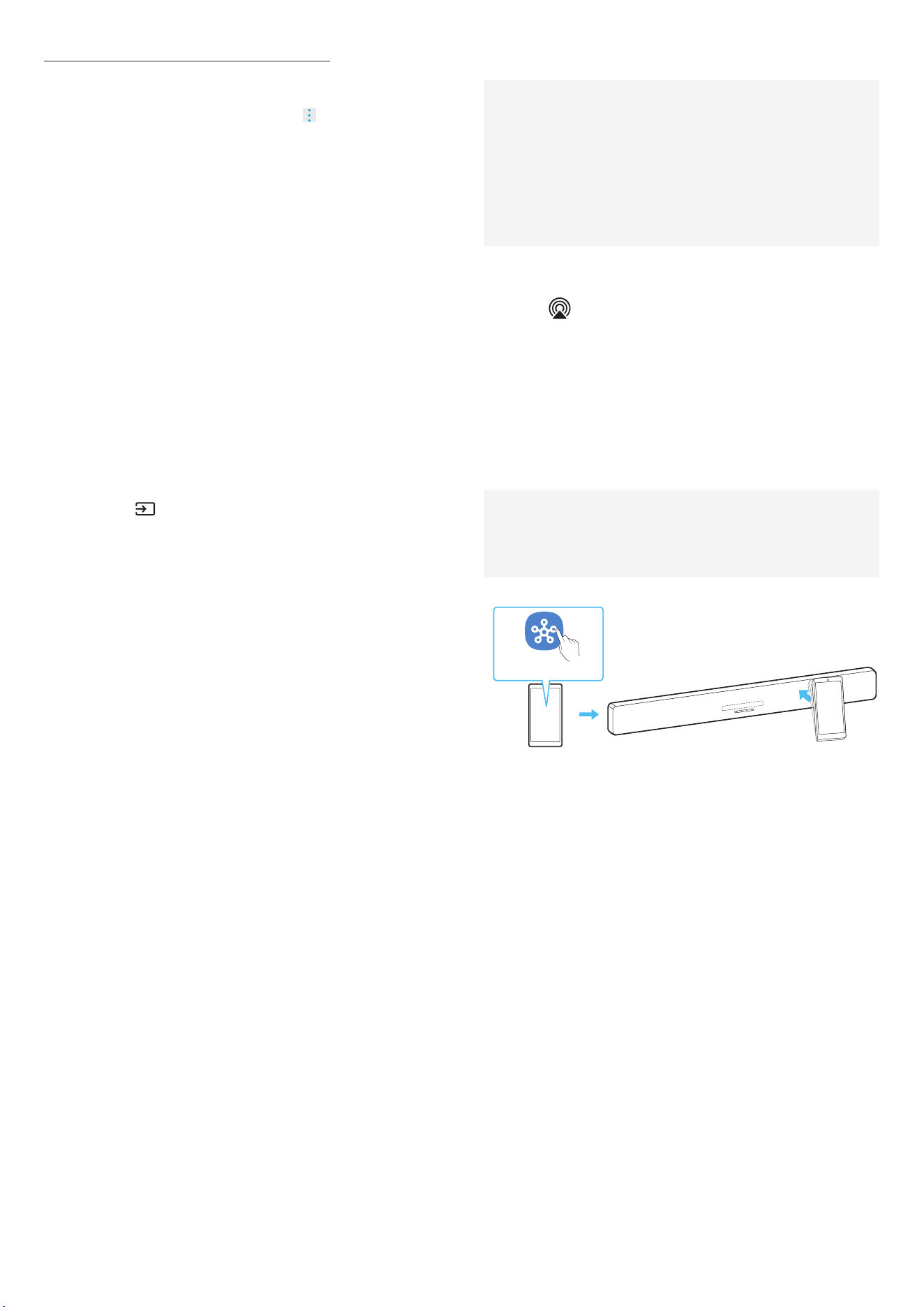
1 Installing app
You can control the soundbar and adjust settings
using the SmartThings app.
Download the SmartThings app from your mobile
device’s app store (App Store, Play Store, Galaxy
Store) or scan the provided QR code.
2 Registering a device
1. On your mobile device, run the SmartThings app.
2. Follow the instructions displayed to register the product to your
mobile device.
• If a pop-up window doesn't appear, go to the app's home
screen, then tap the ( ) button to register the product.
Note
• You can also register your soundbar to the SmartThings app by
scanning the QR code on the soundbar.
If the device isn't found
1. Connect the mobile device to the soundbar via Bluetooth.
2. Tap Connected Devices in the SmartThings App.
3. Slide left on the screen to select the soundbar card on your
mobile device. Then, tap Register device to Samsung account
to register the device.
3 Controlling the Soundbar with SmartThings
1. Open the SmartThings app on your mobile device and then select
the soundbar you registered.
2. The settings menu will appear for the soundbar. You can adjust
the settings such as Volume, Sound Mode, and Advanced Sound
Settings.
• If a different user wants to control the soundbar, the user can
tap the Menu ( ) in the SmartThings app on his/her mobile
device. Then, the user should tap on How to Use → Share
Control of devices.
English - 18
To change your Wi-Fi (wireless network)
1. On your mobile device (smartphone or tablet), run the
SmartThings app.
2. After tapping the soundbar card, tap the ( ) icon.
3. Tap Device settings > Network status > Change Wi-Fi network,
then follow the on-screen instructions.
Using Group Play
• To use this feature, register your soundbar to the SmartThings
app.
• This feature is available on Samsung TV models released in 2024
or later.
• To turn on this feature, connect two or more devices to the same
5GHz Wi-Fi network.
Conguring Group Play
1. On your mobile device, run the SmartThings app.
2. To register your soundbar to the SmartThings app, refer to
“Connecting via Wi-Fi (Wireless Network)”.
3. Tap on the soundbar card.
4. On your mobile device, tap Create Group under the audio device
icon.
• Press the (Source) button on the soundbar and set the
source to Wi-Fi.
• If your soundbar is connected to the TV via Wi-Fi, you must
rst disconnect from the TV.
5. Turn on Group Play.
6. Select a device from the list and tap Apply.
• We recommend connecting no more than 4 devices.
• In Group Play, audio will sound through the host device only.
• If a device connected to the host device switches to another
source, then that device is removed from the group.
• When you connect a host device to the TV, the group that was
created is deleted.
Disabling Group Play
1. Tap on the audio device card.
2. On your mobile device, tap Edit Group under the audio device
icon.
3. Turn off Group Play.
• To remove several devices, deselect (unmark) them in the list
and tap Apply.
Connecting to Apple AirPlay
• This feature isn't available in some countries.
• The latest version of iOS, iPadOS, or macOS is recommended.
• To turn on AirPlay on your soundbar, you must rst agree
to the terms of use for the Samsung SmartThings app and
register the device.
• While the soundbar is turned on, check and see if your
soundbar and Apple device are connected to the same Wi-Fi
network.
AirPlay allows you to stream music, podcasts, and other audio from
your Apple device to the Samsung soundbar.
• Choose
in an AirPlay-supported app or Control Center on
your iPhone, iPad, or Mac.
• Select your Samsung soundbar from the list of current devices
that can play audio.
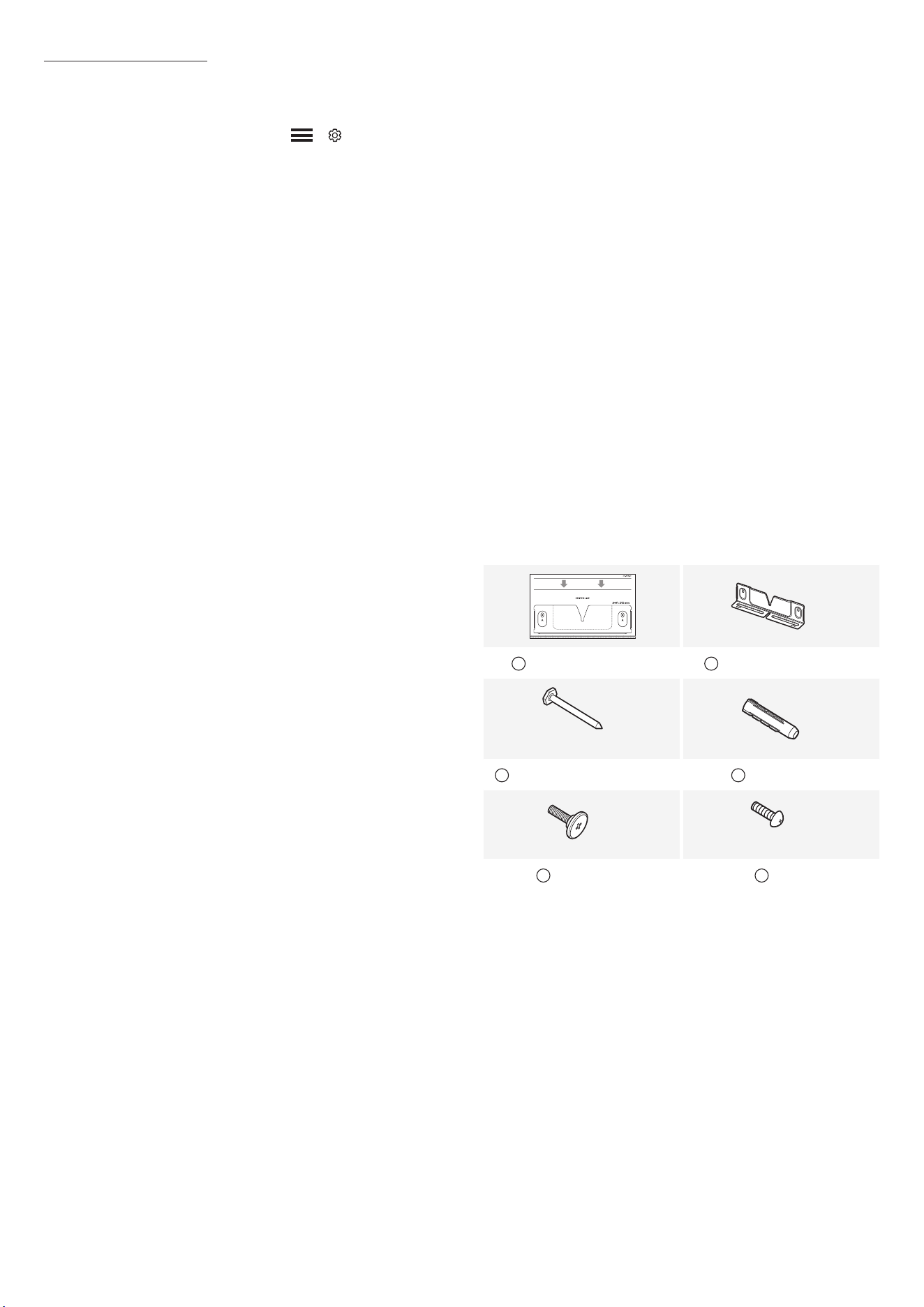
Using Tap Sound
Tap the soundbar with your mobile device to play the audio content
on the mobile device through the soundbar.
• This function may not be supported, depending on the device
model.
• This function is only compatible with Samsung mobile devices
with Android 8.1 or later.
Front panel of soundbar
SmartThings App
Mobile device
1. Turn on the Tap Sound function on your mobile device.
• Refer to “Conguring Tap Sound” below for setup instructions.
2. Tap the soundbar with your mobile device and select “Start now”
when it appears on the screen.
A Bluetooth connection is established between the mobile device
and the soundbar.
3. Play audio from the mobile device through the soundbar.
• This function connects the mobile device to the soundbar via
Bluetooth by detecting vibration when the device touches the
soundbar.
• Avoid tapping the sharp corners of the soundbar with your
mobile device. The soundbar or mobile device may get
scratched or damaged.
• We recommend covering the mobile device with a case.
Lightly tap the wide area on top of the soundbar.
• To use this function, update the SmartThings app to its latest
version.
The function may not be supported, depending on the app
version.
English - 19
Conguring Tap Sound
You can turn on the Tap View, Tap Sound feature in the SmartThings
app.
1. On your mobile device, open the SmartThings app.
2. On your mobile device, select Settings ( → ) in the
SmartThings app.
3. Set “Tap View, Tap Sound” to On to allow the function to work
when a mobile device is near the soundbar. The function is on.
Note
• If your mobile device is in Sleep mode, the Tap Sound feature
won't work.
• The Tap Sound feature may not work if the soundbar is placed
near an electronic device or appliance that causes radio
interference. Place the soundbar away from any device that
causes radio interference.
08 INSTALLING THE
SOUNDBAR ON A WALL
Precautions when installing
• Mount the soundbar only on a vertical wall.
• Avoid installing the soundbar system in areas with high
temperatures or humidity.
• Install the system on a sturdy wall capable of supporting the
soundbar's weight. If the wall can't support the soundbar's
weight, reinforce it before installation. If reinforcement isn't
possible, choose a different wall that can support the soundbar.
• Use screws or anchors suitable for the wall where the soundbar is
being installed.
(Gypsum board/steel/wood, etc.)
If possible, install the screws directly into the wall.
• Turn off the power and disconnect the soundbar before mounting
it on the wall.
Failure to do so may result in electric shock.
• Connect all cables from external devices before mounting the
soundbar on the wall.
Wall Mount Components
x 1
A
Wall-mounting Guide
B
Wall-mounting bracket
x 2
(M5 x L55)
x 2
C
Screw for mounting on wall
D
Holder anchor
x 1
x 2
(M4 x L10)
E
Holder screw
F
Screw
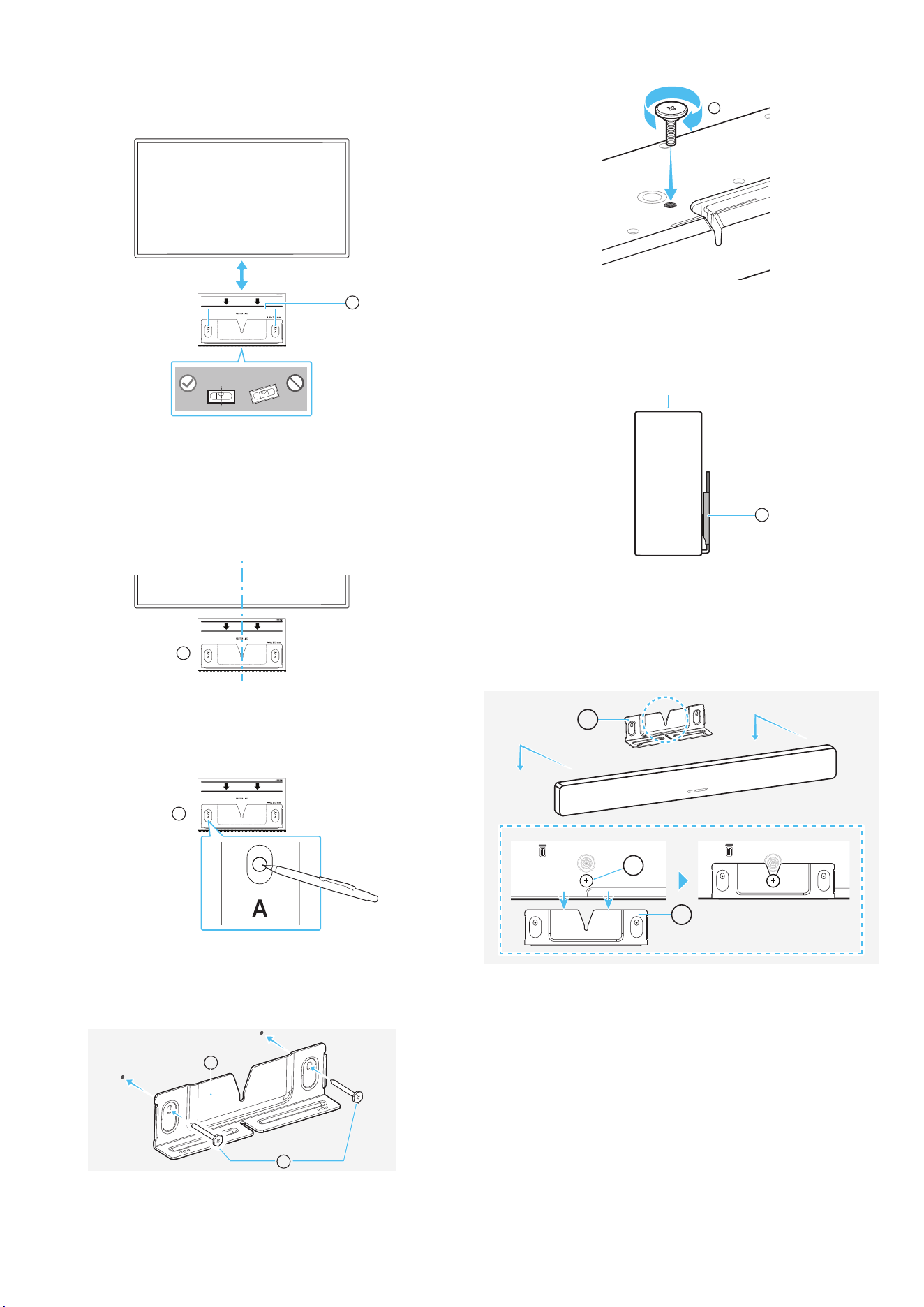
English - 20
1. Attach the Wall-mounting Guide to the wall.
• Attach the Wall-mounting Guide parallel to the wall.
• If your TV is mounted on a wall, install it at least 1 cm from the
bottom of the TV.
A
1 cm or longer
2. Align the Wall-mounting Guide's center line with the center of
the TV on the wall (If you are mounting the soundbar below the
TV), and then use tape to secure the Wall-mounting Guide.
• If you aren't mounting below a TV, place the Center line in the
center of the installation area.
A
Center alignment
3. Use a pen or pencil to mark the center of the A-TYPE hole, and
then remove the Wall-mounting Guide.
A
4. Using an appropriately sized drill bit, drill a hole where you
marked on the wall.
5. Fasten the Screw for mounting on the wall into the marked spot.
C
B
6. Fasten the holder screw to the rear of the soundbar.
E
• When assembling, make sure the hanger part of the Wall-
mounting brackets are located behind the rear of the
soundbar.
B
Top panel of soundbar
Right side of soundbar
7. Mount the soundbar onto the Wall-mounting Bracket.
• To ensure the soundbar is securely attached to the Wall-
mounting Bracket, insert the Holder screw into the center of
the Wall-mounting Bracket and push the soundbar downward.
SERVICE
DIGITAL AUDIO IN
(OPTICAL)
HDMI TO TV
(eARC/ARC)
HDMI
SERVICE
B
B
E
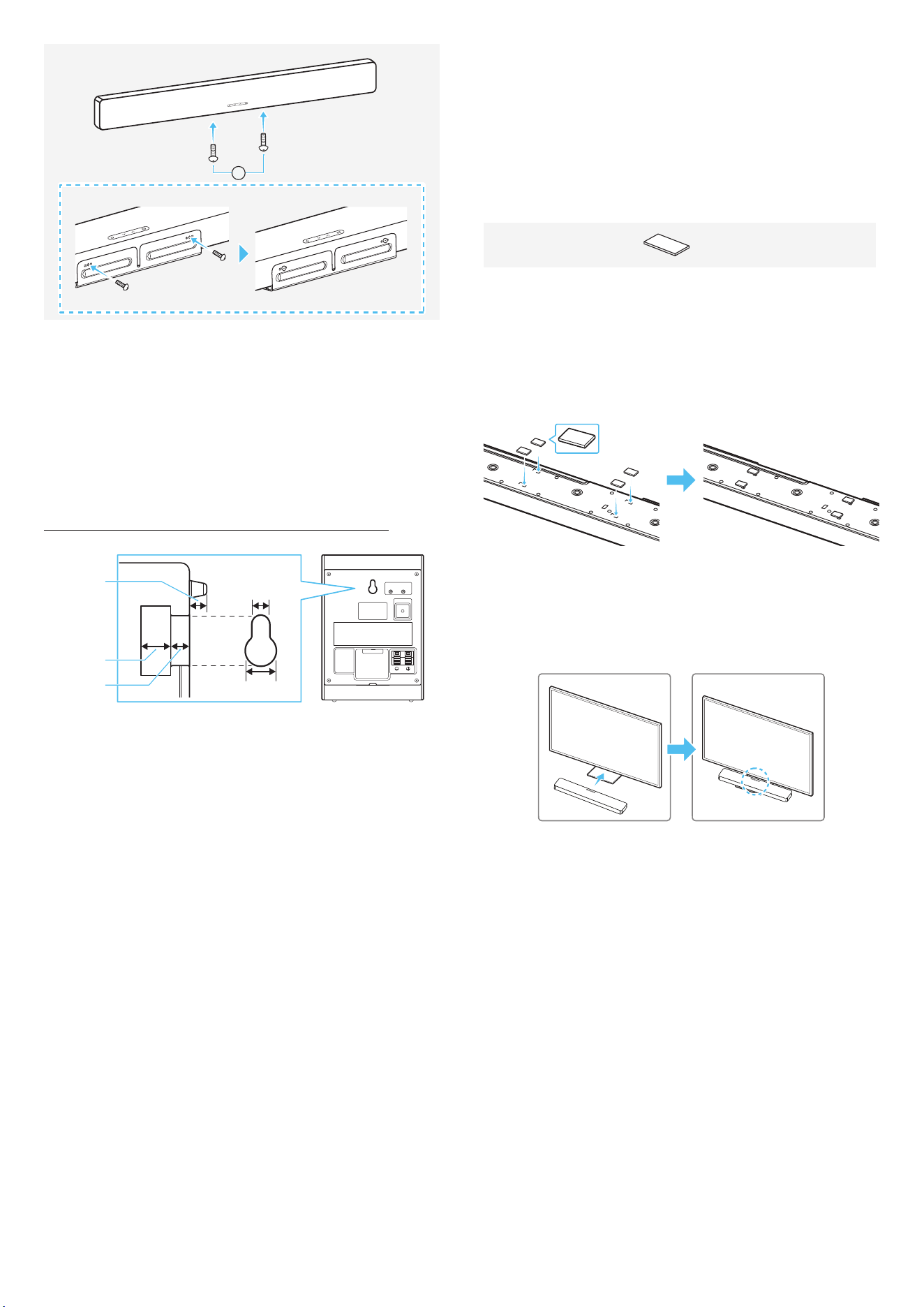
English - 21
F
Installing the Surround Speakers on a
Wall
Wall mounts need to be purchased separately to install the surround
speakers on a wall.
Samsung Electronics doesn't sell wall mounts.
Notes for mounting surround speakers on a wall
4.0 mm
4.6 mm
7.9 mm
4.2 mm
8.2 mm
• Before installing the Wall-mounting Bracket, check whether the
wall is sturdy enough. If the wall can't bear the weight of the
soundbar, reinforce the wall before installing the Wall-mounting
Brackets and soundbar.
• Samsung Electronics isn't responsible for any damage to the
product because of improper installation.
• Make sure not to install the speakers sideways or upside-down.
09 INSTALLING THE
SOUNDBAR ON TOP OF
THE TV STAND
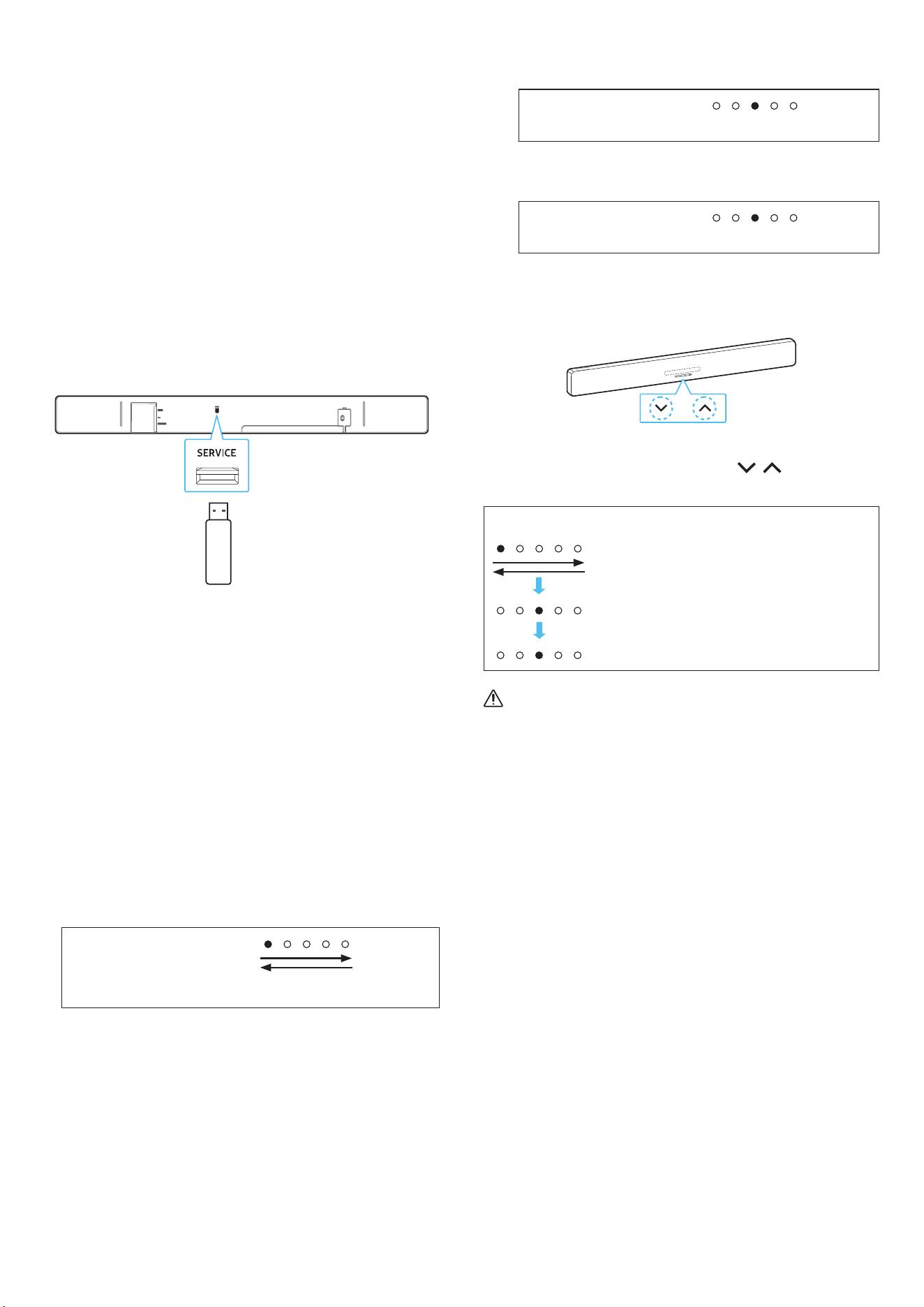
Components
x 4
Rubber Foot
1. Attach the rubber foot to the rear of the soundbar before placing
it on top of the TV stand. The rubber foot should not be placed in
a way that it extends beyond the TV stand's width. Please see the
diagram below.
Rubber Foot
2. Install the soundbar on your TV.
As shown in the image, align the center of the TV with the center
of the soundbar, then carefully place the soundbar into the TV
stand.
Note
• Make sure the soundbar is placed on a at and solid surface.
• The actual product may vary in appearance from the image
above, depending on the model.
English - 22
10 SOFTWARE UPDATE
Automatic update
If your soundbar is connected to the internet, the software will
automatically update even, while the soundbar is turned off.
• To use the automatic update feature, the soundbar must be
connected to the internet.
If power to the soundbar is cut off or disconnected, the Wi-Fi
connection will be lost. If power is cut off, turn the soundbar back
on, or disconnect the power cord and then connect it again. Then,
turn on the soundbar, and reconnect it to the internet.
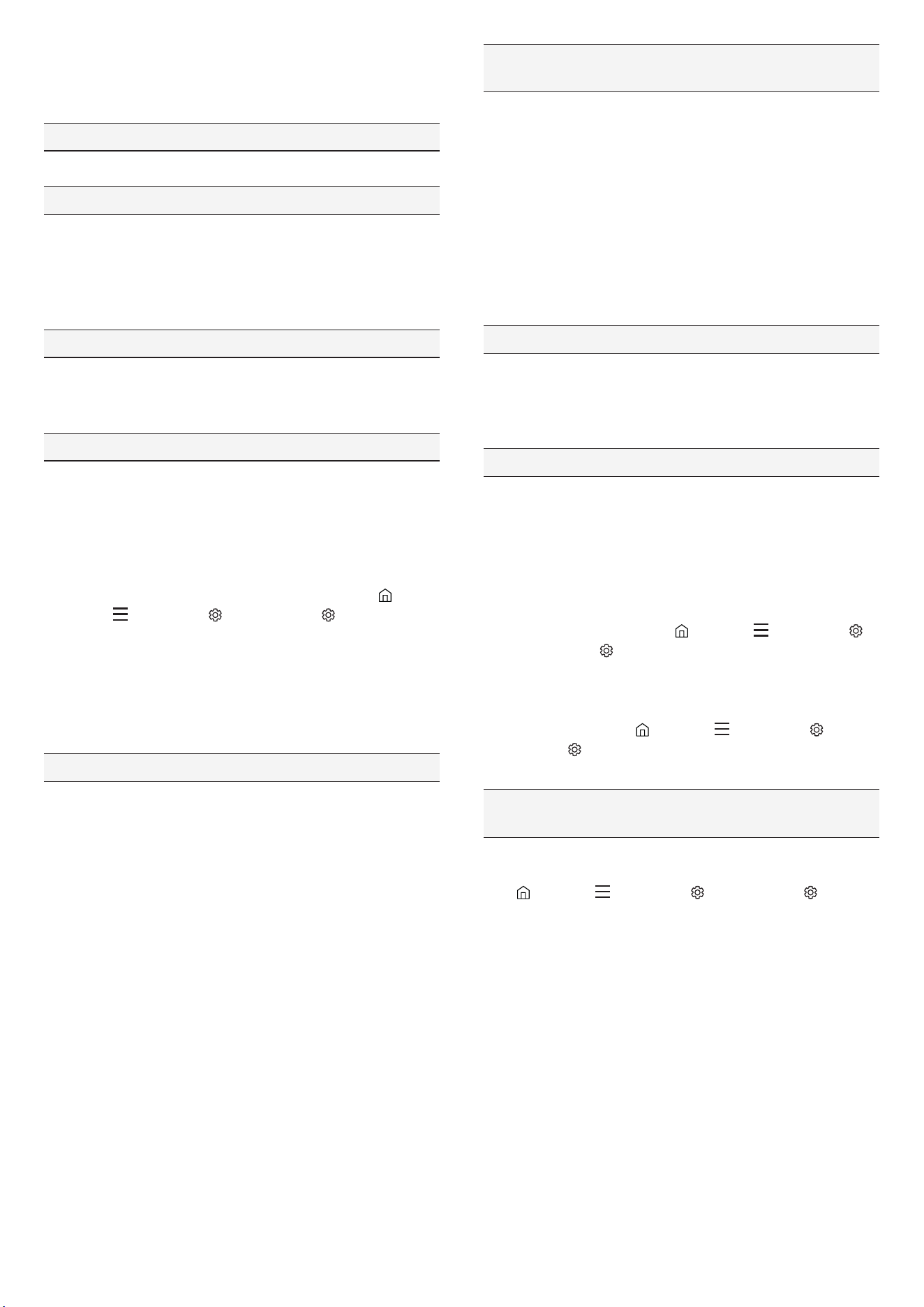
USB update
Rear panel of soundbar
DIGITAL AUDIO IN
(OPTICAL)
HDMI TO TV
(eARC/ARC)
HDMI
SERVICE
Samsung may provide rmware updates in the future for
performance enhancements to the soundbar system.
If a new update is available, you can update the soundbar by
connecting a USB storage device containing the rmware update to
the SERVICE port on the soundbar.
1. Go to the Samsung website (www.samsung.com) → Go to
Customer Support and search for your soundbar model name.
• For more information on rmware updates, see the upgrade
guide.
2. Download the Upgrade File (USB Type).
3. Unzip the downloaded compressed le into a folder created with
an identical name to the compressed le.
4. Save the created folder to a USB thumb drive and connect it to
the soundbar.
5. Turn on the soundbar. The product will be updated within 3
minutes.
LED indicator:
The White moves from left to right, then from right to left.
• Do not turn off the power or disconnect the USB thumb drive
while the update is in progress.
• If your soundbar has the latest rmware installed, the update
won't run.
• The update may not run, depending on the type of USB thumb
drive.
• If there are no available update les, the indicator will blink
red three times.
LED indicator:
Red blinking x3
• If the version of the update le is the same as or lower than
the current version, the indicator will blink cyan three times.
LED indicator:
Cyan blinking x3
Reset
Front panel of soundbar
5 seconds
While the soundbar is turned on, press both
(Volume)
buttons on the soundbar for 5 seconds or longer.
LED indicator:
The white moves from left to right, then from
right to left.
Cyan blinking x3
Red blinking x3 → OFF
Caution
• This will reset all settings of the soundbar. Reset the soundbar
only when needed.
Security Update Information
We provide security updates to protect your privacy and security.
For more information on security updates, visit https://security.
samsungtv.com.
• The website supports some languages.
English - 23
11 TROUBLESHOOTING
Before seeking assistance, check the following.
When the power doesn't turn on
• Check if the power cord is securely connected to the soundbar.
When some functions aren't working properly
• Disconnect the power cord, then connect it again.
• Turn off the connected external device, and then turn it back on.
• If there is no signal input, the soundbar will automatically turn
off after a certain period.
Turn on the power.
If the remote control isn't working properly
• Bring the remote control closer to the soundbar and point it
directly at the soundbar to select inputs.
• Replace the batteries with new ones.
If there is no sound coming from the soundbar
• The soundbar volume may be low, or the soundbar may be set to
mute. Adjust the volume levels.
• When using external devices (STB, Bluetooth device, mobile
device, etc.) connected to the soundbar, adjust the volume on
each device.
• The sound output may be set to the TV. Select the soundbar
as the sound output for the TV. (Samsung TV : Home (
) →
Menu ( ) → Settings ( ) → All Settings ( ) → Sound →
Sound Output → Select Soundbar)
• The cable connected to the soundbar may be loose. Disconnect
the cable from the soundbar and then connect it again.
• Disconnect the power cord, connect it again, and then turn the
soundbar on.
• Reset the soundbar and try again. (Please see page 22.)
If there is no sound from the subwoofer or surround speakers
• Check if the LED on the rear of the subwoofer and surround
speaker is blue. If the indicator is red or blinking blue,
reconnection is needed. (Please see page 10.)
• If an object is placed between the soundbar and subwoofer, this
can cause issues. Move the subwoofer to a place where there is
no interfering object.
• If there is a device emitting radio frequency signals nearby, it
may interrupt the connection.
Keep the soundbar or speakers away from such devices.
• Disconnect the power plug, then connect it again.
If the subwoofer or surround speaker emits noise or a stuttering
sound
• If an object is placed between the soundbar and subwoofer, this
can cause issues. Move the subwoofer to a place where there is
no interfering object.
• Audio can be interrupted when the subwoofer and surround
speakers are placed far away the soundbar. Place them closer to
the soundbar.
• Audio may stutter if the soundbar is placed near an electronic
device or appliance that causes radio interference. Place the
soundbar away from any device that causes radio interference.
Example) Wireless router, etc.
• Change the TV network connection from wireless to wired.
When the subwoofer sound is low
• The original audio that is currently being played may have a low
volume. Adjust the level of the subwoofer by using the Woofer
Level button on the remote control.
• Bring the subwoofer speaker closer to you.
When the TV can't connect to the HDMI TO TV (eARC/ARC)
• Make sure the HDMI cable is securely connected to the ARC or
eARC port. (Please see page 12.)
• The soundbar connection may not work due to other devices
(such as set-top boxes, game consoles, etc.) connected to the
TV. Connect only the soundbar to the TV, without any other
devices.
• HDMI-CEC may not be turned on for the TV. Enable CEC in the TV
menu. (Samsung TV: Home (
) → Menu ( ) → Settings ( )
→ All Settings ( ) → Connection → External Device Manager →
Anynet+ (HDMI-CEC) ON)
• To connect with eARC, the eARC function in the TV menu should
be turned on.
(Samsung TV: Home ( ) → Menu ( ) → Settings ( ) → All
Settings ( ) → Sound → Expert Settings → HDMI-eARC Mode
(Auto))
There is no audio when the TV is connected in HDMI TO TV (eARC/
ARC) mode
• The soundbar can't reproduce the inputted signal. Change the
TV’s audio output to PCM or Dolby Digital. (Samsung TV: Home
(
) → Menu ( ) → Settings ( ) → All Settings ( ) → Sound
→ Expert settings → Digital Output Audio Format)
English - 24
When a Bluetooth connection can't be established
• When connecting a new device to the soundbar, switch to BT
PAIRING to connect. (Press the
PAIR button on the remote
control, or press and hold the (Source) button for 3 seconds
or longer.)
• If the soundbar is connected to another device, disconnect that
device rst to switch to another device.
• Remove the speaker from the Bluetooth speaker list in the
device, then reconnect.
(Samsung TV : Home ( ) → Menu ( ) → Settings ( ) → All
Settings ( ) → Sound → Sound Output → Bluetooth Speaker
List)
• The TV CONNECT feature may be turned off. While the soundbar
is in “BT READY”, press and hold the Left button on the Soundbar
Remote Control for 5 seconds to select ON-TV CONNECT. If
you see OFF-TV CONNECT, press and hold the Left button for
5 seconds to switch the selection.
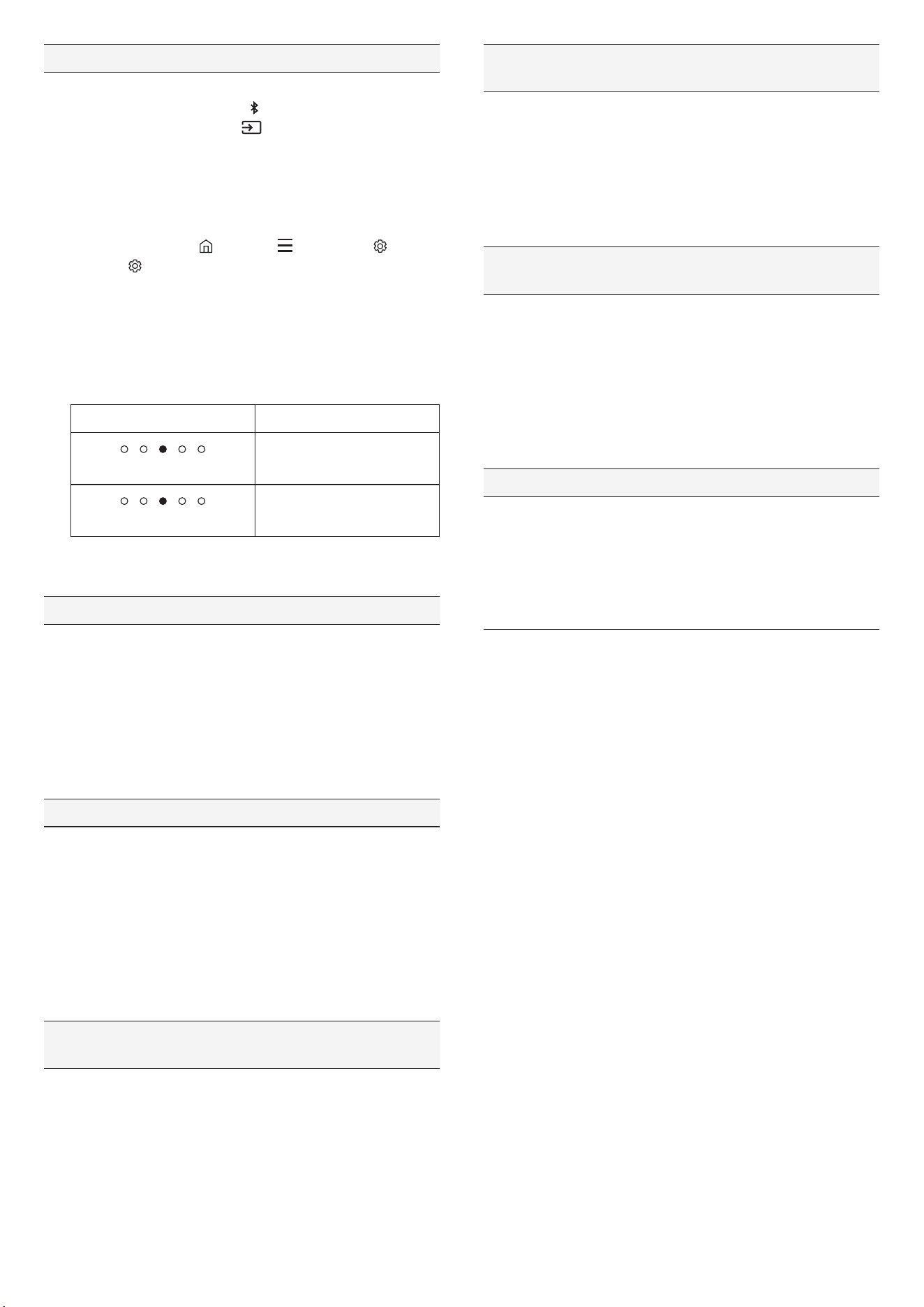
LED indicator Status
Cyan blinking x1
ON-TV CONNECT
Red blinking x1
OFF-TV CONNECT
• Disconnect the power plug, connect it again, and then try again.
• Reset the soundbar and try again. (Please see page 22.)
When the audio stutters due to a weak Bluetooth connection
• Audio may stutter if the soundbar is placed near an electronic
device or appliance that causes radio interference.
(e.g., microwave oven, wireless router, etc.)
• The sound may cut out if the connected device is too far from
the soundbar. Please move the device closer to the soundbar.
• If your body is in contact with the Bluetooth transceiver or the
soundbar is placed on metal furniture, the audio may stutter.
Check the installation environment and conditions.
When a Wi-Fi connection can't be established
• Check whether your wireless router is on.
• Turn off the router, turn it back on, and then try to reconnect.
• If the wireless router signal is weak, a Wi-Fi connection may not
be possible. Move the wireless router closer to the soundbar or
place it in an unobstructed location.
• If you have installed a new wireless router, you'll need to
recongure the speaker’s network settings. (Refer to the
contents in 18 page ‘To change your Wi-Fi (wireless network)’.)
• The soundbar doesn't support Wi-Fi 6.
When the TV is powered on, but the soundbar doesn't turn on
together with it
• When you turn off the soundbar rst while watching TV, the
Auto Power Link on the soundbar will also be turned off. Power
off the TV rst.
My TV and soundbar are connected, but when I switch to
soundbar mode, no audio is played through the TV speakers.
• If you connect your mobile device to the soundbar while it is
connected to a TV and audio is playing, the audio output will
switch to your mobile device's, but the soundbar will remain
connected to the TV.
The TV audio won't make sound from any speakers in this case.
• When you end the connection between your mobile device, the
soundbar will play the TV audio.
If the soundbar does not appear in the list of AirPlay-compatible
devices
• Ensure that you have agreed to the terms of use for the
Samsung SmartThings app and register the device.
(Please see page 18.)
• Ensure that the soundbar is not deleted from the Samsung
SmartThings app.
• Check and see if your soundbar and your Apple devices are
connected to the same Wi-Fi network.
• Note that iOS version 13.4 or later is required.
Group Play isn't activated.
• Check that your audio device is a new model released in 2024 or
later.
• Check to make sure that the host device, which is the source, is
connected to the Wi-Fi network.
• The audio devices must be connected to the same Wi-Fi
network (5GHz).
English - 25
12 LICENCES & OTHER
INFORMATION
Dolby, Dolby Atmos, and the double-D symbol are registered
trademarks of Dolby Laboratories Licensing Corporation.
Manufactured under license from Dolby Laboratories. Condential
unpublished works.
Copyright © 2012-2024 Dolby Laboratories. All rights reserved.
FOR DTS PATENTS, SEE HTTP://XPERI.COM/DTS-PATENTS/.
MANUFACTURED UNDER LICENSE FROM DTS, INC. AND
ITS AFFILIATES. DTS, THE DTS LOGO, DIGITAL SURROUND,
VIRTUAL:X, AND THE DTS VIRTUAL:X LOGO ARE REGISTERED
TRADEMARKS OR TRADEMARKS OF DTS, INC. AND ITS AFFILIATES
IN THE UNITED STATES AND/OR OTHER COUNTRIES.
© DTS, INC. AND ITS AFFILIATES. ALL RIGHTS RESERVED.
The terms HDMI, HDMI High-Denition Multimedia Interface, HDMI
Trade dress and the HDMI Logos are trademarks or registered
trademarks of HDMI Licensing Administrator, Inc.
Apple, AirPlay, iPad, iPhone, and Mac are trademarks of Apple Inc.,
registered in the U.S. and other countries and regions.
• Use your phone, tablet or PC as a remote control for Spotify. Go
to spotify.com/connect to learn how.
• The Spotify software is subject to third party licenses found
here.
https://www.spotify.com/connect/third-party-licenses
Being Roon Ready means that Samsung and Roon streaming
technology can be used together for an incredible user interface,
simple setup, rock-solid daily reliability, and the highest levels of
audio performance without compromise.
Open Source License notice
To learn more about the open source code used in this product, go
to the following website (http://opensource.samsung.com).
(Europe / Israel / Türkiye only)
Please visit www.samsung.com/global/ecodesign_energy to nd
further information about off mode, standby mode, and networked
standby mode associated with EU standby ecodesign regulation.