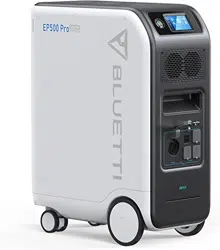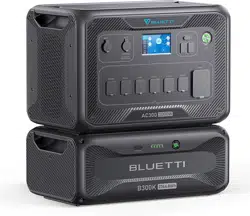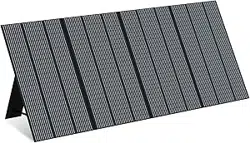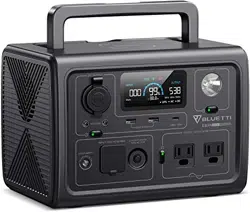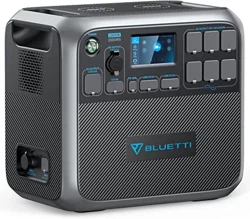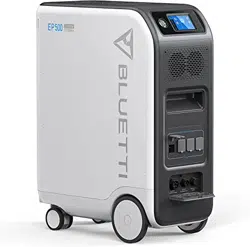

EP500 POWER STATION
Please read this manual before use and follow its guidance. Keep this manual for future reference.
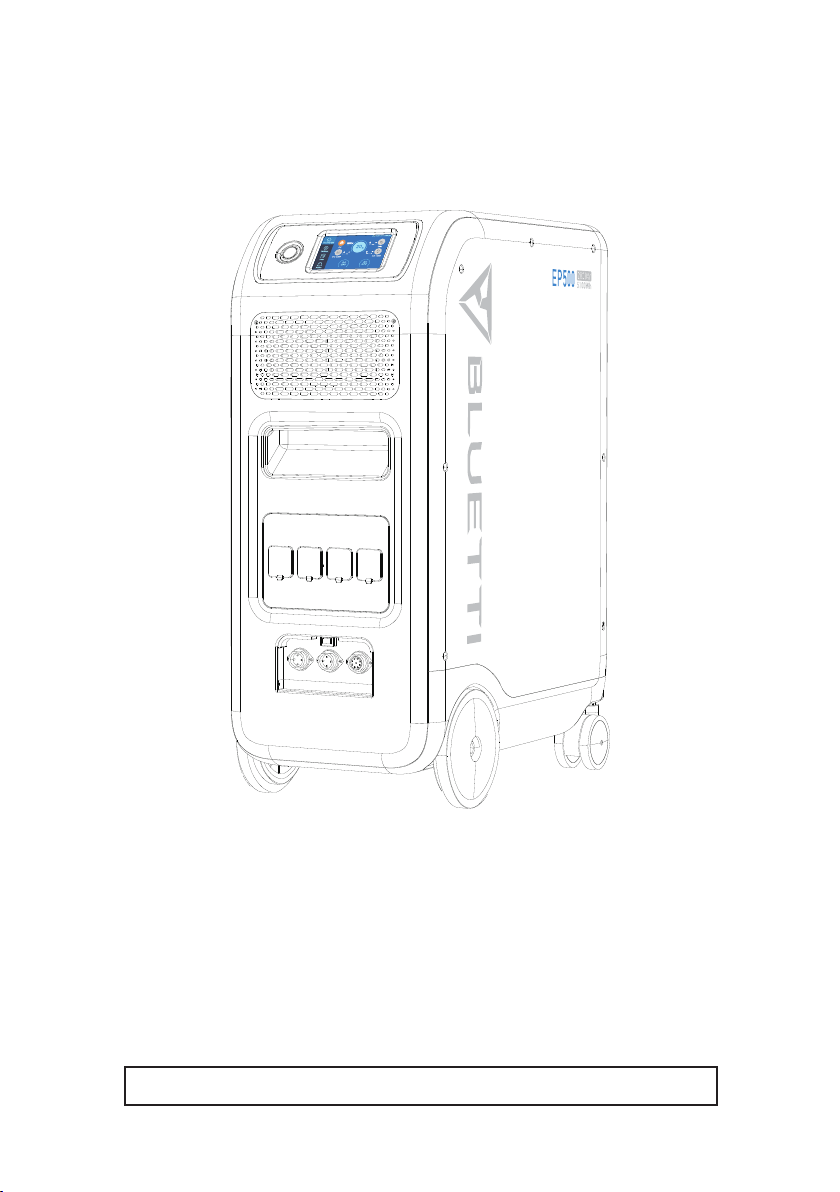
User Manual
Please read this manual before use and follow its guidance. Keep this manual for future reference.

Contents
01. EP500 Introduction ................................. 01
02. General Safety Instructions ...................... 02
03. What`s in the Box .................................. 06
04. APP User Guide ...................................... 07
05. Features of EP500 .................................. 11
06. Start up & Power off .............................. 12
07. User Interface ....................................... 13
08. How to Recharge EP500 (INPUT) ...............20
09. Discharge (OUTPUT) ............................... 24
10. UPS ...................................................... 27
11. Split Phase Function ................................ 31
12. Technical Specification ............................. 32
13. Storage and Maintenance ......................... 34
14. Troubleshooting ...................................... 35
15. FAQ (Frequently Asked Questions) ............ 38
16. Declaration ............................................ 39
01
Just Power On
01. EP500 Introduction
1.1. Introduction
●BLUETTI is proud to take the energy storage world by storm with the release
of its rst home energy storage system series - the EP500 with four smooth-
rolling transport wheels, the EP500 was not designed to be a large solar battery
mounted on the wall or in the garage. The BLUETTI EP500 was not only
designed to be a "No Installation Needed", plug-and-play mobile UPS that can
easily be moved to a desired location when necessary, but also a power backup
system that ensure emergency power when power outage occurs.
●The EP500 system uses a dual-core controller (ARM controller + DSP
controller) which combines digital and analog signals perfectly to manage and
control the AC Charger module, the MPPT module, the AC Inverter module,
the DC-to-DC module, and the battery module.
●This product integrates a solar charge controller, AC charge controller,
AC inverter, lithium battery and battery management system into one. It
converts clean and environmentally friendly solar energy and grid electricity
into clean electricity and sends it to all of your connected loads in your home.
● EP500 Power Station system is suitable for areas with energy shortage or
unstable power, and also for power supply or disaster emergency in areas
without electricity such as isolated islands and border posts.
( EP500 grid-tie home
power back up system )

02
BLUETTI
1.2. Abbreviation
● BMS: Battery management system
● MPPT: Max. power point tracking
● UPS: Uninterruptible power supply
● AC: Alternating current
● DC: Direct current
● PV: Solar panels charging
● Grid: Home electricity circuit
● T500: 500W additional adaptor
● DOD: Depth of discharge
● ECO Mode: Power saving function for power station, turn o the AC output port
automatically if the power of AC output of the load is less than 20W in 4 hours.
02. General Safety Instructions
Please read this manual before operating.
●
A licensed electrician is required to install the grid-tie power system as
involves connecting the wires of critical equipment from your main electrical
box to the BLUETTI Sub Panel (Optional Purchase).
● DO NOT place the power station near heat sources. It is prohibited to place
the equipment in an environment with ammable, explosive gas, or smoke. It
is also prohibited to operate the equipment in this environment.
● DO NOT attempt to replace the internal battery or any other component of
the equipment by anyone other than authorized personnel. There are no user
serviceable components.
● DO NOT operate in wet conditions. If the equipment becomes wet, please let
the unit dry completely before using.
● Please ensure proper ventilation while in use and do not obstruct fan openings.
Inadequate ventilation may cause permanent damage to the equipment.
● DO NOT stack anything on top of the power station either in storage or while
in use. DO NOT move the unit while operating as vibrations and impacts may
lead to poor connectivity to hardware inside.

03
Just Power On
● Warning: DO NOT insert foreign objects into any ports of EP500 (both AC &
DC & ventilation holes). The power station generates the same potentially
lethal AC power as household wall outlet. Please use carefully and keep
children away from it.
● If necessary, only dry powder re extinguisher is suitable for the product.
● For safety purposes, please use only the original charger and cables designed
for the equipment. We are not liable for damage caused by third-party
equipment and may render your warranty, invalid.
2.1. Installation (for grid-tie system)
● Before touching any conductor surface or terminal, measure the voltage of
the contact point to conrm that there is no danger of electric shock.
● After the equipment is installed, empty packaging materials such as cartons,
foam, plastic, cable ties, etc. should be removed from the equipment area.
● Except those who operate the equipment, please keep others away from the
equipment.
● The handling of any tools being used needs to be insulated and protected
from shock, or use insulated tools.
● All wiring holes need to be sealed. Use re-resistant mud to seal the wiring
holes that have been routed and use the cover of the cabinet.
● It is strictly forbidden to alter, damage or obscure the logo and nameplate on
the equipment.
● When installing the device, please use the appropriate tools to tighten any
screws.
● Live operation is strictly prohibited during installation.
● Paint scratches during equipment transportation and installation must be
repaired in a timely manner. Long-term scratches are strictly prohibited and
may cause damage.
● Before operation, the equipment should be secured onto a oor or other
stable objects, such as walls or possibly mounting brackets if needed.
● It is prohibited to clean any electrical components inside and outside the
cabinet with water.
● Do not change or modify the structure, installation sequence, etc. of the
equipment without prior authorization.

04
BLUETTI
2.1.1. Personal Safety
●
During the operation of the equipment, if a malfunction that may cause personal
injury or equipment damage is found, it should be terminated immediately.
● Please do not power on the device if the device has not been installed or
conrmed by relevant experts.
2.1.2. Personnel Requirements
●
The personnel responsible for the installation and maintenance of the
equipment must rst undergo rigorous training to understand various safety
precautions and grasp the correct method of operation.
● Trained personnel: personnel who have undergone corresponding technical
training and have the necessary experience to be aware of the danger that
may be brought to him during the operation, and can take measures to
reduce the danger to himself or other personnel to at the lowest limit.
● The replacement of equipment or parts (including software) must be done by
professionals or authorized personnel.
2.1.3. Anti-static requirements
When installing the sub-panel with your main panel, you must wear anti-static
gloves or an anti-static wrist strap before touching the device. The other end of
the anti-static wrist strap should be properly grounded. Do not touch any bare
components directly with your hands.
2.1.4. Drilling
The following safety precautions are to be considered when drilling holes on the
wall or into the ground:
●
It is strictly forbidden to drill holes into the equipment. Drilling will alter and
damage the electromagnetic shielding performance of the equipment, internal
components, and cables. The risk of metal shavings entering the device can
cause short circuits on the circuit board.
● Wear goggles and protective gloves when drilling holes.
● The equipment should be shielded and protected during the drilling process
to prevent debris from falling into the equipment. After drilling, any and all
debris which may have landed on the equipment should be removed and
cleaned in a timely manner.

05
Just Power On
2.2. Installation environment requirements
● When the equipment is running, please do not block the vents or the heat
dissipation system in order to prevent high temperatures and/or res.
● The equipment should be installed in an area away from liquids. It is
forbidden to install it near or below water pipes, air outlets and other
locations that are prone to water condensation.
● It is forbidden to install below air-conditioning vents, vents, outlet windows
in the computer room and other places that are prone to water leaks in order
to prevent liquids from entering into the equipment. Equipment failure or a
short circuit could occur.
● If liquid is found inside the device, please turn o the power immediately and
notify the administrator.
● The equipment room must have good heat insulation, and the walls and
oors must be damp-proof. Add a rat-proof bae at the door of the machine
room.

06
BLUETTI
03. What`s in the Box
Standard Accessories
No. Category Quantity
1 EP500 Power Station 1
2 AC Charging Cable 1
3 PV Charging Cable 1
4 User Manual 1
5 Warranty Card 1
6 Certicate of QC PASS 1
Additional Purchase Accessories
Sold on BLUETTIPOWER.COM
No. Category
1 Split Phase Fusion Box
2 Output Cable for Split Phase Fusion Box
3 Communication Cable for Split Phase Fusion Box
4 12V/30A RV Cable
5 Generator Charging Cable
6 Sub Panel
7 PV Step Down Module
8 Additional T500 Adapter
07
Just Power On
04. APP User Guide
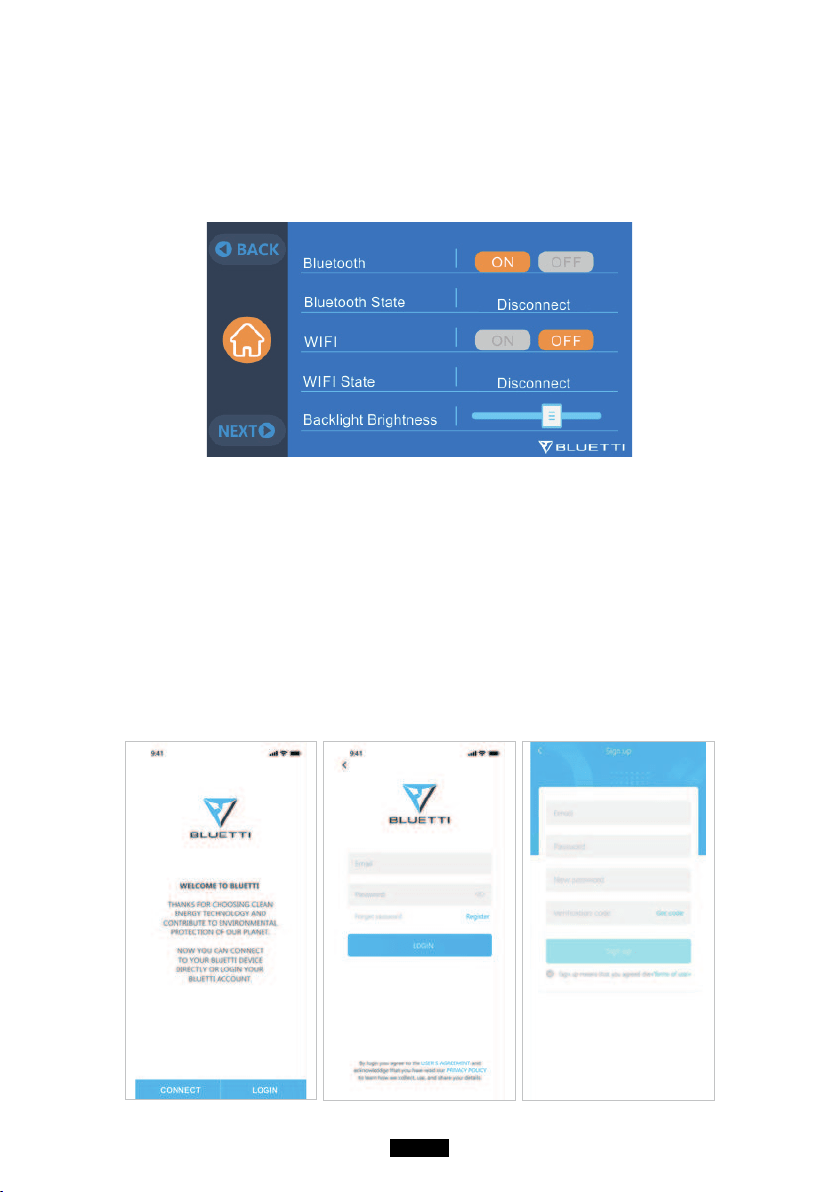
Please make sure the Bluetooth & Wi-Fi State is “ON” before connecting EP500
with BLUETTI App.
( Main Interface - Settings - Next - Next - Next )
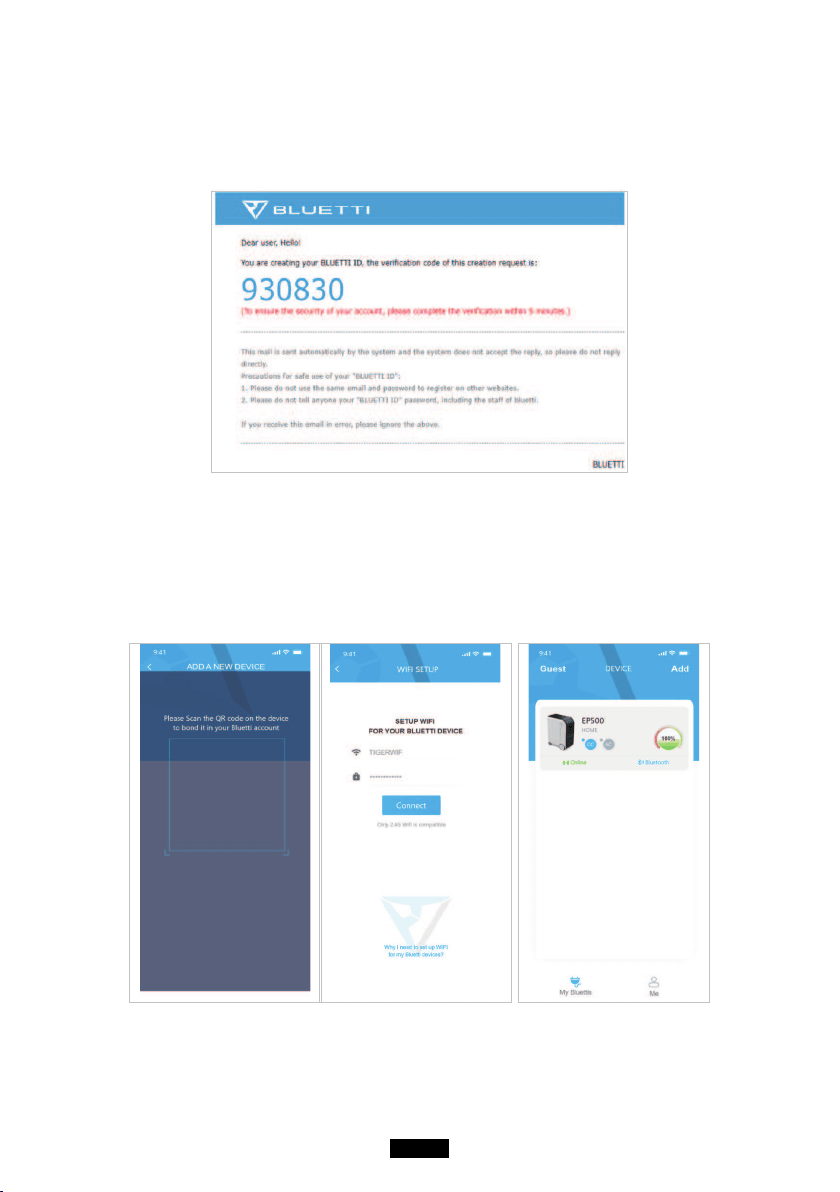
Step 1:
● Please search “BLUETTI” on the App Store (for IOS devices) or Google Play (for
Android devices) to download the BLUETTI App to remotely control your EP500.
EP500 can be controlled via Bluetooth or Wi-Fi. To activate the remote
control, please launch the BLUETTI App, and tap the “LOGIN” icon to register
your BLUETTI account.
Fill with your related information to continue.
08
BLUETTI
● Check your email account you used in the BLUETTI App for the verication
code sent from BLUETTI and ll in the activation code located within the
email to activate your BLUETTI account.
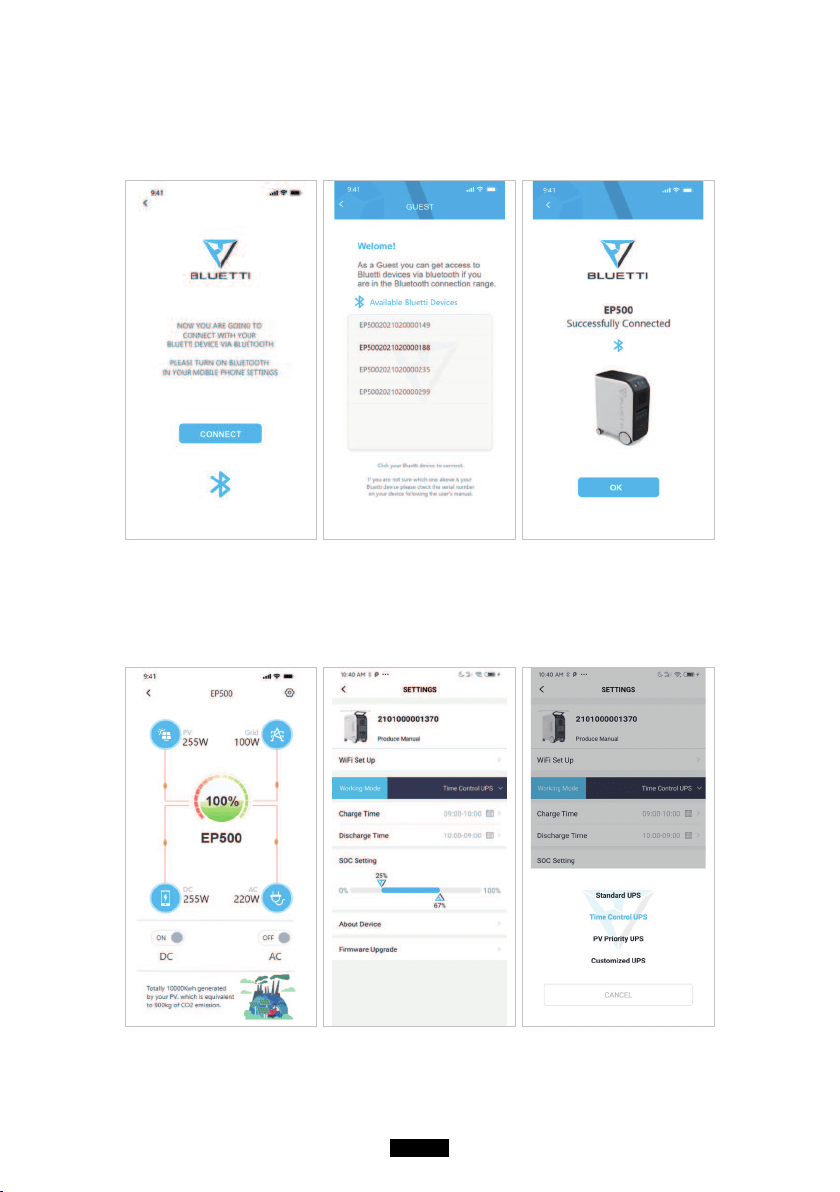
Step 2:
● Scan the unique QR code on EP500 to add the unit on the available device
list on the App, and ll it with the password of your 2.4G Wi-Fi network to
activate the communication function of EP500 for data syncing.
09
Just Power On
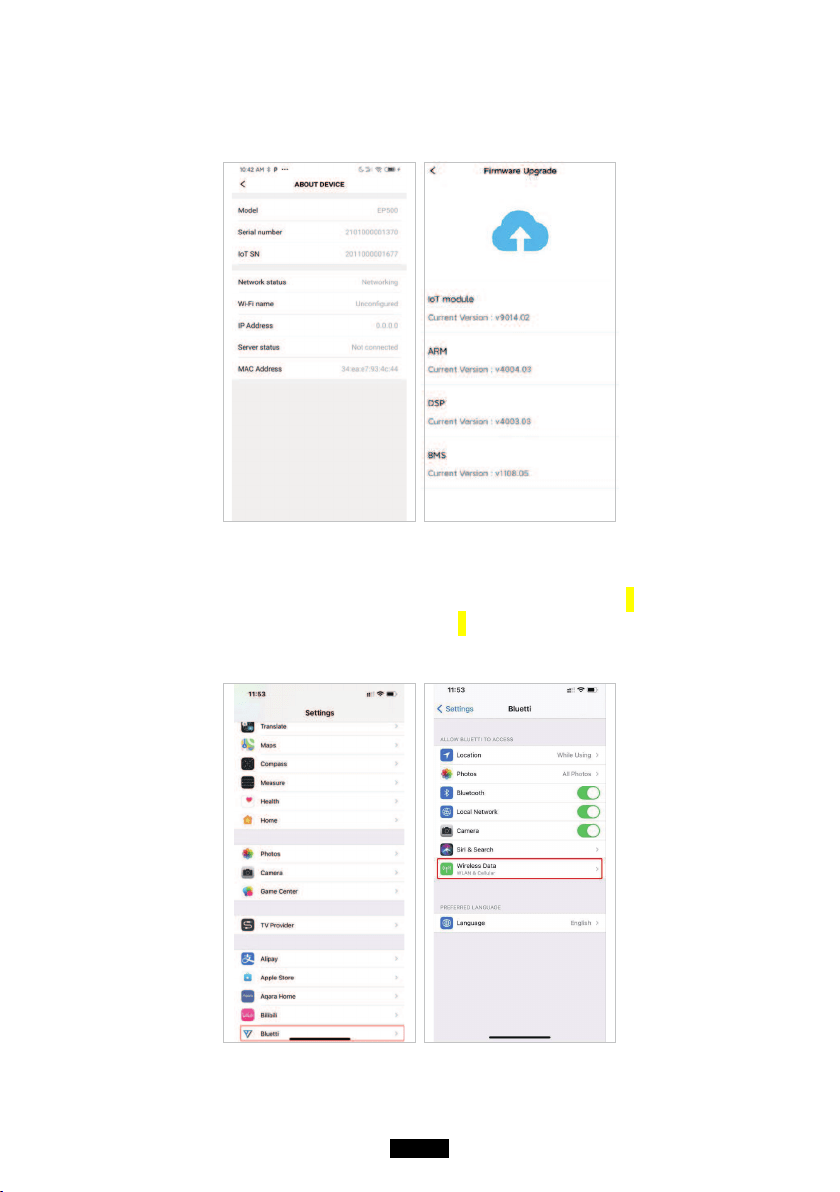
● For Bluetooth Connecting, click ‘’CONNECT’’ at the homepage to connect EP500
with your phone via Bluetooth, select the SN number of your devices. Please
press ‘’settings-product info’’ on EP500 to view the SN number of your unit.
● The basic information can be viewed after the unit is connected with App successfully.
Press ‘’gear icon’’ to customize the current working mode and parameters of
your EP500 under “Settings”.
10
BLUETTI
● BLUETTI App supports “Firmware Update” function to access the latest version
of rmware for a better user experience.
NOTE: Please keep your phone 5m/16.4ft within the EP500 for better
connection during update.
Please follow the instruction listed below if the IOS ve
rsion
BLUETTI APP failed to connect to in
ternet. By tapping Settings
- scroll down until BLUETTI icon shows up - Enable the
Wireless and Data.
11
Just Power On
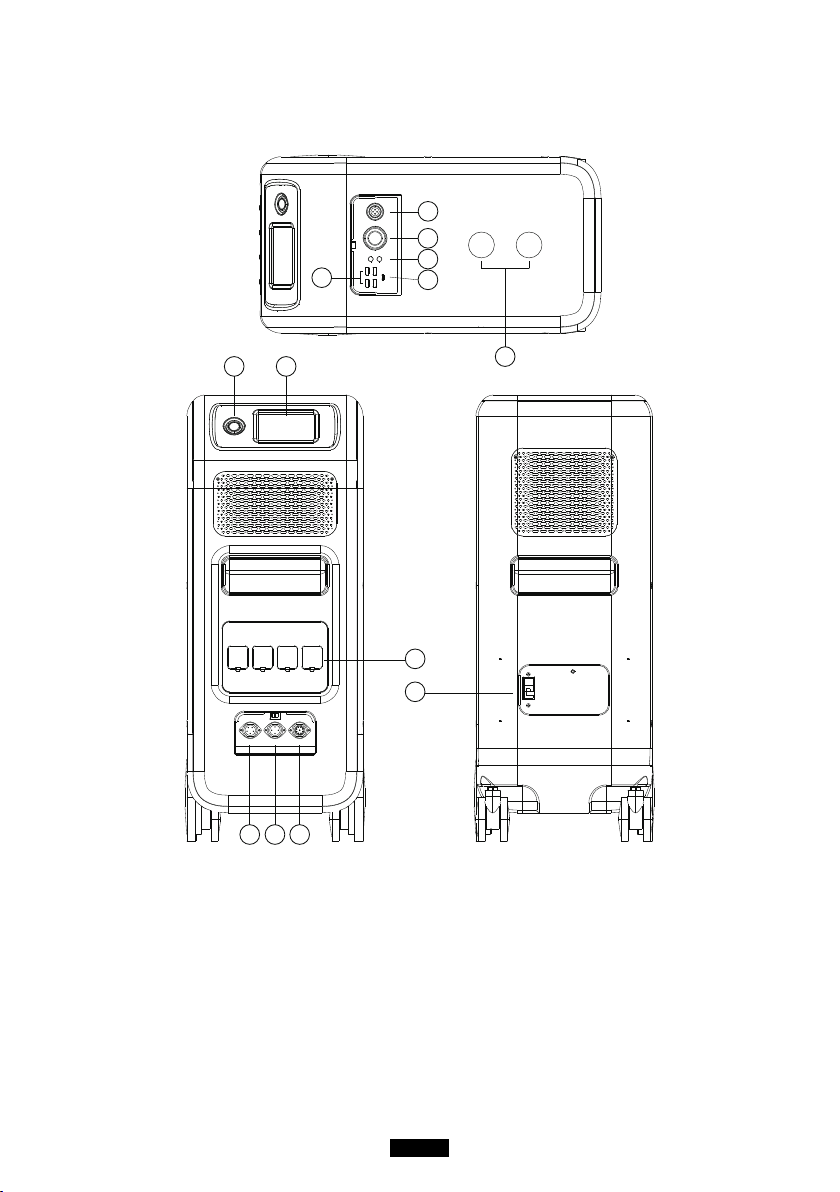
05. Features of EP500
1
9
13
10
11
12
7 8
6
2
3
4
5
12V/30A Port
12V/10A Cigarette Lighter Port
12V/10A DC5521 Port
USB-C (PD3.0 protocol supported)
USB-A
Wireless Charging Pad (QI protocol
supported)
Power Button
Touchable Screen
AC Output Port
AC Input Port
PV/T500 Input Port
Communication Interface
Main Battery Switch
12
BLUETTI
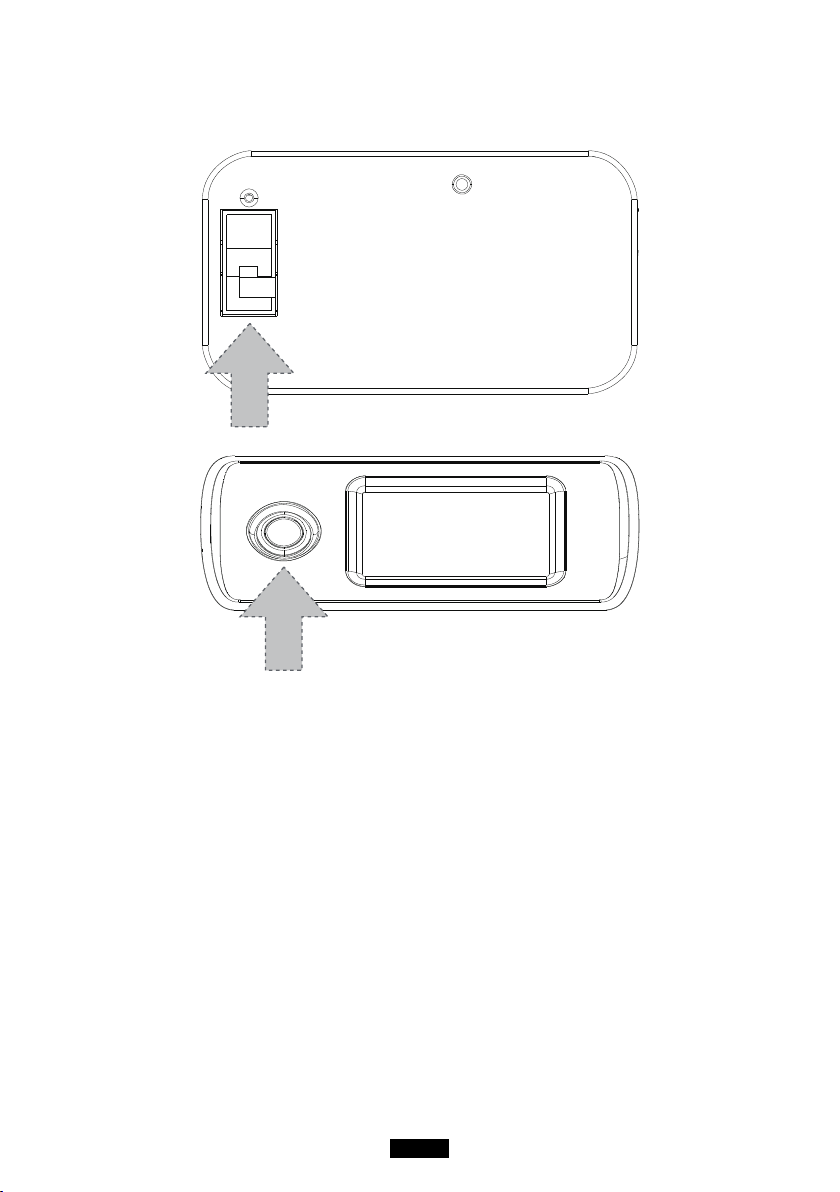
06. Start up & Power o
( Back )
( Front )
● Turn on the main power switch on the back of EP500.
● Power On: Short press the power button. The power button indicator will
illuminate.
● Power O: Long press the power button for 2 seconds. The power button
indicator light will turn o.
● DC power switch and AC power switch are accessible via the Touchscreen
LCD. Press the “DC ON/OFF” button and/or “AC ON/OFF” button on the
screen to turn ON/OFF the DC/AC output.
● EP500 will turn on automatically from Power O status when either grid
charging and/or PV charging is applied to the unit.
13
Just Power On
07. User Interface
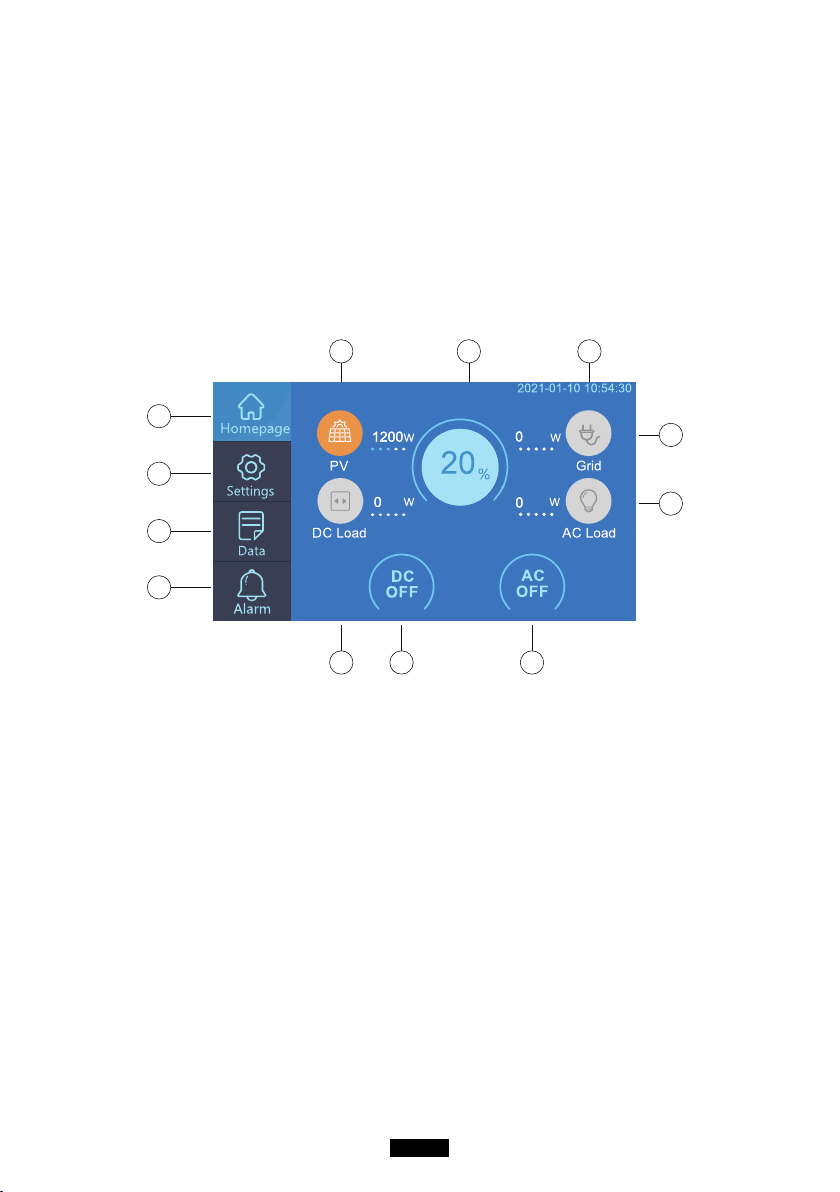
7.1. Home Page
Tip: The LCD display is a resistive touchscreen. It is recommended when
operating the touchscreen that you press lightly with the edge o your
ngernail until it "beeps" when it registers a press. (NOTE: Touchscreen
sounds can be disabled in the Settings menu).
e f g
k
l
ih j
a
b
c
d
. Homepage
. Settings
. Data
. Alarm
. PV Charging Information
. BMS Information
. Date/Time
. DC load Information
. DC ON/OFF
. AC ON/OFF
. AC load Information
. AC Charging Information
a
b
c
d
e
f
g
h
i
j
k
l
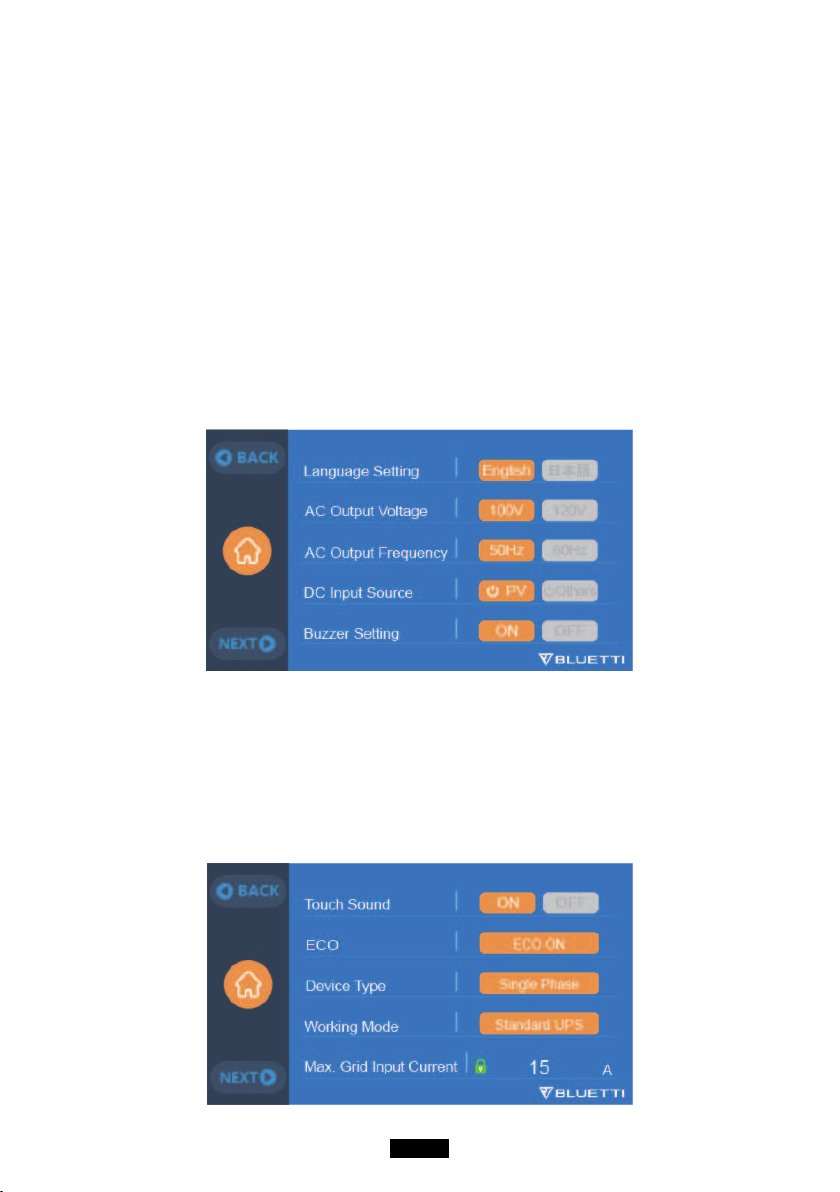
7.2. Settings
●
You can customize the working mode of EP500 and tweak the equipment’
s parameters such as language, voltage, frequency, current (UPS In-Grid
Mode), working type, date/time, etc.
● Click the Settings Button in the homepage to enter the setting interface.
14
BLUETTI
7.2.1. AC Output Voltage & Frequency
●
Here are the list of standard output voltage and frequency in 5 regions or
countries. You may click on the screen to set the parameters as needed.
● NOTE: Please check the output voltage, frequency, and date/time
BEFORE using for the rst time. The EP500 100-120V AC version
cannot be set to 220-240V AC output and vice-versa.
Output frequency and voltage can only be tweaked when the AC is OFF
(tap the AC icon at main interface to turn o AC output if it`s ON).
● DC Input Source: PV for normal solar charging, OTHERS for D300S charging.
●JP Output: 100V/50Hz
●US Output: 120V/60Hz
●AU Output: 240V/50Hz
●EU/UK Output: 230V/50Hz
7.2.1. Language Setting & ECO Mode
Tap “English” or “Japanese” icon to set as the system language display of your
EP500.
ECO: Turn o the AC output port if the load on AC is less than 20W over 4
hours.
15
Just Power On
7.2.3. Machine Type (for split phase setting, exclusive for 100-120V
Version)
“Single Phase” is set as the default machine type if you are operating a single
EP500. This is the only and correct setting if a single EP500 is being used.
Machine type is just used to set for Split Phase, “Split Phase” is only used for
connecting both *2 EP500 (exclusive for 100-120V Version) bonded 2 pairs
of EP500 to one power system to double the output power, voltage, so as to
capacity.
Please refer to Split Phase setting for detailed information.
7.2.4. Working Mode
Tips: EP500 will be set as the Standard UPS Mode.
There are altogether four working modes you can select in settings:
Standard UPS Mode: Default working mode(including Online and Oine mode).
PV Priority Mode: Recommended for areas in stable power supply.
Time Control Mode: Suitable for areas with peak and o-peak time-of-use rates
for money saving.
Customized Mode: Customized the parameters for a better user experience.
Detailed UPS Mode setting please check the chapter
10. UPS.
16
BLUETTI
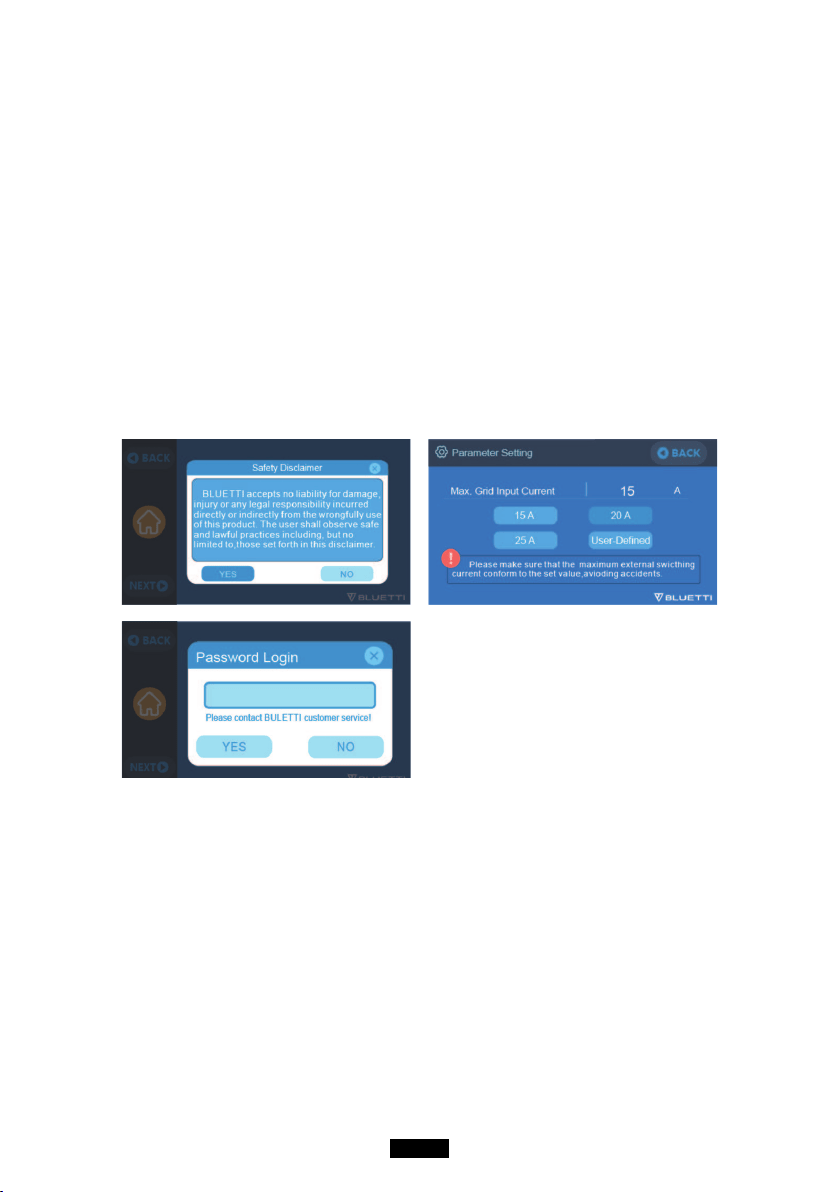
7.2.5. Max. Grid Input Current
●
Please check the specication of your grid, sockets, connections, wires,
etc. to determine the maximum allowable current that can be drawn by
the EP500. BLUETTI is not liable for any damages, injuries, or any other
legal responsibility incurred directly or indirectly from changes made to this
setting.
● Max. Grid Input Current: limit the Max. current of the tied grid, when the
current exceeds the preset value, EP500 will take in charge to be the power
source of the circuit.
Note: Only take eective when EP500 has been connected into grid.
The dafault Max. Grid Input Current: 15A.
● Safety Password of Max. Current:
159873
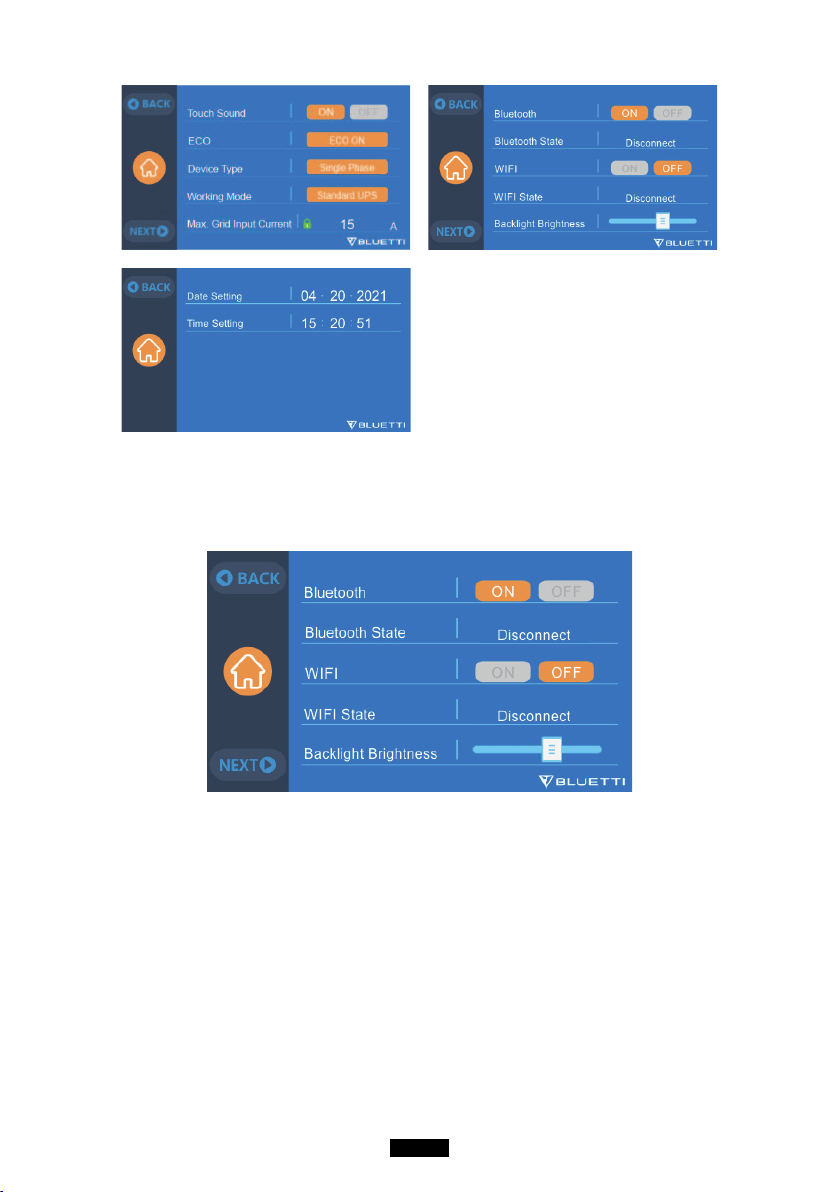
7.2.6. Date and time & Touch Sound & Backlight Brightness
●
Tap each respective date and time setting in order to set the date and time
as applicable to your local time zone.
● Tap to Enable/Disable touch sounds.
● You may change the Backlight Brightness of the Touchscreen LCD by using
the slider on the screen.
17
Just Power On
7.2.7. Bluetooth & Wi-Fi Connection
The Bluetooth and Wi-Fi connection can be turned ON or OFF by tapping the
ON and OFF icon for either function.
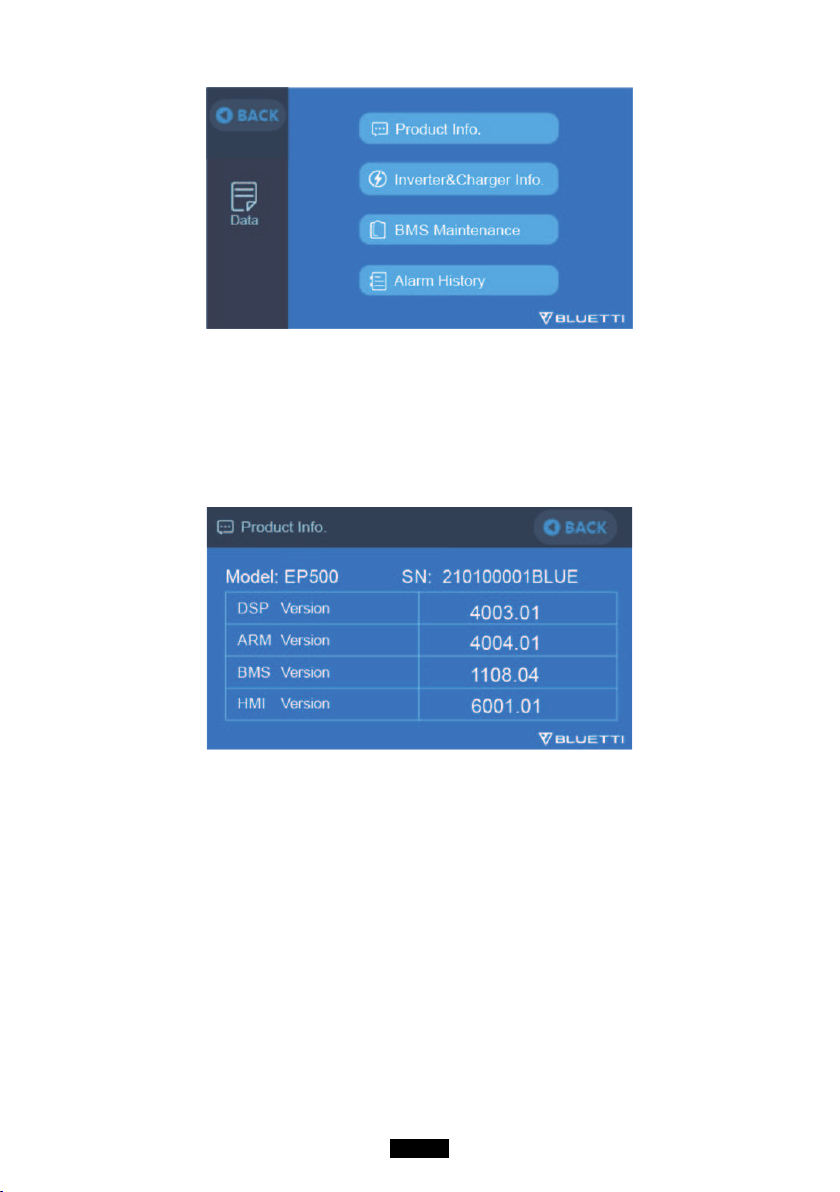
7.3. Data
In the Data section, you may view Product Info, Inverter & Charger Info, BMS
Maintenance, and Alarm/Fault History by selecting each respective button.
18
BLUETTI
7.3.1. Product Info
●
When you select the “Product Info” button, you can view the product model,
serial number (SN), control software version, monitoring software version,
BMS monitoring software version and display software version.
● The Serial Number (SN) can also be used to pair to BLUETTI APP manually.
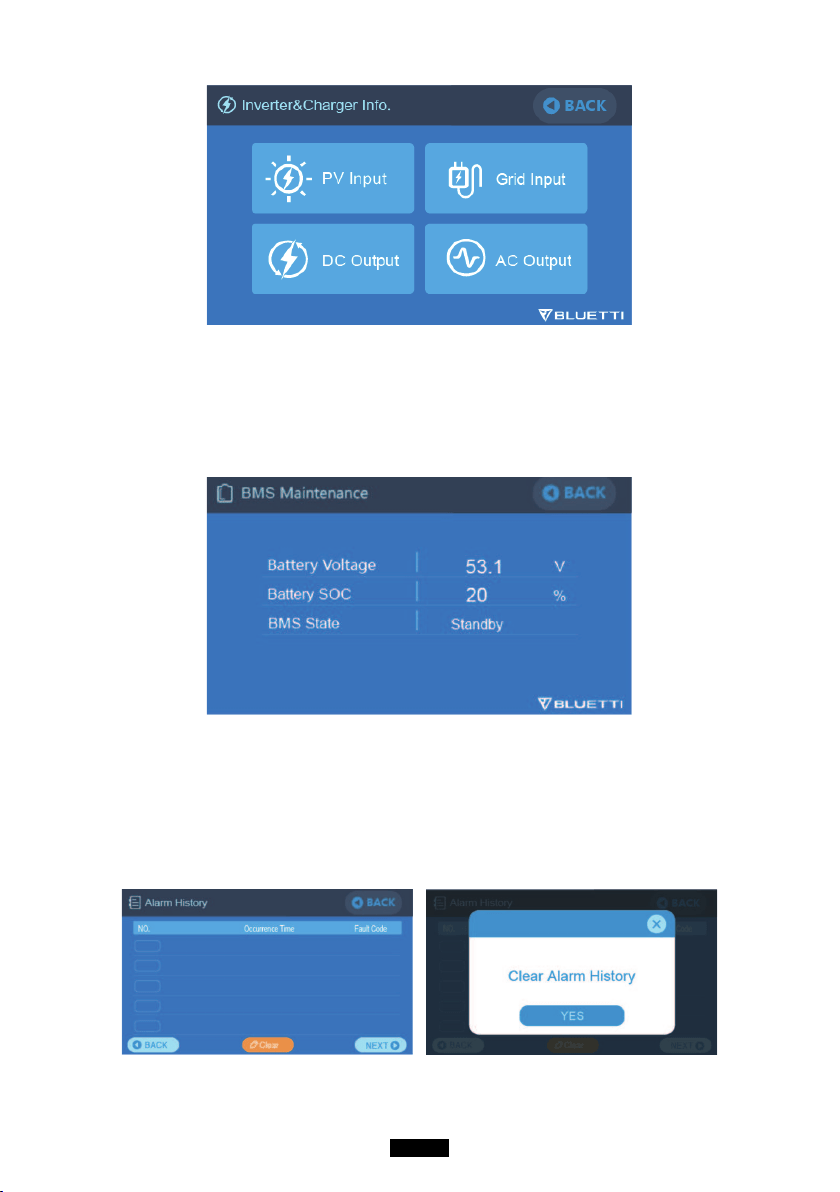
7.3.2. Inverter & Charger Info
When you select the “Inverter & Charger Info” button, you can view the PV
charging and the adapter charging status, DC output and AC output
information as well. The section can also be accessed directly from the
shortcut icon on the main interface.
19
Just Power On
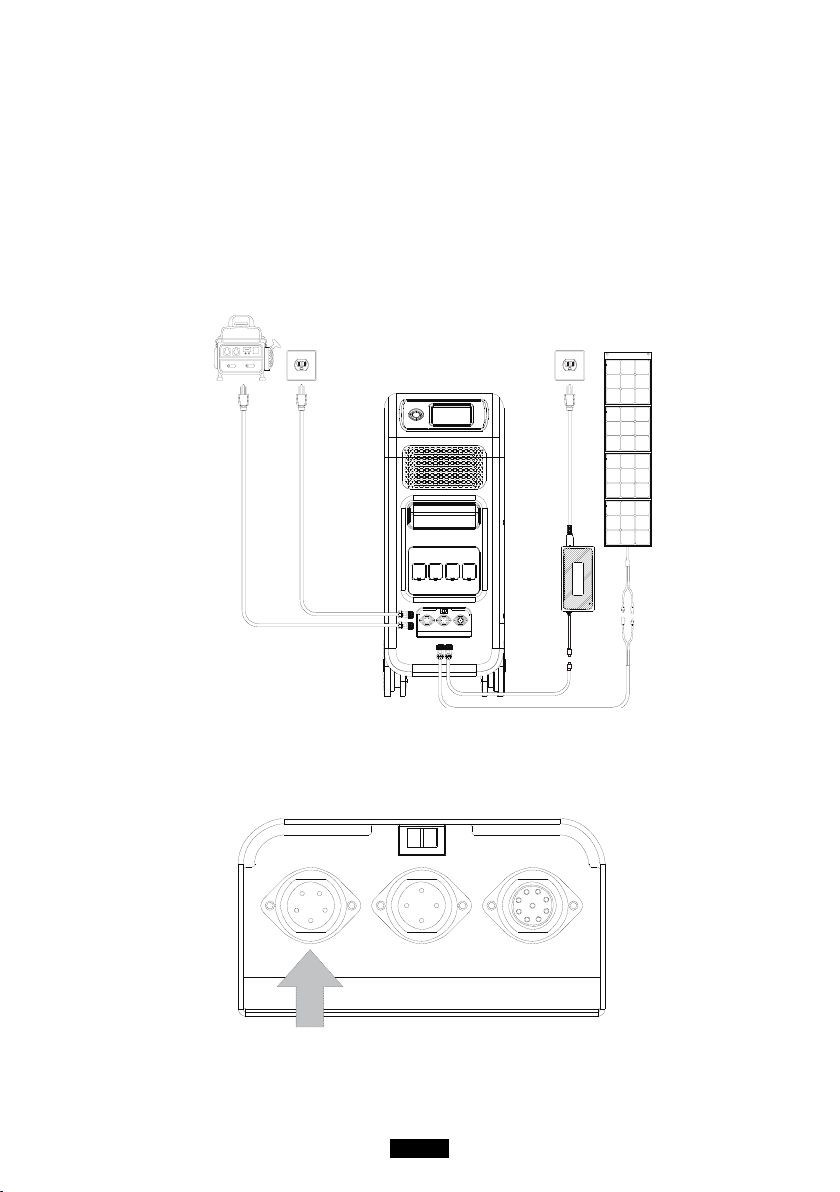
7.3.3. BMS Maintenance
When you select the “BMS Maintenance” button, you can view the information
of the BMS. This section can also be accessed directly from the shortcut icon
on the main interface.
7.3.4. Alarm History
Click the “Alarm History” button, you can view all the alarm information
generated by the machine. You can turn to the troubleshooting page to check
the corresponding solutions.
20
BLUETTI
08. How to Recharge EP500 (INPUT)
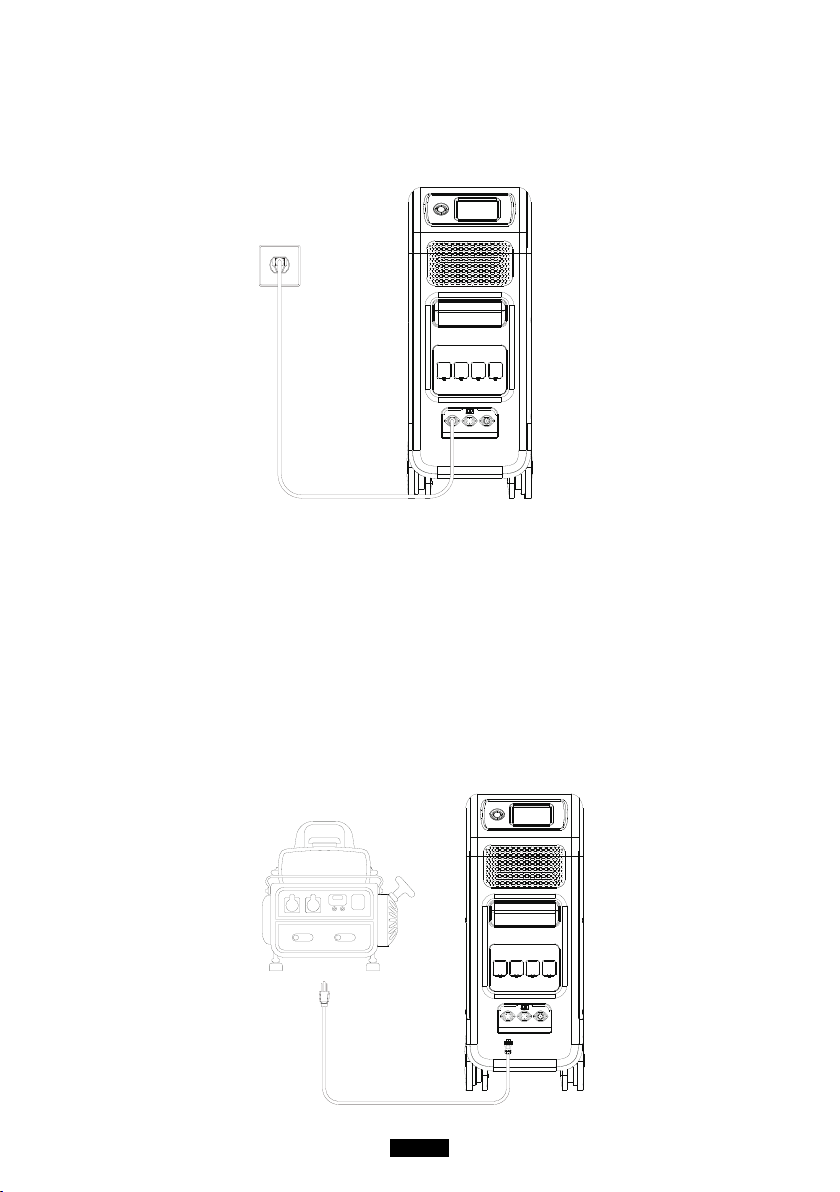
● The EP500 includes 2 charging ports which can be recharged in 5 dierent
methods. They will be covered in three dierent sections according to which
port(s) are being used.
● The ports are named Aviation Port 1 [CP1] (left) and Aviation Port 2 [CP2]
(middle) below the AC output ports.
( CP1 ) ( CP2 )
8.1. CP1 (1st Charging Port)
21
Just Power On
8.1.1. Charging Method 1: From Wall Outlet (by AC charging cable)
Connect EP500 from CP1 via AC charging cable to the AC wall outlet @600W Max.,
the charging process will automatically stop when it reaches 100% capacity.
8.1.2. Charging Method 2: From Generator (gasoline, propane, or diesel)
●
Connect the EP500 from CP1 via the generator charging cable (sold spearately)
to the AC output of the generator. The charging process will automatically stop
when it reaches 100%.
● The required output power of your generator has to exceed the Max. input
power of the AC input port of the EP500. Also a generator with a pure sine
wave output is recommended (e.g. Inverted-based Generators)
Voltage limit: 90V-264V Frequency limit: 47Hz-63Hz
22
BLUETTI
8.2. CP2 (2
nd
Charging Port)
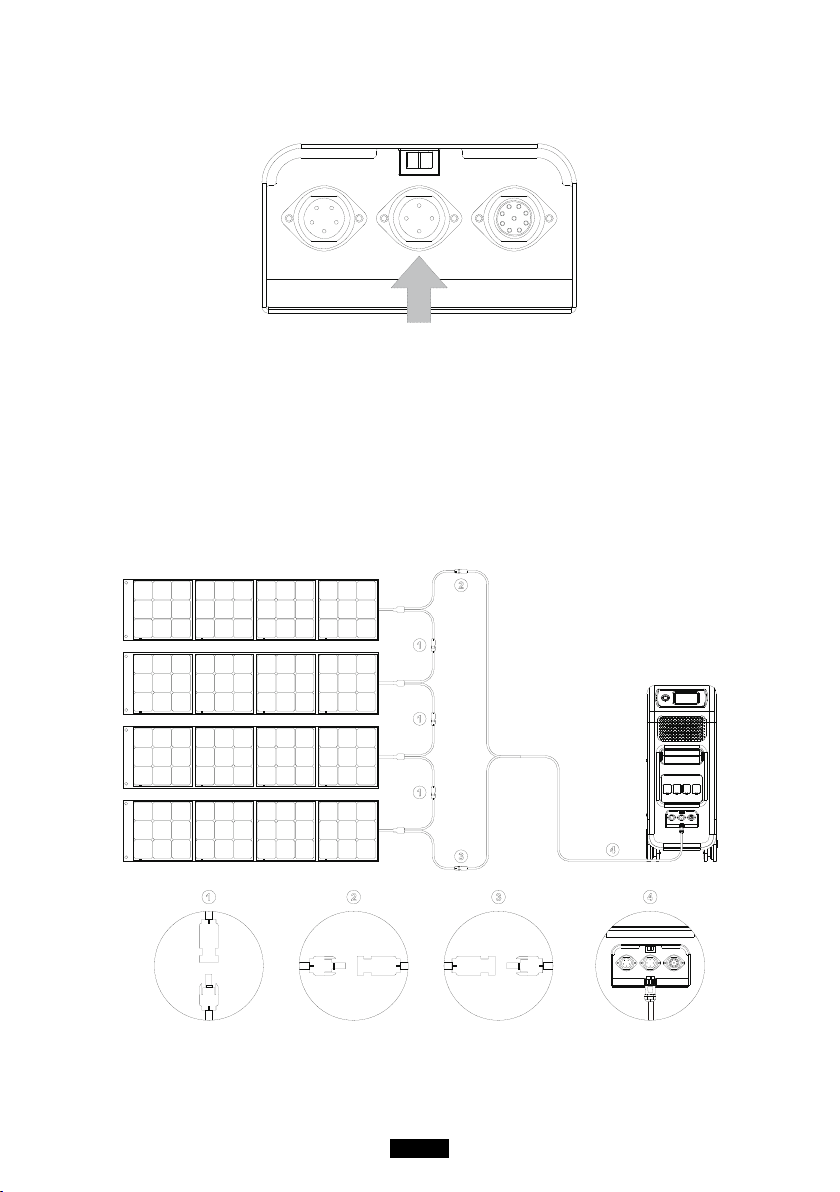
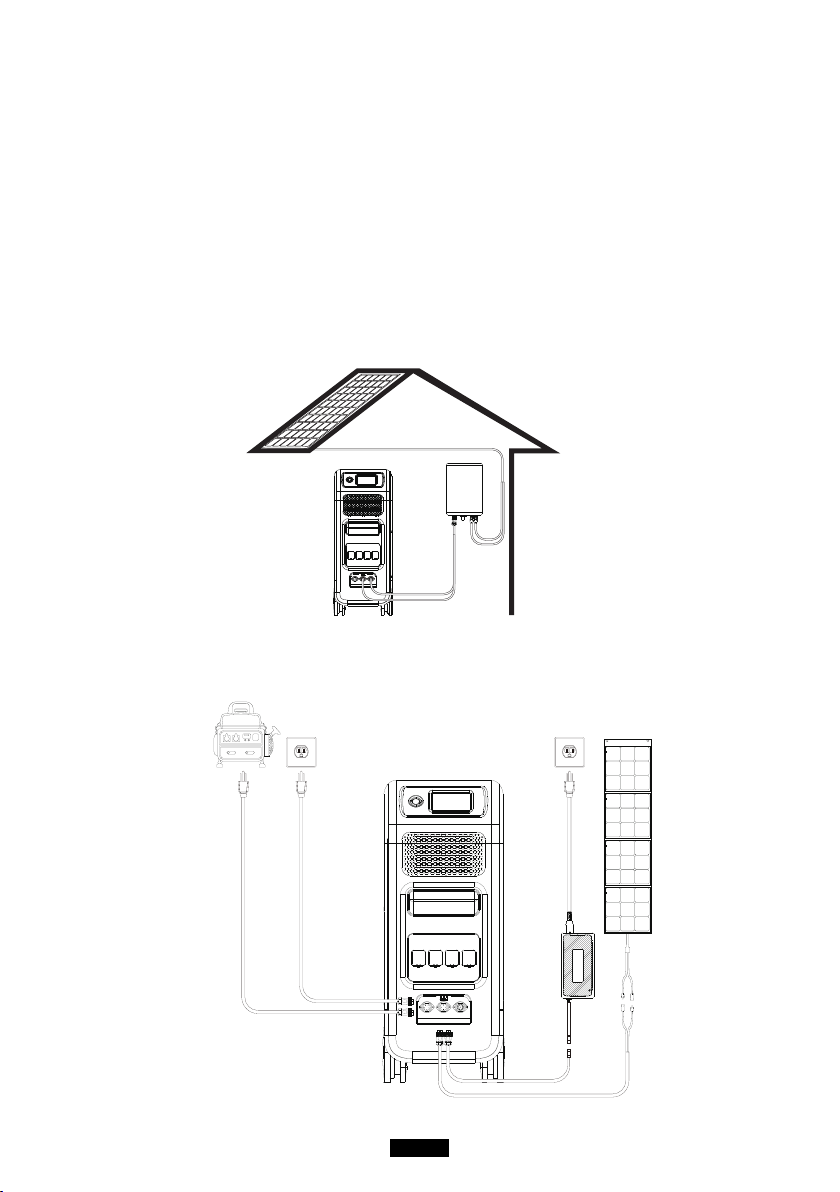
8.2.1. Charging Method 3: Solar Panels (via 4pin aviation-MC4 cable)
●
For regular solar panels:
Max. input current of solar charging is 20A, the charging voltage should be
between 55-145V. EP500 can achieve Max. 1200W solar input.
a. User can connect 4-6 pieces of sp200 solar panels in series(gure 1).
b. Connect the MC4 port of solar panels to the MC4-Aviation cable(gure 2/3).
c. Plug the Aviation cable to the middle input port on EP500.
( Easy steps to solar charging )
23
Just Power On
●For Roof Panels:
If you choose roof panels to be the solar power source to recharge EP500, easily
connect your roof panel with MC4-Aviation to EP500 will nish the installation.
PV Module (additional accessories) is required to drop down the voltage if the
open circuit voltage produced by your roof panels exceeds the limit of EP500
can handle: 55-145VDC, 20A.
This PV module doesn’t work with solar panels that have built-in
microinverters, or open circuit voltage over 550V.
Please check BLUETTI Youtube channel: BLUETTI Ocial for detailed
instruction video.
( PV Step Down Module )
8.3. Dual Charging
( CP1 ) ( CP2 )

24
BLUETTI
Charging Method 5: Supports charging the EP500 with CP1 and CP2 at same
time. You can use any charging methods listed previously, simultaneous,
to maximize charging power input. They are listed here again for your
convenience. Select one method for CP1 and one method for CP2 for
simultaneous charging.
CP1 Charging Port Select:
Method 1: GEN charging cable
Method 2: AC charging cable
CP2 Charging Port Select:
Method 3: T500 charging adaptor
Method 4: Solar panels
8.4. How to calculate the recharging time of EP500
5120Wh / Total recharging power + 0.5-1Hrs (trickle charging time) = fully
charging time estimation
E.g. : The total recharging power is 1100W(500W+600W) recharged by AC and
2nd adapter at same time, the estimation charging time will be 5.13-5.63Hrs.
09. Discharge (OUTPUT)
The operational time of the EP500 is subject to many dierent factors such
ambient temperature, discharge rate, remaining battery capacity, and other
factors.
9.1. The Output Port
9.1.1. AC Output Port
●EP500 is equipped with *4 AC(US, JP version) / *3 AC(AU,EU,UK) outputs
with a continuous 2000W Max. power of output in total, and the ability to
support surges up to 4,800W.
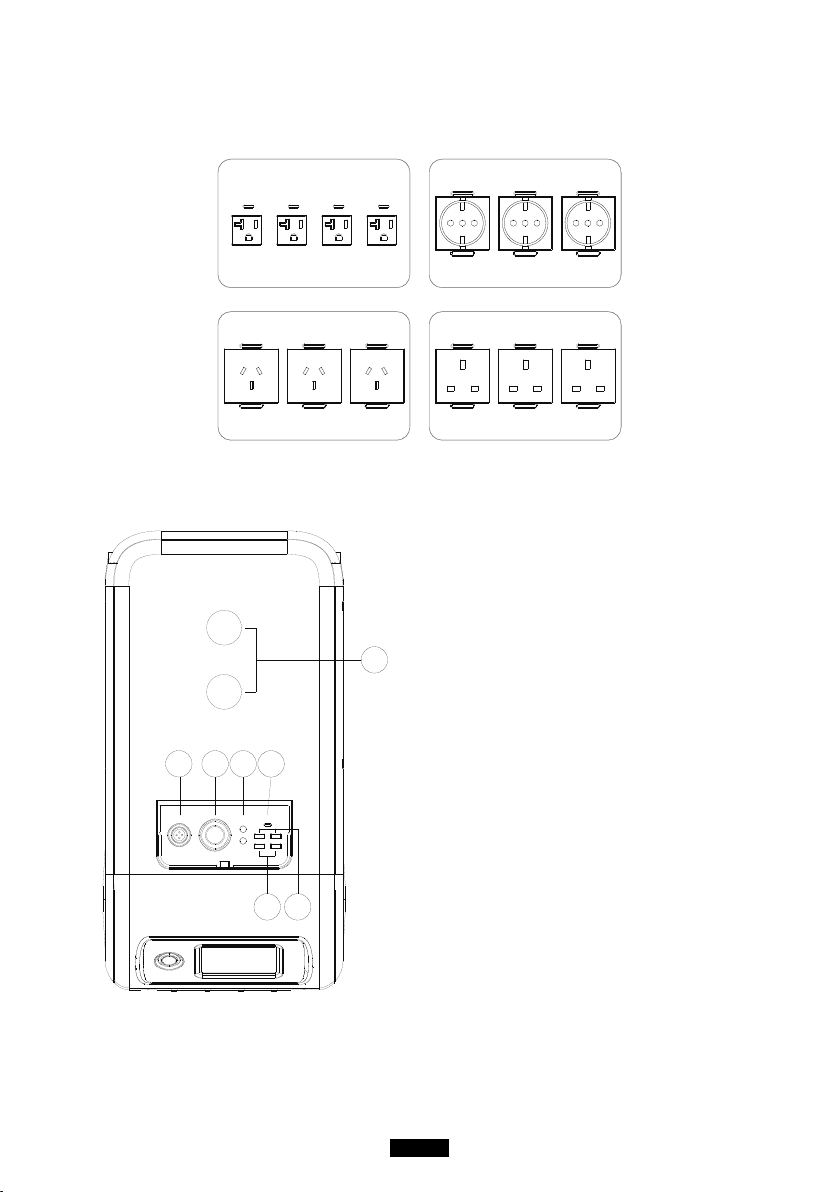
25
Just Power On
●Please make sure the combined power requirements of your appliances does
not exceed the 2,000W limit.
US Version
4 * 100-120V/20A
AU Version
3 * 220-240V/20A
EU Version
3 * 220-240V/20A
UK Version
3 * 220-240V/20A
9.1.1. DC Output Port
1. *1 RV port
2. *1 Cigarette lighter port
3. *2 DC 5521
4. *1 USB-C
5. *2 USB-A (fast charging)
6. *2 USB-A
7. *2 Wireless charging pad
1 2 3 4
6
7
5
26
BLUETTI
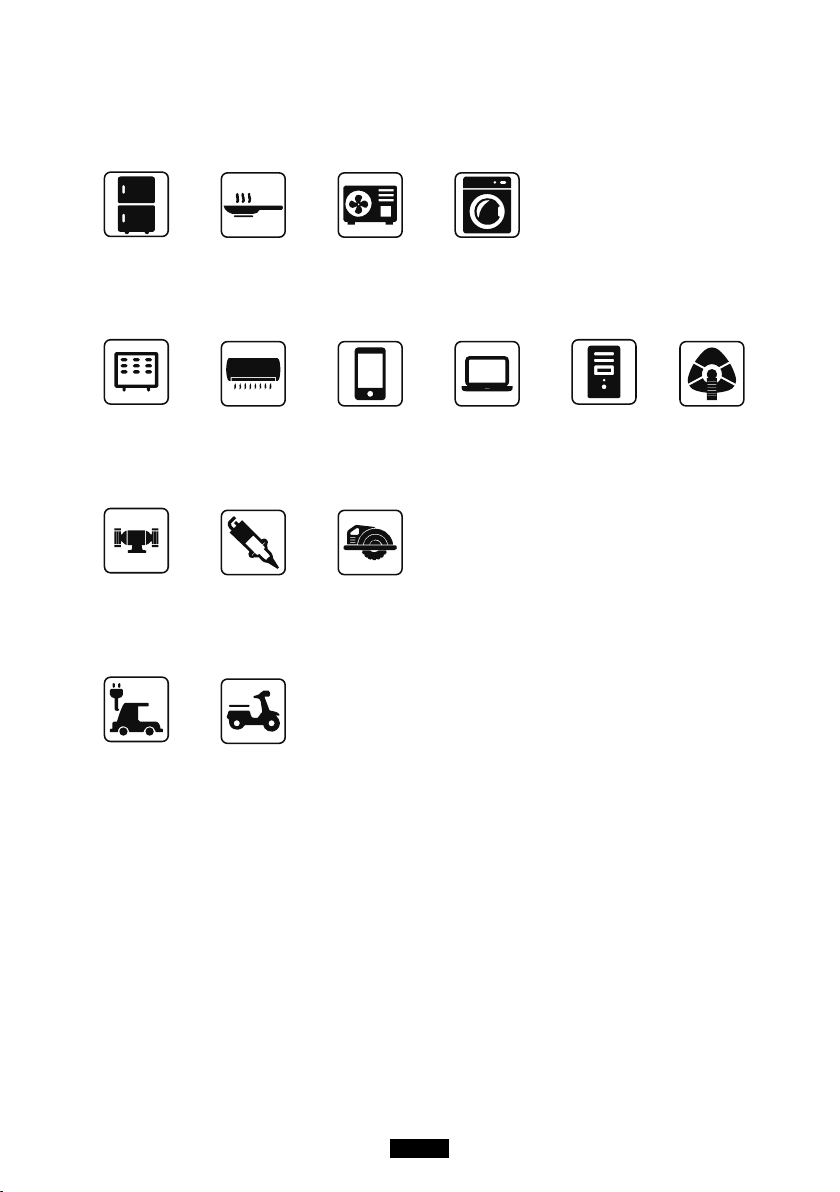
9.2. Operation Time Estimation
●Kitchen Equipment
Refrigerator
150W(1200W)
4-5 Hrs
Electric Fry Pan
1500W
2.8 Hrs
Microwave Oven
1000W
4.1 Hrs
Washer
500W(1000W)
8.2 Hrs
●Home Equipment
Space Heater
1500W
2.8 Hrs
Air Conditioning
8000Btu
6.3-17.3 Hrs
Smart Phone
15Wh
280+ Times
Laptop
49Wh
80+ Times
Desktop
300W
14 Hrs
CPAP
40W
58.5 Hrs
●Tools
Bench Grinder
1400W
2.5 Hrs
Welding Machine
1800W
2.3 Hrs
Circular Saw
1400W(2300W)
2.5 Hrs
●Transportation
Electric Vehicle(16A)
1800W
10-16 Miles
E-Bike
500W
100-150 Miles
( The estimation operating time is only for reference )
9.3. How to Calculate the Operation Time
●5120Wh * DOD * η / (load W) = operation time (unit: hour/time)
If I want to know how many times 96W Macbook Pro could be recharged.
5120Wh * 90% * 90% / 96W = 43 times
●What is the depth of discharge (DoD)?
To extend the battery-life, the power station set the 90% DOD, which means that
only 90% of the battery capacity can be discharged. 10% of the energy is reserved
to avoid damage to the battery due to over-discharge.
η indicates local inverter eciency. DOD=90%, η =90%.
27
Just Power On
10. UPS
10.1. UPS Description
An uninterruptible power supply or uninterruptible power source (UPS) is
an electrical apparatus that provides emergency power to a load when the
input power source or mains power fails. A UPS diers from an auxiliary or
emergency power system or standby generator in that it will provide near-
instantaneous protection from input power interruptions, by supplying energy
stored in batteries, supercapacitors, or ywheels.
10.1.1. FYI (For Your Information)
Battery SOC High indicates the limit of capacity of the unit which can be
recharged by grid, if you set the Battery SOC High at 80% at Customized Mode,
then EP500 could be charged to 80% via grid. The rest of the 20% capacity will
be recharged via solar panels.
10.1.2. UPS working system introduction
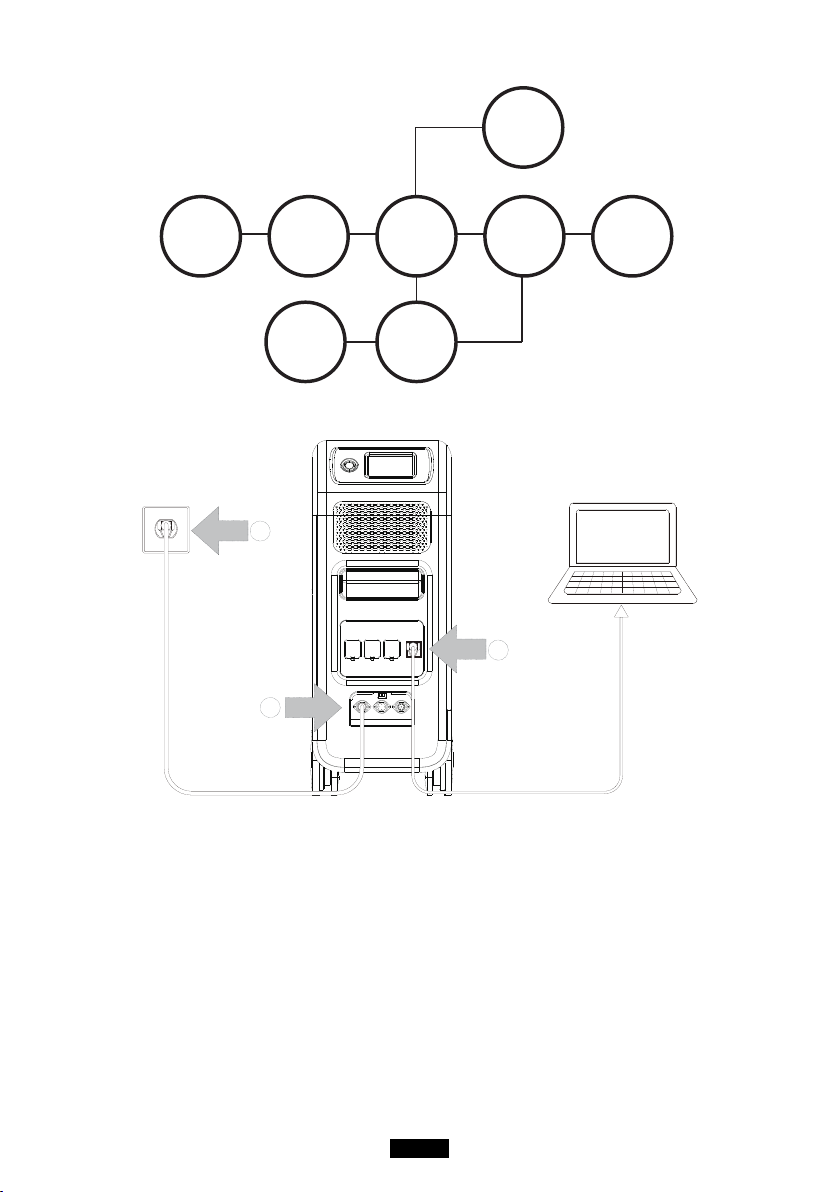
28
BLUETTI
BLUETTI
Sub Panel
BLUETTI
PV Module
Main Panel
Solar Panel
EP500
&
EP500Pro
Critical Load
≤2000W/3000W
or
≤4000W/6000W
Non-critical Load
≥2000W/3000W
or
≥4000W/6000W
Grid
( EP500 grid-tied home power back-up system with Sub Panel and roof panels )
1
2
3
(
Easy Plug-in UPS system
)
Step1: Plug the AC charging cable into wall outlet
Step2: AC charging cable into AC input port(left one)
Step3: Connect the load to EP500 via AC output port
Note: The output power in Plug-in UPS Mode is subject to the
specication of the current and voltage from home circuit.
a, PV Priority Mode b, Oine Standard UPS Mode
c, Time Control UPS Mode d, Customized Mode(out of discharge
time)E.g.: Current (15A) X Voltage (120V) = 1800W (in US)
29
Just Power On
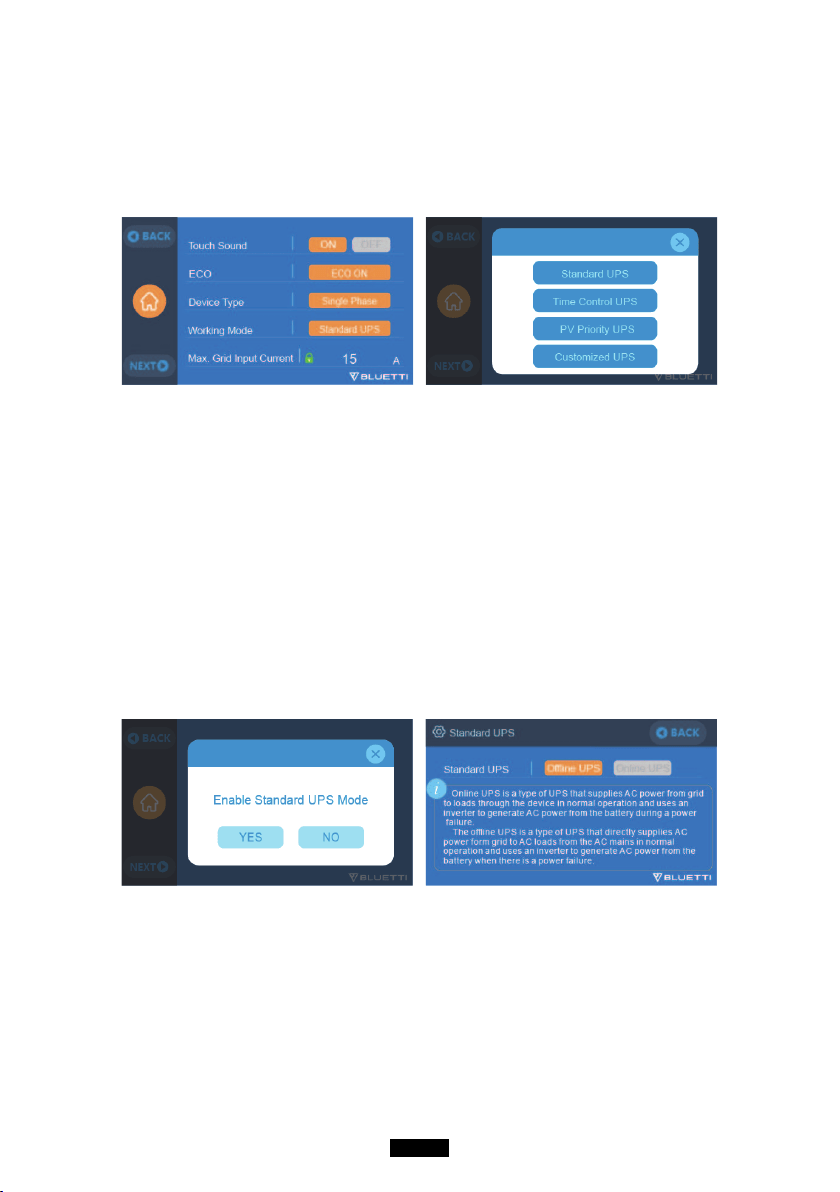
10.1.3. Turn On UPS Function
●Select “Setting” on the main touchscreen interface. Select “Next” and select
“Running Mode” to choose UPS Mode.
●The default working mode is “UPS Mode”.
10.2. Enable UPS Running Mode
10.2.1 Standard UPS Mode
●Oine UPS: Basic UPS working mode
EP500 will power your load or grid only when the power failure happened, or
EP500 will always be on standby and keep the capacity stayed at 100%.
●Online UPS: For better electricity quality
EP500 will charge from the grid when available.
Power for the load or home will come from the EP500 (not the grid),
regardless of whether there is a power outage or not.
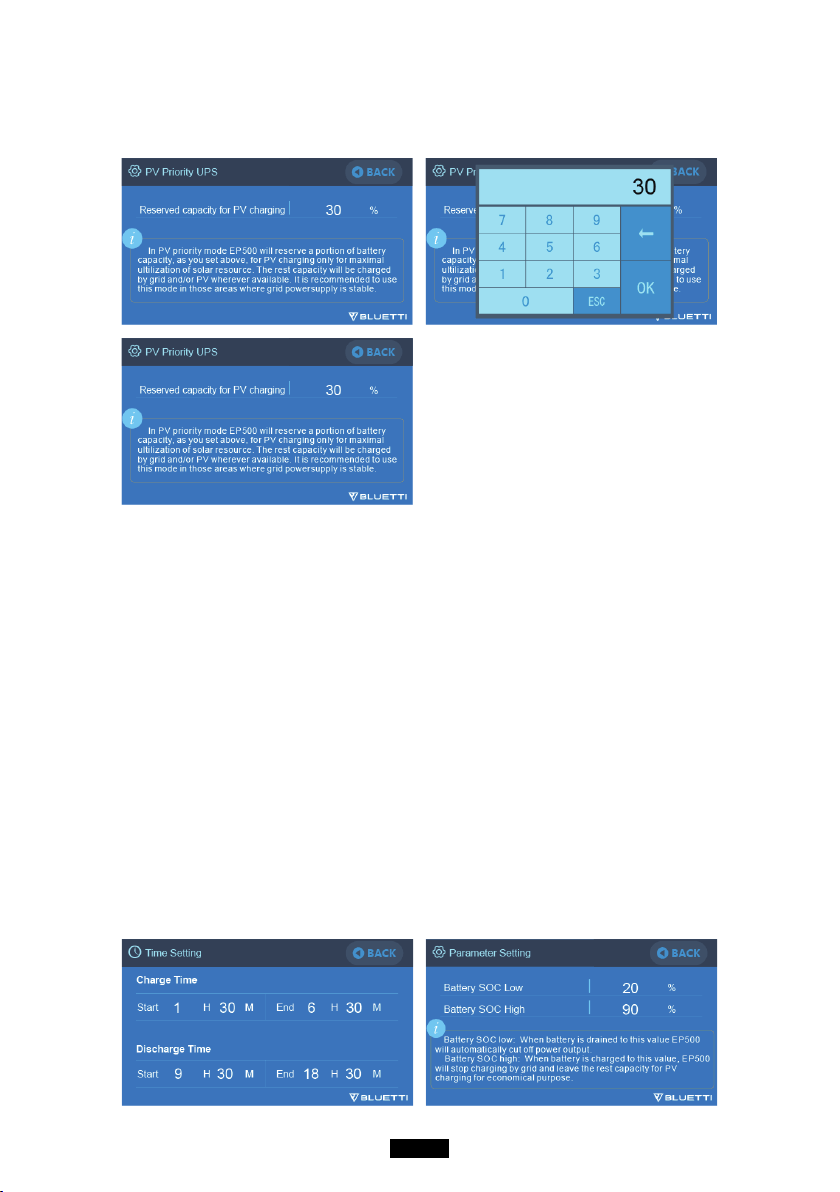
10.2.2. PV Priority Mode
●PV Priority Mode: recommended for areas in stable power supply, the battery
will be recharged mainly via PV for power saving.
●Note: In PV Priority Mode EP500 can only be recharged via grid to 20
% capacity, and discharge to 20% of the capacity (you can tweak it to
100% for full grid charging manually on screen or App) as the Reserved
capacity setting in PV priority Mode. And rest of the capacity will be
fully charged by solar power and 2nd adaptor only.
30
BLUETTI
●User can set the Reserved capacity at 100% to let EP500 always be charged
to 100% capacity via both grid and solar power.
10.2.3. Time Control UPS
●Set the times of the EP500 to be charged via grid power and the times to run
loads from its battery.
Charge Time: set the time of EP500 when to be recharged by grid to avoid
the higher electricity bills charged.
Discharge Time: the time to generate power from its inside battery pack to
power the loads connected on AC output port of EP500 or Sub Panel
(optional purchase).
●Parameter Setting:
Battery SOC Low: When the remaining capacity of EP500 is under the preset
Battery SOC Low state, EP500 will stop powering loads connected to AC output port
of EP500 or Sub Panel.
Battery SOC High: The maximum capacity EP500 can be charged via grid, EP500
will be charged to 100% capacity via solar power or 2nd adapter only.
31
Just Power On
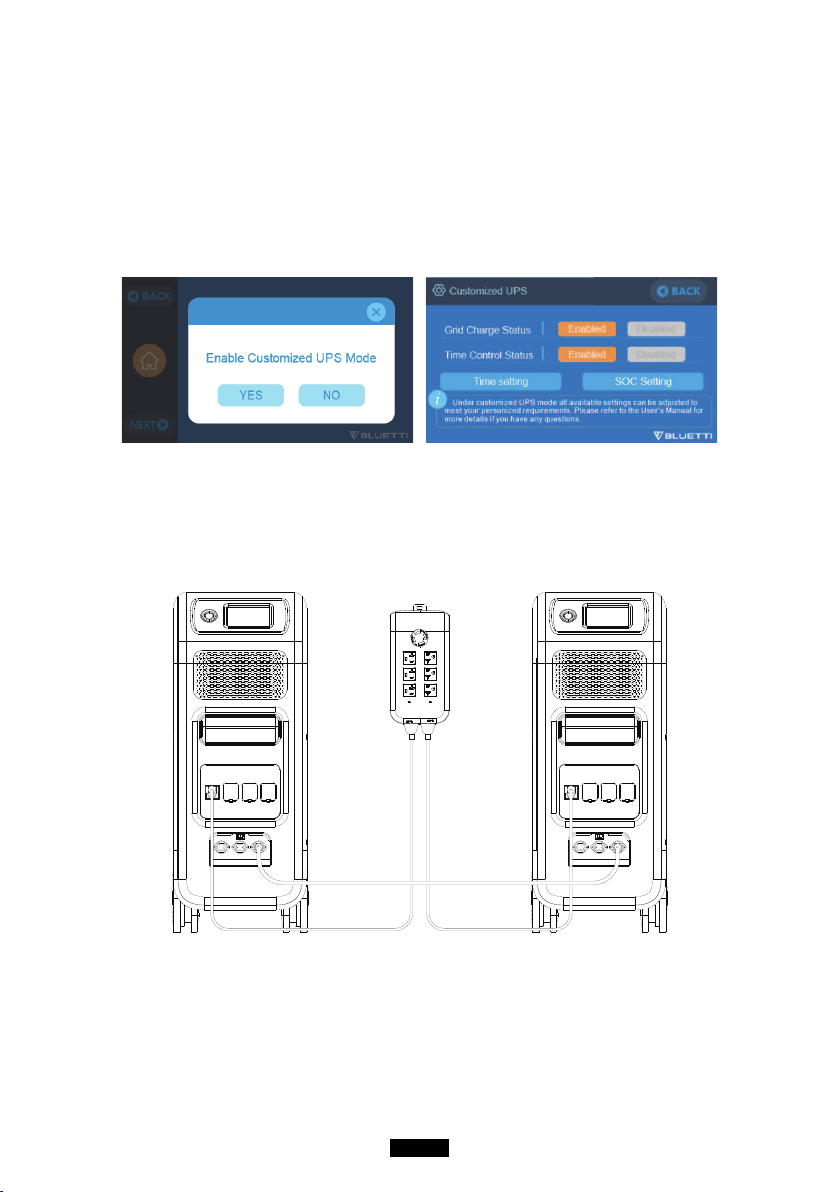
10.2.4. Customized UPS
●
Charge/discharge time, and High/Low Battery SOC can be set at Customized UPS.
●Disable the grid charge setting, EP500 will not be able to be recharged by grid.
●
Apart from Time Control UPS, the main switch of grid charging and time mode
settings are involved. The setting of turning the grid/time setting ON/OFF will take
eect on both PV Priority Mode, Standard UPS Mode, and Time Control Mode.
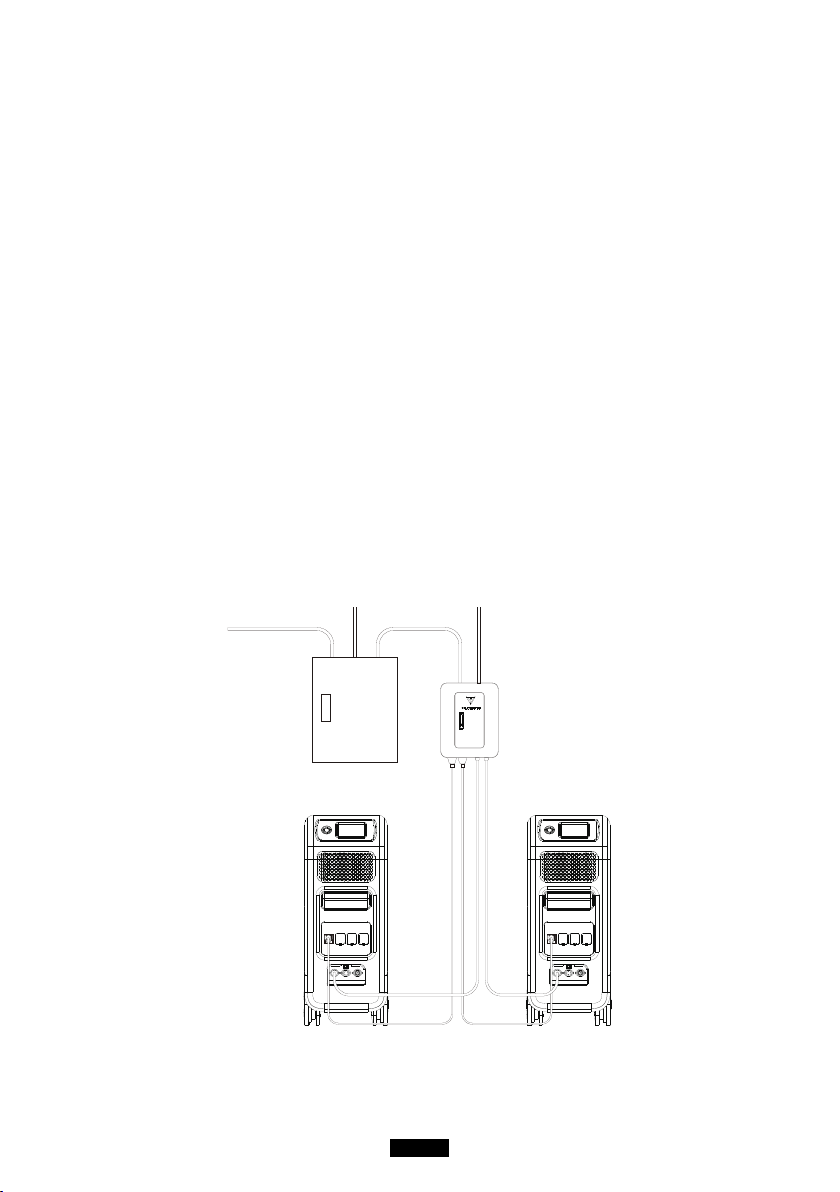
11. Split Phase Function
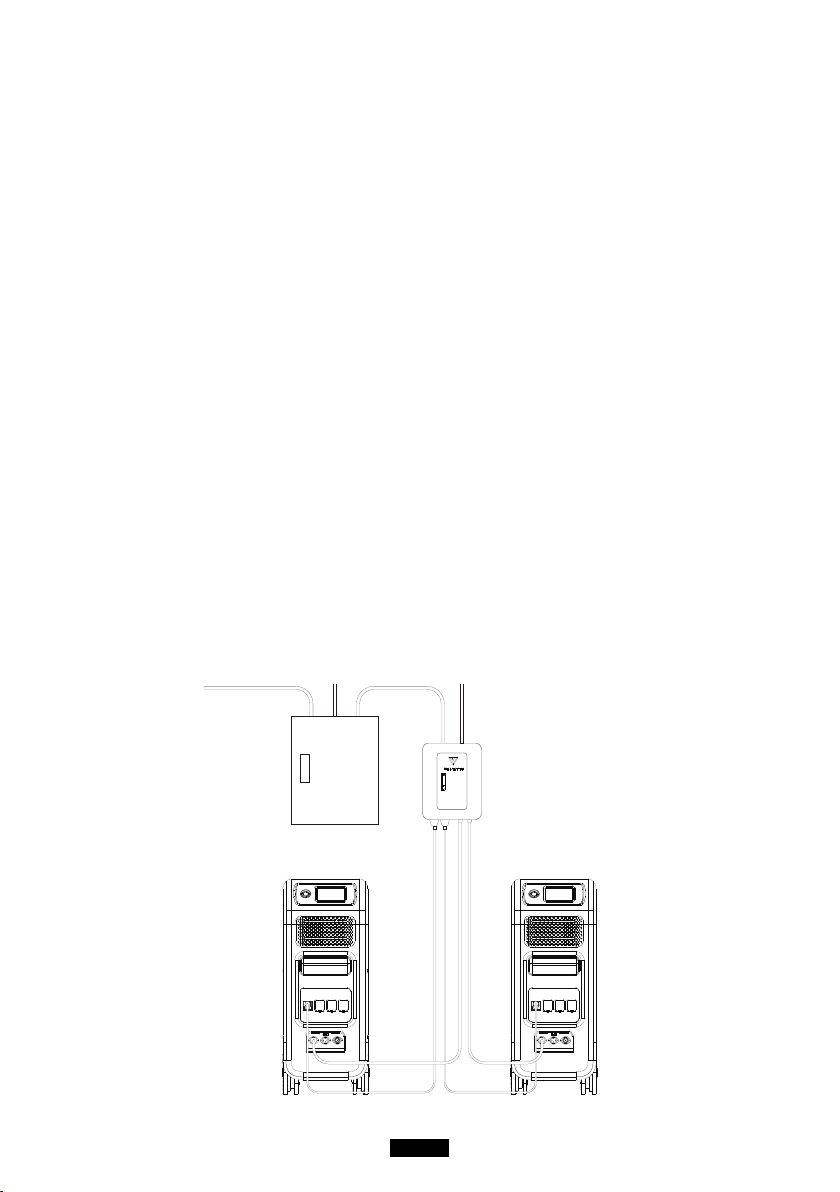
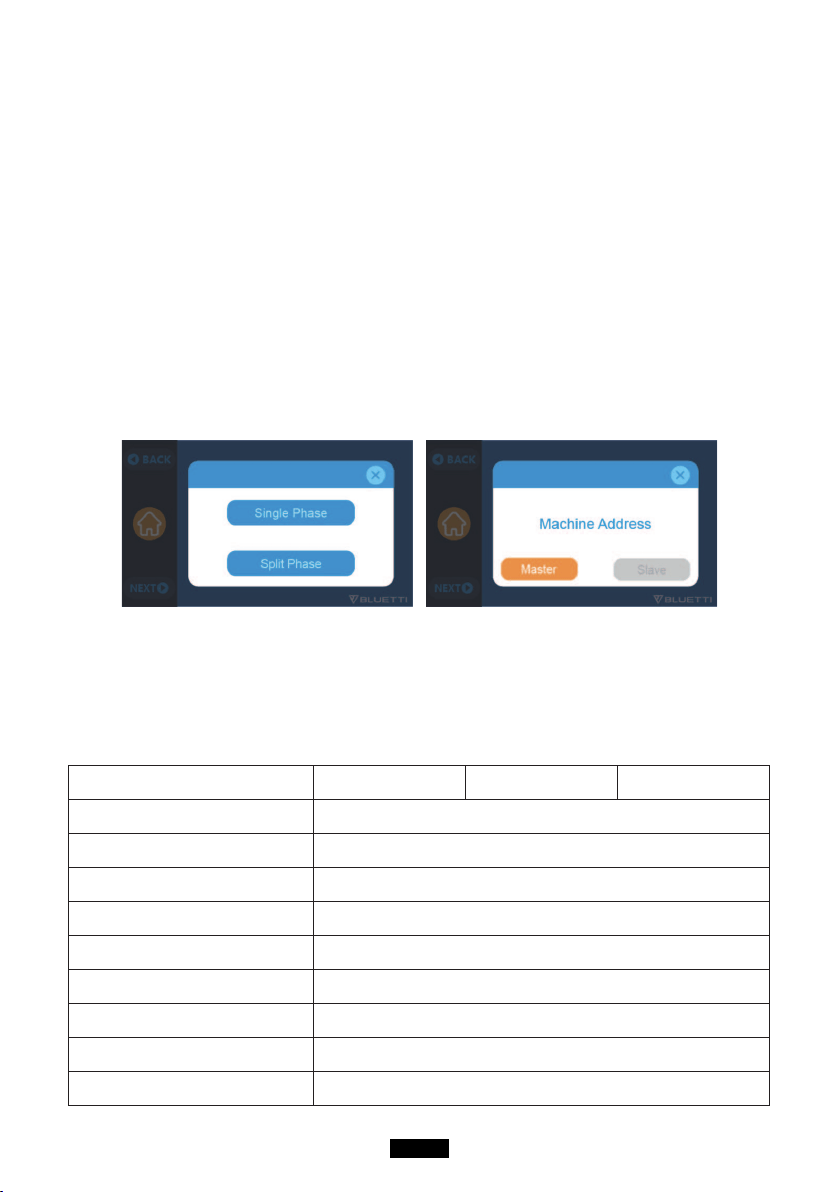
●The “Machine Type” setting on screen is used to enable or disable Split Phase
output.
Split-Phase output is achieved by bonding two EP500 into one power system to
double the available output power, voltage, and capacity.
● “Split Phase” is only used for connecting both *2 EP500 together (exclusive for the
100-120V version of the EP500). A Fusion Box is required (sold separately).
32
BLUETTI
●Launch Split Phase Function:
Note: Only one touchscreen will be active when two EP500 units are
connected.
If one of the EP500 is out of power, the Split Phase Bonding function will be
invalid.
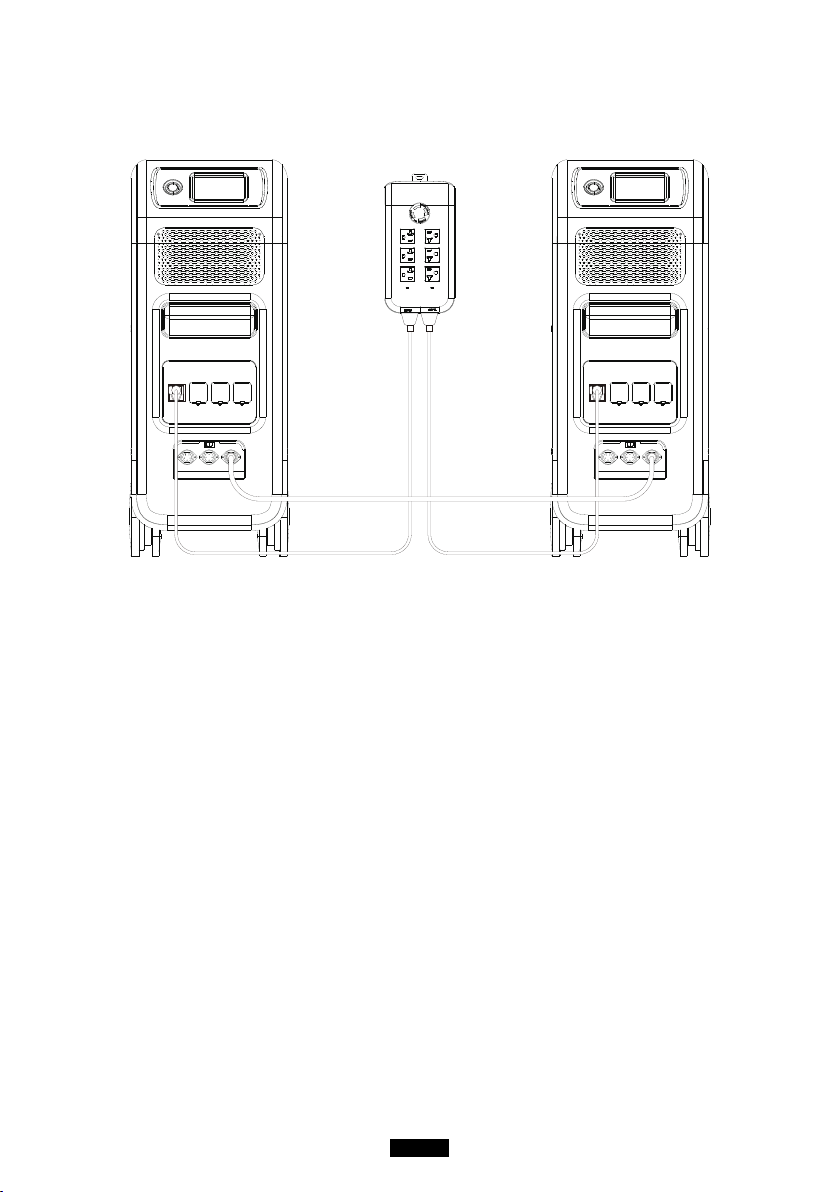
Step 1: Plug the output cables from each of the two EP500 to the Split Fusion box.
Step 2: Plug the communication cables from each of the two EP500’s to the
Split Fusion box.
Step 3: Set the Machine Type to "Split Phase" on EP500 either.
Step 4: Select "Master" or "Slave" on the operating EP500. Select "Master" will set
the operating EP500 as the one to control both two EP500. Select "Slave"
will set the operating EP500 as the other EP500 as the "Master" one.
12. Technical Specication
Model EP500-JP EP500-US
EP500-EU/UK/AU
Net Weight 76kg (167.5lbs)
Dimensions 580*300*760mm (22.8*11.8*29.9in)
Charge Temperature 0-40℃ (32-104 ℉ )
Discharge Temperature -20-40℃ (-4-104 ℉ )
Storage Temperature -25-40℃ (-13-104 ℉ )
Working Environment Humidity 10-90%
Certication PSE, FCC, CE, UN38.3, msds, UL, SAA and ROHS
Capacity 5120Wh (50Ah)
Battery Type LiFePO4

33
Just Power On
Standard Battery Voltage 51.2VDC
Battery Cell Voltage Range 40.0-58.4VDC
Short-circuit Protection Included
Over-temperature Protection Included
MPPT Built-in
Over-temperature Protection
Discharge Over-temperature 65℃
Discharge Over-
temperature Recovery
55℃
Charge Over-temperature 55℃
Charge Over-temperature
Recovery
45℃
AC Output
AC Inverter *4 2000W total *3 2000W total
Rated Output Voltage 100VAC 120VAC 220-240VAC
Rated Output Frequency 50/60Hz
Rated Continuous Power 2000W
Rated Output Current 20A 16.7A 8.7A
Power of Over-load
2500W < load < 3000W, 8-10s;
3000W < load < 4800W, 500ms
Eciency >90%
THD <5%
DC Output
Cigarette Lighter Port *1 12VDC/10A
DC 5521 *2 12VDC/10A
USB-A *2 5VDC/3A total
USB-A *2 18W
USB-C (Type-C) *1 20VDC/5A; 5-15VDC/3A
Wireless Charging Pad *2 5W/7.5W/10W/15W
RV Port *1 12VDC/30A 400W>load, 2S
Note: Cigarette ligher port shares 10A current with *2 DC5521 ports in
parallel circuit.

34
BLUETTI
AC Input
Input Voltage 90-110VAC 102-132VAC
195-253VAC
EU/UK/AU
Input Frequency 47Hz-63Hz
Max. Input Current 30A
Congurable Input Current 15A/20A/30A Preset at 15A, can be changed on screen
AC Charging Voltage Range 90-264VAC
AC Charging Frequency Range 47Hz-63Hz
Power of Charging 600W
PV Input
Max. Input Voltage 145VDC
MPPT Voltage Range 55-145VDC
Max. Power of Input 1200W
Rated Input Current 20A
13. Storage and Maintenance
●Please turn o the unit and charge it to 50-70% capacity every time before
storing it.
●To preserve the battery health, please discharge and fully charge the unit at
least once every 6 months.
●Ensure proper ventilation in use or store and keep away from any combustible
materials or gases.
●Do not stack anything on the top of the unit in storage or use.
●Avoid exposing the unit to rain or wet environment, and direct sunlight (32-
113 ℉ , 0-45℃ ), clean and dry environment is strongly recommended.
●Dry, non-abrasive cloths to wipe will be perfect. The power station is a
versatile tool for various adventures, simple cleaning would be required from
time to time to keep the unit in a good condition.
●Keep the unit away from children and pets.

35
Just Power On
14. Troubleshooting
Error
Code
Error List Troubleshooting
001 PV Over Voltage
Please check if the open circuit voltage
of solar panels exceeds the input voltage
standard of EP500.
005 Grid Over Voltage
Please check whether the grid voltage ts the
input voltage standard of EP500.
006 Grid Low Voltage
Please check whether the grid voltage ts the
input voltage standard of EP500.
007 Grid Over Frequency
Please check whether the grid frequency ts
the input frequency of EP500.
008 Grid Low Frequency
Please check whether the grid frequency ts
the input frequency of EP500.
009 Generator Over Voltage
Please check whether the output voltage of
generator ts the input frequency of EP500.
010 Generator Low Voltage
Please check whether the output voltage of
generator ts the input frequency of EP500.
012 Inverter Over-load The output power of load exceeds.
018
USB/TYPE-C/PD High
Current
Please disconnect the appliances on USB
ports.
Clear the alarm history or restart the unit.
019 DC 12V/10A High Current
Please disconnect the appliances on DC
12V/10A ports.
Clear the alarm history or restart the unit.
020 DC 12V/30A High Current
Please disconnect the appliances on DC
12V/10A ports.
Clear the alarm history or restart the unit.
022 DC Output Failure
Turn on the DC after rebooting, please contact
the dealer if the error still exists.
023 DC13 Output Short Circuit
Please disconnect the appliances on DC
output ports.
024 BUS Start Failure Clear the alarm history or restart the unit.
025 INV Start Failure
Turn on the AC after rebooting, please contact
with the dealer if the error still exists.
026 BUS Voltage Low
Turn on the AC after rebooting, please contact
with the dealer if the error still exists.

36
BLUETTI
027 BUS Voltage High
Turn on the AC after rebooting, please contact
with the dealer if the error still exists.
028 Inverter Voltage Low
Please check if the output of the load meets
the specications of the unit.
Turn on the AC after rebooting, please contact
with the dealer if the error still exists.
029 Inverter Voltage High
Please check if the output of load meets the
specications of the unit.
Turn on the AC after rebooting, please contact
with the dealer if the error still exists.
030 Inverter Frequency Low
Please check if the output of load meets the
specications of the unit.
Turn on the AC after rebooting, please contact
with the dealer if the error still exists.
031 Inverter Frequency High
Please check if the output of load meets the
specications of the unit.
Turn on the AC after rebooting, please contact
with the dealer if the error still exists.
033 Battery High Voltage
Please contact with the dealer if the error still
exists after rebooting the unit.
034 Battery Low Voltage
Please contact with the dealer if the error still
exists after rebooting the unit.
036 Fan Error
Clean or replace the fan to ensure proper
ventilation.
Please contact with the dealer if the error still
exists after rebooting the unit.
037 NTC Error
Please leave the unit at the recommended
temperature few hours to recover.
Please contact with the dealer if the error still
exists after rebooting the unit.
038 Calibration
Please contact with the dealer if the error still
exists after rebooting the unit.
039
Inverter Over-load
Protection
Please disconnect the load to make sure the
output power of loads meet the limit of the
unit.
Click to clear the alarm history.

37
Just Power On
040
Inverter Output Short
Circuit
Please disconnect the load to make sure the
load has been connected properly.
Click to clear the alarm history.
041 Network Address Error
Please reset the “Master”unit or “Slave”unit.
Click to clear the alarm history or reboot the
unit.
042
Network Communication
Error
Reconnect the communication wire again.
Please reset the “Master”unit or “Slave”unit.
Click to clear the alarm history or reboot the
unit.
043 Grid Phase Failure
Check the input wire and whether the “Master”
unit or “Slave”unit can work well.
044 Network Sync Error
Reconnect the communication wire again.
Please reset the “Master”unit or “Slave”unit.
Click to clear the alarm history or reboot the
unit.
045 PFC Error
Check whether the grid works well.
Please contact with the dealer if the error still
exists after rebooting the unit.
046 Grid Input Over Current
Check whether the EP500 is on.
Disconnect the loads on the grid or EP500.
Check whether the Max. Grid input current
could work well with strips or your Air
Breaker.
049 SPI Communication Error
Please contact with the dealer if the error still
exists after rebooting the unit.
050
BMS Communication
Error
Please contact with the dealer if the error still
exists after rebooting the unit.
051 EEPROM Read_write Error
Please reset the congurations on “Settings”.
Please contact with the dealer if EP500 have
not been recovered after rebooting.
052
DSP Parameter
Misconguration
Please reset the congurations on “Settings”.
Please contact with the dealer if EP500 have
not been recovered after rebooting.
057 BMS Temperature Error
Please store EP500 at the recommended
temperature and leave it until the temperature
inside back to the normal standard.

38
BLUETTI
058 BMS Over Voltage
Please contact with the dealer if the error still
exists after rebooting the unit.
059 BMS Low Voltage
Please contact with the dealer if the error still
exists after rebooting the unit.
060 BMS Over Current
Please contact with the dealer if the error still
exists after rebooting the unit.
061 BMS Precharge Failure
Please contact with the dealer if the error still
exists after rebooting the unit.
069 USB/TYPE-C/PD Locked
Please disconnect the load to make sure the
output power of loads meet the limit of the unit.
Please contact with the dealer if the error still
exists after rebooting the unit.
070 12V/10A Locked
Please disconnect the load to make sure the
output power of loads meet the limit of the
unit.
Please contact with the dealer if the error still
exists after rebooting the unit.
15. FAQ (Frequently Asked Questions)
●How to claim the warranty and extended warranty?
Please place your after-sale requirement as the warranty card written to the
vendor where you order the product, the extended warranty(if purchased)
will take eects after the default warranty is void.
●Can it be upgraded?
The rmware including ARM, DSP, IoT and BMS can be upgraded online
through OTA, and the parameters of the machine will be adjusted and
optimized.
●Can it be charged and discharged at the same time?
Yes, the unit supports pass-through charging function for both AC and DC
outputs. We recommend to fully charge the unit at least once per month to
extend battery life.
●How many UPS modes are there?
There are 4 types of UPS Mode you can choose freely, PV priority Mode,

39
Just Power On
Standard UPS Mode, Time Control Mode and Customized Mode.
There can both be set to work oine and online.
●What is the UPS switching latency?
There are two types of working conditions of Standard UPS for EP500.
No delay for online UPS; 20ms from oine UPS.
●Can I connected my two EP500 with Fusion Box to achieve double the output
power, voltage and capacity.
You can connect two EP500 OR two EP500Pro with a Fusion Box. The units
must be of the same type and the correct Fusion Box (P020A for EP500,
P030A for EP500Pro). You cannot mix a EP500 and EP500Pro with a Fusion
Box.
●Can I use third-party solar panels to charge the unit?
Yes, the third-party solar panels are available as long as they contain MC4
connectors, besides the voltage (in series or parallel) is between 55V to 145V
and the maximum input power is 1200W.
If the open circuit voltage of the panels is less than 550V, you can choose PV
Module to step down the voltage to achieve solar charging.
●How do I know whether my appliance can work well with the power station?
Calculate how much the continuous loads are for your appliances are in total.
As long as they do not exceed the rated output power of the power station, it
should work.
●How can I connect the product to my home circuit breaker box?
To install the grid-tie power system, an electrician with a professional
technician certicate is required, connect the wires of critical equipment from
your main electrical box to the BLUETTI Sub Panel (optional purchase).
16. Declaration
●Some changes may not be noticed specically such as appearance or
specications due to the exterior material or hardware improvement of the
product.
●Our company shall not be liable for any damage caused by force majeure
such as re, typhoon, ood, earthquake or the user's intentional negligence,
misuse or other abnormal conditions.

40
BLUETTI
●No compensation for damages shall be made for utilizing non-standard
adapters and accessories.
●Our company will not bear all responsibilities if the damage is caused by not
operating the product properly according to the use method in operation
manual.
●This unit is not suitable for use on the relevant equipment or machines
involving:
Personal safety, such as atomic energy devices, aerospace devices,
transportation devices, medical devices, etc., or any equipment or machines
that require highly reliable power sources. We are not responsible for
accidents, res, or wrongful or negligent actions done to the machine and
equipment which results in damage.

P/N:17.0303.0338-01A1