Help Guide
Sound Bar
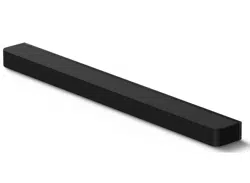
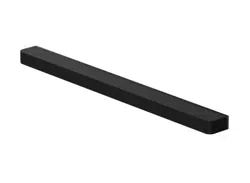
BRAVIA Theatre Bar 6
Model: YY2088C/ YY2092C
Install the application on your smartphone and follow the directions on the application to set
up the speaker system
To use the speaker system with all the available functions and improved performances, update the software of the
speaker system and the “Sony | BRAVIA Connect” app to the latest versions.
HT-B600/ HT-BD60
How to Use/Parts and Controls
About the App Required to Use the Speaker System
About the Help Guide Description
Parts and Controls
System Configuration of the Speaker System and Connected Devices
Bar Speaker
Subwoofer
Indicators on the Bar Speaker
1
Indicator on the Subwoofer
Supplied Remote Control
Remote Control Screen on the App
Initial Setup
Checking the Package Contents
Installing the Speaker System
Installing the Bar speaker and Subwoofer
Installing the Speaker System on a TV Stand and Shelves
Mounting the Bar Speaker on a Wall
Connecting to a TV
Connecting to an AC Outlet (Mains)
Performing Initial Setup with the “Sony | BRAVIA Connect” App
If the Bar Speaker and Subwoofer Are Not Connected Correctly
Listening to Music/Sound
Listening to TV Sound
Adjusting Sound Quality
Listening to Music/Sound with the BLUETOOTH® Function
Listening to Music by Pairing the BLUETOOTH Device that is Connected for the First Time
Listening to Music from the Paired BLUETOOTH Device
Setting the BLUETOOTH Function to On or Off
Using the Speaker System by Interlocking with a TV
Operating the Speaker System by Interlocking with a TV (Control for HDMI Function)
Operating the Speaker System by Interlocking with a TV Compatible with the “BRAVIA Sync” Function
Changing the Settings with the App
[Wireless Speaker Settings]
[Sound Settings]
[HDMI Settings]
[Bluetooth Settings]
2
5-064-210-11(1) Copyright 2025 Sony Corporation
[System Settings]
[Easy Initial Setup]
Saving Power in Standby Mode
Updating the Software
Troubleshooting
Troubleshooting
Customer Support Website
Resetting the Speaker System
Additional Information
Specifications
Supported Audio Formats
Trademarks
Licenses
Notes on Use
3
Help Guide
Sound Bar
BRAVIA Theatre Bar 6
About the App Required to Use the Speaker System
Use a smartphone with the “Sony | BRAVIA Connect” app installed to perform initial setup and operations as well as
configure the settings on the speaker system.
Install the “Sony | BRAVIA Connect” app on your smartphone.
The app allows you to perform the following operations and setup.
Initial settings of the speaker system
Operations such as volume adjustment, input selection, etc.
Change the settings of the speaker system to the desired settings
Check the support information and latest update information
The supplied remote control can only be used to perform operations and change settings that are frequently used when
you view content.
Related Topic
Supplied Remote Control
Remote Control Screen on the App
TP1001686282
5-064-210-11(1) Copyright 2025 Sony Corporation
4

Help Guide
Sound Bar
BRAVIA Theatre Bar 6
About the Help Guide Description
About the description of operations
This Help Guide explains operations based on the following assumptions.
Both the speaker system and the “Sony | BRAVIA Connect” app have the latest version of software.
The speaker system is connected to a TV that is compatible with eARC or ARC using an HDMI cable, and the Control
for HDMI functions of the speaker system and TV are enabled.
The setup of the speaker system and TV(*) has been completed on following the “Sony | BRAVIA Connect” app
screen.
About the wording displayed on the app
The letters in [ ] (brackets) indicate the wording that appears on the “Sony | BRAVIA Connect” app screen.
TP1001687616
5-064-210-11(1) Copyright 2025 Sony Corporation
If you are using an app-compatible BRAVIA, both the speaker system and BRAVIA can be controlled with the remote control screen on the
app. If you are using other TVs, only the speaker system can be controlled with the remote control screen on the app.
*
5
Help Guide
Sound Bar
BRAVIA Theatre Bar 6
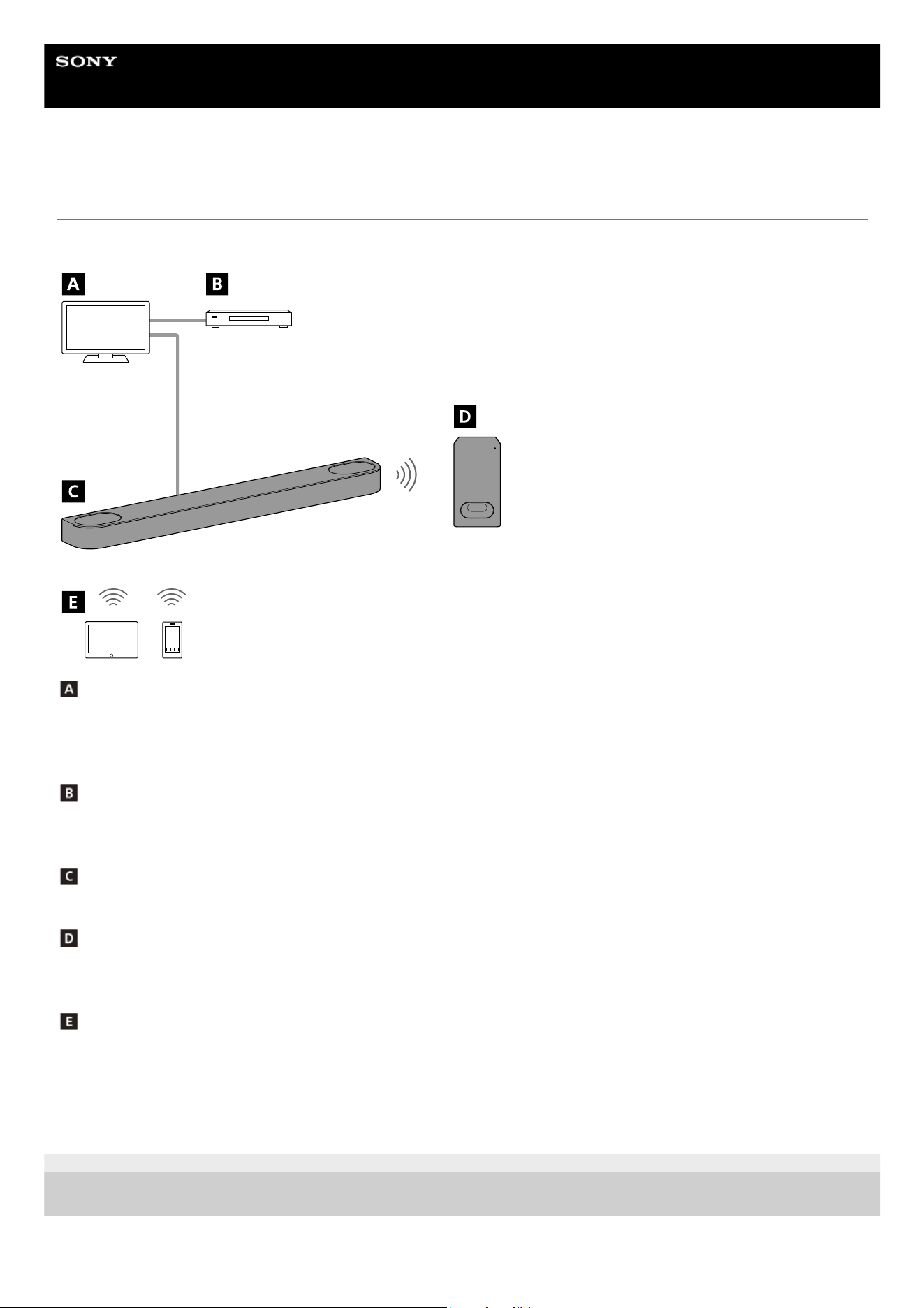
System Configuration of the Speaker System and Connected Devices
The speaker system supports object-based audio formats such as Dolby Atmos and DTS:X.
TV
The speaker system can be used to play TV sound by connecting the speaker system and TV that is compatible with
eARC or ARC using an HDMI cable.
Listening to TV Sound
AV device (Blu-ray Disc™ player, set-top box, cable box, satellite box, gaming console, etc.)
The speaker system can be used to play AV device sound by connecting the TV and AV device, and the TV and speaker
system, respectively using an HDMI cable.
Bar speaker
The speaker system can be used to play the sound of a TV and AV device that is connected to the TV.
Supplied Subwoofer
The subwoofer is connected wirelessly to the bar speaker and can reproduce low-frequency audio from devices
connected to the bar speaker.
Mobile device
The speaker system can be used to play mobile device sound by connecting the speaker system and mobile device
using the BLUETOOTH function.
Listening to Music by Pairing the BLUETOOTH Device that is Connected for the First Time
TP1001686281
5-064-210-11(1) Copyright 2025 Sony Corporation
6
Help Guide
Sound Bar
BRAVIA Theatre Bar 6
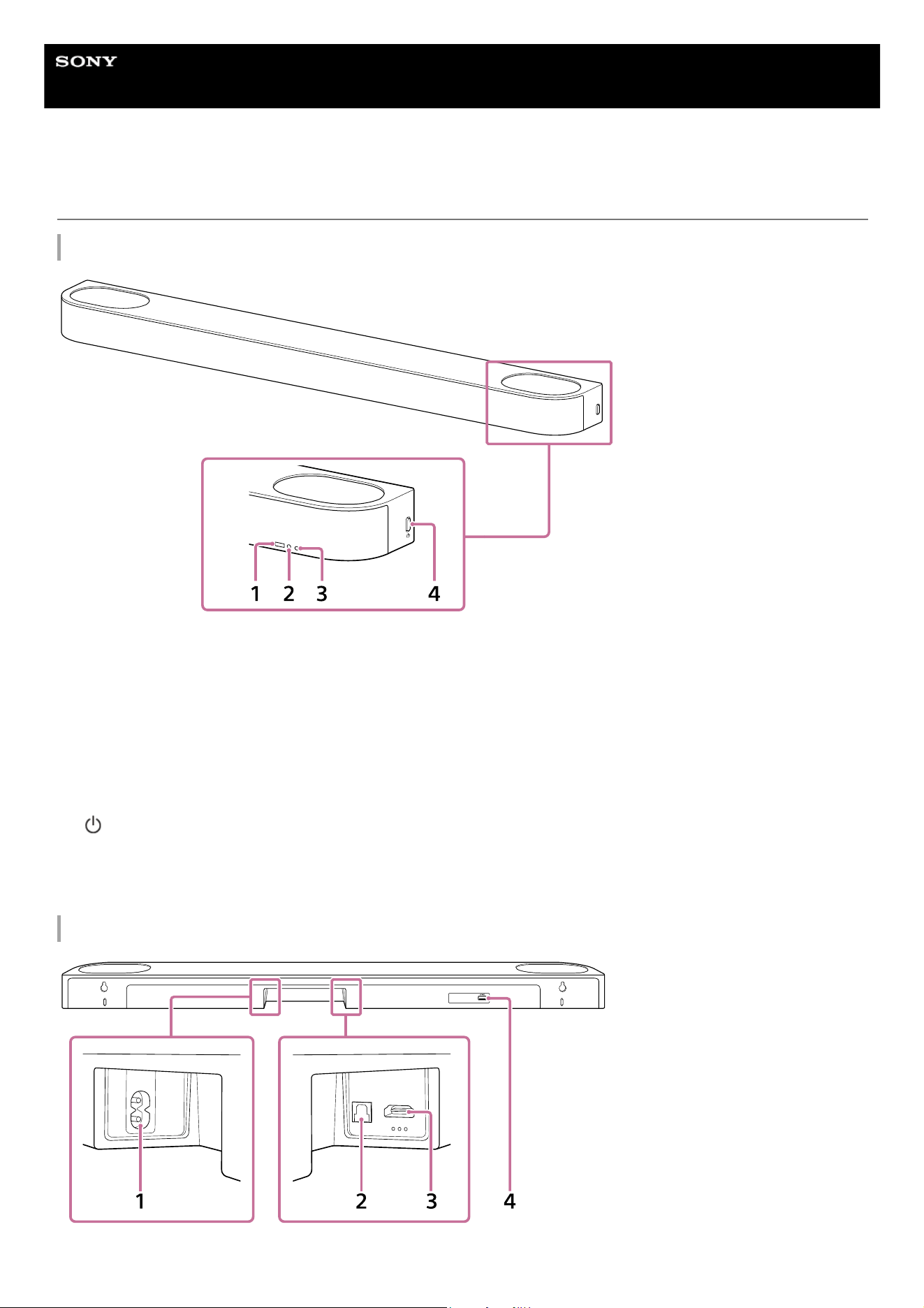
Bar Speaker
Front
Rear
Remote control sensor
Point the remote control at the remote control sensor of the bar speaker to operate the speaker system.
1.
Sub status indicator (white)
Indicates the bar speaker status by lighting or flashing in white.
2.
Main status indicator (colored)
Indicates the bar speaker status by lighting or flashing in 3 colors (white/blue/red).
3.
(Power)
Turns on the bar speaker. If you press this button when the bar speaker is turned on, the bar speaker is set to
standby mode.
Press and hold this button for more than 10 seconds to reset the bar speaker and subwoofer.
4.
AC inlet1.
7

Hint
There are three tactile dots that are about 1 mm (1/16 in) in size under the HDMI OUT (TV (eARC/ARC)) jack. Use them as a
guide during connection.
Related Topic
Indicators on the Bar Speaker
Connecting to a TV
Connecting to an AC Outlet (Mains)
Resetting the Speaker System
TP1001686280
5-064-210-11(1) Copyright 2025 Sony Corporation
TV IN (OPTICAL) jack
This is an OPTICAL jack dedicated for connection to a TV.
2.
HDMI OUT (TV (eARC/ARC)) jack
This is an HDMI jack dedicated for connection to a TV.
Use an HDMI cable to connect a TV that has an HDMI input jack. The speaker system is compatible with eARC and
ARC. ARC is a feature that sends TV sound from the HDMI jack on the TV to an AV device such as the speaker
system via an HDMI cable. eARC is an advanced version of ARC that enables transmission of object-based audio
and multi-channel LPCM content that cannot be transmitted with ARC.
3.
UPDATE port4.
8
Help Guide
Sound Bar
BRAVIA Theatre Bar 6
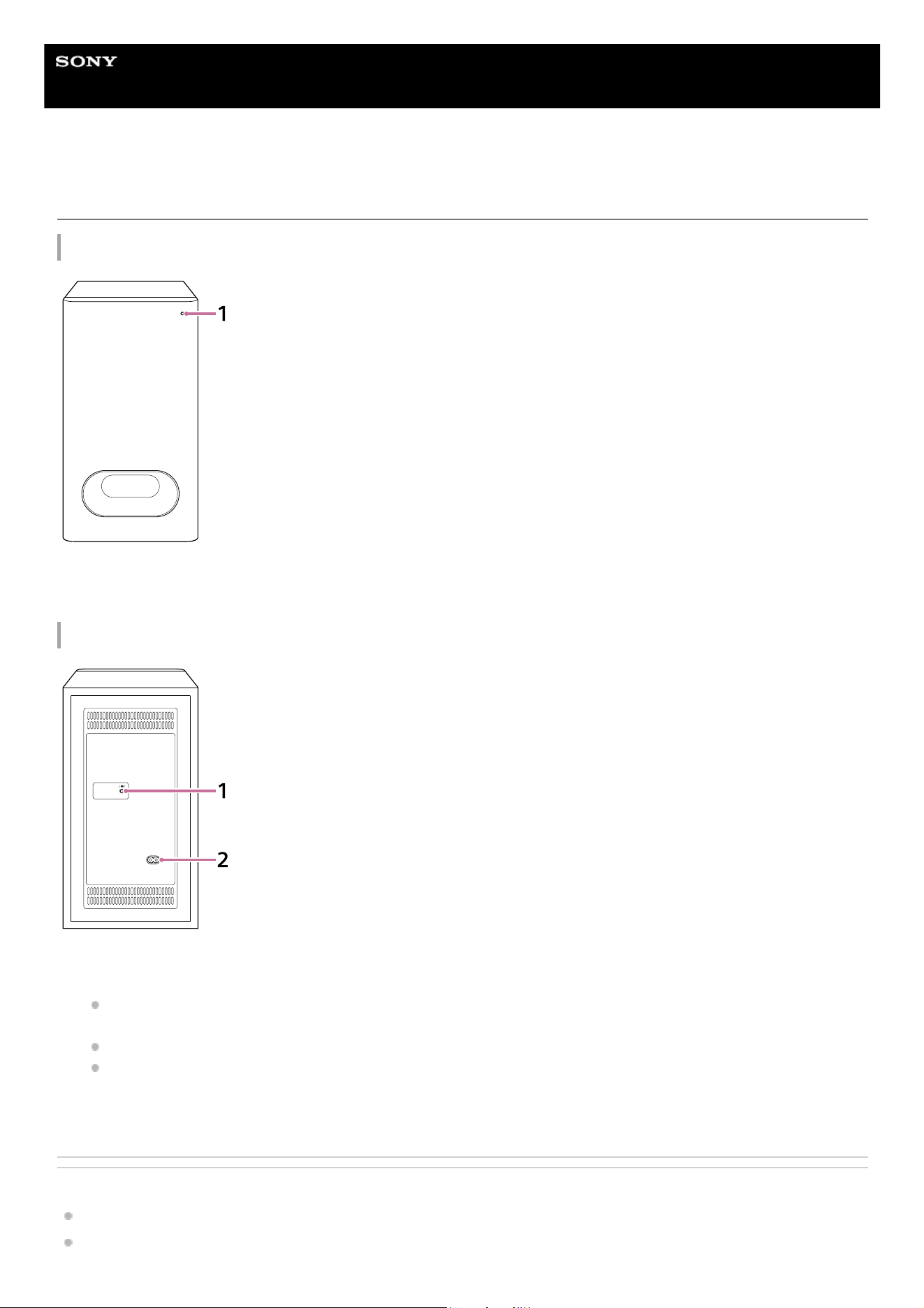
Subwoofer
Front
Rear
Related Topic
Indicator on the Subwoofer
Connecting to an AC Outlet (Mains)
Power indicator (colored)
Indicates the subwoofer status by lighting or flashing in 3 colors (white/blue/red).
1.
LINK
Press: Press this button when the bar speaker and subwoofer do not connect properly with the “Sony | BRAVIA
Connect” app. Follow the instructions on the app.
Press for more than 2 seconds and release: Turns on/off the subwoofer.
Press and hold for more than 10 seconds: Resets the subwoofer.
1.
AC inlet2.
9

Help Guide
Sound Bar
BRAVIA Theatre Bar 6
Indicators on the Bar Speaker
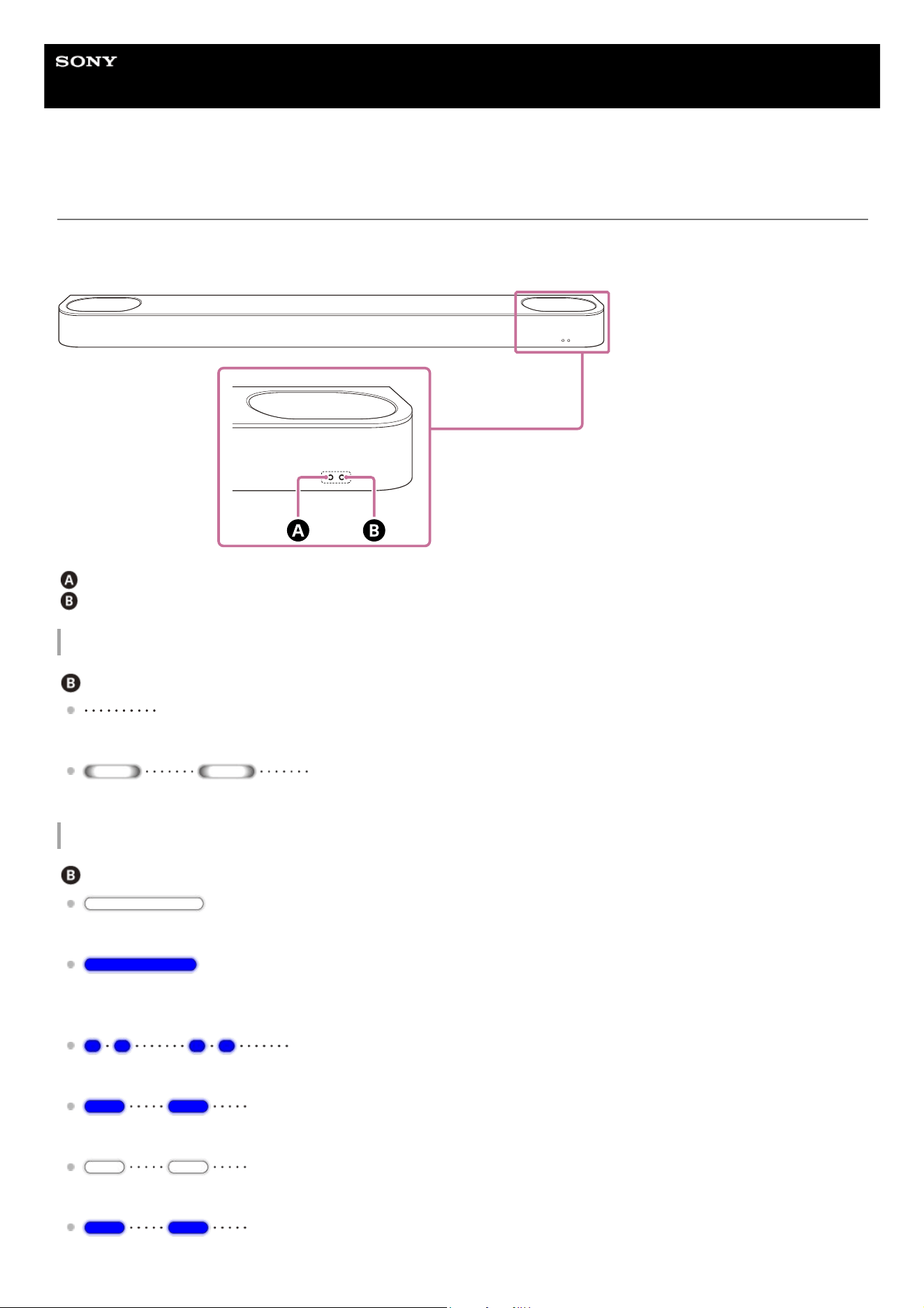
There are two indicators that indicate the status of the bar speaker.
The sub status indicator (white) is on the left and the main status indicator (colored) is on the right.
Sub status indicator (white)
Main status indicator (colored)
Turning on/off
Main status indicator
(Turned off)
The bar speaker is turned off.
(Flashing slowly in white)
Power on/off is processing.
Audio input/muting
Main status indicator
(Lit up in white)
TV input is selected.
(Lit up in blue)
BLUETOOTH input is selected.
A BLUETOOTH device is connected to the speaker system.
(Flashing twice repeatedly in blue)
The speaker system is in BLUETOOTH pairing standby status.
(Flashing in blue)
The connection with the BLUETOOTH device is in progress.
(Flashing twice in white)
Switching to TV input is in progress.
(Flashing twice in blue)
Switching to BLUETOOTH input is in progress.
11
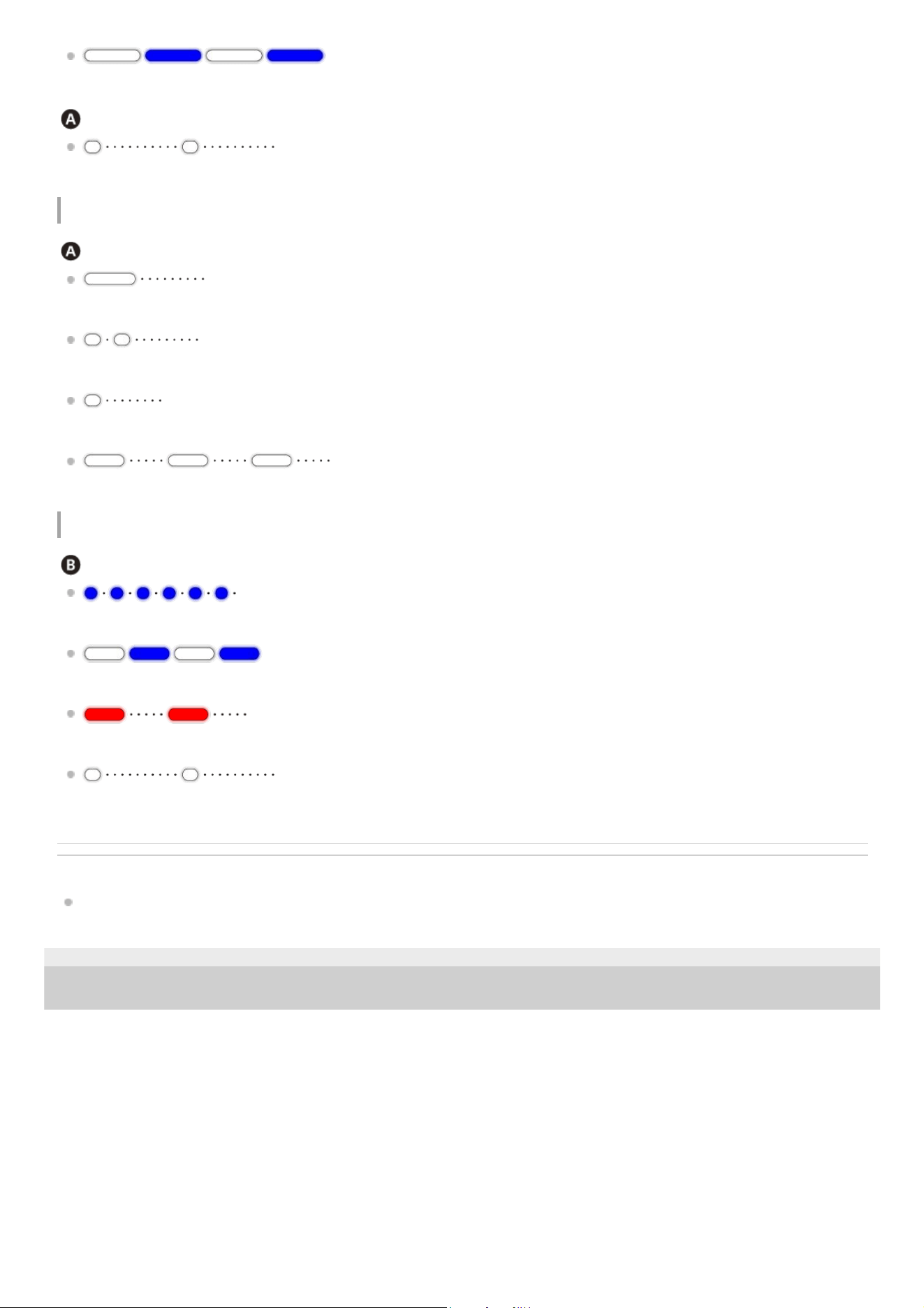
(Flashing slowly in white/blue alternately)
The speaker system is being set up.
Sub status indicator
(Flashing every 2 seconds in white)
The speaker system is muted.
Setup/operation feedback
Sub status indicator
(Lit up once for a longer time in white)
The setting is switched to on.
(Flashing twice in white)
The setting is switched to off.
(Lit up once briefly in white)
The volume is going up and down.
(Flashing three times in white)
Operation is invalid. For example, setting cannot be changed, volume is at upper or lower limit, etc.
Special conditions
Main status indicator
(Flashing quickly in blue)
The speaker system is being registered on the app.
(Flashing in white/blue alternately)
Software updating/resetting, etc. is in progress.
(Flashing in red)
An abnormality or error has been detected. Follow the steps in “Troubleshooting.”
(Flashing every 2 seconds in white)
The update is complete.
Related Topic
Troubleshooting
TP1001687610
5-064-210-11(1) Copyright 2025 Sony Corporation
12
Help Guide
Sound Bar
BRAVIA Theatre Bar 6
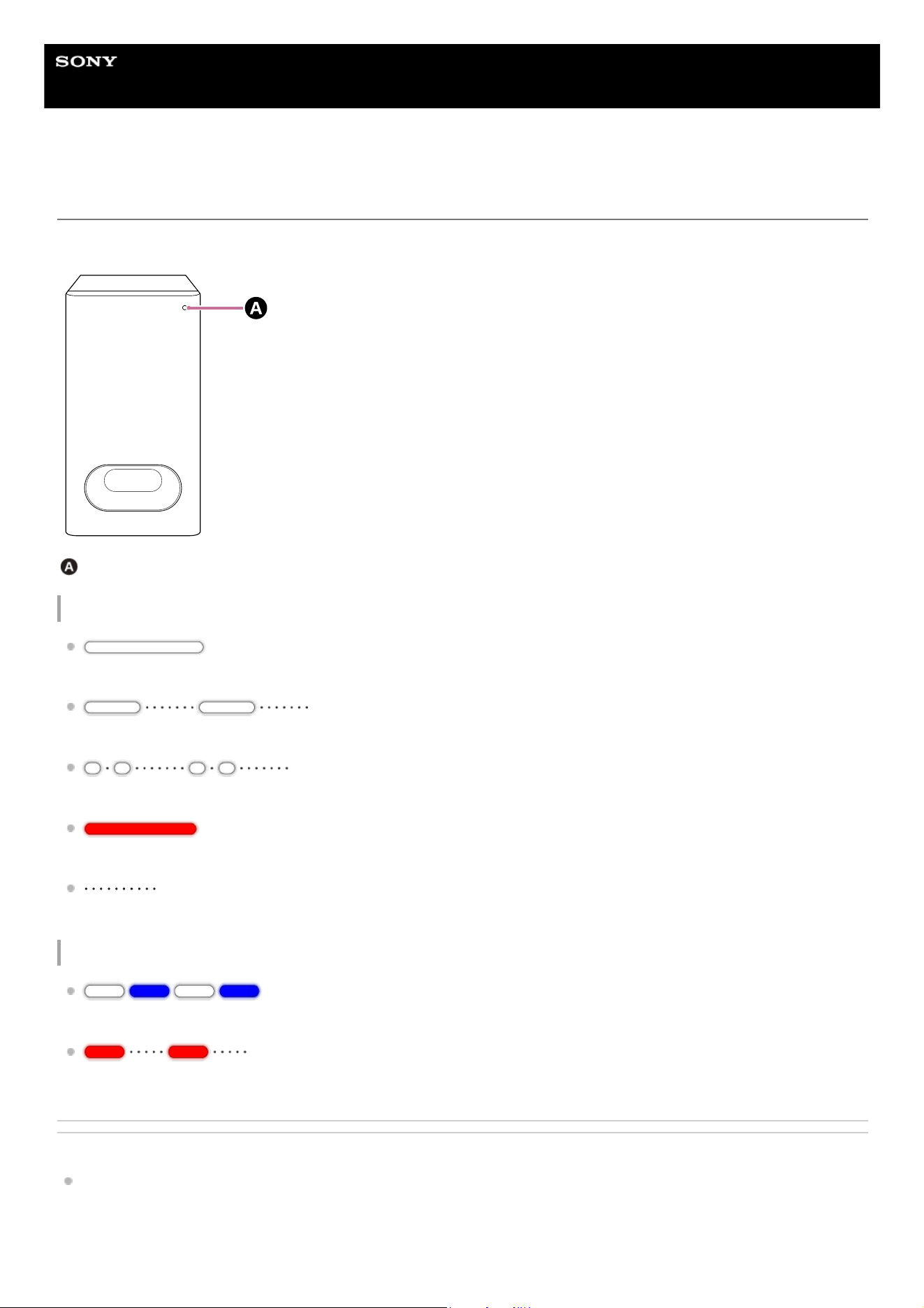
Indicator on the Subwoofer
The indicator indicates the status of the subwoofer.
Power indicator (colored)
Turning on/off, connecting status with the bar speaker
(Lit up in white)
The subwoofer is connected to the bar speaker.
(Flashing slowly in white)
The subwoofer is waiting for a connection from the bar speaker.
(Flashing twice repeatedly in white)
The subwoofer is waiting for manual connection from the bar speaker.
(Lit up in red)
The subwoofer is in standby mode.
(Turned off)
The subwoofer is turned off.
Special conditions
(Flashing in white/blue alternately)
Software updating/resetting, etc. is in progress.
(Flashing in red)
An abnormality or error has been detected. Follow the steps in “Troubleshooting.”
Related Topic
Troubleshooting
TP1001834107
13

5-064-210-11(1) Copyright 2025 Sony Corporation
14
Help Guide
Sound Bar
BRAVIA Theatre Bar 6
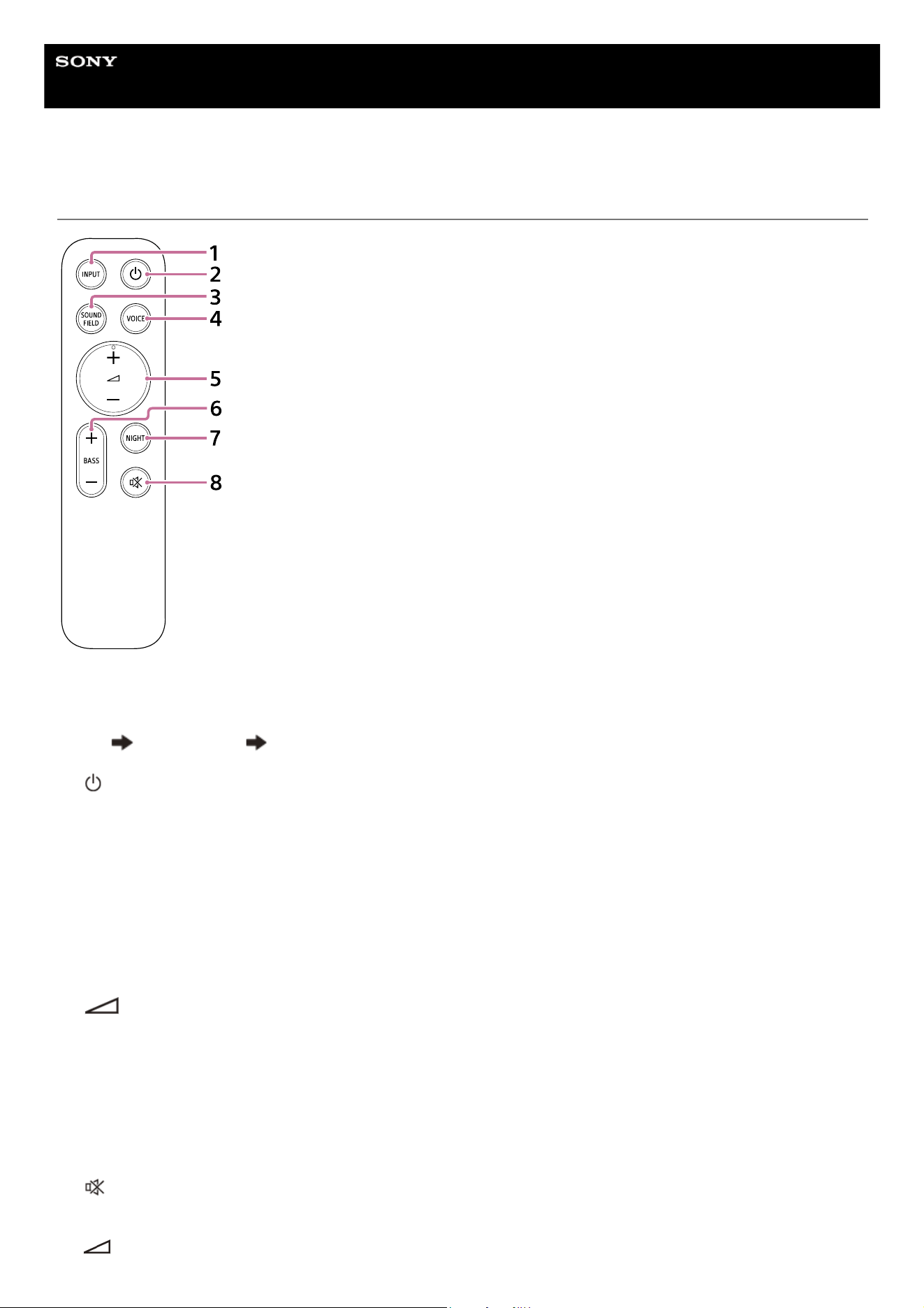
Supplied Remote Control
INPUT (Input)
Switches to the next input.
The input source switches as follows.
TV BLUETOOTH TV ・・・
1.
(Power)
Switches between power on and standby on the speaker system.
2.
SOUND FIELD (Sound field)
Turns on/off the surround sound effect on the speaker system.
3.
VOICE (Voice mode)
Turns on/off the voice mode on the speaker system.
When a Sony TV compatible with the linkage function of the speaker system is connected, the voice zoom is turned
on/off instead of the voice mode by selecting TV input on the speaker system.
4.
(Volume) + (plus) (*)/– (minus)
Used to adjust the volume of the speaker system.
5.
BASS (Bass level) + (plus)/– (minus)
Adjusts the bass volume.
6.
NIGHT (Night mode)
Turns on/off the night mode on the speaker system.
7.
(Muting)
Temporarily turns off the sound on the speaker system.
8.
(Volume) + (plus) has a tactile dot. Use it as a guide during operation.
*
15
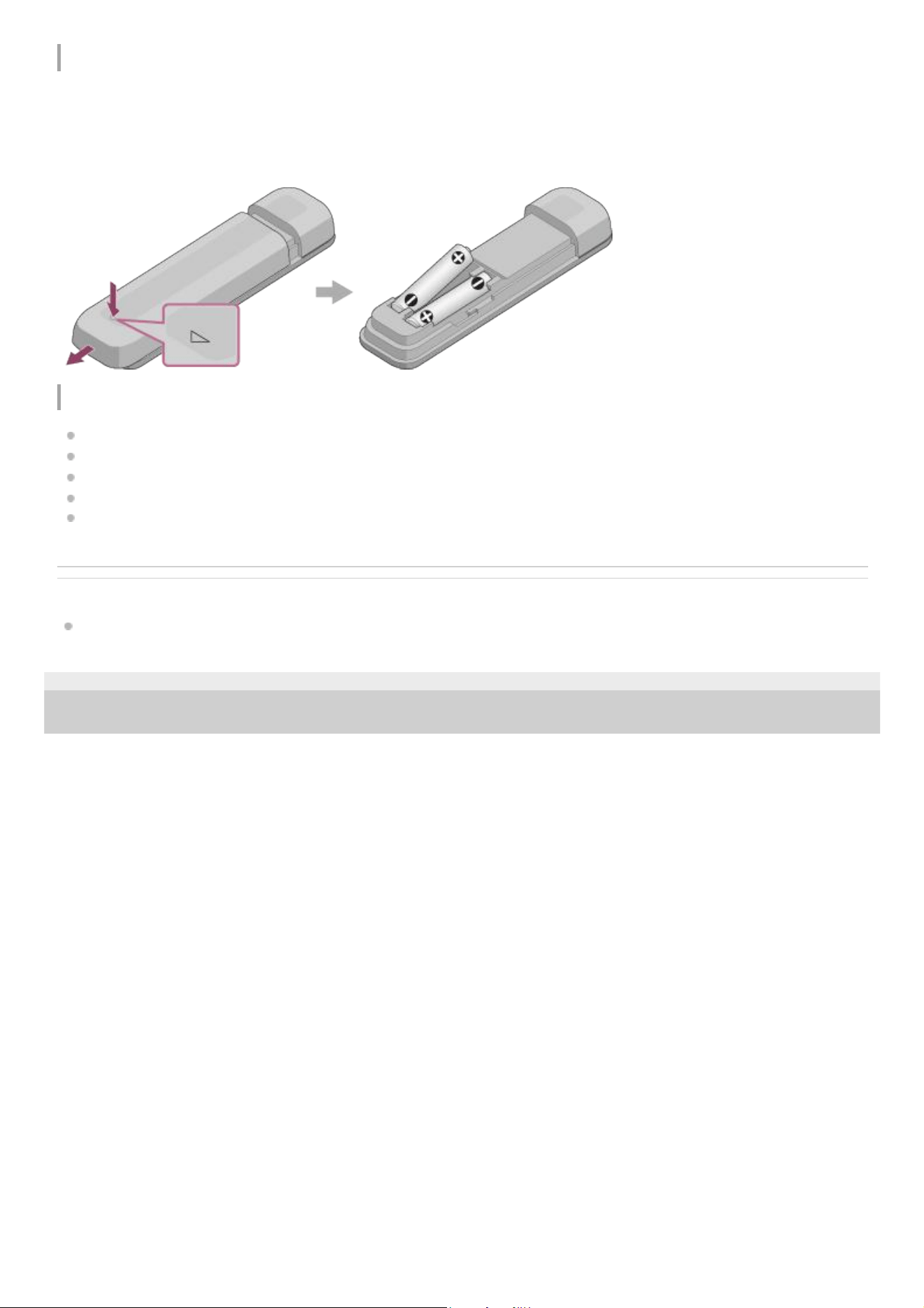
About the replacement of batteries for the supplied remote control
If the speaker system does not respond when operating with the supplied remote control, replace the two batteries with
new batteries.
Use R03 or LR03 (size AAA) batteries for replacement.
To remove the battery cover, slide it off while pressing the triangular mark on the back of the remote control.
If the remote control does not work properly
Point the remote control at the remote control sensor on the bar speaker.
Remove any obstructions between the remote control and the bar speaker.
Check that the + (positive) and - (negative) of the battery are in the correct orientation.
Replace both batteries in the remote control with new ones if they are older batteries.
Check that the correct button on the remote control is being pressed.
Related Topic
Adjusting Sound Quality
TP1001686279
5-064-210-11(1) Copyright 2025 Sony Corporation
16

Help Guide
Sound Bar
BRAVIA Theatre Bar 6
Remote Control Screen on the App
There are two types of remote control screens on the app.
Remote control screen that can only operate the speaker system
This screen is displayed when a TV that is not compatible with the app is connected using the HDMI cable.
Remote control screen that can operate the speaker system and BRAVIA
This screen is displayed when an app-compatible BRAVIA is connected using the HDMI cable.
The following items that can be used to operate the speaker system are displayed in [Remote], [Picture & Sound], [Audio
output], and [Settings]. If the TV is not turned on, a remote control screen that can only operate the speaker system will
appear.
Items on the remote control screen on the app
Playback information/input switching area
The currently selected input, etc. appears on the upper part of the screen. The following information and operations
are displayed by tapping this area.
Playback meta information: Name, artist, album, length, etc. of the song that is currently playing.
Stream Info: Input signal frequency, etc.
Audio format: Audio format of input signal (Dolby Atmos, DTS, etc.), number of channels, etc.
Name of the BLUETOOTH device connected to the speaker system
Playback controls for the BLUETOOTH device
Input selection(*)
[ (Power) ]
Sets the speaker system to standby mode when this is tapped while the speaker system is turned on.
[Night mode]
Turns on/off the night mode on the speaker system.
[Sound field]
Turns on/off the surround sound effect on the speaker system.
[Voice mode]
Turns on/off the voice mode on the speaker system.
[Voice Zoom]
This function is enabled when a Sony TV compatible with the linkage function of the speaker system is connected.
When TV input is selected on the speaker system, the voice zoom works instead of the voice mode.
[Volume]
Used to adjust the volume of the speaker system.
[Bass level]
Adjusts the bass volume.
[Audio]
When a dual audio (dual mono) signal is input to the speaker system, the audio you want to hear can be selected.
When a TV compatible with the app is connected to the speaker system using an HDMI cable, TV input can also be selected.
*
17

Note
The speaker system cannot switch bilingual broadcasts with multiple signals and the main/sub channels of multiplex
broadcasts. Switch the audio signal on sender units such as TVs or Blu-ray Disc players. For details, refer to the operating
instructions supplied with the TV or Blu-ray Disc players.
[Settings]
Used to configure the settings of the speaker system.
Note
If the control response is poor, check the BLUETOOTH connection between the smartphone and the speaker system.
Related Topic
Adjusting Sound Quality
TP1001687617
5-064-210-11(1) Copyright 2025 Sony Corporation
18
Help Guide
Sound Bar
BRAVIA Theatre Bar 6
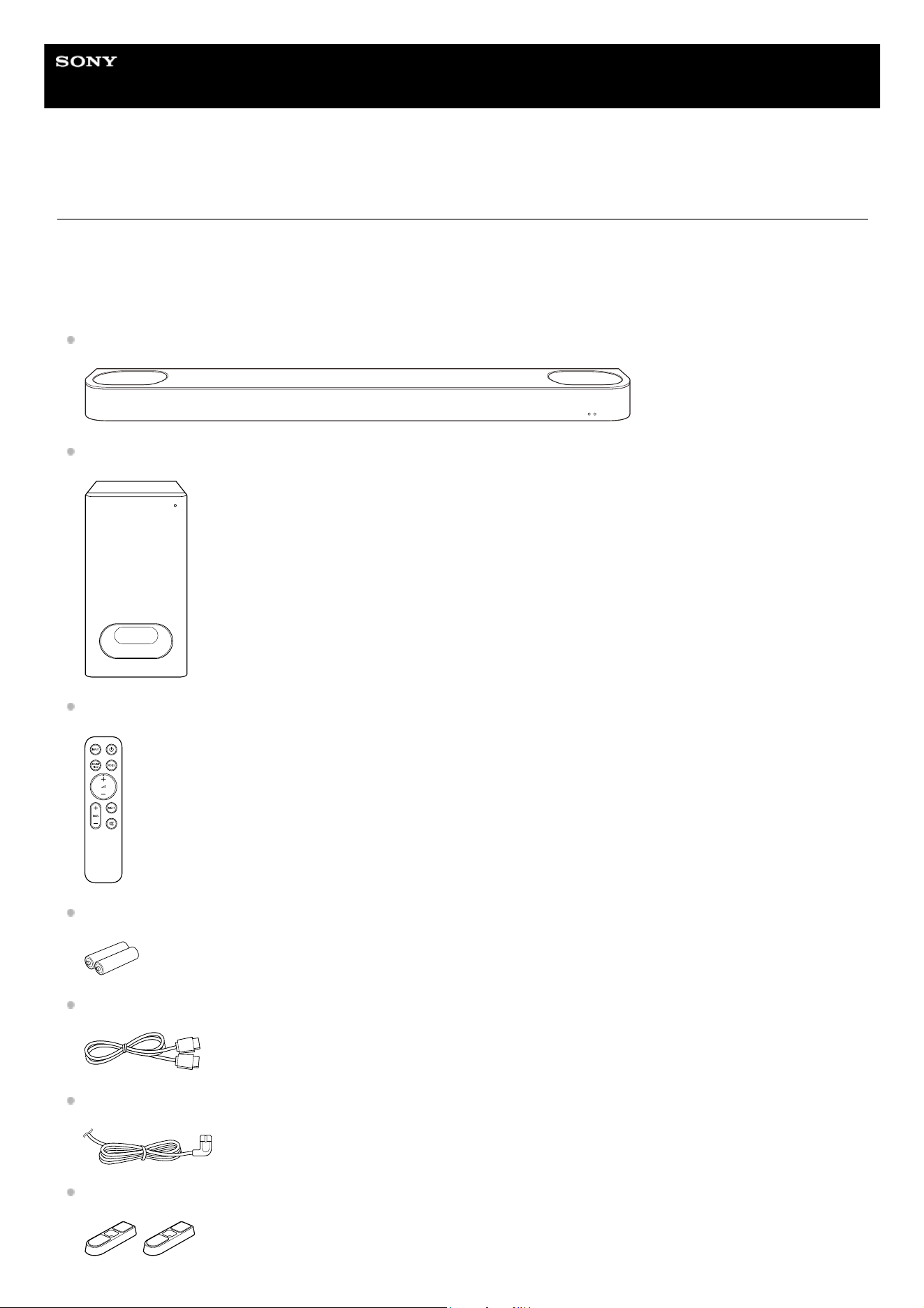
Checking the Package Contents
If any of the supplied items are missing, please consult your nearest Sony dealer. The numbers in ( ) indicate the
supplied quantity.
The availability and quantity of the supplied items vary depending on the country/region of purchase. Refer to the
Reference Guide included with your product to confirm the availability and quantity of the supplied items.
Bar speaker (1)
Subwoofer (1)
Remote control (1)
Battery (2)
HDMI cable (1)
AC power cord (mains lead) (2 or 4)
Foot (2)
19

Screw (2)
WALL MOUNT TEMPLATE (paper) (1)
Documents (1 set)
Parts included only in some countries/regions
AC plug adaptor (2)
TP1001687611
5-064-210-11(1) Copyright 2025 Sony Corporation
20
Help Guide
Sound Bar
BRAVIA Theatre Bar 6
Installing the Bar speaker and Subwoofer
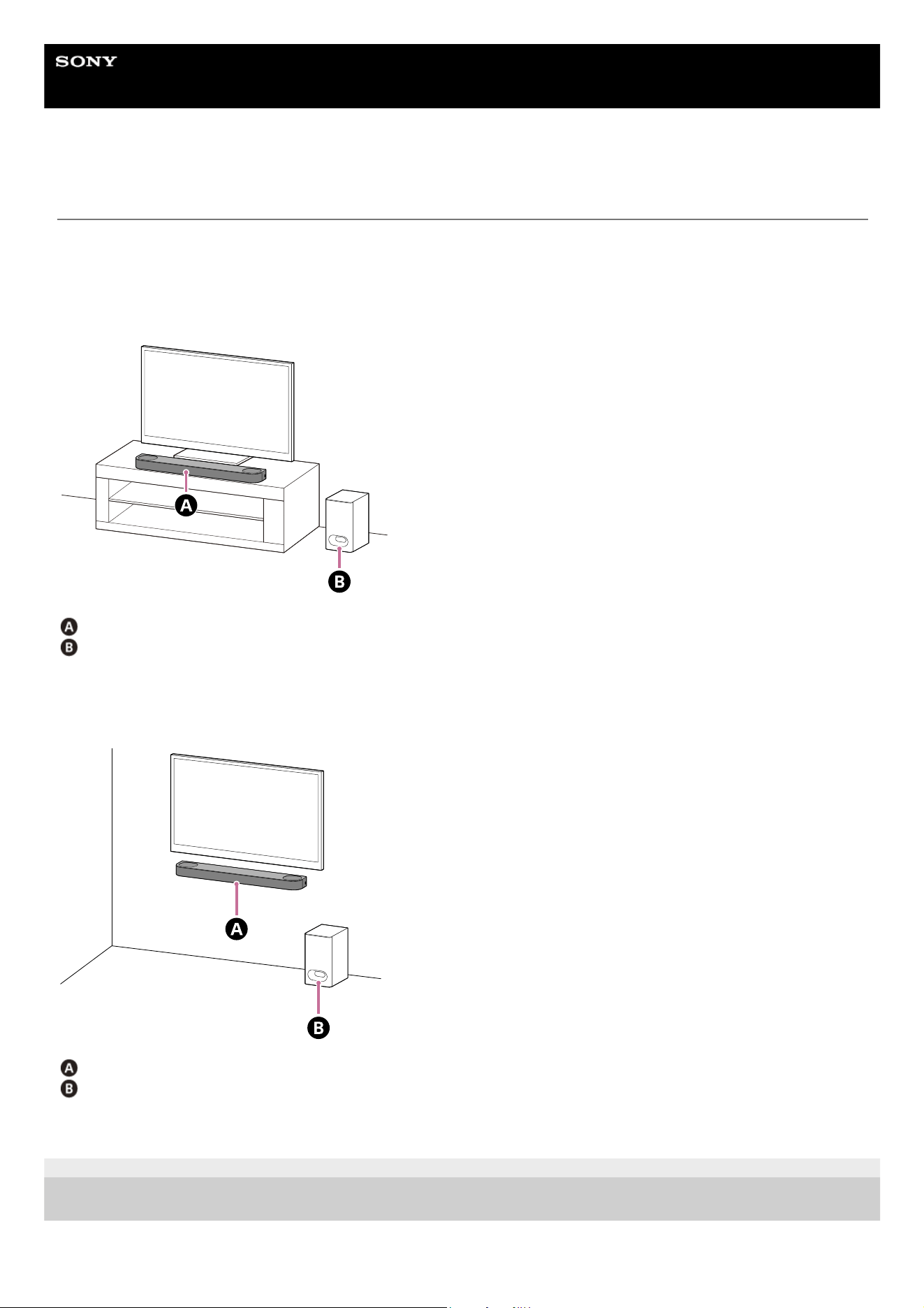
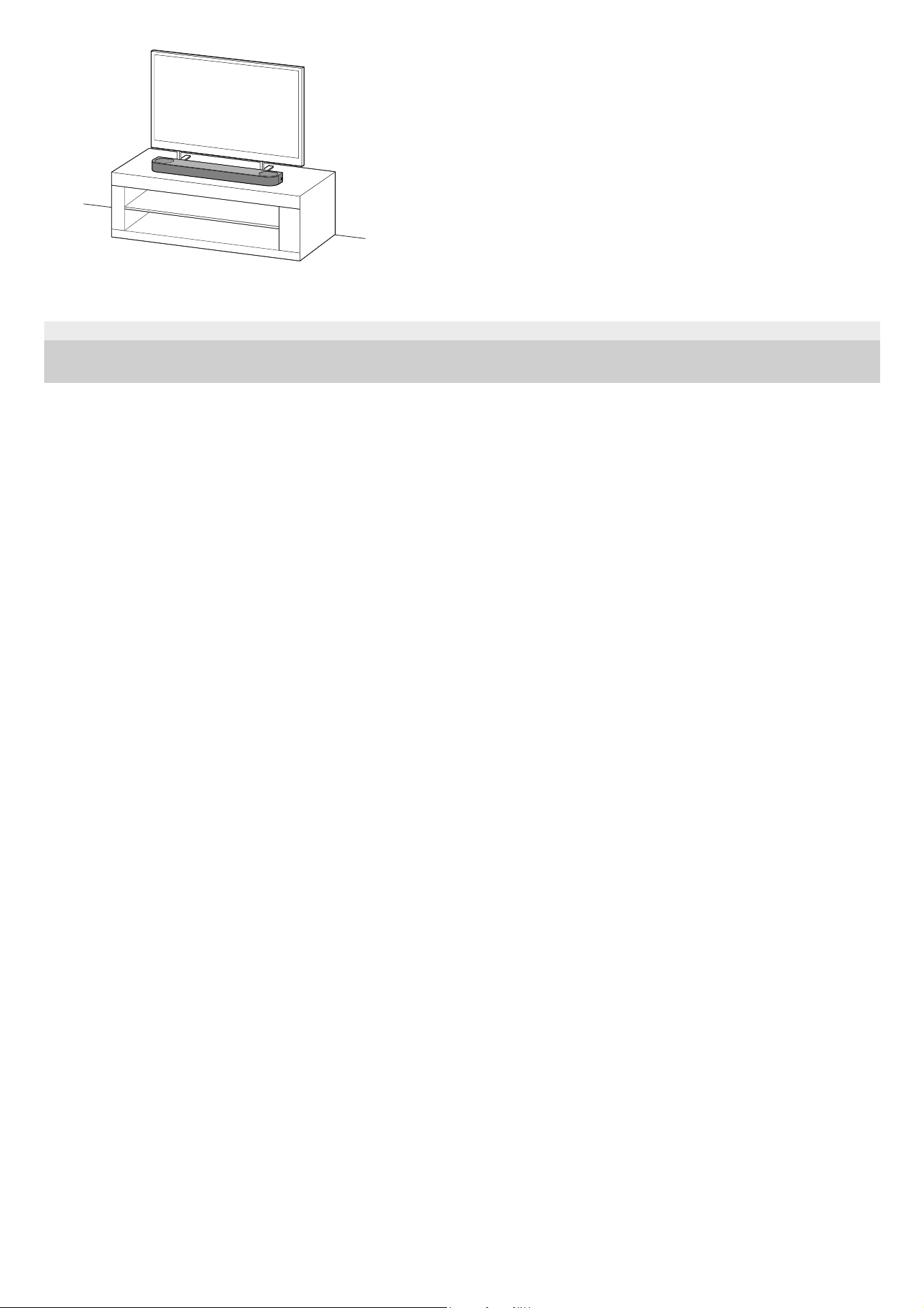
The speaker system can be installed on a TV stand or shelves, etc. or mounted on a wall.
Example of the bar speaker installed on a TV stand and shelves:
For installation on a TV stand or shelves, see “Installing the Speaker System on a TV Stand and Shelves.”
Bar speaker
Subwoofer
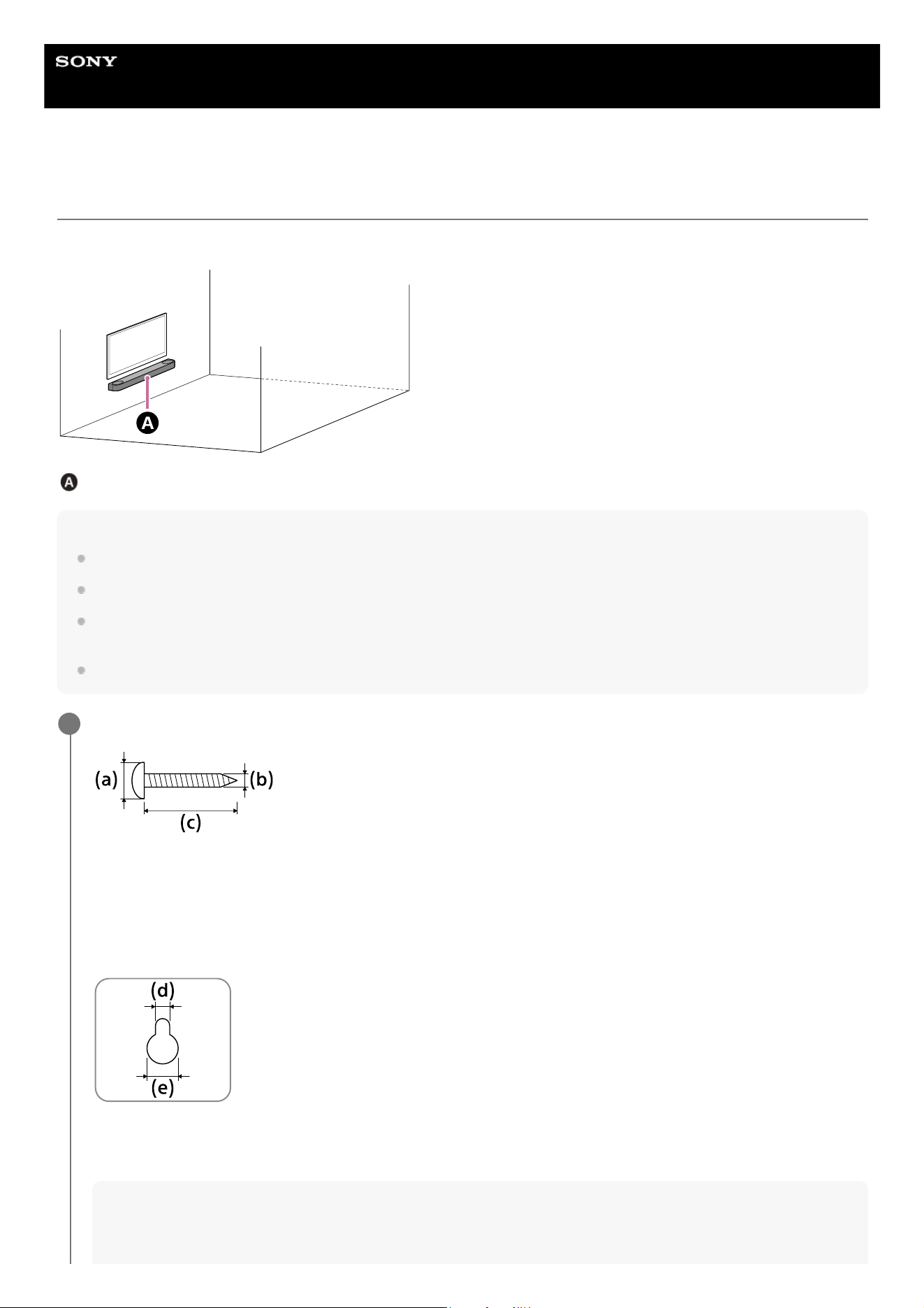
Example of the bar speaker mounted on a wall:
For mounting on a wall, see “Mounting the Bar Speaker on a Wall.”
Bar speaker
Subwoofer
TP1001687525
5-064-210-11(1) Copyright 2025 Sony Corporation
21
Help Guide
Sound Bar
BRAVIA Theatre Bar 6
Installing the Speaker System on a TV Stand and Shelves
Install the bar speaker on a TV stand and shelves.
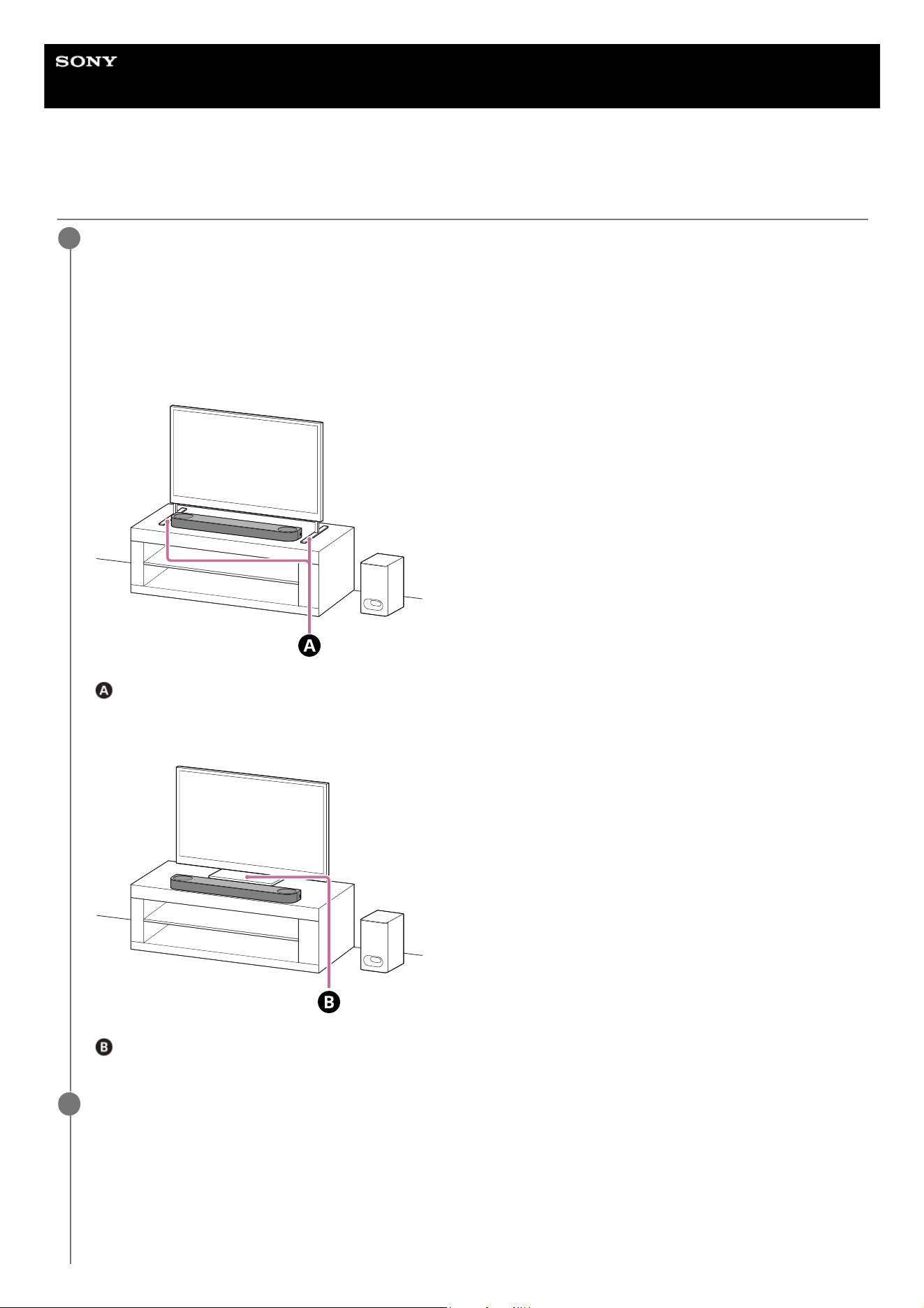
Install the bar speaker in an open space in front of the TV so that the top of the bar speaker does not overlap the TV
and does not hide the TV screen or the remote control sensor on the TV.
If the bar speaker cannot be placed properly due to interference with the legs of the TV, see “How to deal with the
case where the bar speaker cannot be placed properly due to interference of the TV legs.”
Example of installation with a TV with two TV legs on either side:
Two TV legs on either side
Example of installation with a TV with wide TV leg in the center:
Wide TV leg in the center
1
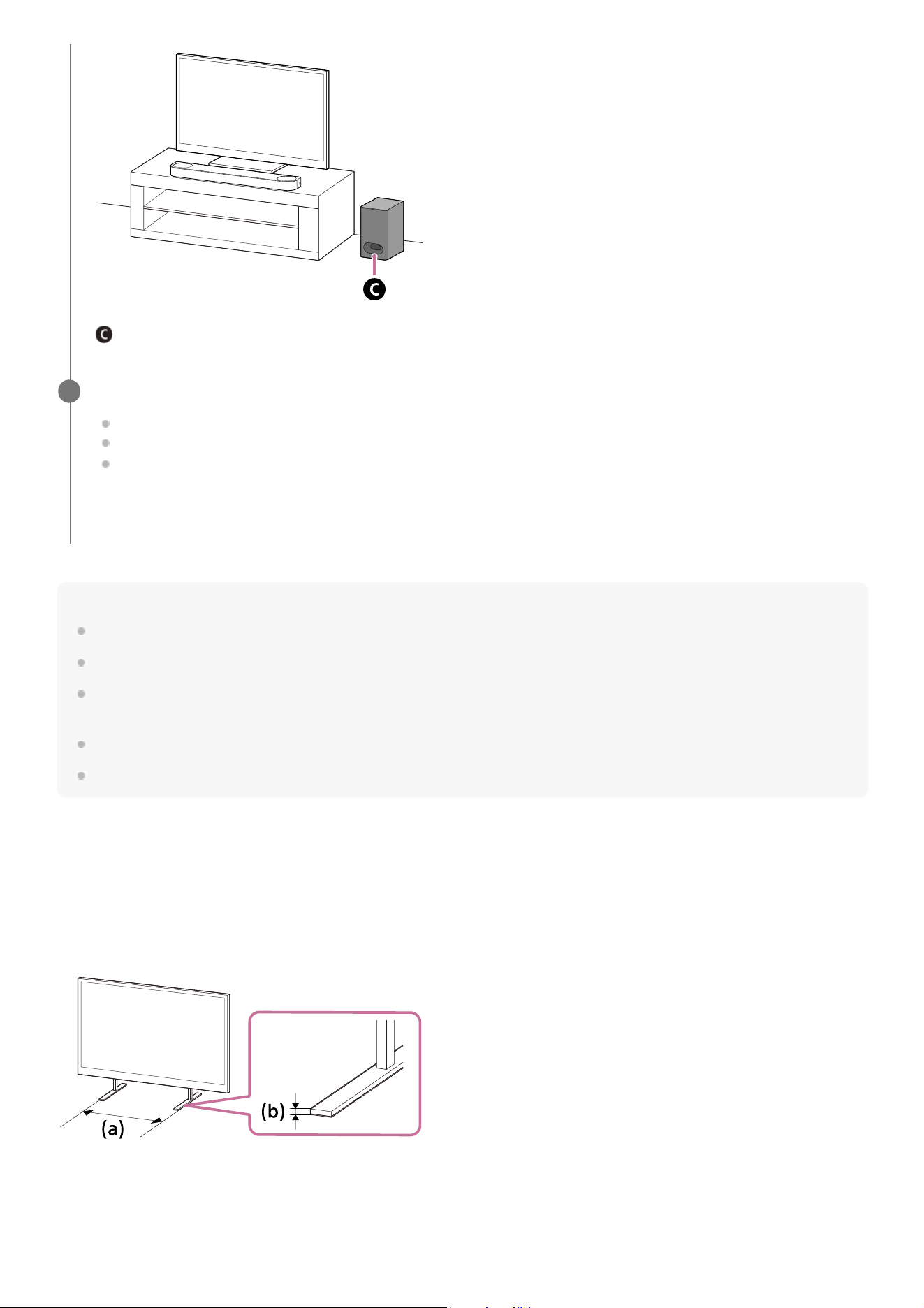
Install the subwoofer.
The subwoofer is omni-directional, so the subwoofer can be positioned as desired.
2
22
Note
Do not place metal objects near the bar speaker. Wireless functions may become unstable.
Do not cover the top of the bar speaker. It may interrupt the sound output from the top of the bar speaker.
There are ventilation holes at the rear of the bar speaker. Place the bar speaker away from the TV or wall at a distance of 10 mm
(25/64 in) or more.
Place the subwoofer away from a TV stand or a wall at a distance of 5 cm (2 in) or more.
Do not install the subwoofer lying on its side.
How to deal with the case where the bar speaker cannot be placed properly due to interference of
the TV legs
By attaching the supplied foot to the bar speaker, the bar speaker can be raised above the installation surface, thus
avoiding interference with the TV legs.
Attaching of the foot does not improve sound quality.
If the TV leg size corresponds to the following, the speaker system can be installed by attaching the foot.
(a) Spacing between TV legs: 750 mm (29 5/8 in) or less
(b) TV leg height: 8.5 mm (11/32 in) or less
Subwoofer
Perform [Speaker positioning and volume level settings](*) on the app in the following cases.
When changing the position and installation method of the bar speaker and subwoofer
When changing the viewing environment, such as changing the layout of furniture
When changing the position of daily viewing
3
Displayed by tapping [Settings] - [Sound Settings] - [Speaker positioning and volume level settings] on the remote control screen on the
app.
*
Prepare what are needed.1.
23
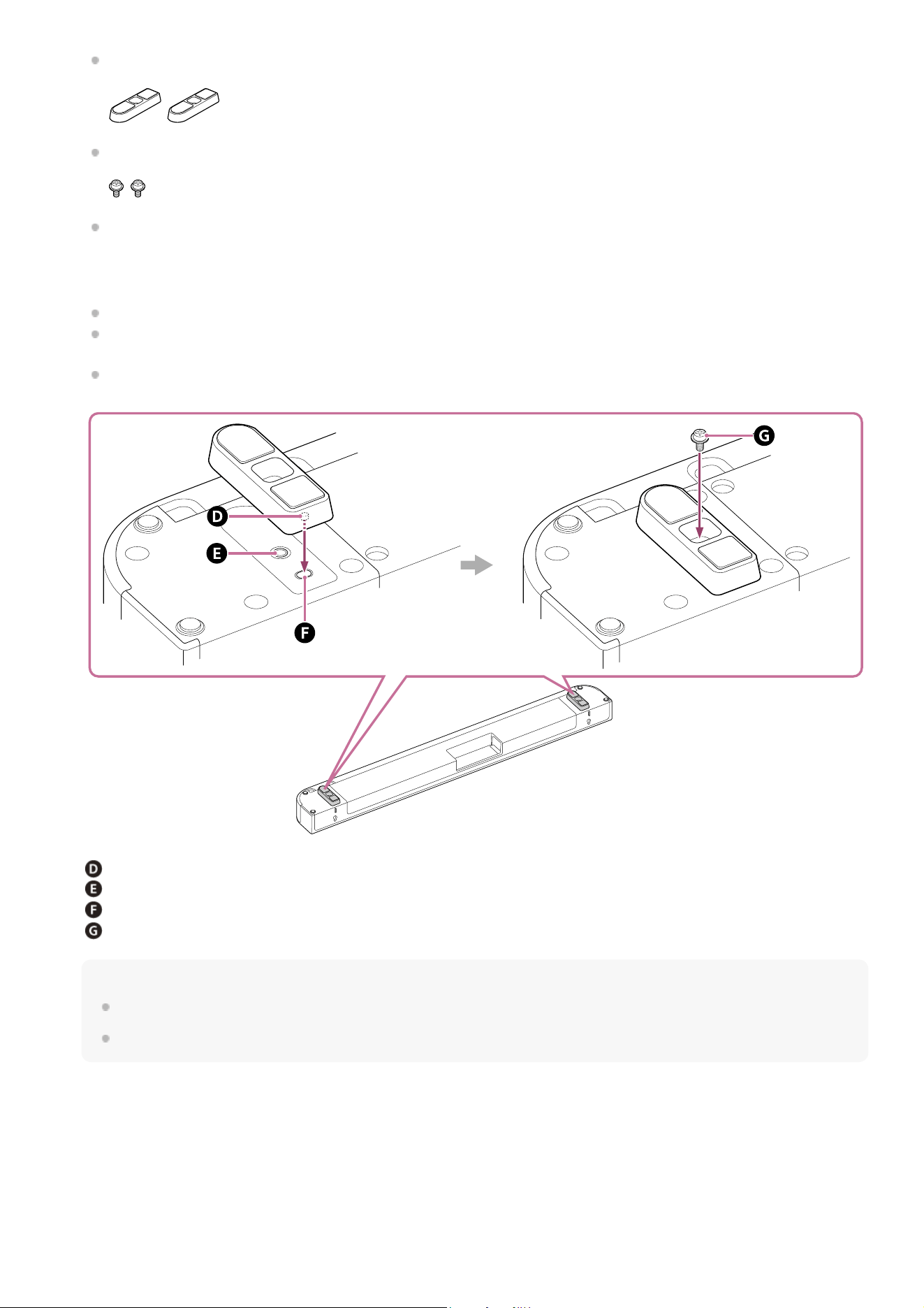
Foot (2) (supplied)
Screw (2) (supplied)
Phillips screwdriver (not supplied)
Attach the foot to the bar speaker.
Install the foot according to the following procedure.
Place the bar speaker with the bottom of the bar speaker facing up.
Position the foot by fitting the projecting part on the inside of the foot into the hole for the foot projecting part next
to the screw hole on the bar speaker.
Secure the foot with the screw.
Projecting part
Screw hole
Hole for the foot projecting part
Screw (supplied)
Hint
When attaching/detaching the foot, lay out a soft cloth or a similar material to prevent damage to the bar speaker.
When detaching the foot, after removing the screws, grip the foot and pull while twisting to make it easier to detach.
2.
Install the bar speaker.
Be careful not to cover the remote control sensor on the TV with the bar speaker.
After installation, check that the TV can be turned on/off with the TV remote control.
3.
24
TP1001870105
5-064-210-11(1) Copyright 2025 Sony Corporation
25
Help Guide
Sound Bar
BRAVIA Theatre Bar 6
Mounting the Bar Speaker on a Wall
Mount the bar speaker under the TV mounted on a wall.
Bar speaker
Note
Hang the bar speaker horizontally on the reinforced wall.
Ask a Sony dealer or licensed contractor to install the bar speaker securely with full consideration of safety.
Sony shall not be held responsible for accidents or damage caused by improper installation, lack of installation strength, misuse,
or natural disaster.
Two or more persons are required to hang the bar speaker for safety.
Prepare two screws (not supplied) that are suitable for the wall mount holes on the rear of the bar speaker.
(a) 6 mm to 9.5 mm (1/4 in to 3/8 in)
(b) 4 mm (3/16 in)
(c) 30 mm (1 3/16 in) or longer
Reference: Hole on the rear of the bar speaker
(d) 5.1 mm (7/32 in)
(e) 10 mm (13/32 in)
Note
1
26
Prepare screws (not supplied) that are suitable for the wall material and stability. The screw may damage the wall
depending on the wall material.
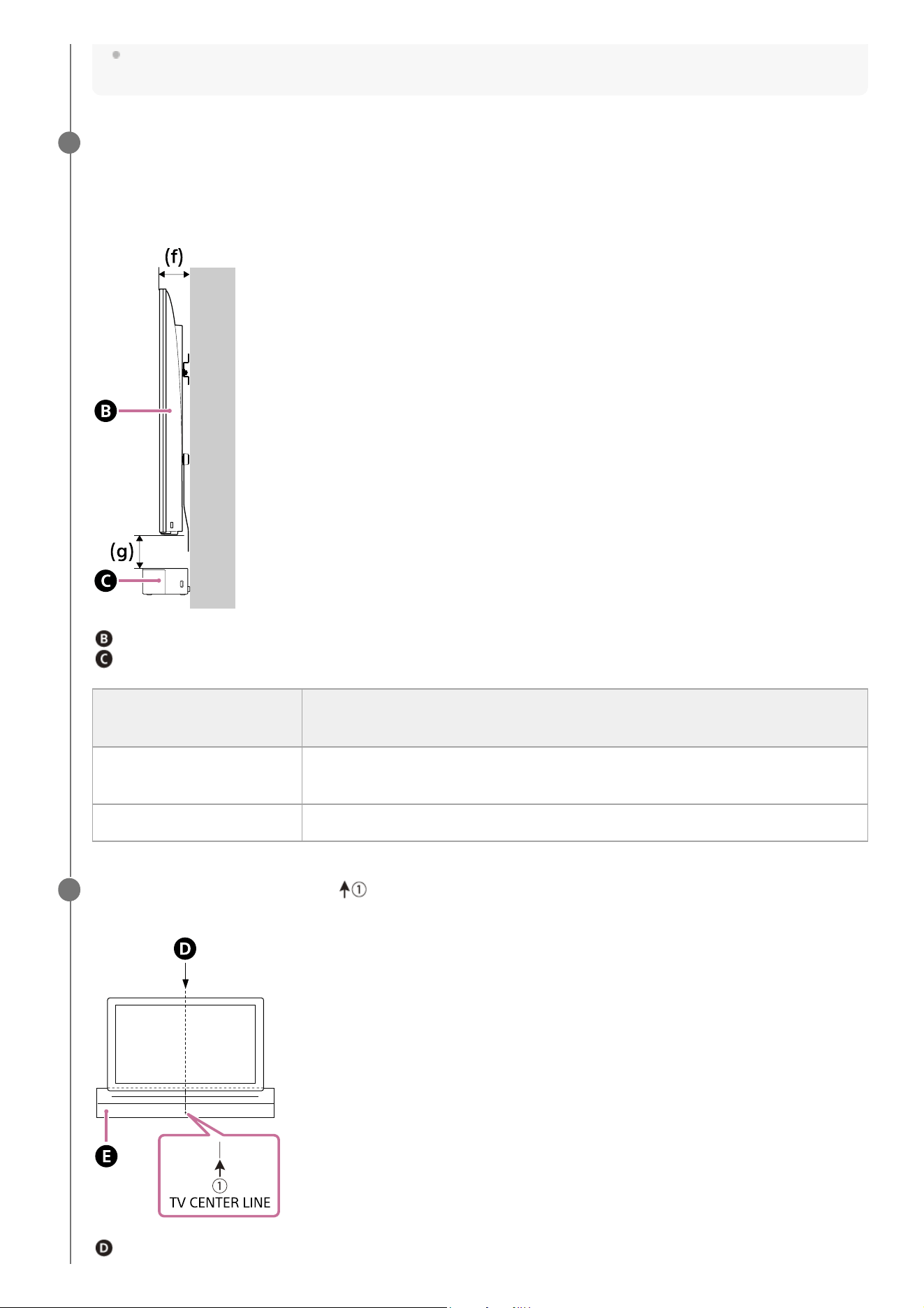
Measure the depth of the mounted TV (f) and find out the required space between the bottom of the TV and
the top of the bar speaker (g).
Space is required to ensure that the TV does not interfere with the output surround sound from the bar speaker
towards the ceiling.
TV
Bar speaker
2
Depth of the mounted TV
(f)
Required space between the bottom of the TV and the top of the bar speaker
(g)
Shorter than 85 mm (3 3/8
in)
120 mm (4 3/4 in) or longer
85 mm (3 3/8 in) or longer 200 mm (7 7/8 in) or longer
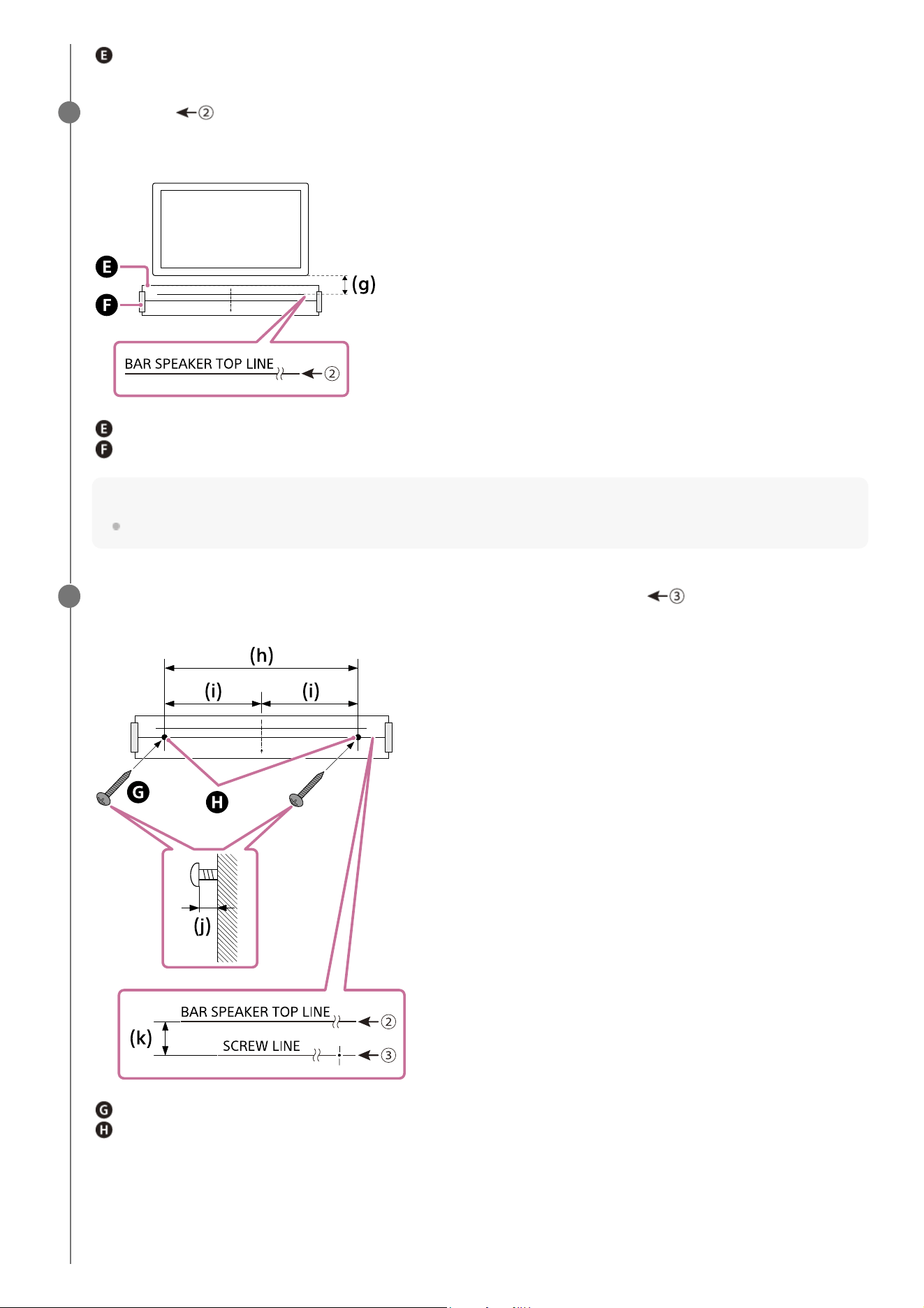
Align the vertical line above the “ TV CENTER LINE” printed on the WALL MOUNT TEMPLATE (paper)
(supplied) with the center of the width of your TV.
Center of the TV
3
27
WALL MOUNT TEMPLATE
Align the “ BAR SPEAKER TOP LINE” printed on the WALL MOUNT TEMPLATE with the bottom of
the required space between the bottom of TV and the top of the bar speaker (g) measured in step 2, then
adhere the WALL MOUNT TEMPLATE on the wall with a commercially available adhesive tape, etc.
WALL MOUNT TEMPLATE
Adhesive tape, etc.
Note
When adhering the WALL MOUNT TEMPLATE on the wall, smooth it out fully.
4
Fasten the screws prepared in step 1 securely into the screw marks on the “ SCREW LINE” printed
on the WALL MOUNT TEMPLATE.
Screw
Marks
(h) 801 mm (31 1/2 in)
(i) 400.5 mm (15 3/4 in)
(j) 8.5 mm to 9.5 mm (approx. 11/32 in)
(k) 20 mm (13/16 in)
5
28
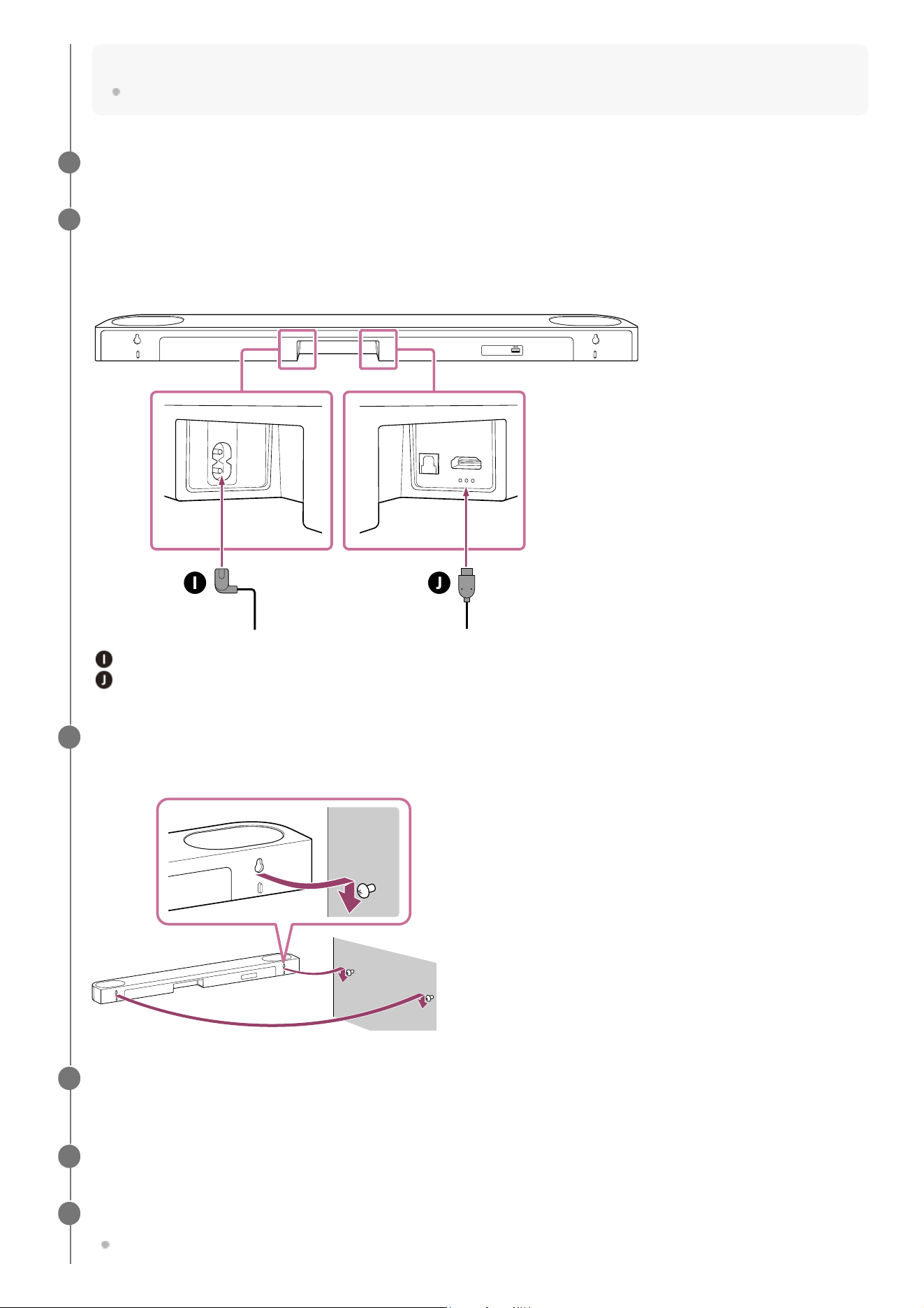
Note
Fasten the screws securely in the wall beam.
Remove the WALL MOUNT TEMPLATE.
6
Connect cables to the bar speaker.
AC power cord (mains lead)
HDMI cable
7
Connect the HDMI cable (supplied) to the HDMI OUT (TV (eARC/ARC)) jack on the bar speaker.
1.
Connect the AC power cord (mains lead) (supplied) to the AC inlet on the bar speaker.
2.
Hang the holes on the rear of the bar speaker on the screws.
Align the holes on the rear of the bar speaker with the screws, then hang the bar speaker on the two screws.
8
Connect the HDMI cable (supplied) connected to the bar speaker to the eARC/ARC HDMI input jack on the
TV.
9
Connect the AC power cord (mains lead) connected to the bar speaker to the AC outlet (mains).
10
Perform [Speaker positioning and volume level settings](*) on the app in the following cases.
When changing the position and installation method of the bar speaker and subwoofer
11
29

Related Topic
Connecting to a TV
Connecting to an AC Outlet (Mains)
TP1001686276
5-064-210-11(1) Copyright 2025 Sony Corporation
When changing the viewing environment, such as changing the layout of furniture
When changing the position of daily viewing
Displayed by tapping [Settings] - [Sound Settings] - [Speaker positioning and volume level settings] on the remote control screen on the
app.
*
30
Help Guide
Sound Bar
BRAVIA Theatre Bar 6
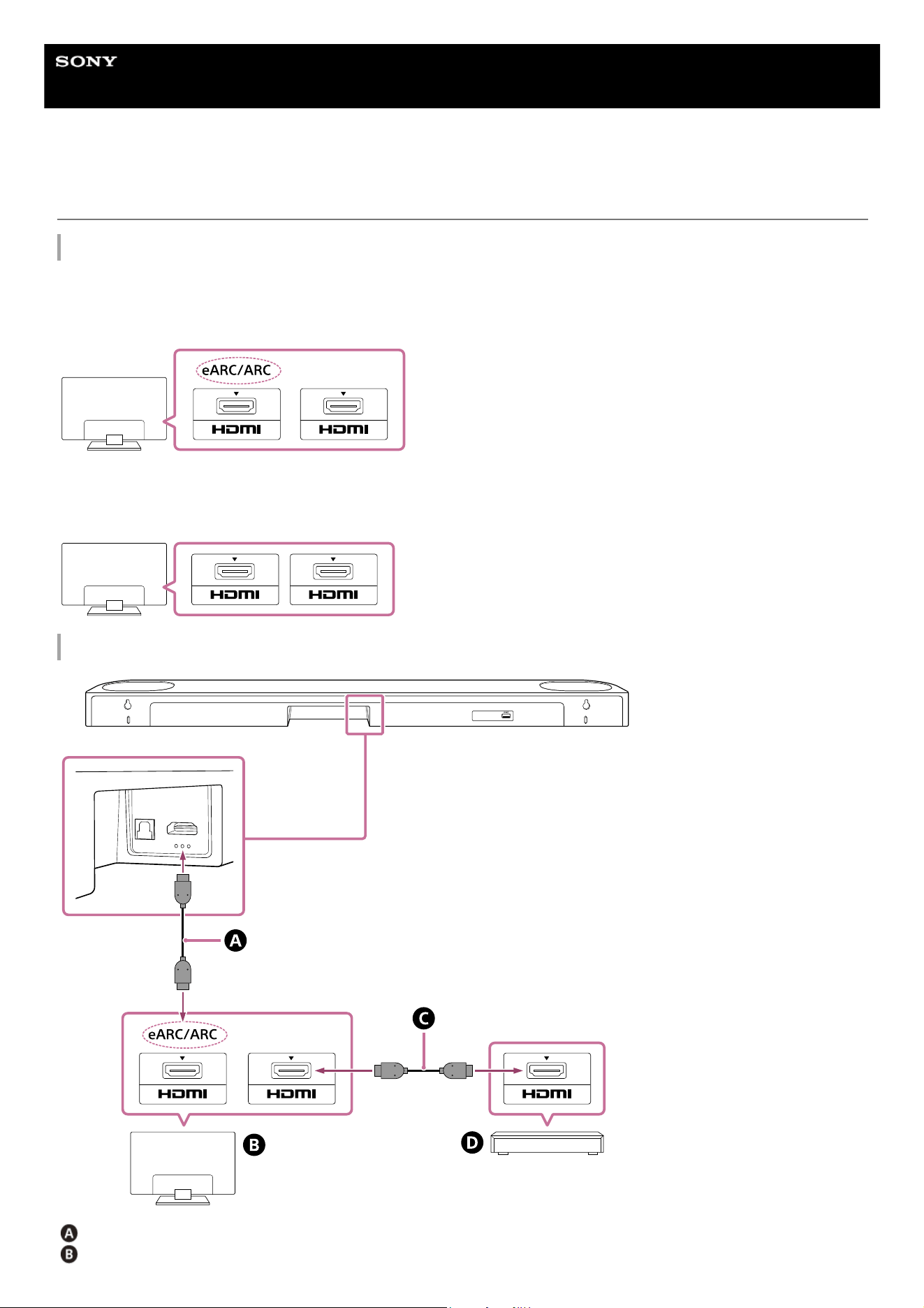
Connecting to a TV
Make sure that your TV is compatible with eARC/ARC
When your TV has an HDMI input jack labeled “eARC” or “ARC”
See “Connecting a TV compatible with eARC/ARC.”
When your TV does not have an HDMI input jack labeled “eARC” or “ARC”
See “Connecting a TV that is not compatible with eARC/ARC.”
Connecting a TV compatible with eARC/ARC
HDMI cable (supplied)
TV
31
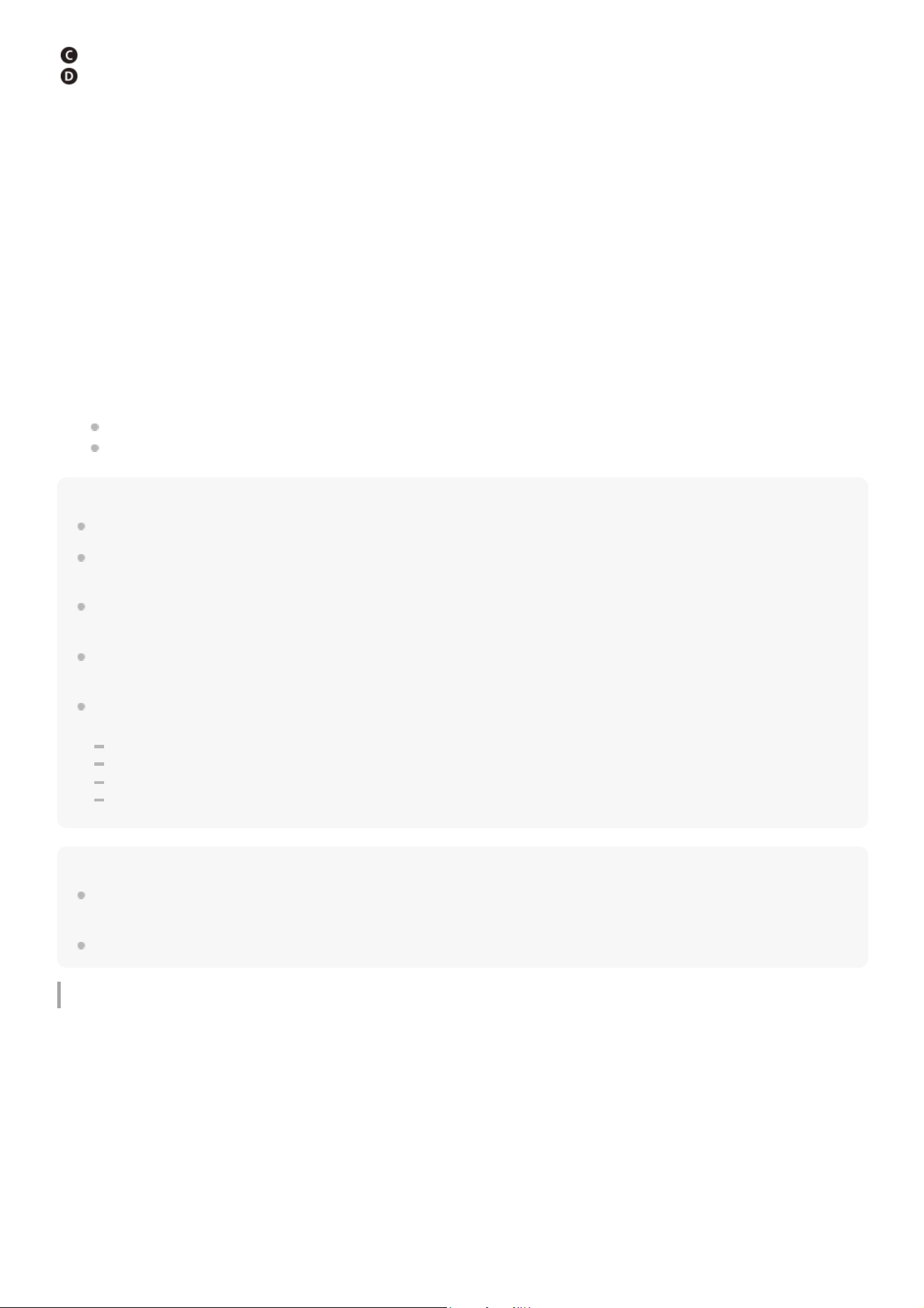
HDMI cable (not supplied)
Blu-ray Disc player, set-top box, cable box, satellite box, gaming console, etc.
Note
Check that the connectors are firmly inserted.
If the speaker system is not connected to the eARC/ARC-compatible HDMI input of the TV, the TV sound cannot be output from
the speaker system.
Enable the Control for HDMI function on the TV. If the Control for HDMI function on the TV is not enabled, the speaker system
does not output TV sound.
By enabling the eARC function on the TV, some features on the TV may become limited. For instance, system sounds and voice
response may not be output. For details, refer to the operating instructions of your TV.
The types and number of devices that can be controlled by the Control for HDMI function are limited by the HDMI CEC standard
as follows.
Recording devices (Blu-ray Disc recorder, DVD recorder, etc.): Up to 3 devices
Playback devices (Blu-ray Disc player, DVD player, etc.): Up to 3 devices
Tuner-related devices: Up to 4 devices
Audio system (receiver/headphones): Up to 1 device (used by this speaker system)
Hint
There are three tactile dots that are about 1 mm (1/16 in) in size under the HDMI OUT (TV (eARC/ARC)) jack. Use them as a
guide during connection.
For the supported audio formats, see “Supported Audio Formats.”
Connecting a TV that is not compatible with eARC/ARC
Connect to a TV.
Connect the HDMI jack compatible with eARC/ARC on the TV and HDMI OUT (TV (eARC/ARC)) jack on the speaker
system with the HDMI cable (supplied).
Connect external devices (such as Blu-ray Disc player, set-top box, cable box, satellite box, gaming console, etc.) to
the TV with an HDMI cable (not supplied).
1.
Change the TV settings so that TV sound can be output from the speaker system.
Depending on your TV, this may be set automatically when the speaker system is connected. For details, refer to the
operating instructions of your TV.
2.
Enable eARC on both the speaker system and the TV.
If the TV that is connected to the speaker system is compatible with eARC/ARC, the eARC function is available.
To enjoy higher quality audio formats such as Dolby Atmos played on an external device connected to the TV, check
that the eARC setting is enabled on the speaker system and TV.
eARC setting for the TV: Refer to the operating instructions of your TV.
eARC setting for the speaker system: The setting is enabled by default.
3.
32
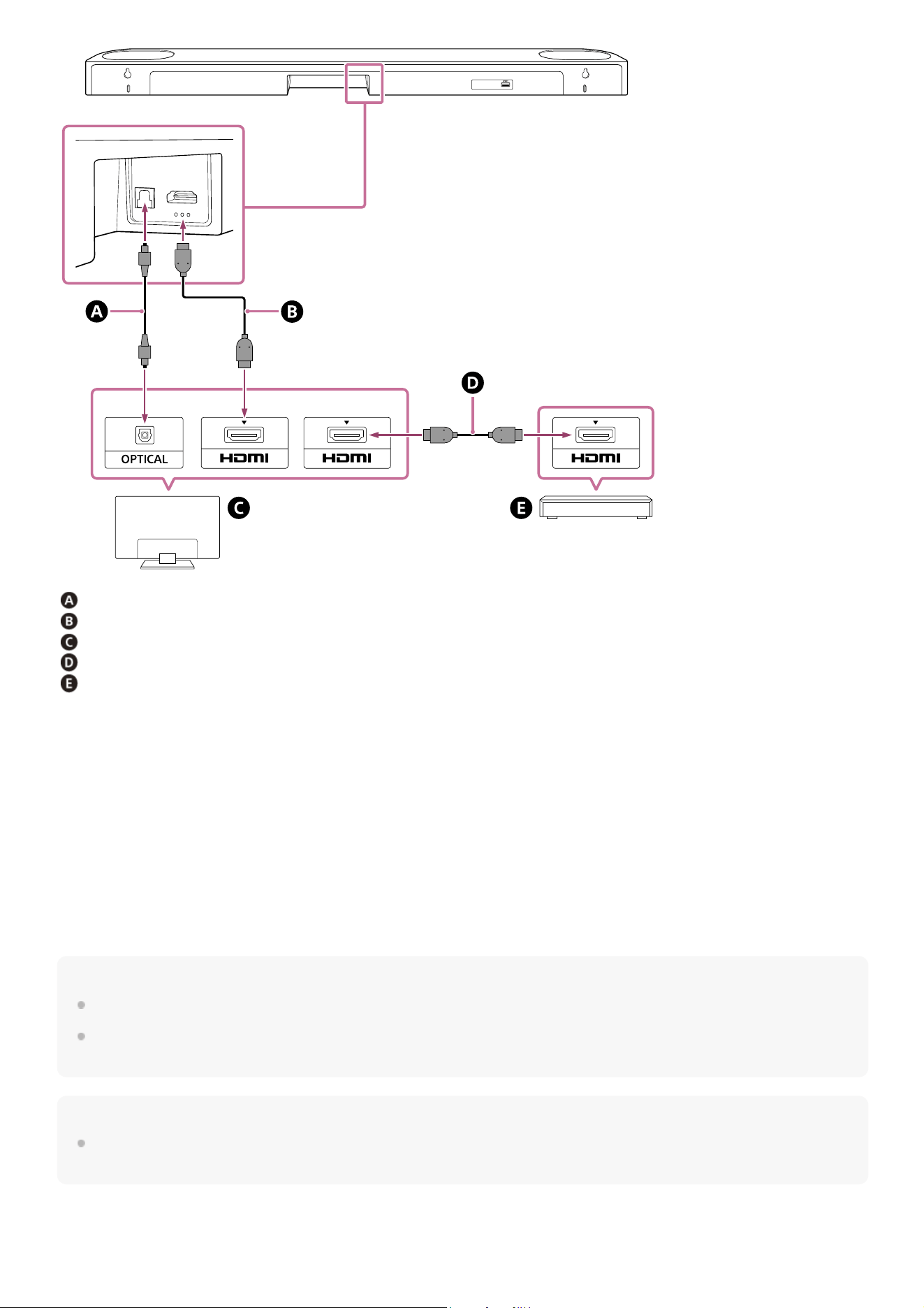
Optical digital cable (not supplied)
HDMI cable (supplied)
TV
HDMI cable (not supplied)
Blu-ray Disc player, set-top box, cable box, satellite box, gaming console, etc.
Note
Check that the connectors are firmly inserted.
Insert the plug of the optical digital cable in the correct direction by checking the shape of the plug and connector on the speaker
system and TV. If the plug is forcibly inserted in the wrong direction, the connector and plug may be damaged.
Hint
There are three tactile dots that are about 1 mm (1/16 in) in size under the HDMI OUT (TV (eARC/ARC)) jack. Use them as a
guide during connection.
Connect the HDMI input jack on the TV and the HDMI OUT (TV (eARC/ARC)) jack on the speaker system with
the HDMI cable (supplied).
Connect external devices (such as Blu-ray Disc player, set-top box, cable box, satellite box, gaming console, etc.) to
the TV with an HDMI cable (not supplied).
1.
Connect the optical digital output jack on the TV and the TV IN (OPTICAL) jack on the speaker system with an
optical digital cable (not supplied).
2.
Change the TV settings so that TV sound can be output from the speaker system.
Depending on your TV, this may be set automatically when the speaker system is connected. For details, refer to the
operating instructions of your TV.
3.
33

Help Guide
Sound Bar
BRAVIA Theatre Bar 6
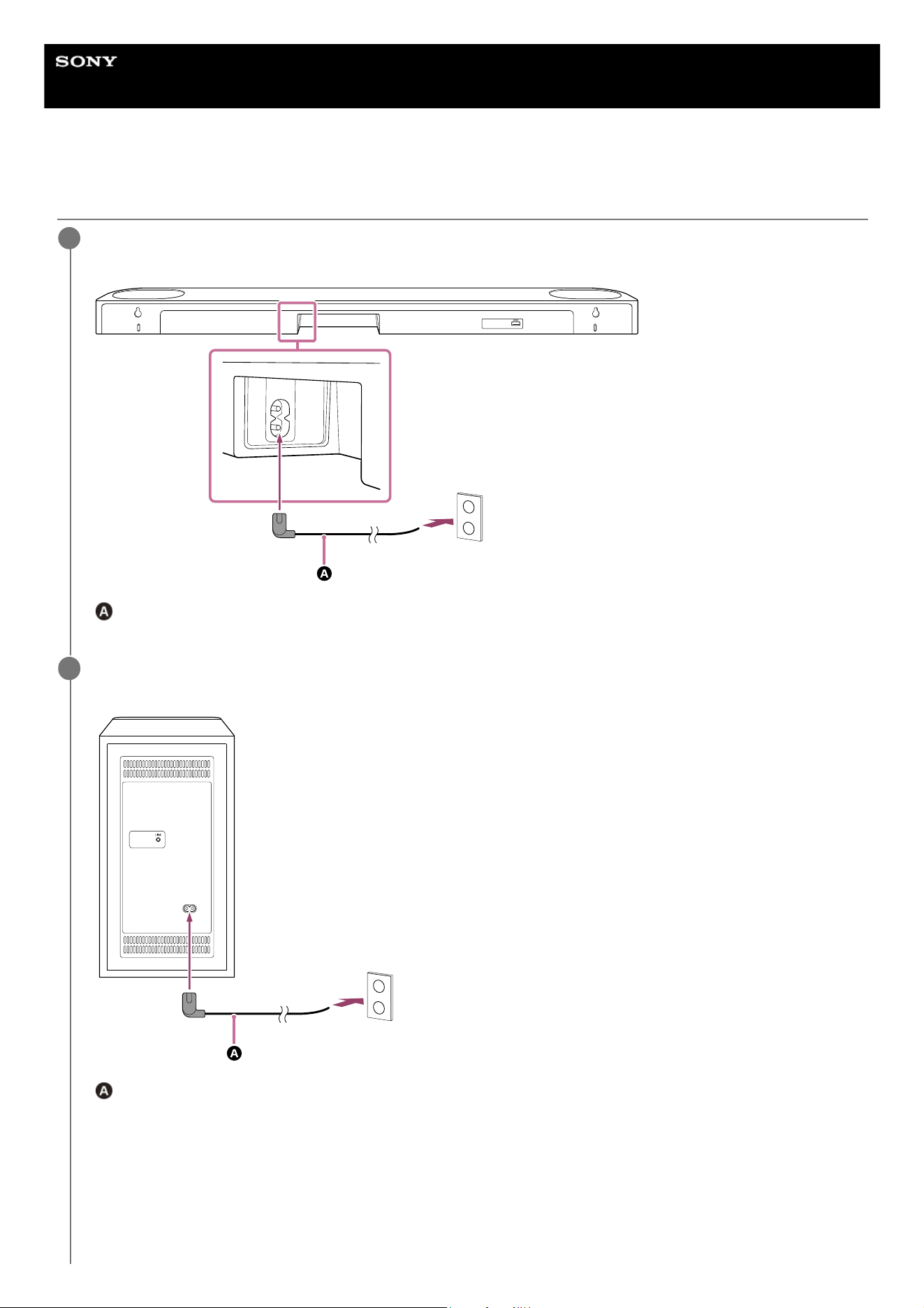
Connecting to an AC Outlet (Mains)
Connect the AC power cord (mains lead) (supplied) to the AC inlet on the bar speaker, then connect to the
AC outlet (mains).
AC power cord (mains lead) (supplied)
1
Connect the AC power cord (mains lead) (supplied) to the AC inlet on the subwoofer, then connect to the
AC outlet (mains).
AC power cord (mains lead) (supplied)
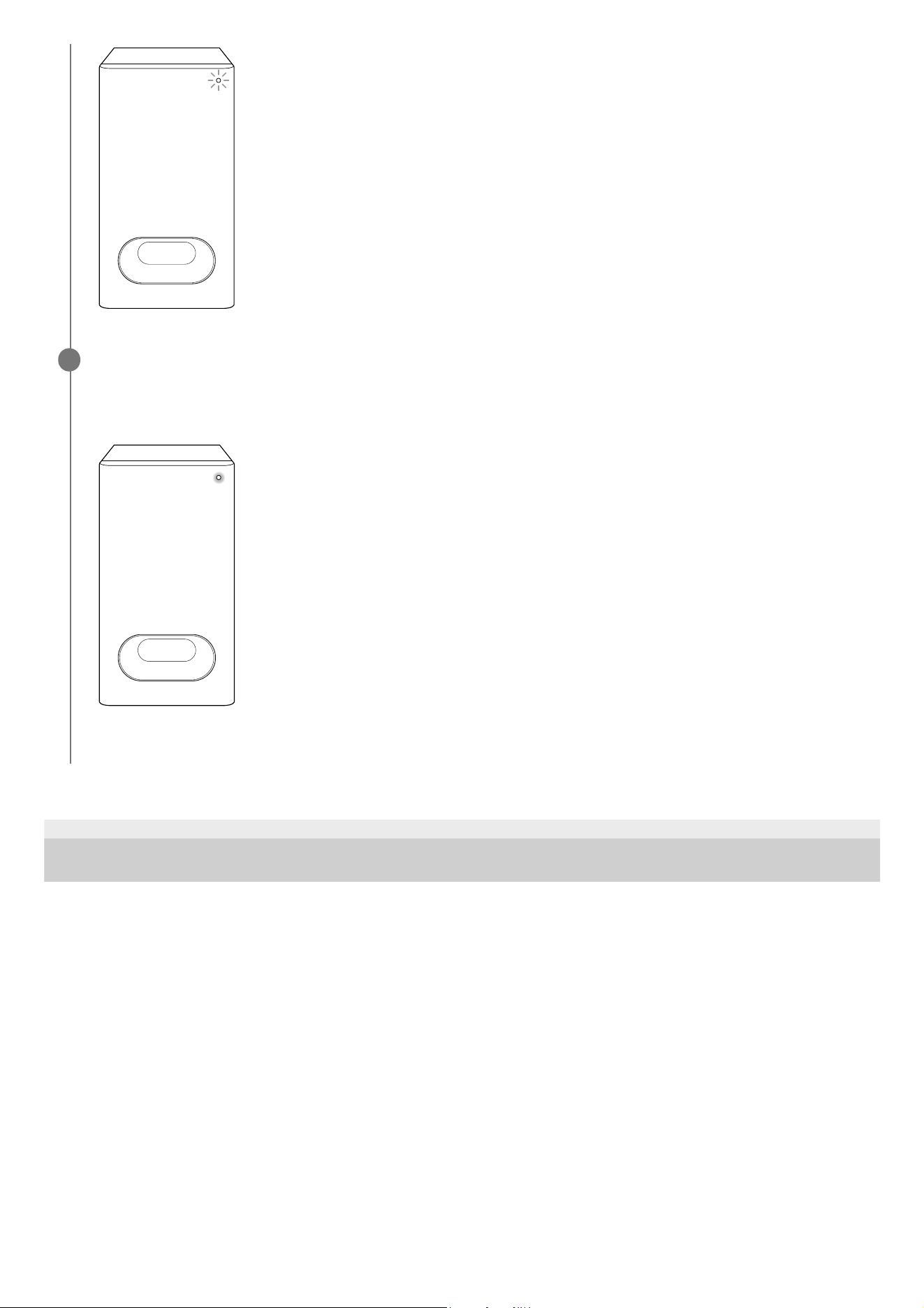
When the AC power cord (mains lead) of the subwoofer is connected to the AC outlet, the subwoofer will turn on
and the power indicator on the subwoofer flashes in white.
2
35
TP1001686274
5-064-210-11(1) Copyright 2025 Sony Corporation
Check that the power indicator on the subwoofer lights in white.
When the connection between the bar speaker and subwoofer is complete, the power indicator on the subwoofer
lights in white.
If the connection cannot be made, see “If the Bar Speaker and Subwoofer Are Not Connected Correctly.”
3
36
Help Guide
Sound Bar
BRAVIA Theatre Bar 6
Performing Initial Setup with the “Sony | BRAVIA Connect” App
To set up the speaker system, use the “Sony | BRAVIA Connect” app.
Related Topic
Installing the Bar speaker and Subwoofer
Mounting the Bar Speaker on a Wall
Connecting to a TV
Connecting to an AC Outlet (Mains)
TP1001686273
5-064-210-11(1) Copyright 2025 Sony Corporation
Check that the bar speaker is connected to the TV and that the bar speaker and subwoofer are connected to
the power source.
1
Download and install the “Sony | BRAVIA Connect” app on your smartphone.
2
Open the app and follow the instructions on the screen to complete the setup.
After the bar speaker is turned on, it is automatically connected to the subwoofer and the power indicator on the
subwoofer lights up in white.
If the subwoofer is not connected to the bar speaker, the power indicator on the subwoofer lights up in red. Connect
the subwoofer to the bar speaker by seeing “If the Bar Speaker and Subwoofer Are Not Connected Correctly.”
3
37
Help Guide
Sound Bar
BRAVIA Theatre Bar 6
If the Bar Speaker and Subwoofer Are Not Connected Correctly
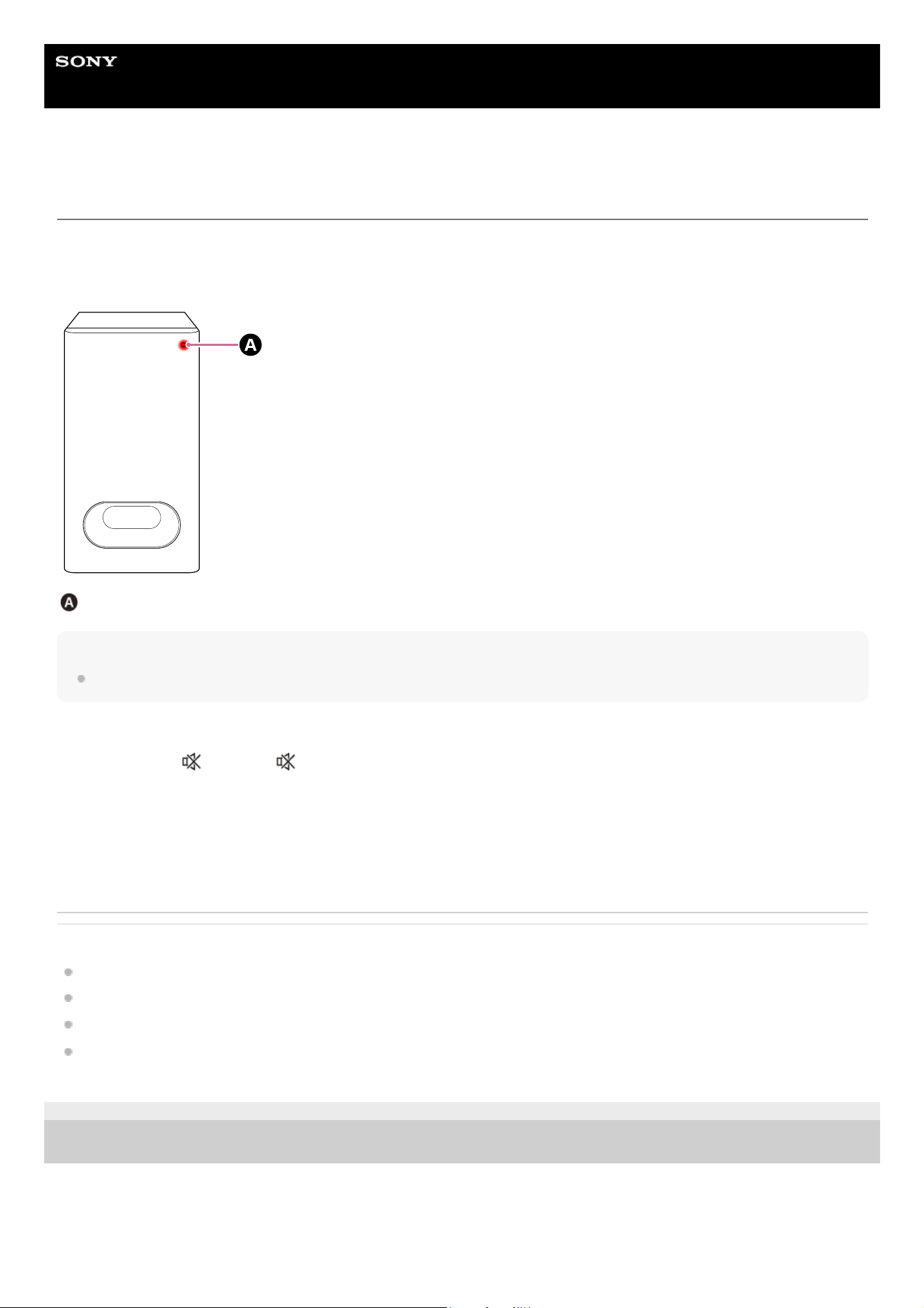
If the subwoofer is not connected to the bar speaker, the power indicator on the subwoofer lights up in red and the
subwoofer connection guidance appears on the remote control screen on the app. Connect the subwoofer to the bar
speaker by following these instructions on the app.
Power indicator
Hint
Check the speaker connection status in [Settings] - [Wireless Speaker Settings] on the remote control screen on the app.
To operate using the supplied remote control
Related Topic
Indicator on the Subwoofer
Performing Initial Setup with the “Sony | BRAVIA Connect” App
[Easy Initial Setup]
[Wireless Speaker Settings]
TP1001687529
5-064-210-11(1) Copyright 2025 Sony Corporation
Press NIGHT, (Muting), (Muting), NIGHT in sequence within 5 seconds.
The main status indicator on the bar speaker flashes in blue/white alternately.
1.
Press LINK on the subwoofer.
The power indicator on the subwoofer flashes twice each in white.
When the connection is complete, the power indicator on the subwoofer lights in white.
2.
38
Help Guide
Sound Bar
BRAVIA Theatre Bar 6
Listening to TV Sound
Operate the remote control screen on the app as follows.
To operate using the supplied remote control
Note
If there is no picture when TV (eARC/ARC) input is selected, select the preferred TV channel by using the TV remote control.
When you connect the TV to both the HDMI OUT (TV (eARC/ARC)) and TV IN (OPTICAL) jacks, the input of the HDMI OUT (TV
(eARC/ARC)) jack has priority.
The subwoofer is designed for playback of bass or low frequency sound. When the input source, such as in TV programs, does
not contain much bass sound, the bass sound from the subwoofer may be difficult to hear.
Depending on whether you turn on the TV or the speaker system first, the speaker system may be muted and the sub status
indicator on the bar speaker may flash in white. In this case, turn on the TV before turning on the speaker system.
TP1001686552
5-064-210-11(1) Copyright 2025 Sony Corporation
Tap the playback information/input switching area on the upper part of the screen to switch the input to
[TV].
If the remote control screen on the app that can operate the speaker system and BRAVIA is displayed, there is no
need to operate the input switching of the speaker system. The audio input on the speaker system switches in
conjunction with the content being viewed on the TV.
1
Adjust the volume.
2
Press INPUT (Input) to light the main status indicator on the bar speaker in white.1.
Adjust the volume.2.
39

Help Guide
Sound Bar
BRAVIA Theatre Bar 6
Adjusting Sound Quality
The following sound quality adjustments can be performed on the remote control screen on the app or on the supplied
remote control.
Operating using the remote control screen on the app
When an app-compatible BRAVIA is connected to the speaker system using an HDMI cable, select [Picture & Sound].
[Sound field]
Outputs sound with the surround sound effect. This setting can be used to experience surround sound with a sense
of presence.
[Voice mode]
Emphasizes dialog and makes it easier to hear.
[Voice Zoom]
This function is enabled when a Sony TV compatible with the linkage function of the speaker system is connected.
When TV input is selected on the speaker system, the voice zoom works instead of the voice mode.
The voice zoom can adjust only the volume of the human voice without changing the overall volume. The voice
volume of the newscaster can be adjusted to be louder to make it easier to hear, and the voice volume can be
adjusted to be quieter for live sports broadcasts or other situations where the commentary or play-by-play
commentary is too loud.
[Night mode]
Outputs clear sound even at a low volume for late night use and features clear dialog and minimum loss of fidelity.
Operating using the supplied remote control
Each time you press a button on the supplied remote control, the setting changes and the setting status can be checked
on the sub status indicator on the bar speaker.
When set to on: The sub status indicator lights up once for a longer time in white.
When set to off: The sub status indicator flashes twice in white.
SOUND FIELD (Sound field)
Outputs sound with the surround sound effect. This setting can be used to experience surround sound with a sense
of presence.
VOICE (Voice mode)
Emphasizes dialog and makes it easier to hear.
The voice zoom works to adjust the volume of human voices when a TV compatible with the linkage function of the
speaker system is connected. When voice zoom is turned on, the last adjusted value in the TV menu or remote
control screen on the app will be applied.
NIGHT (Night mode)
Outputs clear sound even at a low volume for late night use and features clear dialog and minimum loss of fidelity.
Note
The sound field is not available during test tone output.
If [Sound Field Type] is set to [Dolby Speaker Virtualizer] and the sound field is set to on, the voice mode is disabled. (*)
The sense of presence that can be achieved by the surround sound processing may vary depending on the playback content.
40

When playing multi-channel audio, check the digital audio output setting on the device that is connected to the speaker system.
For details, refer to the operating instructions supplied with the connected device.
Some speakers may not output sound depending on the content or sound field setting(*).
The night mode automatically turns off when the speaker system is turned off.
Check the URL below for TVs that are compatible with the linkage function of the speaker system.
https://www.sony.net/hav_faq
Depending on the TV setting or content, the voice zoom may not work.
Related Topic
[Sound Settings]
TP1001686616
5-064-210-11(1) Copyright 2025 Sony Corporation
On/off setting of the sound field and the setting displayed after you tap [Settings] - [Sound Settings] - [Sound Field Type] on the remote control screen on the
app.
*
41
Help Guide
Sound Bar
BRAVIA Theatre Bar 6
Listening to Music by Pairing the BLUETOOTH Device that is Connected for the First
Time
To use the BLUETOOTH function, the speaker system and BLUETOOTH device need to be paired in advance.
Pairing is the process of registering devices with each other in advance.
Note
If pairing fails, try performing the following on the BLUETOOTH device.
Accept pairing request.
If the maximum number of paired devices on the BLUETOOTH device has been reached, remove any unneeded devices.
Turn on the BLUETOOTH device.
1
Switch the input to [Bluetooth] on the remote control screen on the app.
If another BLUETOOTH device is already connected to the speaker system, select [Connect to other devices].
The speaker system enters the pairing mode and the main status indicator on the bar speaker flashes twice
repeatedly in blue by switching to the [Bluetooth] input without a paired device.
2
Look for the speaker system on the BLUETOOTH device by performing the pairing operation.
The list of the BLUETOOTH devices detected by the BLUETOOTH device appears on the screen of the
BLUETOOTH device.
For how to perform pairing with the BLUETOOTH device, refer to the operating instructions of the BLUETOOTH
device.
3
Select the speaker system(*) from the list of devices that is displayed on the screen of the BLUETOOTH
device and register the speaker system and BLUETOOTH device with each other.
If a passkey is requested, enter “0000.”
4
BRAVIA Theatre Bar 6 or the device name that is set in [Unit Name].
*
Confirm on the remote control screen on the app that the speaker system and the BLUETOOTH device are
connected via the BLUETOOTH function.
The connected BLUETOOTH device name is displayed on the remote control screen on the app.
5
Start audio playback with the music app on the connected BLUETOOTH device.
Sound is output from the speaker system.
6
Adjust the volume.
Adjust the speaker system volume using the remote control screen on the app, music playback app, or
(Volume) + (plus)/– (minus) on the supplied remote control.
Play or pause the content by tapping the playback operation icon on the remote control screen on the app.
7
42

If the speaker system has been reset, delete the pairing information for the speaker system from the BLUETOOTH device and
perform pairing again.
Hint
If there is no BLUETOOTH device paired (when using the speaker system immediately after purchase, etc.), the speaker system
enters the pairing mode when the input is simply changed to [Bluetooth].
Perform pairing for a second or subsequent BLUETOOTH device.
Related Topic
Setting the BLUETOOTH Function to On or Off
Resetting the Speaker System
TP1001686955
5-064-210-11(1) Copyright 2025 Sony Corporation
43
Help Guide
Sound Bar
BRAVIA Theatre Bar 6
Listening to Music from the Paired BLUETOOTH Device
To operate using the supplied remote control
Hint
If a BLUETOOTH connection is not established between the speaker system and BLUETOOTH device, select the speaker
system on the BLUETOOTH device.
If sound delay occurs, it may be improved by accessing [Settings] - [Bluetooth Settings] - [Bluetooth Connection Quality] and set
this to [Priority on Stable Connection] on the remote control screen on the app.
To disconnect the BLUETOOTH device
Use one of the following methods to disconnect.
Turn off the BLUETOOTH function on the BLUETOOTH device.
Turn off the speaker system or BLUETOOTH device.
Turn on the BLUETOOTH function on the BLUETOOTH device.
1
Switch the input to [Bluetooth] on the remote control screen on the app.
The speaker system automatically reconnects to the BLUETOOTH device that was most recently connected to the
speaker system.
If another BLUETOOTH device is already connected to the speaker system, select [Connect to other devices].
Then, use the BLUETOOTH device that you want to connect to the speaker system to select the speaker system as
the device being connected to for the BLUETOOTH function.
2
Start audio playback with the music app on the connected BLUETOOTH device.
Sound is output from the speaker system.
3
Adjust the volume.
Adjust the speaker system volume from the remote control screen on the app or music playback app.
Play or pause the content by tapping the playback operation icon on the remote control screen on the app.
4
Turn on the BLUETOOTH function on the BLUETOOTH device.1.
Press INPUT (Input) to light the main status indicator on the bar speaker in blue.
The speaker system automatically reconnects to the BLUETOOTH device that was most recently connected to the
speaker system.
If you cannot connect to the BLUETOOTH device that you used in step 1, select [Connect to other devices] on the
remote control screen on the app. Then, use the BLUETOOTH device that you used in step 1 to select the speaker
system as the device being connected to for the BLUETOOTH function.
2.
Start audio playback with the music app on the connected BLUETOOTH device.3.
Adjust the volume.4.
44

Help Guide
Sound Bar
BRAVIA Theatre Bar 6
Setting the BLUETOOTH Function to On or Off
The BLUETOOTH function is set to on by default.
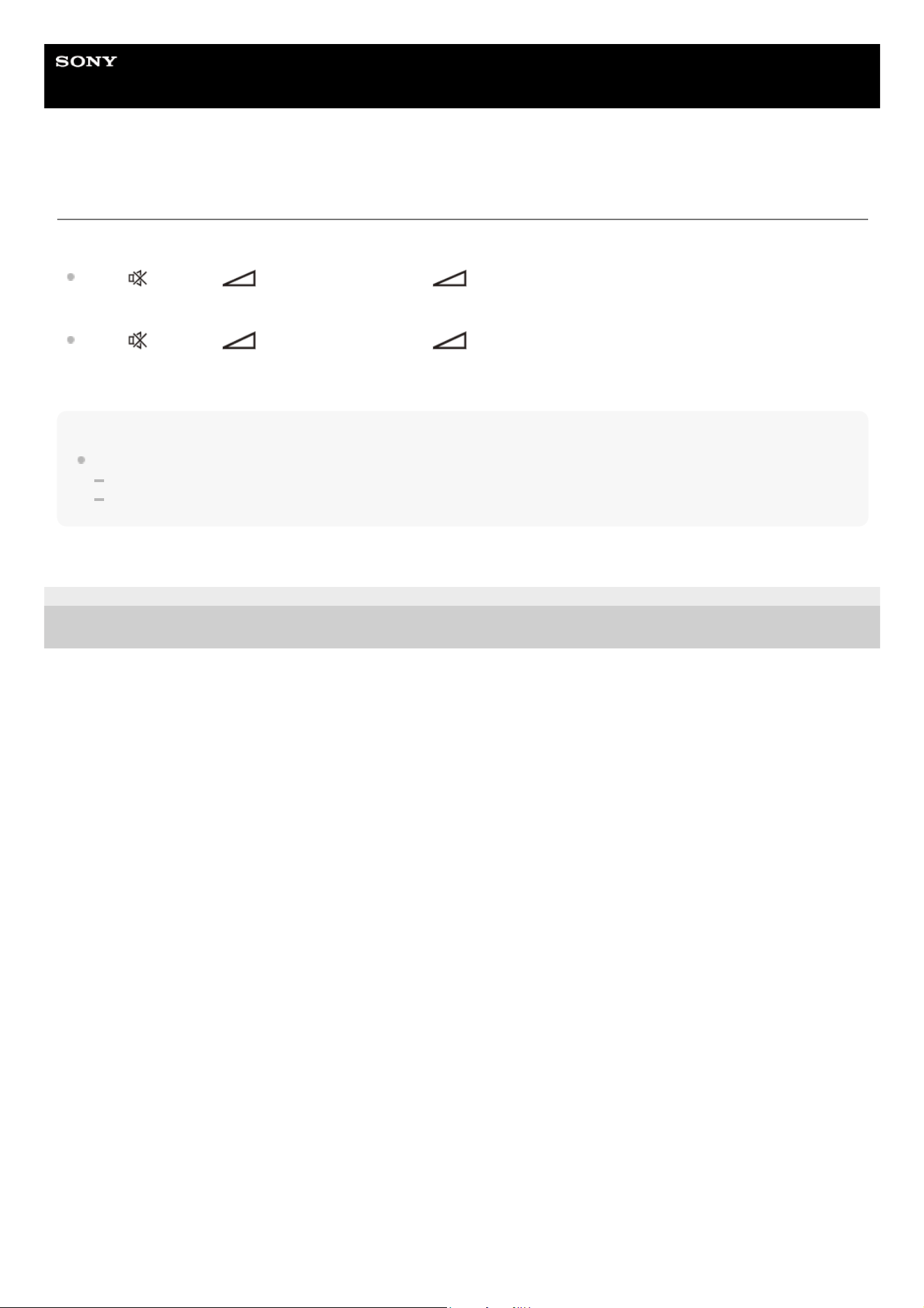
Press (Muting), (Volume) – (minus), and (Volume) + (plus) on the supplied remote control in this
order within 5 seconds to turn off the BLUETOOTH function. The sub status indicator on the bar speaker flashes
twice in white.
Press (Muting), (Volume) – (minus), and (Volume) + (plus) on the supplied remote control in this
order within 5 seconds to turn on the BLUETOOTH function. The sub status indicator on the bar speaker lights up
once longer in white.
Note
The following operations cannot be performed when the BLUETOOTH function is set to off:
Pairing and/or connecting with a BLUETOOTH device.
Using the “Sony | BRAVIA Connect” app.
TP1001686952
5-064-210-11(1) Copyright 2025 Sony Corporation
46
Help Guide
Sound Bar
BRAVIA Theatre Bar 6
Operating the Speaker System by Interlocking with a TV (Control for HDMI Function)
Speaker system controls such as power on/off or volume adjustment can be interlocked with a TV’s controls by using an
HDMI cable to connect the speaker system with a TV that is compatible with the Control for HDMI function.
About the Control for HDMI function
The Control for HDMI function is a function that interlocks devices that are connected using an HDMI (High-Definition
Multimedia Interface) cable so that these devices can be operated together.
Although this function is supported by devices that are compatible with the Control for HDMI function, it may not work if
devices other than those manufactured by Sony are connected.
Preparing to operate the speaker system by interlocking it with a TV
Enable the Control for HDMI function settings on the TV that is connected to the speaker system using an HDMI cable.
The Control for HDMI function setting on the speaker system is enabled by default.
Note
The TV needs to be compatible with the Control for HDMI function. For details, refer to the operating instructions of the TV.
Check the speaker settings on the TV. The speaker system power becomes synced with the speaker settings on the TV. For
details, refer to the operating instructions of the TV.
Depending on the TV, if sound was previously output from the speakers on the TV, the speaker system may not turn on through
interlocking with the TV power controls even when the TV is turned on.
Hint
If a device such as a Blu-ray Disc player is connected to a TV using an HDMI cable, enable the Control for HDMI function on the
device.
To enable the Control for HDMI function on a TV or Blu-ray Disc player, refer to its operating instructions.
If the Control for HDMI (“BRAVIA Sync”) function is enabled on a TV manufactured by Sony, the Control for HDMI function on the
speaker system is also automatically enabled.
The Control for HDMI function setting on the speaker system can be changed by accessing [Settings] - [HDMI Settings] - [Control
for HDMI] on the remote control screen on the app.
Performing power operation or volume adjustment by a TV remote control
When the TV is turned on/off or the volume is adjusted with the TV remote control, the speaker system power operation
or volume adjustment is interlocked.
47
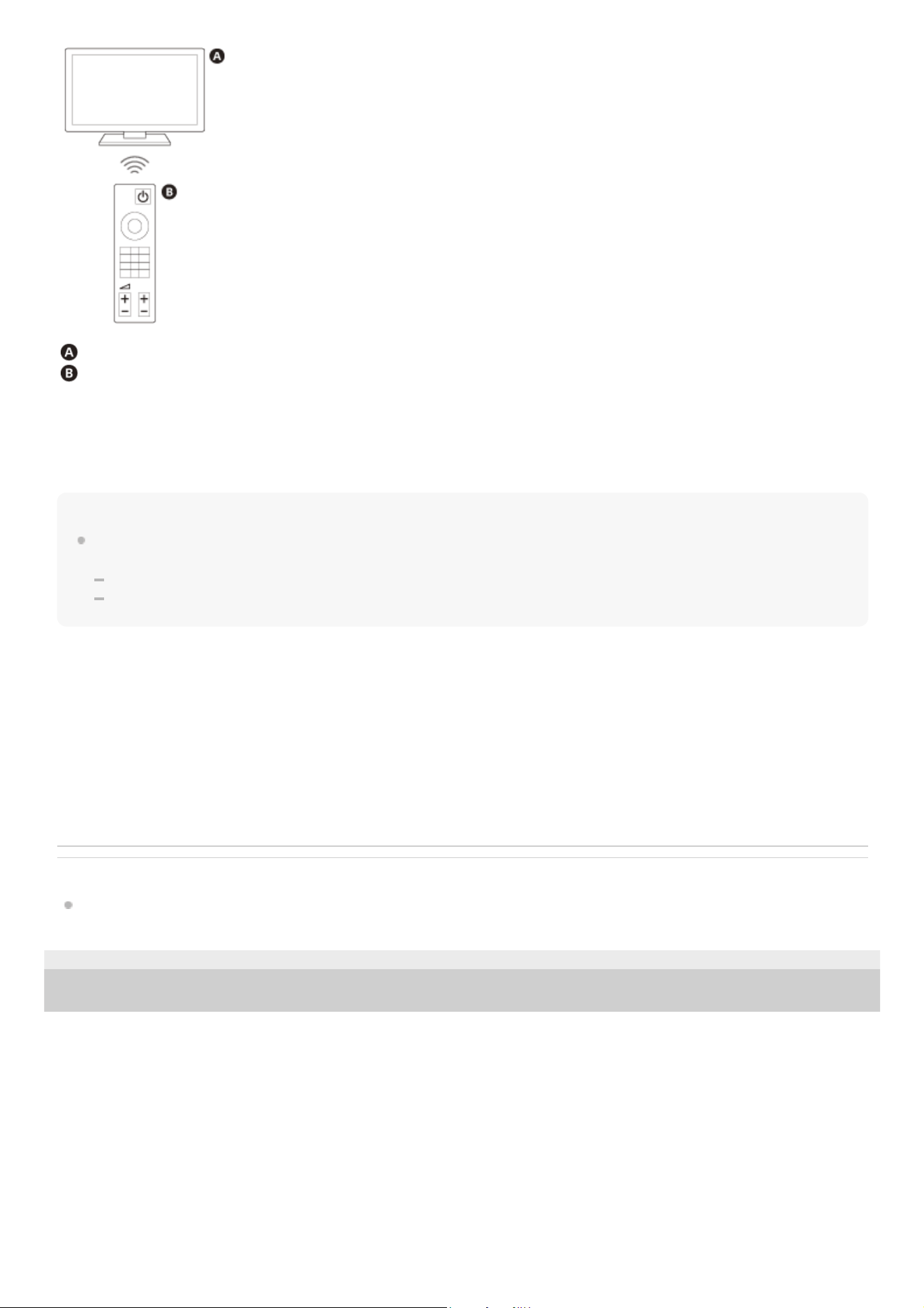
TV
TV remote control
Power interlocking
When the TV is turned on, the speaker system turns on automatically. When the TV is turned off, the speaker system
turns off automatically.
Note
If the speaker system is turned off before the TV is turned off, the speaker system may not turn on automatically even when the
TV is turned on next. If this occurs, perform the following operation.
Select the speaker system as the sound output device in the TV menu.
If a Sony TV is being used, turn on the speaker system while the TV is turned on.
Volume adjustment
The sound of the TV that you are watching is output from the speaker system automatically. The speaker system volume
can be adjusted with the TV remote control.
One-touch play function
The speaker system and TV automatically turn on when content is played on a Blu-ray Disc player connected to the TV
or when an operation such as the pressing of the PS button on a PlayStation®5 controller is performed.
Related Topic
[HDMI Settings]
TP1001686951
5-064-210-11(1) Copyright 2025 Sony Corporation
48
Help Guide
Sound Bar
BRAVIA Theatre Bar 6
Operating the Speaker System by Interlocking with a TV Compatible with the “BRAVIA
Sync” Function
“BRAVIA Sync” is an extended function that is developed by Sony based on the Control for HDMI function. By using an
HDMI cable to connect “BRAVIA Sync”-compatible devices such as a TV or a Blu-ray Disc player, the devices can be
interlocked with each other and controlled.
To use “BRAVIA Sync”
Enable the Control for HDMI function on the Sony device to enable “BRAVIA Sync.”
What you can do with “BRAVIA Sync”
Control for HDMI function
Power interlocking
Volume adjustment
One-touch play function
Related Topic
Operating the Speaker System by Interlocking with a TV (Control for HDMI Function)
[HDMI Settings]
TP1001686950
5-064-210-11(1) Copyright 2025 Sony Corporation
49

Help Guide
Sound Bar
BRAVIA Theatre Bar 6
[Wireless Speaker Settings]
These are the settings for the connection of the supplied subwoofer.
The following setting items appear by tapping [Settings] - [Wireless Speaker Settings] on the remote control screen on
the app.
Wireless speaker status check
Used to check the connection status of the speakers connected to the speaker system on the app screen.
[Start Manual Link]
Connects the bar speaker and subwoofer manually.
TP1001686944
5-064-210-11(1) Copyright 2025 Sony Corporation
50

Help Guide
Sound Bar
BRAVIA Theatre Bar 6
[Sound Settings]
These are the settings for audio output.
The following setting items appear by tapping [Settings] - [Sound Settings] on the remote control screen on the app.
[Speaker positioning and volume level settings]
Used to set the speaker distance from your listening position and their output level to obtain the best possible surround
sound.
[Sound Field Type]
To enjoy the effect of the selected sound field, turn on the sound field function on the supplied remote control or the
remote control screen on the app.
[Test Tone]
Used to check the sound output of the current settings and see whether sound is being output consistently from each
speaker.
[DSEE]
The speaker system enhances sound quality by restoring high-range sound of compressed sound sources.
[Audio DRC]
Compresses the dynamic range (range between the loudest and quietest parts) of the audio signal to make it easier to
hear softer sounds.
[DTS Dialog Control]
The volume of dialog is adjusted while content that is compatible with the DTS:X dialog control function is being played.
[A/V Sync]
Adjusts the delay between the picture and sound.
[Automatically adjust volume]
Reduces volume changes caused by the input signal. This function is effective when the volume of a TV commercial is
louder than that of the TV program.
Related Topic
Supplied Remote Control
Remote Control Screen on the App
Installing the Bar speaker and Subwoofer
51


Help Guide
Sound Bar
BRAVIA Theatre Bar 6
[HDMI Settings]
These are the settings for HDMI.
The following setting items appear by tapping [Settings] - [HDMI Settings] on the remote control screen on the app.
[Control for HDMI]
When the Control for HDMI function is enabled, devices that are connected using an HDMI cable are operated with each
other and receive ARC audio from the TV.
[eARC]
When a TV that is compatible with eARC is connected, enable this setting to enable the eARC function. When a TV that
is compatible with ARC (but not compatible with eARC) is connected, the ARC function works regardless of how this
function is set.
When eARC is enabled, check the eARC setting on the TV. For details, refer to the operating instructions of the TV.
[TV audio input mode]
You can select audio input from the TV.
TP1001686947
5-064-210-11(1) Copyright 2025 Sony Corporation
53
Help Guide
Sound Bar
BRAVIA Theatre Bar 6
[Bluetooth Settings]
This is the advanced setting for the BLUETOOTH function.
The following setting item appears by tapping [Settings] - [Bluetooth Settings] on the remote control screen on the app.
[Bluetooth Connection Quality]
Used to set the BLUETOOTH connection quality when playing audio from a BLUETOOTH device on the speaker system.
Related Topic
Setting the BLUETOOTH Function to On or Off
TP1001686946
5-064-210-11(1) Copyright 2025 Sony Corporation
54

Help Guide
Sound Bar
BRAVIA Theatre Bar 6
[System Settings]
These are the settings for the speaker system.
The following setting items appear by tapping [Settings] - [System Settings] on the remote control screen on the app.
[Auto Standby]
When the speaker system is not being operated and there is no signal input for about 20 minutes, the speaker system
automatically enters the network standby mode or standby mode.
[Bluetooth Standby]
The speaker system turns on automatically when connected to a BLUETOOTH device with a connection history. The
speaker system can also be turned on from the app.
On: After activating the [Auto Standby] function or turning off the speaker system, the speaker system enters the network
standby mode.
Off: After activating the [Auto Standby] function or turning off the speaker system, the speaker system enters the standby
mode.
Note
When [Bluetooth Standby] is set to [Off], it may take longer for audio to be output from the speaker system when the speaker
system is turned on.
[Dimmer]
Used to adjust the brightness of the indicators on the bar speaker and subwoofer.
[Unit Name]
Used to change the name of the speaker system that is displayed when a function such as the BLUETOOTH function is
being used.
[System Information]
Displays speaker system information such as the software version.
[Software License Information]
Displays the software license information.
TP1001686945
5-064-210-11(1) Copyright 2025 Sony Corporation
55

Help Guide
Sound Bar
BRAVIA Theatre Bar 6
Saving Power in Standby Mode
To reduce power consumption in standby mode, configure the settings as follows.
Access [Settings] - [System Settings] - [Bluetooth Standby] and set this to [Off] on the remote control screen on the
app.
Note
When [Bluetooth Standby] is set to [Off], it may take longer for audio to be output from the speaker system when the speaker
system is turned on.
TP1001687536
5-064-210-11(1) Copyright 2025 Sony Corporation
57
Help Guide
Sound Bar
BRAVIA Theatre Bar 6
Updating the Software
When new software is available, a notification will appear on the remote control screen on the app. Update software by
following the screen on the app.
Note
Before starting updating, check the following.
The subwoofer is turned on and connected to the bar speaker.
The BLUETOOTH function is turned on.
Hint
When software updates are available, we will also notify you on our support page. For the support page, see “Customer Support
Website.”
Related Topic
Indicators on the Bar Speaker
Indicator on the Subwoofer
Setting the BLUETOOTH Function to On or Off
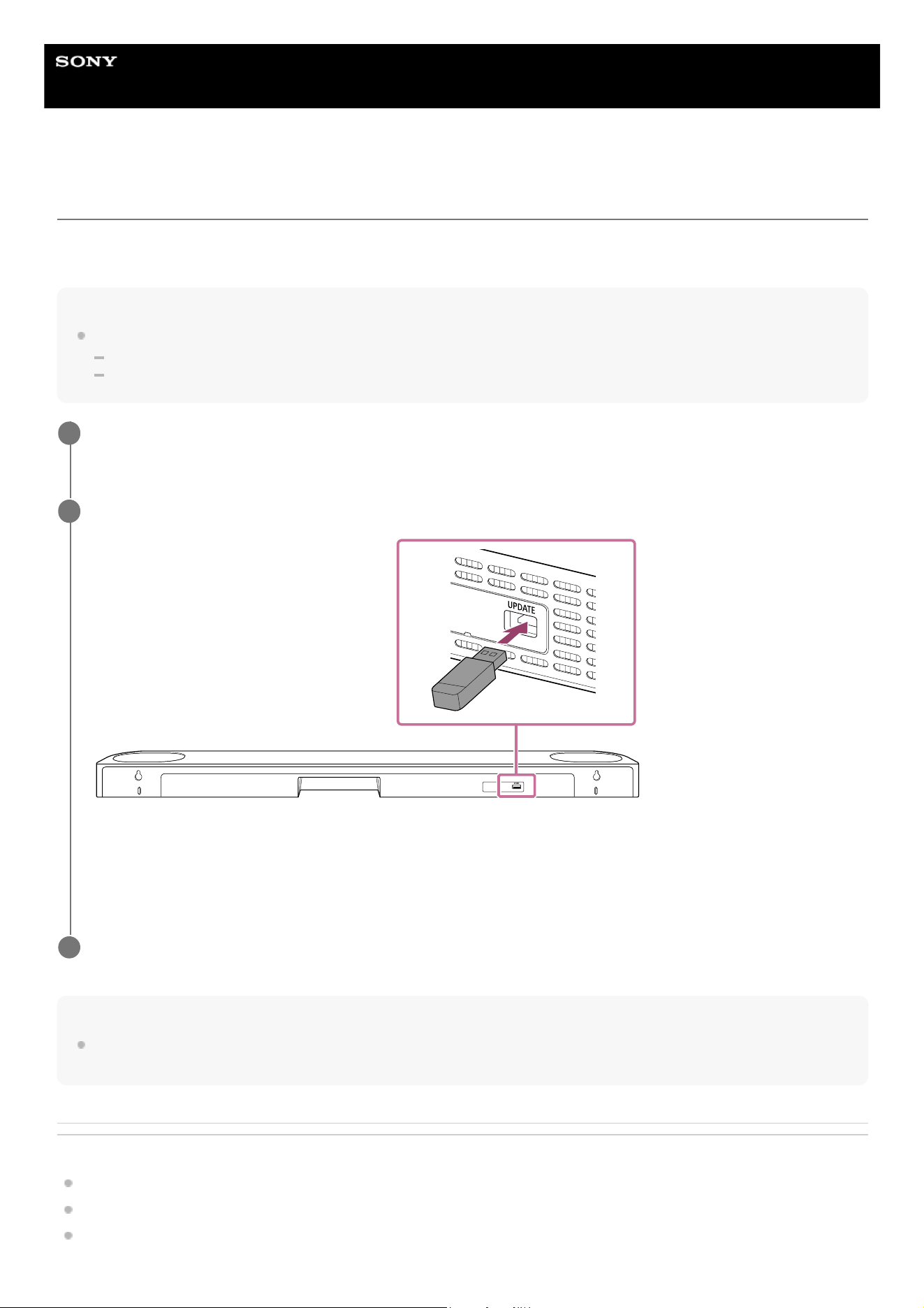
Access the support page by following the screen on the app and save the software update file to a USB
memory.
1
Connect the USB memory prepared in step 1 to the UPDATE port on the rear of the bar speaker.
Software updates will begin automatically.
During the update, the main status indicator on the bar speaker and the power indicator on the subwoofer flash
slowly, alternating between white and blue.
When the update is complete, the main status indicator on the bar speaker will flash in white every 2 seconds.
2
Remove the USB memory.
3
58

Help Guide
Sound Bar
BRAVIA Theatre Bar 6
Troubleshooting
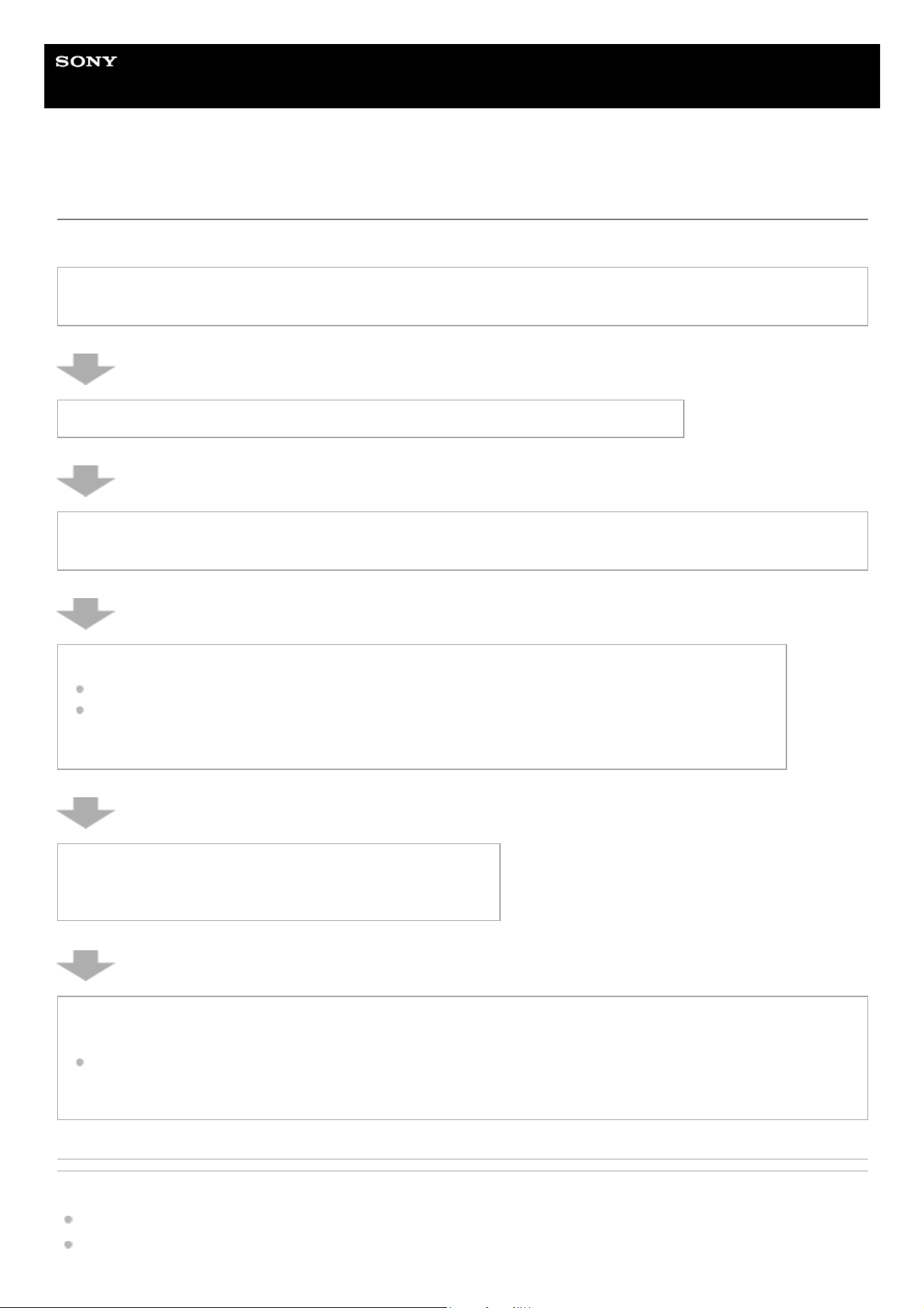
If you have any problems, please follow the process below.
Related Topic
Customer Support Website
Resetting the Speaker System
1. Check that the other devices connected to the speaker system and TV are connected to the correct jacks
with the correct cables, and that they are firmly inserted all the way to the back.
2. Check that the ventilation holes on the rear of the speaker system are not blocked.
3. Disconnect the AC power cord (mains lead) from the wall outlet (main) to turn off, and then wait several
minutes before reconnecting it.
4. Check for applicable problems and solutions by using one of the following methods.
Select Help from the menu on the “Sony | BRAVIA Connect” app for support information.
On the support page, select the model name of the speaker system and check the support information.
For the URL of the support page, see “Customer Support Website.”
5. Reset the speaker system.
All the speaker system settings are returned to their initial state.
6. If the speaker system still does not work properly, consult Sony support contact or your nearest Sony
dealer.
Sony support contact:
https://www.sony.net/support-contact
60

TP1001686943
5-064-210-11(1) Copyright 2025 Sony Corporation
61

Help Guide
Sound Bar
BRAVIA Theatre Bar 6
Customer Support Website
On the support page, you can find the following information.
See the support page for your country/region.
Questions & Answers
Latest Drivers and software update
Contact Support
Product Repair
Register Your Product
For customers in the USA, Canada and Latin America:
https://www.sony.com/am/support
For customers in Europe:
https://www.sony.eu/support/
For customers in Mainland China:
https://service.sony.com.cn/
For customers in Asia-Pacific, Oceania, the Middle East and Africa:
https://www.sony-asia.com/support
For customers in Japan:
https://www.sony.jp/support/
TP1001686935
5-064-210-11(1) Copyright 2025 Sony Corporation
62
Help Guide
Sound Bar
BRAVIA Theatre Bar 6
Resetting the Speaker System
If the speaker system still does not operate properly with “Troubleshooting,” reset the speaker system.
Resetting the bar speaker
Press and hold (power) on the bar speaker for more than 10 seconds.
The main status indicator on the bar speaker flashes in white/blue alternately and the reset starts. When the reset is
complete, the bar speaker turns on automatically and the main status indicator on the bar speaker lights in white.
Resetting the subwoofer
Press and hold LINK on the subwoofer for more than 10 seconds.
The power indicator on the subwoofer flashes in white/blue alternately and the reset starts. When the reset is complete,
the power indicator on the subwoofer will light in red.
If the bar speaker is turned on, the subwoofer will automatically connect to the bar speaker and the power indicator on
the subwoofer lights in white.
Note
If the bar speaker is reset while the bar speaker and subwoofer are connected, the subwoofer will be reset at the same time. To
reset the bar speaker only, turn off the subwoofer.
If the subwoofer is reset while the bar speaker and subwoofer are connected, the bar speaker will not be reset at the same time,
and only the subwoofer will be reset.
When the speaker system is reset, delete the pairing information for the speaker system (name of the speaker system (**),
LE_name of the speaker system) from the BLUETOOTH setting on the smartphone(*), etc. connected to the speaker system.
If you reset the speaker system, perform the initial setup on the app.
By resetting, the link with the bar speaker and subwoofer may be lost. In this case, reconnect them by pressing LINK on the rear
of the subwoofer.
Related Topic
Indicators on the Bar Speaker
Indicator on the Subwoofer
Performing Initial Setup with the “Sony | BRAVIA Connect” App
TP1001686942
5-064-210-11(1) Copyright 2025 Sony Corporation
Smartphones with the app installed, audio devices compatible with the BLUETOOTH function, etc.
*
BRAVIA Theatre Bar 6 or the device name that is set in [Unit Name].
**
63

Help Guide
Sound Bar
BRAVIA Theatre Bar 6
Specifications
Bar speaker (YY2088C1/ YY2092C1)
Front speaker section
Speaker
46 mm × 54 mm (1 13/16 in × 2 1/4 in) cone type
Speaker system
Acoustic suspension type
Center speaker section
Speaker
46 mm × 54 mm (1 13/16 in × 2 1/4 in) cone type
Speaker system
Acoustic suspension type
Top speaker section
Speaker
46 mm × 54 mm (1 13/16 in × 2 1/4 in) cone type
Speaker system
Acoustic suspension type
BLUETOOTH section
Output
BLUETOOTH Specification Power Class 1
Maximum communication range
Line of sight approx. 25 m (82.0 ft)*
Maximum number of devices to be registered
9 devices: BLUETOOTH Low Energy (Connection with Sony | BRAVIA Connect)
9 devices: BLUETOOTH Classic (A2DP)
Frequency band
2.4 GHz band (2.400 0 GHz - 2.483 5 GHz)
Modulation method
FHSS
Compatible BLUETOOTH profile*
A2DP (Advanced Audio Distribution Profile)
AVRCP (Audio Video Remote Control Profile)
Supported codec*
SBC (Subband Codec)
AAC (Advanced Audio Coding)
Corresponding content protection
SCMS-T
The actual range will vary depending on factors such as obstacles between devices, magnetic fields around a microwave oven, static electricity,
cordless phone use, reception sensitivity, the operating system, software applications, etc.
*
A BLUETOOTH profile standardizes functions according to the characteristics of BLUETOOTH devices.
*
Codec is an audio signal compression and conversion format
*
64

Transmission range (A2DP)
20 Hz - 20 000 Hz (Sampling frequency 44.1 kHz, 48 kHz)
USB section
(USB) port
Type A (For software update only)
HDMI section
Connector
Type A (19pin)
General
Input
TV IN (OPTICAL)
Output
HDMI OUT (TV (eARC/ARC))
Power consumption
On: 35 W
Network standby mode ([Bluetooth Standby] is set to ON): 2.0 W or less
Standby mode ([Bluetooth Standby] is set to OFF): 0.5 W or less
When the [Auto Standby] function is enabled, if the product is not being operated and there is no signal input for about 20
minutes, the bar speaker automatically enters the network standby mode or standby mode.
Disabling the [Auto Standby] function will increase the power consumption of this product.
Dimensions* (W x H x D)
Bar speaker:
Approx. 950 mm × 64 mm × 110 mm (37 1/2 in × 2 5/8 in × 4 3/8 in)
Bar speaker with the Foot:
Approx. 950 mm × 77 mm × 110 mm (37 1/2 in × 3 1/8 in × 4 3/8 in)
Mass
Bar speaker:
Approx. 3.1 kg (6 lb 14 oz)
Bar speaker with the Foot:
Approx. 3.1 kg (6 lb 14 oz)
Subwoofer (YY2088C2/ YY2092C2)
Speaker section
Speaker
160 mm (6 3/8 in) cone type
Speaker system
Subwoofer speaker system bass reflex type
General
Power consumption
On: 20 W
Network standby mode (power indicator is lit in red): 2.0 W or less
Turned off (power indicator is off): 0.3 W or less*
When the [Auto Standby] function is enabled, if the product is not being operated and there is no signal input for about 20
minutes, the subwoofer automatically enters the network standby mode.
Disabling the [Auto Standby] function will increase the power consumption of this product.
Not including projection portion
*
When you press and hold the LINK for 2 seconds or more and then release your finger, the speaker shifts to the power off mode and the power
indicator is turned off. Press the LINK to use the speaker again.
*
65

Dimensions* (W x H x D)
Approx. 210 mm × 388 mm × 388 mm (8 3/8 in × 15 3/8 in × 15 3/8 in)
Mass
Approx. 7.7 kg (16 lb 16 oz)
Wireless transmitter/receiver section
Frequency band
2.4 GHz band (2.400 0 GHz - 2.483 5 GHz)
Modulation method
GSFK
Note
Design and specifications are subject to change without notice.
Refer to the Reference Guide included with your product, which may contain specification information not listed above.
TP1001686941
5-064-210-11(1) Copyright 2025 Sony Corporation
Not including projection portion
*
66
Help Guide
Sound Bar
BRAVIA Theatre Bar 6
Supported Audio Formats
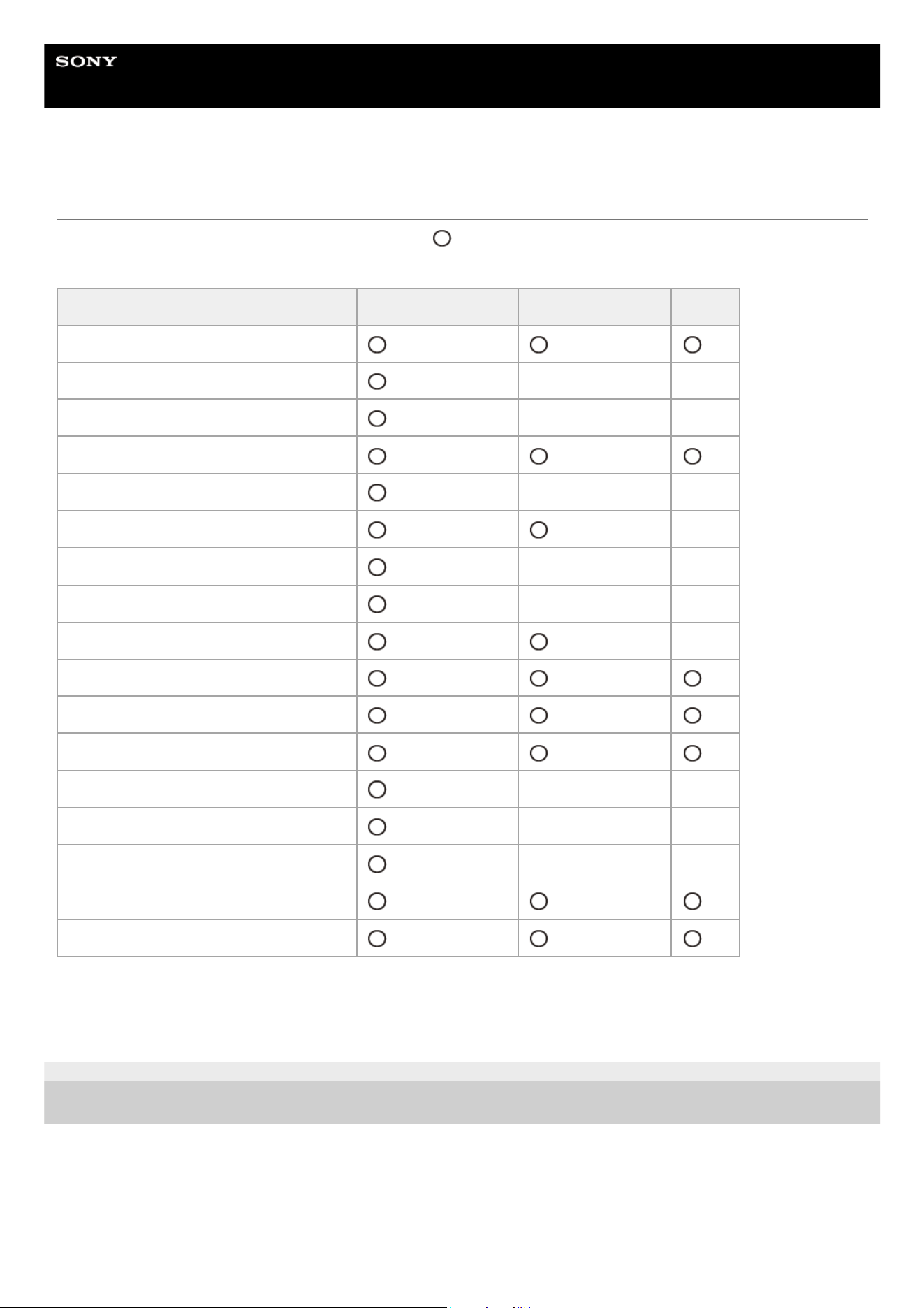
Supported audio formats differ depending on the port. “ ” indicates the supported audio format and “–” indicates the
unsupported audio format in the table below.
TP1001686939
5-064-210-11(1) Copyright 2025 Sony Corporation
Format HDMI output (eARC) HDMI output (ARC) Optical
LPCM 2ch
LPCM 5.1ch – –
LPCM 7.1ch – –
Dolby Digital
Dolby TrueHD – –
Dolby Digital Plus –
Dolby Atmos – –
Dolby Atmos - Dolby TrueHD – –
Dolby Atmos - Dolby Digital Plus –
DTS
DTS-ES Discrete 6.1, DTS-ES Matrix 6.1
DTS 96/24
DTS-HD High Resolution Audio – –
DTS-HD Master Audio – –
DTS:X – –
MPEG-2 AAC*
MPEG-4 AAC*
Not supported in some countries/regions.
*
67

Help Guide
Sound Bar
BRAVIA Theatre Bar 6
Trademarks
The BLUETOOTH® word mark and logos are registered trademarks owned by Bluetooth SIG, Inc. and any use of such
marks by Sony Group Corporation and its subsidiaries is under license.
The terms HDMI™, HDMI High-Definition Multimedia Interface, HDMI Trade dress and the HDMI Logos are trademarks
or registered trademarks of HDMI Licensing Administrator, Inc.
“BRAVIA” and “BRAVIA Sync” are a registered trademark or a trademark of Sony Group Corporation or its affiliates.
“PlayStation” is a registered trademark or trademark of Sony Interactive Entertainment Inc.
All other trademarks and registered trademarks are trademarks or registered trademarks of their respective holders. In
this manual, ™ and ® marks are not specified.
TP1001686938
5-064-210-11(1) Copyright 2025 Sony Corporation
68

Help Guide
Sound Bar
BRAVIA Theatre Bar 6
Licenses
This product contains software that Sony uses under a licensing agreement with the owner of its copyright. We are
obligated to announce the contents of the agreement to customers under requirement by the owner of copyright for the
software. Please access the following URL and read the contents of the license.
https://rd1.sony.net/help/ht/sl/25/
The software included in this product contains copyrighted software that is licensed under the GPL/LGPL and other
licenses which may require access to source code. You may find a copy of the relevant source code as required under
the GPL/LGPL (and other licenses) at the following URL. You may obtain the source code as required by the GPL/LGPL
on a physical medium from us for a period of three years after our last shipment of this product by applying through the
form at the following URL. This offer is valid to anyone in receipt of this information.
https://oss.sony.net/Products/Linux/
Please note that Sony cannot answer or respond to any inquiries regarding the content of this source code.
Dolby, Dolby Atmos, and the double-D symbol are registered trademarks of Dolby Laboratories Licensing Corporation.
Manufactured under license from Dolby Laboratories. Confidential unpublished works. Copyright © 2012–2024 Dolby
Laboratories. All rights reserved.
For DTS patents, see http://patents.dts.com. Manufactured under license from DTS, Inc. or DTS Licensing Limited. DTS,
DTS:X, and the DTS:X logo are registered trademarks or trademarks of DTS, Inc. in the United States and other
countries. © 2021 DTS, Inc. ALL RIGHTS RESERVED.
Network services, content and the (operating system and) software of this product may be subject to individual terms and
conditions and changed, interrupted or discontinued at any time and may require fees, registration and credit card
information.
TP1001686937
5-064-210-11(1) Copyright 2025 Sony Corporation
69

Help Guide
Sound Bar
BRAVIA Theatre Bar 6
Notes on Use
Precautions
The supplied AC power cord (mains lead) is designed exclusively for this speaker system. It should not be used with
any other device.
Unplug the AC power cord (mains lead) from the AC outlet (mains) when the speaker system is not being used for
long periods of time. When unplugging the AC power cord (mains lead) from the AC outlet (mains), always unplug it
by holding the plug. Never pull the cord itself.
If the AC power cord (mains lead) is damaged, contact Sony support or the store you purchased the product from for
a replacement.
On placement
Do not place the speaker system near heat sources or in a location subject to direct sunlight, excessive dust, or
mechanical shock. These conditions may cause malfunction.
Place this speaker system on a flat, level surface. When placed on a sloped surface, the speaker system may fall
over or fall off the surface due to its own vibration, resulting in injuries, malfunctions, or performance degradation.
Placing the speaker system on a floor that is coated with special paint, wax, grease, or solvent, etc. may result in
discoloration or stains on the floor.
The speakers of the speaker system are not the magnetically shielded type. Do not place magnetic cards on the
speaker system or near it.
Do not place metal objects other than a TV around the speaker system. Wireless functions may become unstable.
When the speaker system is used with a tuner, TV, or VCR, noise or distorted images may be produced. In this case,
install the speaker system away from these devices.
Do not place the speaker system near objects that emit a strong magnetic field, such as microwave ovens or large
speakers.
How to care for the speaker system
You can use the speaker system more comfortably and for a longer period of time by following the maintenance
procedure below.
Clean the speaker system with a soft cloth slightly moistened with neutral detergent. Do not use any type of
abrasive pad, scouring powder, or solvent such as alcohol or benzine.
On BLUETOOTH communications
BLUETOOTH wireless technology is a short-range wireless technology that enables communication between digital
devices, such as smartphones and computers. The maximum communication range may vary depending on the
presence of obstacles (people, metal objects, walls, etc.) or the electromagnetic environment.
Microwaves that are generated by a BLUETOOTH device may affect the operation of electronic medical devices.
Turn off the speaker system and other BLUETOOTH devices in the following locations, as it may cause an accident:
In hospitals, near priority seating on trains, locations where inflammable gas is present, near automatic doors, or
near fire alarms.
The speaker system supports security functions that comply with the BLUETOOTH security standard during
communication using BLUETOOTH wireless technology. However, depending on the configured settings and other
factors, this security may be insufficient. Be careful when using BLUETOOTH communication.
Sony shall assume no responsibility for any damages or loss resulting from data leaks that may occur when using
BLUETOOTH communications.
70
BLUETOOTH connection is not guaranteed to work with all BLUETOOTH devices.
BLUETOOTH devices being connected with the speaker system must comply with the BLUETOOTH standard
prescribed by Bluetooth SIG, Inc. and must be certified as compliant.
Even when a connected device complies with the above BLUETOOTH standard, depending on the characteristics
and specifications of the device, it may not be able to connect, or the operation method, display, or operation may
differ.
Noise may occur or the audio may cut out depending on the BLUETOOTH device that is connected with the speaker
system, the communications environment, or surrounding conditions.
Depending on the connected device, it may take some time for communications to start.
Other notes
The temperature of the speaker system may rise during use. This is not a malfunction.
If the ventilation holes on the speaker system are blocked, the temperature inside the speaker system will rise
considerably. This may cause malfunction. Ensure that the ventilation holes are never blocked.
Do not insert foreign objects from the opening of the speaker unit.
Be careful not to splash water onto this product and the supplied accessories. Those are not waterproof.
If a foreign object or water gets into the speaker system, turn off the speaker system immediately, unplug the speaker
system from the AC outlet (mains), and consult with Sony support or the store you purchased the product from.
If you have any questions or problems concerning this speaker system, consult with Sony support or the store you
purchased the product from.
Related Topic
Troubleshooting
Customer Support Website
TP1001686936
5-064-210-11(1) Copyright 2025 Sony Corporation
71