
User Guide

© Copyright 2016 HP Development Company,
L.P.
Windows is either a registered trademark or
trademark of Microsoft Corporation in the
United States and/or other countries.
For DTS patents, see http://patents.dts.com.
Manufactured under license from DTS
Licensing Limited. DTS, the Symbol, & DTS and
the Symbol together are registered
trademarks, and DTS Studio Sound is a
trademark of DTS, Inc. © DTS, Inc. All Rights
Reserved .
The information contained herein is subject to
change without notice. The only warranties for
HP products and services are set forth in the
express warranty statements accompanying
such products and services. Nothing herein
should be construed as constituting an
additional warranty. HP shall not be liable for
technical or editorial errors or omissions
contained herein.
First Edition: July 2016
Document Part Number: 903663-001
Product notice
This guide describes features that are common
to most products. Some features may not be
available on your computer.
Not all features are available in all editions or
versions of Windows. Systems may require
upgraded and/or separately purchased
hardware, drivers, software, or BIOS update to
take full advantage of Windows functionality.
Go to http://www.microsoft.com for details.
To access the latest user guides or manuals for
your product, go to http://www.hp.com/
support, and select your country. Select Find
your product, and then follow the on-screen
instructions.
Software terms
By installing, copying, downloading, or
otherwise using any software product
preinstalled on this computer, you agree to be
bound by the terms of the HP End User License
Agreement (EULA). If you do not accept these
license terms, your sole remedy is to return the
entire unused product (hardware and software)
within 14 days for a full refund subject to the
refund policy of your seller.
For any further information or to request a full
refund of the price of the computer, please
contact your seller.

Safety warning notice
WARNING! To reduce the possibility of heat-related injuries or of overheating the computer, do not place the
computer directly on your lap or obstruct the computer air vents. Use the computer only on a hard, at
surface. Do not allow another hard surface, such as an adjoining optional printer, or a soft surface, such as
pillows or rugs or clothing, to block airow. Also, do not allow the AC adapter to come into contact with the
skin or a soft surface, such as pillows or rugs or clothing, during operation. The computer and the AC adapter
comply with the user-accessible surface temperature limits dened by the International Standard for Safety
of Information Technology Equipment (IEC 60950-1).
iii

iv Safety warning notice

Table of contents
1 Getting information ....................................................................................................................................... 1
2 Setting up your computer ............................................................................................................................... 3
Connecting to the Internet (select products only) ................................................................................................ 4
Shutting down (turning o) the computer ............................................................................................................ 5
3 Navigating the screen .................................................................................................................................... 6
Using touch gestures ............................................................................................................................................. 6
Using the keyboard and mouse ............................................................................................................................. 6
4 Protecting your computer .............................................................................................................................. 8
Computer security features ................................................................................................................................... 8
5 Troubleshooting ............................................................................................................................................ 9
Computer does not start ........................................................................................................................................ 9
Power ................................................................................................................................................................... 10
Display (monitor) ................................................................................................................................................. 10
Keyboard and mouse (with cable) ....................................................................................................................... 10
Keyboard and mouse (wireless) .......................................................................................................................... 11
Speakers and sound ............................................................................................................................................. 12
Internet access ..................................................................................................................................................... 12
Software troubleshooting ................................................................................................................................... 13
6 System recovery .......................................................................................................................................... 15
Choosing a system recovery method .................................................................................................................. 15
System Recovery options .................................................................................................................................... 15
Recovery media ................................................................................................................................................... 17
7 Maintenance ............................................................................................................................................... 19
Schedules and tasks ............................................................................................................................................ 19
Keeping the computer free of dust, dirt, and heat .............................................................................................. 19
Cleaning the computer and monitor ................................................................................................................... 20
Cleaning the computer vents ............................................................................................................................... 20
Cleaning the keyboard and mouse ...................................................................................................................... 20
Cleaning the touch screen (select models only) .................................................................................................. 20
v

8 Using HP PC Hardware Diagnostics (UEFI) ....................................................................................................... 22
Downloading HP PC Hardware Diagnostics (UEFI) to a USB device .................................................................... 22
9 Specications .............................................................................................................................................. 24
Operating specications ...................................................................................................................................... 24
10 Electrostatic Discharge .............................................................................................................................. 25
11 Accessibility .............................................................................................................................................. 26
Supported assistive technologies ....................................................................................................................... 26
Contacting support .............................................................................................................................................. 26
Index ............................................................................................................................................................. 27
vi

1 Getting information
Tasks Instructions
●
Set up your computer Setup Instructions or Quick Setup poster
– or –
See Setting up your computer on page 3.
●
Connect to the Internet See Connecting to the Internet (select products only) on page 4.
●
Recover factory settings See System recovery on page 15.
●
See how-to videos about using the
features of your computer
Go to http://www.hp.com/supportvideos (English only).
●
Learn how to use the Windows® operating
system
●
Find Windows password information
●
Find links to driver updates
●
Read frequently asked questions
▲ Select Start, and then select Help and Support.
●
Troubleshoot the most common
computer hardware and software issues
See Troubleshooting on page 9.
●
Find electronic user guides and
specications for your computer model
To access the latest user guides or manuals for your product, go to http://www.hp.com/support,
and select your country. Select Find your product, and then follow the on-screen instructions.
●
Order parts and nd additional
troubleshooting help
●
Upgrade or replace components of your
computer
●
Connect to a TV (select products only)
For HP support, go to http://www.hp.com/support.
●
Get up-to-date information and help from
the Windows community
Go to http://www.hp.com/support/consumer-forum.
●
Maintain your computer HP Support Assistant maintains your computer performance and resolves problems quickly by
using automated updates, diagnostic tools, and guided assistance.
▲ To access HP Help and Support, select Start, select All Programs, and then select HP Help
and Support.
– or –
See Maintenance on page 19.
●
Find safety and regulatory notices Regulatory, Safety, and Environmental Notices
To access the user guide, select Start, select All Programs, select HP Help and Support, and then
select HP Documentation.
●
Find ergonomic information Safety & Comfort Guide
To access the user guide, select Start, select All Programs, select HP Help and Support, and then
select HP Documentation.
1

Tasks Instructions
– or –
Go to http://www.hp.com/ergo.
●
Find computer warranty information Limited Warranty*
To access the Limited Warranty, select Start, select All Programs, select HP Help and Support,
select HP Documentation, and then select View Warranty Information.
– or –
Go to http://www.hp.com/go/orderdocuments.
*You can nd your HP Limited Warranty located with the user guides on your product and/or on the CD or DVD provided in the box. In some countries
or regions, HP may provide a printed warranty in the box. For countries or regions where the warranty is not provided in printed format, you can
request a copy from http://www.hp.com/go/orderdocuments. For products purchased in Asia Pacic, you can write to HP at POD, PO Box 161,
Kitchener Road Post Oice, Singapore 912006. Include your product name, and your name, phone number, and postal address.
2 Chapter 1 Getting information

2 Setting up your computer
WARNING! To reduce the risk of electrical shock or damage to your equipment:
●
Place the computer in a location away from water, dust, moisture, and soot. These environmental
factors can increase the temperature inside your computer or cause re or electrocution.
●
Do not disable the power cord grounding pin. The grounding pin is an important safety feature.
●
Plug the power cord into an AC outlet that is easily accessible at all times.
●
Disconnect power from the equipment by unplugging the power cord from the AC outlet. To prevent
direct exposure to the laser beam, do not try to open the enclosure of the CD or DVD drive.
●
The power supply is preset for the country or region in which you purchased your computer. If you move,
check the voltage requirements for your new location before plugging the computer into an AC outlet.
To reduce the risk of serious injury read the Safety & Comfort Guide. To access this guide, go to
http://www.hp.com/ergo.
1. Place the computer so that all ventilation openings are unobstructed and cabling is not in a walkway or
where it can be stepped on or damaged by placing furniture on it.
2. When connecting all power cords from the monitor, computer, and accessories to an uninterruptible
power supply (UPS), it is recommended that you use a power surge protection detection device. If the
computer has a television tuner, or a modem or telephone connection, protect the computer by using
surge protection with these signal inputs as well. Connect the television cable or the telephone line cord
to the surge protection device, and then connect the device to the computer.
3. Download and install operating system updates.
a. Find out what operating system and version your computer is currently running.
Select Start, type system in the search eld, and then select System Information.
b. Open your internet browser, and then go to http://www.hp.com/support.
c. If necessary, select your country and language, and then select Get software and drivers.
d. Enter your computer model name and number in the entry eld, and then select Find my product.
e. Select your computer operating system.
f. Select Download next to each update you wish to download.
g. Follow the on-screen instructions to install each downloaded update.
4. Look in the computer box for additional printed details or updates.
After you complete the initial computer setup, you might want to install additional hardware devices or
software. Check the operating system, memory, and other requirements listed for these items before
purchasing them for your computer. Follow the software manufacturer's directions to install the new
software.
NOTE: Use only licensed original software. Installing copied software could result in an unstable
installation, infect the computer with a virus, or be illegal.
NOTE: A security solution is designed as a deterrent, but it might not be able to prevent theft, mishandling,
or software attacks.
3

Connecting to the Internet (select products only)
To connect to a wireless network:
NOTE: To set up a wireless local area network (WLAN) and connect to the Internet, you need a broadband
modem (either DSL or cable) (purchased separately), high-speed Internet service purchased from an Internet
service provider, and a wireless router (purchased separately).
1. Be sure that the WLAN device is on.
2. Select the network status icon in the taskbar, and then connect to one of the available networks.
If the WLAN is a security-enabled WLAN, you are prompted to enter a security code. Enter the code, and
then select Next to complete the connection.
NOTE: If no WLANs are listed, you may be out of range of a wireless router or access point.
NOTE: If you do not see the WLAN you want to connect to, right-click or double-tap the network status
icon in the taskbar, and then select Open Network and Sharing Center. Select Set up a new connection
or network. A list of options is displayed, allowing you to manually search for and connect to a network
or to create a new network connection.
3. Follow the on-screen instructions to complete the connection.
After the connection is made, select the network status icon in the notication area, at the far right of the
taskbar, to verify the name and status of the connection.
To connect to a wired network:
1. Plug an 8-pin, RJ-45 (network) cable into the network jack on the computer.
2. Plug the other end of the network cable into a network wall jack or router.
NOTE: If the network cable contains noise suppression circuitry, which prevents interference from TV
and radio reception, orient the circuitry end of the cable toward the computer.
If you have issues connecting to the Internet, see Internet access on page 12.
4 Chapter 2 Setting up your computer

Shutting down (turning o) the computer
CAUTION: Unsaved information is lost when the computer shuts down. Be sure to save your work before
shutting down the computer.
The Shut down command closes all open programs, including the operating system, and then turns o the
display and computer.
Shut down the computer under any of the following conditions:
●
When you need to access components inside the computer
●
When you are connecting an external hardware device that does not connect to a USB or video port or to
a headphone or microphone jack
●
When the computer will be unused and disconnected from external power for an extended period
Although you can turn o the computer with the power button, the recommended procedure is to use the
Windows Shut down command.
NOTE: If the computer is in the Sleep state or in Hibernation, rst exit Sleep or Hibernation by briey
pressing the power button.
1. Save your work and close all open programs.
2. Select the Start button, and then select Shut down.
Shutting down (turning o) the computer 5

3 Navigating the screen
You can navigate the computer screen in the following ways:
●
Using touch gestures (select products only)
●
Using the keyboard and mouse
Select computer models have special action keys or hot key functions on the keyboard to perform routine
tasks.
Using touch gestures
You can customize the touch gestures by changing settings, button congurations, click speed, and pointer
options.
Type control panel in the taskbar search box, and then select Control Panel. Select Hardware and
Sound
. Under Devices and Printers, select Mouse.
NOTE: Touch gestures are not supported in all apps.
Using the keyboard and mouse
The keyboard and mouse allow you to type, select items, scroll and to perform the same functions as you do
using touch gestures. The keyboard also allows you to use action keys and hot keys to perform specic
functions.
NOTE: Depending on the country or region, the keys and keyboard functions of your keyboard may be
dierent from those discussed in this section.
Using the action keys or hot keys
You can quickly access information or perform functions by using certain keys and key combinations.
●
Action keys—Perform an assigned function. The icons on the function keys at the top of the keyboard
illustrate the assigned function for that key.
To use an action key function, press and hold the key.
●
Hot keys—A combination of the Fn key and the Esc key, the spacebar, or the appropriate action key.
To use a hot key, briey press the Fn key, and then briey press the second key of the combination.
Depending on the computer model, your keyboard may support the following keys.
Icon
Description
Opens Search.
Plays the previous track of an audio CD or the previous section of a DVD or a BD.
6 Chapter 3 Navigating the screen
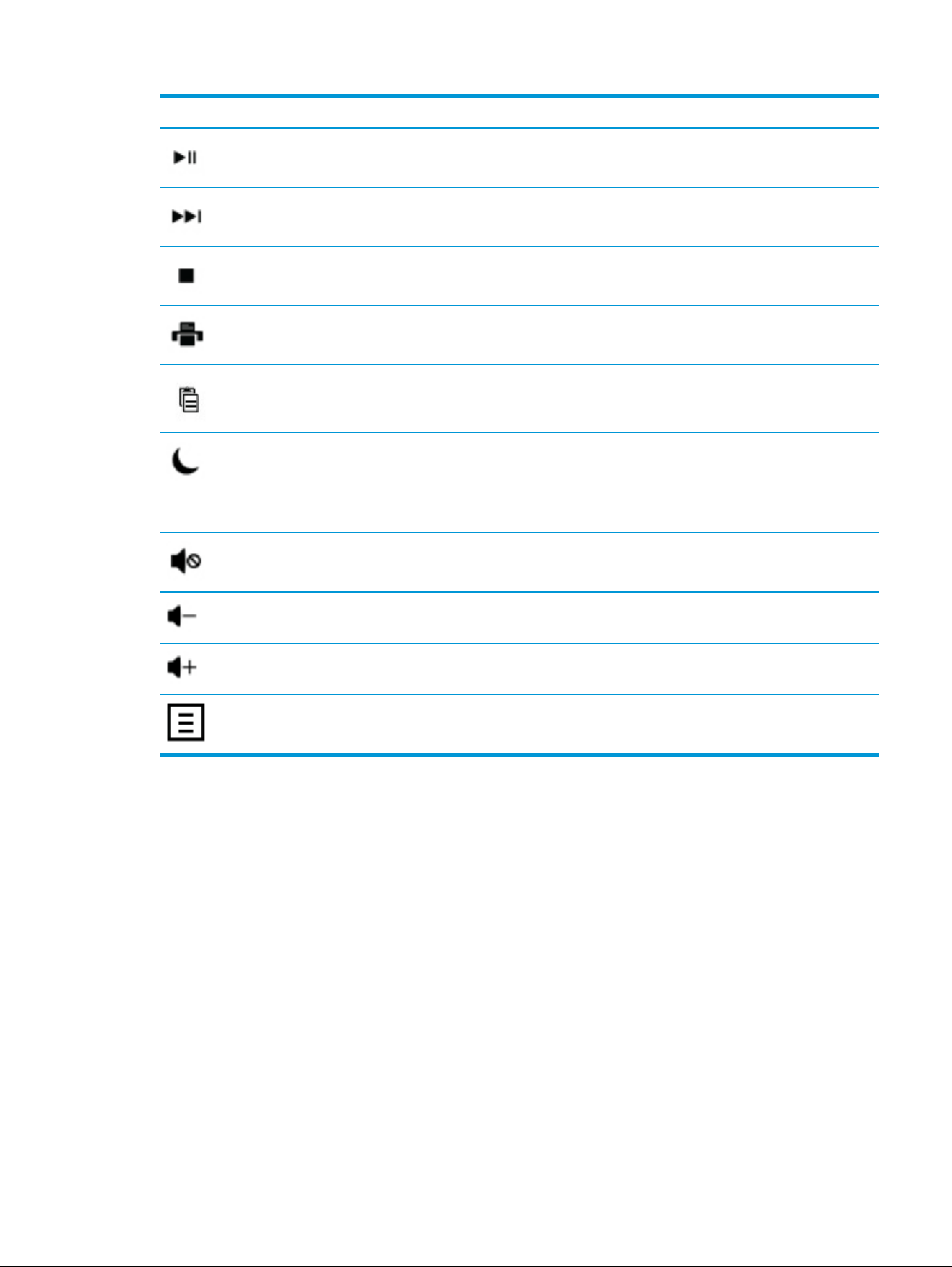
Icon Description
Begins, pauses, or resumes playback of an audio CD, a DVD, or a BD.
Plays the next track of an audio CD or the next section of a DVD or a BD.
Stops audio or video playback of an audio CD, a DVD, or a BD.
Opens the Print Options window.
Pastes the contents of the Clipboard.
Initiates Sleep, which saves your information in system memory. The display and other system components
turn o and power is conserved.
To exit Sleep, briey press the power button.
CAUTION: To reduce the risk of information loss, save your work before initiating Sleep.
Mutes or restores speaker sound.
Decreases speaker volume incrementally as long as you hold down the key.
Increases speaker volume incrementally as long as you hold down the key.
Displays options for a selected object.
Using the keyboard and mouse 7

4 Protecting your computer
Your computer contains features that help protect the integrity of your system and its data from
unauthorized access. Review these features to ensure proper use.
Computer security features
Computer risk Computer feature
Unauthorized use of the computer or
user account
User password
A password is a group of characters that you choose to secure computer information.
Unauthorized access to Setup Utility,
BIOS settings, and other system
identication information
Administrator password
Computer viruses Antivirus software
The free trial antivirus software that is preinstalled on your computer can detect most viruses, remove
them, and, in most cases, repair damage caused by viruses. For protection against new viruses beyond the
trial period, purchase an extended update service.
Unauthorized access to data and
ongoing threats to the computer
Firewall software
●
Windows 7 includes rewall software preinstalled on the computer.
●
The antivirus software, which is preinstalled on the computer, includes rewall software.
Windows 7 critical security updates
Microsoft continually updates the Windows 7 operating system.
8 Chapter 4 Protecting your computer

5 Troubleshooting
Refer to the documentation provided by the product manufacturer for information about peripheral-specic
problems, such as issues with a monitor or a printer. The following tables present some issues you might
encounter while installing, starting up, or using your computer and possible solutions.
For more information or for additional troubleshooting options, see the Quick Setup Guide that accompanies
your computer, or visit http://www.hp.com/support and search for your computer model.
Computer does not start
Symptom Possible solution
Error message: Hard
disk drive error.
Restart the computer.
1. Press the Ctrl+Alt+Delete keys on the keyboard simultaneously.
2. Select the Arrow button next to the red Shut Down button, and then select Restart.
Or, press and hold the Power button on the computer for 5 or more seconds to turn o the computer, and then press
the Power button to restart the computer.
3. If Windows opens, immediately back up all important data to a backup hard disk drive.
4. Contact Support, whether it was possible or not to start up Windows.
Either the hard disk drive or the system board may need to be replaced.
Computer will not turn
on or start.
Ensure that the cables connecting the computer to the external power source are plugged in properly. When the cables
connecting the computer to the external power source are plugged in properly, and the wall outlet is functioning, the green
power supply light on the back of the computer should be on; if it is not, contact Support.
If the display (monitor) is blank, the monitor might not be properly connected. Connect the monitor to the computer, plug it
in, and turn it on. See Display (monitor) on page 10.
Test the wall outlet by connecting a dierent electrical device to it.
Computer seems to be
locked up and is not
responding.
Use the Windows Task Manager to close any programs not responding, or restart the computer:
1. Press the Ctrl+Alt+Delete keys on the keyboard simultaneously.
2. Select Start Task Manager.
3. Select the program that is not responding, and then select End Task.
If closing programs does not work, restart the computer:
1. Press the Ctrl+Alt+Delete keys on the keyboard simultaneously.
2. Select the Arrow button next to the red Shut Down button, and then select Restart.
Or, press and hold the Power button on the computer for 5 or more seconds to turn o the computer, and then press
the Power button to restart the computer.
Error message: Invalid
system disk or Non-
System disk or Disk
error.
When drive activity stops, remove the disc and press the spacebar on the keyboard. The computer should start up.
Computer does not start 9

Power
Symptom Possible solution
Computer does not
turn o when the
Power button is
pressed.
Press and hold the Power button until the computer turns o. Check Power Settings.
Computer shuts down
automatically.
●
The computer might be in an exceedingly hot environment. Let it cool down.
●
Ensure that computer air vents are not blocked and that the internal fan is running — see Keeping the computer free
of dust, dirt, and heat on page 19 (Your computer might not have an internal fan.)
Display (monitor)
Symptom Possible solution
Screen is blank, and
monitor power light is not
lit.
Reconnect the power plug to the back of the monitor and to the wall outlet.
Press the Power button on the monitor.
Screen is blank. Press the Space bar on the keyboard or move the mouse to make the screen display visible again.
Press the Sleep button (select models only), or Esc on the keyboard, to resume from Sleep mode.
Press the Power button to turn on the computer.
Inspect the monitor video connector for bent pins:
●
If any of the pins are bent, replace the monitor connector cable.
●
If no pins are bent, reconnect the monitor connector cable to the computer.
Images on the screen are
too large or too small, or
the images are fuzzy.
Adjust the monitor resolution setting:
1. Select Start, and then select Control Panel.
2. Under Appearance and Personalization, select Adjust Screen Resolution.
3. Adjust resolution as necessary, and then select Apply.
NOTE: In addition to the information listed here, also refer to the documentation that came with your monitor.
Keyboard and mouse (with cable)
Symptom Possible solution
Keyboard commands and
typing are not recognized
by the computer.
Use the mouse to turn o the computer, unplug and reconnect the keyboard to the back of your computer, and then
restart your computer.
Mouse (with cable) does
not work or is not detected.
Unplug and reconnect the mouse cable to your computer.
If the mouse is still not detected, turn o the computer, unplug and reconnect the mouse cable, and then restart the
computer.
10 Chapter 5 Troubleshooting

Symptom Possible solution
Cursor does not move using
the arrow keys on the
number keypad.
Press Num Lock on the keyboard to turn o Num Lock, so that the arrow keys on the number keypad can be used.
Cursor does not respond to
mouse movement.
Use the keyboard to save changes in all open programs, and then restart your computer:
1. Press the Alt+Tab keys simultaneously to navigate to an open program.
2. Press Ctrl+S simultaneously to save your changes in the selected program (Ctrl+S is the keyboard shortcut for
Save on most—not all—programs).
3. Repeat step 1 and step 2 to save changes in all open programs.
4. After saving changes in all open programs, press the Ctrl+Esc keys on the keyboard simultaneously to display the
Windows Start menu.
5. Use the arrow keys to select the Arrow button that is next to Shut Down. Select Shut Down, and then press Enter.
6. After the shutdown is complete, unplug and reconnect the mouse connector to the back of your computer, and
then restart your computer.
Keyboard and mouse (wireless)
Symptom Possible solution
Wireless keyboard or
mouse does not work or is
not detected.
●
Ensure that you are using the wireless keyboard or wireless mouse within range of the receiver, approximately 10
meters (32 feet) for normal use, and within 30 cm (12 inches) during initial setup or for re-synchronization.
●
Ensure that the mouse is not in Suspend mode, which occurs after 20 minutes of inactivity. Click the left mouse
button to reactivate it.
●
Replace the batteries in the keyboard and mouse.
●
Re-synchronize the keyboard and mouse to the receiver using the following steps.
The receiver, wireless keyboard, and wireless mouse shown in the following illustrations are examples; your models
might vary. IMPORTANT: During these steps, place the wireless keyboard and wireless mouse on the same level as the
receiver, within 30 cm (12 inches) of the receiver, and away from interference from other devices.
1. Unplug the receiver from a USB connector on the computer, and then reconnect it. Your computer model might
have a connector dedicated to the receiver. If you have a choice, use a USB connector on the front of the
computer.
2. Check that the mouse is on (A), and push and hold the Connect button (B) on the underside of the mouse for 5 to
10 seconds until the LED on the receiver lights or stops ashing. The receiver connection session times out after
60 seconds. To ensure that the connection was established, and that the receiver did not time out instead, move
the mouse and check for response on the screen.
Off
On
Connect
A
B
3. After the mouse connection is established, continue by using the steps that follow to repeat the procedure for
the keyboard.
4. Push and hold the Connect button (C) on the underside of the keyboard for 5 to 10 seconds until the LED on the
receiver lights or stops ashing.
Keyboard and mouse (wireless) 11

Symptom Possible solution
C
Speakers and sound
Symptom Possible solution
Volume is very low or
unsatisfactory.
Ensure that you connected the speakers to the Audio Out (lime green) connector on the back of the computer.
(Additional audio connectors are used for multiple-channel speakers.) Detached non-powered speakers (speakers
without a separate power source, such as batteries or a power cord) do not produce satisfactory sound. Replace the
non-powered speakers with powered speakers.
No sound is produced. 1. Select Start, select Control Panel, select System and Security, select Action Center, and then select
Troubleshooting.
2. Under Hardware and Sound, select Troubleshoot audio playback.
If you use a High-Denition Multimedia Interface (HDMI) connector on the graphics card (select models only) to
connect your monitor to the computer, you should also connect analog speakers to the computer Audio Line Out
connector if you want to hear sound during the initial setup of the computer. Refer to the Quick Setup booklet to
connect analog speakers.
If you are using built-in monitor speakers, use the monitor front-panel Volume button to adjust volume. Use the front-
panel buttons to enter the on-screen display (OSD) and ensure that audio is enabled and that the volume is set
appropriately.
Ensure that you connected powered (active) speakers and that they are turned on.
Turn o your computer, and then unplug and reconnect the speakers. Ensure that the speakers are connected to an
audio connector, not a Line In or headphone connector.
To resume from Sleep mode, press the Sleep button (select models only), or press Esc.
Unplug headphones if they are connected to your computer (or speaker system).
Internet access
Symptom Possible solution
Internet programs do not
start automatically.
Log in to your ISP, and start the desired program.
I cannot connect to the
Internet.
1. Select Start, select Control Panel, select System and Security, select Action Center, and then select
Troubleshooting.
2. Under Network and Internet, select Connect to the Internet.
Verify that you are using the proper cables for your Internet connection type. Your computer might have a dial-up
modem and an Ethernet network adapter (also called a network interface card, or NIC). A modem uses a standard
telephone cable, whereas the network adapter uses a network cable, to connect to a local area network (LAN). Do not
connect a telephone cable to the network adapter, and do not plug a network cable into a telephone service line; doing
so might damage the network adapter.
Run the wireless setup wizard:
12 Chapter 5 Troubleshooting

Symptom Possible solution
1. Select Start, select Control Panel, select Network and Internet, and then select Network and Sharing Center.
2. In the Network and Sharing Center window, select Set up a new connection or network to open the wizard, and
then follow the on-screen instructions.
If your system has an external antenna, try to move the antenna to a better position. If the antenna is internal, try to
move the computer.
Try to connect again later, or contact your Internet service provider (ISP) for assistance.
Software troubleshooting
Symptom Possible solutions
To repair software
problems, try these
methods:
●
Turn the computer o completely and then turn it on again. This is the easiest (and sometimes the best) way.
●
Update the drivers (see Updating device drivers, following).
●
Use Microsoft System Restore Software program and hardware driver reinstallation (see Microsoft System Restore,
later in this table). — Restores your computer to a conguration that was in use before the software was installed.
●
Reinstall the software program or hardware driver (see Software program and hardware driver reinstallation, later in
this table). — Restores the software (if it came with the product) or hardware driver to factory defaults.
●
System Recovery (see System recovery on page 15) — Erase and reformat the hard disk drive, and then reinstall the
operating system, programs, and drivers. This erases all data les you have created.
Updating device
drivers
Complete the following procedure to update a driver, or to revert to an earlier version of the driver if the new one does not
solve your problem:
1. Select Start.
2. Type Device Manager into the Start Search box, and then select Device Manager to open the Device Manager
window.
3. Select the arrow sign to expand the type of device you want to update or roll back. (For example, DVD/CD-ROM drives).
4. Right-click or double-tap on the specic item (for example, HP DVD Writer 640b), and then select Properties from the
pop-up menu.
5. Select the Driver tab.
6. To update a driver, select Update Driver, and then follow the on-screen instructions.
Or, to revert to an earlier version of a driver, select Rollback Driver, and then follow the on-screen instructions.
Microsoft System
Restore
If you have a problem that might be due to software that was installed on your computer, use System Restore to return the
computer to a previous restore point. You can also set restore points manually.
NOTE: Always use this System Restore procedure before you use the System Recovery program.
Some features might not be available on systems that are shipped without a version of Windows.
To start a System Restore:
1. Close all open programs.
2. Select Start, right-click or double-tap Computer, and then select Properties.
3. Select System protection, select System Restore, select Next, and then follow the on-screen instructions.
To add restore points manually:
1. Close all open programs.
2. Select Start, right-click or double-tap Computer, select Properties, and then select System protection.
Software troubleshooting 13

Symptom Possible solutions
3. Under Protection Settings, select the disk for which you want to create a restore point.
4. Select Create, and then follow the on-screen instructions.
Software program and
hardware driver
reinstallation
If any of your factory-installed software programs or hardware drivers are damaged, you can reinstall it by using the
Recovery Manager program (select models only).
NOTE: Do not use the Recovery Manager program to reinstall software programs that came on CDs or DVDs included in
the computer box. Reinstall these programs directly from the CDs or DVDs.
Before you uninstall a program, be sure you have a way to reinstall it. Check to be sure that it is still available from where
you initially installed it (for example, discs or the Internet). Or check to be sure that the program is in the list of programs
you can reinstall from the Recovery Manager.
NOTE: Some features might not be available on systems that are shipped without a version of Windows.
To check the list of installable programs in the Recovery Manager:
1. Select Start, All Programs, Recovery Manager, and then select Recovery Manager. If prompted, select Yes to allow
the program to continue.
2. Under I need help immediately, select Software Program Reinstallation.
3. Select Next at the Welcome screen. A list of programs opens. Check whether your program is there.
To reinstall a program using the Recovery Manager:
1. Select Start, select All Programs, select Recovery Manager, and then select Recovery Manager.
2. Select Software Program Reinstallation, and then select Next at the Welcome screen.
3. Choose the program you want to install, select Next, and follow the on-screen instructions.
4. When you have nished reinstalling, restart the computer. Do not skip this last step. You must restart the computer
after recovering software programs or hardware drivers.
To uninstall a program:
1. Close all software programs and folders.
2. Select Start, and then select Control Panel.
3. Under Programs, select Uninstall a program.
4. Select the program you want to remove, and then select Uninstall.
14 Chapter 5 Troubleshooting

6 System recovery
System Recovery completely erases and reformats the hard disk drive, deleting all data les you have
created, and then reinstalls the operating system, programs, and drivers. However, you must reinstall any
software that was not installed on the computer at the factory. This includes software that came on media
included in the computer accessory box, and any software programs you installed after purchase.
NOTE: Always use the System Restore procedure before you use the System Recovery program — see
Microsoft System Restore under Software troubleshooting on page 13.
Some features might not be available on systems that are shipped without a version of Windows.
Choosing a system recovery method
You must choose one of the following methods to perform a System Recovery:
●
Recovery Image — Run the System Recovery from a recovery image stored on your hard disk drive. The
recovery image is a le that contains a copy of the original factory-shipped software. To perform a
System Recovery from a recovery image, see System Recovery from the Windows 7 Start Menu
on page 15
NOTE: The recovery image uses a portion of the hard disk drive that cannot be used for data storage.
●
Recovery Media — Run the System Recovery from recovery media that you create from les stored on
your hard disk drive or purchased separately. To create recovery media, see Creating recovery media
on page 18..
System Recovery options
You should attempt a System Recovery in the following order:
1. Through the hard disk drive, from the Start menu.
2. Through the hard disk drive, by pressing F11 on the keyboard during system startup.
3. Through recovery media that you create.
4. Through recovery discs purchased from HP Support. To purchase recovery discs, visit
http://www.hp.com/support.
System Recovery from the Windows 7 Start Menu
CAUTION: System Recovery deletes all data and programs you created or installed. Back up any important
data to a removable disc or USB ash drive.
If the computer is working and Windows 7 is responding, use these steps to perform a System Recovery.
1. Turn o the computer.
2. Disconnect all peripheral devices from the computer except the monitor, keyboard, and mouse.
3. Turn on the computer.
Choosing a system recovery method 15

4. Select Start, select All Programs, select Security and Protection, select Recovery Manager, and then
select Recovery Manager. If prompted, select Yes to allow the program to continue.
5. Under I need help immediately, select System Recovery.
6. Select Yes, and then select Next. Your computer restarts.
NOTE: If your system does not detect a recovery partition, it prompts you to insert recovery media.
Insert the disc or USB ash drive, select Yes, and then select Next to restart the computer and run
Recovery Manager from the recovery disc or USB ash drive. If using discs, insert the next system-
recovery disc when prompted.
7. When the computer restarts, you see the Recovery Manager welcome screen again. Under I need help
immediately, select System Recovery. If you are prompted to back up your les, and you have not done
so, select Back up your les rst (recommended), and then select Next. Otherwise, select Recover
without backing up your les, and then select Next.
8. System Recovery begins. After System Recovery is complete, select Finish to restart the computer.
9. Complete the registration process, and wait until you see the desktop.
10. Turn o the computer, reconnect all peripheral devices, and turn the computer back on.
System Recovery at system startup
CAUTION: System Recovery deletes all data and programs you created or installed. Back up any important
data to a removable disc or USB ash drive.
If Windows 7 is not responding, but the computer is working, follow these steps to perform a System
Recovery.
1. Turn o the computer. If necessary, press and hold the Power button until the computer turns o.
2. Disconnect all peripheral devices from the computer, except the monitor, keyboard, and mouse.
3. Press the Power button to turn on the computer.
4. As soon as you see the initial company logo screen appear, repeatedly press F11 on your keyboard until
the Windows is Loading Files… message appears on the screen.
5. Under I need help immediately, select System Recovery.
6. If you are prompted to back up your les, and you have not done so, select Back up your les rst
(recommended), and then select Next. Otherwise, select Recover without backing up your les, and
then select Next.
7. System Recovery begins. After System Recovery is complete, select Finish to restart the computer.
8. Complete the registration process, and wait until you see the desktop.
9. Turn o the computer, reconnect all peripheral devices, and turn the computer back on.
System Recovery from recovery media
CAUTION: System Recovery deletes all data and programs you created or installed. Back up any important
data to a removable disc or USB ash drive.
To create recovery media, see Recovery media on page 17.
16 Chapter 6 System recovery

To perform a System Recovery using recovery media:
1. If the computer is working, create a backup DVD or backup USB ash drive containing all the data les
you want to save, and then remove the backup media from the drive tray.
2. If using recovery DVDs, insert recovery disc #1 into the DVD drive tray, and close the tray. If using a
recovery USB ash drive, insert it into a USB port.
3. If the computer works, select Start, select the Arrow button next to Shut Down, and then select Shut
Down. Or, if the computer is not responding, press and hold the Power button for approximately 5
seconds, or until the computer turns o.
4. Disconnect all peripheral devices from the computer except the monitor, keyboard, and mouse.
5. Press the Power button to turn on the computer. If you are using a recovery DVD, the computer
automatically runs Recovery Manager from the disc. Skip to step 7.
6. If you are running System Recovery from a USB ash drive, press Esc as the computer is powering on to
bring up the boot menu. Use the arrow keys to select the USB device and press Enter to boot from that
device.
7. If you are prompted to choose between running System Recovery from media or from the hard drive,
select media, and then select Next.
8. Under I need help immediately, select Factory Reset.
9. If you are prompted to back up your les, and you have not done so, select Back up your les rst
(recommended), and then select Next. Otherwise, select Recover without backing up your les, and
then select Next.
10. If you are prompted to insert the next recovery disc, do so.
11. When the Recovery Manager is nished, remove all recovery media from the system.
12. Select Finish to restart the computer.
Recovery media
Recovery media can be created on either blank DVD discs or a USB ash drive (one or the other, but not both).
Create recovery media from the recovery image stored on your hard disk drive. This image contains the
operating system and software program les that were originally installed on your computer at the factory.
You can create only one set of recovery media for your computer, and the media can be used only with this
computer. Store the recovery media in a safe place.
NOTE: Some features might not be available on systems that are shipped without a version of Windows.
Choosing recovery media
●
To create recovery discs, your computer must have a DVD writer, and you must use only high-quality
blank DVD+R or DVD-R discs.
NOTE: You cannot use CDs or DVD+RW, DVD-RW, DVD+RW DL, DVD-RW DL, DVD+R DL, or DVD-R DL
discs to create recovery discs.
●
If you are creating recovery discs, be sure to use high-quality discs to create your set of recovery discs. It
is normal for discs to be rejected if they are not defect-free. You will be prompted to insert a new blank
disc to try again.
Recovery media 17

●
The number of discs in the recovery-disc set depends on your computer model (typically 1–3 DVD discs).
The Recovery Disc Creator program will tell you the specic number of blank discs needed to make the
set.
●
You may choose to create a recovery USB ash drive instead, using a high-quality blank USB drive. If you
are using a USB ash drive, the program will tell you the size of the drive required to store all the data
(minimum of 8 GB).
NOTE: The process of creating recovery media takes some time to verify that the information written on
the media is correct. You can quit the process at any time. The next time you run the program, it will resume
where it left o.
Creating recovery media
To create recovery discs:
1. Close all open programs.
2. Select Start, select All Programs, select Security and Protection, select Recovery Manager, and then
select Recovery Media Creation. If prompted, select Yes to allow the program to continue.
3. Select Create recovery media using blank DVD(s), and then select Next.
4. Follow the on-screen instructions. Label each disc as you make it (for example, Recovery 1, Recovery 2).
To create a recovery USB ash drive:
1. Close all open programs.
2. Insert the USB ash drive into a USB port on the computer.
3. Select Start, select All Programs, select Security and Protection, select Recovery Manager, and then
select Recovery Media Creation.
4. Select Create recovery media with a USB ash drive, and then select Next.
5. Select the USB ash drive from the list of media. The program lets you know how much storage is
required to create the recovery drive. If the USB ash drive does not have enough storage capacity (8 GB
is the minimum), it is grayed out on the screen. Select Next.
NOTE: Recovery Media Creation formats the ash drive and deletes all on les on it.
6. Follow the on-screen instructions. Be sure to label the USB ash drive and store it in a secure place.
NOTE: Do not use media cards for creating recovery media. The system may not be able to boot up
from a media card and you may not be able to run system recovery.
18 Chapter 6 System recovery

7 Maintenance
It is important that you perform simple maintenance of your computer to ensure that it works at peak
performance.
Schedules and tasks
Timeframe Task Description
Follow these instructions at the recommended intervals for proper maintenance.
Weekly Software cleanup Use Disk Cleanup or safe third-party cleaning tools to remove junk les and temporary
les that accumulate and slow down your system. Also, check for programs you no
longer need and uninstall them.
Defragmentation Run Disk Defragmenter to keep your hard disk in good condition and improve system
performance. Frequently performing this task does not harm your system.
Virus scan Perform a full virus scan every week to catch viruses that might have slipped through
unnoticed. Most antivirus products have a scheduling feature to keep track of this
automatically.
Monthly Hardware cleanup Thoroughly clean the inside and outside of your computer.
Software updates Use Windows Update to x operating system bugs and improve performance. Also, be
sure to check for driver updates for your hardware and new versions of your favorite
programs.
Windows Update Run Windows Update monthly to install updates.
Hard disk diagnostic Sometimes a failing hard disk can be caught beforehand by using Hard Disk Diagnostic.
Yearly System Recovery In time, your system might still get bogged down, depending on the computer usage.
Use System Recovery to wipe your Windows operating system installation clean,
restoring it to the original conguration when you rst started your system. Make a
backup of important data les before proceeding with a System Recovery. See
System recovery on page 15 for further details.
As needed Backing up your data Use CD or DVD recording software that is installed on your computer to create (or
“burn”) backup discs of important information, including personal les, e-mail
messages, and website bookmarks. You can also move data to an external hard disk
drive.
Keeping the computer free of dust, dirt, and heat
Keeping your computer system free of dust, dirt, and heat will prolong its life. Dust, pet hair, and other
particles can build up, creating a blanket eect; as a result, components can overheat, or, in the case of the
keyboard and mouse, not work smoothly and eectively. Check your system once a month for visible signs of
dust and debris, and clean it about once every three months. Visit www.hp.com/support for additional
cleaning instructions.
Schedules and tasks 19

Cleaning the computer and monitor
Follow these steps to clean the computer and monitor:
1. Unplug the power to the computer and the monitor.
2. To clean the monitor screen, use a clean, dry cloth. Do not use water on the monitor screen. For more
thorough cleaning, use a clean cloth and antistatic screen cleaner.
3. Use a clean, dry cloth to dust the computer case and the monitor case.
NOTE: To remove sticker residue or a spill on the computer or monitor case, use isopropyl (rubbing)
alcohol and a lint-free cloth.
Cleaning the computer vents
Air vents keep the computer cool. Keep these vents clean by using a small, battery-powered vacuum cleaner.
(A battery-powered vacuum cleaner eliminates the risk of electric shock.)
1. Vacuum the vents on the computer case.
2. Remove any debris that has accumulated in and around the computer connectors (for example, the
Ethernet and USB connectors).
Cleaning the keyboard and mouse
When cleaning the keyboard keys, use a low setting on a battery-powered vacuum cleaner, to avoid removing
key caps and springs.
1. Vacuum between the keys of the keyboard and along the grooves.
2. Use a clean, dry cloth and isopropyl (rubbing) alcohol to clean buildup on the keyboard keys and along its
edges.
3. Wipe the body of the mouse and the mouse cord by using cleaning wipes.
If you have a roller-ball mouse, clean the ball and rollers inside:
1. Turn the mouse upside down, and rotate the ball-cover ring counterclockwise to remove the ring and
release the roller ball.
2. Rinse the roller ball with soap and warm water.
3. Clean the rollers inside the mouse with a cotton swab dampened with isopropyl (rubbing) alcohol.
4. After the roller ball and rollers are completely dry, replace the ball and ball-cover ring.
Cleaning the touch screen (select models only)
CAUTION: Do not spray or place the cleaner directly on the screen; spray the cleaner into the cloth, and then
wipe the sides and surface of the touch screen.
Do not use an abrasive cleaner or cloth when cleaning the sides or the surface of the screen, because this
could cause damage to the touch screen.
Follow these steps to clean the touch screen:
1. Turn o the computer. Tap Start, and then tap Shut Down.
2. Disconnect the power cord from the wall.
20 Chapter 7 Maintenance

3. Spray a small amount of mild glass cleaner on a soft cloth to clean the touch screen.
4. Wipe the surface and left and right side of the touch screen to remove any dirt, ngerprints, or other
debris that could hinder the touch recognition of the screen.
Cleaning the touch screen (select models only) 21

8 Using HP PC Hardware Diagnostics (UEFI)
HP PC Hardware Diagnostics is a Unied Extensible Firmware Interface (UEFI) that allows you to run diagnostic
tests to determine whether the computer hardware is functioning properly. The tool runs outside the
operating system so that it can isolate hardware failures from issues that are caused by the operating system
or other software components.
When HP PC Hardware Diagnostics (UEFI) detects a failure that requires hardware replacement, a 24-digit
Failure ID code is generated. This ID code can then be provided to support to help determine how to correct
the problem.
NOTE: To start diagnostics on a convertible computer, your computer must be in notebook mode and you
must use the keyboard attached.
To start HP PC Hardware Diagnostics (UEFI), follow these steps:
1. Turn on or restart the computer, and quickly press Esc.
2. Press F2.
The BIOS searches three places for the diagnostic tools, in the following order:
a. Connected USB drive
NOTE: To download the HP PC Hardware Diagnostics (UEFI) tool to a USB drive, see Downloading
HP PC Hardware Diagnostics (UEFI) to a USB device on page 22.
b. Hard drive
c. BIOS
3. When the diagnostic tool opens, select the type of diagnostic test you want to run, and then follow the
on-screen instructions.
NOTE: If you need to stop a diagnostic test, press Esc.
Downloading HP PC Hardware Diagnostics (UEFI) to a USB device
NOTE: The HP PC Hardware Diagnostics (UEFI) download instructions are provided in English only, and you
must use a Windows computer to download and create the HP UEFI support environment because only .exe
les are oered.
There are two options to download HP PC Hardware Diagnostics to a USB device.
Download the latest UEFI version
1. Go to http://www.hp.com/go/techcenter/pcdiags. The HP PC Diagnostics home page is displayed.
2. In the HP PC Hardware Diagnostics section, select the Download link, and then select Run.
Download any version of UEFI for a specic product
1. Go to http://www.hp.com/support.
2. Select Get software and drivers.
22 Chapter 8 Using HP PC Hardware Diagnostics (UEFI)

3. Enter the product name or number.
– or –
Select Identify now to let HP automatically detect your product.
4. Select your computer, and then select your operating system.
5. In the Diagnostic section, follow the on-screen instructions to select and download the UEFI version
you want.
Downloading HP PC Hardware Diagnostics (UEFI) to a USB device 23

9 Specications
Operating specications
NOTE: To determine the exact electrical ratings of your computer, refer to the computer ratings label,
located on the outside of the computer.
Factor Metric U.S.
Operating temperature 5°C to 35°C 41°F to 95°F
Storage temperature -20°C to 60°C –22°F to 149°F
Operating humidity 15% to 80% @ 26°C 15% to 80% @ 78°F
Operating altitude 0 m to 2000 m 0 ft to 6561 ft
Storage altitude 0 m to 4572 m 0 ft to 15000 ft
24 Chapter 9 Specications

10 Electrostatic Discharge
Electrostatic discharge is the release of static electricity when two objects come into contact—for example,
the shock you receive when you walk across the carpet and touch a metal door knob.
A discharge of static electricity from ngers or other electrostatic conductors may damage electronic
components.
To prevent damage to the computer, damage to a drive, or loss of information, observe these precautions:
●
If removal or installation instructions direct you to unplug the computer, rst be sure that it is properly
grounded.
●
Keep components in their electrostatic-safe containers until you are ready to install them.
●
Avoid touching pins, leads, and circuitry. Handle electronic components as little as possible.
●
Use nonmagnetic tools.
●
Before handling components, discharge static electricity by touching an unpainted metal surface.
●
If you remove a component, place it in an electrostatic-safe container.
25

11 Accessibility
HP designs, produces, and markets products and services that can be used by everyone, including people with
disabilities, either on a stand-alone basis or with appropriate assistive devices.
Supported assistive technologies
HP products support a wide variety of operating system assistive technologies and can be congured to work
with additional assistive technologies. Use the Search feature on your device to locate more information
about assistive features.
NOTE: For additional information about a particular assistive technology product, contact customer support
for that product.
Contacting support
We are constantly rening the accessibility of our products and services and welcome feedback from users. If
you have an issue with a product or would like to tell us about accessibility features that have helped you,
please contact us at +1 (888) 259-5707, Monday through Friday, 6 a.m. to 9 p.m. North American Mountain
Time. If you are deaf or hard-of-hearing and use TRS/VRS/WebCapTel, contact us if you require technical
support or have accessibility questions by calling +1 (877) 656-7058, Monday through Friday, 6 a.m. to 9 p.m.
North American Mountain Time.
NOTE: Support is in English only.
26 Chapter 11 Accessibility