MDMAXCRPROA MDMAXCRPROA
Study, understand and follow all instructions provided with this
product. Read these instructions carefully before installing,
operating, servicing or repairing this tool. Keep these instructions in a
safe, accessible place.
Caution: To help prevent personal injury
Never use this tool for any application other than for which it was
designed.
Never alter or modify this tool in any way. Improper operation
and/or maintenance of the tool, or modification of the tool could
result in serious injury or death.
Do not begin repairs without assurance that vehicle is in secure
position, and will not move during repair.
Any Changes or modifications not expressly approved by the party
responsible for compliance could void the user’s authority to operate
the equipment.
This device complies with part 15 of the FCC Rules. Operation is
subject to the following two conditions: (1) This device may not cause
harmful interference, and (2) this device must accept any interference
received, including interference that may cause undesired operation.
Note: This equipment has been tested and found to comply with the
limits for a Class B digital device, pursuant to Part 15 of the FCC
Rules. These limits are designed to provide reasonable protection
against harmful interference in a residential installation.
This equipment generates, uses, and can radiate radio frequency
energy, and if not installed and used in accordance with the
instructions, may cause harmful interference to radio
communications. However, there is no guarantee that interference
will not occur in a particular installation. If this equipment does cause
harmful interference to radio or television reception, which can be
determined by turning the equipment off and on, the user is
encouraged to try to correct the interference by one or more of the
following measures:
- Reorient or relocate the receiving antenna.
- Increase the separation between the equipment and receiver.
- Connect the equipment into an outlet on a circuit different from that
to which the receiver is connected.
- Consult the dealer or an experienced radio/TV technician for help.
MDMAXCRPROA (FCC ID: 2AUKMMAXCRPROA) has been evaluated
to meet general RF exposure requirement.
INTENDED USE OF THE TOOL
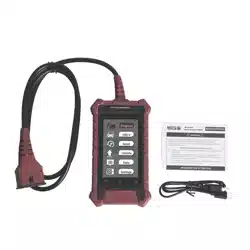
This tool is designed as a code reader for professional technicians or
DIYers.
Do not use this tool outside of the designed intent. Never modify the
tool for any other purpose or use.
Made in China
to Matco specifications
PRODUCT INFORMATION
Slim design with 4 inch color screen and Android platform.
Multilingual support and wireless update.
Only compatible with passenger cars with 12V voltage.
WARNING
Page 2 2101026-16Page 1 2101026-16
FCC Statement
Max imus
Cod e Reader PR OA
Max imus
Cod e Reader PR OA
Max imus
Cod e Reader PR OA
Max imus
Cod e Reader PR OA
MDMAXCRPROA MDMAXCRPROA
Page 4 2101026-16Page 3 2101026-16
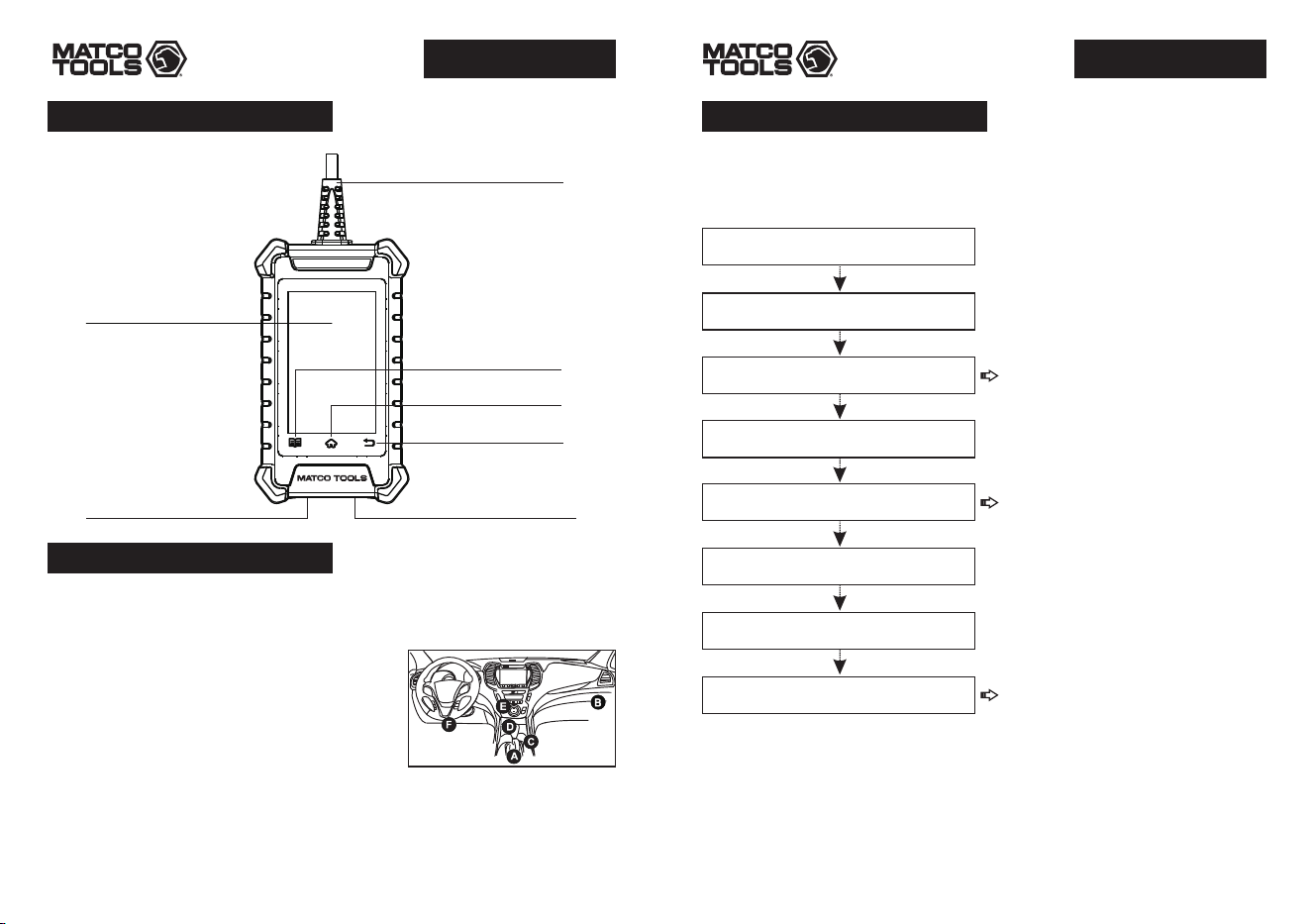
Components & Controls Getting Started
Powering Up
Touch Screen
Setting Button
Home Button
Return Button
Diagnostic Cable
Memory Card Slot
(Reserved for future use)
Charging Port
The tool can receive power via either of the following ways:
Method 1: Via Diagnostic Cable
Connect the diagnostic cable of the tool to
the vehicle’s DLC (Data Link Connector) port.
*Note: The DLC is usually located 12 inches
from the center of the instrument panel
(dash), under or around the driver’s side for
most vehicles. See diagram for possible DLC
location.
Method 2: Via Data Cable
Connect one end of the included data cable to charging port of the tool, and
the other end to the PC.
The first time you use this tool, you will need to make some system settings
and keep the diagnostic software updated with the latest version.
Follow the steps below to proceed.
Now the tool is ready for use.
Tap “Start” on Welcome screen
Select system language
Select time zone
WLAN setup
Configure workshop information
Sign user agreement
Job Menu appears
Tap “Upgrade”
*Note: After completing this step,
the system will append it on the
report every time a report is
successfully generated.
*Note: To enjoy more capabilities
and better service, it is strongly
recommended to update the tool
on regular basis.
*Note: If you choose "Ignore" in
this step, it will go into the date
setting page. If the tool has been
properly connected to the
Internet, the system will
automatically obtain the correct
network date and time.
If you have any questions on the operation of the tool, please contact
Matco customer service number: 877-853-3738.
For more product information, please visit: www.matcotools.com