

2
ENGLISH
TABLE OF CONTENTS
SAFETY PRECAUTIONS ........... 3
- Precautions for the AC Cable and
Power .........................................................................4
- Precautions for Moving the Product ..........6
- Precautions for Installing the Product ......7
- Precautions for Cleaning the Product ........9
- Precautions for Using the Product ........... 10
- Precautions for Using the Remote
control .....................................................................12
- Product Disposal ................................................12
ASSEMBLING AND
PREPARING ............................... 13
- Optional Accessories ........................................14
- Handling for Protecting LED Package
Screen......................................................................15
- Installation Precautions Guide ................... 18
- Installation Location ........................................20
- Buttons ..................................................................22
- Terminal .................................................................23
USING THE REMOTE
CONTROL ....................................25
- Magic Remote.....................................................25
- Remote Control .................................................28
TROUBLESHOOTING ...............30
PRODUCT
SPECIFICATIONS ......................32
LICENSES ...................................36
3
ENGLISH
WARNING - This equipment is compliant with Class A of CISPR 32. In a residential environment this
equipment may cause radio interference.
SAFETY PRECAUTIONS
The safety precautions are intended to prevent unexpected danger or harm by helping the user to use the
product safely and for its intended purpose.
WARNING
If you ignore the warning message, you may be seriously injured or there is a possibility of accident or
death.
CAUTION
If you ignore the caution message, you may be slightly injured or the product may be damaged.
WARNING
Indoor Use Only.

4
ENGLISH
Precautions for the AC Cable and Power
WARNING
• Before using an AC cable, make sure it conforms to the national standards.
• Operate the display only from a power source (i.e. voltage) indicated in the product specification.
- Otherwise the product can be damaged, fire can occur or you may be electrocuted. If you are not sure
what type of power supply you have, consult a certified installation company.
• Be sure to connect the AC cable to a grounded power disconnecting device.
- If you do not you may be electrocuted or injured or the product can be damaged.
• Insert the AC cable securely so that it does not come loose.
- Poor connection may cause a fire or electric shock.
• In the presence of thunder and lightning, never touch the power cord and signal cable because it can be
very dangerous.
- It can cause electric shock.
• Be careful not to place heavy objects (electronic appliances, clothes, etc.) on or step on the AC cable. In
addition, do not bend or pull the AC cable with excessive force.
- Damaged power cords may cause a fire or electric shock.
• Do not connect the AC cable to a power disconnecting device if it has been damaged by a sharp object.
- You may be electrocuted.
• Do not insert a conductor (such as a metal chopstick) into the power disconnecting device while the AC
cable is connected on the other side of the same power disconnecting device. In addition, do not touch
the AC cable directly after removing it from the power disconnecting device.
- You may be electrocuted.
5
ENGLISH
• If water or any foreign substance enters the product, disconnect the AC cable immediately and contact
the service center.
- Otherwise, this may cause a fire or electric shock due to damage to the product.
• Keep the AC cable away from heating devices.
- The cord coating may melt and cause fire or electric shock.
• Never disassemble, repair, or modify the AC cable.
- This may cause a fire or electric shock.
• As long as this unit is connected to the AC wall outlet, it is not disconnected from the AC power source
even if the unit is turned off.
• For the power consumption to be zero, the AC cable must be disconnected.
CAUTION
• If there is dust on the AC cable or the power disconnecting device, wipe them clean.
- Overheating due to layers of dust may cause a fire or electric shock.
• If there is moisture on the AC cable or the power disconnecting device, wipe them clean. In addition, do
not touch them if your hands are wet.
- This may cause an electric shock.
• Do not turn the product on or off by connecting or disconnecting the AC cable. In other words, do not
use the AC cable as a switch.
- This may cause an electric shock or product malfunction.
• Do not disconnect the AC cable while using the product.
- Electrical shock can damage the product.
6
ENGLISH
Precautions for Moving the Product
WARNING
• Contact the service center before moving the product.
- It may cause electric shock and damage the product.
• Make sure the product is turned off, unplugged, and all cables have been removed before the product is
moved.
- You may be electrocuted or the product can be damaged.
• When moving the product, do not shock or cause an impact on the front panel.
- You may be electrocuted or the product can be damaged.
• Use the correct number of people according to the weight of the product. (Under 25 kg (55.1 lbs) per
person use lifting equipment when exceeding 100 kg (220.4 lbs))
- If use the damaged product again, contact the service center because it can cause electric shock or
fire.
• Do not hold it upside down while holding only the stand. (It is for stand supported models only.)
- This may cause stand warping, panel damage and other types of product damage.
CAUTION
• Do not dispose of the product-packing box. Use it when moving by putting the product in the box to
carry it.

7
ENGLISH
Precautions for Installing the Product
WARNING
• Contact the service center before installing the product.
- It can cause electric shock and damage the product.
• Do not drop an object on or impact on the product. Keep out of reach of children and do not place toys
or objects near the product to prevent throwing things on the product screen.
- It can cause injury to human, problem to product and damage the display.
• Do not put heavy objects on, or hang from, the product.
- If the product collapses or is dropped, you may be injured.
• Do not touch the surface of the product if it overheats.
- It can cause injury to human.
• Install the product firmly fixed on a floor, wall, etc. to prepare against external impact such as wind and
earthquake.
- You must refer to the manual provided.
• Prevent Children from climbing or hanging on the product.
- If the product collapses or is dropped, you may be injured.
• Do not install it where there are heating devices such as electrical heaters or lighting equipment.
- Fire, electrical shock, malfunction may occur.
• Do not install this product by yourself as you may injure yourself or cause damage to the product. Please
contact service engineer authorised by service center.
• Do not install this product on a wall if it could be exposed to oil or oil mist.
- This may damage the product and cause it to fall.
• Do not leave the AC cable, signal cables, etc. in one’s walking path.
- This could cause a trip or fall, which could cause an electrical shock, fire, product breakdown, or injury.
• Do not let the product drop when connecting it to an external device connected with a short cable.
- This may cause injury and damage to the product.
• If you drop the product or the case is broken, turn off the product and unplug the power cord and
contact the service center.
- If you continue to use without taking proper measures, electrical shock or fire can occur.
• Install the product in a dry place where it is not near dust and water. Avoid high temperatures and
humidity.
- This may cause electrical shock, fire or product damage.
• Safely install the product in a place that can hold the weight of the product.
- A lack of strength may cause the product to fall.
• Take a comfortable and natural position to relax the muscles when working with a product.
• A readily accessible disconnect device shall be incorporated external to the equipment. The maximum
rating of an overcurrent protective device to be provided external to the equipment may be one of the
protective device ratings available in the country of installation.

8
ENGLISH
CAUTION
• Install the product where no Electromagnetic Interference occurs.
• If you install the product in a place that does not meet the recommended conditions, this may
cause serious damage to the product’s picture quality, life cycle, and appearance. Please check with
service engineer before installing. Please do not install the product in places such as where there is
an abundance of fine dust or oil mist, chemical substances are used, exposed to direct sunlight, the
temperature is very high or low, the humidity is very high.
• Make sure the product is well ventilated by Installing at a distance (100 mm (3.9 inches) or more) from
the wall.
- If you install the product too close to the wall, it may be deformed or fire can break out due to internal
heat buildup.
• When the AC cable is connected, make sure that the vents are not blocked by tablecloths, curtains, or
other objects (such as plastic).
- The product can be deformed or fire can break out due to overheating inside the product.
• Do not install the product in an area with poor ventilation (e.g. on a bookshelf, in a closet) or outside and
avoid placing on cushions or carpets.
- The product could catch fire due to overheating inside the product.
• Install the product on a flat and stable place that is large enough to support the product.
- If the product is dropped, you may be injured or the product may be broken.
• When installing the product on a shelf or cabinet, make sure that the bottom end of the product is not
protruding forward.
- The product may fall due to unbalanced center of gravity, which may cause personal injury or damage
to the product. Be sure to use cabinets or shelves that fit your product.
9
ENGLISH
Precautions for Cleaning the Product
WARNING
• Keep the product clean at all times.
- If you don’t clean the unit for a long time and it becomes covered in dust, it can cause fire or product
damage.
• When you need to clean the inside of the product, you must contact the service center.
- Otherwise, cleaning without support may cause a fire, electric shock, or damage to the product.
• When cleaning the product, disconnect the AC cable and wipe it gently with a soft cloth to prevent
scratches.
- An electric shock may occur or damage to the screen if its scratched.
• Do not physically come in contact with the screen of the LED Package.
- This may cause damage to the product.
• To clean the product, use an air gun to lightly remove dust from the front frame and the screen.
- If there are foreign substances in between the LEDs on the screen, it may cause a defect on the
screen.
CAUTION
• When cleaning the product or the screen, unplug the power cord and wipe it gently with a soft cloth.
Do not spray water or other liquids directly on the product. Especially, do not clean your product with
chemicals including glass cleaner, any type of air freshener, insecticide, lubricants, wax (car, industrial),
abrasive, thinner, benzene, alcohol, etc., which can damage the product or its panel.
- This may result in fire, electric shock or product damage (deformation, corrosion or breakage).

10
ENGLISH
Precautions for Using the Product
WARNING
• Do not use the product in any environment with excessively high temperatures or humidity.
- It may cause electrical shock or damage the product.
• If you use the product for a long period of time, take a rest from time to time to protect your vision.
- Extended viewing could result in impaired vision.
• Listening at high volume or using for a long time can cause damage to your hearing.
• If water or any foreign substance enters a unit, turn off the unit, disconnect it from the AC cable, and
contact the service center.
- Otherwise, the product may cause fire or electric shock.
• In the event that no image appears on the screen or no sound is heard, stop using the product.
Disconnect the AC cable from the power disconnecting device immediately and contact the service
center.
- Otherwise, the product may cause fire or electric shock.
• Do not drop an object or impact on the product or screen.
- It can cause injury to human, problem to product and damage the screen.
• If there is smoke or a strange sound or smell, disconnect the AC cable and contact the service center.
- If you continue to use the product without taking proper measures, it may cause electrical shock or
fire.
• Do not attempt to disassemble, repair or modify the product yourself. Please contact service center if
you need to repair it.
- Fire or electric shock can occur.
• Do not place objects filled with liquids such as vases, cups etc. on or over the product to prevent liquid
from entering the product.
- Failure to do so may result in fire, electric shock, malfunction or deformation.
• The product must be installed in an environment out of human reach. If a person touches the product,
its performance may deteriorate. If the product needs to be installed in a place where human contact
with the product is likely, a separate measure to prevent people from touching it needs to be taken.
• Do not push hard on or scratch the product’s surface with your hands or sharp objects, such as nails,
pencils or pens. Do not shock or scratch the front and sides of the screen with metallic objects.
- This may damage the products and cause it to malfunction.
• Do not touch the product if it has been exposed to sunlight or an intense light because it could be hot.
11
ENGLISH
• Do not use high voltage electrical goods near the product (e.g., a bug zapper).
- This may result in product malfunction if it receives an electrical shock.
• If there is a gas leak, do not touch the outlet, and open the windows for ventilation.
- Otherwise, the product may cause fire or electric shock.
• If the product or case is dropped and damaged, turn off the power and disconnect the AC cable.
- If you continue to use without taking proper measures, electrical shock or fire can occur. Contact the
service center.
• Keep small accessories out of the reach of children.
- If a child swallows it, consult a doctor immediately.
• Keep out of reach of children from the product. Also, do not throw toys or objects at the product or
screen.
- It can cause injury to human, problem to product and damage the screen.
• To shut off the power of the unit, you must disconnect all connected AC cables.
CAUTION
• This panel is an advanced product that contains millions of pixels. You may occasionally see pixel spots
when viewing the screen. Since these deactivated pixels are not a defect, the performance and reliability
of the product is not affected.
• Do not put or store inflammable substances near the product.
- There is a danger of explosion or fire.
• Keep the proper distance from the product.
- It can cause damage to your vision if you look at the product too closely.
• Set the appropriate resolution and frequency by products.
- It can cause damage to your vision.
• Take a regular break when working with the product for a long time.
12
ENGLISH
Precautions for Using the Remote Control
WARNING
• Avoid places with high humidity.
- It may cause electrical shock or damage the product.
• Do not expose batteries to excessive heat, such as direct sunlight, open fireplace, and electric heaters.
- It may cause fire and you may be injured.
• Make sure that children do not swallow the remote control batteries when you replace them. Keep
batteries out of reach of children.
- If a child swallows a battery, consult a doctor immediately.
• Do not dispose of batteries in a fire.
- Please dispose batteries at a local recycling center or a retail store that handles batteries.
• Used batteries, which include rechargeable batteries, should be recycled separately from waste.
- Please dispose used batteries and rechargeable batteries at a local recycling center or a retail store
that handles batteries.
CAUTION
• Do not short circuit and disassemble of batteries.
- It may cause electrical shock or fire.
• The remote control may not function properly in sunlight or under a strong lamp. Move the product if it
is being used in these conditions.
• Check if there is any obstacle between the product and the remote control.
• Do not mix new batteries with old batteries.
- Overheating or leaking batteries may cause fire or electric shock.
• Only use the specified type of battery. Do not insert batteries that are not rechargeable into the charger.
- Overheating or leaking batteries may cause fire or electric shock.
Product Disposal
• Do not dispose of this product with general household waste.
• Disposal of this product must be carried out in accordance to the regulations of your local authority.

13
ENGLISH
ASSEMBLING AND PREPARING
CAUTION
• Always use genuine components to ensure safety and durability of the product.
• The product warranty will not cover damage or injury caused by the use of unauthorised components.
NOTE
• The accessories provided with your product may vary depending on the model or region.
• Product specifications or contents in this manual may be changed without prior notice due to upgrade of
product functions.
• The warranty will not cover any damage caused by using the product in an excessively dusty
environment.
• SuperSign Software & Manual
- Visit
https://partner.lge.com
to download the latest SuperSign software and manual.
14
ENGLISH
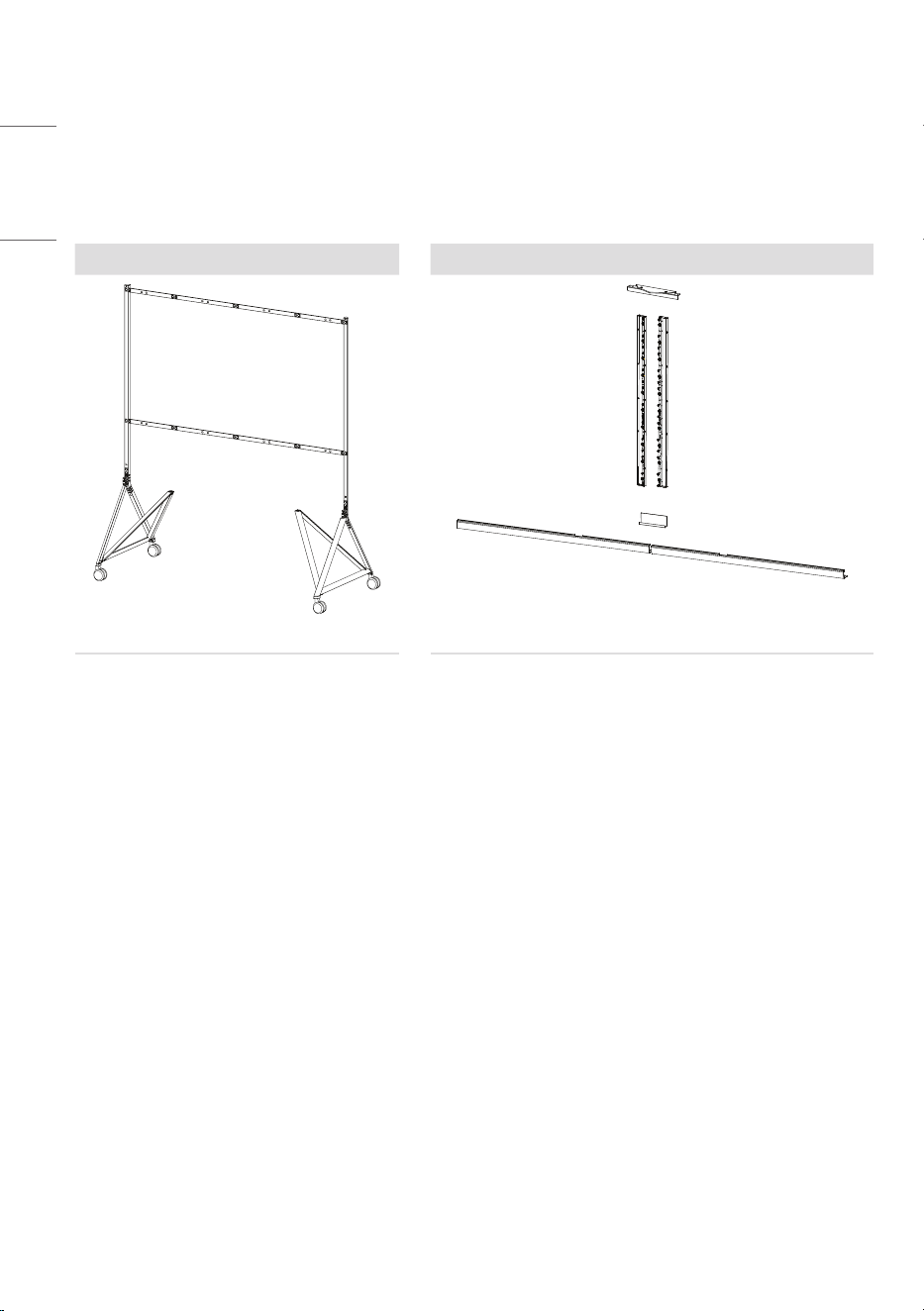
Optional Accessories
Without prior notice, optional accessories are subject to change to improve the performance of the
product, and new accessories may be added. The illustrations in this manual may differ from the actual
product and accessories.
Floor Stand Expansion Installation Kit
ST-136A KT-136EA-HB
15
ENGLISH
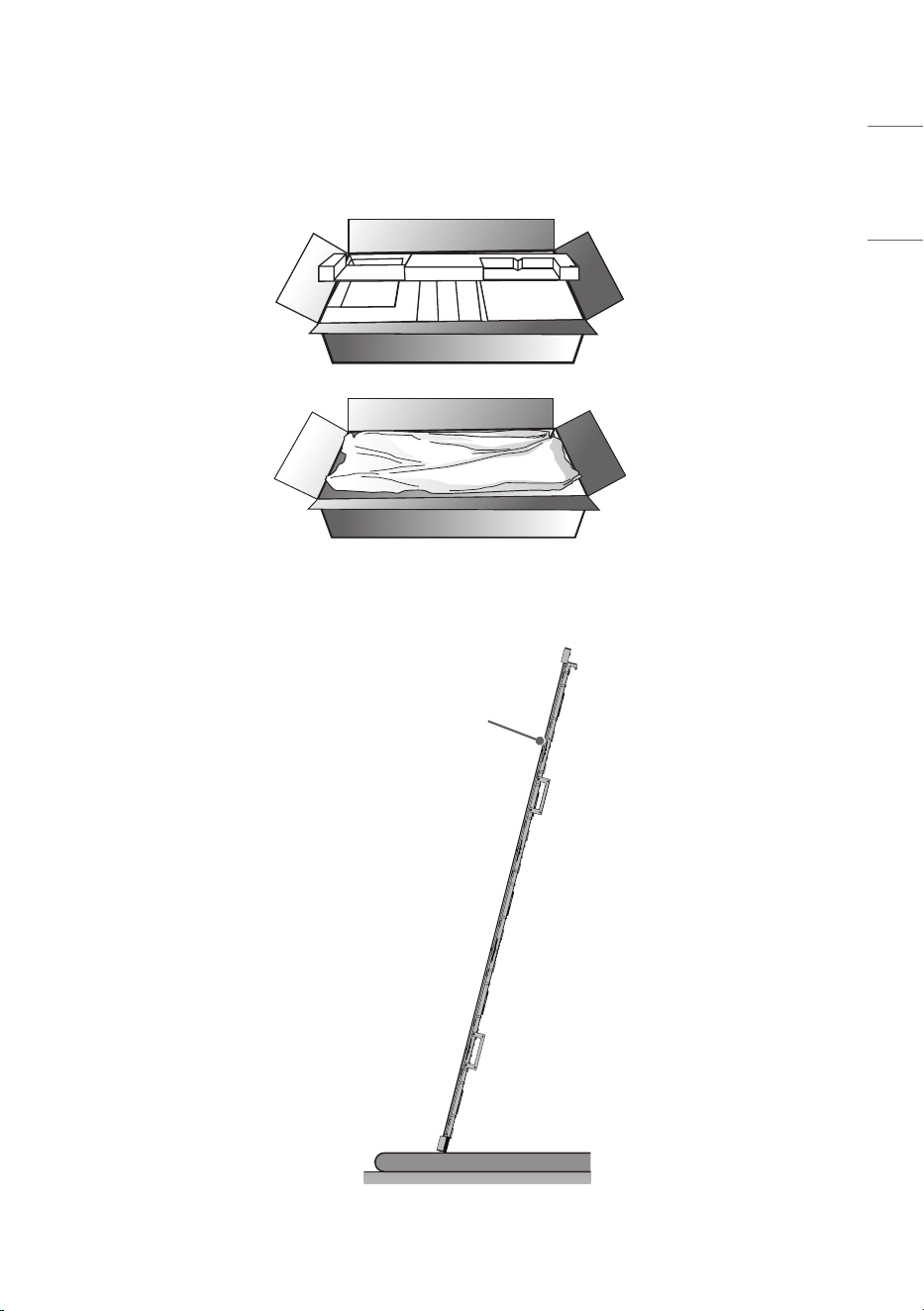
Handling for Protecting LED Package Screen
1 When taking out the product, make sure the screen is not pressed.
2 To stand the product upright, hold it on both sides so that the LED package screen does not touch
the floor.
LED Package Screen
16
ENGLISH
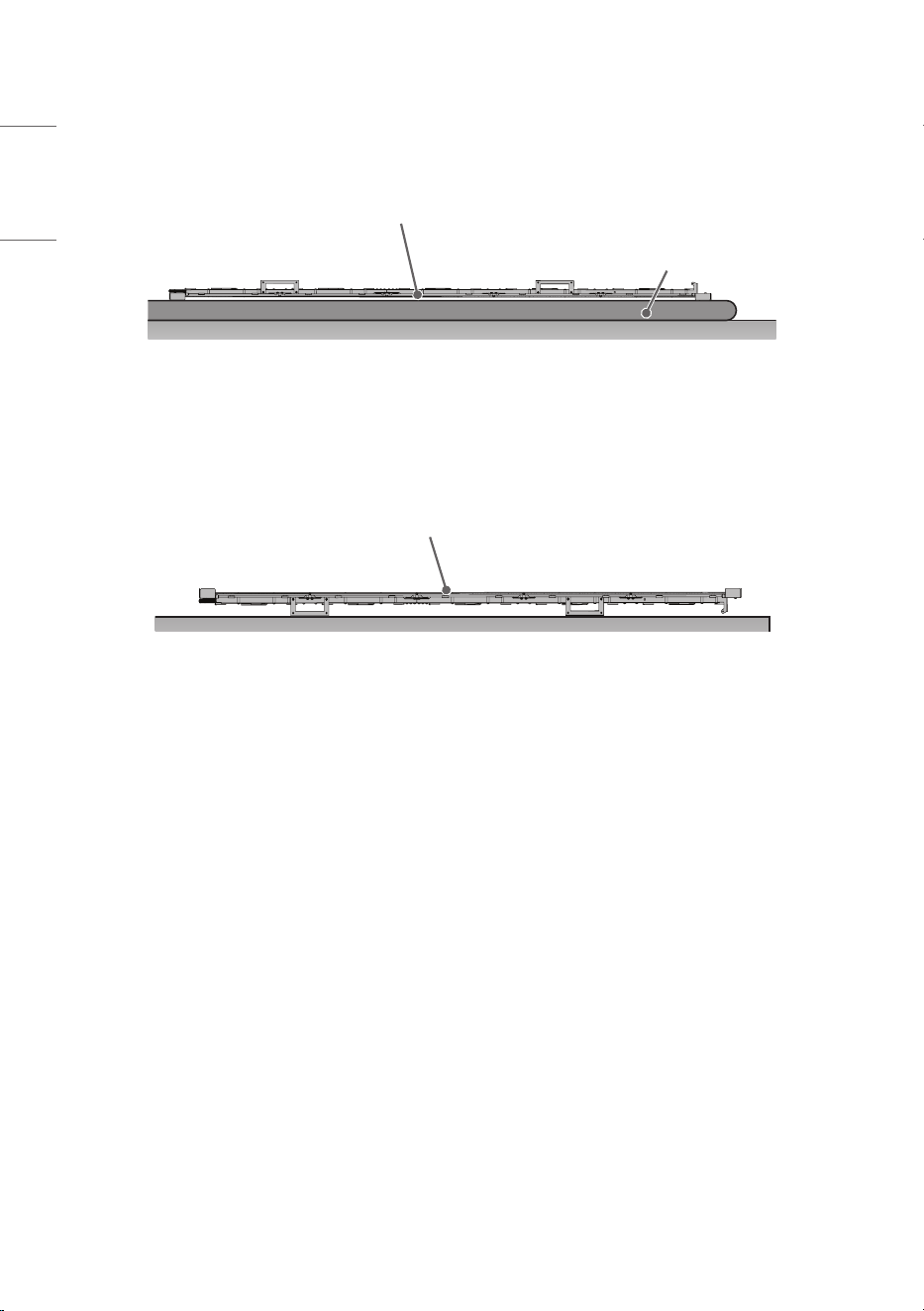
3 Place the product with the LED package screen facing down. To protect the screen, lay the protective
pad in the box on the floor.
Separate Protection Pad
LED Package Screen
4 If you do not have a pad, make sure that there is no foreign object on the floor when you lay the
product on the floor, and then carefully place the LED package screen facing down or up. Be careful not
to drop objects on the LED package screen.
LED Package Screen
17
ENGLISH
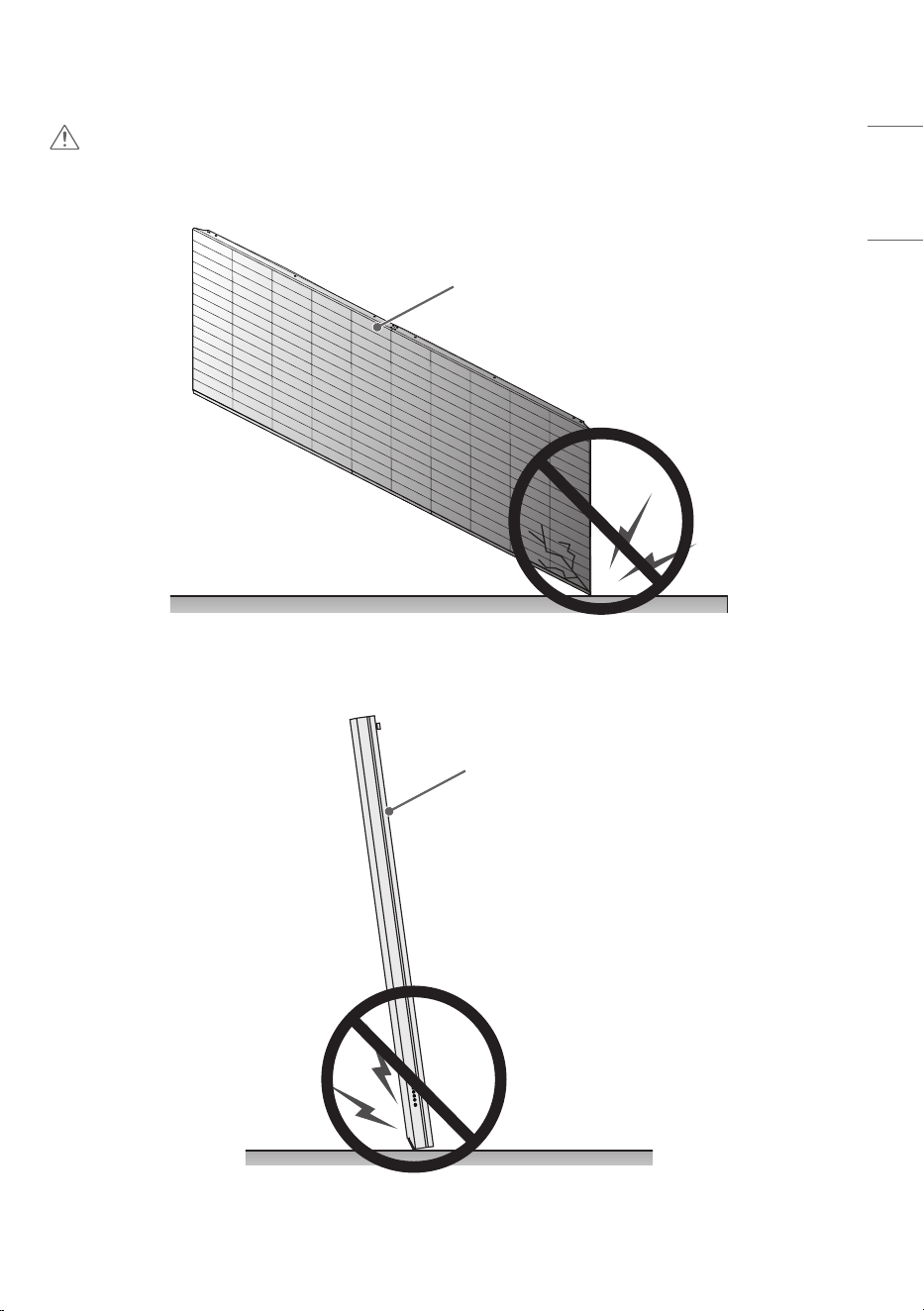
CAUTION
1 If the product is tilted towards the LED package screen after the brackets on the corners are removed,
the bottom of the product may be damaged.
LED Package Screen
2 If the product is tilted towards the edge of the LED package screen after the brackets on the corners
are removed, the bottom (corner) of the product may be damaged.
LED Package Screen
18
ENGLISH
Installation Precautions Guide
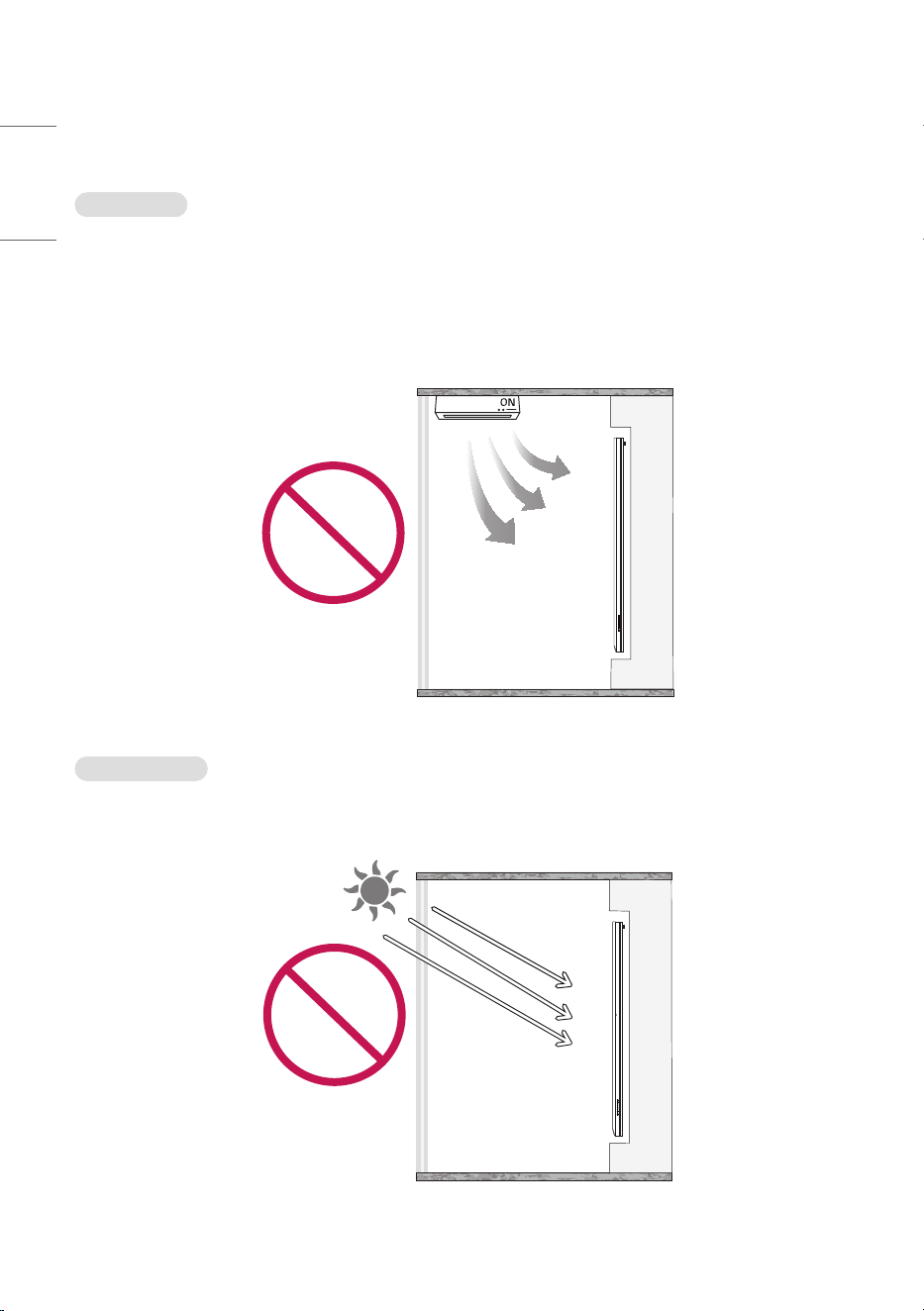
Temperature
• Make a cooling system for the enclosure so that the operating temperature of the product can be
maintained.
- Product operating temperature: 0 °C to 40 °C (32 °F to 104 °F) (the recommended room temperature
is below 25 °C. (77 °F))
• Install in a location where the warm air from an air conditioner does not directly affect the product.
- This will prevent malfunctions such as the screen turning off.
Direct Sunlight
• Install in a location that is not exposed to direct sunlight.
- This will prevent the screen from appearing blurry due to light reflection.
19
ENGLISH
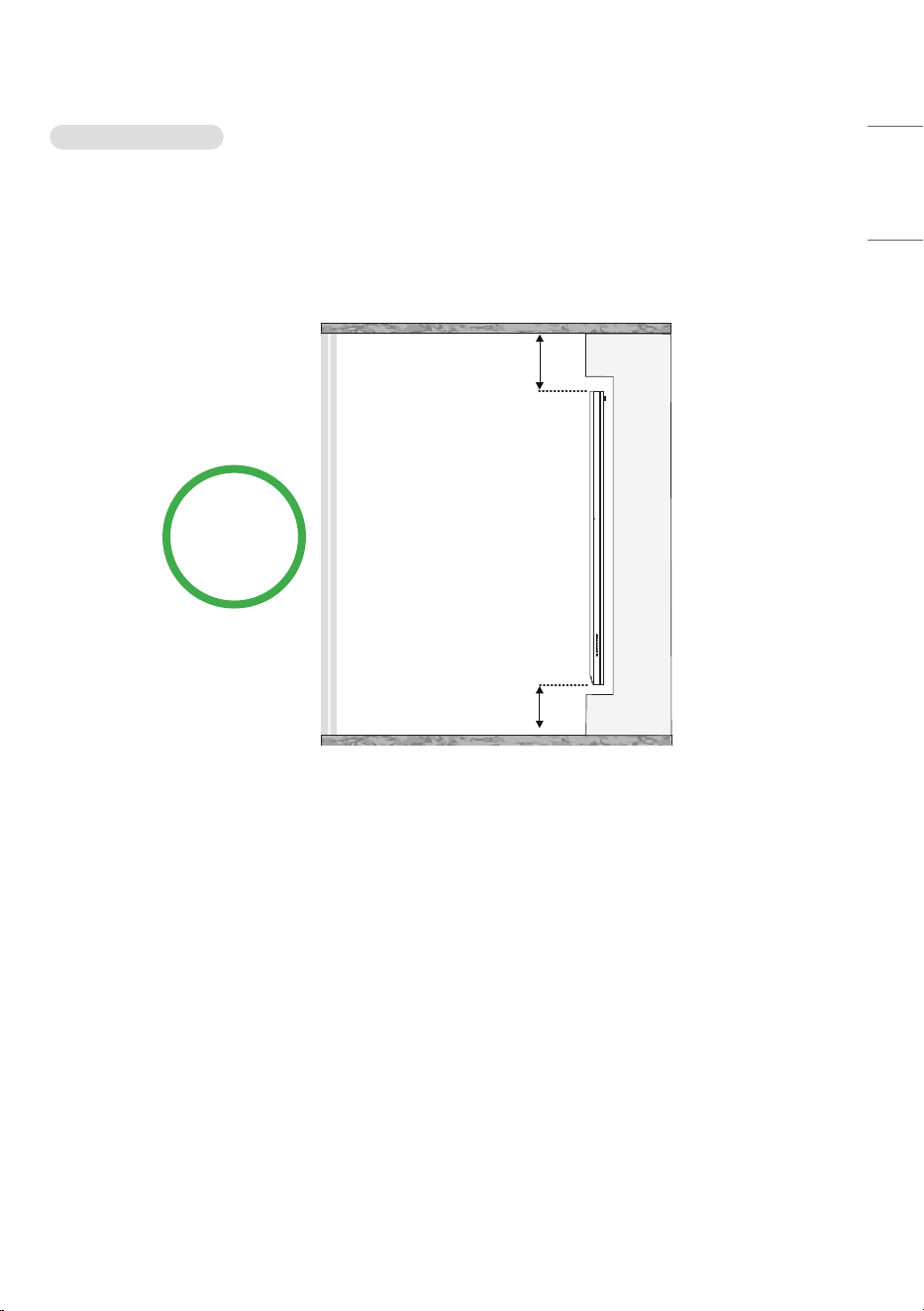
Installation Position
• Ensure the distance from the ceiling of the installation room to the product is at least 400 mm
(15.7 inches).
- The high temperature air collected at the ceiling will naturally circulate to prevent malfunction.
• Ensure the distance from the floor of the installation room to the product is at least 100 mm
(3.9 inches).
- The air from the floor will easily circulate to the ceiling to prevent malfunctions.
400 mm (15.7 inches)
or more
100 mm (3.9 inches)
or more
20
ENGLISH
Installation Location
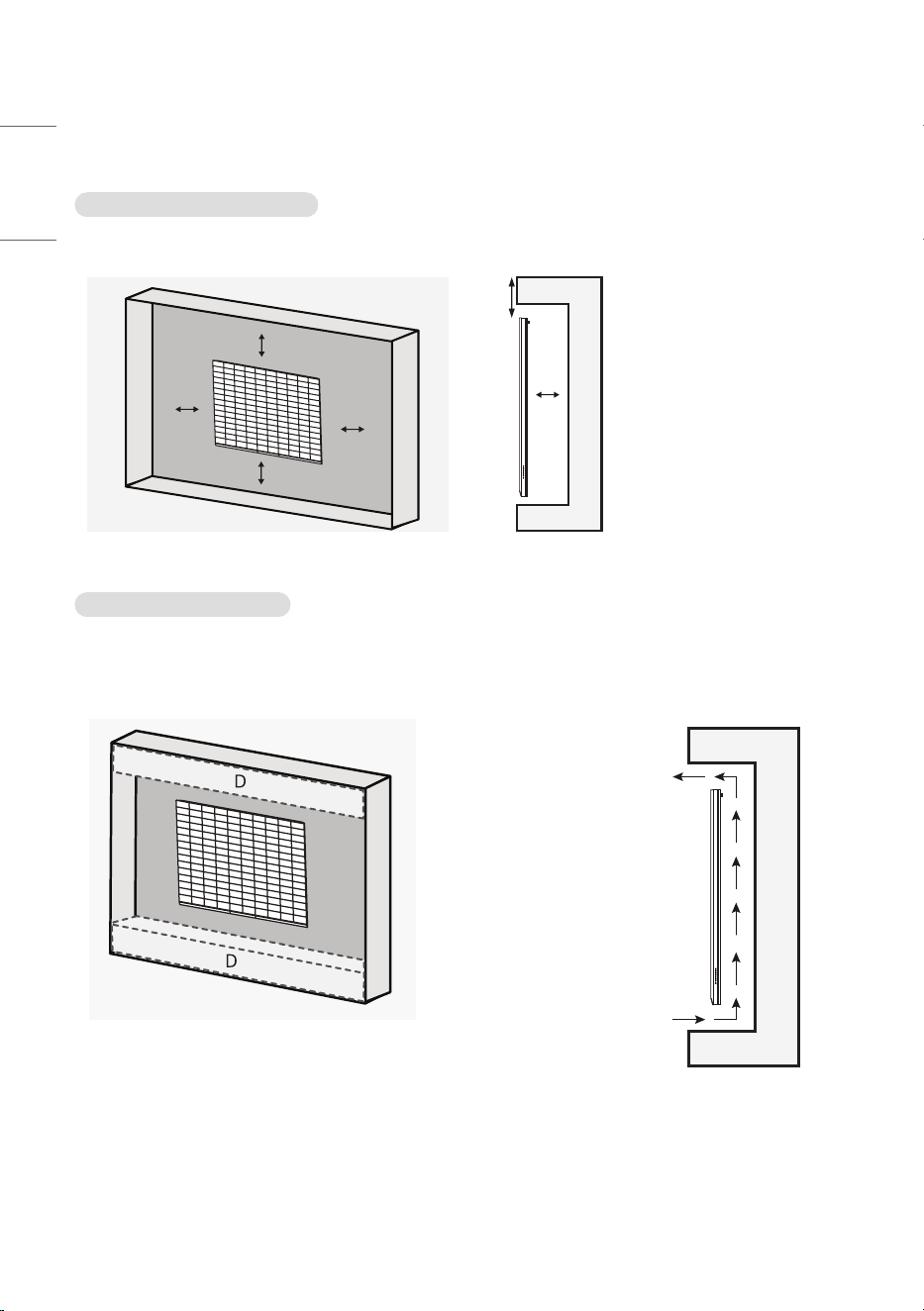
Installing on a Recessed Wall
• After installation on a recessed wall, a bezel can be installed for interior purposes.
A
A
B
B
C
C
B
B
C
D
C
A : 30 mm (1.1 inches) or
more
B : 40 mm (1.5 inches) or
more
C : 40 mm (1.5 inches) or
more
D : 40 mm (1.5 inches) or
more
When Installing the Bezel
• Ensure it can be detached for product repair.
• For the top / bottom bezels, secure at least 50 % of the air vent to facilitate air circulation.
- This will prevent malfunction.
Airflow
D : Air Vent
(50 % or more)
21
ENGLISH
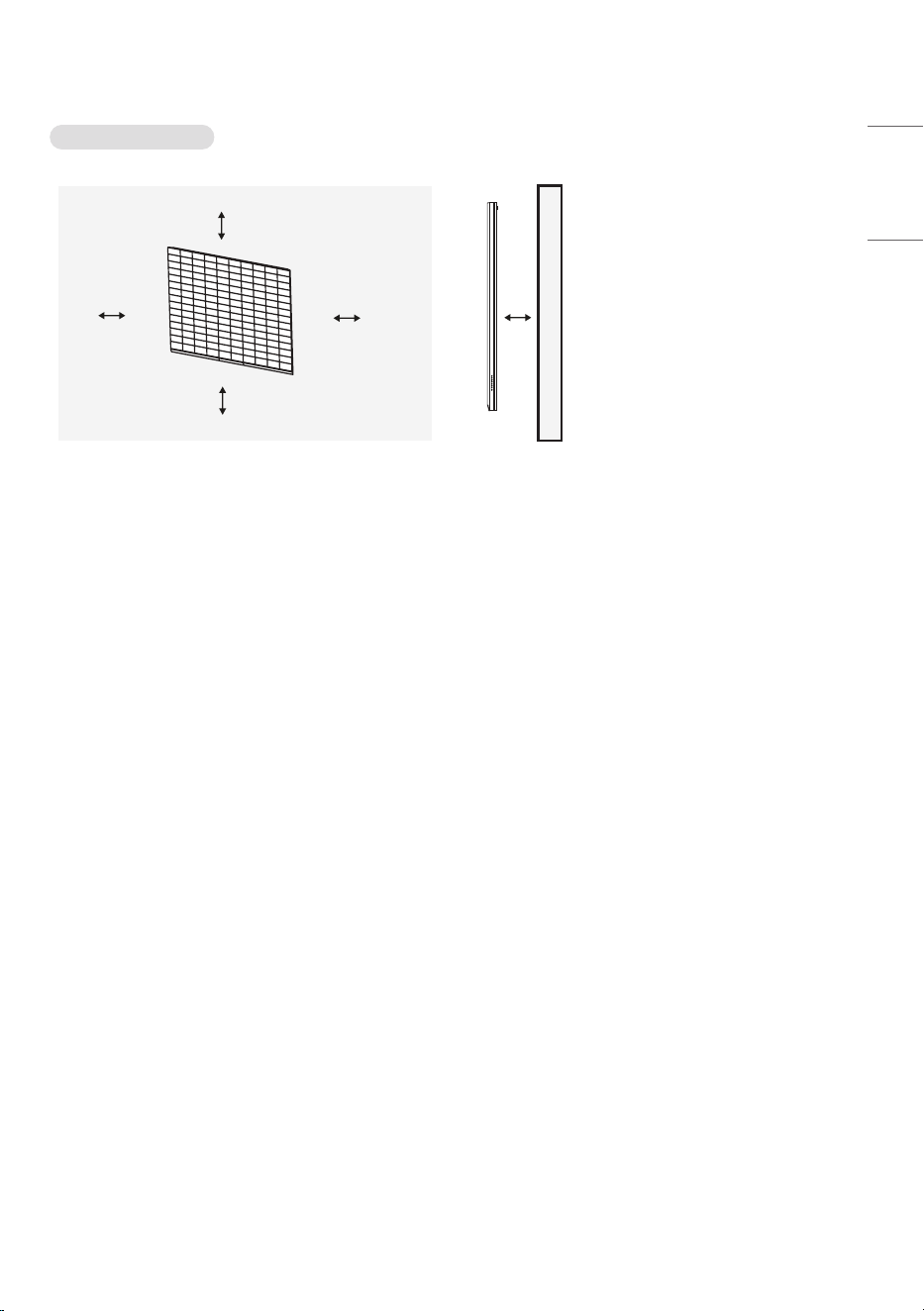
Installing on a Wall
A
A
B
B
C
C
B
B
C
D
C
A : 30 mm (1.1 inches) or more
B : 40 mm (1.5 inches) or more
C : 40 mm (1.5 inches) or more
22
ENGLISH
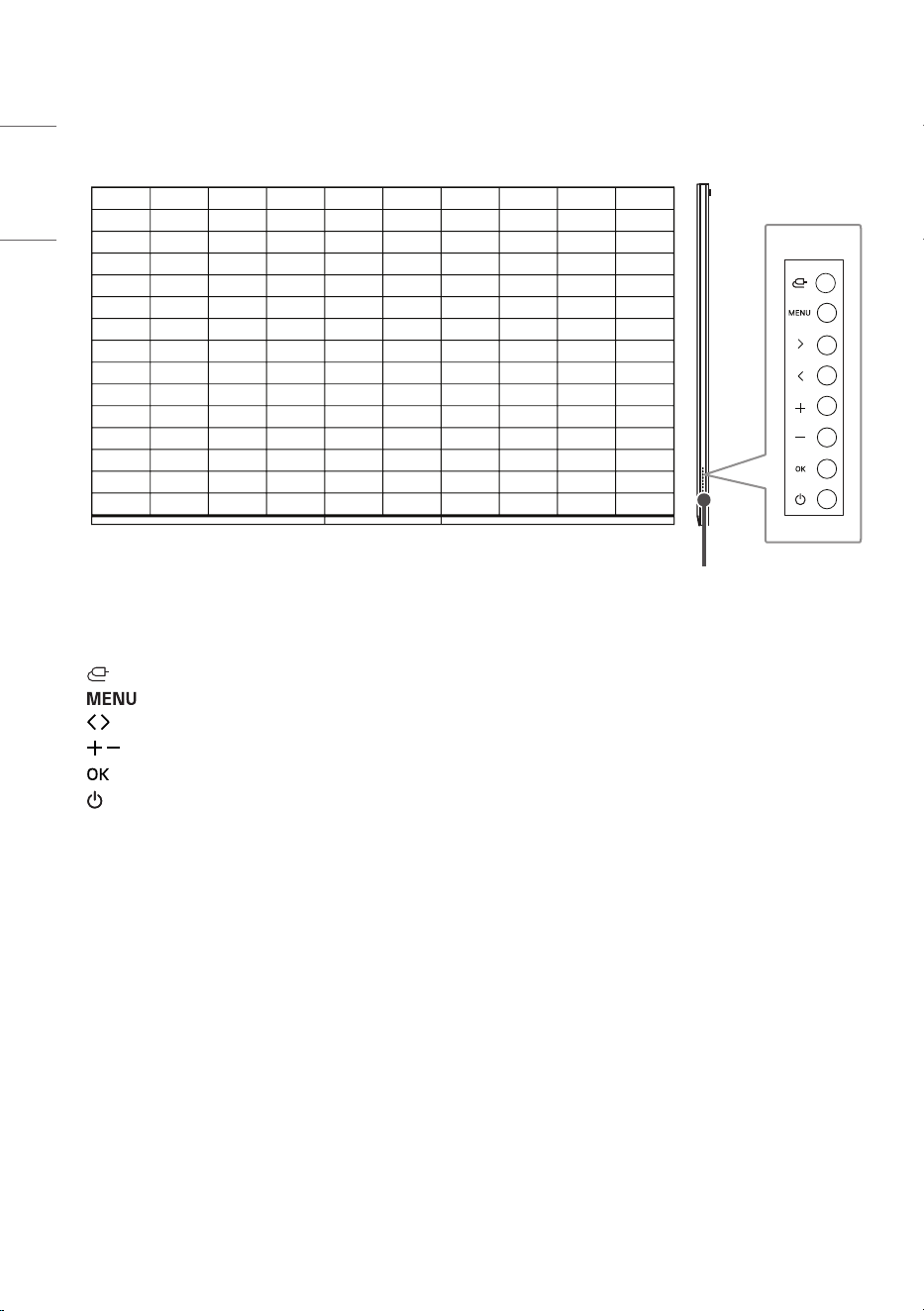
Buttons
Buttons
• : Changes the input source.
• : Accesses the main menus, or saves your input and exits the menus.
• : Moves left and right.
• : Adjusts the volume level.
• : Press the button to select menu.
• : Turns the power on or off.
23
ENGLISH
Terminal
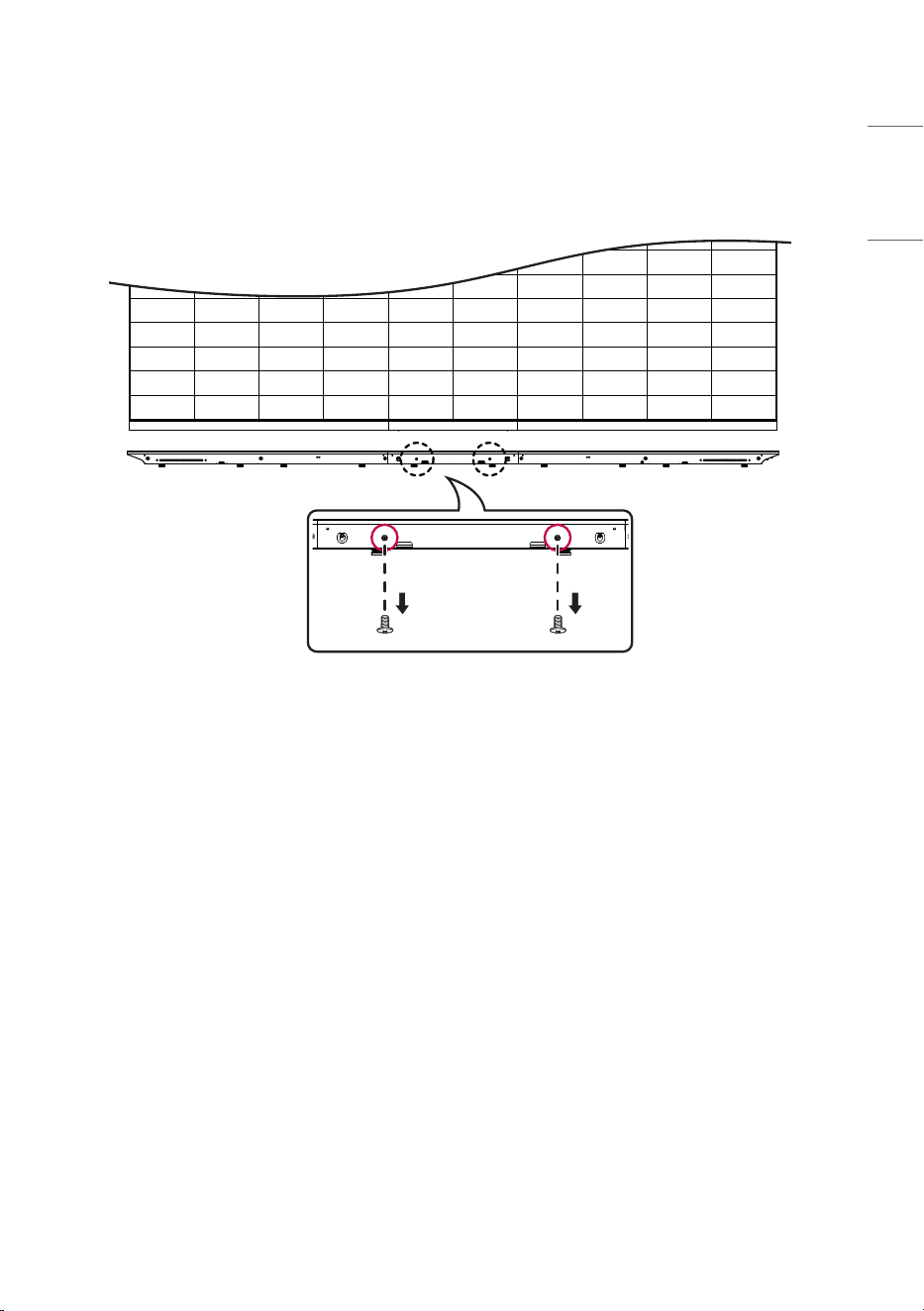
1 When accessing the external input port of the mainboard, remove the screw on the bottom of the
product.
24
ENGLISH
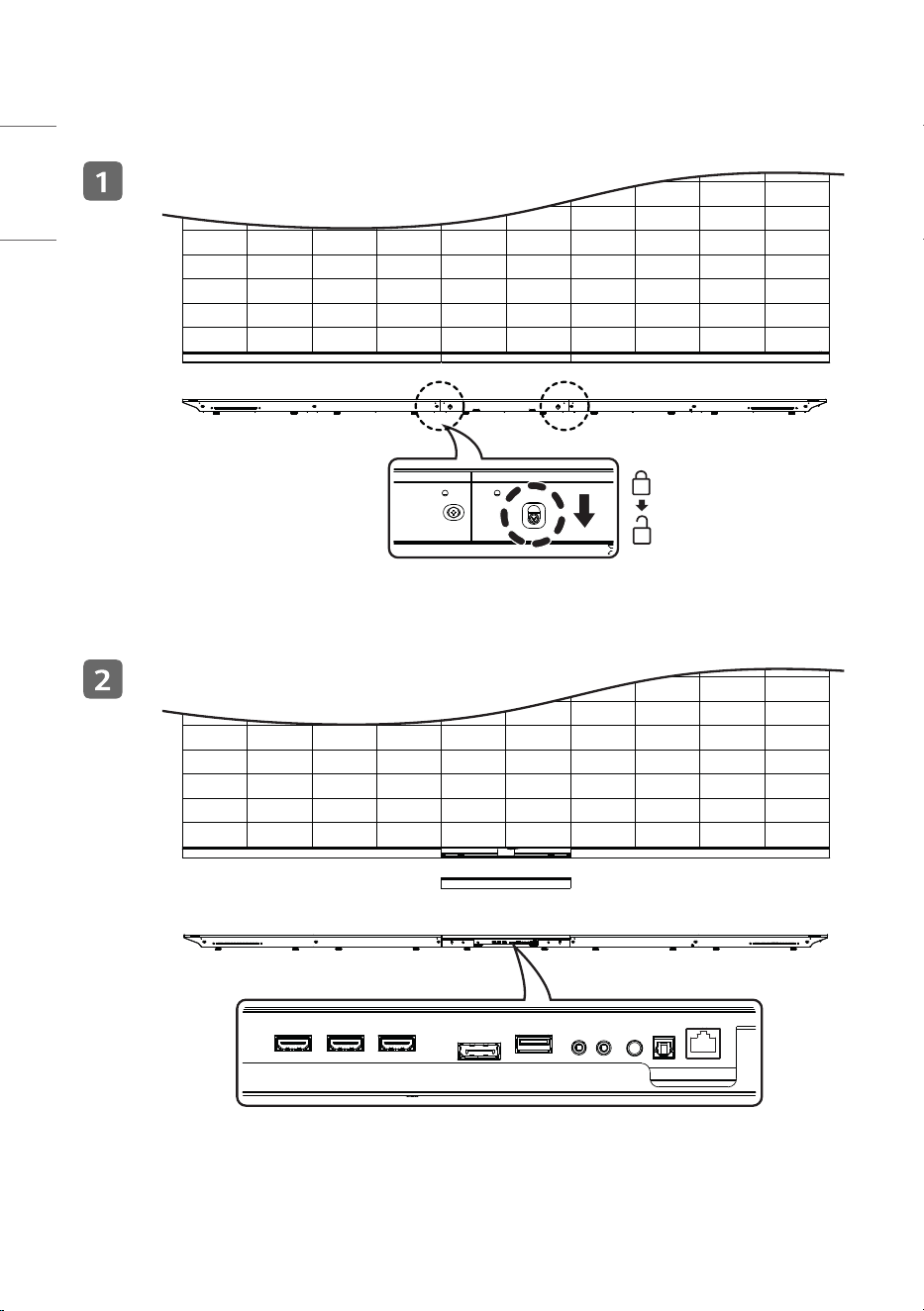
2 Push the lock-structured knob back and detach the bottom front cover downwards.
25
ENGLISH
USING THE REMOTE CONTROL
Magic Remote
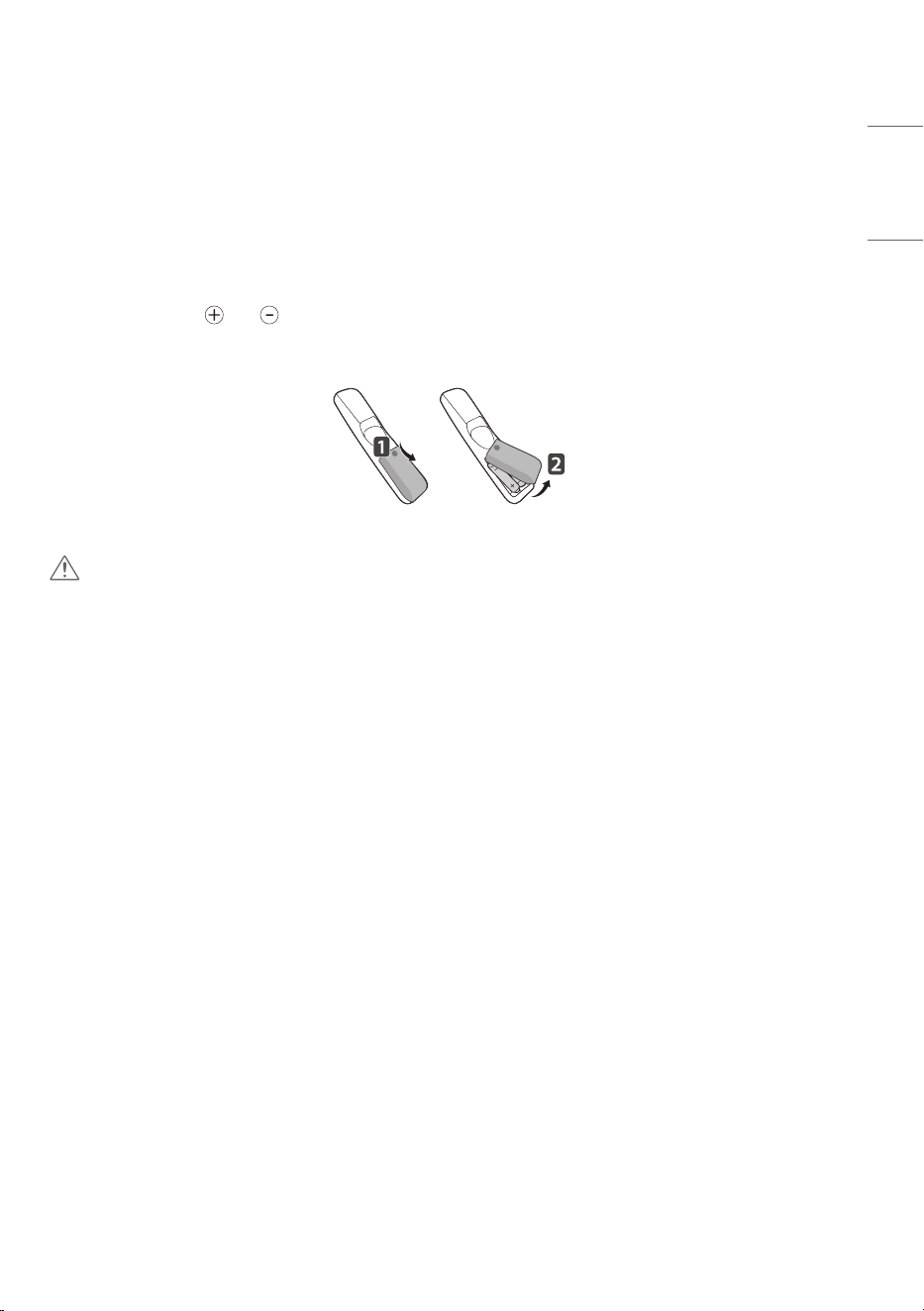
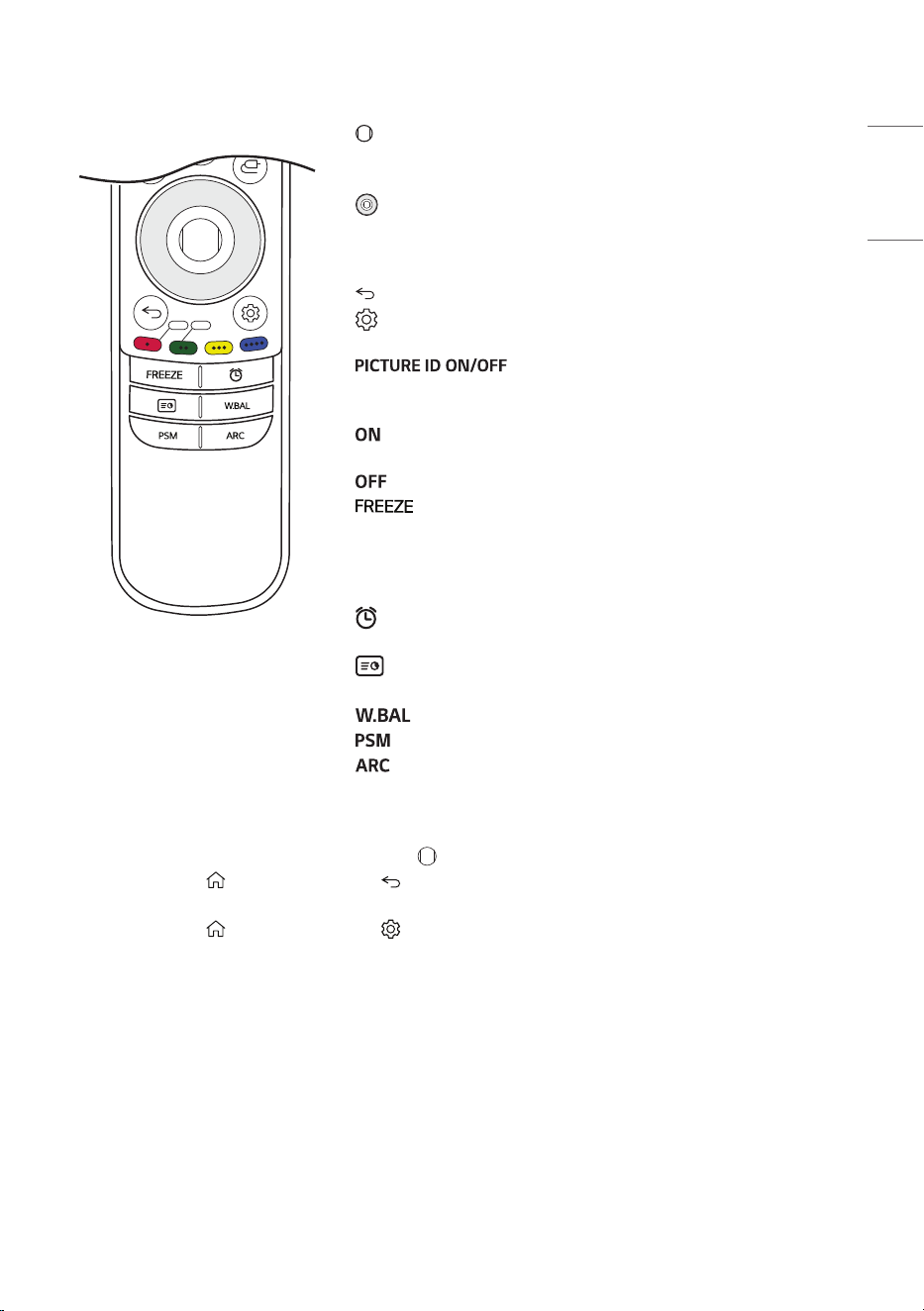
The descriptions in this manual are based on the buttons on the remote control. Please read this manual
carefully to use the monitor correctly. To install batteries, open the battery cover, place batteries
(1.5 V AA) matching and terminals to the labels inside the compartment, and close the battery
cover. To remove the batteries, perform the installation actions in reverse. The illustrations may differ
from the actual accessories.
CAUTION
• Use the remote control within the specified range (within 10 m (32.8 feets)).
You may experience communication failures when using the device outside the coverage area or if there
are obstacles within the coverage area.
• You may experience communication failures depending on the accessories.
Devices such as a microwave oven and wireless LAN operate in the same frequency band (2.4 GHz) as
the Magic Remote. This may cause communication failures.
• The Magic Remote may not work properly if a wireless router (AP) is within 0.2 m (0.6 feets) of the
monitor/LED Screen. Your wireless router should be more than 0.2 m (0.6 feets) away from the monitor/
LED Screen.
• Do not disassemble or heat the batteries.
• Do not drop the battery. Avoid extreme shocks to the battery.
• Do not immerse the batteries in water.
• Caution: Risk of fire or explosion if the battery is replaced by an incorrect type.
• Properly dispose of used batteries.
• Inserting a battery in the wrong way may result in explosion.
26
ENGLISH
LED
PICTURE ID
On Off
Microphone
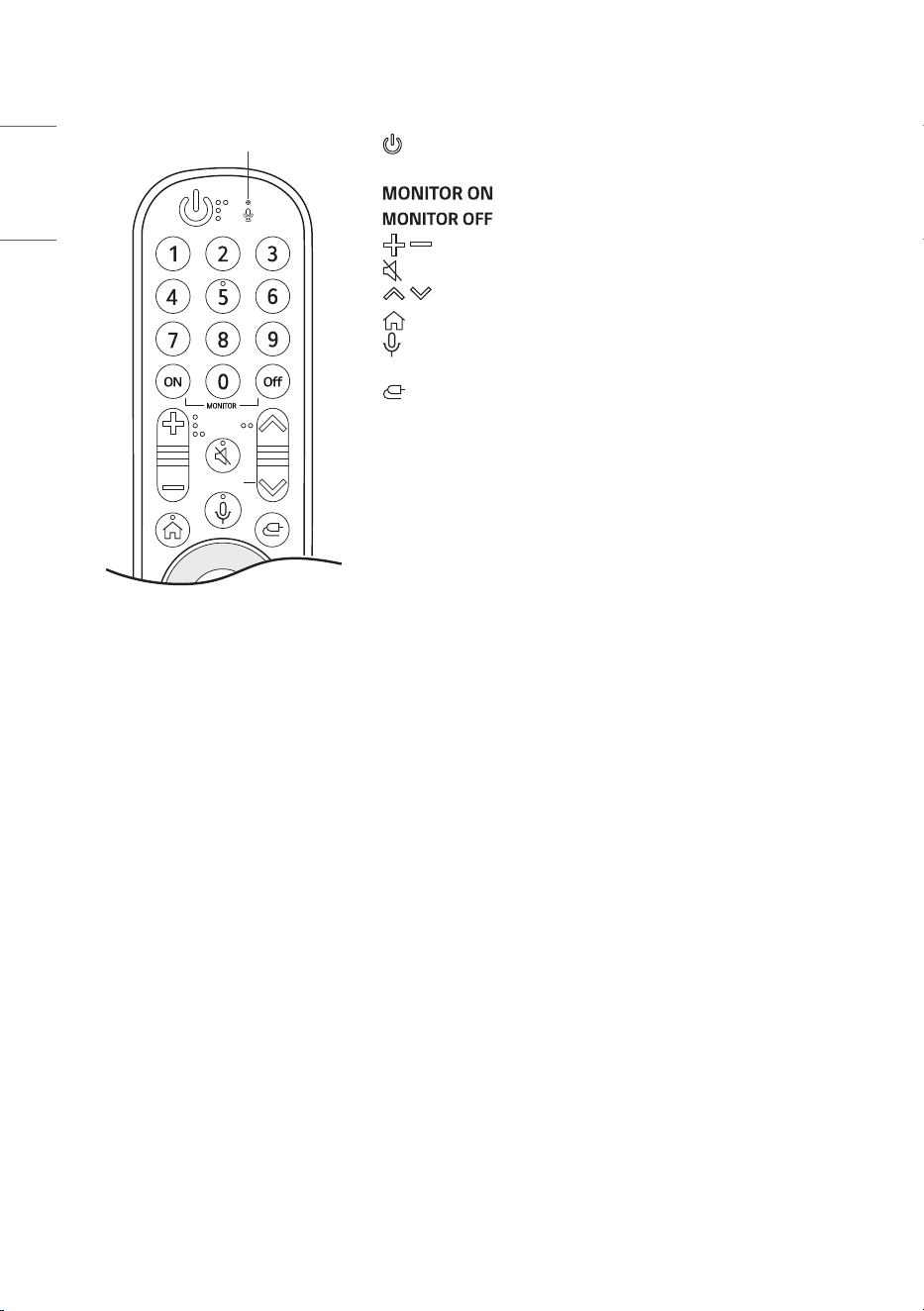
(Power) Turns the monitor on or off.
Number Buttons Use these buttons to enter a number.
Turn on the monitor/LED Screen.
Turn off the monitor/LED Screen.
(Volume) Adjust the volume.
(Mute) Mutes all sounds.
(LED) Adjust the LED light.
(Home) Activate the launcher.
(Voice Recognition) The monitor/LED screen function can
be used with voice recognition. (Currently not supported.)
(Input) Selects the input mode.
27
ENGLISH
LED
PICTURE ID
On Off
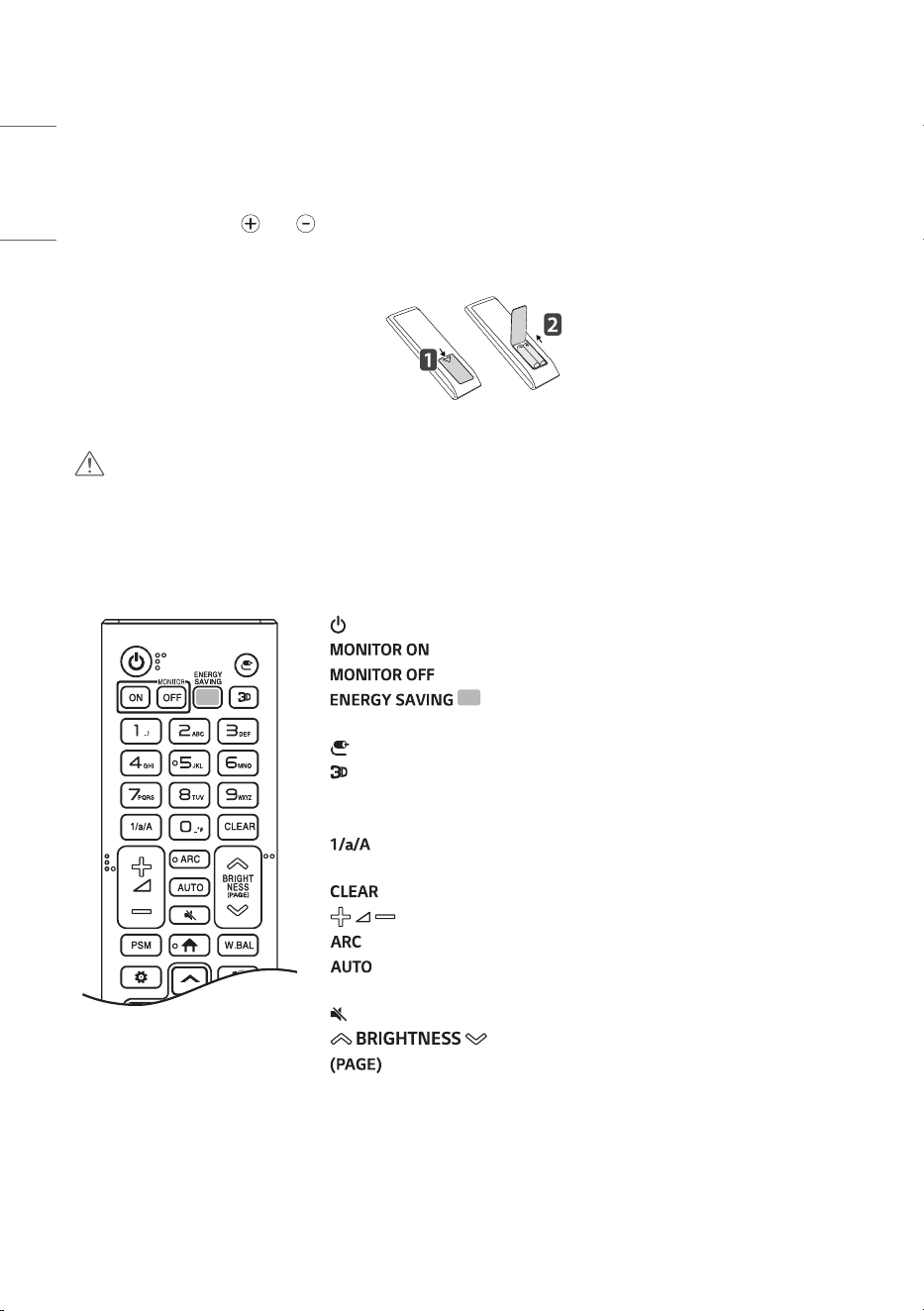
Wheel (OK) Press the scroll in the middle of the wheel to
select a menu. The direction can be adjusted up and down by
turning the wheel.
(Up/Down/Left/Right) Use these buttons to navigate the
menu. Pressing the up, down, left, and right buttons while using
the pointer will make the pointer disappear. To use the pointer
again, shake the Magic Remote from side to side.
(Back) Go to the previous menu.
(Settings) Allows entry to the main menu and enables you to
save and exit settings.
When the video ID number and product ID
number match, you can control the desired monitor/LED screen
while multiple monitors/LED screens are connected.
: You can individually control as many as the number of set
video IDs.
: You can control all monitors/LED screens simultaneously.
Freezes the screen of the external input video at the
moment of key input. This is a LAEC/LAAA-only function.
(Functions may be turned off when switching to some apps. e.g.
Other external input apps, Multi-Screen, DSMP, SI App, Player,
etc.)
(Presentation Timer) A presentation timer can be set. (Time
setting from 10 to 120 minutes)
(Office Meeting Mode) You can switch the Office Meeting
Mode settings on or off.
Enters the White Balance menu.
Selects the Picture mode.
Selects the screen size.
Register/Unregister the Magic Remote
• Turn on the Monitor/LED Screen and press the Wheel(OK) on the Magic remote for registration.
• Press and hold the (Home) button and (Back) button together for more than 5 seconds to
disconnect the Magic Remote.
• Press and hold the (Home) button and (Settings) button together for more than 5 seconds to
disconnect and re-register the Magic Remote at the same time.
28
ENGLISH
Remote Control
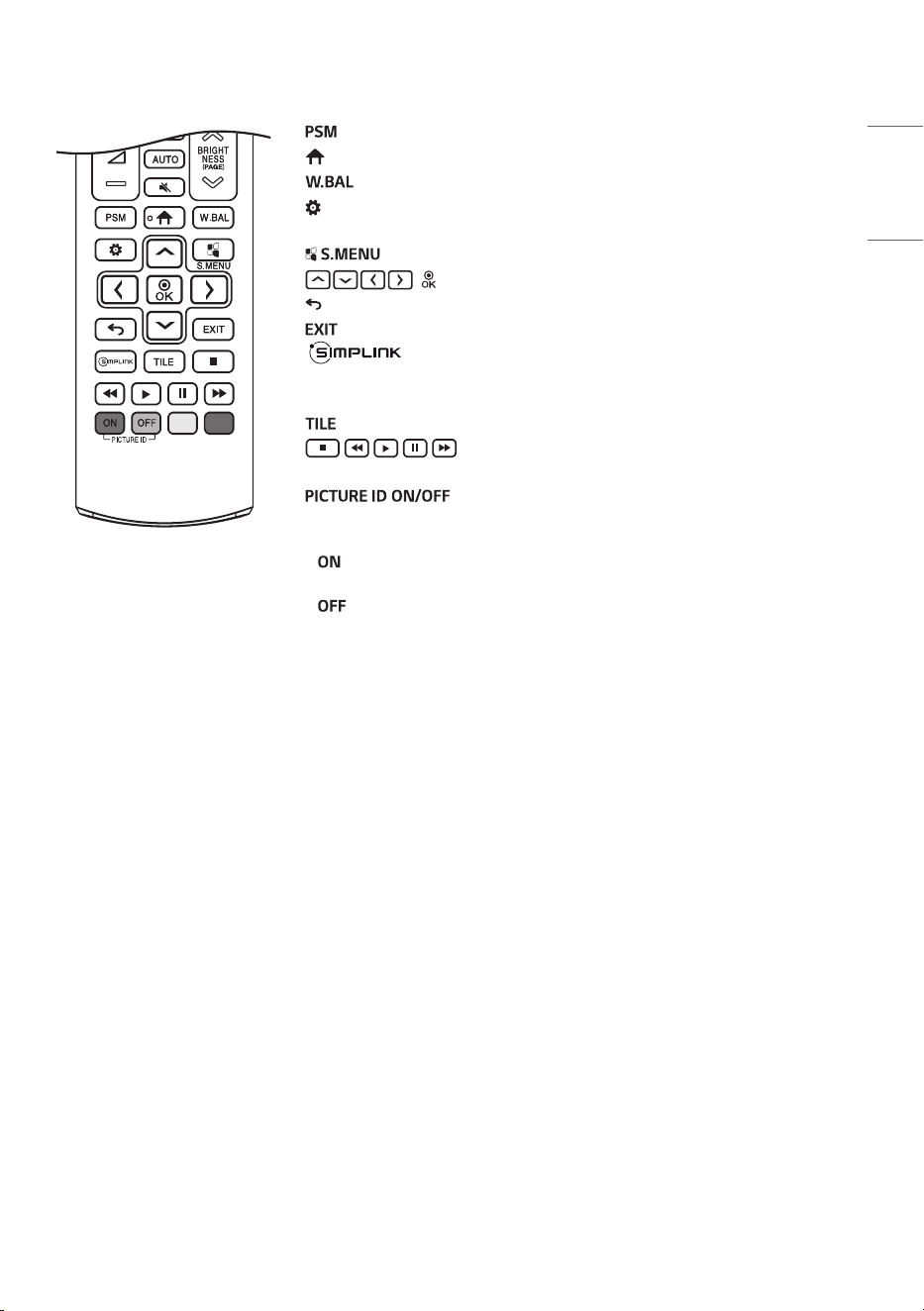
The descriptions in this manual are based on the buttons on the remote control. Please read this manual
carefully to use the monitor correctly. To install batteries, open the battery cover, place batteries
(1.5 V AAA) matching and terminals to the labels inside the compartment, and close the battery
cover. To remove the batteries, perform the installation actions in reverse. The illustrations may differ
from the actual accessories.
CAUTION
• Do not mix old and new batteries, as this may damage the remote control.
• Ensure the remote control is always pointed toward the monitor’s IR receiver.
• Some features of the remote control may not be supported in certain models.
• The product’s internal and external batteries should not be exposed to excessive heat such as direct
sunlight, fire, or the like.
(Power) Turns the monitor on or off.
Turns the monitor on.
Turns the monitor off.
Reduces power consumption by adjusting peak
screen brightness.
(Input) Selects the input mode.
Turns the display layout pattern on.
Number and Alphabet buttons Enters numerical or alphabetical
characters depending upon the setting.
Toggles between numerical and alphabetical. (This function is not
supported.)
Deletes the entered numerical or alphabetical character.
(Volume Up/Down Button) Adjusts the volume level.
Selects the screen size.
Automatically adjusts picture position and minimizes image
instability. (This is supported only for the RGB input.)
(Mute) Mutes all sounds.
Adjusts the LED light of the display.
Moves to the previous or next screen.
29
ENGLISH
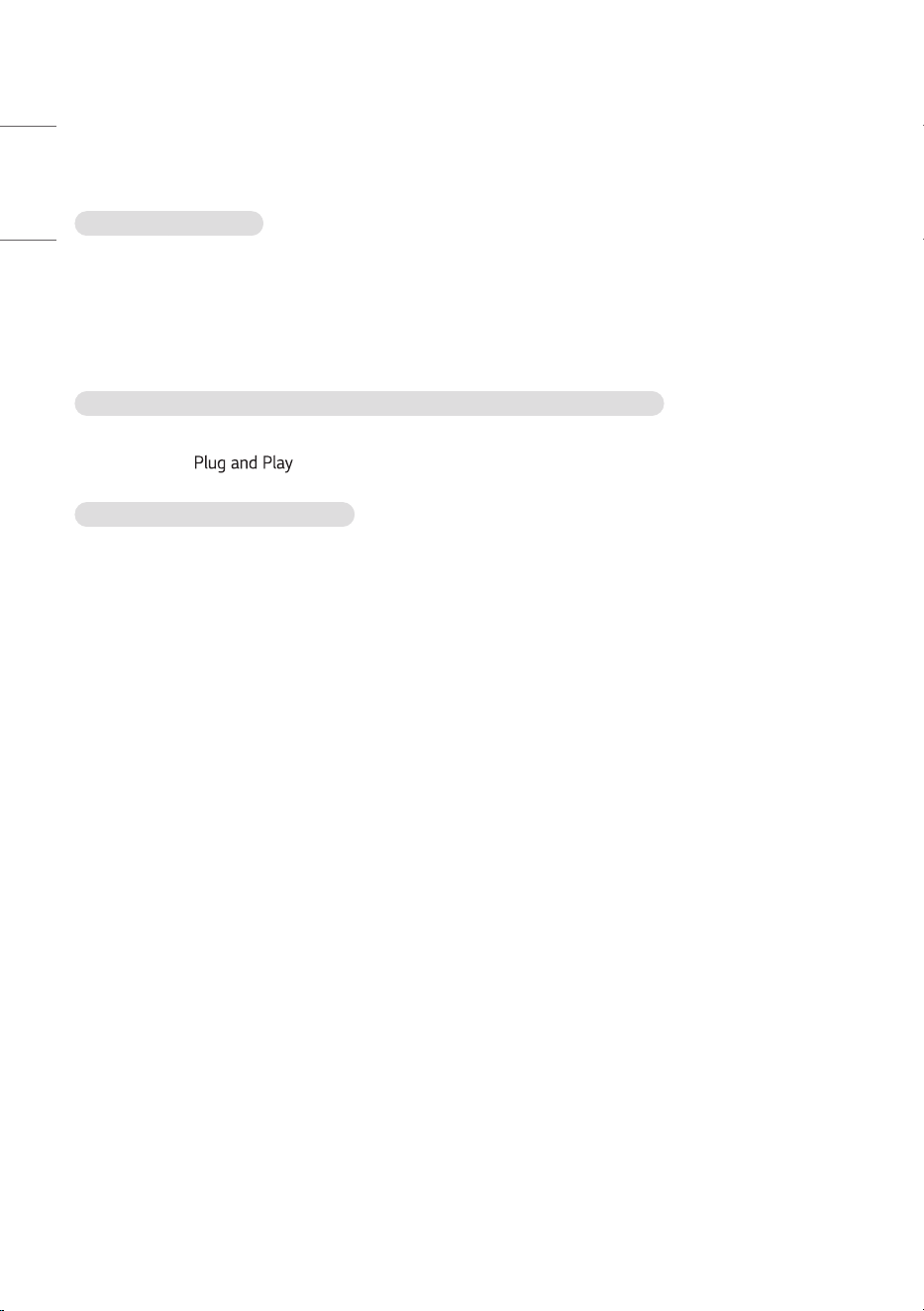
Selects the Picture Mode.
(Home) Activates the Launcher.
Enters the White Balance menu.
(Setting) Accesses the main menus or saves your input and exit
menus.
SuperSign menu key. (This function is not supported.)
, After selecting the menu, select and adjust functions.
(Back) Returns to the previous level.
Closes the menu.
Allows you to control various multimedia devices to enjoy
multimedia simply by using the remote control through the SimpLink
menu.
You can choose to turn TILE Mode on/off.
(Control Buttons) Controls media playback. (This
function is not supported.)
When the Picture ID number matches the Set ID
number, you can control whichever monitor you want in multi-display
format.
– : Individually control the monitors with an image ID assigned to
each of them.
– : Control the monitors at once.
30
ENGLISH
TROUBLESHOOTING
No image is displayed.
• Is the power cord connected to the product?
- Check if the power cord is correctly plugged into the power outlet.
• Is the ‘No Signal’ message displayed?
- Check the connection status of the HDMI or DP cable.
- Access the Input menu to check the input source.
The ‘Unknown Product’ message appears when the product is connected.
• Did you install the driver?
- Check if the function is supported by referring to the graphics card user manual.
The screen image looks abnormal.
• Is the screen position wrong?
- Check if the graphics card resolution and frequency are supported by the product. If the frequency is
out of range, set to the recommended resolution in the “Display” settings in Control Panel.
• The screen is displayed abnormally.
- The proper input source is not connected to the port. Connect a cable that matches the input source
signal.
31
ENGLISH
The display color is abnormal.
• After-image appears when the product is turned off.
- If you display a still image on the screen for a long time, the LED package may be damaged rapidly. Use
the screen-saver function.
- When a dark image is displayed on the screen after an image with high contrast (black and white or
grey), this may cause image sticking. This is normal for LED products.
• Screen has poor color resolution (16 colors).
- Set the color depth to more than 24 bits (true color).
• Screen color is unstable or mono-colored.
- Check the connection status of the signal cable. Or, re-insert the PC graphics card.
• Does a black dot appear on the screen?
- The few pixels (red, green, blue, white and black) that appear on the screen are due to the inherent
characteristics of the LED surface. This is not a malfunction of the Screen.
The operation does not work normally.
• The power suddenly turned off.
- Check if the auto-off function is activated on the settings related time.
- Power source has not being supplied properly. See if the product power cord is connected properly.
NOTE
• Without prior notice, the software is subject to change to improve the functionality of the product.
32
ENGLISH
PRODUCT SPECIFICATIONS
Without prior notice, the product specifications are subject to change to enhance the functionality of the
product.
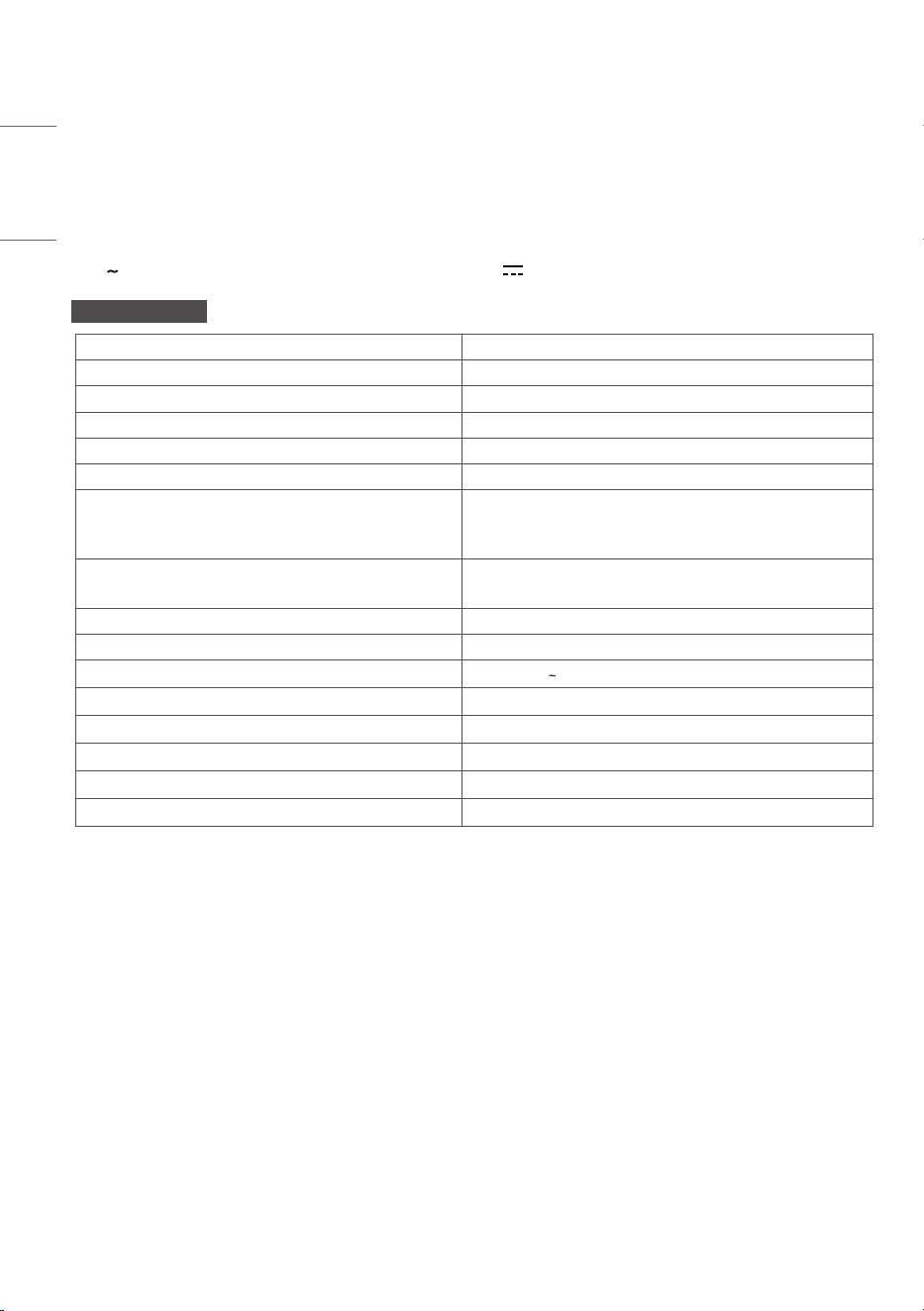
The symbol means alternating current, and the symbol means direct current.
LAAA015-G32
Pixel pitch (distance between pixels) 1.5625 mm
Resolution 1920 x 1080
Pixel density 409,600 pixels/m
2
Number of pixels per screen 82,944 pixels
Number of color output bits Internal 20 bit
Number of expressible colors 281.4 x 10
12
Input / Output ports
HDMI™ 1, HDMI™ 2, HDMI™ 3, DP, USB 2.0,
RS-232C IN, RS-232C OUT, IR & LIGHT SENSOR,
OPTICAL DIGITAL AUDIO OUT, LAN
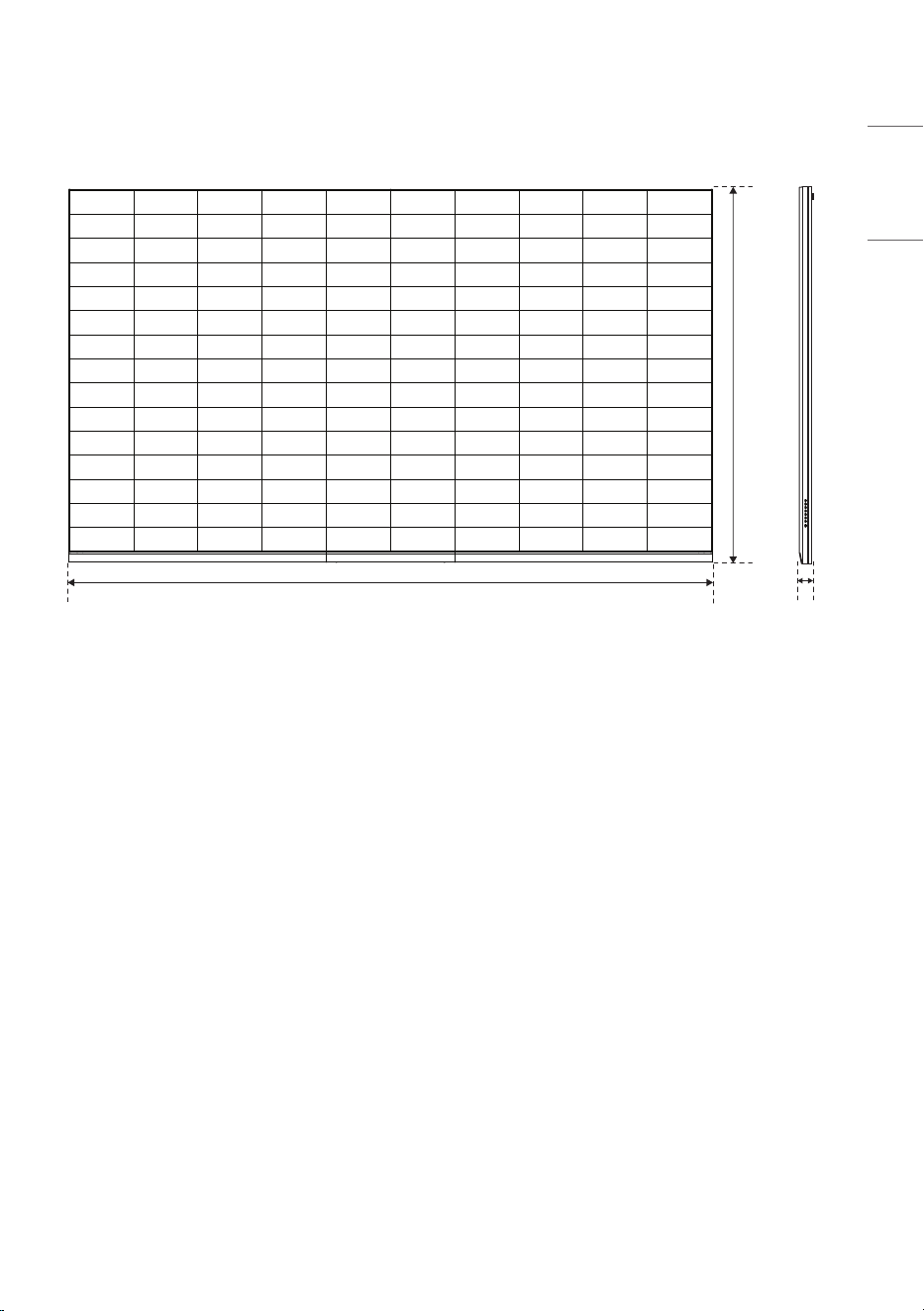
Dimensions (Width x Height x Depth) / Weight
3004 mm x 1741.3 mm x 57.4 mm / 190 kg
(118.2 inches x 68.5 inches x 2.2 inches / 418.8 lbs)
Luminance Typ. 500 nit
Color temperature (K) 3,200 - 9,300 K
Rating 100-240 V 50/60 Hz, 10 A
Operating Temperature 0 °C to 40 °C (32 °F to 104 °F)
Operating Humidity 10 % to 80 %
Storage Temperature -20 °C to 60 °C (-4 °F to 140 °F)
Storage Humidity 5 % to 85 %
Manufactured in Republic of Korea
33
ENGLISH
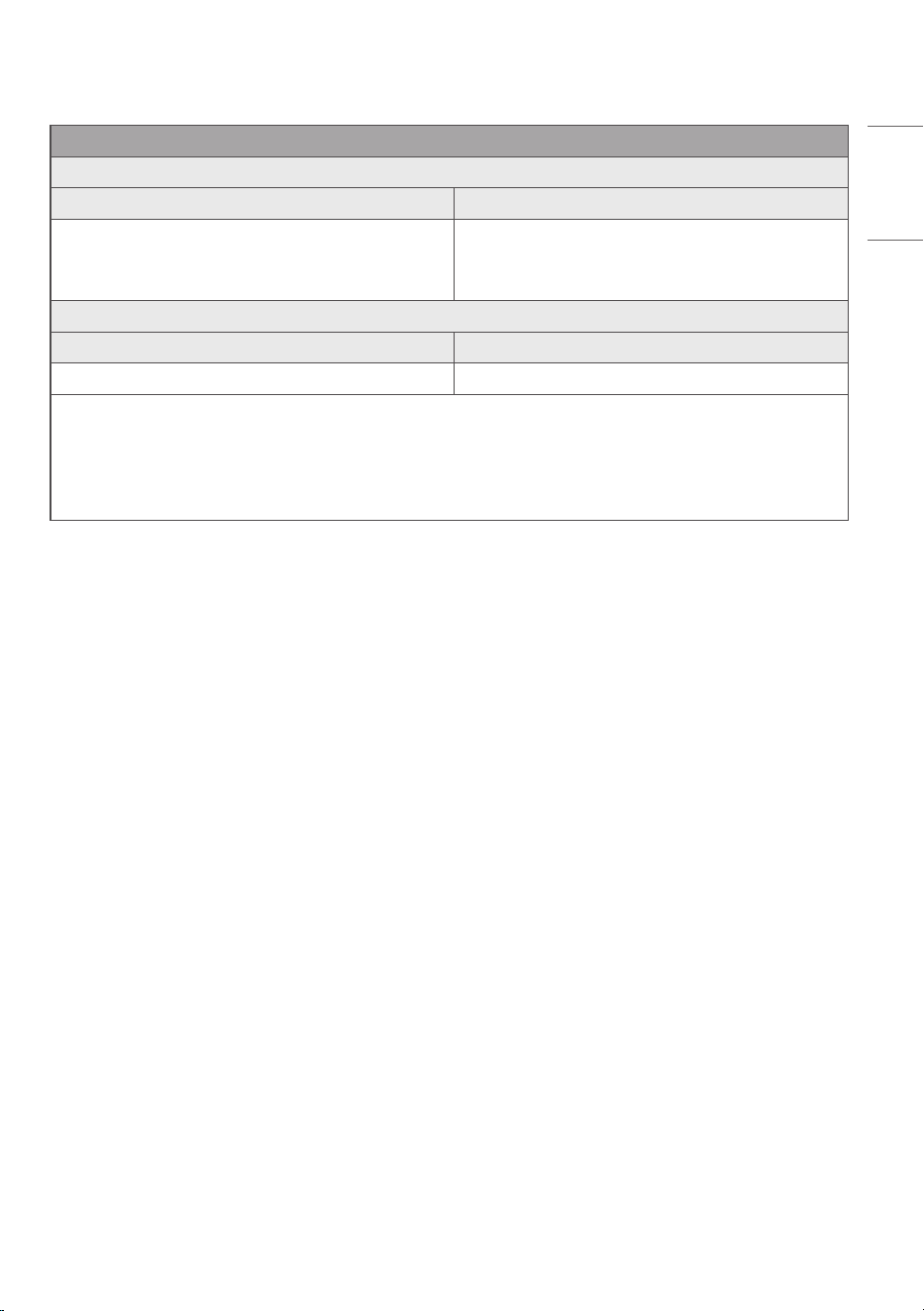
Wireless module (LGSBWAC72) Specifications
Wireless LAN (IEEE 802.11a/b/g/n/ac)
Frequency range (MHz) Output power (Max.) (dBm)
2400 to 2483.5
5150 to 5725
5725 to 5850
15
14.5
14.5
Bluetooth
Frequency range (MHz) Output power (Max.) (dBm)
2400 to 2483.5 8.5
• As band channels can vary per country, the user cannot change or adjust the operating frequency. This
product is configured for the regional frequency table.
• For consideration of the user, this device should be installed and operated with a minimum distance of
20 cm (7.8 inches) between the device and the body.
* FCC ID: BEJLGSBWAC72 / IC: 2703H-LGSBWAC72
34
ENGLISH
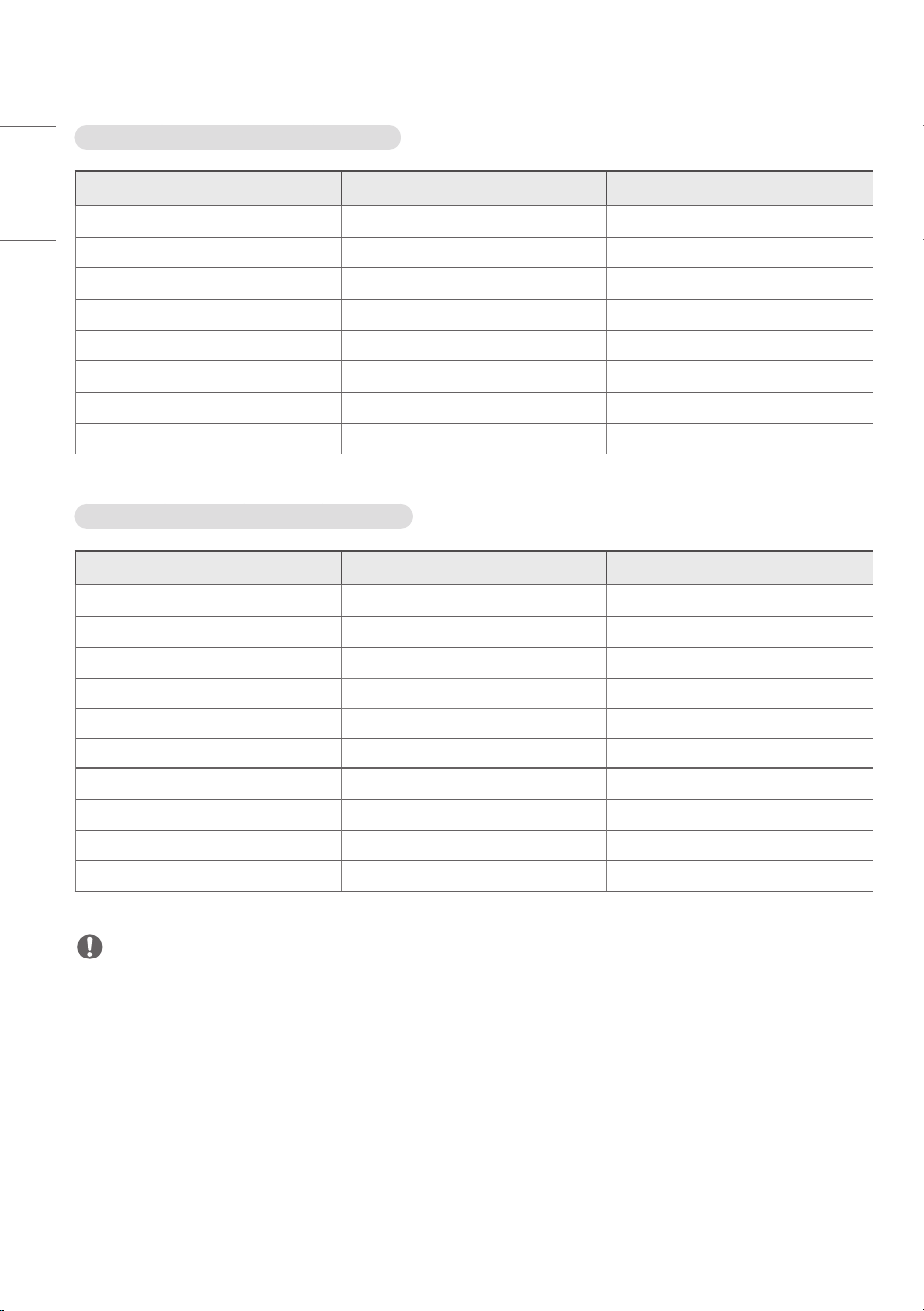
HDMI / DisplayPort (PC) Support mode
Resolution Horizontal frequency (kHz) Vertical frequency (Hz)
800 x 600 37.879 60.317
1024 x 768 48.363 60
1280 x 720 44.772 59.855
1366 x 768 47.7 60
1280 x 1024 63.981 60.02
1680 x 1050 65.29 59.954
1920 x 1080 67.5 60
3840 x 2160 67.5 30
HDMI / DisplayPort (DTV) Support mode
Resolution Horizontal frequency (kHz) Vertical frequency (Hz)
480/60p 31.5 60
576/50p 31.25 50
720/50p 37.5 50
720/60p 45 60
1080/50i 28.1 50
1080/60i 33.75 60
1080/50p 56.25 50
1080/60p 67.432 59.94
1080/60p 67.5 60
2160/30p 67.5 30
NOTE
• When the cable is connected to the HDMI or the DisplayPort, you can select the PC/DTV mode
optionally. It is recommended that you select PC mode when connecting to a PC and select DTV mode
when connecting to other devices. The DTV mode refers to all modes excluding the PC mode.
• Vertical frequency: The product display functions by the screen image changing dozens of times every
second like a fluorescent lamp. The vertical frequency or refresh rate is the number of image displays
per second. The unit is Hz.
• Horizontal frequency: The horizontal interval is the time taken to display one horizontal line. When
1 is divided by the horizontal interval, the number of horizontal lines displayed every second can be
tabulated as the horizontal frequency. The unit is kHz.
35
ENGLISH
(Unit: mm (inches))
3004
(118.2)
57.4
(2.2)
1741.3 (68.5)
36
ENGLISH
LICENSES
Supported licenses may differ by model. For more information of the licenses, visit
www.lg.com
.
The terms HDMI, HDMI High-Definition Multimedia Interface, HDMI trade dress and the HDMI Logos are
trademarks or registered trademarks of HDMI Licensing Administrator, Inc.
Manufactured under license from Dolby Laboratories. Dolby, Dolby Vision, Dolby Vision IQ, Dolby Audio,
Dolby Atmos, and the double-D symbol are trademarks of Dolby Laboratories Licensing Corporation.
For DTS patents, see
http://patents.dts.com
. Manufactured under license from DTS Licensing Limited.
DTS, the Symbol, & DTS and the Symbol together, DTS 2.0 Channel, DTS 2.0+Digital Out, DTS-HD, and DTS
Virtual:X are registered trademarks or trademarks of DTS, Inc. in the United States and/or other countries.
© DTS, Inc. All Rights Reserved.
The Bluetooth
®
word mark and logos are registered trademarks owned by Bluetooth SIG, Inc. and any use
of such marks by LG Electronics Inc. is under license. Other trademarks and trade names are those of their
respective owners.
Temporary noise is normal when powering ON
or OFF this device.
MODEL
SERIAL NO.
The model and serial number of the product
are located on the back and on one side of the
product.
Record them below in case you ever need
service.
Supplier’s Declaration of Conformity
Trade Name LG
Responsible
Party
LG Electronics USA, Inc.
Address 111 Sylvan Avenue, North
Building, Englewood Cliffs, NJ
07632
E-mail [email protected]om