MD60b
Irvine, CA 92614
17352 Von Karman Avenue
Printed in Taiwan
Instruction MRP #93-XXXX
Copyright © 2021 IEC. All Rights Reserved.
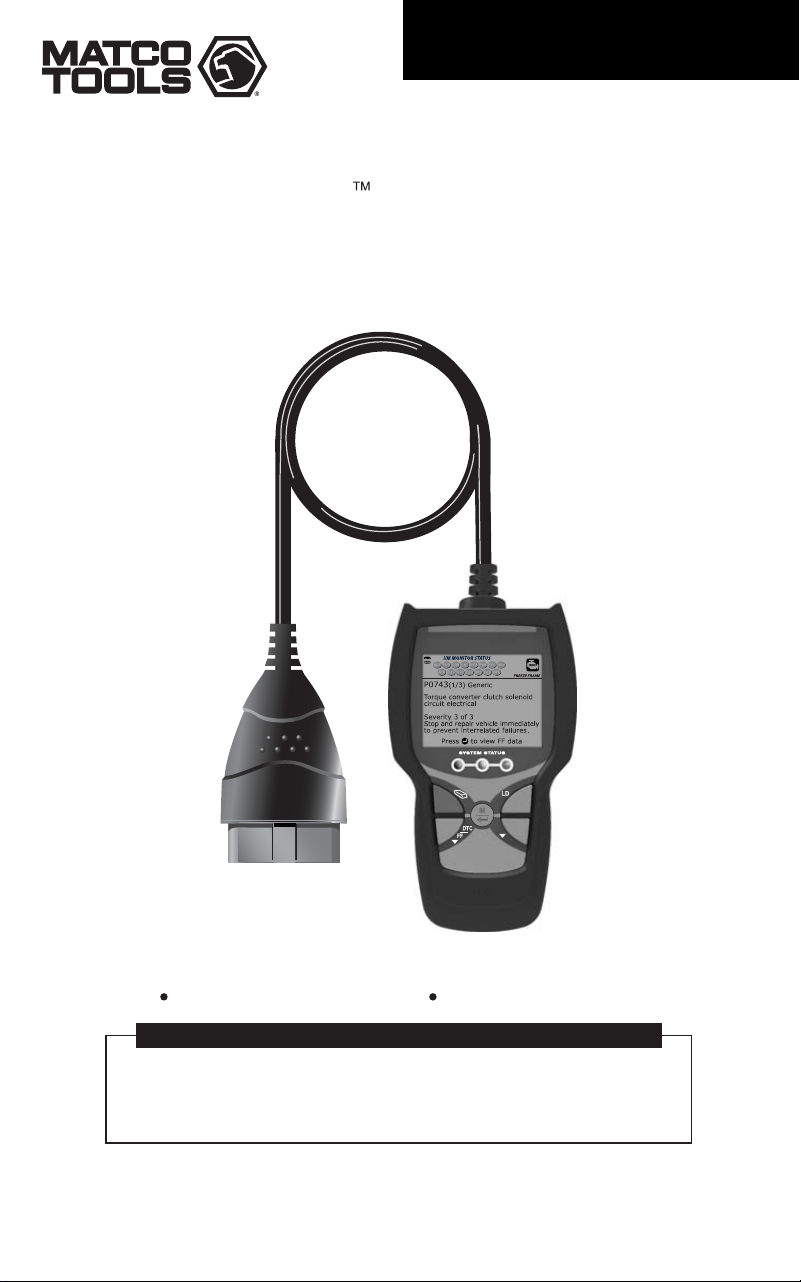
The easiest and best way to troubleshoot 1996 and newer OBD2 vehicles.
Links to all OBD2 protocols to decode "Check Engine" light problems.
Retrieves generic and manufacturer specific codes.
Displays Freeze Frame Data.
FEATURES AND BENEFITS
CodeAdvisor
DIGITAL CODE READER
Operating Instructions Safety Information

Table of Contents
i
ABOUT THE SCAN TOOL
SAFETY FIRST! ....................................................................... 1
CONTROLS AND INDICATORS .............................................. 2
DISPLAY FUNCTIONS ............................................................ 3
INITIAL ADJUSTMENTS ........................................................... 5
ONBOARD DIAGNOSTICS
COMPUTER ENGINE CONTROLS ......................................... 6
DIAGNOSTIC TROUBLE CODES (DTCs) .............................. 11
OBD2 MONITORS ` .................................................................. 14
USING THE SCAN TOOL
CODE RETRIEVAL PROCEDURE .......................................... 23
ERASING DIAGNOSTIC TROUBLE CODES (DTCs) .............. 28
ABOUT REPAIRSOLUTIONS 2® ............................................ 29
CONNECTING TO BLUETOOTH / WIFI .................................. 30
LIVE DATA MODE
VIEWING LIVE DATA .............................................................. 31
ADDITIONAL FUNCTIONS
VIEWING VEHICLE INFORMATION ....................................... 33
VIEWING MONITOR ICON DESCRIPTIONS ......................... 35
BATTERY/ALTERNATOR TEST ............................................. 35
VIEWING LED DEFINITIONS ................................................... 39
SELECTING THE DISPLAY LANGUAGE ............................... 39
ADJUSTING DISPLAY BRIGHTNESS .................................... 39
ENABLING/DISABLING THE AUDIBLE TONE ....................... 40
ENABLING/DISABLING NAVIGATIONAL FOOTERS ............. 40
VIEWING THE HOTKEY LEGEND .......................................... 40
SETTING THE UNIT OF MEASUREMENT ............................. 40
VIEWING THE FIRMWARE VERSION .................................... 41
SELECTING THE SMOG CHECK OR I/M PROGRAM
LOCATION ........................................................................... 41
VIEWING MONITOR ICON STATUS DEFINITIONS .............. 42
WARRANTY AND SERVICING
LIMITED TWO YEAR WARRANTY .......................................... 45
SERVICE PROCEDURES ....................................................... 45
About the Scan Tool
SAFETY FIRST
1
SAFETY FIRST!
This manual describes common test procedures used by experienced
service technicians. Many test procedures require precautions to avoid
accidents that can result in personal injury, and/or damage to your
vehicle or test equipment. Always read your vehicle's service manual
and follow its safety precautions before and during any test or service
procedure. ALWAYS observe the following general safety precautions:
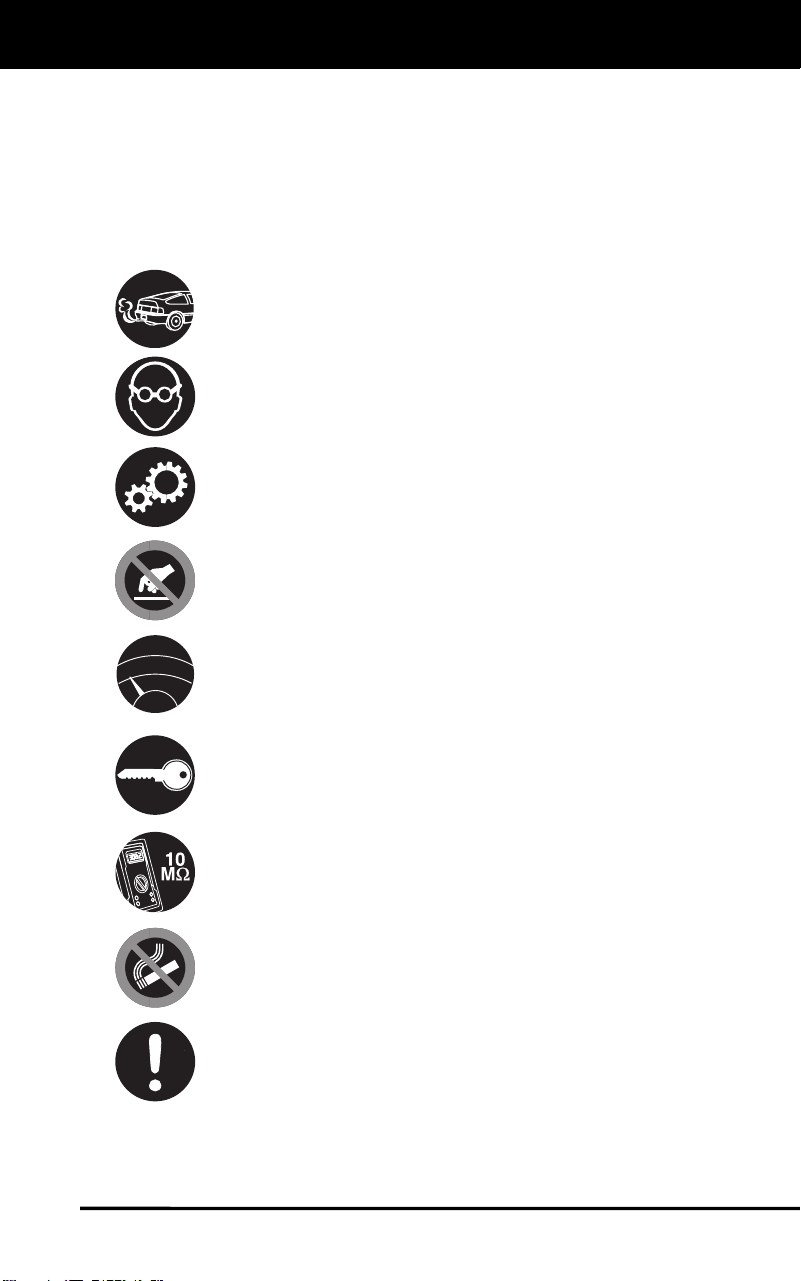
When an engine is running, it produces carbon monoxide, a
toxic and poisonous gas. To prevent serious injury or death
from carbon monoxide poisoning, operate the vehicle ONLY
in a well-ventilated area.
To protect your eyes from propelled objects as well as hot
or caustic liquids, always wear approved safety eye
protection.
When an engine is running, many parts (such as the coolant
fan, pulleys, fan belt etc.) turn at high speed. To avoid serious
injury, always be aware of moving parts. Keep a safe distance
from these parts as well as other potentially moving objects.
Engine parts become very hot when the engine is running.
To prevent severe burns, avoid contact with hot engine
parts.
Before starting an engine for testing or trouble-shooting, make
sure the parking brake is engaged. Put the transmission in
park (for automatic transmission) or neutral (for manual
transmission). Block the drive wheels with suitable blocks.
Connecting or disconnecting test equipment when the
ignition is ON can damage test equipment and the vehicle's
electronic components. Turn the ignition OFF before
connecting the Code Reader to or disconnecting the Code
Reader from the vehicle’s Data Link Connector (DLC).
To prevent damage to the on-board computer when taking
vehicle electrical measurements, always use a digital
multimeter with at least 10 MegOhms of impedance.
The vehicle's battery produces highly flammable hydrogen
gas. To prevent an explosion, keep all sparks, heated items
and open flames away from the battery.
Don't wear loose clothing or jewelry when working on an
engine. Loose clothing can become caught in the fan,
pulleys, belts, etc. Jewelry is highly conductive, and can
cause a severe burn if it makes contact between a power
source and ground.
N
L
D
R
P
About the Scan Tool
CONTROLS AND INDICATORS
2
CONTROLS AND INDICATORS
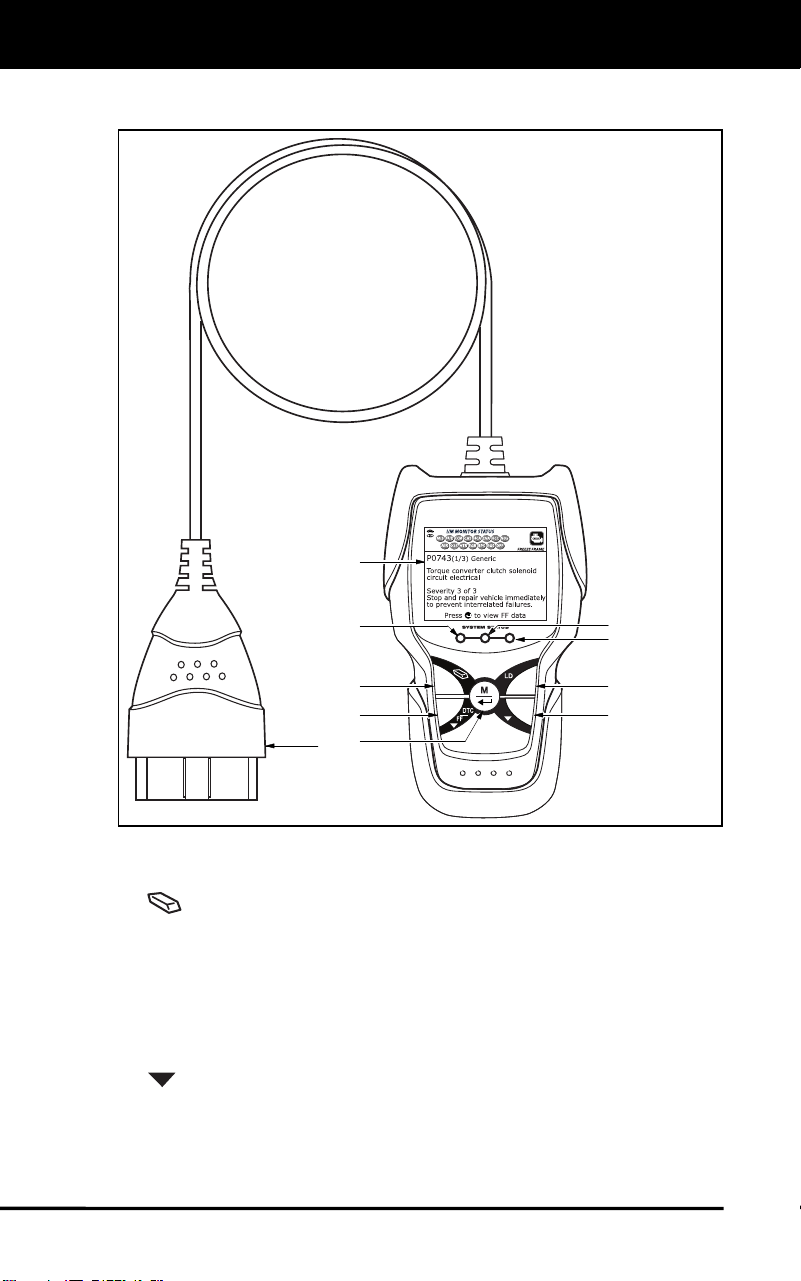
Figure 1. Controls and Indicators
See Figure 1 for the locations of items 1 through 9, below.
1.
ERASE button - Erases Diagnostic Trouble Codes (DTCs) and
"Freeze Frame" data from your vehicle's computer, and resets
Monitor status.
2. DTC/FF button – Displays the OBD2 DTC View screen and/or
scrolls the LCD display to view DTCs.
3. LD button – When pressed while linked to a vehicle, places the
Scan Tool in Live Data mode.
4.
DOWN button - When in MENU mode, scrolls down through the
menu options. When LINKED to a vehicle, scrolls down through the
current display screen to display any additional data.
1
6
2
5
9
3
8
7
4
10
About the Scan Tool
DISPLAY FUNCTIONS
3
5. MENU/ENTER button - Press and hold to display the Main
Menu. When in Menu mode, press to confirm the selected option or
value. When viewing the “Priority” code, press to view Freeze Frame
data.
6. GREEN LED - Indicates that all engine systems are running
normally (all Monitors on the vehicle are active and performing their
diagnostic testing, and no DTCs are present).
7. YELLOW LED - Indicates there is a possible problem. A “Pending”
DTC is present and/or some of the vehicle's emission monitors have
not run their diagnostic testing.
8. RED LED - Indicates there is a problem in one or more of the
vehicle's systems. The red LED is also used to show that DTC(s)
are present. DTCs are shown on the Scan Tool’s LCD display. In
this case, the Malfunction Indicator (“Check Engine”) lamp on the
vehicle's instrument panel will light steady on.
9. Display - Displays test results, Scan Tool functions and Monitor status
information. See DISPLAY FUNCTIONS, below, for details.
10. CABLE - Connects the Scan Tool to the vehicle's Data Link Connector
(DLC).
DISPLAY FUNCTIONS
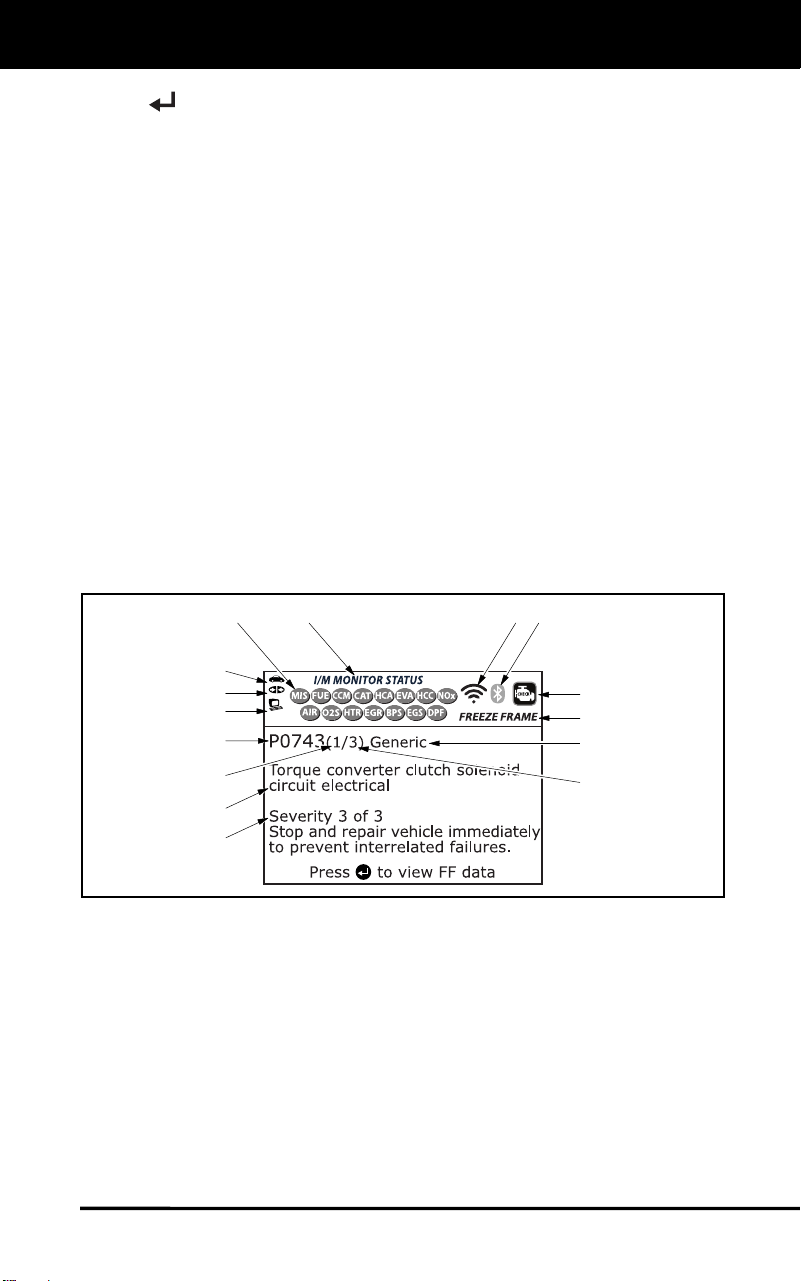
Figure 2. Display Functions
See Figure 2 for the locations of items 1 through 15, below.
1. I/M MONITOR STATUS field - Identifies the I/M Monitor status area.
2. Monitor icons - Indicate which Monitors are supported by the
vehicle under test, and whether or not the associated Monitor has
run its diagnostic testing (Monitor status).
A solid green icon indicates the Monitor has completed both
“Since DTCs Cleared” and “This Driving Cycle” testing.
A flashing red icon indicates the Monitor has not completed
“Since DTCs Cleared” testing.
4
3
2
5
7
6
114
10
11
12
8
9
13
15

About the Scan Tool
DISPLAY FUNCTIONS
4
A flashing green/gray icon indicates the Monitor has not
completed “This Driving Cycle” testing.
A flashing red/gray icon indicates the Monitor has been disable
for “This Driving Cycle.”
3.
Vehicle icon - When visible, indicates that the scan tool is being
powered through the vehicle’s DLC connector.
4.
Link icon - When visible, indicates the scan tool is
communicating with the vehicle’s computer.
5.
Computer icon - When visible, indicates the scan tool is linked
to a personal computer.
6. DTC Display Area - Displays the Diagnostic Trouble Code (DTC)
number. Each fault is assigned a code number that is specific to that
fault. The DTC number is color-coded as follows:
RED - Indicates the currently displayed DTC is a STORED or
PERMANENT DTC.
YELLOW - Indicates the currently displayed DTC is a PENDING
DTC.
GREEN - In cases where no codes are retrieved, a “No DTCs
are presently stored in the vehicle’s computer” message is
shown in green.
7. Code Number Sequence - The scan tool assigns a sequence
number to each DTC that is present in the computer’s memory,
starting with “1.” This number indicates which code is currently
displayed. Code number “1” is always the highest priority code, and
the one for which “Freeze Frame” data has been stored.
If “1” is a “Pending” code, there may or may not be “Freeze
Frame” data stored in memory.
8. Code Enumerator - Indicates the total number of codes retrieved
from the vehicle’s computer.
9. Test Data Display Area - Displays DTC definitions, Freeze Frame
data and other pertinent test information messages.
10. SYSTEM icon - Indicates the system with which the code is
associated:
MIL icon
11. FREEZE FRAME icon - Indicates that there is Freeze Frame data
from “Priority Code” (Code #1) stored in the vehicle’s computer
memory.
12. Code type - Indicates the type of code being displayed; Generic
Stored, Generic Pending, Generic permanent, etc.
13. Severity - Indicates the level of severity for the priority code (code
number “1”), as follows:
1 - Service should be scheduled and repairs made when
convenient. This DTC typically has no immediate threat to
essential system components in the short term.

About the Scan Tool
INITIAL ADJUSTMENTS
5
2 - Repair immediately if drivability issues are present. Threat to
essential system components if not repaired as soon as possible.
3 - Stop and repair vehicle immediately to prevent interrelated
failures. Harmful and damaging to essential system components.
14.
Bluetooth icon – Indicates communication status with a
compatible mobile application (please visit matco.carscan.com for
more information). A solid blue icon indicates an active Bluetooth
connection has been established. A solid grey icon indicates
Bluetooth is not connected.
15.
WiFi icon – Indicates WiFi communication status. When ON,
indicates the scan tool is linked to a WiFi network. When OFF,
indicates there is no WiFi connection.
INITIAL ADJUSTMENTS
The first time the unit is connected to a vehicle, you must select the
desired display language (English, French or Spanish), unit of
measurement (USA or Metric) and Smog Check or I/M Program
Location as follows:
1. Select the desired display language, then press MENU/ENTER
.
The Select Unit screen displays.
2. Select the desired unit of measurement, then press MENU/ENTER
.
The Select Smog Check or I/M Program Location screen
displays.
3. Select the appropriate location from the options provided, then press
MENU/ENTER
. If you do not wish to specify a Select Smog
Check or I/M Program Location at this time, select Exit, then press
MENU/ENTER
.
The Version Information screen displays briefly, then the Scan
Tool begins communication with the vehicle.
After the initial language, unit of measurement and Smog
Check or I/M Program Location selections are performed,
these, as well as other settings, can be changed as desired.
Proceed to
Additional Functions
on page 33 for further
instructions.

Onboard Diagnostics
COMPUTER ENGINE CONTROLS
6
COMPUTER ENGINE CONTROLS
The Introduction of Electronic Engine Controls
As a result of increased air pollution (smog) in large cities,
such as Los Angeles, the California Air Resources Board
(CARB) and the Environmental Protection Agency (EPA)
set new regulations and air pollution standards to deal with
the problem. To further complicate matters, the energy crisis of
the early 1970s caused a sharp increase in fuel prices over a
short period. As a result, vehicle manufacturers were not only
required to comply with the new emissions standards, they also
had to make their vehicles more fuel-efficient. Most vehicles
were required to meet a miles-per-gallon (MPG) standard set by the U.S.
Federal Government.
Precise fuel delivery and spark timing are needed to reduce vehicle
emissions. Mechanical engine controls in use at the time (such as
ignition points, mechanical spark advance and the carburetor)
responded too slowly to driving conditions to properly control fuel
delivery and spark timing. This made it difficult for vehicle manufacturers
to meet the new standards.
A new Engine Control System had to be designed and integrated with
the engine controls to meet the stricter standards. The new system had
to:
Respond instantly to supply the proper mixture of air and fuel for any
driving condition (idle, cruising, low-speed driving, high-speed
driving, etc.).
Calculate instantly the best time to “ignite” the air/fuel mixture for
maximum engine efficiency.
Perform both these tasks without affecting vehicle performance or
fuel economy.
Vehicle Computer Control Systems can perform millions of calculations
each second. This makes them an ideal substitute for the slower
mechanical engine controls. By switching from mechanical to electronic
engine controls, vehicle manufacturers are able to control fuel delivery
and spark timing more precisely. Some newer Computer Control
Systems also provide control over other vehicle functions, such as
transmission, brakes, charging, body, and suspension systems.
Electronic Computer Control Systems make it possible
for vehicle manufacturers to comply with the tougher
emissions and fuel efficiency standards mandated by
State and Federal Governments.

Onboard Diagnostics
COMPUTER ENGINE CONTROLS
7
The Basic Engine Computer Control System
The on-board computer is the heart of the Computer
Control System. The computer contains several programs
with preset reference values for air/fuel ratio, spark or
ignition timing, injector pulse width, engine speed, etc.
Separate values are provided for various driving conditions,
such as idle, low speed driving, high-speed driving, low load,
or high load. The preset reference values represent the ideal
air/fuel mixture, spark timing, transmission gear selection,
etc., for any driving condition. These values are programmed
by the vehicle manufacturer, and are specific to each vehicle model.
Most on-board computers are located inside the vehicle behind the dashboard,
under the passenger’s or driver’s seat, or behind the right kick panel. However,
some manufacturers may still position it in the engine compartment.
Vehicle sensors, switches, and actuators are located throughout the
engine, and are connected by electrical wiring to the on-board computer.
These devices include oxygen sensors, coolant temperature sensors,
throttle position sensors, fuel injectors, etc. Sensors and switches are
input devices. They provide signals representing current engine
operating conditions to the computer. Actuators are output devices. They
perform actions in response to commands received from the computer.
The on-board computer receives information inputs from sensors and
switches located throughout the engine. These devices monitor critical
engine conditions such as coolant temperature, engine speed, engine
load, throttle position, air/fuel ratio etc.
The computer compares the values received from these sensors with its
preset reference values, and makes corrective actions as needed so
that the sensor values always match the preset reference values for the
current driving condition. The computer makes adjustments by
commanding other devices such as the fuel injectors, idle air control,
EGR valve or Ignition Module to perform these actions.
The Computer Control System consists of an on-board
computer and several related control devices (sensors,
switches, and actuators).
OUTPUT DEVICES
Fuel Injectors
Idle Air Control
EGR Valve
Ignition Module
On-Board
Computer
INPUT DEVICES
Coolant Temperature Sensor
Throttle Position Sensor
Fuel Injectors
INPUT DEVICES
Oxygen Sensors
TYPICAL COMPUTER
CONTROL SYSTEM

Onboard Diagnostics
COMPUTER ENGINE CONTROLS
8
Vehicle operating conditions are constantly changing. The computer
continuously makes adjustments or corrections (especially to the air/fuel
mixture and spark timing) to keep all the engine systems operating
within the preset reference values.
On-Board Diagnostics - First Generation (OBD1)
Beginning in 1988, California’s Air Resources Board
(CARB), and later the Environmental Protection Agency (EPA)
required vehicle manufacturers to include a self-diagnostic
program in their on-board computers. The program would be
capable of identifying emissions-related faults in a system. The
first generation of Onboard Diagnostics came to be known as
OBD1.
OBD1 is a set of self-testing and diagnostic instructions
programmed into the vehicle’s on-board computer. The
programs are specifically designed to detect failures in the sensors,
actuators, switches and wiring of the various vehicle emissions-related
systems. If the computer detects a failure in any of these components or
systems, it lights an indicator on the dashboard to alert the driver. The
indicator lights only when an emissions-related problem is detected.
The computer also assigns a numeric code for each specific problem
that it detects, and stores these codes in its memory for later retrieval.
These codes can be retrieved from the computer’s memory with the use
of a “Code Reader” or a “Scan Tool.”
On-Board Diagnostics - Second Generation (OBD2)
In addition to performing all the
functions of the OBD1 System, the
OBD2 System has been enhanced with
new Diagnostic Programs. These
programs closely monitor the functions
of various emissions-related compo-
nents and systems (as well as other
systems) and make this information readily available (with
the proper equipment) to the technician for evaluation.
The California Air Resources Board (CARB) conducted
studies on OBD1 equipped vehicles. The information that was
gathered from these studies showed the following:
A large number of vehicles had deteriorating or degraded
emissions-related components. These components were
causing an increase in emissions.
With the exception of some 1994 and 1995 vehicles,
most vehicles from 1982 to 1995 are equipped with
some type of first generation On-Board Diagnostics.
The OBD2 System is
an enhancement of the
OBD1 System.

Onboard Diagnostics
COMPUTER ENGINE CONTROLS
9
Because OBD1 systems only detect failed components, the
degraded components were not setting codes.
Some emissions problems related to degraded components only
occur when the vehicle is being driven under a load. The emission
checks being conducted at the time were not performed under
simulated driving conditions. As a result, a significant number of
vehicles with degraded components were passing Emissions Tests.
Codes, code definitions, diagnostic connectors, communication
protocols and emissions terminology were different for each
manufacturer. This caused confusion for the technicians working on
different make and model vehicles.
To address the problems made evident by this study, CARB and the
EPA passed new laws and standardization requirements. These laws
required that vehicle manufacturers to equip their new vehicles with
devices capable of meeting all of the new emissions standards and
regulations. It was also decided that an enhanced on-board diagnostic
system, capable of addressing all of these problems, was needed. This
new system is known as “On-Board Diagnostics Generation Two
(OBD2).” The primary objective of the OBD2 system is to comply with
the latest regulations and emissions standards established by CARB
and the EPA.
The Main Objectives of the OBD2 System are:
To detect degraded and/or failed emissions-related components or
systems that could cause tailpipe emissions to exceed by 1.5 times
the Federal Test Procedure (FTP) standard.
To expand emissions-related system monitoring. This includes a set
of computer run diagnostics called Monitors. Monitors perform
diagnostics and testing to verify that all emissions-related
components and/or systems are operating correctly and within the
manufacturer’s specifications.
To use a standardized Diagnostic Link Connector (DLC) in all
vehicles. (Before OBD2, DLCs were of different shapes and sizes.)
To standardize the code numbers, code definitions and language
used to describe faults. (Before OBD2, each vehicle manufacturer
used their own code numbers, code definitions and language to
describe the same faults.)
To expand the operation of the Malfunction Indicator Lamp (MIL).
To standardize communication procedures and protocols between
the diagnostic equipment (Scan Tools, Code Readers, etc.) and the
vehicle’s on-board computer.
OBD2 Terminology
The following terms and their definitions are related to OBD2 systems.
Read and reference this list as needed to aid in the understanding of
OBD2 systems.

Onboard Diagnostics
COMPUTER ENGINE CONTROLS
10
Powertrain Control Module (PCM) - The PCM is the OBD2
accepted term for the vehicle’s “on-board computer.” In addition
to controlling the engine management and emissions systems,
the PCM also participates in controlling the powertrain
(transmission) operation. Most PCMs also have the ability to
communicate with other computers on the vehicle (ABS, ride
control, body, etc.).
Monitor - Monitors are “diagnostic routines” programmed into the
PCM. The PCM utilizes these programs to run diagnostic tests, and
to monitor operation of the vehicle’s emissions-related components
or systems to ensure they are operating correctly and within the
vehicle’s manufacturer specifications. Currently, up to fifteen
Monitors are used in OBD2 systems. Additional Monitors will be
added as the OBD2 system is further developed.
Not all vehicles support all fifteen Monitors.
Enabling Criteria - Each Monitor is designed to test and monitor
the operation of a specific part of the vehicle’s emissions system
(EGR system, oxygen sensor, catalytic converter, etc.). A specific
set of “conditions” or “driving procedures” must be met before the
computer can command a Monitor to run tests on its related system.
These “conditions” are known as “Enabling Criteria.” The
requirements and procedures vary for each Monitor. Some Monitors
only require the ignition key to be turned “On” for them to run and
complete their diagnostic testing. Others may require a set of
complex procedures, such as, starting the vehicle when cold,
bringing it to operating temperature, and driving the vehicle under
specific conditions before the Monitor can run and complete its
diagnostic testing.
Monitor Has/Has Not Run - The terms “Monitor has run” or
“Monitor has not run” are used throughout this manual. “Monitor
has run,” means the PCM has commanded a particular Monitor to
perform the required diagnostic testing on a system to ensure the
system is operating correctly (within factory specifications). The term
“Monitor has not run” means the PCM has not yet commanded a
particular Monitor to perform diagnostic testing on its associated part
of the emissions system.
Trip - A Trip for a particular Monitor requires that the vehicle is
being driven in such a way that all the required “Enabling Criteria”
for the Monitor to run and complete its diagnostic testing are met.
The “Trip Drive Cycle” for a particular Monitor begins when the
ignition key is turned “On.” It is successfully completed when all the
“Enabling Criteria” for the Monitor to run and complete its diagnostic
testing are met by the time the ignition key is turned “Off.” Since
each of the fifteen monitors is designed to run diagnostics and
testing on a different part of the engine or emissions system, the
“Trip Drive Cycle” needed for each individual Monitor to run and
complete varies.
Onboard Diagnostics
DIAGNOSTIC TROUBLE CODES (DTCs)
11
OBD2 Drive Cycle - An OBD2 Drive Cycle is an extended set of
driving procedures that takes into consideration the various types of
driving conditions encountered in real life. These conditions may
include starting the vehicle when it is cold, driving the vehicle at a
steady speed (cruising), accelerating, etc. An OBD2 Drive Cycle
begins when the ignition key is turned “On” (when cold) and ends
when the vehicle has been driven in such a way as to have all the
“Enabling Criteria” met for all its applicable Monitors. Only those
trips that provide the Enabling Criteria for all Monitors applicable to
the vehicle to run and complete their individual diagnostic tests
qualify as an OBD2 Drive Cycle. OBD2 Drive Cycle requirements
vary from one model of vehicle to another. Vehicle manufacturers
set these procedures. Consult your vehicle’s service manual for
OBD2 Drive Cycle procedures.
Do not confuse a “Trip” Drive Cycle with an OBD2 Drive Cycle. A
“Trip” Drive Cycle provides the “Enabling Criteria” for one specific
Monitor to run and complete its diagnostic testing. An OBD2 Drive
Cycle must meet the “Enabling Criteria” for all Monitors on a
particular vehicle to run and complete their diagnostic testing.
Warm-up Cycle - Vehicle operation after an engine off period where
engine temperature rises at least 40°F (22°C) from its temperature
before starting, and reaches at least 160°F (70°C). The PCM uses
warm-up cycles as a counter to automatically erase a specific code
and related data from its memory. When no faults related to the
original problem are detected within a specified number of warm-up
cycles, the code is erased automatically.
DIAGNOSTIC TROUBLE CODES (DTCs)
Diagnostic Trouble Codes (DTCs) are
meant to guide you to the proper
service procedure in the vehicle’s
service manual. DO NOT replace parts
based only on DTCs without first
consulting the vehicle’s service manual
for proper testing procedures for that
particular system, circuit or component.
DTCs are alphanumeric codes that are used to identify a
problem that is present in any of the systems that are
monitored by the on-board computer (PCM). Each trouble
code has an assigned message that identifies the circuit,
component or system area where the problem was found.
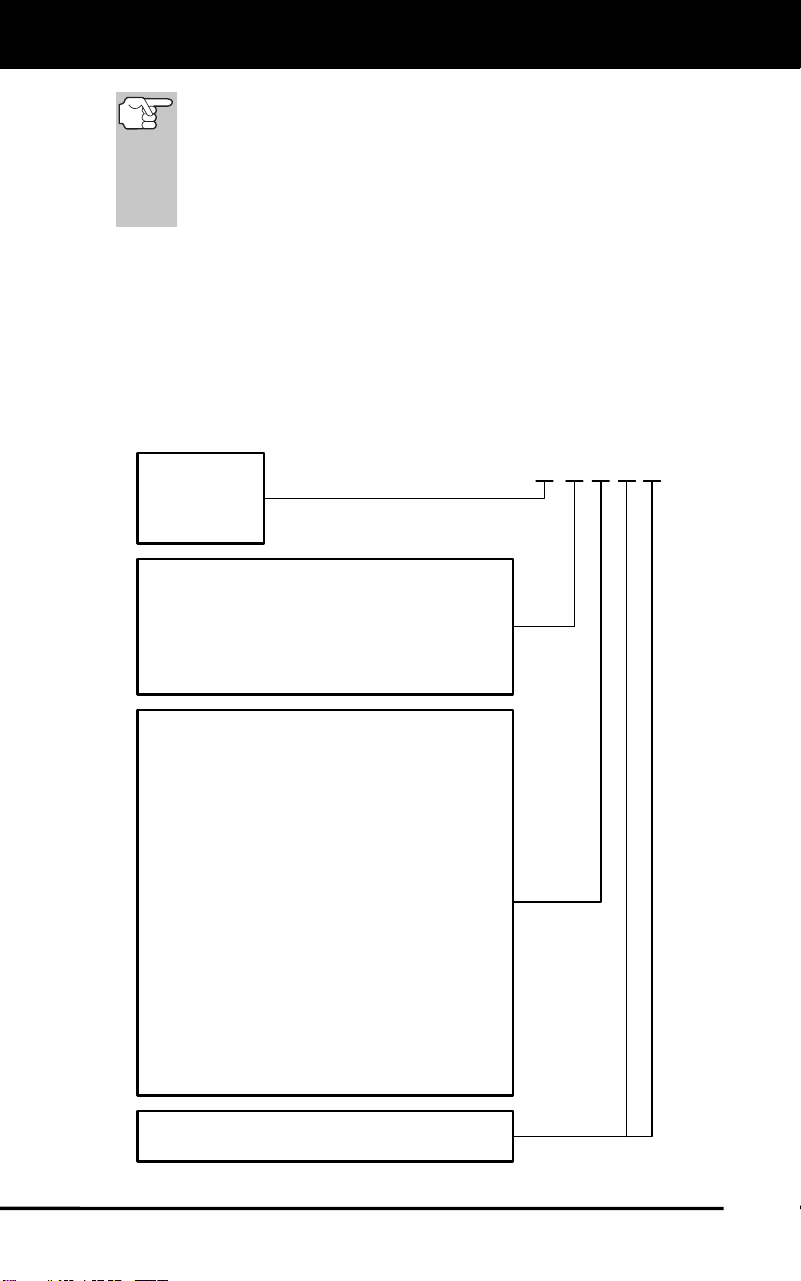
OBD2 diagnostic trouble codes are made up of five characters:
The 1st character is a letter (B, C, P or U). It identifies the
“main system” where the fault occurred (Body, Chassis, Powertrain,
or Network).
The 2nd character is a numeric digit (0 thru 3). It identifies the
“type” of code (Generic or Manufacturer-Specific).
Generic DTCs are codes that are used by all vehicle manu-
facturers. The standards for generic DTCs, as well as their
definitions, are set by the Society of Automotive Engineers (SAE).
Diagnostic Trouble
Codes (DTCs) are
codes that identify a
specific problem area.
Onboard Diagnostics
DIAGNOSTIC TROUBLE CODES (DTCs)
12
Manufacturer-Specific DTCs are codes that are controlled by
the vehicle manufacturers. The Federal Government does not
require vehicle manufacturers to go beyond the standardized
generic DTCs in order to comply with the new OBD2 emissions
standards. However, manufacturers are free to expand beyond
the standardized codes to make their systems easier to
diagnose.
The 3rd character is a letter or a numeric digit (0 thru 9, A thru F).
It identifies the specific system or sub-system where the problem is
located.
The 4th and 5th characters are letters or numeric digits (0 thru 9, A
thru F). They identify the section of the system that is malfunctioning.
P 0 2 0 1
B
C
P
U
-
-
-
-
Body
Chassis
Powertrain
Network
-
-
-
-
Generic
Manufacturer Specific
Generic ("P" Codes) and Manufacturer
Specific ("B", "C" and "U" Codes)
Includes both Generic and Manufacturer
Specific Codes
0
1
2
3
Identifies what section of the system
is malfunctioning
Identifies the system where the problem is
located. "P" Code systems are listed below.
"B", "C" and "U" Code systems will vary.
0
2
3
4
5
6
7
C
-
-
-
-
-
-
-
-
Fuel and Air Metering; Auxiliary Emission
1 - Fuel and Air Metering
Controls
Fuel and Air Metering (injector circuit
malfunction only)
Ignition System or Misfire
Auxiliary Emission Control System
Vehicle Speed Control and Idle Control
System
Computer Output Circuits
Transmission
8 - Transmission
9 - Transmission
A - Hybrid Propulsion
B - Hybrid Propulsion
Hybrid Propulsion
OBD2 DTC EXAMPLE
P0201 - Injector Circuit Malfunction, Cylinder 1

Onboard Diagnostics
DIAGNOSTIC TROUBLE CODES (DTCs)
13
DTCs and MIL Status
When the vehicle’s on-board computer detects
a failure in an emissions-related component or
system, the computer’s internal diagnostic
program assigns a diagnostic trouble code
(DTC) that points to the system (and subsystem)
where the fault was found. The diagnostic
program saves the code in the computer’s
memory. It records a “Freeze Frame” of
conditions present when the fault was found, and lights the Malfunction
Indicator Lamp (MIL). Some faults require detection for two trips in a row
before the MIL is turned on.
The “Malfunction Indicator Lamp” (MIL) is the accepted term
used to describe the lamp on the dashboard that lights to warn
the driver that an emissions-related fault has been found.
Some manufacturers may still call this lamp a “Check Engine”
or “Service Engine Soon” light.
There are two types of DTCs used for emissions-related faults: Type “A”
and Type “B.” Type “A” codes are “One-Trip” codes; Type “B” DTCs are
usually Two-Trip DTCs.
When a Type “A” DTC is found on the First Trip, the following events
take place:
The computer commands the MIL “On” when the failure is first found.
If the failure causes a severe misfire that may cause damage to the
catalytic converter, the MIL “flashes” once per second. The MIL
continues to flash as long as the condition exists. If the condition
that caused the MIL to flash is no longer present, the MIL will light
“steady” On.
A DTC is saved in the computer’s memory for later retrieval.
A “Freeze Frame” of the conditions present in the engine or emissions
system when the MIL was ordered “On” is saved in the computer’s
memory for later retrieval. This information shows fuel system status
(closed loop or open loop), engine load, coolant temperature, fuel trim
value, MAP vacuum, engine RPM and DTC priority.
When a Type “B” DTC is found on the First Trip, the following events
take place:
The computer sets a Pending DTC, but the MIL is not ordered “On.”
“Freeze Frame” data may or may not be saved at this time
depending on manufacturer. The Pending DTC is saved in the
computer’s memory for later retrieval.
If the failure is found on the second consecutive trip, the MIL is
ordered “On.” “Freeze Frame” data is saved in the computer’s
memory.
If the failure is not found on the second Trip, the Pending DTC is
erased from the computer’s memory.
The MIL will stay lit for both Type “A” and Type “B” codes until one of
the following conditions occurs:
Onboard Diagnostics
OBD2 MONITORS
14
If the conditions that caused the MIL to light are no longer present
for the next three trips in a row, the computer automatically turns the
MIL “Off” if no other emissions-related faults are present. However,
the DTCs remain in the computer’s memory as a history code for 40
warm-up cycles (80 warm-up cycles for fuel and misfire faults). The
DTCs are automatically erased if the fault that caused them to be
set is not detected again during that period.
Misfire and fuel system faults require three trips with “similar
conditions” before the MIL is turned “Off.” These are trips where the
engine load, RPM and temperature are similar to the conditions
present when the fault was first found.
After the MIL has been turned off, DTCs and Freeze Frame
data stay in the computer’s memory.
Erasing the DTCs from the computer’s memory can also turn off the
MIL. See ERASING DIAGNOSTIC TROUBLE CODES (DTCs) on
page 28, before erasing codes from the computer’s memory. If a
Diagnostic Tool or Scan Tool is used to erase the codes, Freeze
Frame data will also be erased.
OBD2 MONITORS
To ensure the correct operation of the various emissions-related
components and systems, a diagnostic program was developed and
installed in the vehicle’s on-board computer. The program has several
procedures and diagnostic strategies. Each procedure or diagnostic
strategy is made to monitor the operation of, and run diagnostic tests on,
a specific emissions-related component or system. These tests ensure
the system is running correctly and is within the manufacturer’s
specifications. On OBD2 systems, these procedures and diagnostic
strategies are called “Monitors.”
Currently, fifteen Monitors are supported by OBD2 systems. Additional
monitors may be added as a result of Government regulations as the
OBD2 system grows and matures. Not all vehicles support all fifteen
Monitors. Additionally, some Monitors are supported by “spark ignition”
vehicles only, while others are supported by “compression ignition”
vehicles only.
Monitor operation is either “Continuous” or “Non-Continuous,”
depending on the specific monitor.
Continuous Monitors
Three of these Monitors are designed to constantly monitor their
associated components and/or systems for proper operation.
Continuous Monitors run constantly when the engine is running. The
Continuous Monitors are:
Comprehensive Component Monitor (CCM)
Misfire Monitor
Fuel System Monitor
Onboard Diagnostics
OBD2 MONITORS
15
Non-Continuous Monitors
The other twelve Monitors are “non-continuous” Monitors. “Non-
continuous” Monitors perform and complete their testing once per trip.
The “non-continuous” Monitors are:
Oxygen Sensor Monitor
Oxygen Sensor Heater Monitor
Catalyst Monitor
Heated Catalyst Monitor
EGR System Monitor
EVAP System Monitor
Secondary Air System Monitor
The following Monitors became standard beginning in 2010.
The majority of vehicles produced before this time will not
support these Monitors
NMHC Monitor
NOx Adsorber Monitor
Boost Pressure System Monitor
Exhaust Gas Sensor Monitor
PM Filter Monitor
The following provides a brief explanation of the function of each Monitor:
Comprehensive Component Monitor (CCM) - This Monitor
continuously checks all inputs and outputs from sensors,
actuators, switches and other devices that provide a signal to the
computer. The Monitor checks for shorts, opens, out of range value,
functionality and “rationality.”
Rationality: Each input signal is compared against all other
inputs and against information in the computer’s memory to see
if it makes sense under the current operating conditions.
Example: The signal from the throttle position sensor indicates
the vehicle is in a wide-open throttle condition, but the vehicle is
really at idle, and the idle condition is confirmed by the signals
from all other sensors. Based on the input data, the computer
determines that the signal from the throttle position sensor is not
rational (does not make sense when compared to the other
inputs). In this case, the signal would fail the rationality test.
The CCM is supported by both “spark ignition” vehicles and
“compression ignition” vehicles. The CCM may be either a “One-Trip” or
a “Two-Trip” Monitor, depending on the component.

Onboard Diagnostics
OBD2 MONITORS
16
Fuel System Monitor - This Monitor uses a Fuel System
Correction program, called Fuel Trim, inside the on-board
computer. Fuel Trim is a set of positive and negative values that
represent adding or subtracting fuel from the engine. This program is
used to correct for a lean (too much air/not enough fuel) or rich (too
much fuel/not enough air) air-fuel mixture. The program is designed to
add or subtract fuel, as needed, up to a certain percent. If the correction
needed is too large and exceeds the time and percent allowed by the
program, a fault is indicated by the computer.
The Fuel System Monitor is supported by both “spark ignition” vehicles
and “compression ignition” vehicles. The Fuel System Monitor may be a
“One-Trip” or “Two-Trip” Monitor, depending on the severity of the
problem.
Misfire Monitor - This Monitor continuously checks for engine misfires.
A misfire occurs when the air-fuel mixture in the cylinder does not
ignite. The misfire Monitor uses changes in crankshaft speed to sense an
engine misfire. When a cylinder misfires, it no longer contributes to the speed
of the engine, and engine speed decreases each time the affected cylinder(s)
misfire. The misfire Monitor is designed to sense engine speed fluctuations
and determine from which cylinder(s) the misfire is coming, as well as how
bad the misfire is. There are three types of engine misfires, Types 1, 2, and 3.
- Type 1 and Type 3 misfires are two-trip monitor faults. If a fault is sensed
on the first trip, the computer temporarily saves the fault in its memory as
a Pending Code. The MIL is not commanded on at this time. If the fault is
found again on the second trip, under similar conditions of engine speed,
load and temperature, the computer commands the MIL “On,” and the
code is saved in its long term memory.
- Type 2 misfires are the most severe type of misfire. When a Type 2
misfire is sensed on the first trip, the computer commands the MIL to
light when the misfire is sensed. If the computer determines that a
Type 2 misfire is severe , and may cause catalytic converter damage,
it commands the MIL to “flash” once per second as soon as the
misfire is sensed. When the misfire is no longer present, the MIL
reverts to steady “On” condition.
The Misfire Monitor is supported by both “spark ignition” vehicles and
“compression ignition” vehicles.
Catalyst Monitor - The catalytic converter is a device that is
installed downstream of the exhaust manifold. It helps to oxidize
(burn) the unburned fuel (hydrocarbons) and partially burned fuel
(carbon monoxide) left over from the combustion process. To
accomplish this, heat and catalyst materials inside the converter react
with the exhaust gases to burn the remaining fuel. Some materials
inside the catalytic converter also have the ability to store oxygen, and
release it as needed to oxidize hydrocarbons and carbon monoxide. In
the process, it reduces vehicle emissions by converting the polluting
gases into carbon dioxide and water.
The computer checks the efficiency of the catalytic converter by
monitoring the oxygen sensors used by the system. One sensor is located
before (upstream of) the converter; the other is located after (downstream

Onboard Diagnostics
OBD2 MONITORS
17
of) the converter. If the catalytic converter loses its ability to store oxygen,
the downstream sensor signal voltage becomes almost the same as the
upstream sensor signal. In this case, the monitor fails the test.
The Catalyst Monitor is supported by “spark ignition” vehicles only. The
Catalyst Monitor is a “Two-Trip” Monitor. If a fault is found on the first
trip, the computer temporarily saves the fault in its memory as a
Pending Code. The computer does not command the MIL on at this time.
If the fault is sensed again on the second trip, the computer commands
the MIL “On” and saves the code in its long-term memory.
Heated Catalyst Monitor - Operation of the “heated” catalytic
converter is similar to the catalytic converter. The main
difference is that a heater is added to bring the catalytic converter to its
operating temperature more quickly. This helps reduce emissions by
reducing the converter’s down time when the engine is cold. The Heated
Catalyst Monitor performs the same diagnostic tests as the catalyst
Monitor, and also tests the catalytic converter’s heater for proper
operation.
The Heated Catalyst Monitor is supported by “spark ignition” vehicles
only. This Monitor is also a “Two-Trip” Monitor.
Exhaust Gas Recirculation (EGR) Monitor - The Exhaust Gas
Recirculation (EGR) system helps reduce the formation of
Oxides of Nitrogen during combustion. Temperatures above 2500°F
cause nitrogen and oxygen to combine and form Oxides of Nitrogen in
the combustion chamber. To reduce the formation of Oxides of Nitrogen,
combustion temperatures must be kept below 2500°F. The EGR system
recirculates small amounts of exhaust gas back into the intake manifold,
where it is mixed with the incoming air/fuel mixture. This reduces
combustion temperatures by up to 500°F. The computer determines
when, for how long, and how much exhaust gas is recirculated back to
the intake manifold. The EGR Monitor performs EGR system function
tests at preset times during vehicle operation.
The EGR Monitor is supported by both “spark ignition” vehicles and
“compression ignition” vehicles. The EGR Monitor is a “Two-Trip”
Monitor. If a fault is found on the first trip, the computer temporarily
saves the fault in its memory as a Pending Code. The computer does
not command the MIL on at this time. If the fault is sensed again on the
second trip, the computer commands the MIL “On,” and saves the code
in its long-term memory.
Evaporative System (EVAP) Monitor - OBD2 vehicles are
equipped with a fuel Evaporative system (EVAP) that helps
prevent fuel vapors from evaporating into the air. The EVAP system
carries fumes from the fuel tank to the engine where they are burned
during combustion. The EVAP system may consist of a charcoal
canister, fuel tank cap, purge solenoid, vent solenoid, flow monitor, leak
detector and connecting tubes, lines and hoses.
Fumes are carried from the fuel tank to the charcoal canister by hoses
or tubes. The fumes are stored in the charcoal canister. The computer
controls the flow of fuel vapors from the charcoal canister to the engine

Onboard Diagnostics
OBD2 MONITORS
18
via a purge solenoid. The computer energizes or de-energizes the purge
solenoid (depending on solenoid design). The purge solenoid opens a
valve to allow engine vacuum to draw the fuel vapors from the canister
into the engine where the vapors are burned. The EVAP Monitor checks
for proper fuel vapor flow to the engine, and pressurizes the system to
test for leaks. The computer runs this Monitor once per trip.
The EVAP Monitor is supported by “spark ignition” vehicles only. The
EVAP Monitor is a “Two-Trip” Monitor. If a fault is found on the first trip,
the computer temporarily saves the fault in its memory as a Pending
Code. The computer does not command the MIL on at this time. If the
fault is sensed again on the second trip, the PCM commands the MIL
“On,” and saves the code in its long-term memory.
Oxygen Sensor Heater Monitor - The Oxygen Sensor Heater
Monitor tests the operation of the oxygen sensor’s heater. There
are two modes of operation on a computer-controlled vehicle: “open-
loop” and “closed-loop.” The vehicle operates in open-loop when the
engine is cold, before it reaches normal operating temperature. The
vehicle also goes to open-loop mode at other times, such as heavy load
and full throttle conditions. When the vehicle is running in open-loop, the
oxygen sensor signal is ignored by the computer for air/fuel mixture
corrections. Engine efficiency during open-loop operation is very low,
and results in the production of more vehicle emissions.
Closed-loop operation is the best condition for both vehicle emissions
and vehicle operation. When the vehicle is operating in closed-loop, the
computer uses the oxygen sensor signal for air/fuel mixture corrections.
In order for the computer to enter closed-loop operation, the oxygen
sensor must reach a temperature of at least 600°F. The oxygen sensor
heater helps the oxygen sensor reach and maintain its minimum
operating temperature (600°F) more quickly, to bring the vehicle into
closed-loop operation as soon as possible.
The Oxygen Sensor Heater Monitor is supported by “spark ignition”
vehicles only. The Oxygen Sensor Heater Monitor is a “Two-Trip”
Monitor. If a fault is found on the first trip, the computer temporarily
saves the fault in its memory as a Pending Code. The computer does
not command the MIL on at this time. If the fault is sensed again on the
second trip, the computer commands the MIL “On,” and saves the code
in its long-term memory.
Oxygen Sensor Monitor - The Oxygen Sensor monitors how
much oxygen is in the vehicle’s exhaust. It generates a varying
voltage of up to one volt, based on how much oxygen is in the exhaust
gas, and sends the signal to the computer. The computer uses this
signal to make corrections to the air/fuel mixture. If the exhaust gas has
a large amount of oxygen (a lean air/fuel mixture), the oxygen sensor
generates a “low” voltage signal. If the exhaust gas has very little
oxygen (a rich mixture condition), the oxygen sensor generates a “high”
voltage signal. A 450mV signal indicates the most efficient, and least
polluting, air/fuel ratio of 14.7 parts of air to one part of fuel.
The oxygen sensor must reach a temperature of at least 600-650°F,
and the engine must reach normal operating temperature, for the

Onboard Diagnostics
OBD2 MONITORS
19
computer to enter into closed-loop operation. The oxygen sensor only
functions when the computer is in closed-loop. A properly operating
oxygen sensor reacts quickly to any change in oxygen content in the
exhaust stream. A faulty oxygen sensor reacts slowly, or its voltage
signal is weak or missing.
The Oxygen Sensor Monitor is supported by “spark ignition” vehicles
only. The Oxygen Sensor Monitor is a “Two-Trip” monitor. If a fault is
found on the first trip, the computer temporarily saves the fault in its
memory as a Pending Code. The computer does not command the MIL
on at this time. If the fault is sensed again on the second trip, the
computer commands the MIL “On,” and saves the code in its long-term
memory.
Secondary Air System Monitor - When a cold engine is first
started, it runs in open-loop mode. During open-loop operation,
the engine usually runs rich. A vehicle running rich wastes fuel and
creates increased emissions, such as carbon monoxide and some
hydrocarbons. A Secondary Air System injects air into the exhaust
stream to aid catalytic converter operation:
1. It supplies the catalytic converter with the oxygen it needs to oxidize
the carbon monoxide and hydrocarbons left over from the
combustion process during engine warm-up.
2. The extra oxygen injected into the exhaust stream also helps the
catalytic converter reach operating temperature more quickly during
warm-up periods. The catalytic converter must heat to operating
temperature to work properly.
The Secondary Air System Monitor checks for component integrity and
system operation, and tests for faults in the system. The computer runs
this Monitor once per trip.
The Secondary Air System Monitor is a “Two-Trip” monitor. If a fault is
found on the first trip, the computer temporarily saves this fault in its
memory as a Pending Code. The computer does not command the MIL
on at this time. If the fault is sensed again on the second trip, the
computer commands the MIL “On,” and saves the code in its long-term
memory.
Non-Methane Hydrocarbon Catalyst (NMHC) Monitor - The
non-methane hydrocarbon catalyst is a type of catalytic
converter. It helps to remove non-methane hydrocarbons (NMH) left
over from the combustion process from the exhaust stream. To
accomplish this, heat and catalyst materials react with the exhaust
gases to convert NMH to less harmful compounds. The computer checks
the efficiency of the catalyst by monitoring the quantity of NMH in the
exhaust stream. The monitor also verifies that sufficient temperature is
present to aid in particulate matter (PM) filter regeneration.
The NMHC Monitor is supported by “compression ignition” vehicles only.
The NMHC Monitor is a “Two-Trip” Monitor. If a fault is found on the first
trip, the computer temporarily saves the fault in its memory as a
Pending Code. The computer does not command the MIL on at this time.
Onboard Diagnostics
OBD2 MONITORS
20
If the fault is sensed again on the second trip, the computer commands
the MIL “On,” and saves the code in its long-term memory.
NOx Aftertreatment Monitor - NOx aftertreatment is based on a
catalytic converter support that has been coated with a special
washcoat containing zeolites. NOx Aftertreatment is designed to reduce
oxides of nitrogen emitted in the exhaust stream. The zeolite acts as a
molecular "sponge" to trap the NO and NO2 molecules in the exhaust
stream. In some implementations, injection of a reactant before the
aftertreatment purges it. NO2 in particular is unstable, and will join with
hydrocarbons to produce H2O and N2. The NOx Aftertreatment Monitor
monitors the function of the NOx aftertreatment to ensure that tailpipe
emissions remain within acceptable limits.
The NOx Aftertreatment Monitor is supported by “compression ignition”
vehicles only. The NOx Aftertreatment Monitor is a “Two-Trip” Monitor. If
a fault is found on the first trip, the computer temporarily saves the fault
in its memory as a Pending Code. The computer does not command the
MIL on at this time. If the fault is sensed again on the second trip, the
computer commands the MIL “On,” and saves the code in its long-term
memory.
Boost Pressure System Monitor - The boost pressure system
serves to increase the pressure produced inside the intake
manifold to a level greater than atmospheric pressure. This increase in
pressure helps to ensure compete combustion of the air-fuel mixture.
The Boost Pressure System Monitor checks for component integrity and
system operation, and tests for faults in the system. The computer runs
this Monitor once per trip.
The Boost Pressure System Monitor is supported by “compression
ignition” vehicles only. The Boost Pressure System Monitor is a “Two-
Trip” Monitor. If a fault is found on the first trip, the computer temporarily
saves the fault in its memory as a Pending Code. The computer does
not command the MIL on at this time. If the fault is sensed again on the
second trip, the computer commands the MIL “On,” and saves the code
in its long-term memory.
Exhaust Gas Sensor Monitor - The exhaust gas sensor is used
by a number of systems/monitors to determine the content of the
exhaust stream. The computer checks for component integrity, system
operation, and tests for faults in the system, as well as feedback faults
that may affect other emission control systems.
The Exhaust Gas Sensor Monitor is supported by “compression ignition”
vehicles only. The Exhaust Gas Sensor Monitor is a “Two-Trip” Monitor.
If a fault is found on the first trip, the computer temporarily saves the
fault in its memory as a Pending Code. The computer does not
command the MIL on at this time. If the fault is sensed again on the
second trip, the computer commands the MIL “On,” and saves the code
in its long-term memory.

Onboard Diagnostics
OBD2 MONITORS
21
PM Filter Monitor - The particulate matter (PM) filter removes
particulate matter from the exhaust stream by filtration. The filter
has a honeycomb structure similar to a catalyst substrate, but with the
channels blocked at alternate ends. This forces the exhaust gas to flow
through the walls between the channels, filtering the particulate matter
out. The filters are self-cleaning by periodic modification of the exhaust
gas concentration in order to burn off the trapped particles (oxidizing the
particles to form CO2 and water). The computer monitors the efficiency
of the filter in trapping particulate matter, as well as the ability of the filter
to regenerate (self-clean).
The PM Filter Monitor is supported by “compression ignition” vehicles
only. The PM Filter Monitor is a “Two-Trip” Monitor. If a fault is found on
the first trip, the computer temporarily saves the fault in its memory as a
Pending Code. The computer does not command the MIL on at this time.
If the fault is sensed again on the second trip, the computer commands
the MIL “On,” and saves the code in its long-term memory.
OBD2 Reference Table
The table below lists current OBD2 Monitors, and indicates the following
for each Monitor:
A. Monitor Type (how often does the Monitor run; Continuous or
Once per trip)
B. Number of trips needed, with a fault present, to set a pending DTC
C. Number of consecutive trips needed, with a fault present, to
command the MIL “On” and store a DTC
D. Number of trips needed, with no faults present, to erase a Pending
DTC
E. Number and type of trips or drive cycles needed, with no faults
present, to turn off the MIL
F. Number of warm-up periods needed to erase the DTC from the
computer’s memory after the MIL is turned off

Onboard Diagnostics
OBD2 MONITORS
22
Name of
Monitor
A
B
C
D
E
F
Comprehensive
Component Monitor
Continuous 1 2 1 3 40
Misfire Monitor
(Type 1 and 3)
Continuous 1 2 1
3 - similar
conditions
80
Misfire Monitor
(Type 2)
Continuous 1
3 - similar
conditions
80
Fuel System Monitor
Continuous 1 1 or 2 1
3 - similar
conditions
80
Catalytic Converter
Monitor
Once per
trip
1 2 1 3 trips 40
Oxygen Sensor
Monitor
Once per
trip
1 2 1 3 trips 40
Oxygen Sensor
Heater Monitor
Once per
trip
1 2 1 3 trips 40
Exhaust Gas
Recirculation (EGR)
Monitor
Once per
trip
1 2 1 3 trips 40
Evaporative
Emissions Controls
Monitor
Once per
trip
1 2 1 3 trips 40
Secondary Air
System (AIR) Monitor
Once per
trip
1 2 1 3 trips 40
NMHC Monitor Once per
trip
1 2 1 3 trips 40
Nox Adsorber Monitor Once per
trip
1 2 1 3 trips 40
Boost Pressure
System Monitor
Once per
trip
1 2 1 3 trips 40
Exhaust Gas Sensor
Monitor
Once per
trip
1 2 1 3 trips 40
PM Filter Monitor Once per
trip
1 2 1 3 trips 40
Using the Scan Tool
CODE RETRIEVAL PROCEDURE
23
CODE RETRIEVAL PROCEDURE
Never replace a part based only on the DTC definition.
Each DTC has a set of testing procedures, instructions
and flow charts that must be followed to confirm the
location of the problem. Always refer to the vehicle's
service manual for detailed testing instructions.
Check your vehicle thoroughly before performing
any test.
ALWAYS observe safety precautions whenever working on a
vehicle.
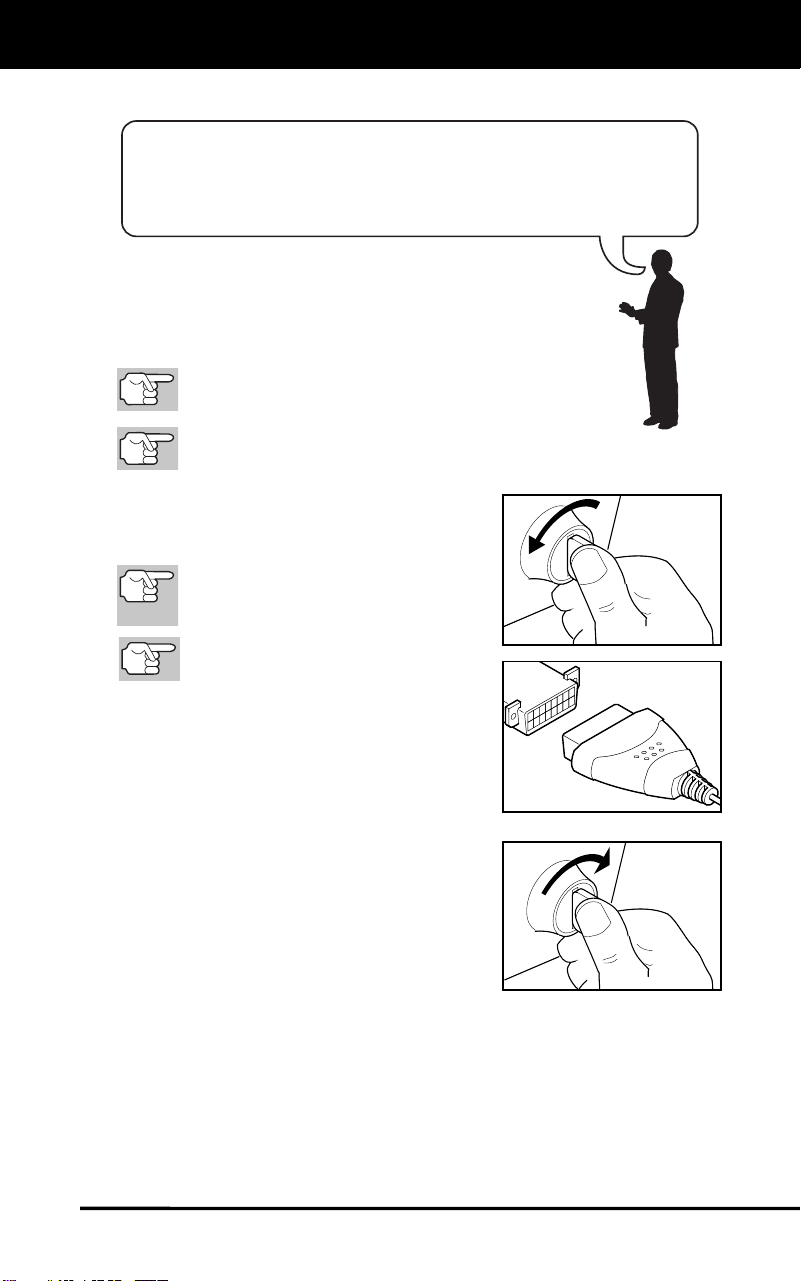
1. Turn the ignition off.
2. Locate the vehicle's 16-pin Data Link
Connector (DLC).
Some DLCs have a plastic cover
that must be removed before
connecting the Scan Tool.
If the Scan Tool is ON, turn it OFF
BEFORE connecting to the DLC.
3. Connect the Scan Tool to the vehicle's
DLC. The cable connector is keyed and
will only fit one way.
If you have problems connecting the
cable connector to the DLC, rotate
the connector 180°.
If you still have problems, check the
DLC on the vehicle and on the Scan
Tool.
4. Turn the ignition on. DO NOT start the
engine.
5. When the Scan Tool is properly
connected to the vehicle’s DLC, the
Scan Tool will automatically turn ON.
If the unit does not power on automatically, it may indicate there
is no power present at the vehicle’s DLC connector. Check the
fuse panel and replace any burned-out fuses.
If replacing the fuse(s) does not correct the problem, consult
your vehicle’s repair manual to identify the proper computer
(PCM) fuse/circuit, and perform any necessary repairs before
proceeding.
Retrieving and using Diagnostic Trouble Codes (DTCs) for
troubleshooting vehicle operation is only one part of an
overall diagnostic strategy.
Using the Scan Tool
CODE RETRIEVAL PROCEDURE
24
6. The Scan Tool automatically starts a check of the vehicle’s
computer to determine which type of communication protocol it is
using. When the Scan Tool identifies the computer’s communication
protocol, a communication link is established.
A PROTOCOL is a set of rules and procedures for regulating data
transmission between computers, and between testing equipment
and computers. As of this writing, five different types of protocols
(ISO 9141, Keyword 2000, J1850 PWM, J1850 VPW and CAN)
are in use by vehicle manufacturers.
If the Scan Tool fails to link to the vehicle’s computer, a
“Communication Error” message shows.
- Ensure your vehicle is OBD2 compliant.
- Verify the connection at the DLC, and verify the ignition is ON.
- Turn the ignition OFF, wait 5 seconds, then back ON to reset
the computer.
- Press DTC/FF to continue.
If the Scan Tool cannot link to the vehicle’s computer after three
attempts, the message “Contact Technical Support” displays.
- Turn the ignition off, and disconnect the Scan Tool.
- Contact Technical Support for assistance.
7. If the Scan Tool cannot determine the fuel type for the vehicle, the
Fuel Type screen displays. Select the appropriate fuel type, Gas or
Diesel, then press MENU/ENTER
.
8. If the Scan Tool can decode the Vehicle Identification Number (VIN)
for the vehicle under test the Scan Tool retrieves and displays any
Diagnostic Trouble Codes, Monitor Status and Freeze Frame Data
retrieved from the vehicle’s computer memory. Proceed to step 10.
If the Scan Tool cannot decode the Vehicle Identification
Number (VIN) for the vehicle under test and all monitors
supported by the vehicle have run and completed their
diagnostic testing, the Scan Tool retrieves and displays any
Diagnostic Trouble Codes, Monitor Status and Freeze Frame
Data retrieved from the vehicle’s computer memory. Proceed to
step 10.
If the Scan Tool cannot decode the Vehicle Identification
Number (VIN) for the vehicle under test and one or more of the
monitors supported by the vehicle have not yet run and
completed their diagnostic testing, the Select Vehicle screen
displays. Proceed to step 9.
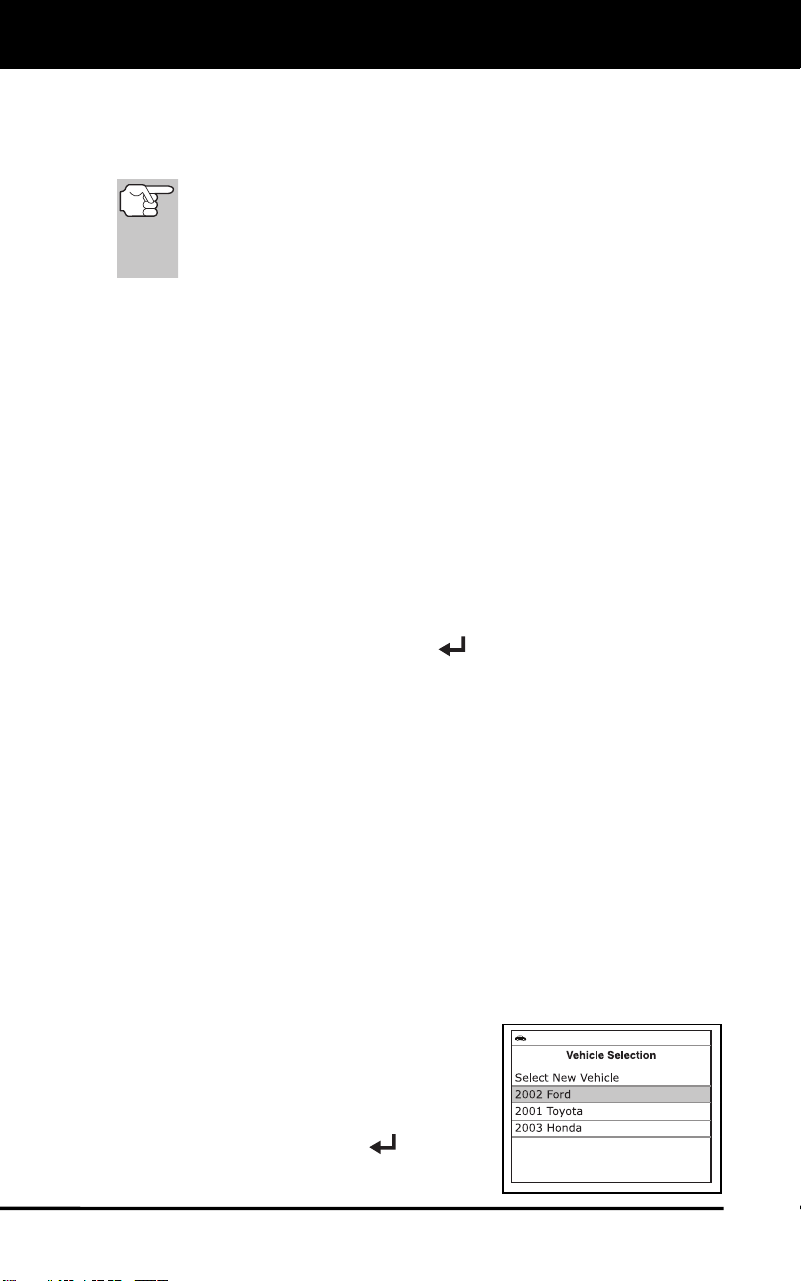
9. The Select Vehicle screen shows the
three most recently tested vehicles.
To select a previously tested vehicle,
highlight the desired vehicle, then
press MENU/ENTER
. Proceed
to step 10.
Using the Scan Tool
CODE RETRIEVAL PROCEDURE
25
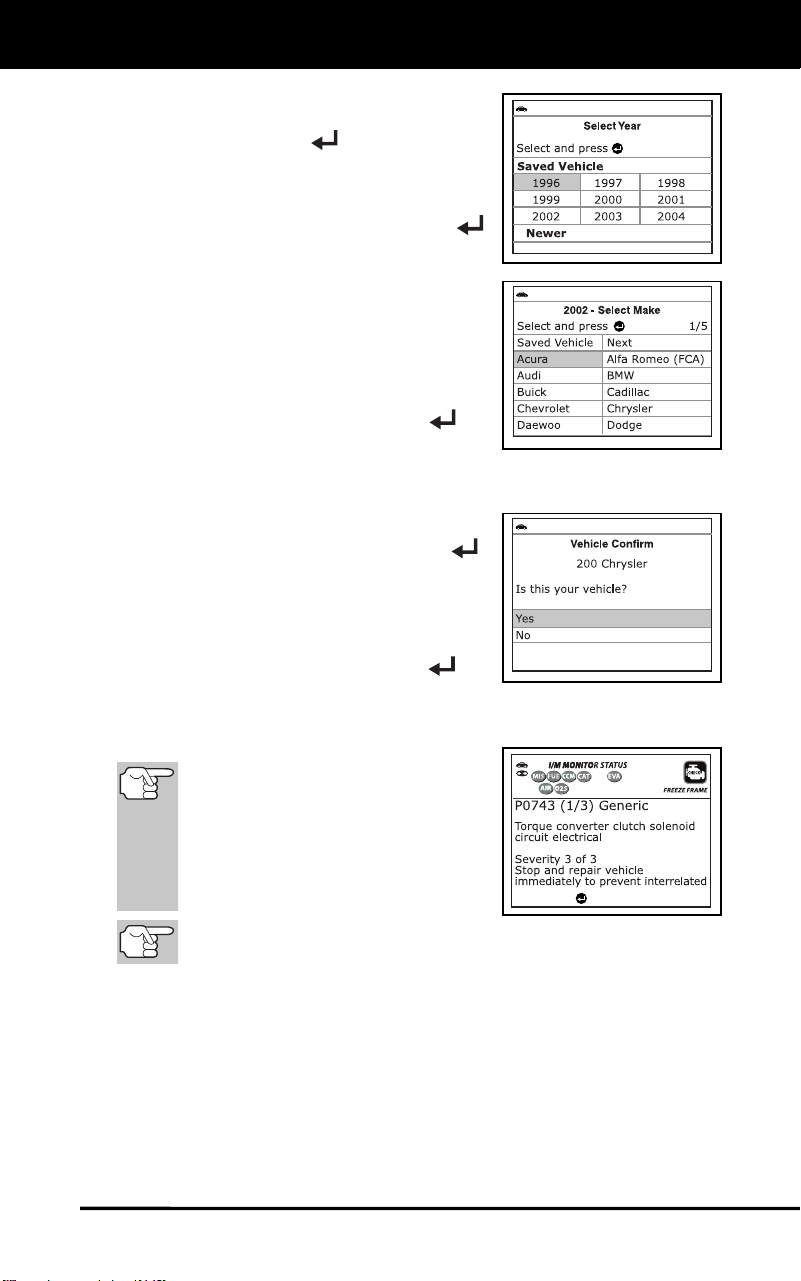
To select a new vehicle, highlight
Select New Vehicle, then press
MENU/ENTER
.
- The Select Year screen displays.
Select the desired vehicle model
year, then press MENU/ENTER
to continue, or, select Saved
Vehicle to return to the Select
Vehicle screen and select a
previously tested vehicle.
- The Select Make screen
displays.
Select the desired vehicle make,
then press MENU/ENTER
to
continue.
- The Confirm Vehicle screen displays.
If the information shown is correct
for the vehicle under test, select
Yes, then press MENU/ENTER
.
Proceed to step 10.
If the information shown is not correct
for the vehicle under test, or if you
wish to reselect the vehicle, select No,
then press MENU/ENTER
to
return to the Select Vehicle screen.
10. Refer to DISPLAY FUNCTIONS on page 3 for a description of
display elements.
In the case of long code
definitions, or when viewing
Freeze Frame Data, a small arrow
is shown in the upper/lower right-
hand corner of the Scan Tool
display area to indicate the
presence of additional information.
If a definition for the currently displayed code is not available,
an advisory message shows.
The Scan Tool will display a code only if codes are present. If no
codes are present, the message “No Powertrain DTCs or Freeze
Frame Data presently stored in the vehicle’s computer” displays.
The Scan Tool is capable of retrieving and storing up to 32
codes in memory, for immediate or later viewing.
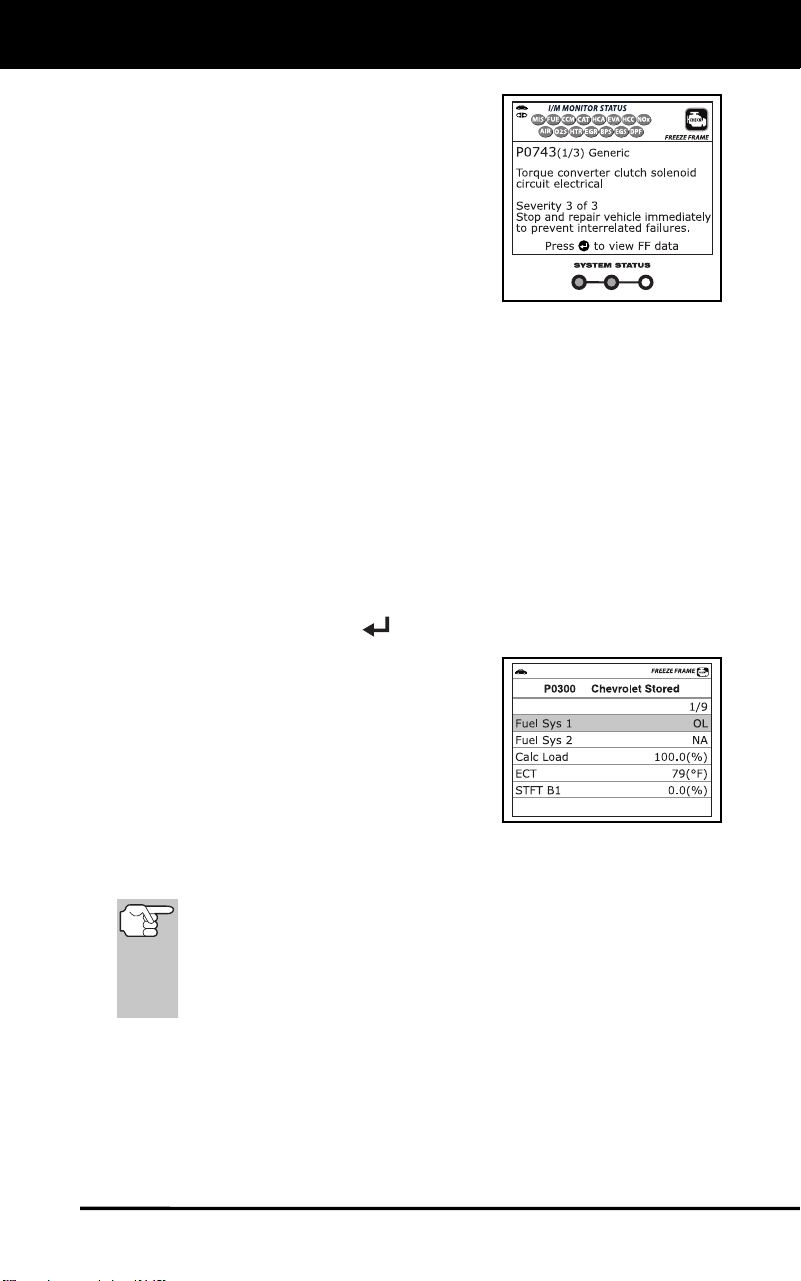
Press to view FF data
Using the Scan Tool
CODE RETRIEVAL PROCEDURE
26
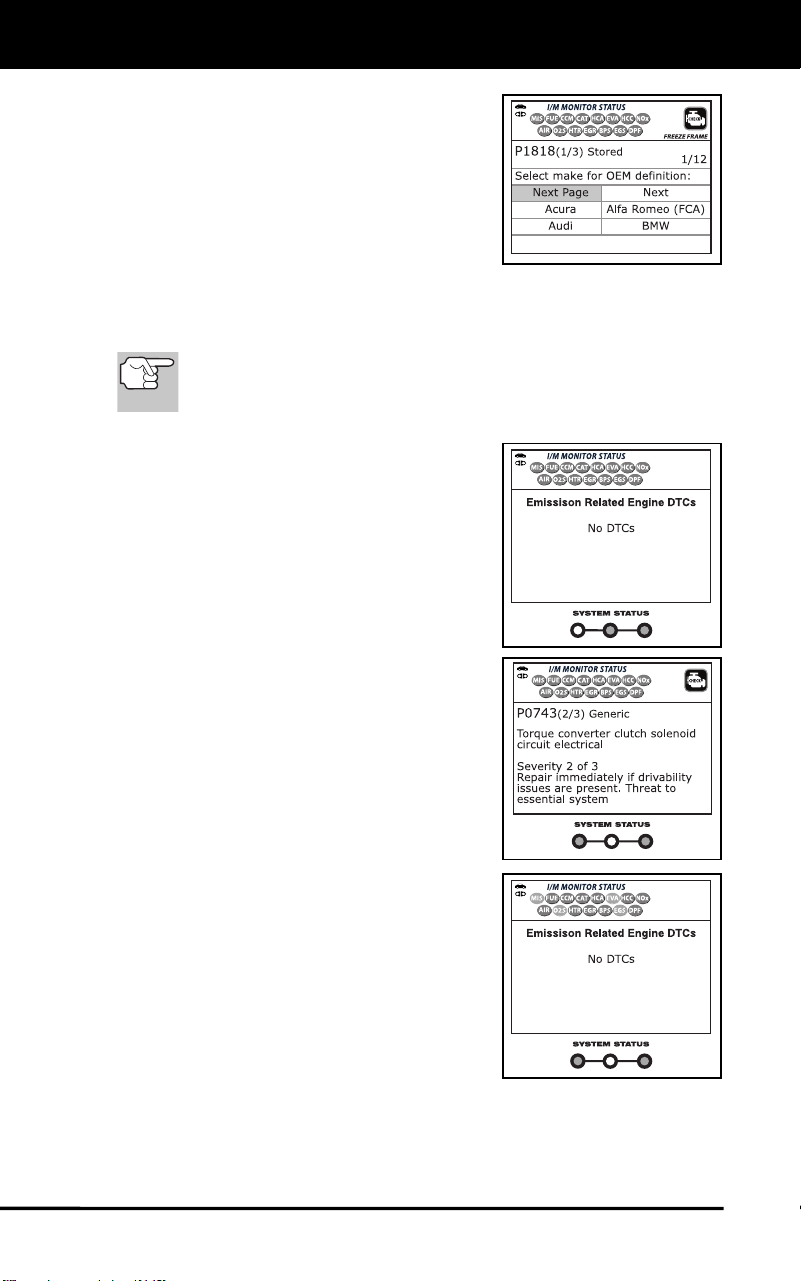
11. In cases where a “manufacturer
specific” code (P1XXX, U1XXX, etc.) is
displayed and the Scan Tool has not
determined the vehicle make and model
year (either by decoding the VIN or
through manual selection), the Select
Make for OEM Definition screen
displays. Select the desired vehicle
make to view the DTC definition for the
vehicle under test.
12. Read and interpret Diagnostic Trouble Codes/system condition
using the display and the green, yellow and red LEDs.
The green, yellow and red LEDs are used (with the LCD
display) as visual aids to make it easier to determine engine
system conditions.
Green LED – Indicates that all
engine systems are “OK” and
operating normally. All monitors
supported by the vehicle have run
and performed their diagnostic
testing, and no trouble codes are
present. All Monitor icons will be
solid.
Yellow LED - Indicates one of the
following conditions:
A. A PENDING CODE IS PRESENT –
If the yellow LED is illuminated, it
may indicate a Pending code is
present. Check the display for
confirmation. A Pending code is
confirmed by the presence of a
numeric code and the word
PENDING.
B. MONITOR NOT RUN STATUS – If
the display shows a zero (indicating
there are no DTC’s present in the
vehicle’s computer memory), but the
yellow LED is illuminated, it may be
an indication that some of the
Monitors supported by the vehicle
have not yet run and completed their
diagnostic testing. Check the display
for confirmation. All Monitor icons that
are blinking have not yet run and
completed their diagnostic testing; all
Monitor icons that are solid have run
and completed their diagnostic testing.
Using the Scan Tool
CODE RETRIEVAL PROCEDURE
27
Red LED - Indicates there is a
problem with one or more of the
vehicle's systems. The red LED is
also used to show that DTC(s) are
present. In this case, the Malfunction
Indicator (Check Engine) lamp on the
vehicle's instrument panel will light
steady on.
DTC’s that start with “P0”, “P2” and
some “P3” are considered Generic
(Universal). All Generic DTC definitions are the same on all
OBD2 equipped vehicles. The Scan Tool automatically displays
the code definitions (if available) for Generic DTC’s.
DTC’s that start with “P1” and some “P3” are Manufacturer
specific codes and their code definitions vary with each vehicle
manufacturer.
13. If more than one DTC was retrieved, press and release DTC/FF, as
necessary.
Each time DTC/FF
is pressed and released, the Scan Tool will
scroll and display the next DTC in sequence until all DTCs in its
memory have displayed.
When the “Priority” code is shown on the Scan Tool’s display,
press MENU/ENTER
to view Freeze Frame data.
In OBD2 systems, when an emis-
sions-related engine malfunction oc-
curs that causes a DTC to set, a re-
cord or snapshot of engine conditions
at the time that the malfunction
occurred is also saved in the vehicle’s
computer memory. The record saved
is called Freeze Frame data. Saved
engine conditions include, but are not
limited to: engine speed, open or closed loop operation, fuel system
commands, coolant temperature, calculated load value, fuel
pressure, vehicle speed, air flow rate, and intake manifold pressure.
If more than one malfunction is present that causes more than
one DTC to be set, only the code with the highest priority will
contain Freeze Frame data. The code designated “01” on the
Scan Tool display is referred to as the PRIORITY code, and
Freeze Frame data always refers to this code. The priority
code is also the one that has commanded the MIL on.
14. Determine engine system(s) condition by viewing the display for any
retrieved Diagnostic Trouble Codes, code definitions and Freeze
Frame data, and interpreting the green, yellow and red LEDs.
If DTC’s were retrieved and you are going to perform the repairs
yourself, proceed by consulting the Vehicle’s Service Repair
Manual for testing instructions, testing procedures, and flow
charts related to retrieved code(s).
Using the Scan Tool
ERASING DIAGNOSTIC TROUBLE CODES (DTCs)
28
ERASING DIAGNOSTIC TROUBLE CODES (DTCs)
When the Scan Tool’s ERASE function is used to erase
DTCs from the vehicle's on-board computer, "Freeze
Frame" data and manufacturer-specific enhanced data are
also erased. "Permanent" DTCs ARE NOT erased by the
ERASE function.
If you plan to take the vehicle to a Service Center for repair, DO NOT
erase the codes from the vehicle's computer. If the codes are erased,
valuable information that might help the technician troubleshoot the
problem will also be erased.
Erase DTCs from the computer's memory as follows:
When DTCs are erased, the I/M Readiness Monitor Status
program resets status of all Monitors to a not run condition. To
set all Monitors to a DONE status, an OBD2 Drive Cycle must
be performed.
1. If not connected already, connect the
Scan Tool to the vehicle's DLC, and
turn the ignition "On.” (If the Scan Tool
is already connected and linked to the
vehicle's computer, proceed directly to
step 3. If not, continue to step 2.)
2. Perform the Code Retrieval procedure
as described on page 23. Wait until the
codes are displayed, then proceed to
step 3.
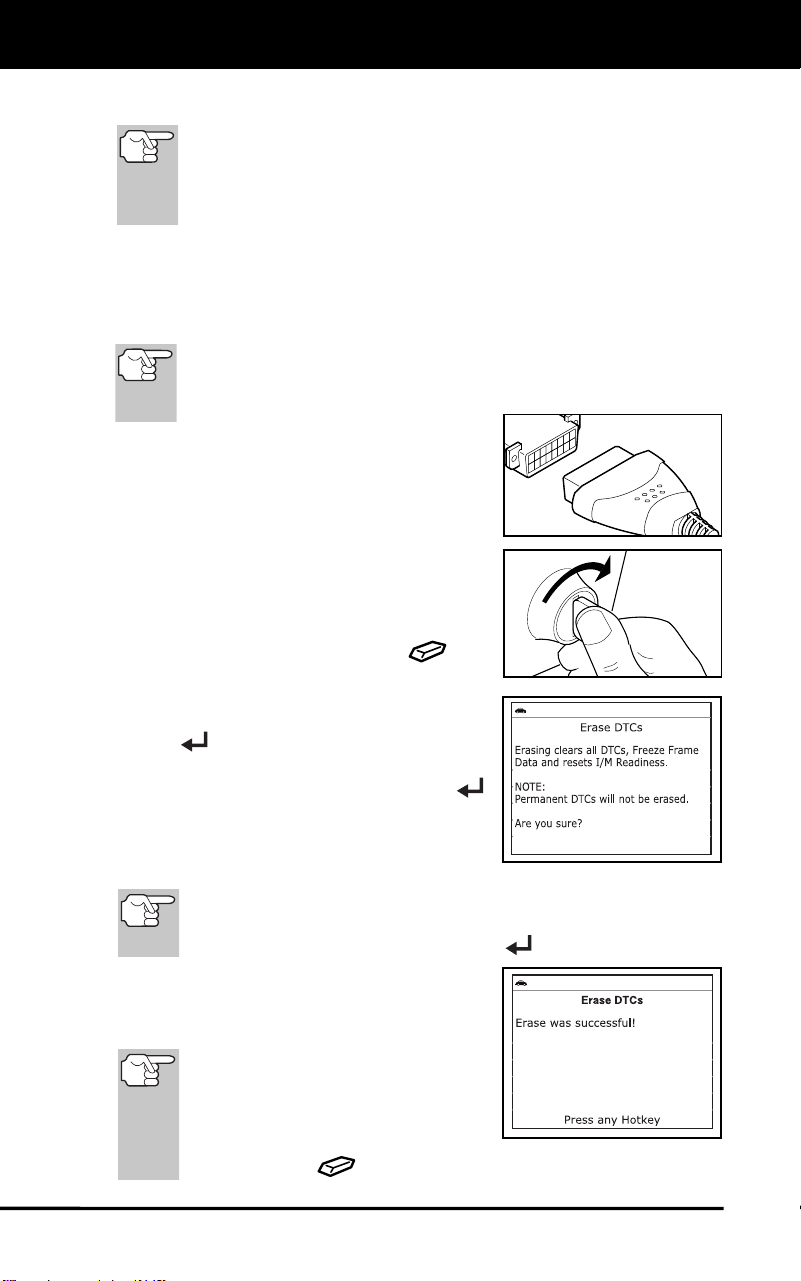
3. Press and release ERASE
. A
confirmation message shows.
If you are sure you want to proceed,
select Yes, then press MENU/ENTER
.
If you do not want to proceed, select
No, then press MENU/ENTER
to cancel the erase procedure.
4. If you chose to erase DTCs, a “One
moment please…” message displays
while the erase function is in progress.
If the vehicle’s engine is running, an advisory message shows.
Turn the engine OFF, then turn the ignition back to ON. DO NOT
start the engine. Press MENU/ENTER
to continue.
5. If the erase was successful, a
confirmation message shows. The Scan
Tool automatically relinks to the
vehicle’s computer after 3 seconds.
If the erase was not successful
and ECU error code $22 is
present, an advisory message
displays. Follow the instructions
on the advisory message, then
press ERASE
to try again.

Using the Scan Tool
ABOUT REPAIRSOLUTIONS 2®
29
6. If the erase was not successful, an advisory message shows
indicating the erase request was sent to the vehicle’s computer. The
Scan Tool automatically relinks to the vehicle’s computer after 3
seconds.
ABOUT REPAIRSOLUTIONS 2®
RepairSolutions 2® is a web-based service created to assist both Do-It-
Yourself and Professional technicians in quickly and accurately
diagnosing and repairing today’s vehicles. RepairSolutions 2 allows you
to view and save the diagnostic data retrieved from a vehicle’s on-board
computer(s) using your Code Reader. At the core of RepairSolutions 2
is an extensive knowledge database, developed by compiling and
analyzing years worth of “real world” vehicle service data.
RepairSolutions 2 builds on manufacturer-recommended diagnostic and
repair information by providing verified, vehicle-specific fixes supplied by
ASE technicians across the country. RepairSolutions 2 also provides
access to an extensive knowledge database including:
Verified Fixes – Find the most likely fixes reported and verified by
ASE Technicians for the retrieved DTCs.
Repair Instructions – View available repair instructions to properly
perform the fix.
Video Tutorials – Watch repair video tutorials for valuable repair
tips.
Technical Service Bulletins – Research known problems reported
by vehicle manufacturers.
Safety Recalls – Research known safety concerns applicable to a
vehicle.
And much more. Please visit matco.carscan.com for additional information.
Hardware Requirements:
Matco Scan Tool with Bluetooth/WiFi
Android or iOS Smart Device
Accessing RepairSolutions 2®
1. Download and install the RepairSolutions 2® app from the App
Store (for iOS devices) or Google Play (for Android devices).
2. Launch the RepairSolutions 2 app and log in to your account.
If you have not yet established an account, you must register for
a FREE RepairSolutions 2 account before proceeding.
3. Connect the Code Reader to a vehicle and establish a Bluetooth or
WiFi connection with your Smart Device (refer to CONNECTING TO
BLUETOOTH / WIFI, below). Be sure your Smart Device is
connected to an available WiFi network.
The RepairSolutions 2 app will store two WiFi configurations
only.
4. Retrieve diagnostic data (refer to CODE RETRIEVAL PROCEDURE
on page 23 for details).

Using the Scan Tool
CONNECTING TO BLUETOOTH / WIFI
30
5. The RepairSolutions 2 app automatically displays a report based on
the retrieved diagnostic data.
If the Code Reader is not connected to WiFi or Bluetooth,
vehicle data will not be saved.
CONNECTING TO BLUETOOTH / WIFI
Launch the RepairSolutions2 app an follow the prompts to establish
Bluetooth and (optionally) WiFi connections, as follows:
1. Launch the RepairSolutions2 app. Select Wifi Tools Settings from
the menu. Power on your Code Reader, then select from the list of
available devices.
2. When Bluetooth pairing is complete, a confirmation screen displays.
Click Continue.
If a Bluetooth connection cannot be established, an advisory
message displays. Tap Try Again to repeat the pairing process.
3. Follow the on-screen prompts to connect to an available WiFi
network.
You can automatically connect to the network your Smart Device
is currently connected to, or you can manually connect to
another available network.
Note that only 2.4GHz networks are supported.
If you do not wish to connect to a WiFi network at this time, tap
SKIP.
4. When WiFi pairing is complete, a confirmation screen displays. Click
Continue to view the “Setup Complete” message, then click
Continue to enter RepairSolutions2.
If a WiFi connection cannot be established, an advisory
message displays. Tap Try Again to repeat the pairing process.
Live Data Mode
VIEWING LIVE DATA
31
The Scan Tool is a special tool that communicates with the vehicle's
computer. The Scan Tool lets you view and/or "capture" (record) "real-time"
Live Data. This information includes values (volts, rpm, temperature, speed
etc.) and system status information (open loop, closed loop, fuel system sta-
tus, etc.) generated by the various vehicle sensors, switches and actuators.
In effect the Scan Tool lets you view, in "real time", the same signal
values generated by the sensors, actuators, switches and/or vehicle
system status information used by the vehicle's computer when
calculating and conducting system adjustments and corrections.
The real time (Live Data) vehicle operating information (values/status)
that the computer supplies to the Scan Tool for each sensor, actuator,
switch, etc. is called Parameter Identification (PID) Data.
Each PID (sensor, actuator switch, status, etc.) has a set of operating
characteristics and features (parameters) that serve to identify it. The
Scan Tool displays this information for each sensor, actuator, switch or
status that is supported by the vehicle under test.
WARNING: If the vehicle must be driven in order to perform a
troubleshooting procedure, ALWAYS have a second person
help you. One person should drive the vehicle while the other
person observes the Scan Tool data. Trying to drive and
operate the Scan Tool at the same time is dangerous, and
could cause a serious traffic accident.
VIEWING LIVE DATA
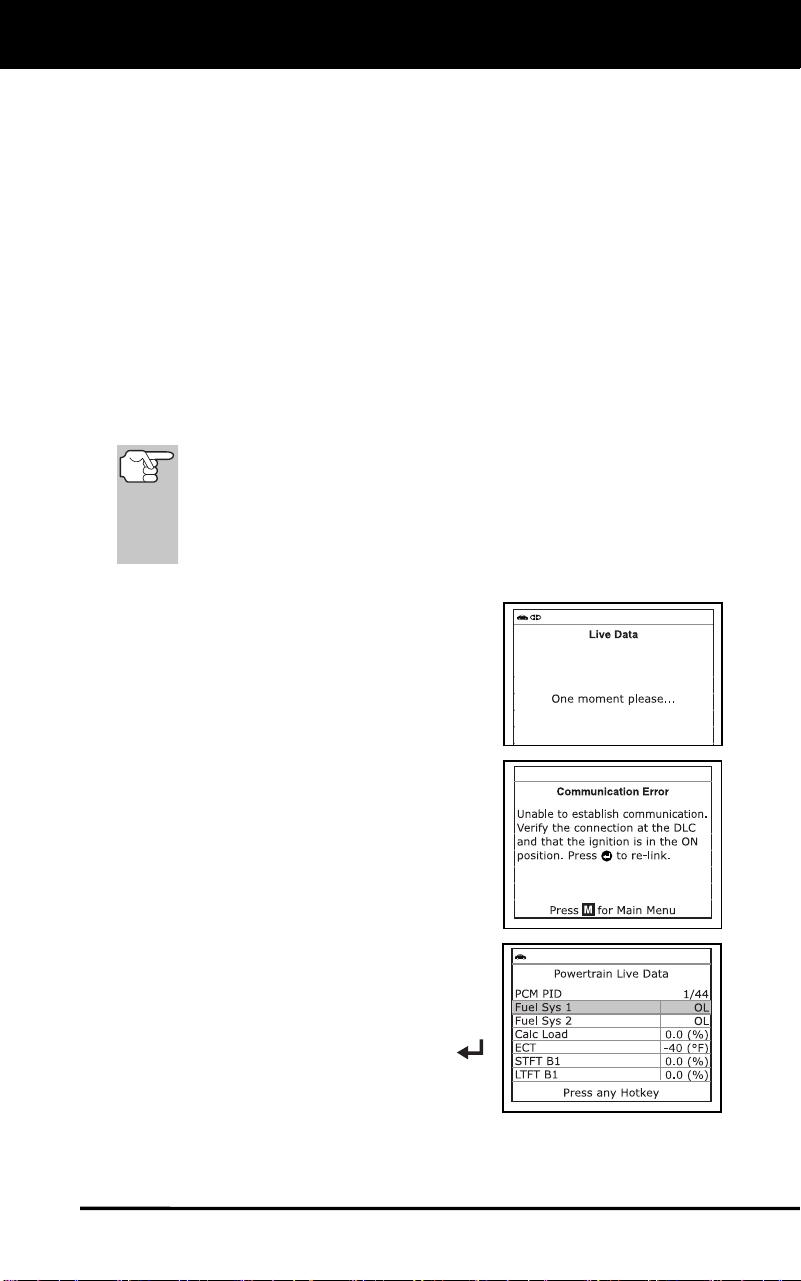
1. While linked to the vehicle, start the
engine, then press and release the LD
button.
2. A “One moment please . . .” message
displays while the Scan Tool
establishes communication with the
vehicle.
If the Scan Tool fails to establish
communication with the vehicle, a
“Communication Error” message is
shown on the Scan Tool’s display.
- Ensure your vehicle is OBD2
compliant.
- Verify the connection at the DLC,
and verify the ignition is ON.
- Turn the ignition OFF, wait 5
seconds, then back ON to reset
the computer.
- Press the MENU/ENTER
button to continue.
3. Real-time Live Data (PID) information
supported by the vehicle under test
displays.
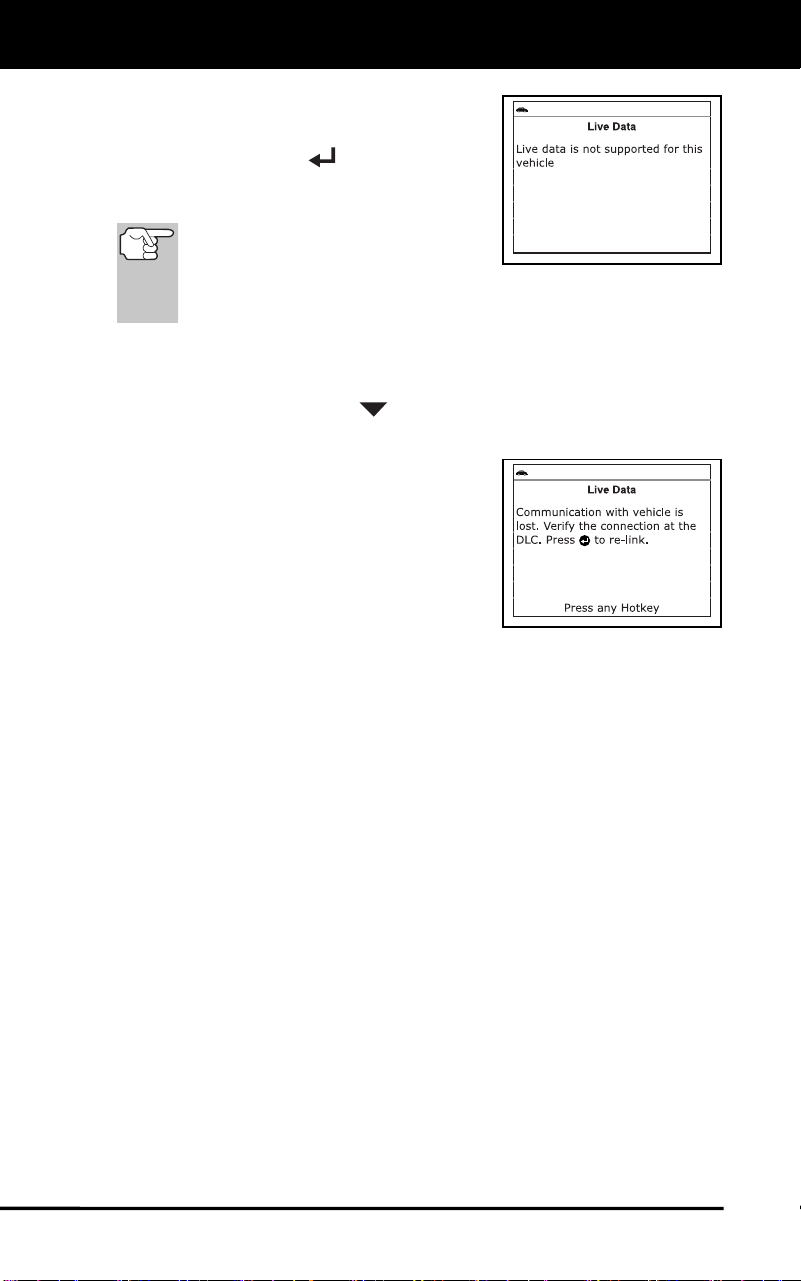
Live Data Mode
VIEWING LIVE DATA
32
If Live Data is not supported by the
vehicle under test, an advisory
message displays. Press the
MENU/ENTER
button to return
to the Main Menu. Live Data is not
available for your vehicle.
Remember, what you are viewing is
"real-time" Live Data. The values
(volts, rpm, temperature, vehicle
speed, system status etc) for the various PIDS displayed may
change as the vehicle's operating conditions change.
4. A vehicle usually supports several PIDs, however, only a limited
amount of PID data can be displayed on the screen at one time. If
additional PID data is available, a small arrow will be shown on the
display. Use the DOWN
button to scroll up or down to view all
available PID data.
If communication with the vehicle is
lost while viewing Live Data, a
Communication Lost" message
shows on the Scan Tool's display.
5. If you experience vehicle problems,
view and/or compare the Live Data (PID)
information displayed on the Scan Tool
to specifications in the vehicle's repair
manual.
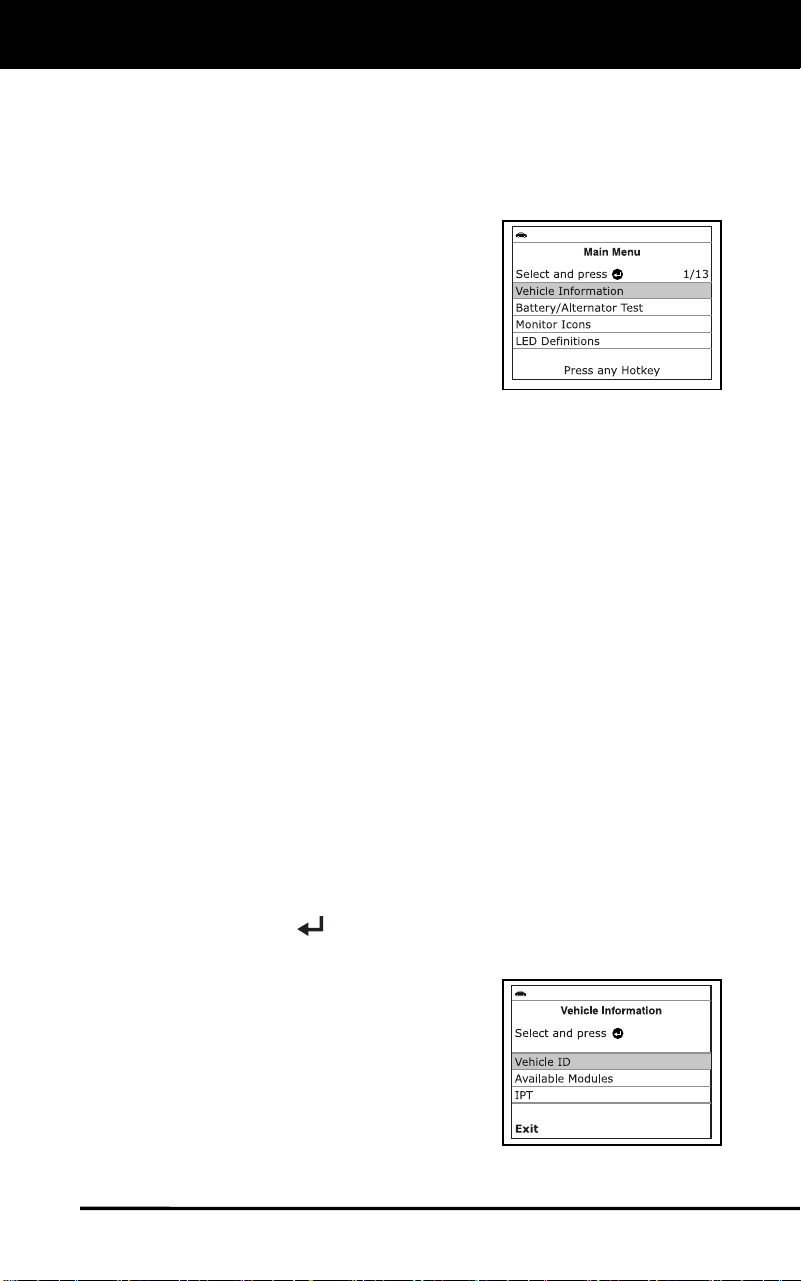
Additional Functions
VIEWING VEHICLE INFORMATION
33
In addition to retrieving Diagnostic Trouble Codes (DTCs), you can use
the scan tool to perform additional diagnostic tests, to view diagnostic
and vehicle information stored in your vehicle's on-board computer, and
to configure the scan tool for your particular needs. Additional tests and
related functions are accessed through the Main Menu. The following
functions are available:
Vehicle Information – Displays the
Vehicle Info menu, which lets you
retrieve and view reference information
for the vehicle under test.
Battery/Alternator Test – Performs a
check of the vehicle’s battery and
alternator system to ensure the system
is operating within acceptable limits.
Monitor Icons – Shows the full names
for the I/M MONITOR STATUS icons.
LED Definitions – Provides descriptions of the meaning of the Scan
Tool SYSTEM STATUS LEDs.
Language Selection – sets the display language for the Scan Tool
to English, French or Spanish.
Adjust Brightness – Adjusts the brightness of the display screen.
Audible Tone – Turns the Scan Tool’s audible tone “o” and “off.”
When turned “on,” a tone sounds each time a button is pressed.
Footer – Turns the navigational “footers” at the bottom of most
display screens “on” and “off.”
Hotkey Legend – Shows functional descriptions for the Scan Tool’s
hotkeys.
Unit of Measurement – Sets the unit of measurement for the Scan
Tool’s display to USA or Metric.
Firmware Version – Displays the Scan Tool’s firmware version.
Smog Check of I/M Program Location – Sets the Smog Check or
I/M Program location for the vehicle under test.
Monitor Icons Status – Provides descriptions of the meaning of the
I/M Monitor Status icon indications.
To access the Main Menu:
Press MENU/ENTER .
- The Main Menu displays.
VIEWING VEHICLE INFORMATION
The Scan Tool offers three options for
retrieving reference information for the
vehicle under test; Vehicle ID, Available
Modules and IPT (In-use Performance
Tracking).
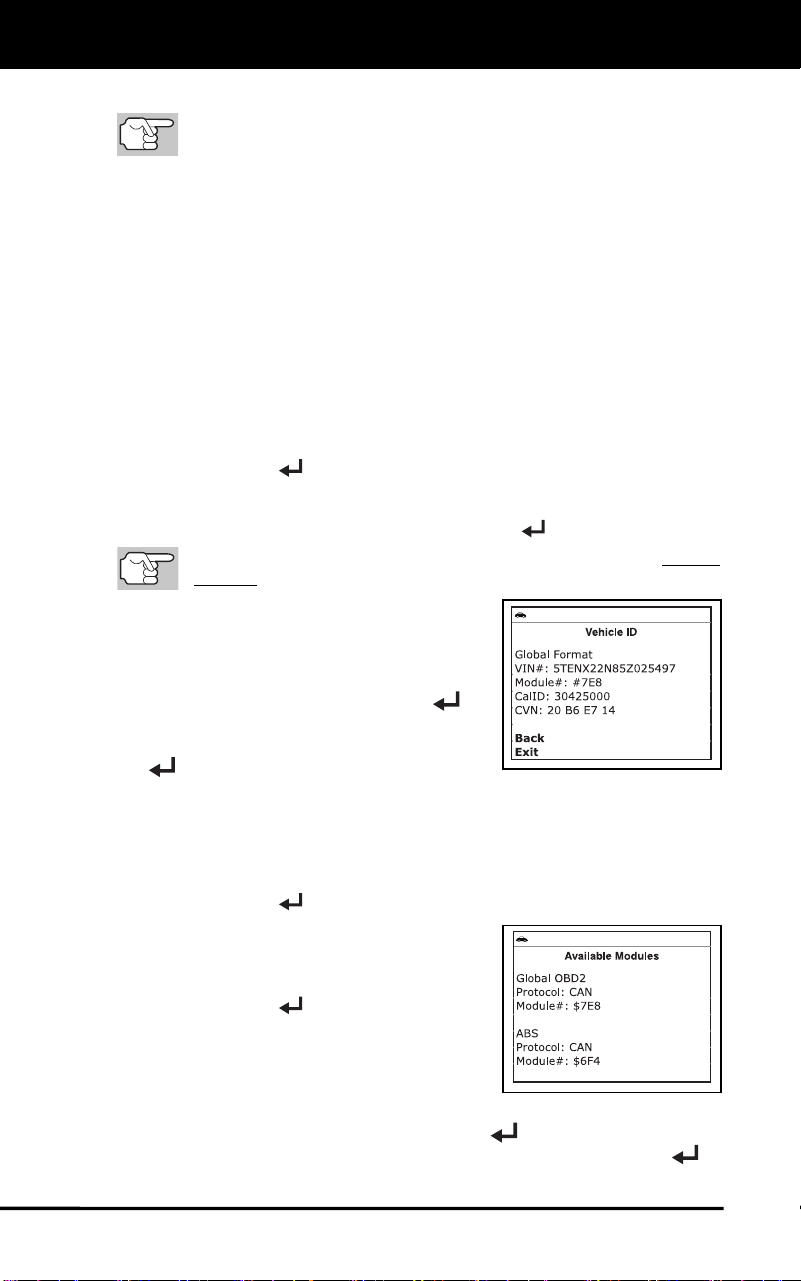
Additional Functions
VIEWING VEHICLE INFORMATION
34
Retrieving Vehicle ID Information
The Vehicle ID function is applicable to model year 2000 and
newer OBD2-compliant vehicles.
The Scan Tool can retrieve a list of information (provided by the vehicle
manufacturer), unique to the vehicle under test, from the vehicle's on-
board computer. This information may include:
The vehicle's VIN number
The control module identification number
The vehicle's calibration ID(s). These IDs uniquely identify the
software version(s) for the vehicle's control module(s).
The Vehicle's Calibration Verification Number(s) (CVNs) required by
ODB2 regulations. CVNs are used to determine if emission-related
calibrations for the vehicle under test have been changed. One or
more CVNs may be returned by the vehicle's computer.
1. Select Vehicle Information from the Main Menu, then press
MENU/ENTER
.
The Vehicle Information menu displays.
2. Select Vehicle ID, then press MENU/ENTER
.
The first time the Vehicle ID function is used, it may take several
minutes to retrieve the information from the vehicle's computer.
3. When the retrieval process is completed,
the vehicle ID information displays.
4. When you have finished viewing the
retrieved vehicle ID information, choose
Back and press MENU/ENTER
to
return to the Vehicle Information menu, or,
choose Exit and press MENU/ENTER
to display the Main Menu.
Viewing Available Modules
The Scan Tool can retrieve a list of modules supported by the vehicle
under test.
1. Select Vehicle Information from the Main Menu, then press
MENU/ENTER
.
The Vehicle Information menu dis-
plays.
2. Select Available Modules, then press
MENU/ENTER
.
3. When the retrieval process is completed,
a complete list of modules supported by
the vehicle under test displays.
4. When you have finished viewing the list of available modules,
choose Back and press MENU/ENTER
to return to the Vehicle
Information menu, or, choose Exit and press MENU/ENTER
to
display the Main Menu.
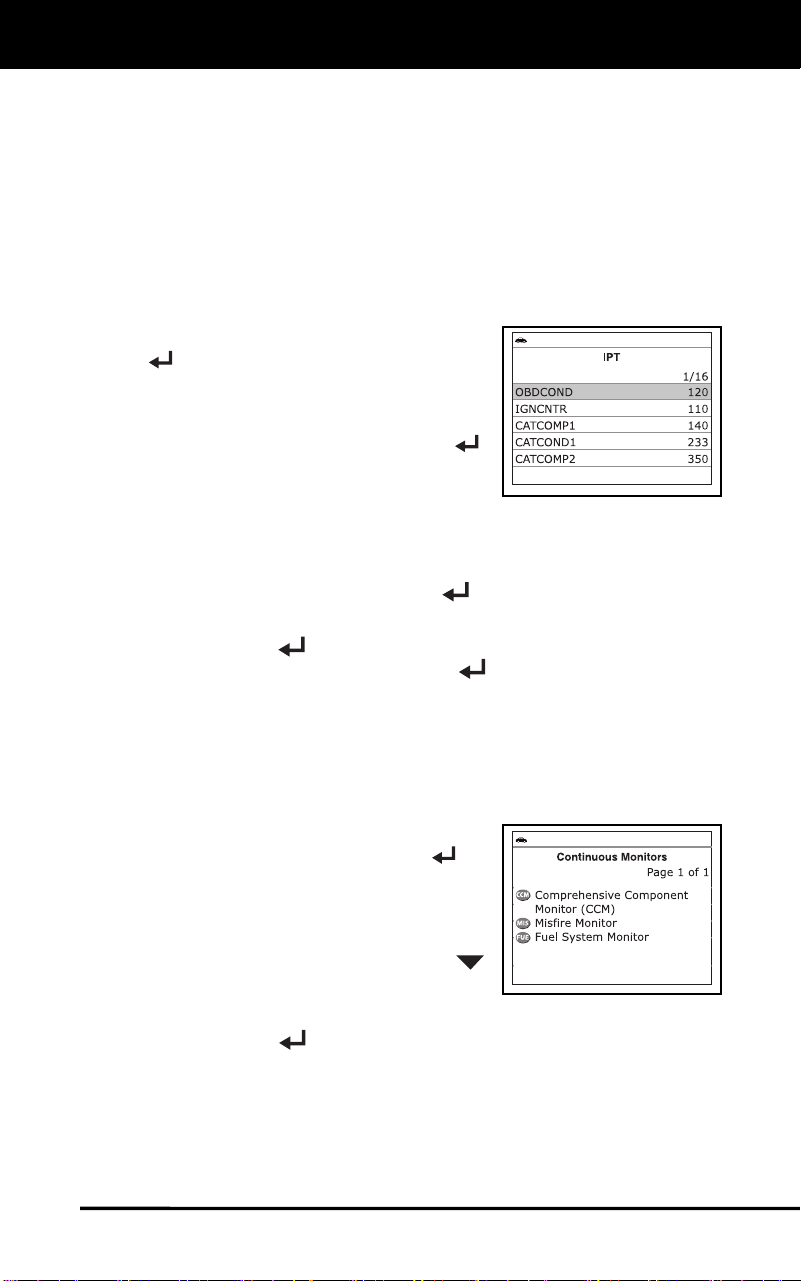
Additional Functions
VIEWING MONITOR ICON DESCRIPTIONS - BATTERY/ALTERNATOR TEST
35
Viewing In-use Performance Tracking (IPT)
The Scan Tool can retrieve In-use Performance Tracking (IPT) statistics
for monitors supported by the vehicle under test. Two values are
returned for each monitor; the number of times that all conditions
necessary for a specific monitor to detect a malfunction have been
encountered (XXXCOND), and the number of times that the vehicle has
been operated under the specific conditions for the monitor (XXXCOMP).
Statistics are also provided for the number of times the vehicle has been
operated in OBD monitoring conditions (OBDCOND), and the number of
times the vehicle’s engine has been started (IGNCNTR).
1. Select Vehicle Information from the
Main Menu, then press MENU/ENTER
.
The Vehicle Information menu
displays.
2. Select IPT, then press MENU/ENTER
.
3. When the retrieval process is completed,
the In-use Performance Tracking
statistics for the vehicle under test display.
If In-use Performance Tracking is not available for your vehicle,
an advisory message shows on the diagnostic tool’s display.
Press and hold MENU/ENTER
to return to the Main Menu.
4. When you have finished viewing the statistics, choose Back and press
MENU/ENTER
to return to the Vehicle Information menu, or,
choose Exit and press MENU/ENTER
to display the Main Menu.
VIEWING MONITOR ICON DESCRIPTIONS
The I/M MONITOR STATUS icons on the Scan Tool’s LCD display
provide an indication of the “Completed / Not Complete” status for all I/M
Monitors supported by the vehicle under test. The Monitor Icons
function displays the full name for each Monitor icon.
1. From the Main Menu, select Monitor
Icons, then press MENU/ENTER
.
The Monitor Icons screen displays.
The screen shows a list of the 15
Monitor icons, along with the full name
for each icon. Use the DOWN
button, as necessary, to scroll the list.
2. When you have finished viewing the Monitor icon descriptions, press
MENU/ENTER
to return to the Main Menu.
BATTERY/ALTERNATOR TEST
The Scan Tool can perform a check of the vehicle’s battery and
alternator system to ensure the system is operating within acceptable
limits. You can perform a battery check only, or an alternator system
(battery and alternator) check.
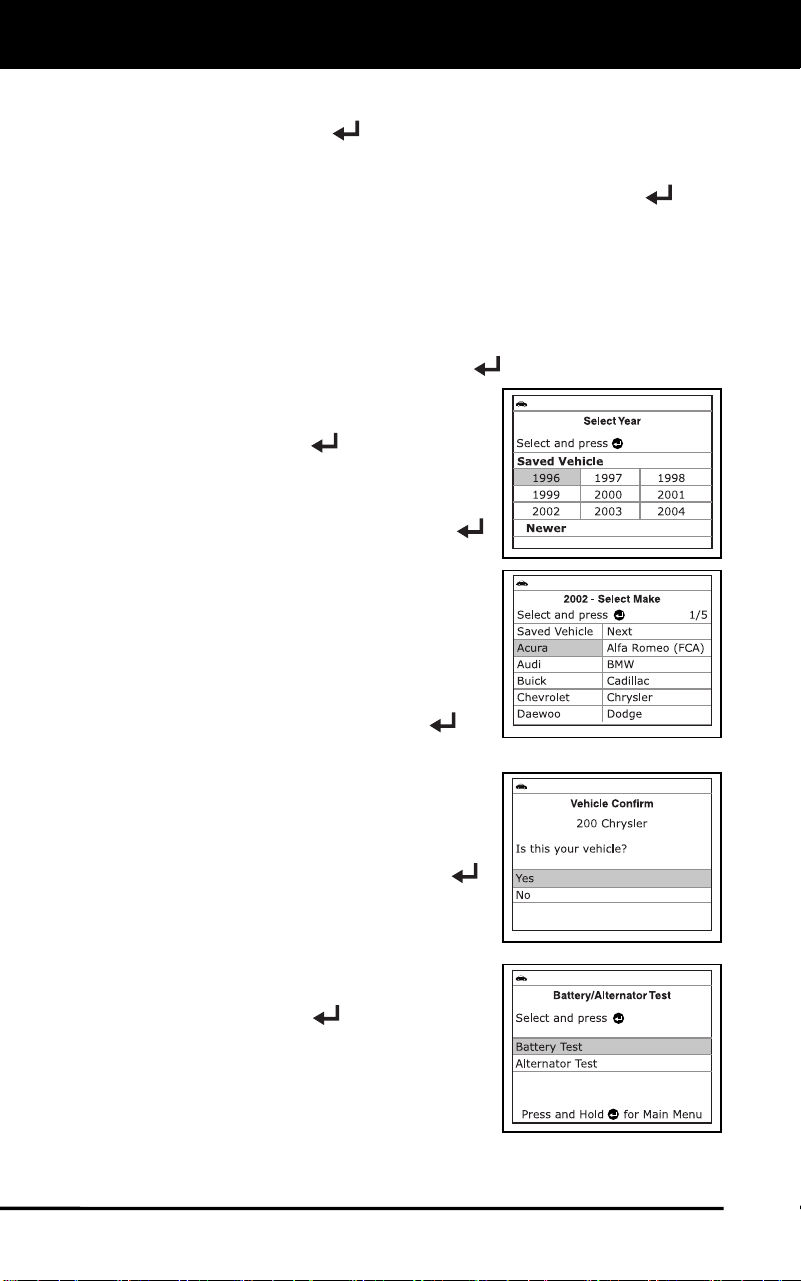
Additional Functions
BATTERY/ALTERNATOR TEST
36
To access the Battery/Alternator Test menu:
1. Press MENU/ENTER
.
The Main Menu displays.
2. Select Battery/Alternator Test, then press MENU/ENTER
.
In cases where the Scan Tool has not determined the vehicle
make and model year (either by decoding the VIN or through
manual selection during code retrieval), the Select Vehicle
screen displays. The Select Vehicle screen shows the three
most recently tested vehicles.
To select a previously tested vehicle, highlight the desired
vehicle, then press MENU/ENTER
. Proceed to step 2.
To select a new vehicle, highlight
Select New Vehicle, then press
MENU/ENTER
.
- The Select Year screen displays.
Select the desired vehicle model
year, then press MENU/ENTER
to continue, or, select Saved
Vehicle to return to the Select
Vehicle screen and select a
previously tested vehicle.
- The Select Make screen
displays.
Select the desired vehicle make,
then press MENU/ENTER
to
continue.
- The Confirm Vehicle screen
displays.
If the information shown is correct
for the vehicle under test, select
Yes, then press MENU/ENTER
.
Proceed to step 3.
If the information shown is not
correct for the vehicle under test, or
if you wish to reselect the vehicle,
select No, then press
MENU/ENTER
to return to the
Select Vehicle screen.
3. A “One moment please . . .” message
displays while the request is processed.
The Battery/Alternator Test Menu
displays.
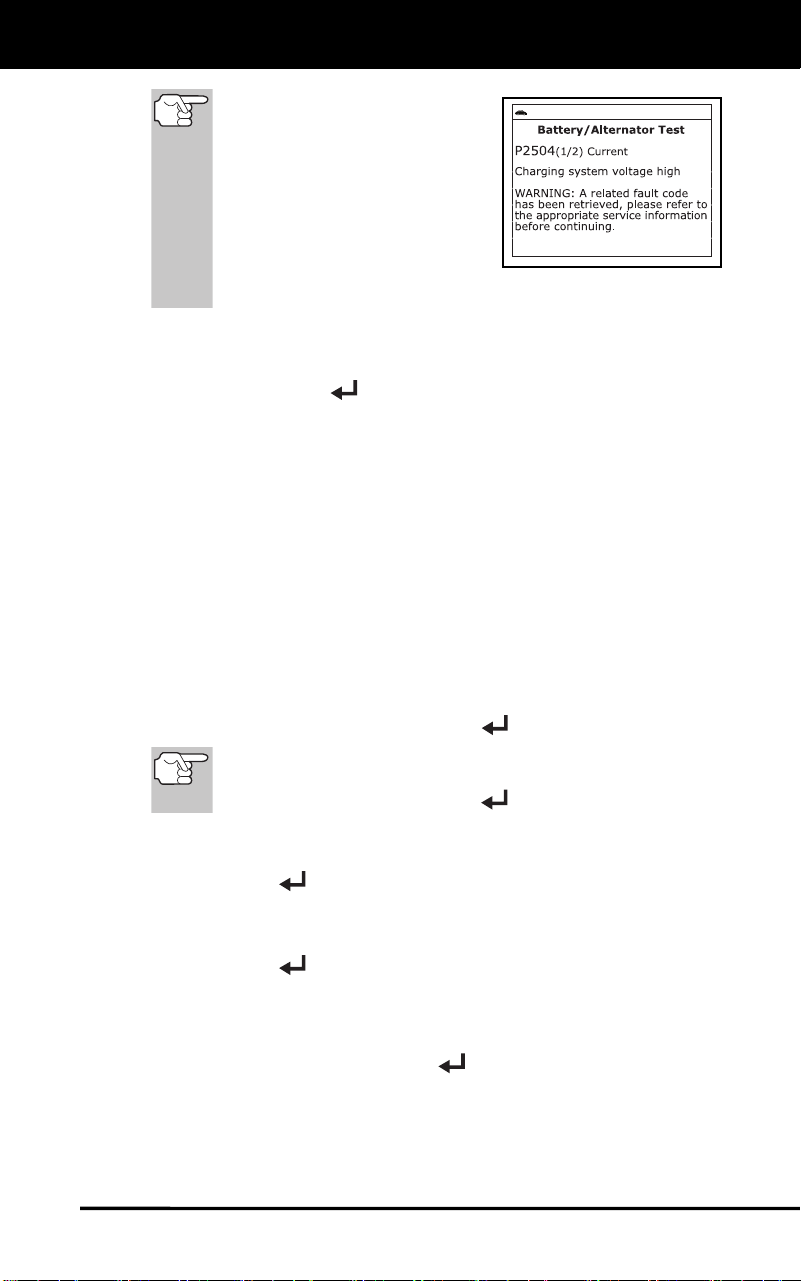
Additional Functions
BATTERY/ALTERNATOR TEST
37
If the Scan Tool detects that a
DTC related to the vehicle’s
battery or charging system is
present in the vehicle’s com-
puter, a “Warning” message
displays. Perform the neces-
sary service procedures to
correct the malfunction before
performing any battery/
alternator test.
To perform a battery check ONLY:
1. Select Battery Test from the Battery/Alternator Test Menu, then
press MENU/ENTER
.
An “instructional” message displays, showing the procedures to
prepare the vehicle for the battery check.
2. Prepare the vehicle for the battery check:
Turn the engine off.
Place the transmission in PARK or NEUTRAL, and set the
parking brake.
Make a visual check of the battery’s condition. If the battery
terminals are corroded or other damage is present, clean or
replace the battery as appropriate.
For “unsealed” batteries, make sure the water level in each cell
is above the battery plates.
Turn the ignition on. DO NOT start the engine.
3. Select Next, then press MENU/ENTER
to proceed.
If the engine is running, an advisory message shows. Turn
the engine off, then turn the ignition on. DO NOT start the
engine. Press MENU/ENTER
to continue.
An “instructional” message displays.
4. Turn the vehicle’s headlights on. Select Next, then press
MENU/ENTER
to proceed.
An “instructional” message displays.
5. Turn the vehicle’s headlights off. Select Next, then press
MENU/ENTER
to proceed.
A “countdown” message shows while the battery check is in
process.
If battery voltage is less than 12.1 volts, an advisory message
shows. Press MENU/ENTER
to return to the Main Menu.
Turn the ignition off and disconnect the Scan Tool from the
vehicle. Fully charge the battery, then repeat the battery check.
If battery voltage is greater than 12.1 volts, an “instructional”
message shows.
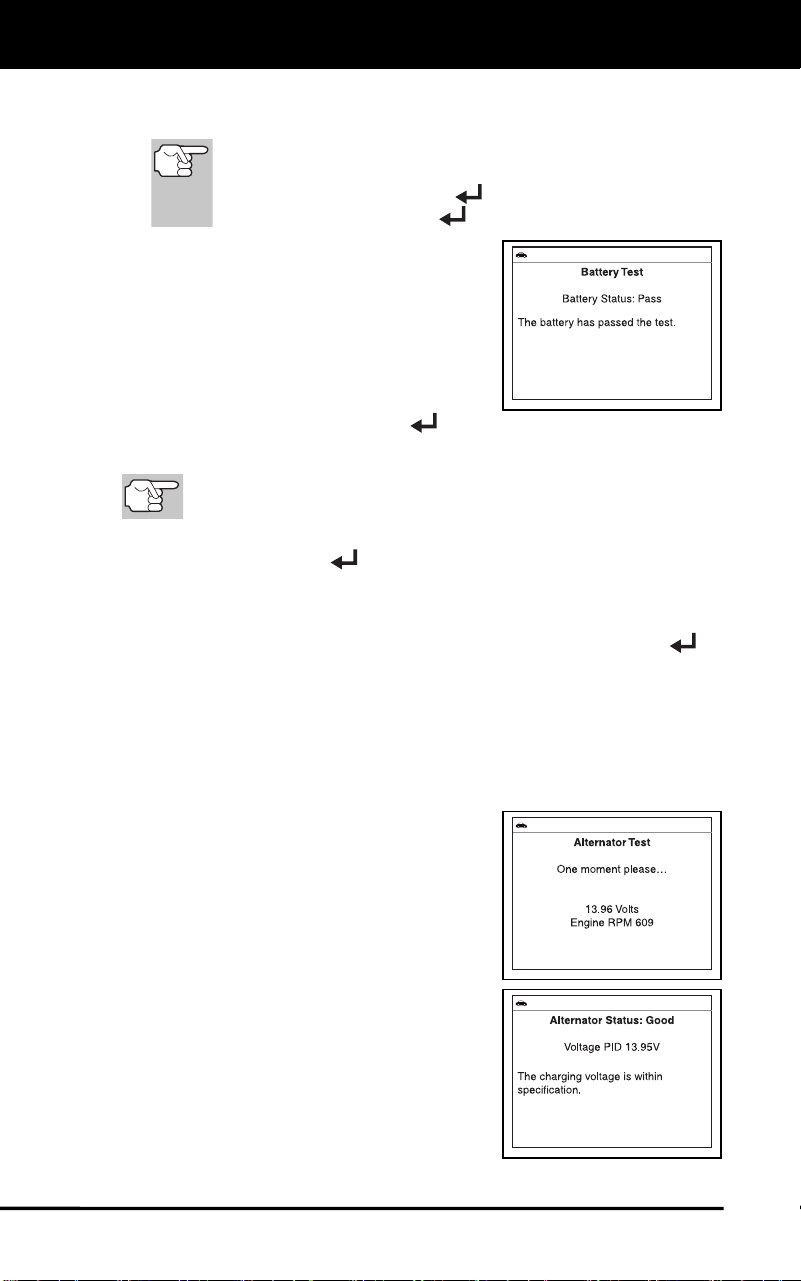
Additional Functions
BATTERY/ALTERNATOR TEST
38
6. Start the vehicle’s engine. Allow the engine to run for several
seconds, then turn the engine off.
If the Scan Tool did not detect “cranking status” for the
vehicle’s engine, an advisory message shows. Select Next,
then press MENU/ENTER
to repeat the battery check,
or, press MENU/ENTER
to return to the Main Menu.
7. When the battery check is complete, a
results screen displays the battery status.
The System Status LEDs provide a
PASS/FAIL indication, as follows:
Green = Good
Yellow = Normal
Red = Warning/Bad
8. Press and hold MENU/ENTER
to return to the Main Menu.
To perform a charging system check:
DO NOT perform the Alternator Test on Smart Alternator,
Hybrid or Electric vehicles.
1. Select Alternator Test from the Battery/Alternator Test Menu, then
press MENU/ENTER
.
An “instructional” message shows.
2. Set the parking brake. Start and warm the engine to normal operating
temperature. Turn on the headlights. Press MENU/ENTER
to
proceed.
An “instructional” message shows.
3. Press the accelerator pedal to raise engine speed to 2000 RPM
minimum, and maintain the engine speed.
When engine speed is within the required range, the alternator
test begins. A progress screen shows.
When the “countdown” timer expires,
an “instructional” message shows.
4. Turn the vehicle’s headlights off, and
return the engine to idle speed.
A “One moment please…” message
displays while the test results are
retrieved.
5. When the alternator check is complete,
a results screen shows charging system
voltage and indicates whether or not the
charging system is within acceptable
limits. The System Status LEDs provide
a PASS/FAIL indication, as follows:
Green = System within limits
Yellow = Over charging or under
charging
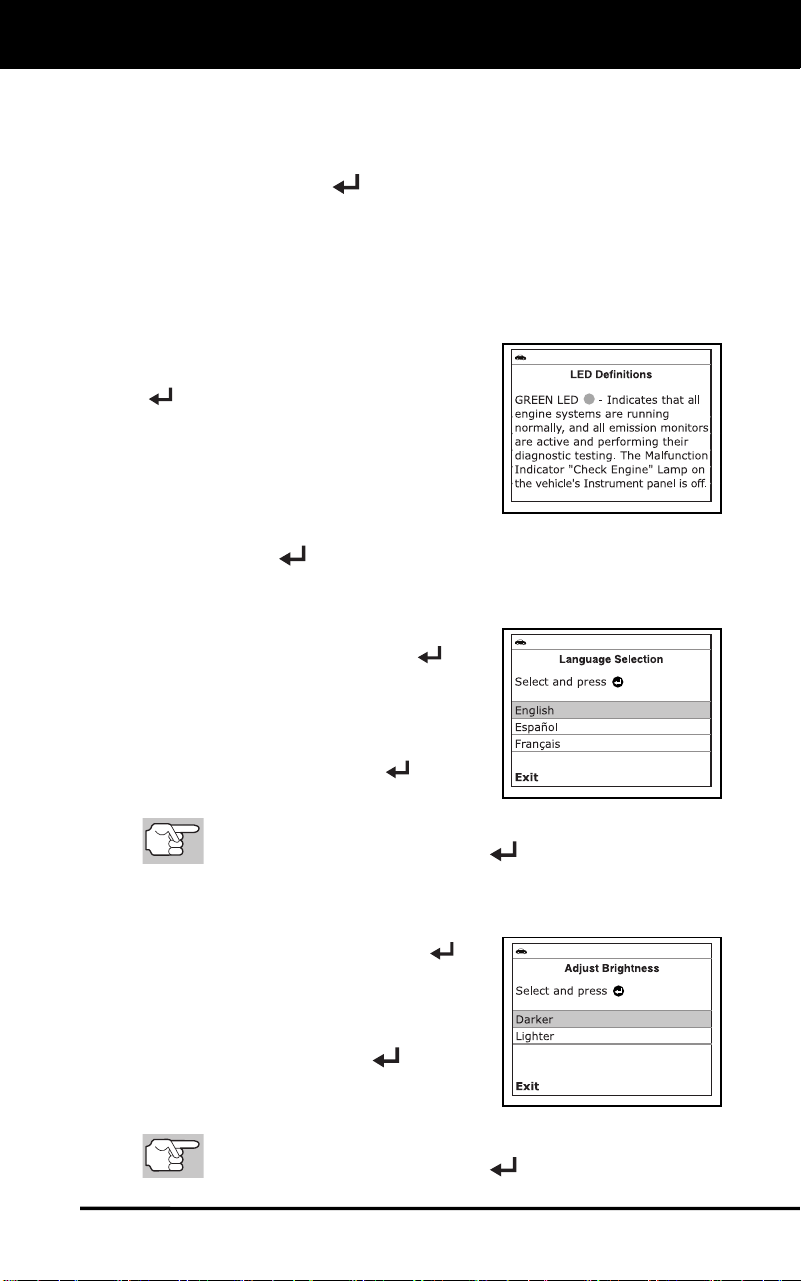
Additional Functions
LED DEFINITIONS - DISPLAY LANGUAGE - DISPLAY BRIGHTNESS
39
Red = Excessive over charging or under charging
If the alternator voltage is less than 9 V, the red, yellow and
green SYSTEM STATUS LEDs will flash on and off.
6. Press MENU/ENTER
to return to the Main Menu.
VIEWING LED DEFINITIONS
The SYSTEM STATUS LEDs on the scan tool provide a visual
indication of the I/M Readiness status of the vehicle under test. The
LED Definitions function provides a description of the meanings of the
green, yellow and red SYSTEM STATUS LEDs.
7. From the Main Menu, select LED
Definitions, then press MENU/ENTER
.
The LED Definitions screen displays.
The screen provides a description of
the meanings of the green, yellow
and red SYSTEM STATUS LEDs.
8. When you have finished viewing the LED meanings, press
MENU/ENTER
to return to the Main Menu.
SELECTING THE DISPLAY LANGUAGE
1. Select Language Selection in the Main
Menu, then press MENU/ENTER
.
The Language Selection screen dis-
plays.
2. Select the desired display language,
then press MENU/ENTER
to save
your changes.
To return to the Main Menu without making changes, select
Exit, then press MENU/ENTER
.
ADJUSTING DISPLAY BRIGHTNESS
1. Select Adjust Brightness in the Main
Menu, then press MENU/ENTER
.
The Adjust Brightness screen
displays.
2. Select Darker or Lighter, as desired,
then press MENU/ENTER
.
3. Repeat steps 1 and 2 as needed until
the desired brightness is obtained.
To return to the Main Menu without making changes, select
Exit, then press MENU/ENTER
.
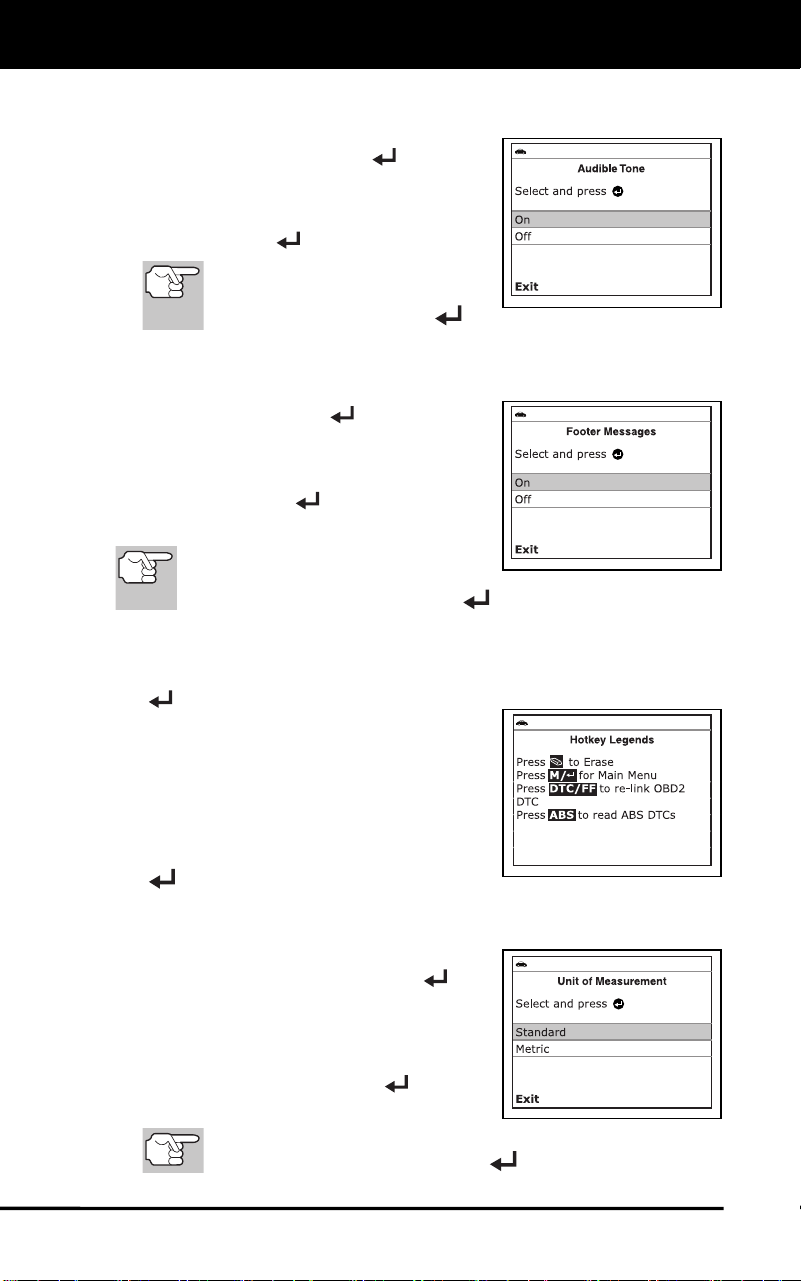
Additional Functions
AUDIBLE TONE - FOOTERS - HOTKEY LEGEND – UNIT OF MEASURE
40
ENABLING/DISABLING THE AUDIBLE TONE
1. Select Audible Tone in the Main Menu,
then press MENU/ENTER
.
The Audible Tone screen displays.
2. Select On or Off as desired, then press
MENU/ENTER
to save your changes.
To return to the Main Menu with-
out making changes, select Exit,
then press MENU/ENTER
.
ENABLING/DISABLING NAVIGATIONAL FOOTERS
1. Select Footer in the Main Menu, then
press MENU/ENTER
.
The Footer screen displays.
2. Select On of Off as desired, then press
MENU/ENTER
to save your
changes.
To return to the Main Menu
without making changes, select
Exit, then press MENU/ENTER
.
VIEWING THE HOTKEY LEGEND
1. Select Hotkey Legend in the Main Menu, then press MENU/ENTER
.
The Hotkey Legends screen displays.
The screen shows a functional
description of each of the scan
tool’s hotkeys.
2. When you have finished viewing the
Hotkey Legend, press MENU/ENTER
.
SETTING THE UNIT OF MEASUREMENT
1. Select Unit of Measurement in the Main
Menu, then press MENU/ENTER
.
The Unit of Measurement screen
displays.
2. Select the desired unit of measurement,
then press MENU/ENTER
to save
your changes.
To return to the Main Menu without making changes, select
Exit, then press MENU/ENTER
.
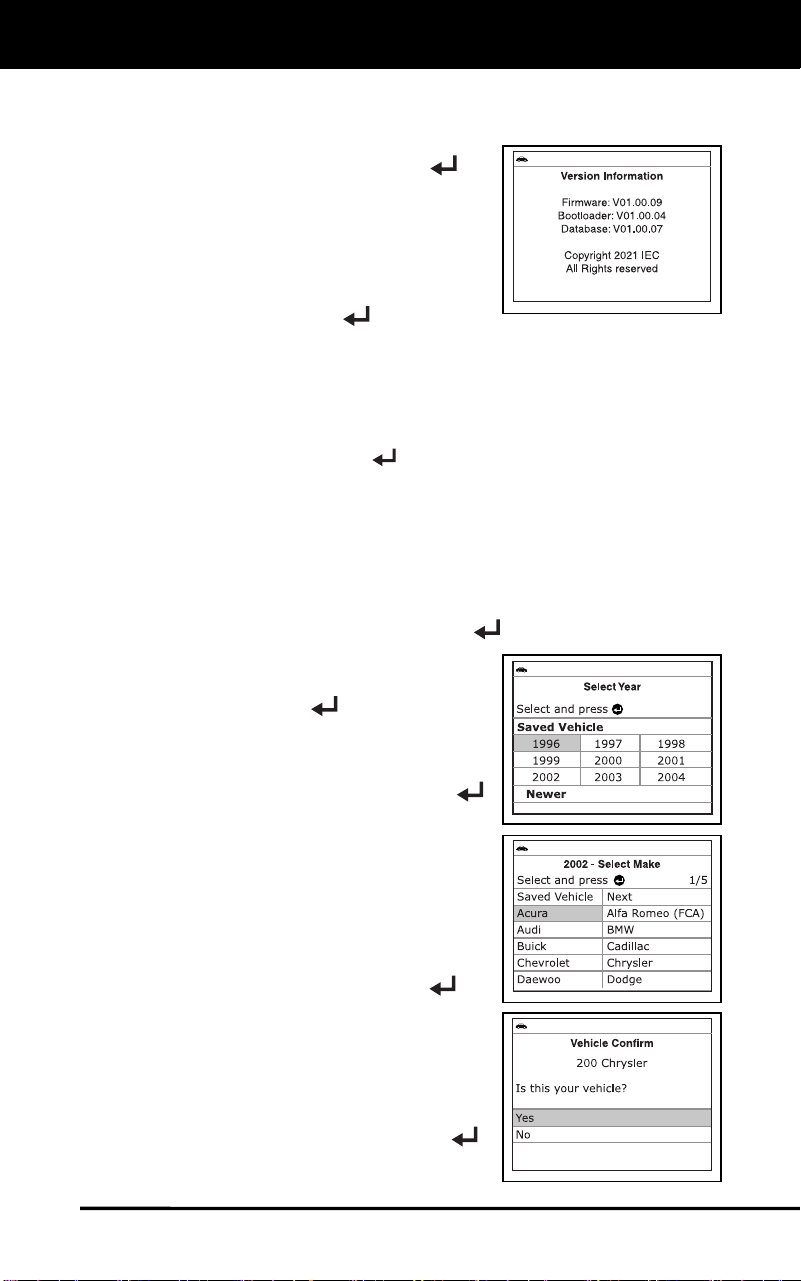
Additional Functions
VIEWING FIRMWARE VERSION - SMOG CHECK / I/M PROGRAM LOCATION
41
VIEWING THE FIRMWARE VERSION
1. Select Firmware Version in the Main
Menu, then press MENU/ENTER
.
The Firmware Version screen
displays.
The screen shows the Scan Tool’s
current firmware version, bootloader
version and database version.
2. Press MENU/ENTER
to return to
the Main Menu.
SELECTING THE SMOG CHECK OR I/M PROGRAM
LOCATION
1. Select Smog Check or I/M Program Location in the Main Menu,
then press MENU/ENTER
.
In cases where the Scan Tool has not determined the vehicle
make and model year (either by decoding the VIN or through
manual selection during code retrieval), the Select Vehicle
screen displays. The Select Vehicle screen shows the three
most recently tested vehicles.
To select a previously tested vehicle, highlight the desired
vehicle, then press MENU/ENTER
. Proceed to step 2.
To select a new vehicle, highlight
Select New Vehicle, then press
MENU/ENTER
.
- The Select Year screen displays.
Select the desired vehicle model
year, then press MENU/ENTER
to continue, or, select Saved
Vehicle to return to the Select
Vehicle screen and select a
previously tested vehicle.
- The Select Make screen
displays.
Select the desired vehicle make,
then press MENU/ENTER
to
continue.
- The Confirm Vehicle screen
displays.
If the information shown is correct
for the vehicle under test, select
Yes, then press MENU/ENTER
.
Proceed to step 3.
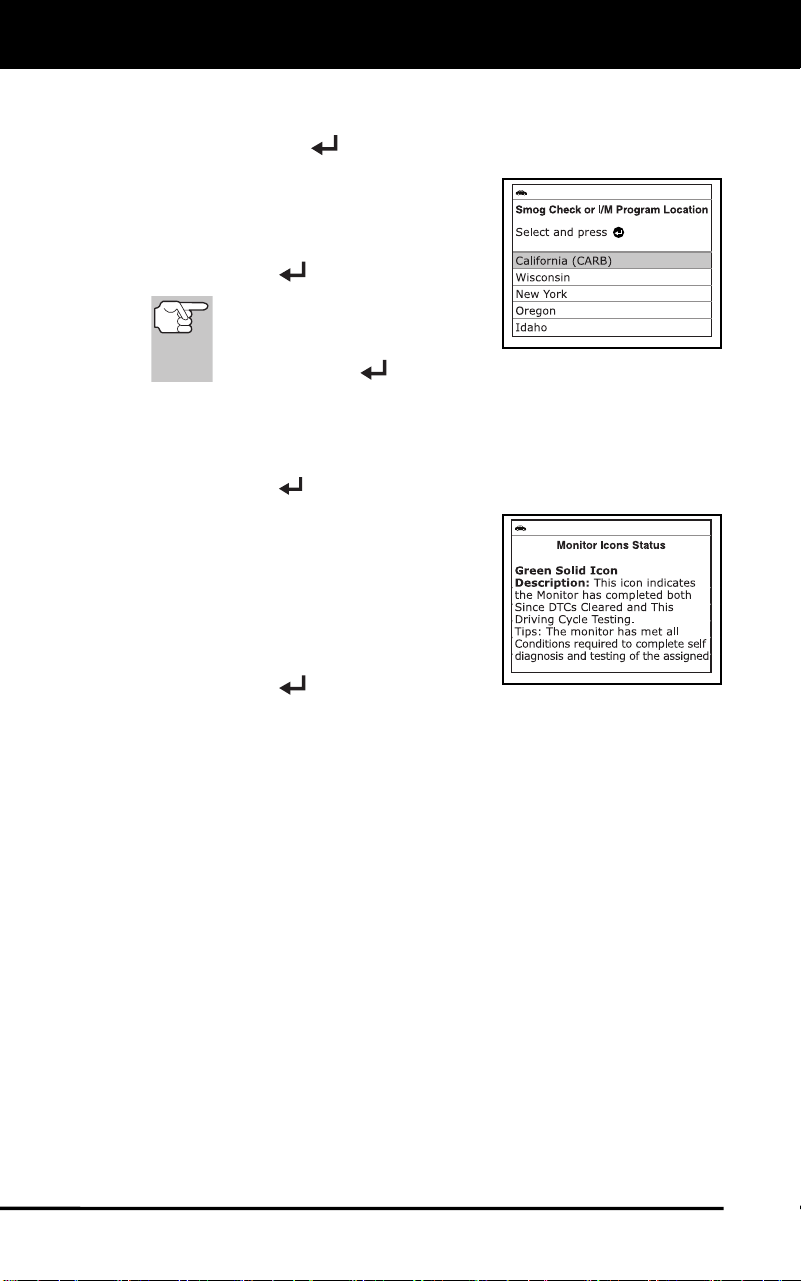
Additional Functions
VIEWING MONITOR ICON STATUS DEFINITIONS
42
If the information shown is not correct for the vehicle under test,
or if you wish to reselect the vehicle, select No, then press
MENU/ENTER
to return to the Select Vehicle screen.
2. The Smog Check or I/M Program
Location screen displays.
3. Select the appropriate location from the
options provided, then press
MENU/ENTER
.
To return to the Main Menu
without making changes,
select Exit, then press
MENU/ENTER
.
VIEWING MONITOR ICON STATUS DEFINITIONS
1. Select Monitor Icons Status in the Main Menu, then press
MENU/ENTER
.
The Monitor Icons Status screen
displays.
The screen provides a description of
the meanings of the Monitor icon
status indications.
2. When you have finished viewing the
Monitor icon status definitions, press
MENU/ENTER
to return to the Main
Menu.

Notes
43

Notes
44

Warranty and Servicing
45
LIMITED TWO YEAR WARRANTY
The Manufacturer warrants to the original purchaser that this unit is free
of defects in materials and workmanship under normal use and
maintenance for a period of two (2) years from the date of original
purchase.
If the unit fails within the two (2) year period, it will be repaired or
replaced, at the Manufacturer’s option, at no charge, when returned
prepaid to the Service Center with Proof of Purchase. The sales receipt
may be used for this purpose. Installation labor is not covered under this
warranty. All replacement parts, whether new or remanufactured,
assume as their warranty period only the remaining time of this warranty.
This warranty does not apply to damage caused by improper use,
accident, abuse, improper voltage, service, fire, flood, lightning, or other
acts of God, or if the product was altered or repaired by anyone other
than the Manufacturer’s Service Center.
The Manufacturer, under no circumstances shall be liable for any
consequential damages for breach of any written warranty of this unit.
This warranty gives you specific legal rights, and you may also have
rights, which vary from state to state. This manual is copyrighted with all
rights reserved. No portion of this document may be copied or
reproduced by any means without the express written permission of the
Manufacturer. THIS WARRANTY IS NOT TRANSFERABLE. For
service, send via U.P.S. (if possible) prepaid to Manufacturer. Allow 3-4
weeks for service/repair.
SERVICE PROCEDURES
If you have any questions, require technical support or information on
UPDATES and OPTIONAL ACCESSORIES, please contact your local
store, distributor or the Service Center.
USA & Canada:
(877) 336-2826 (6:00 AM-6:00 PM PST, Monday through Saturday)
All others: (714) 241-6802 (6:00 AM-6:00 PM PST, Monday through
Saturday)
FAX: (714) 241-3979 (24 hr.)
Web: matco.carscan.com
MD60b
Irvine, CA 92614
17352 Von Karman Avenue
Printed in Taiwan
Instruction MRP #93-XXXX
Copyright © 2021 IEC. All Rights Reserved.
The easiest and best way to troubleshoot 1996 and newer OBD2 vehicles.
Links to all OBD2 protocols to decode "Check Engine" light problems.
Retrieves generic and manufacturer specific codes.
Displays Freeze Frame Data.
FEATURES AND BENEFITS
CodeAdvisor
DIGITAL CODE READER
Operating Instructions Safety Information