User Guide
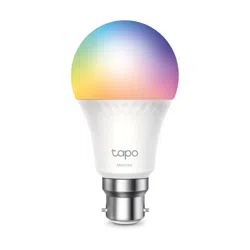
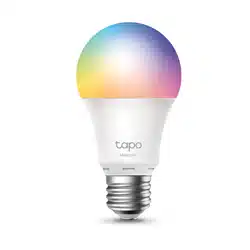
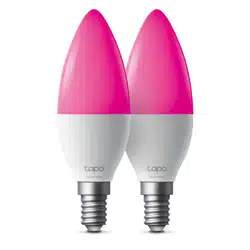
Smart Light Bulb, Multicolor
© 2025 TP-Link 1910013884 REV1.0.0

Contents
About This Guide ···········································································1
Introduction ······················································································2
Set Up Your Smart Bulb ······························································3
Basic Device Control ···································································6
Congure Your Smart Bulb ······················································· 7
Smart Actions ···············································································17
Share Your Smart Bulb ····························································· 19
Reset Your Smart Bulb ·····························································20
Third-Party Services ·································································21
Authentication ··············································································24
1
About This Guide
This guide provides a brief introduction to Smart Light Bulb, Multicolor and the Tapo app, as well as regulatory information.
Features available in Tapo may vary by model and software version. Tapo availability may also vary by region. All images, steps, and descriptions in this
guide are only examples and may not reect your actual Tapo experience.
Conventions
In this guide, the following convention is used:
Convention Description
Blue
Key information appears in teal, including management page text such as menus, items, buttons and so on.
Underline
Hyperlinks are in teal and underlined. You can click to redirect to a website.
Note
Ignoring this type of note might result in a malfunction or damage to the device.
More Info
• Specications can be found on the product page at https://www.tapo.com.
• Our Technical Support and troubleshooting information can be found at https://www.tapo.com/support/.
• A Technical Community is provided for you to discuss our products at https://community.tp-link.com.
• Setup Video can be found at https://www.tp-link.com/support/setup-video/.

2
Introduction
The Smart Light Bulb, Multicolor lets you easily control your lights via the Tapo app, no matter where you nd yourself. You can adjust brightness, set
schedules and timers, and set an alarm that wakes you naturally by simulating the sunrise. Group lights together to control your smart bulbs more easily.
Whether you use your preferred Tapo app or Smart Voice Assistant, you can control the light strip easily. With Tapo, your home is never more than a few
taps away.
• 16 Million Colors - Shape the amazing vibe by picking the lights from a wide array of colors, even dim to any brightness you desire.
• White Tunable - Adjust the color temperature from 2,500 K to 6,500 K based on your changing needs.
• Ultra-dim 1% brightness - With an ultra-dim 1% brightness (<6 lm), ensuring soothing, non-intrusive illumination, ideal for bedside lighting at night.
• Fancy Lighting Eects - Amuse yourself with well-designed animated lighting eects, available on Tapo App.
• Sync-to-Sound - Use the Tapo App to sync the candle light bulb to your music and create a synchronized lighting experience.
• Auto Biorhythm Lighting - Automatically adjusts daily brightness and color temperature based on the natural sunlight patterns.
• Double-Layer Bulb - The light mixing eect is better, more uniform, and gentler.
• Schedule & Timer - Create a regular schedule to turn on/o the outdoor porch light with your chosen light eects.
• Preset for Convenience - Save and preset your favorite lightings for multiple scenarios.
• No Hub Required - Connect the L430C light to your home Wi-Fi, then you are all set.
• Sunrise and Sunset Automation - Automatically activate your light according to your time zone. Switch on at sunrise and o at sunset, or vice versa.
• Energy Monitoring - Monitor your connected devices' real-time power consumption and costs via the Tapo App.
• Group Control - Group your smart lights for control of brightness, color, and more, and simultaneously turn your lights and other devices on and o.
• Voice Control - Use Amazon Alexa, Google Assistant or Samsung SmartThings. to control your light strip with voice commands.
3
Set Up Your Smart Bulb
Follow the steps below to get started with your new smart bulb. Setup videos can be found at https://www.tp-link.com/support/setup-video/.
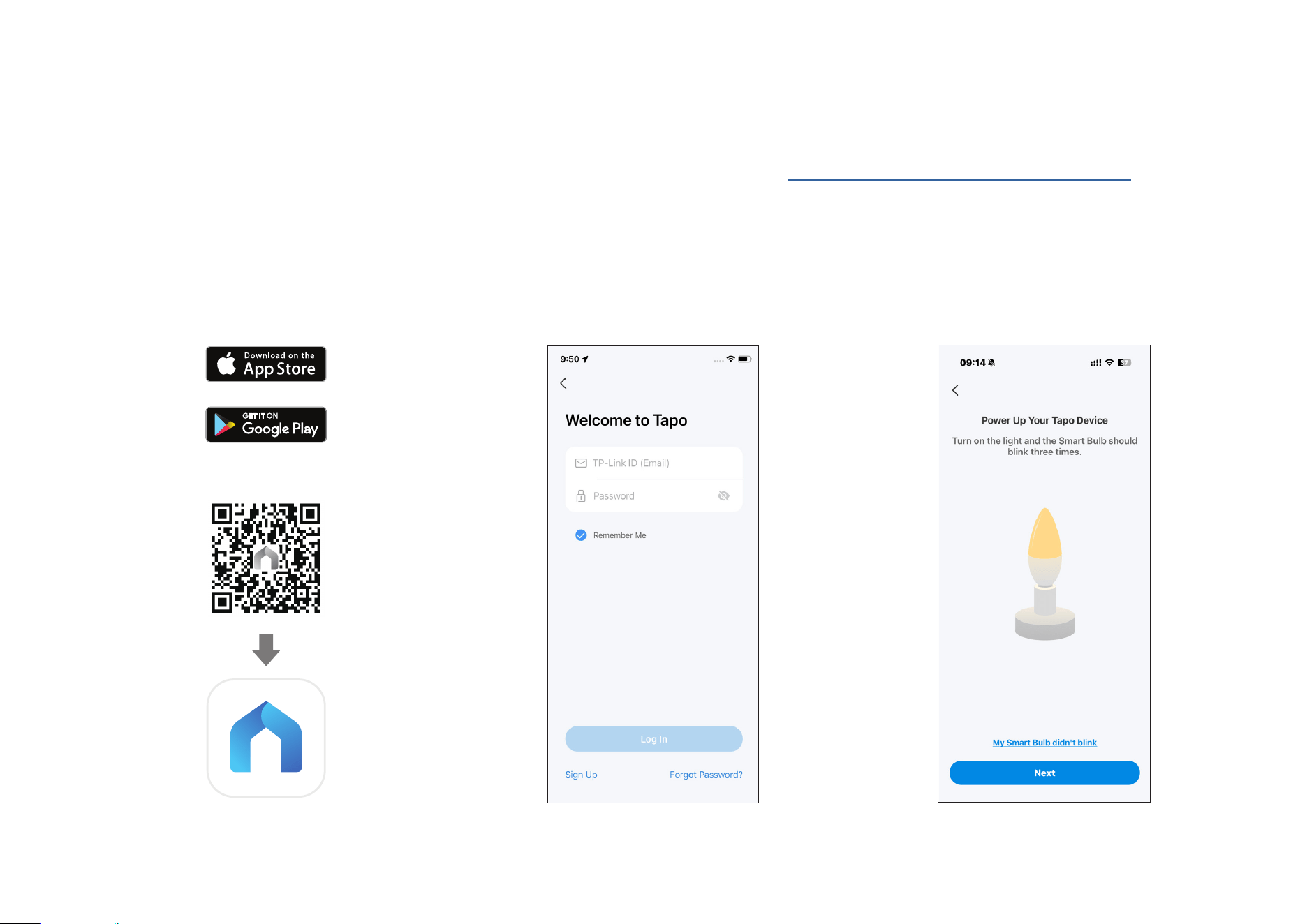
Step 1. Download Tapo App
Get the Tapo app from the App Store or
Google Play, or by scanning the QR code
below.
Step 2. Log In
Open the app, and log in with your TP-Link ID.
If you don't have an account, create one rst.
Step 3. Power Up Your Device
Install your smart bulb and turn on the light.
The smart bulb should blink three times.
OR
4
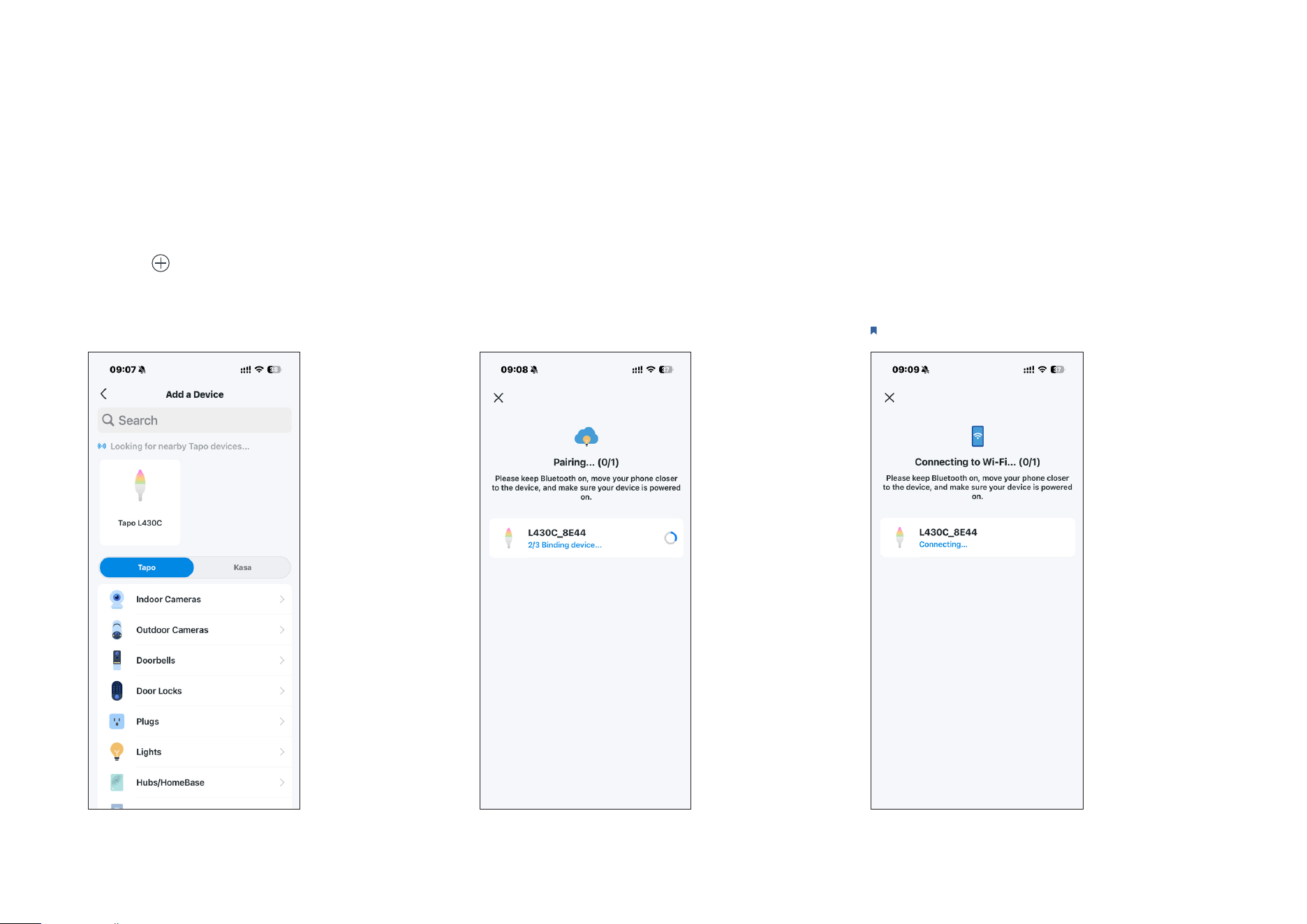
Option 1 Auto Discover
Tap the button in the app and select Add
Device. Enable Bluetooth to find the device
card.
Tap the device card and then Pair to pair your
smart bulb. You can also check the real-time
progress.
Choose your network and connect your
device to Wi-Fi. Then follow the in-app
instructions to complete the setup.
Step 4. Add Your Device
To fully enjoy Smart Actions and more features, please set up
Wi-Fi after adding the device via Bluetooth.
5
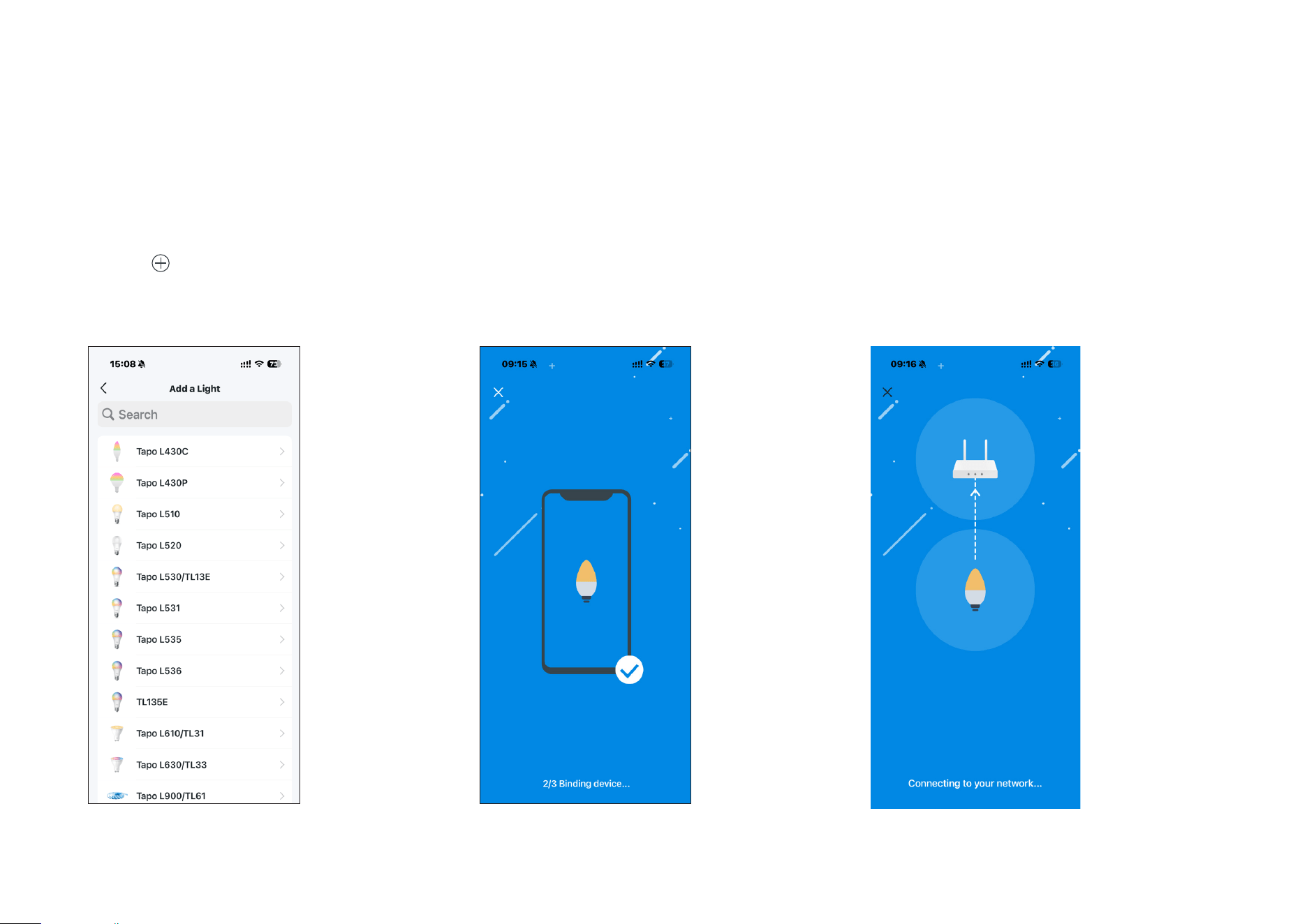
Option 2 Manual Setup
Tap the button in the app and select Add
Device. Choose Lights and then your model.
Enable Bluetooth to bind the device. The real-
time progress will be displayed.
Connect your device to Wi-Fi. Then follow the
in-app instructions to complete the setup.
Step 4. Add Your Device
6
Basic Device Control
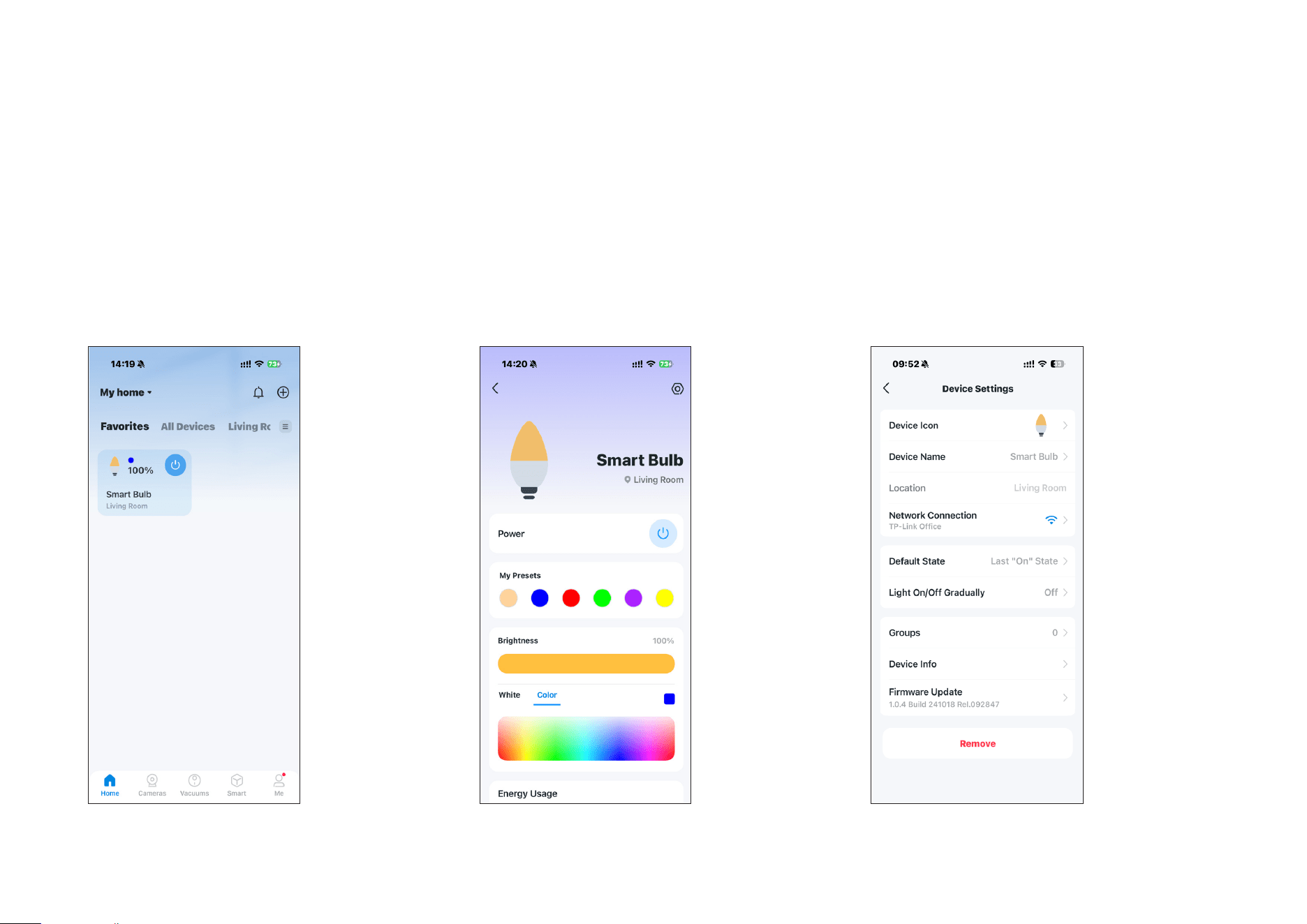
After successfully setting up your smart bulb, you will see the home page of the Tapo app. Here you can view the status of all devices that you've added
and manage them. You can tap on the device to control and manage.
Home Page
You can turn on/o the bulb any time anywhere
and tap the bulb card to enter the status page.
When it's connected via Bluetooth, the card
will not display its color and brightness.
Device Status Page
You can adjust colors and temperature, enjoy
main features to control your device, and view
its runtime & energy usage.
Device Settings Page
You can edit the basic information, set Last
On State, enable gentle on/off, add a group,
update rmware and more.
1
Congure Your Smart Bulb
You can congure your smart bulb by adjust lighting settings and setting Themes, Presets, Auto White, Schedule, Timer, Away Mode and more.
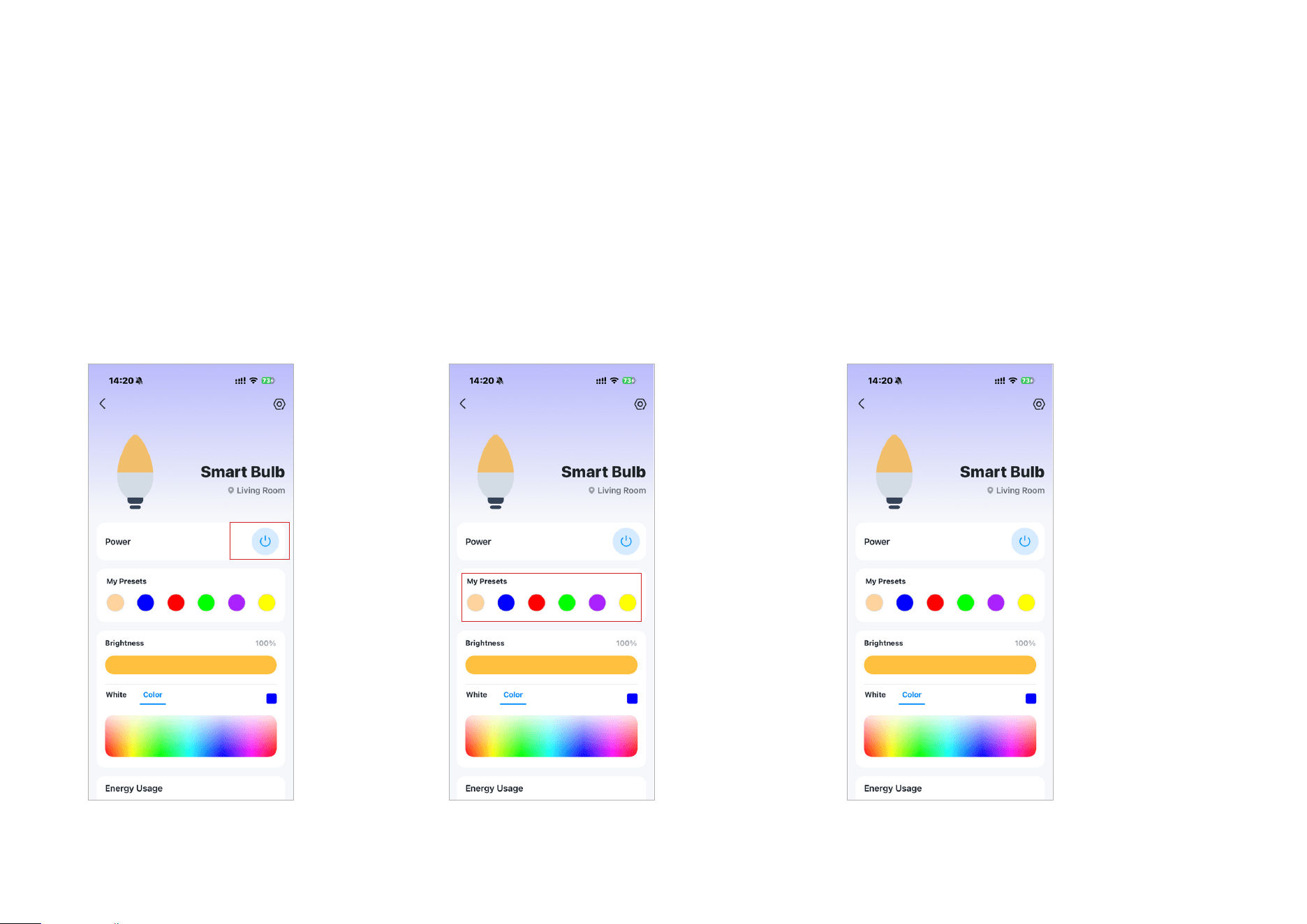
Turn On/O At One Tap
Quickly power on or o your smart bulb with
a tap.
Set Presets
With Presets, you can quickly apply your favorite
preset at one tap. To edit preset, just select one
and tap edit.
Adjust Color & Brightness at Fingertips
Quickly apply the color you like with a tap and
drag the slider to adjust the brightness.
2
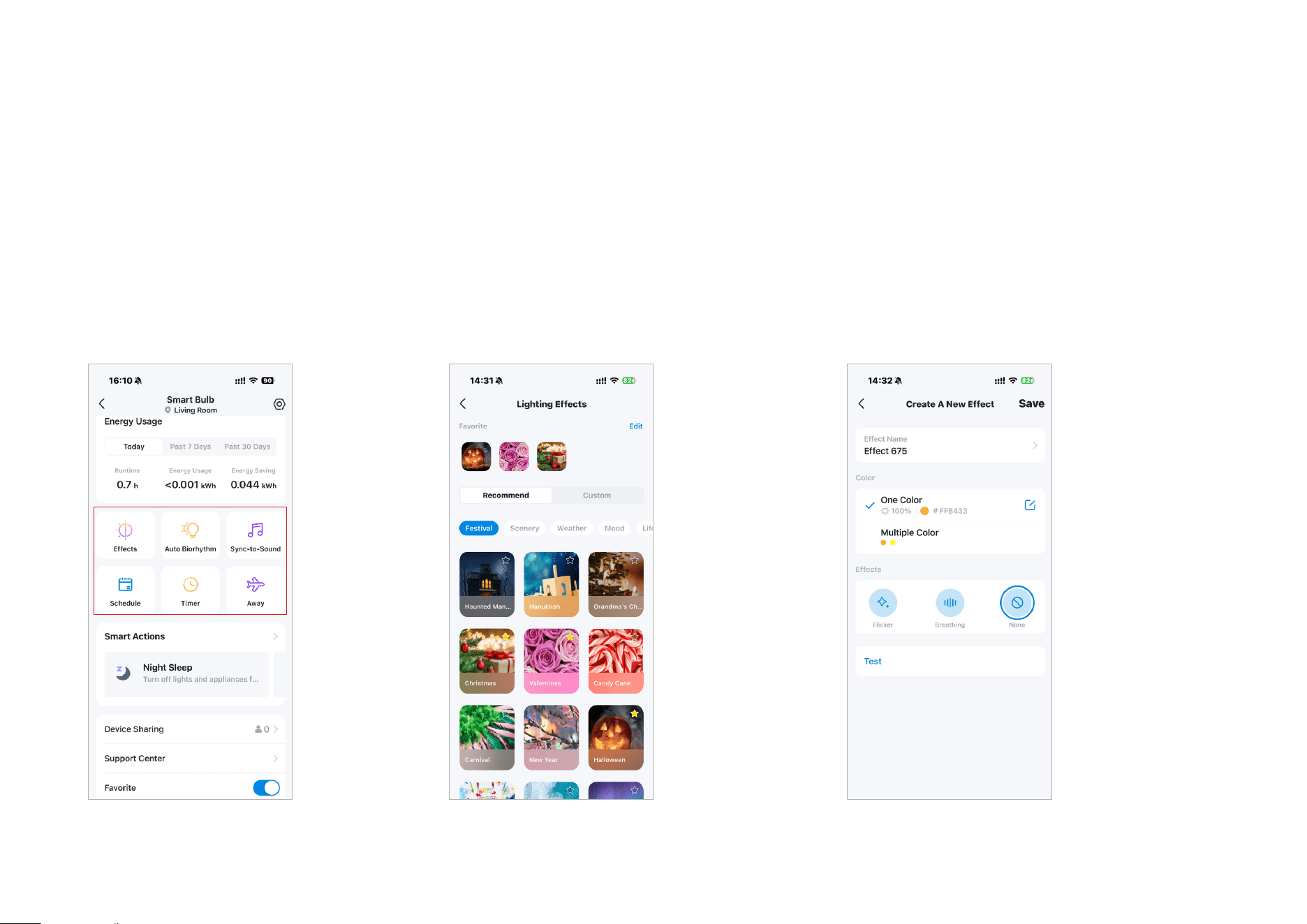
Main Features
On the device status page, you can use the
Eects, Auto Biorhythm, Sync-to-Sound,
Schedule, Timer, and Away Mode features.
Eects
Option 1: Choose a Predened Eect
You can tap to add predened eects t for dierent
scenarios to your favorites for convenience.
Option 2: Create Your Own Eect
You can also tap Custom on the Light Eects
page to create a new eect to your preference.
3
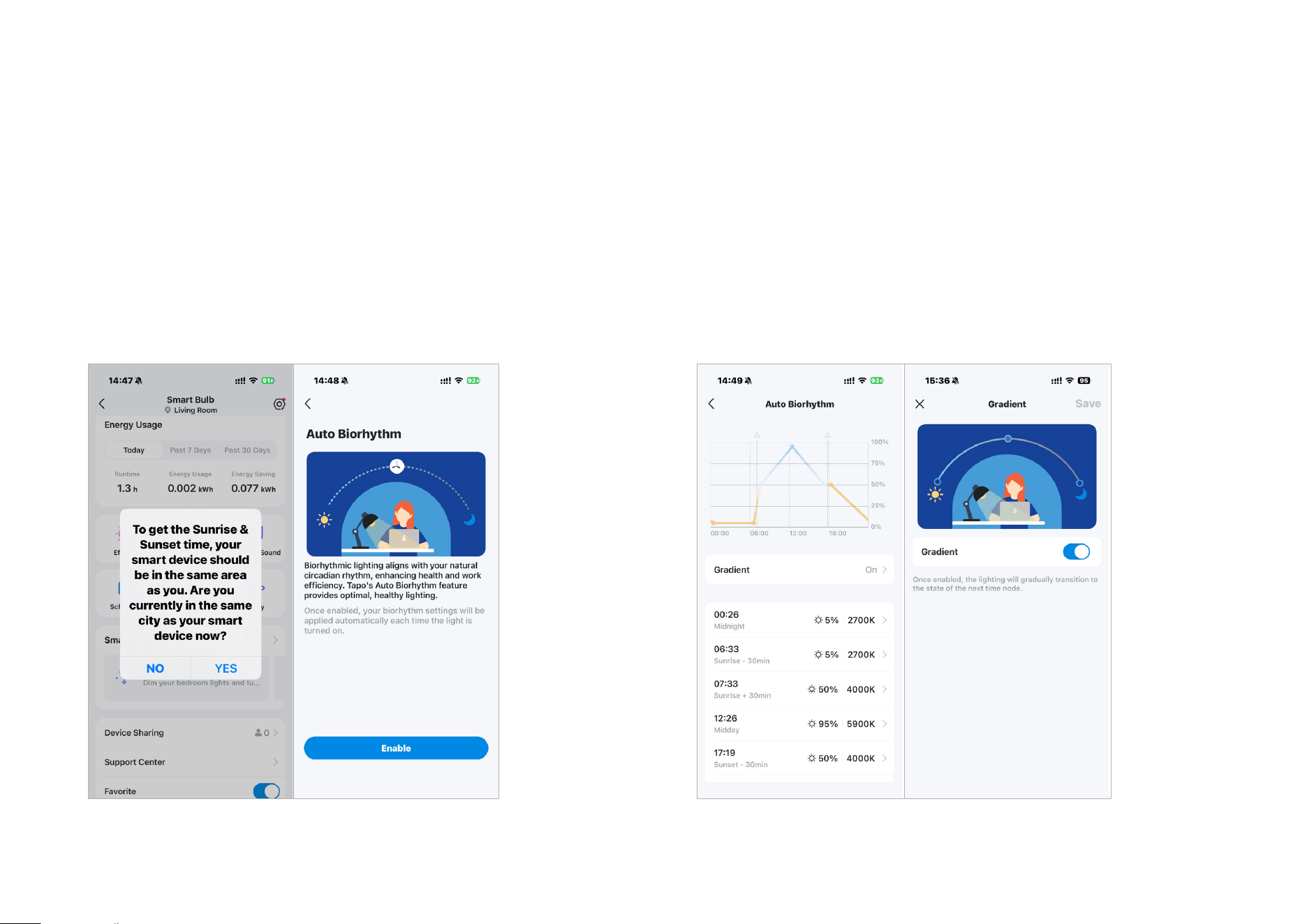
Auto Biorhythm
Automatically adjusts daily brightness and color temperature based
on the natural sunlight pattern of your positioning area, ensuring the
most suitable lighting every time you turn it on. To use it, you need to
be in the same city as the device.
Auto Biorhythm
Gradient Transition
Enable gradual light transition to the next time node.
4
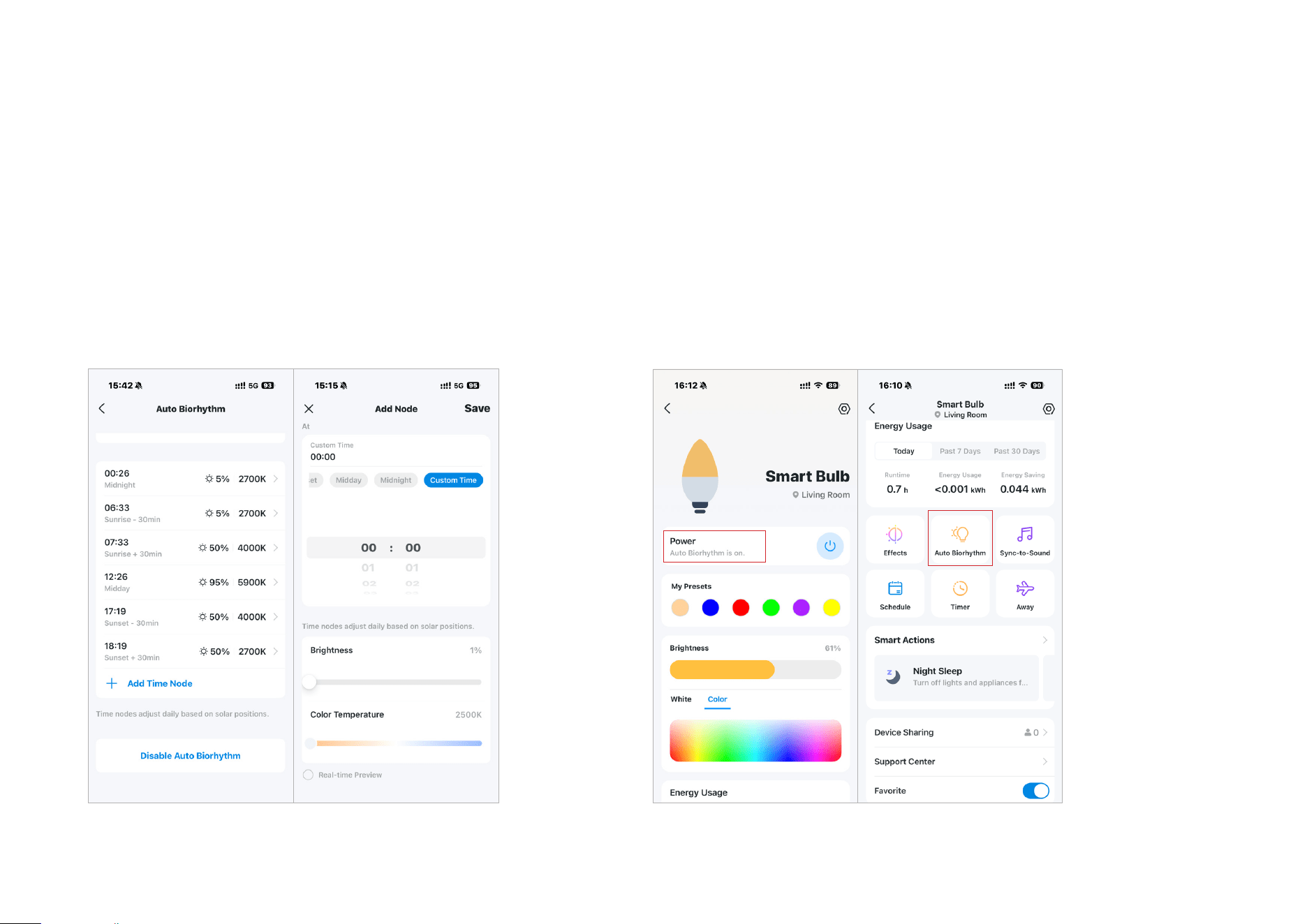
Auto Biorhythm
Set Time Node
You can edit the default time nodes or add new ones to your
preference.
Auto Biorhythm
Auto Biorhythm Status
When Auto Biorhythm is on, you will be notied on the status page. To
disable it, enter the Auto Biorhythm page and tap Disable Auto Biorhythm
on the bottom.
5
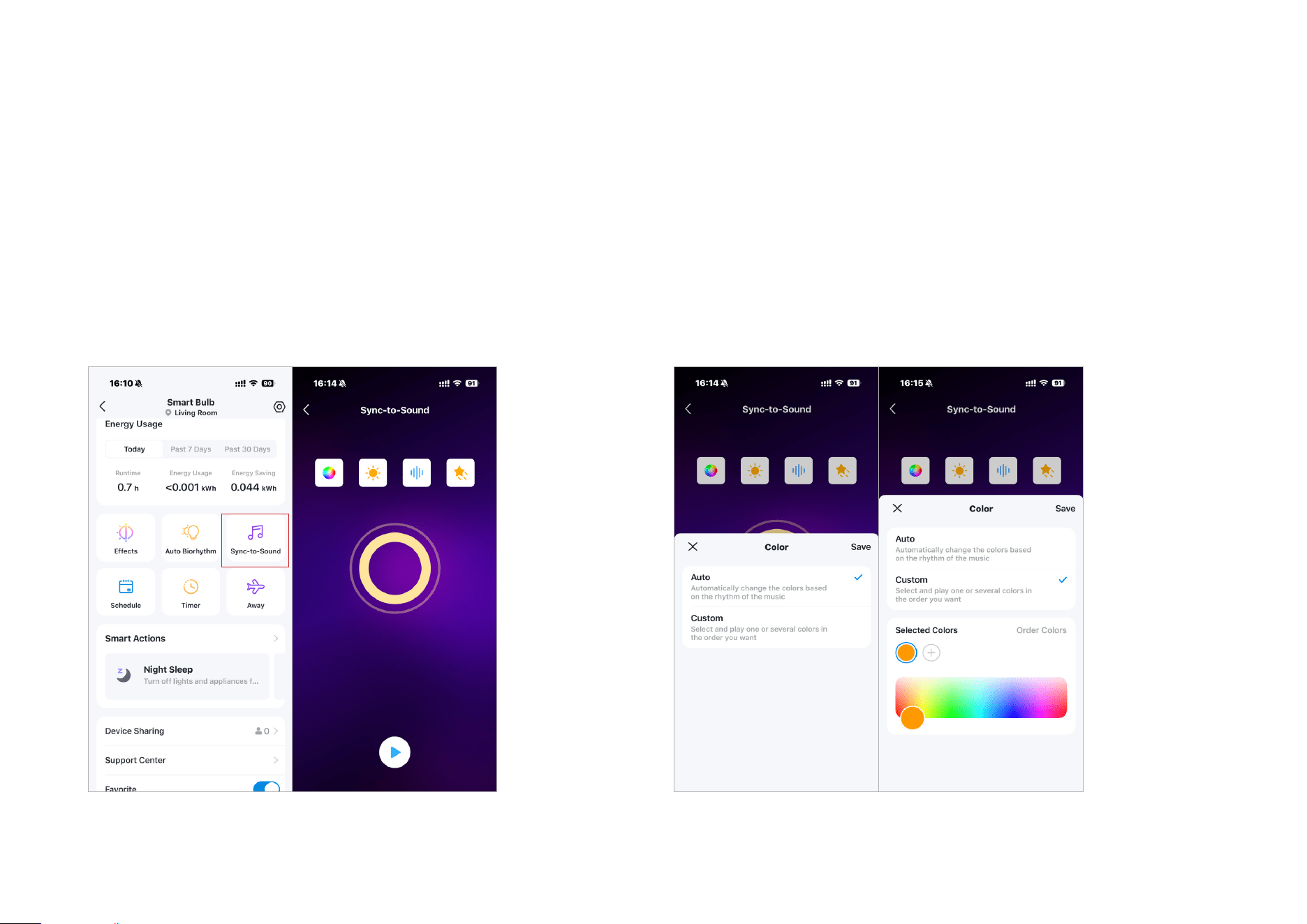
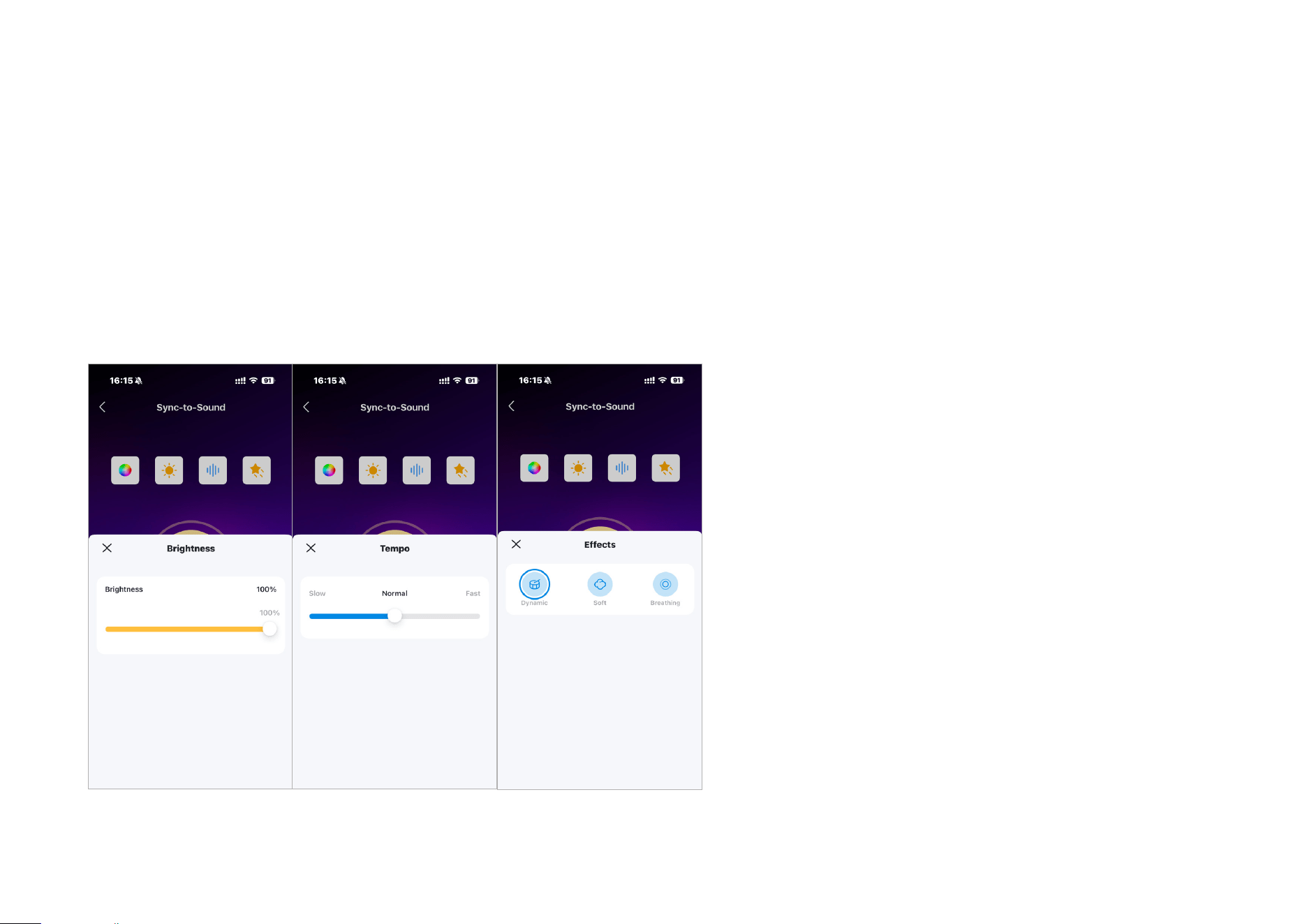
Sync to Sound
Tap Sync-to-sound to coordinate your favorite music
with your Tapo lights.
Sync to Sound
Adjust the displayed color automatically or customize it to your
preference.
6
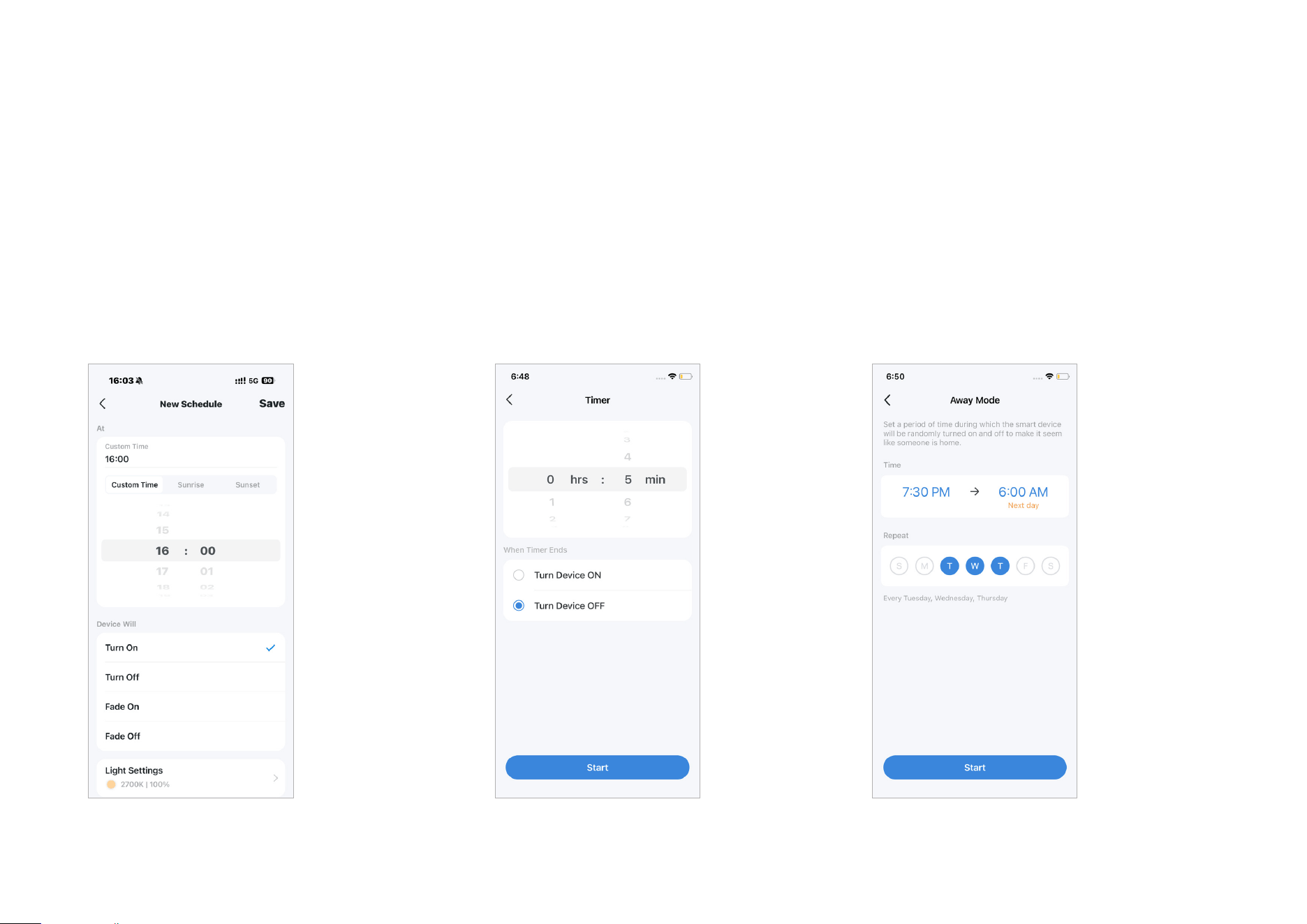
Sync to Sound
Adjust the displayed brightness, speed and lighting eect according to the music.
7
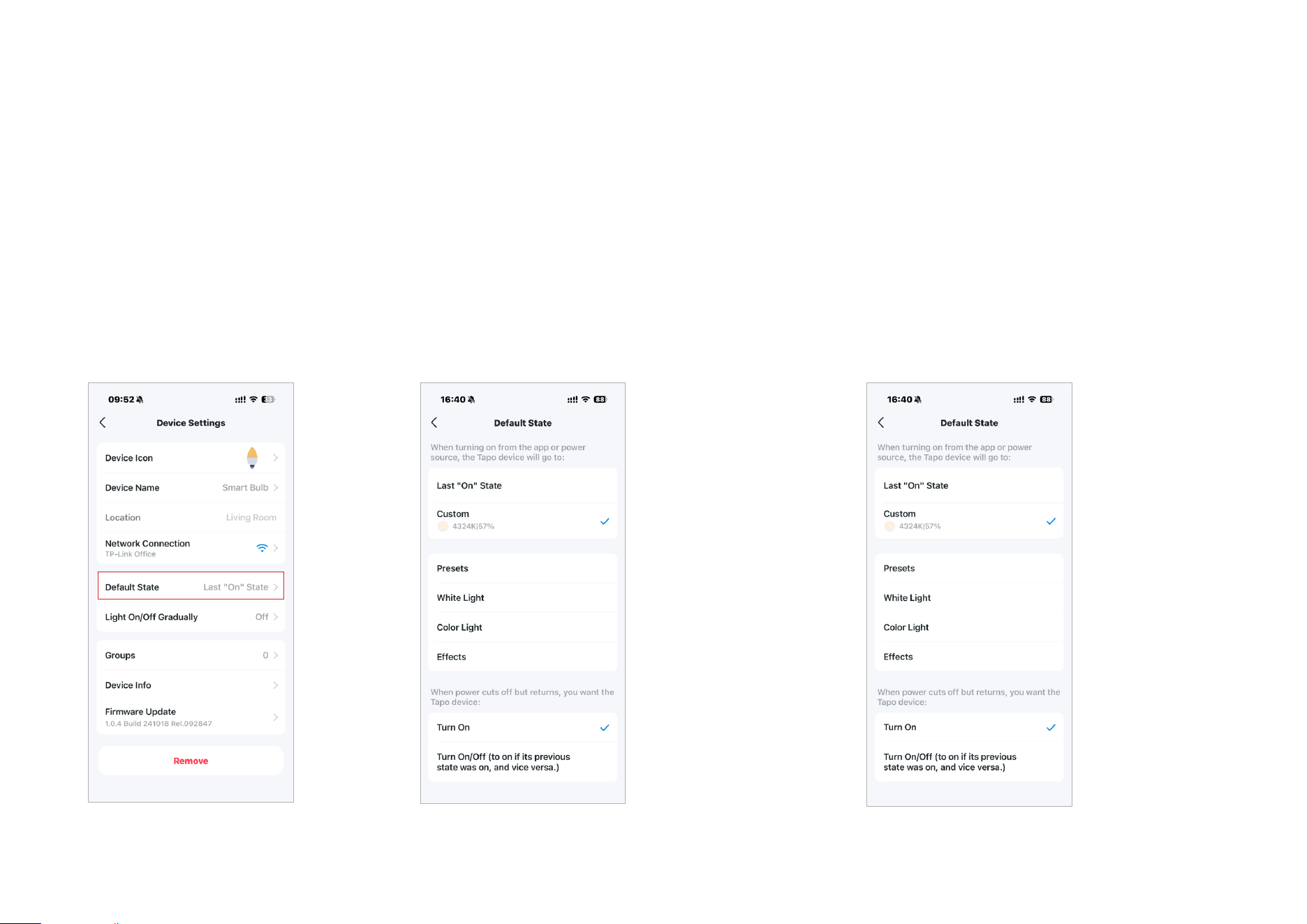
Set Schedule
Tap Schedule to set a schedule for your light to
automatically turn on or o, or fade on and o,
such as turning the porch light on at sunset and
o at sunrise.
Set Timer
Tap Timer to set the timer and lighting settings,
then your smart bulb will automatically turn on
with the specic settings after the timer ends.
Away Mode
Tap Away to preset the Away Mode, set the
start and end time, then your smart bulb will
be randomly turned on/o during this period.
8
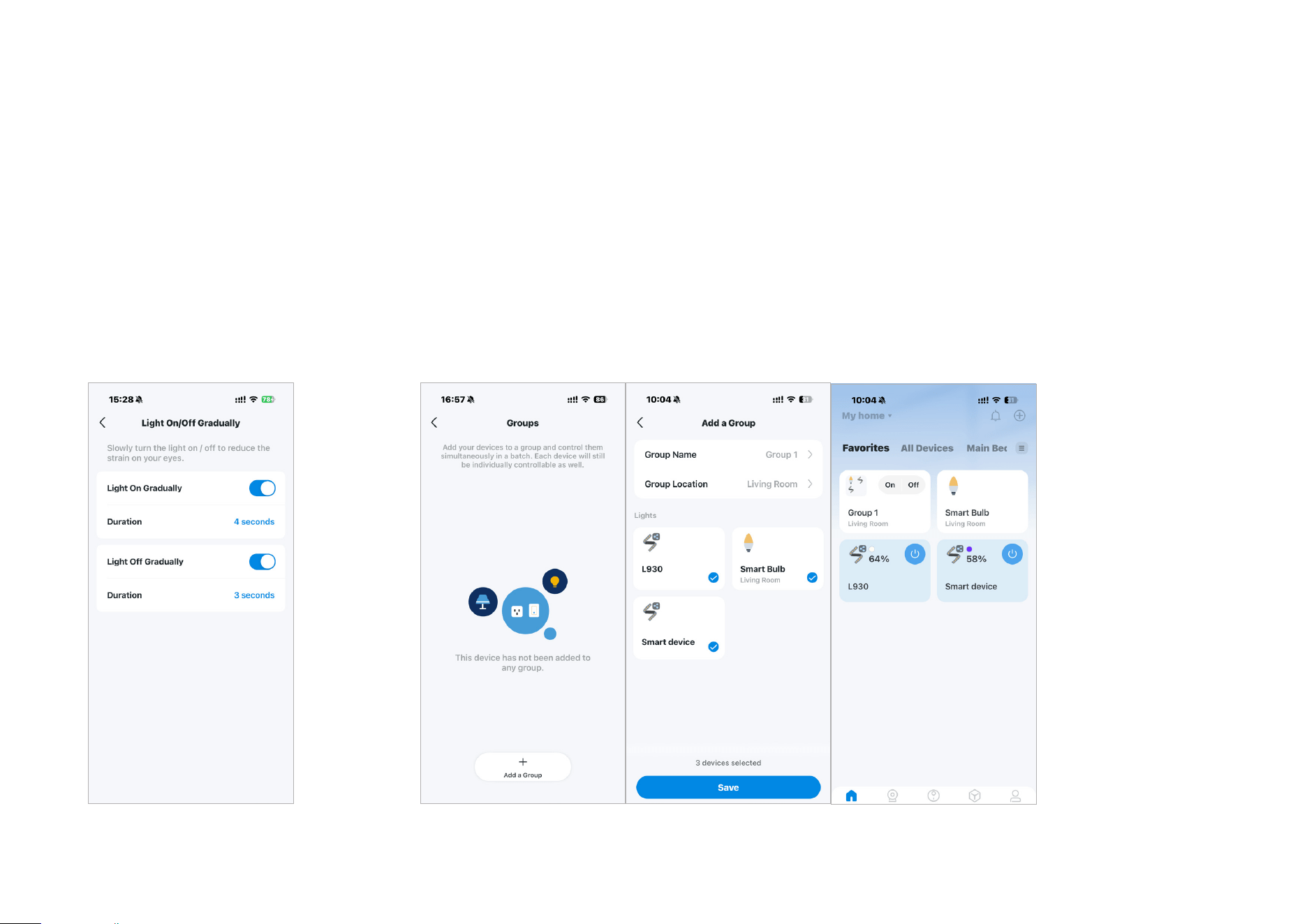
Device Default State
Set the default state (color/brightness/
eect) of your light when turning on from
the app or power source or when power
cuts o but returns.
Device Default State
When turning on from the app or power source
If you select Last "On" state, the smart bulb will go to the
remembered state before it was turned o each time it's
turned on. Or, you can customize it as you need.
Device Default State
When power cuts o but returns
You can choose to turn on your light or to the
opposite state of its previous state.
9
Light On/O Gradually
Slowly turn the light on/o to reduce the
strain on your eyes.
Groups
Add your lights to a group and control them simultaneously in batch. Each device will still be individually
controllable as well.
10
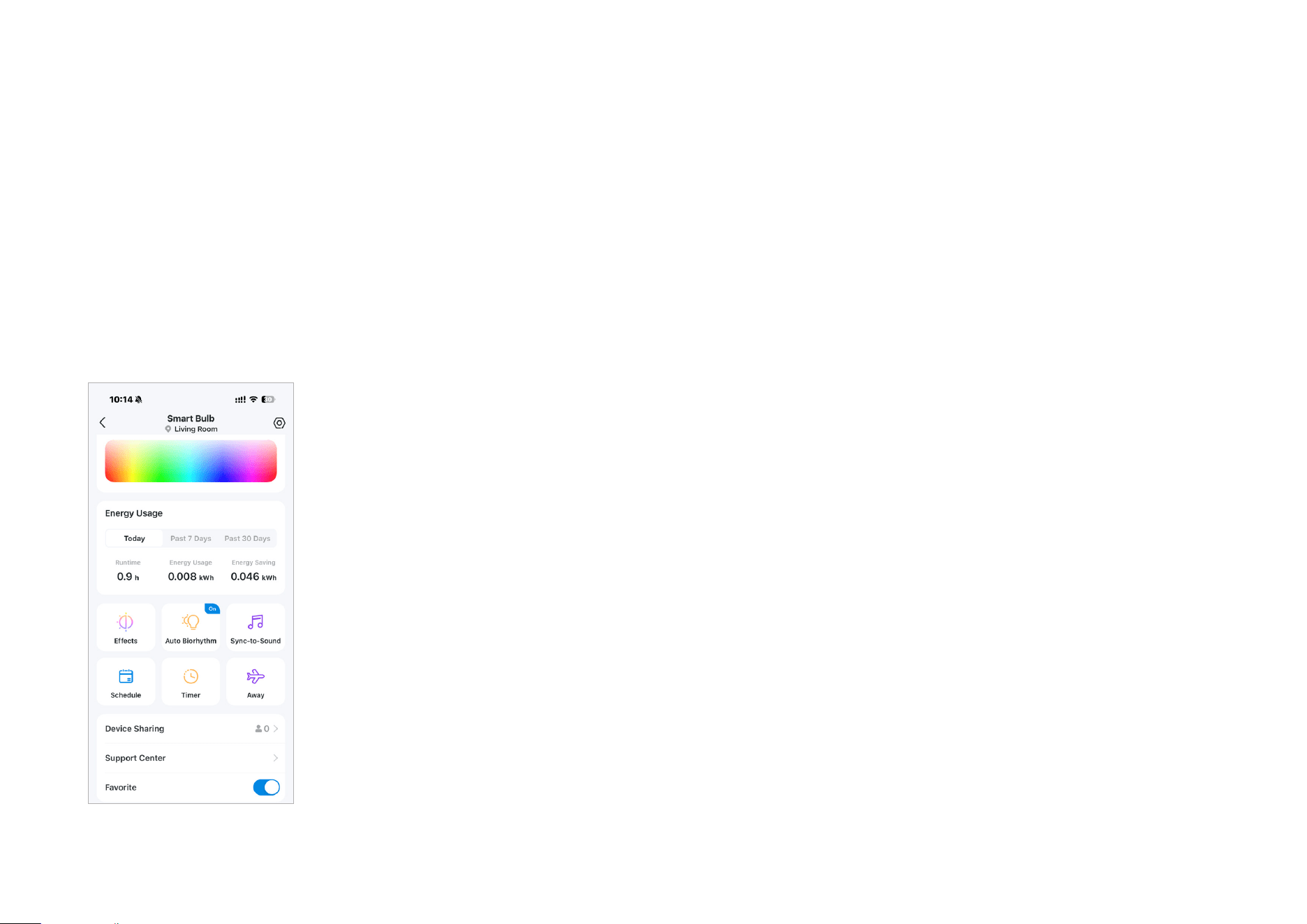
Check Runtime & Energy Usage
Slide up to check your bulb's Runtime and Energy Usage today, past 7 days or past 30 days.
11
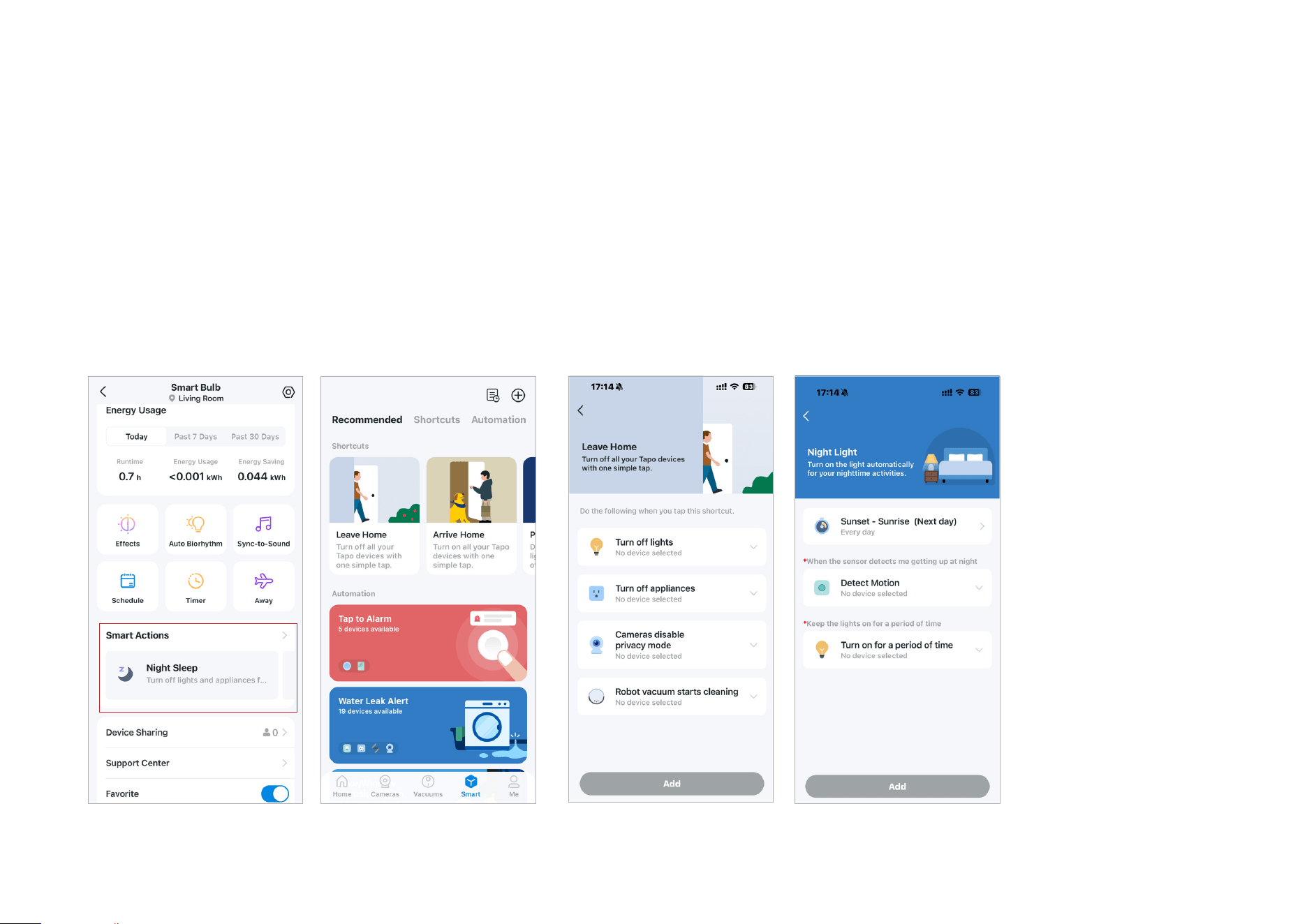
Option 1:
Edit based on the recommended template
1. Find Smart Actions on the device status page or go to the
Smart Actions page, then you will see the recommended
templates (Shortcuts & Automation).
2. Tap on the template you like to select devices and set up, then tap Add to save
changes.
Smart Actions
Smart Actions automate repetitive tasks, allowing you to blaze through tedium with utmost ease. Set everything up once and never have to worry about
it again. With Smart Actions, giving your home that level of intelligence is a snap. Shortcut lets you perform an action with a simple tap. Automation
allows you to automate tasks to be performed at a set time. e.g. The light will light on at sunset.
12
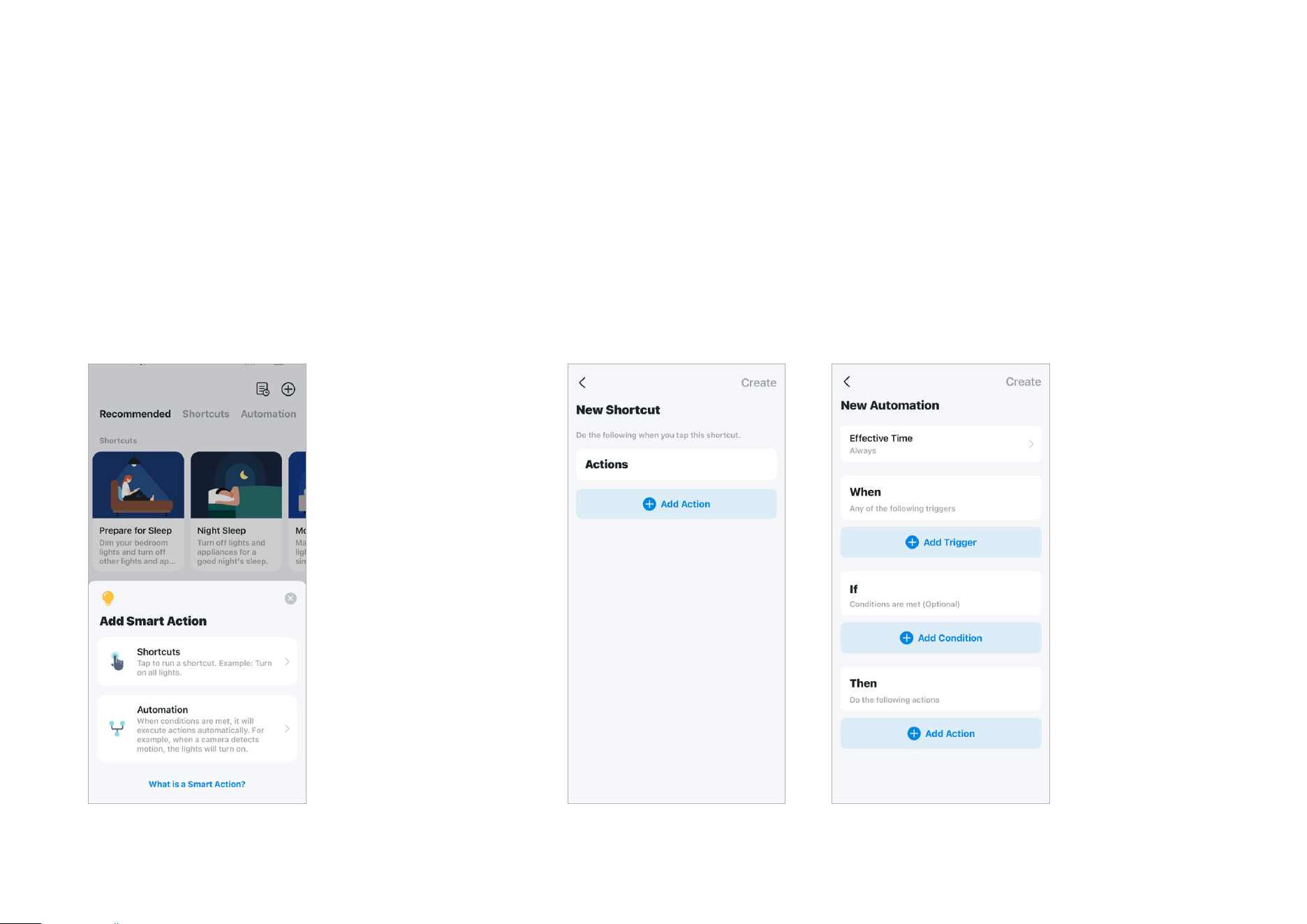
Option 2: Create your own actions
1. On the Smart Actions page, tap + on the upper right to
create your own actions.
2. For Shorcuts: Tap + to add action like turning on the smart bulb.
For Automation: Tap + to add triggers (When) like the trigger time, tap + to add
action (Then), and tap + to add action (Then) like turning on the smart light strip.
13
Share Your Smart Bulb
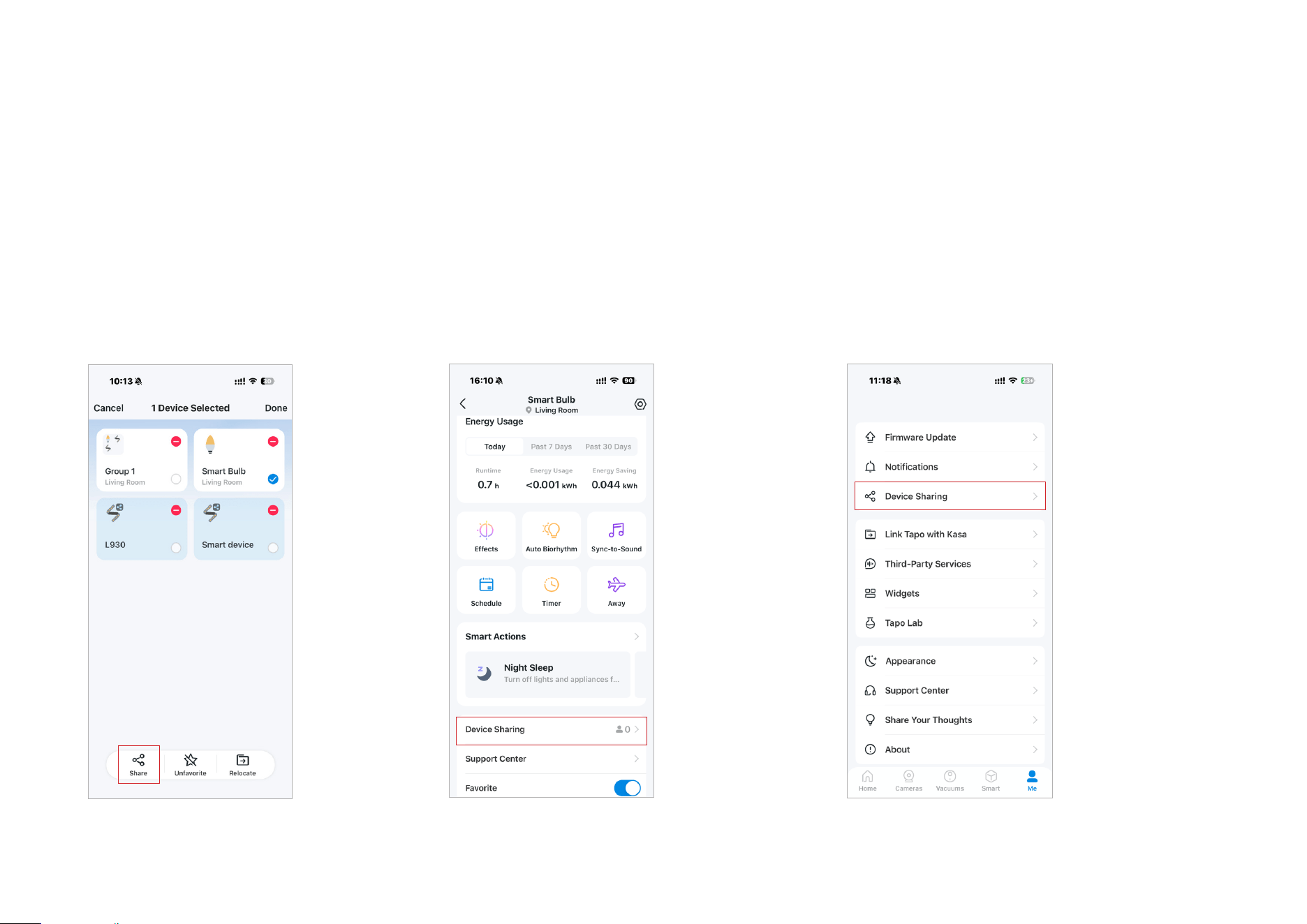
You can invite your family members to manage your Tapo devices together by entering the TP-Link ID (email) you want to share the devices with.
Option 1
On the home page, long press the Light
Strip card and tap Share.
Option 2
Go to the Device Status page, slide up and tap
Device Sharing.
Option 3
Go to the Me page and tap Device Sharing
to view your shared devices and devices
shared from others.
14
Reset Your Smart Bulb
There are two types of reset available: a soft reset which resets the Wi-Fi settings only, and a factory reset that erases all of your custom settings and
restore them to factory defaults.
Soft Reset (without losing the conguration settings except Wi-Fi)
1. Turn the light switch controlling the smart bulb to the on position rst.
2. Switch it o and on 3 times, pausing for two seconds in between.
3. Wait for about 4 seconds and the smart bulb should blink 3 times, which indicates a successful soft reset.
Factory Reset (back to factory default settings)
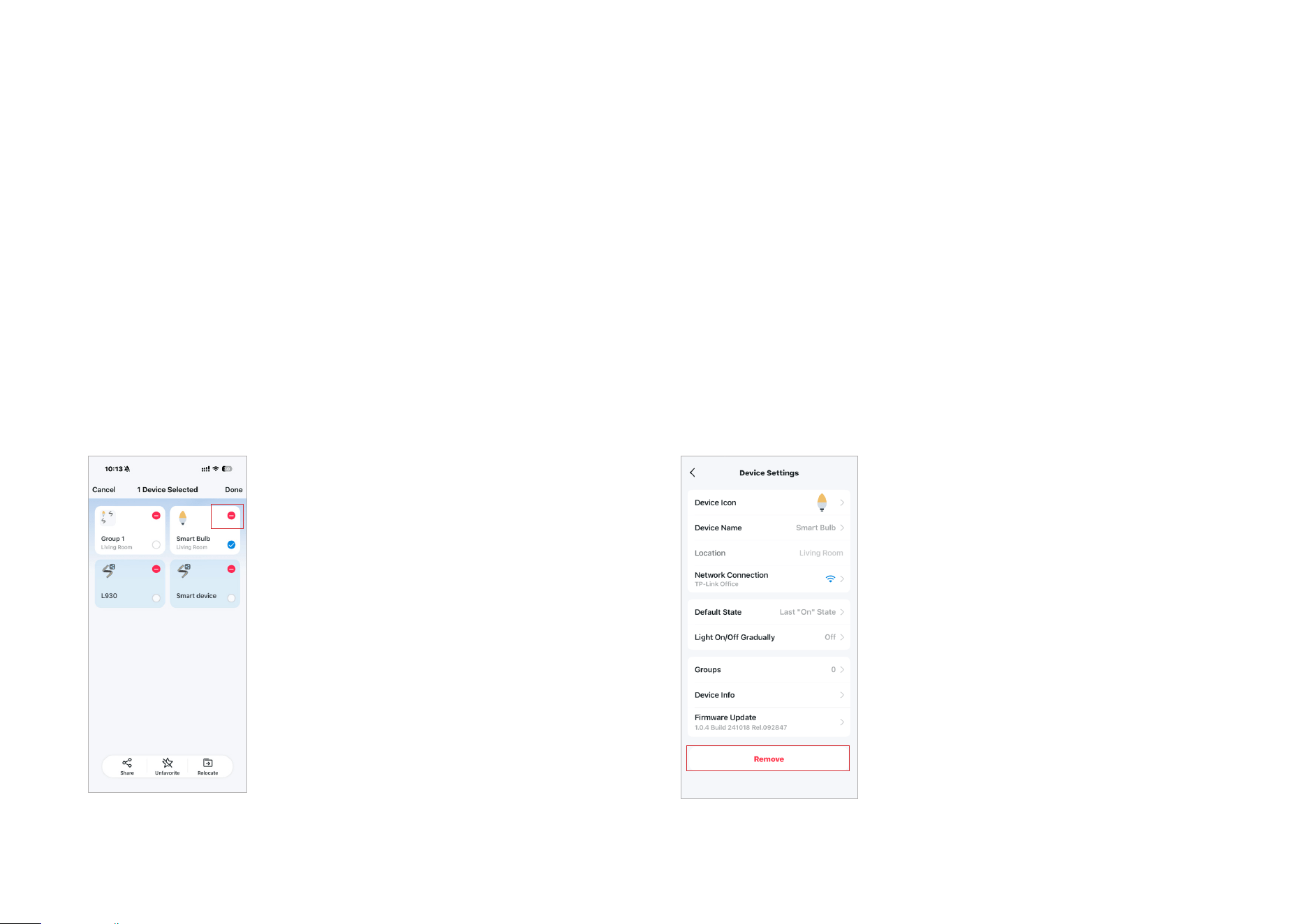
On the home page in Tapo app, long press the card and tap Remove.
OR
Go to the Device Settings page and tap REMOVE at the bottom.
15
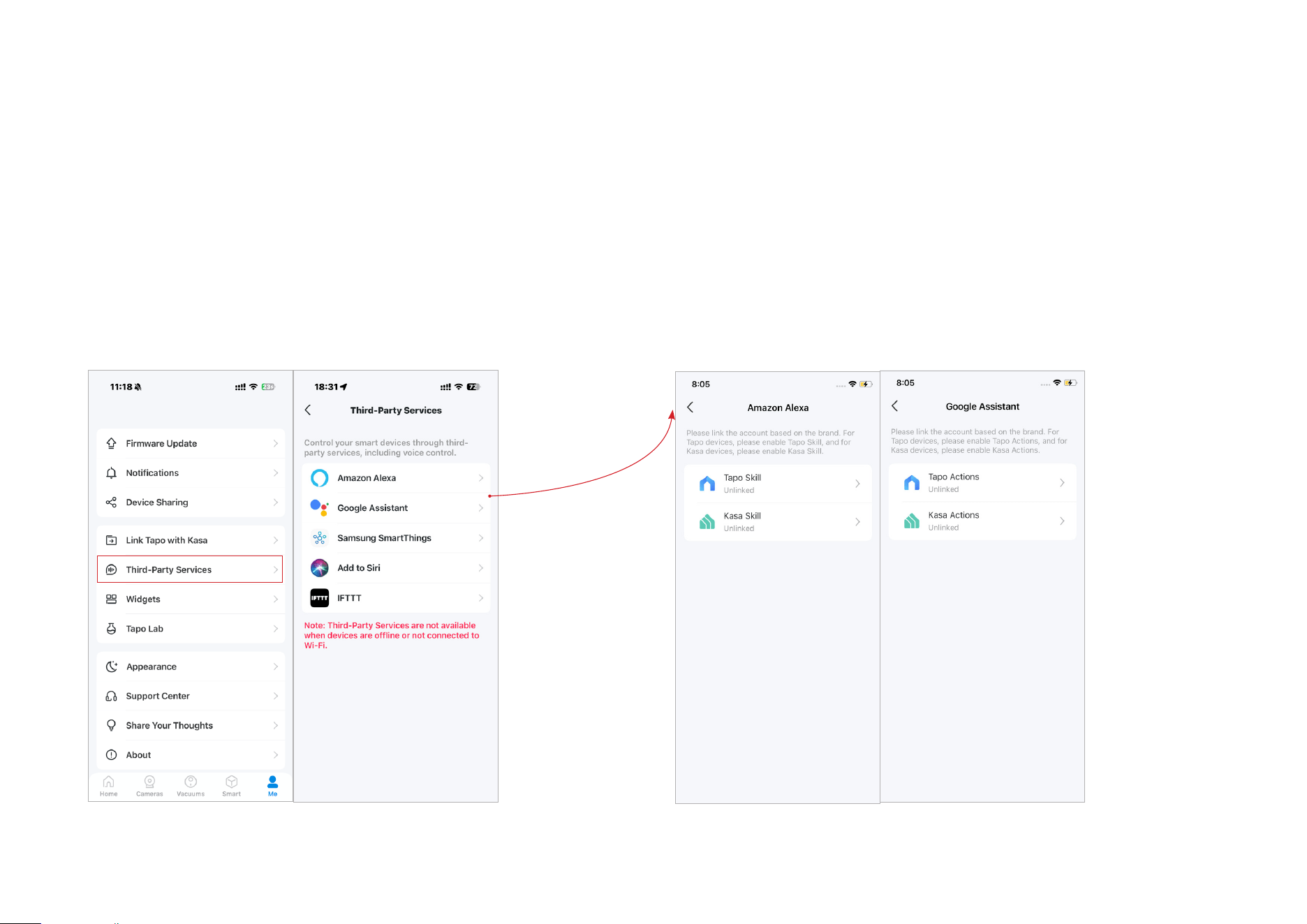
Go to Me page and tap Third-Party Services.
Select Amazon Alexa or Google Assistant. Follow the app instructions to
control your device via voice.
Third-Party Services
Control your smart devices through third-party services, including voice control. Free up your hands with simple voice commands to control your
devices via Amazon Alexa or Google Assistant.
16
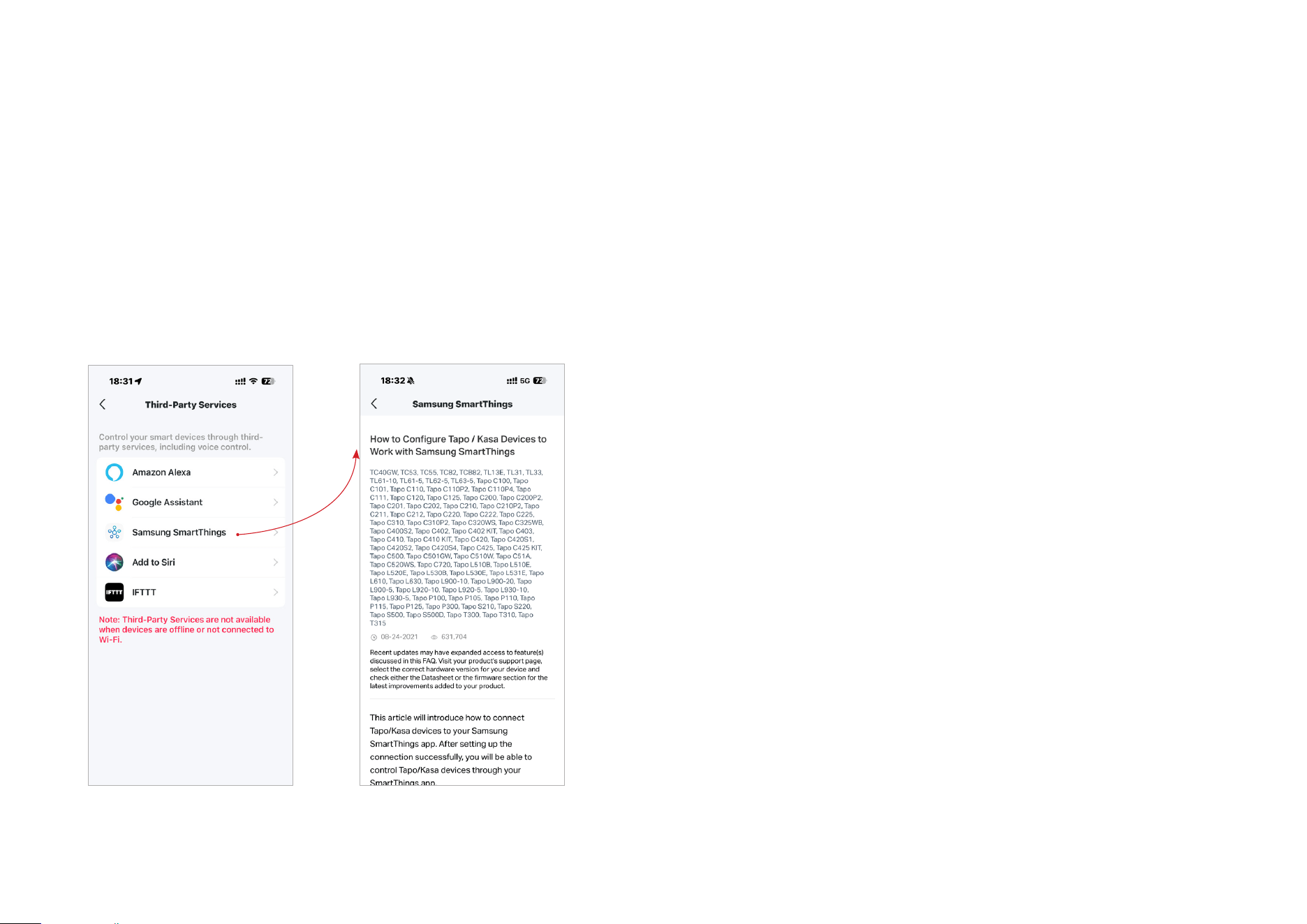
Select Samsung SmartThings and follow the instructions to control your device via voice.
24
Authentication
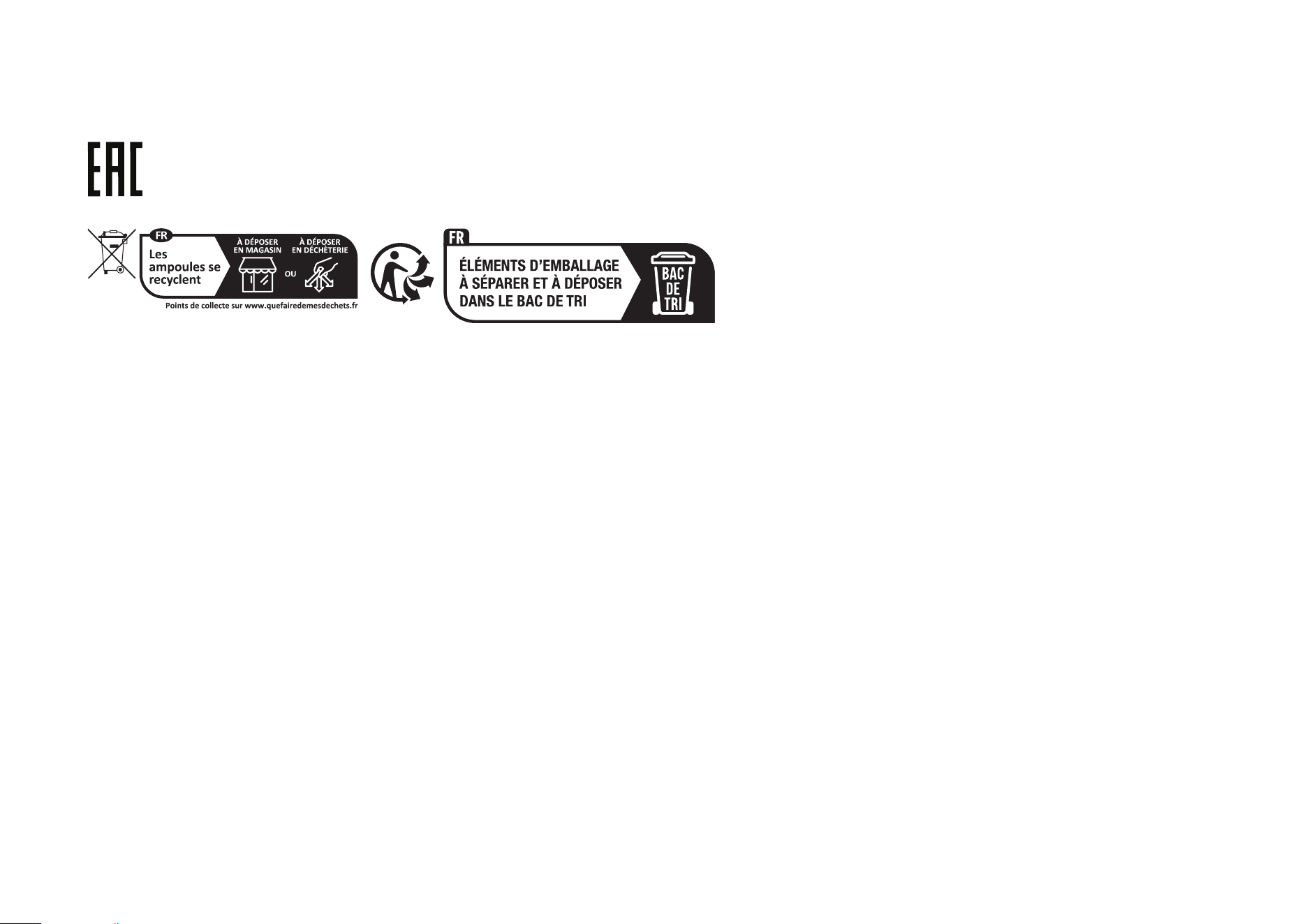
CE Mark Warning
Operating Frequency
2400 MHz -2483.5 MHz (20dBm)
EU declaration of conformity
TP-Link hereby declares that the device is in compliance with the essential requirements and other relevant provisions of directives 2014/53/EU,
2009/125/EC, 2011 /65/EU and (EU) 2015/863.
The original EU declaration of conformity may be found at https://www.tapo.com/support/ce/
RF Exposure Information
This device meets the EU requirements (2014/53/EU Article 3.1a) on the limitation of exposure of the general public to electromagnetic fields by way
of health protection.
The device complies with RF specifications when the device used at 20 cm from your body.
Restricted to indoor use.
UK declaration of conformity
TP-Link hereby declares that the device is in compliance with the essential requirements and other relevant provisions of the Radio Equipment
Regulations 2017.
The original UK declaration of conformity may be found at https://www.tapo.com/support/ukca/
25
Продукт сертифіковано згідно с правилами системи УкрСЕПРО на відповідність вимогам нормативних документів та вимогам,
що передбачені чинними законодавчими актами України.
Safety Information
• Keep the device away from water, fire, humidity or hot environments.
• Do not attempt to disassemble, repair, or modify the device.
• Do not use the device where wireless devices are not allowed.
• Only use the control provided with or specified by these instructions to control this device.
• For lamps with a weight significantly higher than that of the lamps for which they are a replacement, attention should be drawn to the fact that the
increased weight may reduce the mechanical stability of certain luminaires and lampholders and may impair contact making and lamp retention.
WARNING:
• RISK OF ELECTRIC SHOCK OR BURNS. Switch OFF the light switch controlling the bulb and WAIT for the bulb to cool down before attempting to
change it.
• Do not install the Smart Bulb with wet hands or when standing on wet or damp surfaces.
• Compatible with regular light switches. Not suitable for use with standard in-wall dimmers. Not compatible with photosensors, motion sensors, or
timers. Dimmable via the app only.
• NOT for use in totally enclosed or recessed luminaires. Suitable for damp locations.
• NOT FOR EMERGENCY LIGHTING.
• The increased weight may reduce the mechanical stability of certain luminaires and lampholders and may impair contact making and lamp retention.
26
• Please read and follow the above safety information when operating the device. We cannot guarantee that no accidents or damage will occur due
to improper use of the device. Please use this product with care and operate at your own risk.
• Operating Temperature: -15℃~40℃(5℉~104℉)
• Storage Temperature: -40℃~60℃(-40℉-140℉)
• Operating Humidity: 10%~90%RH, Non-condensing
• Storage Humidity: 5%~90%RH, Non-condensing
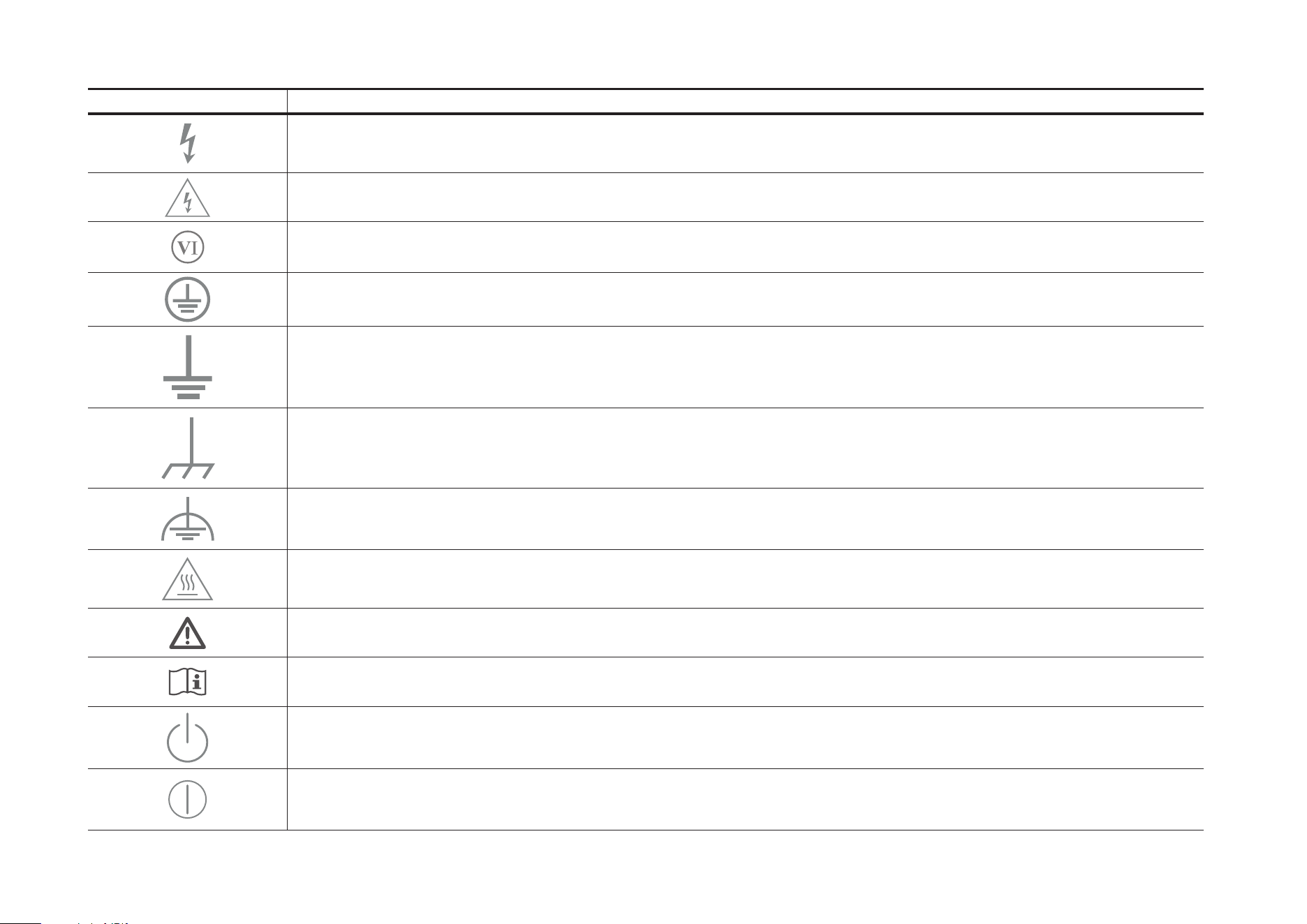
Explanation of the symbols on the product label
Symbols may vary from products.
Symbol Explanation
Class II equipment
Class II equipment with functional earthing
Dimming not allowed
Lamp not suitable for use under moisture
Alternating current
DC voltage
Polarity of output terminals
Indoor use only
27
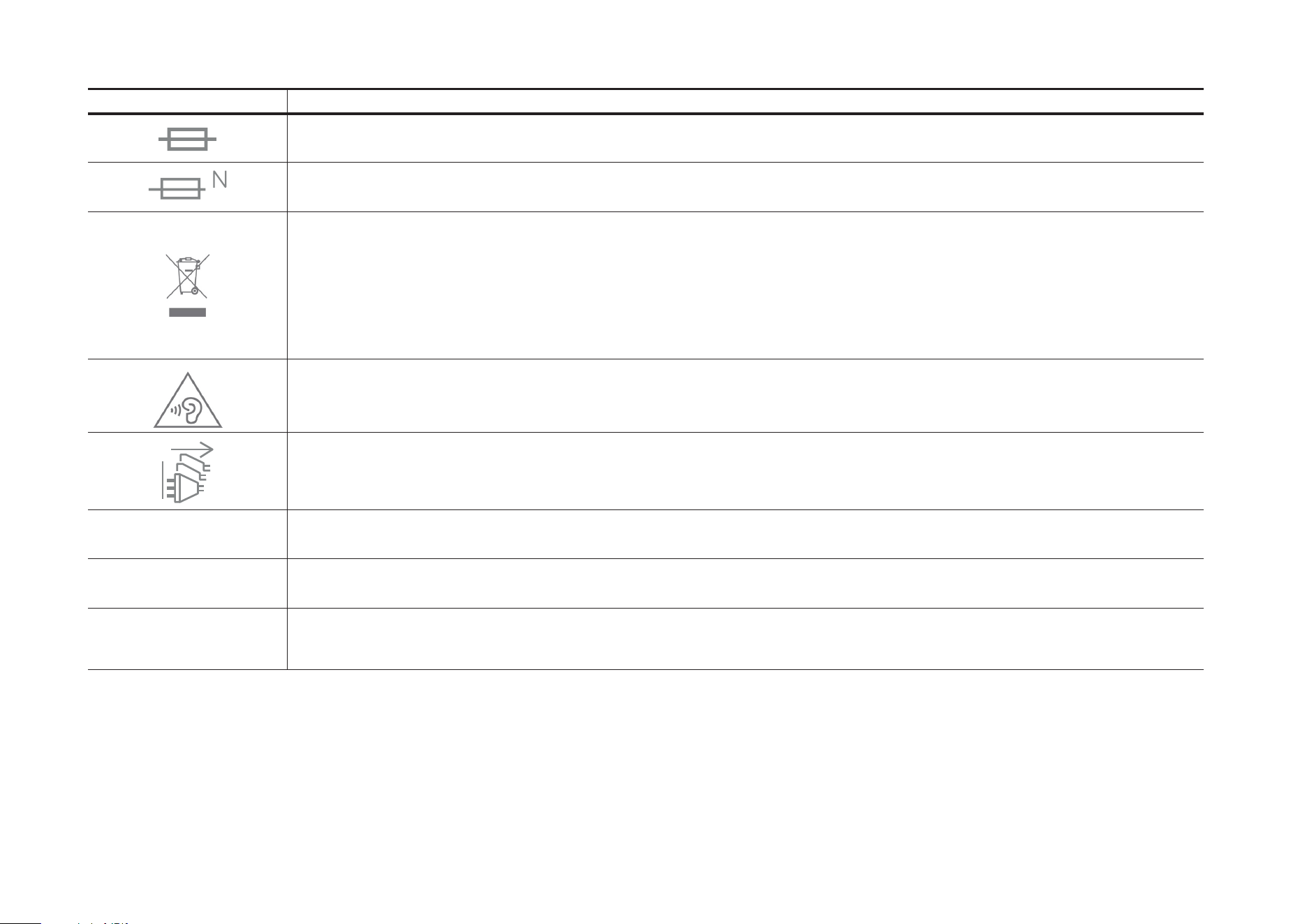
Symbol Explanation
Dangerous voltage
Caution, risk of electric shock
Energy efficiency Marking
Protective earth
Earth
Frame or chassis
Functional earthing
Caution, hot surface
Caution
Operator’s manual
Stand-by
“ON”/”OFF” (push-push)
28
Symbol Explanation
Fuse
Fuse is used in neutral N
RECYCLING
This product bears the selective sorting symbol for Waste electrical and electronic equipment (WEEE). This means
that this product must be handled pursuant to European directive 2012/19/EU in order to be recycled or dismantled to
minimize its impact on the environment.
User has the choice to give his product to a competent recycling organization or to the retailer when he buys a new
electrical or electronic equipment.
Caution, avoid listening at high volume levels for long periods
Disconnection, all power plugs
m Switch of mini-gap construction
µ
Switch of micro-gap construction (for US version)
Switch of micro-gap / micro-disconnection construction (for other versions except US)
ε Switch without contact gap (Semiconductor switching device)