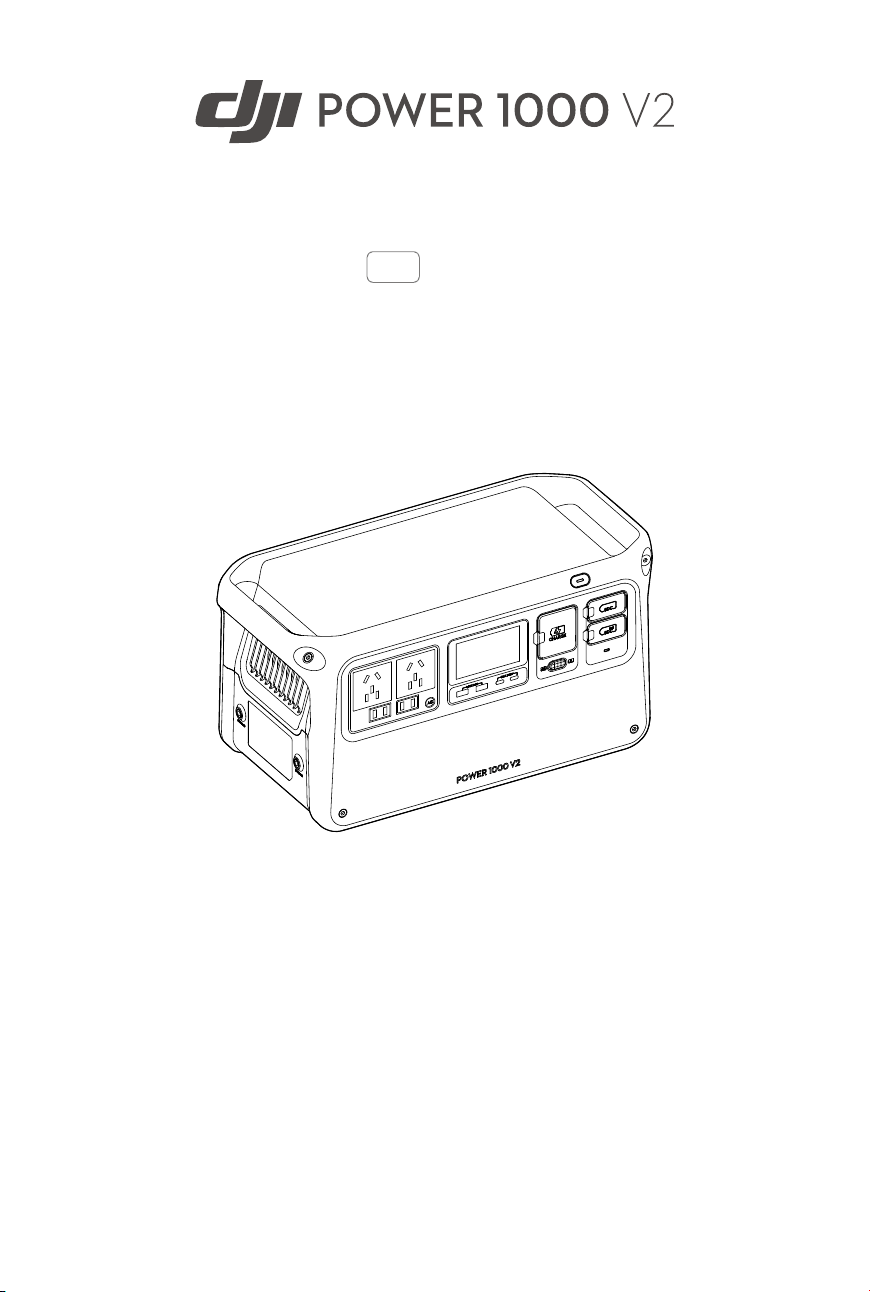
User Manual
v1.0 2025.07
This document is copyrighted by DJI with all rights reserved. Unless otherwise authorized
by DJI, you are not eligible to use or allow others to use the document or any part of
the document by reproducing, transferring or selling the document. Only refer to this
document and the content thereof as instructions to operate DJI products. The document
should not be used for other purposes.
In the event of divergence among dierent versions, the English version shall prevail.
Searching for Keywords
Search for keywords such as “battery” and “install” to nd a topic. If you are
using Adobe Acrobat Reader to read this document, press Ctrl+F on Windows or
Command+F on Mac to begin a search.
Navigating to a Topic
View a complete list of topics in the table of contents. Click on a topic to navigate to
that section.
Printing this Document
This document supports high resolution printing.
2 © 2025 DJI All Rights Reserved.
Using this Manual
Legend
Important
Hints and Tips
Reference
Read Before Use
DJI
™
provides you with tutorial videos and the following documents:
1. Safety Guidelines
2. Quick Start Guide
3. User Manual
It is recommended to watch all the tutorial videos and read the Safety Guidelines before
using for the rst time. Make sure to review the Quick Start Guide before using for the rst
time and refer to this User Manual for more information.
Video Tutorials
Go to the address below or scan the QR code to watch the tutorial videos, which
demonstrate how to use the product safely:
https://www.dji.com/power-1000-v2/video
Download DJI Assistant 2
Download DJI ASSISTANT
™
2 (Power Series) at:
https://www.dji.com/downloads/softwares/dji-assistant-2-power-series
DJI Power 1000 V2 User Manual
© 2025 DJI All Rights Reserved. 3

DJI Power 1000 V2 User Manual
4 © 2025 DJI All Rights Reserved.
Contents
Using this Manual 3
Legend 3
Read Before Use 3
Video Tutorials 3
Download DJI Assistant 2 3
1 Product Prole 5
1.1 DJI Power 1000 V2 5
1.2 Display Screen 6
2 Basic Usage 8
2.1 Powering on/o 8
2.2 Connecting to theDJI Home App 8
2.3 AC Recharging 8
2.4 AC Output 10
2.5 USB Output 10
3 Accessories 12
3.1 SDC Output 12
3.2 Expanding Capacity 13
3.3 Car Scenario 14
3.4 Solar Power Scenario 14
3.5 Solar Power + RV Scenario 16
4 Uninterruptible Power Supply (UPS) 17
5 Appendix 18
5.1 Specications 18
5.2 Compatibility 18
5.3 Firmware Update 18
Using DJI Home App 18
Using DJI Assistant 2 (Power Series) 18
5.4 Log Export 19
5.5 Maintenance 20
5.6 Disposal 20
1 Product Prole
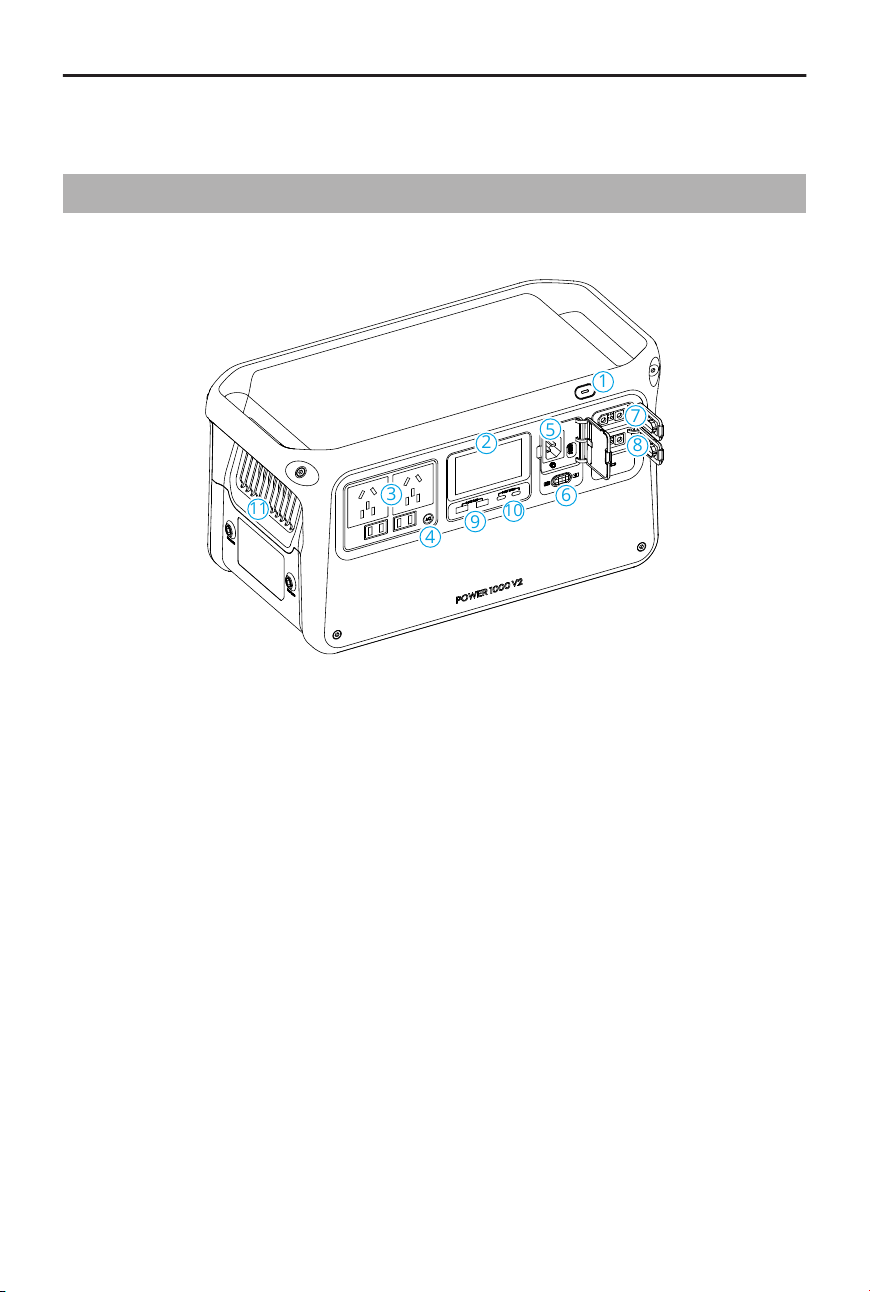
1.1 DJI Power 1000 V2
1
2
3
4
9
10
11
5
6
7
8
1. Power Button
2. Display Screen
3. AC Output Ports
[1]
4. AC Button
5. AC Input Port
6. Recharge Mode Switch
7. SDC Port
8. SDC Lite Port
9. USB-A Ports
10. USB-C Ports
11. Vents
[1] The illustrations in the user manual may dier from the actual product, depending on the country
or region. Please refer to the actual product.
DJI Power 1000 V2 User Manual
© 2025 DJI All Rights Reserved. 5
1.2 Display Screen
1
2
3
4
5 6 87 9 10 11
14
13
12
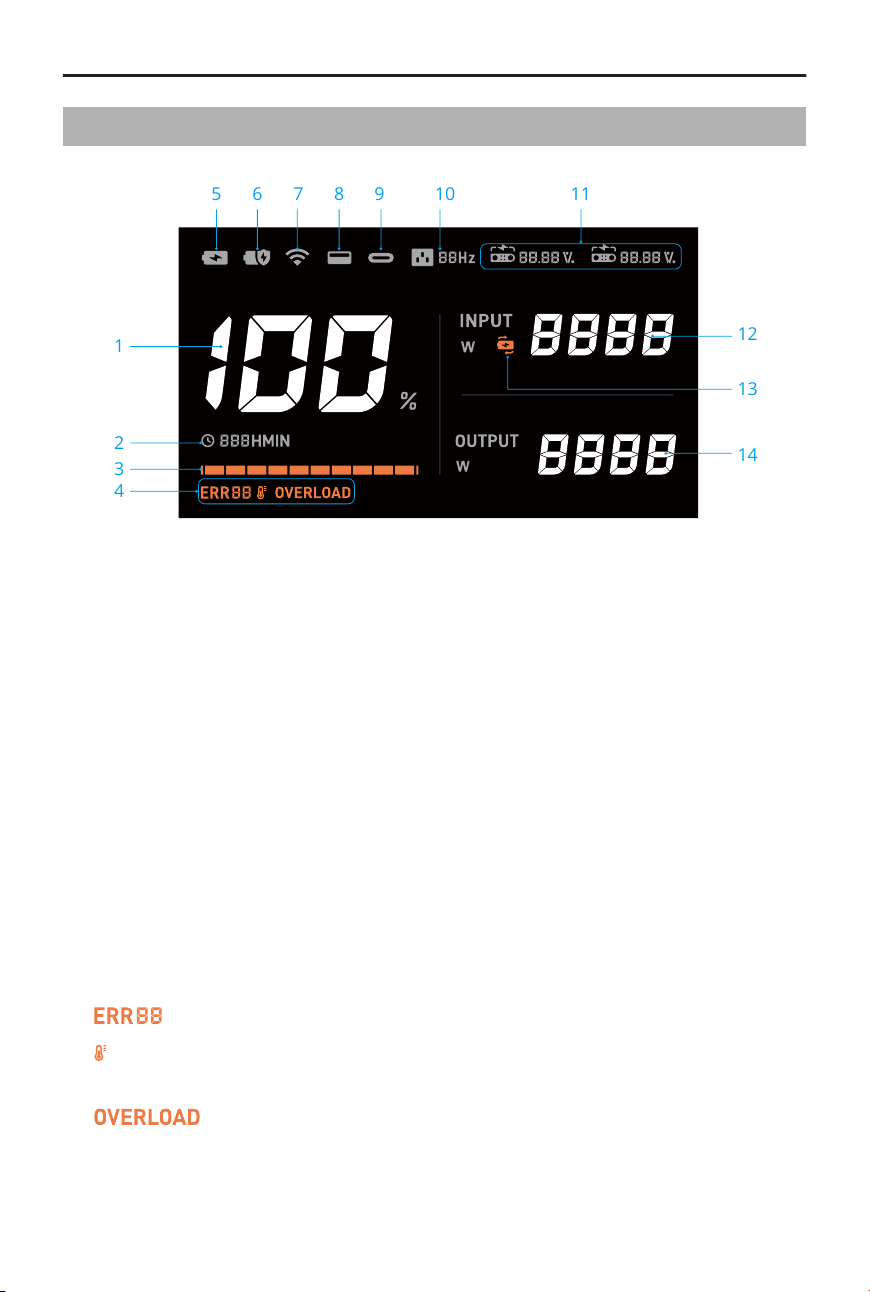
1. Remaining Battery Level
2. Time
Displays the remaining usage time when the power station is charging external
devices.
Displays the remaining time required to fully recharge the power station from the
current battery level when recharging the power station.
When the device has output and input at the same time, the display screen shows the
required recharge time if the output power is larger, or the remaining usage time if
the input power is larger.
3. Battery Level Bar
The battery level bar blinks in sequence when recharging the power station.
The last grid of the battery level bar blinks when the power station is charging
external devices.
4. System Warnings
: error code
: temperature error. The icon will be solid if the temperature is too high or too low.
Wait for the temperature to return to normal.
: overload warning
DJI Power 1000 V2 User Manual
6 © 2025 DJI All Rights Reserved.
Check the warning prompts in DJI Home App or visit https://s.dji.com/DJI-Power
to learn about the warning details and troubleshooting. Contact ocial support
if the problem persists.
5. Fast Recharge mode
6. Standard Recharge mode
7. Wi-Fi Connection Status
Solid icon indicates a successful Wi-Fi connection.
Blinking icon indicates that the Wi-Fi is not connected or unavailable.
8. USB-A Port
9. USB-C Port
10. AC output frequency
When the ac frequency of the power station diers from the frequency of the power
grid (for example, when using the device in dierent regions), only recharging is
supported and the power station cannot charge external devices. In this case, the
screen will display an error code (ERR13 or ERR14). Press and hold the AC button for
more than 10 seconds to switch the frequency and resume normal use.
11. SDC/SDC Lite Port
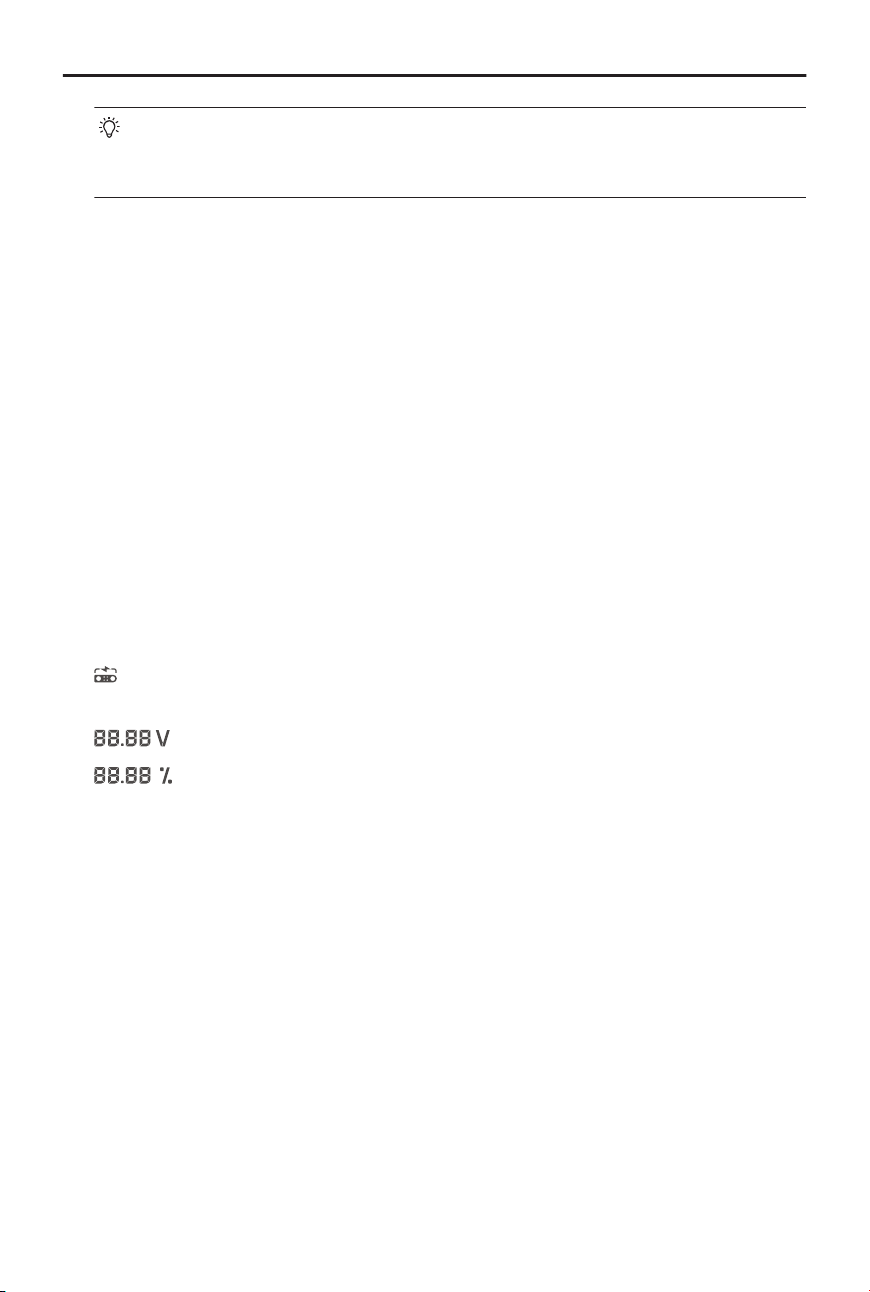
: recharging the power station or charging external devices via the SDC/SDC Lite
Port.
: the voltage value when using the SDC/SDC Lite Port.
: the battery level of the aircraft battery when charging the battery via the
SDC/SDC Lite Port.
12. Input Power
13. Uninterruptible Power Supply (UPS)
14. Output Power
DJI Power 1000 V2 User Manual
© 2025 DJI All Rights Reserved. 7
2 Basic Usage
2.1 Powering on/o
MAX 24W MAX 140W
CHARGE
2s
ON/OFF
POWER 1000 V2
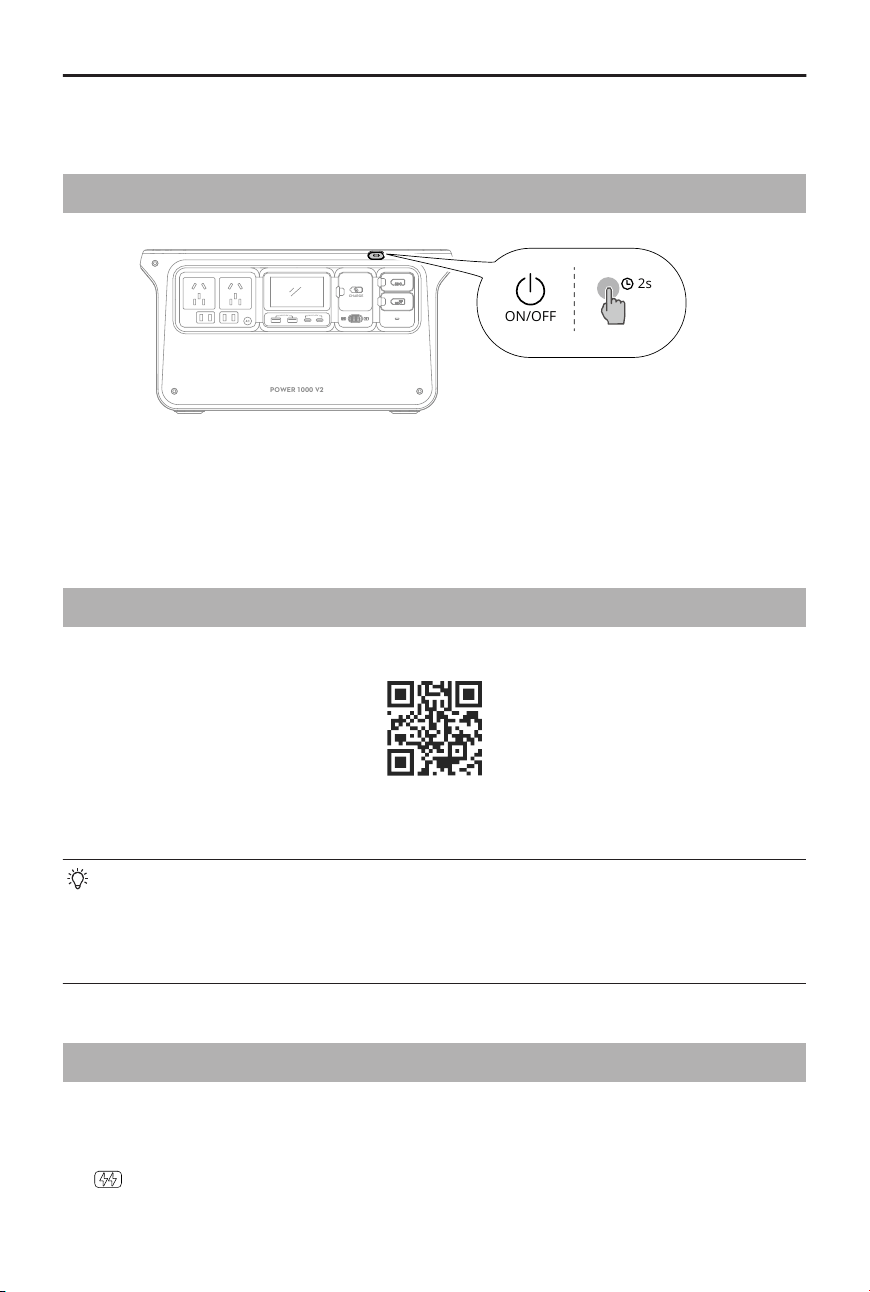
Power on/o: Press and hold the power button for at least two seconds.
Turn on/o the display screen: When the power station is powered on, press the power
button once.
2.2 Connecting to theDJI Home App
1. Scan the QR code to download DJI Home App.
2. Enable Bluetooth and Wi-Fi on your phone, runDJI Home App and follow the
instructions to connect the device.
• To check the Android and iOS operating system versions supported by the app,
visit https://www.dji.com/downloads/djiapp/dji-home.
• The interface and functions of the app may vary as the software version is
updated. Actual user experience is based on the software version used.
2.3 AC Recharging
1. Open the port cover and connect the AC input port to an AC power outlet.
2. Toggle the recharge mode switch to select the recharge mode.
Fast Recharge mode: The recharge power is larger and is suitable for daily
recharge.
DJI Power 1000 V2 User Manual
8 © 2025 DJI All Rights Reserved.
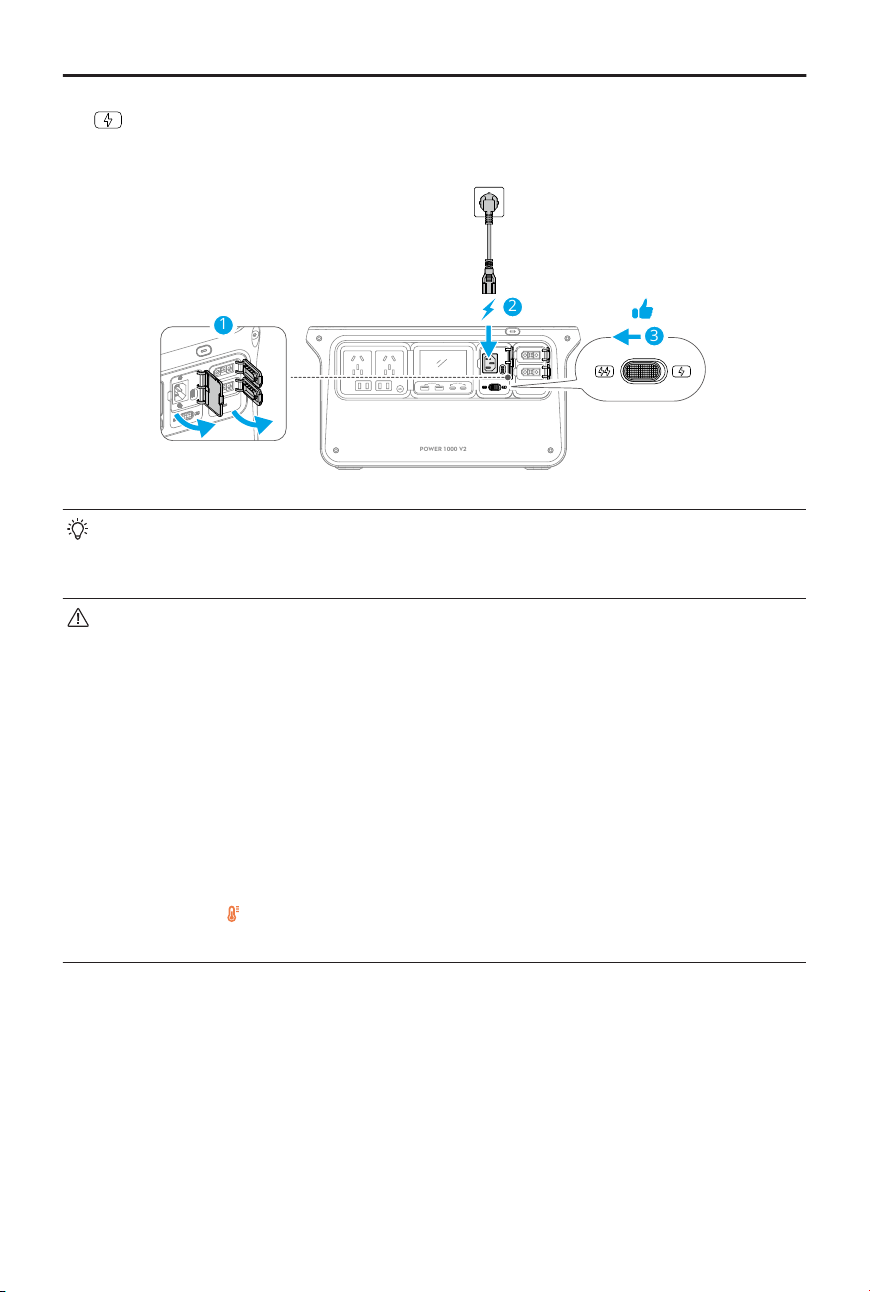
Standard Recharge mode: The recharge power is smaller and the operation
noise is lower, which is suitable for recharging at night.
2
MAX 24W MAX 140W
POWER 1000 V2
1
3
• Super Recharging can be enabled in DJI Home App. When enabled, a higher
recharge power of approximately 1800 W can be achieved, reducing the time
required to reach the dened recharge limit.
• Use the original AC power cable for recharging and avoid bending or pressing
the cable. Ensure good ventilation during recharging. DO NOT place the device
in high-temperature or conned space.
• Disconnect the AC power outlet when charging is complete.
• It is recommended to use Standard Recharge mode for an extended battery cell
life.
• If the power station is recharged in Fast Recharge mode for ve consecutive
cycles, the power station will automatically switch to Standard Recharge mode
after the sixth fast recharging for battery maintenance.
• When the temperature is abnormal in Fast Recharge mode, the temperature
error icon on the display screen blinks slowly and the actual recharge power
may be lowered to ensure the battery cell life and safety.
DJI Power 1000 V2 User Manual
© 2025 DJI All Rights Reserved. 9
2.4 AC Output
MAX 24W MAX 140W
POWER 1000 V2
2
1
×1
AC
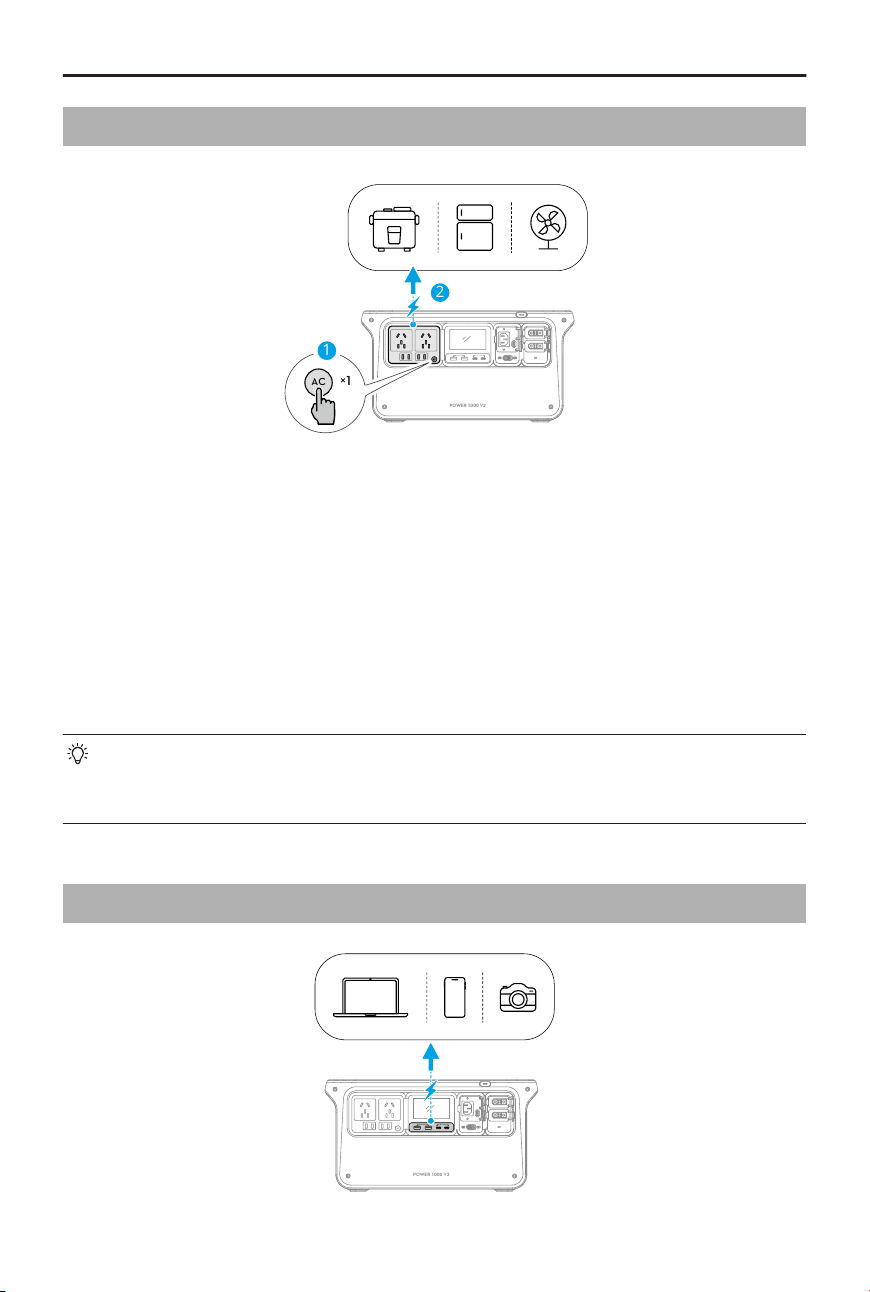
Connect the external device to an AC output port and press the AC button for AC power
supply. The power station will beep once and the AC button will blink slowly.
AC output will automatically shut down if the power station is not powering any AC
device for more than 30 minutes. When AC output is disabled, the power station will
automatically shut down if it has no output or input for more than 60 minutes. The AC
Timeout and the Device Timeout can be modied inDJI Home App.
Press and hold the AC button for a continuous AC power supply when connecting the
power station to devices that operates intermittently such as a refrigerator. The power
station will beep once and the AC button will show solid light.
The internal electronic components have a waterproof coating. There may be a faint
smell when using a large amount of power. The smell will dissipate naturally with
daily use.
2.5 USB Output
MAX 24W MAX 140W
POWER 1000 V2
DJI Power 1000 V2 User Manual
10 © 2025 DJI All Rights Reserved.

Connect the external device to the USB-A or the USB-C ports for power supply.
DJI Power 1000 V2 User Manual
© 2025 DJI All Rights Reserved. 11
3 Accessories
Watch the tutorial videos or read the accessory manuals to learn about product
usage.
Unless otherwise specied, the accessories need to be purchased separately.
3.1 SDC Output
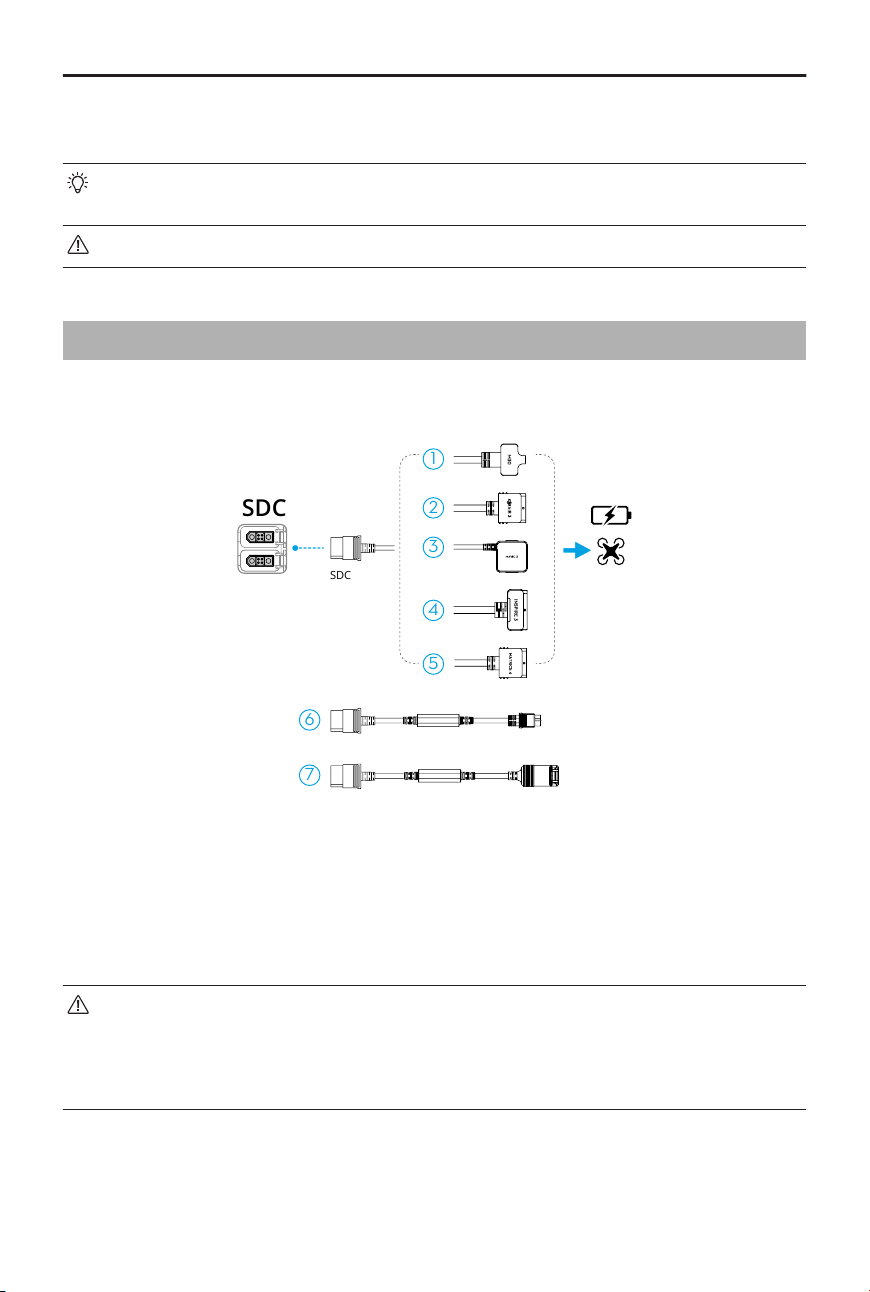
The power station can be used with SDC cables to charge dierent devices via the SDC
port.
SDC
1
2
3
4
5
6
7
SDC
1. Matrice 30 Series Fast Charge Cable
2. Air 3 Series Fast Charge Cable
3. Mavic 3 Series Fast Charge Cable
4. Inspire 3 Fast Charge Cable
5. Matrice 4 Series Fast Charge Cable
6. SDC to XT60 Power Cable (12 V)
*
7. SDC to Car Charger Plug Power Cable
(12 V)
*
* Default output voltage: 13.6 V. Max output current: 10 A.
• Make sure the external device is within the output specications of the cable.
• DO NOT directly connect to a lithium battery with an XT60 port using the SDC
to XT60 power cable. Make sure to connect the power station to a balanced
charger rst.
DJI Power 1000 V2 User Manual
12 © 2025 DJI All Rights Reserved.
3.2 Expanding Capacity
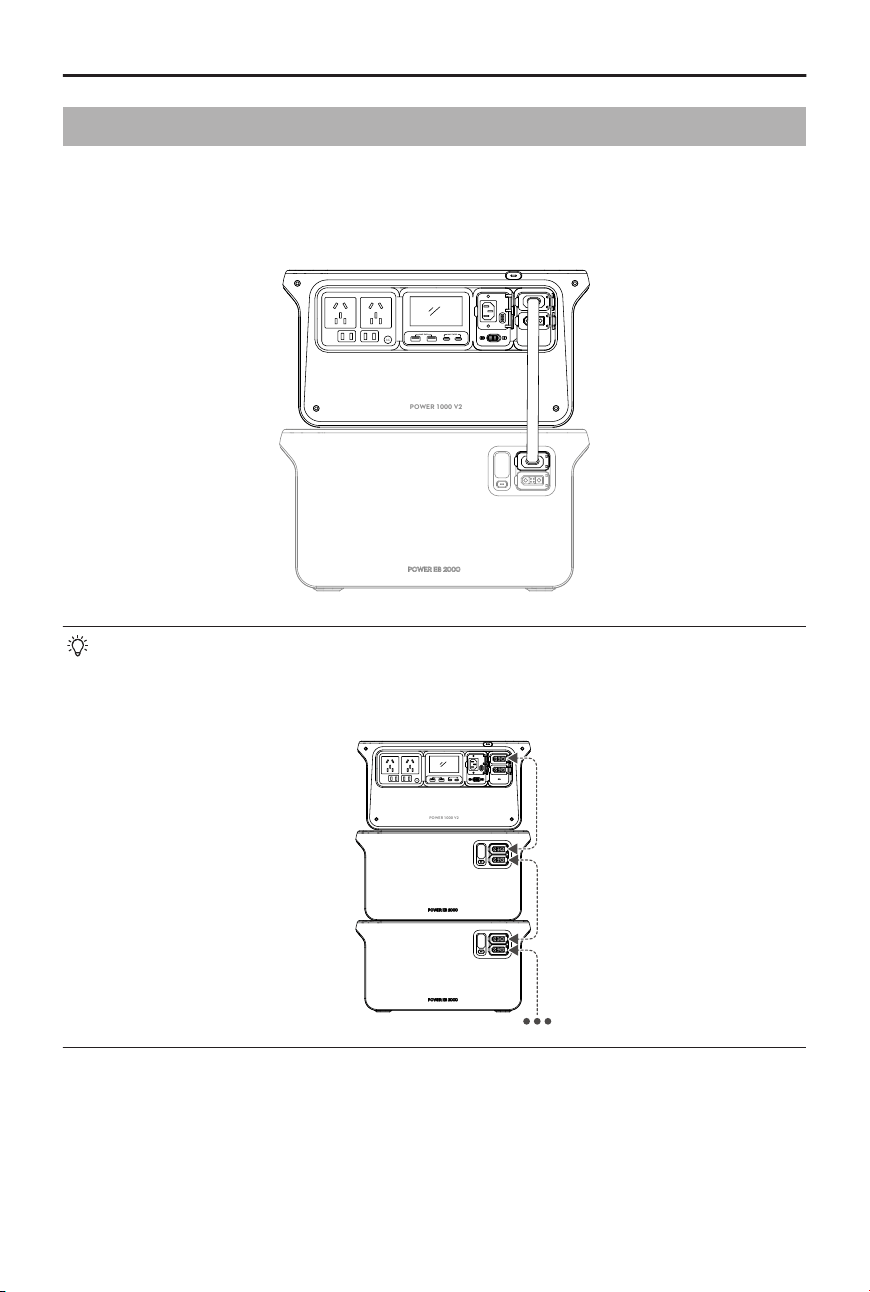
DJI Power Expansion Battery 2000 * can be connected to the power station to expand the
battery capacity.
* Only supports connection to the SDC port
MAX 24W MAX 140W
POWER 1000 V2
• To charge the expansion battery, connect it to the power station and charge the
power station.
• The power station can connect up to ve expansion batteries for use.
MAX 24W MAX 140W
POWER 1000 V2
DJI Power 1000 V2 User Manual
© 2025 DJI All Rights Reserved. 13
3.3 Car Scenario
4
1
2
3
R 1
2 4
3 5
600 W
Max 100W
Max 1000W
SDC
SDC
SDC Lite
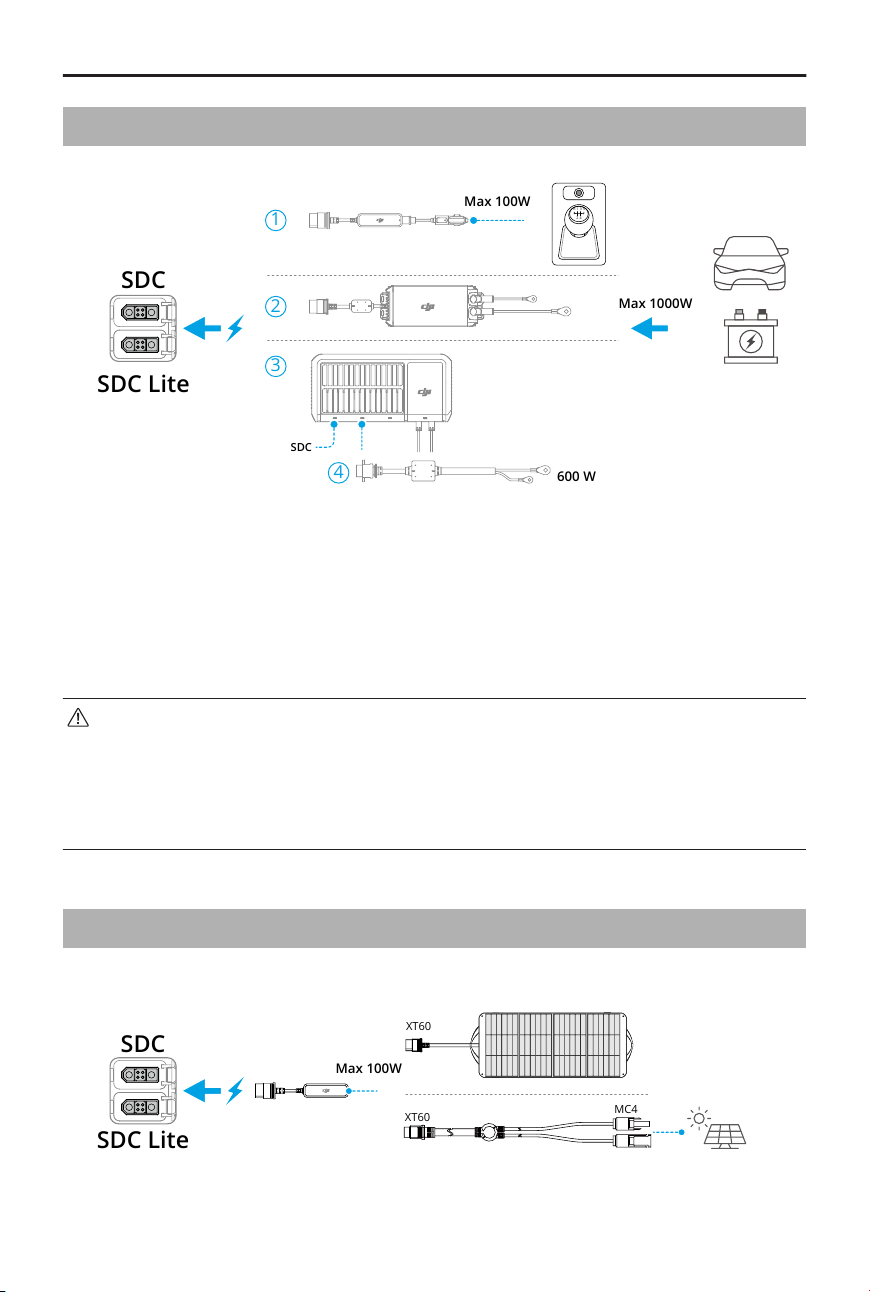
1. Car Power Outlet to SDC Power Adapter
2. 1kW Super Fast Car Charger *
3. 1.8kW Solar/Car Super Fast Charger *
* Only supports connection to the SDC port
4. 1.8kW Super Fast Charger 45A Car Charging Cable
• Make sure the connected car power supply is within the specications of the
accessory. Otherwise, it may cause abnormal performance or even damage to
the power station.
• Make sure that the power adapter is securely connected to the car power port
and that the car engine is started before recharging.
3.4 Solar Power Scenario
Car Power Outlet to SDC Power Adapter
SDC
SDC Lite
XT60
XT60
MC4
Max 100W
DJI Power 1000 V2 User Manual
14 © 2025 DJI All Rights Reserved.
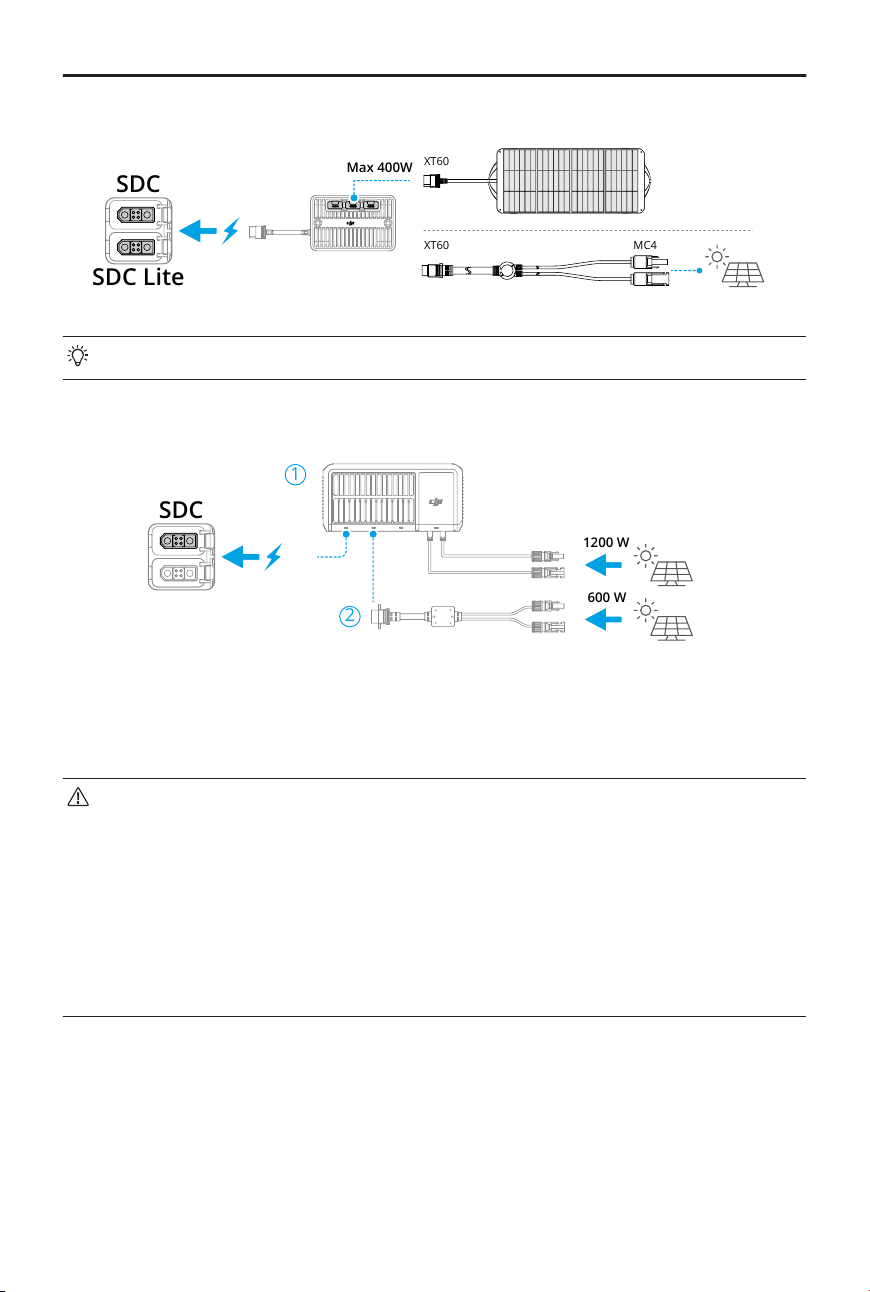
Solar Panel Adapter Module (MPPT)
SDC
XT60
XT60 MC4
Max 400W
SDC Lite
Use the MC4 to XT60 Cable when connecting to solar panels with MC4 ports.
1.8kW Solar/Car Super Fast Charger
SDC
1
2
1200 W
600 W
1. 1.8kW Solar/Car Super Fast Charger *
* Only supports connection to the SDC port
2. 1.8kW Super Fast Charger XT90 to MC4 Adapter Cable
• It is recommended to use ocially authorized solar panels. DO NOT mix
dierent types of solar panels. Make sure the connected solar panels are
within the input specications of the adapters. Otherwise, the devices may be
damaged.
• Up to three solar panels can be connected to the adapter module and used in
parallel (cannot be used in series).
• The Car Power Outlet to SDC Power Cable allows one solar panel to be
connected for solar recharging.
DJI Power 1000 V2 User Manual
© 2025 DJI All Rights Reserved. 15
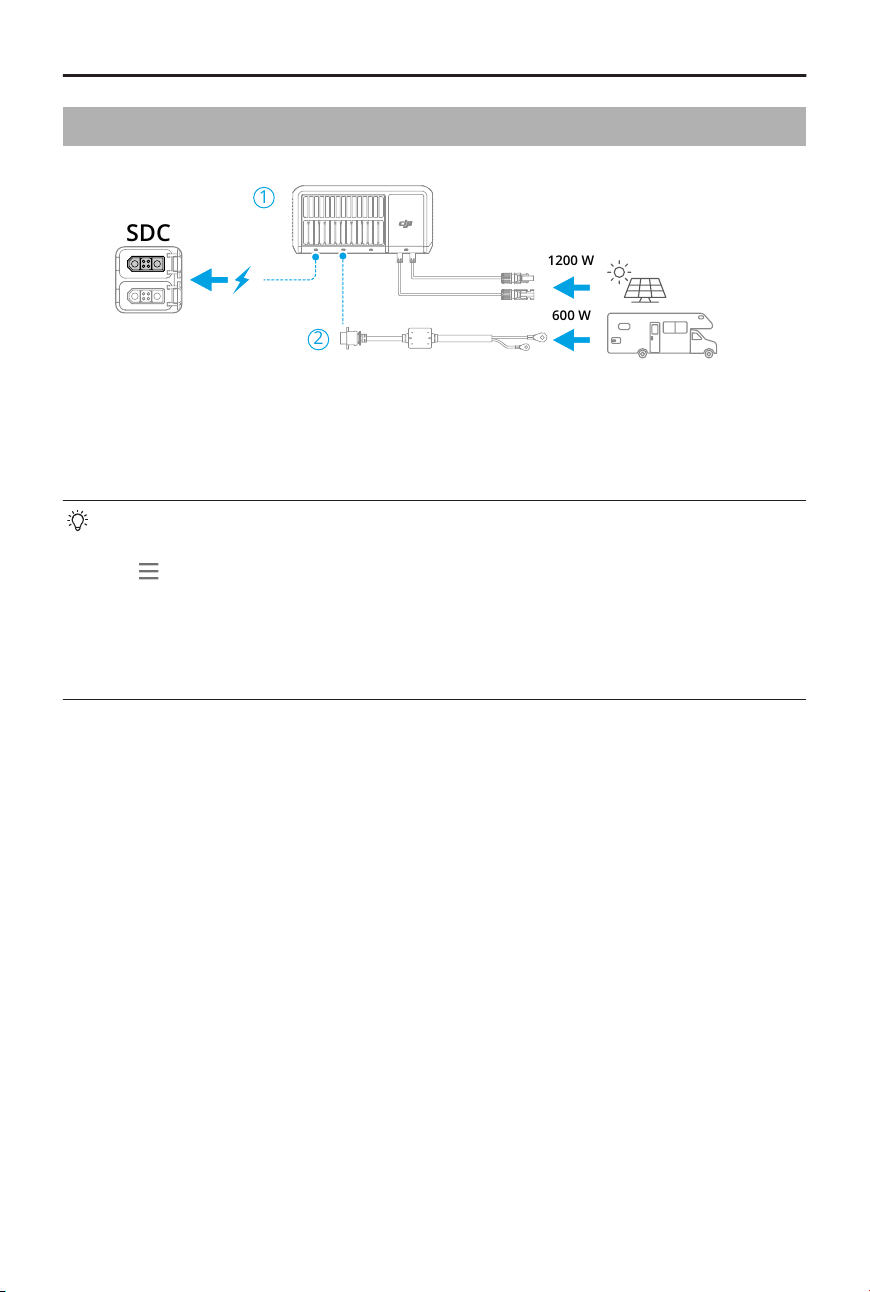
3.5 Solar Power + RV Scenario
1
2
1200 W
600 W
SDC
1. 1.8kW Solar/Car Super Fast Charger *
* Only supports connection to the SDC port
2. 1.8kW Super Fast Charger 45A Car Charging Cable
When using multiple recharging methods simultaneously, solar recharging will
take priority by default. Recharging sequence can be adjusted in DJI Home App:
Tap at the upper right corner and tap Energy Management, enable Custom
Backup Reserve Level and modify the Backup Reserve Level. When the battery
level is below the backup reserve level, multiple recharging methods can be used
simultaneously. When the current battery level is above the backup reserve level,
only solar recharging is available.
DJI Power 1000 V2 User Manual
16 © 2025 DJI All Rights Reserved.
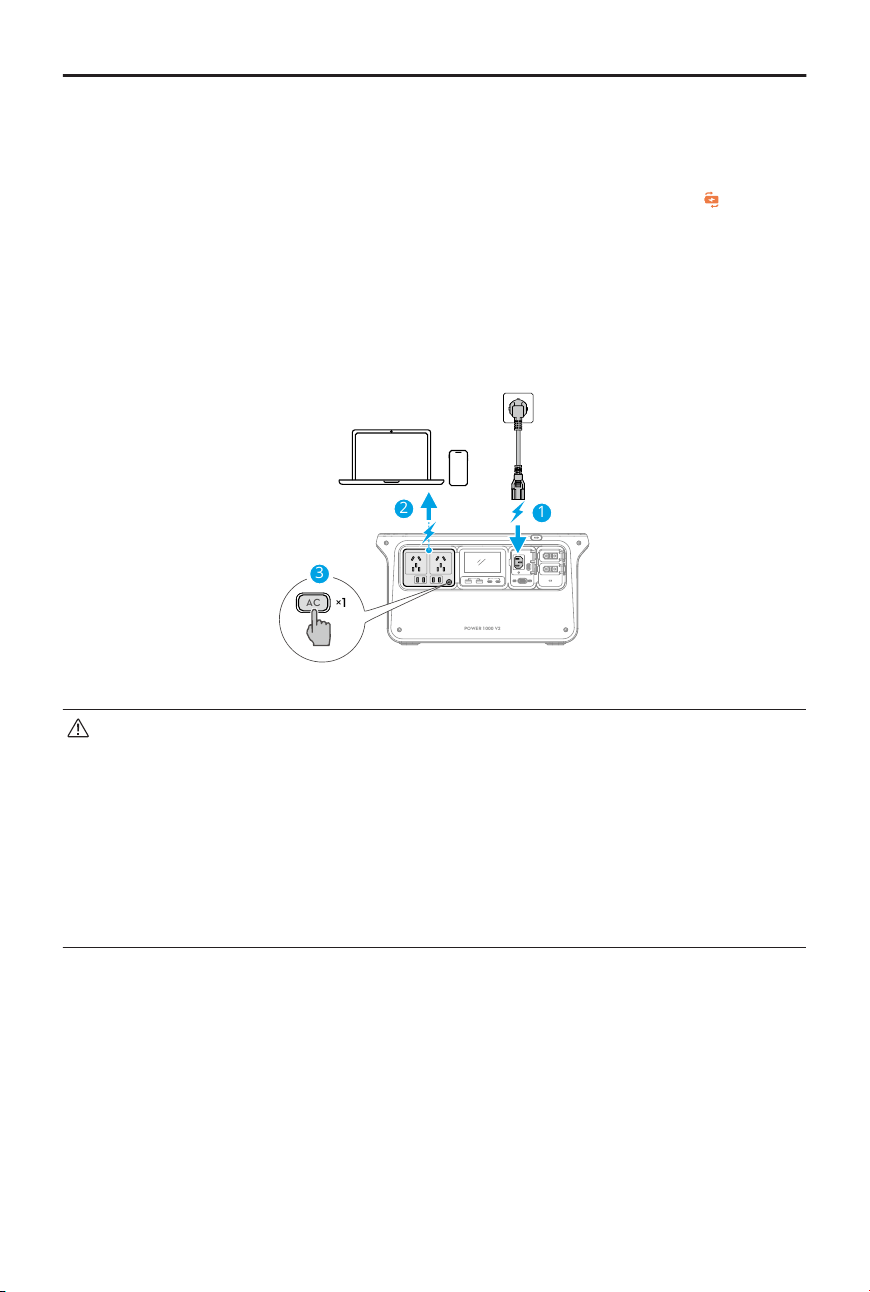
4 Uninterruptible Power Supply (UPS)
Connect the power station to an AC power outlet, and connect an external device such as
a computer to the power station. Press the AC button once, UPS is enabled if appears
on the display screen.
When the power grid is normal, the AC power outlet powers both the power station and
the connected device.
In case of a sudden power outage, the power station can automatically switch to power
supply status, ensuring that the connected device remains in normal operation.
MAX 24W MAX 140W
POWER 1000 V2
AC
3
2
×1
1
• The power station only supports the basic UPS feature and does not support
0ms switching. DO NOT connect the power station to devices that require
0ms UPS, such as a medical equipment. Otherwise, it may cause the device
to malfunction.
• This function is unavailable in some regions. Refer to local laws and regulations
for more information.
• Due to restrictions by local laws and regulations in some countries and regions,
the actual output power of the power station may be lowered in UPS mode.
DJI Power 1000 V2 User Manual
© 2025 DJI All Rights Reserved. 17
5 Appendix
5.1 Specications
Visit the following website for specications.
https://www.dji.com/power-1000-v2/specs
5.2 Compatibility
Visit the following website to get the information on compatible products.
https://www.dji.com/power-1000-v2/faq
5.3 Firmware Update
Using DJI Home App
If the device is connected toDJI Home App, a prompt will appear in the app when
new rmware is available. Follow the instructions in the app to update the rmware. An
internet connection is required during the rmware update.
You can also update the rmware in DJI Home App: tap at the top right corner, and tap
Firmware Update > Update.
• Before updating, make sure the device has enough battery level and stable
network connection.
• Connect the accessories such as an expansion battery or a super fast charger to
the power station to update the rmware together.
Using DJI Assistant 2 (Power Series)
Make sure that the computer is connected to the internet before the rmware update.
Follow the instructions below to ensure a successful rmware update:
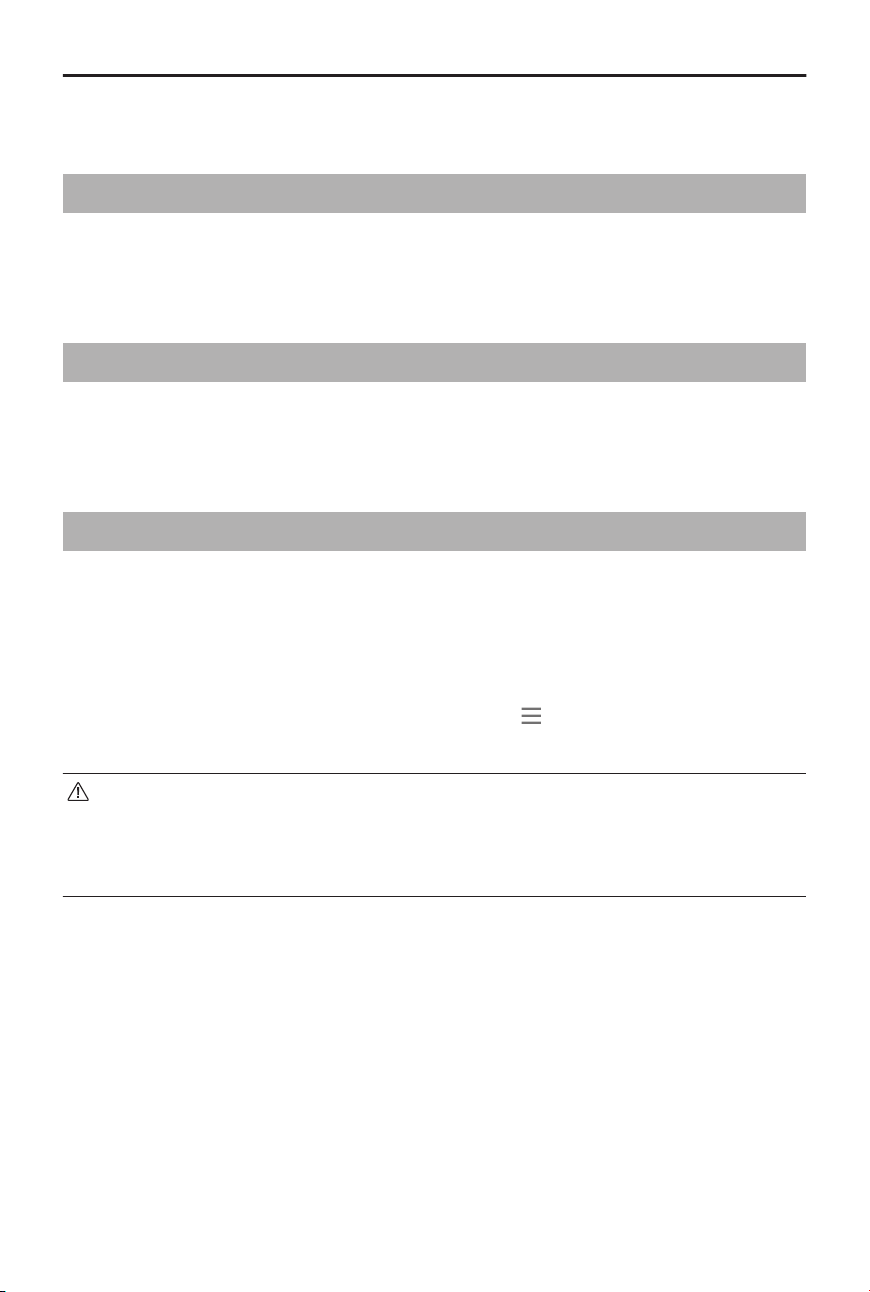
1. Power o the device, press and hold the AC button and the power button
simultaneously, until the USB-C icon starts to blink on the display screen.
2. Connect the computer to the designated USB-C port as shown in the gure.
DJI Power 1000 V2 User Manual
18 © 2025 DJI All Rights Reserved.
MAX 140W
POWER 1000 V2
MAX 24W
MAX 140WMAX 24W
3. Launch DJI Assistant 2, select the product, and click the rmware update button on
the left side.
4. Select the rmware version, carefully read the prompts in DJI Assistant 2, and click
update. The rmware will be downloaded and uploaded to the device automatically.
5. The rmware will be updated automatically, and the display screen will show
the update progress. Wait for processing to complete. The device will restart
automatically after the rmware update is done.
• DO NOT power o the device or disconnect the device from the computer
during a rmware update.
• If the rmware update fails, the display screen will show UPGD FAIL. Disconnect
the device from the computer and the AC power outlet, press and hold the
power button for ve seconds to power o the device, and try again.
5.4 Log Export
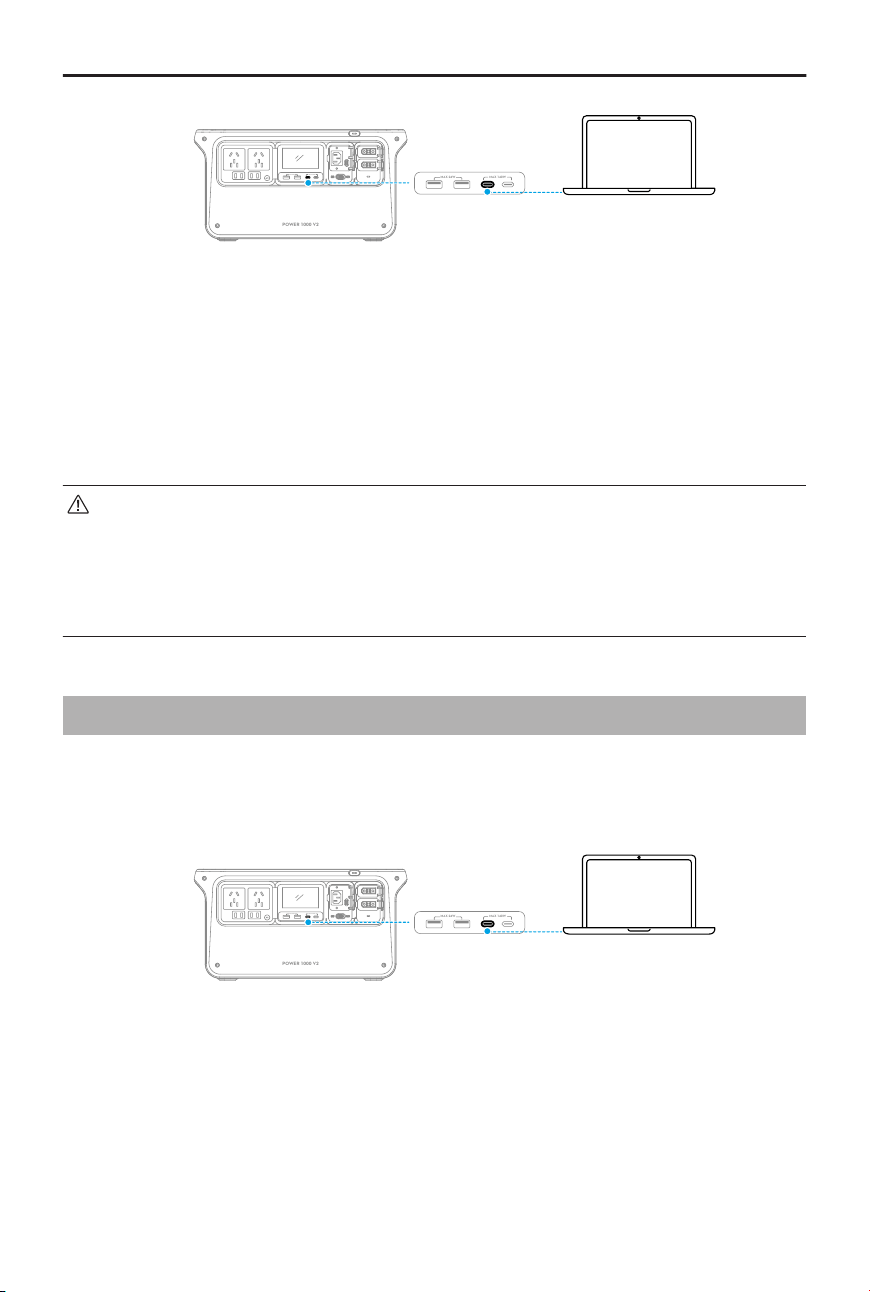
1. Power o the device, press and hold the AC button and the power button
simultaneously, until the USB-C icon starts to blink on the display screen.
2. Connect the computer to the designated USB-C port as shown in the gure.
MAX 140W
POWER 1000 V2
MAX 24W
MAX 140WMAX 24W
3. Run DJI Assistant 2, click Log Export on the left side, select the log from the log list and
save. Wait for the export to complete.
4. Restart the power station to resume normal use after completing log export.
DJI Power 1000 V2 User Manual
© 2025 DJI All Rights Reserved. 19

5.5 Maintenance
1. If the power station needs to be stored for an extended period, it is recommended to
discharge the power station to 60%. Storing with a high power level will shorten the
battery cell life.
2. The power station should be stored in a cool and dry environment without direct
sunlight at the specied storage temperature. DO NOT place the power station in
water or where water may leak.
3. DO NOT store the power station for an extended period after fully discharging.
Otherwise, the battery may over-discharge and cause irreparable damage to the
battery cell.
4. Charge and discharge the power station once every 6 months to ensure the battery
performance: discharge the power station to below 15%, power o for more than two
hours, and then charge it to 100% in Standard Recharge mode.
5. Clean the ports with a clean, dry cloth if there is any noticeable build up. DO NOT
clean the power station with alcohol or other ammable solvents.
5.6 Disposal
1. The power station contains hazardous chemicals, make sure to strictly follow local
regulations regarding the disposal and recycling of batteries. DO NOT dispose of the
power station in a regular waste disposal container.
2. Dispose of the power station in a suitable recycling container only after fully
discharging it.
3. Power stations that are over-discharged, swollen, involved in a crash, come into
contact with liquid, damaged, or leaky must be disposed of properly. DO NOT use
any power station in such a condition in order to avoid damage or injury. Contact a
professional battery disposal or recycling agent for further assistance.
DJI Power 1000 V2 User Manual
20 © 2025 DJI All Rights Reserved.