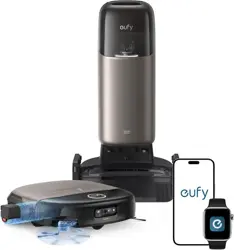
Owner's Manual
G40 Hybrid+
T2273 51005003580 V03

EN 01
Thank you for purchasing RoboVac. Carefully read all the instructions below before using this device, and keep this manual for future reference.
Important Safety Instructions
To reduce the risk of injury or damage, keep these
instructions at hand when setting up, using, and
maintaining this device.
WARNING SYMBOLS USED
This is the safety alert symbol. This symbol
alerts you to potential hazards that could
result in property damage and/or serious
bodily harm or death.
• This device can be used by individuals aged 8
years and above and individuals with reduced
physical, sensory or mental capabilities or lack
of experience and knowledge if they have been
given supervision or instruction concerning use
of this device in a safe way and understand the
hazards involved.
• Children should be supervised to ensure they
do not play with this device.
• Cleaning and maintenance shall not be
performed by children without adult
supervision.
Table of Contents
01 Important Safety Instructions
05 About Your RoboVac
What's in the Box
Overview
LED Indication
08 Using Your RoboVac
Important Tips Before Use
Preparation
Use the Self-Empty Station
Use Your RoboVac with the eufy Clean App
Start / Pause Cleaning
Select a Cleaning Mode
Select a Suction Power Level
Use Mopping System
Use RoboVac with Amazon Alexa / The Google Assistant
15 Cleaning and Maintenance
Clean the Dust Box, Water Tank, and Filter
Clean the Rolling Brush
Clean the Side Brush
Clean the Sensors and Charging Pins
Clean the Swivel Wheel
Clean the Mopping Cloth
Replace the Dust Bag
20 Allergy-Proof Your Home
20 Troubleshooting
Voice Alert
25 Specifications
25 Customer Service
• This device is only to be used with the Self-
Empty Station provided.
• Before cleaning or maintaining this device, the
plug must be removed from the outlet.
• The battery in this device should only be
replaced by a skilled professional.
• Before removing the battery, disconnect the
device from its power supply.
• The battery must be removed before this
device is disposed of. To remove the battery,
first unscrew the screws on the bottom, then
remove the back cover. Remove the battery by
disconnecting the quick connector.
• The used battery should be placed in a sealed
plastic bag and disposed of safely according to
local environmental regulations.
• This device is for indoor use only.
• This device is not a toy. Do not sit or stand on
this device. Small children and pets should be
supervised when this device is operating.
• Store and operate this device in room
temperature environments only.
02 EN EN 03
• Do not use to pick up flammable or combustible
liquids, such as gasoline, or use in areas where
they may be present.
• Before using this device, pick up objects like
clothing and loose paper. Lift up cords for blinds
or curtains. Move power cords and sharp,
pointed, or fragile objects out of the way. Be
aware that if this device passes over a power
cord and drags it, an object could be pulled off a
table or shelf.
• If the room to be cleaned has a balcony, a
physical barrier should be used to prevent
access to it to ensure safe operation.
• Do not place anything on top of this device.
• Be aware that this device moves around on its
own. Take care when walking in the area where
this device is operating to avoid stepping on it.
• Do not operate this device in areas with
exposed electrical outlets on the floor.
• Do not expose the electronic components
of this device, its battery, or the Self-Empty
Station. There are no user-serviceable parts
inside.
• Do not use this device on carpets with tasseled
edges or loose threads or on an unfinished,
unsealed, waxed, or rough floor, as it may result
in damage to the floor and this device. Use only
on hard floor surfaces or low-pile carpets.
• This device has been designed to be used on
floors without scratching them. We recommend
that you test this device on a small area of the
room to be cleaned to ensure no scratches are
made before cleaning the whole room.
• Only use attachments recommended or
described in this manual.
• Do not handle the device or plug with wet
hands.
• Ensure that the dust bag and/or filters are
correctly in place before use.
• Do not use a battery pack or device that is
damaged or modified. Damaged or modified
batteries may exhibit unpredictable behavior
resulting in fire, explosion, or risk of injury.
• Do not expose the battery pack or device
to fire or excessive heat. Exposure to fire or
temperatures above 130°C / 266℉ may cause
an explosion.
• Do not modify or attempt to repair the device
or the battery pack, except as indicated in the
instructions for use and care.
• Follow all charging instructions and do not
charge the battery pack or device outside of the
temperature range specified in the instructions.
Charging improperly or at temperatures outside
of the specified range may damage the battery
and increase the risk of fire.
• Do not unplug by pulling on cord. To unplug,
grasp the plug, not the cord. Keep cord away
from heated surfaces
• Turn off all controls before unplugging.
• Do not put any object into openings. Do not use
with any opening blocked; keep free of dust, lint,
hair, and anything that may reduce air flow.
• Keep hair, loose clothing, fingers, and all parts of
body away from openings and moving parts.
• Use extra care when cleaning on stairs.
Notice
This symbol on the device or its packaging indicates:
Do not dispose of electrical appliances as unsorted municipal
waste; use separate collection facilities. Contact your local
authority for information regarding the collection systems
available. If electrical appliances are disposed of in landfills or
dumps, hazardous substances can leak into the groundwater and
get into the food chain, damaging your health and well-being.
When replacing old appliances with new ones, the retailer is
legally obliged to take back your old appliance for disposal free of
charge.
FCC Statement
This device complies with Part 15 of the FCC Rules. Operation is subject
to the following two conditions: (1) This device may not cause harmful
interference, and (2) this device must accept any interference received,
including interference that may cause undesired operation.
Warning: Changes or modifications not expressly approved by the party
responsible for compliance could void the user's authority to operate the
equipment.
Note: This equipment has been tested and found to comply with the limits
for a Class B digital device, pursuant to Part 15 of the FCC Rules. These limits
are designed to provide reasonable protection against harmful interference in
a residential installation.
This equipment generates, uses, and radiates radio frequency energy
and, if not installed and used in accordance with the instructions, may
cause harmful interference to radio communications. However, there is no
guarantee that interference will not occur in a particular installation. If this
equipment does cause harmful interference to radio or television reception,
which can be determined by turning the equipment on and off, the user is
encouraged to try to correct the interference by one or more of the following
04 EN EN 05
About Your RoboVac
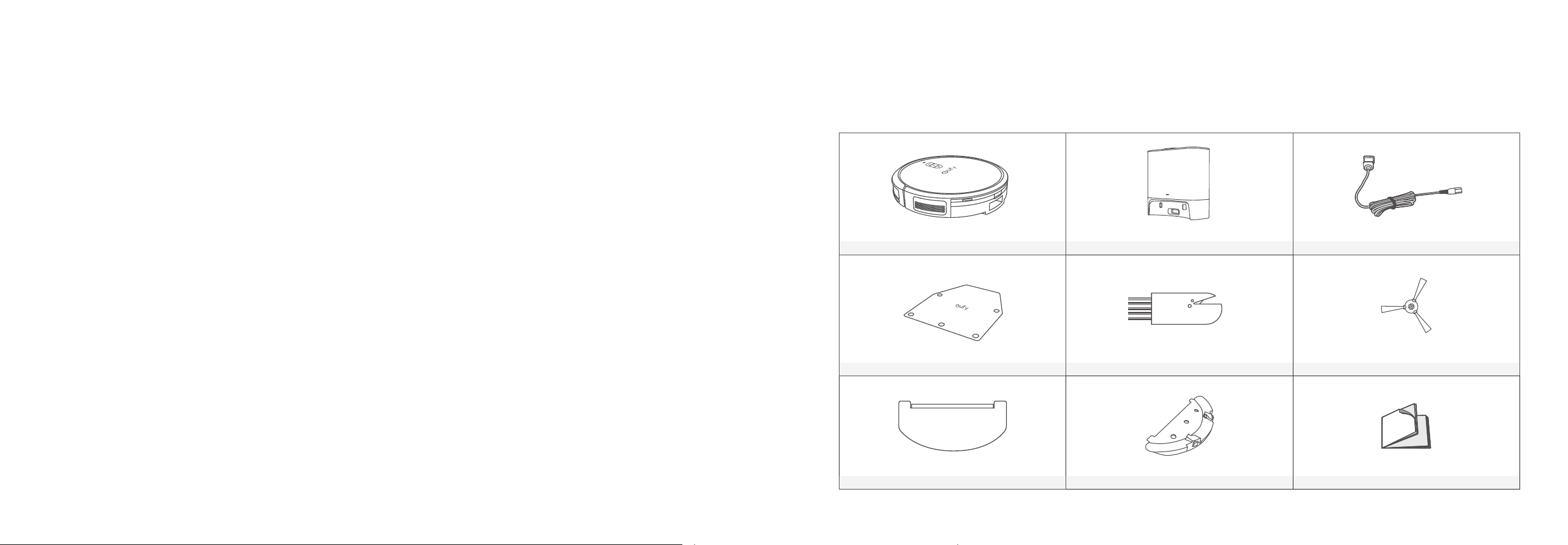
What's in the Box
RoboVac Self-Empty Station Power Cord
Protective Pad Cleaning Tool Side Brush (×1)
Washable Mopping Cloth Mopping Module Owner’s Manual & Other Documents
website: https://support.eufylife.com/s/articleRecommend?type=DownLoad.
Maximum output power: 18 dBm (For EU)
Frequency band: 2.4G band (2.4000GHz - 2.4835GHz)
GB Declaration of Conformity
Hereby, Anker Innovations Limited declares that the product type T2273 is
in compliance with Radio Equipment Regulations 2017 and The Restriction
of the Use of Certain Hazardous Substances in Electrical and Electronic
Equipment Regulations 2012. The full text of the GB Declaration of Conformity
is available at the following website: https://support.eufylife.com/s/
articleRecommend?type=DownLoad.
The following importer is the responsible party for EU and UK matters.
Anker Technology (UK) Ltd | GNR8, 49 Clarendon Road, Watford,
Hertfordshire, WD17 1HP, United Kingdom
Anker Innovations Deutschland GmbH |Georg-Muche-Strasse 3, 80807
Munich, Germany
Manufacturer
:
Anker Innovations Limited | Room 1318-19, Hollywood Plaza, 610 Nathan Road,
Mongkok, Kowloon, Hong Kong
Trademark Notice
• Amazon, Echo, Alexa and all related logos are trademarks of Amazon.com,
Inc. or its affiliates.
• Apple and the Apple logo are trademarks of Apple Inc., registered in
the U.S. and other countries. App Store is a service mark of Apple Inc.,
registered in the U.S. and other countries.
• Google Play and the Google Play logo are trademarks of Google Inc.
• Google Home is a trademark of Google Inc.
measures: (1) reorient or relocate the receiving antenna. (2) Increase the
separation between the equipment and receiver. (3) Connect the equipment
into an outlet on a circuit different from that to which the receiver is
connected. (4) Consult the dealer or an experienced radio / TV technician
for help.
The following importer is the responsible party (for FCC matters only).
Company Name: POWER MOBILE LIFE, LLC
Address: 400 108th Ave NE Ste 400, Bellevue, WA 98004-5541
Telephone: +1 (800) 994 3056
RF Exposure Compliance Statement
This equipment complies with the FCC/IC radiation exposure limits set forth
for an uncontrolled environment. This equipment should be installed and
operated with a minimum distance of 20 cm between the radiator and your
body.
ISED Compliance Statement
This device contains licence-exempt transmitter(s)/receiver(s) that comply
with Innovation, Science and Economic Development Canada’s licence-
exempt RSS(s). Operation is subject to the following two conditions:
1. This device may not cause interference.
2. This device must accept any interference, including interference that may
cause undesired operation of the device.
Declaration of Conformity
This product complies with the radio interference requirements of the
European Community. Hereby, Anker Innovations Limited declares that the
radio equipment type T2273 is in compliance with Directive 2014/53/EU.
The full text of the EU Declaration of Conformity is available at the following
06 EN EN 07
Overview
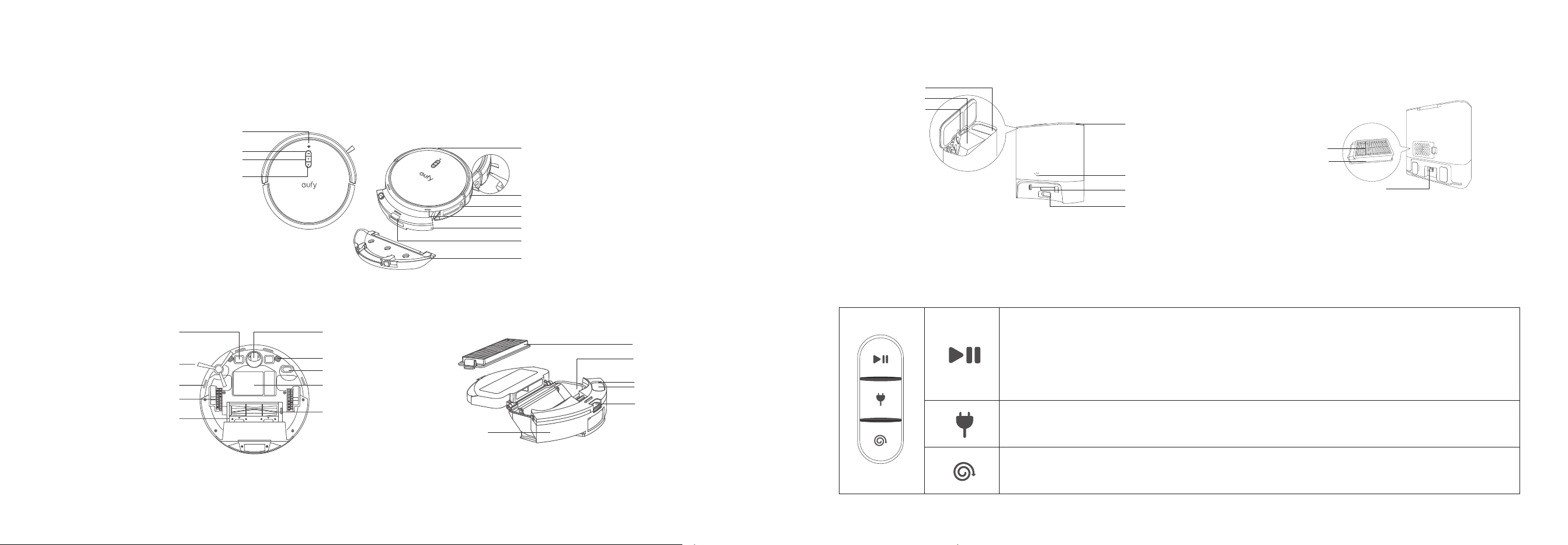
A. Top & Side
Charging Contact Pins (x2)
Dust Box and Water Tank Release Button
Dust Box and Water Tank (2-in-1)
Mopping Module
Recharge Button
Auto-Cleaning Start/Pause Button
Wi-Fi Status Light
Bumper
Infrared Sensor
Main Power Switch (On/O)
Spot Cleaning Button
B. Bottom C. Dust Box and Water Tank (2-in-1)
Brush Guard
Swivel Wheel
Path Tracking Sensor
Battery Compartment
Rolling Brush
Hall Sensors (x2)
Charging Contact Pins (x2)
Side Brush
Drop Sensors (x4)
Wheels (x2)
Release Button
Water Inlet Cover
Water Inlet
Filter
Dust Box
Water Tank
D. Self-Empty Station
High-Performance Filter
Rear Filter
Charging Socket
Dust Bag
Top Cover
Dust Bag Handle
Power Indicator
Debris Evacuation Port
Charging Contact Pins (x2)
Storage Compartment
LED Indication
You can see the status of RoboVac from the LED indicators.
Start / Pause Cleaning
• Steady blue: standby, cleaning, cleaning paused, returning to Self-Empty Station, or fully charged
• Steady orange: standby or working in low battery
• Pulsing orange (when docked to Self-Empty Station): charging
• Flashing red: error (Refer to the "Troubleshooting>Voice Alert" section in this manual for solutions)
Reset the Wi-Fi Connection (Press and hold for 10 seconds)
Return to Self-Empty Station
• Flashing blue slowly: returning to Self-Empty Station
• Steady blue: standby or paused
Spot Cleaning
• Flashing blue slowly: Spot mode
• Steady blue: standby or paused
08 EN EN 09
A
D
B
E
C
F
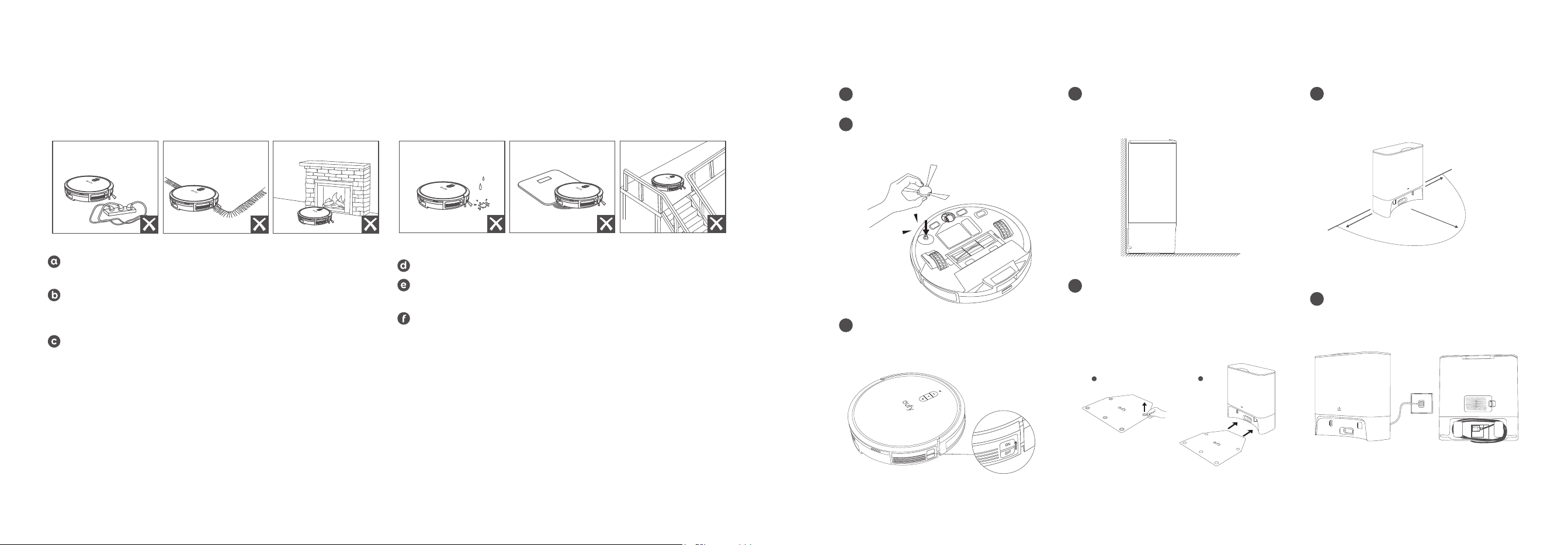
Keep RoboVac away from wet areas during cleaning.
RoboVac may climb on top of objects less than 0.63 in / 16 mm in
height. Remove these objects if possible.
Anti-drop sensors will prevent RoboVac from tumbling down stairs
and steep drops in most cases. Sensors are less effective if dirty or
used on carpeted, reflective, or dark-colored floors. Place physical
barriers to block off areas where RoboVac may fall.
Preparation
1
Remove the foam blocks beside the bumper
before use.
2
Install the side brush before use. You will
hear a click when the side brush is firmly
installed.
Click
3
Turn on the main power switch on the right
side of RoboVac.
4
Install the self-empty station in a location
that RoboVac can easily access. Place it
against a wall, and on a hard, level surface.
.
5
Peel off the stickers on the protective pad
and install it under the self-empty station.
Make sure the protective pad is firmly
attached to the floor.
1
2
6
Remove objects within 1.6ft / 0.5m to the
left and right sides and within 4.9ft / 1.5m
of the front of the Self-Empty Station.
1.6ft / 0.5m
1.6ft / 0.5m
4.9ft / 1.5m
7
Connect the power cord to the Self-
Empty Station and a wall outlet.
Using Your RoboVac
Important Tips Before Use
A
D
B
E
C
F
Remove power cords and small objects from the floor that may
entangle RoboVac.
Fold tasseled edges of rugs underneath to prevent tangling RoboVac.
Avoid cleaning dark-colored high-pile rugs or rugs thicker than 1.02
in / 26 mm as they may cause RoboVac to malfunction.
It is strongly recommended to place physical barriers in front of
fireplaces and certain areas (i.e. air vents) that may cause damage to
RoboVac if entered.
10 EN EN 11
• Make sure the Self-Empty Station is plugged in, otherwise
RoboVac will not automatically return to it. When the Self-
Empty Station connects to AC power, the LED indicator on the
Self-Empty Station is steady white.
• Please do not place the self-empty station on rugs or carpets, as
it will interfere with RoboVac's return to the self-empty station
for recharge.
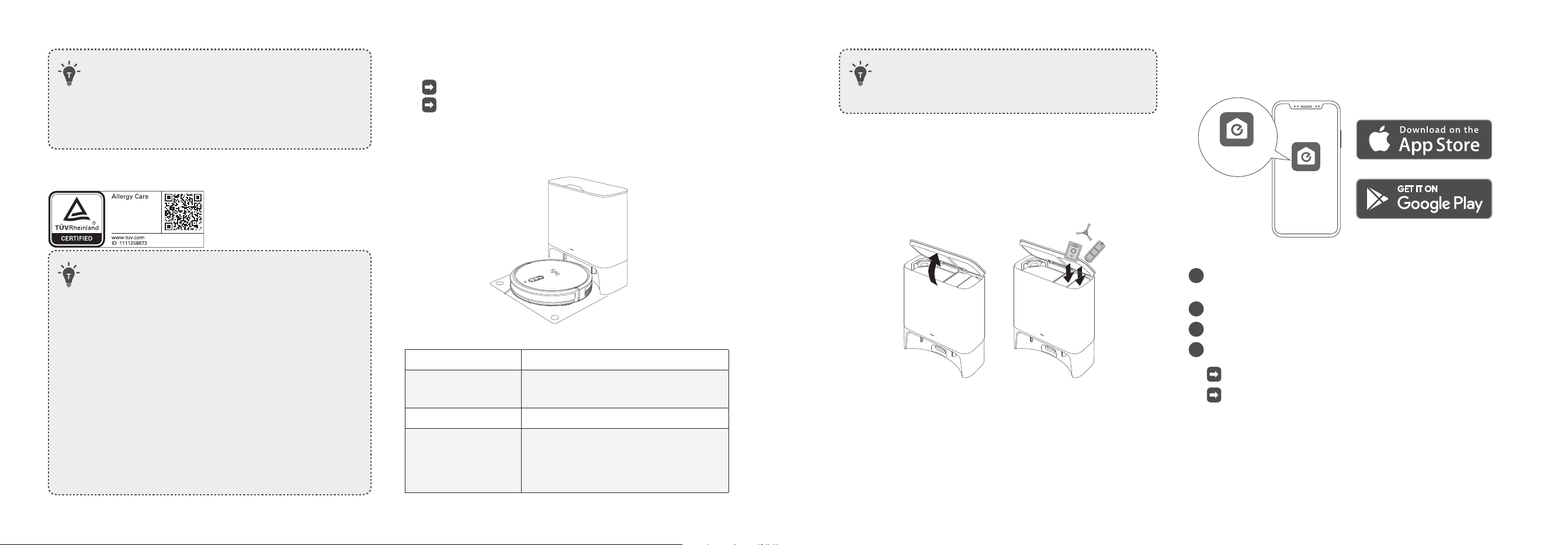
Use the Self-Empty Station
• With Allergycare™ certified by TUV Rheinland, the Self-Empty
Station can lock in 99.9% of allergens (such as dust, garbage,
dust mites, pet dander, etc.) to prevent them from emitting into
the air.
• RoboVac will return to the Self-Empty Station at the end of a
cleaning cycle or when its battery is running low.
• Make sure the power cord is connected to a power outlet and
the dust bag is properly installed.
• If the cleaning time or the time period between two cleaning
sessions is too short, the Self-Empty Station may not empty
the dust box automatically.
• The emptying function will not be activated if you have
selected the 'Do-Not-Disturb' mode in the eufy Clean app.
• It is recommended that RoboVac moves away from the Self-
Empty Station to start cleaning.
• Some noise will be made when the Self-Empty Station is
working. It is recommended to place the device in a proper
location or select the 'Do-Not-Disturb mode' in the eufy Clean
app to prevent noise interference.
Attach RoboVac to the Self-Empty Station by aligning its charging
pins.
RoboVac starts charging automatically.
If RoboVac has finished a round of cleaning (a couple of
minutes), it will empty the dust box automatically by default
when it returns to the self-empty station. Make sure the
dust bag is properly installed.
LED Indicator Status of Self-Empty Station
Steady white, with 50%
brightness
Standby
Flashing white slowly Working normally
Flashing white quickly
Abnormal working status
(Refer to the "Troubleshooting" section in
this manual for solutions)
• Turn off the main power switch if RoboVac will not be used
for a long period of time. To preserve the battery's lifespan,
recharge at least once every 6 months.
Store Accessories
Store your frequently-used accessories in the storage compartment
of the Self-Empty Station, such as the filter, side brush, dust bag, and
cleaning tools. To prevent any damage or unpleasant smells, things that
are damp should not be stored inside the Self-Empty Station.
Use Your RoboVac with the eufy Clean App
To enjoy all the available features, it is recommended to control your
RoboVac via the eufy Clean app.
Before you start, make sure that:
• Your smartphone or tablet is running iOS 10.0 (or above) or Android 5.0
(or above).
• The 2.4GHz band wireless signal is enabled on your wireless router.
• RoboVac is attached to the Self-Empty Station to ensure it has enough
power during setup.
eufy Clean
eufy Clean
1
Download the eufy Clean app from the App Store (iOS devices) or
Google Play (Android devices).
2
Open the app and create a user account.
3
Tap the “+” icon to add RoboVac to your eufy Clean account.
4
Follow the instructions in the app to set up the Wi-Fi connection.
After connecting successfully, you can control RoboVac via the app.
With the app, you can select a cleaning mode, set the time, schedule
a cleaning, adjust suction power, view system status, receive
notifications, and access additional features.
12 EN EN 13
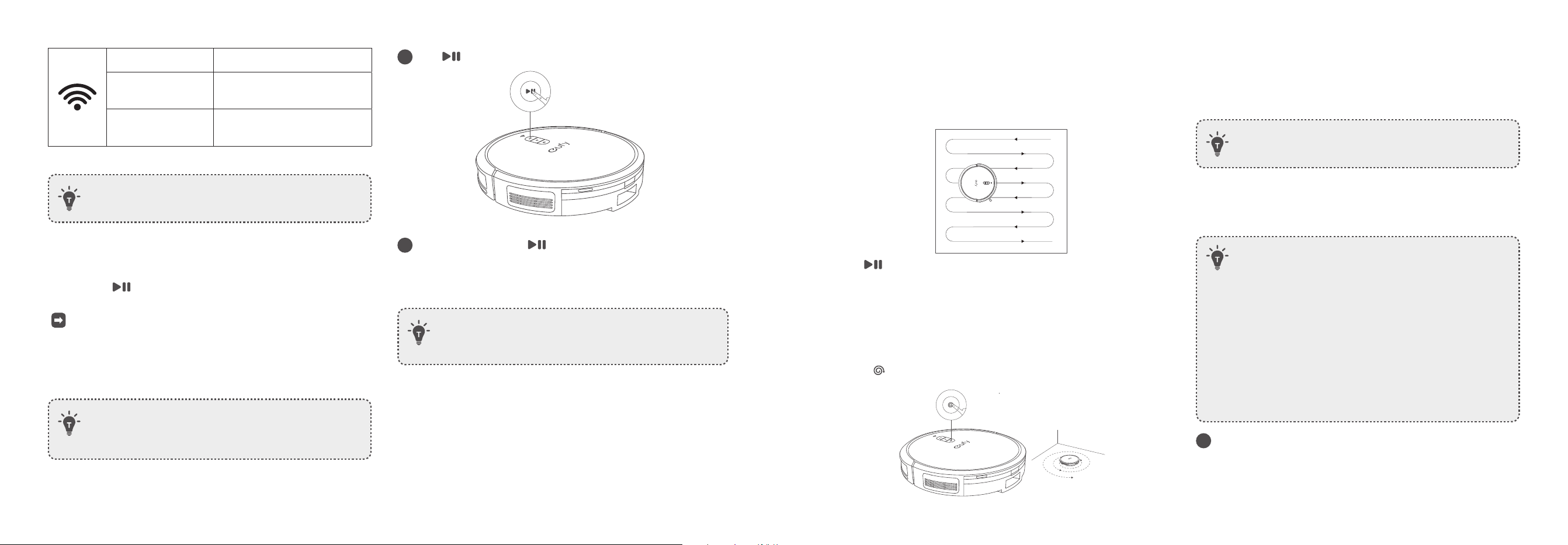
Slowly flashing blue Waiting for connection
Rapidly flashing blue
Connecting with your wireless
router
Steady blue
Connected with your wireless
router
• If RoboVac gets stuck in any space, tap Find My Robot in
the app to find the device.
Restore Factory Settings
Press and hold on RoboVac for 10 seconds to restore factory settings
if necessary.
You will hear a voice prompt when the settings have been reset and
the Wi-Fi status light will slowly flash blue.
Start / Pause Cleaning
• Make sure the main power switch at the side of RoboVac is
turned on before use.
• You can also start or pause cleaning via the eufy Clean app.
1
Press on RoboVac to start cleaning in Auto-Cleaning mode.
2
To pause cleaning, press again.
Select a Cleaning Mode
• You can also select the cleaning mode via the eufy Clean app.
• By default, RoboVac starts in Auto-Cleaning mode when it is
turned on.
Auto-Cleaning Mode
After startup, RoboVac moves from the Self-Empty Station and
automatically determines its cleaning route, following a Z-shaped cleaning
path. When the cleaning is finished, RoboVac automatically returns to the
Self-Empty Station.
Press to start cleaning in Auto-Cleaning mode.
Spot Cleaning Mode
RoboVac intensively cleans a specific area in a spiral pattern, which is
useful if there is a concentrated area of dust or debris. In Spot Cleaning
mode, RoboVac will stop cleaning after 2 minutes.
• Press on RoboVac to start cleaning in Spot Cleaning mode.
Select a Suction Power Level
In the eufy Clean app, select a suction power level according to your
needs:
Quiet, Standard (Default), Turbo and Max.
• When RoboVac starts cleaning next time, it will clean according
to the suction power level you previously selected.
Use Mopping System
• The mopping mode is only intended for a clean floor without
stubborn stains. To avoid staining floors, do not use the
mopping function when dust is mixed with liquids such as
coffee or ink.
• Mopping system cleans best on smooth hard surfaces and
may not perform so well on uneven tiles, heavily waxed floors
or rough surfaces like slate or brick, which may snag the
mopping module.
• The mopping mode is not recommended for use when no one
is at home.
• Do not use the mopping mode on a carpeted floor. It is
recommended to set a physical barrier to avoid cleaning the
carpeted area.
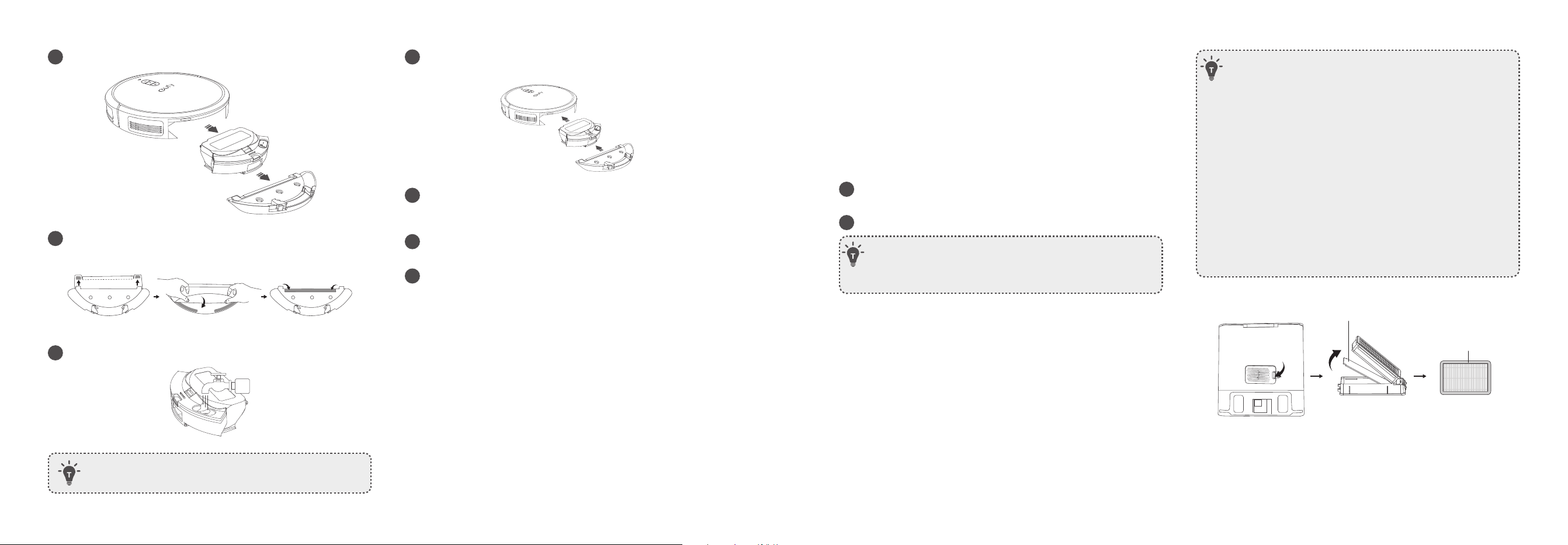
1
Before mopping, make sure the protective pad has been installed
under the Self-Empty Station.
14 EN EN 15
2
Remove the mopping module and water tank.
3
Wet the mopping cloth and wring it until it does not drip, then
attach the cloth to the mopping module.
4
Open the water inlet cover to fill with water, then close the cover.
• Only use the cleaning solution designated by eufy, otherwise it
may affect the cleaning effect and damage the device.
5
Install the water tank and the mopping module under RoboVac with
a click.
6
Start cleaning. RoboVac will automatically vacuum and mop.
During mopping, you can choose among three water levels via the
eufy Clean app.
7
When RoboVac finishes cleaning, remove the mopping module,
dust box, and water tank.
8
Clean the dust box and water tank, empty any remaining water,
and clean the mopping cloth to prevent mildew or unpleasant
smells. For how to clean and maintain the components, refer to the
“Cleaning and Maintenance” section in this manual.
Use RoboVac with Amazon Alexa / The
Google Assistant
Amazon Alexa or the Google Assistant is a smart voice control device that
enables you to control RoboVac with your voice.
Before you start, make sure that:
• RoboVac is attached to the Self-Empty Station to ensure there is enough
power.
• RoboVac is connected with the eufy Clean app.
• You have an Amazon Alexa-enabled device (i.e. Amazon Echo, Echo Dot,
Amazon Tap, Echo Show, or Echo Spot) or a device enabled with the
Google Assistant (i.e. Google Home, Google Home Mini). These devices
are sold separately.
• The Amazon Alexa app or Google Home app is already installed on your
smart device, and you have created an account.
To control RoboVac with Amazon Alexa or the Google
Assistant:
1
Open the eufy Clean app and find “Smart Integrations” in the top
left.
2
Follow the on-screen instructions to complete the setup.
• Currently, this feature only supports a few languages
including English, German, French, Portuguese, and Spanish.
For more supported languages, check https://www.eufy.
com/support/.
Cleaning and Maintenance
Prior to cleaning and maintaining, turn o the device and unplug the power
cord. For optimal performance, follow the instructions below to clean and
maintain RoboVac regularly. The cleaning and replacement frequency will
depend on your RoboVac usage habits.
• Use the original eufy Clean filter and dust bag during
cleaning. Any use of unofficial parts may cause the
AllergyCare™ function to fail.
• Make sure the rear filter and dust bag are installed in place
to avoid allergen leakage.
• If your skin accidentally touches the dust containing
allergens during cleaning and maintenance, rinse it with
running water immediately if you are prone to allergies. Do
not tap the dust to prevent the allergens from floating into
the air.
• To protect yourself from allergens, wear a dust mask and
rubber gloves before discarding the dust bag and cleaning
the filter, and go outside to avoid contact with allergens or
residual allergens indoors.
• Make sure the deodorizing cloth and the foam sealing strips
are in place and installed correctly.
Deodorizing Cloth
Foam Sealing Strips
16 EN EN 17
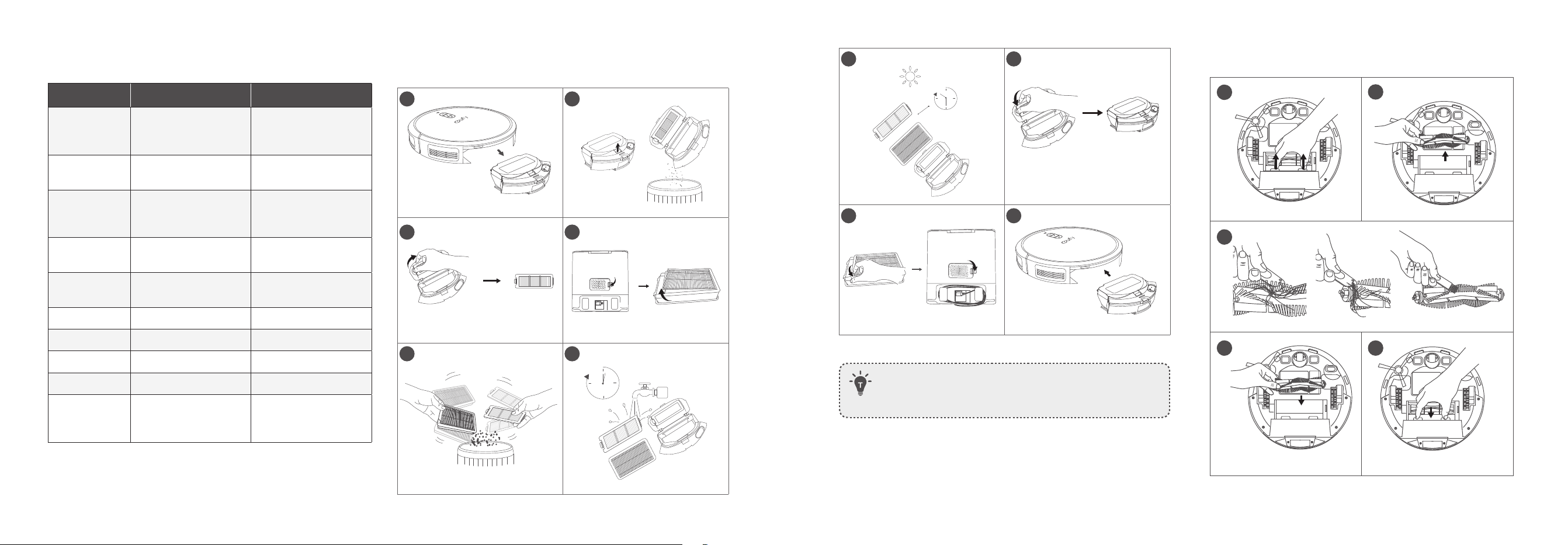
Recommended Cleaning and Replacement Frequency
RoboVac Part Cleaning Frequency Replacement Frequency
Dust Box and
Water Tank
(2-in-1)
Dust Box: Once a week
Water Tank: After each
use
-
Washable
Mopping Cloth
After each use -
Filter
Once a week
(Twice a week if you
have a pet)
Every 6 months or after
every 50 rounds of
cleaning
Side Brush Once a month
Every 3-6 months (or
when visibly worn)
Brush Guard Once a month
Every 3-6 months (or
when visibly worn)
Rolling Brush Once a month Every 6-8 months
Sensors Once a month
-
Charging Pins Once a month -
Swivel Wheel Once a month -
Dust Bag
Timely check and empty
the dust bag if you have
a pet.
Every 60 days
Clean the Dust Box, Water Tank, and Filter
1
2
3 4
5 6
1
min
7
24h
8
9
10
• Do not clean the filter with hot water or any detergent.
• Do not use the filters if they are not completely dry, otherwise it
may affect the cleaning performance.
Clean the Rolling Brush
1
2
54
3
18 EN EN 19
• If there's a lot of hair scattering around your house, it is
recommended to clean both ends of the rolling brush and the
brush motor connectors after each cleaning.
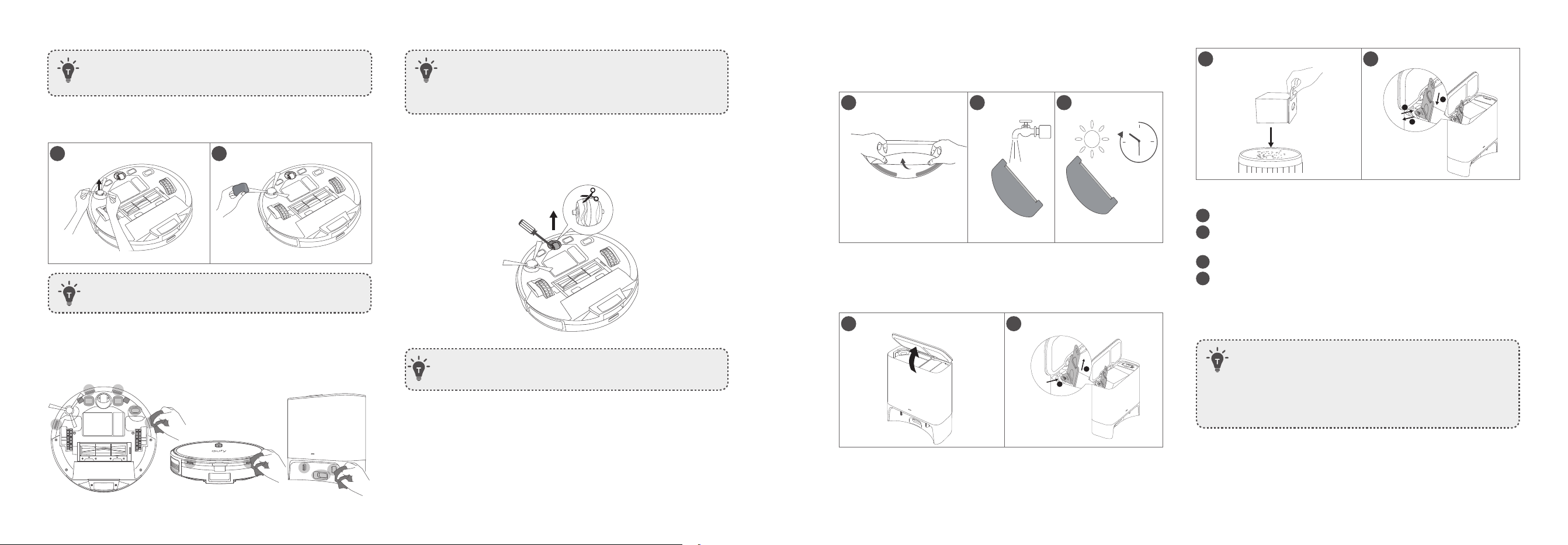
Clean the Side Brush
1
2
• Only use the side brush when it is completely dry.
Clean the Sensors and Charging Pins
• Be careful not to touch the path tracking sensor with your hands.
• Do not clean the path tracking sensor with sharp-pointed
objects, as it may damage the sensor.
Clean the Swivel Wheel
• Do not clean the swivel wheel with water.
Clean the Mopping Cloth
1
24h
2
24h
3
24h
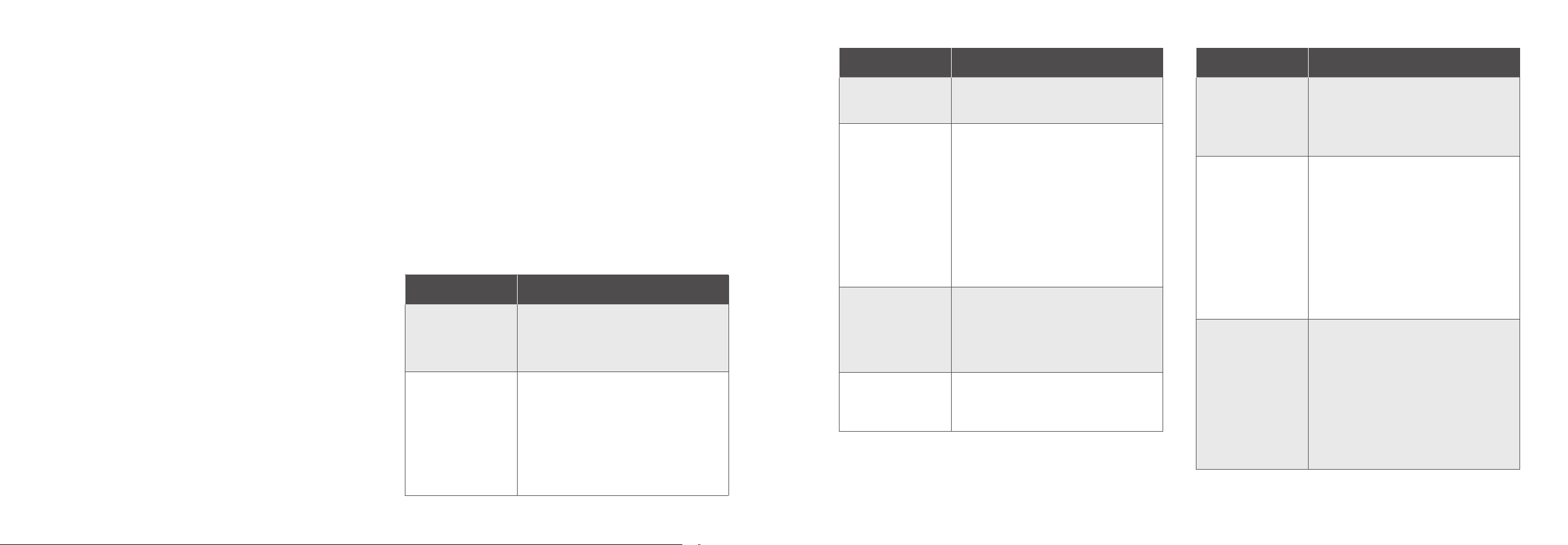
Replace the Dust Bag
1
2
1
2
3
4
2
1
3
1
Lift open the top cover.
2
Pull the release button to position, then pull up the handle to
remove the dust bag.
3
Discard the used dust bag.
4
Install a new dust bag.
(1) Pull the release button to open the dust bag holder.
(2) Insert a new dust bag in place.
(3) Push the dust bag holder back until you hear a click.
• When discarding the dust bag, carefully lift the handle and
ensure the dust bag is completely closed to prevent dust
leakage. Gently put the dust bag containing allergens into a
garbage bag / trash can, then seal the garbage bag / trash can
properly. In this way, you can avoid allergy symptoms due to
exposure to allergens such as dust, pollen, pet dander, etc.
20 EN EN 21
Allergy-Proof Your Home
The AllergyCare™ Self-Empty Station is specially designed for people
with dust and allergen sensitivity.
If you experience allergy symptoms such as hay fever or allergic asthma
throughout the year, here's a room-by-room guide to reducing allergens
in your home and maintaining a clean home environment.
Bedroom
• Clean weekly with the AllergyCare™ Self-Empty Station and shampoo
the carpets frequently to minimize allergens.
• Remove carpeting and use hardwood or linoleum flooring and
washable area rugs. If impossible, use low-pile instead of high-pile
carpeting.
• Consider keeping pets out of your bedroom or away from any
bedding.
Living room
• Replace carpeting with easy-to-clean flooring options. If impossible,
use low-pile instead of high-pile carpeting and vacuum weekly with
the AllergyCare™ Self-Empty Station. Wash area rugs and floor mats
weekly, and shampoo the carpets periodically.
• Consider replacing upholstered sofas and chairs with furniture made
of leather, wood, metal or plastic.
• Wipe pets off with a towel before they come inside and bathe pets
regularly. Consider keeping pets outside if weather permits.
Bathroom
• Remove carpeting and use tile, vinyl, wood or linoleum flooring. Use
washable rugs.
Kid's room
• Dust mites, mold, and pet dander often linger on children's toys. Clean
toys every one to two weeks if your child is prone to allergies.
Basement
• Remove moldy or water-damaged carpeting. If possible, use concrete,
vinyl or linoleum flooring.
Entire house
• Dust and damp mop solid surface flooring regularly. Clean carpets
weekly with the AllergyCare™ Self-Empty Station. Use a damp cloth
to clean other surfaces, including the tops of doors, windowsills and
window frames. Maintain good pet hygiene.
Troubleshooting
The solutions below are for general questions. If your problem persists,
visit www.eufy.com, go to the eufy Clean app, or contact
support@eufy.com for help.
Problems Solutions
RoboVac will not turn
on.
• Make sure the main power switch is turned
on.
• Make sure the battery is fully charged.
• If it still has no response, turn o the main
power switch and then turn it back on.
RoboVac stops working
suddenly.
• Check if RoboVac is trapped or stuck on an
obstacle.
• Check if the battery level is too low.
• If you still have trouble, turn off the main
power switch, wait for 2 seconds, and then
turn it back on.
• Check if RoboVac has alerted you with any
voice prompts or LED indicators. Refer to
the “Voice Alert” section in this manual.
Problems Solutions
Too much water comes
out during mopping.
• Make sure the water tank and mopping
cloth have been installed properly.
• Check if the water tank is damaged.
You cannot schedule
cleanings.
• Make sure the main power switch is turned
on.
• Make sure the scheduled time has been
set correctly. Check if the time zone in the
eufy Clean app is consistent with that on
your mobile device.
• Check if RoboVac’s battery is charged.
• Cleaning schedules are erased when
RoboVac is powered off. If RoboVac is
powered on without Internet access,
cleaning schedules will not synchronize
and must be reset via the app.
Suction power is weak.
• Check if any obstructions are blocking the
suction inlet.
• Empty the dust box.
• Check if the filter is wet due to water or
other liquid on the floor. Air-dry the filter
completely before use.
RoboVac’s movements
or travel path are
abnormal.
• Clean the sensors carefully with a dry
cloth.
• Restart RoboVac by turning the power
switch off and on.
Problems Solutions
Water does not come
out during mopping.
• Make sure there is enough water in the
water tank.
• Make sure the water tank and mopping
cloth are properly installed.
• Make sure to wet the mopping cloth before
using the Mopping System.
RoboVac cannot be
charged.
• Check if the indicator on the Self-Empty
station lights up. If not, reconnect the
power cord with the Self-Empty Station
and try a new power outlet.
• Dust off the charging contact pins with a
dry cloth.
• Check if the charging contact pins are
damaged.
• Check if you can hear the "Charging" voice
prompt when RoboVac is attached to the
Self-Empty Station. If not, contact the eufy
Service Center for assistance.
The LED on the Self-
Empty Station flashes
white quickly.
• Install a dust bag if it is missing or replace
the old one if it is full. Next time when the
Self-Empty Station works normally, the
LED will stop flashing automatically.
• Make sure the top cover is pushed down
and firmly sealed.
• Make sure the dust bag is securely
installed.
• Remove any debris from the evacuation
port at the bottom of the Self-Empty
Station.
22 EN EN 23
Problems Solutions
RoboVac stops
collecting dust.
• Prolong the cleaning time. RoboVac
automatically stops dust collection if the
cleaning time is too short.
• Check if RoboVac can normally return
to the self-empty station to recharge by
observing if there are any voice prompts or
if the LED of the self-empty station flashes.
Failure to recharge will cause RoboVac to
stop collecting dust. Please refer to the
troubleshooting section of this manual to
find any relevant solutions.
• Open the top cover of the self-empty
station to reinstall the dust bag and
make sure it is properly in place. Then
start cleaning to check whether RoboVac
resumes dust collection.
You cannot control
RoboVac with the
Google Assistant.
• Check if there are any Internet connection
problems.
• Check if you have installed the Google
Home app onto your smart device and
initiated the “eufy Clean” action in the
Google Home app. For details, refer to the
“Smart Integrations” page in the eufy Clean
App.
• Check if you are using the proper
commands when talking to the Google
Assistant. When making your request, first
say the wake phrase “Ok Google”.
• Repeat your question. Speak clearly to the
Google Assistant.
Problems Solutions
RoboVac cannot return
to the self-empty
station for recharge
with the protective pad
installed.
• Place the self-empty station against a wall,
and on a hard, level surface rather than on
rugs or carpets.
• When using the Mopping System, check
if the protective pad has been firmly
attached to the self-empty station without
warping. If RoboVac fails to return after
adjusting the protective pad installation,
please get in touch with support@eufy.
com for help.
• If you don't often use the Mopping System,
try to remove the protective pad and press
the recharge button again. If RoboVac
returns successfully, it is recommended
to use the self-empty station without the
protective pad subsequently.
• Clean the charging contact pins.
• Clear any obstacles surrounding the self-
empty station.
• Check if RoboVac is stuck on any objects.
RoboVac cannot
connect to a Wi-Fi
network.
• Make sure you entered the Wi-Fi password
correctly.
• Make sure your RoboVac, router, and
mobile phone are close enough to ensure a
strong signal strength.
• Make sure your Wi-Fi router supports a
2.4GHz and 802.11b/g/n band; a 5GHz
band is not supported.
Problems Solutions
You cannot control
RoboVac with Amazon
Alexa.
• Check if there are any Internet connection
problems.
• Check whether you have installed the
Amazon Alexa app onto your smart device
and enabled “eufy Clean - RoboVac” Skill in
the Amazon Alexa app. For details, refer to
the “Smart Integrations” page in the eufy
Clean App.
• Make sure you have an eufy Clean account
and have connected to RoboVac.
• Make sure you are using correct Alexa
voice-commands.
Voice Alert
When RoboVac encounters a problem, the red indicator on RoboVac
will flash and you will hear the relevant voice prompts.
The voice prompts below are only for reference and may be changed
after voice pack updates. Please follow the voice prompts you have
heard to find the cause and solution below. If the issue persists, contact
customer support for help.
Voice Prompt Cause and Solution
Error 1: Front bumper
stuck.
Front bumper is stuck. Tap it repeatedly to
remove any dust,
if not, then move the device to a new position
and try again.
Error 2: Wheel stuck.
Check the wheel
and move it to a new
position.
Wheel may be stuck or trapped. Clear any
obstacles in the surrounding area and check
the wheel for any trapped dust. Move the
device to a new position and try again.
Error 4: Rolling brush
stuck. Remove and
clean the rolling brush.
Remove the rolling brush, roller joint, roller
brush cover, and suction inlet to clean it.
Once cleaned, place the items back into the
device and try again.
Error 5: Device
trapped. Clear the
surrounding area.
Device is trapped. Clear any obstacles in the
surrounding area and try again.
24 EN EN 25
Voice Prompt Cause and Solution
Error 6: Device
trapped. Place device
near the position
where the problem
occurred.
Device may be suspended in air. Move it to
a new position close to the original position
and try again. If the device is still unable to
start, clean the edge sensor and try again.
Error 7: Wheel
suspended. Please
move the device to a
new position.
Wheels may be suspended in air. Move the
device to a flat surface and a new position
close to the original position then try again.
Error 8: Low battery,
shutting down device.
Please charge your
device.
Low Battery; system will shut down. Charge
the device and try again.
Error 9: Magnetic
Boundary Strip
detected. Move device
to a different area.
Device is too close to a strong magnetic field
or strip. Move the device to a dierent area
and try again.
Error 21: Self-Empty
Station blocked by
surrounding obstacles.
Self-Empty Station is blocked by obstacles,
clear any obstacles around the Self-Empty
Station and try again.
Error S1: Battery Error.
Refer to Owner's
Manual or App for
help.
• Open the battery compartment and check
whether the battery is connected and
restart the device.
• Battery Temperature may be too high or
low; wait until the battery falls to normal
temperatures before usage (0°C ~ 40°C /
32°F ~ 104°F).
Voice Prompt Cause and Solution
Error S2: Wheel
Module Error. Refer
to Owner's Manual or
App for help.
• Check whether the wheels are stuck or
dust is trapped inside before restarting the
device.
Error S3: Side Brush
Error. Refer to Owner's
Manual or App for
help.
• Check whether the side brush is stuck in
an unknown object before restarting the
device.
Error S4: Suction Fan
Error. Refer to Owner's
Manual or App for
help.
• Check whether the fan blades are stuck in
an unknown object before restarting the
device.
• Clean the dust box and filters before
restarting the device.
Error S5: Rolling Brush
Error. Refer to Owner's
Manual or App for
help.
• Remove and clean the roller brush, roller
brush connection, roller brush cover and
suction inlet before restarting the device.
Error S8: Path Tracking
Sensor Error. Refer to
Owner's Manual or
App for help.
• Check and clean the path tracking sensor
for unknown objects before restarting the
device.
Error 54: Please install
the dust bag.
• Check if the dust bag is missing or installed
incorrectly.
Error 66: Self-Empty
Station input voltage
error, please check.
• Check if the input voltage of your region
is consistent with the information printed
at the bottom of the Self-Empty Station. If
not, contact customer support for help.
Specifications
Input 19V 0.6A
Battery Voltage 14.4 V
Power Consumption 48W
Battery Type
14.4V
Li-ion 2600mAh
Dust Box Capacity 250ml
Water Tank Capacity 130ml
Cleaning Time Maximum 100 min
Charging Time 300 - 360 min
Power Consumption 1000W
Customer Service
Contact Us
support@eufy.com
www.eufy.com
(US/CA) +1 (800) 994 3056
(UK) +44(0)1604 936200
(DE) +49(0)69 9579 7960
(日本)
+81
03 4455 7823
For more support phone numbers, please
visit:
https://support.eufylife.com/s/
phonecontactus
Or scan the QR code below:
For tutorial videos, FAQs, manuals, and
more information, please visit:
https://support.eufylife.com
Or scan the QR code below: