USER MANUAL
V1.0-2023.08
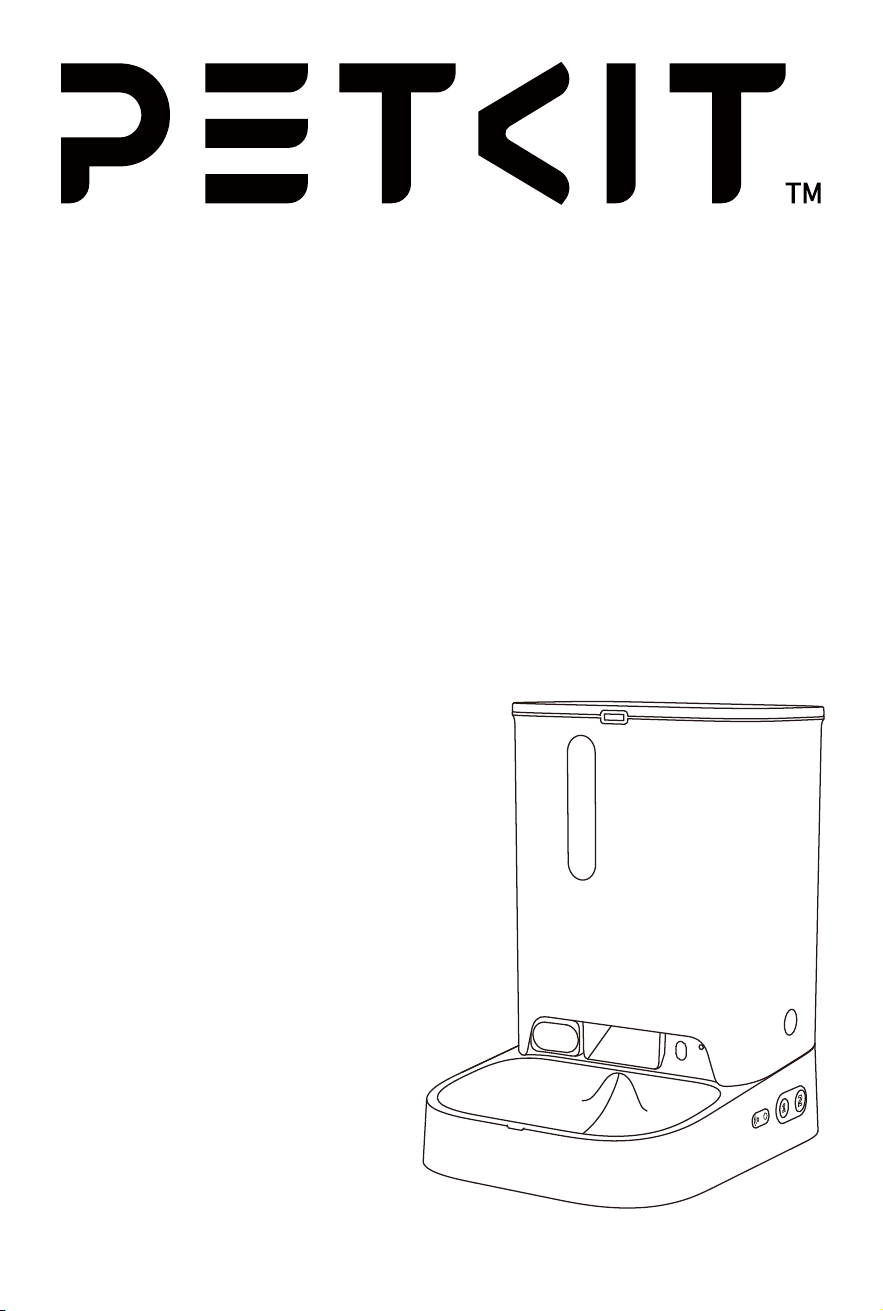
PETKIT YUMSHARE DUAL-HOPPER WITH CAMERA
SMART PET FEEDER
Please read the User Manual carefully
before using the product and keep it
properly.

-4-
*
Note: in order to provide a better user experience, we will be implementing periodic product
enhancements. Product images shown for illustration purpose only. Actual product may vary
from the image shown on the box. For any discrepancies, please refer to the actual product.
PRODUCT DESCRIPTION
02
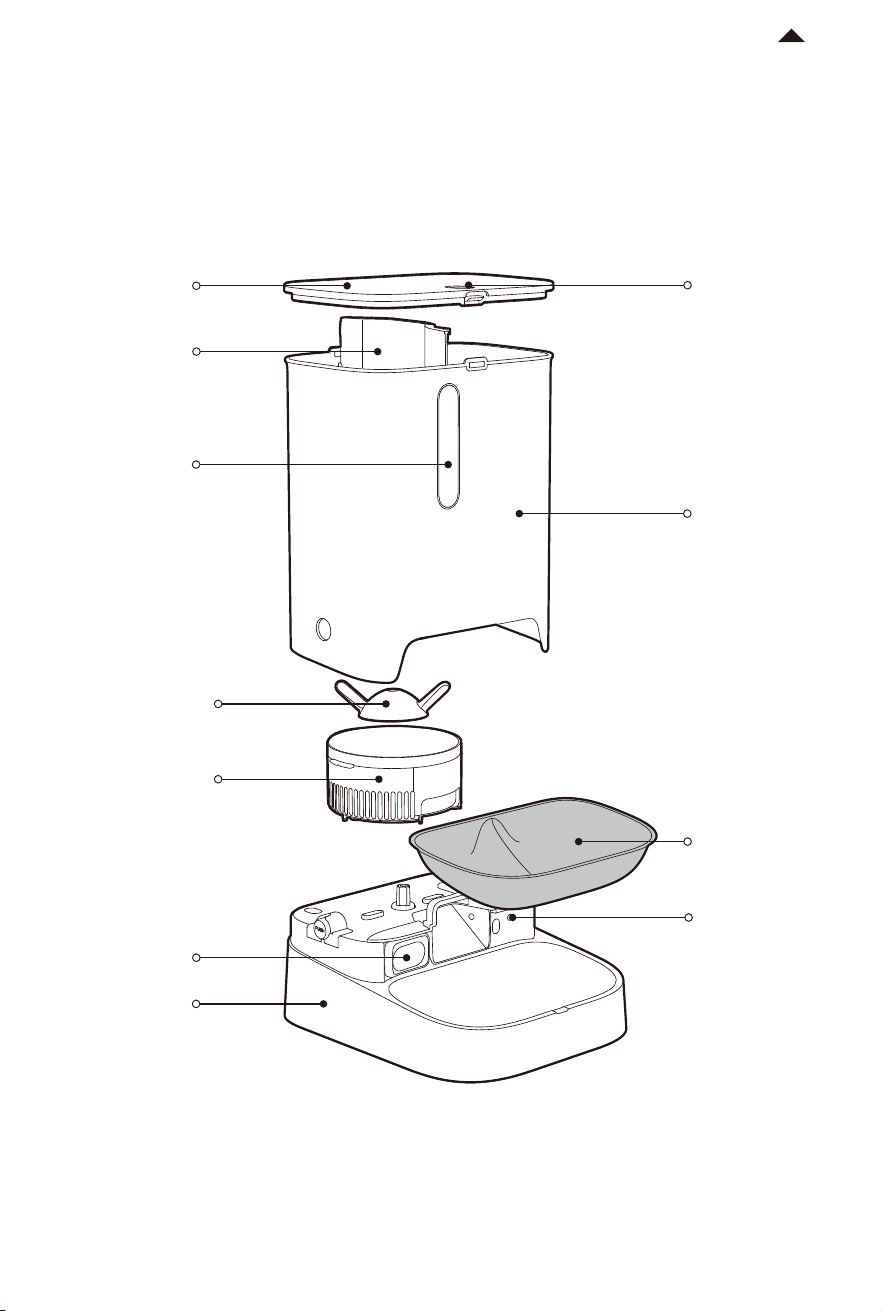
Lid Release
Button
Hopper
Stainless Steel
Food Bowl
Microphone
Dispensing
Module
Camera
Lid
Partition
Window
Main Unit
Food Dispensing
Vanes
RETURN TO
CONTENTS
PRODUCT INSTALLATION
03
-6-
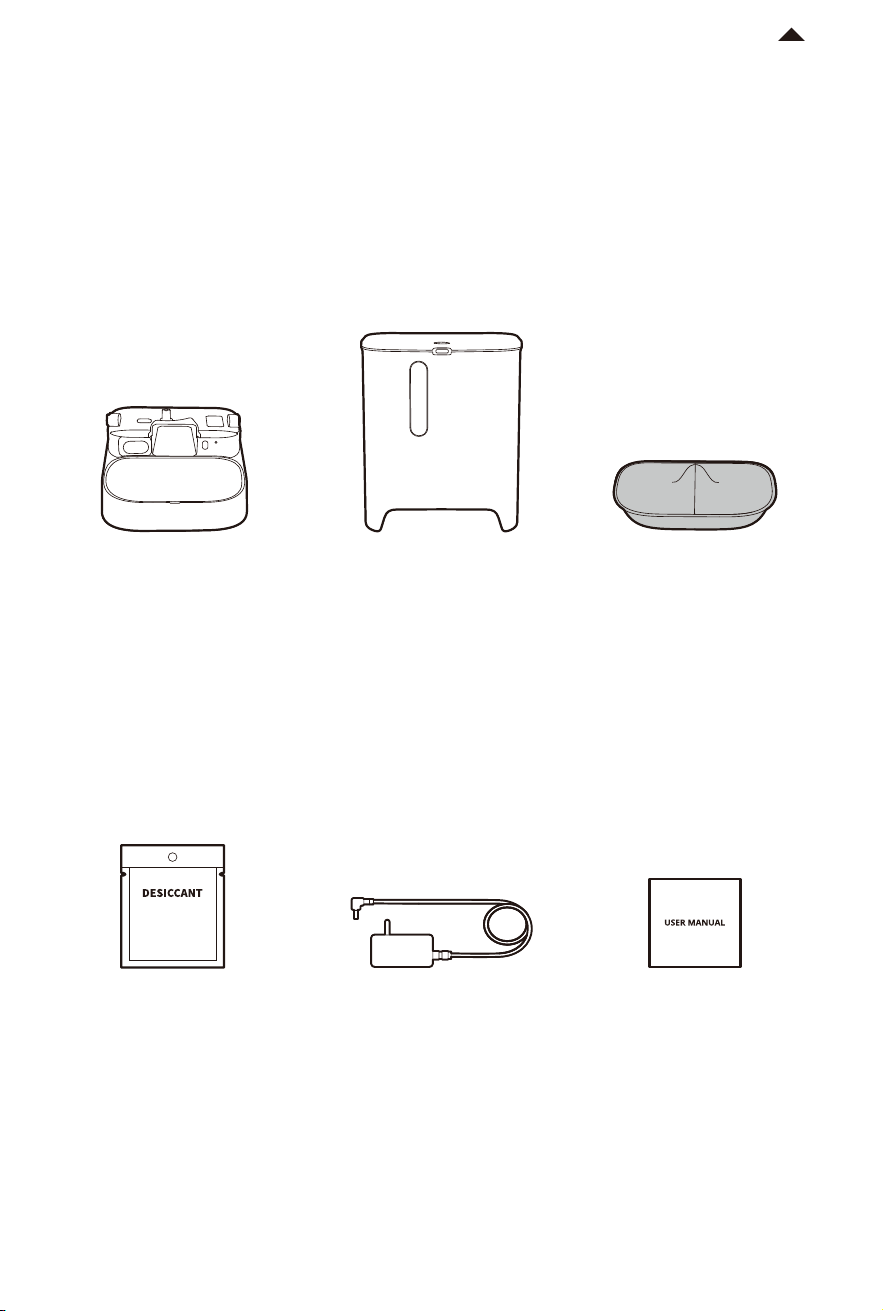
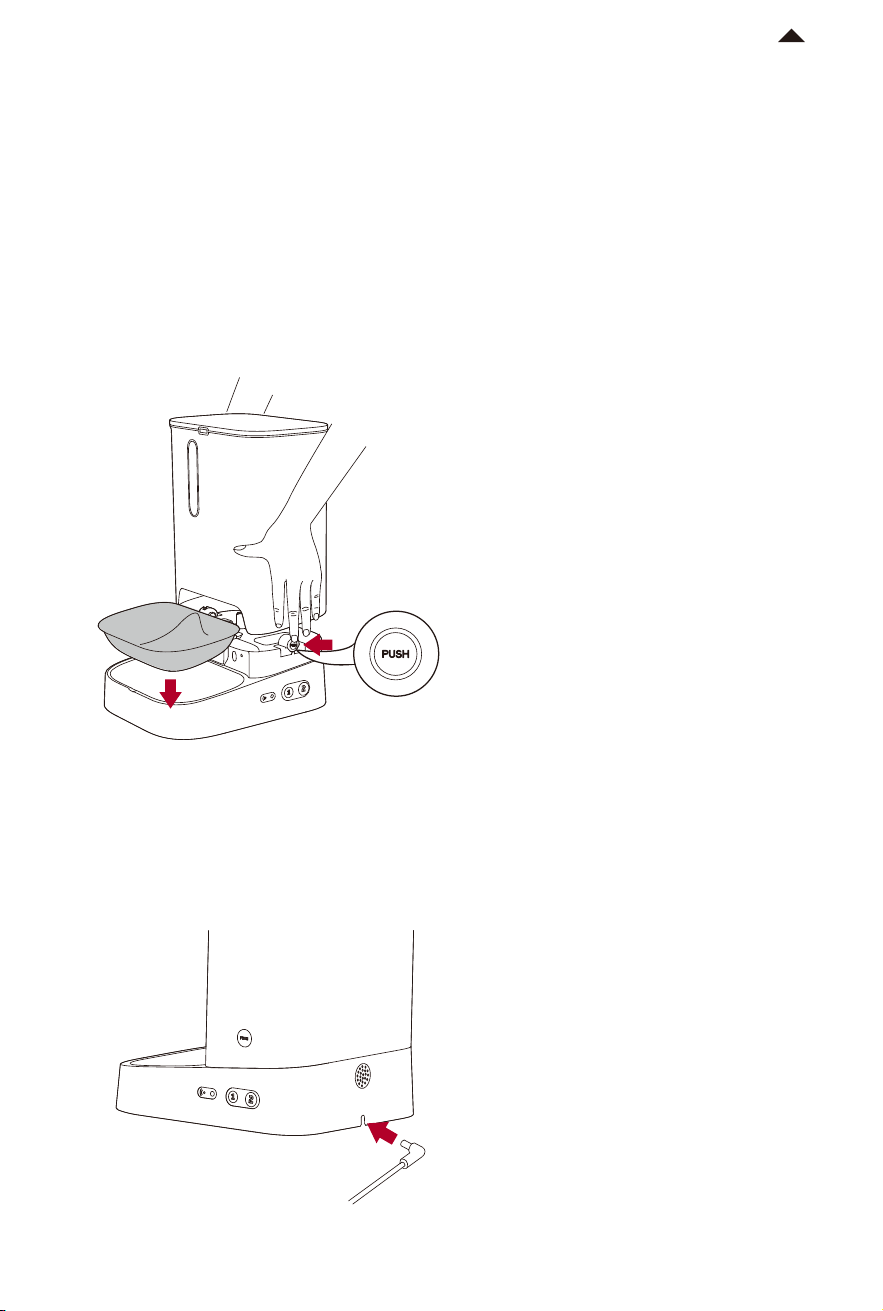
3.1 Installing the Main Unit
① Place the main unit on the level ground or desk.
② Lift the hopper, align the notches on both sides with the PUSH button on the main
unit, and place it vertically downwards.
③ Press and hold the PUSH buttons until they are fully stuck into the notches.
④ Place the stainless steel food bowl in the food bowl holder.
3.2 Connecting the Power Supply
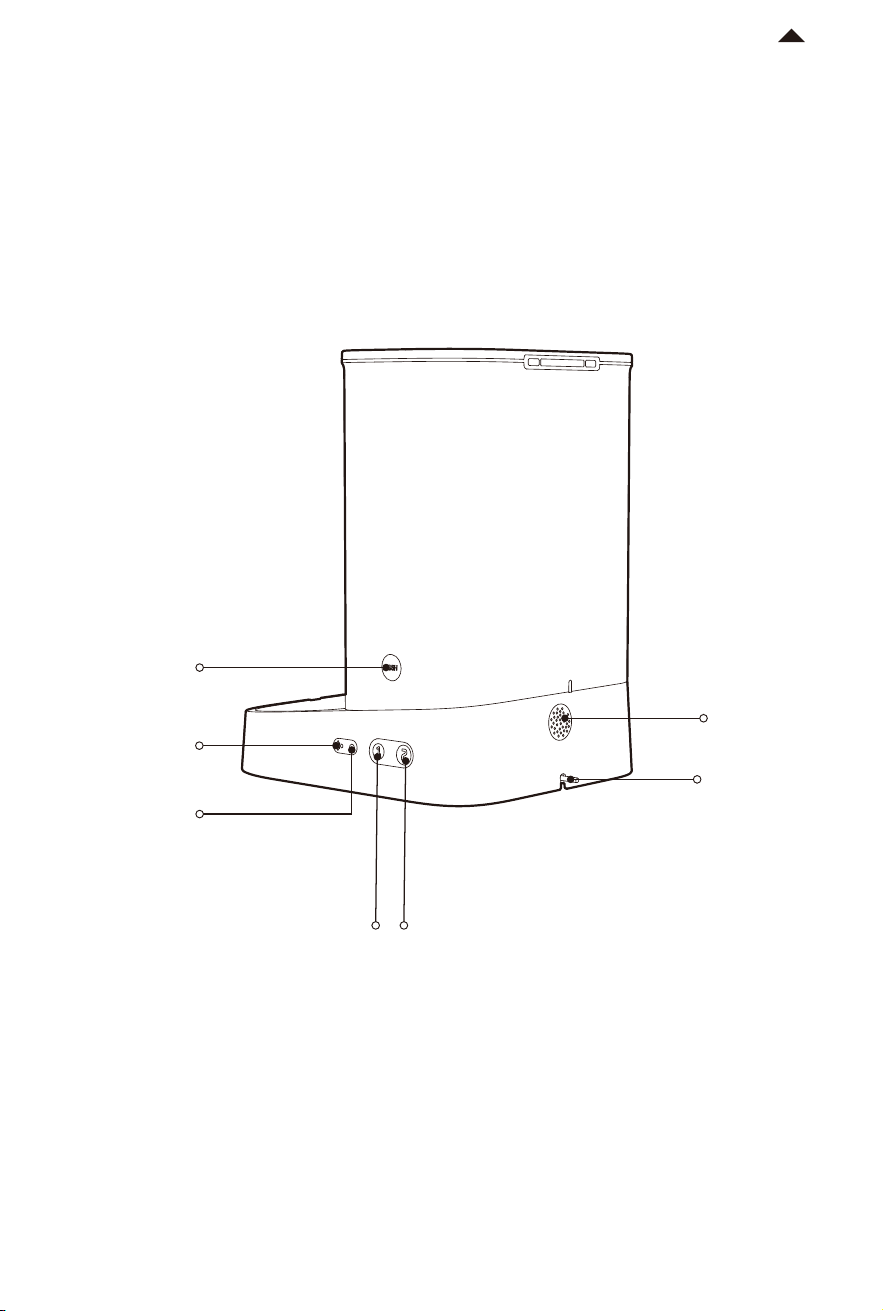
Take out the power adapter cord and attach it to the power input on the back.
RETURN TO
CONTENTS
-7-
* Note: When the battery is low, please replace the batteries in time. Check
and replace the batteries before leaving the device unattended for an extended
period of time.
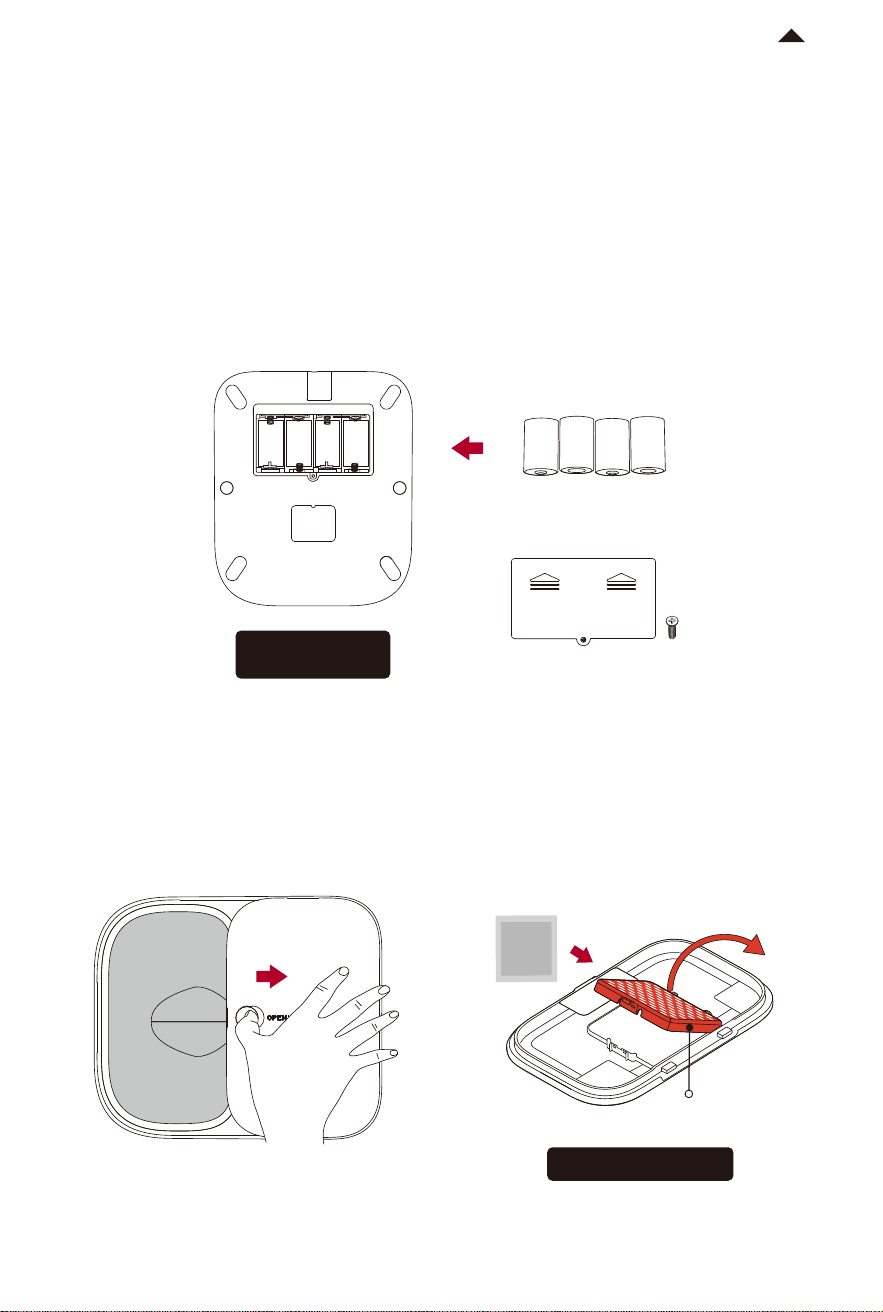
Bottom of the
main unit
Interior of the lid
① Take out the screw and remove the battery cover.
② Take four D batteries and place them in the battery compartment.
(Pay attention to the orientation of the positive and negative ends)
③ Put the battery cover back on and tighten down the screw.
Choose whether to install batteries based on personal actual usage needs.
(Batteries need to be purchased separately, and only alkaline batteries can be used)
3.3 Installing the Backup Batteries
Battery cover
D alkaline batteries *4
3.4 Installing the Desiccant
① Press and hold the lid release button
to the right and lift up to remove the lid.
② Open the desiccant compartment,
take the desiccant packet, and lay it down
evenly in the compartment, Then close
the desiccant.
DESICCANT
Desiccant
compartment
RETURN TO
CONTENTS
返回目录
HOW TO USE
04
-8-
* Note: Do not pull out the partition if there is food left inside.
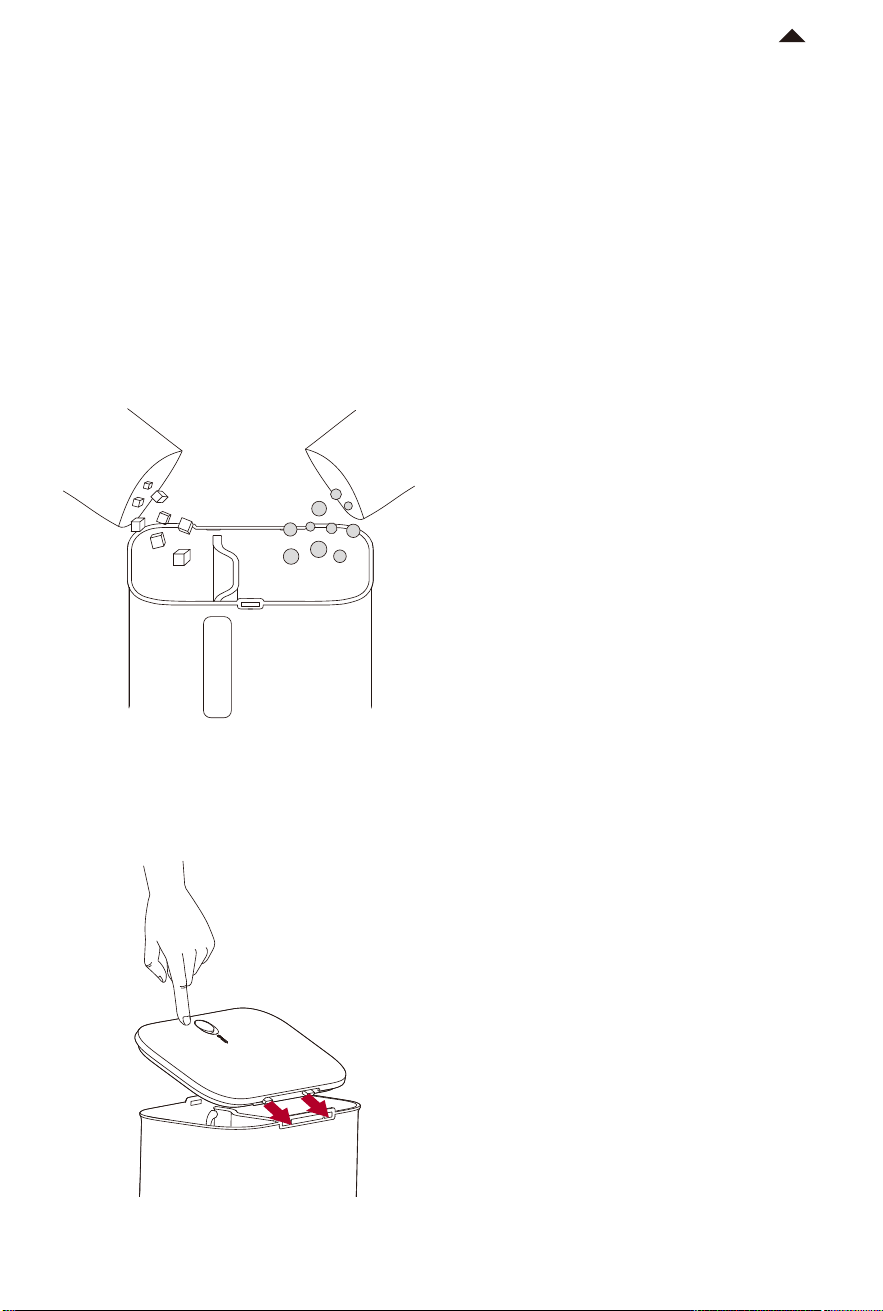
4.1 Adding Pet Food
① Add pet food. (Do not exceed the MAX line) Two different pet foods can be placed
in hopper 01 and hopper 02 according to your feeding needs.
* Recommended kibble size of dry food ≤12mm (0.47in)
* Recommended kibble size of freeze-dried food ≤9mm (0.35in)
② Cover the lid: Insert the rear side of the lid into the two holes above the hopper.
RETURN TO
CONTENTS
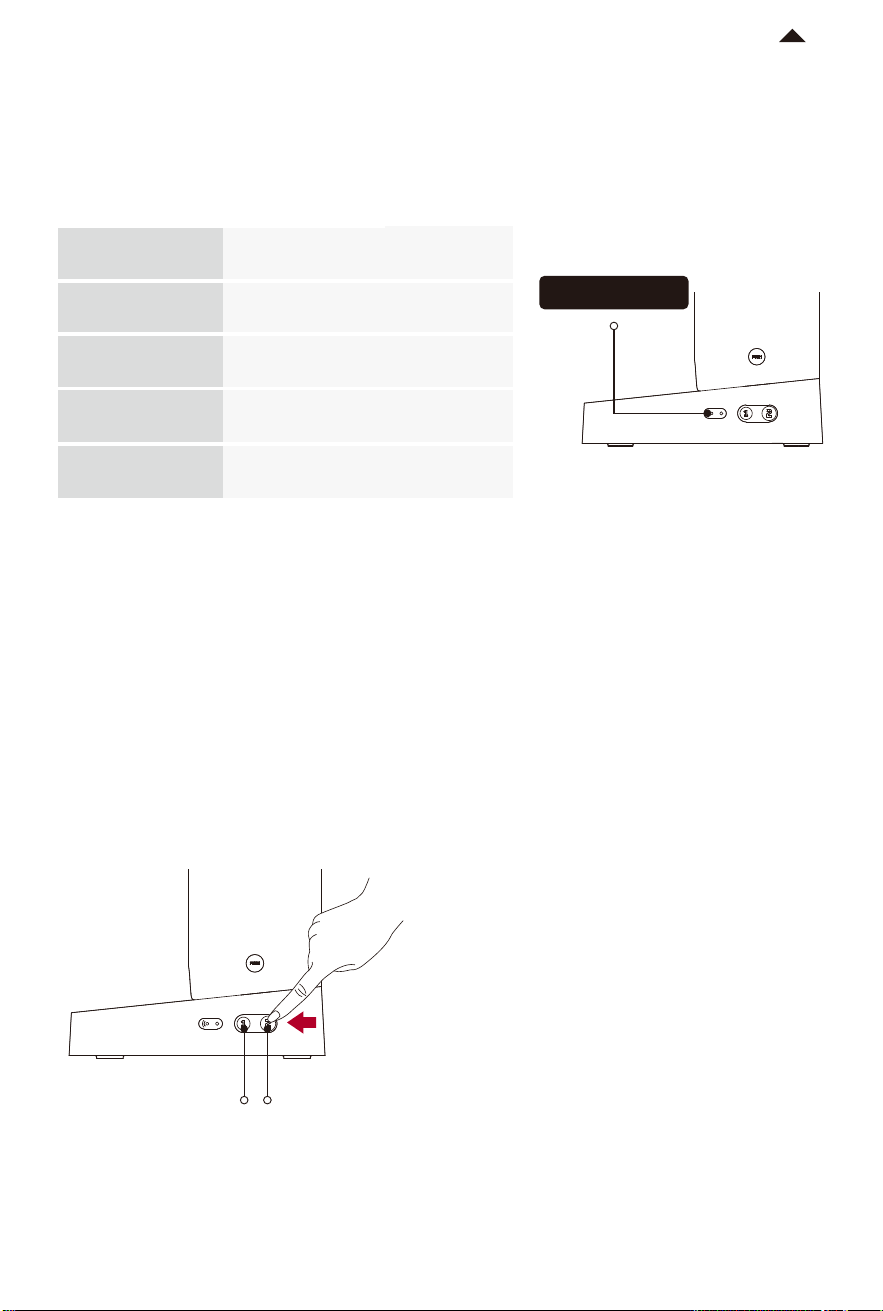
Indicator light
4.2 Indicator Light
The indicator light can be turned on/off in the App.
The indicator light is not on in battery mode.
Indicator light Status
Device is not connected to
Wi-Fi
White light is
flashing slowly
White light is
flashing quickly
White light is
constantly on
Device is connecting to Wi-Fi
Device is connected to Wi-Fi
(Camera is not working)
Green light is
constantly on
Device is connected to Wi-Fi
(Camera is working)
-9-
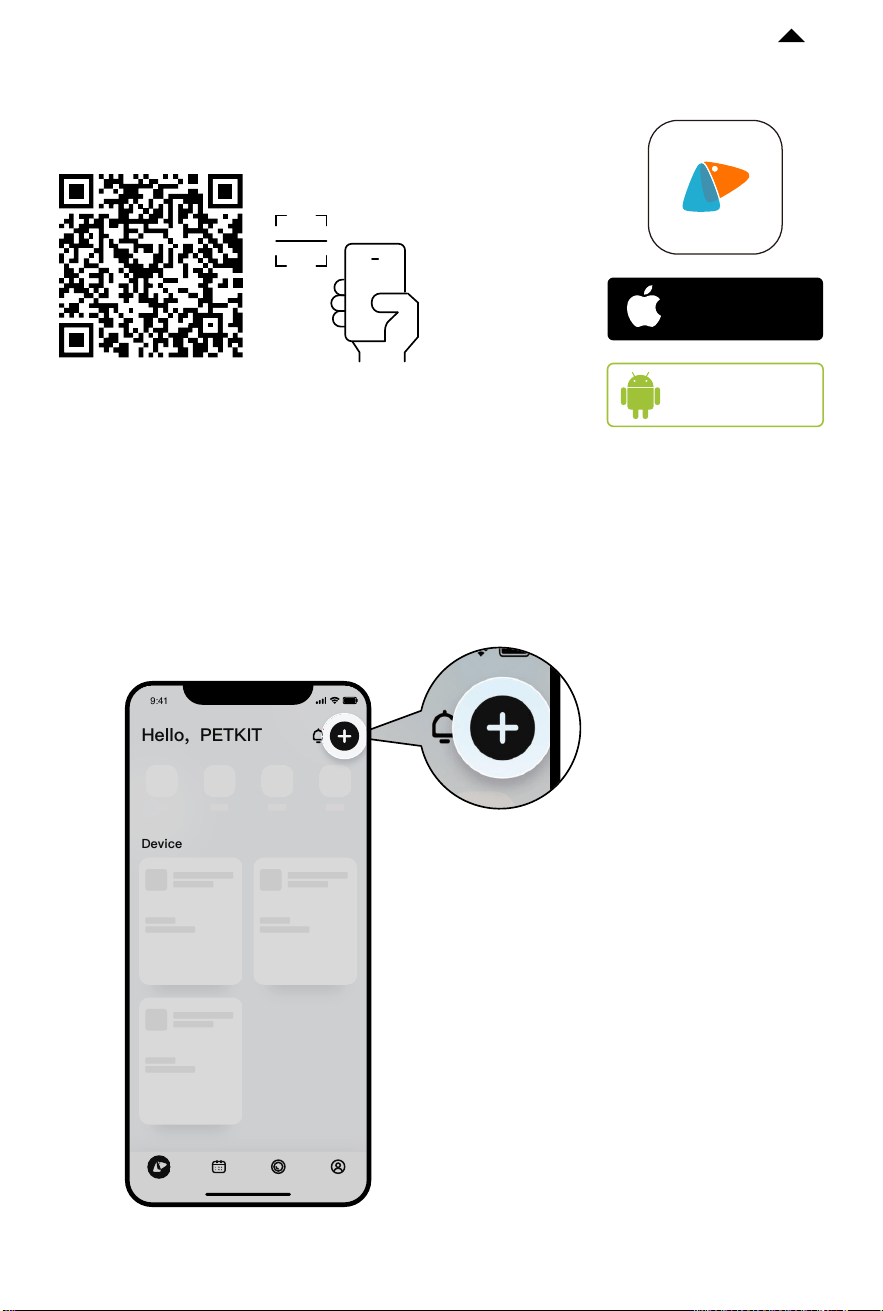
4.3 Manual Feeding
Select 01 or 02 hopper button.
Press the button to start dispensing;
Release the button to end dispensing.
Hopper 01
feeding button
Hopper 02
feeding button
RETURN TO
CONTENTS
-10-
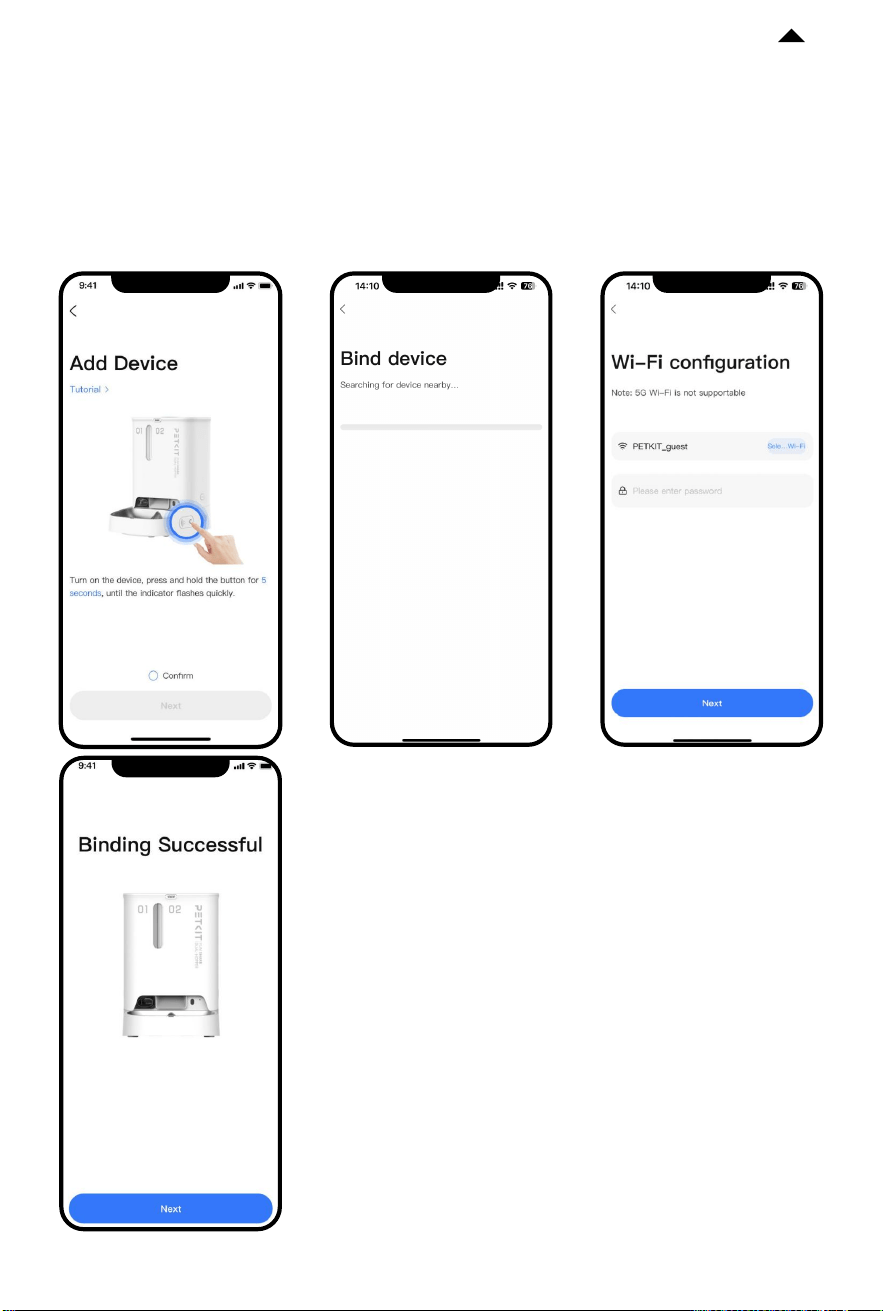
4.4 App Binding and Activation
① Download and install PETKIT App:
② Add a device
Open the PETKIT App and enter its homepage; click “+” on the top right corner of the
page to select and add the “PETKIT YUMSHARE DUAL-HOPPER WITH CAMERA”.
Download the PETKIT App in an
App Store or Android Stores
Available on
Android
stores
TM
Download on the
App Store
* Note: To provide the best possible user experience
and functional optimization, the product firmware will
be irregularly upgraded. Please refer to actual situations
and promptly upgrade the firmware via PETKIT App.
Device
电量:100%
0h 8h 16h 24h
小佩智能猫牌
进食次数
5
下次出粮时间:19:30
智能双子星喂食
器
0h 8h 16h 24h
9:41
Hello, PETKIT
RETURN TO
CONTENTS
* Note: To provide the best possible user experience
and functional optimization, the product firmware will
be irregularly upgraded. Please refer to actual situations
and promptly upgrade the firmware via PETKIT App.
-11-
③ Start connection
In the startup state, long press the Wi-Fi setup button for 5 seconds until the indicator
light on the device flashes rapidly; click Next to configure Wi-Fi and the App will start
to connect to the device. Please wait until the App displays configuration succeeds.
* This product supports 2.4GHz Wi-Fi, but not 5GHz. Please make sure you have turned on the
2.4 band when connecting the device to the Internet.
RETURN TO
CONTENTS
* Note: To provide the best possible user experience
and functional optimization, the product firmware will
be irregularly upgraded. Please refer to actual situations
and promptly upgrade the firmware via PETKIT App.
-12-
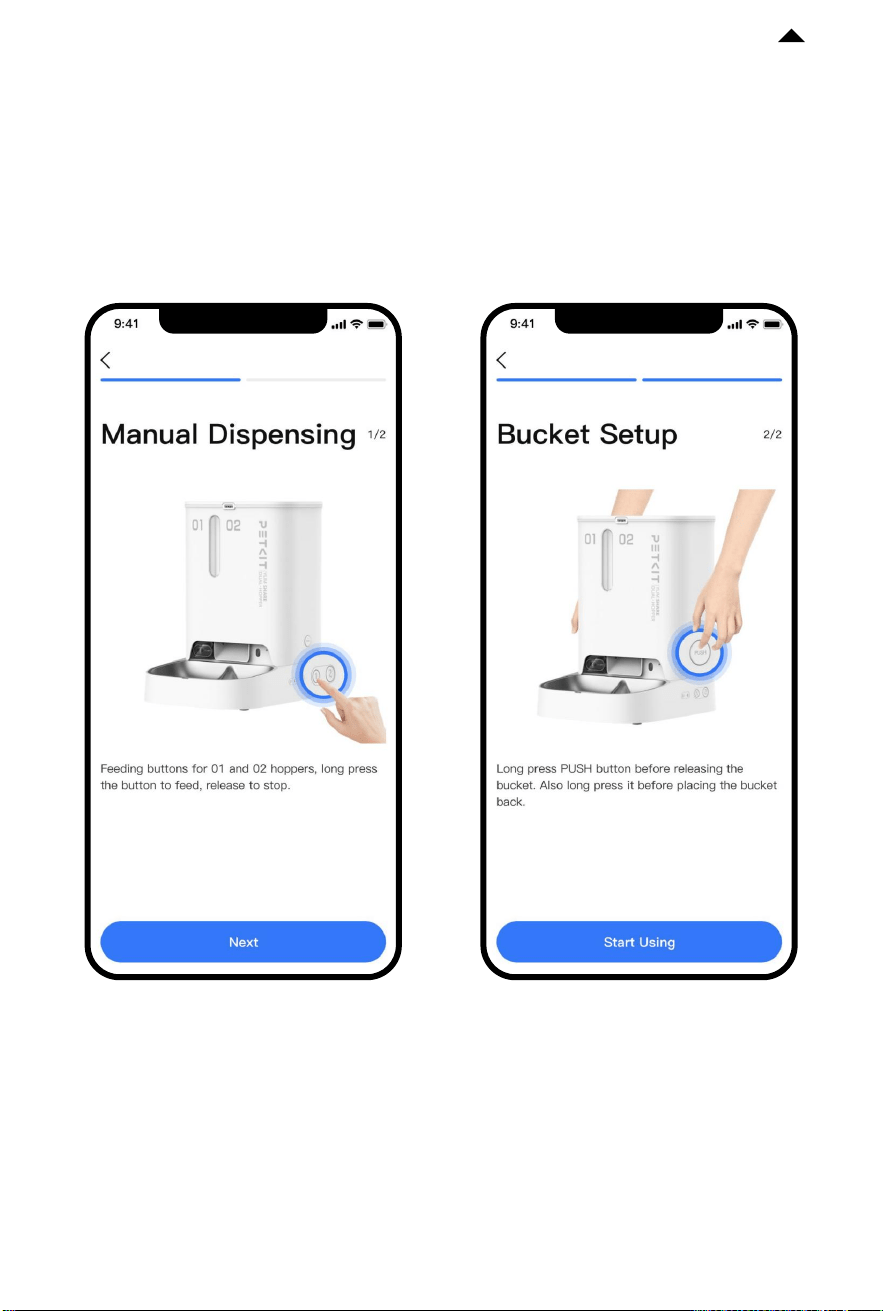
④ Read usage guidelines
After the device successfully connects to the PETKIT App for the first time, to ensure
pet safety and proper use of the product, please carefully read the usage guidelines
and appropriately use the product according to the instructions.
RETURN TO
CONTENTS
DESCRIPTION OF APP
FUNCTIONS
05
* Note: To provide the best possible user experience
and functional optimization, the product firmware will
be irregularly upgraded. Please refer to actual situations
and promptly upgrade the firmware via PETKIT App.
-13-
5.1 Device Homepage
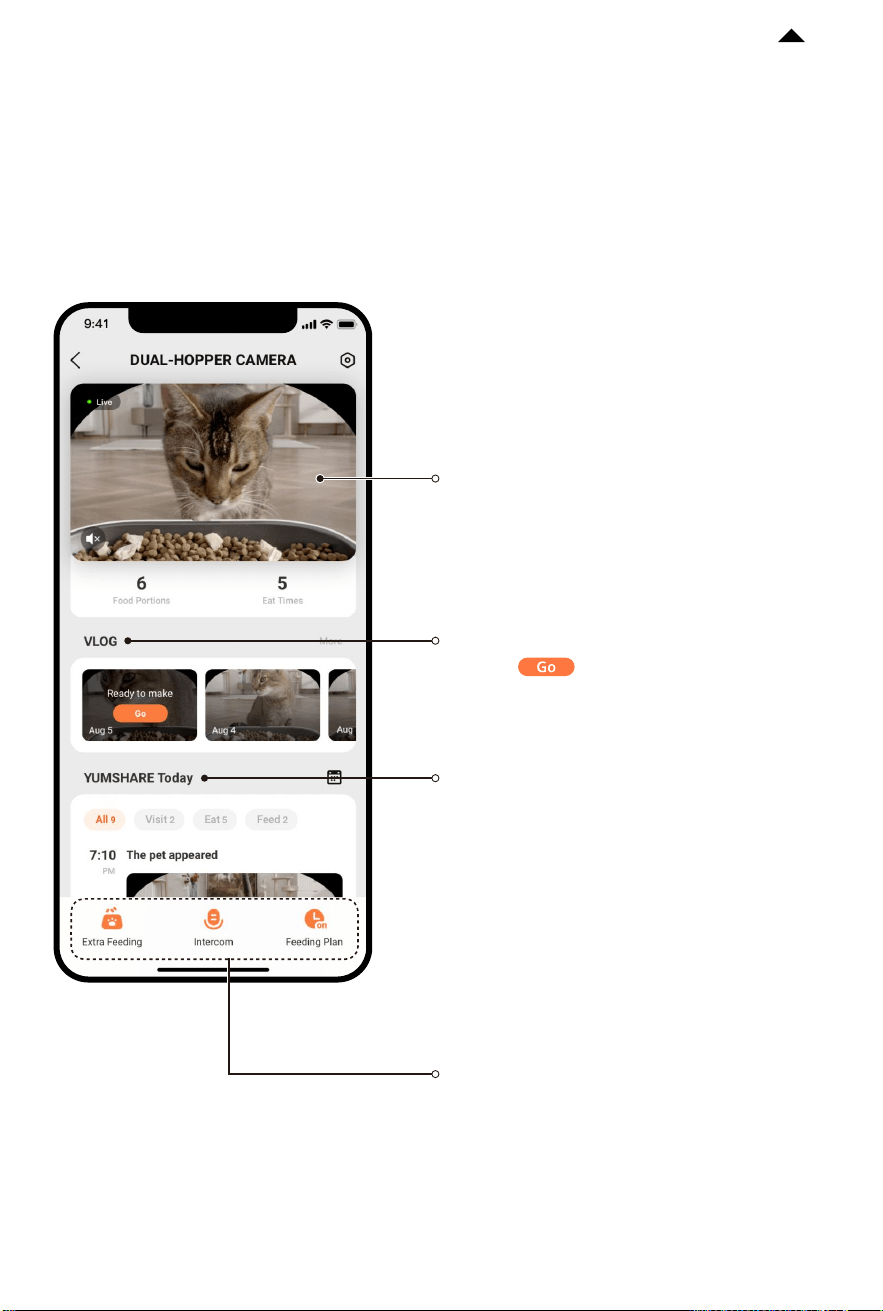
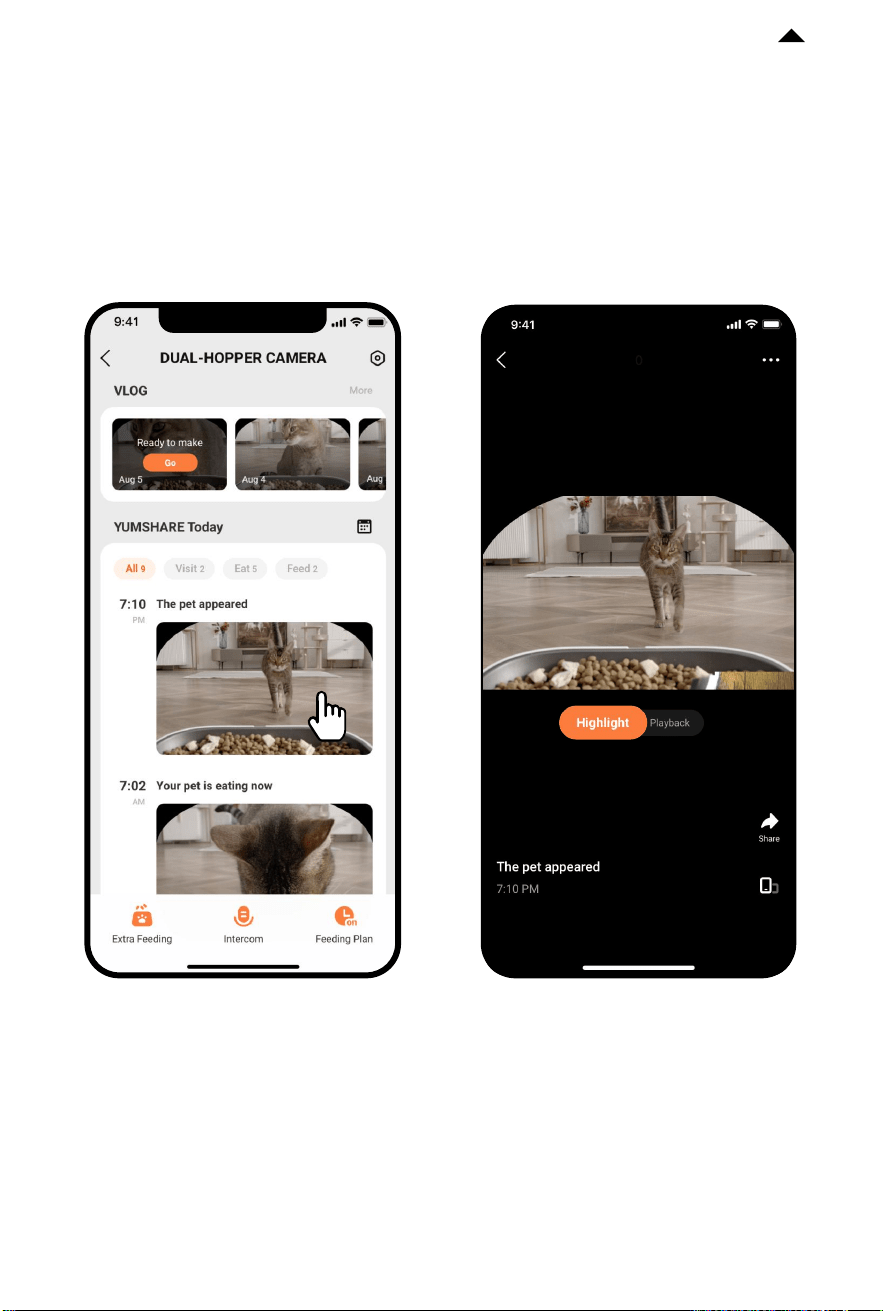
① Real-time video:
View your pet's status in real-time.
② VLOG
:
Click “ ”, and the system will
automatically generate vlogs of your pet.
This section displays up to the last 7
days of video.
③ YUMSHARE today (Timeline)
:
Clips captured are categorized as visit,
eat, and feed through AI algorithm.
You can click any of them for more
details.
* Only pictures can be viewed when PETKIT
Care+ Cloud Service is not subscribed. Please
subscribe the Service if you want such
functions as playing back full clips, moments
and speedup playback. For specific rules,
please refer to PETKIT Care+ Service
Agreement.
④ Function keys
RETURN TO
CONTENTS
* Note: To provide the best possible user experience
and functional optimization, the product firmware will
be irregularly upgraded. Please refer to actual situations
and promptly upgrade the firmware via PETKIT App.
-14-
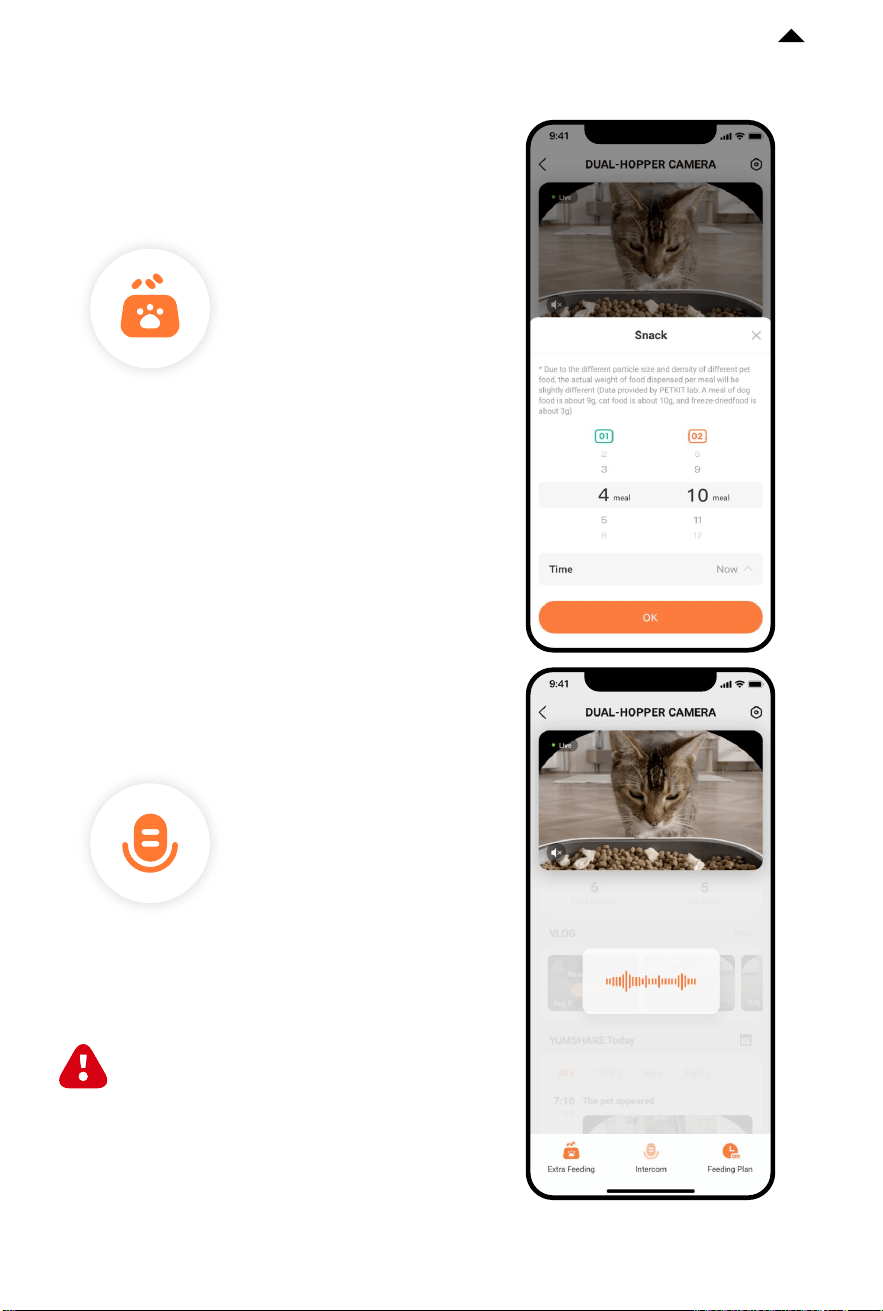
④ Description of function keys
Click it to dispense food for your pets
instantly.
(Remote control is supported.)
Extra feeding
Long press “Intercom”, and the feeder will
broadcast what you said simultaneously,
so as to have dialogues with your pets in
real time.
Intercom
Your voice is only heard when playing
back videos. (You need to turn on the
microphone first via the App.)
RETURN TO
CONTENTS
* Note: To provide the best possible user experience
and functional optimization, the product firmware will
be irregularly upgraded. Please refer to actual situations
and promptly upgrade the firmware via PETKIT App.
-15-
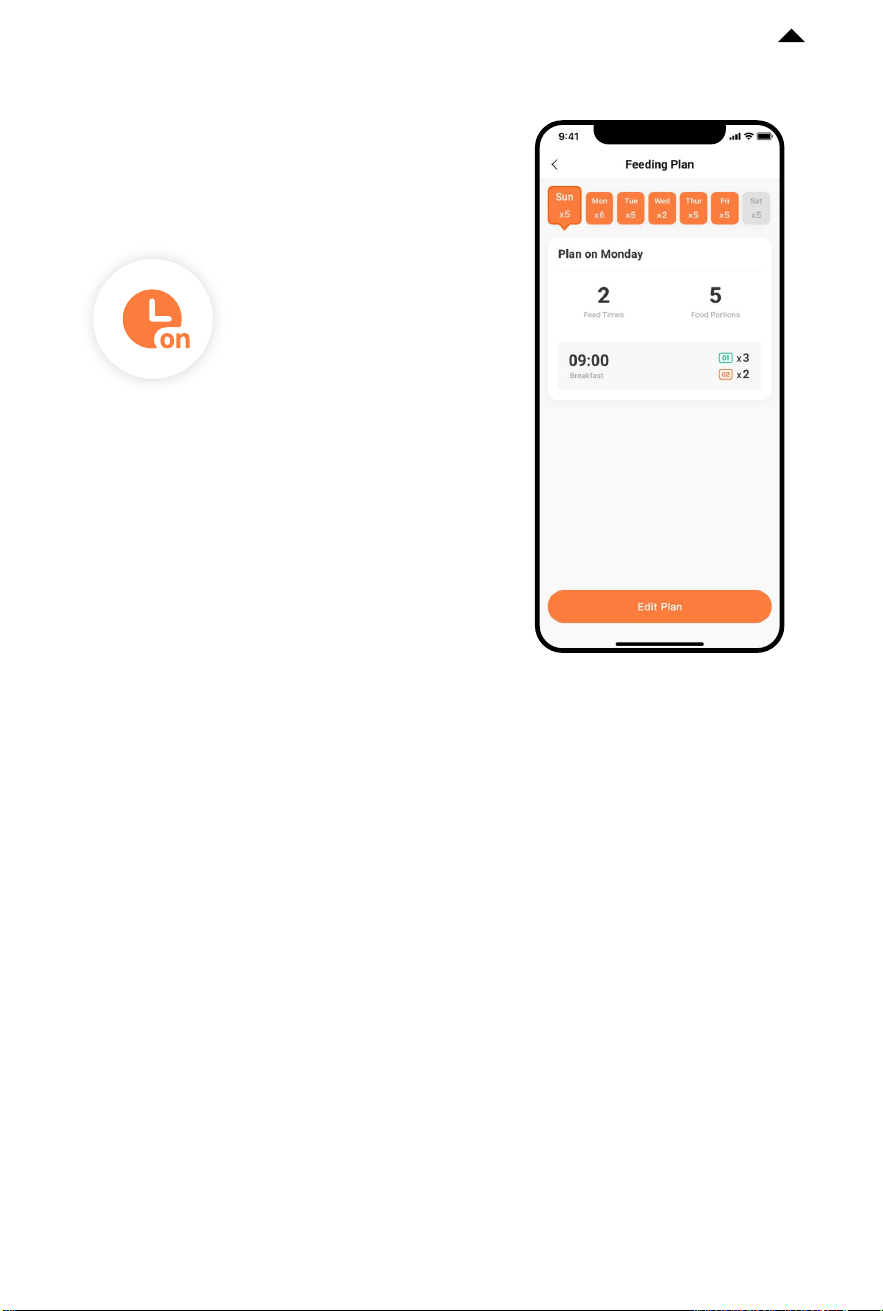
Set up the feeding time and portions to
make sure your pet is fed on time.
Feeding plans
RETURN TO
CONTENTS
* Note: To provide the best possible user experience
and functional optimization, the product firmware will
be irregularly upgraded. Please refer to actual situations
and promptly upgrade the firmware via PETKIT App.
-16-
① Highlight playback
5.2 Play Videos
After subscribing the PETKIT Care+ Cloud Service, click the Timeline on the
homepage of the device to play back full clips, highlight with speedup options.
You can preview 4-second videos that are sped up by clicking them in the Timeline.
RETURN TO
CONTENTS
* Note: To provide the best possible user experience
and functional optimization, the product firmware will
be irregularly upgraded. Please refer to actual situations
and promptly upgrade the firmware via PETKIT App.
-17-
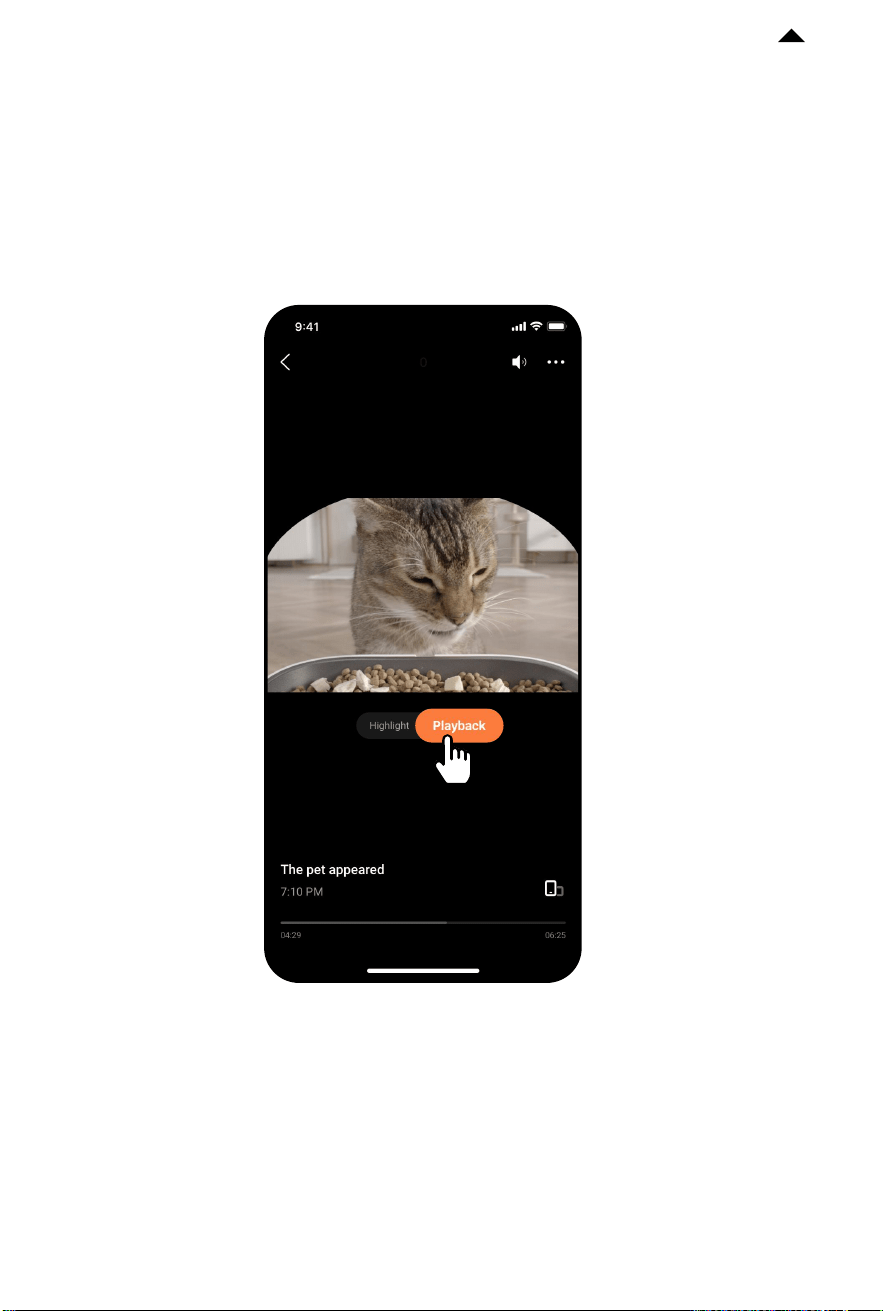
② Full clips playback
Switch the tag to “Playback” to watch complete video clips.
RETURN TO
CONTENTS
* Note: To provide the best possible user experience
and functional optimization, the product firmware will
be irregularly upgraded. Please refer to actual situations
and promptly upgrade the firmware via PETKIT App.
-18-
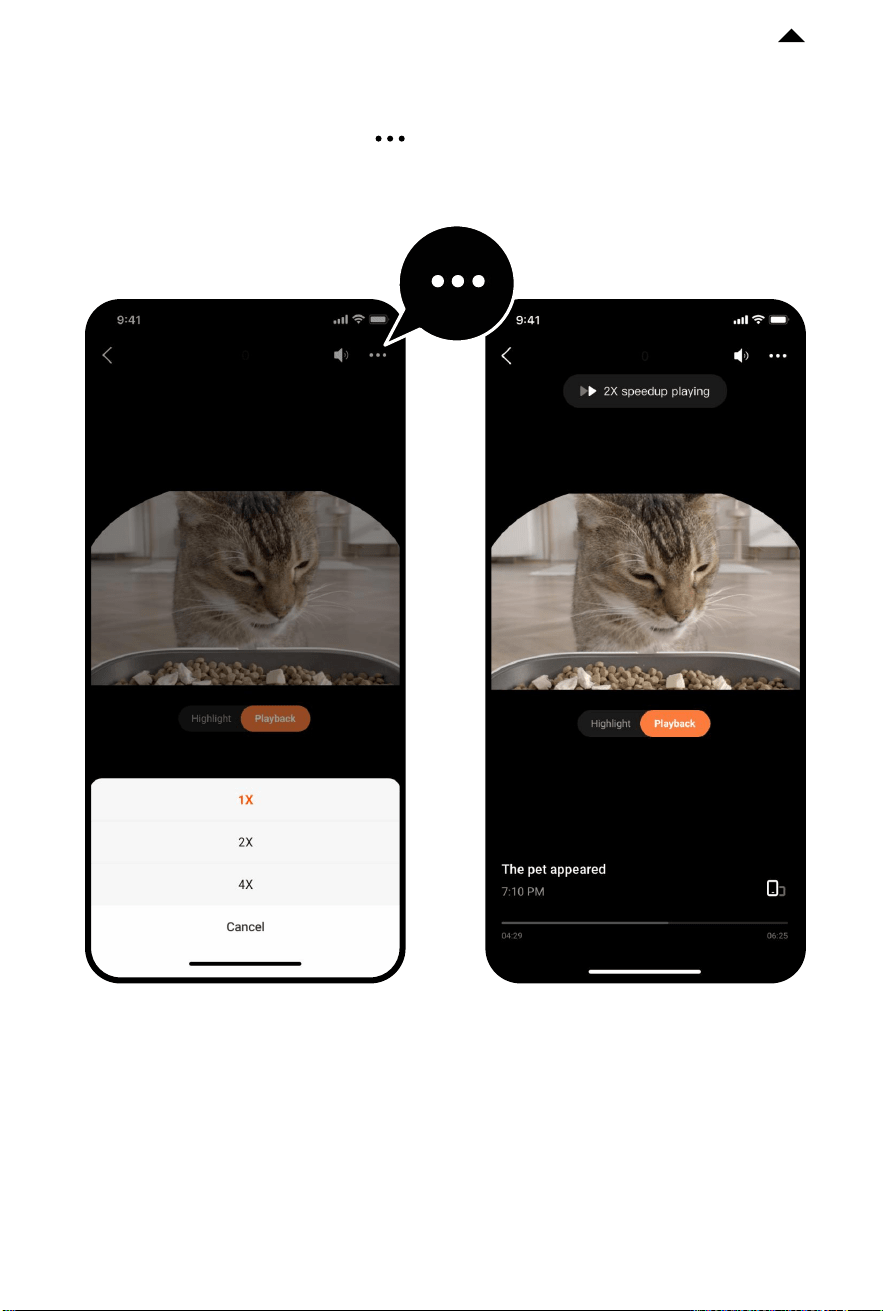
③ Speedup playback
When playing full video clips, click “ ” on the top right corner to choose the speed
as needed, or long press the center of video frame to directly switch to 2x play.
RETURN TO
CONTENTS
* Note: To provide the best possible user experience
and functional optimization, the product firmware will
be irregularly upgraded. Please refer to actual situations
and promptly upgrade the firmware via PETKIT App.
-19-
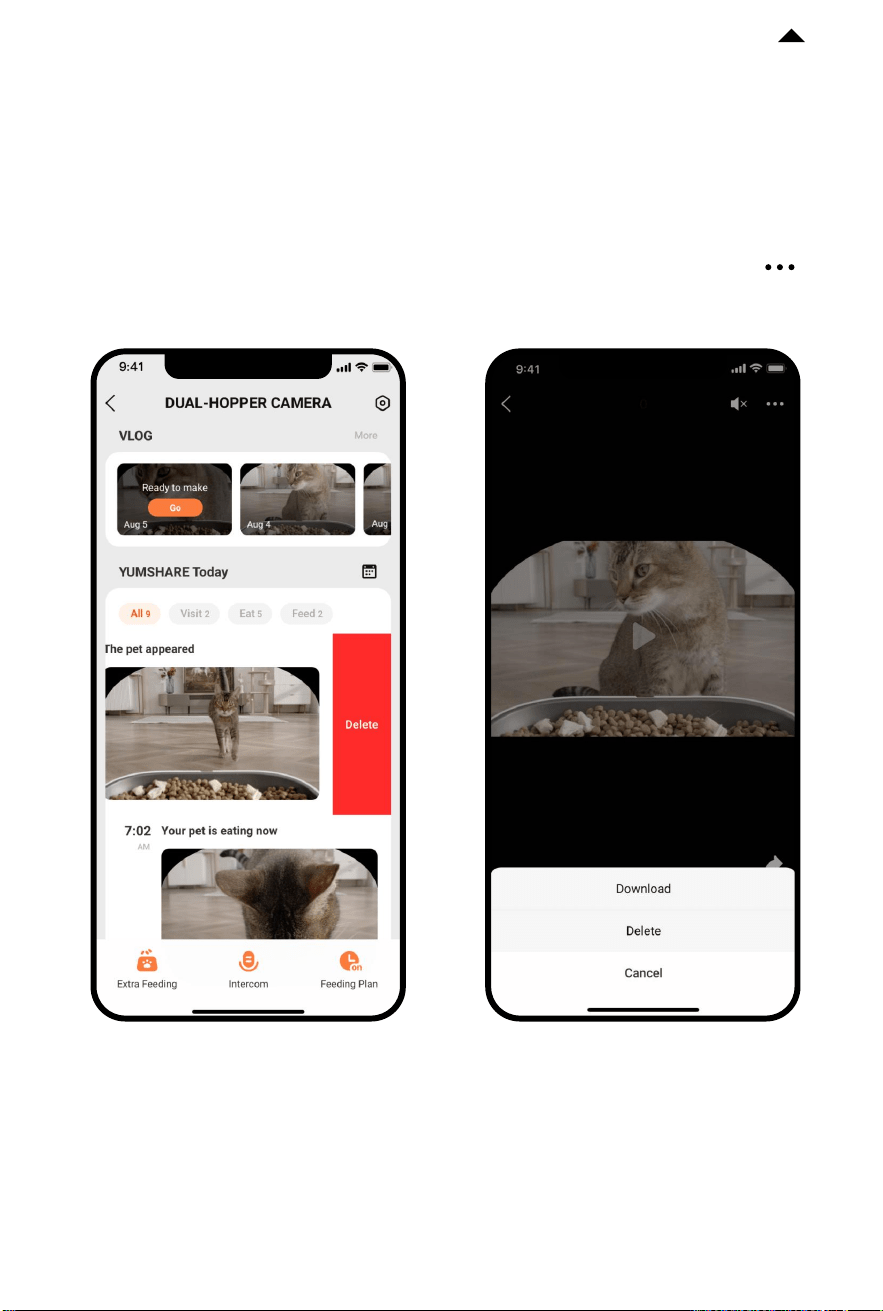
5.3 Delete Video Clips
You are entitled to delete any video.
① Method 1:
Delete videos in the Timeline;
② Method 2:
Delete videos in VLOG. Click the
video you want to remove, turn its
play tag to “Full” and click the “ ”
on the top right corner to delete the
video.
RETURN TO
CONTENTS
-20-
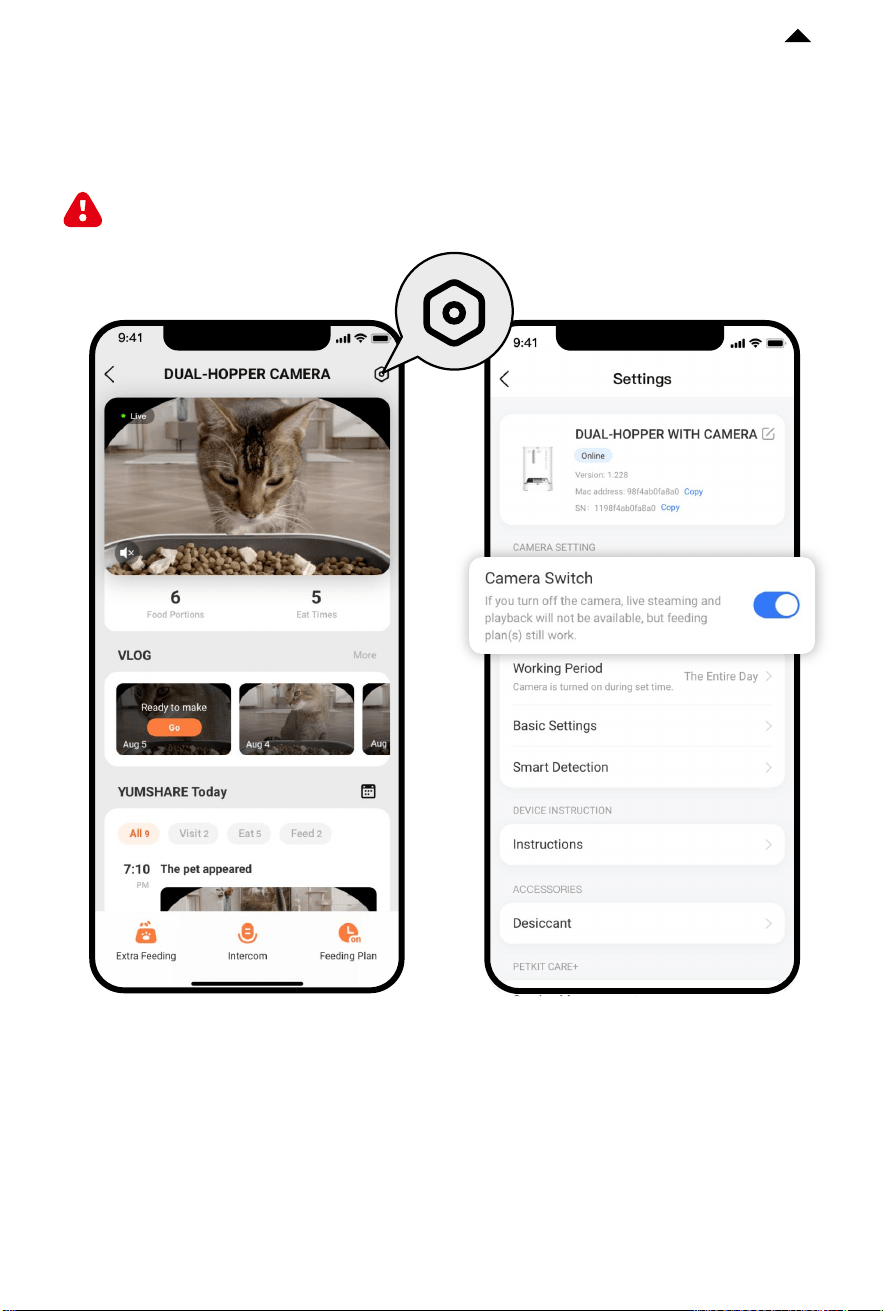
5.4 Privacy Protection
① Camera permissions
You are entitled to turn the camera on or off as needed.
If it is turned off, any video footage fails to be captured.
RETURN TO
CONTENTS
* Note: To provide the best possible user experience
and functional optimization, the product firmware will
be irregularly upgraded. Please refer to actual situations
and promptly upgrade the firmware via PETKIT App.
-21-
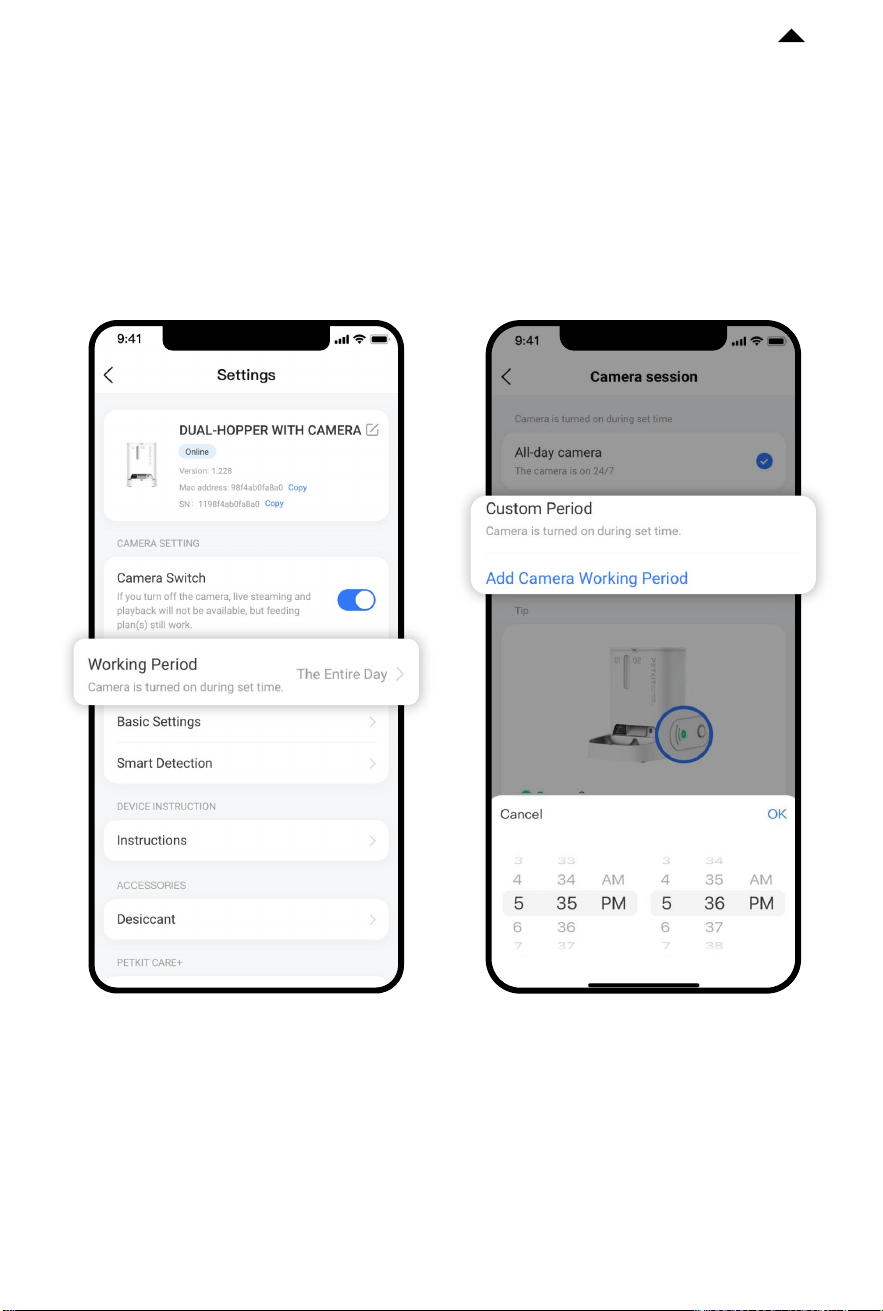
(1) Customize the detection time periods of the camera
You can personalize the time slots to turn on the camera, and beyond those, the
camera is turned off automatically.
RETURN TO
CONTENTS
* Note: To provide the best possible user experience
and functional optimization, the product firmware will
be irregularly upgraded. Please refer to actual situations
and promptly upgrade the firmware via PETKIT App.
-22-
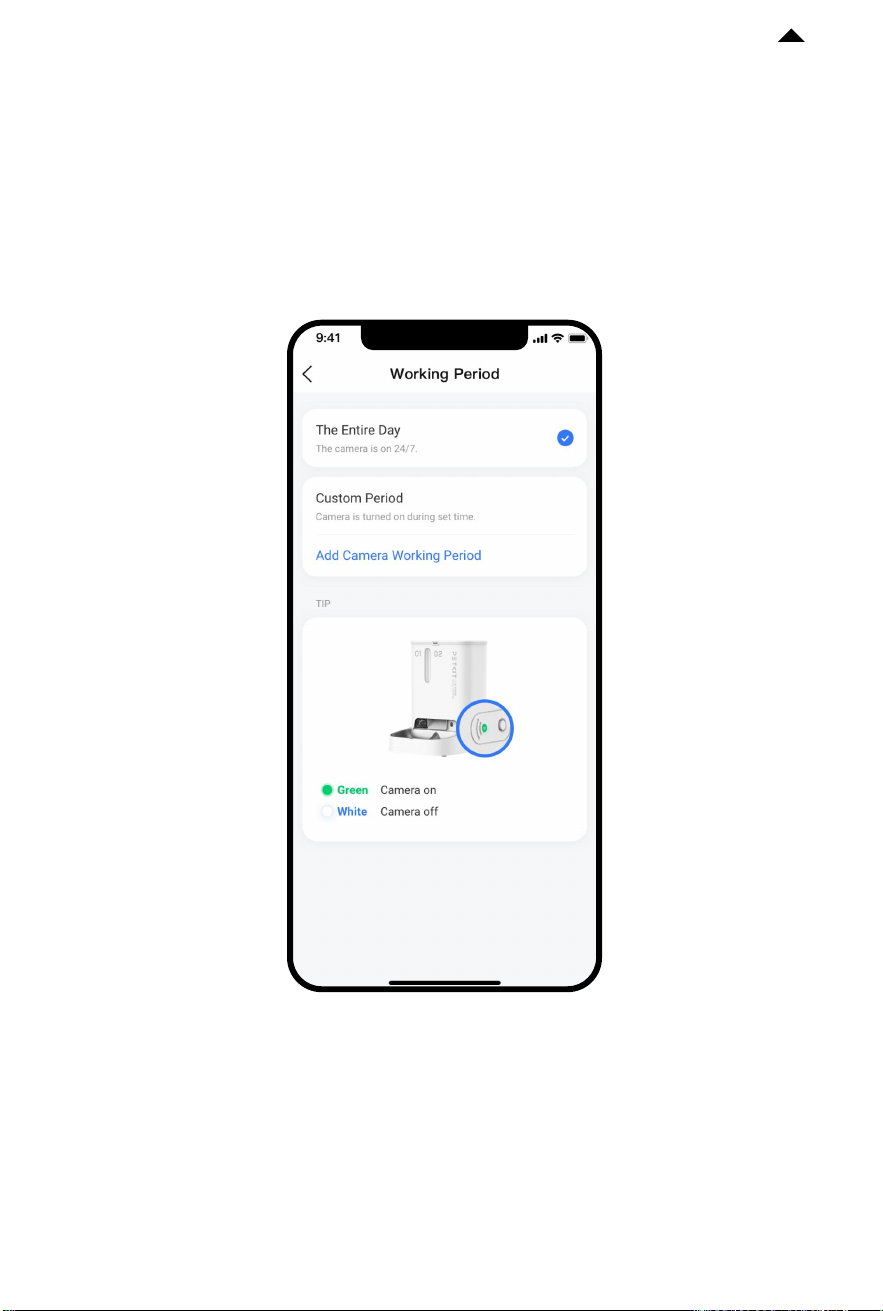
(2) Indicator light status
When the camera is turned on, the light is green; when off, the light is white.
RETURN TO
CONTENTS
* Note: To provide the best possible user experience
and functional optimization, the product firmware will
be irregularly upgraded. Please refer to actual situations
and promptly upgrade the firmware via PETKIT App.
-23-
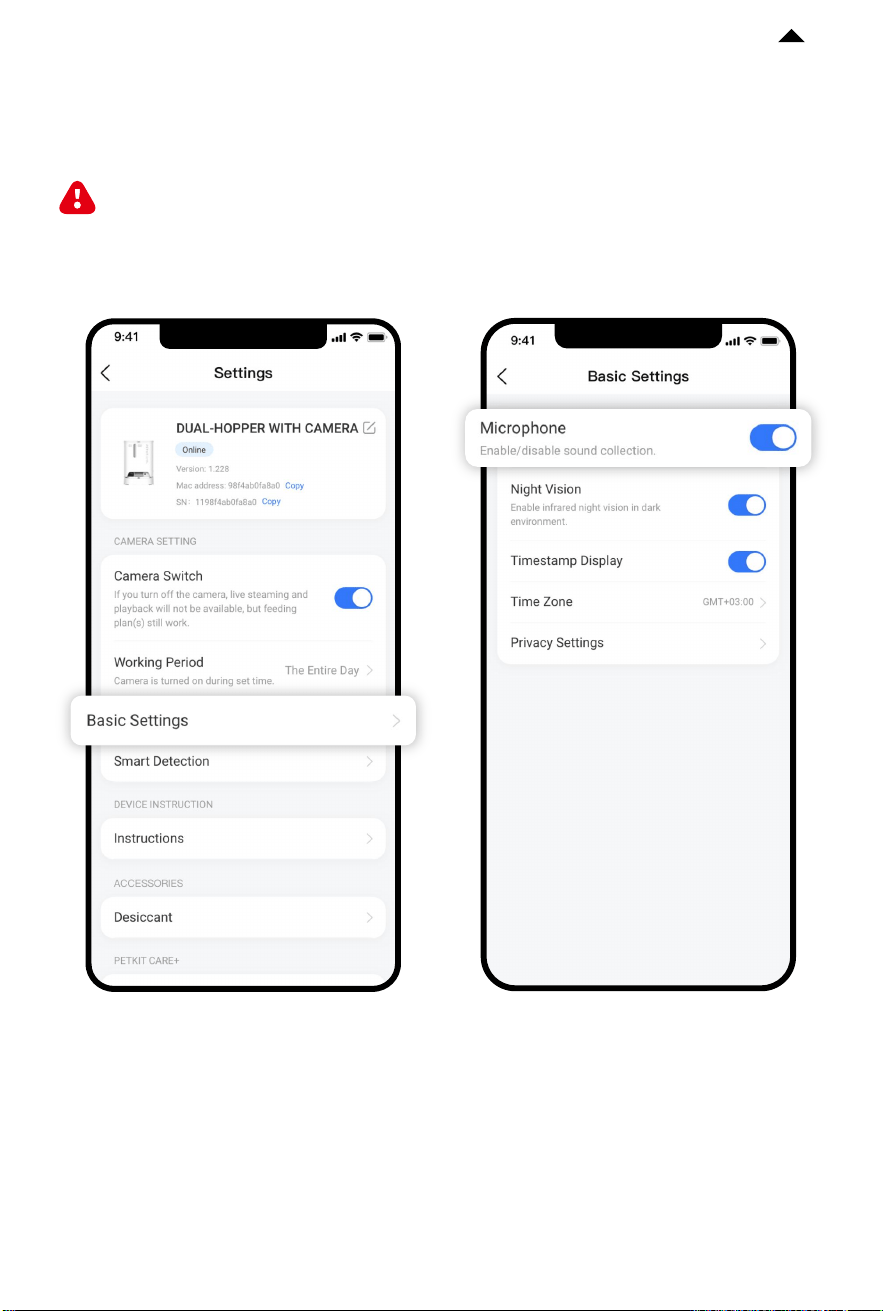
② Microphone permissions
You are entitled to turn on or off the microphone as needed.
If it is turned off, there is no sound for any video footage.
RETURN TO
CONTENTS
* Note: To provide the best possible user experience
and functional optimization, the product firmware will
be irregularly upgraded. Please refer to actual situations
and promptly upgrade the firmware via PETKIT App.
-24-
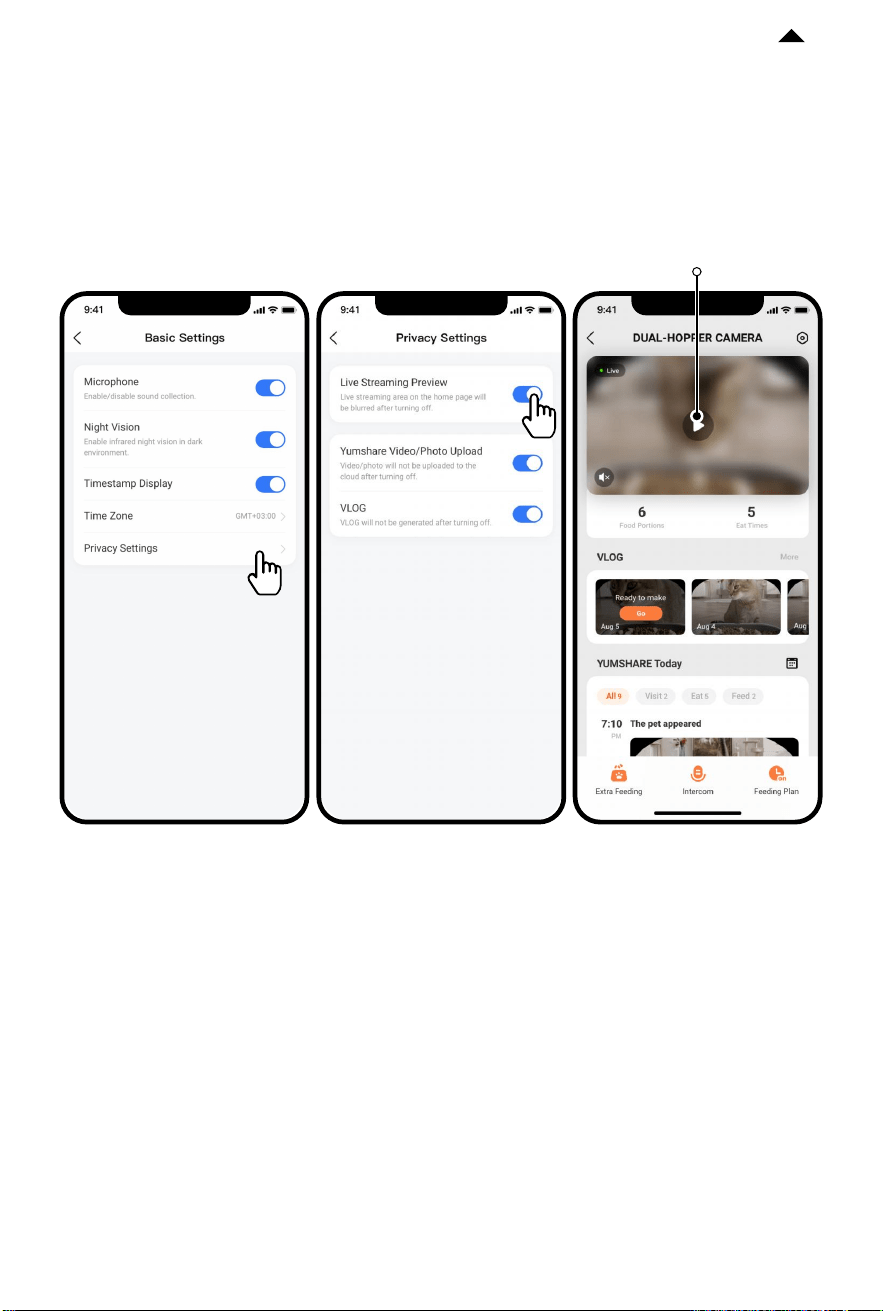
③ Real-time frame privacy protection
After this function is turned on, any real-time video frame will be blurred to protect
your privacy when you enter the device homepage.
Real-time video frame
RETURN TO
CONTENTS
* Note: To provide the best possible user experience
and functional optimization, the product firmware will
be irregularly upgraded. Please refer to actual situations
and promptly upgrade the firmware via PETKIT App.

① Cyclic videos stored in the Cloud
5.5 Additional Notes
The playback contents are based on time-limited cyclic storage, and the data outside
the time limit is periodically cleared. All videos can be downloaded and viewed in your
phone's local and App albums. (e.g. 7-day video loop means that the videos or pictures
stored in the last 7 days will be retained except for today’s and meanwhile the
contents of the day before the last 7 days will be automatically cleared.)
-25-
② PETKIT Care+ Cloud Service
You can purchase the Service for every feeder with camera via the App to enjoy
such services as pet detection, playing back full HD video stored in the Cloud and
HD Moments, which are subject to actual description. Multiple purchases of the
Service are supported. PETKIT staff will provide you service upgrade or extension
according to the attributes of the service you have bought. The Cloud Service is
allowed to be transferred to another device for once a year. Please note that the
Cloud Service is a virtual product so that it is not refundable once purchased.
RETURN TO
CONTENTS
Click to check items of PETKIT Care+ Cloud Service Agreement.
-26-
CLEANING AND
MAINTENANCE
06
DESICCANT
Bottom of
the container
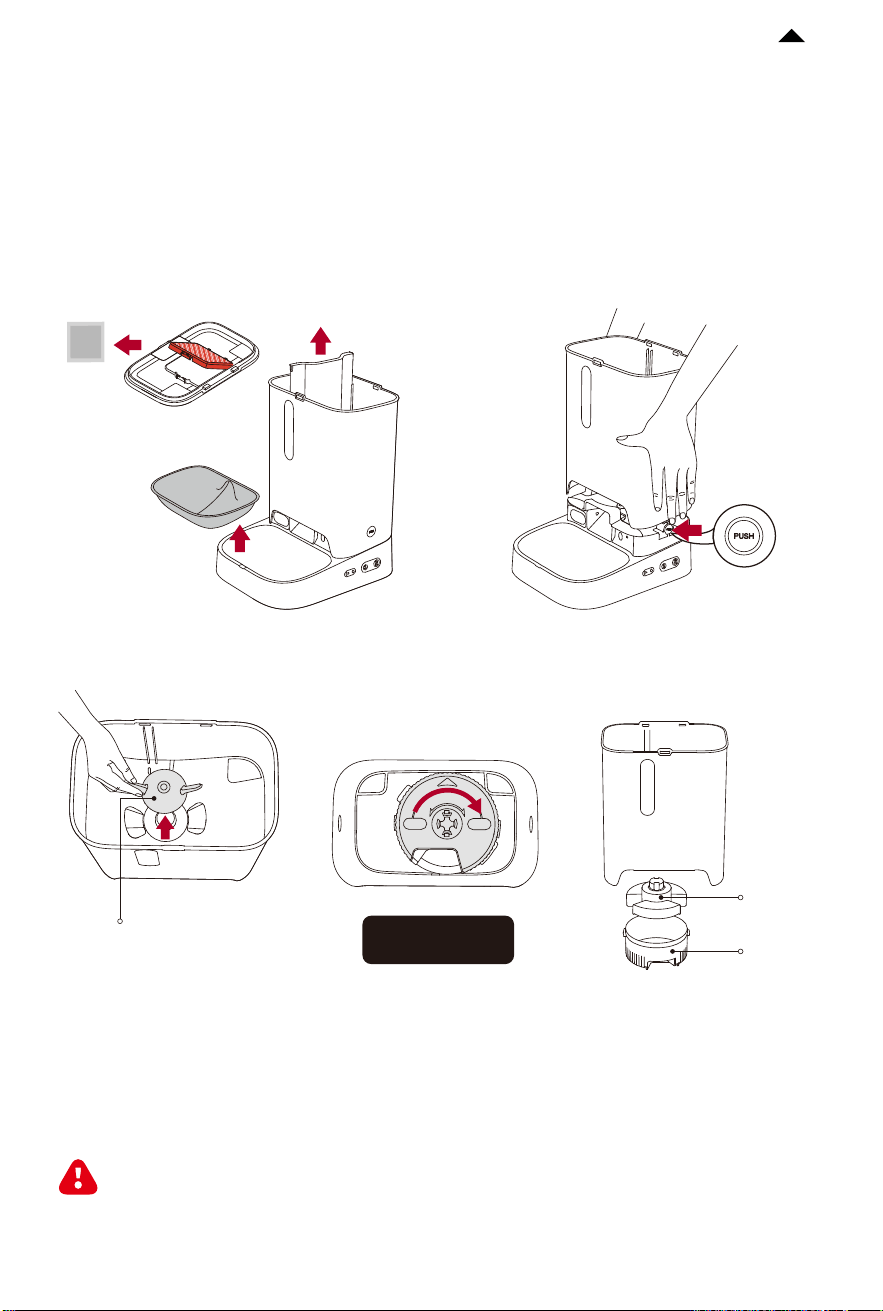
① Open the lid to remove the desiccant,
pull out the partition vertically upward,
and then remove the food bowl.
③ Pull out the food dispensing vanes in the hopper.
Rotate clockwise to remove the impeller cover and take out the impeller.
② Hold the PUSH buttons on both sides
of the main unit with middle fingers,
and lift it up at the same time to remove
the hopper.
Food dispensing
vanes
Rotate clockwise
Impeller
Impeller
cover
④ Clean the hopper, vanes, impeller cover, impeller, upper lid and
food bowl in turn, it is recommended to add appropriate amount of detergent and
rinse well.
⑤ After cleaning, wait for each part to dry completely and install them back in turn.
(*
For detailed steps of cleaning and maintenance, please watch corresponding video.)
Please be sure to use a sponge or soft cloth to clean the inside of the
hopper, do not use hard-material cleaning tools to avoid scratching the
plastic parts and affecting the normal operation of the sensor. Main
unit cannot be immersed or soaked in water, it can be wiped with a
damp tissue.
RETURN TO
CONTENTS

VIDEO GUIDE
07
7.1 Video of Installation and Usage
Please copy the video URL and open it in your browser to watch the video.
https://youtu.be/yYALvk-wNhY
7.2 Video of Cleaning and Maintenance
Please copy the video URL and open it in your browser to watch the video.
https://youtu.be/gyh2mUKjglY
-27-
RETURN TO
CONTENTS

BASIC SPECIFICATIONS
08
-28-
Disposal
The European directive 2012 / 19 / CE on Waste Electrical and Electronic Equipment
(WEEE), requires that old household electrical appliances must not be disposed in
the normal unsorted municipal waste stream. Old appliances must be collected
separately in order to optimize the recovery and recycling of the materials they
contain and reduce the impact on human health and the environment. The crossed
out "wheeled bin" symbol on the product reminds you of your obligation,that when
you dispose of the appliance it must be separately collected. Consumers should
contact their local authority or retailer for information concerning the correct
disposal of their old appliance.
Product Name
Product Model
Product Dimensions
PETKIT YUMSHARE DUAL-HOPPER WITH CAMERA
SMART PET FEEDER
P591
362 *293 *247.5mm (14.2*11.5*9.7in)
Product Material
ABS, 304 Stainless Steel
Product Weight
about 2.5kg (5.5lb)
Wireless Connection
Wi-Fi
Rated Power
4W
Capacity
5L (01 hopper 2L, 02 hopper 3L )
Rated Input
6V
2A
Scope of Application
cats and small-breed dogs
RETURN TO
CONTENTS

* Failure to follow the safety guides outlined below can result in product malfunction or
other unforeseen mishaps.
USER SAFETY GUIDE
11
-29-
A MESSAGE TO OUR
VALUED CUSTOMERS
10
· Thank you for choosing to purchase PETKIT YUMSHARE DUAL-HOPPER WITH CAMERA
SMART PET FEEDER.
· Please carefully read the User Manual before using the product. By setting up and using
this product, you are acknowledged that you have already read and accepted the safety
guidelines listed below.
· We are not liable and will not accept responsibility for any accidents or injuries that result
from improper use of this product.
· PETKIT reserves the rights of interpretation and revision.
·
Please install and use the product as instructed in the User Manual.
· Pets under three months of age are not recommended to use this product.
· Do not scratch or polish the camera with sharp objects.
· For indoor use only. Do not expose the product directly to sunlight for extended periods of
time. Do not place it near an open flame.
· The device is using low voltages. However, pets can still cause electrical leakage if they chew
on power cord. Please guide your pets use the product properly.
· Please use the original adapter, otherwise it may damage the device or cause safety hazards.
· Make sure the device is placed on a level surface. Do not overturn the device, or it may not
function properly.
· Do not drop all items expect dry pet food into the food storage container, or the device will not
function properly, and it may even endanger the safety of the pet.
· In order to prevent your pet from overturning this device, we recommend placing it in a corner
or against a wall.
· To prevent the device from falling down and injuring your pet or damaging property,
please do not place this device in an elevated location.
· The main unit of the product is prohibited from soaking or submerging in water, and the
machine should not be used in damp environments.
· If you want to stop using the device, make sure to remove the battery and unplug the power
adapter, and please clean and dry the device before storing.
· Please unplug the power cord before moving the device.
· Children should use this product under the guidance of adults.
· Repairs should be done under the guidance of a professional to avoid safety hazards.
· If you need to go out, please check the battery in the battery compartment to make sure the
battery has sufficient charge (this device can only use alkaline batteries).
RETURN TO
CONTENTS

-30-
RETURN TO
CONTENTS
This device complies with part 15 of the FCC Rules. Operation is subject to the following two
conditions:
(1) This device may not cause harmful interference, and
(2) this device must accept any interference received, including interference that may cause
undesired operation.
FCC warning:
Any changes or modifications not expressly approved by the party responsible for compliance
could void the user's authority to operate the equipment.
Note: This equipment has been tested and found to comply with the limits for a Class B
digital device, pursuant to part 15 of the FCC Rules.These limits are designed to provide
reasonable protection against harmful interference in a residential installation. This equipment
generates uses and can radiate radio frequency energy and, if not installed and used in
accordance with the instructions, may cause harmful interference to radio communications.
However, there is no guarantee that interference will not occur in a particular installation. If
this equipment does cause harmful interference to radio or television reception, which can
be determined by turning the equipment off and on, the user is encouraged to try to correct
the interference by one or more of the following measures:
-Reorient or relocate the receiving antenna.
-Increase the separation between the equipment and receiver.
-Connect the equipment into an outlet on a circuit different from that to which the receiver
is connected.
-Consult the dealer or an experienced radio/TV technician for help.
The device has been evaluated to meet general RF exposure requirement.
This equipment complies with FCC radiation exposure limits set forth for an uncontrolled
environment. The antenna(s) used for this equipment must be installed and used in a separation
distance of at least 20 cm from all persons.
IC warning
- English:
This device complies with Industry Canada licence-exempt RSS standard(s). Operation is
subject to the following two conditions:
(1) This device may not cause interference, and
(2) this device must accept any interference, including interference that may cause undesired
operation of the device.
- French:
Le présentappareilestconforme aux CNR d'Industrie Canada applicables aux appareils radio
exempts de licence.
L'exploitationestautorisée
aux deux conditions suivantes:
(1) l'appareil ne doit pas produire de brouillage, et
(2) l'utilisateur de l'appareildoit accepter tout brouillageradioélectriquesubi, mêmesi le
brouillageest susceptible d'encompromettre le fonctionnement.