Aqara IFTTT Page
1
Using IFTTT with Aqara
1. Complete the device's networking configuration according to prompts in the Aqara
Home app.
2. Log into IFTTT
(The following instructions are based on the iOS client)
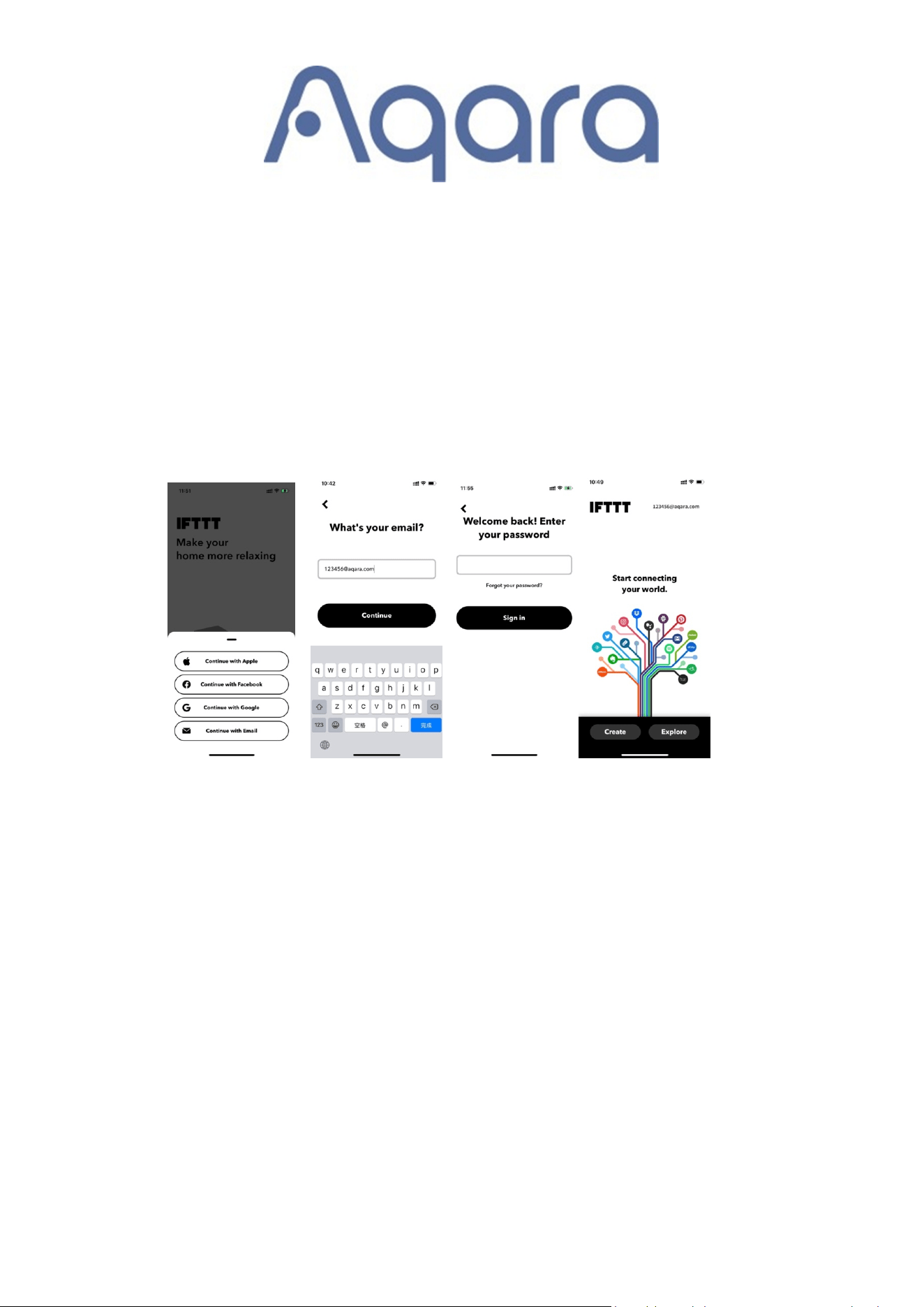
Tap on the IFTTT app to enter the login screen. Enter your email and password. Then
tap “Sign in”. You can also use your Apple, Facebook or Google account. Once the
login is successful, the app screen will look like the picture below.
3. Link Aqara Home account with IFTTT
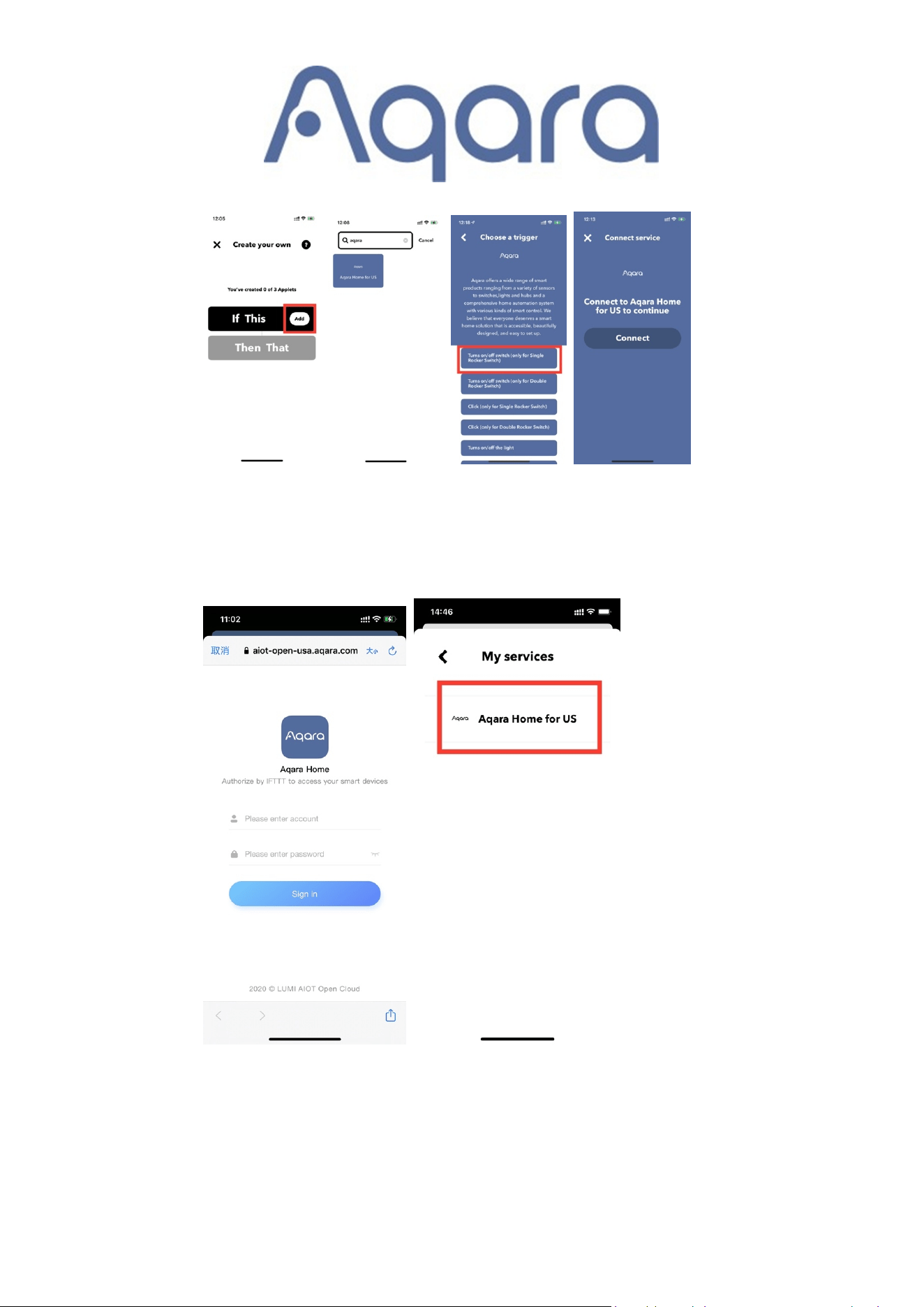
(1) Tap the “Create” tab at the bottom of the screen. Then tap “Add” in the “If This” tab
to enter search page. Type “Aqara” in the search box, select the “Aqara Home for
US” option, then choose one trigger to enter next page. Tap “Connect” to enable
Aqara Home.
Aqara IFTTT Page
2
(2) On the next screen, enter your Aqara Home app account and password, and then
tap on “Sign in” to link the account. Once successful, it will appear on the services
list in “My services”.
4. Create Applets to control your device
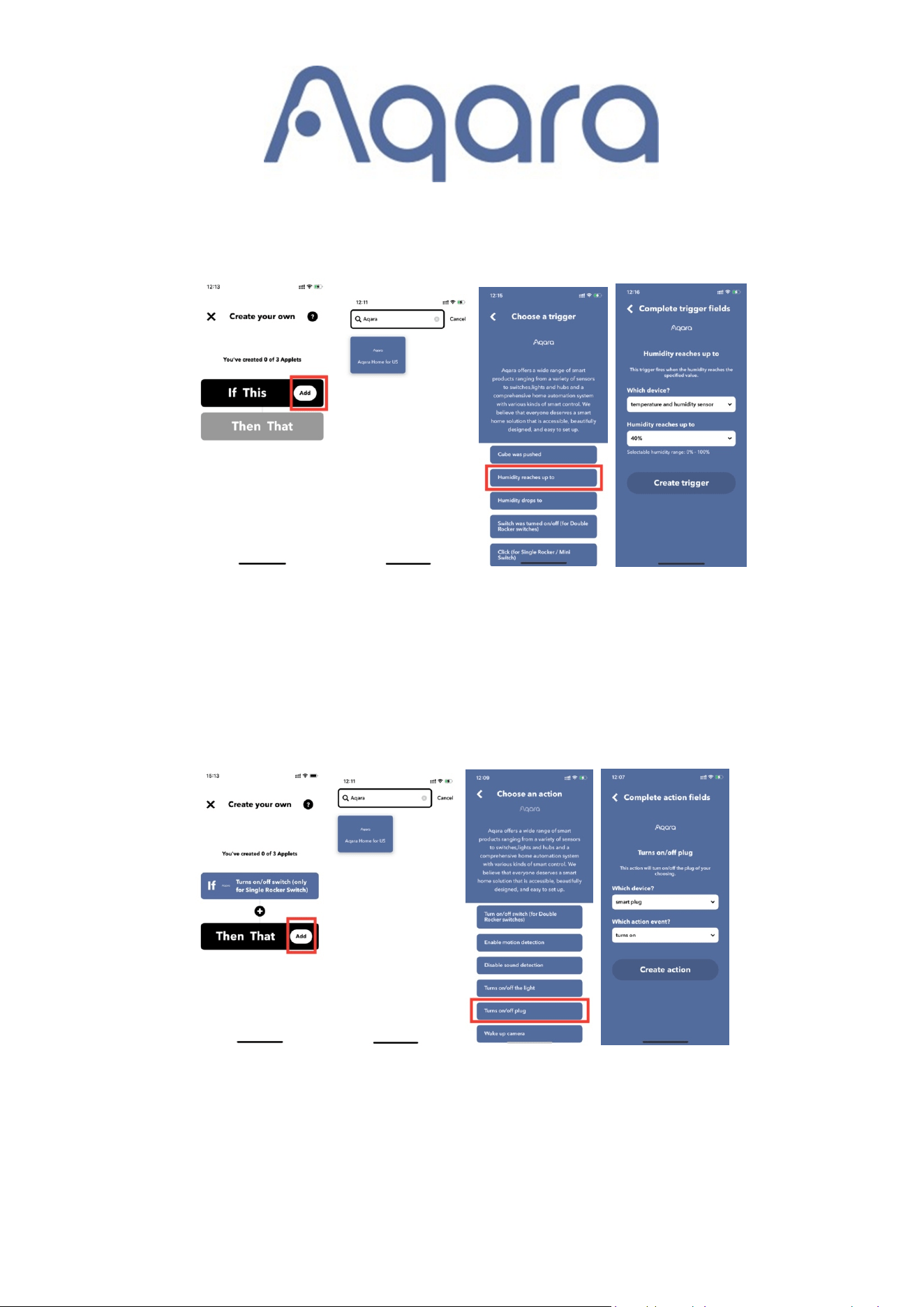
(1) Create “If This” to set the trigger condition
Tap “Add” in “If This” tab to add a condition, enter “Aqara” in search box on the
Aqara IFTTT Page
3
new screen, and select the Aqara Home for US option. After choosing a trigger
corresponding to Aqara Home, select the device and trigger event on the trigger
fields page. Tap “Create trigger” and jump back to the Applet creation page.
Note: the above uses Aqara Home as an example. You can also set other services
as the trigger for “If This”.
(2) Create “Then That” to set the action
After setting the trigger, tap “Add” in “Then That” to set the corresponding action.
Enter “Aqara” in search box on the new screen and select the Aqara Home for US
option. After choosing an action corresponding to Aqara Home, select the device
and action on the action fields page. Tap “Create action” to save the configuration.
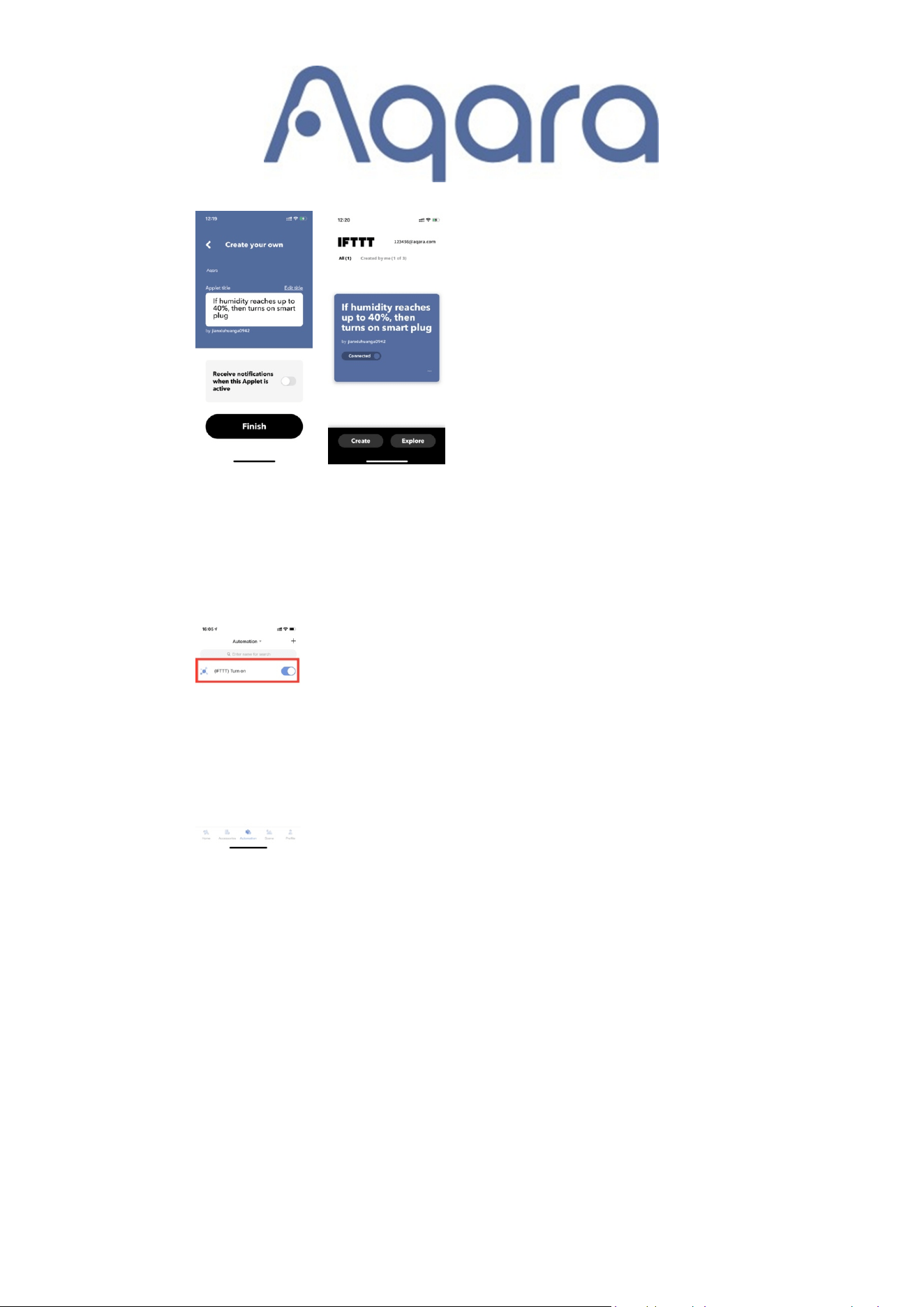
Tap on “Finish” to complete the creation of this Applet and save it automatically.
Aqara IFTTT Page
4
Note:
If you create an Applet in IFTTT, a corresponding automation is created
automatically in the Aqara Home app.
You can delete it at Aqara Home app, but it
won’t affect the Applet in IFTTT. If the trigger fires again, it will create a same
automation again. But if you delete Applet in IFTTT, the corresponding automation
in Aqara Home will be deleted as well.