
1. How to Switch from Thread to Zigbee Protocol?
1) Install the Aqara Home app, and enable Wi-Fi and Bluetooth.
2) Reset the device to factory settings (press any button 10 times continuously) to enter
network setup (first-time device adding will automatically enter networking), which shows
slow-blinking indicator.
3) In the Aqara Home app, tap Add Accessory, scan the Matter code on the button, select
Zigbee under Switch Protocol page. Proceed following the app's instruction.
2. How to Switch from Zigbee to Thread Protocol?
1) Install the Aqara Home app, and enable Wi-Fi and Bluetooth.
2) Reset the device to factory settings (press any button 10 times continuously), then
enter network setup.
3) In the Aqara Home app, tap Add Accessory, keep the phone close to the device, and
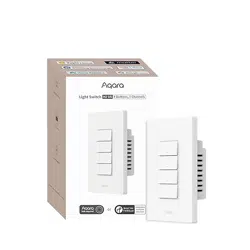
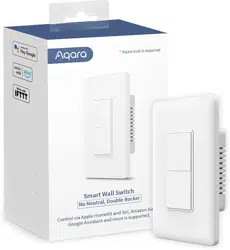
light switch H2 US will show in the app's discovery section (at the top left). Tap the icon
and select Thread under Switch Protocol page. Proceed following the app's instruction.
3.Default Protocol for Switch H2 US?
The default protocol is Thread. Note: Factory reset will not change the current protocol
until you switch to your desired one.
4.How to Identify the Current Communication Protocol?
After restoring factory settings, check the LED indicator light to identify current protocol
during device adding:
Green blinking: Thread protocol
Yellow blinking: Zigbee protocol
Red: Adding Timeout
5.Does Light Switch H2 US support both no-neutral and with neutral wiring?
Yes. Light Switch H2 US supports both no-neutral and with-neutral wiring, regardless of
your home wiring setup. It can be installed easily with no worries about compatibility.
6.How to reset Light Switch H2 US?
When not added to network, it will enter networking mode (green indicator light blinks)
when first powered on.
After adding, to reset the device, you need to:
Double-press any upper button, then press and hold it for 5 seconds until the green
indicator light starts blinking. This indicates that the device is in networking mode. Note
that button with no relay control cannot be used for resetting.
7.How to reset to factory settings?
Press any button 10 times continuously, then the green indicator light starts flashing,
meaning it's in networking mode.
8.Difference between Reset and Restore to Factory Setting?
Resetting will delete all network configurations. Restoring to factory settings will not only
clear all network configurations but also reset all user configurations to factory defaults.
9.How can I distinguish between a live wire, a neutral wire and a load wire in the wall box?
Typically, the live wire is black or red, the neutral wire is white or grey, the ground wire is
green or green with yellow stripe, and the load wire is typically black or brown. It is
recommended to have a professional electrician use specialized tools to perform a test
before installation.
10.Will incorrect wiring cause a short circuit?
If the wiring is incorrect, the wall switch may fail to operate or even short-circuit,

potentially causing damage. Be sure to follow the wiring instructions carefully or consult a
professional electrician for installation.
11.How to connect the Light Switch H2 US to phone?
To use the device with a particular Matter ecosystem (Thread Mode), a Matter Controller
of this ecosystem and a Thread Border Router are required.
1) Double-press any button, then press and hold it for 5 seconds until the green indicator
light starts blinking. This indicates that the device is in networking mode.
2) Open the app that supports Matter, scan the Matter code on the manual or product, or
enter the setup code to add the device to the app.
3) Proceed following the app's instruction.
To use the device in Aqara Home (Thread Mode), an Aqara Hub with border router
function (for example, Hub M3) is required:
1) Double-press any button, then press and hold it for 5 seconds until the green indicator
light starts blinking. This indicates that the device is in networking mode.
2) In the Aqara Home app, tap Add Accessory, choose light switch H2 US. Scan the
Matter code on the manual or product, or enter the setup code to add the device to the
app. Select Thread under Switch Protocol page.
3) Proceed following the app's instruction.
To use the device in Aqara Home (Zigbee Mode), an Aqara Zigbee Hub is required:
1) Double-press any button, then press and hold it for 5 seconds until the yellow indicator
light starts blinking. This indicates that the device is in networking mode.
2) In the Aqara Home app, tap Add Accessory, keep the phone close to the device, and
light switch H2 US will show in the app's discovery section (at the top left). Tap the icon
and select Zigbee under Switch Protocol page.
3) Proceed following the app's instruction.
12.What is the maximum communication distance between the Light Switch H2 US and
hub/border router?
In the case where there is one wall separating the Light Switch H2 US from the
hub/border router, the communication distance can reach 10-20 meters. However, if there
are multiple walls in between, it is recommended to position the devices as close to each
other as possible for optimal communication.
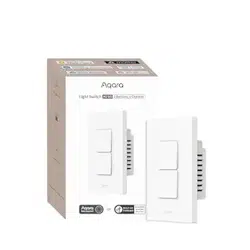
13.What is the maximum distance between the Light Switch H2 US (2 buttons, 1 channel)
and the original switch in a 3-way wiring?
In a 3-way wiring setup, the wiring distance between the new switch and the old switch
can be up to 20 meters. To achieve the best experience, we strongly recommend using
two Aqara Light Switch H2 US units to create a Quick Two-way Control, which offers
greater stability and convenience.
14.Can I use a 3-way Light Switch H2 US (2 Buttons, 1 Channel) as a regular/single pole
switch?
Yes. Only use the L (line wire), L1 (light/load wire), N (neutral wire) terminals, and leave
the TW terminal unused and capped with a wire nut.
15.What’s the difference between a 3-way switch and a single-pole switch?
Single-Pole Switch: Controls one light from one location; typically has L, L1, N, G
terminals.
3-Way Switch: Controls one light from two locations; typically has L, L1, TW, N, G
terminals.
16.Does our switch support wiring smart lights?
YES, but only in with-neutral wiring, and light wattage shall be aligned with device load
requirement.

1)If you want to wire it to Aqara smart light light
Requirements: Zigbee mode (Aqara zigbee hub), with-neutral wiring >> use MARS
tech-Smart Load
2)If you want to wire it to third-party ecosystem's smart light
Requirements: Thread mode (Aqara zigbee hub), with-neutral wiring, Relay
Lock/Decouple Switch Mode >> After decoupling the Light Switch H2 US, it can be
connected to a third-party platform via a Matter Bridge to control third-party smart lights.
17.What types of appliances can the Light Switch H2 US be compatible with?
The Light Switch H2 US is only compatible with lights that meet the power requirements.
We do not recommend connecting loads other than lights.
18.What wattage of lights is required for the Light Switch H2 US to operate normally?
1) When connected to both neutral wire and live wire, no minimum load requirement.
2) When only connected to live wire: Minimums are 5W for energy-saving bulbs, 5W for
LEDs, or 5W for fluorescent bulbs. Lower-quality lights may still flicker or cause issues.
Please choose fixtures carefully.
3) Maximum load requirement:
Incandescent light < 1200w
Energy-saving light < 400w
LED light < 400w
Fluorescent light < 400w
Note: If using an old-style tube lamp with a starter, please replace it with an electronic
starter.
19.What are the dimensions of Light Switch H2 US?
Dimensions: 119 × 74 × 42 mm (4.69 × 2.93 × 1.67 in.)
20.Compatible 1-gang junction box dimensions for Light Switch H2 US?
The dimensions of the AC base of Light Switch H2 US are 70.2×44.0×30.8mm. The
recommended dark box should be longer than 3 inches (75mm), wider than 2 inches
(50.8mm), and deeper than 2-1/8 inches (54mm).
21.How to troubleshoot Bluetooth Transmission Timeout during Thread/Zigbee Protocol
Switching?
If you experience a Bluetooth transmission timeout during protocol switching, try bringing
the device closer to your phone. This should help resolve the issue by ensuring a
stronger connection.