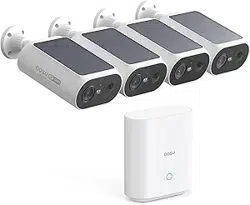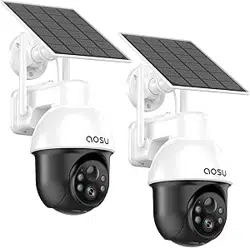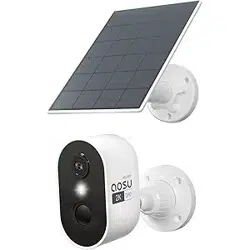

aosu
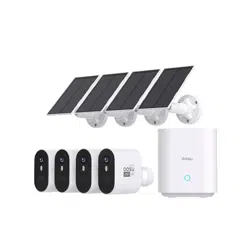
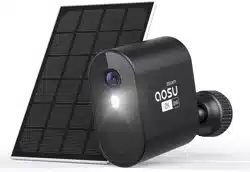
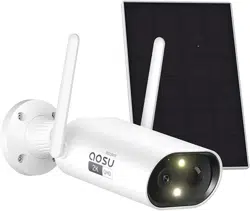
Solar-Powered Wireless Security Camera
一
Quick Start Guide
0 United States: +1-866-905-9950 Mon-Fri 9AM-5PM (PST)
United Kingdom: +44-20-3885-0830 Mon-Fri 9AM-5PM (GMT)
Germany: +49-32-221094692 Mon-Fri 9AM-5PM (CET)
」apan: +81-50-5840-2601 Mon-Fri 9AM-5PM (」ST)

AOSUCare
Hi Customer
Thank you for choosing AOSU security products. We have
always put our customers first and foremost.
There a「e 3 things you should know before using this product:
1. Micro SD Card
If you don't have a Micro SD Card available at home now and
don't want to spend extra time choosing one, please contact us
directly. TIP: the Micro SD Card gotta be formated after inserting
it up.
2. Select 2.4G Wi-Fi
The product only supports 2.4G Wi-Fi, please select 2.4G Wi-Fi
when setting up the app.
3. Select installation location.
Please use your mobile phone to test the coverage of the home
Wi-Fi signal at the planned installation position before installa
tion, so that the product can receive a better signal.
Get all the tutorial videos of using product including but no lim几
to
set up
the
app,
installation and format micro sd card, visit:
aosuli.com
」oin "AOSUCare" today as three ways below to get all of your
problems solved by one-on-one live chat and phone service tech
support.
G United States: +1-866-905-9950 Mon-Fri 9AM-5PM (PST)
United Kingdom: +44-20-3885-0830 Mon-Fri 9AM-5PM (GMT)
Germany: +49-32-221094692 Mon-Fri 9AM-5PM (CET)
Japan: +81-50-5840-2601 Mon-Fri 9AM-5PM
(
」ST
)
@
www.aosulife.com o @aosulife
TABLE OF CONTENTS
01 What's Included
P01
02 Product Overview
P02
03 SettingUptheSystem
P03
04 Mounting the Camera
P04-12
05 Notice
P13-P14
06 Customer Service
P15

What's Included
SolarCam P1 Lite
丛
r,,,,,,,,,m,m,,•o=,
『勹
[111111111111111111•11
它
'
t""""""''"o呻l
[1m1m111m•0�>
Camera
Screw Pack
USB-C Charging
Cable
。 曰 三
Position Sticker
Security Sticker
Quick Start Guide
Solar Panel
邑
e
。
琴
Locking
Solar Panel
Universal Joint
Socket nut
Screw Cap
�
Ill 000
Base
Mounting Screws
and Anchors
-01
一

Product overview
Status LED
Lens
Micro SD Card Slot
Speaker
Antenna
Base bracket
Microphone
Infrared LEDs/Spotlights
PIR Motion Sensor
UTION: Please insert the Micro SD Card according to the direction
shown in the diagram. Micro SD Card might JAM if inserted incorrectly
and device could be damaged.
Micro SD Card Port: Support Micro SD Card r local storage (Max
512GB).
Reset button: Press and hold the button for 3 seconds, and then
the device will be ready to be connected.
Card capacity requirements: 8-512GB.
Read and write speed requirements: class10 level.
File format: FAT32.
-02-
Setting Up the System
Download the Aosu App from the App Store (iOS devices) or
Google Play (Android devices).
Sign up for an Aosu App account, then follow the onscreen
instructions to complete the setup.
-03-
Mounting the Camera
Find a Good Mounting Spot
To find a spot to mount Camera, you need to test wireless
signal strength.
Open the aosu App, go
to Camera Settings> Mounting
Guide.
@ To test the wireless signal strength, take your camera and
phone to the location where you want to mount the camera.
®Move the camera as close to the Wi-Fi Router as possible to
get a better signal.
c,m.,.,
X
Test s;gnal
T血-···-- .... 山'""�""'""
怕'"偏'"�心,心屯,.,田O归归
"•"心"� 同比... �"-
会
�-"没�,....
0 ,,.,�、W虹印�· 炉� 勾
心-···
_
— 04-
Select Height and location
Hang Camera 7-1 Oft (78-118 inches) above the ground. This
height maximizes the detection range of the motion sensor of
Camera. Avoid placing Camera under direct sunlight.
Camera field
of view
I Up
to 32 I
Make sure of the reserving wire length
Reserve 23cm of end wire, fix the bottom base, avoid wire
damage when camera turns.
-05-

Installation instruction of solar panel
1. keep the installation angle of solar panels about 30-45
°
with the
horizontal plane, as shown in the picture below.
2. The installation between the solar panel and the camera is shown in
the following figure {open up the silicone cover at the bottom of the
camera. remove the small center part of the cover, insert the power
cord through the opening and plug it into the USB-C Port and then
close the cover taking up any slack in the power cord from the solar
panel).
Tips r the installation of solar panel
1. When installing in the northern hemisphere, face the panel to the
south, and when installing in the southern hemisphere, face the
panel to the north.
2. Take care to install the solar panel so that the sun is not blocked by
any items such as eaves, trees branches, etc.
-o妒

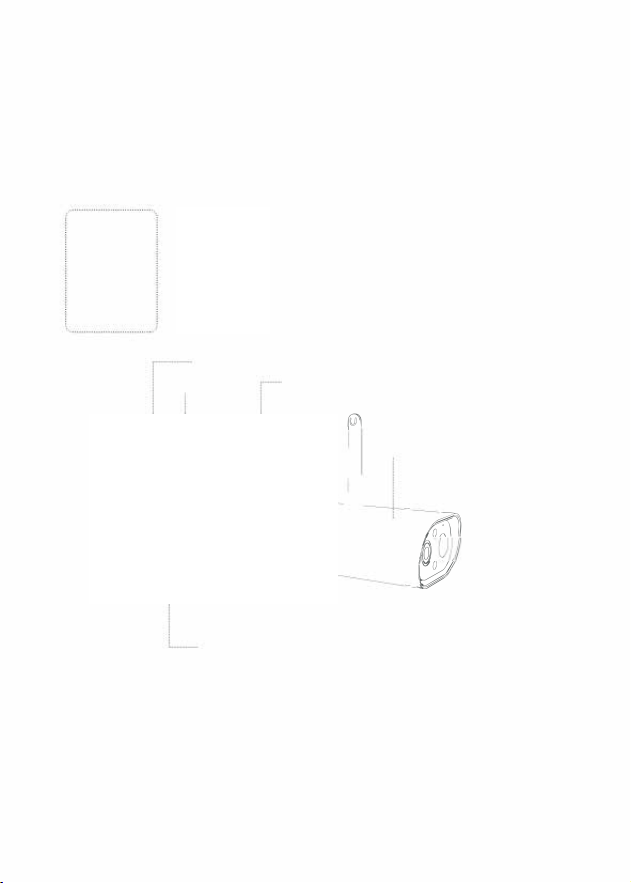
Test the Wi-Fi signal at installation position
Use cell phone to test Wi-Fi signal quality at the installation
position before installing camera, make sure the Wi-Fi router
can provide good W由signal.
-07-
Test the Wi-Fi signal at installation position
1. Dr曲ng according to position sticker, drill bit 15/64"(6 mm).
2. Insert the plugs.
3. Tighten the screws.
What is required:
飞
Power Drill
(not provided)
Sticker
·
··········
W
a
ll
Screws
0
'
I
..
---------
-C
am
er
a
1
J
/,/
`,I\�1
,
3
9
-.
Wall Anchors
-08-
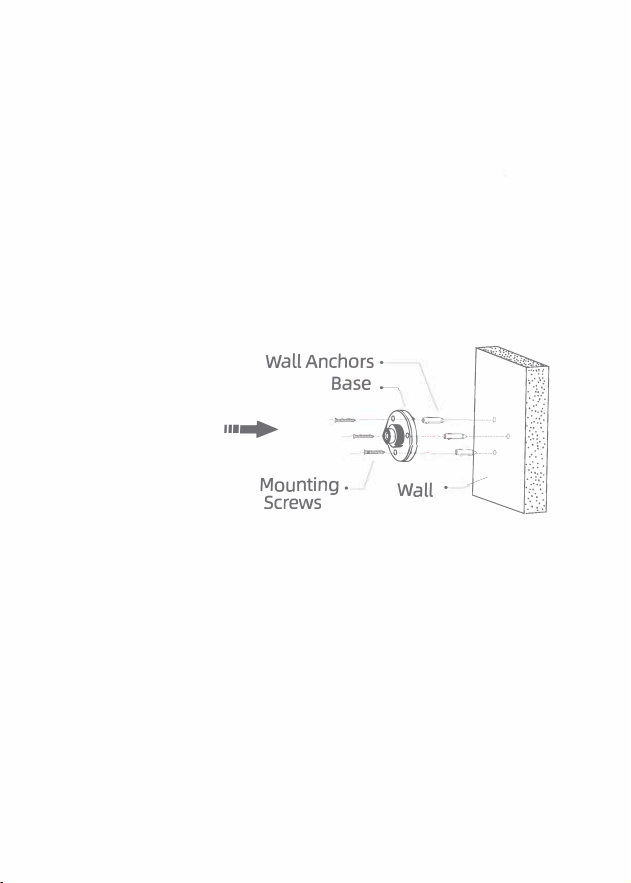
Installation instruction of solar panel
Place Solar Panel in an area with consistent sunlight throughout
the year.It only needs a few hours of direct sunlight each day to
keep you「 camera powered.
The amuont of energy that the solar panel produces is aected
by weather conditions.seasonal changes, geographic loction,etc.
1. Fix the base to your mounting location using the included
screws.If the installation surface is so or unstable,first use a
6.0 drill bit to drill a hole in the wall,then insert the anchor nail
into the hole.and fix thebase with screws.
_
,
.
_
士
l
l
a
=
-
-
a
劝
W
l
.
-
-
l勺
[
9
n
n
A
_`
u
l
o
c
a
wf
M
S
I
,
,
-09-

2. First.install the locking screw cap into the universal joint and
then screw the circular socket nut into the universal joint.
Front
/·L
ockin
g Screw Ca
p
©
..
.
Universal丿oint
@ , Socket nut
@
们
一
气
Back
3. Screw the universal joint into the back of the solar panel.Tighten
it firmly with the attached nut.
...
一10-
4. Screw the locking screw cap into the base.Make sure that the
universal」oint is angled upward.
`
.
.
,
.
Locking Screw Cap
5. When adjusting the solar panel le or right.loosen thelock1ng
screw cap.turn the sleeve rod.and tighten thelocking screw cap
when the panel is in position.
@
Locking Screw Cap
Ill
一11-

@
...
Sleeve Rod
Locking Screw Cap
6. Solar panel's angle can be adjusted up and down up to 90
°
.
Tip: Aer the installation is complete,please check that all locking
mechanisms are tightly secured.
獭
癒
嫩
一12-

Notice
FCC Statement
This device complies with Part 15 of the FCC Rules. Operation is subject
to the following two conditions: (1) this device may not cause harmful
interference, and (2) this device must accept any interference received,
including interference that may cause undesired operation.
Warning: Changes or modifications not expressly approved by the party
responsible for compliance could void the user's authority to operate
the equipment. Note: This equipment has been tested and found to
comply with the limits for a Class B digital device, pursuant to Part 15 of
the FCC Rules. These limits are designed to provide reasonable
protection against harmful interference in a residential installation
This equipment generates uses and can radiate radio frequency ene
「
gy
and, if not installed and used in accordance with the instructions, may
cause harmful interference to radio communications. However, there is
no guarantee that interference will not occur in a particular installation.
If this equipment does cause harmful interference to radio or television
reception, which can be determined by turning the equipment o and
on, the user is encouraged to try to correct the interference by one or
more of the following measures: (1) Reorient or relocate the receiving
antenna. (2) Increase the separation between the equipment and
receiver. (3) Connect the equipment into an outlet on a circuit dierent
from that to which the receiver is connected. (4) Consult the dealer or
an experienced radio/ TV technician for help.
FCC Radio Frequency Exposure Statement
The device has been evaluated to meet general RF exposure require
ments.
The device can be used in fixed/mobile exposure condition. The min
separation distance is 20cm.
一13-

(E
This
product complies with the radio interference require
ments of the European Community.
Declaration of Conformity
Hereby, Aosu declares that this device is in compliance with the
essential requirements and other relevant provisions of Directive
2014/53/EU.
For the declaration of conformity, visit the Web site:https://www.aosu
life.com.
This product can be used across EU member states.
Do not use the Device in the environment at too high or too low
temperature, never expose the Device under strong sunshine or too
wet environment.
The suitable temperature for Camera and accessories is -10
°
C-50
°
C.
RF exposure information: The Maximum Permissible Exposure (MPE)
level has been calculated based on a distance of d=20 cm between the
device and the human body. To maintain compliance with RF exposure
requirement, use product that maintain a 20cm distance between the
device and human body.
For Camera : W由Operating Frequency Range: 2412-2472MHz; W由
Max Output Power: 17.13dBm(EIRP)
卒 This product is designed and manufactured with high quality
妇9 materials and components, which can be recycled and
reused.
冗:。二;� 三三:�:
。
气了三产三尸�ii了s
。
:三;;
��:
helps protect natural resources, human health and the
- environment For more information on disposal and recycling
of this product, contact your local municipality,
disposal service, or the shop where you bought this product.
一14-
Customer Service
Warranty
12-month limited warranty(The actual warranty period shall
be implemented according to the requirements of local laws
and regulations)
Email Us
Customer Support: [email protected]
Call Us
United States: +1-866-905-9950 Mon-Fri 9AM-5PM (PST)
United Kingdom: +44-20-3885-0830 Mon-Fri 9AM-5PM(GMT)
Germany: +49-32-221094692 Mon-Fri 9AM-5PM(CET)
Japan: +81-50-5840-2601 Mon-Fri 9AM-5PM (」ST)
e
e
f
f
le
i
l
u
uf
.,
sl
s
。
o
u
s
a
a
@
。
a
@
@
k
e
b
。
eu
。
t
T
b
u
et
wo
c
Y
a
FT
ooo
一15-

ISED Statement
‐ English: This device complies with Industry Canada license‐
exempt RSS standard(s). Operation is subject to the following two
conditions: (1) This device may not cause interference, and (2) This
device must accept any interference, including interference that may
cause undesired operation of the device. The digital apparatus
complies with Canadian CAN ICES‐3 (B)/NMB‐3(B).
‐ French: Le présentappareilestconforme aux CNR d'Industrie
Canada applicables aux appareils radio exempts de licence.
L'exploitationestautorisée aux deux conditions suivantes: (1)
l'appareil ne doit pas produire de brouillage, et (2) l'utilisateur de
l'appareildoit accepter tout brouillageradioélec triquesubi, mêmesi
le brouillageest susceptible d'encompromettre le fonctionnement.
Radio Frequency Exposure Statement
The device has been evaluated to meet general RF exposure
requirements. The device can be used in fixed/mobile exposure
condition. The min separation distance is 20cm.

aosu