
PC
Technical Whitepaper
HP P
C
Commercial
BIOS (UEFI) Setup
Administration Guide
For
Commercial Platforms 2021 - 2025 with HP BIOS
July
2025
91
9946-010


HP PC Commercial BIOS (UEFI) Setup
July 2025
919946-
010
© Copyright
2025 HP Development Company, L.P. Table of contents
3
Table of contents
1 Abstract ..................................................................................................................................7
2 Introduction ...........................................................................................................................8
2.1 Supported models –2021, 2022, 2023, 2024 and 2025 (UEFI only) ............................................................... 8
2.2 New in 2021 .................................................................................................................................................. 12
2.3 New in 2022 .................................................................................................................................................. 12
2.4 New in 2023 .................................................................................................................................................. 12
2.5 New in 2024 .................................................................................................................................................. 12
2.6 New in 2025 .................................................................................................................................................. 12
3 F10 Main Menu .................................................................................................................... 14
3.1 Main Menu ..................................................................................................................................................... 15
3.2 BIOS Event Log Menu .................................................................................................................................... 16
3.3 Update System BIOS Menu ............................................................................................................................ 16
3.4 BIOS Update Preferences Menu ..................................................................................................................... 18
3.5 Network Configuration Settings Menu ........................................................................................................... 19
3.6 Change Date and Time .................................................................................................................................. 20
3.7 System IDs Menu ........................................................................................................................................... 20
4 Security Menu ..................................................................................................................... 21
4.1 Password Policies Menu ................................................................................................................................ 25
4.2 Administrator Authentication Policies Menu .................................................................................................. 26
4.3 Trusted Platform Module (TPM) Embedded Security Menu ........................................................................... 26
4.4 BIOS Sure Start Menu .................................................................................................................................... 27
4.5 Secure Boot Configuration Menu ................................................................................................................... 30
4.6 Secure Platform Management (SPM) ............................................................................................................ 32
4.7 Smart Cover Menu ......................................................................................................................................... 34
4.8 Hard Drive Utilities Menu ............................................................................................................................... 34
4.9 DriveLock/Automatic DriveLock Menu ........................................................................................................... 36
4.10 SSD Cover Menu .......................................................................................................................................... 37
5 Advanced Menu ................................................................................................................... 38

HP PC Commercial BIOS (UEFI) Setup
July 2025
919946-
010
© Copyright
2025 HP Development Company, L.P. Table of contents
4
5.1 Advanced Menu ............................................................................................................................................. 38
5.2 Display Language Menu ................................................................................................................................ 40
5.3 Scheduled Power-On Menu ........................................................................................................................... 40
5.4 Boot Options Menu ........................................................................................................................................ 41
5.5 HP Sure Recover ............................................................................................................................................ 42
5.6 System Options Menu ................................................................................................................................... 44
5.7 Built-in Device Options Menu ......................................................................................................................... 50
5.8 Port Options Menu ......................................................................................................................................... 55
5.9 Network Settings ........................................................................................................................................... 57
5.10 Power Management Options Menu ............................................................................................................. 58
5.11 Remote Management Options Menu (Intel Only) ......................................................................................... 60
5.12 MAC Address Pass Through (Notebook Only) .............................................................................................. 61
5.13 Thunderbolt™ Options ................................................................................................................................ 61
5.14 Remote HP PC Hardware Diagnostics Settings ............................................................................................ 62
6 UEFI Drivers ......................................................................................................................... 63
7 Features Not in F10 Menu ................................................................................................... 64
8 Computer Notifications ....................................................................................................... 65
8.1 Introduction ................................................................................................................................................... 65
8.2 Blink and Beep Codes .................................................................................................................................... 65
8.3 Toast (Pop-Up) Messages ............................................................................................................................. 66
9 Appendix A: UEFI ................................................................................................................. 67
9.1 What is UEFI? ................................................................................................................................................. 67
9.2 Introduction ................................................................................................................................................... 67
9.3 Benefits of UEFI ............................................................................................................................................. 67
9.4 Overview of UEFI Boot Process ...................................................................................................................... 67
9.5 The UEFI Forum ............................................................................................................................................. 68
10 Appendix B: Firmware Update .......................................................................................... 69
10.1 Updating System Firmware with the HP Firmware Update and Recovery Application ................................. 69
10.2 Firmware Update and Recovery Documentation ......................................................................................... 69
10.3 USB Recovery Key Creation ......................................................................................................................... 69
10.4 HpFirmwareUpdRec Log File ....................................................................................................................... 71

HP PC Commercial BIOS (UEFI) Setup
July 2025
919946-
010
© Copyright
2025 HP Development Company, L.P. Table of contents
5
List of tables
Table 1 Notebook Generations 2021 - 2025 (UEFI only) ..............................................................................8
Table 2 Desktop Generations 2021 - 2025 (UEFI only) .............................................................................. 10
Table 3 Main Menu features ........................................................................................................................... 15
Table 4 BIOS Event Log Menu features ........................................................................................................ 16
Table 5 Update System BIOS Menu features ............................................................................................... 17
Table 6 BIOS Update Preferences Menu features ....................................................................................... 18
Table 7 Network Configuration Settings Menu features ............................................................................ 19
Table 8 Change Date and Time ...................................................................................................................... 20
Table 9 System IDs Menu features ............................................................................................................... 20
Table 10 Security Menu features ................................................................................................................... 22
Table 11 Password Policies Menu features ................................................................................................. 25
Table 12 Password Policies Menu features ................................................................................................. 26
Table 13 TPM Embedded Security Menu features ...................................................................................... 27
Table 14 BIOS Sure Start Menu features ...................................................................................................... 28
Table 15 Secure Boot Menu features ........................................................................................................... 30
Table 16 Secure Platform Management Menu features ............................................................................ 32
Table 17 Smart Cover Menu features ........................................................................................................... 34
Table 18 Hard Drive Utilities Menu features ................................................................................................ 34
Table 19 DriveLock Menu features................................................................................................................ 36
Table 20 SSD Cover Menu features ............................................................................................................... 37
Table 21 Advanced Menu features ................................................................................................................ 38
Table 22 Display Language Menu features .................................................................................................. 40
Table 23 Scheduled Power-On Menu features ............................................................................................ 40
Table 24 Boot Options Menu features .......................................................................................................... 41
Table 25 HP Sure Recover .............................................................................................................................. 42
Table 26 System Options Menu features ..................................................................................................... 44
Table 27 Built-in Device Options Menu features ......................................................................................... 50
Table 28 Port Options Menu features ........................................................................................................... 55
Table 29 Network Settings Options Menu features .................................................................................... 57
Table 30 Power Management Options Menu features ............................................................................... 58

HP PC Commercial BIOS (UEFI) Setup
July 2025
919946-
010
© Copyright
2025 HP Development Company, L.P. Table of contents
6
Table 31 Remote Management Options Menu features ............................................................................ 60
Table 32 MAC Address Pass Through Menu features ................................................................................. 61
Table 33 Thunderbolt Options Menu features............................................................................................. 62
Table 34 Remote HP PC Hardware Diagnostics Features .......................................................................... 62
Table 35 Features not in F10 Menu .............................................................................................................. 64
Table 36 Computer notifications ................................................................................................................... 65
Table 37 Pop-up messages ........................................................................................................................... 66
Table 38 Custom logo support: command-line usage ............................................................................... 73

HP PC Commercial BIOS (UEFI) Setup
July 2025
919946-
010
© Copyright
2025HP Development Company, L.P. 1 Abstract
7
1 Abstract
HP redesigned the 2015 and later generations of BIOS to support the requirements of the latest microprocessors and operating
systems. HP took this opportunity to create a new BIOS architecture based on the UEFI specification version 2.4, with a common set
of core modules and capable of supporting both notebook and desktop models. Now HP notebooks and HP desktops models using
the 2.7B generation of BIOS will have a similar look and feel for the (F10) setup menu, more shared WMI strings, and more shared
features.

HP PC Commercial BIOS (UEFI) Setup
July 2025
919946-
010
© Copyright
2025HP Development Company, L.P. 2 Introduction
8
2 Introduction
This whitepaper provides detailed information about features adjusted through the BIOS setup menu, which is accessible during
system boot-up by using the ‘F10’ function key. In addition, the sections on computer notifications provide an explanation for the
LED blink codes and screen messages that may occur during the early part of boot-up.
For decades, HP has provided an industry-leading level of built-in customer value through internally developed system firmware
(BIOS). Current BIOS designs use common, publicly available UEFI core functions as a starting point extended with unique HP
features and adapted for each system’s unique hardware, operating system, and software requirements. The BIOS also exposes
and provides the interfaces required to use unique firmware and hardware-based HP professional innovations such as HP Sure
Start, HP Sure Run, HP Sure Admin, HP Sure Recover, and HP Wolf Security products.
This document has been updated to reflect new and updated features in the HP BIOS, introduced in 2025. Some of the features in
the later platforms are not supported in earlier models, and some older settings may be deprecated in newer models. Many of the
features and settings are dependent on specific hardware or design elements that are not present on every model. Therefore this
document describes the superset of BIOS settings across the portfolio of products listed, and not all current generation products
support all the BIOS features described here.
2.1 Supported models –2021, 2022, 2023, 2024 and 2025 (UEFI only)
The first set of chapters below – Chapters 3 through 5 – applies to the most recent HP commercial-grade PC products.
Commercial-grade means products designed to meet the demanding security and manageability requirements of national,
regional, and local government agencies, schools, the military, international financial institutions, and retail sales companies. The
models covered in this first section only support UEFI based operating systems. There is no support for legacy DOS, Windows, or
Linux configurations in the products listed below:
Table 1 Notebook Generations 2021 - 2025 (UEFI only)
Notebook Platforms
2025
Model Names
2021
2022
2023
2024
2025
Processor
UEFI Specification supported: 2.7 2.7 2.7 2.7 2.9
HP Elitebook 860 8 G1i 16 G9 G10 G11 G1 Intel
HP Elitebook 850 G8 Intel
HP Elitebook 840 8 G1i 14 G8 G9 G10 G11 G1 Intel
HP Elitebook 830 8 G1i 13 G8 G9 G10 G11 G1 Intel
HP Elitebook 865 8 G1a 16 G9 G10 G11 G1 AMD
HP Elitebook 855 G8 AMD
HP Elitebook 845 8 G1a 14 G8 G9 G10 G11 G1 AMD
HP Elitebook 835 8 G1a 13 G8 G9 G10 G11 G1 AMD
HP Elitebook 660 6 G1i 16 G11 G1 Intel
HP Probook 650 G8 G9 G10 Intel

HP PC Commercial BIOS (UEFI) Setup
July 2025
919946-
010
© Copyright
2025HP Development Company, L.P. 2 Introduction
9
HP Elitebook (Probook G8) 640 6 G1i 14 G8 G9 G10 G11 G1 Intel
HP Elitebook (Probook G8) 630 6G1i 13 G8 G9 G10 G11 G1 Intel
HP Elitebook 665 8 G1a 16 G9 G10 G11 G1 AMD
HP Probook 655 G8 AMD
HP Elitebook (Probook G8) 645 6 G1a 14 G8 G9 G10 G11 G1 AMD
HP Elitebook (Probook G8) 635 6 G1a 13 G8 G9 G10 G11 G1 AMD
HP ProBook 635 Aero G8 AMD
HP Elitebook 1040 14
X G1i
X G1a
G9 G10 G11 G1 Intel/AMD
HP Elitebook x360 1040 Flip X G1i G8 G9 G10 G11 G1 Intel
HP Elitebook x360 1030 G8 Intel
HP Elitebook x360 830 Flip 8 G1i 13 G8 G9 G10 G11 G1 Intel
HP Elitebook
Folio 13.5 2-
in-1
G3 Intel
HP Elitebook Dragonfly
Max,
G2
G3 G4 Intel
HP Elitebook X2 G8 Intel
HP Probook 460 4 G1i G11 G1 Intel
HP Probook 450 G8 G9 G10 Intel
HP Probook 440 4 G1i G8 G9 G10 G11 G1 Intel
HP Probook 430 G8 Intel
HP Probook 460 4 G1iR G11 G1 Intel
HP Probook 440 4 G1iR G8 G9 G10 G11 G1 Intel
HP Probook 465 4 G1a 16 G11 G1a AMD
HP Probook 455 G8 G9 G10 AMD
HP Probook 445 4 G1a 14 G8 G9 G10 G11 G1 AMD
HP Probook x360 435 G8 G9 G10 AMD
HP Probook
X360 Fortis
11
Fortis Flip G1i
11
G10 G11 G1 Intel
HP Probook Fortis 14 G9 G10 Intel
HP Zbook
Firefly 14,
16, 15
8 G1i 16
8 G1 i/a 14
G8 G9 G10 G11 G1 Intel/AMD
HP Zbook
Fury 15, 16,
17
Fury G1i 16/18 G8 G9 G10 G11 G1 Intel
HP Zbook Studio G8 G9 G10 Intel
HP Zbook Power X G1i G8 G9 G10 G11 G1 Intel
HP Zbook Power G10 G11 AMD
HP ZHAN 66 Pro 15 Intel
HP ZHAN 66 Pro 14 G4 G5 Intel

HP PC Commercial BIOS (UEFI) Setup
July 2025
919946-
010
© Copyright
2025HP Development Company, L.P. 2 Introduction
10
HP ZHAN 66 Pro 13 Intel
HP ZHAN 66 Pro A 14 G4 G5 AMD
Table 2 Desktop Generations 2021 - 2025 (UEFI only)
Platforms
Series
Chassis
2021
2022
2023
2024
2025
Processor
UEFI Specification supported: 2.7 2.7
2.7 2.7B 2.8
HP EliteDesk 800
TWR, SFF, DM
G8
Intel
HP Elite 800
Tower, SFF, Mini
G9 G9 R G9 P Intel
HP Elite 880
Tower
G9 G9 R G9 P Intel
HP EliteDesk 8
Tower, SFF,
Mini G1i Intel
HP EliteDesk 8
Tower
G1i E Intel
HP EliteOne
800
AiO
G8 Intel
HP EliteOne
840, 870
AiO
G9 G9 R G9 P Intel
HP EliteStudio 8
23.8", 27" AiO
G1i Intel
HP EliteDesk
805
SFF, DM
G8 AMD
HP Elite 805
Mini
G8 AMD
HP Elite 805
SFF
G9 AMD
HP EliteDesk 8
Mini
G1a (AI) AMD
HP Elite 600
Tower, SFF, Mini
G9 G9 R Intel
HP Elite 680
Tower
G9 Intel
HP Pro 400
Tower, SFF, Mini
G9 G9 R G9 P Intel
HP Pro 480
Tower
G9 G9 R G9 P Intel
HP ProDesk 4
Tower, SFF, Mini
G1i Intel
HP ProDesk 4
Tower
G1i E Intel
HP ProOne 440
AiO
G9 G9 R G9 P Intel
HP ProStudio 4
23.8 AiO
G1i Intel
HP ProDesk 405
SFF, DM
G8 AMD
HP Engage Go
10" Mobile
X Intel
HP Engage Go
13.5" Convertible
X Intel
HP Engage Flex
Mini
X G2 Intel
HP Engage
Flex Pro,
Pro C
SFF
G2 Intel
HP Engage One Pro
15.6", 19.5", 23.8"
AiO
X G2 Intel

HP PC Commercial BIOS (UEFI) Setup
July 2025
919946-
010
© Copyright
2025HP Development Company, L.P. 2 Introduction
11
Workstation Platforms
2025 Model Names
2020
2021
2022
2023
2025
Processor
UEFI Specification supported: 2.7 2.7 2.7 2.7 2.8
Z2 Tower, SFF, Mini Z2 G1i G5 G8 G9 G1 Intel
Z2 Mini Z2 G1a G1 AMD
Z4R 1U Rack G4 G5 Intel Xeon
Z4 Tower G4 G5 Intel Xeon
Z4 X Tower G4 G5 Intel, Core I
Z6 Tower G4 G5 Intel Xeon
Z6 A Tower G5 AMD
Z8 Tower G4 G5 Intel Xeon
Z8 Fury Tower G5 Intel Xeon

HP PC Commercial BIOS (UEFI) Setup
July 2025
919946-
010
© Copyright
2025HP Development Company, L.P. 2 Introduction
12
2.2 New in 2021
This is a sampling of the new features and functionalities introduced in 2021:
• Introduced the HP Cloud Managed and Remote Device Management settings.
• Clear BIOS Passwords on RTC Battery Removal
NOTE: Some features are platform dependent.
2.3 New in 2022
This is a sampling of the new features and functionalities introduced in 2022:
• HP Sure Recover Failover settings
• Virtualization Based BIOS Protection
• HP Camera Privacy Key
• Remote Device Management
• Clear BIOS Passwords on RTC Battery Removal
• Prompt for DriveLock Password on OS Restart
NOTE: Some features are platform dependent.
2.4 New in 2023
This is a sampling of the new features and functionalities introduced in 2023:
• Network Boot TFTP Window Size
• Prompt for DriveLock Password on OS Restart
• Remove TILE Airplane Mode
NOTE: Some features are platform dependent.
2.5 New in 2024
This is a sampling of the new features and functionalities introduced in 2024:
• Firmware Lock
• USB Audio Offload
• Intelligent Hibernate
• BIOS Update Credential Policy
• Motion Sensing Cool Mode (for Mobile Workstations / ZBook)
NOTE: Some features are platform dependent.
2.6 New in 2025
This is a sampling of the new features and functionalities introduced in 2025:
• Network TCP Buffer Size (Feature Update)
• Charger Ship Mode (New)
• No POP on warm reboot

HP PC Commercial BIOS (UEFI) Setup
July 2025
919946-
010
© Copyright
2025HP Development Company, L.P. 2 Introduction
13
• HP Secure Erase update (Feature Update)
• Pluton Setting (New)
• BIOS Update Credential Policy (Updated)
• Added table for MWKS and DTWKS platform support
NOTE: Some features are platform dependent.

HP PC Commercial BIOS (UEFI) Setup
July 2025
919946-
010
© Copyright
2025HP Development Company, L.P. 3 F10 Main Menu
14
3 F10 Main Menu
The top-level tabs in BIOS Setup are:
• Main (chapters 3),
• Security (chapters 4),
• Advanced (chapters 5), and
• UEFI Drivers (chapter 9).
Each chapter includes a diagram of the first level menu and tables listing and describing the features in each menu or submenu.
The tables include the following sections:
Feature
This is the name of the feature as it appears in the Setup menu. An underlined feature or one prefaced with a box shows how it
appears in the menu. In a few cases, a feature has been renamed from one generation to the next.
Type
Features can be settings, actions, another menu, or display-only settings. Most of the features by far are settings. A setting is a
system value that you can modify, using an ‘enable/disable’ check box, a drop-down selection list, or a text entry box.
Description
If the feature is a setting with a drop-down box, then the choices are listed. If the feature is new or has changed its name or
location from the 2014 notebooks or desktops, then the description references or includes its previous name and location. The
notation to describe the location indicates the menus that the user must navigate through to access the feature. For example:
Menu 1 > Menu 2 > Feature X indicates that to access Feature X, the user navigates through Menu 1 to Menu 2.
Default
For features that are settings, this column specifies the factory default setting.
Notes
Some features are not available for all types of models. The notes describe when a feature is Intel only, AMD only, notebook only,
desktop only, or other dependencies.
Some actions require a reboot or physical presence. Physical presence is a menu that requires a human response to validate that a
person is physically present before the action is completed. Actions that require physical presence are generally security-sensitive
changes.
HP PC Commercial BIOS (UEFI) Setup
July 2025
919946-
010
© Copyright
2025HP Development Company, L.P. 3 F10 Main Menu
15
Main
Security
Advanced
UEFI Drivers
HP
Computer Setup
System Information
System Diagnostics
BIOS Event Log
Update System BIOS
Change Date and Time
System IDs
Replicated Setup
Save Custom Defaults
Apply Custom Defaults and Exit
Apply Factory Defaults and Exit
Ignore Changes and Exit
Save Changes and Exit
3.1 Main Menu
The following table describes the features in the Main menu.
Table 3 Main Menu features
Feature
Type
Description
Default
Notes
System Information Menu System information, such as serial
number, model number, CPU type,
and memory configuration.
System Diagnostics Menu Application to run diagnostic tests
on your system, such as start-up
test, run-in test, memory test, and
hard disk test.
BIOS Event Log Menu Allows displaying, saving, and
clearing the Event Log.
Update System BIOS Menu Update system firmware from
FAT32 partition on the hard drive, a
USB disk-on-key, or the network.
Change Date and Time Menu Configure the system Date and
Time settings.

HP PC Commercial BIOS (UEFI) Setup
July 2025
919946-
010
© Copyright
2025HP Development Company, L.P. 3 F10 Main Menu
16
Feature Type Description Default Notes
System IDs Menu Identification strings like Asset
Tracking Number and Ownership
Tag, that are assigned by an
enterprise to track the system.
Replicated Setup Action Save your current BIOS settings,
and later restore your setting from
this file.
Save Custom Defaults Action As an alternative to factory default
settings, create custom default
values for all but the security
settings. It is not possible to create
custom default values for security
settings.
Reboot
required
Apply Custom Defaults and
Exit
Action Set all but the security settings to
your custom default values
(initially these are the same as
factory defaults).
Apply Factory Defaults and
Exit
Action Set all but the security settings to
factory values. See
Error!
Reference source not found.
to set
security settings to factory values.
Ignore Changes and Exit Action Exits F10 Setup without saving any
changes made during current
session.
Save Changes and Exit Action Exits F10 Setup and saves all
changes made during the current
session.
3.2 BIOS Event Log Menu
This submenu under the Main menu manages the saved log of select BIOS events and alerts.
Table 4 BIOS Event Log Menu features
View BIOS Event Log Action Immediately displays a list of events, alerts, or warnings
that have been logged since the log was last cleared.
Export to USB Key Action Immediately saves a file named BiosEventLog.txt
containing the log entries to an inserted USB storage
device.
Clear BIOS Event Log on Next
Boot
Setting When checked, the BIOS clears the event log on Save and
Exit and returns the setting to Unchecked state.
Unchecked
3.3 Update System BIOS Menu
This submenu under the Main menu provides information about the current system firmware, settings, these control updates, the
ability to check for updates over the internet or on the local network, and the ability to update system firmware from a FAT32
partition on the hard drive or a USB disk-on-key.

HP PC Commercial BIOS (UEFI) Setup
July 2025
919946-
010
© Copyright
2025HP Development Company, L.P. 3 F10 Main Menu
17
For the BIOS flash to succeed, do not remove power or turn off the system during any phase of the process. The following
description of the BIOS flash phases helps you avoid interrupting the process. The BIOS flash proceeds in four phases:
1. The system displays a progress bar. When progress is 100%, the system reboots. This is the initial BIOS flash. Because
the system must reset power completely, there might be a delay of 10 to 15 seconds before power returns to the
system.
2. The screen may be black initially and an LED may be on and blinking. This will occur only if the boot block needs to be
updated. On some models, video cannot be displayed during this phase, so the beep/blink code indicates that the system
BIOS is flashing normally. Other models may display ‘Step 2 of the BIOS update is in progress’ during this phase. The
computer will reboot again, and this might take an additional 10 to 15 seconds to complete.
3. The message “Final step of the BIOS update is in progress” is displayed.
4. The screen is black for a short period, and then the OS starts. The BIOS update is now complete.
Table 5 Update System BIOS Menu features
Feature Type Description Default Notes
Current System BIOS
Version
Display
Only
Shows BIOS version and BIOS family
Current BIOS Release
Date
Display
Only
MM/DD/YYYY
Installation Date of
Current BIOS
Display
Only
MM/DD/YYYY
Most Recent Update
Check
Display
Only
Check the Network for
BIOS Updates
(or)
Check HP.com for BIOS
Updates
Action Updates the system BIOS by using an
image stored on hp.com or another
source defined in the BIOS Update
Preferences menu.
When BIOS Source is HP.com, then the
feature appears as Check HP.com for
BIOS Updates.
Reboot required
BIOS Update Credential
Policy
Setting
When using BIOS Administrator
Credential, 3 options are available to
determine the credential requirement
when performing a BIOS Upgrade or
Downgrade:
• Never Require Credentials
• Require Credentials on Downgrade
Only
• Always Require Credentials
The settings are displayed in a Least-
Secure to Most-Secure sequence in F10
and the public WMI.
*Require Credentials on
Downgrade Only
G9, and newer
NB, DT and
DTWKS are
supported.
Lock BIOS version
Setting
When checked, disallows BIOS updates.
Unchecked

HP PC Commercial BIOS (UEFI) Setup
July 2025
919946-
010
© Copyright
2025HP Development Company, L.P. 3 F10 Main Menu
18
Native OS Firmware
Update Service
Setting
When selected, the PC will allow BIOS
and Firmware updates using Microsoft
Windows Updates.
When deselected, the PC will block BIOS
and Firmware updates using Microsoft
Windows Updates.
Checked
BIOS Rollback Policy Setting Behavior when attempting to roll back
to a previous BIOS version. The setting
can be set to Unrestricted Rollback to
older BIOS or Restricted Rollback to
older BIOS.
Unrestricted Rollback to
older BIOS
Minimum BIOS version
Setting Defaults to current version. This setting
is grayed out unless restricted rollback
is selected
Allow BIOS Updates
using a Network
Setting When checked, automatic BIOS updates
are allowed through the network on a
scheduled basis.
Checked
BIOS Update Preferences Menu Menu with network BIOS update
settings such as source, actions when
an update is available, and the
frequency to check for updates.
Network Configuration
Settings
Menu Configure the network connection to the
server that is the host for your system
firmware updates.
Update System and
Supported Device
Firmware Using Local
Media
Action Updates the system BIOS by using files
stored on local media such as the hard
drive or a USB drive formatted as FAT32
or EFI system partition. The files needed
to update the system can be saved to
the hard drive or USB device using the
HP Firmware Update & Recovery app.
Reboot required
3.4 BIOS Update Preferences Menu
The Update System BIOS submenu provides options for updating to the latest system firmware, as well as configuring where to
check for system firmware updates, what to do when an update is available, and the frequency to check for them.
Table 6 BIOS Update Preferences Menu features
Feature
Type
Description
Default
Notes
Check for Update on Next
Reboot
Action When checked, check if an updated BIOS is available during the
next boot. This feature is only necessary from a WMI call. From
the F10 Setup menu, use the feature Main > Update System
BIOS > Check the Network for BIOS Updates that checks for
updates without a reboot.
Unchecked Reboot
required

HP PC Commercial BIOS (UEFI) Setup
July 2025
919946-
010
© Copyright
2025HP Development Company, L.P. 3 F10 Main Menu
19
Feature Type Description Default Notes
BIOS Source Setting Select the source URL for BIOS updates
• HP.com
•
Custom URL
HP.com
Edit Custom URL
Setting
When not using HP.com, define the custom URL here.
Automatic BIOS Update
Setting
Setting
Defines how automatic updates behave. The following settings
are possible:
• Do not update
• Check for BIOS updates automatically, but let me decide
whether to install them
• Download and install normal BIOS updates automatically
• Download and install important BIOS updates automatically
• Download and install normal BIOS update automatically
without prompts
• Download and install important BIOS updates automatically
without prompts
Do Not
Update
BIOS Update Frequency Setting Sets the frequency of checks to the BIOS update server. If a
newer version of BIOS has been made available on the network
server, the system will prompt to update the BIOS.
• Daily
• Weekly
• Monthly
Monthly
3.5 Network Configuration Settings Menu
The System BIOS submenu configures the network connection to the server that is the host for the system firmware updates.
Table 7 Network Configuration Settings Menu features
Feature
Type
Description
Default
Notes
Proxy Server Setting When checked, enables the use of a proxy server. Unchecked
Edit Proxy Server Setting Specify the Proxy Server Address and the Port Number through the
commonly used <server>:<port> notation.
Test Network Connection Action Check the network connection using current BIOS update
configuration.
IPv4 Configuration Setting The following settings are configurable:
• Automatic
• Manual
Automatic
IPv4 Address
Setting
When IPv4 settings are manual, setup for a static IPv4 address.
IPv4 Subnet Mask Setting When IPv4 settings are manual, configure a valid IPv4 address for
subnet mask.
IPv4 Gateway Setting When IPv4 settings are manual, configure a valid IPv4 address for
gateway.
DNS Configuration Setting Configure a list of DNS addresses. The following settings are
possible:
Automatic

HP PC Commercial BIOS (UEFI) Setup
July 2025
919946-
010
© Copyright
2025HP Development Company, L.P. 3 F10 Main Menu
20
Feature Type Description Default Notes
• Automatic
• Manual
DNS Addresses Setting When DNS configuration is manual, configure a comma-separated
list of DNS addresses.
Data transfer timeout Setting Set data transfer timeout in seconds. Allowed value ranges from 0 to
65535 seconds.
100
Force HTTP no-Cache Setting When checked, disables HTTP caching. This means that caching in
upstream proxies is disabled as well, which guarantees that the BIOS
goes all the way to the content source for any updated BIN files or
catalog files but might slow down downloads slightly.
Checked
Preboot Wi-Fi Timeout Setting Set Wi-Fi data transfer timeout in seconds. Allowed value ranges
from 0 to 65535 seconds.
60
Preboot Wi-Fi Master
Auto Connect
Setting When checked, system will automatically attempt to connect to a
local Wi-Fi hotspot.
Checked
3.6 Change Date and Time
Allows the system current Date and Time settings to be configured.
Table 8 Change Date and Time
Feature Type Description Default Notes
Set Date (MM/DD/YYYY) Action Set the current date using MM/DD/YYYY format.
Set Time (HH:MM)
Action
Set the current time using HH:MM (24 hour) format.
3.7 System IDs Menu
This submenu provides identification strings assigned by an enterprise to track the system.
Table 9 System IDs Menu features
Level Feature Type Description Default Notes
2 Asset Tracking
Number
Setting Allows custom configuration of an asset tag (up to 80
characters).
Blank
2 Ownership Tag Setting Allows custom configuration of an ownership tag (up to 80
characters).
Blank
HP PC Commercial BIOS (UEFI) Setup
July 2025
919946-
010
© Copyright
2025HP Development Company, L.P. 4 Security Menu
21
4 Security Menu
Main
Security
Advanced
UEFI Drivers
HP
Computer Setup
Administrator Tools
Create(Change) BIOS Administration Password
Create(Change) POST Power-On Password
Password Policies
Administrator Authentication Policies
Fingerprint Reset on Reboot (select products only)
Security Configuration
TPM Embedded Security
BIOS Sure Start (select products only)
Secure Boot Configuration
Secure Platform Management (SPM) (select products only)
Physical Presence Interface
Smart Cover (select products only)
Trusted Execution Technology (TXT) (select products only)
DRTM/SMM Protection (select products only)
Utilities
Hard Drive Utilities
Absolute® Persistence Module Current State
Activation Status : Inactive/Active
Absolute® Persistence Module Permanent Disable : No/Yes
System Management Command (SMC)
Restore Security Settings to Factory Defaults

HP PC Commercial BIOS (UEFI) Setup
July 2025
919946-
010
© Copyright
2025HP Development Company, L.P. 4 Security Menu
22
Table 10 Security Menu features
Feature Type Description Default Notes
Create BIOS
Administrator
Password
(or)
Change BIOS
Administrator
Password
Setting The administrator password controls
access to the setup menu (F10), 3
rd
Party Option ROM Management (F3),
Update System ROM, WMI commands
that change system settings, and the
BIOS Configuration Utility (BCU). When
no administrator password is set,
anyone can change the system
settings, add 3
rd
Party Option ROM, or
update the system ROM. When the
power-on password is set, use the
administrator password as an
alternative to power-on the system.
If Sure Admin local access protection
is enabled, accessing this setting
requires QR code authentication.
Recommendation
: Set up HP Sure
Admin or set an administrator
password when a power-on password
is set. When a power-on password is
forgotten, an administrator can reset
the power-on password by using
Restore Security Settings to Factory
Defaults.
The Administrator password should
always be set to control remote
access to BIOS settings.
Create POST Power-
On Password
(or)
Change POST Power-
On Password
Setting Password required to power-on the
PC, independent of the OS password.
When no password is set, anyone can
turn on the PC. In addition to the
administrator password, there is only
one power-on password.
If Sure Admin local access protection
is enabled, accessing this setting
requires QR code authentication.
Recommendation
: Set an
administrator password when a
power-on password is set. When a
power-on password is forgotten, an
administrator can reset the power-on
password by using Restore Security
Settings to Factory Defaults.
The power-on password should be set
when the computer is not in a secure
location.
Password Policies Menu Allows the administrator to set
password requirements for BIOS
administration and power-on
regarding the use of symbols,
numbers, case, and spaces.

HP PC Commercial BIOS (UEFI) Setup
July 2025
919946-
010
© Copyright
2025HP Development Company, L.P. 4 Security Menu
23
Feature Type Description Default Notes
Administrator
Authentication
Policies
Menu Allows the administrator to determine
whether the administrator password
is required to access various boot
menus through hot keys at boot time
or to update the firmware through
Windows Update.
NOTE: the settings in this menu were
previously located in the Password
Policies menu.
Fingerprint Reset on
Reboot
Action When checked, resets the fingerprint
on the next reboot. After reboot, this
will be unchecked again.
Unchecked
TPM Embedded
Security
Menu The Trusted Platform Module (TPM) is
a dedicated microprocessor that
provides security functions for secure
communication and software and
hardware integrity.
BIOS Sure Start Menu Settings that control the behavior of
HP Sure Start. HP Sure Start is a built-
in hardware security system that
protects your BIOS from accidental or
malicious corruption by (1) detecting
BIOS corruption and then (2)
automatically restoring the BIOS to its
last installed HP-certified version.
Some platforms in 2019 have the
capability to recover Intel ME as well.
Secure Boot
Configuration
Menu Options for managing Secure Boot
state and Secure Boot keys.
Secure Boot is a UEFI feature that
helps resist attacks and infection from
malware. From the factory, your
system comes with a list of keys that
identify trusted hardware, firmware,
and operating system loader code.
Your system also has a list of keys to
identify known malware.
Only located here on systems
without legacy support.
Secure Platform
Management (SPM)
Menu Options for managing HP Sure Run,
HP Sure Recover, and Sure Admin.
Physical Presence
Interface
Setting Enable or disable the local prompt to
confirm that a sensitive setting
change was requested by the user.
Checked
Smart Cover Menu Controls settings for Cover Lock and
Cover Sensor.

HP PC Commercial BIOS (UEFI) Setup
July 2025
919946-
010
© Copyright
2025HP Development Company, L.P. 4 Security Menu
24
Feature Type Description Default Notes
Trusted Execution
Technology (TXT)
Setting When checked, it enables Trusted
Execution Technology on select Intel-
based systems.
NOTE
: Enabling this feature disables
OS management of TPM (Embedded
Security Device), prevents a reset of
the TPM, and constrains the
configuration of VT-x, VT-d, and TPM
Unchecked
2025
platforms:
checked
Intel vPro Only
Must be checked for the Secured-
core PC Secure Launch feature to
work.
Reboot Required
DRTM/SMM
Protection
Setting
Enables Dynamic Root of Trust for
Measurement and additional SMM
Protections to support operating
system secure launch.
NOTE: Enabling this feature constrains
the configuration of VTx, VTd, TPM,
and SVM CPU Virtualization.
Checked
AMD PRO Processor Only
Reboot Required
Clear BIOS
Passwords on RTC
Battery Removal
Setting
Clear BIOS Passwords on RTC Battery
Removal has 2 options:
• Disable
• Enable
When Disable is selected, the removal
of the RTC battery WILL NOT clear the
BIOS Administrator Password (BAP)
and Power-on Password (POP).
When Enable is selected, the removal
of the RTC battery WILL clear the BIOS
Administrator Password (BAP) and
Power-on Password (POP).
If Cover Removal Sensor is enabled
and select to Administrator password
or Administrator credential, then the
RTC Battery Removal policy cannot be
enabled and is also greyed out in F10.
If the RTC Battery Removal policy is
enabled, then Cover Removal Sensor
Administrator password and
Administrator credential cannot be
enabled and is also greyed out in F10.
Unchecked
Desktop only, exclusive with Cover
Removal Sensor administrator
settings (Administrator
password/Administrator credential)
Reboot Required
SSD Cover Menu Controls settings for SSD Cover
Sensor.
Only on Helm/Penfold
Only on selected 2025 mobile
workstations
Hard Drive Utilities Menu Utilities to protect private information
on individual hard drives: Drive Lock
and Secure Erase.
Absolute Persistence
Module Current State
Label A subscription service that provides PC
theft recovery, tracking and data
delete solutions.
Activation Status Display
Only
The subscription status can be
inactive, active, or permanently
disabled.
Inactive

HP PC Commercial BIOS (UEFI) Setup
July 2025
919946-
010
© Copyright
2025HP Development Company, L.P. 4 Security Menu
25
Feature Type Description Default Notes
Absolute Persistance
Module Permanent
Disable
Display
Only
Shows current state of the Absolute
Persistence module (Yes = disabled,
No = available).
No
System Management
Command
Setting When checked, allows authorized HP
service personnel in possession of the
PC to reset security settings in case of
a customer service event. For
customers that require more BIOS
security, uncheck this to prevent this
type of HP service command.
NOTE: If BIOS password is lost and this
option is disabled, HP authorized
personnel cannot remove a lost
password.
Checked Reboot Required
Restore Security
Settings to Factory
Defaults
Action Apply factory defaults to all security
settings.
NOTE: Escaping (ESC) at the Reset
Request screen will leave settings as
they were except for the
Administrator & Power-on passwords
which are still cleared.
Reboot Required
4.1 Password Policies Menu
This submenu allows the administrator to set text requirements controlling the use of symbols, numbers, case, and spaces for the
BIOS administrator password and the power-on password. To access this menu, a password must be already set. Changes to these
policies do not apply retroactively to existing passwords.
Table 11 Password Policies Menu features
Feature Type Description Default Notes
Password Minimum Length Setting Allows the administrator to specify the minimum
number of characters required for a password.
• Minimum: 4
•
Maximum: 32
8
At least one symbol
required in Administrator
and User passwords
Setting When checked, passwords require at least one
symbol, such as $, %, ^, &, or #
Unchecked
At least one number
required in Administrator
and User passwords
Setting When checked, passwords require at least one
number
Unchecked
At least one upper-case
character required in
Administrator and User
passwords
Setting When checked, passwords require at least one upper
case character
Unchecked
At least one lower-case
character required in
Administrator and User
passwords
Setting When checked, passwords require at least one
lowercase character
Unchecked

HP PC Commercial BIOS (UEFI) Setup
July 2025
919946-
010
© Copyright
2025HP Development Company, L.P. 4 Security Menu
26
Feature Type Description Default Notes
Are spaces allowed in Admin
and User passwords?
Setting When checked, passwords can have one or more
spaces
Unchecked
Allow User to Modify Power-
on Password
Setting Options are No, Change Only, and Change or Delete Change or Delete
Wake on LAN Power-on
Policy
Setting Options are Require Password and Bypass Password Require Password
Prompt for Power-on
Password on OS Restart
Setting If enabled, the system will prompt for Power-on
Password on restart/reboot. If disabled, the system
will bypass Power-on Password on restart/reboot.
This setting does not impact prompts for Power-on
Password on system power on or hibernate resume.
Checked
4.2 Administrator Authentication Policies Menu
This submenu allows the administrator to set limitations to some boot features, such as administrator permissions, requiring the
user to enter an administrator password. To access this menu, a password or a Sure Admin Local Access Key must be already set.
Table 12 Password Policies Menu features
Feature
Type
Description
Default
Notes
Prompt for Admin
authentication on F9
(Boot Menu)
Setting When checked, the administrator password
is required to enter the boot menu.
Unchecked
Prompt for Admin
authentication on F11
(System Recovery)
Setting When checked, the administrator password
is required to enter system recovery.
Unchecked
Prompt for Admin
authentication on F12
(Network Boot)
Setting When checked, the administrator password
is required to enter the network boot menu.
Unchecked
Prompt for Admin
authentication on
Capsule Update
Setting When checked, the administrator password
is required to process a firmware capsule
update.
Unchecked Removed from 2022
and later platforms
BIOS Administrator
visible at Power-on
Authentication
Setting When not checked, there is only a prompt for
the Power-on password.
Checked
4.3 Trusted Platform Module (TPM) Embedded Security Menu
This submenu is for the Trusted Platform Module (TPM). TPM is a dedicated microprocessor that provides security functions for
secure communication and software and hardware integrity. The built-in TPM hardware solution is more secure than a software-
only solution.

HP PC Commercial BIOS (UEFI) Setup
July 2025
919946-
010
© Copyright
2025HP Development Company, L.P. 4 Security Menu
27
Table 13 TPM Embedded Security Menu features
Feature Type Description Default Notes
TPM
Specification
Version
Display
Only
The Trusted Computing Group (TCG) is an industry group that
defines specifications for a TPM. As of this writing, possible TPM
specification versions are 1.2 or 2.0.
NOTE
: Windows 10 and Windows 11 require TPM 2.0 capability.
2.0
TPM Device Setting Makes the TPM available. The following settings are possible:
• Available
• Hidden
Available Reboot, Physical
Presence Required
TPM State Setting When checked, enables the ability for the OS to take ownership of
the TPM or Enables OS and application access to the various
security capabilities of the TPM (v2.0).
Checked Reboot, Physical
Presence Required
Clear TPM Action When selected, clears the TPM on the next boot. After clearing the
TPM, this resets to No. The following settings are possible:
• No
• On next boot
No Reboot Required
TPM
Activation
Policy
Setting This setting allows an administrator to choose between
convenience and extra security. The extra security is to ensure that
the user of the system will at least see that the TPM device
upgraded its firmware (F1 to Boot), or at most the user has the
ability to reject the upgrade of the TPM device (Allow user to
reject). These user prompts limit the impact of remote attacks on
the system by requiring a user to be physically present for the
upgrade. When security of the system is of less concern, the third
option (No prompts) removes any requirement for a user to
acknowledge the upgrade. This last option is the most convenient
for remotely upgrading many systems at once.
The following settings are possible:
• F1 to Boot
• Allow user to reject
• No prompts
Allow user
to reject
HP recommends an
option that requires
the physical
presence of the user
Pluton
Security
Processor
Setting When the Pluton Security Processor is active, additional security
features defined by Microsoft are enabled – including compliance
with Microsoft Secure Core PC (SCPC) criteria.
Enabled
on AMD
Cannot be
disabled
on Intel
How does this
impact
SPDM/Vulcan?
Setting available
only on HP G1a, G1i,
G1q* Products
4.4 BIOS Sure Start Menu
Settings menu for enhanced hardware-based assurance that only HP approved Embedded Controller firmware will run on the HP
Embedded Controller and that only HP approved BIOS will run on the host CPU.

HP PC Commercial BIOS (UEFI) Setup
July 2025
919946-
010
© Copyright
2025HP Development Company, L.P. 4 Security Menu
28
Table 14 BIOS Sure Start Menu features
Feature Type Description Default Notes
Verify Boot Block
on Every Boot
Setting When not checked, HP Sure Start verifies
the integrity of HP firmware in the
nonvolatile (flash) memory before
resume from Sleep, Hibernate, or Off.
When checked, HP Sure Start verifies the
integrity of HP firmware in the
nonvolatile (flash) memory across
operating system restart (warm reset) in
addition to resume from Sleep,
Hibernate Off. This setting provides
higher security assurance but could
increase the time required to restart the
operating system.
Unchecked Reboot
Required
Network
Controller
Configuration
Restore
Action Network Controller Configuration
Restore
This action restores the network
controller parameters to the factory
state saved in the HP Sure Start Private
nonvolatile (flash) memory.
NOTE: This process can take up to 30
seconds. You need to restore this only
when the Network Controller
Configuration mismatch warning is set.
Reboot
Required
Prompt on
Network
Controller
Configuration
Change
Setting
When enabled, HP Sure Start will
monitor the network controller
configuration and prompt the local user
if any changes are detected compared to
the factory configuration. The local user
has the option to ignore the prompt or
restore the network controller to the
factory configuration when prompted.
Checked Intel Only
Reboot
Physical
Presence
Required
Dynamic Runtime
Scanning of Boot
Block
Setting When checked, allows HP Sure Start to
verify the integrity of the HP firmware in
the nonvolatile (flash) memory every 15
minutes while the system is on and the
operating system is running.
NOTE
: Available on both NB and DT Intel
platforms.
Checked Intel only
Sure Start BIOS
Settings
Protection
Setting Protects critical BIOS Settings by saving
a backup copy and restoring them if
altered.
Unchecked Not
accessible
with no
Admin
credentials
set
Sure Start Secure
Boot Keys
Protection
Setting Saves backup copy of Secure Boot Keys
so that they can be recovered if
someone attempts to alter them in an
unauthorized manner.
Checked

HP PC Commercial BIOS (UEFI) Setup
July 2025
919946-
010
© Copyright
2025HP Development Company, L.P. 4 Security Menu
29
Feature Type Description Default Notes
Enhanced HP
Firmware
Runtime
Intrusion
Prevention and
Detection
Setting Monitors key areas of memory for
corruption or attack, notifies user of
attack (based on the settings in Sure
Start Security Event Policy), and
prevents the attack from taking place.
NOTE
: Available on Intel Sure Start
platforms that support this feature.
Available on AMD Sure Start platforms
2020 and later.
Checked
HP Firmware
Runtime
Intrusion
Detection
Setting Monitors key areas of memory for
corruption or attack and notifies user of
attack (based on the settings in Sure
Start Security Event Policy).
NOTE: Available on AMD Sure Start
platforms prior to 2020.
Checked
Enhanced HP
Firmware
Runtime
Intrusion
Prevention and
Detection
Setting Enables protections in System
Management Mode to prevent buffer
overflows or uncontrolled writes from
being able to inject code and escalate
privileges. In addition to being
prevented, the attempt is logged in the
Sure Start Event Log.
Checked
Sure Start
Security Event
Policy
Setting Determines how to respond to a
detected event:
• Log event only - Log the event in the
audit log.
• Log Event and notify user - Log the
event in the audit log and prompt the
user to acknowledge the event.
• Log Event and power off system -
Log the event in the audit log and
power off the system.
NOTE: Not
available prior to 2016.
Log Event and
notify user
Sure Start
Security Event
Boot Notification
Setting Enable a warning message at boot
screen if there is a Sure Start event (BIOS
recovery, Memory intrusion, etc.)
• Time out after 15 seconds
• Require Acknowledgment
Require
Acknowledgment

HP PC Commercial BIOS (UEFI) Setup
July 2025
919946-
010
© Copyright
2025HP Development Company, L.P. 4 Security Menu
30
Feature Type Description Default Notes
Virtualization
Based BIOS
Protection
Setting Uses virtualization hardware to protect
HP BIOS from UEFI Expansion driver and
PCI Expansion ROM driver modules that
attempt to access BIOS resources and
hardware configuration. This protection
is put in place during early boot of BIOS
to protect BIOS code/critical platform
resources from these drivers and
unloads when BIOS passes control to
OS.
NOTE
: On Intel platforms, enabling this
setting requires Virtualization
Technology (VTx) to be enabled.
On AMD platforms, enabling this setting
requires SVM CPU Virtualization to be
enabled.
NOTE
: Beginning in 2024, this setting is
only available on PCs with Enterprise
Security Edition.
Checked Reboot
required
Virtualization
Based BIOS
Protection
Manual Recovery
Setting This setting determines the behavior of
the system when an issue is detected by
the Virtualization Based BIOS Protection
feature.
When unchecked, the system will restart
and boot with limited functionality to
display an error message to the user
and query the user for the action to take.
When checked, the system will halt
allowing the administrator to perform
forensics. When the manual recovery
sequence is provided by the user, the
system will follow the same behavior as
when unchecked.
NOTE
: Beginning in 2024, this setting is
only available on PCs with Enterprise
Security Edition.
Unchecked
Reboot
required
4.5 Secure Boot Configuration Menu
This sub menu is for the Secure Boot OS loader feature.
Table 15 Secure Boot Menu features
Feature
Type
Description
Default
Notes
Secure Boot Setting When checked, enables the Secure Boot capability. Enable
Platform Key Display
only
• HP
• Not Enrolled
HP Factory will
ship with ‘HP’
keys

HP PC Commercial BIOS (UEFI) Setup
July 2025
919946-
010
© Copyright
2025HP Development Company, L.P. 4 Security Menu
31
•
Custom
Import Custom
Secure Boot
keys
Setting When checked and system is rebooted, custom secure
boot keys are imported from the EFI\HP directory from the
hard drive or USB device. The custom keys consist of PK,
KEK, DB, and Dbx .bin files. When import succeeds or fails,
a preboot prompt shows the results of each key bin file.
Unchecked Reboot
Required
Clear Secure
Boot Keys
Action When checked, clears the Secure Boot keys one time on
next save and exit. This setting will be unchecked again
when you return from exit. This action is not available
when no imported keys are present.
Unchecked Reboot
Required
Reset Secure
Boot keys to
factory defaults
Action When checked, restores secure boot keys to factory
defaults one time on next save and exit. This setting will
be unchecked again when you return from exit.
Unchecked Reboot
Required
Enable MS UEFI
CA key
Setting
When checked, the Microsoft (MS) UEFI Certificate
Authority (CA) key is trusted by Secure Boot
NOTE
: Uncheck this to support Windows 10 Device Guard
feature
NOTE
: UEFI CA will be enabled if end user chooses to
restore security settings (except for non-Microsoft
configurations)
NOTE
: This setting must be set to "Enable" for FreeDOS
and Linux and other alternative operating systems.
HP has released a Customer Advisory on this topic,
providing additional details and settings
recommendations.
https://support.hp.com/us-en/document/ish_8680345-
8679627-16
Default setting has
the following
dependency.
BIOS Default is
Enabled.
Windows
preinstall process
changes the
setting to
disabled as part
of factory
preinstall process
unless the
configuration has
the “UEFI CA
Enable AV part
number.
PCs that ship with
FreeDOS and Linux
ship with this
"Enable"/checked.
Make sure this
setting is
enabled when
use PXE boot,
or in any case
where a third-
party
bootloader or
option ROM
that is only
signed by the
Microsoft 3rd
Party UEFI CA
is used.
Ready BIOS for
Device Guard
Use
Action
Ready BIOS for Device Guard Use includes a drop-down
box that automatically configures the BIOS settings that
Windows requires to enable Device Guard or to change the
configuration back to the configuration before Device
Guard was enabled. Device Guard is a Windows feature
that enables higher security around drivers and BIOS
behavior.
The following settings are possible:
• Do Nothing
• Configure on Next Boot
• Clear Configuration on Next Boot
When set to Configure on Next Boot, the BIOS changes the
following settings to the states required by Device Guard
after saving changes and exit.
• Virtualization features are enabled.

HP PC Commercial BIOS (UEFI) Setup
July 2025
919946-
010
© Copyright
2025HP Development Company, L.P. 4 Security Menu
32
•
Removable and network boot devices are disabled (for
example, USB boot, CD-ROM boot, Thunderbolt™ boot,
etc.).
• MS UEFI CA Key is disabled.
When set to Clear Configuration on Next Boot, the BIOS
sets the listed features to their Custom Default state if
custom defaults have been saved. If custom defaults have
not been saved, the BIOS restores the listed features to
their factory default states.
4.6 Secure Platform Management (SPM)
This submenu controls settings for Secure Platform Management that are used for secure enablement and management of the HP
Sure Run, Sure Recover, and Sure Admin (Enhanced BIOS Authentication Mode) capabilities.
You cannot provision SPM and activate HP Sure Run directly from the BIOS Setup interface. You can provision SPM using HP Client
Security Manager Software or the HP Manageability Integration Kit. When provisioned, the controls in this menu can be used to
deprovision the system or deactivate HP Sure Run.
Table 16 Secure Platform Management Menu features
Feature Type Description Default Notes
SPM Current
State
Display
Only
• Provisioned
• Not provisioned
Not
provisioned
Unprovision
SPM
Action This action deprovisions SPM, which causes HP Sure Run to
revert to the Inactive state, and returns HP Sure Recover to
default settings.
HP Sure Run
Current State
Display
Only
•
Active
• Inactive
Inactive
Deactivate HP
Sure Run
Action This action deactivates HP Sure Run without deprovisioning
SPM.
HP Sure Admin
– EBAM
Current State
Display
Only
• Enabled
• Disabled
Disabled
HP Cloud
Managed
Setting
This setting allows customers to use HP cloud based
manageability tools (e.g., Wolf Controller & TechPulse) to
provision / rotate / remove the cryptographic keys used with
features such as Wolf Protect & Trace, Sure Admin and Sure
Recover, in a simple straightforward manner. If the owner
of the machine does not require this capability or would
prefer that HP tools not be able to do this, they can use this
setting to disable this feature.
Options:
• *Enabled
• Disabled
*E.g., HP Protect and Trace, HP Wolf Security
Enabled

HP PC Commercial BIOS (UEFI) Setup
July 2025
919946-
010
© Copyright
2025HP Development Company, L.P. 4 Security Menu
33
(This setting was introduced in the second half of 2021)
HP Cloud
Managed State
Display
Only
This display-only field shows the state of the HP Cloud
Managed support.
• Enabled
• Disabled
• Permanently Disabled
If permanently disabled, the feature cannot be used and
requires a HP Service to re-enable.
(This setting was introduced in the second half of 2021)
Default to the value
by HP Cloud Managed
setting
Remote Device
Management
Setting This setting allows a highly secure set of remote
management operations (e.g. lock and wipe) to be
performed on the machine.
• Enable
• Disable
This setting cannot be disabled while Wolf Protect & Trace is
enabled.
(This setting was introduced in the second half of 2021)
Enabled
Remote Device
Management
Status
Display
Only
• Enabled
• Disabled
• Permanently Disabled
If permanently disabled, the feature cannot be used and
requires an HP Service to re-enable.
(This setting was introduced in the second half of 2021)
Default to the value
by Remote Device
Management setting
Display
Enrolled
Management
Keys
Menu Shows table with Key ID number and owner name
associated with the management key
Shows User: Key
Owner List
Disable EBAM Action This action disables Enhanced BIOS Authentication Mode
(EBAM)
Local Access
Key
Display
Only
• Present
• Not Present
Not Present
Clear EBAM
Local Access
Key(s) and
Reboot
Action This action deletes all currently established local access
keys created for Enhanced BIOS Authentication Mode
(EBAM)
System
Locking
Setting
(Display
Only)
•
Unavailable - Requires Local Access Key to be present.
• Available from <ESC> Startup Menu.
System with On
Demand Lock feature

HP PC Commercial BIOS (UEFI) Setup
July 2025
919946-
010
© Copyright
2025HP Development Company, L.P. 4 Security Menu
34
4.7 Smart Cover Menu
This submenu controls settings for Cover Lock and Cover Sensor Including those associated with the HP Tamper Lock feature.
These settings are only present when the implied optional devices are installed in the system.
Table 17 Smart Cover Menu features
Feature Type Description Default Notes
Cover Lock Setting
The Smart Cover Lock is a software-controllable solenoid lock. This lock
restricts unauthorized access to the system’s internal components. The
following settings are possible:
• Lock
• Unlock
Unlock
Desktop with
Cover Lock
Reboot
Required
Cover
Removal
Sensor
Setting The Cover Removal Sensor has the following settings:
•
Disabled
•
Notify the User:
Displays warning message on next boot if opened.
•
Administrator Password
(when password is set or Sure Admin Enhanced
BIOS Authentication Mode is enabled with a Local Access Key set)
:
Requires entering the administrator password or the PIN (if Local Access
Key is present) before continuing to boot after the cover is opened.
•
Administrator Credential:
exactly the same behavior as Administrator
Password.
Disable System with
Cover Sensor
Reboot
Required
Administrator
Credential may
not be available
on all systems
that support
Smart Cover.
Power
off upon
cover
removal
Setting
When checked, if the cover is removed while the system is on or asleep (S3
or Modern Standby), then the system will immediately power down. This
setting is only active and can only be modified while Cover Sensor Removal
is enabled. This only affects cover removals that occur after the setting is
set.
Disable
May not be
available on all
systems that
support Smart
Cover.
Clear
TPM on
boot after
cover
removal
Setting When enabled, if the cover is removed, then TPM will be cleared on the boot
after the cover was removed. This setting is only active and can only be
modified while Cover Removal Sensor is enabled. These only affects cover
removals that occur after the setting is set.
Disable May not be
available on all
systems that
support Smart
Cover.
Last Cover
Removal
and Count
Display
Only
This reports the last time the cover was removed and how many times it has
been removed and acknowledged since it left the factory, in the following
format: MM/DD/YYYY HH:MM:SS. X times. Depending on system factors,
consecutive cover removals may count as a single cover removal. The date
and time may be reported as all 0’s in cases where the value cannot be
determined such as real-time clock power loss.
0 times May not be
available on all
systems that
support Smart
Cover.
4.8 Hard Drive Utilities Menu
This submenu provides features that protect the data on individual hard drives, such as recovering the master boot record (MBR),
preventing unauthorized access, and erasing data.
Table 18 Hard Drive Utilities Menu features
(Next Page)

HP PC Commercial BIOS (UEFI) Setup
July 2025
919946-
010
© Copyright
2025HP Development Company, L.P. 4 Security Menu
35
Feature Type Description Default Notes
Save/Restore GPT of
System Hard Drive
Setting When checked, saves a baseline GUID Partition Table that can be
restored if a change is detected.
Unchecked Reboot
Required
Boot Sector (GPT)
Recovery Policy
Setting Allows selection of the default action when an MBR/GPT event
occurs.
• Local user control
• Recover in event of corruption
Local User
Control
DriveLock/Automatic
DriveLock
Menu DriveLock prevents unauthorized access to the contents of a
selected hard drive.
Prompt for DriveLock
Password on OS Restart
Setting When checked, BIOS will prompt for a DriveLock Password on
restarts. When unchecked, BIOS will automatically unlock drives
on restarts.
NOTE
: When the setting is unchecked, all drives must be
configured to use the same password.
Checked
Secure Erase
(Select a Drive…)
Action Uses hardware-based methods safely to erase all data and
personal information from a selected Hard Drive.
Prior to Q3-2024, HP Secure Erase was only available on HP
DTWKS platforms.
In September 2024, HP Secure Erase was backported and
distributed on ≥G9 HP PCs with HP Commercial BIOS (Applied to
~240 DT and NB Platforms from 2022 or later).
HP Secure Erase is compliant with NIST 800-88 Rev. 1 Guidelines
for Media Sanitization
Secure Erase will default to the highest level of sanitization the
drive is capable of (Level 1 Clear or Level 2 Purge)
At conclusion of the drive sanitization the PC presents a NIST
compliant Document of completion – can save to a USB drive.
Items in the NIST 800-88r1 Document of Drive Sanitization.
Date of Drive Sanitization
Time of Drive Sanitization
Drive Manufacturer, Type, Serial Number
Sanitization Type
HP Secure Erase Version (BIOS)
Drive Hash Data (Before/After)
Local User
Control
Reboot
Required
Allow OPAL Hard Drive
SID Authentication
Setting BIOS supports drive encryption using DriveLock feature by
creating the storage device’s ownership key. If BIOS creates the
key, any 3rd party applications (including other encryption
software) are not allowed to perform certain drive operations
such as establishing their own key using SID. Encryption
software applications may or may not be limited by SID
authentication lockout depending on how they are designed.
Unchecked Reboot
Required

HP PC Commercial BIOS (UEFI) Setup
July 2025
919946-
010
© Copyright
2025HP Development Company, L.P. 4 Security Menu
36
Restore NVMe
Namespaces
configuration
Action Selecting this option will delete the existing NVMe namespaces
and apply the system's previously saved configuration.
4.9 DriveLock/Automatic DriveLock Menu
DriveLock prevents unauthorized access to the contents of a selected hard drive. Enter a password to access the drive and the
drive is accessible only when attached to a PC.
NOTE: DriveLock states cannot change after a warm reboot for SATA drives. Power off the system and then boot directly to the
BIOS setup to access these menus. The DriveLock Master/Administrator and User passwords cannot be changed if you enable
Automatic DriveLock.
Table 19 DriveLock Menu features
Feature Type Description Default Notes
Automatic DriveLock Setting This feature is intended to prevent someone from accessing
data on your drive after they have physically removed it from
your system. A BIOS administrator password is required for this
feature.
When this feature is enabled, the BIOS sets a randomly
generated user password, sets the master password with the
BIOS administrator password, and marks the drive as a member
of an Automatic DriveLock group.
Thereafter, the BIOS automatically unlocks the drive while it is
attached to its host system. If the drive is physically removed
from its host system and attached to another system, the user is
prompted for the DriveLock password. The user must provide
the BIOS administrator password from the original host system
to access the drive.
Disable Power cycle
required
Set DriveLock Master
Password
Set DriveLock User
Password
Setting Creates another password to access a hard drive with DriveLock
protection.
Power cycle
required
Enable DriveLock Action Enables DriveLock protection and creates a user password
distinct from the master password that allows access to the hard
drive (SATA drives).
For NVMe type drives in the M.2 slot, this requires setting an
administrator password instead of a user password.
Disable Power cycle
required
Change DriveLock User
Password
Action Displayed only if DriveLock is enabled and a valid password was
supplied at the DriveLock POST prompt. Allows the user
password to be changed when selected.
Power cycle
required
Change DriveLock
Master/Administrator
Password
Action Displayed only if DriveLock is enabled and a valid password was
supplied at the DriveLock POST prompt. Allows the master
(SATA) or administrator (NVMe) password to be changed when
selected.
Power cycle
required

HP PC Commercial BIOS (UEFI) Setup
July 2025
919946-
010
© Copyright
2025HP Development Company, L.P. 4 Security Menu
37
Feature Type Description Default Notes
Automatic DriveLock Setting This feature is intended to prevent someone from accessing
data on your drive after they have physically removed it from
your system. A BIOS administrator password is required for this
feature.
When this feature is enabled, the BIOS sets a randomly
generated user password, sets the master password with the
BIOS administrator password, and marks the drive as a member
of an Automatic DriveLock group.
Thereafter, the BIOS automatically unlocks the drive while it is
attached to its host system. If the drive is physically removed
from its host system and attached to another system, the user is
prompted for the DriveLock password. The user must provide
the BIOS administrator password from the original host system
to access the drive.
Disable Power cycle
required
Disable DriveLock Action Displayed only if DriveLock is enabled and a valid password was
supplied at the DriveLock POST prompt. Allows DriveLock to be
disabled when it is enabled.
Power cycle
required
4.10 SSD Cover Menu
This submenu controls settings for SSD Cover Sensor Including those associated with the SSD Cover Sensor removal feature. These
settings are only present when the implied optional devices are installed in the system.
Table 20 SSD Cover Menu features
Feature
Type
Description
Default
Notes
SSD Cover
Removal
Sensor
Setting The SSD Cover Removal Sensor has the following settings:
•
Disable
•
Notify User:
Displays warning message on next boot if opened.
Disable System with
SSD Cover
Sensor
Reboot
Required
Power
off upon
SSD cover
removal
Setting
When checked, if the SSD cover is removed while the system is on or
asleep (S3 or Modern Standby), then the system will immediately power
down. This setting is only active and can only be modified while SSD Cover
Sensor Removal is enabled. This only affects SSD cover removals that
occur after the setting is set.
Disable
HP PC Commercial BIOS (UEFI) Setup
July 2025
919946-
010
© Copyright
2025HP Development Company, L.P. 5 Advanced Menu
38
5 Advanced Menu
Main
Security
Advanced
UEFI Drivers
HP Computer Setup
Display Language
Scheduled Power-On
Boot Options
HP Sure Recover
System Options
Built-In Device Options
Port Options
Network Settings
Power Management Options
Remote Management Options (Intel Only)
Electronic Labels (Notebook & AiO Only)
MAC Address Pass Through (Notebook Only)
Thunderbolt™ Options (2019+ with TBT)
Remote HP PC Hardware Diagnostics
Settings
Execute Remote HP PC Hardware Diagnostics
5.1 Advanced Menu
For detailed information on the features in the advanced menu, see the following table:
Table 21 Advanced Menu features
Feature
Type
Description
Default
Notes
Display
Language
Menu Select the display language and the keyboard language. Choose between 15
languages. You can display the menu in English, French, German, Spanish, Italian,
Dutch, Danish, Japanese, Norwegian, Portuguese, Swedish, Finnish, Simplified
Chinese, Traditional Chinese, or Russian.
NOTE: Affects the BIOS menus, not the OS nor the WMI commands. Russian
language support is only available in the most recent product generations.

HP PC Commercial BIOS (UEFI) Setup
July 2025
919946-
010
© Copyright
2025HP Development Company, L.P. 5 Advanced Menu
39
Feature Type Description Default Notes
Scheduled
Power On
Menu Choose days of the week and a single time of day for the system to turn on. This
feature wakes the system up from a turned-off state.
Boot Options Menu Settings that control the behavior of the system during boot up.
HP Sure
Recover
Menu Settings that control when and how the BIOS should attempt to reinstall the
operating system. Also called OS Recovery.
Secure Boot
Configuration
Menu Starting with Windows 8, Secure Boot is a UEFI feature that helps resist attacks
and infection from malware. From the factory, your system comes with a list of
keys that identify trusted hardware, firmware, and operating system loader code.
Your system also has a list of keys to identify known malware.
Only
available
on
systems
with
legacy
support.
System
Options
Menu Settings that control the CPU, PCI, PCIe, the power button, and function keys.
Built in
Device
Options
Menu Settings of other devices built into the PC.
Port Options Menu Settings that enable or disable ports and interrupts on the system.
Network
Settings
Menu Various options for Network Settings.
Option ROM
Launch
Policy
Menu Configure the Device Option ROMs that load at boot time. Only
available
on
systems
with
legacy
support.
Power
Management
Options
Menu Settings that control power saving features and the behavior of the system in low
power modes.
Remote
Management
Options
Menu Settings that control Intel Active Management technology that provides out-of-
band remote management of the system.
Intel Only
Electronic
Labels
Display
Only
Mandatory certification marks, for example the Federal Communication
Commission (FCC) Declaration of Conformity (Doc) and the CE marking for
Europe.
Notebook
and All-
in-One
Only
MAC Address
Pass
Through
Menu Configure a custom Host Based MAC Address (HBMA) for the system as well as
define the priority of Network Interface Cards (NIC).
Notebook
Only
Remote HP
PC Hardware
diagnostics
Label Remote HP PC Hardware diagnostics.
Settings Menu Settings for Remote HP PC Hardware diagnostics.

HP PC Commercial BIOS (UEFI) Setup
July 2025
919946-
010
© Copyright
2025HP Development Company, L.P. 5 Advanced Menu
40
Feature Type Description Default Notes
Execute
Remote HP
PC Hardware
Diagnostics
Action When selected, will download and run HP Remote Diagnostics.
5.2 Display Language Menu
This submenu allows for selection of the display language and the keyboard language. For each setting, choose from the following
languages:
• English
• Deutsch
• Español
• Italiano
• Français
• 日本語
• Português
• Danske
• Svenska
• Nederlands
• Norsk
• Suomi
• 简体中文
• 繁體中文
• Pусский
NOTE: Affects the BIOS menus, not the OS nor the WMI commands.
Table 22 Display Language Menu features
Feature Type Description Default Notes
Select Language
Setting
Language used by BIOS setup menus.
English
Select Keyboard Layout Setting Language of the keyboard layout used by BIOS setup menus. English
5.3 Scheduled Power-On Menu
This submenu controls the days of the week and a single time of day for the system to turn on the computer. This feature wakes
the system up from a powered-off state.
Table 23 Scheduled Power-On Menu features
Feature
Type
Description
Default
Notes
Sunday
Monday
Tuesday
Wednesday
Setting Days of the week selection. Reboot Required

HP PC Commercial BIOS (UEFI) Setup
July 2025
919946-
010
© Copyright
2025 HP Development Company, L.P. 5 Advanced Menu
41
Feature Type Description Default Notes
Thursday
Friday
Saturday
Hour Setting Time selection. 0 Reboot Required
Minute Setting Hour: 0 – 23, Minute: 0 – 59. 0 Reboot Required
5.4 Boot Options Menu
This submenu controls the behavior of the system during boot up.
Table 24 Boot Options Menu features
Feature Type Description Default Notes
Startup Delay
(sec.)
Setting Select the number of seconds (0 – 60) to pause the boot before
starting the OS. Increasing the delay gives more time to press a
key that accesses one of the startup options, such as BIOS Setup
(F10).
0
Fast Boot Setting When checked, reduces boot up time by bypassing boot to USB,
CD-ROM, and PXE. This skips some preboot initialization steps.
NOTE: When a power-on password, other security features, or
current boot order have been modified, Fast Boot is ignored.
Checked
CD-ROM Boot
Setting
When checked, allows the system to boot from CD-ROM.
Checked
USB Storage
Boot
Setting When checked, allows the system to boot from USB devices. Checked
Network (PXE)
Boot
Setting When checked, allows the system to boot from a network card if
it supports PXE or UEFI network boot capability.
Checked
After Power
Loss
Setting Specifies the desktop state after power loss. The following
settings are possible:
• Power Off
• Power On
Previous State
Power Off Desktop Only
IPv6 during
UEFI Boot
Setting When checked, allows the system to process IPv6 packets in pre-
boot.
Checked
Network Boot
TFTP Window
Size
Setting Select the TFTP Window Size (1-65535) used during a Network
Boot. The Window Size refers to the number of consecutive
blocks transmitted before stopping and waiting for the reception
of the acknowledgment of the last block transmitted.
4 The default
value is set by
EDK2.
Power On
When AC
Detected
Setting When checked, the notebook will turn on when it is off, when AC
power has not been available and then becomes available.
Unchecked Notebook Only
Power On
When Lid is
Open
Setting When checked, the system turns on when the lid opens. Unchecked Notebook Only

HP PC Commercial BIOS (UEFI) Setup
July 2025
919946-
010
© Copyright
2025 HP Development Company, L.P. 5 Advanced Menu
42
Feature Type Description Default Notes
Prompt on
Battery Errors
Setting When checked, the system pauses during system boot to warn
about battery errors.
Checked Notebook Only
Prompt on
Memory Size
Change
Setting When checked, notify the user during the boot process when a
memory size change has been detected.
Checked
Prompt on
Fixed Storage
Change
Setting When checked, notify the user during the boot process when a
fixed storage change has been detected.
NOTE: This feature will not report a change within a RAID
configuration.
Unchecked
Audio Alerts
During Boot
Setting When checked, errors trigger audible beeps during POST. Checked
Numlock on at
Boot
Setting Set the keyboard Num Lock control to be on or off when system
is booted.
Unchecked
UEFI Boot
Order
Action Arrange the boot order from the UEFI devices found. By default,
the system will arrange the boot order by device type using the
following precedence:
1. USB
2. SATA DVD (Desktop Only)
3. SATA Hard Drives
4. M.2 devices
5. Network Boot
Highlight the list and press
Enter
to adjust the order of the boot
entries. If a new bootable device is added to the system, it
appears at the bottom of the list, unless it is a USB device that
uses the order of the USB placeholder already in the list.
Checked
5.5 HP Sure Recover
Table 25 HP Sure Recover
Feature
Type
Description
Default
Notes
HP Sure
Recover
Setting If this setting is enabled and HP Sure Recover is launched,
the system firmware honors local and remote requests
to reinstall the OS. If it is disabled, all requests to reinstall
the OS are ignored.
Checked
Recover from
Network
Setting If this is enabled, the system firmware obtains the
recovery agent from the network. Otherwise, the system
firmware obtains the recovery agent from a local drive.
Checked Assuming
Windows 10 is
preinstalled. Gray
when HP Sure
Recover is
disabled
Recover after
Boot Failure
Setting If this setting is enabled and no bootable UEFI OS is
found, the system firmware launches HP Sure Recover.
Unchecked Gray when HP
Sure Recover is
disabled

HP PC Commercial BIOS (UEFI) Setup
July 2025
919946-
010
© Copyright
2025 HP Development Company, L.P. 5 Advanced Menu
43
Feature Type Description Default Notes
Prompt before
Boot Failure
Recovery
Setting If this setting is enabled and HP Sure Recover is launched
because of a boot failure, the user is notified of the boot
failure and asked to choose whether to start or cancel HP
Sure Recover.
Checked Not shown if
Recover after Boot
Failure is
unchecked
Recovery
Agent
Label
URL: Display Only Location of the current recovery agent URL. https://ftp.h
p.com/pub/
pcbios/CPR
Not shown unless
Recover from
Network checked
Username: Display Only Username (optional) to access the recovery agent. Not shown unless
Recover from
Network checked
Provisioning
Version:
Display
Only
Version of the recovery agent’s provisioning data. This
value will be 0 until a scheduled download occurs after a
change is made to the recovery agent URL.
0 Not shown unless
Recover from
Network checked
OS Recovery
Agent Version
Display
Only
Version of the recovery agent stored in the embedded
secure storage device. The Version will be displayed
when first time do an update on eMMC.
Not shown unless
an embedded
secure storage
device is installed.
Recovery
Image
Label
URL: Display Only Location of the current recovery image URL. Not shown unless
Recover from
Network checked
Username: Display Only Username (optional) to access the recovery image. Not shown unless
Recover from
Network checked
Provisioning
Version:
Display Only Version of the recovery image’s provisioning data. This
value will be 0 until a scheduled download occurs after a
change is made to the recovery image URL.
Not shown unless
Recover from
Network checked
OS Recovery
Image Version
Display Only Version of the recovery image stored in the embedded
secure storage device. The Version will be displayed
when first time do an update on eMMC.
Not shown unless
an embedded
secure storage
device is installed.
OS Recovery
Driver Version
Display Only Version of the recovery driver stored in the embedded
secure storage device.
Not shown unless
an embedded
secure storage
device is installed.
Recovery
Image Failover
Repositories
Menu Shows User: Failover URLs, Usernames, and Provisioning
versions
Failover
Repository 1
Label Not shown unless
Recover from
Network checked
and Failover
Repository is
populated

HP PC Commercial BIOS (UEFI) Setup
July 2025
919946-
010
© Copyright
2025 HP Development Company, L.P. 5 Advanced Menu
44
Feature Type Description Default Notes
URL: Display Only Location of the Failover 1 recovery image URL.
Not shown unless
Recover from
Network checked
and Failover
Repository 1 is
populated
Username: Display Only Username (optional) to access the Failover 1 recovery
image.
Not shown unless
Recover from
Network checked
and Failover
Repository 1 is
populated
Provisioning
Version:
Display Only Version of the Failover 1 recovery image’s provisioning
data. This value will be 0 until a scheduled download
occurs after a change is made to the recovery image URL.
Not shown unless
Recover from
Network checked
and Failover
Repository 1 is
populated
Embedded
Storage for
Recovery
Display Only Reports the size of the embedded secure storage device. 32 GB Not shown unless
an embedded
secure storage
device is installed.
5.6 System Options Menu
Table 26 System Options Menu features
Feature Type Description Default Notes
Configure Storage Controller for
RAID
Setting When checked, configures SATA Controller for
RAID mode.
Unchecked Select
products only
Configure Storage Controller for
Intel Optane
Setting Enables driver support for NVMe Intel®
Optane® storage module. Requires additional
configuration by Intel Rapid Storage
Technology software application.
IMPORTANT
:
After Optane is initialized in the
OS, do not boot with this setting disabled. The
OS may become corrupted unless Optane is
unconfigured first.
Unchecked Intel Only
Configure Storage Controller for
VMD
Setting When checked, the Intel Volume Management
Device (VMD) controls the storage devices in
the system, allowing support of RAID and
Optane features.
Depends on
factory
storage
configuration
Select
products only

HP PC Commercial BIOS (UEFI) Setup
July 2025
919946-
010
© Copyright
2025 HP Development Company, L.P. 5 Advanced Menu
45
Feature Type Description Default Notes
Limit PCIe Speed Setting Allows you to restrict the maximum speed of
the PCI Express devices to previous
generations. The following settings are
possible:
• Auto
• Gen 1 (2.5Gbps)
• Gen 2 (5Gbps)
• Gen 3 (8Gbps)
Auto Desktop
Workstations
Only
Turbo Boost Setting When checked, enables Intel Turbo Boost
Technology to improve performance when
operation conditions allow.
Checked Intel Only
Hyper-threading (Intel® HT) Setting When checked, enables hyperthreading
capability on Intel processors
Intel HT Technology (HT) is designed to
improve performance of multithreaded
software products and requires a computer
system with a processor supporting HT and an
HT-enabled chipset, BIOS and OS. Contact
your software provider to determine
compatibility. Not all customers or software
applications will benefit from the use of HT.
See
http://www.intel.com/info/hyperthreading for
more information.
Checked Intel CPU with
Hyper-
Threading Only
Virtualization Technology (VTx) Setting When checked, enables VT on Intel-based
systems.
NOTE: This setting cannot be disabled when
Virtualization Based BIOS Protection is
enabled.
Checked Intel Only
Virtualization Technology for
Directed I/O (VTd)
Setting When checked, grants virtual machines direct
access to peripheral devices on select Intel-
based systems.
Checked Intel Only
SVM CPU Virtualization Setting When checked, enables AMD-V and AMD-Vi
virtualization features on AMD-based
systems.
NOTE
: This setting cannot be disabled when
Virtualization Based BIOS Protection is
enabled.
Checked AMD Only

HP PC Commercial BIOS (UEFI) Setup
July 2025
919946-
010
© Copyright
2025 HP Development Company, L.P. 5 Advanced Menu
46
Feature Type Description Default Notes
Enhanced Hello Sign-in
(G9 or earlier)
Enhanced Sign on Security
(G10 and later)
Setting When checked, enables Enhanced Hello Sign-
or Enhanced Sign on Security in supported
versions of Windows
‘ESS’ is a required for Microsoft Modern Device
security support.
Unchecked
(G9/2022
platforms or
earlier)
Checked
(G11 / 2024
platforms or
later)
Select
products only
DMA Protection Setting When checked, enables DMA redirection using
IOMMU for enhanced security.
NOTE: Requires Legacy Support disabled and
VTd enabled.
Checked Intel 2019+
AMD 2020+
Pre-boot DMA Protection Setting Secures memory access through DMA to
allowed regions prior to OS startup.
The following settings are possible:
• All PCIe Devices
• All PCIe devices with approved exceptions
• Thunderbolt™ only (for systems with TBT)
• Protects the on-PC ThunderboltTM
Controller
• Disable (for systems without TBT)
Notebooks:
All PCIe
Devices
Desktops:
Thunderbolt™
only - or -
Disable
Intel 2019+
AMD 2021+
This setting
requires DMA
Protection to
be enabled
Measure Additional DMA Settings Setting BIOS will measure additional settings values
into the TPM. When set to a PCR that BitLocker
is using to protect its keys, a BitLocker
recovery event will occur if one of the
measured settings is changed.
The following settings are possible:
• Disable
• PCR1
• PCR7
NOTE – Help text will appear by clicking ‘?’
within the HP F10 User Interface for this
setting:
Intel Platforms:
(?) When enabled, includes the state of
Virtualization Technology (VT-x), Virtualization
Technology for Directed I/O (VT-d), and the Pre-
Boot DMA Protection settings into the
measurement for the specified PCR.
AMD Platforms:
(?) When enabled, includes the state of SVM
CPU Virtualization, and the Pre-Boot DMA
Protection settings into the measurement for
the specified PCR.
G10 or Older
Platforms
• Disable
G11 or Newer
Platforms
• PCR1
These settings
are also
available via
WMI

HP PC Commercial BIOS (UEFI) Setup
July 2025
919946-
010
© Copyright
2025 HP Development Company, L.P. 5 Advanced Menu
47
Feature Type Description Default Notes
Full encryption of main memory
(DRAM)
Setting When checked, the system stores all data to
DRAM in an encrypted format.
Checked Select
products only
PCI Express x16 Slot 1 Setting When checked, the PCI Express x16 slot is
available for an expansion card. When
unchecked, slot is disabled.
Checked Desktop Only
PCI Express x1 Slot 1 (2) (3) Setting When checked, the PCI Express x1 slot is
available.
Checked Desktop Only
PCI Express x4 Slot 1 (2) Setting When checked, the PCI Express x4 slot is
available.
Checked Desktop Only
PCI Slot 1 (2) (3) Setting When checked, the PCI slot is available. Checked Select
products only
M.2 SSD (1) (2) Setting When checked, the M.2 slot typically used for
NVMe storage modules is available.
Checked Desktop Only
M.2 WLAN/BT Setting When checked, the M.2 slot typically used for
the WLAN module is available.
Checked Desktop Only
Fast Charge Setting When checked, battery charge rate is actively
managed by the system using current battery
and charger parameters. When unchecked,
rate is fixed.
Checked Notebook Only
Power Button Protection Setting Disables the power button while off or
suspended and the lid is closed to prevent the
system turning on when stored (for instance,
when in a bag).
The following settings are possible:
• On Battery Only
• Always
• Never
On Battery
Only
Select
products only
Power button delay before
sleep or power down
Setting For products with the power button located on
the keyboard, enabling this setting will
increase the press time required to activate
the button to 300 ms.
With the setting disabled the button responds
to a keypress in 50 ms.
Checked Select
products only
Power Button Override Setting Sets the time required to hold the power
button down for the desktop to turn off,
overriding the power button behavior defined
by the operating system. The following
settings are possible:
• Disable
• 4 sec
• 15 sec
4 sec Desktop Only

HP PC Commercial BIOS (UEFI) Setup
July 2025
919946-
010
© Copyright
2025 HP Development Company, L.P. 5 Advanced Menu
48
Feature Type Description Default Notes
Intelligent Hibernate Hibernation is a very low power state
advantageous to use for preserving battery
life when the notebook is not being used. A PC
in hibernation requires system boot time to
get back to work, requiring the user to wait.
Intelligent Hibernate solves this problem by
using Motion-AI sensing. It intelligently bridges
hibernate and wake experiences for increased
battery savings and user productivity.
Intelligent Hibernate enables multiple
hibernate and wake experiences through
motion sensing capabilities such as In/Out of
bag, Wake Up on Pick Up features.
How It Works: In/out of Bag detection: Uses
the IMU sensor to detect “in bag” and “out-of-
bag” events. Both acceleration and gyroscope
data are utilized through a pre-trained AI
model and processing on sensor.
Wake Up on Pick up: Wakes up automatically
from hibernate when "pick up" motion is
detected using Motion-AI (IMU only), saving
the user 10+ seconds of boot up time.
NEW BEHAVIOR FOR G2 Platforms:Intelligent
Hibernate will no longer check the Windows
Operating System specific power slider
position to trigger Hibernation. Instead, the
InBag algorithm references different battery
drain percentages in S0 and MSC states, to
coordinate with Microsoft’s Adaptive Hibernate
(AH) logic. This change ensures better
alignment with OS-level power management
and avoids redundant or conflicting triggers.
Disabled
G2 Platforms:
Enabled
Only on G11
models with
an NPU
On AC Power,
the
Intelligent
Hibernate
feature is
disabled.
Swap fn and ctrl (Keys) Setting When checked switches functionality between
fn and ctrl keys.
Unchecked Notebook Only
Launch Hotkeys without fn
keypress
Setting When checked, allows the fn+fx hot key
combinations to be activated by just pressing
the fx key, where fx is a key from f1 to f12
(for instance, f4 instead of fn+f4).
The 'Auto’ setting is available on systems with
an LED on the fn key. In Auto mode, fn+shift
toggles the fn lock state.
• LED off: Checked
• LED on: Unchecked
Unchecked or
Auto (if
available)
Notebook Only
Swap Arrow Up/Down and Page
Up/Down Function
Setting When checked, switches functionality between
Up / Down keys and Page Up / Page Down
keys for platforms with shared keys.
Unchecked Select
products only

HP PC Commercial BIOS (UEFI) Setup
July 2025
919946-
010
© Copyright
2025 HP Development Company, L.P. 5 Advanced Menu
49
Feature Type Description Default Notes
Special Keys mapped to fn+key Setting
When checked, maps these key combinations
to the legacy keys:
• fn+r Break
• fn+s Sys Rq
• fn+c Scroll lock
• fn+w Pause
• fn+e Insert
NOTE: This setting only applies for systems
without these legacy keys.
Unchecked Select
products only
Max DC Performance (2019+) Setting When checked, allows Intel Turbo Boost
Technology to activate when a power adapter
is not connected. Previously called Enable
Turbo Boost on DC (2018 and older).
Unchecked Intel Notebook
Only
Motion sensing cool mode
Setting This setting is new for 2024 mWKS platforms. Checked For supported
platforms only
Intel Dynamic Tuning Setting Manages power and thermal conditions to
keep system from overheating. Previously
called DPTF.
Checked Intel Notebook
Only
Sanitization Mode Countdown
Timer
Setting
Duration of sanitization mode:
15 – 300 (by 15) in seconds (max 255 for
some)
120 Select
products only
Pre-Sanitization Mode
Countdown Timer
Setting Delay before sanitization mode starts:
0 – 10 (by 1) in seconds
3 Select
products only
USB Type-C® Connector System
Software Interface (UCSI)
Setting When checked, allows UCSI to be exposed to
the operating system (ACPI table)
Checked Systems with
USB Type-C®
ports
HP Application Driver Setting Provides ACPI structure to enable HP common
software application framework. The driver is
provided in the latest HP support software
which can be downloaded from the web.
Unchecked
(2018 and
older)
Checked
(2019+)
Device
Manager
shows alert if
this is enabled
without the HP
application
driver installed.
Dynamic Noise Suppression Setting (also known as GNA Audio Offload)
This feature provides applications with the
capability to offload audio (Microphone)
processing to a dedicated GNA accelerator,
thereby reducing CPU loads and improving
battery life.
Checked
(for most
systems)
Requires driver
for function
Energy Efficient Turbo Setting When checked, allows the system to consider
graphics power when deciding on level of CPU
turbo frequency.
Unchecked Select
products only
AMD DASH Setting AMD Remote system management capability. Unchecked AMD Only

HP PC Commercial BIOS (UEFI) Setup
July 2025
919946-
010
© Copyright
2025 HP Development Company, L.P. 5 Advanced Menu
50
Feature Type Description Default Notes
Hardware enabled Spectre
Variant 2 Mitigation
Setting This setting enables Single Thread Indirect
Branch Predictor (STIBP) functionality in AMD
processors.
Unchecked AMD Only
Enable High Resolution mode
when connected to a USB-C® DP
alt mode dock
Setting Allocate more bandwidth to a USB-C® dock to
support the highest resolutions on a
DisplayPort monitor attached to it,
Unchecked Notebook Only
Top Cover Function Setting Uncheck to disable the top cover functionality
for HP Elite Slice.
Checked HP Elite Slice
Only
USB Audio Offload Setting
Enable/Disable USB Audio Offload
functionality
Checked The setting
requires driver
to function
5.7 Built-in Device Options Menu
This menu provides settings for built-in devices on the system.
Table 27 Built-in Device Options Menu features
Feature
Type
Description
Default
Notes
Embedded LAN
Controller
Setting When checked, enables the integrated network
controller.
Checked Select
products only
Wake on LAN Setting Allows the system to wake via Local Area Network
(LAN). The following settings are possible:
• Disabled
• Boot to Network
• Boot to Hard Drive
• Boot to Normal Boot Order
Boot to Hard
Drive
Dust Filter Setting When checked, enables the dust filter reminder. This
will prompt you after a period of days specified by the
setting below.
Unchecked
Desktop Only
Dust Filter
Reminder (Days)
Number of days for a reminder to replace the dust
filter
• 15
• 30
• 60
• 90
• 120
• 180
60 Desktop Only

HP PC Commercial BIOS (UEFI) Setup
July 2025
919946-
010
© Copyright
2025 HP Development Company, L.P. 5 Advanced Menu
51
Feature Type Description Default Notes
LAN Controller
Option (1) (2)
Setting When checked, enables the integrated network
controller in the designated rear option slot.
Checked Select
products only
Integrated Video Setting When unchecked, disables the integrated video
device. When not using the integrated video, disabling
the integrated video will free some system memory.
Checked Desktop with
discrete
graphics card
only
VGA Boot Device Setting The firmware can use only one graphics device when
booting up; so when there are multiple graphics
devices, this feature selects the graphics controller to
use as the primary VGA device during boot-up.
• Integrated graphics
• Add-in graphics cards (select products only)
Add-in graphics
is set as primary
Desktop with
discrete
graphics card
only
Video Memory Size Setting System memory reserved for video before loading the
OS. Settings vary by platform and generation.
Examples:
Intel:
• 64 MB
• 128 MB
• 256 MB
• 512 MB
AMD:
• 256 MB
• 512 MB
• Auto
Intel
: 128 MB
AMD
: Auto
Preboot Display
Clone Mode
Setting On Intel Desktop systems, Preboot Display Clone
Mode will dynamically enable display cloning, to
enable viewing in multiple displays.
Note: This is done by routing all video to the iGPU
during BIOS Post. Once a dGPU driver is loaded, video
is routed to the appropriate displays.
Checked Select desktop
products only
Graphics Setting Set the graphics adapter. The following settings are
possible and depend on the model of notebook to
determine which are present with the default setting:
• Hybrid Graphics
• UMA Graphic
• Discrete Graphics
• Auto (Let OS decide whether hybrid graphics is
enabled or disabled).
Hybrid Graphics
OR
Auto
(select products
only)
Multiple
Graphic Card
Notebook Only
Integrated (Front)
(Rear) Camera
Setting When checked, enables the integrated webcams. Checked
HP Camera Privacy
Key
Setting Camera Privacy Key stays in last known state
Camera Privacy Key ON after boot or resume
Camera Privacy
Key stays in last
known state
Camera HW
must be in
configuration

HP PC Commercial BIOS (UEFI) Setup
July 2025
919946-
010
© Copyright
2025 HP Development Company, L.P. 5 Advanced Menu
52
Feature Type Description Default Notes
Internal SD
Storage
Setting When checked, enables integrated SD card controller. Unchecked Select
products only
Fingerprint Device Setting When checked, enables fingerprint reader. Checked Select
products only
Touch Device Setting When checked, enables the touch screen. Checked Select
products only
Audio Device Setting This setting provides a single point of control for the
integrated microphone, the internal speakers, and the
headphones out.
When checked, the operating system visibility of each
audio device below is controlled independently.
When unchecked, hides all audio devices from the
operating systems. The individual audio device
settings below are also disabled.
Checked
(Integrated)
Microphone
Setting When unchecked, disables the integrated microphone
and microphone jack (if present).
Checked Notebook Only
Microphone Setting Set the microphone port state. Possible settings are:
• Enable
• Disable
• Disable and Lock
Disable and lock prevents the other audio ports from
being remapped to the microphone function in the OS.
Enable Desktop Only
Internal Speakers Setting When unchecked, disables the internal speakers. If
errors occur during boot-up, the speaker still beeps.
See
Boot Options
/
Audio Alerts During Boot
for more
information.
Checked
Headphone Output Setting
When checked, enables the headphone jack.
Checked Notebook Only
Wake on Voice
(WOV)
Setting When checked, enables the system to wake with voice
command.
Checked Select
platforms only
Intel Smart Sound Setting When checked enables Intel Smart Sound. Checked Intel
Notebook Only
Lock Wireless
Button
Setting Prevent changes to the state of physical wireless
enable/disable button.
Unchecked Notebook Only
Wireless Network
Device (WLAN)
Setting When checked, enables integrated 802.11 device. Checked Notebook Only
Bluetooth Setting When checked, enables integrated Bluetooth® device. Checked Notebook Only
Mobile Network
Device (WWAN)
Setting When checked, enables integrated WWAN device. Checked Notebook Only
GPS device Setting When checked, enables integrated GPS device. Checked Notebook Only
Mobile Network
Device (WWAN)
and GPS Combo
Device
Setting When checked, enables integrated WWAN / GPS
combo device.
Checked Notebook Only

HP PC Commercial BIOS (UEFI) Setup
July 2025
919946-
010
© Copyright
2025 HP Development Company, L.P. 5 Advanced Menu
53
Feature Type Description Default Notes
WWAN Quick
Connect
Setting Maintains power to WWAN device to enable faster
connections.
Checked Select
products only
M.2 USB /
Bluetooth
Setting When checked, enables the USB connection to the M.2
WLAN slot (typically used by Bluetooth if present).
Checked Desktop Only
HP LAN-Wireless
Protection
Label
LAN / WLAN Auto
Switching
Setting When checked, enables automatic switching between
embedded WLAN device and embedded LAN
controller; disables WLAN when LAN connection is
detected.
Unchecked
LAN / WWAN Auto
Switching
Setting When checked, enables automatic switching between
embedded WWAN device and embedded LAN
controller; disables WWAN when LAN connection is
detected.
Unchecked Notebook Only
Wake on WLAN Setting When checked, enables the system to wake via WLAN. Unchecked Select
products only
Wake on
Bluetooth
Setting When checked, enables the notebook to wake via BT
input devices. Requires Wake on USB to be enabled.
Unchecked Notebook Only
Wake on WiGig Setting When checked, enables the notebook to wake via
WiGig device.
Unchecked Notebook Only
Collaboration
Buttons
Setting When checked, enables the capacitive controls for
volume and connect or disconnect to function.
Checked Select
products only
Button Sensitivity Setting Controls the touch sensitivity of collaboration buttons.
Possible settings are:
• Low
• Medium
• High
Unchecked Select
products only
Hang-up Button
Delay
Setting When checked, hang-up button must be held at least
0.5 sec before activating.
Unchecked Select
products only
NFC Setting When checked, enable Near Field Communication
functionality.
Checked Select
products only
Wake on LAN in
Battery Mode
Setting When checked and powered by battery, enables the
notebook to wake via LAN.
Unchecked Notebook Only
Fan Always on
while on AC Power
Setting When checked, leaves the fan on while running on AC
power.
Unchecked Notebook Only
Customized Fan
Control Options
Setting This setting enables additional system cooling by
selecting a value between 1 and 15. A higher number
provides more cooling, but also more fan noise. A
value of 0 (zero) will revert to the default BIOS fan
control settings (no customization). The value
selected will remain enabled until changed again from
this same menu.
0 Notebook only

HP PC Commercial BIOS (UEFI) Setup
July 2025
919946-
010
© Copyright
2025 HP Development Company, L.P. 5 Advanced Menu
54
Feature Type Description Default Notes
Increase Idle Fan
Speed (%)
Setting Controls the minimum fan speed during periods that
the fan would normally be off under the control of the
desktop thermal sensor. Choose a percentage of the
maximum fan speed: 0 –100%.
0 Desktop Only
Boost Converter Setting When checked, the notebook draws power from the
battery when the system is on AC to give the CPU a
momentary performance gain by increasing the
overall power available to the CPU.
Checked Notebook Only
Backlit Keyboard
Timeout
Setting Specifies the timeout period for the keyboard’s
backlight LEDs. The following settings are possible:
• 5 secs
• 15 secs
• 30 secs
• 1 min
• 5 min
• Never
15 seconds Select
products only
Automatic
Keyboard Backlit
Setting When checked, keyboard backlight level is affected by
ambient light level. The keyboard backlight will remain
off while in bright environments to save power.
Checked Select
products only
RGB Keyboard –
System Start-up
Lighting Control
Setting Controls initial state of keyboard lighting for the
supported RGB keyboard configurations. Available
settings are: Animated, Static, and Disabled
Animated Select
products only
Force enable HP
Sure View
Setting When checked, enables HP Sure View’s privacy panel
by changing the screen brightness
Unchecked Select
products only
Magnetic Strip
Reader
Setting When checked, enables the integrated magnetic strip
reader
Checked Select
products only
Disable Battery on
next shut down
Action When checked, the battery is put in storage mode
when the system is next shut down. AC power is
required to turn on the system afterwards.
Unchecked Requires
administrator
password set
RFID Reader Setting When checked, enables the RFID reader. Checked Select
products only
RFID Reader Audio
Beep
Setting When checked, audio confirmation is enabled Checked Select
products only
RFID Reader
Keyboard
Backlight
Setting When checked, backlight for reader is enabled Checked Select
products only
TILE Deactivate Setting When TILE Deactivate is checked, LAN and WLAN
location-based services are disabled.
Note: TILE features are specific to Intel based
Products.
Unchecked Select NB
products only
(G8 and G9)
TILE Airplane Mode Setting RF disabled when selected Checked Select
products only
HP Smart
Experiences
Setting Improves camera fidelity with software Checked Select
products only

HP PC Commercial BIOS (UEFI) Setup
July 2025
919946-
010
© Copyright
2025 HP Development Company, L.P. 5 Advanced Menu
55
Feature Type Description Default Notes
Wireless Charge in
S4/S5
Setting Keep wireless charger enabled when system is off or
hibernating
Unchecked Select
products only
Active Pen
Wireless Charging
Setting
Enable charging when pen is docked
Checked Select
products only
Quick Connect Setting
When enabled, the dock and all connected devices will
power on upon user approach, shortening connection
latency times. This feature requires additional power.
Users who prefer to maximize their PC’s battery life
may opt to disable this feature.
Unchecked Notebooks
only
Quick Connect
Notebook Wake
Setting
When enabled, the dock will power up the PC from
hibernate or off states when it is within proximity of
the dock.
Checked Notebooks
only
Gray out and
no function
when
Bluetooth is
disabled.
Hidden when
Quick Connect
is disabled.
Dim Power LED Setting
Dim the brightness of the power button LED, which
may be helpful in low light conditions.
Unchecked Selected
notebooks
only
5.8 Port Options Menu
The following table describes various setting options for Ports.
Table 28 Port Options Menu features
Feature
Type
Description
Default
Notes
(Left) (Right)
(Front) (Rear)
(Top) (Bottom)
USB Ports
Setting
Enable or disable all USB ports on
one side of the system (legacy and
Type-C).
Checked
(Left) (Right)
(Front) (Rear)
USB Port (1) (2)
(3) (4) (5) (6) (7)
(8)
Setting Enable or disable a specific USB port.
NOTE: When looking at the ports (and
in horizontal orientation for
desktops), count ports from bottom
to top, then left to right.
Checked Desktop Only
Docking USB
Ports
Setting When unchecked, disables USB ports
connected through the docking
connector.
Checked Notebook Only
USB Legacy Port
Charging
Setting When checked, enables the USB
Type-A charging port to charge
devices during hibernation or
shutdown.
Checked

HP PC Commercial BIOS (UEFI) Setup
July 2025
919946-
010
© Copyright
2025 HP Development Company, L.P. 5 Advanced Menu
56
Feature Type Description Default Notes
Disable Charging
Port in sleep/off
if battery below
(%)
Setting Prevent charging port from providing
power to external devices if the
system itself is below a certain
battery threshold.
Possible settings are: 10, 20, 30, 40,
50, 60, 70, 80, 90, 100.
10 Notebook Only
(Front) (Rear)
USB Type-C®
Downstream
Charging
Setting When unchecked, the system will not
power Type-C devices in the off
states.
Checked Desktop Only
Thunderbolt™
Type-C Ports
Setting
When checked, enables integrated
Thunderbolt™ ports.
NOTE: Older systems included
additional Thunderbolt™ settings in
this menu. Starting in 2019 these
options have moved to a separate
Thunderbolt™ Options menu.
Checked Select
products only
USB Type-C Ports
Setting
Disables power delivery at USB-C
port when notebook PC is turned off.
Checked Select
products only
Accessory USB
Port
Setting When checked, enables the accessory
USB port.
Checked Desktop
Workstations
Only
(Rear) Option
Port (1) (2)
Setting
When checked, enables the identified
option port without regard to which
option type is installed.
Checked Select desktop
products only
Option Port (1)
(2) – HDMI 1.4
Mode
Setting When checked, enables additional
bandwidth for DisplayPort® over
Type-C to support higher graphics
resolutions.
Unchecked Select
products only
Media Card
Reader
Setting When checked, enables the
integrated media card reader.
Checked Notebook &
AiO Only
Media Card
Reader/SD_RDR
USB
Setting
When checked, enables the media
card reader connector (labeled
SD_RDR typically) on a desktop.
Checked Desktop Only
SATA (0) (1) (2)
(3) (4) (5)
Setting When checked, allows the system to
access a device attached to the SATA
port.
Checked Desktop Only
Serial Port (A, B,
C, D, C/D, E/F)
Setting When checked, enables the specified
serial ports.
Checked Desktop Only

HP PC Commercial BIOS (UEFI) Setup
July 2025
919946-
010
© Copyright
2025 HP Development Company, L.P. 5 Advanced Menu
57
Feature Type Description Default Notes
Serial Port
Voltage (A) (B) (C)
(D) (E) (F)
Setting Powered Serial port voltage selection
on RPOS units that include this
feature. Possible settings are:
• 0 Volts
• 5 Volts
• 12 Volts
0 Volts Retail Point of
Sale Systems
Only
Smart Card Setting When checked, enables integrated
Smart Card slot.
Checked Notebook Only
Smart Card
Power Savings
Setting When checked, enables the power-
saving feature of the Smart Card
reader, thus not maintaining a
session when the card is removed.
Checked Notebook Only
Cash Drawer Port Setting On select Retail Point of Sale
systems, this controls whether the
cash drawer port can be activated or
not.
Enable Retail Point of
Sale Systems
Only
Restrict USB
Devices
Setting When some devices are restricted,
the system disables the ports at
boot-up where a restricted device is
installed. That port is disabled until
the next boot. Port configuration is
not changed on insertion. The
following settings are possible:
• Allow all USB Devices
• Allow only keyboard and mouse
• Allow all but storage devices and
hubs
Allow all USB
Devices
HUB LAN
Controller
Setting RPOS Only Checked Engage One
Pro G2 only
HUB Wake On
LAN
Setting RPOS Only
Unchecked Grayed out if
HUB LAN
Controller is
disabled
Dual Type-A 3.2
Gen1 Flex/IO
ports
Setting Enables or disables the port(s).
Default is checked (Ports On)
Checked Desktop only
5.9 Network Settings
The following table describes various options for Network Settings.
Table 29 Network Settings Options Menu features
Feature Type Description Default Notes

HP PC Commercial BIOS (UEFI) Setup
July 2025
919946-
010
© Copyright
2025 HP Development Company, L.P. 5 Advanced Menu
58
Extended DHCP Timeout Setting When enabled, allows DHCP waits to establish
connection quicker.
Checked Select
products only
Network TCP Buffer Size Setting This setting specifies the network TCP buffer size.
Recommended Network TCP Buffer Size:
32768
*65536 (Default)
2097152
65536 HP G8 (2021)
and later
platforms.
5.10 Power Management Options Menu
The following table describes various setting options for Power Management Options.
Table 30 Power Management Options Menu features
Feature
Type
Description
Default
Notes
Runtime Power
Management
Setting When checked, enables the processor to run at
lower frequencies (P-states) when higher
performance is not needed. When unchecked,
the processor always runs at maximum
frequency.
Checked Select products only
Extended Idle
Power States
Setting When checked, enables the processor to rest in
lower power states (C-states) when idle.
Checked Select products only
S5 Maximum
Power Savings
Setting When checked, minimizes system power
consumption while in the S5 (off) state.
NOTE: Windows 10 with Fast Startup enabled
powers off to the S4 (suspend to disk) state.
Unchecked Desktop Only
SATA Power
Management
Setting When checked, enables the SATA bus to enter
low power states when idle.
Checked Desktop Only
PCI Express
Power
Management
Setting When checked, enables PCI Express bus to enter
low power states when idle.
Checked Desktop Only
PCIe Speed
Power Policy
(PSPP)
Setting When checked, allows the system to lower PCIe
link speeds when not on AC to save battery
power.
Checked AMD Notebook Only
AMD Core
Performance
Boost
Setting
AMD Core Performance Boost (CPB), also
known as
AMD Turbo Core, is a technology that
allows AMD processors to dynamically increase
their clock speeds beyond the base frequency
when thermal headroom and power limits
allow. This leads to improved performance
during demanding tasks, while maintaining lower
power consumption and heat generation during
less intensive workloads.
Checked AMD only
Power On from
Keyboard Ports
Setting When checked, allows the desktop to turn on by
pressing a key on the keyboard, when the
keyboard is plugged in to a port marked with the
keyboard symbol.
Unchecked Desktop Only

HP PC Commercial BIOS (UEFI) Setup
July 2025
919946-
010
© Copyright
2025 HP Development Company, L.P. 5 Advanced Menu
59
Feature Type Description Default Notes
Unique Sleep
State Blink
Rates
Setting When checked, while the desktop is in the S4
power state, the power LED periodically blinks
four times with a pause. Unchecked, the desktop
does not blink at all in S4 (the same as S5, power
off)
This also affects S3 blink behavior. When
checked, the desktop power LED periodically
blinks three times with a pause, unchecked it
blinks once per period.
Unchecked Desktop Only
Wake when Lid
is Opened
Setting When checked, opening the lid wakes the
notebook from sleep mode
Unchecked Selected 2021 and 2022
Notebooks Only
Wake when AC
is Detected
Setting When checked, allows the system to resume
from sleep when AC power is detected
Selected 2021 and 2022
Notebooks Only
Wake on USB Setting When checked, allows the system to resume
from sleep when a USB input device is triggered
(such as mouse movement or keyboard
keypress).
Checked Selected 2021 and 2022
Notebooks Only
Power Control Setting When checked, enables the notebook to support
power management applications such as IPM+
that help enterprises reduce power costs by
intelligently managing the battery usage of the
notebook.
Unchecked Notebook Only
Battery Health
Manager
Setting Sets charging policy based on optimizing for
battery life or for battery duration. The possible
settings are:
• Maximize Battery Health Management
• Let HP Manage My Battery Health
(Default)
• Minimize Battery Health Management
Let HP
manage my
battery
charging
Notebook Only
Modern
Standby
Setting Low power standby mode. This mode replaces
the traditional ACPI S3 sleep and S4 hibernation
states.
Enable Selected 2021 products only

HP PC Commercial BIOS (UEFI) Setup
July 2025
919946-
010
© Copyright
2025 HP Development Company, L.P. 5 Advanced Menu
60
Feature Type Description Default Notes
Charger Ship
Mode
Deep S4/S5
Setting
Reduces battery power consumption in S4/S5
states.
A different BIOS capability – ‘Battery Ship Mode’
can reduce power in S4/S5 but requires an AC
adapter to power up the system.
Deep S4/S5 leverages hardware enhancements
and firmware that provides improved battery life
in S4/S5 and does not require an AC Adapter to
power up the system. Power button press can
power up the system.
The system enters the Deep S4/S5 state after
remaining on battery and in S4/S5 power state
continuously for 24 hours.
Deep S4/S5 does impact other BIOS settings and
features. When system is in Deep S4/S5 state,
the below BIOS settings and features are not
active:
1. HP Intelligent Hibernate.
2. Power On When Lid is Open.
3. Wake on LAN in Battery Mode.
4. HP Quick Connect.
5. Single Sign on using Fingerprint sensor
Deep S4/S5 cannot be enabled when the
following settings are enabled:
• HP Protect and Trace with Wolf
Connect.
Enable??? When HP Wolf Connect is
installed and active on the
PC, Charger Ship Mode
cannot be enabled.
5.11 Remote Management Options Menu (Intel Only)
The following table describes various setting options for Remote Management Options.
Table 31 Remote Management Options Menu features
Feature
Type
Description
Default
Notes
Active
Management
Technology
(AMT)
Setting This setting controls the Intel Active Management
Technology (AMT) remote manageability features. When
unchecked, the network based remote management
functionality is disabled.
Checked
(unchecked for
mobile
workstations)
Intel Only
USB Key
Provisioning
Support
Setting When checked, enables AMT provisioning using a USB
storage device.
NOTE:
Unavailable when AMT is disabled.
Unchecked Intel Only
USB Redirection
Support
Setting When checked, enables support for storage redirection
through USB
NOTE: Intel AMT must be correctly provisioned
NOTE:
Unavailable when AMT is disabled.
Checked Intel Only
Unconfigure AMT
on Next Boot
One
time
action
When applied, reset AMT configuration options on next
boot. The following actions are possible:
• Do Not Apply
• Apply
NOTE:
Unavailable when AMT is disabled.
Do Not Apply Intel Only

HP PC Commercial BIOS (UEFI) Setup
July 2025
919946-
010
© Copyright
2025 HP Development Company, L.P. 5 Advanced Menu
61
Feature Type Description Default Notes
SOL Terminal
Emulation Mode
Setting Specifies the Serial Over Lan (SOL) terminal emulation
mode. The following settings are possible:
• ANSI
• VT100
NOTE:
Unavailable when AMT is disabled.
ANSI Intel Only
Show
Unconfigure ME
Confirmation
Prompt
Setting When checked, requires user confirmation when
unconfiguring Intel Management Engine.
NOTE:
Unavailable when AMT is disabled.
Checked Intel Only
Verbose Boot
Messages
Setting When checked, report additional information when a boot
message is displayed.
NOTE:
Unavailable when AMT is disabled.
Unchecked Intel Only
Watchdog Timer Setting When checked, enables Watchdog Timers.
NOTE: Unavailable when AMT is disabled.
Unchecked Intel Only
OS Watchdog
Timer (min.)
Setting Sets OS Watchdog Timer (minutes). Possible values are
from 5 to 25.
NOTE:
Unavailable when AMT is disabled.
5 Intel Only
BIOS Watchdog
Timer (min.)
Setting Sets BIOS Watchdog Timer (minutes). Possible values are
from 5 to 25.
NOTE:
Unavailable when AMT is disabled.
5 Intel Only
CIRA Timeout
(min.)
Setting Client Initiated Remote Access timeout. Possible values
are from 1 to 4 minutes or never.
NOTE:
Unavailable when AMT is disabled.
1 min Intel Only
5.12 MAC Address Pass Through (Notebook Only)
The following table describes various settings for the Host Based MAC Address menu.
Table 32 MAC Address Pass Through Menu features
Feature
Type
Description
Default
Notes
Host Based MAC
Address
Setting Can be set to:
• Disable
• System
• Custom (Setting to Custom allows MAC address
to be modified.)
System Address
Notebook Only
MAC ADDRESS Setting Configure a custom MAC address. Shows the current
factory and system MAC addresses as well.
Factory MAC
Address
Notebook Only
5.13 Thunderbolt™ Options
The following table describes various settings for configuring Thunderbolt™ ports. There still remains a setting in Port Options to
turn the Thunderbolt™ port on or off.

HP PC Commercial BIOS (UEFI) Setup
July 2025
919946-
010
© Copyright
2025 HP Development Company, L.P. 5 Advanced Menu
62
Table 33 Thunderbolt Options Menu features
Feature Type Description Default Notes
Thunderbolt™
Mode
Setting When checked, enables Thunderbolt™ connections on the
Type-C port.
When unchecked:
• Disables Thunderbolt™ connections on the Type-C port
• Disables PCIe Tunneling on USB4 connections
Checked Only on Intel
platforms with
Thunderbolt
support or on
ZBook Power
G10 A
5.14 Remote HP PC Hardware Diagnostics Settings
Table 34 Remote HP PC Hardware Diagnostics Features
Feature Type Description Default Notes
Diagnostic
Download URL
Setting HP / Custom URL. HP
Custom
Download
Address
Setting Location of Remote Diagnostics, if not obtained from the
HP server.
Custom Upload
Address
Setting Custom location to upload Diagnostic logs.
Username
Setting (Optional) Username to access custom Diagnostic location.
Password Setting (Optional) Password to access custom Diagnostic location.
Scheduled
Execution
Setting Allow Remote HP PC Diagnostics to run on a set schedule:
• Enable
• Disable
Disable
Frequency Setting Select the frequency for scheduled execution of Remote
HP PC Hardware Diagnostics:
• Daily
• Weekly
• Monthly
Weekly
Execute On Next
Boot
Setting Enable or disable the execution on next boot. The Flag will
be disabled after the diagnostics have run:
• Enable
• Disable
Disable
Last execution
Result
Action Displays the result of the last Remote HP PC Diagnostics
execution

HP PC Commercial BIOS (UEFI) Setup
July 2025
919946-
010
© Copyright
2025 HP Development Company, L.P. 6 UEFI Drivers
63
6 UEFI Drivers
Main
Security
Advanced
UEFI Drivers
HP
Computer Setup
This feature restarts the system into the 3rd Party Option ROM Management application. You can get to this application directly
by pressing F3 during startup.
3rd Party Option ROM Management

HP PC Commercial BIOS (UEFI) Setup
July 2025
919946-
010
© Copyright
2025 HP Development Company, L.P. 7 Features Not in F10 Menu
64
7 Features Not in F10 Menu
These features are BIOS controlled but do not have an option or setting in the F10 menu.
Table 35 Features not in F10 Menu
Feature
Description
Default
Notes
Privacy Panel For notebooks equipped with Privacy Panel, press fn+f2 to
enable or disable the privacy panel feature. Use fn+f5 and fn+f6
to decrease or increase the privacy panel brightness.
Disabled For select privacy
panel notebooks
only.
Lock System and
Power Off
For systems equipped with Firmware Lock and with a Local
Access Key present, open the (ESC) Startup Menu and select the
‘Lock System and Power Off’ option. When prompted, provide
the Sure Admin PIN to shut down and lock the system.
NOTE
: Beginning in 2024, this setting is only available on PCs
with Enterprise Security Edition.
Disabled System with On
Demand Lock
feature
Local Access key
must be present
Permanently
Disable Remote
Device
Management (Set
Once)
This allows customers to permanently disable the Wolf Protect &
Trace features on their platform.
• No
• Yes
(This setting was introduced in the second half of 2021)
No
Permanently
Disable Remote
Device
Management (Set
Once)
This allows customers to permanently disable the use of HP
cloud based manageability tools (e.g., Wolf Controller &
TechPulse) to provision / rotate / remove the cryptographic keys
used with features such as Wolf Protect & Trace, Sure Admin and
Sure Recover, in a simple straightforward manner.
• No
• Yes
(This setting was introduced in the second half of 2021)
No

HP PC Commercial BIOS (UEFI) Setup
July 2025
919946-
010
© Copyright
2025 HP Development Company, L.P. 8 Computer Notifications
65
8 Computer Notifications
8.1 Introduction
Platforms that support HP PC Commercial BIOS have various mechanisms to indicate errors that occur during Power-On-Self-
Test (POST). The notifications can take several forms, such as:
• Blinks and Beeps
• On screen notifications that include the following:
○ Preboot messages (BIOS)
○ Pop-up messages within the OS
8.2 Blink and Beep Codes
Some system errors prevent the use of the video screen; instead, the system provides error information through blink codes
using LED lights. The LED light used depends on the system type (notebook or desktop). The codes are presented in a sequence.
For desktop, this means red blinks followed by white blinks. Audible long and short beeps accompany red or white blinks,
respectively. Additional details may be found in the system’s Maintenance and Service Guide.
The following table describes the meaning of critical blink codes.
Table 36 Computer notifications
Notebook
Desktop
Description
CAP / NUM Battery
LED
Red
with
long
beeps
White
with
short
beeps
2
2 2 The main area of BIOS has become corrupted, and there is no recovery
binary image available.
8
2 3 The HP Endpoint Security Controller policy requires the user to enter a key
sequence (Sure Start 2.0).
White and
Amber
blinking
2 4 The HP Endpoint Security Controller is recovering the BIOS firmware.
Because it takes some time to load the firmware image and enable video,
this blink code is necessary. (Sure Start).
3
3 2 The HP Endpoint Security Controller has timed out waiting for BIOS to
return from memory initialization (memory failure).
4
3 3 The HP Endpoint Security Controller has timed out waiting for BIOS to
return from graphics initialization.
5
3 4 The system board displays a power failure (crowbar).
3 5 The CPU is not detected or is unsupported.
3 6 The CPU does not support an enabled feature (typically this applies only to
TXT).
7 1 5 2 The HP Endpoint Security Controller cannot find valid firmware.

HP PC Commercial BIOS (UEFI) Setup
July 2025
919946-
010
© Copyright
2025 HP Development Company, L.P. 8 Computer Notifications
66
8.3 Toast (Pop-Up) Messages
Onscreen notification can involve pop-up (toaster) messages. These describe several events involving USB Type-C® ports. Note
that these messages within the OS require native support in the operating system or that HP notifications software be installed.
Table 37 Pop-up messages
Event Code Message Detail
Power Adapter
Accepted: Matches
capabilities to charge
while in S3, S4 or S5
power states.
1 Title: USB Type-C®
Connector
Text: “For full
performance, connect a
higher capacity power
adapter.”
A user plugs in a power adapter that is too small to operate the
system while the device is turned on. The adapter could be
used to charge in sleep mode or when the computer is turned
off.
Power adapter rejected:
Upstream power flow is
not supported
2 Title: USB Type-C®
Connector
Text: “Charging system
via adapter plugged into
the USB port is not
supported.”
A user plugs in an adapter that requests power in which is not
supported. (Cypress controller)
Connected device
requests more power
than can be supplied
3 Title: USB Type-C®
Connector
Text: “USB device
requesting more power
than system can
provide.” Display system
charging capability
A user plugs in a device that requires more power than can be
provided by the system.
Balance downstream
power for charging
from multiple USB
ports
4, 5 Title: USB Type-C®
Connector
Text: “Charging from
multiple USB ports may
have limited support.”
A user has plugged in an adapter to both a USB Type-A port
and a USB Type-C® port (or into two USB Type-C® ports), and
the system is not capable of charging both at full capacity while
system is running.
The attached dock
cable is inadequate to
handle the needed
power load
6 Title: USB Connector
Text: “For full
performance, connect
higher capacity USB cable
to dock.” Display
capabilities of the cable
A user plugs a cable connecting the dock to the system that is
inadequate to power the system and charge the battery
simultaneously.
Power adapter rejected:
Provider and consumer
mismatch
7 Title: USB Connector
Text: “The power adapter
is not compatible with
this system.”
The user has inserted an adapter that is not compatible with
the HP system (from a 3
rd
party vendor that is not supported.)

HP PC Commercial BIOS (UEFI) Setup
July 2025
919946-
010
© Copyright
2025 HP Development Company, L.P. 9 Appendix A: UEFI
67
9 Appendix A: UEFI
9.1 What is UEFI?
Unified Extensible Firmware Interface (UEFI) defines the interface between the operating system and platform firmware during
the boot, or start-up process. Compared to BIOS, UEFI supports advanced preboot user interfaces.
The UEFI network stack enables implementation on a richer network-based OS deployment environment while still supporting
traditional PXE deployments. UEFI supports both IPv4 and IPv6 networks. In addition, features such as Secure Boot, enable
platform vendors to implement an OS-agnostic approach to securing systems in the preboot environment.
The HP ROM-Based Setup Utility (RBSU) functionality is available from the UEFI interface with additional configuration options.
9.2 Introduction
The HP UEFI System Utilities are embedded in the system ROM. The UEFI System Utilities enable a wide range of configuration
activities, including:
• Configuring system devices and installed options
• Enabling and disabling system features
• Displaying system information
• Selecting the primary boot controller or partition
• Configuring memory options
• Launching other pre-boot environments, such as the Embedded UEFI Shell and Intelligent Provisioning
9.3 Benefits of UEFI
• Abstracts platform from OS and decouples development
• Utilizes a modular driver model and CPU-independent option ROMs
• Remains modular and extensible and provides OS-neutral value-add
• Includes an OS loader that can keep the same as underlying hardware change
• Supports larger drives over 2 TB with GPT partition
9.4 Overview of UEFI Boot Process
The purpose of the UEFI interfaces is to define a common boot environment abstraction for use by loaded UEFI images, which
include UEFI drivers, UEFI applications, and UEFI OS loaders. UEFI allows the extension of platform firmware by loading UEFI
driver and UEFI application images. When UEFI drivers and UEFI applications are loaded they have access to all UEFI-defined
runtime and boot services.
There are two sets of services in UEFI:
• Boot Services - UEFI applications (including OS loaders) must use boot services functions to access devices and allocate
memory. These services are not available when the OS is running.
• Runtime Services - The primary purpose of runtime services is to abstract minor parts of the hardware implementation of the
platform from the OS.
These services are present when OS is running.

HP PC Commercial BIOS (UEFI) Setup
July 2025
919946-
010
© Copyright
2025 HP Development Company, L.P. 9 Appendix A: UEFI
68
9.5 The UEFI Forum
For more information, contact the Unified Extensible Firmware Interface (UEFI) Forum. It is a world-class nonprofit industry
standards body that works in partnership to enable the evolution of platform technologies.
The UEFI Forum champions firmware innovation through industry collaboration and the advocacy of a standardized interface
that simplifies and secures platform initialization and firmware bootstrap operations. Both developed and supported by
representatives from more than 200 industry-leading technology companies, UEFI specifications promote business and
technological efficiency, improve performance and security, facilitate interoperability between devices, platforms and systems,
and comply with next-generation technologies.

HP PC Commercial BIOS (UEFI) Setup
July 2025
919946-
010
© Copyright
2025 HP Development Company, L.P. 10 Appendix B: Firmware Update
69
10 Appendix B: Firmware Update
10.1 Updating System Firmware with the HP Firmware Update and Recovery
Application
(Windows Operating Systems only)
Current firmware updates for HP commercial platforms include the HP Firmware Update and Recovery tool
(HpFirmwareUpdRec.exe). This utility starts the firmware update process when run with the correct firmware source files for the
target platform. Firmware types supported by this utility include the BIOS, the ME firmware (Intel only), and USB Type-C® PD
(power delivery) controller firmware. When the utility is run in Windows, it identifies the compatible firmware files in local storage
and then invokes a series of flash updates after triggering a system reboot.
Before 2018, the firmware update tool was HP BIOS Update and Recovery (HpBiosUpdRec.exe), which uses the specific BIOS
binary included in the Softpaq as an input (for example, P70_010102.bin). This tool operates in a similar fashion to the newer HP
Firmware Update and Recovery tool.
For 2018 and later systems, the firmware source files required for updating within BIOS Setup (F10) menus must be extracted
from the .bin and .inf files included in the release Softpaq. The Firmware Update and Recovery application must be used to
extract the various firmware binary files to use the Update System and Supported Device Firmware Using Local Media action in
BIOS Setup. For earlier platforms, only the appropriate BIOS binary file from the Softpaq is required.
10.2 Firmware Update and Recovery Documentation
The HP Firmware Update and Recovery tool is component of the HP SoftPaq firmware update bundle. Included with the SoftPaq
is a user guide that provides command line options for a variety of options. Along with the user guide, release notes are also
provided within the package. These SoftPaq updates are available on the HP website (Support) for each platform.
10.3 USB Recovery Key Creation
If the system BIOS has been corrupted and the device will not boot, another device can be used to create
an HP Firmware Recovery USB Key that can be used to recover it. The device used to create the recovery
key does not have to be compatible with the BIOS image.
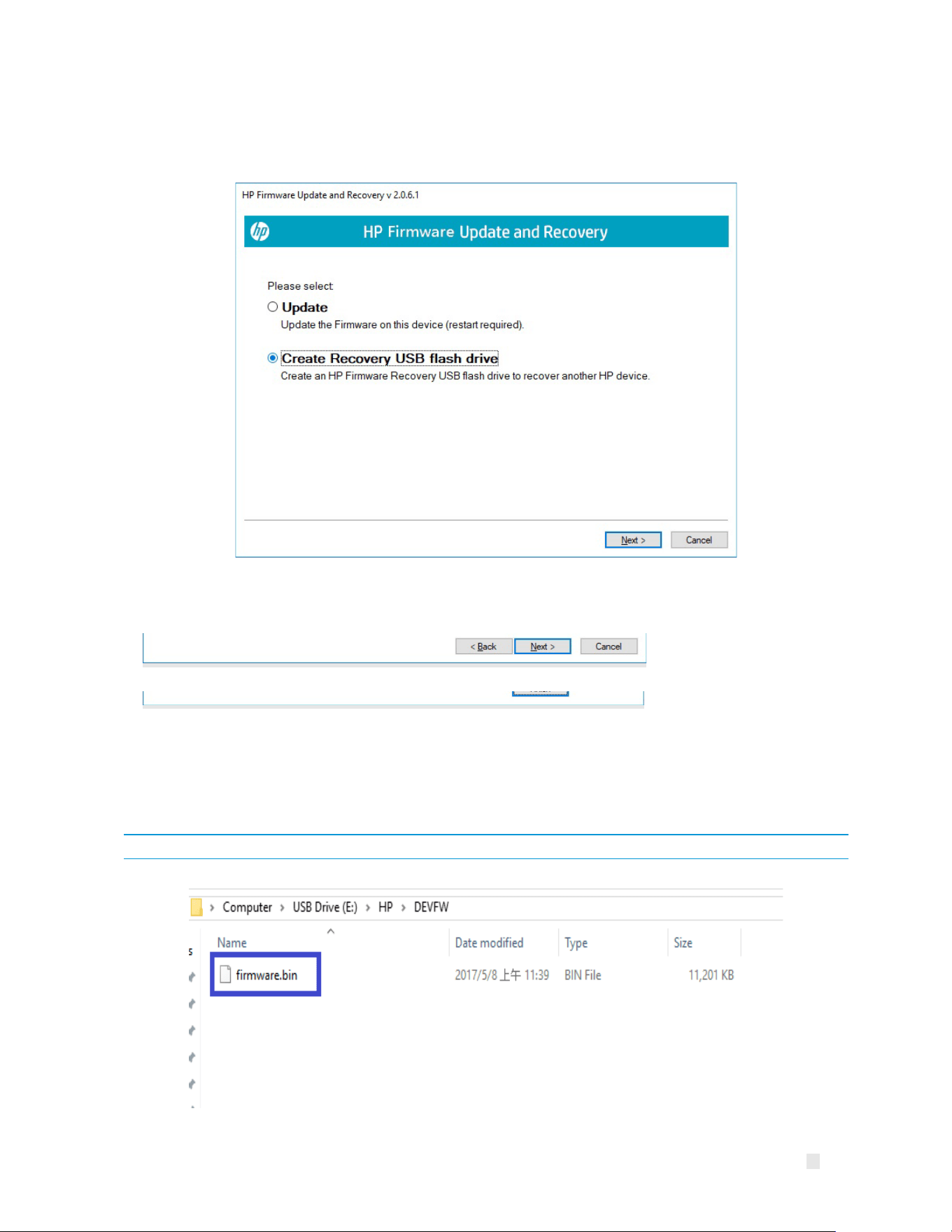
HP PC Commercial BIOS (UEFI) Setup
July 2025
919946-
010
© Copyright
2025 HP Development Company, L.P. 10 Appendix B: Firmware Update
70
• Run the HpFirmwareUpdRec or HpBiosUpdRec application. The main options menu is shown with the following options:
’Update’ and ’Create Recovery USB flash drive’.
• Select Create Recovery USB flash drive and then select Next.
• The application will prompt to insert a USB flash drive if the system does not see a USB flash drive.
• NOTE: The USB drive must have FAT32 format.
Select a USB flash drive and click
Next.
•
Upon completion, the application with display a message that the recovery flash drive was created successfully. Click
Finish to
close the wizard.
The files can also be manually copied to the EFI partition of the hard drive to support emergency recovery. For 2018 and later
the HpFirmwareUpdRec utility extracts the correct binaries from the .bin and .inf files and saves the individual components on
the USB key in the HP\DEVFW folder, which can be copied into \EFI on the hard drive. For earlier platforms, only the BIOS binary
file is used and it is saved in the HP\BIOS\Current folder.
NOTE: To recover a device with the flash drive, connect AC power and follow the previous on-screen instructions.

HP PC Commercial BIOS (UEFI) Setup
July 2025
919946-
010
© Copyright
2025 HP Development Company, L.P. 10 Appendix B: Firmware Update
71
10.4 HpFirmwareUpdRec Log File
By default, a log file is created in the same folder with the executable file.
• If the –I command line option is used, the log file will be written to the supplied file path. If it is a relative path, it will be placed
under that path.
• If the log file cannot be created in the executable folder, it will be created in the first available system temporary folder
location, usually “C:\Users\(username)\AppData\Local\Temp” in Windows.

HP PC Commercial BIOS (UEFI) Setup
July 2025
919946-
010
© Copyright
2025 HP Development Company, L.P. 10 Appendix B: Firmware Update
72
10.4.1 Custom Logo Support
NOTE: Operates in Silent Mode only, will not update firmware.
Installation:
• Command Line: HpFirmwareUpdRec.exe -e<logo filename>
• Custom Logo file will be written to BIOS. Check the log file for success or error.
○ NOTE: File must be JPEG format, maximum size 32k (32,768) bytes.
• If BIOS password is set, you must provide the password file.
Command-line option only, silent mode, not shown in usage display. Other options ignored. System will not be restarted.
Removal:
• Command Line: HpFirmwareUpdRec.exe -x
• Logo image will be removed from BIOS.
• If BIOS password is set, you must provide the password file.
Command line option only, silent mode, not shown in usage. Other options ignored. System will not be restarted.
• Custom logo support
Return
Code
Name Description
0
SUCCESS
No error
1 LOAD_ERROR Error reading image file
2 INVALID_PARAMETER File name missing
3 UNSUPPORTED Not supported by BIOS
4
INVALID_FILE
File not found or invalid
26 SECURITY_VIOLATION BIOS password not provided or incorrect
99 UNKNOWN Unknown error occurred, see log file

HP PC Commercial BIOS (UEFI) Setup
July 2025
919946-
010
© Copyright
2025 HP Development Company, L.P. 10 Appendix B: Firmware Update
73
10.4.2 Command-line Usage
Table 38 Custom logo support: command-line usage
Option
Comments
-f
Folder Path. Specifies a folder path for tool to scan both inf and bin files.
Default Path:
Application folder where HPFirmwareUpdRec.exe exists.
-s
Silent mode. Runs without any user interaction or output.
-ni
Non
-Interactive mode. Not compatible with -s, -t, -o, -c, -x, -v, or -silentPostpone.
-p
Specifies an encrypted password file created with the HPQPswd Utility. For more information on HPQPswd Utility, please
reference Section
8.
-r
Do not reboot after flash. The result code is SUCCESS_REBOOT (0xBC2) when this option is used.
-h
Creates HP_TOOLS partition if not present. On a GPT formatted system with native UEFI boot, this option is ignored. On
MBR, the partition is not created if it already exists. If unable to create partition, exits with error code.
-b
If BitLocker with TPM is in use, automatically suspend it.
-w
Outputs firmware.bin
-delay
Force EFI flash even if Seamless Firmware Update mode is supported
-silentPostpone
Triggers Silent Mode even if ‘-s’ is not provided and restart/postpone window will be launched at the end of the update
-t
Postpone time in minutes. Default is 10 minutes. Max value is 60 minutes.
-o
Number of postpone occurrences allowed. Default is 3. Max value is 5.
-disableToast
Disable showing a toast notification in the Windows Notification Centre to indicate completion of firmware update.
Restart/postpone window will be launched at the end of an update. For Non
-
Interactive Mode, this option is always
enabled.
-?
Displays all public command line options. Shows this same usage dialog that appears if an invalid command line is
detected. This option overrides all other command options.
-c
Copies update files to EFI partition BIOS
\Current folder, without setting update ready flag. Implies -
s as well, so files are
copied with only a validation of the ROM family.
-llogfile_path
Specifies log file path. This overwrites any existing log file at logfile_path; i.e., new log records are not appended to an
existing file, but instead new log file is created at that path. Default is HPFirmwareUpdRec.log in the executable folder.
-elogofile
Runs in silent mode. Install and enable an enterprise logo image. No BIOS update or restart. The result code is 0 on
success.
-x
Runs in silent mode. Remove and disable any existing enterprise logo image. No BIOS update or restart. The result code is
0 on success.
-v
Ignores version. Eliminates version comparison warnings in UI mode.
-bloverride
Skip check for BitLocker – do not prompt or suspend

HP PC Commercial BIOS (UEFI) Setup
July 2025
919946-
010
© Copyright
2025 HP Development Company, L.P. 10 Appendix B: Firmware Update
74
© Copyright 2021, 2022, 2023, 2024 and 2025 HP Development Company, L.P. The information contained herein is subject to
change without notice.
The only warranties for HP products and services are set forth in the express warranty statements
accompanying such products and services. Nothing herein should be construed as constituting an additional warranty. HP shall
not be liable for technical or editorial errors or omissions contained herein. AMD is a trademark of Ad
vanced Micro Devices, Inc.
Intel is a trademark of Intel Corporation or its subsidiaries in the U.S. and/or other countries. Microsoft and Windows are e
ither
registered trademarks or trademarks of Microsoft Corporation in the United States and/or other cou
ntries.