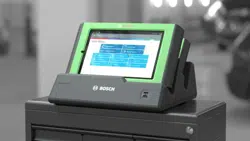
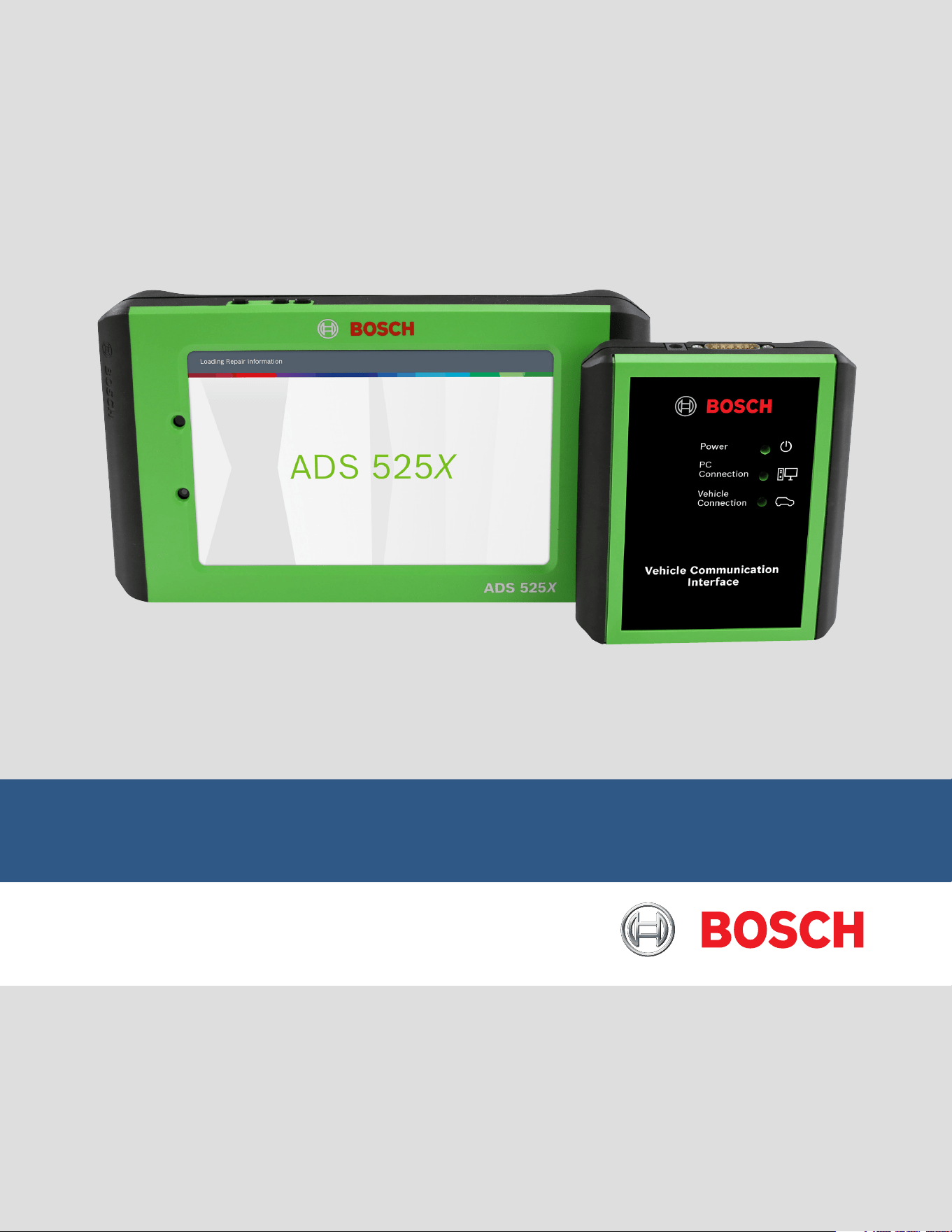
ADS 525X Quick Start Guide
(en-US)

en-US
|
2
|
Quick Start Guide|
ADS 525X
1699502643 | REV. B | 05.2020
© Bosch Automotive Service Solutions Inc
Safety Precautions
BEFORE OPERATING THIS TOOL, ALL OPERATORS SHOULD
READ AND UNDERSTAND THIS QUICK START GUIDE AND
FOLLOW ALL SAFETY WARNINGS AND INSTRUCTIONS.
KEEP THESE INSTRUCTIONS WITH THE TOOL FOR FUTURE
REFERENCE. IF YOU HAVE ANY QUESTIONS, CONTACT
YOUR BOSCH REPRESENTATIVE OR DISTRIBUTOR.
DANGER
When an engine is operating, keep the service area well
ventilated or attach a building exhaust removal system
to the engine exhaust system. Engines produce carbon
monoxide, an odorless, poisonous gas that causes slower
reaction time and can lead to death or serious personal
injury.
WARNING:
• When working with hydraulic or fuel lines, be careful
that liquids under pressure do not escape and create a
dangerous condition. Use adequate ventilation and make
sure there are no sparks or possibility of sparks that
may ignite any vapor.
• Wear an American National Standards Institute (ANSI)
Z87.1 approved eye shield when testing or repairing
vehicles.
• Objects propelled by whirling engine components or
pressurized liquids escaping may cause personal injury.
• Set the parking brake and block the wheels before test-
ing or repairing a vehicle. It is especially important to
block the wheels on front-wheel drive vehicles because
the parking brake does not hold the drive wheels.
• Do not drive the vehicle and operate the software at the
same time.
• Maintain adequate clearance around moving compo-
nents or belts during testing.
• Moving components and belts can catch loose cloth-
ing, body parts, or test equipment and cause serious
personal injury or tool damage.
• Automotive batteries contain sulfuric acid and produce
explosive gases that can result in serious injury due to
ignition of gases. Keep lit cigarettes, sparks, flames,
and other ignition sources away from the battery at all
times.
• Refer to the service manual for the vehicle being ser-
viced. Adhere to all diagnostic procedures and precau-
tions. Failure to do so could result in personal injury or
otherwise unneeded repairs.
• Use only specially designed replacement parts (brake
hoses and lines) for ABS equipped vehicles.
• After bleeding the brake system, check the brake pedal
for excessive travel or a ”spongy” feel. Bleed again if
either condition is present.
• When installing transmitting devices (Citizen Band
radio, telephone, etc) on ABS-equipped vehicles, do
not locate the antenna near the ABS control unit or any
other control unit.
• This equipment has been tested and found to comply
with the limits for a Class B digital device, pursuant to
Part 15 of the FCC Rules. These limits are designed to
provide reasonable protection against harmful interfer-
ence in a residential installation. This equipment gener-
ates and radiates radio frequency energy and, if not
installed and used in accordance with the instructions,
may cause harmful interference to radio communica-
tions.
• To reduce risk of injury, charge only Bosch Automotive
Service Solutions, Inc. supplied rechargeable batter-
ies for the ADS 625 product with the supplied charger.
Other types of batteries may burst causing injury to
persons and property damage.
• Use of an attachment not recommended or sold by the
battery charger manufacturer may result in fire, electric
shock, or personal injury.
• Do not operate the tool with a damaged cord or con-
nector. Replace damaged cords and connectors immedi-
ately.
• Do not operate the charger if it has received a sharp
blow, been dropped, or otherwise damaged in any way.
Take the charger to a qualified service person.
• Do not disassemble the charger. Take the charger to a
qualified service person if service or repair is necessary.
Incorrect reassembly may result in electric shock or fire.
Unplug charger before attempting any maintenance or
cleaning. Turning off controls will not reduce this risk.
• To prevent possible hearing damage, avoid using the
tool at high volume levels for long periods.
• Do not expose tool or charger to rain, moisture, or
snow.
• Verify that cords are located where they will not be
stepped on, tripped over, or otherwise become a safety
hazard or subjected to damage or stress.
• Use only batteries that are approved for use with this
tool. Use of other types may increase the risk of fire or
explosion.
• Do not carry a battery in your pocket, purse, or other
container where metal objects (such as car keys or pa-
per clips) could short-circuit the battery terminals. The
resulting excessive current flow can cause extremely
high temperatures and may result in damage to the bat-
tery pack or cause fire or burns.
• The battery poses a burn hazard if you handle it im-
properly. Do not disassemble it. Handle a damaged or
leaking battery with extreme care. If the battery is dam-
aged, electrolyte may leak from the cells and may cause
personal injury.
• Keep the battery away from children.
• Do not store or leave your tool or battery near a heat
source such as a radiator, fireplace, stove, electric
heater, or other heat-generating appliance or otherwise
expose it to temperatures in excess of 60ºC (140ºF).
When heated to excessive temperatures, battery cells
could explode or vent, causing personal injury or risk of
fire.
• Do not dispose of your tool’s battery in a fire or with
normal household waste. Battery cells may explode.
Discard a used battery according to the manufacturer’s
instructions or contact your local waste disposal agency
for disposal instructions. Dispose of a spent or damaged
battery promptly.
CAUTION:
• To avoid damage or generation of false data, make sure
the vehicle battery is fully charged and the connection
to the vehicle Data Link Connector (DLC) is clean and
secure.
• Do not place the tool on the distributor of a vehicle.
Strong electromagnetic interference can damage the
tool.
• Never disconnect or reconnect any electrical connec-
tor while the ignition is on. Powertrain Control Module
(PCM) damage may result.
1699502643 | REV. B | 05.2020
© Bosch Automotive Service Solutions Inc
ADS 525X
|
Quick Start Guide
|
3
|
en-US
General Information
Introduction
Connected
Generic OBDII
Repair-Source
10:22
QuickScan
Apps Shortcut
Settings
What’s New
Web Browser Coverage Guide Video Tutorials
Diagnostic Information Wiring Diagrams
i
i
Saved Reports
Main Menu
Diagnostics
1
2
3
4
8
4
5 6 7
11
8
109
1918
222120
24
23
25
17
141312 15
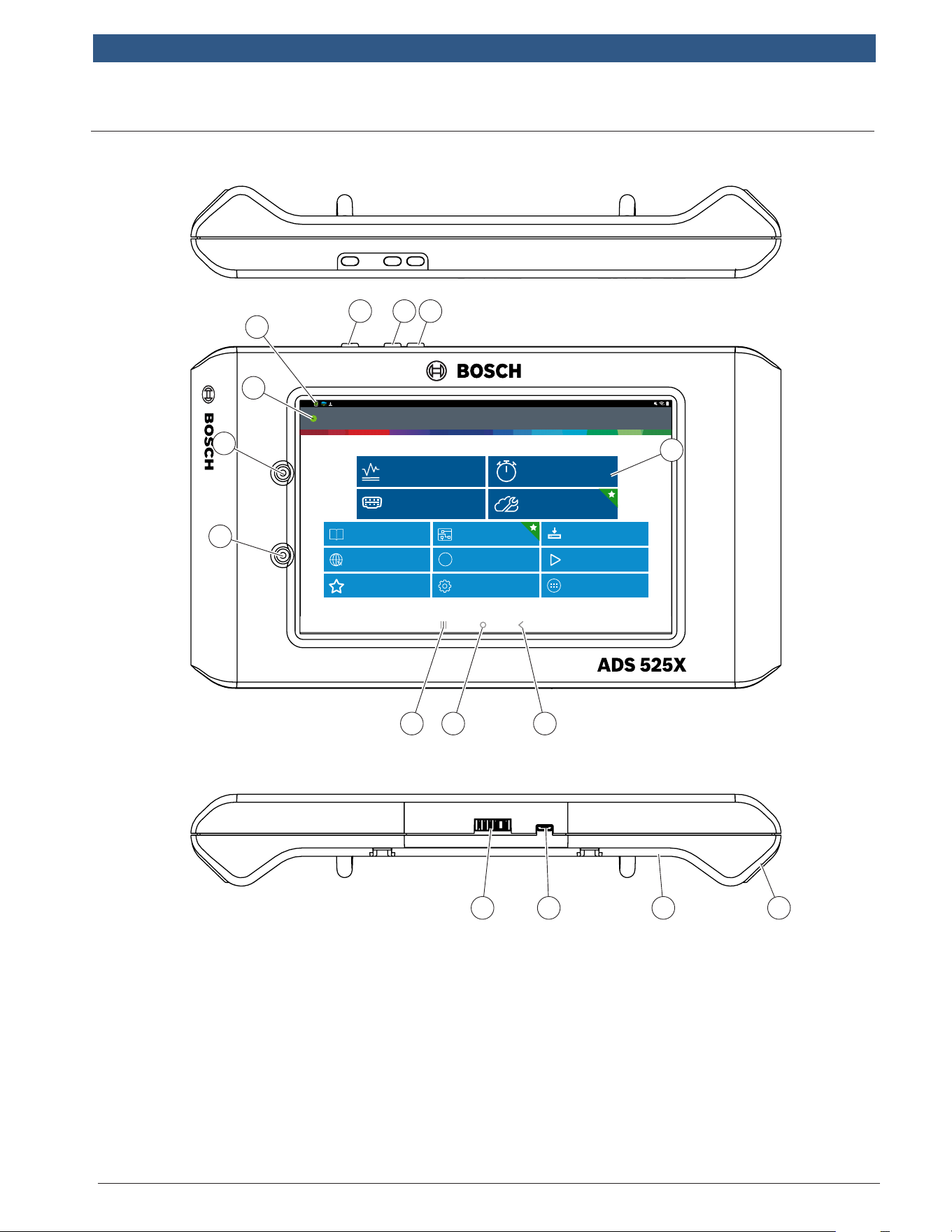
1. Camera
Front facing camera
2. Ambient Light Sensor
3. Vehicle Connection
Indicator
4. VCI Connection Manager
5. Power Button
6. Volume Up
7. Volume Down
8. Main Menu Functions
9. Recent apps button
10. Home Button
11. Back button
12. Future Use
13. Micro USB
14. Camera
Rear Facing Camera
15. Speaker
TOP VIEW
BOTTOM VIEW
en-US
|
4
|
Quick Start Guide|
ADS 525X
1699502643 | REV. B | 05.2020
© Bosch Automotive Service Solutions Inc
Setup
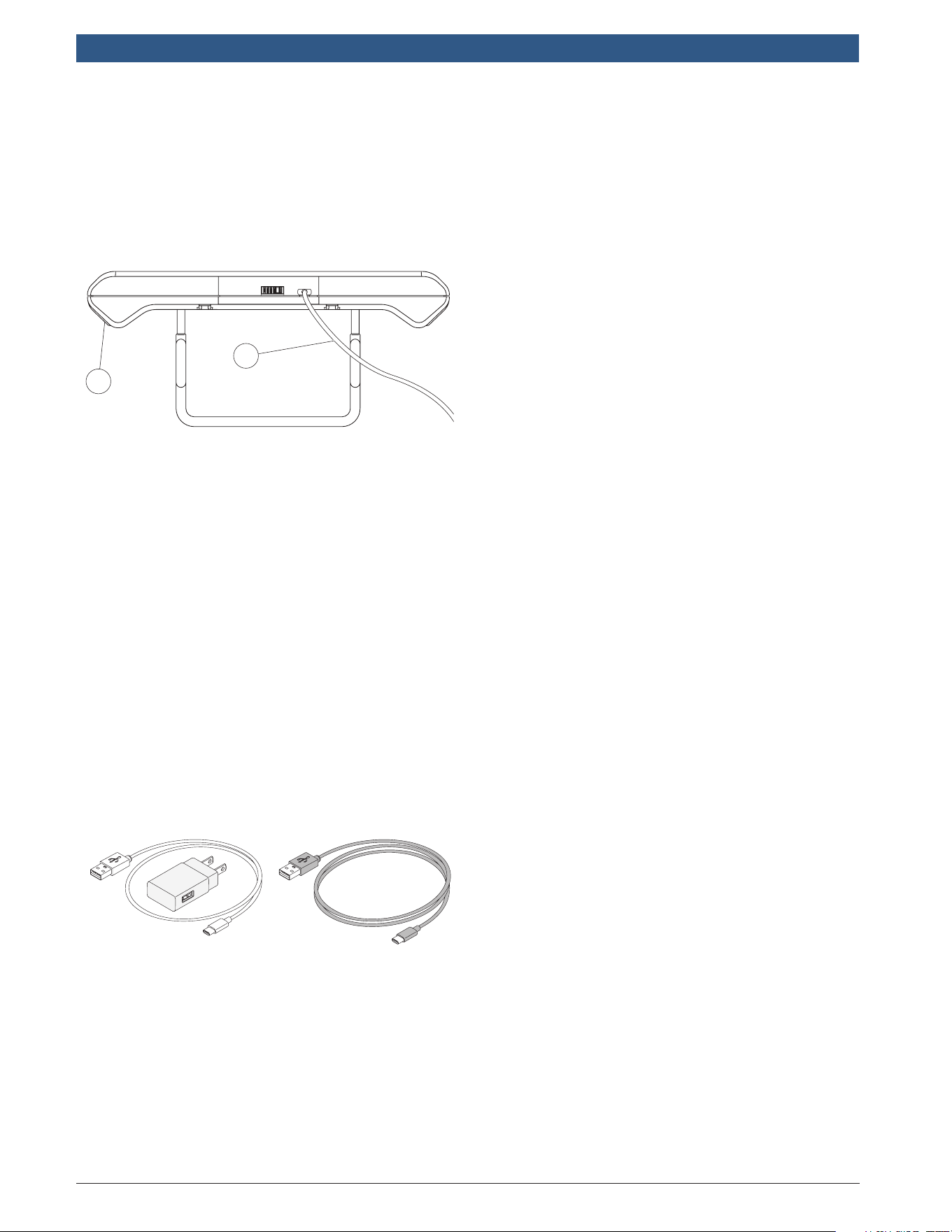
1. Battery Charging.
Connect the handset to AC power
and fully charge the battery.
1
2
1. Handset
2. USB Power Block and Charging Cord
When the handset is turned on, the
level of battery charge is indicated in
the upper right corner of the screen.
Note:
• It is recommended to keep the scan
tool plugged into power supply when
not being used.
• For maximum battery life, properly
power off scan tool when not in use
for extended periods.
• ADS 525X is supplied with 2 micro
USB power cables and 1 USB power
block.
2 ft. cable 6 ft. cable
1699502643 | REV. B | 05.2020
© Bosch Automotive Service Solutions Inc
ADS 525X
|
Quick Start Guide
|
5
|
en-US
Battery Life Tips
The Handset is an Android based
touch screen tablet. The battery life
icon shows charge level. The scan tool
lets you know how much battery life is
left by viewing the icon located at the
top right of the home screen. Like all
Android devices, there are tips to help
extend or maximize battery life.
When not actively being used, the
screen will timeout and the scan
tool display will power off, while
application remains running in
background. The user can set the
length of delay between the last
screen touch and automatic screen
timeout (dim and lock). From the
Home screen, touch the Android App
button - Settings - Display.
Select Screen timeout, then select the
length of time from the last screen touch
and automatic screen timeout.
To use again, press the power button
to wake the tool up. This will allow
maximum run time, while not limiting
productivity.
When the tool is powered up, even if
it is not being actively used, Wi-Fi and
Bluetooth® radios as well as all other
necessary hardware are still being
powered. Battery life is comparable to
similar devices when in this state.
Note:
• It is recommended to keep the scan
tool plugged into power supply when
not being used.
• For maximum battery life, properly
power off scan tool when not in use
for extended periods.
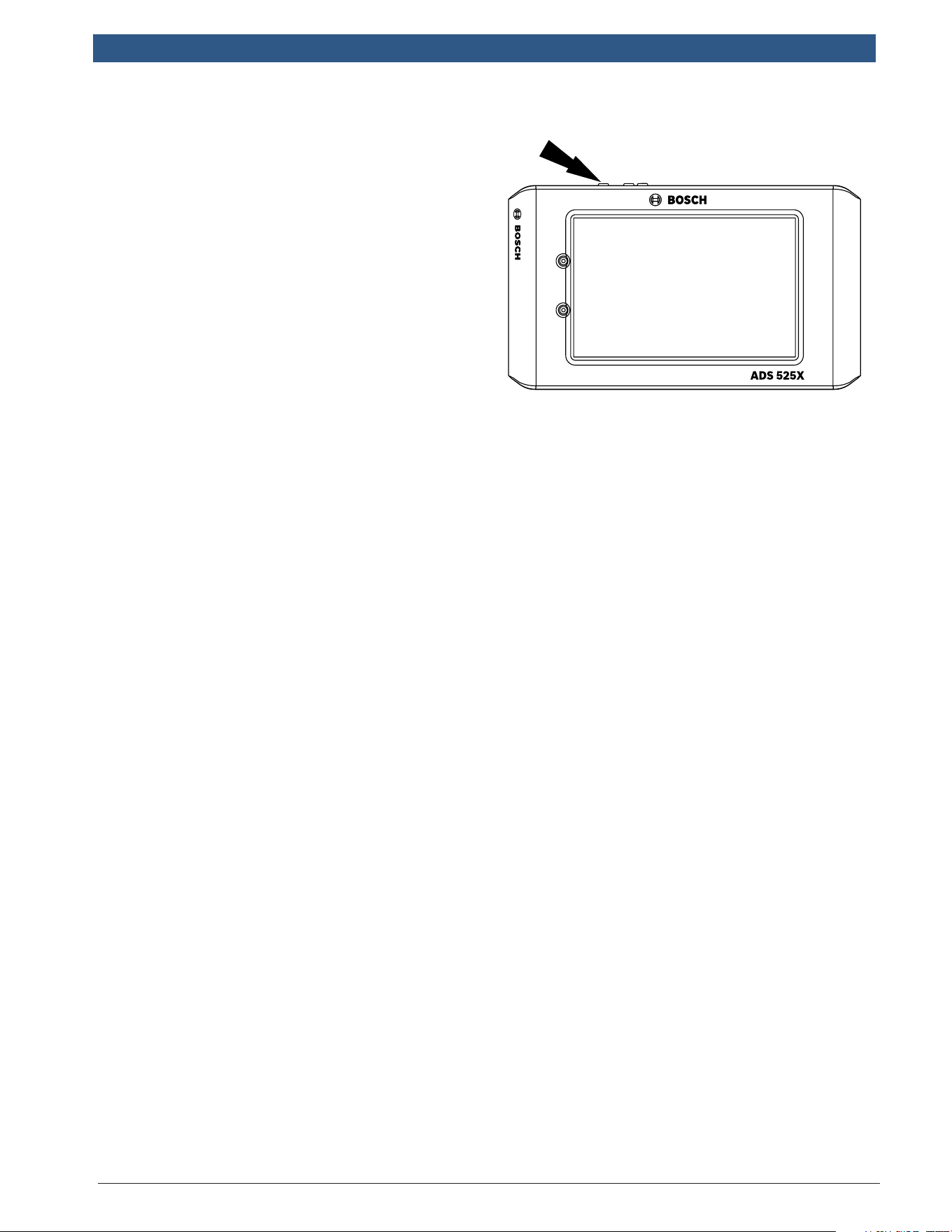
2. Press the power button to
turn on the handset.
Power Button Functions
The power button has four
functions
a. ON: Press the power button to turn
the handset on.
b. OFF: Press and release the power
button. A pop up window will
appear to shut down the handset.
ON: If the screen times out or is in
standby mode, press and release
the power button to wake up the
handset. Turn ON: With tool off,
press to turn ON
c. OFF: Press the power button
and hold for 5 seconds to turn
the handset off completely (not
recommended).
en-US
|
6
|
Quick Start Guide|
ADS 525X
1699502643 | REV. B | 05.2020
© Bosch Automotive Service Solutions Inc
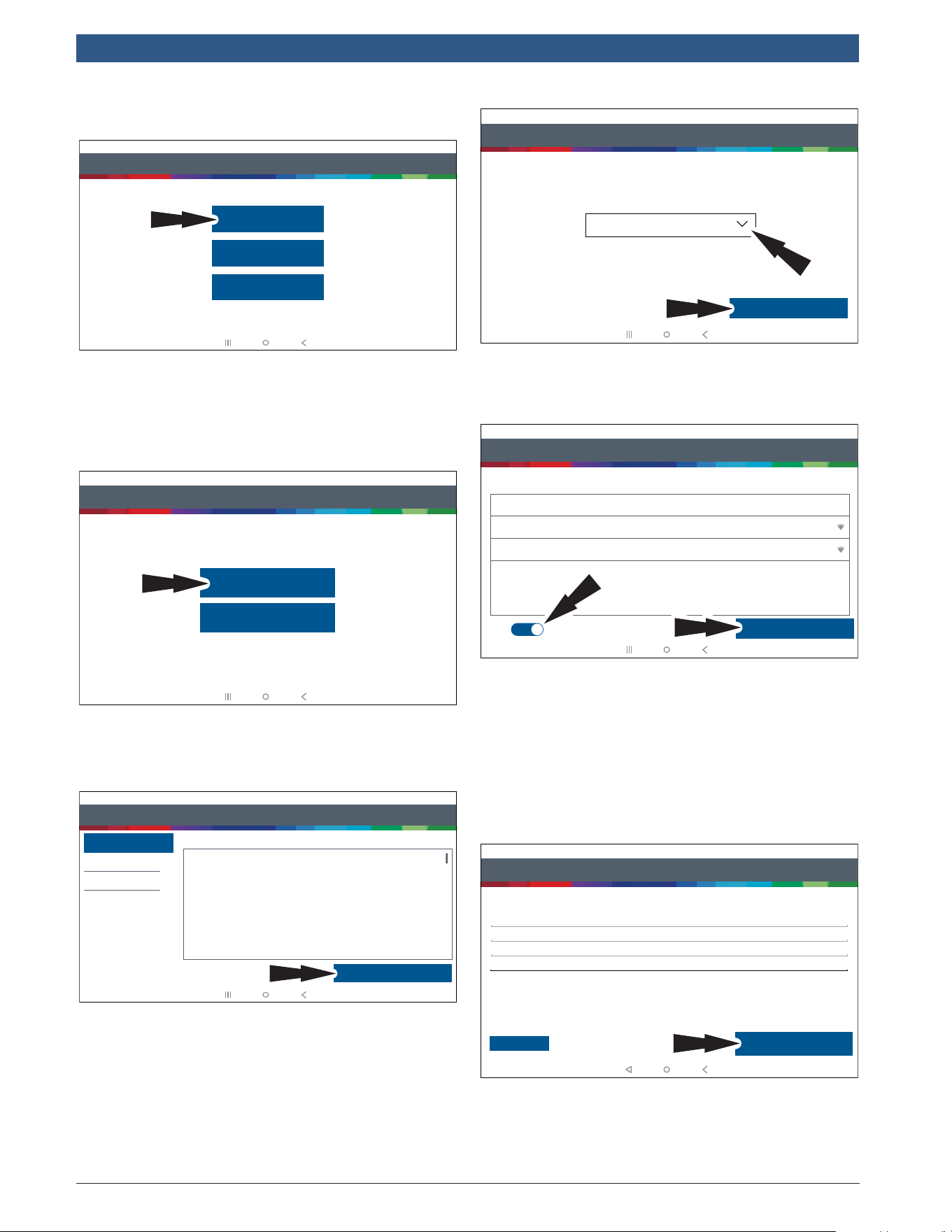
3. Register Device - Select a
Language
Step 1 of 7 - Select as Language
Español
Français
English
rt0002
4. Select Register Now.
Register the tool, begin a trial period,
or run the tool in demo mode.
Step 2 of 7 - Register
Registering your device allows you to get the latest software updates
Skip
Register Now
rt0003
5. Read and accept the End User
License Agreement.
Step 3 of 7 - End User License Agreement
End User License Agreement
Software Product License Agreement
Copyright (c) 2014-2017, Bosch Automotive Service Solutions Inc. All Rights Reserved
By clicking the i Agree button (or authorizing any other person to do so), you accept this Agreement and are
bound by its terms. If you are not sure that you are authorized by your employer to accept this Agreement, take
this package to a principal in your firm before proceeding. This Agreement is a legally binding document setting
forth the menner by which you may use the Bosch Automotive Service Solutions Inc. (”Bosch”) software that is
embedded on the Bosch device and any assoociated media, printed materials and electronic documentation
(collectively “Software Product”) Carefully read the terms and conditions of this Agreement before using this
Software Product. Use of this Software Product indicates your acceptance of the following terms and
conditions.
1. LICENSE. Bosch grants you a personal, non-transferable (except as noted in Section 8 (Assignment)) and
non-exclusive limited license (without the right to sublicense) to ise the Software Product embedded on this
SOFTWARE PRODUCT LICENSE AGREEMENT
Register My Device Now
Register My Device Later
Demo Mode
IMPORTANT: Do not continue until you have read this Software Product License Agreement (”Agreement”).
I Agree
rt0004
6. Select the correct Time Zone.
Step 4 of 7 - Setup Time Zone
Setup Time Zone
GMT-04:00 Eastern Standard Time
Next: Step Wi-Fi
rt0005
7. Enable Wi-Fi and select a
network and select Next.
Step 5 of 7 - Select Wi-Fi
Setup Wi-Fi
Secured with WPA
Wi-Fi
TEST 15
TEST 16
Trial Mode
Secured with WPA2
This will run your tool in Trial Mode for 30 days.
Next: Your Name
rt0006
Note:
• Wi-Fi Must be ON. If Wi-Fi is OFF slide the Wi-Fi
switch to the ON position and follow the prompts on
the screen.
• If a Network password is required the Android Wi-Fi
screen will be displayed. Follow the prompts on the
screen.
8. Activate Warranty
Step 6 of 7 - Activate Warranty
Activate Warranty
Valued
Customer
Bosch
Bosch
Next: Contact info
Set Clock
rt0007
Enter your Name. Follow the prompts on
the screen to activate warranty.
1699502643 | REV. B | 05.2020
© Bosch Automotive Service Solutions Inc
ADS 525X
|
Quick Start Guide
|
7
|
en-US
Step 6 of 7 - Activate Warranty
Activate Warranty
123-555-1234
5678 Shop Lane
Detroit Michigan 48260
USA
Address 2 (optional)
Confirm Info
E0VTOW0000000000GR
rt0008
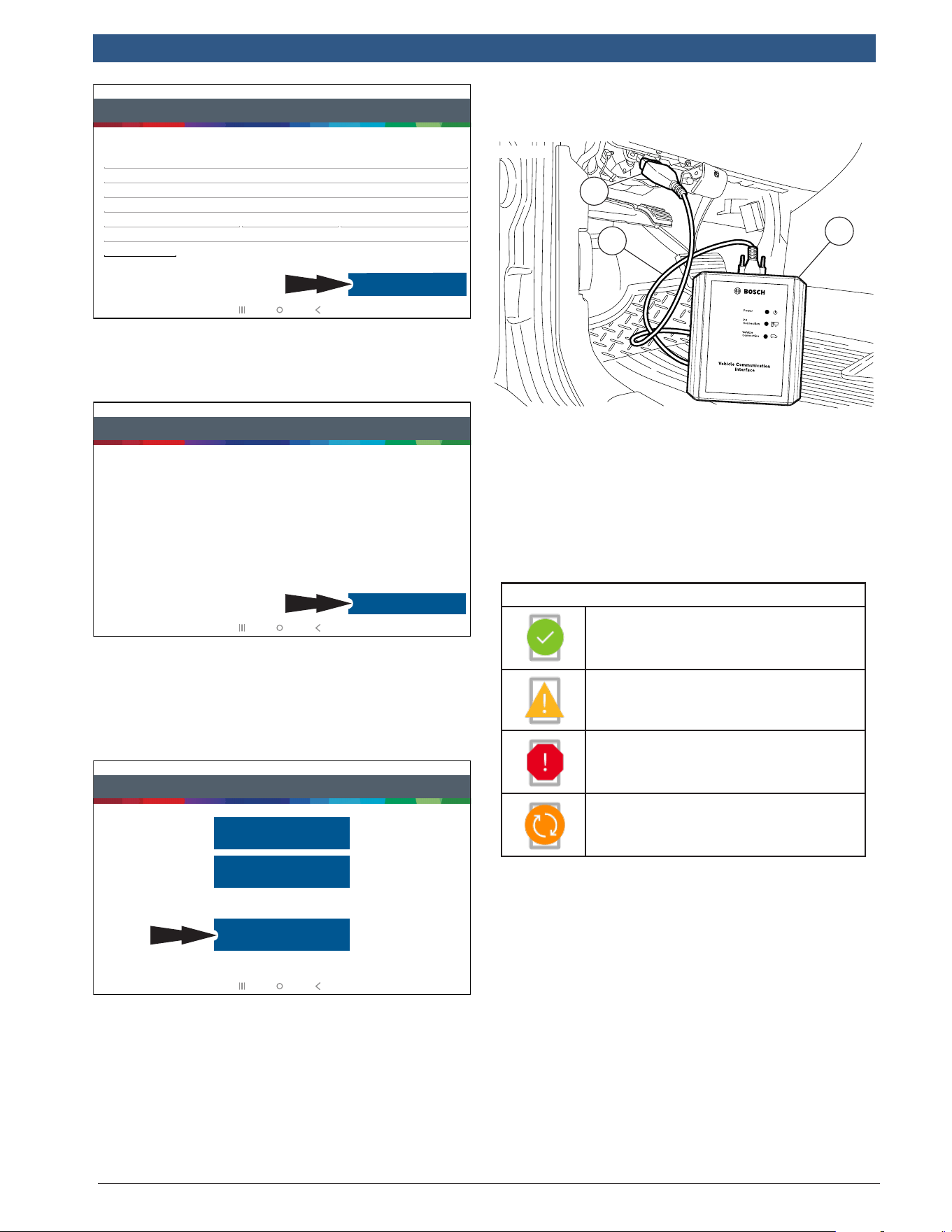
Enter contact information. Follow the
prompts on the screen.
Step 6 of 7 - Activate Warranty
Activate Warranty
ValuedCustomer
123-555-1234
Bosch
Bosch
5/15/2018
5678 Shop Lane
Detroit, Michigan 48260
USA
E0VTOW0000000000GR
Activate Now
rt0009
Confirm information. Follow the prompts
on the screen and activate warranty.
9. Setup Printer
Step 7 of 7 - Printer Setup
If skipped you may setup a printer later from settings.
Skip
Print test page
Printer setup help
rt0010
Note: This can be completed later by
going to Settings located on the Main
Menu screen.
10. Connect the VCI to the
vehicle.
rt00001
1
2
3
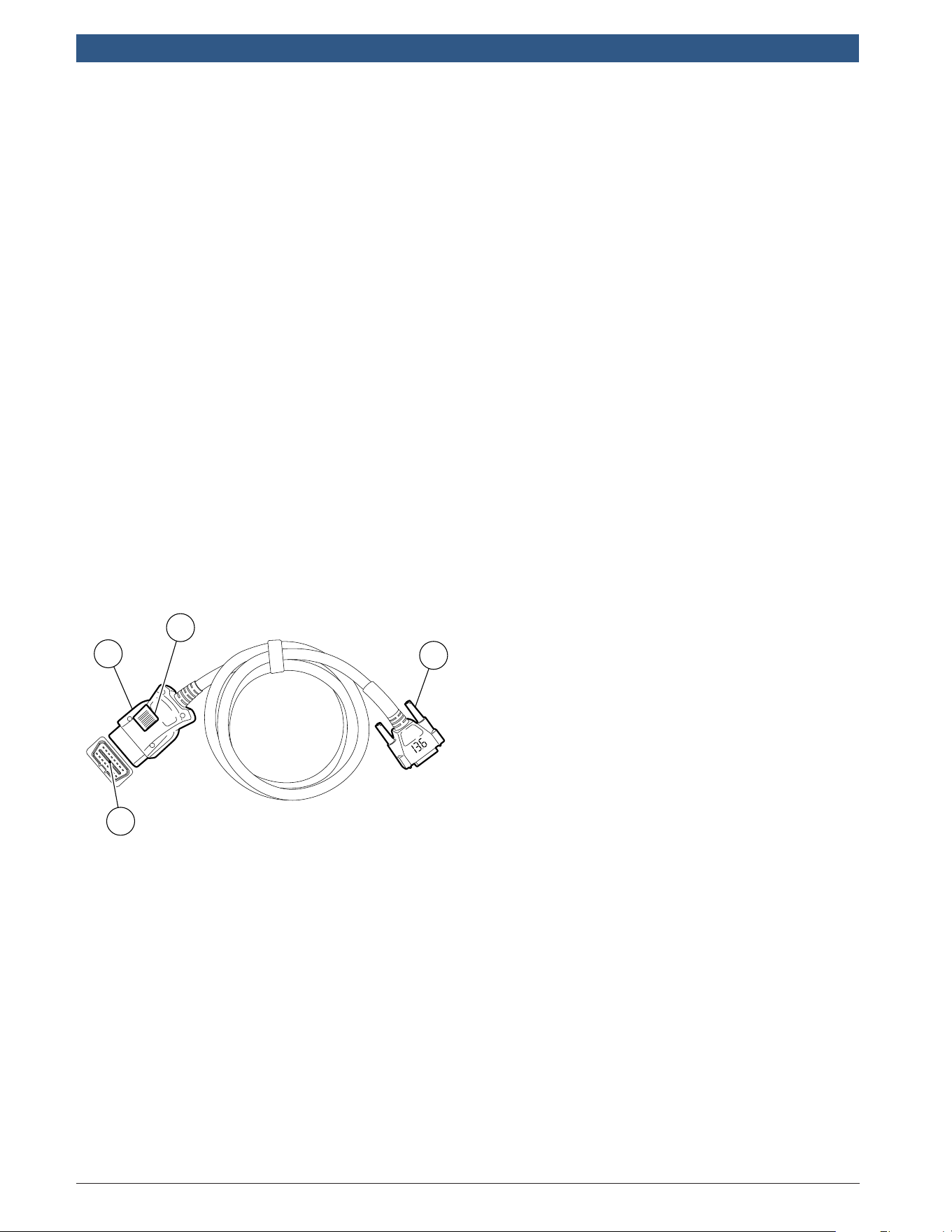
1. OBDII/DLC Cable
2. DLC
3. VCI
11. Connect the handset to the
VCI.
Pairing
VCI Connection Manager Icon Definitions
Icon that will display when user is
connected to DVCI.
Icon will display when user is
connected to DVCI but signal is
degraded.
Icon will display when user is NOT
connected to DVCI.
Icon will display when user is connected
to DVCI, but the version does not match
expected tablet version.
The VCI is paired to the handset
during manufacturing and should be
paired out of the box.
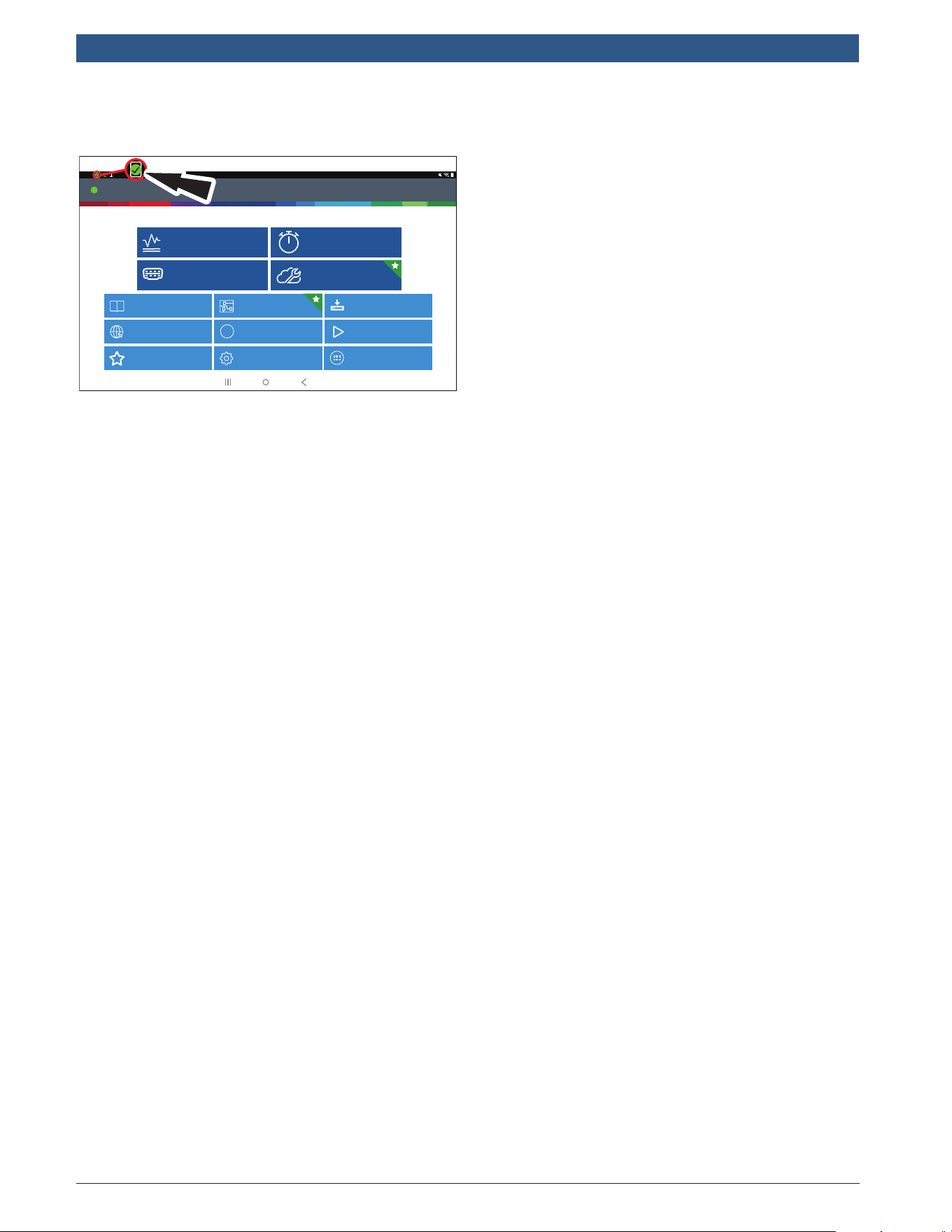
a. Connect the VCI to the vehicle
DLC.
b. At this point VCI Connection
Manager icon should display
“Connected via Wi-Fi”.
en-US
|
8
|
Quick Start Guide|
ADS 525X
1699502643 | REV. B | 05.2020
© Bosch Automotive Service Solutions Inc
c. If VCI Connection Manager icon
shows “No connection,” select the
VCI Connection Manager icon.
Connected
Generic OBDII
Repair-Source
10:22
QuickScan
Apps Shortcut
Settings
What’s New
Web Browser Coverage Guide Video Tutorials
Diagnostic Information Wiring Diagrams
i
i
Saved Reports
Main Menu
Diagnostics
rt0011
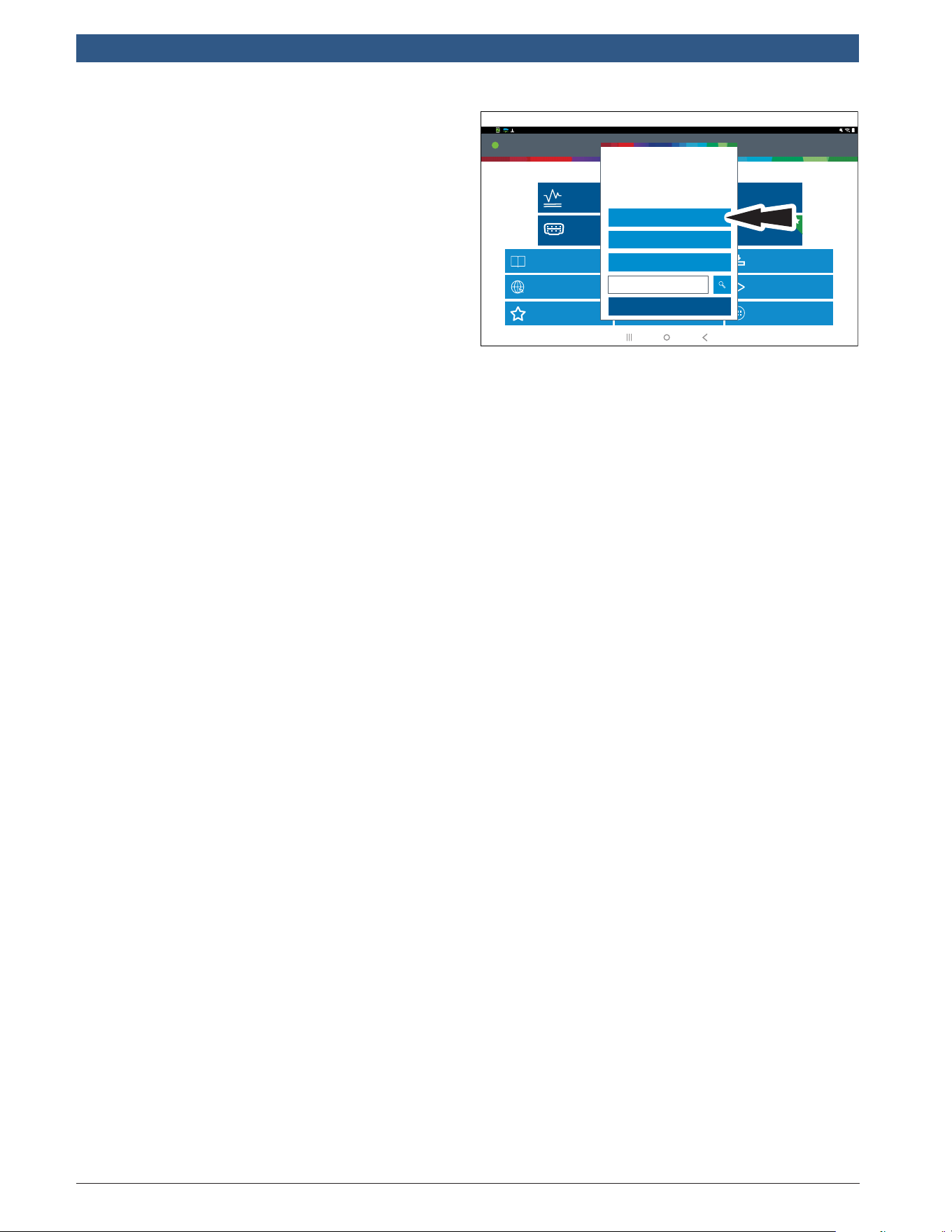
d. Once VCI Connection Manager
icon is selected, VCI Connection
Manager dialog is displayed, listing
discovered VCIs.
e. Select “Connect” next to VCI in the
list to pair with it.
Once VCI Connection Manager icon
changes to “Connected via Wi-Fi”,
the tool is ready to use.
The handset is now paired to a VCI.
To use a different VCI in the future,
repeat the steps for manually
pairing the VCI.
Select “Connect” next to desired
VCI. VCI Connection Manager dialog
will refresh to show successful
connection.
1699502643 | REV. B | 05.2020
© Bosch Automotive Service Solutions Inc
ADS 525X
|
Quick Start Guide
|
9
|
en-US
ss02876
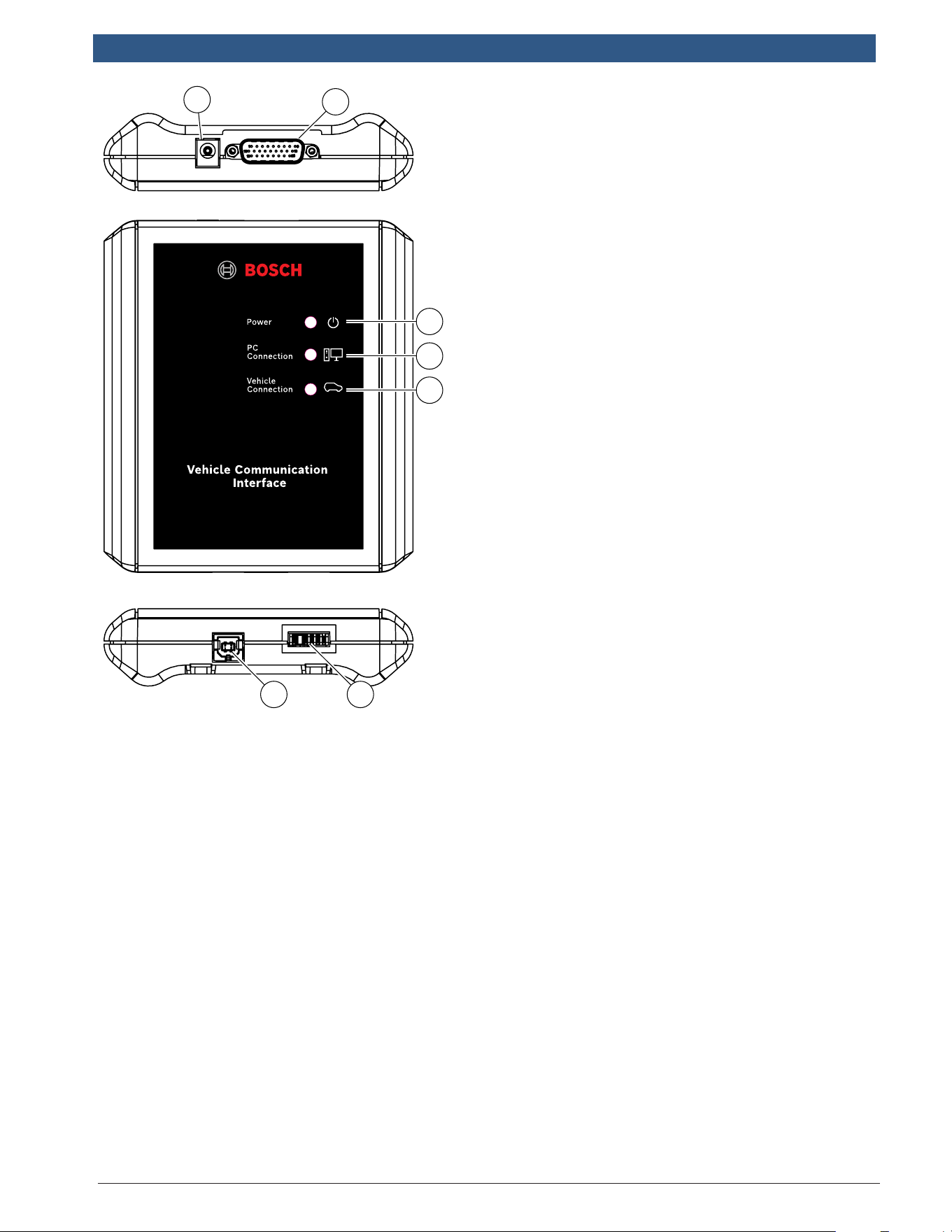
5
6 7
2
1
3
4
1. Power port (used when necessary)
2. DLC/OBDII cable port
3. Power
Indicates the VCI has received power.
4. PC Connection
Indicates the VCI is communicating with
the PC.
5. Vehicle Connection
Indicates the VCI is communicating with
vehicle.
6. USB “B” Port.
7. Connection port for future use.
en-US
|
10
|
Quick Start Guide|
ADS 525X
1699502643 | REV. B | 05.2020
© Bosch Automotive Service Solutions Inc
Main Menu
Connected
Generic OBDII
Repair-Source
10:22
QuickScan
Apps Shortcut
Settings
What’s New
Web Browser Coverage Guide Video Tutorials
Diagnostic Information Wiring Diagrams
i
i
Saved Reports
Main Menu
Diagnostics
rt0012
5 6 7
8 9 10
11 12 13
3 4
1 2
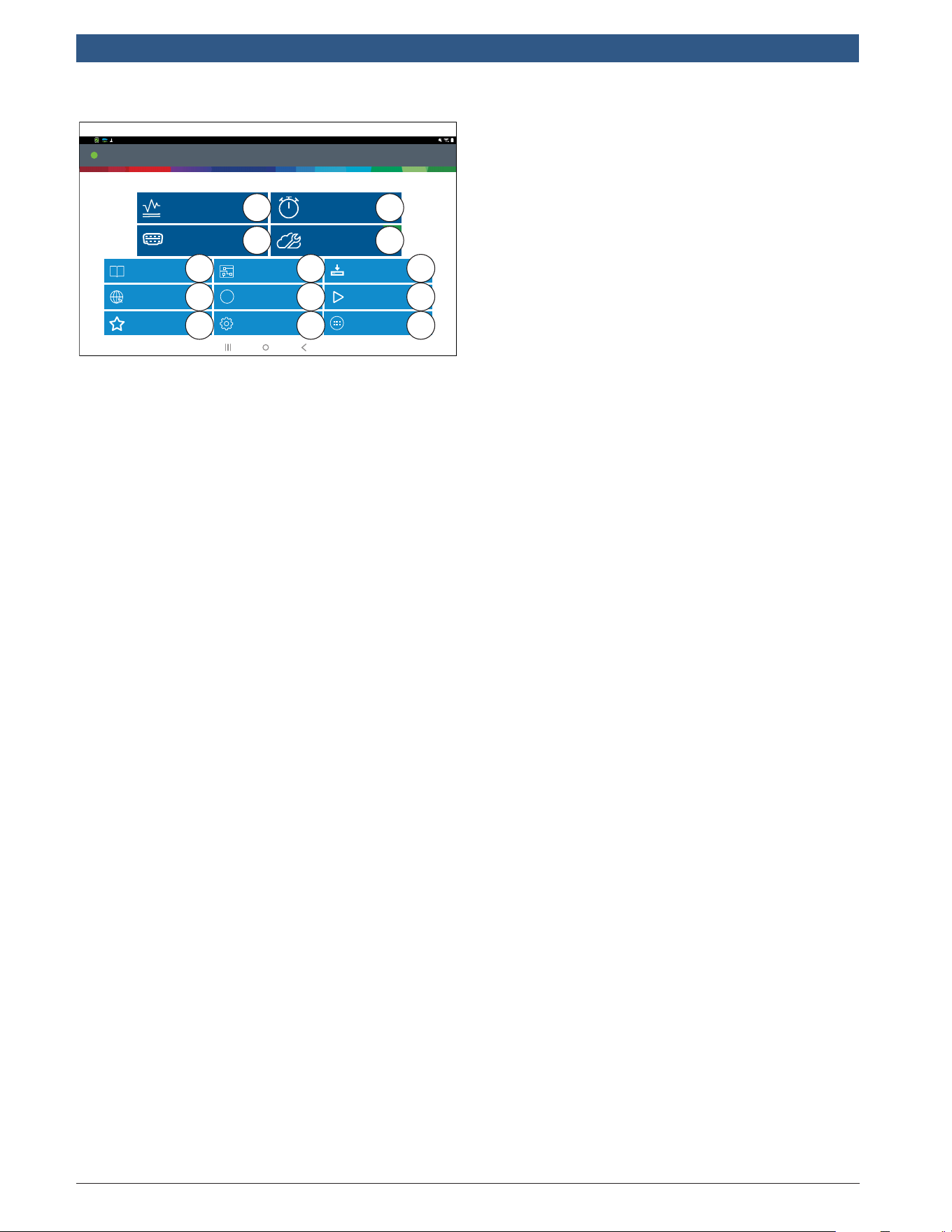
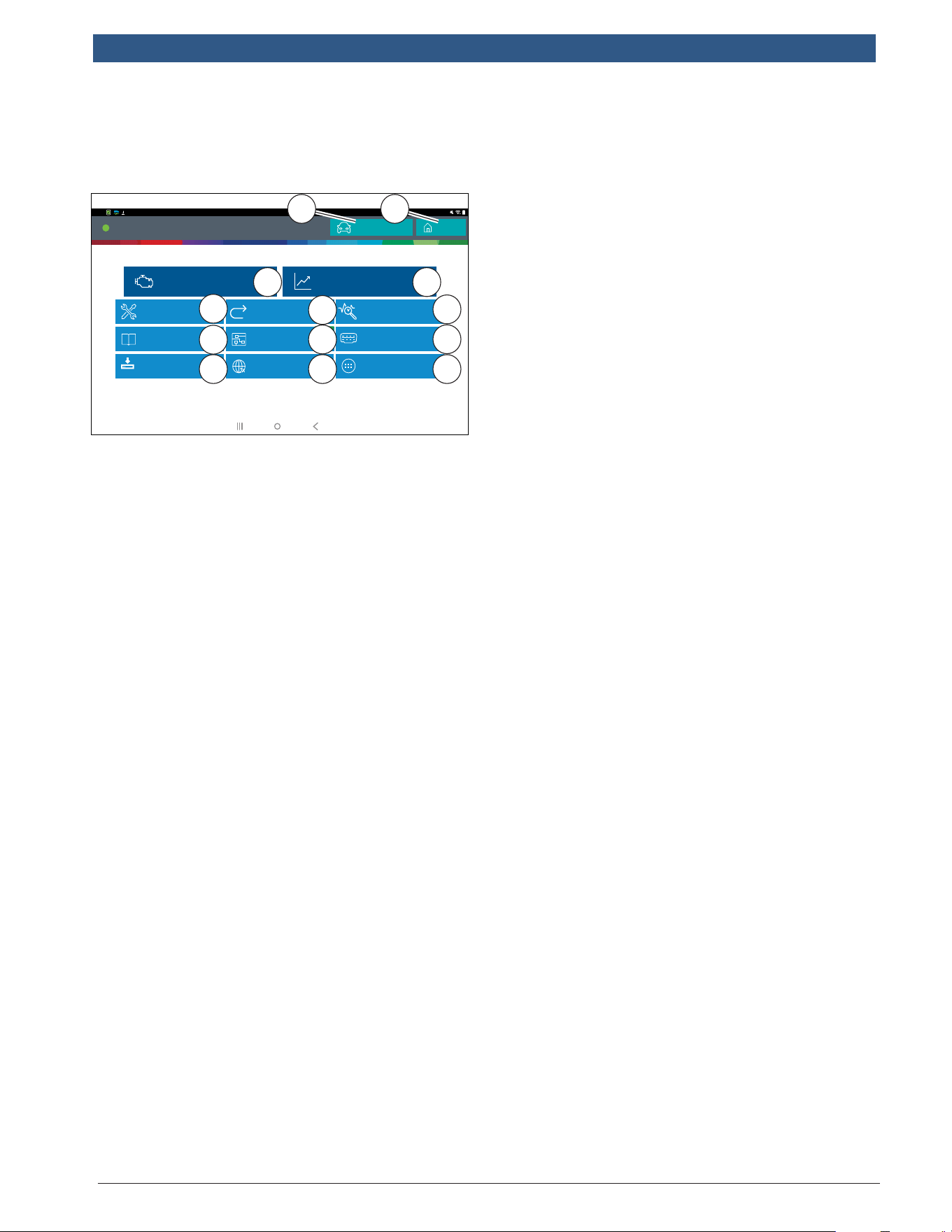
1. Diagnostics button
Enter vehicle diagnostics session.
2. QuickScan button
Shortcut to run all ECU scan.
3. Generic OBDII button
Access Global OBDII emission related
ECU information.
4. Repair-Source button
Direct link to access Repair Source
vehicle repair information.
5. Diagnostic Information button
Provides diagnostic, repair, and reset
information for the selected vehicle.
6. Wiring Diagrams button
Provides OEM and vehicle specific full
color, full system wiring diagrams.
7. Saved Reports button
Access saved vehicle scan reports and
data stream recordings.
8. Web Browser button
Full internet access and shortcuts to
repair information and OEM websites.
9. Coverage Guide button
Access vehicle coverage button.
10. Video Tutorials button
Access video tutorial files on scan tool
use.
11. What’s New button
Preview scan tool features and
operations.
12. Settings button
Access tool settings, printer setup,
subscription information, softwar
updates and more.
13. Apps Shortcut button
Access other available Android
applications.
1699502643 | REV. B | 05.2020
© Bosch Automotive Service Solutions Inc
ADS 525X
|
Quick Start Guide
|
11
|
en-US
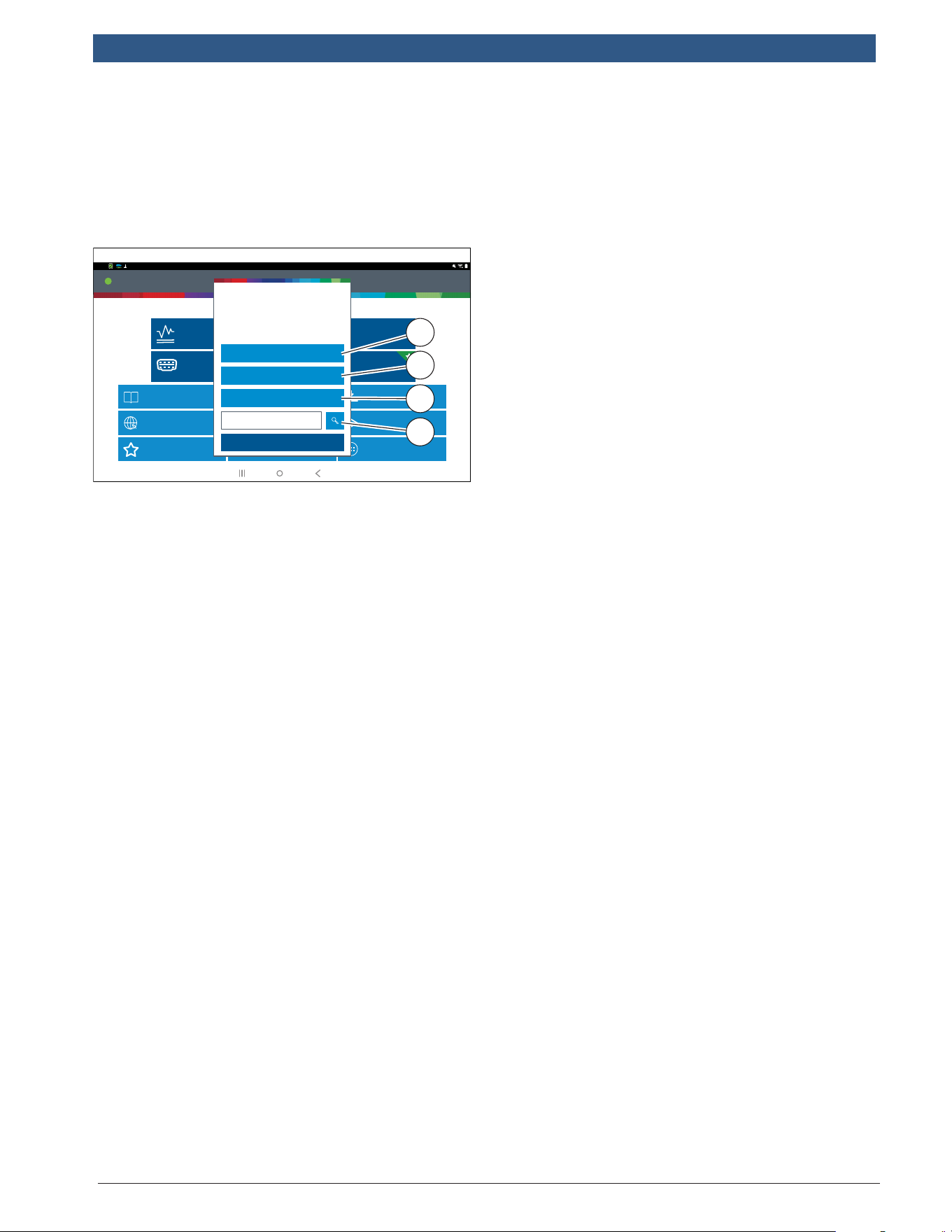
Selecting Vehicle
Allows the user to enter a new vehicle or
view Recent Vehicles previously selected.
Select the “Select Vehicle” button then
enter a vehicle one of four ways:
Connected
Generic OBDII
Repair-Source
10:22
QuickScan
Apps Shortcut
Settings
What’s New
Web Browser Coverage Guide Video Tutorials
Diagnostic Information Wiring Diagrams
i
i
Saved Reports
Main Menu
Diagnostics
See What’s NewSee What’s NewSee What’s NewSee What’s New
Select Vehicle
Make sure the key is ON and Engine is OFF
Choose vehicle selection method:
SEARCH BY VIN
Cancel
AutoID
Manual Selection
Recent Vehicles
rt0013
1
2
3
4
1. Select AutoID to start to
automatically detect the vehicle.
2. Select Manual Selection to manually
enter information.
• Year
• Make
• Model
• Engine
3. Select Recent Vehicles to select from
a list of previously selected vehicles.
4. Enter VIN in Search by VIN field.
en-US
|
12
|
Quick Start Guide|
ADS 525X
1699502643 | REV. B | 05.2020
© Bosch Automotive Service Solutions Inc
AutoID®
• Automatically selects the vehicle using
OBD II Mode 9.
• Identifies vehicles to quickly set up year,
make, model, and engine.
• Coverage: AutoID can be a very fast and
accurate way to select a vehicle. AutoID
retrieves the VIN number from the
vehicle’s on-board computer for OEM’s
that support the function. The function
used is Mode 9 Vehicle Information
which is one of the 10 modes of the OBD
II regulation. As illustrated below, Mode
9’s support of AutoID varies by OEM and
model year. Very few OEM’s support
Mode 9 VIN from 1996 – 2000. Use the
information below to understand when
Auto ID is best used. 2000-2004 - some
US vehicles may respond to Mode 9
From 2000-2004 it was only used at the
OEMs discretion.
• 2005-2007 - many US vehicles will
respond to Mode 9 From 2000-
2007 it was CARB advised, but not
required.
• 2008-current - virtually all US
vehicles are required to respond to
Mode 9 OBDII Mode 9 was not ARB
required until 2008MY.
Connected
Generic OBDII
Repair-Source
10:22
QuickScan
Apps Shortcut
Settings
What’s New
Web Browser Coverage Guide Video Tutorials
Diagnostic Information Wiring Diagrams
i
i
Saved Reports
Main Menu
Diagnostics
OBDIIOBDIIOBDIIOBDIIOBDIIOBDII
Select Vehicle
Make sure the key is ON and Engine is OFF
Choose vehicle selection method:
SEARCH BY VIN
Cancel
AutoID
Manual Selection
Recent Vehicles
rt0014
1699502643 | REV. B | 05.2020
© Bosch Automotive Service Solutions Inc
ADS 525X
|
Quick Start Guide
|
13
|
en-US
Diagnostic Functions
After selecting a vehicle the user will be
able to begin using diagnostic functions
on the vehicle.
Connected to 2008 Ford F-150 King Ranch 5.4L
Data Stream
Read DTCs
Diagnostics
10:22
Change Vehicle
Home
Connected
10:22
Apps Shortcut
Diagnostic Information Wiring Diagrams Enhanced OBDII
Diagnostic Information Special Test Shortcuts
i
Enhanced Vehicle Scan
Web Browser
Saved Reports
Change Vehicle
Home
rt0015
3 4
7
10
13
12
9
11
8
5
6
1 2
1. Change Vehicle button
Shortcut to the select vehicle screen
2. Home Button
Shortcut to the Main Menu
3. Read DTCs
Access menu to select DTC read options
(all or specific controllers).
4. Data Stream
The data stream function shows live
sensor and solenoid data streaming from
the vehicle ECU (electronic control unit).
5. All Special Tests
Access Special Test Menu.
6. Special Tests Shortcut
Access to vehicle maintenance tests for
specific vehicle systems to provide for
recalibration or reset after service.
7. Enhanced Vehicle Scan
Access to scan all available controllers
on the selected vehicle for Modes 1-7.
8. Automated System Test
The Automated System Test (AST) will
scan all available controllers on the
selected vehicle for Modes 1-7.
9. Diagnostic Information
Provides diagnostic, repair, and reset
information for the selected vehicle.
10. Enhanced OBDII
Access manufacturer specific OBDII
parameters and information.
11. Saved Reports
Access saved vehicle scan reports and
data stream recordings.
12. Web Browser
Locate saved vehicle scan reports and
data stream recordings.
13. Apps Shortcut
Access other available Android
applications.
en-US
|
14
|
Quick Start Guide|
ADS 525X
1699502643 | REV. B | 05.2020
© Bosch Automotive Service Solutions Inc
Features
OBDII/DLC Cable
The OBDII/DLC cable has a LED lamp to
locate vehicle DLC and voltmeter that
displays battery voltage
• The LED in the OBDII cable end is
activated by a button on the side
of the connector. This feature is
provided to assist users in finding
the vehicle DLC.
• The vehicle battery indicator is
activated when the OBDII cable
is plugged into the vehicle and
displays the Pin 16 voltage available
on the vehicle DLC. A voltage
reading below 11.8 Volts will
activate an indication of “LO” or
if above 15.5 Volts and indication
of “HI” will activate highlighting
that the battery or charging system
needs attention.
ss02659
1
2
3
4
1. LED Lamp
2. LED lamp switch
3. Battery cover
4. DLC tool connector with voltmeter
Software Updates
Software Updates: Periodically, updates
will become available and the user
will be notified through a message
on the screen. To receive updates
automatically, connect to Wi-Fi and leave
scan tool on overnight.
Note: Scan Tool will download updates
automatically when connected to the internet.
When download is complete, the user will be
informed with a pop up screen. To install an
update, the scan tool must be connected to
the AC power adapter, over 50% battery life
and not connected to a vehicles DLC.
1699502643 | REV. B | 05.2020
© Bosch Automotive Service Solutions Inc
ADS 525X
|
Quick Start Guide
|
15
|
en-US
Bosch Technical Support: (855) 267-2483
Fax: 1-800-955-8329
techsupport.diagnostic[email protected]
Please record and retain this important information:
Part No:
Serial No:
Purchase Date:
AutoDetect®
The new user interface utilizes graphic
“badges” to illustrate when critical
information is found. AutoDetect®
automatically detects vehicle-specific
solutions and graphically alerts the
user of on-tool or web-based repair
information found. To use the Code To
Fix® feature, press the Diagnostic Trouble
Code to launch the DTC Info screen for
access to exclusive experienced-based
fixes and repair information for that
specific vehicle and DTC.
Connected to 2008 Ford F-150 King Ranch 5.4L
10:22
Change Vehicle
Home
Connected
10:22
Change Vehicle
Home
DTC Scan
Change Vehicle
Scan Complete. Tap any item to see error codes
Add Image(s) to Report
PCM / PATS
P0030 - Fail Since Clear - Heated Oxygen Sensor Heater Control Circuit Sensor 1
P0036 - Fail Since Clear - Heated Oxygen Sensor Heater Control Circuit Sensor 2
P0016 - MIL Codes - Crankshaft Position (CKP) -Camshaft Position (CMP) Correlation
INSTRUMENT CLUSTER
4X4 CONTROL
3 DTC(S) found
3 DTC(S) found
3 DTC(S) found
Clear DTCs
Refresh
Share
Save
Home
Details
Details
Details
rt0015
Connected to 2008 Ford F-150 King Ranch 5.4L
Connected
10:22
P0030
Change Vehicle
Heated Oxygen Sensor Heater Control Circuit Sensor 1
Description
Description
Mitchell Diagnostics
System Wiring
Measures the amount of oxygen in the exhaust gas and sends a corresponding
signal to the ECM/PCM. The ECM/PCM uses this signal to help maintain an
optimum air/fuel ratio. The sensor has a heating element to allow quicker closed
loop operation.
Code Criteria
Code Assist
Location
Scan Test
PCM Pin
Help
Home
IDENTIFI
FIND AND FIX FASTER
6604
Google
Online Resources
rt0017
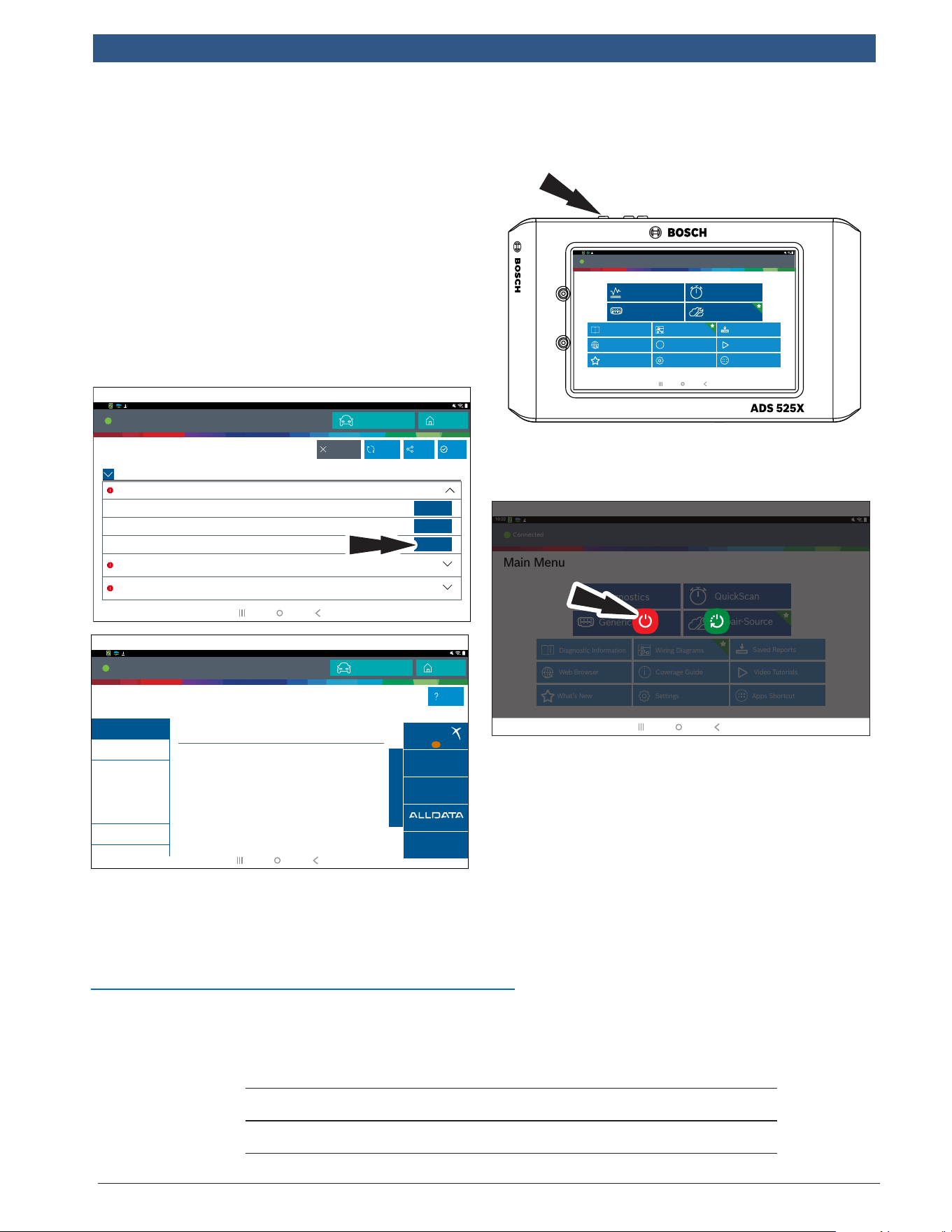
How to Power Off ADS 525X
a. Press and release the power
button.
Connected
Generic OBDII
Repair-Source
10:22
QuickScan
Apps Shortcut
Settings
What’s New
Web Browser Coverage Guide Video Tutorials
Diagnostic Information Wiring Diagrams
i
i
Saved Reports
Main Menu
Diagnostics
b. Select Power Off. The tool will now
shutdown.
Connected
Generic OBDII
Repair-Source
10:22
QuickScan
Apps Shortcut
Settings
What’s New
Web Browser Coverage Guide Video Tutorials
Diagnostic Information Wiring Diagrams
i
i
Saved Reports
Main Menu
Diagnostics
Power off Restart
rt0018
Note: When switching vehicles, it is best
to return to the home screen before
disconnecting the VCI from the vehicle to
avoid communication errors.

Bosch
Automotive Service Solutions, Inc.
655 Eisenhower Drive
Owatonna, MN 55060 USA
Phone: 1-855-267-2483 Option 1
www.boschdiagnostics.com
1699502643 Rev B