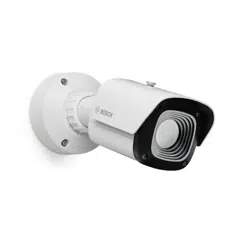


DINION thermal 8100i Table of contents | en 3
Bosch Security Systems B.V. User manual 2025-07 | V02 | F.01U.421.058
Table of contents
1
Safety and security information 5
1.1 Safety message explanation 5
1.2 Safety precautions 5
1.3 Important safety instructions 5
1.4 Notices 6
2
Browser connection 8
2.1 System requirements 8
2.2 Establishing the connection 8
2.3 Password protection in camera 8
3
System overview 10
3.1 Live 10
3.2 Playback 10
3.3 Configuration 10
3.4 Dashboard 11
4
Operation via the browser 12
4.1 Live page 12
4.2 Playback page 13
4.2.1 Selecting the recording stream 14
4.2.2 Searching for recorded video 14
4.2.3 Exporting recorded video 14
4.2.4 Track list 14
4.2.5 Controlling playback 14
4.3 Dashboard 15
5
Configuration 16
5.1 General 16
5.1.1 Identification 16
5.1.2 User Management 16
5.1.3 Date/Time 17
5.2 Web interface 18
5.2.1 Appearance 18
5.2.2 'Live' functions 20
5.3 Connectivity 20
5.3.1 Cloud services 20
5.3.2 Accounts 21
5.3.3 DynDNS 21
5.4 Camera 22
5.4.1 Installer Menu 22
5.4.2 Display Stamping 23
5.4.3 Positioning 24
5.4.4 Picture Settings 26
5.4.5 Encoder Streams 28
5.4.6 Encoder Statistics 30
5.4.7 Privacy Masks 31
5.4.8 Audio 31
5.4.9 Pixel Counter 32
5.5 Recording 32
5.5.1 Storage Management 32
5.5.2 Recording Profiles 34

4 en | Table of contents DINION thermal 8100i
2025-07 | V02 | F.01U.421.058
User manual
Bosch Security Systems B.V.
5.5.3 Maximum Retention Time 36
5.5.4 Recording Scheduler 36
5.5.5 Recording Status 37
5.5.6 Recording Statistics 37
5.5.7 Image Posting 37
5.5.8 SD Card Status 38
5.6 Alarm 38
5.6.1 Alarm Connections 38
5.6.2 Video Content Analysis (VCA) 40
5.6.3 Audio Alarm 40
5.6.4 Alarm email 40
5.6.5 Alarm Inputs 41
5.6.6 Alarm Outputs 41
5.6.7 Auxiliary power 42
5.6.8 Alarm Task Editor 42
5.7 Network 42
5.7.1 Network Services 42
5.7.2 Network Access 42
5.7.3 Advanced 44
5.7.4 Network Management 45
5.7.5 Multicast 46
5.7.6 IPv4 Filter 47
5.8 Service 47
5.8.1 Maintenance 47
5.8.2 Licenses 48
5.8.3 Certificates 48
5.8.4 Logging 49
5.8.5 System Overview 49
6
Troubleshooting 50
6.1 Physical reset button 50
7
Appendices 51
7.1 Copyright notices 51
7.2 More information 51
DINION thermal 8100i Safety and security information | en 5
Bosch Security Systems B.V.
User manual
2025-07 | V02 | F.01U.421.058
1 Safety and security information
Read, follow, and retain for future reference all of the following safety instructions. Follow all warnings
before operating the device.
1.1 Safety message explanation
In this manual, the following symbols and notations are used to draw attention to special situations:
Danger!
Indicates a hazardous situation which, if not avoided, will result in death or serious injury.
!
Warning!
Indicates a hazardous situation which, if not avoided, could result in death or serious injury.
!
Caution!
Indicates a hazardous situation which, if not avoided, could result in minor or moderate injury.
i
Notice!
Indicates a situation which, if not avoided, could result in damage to the equipment or environment,
or data loss.
1.2 Safety precautions
!
Caution!
Installation should only be performed by qualified service personnel in accordance with the National
Electrical Code (NEC800 CECSection60) or applicable local codes.
!
Caution!
The product must be supplied only by an external source having an output complying with PS2 or
Annex Q conform to IEC 62368-1 and UL62368-1.
1.3 Important safety instructions
– To clean the device, do not use liquid cleaners or aerosol cleaners.
– Do not install the device near any heat sources such as radiators, heaters, stoves, or other
equipment (including amplifiers) that produce heat.
– Do not spill liquids on the device before installation is completed.
– Take precautions to protect the device from power and lightning surges.
– If powered by a power adapter, the adapter should be properly grounded. The power cord must
be connected to a socket or outlet with a ground connection.
– Use green/yellow (green with yellow stripe) ground wires.
– Adjust only those controls specified in the operating instructions.
– Operate the device only from the type of power source indicated on the label.

6 en | Safety and security information DINION thermal 8100i
2025-07 | V02 | F.01U.421.058
User manual
Bosch Security Systems B.V.
– Unless qualified, do not attempt to service a damaged device yourself. Refer all servicing to
qualified service personnel.
– Install in accordance with the manufacturer's instructions in accordance with applicable local
codes.
– Use only attachments/accessories specified by the manufacturer.
– Protect all connection cables from possible damage, particularly at connection points.
1.4 Notices
UL Disclaimer
Underwriter Laboratories Inc. ("UL") has not tested the performance or reliability of the security or
signaling aspects of this product. UL has only tested fire, shock and/or casualty hazards as outlined in
Standard(s) for Safety for Information Technology Equipment, UL 62368-1. UL Certification does not
cover the performance or reliability of the security or signaling aspects of this product.
UL MAKES NO REPRESENTATIONS, WARRANTIES, OR CERTIFICATIONS WHATSOEVER
REGARDING THE PERFORMANCE OR RELIABILITY OF ANY SECURITY OR SIGNALING-RELATED
FUNCTIONS OF THIS PRODUCT.
FCC suppliers Declaration of Conformity
DINION thermal 8100i: NBT-8700-F03QF, NBT-8700-F05QF, NBT-8700-F09QF, NBT-8700-
F18QF, NBT-8701-F06VF, NBT-8701-F14VF, NBT-8701-F25VF, NBT-8701-F42VF
Compliance statement
This device complies with part 15 of the FCC Rules. Operation is subject to the following two
conditions: (1) This device may not cause harmful interference, and (2) this device must accept any
interference received, including interference that may cause undesired operation.
Responsible party
Bosch Security Systems, LLC
130 Perinton Parkway
14450 Fairport, NY, USA
For more information please contact the nearest Bosch Security Systems location or visit:
www.boschsecurity.us
Changes or modifications not expressly approved by the party responsible for compliance could void
the user's authority to operate the equipment.
Note: This equipment has been tested and found to comply with the limits for a Class A digital device,
pursuant to part 15 of the FCC Rules. These limits are designed to provide reasonable protection
against harmful interference when the equipment is operated in a commercial environment. This
equipment generates, uses, and can radiate radio frequency energy and, if not installed and used in
accordance with the instruction manual, may cause harmful interference to radio communications.
Operation of this equipment in a residential area is likely to cause harmful interference in which case
the user will be required to correct the interference at his own expense.
DINION thermal 8100i Safety and security information | en 7
Bosch Security Systems B.V.
User manual
2025-07 | V02 | F.01U.421.058
European Union, Great Brittain, Australia, and New Zealand
i
Notice!
This equipment has been tested and found to comply with the limits for a Class A digital device,
pursuant to EN 55032. These limits are designed to provide reasonable protection against harmful
interference when the equipment is operated in a commercial environment. This equipment
generates, uses, and can radiate radio frequency energy and, if not installed and used in accordance
with the instruction manual, may cause harmful interference to radio communications. Operation of
this equipment in a residential area is likely to cause harmful interference in which case the user will
be required to correct the interference at his own expense.
Canada
CAN ICES-003(A) / NMB-003(A)
VCCI statement (Japan)
この装置は、クラスA機器です。この装置を住宅環境で使用すると電波妨害を引き起こすことがあり
ます。この場合には使用者が適切な対策を講ずるよう要求されることがあります。VCCI - A
Use latest software
Before operating the device for the first time, make sure that you install the latest applicable release of
your software version. For consistent functionality, compatibility, performance, and security, regularly
update the software throughout the operational life of the device. Follow the instructions in the
product documentation regarding software updates.
The following links provide more information:
– General information: https://www.boschsecurity.com/xc/en/support/product-security/
– Security advisories, that is a list of identified vulnerabilities and proposed solutions: https://
www.boschsecurity.com/xc/en/support/product-security/security-advisories.html
Bosch assumes no liability whatsoever for any damage caused by operating its products with
outdated software components.
Old electrical and electronic equipment
This product and/or battery must be disposed of separately from household waste. Dispose
such equipment according to local laws and regulations, to allow their reuse and/or recycling.
This will help in conserving resources, and in protecting human health and the environment.

8 en | Browser connection DINION thermal 8100i
2025-07 | V02 | F.01U.421.058
User manual
Bosch Security Systems B.V.
2 Browser connection
A computer with a web browser (Google Chrome, Microsoft Edge, or Mozilla Firefox) is used to receive
live images, control the unit, and replay stored sequences. The unit is configured over the network
using the browser.
2.1 System requirements
Our recommendations are:
– Computer with dual core HyperThreading processor or better
– Graphic card with performance that matches or is better than the resolution of the camera
– Windows10 or later
– Network access
– Google Chrome, Microsoft Edge, or Mozilla Firefox
- or -
Application software, for example, VideoSecurityClient or BVMS.
2.2 Establishing the connection
The device must have a valid IP address to operate on the network and a compatible subnet mask.
By default, DHCP is pre-set at the factory On plus Link-Local so a DHCP server assigns an IP address
or, if no DHCP server is available, a link local address (auto-IP) is assigned within the range
169.254.1.0 to 169.254.254.255.
The Project Assistant app or Configuration Manager can be used to find the IP address. Download the
software from https://downloadstore.boschsecurity.com
:
1. Start the web browser.
2. Enter the IP address of the device as the URL.
3. During the initial installation, confirm any security questions that show.
If a RADIUS server is used for network access control (802.1x authentication), you must configure the
device before the device can communicate with the network.
To configure the device, connect it directly to a computer using a network cable and then set the
service-level password.
Note:
If you cannot connect, the unit may have reached its maximum number of connections. Depending on
the device and network configuration, each unit can have up to 50 web browser connections, or up to
100 connections via BVMS.
2.3 Password protection in camera
The device is password-protected. The first time that any user accesses the device, the device will
prompt the user to set a password at the service level.
The camera requires a strong password. Follow the prompts in the dialog box, which specifies what is
required. The system measures the strength of the password that you enter.
Make sure the password obeys these conditions:
– 8 to 19 characters in length
– Upper and lower case letters
– Minimum of 1 digit
– Minimum of 1 special character
These special characters are not allowed: '@', '&', '<', '>', ':', '+'

DINION thermal 8100i Browser connection | en 9
Bosch Security Systems B.V.
User manual
2025-07 | V02 | F.01U.421.058
When you use Configuration Manager to access your device for the first time, you must set the initial
password of the device in Configuration Manager. The Users section (General > Unit Access > Users)
displays the message, "Before you can use this device you have to secure it with an initial password."
Note: After you set the initial password, a "lock" icon appears next to the device name in the Devices
list in Configuration Manager.
You can also launch the device webpage directly. In the device webpage, an initial password page
appears, displaying input fields and a password strength gauge.
Enter the user name (“service”) and a password in the appropriate fields. Refer to the section User
Management for more information.
After a service-level password is set for the device, the device displays a dialog box that prompts
users to enter the user name (“service”) and the service-level password every time that they access
the device.
1. Fill in the fields User name and Password.
2. Click OK. If the password is correct, the desired page appears.
Note: New releases of software may require you to set a new and stronger password.
10 en | System overview DINION thermal 8100i
2025-07 | V02 | F.01U.421.058
User manual
Bosch Security Systems B.V.
3 System overview
Note: None of the pages are accessible until after you set a service-level password.
When a connection is established, the Live page is initially displayed.
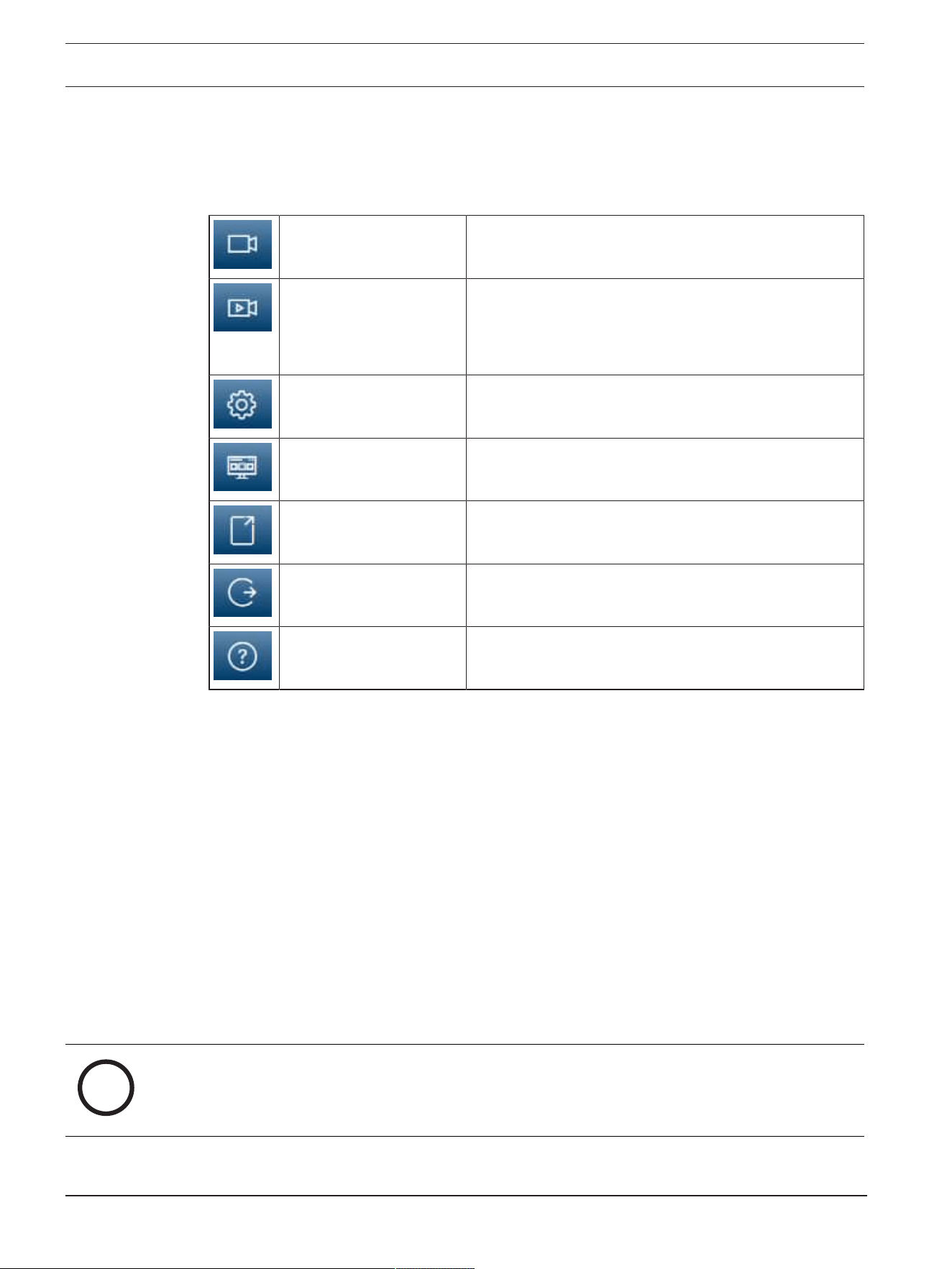
The application bar displays the following icons:
Live Click this icon to view the live video stream.
Playback Click this icon to play back recorded sequences.
This link is only visible if a storage medium has been
configured for recording. (With VRM recording, this option is
not active.)
Configuration Click this icon to configure the device.
Dashboard Click this icon to see detailed system information.
Links Click this icon to navigate to the Bosch download store.
Logout Click this icon to log out of the device.
Click this icon to get context-sensitive help for the page you
are browsing.
3.1 Live
The Live page is used to display the live video stream and control the unit.
3.2 Playback
The Playback page is used for searching, playing back, and exporting recorded sequences.
3.3 Configuration
The Configuration page is used to configure the unit and the application interface.
Making Changes
Each configuration screen shows the current settings. You can change the settings by entering new
values or by selecting a predefined value from a list field.
Not every page has a Set button. Changes to pages without a Set button are set immediately. If a
page does show a Set button, you must click the Set button for a change to take effect.
i
Notice!
Save each change with the associated Set button.
Clicking the Set button saves the settings only in the current field. Changes in any other fields are
ignored.
Some changes only take effect after the unit is rebooted. In this case, the Set button changes to Set
and Reboot.

DINION thermal 8100i System overview | en 11
Bosch Security Systems B.V.
User manual
2025-07 | V02 | F.01U.421.058
1. Make the desired changes.
2. Click the Set and Reboot button. The camera reboots and the changed settings are activated.
3.4 Dashboard
The Dashboard page is used to display detailed information about the device.
The Dashboard is only visible in the application bar if the Show 'Dashboard' option is enabled by a
service-level user in the Configuration -> Web Interface -> Appearance page.
12 en | Operation via the browser DINION thermal 8100i
2025-07 | V02 | F.01U.421.058
User manual
Bosch Security Systems B.V.
4 Operation via the browser
4.1 Live page
After the connection is established, the Live page is initially displayed. It shows the live video image
on the right of the browser window. Depending on the configuration, various text overlays may be
visible on the live video image.
Other information may also be shown next to the live video image. The items shown depend on the
settings on the 'Live' functions page.
Connection
In the Connection group, you can configure the Stream option.
Video stream selection
To view a live stream of the selected video channel:
1. On the left side of the browser, expand the Connection group if necessary.
2. Click the Stream drop-down arrow to see the options.
Select the stream you wish to view.
Digital I/O
Depending on the configuration of the unit, the alarm input and the output are displayed next to the
image. Expand the Digital I/O group if necessary.
The alarm symbol is for information and indicates the status of an alarm input:
– The symbol lights when the input alarm is active.
The alarm output allows the operation of an external device (for example, a light switch or a door
opener).
– To activate the output, click the checkmark symbol.
– The symbol lights when the output is activated.
Recording status
The hard drive icon
below the live camera image changes during an automatic recording. The
icon lights up and displays a moving graphic to indicate a running recording. If no recording is taking
place, a static icon is displayed.
Full-screen display
Click the full-screen icon
to view the selected stream in full-screen mode; press Esc on the
keyboard to return to the normal viewing window.
Start Video Security app
To start the Video Security app, click
.
Show latest event
Click the Show latest event icon
to watch the last recorded important events.
The Playback page opens.
Storage, CPU and network status
DINION thermal 8100i Operation via the browser | en 13
Bosch Security Systems B.V.
User manual
2025-07 | V02 | F.01U.421.058
When accessing the unit with a browser, the local storage, processor and network status icons are
shown in the upper right of the window.
When a local storage card is available, the memory card icon changes color (green, orange or red) to
indicate the local storage activity. If you hover over this icon with the mouse the storage activity is
shown as a percentage.
If you hover over the middle icon, the CPU load is shown.
If you hover over the right-hand icon, the network load is shown.
This information can help with problem solving or when fine tuning the unit. For example:
– if the storage activity is too high, change the recording profile,
– if the CPU load is too high, change the VCA settings,
– if the network load is too big, change the encoder profile to reduce bitrate.
Status icons
Various overlays in the video image provide important status information. The overlays provide the
following information:
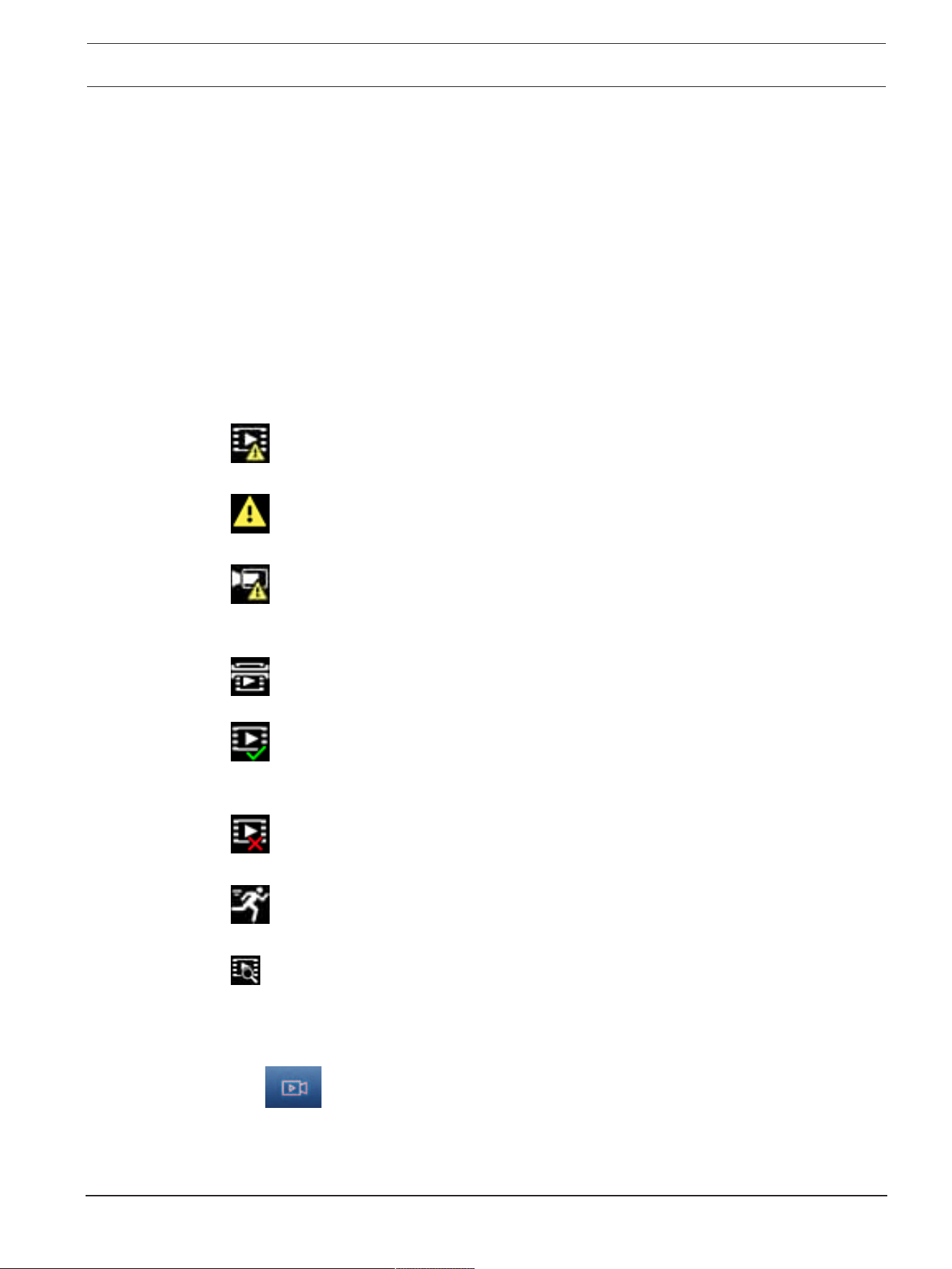
Decoding error
The frame might show artifacts due to decoding errors.
Alarm flag
Indicates that an alarm has occurred.
Communication error
A communication error, such as a connection failure to the storage medium, a protocol violation or a
timeout, is indicated by this icon.
Gap
Indicates a gap in the recorded video.
Watermark valid
The watermark set on the media item is valid. The color of the check mark changes according to the
video authentication method that has been selected.
Watermark invalid
Indicates that the watermark is not valid.
Motion alarm
Indicates that a motion alarm has occurred.
Storage discovery
Indicates that recorded video is being retrieved.
4.2 Playback page
Click
Playback in the application bar to view, search or export recordings. This link is only
visible when a direct iSCSI or memory card is configured for recording (with Video Recording Manager
(VRM) recording this option is not active).
On the left side of the screen, there are four groups:

14 en | Operation via the browser DINION thermal 8100i
2025-07 | V02 | F.01U.421.058
User manual
Bosch Security Systems B.V.
– Connection
– Search
– Export
– Track list
4.2.1 Selecting the recording stream
Expand the Connection group on the left side of the browser.
To view a recording stream:
– Click the Recording drop-down arrow to see the options.
– Select one of the numbered recording streams.
4.2.2 Searching for recorded video
On the left side of the browser, expand the Search group if necessary.
1. To limit the search to a particular time range, enter the date and times for the start and stop
points.
2. Select an option from the drop-down box to define a search parameter.
3. Click Search.
4. The results are shown.
5. Click a result to play it back.
6. Click Back to define a new search.
4.2.3 Exporting recorded video
On the left side of the browser, expand the Export group if necessary:
1. Select a track in the track list or in the search results.
2. The start and stop date and time are filled for the selected track. If necessary, change the times.
3. In the Time lapse drop-down box, select Original, to export the recorded video as its original,
Condensed to export the recorded video condensed to the given output time.
4. In the Location drop-down box, select a target.
5. Click Export to save the video track.
Note:
The target server address is set on the Connectivity>Accounts page.
4.2.4 Track list
The Track list shows all the available recordings.
4.2.5 Controlling playback
The time bar below the video image allows quick orientation. The time interval associated with the
sequence is displayed in the bar in gray. Arrows indicate the position of the image currently being
played back within the sequence.
The time bar offers various options for navigation in and between sequences.
– If required, click in the bar at the point in time at which the playback should begin.
– Change the time interval displayed by clicking the plus or minus icons or use the mouse scroll
wheel. The display can span a range from six months to one minute.
– Click the alarm jump buttons to go from one alarm event to the next or to the previous one. Red
bars indicate the points in time where alarms were triggered.
Controls
Control playback by means of the buttons below the video image.
The buttons have the following functions:
– Start/Pause playback

DINION thermal 8100i Operation via the browser | en 15
Bosch Security Systems B.V.
User manual
2025-07 | V02 | F.01U.421.058
– Select the playback (forward or backward) speed using the speed regulator
– Step forward or backward frame-by-frame when paused (small arrows)
4.3 Dashboard
The Dashboard page shows information on 4 topics:
– Device status
– Recording status
– Connection Status
– Services
You can also download a .JSON file with information about the device:
1. At the bottom of the page, locate the Export button
2. Click the Export button
3. The file is automatically saved in the downloads folder.

16 en | Configuration DINION thermal 8100i
2025-07 | V02 | F.01U.421.058
User manual
Bosch Security Systems B.V.
5 Configuration
5.1 General
5.1.1 Identification
Device name
Assign a unique name to assist in identification. This name simplifies the management of multiple
devices in more extensive systems.
The name is used for remote identification, for example, in the event of an alarm. Choose a name that
makes it as easy as possible to identify the location unambiguously.
Device ID
Each device should be assigned a unique identifier that can be entered here as an additional means of
identification.
Video name
Each video channel can be given a name. Click the + sign to add an extra line.
Host name
Enter the host name registered for the device.
Initiator extension
Add text to an initiator name to make identification easier in large iSCSI systems. This text is added to
the initiator name, separated from it by a full stop. (You can see the initiator name in the System
Overview page.)
Click Set to apply the changes.
5.1.2 User Management
A password prevents unauthorized access to the device. You can use different authorization levels to
limit access.
Proper password protection is only guaranteed when all higher authorization levels are also protected
with a password. Therefore, you must always start from the highest authorization level when
assigning passwords.
You can define and change a password for each authorization level if you are logged into the “service”
user account.
Authentication modes
The section Authentication modes provides information about the authentication modes set in the
camera. A checkmark appears in the checkbox to the left of the mode if the mode is set. If the mode is
not set, the phrase “No certificate installed” appears to the right of the mode name.
This device has three authentication modes:
– Password indicates a password is set for the camera. It prevents unauthorized access to the
device, and can use different authorization levels to limit access.
Proper password protection is only guaranteed when all higher authorization levels are also
protected with a password. Therefore, you must always start from the highest authorization level
when assigning passwords.
You can define and change a password for each authorization level if you are logged into the
service user account.
– Certificate. A check mark in this check box indicates that at least one certificate is loaded onto
the device.
The Trusted certificate is a root certificate for Bosch Security Systems that proves that the device
meets the following criteria:
– It originates from a Bosch factory that is a secure environment.

DINION thermal 8100i Configuration | en 17
Bosch Security Systems B.V.
User manual
2025-07 | V02 | F.01U.421.058
– It has not been tampered with.
The Trusted certificate is issued by Escrypt. Escrypt is a Bosch company and Certificate Authority
(CA).
– Active Directory server (AD FS). A check mark in this check box indicates that the device uses
an active directory server.
Click Set to apply the changes.
Creating a new user
To create a new user, click Add in the section below Authentication modes.
In the box User, fill in the fields:
1. User name, Enter a name with a minimum of 5 and a maximum of 31 characters.
2. Group, select the appropriate authorization level:
– live is the lowest authorization level. At this level, it is only possible to view the live video
image, and switch between the different live image displays.
– user is a middle authorization level. At this level, it is possible to operate the device and
playback recordings, but configuration changes are not possible.
– IVA configuration is a middle authorization level. At this level, it is only possible to configure
VCA, but access is available to all user level functions like PTZ and Replay.
– service is the highest authorization level. Entering the correct password gives access to all
the functions, and allows all configuration settings to be changed.
3. Type, select either:
– Password for a new password.
Use a minimum of 8 and a maximum of 19 characters. The password must have upper-case
and lower-case letters, one or more numerical digits and one or more of these special
characters ! ? ” # $ % ( ) { } [ ] * - = . , ; ^ _ | ~ \
Special characters such as space @ : < > ‘ & + are not valid.
In this case, enter the new password a second time to eliminate typing mistakes.
– Certificate for a certificate that the new user is authorized to use.
4. Click Set to confirm and create a new user.
To edit a password
To edit a password, click the pencil icon to the right of the column Type for the appropriate User
name.
5.1.3 Date/Time
Date format
Select the required date format from the dropdown menu.
Device date/Device time
i
Notice!
Make sure that recording is stopped before synching to the PC.
If there are multiple devices operating in your system or network, it is important to synchronize their
internal clocks. For example, it is only possible to identify and correctly evaluate simultaneous
recordings when all units are operating on the same time.
1. Enter the current date. Since the unit time is controlled by the internal clock, there is no need to
enter the day of the week - it is added automatically.
2. Enter the current time or click the Sync to PC button to copy your computer's system time to the
camera.

18 en | Configuration DINION thermal 8100i
2025-07 | V02 | F.01U.421.058
User manual
Bosch Security Systems B.V.
Note: It is important that the date/time is correct for recording. An incorrect date/time setting could
prevent correct recording.
Device time zone
Select the time zone in which the system is located.
Daylight saving time
The internal clock can switch automatically between normal and daylight saving time (DST). The unit
already contains the data for DST switch-overs for many years in advance. If the date, time and zone
have been set up correctly, a DST table is automatically created.
If you decide to create alternative daylight saving time dates by editing the table, note that values
occur in linked pairs (DST start and end dates).
First, check the time zone setting. If it is not correct, select the appropriate time zone and click Set.
1. Click Details to edit the DST table.
2. Click Generate to fill the table with the preset values from the unit.
3. Click one of the entries in the table to make changes. The entry is highlighted.
4. Click Delete to remove the entry from the table.
5. Choose other values from the list boxes under the table, to change the selected entry. Changes
are immediate.
6. If there are empty lines at the bottom of the table, for example after deletions, add new data by
marking the row and selecting values from the list boxes.
7. When finished, click OK to save and activate the table.
Time server address
The camera can receive the time signal from time server using various time server protocols, and then
use it to set the internal clock. The unit polls the time signal automatically once every minute.
Enter the IP address of a time server here.
You can choose to have the DHCP server give a time server date by selecting the Overwrite by DHCP
option.
Time server type
Select the protocol that is supported by the selected time server.
– Select Time protocol if the server uses the protocol RFC868.
– The SNTP protocol supports a high level of accuracy and is required for special applications and
subsequent function extensions.
– Select TLS protocol if the server uses the RFC 5246 protocol.
– Select Off to disable the time server.
Click Set to apply the changes.
5.2 Web interface
5.2.1 Appearance
You can adapt the appearance of the web interface and change the website language to meet your
requirements.
Website language
Select the language for the user interface.
The default language is English.
After setting the new language, click the Set button to apply changes. The GUI now displays field
names and options, as well as OSD messages, in the selected language.

DINION thermal 8100i Configuration | en 19
Bosch Security Systems B.V.
User manual
2025-07 | V02 | F.01U.421.058
Show VCA metadata
When video content analysis (VCA) is activated, additional information is displayed in the live video
stream. With the MOTION+ analysis type, for example, the sensor fields in which motion is recorded
are marked with yellow rectangles.
Using Intelligent Video Analytics, the outlines of detected objects are displayed in these colors:
– Red: Objects that generate an alarm event under the current settings appear on the camera
image inside a red outline.
– Orange: An object that triggered an alarm event but does not generate another one appears
inside an orange outline (example: object has crossed a line). During forensic search, an object
that triggers an alarm event has an orange outline from the beginning.
– Yellow: Objects that are detected as moving but do not generate an alarm event under the
current settings appear inside a yellow outline.
Show VCA trajectories
For devices with Essential Video Analytics or Intelligent Video Analytics, the trajectories (motion lines
of objects) from the video content analysis are shown in the live video image if a corresponding
analysis type is activated. The trajectory is shown as a green line that follows the object’s base point.
Show VCA attributes
Select this checkbox to show VCA attributes on the live video image.
Show overlay icons
Select this check box to show overlay icons on the live video image.
Show 'Dashboard'
Select this checkbox to enable the Dashboard in the application bar.
Secure cookies
Select this checkbox to secure the cookies sent through the camera.
i
Notice!
If cookies are secured, authentication forwarding to MPEG ActiveX and the Video Security App is
prohibited.
HTTP referrer check
Click this option to disable HTTP referrer checking. This option is enabled by default.
The HTTP referrer check works as a protection against a CSRF (Cross-site request forgery) attack.
If a use case requires not sending the HTTP referrer, you can disable this option. In this situation, you
might require other mitigations against CSRF attacks.
Login notification
Select this checkbox to receive a notification when a user logs in.
Video player
Select the type of player to be used for live mode viewing.
Video buffer
The value shown is calculated from the Latency mode setting. It cannot be changed.
JPEG resolution
You can specify the size of the JPEG image on the Live page. Options are Small , Medium , Large ,
Extra large, Maximum and Resource based (default).
JPEG interval
You can specify the interval at which the individual images should be generated for the M-JPEG image
on the Live page.
Enter a time interval (in milliseconds). The default is 0.

20 en | Configuration DINION thermal 8100i
2025-07 | V02 | F.01U.421.058
User manual
Bosch Security Systems B.V.
JPEG quality
You can specify the quality at which the JPEG images appear on the Live page.
This option is only available if JPEG resolution is not set to Resource based.
Click Set to apply the changes.
Login page text
Type the text you want to display to a user in the Login page before he accesses the device with the
respective User name and Password.
5.2.2 'Live' functions
You can adapt the Live page functions to meet your requirements. Choose from a variety of different
options for displaying information and controls.
1. Select the check boxes for the functions to be displayed on the Live page. The selected elements
are checked.
2. Check to see if the desired items are shown.
Transmit audio
When selected, the audio from the camera (if set to On on the Audio page) is sent to the computer.
This setting applies only to the computer on which the selection is made. Transmitting audio data
requires additional network bandwidth.
Auto logout time [min]
Set a time frame (in minutes) for the automatic logout. Default value is 0 (no automatic logout).
Show alarm inputs
The alarm inputs are displayed next to the video image as icons along with their assigned names. If an
alarm is active, the corresponding icon changes color.
Show alarm outputs
Alarm outputs are shown next to the video image as icons along with their assigned names. If an
output is switched, the icon changes color.
Click Set to apply the changes.
5.3 Connectivity
5.3.1 Cloud services
Cloud connectivity
Operation
The operation mode determines how the camera communicates with the Remote Portal.
– Select On to poll the server constantly.
– Select Off to block polling.
– Select Re-register to different account if you want to register the camera to another Remote
Portal account.
Connectivity state
This field indicates the device's connectivity state with Remote Portal.
– If the device is registered and the operation mode is set to On, the state will indicate that the
device is Connected (to the cloud service).
Note: The Visit Remote Portal button will become active.
– If the device is not registered or the operation mode is set to Off, the state will indicate that the
device is Not available.
Note: The Register button will become active only if you have not registered the device to the Remote
Portal.

DINION thermal 8100i Configuration | en 21
Bosch Security Systems B.V.
User manual
2025-07 | V02 | F.01U.421.058
Other services
This area displays the state of the Stratocast registration code.
Registration code
Stratocast
Enter the Stratocast Registration code to connect with the Genetec’s Stratocast cloud.
Click Register to activate the account.
5.3.2 Accounts
Four separate accounts can be defined for posting and recording export.
Type
Select the account type.
Account name
Enter an account name to be shown as the target name.
IP address
Enter the IP address for an FTP server.
Login
Enter your login name for the account server.
Password
Enter the password that gives access to the account server. Click Check to confirm that it is correct.
Path
Enter an exact path to post the images on the account server. Click Browse... to browse to the
required path.
Maximum bit rate
Enter the maximum bit rate in kbps that will be allowed when communicating with the account.
Encryption
Tick the box to use a secure FTP over TLS connection.
Click Set to apply the changes.
5.3.3 DynDNS
A dynamic Domain Name Service (DNS) allows you to select the unit via the Internet using a host
name, without having to know the current IP address of the unit. You can enable this service here. To
do this, you must have an account with one of the dynamic DNS providers and you must register the
required host name for the unit on that site.
Note:
For information about the service, registration process and available host names refer to the provider.
Enable DynDNS
Select On or Off from the drop-down list to enable or disable DynDNS.
DynDNS is disabled by default.
Provider
Select your dynamic DNS Provider from the drop-down list.
Host name
Enter the host name registered for the unit.
User name
Enter the user name you registered.

22 en | Configuration DINION thermal 8100i
2025-07 | V02 | F.01U.421.058
User manual
Bosch Security Systems B.V.
Password
Enter the password you registered.
Force registration now
Force the registration by transferring the IP address to the DynDNS server. Entries that change
frequently are not provided in the Domain Name System. It is a good idea to force the registration
when setting up the device for the first time. Only use this function when necessary and no more than
once a day, to avoid the possibility of being blocked by the service provider. To transfer the IP address
of the device, click the Register button.
Status
The status of the DynDNS function is displayed here for information purposes; these settings cannot
be changed.
Click Set to apply the changes.
5.4 Camera
5.4.1 Installer Menu
Sensor mode
The Sensor mode specifies how many images per second the sensor captures and also in what
resolution it captures these images.
Image rotation
This device has four image rotation options:
– 0°
– 90° - upright
– 180°
– 270° - upright
Click Accept to change the image rotation to the recommended by the device or select the option from
the drop-down list that best suits the device mounting position.
The upright modes (90° and 270°) are good for vertical scenes, such as hallways or perimeters. When
these options are selected, the aspect ratio and the signaling to the interfaces change (example, 4:3 to
3:4).
If the device is mounted in its normal position, select 0°.
The end result is shown in the Live preview.
Mirror image
Select On to output a mirror image of the camera picture.
Camera LED
Click the Enabled or Disabled check-box to switch the Camera LED on or off.
Select Enabled or Disabled from the dropdown menu to switch the Camera LED on or off.
Select Auto disable to let the camera determine when the LED should be switched off.
The camera LED activates when powering on the camera for the first time. The LED deactivates
automatically after 5min.
Window heater (only available for models with a window heater)
Select Auto to let the camera determine when the heater should be switched on.
Select Off to manual disable the camera heater.
Select Temporary On to turn on the camera heater for 60min.
Notice: Temporary On will run for 60min and then return to the previously set mode (Auto or Off).
USB port
Click the Enabled Enabled or Disabled check-box to switch the USB type C port on or off.

DINION thermal 8100i Configuration | en 23
Bosch Security Systems B.V.
User manual
2025-07 | V02 | F.01U.421.058
Reboot device
Click Reboot to restart the device.
Restore settings
Click Restore to restore all settings, except network settings, to their defaults.
Note: Clicking this button also clears the service-level password. Operators must reset the password
before doing anything else.
Factory defaults
Click Defaults to restore the factory defaults for the camera. A confirmation screen appears. Allow
several seconds for the camera to optimize the picture after a reset.
5.4.2 Display Stamping
Various overlays or stamps in the video image provide important supplementary information. These
overlays can be enabled individually and arranged on the image in a clear manner.
The drop-down menus below allow the configuration of the individual stamping options. The
respective sample windows show a preview of the configured text and background styles.
Global configuration
i
Notice!
These options can also be configured individually for all stamping settings.
Any changes to the global configuration settings will be applied to all stamping settings!
– Stamping size
Select the desired font size of the overlays on the OSD: Normal, Large or Custom.
Select Custom to enable the Font size (‰) field.
– Text color
Select the color for the alarm message to be displayed in.
– Background color
Select the background color for the alarm message to be displayed in.
If you have enabled the Transparent background option, the background color is not displayed in the
OSD.
Click Set to apply the changes.
Camera name stamping
– Position
Select the position of the camera name overlay in the drop-down box. It can be displayed at the Top,
at the Bottom, or at a position of choice using the Custom option, or it can be set to Off for no overlay
information.
If the Custom option is selected, enter values in the X and Y position fields.
Optionally, tick the Underlay with full-width bar box to place a full-width background-bar beneath
the time stamp.
i
Notice!
Camera / video names can be changed under General > Identification.
Logo stamping
– Enable
Check this box to enable logo stamping.
– Position (XY)

24 en | Configuration DINION thermal 8100i
2025-07 | V02 | F.01U.421.058
User manual
Bosch Security Systems B.V.
This parameter becomes visible if Logo stamping is enabled.
Insert the values for the X and Y coordinates to specify the logo's position.
– Logo
To place a logo on the image, select and upload an uncompressed .bmp file with a maximum size of
128x128 pixels and 256 colors to the camera.
Click Set to apply the changes.
Time stamping
Select the position of the time and date overlay in the drop-down box. It can be displayed at the Top,
at the Bottom, or at a position of choice using the Custom option, or it can be set to Off for no overlay
information.
If the Custom option is selected, enter values in the X and Y position fields.
Alarm mode stamping
– Alarm message
Enter the message to be displayed on the image in the event of an alarm. The maximum text length is
32characters.
Stream security
Select from the Video authentication drop-down box a method for verifying the integrity of the video.
If you select Watermarking, all images are marked with an icon. The icon indicates if the sequence
(live or saved) has been manipulated.
If you want to add a digital signature to the transmitted video images to ensure their integrity, select
one of the cryptographic algorithms for this signature.
Set the Signature interval [s] for the selected authentication method.
Click Set to apply the changes.
5.4.3 Positioning
The Positioning feature describes the location of the camera and the perspective in the camera’s field
of view.
Perspective information is essential to Video Analytics, as it enables the system to compensate for the
illusory smallness of distant objects.
Only through use of perspective information it is possible to distinguish objects such as persons,
bicycles, cars and trucks, and accurately compute their real size and speeds as they move through 3D
space.
However, to calculate perspective information accurately, the camera must be directed at a single, flat
horizontal plane. Multiple and inclined planes, hills, stairs can falsify perspective information and
produce incorrect object information such as size and speed.
Mounting position
The mounting position describes the perspective information that is also often called calibration.
In general, the mounting position is determined by the parameters of the camera such as height, roll
angle, and tilt angle.
The height of the camera must always be entered manually. Whenever possible, roll angle and tilt
angle are provided by the camera itself.
Tilt angle [°]
Enter the tilt angle if the value is not determined by the camera.
The tilt angle describes the angle between the horizontal and the camera.
A tilt angle of 0° means that the camera is mounted in the ceiling.
A tilt angle of 90° means that the camera is mounted in a wall.
The flatter the tilt angle is set, the less accurate the estimate of object sizes and speeds will be. The
settings must be between 0° and 90°. Estimates are no longer possible when you have reached 0°.

DINION thermal 8100i Configuration | en 25
Bosch Security Systems B.V.
User manual
2025-07 | V02 | F.01U.421.058
Roll angle [°]
Enter the roll angle if the value is not determined by the camera.
The roll angle describes the angle between the roll axis and the horizontal plane. The angle can
deviate from the horizontal by up to 45°.
Height [m]
Enter the height in meters of the position of the camera.
The height describes the vertical distance from the camera to the ground plane of the captured image.
Typically the elevation of the mounted camera above the ground.
Focal length [mm]
Enter the focal length in millimeter of the position of the camera if the value is not determined by the
camera.
The focal length of an optical system defines the distance between a light refracting lens and the focal
point.
Show sensor values...
Click to automatically see the camera parameters, for example, Tilt angle [°] , Roll angle [°] and Focal
length [mm]. These calibration values are measured by the device sensors. Click OK to transfer them
to the Positioning settings page.
Sketch-based calibration
The Sketch-based calibration functionality offers an additional, half-automatic calibration method.
This calibration method allows you to describe the perspective in the device’s field of view by drawing
vertical lines, ground lines, and ground angles in the camera image and entering the correct size and
angle. Use this functionality if the result of the automatic calibration is not sufficient.
You can also combine this manual calibration with the values for roll angle, tilt angle, height and focal
length calculated by the camera or entered manually.
– Adjust the calibration elements to the situation:
– Blue lines indicate calibration elements added by you.
– White lines represent the element as it should be positioned on the camera image based on
the current calibration results or the determined calibration data.
Select the Calculate checkbox to obtain the roll angle, tilt angle, height and focal length from the
sketched calibration elements - vertical lines, ground lines and angles - you have placed in the device.
Clear the Calculate checkbox to enter a value manually or to refresh to the values provided by the
device itself.
Click to place a vertical line across the image to use as a calibration element.
A vertical line corresponds to a line that is perpendicular to the ground plane, such as a door frame,
edge of a building or a lamp post.
Edit the respective Height [m] value (defined as 2m, by default).
Click to place a line across the ground in the image to use as a calibration element.
A line on ground corresponds to a line that is on the ground plane, such as a road marking.
Edit the respective Length [m] value (defined as 2m, by default).
Click to place an angle on the ground in the image to use as a calibration element.
The angle on ground represents an angle lying on the horizontal ground plane, such as the corner of a
carpet or parking bay markings.
Edit the respective Angle [°] value (defined as 2m, by default).
Click the trash can icon to delete the currently selected calibration element.
Click to freeze the video image if the object that you want to measure is moving.
Click to clear all changes.
Click to close the window and discard and changes.
Click to confirm all changes.

26 en | Configuration DINION thermal 8100i
2025-07 | V02 | F.01U.421.058
User manual
Bosch Security Systems B.V.
Coordinate system
Select the coordinate system and enter the appropriate values in the additional input fields that
appear depending on the coordinate system selected.
The Coordinate system feature describes the position of the camera in a local Cartesian or the global
WGS 84 coordinate system. The camera and the objects tracked by the video analytics are displayed
on a map.
Cartesian
The Cartesian coordinate system describes each point in the space by a combination of the position on
three orthogonal axes X, Y and Z. A right-handed coordinate system is used, where X and Y span the
ground plane and Z describes the elevation of the ground plane.
X [m]
The location of the camera on the ground on the X-axis.
Y [m]
The location of the camera on the ground on the Y-axis.
Z [m]
The elevation of the ground plane. To determine the elevation of the camera, add the Z [m] value and
the Height [m] value of the camera.
Azimuth [°]
The orientation of the camera in a counter-clockwise angle starting with 0° in the east (WGS 84) or on
the X-axis (Cartesian). If the camera is directed towards the north (WGS 84) or the Y-axis (Cartesian),
the azimuth is 90°.
WGS 84
The WGS 84 coordinate system is a spherical coordinate system description of the world and used in
many standards including GPS.
Latitude
Latitude is the north-south position of the camera in the spherical coordinate system WGS 84.
Longitude
Longitude is the east-west position of the camera in the spherical coordinate system WGS 84.
Ground level [m]
The elevation of the ground above sea level. To determine the elevation of the camera, add the
Ground level [m] value and the Height [m] value of the camera.
Click Set to apply the changes.
5.4.4 Picture Settings
The picture settings are a collection of image parameters that are set in the device.
Contrast mode
The Contrast mode option adjusts the image contrast of the thermal video.
By default, the Contrast mode option is set to Auto (recommended). The camera automatically
adjusts the maximum gain level, contrast level and various hidden global and local picture settings to
optimize the image for outdoor scene based on the captured temperature dynamics.
Select Manual to adjust the contrast level manually. This selection is suitable for indoor applications
with a controlled temperature range. It allows users to fine-tune the image for optimal results.
Contrast level
The Contrast level option is only available when Contrast mode is set to Manual.
Slide the bar to change the Contrast level option or enter a value from 0 to 100. The default value is
50. Note:

DINION thermal 8100i Configuration | en 27
Bosch Security Systems B.V.
User manual
2025-07 | V02 | F.01U.421.058
– In scenes with very little dynamic range (for example, when the camera is pointed at a flat wall),
increasing the Contrast Level too much can lead to excessive image noise and artifacts.
– Lowering the Contrast Level increases the visible temperature range and reveals more variation
across the scene. However, if the Contrast Level is set too low, it may become difficult to
distinguish between objects with similar temperatures.
Brightness level
The Brightness level option allows to darken or brighten the image. It can reveal details from over-
saturated or dark regions, while maintaining the contrast.
Slide the bar to change the Brightness level option or enter a value from 0 to 100. Lowering the
Brightness level option enhances the relevant details of the target object, especially when the pixel
values are in the upper range, by shifting the background darker.
If the image appears too bright in White hot mode or too dark in Black hot mode, decrease the image
Brightness level option.
Sharpness level
The Sharpness level option allows to sharpen or soften the edges of objects.
Slide the bar to change the Sharpness level option or enter a value from 0 to 100. A higher level might
increase the bitrate and the amount of storage space needed.
Histogram equalization
The Histogram equalization option enhances the visual quality of images. Increasing the setting
causes the camera to emphasize differences in areas with similar temperature values. While this might
improve visibility in some situations, it might also lead to more random video noise. There are 4
options:
– Very low
– Low
– Medium
– High
In White hot mode or Black hot mode, high-quality thermal images typically contain a balanced mix of
dark and bright pixels, with their histogram spread across the full dynamic range. However, some
images, particularly in thermal imaging, may contain a large number of pixels with similar values,
resulting in low contrast. This can reduce the visibility of important features. The Histogram
equalization option addresses this issue by redistributing the pixel values more evenly across the
temperature range, thereby enhancing image contrast and revealing more detail.
Noise filter
The Noise filter option adjusts the level of noise filtering strength applied to the image by the camera.
There are 3 options:
– Low: Filtering is activated but its effect is kept minimal. Few artifacts should be seen in the
image.
– Medium: Some artifacts might be visible when the camera scene changes rapidly.
– High: Artifacts will be visible when the camera scene changes rapidly.
Thermal mode
Select one of the Thermal mode options to change the colors that represent the temperature ranges.
Contrast zone
The Contrast zone option defines the specific area of the image where contrast optimization is
applied.
This option can be helpful when the scene includes extreme temperature sources, either very hot or
very cold, within the field of view.
Select from several predefined zones in the drop-down menu:
– Full Screen (default)

28 en | Configuration DINION thermal 8100i
2025-07 | V02 | F.01U.421.058
User manual
Bosch Security Systems B.V.
– Upper
– Lower
– Left
– Right
– Center
– Custom
Select Custom to manually adjust the Contrast zone by repositioning the green area within the
preview window.
Default
Click Default to set all video options to their factory default setting.
It is recommended to avoid pointing the camera directly towards the sun.
5.4.5 Encoder Streams
When this menu is accessed while the device is recording, the following message appears at the top
of the page: “Recording is currently active. At ‘Active profile’ the stream profile used for recording is
displayed, and overrules the ‘Non-recording profile’.”
Stream prioritization
Select the stream that should not drop any frame.
Coding standard
Select the coding standard you want to use for the stream.
Active profile
Active profile shows the profile that is in use and can be set differently per stream
If no edge recording or VRM recording is active, the device switches to the Non-recording profile.
Please refer to section Non-recording profile.
Select one of the following profiles for each stream:
Profile number Description
Profile 1 For a high resolution image, the video bit rate and frame quality are adjusted to
ensure that the picture quality is the priority.
Profile 2 For a high resolution image, the video bit rate and frame quality are adjusted to a
median profile for everyday use.
Profile 3 For a high resolution image, the video bit rate and frame quality are adjusted to
ensure that the bit rate is the priority.
Profile 4 For a low resolution image, the video bit rate and frame quality are adjusted to
ensure that the picture quality is the priority.
Profile 5 For a low resolution image, the video bit rate and frame quality are adjusted to a
median profile for everyday use.
Profile 6 For a low resolution image, the video bit rate and frame quality are adjusted to
ensure that the bit rate is the priority.
Profile 7 Ideal for encoding on a DSL uplink where bit rate limitations are critical.
Profile 8 Ideal for encoding on a 3G uplink where bit rate limitations are critical.
Stream 1 always runs at maximum selected resolution in stream limits. On stream 2 and 3, you can
select various downscaled resolutions.
DINION thermal 8100i Configuration | en 29
Bosch Security Systems B.V.
User manual
2025-07 | V02 | F.01U.421.058
Non-recording profile
Select one of the resolutions from the drop-down menu for each stream.
If you activate the recording function, the active profile switches from Non-recording profile to Active
profile.
The Active profile follows the scheduled profiles under Recording Profiles. Please refer to section
Recording Profiles.
This behavior is only applicable when using Bosch recording solutions, including edge recording or
VRM recording. Third-party recording solutions might use the Non-recording profile.
If no edge recording or VRM recording is active, the active profile is managed via the drop-down of
Non-recording profile.
If edge recording or VRM recording is active, the active profile is managed via the menu in Recording
Profiles. Please refer to section Recording Profiles.
Click Frame and bit rate test to see when and if a specific stream will drop frames.
Encoder Profile
To access the Encoder Profile configuration window for the individual streams, click the edit (pencil)
button next to the respective Active profile or Non-recording profile sections.
!
Caution!
The profiles are rather complex. They include a large number of parameters that interact with one
another, so it is generally best to use the default profiles.
Change the profiles only once you are fully familiar with all the configuration options.
Profile name
If required, enter a new name for the profile.
Video resolution
Select one of the available video resolution options from the drop-down menu.
Frame rate
The Frame rate slider determines the interval at which images are encoded and transmitted. This can
be particularly advantageous with low bandwidths. The frame rate is displayed next to the slider.
The frame rate is the result from the maximum or base frame rate divided by the value of the encoding
interval (for example, with a base frame rate of 30 fps and an encoding interval of 6, the encoded
frame rate is 5 fps).
Intelligent streaming
Bosch Intelligent Streaming focuses on:
– Avoid the encoding of noise
– Optimize encoding related to human vision
– Avoid spending too much bitrate on irrelevant regions
Maximum bit rate
The encoder does not exceed the maximum bit rate set, which limits the image quality when
necessary. Configure the Averaging period in the Encoder Statistics menu to stabilize the maximum
bit rate.
The Target bit rate is managed only when the Averaging period is set. If the value entered is too low,
it will be adjusted automatically.
This value is not the network transmission bit rate.
Target bit rate
To optimize use of the bandwidth in the network, limit the data rate for the device. The target data
rate should be set according to the desired picture quality for typical scenes with no excessive motion.
For complex images or frequent changes of image content due to frequent movements, this limit can
temporarily be exceeded up to the value entered in the Maximum bit rate field.

30 en | Configuration DINION thermal 8100i
2025-07 | V02 | F.01U.421.058
User manual
Bosch Security Systems B.V.
The target bitrate will be the average bitrate over the averaging period.
Advanced Settings
If necessary, use the advanced settings to adapt the I-frame quality and the P-frame quality to specific
requirements. The setting is based on the H.264 quantization parameter (QP).
GOP structure
– IP
– IBP
– IBBP
I-frame distance
Use the slider to set the distance between I-frames to Auto or to between 3 and 255. An entry of 3
means that every third image is an I-frame. The lower the number, the more I-frames are generated.
Min. P-frame QP
The Quantization Parameter (QP) specifies the degree of compression and thus the image quality for
every frame. The lower the QP value, the higher the encoding quality. A higher quality produces a
higher data load. Typical QP values are between 18 and 30. Define the lower limit for the quantization
of the P-frames here, and thus the maximum achievable quality of the P-frames.
I/P-frame delta QP
This parameter sets the ratio of the I-frame QP to the P-frame QP. For example, you can set a lower
value for I-frames by moving the slide control to a negative value. Thus, the quality of the I-frames
relative to the P-frames is improved. The total data load will increase, but only by the portion of I-
frames.
To obtain the highest quality at the lowest bandwidth, even in the case of increased movement in the
picture, configure the quality settings as follows:
1. Observe the coverage area during normal movement in the preview images.
2. Set the value for Min. P-frame QP to the highest value at which the image quality still meets your
needs.
3. Set the value for I/P-frame delta QP to the lowest possible value. This is how to save bandwidth
and memory in normal scenes. The image quality is retained even in the case of increased
movement since the bandwidth is then filled up to the value that is entered under Maximum bit
rate.
Click Default to return the profile to the factory default values.
Permanent metadata display
i
Notice!
This option is only available if the Blurring option is enabled on the Installer Menu.
Disable by selecting Off or enable by selecting one option from the drop-down menu:
– Privacy mode: Full anonymization
– Privacy mode: Face anonymization
– Privacy mode: Vehicle anonymization
– Privacy mode: People anonymization
Click Set to apply the changes.
5.4.6 Encoder Statistics
This section gives the user information about the bit rate of the device. For each scene, it is possible to
determine the best target/max bit rate through the graphic shown.

DINION thermal 8100i Configuration | en 31
Bosch Security Systems B.V.
User manual
2025-07 | V02 | F.01U.421.058
Stream
Identifies the current stream.
Zoom
Identifies the current zoom factor of the camera (1x, 2x, 4x, or 8x).
Averaging period
Identifies how often (in seconds, minutes, hours, days or weeks) the encoder time is synchronized to
the actual time.
5.4.7 Privacy Masks
Privacy Masks block specific areas of a scene from being seen in the camera's field of view. This can
be useful when public spaces are in the coverage area or monitoring will be limited to a particular
zone.
Pattern
Select the color of the mask as it will appear in the live video: Auto, Black, Gray, White, Blur or
Custom color.
When Auto is selected, for one or more masks with a similar background, these will try to blend with
the surrounding color. If the backgrounds have different colors, the masks will average between the
colors.
To configure a Privacy mask:
– Select the mask number from the drop-down list.
– Click the plus button.
– Adjust the mask in the image:
– Double-click on the edges to add or remove nodes.
– Click and drag the nodes to position them correctly.
– Check the Enabled check box to activate the related mask.
– Click the Set button to apply the related changes.
To delete a Privacy mask:
– Select the mask number from the drop-down list.
– Click the trashcan icon.
– Click the Set button to apply the changes.
5.4.8 Audio
You can set the gain of the audio signals to suit your specific requirements. The live video image is
shown in the window to help you check the audio source. Your changes are effective immediately.
If you connect via Web browser, you must activate the audio transmission on the 'Live' functions
page. For other connections, the transmission depends on the audio settings of the respective system.
The audio signals are sent in a separate data stream parallel to the video data, and so increase the
network load. The audio data is encoded according to the selected format and requires additional
bandwidth. If you do not want any audio data to be transmitted, select Off.
Audio
Enable or disable the audio recording option.
Input volume
Adjust the audio level with the slider(s). Adjust so that the indicator does not go into the red zone.
Line Out
Set the line output gain using the slider.
Recording format
Select a format for audio recording. The default value is 48 kbps. You can select 80 kbps, G.711 or
L16 depending on the required audio quality or sampling rate.

32 en | Configuration DINION thermal 8100i
2025-07 | V02 | F.01U.421.058
User manual
Bosch Security Systems B.V.
AAC audio technology is licensed by Fraunhofer IIS.
(http://www.iis.fraunhofer.de/amm/
)
Send audio
Audio can be sent via the Send audio button if the unit supports audio. The button activates the audio
backchannel connection.
1. Click and hold the Send audio button to send an audio signal to the unit.
2. Release the button to stop sending audio.
You must have a speaker or similar connected to the line out of the camera in order to send the audio.
Click Set to apply the changes.
5.4.9 Pixel Counter
The number of horizontal and vertical pixels covered by the highlighted area is displayed below the
picture. With these values you can check whether the requirements for specific functions, for example,
identification tasks, are fulfilled.
1. Click Freeze to freeze the camera image if the object that you want to measure is moving.
2. To reposition a zone, place the cursor over the zone, hold down the mouse button and drag into
position.
3. To change the shape of a zone, place the cursor over the edge of the zone, hold down the mouse
button and drag the edge of the zone to the required position.
5.5 Recording
Images can be recorded to an appropriately configured iSCSI system or, for devices with a micro SD
slot, locally to a micro SD card.
Micro SD cards are the ideal solution for shorter storage times and temporary recordings. They can be
used for local alarm recording or to improve the overall reliability of video recording.
For long-term authoritative images use an appropriately sized iSCSI system.
Two recording tracks are available (Recording 1 and Recording 2). The encoder streams and profiles
can be selected for each of these tracks for both standard and alarm recordings.
Ten recording profiles are available where these recording tracks can be defined differently. These
profiles are then used for building schedules.
A Video Recording Manager (VRM) can control all recording when accessing an iSCSI system. The
VRM is an external program for configuring recording tasks for video servers.
5.5.1 Storage Management
Device manager
The Device manager indicates if storage is controlled locally or by a VRM system.
An external Video Recording Manager (VRM) system for the unit is configured via the Configuration
Manager.
Recording media
Select a media tab to connect to the available storage media.
iSCSI Media
To use an iSCSI system as the storage medium, a connection to the desired iSCSI system is required
to set the configuration parameters.
The storage system selected must be available on the network and completely set up. It must have an
IP address and be divided into logical drives (LUNs).

DINION thermal 8100i Configuration | en 33
Bosch Security Systems B.V.
User manual
2025-07 | V02 | F.01U.421.058
1. Enter the IP address of the required iSCSI destination in the iSCSI IP address field.
2. If the iSCSI destination is password protected, enter the password into the Password field.
3. Click Read.
– The connection to the IP address is established.
The Storage overview field displays the logical drives.
Local Media
A microSD card inserted in the camera can be used for local recording.
4 If the microSD card is password protected, enter the password into the Password field.
The Storage overview field shows the local media.
Note: microSD card recording performance is highly dependent on the speed (class) and performance
of the microSD card. It is recommended to use an Industrial microSD card.
Local storage
To activate the ANR settings, Recording 1 must be assigned to an iSCSI target and Recording 2 to a
local storage.
This function enables recording to the iSCSI target. If there is a network disconnection, the video is
recorded to the local storage. When the network is recovered, the video recorded to the local storage
is transferred to the iSCSI target and completes the missing information.
Activating and configuring storage media
Available media or iSCSI drives must be transferred to the Managed storage media list, activated, and
configured for storage.
Note:
An iSCSI target storage device can only be associated with one user. If a target is being used by
another user, ensure that the current user no longer needs the target before decoupling that user.
1. In the Storage overview section, double-click a storage medium, an iSCSI LUN or one of the
other available drives.
– The medium is added as a target in the Managed storage media list.
– Newly added media is shown as Not active in the Status column.
2. Click Set to activate all media in the Managed storage media list.
– The Status column shows all media as Online.
3. Check the box in the Rec. 1 or Rec. 2 column to specify the recording tracks to be recorded on
the target selected.
When two micro SD cards are installed, they can be combined to function in these modes:
– Redundant: The two micro SD cards record the same data, for redundancy purposes.
– On the first micro SD card, select recording track Rec. 1 or Rec. 2.
– On the second micro SD card, select the other recording track.
– Failover: One of the micro SD cards can be used as a backup for the other micro SD card.
– On the first micro SD card, select recording track Rec. 1 or Rec. 2.
– On the second micro SD card, select the same recording track as the first micro SD card.
– With the second micro SD card selected, click Edit and check the Use as failover checkbox.
– Extended: The recording is saved in one micro SD card until it is full and then would be saved in
the other micro SD card. When this last one is full, the recording would go back to the first one
and overwrite the previously saved recording.
– On the first micro SD card, select recording track Rec. 1 or Rec. 2.
– On the second micro SD card, select the same recording track.
The recording settings of the recording tracks Rec. 1 and Rec. 2 can be configured under Recording
Profiles.

34 en | Configuration DINION thermal 8100i
2025-07 | V02 | F.01U.421.058
User manual
Bosch Security Systems B.V.
When using Redundant mode, the two recording tracks are used, so it is not possible to use the iSCSI
Media or VRM recording in parallel.
Deactivating storage media
A storage medium in the Managed storage media list can be deactivated. It is then no longer used for
recordings.
1. Click a storage medium in the Managed storage media list to select it.
2. Click Remove below the list. The storage medium is deactivated and removed from the list.
Formatting and wiping storage media
Formatting the storage media can be necessary to delete all data and recreate a valid file structure to
be usable.
All recordings on a storage medium can be deleted at any time. Check the recordings before deleting
and back-up important sequences on the computer's hard drive.
1. Click a storage medium in the Managed storage media list to select it.
2. Click Edit below the list.
3. Click Format in the new window to delete all recordings in the storage medium.
4. Click OK to close the window.
Wiping the storage media deletes all data without recreating a valid file structure.
To wipe the recordings from the storage media:
1. Click a storage medium in the Managed storage media list to select it.
2. Click Edit below the list.
3. Click Wipe in the new window to wipe the recordings in the storage medium.
4. Click Close to close the window.
Click Set to apply the changes.
5.5.2 Recording Profiles
A recording profile contains the characteristics of the tracks that are used for recording. These
characteristics can be defined for ten different profiles. The profiles can then be assigned to days or
times of day on the Recording Scheduler page.
Each profile is color-coded. The names of the profiles can be changed on the Recording Scheduler
page.
To configure a profile click its tab to open its settings page:
– To copy the currently visible settings to other profiles, click Copy Settings. A window opens to
select the target profiles for the copied settings.
– If you change a profile’s settings, click Set to save.
– If necessary, click Default to return all settings to their factory defaults.
Stream profile settings
Select the encoder profile setting that is to be used with stream 1 and 2 when recording. This
selection is independent of the selection for live stream transmission. (The properties of the encoder
profiles are defined on the Encoder Profile page.)
Select the stream2 pre-position scene that is to be used for recording. (The stream2 pre-positions for
stream 2 are configured on the Live page.)
Settings for selected recordings
Select a recording listed in the table to configure the respective settings.
Recording includes
Select what is to be included in the recordings:
– Audio: If audio is not enabled, Off is shown. Click on Off and the page is redirected to the Audio
section.
– Metadata.

DINION thermal 8100i Configuration | en 35
Bosch Security Systems B.V.
User manual
2025-07 | V02 | F.01U.421.058
You can specify whether, in addition to video data, audio data and metadata (for example alarms, VCA
data and serial data) should also be recorded. Including metadata could make subsequent searches of
recordings easier but it requires additional storage capacity.
!
Caution!
Without metadata, it is not possible to include video content analytics in recordings.
Standard recording
Select the mode for standard recordings:
– Continuous: the recording proceeds continuously. If the maximum recording capacity is reached,
older recordings are overwritten automatically.
– Pre-alarm: recording takes place in the pre-alarm time, during the alarm and during the post-
alarm time only.
– Off: no automatic recording takes place.
Stream
Select the stream to be used for standard recordings:
– Stream 1
– Stream 2
– I-frames only
Alarm recording
Select a period for the Pre-alarm time from the list box. The RAM option allows the pre-alarm
recording ring buffer to be stored in RAM as long as it fits, depending on bit rate settings. This avoids
writing to the micro SD card or iSCSI. The pre alarm ring is written to storage only on alarm.
Select a period for the Post-alarm time from the list box.
Alarm stream
Note: This function is only available for IR models.
Select the stream to be used for alarm recordings:
– Stream 1
– Stream 2
– I-frames only
Check the encoding interval and bit rates from profile: box and select an encoder profile to set the
associated encoding interval for alarm recording.
Alarm triggers
Select the alarm type that is to trigger an alarm recording:
– Alarm input
– Analysis alarm
Select the Virtual alarm sensors that are to trigger a recording, via RCP+ commands or alarm scripts,
for example.
Export to account
Select an account from the drop-down box to export to an account. If an account has not yet been
defined, click Configure accounts to jump to the Accounts page where the server information can be
entered.
Check the box to Export from memory.
Copy Settings
You can copy the settings from one profile to another with the Copy Settings button. Select the target
profile and click OK.

36 en | Configuration DINION thermal 8100i
2025-07 | V02 | F.01U.421.058
User manual
Bosch Security Systems B.V.
Default
The default values are restored.
Click Set to apply the changes.
5.5.3 Maximum Retention Time
Recordings are overwritten when the retention time entered here has expired.
4 Enter the required retention time in days for each recording track.
Once the storage unit is full, the previous recording will be overwritten.
Click Set to apply the changes.
5.5.4 Recording Scheduler
The recording scheduler allows you to link the created recording profiles to the days and times at
which the camera's images are to be recorded. Schedules can be defined for weekdays and for
holidays.
Weekdays
Assign as many time periods (in 15-minute intervals) as needed for any day of the week. Move the
mouse cursor over the table - the time is displayed.
1. Click the profile to be assigned in the Time periods box.
2. Click a field in the table and, while holding down the left mouse button, drag the cursor across all
of the fields to be assigned to the selected profile.
3. Click the No recordings profile in the Time periods box to deselect the intervals.
4. Click Select All to select all of the intervals to be assigned to the selected profile.
5. Click Clear All to deselect all of the intervals.
6. When finished, click Set to save the settings to the device.
Holidays
Define holidays whose settings will override the settings for the normal weekly schedule.
1. Click the Holidays tab. Days that have already been defined are shown in the table.
2. Click Add. A new window opens.
3. Select the desired From date from the calendar.
4. Click in the To box and select a date from the calendar.
5. Click OK to accept the selection which is handled as a single entry in the table. The window
closes.
6. Assign the defined holidays to the recording profile as described above.
7. To delete a user-defined holiday, click on the trashcan of the respective holiday.
Click Set to apply the changes.
Time periods
Change the names of the recording profiles listed in the Time periods box.
1. Click a profile.
2. Click Rename.
3. Enter the new name and click Rename again.
Recording status
The graphic indicates the recording activity. An animated graphic is displayed when recording is
taking place.
Activating recording
After completing configuration, activate the recording schedule and start scheduled recording. Once
activated, the Recording Profiles and the Recording Scheduler are deactivated and the configuration
cannot be modified. Stop scheduled recording to modify the configuration.
1. Click Start to activate the recording schedule.

DINION thermal 8100i Configuration | en 37
Bosch Security Systems B.V.
User manual
2025-07 | V02 | F.01U.421.058
2. Click Stop to deactivate the recording schedule. Recordings that are currently running are
interrupted and the configuration can be modified.
Click Set to apply the changes.
5.5.5 Recording Status
Details of the recording status are displayed here for information. These settings cannot be changed.
5.5.6 Recording Statistics
The bit rate of the recorded video (blue) and other data (grey), such as audio and metadata, are shown
in the graphic.
Recording
Identifies the current recording profile (1 or 2).
Zoom
Identifies the current zoom factor of the camera (1x, 2x, 4x, or 8x).
Averaging period
Select the appropriate averaging period as a means of stabilizing the long term bit rate.
5.5.7 Image Posting
Save individual JPEG images on an FTP server at specific intervals.
JPEG
Image size
Select the size of the JPEG images that are to be sent from the camera. JPEG resolution corresponds
to the highest setting from the two data streams.
File name
Select how file names are created for the individual images that are transmitted.
– Overwrite: The same file name is always used and any existing file will be overwritten by the
current file.
– Increment: A number from 000 to 255 is added to the file name and automatically incremented
by 1. When it reaches 255, it starts again from 000.
– Date/time suffix: The date and time are automatically added to the file name. When setting this
parameter, make sure that the date and time of the device are always set correctly. For example,
the file snap011005_114530.jpg was stored on October 1, 2005 at 11:45 and 30 seconds.
VCA overlays
If you have enabled the display of VCA overlays on the Appearance page, select the VCA overlays
check box to have the overlays also visible in the JPEG image.
Posting interval
Enter the interval in seconds at which the images are sent to an FTP server. Enter zero for no images
to be sent.
Target
Select the target account for JPEG posting.
i
Notice!
You must configure an account in order to have functionality for Image Posting. Click on Configure
accounts to do so.
Click Set to apply the changes.

38 en | Configuration DINION thermal 8100i
2025-07 | V02 | F.01U.421.058
User manual
Bosch Security Systems B.V.
5.5.8 SD Card Status
This section identifies the details about the micro SD card installed in the device:
– Manufacturer
– Product
– Size
– State
– Lifespan
For non-industrial micro SD cards, the lifespan options are not available.
Lifespan check
When checked, the Lifespan status is shown in the details of the micro SD cards.
i
Notice!
The Lifespan status is only available on SD card 1.
Lifespan alarm
Set the alarm warning to a defined percentage of the lifespan. The alarms can be given as:
– An audio alarm
– An e-mail
– A warning through the Video Management System
If a micro SD card is not installed, ‘SD card not found’ is shown.
i
Notice!
Bosch recommends the use of industrial micro SD cards with health monitoring.
Click Set to apply the changes.
5.6 Alarm
5.6.1 Alarm Connections
In the event of an alarm, the unit can automatically connect to a pre-defined IP address. The unit can
contact up to ten IP addresses in the order listed until a connection is made.
Connect on alarm
Select On so that the unit automatically connects to a pre-defined IP address in the event of an alarm.
Select Follows input 1 so that the unit maintains the connection for as long as an alarm exists on
alarm input 1.
Auto-connect
Select On to automatically re-establish a connection to one of the previously specified IP addresses
after each reboot, connection breakdown, or network failure.
Number of destination IP address
Specify the numbers of the IP addresses to be contacted in the event of an alarm. The unit contacts
the remote locations one after the other in the numbered sequence until a connection is made.
Destination IP address
For each number, enter the corresponding IP address for the desired remote station.
Destination password
If the remote station is password protected, enter the password here.

DINION thermal 8100i Configuration | en 39
Bosch Security Systems B.V.
User manual
2025-07 | V02 | F.01U.421.058
Only ten passwords can be defined here. Define a general password if more than ten connections are
required. The unit connects to all remote stations protected by the same general password. To define
a general password:
1. Select 10 in the Number of destination IP address list box.
2. Enter 0.0.0.0 in the Destination IP address field.
3. Enter the password in the Destination password field.
4. Set the user password of all the remote stations to be accessed using this password.
Setting destination 10 to the IP-address 0.0.0.0 overrides its function as the tenth address to try.
Video transmission
If the unit is operated behind a firewall, select TCP (HTTP port) as the transfer protocol. For use in a
local network, select UDP.
To enable multicast operation, select UDP for the Video transmission parameter here and on the
Network Access page.
Note:
In the event of an alarm, a larger network bandwidth is sometimes required for additional video
streams (if multicast operation is not possible).
Stream
Select a stream to be transmitted.
Remote port
Select an appropriate browser port depending on the network configuration.
The ports for HTTPS connections are only available if SSL encryption is set to On.
Video output
If a hardware receiver is used, select the analog video output to which the signal should be switched.
If the destination device is unknown, select First available. This places the image on the first video
output with no signal.
The connected monitor only displays images when an alarm is triggered.
Note:
Refer to the destination unit documentation for more information on image display options and
available video outputs.
Decoder
If a split image is set for the selected video output, select a decoder to display the alarm image. The
decoder selected determines the position in the split image.
SSL encryption
SSL encryption protects data used for establishing a connection, such as the password. By selecting
On, only encrypted ports are available for the Remote port parameter. SSL encryption must be
activated and configured on both sides of a connection.
The appropriate certificates must also have been uploaded. (Certificates can be uploaded on the
Certificates page.)
Configure and activate encryption for media data (such as video, metadata or audio when available)
on the Encryption page (encryption is only available if the appropriate license is installed).
Audio
Select On to transmit the audio stream with an alarm connection.
Click Set to apply the changes.

40 en | Configuration DINION thermal 8100i
2025-07 | V02 | F.01U.421.058
User manual
Bosch Security Systems B.V.
5.6.2 Video Content Analysis (VCA)
The camera has integrated Video Content Analysis (VCA) which detects and analyzes changes in the
picture using image processing algorithms. Such changes can be due to movements in the camera's
field of view. Detection of movement can be used to trigger an alarm and to transmit metadata.
Several VCA configurations are available.
– Off
– Silent VCA
– Profile #1
– Profile #2
– Scheduled
– Event triggered
A list of installed IVA Pro Packs is shown.
Configure the VCA setting in the Bosch Configuration Manager.
5.6.3 Audio Alarm
Alarms can be generated based on audio signals. Configure signal strengths and frequency ranges so
that false alarms, for example, machine noise or background noise, are avoided.
Set up normal audio transmission before configuring the audio alarm.
Audio alarm
Select On for the device to generate audio alarms.
Name
The name makes it easier to identify the alarm in extensive video monitoring systems. Enter a unique
and clear name here.
Signal Ranges
Exclude particular signal ranges in order to avoid false alarms. For this reason the total signal is
divided into 13 tonal ranges (mel scale). Check or uncheck the boxes below the graphic to include or
exclude individual ranges.
Threshold
Set up the threshold on the basis of the signal visible in the graphic. Set the threshold using the slide
control or move the white line directly in the graphic using the mouse.
Sensitivity
Use this setting to adapt the sensitivity to the sound environment and effectively suppress individual
signal peaks. A high value represents a high level of sensitivity.
Click Set to apply the changes.
5.6.4 Alarm email
Alarm states can be documented by e-mail. The camera automatically sends an e‑mail to a user-
defined e‑mail address. This makes it possible to notify a recipient who does not have a video receiver.
Send alarm email
Select On for the device to automatically send an alarm e‑mail in the event of an alarm.
Mail server IP address
Enter the IP address of a mail server that operates on the SMTP standard (Simple Mail Transfer
Protocol). Outgoing e‑mails are sent to the mail server via the address entered. Otherwise, leave the
box blank (0.0.0.0).
SMTP port
Select the appropriate SMTP port.

DINION thermal 8100i Configuration | en 41
Bosch Security Systems B.V.
User manual
2025-07 | V02 | F.01U.421.058
SMTP user name
Enter a registered user name for the chosen mail server.
SMTP password
Enter the required password for the registered user name.
Format
Select the data format of the alarm message.
– Standard (with JPEG): e‑mail with JPEG image file attachment.
– SMS: e‑mail in SMS format to an e‑mail‑to‑SMS gateway without an image attachment.
When a mobile phone is used as the receiver, make sure to activate the e‑mail or SMS function,
depending on the format, so that these messages can be received. Obtain information on operating
your mobile phone from your mobile phone provider.
Image size
Select the size of the JPEG images that are to be sent from the camera.
Attach JPEG from camera
To send a JPEG image from a particular video channel, check the appropriate box.
VCA overlays
Select the VCA overlays check box, to place the outline of the object that triggered an alarm into the
camera image sent as snapshot via e-mail.
Destination address
Enter the e‑mail address for alarm e‑mails here. The maximum address length is 49 characters.
Sender address
Enter a unique name for the e‑mail sender, for example, the location of the device. This makes it easier
to identify the origin of the e‑mail.
Test email
Click Send Now to test the e‑mail function. An alarm e-mail is immediately created and sent.
Click Set to apply the changes.
5.6.5 Alarm Inputs
Active
Configure the alarm triggers for the unit.
Select N.C. (Normally Closed) if the alarm is to be triggered by opening the contact.
Select N.O. (Normally Open) if the alarm is to be triggered by closing the contact.
Name
Enter a name for the alarm input. This is then displayed below the icon for the alarm input on the Live
page (if configured).
5.6.6 Alarm Outputs
Configure the switching behavior of the output.
Select different events that automatically activate an output. For example, turn on a floodlight by
triggering a motion alarm and then turn the light off again when the alarm has stopped.
Idle state
Select Open for the output to operate as a normally open contact, or select Closed if the output is to
operate as a normally closed contact.
Operating mode
Select the way the output works.

42 en | Configuration DINION thermal 8100i
2025-07 | V02 | F.01U.421.058
User manual
Bosch Security Systems B.V.
For example, if you want an activated alarm to stay on after the alarm ends, select Bistable. If you
wish an activated alarm to stay on for ten seconds for example, select 10s.
Output follows
Select the event that triggers the output.
Output name
The alarm output can be assigned a name here. This name appears on the Live page.
Toggle
Click the button to switch the alarm output manually (for example, for testing purposes or to operate a
door opener).
Click Set to apply the changes.
5.6.7 Auxiliary power
Click Enable ‘12V OUT’ output to use the 12V output as an auxiliary power supply.
5.6.8 Alarm Task Editor
Editing scripts on this page overwrites all settings and entries on the other alarm pages. This
procedure cannot be reversed.
To edit this page, you should have programming knowledge and be familiar with the information in
the Alarm Task Script Language document and the English language.
As an alternative to the alarm settings on the various alarm pages, enter the desired alarm functions in
script form here. This will overwrite all settings and entries on the other alarm pages.
1. Click Examples under the Alarm Task Editor field to see some script examples. A new window
opens.
2. Enter new scripts in the Alarm Task Editor field or change existing scripts in line with your
requirements.
3. When finished, click Set to transmit the scripts to the device. If the transfer was successful, the
message Script successfully parsed. is displayed over the text field. If it was not successful, an
error message is displayed with further information.
5.7 Network
The settings on these pages are used to integrate the device into a network. Some changes only take
effect after a reboot. In this case Set changes to Set and Reboot.
1. Make the desired changes.
2. Click Set and Reboot.
The device is rebooted and the changed settings are activated.
5.7.1 Network Services
This page shows an overview of all available network services. Use the checkbox to activate or
deactivate a network service. Click on the settings symbol next to the network service to go to the
settings page for this network service.
Click Set to apply the changes.
Some changes only take effect after the unit is rebooted. In this case, the Set button changes to Set
and Reboot.
5.7.2 Network Access
If the IP address, subnet mask, or gateway address is changed, then the device is only available under
the new addresses after the reboot.

DINION thermal 8100i Configuration | en 43
Bosch Security Systems B.V.
User manual
2025-07 | V02 | F.01U.421.058
Supported protocols
Select the protocols you want to configure from the dropdown list.
Automatic assignment (DHCP)
If the network has a DHCP server for the dynamic assignment of IP addresses, select On to
automatically accept the DHCP-assigned IP address.
For certain applications, the DHCP server must support the fixed assignment between IP address and
MAC address, and must be appropriately set up so that, once an IP address is assigned, it is retained
each time the system is rebooted.
IPv4
IP address
Enter the desired IP address for the camera. The IP address must be valid for the network.
Subnet mask
Enter the appropriate subnet mask for the set IP address.
Gateway address
For the device to establish a connection to a remote location in a different subnet, enter the IP address
of the gateway here. Otherwise, this field can remain empty (0.0.0.0).
IPv6
IP address
Enter the desired IP address for the camera. The IP address must be valid for the network.
Prefix length
Enter the appropriate prefix length for the set IP address.
Gateway address
For the device to establish a connection to a remote location in a different subnet, enter the IP address
of the gateway here. Otherwise, this field can remain empty (0.0.0.0).
Additional addresses
This section lists the IPv6 addresses available for use within the network.
Ethernet
The Ethernet options are defined in this section.
DNS server address 1/DNS server address 2
The device is easier to access if it is listed on a DNS server. For example, to establish an Internet
connection to the camera, it is sufficient to enter the name given to the device on the DNS server as a
URL in the browser. Enter the DNS server's IP address. Servers are supported for secure and dynamic
DNS.
Video transmission
If the device is used behind a firewall, TCP (HTTP port) should be selected as the transmission
protocol. For use in a local network, choose UDP.
Multicast operation is only possible with the UDP protocol. The TCP protocol does not support
multicast connections.
HTTP browser port
Select a different HTTP browser port from the list if required. The default HTTP port is 80. To limit
connection to HTTPS, deactivate the HTTP port. To do this, activate the Off option.
HTTPS browser port
To limit browser access to encrypted connections, choose an HTTPS port from the list. The standard
HTTPS port is 443.

44 en | Configuration DINION thermal 8100i
2025-07 | V02 | F.01U.421.058
User manual
Bosch Security Systems B.V.
The camera uses the TLS 1.2 protocol. Ensure that the browser has been configured to support this
protocol. Also ensure that Java application support is activated (in the Java Plug-in Control Panel of
the Windows Control Panel).
To limit connections to SSL encryption, set the Off option in the HTTP browser port and the RCP+
port. This deactivates all unencrypted connections allowing connections on the HTTPS port only.
Minimum TLS version
Select the version for minimum Transport Layer Security (TLS).
Allow HTTP basic authentication
Select On if you want to allow HTTP basic authentication. This is a less secure authentication option
where passwords are transmitted in clear text. This option should only be used if the network and
system are otherwise secured.
HSTS
Select this option to use the web security policy HTTP Strict Transport Security (HSTS) to provide
secure connections.
RCP+ port 1756
Activating RCP+ port 1756 allows unencrypted connections on this port. To allow only encrypted
connections, set the Off option to deactivate the port.
Discovery port (0 = Off)
Enter the number of the port that you want to discover.
To deactivate the port, enter 0.
Interface mode ETH
If necessary, select the Ethernet link type for interface ETH. Depending on the device connected, it
may be necessary to select a special operation type.
Network MSS [Byte]
Set the maximum segment size for the IP packet's user data here. This gives the option to adjust the
size of the data packets to the network environment and to optimize data transmission. In UDP mode,
comply with the MTU value set below.
Network MTU [Byte]
Specify a maximum value in bytes for the package size (including IP header) to optimize data
transmission.
Click Set to apply the changes.
5.7.3 Advanced
RTSP
RTSP port
If necessary, select a different port for the exchange of the RTSP data from the list. The standard
RTSP port is 554. Select Off to deactivate the RTSP function.
802.1x
If a RADIUS server is employed in the network for managing access rights, authentication must be
activated here to allow communication with the device. The RADIUS server must also contain the
corresponding data.
Connect the device directly to a computer using a network cable. Network communication is not
enabled until the Identity and Password parameters have been set and successfully authenticated.
Activate or deactivate the 802.1x authentication from the dropdown list.
Enter the name that the RADIUS server is to use for identifying the device.
Enter the password that is stored in the RADIUS server.
Check the box to Auto-adjust device time to ensure certificate-based EAP authentication.

DINION thermal 8100i Configuration | en 45
Bosch Security Systems B.V.
User manual
2025-07 | V02 | F.01U.421.058
Certificates [EAP-TLS]
This field shows any certificates that are already uploaded at the client level or at the server level.
Click Configure to be redirected to the Certificates page in order to add or configure any existing
certificates.
TCP metadata input
TCP port
The device can receive data from an external TCP sender, for example an ATM or POS device, and
store it as metadata. Select the port for TCP communication. Select Off to deactivate the function.
Sender IP address
Enter a valid Sender IP address.
Syslog
Server IP address
Enter the appropriate IP address of the server.
Server port (0 = Default)
Enter the number of the server port.
Protocol
Select the appropriate protocol: UDP, TCP, or TLS.
LLDP power configuration
This section shows a breakdown of the power values configured for the device.
The Additional power wattage can be adjusted in the respective input field. The default value is
0.0W.
Click Set to apply the changes.
5.7.4 Network Management
SNMP
The camera supports two versions of Simple Network Management Protocol (SNMP) for managing
and monitoring network components, and can send SNMP messages (traps) to IP addresses. The unit
supports SNMP MIB II in the unified code.
Select either of the options that follow for the SNMP parameter:
– SNMP v1 legacy
– SNMP v3
If you select either of the SNMP version, but do not enter an SNMP host address, the camera does not
send messages (traps) automatically, but only replies to SNMP requests.
Select Off to deactivate the SNMP function.
1. SNMP host address / 2. SNMP host address
If you wish to send SNMP traps automatically, enter the IP addresses of one or two required target
units here.
SNMP v3
When you select SNMP v3 in the field SNMP, the tabs User and Trap user show.
The same fields show in both tabs.
User name
Enter the appropriate user name.
Authentication protocol
Select the appropriate authentication protocol: None, MD5, or SHA1.
Authentication password
Enter the appropriate password for authentication.
Privacy protocol

46 en | Configuration DINION thermal 8100i
2025-07 | V02 | F.01U.421.058
User manual
Bosch Security Systems B.V.
Select the appropriate privacy protocol: None, DES, or AES.
Privacy password
Enter the appropriate password.
Read-only
To make this information read-only, select this check box.
Quality of service
The camera offers Quality of Service (QoS) configuration options to ensure fast network response to
PTZ data and images. Quality of Service (QoS) is the set of techniques to manage network resources.
QoS manages the delay, delay variation (jitter), bandwidth, and packet loss parameters to guarantee
the ability of a network to deliver predictable results. QoS identifies the type of data in a data packet
and divides the packets into traffic classes that can be prioritized for forwarding.
Consult with your network administrator for assistance configuring the Audio, Video, Control, and the
Alarm video settings, and to select the appropriate Post-alarm time.
Post-alarm time has a time period from 0 s [seconds] to 3 h [hours]; 15 s [seconds] is the default
option.
Click Set to apply the changes.
Some changes only take effect after the unit is rebooted. In this case, the Set button changes to Set
and Reboot.
5.7.5 Multicast
The device can enable multiple receivers to receive the video signal simultaneously. The stream is
either duplicated and then distributed to multiple receivers (Multi-unicast), or it is sent as a single
stream to the network, where it is simultaneously distributed to multiple receivers in a defined group
(Multicast).
Multicast operation requires a multicast-enabled network that uses UDP and the Internet Group
Management protocol (IGMPV2). The network must support group IP addresses. Other group
management protocols are not supported. The TCP protocol does not support multicast connections.
A special IP address from 225.0.0.0 to 239.255.255.255 (classD address) must be configured for
multicast operation in a multicast-enabled network. The multicast address can be the same for
multiple streams, however, it is necessary to use a different port in each case.
The settings must be made individually for each stream. Enter a dedicated multicast address and port
for each stream.
The video channels can be individually selected for each stream.
Enable
Enable simultaneous data reception on receivers that need to activate the multicast function. To do
this, check the box and enter the multicast address.
Multicast Address
Enter a valid multicast address to be operated in multicast mode (duplication of the data stream in the
network).
With a 0.0.0.0 setting, the encoder for the stream operates in multi-unicast mode (copying of data
stream in device). The camera supports multi-unicast connections for up to five simultaneously
connected receivers.
Duplication of data places a heavy demand on the CPU and can lead to impairment of the image
quality under certain circumstances.

DINION thermal 8100i Configuration | en 47
Bosch Security Systems B.V.
User manual
2025-07 | V02 | F.01U.421.058
Port
Enter the port address for the stream here.
Streaming
Click the checkbox to activate multicast streaming mode. An activated stream is marked with a check.
(Streaming is typically not required for standard multicast operation.)
Metadata
You can enable multicast metadata here. The configuration follows the same pattern as for video
multicast, but without the streaming option.
Define a multicast address and define a port.
Audio
You can enable multicast audio for different encoders here. The configuration follows the same pattern
as for video multicast, but without the streaming option.
Define a multicast address and define a port for the different encoders.
Multicast packet TTL
A value can be entered to specify how long the multicast data packets are active on the network. If
multicast is to be run via a router, the value must be greater than 1.
IGMP version
Set the multicast IGMP version to comply with the device.
Click Set to apply the changes.
Some changes only take effect after the unit is rebooted. In this case, the Set button changes to Set
and Reboot.
5.7.6 IPv4 Filter
Use this setting to configure a filter that allows or blocks network traffic that matches a specified
address or protocol.
IP Address
Enter the IPv4 address that you want to allow or block
Mask
Enter the subnet mask for the appropriate IPv4 address.
Click Set to apply the changes.
5.8 Service
5.8.1 Maintenance
i
Notice!
Before starting a firmware update, make sure to select the correct upload file.
Do not interrupt the firmware installation. Even changing to another page or closing the browser
window leads to interruption.
Uploading the wrong files or interrupting the upload can result in the device no longer being
addressable, requiring it to be replaced.
The camera functions and parameters can be updated by uploading new firmware. To do this, the
latest firmware package is transferred to the device via the network. The firmware is installed there
automatically. Thus, a camera can be serviced and updated remotely without requiring a technician to
make changes to the device on site. The latest firmware can be obtained from your customer service
center or from the download area.

48 en | Configuration DINION thermal 8100i
2025-07 | V02 | F.01U.421.058
User manual
Bosch Security Systems B.V.
Update server
The address of the update server appears in the address box.
1. Click Check to make a connection to this server.
2. Select the appropriate version for your camera to download the firmware from the server.
Firmware
To update the firmware:
1. First, store the firmware file on your hard disk.
2. Enter the full path for the firmware file in the field or click Browse... to locate and select the file.
3. Click Upload to begin transferring the file to the device. The progress bar allows monitoring of
the transfer.
The new firmware is unpacked and the Flash memory is reprogrammed. The time remaining is shown
by the message going to reset Reconnecting in ... seconds. When the upload is completed
successfully, the device reboots automatically.
Upload history
Click Show to view the firmware upload history.
Configuration
Save configuration data for the device to a computer and load saved configuration data from a
computer to the device.
To load configuration data from the computer to the device:
1. Click Browse.... A dialog box appears.
Make certain that the file to be loaded comes from the same device type as the device to be
reconfigured.
2. Locate and open the desired configuration file. If the configuration file is password-protected,
enter the password.
3. Click Upload.
The progress bar allows monitoring of the transfer. The time remaining is shown by the message
going to reset Reconnecting in ... seconds. When the upload is completed successfully, the device
reboots automatically.
To save the camera settings:
1. Click Download. A dialog box appears.
2. Enter a password to protect the configuration file.
3. Enter a file name if required and save the file.
Maintenance log
Download an internal maintenance log from the device to send it to Customer Service for support
purposes. Click Download and select a storage location for the file.
5.8.2 Licenses
This page allows the activation of additional features via acquired license keys.
To install or uninstall a license, type the respective key in the Activation key field and click Install or
Uninstall.
Alternatively, click License file to browse for license files and add them to the device.
The device's unique Installation code and Fingerprint are also displayed in this page and can be
copied to the clipboard by pressing the respective Copy to Clipboard button.
The Installed licenses field lists all licenses currently installed in the device.
5.8.3 Certificates
Add a certificate/file to the file list
Click Add.

DINION thermal 8100i Configuration | en 49
Bosch Security Systems B.V.
User manual
2025-07 | V02 | F.01U.421.058
In the Add certificate window, select:
– Upload certificate to select a file that is available:
– Click Browse... to navigate to the necessary file.
– Click Upload.
– Generate signing request for a signing authority to create a new certificate:
– Fill in all the necessary fields.
– Click Generate.
– Generate certificate to create a new self-assigned certificate:
– Fill in all the necessary fields.
– Click Generate.
Note: When using certificates for mutual authentication, the device must use a solid and
trusted time base. In case the time differs too much from the actual time, a client can be
locked out. Then, only a reset to factory defaults will access to the device again.
Delete a certificate from the file list
Click the trashcan icon to the right of the certificate. The Delete file window appears. To confirm
deletion, click OK. To cancel deletion, click Cancel.
Note: You can only delete certificates that you have added; you cannot delete the default certificate.
Download a certificate
Click on the download icon and a window opens with base64 encoded text of the certificate.
Click Set to apply the changes.
5.8.4 Logging
Event Logging
Current log level
Select the level of event for which to display log entries or to log.
Number of displayed entries
Select the number of entries to display.
Software Sealing
Enable software sealing
Select this check box to enable software protection that prevents users from adjusting camera
settings. This function also protects the camera from unauthorized access.
Debug Logging
Retrieves detailed information of the active logs.
Reload
Reloads the displayed entries.
Download log
Click Download log to save a copy of the entries from the device to a computer.
Diagnostics
This tab lists the individual diagnostics routines and their respective values.
5.8.5 System Overview
This window is for information only and cannot be modified. Keep this information at hand when
seeking technical support.
Select the text on this page with a mouse and copy it so that it can be pasted into an e-mail if
required.

50 en | Troubleshooting DINION thermal 8100i
2025-07 | V02 | F.01U.421.058
User manual
Bosch Security Systems B.V.
6 Troubleshooting
6.1 Physical reset button
You may need to complete a hardware reset if you have the following issues:
– You can power up the camera but cannot log on to the camera using the web browser.
– The camera does not start up, or fails to power up via PoE.
– The camera cannot search an IP address.
– The camera’s firmware crashed.
– You forgot the password to access the camera.
– The image becomes frozen.
– You cannot update the firmware.
– The camera disconnects from the network at random and needs a reboot.
– The camera no longer finds pre-positions (preset positions).
– You cannot configure the camera using the web browser.
– The camera has no video out.
i
Notice!
A factory default deletes all camera settings including passwords, network settings, and image
settings.
Complete the following sequence of steps only if you have no other option to restore operation to the
camera.
Steps to complete a hardware reset for all camera models
1. Apply power to the camera.
2. Find the hardware reset button on the camera block. (See each section below to locate the reset
button for your camera model.)
3. Push and hold the reset button for more than 10 seconds. The red LED indicator on the device
will begin flashing to show that the hardware reset started.
4. Let the camera complete a self-check. When the self-check completes, the red LED will turn off.
5. Search again for the IP address. Access the camera using the web browser. Set the initial
password for the camera.
i
Notice!
The camera is capable of unpowered reset. Power up is required for a minimum of 3 minutes only if
the camera has not been connected to a power input for more than 45 minutes.
i
Notice!
Once the LED starts flashing, reinstall the camera and connect to the network. The camera will reset.

DINION thermal 8100i Appendices | en 51
Bosch Security Systems B.V.
User manual
2025-07 | V02 | F.01U.421.058
7 Appendices
7.1 Copyright notices
The firmware uses the fonts "Adobe-Helvetica-Bold-R-Normal--24-240-75-75-P-138-ISO10646-1"
and "Adobe-Helvetica-Bold-R-Normal--12-120-75-75-P-70-ISO10646-1" under the following
copyright:
Copyright 1984-1989, 1994 Adobe Systems Incorporated.
Copyright 1988, 1994 Digital Equipment Corporation.
Permission to use, copy, modify, distribute and sell this software and its documentation for any
purpose and without fee is hereby granted, provided that the above copyright notices appear in all
copies and that both those copyright notices and this permission notice appear in supporting
documentation, and that the names of Adobe Systems and Digital Equipment Corporation not be used
in advertising or publicity pertaining to distribution of the software without specific, written prior
permission.
This software is based in part on the work of the Independent JPEG Group.
7.2 More information
Support
Access our support services at www.boschsecurity.com/xc/en/support/
.
Bosch Security and Safety Systems offers support in these areas:
– Apps & Tools
– Building Information Modeling
– Warranty
– Troubleshooting
– Repair & Exchange
– Product Security
Bosch Building Technologies Academy
Visit the Bosch Building Technologies Academy website and have access to training courses, video
tutorials and documents: www.boschsecurity.com/xc/en/support/training/

52 | Appendices DINION thermal 8100i
2025-07 | V02 | F.01U.421.058
User manual
Bosch Security Systems B.V.

DINION thermal 8100i Appendices | 53
Bosch Security Systems B.V.
User manual
2025-07 | V02 | F.01U.421.058

54 | Appendices DINION thermal 8100i
2025-07 | V02 | F.01U.421.058
User manual
Bosch Security Systems B.V.


Bosch Security Systems B.V.
Torenallee 49
5617 BA Eindhoven
Netherlands
www.boschsecurity.com
© Bosch Security Systems B.V., 2025
202507011330
Building solutions for a better life