PDF export of the original HTML instructions
Spectera
Network Guide for IT Administrators, System
Integrators and Event Technicians
Network Guide v2.0 | 09/2025

Contents
1. Introduction.................................................................................................................................... 3
2. General requirements...................................................................................................................4
Operating systems.....................................................................................................................4
Network....................................................................................................................................... 5
3. Network setups............................................................................................................................. 7
Spectera Base Station - network configuration.................................................................... 8
4. Ports, protocols and services.....................................................................................................11
Spectera Base Station..............................................................................................................11
Spectera WebUI........................................................................................................................13
Sennheiser LinkDesk............................................................................................................... 14
5. Best practice................................................................................................................................15
Sharing Internet connection in small network setups........................................................ 15

Spectera
1. Introduction
This network guide is intended for IT administrators, system integrators and event
technicians and serves as an planning and configuration guide for integrating components
of the Spectera offering into diverse network environments from small home networks up to
enterprise networks.
The guide contains recommendations on network setup for transmission of control data and
audio content (via Dante®).
3

Spectera
2. General requirements
Operating systems
The Spectera Base Station as network device is able to be controlled by network-capable
PC or Mac devices.
The following system requirements apply for operation with Spectera WebUI and Sennheiser
LinkDesk:
System requirements
• Intel i5 Dual Core processor/M1 Mac/or similar
• 16 GB RAM
• At least 4 GB hard disk space (5 GB for Mac devices)
• Gigabit LAN interface
• Windows® 10, 11, Server 2019, Server 2022 (x64) or higher
• Mac OS Big Sonoma or later
• IPv4 network
Supported web browsers for Spectera WebUI
• Google Chrome: 125 or later
• Microsoft Edge: 125 or later
• Mozilla Firefox: 128 or later
• Apple Safari: 17 or later
• JavaScript must be activated
4
| 2 - General requirements
Network
Bandwidth and speed
When it comes to bandwidth requirements for high-quality audio, there are a number of
factors that can affect the input and output of the audio. The network speed required for
especially audio transmission via Dante® should be as high as possible to ensure a smooth
listening experience. As a rule, the minimum bandwidth for transmitting and receiving audio
at the Spectera Base Station is approximately the following:
“The majority of audio used in professional settings is PCM (uncompressed),
sampled at 48 kHz and a bit depth (word length) of 24 bits. Dante® audio is
unicast by default but can be set to use multicast for cases of one-to-many
distribution.
• Dante® packages audio into flows to save on network overhead.
• Unicast Audio flows contain up to 4 channels. The samples-per-
channel can vary between 4 and 64, depending on the latency setting
of the device. Bandwidth usage is about 6 Mbps per typical unicast
audio flow.
• Bandwidth for multicast flows is dependent on the number of audio
channels used. Bandwidth is about 1.5 Mbps per channel.
”
Source: Audinate Dante Information for Network Administrators (PDF)
Internet access
For both components Spectera Base Station and Sennheiser LinkDesk we recommend to
provide permanent Internet access. Please refer to chapter Ports, protocols and services to
get more details about used Internet services.
At least for the initial product activation of the Spectera Base Station and for
the use of the optional Sennheiser Account Login in Sennheiser LinkDesk it is
mandatory to have a direct Internet access and DNS support.
At the moment it is not possible to manually configure any network proxy and
DNS server at Spectera Base Station. Please make sure to provide direct Internet
access e.g. via white-listing the device and any used port, protocol and domain
and using DHCP to provide DNS server settings.
5

| 2 - General requirements
Network infrastructure (switches/cables)
Generally any kind of unmanaged or managed network switch can be used for control and
audio data transmission. For proper operation of Dante® some fundamental requirements
need to be fulfilled:
• When using managed switches, ensure that they allow EEE (Energy Efficient Ethernet
or "Green Ethernet") to be disabled. Make sure that EEE is disabled on all ports used
for real-time Dante traffic.
• When using unmanaged switches, do not use switches that support the EEE function,
because it cannot be disabled.
• Make sure that the switch supports Quality of Service (QoS) and that it is enabled.
• For larger networks, consider using VLANs to segment audio traffic from other types
of network traffic.
For further information about that topic, please refer to the: Audinate FAQ -
Networks and Switches. Additionally, there is a list of incompatible switches
available at Audinate: Audinate List of incompatible EEE switches (PDF)
To ensure a reliable transmission speed of audio and control data with the Spectera Base
Station, please use an RJ45 network cable with the CAT5e S/FTP standard or higher.
6
Spectera
3. Network setups
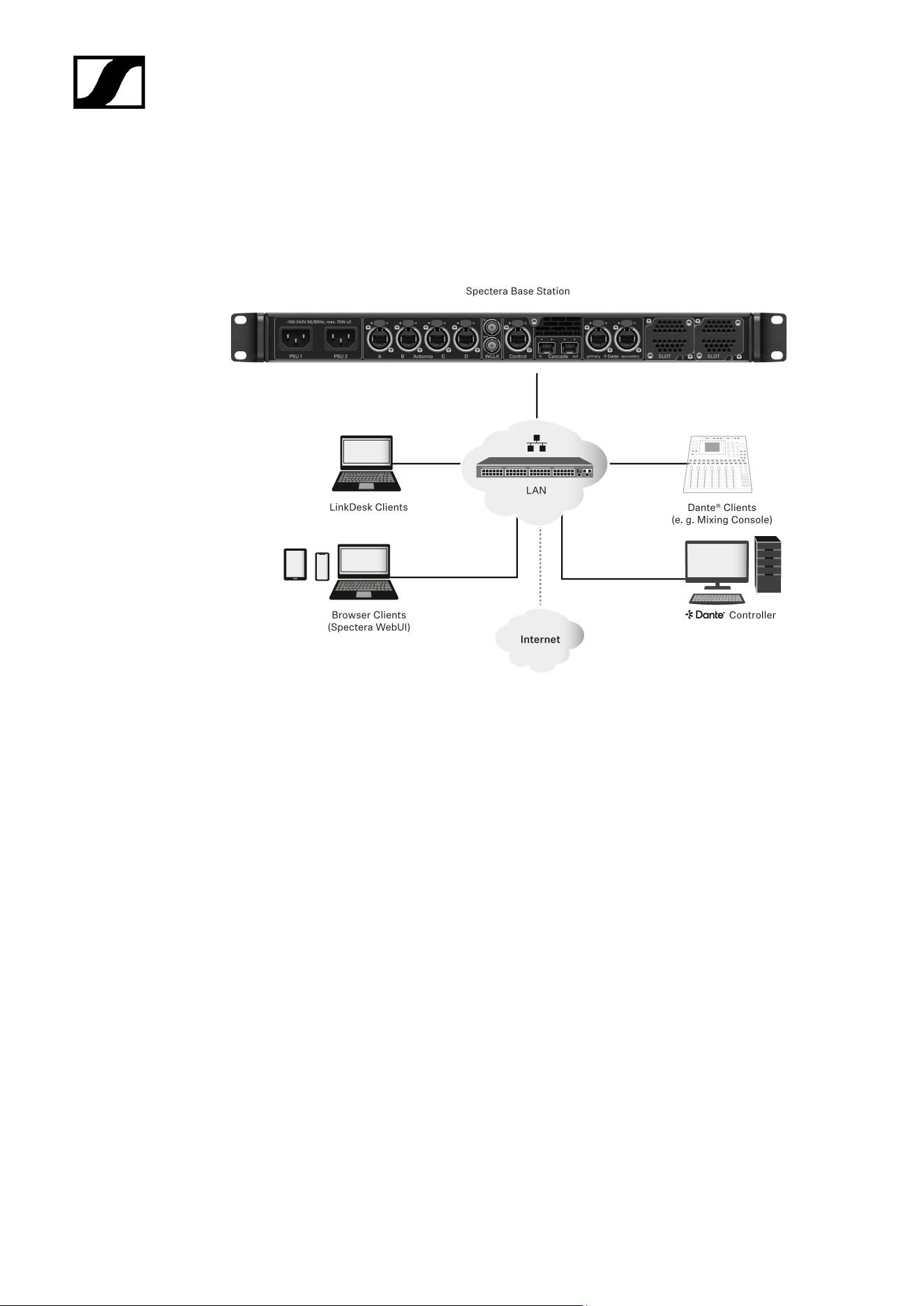
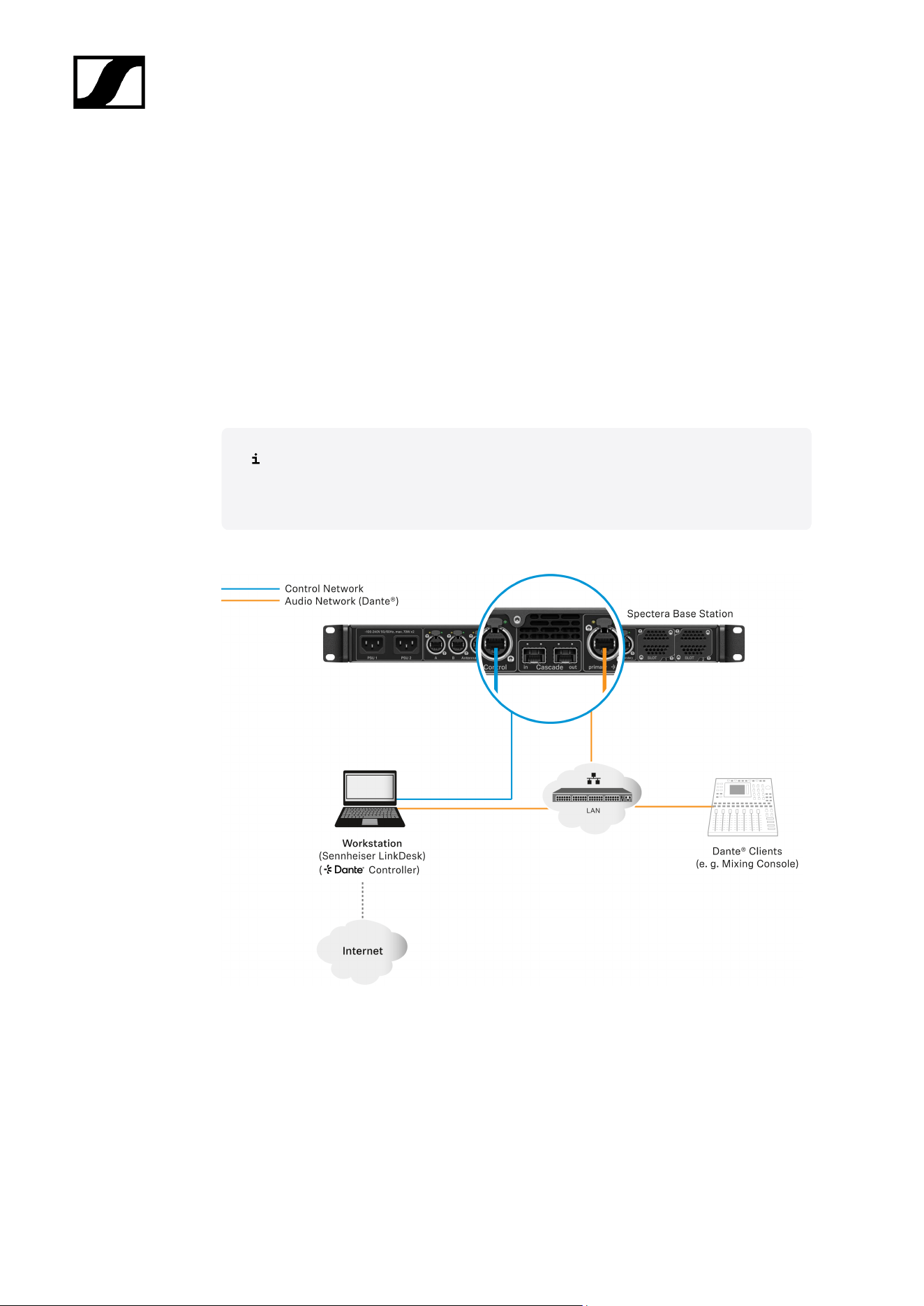
To operate the several components of the Spectera offering they need to be integrated into
a network setup, either existing or new. Following figure shows a general overview of the
network setup and their participants.
Spectera Base Station
This Sennheiser device has 3 network interfaces. One interface dedicated for control data
and two interfaces for audio data (specifically Dante®). There is a primary and a secondary
interface for redundancy of the audio transmission.
Sennheiser LinkDesk client
This client can be any host computer (PC or Mac), with the LinkDesk software application
installed.
Browser Client (Spectera WebUI)
This client can be any host computer (PC, Mac, Tablet, Smartphone), with a supported web
browser installed, accessing the Spectera WebUI.
Dante® client
This can be any device with a Dante® network interface installed. This ranges from Virtual
Dante® Soundcards installed on a host computer up to dedicated devices like a Mixing
Console.
7

| 3 - Network setups
Dante® Controller
This is typically host computer (PC or Mac), with the Dante® Controller software application
installed. This application configures and controls all the Dante® devices and audio streams
inside the network.
LAN with network switches and router
This can be any network switch for routing the network communication inside the Local Area
Network (LAN) and any network router providing the gateway to other networks and to the
Internet.
Spectera Base Station - network configuration
Depending on the desired network address configuration all network interface (Control and
both Dante®) can be operated in following IP Modes with IPv4 only:
• Fixed/Static IP
• Auto IP (DHCP or Zeroconf)
Additionally it can be configured if mDNS/DNS-SD information shall be published by the
device or not.
Dante® restrictions
• It is not possible to deactivate the Dante® functionality for the both Dante®
ports.
• Dante® ports are shutdown when the device is in standby mode.
• Network configuration of Dante® ports can only be done via Dante®
Controller software application.
• By default the Dante® ports are configured to Auto IP. If Fixed/Static IPs
have been configured and the device cannot be reached anymore, the IP
Mode can only be reset to Auto IP by a Factory Reset of the device.
• The Dante primary and secondary networks must not be directly
connected to each other (network loop). Make sure you always connect
the Base Station Dante network ports to two different networks that do
not run via a common switch.
8
| 3 - Network setups
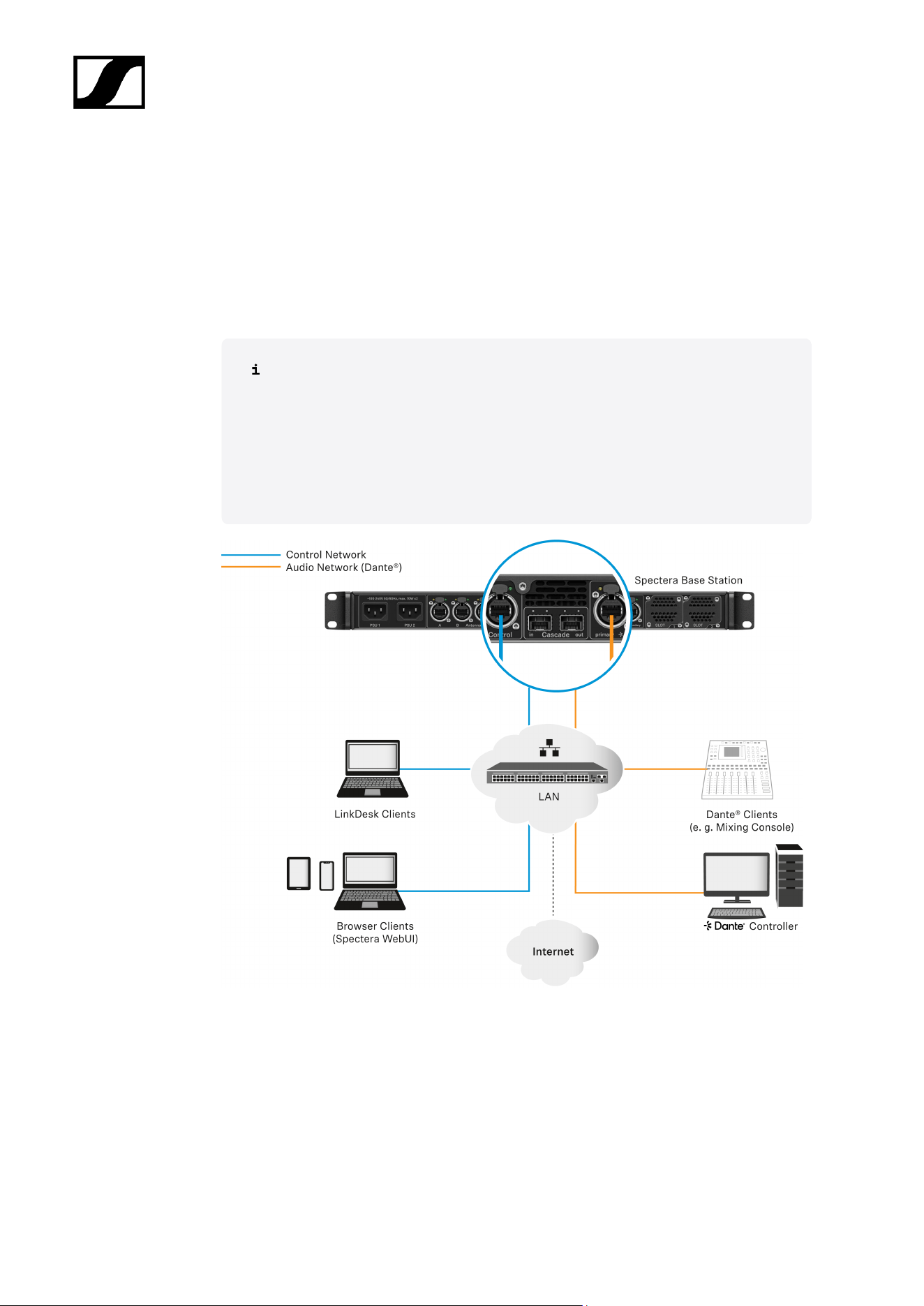
Shared Network Mode
In Shared Network Mode both networks for Control and Dante® are using the same physical
network infrastructure.
• Configure both Control and Dante® networks over one switch / router.
• Use two different IPs to address the Control network and the Dante® network
separately.
The Spectera Base Station can not be configured to use VLAN tagging (IEEE
802.1Q) at its network ports. Still it is possible to use network switches that
support VLANs to separate the Control and Dante® traffic within the same
physical network. Please make sure that the switch is configured to forward
untagged traffic from both networks to the respective ports of the Base Station.
Additionally, make sure that the switch is configured to forward multicast traffic
for the Dante® network.
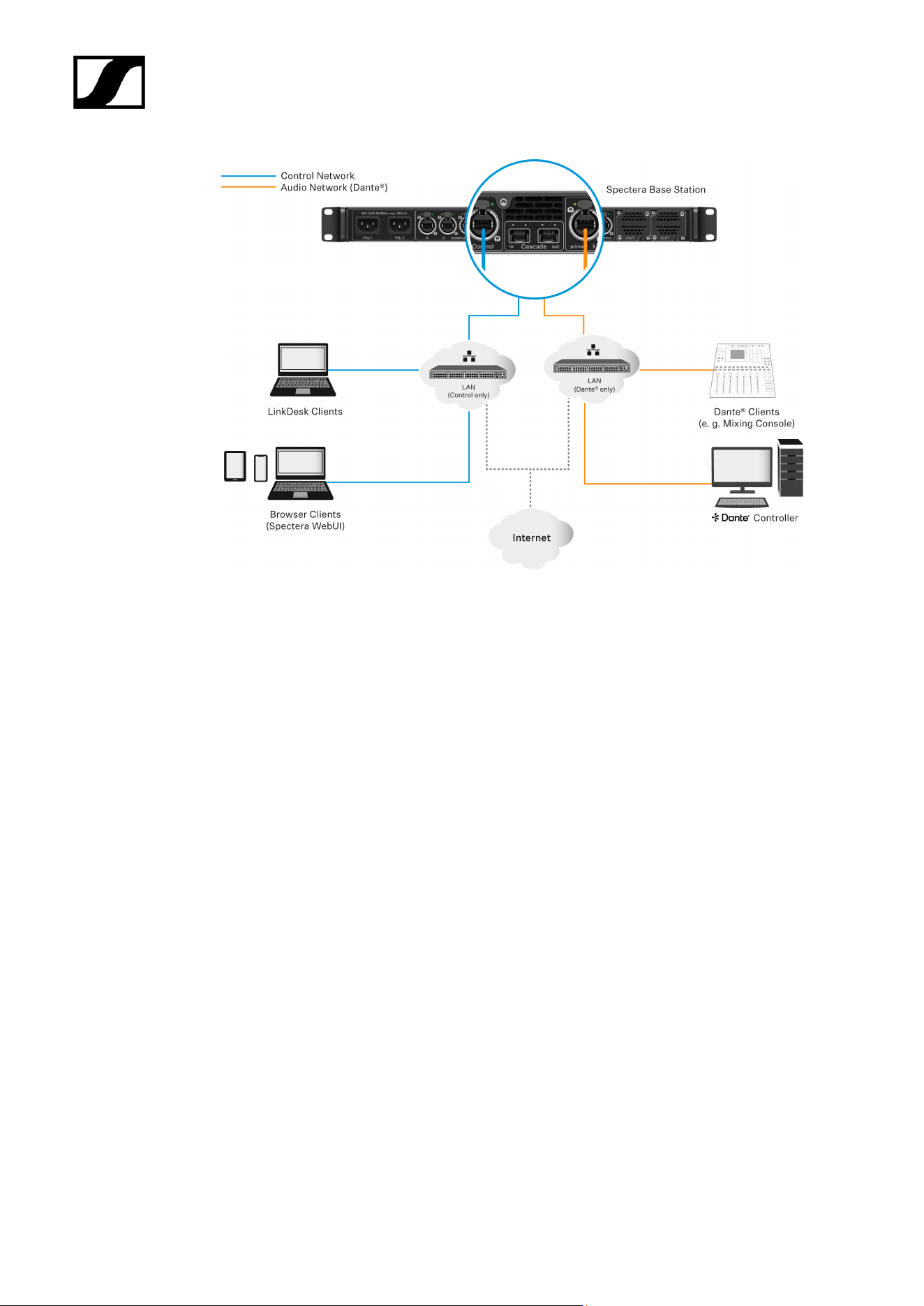
Split Network Mode
In Split Network Mode both networks for Control and Dante® are using different physical
network infrastructure.
• Configure both Control and Dante® networks over two different switches / routers.
• Use two different IPs to address the Control network and the Dante® network
separately.
9
| 3 - Network setups
10
Spectera
4. Ports, protocols and services
Spectera Base Station
In order to use the Spectera Base Station device in a network, certain ports must be
enabled (especially for the organization/enterprise firewall) for communication between
software and devices.
If necessary, please contact the local administrator to configure the required
ports.
Ports - Base Station Control Network Interface
Address Port Protocol Type Service Usage
Requests from device to ...
Sennheiser
License Server
address
1
80 HTTPS
(TCP)
Unicast Sennheiser
License Server
Activation of devices
ANY address of
time server (see
list of NTP time
server pools)
123 NTP Unicast NTP Time Server Synchronize system
time
224.0.0.251 5353 mDNS
(UDP)
Multicast mDNS, DNS-SD (optional - if desired)
Device/Service
Discovery
Requests to device from ...
ANY IP of SSCv2
client
443 HTTPS
(TCP)
Unicast SSCv2 - Spectera
Base Station API
Monitor+Control
communication from
clients
1
my.nalpeiron.com
NTP servers
To correctly operate with licenses and certificates, the Spectera Base Station needs a correct
system time. The device will use the well-established NTP mechanism from the IP protocol
stack to synchronize clock between a time server in a network and the client inside the
device.
Currently for an IT administrator or system integrator it is not possible to manually configure
a dedicated NTP server to be used by the Spectera Base Station. Being able to configure a
dedicated NTP server manually is a planned feature for an upcoming release.
11

| 4 - Ports, protocols and services
The device behaves the following way:
• If a time server configuration has been provided via DHCP or manually, it tries to
connect and sync to that time server first.
• Otherwise the device is trying to access any server of following list of time server
pools worldwide publicly available.
An IT administrator has to assure to provide Internet access to at least one of the
server pools and to provide DNS settings via DHCP to the device.
List of NTP time server pools:
• pool.ntp.org
• time.nist.gov
• time.aws.com
• time.cloudflare.com
Ports - Base Station Dante® Network Interfaces
Spectera Base Station requires several ports to be opened for both Dante® Network
Interfaces to operate properly. For the list of ports and more detailed information, please refer
directly to the Dante® website: Audinate FAQ - Networks and Switches.
12
| 4 - Ports, protocols and services
Spectera WebUI
In order to use the Spectera WebUI, certain ports must be enabled (especially for the
organization/enterprise firewall) for communication between software and devices.
If necessary, please contact the local administrator to configure the required
ports.
Port requirements
Address Port Protocol Type Service Usage
Requests from host to ...
ANY IP of a Base
Station
443 HTTPS
(TCP)
Unicast SSCv2 - Spectera
Base Station API
Monitor+Control
communication to
devices
Sennheiser
User Insights
addresses
1
443 HTTPS
(TCP)
Unicast Sennheiser User
Insights
Analytics of usage and
operational data
1
sennheiseruserinsights.matomo.cloud
cdn.matomo.cloud
13

| 4 - Ports, protocols and services
Sennheiser LinkDesk
In order to use the Sennheiser LinkDesk software, certain ports must be enabled (especially
for the organization/enterprise firewall) for communication between software and devices.
If necessary, please contact the local administrator to configure the required
ports.
Port requirements
Address Port Protocol Type Service Usage
Host Internal
LOCALHOST 54352 HTTPS
(TCP)
Unicast LinkDesk
backend
Internal backend
communication
Requests from host to ...
ANY IP of a Base
Station
443 HTTPS
(TCP)
Unicast SSCv2 -
Spectera Base
Station API
Monitor+Control
communication to
devices
Sennheiser CIAM
addresses
1
443 HTTPS
(TCP)
Unicast Sennheiser
CIAM
Sennheiser account
Sign-in/Log-in
Sennheiser
User Insights
addresses
2
443 HTTPS
(TCP)
Unicast Sennheiser User
Insights
Analytics of usage and
operational data
Requests to host from ...
224.0.0.251 5353 mDNS
(UDP)
Multic
ast
mDNS, DNS-SD (optional - if desired)
Device/service
discovery
1
accounts-pro-emea.sennheiser-cloud.com
b2c-config.sennheisercloud.com
2
sennheiseruserinsights.matomo.cloud
cdn.matomo.cloud
14
Spectera
5. Best practice
Sharing Internet connection in small network setups
It is possible to operate the Spectera offering without dedicated router networks e.g. in
really small setups, but we do recommend to always use some kind of home network router
for trouble-free usage.
Especially for providing Internet access to Spectera Base Station it is possible to use the
builtin functionality of Windows and MacOS for Internet Connection Sharing.
For enterprise networks we DO NOT RECOMMEND the usage of Internet
Connection Sharing. Most of the times it is even prohibited by enterprise IT policy
to use such service.
The network setup might look like this:
Inside this setup one workstation is used for all client software applications (Sennheiser
LinkDesk, Spectera WebUI, Dante® Controller). Either two separated wired network interface
are used for control and audio (Dante®) or one interface gets shared. Please be aware that
in such setups (typically) no DHCP service is activated. Use either manual IP settings or
ZeroConf configuration.
For Internet Connection Sharing typically an existing network connection (Wi-Fi or Ethernet)
with Internet access gets shared with another selected network interface of the host.
15

| 5 - Best practice
In order to share your Internet connection on Windows:
Connect your client device to your host PC using an Ethernet cable. If either device
doesn’t have a free Ethernet port, use a USB-to-Ethernet adapter.
Go to the Network Connections menu. The easiest way to get there is by searching
for “Network Connections” in the Windows Search box.
Right-click on the network adapter connected to the Internet (for example, Wi-Fi or
modem), and then select Properties.
Toggle Allow other network users to connect to ON from the Sharing tab and select
the relevant Ethernet port from the pull-down menu.
Note that, if you have VPN software installed, you may see a lot of virtual
Ethernet ports on your list and you’ll need to pick the real one.
After you click OK, Internet should flow to your client device over its Ethernet
port. For more details on sharing an Internet connection please refer to the Microsoft
Support page.
In order to share your Internet connection on MacOS:
On your Mac, choose Apple menu > System Settings.
Click on General in the sidebar and then on Sharing (you may need to scroll down).
Turn on Internet Sharing and click on Configure.
Click the Share your connection from pop-up menu.
Choose the Internet connection you want to share ((For example, if you’re connected
to the Internet over Wi-Fi, choose Wi-Fi).
Under To devices using, turn on the port other devices can use to access the shared
internet connection. (For example, if you want to share your Internet connection over
Ethernet, select Ethernet).
If you’re sharing to devices using Wi-Fi, configure the Internet-sharing
network, then click OK.
Click on Done.
For more details on sharing an Internet connection please refer to the
Apple Support page.
Your Internet connection will be shared on MacOS/Windows.
16

Sennheiser electronic SE & Co. KG | Am Labor 1 | 30900 Wedemark | Germany