Owner’s Manual
ENGLISH
Multi-Channel Amplifier
®
CI 8-120 DSP
© NAD CI 8-120 DSP
ENGLISH
2
• Read instructions - All the safety and operating instructions should be read
before the product is operated.
• Retain instructions - The safety and operating instructions should be retained
for future reference.
• Heed Warnings - All warnings on the product and in the operating instructions
should be adhered to.
• Follow Instructions - All operating and use instructions should be followed.
• Cleaning - Unplug this product from the wall outlet before cleaning. Do not use
liquid cleaners or aerosol cleaners. Use a damp cloth for cleaning.
• Attachments - Do not use attachments not recommended by the product
manufacturer as they may cause hazards.
• Water and Moisture - Do not use this product near water-for example, near a
bath tub, wash bowl, kitchen sink, or laundry tub; in a wet basement; or near a
swimming pool; and the like.
• Accessories - Do not place this product on an unstable cart, stand, tripod,
bracket, or table. The product may fall, causing serious injury to a child or adult
and serious damage to the product. Use only with a cart, stand, tripod, bracket,
or table recommended by the manufacturer, or sold with the product. Any
mounting of the product should follow the manufacturer’s instructions, and
should use a mounting accessory recommended by the manufacturer.
• Cart - A product and cart combination should be moved with care.
Quick stops, excessive force, and uneven surfaces may cause the
product and cart combination to overturn.
• Ventilation - Slots and openings in the cabinet are provided for ventilation to ensure
reliable operation of the product and to protect it from overheating. These openings
must not be blocked or covered. The openings should never be blocked by placing
the product on a bed, sofa, rug, or other similar surface. This product should not be
placed in a built-in installation such as a bookcase or rack unless proper ventilation is
provided or the manufacturer’s instructions have been adhered to.
• Power Sources - This product should be operated only from the type of power
source indicated on the marking label and connected to a MAINS socket outlet
with a protective earthing connection. If you are noSt sure of the type of power
supply to your home, consult your product dealer or local power company.
• Power Cord Protection - Power-supply cords should be routed so that they
are not likely to be walked on or pinched by items placed upon or against them,
paying particular attention to cords at plugs, convenience receptacles, and the
point where they exit from the product.
• Mains Plug - Where the mains plug or an appliance coupler is used as the
disconnect device, the disconnect device shall remain readily operable.
• Outdoor Antenna Grounding - If an outside antenna or cable system is
connected to the product, be sure the antenna or cable system is grounded so
as to provide some protection against voltage surges and built-up static charges.
Article 810 of the National Electrical Code, ANSI/NFPA 70, provides information
with regard to proper grounding of the mast and supporting structure, grounding
of the lead-in wire to an antenna discharge unit, size of grounding conductors,
location of antenna discharge unit, connection to grounding electrodes, and
requirements for the grounding electrode.
• Lightning - For added protection for this product during a lightning storm, or
when it is left unattended and unused for long periods of time, unplug it from the
wall outlet and disconnect the antenna or cable system. This will prevent damage
to the product due to lightning and power-line surges.
• Power Lines - An outside antenna system should not be located in the vicinity
of overhead power lines or other electric light or power circuits, or where it can
fall into such power lines or circuits. When installing an outside antenna system,
extreme care should be taken to keep from touching such power lines or circuits
as contact with them might be fatal.
• Overloading - Do not overload wall outlets, extension cords, or integral
convenience receptacles as this can result in a risk of fire or electric shock.
• Flame Sources - No naked flame sources, such as lighted candles, should be
placed on the product.
• Object and Liquid Entry - Never push objects of any kind into this product through
openings as they may touch dangerous voltage points or short-out parts that could
result in a fire or electric shock. Never spill liquid of any kind on the product.
• Damage Requiring Service - Unplug this product from the wall outlet and refer
servicing to qualified service personnel under the following conditions:
– When the power-supply cord or plug is damaged.
– If liquid has been spilled, or objects have fallen into the product.
– If the product has been exposed to rain or water.
– If the product does not operate normally by following the operating
instructions. Adjust only those controls that are covered by the operating
instructions as an improper adjustment of other controls may result in
damage and will often require extensive work by a qualified technician to
restore the product to its normal operation.
– If the product has been dropped or damaged in any way.
– When the product exhibits a distinct change in performance-this indicates a
need for service.
• Replacement Parts - When replacement parts are required, be sure the service
technician has used replacement parts specified by the manufacturer or have the
same characteristics as the original part. Unauthorized substitutions may result in
fire, electric shock, or other hazards.
• Safety Check - Upon completion of any service or repairs to this product, ask the
service technician to perform safety checks to determine that the product is in
proper operating condition.
WARNING
THE LIGHTNING FLASH WITH ARROWHEAD SYMBOL, WITHIN AN
EQUILATERAL TRIANGLE, IS INTENDED TO ALERT THE USER TO THE
PRESENCE OF UNINSULATED “DANGEROUS VOLTAGE” WITHIN THE
PRODUCT’S ENCLOSURE THAT MAY BE OF SUFFICIENT MAGNITUDE TO
CONSTITUTE A RISK OF ELECTRIC SHOCK TO PERSONS.
THE EXCLAMATION POINT WITHIN AN EQUILATERAL TRIANGLE IS
INTENDED TO ALERT THE USER TO THE PRESENCE OF IMPORTANT
OPERATING AND MAINTENANCE (SERVICING) INSTRUCTIONS IN THE
LITERATURE ACCOMPANYING THE APPLIANCE.
CAUTION REGARDING PLACEMENT
To maintain proper ventilation, be sure to leave a space around the unit (from the largest
outer dimensions including projections) than is equal to, or greater than shown below.
Left and Right Panels: 10 cm
Rear Panel: 10 cm
Top Panel: 10 cm
RESPONSIBLE PARTY
Lenbrook International
633 Granite Court
Pickering, ON L1W 3K1
Canada
Tel: 1 905 8316555
CAN ICES-3 (B)/NMB-3(B)
This Class B digital apparatus complies with Canadian ICES-3
EU CONFORMITY STATEMENT
This product and, if applicable, the supplied accessories are marked with
“CE” and comply therefore with the applicable harmonized European
standards listed under the Radio Equipment Directive 2014/53/EU and
EMC Directive 2014/30/EU.
This product is manufactured to comply with the radio interference requirements of EEC
DIRECTIVE 2004/108/EC.
IMPORTANT SAFETY INSTRUCTIONS
ENGLISH
3
FCC STATEMENT
This equipment has been tested and found to comply with the limits for Class B digital
device, pursuant to Part 15 of the FCC Rules. These limits are designed to provide
reasonable protection against harmful interference in a residential installation. This
equipment generates, uses, and can radiate radio frequency energy and, if not installed
and used in accordance with the instructions, may cause harmful interference to radio
communications. However, there is no guarantee that interference will not occur in
a particular installation. If this equipment does cause harmful interference to radio or
television reception, which can be determined by turning the equipment off and on,
the user is encouraged to try to correct the interference by one or more of the following
measures:
• Reorient or relocate the receiving antenna.
• Increase the separation between the equipment and receiver.
• Connect the equipment into an outlet on a circuit different from that to which
the receiver is connected.
• Consult the dealer or an experienced radio TV technician for help.
CAUTION
• Changes or modifications to this equipment not expressly approved by NAD
Electronics for compliance could void the user’s authority to operate this equipment.
• This device complies with Part 15 of the FCC Rules / Industry Canada licence-
exempt RSS standard(s). Operation is subject to the following two conditions:
1 This device may not cause harmful interference, and
2 This device must accept any interference received, including interference that
may cause undesired operation.
• This equipment complies with IC radiation exposure limits set forth for an
uncontrolled environment.
• To prevent electric shock, match wide blade of plug to wide slot, fully insert.
• Marking and rating plate can be found at the rear panel or bottom panel of the apparatus.
• To reduce the risk of fire or electric shock, do not expose this apparatus to rain or
moisture. The apparatus shall not be exposed to dripping or splashing and that
no objects filled with liquids, such as vases, shall be placed on apparatus.
• Mains plug is used as disconnect device and it should remain readily operable during
intended use. In order to disconnect the apparatus from the mains completely, the
mains plug should be disconnected from the mains socket outlet completely.
• An appliance with a protective earth terminal should be connected to a mains
outlet with a protective earth connection.
• The device for operation in the band 5150–5250 MHz is for indoor use only to
reduce the potential for harmful interference to co-channel mobile satellite systems.
• Operating temperature: 0 – 40 °C
IF IN DOUBT CONSULT A COMPETENT ELECTRICIAN.
NOTES ON ENVIRONMENTAL PROTECTION
At the end of its useful life, this product must not be disposed of with
regular household waste but must be returned to a collection point for
the recycling of electrical and electronic equipment. The symbol on the
product, user’s manual and packaging point this out.
The materials can be reused in accordance with their markings. Through re-use, recycling
of raw materials, or other forms of recycling of old products, you are making an important
contribution to the protection of our environment.
Your local administrative office can advise you of the responsible waste disposal point.
INFORMATION ABOUT COLLECTION AND DISPOSAL OF WASTE BATTERIES
(DIRECTIVE 2006/66/EC OF THE EUROPEAN PARLIAMENT AND THE COUNCIL
OF EUROPEAN UNION) (FOR EUROPEAN CUSTOMERS ONLY)
Batteries bearing any of these symbols indicate that they should
be treated as “separate collection” and not as municipal waste.
It is encouraged that necessary measures are implemented
to maximize the separate collection of waste batteries and to
minimize the disposal of batteries as mixed municipal waste.
End-users are exhorted not to dispose waste batteries as unsorted
municipal waste. In order to achieve a high level of recycling waste
batteries, discard waste batteries separately and properly through
an accessible collection point in your vicinity. For more information about collection and
recycling of waste batteries, please contact your local municipality, your waste disposal
service or the point of sale where you purchased the items.
By ensuring compliance and conformance to proper disposal of waste batteries, potential
hazardous effects on human health is prevented and the negative impact of batteries and
waste batteries on the environment is minimized, thus contributing to the protection,
preservation and quality improvement of the environment.
IMPORTANT SAFETY INSTRUCTIONS
NAD® is a trademark of NAD Electronics International.
NAD Electronics International is a division of Lenbrook Industries Limited. ©NAD, All Rights Reserved

ENGLISH
4
WHAT’S IN THE BOX
Packed with your CI 8-120 DSP you will find
• Two detachable mains power cord
• 4 pieces of 4-position terminal block (for SPEAKERS)
• 1 piece of 2-position terminal block (for +12V TRIGGER IN)
• 4 pieces of feet with mounting screws
• Important Safety Instruction sheet
• Quick Setup Guide
QUICK START
Refer to the supplied CI 8-120 DSP Quick Setup Guide for basic instructions
in setting up your new NAD CI 8-120 DSP. The following important notes
must also be observed when setting up your CI 8-120 DSP.
IMPORTANT SETUP NOTES
• Before setting up or making connections, ensure that the
CI 8-120 DSP and other devices to be connected to CI 8-120 DSP are
unplugged or powered down.
• Connect external speaker cables to supplied SPEAKERS terminal
block ensuring that the connections match CI 8-120 DSP 's rear panel
SPEAKERS terminal markings.
• Bare wire or loose strands from the speaker cables must not touch the
rear panel or other speaker terminals.
• After installing the external speaker cables to the supplied SPEAKER
terminal blocks, plug in the wired up SPEAKER terminal blocks to
corresponding SPEAKERS (1- 8) rear panel terminals of CI 8-120 DSP.
• Before connecting the power cord’s plug to the mains power outlet,
ensure that the other end of the power cord is firmly connected to
CI 8-120 DSP ’s AC Mains input socket.
• Press front panel POWER button to switch ON CI 8-120 DSP
from standby mode. Output channels with audio will have their
corresponding front panel Output Channel LED indicators illuminated
blue.
SAVE THE PACKAGING
Please save the box and all of the packaging in which your CI 8-120 DSP
arrived. Should you move or otherwise need to transport your CI 8-120 DSP,
this is by far the safest container to do so. We’ve seen too many otherwise
perfect components damaged in transit for lack of a proper shipping
carton, so please: Save that box
GETTING STARTED
ENGLISH
5
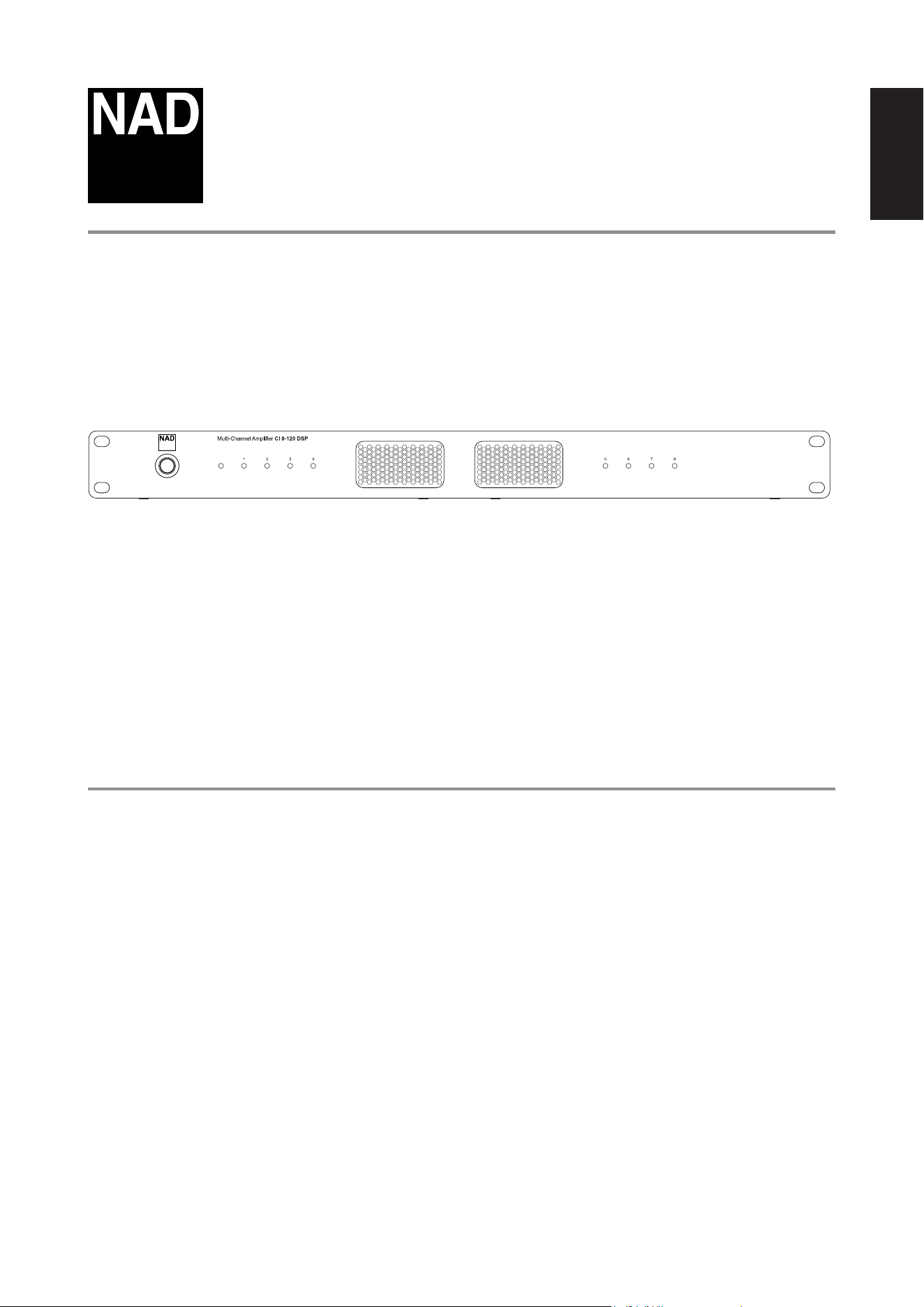
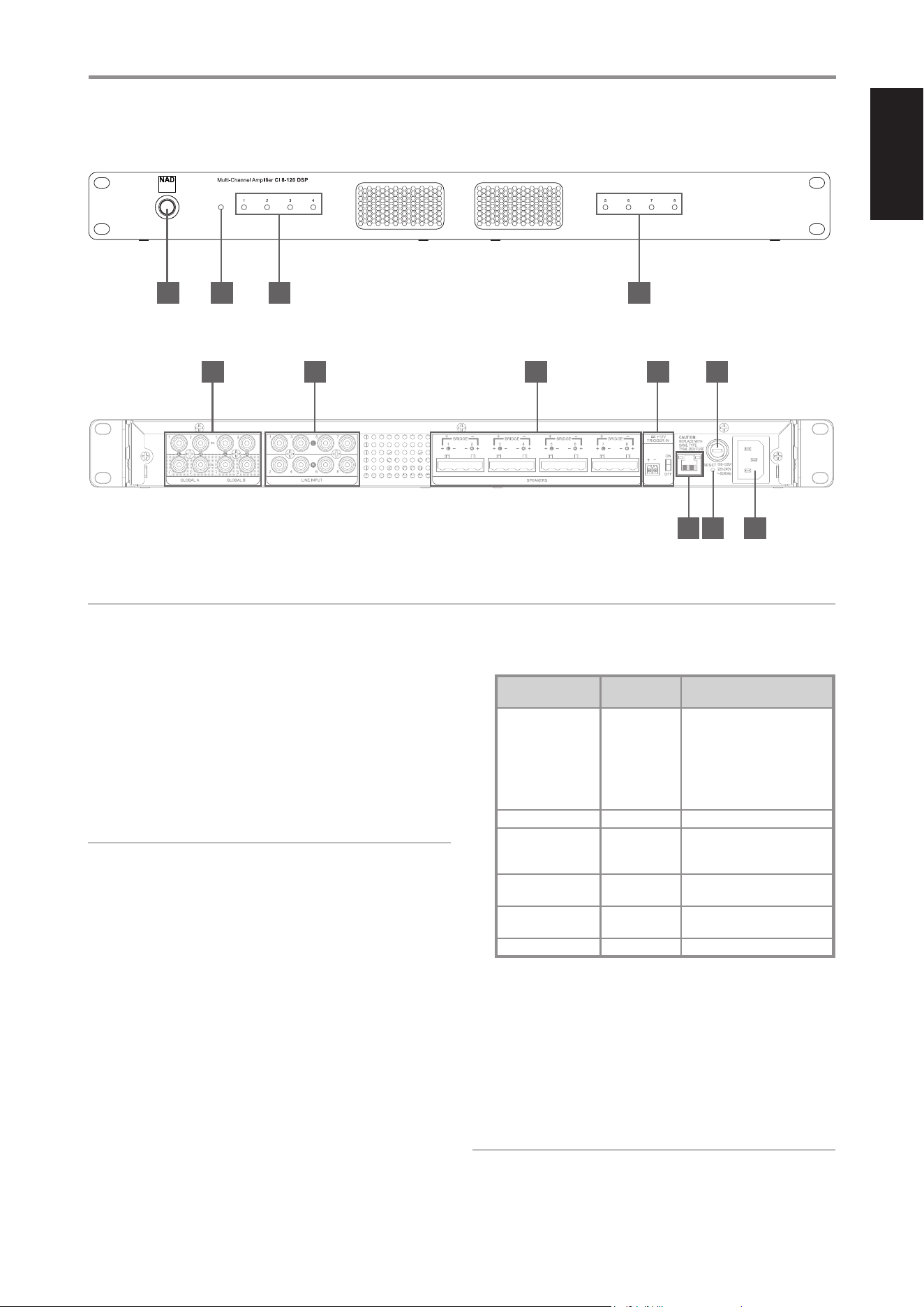
1 POWER BUTTON
• Press this button to switch ON CI 8-120 DSP from standby mode.
All eight Output Channel LED indicators will turn red for about 5
seconds, briefly all blue and then blue for those output channels
with audio output or no light (except Power LED) if there is no
audio output. The 5 seconds delay in powering up is intended for
system power stability and security self-check.
• Pressing the Power button again turns the unit back to standby
mode. The Power LED indicator will turn from blue to amber.
NOTE
“Power Mode” (Setup - Power - Power Settings - Power Mode - Power
Button) must be set to “Power Button” for the unit to power up via front
panel Power button.
2 POWER LED
• This indicator will light up amber when CI 8-120 DSP is at standby
mode. When CI 8-120 DSP is powered up from standby mode, this
indicator will illuminate blue.
POWER AND OUTPUT CHANNEL LED STATUS INDICATORS
DESCRIPTION
POWER LED
STATUS
OUTPUT CHANNEL LED 1-8 STATUS
Operating mode Blue
When there is audio at particular
output channels, the corresponding
front panel Output Channel LED
indicators are illuminated blue. If there
is no audio output, the corresponding
Output Channel LED indicators are not
illuminated.
Standby mode Amber O, no light
System reboot
Blue - Amber -
Red - Blue
Blue/No light - Red - Blue - No light
- Blue/No light depending on the
presence or absence of audio output
Overvoltage or under
voltage
Red O, no light
AMP current error Blue
Corresponding Output Channel LED
indicator is red
AMP DC error Red O, No light
3 OUTPUT (1-8) CHANNEL LED INDICATORS
• The Output Channel LED indicators (1-8) correspond to SPEAKERS 1-8.
When there is audio at particular output channels, the corresponding
front panel Output Channel LED indicators are illuminated.
- For example, if there is audio output at SPEAKERS 1-2, the front
panel Output Channel LED indicators 1 and 2 are illuminated blue.
- If there is no audio output, the corresponding Output Channel
indicators are not illuminated.
NOTE
When GLOBAL INTERRUPT A and/or GLOBAL INTERRUPT B is selected
for specic Zones (A, B, C, or D) and an active line input signal is present
at either GLOBAL A or GLOBAL B input terminals, the corresponding
OUTPUT CHANNEL LED indicators for the Zone(s) will illuminate.
ATTENTION!
Please ensure that the CI 8-120 DSP is powered o or unplugged from the mains power outlet before making any connections. It is also advisable to power
down or unplug all associated components while making or breaking any signal or AC power connections.
1 2 3
4 5 6 7 8
3
IDENTIFICATION OF CONTROLS
© NAD CI 8-120 DSP
9 10 11
ENGLISH
6
4 GLOBAL A, GLOBAL B IN/OUT
• These IN/OUT terminals are dedicated only to GLOBAL settings.
• Global Interrupt A and/or Global Interrupt B can be toggled ON or
OFF in the Zones menu. All four Zones offer the option to enable
Global Interrupt A and/or B, which, when activated, will take priority
and override all other active line inputs within the selected zone(s).
• Global Interrupt A corresponds to Global A IN while Global Interrupt
B to Global B IN.
• Global A or B input will override any active line input. Once
Global A or B input stops receiving audio signal, the amplifier will
automatically revert to the previous input source.
GLOBAL A IN, GLOBAL B IN
• Use RCA-to-RCA leads to connect Audio Output terminals from
compatible external devices such as preamplifiers, streamers or
other applicable devices to GLOBAL A IN and/or GLOBAL B IN
terminals.
• GLOBAL A takes priority over GLOBAL B.
GLOBAL A OUT, GLOBAL B OUT
• Use RCA-to-RCA leads to connect GLOBAL A and/or GLOBAL B OUT
terminals to audio INPUT terminals of compatible external devices
such as amplifiers, receivers or other applicable devices.
• The GLOBAL OUT terminals are line level “loop through” output.
The same level of input signal from corresponding GLOBAL IN
is available at the corresponding GLOBAL OUT terminal thereby
allowing the same signal to be shared or passed on to another
amplifier.
• At standby mode, line level “loop through” output at GLOBAL A
OUT and GLOBAL B OUT terminals remain available as long as the
sources for GLOBAL A IN and GLOBAL B IN are active.
5 LINE INPUT (1-8)
• The LINE INPUT ports are numbered 1 to 8. Use RCA-to-RCA leads to
connect the LINE INPUT terminals to corresponding Audio Output
terminals of compatible external devices such as preamplifiers,
streamers or other applicable devices.
• Configure LINE INPUT 1-8 via INPUT/OUTPUT menu of the web-
based CI 8-120 DSP User Interface. Each LINE INPUT source can be
assigned to specific or multiple OUTPUT channel(s).
6 SPEAKERS (1 - 8)
• The supplied SPEAKERS terminal blocks support wire sizes up to 10
AWG (American Wire Gauge).
• Refer to the table below for additional guidance on AWG sizes and
recommended wire lengths.
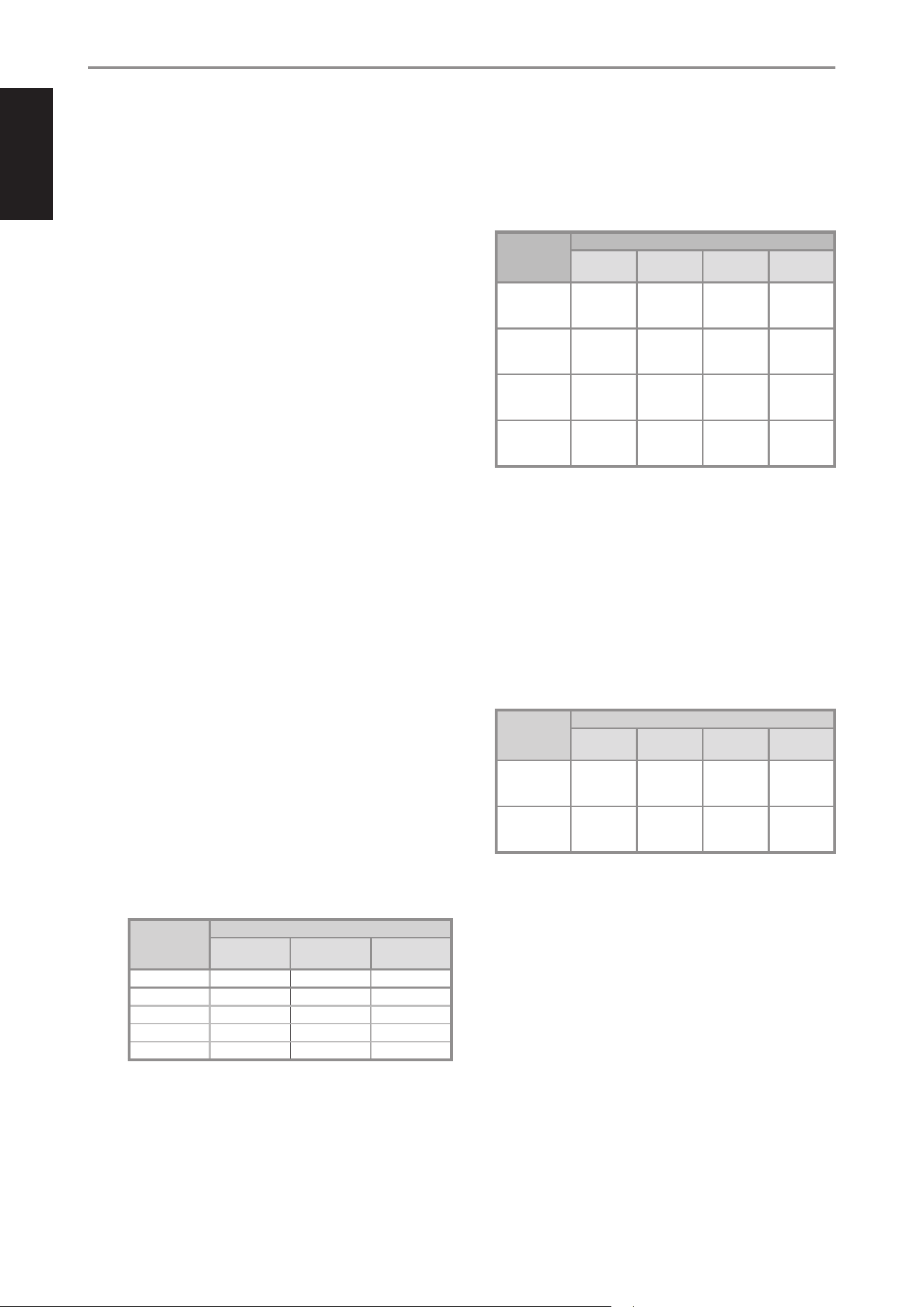
SPEAKER
WIRE GAUGE
MAXIMUM SPEAKER WIRE LENGTH
4 Ohms
Speakers
6 Ohms
Speakers
8 Ohms
Speakers
18 AWG 16 feet 24 feet 32 feet
16 AWG 24 feet 36 feet 48 feet
14 AWG 40 feet 60 feet 80 feet
12 AWG 60 feet 90 feet 120 feet
10 AWG 100 feet 150 feet 200 feet
• Connect external speaker cables to supplied SPEAKERS terminal
block ensuring that the connections match CI 8-120 DSP 's
SPEAKERS terminal markings.
• To illustrate, connect CI 8-120 DSP SPEAKERS “1+” terminal to
corresponding “+” terminal of your external speaker and “1-”
connected to external speaker’s “-” terminal. Follow the same
connection configuration when connecting other external speakers
to SPEAKERS terminals “2+” and “2-” up to “8+” and “8-”.
• After installing the external speaker cables to the supplied SPEAKER
terminal blocks, plug in the wired up SPEAKER terminal blocks to
corresponding SPEAKERS (1- 8) rear panel terminals of CI 8-120 DSP.
SAMPLE STEREO MODE SPEAKER CONNECTION FOR
SPEAKERS 1 AND 2
EXTERNAL
SPEAKER
TERMINAL
CI 8-120 DSP SPEAKERS TERMINAL
SPEAKERS
“1 +”
SPEAKERS
“1 -”
SPEAKERS
"2 -"
SPEAKERS
"2 +"
External
Speaker 1
“+” terminal
✔
External
Speaker 1
“-” terminal
✔
External
Speaker 2
“+” terminal
✔
External
Speaker 2
“-” terminal
✔
• At Bridge Mode, connect the external single speaker to
corresponding CI 8-120 DSP SPEAKERS terminals marked “1+” and
“2+” ensuring that “1+” is connected to the external speaker’s “+”
terminal and “2+” connected to the external speaker’s “-” terminal.
This is a sample BRIDGE mode connection for SPEAKERS 1 and 2.
The same BRIDGE mode configuration applies to the remaining
SPEAKERS terminal blocks.
• Bridge Mode is enabled or disabled via the OUTPUT section
of INPUT/OUTPUT menu of the web-based CI 8-120 DSP User
Interface.
SAMPLE BRIDGE MODE SPEAKER CONNECTION FOR
SPEAKERS 1 AND 2
EXTERNAL
SPEAKER
TERMINAL
CI 8-120 DSP SPEAKERS TERMINAL
SPEAKERS
“1 +”
SPEAKERS
“1 -”
SPEAKERS
“2 -”
SPEAKERS
“2 +”
Single external
Speaker “+”
terminal
✔
Single external
Speaker “-”
terminal
✔
7 +12V TRIGGER
+12V TRIGGER IN +/-
• Use the supplied 12V TRIGGER terminal block to connect +12V
TRIGGER IN +/- terminals to corresponding terminals of compatible
external +12V TRIGGER source. Install the wired up 12V TRIGGER
terminal block to CI 8-120’ DSPs +12V TRIGGER IN +/- rear panel
terminal.
• The +12V TRIGGER IN allows the CI 8-120 DSP to be remotely
switched between standby and operating modes by the external
controlling device connected to +12V TRIGGER IN.
• The external controlling device, such as compatible preamplifiers,
integrated amplifiers, receivers, etc., must be equipped with +12V
trigger output to use this feature.
• Refer also to the item about “12V TRIGGER- ON/OFF”.
+12V TRIGGER IN – ON/OFF
• This dual-function switch toggles between detecting (ON) a
+12V input via the +12V TRIGGER IN and disabling (OFF) the +12V
TRIGGER IN function.
IDENTIFICATION OF CONTROLS

ENGLISH
7
• When the 12V TRIGGER ON/OFF switch is set to ON and the +12V
TRIGGER IN terminals are connected to a compatible external device
with a +12V DC trigger output, the CI 8-120 DSP can be remotely
switched between standby and operating modes. This functionality
depends on the presence or absence of a +12V DC supply at the
+12V TRIGGER IN terminals (refer also to item about +12V TRIGGER
IN +/-).
• Note that with +12V TRIGGER IN-ON/OFF switch set to ON, the CI
8-120 DSP cannot switch between standby and operating modes
on its own. Instead, the external device connected via +12V
TRIGGER IN will manage the powering up and down of the
CI 8-120 DSP.
• +12V TRIGGER IN is disabled when +12V TRIGGER IN - ON/OFF
switch is set to OFF. This is the default setting and allows the
CI 8-120 DSP to power up normally.
8 FUSE HOLDER
• In the unlikely event a fuse needs to be replaced, unplug the
AC power cord from the mains power outlet. Then, remove all
connections from the amplifier. Use a flathead screwdriver or similar
to open the fuse holder via the slot located at the top edge of
the fuse holder. With the screwdriver in place, push it outward to
unlatch and open the fuse holder.
• Only replace the fuse with the same type, size, and specification –
T15AL 250V.
NOTE
Do not use any substitute fuse of dierent type, rating or value. Failure to
observe this precaution may cause damage to the amplier circuits and
may create a re hazard and/or defeat the safety built into the amplier
and may void the warranty.
9 LAN
• To access the CI 8-120 DSP’s web interface for setup, the unit must
be connected to a local area network (LAN) via its Ethernet port. An
active internet connection is required for over-the-air (OTA) updates.
• Use a standard Ethernet cable (not supplied) to connect the
CI 8-120 DSP’s LAN port to your router or network switch.
• DHCP must be supported by the router to assign an IP address to
the amplifier.
NOTES
• NAD is not responsible for any malfunction of the CI 8-120 DSP and/or
the internet connection due to communication errors or malfunctions
associated with your broadband internet connection or other connected
equipment. Contact your Internet Service Provider (ISP) for assistance or
the service bureau of your other equipment.
• Contact your ISP for policies, charges, content restrictions, service
limitations, bandwidth, repair and other related issues pertinent to
internet connectivity.
10 RESET
• Use the RESET button to manually restore CI 8-120 DSP to its factory
default settings.
• While at operating mode, press and hold RESET button until Power
LED continuously flash in amber color. Release hold of RESET
button. Factory reset is completed when the continuously flashing
amber Power LED stops and unit goes to standby mode.
11 AC MAINS INPUT
• The CI 8-120 DSP comes supplied with two separate AC power
cords. Select the AC power cord appropriate for your region.
• Before connecting the power cord’s plug to the mains power outlet,
ensure that the other end of the power cord is firmly connected to
CI 8-120 DSP’s AC Mains input socket.
• Always unplug the power cord from the mains power source first,
before disconnecting the other end from the CI 8-120 DSP’s AC
Mains input socket.
IDENTIFICATION OF CONTROLS
ENGLISH
USER INTERFACE
The CI 8-120 DSP can be accessed, configured and managed via a web-
based User Interface. Start access to your CI 8-120 DSP by following the
GUIDELINE FOR NETWORK SETUP CONNECTION.
GUIDELINE FOR NETWORK SETUP CONNECTION
This guideline is applicable to iOS/iPadOS and Android devices as well as
Windows and macOS desktops. Adapt the guidelines according to your
control device.
1 Use an Ethernet cable (not supplied) to connect CI 8-120 DSP’s LAN
port to your Wired network or router.
NOTES
• For wired connection to be established, ensure that a broadband router
that supports Ethernet is setup and available.
• Ensure that CI 8-120 DSP and the control device (iOS/iPadOS and
Android devices as well as Windows and macOS desktops) are
connected to the same network.
• Note the MAC (Media Access Control) address located on the rear panel as this
information is needed when identifying the CI 8-120 DSP on the network.
2 Power up your CI 8-120 DSP.
3 Use any network IP scanner to find your CI 8-120 DSP's Network ID
(listed as the product name (NAD CI 8-120 DSP) immediately followed
by the last six digits in the MAC (Media Access Control) address
(example: NAD CI 8-120 DSP_123456). Note also the corresponding IP
address assigned by the network.
NOTE
If your network IP scanner does not show exactly the CI 8-120 DSP
Network ID nomenclature as described above, nd and select instead
the product brand “NAD” among the devices detected.
4 Type the IP address into your control device’s web browser to access
your CI 8-120 DSP’s User Interface (UI).
5 Configure your CI 8-120 DSP’s Dashboard, Setup, Input/Output, Zones
and DSP parameters via the User Interface.
FIRMWARE UPGRADE PROCEDURE
1 When you access the User Interface of your CI 8-120 DSP, a firmware
upgrade prompt will appear if a newer version is available. Select either
“I want it now” to proceed immediately or “Delay 24 hours” to postpone
the update.
2 Another method to check for firmware upgrade is to go to Setup
– Information, Back Up and Restore. Go down to the menu under
Amplifier Firmware and then Check for Update. Suggest proceeding
with Internet Update as Manual Update is normally for authorized
service technicians.
3 Follow the firmware upgrade prompt instructions to complete the
upgrade process.
MAIN MENU OPTIONS
The CI 8-120 DSP User Interface consists of the following five main menu
options.
A Dashboard
B Setup
C Input/Output
D Zones
E DSP
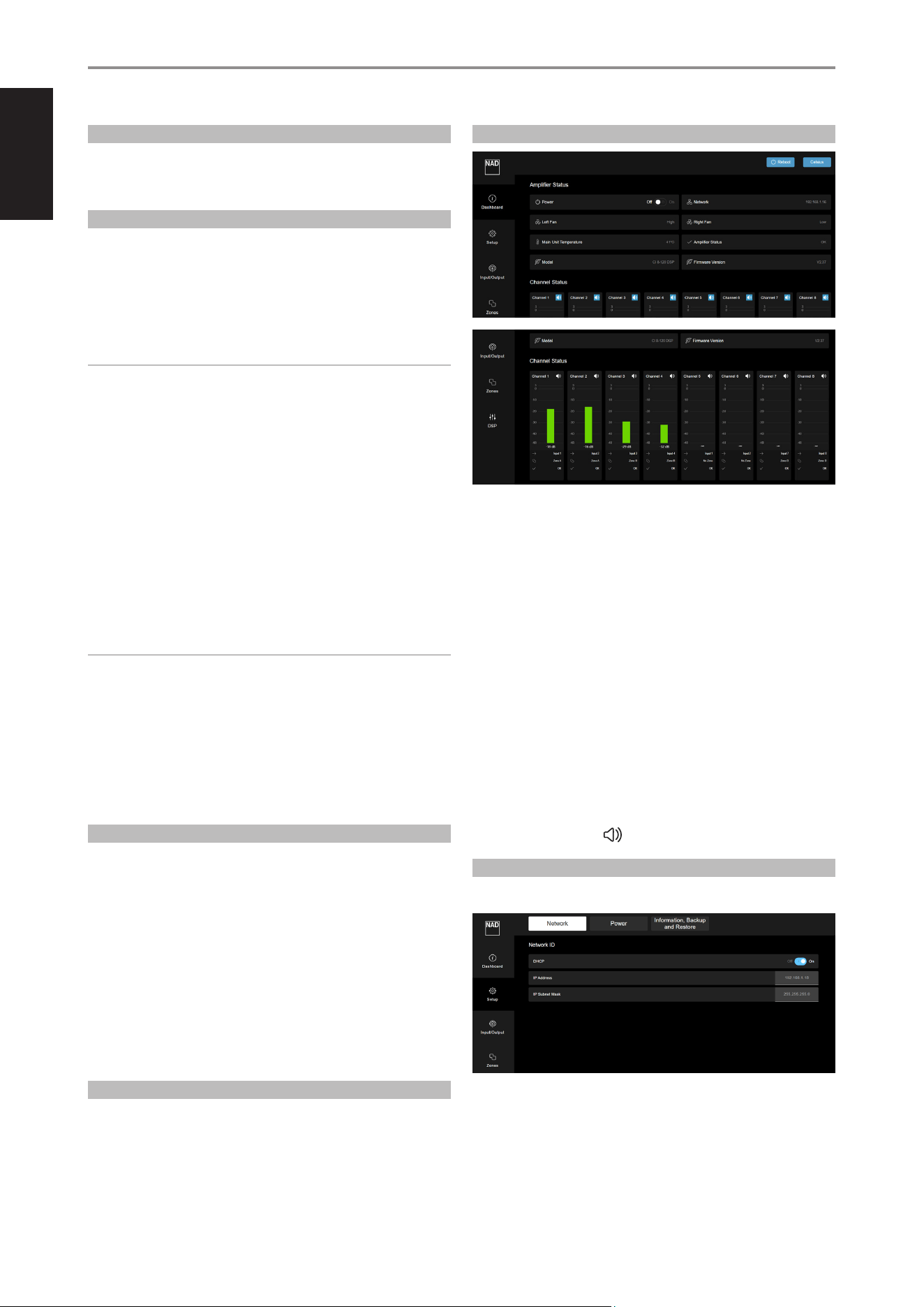
A DASHBOARD
1 AMPLIFIER STATUS
Reboot: Restart unit by switching from operating mode to standby
mode and switch back to operating mode again.
Celsius or Fahrenheit: Select Celsius or Fahrenheit as temperature unit
of measurement.
Power: Select O to switch unit to standby mode. Select On to power up
unit from standby mode. Make sure the unit is connected to the network.
Network: IP address is displayed as dynamically assigned by your router.
Left Fan/Right Fan: Show Fan Speed Information – Low, Medium, High
or O
Main Unit Temperature: Internal temperature measured in Celsius or
Fahrenheit.
Amplier Status: Indicate condition of amplifier
Model and Firmware version: Show amplifier model number and
current installed firmware version
2 CHANNEL STATUS
• Display status of Output Channel 1–8 (Speakers 1 – 8) based on their
audio levels and current settings.
• Select speaker icon to mute or restore audio output.
B SETUP
1 NETWORK
NETWORK ID
DHCP
DHCP setting controls IP Address allocation.
• On: Current IP Address is displayed. The router dynamically assigns an IP
address, which may change each time the CI 8-120 DSP is powered up.
• O: Static IP address can be manually assigned. Perform a network scan
to identify unused IP address within the range of your router. Entering
an incorrect IP address may render the CI 8-120 DSP inaccessible. A
8
OPERATION
ENGLISH
9
thorough understanding of network setup is recommended before
modifying IP settings.
IP ADDRESS
• Depending upon DHCP Setting (On/Off ), IP address is displayed as
dynamically assigned by your router or based on the static IP address
you manually entered.
IP SUBNET MASK
• Advanced network function that is best left unchanged. It is advised
that only experienced network administrators make changes in this
field
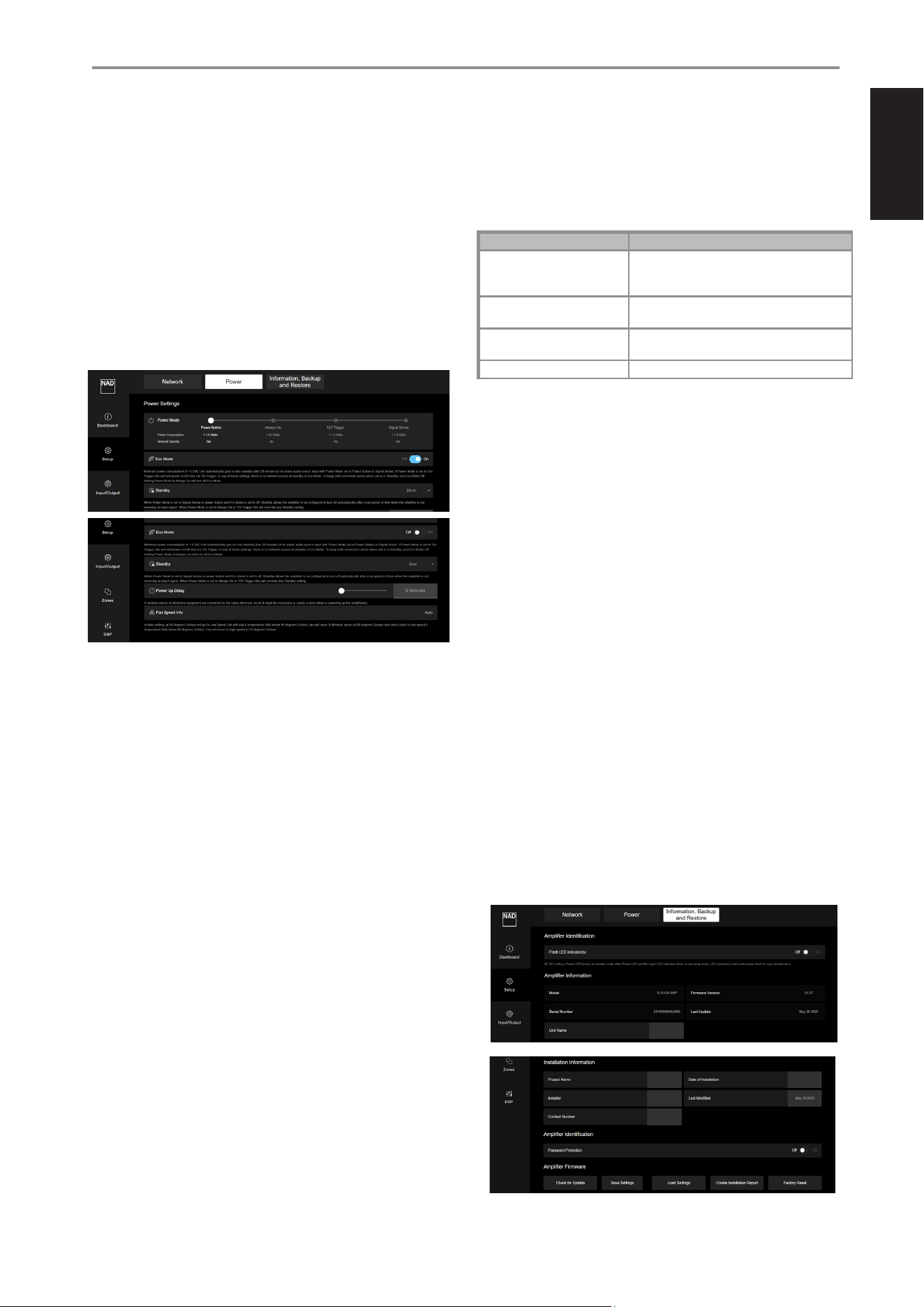
2 POWER
POWER SETTINGS
POWER MODE
There are four methods the CI 8-120 DSP can be powered up. Drag the
slider icon to select any of the following power modes.
a Power Button
b Always On
c 12V Trigger
d Signal Sense
a POWER BUTTON
• This is the default setting. CI 8-120 DSP is powered up and powered
down by pressing front panel POWER button.
b ALWAYS ON
• The CI 8-120 DSP remains powered on and in operating mode.
Power down by switching to Power Button method or unplugging
the AC power cord from the mains power outlet.
c 12V TRIGGER
• The CI 8-120 DSP powers up or down based on the presence or
absence of a +12V DC supply at the +12V TRIGGER IN terminals (refer
also to item about +12V TRIGGER IN).
• To enable proper functioning of the 12V TRIGGER power mode,
ensure the rear panel 12V TRIGGER ON/OFF switch is set to ON.
• The CI 8-120 DSP can be remotely switched between standby and
operating modes by a compatible external device connected to the
+12V TRIGGER IN -/+ terminals.
d SIGNAL SENSE
• Signal sense feature enables CI 8-120 DSP to automatically wake up
from standby mode when triggered by active line input signal.
• CI 8-120 DSP will power up to the input source that activated the
unit to operating mode.
ECO MODE
• Minimum power consumption of less than 0.5W.
• There is no network access while the unit is in Eco standby mode.
• Normal power settings are maintained at Eco Mode Off setting.
At Eco Mode ON setting, the amplifier will function as follows.
POWER MODE SETTING RESULT
Power button or Signal Sense
Unit will automatically enter Eco standby mode when
there has been 20 minutes of no active line input
signal.
Signal Sense
Unit switches from Eco Standby mode to operating
mode when triggered by an active line input signal.
12V Trigger
Unit switches from Eco Standby mode to operating
mode when triggered by +12V Trigger source.
Always On ECO mode is automatically set to O.
STANDBY
• Standby can only be setup at Eco Mode O setting and under the
following conditions.
Power Mode: Power Button or Signal Sense
Eco Mode: Off
No active line input signal
- Unit automatically goes to standby mode after a set of selectable
periods of time – 5, 10, 15, 30, 60 minutes or OFF.
POWER UP DELAY
• Powering up CI 8-120 DSP can be delayed by up 20 seconds. Drag the
slider icon to desired time delay setting (0 to 20 seconds).
• Use the Power Up Delay feature to stagger the turn-on sequence,
particularly when multiple devices share the same electrical circuit.
FAN SPEED INFO
The CI 8-120 DSP front panel features two cooling fans. Each fan operates
independently based on the temperature of its respective channel (left and
right), though the individual channel temperatures are not displayed. Fan
speed is automatically adjusted according to the following temperature
thresholds:
• Low Speed: The fan activates at 50°C and turns off when the
temperature drops below 45°C.
• Medium Speed: The fan activates at 60°C and shifts back to low speed
if the temperature falls below 55°C.
• High Speed: The fan activates at 70°C and returns to medium speed
when the temperature drops below 65°C.
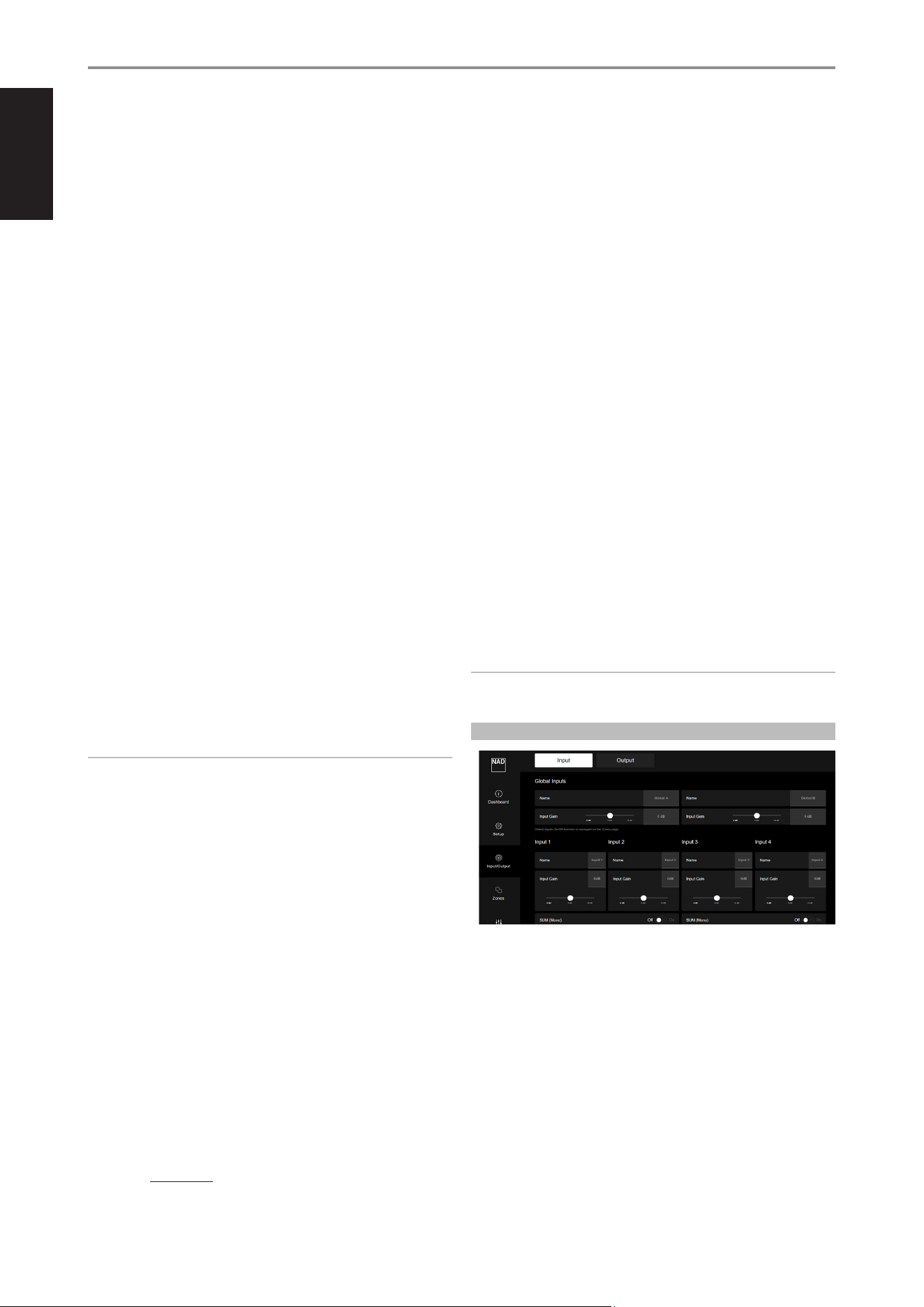
3 INFORMATION, BACK UP AND RESTORE
OPERATION
ENGLISH
10
AMPLIFIER IDENTIFICATION
FLASHING LED INDICATOR(S)
On: Power LED (amber) and all Output Channel LED (blue) indicators flash
continuously. This is particularly useful in identifying your CI 8-120 DSP
when stacked in a rack alongside other devices.
O: Stop or prevent Power LED (amber) and all Output Channel LED (blue)
indicators from flashing continuously.
AMPLIFIER INFORMATION
The following information about your CI 8-120 DSP are automatically
generated and displayed.
• Model
• Serial Number
• Current Firmware Version details
• Date firmware was last updated.
Another item is Unit Name. Type or enter in the Unit Name field the
desired name you will identify your CI 8-120 DSP.
INSTALLATION INFORMATION
Type or enter the Installation details for the following items
• Project Name of the installation job
• Name of the Installer
• Contact number of the Installer
• Date installation was completed.
• Date installation was last modified.
PASSWORD PROTECTION
This feature helps control access and prevent unauthorized modifications
when enabled.
On: Set up a password to secure your CI 8-120 DSP. Once a password is
configured, changes cannot be made in the User Interface without entering
the correct password.
O: No password protection is enabled, allowing unrestricted access to
modify settings in the User Interface.
NOTE
If a password is set, the user will be unable to make changes to any
congured settings unless the correct password is entered.
FORGOT PASSWORD
If you forget your password, follow the steps below to regain access:
1 Retrieve the Existing Password
• Contact your installer to obtain the password that was originally
configured.
2 Perform a Manual Password Reset
• Press the rear panel RESET button five (5) times within 10 seconds.
Each press must be no longer than 3 seconds.
3 After Resetting
• Refresh the webpage in your browser.
• Navigate to the Password Protection section in the Information,
Backup and Restore menu.
• Set a new password to secure your CI 8-120 DSP.
AMPLIFIER FIRMWARE
CHECK FOR UPDATE
• Select Check for Update to search for any new firmware update. If new
firmware details are shown, follow the upgrade prompt instructions to
complete the update process.
• It is recommended to opt for an Internet Update, as Manual Update
is generally intended for authorized service technicians.
• Contact NAD Support for assistance with the manual update procedure.
SAVE SETTINGS
• After configuring all menu options, select Save Settings to store them
in a single file. Depending on your web browser, the saved file will
either be automatically placed in your Downloads folder or prompt you
to choose a directory. Make sure to note the file name and location for
easy access later.
• You can save multiple configurations if you wish to tweak menu
settings and store them in separate files.
• This feature is especially useful when restoring previously saved settings
after a factory reset of your CI 8-120 DSP.
LOAD SETTINGS
• Select Load Settings to load previously saved configuration settings
into your CI 8-120 DSP. You may choose the same file or one of the files
saved using the Save Settings function.
• After selecting Load Settings, locate and select the desired file from its
directory. The stored parameters will be recalled and applied to your
CI 8-120 DSP.
CREATE INSTALLATION REPORT
• Generate a detailed report listing all configured settings.
• Print the report for review and reference to better understand the
configured settings.
FACTORY RESET
• Selecting Factory Reset will restore your CI 8-120 DSP to its original
factory default settings. All saved settings, entries, and custom
configurations will be permanently erased.
• Upon selecting Factory Reset, the Power LED transitions from blue (operating
mode) to flashing blue, eventually settling to amber (standby mode).
NOTE
If a password is set, the user will not be able to select or access the
Factory Reset feature without entering the correct password.
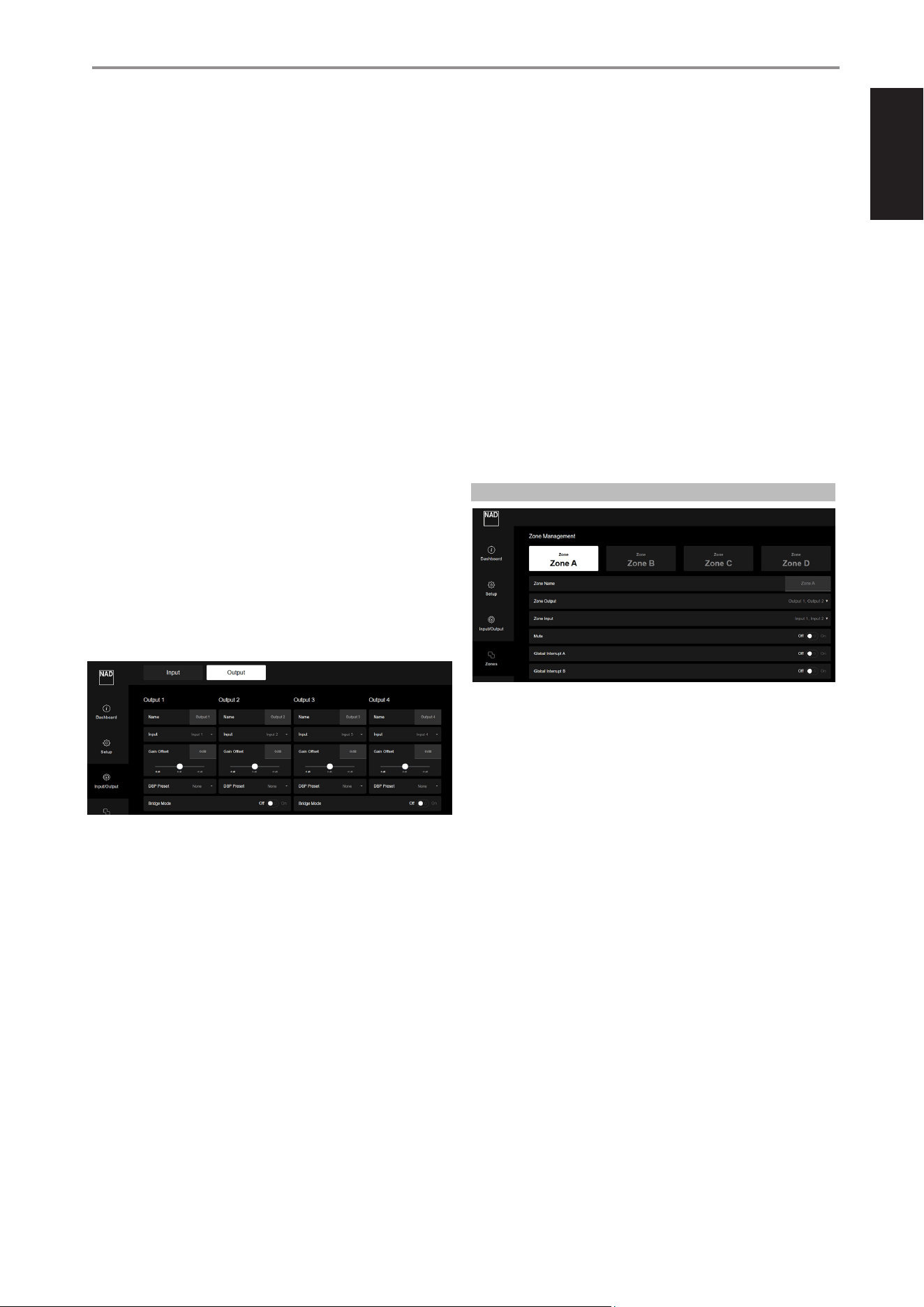
C INPUT/OUTPUT
1 INPUT
GLOBAL INPUTS
• There are two Global Inputs - Global A and Global B. Global A (Global
Interrupt A) and/or Global B (Global Interrupt B) can be toggled ON
or OFF in the Zones menu. All four Zones offer the option to enable
Global Interrupt A and/or B, which, when activated, will take priority and
override all other active line inputs within the selected zone(s).
• GLOBAL A takes priority over GLOBAL B.
• Global A or B input will override any active line. Once Global A or B
input stops receiving audio signal, the amplifier will automatically revert
to the previous input source.
a NAME
• Rename GLOBAL A and/or GLOBAL B by entering preferred name or
identification in the input field.
OPERATION
ENGLISH
11
b INPUT GAIN
• Input Gain refers to the adjustment of the input signal level before
it is processed or amplified. Proper input gain ensures the signal is
strong enough to maintain quality without introducing distortion or
unwanted noise. It sets the foundation for clean and balanced audio
by establishing the correct initial signal strength.
• If there are inconsistencies with signal sensing, the input gain should
be increased. It is recommended to initially set the gain to maximum.
If any unwanted noise is introduced, gradually reduce the level until
the noise disappears—this represents the optimal gain setting for
that source. Input gain can also be used to balance audio levels
across multiple sources with varying output levels.
• Drag the slider icon to adjust input gain level within ±6 dB range at 0.5 dB
increments. The corresponding numerical value of the adjusted input gain
level is reflected in the input field next to the slider icon. The desired input
gain value can also be entered directly in the same input field.
INPUT 1-8
Configure each Input (1-8) according to name preferences, input gain and
sum.
a NAME and INPUT
• Configure Name and Input Gain in the same manner as defined
under GLOBAL INPUTS.
b SUM (MONO)
• Two adjacent line input sources are summed up to provide a mono
signal output. Set SUM (Mono) to “On” to combine two adjacent line
input sources or “Off” to maintain stereo input sources.
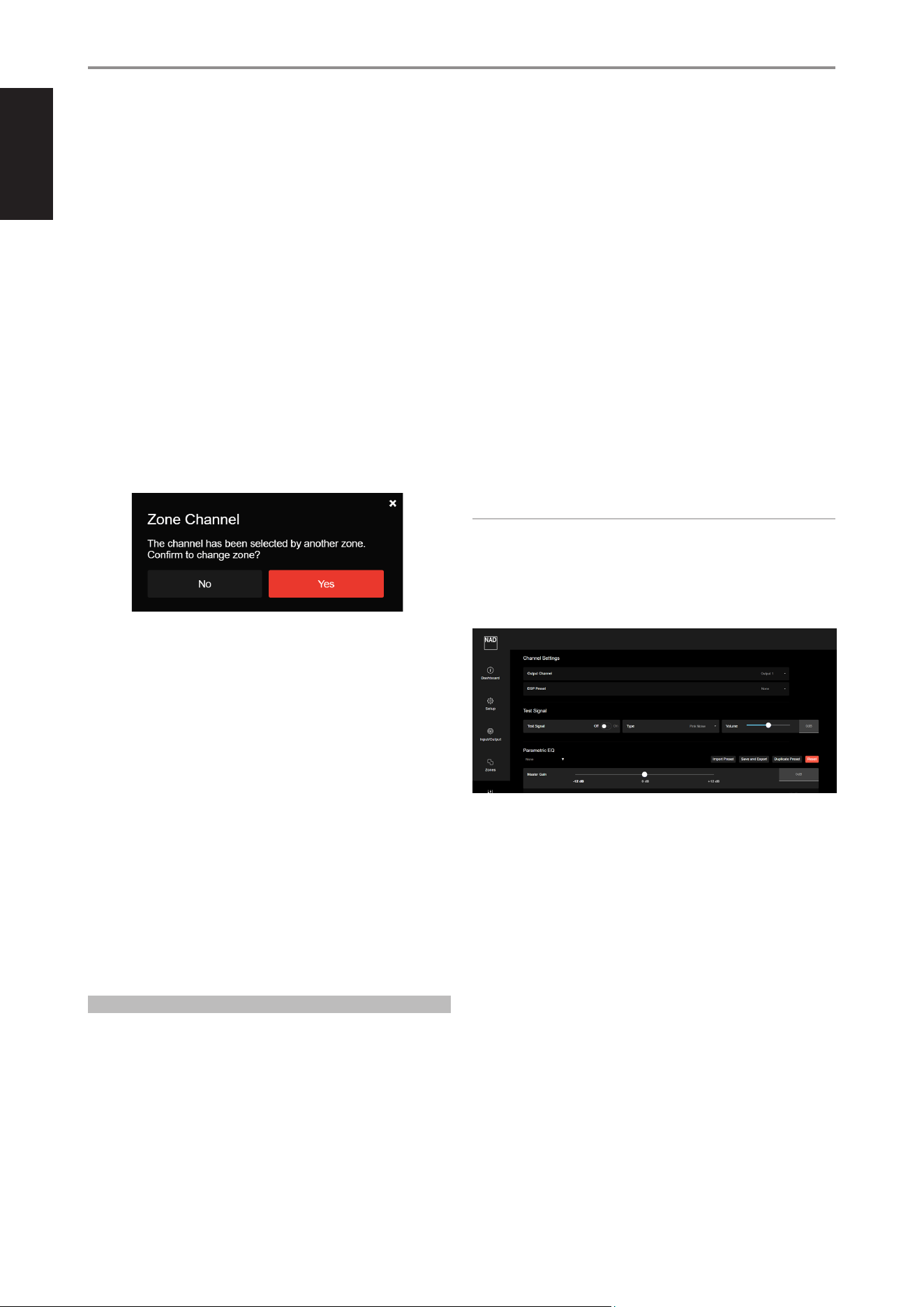
2 OUTPUT
NAME
• The factory default names of the eight OUTPUT channels are Output 1
through Output 8.
• Each OUTPUT channel can be renamed by typing directly over its
default name. For example, replace “Output 1” with a custom name such
as “Living Room.”
• Each OUTPUT channel corresponds to Speakers 1 to 8 respectively.
INPUT
• Each OUTPUT channel can be assigned any of the INPUT channels
(Input 1 - 8).
• Select the desired INPUT from the drop-down list to assign a specific
OUTPUT channel to a source INPUT.
GAIN OFFSET
• Gain offset can be used to compensate for differences in sound
pressure level (SPL) among speakers in a room, often caused by their
placement. For example, a speaker positioned in a corner may produce
a higher SPL due to surface reflections compared to one placed in open
space.
• Additionally, applying DSP to individual speakers can affect the output
level of each channel.
• It is recommended that once all configurations are complete, the
installer measures the SPL of each speaker using an SPL meter (not
supplied) and makes any necessary adjustments to ensure consistent
output levels across all channels.
• Drag the slider icon to adjust gain offset level within ±6 dB range at
0.5 dB increments. The corresponding numerical value of the adjusted
gain offset level is reflected in the input field next to the slider icon. The
desired gain offset value can also be entered directly in the same input
field.
DSP PRESET
• Assign a DSP Preset number to a specific OUTPUT channel. Make sure
the selected DSP Preset has been previously configured and saved.
BRIDGE MODE
• Combine both adjacent output channels into Mono output by setting
“Bridge Mode” to “On”.
• Set “Bridge Mode” to “Off” to maintain stereo output.
• Refer also to item about “SPEAKERS (1-8)” under “IDENTIFICATION OF
CONTROLS” for further information and guideline about Bridge Mode.
D ZONES
The CI 8-120 DSP is divided into four Zones – Zone A, Zone B, Zone C and
Zone D. These four Zones are defaulted to the following respective Zone
Channel and Zone Input.
Zone A
• Zone Channel - Output 1, Output 2
• Zone Input – Input 1, Input 2
Zone B
• Zone Channel - Output 3, Output 4
• Zone Input – Input 3, Input 4
Zone C
• Zone Channel - Output 5, Output 6
• Zone Input – Input 5, Input 6
Zone D
• Zone Channel - Output 7, Output 8
• Zone Input – Input 7, Input 8
USING CI 8-120 DSP IN A HOME THEATRE SYSTEM
• For a standard 5.1 or 7.1 home theatre setup, it is recommended to use
CI 8-120 DSP’s default configuration. Inputs 1–5 should be used for a
5.1 system, and Inputs 1–7 for a 7.1 system. In this configuration, due to
auto-pairing, one channel will remain unused.
• To maximize available power in a 5.1 system, configure Line Inputs
1+2, 3+4, and 5+6 to Sum (Mono), and set Outputs 1+2, 3+4, and 5+6
to Bridge Mode to drive the Left, Center, and Right (LCR) channels,
delivering up to 135W per channel into 8 ohms. Use Inputs 7 and 8 with
Outputs 7 and 8 for the surround channels.
OPERATION
ENGLISH
12
ZONE NAME
• The default factory names of the four Zones are Zone A, Zone B, Zone C
and Zone D.
• Each Zone can be renamed by typing directly over its default name. For
example, replace “Zone A” with a custom name such as “Dining Room.”
ZONE OUTPUT
• Assign a pair of OUTPUT channels to a Zone. For example, to configure
Zone A, select the desired OUTPUT channel from the drop-down
list. When Output 1 is selected, Output 2 is automatically paired and
assigned to Zone A.
• Each Zone can be assigned from one up to four pairs of OUTPUT
channels. However, doing so may limit or completely use up the
available OUTPUT channel options for the other Zones.
• If the same pair of OUTPUT channels are assigned to a different Zone,
they will be removed from their original Zone assignment.
- For example, Output 1 and Output 2 are initially assigned to Zone
A, and then select them also for Zone B during configuration. A
confirmation prompt will appear. Upon confirming (Yes), Output
1 and Output 2 will be reassigned to Zone B and automatically
removed from Zone A.
ZONE INPUT
• Assign an Input (1-8) to a Zone. For example, select Input 1 from the
drop-down list as the desired Zone Input for Zone A.
• When Input 1 is selected, Input 2 is automatically paired and assigned
to the Output Channels of the Zone being configured. The same
applies to Input 3-4, Input 5-6 and Input 7-8.
• Changes to the Zone Input are reflected in the Output section of
Input/Output menu.
MUTE
• Mute or restore audio output of the selected Zone.
GLOBAL INTERRUPT A, GLOBAL INTERRUPT B – ON/OFF
• When GLOBAL A or GLOBAL B is set to ON, the input connected to the
GLOBAL IN terminal overrides all other active line input channels.
• If GLOBAL B is ON and GLOBAL A is OFF, the GLOBAL B input becomes
the active source.
• If both GLOBAL A and GLOBAL B are ON, GLOBAL A takes priority and
becomes the active input, overriding GLOBAL B and all other inputs.
• GLOBAL A takes priority over GLOBAL B.
E DSP
DSP CONFIGURATION AND OPTIMIZATION
The amplifier’s DSP capabilities allow the installer to fine-tune the audio
system to address acoustic anomalies caused by the room environment or
to optimize speaker performance.
DSP Setup Procedure
1 Select Output Channel
Begin by selecting the output channel to which the DSP filter will be applied.
2 Check Existing DSP Preset
The interface will display if a DSP preset has already been assigned to
the selected channel.
3 Enable Test Tone
Activate the test tone for the selected output channel. Use the Type
option to choose between the internal pink noise generator or an
external signal source. Adjust the Volume so the internal test tone is
approximately 30–40 dB above the ambient noise level in the room.
4 Measure Frequency Response
Use a spectrum analyzer (not supplied) to measure the speaker’s
frequency response in the room.
5 Create a New DSP Prole
Under Parametric EQ, select a preset from the drop-down menu to
begin editing. Preset selection is required before adjustments can be
made. Assign a name to the preset—such as the speaker model or room
location—for easy reference.
6 Apply EQ Adjustments
Make the necessary adjustments to the EQ parameters as required by
the measurement results.
7 Activate New Prole
Return to the DSP Preset section and select the newly created profile for
the active channel.
8 Repeat for Other Channels
Proceed to the next output channel and repeat the process.
NOTES
• DSP presets can be saved and exported for use on other ampliers or
imported from previously created congurations.
• To apply the same DSP settings to other channels or presets, the
Duplicate function can be used to copy a prole to another preset.
1 CHANNEL SETTINGS
OUTPUT CHANNEL, DSP PRESET
• Assign a DSP Preset (Preset 1-9) to each Output Channel (Output 1-8) as
desired.
• Ensure the selected DSP Preset has been properly configured and
saved beforehand.
2 TEST SIGNAL
A test signal can be sampled or loaded through all the channels.
This is useful for checking audio level of each channel or comparing/
balancing audio levels among the channels.
a TEST SIGNAL
• On: Activate the test signal for the selected output channel.
• O: Deactivate the test signal for the selected output channel.
b TYPE
• The test signal can be a pink noise generator or actual input
signal from any of the line input channels.
• Select from the drop-down list Pink Noise or Input 1 to Input 8
to serve as test signal for the specific output channel.
• Pink noise is useful in setting up audio and equalization levels.
OPERATION
ENGLISH
13
c VOLUME
• Drag the slider icon to adjust the test signal audio level within a
±12dB range.
• Alternatively, the desired test signal audio level can also be
entered directly in the input field next to the slider icon.
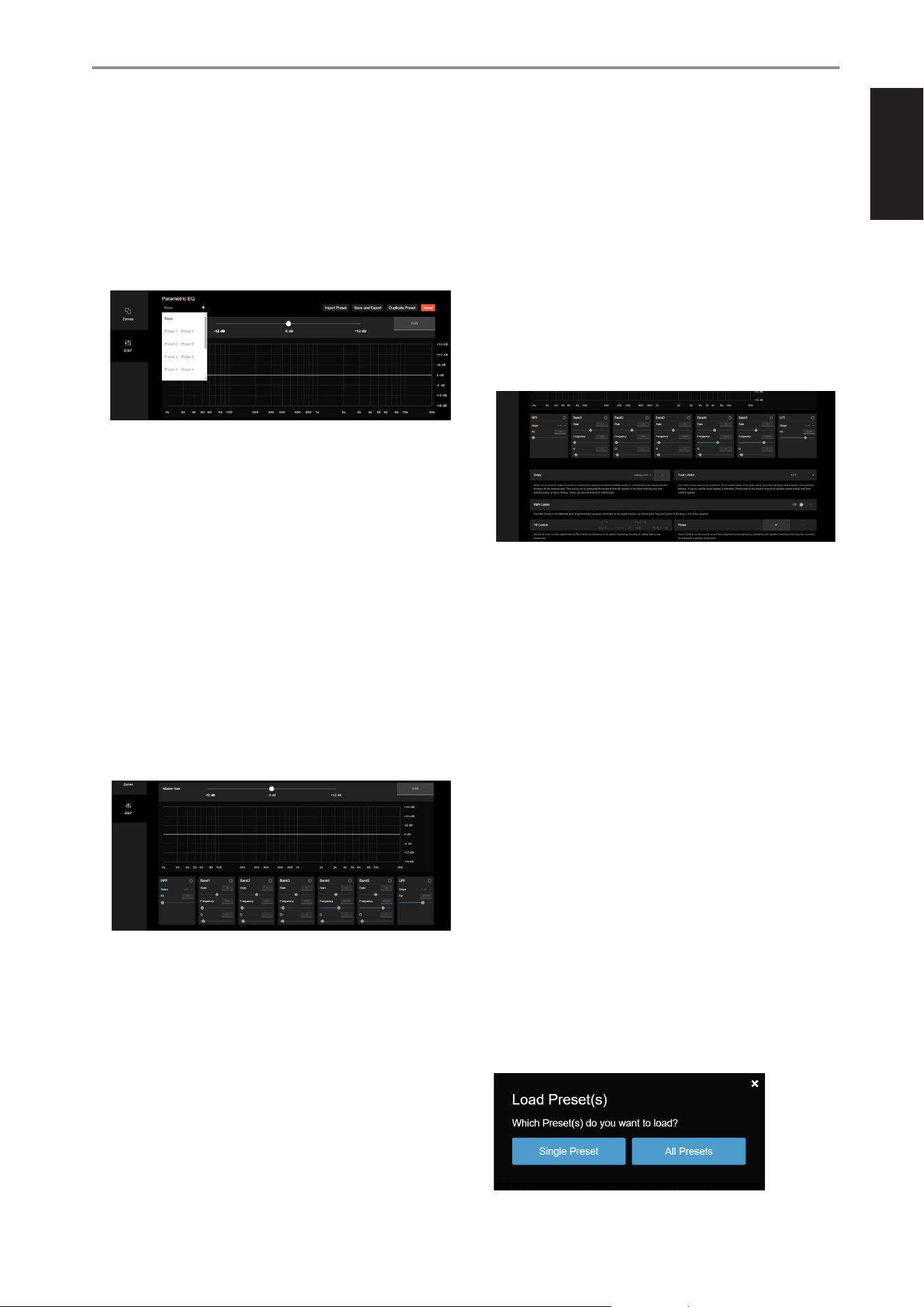
3 PARAMETRIC EQ
Parametric equalization (EQ) is a highly flexible type of audio filtering
that allows precise control over individual frequency bands.
a PRESET SELECTION AND CONFIGURATION
Under Parametric EQ tab, select a preset from the drop-down list (Preset
1–9).
i. Choose the preset number to either configure new settings or recall
previously saved parameters.
ii. Configure the following parameters to be stored in the selected
preset (e.g., Preset 1):
• Master Gain
• HPF, Band 1-5, LPF
• Slope
• Gain
• Frequency
• Q
• Delay
• Peak Limiter
• RMS Limiter
• Tilt Control
• Phase
MASTER GAIN
• Adjusting the Master Gain affects all output channels
simultaneously. This ensures uniform gain control across all output
channels.
• Drag the slider to adjust the level within a ±12 dB range.
• The numerical value of the adjusted gain level is displayed next to
the slider.
• Alternatively, the desired gain level can also be entered directly in
the input field next to the slider icon.
HPF, BAND 1-5, LPF
• Select o icon beside HPF, Band 1-5 or LPF to enable particular band
and configure the parameters.
SLOPE
• Slope refers to how abruptly frequencies are attenuated by the filter
once the cutoff frequency is passed. Slope is quantified in decibels
per octave (dB/octave). Available selectable filter (roll off) slope
values are 6 dB, 12 dB, 18 dB and 24 dB per octave.
GAIN
• Adjust the amplitude (boost or cut) of the selected frequency. Gain
level can be adjusted to ±10 dB.
FREQUENCY
• Set the frequency level where applicable configured parameters
will be enabled.
Q
• “Q” setting refers to the depth the bandwidth can be adjusted. Q
level is from 0.1 up to 24. Bandwidth is wider at lower Q level and
narrower with higher Q level.
DELAY
• Delay can be used on output channels to improve time alignment
between multiple speakers, compensating for varying speaker
distances to the listening area.
• This can be set by measuring the distance from the speaker to the
main listening area and entering values in feet or meters. Value can
also be entered in milliseconds.
PEAK LIMITER
• Peak Limiter reduces the amplitude of the loudest peaks of an audio
signal to protect speakers and amplifiers from potential damage. It
can be used to avoid clipping or distortion.
RMS LIMITER
• RMS Limiter is an additional layer of protection for speakers
connected to the output channel by matching the long term
power of the amplifier to that of the speakers.
TILT CONTROL
• Tilt control can be used to make adjustments to the overall tonal
balance of an output channel by boosting or cutting high or low
frequencies.
PHASE CONTROL
• Phase control can be used to correct time alignment issues
between a subwoofer and speaker channels which maybe caused
by the subwoofer position in the room.
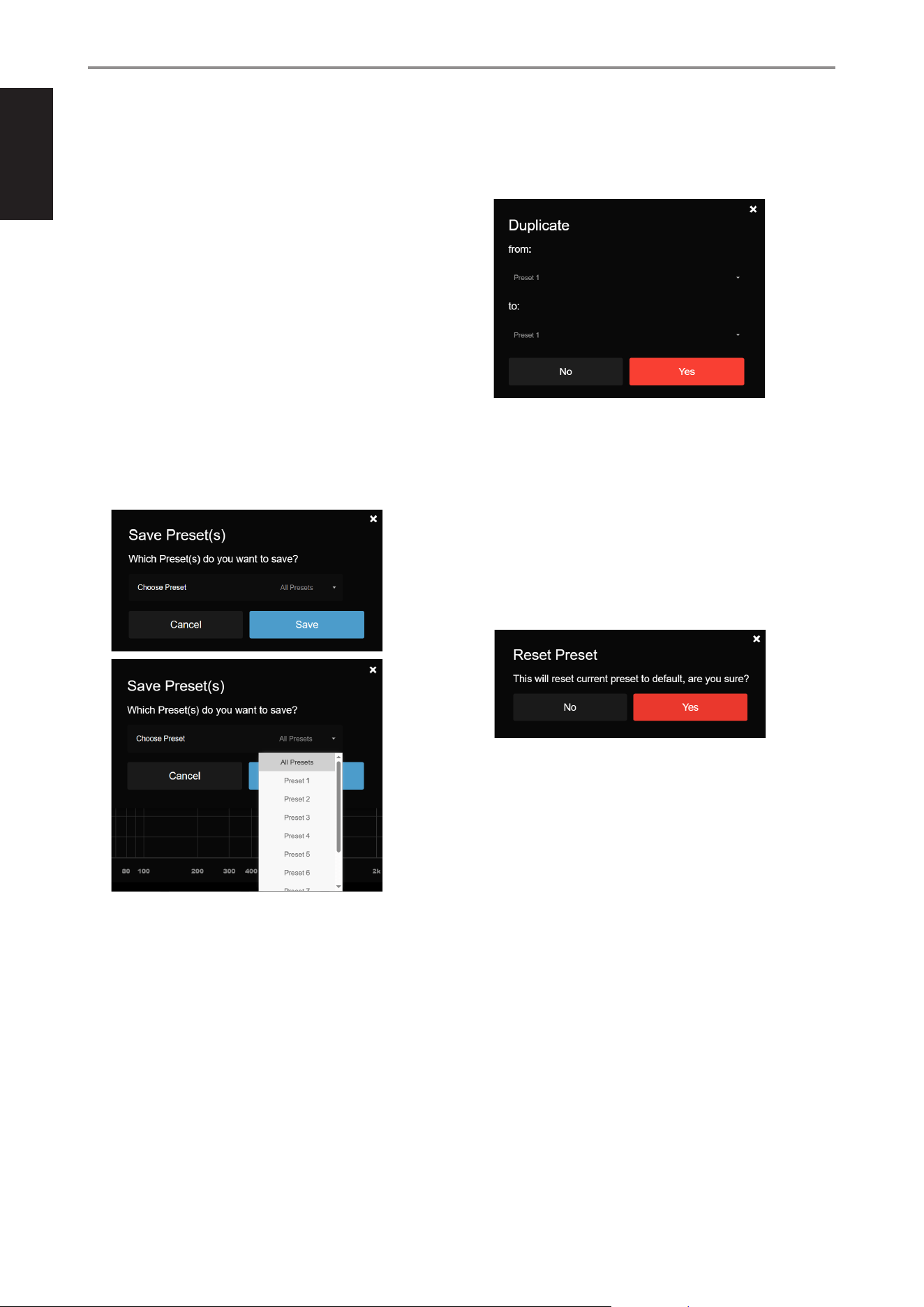
b IMPORT PRESET
Load previously saved Parametric EQ settings into your CI 8-120 DSP.
OPERATION
ENGLISH
14
IMPORT A SINGLE PRESET
i. Select a Preset Number (e.g., Preset 1) under Parametric EQ drop-
down list to begin the import process
ii. Click Import Preset.
iii. To load a setting into a specific preset (e.g., Preset 1), select Single
Preset to load a previously saved configuration file to your
CI 8-120 DSP. This file corresponds to the ones discussed in the
“Save and Export” section below.
iv. When prompted, browse to the folder where your saved parameter
files are located. Select the desired file. The parameters will now be
loaded into the chosen Preset (Preset 1).
v. To load another setting into a different preset, simply select another
Preset number (e.g., Preset 2) and repeat the process.
IMPORT ALL PRESETS
i. Select All Presets to load all saved presets at once.
ii. When prompted, find and choose the file that contains all your
saved settings (typically named “all_eq_settings”).
iii. This will populate all the preset slots with their corresponding saved
parameters.
c SAVE AND EXPORT
Save configured parameters to a specific Preset (e.g., Preset 1), or save
all configured Presets collectively into a single Preset file (All Presets).
i. Select a preset (Preset 1–9) from the Parametric EQ drop-down list.
ii. Configure the desired parameter settings, then select Save And
Export to store the configuration.
iii. Based on your web browser, the saved settings will either be saved
in your Downloads folder or you may be prompted to choose a
directory. Take note of the file name and directory for easy access.
iv. If assigning the configured settings to Preset 1, select Preset 1.
Repeat the same process for other presets (Preset 2–9).
v. To store all configured presets as a single file, select All Presets. The
saved file is typically named “all_eq_settings”.
d DUPLICATE PRESET
Copy settings from one configured Preset (e.g., Preset 1) to another
Preset number (e.g., Preset 3). In this example, the settings from Preset 1
will overwrite any existing settings in Preset 3.
i. From the “from:” drop-down list, select the Preset number you want
to copy (e.g., Preset 1).
ii. From the “to:” drop-down list, select the destination Preset number
(e.g., Preset 2).
iii. Select Yes to copy the settings from the selected “from:” (Preset 1) to
the “to:” (Preset 2).
iv. Any existing settings in the “to:” Preset will be overwritten by the
copied settings.
e RESET
Selecting RESET will restore current Preset number to its default
configurations.
OPERATION

ENGLISH
15
GENERAL SPECIFICATIONS
LINE INPUT, SPEAKER OUT
Continuous output power into 8 ohms 120 W (20 Hz - 20 kHz 0.05% THD - all channels driven)
130 W (20 Hz - 20 kHz 0.05% THD - two channels driven)
Continuous output power into 4 ohms 135 W (20 Hz - 20 kHz 0.05% THD - all channels driven)
230 W (20 Hz - 20 kHz 0.05% THD - two channels driven)
Continuous output power into 8 ohms (Bridged mode) 200 W (20 Hz - 20 kHz 0.05% THD - all channels driven)
320 W (20 Hz - 20 kHz 0.05% THD - two channels driven)
THD (20 Hz – 20 kHz) <0.05 % (1 W to 100 W, 8 ohms and 4 ohms)
Signal-to-Noise Ratio >88 dB (A-weighted, 500 mV input 1 W out 8 ohms)
Clipping power (all channels driven) 130 W (1 kHz 0.1 % THD 8 ohms)
150 W (1 kHz 0.1 % THD 4 ohms)
Clipping power into 8 ohms (Bridged mode) 300 W (1 kHz 0.1 % THD - all channels driven)
400 W (1 kHz 0.1 % THD - two channels driven)
IHF dynamic power (all channels driven) 8 ohms: 125 W
4 ohms: 200 W
IHF dynamic power (two channels driven) 8 ohms: 145 W
4 ohms: 260 W
IHF dynamic power (Bridged mode, all channels driven) 8 ohms: 440 W
4 ohms: 350 W
IHF dynamic power (Bridged mode, two channels driven) 8 ohms: 480 W
4 ohms: 380 W
Peak output current 20 A (1 ohm, 1 ms)
Damping factor 110 (20 Hz to 6.5 kHz 8 ohms,)
Frequency response ±0.3 dB (20 Hz - 20 kHz)
Channel separation >70 dB (1 kHz)
>65 dB (10 kHz)
Maximum undistorted input level 2900 mV
Input sensitivity (for 150 W in 8 ohms, maximum volume) 1150 mV
Analog Input audio sense threshold (one channel with signal) 3 ± 0.5 mVrms (ref. 100 Hz - 10 kHz)
Trigger IN level 3 - 30 Vdc
Standby power 0.5 W
DIMENSION AND WEIGHT
Gross dimensions (W x H x D)* 483 x 45 x 435 mm
19 1/16 x 1 13/16 x 17 3/16 inches
Shipping weight 10 kg (22.2 lbs) lbs)
* - Gross dimension includes extended rear panel terminals, rack ears and excludes feet.
REFERENCE
SPECIFICATIONS
ENGLISH
16
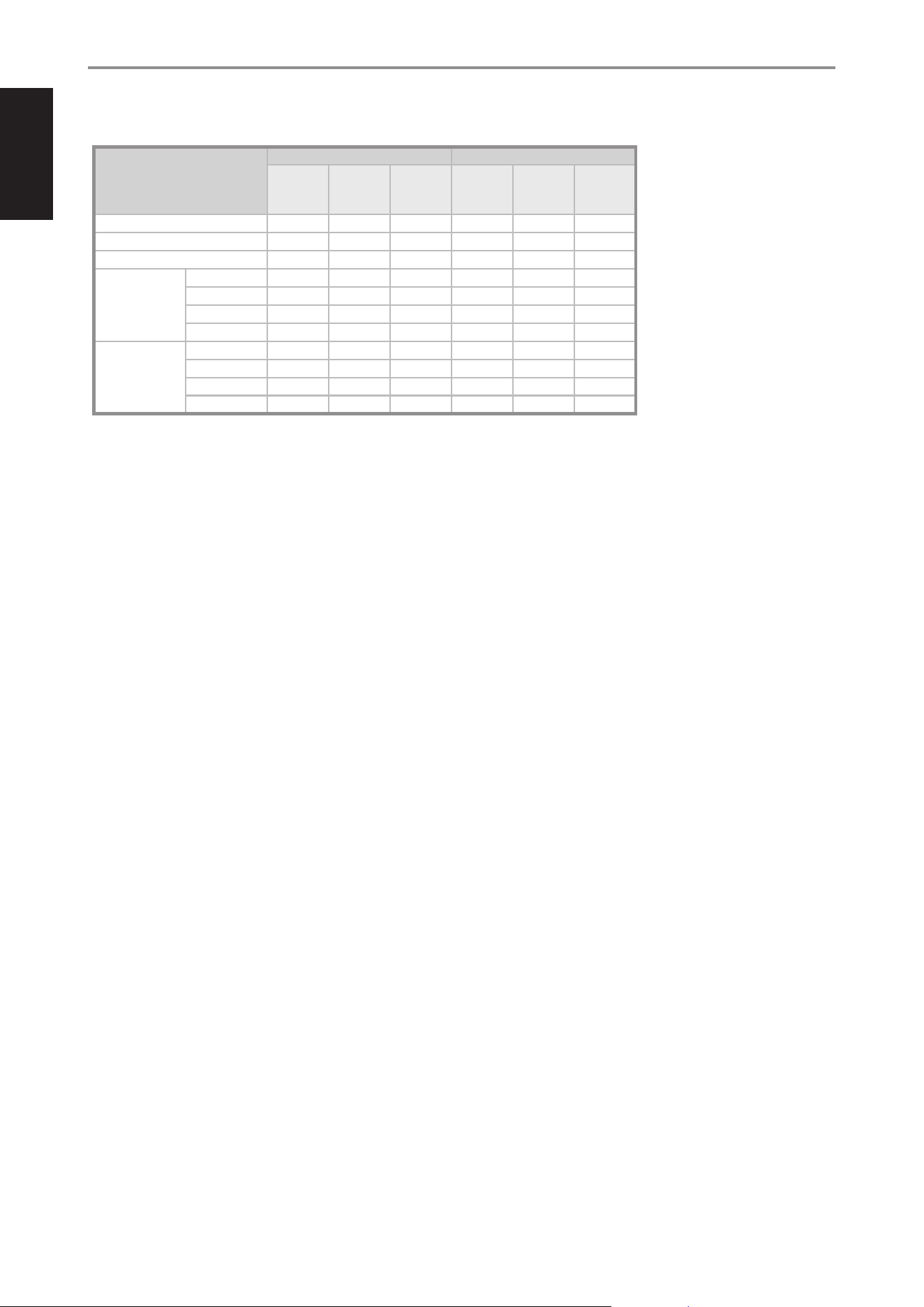
HEAT OUTPUT (BTU)
CONDITION
230V/50HZ 120V/60HZ
INPUT
POWER
(W)
OUTPUT
POWER TO
SPEAKER
(W)
HEAT
OUTPUT
(BTU/HR)
INPUT
POWER
(W)
OUTPUT
POWER TO
SPEAKER
(W)
HEAT
OUTPUT
(BTU/HR)
Eco Mode Standby Power at 8 ohms 0.45 - 1.54 0.42 - 1.43
Network Standby Power at 8 ohms 1.51 - 5.15 1.50 - 5.12
Idle power at 8 ohms 70.00 - - 73.00 - -
Output power at 8
ohms, all channels
driven
1/8 rated power 192.00 120.00 245.67 200.00 120.00 272.97
1/3 rated power 398.00 320.00 266.15 406.00 320.00 293.44
1/2 rated power 564.00 480.00 286.62 582.00 480.00 348.04
Full rated power 1111.00 960.00 515.23 1158.00 960.00 675.60
Output power at 4
ohms, all channels
driven
1/8 rated power 200.00 120.00 272.97 202.00 120.00 279.80
1/3 rated power 416.00 320.00 327.57 426.00 320.00 361.69
1/2 rated power 602.00 480.00 416.28 615.00 480.00 460.64
Full rated power 1185.00 960.00 767.73 1242.00 960.00 962.22
SPECIFICATIONS


www.NADelectronics.com
©2025 NAD ELECTRONICS INTERNATIONAL
A DIVISION OF LENBROOK INDUSTRIES LIMITED
All rights reserved. NAD and the NAD logo are trademarks of NAD Electronics International, a division of Lenbrook Industries Limited.
No part of this publication may be reproduced, stored or transmitted in any form without the written permission of NAD Electronics International.
While every effort has been made to ensure the contents are accurate at the time of publication, features and specifications may be subject to change without prior notice.
CI 8-120 DSP OM 01 - AUG 2025