
ii
This product uses one or more of the following patents:
5,199,109 5,408,692 5,428,826 5,438,688 5,465,402 5,471,660
5,483,684 5,530,296 5,548,832 5,551,071 5,574,995 5,577,076
5,598,430 5,642,424 5,710,992 5,784,388**** 5,956,648*** 5,991,346
6,025,758 6,034,573 6,064,270 6,192,223* 6,519,472*** 6,941,120*
6,839,550 7,006,797** 7,013,110 7,046,964** 7,190,937** 7,505,738
7,548,735**
Other patents pending.
* These patents are under license from Gray Electronics, Inc.
** These patents are under license from Counter Technologies, Inc.
*** These patents are under license from G/Tracker Technologies, Inc.
**** This patent is under license from Gregory D. Knox.
Patented DVSI Vocoder:
US Patent Nos. 5,870,405; 5,649,050; 5,630,011; 5,581,656; 5,517,511; 5,491,772;
5,247,579; and 5,226,084.
These patents are all licensed from Digital Voice Systems, Inc. (DVSI).
© 2014 Uniden America Corporation, Irving, Texas.
SAVEYOURRECEIPT!Itisyourproofofpurchaseandisrequiredtoestablishwa rranty.
HomePatrol is a registered trademark of Uniden America Corporation, Irving, Texas.
HomePatrol
-
II Owner’s Manual Issue 1.00, July 2014
Questions?Problems?Gethelponthewebatwww.HomePatrol.comorwww.uniden.com.
OrcallourCustomerServicelineat800‐292‐2294.

TABLEOFCONTENTS
TABLEOFCONTENTS......................................................................................................................................i
IMPORTANTINFORMATION.........................................................................................................................1
TheFCCWantsYoutoKnow.....................................................................................................................1
ModificationNotice..................................................................................................................................1
Part15Information...................................................................................................................................1
GeneralPrecautions..................................................................................................................................1
EarphoneWarning................................................................................................................................1
LiquidExposureWarning......................................................................................................................2
PowerDisconnectionCaution...............................................................................................................2
ScanningLegally........................................................................................................................................2
WHATISTHEHOMEPATROL‐II?....................................................................................................................3
WhatareHomePatrol‐II’sFeatures..........................................................................................................3
HomePatrol‐II............................................................................................................................................4
HowDoestheHomePatrol‐IIWork?.........................................................................................................4
WhatYouDo.........................................................................................................................................4
WhatYouHearintheUnitedStates.....................................................................................................5
WhatElseCanHomePatrol‐IIDo?............................................................................................................5
CreateFavorites
Lists............................................................................................................................5
AvoidTransmissions..............................................................................................................................5
ReplayTransmissions............................................................................................................................5
RecordTransmissions...........................................................................................................................5
UseGPSInput........................................................................................................................................5
UpdatingHomePatrol‐IIFirmware............................................................................................................6
UpdatingtheHomePatrol‐IIDatabase......................................................................................................6
HOMEPATROL‐IIHARDWAREANDSOFTWARE............................................................................................7
Hardware..................................................................................................................................................7
BaseUnit...............................................................................................................................................7
Software....................................................................................................................................................
8
MainScreen..........................................................................................................................................8

ii
HOMEPATROL‐IIOPERATIONS....................................................................................................................11
Start‐UpWizard......................................................................................................................................11
RunningtheStartupWizard................................................................................................................11
SelectingChannelstoMonitor................................................................................................................11
ChangeLocation..................................................................................................................................12
SelectServiceTypes............................................................................................................................12
SetRange............................................................................................................................................12
SelectFavoritesListstoMonitor........................................................................................................12
AvoidingTransmissions.......................................................................................................................13
Selecting
NationwideSystems............................................................................................................13
CustomizingYourMonitoringExperience..............................................................................................13
AdjustingListeningVolume................................................................................................................15
AdjustingScreenTapVolumes............................................................................................................15
EqualizingtheVolumeLevel...............................................................................................................15
AdjustingtheScreen...........................................................................................................................15
AdjustingContrastandBacklightLevel...............................................................................................15
AdjustingAutoDim.............................................................................................................................15
SettingAutomaticShutoff...................................................................................................................16
BUILDINGFAVORITESLISTS
........................................................................................................................17
CreatingaFavoritesList..........................................................................................................................17
UsingSubmenuPop‐UptoCreateaFavoritesList(NoFavoritesListsExist).....................................17
UsingSubmenuPop‐UptoCreateaFavoritesList(FavoritesListsExist)...........................................18
SavingtoanExistingFavoritesList.....................................................................................................18
UseSentinelSoftwaretoCreate
aFavoritesList................................................................................18
ManagingFavoritesLists.........................................................................................................................18
UsingFavoritesListstoMonitorSpecialServices ...................................................................................19
OTHERFEATURES........................................................................................................................................20
Avoid/UnavoidTransmissions.................................................................................................................20
HowtoSettheAvoidDefaultValue...................................................................................................20
HowtoAvoidaTransmission..............................................................................................................20
HowtoUnavoidaTransmission.........................................................................................................20
Replay......................................................................................................................................................21

iii
SetReplayOptions..............................................................................................................................21
ReplayTransmissions..........................................................................................................................21
Record.....................................................................................................................................................21
HowtoRecordTransmissions.............................................................................................................22
HowtoStopRecordingTransmissions................................................................................................22
HowtoPlayBackaRecordedSession................................................................................................22
Weather..................................................................................................................................................22
MonitoringWeatherChannels...............................................................................................................22
MonitoringWeatherAlerts.................................................................................................................23
DisplayingUnit
IDs..................................................................................................................................23
UsingHomePatrol‐IIwithanAccessoryGPSReceiver................................................................................24
ConnectingYourGPStoHomePatrol‐II..................................................................................................24
SettingUpGPS........................................................................................................................................24
HOMEPATROL‐IIANDSENTINELSOFTWARE..............................................................................................25
ManageProfiles......................................................................................................................................25
ManageFavoritesLists............................................................................................................................25
ManageDatabases..................................................................................................................................25
CreateNew
orEditExistingSystems......................................................................................................25
ShareFavoritesLists................................................................................................................................25
ManageFirmwareUpdates....................................................................................................................25
InstallingSentinel....................................................................................................................................25
HowtoInstallSentinelSoftware........................................................................................................26
TROUBLESHOOTING....................................................................................................................................27
BATTERYANDPOWERINFORMATION........................................................................................................28
InstallingtheBatteries............................................................................................................................28
RechargingtheBatteries.........................................................................................................................28
HowtoSet
theBatteryChargeTime......................................................................................................29
HowtoRechargetheBatteries...............................................................................................................29

iv
APPENDICES................................................................................................................................................31
AppendixA:HomePatrol‐IISpecifications.............................................................................................31
AppendixB:BandCoverage...................................................................................................................33
AppendixC:ServicesTypes....................................................................................................................34
ONE‐YEARLIMITEDWARRANTY..................................................................................................................36

1
IMPORTANTINFORMATION
TheFCCWantsYoutoKnow
IMPORTANT!
This scanning radio has been manufactured so that it cannot tune to radio
frequencies assigned by the FCC for cellular telephone use. The Electronic Communications
Privacy Act of 1986, as amended, makes it a federal crime to intentionally intercept cellular
or cordless telephone transmissions or to market this radio when altered to receive them.
The installation, possession, or use of this radio in a motor vehicle may be prohibited,
regulated, or require a permit in certain states, cities, and/or local jurisdictions. Your local
law enforcement officials should be able to information you regarding the local laws.
ModificationNotice
Changes or modifications to this product not expressly approved by Uniden, or operation of
this product in any way other than as detailed by this User’s Guide, could void your authority
to operate this product.
Part15Information
This scanner has been tested and found to comply with the limits for a scanning receiver,
pursuant to Part 15 of the FCC Rules. These limits are designed to provide reasonable
protection against harmful interference in a residential installation. This scanner generates,
uses, and can radiate radio frequency energy and, if not installed and used in accordance
with the instructions, may cause harmful interference to radio communications.
There is no guarantee that interference will not occur in a particular installation. If this
scanner does cause harmful interference to radio or television reception, which can be
determined by turning the scanner on and off, you are encouraged to try to correct the
interference by one or more of the following measures:
Reorient or relocate the receiving antenna.
Increase the separation between the scanner and the receiver
This device complies with Part 15 of the FCC Rules. Operation is subject to the following two
conditions:
This device may not cause harmful interference, and
This device must accept any interference received, including interference that may cause
undesired operation.
GeneralPrecautions
Before you use this scanner, please read and observe the following:
EarphoneWarning
You can use an optional 32Ω stereo headset or earphone with your scanner. Using incorrect
earphone or headset might be hazardous to your hearing. The output of the phone jack is
monaural, but you will hear it in both headphones of a stereo headset.

2
Set the volume to a comfortable audio level coming from the speaker before plugging in the
earphone or headset. Otherwise, you might experience some discomfort or possible hearing
damage if the volume suddenly becomes too loud because of the volume or squelch setting.
This might be particularly true of the type of earphone that is placed in the ear canal.
LiquidExposureWarning
Uniden does not represent this unit to be waterproof. To reduce the risk of fire or electrical
shock, do not expose this unit to rain or moisture!
PowerDisconnectionCaution
Important: Always turn the scanner off before disconnecting external power. Some settings
are saved only as the scanner is powering down.
ScanningLegally
Your scanner covers frequencies used by many different groups, including police and fire
departments, ambulance services, government agencies, private companies, amateur radio
services, military operations, pager services, and wireline (telephone and telegraph) service
providers. It is legal to listen to almost every transmission your scanner can receive.
However, there are some transmissions that you should never intentionally listen to. These
include:
Telephone conversations (cellular, cordless, or other private means of telephone signal
transmission)
Pager transmissions
Any scrambled or encrypted transmissions
According to the Electronic Communications Privacy Act (ECPA), you are subject to fines and
possible imprisonment for intentionally listening to, using, or divulging the contents of such a
conversation unless you have the consent of a party to the conversation (unless such activity
is otherwise illegal). This scanner has been designed to prevent the reception of cellular
telephone transmissions and the decoding of scrambled transmissions. This is done to comply
with the legal requirement that scanners be manufactured so they are not easy to modify to
pick up these transmissions. Do not open your scanner’s case to make any modifications that
could allow it to pick up transmissions that are illegal to monitor. Modifying or tampering with
your scanner’s internal components or using it in a way other than as described in this
manual could invalidate your warranty and void your FCC authorization to operate it. In some
areas, mobile and/or portable use of this scanner is unlawful or requires a permit. Check the
laws in your area. It is also illegal in many areas (and a bad idea everywhere) to interfere
with the duties of public safety officials by traveling to the scene of an incident without
authorization.

3
WHATISTHEHOMEPATROL‐II?
Uniden’sHomePatrol‐IIisthefirstdigitalTrunkTrackerIVCommunicationsReceiverthatrequiresno
userprogramming.Simplyturniton,enteryourlocation,andyouwillimmediatelybeginhea ring
communicationsinyourarea.Thisfunctionalityismadepossiblebycombiningtherichradiosystem
databasefromRadioReference.comwithUniden’spatentedradio
systemselectionmethodstocorrectly
identifyandmonitoronlynearbysystems.
WiththeHomePatrol‐II,youcanalsolistentoNatio nalOceanicandAtmosphericAdministration(NOAA)
weatherchannelsandmonitorweatheralerts.Setyour HomePatrol‐IItomonitorthesetransmissions
whenitisinastandbystateorwhenit
isturnedon.
WhatareHomePatrol‐II’sFeatures
Systemsupport:
o APCO25TrunkedandConventional
o MotorolaAnalogandMixedDigital
o EDACSNarrowandWide
o LTR
o Conventional
o Phase2TDMA
microSDforstoringfavoriteslistsandrecordingtrans missions
FactoryprogrammedforallknownradiosystemsintheUnitedStatesandCanada
Zipcodeentryforinstantr eceptionoflocalPolice,Fire,andEmergencyMedicalServices(EMS)
Cityselectionforinstantreceptionoflocalservices
Autolocatethatcanquicklyfindlocalsystemsevenifyoudon’tknowwhereyouare
ConnectibletoaGPSaccessoryreceiver(notincluded)
forprecisesystemselectionand
continuingreselectionwhentraveling
USBconnectiontoPCforfirmwareanddatabaseupdatesthroughSentinelsoftware
WeatherAlertStandby(SAME)
Instantreplayplaysbackupto240seconds(4minutes)ofthemostrecenttransmissions.
One‐touchrecordingtocapturetransmissionsfor
laterplayback
Optionalcarmountkit
NOTE:ForinformationonfeaturesaddedintheExtremeUpgrade,seetheseparatemanualavailable
bydownloadathttp://info.uniden.com/HomePatrol.

4
HomePatrol‐II
TheHomePatrol‐IIincludesmanyadvancedfeaturesavailablebypurchasingaregistrationkeyfrom
Uniden.Forinformationonunlockingandusingthesefeatures,seetheseparateHomePatrol‐IIExtreme
Owner’sManual.Evenwithouttheregistrationkey,youcantakeadvantageoftheseadvancedfeatures,
manyofwhichcanbeprogrammed
usingSentinelsoftware:
Per‐channeldelay– letsyoudeterminehowlongtheHomePatrol‐IIstaysonachannelafterthe
transmissionends.Longerdelayshelppreventmissingreplies.Shorterdelaysimproveoverall
scanningspeed.
Betterlocationprecisionforsystems–allowsyoutodefineadepartment’slocationand
range
usingupto32rectanglesinsteadofasinglecircle(circlesarestillsupported).
Multi‐FavoriteListSupport–letsyoumonitorupto256FavoritesListatatime,orcombine
FavoritesListsandtheFullDatabaseformonitoring.
ChannelAlerts–soundsaprogrammablealert
whenachannelsettoalertbecomesactive.
UnitIDTagging–displaysanalphatagshowingtheinformationaboutaspecificradiounitbeing
received.
IDSearch–stopsonallunavoidedradiotraffic,evenifthechannelis notinHomePatrol‐II’s
database.
EmergencyAlert
–soundsanalertwhenaunittriggerstheiremergencystatus(oncompatible
radiosystems).
AcoordinatedHomePatrol‐IIwebsite(www.HomePatrol.com)providesavarietyofsupportfeaturesand
information.BecomepartoftheHomePatrol‐IIfamilybygettinginvolvedinthediscussionforums.
HowDoestheHomePatrol‐IIWork?
WhatYouDo
Whenyousetyourlocation,HomePatrol‐IIsearchesitsdatabasesforchannelsnearthatlocation.Ifyou
enteryourzipcode,HomePatrol‐IIsearcheswithina 10mile radiusofthecenterofthatzipcode.Ifyou
enterthecity,thatrangeis20milesfromthe
centerofthecity.IfyouusetheAutoLocatefeature,that
rangeincreasesto30miles.Ifyoumanuallyenteryourlatitudeandlongitudeorconnectanaccessory
GPSreceiver,yourHomePatrol‐IIwillselectchannelsthatapplytoyourpreciselocation.
HomePatrol‐IIusesthesedatabases:
RadioSystem
Database–providedbywww.radioreference.com,thisdatabasecontainsradio
systeminformationincludingfrequencies,trunkedtalkgroups,andgeographiclocationsfor
radiosystemsacrossmostofNorthAmerica.
ZIPCodeGeographicDatabase–providesgeographicalcoordinatesformostzipandpostal
codesintheUSandCanada.
RadioReferenceSysIDDatabase–containssystemIDandgeographiclocationinformationfor
trunkedradiosystemsacrossNorthAmerica.
CityLocationDatabase–includesthecenterpointofmostnamedcitiesandcounties.

5
WhatYouHearintheUnitedStates
YourHomePatrol‐IIreceiverhasover10,000police,fire,ambulance,business,utility,andotheragencies
setforinstantaccess.Youcanalsolistentoweatherchannelsandweatheralerts,andyoucansetyour
HomePatrol‐IItomonitorweatheralertswhileit
isinastandbystate.
NOTE:Therearesomecommunicationsthatthepublicislockedoutfrommonitoring.Your
HomePatrol‐IIcannotreceiveagenciesthatscrambl etheircommunications;italsocannotreceive
agenciesonprivateproprietarysystems.
Becausetherearesomanydifferentkindsofcommunicationsgoingon,youcan
turnonspecifictypesof
agenciesyouwanttohear(andturn offthoseyoudon’t).TapMenu/ServiceTypestoselectthese
agencies.AppendixCprovidesalistofservicetypesandabriefdescriptionofthem.
WhatElseCanHomePatrol‐IIDo?
CreateFavoritesLists
Asyoufindtransmissionsyoulikeandwouldliketomonitoragain,youcansavethemtoaFavoritesList.
WhenyouopttolistentoaFavoritesList,HomePatrol‐IIwillmonitoronlythetransmissionsonthatlist.
AvoidTransmissions
YoucanalsoselecttransmissionsforHomePatrol
‐IItoavoid(ignore).
ReplayTransmissions
HomePatrol‐II’sReplayfeatureactsasaninstantreplayofthetransmissionsyou’vejustheard.Youcan
sethowlongaperiodReplayrecordsforinstantplayback.Thispe riodcanrangefrom30secondsto240
seconds(4minutes).Whileyoucanreplaythat
recordingimmediatelyandcontinuere playingit,you
cannotsaveitforfuturelistening.
RecordTransmissions
WithHomePatrol‐II,youcantapabuttonandbeginrecordingtransmissions.Whenyoubeginrecording,
HomePatrol‐IIaddstheReplayrecordingbuffertotherecording.HomePatrol‐2willcontinuerecording
untilyoutapagainto
stop.Theserecordingsessionsaresavedandcanbereplayedondemand.Rename
anddeletesessionsthroughtheReviewRecordingsscreen,accessedthroughAdvancedMenu/Replay
Options/ReviewRecordings(taponthesessiontobringupanoptionsscreen).
UseGPSInput
HomePatrol‐IIworkswithanaccessoryGPSreceivertoprovide
themostaccuratelocationsetting
possible.YoucansetHomePatrol‐IItouseGPSsettingswhileyouaretravelingsoyoualwaysreceivethe
mostaccuratetransmissionsforyourlocation.
AWordAboutHomePatrol‐IIProfiles
Whenyouenteredyourzipcodethefirsttime,youbegancreatingyourfirstHomePatrol‐IIprofile.A
profilecontainssettingslikeyourlocationandassociatedtransmissionsfromthedatabase,Favorites
Lists,andAvoids,etc.Youautomaticallydevelopaprofileasyoumonitortransmissionsandsavesome
toFavoritesLists,avoid
others,andadjusthowHomePatrol‐IIreceivesandplaysthem.

6
HomePatrol‐IIoperatesonasingleprofileatatime,so,ifyouwanttosignificantlychangeyourcurrent
profile,saveittoSentinelfirst.ThesavedprofilebecomesasnapshotofyourHomePatrol‐II
configurationatthatmoment.Whenyouwanttorestorethatspe cific profilelater,write
itbackto
HomePatrol‐II.Forexample,ifyouaretravelingtoanothercityandyouwillbecreatingaprofileforthat
city,writeyourcurrentprofiletoSentinel.Youcanrestorethatprofilewhenyoureturnandallyour
settingswillbesaved.
RefertotheSentinelsoftware
Helpfilesfordetailedinformationaboutprofiles.
UpdatingHomePatrol‐IIFirmware
Fromtimetotime,Unidenwillreleasefirmwareupdatestoimproveexistingfunctionality,addnew
features,oraddressissuesfoundinitsoperation.Updatingthefir mwaretakesjustafewminutesandis
easilyaccomplishedusingtheSentinelsoftwareyouinstalledonyourPCatHomePatrol‐IIinitialization.
Ifyoudid
notinstallSentinelsoftware,refertotheHomePatrol‐IIandSentinelsectionlaterinthis
manual.
SimplyconnectyourHomePatrol‐IItoyourPCusingthesuppliedUSBcableandselect“MassStorage.”
Then,inSentinelselectUPDATE Update Firmwareandfollowtheon‐screenprompts.
UpdatingtheHomePatrol‐IIDatabase
ToupdatetheHomePatrol‐II’sdatabase,connectittoyourPCusingthesuppliedUSBcable.Ifyouhave
upgradedtotheextremefeatures,thenselect“MassStorage.”Then,inSentinel,select UPDATE
Update Master HPDB.Finally,writethenewdatabasetoyourHomePatrol‐IIbyselecting
HomePatrol Write to Homepatrol.
7
HOMEPATROL‐IIHARDWAREANDSOFTWARE
Hardware
TheHomePatrol‐IIunitcomprisesabaseunitandantenna.Accessories includedintheboxare:
MiniUSBtoUSBConnectionCable
4XAANiMHRechargeableBatteries
RubberAntenna
AntennaConnector
microSDcard(installed)
TableStand
BaseUnit
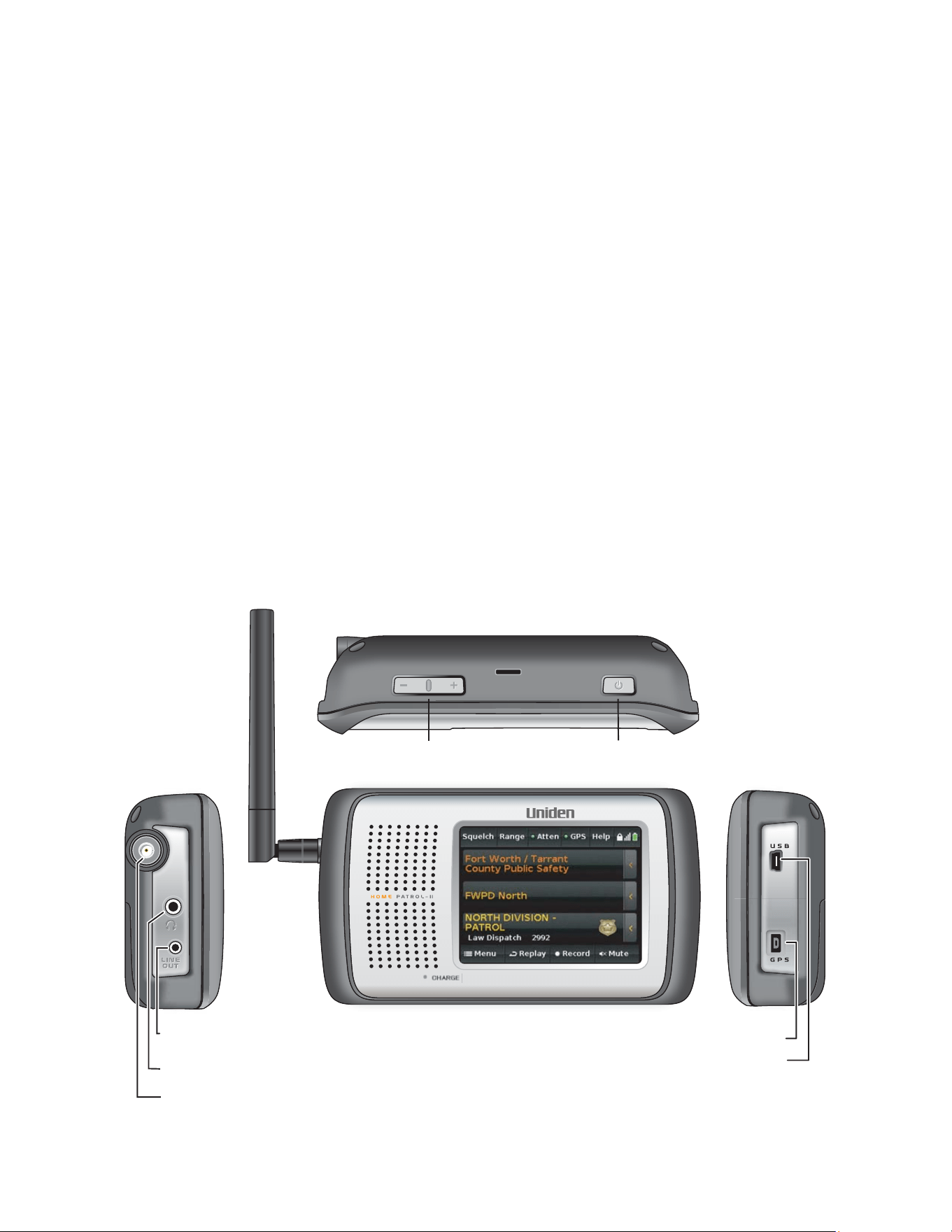
TheHomePatrol‐IIbaseunitis3.3
in(84.5mm)Hx5.9in(149mm)Wx1.5in(38.4mm)D.Itcontainsa
3.5‐inchdiagonalcolortouch‐sensitiveLCD screen.Theleftsideoftheunitprovidesheadphoneand
lineoutjacksandSMAantennajackwhiletherightsidecontainstheUSB
portandserialportforGPS.
VolumeandPowerbuttonsareonthetopoftheunit.
FRONT VIEW
ANTENNA Screw
AUDIO OUT Jack
HEADPHONE Jack
LEFT SIDE
USB Port
SERIAL Port for GPS
RIGHT SIDE
POWER Button
VOLUME Button
TOP VIEW
8
Software
MainScreen
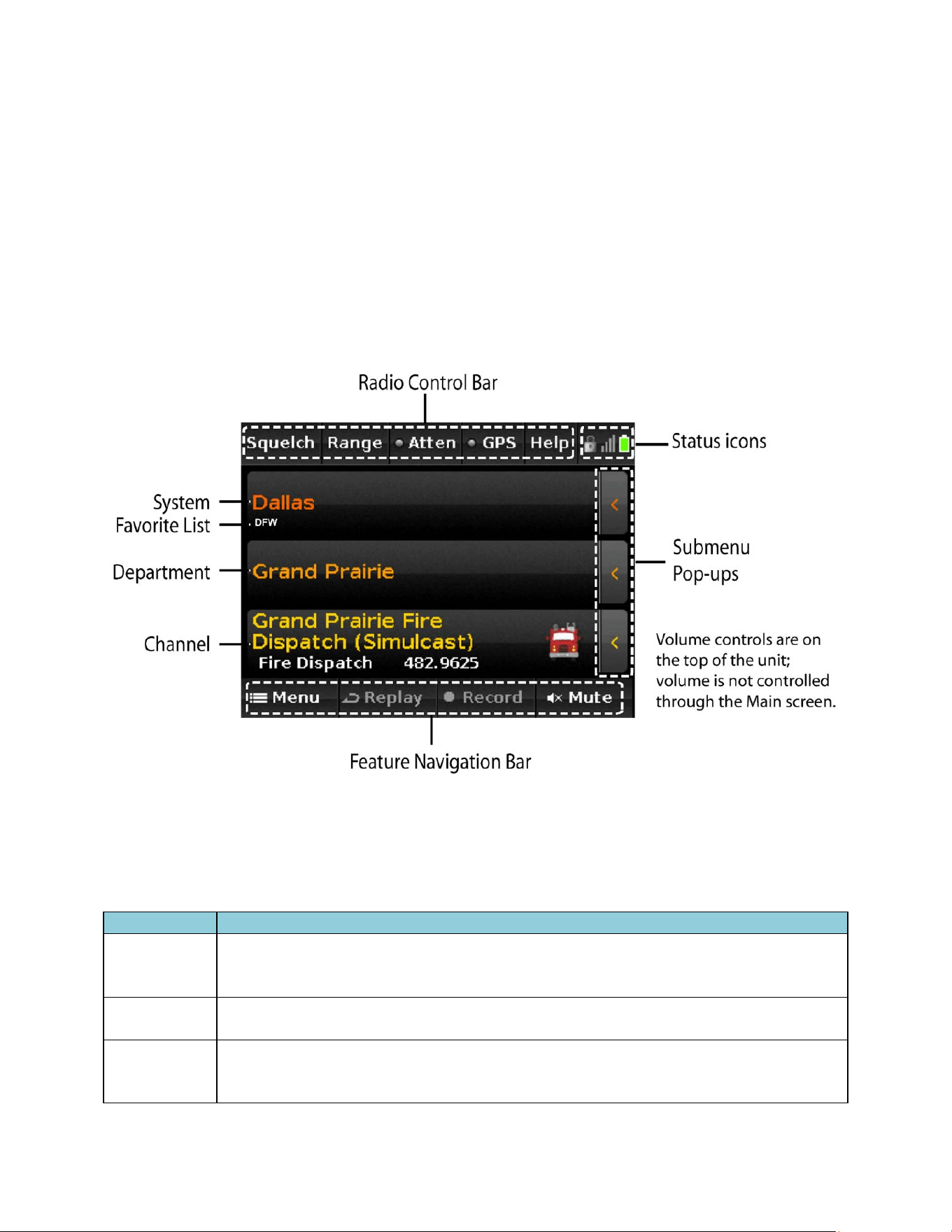
TheHomePatrol‐IIMainscreenisthescreenyouwillseewhenmo nitoring.Fromthatscreen,youcan
alsoaccessotherscreensthatletyouadjustvarioussettingsandmanageHomePatrol‐IIfeatures.
MainScreenOverview
TheMainscreenistheprimaryscreenforHomePatrol‐II.Itdisplaysthe
namesofthetransmissionyou
arelisteningtoandgivesyouaccesstootherfeatures.Thefollowingsectionsprovideageneral
overviewofthisscreen.
System,Department,and ChannelTransmission
ThethreecenterrowsoftheMainscreendisplaythesystem,departmen t,andchannelassociatedwith
thetransmission.Ifyou
wanttoholdonanyofthese,taponit.HomePatrol‐IIwillholdandmonitorthat
specificleveluntilyoutapitagain.Alockicononthatrowdisplaystoindicatethehold.
LevelName Description
System
Theoverallsystembeingmonitored.(Example:Dallas)
ThesmalltextbelowthesystemnameindicateswhichFavoriteListisbeingused(or
“FullDatabase”forthemaindata base).(Example:DFW)
Department
Thenameofthedepartmentbeingmonitored.Thisdepartmentispartofthesystem
describedpreviously.(Example:Gran dPrairie)
Channel
Thenameofthechannelbeingmonitored.(Example:GrandPrairieFireDispatch).Also
showstheservicetype,frequencyortalkgroupIDandUnitID(ifenabled)forthe
channel.

9
SubmenuPop‐Ups
Taponthe
‹tabontherightsideofeachlineandasubmenupop‐updisplays.Youcanselectfromaset
ofoperationsforthatlevel,althoughsomeoperationsarenotavailableforeverylevel.
Submenu Definition System Department Channel
Avoid
BlocksHomePatrol‐IIfromreceiving
transmissionsforaspecificelement.
X X X
Advanced
Providesaccesstoadvancedfeatures,suchas
siteinformationaswellasthoseunlockedby
purchasingaV2registrationkey.
X X X
Info
Providesinformationaboutthattransmission
level.
X X X
Prev Backsthroughtheselectedlevel. X X Note
Next
MovesHomePatrol‐IItothenextsystem,
department,orchannel.
X X X
Fave LetsyouaddthechanneltoaFavoriteslist. ‐‐‐ ‐‐‐ X
RadioControlBar
TherowofbuttonsacrossthetopoftheMainscreenletsyoufine‐tuneHomePatrol‐IIreception,access
Help,andreentersystemconfiguration.
ButtonDefinition
SquelchSetshowstrongasignalmustbebeforeHomePatrol‐IIstopsonit.
Range
Controlshowmanychannelsareselectedbasedonyourlocationandsystem’s
locations.Smallrangesettingsresultinfewersystemsanddepartmentsselected.A
selectionbarletsyousettherangein2‐mileincrements.Eachscreentapis0.5miles.
Atten
(Attenuation)
Reducessignalinterferenceifyouareinanareawheretherearealotofradiosignals.
IfbothAttenuationandGlobalAttenuationaresettoOFF,thestatusindicator
iswhite.
IfbothAttenuationandGlobalAttenuationaresettoON,thestatusindicatoris
red.
IfAttenuationissettoONandGlobalAttenuationissettoOFF,thestatus
indicatorisyellow.
GPS DisplaysthestatusofaconnectedGPSunit.
Help
DisplaysHelptext.
Tapandholdtoredoinitialsetupconfiguration.
10
StatusIcons
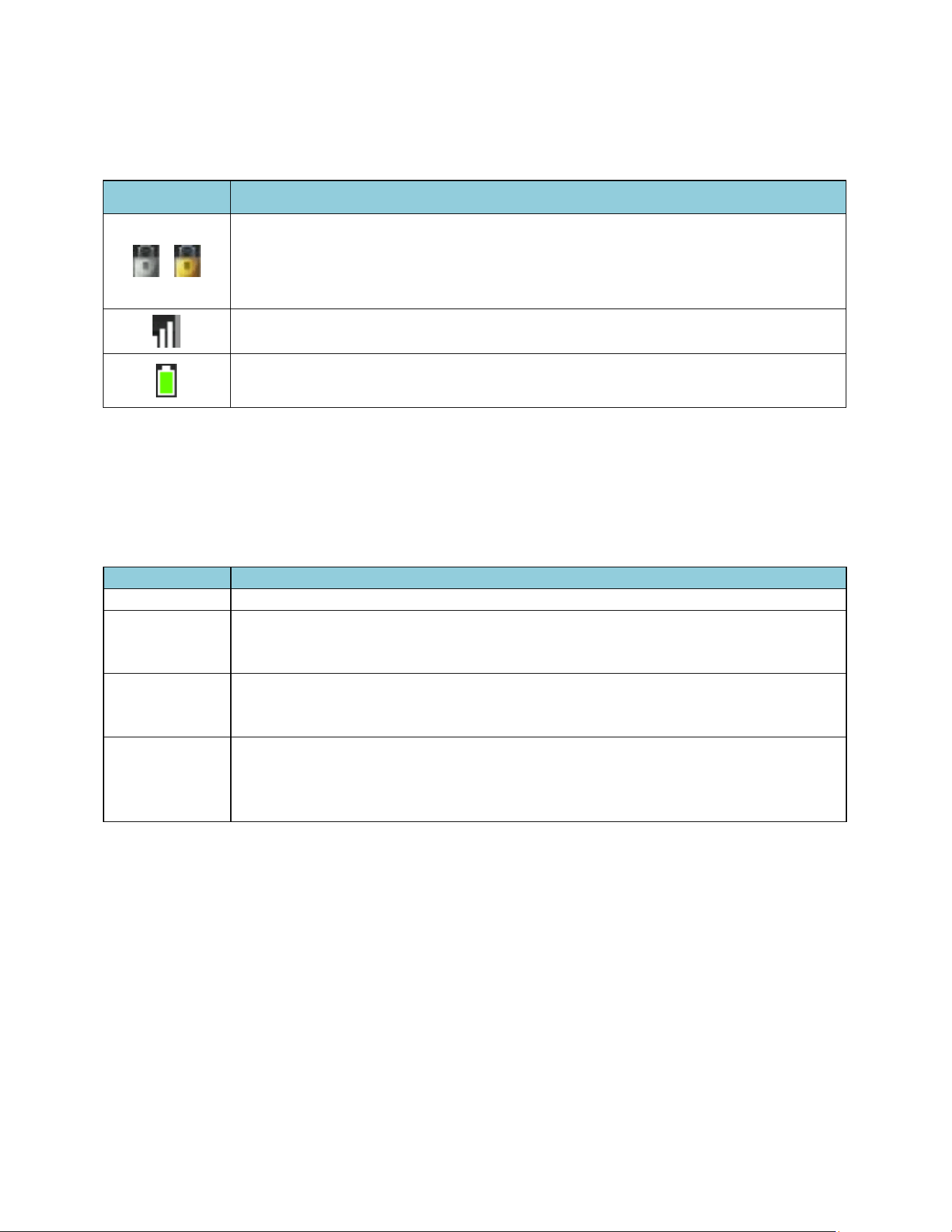
ThreestatusiconsresideintherightcorneroftheMainscreen:
Icon Description
Showsthestatusofthescreentouchlock.Taptolock(greycoloricon)/unlock(gold
coloricon)thescreencontrols.
NOTE:Thegoldlockediconisthesameiconthatdisplayswhenyoulocka
transmissionlevel.
Showsrelativesignalstrength.(Exampleshowsthreebarsstrong)
Batterylevel/chargestatus.WhenACpowerisconnected,alightningboltdisplayson
theicon.
FeatureNavigationBar
TherowofbuttonsacrossthebottomoftheMainscreenallowsyoutorecordandplayback
transmissions;MenuallowsyoutoconfigurespecificelementsoftheHomePatrol‐IIsystem(i.e.,Audio
Options,ReplayOptions,SetChargeTime,etc).
Button Description
Menu DisplaysoptionsformanagingHomePatrol‐IIfeaturesandoperations
Replay
Providesaninstantreplayoftheprevioustransmissions(30–240secondsasset
throughtheReplayOptionsmenu).TapandholdthisbuttontodisplayReplay
Options.
Record
Recordsongoingtransmissions.Whenyoubeginrecording,theRecordstatus
indicatorturnsred.TapRecordagaintostoprecording.Tapandholdthisbuttonto
seealistofsavedrecordings.
Mute
MutesthecurrenttransmissionforaslongastheMutevaluehasbeenset.Tapand
holdMutetodisplaytheMuteOptionsmenu.Se tthelengthoftimeforMutetobe
activeandtheMutelevel(0–6).Fromthismenuyoucanalsosilencethe
transmissions
and/orthekeytapvolume.

11
HOMEPATROL‐IIOPERATIONS
Start‐UpWizard
ThefirsttimeyouturnonyourHomePatrol‐II,itwilltakeyouthroughastartupwizardtoinstallthe
Sentinelsoftwareandsetupbasicscanningcriteria.Torunthestartupwizardagain,tapandholdHelp.
RunningtheStartupWizard
1. PlugtheprovidedUSBcableintoyour
computerandintoHomePatrol‐II’sUSBjack.HomePatrol‐
II’sscreenturnswhiteduringPCconnection.WhenconnectedtothePC,HomePatrol‐IIinstalls
likeanadditionaldrive.
2. AllowtheinstallationtoAutorun.Ifyoudon’tseeanAutorunprompt,openthedriveand
navigatetothesetup.exefileinthe
Setupfolder.Doubleclicksetup.exetorunthatprogram.
3. Sentinelwillaskyouwhereyouwanttoinstallthesoftware.Oncethesoftwareisinstalled,click
Closewhenprompted.
NOTE:Sentinelusestheinternettocheckforfirmwareandradiodataupdates.
4. AfterinstallingSentinel,disconnectHomePatrol‐II
fromthePC.HomePatrol‐IIrestarts
initialization.
SelectingChannelstoMonitor
HomePatrol‐IIoperationsrevolvearoundtheabilityforyoutolistentothetransmissionsyouwantto.
Therearemanywaystofine‐tunethetransmissionsyourHomePatrol‐IIreceives:
Changeyourlocation
Selectservicetypes
ChangetheRange
SelectFavoritesListstouse
Avoidtransmissions
SelectingNationwideSyste ms
WhileHomePatrol‐IIselectschannels,theChannelSelectionscreenappears.Forthefirst5seconds,the
screenshowsthemessage“0ChannelsSelected”withCancel(activated)andOtherOption(deactivated)
intheFeatureNavigationbar.After5seconds,thescreenshowsthenumberofchannelsselected,
increasingasmorechannelsareselected.Whenchannelselectioncompletes,OtherOptionsisactivated
andCancelchangestoListen.
IfyouselectOtherOptionsatthispoint,youcanchoosetotakeanyoftheactionslistedpreviously
exceptAvoidtransmissions.
Ifyourselectionresultsinmanychannels,yourHomePatrol‐
IIwillwarnyouthatitwilltakealongtime
toscanthroughallselectionsandrecommendthatyouchangeyourcriteriator educethenumberof
channelsselected.

12
ChangeLocation
Therearefivewaystochangeyour locationfromtheMenuscreen:
EnterZipCode.TapEnterZipCodeandfollowthepromptstoenteradifferent zipcode.
EnterCity.TapEnterCityandfollowthepromptstospecifyacitytouseas
yourlocation.
AutoLocate.HomePatrol‐IIsearchesfrequencybandsforaknownradiosystem.Whenitfinds
one,youhavetheoptionofacceptingthatlocationorretryingforanotherone.
ManualLocationInput.Ifyouknowyourexactcoordinates,enterthemhere.
SetUpGPS.Tappingthis
selectiondisplaystheSetUpGPSscreen,whereyoucanseethestatus
ofaconnectedGPSreceiverorchangeGPSinputsettings.
SelectServiceTypes
Servicetypesarecategoriesoftransmissionsthathavesimilarcontent.Servicetypeexamplesinclude
(butarenotlimitedto)Aircraft,EmergencyOps,Fire‐Talk,and
LawDispatch.Selectservicetypes
throughtheSelectServiceTypesmenuontheMenuscreen.Appe ndixCprovidesalistofservicetypes
andtheirdefinitions.Bydefault,onlypublicsafety(Law,Fire,EMS,andMulti)dispatchchannelsand
Custom1areselected.
HowtoSelectServiceTypes
1. Tap
thefollowing:
Menu
SelectServiceTypes
2. TheSelectServiceTypesmenudisplays.Scrollthroughtheentries,tappingUPorDOWNarrows
tochangepages.Tapontheservicetypesyouwanttolistento.Thatentryturnsorange.Tapit
againtodeslectit.
3. Whenyouhave
tappedontheservicetypesyouwant,tapAccept.
4. HomePatrol‐IIselectschannelsbasedonyourservicetyperequirementsandthenbegins
monitoringthem.
SetRange
RangeletsyousethowfaroutfromyoursetlocationHomePatrol‐IIwillsearchforchannelstoselect.
TappingRangefromthe
RadioControlbarorselectingSetRangefromtheSetYourLocationmenu
displaysanindicatorbar.Eachofthe15barsequals2milesforatotalofa30milerange.
Tap+or–(orpressandreleasethevolumekey)toincreaseordecreasetherange
in.5mileincrements
ortapandhold+or–(orpressholdthevolumekey)toincreaseordecreasetherangein1mile
increments.
SelectFavoritesListstoMonitor
SelectingoneormoreFavoritesListstomonitortellsHomePatrol‐IIthatyouwanttolistentothe
transmissions
thathavebeensavedtothatlist.YoucanuseFavoritesListsandthefulldatabaseatthe
sametime,orselectacombinationofFavoritesliststomonitor. SelecttheFavoritesListyouwantto
monitorthroughtheMainMenu/ManageFavoritesListsscreens.(RefertoBUILDINGFAVORITESLISTS
later
inthismanualfordetailed information.)

13
AvoidingTransmissions
Asyoumonitortransmissions,youwillcomeacrosstransmissionsthatyoudon’tcaretolistento.Tap
Avoidinthesubmenupop‐up.(RefertoAvoid/Unavoid Transmissionslaterinthismanualfordetailed
information.)
SelectingNationwideSystems
Somesystemscontaininformationaboutcommonchannelsusednationwide.Systems
likethisinclude
Railroadfrequencies,GMRSandFRSfrequencies,andmore.Toenablethese systems:
1. Tapthefollowing:
Menu
AdvancedMenu
SelectNationwideSystems
2. Thelistofnationwidesystemsdisplays.Scrollthroughentries,tappingUPorDOWNtochange
pages.Taponthenationwidesystems
youwanttomonitor.Selectedentriesturnorange.
CustomizingYourMonitoringExperience
HomePatrol‐IIhasmanyoptionsthatyoucansetaccordingtoyourownpreference.Youcande cidehow
brightthescreenwilldispla y, howloudscreentapsare,andhowlongdefaulttimeiswhenyoutap
Mute.Youcanalsosetthedefaultsforinstantreplaylengthandautomatic
shutoff.
Nosinglemenuletsyouadjustallsettingsatonetime.Youaccessthesesettingsindividually.Many,
however,arefoundintheMenuandAdvancedMenu.Thefollowingtableprovides aquickguideto
thesesettingsandhowtoaccessthem.Detailedinformationforselectoperationsfollowsthetable.
Tosetthis… Tapthis… Thentap…
Location
Menu/Set Your Location
Enter Zip Code
Enter City
Auto Locate
Manual Location Input
Set Up GPS
Set Range
Save Location
Review Location/Use Location
Service Type
Menu/Select Service
Types
Service types you want to monitor.
Audio Options
Menu/Audio Options
Audio AGC – tap for On/Off
Screen Tap – tap for Off/Auto/Soft/ Loud
Display Options
Menu/Display Options
Set Contrast (16 contrast steps)

14
Tosetthis… Tapthis… Thentap…
Set Backlight Level (11 dimmer steps)
Auto Dim – tap for On/Off
Power Save – tap for On/Off
Unit ID Display: 2 modes or off
Motorola/P25 TGID Format
EDACS TGID Format
Font Size: Size of type on the main screen.
Owner Information
Menu/Owner Information
Change –Edits the information displayed for Owner
Information at power up.
Nationwide Systems
Select Nationwide
Systems
Each nationwide system you want included during
monitoring.
Advanced Options
Advanced Option
Register Advanced to input your Extreme Upgrade
key for advanced features.
Set Auto Shutoff
Menu/Advanced
Menu/Set Auto Shutoff
Turn Off In – Tap to scroll through automatic shutoff
times
Shutoff Mode – Tap to scroll through the automatic
shutoff modes.
Set Clock
Menu/Advanced Menu/
Set Clock
Sets the internal clock.
Set Charge Time
Menu/Advanced Menu/
Set Charge Time
Sets the amount of time HomePatrol-II will take to
recharge batteries that have been drained.
(Maximum charge time is 14.0 hours)
Avoid Options
Menu/Advanced Menu/
Avoid Options
Default Avoid – Tap to select Permanent or
Temporary
Review Avoid List – Displays a list of Avoided
selections.
Mute Options
Menu/Advanced
Menu/Mute Options
Default Mute – Tap to select default time a selection
will remain Mute (5 sec – 2 min, Permanent)
Mute Level – tap to select Mute level (0 – 6).
Silence – Tap to select Reception, Keytap, or Both.
Replay Options
Menu/Advanced
Menu/Replay Options
OR
Tap and hold Replay
Set Replay Duration – Tap to scroll through 30 sec –
240 sec (4 min) selections.

15
Tosetthis… Tapthis… Thentap…
Standby Options
Menu/Advanced Menu/
Standby Options
Default Mode External Power – Tap to select default
shutdown mode if powered through external power.
Default Mode Battery Power – Tap to select default
shutdown mode if powered through batteries.
Restore Options
Menu/Advanced Menu/
Restore Options
Clear User Data – Tap to restore all default settings,
delete all avoid lists, favorites lists, recordings, log
files, and weather event records.
Reset User Settings – Tap to return all settings to
their default values.
AdjustingListeningVolume
ThevolumeadjustmentbuttonsarelocatedonthetopleftoftheHomePatrol‐IIunit.Tap+toincrease
thevolumeor–todecreaseit.
AdjustingScreenTapVolumes
YoucanadjusthowloudlytheunitwillindicateascreentapthroughtheAudioOptionsscreen.
Equalizing
theVolumeLevel
AutomaticGainControl(AGC)attemptstoequalizetheaudiovolumefordifferentchannels.Notethat
AGCcannotcompensateforextremevolumedifferences.
HowtoAdjusttheAGC
1. Tapthefollowing:
Menu
AudioOptions
1. TheAudioOptionsscreendisplays.Tap AudioAGCtoturn
AutomaticGainControlonoroff.Tap
Listentoreturntomonitoring.
AdjustingtheScreen
Youcanadjustthefollowingscreensettings:
Contrast
BacklightLevel
AutoDim
AdjustingContrastandBacklightLevel
TappingSetContrastorSetBacklightLevelontheDisplayOptionsscreenbringsupanadjustment
bar.
Youcanincreaseordecreasethelevels.
AdjustingAutoDim
TappingAutoDimontheDisplayOptionsscreenturnsthosefeaturesonandoff.IfAutoDimison,the
displaydimsaftertransmissionsendandbrightensduringatransmission.AutoDimwillalsoturnoffthe
displayifthereis
15secondswithnoaudioorkeytapactivity.

16
SettingAutomaticShutoff
YoucansetyourHomePatrol‐IItoautomaticallyturnoffafteraspecifiedamountoftime.
HowtoSetAutomaticShutoff
1. Tapthefollowingscreens:
Menu
AdvancedMenu
SetAutoShutoff
2. Tap+or–toselectashutofftime.
3.
TapShutoffModetoselectthemodeHomePatrol‐IIwillusewhenitshutsoff.Thesemodesare:
ClockStandby
WXStandby
AllOff

17
BUILDINGFAVORITESLISTS
AsyoulistentoHomePatrol‐II,you’llfindthattherearecertainchannelsyouwanttolistento.Youcan
creategroupsofrelatedchannelsthatyoucanhaveHomePatrol‐IIexclusivelymonitor,ormonitoralong
withtheFullDatabaseorotherFavoriteslists.Forexample,youcancreatealist
entirelyofpolice
departmentdispatchers,emergencyoperations,oraspecificcity’stransmissions.Ifthereisaspecial
eventcomingup,likeacarrace,youcancreatealistjustforthatevent.Youcansaveamaximumof256
FavoritesLists.
OnceyouhaveFavoritesListssavedonHomePatrol‐
II,youcancopythemtoSentinelonyourPC.Ifyou
needtoresetyourHomePatrol‐II,youcanrestoreyourFavoritesListsfromthere.Youcanalsocreate
andmanageFavoritesListsinSentinel,thenmovethemtoyourHomePatrol‐II
CreatingaFavoritesList
ThereismorethanonewaytocreateanewFavoritesList:
FromFaveonasubmenupop‐up.Whileyouaremonitoringtransmissions,openasubmenu
pop‐upandtapFave.Thismethodisusefulwhenyouarealreadymonitoringachannelyou’d
liketosave.Ifyou
don’thaveFavoritesListsalreadyestablished,youcancreateaFavoritesList
andsavethetransmissionlocationtoit.
NOTE:TheFAVEsubmenupop‐updisplaysdifferentscreensdependingonwhetherornotyou
haveFavoritesListsalreadysaved.Bothofthese proceduresaredescribedlaterinthis
section.
Tap
Menu/ManageFavoritesLists.Thismethodisusefulwhenyouknowyouwanttocreatea
FavoritesListforspecifictransmissionsyouknowyouwillbemonitoring.Youcancreatethelist
andthensavetransmissionstoitasyoucomeacrossthem.
ListenforawhileusingtheFull
Databaseandavoidtransmissionsyoudonotwanttolistento.
Onceyouhavenotneededtoavoidach annelforawhile,createanew FavoritesListdatabase
andselectAddCurrentChannelstoaddallunavoidedchannelsfromyourcurrentselection.This
isprobablytheeasiestwayto
quicklymakealocalFavoritesListusingyourHomePatrol‐II.
UsetheSentinelsoftwaretocreateaFavoritesList.
AllofthesemethodswilltakeyoutotheCreateNewListkeyboard,butthroughdifferentpaths.
UsingSubmenuPop‐UptoCreateaFavoritesList(NoFavoritesListsExist)
1.
Tapthefollowing:
Submenupop‐uptabonchannelyouwanttosave.
Fave
2. TheSavingChanneltoFavoritesListconfirmationscreendisplays.TapOK.
3. TheFavoriteListSelectionscreendisplays.TapNew.
4. TheCreateNewListkeyboarddisplays.Enterthenameofthe
newFavoritesListandtapAccept.
5. TheFavoritesListSelectionscreendisplaysagainwiththenewFavoritesList.Tapthenew
FavoritesList.HomePatrol‐IIsavesthetransmissiontothatlistandreturnstomonitoring.

18
UsingSubmenuPop‐UptoCreateaFavoritesList(FavoritesListsExist)
1. Tapthefollowing:
Submenupop‐uptabonchannelyouwanttosave.
Fave
2. TheAddtoFavoritesscreendisplays,indicatingthatthechannelwillbeaddedtothelastused
FavoritesList.
TapOtherListtodisplayalistofallyourFavoritesLists.
3. TheFavoriteListSelectionscreendisplays.TapNew.
4. TheCreateNewListkeyboarddisplays.EnterthenameofthenewFavoritesListandtapAccept.
5. TheFavoritesListSelectionscreendisplaysagainwiththe
newFavoritesList.Tapthenew
FavoritesList.HomePatrol‐IIsavesthetransmissiontothatlistandreturnstomonitoring.
SavingtoanExistingFavoritesList
1. Tapthefollowing:
Submenupop‐uptabonchannelyouwanttosave.
Fave
2. TheSavingChanneltoFavoritesListconfirmation
screendisplays.Ifyouhavesavedtoa
FavoritesListduringyourcurrentsession,theconfirmationscreenindicatesthatthechannel
willbesavedtothatlist.TapOtherListifyouwanttosavetoadifferentFavoritesList.
3. TheFavoriteListSelectionscreendisplays.Taptheappropriate
FavoritesList.
4. HomePatrol‐IIsavesthetransmissiontothatlistandreturnstomonitoring.
UseSentinelSoftwaretoCreateaFavoritesList
1. OpenSentinelonyourPC.
2. Intheleft‐handcolumn,selectFavoritesListandthenclickontheCreateaFavoritesListicon.
3. Namethe
newFavoritesListinthepopupscreen.Afteryouclosethatscreen,thenewFavorites
Listdisplaysintheright‐handcolumn.
4. Backintheleft‐handcolumn,selectyourcou ntryandthencontinuemakingselectionstoget
downtoyourspecificarea.Forexample,fortheUSA,you
wouldselectUSA/State/County.
UnderCountyarethreeoptions:
Nationwide
Statewide
Countywide
5. Selectanoptionandagenciesforthatoptiondisplay.Selectanagencyandchannelsdisplay.
6. WhenyoufindachannelyouwanttoaddtotheFavoritesList,right‐clickonit.Adrop‐down
menudisplays.(Ifyouwanttoselectseveralchannelsatonce,useshift+click.)
7. SelectAppendtoFavoritesList.AlistofyourFavoritesListsdisplays.
8. SelecttheFavoritesListwhereyouwanttoaddthechannelandclickOK.
9. Continueaddingchannelstothe
FavoritesList.
ManagingFavoritesLists
YoucancreatemultipleFavoritesListsforanyHomePatrol‐IIprofileanduseoneormoreFavoritesLists
withorwithoutthefulldatabaseformonitoring.WhenyouuseSentineltoreadfromHomePatrol‐II,all
FavoritesListsinyourHomePatrol‐IIarealsoreadandsavedtothecurrent
profile.

19
UsingFavoritesListstoMonitorSpecialServices
Sentinelv2andlaterallowsuserstoeasilysharetheirownFavoritesLists.VisittheHomePatrol
Communityathttp://www.HomePatrol.comandtheHomePatrolTwikisiteat
http://info.uniden.com/HomePatrolforFavoritesListsthatcovercommonservicessuchasRailroad,
MarineRadio,CivilianandMilitaryAirb a nds,andmore.

20
OTHERFEATURES
Avoid/UnavoidTransmissions
TheAvoidfeatureletsyoublocksystems,departments,andchannelsfrombeingreceived.Avoiddoes
notdeletethechannelfromthedatabase;itsimplypreventsHomePatrol‐IIfromstoppingonit.Youcan
AvoidtransmissionsbytappingAvoidonthesubmenupop‐up.
AvoidscanbeeitherTemporaryorPermanent.A
temporaryavoidclearswhenyoucyclepowertothe
unit.PermanentavoidsmustbeclearedthroughtheAvoidOptionsmenufromtheAdvancedMenu.You
cansetthedefaultavoidvalue.
NOTE:YoucanalsotapandholdAvoidinasubmenupop‐uptoseetheReviewAvoidList
screen.
HowtoSettheAvoidDefaultValue
1. Tapthefollowing:
Menu
AdvancedMenu
AvoidOptions
2. TheAvoidOptionsscreendisplays.
3. TapDefaultAvoidtotogglethesettingbetweenTemporaryandPermanent.
4. TapListentoreturntonormalreceptionorBacktoreturn
toAdvancedMenu.
HowtoAvoidaTransmission
1. TapAvoidonthesubmenupop‐uponanytransmissionlevel(System,Department,orChannel).
AnAvoideddialogboxdisplays,indicatingthatthattransmissionlevelhasbeenavoided
accordingtothedefaultvaluepreviouslyset.
2. Italsodisplaysthefollowingoptions:
OK(TapOKifthissettingisaccep table;HomePatrol‐IIreturnstomonitoringtransmissions.)
MakePermanent/Temporary(TapthisentrytomaketheAvoidadifferentsettingthanthe
defaultsetting.Forexample,ifthedefaultisTemporaryavoid,thescreenasksifyouwishto
maketheavoid
aPermanentavoid.
Cancel(TapthisentrytocanceltheAvoidactionandreturntomonitoringtransmissions.)
3. TheMainscreendisplaysafteraselectionismade.
HowtoUnavoidaTransmission
NOTE:IfyoutapandholdAvoidonanysubmenupop‐up,theReviewAvoidListdisplays.Go
toStep3.
1. Tapthefollowing:
Menu
AdvancedMenu
AvoidOptions
2. TheAvoidOptionsscreendisplays.
3. TapReviewAvoidList.TheReviewAvoidListdisplays.(YoucanalsotapandholdAvoidonany
submenupop‐uptodisplaytheReviewAvoidList.)

21
4. Tounavoidallentries,tapClearAllAvoidsonthebottommenubarandthentapYesontheStop
AllAvoidingpopupdialogbox.TheAvoidOptionsscreendisplays.
Tounavoidasingleentry,tapthatentryandthentapYesontheStopAvoidingpopupdialog
box.TheReviewAvoidListscreendisplays.
5. TapListentoreturntonormalreceptionorBacktoreturntotheAdvancedMenu.
Replay
TheReplayfunctionworkslikean“InstantReplay”ofthetransmissionsyouhavejustheard.Youcanset
thedurationthatHomePatrol‐IIwillbufferthesetransmissions(30secondsto240seconds)throughthe
ReplayOptionsmenuontheAdvancedMenu.Youcanreplaythetransmissionsbutyoucannotsave
them.Whenyouarefinishedlisteningtothereplayedtransmission,HomePatrol‐IIautomaticallydeletes
them.
NOTE:Replaywillnotworkwhenthebatteryislowornotinstalled,regardlessofHomePatrol‐II’s
connectiontoACpower.
SetReplayOptions
1. Tapthefollowing:
Menu
AdvancedMenu
ReplayOptions
TheReplayOptionscreendisplays.
2. TapSetReplayDuration.Tapagaintoincreasethereplaydurationby30secondseachtimeyou
tap.
3. TapListentoreturntonormalreceptionorBacktoreturntotheAdvancedMenu.
ReplayTransmissions
1. TapReplayontheFeature
Navigationbar.HomePatrol‐IIplaysbacktransmissionsforaslongas
theReplayDurationhasbeenset.AReplayscreendisplaysthesystem/department/channelof
thetransmissionbeingreplayed.
2. Whenalltransmissionshavebeenreplayed,adialogboxasksifyouwanttoplaythe
transmissionsagain.TapYestoreplay
thetransmissionsorNotoreturntomonitoring
transmissions.
Record
Youcanrecordthetransmissionsyou’relisteningtobytappingRecordontheFeatureNavigationbar.
ConfirmthatyouwanttobeginrecordingandHomePatrol‐IIwillrecorduntilyoutapRecordagainto
stop.HomePatrol‐IIaddsthetransmissionsintheReplaybuffersoyouwillnotmissthebeginning
ofthe
transmission.OntheMainscreen,thestatusindicatorturnsredduringrecordingandrevertstowhite
whenrecordingstops.Whenyoustoprecording,youhavetheoptionofsavingthesessionordeletingit.
Youcanrecordupto1000sessions,butHomePatrol‐IIstopsrecordingwhenmemory
isdownto
512MB.

22
NOTE:Recordwillnotworkwhenthebatteryislowornotinstalled,regardlessofHomePatrol‐II
beingconnectedtoACpower.
HowtoRecordTransmissions
1. OntheMainscreen,tapRecord.ARecordingStartedconfirmationscreendisplays.
2. TapOKtoacceptrecordingorCancelto
takenoactionbeforereturningtomonitoring
transmissions.
3. Whenyoureturntomonitoring,theRecordstatusindicatorchangesfromawhitecircletored.
HowtoStopRecordingTransmissions
1. OntheMainscreen,tapRecord.ARecordingStoppedconfirmationscreendisplays.
2. TapOKtostoprecordingor
Canceltotakenoactionandcontinuetorecordtransmissions.
3. IfyoutapOK,HomePatrol‐IIasksifyouwouldliketosavethereco rded files.
4. TapOKtosavetherecordedfilesorNotodeletetherecordedfiles.Eitherselectionwilltake
youbacktoHomePatrol‐
IItomonitortransmissions.
5. WhenyoureturntomonitoringtransmissionsyouwillseethattheRecordstatusindicatorhas
changedfromredtowhite.
HowtoPlayBackaRecordedSession
Youcanplaybackanysessionsyou’verecorded.
1. TapandholdRecordontheFeatureNavigationbar.The
ReviewRecordingsscreendisplays.
NOTE:YoucanalsoaccesstheReviewRecordingsscreenbytappingMenu/Advanced
Menu/ReplayOptions/ReviewRecordings.ThesameReviewRecordingsscreendisplays.
2. Taponarecordingsessiontoreplay.TheRecordingSessionscreen displaysthefollowing:
PlaySession
DeleteSession
RenameSession
3.
TapPlaySessionandthenOK.HomePatrol‐IIdisplaystheidentifyingdataofeachrecorded
transmissionasitisreplayed.Whenallrecordedtransmissionshavebeenreplayed,
HomePatrol‐IIasksifyouwouldliketoreplaythetransmissions.TapYesorNo.
IfyoutapYes,HomePatrol‐II
playsbackthosesamerecordingsandthendisplaysthesame
PlayAgainscreen.
IfyoutapNo,HomePatrol‐IIreturnstotheReviewRecordingslist.
Weather
WithHomePatrol‐II,youcanmonitorspecificweatherchannelsfromNOAAorsetthescannertolisten
forweatheralerts.
NOTE:WhenHomePatrol‐IIisinWeatherAlertStandbymode,itcannotreceiveothertransmissions.
TapListentoreturntomonitoring.
MonitoringWeatherChannels
WhenyouselectMonitorNOAAWeather(Menu/WeatherMode),HomePatrol‐IIdisplaysaweather
channel.TapUPorDOWNarrowsuntilyoucanhearalocalweatherbroadcast.

23
NOTE:Ifyouaretoofarfromtheweathersite,youmightneedtoadjustsquelchtoalowersettingto
hearanytransmissions.
MonitoringWeatherAlerts
MonitoringweatheralertsplacesHomePatrol‐IIinstandbymode.ItwillmonitortheselectedNOAA
weatherfrequencyforalertsandsounddifferent
toneswhenitdetectsadvisories,watches,and
warnings.
HomePatrol‐IIalsorecordalertsastheyplay.Itwillretainthealertsaslongastheyareactive.The
WeatherAlertscreen(Menu/WeatherMode/WeatherAlertStandby)hastwolinesthatwilldisplay
activealerts.Ifmorethantwoalertsare
recorded,tapUPorDOWNarrowstodisplaythem.Youcantap
onthealertformoreinformation.
DisplayingUnitIDs
UnitIDsaretheidentifiersforspecificradiosoperatingonMotorola,P25,andEDACStrunkedradio
systems.TheseIDscanhelpyoudeterminethespecificindividualsinvolvedinatransmission. Toturnon
theUnitIDDisplayfeature,tapMenufromtheMainscreen.Then,selectDisplayOptionsandtapUnit
ID
Display:
Off–turnsofftheUnitIDDisplay
Mode1– UnitIDinformationappearsinthe2
nd
lineoftheChannelbar.TheChannel’smain
alphatagmightbetruncated.
Mode2– UnitIDinformationappearsinthebottomlineoftheChannelbar.Theservice
typeandTGIDinformationwillnotdisplay.
NOTE:UnitIDswillnotappeariftheHomePatrol‐IIstartsreceiving
atransmissionafter
communicationhasstarted.

24
USINGHOMEPATROL‐IIWITHANACCESSORYGPSRECEIVER
TeamingHomePatrol‐IIwithaGPSreceiver,suchasUniden’sBC‐GPSK,letsyoucontinuallymonitor
channelsalongyourrouteaswellasstayawareofeventsinyourcurrentarea.Asyoutravelfromplace
toplace,HomePatrol‐IIusesthelocationinformationprovidedbytheGPSandselectschannels
tomatch
yourlocation.YoucandecidewhetherHomePatrol‐IIwilluseorignoreGPSinput.
TapandholdGPSontheRadioControlbartodisplaytheSetUpGPSscreen.Thisscreenletsyouset
yourcoordinates’displayformat,changeyourGPSBaudRate,andindicateGPSstatus.
ConnectingYourGPStoHomePatrol‐II
NOTE:Uniden’sGPSAccessoryCable(BWZG1844001)isrequiredtoconnectanaccessoryGPS
receivertoHomePatrol.
ConnectHomePatrol‐IItotheGPSreceiv er’sserialport.
OncetheGPSreceiver acquires satellitesignalsanddeterminesitslocation,itstartsproviding
validlocationdatatoyourHomePatrol‐IIandtheGPS
Detectedscreendisplays.TapUseGPSif
youwantyourGPSdevicetoautomaticallyenable/disablechannelsbasedonthecurrent
location.TapIgnoreGPSifyouwanttocontinueusingthelastsetlocation.
HomePatrol‐IIselectschannelsandbeginsmonitoringtransmissions.
NOTE:Thechannelselectionprocessoccursin
thebackground.Theonlytimeyouwillnoticea
databasechangeiswhenyouapproachastateborder.
SettingUpGPS
TappingGPSLocationfromtheSetYourLocation(ortapandholdGPSontheRadioControlbar)menu
allowsyoutosetHomePatrol‐IIformatstomatchyourGPS:
Locationformat.DD.dddd(DecimalDegrees)orDMS(DegreesMinutesSeconds)are two
differentwaysofpresentinglatitudeandlongitude.(Default
–DD.dddd)
GPSBaudRate
4800(normalsetting,default)
9600
19200
38400
57600
115200
“IgnoreGPS”selector.IfyouhaveaGPSsysteminoperation,youcansetHomePatrol‐IIto
ignoreGPSinputanditwillfocusontransmissionsfromthelastlocationset.Otherwise,
HomePatrol‐II
willcontinuallyupdatelocationbasedonGPSinput.
NOTE:ThethirdrowoftheGPSLocationscreenwillshowthestatusofaconnectedGPS.

25
HOMEPATROL‐IIANDSENTINELSOFTWARE
HomePatrol‐II’sSentinelsoftware,whichyouhadtheopportunitytoloadtoyourPConinstallation,lets
youmanageyourHomePatrol‐IIprofiles,FavoritesLists,databases,andfirmwareupdates.
ManageProfiles
HomePatrol‐IIprofilesare“snapshots”ofyourHomePatrol‐IIsetup.Aprofilecontainsallyour
configurationsettingsaswellasallofyourFavoritesLists,Avoids,andSystemsettings.Sentinelcansave
multipleHomePatrol‐IIprofilessoyoucanalsorestoredifferentprofilesasyouneedthem.Forexample,
If
youregularlyvisitaspecificlocation,youcancreateaprofileforthatlocation.Youcansaveitto
Sentineltousewheneveryouvisit.RefertoHOMEPATROL‐IIPROFILESlaterinthismanualorSentinel
Helpfilesformoreinformationanddetailsonmanagingprofiles.
ManageFavoritesLists
YoucancreateFavoritesListsinSentinelandthenassociatethemwithspecificprofiles.Whenthose
profilesarewrittentoHomePatrol‐II,onlythosespecifiedFavoritesListsarewritten.Refertothe
SentinelHelpfilesformoreinformationanddetailsonmanagingFavoritesLists.
ManageDatabases
TheHomePatrol‐IIwebsiteupdatestransmissiondatabaseseveryweek.Youcandecidehowoftenyou
wanttoupdatethedatabases onyourHomePatrol‐IIunit.WhenyouupdatethemthroughSentinel,it
checksthewebsiteforthemostcurrentdatabaseandcopiesittoHomePatrol‐II.RefertotheSentinel
Help
filesformoreinformationanddetailsonmanagingdatabases.
CreateNeworEditExistingSystems
Sentinelv2andlaterallowsyoutocreateyourownsystems,oreditsystemsalreadyinaFavoritesList.
Thesesystemscanincludeinformationnotprovidedbytheweeklydatabasedownloads.
ShareFavoritesLists
CreateandshareFavoritesListswithyourfriendsorothersintheHomePatrolcommunity.
ManageFirmwareUpdates
HomePatrol‐IIupdatesitsfirmwarethroughSentinel.Inthatprocess,Sentinelconnectstotheinternet
andchecksforthecurrentfirmwareversiontodownlo ad. RefertotheSentinelHelpfilesformore
informationanddetailsonmanagingfirmwareupdates.
InstallingSentinel
WhenyouinitiallyturnonHomePatrol‐II,itwillrecommendthatyouconnectHomePatrol‐IItoyourPC
andinstalltheSentinelsoftware.Thisisanoptionalstepthatcouldtakeseveralminutes.HomePatrol‐II
willinstalltoyourPClikeanadditionaldrive.Openthedriveandnavigatetothe
setup.exefileinthe
Setupfolder.Double‐clicksetup.exe.
Ifyouareunabletolocatethisfile,downloadthelatestversionfrom
http://info.uniden.com/HomePatrol.

26
Sentinelwillautomaticallynotifyyouifamorerecentversionisavailable.
HowtoInstallSentinelSoftware
IfyouhavenotalreadyinstalledSentinelsoftware,followtheseprocedures.
1. UsetheUSBcabletoconnectHomePatrol‐IItoyourPC.
2. TurnonHomePatrol‐IIifitisnot
alreadyon.SelectMassStorage.TheHomePatrol‐IIscreen
turnswhitewhileitisconnectedtothePC.
3. Sentinelsoftwareinstallationshouldbeginimmediately.Ifitdoesnot,openthedrivefolderand
runSetup.exeintheSetupfolder.
4. Wheninstallationiscomplete,Sentinelsoftwareandvariousdocuments
areinstalledonyour
PC.
5. DisconnecttheUSBcable.HomePatrol‐IIbeginsinitialsetupprocedures.

27
TROUBLESHOOTING
Problem Trythis…
My HomePatrol-II won’t turn
on.
Hold Power down for at least 3 seconds.
Check that the unit is receiving power.
Verify that the batteries are inserted correctly.
If it is connected to a power adapter, verify that the adapter
is receiving power.
My HomePatrol-II won’t stop
on any channels.
Check for Avoided channels.
Adjust antenna.
Adjust Range.
Adjust Squelch.
Adjust Atten.
Move the unit to a different location.
HomePatrol-II stops on a
channel but I can’t hear
anything.
Verify that MUTE is not on.
Check the volume.
Weather monitoring won’t
work.
Adjust the antenna.
Adjust the Squelch.
There might not be a NOAA broadcast in your area. Move
to an area with a known NOAA broadcast to verify.
My HomePatrol-II won’t turn
off.
Make sure you are holding Power down long enough.
Press and hold for at least 3 – 5 seconds.
Recording and Replay do not
work.
Because HomePatrol-II writes data to the microSD memory
card during these operations, they are disabled if you are
operating from external power only, with batteries not
installed, or if battery power becomes too low when
operating from batteries.
I have another question
…where can I go for help?
Visit the HomePatrol community at
http://www.HomePatrol.com for official help and support, as
well as to discuss your HomePatrol-II experiences with
other users.
28
BATTERYANDPOWERINFORMATION
HomePatrol‐IIcomeswithamini‐USBtoUSBcabletoconnectyourHomePatrol‐IItoyourcomputeror
toanACpoweradapter(notincluded).Inaddition,HomePatrol‐IIalsorequiresfour(4)AAAlkalineor
NiMHrechargeablebatteries(onesetoffourNiMHrechargeablebatteriesisincludedwiththe
unit).
NOTE:Theserechargeablebatteriesdonotrequirearechargingstation;youcanleavetheminthe
unitandselecttorechargethemwhenHomePatrol‐IIisconnectedtoexternalpower.
InstallingtheBatteries
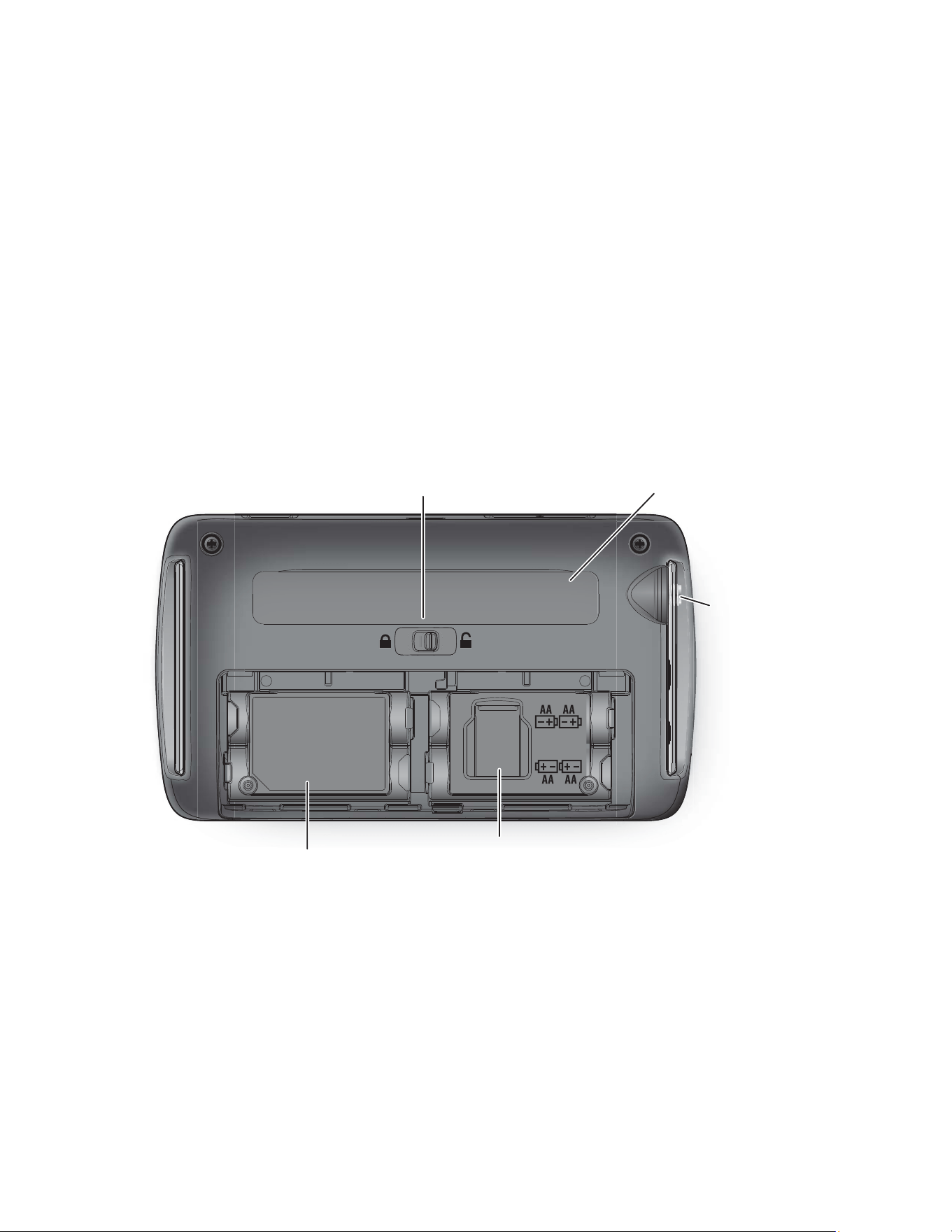
FromthebackoftheHomePatrol‐IIunit:
1. Slidethebatterycoverlocktotherighttounlockthebatterycover.
2. Pressandpushdownonthecentertodisengagethebatterycover.
3. Insertthebatteriesaccordingtothedirectionallabelinside.
4. Replaceandrelockthebattery
cover.
RechargingtheBatteries
TherechargeablebatteriesincludedwithHomePatrol‐IIare2300mAh.Youcansethowlongitwilltake
torechargeabatteryfromadrainedstatetoafullychargedstatethroughtheSetChargeTimemenuon
theAdvancedMenu.ThemaximumrechargetimeHomePatrolacceptsis14hours.Then,
whenyou
connectHomePatrol‐IItoapowersourceandallowbatterychargi ng,HomePatrol‐IIusesthatdatato
chargethebatteries.
Whenbatterypowerdropsbelowacertainlevel,aBatteryLowpop‐updisplaysthefollowingmessage:
“Batteriesarelow.ReplayandRecordingdisabled.Connectexternalpowerto
preventdataloss.”
Battery Compartment
Lock/Unlock
microSD Card
Caution Label
Compliance Label
Antenna
Screw
NOTE: Battery
cover removed.

29
HomePatrol‐IIsoundsaBatteryLowbeepeveryfiveseconds.Tapthepop‐upscreentocloseitandstop
thebatterylowbeep.
HowtoSettheBatteryChargeTime
1. Tapthefollowing:
Menu
AdvancedMenu
SetChargeTime
TheSetChargeTimekeypaddisplaysandtheBatterySizevalueflashes.
2. EnterthebatterysizeinmAh(thisnumbershouldbeonthebatteryitself).HomePatrol‐II
calculatesthetimerequiredtocompletelyrechargethesebatteries
anddisplaysit,flashing,in
theHoursfield.
3. Ifthistimeisacceptable,tapAccept.Ifitisnot,enteranothertimeandtapA ccept.
4. Whenthevaluesareaccepted,HomePatrol‐IIbeepsandtheAdvancedMenuscreendisplays
again.
5. TapListentoreturntomonitoring.
NOTE:Atanytime,youcantapListentoreturntonormalreceptionwithoutmakingchangesorBack
toreturntothepreviousscreenwithoutchangingthesettings.
HowtoRechargetheBatteries
Therearethreedifferentwaysyoucanusethemini‐USBtoUSBcable(included)torechargeyour
HomePatrol‐II.
RechargeUsing
Procedures
PC USB Port
1. Connect the miniUSB end of the cable to HomePatrol-II and the
USB end of the cable to your PC. HomePatrol-II displays the
Select USB Mode screen.
2. Tap DC Supply to use PC power.
3. Turn the HomePatrol-II off.
NOTE:Withthisconfiguration,HomePatrol‐IIcannotchargeifitis
turnedon.
Standard USB Adapter
(less than 500mA)
1. Plug the miniUSB end of the cable into the HomePatrol-II and the
USB end of the cable to a USB to AC Power Adapter that is less
than 500mA (not included). HomePatrol-II displays the Select USB
Mode screen.
2. Tap DC Supply.
3. Plug the AC Adapter into an applicable power source.
4. Turn HomePatrol-II off.
NOTE: With this configuration, HomePatrol-II cannot charge if it is
turned on.

30
SmartPhone USB Adapter
(more than 1000 mA)
1. Plug the miniUSB end of the cable into the HomePatrol-II and the
USB end of the cable to a USB to DC Power Adapter (not
included). HomePatrol-II displays the Select USB Mode screen.
2. Tap DC Supply.
3. Plug the DC Adapter into your tablet or smartphone.
NOTE: HomePatrol-II WILL charge if it is left on.
NOTE:HomePatrol‐IIretainsyourselectionfor1hourafteryoudisconnectexternalpower.Ifyou
reconnectwithinthathour,itwillautomaticallyresumechargingaccordingtoyourlastselection.
TheChargingLEDonthefrontoftheunitturnsredwhiletheHomePatrol‐IIischarging.Whencharging
is
complete,theChargingLEDturnsgreen.

31
APPENDICES
AppendixA:HomePatrol‐IISpecifications
Display Standard 3.5-inch Hi Color LCD (65K) with backlight
QVGA 320 X 240 (3.5 inch)
Touch Panel LCD with Touch Panel
Controls/Switches Power On/Off
Volume Control
Reset Switch
External Jacks/Slots ANT. Jack
- SMA Type
Phone Jack
- 3.5 mm (Stereo Type)
- 32 ohm (Stereo headphone)
- 64 ohm (Earphone)
Line Out Jack
- 2.5 mm (Stereo Type)
- 600 ohm for Audio Output
GPS Interface Jack
- 4-pin Mini Type (RS232C)
USB Jack
- 5-pin Mini USB Type
Memory Card Slot
- microSD Type
Internal Speaker 8 ohm. 2.0 W Max (36 ø)
Power Requirements
4xAAsizeRechargeableNiMHBatteries(2300mAh)(included)
4xAAsizeAlkalineBatteries(notincluded)
USBPortDC5VPowerSupply
or
Optional–
ACAdapter(AC120V60HztoDC5V1000mA)
DCAdapter(DC12VtoDC5V1000mA)
Operating Temperature +14° F ( – 10° C) ~ +140° F (+ 60° C)
Storage Temperature – 22° F ( – 30° C) ~ +140° F (+ 60° C)
Size (mm) 3.3 in (84.5 mm) H x 5.9 in (149 mm) W x 1.5 in (38.4 mm) D (Without
antenna)
Weight 10.6 oz (300g) (Without batteries and antenna)
Accessories AA size NiMH Rechargeable Battery (2300mAh X 4)
Rubber antenna (SMA type)
SMA to BNC Connector
USBcable(USBAtoUSBMiniBType)
microSDCard
DeskUseBracket(StandType)

32
Scanning Speed 100 CH/Sec (maximum)
Trunk Tracking
MotorolaTypeI800
MotorolaTypeII800,900,UHF,VHF
EDACSWide,Narrow
LTR
APCOP25Phase2
Sensitivity(12dBSINAD)
Band Unit Nominal
VHF Low 1 Band
(AM) 25.005 MHz
V
0.3uV
(NFM) 40.840 MHz
V
0.3uV
(NFM) 53.980 MHz
V
0.3uV
Aircraft Band
(AM) 118.800 MHz
V
0.3uV
(AM) 127.175 MHz
V
0.3uV
(AM) 135.500 MHz
V
0.3uV
VHF High 1 Band
(NFM) 138.150 MHz
V
0.3uV
(NFM) 127.175 MHz
V
0.3uV
(NFM) 135.500 MHz
V
0.3uV
(FM) 197.450 MHz
V
0.2uV
(NFM) 216.020 MHz
V
0.3uV
VHF High 2 Band
(AM) 225.050 MHz
V
0.3uV
(AM) 272.950 MHz
V
0.3uV
(AM) 315.050 MHz
V
0.3uV
UHF Band
(AM) 325.050 MHz
V
0.3uV
(NFM) 406.875 MHz
V
0.3uV
(NFM) 511.9125 MHz
V
0.3uV
Public Service Band
(NFM) 758.0125 MHz
V
0.3uV
(NFM) 806.000 MHz
V
0.3uV
(NFM) 857.150 MHz
V
0.3uV
(NFM) 954.9125 MHz
V
0.3uV

33
AppendixB:BandCoverage
Frequency(MHz)
Modulation
(Note1)
Step(kHz)
(Note2)
Remark
LowerEdge
Upper
Ed
g
e
25.0000 26.9600 AM 5.0 PetroleumProducts&BroadcastPickup
26.9650 27.4050 AM 5.0 CB Class D Channel
27.4100 27.9950 AM 5.0 Business&ForestProducts
28.0000 29.6950 NFM 20.0 10MeterAmateurBand
29.7000 49.9950 NFM 10.0 VHFLowBand
50.0000 53.9950 NFM 20.0 6MeterAmateurBand
108.0000 136.9950 AM 8.33 AircraftBand
137.0000 143.9950 NFM 12.5 MilitaryLandMobile
144.0000 147.9950 NFM 5.0 2MeterAmateurBand
148.0000 150.7950 NFM 12.5 MilitaryLandMobile
150.8000 161.9950 NFM 5.0 VHFHighBand
162.0000 173.9950 NFM 12.5 FederalGovernment
174.0000 215.9950 FM 5.0 TVBroadcast7–13
216.0000 224.9950 NFM 20.0 1.25MeterAmateurBand
225.0000 379.9950 AM 25.0 UHFAircraftBand
380.0000 399.9950 NFM 12.5 MilitaryBand
400.0000 405.9950 NFM 12.5 Miscella neous
406.0000 419.9950 NFM 12.5 FederalGovernmentLandMobile
420.0000 449.9950 NFM 12.5 70cmAmateurBand
450.0000 469.9950 NFM 12.5 UHFStandardBand
470.0000 512.0000 NFM 12.5 UHFTV

34
Frequency(MHz)
Modulation
(Note1)
Step(kHz)
(Note2)
Remark
LowerEdge
Upper
Ed
g
e
758.0000 787.9950 NFM 6.25 PublicServiceBand
788.0000 805.9950 NFM 6.25 PublicServiceBand
806.0000 823.9875 NFM 12.5 PublicServiceBand
849.0125 868.9875 NFM 12.5 PublicServiceBand
894.0125 960.0000 NFM 12.5 PublicServiceBand
Note 1: Modulation Quick Frequency Entry default settings. Select from AM / FM / NFM.
Preprogrammed frequency modulation cannot be changed.
Note 2: Step Quick Frequency Entry default settings. Select from AUTO, 5k,6.25k, 7.5k, 8.33k, 10k,
12.5k, 15k, 20k, or 25k. If Auto is selected for Step setting, HomePatrol uses the default step
setting.
AppendixC:ServicesTypes
NOTE:Notallservicetypesareavailableinallareas.Thislistmaychangefromtimetotime.
ServiceType
Description
Aircraft
For civilian air and air traffic control operations.
Business
Most business related entities not covered by other tags.
Corrections
Jail/prison operations and other corrections activities, including federal prisons.
EmergencyOps
Emergency Operation Centers and similar emergency management or
disaster related operations.
EMSDispatch
Ambulance dispatch, including rescue squads.
EMS‐Tac
Ambulance on-scene communications and secondary channels.
EMS‐Talk
Ambulance talk-around, car-to-car and supervisor operations.
Federal
All federal government operations (except corrections, traditional law
enforcement patrol and fire/EMS operations).
FireDispatch Firedispatch,includingcombinedfire/ambulancedispatch.
Fire‐Tac
Fireground, tactical and on-scene communications, including combined
fire/ambulance operations.
Fire‐Talk
Fire talk-around and car-to-car operations, chiefs, supervisors, etc., including
combined fire/ambulance operations.
Ham Anyamateurradioassignment.
Hospital
Ambulance-to-Hospital communications and patient reports.
Interop
Interoperability communications, cross-agency communications, mutual aid, etc.
LawDispatch Lawenforcementdispatch.
Law‐Tac
Law enforcement tactical, SWAT, on-scene, surveillance and specific sub-
agency communications.
LawTalk
Law enforcement talk-around, car-to-car and supervisor operations.
Media
Newspapers, television and broadcast radio operations.
Military
Military operations, e.g., range control, air-to-air combat, etc.
Multi‐Dispatch
Combined law enforcement and fire/ambulance dispatch.
Multi‐Tac
Combined law enforcement and fire/ambulance tactical and on-scene
communications.
Multi‐Talk
Combined law enforcement and fire/ambulance tactical talk-around and car-to-

35
car operations.
PublicWorks
Public agency non-public safety communications. This includes government
services, such as trash, streets, roads, sewer, zoos, administration,
maintenance, animal control, community initiatives, code compliance, etc.
Railroad
All common carrier railroad communications.
Security
Non-law enforcement security operations, including private security companies,
noncommissioned government agency security, school security, etc.
Schools
School-related communications (schools, school buses, football games, etc.).
Transportation
Public and private bus, taxi, and public passenger rail communications.
Utilities
Private electric, water, natural gas, phone, cable TV, etc. operations.
Other
Miscellaneous channels that do not fall into another service type.
Custom1‐8
User-defined service types (available when programming using Sentinel or a
registered version of firmware v2 or later.
RaceTeams
Available for use to identify team frequencies for racing events.
RaceOfficials
Available for use to identify official frequencies for racing events.

36
ONE‐YEARLIMITEDWARRANTY
SAVEYOURRECEIPT!Itisyourproofofpurchaseandisrequiredtoestablishwa rranty.
WARRANTOR: UNIDEN AMERICA CORPORATION (Uniden)
ELEMENTS OF WARRANTY:
Uniden warrants, for one year, to the original retail owner, this
Uniden Product to be free from defects in materials and craftsmanship with only the
limitations or exclusions set out below.
WARRANTY DURATION:
This warranty to the original user shall terminate and be of no
further effect 12 months after the date of original retail sale. The warranty is invalid if the
Product is
(A) damaged or not maintained as reasonable or necessary,
(B) modified, altered, or used as part of any conversion kits, subassemblies, or any
configurations not sold by Uniden,
(C) improperly installed,
(D) serviced or repaired by someone other than an authorized Uniden service center for a
defect or malfunction covered by this warranty,
(E) used in any conjunction with equipment or parts or as part of any system not
manufactured by Uniden, or
(F) installed or programmed by anyone other than as detailed by the Operating Guide for this
product.
STATEMENT OF REMEDY: In the event that the product does not conform to this warranty at
any time while this warranty is in effect, warrantor will repair the defect and return it to you
without charge for parts, service, or any other cost (except shipping and handling) incurred
by warrantor or its representatives in connection with the performance of this warranty. THE
LIMITED WARRANTY SET FORTH ABOVE IS THE SOLE AND ENTIRE WARRANTY PERTAINING
TO THE PRODUCT AND IS IN LIEU OF AND EXCLUDES ALL OTHER WARRANTIES OF ANY
NATURE WHATSOEVER, WHETHER EXPRESS, IMPLIED OR ARISING BY OPERATION OF LAW,
INCLUDING, BUT NOT LIMITED TO ANY IMPLIED WARRANTIES OF MERCHANTABILITY OR
FITNESS FOR A PARTICULAR PURPOSE. THIS WARRANTY DOES NOT COVER OR PROVIDE
FOR THE REIMBURSEMENT OR PAYMENT OF INCIDENTAL OR CONSEQUENTIAL DAMAGES.
Some states do not allow this exclusion or limitation of incidental or consequential damages
so the above limitation or exclusion might not apply to you.
LEGAL REMEDIES:
This warranty gives you specific legal rights, and you might also have
other rights which vary from state to state. This warranty is void outside the United States of
America.

37
PROCEDURE FOR OBTAINING PERFORMANCE OF WARRANTY:
If, after following the
instructions in this Operating Guide you are certain that the Product is defective, pack the
Product carefully (preferably in its original packaging). Include evidence of original purchase
and a note describing the defect that has caused you to return it. The Product should be
shipped freight prepaid, by traceable means, or delivered, to warrantor at:
Uniden America Corporation
C/O Saddle Creek
743 Henrietta Creek Road, Suite 100
Roanoke, TX 76262
(800) 620-7531, 8 a.m. to 4:30 p.m., Central, Monday through Friday