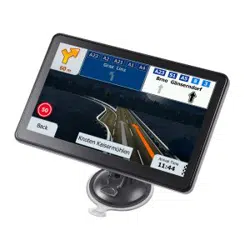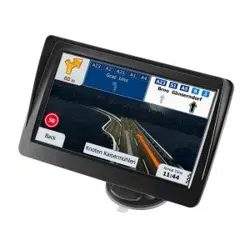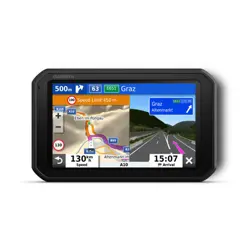

CAR NAVIGATION
Technical Support and E-Warranty Certificate
www.vevor.com/support

- 1 -
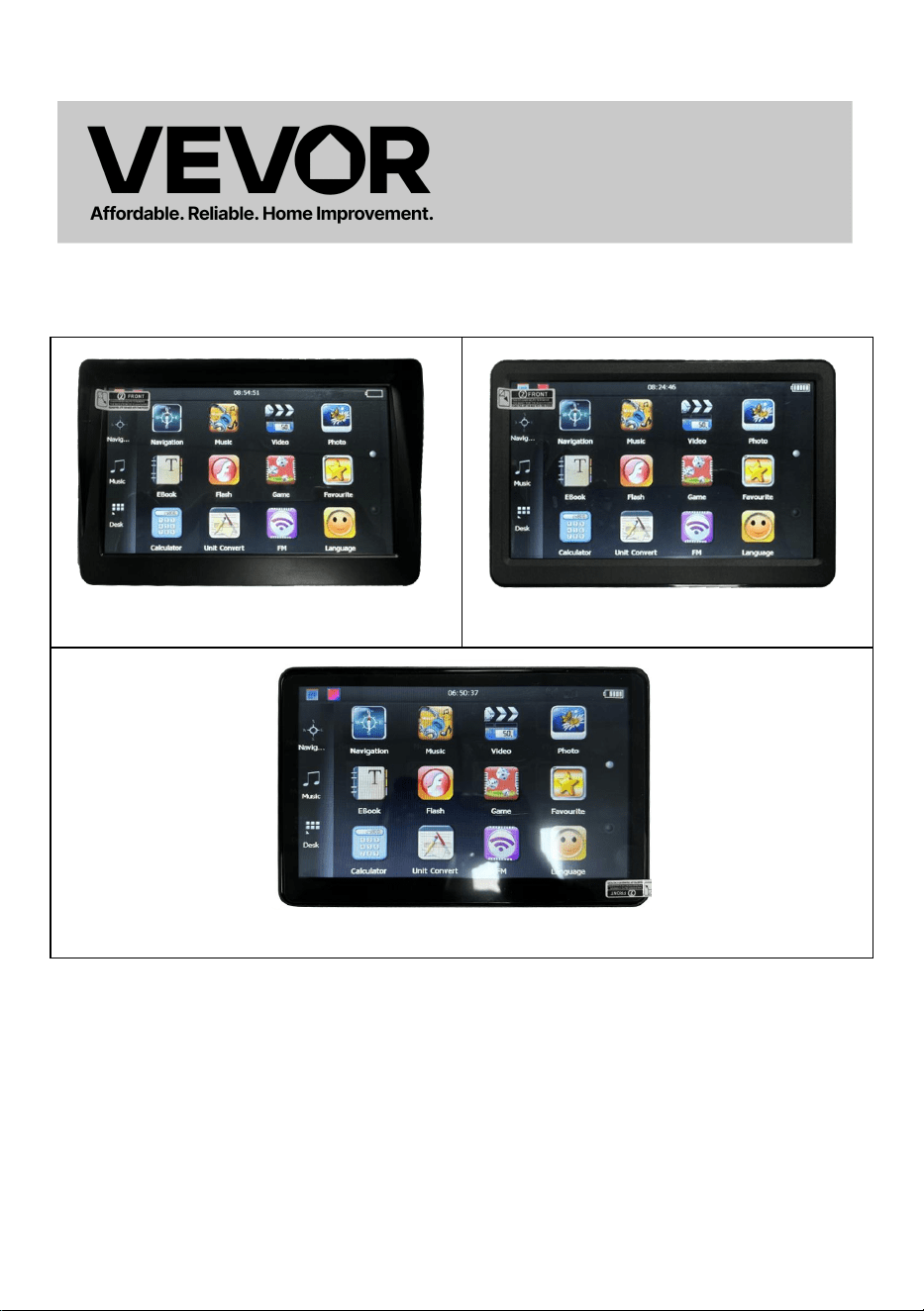
MODEL: 742 / Q10 / T31
742
Q10
T31
This is the original instruction, please read all manual instructions carefully
before operating. VEVOR reserves a clear interpretation of our user
manual. The appearance of the product shall be subject to the product you
received. Please forgive us that we won't inform you again if there are any
technology or software updates on our product.
CAR NAVIGATION
- 2 -
Symbol
Symbol Description
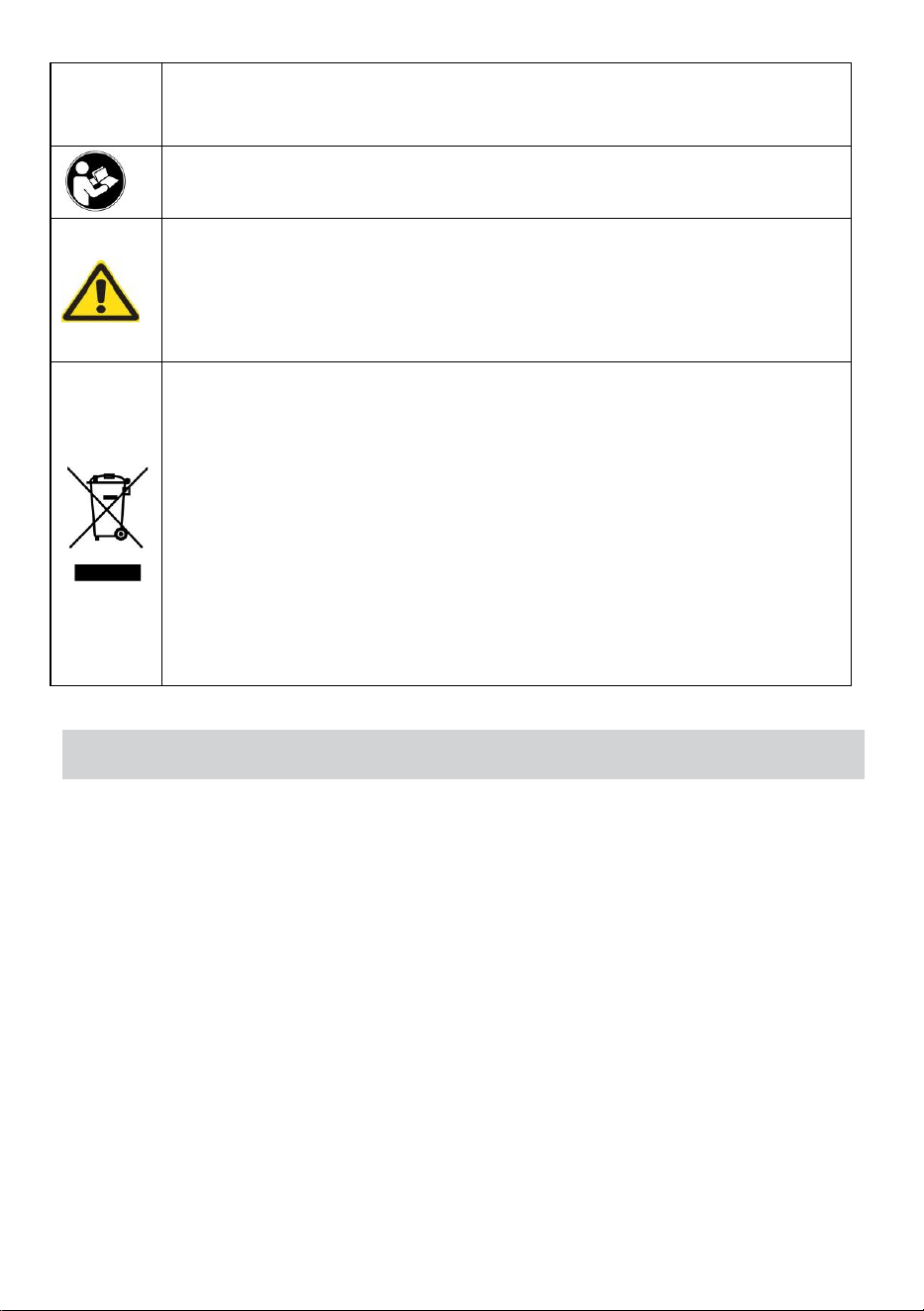
Warning: To reduce the risk of injury, the user must read the
instructions manual carefully.
This symbol, placed before a safety comment, indicates a kind of
precaution, warning, or danger. Ignoring this warning may lead to an
accident. To reduce the risk of injury, fire, or electrocution, please
always follow the recommendation shown below.
CORRECT DISPOSAL:
This product is subject to the provision of European Directive
2012/ 19/EC. The symbol showing a wheelie bin crossed through
indicates that the product requires separate refuse collection in
the European Union. This applies to the product and all
accessories marked with this symbol. Products marked as such
may not be discarded with normal domestic waste, but must be
taken to a collection point for recycling electrical and electronic
devices.
FCC INFORMATION
CAUTION: Changes or modifications not expressly approved by the party
responsible for compliance could void the user's authority to operate the
equipment!
This device complies with Part 15 of the FCC Rules. Operation is subject to
the following two conditions:
1) This product may cause harmful interference.
2)This product must accept any interference received, including interference
that may cause undesired operation.
WARNING: Changes or modifications to this product not expressly
approved by the party responsible for compliance could void the user's
authority to operate the product.
Note: This product has been tested and found to comply with the limits for a
Class B digital device pursuant to Part 15 of the FCC Rules. These limits are
- 3 -
designed to provide reasonable protection against harmful interference in a
residential installation.
This product generates, uses and can radiate radio frequency energy, and if
not installed and used in accordance with the instructions, may cause harmful
interference to radio communications. However, there is no guarantee that
interference will not occur in a particular installation. If this product does
cause harmful interference to radio or television reception,which can be
determined by turning the product off and on, the user is encouraged to try to
correct the interference by one or more of the following measures.
· Reorient or relocate the receiving antenna.
· Increase the distance between the product and receiver.
· Connect the product to an outlet on a circuit different from that to which the
receiver is connected.
· Consult the dealer or an experienced radio/TV technician for assistance.
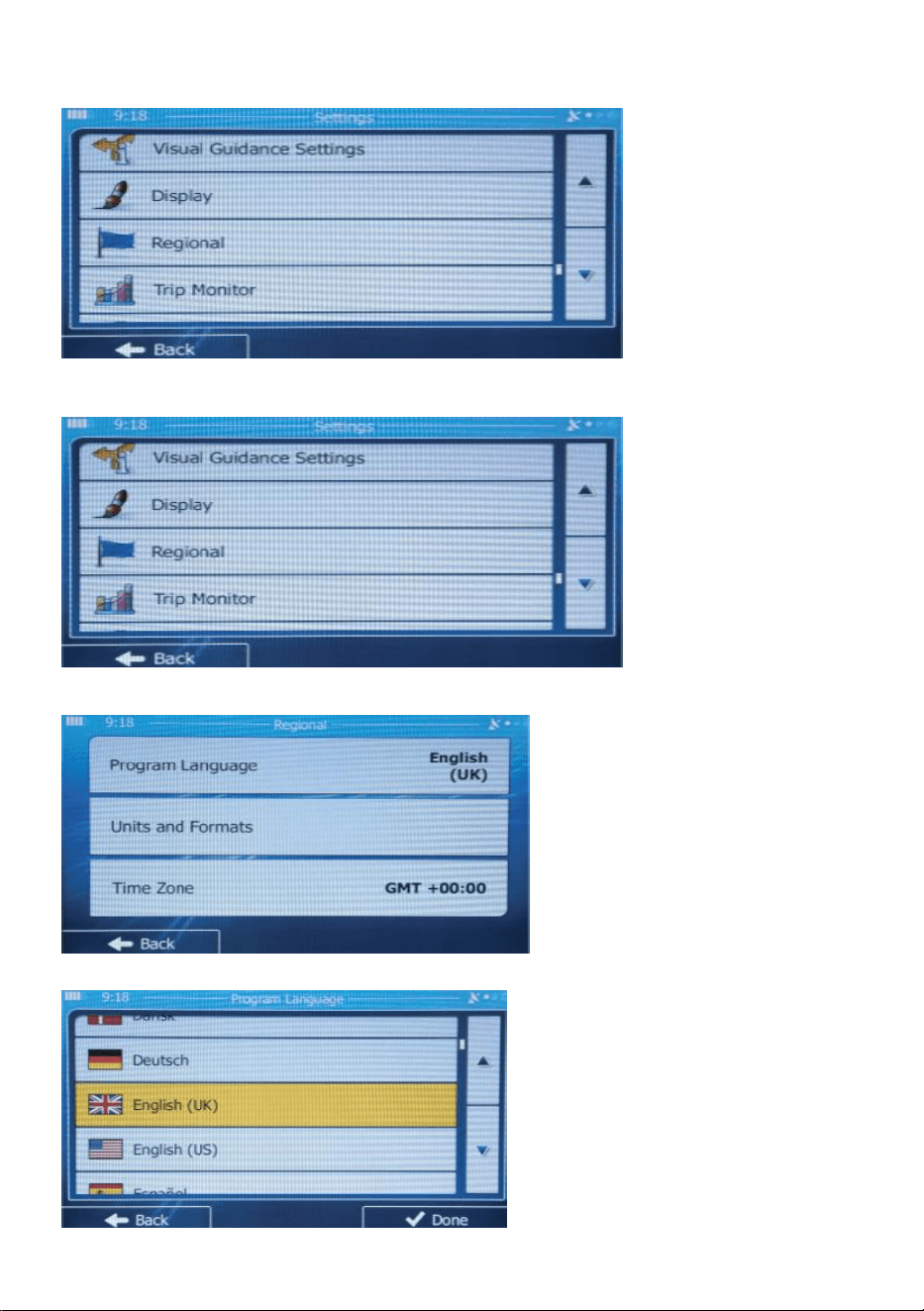
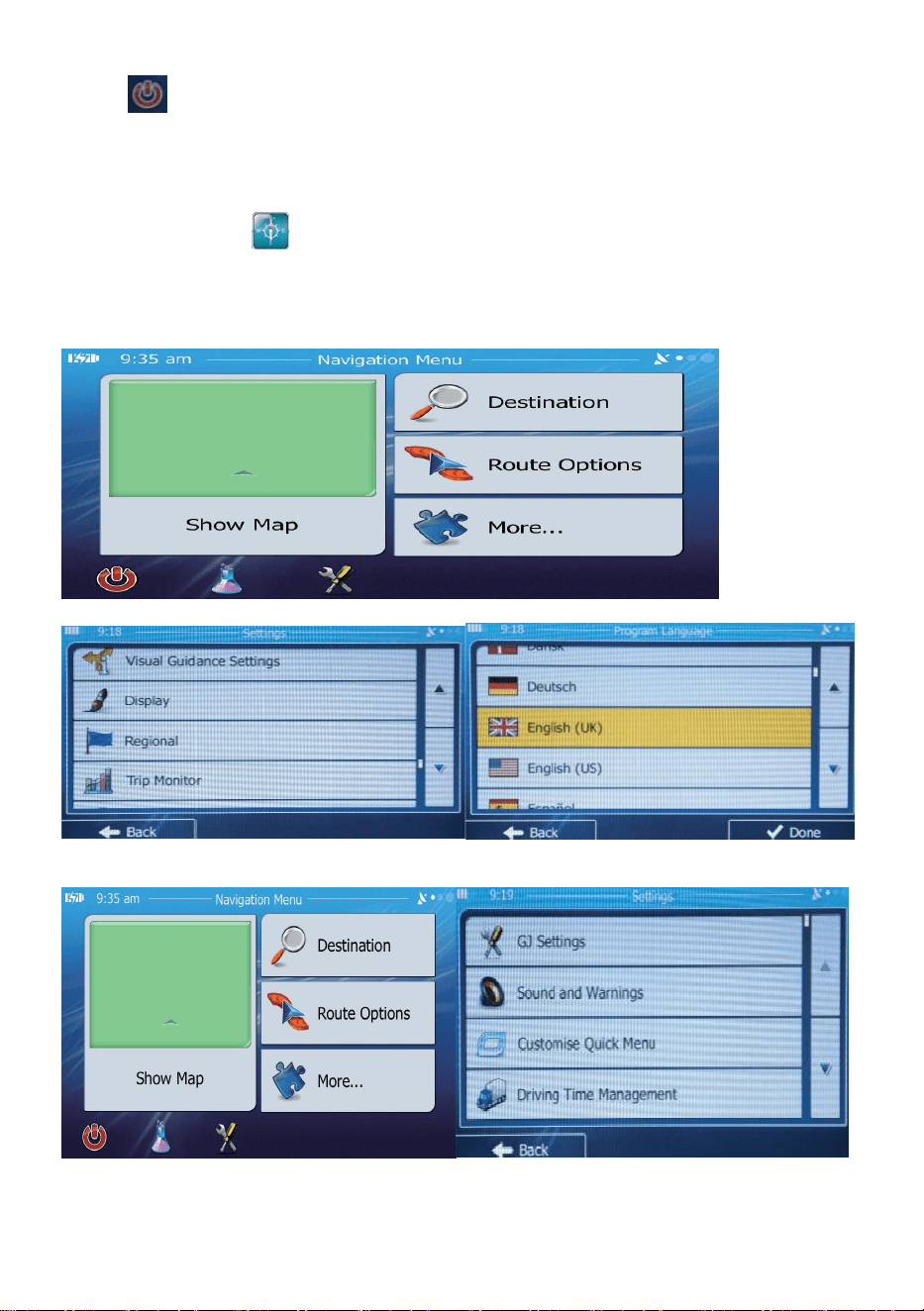
Setting the Language of the Map.
1.Click the“Navigation" and enter into the map.
2.Click“More”.
- 4 -
3.Click“Settings”.
4.Page down and click“Regional”
5.Click“Program Language”
6.Select the language you want.
- 5 -
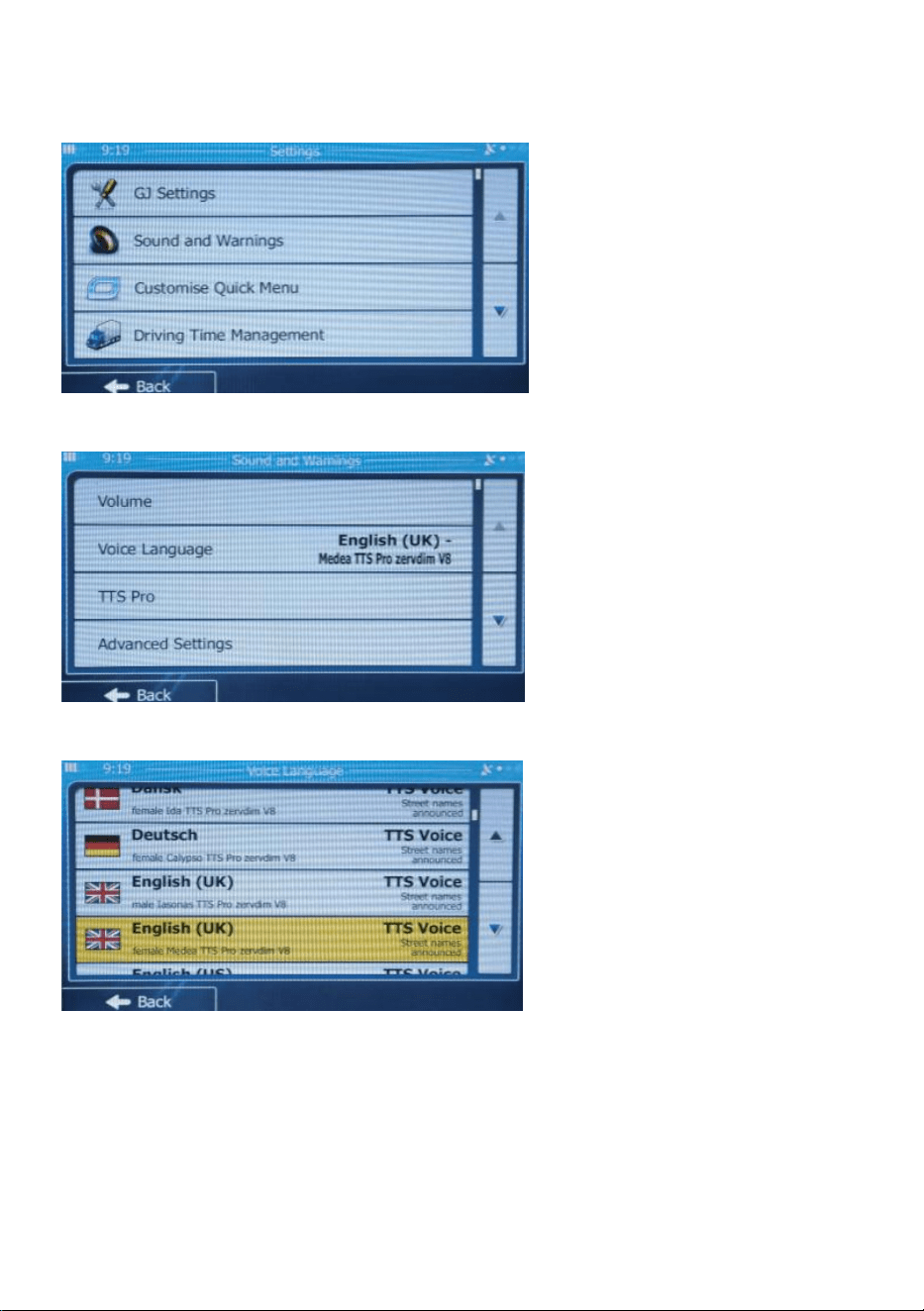
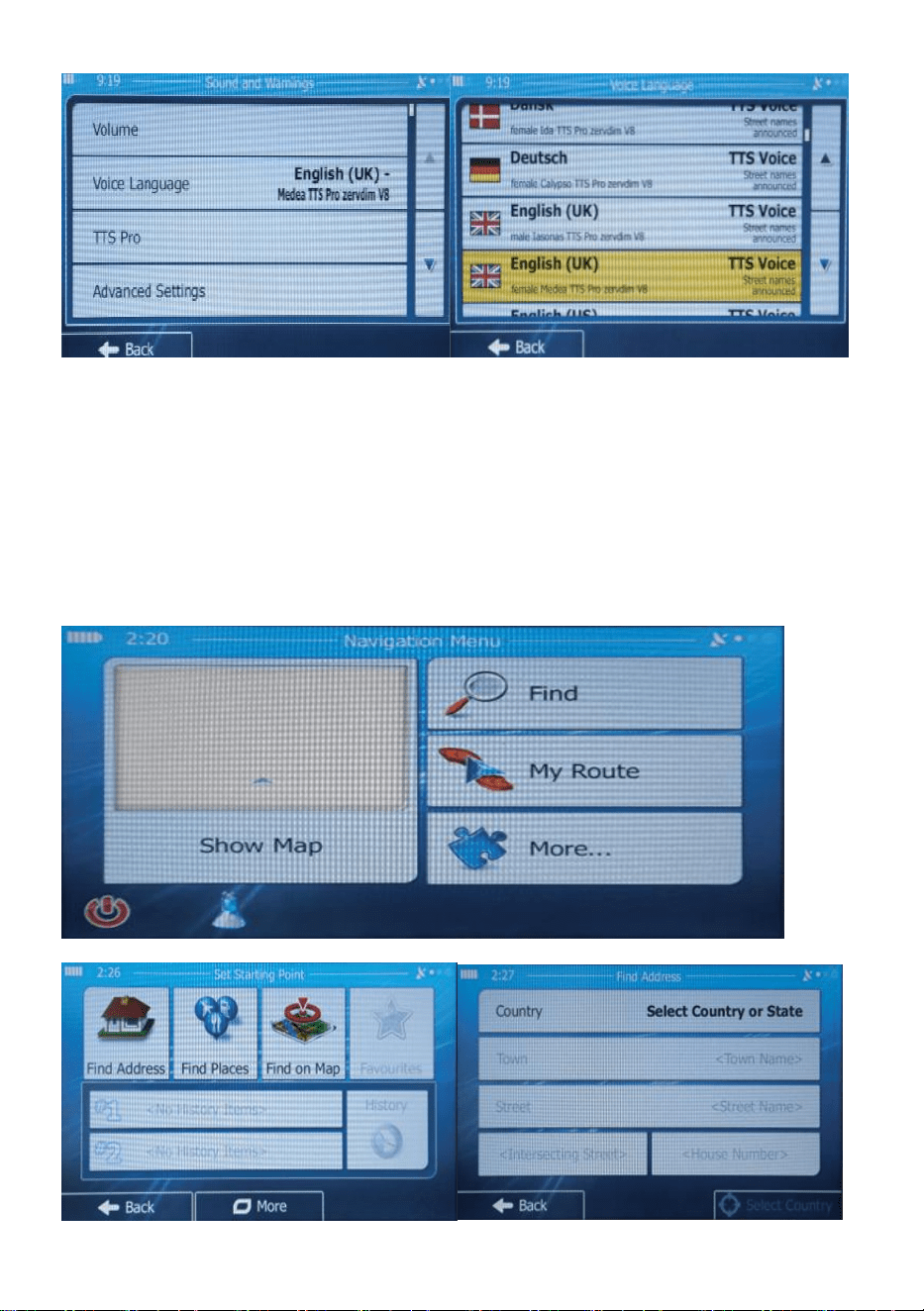
Setting the Voice language of the Navigation.
1.Click“Sound and Warnings”in the “Setting”area.
.2.Click“Voice Language”
3.Choose the language you want.
1.1.1.
When the GPS screen can not be moved or turned of, you can use the pen
to click the "RESET" button on the back to get restarted.
1.1.2. FM
Here FM not means FM radio, its FM transmitter, it is used to transfer the
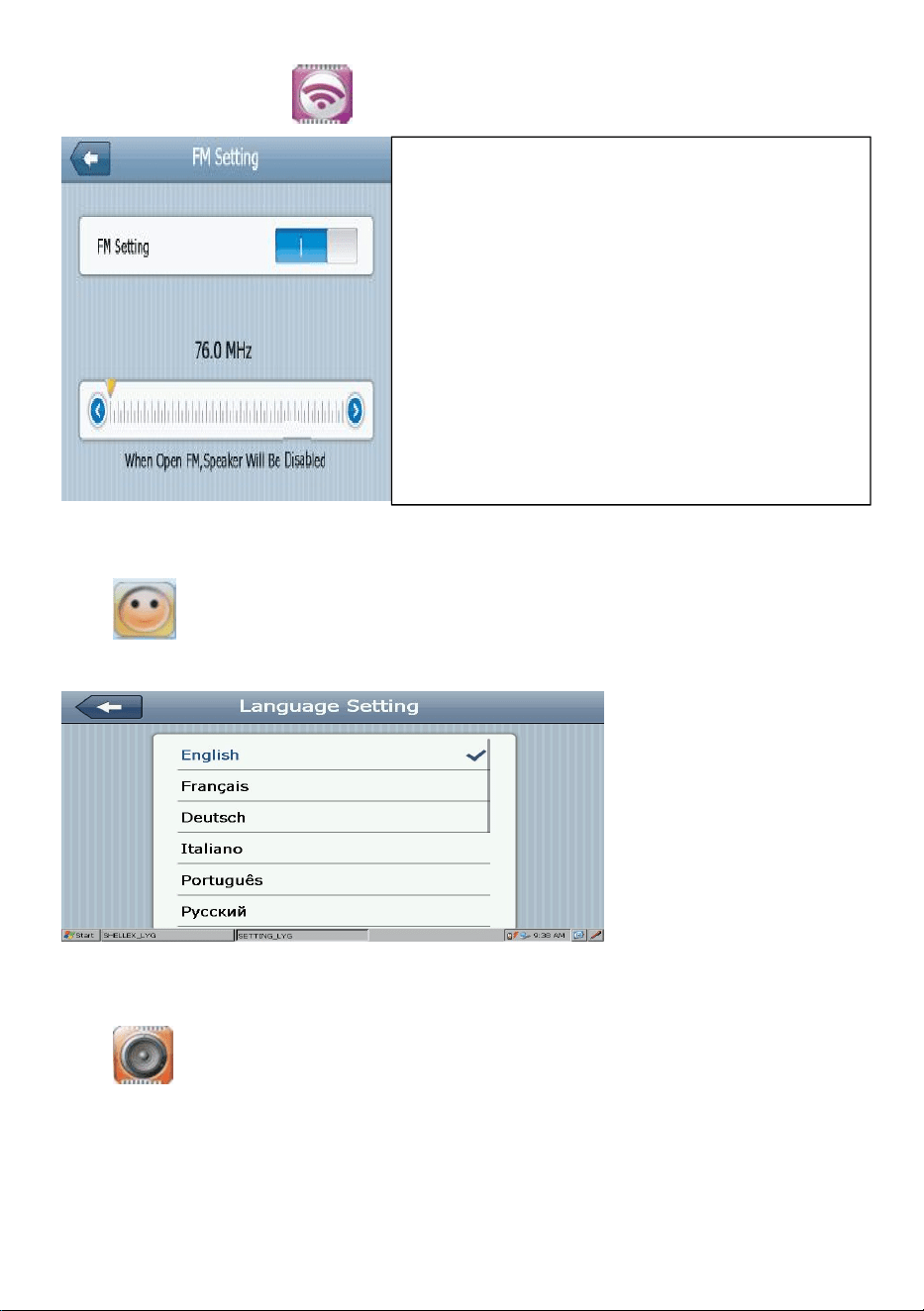
- 6 -
sound to the car.Tap ,turn on the FM, adjust the frequency.
1.1.3.System Language
Tap then you can choose the system language, it supports up to 30
languages
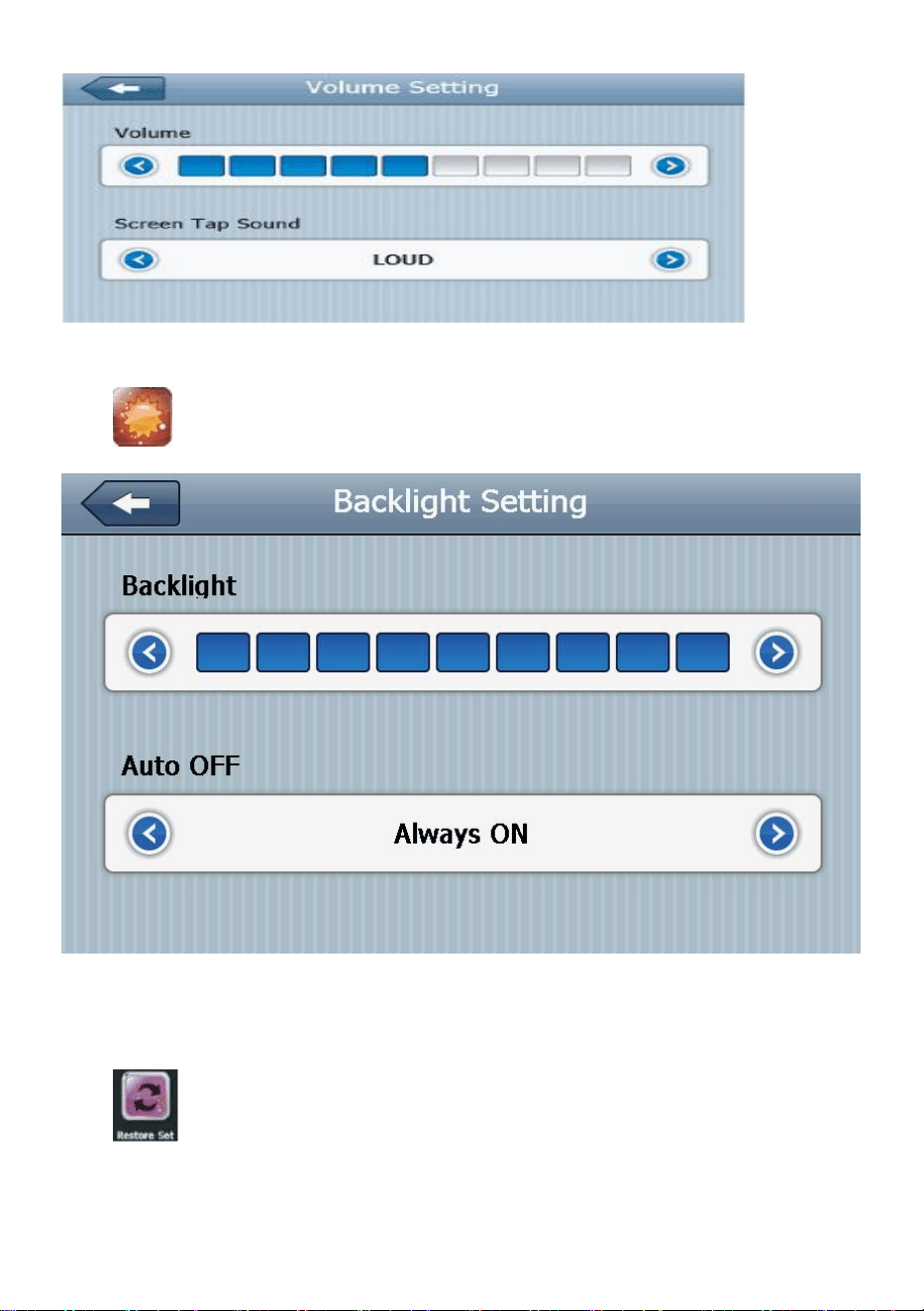
1.1.4.Volume
Tap , then you can adjust the volume.
FM transmitter is to transmit the audio
signal into receiving device. Take FM
90.0mhz for example, now the
navigation frequency is same as
receiving frequency, is 90.0MHZ, now
the two devices are in same
frequency band, which make the
navigation can output the sound.
When the FM is on, the device is
automatically into silent mode.
- 7 -
1.1.5.Brightness
Tap ,then you can adjust the backlight brightness and delay time.
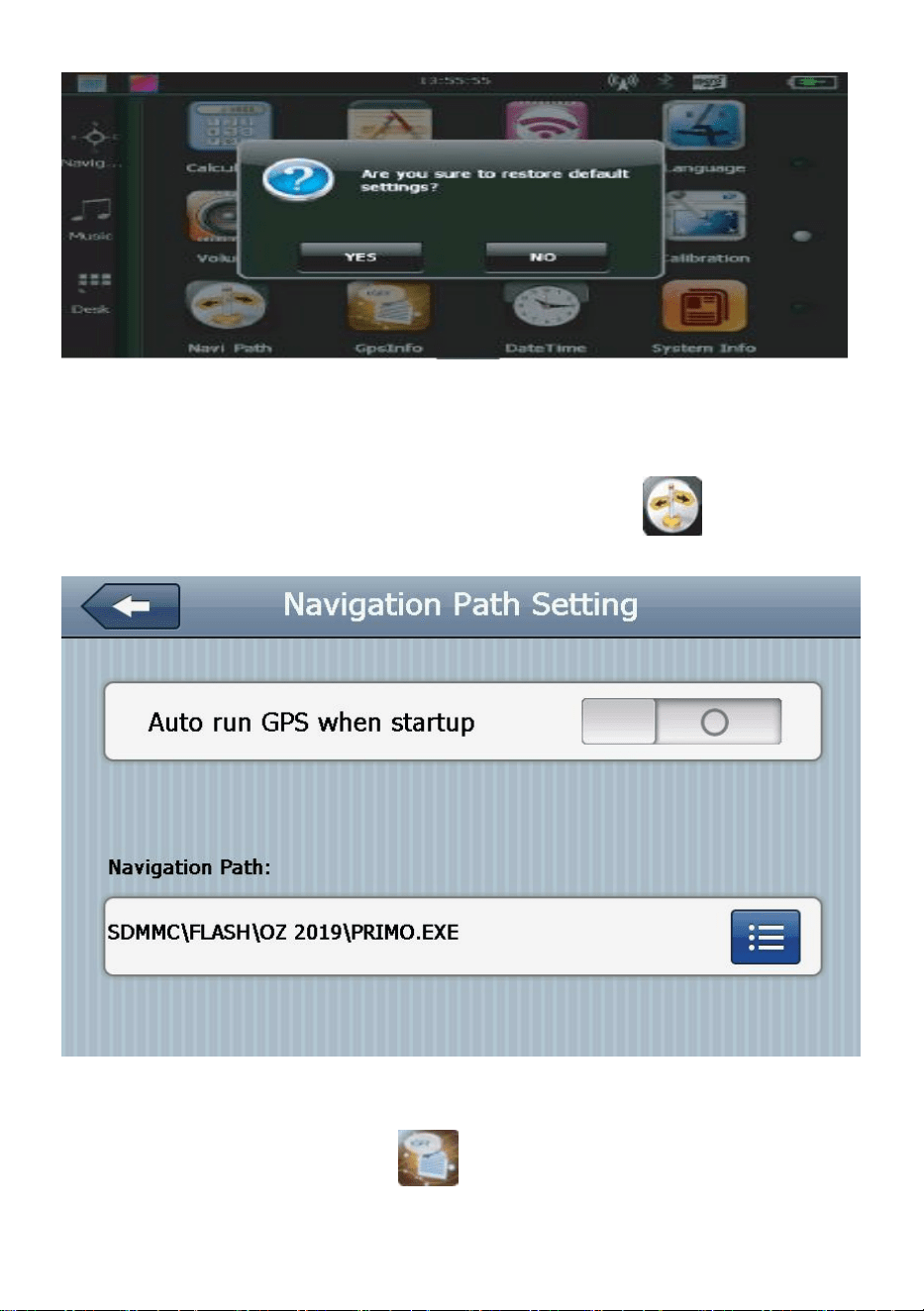
1.1.6.Factory Restore
If there's something wrong with the navigator(such as can't find the signal),
Tap button to enter the Factory Restore
- 8 -
Click
YES
to restore factory setting,click
NO
to return previous interface.
1.1.7.Naviconfig(Navi Path)
When tap the navigation nothing happens,Pleas tap then you can
set the navigation file path.
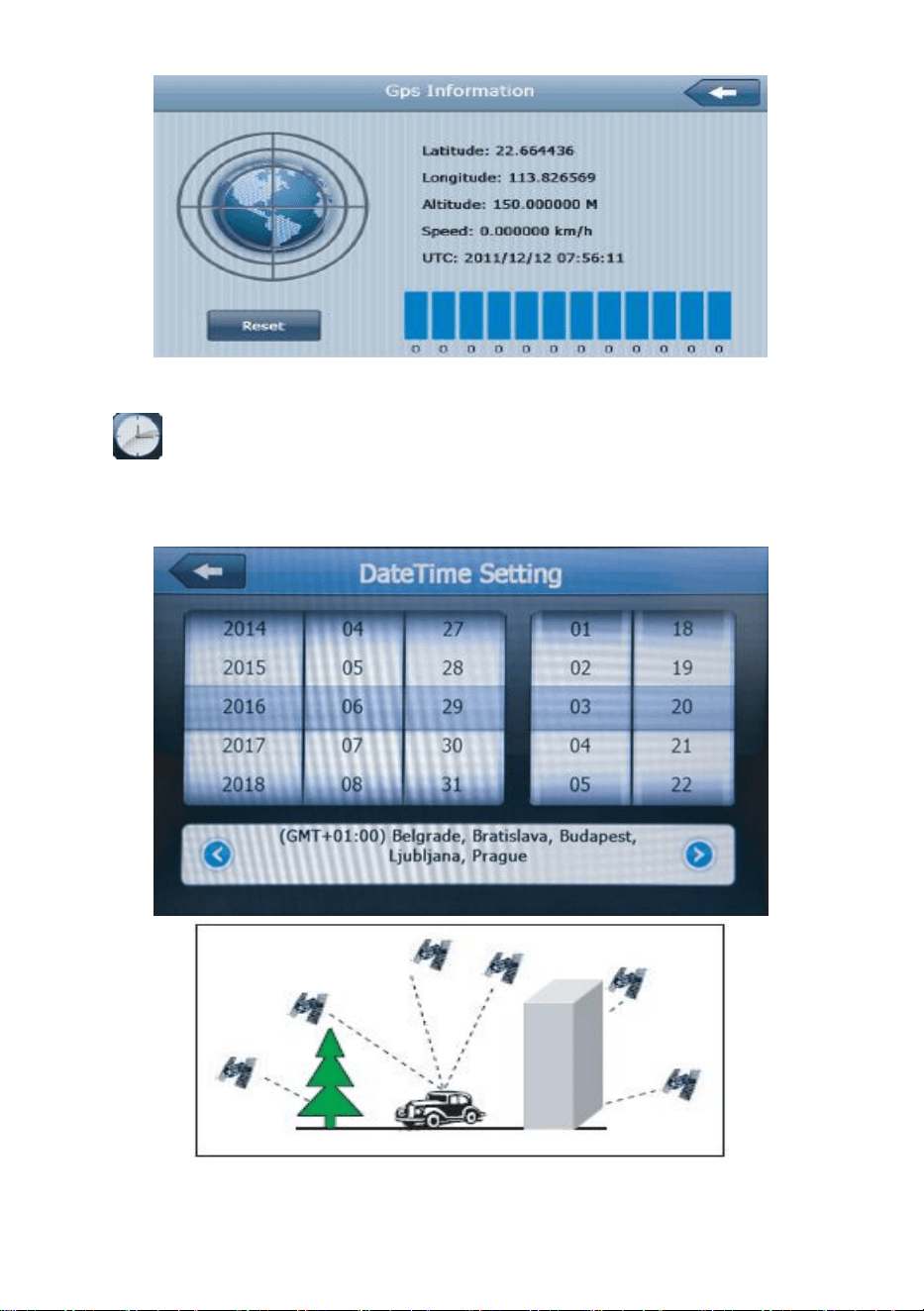
1.1.8. GPS View
If it can't find the signal, Tap button, enter into GPS information
interface, Click the“Reset”
- 9 -
1.1.9.Date/Time
Tap to enter into time setting interface,
time setting includes,
1.System time setting;2.System date setting;3.System zone view.
1. Move the arrow to set time.

- 10 -
2. Click or to select zone, time setting finishes then click to
exit,system can save.
1.2.1 Navigation Function Features and Operation
According to your choice of navigation system, the GPS navigator can
make position by GPS satellite signal receiver and display on the
navigation map. The system can calculate the best route after setting the
destination, which can help users to arrive the destination safely and
rapidly. The system can let you enjoy the individual charm and enjoy your
trip by many different ways such as vision map, vivid animation, voice
indication, and words indication.The specific navigation functions are
depended on your choice of navigating software. Please refer to the
Navigation Software Instruction.
Notes
1. Map information: lt is probably that the electronic navigation data is not
consistent with the real traffic instructions because of the traffic
construction development. Please do comply with the highway condition
and the actual traffic rules.
2. Navigation: The navigator offers the route for the reference; determine
the route by yourself,the driver may be more familiar with the route than
GPS navigator.
3. Receiving signal: Many factors such as high, dense buildings (in the
tunnel, between the high building,underground parking, under the trestle),
various weather condition, and closure of the satellite will affect the ability
to receive signal so as to result in inaccurate position, inefficiency of
navigation operation and system function.
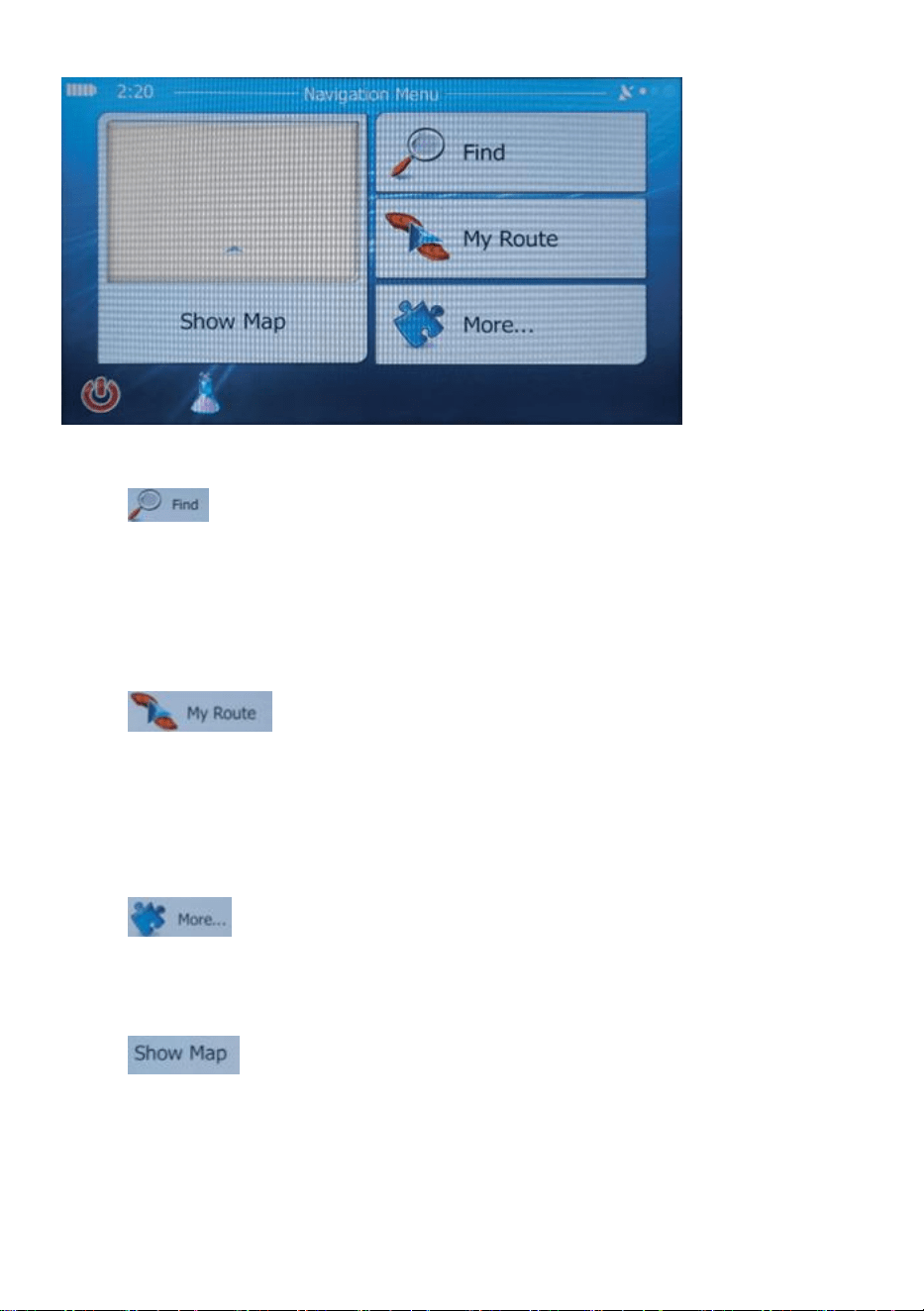
1.2.2.Navigation Menu
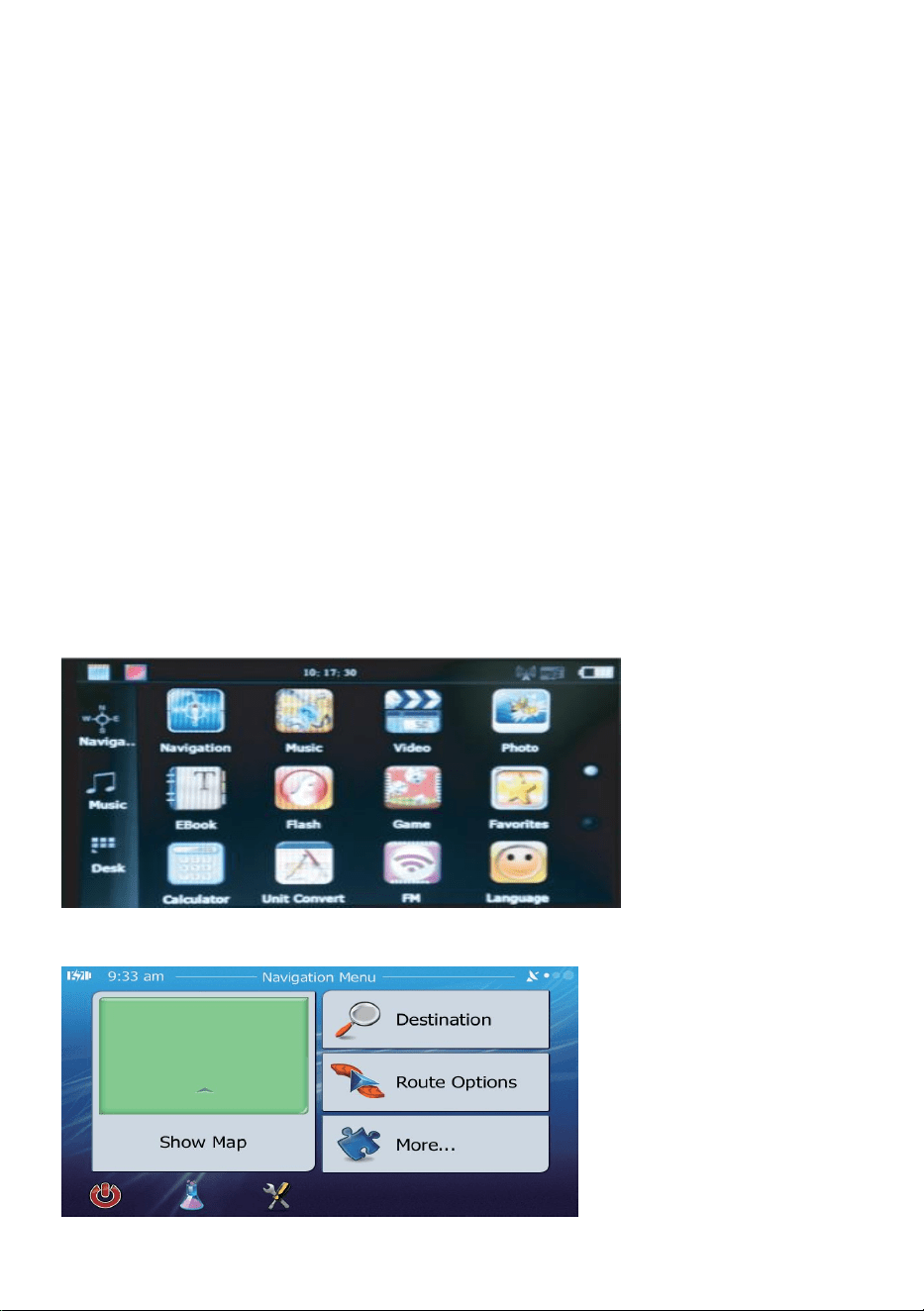
Tap ,You can reach all parts of the software from the Navigation menu.
- 11 -
You have the following options:
●Tap select your destination by entering an address or selecting a
place of interest, a location on the map or one of your Favourite
destinations. You can also look up your recent destinations from the Smart
History or enter a coordinate.When internet connection is available Google
Local Search can be a further help to find your destination.
●Tap display the route parameters and the route in its full
length on the map. You can also perform route-related actions such as
editing or cancelling your route, setting a start point for the route, picking
route alternatives, avoiding parts of the route, simulating navigation or
adding the destination to your Favorites.
●Tap to customize the way the navigation software works, to
simulate demo routes or to run some additional applications.
Show Map
●Tap to start navigating on the map.The button itself is a
miniature live map that shows your current position, the recommended
route and the surrounding map area. Tap the button to enlarge the map to
the full screen.the recommend-ed route and the surrounding map area.
Tap the button to enlarge the map to the full screen.
- 12 -
●Tap to stop navigation and exit the software.*Press the Home button
to switch to another application. If Background Navigation is turned on in
Advanced Settings, voice guidance remains active.When you enter the
navigation menu you can set the following functions
1.2.3 Map Language and Voice Language Setting
Map Language Steps: Setting-Regional-Program Language
Voice Language Setting:Setting-Sound and Warnings-Voice Language
- 13 -
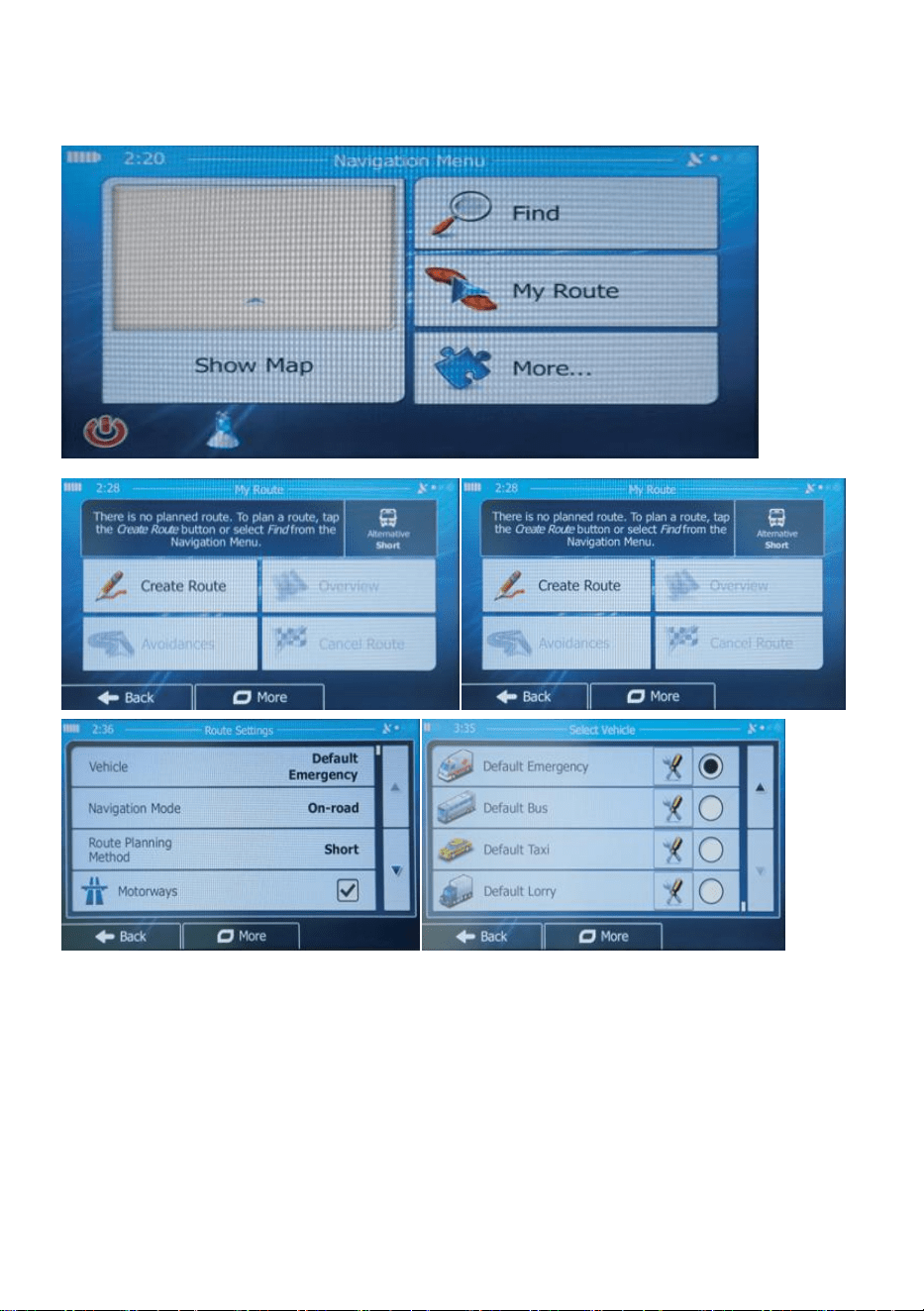
1.2.4 Destination
Setting steps: Destination-Find Address Please kindly note: As it can't
connect to internet, so it can't find the address intelligent, it means you
need to select country, select city or put ZlP code, can't find the address
directly without country and city.
- 14 -
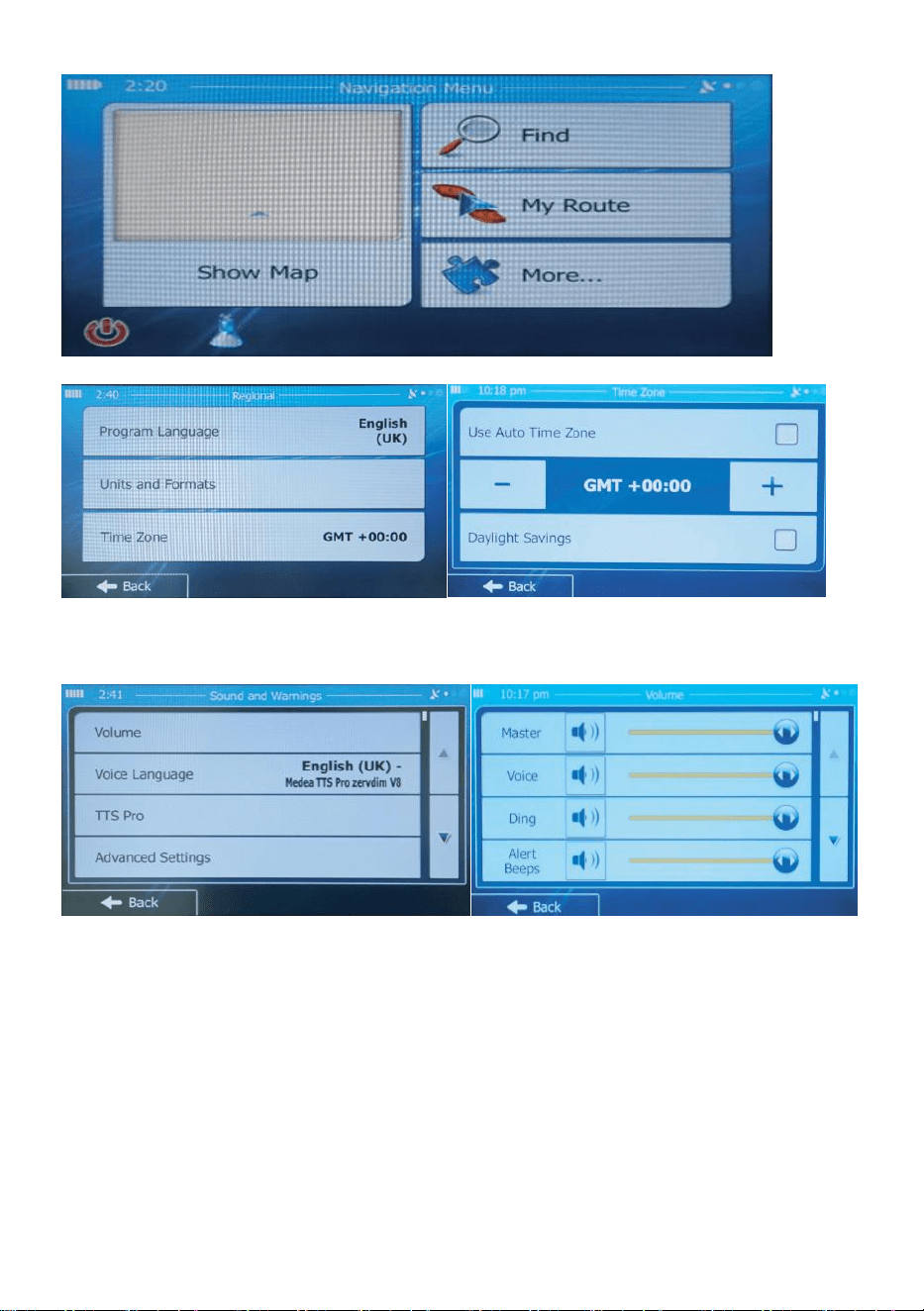
1.2.5 Vehicle Mode Switch
Setting steps: Route Options-More-Route Settings-Vehicle
1.2.6 Time Zone Setting
Setting steps: Setting-Regional-Units and Formats-Time Format
- 15 -
1.2.7 Volume setting
Setting steps: Setting-Sound and Warnings-Volume
2 lmportant Notice
● Please start your car before starting the GPS, because the car startup
power may be very high to cause some damages to the GPS devices
●It is important that you look at the display only when it is safe to do so.lf
you are the driver of the vehicle, we recommend that you operate your
software before you start your journey.Plan the route before your departure
and stop if you need to change the route.

- 16 -
Manufacturer: Shanghaimuxinmuyeyouxiangongsi
Address: Shuangchenglu 803nong11hao1602A-1609shi, baoshanqu,
shanghai 200000 CN.
Imported to AUS: SIHAO PTY LTD. 1 ROKEVA STREETEASTWOOD
NSW 2122 Australia
Imported to USA: Sanven Technology Ltd. Suite 250, 9166 Anaheim
Place, Rancho Cucamonga, CA 91730
REP
UK
YH CONSULTING LIMITED. C/O YH Consulting
Limited Office 147, Centurion House, London
Road, Staines-upon-Thames, Surrey, TW18 4AX
REP
EC
E-CrossStu GmbH
Mainzer Landstr.69,
60329 Frankfurt am Main.


Technical Support and E-Warranty Certificate
www.vevor.com/support