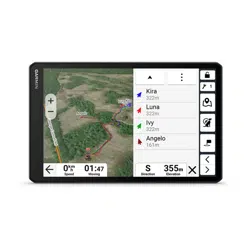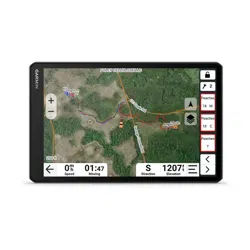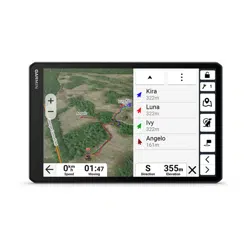
ALPHA
®
XL
Owner’s Manual

© 2025 Garmin Ltd. or its subsidiaries
All rights reserved. Under the copyright laws, this manual may not be copied, in whole or in part, without the written consent of Garmin. Garmin reserves the right to change
or improve its products and to make changes in the content of this manual without obligation to notify any person or organization of such changes or improvements. Go to
www.garmin.com for current updates and supplemental information concerning the use of this product.
Garmin
®
, the Garmin logo, Alpha
®
, ANT+
®
, inReach
®
, and TracBack
®
are trademarks of Garmin Ltd. or its subsidiaries, registered in the USA and other countries. BaseCamp
™
, Garmin
Adventurous Routing
™
, Garmin Explore
™
, Garmin Express
™
, Garmin PowerSwitch
™
, Garmin Response
SM
, myTrends
™
, and tempe
™
are trademarks of Garmin Ltd. or its subsidiaries.
These trademarks may not be used without the express permission of Garmin.
Apple
®
and Mac
®
are trademarks of Apple Inc., registered in the U.S. and other countries. The BLUETOOTH
®
word mark and logos are owned by the Bluetooth SIG, Inc., and any
use of such name by Garmin is under license. microSD
®
and the microSD logo are trademarks of SD-3C, LLC. Tripadvisor
®
is a registered trademark of Tripadvisor LLC. USB-C
®
is a registered trademark of USB Implementers Forum. Windows
®
is a registered trademark of Microsoft Corporation in the United States and other countries. Wi‑Fi
®
is a registered
trademark of Wi-Fi Alliance. Other trademarks and trade names are those of their respective owners.

Table of Contents
Getting Started................................. 1
Setting Up the Alpha System.................. 1
Device Overview...................................... 1
VHF Radio Information........................... 2
Installation............................................... 3
Installing the VHF Dock in Your
Vehicle..................................................3
Installing the External VHF
Antenna................................................ 4
Connecting the Mount and Navigator
to Vehicle Power..................................5
Turning the Device On or Off.................. 6
Main Menu............................................... 7
Status Bar Icons.................................. 8
Opening an App................................... 8
Acquiring GPS Signals............................ 8
Using the On-Screen Buttons................. 9
Adjusting the Volume..............................9
Adjusting the Screen Brightness............ 9
Changing the Keyboard...........................9
Setting the Time...................................... 9
Dog Tracking and Training..............10
Dog Collar Device Setup....................... 10
Methods to Add a Dog Collar Device to
Your Navigator...................................10
Adding a Dog to the AlphaXL
Navigator Using Wireless
Pairing............................................ 10
Adding a Dog Using the Track and
Control Codes................................ 11
Adding a Dog Wirelessly From
Another Navigator......................... 11
Sharing a Dog Wirelessly.............. 11
Managing a Group............................. 12
Editing Dog Information.................... 12
Changing the Dog Name............... 12
Changing the Color of the Dog's
Track.............................................. 12
Changing the Dog Type................. 12
Removing a Dog............................ 12
Fitting the Collar on Your Dog.......... 13
Communication with the Dog Collar
Device.................................................14
Using a Dynamic Update Rate.......... 14
Using Sleep Mode............................. 14
Channel View..................................... 14
Changing the Dog ID......................15
Tracking Your Dog on the Map............ 15
Dog Status Icons................................... 15
Pro View.................................................16
Navigating to Your Dog.........................16
Changing the Length of the Dog's
Track...................................................... 16
Location Alerts...................................... 16
Setting Location Alerts..................... 16
Enabling or Disabling Location
Alerts.................................................. 17
Editing Location Alerts...................... 17
Dog Training.......................................... 17
Selecting and Installing the Contact
Points................................................. 17
Removing the Contact Points....... 17
Collar Training................................... 18
Training Methods.............................. 18
Linear and Traditional
Stimulation..................................... 18
Choosing the Correct Intensity
Level............................................... 18
Training Menu....................................19
Moving the Training Menu
Button............................................. 19
Customizing the Training
Buttons........................................... 19
Using the Training Menu............... 20
Dog Training Options.................... 20
Contact Tracking............................ 20
Turning On and Off the Transmitter..... 20
Methods to Add a Contact to the
Navigator............................................... 21
Adding a Contact Using a Contact
ID........................................................ 21
Adding a Contact Wirelessly From
Another Navigator............................. 21
Sharing a Dog Wirelessly.............. 21
Finding Your Contact ID.................... 21
Changing Your Contact ID................ 21
Updating a Contact ID....................... 22
Tracking a Contact................................ 22
Initiating an Emergency Alert............... 22
Sending a Message to Your
Contacts................................................ 22
Table of Contents i

Hunting with the Alpha System....... 22
Starting a Hunt...................................... 23
Active Hunt Metrics.............................. 23
Turning On the Collar Light...................23
Turning On Rescue Mode..................... 23
Off-Road Navigation Features........ 23
Adventurous Routing............................ 23
Adventure Roads and Trails................. 24
Pitch and Roll........................................ 24
Calibrating Pitch and Roll................. 25
Adjusting Warning Angles................ 25
Enabling or Disabling Warning Angle
Alerts.................................................. 25
Viewing the Altimeter, Barometer, and
Compass................................................25
Calibrating the Compass.................. 25
inReach® Remote................................. 25
Connecting an inReach Device......... 26
Sending a Text Message.................. 26
SOS..................................................... 26
Initiating an SOS Rescue............... 26
Canceling an SOS Rescue............. 27
Vehicle Profiles.............................. 27
Switching the Vehicle Profile................27
Choosing a Vehicle Profile................... 27
Adding a Vehicle Profile....................... 27
Editing a Vehicle Profile........................ 27
Adding Portable Propane Tanks.......... 28
Routes............................................28
Starting a Route.....................................28
Starting a Route to a Point on the
Map.................................................... 28
Planning a Route................................... 29
Creating a Round-Trip Route............ 29
Navigating to a Saved Route................ 29
Your Route on the Map......................... 29
Active Lane Guidance....................... 31
Viewing Turns and Directions...........31
Viewing the Entire Route on the
Map.................................................... 31
Changing Your Active Route.................32
Adding a Stop to Your Route............ 32
Skipping the Next Stop on Your
Route.................................................. 32
Shaping Your Route...........................32
Editing Your Active Route................. 32
Saving Your Active Route..................32
Avoiding Delays, Tolls, and Areas........ 33
Avoiding Traffic Delays on Your
Route.................................................. 33
Avoiding Toll Roads.......................... 33
Avoiding Toll Stickers....................... 33
Avoiding Road Features.................... 33
Custom Avoidances.......................... 33
Avoiding a Road............................. 33
Avoiding an Area........................... 34
Disabling a Custom Avoidance.....34
Deleting Custom Avoidances....... 34
Taking a Detour..................................... 34
Stopping the Route............................... 34
Going Home...........................................34
Editing Your Home Location.............34
Arriving at Your Destination................. 35
Parking Near Your Destination......... 35
Tracks............................................ 35
Recording Tracks.................................. 35
Following Your Most Recent Track...... 35
Converting a Track to a Route.............. 35
Using the Map................................ 36
Map Tools.............................................. 36
Viewing a Map Tool...........................36
Up Ahead............................................... 37
Viewing Upcoming Locations........... 37
Customizing the Up Ahead
Categories..........................................37
Cities Ahead.......................................... 37
Viewing Upcoming Cities and Exit
Services..............................................37
Viewing Upcoming Elevation
Changes................................................. 38
Viewing Traffic Information................. 38
Viewing the Map Key............................ 38
Viewing Trip Data.................................. 38
Viewing Trip Data from the Map...... 38
Customizing the Trip Data
Fields.............................................. 38
Resetting Trip Information................38
Viewing a Map Tool.............................. 39
Customizing the Map............................ 39
ii Table of Contents

Customizing the Map Layers............ 39
Downloading Outdoor Maps+
Content........................................... 39
Viewing Your Collections on the
Map.................................................39
Changing the Map Data Field........... 40
Changing the Map Buttons............... 40
Changing the Map Perspective........ 40
Changing the Map Region................ 40
Finding and Saving Locations......... 41
Points of Interest...................................41
Finding a Location Using the Search
Bar.......................................................... 42
Finding a Location by Category............42
Navigating to Points of Interest Within
a Venue.............................................. 42
Location Search Results....................... 43
Changing the Search Area.................... 44
Finding Parking Near Your Current
Location................................................. 44
Finding Parking Near a Specified
Location................................................. 45
Finding an Address............................... 45
Finding a Location Using
Coordinates........................................... 45
Finding Fuel Stations and Prices..........46
Finding National Parks..........................46
Finding Ultimate Campgrounds Points of
Interest................................................... 46
Tripadvisor.............................................46
Finding Tripadvisor Points of
Interest............................................... 47
Viewing Recently Found Locations...... 47
Clearing the List of Recently Found
Locations........................................... 47
Viewing Current Location
Information............................................ 47
Finding Emergency Services and
Fuel..................................................... 47
Getting Directions to Your Current
Location............................................. 47
Adding a Shortcut................................. 47
Removing a Shortcut......................... 48
Saving Locations................................... 48
Saving a Location.............................. 48
Saving Your Current Location........... 48
Editing a Saved Location.................. 48
Deleting a Saved Location................ 48
Viewing Your Saved Items.................... 49
Sharing a Saved Item........................ 49
Sharing Multiple Saved Items........... 49
Synchronizing Garmin Account
Data.................................................... 50
Using the Apps............................... 50
Using the Competition Timer............... 50
Wireless Cameras................................. 50
Pairing the Device with a Wireless
Camera...............................................50
Viewing the Camera.......................... 50
Aligning the Guidance Lines......... 51
Garmin PowerSwitch™ App.................. 52
Activating a Power Switch................ 52
Turning Off All Switches................... 52
Customizing a Button....................... 53
Assigning a Switch to a Control
Input................................................... 53
Adding a Custom Layout.................. 53
Adding a Button to a Custom
Layout.............................................54
Arranging Buttons In a Custom
Layout.............................................54
Deleting a Custom Layout or
Button............................................. 54
Routines............................................. 54
Adding a Routine........................... 55
Editing a Routine............................55
Deleting a Routine......................... 55
Viewing Weather Information...............55
Driver Awareness Features and
Alerts............................................. 56
Enabling or Disabling Driver Alerts.......56
Live Services, Traffic, and
Smartphone Features..................... 56
Pairing with Your Smartphone............. 57
Smart Notifications............................... 57
Receiving Notifications..................... 57
Receiving Notifications while
Viewing the Map............................ 58
Viewing the List of Notifications...... 58
Hands-Free Calling................................ 58
Enabling Hands-Free Calling............ 58
Table of Contents iii

Placing a Call..................................... 58
Calling Home................................. 59
Placing a Call Using Voice Dial.........59
Receiving a Call................................. 59
Using In-Call Options......................... 59
Disabling Phone Calls........................... 59
Disconnecting a Bluetooth Device....... 59
Deleting a Bluetooth Device................. 59
Settings..........................................60
Dog Tracking Settings.......................... 60
Dog Display Settings......................... 60
Dog Alerts Settings........................... 60
Backing Up and Restoring Dog
Data.................................................... 60
Phone Settings...................................... 61
Wi‑Fi Settings........................................ 61
Map Settings......................................... 61
Navigation Settings............................... 61
Traffic Settings.................................. 62
Setting a Simulated Location........... 62
Driver Assistance Settings................... 62
Proximity Alerts Settings.................. 62
Display Settings.....................................62
System Settings.................................... 63
Position Format Settings.................. 63
Device and Privacy Settings................. 63
Restoring Settings................................. 63
Data Management.......................... 63
About Memory Cards............................ 63
Installing a Memory Card for Maps and
Data........................................................ 64
Connecting the Device to Your
Computer............................................... 64
Transferring GPX Files From Your
Computer............................................... 64
Transferring Data From Your
Computer............................................... 64
Adding BaseCamp™ Data to Garmin
Explore™................................................. 65
Exporting Data from BaseCamp with a
PC....................................................... 65
Exporting Data from BaseCamp with
an Apple Computer........................... 65
Importing Data to Garmin Explore....65
Device Information......................... 65
Viewing E-label Regulatory and
Compliance Information....................... 65
Specifications........................................66
Charging the Device.............................. 66
Device Maintenance....................... 66
Map and Software Updates.................. 66
Updating Maps and Software Using a
Wi‑Fi Network.................................... 67
Connecting to a Wi‑Fi Network..... 67
Updating Maps and Software with
Garmin Express................................. 68
Device Care............................................69
Cleaning the Outer Casing................ 69
Cleaning the Touchscreen................ 69
Cleaning the USB Port....................... 69
Restarting the Device............................ 69
Troubleshooting............................. 70
My device is not acquiring satellite
signals....................................................70
My device does not connect to my
phone..................................................... 70
The device does not charge in my
vehicle.................................................... 70
My battery does not stay charged for
very long................................................ 70
My device does not connect to my
computer............................................... 70
Appendix........................................ 71
Bare Wire Power Cable......................... 71
Pairing a Tempe Sensor....................... 71
iv Table of Contents
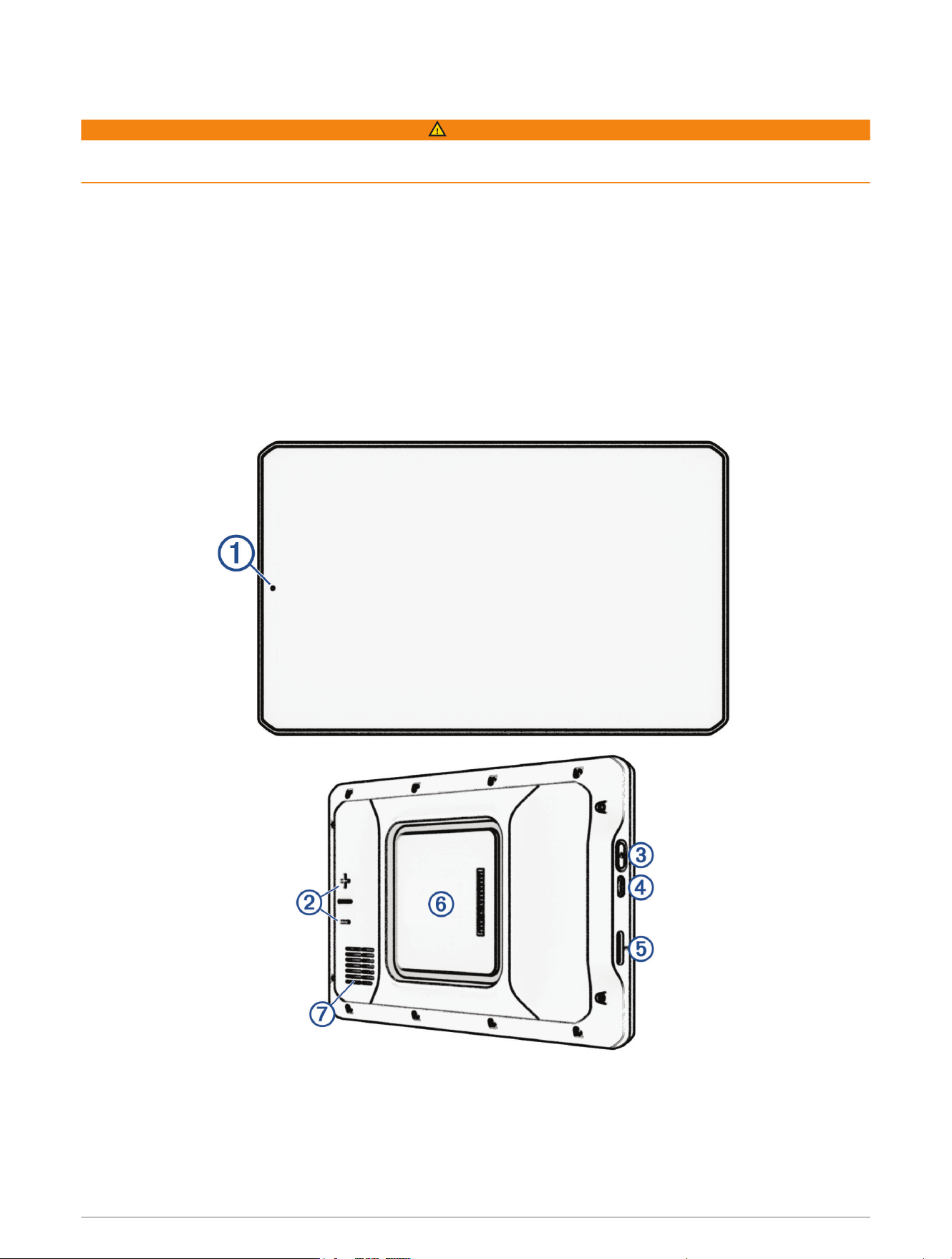
Getting Started
WARNING
See the Important Safety and Product Information guide in the product box for product warnings and other
important information.
Setting Up the Alpha System
Before you can use the Alpha system, you must set up the devices.
1 Install the AlphaXL navigator in your vehicle (Installation, page3).
2 Turn on the AlphaXL navigator (Turning the Device On or Off, page6).
3 Pair one or more dog collar devices with the AlphaXL navigator (Methods to Add a Dog Collar Device to Your
Navigator, page10).
4 If necessary, add one or more contacts to your contact list (Methods to Add a Contact to the Navigator,
page21).
Device Overview
Getting Started 1
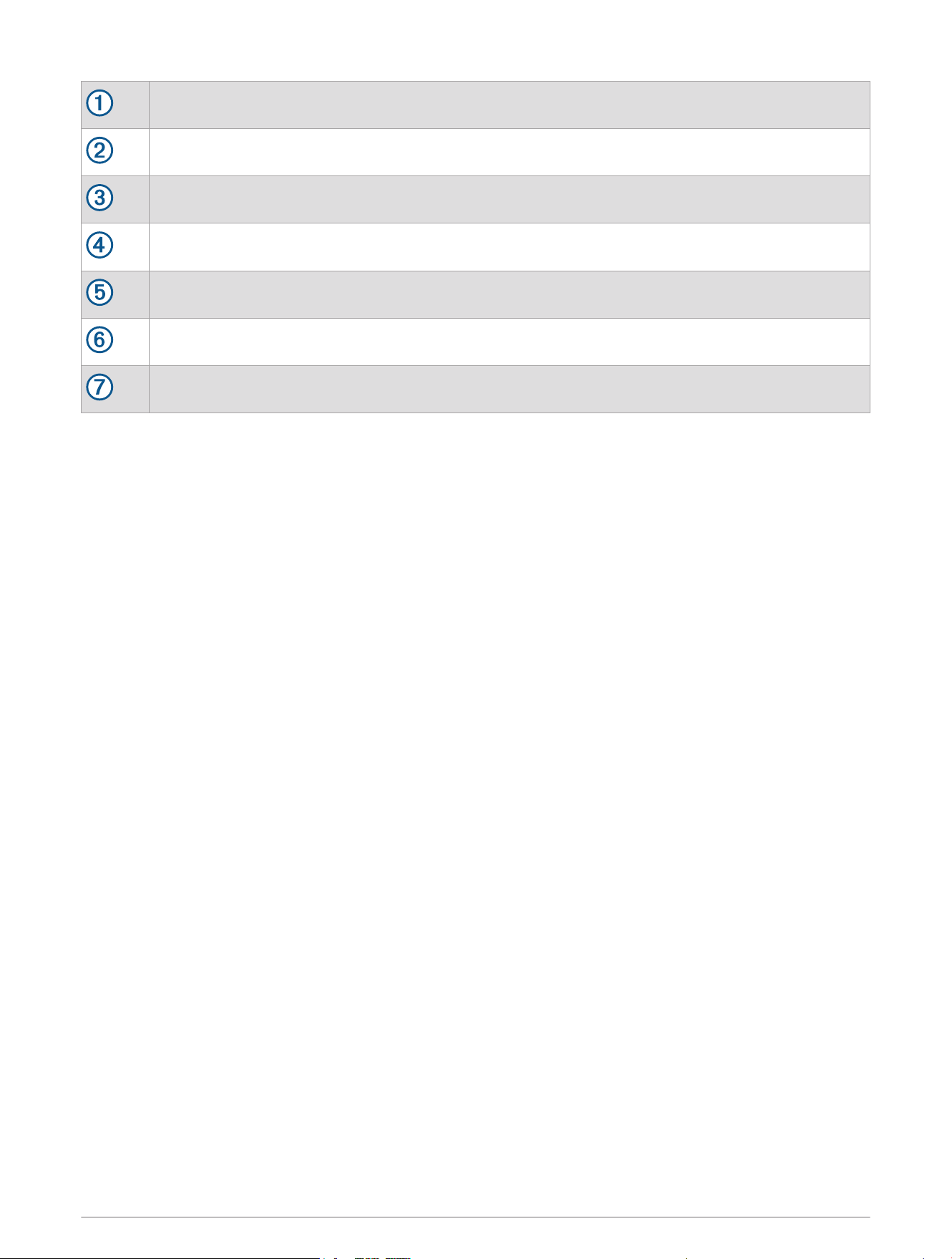
Microphone for hands-free calling and voice command
Volume control
Power button
USB power and data port
Map and data memory card slot
Magnetic mount interface with 14-pin connector
Speaker
VHF Radio Information
This product may be used only on specific radio frequencies, which vary depending on the country of use. The
navigator and dog collar device allow the user to install a different antenna. Changing the antenna can affect
the radio performance and radiated power. You must not use the device with a third party antenna or an antenna
not approved by Garmin
®
. Go to www.garmin.com/tracking-legal for details about the performance and radio
frequency of this product, lawful accessories, and power limits for countries.
2 Getting Started
Installation
Installing the VHF Dock in Your Vehicle
WARNING
Both the device and its mount contain magnets. Under certain circumstances, magnets may cause interference
with some internal medical devices and electronic devices, including pacemakers, insulin pumps, or hard drives
in laptop computers. Keep the device away from medical devices and electronic devices.
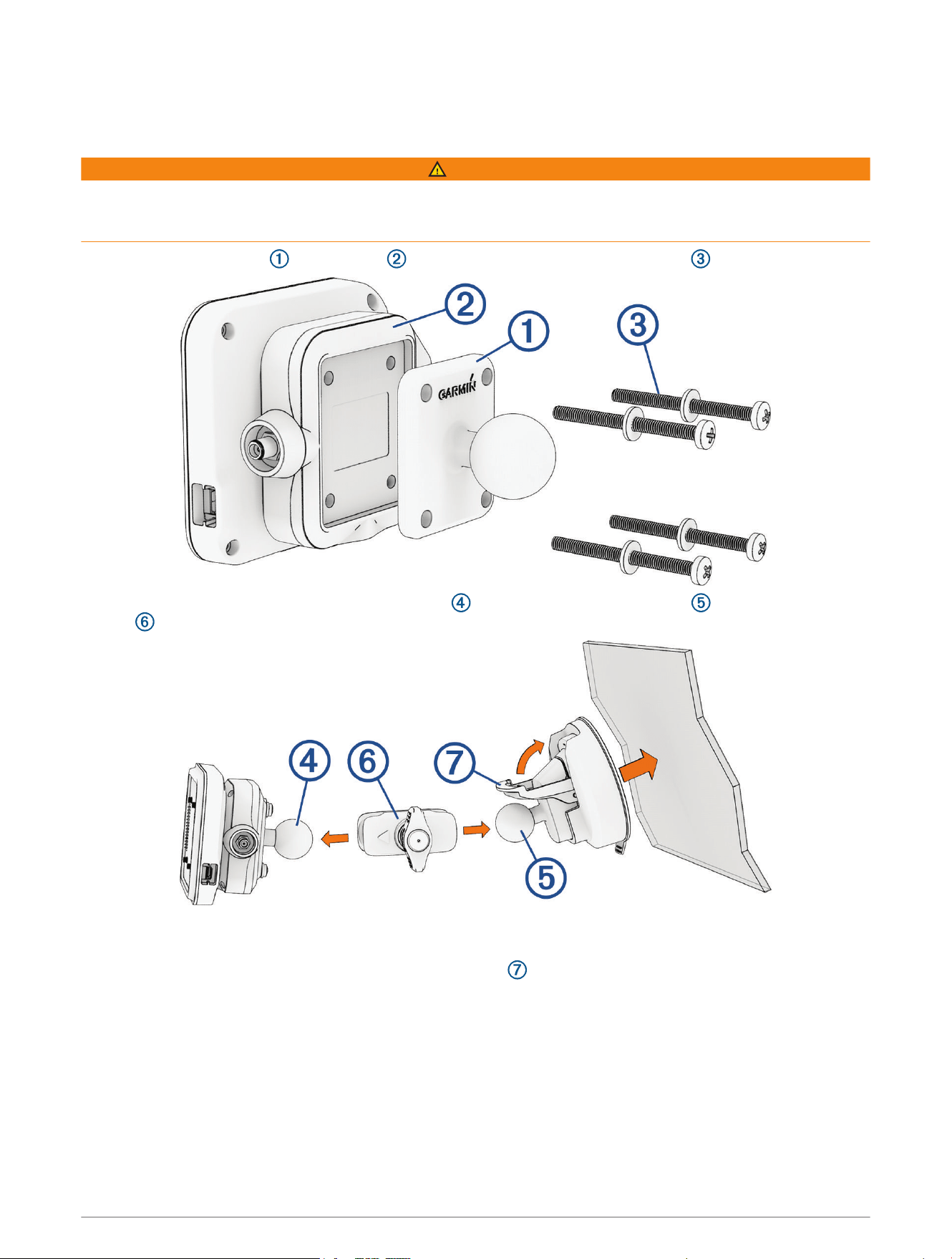
1 Secure the ball adapter to the mount using the included screws and washers .
2 Connect the ball of the powered magnetic mount and the ball of the suction cup to the double-socket
arm .
3 Tighten the knob on the double-socket arm slightly.
4 Clean and dry your windshield and the suction cup with a lint-free cloth.
5 Press the suction cup to the windshield, and flip the lever .
6 If necessary, rotate the powered magnetic mount so the Garmin logo faces right-side up, and adjust the
mount for better viewing and operation.
7 Tighten the knob to secure the mount.
Getting Started 3
Installing the External VHF Antenna
WARNING
The external VHF antenna contains a magnet. Under certain circumstances, magnets may cause interference
with some internal medical devices and electronic devices, including pacemakers, insulin pumps, or hard drives
in laptop computers. Keep the device away from medical devices and electronic devices.
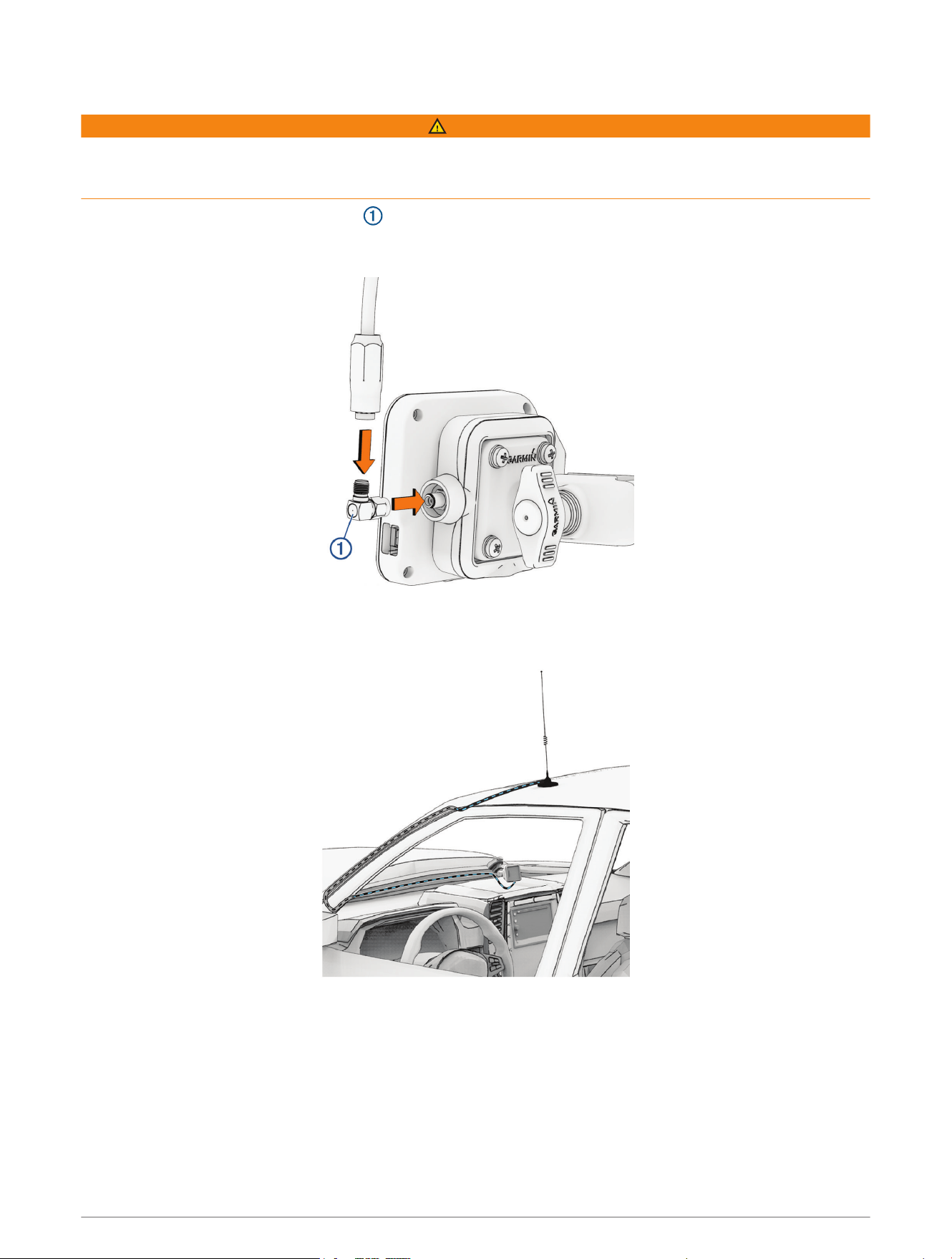
1 Connect the angled antenna adapter to the antenna port on the magnetic mount.
TIP: You can connect the antenna cable directly to the antenna port if you do not need to change the angle of
the cable.
2 Connect the cable from the magnetic VHF Antenna to the angled antenna adapter.
3 Route the cable through a suitable path in your vehicle.
4 Place the magnetic antenna on the roof of your vehicle.
4 Getting Started
Connecting the Mount and Navigator to Vehicle Power
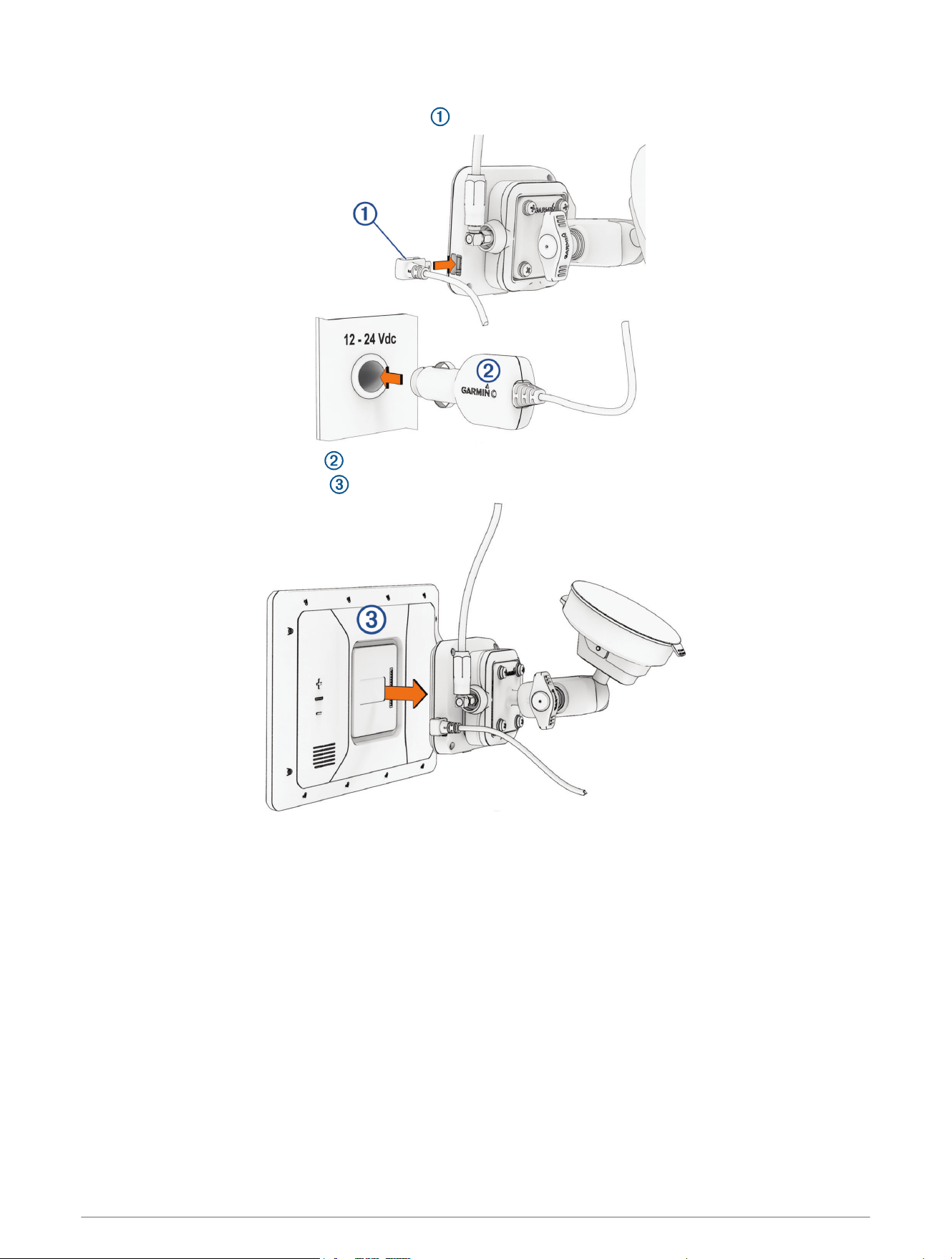
1 Plug the small end of the power adapter cable into the port on the side of the powered mount.
2 Plug the vehicle power adapter into the power outlet in your vehicle.
3 Connect the AlphaXL navigator to the magnetic mount.
4 If necessary, turn on the vehicle ignition switch to provide power to the power outlet in your vehicle.
Getting Started 5
Turning the Device On or Off
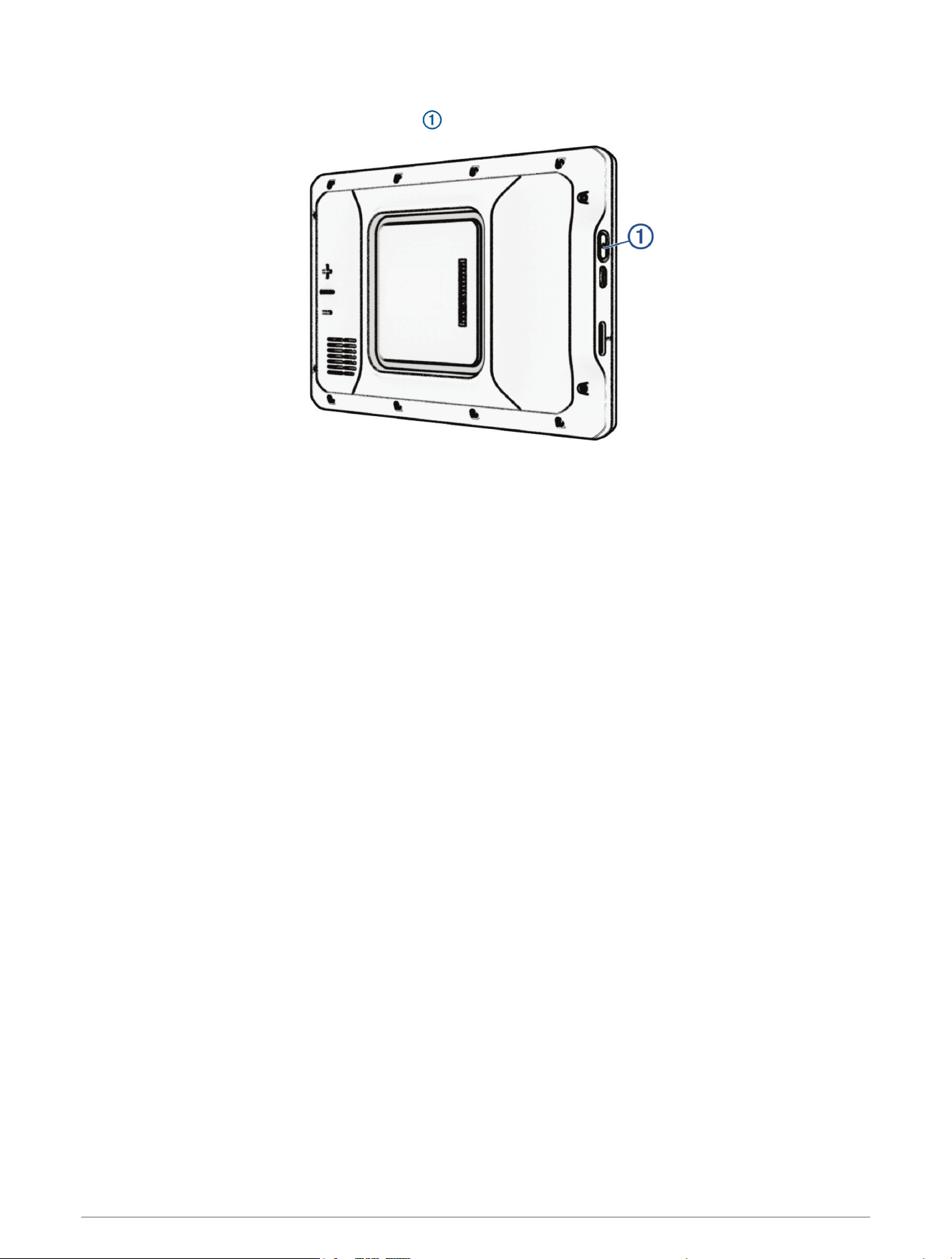
• To turn the device on, press the power button , or connect the device to power.
• To put the device in power saving mode, press the power button while the device is on.
While in power saving mode, the screen is off and the device uses very little power, but it can wake instantly
for use.
TIP: You can charge your device faster by putting it in power saving mode while charging the battery.
• To turn off the device completely, hold the power button until a prompt appears on the screen, and select
Power Off.
The prompt appears after five seconds. If you release the power button before the prompt appears, the
device enters power saving mode.
6 Getting Started
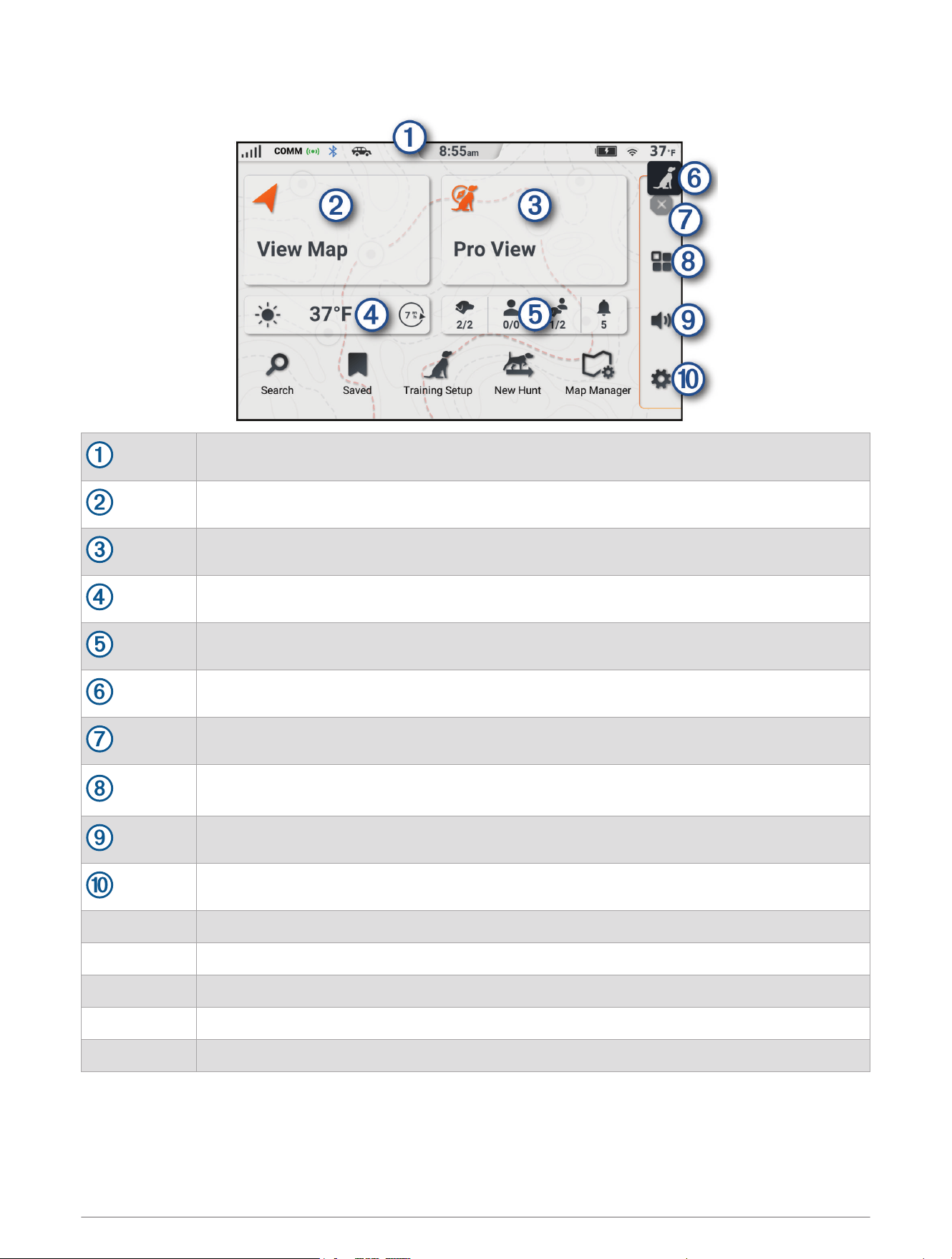
Main Menu
The status bar (Status Bar Icons, page8).
Select to view the map (Using the Map, page36).
Select to view the status of all connected dogs and contacts (Pro View, page16).
Current weather conditions.
Shortcuts to dogs, contacts, groups, and notifications.
Select to open the training menu (Training Menu, page19).
Select to stop an active route.
Select to open the apps menu. The apps menu contains shortcuts to all of the apps available
on your device.
Select to adjust the volume (Adjusting the Volume, page9).
Select to view device settings and update software (Settings, page60).
Search Select to search for a location and start navigation (Finding and Saving Locations, page41).
Saved Select to view saved locations (Viewing Your Saved Items, page49).
Training Setup Select to configure the training menu (Training Menu, page19).
New Hunt Select to start a hunt (Starting a Hunt, page23).
Map Manager Select to add maps or configure the map view (Changing the Map Region, page40).
Getting Started 7
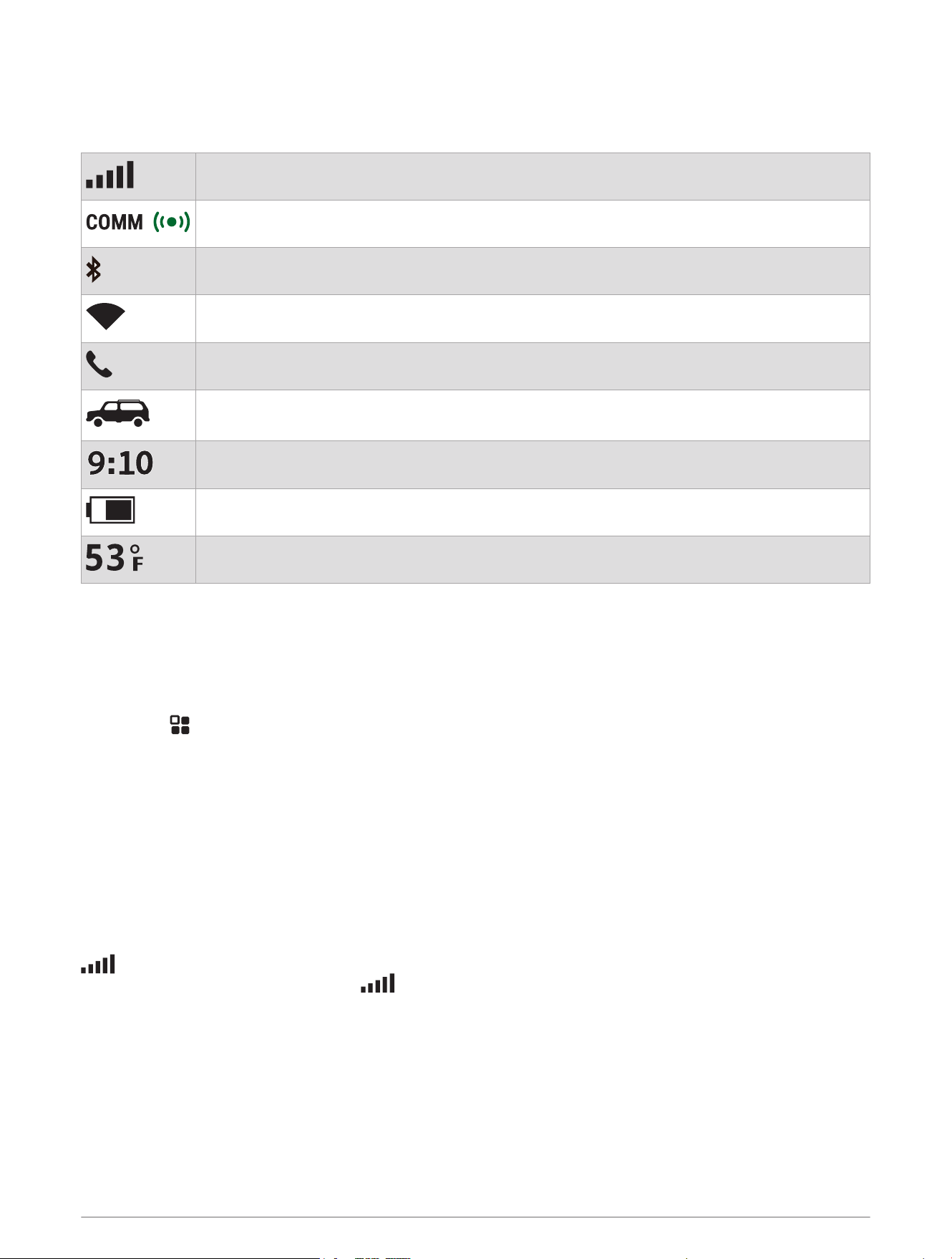
Status Bar Icons
The status bar is located at the top of the main menu. The status bar icons display information about features
on the navigator. You can select some icons to change settings or view additional information.
GPS signal status. Select to view GPS accuracy and acquired satellite information.
Connection status between the navigator and the magnetic mount.
Bluetooth
®
technology status.
Wi‑Fi
®
signal strength. Select to change the Wi‑Fi settings (Wi‑Fi Settings, page61).
Connected to hands-free calling. Select to place a phone call (Hands-Free Calling, page58).
Active vehicle profile. Select to view the vehicle profile settings (Editing a Vehicle Profile,
page27).
Current time. Select to set the time (Setting the Time, page9).
Battery charge level.
Temperature. Select to view the weather forecast (Viewing Weather Information, page55).
Opening an App
The home screen contains shortcuts for frequently used apps. The app drawer contains all of the apps installed
on your device.
Select an option:
• Select an app shortcut from the home screen.
• Select , and select an app.
Acquiring GPS Signals
When you turn on your navigation device, the GPS receiver must collect satellite data and establish the current
location. The time required to acquire satellite signals varies based on several factors, including how far you are
from the location where you last used your navigation device, whether you have a clear view of the sky, and how
long it has been since you last used your navigation device. The first time you turn on your navigation device, it
may take several minutes to acquire satellite signals.
1 Turn on the device.
2 Wait while the device locates satellites.
3 If necessary, go to an open area, away from tall buildings and trees.
in the status bar indicates the satellite signal strength. When at least half the bars are filled, the device is
ready for navigation. You can touch the icon to view more details about your satellite signal, such as your
current location accuracy.
8 Getting Started

Using the On-Screen Buttons
On-screen buttons allow you to navigate the pages, menus, and menu options on your device.
• Select to return to the previous menu screen.
• Hold to quickly return to the main menu.
• Select or to scroll through lists or menus.
• Hold or to scroll faster.
• Select to see a context-based menu of options for the current screen.
Adjusting the Volume
1 Select .
2 Select an option:
• Use the slider bar to adjust the volume.
• Select or to mute or unmute the device volume.
• If you have paired a phone with your device, touch the volume buttons under the phone name to increase
or decrease the phone's volume.
• Select Mixer to individually control volume for sounds such as navigation instructions and proximity
alerts.
• Select a check box to enable or disable additional sound options.
Adjusting the Screen Brightness
1 Select > Display.
2 Use the slider bar to adjust the brightness.
Changing the Keyboard
Before you can change the keyboard language or layout, you must enable a keyboard language or layout in the
system settings (System Settings, page63).
• Select to switch to a different keyboard language or layout.
Setting the Time
1 From the main menu, select the time.
2 Select an option:
• To set the time automatically using GPS information, select Automatic.
• To set the time manually, drag the numbers up or down.
Getting Started 9

Dog Tracking and Training
Dog Collar Device Setup
Methods to Add a Dog Collar Device to Your Navigator
You can add up to 20 devices to one navigator by pairing wirelessly, entering the track and control codes, or by
sharing wirelessly using ANT
®
technology. Up to 20 devices can be active at one time.
Pairing wirelessly: Allows you to add a dog collar device after you have placed the dog collar device into pairing
mode by pressing the power button.
This method is helpful when you are adding a new accessory collar to the system prior to leaving for the hunt
(Adding a Dog to the AlphaXL Navigator Using Wireless Pairing, page10).
Entering the track and control codes: Allows you to add a dog collar device that you do not own and that is not
in the area. The dog's owner must determine if you can only track the dog or can track and control the dog.
This method requires the dog's owner to find and communicate the codes to the person adding the dog collar
device.
This method is helpful when you would like to add a dog collar device during a hunt, but you are not near the
dog. For example, you are adding another member of your hunting party's dog collar device to your navigator,
but you do not own the dog collar device (Adding a Dog Using the Track and Control Codes, page11).
NOTE: This feature varies based on dog collar device type and feature availability in your area. You may see
track codes only or track and control codes.
Sharing wirelessly using ANT wireless technology: Allows you to add a dog collar device that you do not
own and that is not in the area. The dog's owner must determine if you can only track the dog or can
track and train the dog. This method does not require the dog's owner to find and communicate the codes
to the person adding the dog collar device. This method also adds dog information, such as the dog's
name, communication settings, and initial position, from the sending navigator to your navigator. The two
navigators must be within range 3m (10ft.) to share data wirelessly.
This method is helpful when you want to add a dog collar device during a hunt, but you are not near the dog.
For example, the dogs have already been let loose, and you are near the dog owner, who can share the dog
wirelessly (Sharing a Dog Wirelessly, page11).
Adding a Dog to the AlphaXL Navigator Using Wireless Pairing
To pair wirelessly, the dog collar device must be within range of the Alpha navigator.
1 Hold the power button on the dog collar device until the device emits two series of beeps (about 2 seconds),
and then release the power button.
The status LED flashes blue. The dog collar device is now ready to be paired with a navigator.
2 On the navigator, select > .
3 Select Pair Collar, and follow the on-screen instructions.
4 After successfully adding the dog collar device, enter the name of the dog, and select Done.
5 Select a beacon color for this dog collar device, and select Done.
10 Dog Tracking and Training
Adding a Dog Using the Track and Control Codes
NOTE: This feature varies based on dog collar device type and feature availability in your area.
Before you can add a dog using the track and control codes, the dog owner must find the track and control
codes (Finding the Dog ID and Track and Control Codes, page11) and tell them to you.
You can use track and control codes to authorize a handheld device to interact with your dog collar device. If
you are not near the dog you want to add or you cannot put the collar into pairing mode, you can add the dog
using the track and control codes.
1 Select > .
2 Select Enter Track or Control Code.
3 Enter the track or control code for the collar, and select Done.
The dog’s track code allows you to track the dog. The dog’s control code allows you to both track and train
the dog.
4 Enter the name of the dog, and select Done.
Finding the Dog ID and Track and Control Codes
You can share a dog’s track code so another person can track your dog. Also, you can share a dog’s control
code so another person can track and train your dog.
1 From the main menu, select .
2 Select the dog to share.
3 Select .
The ID, the track code, and the control code are displayed at the top of the page.
Adding a Dog Wirelessly From Another Navigator
Before you can receive a dog wirelessly from another navigator, the dog owner must share their dog wirelessly.
Select > > Receive From Device.
Sharing a Dog Wirelessly
Before you can share data wirelessly over ANT, you must bring your Alpha navigator within 3 m (10 ft.) of the
other navigator.
1 From the main menu, select .
2 Select the dog to share.
3 Select > Share Wirelessly.
4 Select an option:
• To allow the other person to track your dog's location with the map and dog tracking compass, select
Track Only.
• To allow the other person to track your dog and correct your dog's behavior, select Track and Control.
To successfully share the dog collar device, the other navigator must be receiving the device information
(Adding a Dog Wirelessly From Another Navigator, page11).
Dog Tracking and Training 11
Managing a Group
Before you can create a group, you must add one or more dog devices or contacts to your navigator.
1 From the main menu, select .
2 If necessary, select to add a group, and enter a group name.
3 Select a group from the list.
4 Select an option:
• To add a device to the group, select > Add to Group, and select one or more dogs or contacts.
• To activate dogs or contacts in the group, select each dog or contact to set them as active.
• To deactivate dogs or contacts in the group, clear the check box next to each dog or contact.
• To remove a dog or contact from the group, select , and select a dog or contact.
• To rename the group, select > Rename Group, and enter a new name.
• To delete the group, select > Delete Group.
Editing Dog Information
Changing the Dog Name
1 From the main menu, select .
2 Select a dog.
3 Select Rename.
4 Enter the name, and select Done.
Changing the Color of the Dog's Track
You can change the track color of the dog. It is helpful to have the track color match the color of the collar strap,
if possible.
1 From the main menu, select .
2 Select a dog.
3 Select Set Color.
4 Select a color.
Changing the Dog Type
Before you can change the dog type, the collar must be turned on and within range of the navigator.
1 From the main menu, select .
2 Select a dog.
3 Select > Collar Settings > Change Dog Type.
4 Select a dog type.
Removing a Dog
1 From the main menu, select .
2 Select a dog.
3 Select > Remove.
12 Dog Tracking and Training
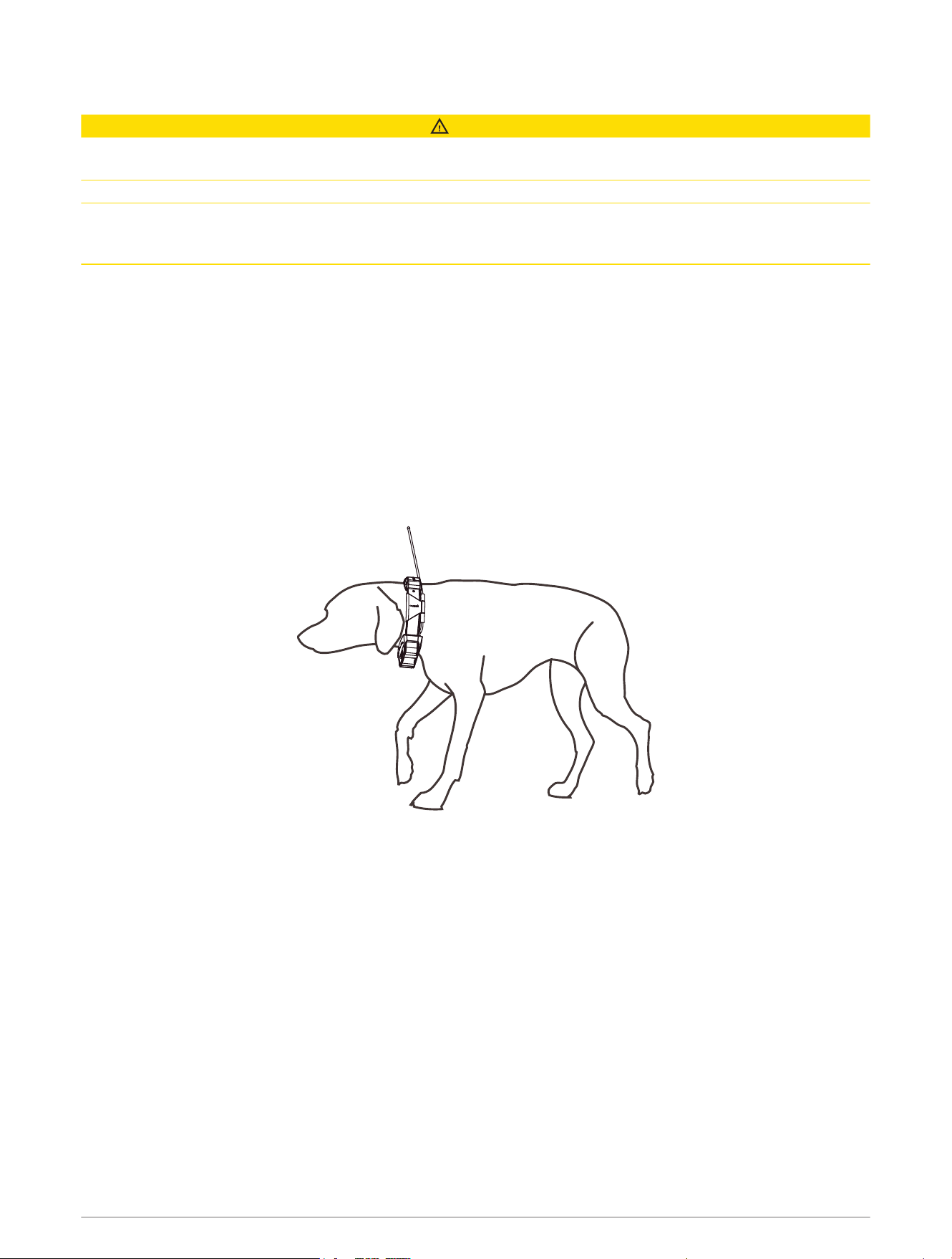
Fitting the Collar on Your Dog
CAUTION
To prevent irritation from the contact points, remove the collar for at least eight hours out of every 24-hour
period.
This device is not intended for human use. Do not attempt to use on any person.
Do not spray the device or collar with harsh chemicals including but not limited to flea or tick spray. Always
ensure that any flea or tick spray that is applied to the dog is completely dry before placing the collar on the dog.
Small amounts of harsh chemicals can damage the plastic components and collar strap.
Before you can put the collar on the dog, you must pair the navigator and dog collar device (Methods to Add a
Dog Collar Device to Your Navigator, page10), and acquire satellite signals (Acquiring GPS Signals, page8).
In order to effectively train the dog, the collar must fit the dog properly. If the collar is too loose or positioned
incorrectly, stimulation may be inconsistent. This can delay or prevent successful training.
1 Position the collar with the communication antenna pointing up, the GPS antenna facing up, the LEDs facing
forward, and the contact points against the neck.
2 Place the collar around the middle of the dog's neck.
3 Tighten the strap so that it is snug around the dog's neck, and fasten the buckle.
NOTE: The collar should fit tightly and should not be able to rotate or slide on the dog's neck. The dog must
be able to swallow food and water normally. You should observe your dog's behavior to verify that the collar
is not too tight.
4 Wiggle the device to work the contact points through the dog's coat.
NOTE: The contact points must have contact with the dog's skin to be effective.
5 If the strap is too long, cut off the excess, leaving at least 7.62cm (3in.) to spare.
TIP: You can mark the hole used to fasten the buckle for future reference.
Dog Tracking and Training 13
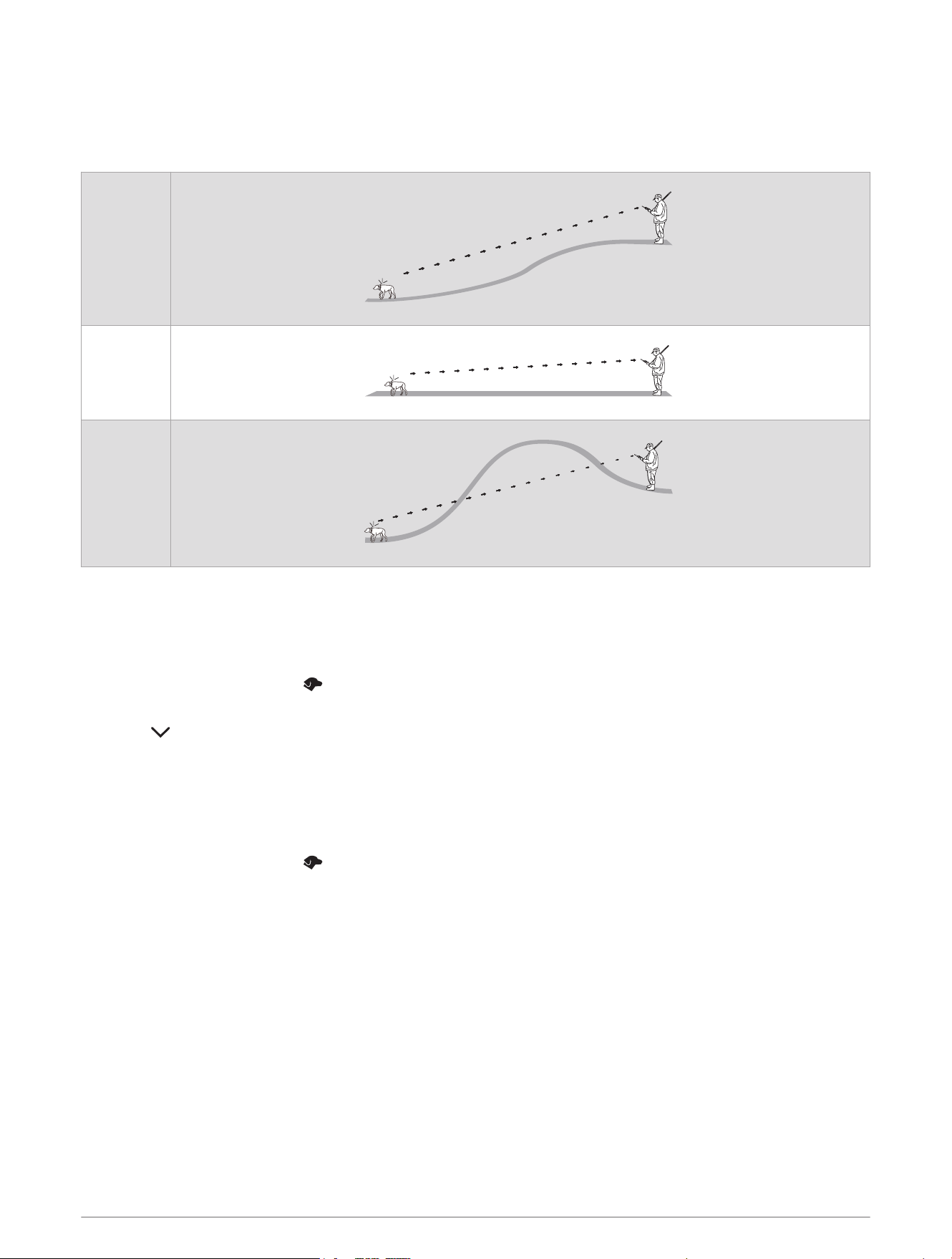
Communication with the Dog Collar Device
You should keep an unobstructed line of sight between your navigator and dog collar device to produce the best
communication signal. To achieve the best line-of-sight conditions, you should move to the highest elevation
point in your area (for example, on the top of a hill).
Best
Good
Poor
Using a Dynamic Update Rate
When you are actively tracking your dog, the dog collar device can use a dynamic update rate to help conserve
battery power based on the activity of your dog.
NOTE: This feature is not available in all areas.
1 From the main menu, select .
2 Select a dog.
3 Select > Update Rate > Dynamic.
Using Sleep Mode
Before you can enter sleep mode, you must track your dog's location using the compatible dog collar device.
When paired with a navigator, the dog collar device can be put into sleep mode to conserve the battery when
you are not actively tracking your dog.
1 From the main menu, select .
2 Select a dog.
3 Select Sleep Mode.
4 Select an option:
• Select Enable Sleep Mode to enter sleep mode.
• Select Wake Collar to exit sleep mode.
Channel View
Alpha navigators and dog collar devices broadcast data over individual channels. Channels are identified using
unique IDs. You can use the channel view to see which channels are in use and which channels are available.
14 Dog Tracking and Training
Changing the Dog ID
Before you can change the dog ID, the collar must be turned on and within range of the navigator.
If you are experiencing interference from other collars or navigators in the area, you might need to change the ID
for the dog.
1 Select > Channel View > My Devices.
2 Select a dog, and select Yes.
The navigator scans for an ID free of interference and selects it automatically.
TIP: If necessary, you can select Choose an ID to select an available ID.
If another handheld device is tracking this dog, for best results, remove the dog from the device, and use the
track and control codes to add the dog again (Adding a Dog Using the Track and Control Codes, page11).
Tracking Your Dog on the Map
Before you can track a dog on the map, you must add it to the navigator (Methods to Add a Dog Collar Device to
Your Navigator, page10).
You can view the dog's location on the map.
1 From the home screen, select View Map.
2 If necessary, select and to zoom in and out of the map.
TIP: You can select from the training menu to view the status, distance, and direction of your dogs and
contacts.
Dog Status Icons
Sitting
Running
On point
Treed
Unknown
1
1
The unknown status icon indicates that the navigator cannot communicate with the dog collar device.
Dog Tracking and Training 15
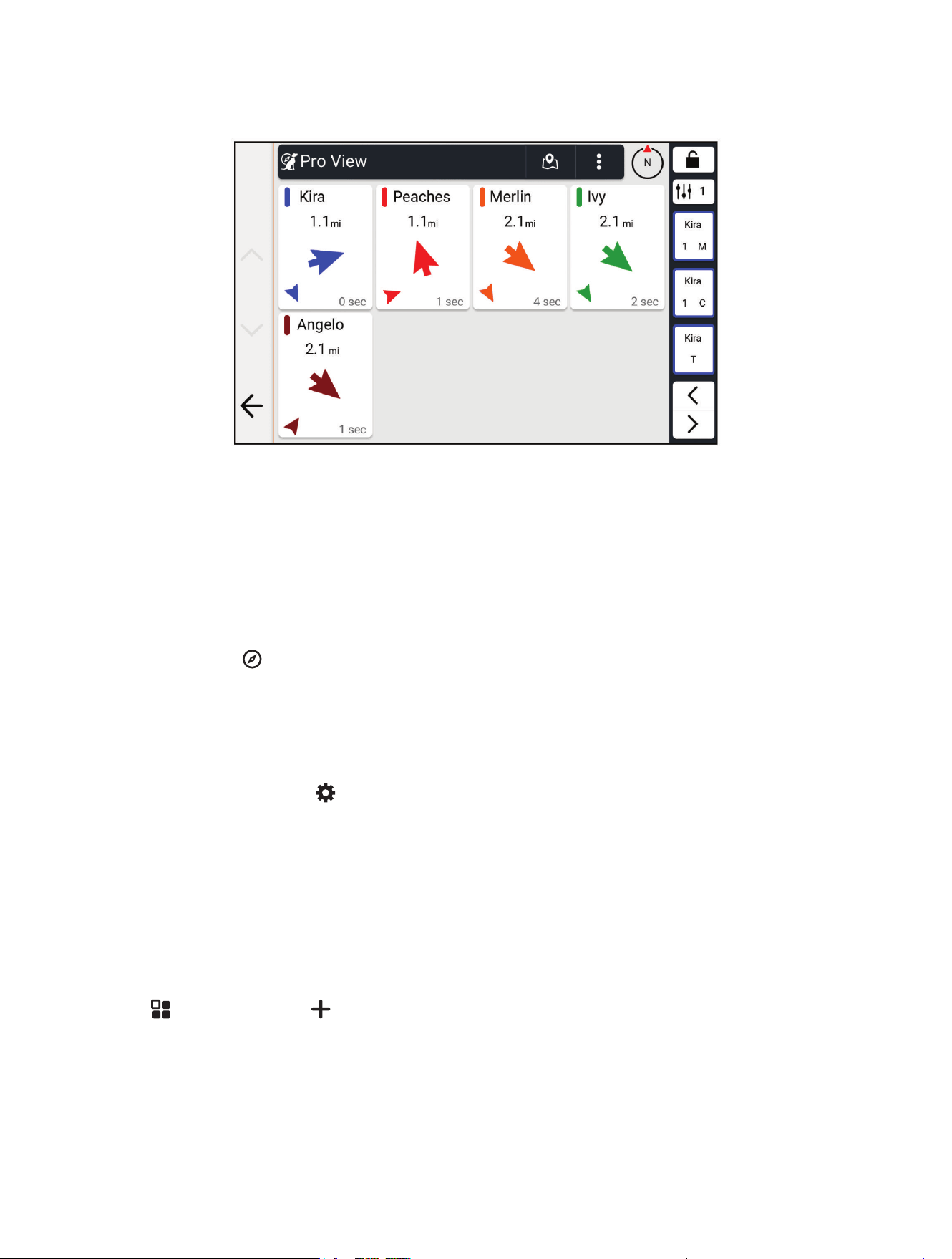
Pro View
From the main menu, select Pro View.
You can use the pro view feature to view the direction and distance to your dog and any paired devices. The pro
view feature also shows the dog's status, such as running or on point
(Dog Status Icons, page15). The color of
each pointer corresponds to the color of the track on the map.
The direction and distance are most accurate when the dog or paired device is more than 9.1m (30ft.) away.
When the dog or paired device is less than 9.1m (30ft.) away, "Near" appears.
Navigating to Your Dog
1 From the main menu, select Pro View.
2 Select the dog.
3 If necessary, select to view the dog's location and direction.
4 Select Go!.
Changing the Length of the Dog's Track
You can adjust the length of time the dog track appears on the map. Reducing the duration of the track can
reduce the clutter on the map. Changing the map does not affect the tracks stored in the navigator.
1 From the home screen, select > Dog Tracking > Dog Tracks on Map.
2 Select a time frame.
Location Alerts
Location alerts notify you when your dogs enter or exit a particular location. You can create a custom geofence
or use a radius around your current location.
A geofence is an invisible boundary around an area and is created using points on the map. The virtual
boundaries of a geofence are accurate up to approximately 3m (10ft.).
Setting Location Alerts
1 Select > Location Alerts > .
2 Select an option:
• To create a geofence alert, select Geofence, and touch the map to select points that define the geofence
boundary.
You must select at least 3 points to create a geofence alert.
• To create a radius alert, select a radius option, and enter the radius distance.
16 Dog Tracking and Training
Enabling or Disabling Location Alerts
1 Select > Location Alerts.
2 Select an option:
• To disable a location alert, clear the checkbox next to the alert.
• To enable a location alert, select the checkbox next to the alert.
Editing Location Alerts
1 Select > Location Alerts.
2 Select an alert.
3 Select an option:
• Select Set Alert Type to set the way the device notifies you for this alert.
• Select Set Alert Mode to set the notification to sound on exit, entrance, or both.
• Select to remove the alert.
Dog Training
NOTICE
You should research and investigate the training methods best suited for you, your dog, and your needs. This
manual provides some basic guidelines for training, but each dog has unique training needs.
When used properly, the Alpha training system is a very effective training tool to aid your dog in reaching its full
potential. The use of the training system should be part of an overall training program.
Begin training your dog on a leash, without the Alpha training system. You should train your dog how to heel, sit,
and come to you. After the dog understands these three basic commands, you can begin training with the dog
collar device and the leash. Finally, when the dog consistently obeys commands using the leash and collar, you
may be able to remove the leash to train with only the dog collar device.
Selecting and Installing the Contact Points
CAUTION
To prevent irritation from the contact points, remove the collar for at least eight hours out of every 24-hour
period.
Do not spray the device or collar with harsh chemicals including but not limited to flea or tick spray. Always
ensure that any flea or tick spray that is applied to the dog is completely dry before placing the collar on the dog.
Small amounts of harsh chemicals can damage the plastic components and collar strap.
For best results, select the correct contact points based on your dog's coat.
1 Select the correct contact point length for your dog's coat type:
• For dogs with thicker coats, use the longer contact points.
• For dogs with shorter coats, use the shorter contact points.
2 If necessary, use the included wrench to remove the contact points.
3 Twist the contact points into the collar.
4 Tighten with the included wrench, but do not overtighten.
When you put the collar on the dog, make sure the contact points are tight against the neck.
Removing the Contact Points
When you are not training the dog using the training buttons, remove the contact points.
Use the included wrench to remove both contact points.
Dog Tracking and Training 17

Collar Training
Begin training your dog on a leash, without using the Alpha training system. After the dog shows a grasp of the
commands "heel," "sit," and "here," you can begin training with the collar and the leash.
During the initial stage of collar introduction, the dog learns that collar stimulation means the same thing as a
tug on the leash. At first, the dog may be alarmed by the electronic stimulation. The key is to be patient and
consistent and not to start off at too high of an intensity. Be fair and consistent, and use repetition and praise
when using the collar as a training tool.
If the dog does not respond to the stimulation level you have selected (Choosing the Correct Intensity Level,
page18), increase the stimulation one level at a time until you achieve the appropriate response. After you
achieve the desired response, you can lower the stimulation level as long as the dog maintains consistency.
As the dog becomes more proficient with the commands, you can begin to introduce distractions, such as
rolling a ball in front of the dog or walking him in the presence of others.
After the dog begins to respond consistently to the command during collar training, you can remove the leash
and train with just the collar.
NOTE: You should train without a leash only when it is appropriate for your environment and your dog's
temperament. You should follow all laws and regulations for your area regarding the use of dog leashes.
Eventually in most training situations, your commands will not require stimulation to be given with the
command. You should only use stimulation when you need to repeat a command because the dog did not
obey the first one.
As the dog becomes better trained, you can decrease the use of collar training. Continue to have the dog wear
the collar until you feel certain that it is no longer needed to reinforce known commands. Abandoning the collar
too early can lead to problems in the future.
Training Methods
Momentary stimulation: Applies a brief stimulation when you press the training button, regardless of how long
the button is depressed.
Continuous stimulation: Applies stimulation to the dog the entire time you press the training button, for a
maximum of 8 seconds. Your stimulations should typically be much shorter than 8 seconds.
Tone: Activates an audible tone the entire time you press the training button.
Vibration: Applies vibration to the dog the entire time you press the training button, for a maximum of 8
seconds. The effectiveness of vibration may vary based on the dog's temperament and experience.
Linear and Traditional Stimulation
You can use linear or traditional stimulation to customize your training experience. The default intensity method
is linear, which allows progressive stimulation from level 1 to level 18. Traditional stimulation allows you to
make quick changes using low, medium, and high settings within predetermined stimulation levels (1 through
6).
Choosing the Correct Intensity Level
1 Set the intensity to the lowest level (Changing the Intensity Level, page20).
2 Observe the dog for a reaction, such as a head shake, neck movement, or just a change in expression.
Sometimes dogs will vocalize due to the surprise of the electrical stimulation. If the dog vocalizes more than
once, the intensity level is too high for beginning training.
3 If there is no reaction, increase the intensity level by one level until the dog has a slight but recognizable
reaction to the stimulation.
The intensity level that causes a slight but recognizable reaction is your dog's baseline level for beginning collar
training. You do not need to, and should not, apply this intensity selection test again.
After you begin training, the dog’s performance guides your intensity selection. As the dog advances in training,
you may need to change the level depending upon the training situation.
18 Dog Tracking and Training
Training Menu
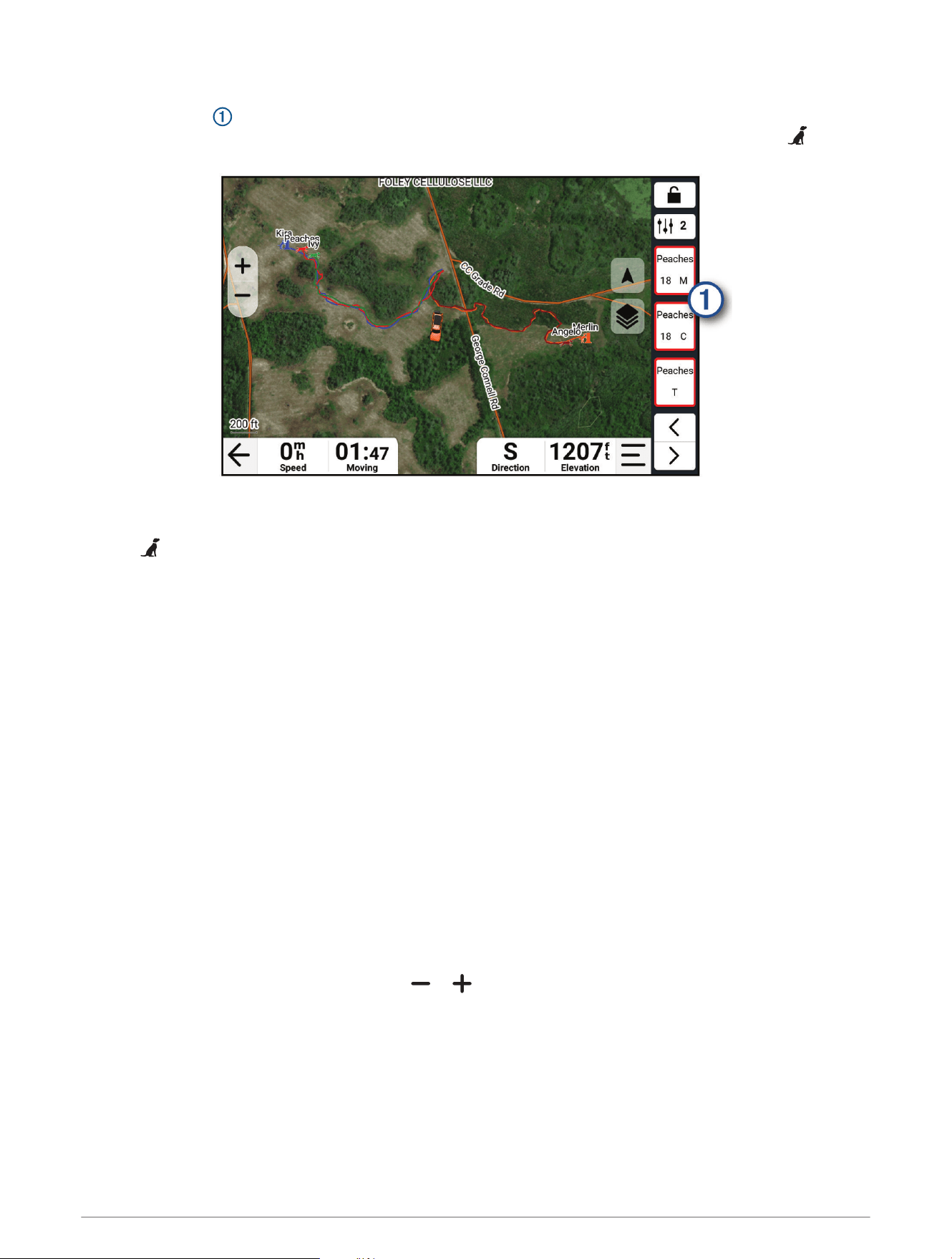
The training menu contains shortcuts to training commands, applications, device actions, and utilities. You
can customize the training menu pages to best suit your tracking and training needs. You can select to open
the training menu from any page.
Moving the Training Menu Button
If necessary, you can move the training button to another area on the screen.
1 Hold .
Possible button positions appear on the screen.
2 Drag the button to a new position.
Customizing the Training Buttons
You can assign an application shortcut, device action, or utility to a training button. If a compatible dog collar
device is paired, you can also add a dog training command to a training button. You can add multiple pages of
training buttons. For example, this is useful when training multiple dogs.
NOTE: Training features are not available with all dog collar device models.
1 Select Training Setup.
2 Select Add from the empty button you are customizing.
3 Select an option:
• To add a dog training command to the training button, select Training Command, select the name of the
dog to command, and select a training method.
• To add an application to the training button, select Applications, and select an application.
• To add a device action to the training button, select Device Actions, select an action, and if necessary,
select a dog or group to complete the command setup.
• To add a utility to the training button, select Utilities, and select a utility.
4 If selecting a dog training command, select momentary (M), continuous (C), tone (T), vibration (V), or light
(L).
5 If selecting a dog training command, select or to choose the intensity level.
6 If you are using traditional stimulation mode, select LOW, MED, or HI.
TIP: If you want to customize more than three buttons, you can add another page of training button commands.
Dog Tracking and Training 19
Using the Training Menu
Before you can use this feature, you must customize your training buttons with dog training commands
(Customizing the Training Buttons, page19).
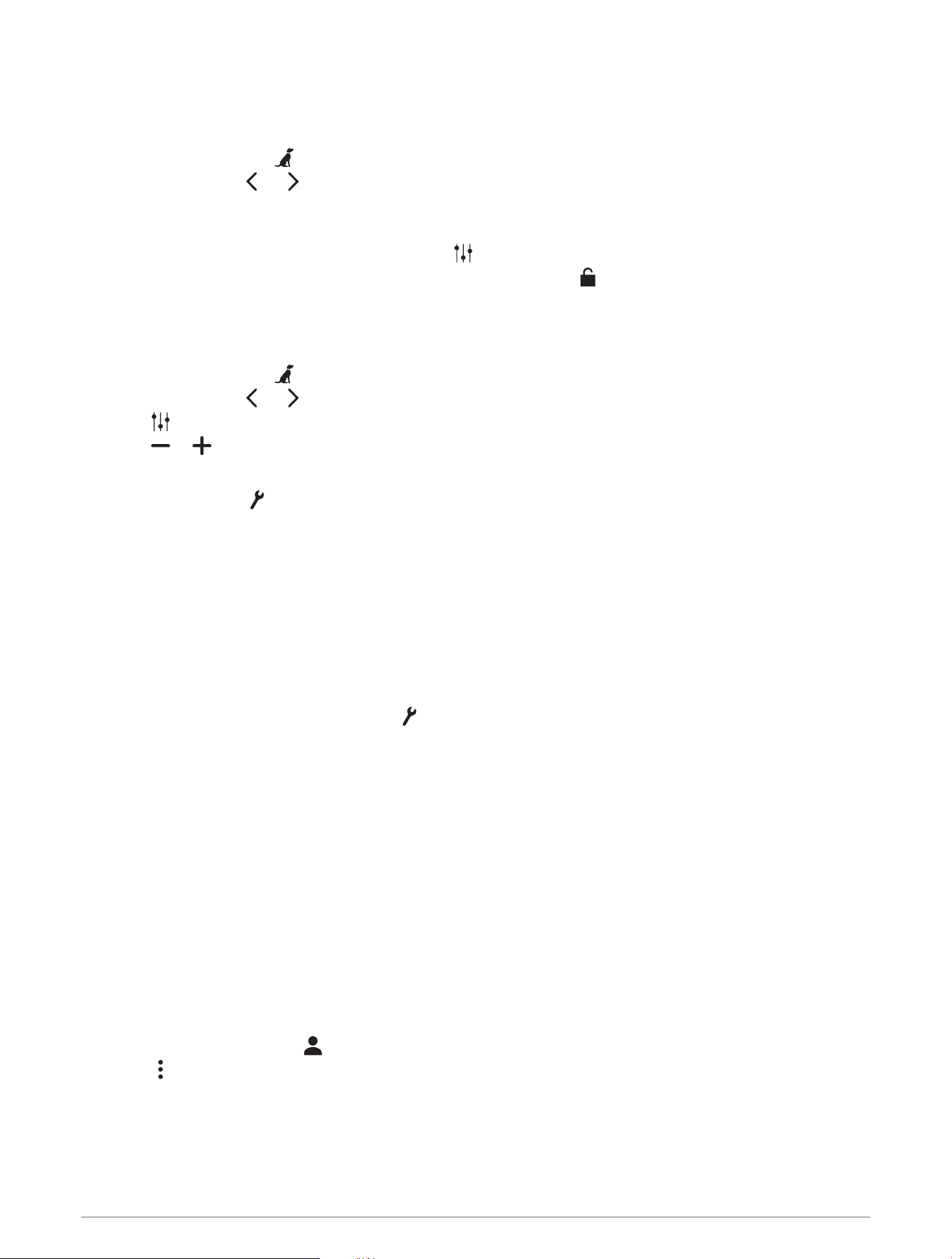
1 From any screen, select to open the training menu.
2 If necessary, select or to move through training pages.
3 Select an option:
• To activate a training command, application, device action, or utility, select a button.
• To change training command functions, select , and select a training command.
• To lock the training menu and prevent accidental touches, select .
Changing the Intensity Level
Before you can use this feature, you must customize your training buttons with dog training commands
(Customizing the Training Buttons, page19).
1 From any screen, select to open the training menu.
2 If necessary, select or to move through training pages.
3 Select , and select a training command.
4 Select or to choose the intensity level.
Dog Training Options
Select Training Setup > .
Training Menu Position: Sets the position of the training menu on the left or right side of the screen.
NOTE: The training menu position can be adjusted only for the landscape screen orientation.
Training Defaults: Sets the default buttons and layout for new training collars (Default Training Settings,
page20).
Stimulation: Sets the stimulation type (Linear and Traditional Stimulation, page18).
Adjust Stim Each Use: Enables the option to adjust the stim level after each use.
Play Tone on Training Command: Enables a tone to play each time you use a training command.
Default Training Settings
From the main menu, select Training Setup > > Training Defaults.
Add When Paired: Automatically sets default training modes for each button when a new dog collar is paired.
Button Layout: Sets the number of training buttons for each dog.
Training Button 1: Sets the default training mode for the first training button.
Training Button 2: Sets the default training mode for the second training button.
Training Button 3: Sets the default training mode for the third training button.
Contact Tracking
You can track other hunters so you know where they are at all times. You can also send messages to your
contacts. One AlphaXL navigator can track up to 20 devices, including compatible dog collar devices and
handheld devices.
Turning On and Off the Transmitter
Before you can add a contact or initiate an emergency alert, you must ensure the transmitter is enabled.
1 From the main menu, select .
2 Select , and select the Transmitting option.
20 Contact Tracking
Methods to Add a Contact to the Navigator
Entering the device ID: Allows you to add a contact that is not in the area. This method requires the contact to
find and communicate their device ID to the person adding the device contact.
This method is helpful when you would like to add a contact during a hunt, but you are not near the device.
For example, if you are adding another member of your hunting party to your navigator, but you do not own
the device (Adding a Contact Using a Contact ID, page21).
Receiving wirelessly: Allows you to add a navigator that you do not own as a contact. This method does
requires the contact to share their device wirelessly. The two navigators must be within a range of 3m
(10ft.) to share data wirelessly.
This method is helpful when you want to add a navigator during a hunt without entering the device ID (Adding
a Contact Wirelessly From Another Navigator, page21).
Adding a Contact Using a Contact ID
Before you can add a hunter using a contact ID, the hunter must find the contact ID (Finding Your Contact ID,
page21) and send it to you.
If you are not near the hunter you want to add, you can add the hunter using a contact ID.
1 From the main menu, select > > Enter ID.
2 Select a contact ID.
3 Enter the name of the contact, and select Done.
The contact is added to your navigator
You can repeat this procedure using another hunter's navigator to add your contact ID to that device.
Adding a Contact Wirelessly From Another Navigator
Before you can receive a contact wirelessly from another navigator, the contact must share their contact
information.
From the main menu, select > > Receive From Device.
Sharing a Dog Wirelessly
Before you can share data wirelessly, you must bring your Alpha navigator within 3 m (10 ft.) of the other
navigator.
1 From the main menu, select .
2 Select a contact.
3 Select .
To successfully share your contact information, the other navigator must be receiving the contact
information (Adding a Contact Wirelessly From Another Navigator, page21).
Finding Your Contact ID
From the main menu, select > .
The contact ID for your navigator is listed under the ID option.
Changing Your Contact ID
If you are experiencing interference from other collars or handheld devices in the area, you might need to
change the contact ID for your navigator.
1 From the main menu, select > > ID.
2 Select a contact ID.
Each time a contact changes their contact ID, you must update the contact ID in your navigator (Updating a
Contact ID, page22).
Contact Tracking 21
Updating a Contact ID
If a contact has changed their contact ID, you can quickly update the contact ID in your navigator.
1 From the main menu, select .
2 Select the contact.
3 Select > Update ID.
4 Select the contact ID that matches the contact's new contact ID.
Tracking a Contact
You can keep track of contacts' locations using the map.
Select View Map.
Initiating an Emergency Alert
WARNING
The device allows you to send an emergency message to your paired contacts. This is a supplemental feature
and should not be relied upon as a primary method to obtain emergency assistance. The emergency alert
feature does not contact emergency services on your behalf.
Before you can initiate an emergency alert, you must turn on the transmitter (Turning On and Off the Transmitter,
page20).
Before someone can receive your emergency alert, someone must add you as a contact (Methods to Add a
Contact to the Navigator, page21) and their compatible Alpha navigator must be in VHF range.
You can use an emergency alert when you need immediate assistance and you are away from your group.
From the main menu, select > > Emergency.
When your contact accepts your emergency alert request, the device displays a message indicating that your
contact has started navigating to your location.
After receiving the alert, your contacts can navigate to your location.
Sending a Message to Your Contacts
Before you can send a message to your contacts, you must turn on the transmitter (Turning On and Off the
Transmitter, page20).
You can send and receive automated messages. There are 18 messages you can choose from, such as "Help"
and "I'm Coming."
1 From the main menu, select > .
2 Select a message.
The message is sent to your contacts with your name before the message. Anyone tracking your navigator
receives the message.
Hunting with the Alpha System
You can perform various tasks that can be helpful when you are hunting with the Alpha system.
• Start a hunt and mark your starting location (Starting a Hunt, page23).
• Track your dogs (Tracking Your Dog on the Map, page15).
• Track your fellow hunters (Contact Tracking, page20).
• View your active hunt metrics (Active Hunt Metrics, page23).
• Send messages to your fellow hunters (Sending a Message to Your Contacts, page22).
• Turn on the collar light (Turning On the Collar Light, page23).
• Put the collar into rescue mode to save battery power (Turning On Rescue Mode, page23).
22 Hunting with the Alpha System

Starting a Hunt
When you start a hunt, the navigator records your dog's hunt statistics and tracks from your starting location.
1 From the main menu, select New Hunt.
2 Select an option:
• To change which dog collar devices or contacts you are tracking, select Tracked Devices, and select the
devices you want to track.
• To clear tracks and statistics from a previous hunt, select Clear Tracks and Statistics.
• To save your starting location as a waypoint, select Save Current Location.
3 Select Start.
Active Hunt Metrics
You can select Hunt from the main menu to view the active hunt metrics. The active hunt metrics page displays
the active hunt time and distance traveled for your navigator and each paired dog collar device. It also shows
the dog status, such as on point, treed, or barking, if available. When you select End Hunt, the hunt timer and
distance traveled stop recording.
Turning On the Collar Light
You can turn on the LEDs on the collar at night to help locate a dog or to warn drivers if a dog wanders near a
road. The light is visible for up to 92 m (100 yd.).
1 From the main menu, select .
2 Select a dog.
3 Select an option:
• To adjust the blink mode, select Blink Mode.
• To select a beacon color, select Beacon Color.
TIP: Select a different light setting for each dog to help you identify the dogs in the field.
Turning On Rescue Mode
You can turn on rescue mode to conserve battery power at the end of a long hunt or if your dog might get out of
range.
1 From the main menu, select to open the dog list.
2 Select a dog.
3 Select Rescue Mode > Enable Rescue Mode.
After you have turned on rescue mode, it stays on until you turn it off.
When the collar battery power falls below 25%, the collar data updates only once every 2 minutes.
Off-Road Navigation Features
Adventurous Routing
Garmin Adventurous Routing
™
is a special route calculation mode designed to prefer routes featuring more hills
and winding roads. You can choose a level of adventurous routing to fine-tune the route calculation to your
preferences. If you prefer winding roads and hills even if it increases travel time, distance or fuel consumption,
choose a higher level of adventurous routing.
For each vehicle profile, you can select a level of adventurous routing as the default route calculation mode
(Editing a Vehicle Profile, page27). Regardless of the current vehicle profile, you can always select to use
adventurous routing when starting, planning, or editing a route.
Off-Road Navigation Features 23
Adventure Roads and Trails
WARNING
Entering your vehicle profile characteristics does not guarantee that your vehicle's characteristics will be
accounted for in all route suggestions. Limitations may exist in map data for some route suggestions. Always
defer to all posted road signs and conditions during vehicle operation. Failure to do so could lead to an accident
involving personal injury or death.
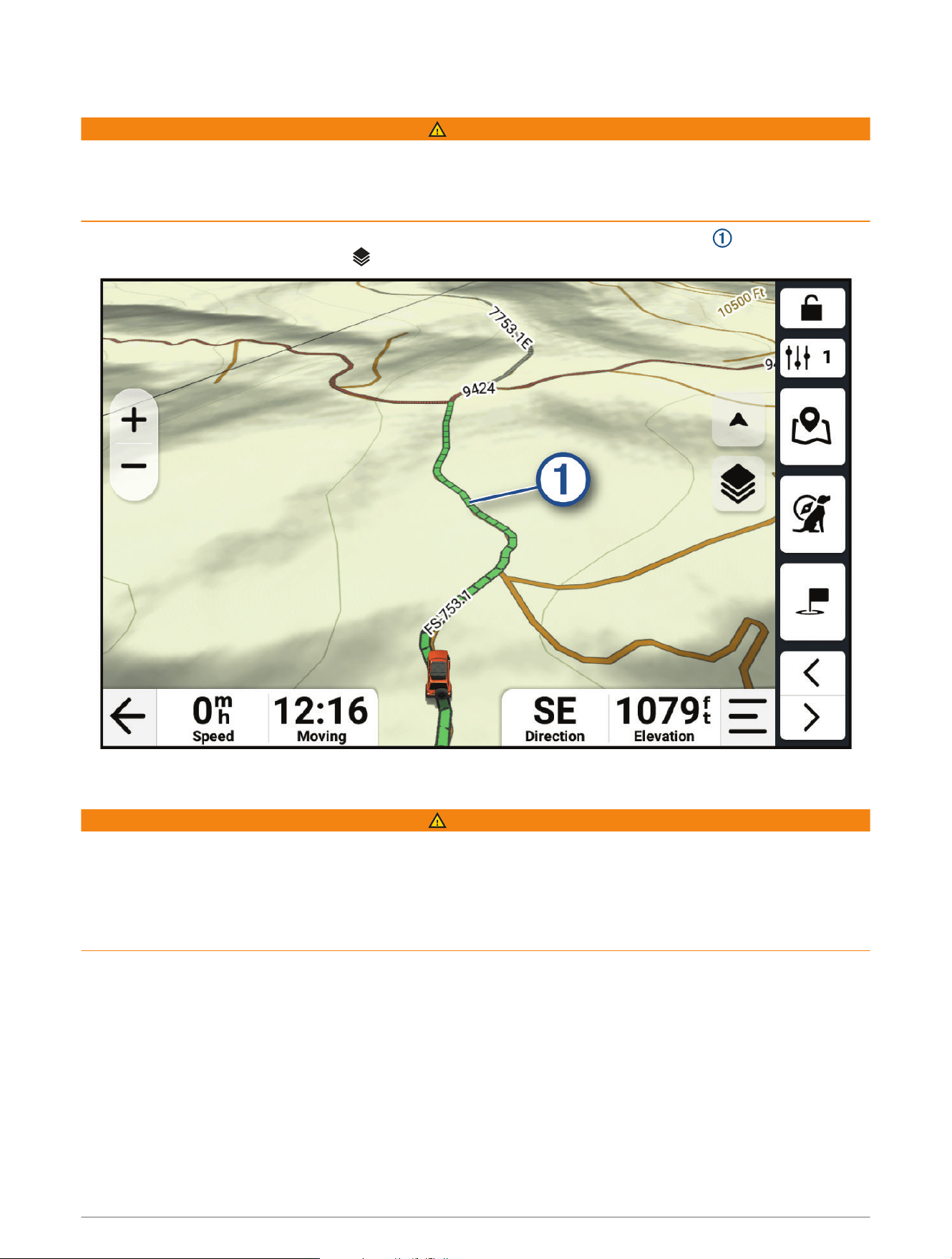
This device can navigate off-highway roads and trails based on your vehicle profile. Trails are color coded
based on accessibility. You can select to set which adventure roads and trails appear on the map.
Pitch and Roll
WARNING
The Pitch and Roll application is intended to show vehicle angles based on calibrated measurements only. You
are responsible for calibrating the device. Changes to the position of the device after calibration may affect
the accuracy of its measurements. Measured values are suggestions only based on your input into the device.
Take readings often and carefully, and allow the readings to stabilize after significant changes in environmental
conditions. Always allow a margin of safety for changing conditions and reading errors. Failure to account for
your vehicle and your environment could cause an incident resulting in death or serious injury.
The device alerts you if your vehicle pitches or rolls at an angle that could affect the vehicle's stability.
24 Off-Road Navigation Features
Calibrating Pitch and Roll
You can set the angle of your vehicle to zero at any time.
1 Park your vehicle on a flat, level surface.
2 Adjust the position of your device in the mount so you can comfortably view the screen.
3 Select > Pitch and Roll > Calibrate.
The values for pitch and roll reset to 0 degrees.
WARNING
To maintain the best accuracy, you must calibrate pitch and roll each time you reposition your device.
Adjusting Warning Angles
You can adjust the angles at which the device activates a pitch or roll alert. You are responsible for knowing and
setting the correct pitch and roll angle for your vehicle.
1 Select > Pitch and Roll > .
2 Swipe up or down to adjust the pitch or roll warning angles.
3 Select OK.
Enabling or Disabling Warning Angle Alerts
1 Select > Pitch and Roll > .
2 Select an option:
• To enable or disable pitch and roll notifications, select Pitch and Roll Notifications.
• To enable or disable audible alerts, select Audible Alerts.
Viewing the Altimeter, Barometer, and Compass
The device contains internal altimeter, barometer, and compass sensors with automatic calibration.
Select > ABC.
Calibrating the Compass
NOTICE
Calibrate the electronic compass outdoors. To improve heading accuracy, do not stand near metal objects or
objects that influence magnetic fields, such as vehicles, electronic devices, buildings, or overhead power lines.
When your device is connected to the mount, it uses GPS data to determine your compass heading. When you
remove the device from the mount, it uses a built-in compass to show your heading.
Each time you disconnect your device from the mount, you may need to calibrate the compass.
If you experience irregular compass behavior, for example, after moving long distances or after extreme
temperature changes, you can manually calibrate the compass to improve accuracy.
1 Disconnect the device from the mount and move away from objects that influence magnetic fields.
2 From the main menu, select > ABC > > Calibrate Compass.
3 Follow the on-screen instructions.
inReach
®
Remote
The inReach remote function allows you to control your inReach satellite communication device (sold
separately) using your AlphaXL device. You can send messages, view weather reports, trigger an SOS alert,
and more. Go to buy.garmin.com to purchase an inReach device.
Off-Road Navigation Features 25
Connecting an inReach Device
1 Bring the inReach device within 3m(10ft.) of your AlphaXL device.
2 On your AlphaXL device, select > inReach.
3 Follow the on-screen instructions on your AlphaXL device to complete the pairing process.
After the pairing process is complete, the inReach and AlphaXL devices connect automatically when they are
within range.
Sending a Text Message
1 Select inReach > Compose.
2 Select one or more contacts, and select Done.
3 Enter a message.
4 Select Send.
SOS
WARNING
Before you can use the SOS function, you must have an active satellite subscription. Always test your device
before you use it outdoors.
Ensure you have a clear view of the sky when using the SOS function, because this feature requires satellite
access to operate properly.
NOTICE
Some jurisdictions regulate or prohibit the use of satellite communications devices. It is the responsibility of the
user to know and follow all applicable laws in the jurisdictions where the device is intended to be used.
During an emergency, you can use your paired inReach satellite communicator to contact the Garmin
Response
SM
center to request help. The SOS feature sends a message to the Garmin Response team, and
they notify the appropriate emergency responders of your situation. You can communicate with the Garmin
Response team during your emergency while you wait for help to arrive. You should only use the SOS function in
a real emergency situation.
Initiating an SOS Rescue
Before you can initiate an SOS rescue using your AlphaXL device, you must pair it with a compatible inReach
device (Connecting an inReach Device, page26).
NOTICE
While the device is in SOS mode, do not turn off or attempt to turn off the inReach device. Doing so could
prevent this feature from operating properly and could delay receipt of assistance in the event of an emergency.
1 Select > inReach.
2 Select .
3 Wait for the SOS countdown.
The device sends a default message to the emergency response service with details about your location.
4 Reply to the confirmation message from the emergency response service.
Your reply lets the emergency response service know that you are capable of interacting with them during
the rescue.
For the first 10 minutes of your rescue, an updated location is sent to the emergency response service every
minute. To conserve battery power after the first 10 minutes, an updated location is sent every 10 minutes
when moving, and every 30 minutes when stationary.
26 Off-Road Navigation Features
Canceling an SOS Rescue
If you no longer need assistance, you can cancel an SOS rescue after it is sent to the emergency response
service.
Select Cancel SOS > Cancel SOS.
Your device transmits the cancellation request. When you receive a confirmation message from the emergency
response service, the device returns to normal operation.
Vehicle Profiles
WARNING
Entering your vehicle profile characteristics does not guarantee that your vehicle's characteristics will be
accounted for in all route suggestions or that you will receive the warning icons in all cases. Limitations may
exist in the map data such that your device cannot account for these restrictions or road conditions in all cases.
Always defer to all posted road signs and road conditions when making driving decisions.
By using different vehicle profiles, you can quickly change several device settings, such as which map layers are
enabled and which route calculation mode is used by default.
Routing and navigation are calculated differently based on your vehicle profile. The device avoids including
restricted or impassable areas in routes based on the dimensions, weight, and other characteristics you entered
for your vehicle.
The current active vehicle profile is indicated by an icon in the status bar. The navigation and map settings on
your device can be customized separately for each vehicle type.
Switching the Vehicle Profile
1 From the status bar, select the vehicle profile icon, such as or .
2 Select a vehicle profile.
The vehicle profile information appears, including measurements and weight.
3 Select Select.
Choosing a Vehicle Profile
Select the vehicle profile icon on the status bar.
Adding a Vehicle Profile
You can add a vehicle profile for each vehicle to be used with your device.
1 Touch the current vehicle profile icon in the status bar.
2 Select .
3 Select your current vehicle type.
4 Enter the vehicle characteristics such as size and traction method.
5 Select the default route calculation method.
Editing a Vehicle Profile
You can change basic vehicle profile information or add detailed information to a vehicle profile, such as
maximum speed.
1 Select > Vehicle Profile.
2 Select a vehicle profile to edit.
3 Select an option:
• To edit the vehicle profile information, select , and select a field to edit.
• To rename the vehicle profile, select > > Rename Profile.
• To delete the vehicle profile, select > > Delete.
Vehicle Profiles 27

Adding Portable Propane Tanks
NOTE: This feature is only available with certain vehicle profiles.
When you add your propane tanks to your vehicle profile, the device avoids routing through areas with propane
tank restrictions that may affect your route. The device also alerts you when you approach areas that require
you to shut off your propane tanks.
1 From the vehicle profile, select > Add Portable Tank.
2 Enter the weight of the propane tank, and select Save.
Routes
A route is a path from your current location to one or more destinations.
• For off-road use, you can set the device to calculate point-to-point routes in a straight line.
• The device calculates a recommended route to your destination based on the preferences you set, including
the route calculation mode and avoidances (Avoiding Delays, Tolls, and Areas, page33).
• The device can automatically avoid roads that are not appropriate for the active vehicle profile.
• You can start navigating to your destination quickly using the recommended route, or you can select an
alternate route (Starting a Route, page28).
• If there are specific roads you need to use or avoid, you can customize the route (Shaping Your Route,
page32).
• You can add multiple destinations to a route (Adding a Stop to Your Route, page32).
Starting a Route
You can start a route by searching for a location.
1 Select Search, and search for a location (Finding and Saving Locations, page41).
2 Select a location.
3 Select an option:
• To navigate using the default route calculation method for the current vehicle profile (Vehicle Profiles,
page27), select Go!.
• To navigate to the location using adventurous routing (Adventurous Routing, page23), select .
The device calculates a route to the location and guides you using voice prompts and information on the map
(Your Route on the Map, page29). A preview of the major roads in your route appears at the edge of the map
for several seconds.
If you need to stop at additional destinations, you can add the locations to your route (Adding a Stop to Your
Route, page32).
Starting a Route to a Point on the Map
You can start a route by selecting a location from the map.
1 Select View Map.
2 Drag and zoom the map to display the area.
3 Select a point on the map.
4 Select Go!.
The device calculates a route using the default calculation method for your vehicle profile (Vehicle Profiles,
page27).
28 Routes

Planning a Route
A route can include many stops and shaping points, and it must include at least a starting location and one
destination.
1 Select > Route Planner > .
2 Search or select a location on the map to be the starting point for this route.
3 If necessary, select a route calculation mode for the route segment.
TIP: You can select to let the device automatically calculate the most adventurous route to your next
destination (Adventurous Routing, page23).
4 If the next point along your route is a stop, select Stop. Otherwise, select Shaping.
5 If necessary, add additional stops or shaping points.
NOTE: The last stop you add is the route destination.
6 If necessary, select to rearrange the order of stops and shaping points along the route.
7 After you have finished planning the route, select .
Creating a Round-Trip Route
The device can create a round-trip route using a specified starting location and a distance, duration, or
destination.
1 From the main menu, select > Round Trip.
2 Select Start Location.
3 Search for a location or select a location, and select Select.
4 Select Trip Attributes.
5 Select an option:
• Select Choose a Distance to plan your route by distance.
• Select Choose a Duration to plan your route based on time.
• Select Choose a Destination to plan your route to a specified location and back to the starting location.
6 Select Next.
7 Enter a distance, duration, or destination.
8 For routes based on distance or duration, select Add a Direction.
The route takes you in the selected direction and back.
9 Select Road Type to choose what type of road you prefer to ride on.
10 Select Calculate.
11 If necessary, adjust the slider to increase or decrease the adventurous routing level for your route
(Adventurous Routing, page23).
12 Select a route, and select Go!.
Navigating to a Saved Route
1 Select > Route Planner.
2 Select a saved route.
3 Select Go!.
4 Select the first location to navigate to, and select OK.
5 Select Start.
The device calculates a route from your current location to the selected location, and then it guides you to
the remaining route destinations in order.
Your Route on the Map
As you travel, the device guides you to your destination using voice prompts and information on the map.
Instructions for your next turn or exit, or other actions appear across the top of the map.
Routes 29
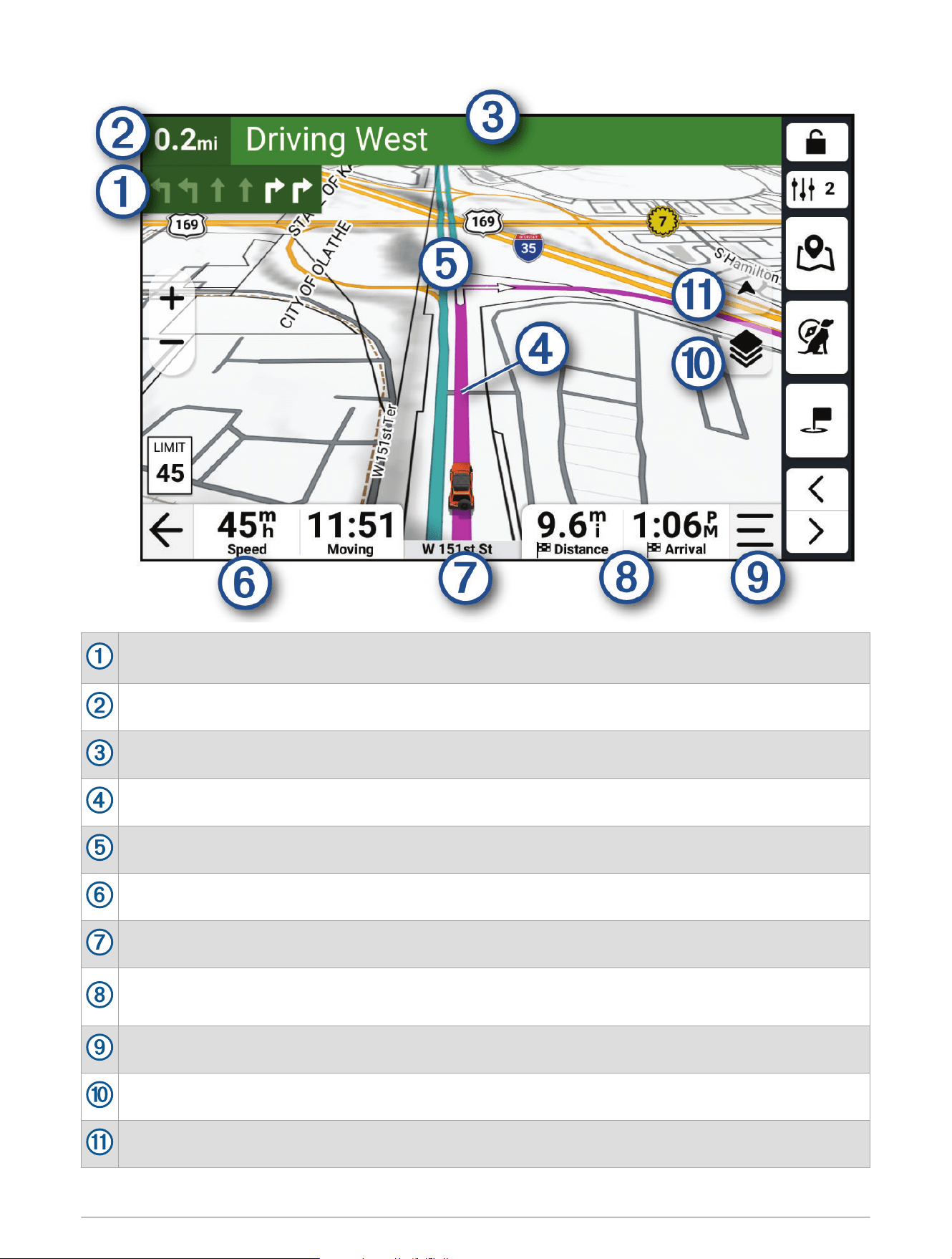
Next action in the route. Indicates the next turn, exit, or other action and the lane in which you should
travel, if available.
Distance to the next action.
Name of the street, exit, or direction associated with the next action.
Route highlighted on the map.
Next action in the route. Arrows on the map indicate the location of upcoming actions.
Vehicle speed.
Name of the road on which you are traveling.
Data fields.
TIP: You can touch these fields to change the information they show.
Map tools. Provides tools to show you more information about your route and surroundings.
Map layers. Allows you to add map layers such as topographic and satellite imagery to your map view.
Map perspective. Allows you to change the map perspective between track up, north up, and 3-D.
30 Routes
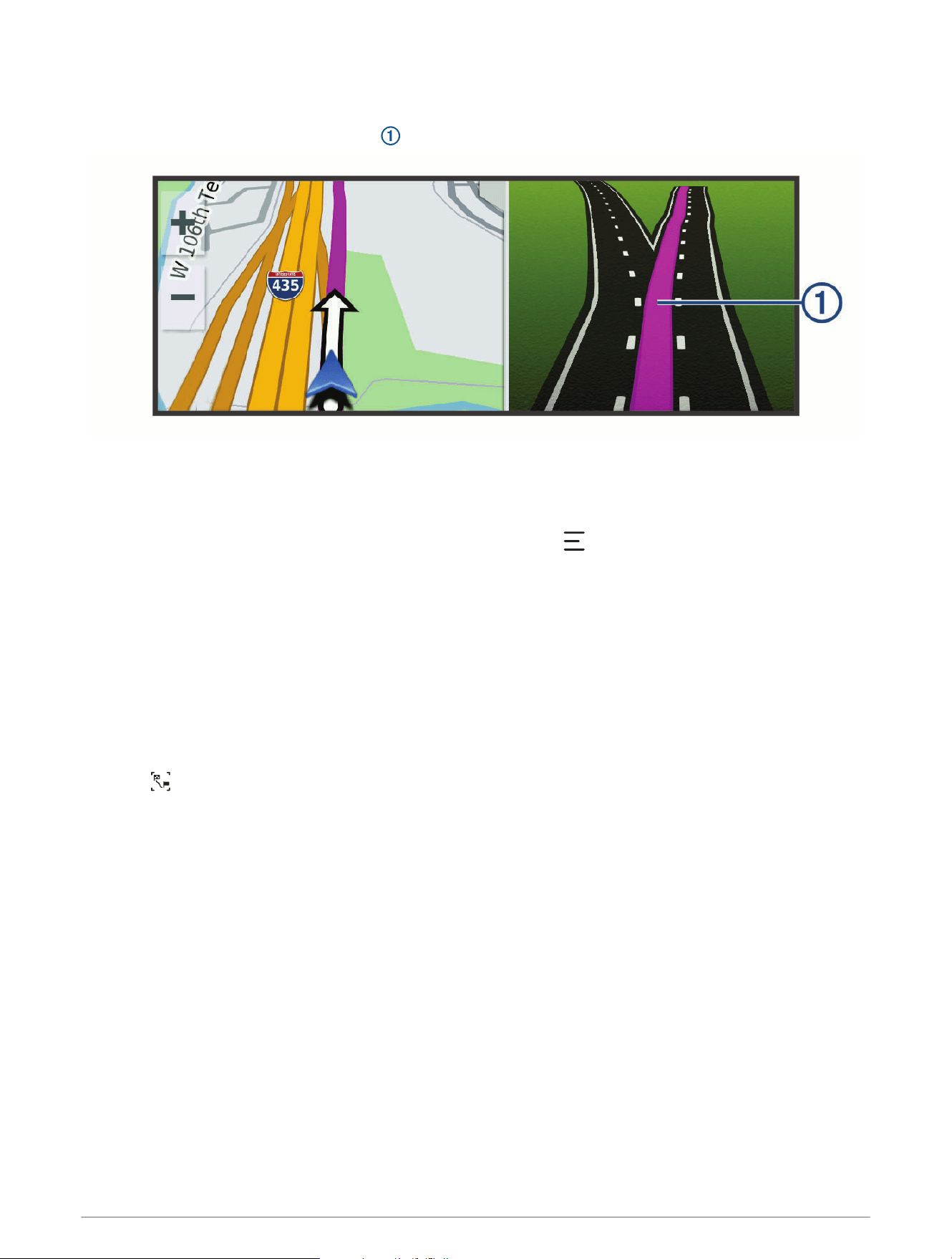
Active Lane Guidance
As you approach some turns, exits, or interchanges in your route, a detailed simulation of the road appears
beside the map, if available. A colored line indicates the proper lane for the turn.
Viewing Turns and Directions
While navigating a route, you can view upcoming turns, lane changes, or other directions for your route.
1 From the map, select an option:
• To view upcoming turns and directions as you navigate, select > Turns.
The map tool displays the next several turns or directions beside the map. The list updates automatically
as you navigate the route.
• To view the complete list of turns and directions for the entire route, select the text bar at the top of the
map.
2 Select a turn or direction (optional).
Detailed information appears. An image of the junction may appear for junctions on major roadways, if
available.
Viewing the Entire Route on the Map
1 While navigating a route, select anywhere on the map.
2 Select .
Routes 31

Changing Your Active Route
Adding a Stop to Your Route
Before you can add a stop to your route, you must be navigating a route (Starting a Route, page28).
You can add stops to the middle or end of your route. For example, you can add a fuel station as the next
destination in your route.
TIP: To create complex routes with multiple destinations or scheduled stops, you can use the route planner to
plan, schedule, and save a route (Planning a Route, page29).
1 From the map, select > Search.
2 Search for a location (Finding and Saving Locations, page41).
3 Select a location.
4 Select Go!.
5 Select an option:
• To stop the current route and start a new route to the location, select Start New Route.
• To add the location as the next destination in your route, select Add as Next Stop.
• To add the location to the end of your route, select Add as Last Stop.
• To add the location and edit the order of destinations in your route, select Add to Active Route.
Skipping the Next Stop on Your Route
You can skip an upcoming location you previously added to your route.
From the map, select > Yes.
Shaping Your Route
Before you can shape your route, you must start a route (Starting a Route, page28).
You can manually shape your route to change its course without adding a stop.
1 Select a point on the map.
2 Select Shape Route.
The device recalculates the route to include the selected shaping point.
3 Select Go! to accept the new route.
Editing Your Active Route
1 Drag the map to reveal the icon.
2 Select .
3 Select an option:
• To recalculate the route to your next stop using a different route calculation mode, select the new
calculation mode.
• To add a stop or shaping point before your next stop, select Insert.
You can select to search for a location, or you can select a point on the map to add it to your route.
• To rearrange the order of the stops and shaping points along your route, select .
4 When you have finished editing the route, select .
Saving Your Active Route
1 Drag the map to reveal the icon.
2 Select .
3 Select .
4 Select to save the route.
5 If necessary, edit the name of the route, and select Done.
32 Routes

Avoiding Delays, Tolls, and Areas
Avoiding Traffic Delays on Your Route
Before you can avoid traffic delays, you must be receiving traffic information.
By default, the device optimizes your route to avoid traffic delays automatically. If you have disabled this option
in the traffic settings (Traffic Settings, page62), you can view and avoid traffic delays manually.
1 While navigating a route, select > Traffic.
2 Select Alternate Route, if available.
3 Select Go!.
Avoiding Toll Roads
Your device can avoid routing you through areas that require tolls, such as toll roads, toll bridges, or congestion
areas. The device may still include a toll area in your route if no other reasonable routes are available.
1 Select > Navigation > Avoidances > Toll Roads.
2 Select Save.
Avoiding Toll Stickers
If the map data on your device contains detailed toll sticker information, you can avoid or allow roads that
require toll stickers for each country.
NOTE: This feature is not available in all areas.
1 Select > Navigation > Toll Stickers.
2 Select a country.
3 Select an option:
• To be asked each time before routing through an area that requires toll stickers, select Always Ask.
• To always avoid roads that require toll stickers, select Avoid.
• To always allow roads that require toll stickers, select Allow.
4 Select Save.
Avoiding Road Features
1 Select > Navigation > Avoidances.
2 Select the road features to avoid on your routes, and select Save.
Custom Avoidances
Custom avoidances allow you to select specific areas or sections of road to avoid. When the device calculates a
route, it avoids these areas and roads unless no other reasonable route is available.
Avoiding a Road
1 Select > Navigation > Custom Avoidances.
2 If necessary, select Add Avoidance.
3 Select Add Avoid Road.
4 Select the starting point of the section of road to avoid, and select Next.
5 Select the ending point of the road section, and select Next.
6 Select Done.
Routes 33

Avoiding an Area
1 Select > Navigation > Custom Avoidances.
2 If necessary, select Add Avoidance.
3 Select Add Avoid Area.
4 Select the upper-left corner of the area to avoid, and select Next.
5 Select the lower-right corner of the area to avoid, and select Next.
The selected area is shaded on the map.
6 Select Done.
Disabling a Custom Avoidance
You can disable a custom avoidance without deleting it.
1 Select > Navigation > Custom Avoidances.
2 Select an avoidance.
3 Select > Disable.
Deleting Custom Avoidances
1 Select > Navigation > Custom Avoidances > .
2 Select an option:
• To delete all custom avoidances, select Select All > Delete.
• To delete one custom avoidance, select the avoidance, and select Delete.
Taking a Detour
You can take a detour for a specified distance along your route or detour around specific roads. This is useful if
you encounter construction zones, closed roads, or poor road conditions.
1 From the map, select > Edit Route.
2 Select an option:
• To detour your route for a specific distance, select Detour by Distance.
• To detour around a specific road on the route, select Detour by Road.
Stopping the Route
From the map, select > Stop.
Going Home
The first time you start a route home, the device prompts you to enter your home location.
1 Select Search > Go Home.
2 If necessary, enter your home location.
Editing Your Home Location
1 Select Search > > Set Home Location.
2 Enter your home location.
34 Routes

Arriving at Your Destination
When you approach your destination, the device provides information to help you complete your route.
• indicates the location of your destination on the map, and a voice prompt announces you are approaching
your destination.
• When you approach some destinations while using an RV vehicle profile, the device automatically prompts
you to plan your arrival at an RV destination, such as a parking area. You can select a suggested point on the
map, and select Go! to navigate to that destination.
• When you stop at your destination, the device automatically ends the route. If the device does not detect your
arrival automatically, you can select > Stop to end your route.
Parking Near Your Destination
Your device can help you find a parking spot near your destination. When you approach some destinations, the
device automatically suggests parking areas.
1 Select an option:
• When the device suggests parking, select More to see all of the suggested parking areas.
NOTE: When you select a suggested parking area, the device automatically updates your route.
• If the device does not suggest parking locations, select Search > Categories > Parking, and select Near
Destination for the search area.
2 Select a parking location, and select Go!.
The device guides you to the parking area.
Tracks
Recording Tracks
Tracking records your path. When you start tracking, your device logs your location and updates the track line.
1 Select > Track Recorder.
2 Select Start.
If your device is paired with the Alpha app, recorded tracks are periodically synchronized to your Garmin
account.
You can retrace your recorded track by navigating it as a new route (Converting a Track to a Route, page35).
Following Your Most Recent Track
You can quickly retrace your most recent track back to its beginning.
1 Select > TracBack.
Your most recent track appears on the map.
2 Select Go!.
Converting a Track to a Route
1 From the Saved app, open the track you want to convert (Viewing Your Saved Items, page49).
2 Select .
3 Select Convert to Route or Save as Route.
4 Select an option:
• Select Start to Finish to save the route in the same direction as the track.
• Select Finish to Start to save the route in the reverse direction of the track.
Tracks 35

Using the Map
You can use the map to navigate a route (Your Route on the Map, page29) or to view a map of your
surroundings when no route is active.
1 Select View Map.
2 Touch anywhere on the map.
3 Select an option:
• Drag the map to pan left, right, up, or down.
• To zoom in or out, select or .
• To switch between North Up, 2D, and 3D views, select .
• To plan a route, drag the map to reveal the icon, and select (Planning a Route, page29).
• To start a route, select a location on the map, and select Go! (Starting a Route to a Point on the Map,
page28).
Map Tools
Map tools provide quick access to information and device functions while you view the map. When you activate
a map tool, it appears in a panel at the edge of the map.
Stop: Stops navigation of the active route.
Edit Route: Allows you to take a detour or skip locations in your route (Changing Your Active Route, page32).
Mute Navigation: Mutes the device audio.
Cities Ahead: Displays upcoming cities and services along your active route or along a highway (Cities Ahead,
page37).
Up Ahead: Displays upcoming locations along the route or the road on which you are traveling (Up Ahead,
page37).
Elevation: Displays upcoming elevation changes.
Traffic: Displays traffic conditions along your route or in your area (Viewing Traffic Information, page38). This
feature is not available in all areas.
Trip Data: Displays customizable trip data, such as speed or mileage (Viewing Trip Data from the Map,
page38).
Track Recorder: Displays the track data for your active track.
Turns: Displays a list of upcoming turns in your route (Viewing Turns and Directions, page31).
Phone: Displays a list of recent phone calls from your connected phone, and displays in-call options while a
phone call is active (Using In-Call Options, page59).
Weather: Displays weather conditions for your area (Viewing Weather Information, page55).
Smart Notifications: Displays recent smart notifications from your connected phone (Smart Notifications,
page57).
Pitch and Roll: Displays the current angle of your vehicle (Pitch and Roll, page24).
Overview Map: Displays an overview of your route on the map.
Viewing a Map Tool
1 From the map, select .
2 Select a map tool to open it.
TIP: With some map tools, you can touch the map tools to expand it or show more detailed information.
3 When you are done using the map tool, select .
36 Using the Map

Up Ahead
The Up Ahead tool provides information about upcoming locations along your route or the road on which you
are traveling. You can view upcoming points of interest by category, such as restaurants, fuel stations, or rest
areas.
You can customize the categories that show in the Up Ahead tool.
Viewing Upcoming Locations
1 From the map, select > Up Ahead.
While you are traveling, the map tool shows the next location along your road or route.
2 Select an option:
• If the map tool shows categories, select a category to view a list of nearby locations in that category.
• If the map tool shows upcoming locations, select a location to view location details or start a route to the
location.
Customizing the Up Ahead Categories
You can change the location categories that appear in the Up Ahead tool.
1 From the map, select > Up Ahead.
2 Select a category.
3 Select .
4 Select an option:
• To move a category up or down in the list, select and drag the arrow next to the category name.
• To change a category, select the category.
• To create a custom category, select a category, select Custom Search, and enter the name of a business
or category.
5 Select Save.
Cities Ahead
While you are traveling on a highway or navigating a route that includes a highway, the Cities Ahead tool
provides information about upcoming cities along the highway. For each city, the map tool shows the distance
to the highway exit and the services available, similar to the information on highway road signs.
Viewing Upcoming Cities and Exit Services
1 From the map, select > Cities Ahead.
While you are traveling along a highway or an active route, the map tool shows information about upcoming
cities and exits.
2 Select a city.
The device shows a list of points of interest located at the selected city exit, such as fuel stations, lodging, or
restaurants.
3 Select a location, and select Go! to start navigating.
Using the Map 37
Viewing Upcoming Elevation Changes
You can view upcoming elevation changes along your route. This can help you avoid or plan for steep uphill or
downhill grades.
1 From the map, select > Elevation.
2 Select the chart to expand it to the full screen.
The device displays your current elevation, and a chart of elevation over distance.
3 Select an option:
• Select or to change the distance range of the chart.
• Select the arrows to scroll the chart.
Viewing Traffic Information
Before you can view up-to-date traffic information, you must pair and connect your device to the Alpha app on
your phone (Pairing with Your Smartphone, page57).
NOTICE
Garmin is not responsible for the accuracy or timeliness of the traffic information.
1 From the map, select > Traffic.
2 Touch the Traffic panel to view the traffic incidents on the map.
Viewing the Map Key
Elements on each map layer are color-coded to represent different information. You can view the map key to
see what each color represents.
Select > .
Viewing Trip Data
The trip data tool displays your speed and provides statistics about your trip.
From the map, select Speed.
Viewing Trip Data from the Map
Before you can view trip data on the map, you must add the tool to the map tools menu.
From the map, select > Trip Data.
Customizing the Trip Data Fields
1 From the map, select > Trip Data.
2 Select a trip data field.
3 Select an option.
The new trip data field appears in the trip data map tool.
Resetting Trip Information
1 From the map, select Speed.
2 Select > Reset Field(s).
3 Select an option:
• When not navigating a route, select Select All to reset every data field except the speedometer, on the first
page.
• Select Reset Overall Data to reset Trip A and total data.
• Select Reset Trip B to reset the odometer.
• Select Reset Max. Speed to reset the maximum speed.
• Select Reset Max. Elevation to reset the maximum elevation.
38 Using the Map

Viewing a Map Tool
1 From the map, select .
2 Select a map tool to open it.
TIP: With some map tools, you can touch the map tools to expand it or show more detailed information.
3 When you are done using the map tool, select .
Customizing the Map
Customizing the Map Layers
1 From the map, select > Layers.
2 Under Map Type, select a map type.
With some map types, you can select > Hybrid Map to combine two map types.
NOTE: The Satellite Imagery map shows satellite images only for areas where you have downloaded satellite
imagery (Downloading Outdoor Maps+ Content, page39).
3 Under Map Details, select the types of information to display over the map.
NOTE: Some layers are incompatible with each other and cannot be enabled at the same time. Enabling a
layer automatically disables any incompatible layers.
NOTE: Some map layers require an Outdoor Maps+ subscription.
Downloading Outdoor Maps+ Content
Before you can download Outdoor Maps+ content, you must purchase an Outdoor Maps+ subscription. Go to
garmin.com/outdoormaps for more information.
You must connect your device to Wi‑Fi before you can download Outdoor Maps+ content (Connecting to a Wi‑Fi
Network, page67).
To see Outdoor Maps+ content on the map, you must download the content for a specific area.
NOTE: Some Outdoor Maps+ layers are available only in certain areas.
1 Select > Map > Map Manager > Outdoor Maps+ > Download Maps.
2 Select .
3 Select each map layer you want to download.
TIP: You can touch to see information about each map layer.
The selected map layers are marked with a checkmark.
4 Select .
5 Drag the map and pinch to zoom in and out on the map until the highlighted rectangle covers the area for
which you want to download map data.
TIP: As you change the size of the area, the total download size and your current disk usage appear at the
top of the screen.
6 Select to start downloading.
You can continue using your device while it downloads Outdoor Maps+ content.
Viewing Your Collections on the Map
Before you can view the Collections map layer, you must pair your device with the Alpha app to sync your device
with your Garmin account.
You can view the items from your Garmin account directly on the map.
NOTE: Items from your Garmin account that were not added to any collection appear in the Unorganized
collection on your AlphaXL device.
1 From the map, select > Collections.
2 Select one or more collection categories from the list.
The tracks and waypoints from the selected collections appear as icons on the map.
Using the Map 39

Changing the Map Data Field
1 From the map, select a data field.
NOTE: You cannot customize Speed.
2 Select a type of data to display.
Changing the Map Buttons
1 From the map, hold a map button.
2 Select an option:
• To replace a map button, select a map button, and select a map button to display.
• To remove a map button, select .
3 Select Save.
Changing the Map Perspective
1 Select > Map > Driving Map View.
2 Select an option:
• Select Track Up to display the map in two dimensions (2-D), with your direction of travel at the top.
• Select North Up to display the map in 2-D with north at the top.
• Select 3-D to display the map in three dimensions.
• Select Auto Zoom to Group to automatically adjust the zoom level so all dogs and contacts are visible on
the map.
3 Select Save.
Changing the Map Region
When the device is connected to a Wi‑Fi network, you can download new map regions directly onto the device.
1 Select > Map Manager > Manage Device Maps.
2 Select an option:
• To remove a map region, select the region, and select Remove.
• To install a new map region to the device's internal memory, select the region, and select Install to Device.
• To install a new map region to a memory card (Installing a Memory Card for Maps and Data, page64),
select the region, and select Install to the Memory Card.
As you add or remove new regions, a bar at the top of the page displays the available storage space on the
device.
3 After you have finished adding and removing map regions, select Apply.
40 Using the Map

Finding and Saving Locations
The maps loaded in your device contain locations, such as restaurants, hotels, auto services, and detailed street
information. The Search menu helps you find your destination by providing several methods to browse, search,
and save this information.
From the main menu, select Search.
• To quickly search all locations on your device, select Search (Finding a Location Using the Search Bar,
page42).
• To find an address, select Address.
• To browse or search pre-loaded points of interest by category, select Categories (Finding a Location by
Category, page42).
• To search near a different city or area, select the current search area, and select a new search area (Changing
the Search Area, page44).
• To view and edit your saved locations, select Waypoints (Saving Locations, page48).
• To view locations you have recently selected from the search results, select Recent (Viewing Recently Found
Locations, page47).
• To find parks with trails for off-road vehicles, select Off-Road Parks.
• To search for RV parks and campgrounds, select Ultimate Public Campgrounds (Finding Ultimate
Campgrounds Points of Interest, page46).
• To search for locations that are part of your Outdoor Maps+ subscription, select Outdoor Maps+.
• To search for United States National Forest locations such as trailheads and recreation areas, select USFS
Points.
• To browse and search Tripadvisor
®
traveler ratings, select Tripadvisor (Finding Tripadvisor Points of Interest,
page47).
• To find national parks and explore park maps, select National Parks (Finding National Parks, page46).
• To navigate to specific geographic coordinates, select Coordinates (Finding a Location Using Coordinates,
page45).
Points of Interest
NOTICE
You are responsible for understanding and complying with any applicable rules, laws, or regulations associated
with points of interest.
A point of interest is a place that you may find useful or interesting. Points of interest are organized by category
and can include popular travel destinations such as gas stations, restaurants, hotels, and entertainment venues.
Finding and Saving Locations 41

Finding a Location Using the Search Bar
You can use the search bar to search for locations by entering a category, brand name, address, or city name.
1 Select Search.
2 Select Search in the search bar.
3 Enter all or part of the search term.
Suggested search terms appear below the search bar.
4 Select an option:
• To search for a type of business, enter a category name (for example, "movie theaters").
• To search for a business name, enter all or part of the name.
• To search for an address near you, enter the house number and street name.
• To search for an address in another city, enter the house number, street name, city, and state.
• To search for a city, enter the city and state.
• To search for coordinates, enter latitude and longitude coordinates.
5 Select an option:
• To search using a suggested search term, select the term.
• To search using the text you entered, select .
6 If necessary, select a location.
Finding a Location by Category
1 Select Search.
2 Select a category, or select Categories.
3 If necessary, select a subcategory.
4 Select a location.
Navigating to Points of Interest Within a Venue
NOTE: This feature is not available for all locations.
You can create a route to a point within a larger venue, such as a specific store in a shopping mall, a terminal at
an airport, or nearby parking areas.
1 Select Search > Search.
2 Enter the name of the venue, and select .
3 Select the venue.
A list of categories for points of interest within the venue appears.
4 Select a category, select a location, and select Go!.
The device creates a route to the parking area or venue entrance closest to the selected point.
42 Finding and Saving Locations
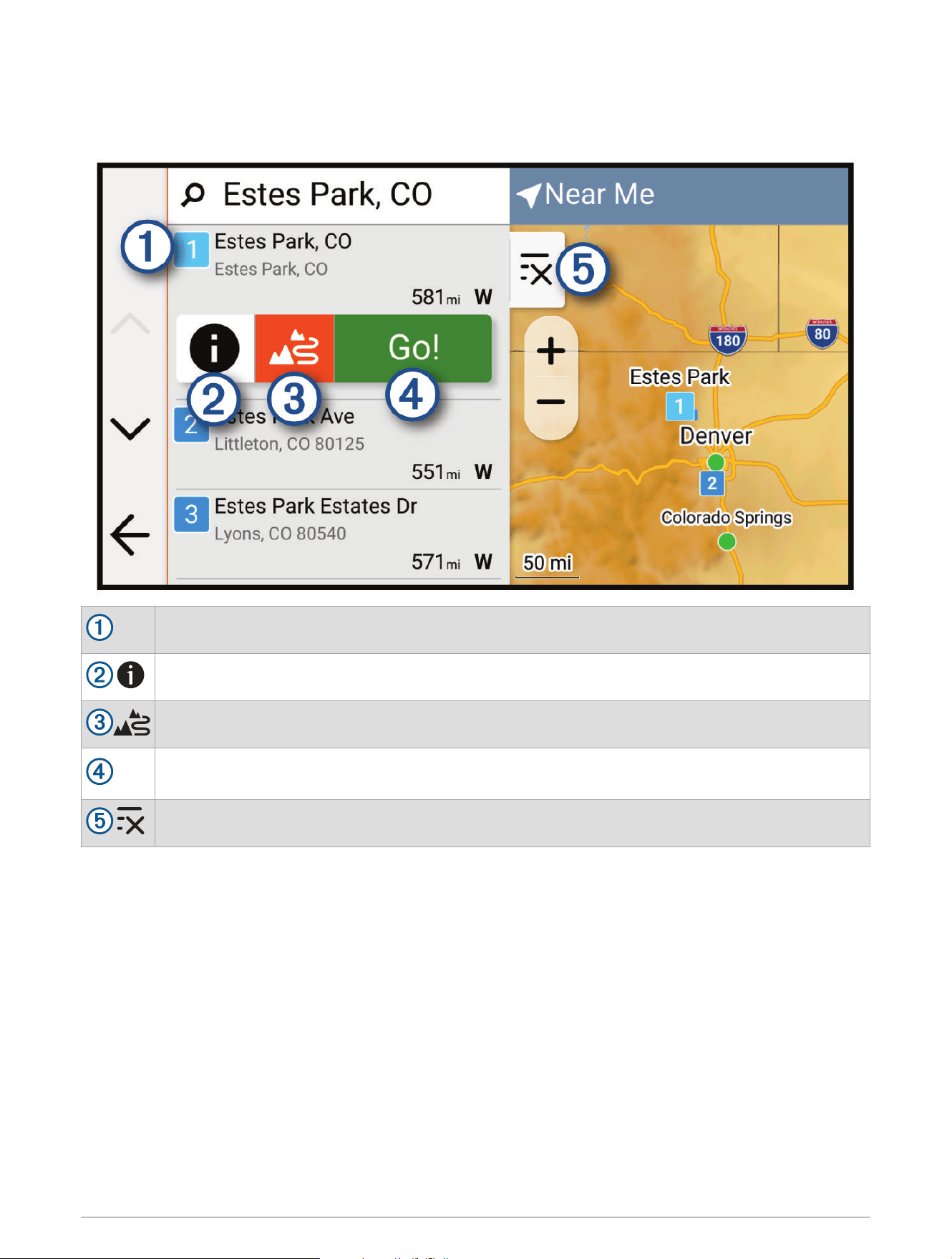
Location Search Results
The location search results appear in a list, with the nearest location at the top. Each numbered location also
appears on the map. You can scroll down to view more results.
Select a location to view the option menu.
Select to view detailed information about the location.
Select to start navigating using adventurous routing (Adventurous Routing, page23).
Go!
Select to start navigating to the location using the default route calculation mode for the current
vehicle profile.
Select to view the search results on the map in full screen.
Finding and Saving Locations 43
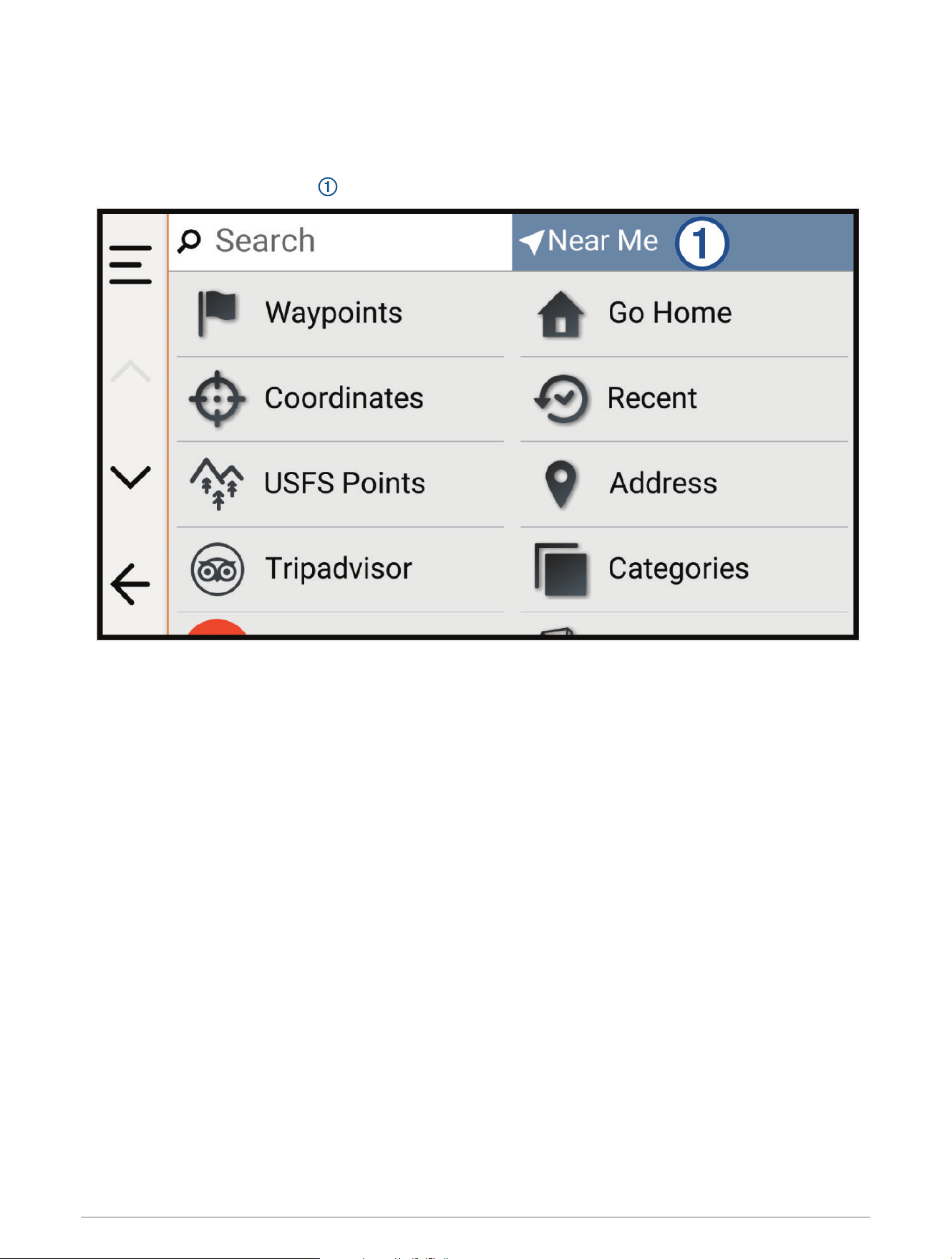
Changing the Search Area
By default, the device searches for locations near your current location. You can also search other areas, such
as near your destination, near another city, or along your active route.
1 Select Search.
2 Select the current search area .
3 Select a search area.
4 If necessary, follow the on-screen instructions to select a specific location.
The selected search area appears at the top of the screen. When you search for a location using any of the
options in the Search menu, the device suggests locations near this area first.
Finding Parking Near Your Current Location
1 Select Search > Categories > Parking.
2 Select a parking location.
3 Select Go!.
44 Finding and Saving Locations
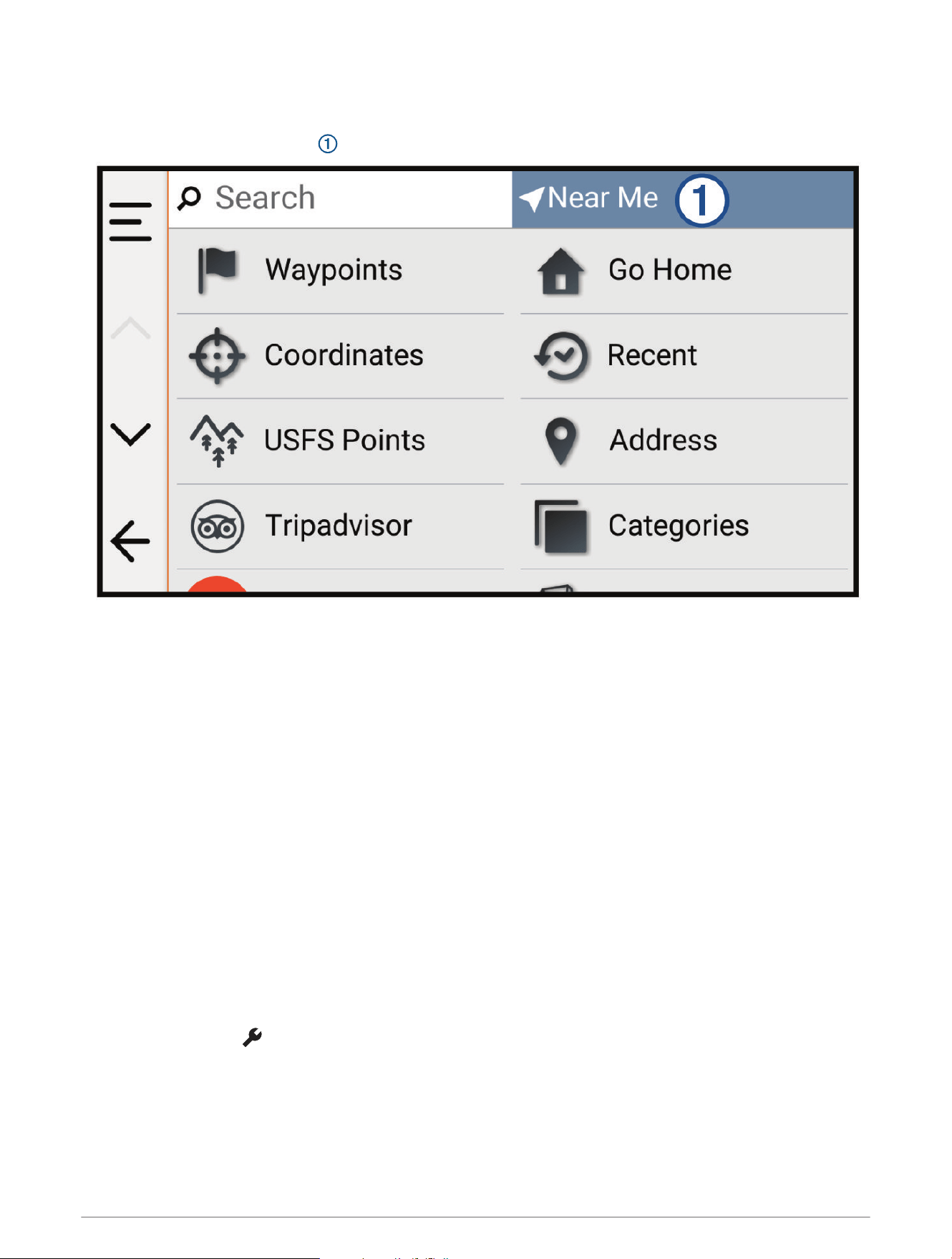
Finding Parking Near a Specified Location
1 Select Search.
2 Select the current search area .
3 Select Select a Location.
4 Follow the on-screen instructions to select a location.
5 Select Categories > Parking.
Parking options near the selected location appear.
6 Select a parking location.
7 Select Go!.
Finding an Address
NOTE: The order of the steps may change depending on the map data loaded on your device.
1 Select Search.
2 If necessary, select the current search area to search near a different city or area.
3 Select Address.
4 Follow the on-screen instructions to enter address information.
5 Select the address.
Finding a Location Using Coordinates
You can find a location using latitude and longitude coordinates.
1 Select Search > Coordinates.
2 If necessary, select , and change the coordinate format or datum.
3 Select Coordinates.
4 Enter the latitude and longitude coordinates, and select Done.
5 Select an option:
• To save the coordinates as a location, select Save.
• To start a route to the coordinates, select Go!.
Finding and Saving Locations 45
Finding Fuel Stations and Prices
Before you can use this feature, your device must be connected to a supported phone running the Alpha app
(Pairing with Your Smartphone, page57).
You can find nearby fuel stations and compare fuel prices.
1 Select Search > Categories > Fuel Stations.
2 If necessary, select , select a fuel type, and select Save.
Fuel prices appear under each station in the search results.
3 Select a fuel station.
Finding National Parks
Device models that include maps for North America or the United States also include detailed information for
national parks in the United States. You can navigate to a national park or to a location within a national park.
NOTICE
You are responsible for understanding and complying with any applicable rules, laws, or regulations associated
with national parks.
1 Select Search > National Parks.
A list of national parks appears, with the nearest park at the top.
2 Select Search, and enter all or part of the park name to narrow the results (optional).
3 Select a national park.
A list of categories for locations of features and amenities within the park appears below the park name.
4 Select an option:
• To start navigating to the park, select Go!.
• To view more park information or explore the park features and amenities, select .
• To quickly find a location within the park, select a category from the list below the park name, and select a
location.
Finding Ultimate Campgrounds Points of Interest
NOTE: This feature is not available in all areas.
NOTICE
You are responsible for understanding and complying with any applicable rules, laws, or regulations associated
with campsites and points of interest.
Your device includes Ultimate Campgrounds points of interest, which allow you to find public campgrounds near
your location.
1 Select Search > Ultimate Public Campgrounds.
2 If necessary, select Search Filters, select one or more search filters, and select Search.
3 Select a location.
Tripadvisor
NOTICE
Garmin is not responsible for the accuracy or timeliness of the Tripadvisor information.
You are responsible for understanding and complying with any applicable rules, laws, or regulations associated
with points of interest.
Your device includes Tripadvisor traveler ratings. Tripadvisor ratings appear automatically in the search results
list for restaurants, hotels, and attractions. You can also search for nearby Tripadvisor points of interest and
sort by distance or popularity.
46 Finding and Saving Locations

Finding Tripadvisor Points of Interest
1 Select Search > Tripadvisor.
2 Select a category.
3 If necessary, select a subcategory.
A list of nearby Tripadvisor points of interest for the category appears.
4 Select Sort Results to filter the displayed points of interest by distance or popularity (optional).
5 Select , and enter a search term (optional).
Viewing Recently Found Locations
Your device stores a history of the last 50 locations you have found.
Select Search > Recent.
Clearing the List of Recently Found Locations
Select Search > Recent > > Clear > Yes.
Viewing Current Location Information
You can use the Where Am I? page to view information about your current location. This feature is helpful if you
need to tell emergency personnel your location.
From the map, select the vehicle.
Finding Emergency Services and Fuel
You can use the Where Am I? page to find the nearest hospitals, police stations, and fuel stations.
1 From the map, select the vehicle.
2 Select Hospitals, Police Stations, or Fuel.
A list of locations for the selected service appears, with the nearest locations at the top.
3 Select a location.
4 Select an option:
• To navigate to the location, select Go!
• To view the phone number and other location details, select .
Getting Directions to Your Current Location
If you need to tell another person how to get to your current location, your device can give you a list of
directions.
1 From the map, select the vehicle.
2 Select > Directions to Me.
3 Select a starting location.
4 Select Select.
Adding a Shortcut
You can add shortcuts to the Where To? menu. A shortcut can point to a location, a category, or a search tool.
The Where To? menu can contain up to 36 shortcut icons.
1 Select Search > Add Shortcut.
2 Select an item.
Finding and Saving Locations 47

Removing a Shortcut
1 Select Search > > Remove Shortcut(s).
2 Select a shortcut to remove.
3 Select the shortcut again to confirm.
4 Select Done.
Saving Locations
Saving a Location
1 Search for a location (Finding and Saving Locations, page41).
2 Select a location from the list of search results.
3 Select > Save.
4 If necessary, select Name to edit the name of the location.
5 Select Save.
Saving Your Current Location
1 From the map, select the vehicle icon.
2 Select Save.
3 If necessary, select Name to edit the name of the location.
4 Select Save.
Editing a Saved Location
1 Select Search > Waypoints.
2 If necessary, select a category.
3 Select a location.
4 Select Edit.
5 Select an option:
• Select Name.
• Select Map Symbol to change the symbol used to mark the saved location on a map.
• Select Collections to add or remove the location from your saved collection categories.
• Select Coordinates to edit the GPS coordinates for the location.
6 Edit the information.
7 Select Done.
Deleting a Saved Location
NOTE: Deleted locations cannot be recovered.
1 Select Search > Waypoints.
2 Select a waypoint.
3 Select Edit > Delete > Yes.
48 Finding and Saving Locations
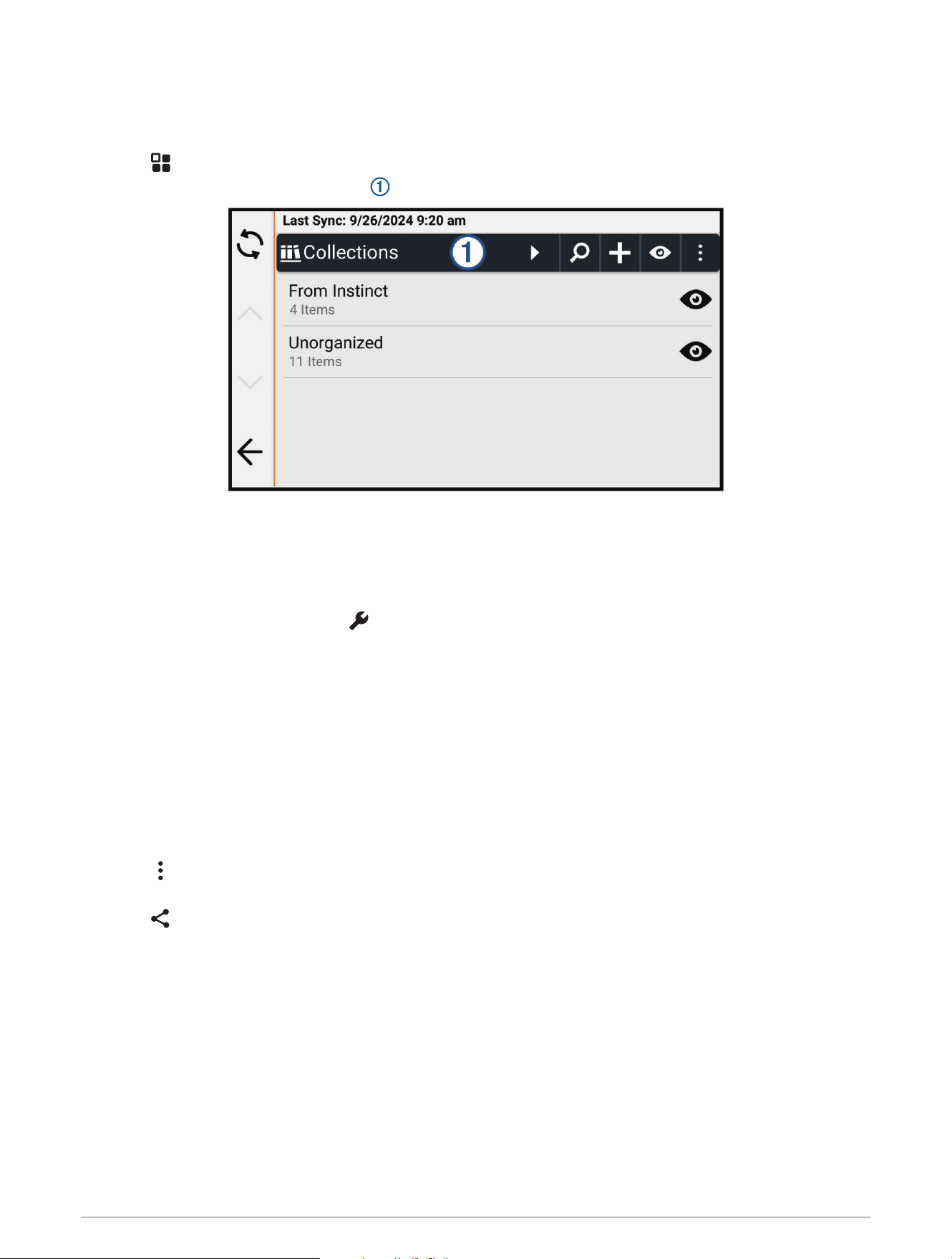
Viewing Your Saved Items
You can use the Saved app to view your saved items, such as waypoints, routes, and tracks. When paired with
the Alpha app, your saved items periodically sync with your Garmin account.
1 Select > Saved.
2 If necessary, select the category filter to browse different collections and filter by item type.
Sharing a Saved Item
You can share items using a memory card.
1 From the Saved app, select the item you want to share.
2 Select an option:
• To share a route or track, select > Share.
• To share a waypoint, select Share.
3 Select an option:
• To save the item to a memory card, select Memory Card.
• To save the item to a memory card as a Lowrance compatible GPX file, enable the Lowrance Compatible
GPX File option, and select Memory Card.
4 If necessary, edit the name for the .gpx file.
Sharing Multiple Saved Items
You can share multiple items in a single .gpx file.
1 From the Saved app, select a category or collection filter including all the items you want to share.
2 Select > Share.
3 Select the items to share.
4 Select .
5 Select an option:
• To save the items to a memory card, select Memory Card.
• To save the items to a memory card as a Lowrance compatible GPX file, enable the Lowrance Compatible
GPX File option, and select Memory Card.
6 If necessary, edit the name for the .gpx file.
Finding and Saving Locations 49
Synchronizing Garmin Account Data
Before you can synchronize account data, you must pair your device with the Alpha app (Pairing with Your
Smartphone, page57).
You can synchronize data, such as tracks, with your Garmin account. Your device periodically synchronizes data
with your account automatically. You can also synchronize data manually at any time.
1 Select > Saved.
2 Select .
Using the Apps
Using the Competition Timer
1 Select > Competition Timer.
2 Select an option:
• To set the competition timer duration and alerts, select .
• To create a customized timer that counts up from zero, select , and enter a name for the timer.
• To start a competition timer, select .
• To stop a competition timer, select .
• To reset the competition timer, select .
Wireless Cameras
Your device can display the video feed from one or more connected wireless cameras (sold separately).
Pairing the Device with a Wireless Camera
You can pair a wireless camera with your AlphaXL device.
1 Update your AlphaXL device to the latest software version (Map and Software Updates, page66).
Your device may not support the wireless camera without the latest software.
2 Select > Cameras > Add New Camera.
3 Follow the on-screen instructions to finish pairing and setting up the camera.
After you complete the pairing process with a camera for the first time, it connects automatically to the Garmin
navigation device when power is applied.
Viewing the Camera
WARNING
This device is intended to enhance situational awareness when used properly. If used improperly, you could
become distracted by the display, which could lead to an accident causing serious personal injury or death.
Always view the display at a glance when the vehicle is in motion to avoid becoming distracted.
Select > Cameras.
50 Using the Apps
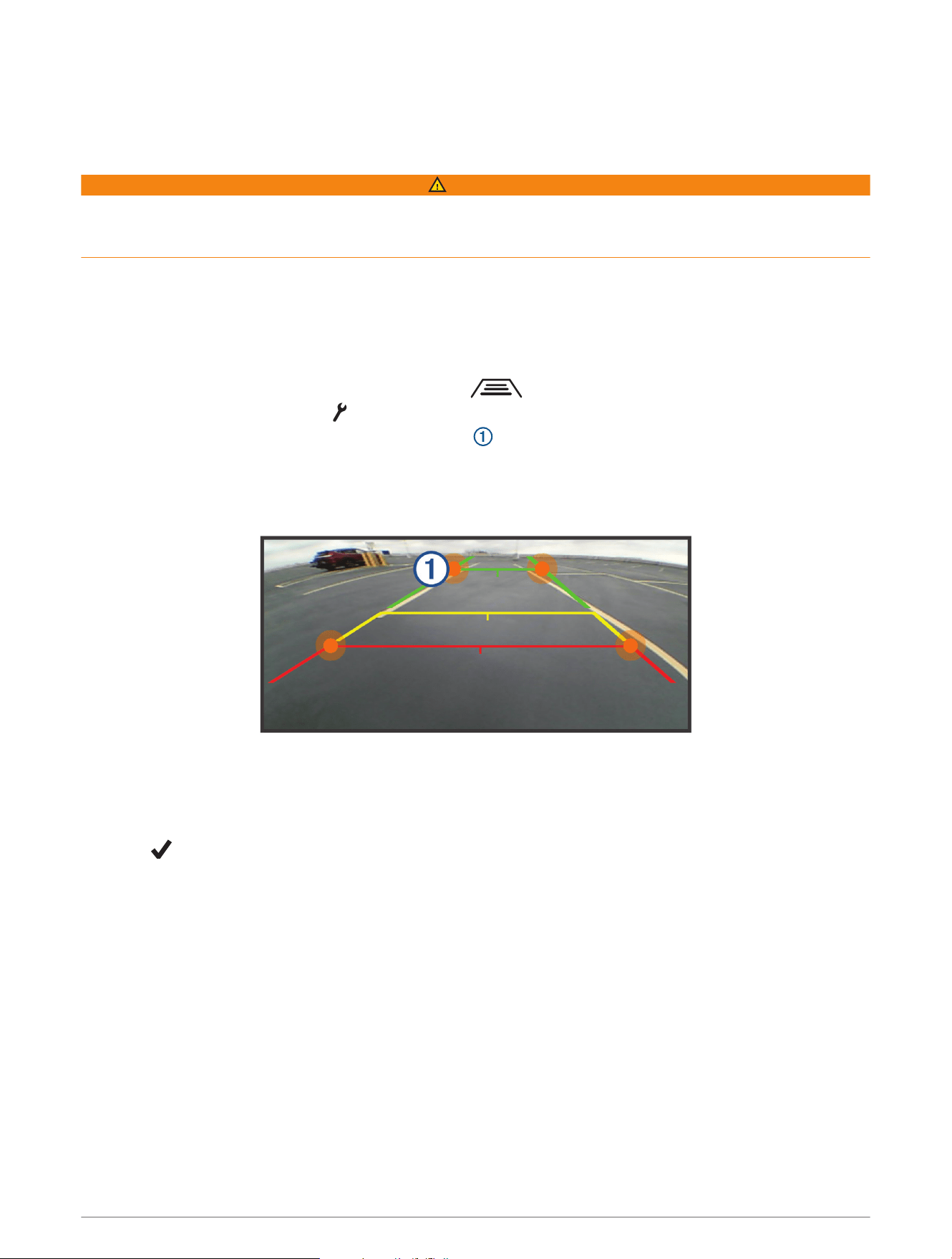
Aligning the Guidance Lines
For the best reference points, the guidance lines should be aligned to reflect the outside edges of the vehicle.
You should align the guidance lines separately for each backup camera. On some models, adjustment is
automatically available after pairing a camera.
WARNING
You must ensure that the guidance lines are properly aligned before using the device and after making any
camera angle adjustments. Failure to properly align the guidance lines could result in an accident or collision,
resulting in death, serious injury, or property damage.
1 Position the vehicle with one side closely aligned to a curb, driveway, or parking stall lines.
You may want to position the vehicle in the center of a parking stall, and then pull forward into the next stall.
This allows you to use the parking stall lines in the rear of the vehicle as reference points for alignment.
The curb, driveway, or parking stall lines should be clearly visible on the device.
2 Select an option:
• From the camera view, tap the screen, and select .
• From the camera view, select > Adjust Video.
3 Drag the circles on the corners of the guidance lines , or tap the arrows until they match the angle and
position of the curb, driveway, or parking stall lines.
The guidance lines should appear directly on top of your reference points.
The red or orange section of the guidance lines should align with the rear of your vehicle.
4 If necessary, reposition the vehicle with the other side closely aligned to a curb, driveway, or parking stall
lines, and repeat the alignment process.
You should attempt to keep the guidance lines symmetrical, even if your vehicle is not in perfect alignment
with the curb, driveway, or parking stall lines.
5 Select after alignment is complete.
Using the Apps 51
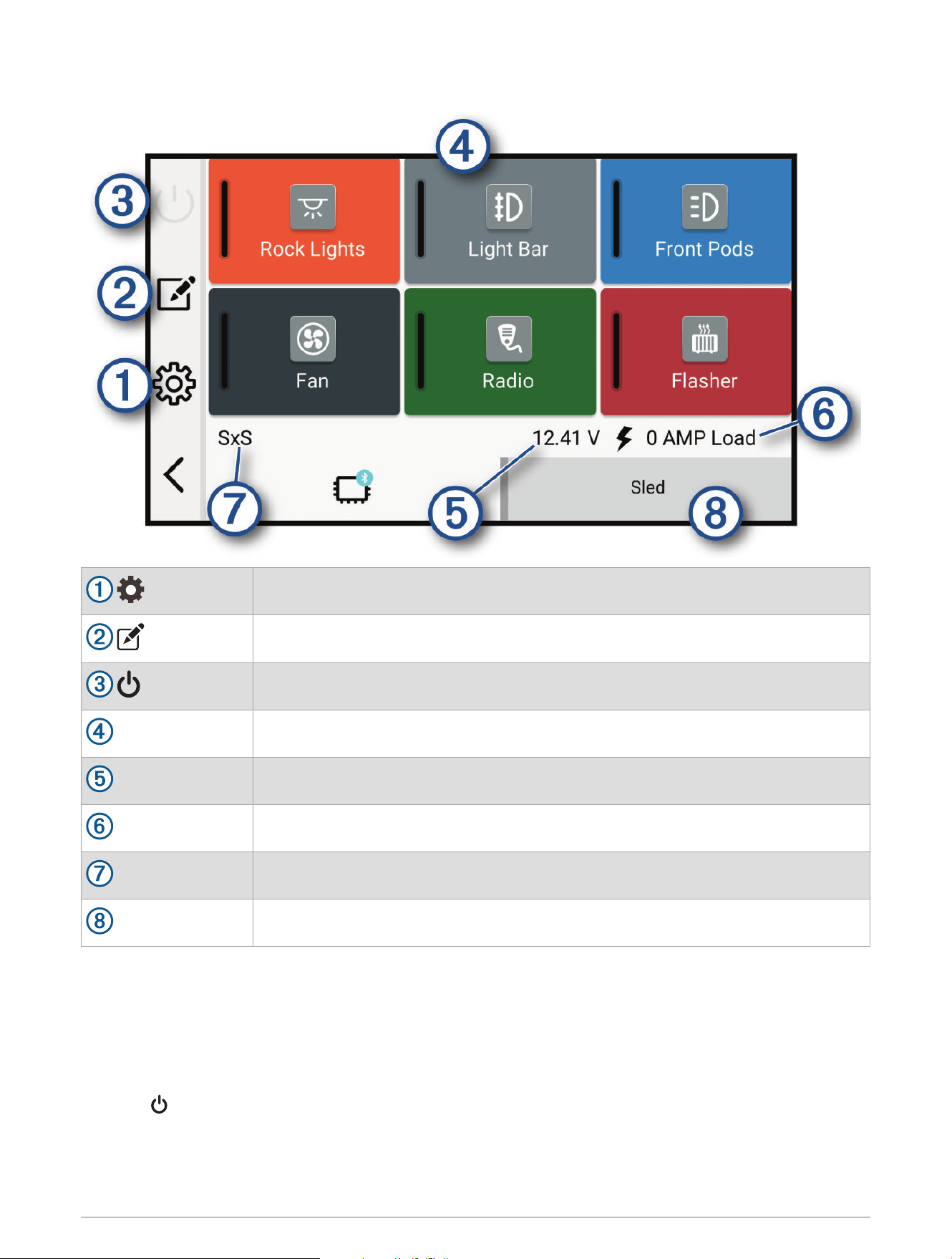
Garmin PowerSwitch
™
App
Opens the app settings menu
Enters editing mode to customize the app layout and functions
Turns off all outputs
Power buttons
Activates each connected output
Displays input voltage
Displays the total amperage of the selected Garmin PowerSwitch device
Displays the device name
Displays Garmin PowerSwitch device tabs and custom layout tabs
Activating a Power Switch
Before you can use the Garmin PowerSwitch app to activate a switch, you must install your Garmin
PowerSwitch device in your vehicle and pair it with the Garmin PowerSwitch app.
From the Garmin PowerSwitch app, select a power button to turn a switch on or off.
Turning Off All Switches
Select .
52 Using the Apps

Customizing a Button
1 From the Garmin PowerSwitch app screen, select .
The app enters editing mode.
2 Select on the button you want to customize.
3 When you have finished customizing the button, select .
4 Select .
Assigning a Switch to a Control Input
Before you can use control input functions, you must connect a control input to your Garmin PowerSwitch
device.
You can assign one or more switches to turn on when the Garmin PowerSwitch device receives a signal from a
control input.
1 Select .
2 Select your Garmin PowerSwitch device.
3 Select a control input.
4 Select one or more switches.
Adding a Custom Layout
You can add a custom layout tab to the Garmin PowerSwitch app. Buttons added to a custom layout can control
multiple switches at the same time.
1 From the Garmin PowerSwitch app, select .
The device enters editing mode.
2 Select .
Using the Apps 53

Adding a Button to a Custom Layout
1 From the Garmin PowerSwitch app, select a custom layout tab.
2 Select .
The app enters editing mode.
3 Select Add Button.
4 On the new button, select .
5 Select an option:
• To change the name of the button, select the Label field, and enter a name.
• To add an icon to the button, select the Icon field, and select an icon.
• To change the button color, select a color.
6 Select Add Action.
7 If necessary, select a Garmin PowerSwitch device and a switch.
8 Select an action:
• To set the button to turn the switch on or off with each press, select Toggle.
• To set the button to turn on the switch, select Turn On.
• To set the button to turn off the switch, select Turn Off.
9 Select a button mode:
• To set the button to activate with one touch, select Normal.
• To set the button to activate only while touching the button, select Momentary.
• To set the button to turn on and off repeatedly, select Strobe, and select time intervals.
10 If applicable, use the slider to set the brightness of lights.
11 Select .
12 If necessary, select Add Action to add additional actions for the button.
You can add one action for every switch on the Garmin PowerSwitch device.
Arranging Buttons In a Custom Layout
1 From the Garmin PowerSwitch app, select a custom layout tab.
2 Select .
The app enters editing mode.
3 On the button you want to move, hold , and drag the button to a new location.
Deleting a Custom Layout or Button
1 From the Garmin PowerSwitch app, select a custom layout tab.
2 Select .
The app enters editing mode.
3 Select an option:
• To delete a button, select on the button you want to delete.
• To delete a layout tab, select on the layout tab.
Routines
Routines automate your Garmin PowerSwitch device. When you define a routine on your compatible Garmin
navigation device, it turns switches on or off automatically when the conditions of the routine are met. For
example, you can set a routine to turn on a switch at specific time each day or when your vehicle reaches a
specific speed. Routines are available only when using a compatible Garmin navigation device.
54 Using the Apps
Adding a Routine
1 From the Garmin PowerSwitch app, select > Routines.
2 If necessary, select Add Routine.
3 Select When.
4 Select a trigger:
• To set a switch to trigger when your vehicle reaches a specific speed, select Speed > Next, and follow the
on-screen instructions to enter speed thresholds.
• To set a switch to trigger at a specific time each day, select Time > Next, and enter a time.
• To set a switch to trigger at sunrise, select Sunrise.
• To set a switch to trigger at sunset, select Sunset.
5 Select Add Action.
6 Select a device, a switch, an action, and a button mode.
7 If necessary, use the slider to adjust the dimmer.
8 Select Save.
Editing a Routine
1 From the Garmin PowerSwitch app, select > Routines.
2 Select on the routine you want to edit.
3 Select an option:
• To change the trigger for the routine, select When, and select a trigger.
• To change an action, select on the action you want to change, and update the action.
• To add an action to the routine, select Add Action, and enter information about the action.
4 Select Save.
Deleting a Routine
1 From the Garmin PowerSwitch app, select > Routines.
2 Select on the routine you want to delete.
Viewing Weather Information
Before you can view up-to-date weather information, you must pair and connect your device to the Alpha app on
your phone (Pairing with Your Smartphone, page57).
NOTICE
Garmin is not responsible for the accuracy or timeliness of the weather information.
1 Select > Weather.
The device shows the current weather conditions and a forecast for the next several days.
2 Select an option:
• Select a day to view a detailed forecast.
• Select Radar to view the weather radar map.
• Select Conditions to view a road conditions map.
• Select Alerts to view a severe weather alert map.
• Select to view the weather forecast for a different city.
Using the Apps 55
Driver Awareness Features and Alerts
CAUTION
The driver alerts and speed limit features are for information only and do not replace your responsibility to abide
by all posted speed limit signs and to use safe driving judgment at all times. Garmin is not responsible for any
traffic fines or citations you receive for failing to follow all applicable traffic laws and signs.
Your device provides features that can help encourage safer driving, even when you are driving in a familiar
area. The device plays an audible tone or message and displays information for each alert. You can enable or
disable the audible tone or message for each type of alert. Not all alerts are available in all areas.
School zone or nearby school: The device plays a tone and displays the distance to and speed limit (if available)
for an upcoming school or school zone.
Speed limit reduction: The device plays a tone and displays the upcoming reduced speed limit so you can be
prepared to reduce your speed.
Speeding alert: The device displays a red border on the speed limit icon when you exceed the posted speed limit
for the current road.
Railroad crossing: The device plays a tone and displays the distance to an upcoming railroad crossing.
Animal crossing: The device plays a tone and displays the distance to an upcoming animal crossing area.
Curve: The device plays a tone and displays the distance to a curve in the road.
Slower traffic: The device plays a tone and displays the distance to slower traffic when you approach slower
traffic at a higher speed. Your device must be receiving traffic information to use this feature.
Enabling or Disabling Driver Alerts
You can enable or disable several types of driver alerts.
1 Select > Driver Assistance > Driver Alerts.
2 Select or clear the check box next to each alert.
3 Select OK.
Live Services, Traffic, and Smartphone Features
WARNING
Do not read or interact with notifications while driving, because doing so can cause distraction which could lead
to an accident resulting in serious personal injury or death.
NOTICE
Garmin is not responsible for the accuracy or timeliness of the traffic information.
The Alpha app allows your device to receive smart notifications and live information, such as live traffic data
and weather information.
Live traffic data: Sends live traffic data to your device, such as traffic incidents and delays, construction zones,
and road closings (Viewing Traffic Information, page38).
Weather information: Sends real-time weather forecasts, road conditions, and weather radar to your device
(Viewing Weather Information, page55).
Smart Notifications: Displays phone notifications and messages on your device. This feature is not available for
all languages.
Hands-Free calling: Allows you to place and receive phone calls through the device using your connected
Bluetooth headset.
Send locations to device: Allows you to send locations from your smartphone to your navigation device.
56 Driver Awareness Features and Alerts
Pairing with Your Smartphone
You can pair your AlphaXL navigator with your smartphone and the Alpha app to enable additional features and
access live information.
1 From the app store on your smartphone, install the Alpha app.
2 Turn on your AlphaXL navigator, and place the navigator and your smartphone within 3m (10ft.) of each
other.
3 On your phone, open the Alpha app.
4 Follow the on-screen instructions to sign in to a Garmin account and complete the pairing and setup
process.
The main app dashboard appears. After the devices are paired, you can enable or disable smartphone features
on your navigator. The devices connect automatically when they are turned on and within range.
Smart Notifications
While your device is connected to the Alpha app, you can view notifications from your smartphone on your
AlphaXL device, such as text messages, incoming calls, and calendar appointments.
Receiving Notifications
WARNING
Do not read or interact with notifications while driving, because doing so can cause distraction that could lead
to an accident resulting in serious personal injury or death.
Before you can use this feature, your device must be connected to a supported phone running the Alpha app
(Pairing with Your Smartphone, page57).
From most pages, a popup appears when the device receives a notification from your smartphone. If the device
is moving, you must verify you are a passenger and not the driver before you can view notifications.
NOTE: If you are viewing the map, notifications appear in a map tool.
• To ignore a notification, select OK.
The popup closes, but the notification remains active on your phone.
• To view a notification, select View.
• To listen to the notification, select View > .
The device reads the notification using text-to-speech technology. This feature is not available for all
languages.
• To perform additional actions, such as dismissing the notification from your phone, select View, and select
an option.
NOTE: Additional actions are available for only some notification types and must be supported by the app
generating the notification.
Live Services, Traffic, and Smartphone Features 57
Receiving Notifications while Viewing the Map
WARNING
Do not read or interact with notifications while driving, because doing so can cause distraction that could lead
to an accident resulting in serious personal injury or death.
Before you can use this feature, your device must be connected to a supported phone running the Alpha app
(Pairing with Your Smartphone, page57).
When you are viewing the map, new notifications appear in a map tool at the edge of the screen. If the device is
moving, you must verify you are a passenger and not the driver before you can view notifications.
• To ignore a notification, select , or wait for popup to expire.
The popup closes, but the notification remains active on your phone.
• To view a notification, select the notification text.
• To listen to the notification, select .
The device reads the notification using text-to-speech technology. This feature is not available for all
languages.
Viewing the List of Notifications
You can view a list of all active notifications.
1 Select > Smart Notifications.
The list of notifications appears. Unread notifications appear black, and previously read notifications appear
gray.
2 Select an option:
• To view a notification, select the notification description.
• To listen to a notification, select .
The device reads the notification using text-to-speech technology. This feature is not available for all
languages.
Hands-Free Calling
NOTE: While most phones are supported and can be used, it cannot be guaranteed that a particular phone can
be used. All features may not be available for your phone.
Using Bluetooth wireless technology, your device can connect to your mobile phone to become a hands-free
device (Pairing with Your Smartphone, page57). While connected, you can place or receive calls using your
device.
Enabling Hands-Free Calling
Before you can enable hands-free calling features, you must pair your Alpha navigator with the Alpha app on a
compatible phone (Pairing with Your Smartphone, page57).
1 Select > Phone.
2 Select your paired phone.
3 Select Phone calls.
Placing a Call
1 Select > Phone.
2 Select an option:
• To dial a number, select Dial, enter the phone number, and select Dial.
• To view numbers of recent, missed, or recently dialed or received calls, select Call History, select a log,
select a number, and select Call to dial it.
• To call a contact from your phone book, select Phone Book, select a contact, and select Call.
• To call a point of interest location such as a restaurant or attraction, select Browse Categories, select a
category, select a location, and select Call.
58 Live Services, Traffic, and Smartphone Features

Calling Home
Select > Phone > Call Home.
When using this feature for the first time, you are prompted to dial the home phone number.
TIP: You can reset the home phone number by selecting > Set Home Number.
Placing a Call Using Voice Dial
Before you can use voice dialing, the voice assistant app on your phone must be available.
1 Select > Phone > Voice Dial.
2 Listen for the voice prompt.
3 Say Call, and say the contact name, phone number, or location you want to call.
Receiving a Call
When you receive a call, select Answer or Dismiss.
Using In-Call Options
In-call options are available when you answer a call. Some options may not be compatible with your phone.
TIP: If you close the in-call options page, you can open it again by selecting from any screen. You can also
select the caller from the map.
• To set up a conference call, select Add Call.
• To transfer audio to your phone, select Call in Progress on Navigator.
TIP: You can use this feature if you want to disconnect the Bluetooth connection and remain on the call, or if
you need privacy.
• To use the dial pad, select Keypad.
TIP: You can use this feature to use automated systems, such as voice mail.
• To mute the microphone, select Mute.
• To hang up, select End Call.
Disabling Phone Calls
You can disable phone calls while keeping other features enabled.
1 Select > Phone.
2 Select the phone.
3 Clear the Phone calls check box.
Disconnecting a Bluetooth Device
You can temporarily disconnect a Bluetooth device without deleting it from the paired devices list. The
Bluetooth device can connect to your Alpha device automatically in the future.
1 Select > Phone.
2 Select the device to disconnect.
3 Select Disconnect.
Deleting a Bluetooth Device
You can delete a paired phone or headset to prevent it from automatically connecting to your device in the
future.
1 Select an option:.
• To delete a phone, select > Phone.
• To delete a headset, select > Headset.
2 Select the device to delete.
3 Select Forget Device.
Live Services, Traffic, and Smartphone Features 59

Settings
Dog Tracking Settings
Select > Dog Tracking.
Tracking Auto Zoom: Allows the map to zoom out automatically, so the selected devices are always displayed
on the map.
Dog Tracks on Map: Determines how much of the track log for a tracked dog collar appears on the map.
Contact Tracks on Map: Determines how much of the track log for a tracked handheld device appears on the
map.
Clear Tracks on Map: Clears all of the dog and contact track logs.
Dog Display: Sets how the dog information is shown on the map (Dog Display Settings, page60).
Dog Alerts: Sets options for alerts and notifications related to dog tracking (Dog Alerts Settings, page60).
Contact Message Alerts: Sets alerts that appear when receiving a message from a contact.
Back Up and Restore: Allows you to back up or restore your dog data.
Dog Display Settings
Select > Dog Tracking > Dog Display.
Indicator: Sets the dog indicator to show the direction of the dog's movement or the dog's status.
Indicator Icon Size: Sets the size of the dog indicator.
Show Dog Names: Enables or disables dog names on the map.
Show Dog Distances: Enables or disables dog distances on the map.
Dog Label Size: Sets the size of the dog labels on the map.
Show Lost Dog Timer: Enables or disables a timer that shows the length of time communication with a dog
collar device has been lost.
Show Barks: Enables or disables an indicator that shows when a dog is barking.
Dog Alerts Settings
Select > Dog Tracking > Dog Alerts.
On-Point Alert: Sets the alert type for when a dog is on-point.
Treed Alert: Sets the alert type for when a dog has treed game.
GPS Lost Alert: Sets the alert type for when GPS signals are lost.
Lost Comm. Alert: Sets alert types for when communication is lost between the navigator and a paired dog or
contact.
Speed Setup: Sets alerts related to a dog's speed.
Bark Setup: Sets alerts related to bark detection.
Backing Up and Restoring Dog Data
You can back up or restore your dog tracking data so you can return to it at a later time.
1 Select > Dog Tracking > Back Up and Restore.
2 Select an option:
• To enable an automatic backup, select the Auto Back Up option.
• To back up your dog data, select Back Up Now.
• To restore your dog data from a backup, select Restore Now, and select a backup file.
60 Settings

Phone Settings
Select > Phone, and select your phone.
Disconnect: Disconnects the paired phone.
Phone Name: Displays the name of the paired phone. You can select the name to change how it displays on
your navigation device.
Smart Notifications: Allows you to enable phone notifications from your compatible phone.
Garmin Alpha: Appears when the navigation device is connected to the Alpha app on your phone.
Forget Device: Removes the connected device from the list of paired devices. This option is available only after
a device is paired.
Wi‑Fi Settings
The wireless network settings allow you to manage Wi‑Fi networks.
Select > Wi-Fi.
Wi-Fi: Enables the Wi‑Fi radio.
Saved Networks: Allows you to edit or remove saved networks.
Search for Networks: Searches for nearby Wi‑Fi networks (Connecting to a Wi‑Fi Network, page67).
Map Settings
Select > Map.
Map Vehicle Icon: Sets the vehicle icon that represents your position on the map.
Driving Map View: Sets the perspective on the map.
Map Detail: Sets the level of detail on the map. More detail may cause the map to draw slower.
Adventure Roads & Trails: Selects what types of adventure roads and trails are highlighted on the map.
Waypoint Labels: Sets the size of waypoint labels on the map.
Waypoint Decluttering: Hides waypoint icons at high map zoom levels.
Range Rings: Shows rings on the map, representing distance from you. The distance to the innermost ring is
shown on the bottom left corner of the screen.
NOTE: Range rings are shown only while using the Track Up or North Up map perspective (Changing the Map
Perspective, page40).
Auto Zoom: Automatically selects the zoom level for optimal use of your map. When disabled, you must zoom
in or out manually.
Skip Next Stop Confirmation: Sets a confirmation message to appear when skipping a location on your route.
Map Manager: Manages maps installed on the device (Changing the Map Region, page40).
Navigation Settings
Select > Navigation.
Off-Route Recalculation: Sets recalculation preferences when navigating away from an active route.
Avoidances: Sets road features to avoid on a route.
Custom Avoidances: Allows you to avoid specific roads or areas.
Traffic: Sets options for traffic features (Traffic Settings, page62).
Environmental Zones: Sets the avoidance preferences for areas with environmental or emissions restrictions
that may apply to your vehicle.
Restricted Mode: Disables all functions that require significant operator attention.
GPS Simulator: Stops the device from receiving a GPS signal, and saves battery power.
Settings 61

Traffic Settings
From the main menu, select > Navigation > Traffic.
Traffic: Enables the traffic feature.
Current Provider: Sets the provider to use for traffic data. The Auto option selects the best available traffic data
automatically.
Subscriptions: Lists the current traffic subscriptions.
Optimize Route: Enables the device to use optimized alternate routes automatically or upon request (Avoiding
Traffic Delays on Your Route, page33).
Setting a Simulated Location
If you are indoors or not receiving satellite signals, you can use the GPS simulator to plan routes from a
simulated location.
1 Select > Navigation > GPS Simulator.
2 From the main menu, select View Map.
3 Tap the map twice to select an area.
The address of the location appears at the bottom of the screen.
4 Select the location description.
5 Select Set Location.
Driver Assistance Settings
Select > Driver Assistance.
Driver Alerts: Allows you to enable or disable alerts for upcoming zones or road conditions (Driver Awareness
Features and Alerts, page56).
Speeding Alert: Alerts you when you are exceeding the speed limit.
Reduced Speed Tone: Alerts you when the speed limit decreases.
Country Border Alert: Displays a notification when crossing international borders.
Route Preview: Displays a preview of the major roads in your route when you start navigation.
Upcoming Services: Displays services up ahead on long trips.
Proximity Alerts Settings
NOTE: You must have custom points of interest (POIs) loaded for proximity points alerts to display.
NOTE: This feature is not available in all areas.
Select > Driver Assistance > Proximity Alerts.
Audio: Sets the style of alert that plays when you approach proximity points.
Alerts: Sets the type of proximity points for which alerts are played.
Display Settings
Select > Display.
Brightness Slider: You can move the slider to adjust the display brightness.
Orientation: Allows you to set the display to portrait (vertical) or landscape (horizontal).
Color Mode: Allows you to select day or night color mode. If you select the Auto option, the device automatically
switches to day or night colors based on the time of day.
Display Timeout: Allows you to set the amount of idle time before your device enters sleep mode while using
battery power.
External Power Prompts: Allows you to set power management options when the device loses external power.
Screenshot: Allows you to take a picture of the device screen. Screenshots are saved in the Screenshot folder of
the device storage.
62 Settings

System Settings
Select > System.
Voice Language: Sets the language for voice prompts.
Text Language: Sets all on-screen text to the selected language.
NOTE: Changing the text language does not change the language of user-entered data or map data, such as
street names.
Keyboard Language: Enables keyboard languages.
Units: Sets the unit of measure used for distances.
Current Time: Sets the device time.
Time Format: Allows you to select a 12-hour, 24-hour, or UTC display time.
Position Format: Sets the coordinate format and datum used for geographical coordinates.
Position Format Settings
NOTE: Do not change the position format or the map datum coordinate system unless you are using a map or
chart that specifies a different position format.
Select > System > Position Format.
Coordinate Format: Sets the position format for the location information.
Display Format: Sets the format in which coordinates will appear on the device.
Datum: Sets the coordinate system on which the map is structured.
Map Spheroid: Shows the coordinate system the device is using. The default coordinate system is WGS 84.
Device and Privacy Settings
Select > Device.
About: Displays the software version number, the unit ID number, and information on several other software
features.
Regulatory: Displays regulatory markings and information.
EULAs: Displays the end-user license agreements.
NOTE: You need this information when you update the system software or purchase additional map data.
Software Licenses: Displays software licensing information.
Device Data Reporting: Shares anonymous data to improve the device.
Travel History: Allows the device to store a record of the places you go. This allows you to view the trip log, use
the Trip History feature, and use myTrends
™
suggested routes.
Reset: Allows you to clear your travel history, reset settings, or delete all user data.
Restoring Settings
You can restore a category of settings or all settings to the factory default values.
1 Select .
2 If necessary, select a settings category.
3 Select > Restore.
Data Management
The device has a memory card slot for additional data storage.
NOTE: The device is compatible with Windows
®
7 and newer, and Mac
®
OS 10.7 and newer.
About Memory Cards
You can purchase memory cards from an electronics supplier, or purchase pre-loaded Garmin mapping
software (www.garmin.com). Memory cards can be used to store files such as maps and POIs.
Data Management 63

Installing a Memory Card for Maps and Data
You can install a memory card to increase the storage space for maps and other data on your device. You can
purchase memory cards from an electronics supplier. Memory cards must use the exFAT file system format.
1 Locate the map and data memory card slot on your device (Device Overview, page1).
2 Insert a memory card into the slot.
3 Press it in until it clicks.
Connecting the Device to Your Computer
You can connect the device to your computer using a USB cable.
1 Plug the small end of the USB cable into the port on the device.
2 Plug the larger end of the USB cable into a port on your computer.
3 From your AlphaXL device, select Tap to Connect to Computer.
A picture of your device connected to a computer appears on the device screen.
Depending on your computer operating system, the device appears as either a portable device, a removable
drive, or a removable volume.
NOTE: Mac computers do not detect the device by default. You must use Garmin Express
™
software to interact
with files on your device.
Transferring GPX Files From Your Computer
If you have already created routes that you want to use on your device, you can transfer GPX files directly from
your computer.
1 Connect the device to your computer (Connecting the Device to Your Computer, page64).
The device appears as a portable device.
2 On your computer, open the file browser.
3 Select a GPXfile.
4 Select Edit > Copy.
5 Browse to the GPX folder on the device.
6 Select Edit > Paste.
Transferring Data From Your Computer
1 Connect the device to your computer (Connecting the Device to Your Computer, page64).
Depending on your computer operating system, the device appears as either a portable device, a removable
drive, or a removable volume.
2 On your computer, open the file browser.
3 Select a file.
4 Select Edit > Copy.
5 Browse to a folder on the device.
NOTE: For a removable drive or volume, you should not place files in the Garmin folder.
6 Select Edit > Paste.
64 Data Management

Adding BaseCamp
™
Data to Garmin Explore
™
You can export your BaseCamp data files and import them to Garmin Explore for use with your AlphaXL device.
1 Export your data from BaseCamp:
• If you are using an Apple
®
computer, see Exporting Data from BaseCamp with an Apple Computer,
page65.
• If you are using a PC, see Exporting Data from BaseCamp with a PC, page65.
2 Import your BaseCamp data to the Garmin Explore website (Importing Data to Garmin Explore, page65).
3 Synchronize your Garmin Explore data with your AlphaXL device (Synchronizing Garmin Account Data,
page50).
Exporting Data from BaseCamp with a PC
1 Select an option:
• To export all BaseCamp data stored on your computer, select My Collection, and select File > Export >
Export 'My Collection'.
• To export one or more items or a list, select one or more items or a list, and select File > Export > Export
Selection.
2 Enter a name, select a location for the exported file, select the file format, and select Save.
Exporting Data from BaseCamp with an Apple Computer
1 Select an option:
• To export all BaseCamp data stored on your computer, select My Collection, and select File > Export 'My
Collection'.
• To export one or more items or a list, select one or more items or a list, and select File > Export Selected
User Data.
2 Enter a name.
3 Select a location for the exported file.
4 Select the file format.
5 Select Export.
Importing Data to Garmin Explore
1 Go to explore.garmin.com and log in to your account.
2 Select the Map tab.
3 Select .
4 Follow the on-screen instructions.
The data syncs to the Alpha app and your AlphaXL device automatically.
Device Information
Viewing E-label Regulatory and Compliance Information
1 From the settings menu, swipe to the bottom of the menu.
2 Select Device > Regulatory.
Device Information 65
Specifications
Operating temperature range From-20° to 55°C (from-4° to 131°F)
Charging temperature range From0° to 45°C (from32° to 113°F)
Power input (vehicle power cable or external power) From 12 to 24Vdc
Battery type Non-replaceable lithium-ion battery
Charging the Device
NOTE: This Class III product shall be powered by an LPS power supply.
You can charge the battery in the device using any of these methods.
• Install the device in the mount, and connect the mount to vehicle power.
• Connect the device to an optional power adapter accessory, such as a wall power adapter.
You can purchase an approved Garmin AC-DC adapter suitable for home or office use from a Garmin dealer
or www.garmin.com. The device may charge slowly when connected to a third-party adapter.
Device Maintenance
Map and Software Updates
For the best navigation experience, you should keep the maps and software on your device up to date.
Map updates provide the newest available changes to roads and locations in the maps used by your device.
Keeping maps up to date helps your device find recently added locations and calculate more accurate routes.
Map updates are large and may take several hours to complete.
Software updates provide changes and improvements to the device features and operation.
You can update your device using two methods.
• You can connect the device to a Wi‑Fi network to update directly on the device (recommended). This option
allows you to update your device conveniently without connecting it to a computer.
• You can connect the device to a computer and update it using the Garmin Express application (garmin.com
/express).
66 Device Maintenance
Updating Maps and Software Using a Wi‑Fi Network
NOTICE
Map and software updates may require the device to download large files. Regular data limits or charges from
your internet service provider apply. Contact your internet service provider for more information about data
limits or charges.
You can update the maps and software by connecting your device to a Wi‑Fi network that provides access to the
internet. This allows you to keep your device up to date without connecting it to a computer.
1 Connect the device to a Wi‑Fi network (Connecting to a Wi‑Fi Network, page67).
While connected to a Wi‑Fi network, the device checks for available updates. When an update is available,
appears on the icon in the main menu.
2 Select > Updates.
The device checks for available updates. When an update is available, Update Available appears below Map
or Software.
3 Select an option:
• To install all available updates, select Install All.
• To install only map updates, select Map > Install All.
• To install only software updates, select Software > Install All.
4 Read the license agreements, and select Accept All to accept the agreements.
NOTE: If you do not agree with the license terms, you can select Reject. This stops the update process. You
cannot install updates until you accept the license agreements.
5 Using the included USBcable, connect the device to external power, and select Continue (Charging the
Device, page66).
For the best results, a USBwall charger that provides at least 2A power output is recommended. Many
USBpower adapters for smartphones, tablets, or portable media devices may be compatible.
6 Keep the device connected to external power and within range of the Wi‑Fi network until the update process
is complete.
TIP: If a map update is interrupted or canceled before it completes, your device may be missing map data. To
repair missing map data, you must update the maps again using either Wi‑Fi or Garmin Express.
Connecting to a Wi‑Fi Network
The first time you turn on the device, it prompts you to connect to a Wi‑Fi network. You can also connect to a
Wi‑Fi network using the settings menu.
1 Select > Wi-Fi.
2 If necessary, select Wi-Fi to enable Wi‑Fi technology.
3 Select Search for Networks.
The device displays a list of nearby Wi‑Fi networks.
4 Select a network.
5 If necessary, enter the password for the network, and select Done.
The device connects to the network, and the network is added to the list of saved networks. The device
reconnects to this network automatically when it is within range.
Device Maintenance 67
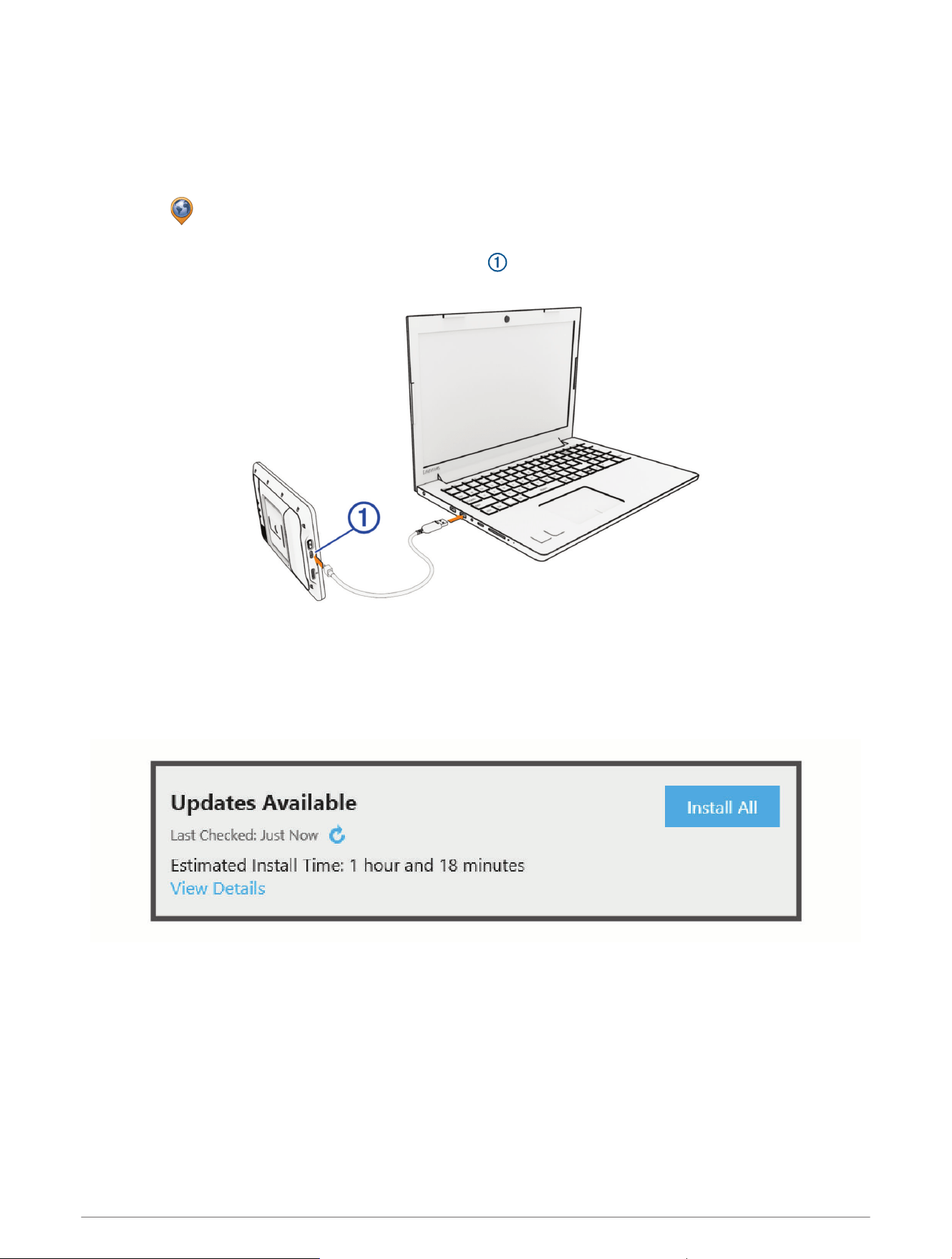
Updating Maps and Software with Garmin Express
You can use the Garmin Express application to download and install the latest map and software updates for
your device.
1 If you do not have the Garmin Express application installed on your computer, go to garmin.com/express and
follow the on-screen instructions to install it.
2
Open the Garmin Express application.
3 Connect your device to your computer using a USB-C
®
cable.
The small end of the cable connects to the USB-C port on your AlphaXL device, and the large end
connects to an available USBport on your computer.
4 From your AlphaXL device, select Tap to Connect to Computer.
5 In the Garmin Express application, click Add a Device.
The Garmin Express application searches for your device and displays the device name and serial number.
6 Click Add Device, and follow the on-screen instructions to add your device to the Garmin Express application.
When setup is complete, the Garmin Express application displays the updates available for your device.
68 Device Maintenance
7 Select an option:
• To install all available updates, click Install All.
• To install a specific update, click View Details, and click Install next to the update you want.
The Garmin Express application downloads and installs the updates onto your device. Map updates are very
large, and this process may take a long time on slower internet connections.
NOTE: If a map update is too large for the internal storage of the device, the software may prompt you to
install a microSD
®
card in your device to add storage space (Installing a Memory Card for Maps and Data,
page64).
8 Follow the on-screen instructions during the update process to finish installing updates.
For example, during the update process, the Garmin Express application may instruct you to disconnect and
reconnect your device.
Device Care
NOTICE
Avoid dropping your device.
Do not store the device where prolonged exposure to extreme temperatures can occur, because it can cause
permanent damage.
Never use a hard or sharp object to operate the touchscreen, or damage may result.
Cleaning the Outer Casing
NOTICE
Avoid chemical cleaners and solvents that can damage plastic components.
1 Clean the outer casing of the device (not the touchscreen) using a cloth dampened with a mild detergent
solution.
2 Wipe the device dry.
Cleaning the Touchscreen
1 Use a soft, clean, lint-free cloth.
2 If necessary, lightly dampen the cloth with water.
3 If using a dampened cloth, turn off the device and disconnect the device from power.
4 Gently wipe the screen with the cloth.
Cleaning the USB Port
1 Turn off the device and disconnect the device from power.
2 Clean the USB port using a soft, clean, lint-free cloth or cotton swab.
NOTE: If necessary, you can lightly dampen the cloth or cotton swab with isopropyl alcohol.
3 Allow the device to dry completely before you connect it to power.
Restarting the Device
You can restart your device if it stops functioning.
Hold the power button for 12 seconds.
Device Maintenance 69

Troubleshooting
My device is not acquiring satellite signals
• Verify the GPS simulator is turned off (Navigation Settings, page61).
• Take your device out of parking garages and away from tall buildings and trees.
• Remain stationary for several minutes.
My device does not connect to my phone
• Select > Phone, and verify that your phone is paired with the navigator.
• Enable Bluetooth wireless technology on your phone, and bring your phone within 10m (33ft.) of the device.
• Verify your phone is compatible.
Go to www.garmin.com/bluetooth for more information.
• Complete the pairing process again.
To repeat the pairing process, you must unpair your phone and device (Disconnecting a Bluetooth Device,
page59), and complete the pairing process (Pairing with Your Smartphone, page57).
The device does not charge in my vehicle
• Verify the vehicle is turned on and is supplying power to the power outlet.
• Verify the interior temperature of the vehicle is within the charging temperature range indicated in the
specifications.
• In the vehicle fuse box, verify the fuse for the vehicle power outlet is not broken.
My battery does not stay charged for very long
• Decrease the screen brightness (Display Settings, page62).
• Shorten the display timeout (Display Settings, page62).
• Decrease the volume (Adjusting the Volume, page9).
• Turn off Wi‑Fi technology when it is not in use (Wi‑Fi Settings, page61).
• Put the device in power saving mode when not in use (Turning the Device On or Off, page6).
• Keep your device away from extreme temperatures.
• Do not leave your device in direct sunlight.
My device does not connect to my computer
If you connect the device to your computer but a notification does not appear, you can follow these steps.
1 If necessary, select to return to the main menu.
2 Select .
3 Select Tap to Connect to Computer.
70 Troubleshooting
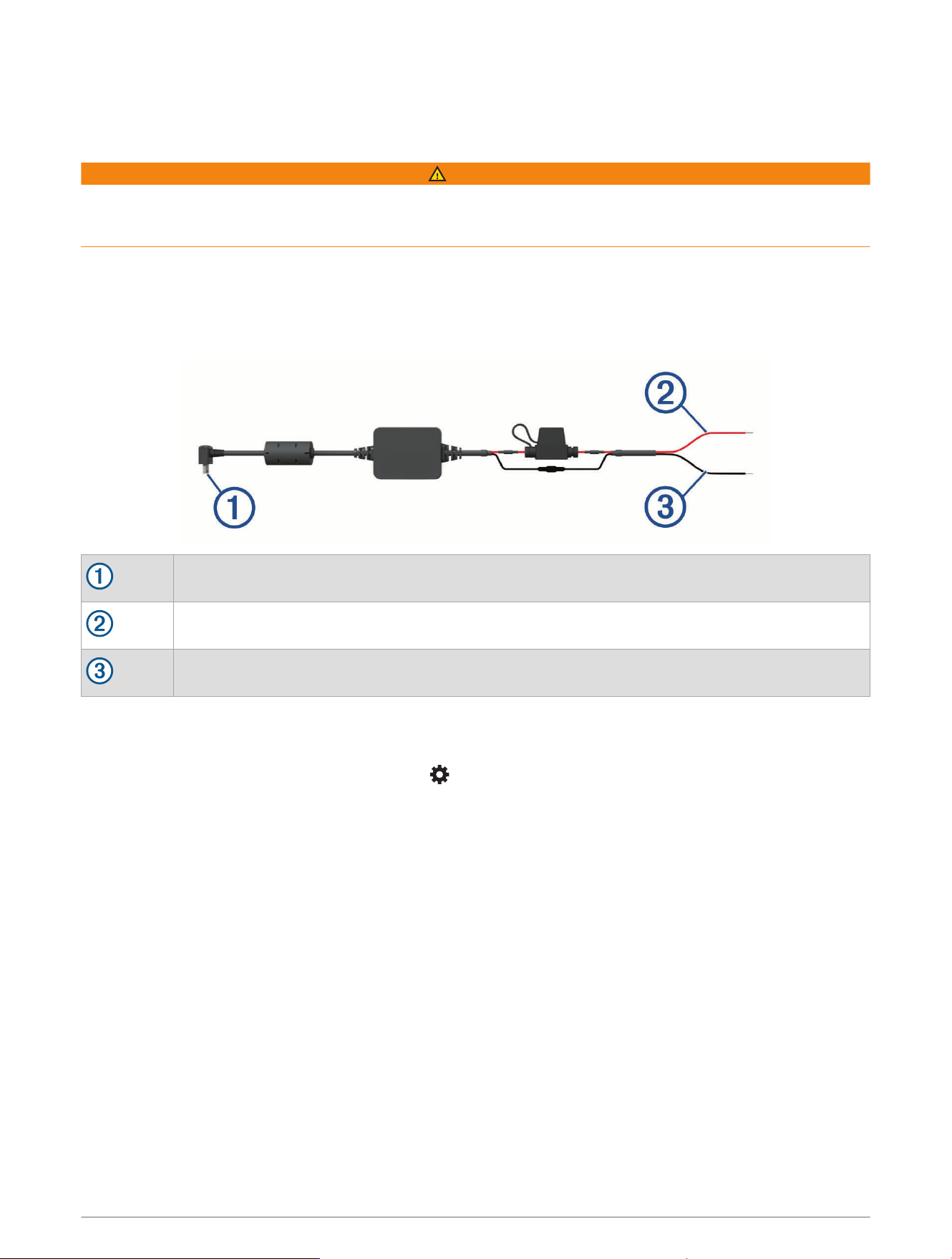
Appendix
Bare Wire Power Cable
WARNING
Garmin strongly recommends having an experienced installer with the proper knowledge of electrical systems
install the device. Incorrectly wiring the power cable can result in damage to the vehicle, the battery, or the
device and can cause bodily injury.
You can purchase an optional bare wire power adapter for use in vehicles that are not equipped with a CLA
power outlet. You can also use this cable in applications where a hardwired permanent power source is
preferred. The device must be mounted in a suitable and secure location in your vehicle, based on available
power sources and safe cable routing. You can purchase a bare wire power cable from your Garmin dealer, or
you can go to buy.garmin.com.
Device power connector
10to30 Vdc system input power (red)
System ground (black)
Pairing a Tempe Sensor
1 Turn on your tempe
™
sensor and bring it within 3 m (10 ft.) of your navigator.
2 From the main menu on your navigator, select > Sensors > Tempe Sensor > Search for New.
3 If necessary, select Enable Sensor to start receiving data from the tempe sensor.
To see tempe sensor data on the map, select a customizable data field, and select Temperature.
Appendix 71

support.garmin.com
GUID-E4961C4C-A75C-4277-A125-70E674AFA2F4 v2June 2025