User Manual
cielowigle.com
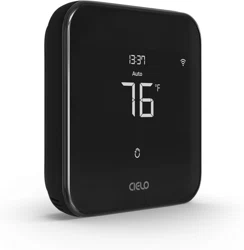
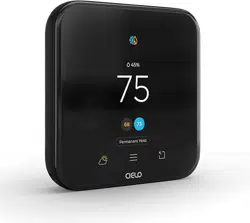
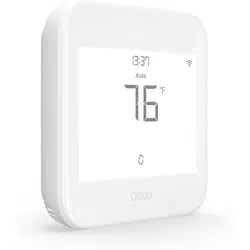
Cielo Smart Thermostat
Thanks for choosing Cielo for your
home climate control!
Cielo Smart Thermostat Eco is designed and optimized
to save energy while prioritizing comfort.
Simple to Install | Easy to Use | Saves You Energy
Let’s Start!
2

Tools you need:
Drill for mounting anchors (3/16” drill bit)
Small flathead screwdriver
Phillips screwdriver
Wire stripper (optional)
Hammer (optional)
Pencil (optional)
3
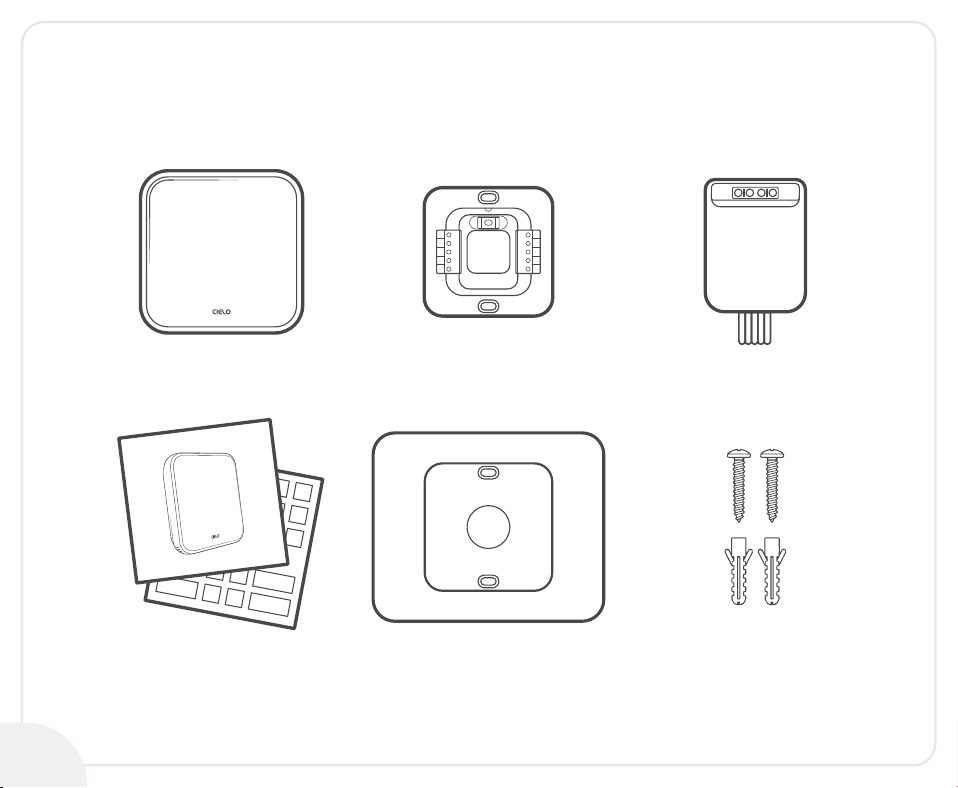
Included in the box:
C-Wire AdapterCielo Smart Thermostat Eco
User Manual and Wire Labels Thermostat Wall Plate Mounting Screws With
Drywall Anchors
Thermostat Backplate
OB
W1
W2
CWA
RH
Y2
Y1
G
C
RC
4

Getting Help
Email us at: support@cielowigle.com
Call us at: +1 (425) 529-5775
9 AM - 9 PM ET, Mon-Fri
No long queues, no bots, no delays.
We answer 98% calls in less than 2 minutes and
guarantee that you will talk to a REAL person.
Visit our website:
cielowigle.com
and select support to
access user guides.
5

Let’s Install Your Thermostat
6
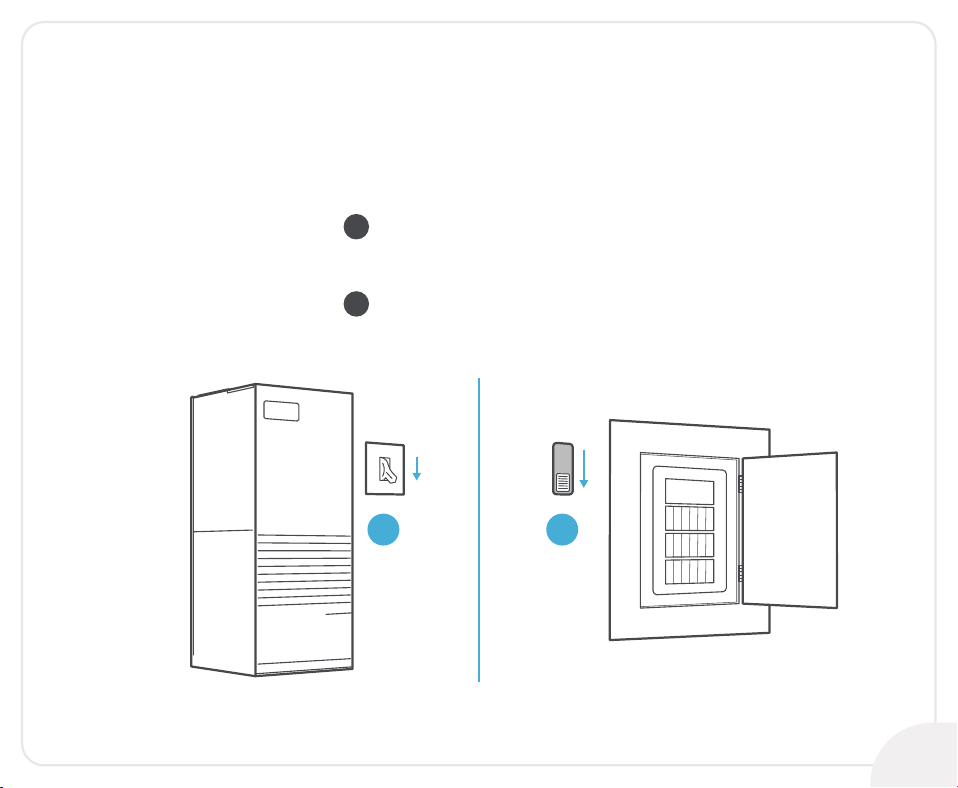
Step 1:
Safety First - Power off your HVAC system using:
ON
OFF
ON
OFF
The master switch
OR
The circuit breaker
1 2
1
2
7
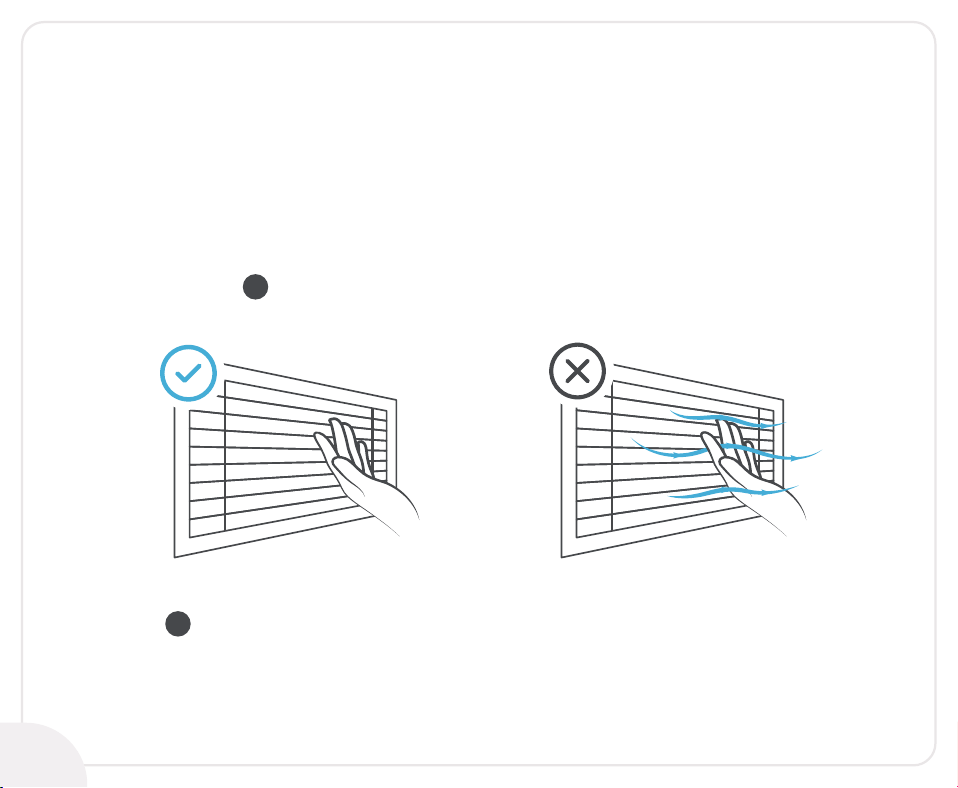
Step 2:
To be on the safe side, ensure that your system is
completely switched off. Double-check that:
No air is coming out of the air vents.
1
Main flame is extinguished in the case of a boiler.
2
8
9
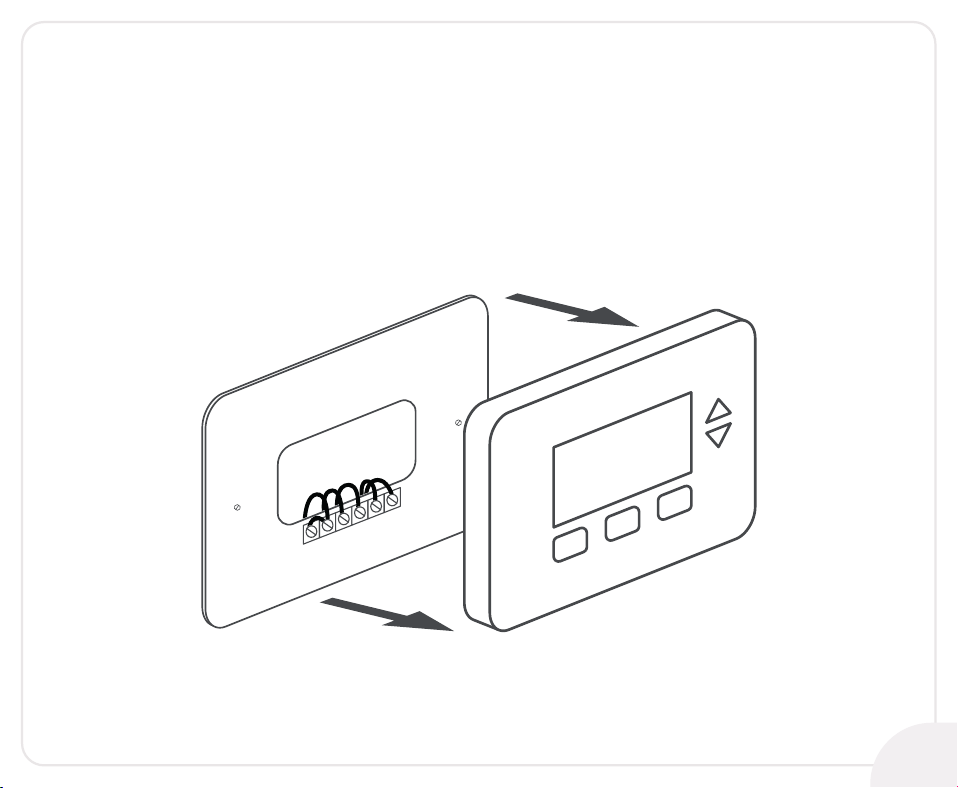
Step 3:
Go to your already installed thermostat
and remove it from the wall.
10
Step 4:
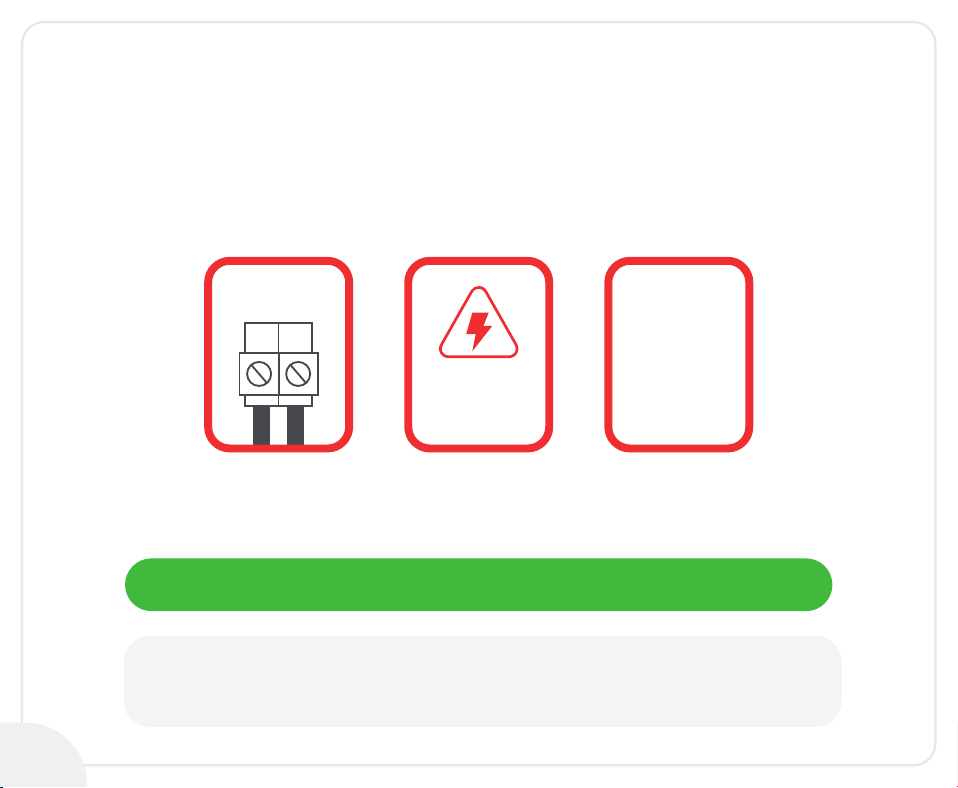
Look closely for any of the following indicators on your
old thermostat’s backplate:
High
Voltage
110V AC
or
120V AC
or
240V AC
L1 L2
WARNING:
Cielo Smart Thermostat Eco only works with 24V AC.
It does not work with line (high) voltage or millivolt systems.
If you find any of the above indicators, please contact
Cielo Support for assistance (visit page 5 for contact details).
In case of no such indicators, go to the next page.
11
Step 5:
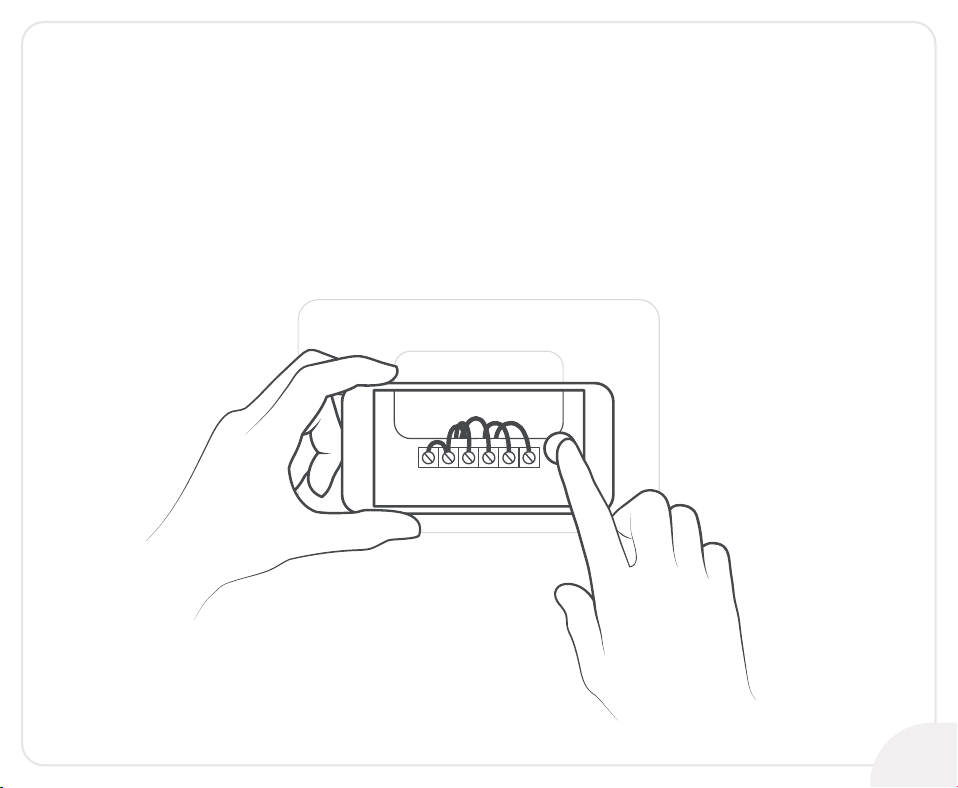
Grab your smartphone and take a picture of your
old thermostat wiring.
Step 6:
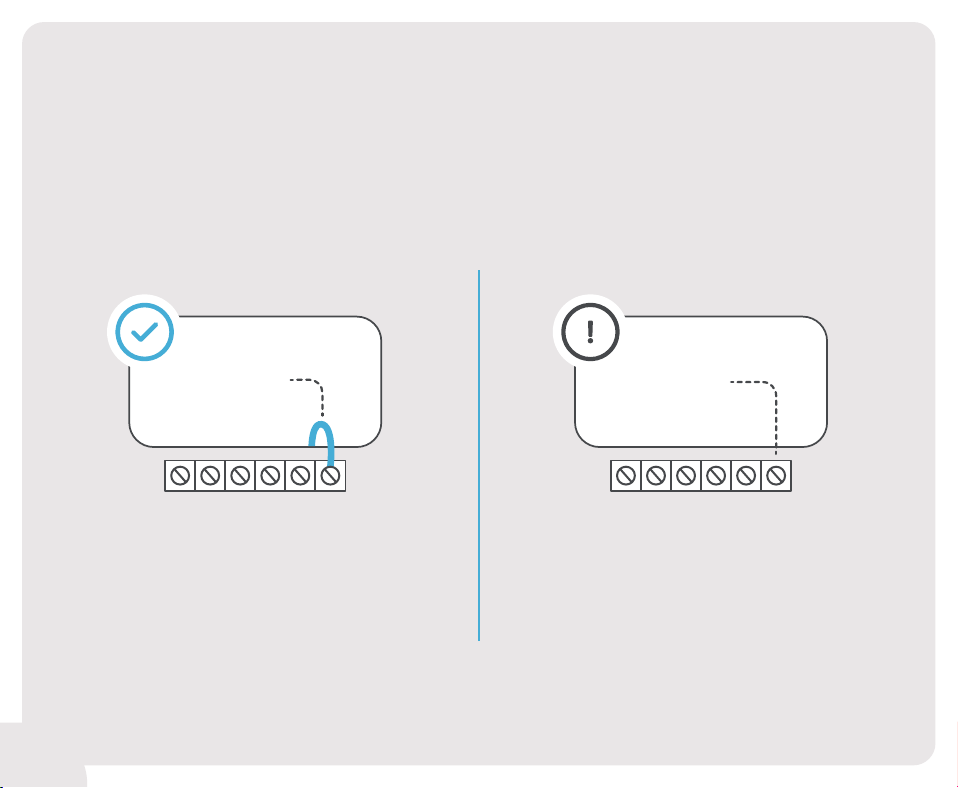
Does your old thermostat have a
C-Wire connection?
Continue to Section 1
on page 15
Continue to
the next page
RC RH G Y W C
YES
RC RH G Y W C
NO
12
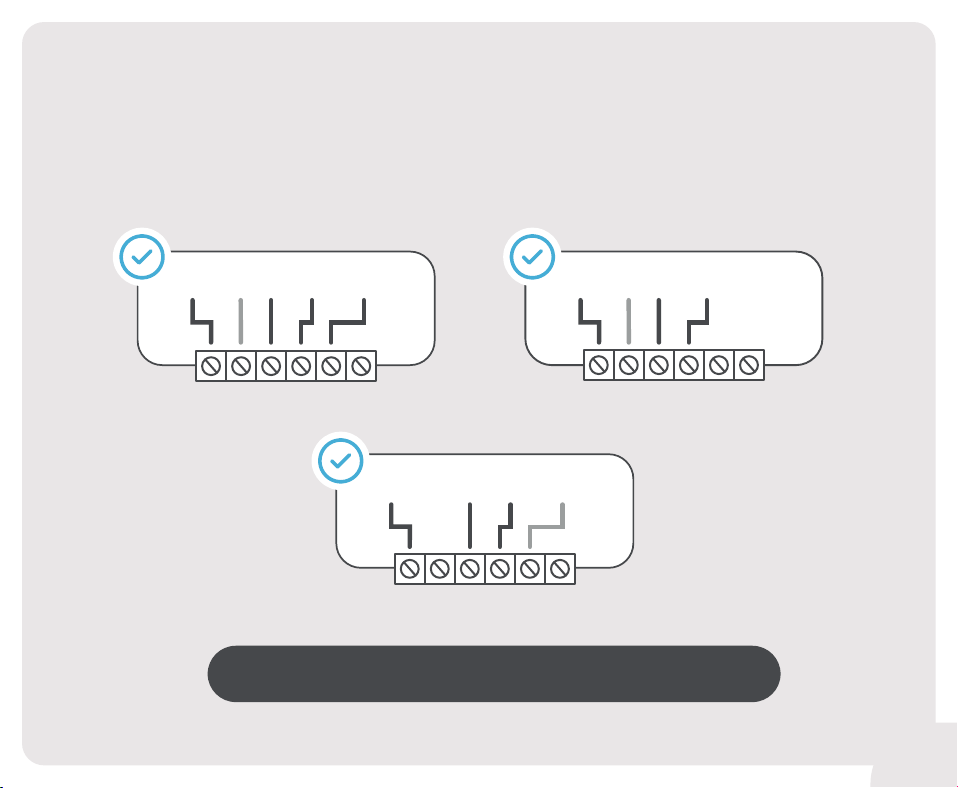
RC RH G
4/5 Wires
Y W C
RC RH
G Y/Y1 W/W1
RC RH G
3/4 Wires
Y W C
G Y/Y1
RC RH
Please continue to Section 2 on page 25
If your system has any of the following wires,
it should work with the C-Wire Adapter.
RC RH G Y W C
RC
G Y W
3/4 Wires
13
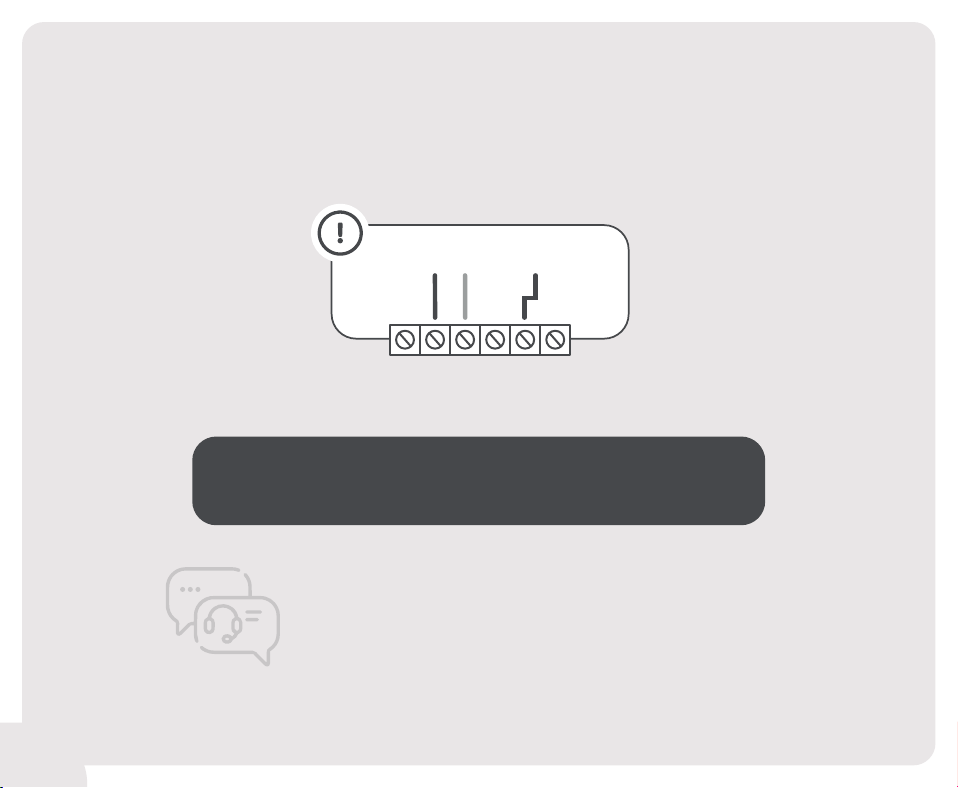
If your system has these wires:
RC RH G Y W C
GRH
W
Email us at: support@cielowigle.com
Call us at: +1 (425) 529-5775
9 AM - 9 PM ET, Mon-Fri
Contact Cielo Support;
we will help you with the installation.
14
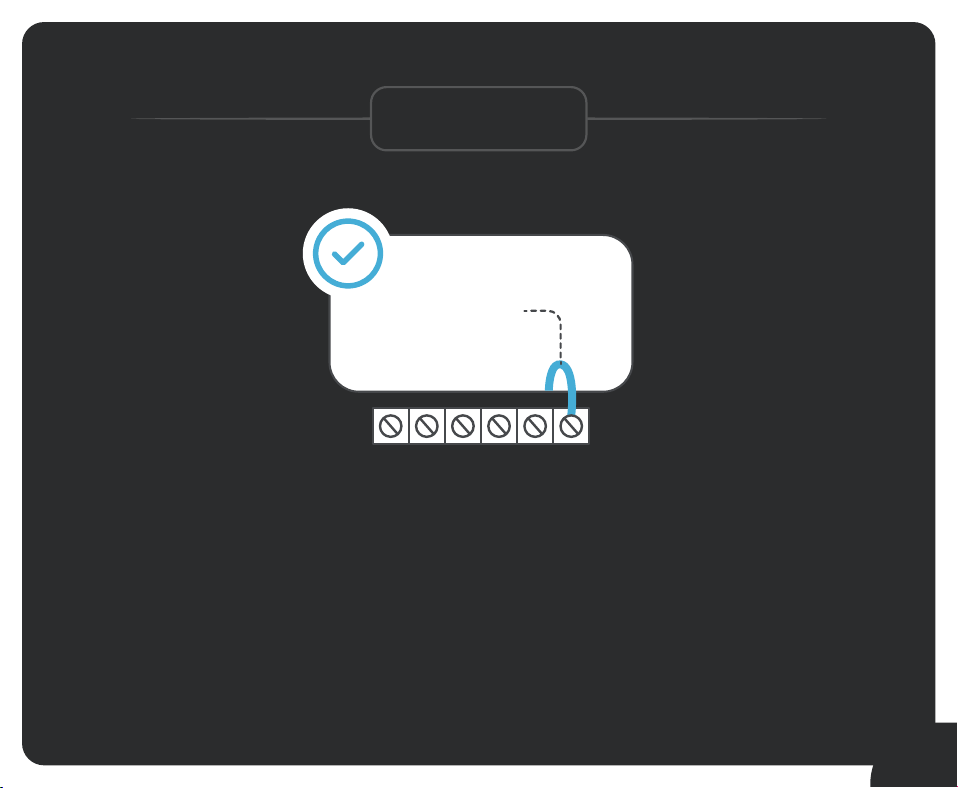
Section 1
Installing Your
Cielo Smart Thermostat Eco
With a C-Wire
RC RH G Y W C
YES
15
Section 1
16
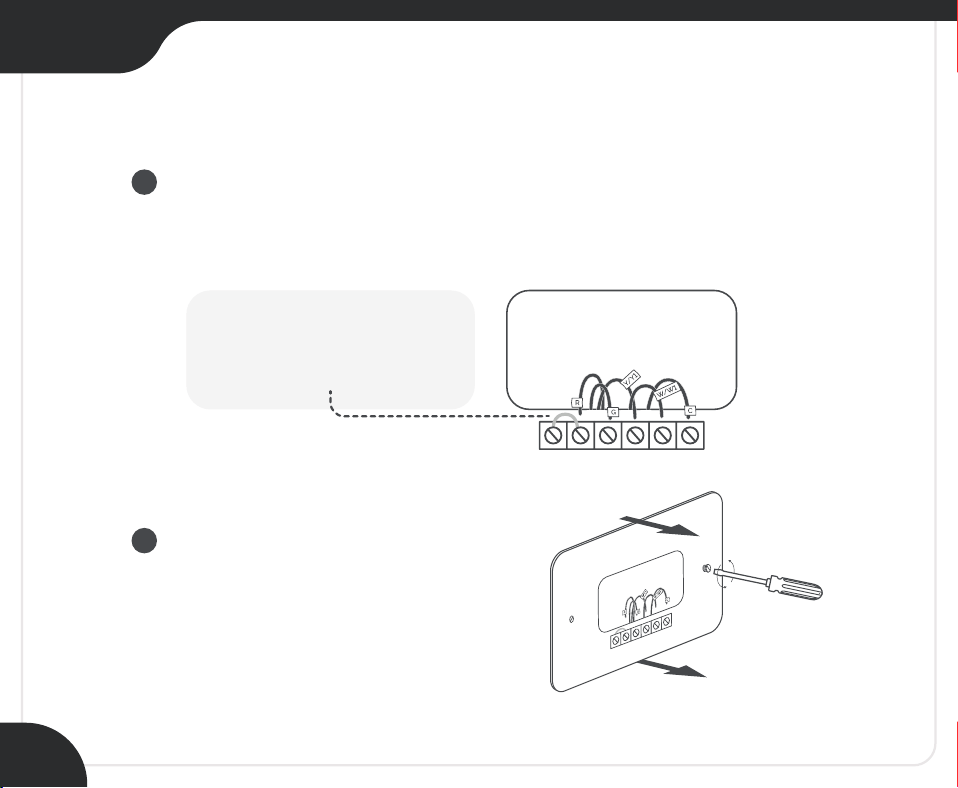
Step 7:
Disconnect the old thermostat wires one by one
and mark them using the wire labels
(included in the box).
Remove the mounting plate
of your old thermostat.
1
2
Jumper wire is not required
with your new thermostat.
Section 1
17
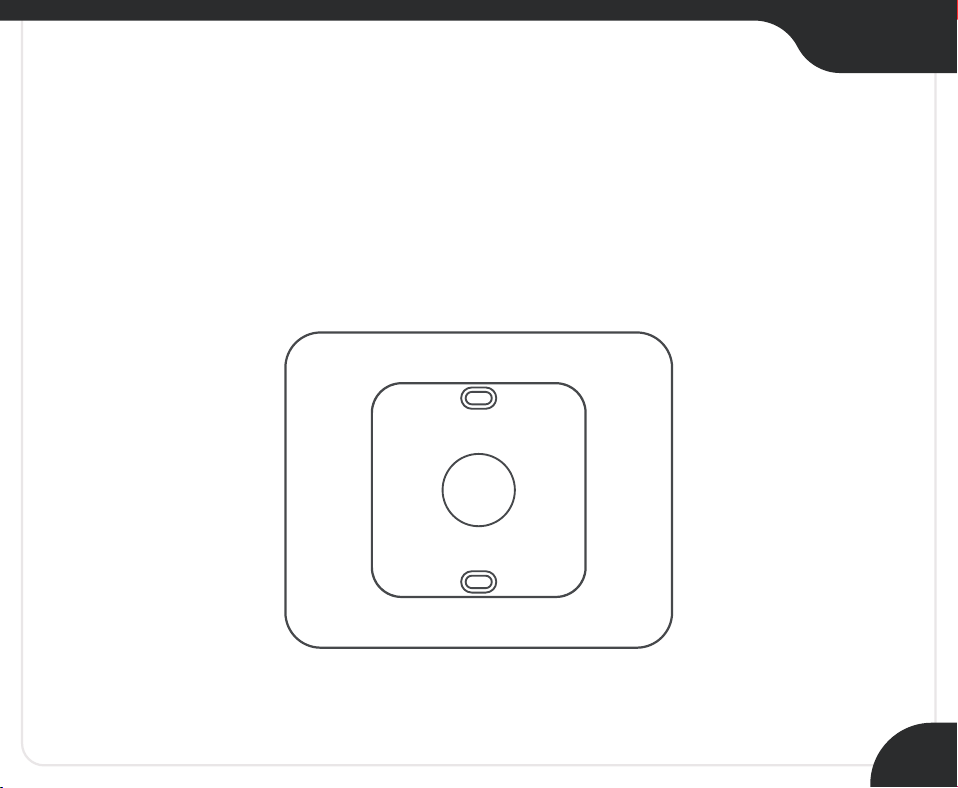
Step 8:
Optional: You may use the provided wall plate
to hide any marks or holes on the wall left by your
old thermostat installation.
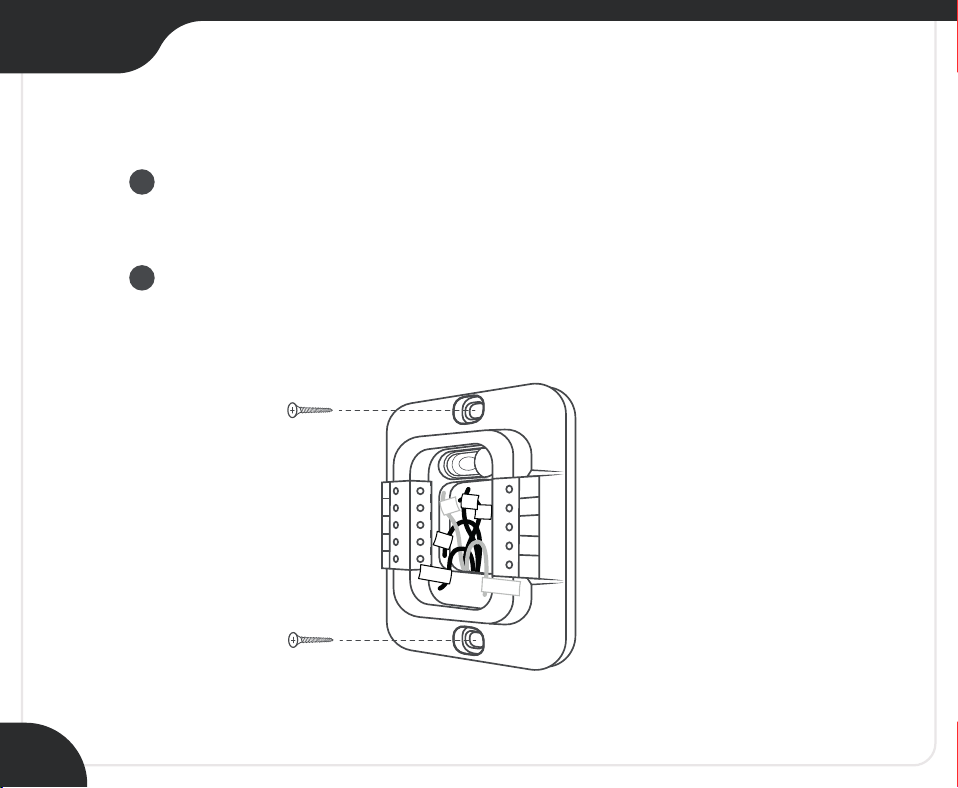
Section 1
18
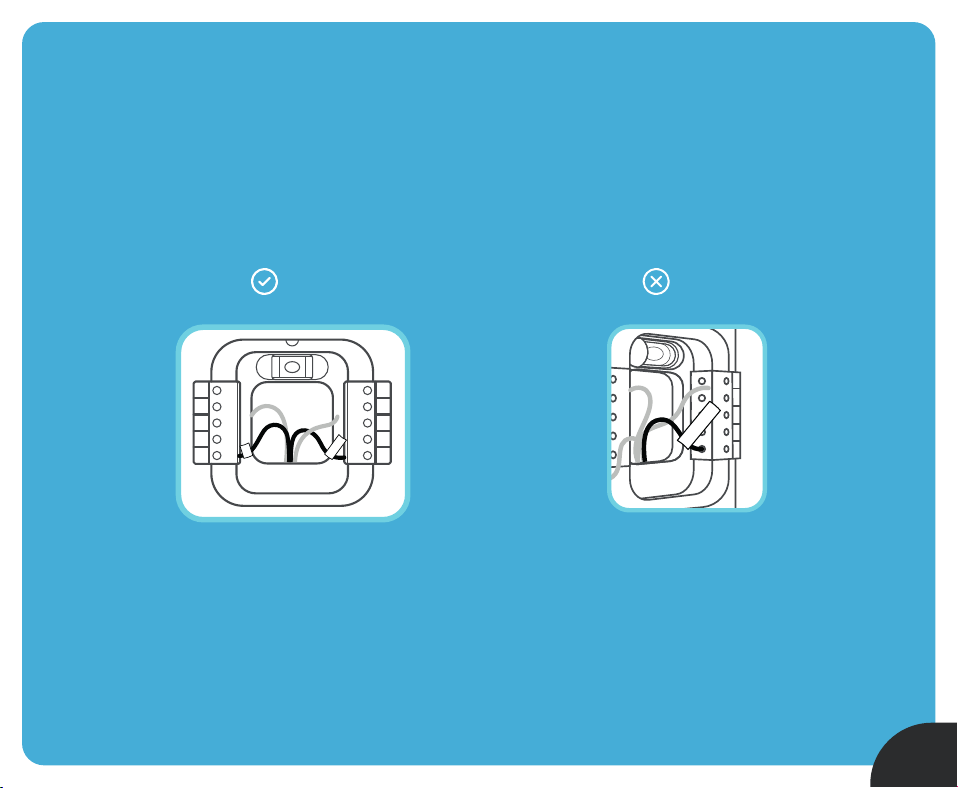
Step 9:
Take out the labeled wires through the hole in the
middle of the Cielo Smart Thermostat Eco backplate.
Screw in the backplate using the provided pair of
drywall anchors and screws.
OB
W1
W2
CWA
R
H
Y2
Y1
G
C
R
C
R
R
H
G
Y/Y1
C
W/W1
1
2
19
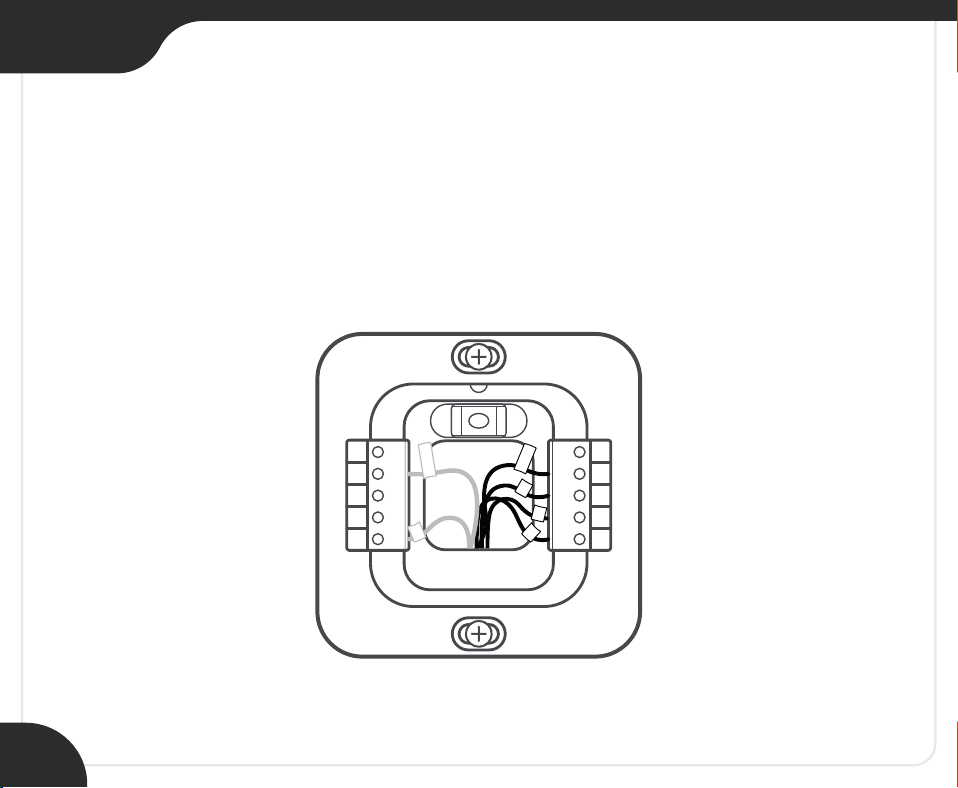
Step 10:
Do you have more than one R-Wire?
(That includes R, R
C, and RH)
Insert your wires:
R or RC RC RH RH
OB
W1
W2
CWA
R
H
G
Y1
Y2
C
R
C
R
or
R
C
R
H
YES
Insert your single
R, R
C, or RH wire into
the R
C terminal.
NO
Y2
Y1
G
C
R
C
OB
W1
W2
CWA
R
H
R
C
R
or
R
H
or
Section 1
20
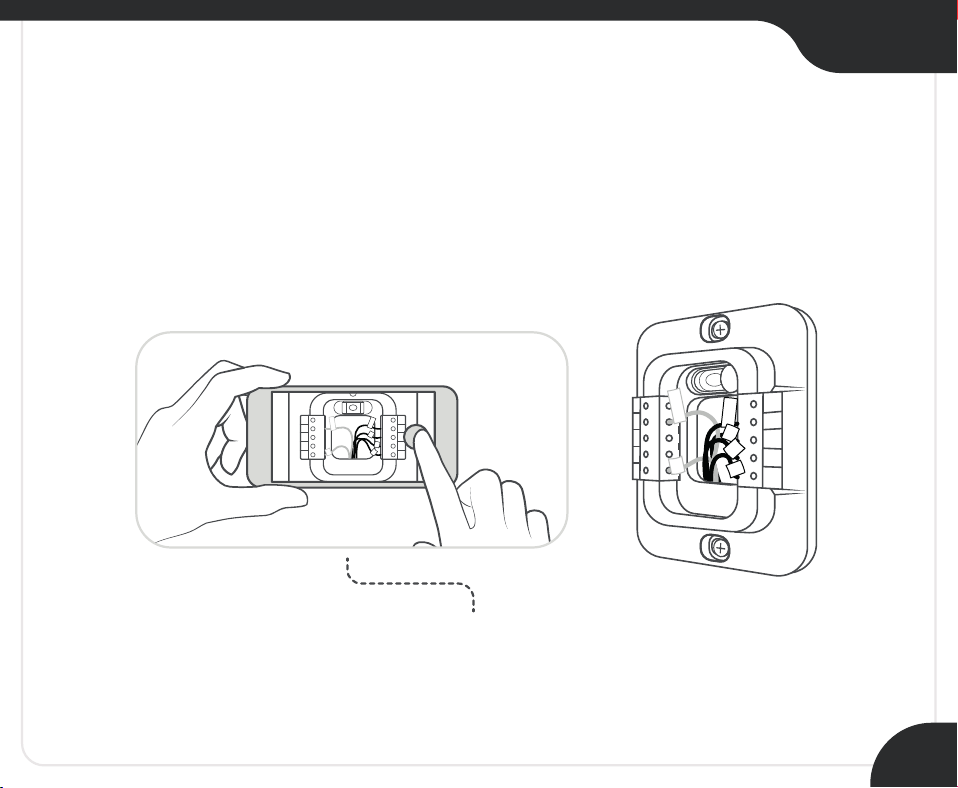
Step 11:
Insert the remaining wires into their corresponding
terminals from the side (press terminal block buttons for
ease of insertion).
OB
W1
W2
CWA
R
H
G
Y1
Y2
C
R
C
R
G
C
Y/Y1
W/W1
R
H
Section 1
Step 12:
Gently push the excessive wires back
into the wall hole to ensure that no drafts
are coming from it.
Take a picture of the backplate.
You may need it at the time of registration.
OB
W1
W2
CWA
R
H
G
Y1
Y2
C
R
C
R
G
C
Y/Y 1
W/W 1
R
H
OB
W1
W2
CWA
R
H
Y2
Y1
G
C
R
C
R
R
H
Y/Y1
G
C
W/W1
21
Section 1
22
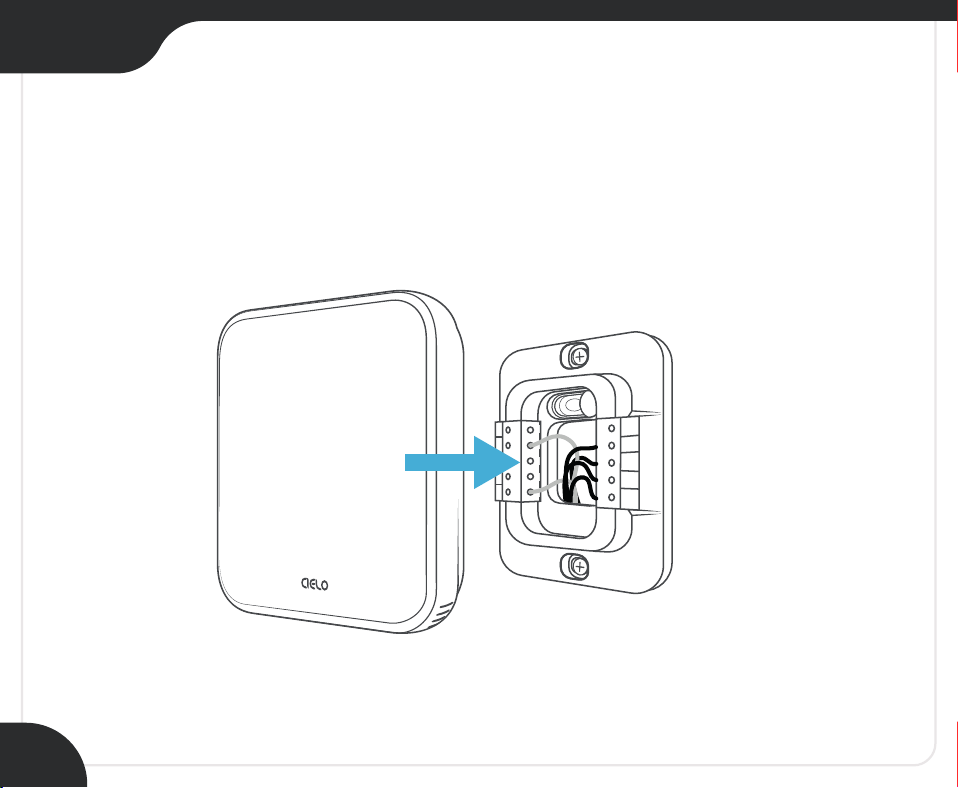
Step 13:
Align your Cielo Smart Thermostat Eco with the
backplate and press gently to fix it properly.
OB
W1
W2
CWA
R
H
Y2
Y1
G
C
R
C
Section 1
23
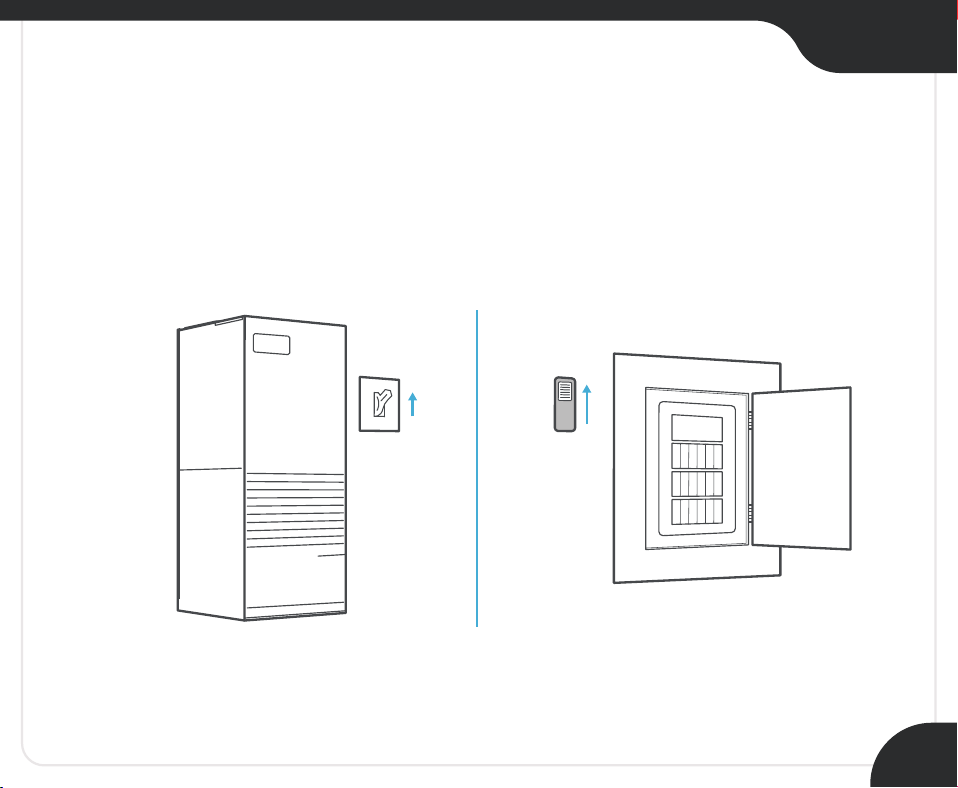
Step 14:
Go to your HVAC system and turn on the power from
the master switch or circuit breaker.
ON
OFF
ON
OFF
Installation Complete!
Go to page 42 for steps
to register your thermostat.
24
Section 2
Installing Your
Cielo Smart Thermostat Eco
Without a C-Wire
RC RH G Y W C
NO
25
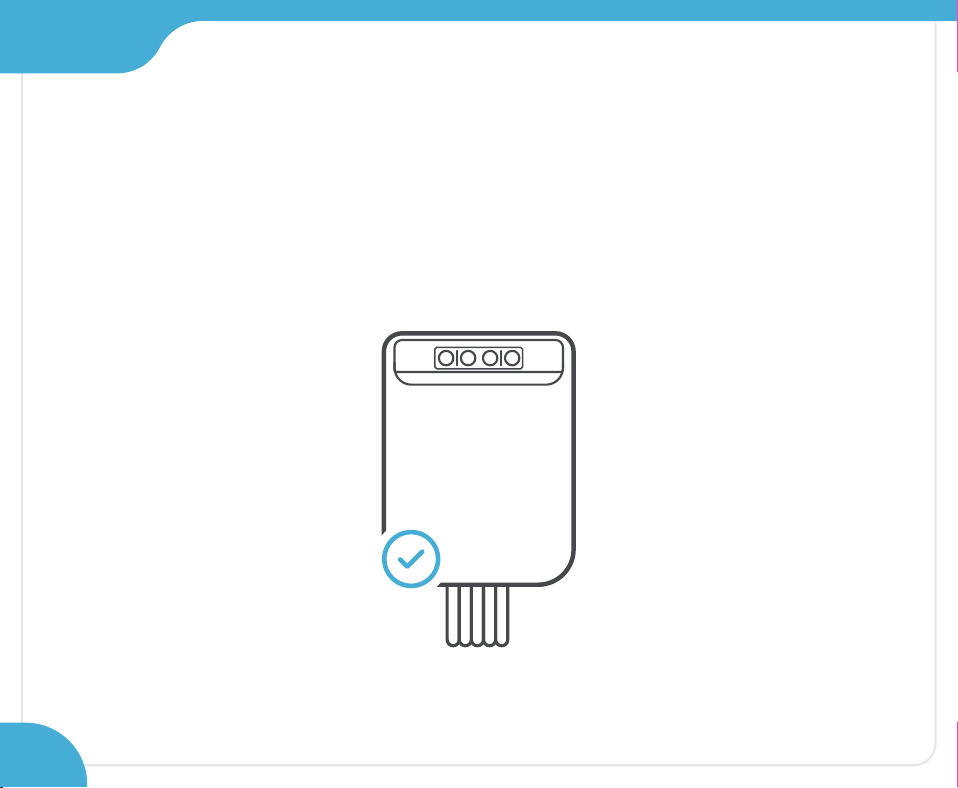
Take out the C-Wire Adapter (CWA) from the
Cielo Smart Thermostat Eco box.
(Ensure that you have already completed steps 1-5 of this guide)
Step 7:
Section 2
26
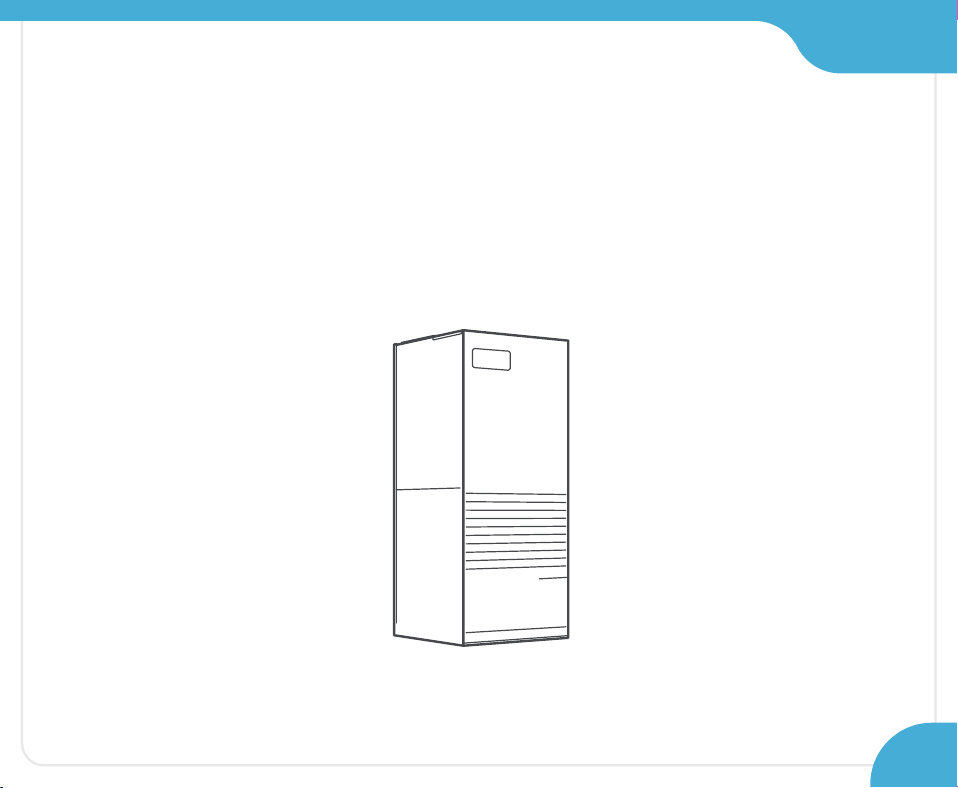
Section 2
Step 8:
Grab the C-Wire Adapter, wire labels, tools,
your smartphone, and go to your HVAC system.
27
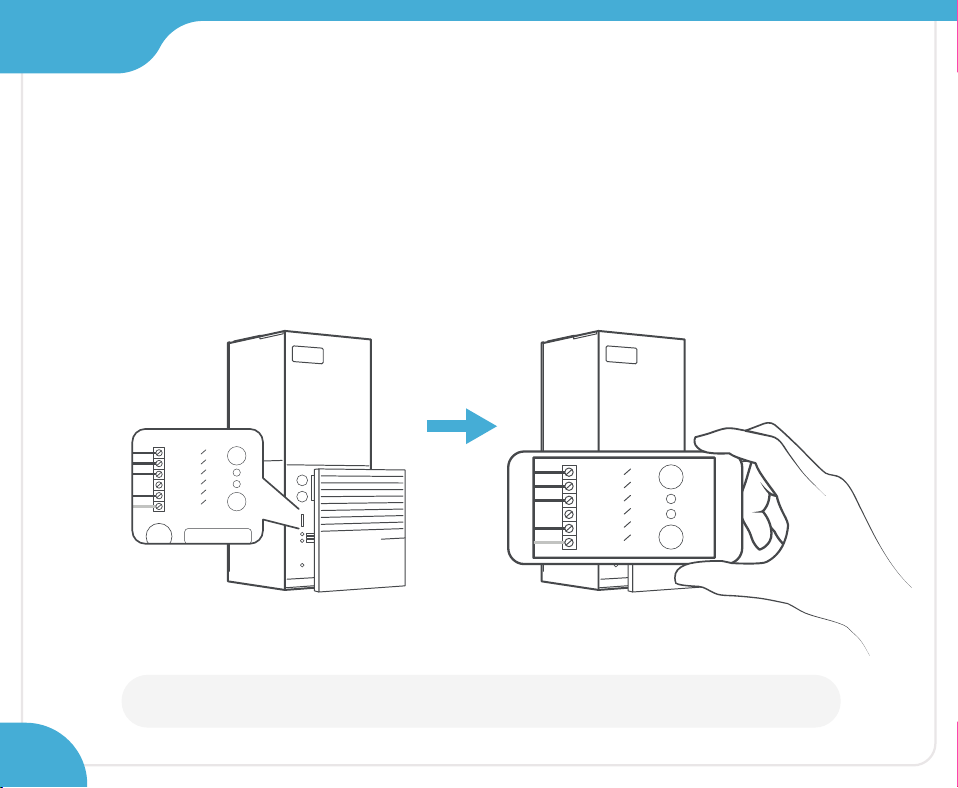
Section 2
WARNING: Proceed with caution, as HVAC systems contain high-voltage wires.
Step 9:
Take off your HVAC system’s cover to access the
control board and take a picture of the connected wires.
You may need it at a later stage.
Y
W
G
C
R
C
RH
Y
W
G
C
R
C
RH
Control
board
28
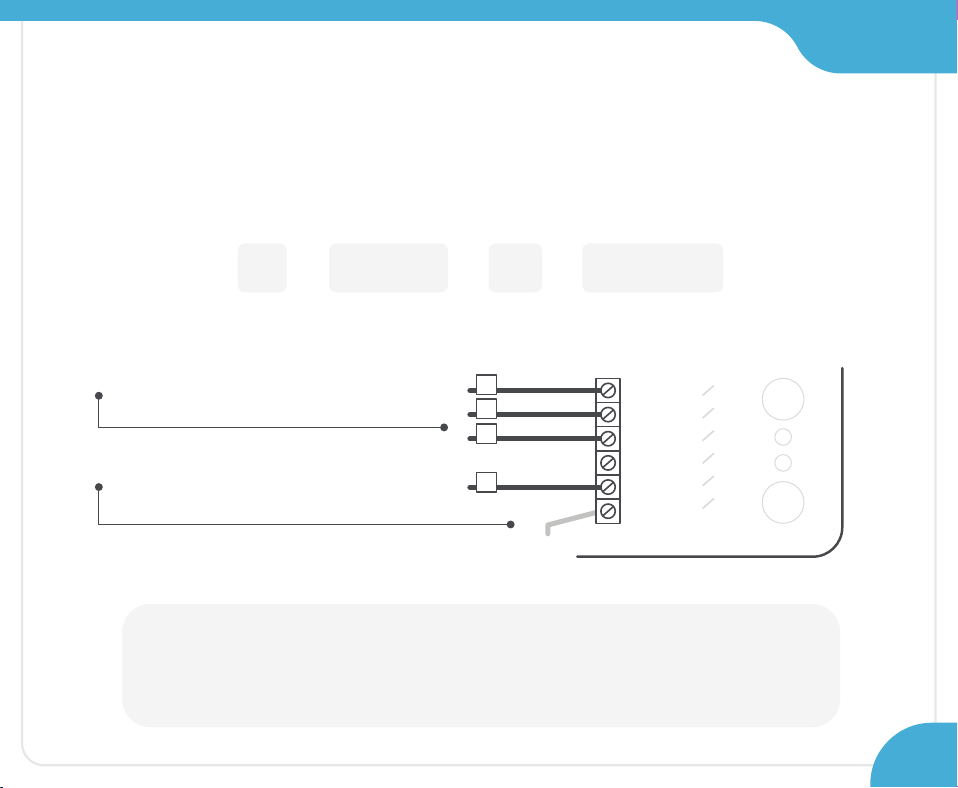
Section 2
Note:
In the case of a two-transformer system (wires connected to both R
C and RH
terminals at the control board), please contact Cielo support to help you with
the installation. Call: +1 (425) 529-5775 Email: [email protected]
Step 10:
Label only the following wires with
the matching labels:
R - Y or Y1 - G - W or W1
You only need to label the wires
coming from your thermostat.
Ignore any extra wires going
into the terminals.
Y
W
G
C
R
C
RH
Y
W
G
R
29
Section 2
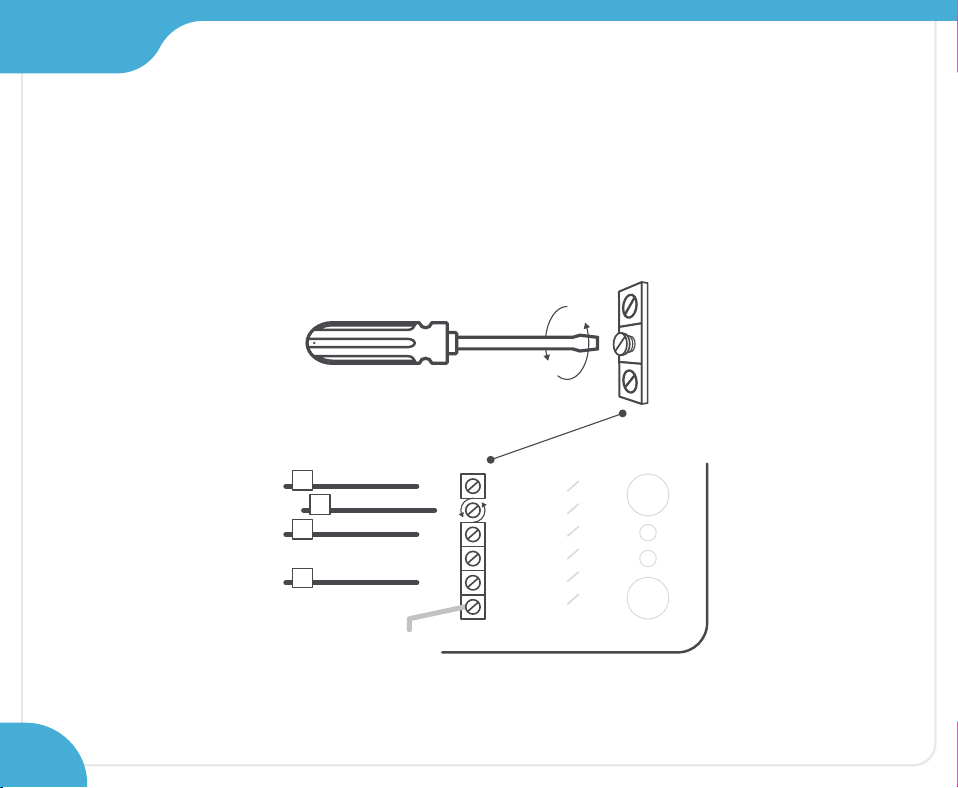
Step 11:
Disconnect the labeled R, Y, G, and W wires
from the control board.
Y
W
G
C
R
C
RH
Y
W
G
R
30
Section 2
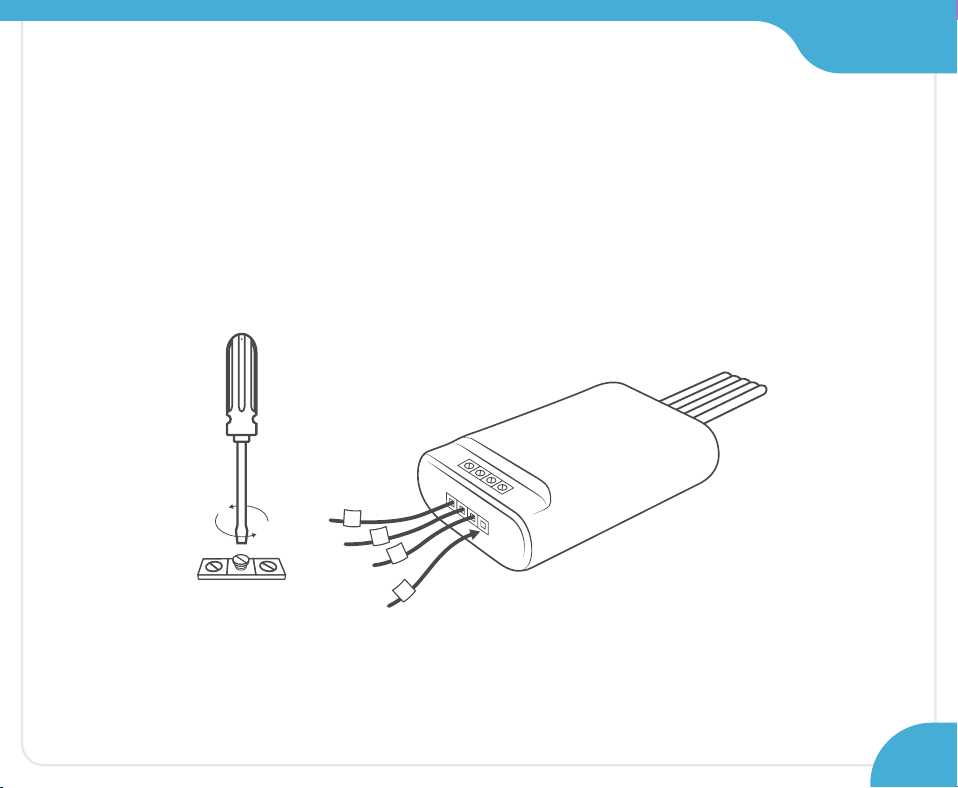
Step 12:
Securely connect the wires from the control board
to their matching terminals on the CWA.
Y R G W
Y
R
G
W
31
Section 2
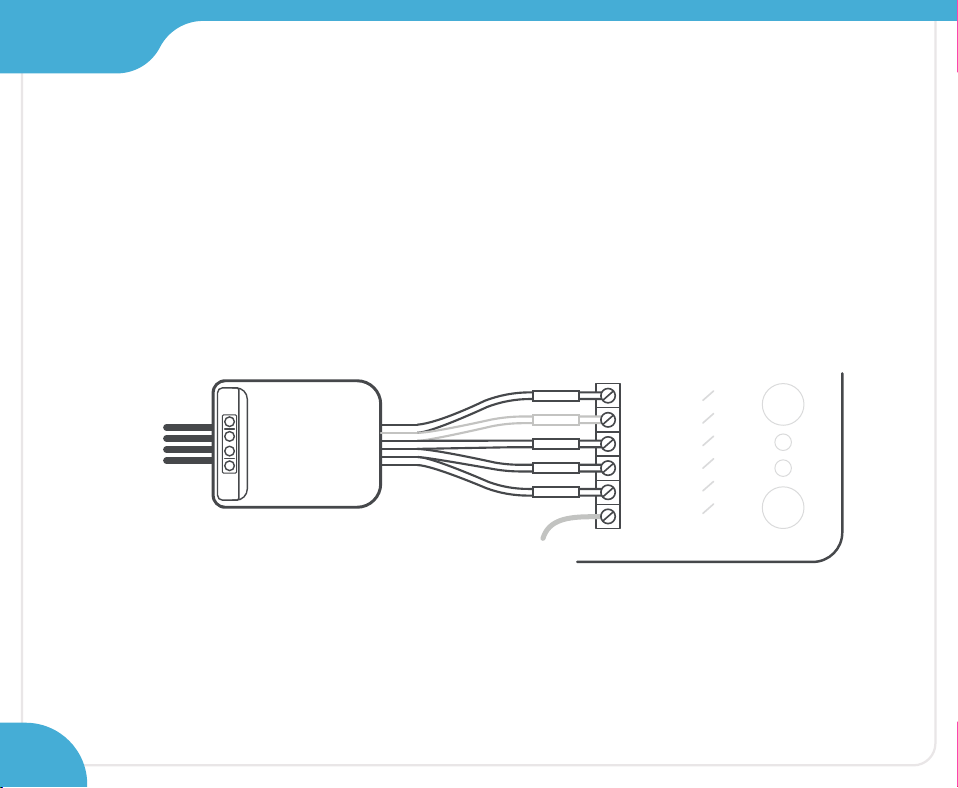
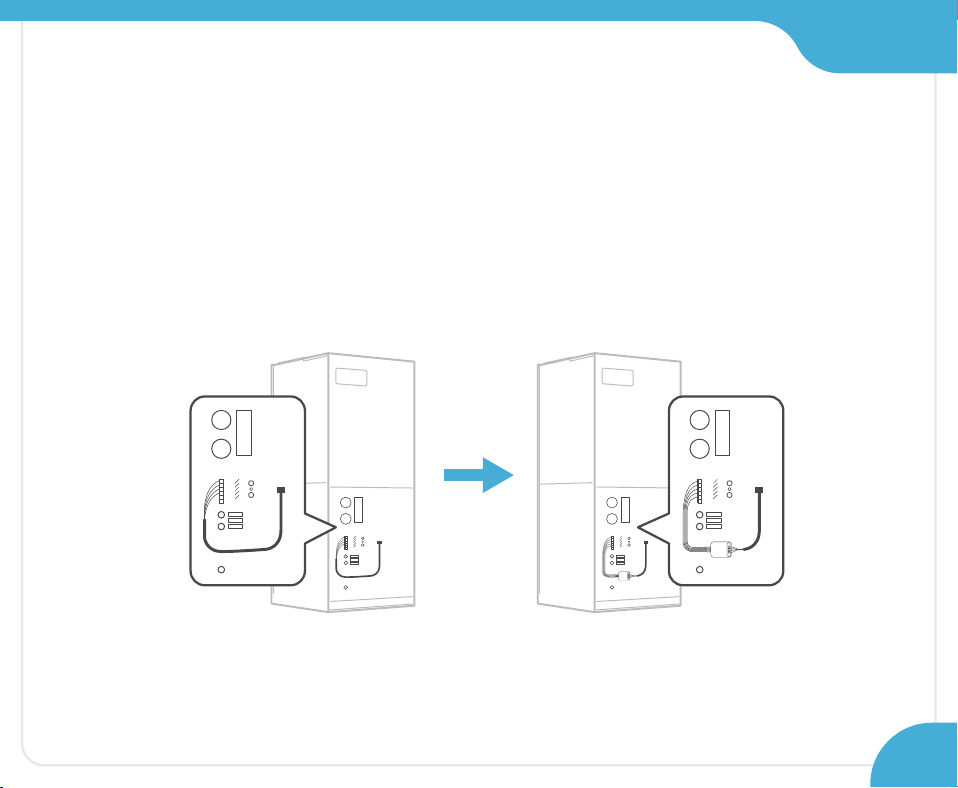
Step 13:
Securely connect all the wires coming out of
the C-Wire Adapter to the corresponding terminals on
the control board of your HVAC system.
Y
W
G
C
R
C
RH
32
Y
WGCR
Section 2
Step 14:
Place/mount the CWA at a suitable location
inside your HVAC system. Close the HVAC cover panel
securely and return to your old thermostat.
33
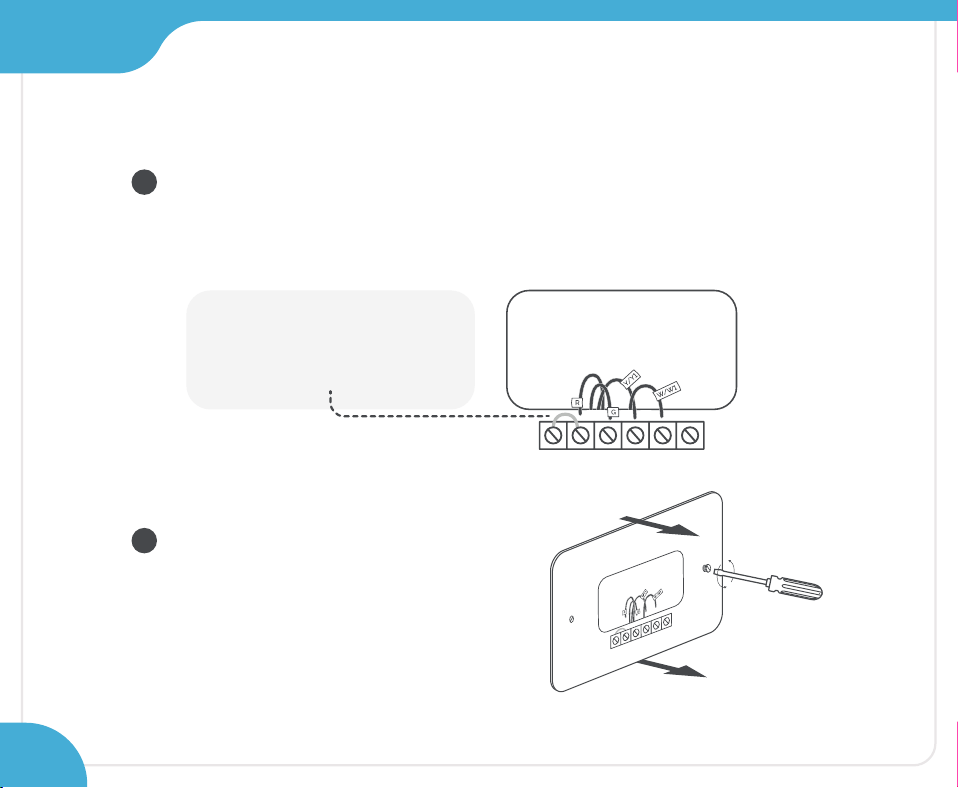
Section 2
34
Step 15:
Disconnect the old thermostat wires one by one
and mark them using the wire labels
(included in the box).
Jumper wire is not required
with your new thermostat.
Remove the mounting plate
of your old thermostat.
1
2
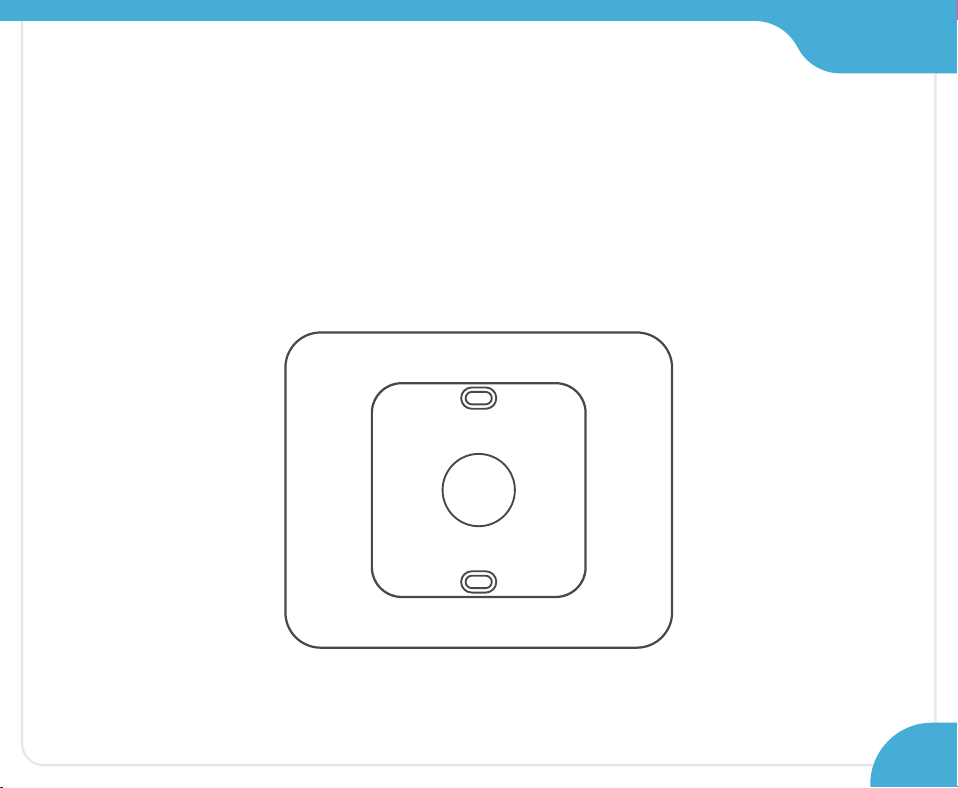
Section 2
Step 16:
Optional: You may use the provided wall plate
to hide any marks or holes on the wall left by your
old thermostat installation.
35
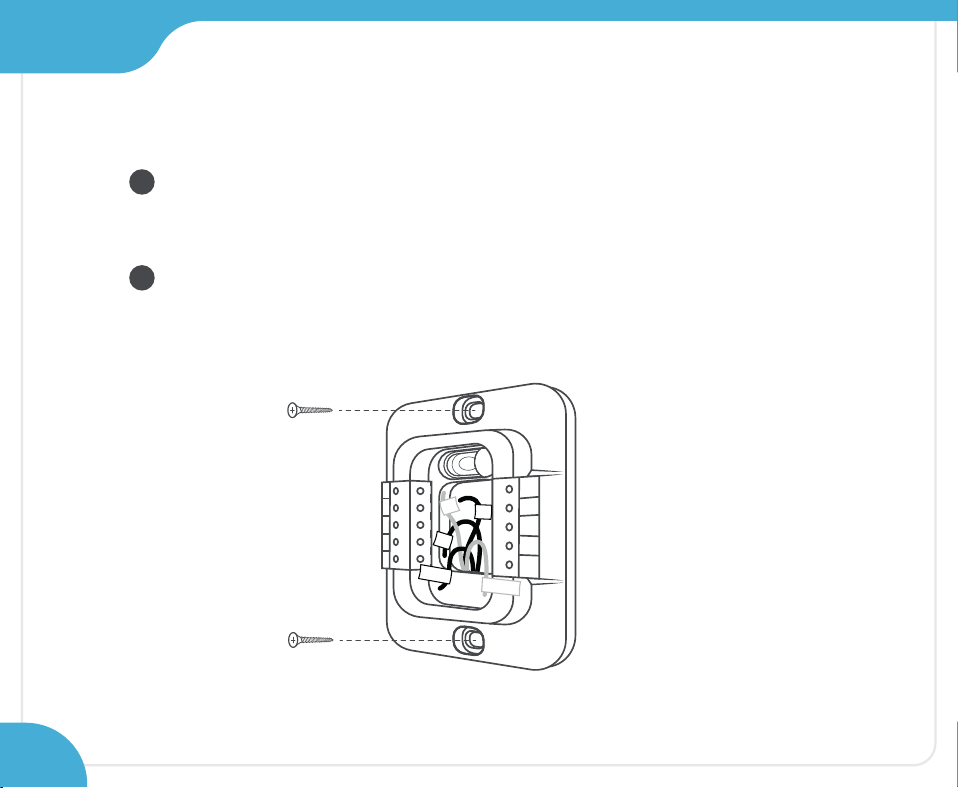
Section 2
Step 17:
Take out the labeled wires through the hole in the
middle of the Cielo Smart Thermostat Eco backplate.
Screw in the backplate using the provided pair of
drywall anchors and screws.
OB
W1
W2
CWA
R
H
Y2
Y1
G
C
R
C
1
2
R
R
H
G
Y/Y1
W/W1
36
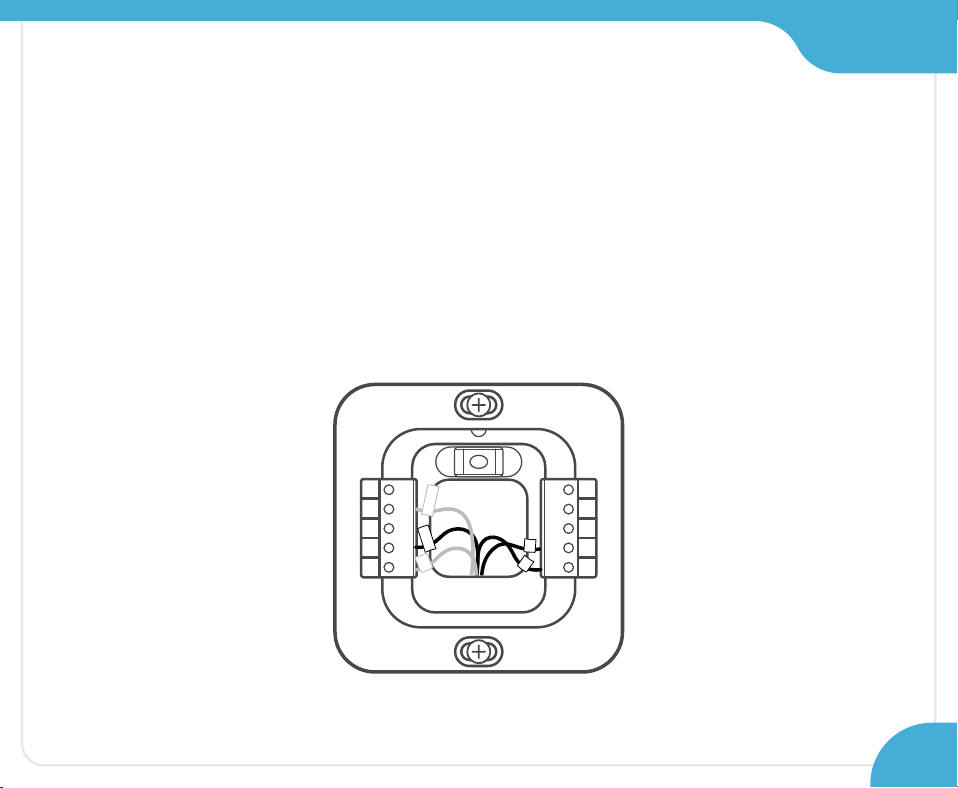
Section 2
Step 18:
OB
W1
W2
CWA
R
H
G
Y1
Y2
C
R
C
R
G
Y/Y1
R
H
W/W1
Then, connect the remaining wires to their corresponding
terminals (press terminal block buttons for ease of insertion).
First, connect these 3 wires as shown:
R/R
C RC G C Y/Y1 CWA
37
Section 2
38
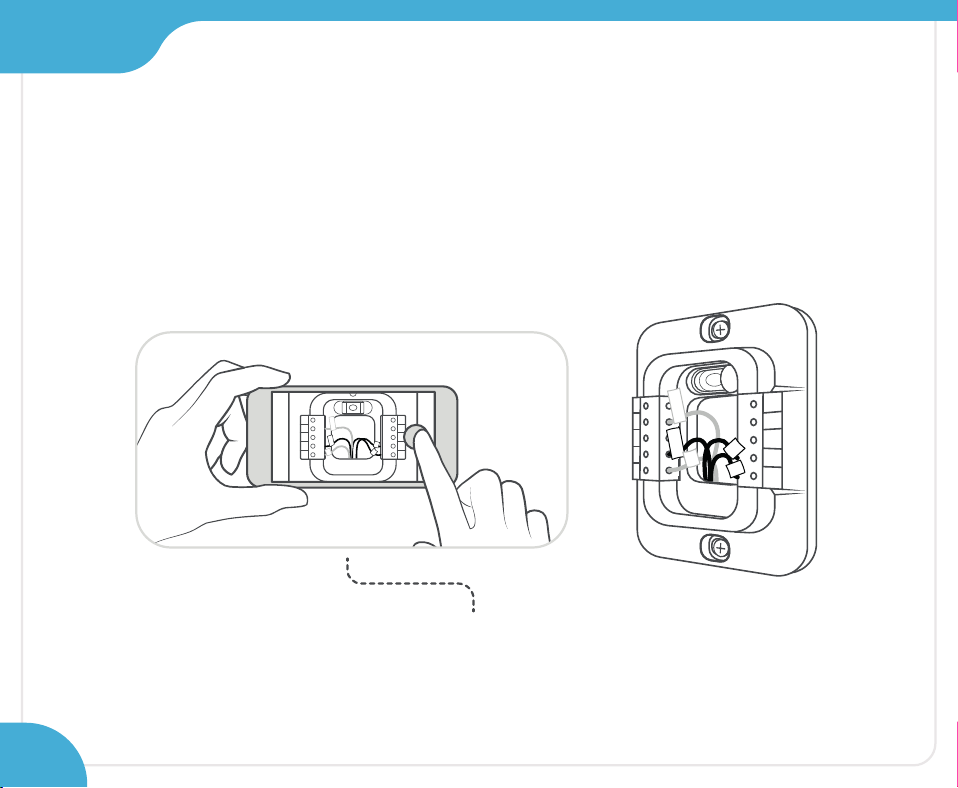
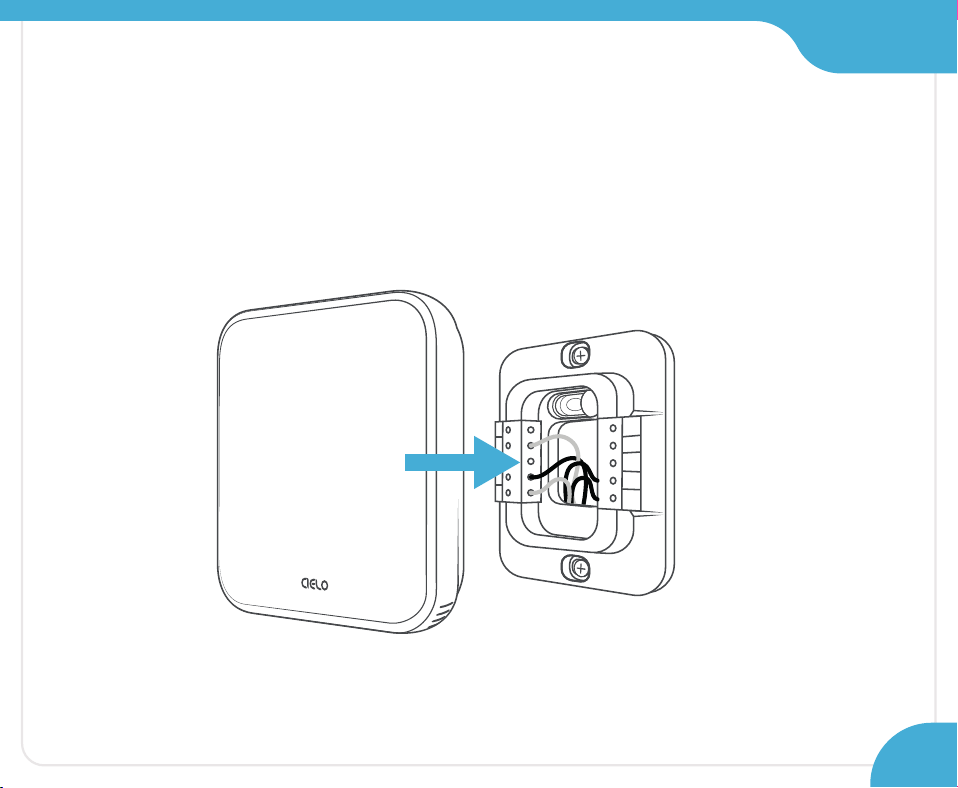
Step 19:
Gently push the excessive wires back
into the wall hole to ensure that no drafts
are coming from it.
Take a picture of the backplate.
You may need it at the time of registration.
OB
W1
W2
CWA
R
H
G
Y1
Y2
C
R
C
R
G
W/W 1
R
H
Y/Y 1
OB
W1
W2
CWA
R
H
Y2
Y1
G
C
R
C
R
Y/Y1
C
W/W1
R
H
Section 2
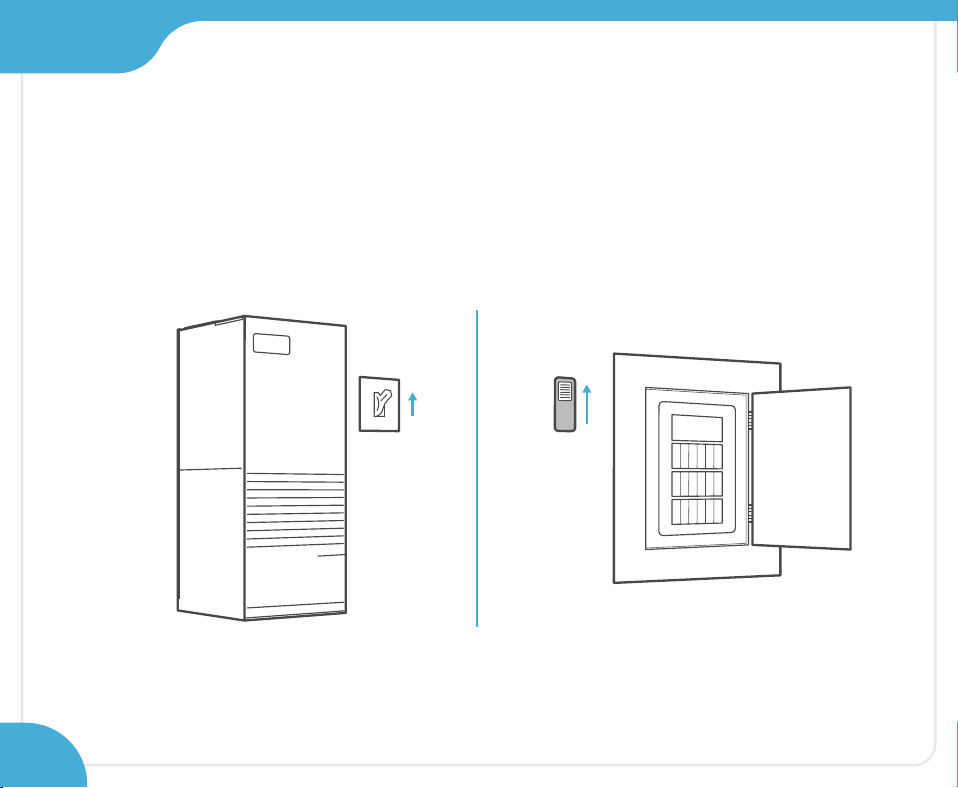
Step 20:
Align your Cielo Smart Thermostat Eco with the
backplate and press gently to fix it properly.
OB
W1
W2
CWA
R
H
Y2
Y1
G
C
R
C
39
Section 2
Step 21:
Go to your HVAC system and turn on the power from
the master switch or circuit breaker.
ON
OFF
ON
OFF
40

Installation Complete!
Continue to the next page for steps
to register your thermostat.
41

Registering Your Thermostat
via the Cielo Home App
42
Prior to Registration
43
0000.
8
Cooling to
45
%
Heating to
13:37
AM
PM
f
DR
Off
Heat
Aux
Fan
Auto
Cool
Dry
Following
Schedule
Permanent
Hold
Temporary
Hold
Cancel
Hold
Sensor
Linked
Auto
Quiet
Fan
On
Fan
Circ
Fan
Fan On
Aux Heat On
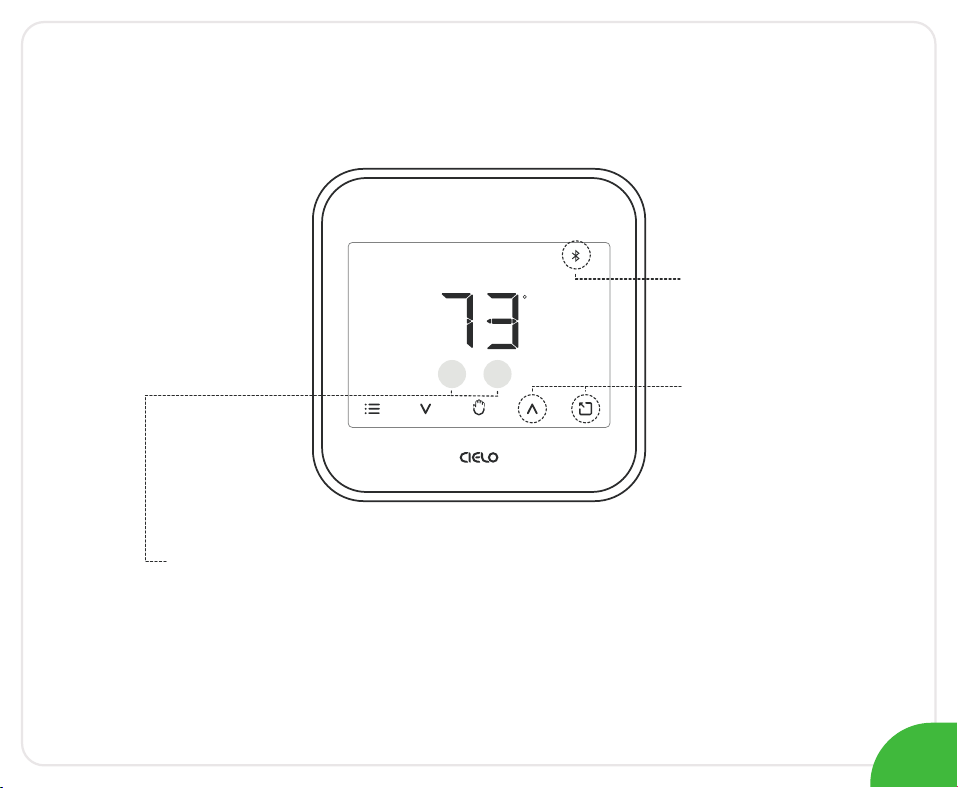
First, check that your thermostat set points are 00. If not,
press and hold the Temperature Up and Presets buttons
simultaneously until all the buttons vanish.
The Bluetooth icon will start blinking, and you
can begin the registration process.
Reset
Bluetooth Icon
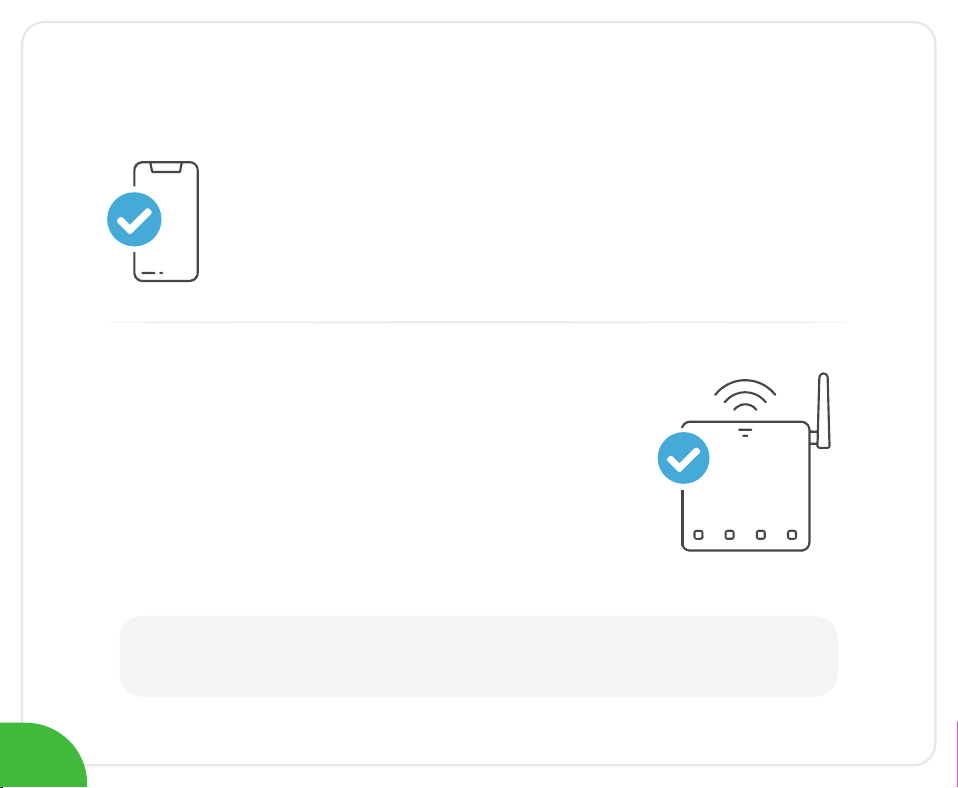
Make sure your smartphone’s Bluetooth is turned ON.
Make sure your smartphone’s Wi-Fi is turned ON.
Make sure your smartphone has internet access.
○
○
○
Prior to App Installation
Make sure you have a working internet
connection on your Wi-Fi router.
Make sure there is no proxy server or
authentication server configured on your
internet connection.
Make sure there is no captive portal on
your Wi-Fi router.
○
○
○
Important:
Make sure IP isolation or client isolation is turned OFF on your Wi-Fi router.
44
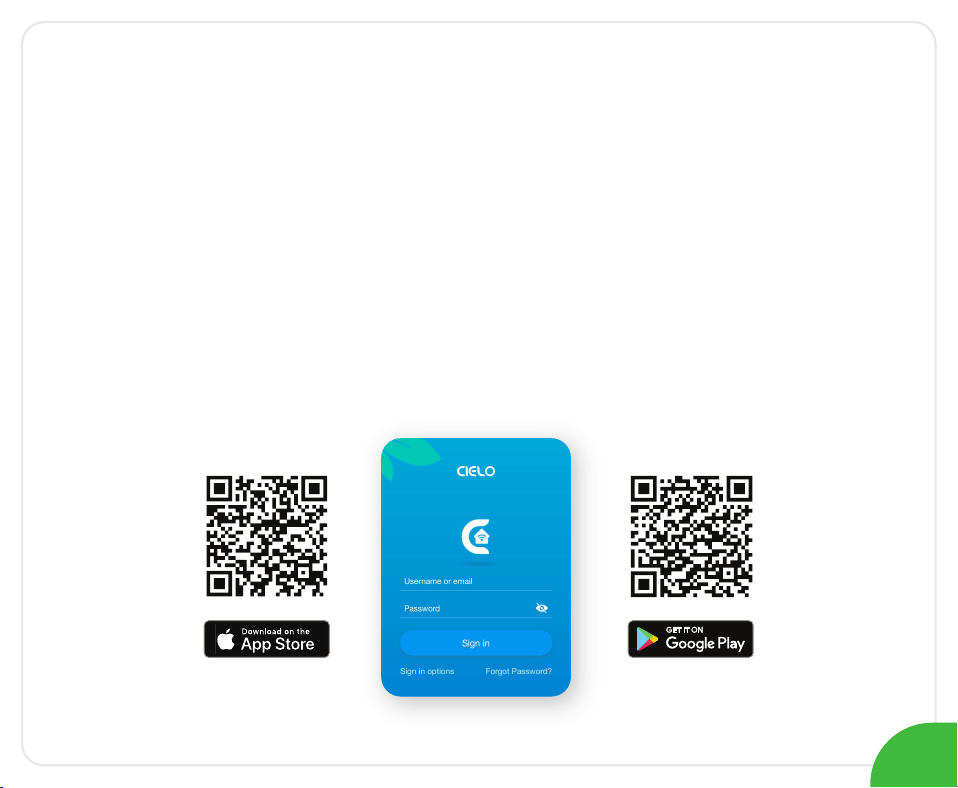
App Installation & Registration
iOS / Android
Install the ‘Cielo Home’ app from the
App Store/Play Store. Search for the Cielo Home
app or scan the QR code provided below.
Log in to the app if you already have an account;
otherwise, create one using the sign-up option.
45

Note for Android users:
For Android OS 8.1 & above, location permission is required to
complete the registration process. You may disable it later.
○
For iOS 13.0 & above, location permission is required to
complete the registration process. You may disable it later.
○
Note for iOS users:
46
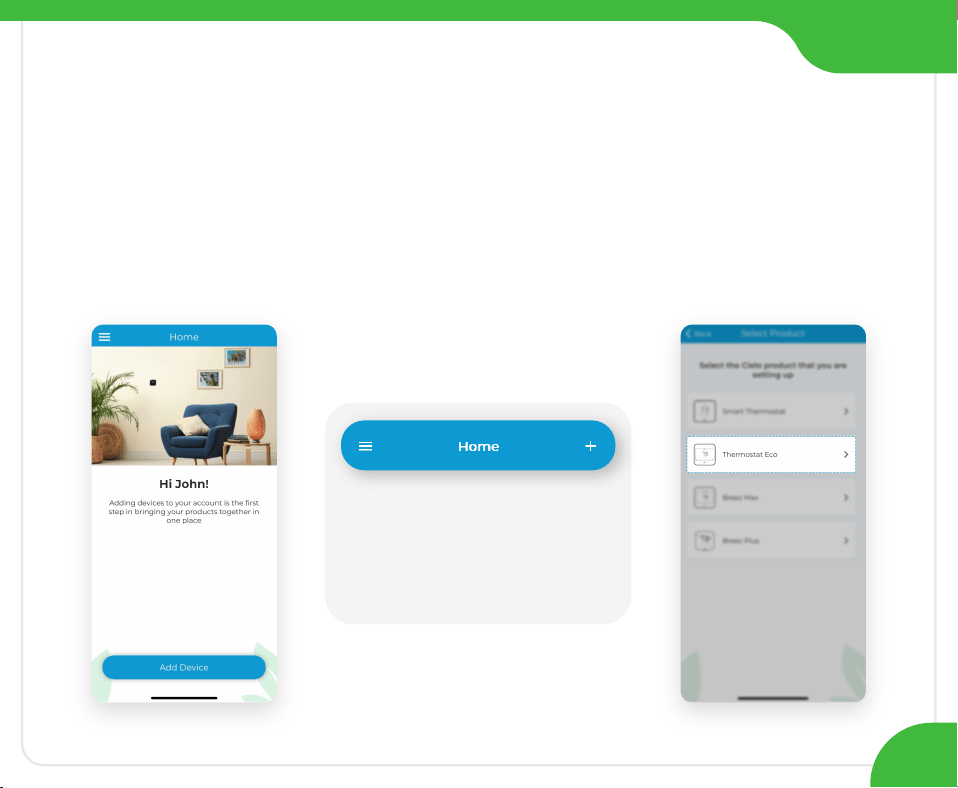
Open the Cielo Home app, tap ‘Add Device’ on
the home screen, and select Thermostat Eco from
the list of devices.
Device Registration
iOS / Android
47
If you are already using
a Cielo device, tap ‘+’ on
the home screen to
add this one.
Section 3
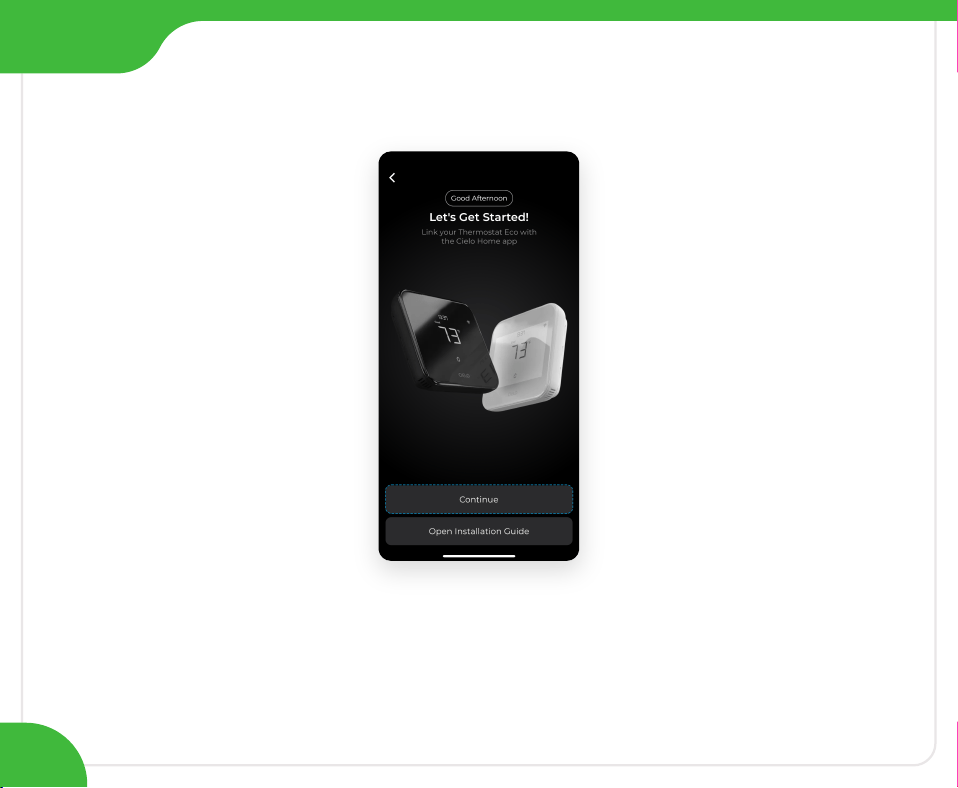
Section 3
Tap ‘Continue’ to start
the registration process.
48
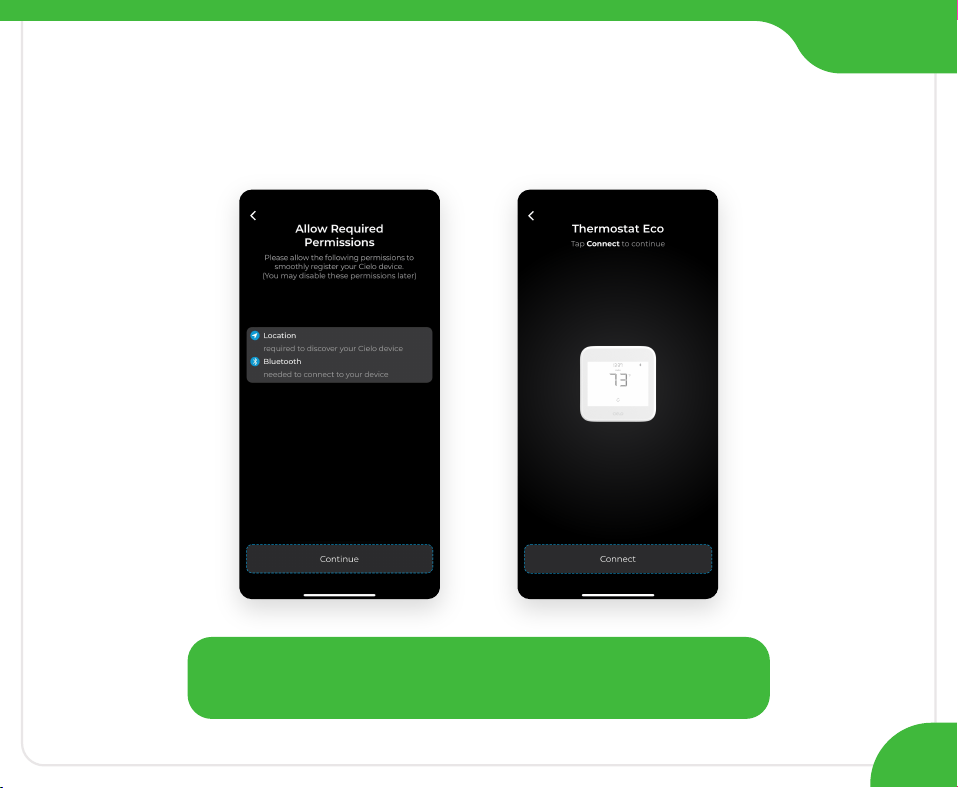
Please give necessary permissions and tap 'Continue',
your thermostat will appear on the screen.
Section 3
49
Follow the on-screen instructions to link your
Thermostat Eco with the Cielo Home app.
Section 3
50
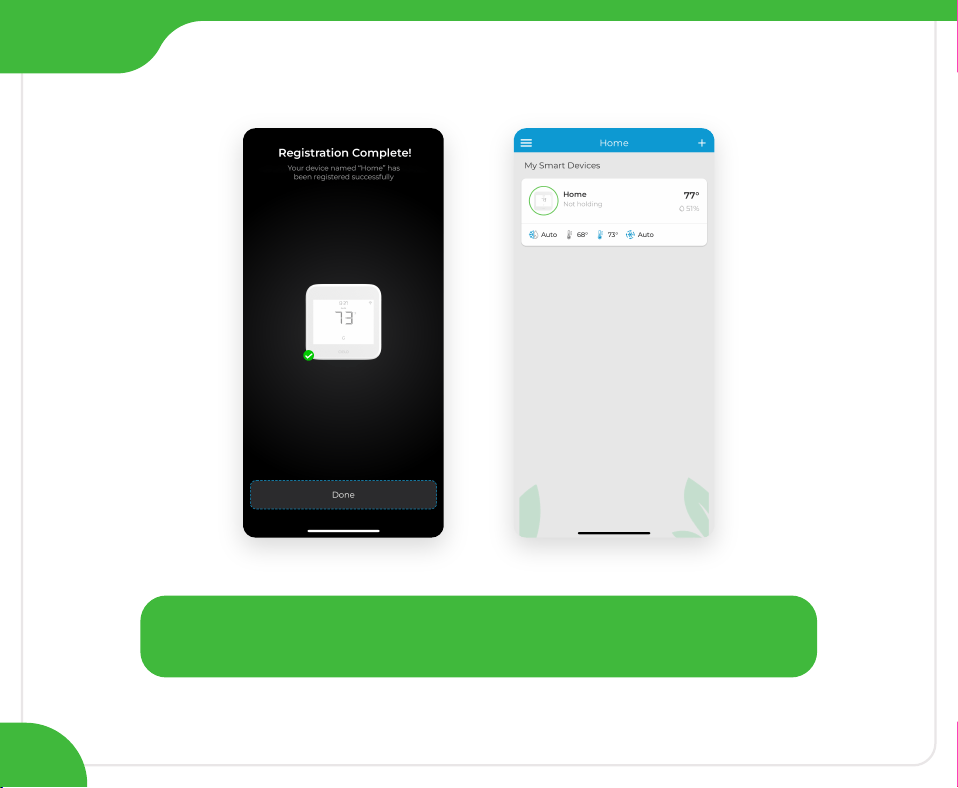
After the registration process is complete, tap 'Done',
and your Thermostat Eco will appear on the Home Screen.
Section 3
Enjoy Unlimited Functionalities
51
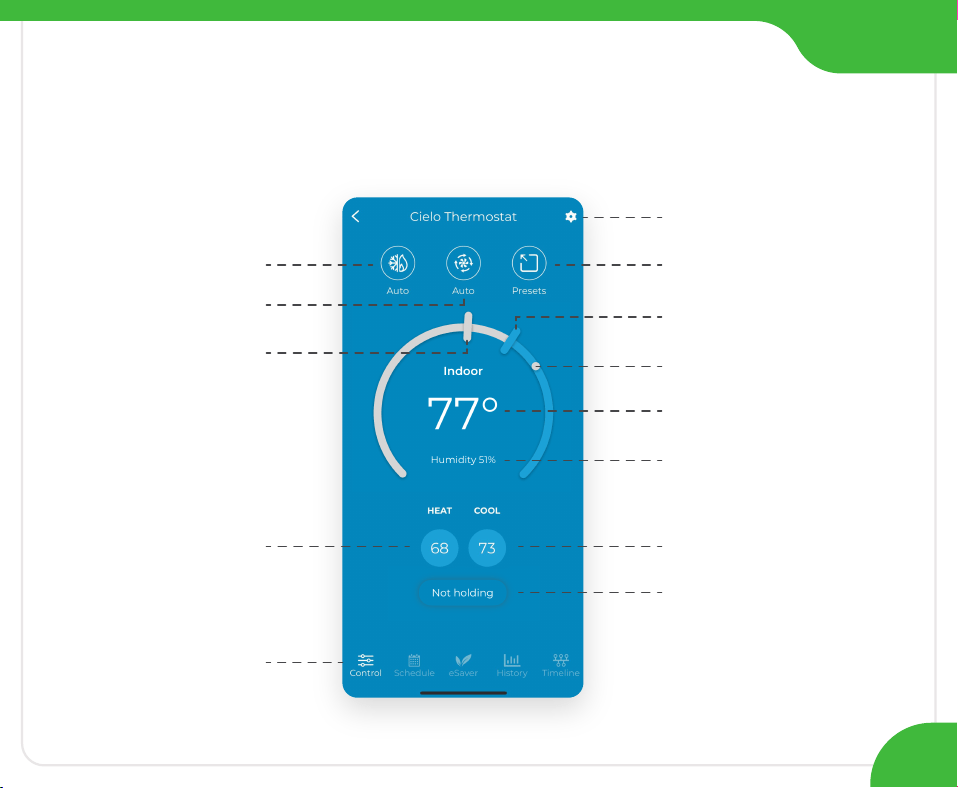
Indoor Temperature
Indoor Humidity
Hold Settings
Indoor Temperature
Indicator
Heat Set Point
Navigation Bar
Heat Set Point
(tap to adjust)
(slide to adjust)
(slide to adjust)
Cool Set Point
(tap to adjust)
Cool Set Point
Mode Settings
Fan Settings
Presets
Settings
Troubleshooting
If your Cielo Smart Thermostat Eco doesn’t turn on,
please try these steps:
Close your HVAC panel properly, as some systems may not
work if the panel isn’t fully closed.
Check the backplate wire connections and ensure they are
inserted properly into the terminals.
1.
2.
In the case of one R-Wire, make sure it is inserted into the R
C terminal.
R or R
C or RH RC
In case of more than one R-Wire, make sure RH is inserted into
the R
H terminal and RC or R is inserted into the RC terminal.
If you installed the C-Wire Adapter, ensure all wires are
connected to the correct terminals on your thermostat.
R or R
C RC
G C
Y/Y1
CWA
3.
4.
52
Need Help?
Call: +1 (425) 529-5775
Email: [email protected]om
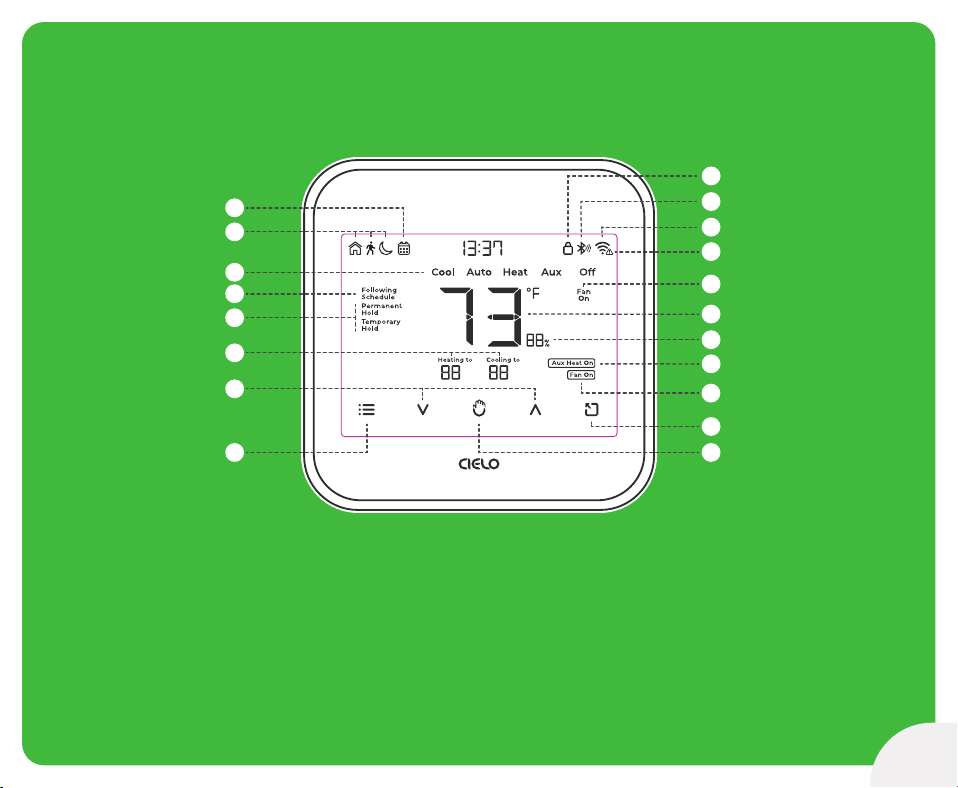
On-Device Display
53
1. Menu Button
2. Temperature Up & Down Buttons
3. Set Point Temperatures
4. Hold Status
5. Following Schedule Indicator
6. Modes
7. Active Preset Indicator
8. Schedule Set Indicator
9. Wake Up/Hold Settings
Button
10. Presets Button
11. Fan Running Indicator
12. Auxiliary Heat Indicator
13. Indoor Humidity
14. Indoor Temperature
15. Fan Settings
16. No Internet Access
17. Wi-Fi Indicator
18. Bluetooth Indicator
19. Screen Lock/Unlock
Indicator
1
2
9
10
3
14
13
6
11
4
12
5
7
19
8
18
17
16
15

54
Locking/Unlocking the display interface:
Touch and hold the Temperature Up and Down buttons simultaneously until the lock
icon on the top right of the screen turns solid or disappears.
Resetting the Wi-Fi of Smart Thermostat Eco:
Touch and hold the Temperature Up and Hold Settings buttons simultaneously until the
Wi-Fi icon disappears, and the Bluetooth icon starts blinking.
Wi-Fi Icon:
Case 1:-
Stable Wi-Fi icon - Device is connected to the internet, showing Wi-Fi strength.
Case 2:-
Wi-Fi icon with small triangle - Device is connected to the router but has no internet
access. Please ensure you have a working internet connection and restart the device.
Bluetooth Icon:
Blinking Bluetooth icon - Device is in broadcast (AP) mode. Please complete the registration
process.
Changing the mode of your HVAC system:
Touch the menu button once. The modes will start blinking. Use the up or down
button to select the mode (i.e., Cool, Heat, etc.).
Changing the fan settings:
Touch the menu button twice. The fan settings icon will start blinking. Use the up or
down button to change the fan settings (i.e., On, Auto).
On-Device Controls

LIMITED WARRANTY & END USER LICENSE AGREEMENT
1. WHAT IS COVERED?
Cielo WiGle, Inc. (“Cielo”), warrants to the owner of the Cielo product contained in this box (the “Product”) that the Product will be free from defects in
materials and workmanship for a period of three years from the date of delivery following the original retail purchase (the “Warranty Period”). If the Product
fails to conform to this Limited Warranty during the Warranty Period, Cielo will, at its sole discretion, either (a) repair or replace the defective Product or
component; or (b) accept the return of the Product and refund the money actually paid by the original purchaser for the Product. Repair or replacement may
be made with a new or refurbished product or components, at Cielo’s sole discretion. If the Product or a component incorporated within it is no longer
available, Cielo may, at Cielo’s sole discretion, replace the Product with a similar product having similar functions. This is your sole and exclusive remedy for
breach of this Limited Warranty. Any Product that has either been repaired or replaced under this Limited Warranty will be covered by the terms of this
Limited Warranty for the longer of (a) ninety (90) days from the date of delivery of the repaired Product or replacement Product, or (b) the remaining
Warranty Period. This Limited Warranty is transferable from the original purchaser to subsequent owners, but the Warranty Period will not be extended in
duration or expanded in coverage for any such transfer.
2. RETURN POLICY
If you are the original purchaser of the Product and you are not satisfied with this Product, you may return it in its original condition within thirty (30) days of
the original purchase and receive a full refund.
3. WARRANTY CONDITIONS
Before making a claim under this Limited Warranty, the owner of the Product must (a) visit cielowigle.com/support during the Warranty Period to provide
notice of your warranty claim and describe the alleged failure, and (b) comply with Cielo’s (or its authorized distributor's) return shipping instructions. Cielo
will have no warranty obligations with respect to a returned Product if it determines, in its reasonable discretion after examination of the returned Product,
that the Product is an Ineligible Product (defined below).
4. WHAT THIS LIMITED WARRANTY DOES NOT COVER
This Limited Warranty does not cover the following (collectively “Ineligible Products”): (i) Products marked as “sample” or “Not for Sale”, or sold “AS IS”; (ii)
Products that have been subject to: (a) modifications, alterations, tampering, or improper maintenance or repairs, except if performed by Cielo; (b) handling,
storage, installation, testing, or use not in accordance with any User’s Guide, Placement Guidelines, or other instructions provided by Cielo; (c) abuse or
misuse of the Product; (d) breakdowns, fluctuations, or interruptions in electric power or the telecommunications network; or (e) Acts of God, including but
not limited to lightning, flood, tornado, earthquake, or hurricane; or (iii) any non- Cielo branded hardware products, even if packaged or sold with Cielo
hardware. This Limited Warranty does not cover consumable parts, including batteries, unless damage is due to defects in materials or workmanship of the
Product, or software (even if packaged or sold with the product). Cielo recommends that you use only authorized service providers for maintenance or
repair. Unauthorized use of the Product or software can impair the Product’s performance and may invalidate this Limited Warranty.......
For detailed information on warranty, please visit:
cielowigle.com/legal
For any queries, visit:
cielowigle.com
OR
Call: +1 (425) 529-5775
Email: support@cielowigle.com
Cielo WiGle, Inc. Redmond, WA, USA
All rights reserved.