1
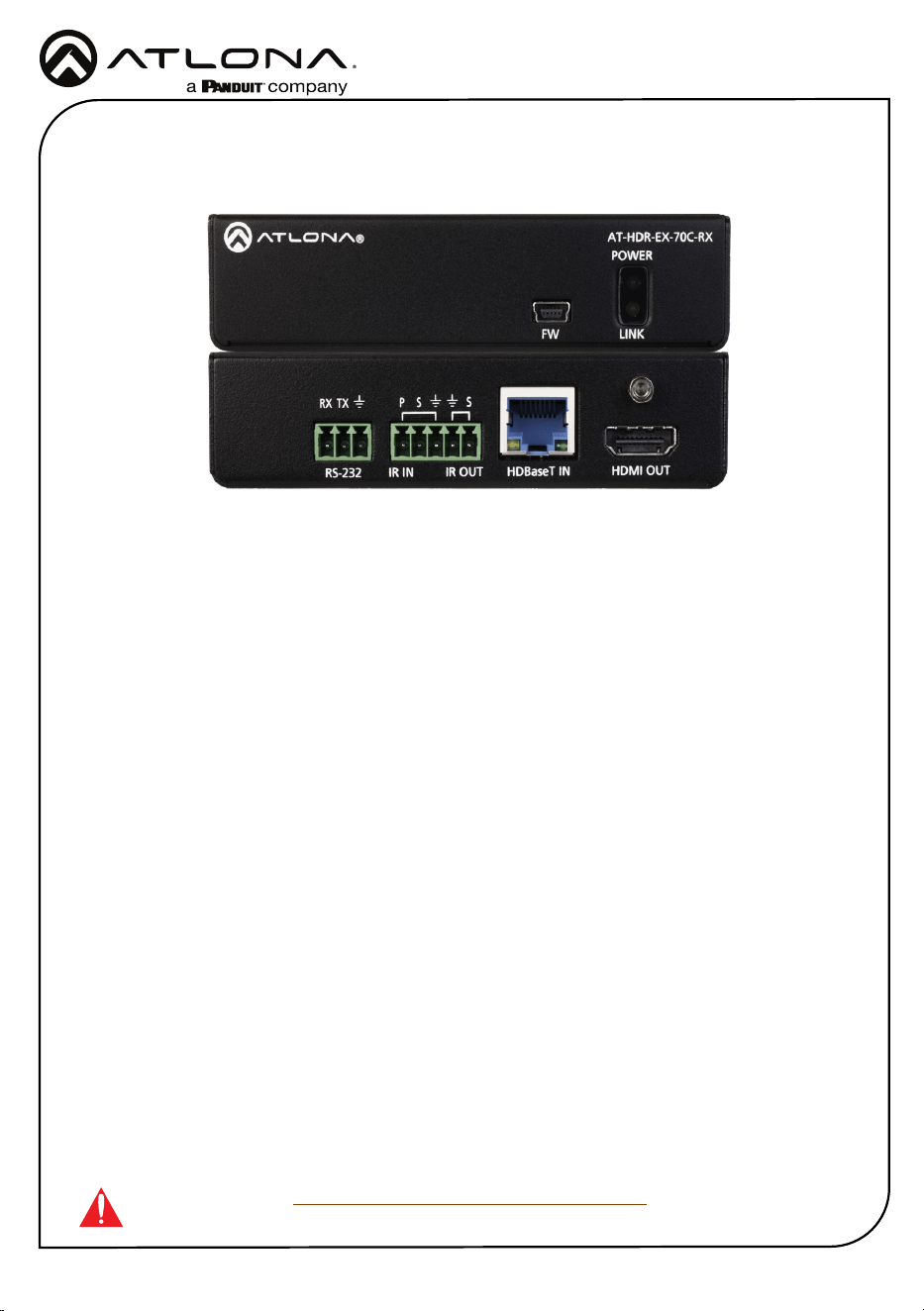
AT-HDR-EX-70C-RX
4K HDR HDMI Over HDBaseT RX
AT-HDR-EX-70C-RX
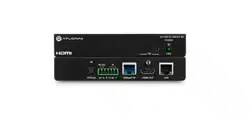
The Atlona AT-HDR-EX-70C-RX is a HDBaseT™ to HDMI® receiver for 4K and high dynamic
range (HDR) content. It supports extension of 4K/UHD video @ 60 Hz with 4:4:4 chroma sampling
plus HDR data, multi-channel audio, control signals, and power up to 130 ft. (40 m) or 1080p up
to 230 ft. (70 m) over Category 6/6A cable. The AT-HDR-EX-70C-RX is ideal for use with the AT-
HDR-CAT-2 and AT-HDR-CAT-8 distribution ampliers for passing 4K HDR signals to a display.
A compact enclosure and remote power supplied by the transmitter means the receiver can be
conveniently mounted in furniture, behind a display, or above a projector.
IMPORTANT: Visit https://atlona.com/product/at-hdr-ex-70c-rx/ for the latest rmware
updates and Installation Guide.
1 x AT-HDR-EX-70C-RX
2 x Mounting brackets
4 x Mounting screws
1 x 3-pin captive screw connector
1 x 5-pin captive screw connector
1 x Installation Guide
Package Contents
Installation Guide
2
AT-HDR-EX-70C-RX
AT-HDR-EX-70C-RX
POWER
LINKFW
RS-232
RX TX
SS
P
HDBaseT IN
HDMI OUT
IR OUT
IR IN
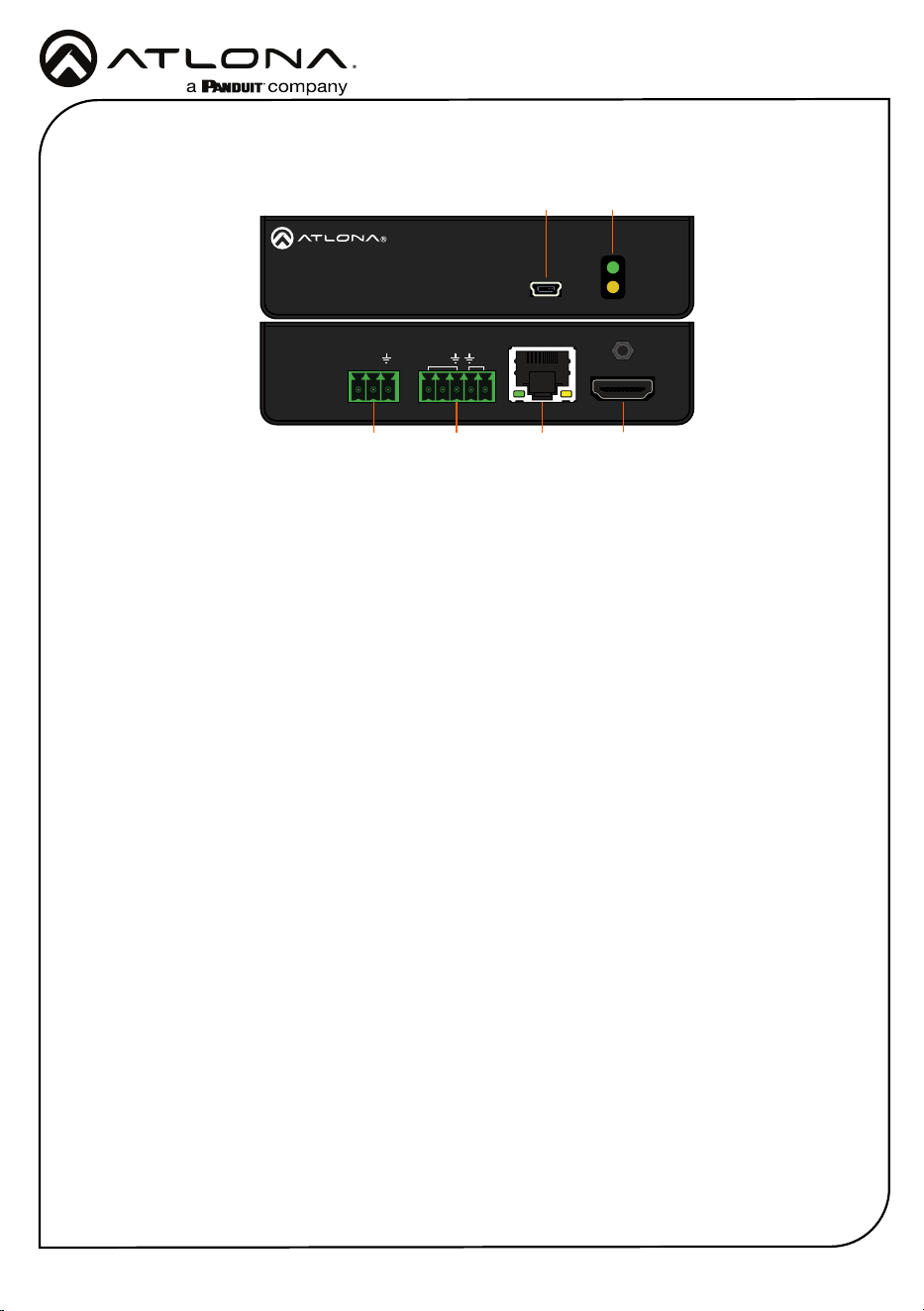
Panel Descriptions
1 FW
Connect a mini-USB to USB-A type cable
from this port to a computer, to update
the rmware.
2 POWER and LINK LEDs
The power LED will illuminate green when
receiving power. The link LED will glow
yellow when signal is being sent/received
between the transmitter and the receiver.
3 RS-232
Bidirectional control port, used for pass
through of commands to or from the
transmitter.
4 IR
Connect an IR receiver to the IR IN port or
an IR emitter to the IR OUT port.
5 HDBaseT IN
Connect an HDBaseT cable from this port
to the HDBaseT OUT port on the AT-
HDR-CAT (available in -2, 4, 4ED, or -8).
6 HDMI OUT
Connect an HDMI cable from this port to
an HDMI display.
3 4
6
5
21
Installation Guide
3
AT-HDR-EX-70C-RX
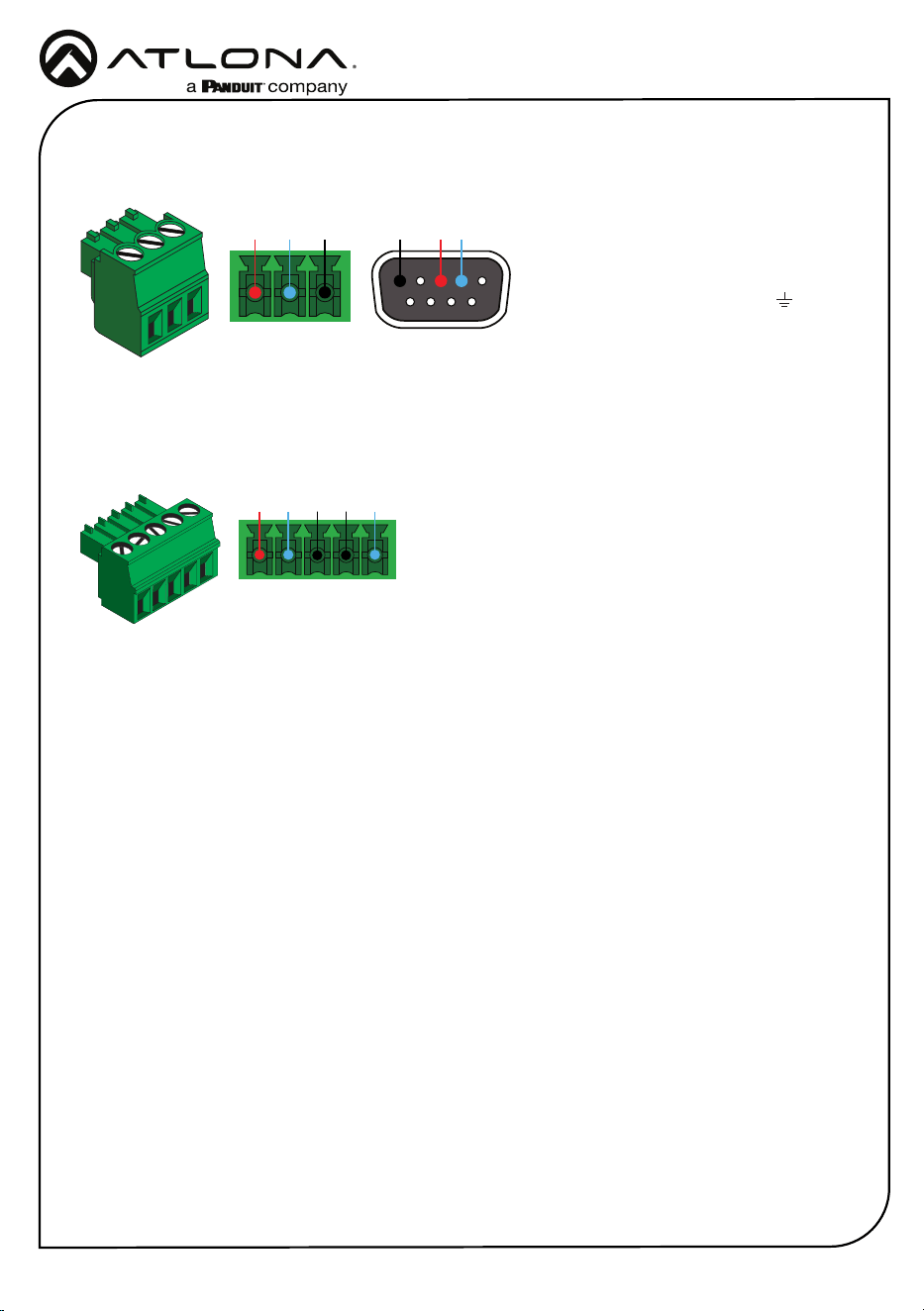
Pin out will be determined by the
RS-232 cable and connect as
RX (receive), TX (transmit) and
(Ground).
A 3-pin captive screw connector for RS-232 has been included.
Two captive screw connectors for IR have been included. A 3-pin connector is included for the
receiver.
IR IN is connected by a power, ground, and signal
wire. Use a 12V IR receiver with it (e.g. AT-IR-CS-RX
purchasable through atlona.com).
IR OUT is connected by a ground and signal wire.
Connect an IR emitter (not included) here.
RS-232
IR
IR IN
IR OUT
GND
S
S
P
GND RX
TX
GNDRX TX
Installation Guide
4
AT-HDR-EX-70C-RX
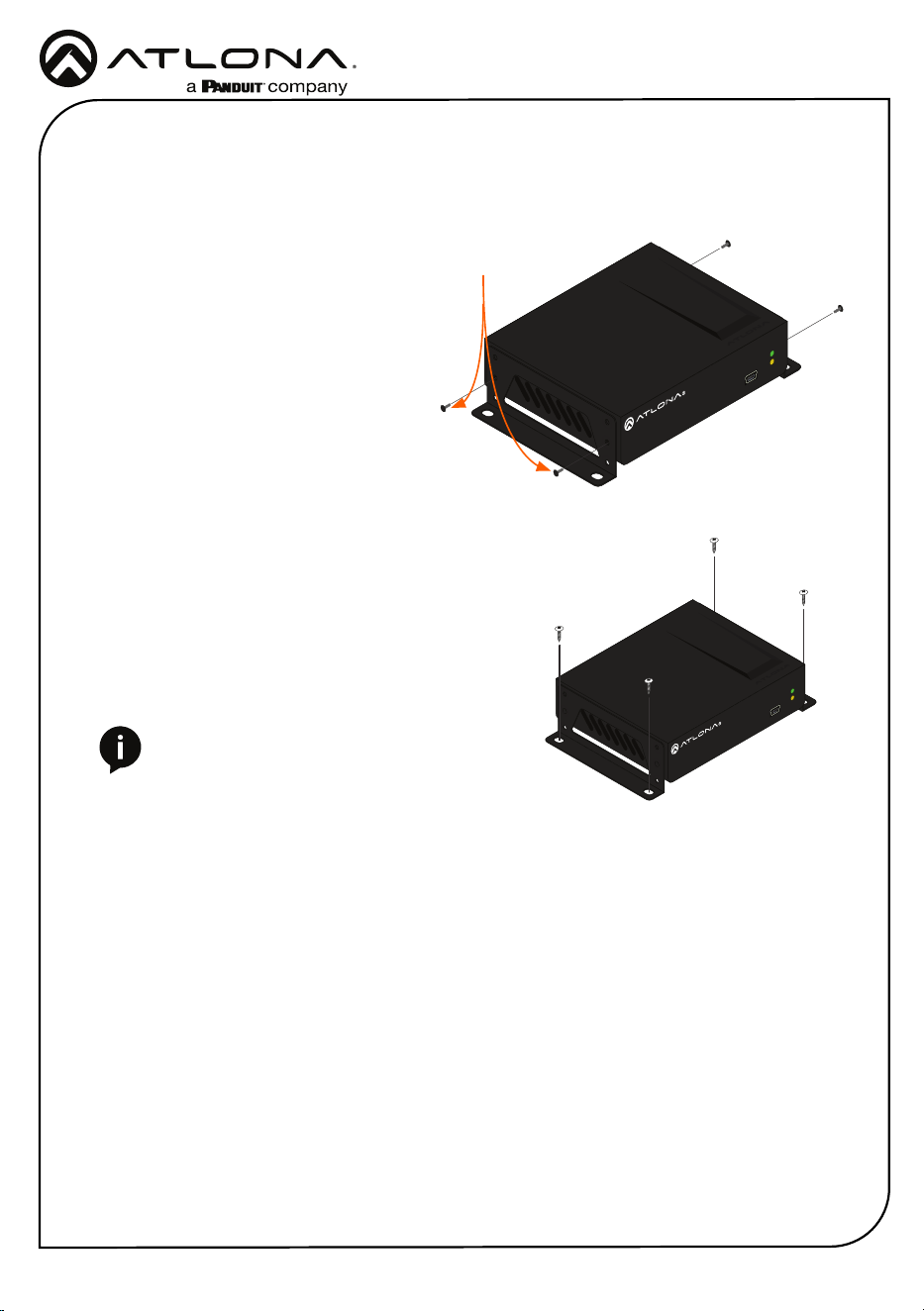
4. Mount the unit using the oval-shaped holes, on each mounting bracket. If using a drywall
surface, a #6 drywall screw is recommended.
FW
AT-HDR-EX-70C-RX
POWER
LINK
NOTE: Mounting brackets can also be inverted
to mount the unit under a table or other at
surface.
The AT-HDR-EX-70C-RX includes two mounting brackets and four mounting screws, which can
be used to attach the units to any at surface.
1. Position one of the mounting brackets,
as shown below, aligning the holes on
the side of the enclosure with one set of
holes on the mounting bracket.
2. Use the enclosure screws to secure the
mounting bracket to the enclosure.
3. Repeat the above steps to attach
the second mounting bracket to the
opposite side of the unit.
Mounting Instructions
FW
AT-HDR-EX-70C-RX
POWER
LINK
Included screws
Installation Guide
5
AT-HDR-EX-70C-RX
1. Connect an HDR display to the HDMI OUT port on the receiver.
2. Connect an HDBaseT cable, from the HDBaseT OUT port on the AT-HDR-CAT, to the
HDBaseT IN port on the receiver (the unit will receive power from the HDR-CAT over
HDBaseT).
3. *Optional* Connect an RS-232 cable from the RS-232 port to a control system or display.
4. *Optional* Connect an IR receiver to the IR IN port of the receiver.
5. *Optional* Connect an IR emitter to the IR OUT port of the receiver.
Installation
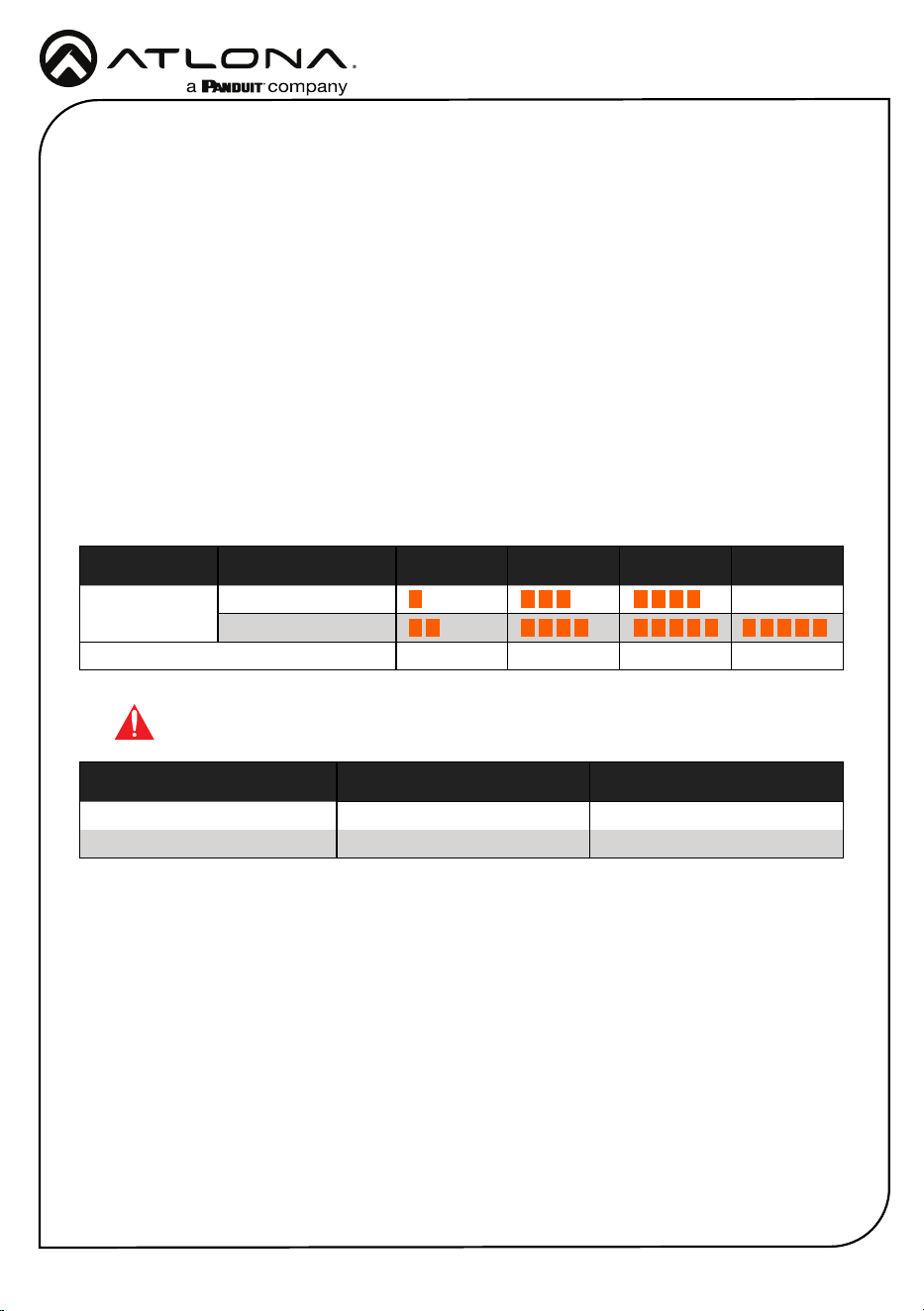
Refer to the tables below for recommended cabling when using Altona products with HDBaseT.
The green bars indicate the signal quality when using each type of cable. Higher-quality signals
are represented by more bars.
Cable Recommendation Guidelines
Core Shielding CAT5e CAT6 CAT6a CAT7
Solid UTP (unshielded) N/A
STP (shielded)
Performance Rating (MHz) 350 500 600 800
*Atlona recommends TIA/EIA 568-B termination for optimal performance.
Cable* Max. Distance @ 4K Max. Distance @ 1080p
CAT5e / CAT6 115 feet (35 meters) 200 feet (60 meters)
CAT6a / CAT7 130 feet (40 meters) 230 feet (70 meters)
IMPORTANT: Stranded or patch cables are not recommended due to performance
issues.
Installation Guide

6
AT-HDR-EX-70C-RX
Updating Firmware (manually)
1. Download the rmware .zip le from the rmware tab located at https://atlona.com/product/
at-hdr-ex-70c-rx/.
2. Unzip the .bin le to an easy to locate area of the local PC.
3. Connect the unit’s Utility mini USB port to a PC using a mini USB to USB A cable.
4. The PC should automatically detect the 70C and display the autorun options.
5. Select the view les in folder option. A new window will open.
6. If there are any les inside the folder, delete them, otherwise drag and drop the .bin le into
the folder. While the rmware loads to the unit, the green power LED on the front panel will
ash.
7. Once the green LED goes solid, disconnect the unit from the PC. The rmware update is
nished.
Installation Guide

7
AT-HDR-EX-70C-RX
Notes
Installation Guide
8
AT-HDR-EX-70C-RX
Version 1
English Declaration of Conformity
The English version can be found under the resources tab at:
https://atlona.com/product/at-hdr-ex-70c-rx/.
© 2023 Atlona Inc. All rights reserved. “Atlona” and the Atlona logo are registered trademarks of Atlona Inc. All other brand names and trademarks or registered
trademarks are the property of their respective owners. Pricing, specications and availability subject to change without notice. Actual products, product images,
and online product images may vary from images shown here.
US International
atlona.com • 408.962.0515 • 41.43.508.4321
25321-R1
Warranty
Chinese Declaration of Conformity 中国RoHS合格声明
To view the product warranty, use the following link or QR code:
https://atlona.com/warranty/.
由SKU列出於:
https://atlona.com/about-us/china-rohs/.
The terms HDMI, HDMI High-Denition Multimedia Interface, and the HDMI Logo are trademarks or
registered trademarks of HDMI licensing Administrator, Inc.
Installation Guide