QUICK START GUIDE
9491G
Printed in China
CJB77E001AAA
CJB77E001AAA
EN-1
1
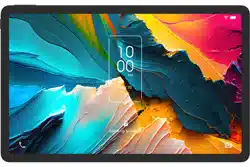
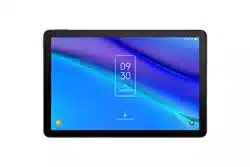
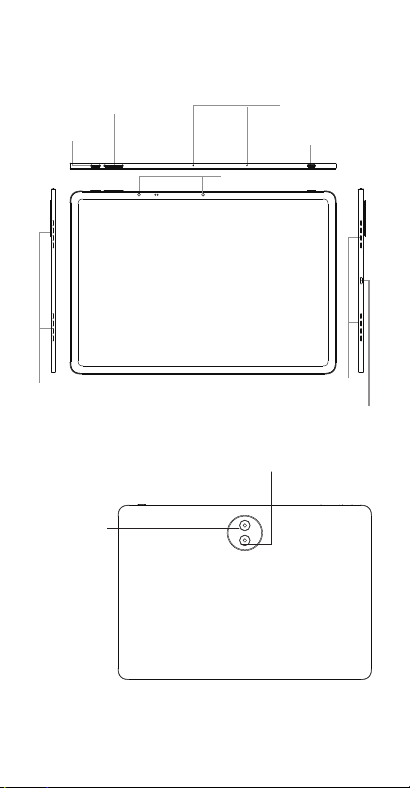
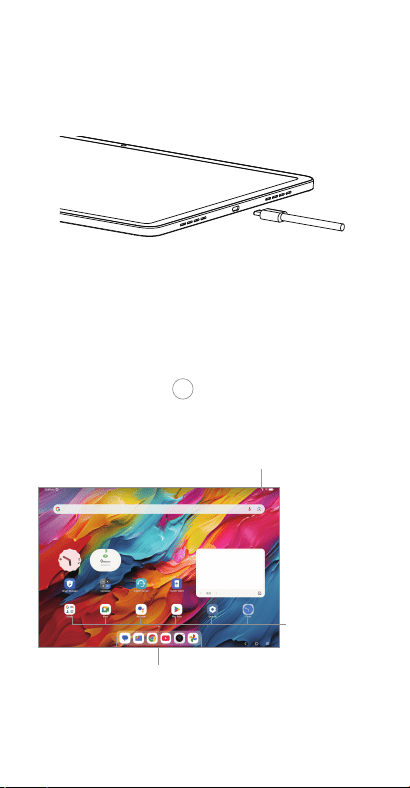
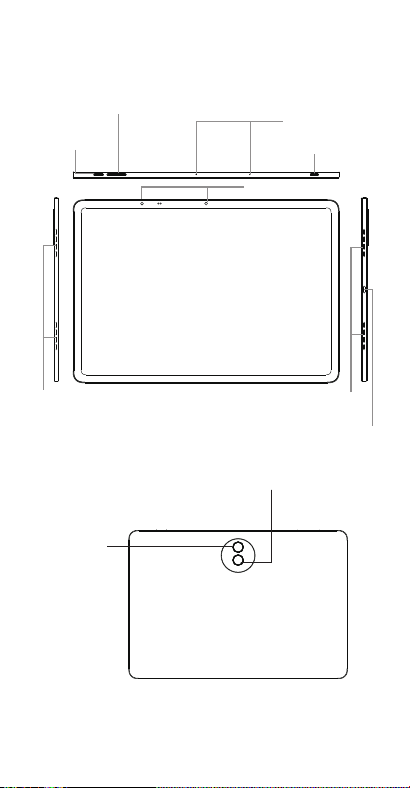
Your device
Volume up/down
Power key
Front camera
Speaker
Microphone
Speaker
NXTPAPER Key
USB-C port
Rear camera
Flash/Flashlight
EN-2
2
Charging
Your new tablet is partially charged. Charge the battery
with the included charger and USB-C cable.
3
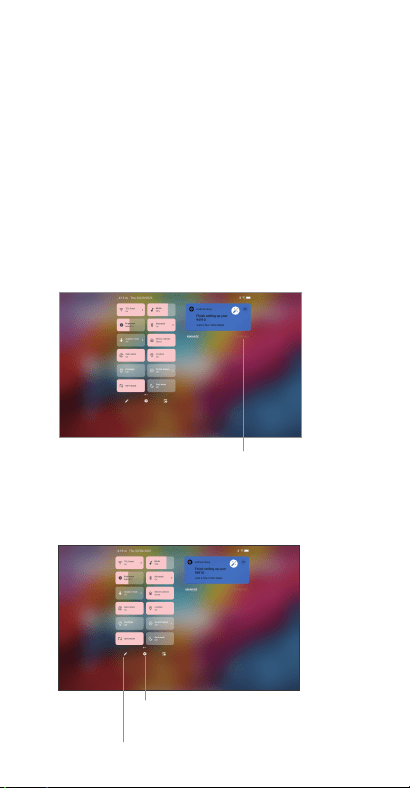
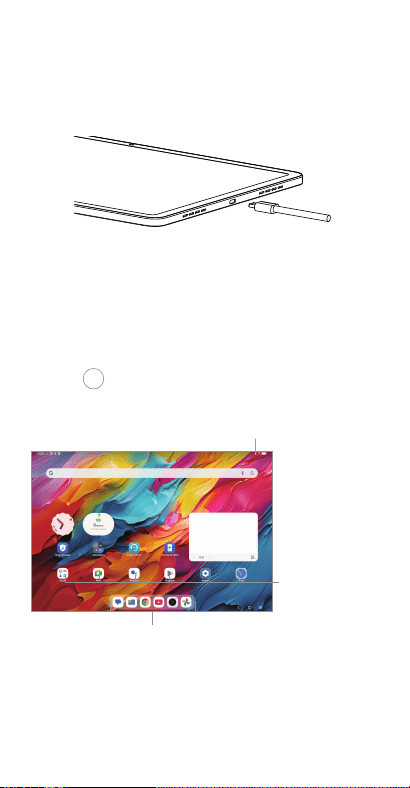
Home screen
You can bring all of the items (applications, shortcuts,
folders) that you use most frequently to your Home screen
for quick access.
Tapping Home button
always takes you back to the
main Home screen.
Status bar
• Status/Notification indicators
• Drag down to open the notification panel
Tap an icon
to open an
application,
folder, etc.
Favorite applications tray
• Tap to enter the application
• Long press to move or change applications
EN-3
The Home screen is provided in an extended format to
allow more space for adding application icons, shortcuts
etc. Swipe left and right on the Home screen to view the
extended screens.
Status bar
In the status bar, you can see the notifications on the left
side and the connection service status on the right side.
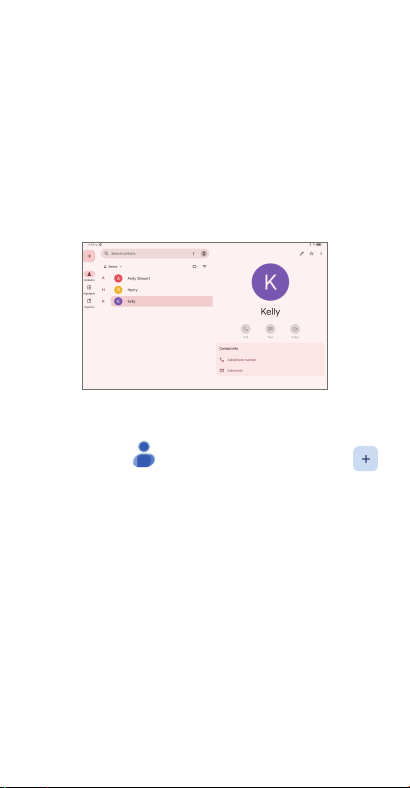
Swipe downward from the Status bar to access the
Notification panel or the Quick Settings panel. To close
the panel, drag upward.
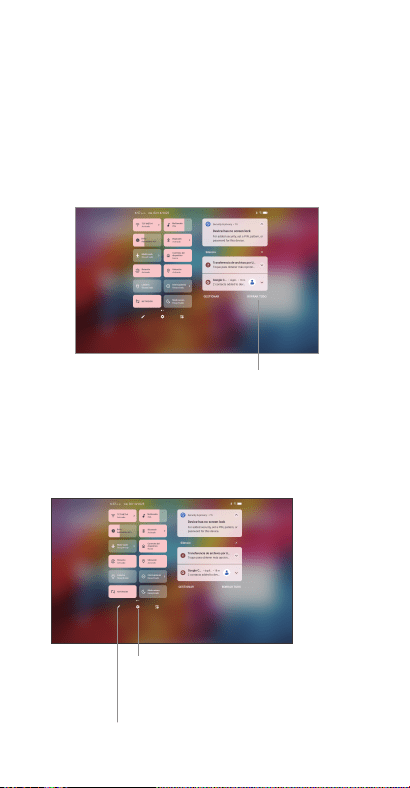
Notification panel
Tap on the notification to view it in the app.
Tap to clear all event-based notifications. On-going
notifications will remain on the panel.
Quick settings panel
From the Quick Settings panel you can enable or disable
functions or change modes by tapping the icons.
Tap to edit Quick Settings panel.
Tap to access the full Settings menu,
where you can manage other items.
EN-4
4
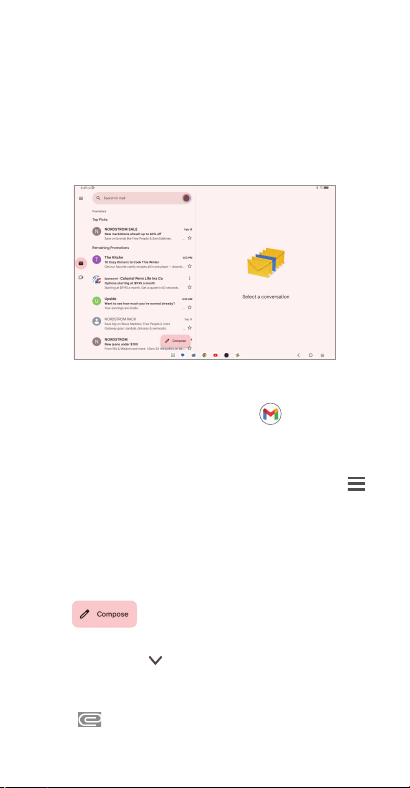
Contacts
Contacts are stored in your tablet with the Contacts app.
Add, edit, or delete contacts on your tablet and
synchronize them with the contacts in other accounts that
support contact syncing.
You can also import or export your contacts from different
locations such as an external storage, email, or other
account.
Adding a contact
Open Contacts from applications list, then tap
to add a new contact.
Synchronizing contacts in multiple
accounts
Contacts, data or other information can be synchronized
from multiple accounts, depending on the applications
installed on your tablet.
EN-5
5
Gmail
When you first set up your tablet, it is automatically
synchronized with your Google account. Use Gmail to
create, send, and receive emails directly on your tablet.
The Gmail app will allow you to add several email
accounts.
To open Gmail
From the Home screen, tap Gmail in the Google
folder.
Gmail displays messages and conversations from one
single Gmail account at a time. If you own additional email
accounts, you can add an account by tapping Menu
>
Settings > Add account.
Switch to another account by tapping the icon in the top
right corner, then select the name of the account you
want to view.
To create and send emails
1. Tap from the Inbox screen.
2. Enter the recipient(s)’s email address in "To" field.
3. If necessary, tap
to copy (CC) or blind copy (BCC) a
recipient to the message.
4. Enter the subject and the content of the message.
5. Tap
icon and select Attach file to add an
attachment.
EN-6
6. Tap to send.
If you do not want to send the email right away, tap
>
Save draft. To view the draft later, tap Menu and select
the Drafts folder.
NOTE: Software is constantly evolving, the screen images
and icons you see here are for reference only.
6
Getting connected
To connect to the Internet with this tablet, you will need to
have an internet connection via Wi-Fi.
Wi-Fi
To turn Wi-Fi on and connect to a Wi-Fi network:
1. Go to Settings > Wi-Fi.
2. Tap the switch
to turn on Wi-Fi.
3. Tap a Wi-Fi network to connect. If the network you
selected is a secured network, you will need to enter
a password or other credentials. When finished, tap
CONNECT.
4. For hidden network, slide up the screen and select Add
network. Enter the SSID of the network, password and
its secured credentials. Then, tap SAVE.
7
Disclaimer
There may be certain differences between the user manual
description and the device's operation, depending on
the software release of your device or specific operator
services. TCL Communication Ltd. shall not be held
legally responsible for such differences, if any, nor for
their potential consequences, which responsibility shall be
borne by the operator exclusively.

EN-7
8
Help
• Check out the TCL website at www.tcl.com for tutorials
and answers to frequently asked questions, and to
download the User Manual.
• To get support for your tablet, visit the TCL website
(www.tcl.com) or dial the number listed below:
Canada- 1-855-224-4228
United States- 1-855-224-4228
• Update your tablet's software
Go to Settings > System > System Update to check
software updates.
• Back up your personal data
Go to Settings > System > Backup to back up your
device.
• Reset your tablet
Go to Settings > System > Reset options > Erase all
data (factory reset) > Erase all data.

GUÍA DE INICIO RÁPIDO
Impreso en China
9491G
ESP-1
1
Su dispositivo
Subir/bajar volumen
Botón de
encendido
Cámara frontal
Altavoz
Micrófono
Altavoz
Clave NXTPAPER
Puerto USB-C
Cámara
trasera
Flash/Linterna
ESP-2
2
Cargando
Su nueva tablet está cargada parcialmente. Cargue la
batería con el cable USB-C y el cargador incluido.
3
Pantalla de Inicio
Puede colocar los elementos que utiliza con más frecuencia
(aplicaciones, atajos, carpetas) a la Pantalla de Inicio para
acceder a ellos rápidamente.
Al tocar
siempre se regresa a la Pantalla de Inicio.
Barra de estado
• Indicadores de estado/notificación
• Arrastre hacia abajo para abrir el panel de notificaciones
Toque un
icono para
abrir una
aplicación,
carpeta, etc.
Bandeja de aplicaciones favoritas
• Toque para abrir la aplicación.
• Mantenga pulsadas las aplicaciones para
moverlas o cambiarlas.
La Pantalla de Inicio se presenta con un formato ampliado
para ofrecerle más espacio en el que añadir iconos de
aplicaciones, atajos, etc. Deslice la Pantalla de Inicio
hacia la izquierda y hacia la derecha para ver las pantallas
ampliadas.
ESP-3
Barra de estado
En la barra de estado, puede ver las notificaciones a la
izquierda y el estado del servicio de conexión a la derecha.
Deslice hacia abajo desde la barra de estado para acceder
al panel de notificaciones o al panel de ajustes rápidos.
Para cerrar el panel, toque y arrastre hacia arriba.
Panel de notificaciones
Toque una notificación para verla en la aplicación.
Toque aquí para borrar todas las notificaciones
basadas en eventos. Las notificaciones en curso
permanecerán en el panel.
Panel de ajustes rápidos
Desde el panel de ajustes rápidos, puede activar o
desactivar funciones o cambiar modos tocando los iconos.
Toque para editar el panel de ajustes rápidos.
Toque para acceder al menú completo
de Ajustes, donde podrá gestionar otros
elementos.
ESP-4
4
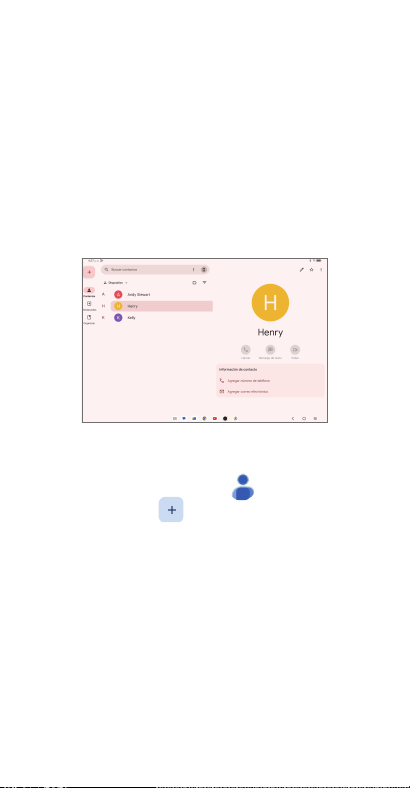
Contactos
Los contactos se almacenan en su tablet mediante la
aplicación Contactos.
Puede añadir, modificar o eliminar contactos de su tablet
o sincronizarlos con los contactos de otras cuentas que
admitan la sincronización de contactos.
También puede importar o exportar contactos desde
sitios distintos, como un dispositivo de almacenamiento
externo, una cuenta de correo electrónico u otra cuenta.
Añadir un contacto
Abra la aplicación Contactos desde la lista de
aplicaciones y toque para añadir un contacto nuevo.
Sincronización de contactos en múltiples
cuentas
Es posible sincronizar contactos, datos y otra información
desde distintas cuentas en función de las aplicaciones
instaladas en la tabletaa.
ESP-5
5
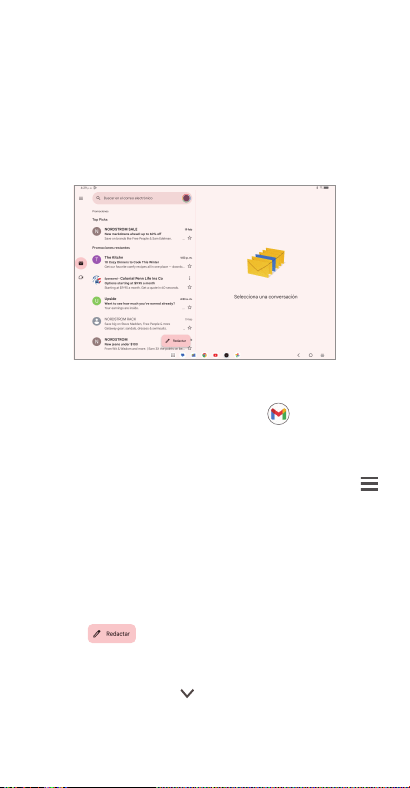
Gmail
Al configurar la tablet por primera vez, se sincroniza
automáticamente con su cuenta de Google. Use
Gmail para crear, enviar y recibir correos electrónicos
directamente en la tablet. La aplicación de Gmail le
permite añadir varias cuentas de correo electrónico.
Para abrir Gmail
En la Pantalla de Inicio, toque Gmail de la carpeta
Google.
Gmail muestra mensajes y conversaciones de una única
cuenta de Gmail al mismo tiempo. Si tiene otras cuentas
de correo electrónico, puede añadirlas tocando Menú
> Configuración> Agregar cuenta.
Para cambiar a otra cuenta, toque el icono de la esquina
superior derecha y seleccione el nombre de la cuenta que
quiera ver.
Para crear y enviar mensajes de correo
electrónico
1. Toque en la pantalla Bandeja de entrada.
2. Ingrese la dirección de correo electrónico del
destinatario en el campo "Para".
3. Si es necesario, toque
para incluir un destinatario del
mensaje en copia (CC) o copia oculta (CCO).
4. Ingrese el asunto y el contenido del mensaje.
ESP-6
5. Toque el icono y seleccione Adjuntar archivo para
añadir un archivo adjunto.
6. Toque
para enviar.
Si no desea enviar el mensaje de correo electrónico
inmediatamente, puede tocar
> Guardar borrador. Para
ver el borrador más tarde, toque Menú y seleccione la
carpeta Borradores.
IMPORTANTE: El software está en constante evolución;
las imágenes y los iconos que ve aquí sólo sirven de
referencia.
6
Cómo conectarse
Para conectarse a Internet con esta tablet, es necesario
que disponga de conexión a Internet vía Wi-Fi.
Wi-Fi
Para activar la función Wi-Fi y conectarse a una red, siga
estos pasos:
1. Ingrese a Ajustes > Wi-Fi.
2. Toque el interruptor
para activar la red Wi-Fi.
3. Toque una red Wi-Fi para conectarse. Si la red
seleccionada está protegida, deberá ingresar una
contraseña u otras credenciales. Cuando acabe, toque
CONECTAR.
4. Para conectarse a una red oculta, deslice hacia arriba
la pantalla y seleccione Añadir red. Ingrese el SSID de
la red, la contraseña y las credenciales de seguridad. A
continuación, toque CONECTAR.

ESP-7
7
Exención de
responsabilidad
Puede encontrar diferencias entre la descripción del
manual del usuario y el funcionamiento real del dispositivo,
dependiendo de la versión del software de su dispositivo
o de los servicios específicos de cada operadora. TCL
Communication Ltd. no se responsabiliza legalmente de
dichas diferencias, si existieran, ni tampoco de las posibles
consecuencias, cuya responsabilidad debería recaer en
el operador.
8
Ayuda
• En el sitio web de TCL www.tcl.com encontrará tutoriales
y respuestas a preguntas frecuentes, y también puede
descargarse el Manual del usuario.
• Para obtener asistencia con su tablet, visite el sitio web
de TCL (www.tcl.com) o llame al número que se muestra
a continuación:
Canadá: 1-855-224-4228
Estados Unidos: 1-855-224-4228
• Actualizar el software de su tablet
Ingrese a Ajustes > Sistema > Actualizar sistema para
comprobar si hay actualizaciones de software.
• Respaldar sus datos personales
Ingrese a Ajustes > Sistema > Respaldo de seguridad
para crear un respaldo de seguridad de su dispositivo.
• Restablecer la tablet
Ingrese a Ajustes > Sistema > Restablecer opciones >
Borrar todos los datos (restablecimiento de fábrica) >
Borrar todos los datos.