
USER MANUAL

2
Table of Contents
1 Your device .................................................... 5
1.1 Keys and connectors ................................. 5
1.2 Getting started .......................................... 8
1.3 Home screen ............................................. 9
2 Text input ..................................................... 18
2.1 Using the onscreen keyboard ................. 18
2.2 Text editing ............................................. 19
3 Contact ........................................................ 20
3.1 Consult your Contacts............................. 20
3.2 Adding a contact .................................... 21
3.3 Editing your contacts .............................. 22
3.4 Use Quick contact for Android ............... 22
3.5 Displaying contacts ................................. 24
3.6 Synchronizing contacts ............................ 24
4 Calendar, Clock, and Calculator ................... 26
4.1 Calendar .................................................. 26
4.2 Clock ....................................................... 28
4.3 Calculator ................................................ 30
5 Multimedia applications ............................... 31
5.1 Camera .................................................... 31
5.2 Photos .................................................... 32
3
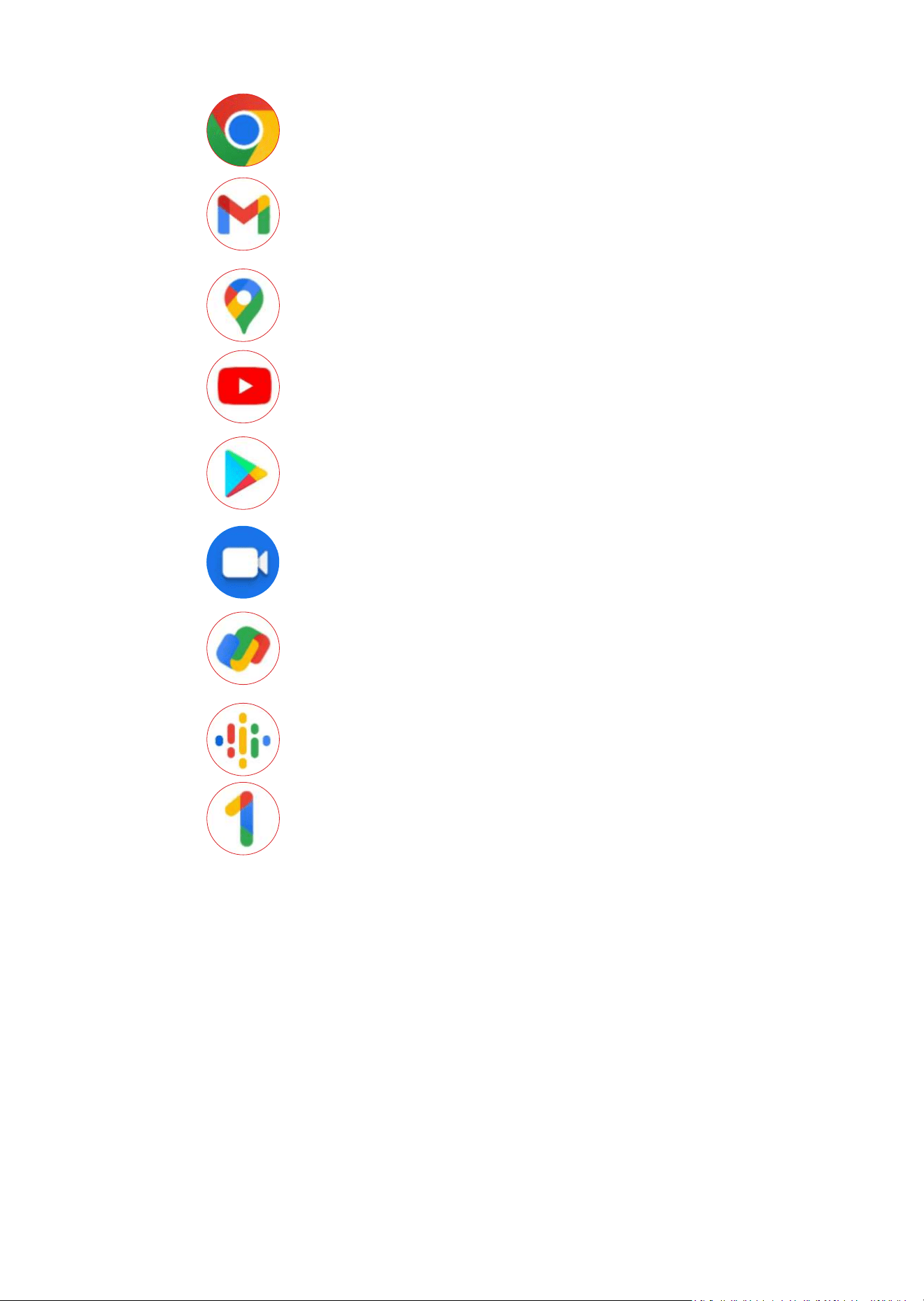
6 Google applications ..................................... 35
6.1 Chrome ........................................... 35
6.2 Gmail .............................................. 35
6.3 Map ................................................ 36
6.4 YouTube .......................................... 36
6.5 Play Store ....................................... 36
6.6 Duo ................................................. 37
6.7 GPay ............................................... 37
6.8 Podcasts ......................................... 37
6.9 Google One ................................... 38
7 Settings ........................................................ 39
7.1 Wi-Fi ........................................................ 39
7.2 Bluetooth ................................................ 40
7.3 Mobile network ....................................... 42
7.4 Connections ............................................ 42
7.5 Home screen & lock screen .................... 46

4
7.6 Display .................................................... 48
7.7 NXTVISION ............................................. 49
7.8 Sound ...................................................... 49
7.9 Notifications ............................................ 50
7.10 Button & gestures ................................... 51
7.11 Advanced features .................................. 51
7.12 Smart Manager ....................................... 52
7.13 Security & biometrics .............................. 52
7.14 Privacy ..................................................... 54
7.15 Safety & emergency ................................ 55
7.16 Apps ........................................................ 55
7.17 Storage .................................................... 56
7.18 Users & Accounts .................................... 56
7.19 Digital Wellbeing & parental controls ..... 56
7.20 Google .................................................... 56
7.21 Accessibility ............................................. 57
7.22 System ..................................................... 57
8 FOTA Upgrade ............................................. 59
9 Troubleshooting ........................................... 60
10 Specifications ............................................... 68
5
1
Your device ......................
1.1
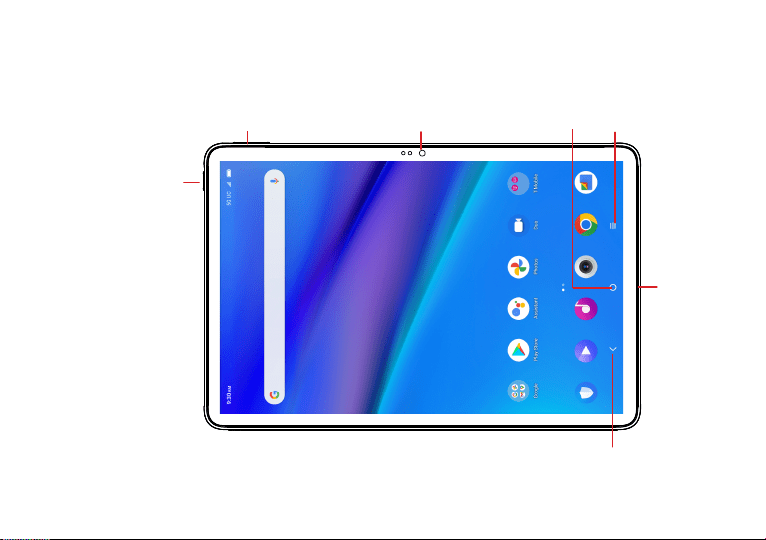
Keys and connectors
Front
camera
Volume
up/down
Power key
Recent
apps button
Back
button
Headset connector/
USB Type-C
Home
button
6
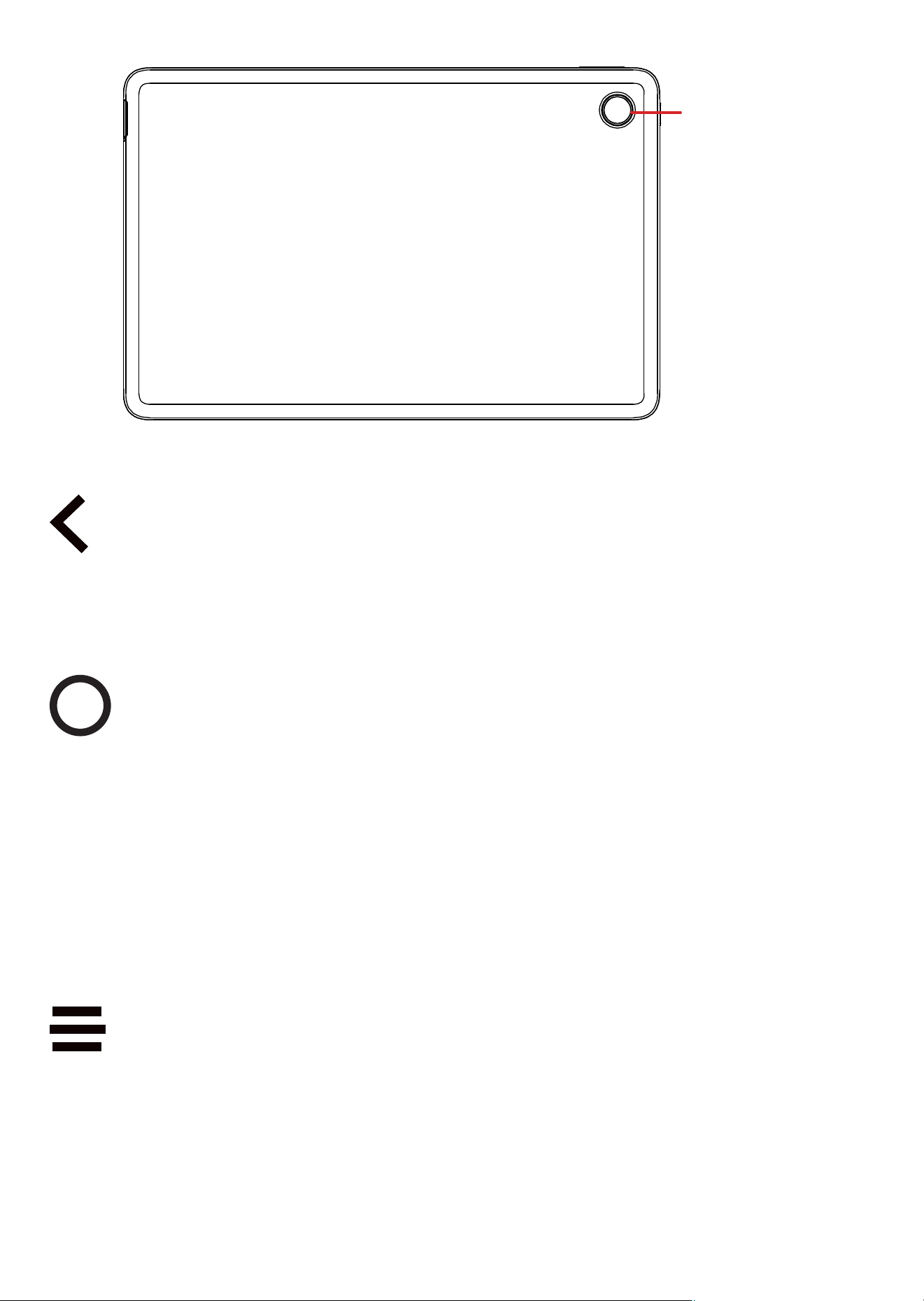
Back camera
Back button
•
Touch to go back to the previous screen, or
close a dialog box, options menu, notification
panel, etc.
Home button
•
From any application or screen, touch to
return to the Home screen.
•
Long press to turn on Google Assistant. You
can get help such as getting directions and
restaurant information based on the content
detected on the screen.
Recent Apps button
•
Touch to view applications you’ve recently
accessed.

7
Power key
•
Press Power key: Lock the screen/Light up the
screen.
•
Press and hold Power key & Volume up
key simultaneously: Show the popup menu
to select from Power off/Restart/Airplane
mode/Cast.
•
Press and hold Power key & Volume down
key to take a screenshot.
•
Press and hold the Power key, and Google
Assistant will be triggered.
•
Press and hold Power key & Volume up key
for at least 10 seconds to force reboot.
•
Quickly double-press Power key to open the
camera and take a photo.
Volume keys
•
Adjust the media volume while listening to
music or watching a video.
•
While using the Camera app, press Volume
up or down key to take a photo or touch and
hold to take several photos.
8
1.2
Getting started
1.2.1
Setting up
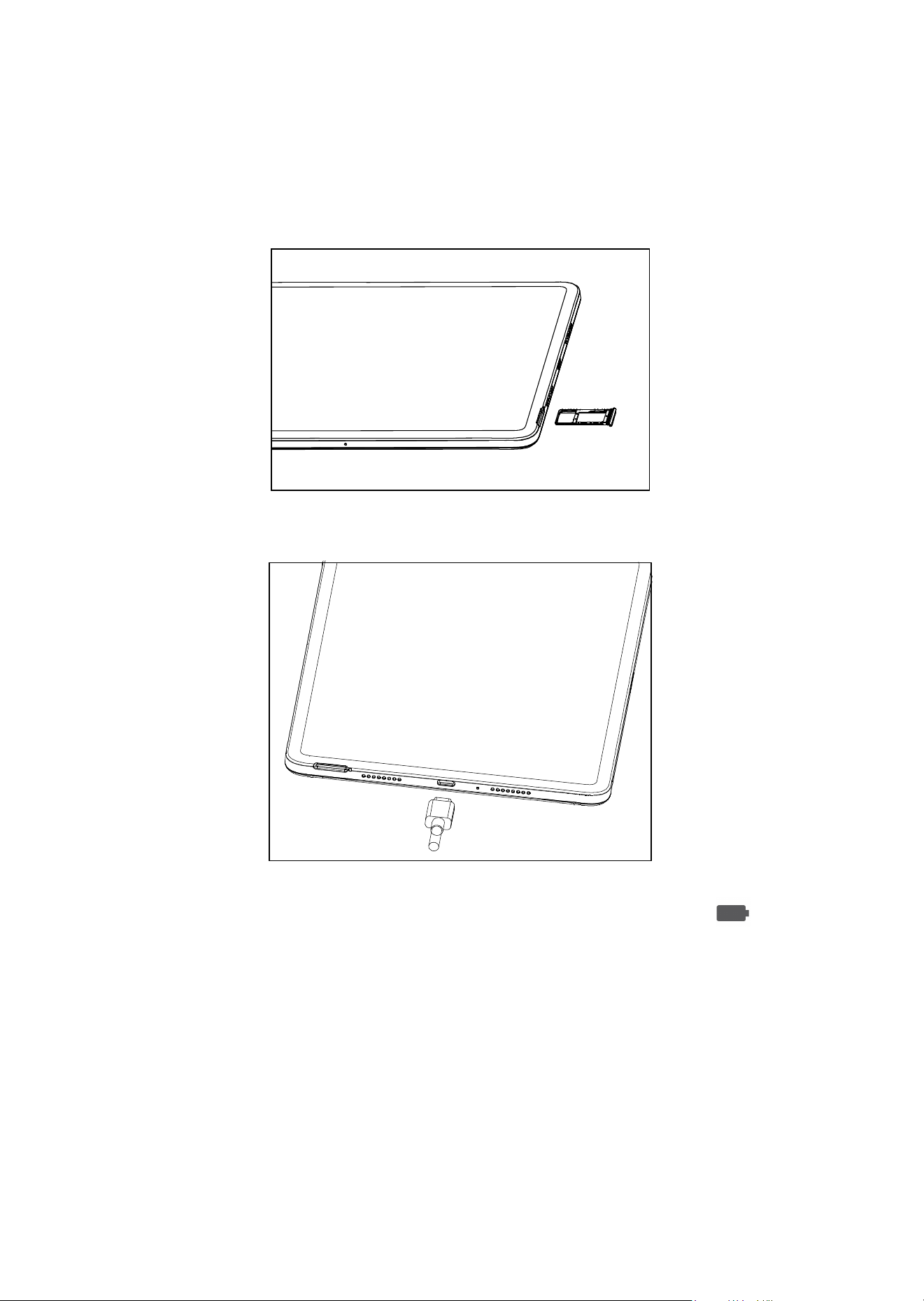
Insert or remove your microSD card.
SIM
microSD
Charge the battery
You are advised to fully charge the battery ( ).
Charging status is indicated by a percentage displayed
on the screen. The percentage increases as the device
is charged.

9
To reduce power consumption and energy waste
after the battery is fully charged, you can
disconnect your charger from the plug; switch off
Wi-Fi, GPS, Bluetooth, background-running
applications when not in use; reduce the
backlight time, etc.
1.2.2
Powering on your device
If device is powered off, hold down the Power key
until the device powers on, unlock your device (Swipe,
PIN, Password or Pattern) if necessary and confirm.
1.2.3
Powering off your device
Press and hold Power key & Volume up key
simultaneously until options appear, then select Power
off.
1.3
Home screen
You can bring all of the items (applications, shortcuts,
folders and widgets) you use most frequently to your
Home screen for quick access. Touch the Home
button to switch to the Home screen.
10
1
3
5
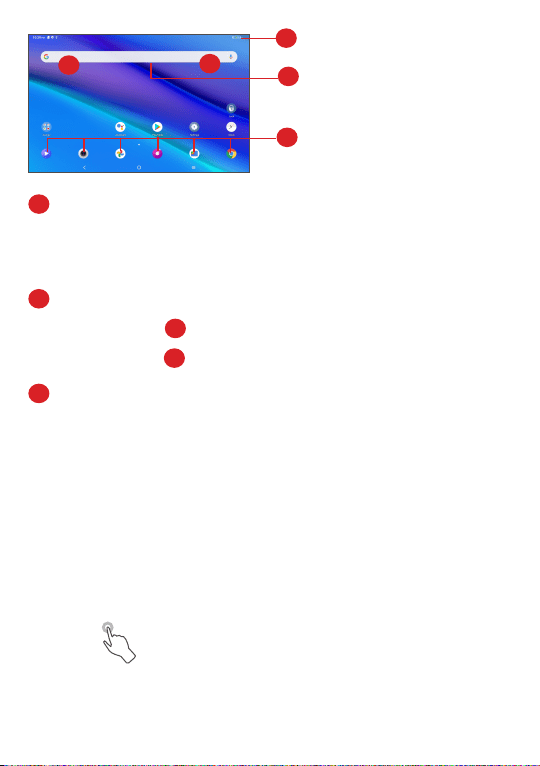
1
Status bar
•
Status/Notification indicators.
•
Swipe down to open the Notification panel.
2
Google Search bar
•
Touch
3
to enter text search screen.
•
Touch
4
to enter voice search screen.
5
Favorite tray applications
•
Enter the application.
•
Long press to move or remove an application.
Auto-rotate screen
From the app list, touch Settings > Display > Auto-
rotate screen to enable the function.
1.3.1
Using the touchscreen
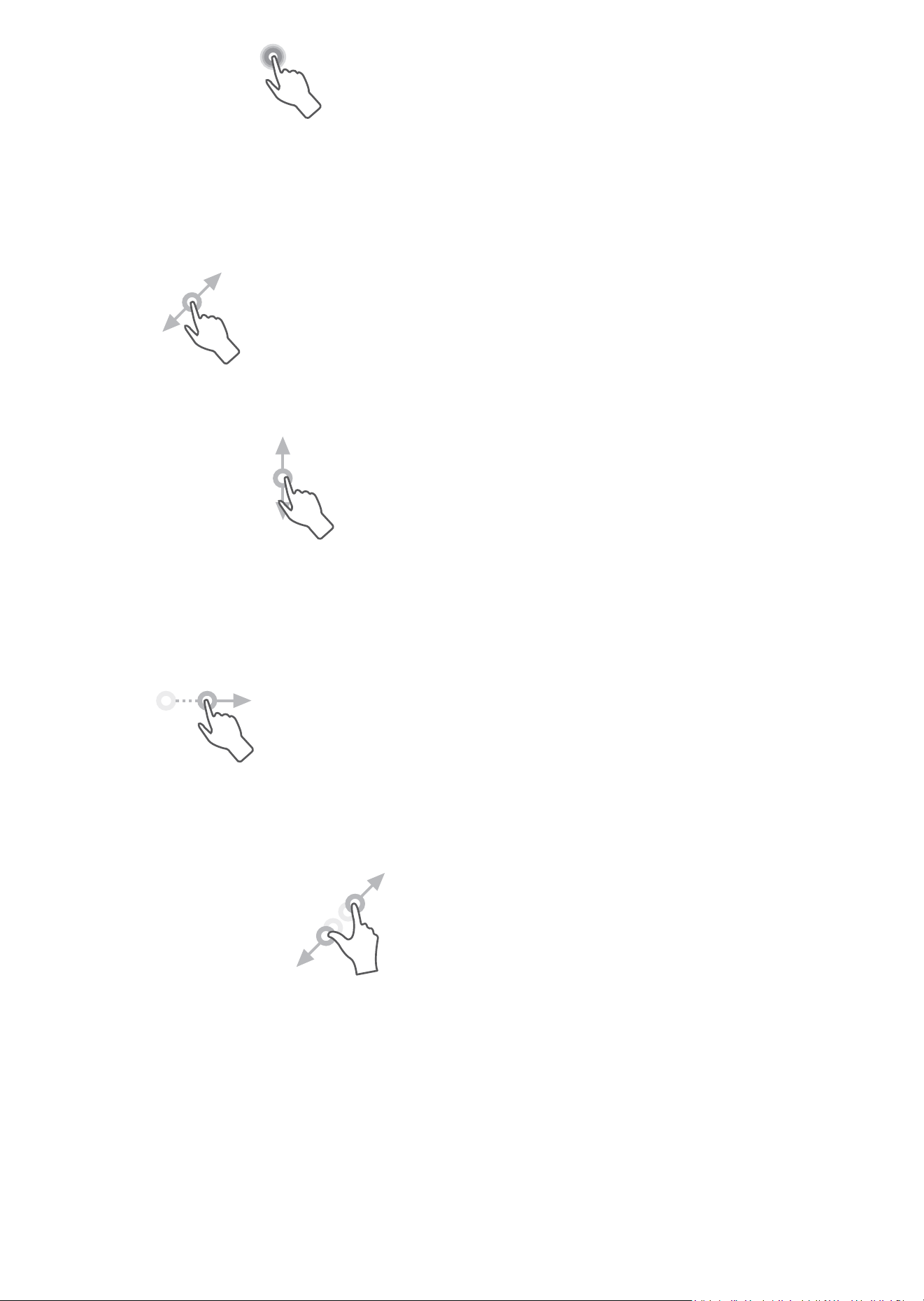
Touch
To access an application, touch it with your finger.
2
4
11
Long press
To enter the available options for an item, long press
the item. For example, select a contact in Contacts,
long press this contact, an option list will appear.
Drag
Long press an item and drag it to another location.
Slide/Swipe
Slide the screen to scroll up and down the applications,
images, and web pages. You can slide the screen
horizontally too.
Flick
Similar to swiping, flicking is a lighter and quicker
stroke.
Pinch/Spread
Place two fingers on the screen surface and draw them
apart or together to scale an element on the screen.
Double touch the screen to zoom in/out.
12
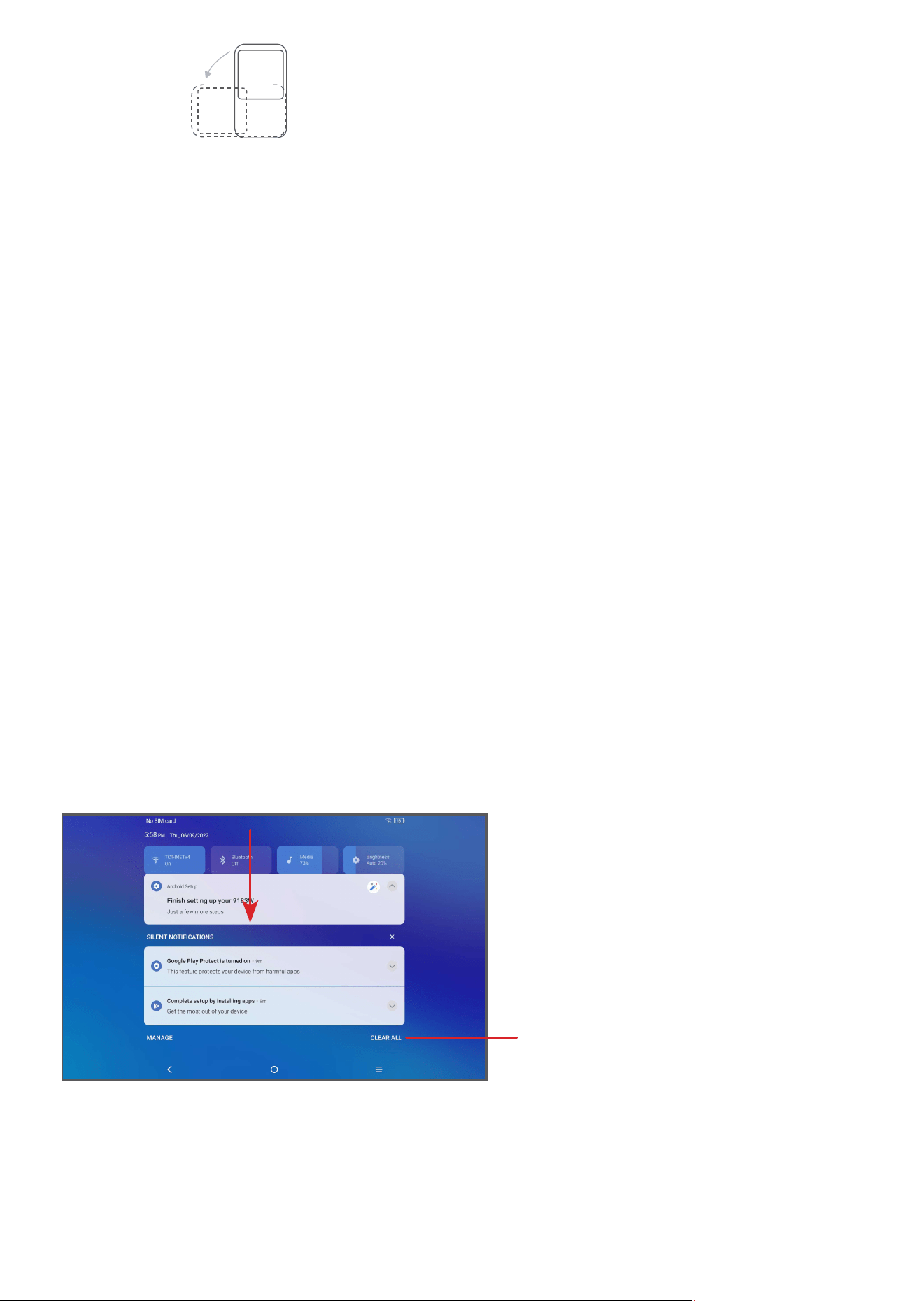
Rotate
Automatically change the screen orientation from
portrait to landscape by turning the device sideways
to have a better screen view.
1.3.2
Status bar
From the Status bar, you can view both device status
on the upper right corner and notification information
on the upper left corner.
Swipe down the status bar to view notifications and
swipe down again to enter the Quick settings panel.
Swipe up to close it.
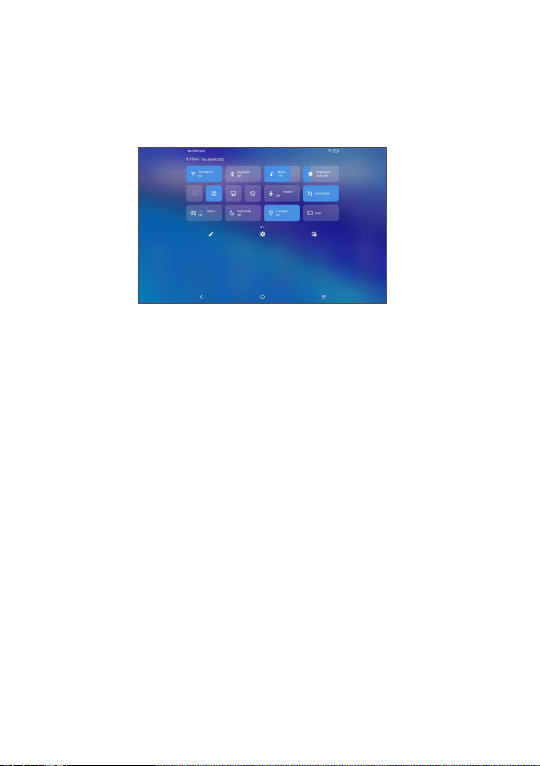
Notification panel
Swipe down the Status bar to open the Notification
panel to read detailed information.
Clear all notifications
(ongoing notifications
will remain)
13
Quick Settings panel
Swipe down the Status bar twice to access the Quick
Settings panel where you can enable or disable
functions or change modes by touching the icons.
1.3.3
Locking and unlocking your screen
To protect your device and privacy, you can lock the
device with a pattern, PIN, or password, etc.
To create a screen unlock pattern
•
From the Home screen, touch Settings > Security
& Biometrics > Screen lock.
•
Set your own pattern.
14
To lock device screen
If your device remains inactive for a period of time,
it will automatically lock the screen and enter sleep
mode to save power. Go to Settings > Display >
Sleep and select a screen timeout period. You can
also manually lock the screen by pressing the Power
key once.
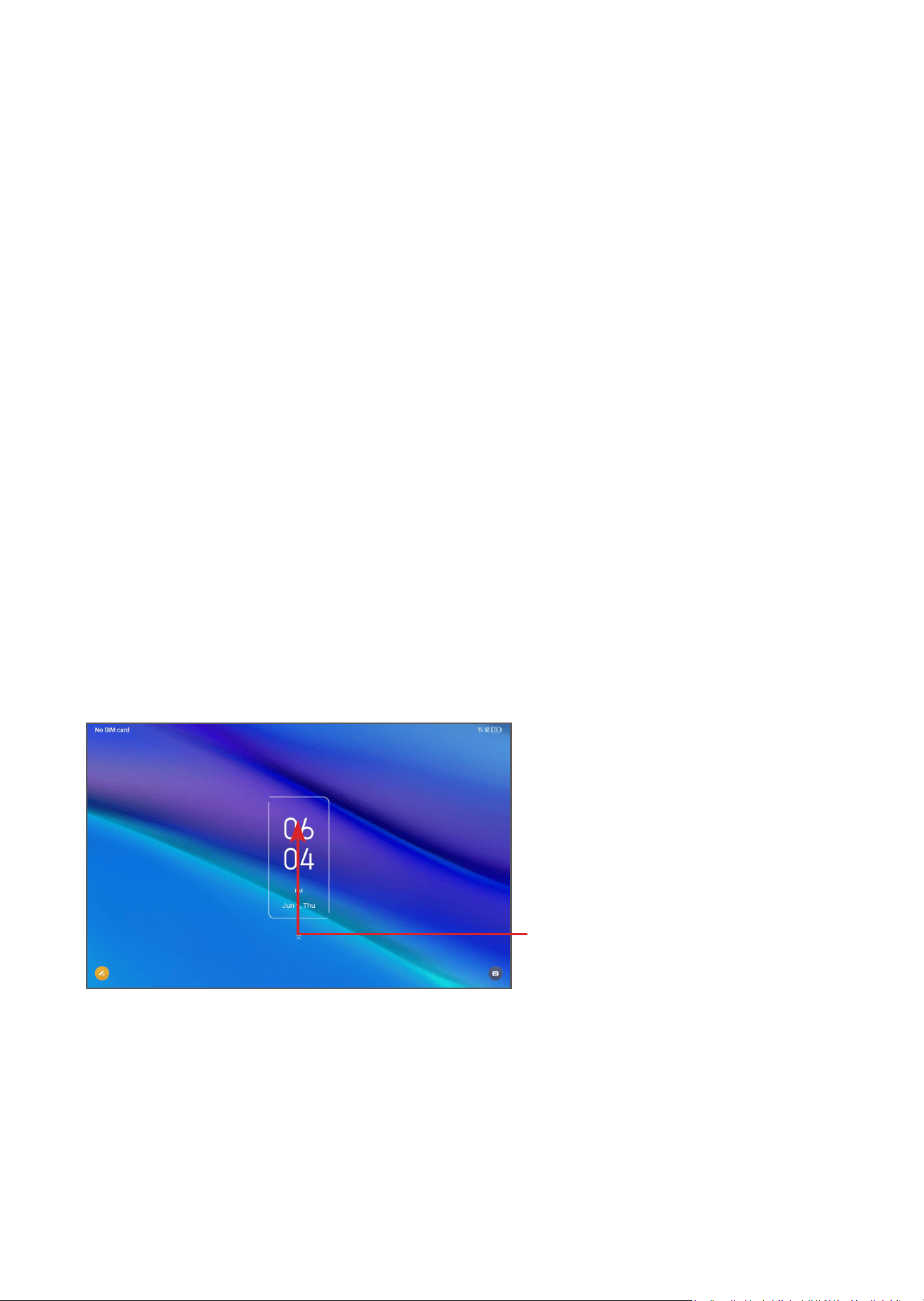
To unlock the device screen
Press the Power key once to light up the screen,
swipe up and unlock the screen with the method you
have set.
If you have chosen Swipe as the screen lock, you can
press the Power key to light up the screen, then swipe
up to unlock the screen.
Swipe up to unlock
the screen

15
1.3.4
Personalizing your Home screen
Add
You can long press a folder, an application or a widget
and drag the item to your preferred Home screen.
Reposition
Long press an item and drag it to the desired position
and then release. You can move items both on the
Home screen and the Favorite tray. Hold the icon on
the left or right edge of the screen to drag the item to
another Home screen.
Remove
Long press an item and drag it up to the top of the
Remove icon, then release.
Create folders
To improve the organization of shortcuts or applications
on the Home screen and the Favorite tray, you can
add them to a folder by stacking one item on top of
another. To rename a folder, open it and touch the
folder’s title bar to input the new name.
Wallpaper customization
Long press an empty area on the Home screen, then
touch Wallpapers to customize wallpaper.
16
1.3.5
Widgets and recently used
applications
Consult widgets
Long press the empty area on the Home screen, then
touch Widgets to display all widgets.
Touch the selected widget and slide it to move to your
preferred screen.
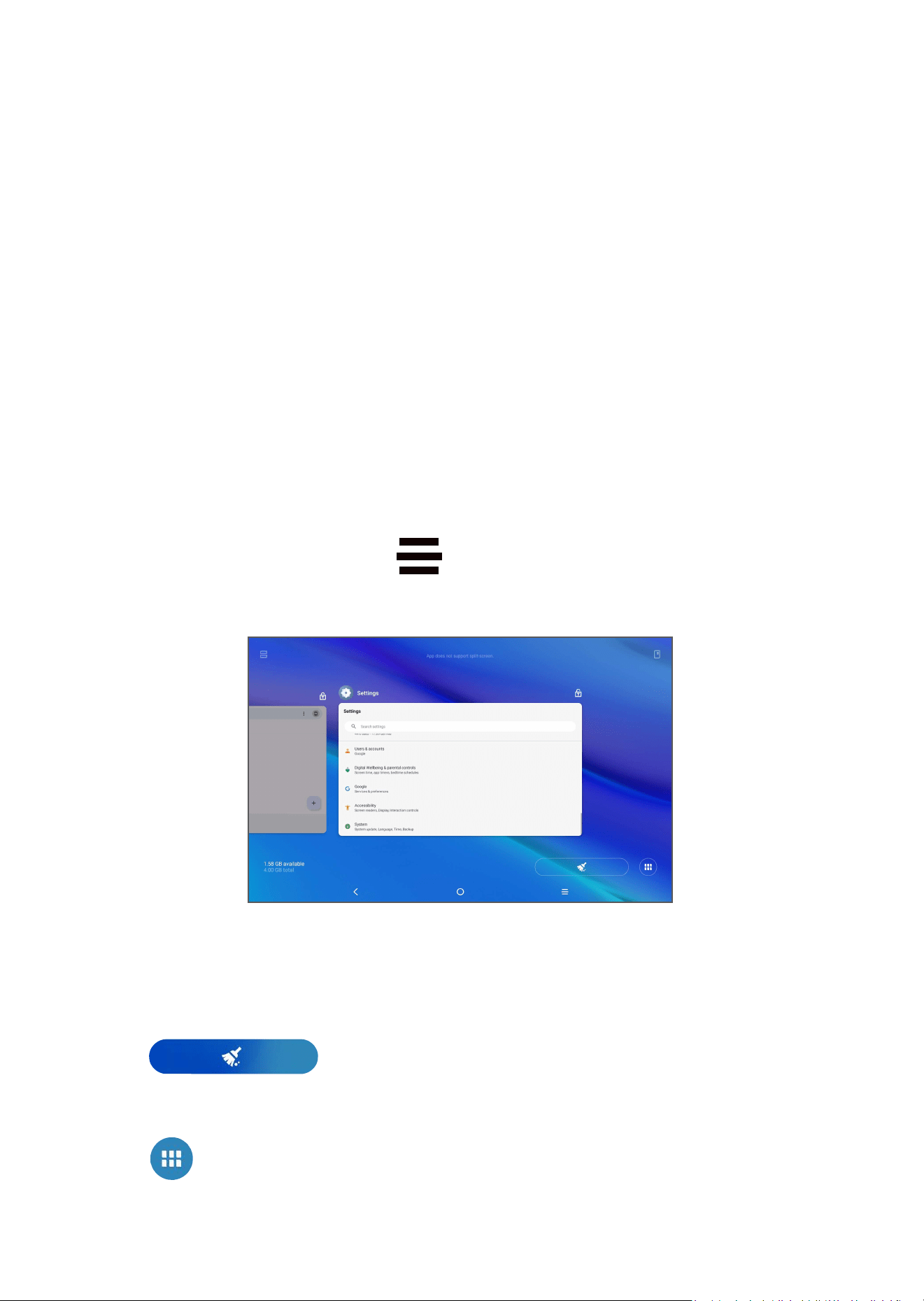
Consult recently used applications
To consult recently used applications, touch the
Recent Apps button . Touch a thumbnail in the
window to open the application.
Touch one thumbnail and slide it up to close an
application.
Touch at the bottom of the screen to close
all the running applications.
Touch to see all of the running applications.

17
1.3.6
Volume adjustment
Using the volume key
Press the Volume key to adjust the volume.
From the Home screen, touch Settings > Sound to set
the volume for media, notifications, alarms, etc.
18
2
Text input .........................
2.1
Using the onscreen keyboard
Onscreen keyboard settings
Go to Settings > System > Languages & input >
Virtual keyboard, touch the keyboard you want to
set up and a series of settings will become available.
Adjust the onscreen keyboard orientation
Turn the device sideways or upright to adjust the
onscreen keyboard orientation. You can adjust it by
changing the settings (Touch Settings > Display >
Auto-rotate screen).
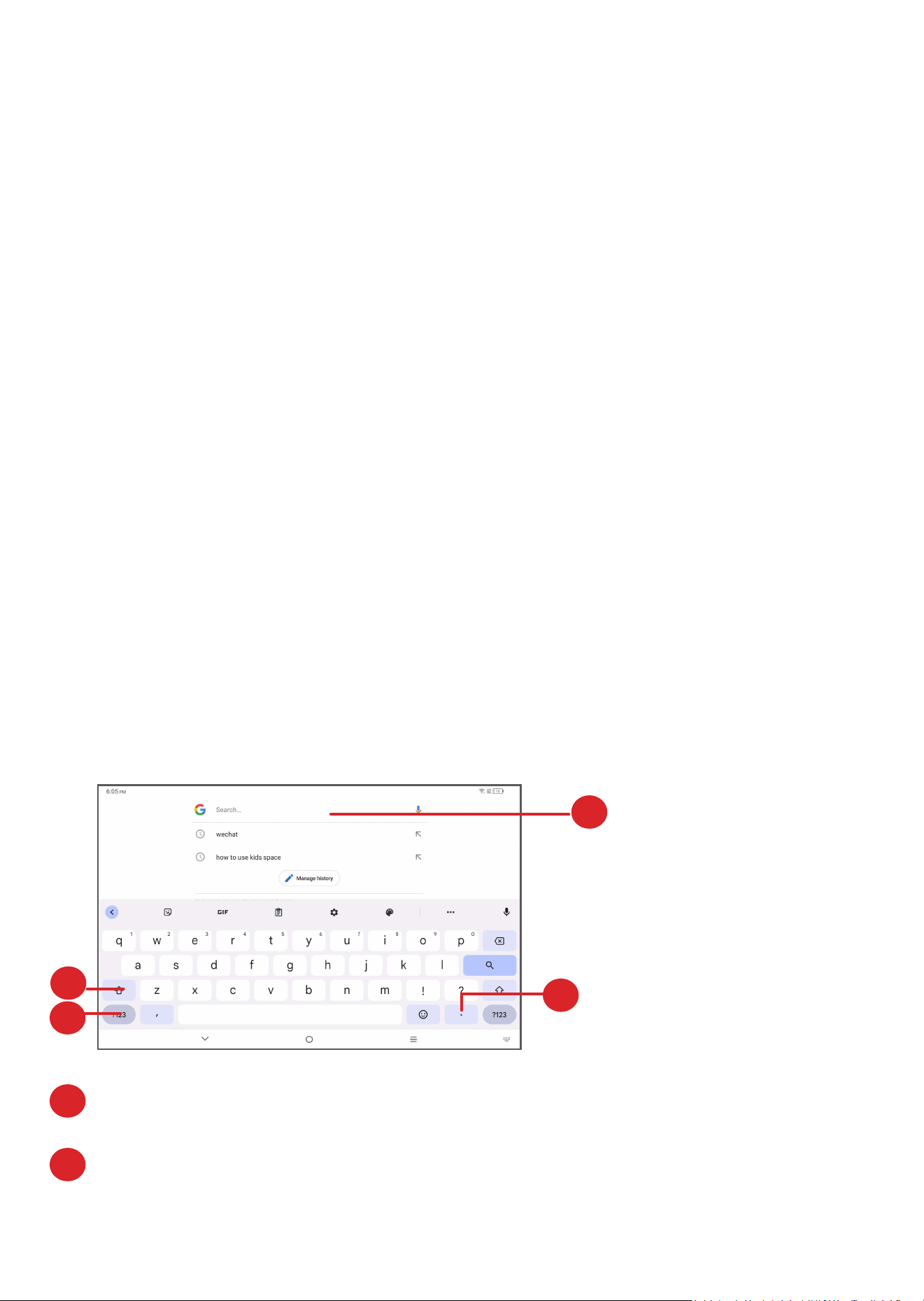
2.1.1
Gboard
1
2
3
4
1
Enter text or numbers.
2
Long press to select symbols.
1

19
3
Switch between "abc/Abc" mode; Press twice
quickly to switch to “ABC” mode always.
4
Switch between symbol and numeric keyboard.
2.2
Text editing
You can edit the texts which you have entered.
•
Long press or double touch within the texts you
want to edit.
•
Drag the tabs to change the selected texts.
•
The following options will appear: Cut, Copy,
Share.
•
If you have previously cut or copied any text, touch
and hold the area next to the cursor, and Paste,
Select all will appear, touch Paste which allows you
then paste the text at the current location.
20
3
Contact
Contacts enables quick and easy access to the contact
you want to reach.
You can view and create contacts on your device and
synchronize them with your Gmail contacts or other
applications.
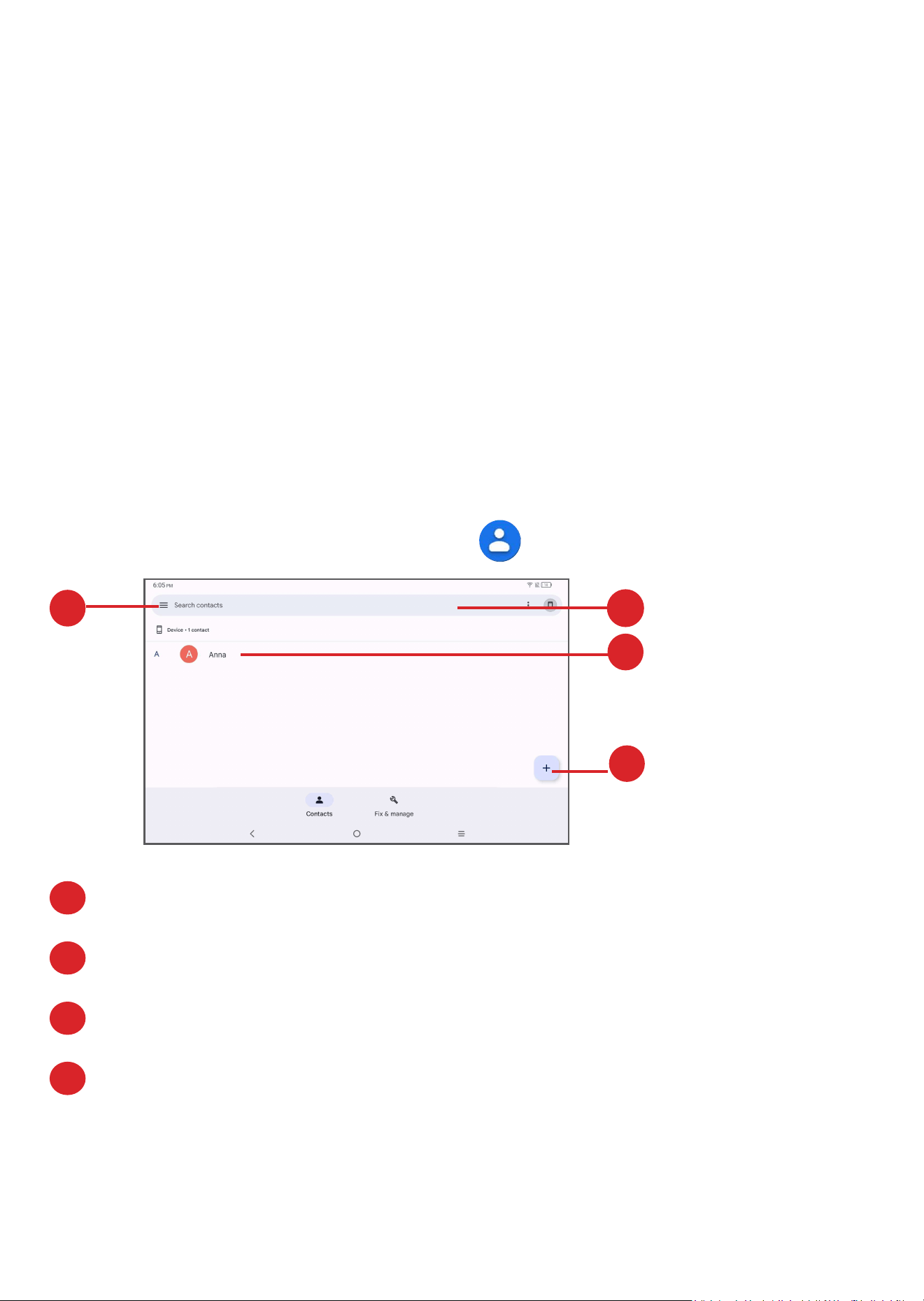
3.1
Consult your Contacts
To see your contacts, touch from the App drawer.
1
2
3
4
1
Display the contacts list option menu.
2
Touch to search contacts
3
Long press to select contact(s) to delete
4
Add new contact
21
Deleted contacts will also be removed from
other applications on the device or web the next
time you synchronize your device.
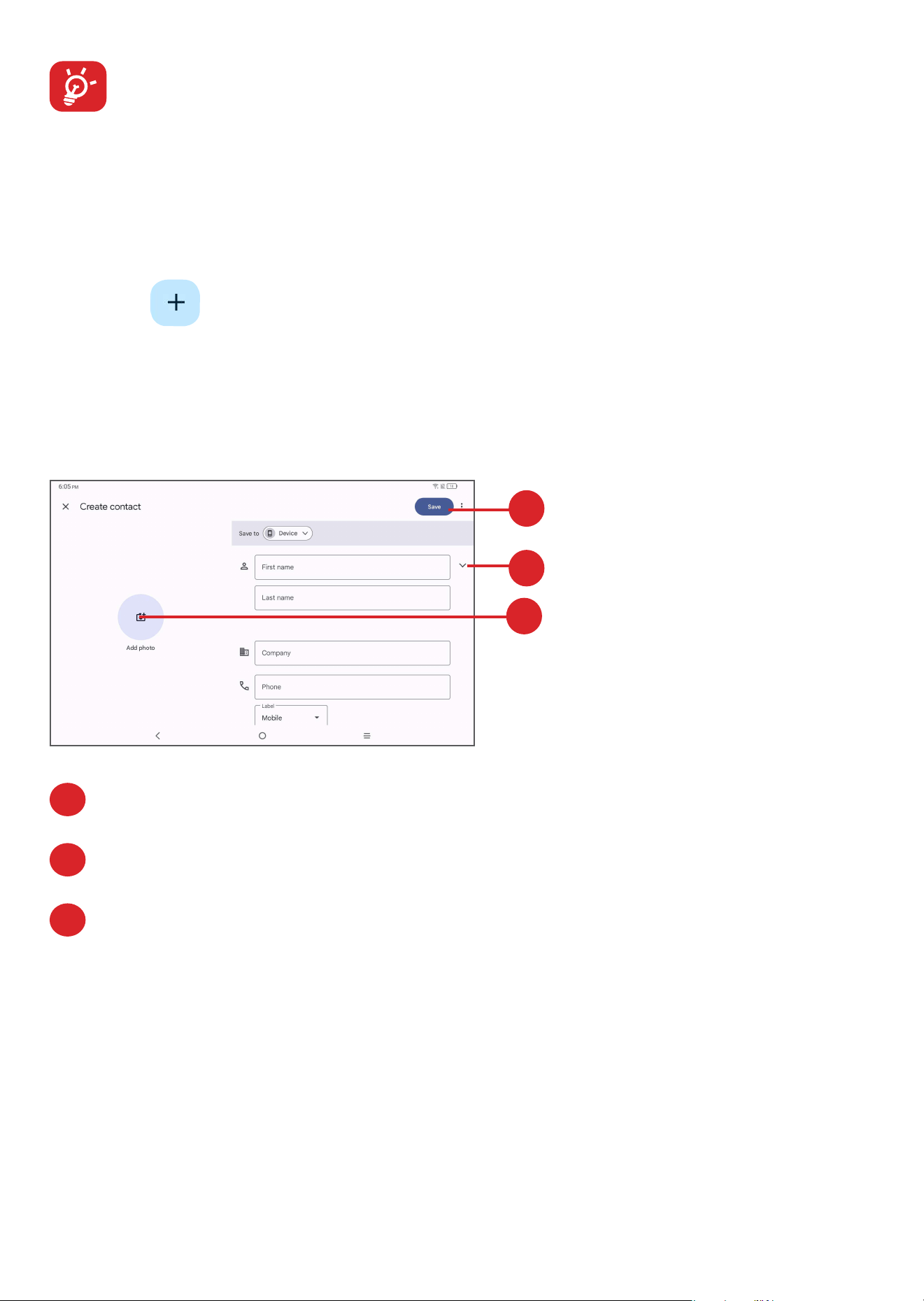
3.2
Adding a contact
Touch in the contact list to create a new contact.
You are required to enter the contact's name and
other contact information. By scrolling up and down
the screen, you can move from one field to another.
1
2
3
1
When finished, touch this icon to save
2
Select a picture or take a photo for the contact
3
Touch to open available labels
22
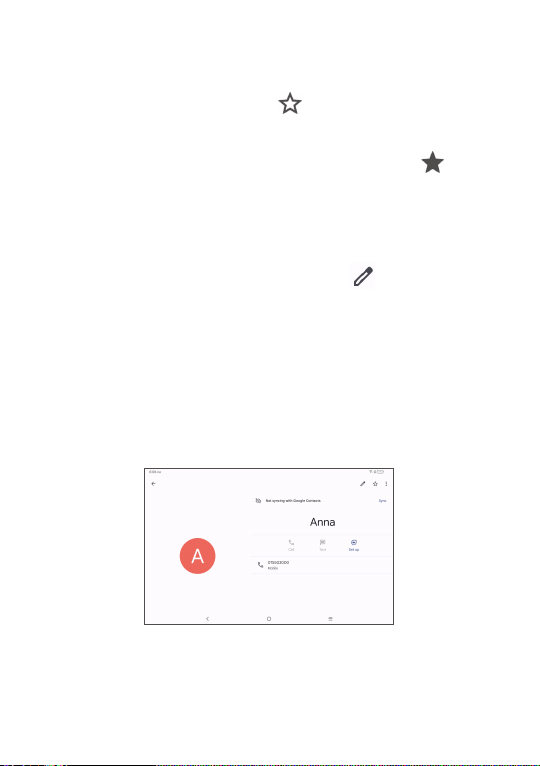
Add to/Remove from Favorites
(1)
To add a contact to Favorites, you can touch a contact
to view details then touch to add the contact to
Favorites.
To remove a contact from Favorites, touch on the
contact details screen.
3.3
Editing your contacts
To edit contact information, touch in the contact
details screen.
When finished, touch Save to save.
3.4
Use Quick contact for Android
Touch a contact to open Quick contact panel for
Android.
(1)
Only device contacts and account contacts can be
added to Favorites.

23
The icons available on the Quick contact panel
depend on the information you have for the contact
and the applications and accounts on your device.
This device enables you to import contacts from
your internal storage to your device, and export your
device contacts via a .vcf file for sharing with others.
To import contacts:
From the Contacts screen, touch Fix & manage to
open the options menu. Touch Import from file
To export and share contacts:
From the Contacts screen, touch Fix & manage to
open the options menu. Touch Fix & manage >
Export to file > Choose account, touch Export to
.vcf file, and contacts will export to a .vcf file. you can
change the .vcf file name before SAVE.
You can share a single contact or contacts with others
by sending the contact's vCard to them via Bluetooth,
Gmail.
Touch and hold a contact you want to share, touch
Share on contact details screen, and then select the
application to perform this action.

24
3.5
Displaying contacts
From the Contacts screen, touch Fix & manage, then
touch Settings > Sort by, you can choose to sort the
contact by first name or last name. You also can setup
the name format (First name first or last name first). In
addition, you also can choose the theme to display the
contact: Light, dark or system default.
3.6
Synchronizing contacts
Contacts, data or other information can be
synchronized from multiple accounts, depending on
the applications installed on your device.
To add an account, touch Fix & manage on the
contact screen, then touch Settings > Accounts >
Add account.
You are required to select the kind of account you are
adding, like DUO, Exchange, and Google, etc.
As with other account setups, you need to enter
detailed information, like username, password, etc.
You can remove an account and all associated
information from the device. Touch the account you
want to delete then select REMOVE ACCOUNT.

25
Auto-sync
Touch Fix & manage on the contact screen, then
touch Settings > Accounts, and enter the Users &
accounts screen, touch on your account then touch
Account sync to synchronize contacts.
26
4
Calendar, Clock, and
Calculator .........................
4.1
Calendar
You can use Calendar to keep track of important
meetings, appointments, etc.
To view the calendar and create events, open Google
apps folder from Home screen, then touch Calendar.
4.1.1
Multimode view
You can display the Calendar by Schedule, Day,
Week, or Month, touch to select.
4.1.2
To create new events
You can add new events from any Calendar view.
•
Touch .
•
Fill in all required information for this new event. If it
is a whole-day event, you can select All-day.
•
Invite guests to the event. Enter the email addresses
of the guests you want to invite with commas to
separate. The guests will receive an invitation from
Calendar and Email.

27
•
When finished, touch Save from the top of the
screen.
To quickly create an event from the Week view screens,
touch an empty spot to select a target area which will
then turn , then touch the pop-up dialogue box
to edit the event.
4.1.3
To delete or edit an event
To delete or edit an event, touch the event to enter its
details screen. Touch to edit the event, or touch
and then Delete to delete.
4.1.4
Event reminder
If a reminder is set for an event, the upcoming event
icon will appear on the Status bar as a notification
when the reminder time arrives.
Swipe down the Status bar to open the Notification
panel and touch an event name to view the Calendar
notification list.
Touch the Back button to keep the reminders pending
in the Status bar and the Notification panel.
28
4.2
Clock
Your device has a built-in clock. Swipe up the Home
screen, then touch Clock.
4.2.1
Clock
To view the world clock, touch Clock on the screen.
Touch to add a city.
4.2.2
Alarm
From the Clock screen, touch Alarm on the screen.
Turn on to enable the alarm.
Touch to add a new alarm:
Touch a currently existing alarm to enter the alarm
editing screen.
To delete a an alarm, touch the currently existing alarm
and hold on for seconds, then touch the to delete.
29
4.2.3
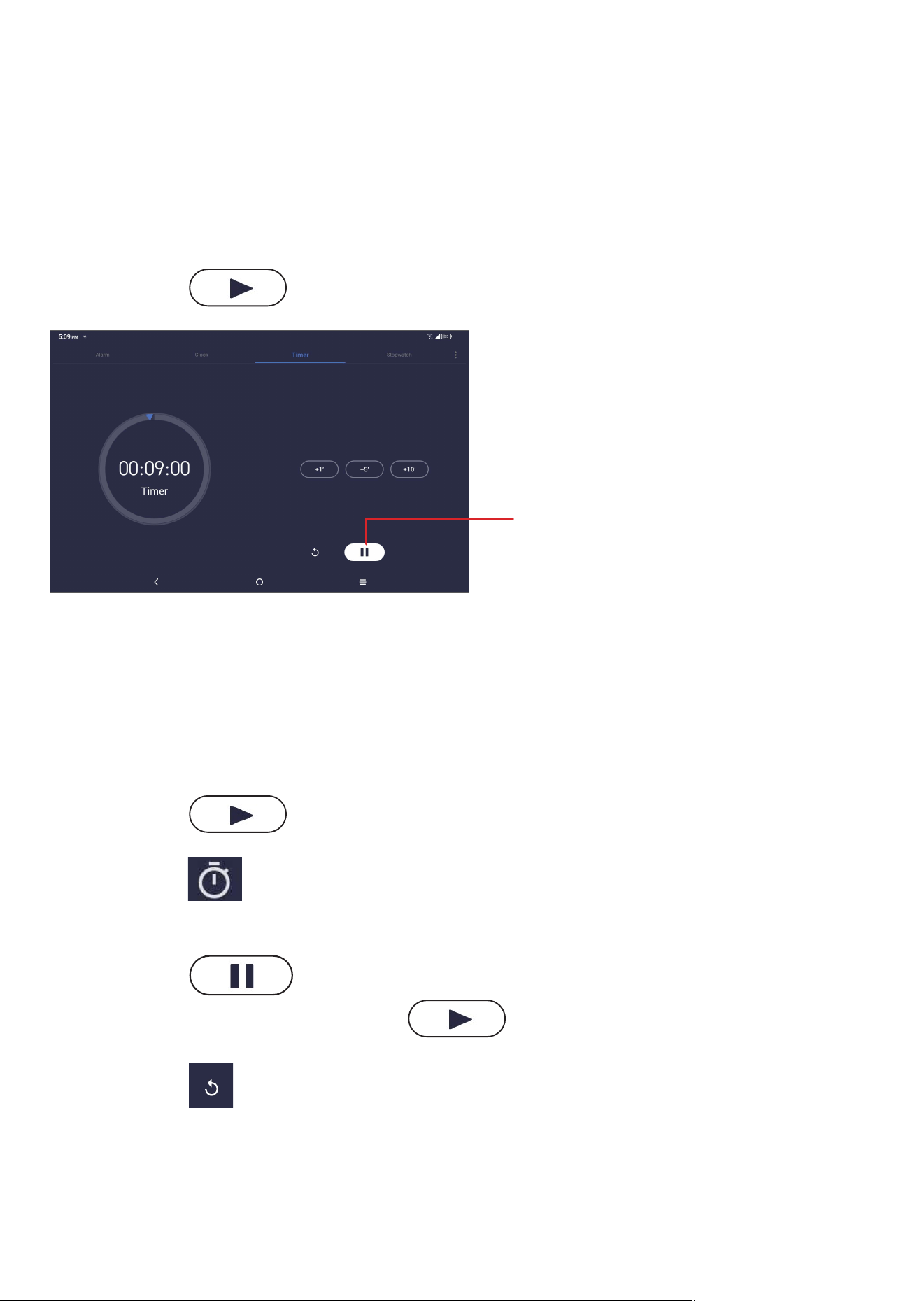
Timer
From the Clock screen, touch Timer on the screen.
•
Enter the time. The time should be typed in hour,
minute and second number sequence.
•
Touch to start the countdown.
Pause/play
4.2.4
Stopwatch
From the Clock screen, touch Stopwatch on the
screen.
•
Touch to start the Stopwatch.
•
Touch to show a list of records according to the
updated time.
•
Touch to halt the total and lap times. These
will only restart after is touched.
•
Touch to delete the record.
30
4.2.5
Adjust Clock settings
Touch and then Settings to access Clock and
Alarms settings.
4.3
Calculator
To solve mathematical problems using the Calculator,
swipe up from the Home screen, then touch Calculator.
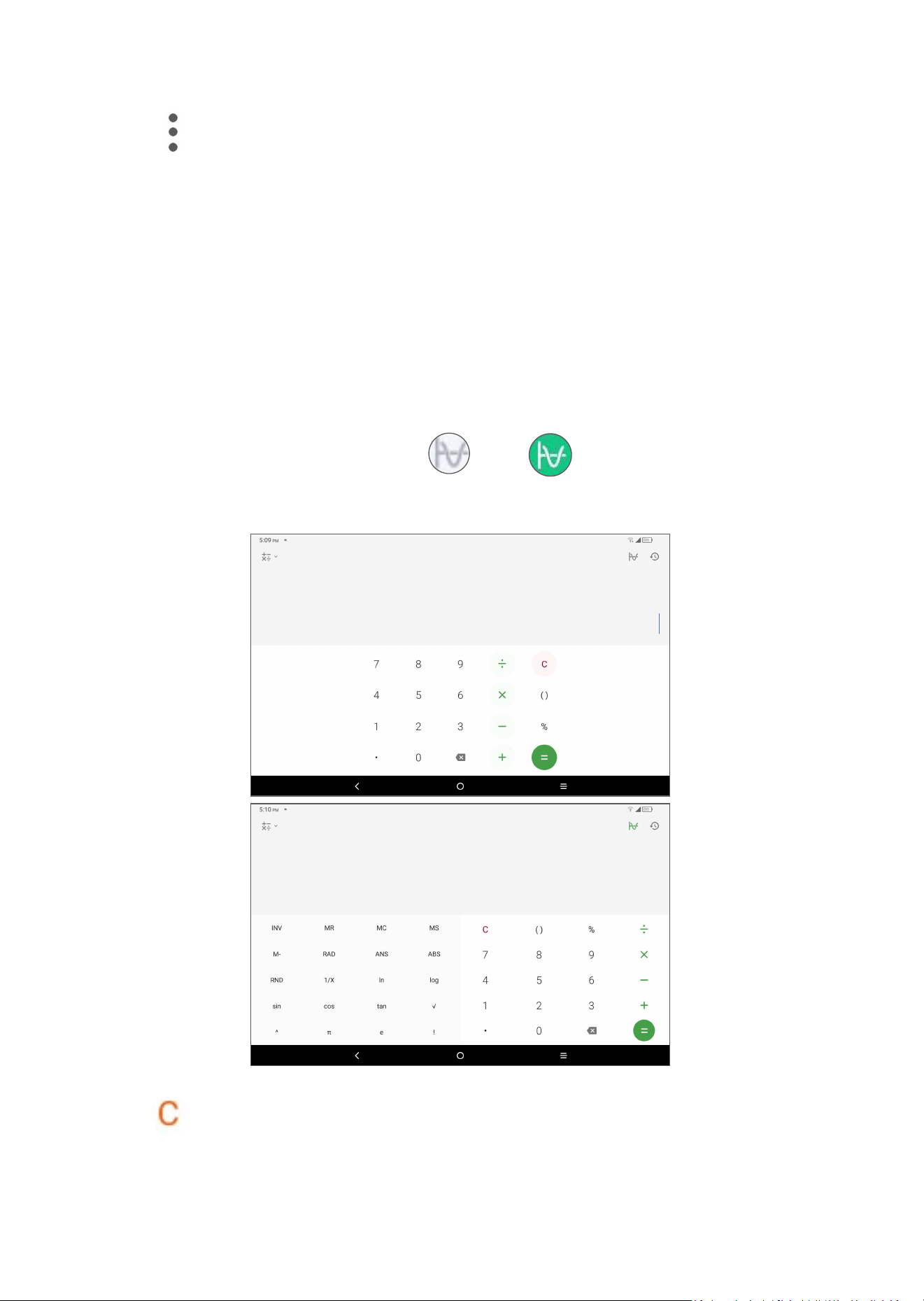
There are two panels available: Basic panel and
Advanced panel. Touch or to switch between
panels, select one of the following two options:
Touch to delete all at once.
31
5
Multimedia applications ...
5.1
Camera
Before using the camera, make sure that you remove
the protective lens cover to avoid it affecting your
picture quality.
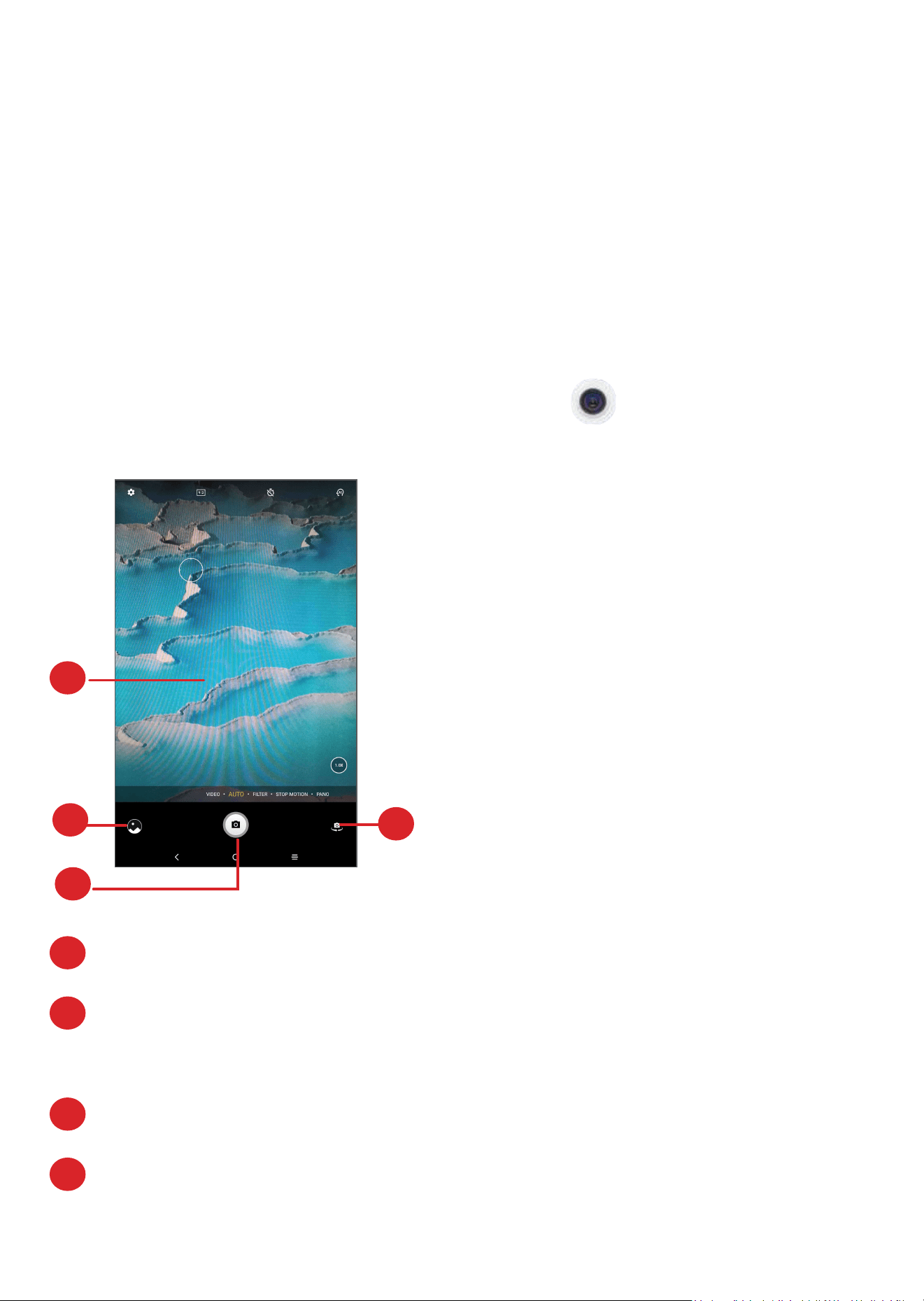
To take a photo or video, touch from the Home
screen.
1
2
3
4
1
Switch between front and rear camera.
2
Spread fingers apart to zoom in, or pinch fingers
together to zoom out.
3
View the photos or videos you have taken.
4
Take a photo.
32
To take a photo
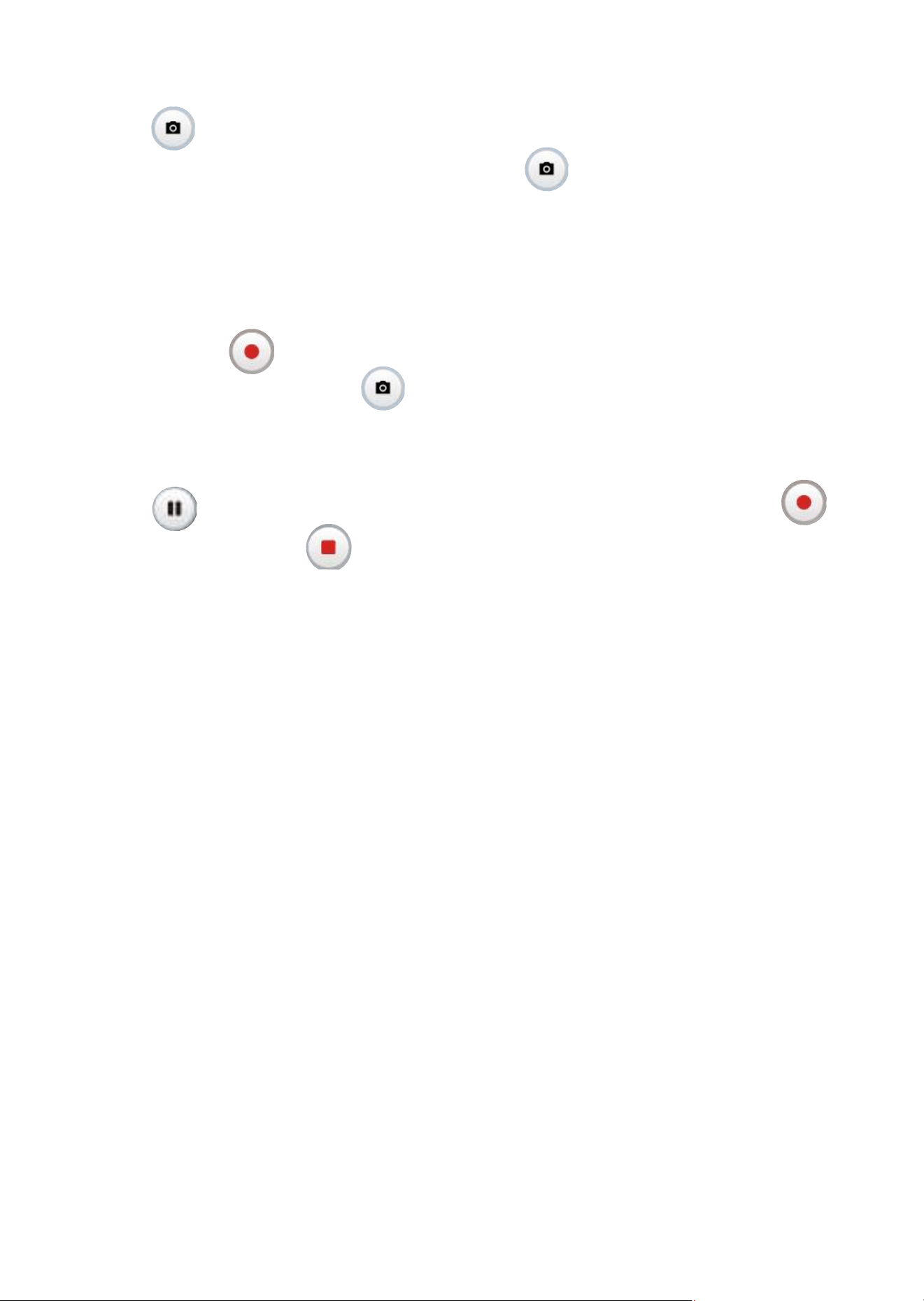
Touch to capture. The photo will be automatically
saved. You can also long press to take burst shots.
To take a video
Touch VIDEO to change the camera mode to video,
then touch to start video recording. You can also
touch the right icon to take a picture during video
recording.
Touch to pause video recording and touch to
continue. Touch to stop recording. The video will
be automatically saved.
5.2
Photos
Photos act as a media player for you to view photos
and play videos. In addition, a set of further operations
for pictures and videos are available for your choice.
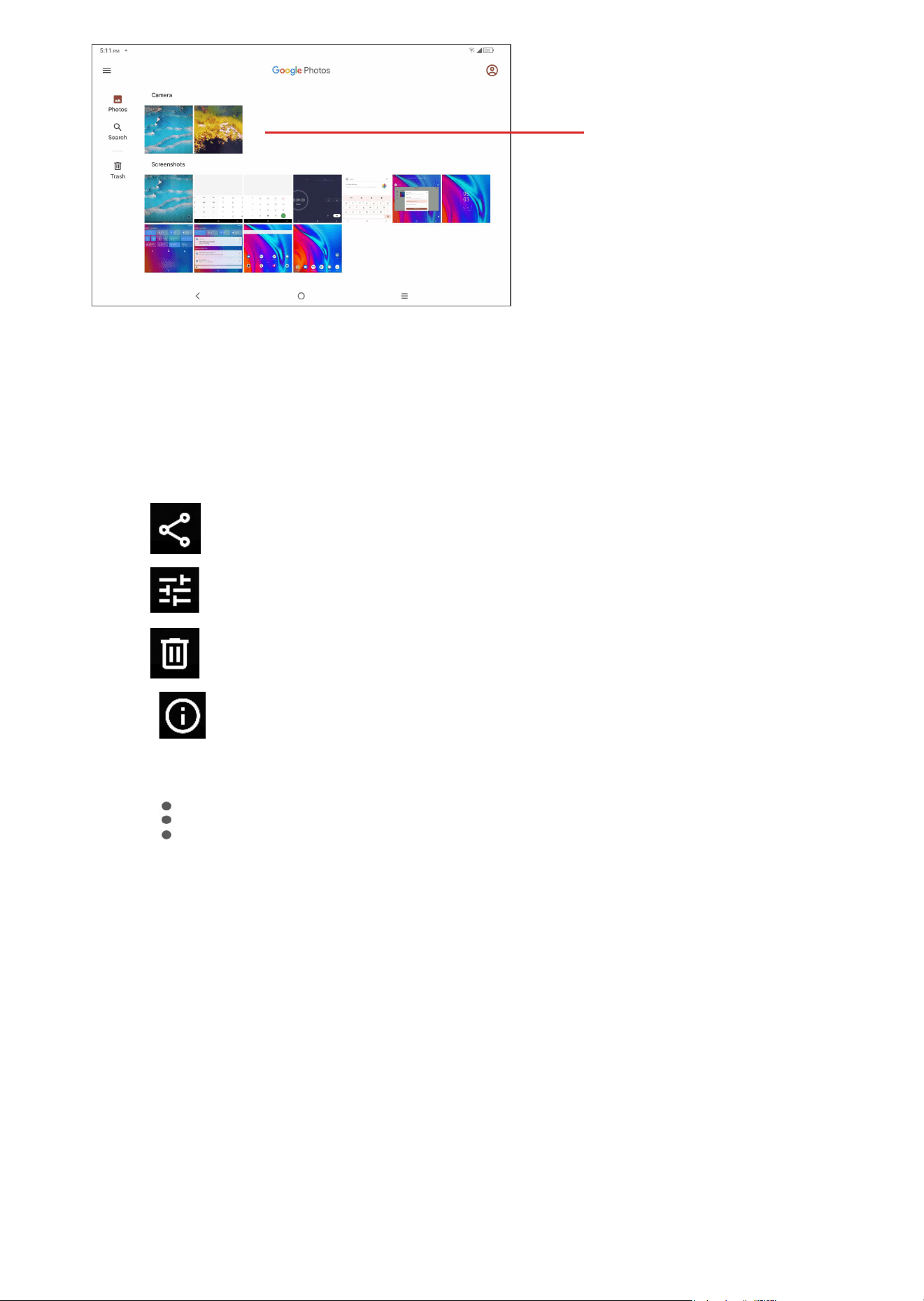
To view the photos you have taken, slide up from the
Home screen, then touch Photos.
Pictures and videos are displayed by albums.
33
Selectphotosfor
furtheroperation.
Working with pictures
Find the picture you want to work on and touch the
picture to enter the full-screen picture view.
Touch to share the picture.
Touch to edit the photo or video.
Touch to delete this photo.
Touch to view the detailed information of the
photo.
Touch on the upper right corner of the screen to
select Use as to set the picture as Contact photo or
Wallpaper.
Batch operation
The Photos provide a multi-select function, so that you
can work with pictures/videos in batches.

34
On Photos screen, long press a picture or video to
activate batch operation mode, then touch videos/
pictures you want to work with. Touch to delete
selected files. Touch to share selected files.
35
6
Google applications ......
Google apps are preinstalled on your device to
improve work efficiency and help you enjoy life.
This manual briefly introduces the apps. For detailed
features and user guides, refer to related websites or
the introduction provided in the apps.
You are recommended to register with a Google
Account to enjoy full functionality.
6.1
Chrome
A web browser with which you can surf the internet.
Your bookmarks, browsing history, and settings across
all devices on which the browser is installed can be
synchronized with your Google Account.
6.2
Gmail
As Google's web-based email service, Gmail is
configured when you first set up your device. With this
application, you can send and receive emails, manage
emails by labels, archive emails, etc. Emails can be
automatically synchronized with your Gmail Account.
36
6.3
Map
Google Maps offers satellite imagery, real-time traffic
conditions, and route planning for traveling by foot,
car, or public transportation. By using this application,
you can get your own location, search for a place, and
get suggested route planning for your trips.
6.4
YouTube
YouTube is an online video-sharing application where
users can upload, view, and share videos. Available
content includes video clips, TV clips, music videos,
and other content such as video blogging, short
original videos, and educational videos. It supports a
streaming function that allows you to start watching
videos almost as soon as they begin downloading
from the internet.
6.5
Play Store
Serves as the official app store for the Android
operating system, allowing users to browse and
download applications and games. Applications are
either free of charge or at a cost.
37
In Play Store, search for the app you need, download
it and then follow the installation guide to install
the app. You can also uninstall, update an app, and
manage your downloads.
6.6
Duo
A video chat mobile app. With phone numbers
verified, users can easily video call people from their
contact list.
6.7
GPay
GPay is a mobile wallet you can use to recharge your
mobile numbers, make payments (Electricity, Gas or
water) and to purchase train tickets from their own
mobile number. To use GPay, you have to register by
using the GPay mobile app (from Google Play store).
Once you are registered, you are allowed to make
your payments.
6.8
Podcasts
Google podcasts is an App which integrates audio
programme, just like Talk Radio, but you subscribe to
it on your smartphone/ tablet and listen to it whenever
you like.

38
With Google Podcasts, you can discover podcasts
you'll love, customize your listening experience, and
Listen wherever you are.
6.9
Google One
The Google One app lets you automatically back up
your device and manage your Google cloud storage.

39
7
Settings .........................
To go to Settings, swipe up from the Home screen and
touch Settings.
You can also swipe down from the notification panel
and touch .
7.1
Wi-Fi
You can connect to the internet when your device is
within range of a wireless network. Wi-Fi can be used
on your device even without a SIM card inserted.
To turn Wi-Fi on and connect to a wireless network
•
Touch Settings > Wi-Fi.
•
Turn on .
•
Once Wi-Fi is turned on, detected Wi-Fi networks
are listed.
•
Touch a Wi-Fi network to connect to it. If the
network you selected is secured, you are required
to enter a password or other credentials (you should
contact the network operator for details). When
finished, touch CONNECT.

40
To add a Wi-Fi network
When Wi-Fi is on, you can add new Wi-Fi networks
according to your preference.
•
Touch Settings > Wi-Fi.
•
Touch Add network.
•
Enter the name of the network and any required
network information.
•
Touch SAVE.
To forget a Wi-Fi network
The following steps prevent automatic connections to
networks which you no longer wish to use.
•
Turn on Wi-Fi, if it’s not already on.
•
On the Wi-Fi screen, touch the name of the saved
network.
•
Touch FORGET in the dialog that opens.
7.2
Bluetooth
Bluetooth is a short-range wireless communication
technology that you can use to exchange data, or
connect to other Bluetooth devices for various uses.
To turn on Bluetooth
•
Touch Settings > Bluetooth.
•
Turn on Bluetooth .

41
Your device name and other available devices will
appear on screen.
To rename your device
•
Touch Settings > Bluetooth.
•
Touch Device name.
•
Enter a name, and touch RENAME to confirm.
To pair/connect your device with a Bluetooth
device
To exchange data with another device, you need
to turn Bluetooth on and pair your device with the
Bluetooth device with which you want to exchange
data.
•
Touch Settings > Bluetooth.
•
Touch + Pair new device.
•
Touch a Bluetooth device you want to pair your
device within the list.
•
In the dialog that pops up, touch PAIR to confirm.
•
If the pairing is successful, your device will be
connected to the device.
To unpair from a Bluetooth device
•
Touch beside the device you want to unpair
from.
•
Touch FORGET to confirm.

42
7.3
Mobile network
You can set Data roaming, Network mode, Network
and Access Point Names in this menu.
7.4
Connections
7.4.1
Airplane mode
Turn on Airplane mode to simultaneously disable
all wireless connections including Wi-Fi, Bluetooth and
more.
7.4.2
Tethering and Mobile HotSpot
To share your device's data connection via USB and
Bluetooth, go to Settings > Connections > Tethering
and Mobile HotSpot to activate these functions.
7.4.3
Data usage
Touch Settings > Connections > Data usage to
check your total data usage and the data usage of
every App.
You also can set the Network restrictions, touch the
Wi-Fi name, you can set the Wi-Fi data to Automatic,
Metered and Not metered.

43
7.4.4
VPN
Virtual private networks (VPNs) allow you to connect
to the resources inside a secured local network from
outside that network. VPNs are commonly deployed
by corporations, schools, and other institutions so
that their users can access local network resources
when not inside that network, or when connected to a
wireless network.
To add a VPN
•
Touch Settings > Connections > VPN and then
touch .
•
On the screen that opens, follow your network
administrator's instructions to configure each
component of the VPN settings.
•
Touch SAVE.
The VPN is added to the list on the VPN settings
screen.
To connect/disconnect to/from VPN
To connect to a VPN:
•
Touch Settings > Connections > VPN.
•
The VPNs you have added are listed. Touch the
VPN you want to connect with.
•
In the dialog that opens, enter any requested
credentials and touch CONNECT.

44
To disconnect from a VPN:
•
Touch the VPN you want to disconnect from. In the
dialog that opens, touch DISCONNECT.
To edit/delete a VPN
To edit a VPN:
•
Touch Settings > Connections > VPN.
•
The VPNs you have added are listed. Touch the
icon next to the VPN you want to edit.
•
After editing, touch SAVE.
To delete a VPN:
•
Touch the icon next to the selected VPN, then
touch FORGET to delete it.
7.4.5
Private DNS
Touch to select private DNS mode.
7.4.6
Cast
This function can transmit your device content to TV or
other device capable of supporting video over Wi-Fi
connection.
•
Touch Settings > Connections > Cast .
•
Touch the device name you want to connect.
Note: your device needs to be connected to a Wi-Fi
network first before using this function.

45
7.4.7
USB Connection
With the USB cable, you can transfer media files
and other files between your internal storage and
a computer. Touch Settings > Connections > USB
connection, select Charge this device, Transfer files
or Transfer photos (PTP).
7.4.8
Printing
Touch Printing to activate Print services. You can select
your Default print service or choose Add service.
7.4.9
Chromebook
Chromebook is a new kind of computer designed
to help you get things done faster and easier. They
run Chrome OS, an operating system that has cloud
storage, the best of Google built in, and multiple
layers of security. Touch Settings > Connections >
Chromebook and follow the instructions to enable
Chromebook.

46
7.4.10
Nearby Share
Nearby Share is a service to send and receive files
between Android devices. A list of devices will appear
in your proximity when using the Nearby Share feature,
which allows you to share content. When you touch on
the receiver, they will be notified with the option to
accept or decline the file you are sharing. Google's
Nearby Share will then automatically choose the best
protocol for fast and easy sharing using Bluetooth,
Bluetooth Low Energy, WebRTC or peer-to-peer Wi-Fi.
This means you can use Nearby Share even when you
are completely offline.
7.5
Home screen & lock screen
Wallpapers: you can choose from default wallpapers
or your photos as wallpaper.
Themes: you can choose the theme style (round style,
square style or free style).
Home settings:
- Home screen style: set your preferred style for Home
screen.
- Home screen grid: set your preferred grid for the
Home screen (6x5, 5x5, 6x4, 5x4).
- Fill empty cells: automatically fill empty cells when
apps are moved.

47
- Google Feed: displays the news feed service when
swiping right from the Home screen.
- Recent app: display recently used applications in
drawer.
- App icon badges: you can choose to show with
number or show without number when there are
notifications.
- Add icon to Home screen: when downloading apps
from the Google Play Store, the app icon is, by
default, added to the app drawer. If you want your
downloaded apps to appear on your Home screen,
enable Add icon to Home screen.
- Wallpaper blur effect: you can make the wallpaper
partially blurred.
Default home app: you can customize your home
app.
Lock screen style: choose from TCL style (default) or
classic style.
Notifications on lock screen: set to show all
notifications or don't shown any notification.
Lock screen shortcut: enable or disable to show the
shortcut when the screen is locked.
Lock screen message: set the message displayed
when the screen is locked.

48
Wake screen for notifications: enable it , when
screen is dark, it turns on for new notifications.
7.6
Display
You can adjust the screen brightness level by dragging
the brightness slider, or you can enable the Adaptive
brightness to optimize brightness level for available
light.
Turn on Dark mode, and the background of screen
will be dark while the text will be white.
Turn on Eye comfort mode, which will filter out blue
light and adjust the color temperature of display to
reduce eye strain, you also can set a schedule for
when the eye comfort mode is enabled.
Sleep, you can set a time interval of inactivity.
Color mode & temperature: you can change display
gamut based on display content (Vivid, Natural,
Advanced).
Font size, touch font size and drag the slider to make
the text on screen smaller or larger.
To rotate screen contents when device is rotated,
touch Auto-rotate screen.

49
Status bar, touch Display > Status bar, then turn on
and you can see the network speed and battery
percentage on the upper right corner of the screen.
7.7
NXTVISION
NXTVISION helps improve your multimedia (Game,
Photo, Video) visual experience, which makes your
screen image brighter, richer and clearer.
Visual enhancement: enable or disable image, video
and game enhancement.
Display mode: enable Reading mode, Eye comfort
mode and Sunlight display mode. When you enable
Reading mode, Eye comfort mode will be disabled,
and vice versa, but Sunlight display mode can be
enabled simultaneously when one of the above two
is enabled.
Screen color: change display gamut based on display
content.
7.8
Sound
• Volume: adjust the volume, or you can enable
silent mode.
• Ringtone: set ringtones for device, notification,
and alarm.

50
• Do not disturb: you can turn this mode on as
scheduled, then notifications will be silenced
(except for alarms), and the device will not wake
up when the screen is off.
• Headset mode: ringtone will only be heard from
headset if it is plugged in.
• More sound settings: you can set tones for Dial
pad, Screen lock and Touch.
7.9
Notifications
• App icon badges: you can choose how to show
the icon badges (with number or with a red spot)
when apps receive new notifications.
• On the lock screen: you can choose to show all
notifications or don't show any notifications.
• Lock screen quick settings: turn on , and the
quick settings panel can be dragged down even
in the lock screen.
• Notification icons folder: turn on , and all
notification icons will be hidden in a separate icon.
• Mini notification: turn on , the notifications
will be shown in the form of a small ball preview,
and click it to open a floating window to reply to a
message without interrupting your task.

51
• Manage app notifications: you can configure
whether to block notifications from this app.
• Notification history: turn on to see recent
notifications and snoozed notifications.
7.10
Button & gestures
In this menu, you can set gestures for quick and
convenient operations.
7.11
Advanced features
•
Smart App Recommend: after connecting headset
or speakers, you will receive recommendations
with suitable applications on the launcher
according to your usage habits.
•
Privacy protection: when applications access your
private data, such as SMS and calendar, the system
will provide corresponding fake information to the
applications to protect your privacy.
•
Screen Recorder: enable the screen recorder in
the quick setting panel to set the video resolution,
with or without sound, and whether or not to
record touch interaction in Advanced features.

52
7.12
Smart Manager
Smart Manager ensures your device is operating in top
form by automatically scanning and optimizing data
usage to preserve battery levels, manage storage and
protect against security threats. You can also do some
manual settings for further optimization.
7.13
Security & biometrics
Security status
•
Google play protect: Play Protect regularly checks
your apps and device for harmful behavior. You
will be notified of any security risks found.
•
Security update: check for system updates.
•
Find My Device: turn on to help you locate
your device remotely, if you lose your device, it
also can help you keep your data safe.
Device Security
•
Screen lock: Choose screen lock such as None,
Swipe, Pattern (draw an unlock pattern), Pin (set a
PIN), Password (set a password).
•
Face lock: This is a backup screen lock method,
you can choose Face+Pattern, Face+PIN and
Face +Password.

53
•
Smart Lock: Smart Lock keeps your device
unlocked when it's safe with you and locked when
it detects that it's been put down.
Privacy Security
•
Privacy protection gives you a reminder when a
sensitive behavior is detected, protecting your
personal information and generating a security
log.
Others
You can also set Device admin apps, Encryption
& credentials, Trust Agents and Screen pinning in
Settings > Security & Biometrics.
• Enabling Device admin apps allows Find My
Device to lock or erase a lost device.
• SIM card lock: you need to set a pin first to lock
SIM card, and the PIN also can be changed.
• Encryption & credentials: you can see the
encryption and credential information of your
device.

54
• Trust agents is a service that tells the system
whether the current device environment is trusted.
When a trust agent thinks it can trust the current
environment, it will notify the system through
a callback, and the system will decide how to
bypass the device's security configuration. A
typical example is: when in a trusted environment,
the system grants the user the ability to bypass
the lock screen.
• Screen Pinning is an option used to pin single
screen or an app on device. As if you want that
present screen opened on your device is only
shown on screen and pressing any button or
switching app does not happen, then you can pin
screen using Screen Pinning.
7.13
Location
Touch to set whether to allow an app to access your
device's location. You can set allowing continual
access, or only while the app is in use.
7.14
Privacy
To protect your privacy, you can set an app to be
allowed or forbidden to access your location, call logs,
contacts, etc. Also whether or not to show passwords
or choose the activities and info that you want Google
to save.

55
7.15
Safety & emergency
This function is designed to allow you to be rescued
faster when you are in danger.
Add medical information and emergency contacts to
help first responders in an emergency.
You also can enable the emergency SOS. This allows
you to press the power button quickly 5 times or more
to send an SOS alert.
Enable the emergency location service to automatically
send the device location to emergency response
partners when you call or text an emergency number.
Wireless Emergency Alerts: WEA is a public
safety system that allows your device to receive
geographically targeted, text-like messages alerting
them of imminent threats to safety in their area.
7.16
Apps
Touch to view details about the applications installed
on your device, to manage their data usage or force
them to stop.
In the Permissions Manager menu of an application,
you can grant permissions for the app, such as
allowing the app to access your Camera, Contacts,
Location, etc.

56
7.17
Storage
Use these settings to monitor the total and available
space on your device and microSD card.
7.18
Users & Accounts
Touch Add account to add an account for your
device, you can choose the account of the available
app as the account.
Touch Automatically sync data to enable it, which
can lets apps refresh data automatically.
7.19
Digital Wellbeing & parental
controls
In this menu you can find how much time you have
spent on the device and even on each app. You can
also customize the time limit for using the device. In
addition, parents are able to restrict their children's
usage time to manage their browsing habits.
7.20
Google
Touch to configure your Google Account and services
settings.

57
7.21
Accessibility
Use the Accessibility settings to configure any
accessibility plug-ins you have installed on your
device.
7.22
System
7.22.1
About device
This contains information such as device specification,
Legal information, Model type, Build number, etc.
7.22.2
System update
Touch Settings > System > System Update.
If you want to update the system, touch CHECK FOR
UPDATES and when that’s finished, your device will
have the latest version of the software.
7.22.3
Update apps
Touch to check apps new version and update.
7.22.4
Languages & input
Touch to configure language settings, the Virtual
keyboard, Spell checker, pointer speed, etc.
7.22.5
Date & time
Use Date & time settings to customize your preferences
for how date and time are displayed.

58
7.22.6
Backup
Turn on to back up your device’s settings and
other application data to Google servers. If you
replace your device, the settings and data you’ve
backed up will be restored onto the new device when
you sign in with your Google Account.
7.22.7
Reset
Touch to reset Network settings, Reset app preferences,
or Erase all data.
7.22.8
Users
Share your device by adding new users. Each User
has a personal space on your device for custom Home
screen, accounts, apps, settings, and more.
7.22.9
Regulatory & safety
Touch to view product information such as the model,
the place of origin, the certification, etc.

59
8
FOTA Upgrade ..............
Use the FOTA (Firmware Over The Air) Upgrade tool
to update your device's software. To access Updates,
from the app list, touch Settings > System > System
Update.
If you want to update the system, touch CHECK FOR
UPDATES and when that’s finished, your device will
have the latest version of the software.
During FOTA downloading or updating, to avoid
errors in locating the correct update packages, do not
change your default storage location.

60
9
Troubleshooting ............
Before contacting the service center, here are some
instructions to help you troubleshoot your device:
•
For optimal operation, fully charge the battery.
•
To improve the device’s performance, remove
unnecessary files or apps on your device.
•
Update your device's software, go to Settings >
System > System updates.
•
Reset your device via Erase all data (factory
reset). Touch Settings > System > Reset > Erase
all data (factory reset). Another method is to
hold down the Power key and the Volume up key
at the same time when your device is powered off.
All your device data will be lost permanently. It is
strongly advised to fully back up your device data
before resetting.
and carry out the following checks:
My device can't be switched on or is frozen
•
When the device can't be switched on, charge for
at least 20 minutes to ensure the minimum battery
power needed. Then switch it on again.

61
•
When the device falls into a loop during power on
animation and the user interface can't be accessed,
press and hold the Power key to reset. This
eliminates any abnormal OS booting issues caused
by third party applications.
•
If neither method is effective, reset the device by
pressing the Power key and the Volume up key
at the same time, selecting a language, and then
selecting Wipe data/Factory reset. Press the
Volume key to select, and press the Power key to
confirm each selection.
My device has not responded for several minutes
•
If your device doesn’t respond, turn off your device
by pressing and holding the Power key until it turns
off and then restart it again.
•
If your device has a removable battery, remove the
battery and reinsert it, then restart the device.
•
If it still doesn't work, reset the device.
My device turns off by itself
•
Check that your screen is locked when you are not
using your device, and make sure that the Power
key is not accidentally pressed while the screen is
unlocked.
•
Check the battery charge level.
•
If it still doesn't work, reset the device or update
software.

62
My device can't be charged properly
•
Make sure that you are using the TCL charger that
comes with the device.
•
If your device has a removable battery, make sure
that your battery is inserted properly and clean the
battery contact if it’s dirty. It must be inserted before
plugging in the charger.
•
Make sure that your battery is not completely
discharged; if the battery power has been empty
for a long time, it may take around 20 minutes to
display the battery charging indicator on the screen.
•
Make sure that charging is carried out under normal
conditions (0°C (32°F) to 40°C (104°F )).
•
When abroad, check that the voltage input is
compatible.
My device can't connect to a network or "No
service" is displayed
•
Try connecting to the network by moving to another
physical location.
•
Verify the network coverage with your operator.
•
Check with your operator that your SIM card is valid.
•
Try connecting at a later time if the network is
overloaded.

63
My device can't connect to the internet
•
Make sure that the internet access service of your SIM
card is available.
•
Check your device's internet connection settings.
•
Make sure that you are in a place with network
coverage.
•
Try connecting at a later time or another location.
Invalid SIM card
•
Make sure that the SIM card has been correctly
inserted.
•
Make sure that the chip on your SIM card is not
damaged.
•
Make sure that the service of your SIM card is
available.
I can't use the features described in the manual
•
Check with your operator to make sure that your
subscription includes this service.
•
Make sure that this feature doesn't require a TCL
accessory.
When I select a number from my contacts, the
number can't be dialed
•
Make sure that you have correctly recorded the
number in your file.
•
Make sure that you have selected the country code
when calling an international number.

64
I can't add a contact
•
Make sure that your SIM card contacts are not full;
delete some files or save the files to the device.
My callers can't leave messages on my voicemail
•
Contact your network operator to check service
availability.
I can't access my voicemail
•
Make sure that your operator’s voicemail number is
correctly entered in "Voicemail number".
•
Try later if the network is busy.
I can't send and receive MMS
•
Check your device storage as it might be full.
•
Contact your network operator to check service
availability and MMS parameters.
•
Verify the server center number or your MMS profile
with your operator.
•
The server center may be swamped. Try again later.
SIM card PIN locked
•
Contact your network operator to obtain the PUK
(Personal Unblocking Key) code.
I can't connect my device to my computer
•
Check to make sure the USB port is not broken.
If it’s not working, try another USB port on your
computer.

65
•
Make sure USB drivers are properly installed.
•
If you are using a Windows computer, make sure it
supports MTP mode. If you are using a Mac, make
sure to install Android File Transfer from www.
android.com/filetransfer/.
I can't download new files
•
Make sure that there is sufficient device storage
space for your download.
•
Select the microSD card as the location to store
downloaded files.
•
Check your subscription status with your operator.
The device can't be detected by others via
Bluetooth
•
Make sure that Bluetooth is turned on and your
device is visible to other users.
•
Make sure that the two devices are within Bluetooth’s
detection range.
The battery drains too fast
•
Make sure that you follow the complete charge time
(minimum 240 minutes).
•
After a partial charge, the battery level indicator
may not be exact. Wait for at least 20 minutes after
removing the charger to obtain an exact indication.
•
Adjust the brightness of screen as appropriate.

66
•
Extend the email auto-check interval for as long as
possible.
•
Update news and weather information on manual
demand, or increase their auto-check interval.
•
Exit background-running applications if they are not
being used for extended periods of time.
•
Turn off Bluetooth, Wi-Fi, or GPS when not in use.
The device becomes warm following prolonged
calls, game playing, internet surfing or running
other complex applications
•
This heating is a normal consequence of the CPU
handling excessive data. Ending the above actions
will make your device return to normal temperature.
After a factory data reset is performed, I can't
use my device without entering Google Account
credentials
•
After a reset is performed, you must enter the
original Google Account credentials that were used
on this device.
•
If you don’t remember your Google Account
credentials, complete Google Account recovery
procedures.
•
If you still cannot access your device, apply to the
authorized repair center, but remember that it will
not be regarded as warranty case.

67
I forget some passwords/codes/keys on device
•
Perform a factory data reset.
•
If you still cannot access your device, apply to the
authorized repair center, but remember that it will
not be regarded as a warranty case.

68
10
Specifications ................
Processor:
Kompanio 800T(MT8771)
Platform:
Android 12
Memory:
32GB ROM + 4GB RAM
Dimensions (LxWxT) :
241.67*158.6*8.45mm
Weight:
490g
Display:
1920*1200 FHD
Network:
Wi-Fi
GPS:
GPS
Connectivity:
•
Bluetooth BT5.1
•
Wi-Fi 802.11a/b/g/n/ac
•
Audio jack Type-C

69
•
USB Type-C
Camera:
•
5 megapixel front camera
•
8 megapixel rear camera
Audio supported formats:
AAC LC, HE-AACv1 (AAC+), HE-AACv2 (enhanced
AAC+), AAC ELD (enhanced low delay AAC), AMR-
NB, AMR-WB, FLAC, MP3, MIDI, Vorbis, PCM/WAVE
Video supported formats:
H.263, H.264 AVC, H.265 HEVC, MPEG-4 SP, VP8,
VP9
Battery
(1)
:
Capacity: 8000mAh
Expansion Slot:
microSD™ memory card
(Availability of microSD card depends on market)
Note: Specifications are subject to change without
prior notice.
(1)
The original battery has undergone rigorous safety
inspections to meet qualification standards, the use of
non-original batteries may be dangerous.