© 2024 GeoVision, Inc. All rights reserved.
Under the copyright laws, this manual may not be copied, in whole or in part, without
the written consent of GeoVision.
Every effort has been made to ensure that the information in this manual is accurate.
GeoVision, Inc. makes no expressed or implied warranty of any kind and assumes no
responsibility for errors or omissions. No liability is assumed for incidental or
consequential damages arising from the use of the information or products contained
herein. Features and specifications are subject to change without notice.
GeoVision, Inc.
9F, No. 246, Sec. 1, Neihu Rd.,
Neihu District, Taipei, Taiwan
Tel: +886-2-8797-8377
Fax: +886-2-8797-8335
http://www.geovision.com.tw
Trademarks used in this manual: GeoVision, the GeoVision logo and GV series
products are trademarks of GeoVision, Inc. Windows is the registered trademark of
Microsoft Corporation.
December 2024
Scan the following QR codes for product warranty and technical support policy:

About This Manual
This manual is provided for user reference only, without legal restraint.
This manual is available for many models. Some functions introduced in the
manual may be not available for some models. Please take the real models as
the standard.
This content of this manual is subject to change without prior notice, and the
updates will be added into the new version of this manual.
This manual may contain several technically incorrect places or printing errors,
please feel free to let us know. We will readily improve or update the procedures
described in the manual.
Notes on Safety
◼ Please use the specified power supply to connect.
◼ Do not attempt to disassemble the camera; in order to prevent electric shock, do
not remove screws or covers.
◼ There are no user-serviceable parts inside. Please contact the nearest service
center as soon as possible if there is any failure.
◼ Avoid from incorrect operation, shock vibration, heavy pressing which can cause
damage to the product.
◼ Do not use corrosive detergent to clean main body of the camera. If necessary,
please use soft dry cloth to wipe dirt; for hard contamination, use neutral
detergent. Any cleanser for high grade furniture is applicable.
◼ Avoid aiming the camera directly towards extremely bright objects, such as, sun,
as this may damage the image sensor.
◼ Please follow the instructions to install the camera. Do not reverse the camera,
or the reversing image will be received.
◼ Do not operate it in case temperature, humidity and power supply are beyond
the limited stipulations.
◼ Keep away from heat sources such as radiators, heat registers, stove, etc.
◼ Do not expose the product to the direct airflow from an air conditioner. Otherwise,
it may cause moisture condensation inside the clear dome due to temperature
difference between internal and external of the dome camera.

Disclaimer
◼ With regard to the product with internet access, the use of product shall be wholly
at your own risks. Our company shall be irresponsible for abnormal operation, privacy
leakage or other damages resulting from cyber attack, hacker attack, virus inspection,
or other internet security risks; however, Our company will provide timely technical
support if necessary.
◼ Surveillance laws vary from country to country. Check all laws in your local region
before using this product for surveillance purposes. We shall not take the
responsibility for any consequences resulting from illegal operations.
Regulatory Information
FCC Information
1. FCC compliance
The products have been tested and found in compliance with the council FCC rules
and regulations part 15 subpart B. These limits are designed to provide reasonable
protection against harmful interference. This equipment generates uses and can
radiate radio frequency energy and, if not installed and used in accordance with the
instruction manual, may cause harmful interference to radio communication. However,
there is no guarantee that interference will not occur in a particular installation. The
user will be required to correct the interface at his own expense in case the harmful
interference occurs.
2. FCC conditions:
Operation of this product is subject the following two conditions: (1) this device may
not cause harmful interface, and (2) this device must accept any interference received,
including interference that may cause undesired operation.
CE Information
The products have been manufactured to comply with the following directives.
EMC Directive 2014/30/EU
RoHS
The products have been designed and manufactured in accordance with Directive EU
RoHS Directive 2011/65/EU and its amendment Directive EU 2015/863 on the
restriction of the use of certain hazardous substances in electrical and electronic
equipment.
2012/19/EU (WEEE directive): The Directive on waste electrical and
electronic equipment (WEEE Directive). To improve the environmental
management of WEEE, the improvement of collection, treatment and
recycling of electronics at the end of their life is essential. Therefore, the
product marked with this symbol must be disposed of in a responsible
manner.
Directive 94/62/EC: The Directive aims at the management of packaging and
packaging waste and environmental protection. The packaging and packaging waste
of the product in this manual refers to must be disposed of at designated collection
points for proper recycling and environmental protection.
REACH(EC1907/2006): REACH concerns the Registration, Evaluation, Authorization
and Restriction of Chemicals, which aims to ensure a high level of protection of
human health and the environment through better and earlier identification of the
intrinsic properties of chemical substances. The product in this manual refers to
conforms to the rules and regulations of REACH. For more information of REACH,
please refer to DG GROWTH or ECHA websites.

Contents
About This Manual .................................................................................................... 1
Notes on Safety ......................................................................................................... 1
Disclaimer .................................................................................................................. 2
Regulatory Information ............................................................................................. 2
FCC Information ........................................................................................................ 2
CE Information ........................................................................................................... 2
RoHS ........................................................................................................................... 2
Contents ..................................................................................................................... 4
1 Network Connection ............................................................................................ 1
1.1 LAN ............................................................................................................ 1
1.1.1 Access through GV-IP Device Utility ............................................... 1
1.1.2 Directly Access through Edge IE Mode ........................................... 3
1.2 WAN ........................................................................................................... 4
2 Live View ............................................................................................................. 7
3 Camera Configuration ....................................................................................... 10
3.1 System Configuration ............................................................................... 10
3.1.1 Basic Information ........................................................................... 10
3.1.2 Date and Time Configuration ........................................................ 10
3.1.3 Local Config .................................................................................. 11
3.1.4 Storage .......................................................................................... 12
3.2 Image Configuration ................................................................................. 14
3.2.1 Display Settings............................................................................. 14
3.2.2 Video / Audio Configuration ........................................................... 17
3.2.3 OSD Configuration ........................................................................ 19
3.2.4 Video Mask ................................................................................... 19
3.3 PTZ Configuration .................................................................................... 20
3.3.1 Restore .......................................................................................... 20
3.3.2 PTZ Function ................................................................................. 20
3.4 Alarm Configuration .................................................................................. 23
3.4.1 Motion Detection ........................................................................... 23
3.4.2 Exception Alarm ............................................................................ 24
3.4.3 Alarm Input .................................................................................... 26
3.4.4 Alarm Out ...................................................................................... 27
3.4.5 Alarm Server ................................................................................. 28
3.4.6 Smart Tracking .............................................................................. 29
3.5 Event Configuration .................................................................................. 31
3.5.1 Video Exception ............................................................................ 32
3.5.2 Line Crossing Detection ................................................................ 33
3.5.3 Region Intrusion ............................................................................ 37
3.5.4 Region Entrance............................................................................ 38
3.5.5 Region Exiting ............................................................................... 39

3.6 Network Configuration .............................................................................. 39
3.6.1 TCP/IPv4 ....................................................................................... 39
3.6.2 Port ................................................................................................ 40
3.6.3 Server Configuration ..................................................................... 41
3.6.4 Onvif .............................................................................................. 41
3.6.5 DDNS Configuration ...................................................................... 42
3.6.6 SNMP ............................................................................................ 43
3.6.7 802.1X ........................................................................................... 45
3.6.8 RTSP ............................................................................................. 45
3.6.9 RTMP ............................................................................................ 46
3.6.10 UPnP…. ........................................................................................ 47
3.6.11 E-mail… ........................................................................................ 47
3.6.12 FTP…… ........................................................................................ 48
3.6.13 HTTP POST .................................................................................. 50
3.6.14 HTTPS.. ........................................................................................ 50
3.6.15 QoS…… ........................................................................................ 52
3.7 Security Configuration .............................................................................. 52
3.7.1 User Configuration ........................................................................ 52
3.7.2 Online Video User ......................................................................... 55
3.7.3 Block and Allow Lists ..................................................................... 55
3.7.4 Security Management ................................................................... 55
3.8 Maintenance ............................................................................................. 56
3.8.1 Backup & Restore ......................................................................... 56
3.8.2 Reboot Device ............................................................................... 57
3.8.3 Upgrade ........................................................................................ 57
3.8.4 Log ................................................................................................ 58
4 Playback ........................................................................................................... 59
4.1 Image Search ........................................................................................... 59
4.2 Video Search ............................................................................................ 61
4.2.1 Local Video Search ....................................................................... 61
4.2.2 SD Card Video Search .................................................................. 62
5 Q & A ................................................................................................................. 64
Appendix Preset Description ................................................................................... 65
1
1 Network Connection
System Requirement
For proper operating the product, the following requirements should be met for your
computer.
Operating System: Windows 7 Home basic or higher
CPU: 2.0GHz or higher
RAM: 1G or higher
Display: 1920*1080 resolution or higher (recommended)
Web browser: Microsoft Edge IE Mode (plug-in required) / Microsoft Edge / Firefox /
Safari / Google Chrome
It is recommended to use the latest version of these web browsers.
The menu display and operation of the camera may be slightly different by using the
browser with plug-in or without plug-in. Installing the plug-in will display more functions
of the camera.
1.1 LAN
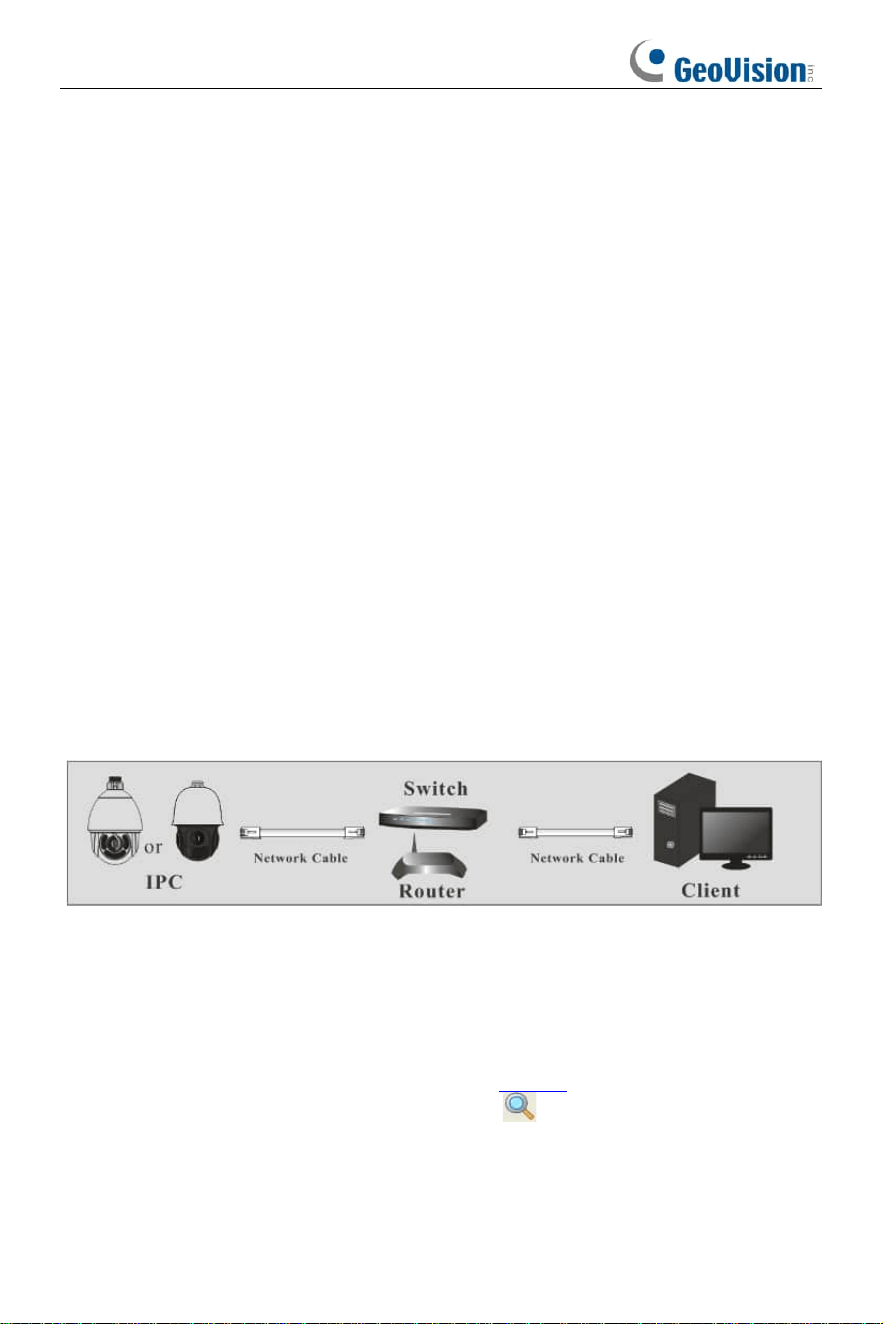
In LAN, there are two ways to access the device: 1. access through GV-IP Device
Utility; 2. direct access through the Edge browser.
1.1.1 Access through GV-IP Device Utility
Network connection:
When the camera is connected to a LAN with a DHCP server, it is automatically
allocated a dynamic IP address. Follow the steps below to look up its IP address, and
then use that address to access its Web interface.
1. Make sure the PC and the camera are connected to the same LAN, and GV-IP
Device Utility is installed on the PC from our website.
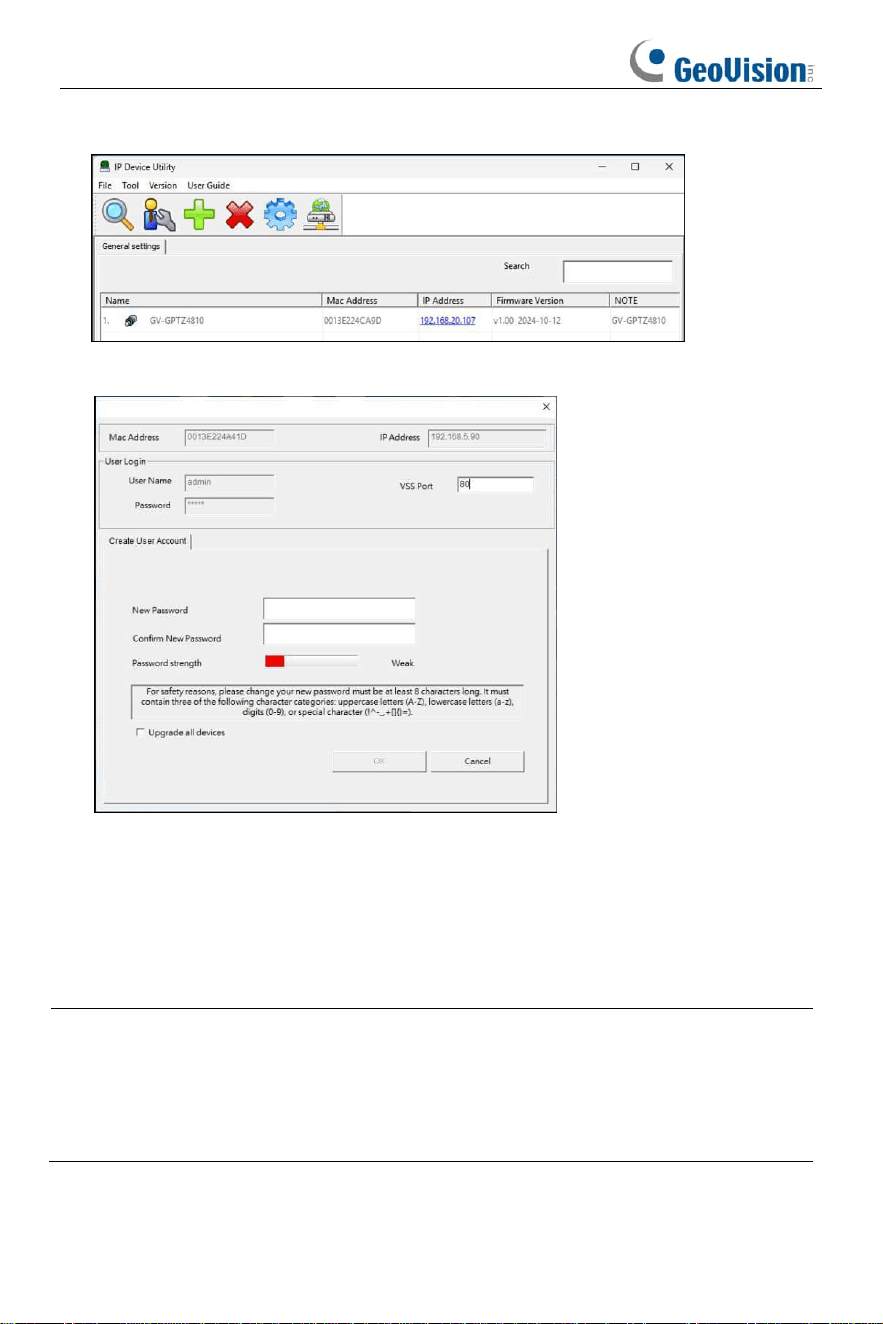
2. On the GV-IP Device Utility window, click the button to search for IP devices
connected to the same LAN. To sort, click the Name or Mac Address column.
2
3. Find the camera with its Mac Address, and click on its IP address.
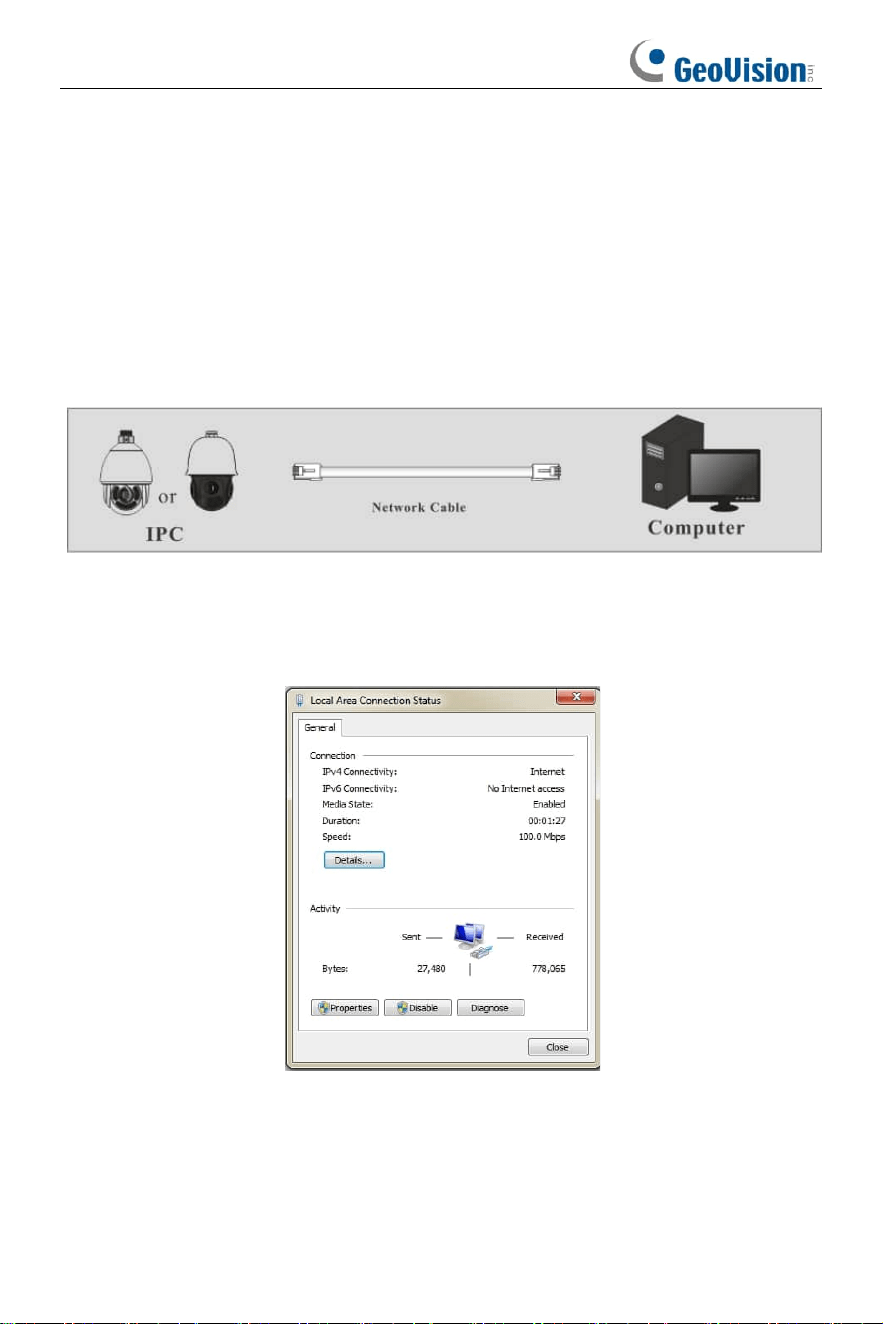
4. For first-time users, you are requested to create a password.
5. Type a new password and click OK.
6. Click its IP address on the Utility window again and select Web Page to access its
Web interface.
7. Type the set password on the login page and click Login.
Note:
1. The Administrator’s default username is admin and cannot be modified.
2. To change the password using the GV-IP Device Utility, click on the camera’s
IP address, and select Configure > Change Password. Alternatively, you can
change the password on the camera’s Web interface by clicking Config >
Security > User; see “Modify User” in 3.7.1 Security Configuration.
3
1.1.2 Directly Access through Edge IE Mode
The default network settings are as shown below:
IP address: 192.168.0.10
Subnet Mask: 255.255.255.0
Gateway: 192.168.226.1
HTTP: 80
Data port: 9008
You may use the above default settings when you log in the camera for the first time.
You may directly connect the camera to the computer through network cable.
① Set the IP address of the PC and make sure the network segment should be as the
same as the default settings of the IP camera. Open the network and share center.
Click “Local Area Connection” to pop up the following window.
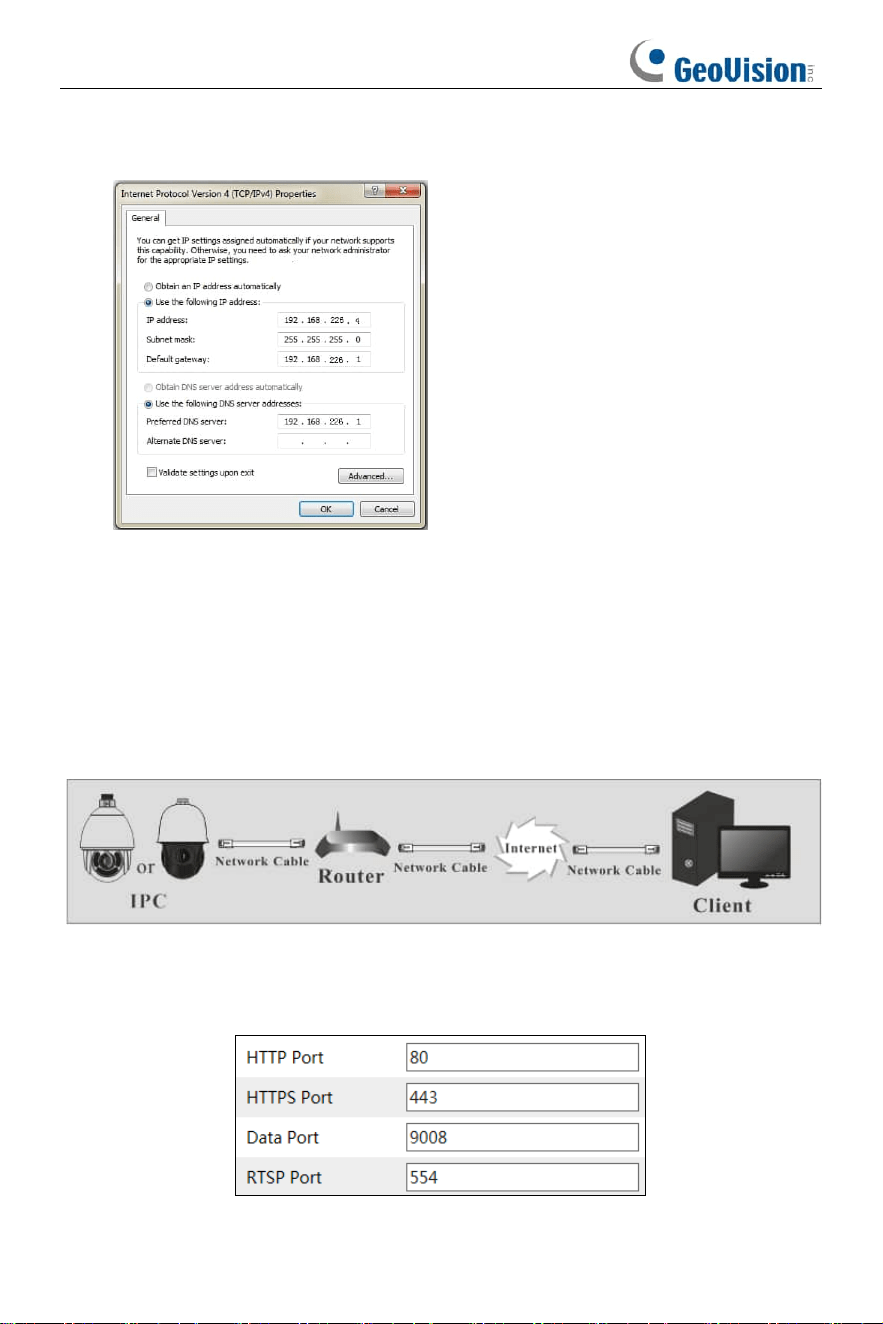
4
Select “Properties” and then select internet protocol according to the actual situation
(for example: IPv4). Next, click “Properties” to set the network of the PC.
② Open the Edge browser in IE mode and enter the default address of the IP-CAM
and confirm.
③ Follow directions to download and install the plug-in.
④ Enter the default username and password and then enter to view.
1.2 WAN
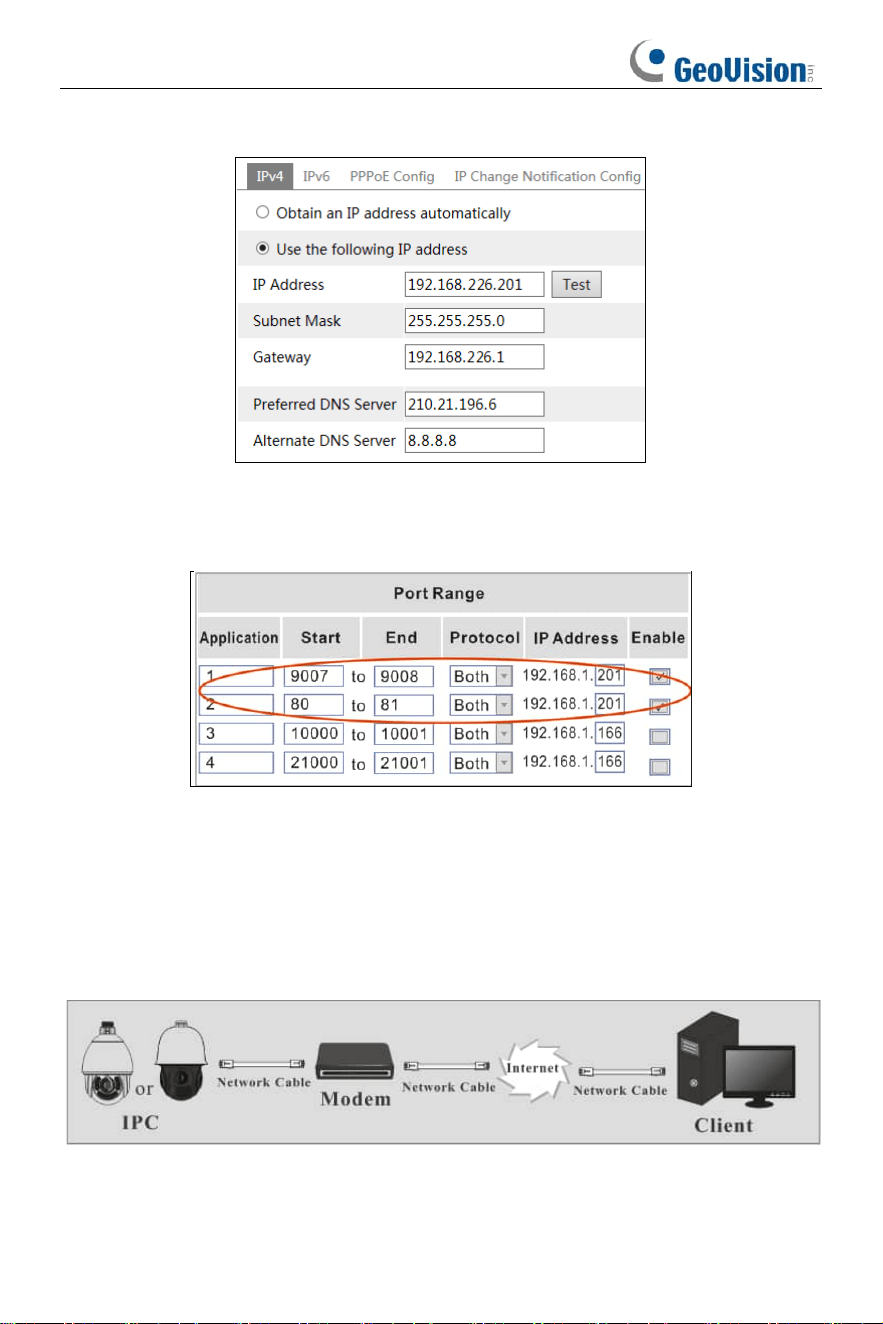
➢ Access through the router or virtual server
① Make sure the camera is well connected via LAN and then log in the camera via
LAN and go to Config
→
Network
→
Port menu to set the port number.
5
② Go to Config
→
Network
→
TCP/IPv4 menu to modify the IP address.
③ Go to the router’s management interface through Edge browser to forward the IP
address and port of the camera in the “Virtual Server”.
Router Setup
④ Open the Edge browser in IE mode and enter its WAN IP and http port to access.
➢ Access through PPPoE dial-up
Network connection
You may access the camera through PPPoE auto dial-up. The setting steps are as
follow:
① Go to Config
→
Network
→
Port menu to set the port number.
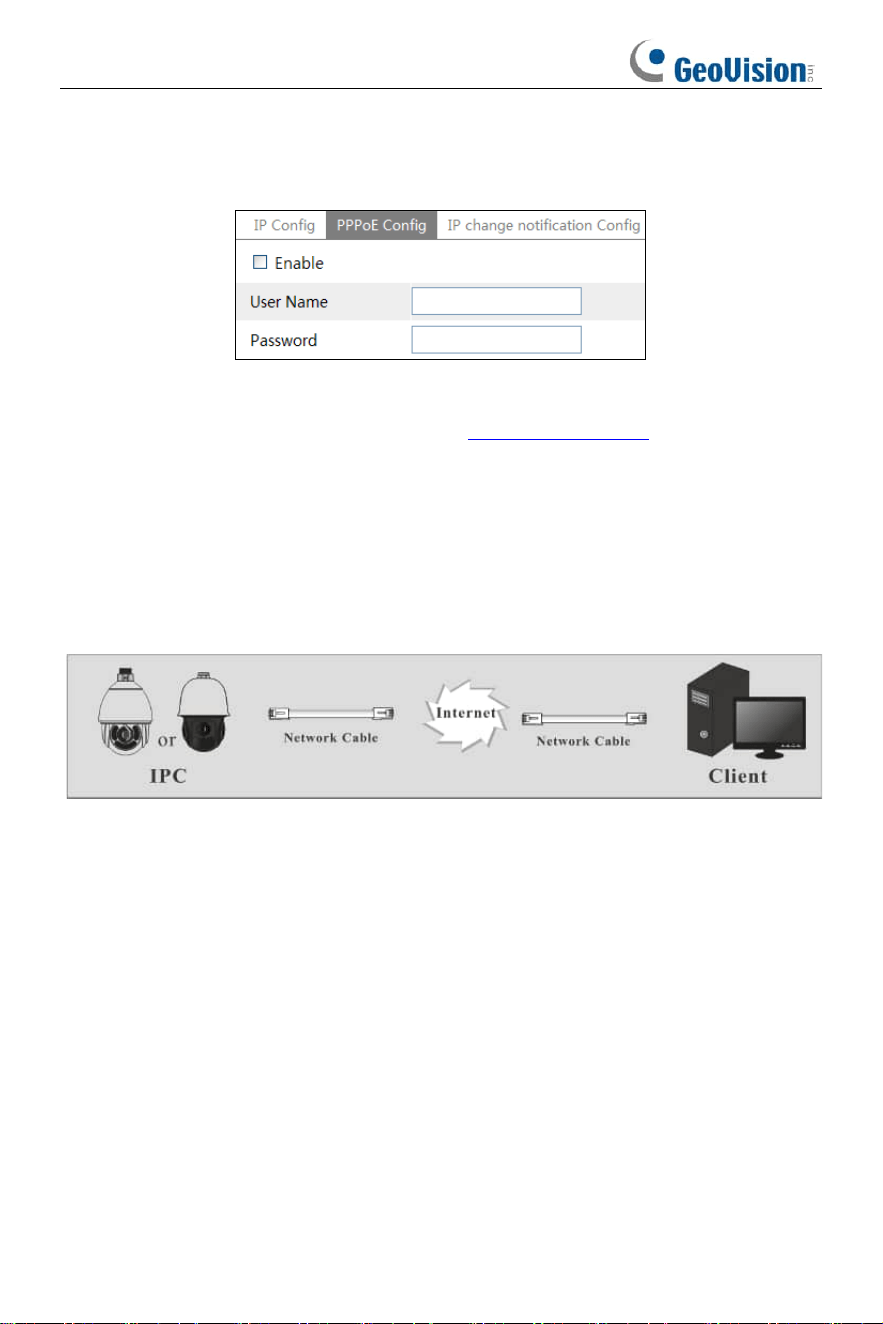
6
② Go to Config
→
Network
→
TCP/IPv4 menu. Check “PPPoE Config” and then
enter the user name and password which you can get from your internet service
provider.
③ Go to Config
→
Network
→
DDNS menu. Before you configure the DDNS, please
apply for a domain name first. Please refer to DDNS Configuration for detail
information.
④ Open the Edge browser in IE mode and enter the domain name and http port to
access.
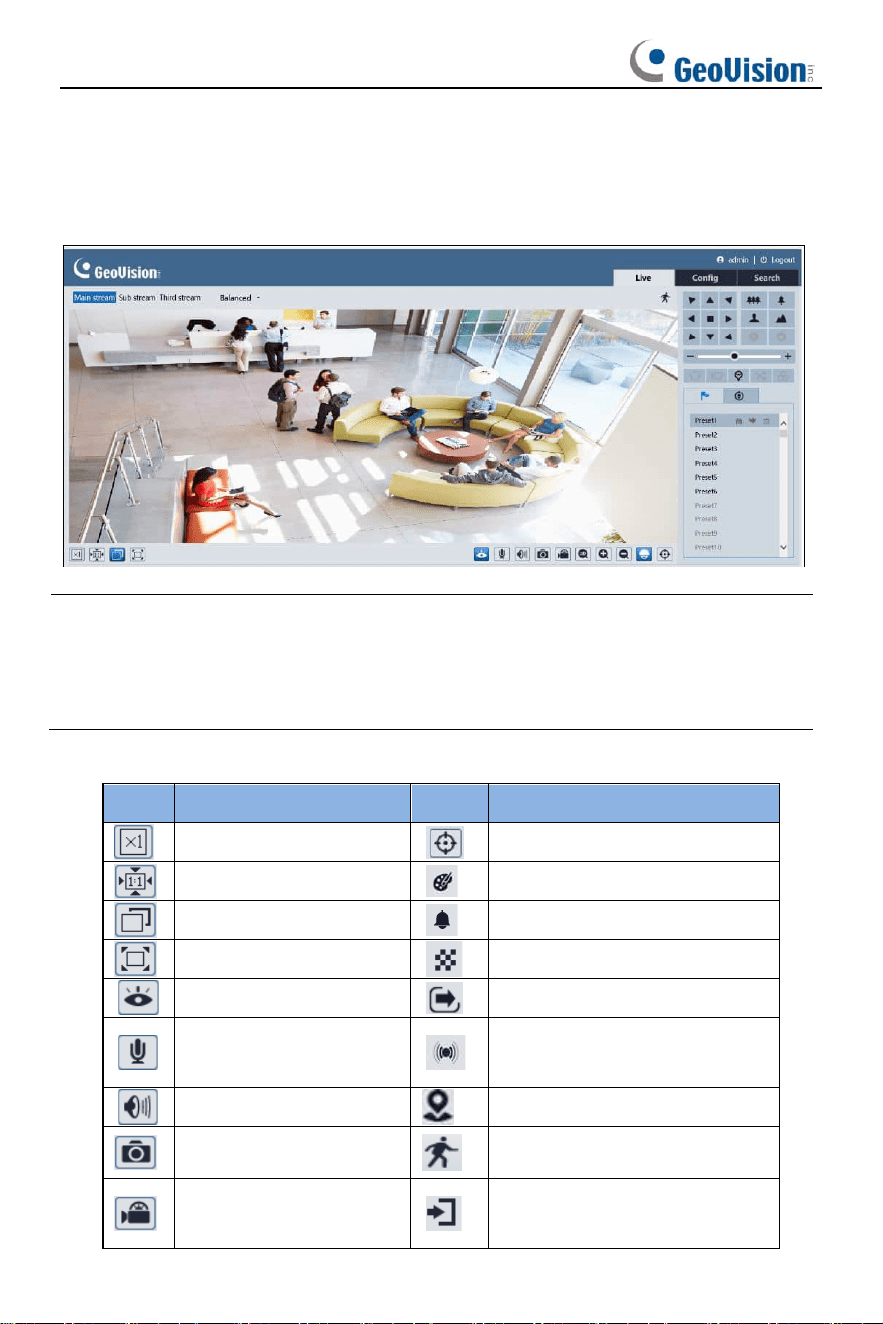
➢ Access through static IP
Network connection
The setting steps are as follow:
① Go to Config
→
Network
→
Port menu to set the port number.
② Go to Config
→
Network
→
TCP/IPv4 menu to set the IP address. Check “Use the
following IP address” and then enter the static IP address and other parameters.
③ Open the Edge browser in IE mode and enter its WAN IP and http port to access.
7
2 Live View
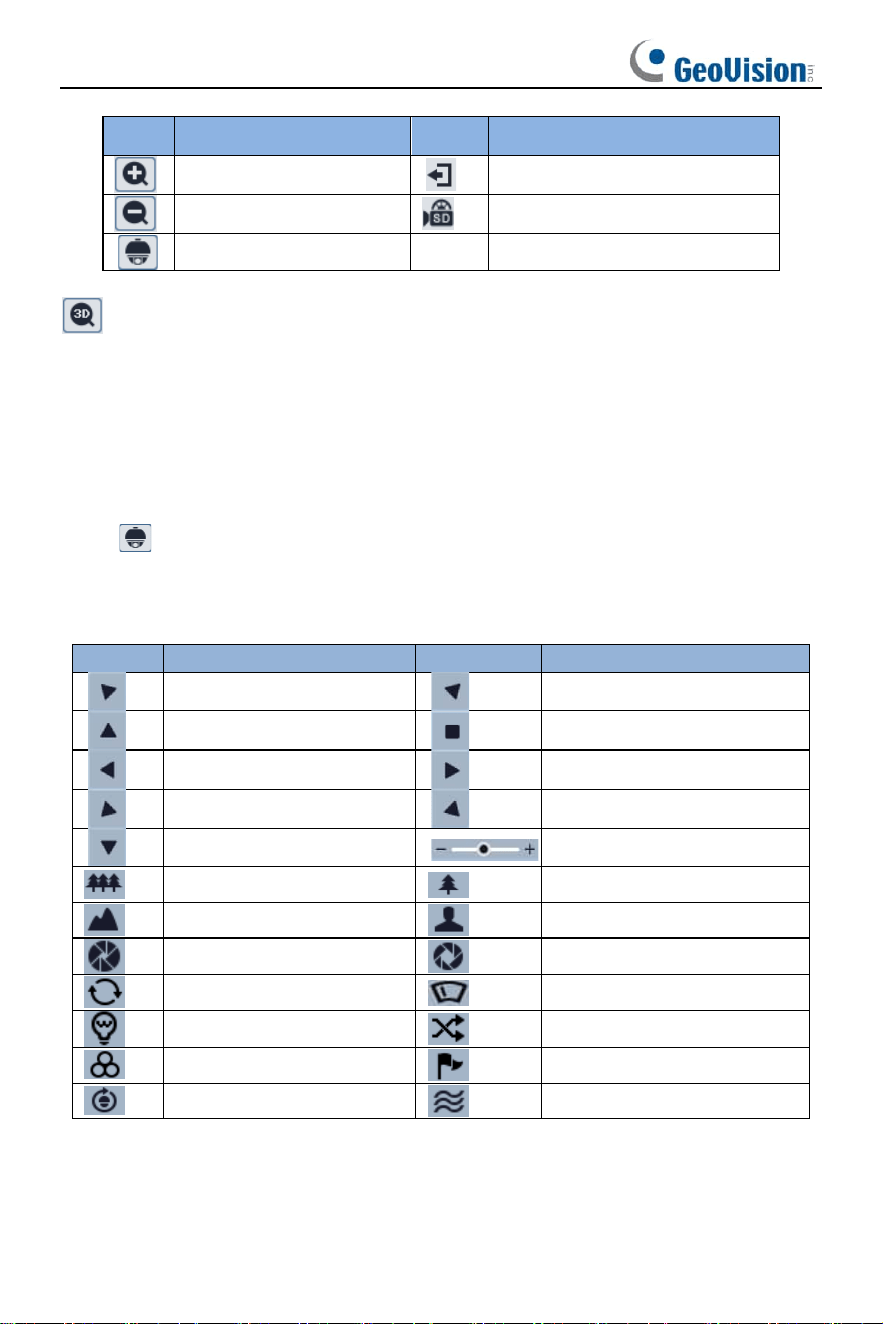
After you log in, the following window will be shown.
Note: Plug-in free live view
• When the main stream is set over 1080P, only the sub stream or third-stream
tab can be displayed on the above interface by default.
• two-way audio and local recording are not supported and the preview mode
switch (real-time/balanced/fluent mode) is not available too.
The descriptions of the icon on the live view interface are as follows:
Icon
Description
Icon
Description
Original size
Rule information display
Fit correct scale
Color abnormal indicator
Auto (fill the window)
Abnormal clarity indicator
Full screen
Scene change indicator
Start/stop live view
Line crossing indicator
Start/stop two-way
audio
Sensor alarm indicator
Enable/disable audio
Intrusion indicator
Snapshot
Motion alarm indicator
Start/stop local
recording
Region entrance indicator
8
Icon
Description
Icon
Description
Zoom in
Region exiting indicator
Zoom out
SD card recording indicator
PTZ control
: Move the cursor to view the live image in all direction after you click this button.
Additionally, hold and drag the left mouse button to zoom in the live image.
⚫ Those smart alarm indicators will flash only when the camera supports those
functions and the corresponding events are enabled.
⚫ In full screen mode, double click on the mouse or press the ESC key on the
keyboard to exit.
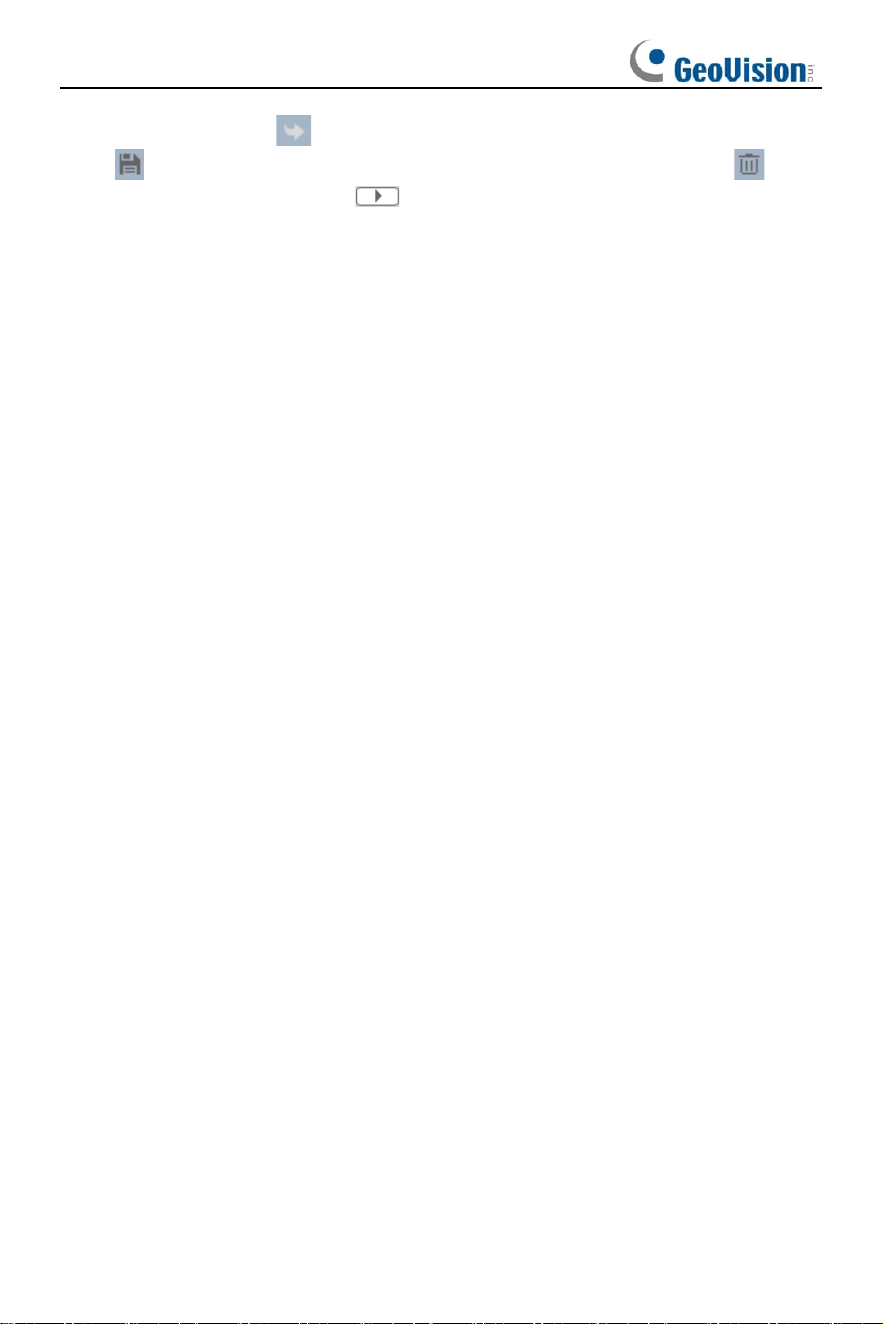
Click to show PTZ control panel. In the live view interface, you can view the
image from every direction by controlling PTZ panel.
The descriptions of the control panel are as follows:
Icon
Description
Icon
Description
Move upper left direction
Move upper right direction
Move up
Stop movement
Move left
Move right
Move lower left direction
Move lower right direction
Move upper left direction
Speed adjustment
Zoom out
Zoom in
Focus -
Focus +
Iris -
Iris +
Not functional
Not functional
Light
Not functional
Not functional
Preset
Cruise
Trace
9
Select preset and click to call the preset. Select and set the preset and then
click to save the position of the preset. Select the set preset and click to
delete it. Select cruise and click to start cruise.
10
3 Camera Configuration
In the Webcam client, choose “Config” to go to the configuration interface.
Note: Wherever applicable, click “Save” to save the settings.
3.1 System Configuration
The “System configuration” includes four sub-menus: Basic Information, Date and
Time, Local Config and SD Card.
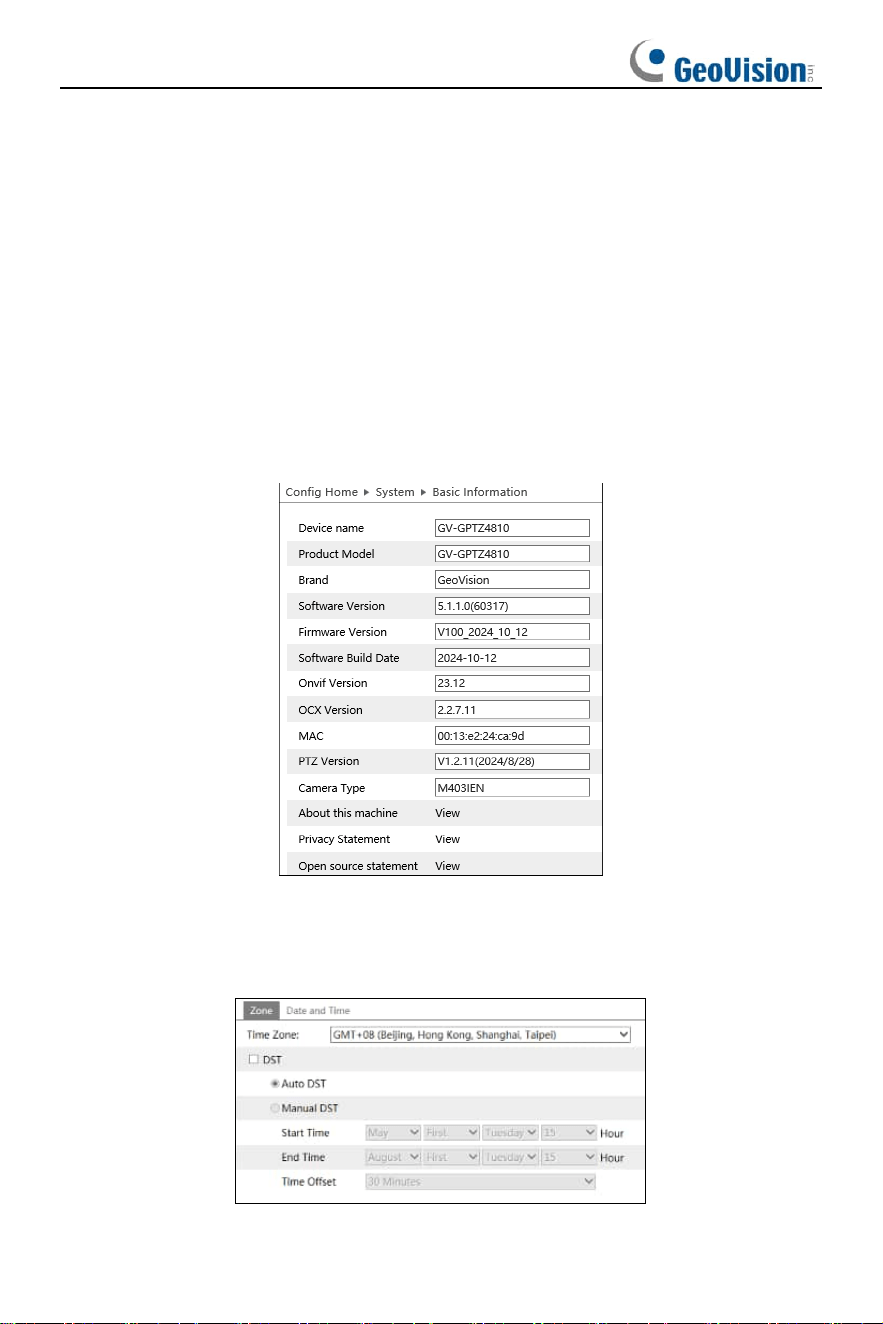
3.1.1 Basic Information
In the Basic Information interface, you can check the relative information of the
device.
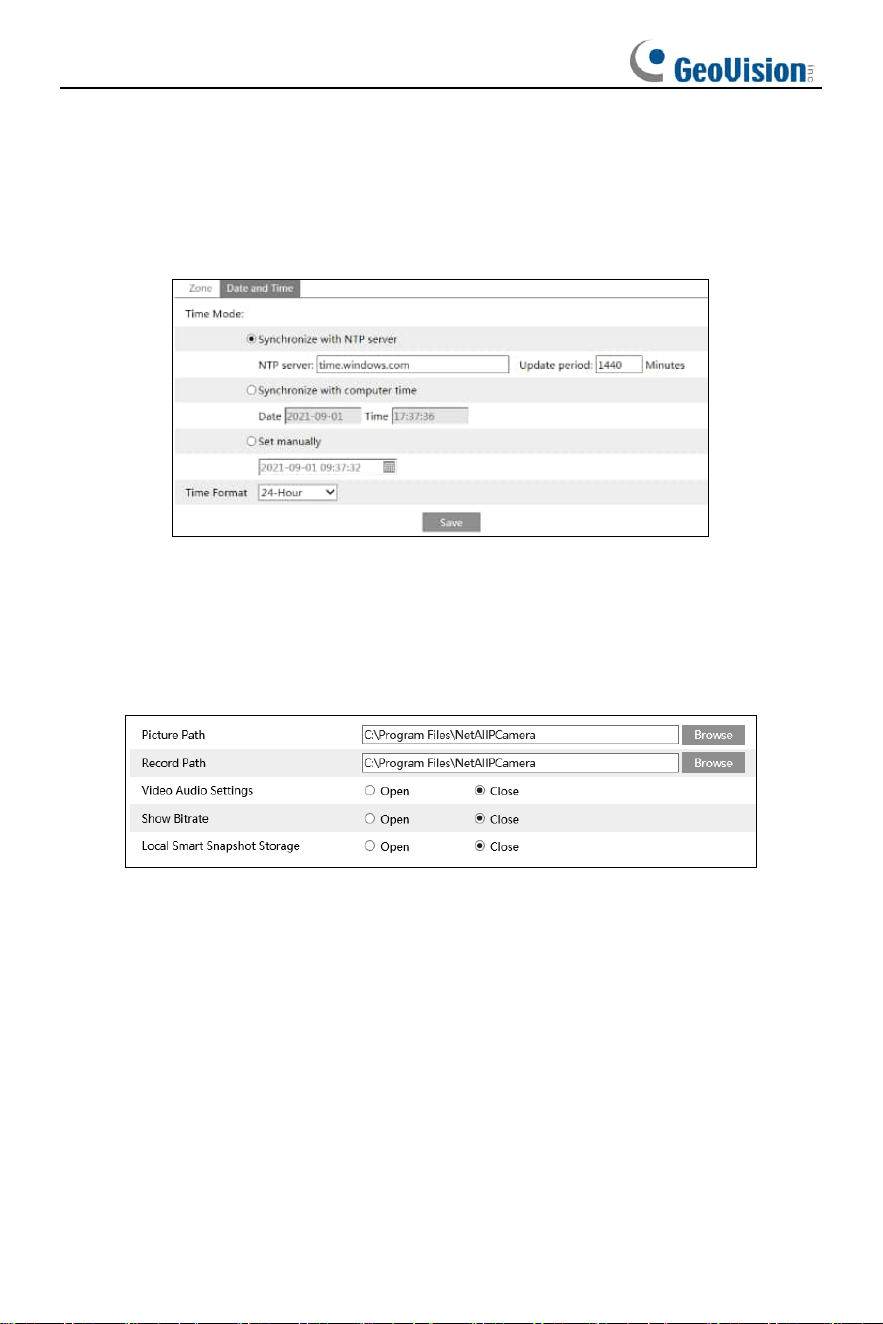
3.1.2 Date and Time Configuration
Go to Config
→
System
→
Date and Time. Please refer to the following interface.
Select the time zone and DST as required.
11
Note: The time zone of the camera and the computer must be the same. It is
recommended to modify the time zone of the camera according to the time zone of the
computer. If the time zone of the computer is modified, the current web client needs to
be closed. Then re-open it and log in again.
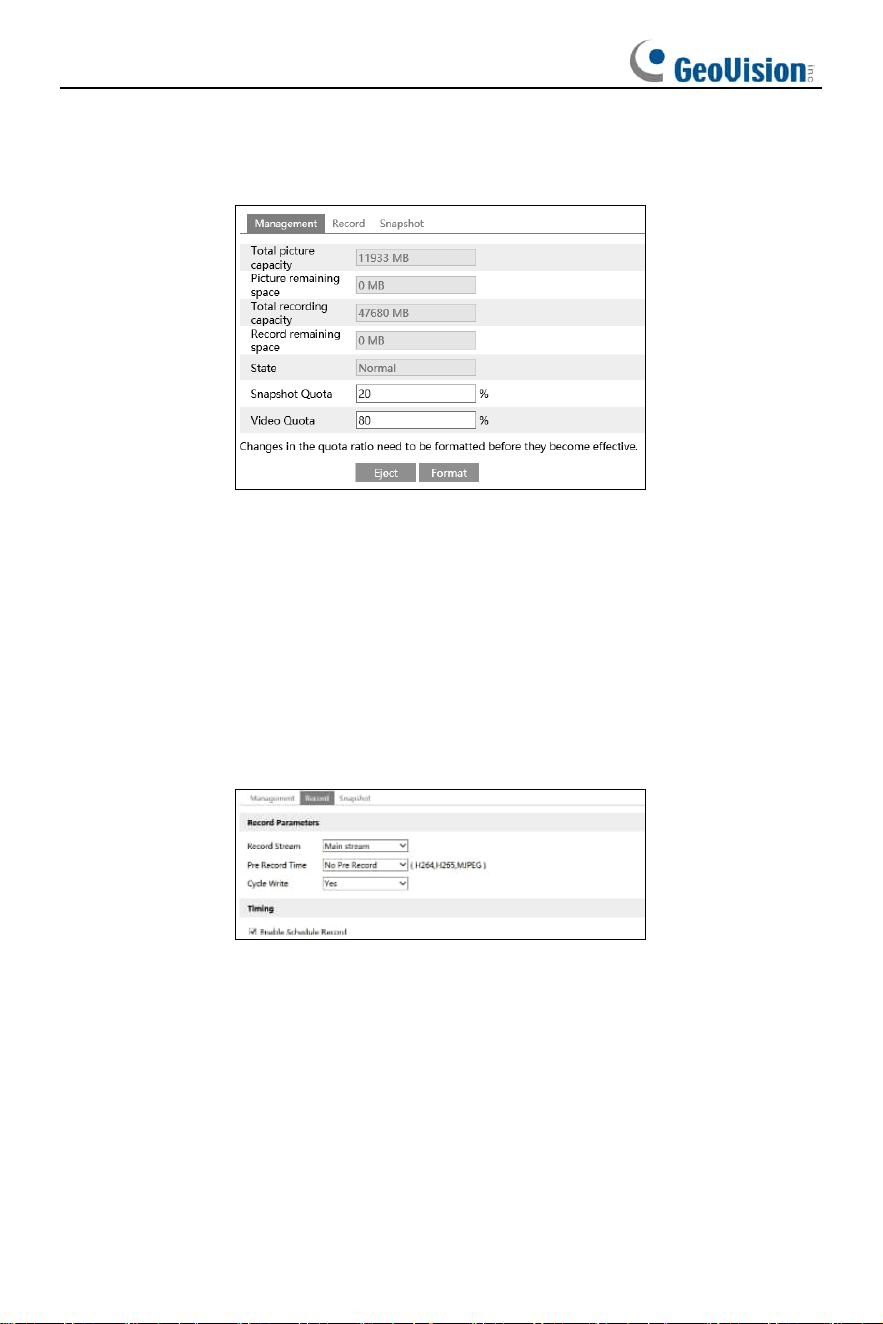
Click the “Date and Time” tab to set the time mode and time format.
3.1.3 Local Config
Go to Config
→
System
→
Local Config to set up the storage path of captured
pictures and recorded videos on the local PC. There is also an option to enable or
disable audio in the recorded files.
Show Bitrate: enable or disable bitrate display on the live video.
Additionally, “Local smart snapshot storage” can be enabled or disabled here. If
enabled, the captured pictures triggered by smart events (like line crossing detection,
region intrusion, etc.) will be saved to the local PC.
12
3.1.4 Storage
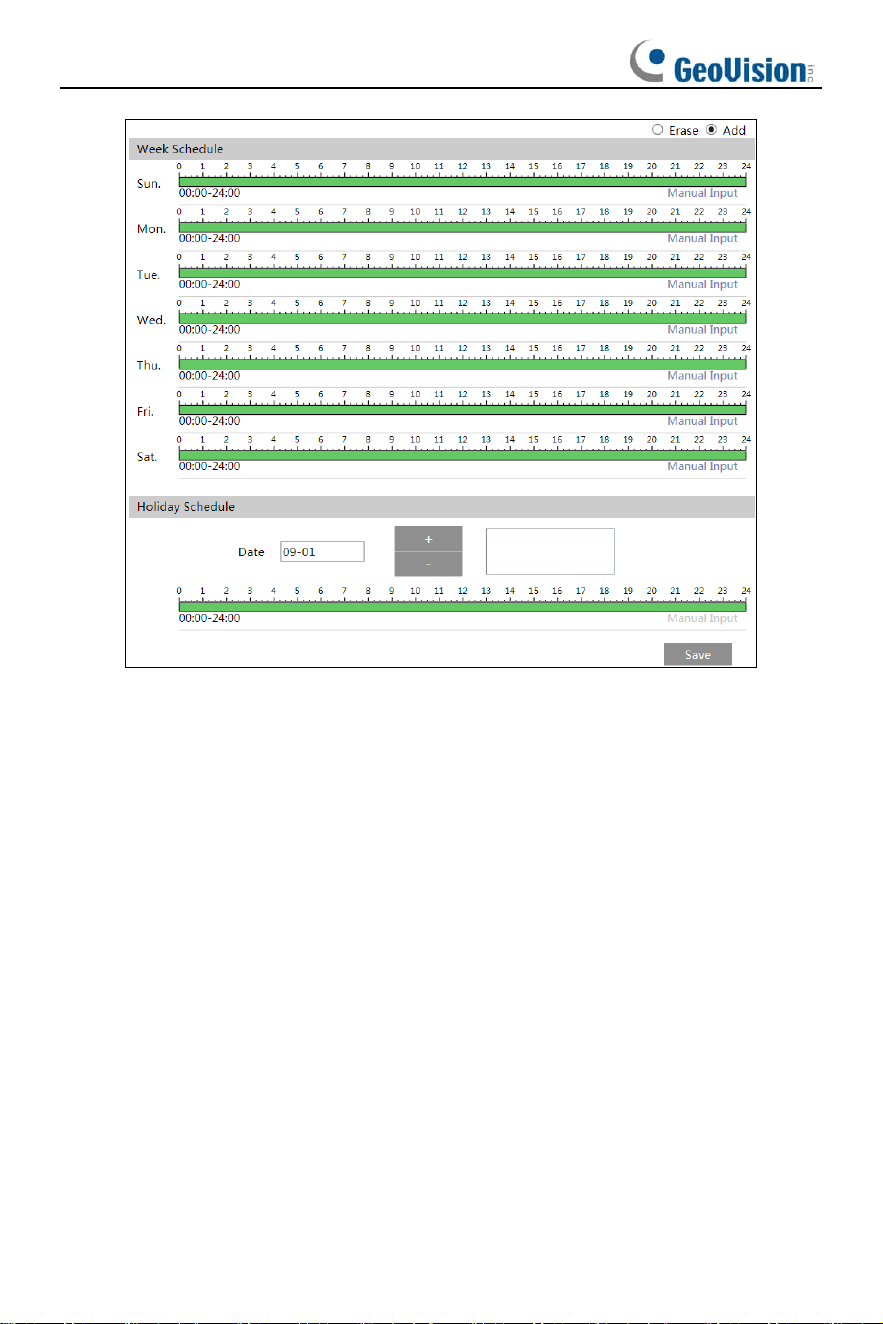
Go to Config
→
System
→
Storage to go to the interface as shown below.
⚫ SD Card Management
Click “Format” to format the SD card. All data will be cleared by clicking this button.
Click “Eject” to stop writing data to SD card. Then the SD card can be ejected safely.
Snapshot Quota: Set the capacity proportion of captured pictures on the SD card.
Video Quota: Set the capacity proportion of record files on the SD card.
⚫ Schedule Recording Settings
1. Go to Config
→
System
→
Storage
→
Record to go to the interface as shown
below.
2. Set record stream, pre-record time, cycle writing.
Pre Record Time: Set the time to record before the actual recording begins.
Overwrite (Cycle Write): the earliest record data will be replaced by the latest when
the disks are full.
3. Set schedule recording. Check “Enable Schedule Record” and set the schedule.
13
Weekly schedule
Set the alarm time from Monday to Sunday for a single week. Each day is divided in
one-hour increments. Green means scheduled. Blank means unscheduled.
“Add”: Add the schedule for a special day. Drag the mouse to set the time on the
timeline.
“Erase”: Delete the schedule. Drag the mouse to erase the time on the timeline.
Manual Input: Click it for a specific day to enter specific start and end times. This adds
more granularities (minutes).
Day schedule
Set the alarm time for alarm a special day, such as a holiday.
Note: Holiday schedule takes priority over weekly schedule.
⚫ Snapshot Settings
Go to Config
→
System
→
Storage
→
Snapshot to go to the interface as shown below.
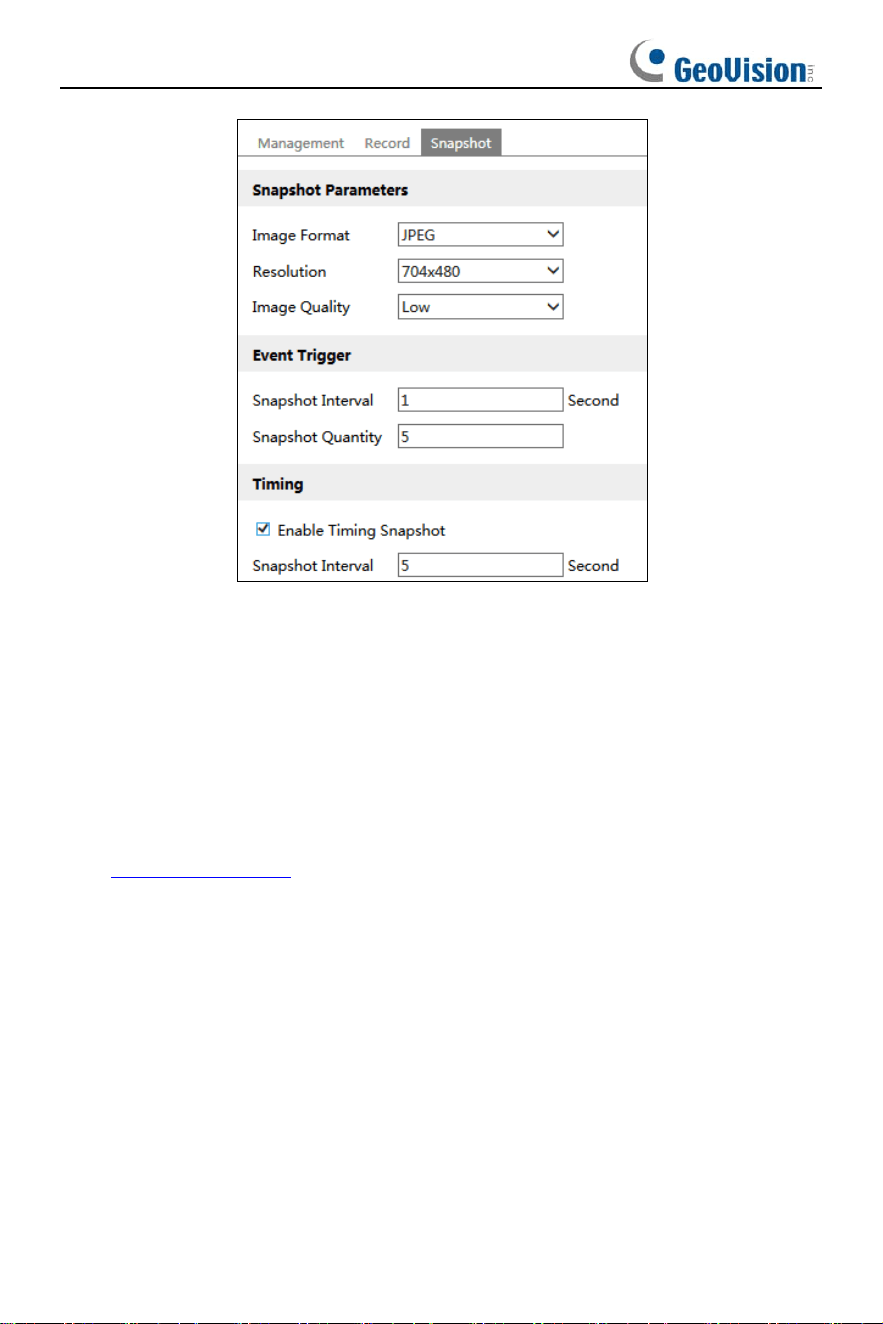
14
Set the format, resolution and quality of the image saved on the SD card and the
snapshot interval and quantity and the timing snapshot here.
Snapshot Quantity: The number you set here is the maximum quantity of snapshots.
The actual quantity of snapshots may be less than this number. Supposing the
occurrence time of an alarm event is less than the time of capturing pictures, the
actual quantity of snapshots is less than the set quantity of snapshots.
Timing Snapshot: Enable timing snapshot first and then set the snapshot interval
and schedule. The setup steps of schedule are the same as the schedule recording
(See Schedule Recording).
3.2 Image Configuration
3.2.1 Display Settings
Go to Image
→
Display interface as shown below. The image’s brightness, contrast,
hue and saturation and so on for common, day and night mode can be set up
separately. The image effect can be quickly seen by switching the configuration file.
Note: The camera parameters of different models may be slightly different. The
following picture and descriptions are for reference only.
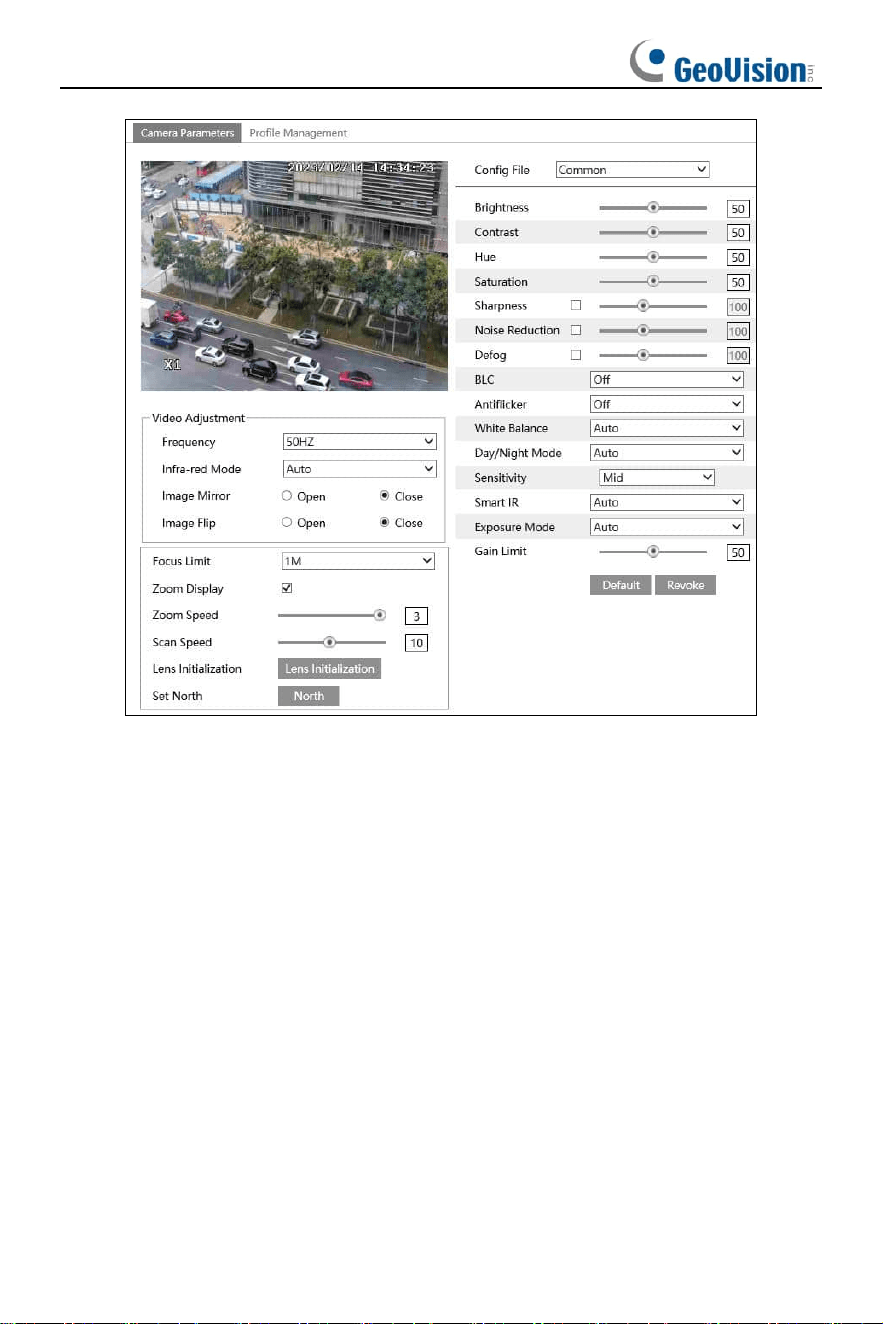
15
Brightness: Set the brightness level of the camera’s image.
Contrast: Set the color difference between the brightest and darkest parts.
Hue: Set the total color degree of the image.
Saturation: Set the degree of color purity. The purer the color, the brighter the image
is.
Sharpness: Set the resolution level of the image plane and the sharpness level of the
image edge.
Noise Reduction: Decrease the noise and make the image more thorough.
Increasing the value will make the noise reduction effect better but it will reduce the
image resolution.
Defog: Activating this function and setting an appropriate value as needed in foggy,
dusty, smoggy, or rainy environment to get clear images.
Backlight Compensation (BLC):
⚫ Off: disables the backlight compensation function. It is the default mode.
⚫ HWDR: WDR can adjust the camera to provide a better image when there are
both very bright and very dark areas simultaneously in the field of the view by lowering
the brightness of the bright area and increasing the brightness of the dark area.
Recording will be stopped for a few seconds while the mode is changing from
non-WDR to WDR mode.

16
⚫ HLC: lowers the brightness of the entire image by suppressing the brightness of
the image’s bright area and reducing the size of the halo area.
⚫ BLC: If enabled, the auto exposure will activate according to the scene so that the
object of the image in the darkest area will be seen clearly.
Antiflicker:
⚫ Off: disables the anti-flicker function. This is used mostly in outdoor installations.
⚫ 50Hz: reduces flicker in 50Hz lighting conditions.
⚫ 60Hz: reduces flicker in 60Hz lighting conditions.
White Balance: Adjust the color temperature according to the environment
automatically.
Day/Night Mode: Choose “Auto”, “Day”, “Night” or “Timing”.
Smart IR: Choose “Auto”, “Manual” or “OFF”. This function can effectively avoid
image overexposure so as to make the image more realistic.
Exposure Mode: Choose “Auto” or “Manual”. If manual is chosen, the digital shutter
speed can be adjusted.
Gain Limit: The higher the value is, the brighter the image is.
Frequency: 50Hz and 60Hz can be optional.
Infra-red Mode: Choose “Auto”, “ON” or “OFF”.
Image Mirror: Turn the current video image horizontally.
Image Flip: Turn the current video image vertically.
Focus Limit: Set the nearest distance of focus. Options: 1m, 1.5m, 2m, 3m, 5m and
10m.
Zoom Display: If enabled, you will see the zoom magnification in the live image.
Zoom Speed: Adjust zoom speed. The range is from 1 to 3. The larger the value is,
the faster the zoom speed is.
Scan Speed: Adjust scan speed. The range is from 1 to 20.
Lens Initialization: After enabling it, the camera lens will restore to the factory default
settings.
Set North:
⚫ Choose a location by clicking the direction button in the live view interface. Then
click “North” to save the setting.
⚫ The horizontal angle will treat the north position as a reference; otherwise, it will
treat the horizontal origin as a reference to display the clockwise rotation angle
of the dome.
⚫ The vertical PTZ will treat its highest point as a reference (when the camera is
parallel with the horizontal ground) to show the included angle between the
camera and the horizontal ground.
Schedule Settings of Image Parameters:
Click the “Schedule” tab as shown below.
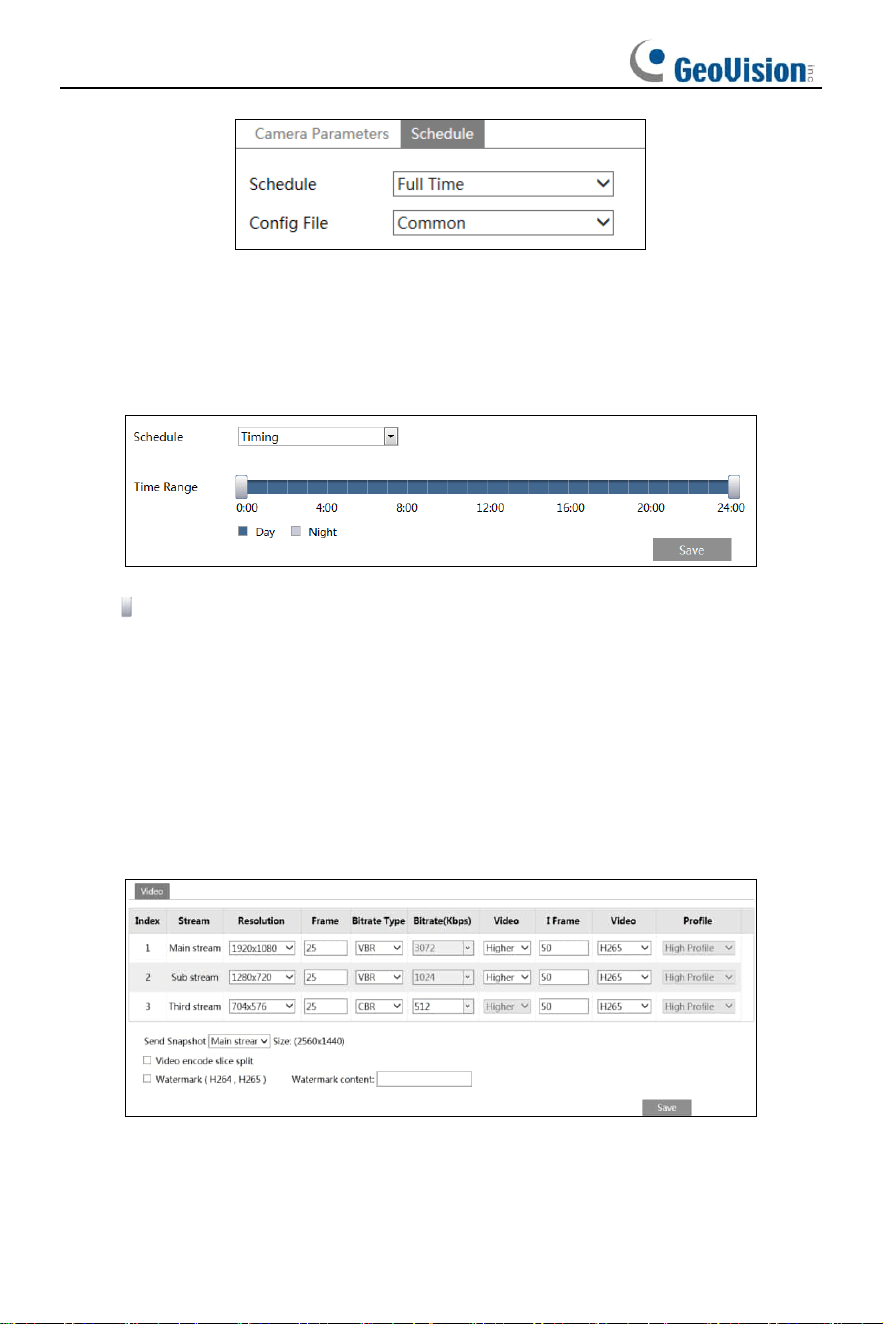
17
Set full time schedule for common, auto mode and specified time schedule for day
and night. Auto mode: in the daytime, it will automatically perform the day config file
set above; at night, it will automatically perform the night config file set above.
Choose “Timing” in the drop-down box of schedule as shown below.
Drag “ ” icons to set the time of day and night. Blue means day time and blank means
night time. If the current mode of camera parameters is set to schedule, the image
configuration mode will automatically switch between day and night according to the
schedule.
3.2.2 Video / Audio Configuration
Go to Image
→
Video / Audio interface as shown below. In this interface, set the
resolution, frame rate, bitrate type, video quality and so on subject to the actual
network condition.
Three video streams can be adjustable.
Resolution: The size of image.
Frame rate: The higher the frame rate, the video is smoother.
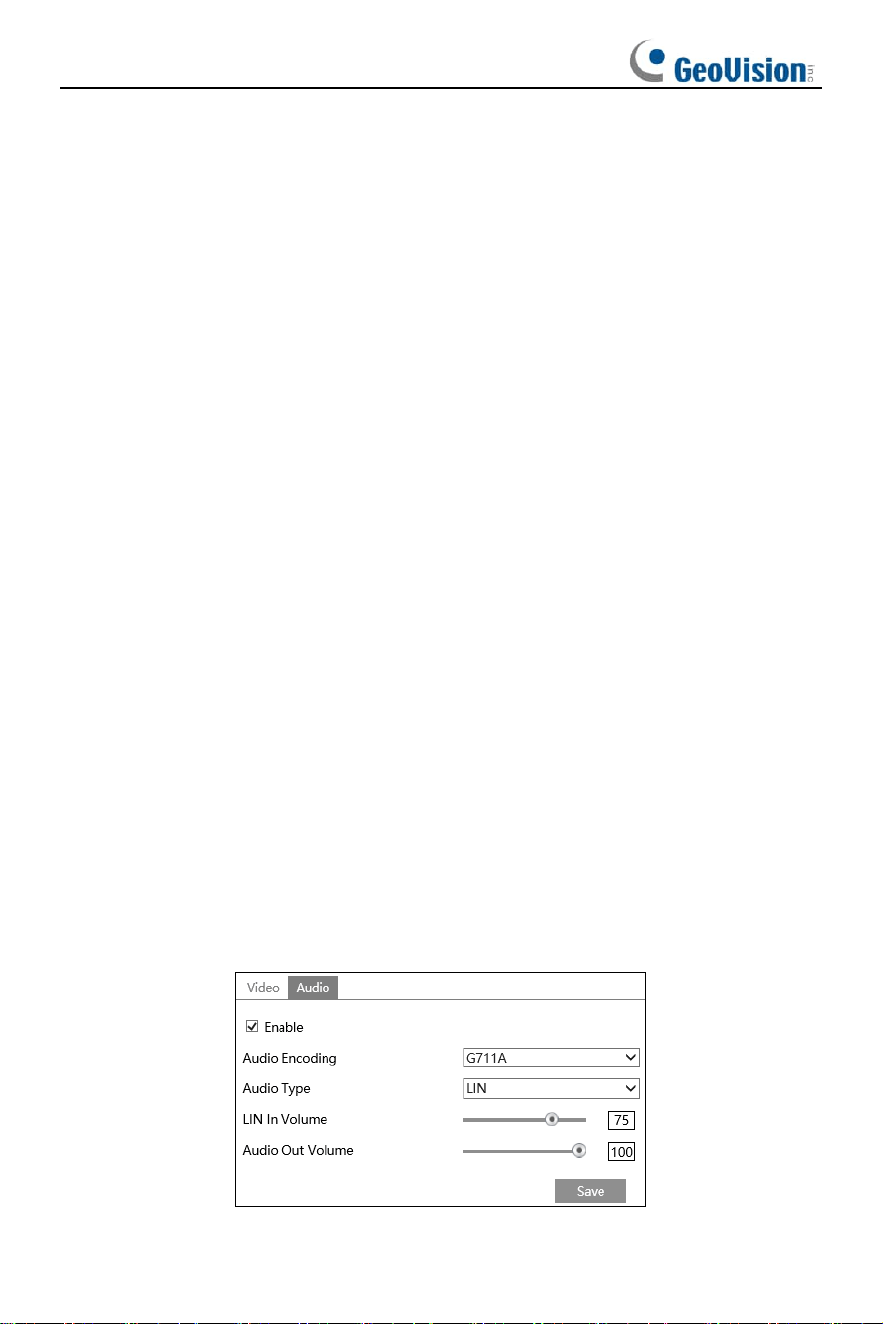
18
Bitrate type: CBR and VBR are optional. Bitrate is related to image quality. CBR
means that no matter how much change is seen in the video scene, the compression
bitrate will be kept constant. VBR means that the compression bitrate will be adjusted
according to scene changes. For example, for scenes that do not have much
movement, the bitrate will be kept at a lower value. This can help optimize the network
bandwidth usage.
Bitrate: It can be adjusted when the mode is set to CBR. The higher the bitrate, the
better the image quality will be.
Video Quality: It can be adjusted when the mode is set to VBR. The higher the image
quality, the more bitrate will be required.
I Frame interval: It determines how many frames are allowed between a “group of
pictures”. When a new scene begins in a video, until that scene ends, the entire group
of frames (or pictures) can be considered as a group of pictures. If there is not much
movement in the scene, setting the value higher than the frame rate is fine, potentially
resulting in less bandwidth usage. However, if the value is set too high, and there is a
high frequency of movement in the video, there is a risk of frame skipping.
Video Compression: MJPEG, H264+, H264, H265 or H265+ can be optional.
MJPEG is not available for main stream. If H.265/H.265+is chosen, make sure the
client system is able to decode H.265/H.265+. Compared to H.265, H.265+ saves
more storage space with the same maximum bitrate in most scenes. Compared to
H.264, H.265 reduces the transmission bitrate under the same resolution, frame rate
and image quality.
Profile: For H.264. Baseline, main and high profiles are selectable.
Send Snapshot: Set the snapshot stream.
Video encode slice split: If this function is enabled, smooth image can be gotten
even though using the low-performance PC.
Watermark: When playing back the local recorded video in the search interface, the
watermark can be displayed. To enable it, check the watermark box and enter the
watermark text.
Click the “Audio” tab to go to the interface as shown below.
19
Audio Encoding: G711A and G711U are selectable.
Audio Type: LIN or MIC is optional. (If the internal MIC is used, choose “MIC”. If you
want to use external line-level audio input device, choose “LIN”.)
Note: only some models support audio input/output. If your PTZ camera doesn’t
support this function, please skip the above-mentioned audio setup instruction.
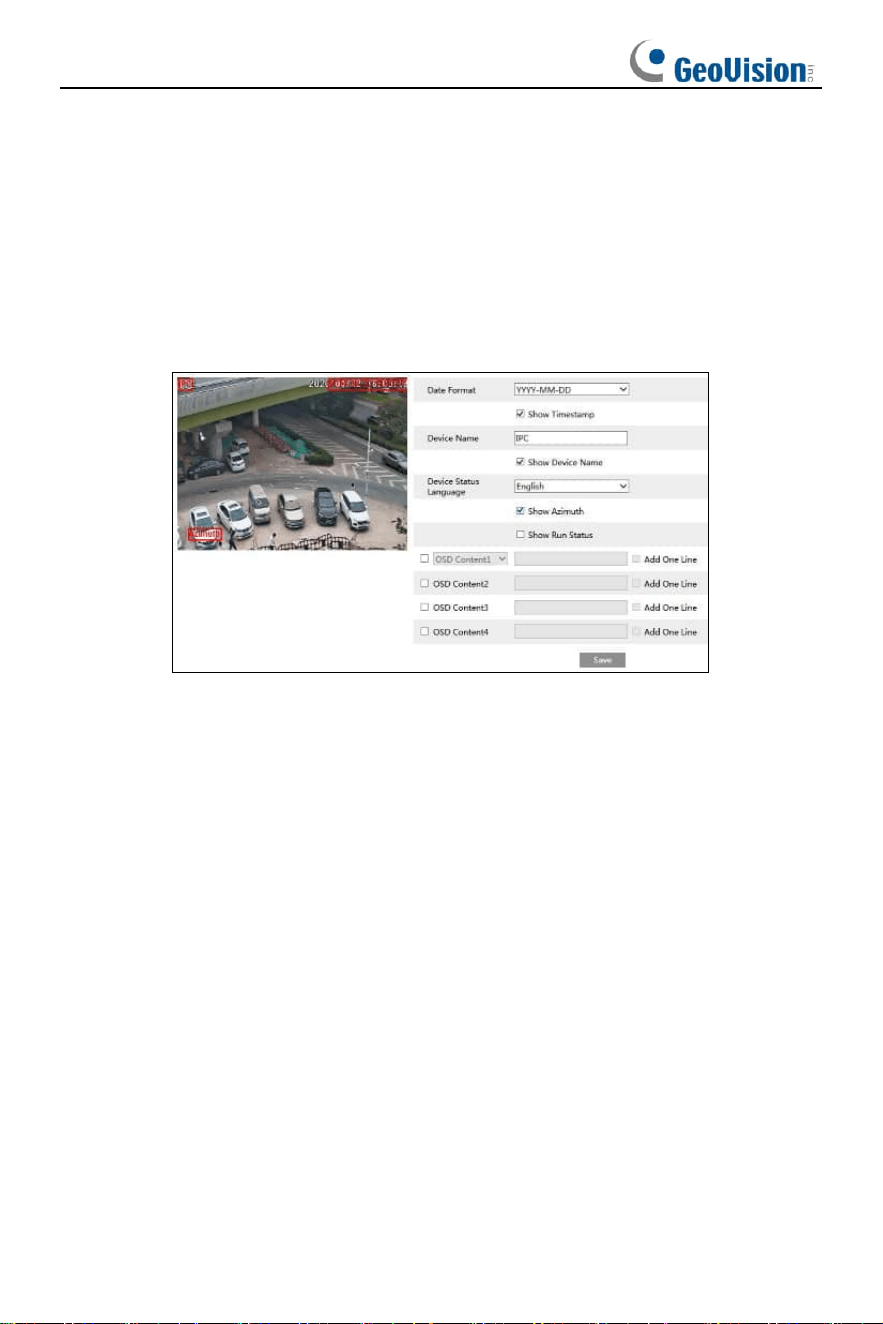
3.2.3 OSD Configuration
Go to Image
→
OSD interface as shown below.
Set time stamp, device name, device status language, OSD content and picture
overlap here. After enabling the corresponding display and entering the content, drag
them to change their position. Then click “Save” to save the settings.
Show Azimuth: Show the PTZ moving direction on the live view interface.
Show Run Status: Show the PTZ control status on the live view interface. For
example, if the preset 2 is called, “PRE:002” will be shown on the live view interface.
Picture Overlap Settings:
Check “OSD Content1”, choose “Picture Overlay” and click “Browse” to select the
overlap picture. Then click “Upload” to upload the overlap picture. The pixel of the
image shall not exceed 200*200, or it cannot be uploaded.
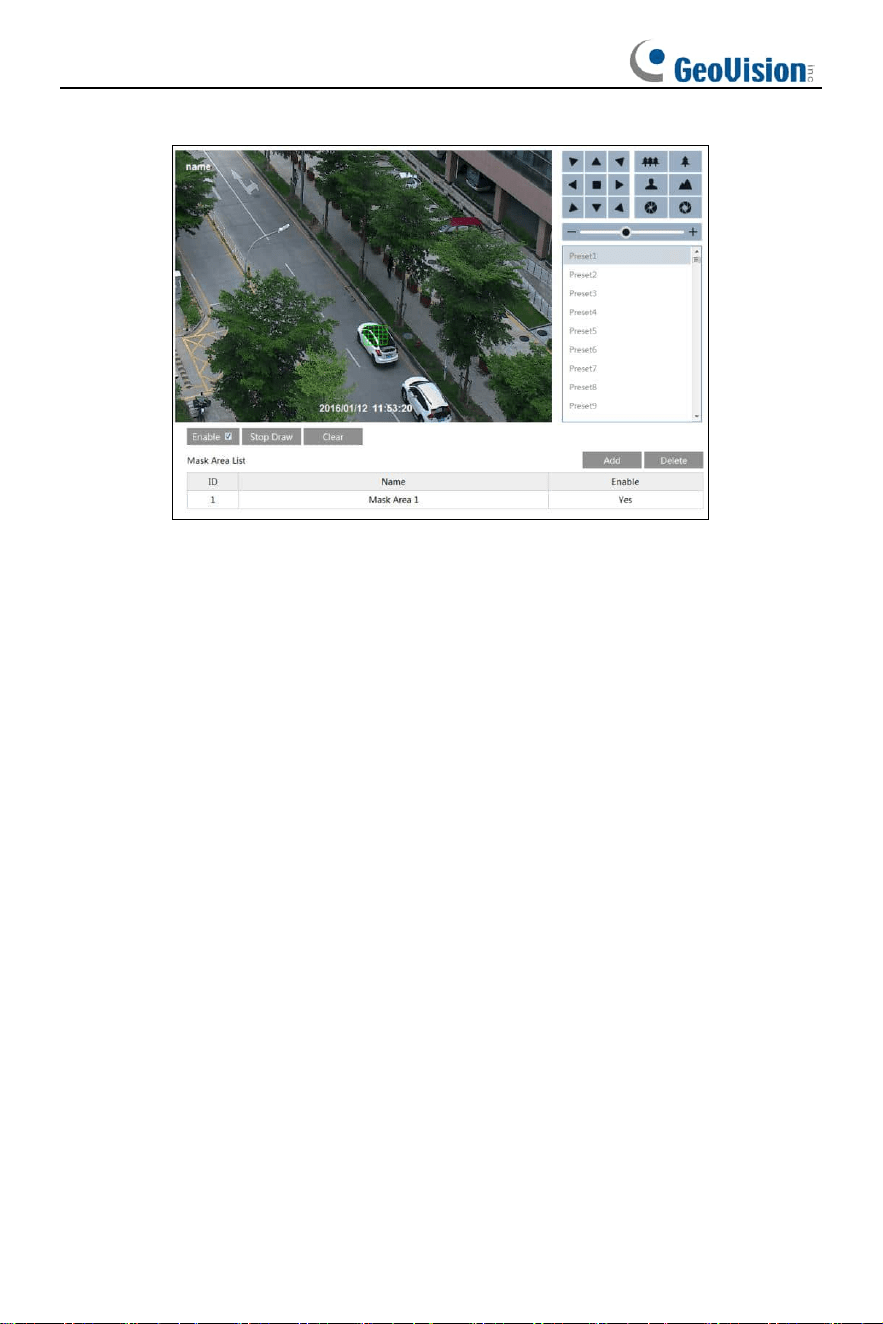
3.2.4 Video Mask
Go to Image
→
Video Mask interface as shown below. A maximum of 8 zones can be
set up (depending on models). Only some models support this function. If your PTZ
camera doesn’t support it, please skip the following instructions.
To set up video mask:
1. Enable video mask.
2. Click direction buttons to change the area you want to mask.
3. Click “Draw Area” and then drag the mouse to draw the video mask area.
4. Click “Add” to add the mask area.
20
To delete mask area:
1. Select the mask area in the mask area list.
2. Click “Delete” to delete this mask area.
3.3 PTZ Configuration
3.3.1 Restore
It includes the function of reset and clear.
Reset: Restore the camera state and active menu to the factory default settings but
do not clear those parameters such as preset and cruise.
Clear: Restore the camera to the factory default settings.
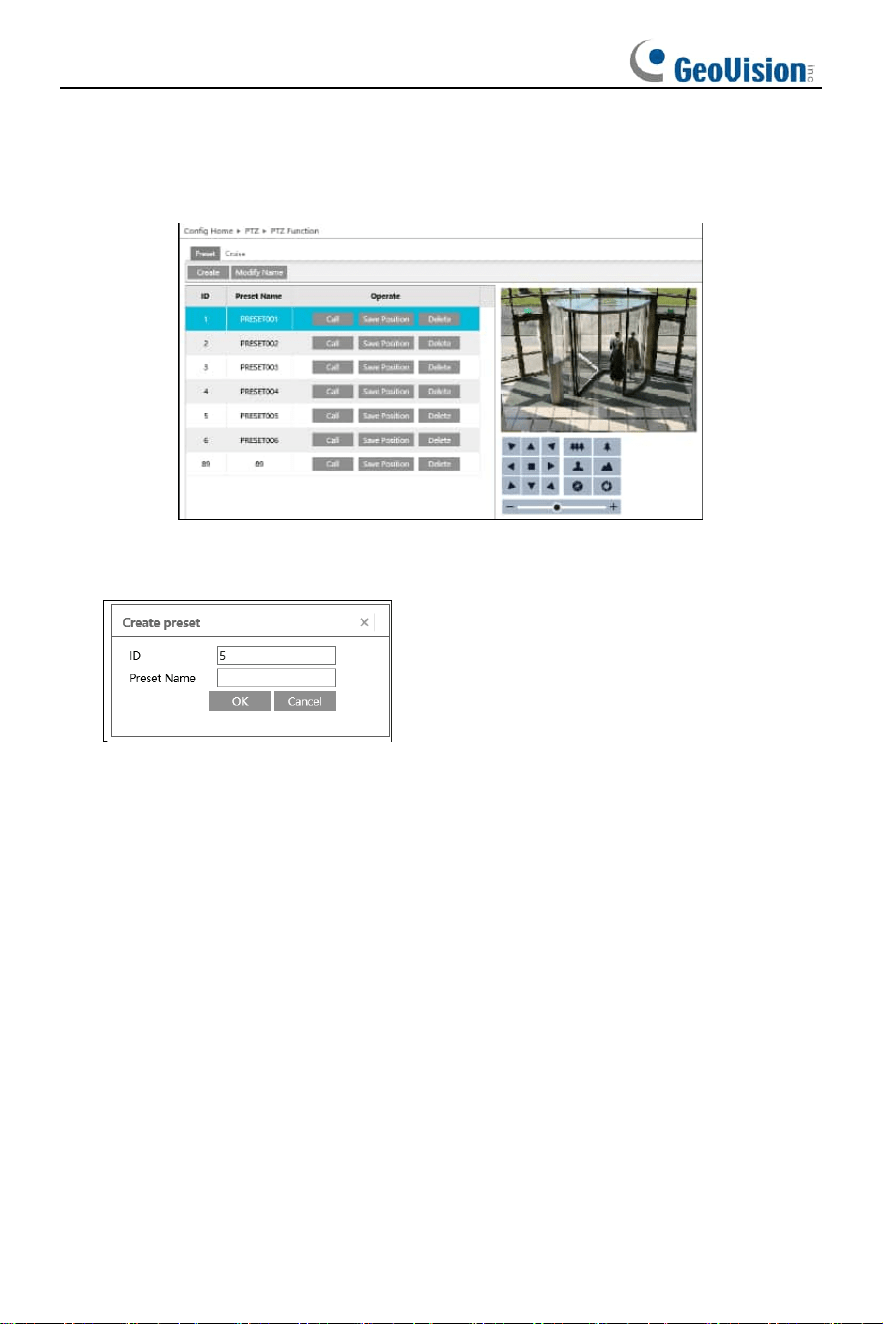
3.3.2 PTZ Function
PTZ function includes preset setup and cruise setup.
21
⚫ Preset Setup
This function is used to memorize the specific position of pan, tilt, zoom and focus,
giving much convenience for quick return to this position by calling a preset.
① Click “Create” to pop up a preset creation box.
② Enter the ID and preset name as needed. Then click “OK”.
③ Set the position of the preset by clicking the direction buttons. Then click “Save
Position”. After that, click “Call” to call the preset.
22
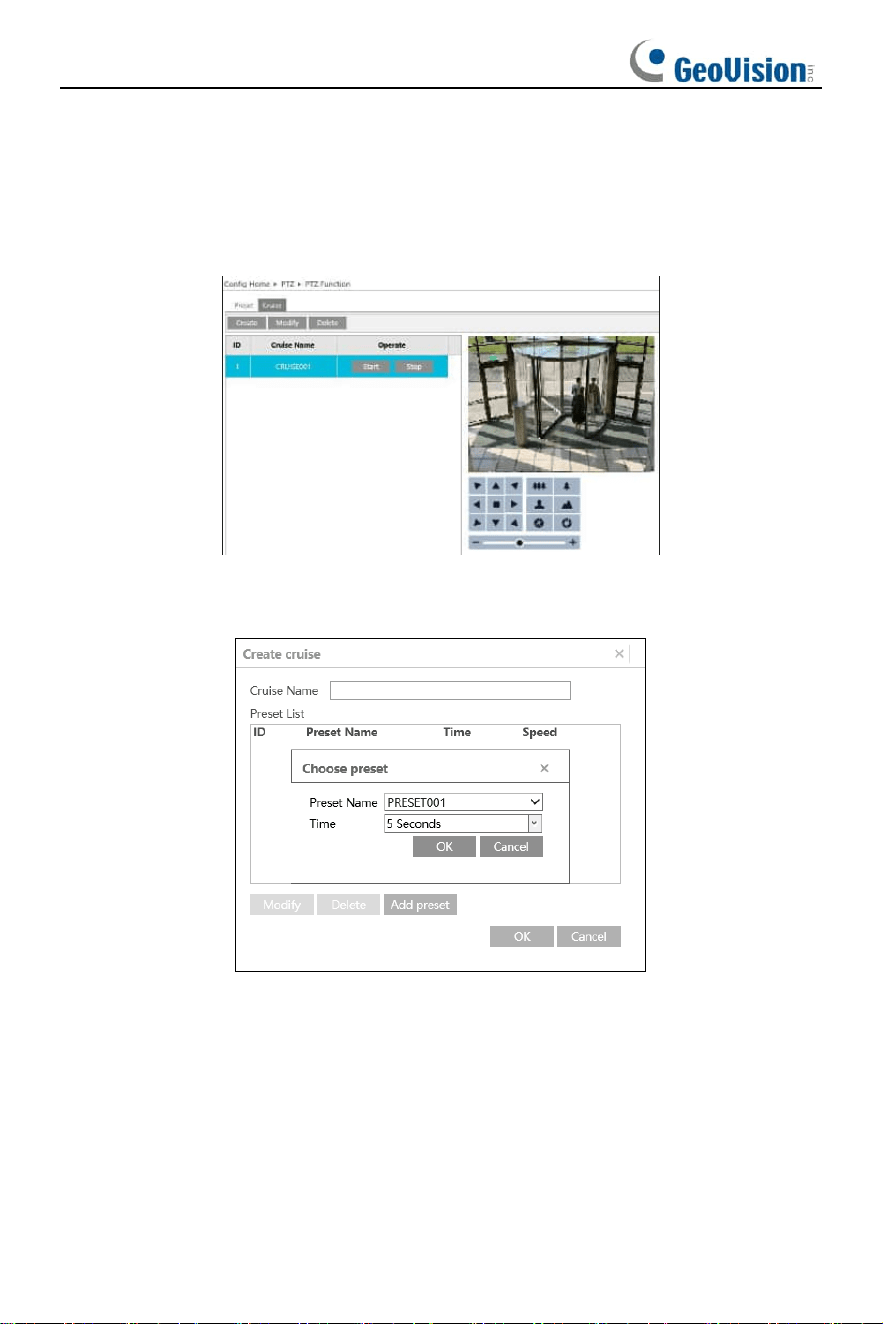
⚫ Cruise Setup
In this interface, by programming presets in cruise list in advance, the system will
keep calling those presets at the set time in sequence when executing cruise
command so that non-stop monitoring between multiple important positions can be
achieved.
① Click “Create” to pop up a cruise creation box.
② Enter a cruise name and then click “Add preset” to add presets in sequence. This
camera supports 8 cruises and 16 presets for each cruise. Set the preset and
time.
③ Click “OK” to save the settings.
④ Click “Start” to run the added cruise. The camera will automatically keep running
according to the cruise you set until new command is received.
⑤ Click “Stop” to stop running the cruise.
23
3.4 Alarm Configuration
3.4.1 Motion Detection
Go to Alarm
→
Motion Detection to set motion detection alarm.
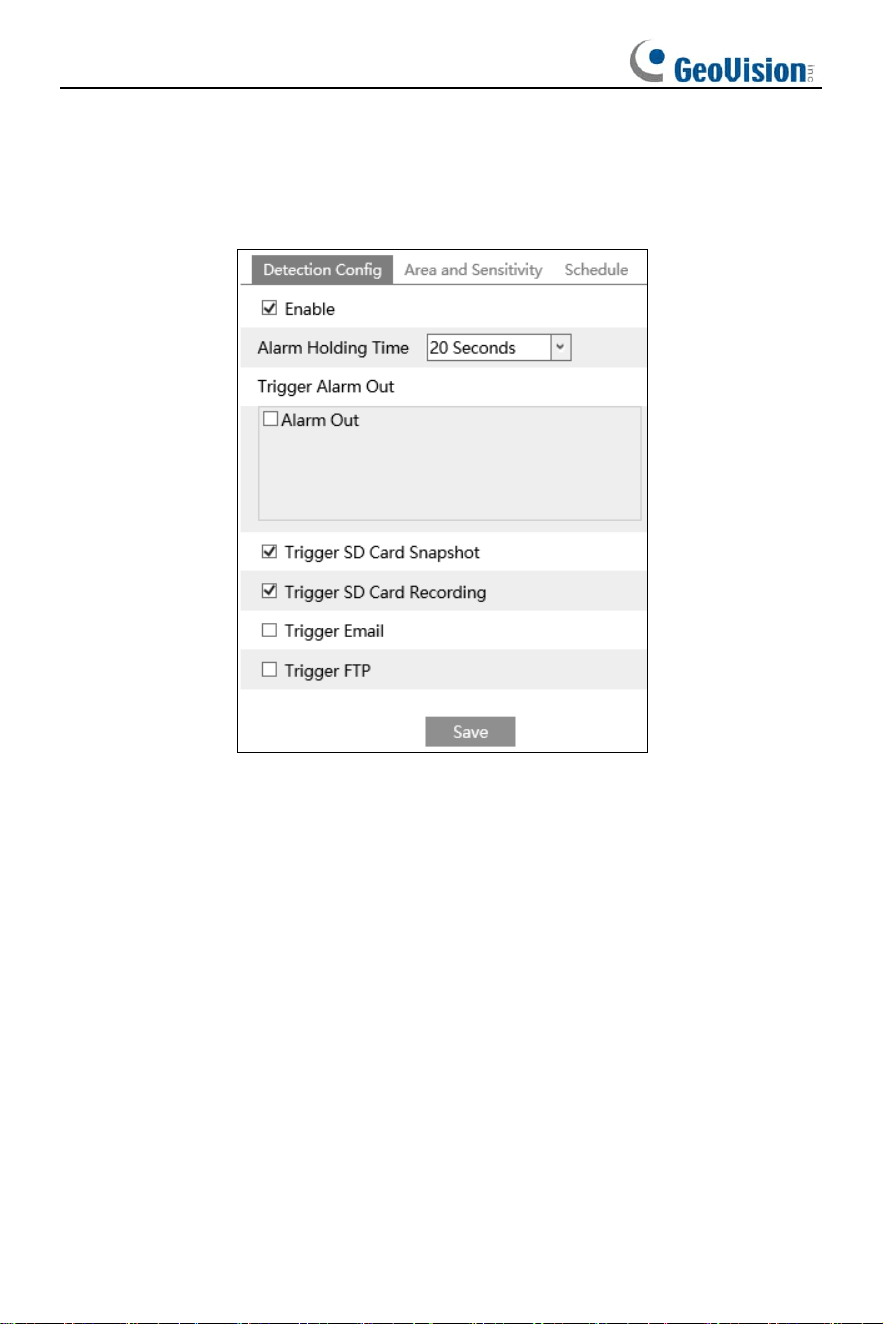
1. Check “Enable” check box to activate motion-based alarms. If unchecked, the
camera will not send out any signals to trigger motion-based recording to the NVR or
CMS, even if there is motion in the video.
Alarm Holding Time: it refers to the time that the alarm extends for after an alarm
ends. For instance, if the alarm holding time is set to 20 seconds, once the camera
detects a motion, it will go to alarm and would not detect any other motion in 20
seconds. If there is another motion detected during this period, it will be considered as
continuous movement; otherwise, it will be considered as a single motion.
Alarm Out: If selected, this would trigger an external relay output that is connected to
the camera on detecting a motion-based alarm.
Trigger SD Card Snapshot: If selected, the system will capture images on motion
detection and save the images on an SD card.
Trigger SD Card Recording: If selected, video will be recorded on an SD card on
motion detection.
Trigger Email: If “Trigger Email” and “Attach Picture” are checked (email address
must be set first in the Email configuration interface), the captured pictures and
triggered event will be sent into those addresses.
24
Trigger FTP: If “Trigger FTP” is checked, the captured pictures will be sent into FTP
server address. Please refer to FTP configuration chapter for more details.
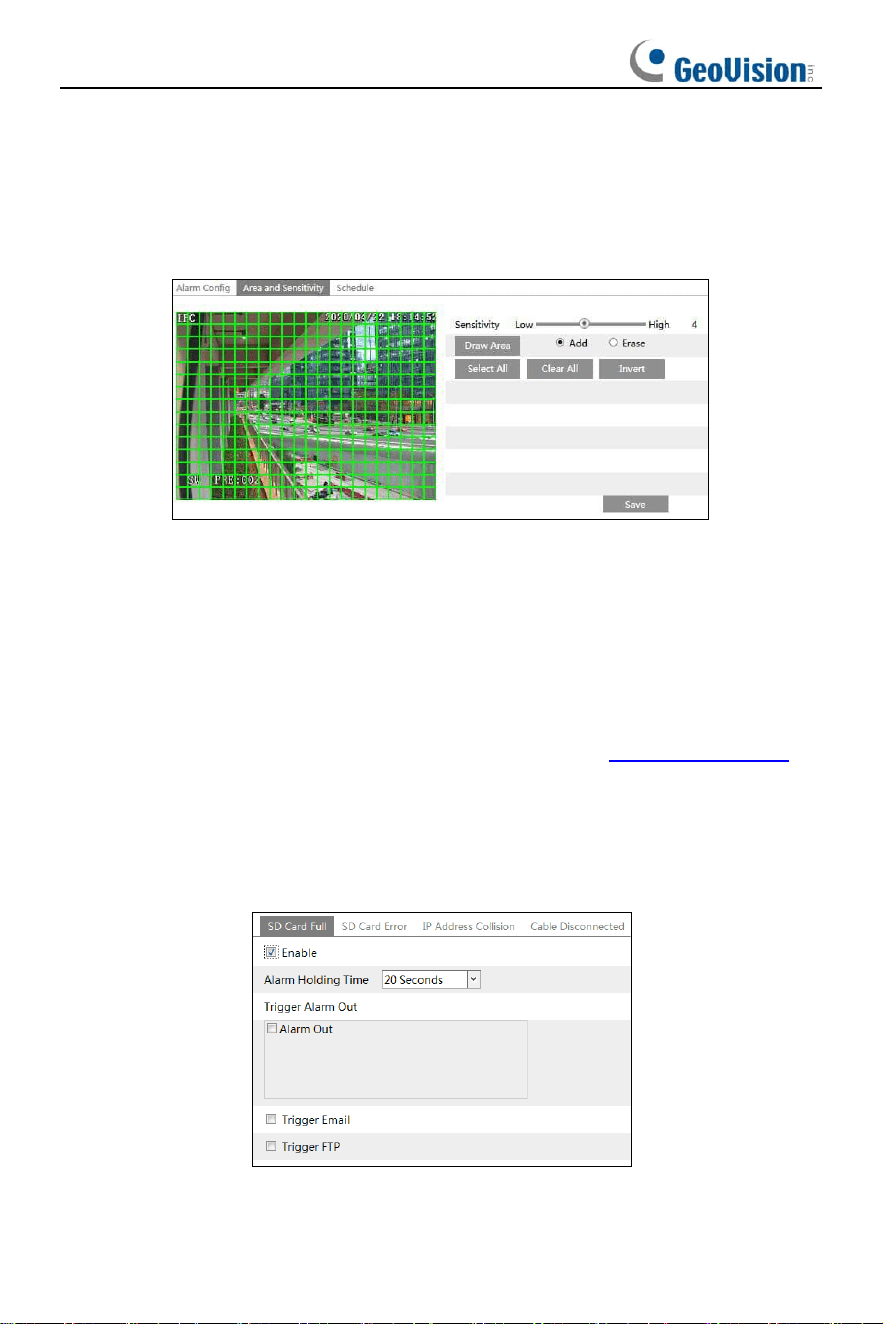
2. Set motion detection area and sensitivity. Click the “Area and Sensitivity” tab to go
to the interface as shown below.
Move the “Sensitivity” scroll bar to set the sensitivity. Higher sensitivity value means
that motion will be triggered more easily.
Select “Add” and click “Draw”. Drag the mouse to draw the motion detection area;
Select “Erase” and drag the mouse to clear motion detection area.
After that, click the “Save” to save the settings.
3. Set the schedule for motion detection. The schedule setup steps of the motion
detection are the same as the schedule recording setup (See Schedule Recording).
3.4.2 Exception Alarm
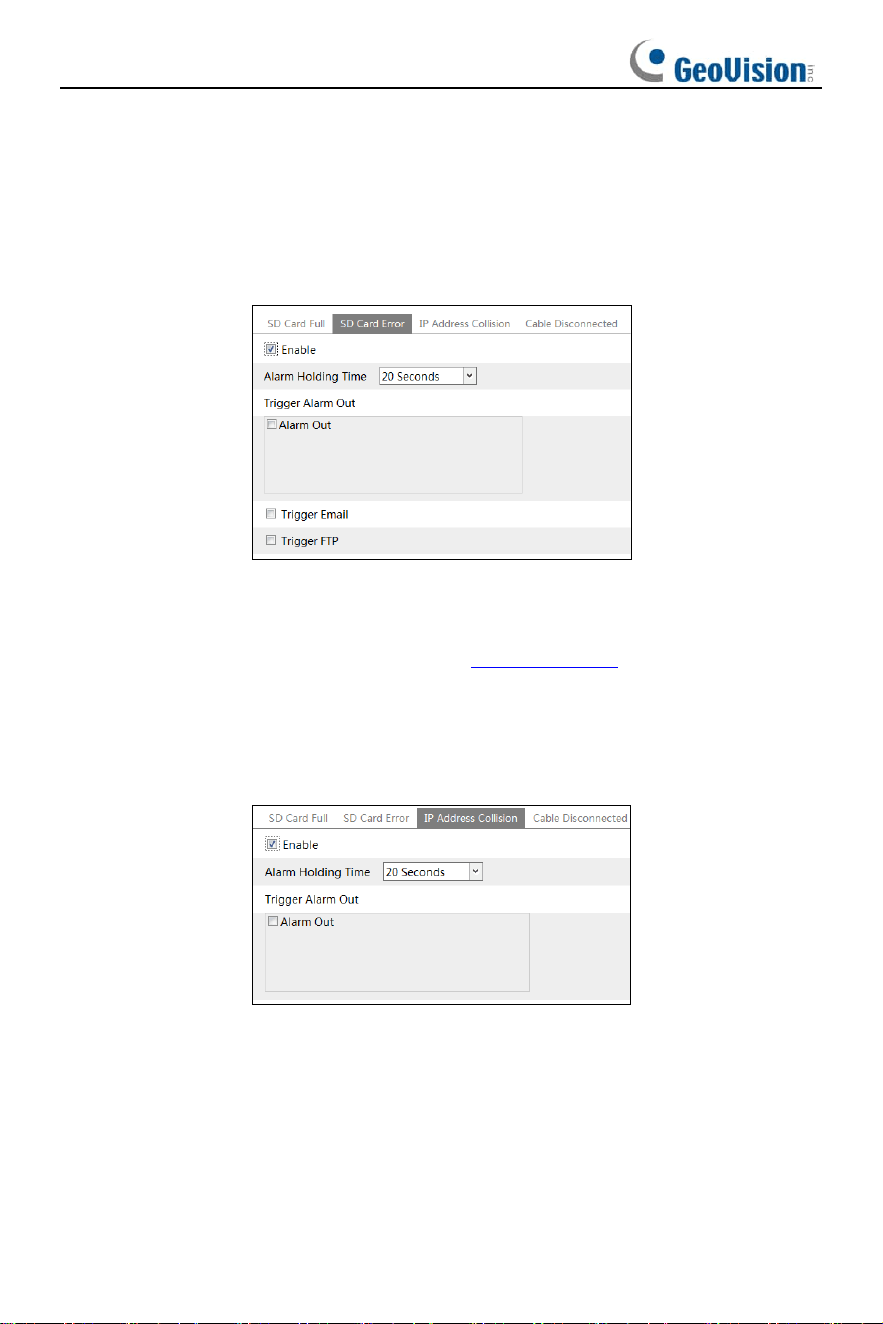
⚫ SD Card Full
1. Go to Config→Alarm→Exception Alarm→SD Card Full.
2. Click “Enable” and set the alarm holding time.
3. Set alarm trigger options. The setup steps are the same as motion detection.
25
Please refer to motion detection chapter for details.
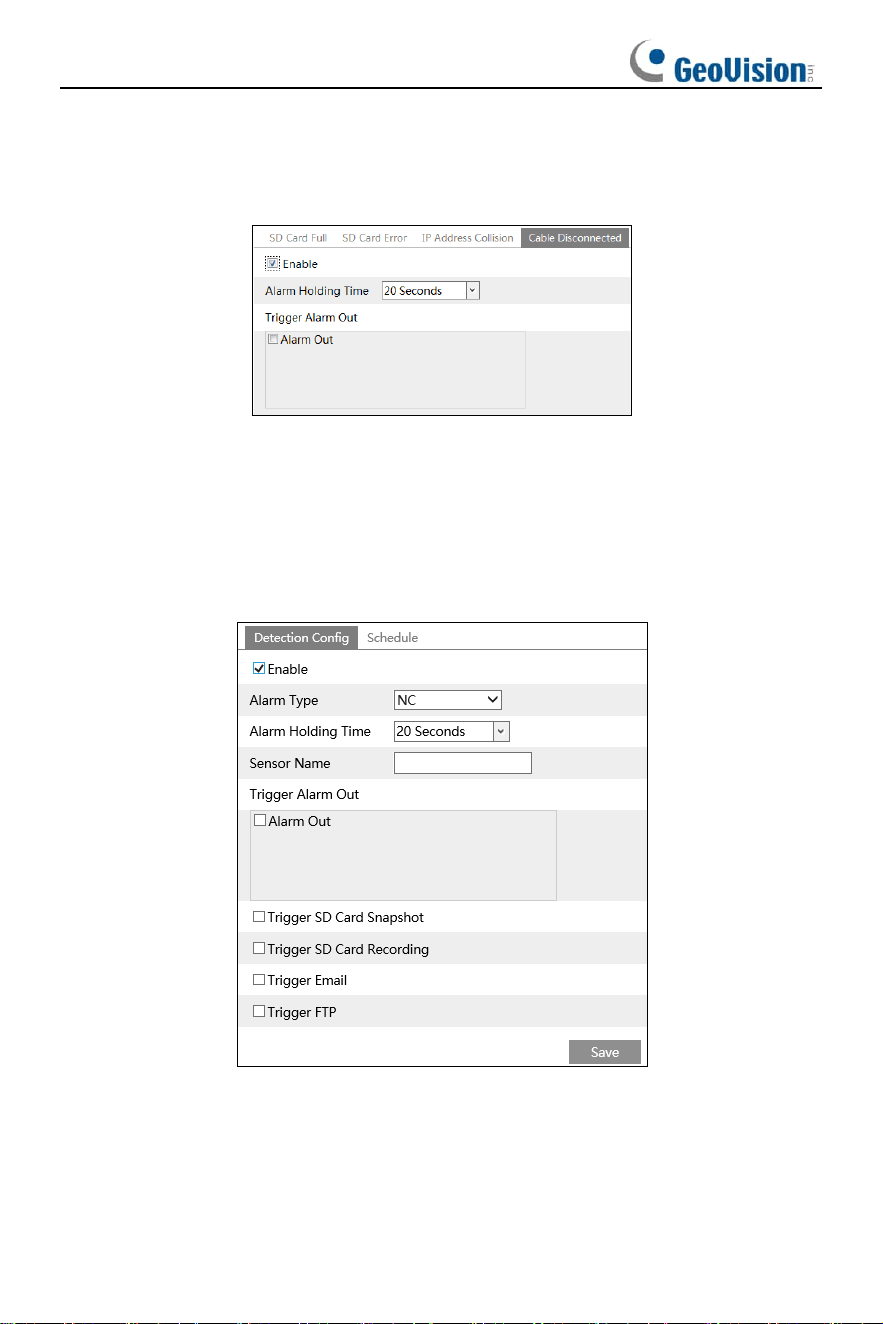
⚫ SD Card Error
When there are some errors in writing SD card, the corresponding alarms will be
triggered.
1. Go to Config
→
Alarm
→
Exception Alarm
→
SD Card Error as shown below.
2. Click “Enable” and set the alarm holding time.
3. Set alarm trigger options. Trigger alarm out, Email and FTP. The setup steps are
the same as motion detection. Please refer to motion detection chapter for details.
⚫ IP Address Conflict
1. Go to Config
→
Alarm
→
Exception Alarm
→
IP Address Collision as shown
below.
2. Click “Enable” and set the alarm holding time.
3. Trigger alarm out. When the IP address of the camera is in conflict with the IP
address of other devices, the system will trigger the alarm out.
Note: This function is only available for some models.
⚫
26
⚫ Cable Disconnection
1. Go to Config
→
Alarm
→
Exception Alarm
→
Cable Disconnected as shown
below.
2. Click “Enable” and set the alarm holding time.
3. Trigger alarm out. When the camera is disconnected, the system will trigger the
alarm out.
3.4.3 Alarm Input
Go to Config
→
Alarm
→
Alarm In interface as shown below.
To set sensor alarm (alarm in):
1. Set Sensor ID (available for the models with two or more alarm input interfaces).
2. Click “Enable” and set the alarm type, alarm holding time and sensor name.
3. Set alarm trigger options.
Alarm Out: If selected, this would trigger an external relay output that is connected to
the camera when the sensor alarm is triggered.
27
Trigger SD Snapshot: If selected, the system will capture images when the sensor
alarm is triggered and save the images on an SD card.
Trigger SD Recording: If selected, video will be recorded on an SD card when the
sensor alarm is triggered.
Trigger Email: If “Trigger Email” and “Attach Picture” are checked (email address
must be set first in the Email configuration interface), the captured pictures and
triggered event will be sent into those addresses.
Trigger FTP: If “Trigger FTP” and “Attach Picture” are checked, the captured pictures
will be sent into FTP server address. Please refer to FTP configuration chapter for
more details.
4. Apply settings to other sensors (if applicable).
5. Click “Save” to save the settings.
6. Set the schedule of the sensor alarm. The setup steps of the schedule are the same
as the schedule recording setup. (See Schedule Recording).
3.4.4 Alarm Out
Go to Config
→
Alarm
→
Alarm Out.
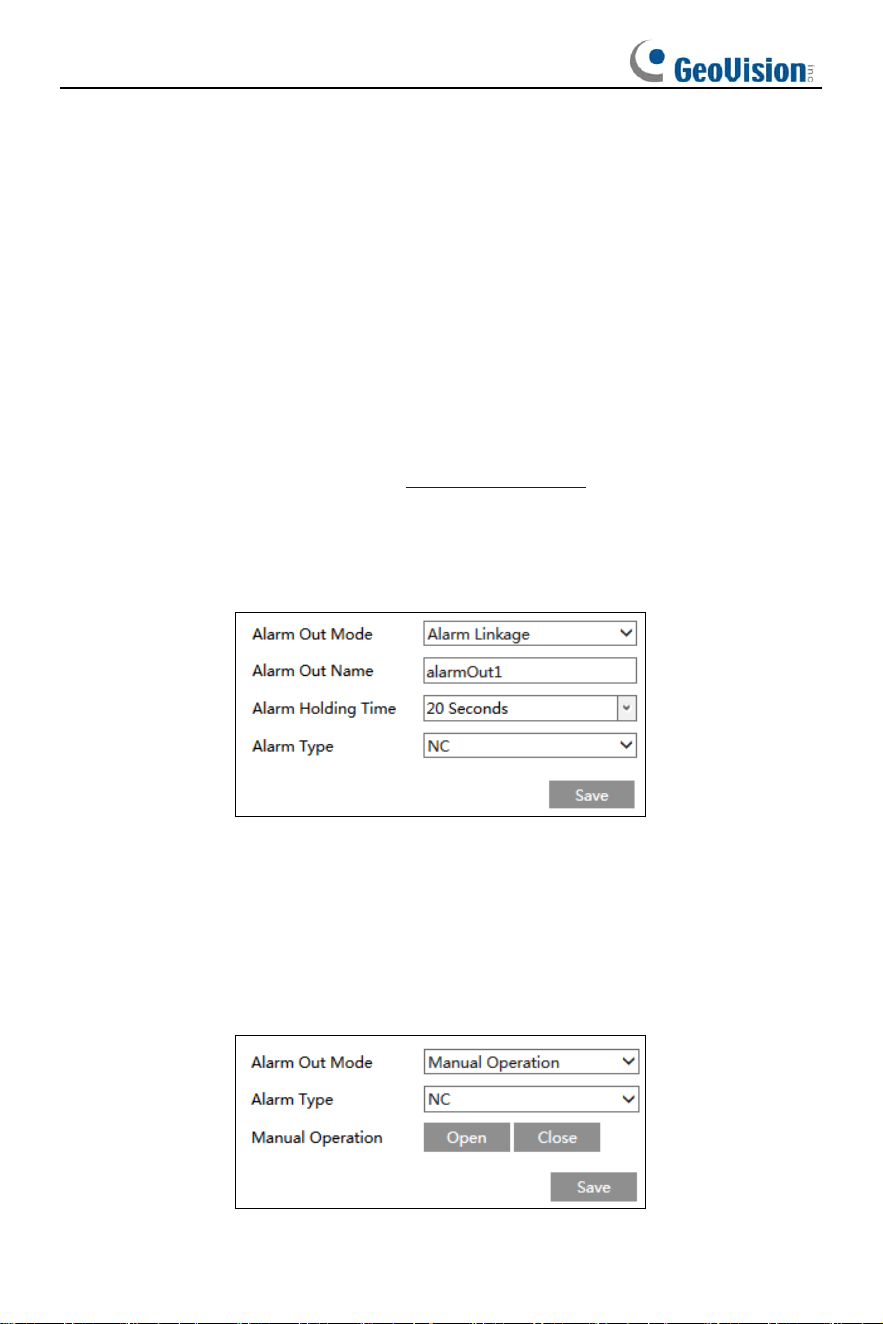
Alarm Out Mode: Alarm linkage, manual operation, day/night switch linkage and
timing are optional.
Alarm Linkage: Having selected this mode, select alarm out name, alarm holding
time at the “Alarm Holding Time” pull down list box and alarm type.
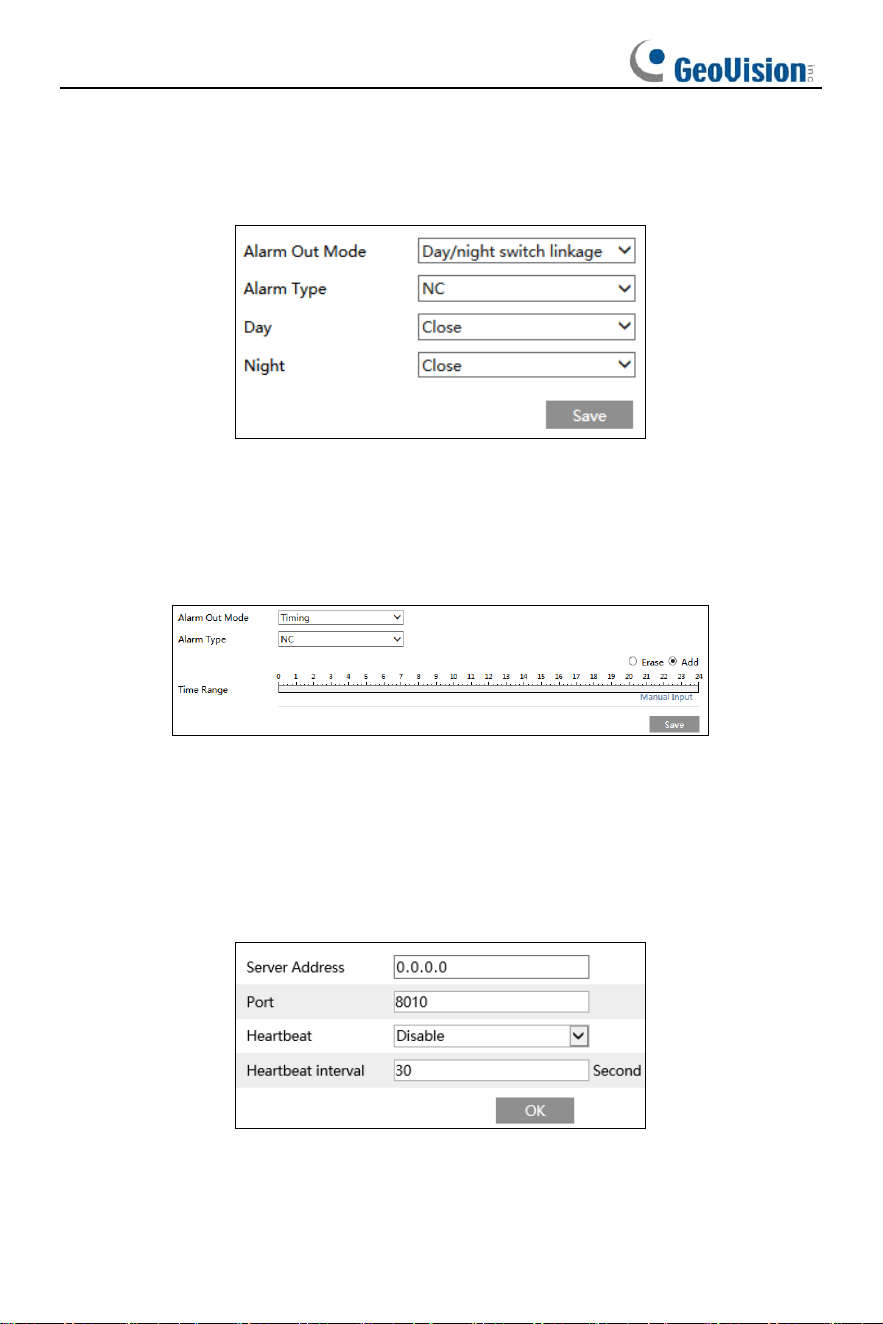
Manual Operation: Having selected this mode, select the alarm type and click “Open”
to trigger the alarm out immediately; click “Close” to stop alarm.
28
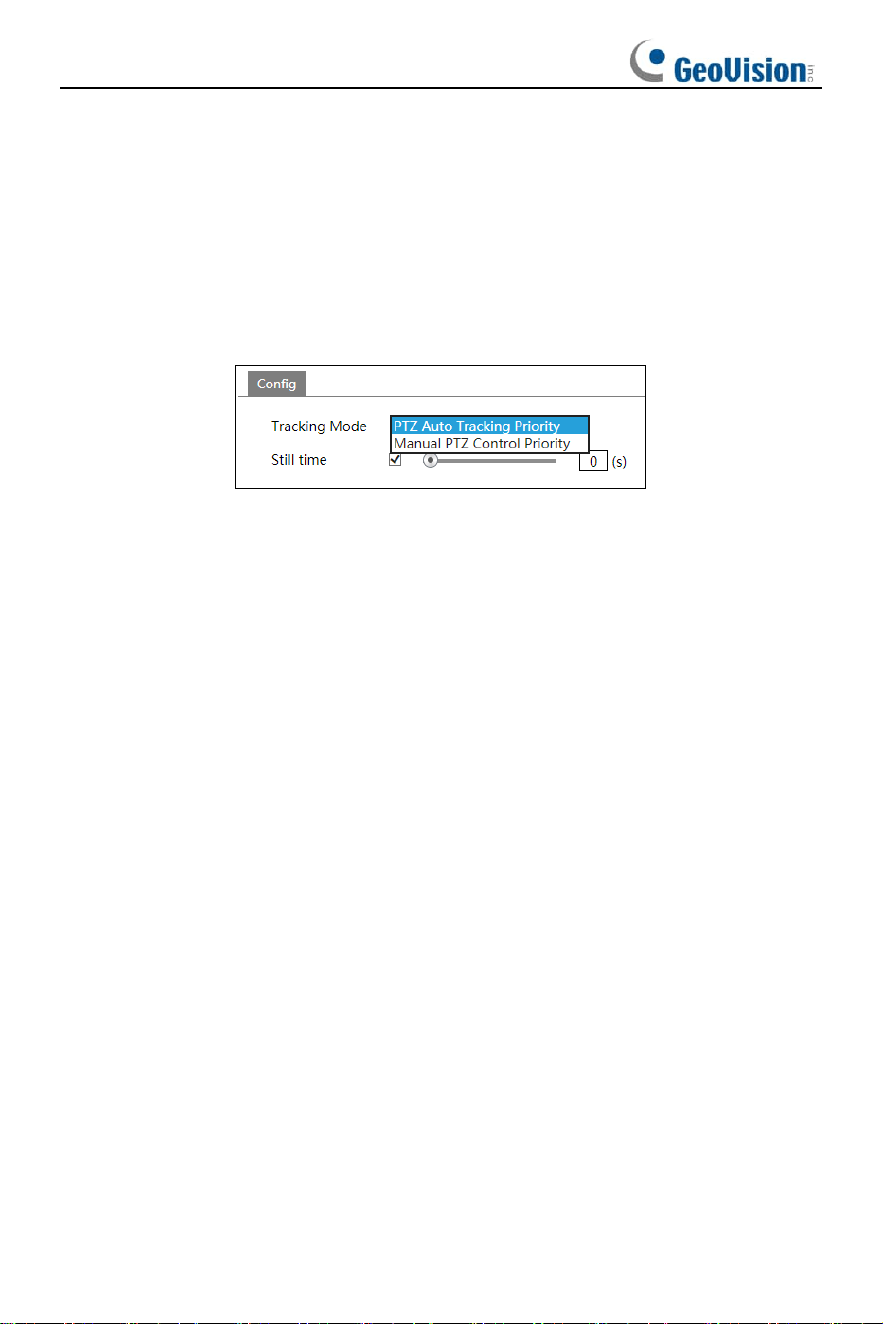
Day/Night Switch Linkage: Having selected this mode, select the alarm type and
then choose to open or close alarm out when the camera switches to day mode or
night mode.
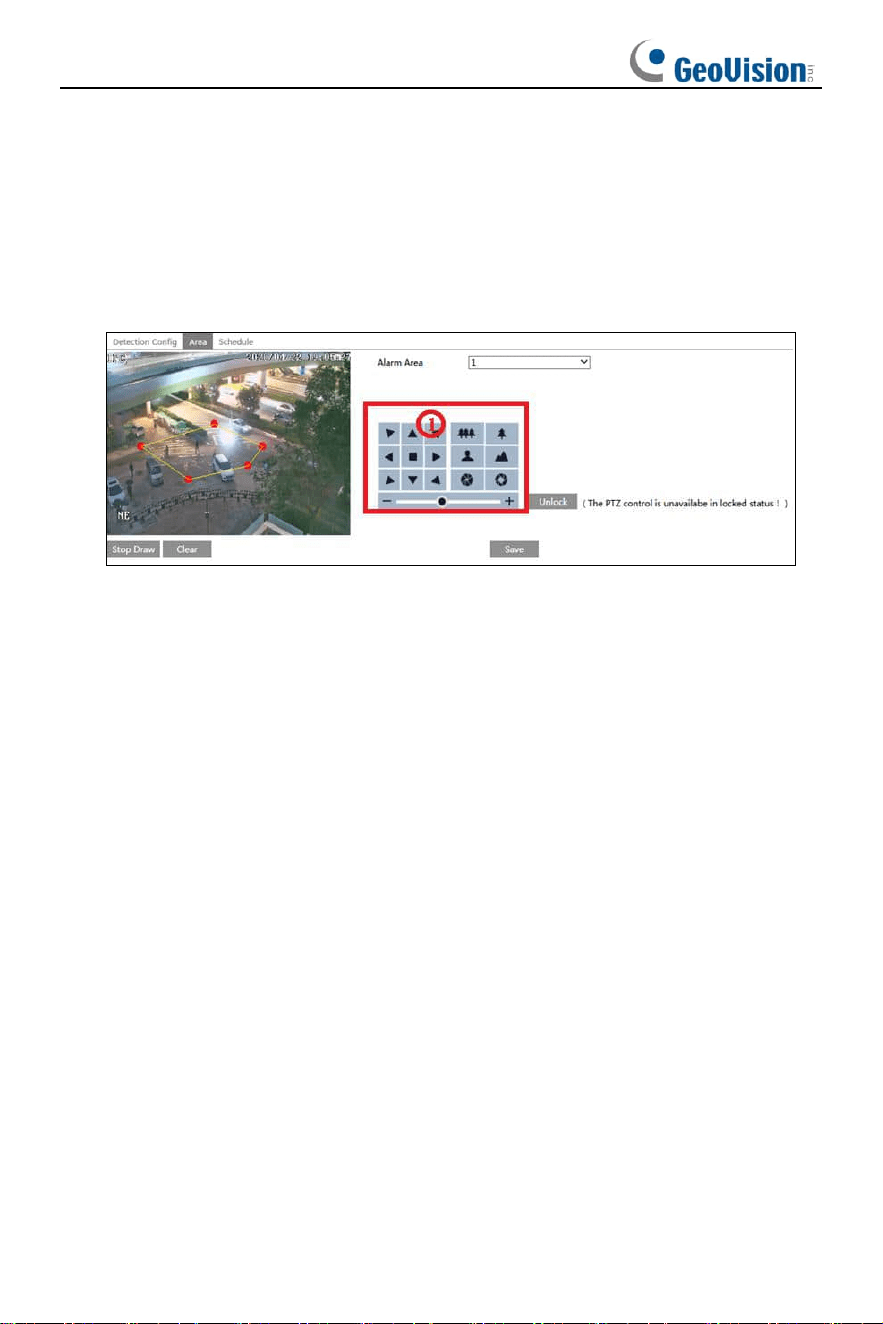
Timing: Select the alarm type. Then click “Add” and drag the mouse on the timeline to
set the schedule of alarm out; click “Erase” and drag the mouse on the timeline to
erase the set time schedule. After this schedule is saved, the alarm out will be
triggered in the specified time.
3.4.5 Alarm Server
Go to Alarm
→
Alarm Server interface as shown below.
Set the server address, port, heartbeat and heartbeat interval. When an alarm occurs,
the camera will transfer the alarm event to the alarm server. If an alarm server is not
needed, there is no need to configure this section.
29
3.4.6 Smart Tracking
The tracking option is available for line crossing detection, region entrance and
exiting and intrusion detection.
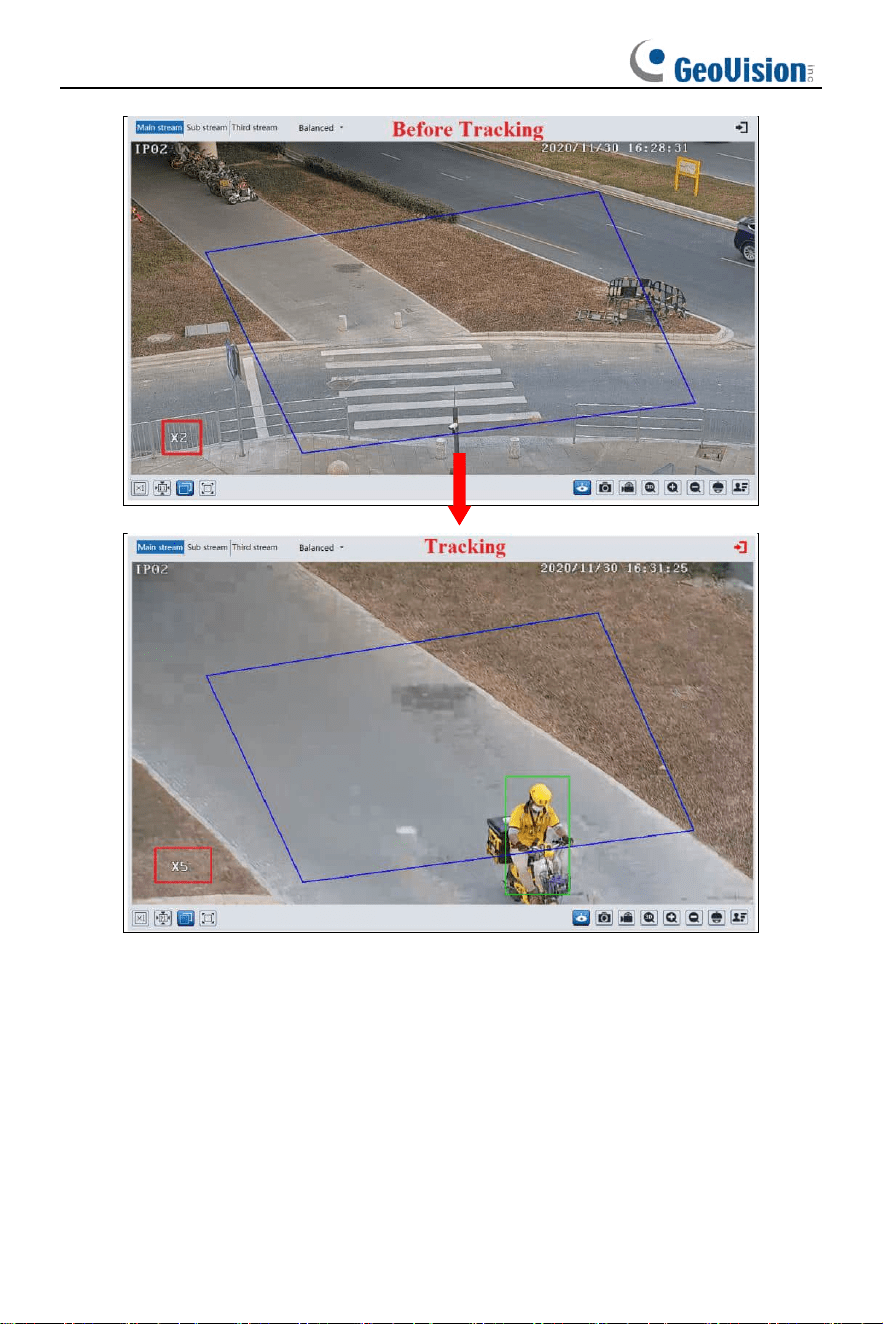
Smart Tracking: When people or vehicle cross the alarm line or intrude or exit the
predefined area, the PTZ camera will automatically track them and the target image
will be automatically zoomed in and centered on the screen until the target disappears
from the screen. After that, the PTZ camera will return to the tracking start position
(home position).
Tracking Mode: PTZ Auto Tracking Priority or Manual PTZ Control Priority can be
optional.
PTZ Tracking Priority: If this mode is selected, in smart tracking mode, you cannot
control PTZ by clicking the buttons on the PTZ control panel in the live view interface.
Manual PTZ Control Priority: If this mode is selected, in smart tracking mode, you
can control PTZ by clicking the buttons on the PTZ control panel in the live view
interface and then the camera will immediately stop the tracking action. After you
finish controlling PTZ for 5 seconds, the PTZ camera will return to the start tracking
position and wait for the object to appear.
Still time: If it is enabled and the time is set, when the target stops, the PTZ camera
will return to the tracking start position after the set time expires. During this time, if the
target moves, the PTZ will continue tracking. If it is not enabled, when the target stops
for 5 seconds, the PTZ camera will return to the start tracking position.
For example: At the stoplight, if a car is waiting for the red light for 30 seconds, and
the still time is set as 20 seconds, the tracking will stop following; however, if the still
time is set as 40 seconds, when the red light changes to green and the car starts to
move, the PTZ will continue tracking this car.
30
How to perform smart tracking:
1. Click Config
→
Alarm
→
Smart Tracking to go to the smart tracking interface.
Select the tracking mode and set the still time as needed.
2. Click Config
→
Event. Select the event as needed. For example, enable the
intrusion detection, select detection target and then check “Trigger Track”. After
that click “Save” to save the settings.
3. Set the alarm area and lock the PTZ.
Using the PTZ control buttons (area①) sets appropriate field of view and then
draw the detection area and save the setting.
After that, click the “Lock” button to save the current PTZ position as the start
tracking position (home position). Now, the “Lock” button changes its function to
“Unlock”.
Note: a. Clicking the “Unlock” button suspends object tracking until you click the
“Lock” button. If you want to change the start tracking position, you can click
“Unlock” button to enable PTZ control. After that, please remember to lock the
PTZ, or object tracking will not take effect.
b. After the smart tracking is enabled and the home position is locked,
preset 89 will be generated as the smart tracking home position by default.
Please DO NOT delete preset 89, or the PTZ will not go back to the home
position after finishing tracking.
4. Go back to the live view interface to view smart tracking.
31
3.5 Event Configuration
For more accuracy, here are some recommendations for installation.
⚫ Cameras should be installed on stable surfaces, as vibrations can affect the
accuracy of detection.
⚫ Avoid pointing the camera at the reflective surfaces (like shiny floors, mirrors,
glass, lake surfaces and so on).
⚫ Avoid places that are narrow or have too much shadowing.
⚫ Avoid scenario where the object’s color is similar to the background color.
32
⚫ At any time of day or night, please make sure the image of the camera is clear
and with adequate and even light, avoiding overexposure or too much darkness
on both sides.
Note: The following functions are only available when the PTZ camera stops moving.
3.5.1 Video Exception
This function can detect changes in the surveillance environment affected by the
external factors.
To set exception detection:
Go to Config
→
Event
→
Video Exception interface as shown below.
1. Enable the applicable detection that’s desired.
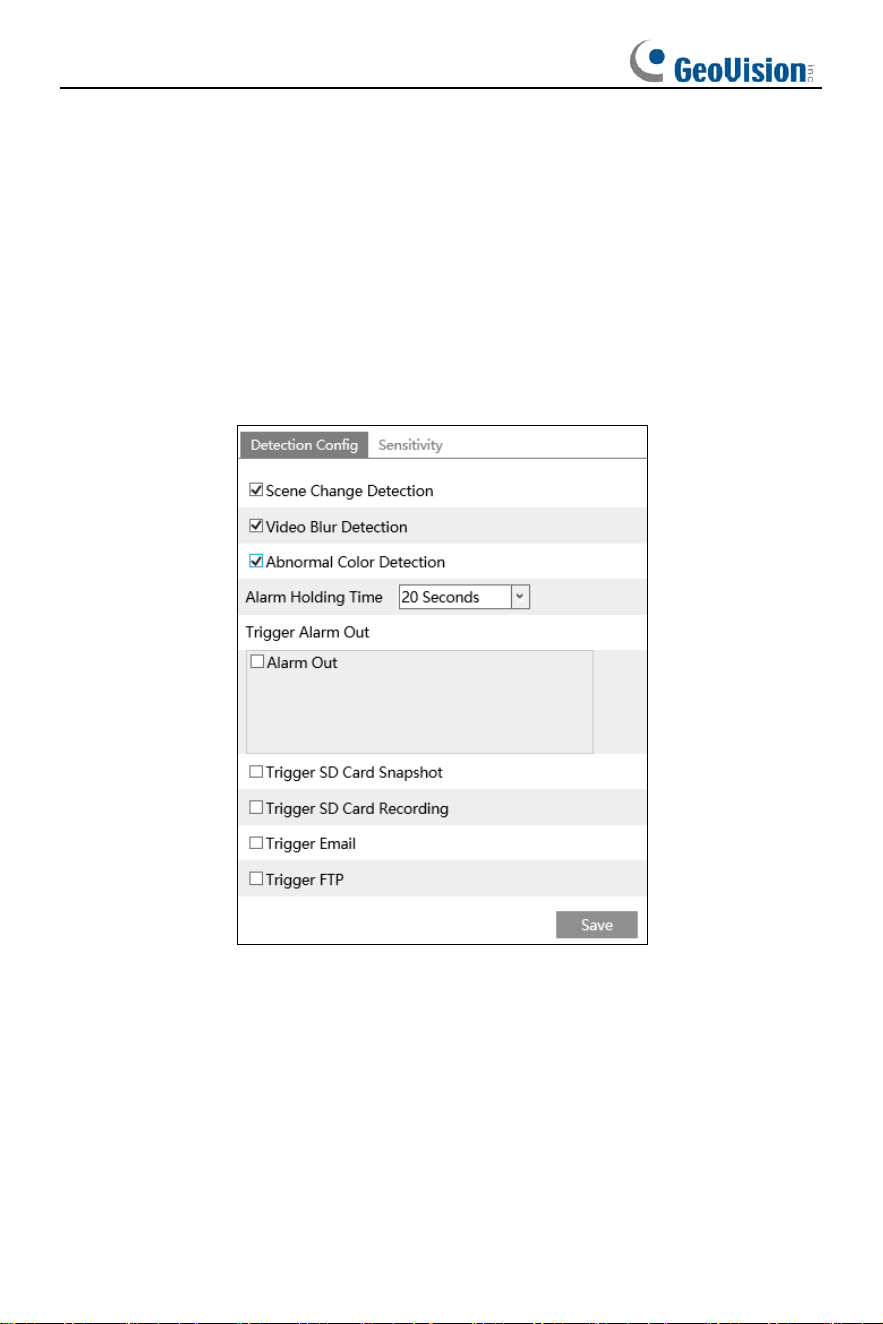
Scene Change Detection: Alarms will be triggered if the scene of the monitor video
has changed.
Video Blur Detection: Alarms will be triggered if the video becomes blurry.
Abnormal Color Detection: Alarms will be triggered if the image is abnormal
because of color deviation.
2. Set the alarm holding time and alarm trigger options. The setup steps are the same
as motion detection. Please refer to motion detection chapter for details.
3. Click “Save” button to save the settings.
33
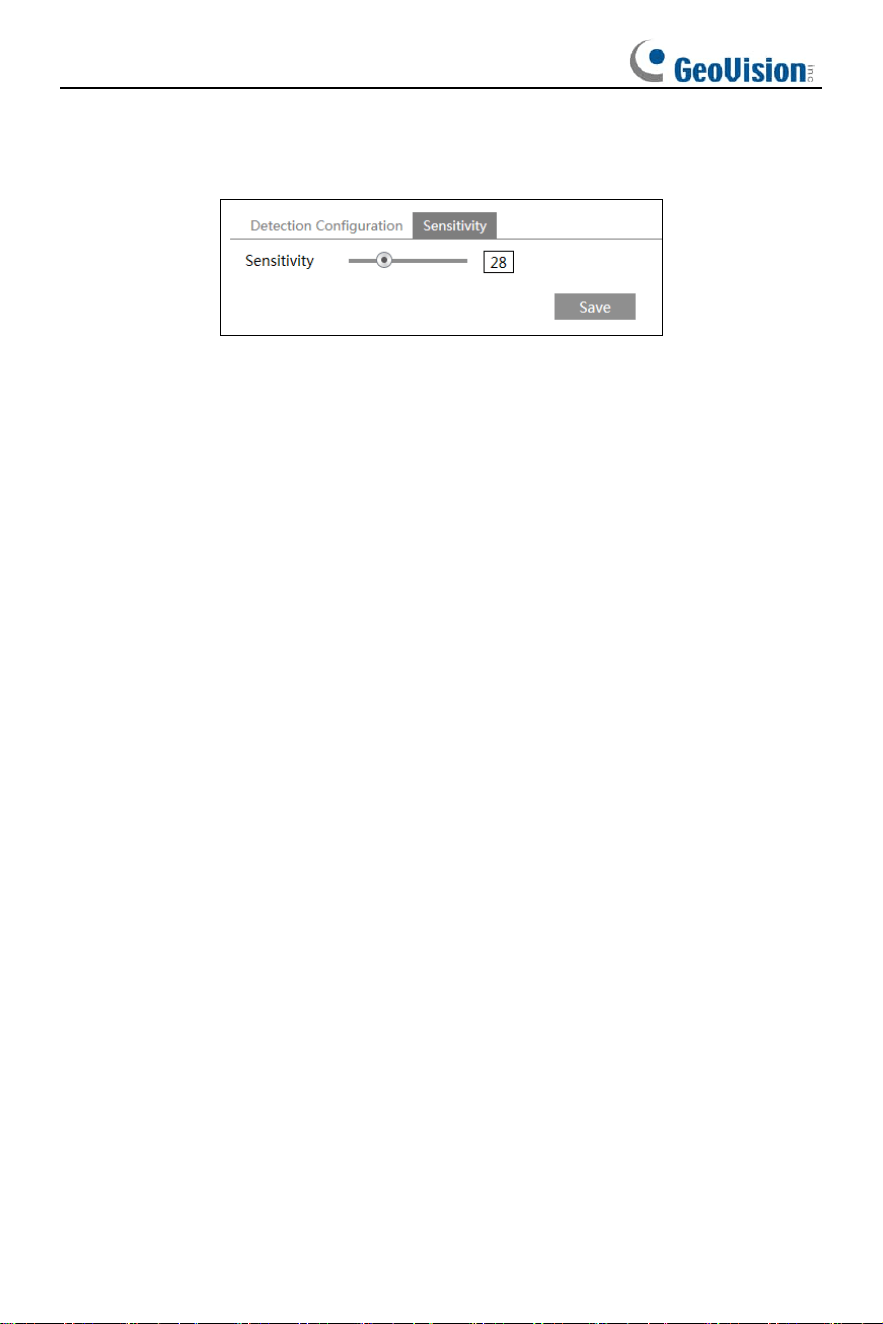
4. Set the sensitivity of the exception detection. Click “Sensitivity” tab to go to the
interface as shown below.
Drag the slider to set the sensitivity value or directly enter the sensitivity value in the
textbox. Click “Save” button to save the settings.
The sensitivity value of Scene Change Detection: The higher the value is, the
more sensitive the system responds to the amplitude of the scene change.
The sensitivity value of Video Blur Detection: The higher the value is, the more
sensitive the system responds to the blurriness of the image.
The sensitivity value of Abnormal Color Detection: The higher the value is, the
more sensitive the system responds to the color shift of the image.
3.5.2 Line Crossing Detection
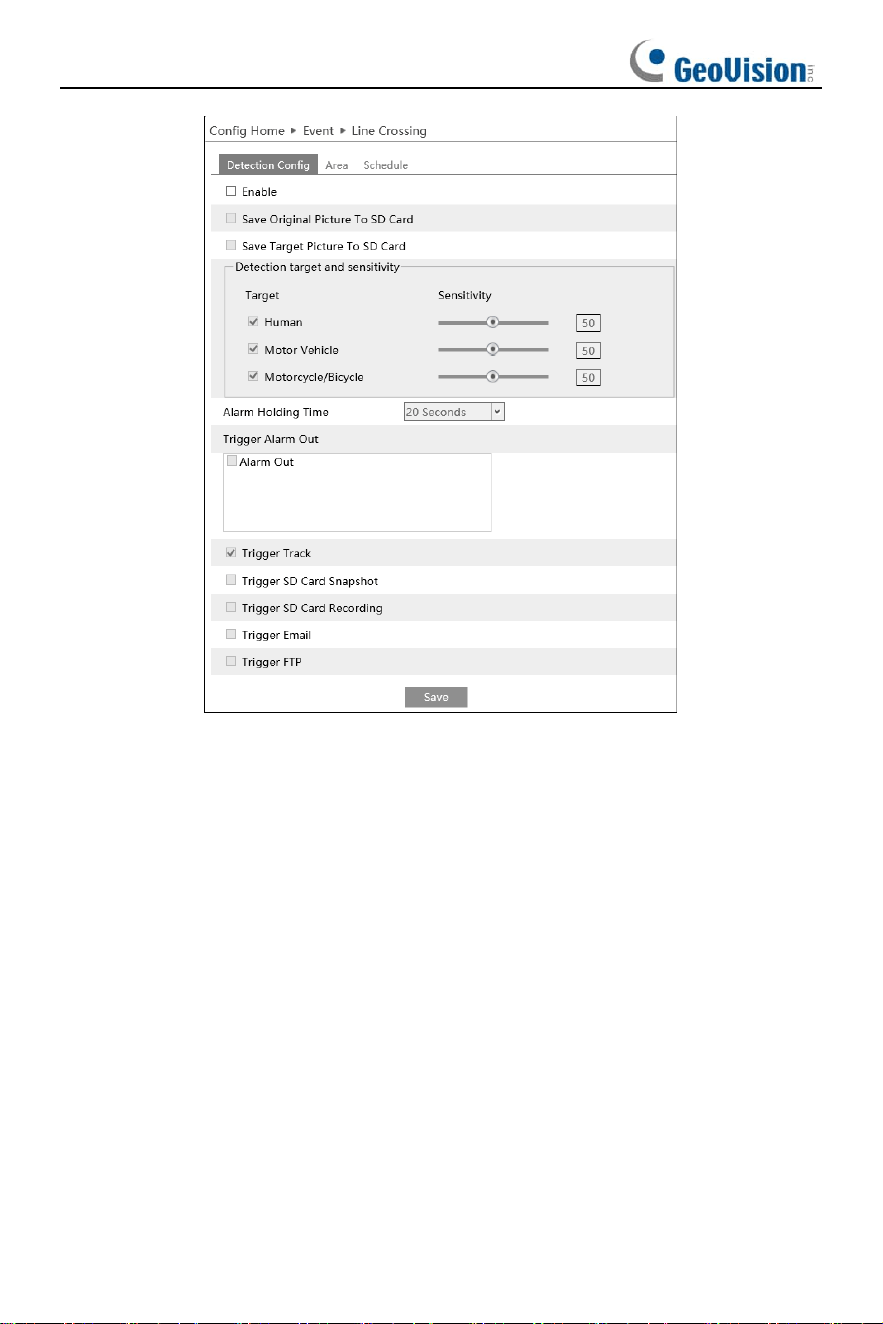
Line Crossing: Alarms will be triggered if the target crosses the pre-defined alarm
lines.
Go to Config
→
Event
→
Line Crossing interface as shown below.
34
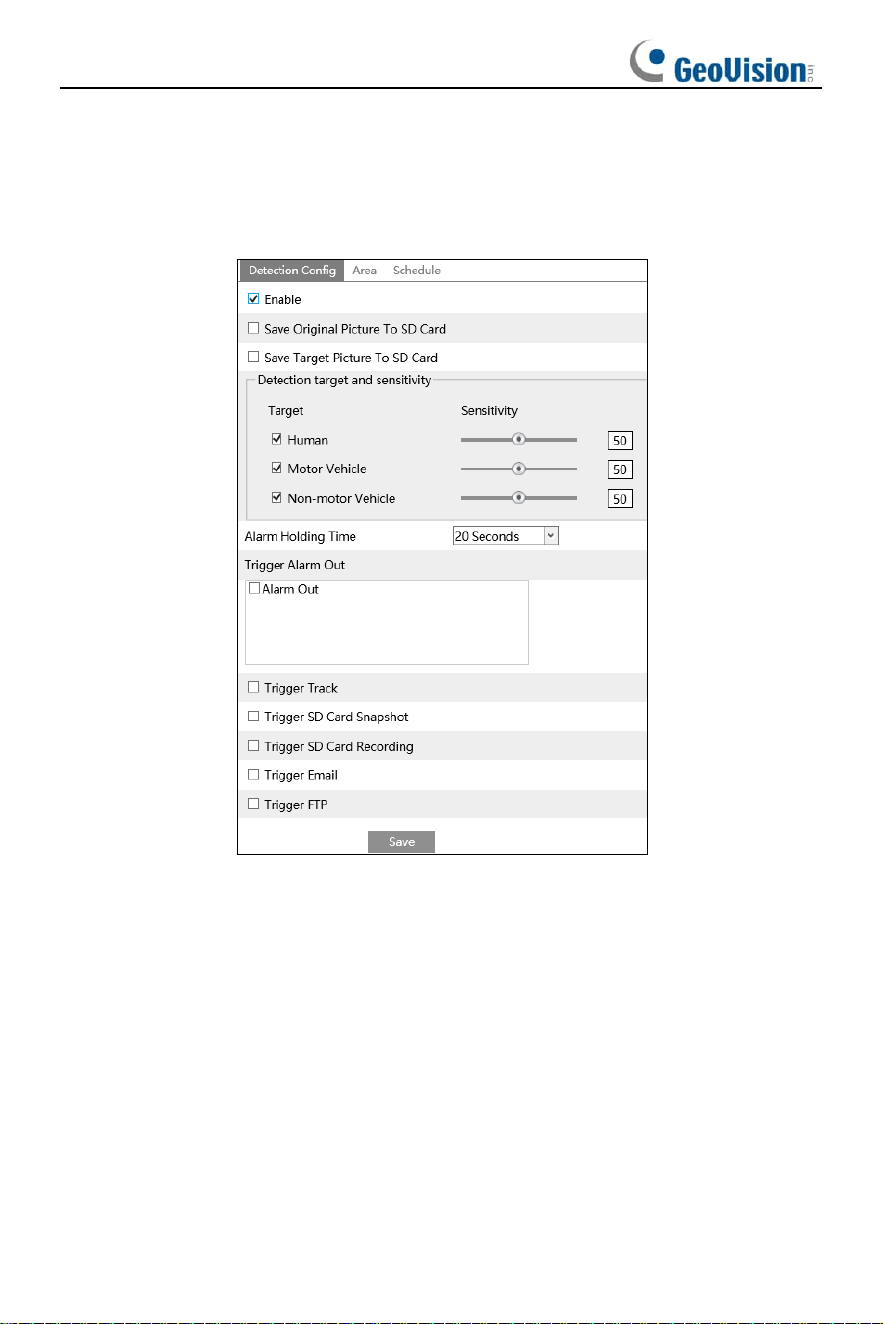
⚫ Detection Configuration:
1. Enable line crossing detection and select the snapshot type and the detection
target.
Save Original Picture to SD Card: If it is enabled, the detected original pictures will
be captured and saved to the SD card when the targets cross the alarm line.
Save Target Picture to SD Card: If it is enabled, the detected target cutout pictures
will be captured and saved to the SD card when the targets cross the alarm line.
Note: To save snapshots to the local PC, please enable “Local Smart Snapshot
Storage” in the local config interface first. To save snapshots to the SD card, please
install an SD card first.
Detection Target:
Human: Select it and then alarms will be triggered if someone crosses the
pre-defined alarm lines.
Motor Vehicle: Select it and then alarms will be triggered if a vehicle with four or more
wheels (eg. a car, bus or truck) crosses the pre-defined alarm lines.
Non-motor Vehicle (Motorcycle/bicycle): Select it and then alarms will be triggered
if a vehicle with two wheels (eg. a motorcycle or bicycle) crosses the pre-defined
alarm lines.

35
All of the three types of objects can be selected simultaneously. Please select the
detection objects as needed. If no object/target is selected, alarms will not be
triggered even if line crossing detection is enabled.
2. Set the alarm holding time.
3. Set alarm trigger options.
Alarm Out: If selected, this would trigger an external relay output that is connected to
the camera on detecting a target crossing the alarm line.
Trigger Track: if enabled, the PTZ camera will automatically track the target that
crosses the alarm line and the target’s image will be automatically zoomed in and
centered on the screen until the target disappears on the screen. After that, the PTZ
camera will return to the pre-defined detection area.
Trigger SD Card Snapshot: If selected, the system will capture images when a
target crosses the alarm line and save the images on an SD card.
Trigger SD Card Recording: If selected, video will be recorded on an SD card when
a target crosses the alarm line
Trigger Email: If “Trigger Email” and “Attach Picture” are checked (email address
must be set first in the Email configuration interface), the captured pictures and
triggered event will be sent into those addresses.
Trigger FTP: If “Trigger FTP” is checked, the captured pictures will be sent into FTP
server address. Please refer to FTP configuration chapter for more details.
4. Click “Save” button to save the settings.
36
⚫ Area Configuration
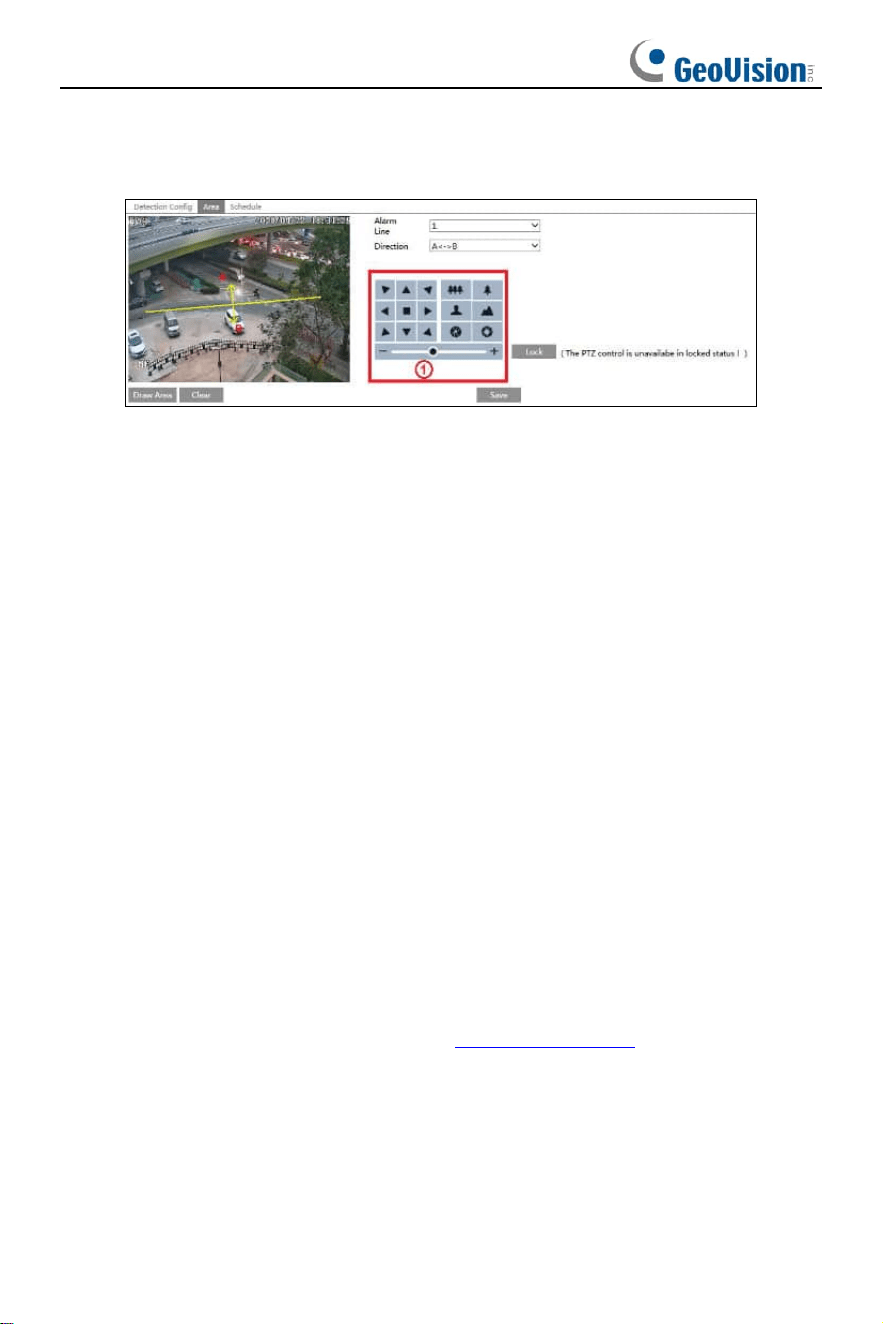
1. Click the “Area” tab to go to the interface as shown below.
2. Set the alarm line number and direction. Up to 4 lines can be added. Multiple lines
cannot be added simultaneously.
Direction:A<->B, A->B and A<-B optional. This indicates the direction of someone or
a vehicle crossing over the alarm line.
A<->B: Alarms will be triggered when someone or a vehicle crosses over the alarm
line from B to A or from A to B.
A->B: Alarms will be triggered when someone or a vehicle crosses over the alarm line
from A to B.
A<-B: Alarms will be triggered when someone or a vehicle crosses over the alarm line
from B to A.
3. Set the detection area by clicking the buttons of area ① and then click “Lock” to
lock the area.
Note: The PTZ will not be controlled if you click “Lock” here. Click “Unlock” and then
click the buttons of area ① to move the PTZ camera. Clicking the “Unlock” button
suspends object tracking until you click the “Lock” button.
4. Click the “Draw Area” button and then drag the mouse to draw a line in the image.
Click the “Stop Draw” button to stop drawing. Click the “Clear” button to delete the
lines. Click the “Save” button to save the settings.
⚫ Schedule Configuration
Set the schedule of the line crossing alarm. The setup steps of the schedule are the
same as the schedule recording setup (See Schedule Recording).
37
3.5.3 Region Intrusion
Region Intrusion: Alarms will be triggered if the target intrudes into the pre-defined
areas.
Go to Config
→
Event
→
Region Intrusion interface as shown below.
⚫ Detection Configuration
Enable region intrusion detection, select the snapshot type and the detection target
and set the alarm holding time and alarm trigger options. The detection setup steps
are the same as line crossing detection. Please refer to the detection configuration of
line crossing detection for details.
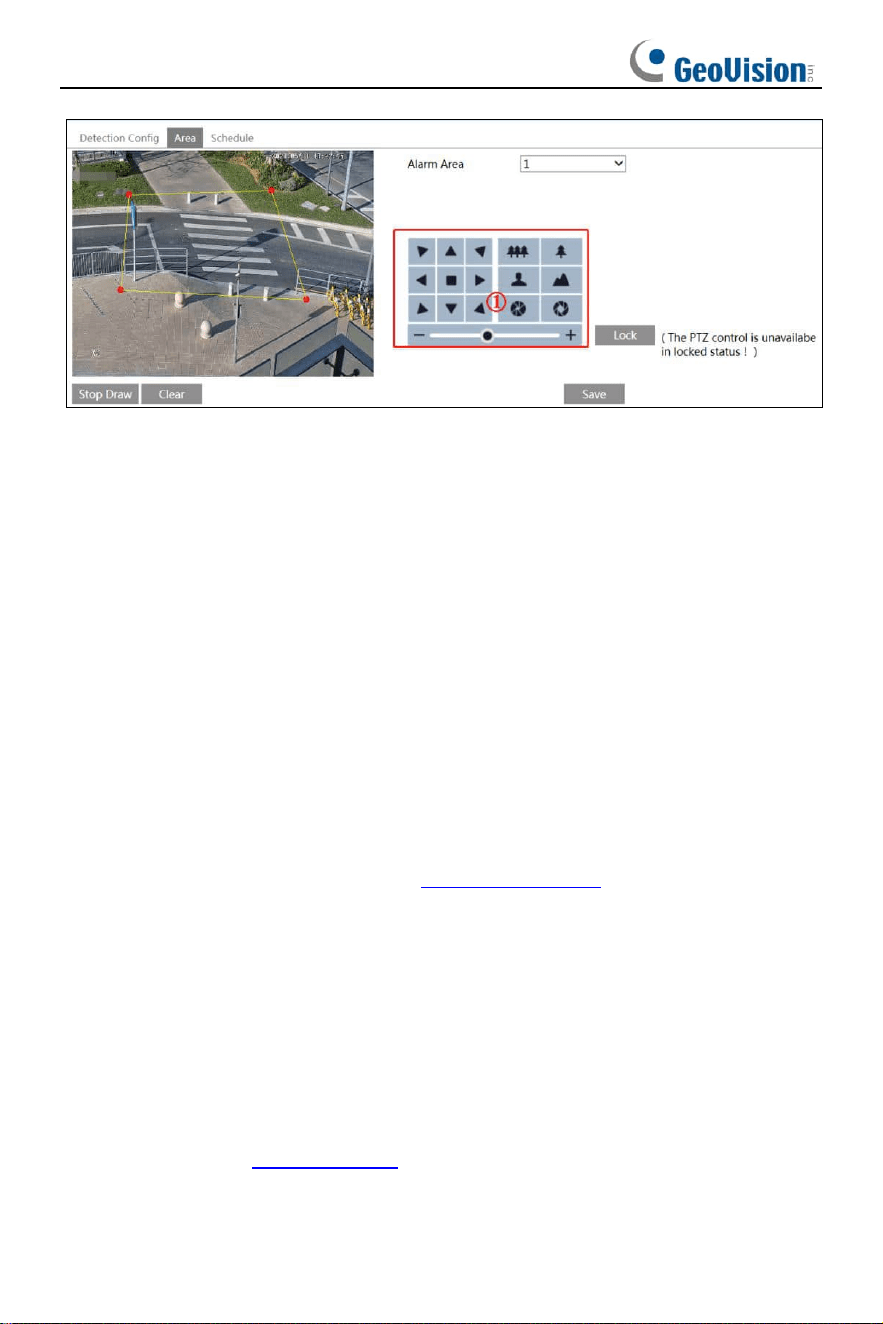
⚫ Area Configuration
1. Click the “Area” tab to go to the interface as shown below.
38
2. Set the alarm area number on the right side. Up to 4 alarm areas can be added.
3. Set the detection area by clicking the buttons of area ① and then click “Lock” to
lock the area.
Note: The PTZ will not be controlled if you click “Lock” here. Click “Unlock” and then
click the buttons of area ① to move the PTZ camera. Clicking the “Unlock” button
suspends object tracking until you click the “Lock” button.
4. Click the “Draw Area” button and then click around the area where you want to set
as the alarm area in the image on the left side (the alarm area should be a closed
area). Click the “Stop Draw” button to stop drawing. Click the “Clear” button to delete
the alarm area. Click the “Save” button to save the settings.
After that, the camera will automatically return to this detection area after auto human
/vehicle tracking.
⚫ Schedule Configuration
Set the schedule of the intrusion detection. The setup steps of the schedule are the
same as schedule recording setup (See Schedule Recording).
3.5.4 Region Entrance
Region Entrance: Alarms will be triggered if the target enters the pre-defined areas.
1. Go to Config
→
Event
→
Region Entrance interface.
2. Enable region entrance detection and select the snapshot type and the detection
target.
3. Set the area of region entrance detection.
4. Set the schedule of the region entrance detection.
The setup steps of the region entrance detection are the same as the region intrusion
detection setup (See Region Intrusion for details).
39
3.5.5 Region Exiting
Region Exiting: Alarms will be triggered if the target exits from the pre-defined areas.
1. Go to Config
→
Event
→
Region Exiting interface.
2. Enable region exiting detection and select the snapshot type and the detection
target.
3. Set the area of region exiting detection.
4. Set the schedule of the region exiting detection.
The setup steps of the region exiting detection are the same as the region intrusion
detection setup (See Region Intrusion for details).
3.6 Network Configuration
3.6.1 TCP/IPv4
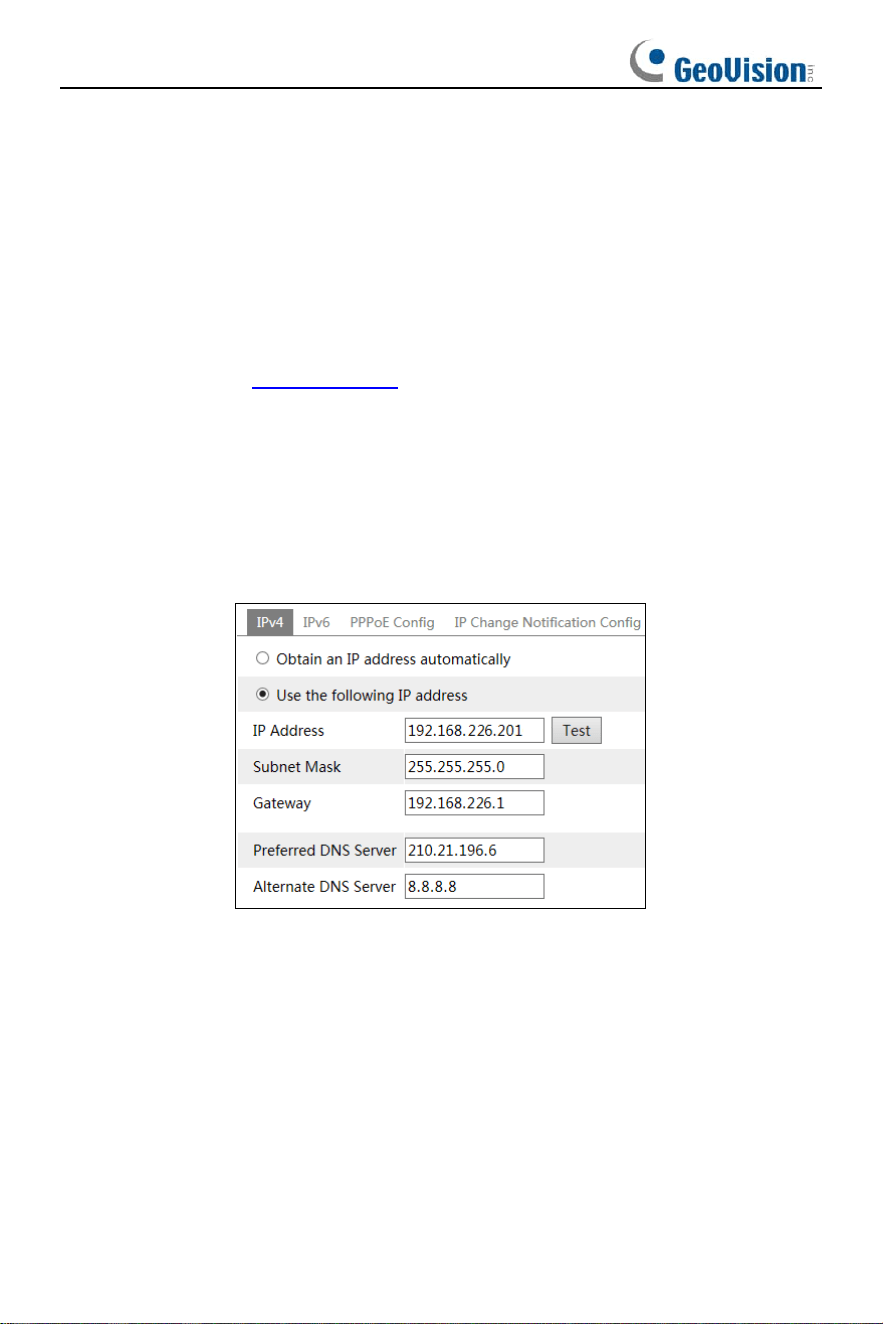
Go to Config→Network→TCP/IP interface as shown below. There are two ways for
network connection.
Use IP address (take IPv4 for example)-There are two options for IP setup: obtain
an IP address automatically by DHCP and use the following IP address. Please
choose one of the options as needed.
Test: Test the effectiveness of the IP address by clicking this button.
Use PPPoE-Click the “PPPoE Config” tab to go to the interface as shown below.
Enable PPPoE and then enter the user’s name and password from your ISP.
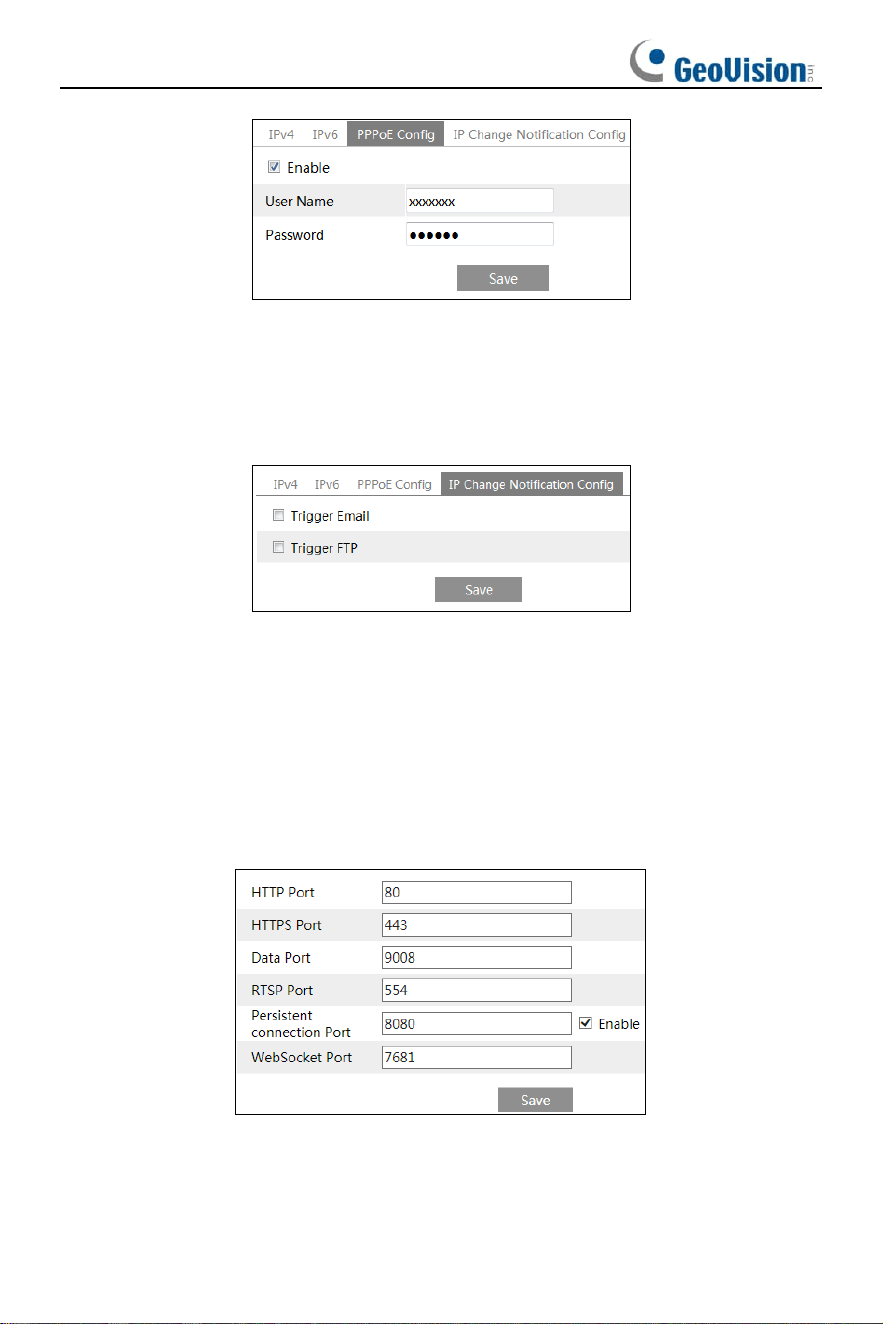
40
Either method of network connection can be used. If PPPoE is used to connect
internet, the camera will get a dynamic WAN IP address. This IP address will change
frequently. To be notified, the IP change notification function can be used.
Click “IP Change Notification Config” to go to the interface as shown below.
Trigger Email: when the IP address of the device is changed, the new IP address will
be sent to the email address that has been set up.
Trigger FTP: when the IP address of the device is changed, the new IP address will
be sent to FTP server that has been set up.
3.6.2 Port
Go to Config
→
Network
→
Port interface as shown below.
HTTP Port: The default HTTP port is 80. It can be changed to any port which is not
occupied.
HTTPS Port: The default HTTPs port is 443. It can be changed to any port which is
not occupied.
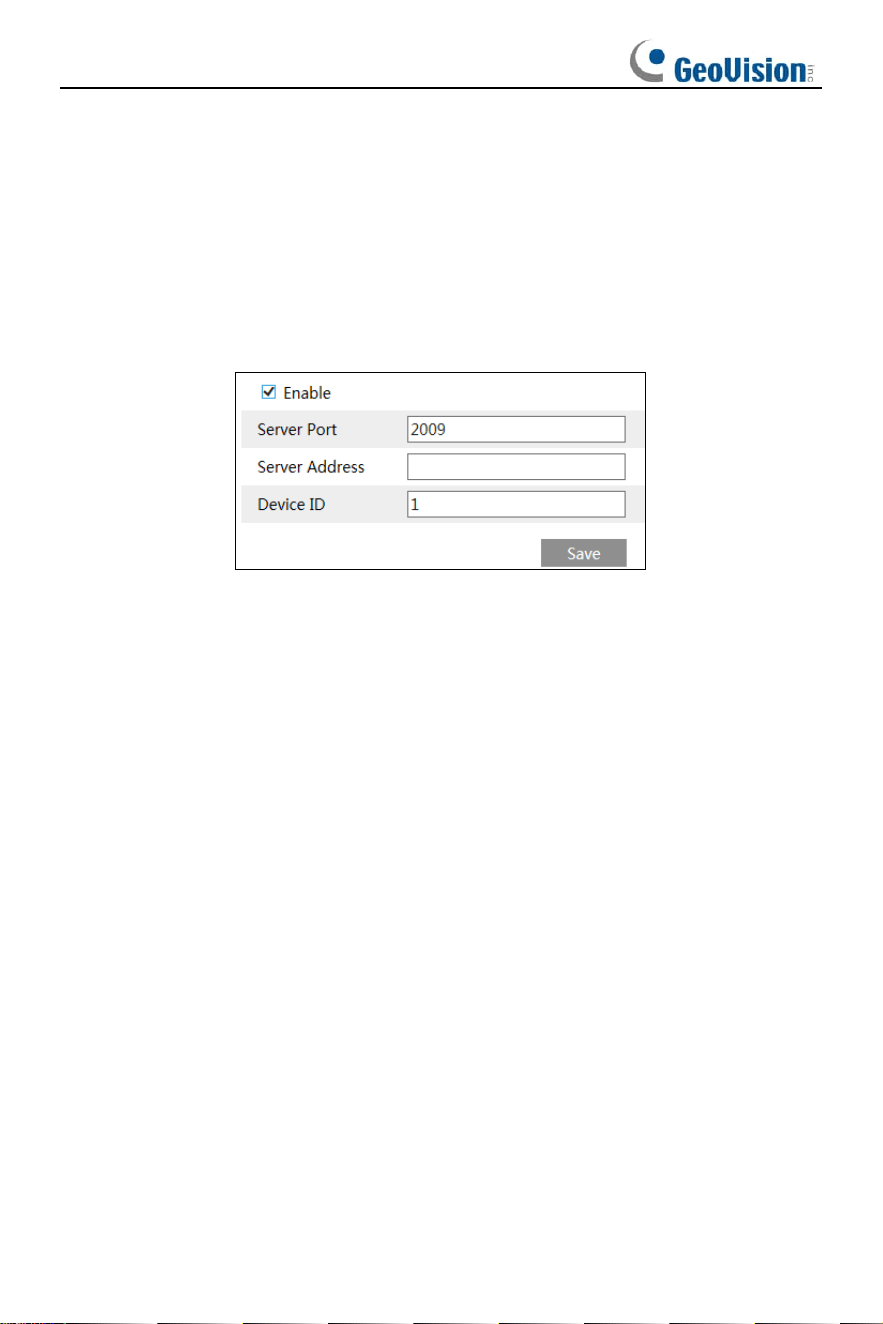
41
Data Port: The default data port is 9008. Please change it as necessary.
RTSP Port: The default port is 554. Please change it as necessary.
Persistent Connection Port: The port is used for a persistent connection of the
third-party platform to push smart data, like face pictures.
WebSocket Port: Communication protocol port for plug-in free preview.
3.6.3 Server Configuration
This function is mainly used for connecting network video management system.
1. Check “Enable”.
2. Check the IP address and port of the transfer media server in the /NVMS. Then
enable the auto report in the NVMS when adding a new device. Next, enter the
remaining information of the device in the NVMS. After that, the system will
automatically allot a device ID. Please check it in the NVMS.
3. Enter the above-mentioned server address, server port and device ID in the
corresponding boxes. Click “Save” to save the settings.
3.6.4 Onvif
The camera can be searched and connected to the third-party platform via
ONVIF/RTSP protocol.
If “Activate Onvif User” is enabled in the device activation interface, the ONVIF user
can be activated simultanously. When you connect the camera through the ONVIF
protocol in the third-party platform, you can use this onvif user to connect.
You can also add new users in the Onvif interface.
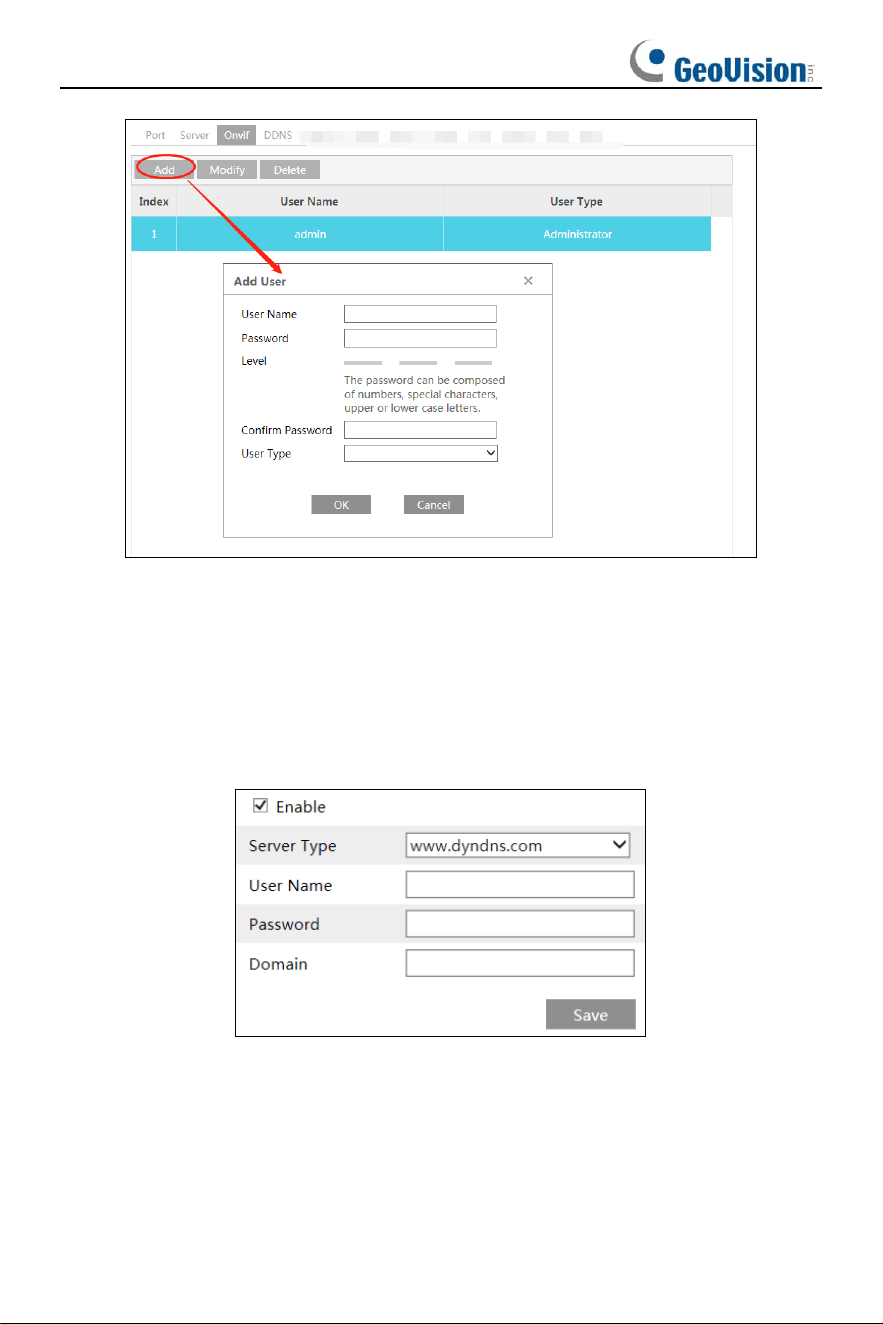
42
Note: when adding the device to the third-party platform with ONVIF/RTSP protocol,
please use the onvif user in the above interface.
3.6.5 DDNS Configuration
If the camera is set up with a DHCP connection, DDNS should be set for the internet.
1. Go to Config
→
Network
→
DDNS.
2. Apply for a domain name. Take www.dvrdyndns.com for example.
Enter www.dvrdydns.com in the IE address bar to visit its website. Then click
“Registration”.
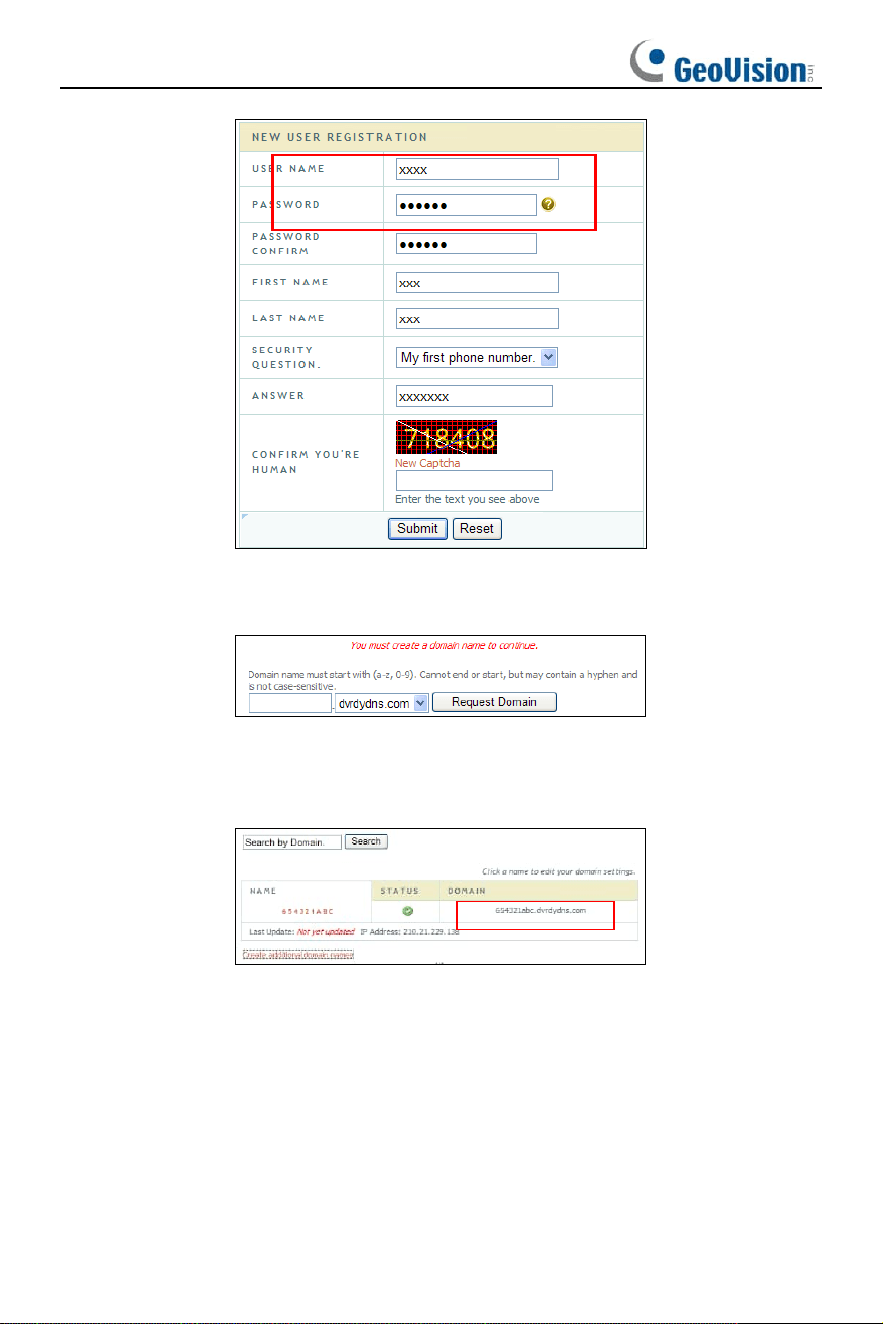
43
Create domain name.
After the domain name is successfully applied for, the domain name will be listed as
below.
3. Enter the username, password, domain you apply for in the DDNS configuration
interface.
4. Click “Save” to save the settings.
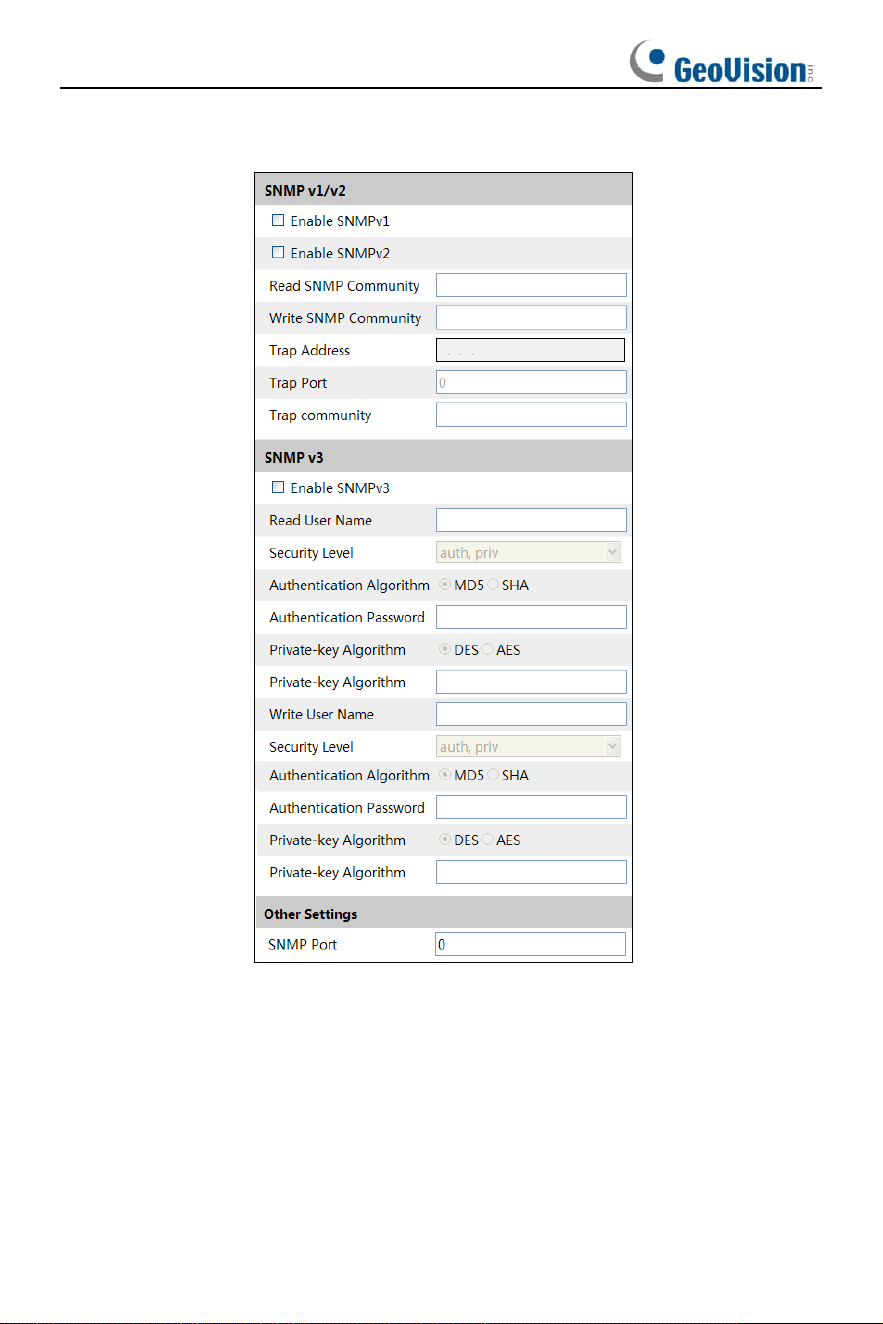
3.6.6 SNMP
To get camera status, parameters and alarm information and remotely manage the
camera, the SNMP function can be used. Before using SNMP, please install an
SNMP management tool and set the parameters of the SNMP, such as SNMP port,
trap address.
44
1. Go to Config
→
Network
→
SNMP.
2. Check the corresponding version checkbox (Enable SNMPv1, Enable SNMPv2,
Enable SNMPv3) according to the version of the SNMP software that will be used.
3. Set the values for “Read SNMP Community”, “Write SNMP Community”, “Trap
Address”, “Trap Port” and so on. Please make sure the settings are the same as that
of the SNMP software.
Note: Please use the different version in accordance with the security level you
required. The higher the version is, the higher the level of the security is.
45
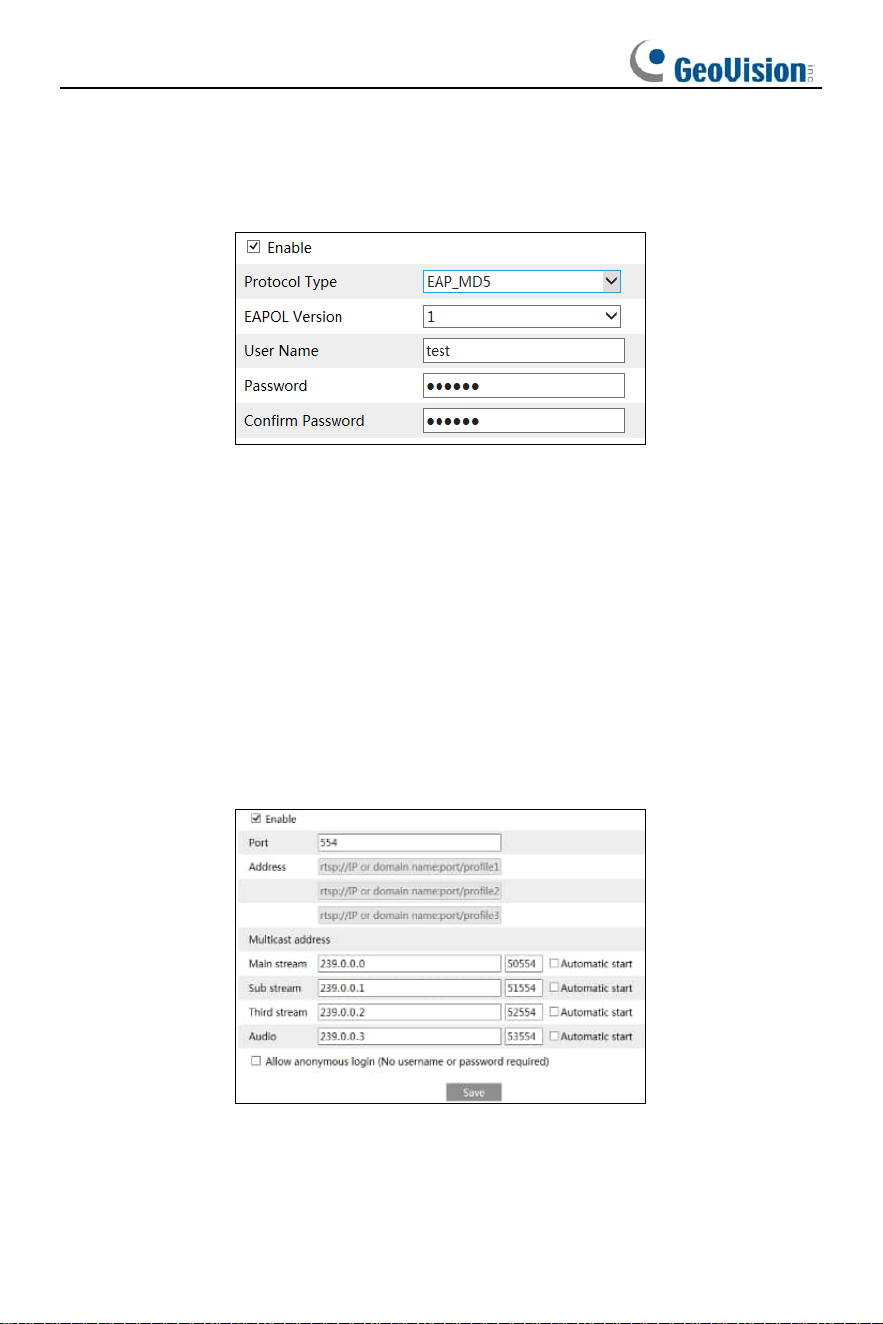
3.6.7 802.1X
IEEE802.X which is an access control protocol manages the device in connection with
the local network by authentication. The setup steps are as follows:
To use this function, the camera shall be connected to a switch supporting 802.1x
protocol. The switch can be reckoned as an authentication system to identify the
device in a local network. If the camera connected to the network interface of the
switch has passed the authentication of the switch, it can be accessed via the local
network.
Protocol type and EAPOL version: Please use the default settings.
User name and password: The user name and password must be the same with the
user name and password applied for and registered in the authentication server.
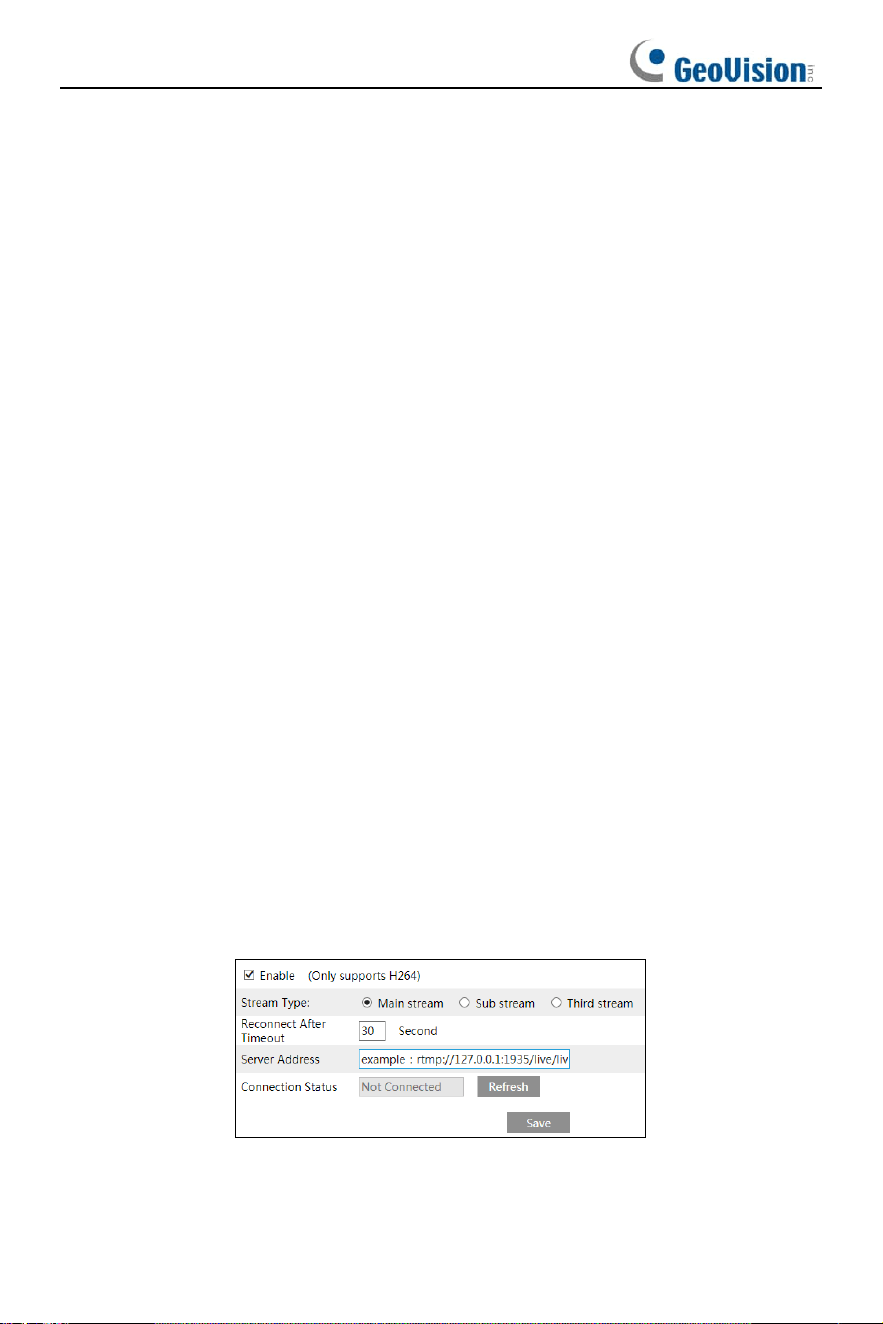
3.6.8 RTSP
Go to Config
→
Network
→
RTSP.
Select “Enable” to enable the RTSP function.
Port: Access port of the streaming media. The default number is 554.
RTSP Address: The RTSP address (unicast) format that can be used to play the
stream in a media player.
46
Multicast Address
Main stream: The address format is
“rtsp://IP address: rtsp port/profile1?transportmode=mcast”.
Sub stream: The address format is
“rtsp://IP address: rtsp port/profile2?transportmode=mcast”.
Third stream: The address format is
“rtsp://IP address: rtsp port/profile3?transportmode=mcast”.
Audio: Having entered the main/sub stream in a VLC player, the video and audio will
play automatically.
If “Allow anonymous login…” is checked, there is no need to enter the username and
password to view the video.
If “auto start” is enabled, the multicast received data should be added into a VLC
player to play the video.
Note:1. This camera support local play through a VLC player. Enter the RTSP
address (unicast or multicast, eg.
rtsp://192.168.226.201:554/profile1?transportmode=mcast) in a VLC player to realize
the simultaneous play with the web client.
2. The IP address mentioned above cannot be the address of IPv6.
3. Avoid the use of the same multicast address in the same local network.
4. When playing the video through the multicast streams in a VLC player, please pay
attention to the mode of the VLC player. If it is set to TCP mode, the video cannot be
played.
5. If the coding format of the video of the main stream is MJPEG, the video may be
disordered at some resolutions.
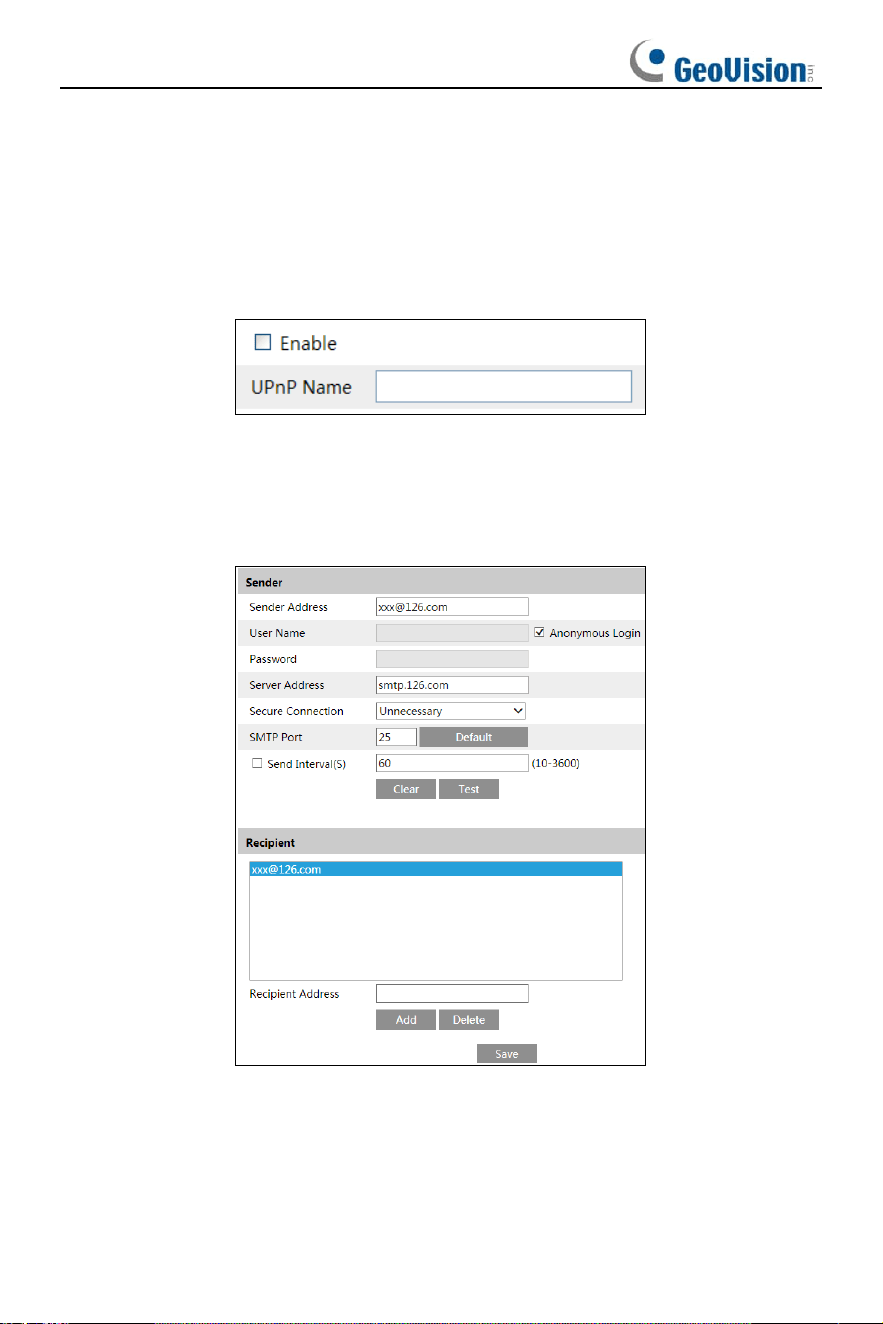
3.6.9 RTMP
You can access the third-party (like YouTube) to realize video live view through RTMP
protocol.
Go to Config
→
Network
→
RTMP.
Check “Enable”, select stream type, set the reconnection time after timeout and server
address as needed.
Server address: Enter the server address allocated by the third-party server.
47
After that, click “Save” to save the settings. Then click “Refresh” to view the
connection status.
3.6.10 UPnP
If this function is enabled, the camera can be quickly accessed through the LAN.
Go to Config
→
Network
→
UPnP. Enable UPNP and then enter UPnP name.
3.6.11 E-mail
If you need to trigger Email when an alarm happens or IP address is changed, please
set the Email here first.
Go to Config
→
Network
→
Email.
Sender Address: sender’s e-mail address.
User name and password: sender’s user name and password (you don’t have to
enter the username and password if “Anonymous Login” is enabled).
Server Address: The SMTP IP address or host name.
Select the secure connection type at the “Secure Connection” pull-down list according
to what’s required.
48
SMTP Port: The SMTP port.
Send Interval(S): The time interval of sending email. For example, if it is set to 60
seconds and multiple motion detection alarms are triggered within 60 seconds, they
will be considered as only one alarm event and only one email will be sent. If one
motion alarm event is triggered and then another motion detection alarm event is
triggered after 60 seconds, two emails will be sent. When different alarms are
triggered at the same time, multiple emails will be sent separately.
Click the “Test” button to test the connection of the account.
Recipient Address: receiver’s e-mail address.
3.6.12 FTP
After an FTP server is set up, captured pictures from events will be uploaded to the
FTP server.
1. Go to Config
→
Network
→
FTP.
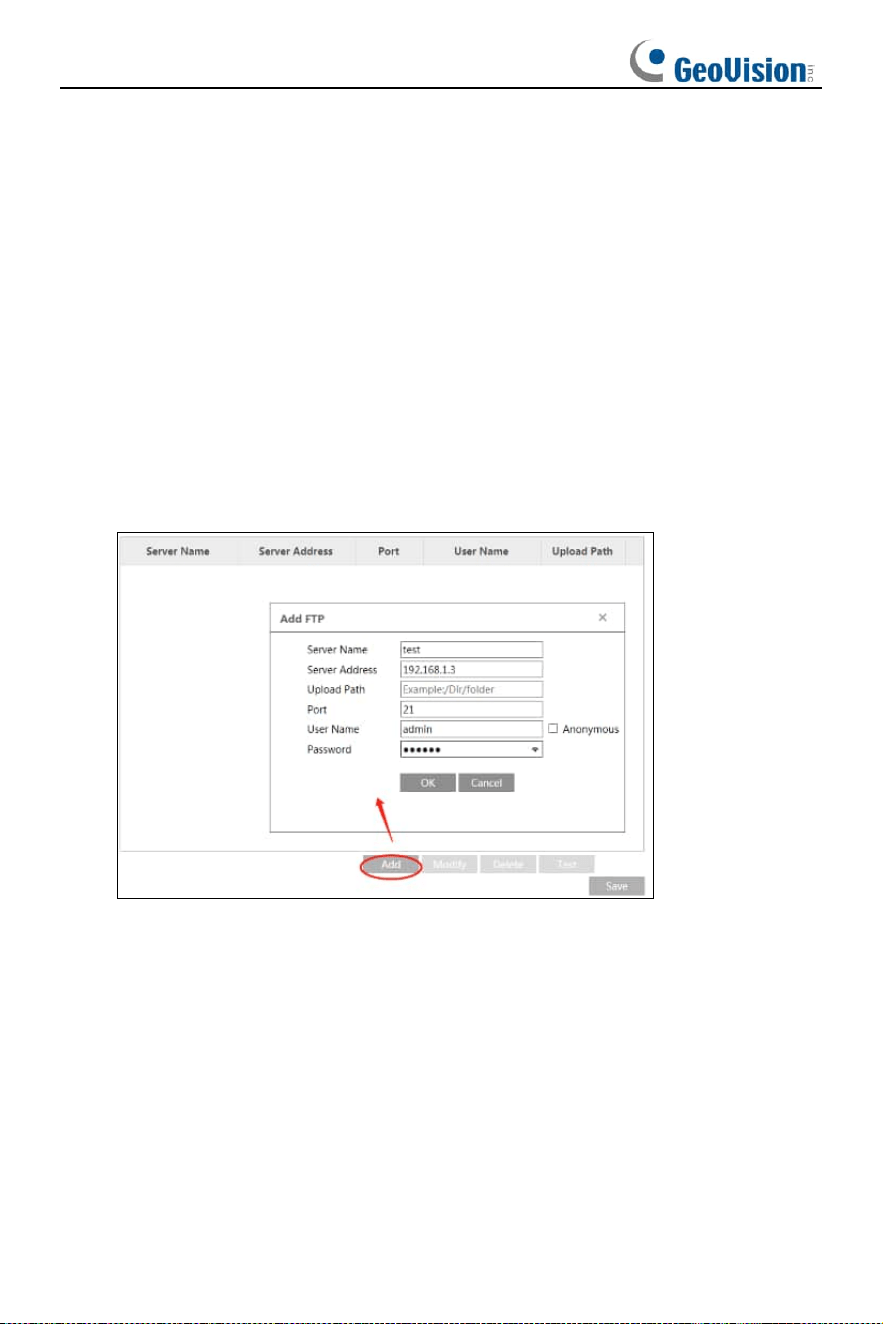
2. Click “Add” to add the information of the FTP. After that, click “Save” to save the
settings.
Server Name: The name of the FTP server.
Server Address: The IP address or domain name of the FTP.
Upload Path: The directory where files will be uploaded to.
Port: The port of the FTP server.
User Name and Password: The username and password that are used to login to
the FTP server.
49
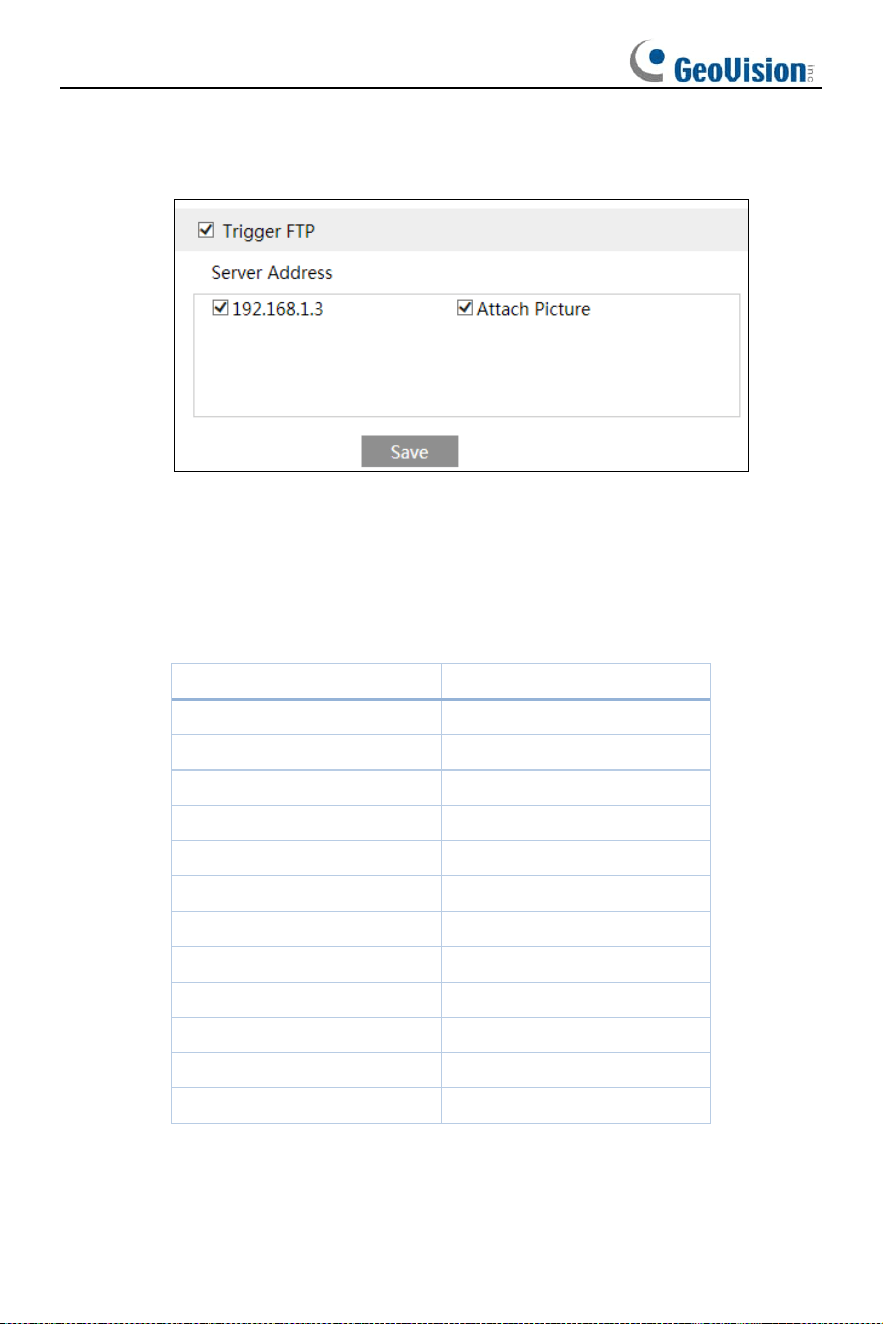
3. In the event setting interface (like intrusion, line crossing, etc.), trigger FTP as
shown below.
Rule of FTP storage path: /device MAC address/event type/date/time/
For example: a motion detection alarm occurs
FTP file path:\00-18-ae-a8-da-2a\MOTION\2021-01-09\14\
Event name table:
File Name
Event Type
IP
IP address change
MOTION
Motion Detection
SENSOR
Sensor Alarm
TRIPWIRE
Line Crossing Detection
PERIMETER
Region Intrusion Detection
AVD
Video Exception
VFD
Face Detection
AOIENTRY
Region Entrance
AOILEAVE
Region Exiting
PASSLINECOUNT
Target Counting by Line
SDFULL
SD Full
SDERROR
SD Error
TXT file content:
device name: xxx mac: device MAC address Event Type time:
For example:
device name: IPC mac: 00-18-ae-a8-da-2a MOTION time: 2021-03-16 12:20:07
50
3.6.13 HTTP POST
Go to Config
→
Network
→
HTTP POST interface.
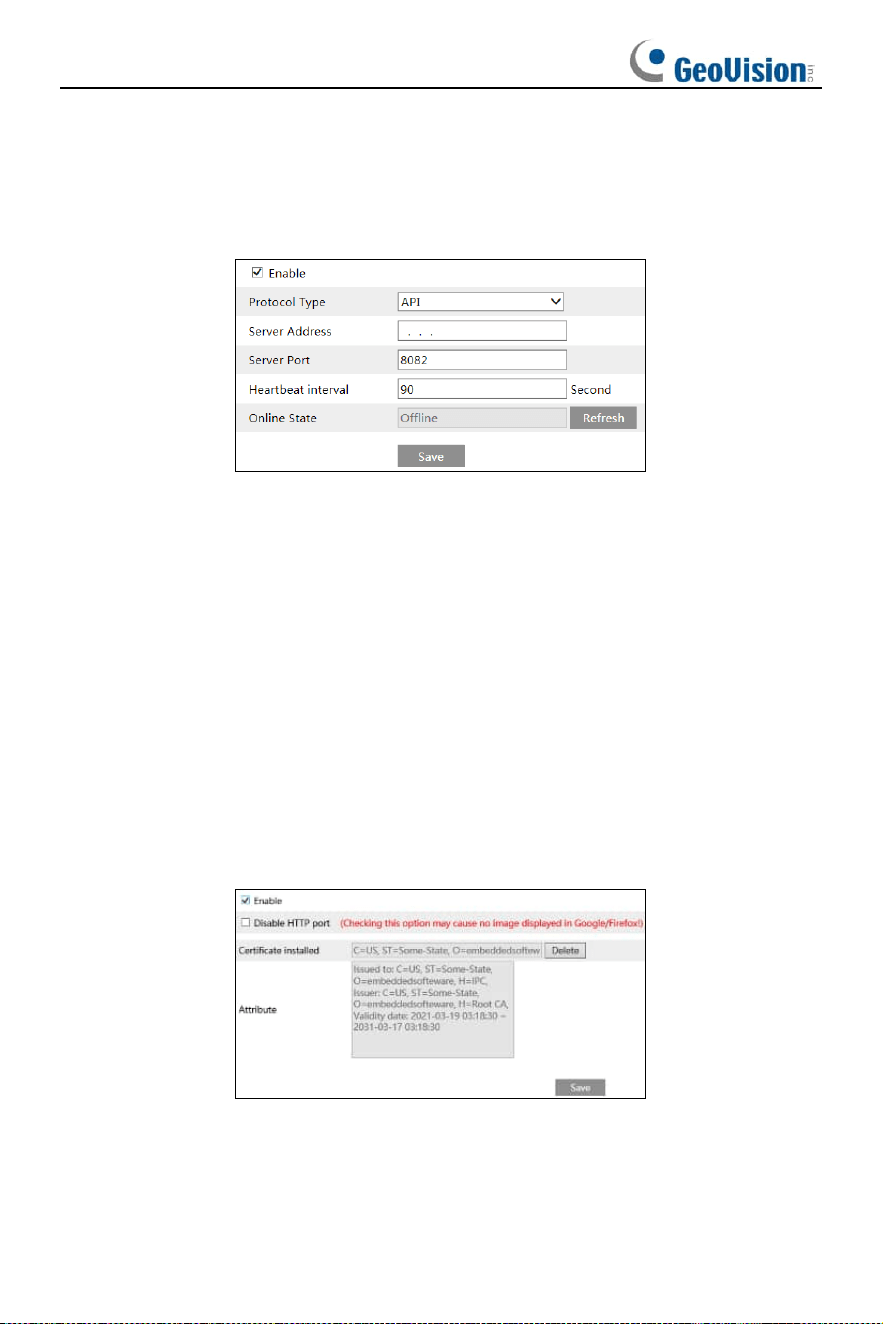
Check “Enable”, select protocol type and then set the server address (IP
address/domain name), server port and heartbeat interval.
Server address: the IP address/domain name of the third-party platform.
Server port: the server port of the third-party platform.
After the above parameters are set, click “Save” to save the settings. Then the camera
will automatically connect the third-party platform. The online state can be viewed in
the above interface. After the camera is successfully connected, it will send the alarm
information (HTTP format) to the third-party platform once the smart alarm is triggered.
The alarm information includes target tracing coordinates, target features, the
captured original/target image (like the captured face picture, motor vehicle picture)
and so on.
3.6.14 HTTPS
HTTPs provides authentication of the web site and protects user privacy.
Go to Config
→
Network
→
HTTPS as shown below.
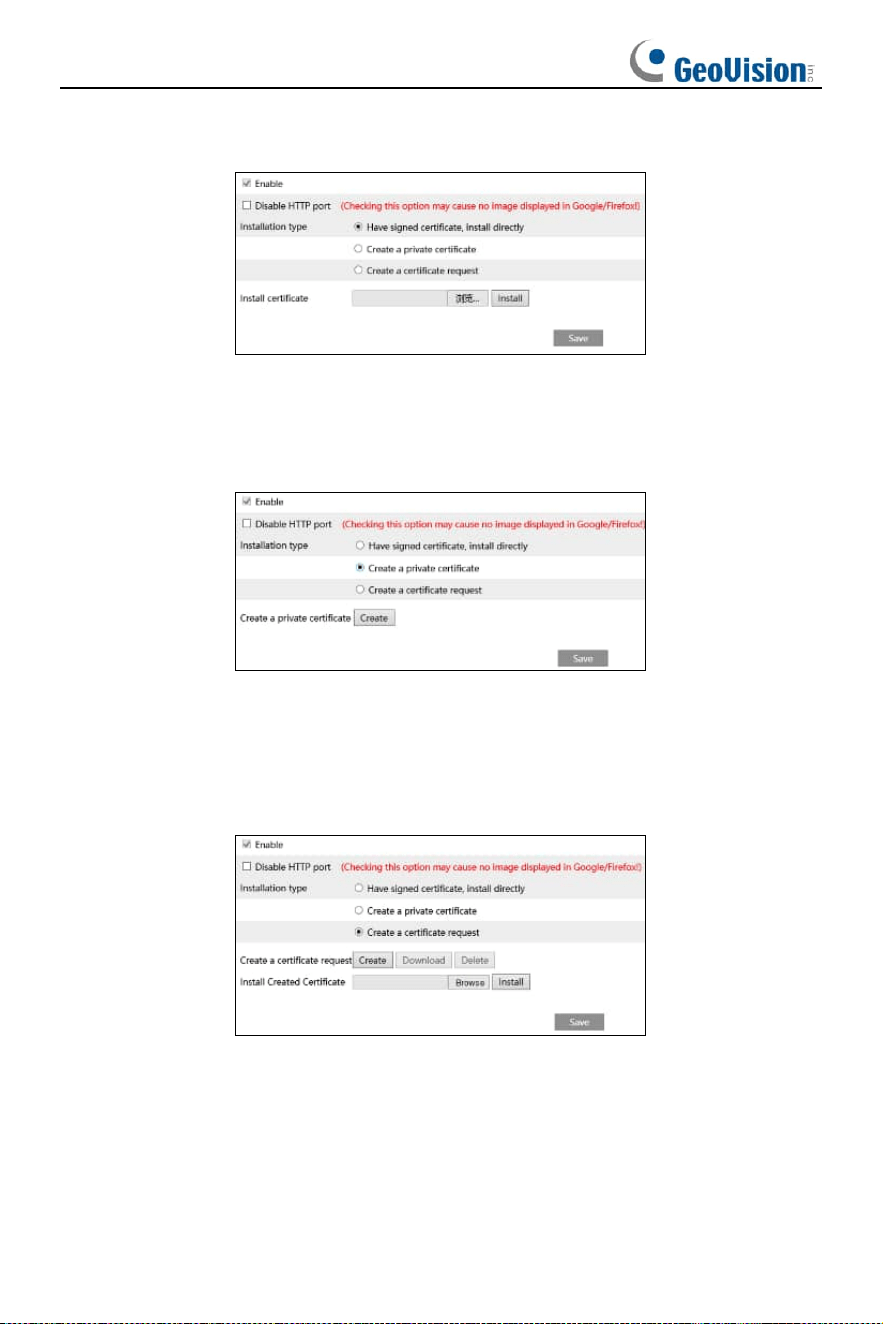
There is a certificate installed by default as shown above. Enable this function and
save it. Then the camera can be accessed by entering https://IP: https port via the
web browser (eg. https://192.168.226.201:443).
A private certificate can be created if users don’t want to use the default one. Click
51
“Delete” to cancel the default certificate. Then the following interface will be displayed.
* If there is a signed certificate, click “Browse” to select it and then click “Install” to
install it.
* Click “Create a private certificate” to enter the following creation interface.
Click “Create” to create a private certificate. Enter the country (only two letters
available), domain (camera’s IP address/domain), validity date, password,
province/state, region and so on. Then click “OK” to save the settings.
* Click “Create a certificate request” to enter the following interface.
Click “Create” to create the certificate request. Then download the certificate request
and submit it to the trusted certificate authority for signature. After receiving the signed
certificate, install the certificate to the device.
52
3.6.15 QoS
QoS (Quality of Service) function is used to provide different quality of services for
different network applications. With the deficient bandwidth, the router or switch will
sort the data streams and transfer them according to their priority to solve the network
delay and network congestion by using this function.
Go to Config
→
Network
→
QoS.
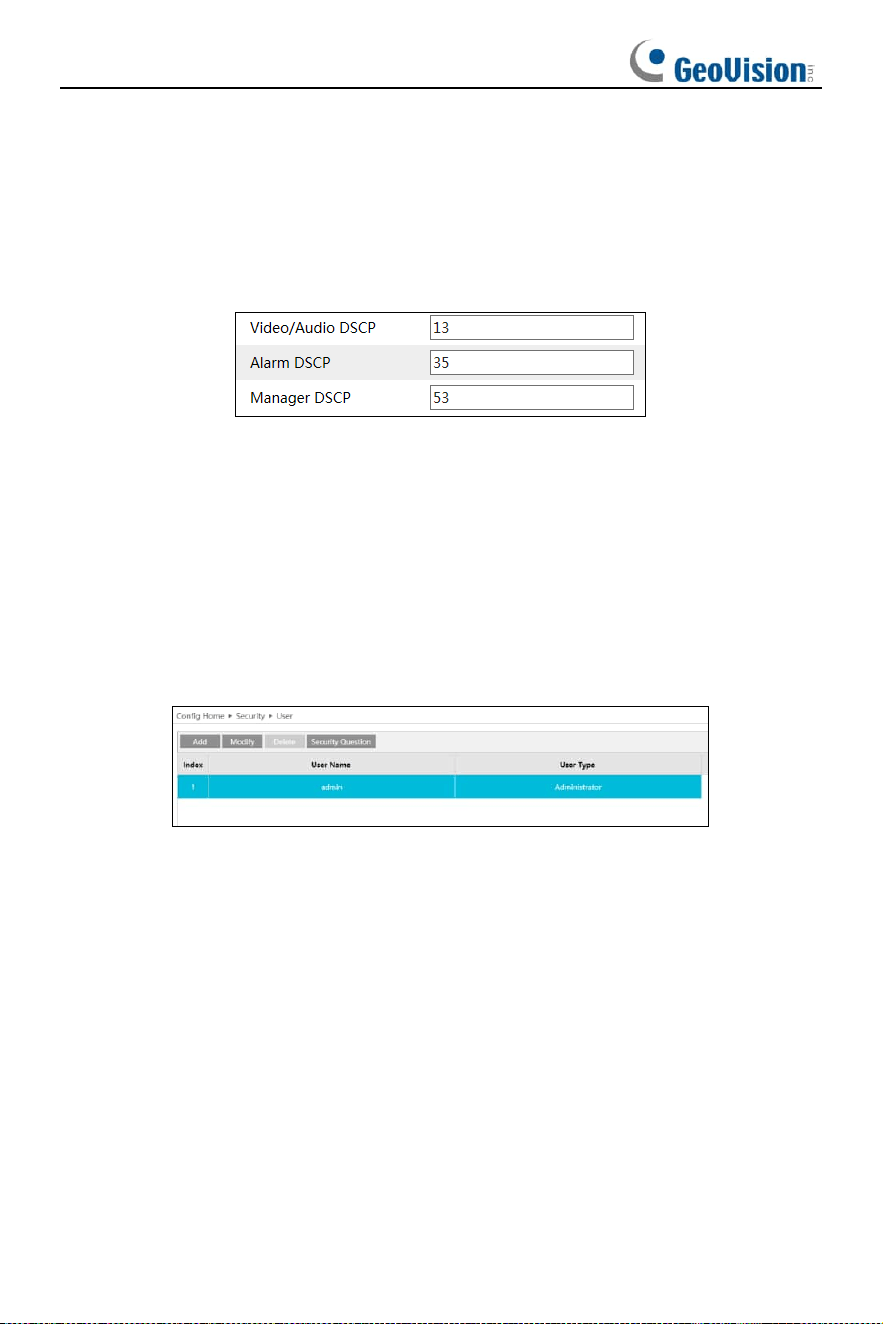
Video/Audio DSCP: The range is from 0 to 63.
Alarm DSCP: The range is from 0 to 63.
Manager DSCP: The range is from 0 to 63.
Generally speaking, the larger the number is, the higher the priority is.
3.7 Security Configuration
3.7.1 User Configuration
Go to Config
→
Security
→
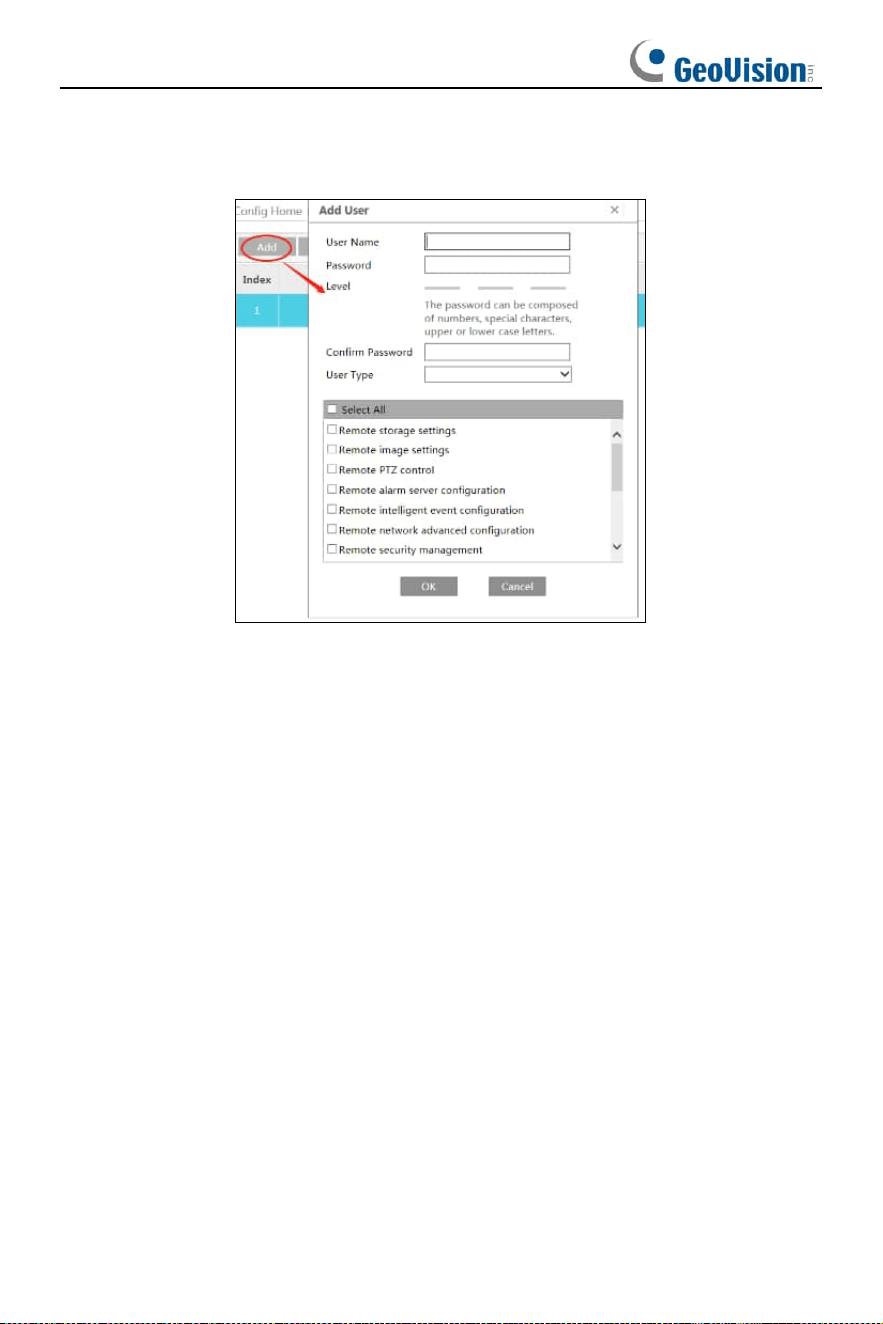
User interface as shown below.
53
Add user:
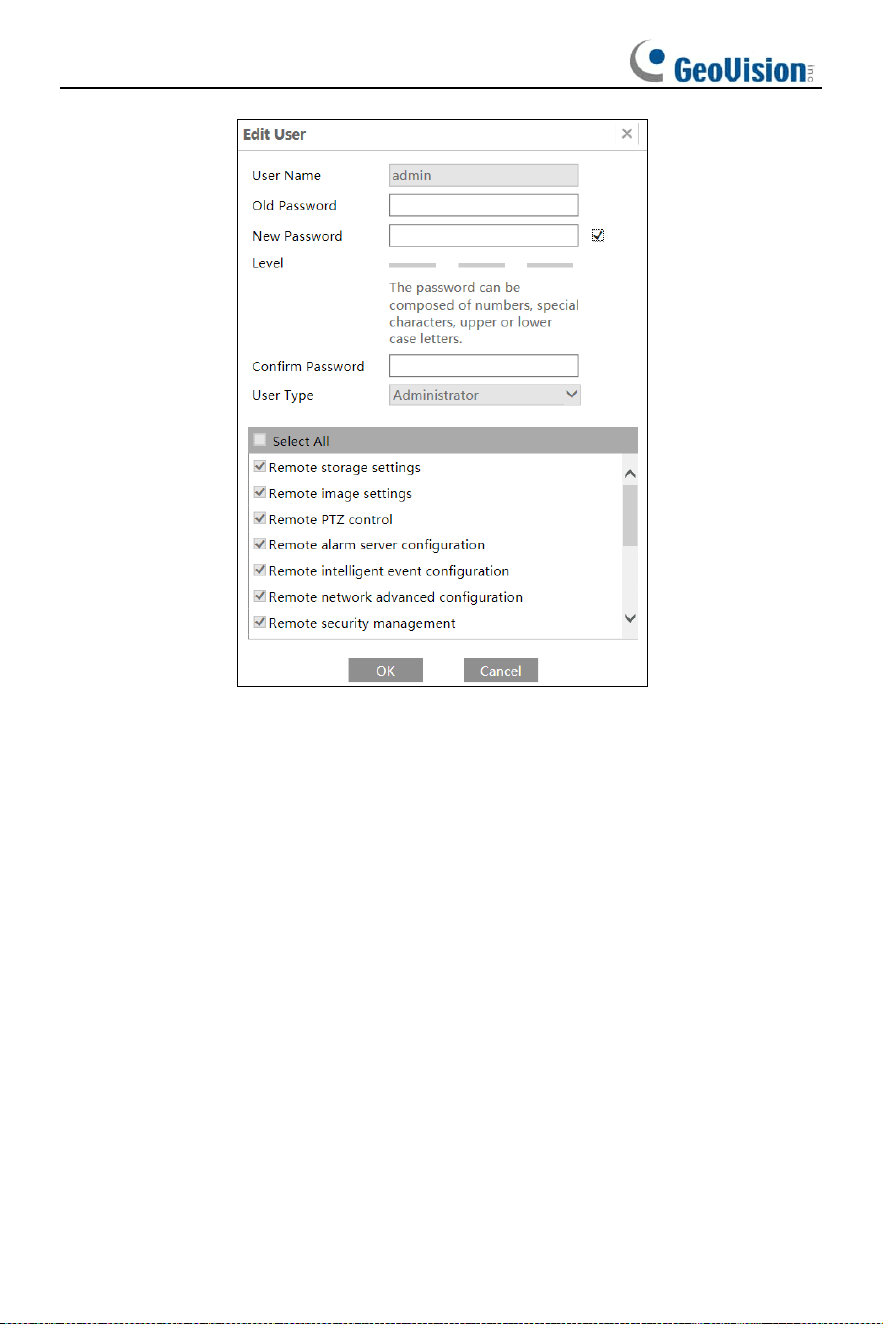
1. Click the “Add” button to pop up the following textbox.
2. Enter user name in the “User Name” textbox.
3. Enter the password in the “Password” and “Confirm Password” textbox. Please set
the password according to the requirement of the password security level (Go to
Config
→
Security
→
Security Management
→
Password Security interface to set the
security level).
4. Choose the user type and select the desired user permissions.
5. Click the “OK” button and then the newly added user will be displayed in the user
list.
Modify user:
1. Select a user to modify password if necessary, in the user configuration list box.
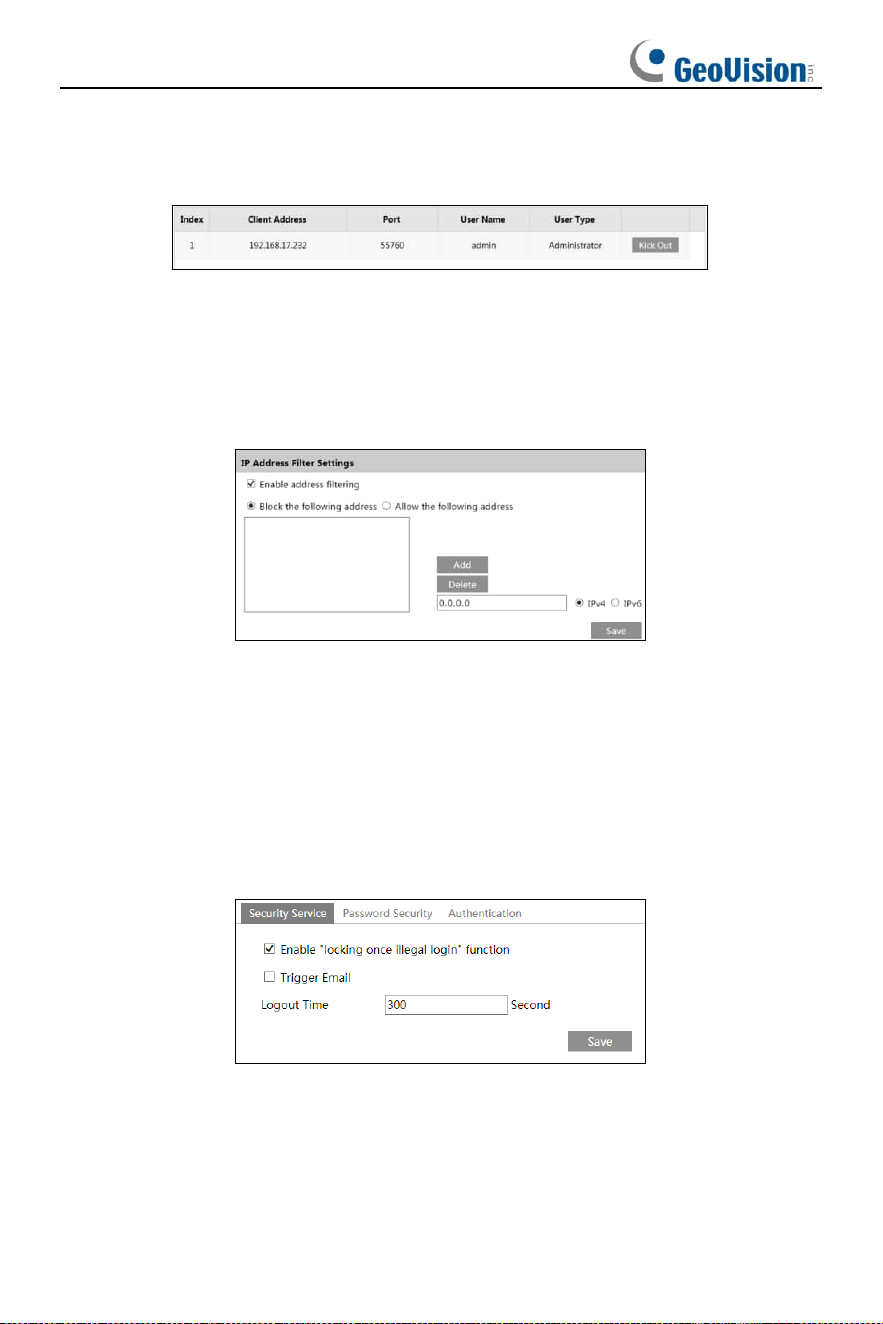
2. The “Edit user” dialog box pops up by clicking the “Modify” button.
54
3. Enter the old password of the user in the “Old Password” text box.
4. Enter the new password in the “New password” and “Confirm Password” text box.
5. Select the user permissions for advanced or normal user.
6. Click the “OK” button to save the settings.
Note: When the password level is set to “Strong”, the password cannot be set the
same as the previous five.
Delete user:
1. Select the user to be deleted in the user configuration list box.
2. Click the “Delete” button to delete the user.
Note: The default administrator account cannot be deleted.
Safety Question Settings: set the questions and answers for admin so as to reset
the password after you forget the password.
55
3.7.2 Online Video User
Go to Config
→
Security
→
Online User to view the user who is viewing the live video.
An administrator user can kick out all the other users (including other administrators).
3.7.3 Block and Allow Lists
Go to Config
→
Security
→
Block and Allow Lists as shown below.
The setup steps are as follows:
Check the “Enable address filtering” check box.
Select “Block/Allow the following address”, IPv4/IPv6 and then enter IP address in the
address box and click the “Add” button.
3.7.4 Security Management
Go to Config
→
Security
→
Security Management as shown below.
In order to prevent against malicious password unlocking, “locking once illegal login”
function can be enabled here. If this function is enabled, login failure after trying six
times will make the login interface locked. The camera can be logged in again after a
half hour or after the camera reboots.
Trigger Email: if enabled, e-mail will be sent when logging in/out or illegal login lock
occurs.
56
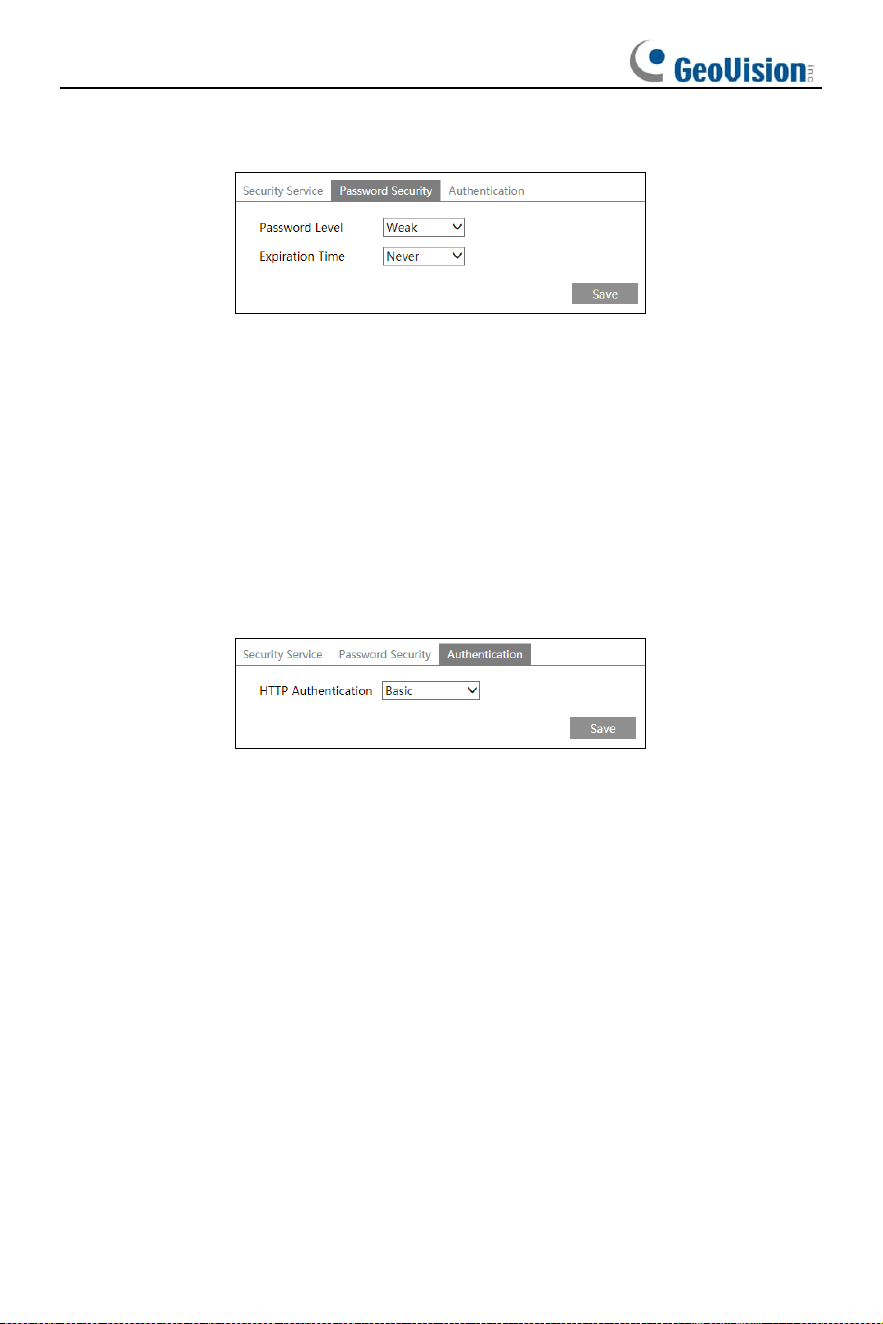
⚫ Password Security
Please set the password level and expiration time as needed.
Password Level: Weak, Medium or Strong.
Weak level: Numbers, special characters, upper- or lower-case letters can be used.
You can choose one of them or any combination of them when setting the password.
Medium Level: 8~16 characters, including at least two of the following categories:
numbers, special characters, upper case letters and lower-case letters.
Strong Level: 8~16 characters. Numbers, special characters, upper case letters and
lower case letters must be included.
For your account security, it is recommended to set a strong password and change
your password regularly.
HTTP Authentication: Basic or Token is selectable.
3.8 Maintenance
3.8.1 Backup & Restore
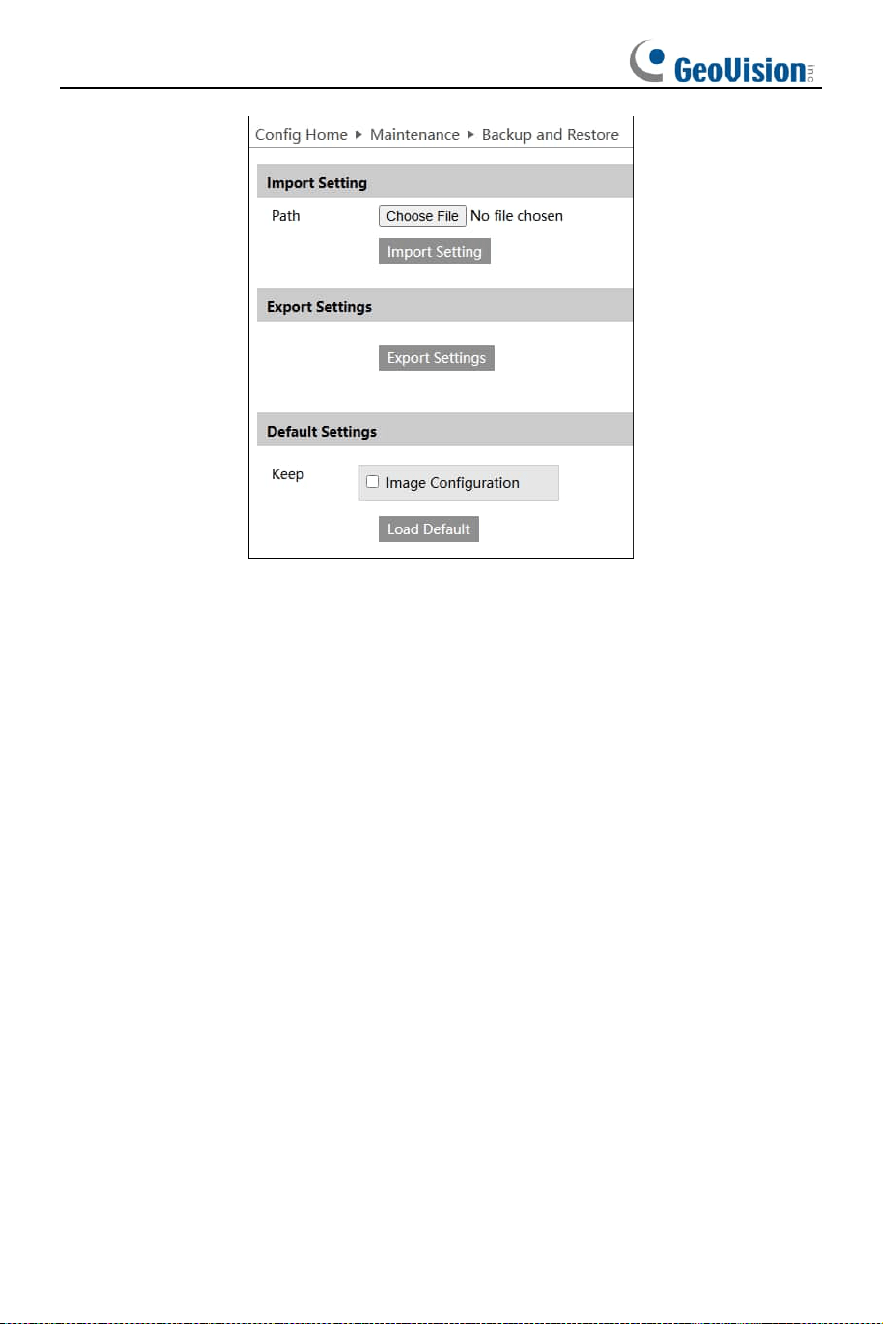
Go to Config
→
Maintenance
→
Backup & Restore.
57
⚫ Import & Export Settings
Configuration settings of the camera can be exported form a camera into another
camera.
1. Click “Browse” to select the save path for import or export information on the PC.
2. Click the “Import Setting” or “Export Setting” button.
⚫ Default Settings
Click the “Load Default” button to restore all system settings to the default factory
settings except those you want to keep.
3.8.2 Reboot Device
Go to Config
→
Maintenance
→
Reboot.
Click the “Reboot” button to reboot the device.
Timed Reboot Setting:
If necessary, the camera can be set up to reboot on a time interval. Enable “Time
Settings”, set the date and time and then click the “Save” button to save the settings.
3.8.3 Upgrade
Go to Config
→
Maintenance
→
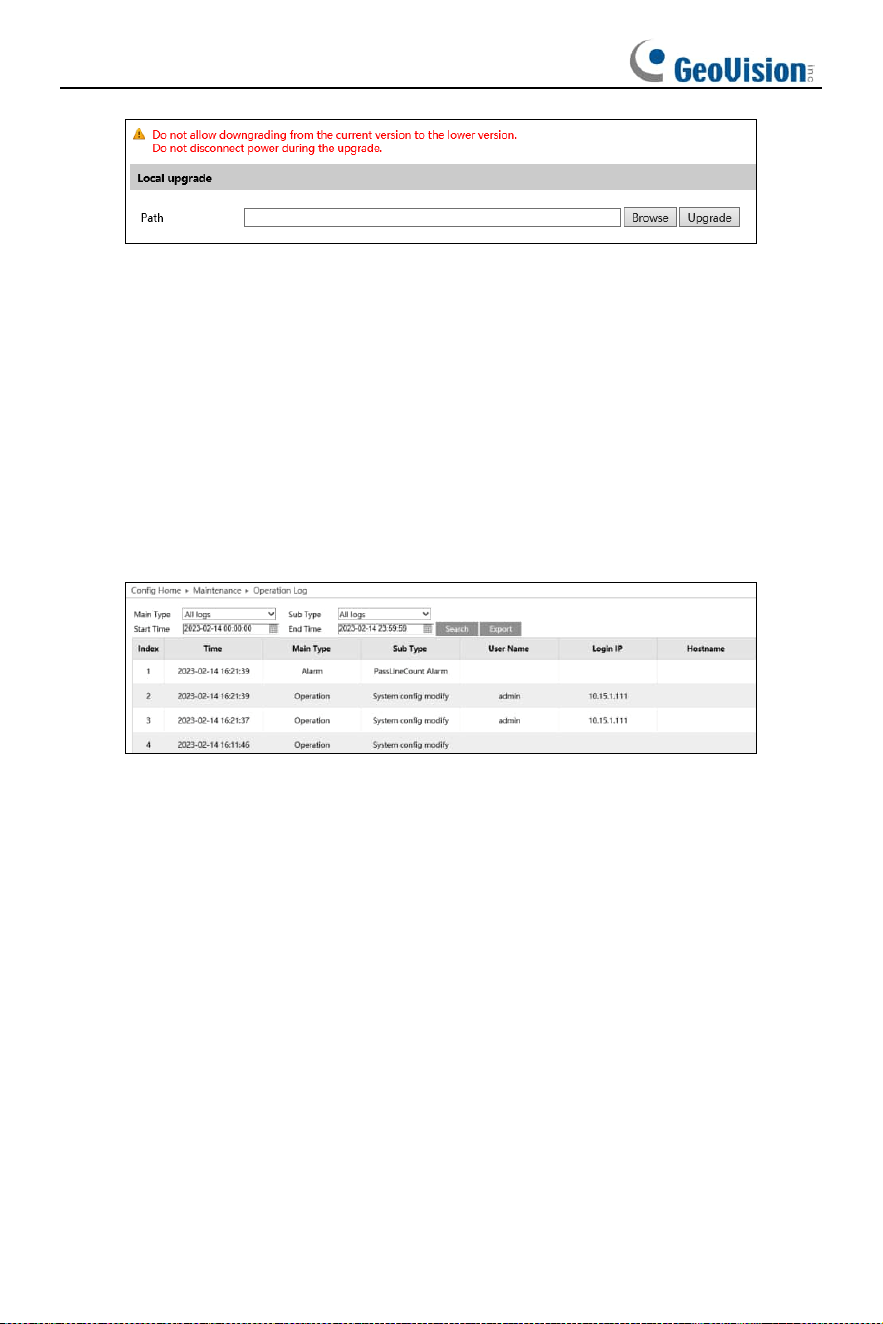
Upgrade. In this interface, the camera firmware can
be updated.
58
1. Click the “Browse” button to select the save path of the upgrade file.
2. Click the “Upgrade” button to start upgrading the firmware.
3. Enter the correct password and then the device will restart automatically
Caution! Do not close the browser or disconnect the camera from the network during
the upgrade.
3.8.4 Log
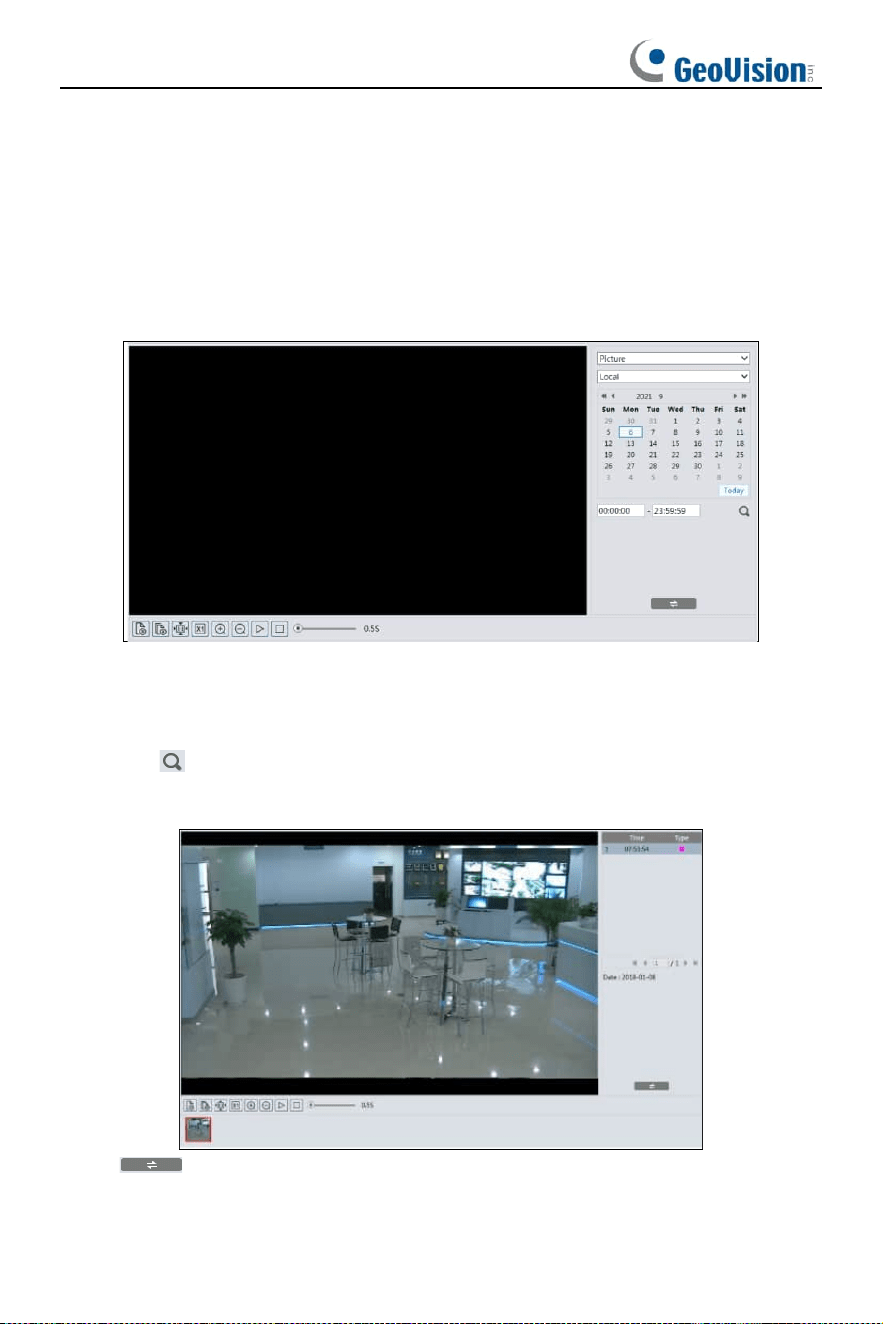
To query and export log
1. Go to Config
→
Maintenance
→
Operation Log.
2. Select the main type, sub type, start and end time.
3. Click “Query” to view the operation log.
4. Click “Export” to export the operation log.
59
4 Playback
4.1 Image Search
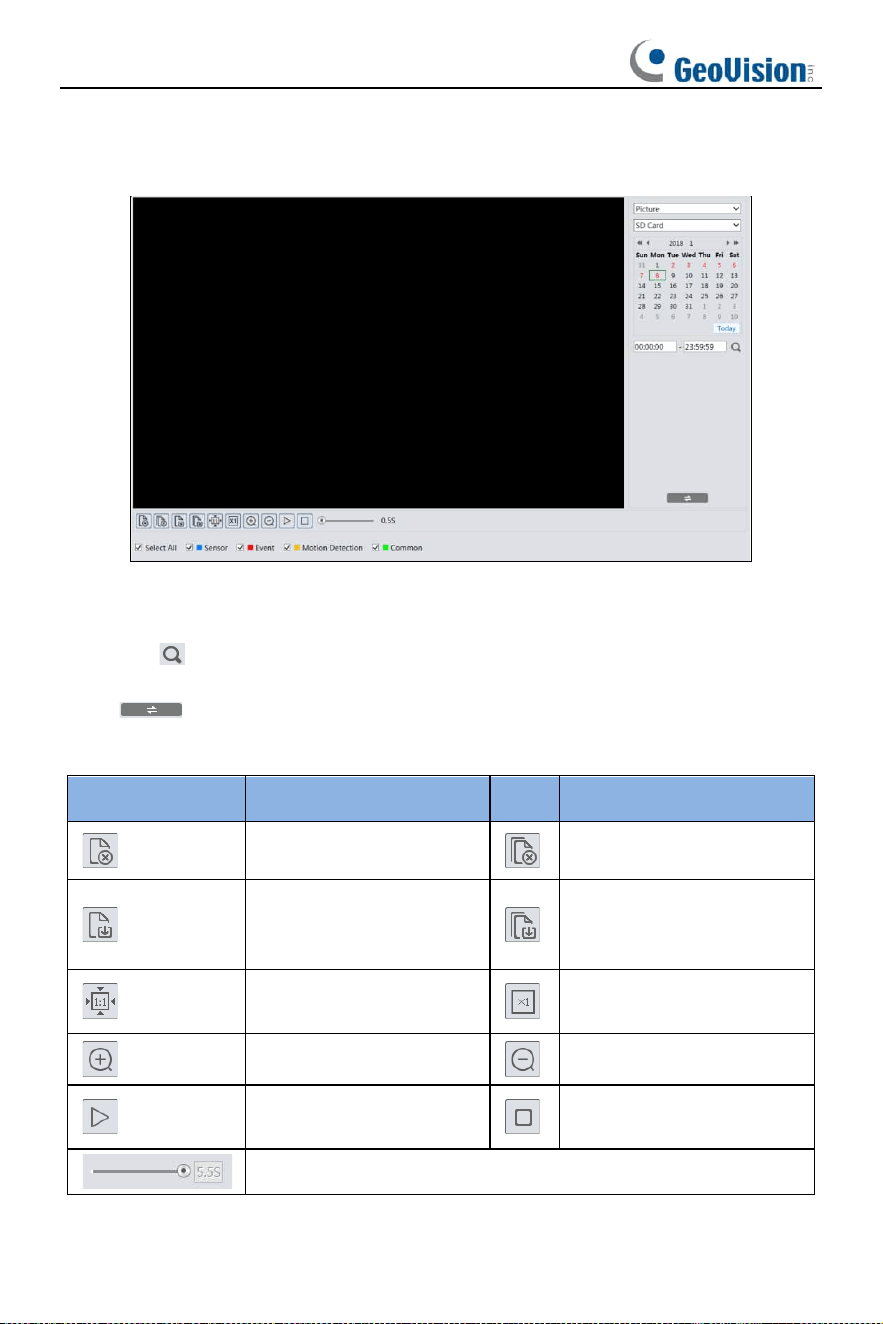
Click Search to go to the interface as shown below. Images that are saved on the SD
card can be found here.
Note: When using the plug-in free browser, the local images cannot be searched.
⚫ Local Image Search
1. Choose “Picture”—“Local”.
2. Set time: Select date and choose the start and end time.
3. Click to search the images.
4. Double click a file name in the list to view the captured photos as shown above.
Click to return to the previous interface.
60
⚫ SD Card Image Search
1. Choose “Picture”—“SD Card”.
2. Set time: Select date and choose the start and end time.
3. Choose the alarm events at the bottom of the interface.
4. Click to search the images.
5. Double click a file name in the list to view the captured photos.
Click to return to the previous interface.
The descriptions of the buttons are shown as follows.
Icon
Description
Icon
Description
Close: Select an image and
click this button to close the
image.
Close all: Click this button to
close all images.
Save: Click this button to
select the path for saving the
image on the PC.
Save all: Click this button to
select the path for saving all
pictures on the PC.
Fit size: Click to fit the image
on the screen.
Actual size: Click this button to
display the actual size of the
image.
Zoom in: Click this button to
digitally zoom in.
Zoom out: Click this button to
digitally zoom out.
Slide show play: Click this
button to start the slide show
mode.
Stop: Click this button to stop
the slide show.
Play speed: Play speed of the slide show.
61
4.2 Video Search
4.2.1 Local Video Search
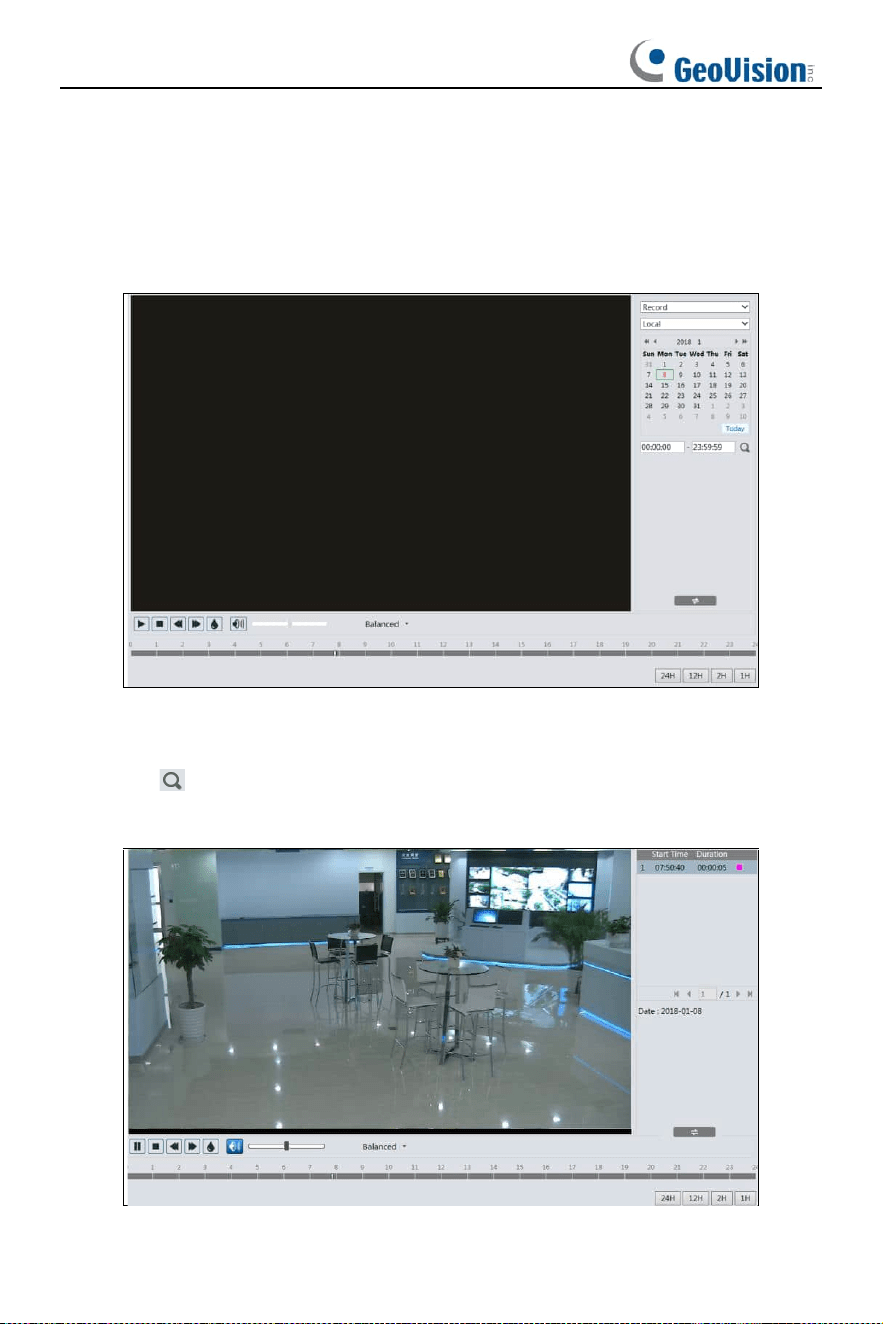
Click Search to go to the interface as shown below. Videos were recorded locally to
the PC can be played in this interface.
Note: When using the plug-in free browser, the local videos cannot be searched.
1. Choose “Record”—“Local”.
2. Set search time: Select the date and choose the start and end time.
3. Click to search the images.
4. Double click on a file name in the list to start playback.
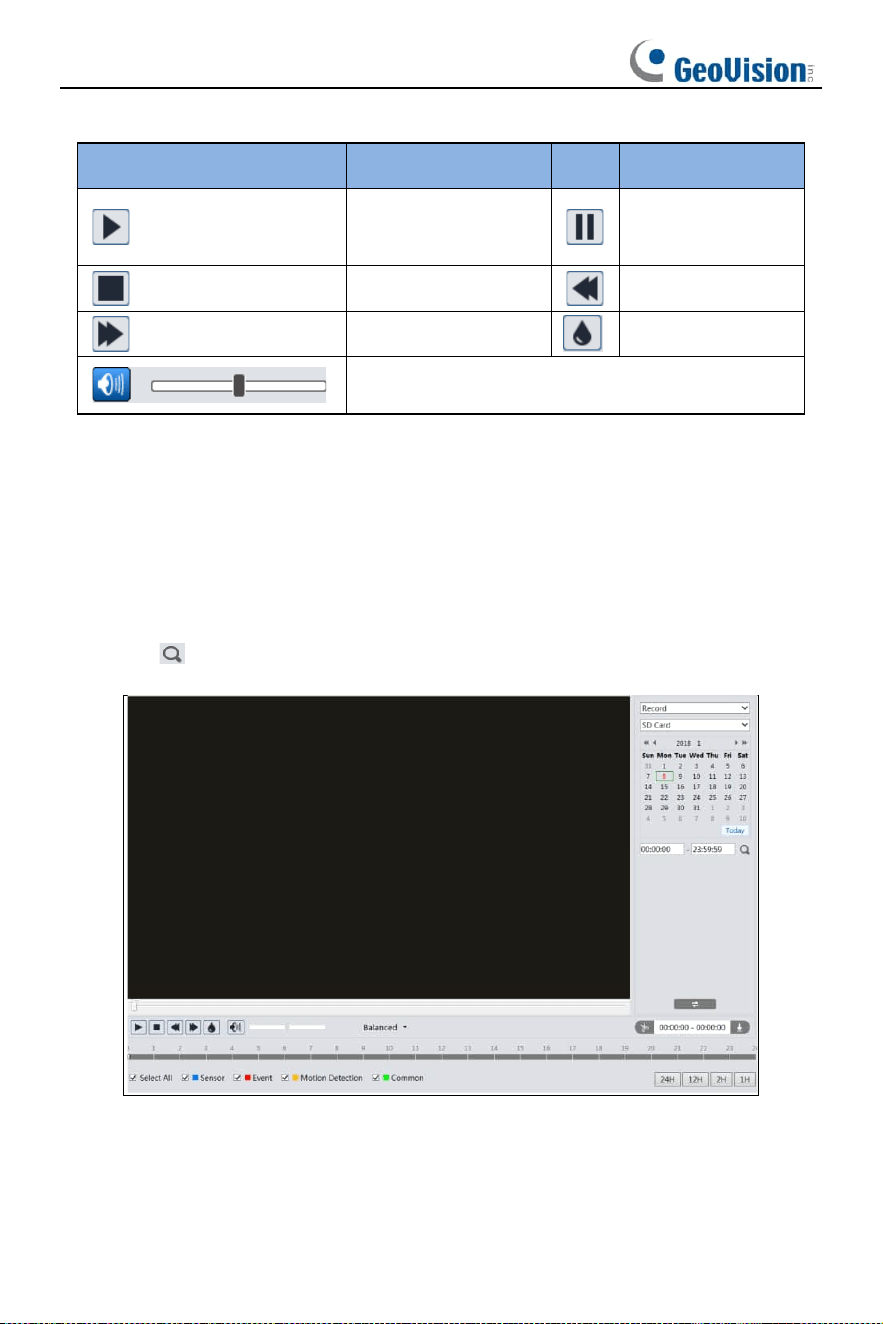
62
Icon
Description
Icon
Description
Play button. After
pausing the video, click
this button to continue
playing.
Pause button
Stop button
Speed down
Speed up
Watermark display
Enable / disable audio; drag the slider to adjust the volume
after enabling audio.
Note: When using the plug-in free browser, the local videos cannot be searched.
4.2.2 SD Card Video Search
Click Search to go to the interface as shown below. Videos that were recorded on the
SD card can be played in this interface.
1. Choose “Record”—“SD Card”.
2. Set search time: Select the date and choose the start and end time.
3. Click to search the images.
4. Select the alarm events at the bottom of the interface.
5. Select mix stream (video and audio stream) or video stream as needed.
6. Double click on a file name in the list to start playback.
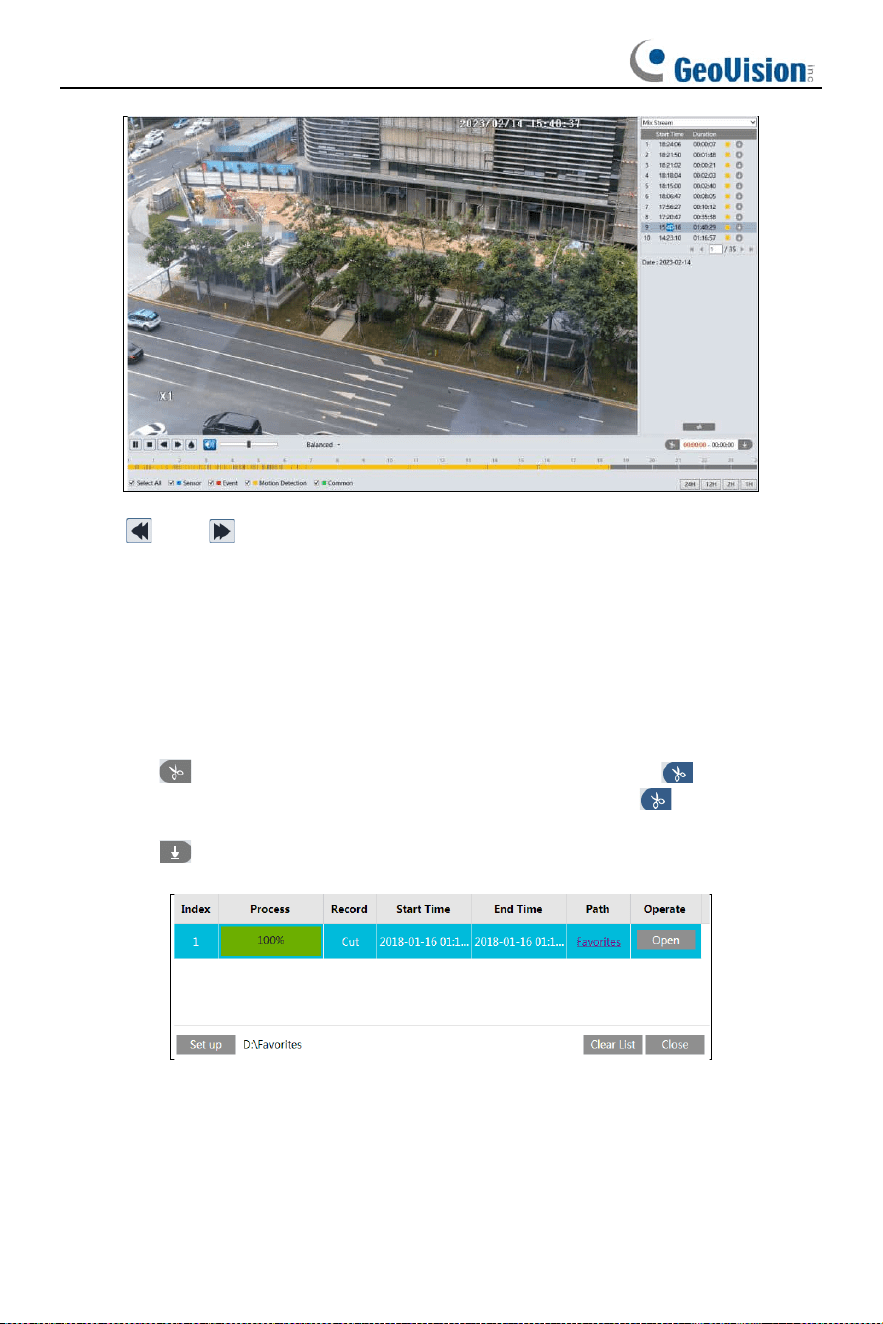
63
Note: and cannot be displayed in the above interface via the plug-in free
browser.
Additionally, for plug-in free playback, playback mode switch
(balanced/real-time/fluent mode) and downloading functions are not supported too.
The time table can be shown in 24H/12H/2H/1H format by clicking the corresponding
buttons.
Video clip and downloading
1. Search the video files according to the above-mentioned steps.
2. Select the start time by clicking on the time table.
3. Click to set the start time and then this button turns blue ( ).
4. Select the end time by clicking on the time table. Then click to set the end
time.
5. Click to download the video file in the PC.
Click “Set up” to set the storage directory of the video files.
Click “Open” to play the video.
Click “Clear List” to clear the downloading list.
Click “Close” to close the downloading window.

64
5 Q & A
1. Q: I forget the password. How can I do?
Reset the system to the factory default settings or contact the dealer.
2. Q:The devices can’t connect through the Edge browser. Why?
① Network is not connected well. Please check the connection and make sure it is
connected well.
② IP is not available. Reset the valid IP.
③ Web port number has been revised: contact administrator to get the correct port
number.
④ Exclude the above reasons. Restore the default setting by GV-IP Device Utility.
Note: The default IP: 192.168.0.10,mask number: 255.255.255.0
3. Q:Why does the device fail to sound?
The audio input device is not connected. Please connect and try again.
The audio function is not enabled at the corresponding channel. Please check AUDIO
item to enable this function.
4. Q: How to do when the device is unable to start normally when upgrading?
If the device is unable to start normally when upgrading, please rename the files
suffixed with .tar as updatepack.tar and copy it to the root directory of SD card.
Restart the device and then the device will upgrade automatically from the SD card.
After finishing upgrading, the user can search the IP address of IP Cam using GV-IP
Device Utility.
65
Appendix Preset Description
Call Preset
Call NO.90 Preset
Run trace 1
Call NO.91 Preset
Run cruise 1
Call NO.92 Preset
Run cruise 2
Call NO.93 Preset
Run cruise 3
Call NO.94 Preset
Run cruise 4
Call NO.97 Preset
Enable random scan
Call NO.99 Preset
Enable auto scan
Save Preset
Save NO. 92 Preset
Set the left scan endpoint
Save NO. 93 Preset
Set the right scan endpoint