A1
English
Our Thanks To You And
Customer Assistance
Introduction
Owner’s Manual
Nothing Comes Close to a Cobra
®
English
Customer Assistance
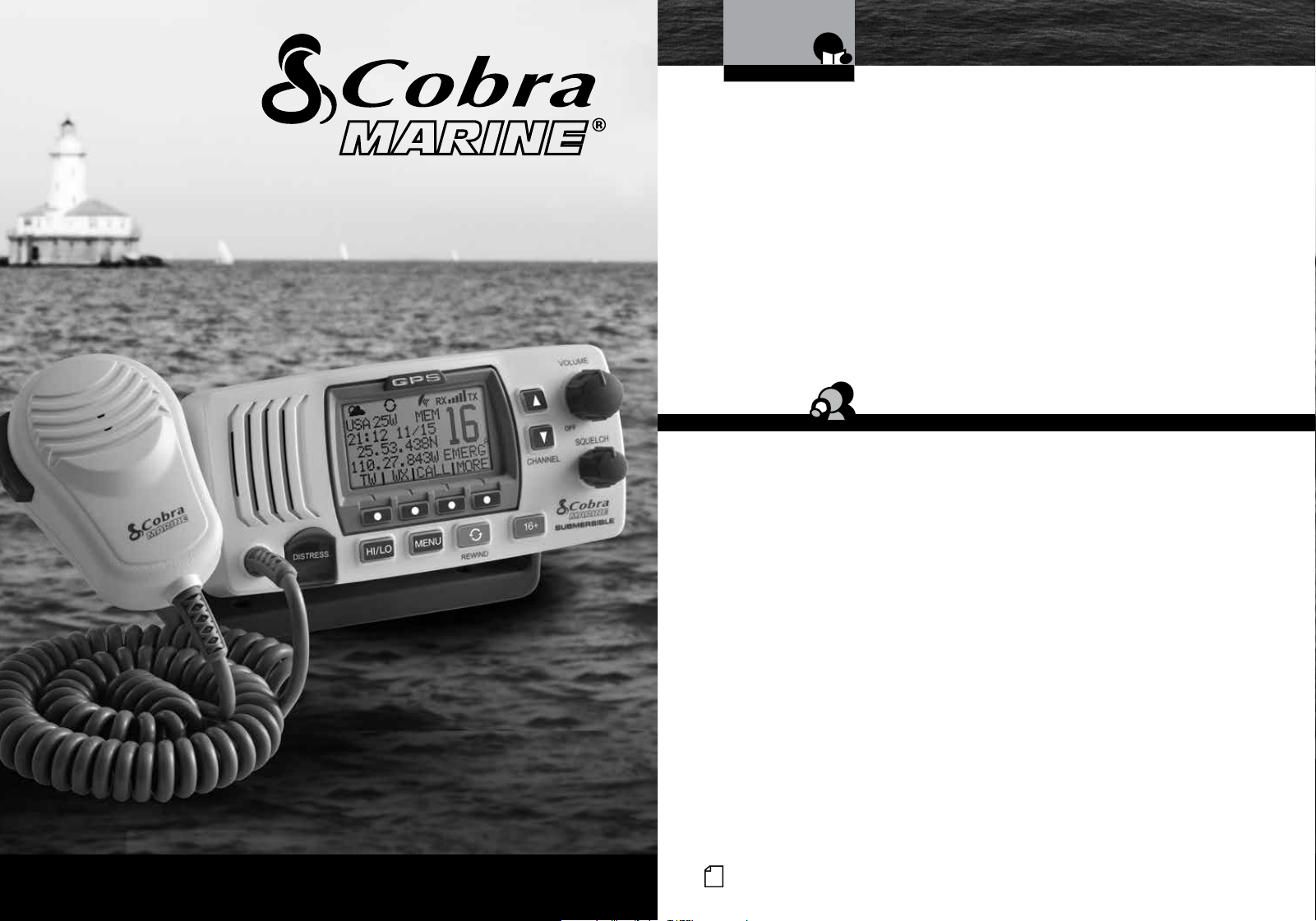
Class-D Fixed Mount VHF Radio
MR F77W GPS
MR F77B GPS
©2022 Cobra Electronics Corporation
www.cobra.com
Thank you for purchasing a Cobra Marine
®
VHF radio.
Properly used, this Cobra
®
product will give you
many years of reliable service.
How Your Cobra Marine VHF Radio Works
This radio is a VHF transceiver for fixed mounting on your boat. It gives you 2-way
vessel-to-vessel and vessel-to-shore station communications, primarily for safety and
secondarily for navigation and operational purposes. With it, you can call for help, get
information from other boaters, talk to lock or bridge tenders and make radiotelephone
calls to anywhere in the world through a marine operator.
Besides 2-way communications, in the U.S.A., the radio can provide quick
access to receive eight NOAA (National Oceanographic and Atmospheric
Administration) and two Canadian weather channels for alerting you to weather
emergencies with a tone on a weather channel you can select for your area.
Customer Assistance
Should you encounter any problems with this product, or not understand
its many features, please refer to this owner’s manual. If you require further
assistance after reading this manual, Cobra Electronics offers the following
customer assistance services:
For Assistance In The U.S.A.
Monday-Friday 9:00 AM- 5:00 PM EST
Call: 800-543-1608
SERVICE
Monday-Thursday 9:00AM-5:00PM EST
Call: 800-543-1608
Have questions? We can help. Contact us at 800-543-1608
M-F 9:00AM-5PM EST
For Assistance Outside the U.S.A.
Contact Your Local Dealer
A3
English
Product Features
Introduction
A2
English
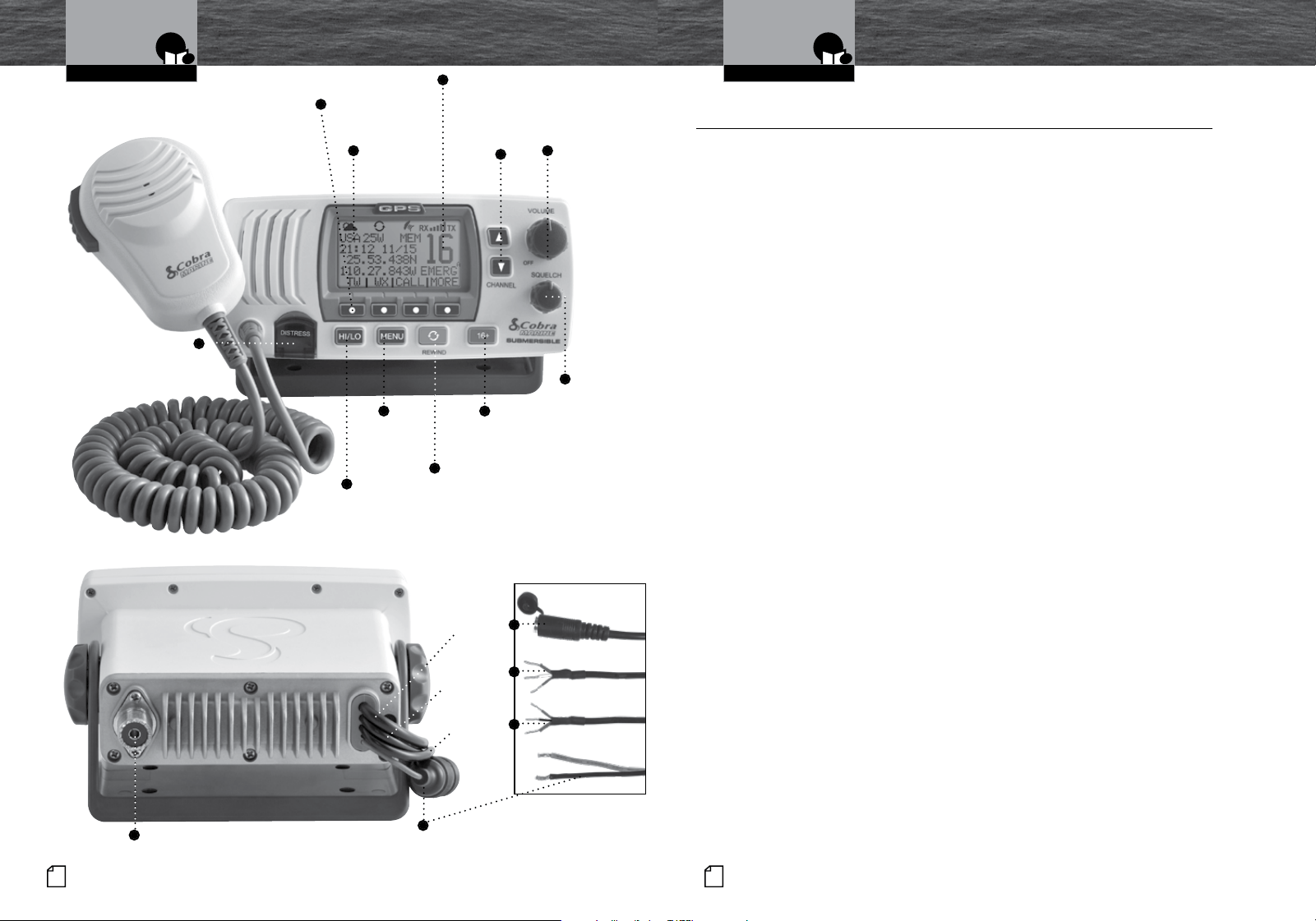
Transceiver Controls,
Indicators And Connections
Introduction
Built-In GPS Receiver
Shows GPS coordinates on screen and
automatically sends GPS location with
DSC calls.
Rewind-Say-Again
®
Replay missed VHF calls. Automatically
records the last 20 seconds of incoming
radio transmissions. Great when in noisy
conditions.
Dual Power
Selectable to one (1) or 25 watts output
power for near or distant calling.
USA/International/Canada Channels
Allows operation on any of the three (3)
different channel maps established for
these areas.
All NOAA Weather Channels
Instant access to all of the National
Weather Channels, 24 hours a day.
Emergency Weather Alert
Can alert you with an audible tone and visual
alarm if threatening weather is nearby.
Instant Channel 16/9
Instant access to the priority
Channel 16 and calling Channel 9.
Digital Selective Calling (DSC Class-D)
Allows the ability to maintain a listening
watch on VHF Channel 16 while
simultaneously monitoring Channel 70
for DSC calls. Allows sending a distress
message at the touch of a button as well as
specific station-to-station calls. Radio utilizes
two (2) built-in encoders (receivers).
Memory Scan
Lets you scan through all selected memory
channels to find conversations in progress.
Tri-Watch
Lets you monitor three (3) channels
at once — Channel 16, Channel 9,
and one (1) user selectable channel.
Noise Canceling Microphone
Blocks background noise to let your
voice be heard at the receiving station.
Illuminated Buttons
Helps you quickly find the buttons
you need in low light conditions.
Mounting Kits Included
Radio can be mounted on, under, or in
almost any flat surface using one (1) of
the included brackets.
Waterproof
Submersible to (1.5) meters of water for
30 minutes - meets IPX8/JIS8 Standards.
Alarm In
Allows connection to the alarm output of
your chart plotter to alert you when an
arrival, off-course, etc. alarm has been
activated.
Product Features
•
On-Off
Power/
Volume
Knob
Active
Channel
Number
Instant Channel
16/9 Button
Squelch
Knob
High/Low
Power Button
DSC Distress Button
(Behind Red Spring
Loaded Cover)
Soft Keys-
Allows user to
select current
options displayed
on the screen.
Power
Connection
Antenna Socket
Backlit LCD
Screen
Up & Down
Buttons
Menu
Button
Rewind-Say-
Again
®
Button
PA/Speaker
Connection
GPS-In
Connection
GPS-Out
& Alarm In
Connection
Introduction
Table Of Contents
Nothing Comes Close to a Cobra
®
1
Introduction
Our Thanks To You ...................................................... A1
Customer Assistance ..................................................... A1
Transceiver Controls, Indicators And Connections .............................. A2
Product Features ........................................................ A3
Important Safety Information ............................................... 2
Recommendations For Marine Communication ................................. 4
VHF Marine Radio Protocols
FCC Licensing Information ................................................. 5
VHF Marine Radio Procedures ............................................... 6
Voice Calling ............................................................ 7
Digital Selective Calling (DSC) ............................................... 8
Maritime Mobile Service Identity (MMSI) ...................................... 9
Radiotelephone Calls ..................................................... 10
Emergency Messages And Distress Procedure ................................. 10
Marine Distress Procedure – DSC ........................................... 13
Installation and Start-Up
Included In This Package ................................................. 14
Accessories Order Info ................................................... 15
Mounting and Powering The Radio .......................................... 16
Antenna Requirements And Attachment ...................................... 20
External Devices And Connections .......................................... 22
Operating Your Radio
Getting Started ......................................................... 24
Set-Up Routines. . . . . . . . . . . . . . . . . . . . . . . . . . . . . . . . . . . . . . . . . . . . . . . . . . . . . . . . . 28
Voice Transmission ...................................................... 32
NOAA All Hazards/Weather Radio And Alert ................................... 33
GPS Menu .............................................................33
Digital Select Calling (DSC) Set-Up .......................................... 38
Advanced Operation ..................................................... 44
Digital Select Calling (DSC) Operation ........................................ 50
Maintenance and Troubleshooting .......................................... 64
Specifications .......................................................... 65
Appendix
VHF Marine Channel Assignments .......................................... 66
NOAA Weather Channels And Alert .......................................... 81
World City Time Zones. . . . . . . . . . . . . . . . . . . . . . . . . . . . . . . . . . . . . . . . . . . . . . . . . . . . 82
Warranty
Limited 3-Year Warranty .................................................. 83
Customer Service
Product Service ......................................................... 84
Flush Mount Template .................................................... 85
Introduction
2
English
Important Safety Information
Introduction
Important Safety Information
Nothing Comes Close to a Cobra
®
3
Important Safety Information
•
Before installing and using your Cobra Marine VHF radio, please read these general
precautions and warnings.
Warning And Notice Statements
To make the most of this radio, it must be installed and used properly.
Please read the installation and operating instructions carefully before installing and
using it. Special attention must be paid to the WARNING and NOTICE statements in
this manual.
WARNING
Statements identify conditions that could result in personal injury or loss of life.
NOTICE
Statements identify conditions that could cause damage to the radio
or other equipment.
Safety Training Information
This Cobra Marine radio is designed for and classified as “Occupational Use Only.”
It must only be used in the course of employment by individuals aware of both the
hazards and the ways to minimize those hazards. This radio is NOT intended for
use in an uncontrolled environment by the “General Population.”
n
FCC OET Bulletin 65 Edition 97-01 Supplement C, Evaluating Compliance with FCC
Guidelines for Human Exposure to Radio Frequency Electromagnetic Fields.
n
American National Standards Institute (C95.1-1992), IEEE Standard for Safety
Levels with Respect to Human Exposure to Radio Frequency Electromagnetic
Fields, 3 kHz to 300 GHz.
n
American National Standards Institute (C95.3-1992), IEEE Recommended Practice
for the Measurement of Potentially Hazardous Electromagnetic Fields — RF and
Microwave.
n
Cobra Electronics Corporation
™
recommendations for radio frequency exposure
are based upon the federal regulatory requirements in the U.S.A. Your country
may have different requirements. Ask your dealer or another knowledgeable
person. Compliance with recommendations for Radio Frequency Exposure is the
responsibility of both the antenna installer and the radio operator.
Intro Operation Customer
Assistance
Warranty
Notice
Main Icons
Secondary Icons
Caution Warning
Installation
Customer
Assistance
The following WARNINGS and NOTICES will make you aware of RF exposure hazards
and how to assure you operate the radio within the FCC RF exposure
limits established for it.
WARNINGS
Your radio generates electromagnetic RF (radio frequency) energy when it
is transmitting. To ensure that you and those around you are not exposed
to excessive amounts of that energy, DO NOT touch the antenna when
transmitting. KEEP the radio at least two (2) inches (5 cm) away from yourself
and others when transmitting. SEE page 20 in the antenna requirements
section for further information.
DO NOT operate the radio without a proper antenna or equivalent dummy load
attached. Doing so may expose you to excessive RF energy and will damage
the radio.
DO NOT transmit more than 50% of the time the radio is in use — 50% duty
cycle. The radio is transmitting when the Talk button is pressed and the
transmit information shows on the LCD screen.
ALWAYS use only Cobra authorized accessories.
NEVER connect the transceiver to AC power. It can be a fire hazard, may cause
an electric shock, and may damage the transceiver.
NEVER mount the transceiver or microphone where they might interfere with
operation of your vessel or cause injury.
DO NOT allow children or anyone unfamiliar with proper procedures to operate
the radio without supervision.
Failure to observe any of these warnings may cause you to exceed
FCC, Industry Canada or EU RF exposure limits or create other dangerous
conditions.
NOTE
Throughout this manual, the term “Transceiver” will be used to identify the main
unit containing the LCD screen and controls. The term “Radio” will be used to
identify the entire equipment including transceiver, microphone, antenna and any
attached external speakers.
4
English
Recommendations For
Marine Communication FCC Information
Nothing Comes Close to a Cobra
®
5
NOTICES
AVOID using or storing the radio at temperatures below -4°F (-20°C) or above
140°F (55°C).
NEVER connect the transceiver to DC power greater than 16 volts or to
any DC source with reversed polarity. Doing so will damage the transceiver.
DO NOT cut the power cables attached to the transceiver. Improper
reconnection with reversed polarity will damage the transceiver.
POSITION your radio, external speakers, and cables at least three (3) feet (0.9 m)
away from your vessel’s magnetic navigation compass. CHECK your compass
before and after installation to be sure that it has not introduced any deviation.
DO NOT attempt to service any internal parts yourself. Have any
necessary service performed by a qualified technician.
DO NOT drop the transceiver or microphone. Doing so may crack the
case or damage a waterproof seal. Once these items have been dropped,
the original waterproofing cannot be guaranteed.
DO NOT use chemicals or solvents such as mineral spirits and alcohol
to clean your radio. They may damage the case surfaces.
Changes or modifications to your radio MAY VOID its compliance with FCC (Federal
Communications Commission) rules and make it illegal to use.
Recommendations For Marine Communication
•
The frequencies your radio uses are set aside to enhance safety afloat and for
vessel navigation and operational messages over a range suitable for nearshore
voyages. If the 25 watt maximum output of your radio isn’t sufficient for the distances
you travel from the coast, consider installing more powerful radio equipment such as
HF single side band or satellite radio for your vessel.
The U.S. Coast Guard does not endorse cellular telephones as substitutes for
marine radios. They generally cannot communicate with rescue vessels and,
if you make a distress call on a cellular telephone, only the party you call will
be able to hear you. Additionally, cellular telephones may have limited coverage
over water and can be hard to locate. If you don’t know where you are, the
Coast Guard will have difficulty finding you if you’re using a cellular telephone.
However, cellular telephones can have a place on board where cellular coverage
is available — to allow social conversations and keep the marine frequencies
uncluttered and available for their intended uses.
FCC LICENSING INFORMATION
•
Cobra Marine VHF radios comply with the FCC (Federal Communication Commission)
requirements that regulate the Maritime Radio Service.
This Cobra Marine radio incorporates a VHF FM transceiver designed for use in
the frequency range of 156.025 to 163.275 MHz. It requires 13.8 volts DC and
has a switchable RF output power of one (1) or 25 watts.
The transceiver is capable of Class-D (Digital Selective Calling) operation in accordance with
CFR Part 47, Section 80,225.
The radio operates on all currently allocated marine channels and is switchable for use
according to U.S.A., International, or Canadian regulations. It features instant access to
emergency Channel 16 and calling Channel 9 as well as NOAA (National Oceanic and
Atmospheric Administration) All Hazards Radio with Alert that can be accessed by pressing
one (1) key.
Station License
An FCC ship station license is no longer required for any vessel traveling in U.S.A. waters
which uses a VHF marine radio, RADAR, or EPIRB (Emergency Position Indicating Radio
Beacon), and which is not required to carry radio equipment. However, any vessel
required to carry a marine radio on an international voyage, carrying a HF single side band
radiotelephone, or carrying a marine satellite terminal must obtain a station license.
FCC license forms and applications for ship and land stations can be downloaded through
the Internet at www.fcc.gov/forms. Forms can also be obtained by calling the FCC at 888-
225-5322.
International Station License
If your vessel will be entering the sovereign waters of a country other than the U.S.A. or
Canada, you should contact that country’s communications regulatory authority for licensing
information.
VHF Marine Radio Protocols
Introduction
6
English
VHF Marine Radio
Procedures
Voice Calling
Nothing Comes Close to a Cobra
®
7
Radio Call Sign
Currently, the FCC does not require recreational boaters to have a license. The United States
Coast Guard recommends that the boat’s registration number and state of registry (e.g., IL 1234
AB) be used as a call sign and be clearly visible on the vessel.
Canadian Ship Station License
You need a Radio Operator’s Certificate if your vessel is operated in Canadian waters. Radio
Operator training and certification is available from the Canadian Power Squadron. Visit their
website (http://www.cps-ecp.ca/english/newradiocard.html), contact the nearest field office
or write: Industry of Canada, Radio Regulatory Branch, Attn: DOSP, 300 Slater Street, Ottawa,
Ontario, Canada K1A 0C8.
User Responsibility And Operating Locations
All users are responsible for observing domestic and foreign government regulations
and are subject to severe penalties for violations. The VHF frequencies on your radio are
reserved for marine use and require a special license to operate from land, including when
your boat is on its trailer.
NOTE
This device complies with part 15 of the FCC Rules. Operation is
subject to the following two (2) conditions: (1) This device may not cause
harmful interference, and (2) This device must accept any interference
received, including interference that may cause undesired operation.
FCC Warnings: Replacement or substitution of transistors, regular diodes,
or other parts of a unique nature, with parts other than those recommended
by Cobra
®
may cause a violation of the technical regulations of part 80 of the
FCC Rules, or violation of type acceptance requirements of part 2 of the rules.
VHF Marine Radio Procedures
•
Maintain Your Watch
Whenever your boat is underway, the radio must be turned On and be tuned to Channel 16,
except when being used for messages.
Power
Try 1 watt first if the station being called is within a few miles. Try a second call after
waiting two (2) minutes. If there is no answer, switch to a higher power. This will conserve
your battery and minimize interference to other users by avoiding repeated calls.
Calling Coast Stations
Call a coast station on its assigned channel. You may use Channel 16 when you do not
know the assigned channel.
Calling Other Vessels
Call other vessels on Channel 16 or on Channel 9. (Channel 9 is preferred
for recreational vessel use.) You may also call on ship-to-ship channels
when you know that the vessel is listening on a ship-to-ship channel.
Initial Calling on Channel 16 or 9
The use of Channel 16 is permitted for making initial contact (hailing) with another vessel.
The limits on calling must be followed. Be reminded, Channel 16’s most important function
is for Emergency Messages. If, for some reason, Channel 16 is congested, the use of
Channel 9, especially in U.S. waters, may be used as the initial contact (hailing) channel for
non-emergency communication.
Limits On Calling
You must not call the same station for more than 30 seconds at a time.
If you do not get a reply, wait at least two (2) minutes before calling again.
After three (3) calling periods, wait at least 15 minutes before calling again.
Change Channels
After contacting another station on a calling channel, change immediately
to a channel which is available for the type of message you want to send.
Station Identification
Identify, in English, your station by your FCC call sign, ship name, the state registration
number, or other official number at both the beginning and end of each message.
Prohibited Communications
You MUST NOT transmit:
n
False distress or emergency messages.
n
Messages containing obscene, indecent, or profane words or meaning.
n
General calls, signals, or messages (messages not addressed to a particular station) on
Channel 16, except in an emergency or if you are testing your radio.
n
When you are on land.
Voice Calling
•
To Call Another Vessel Or A Shore Installation Such As A Lock Or Bridge Tender:
n
Make sure your radio is On.
n
Select Channel 16 and listen to make sure it is not being used.
NOTE
Channel 9 may be used by recreational vessels for general-purpose
calling. This frequency should be used whenever possible to relieve
congestion on Channel 16.
n
When the channel is quiet, press the Talk button and call the ship you wish
to call. (Hold the microphone a few inches from your face and speak directly into it in a
normal tone of voice — clearly and distinctly.) Say “[name
of station being called] THIS IS [your vessel’s name or call sign].”
n
Once contact is made on the calling channel, you must switch to a proper working
channel. See the channel listing on page 66 through 78.
VHF Marine Radio Protocols VHF Marine Radio Protocols
Maritime Mobile
Service Identity (MMSI)
Nothing Comes Close to a Cobra
®
9
8
English
Digital Selective Calling (DSC)
The vessel Corsair calling the vessel Vagabond:
Corsair: “Vagabond, this is Corsair (station license number call sign).”
Vagabond: “Corsair, this is Vagabond. Over.”
Corsair: “Vagabond go to working Channel 68. Over.”
Both parties switch over to the agreed upon working channel....
Corsair: “Vagabond I need to talk to you about... Over.”
Vagabond: “Corsair in answer to your question about... Over.”
Corsair: “Vagabond, thanks for the information about... (call sign and out).”
After each transmission, say “OVER” and release the microphone Push to Talk (PTT)
button. This confirms that the transmission has ended. When all communication with
the other vessel is totally completed, end the message by stating your call sign and
the word “OUT.” Remember, it is not necessary to state your call sign with each
transmission, only at the beginning and end of the message.
NOTE
For best sound quality at the shore station or other vessel receiving your call, hold
the microphone/speaker at least 2 in. (51 mm) from your mouth and
slightly off to one (1) side. Speak in a normal tone of voice.
Digital Selective Calling (DSC)
•
Digital selective calling is a semi-automated system for establishing a radio
call. It has been designed by the International Maritime Organization (IMO)
as an international standard for VHF, MF, and HF calls and is part of the
Global Maritime Distress and Safety System (GMDSS).
DSC will eventually replace aural (listening) watches on distress frequencies
and will be used to announce routine and urgent maritime safety information
broadcasts. Until DSC is fully implemented, it is still necessary to maintain a listening
watch on Channel 16.
The DSC system allows mariners to instantly send a distress call with GPS
position coordinates (requires a GPS receiver to be connected to the radio)
to the Coast Guard and other vessels within range of the transmission.
DSC also allows mariners to initiate and receive distress, urgent, safety,
routine, position request, position send, and group calls between vessels
equipped with DSC capable radios.
VHF Marine Radio Protocols VHF Marine Radio Protocols
Maritime Mobile Service Identity (MMSI)
•
The MMSI Number Is Available In The U.S.A. From Any Of Two (2) Sources:
n
U.S. Power Squadron www.usps.org
n
BoatU.S.: 1-800-563-1536 – www.boatus.com/mmsi
NOTE
The above references are for recreational vessels only. Commercial vessels
should contact the FCC.
An MMSI is a nine (9) digit number used on a marine radio capable of using digital
selective calling (DSC). It is used to selectively call other vessels or shore stations and
is similar to a telephone number.
For your Cobra Marine
™
radio to operate in the DSC mode, you must enter your
maritime mobile service identity (MMSI) number. See page 41 for instructions
on how to enter it.
In Canada, Contact:
n
Industry Canada Spectrum Management Office (only available on the Internet):
www.ic.gc.ca and search for “MMSI”.
To Obtain An MMSI Number Outside The U.S.A.:
Users can obtain an MMSI from their country’s telecommunications authority
or ship registry. This may involve amending or obtaining a ship station license.
WARNING
This equipment is designed to generate a digital maritime distress and
safety signal to facilitate search and rescue. To be effective as a safety
device, this equipment must be used only within communication range
of a shore-based VHF marine channel to distress and safety watch system.
The range of the signal may vary, but under normal conditions should be
approximately 20 nautical miles.
For Example
MAYDAY
PAN
SECURITE
10
English
Radiotelephone Calls
Emergency Messages
And Distress Procedure
Nothing Comes Close to a Cobra
®
11
Emergency Messages And Distress Procedure
•
The ability to summon assistance in an emergency is the primary reason
to have a VHF marine radio. The marine environment can be unforgiving,
and what may initially be a minor problem can rapidly develop into a
situation beyond your control.
The Coast Guard monitors Channel 16, responds to all distress calls, and coordinates
all search and rescue efforts. Depending on the availability of
other capable vessels or commercial assistance operators in your vicinity,
Coast Guard or Coast Guard Auxiliary craft may be dispatched.
In any event, do communicate with the Coast Guard as soon as you experience
difficulties and before your situation becomes an emergency. Use the emergency
message procedures only after your situation has become grave or you are faced with
a sudden danger threatening life or property and requiring immediate help.
Use channel 16 to communicate your emergency message. Make sure you transmit on
high power. If you are merely out of gas, do not send an emergency message. Drop
your anchor and call a friend or marine to bring the fuel you need or to give you a tow.
Marine Emergency Signals
The three (3) spoken international emergency signals are:
The distress signal MAYDAY is used to indicate that a station is threatened
by grave and imminent danger and requests immediate assistance.
The urgency signal PAN is used when the safety of the vessel or person
is in jeopardy. (This signal is properly pronounced pahn.)
The safety signal SECURITE is used for messages about the safety of navigation or
important weather warnings. (This signal is properly pronounced see-cure-it-tay.)
When using an international emergency signal, the appropriate
signal is to be spoken three (3) times prior to the message.
If You Hear A Distress Call
You must give any message beginning with one (1) of these signals priority
over any other messages. ALL stations MUST remain silent on Channel 16
for the duration of the emergency unless the message relates directly to
the emergency.
If you hear a distress message from a vessel, stand by your radio. If it is
not answered, YOU should answer. If the distressed vessel is not nearby,
wait a short time for others who may be closer to acknowledge. Even if
you cannot render direct assistance, you may be in a position to relay
the message.
VHF Marine Radio Protocols VHF Marine Radio Protocols
For Example
Emergency Messages
And Distress Procedure
Nothing Comes Close to a Cobra
®
13
12
English
Emergency Messages
And Distress Procedure
Marine Distress Procedure
Speak slowly — clearly — calmly.
1. Make sure your radio is On.
2. Select VHF Channel 16.
3. Press Talk button and say:
“MAYDAY — MAYDAY — MAYDAY.”
(Or “PAN — PAN — PAN,”
or “SECURITE — SECURITE — SECURITE.”)
4. Say:
“THIS IS [your vessel name or call sign].”
5.
Say:
“MAYDAY (or “PAN” or “SECURITE”)
[your vessel name or call sign].
6. Tell where you are:
(what navigational aids or landmarks are near).
7. State the nature of your distress.
8. State the kind of assistance needed.
9. Give number of persons aboard and conditions of any injured.
10. Estimate present seaworthiness of your vessel.
11. Briefly describe your vessel (length, type, color, hull).
12. Say:
“I WILL BE LISTENING ON CHANNEL 16.”
13. End message by saying:
“THIS IS [your vessel name or call sign] OVER.”
14. Release Talk button and listen. Someone should answer.
If not, repeat the call, beginning at item 3 above.
Keep the radio nearby. Even after your message has been received, the Coast Guard can
find you more quickly if you can transmit a signal for a rescue boat to hone in on.
“Mayday — Mayday — Mayday”
“This is Corsair — Corsair — Corsair” [or “Illinois 1234 AB” three (3) times]
“Mayday Corsair (or Illinois 1234 AB)”
“Navy Pier bears 220 degrees magnetic — distance five (5) miles”
“Struck submerged object and flooding — need pump and tow”
“Four adults, three children aboard — no one injured”
“Estimate we will remain afloat one-half (
1
⁄2) hour”
“Corsair (or Illinois 1234 AB) is 26 foot sloop with blue hull and tan deck house”
“I will be listening on Channel 16”
“This is Corsair (or Illinois 1234 AB)”
“Over”
It is a good idea to write out a script of the message form and post it where you
and others on your vessel can see it when an emergency message needs to be sent.
Marine Distress Procedure – DSC
•
Digital Selective Calling (DSC) is a semi-automated system that will allow you to press
the Distress button from any routine to make a distress call. When the distress button
is pressed, all other channels go to Standby mode and allow the digitally encoded
“pre-programmed” message to take precedence. Important information such as your
MMSI number, position and name will be transmitted on Channel 16. The distress
alarm will sound for two (2) minutes or until the alarm is cleared.
The DSC system allows you to choose a “pre-programmed” distress call such as:
“Man Overboard, Sinking, Collision.” There are many pre-programmed choices to
choose from. If a GPS is connected to your radio, your coordinates will also be sent to
the Coast Guard as well as to other vessels that are within range of the transmission.
DSC calling also allows the user to initiate and receive distress, urgent, safety,
routine, position request, position send and group calls between vessels equipped
with DSC capable radios.
WARNING
This radio will generate a digital maritime distress and safety signal to
help facilitate search and rescue. This radio must be used only within
communication range of a shore based VHF station with a distress and safety
watch system. The range of the signal may vary, however, under normal
conditions should be approximately 20 nautical miles.
VHF Marine Radio Protocols VHF Marine Radio Protocols
Nothing Comes Close to a Cobra
®
15
14
English
Installation And Start-Up
Intro Operation Customer
Assistance
Warranty
Notice
Main Icons
Secondary Icons
Caution Warning
Installation
Customer
Assistance
Installation And Start-Up
Included In This Package
Included In This Package
•
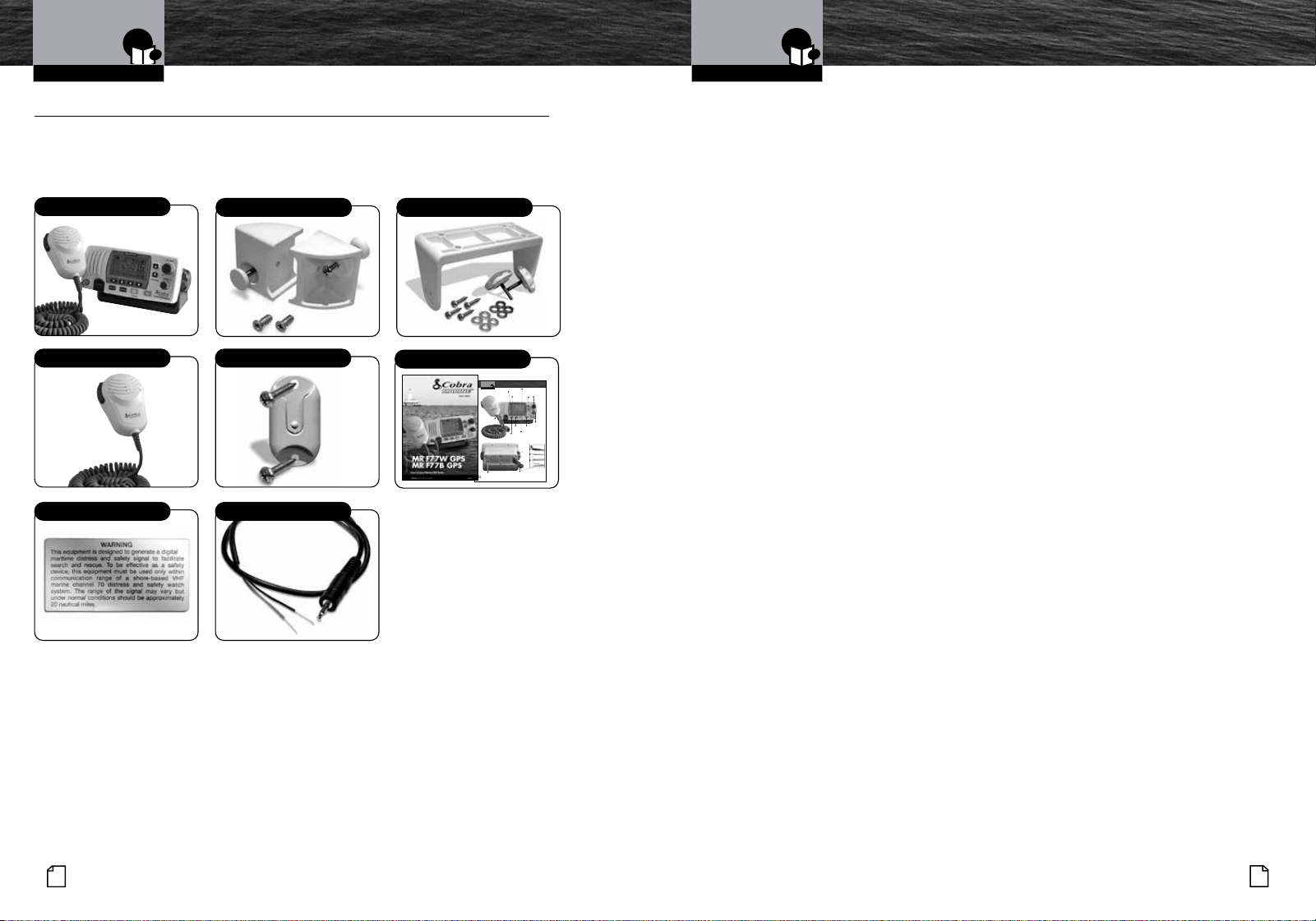
You should find all of the following items in the
package with your Cobra Marine VHF radio:
Transceiver Flush Mount Kit Transceiver Surface Mount Kit
Microphone
Transceiver*
Operating Instruction Manual
A3
English
Microphone/Speaker
And Product Features
Introduction
A2
English
Transceiver Controls,
Indicators And Connections
Introduction
Dual Power
Selectable to one (1) or 25 watts output
power for near or distant calling.
USA/International/Canada Channels
Allows operation on any of the three (3)
different channel maps established for
these areas.
All NOAA Weather Channels
Instant access to all of the National
Weather Channels, 24 hours a day.
Emergency Weather Alert
Can alert you with an audible tone and visual
alarm if threatening weather is nearby.
Instant Channel 16/9
Instant access to the priority
Channel 16 and calling Channel 9.
Digital Selective Calling (DSC
Class-D)
Allows the ability to maintain a listening
watch on VHF Channel 16 while
simultaneously monitoring Channel 70
for DSC calls. Allows sending a distress
message at the touch of a button as well
as specific station-to-station calls. Radio
utilizes two (2) built-in encoders (receivers).
Memory Scan
Lets you scan through all selected memory
channels to find conversations in progress.
Tri-Watch
Lets you monitor three (3) channels
at once — Channel 16, Channel 9,
and one (1) user selectable channel.
Noise Canceling Microphone
Blocks background noise to let your
voice be heard at the receiving station.
Illuminated Buttons
Helps you quickly find the buttons
you need in low light conditions.
Mounting Kits Included
Radio can be mounted on, under, or in
almost any flat surface using one (1) of
the included brackets.
Waterproof
Submersible to (1.5) meters of water for
30 minutes - meets IPX8/JIS8 Standards.
Product Features
•
On-Off
Power/
Volume
Knob
Active
Channel
Number
Instant Channel
16/9 Button
Squelch
Knob
High/Low
Power Button
DSC Distress Button
(Behind Red Spring
Loaded Cover)
Soft Keys-
Allows user to
select current
options displayed
on the screen.
Power
Connection
Antenna Socket
Backlit LCD
Screen
Up & Down
Buttons
Menu
Button
Rewind-Say-
Again
®
Button
GPS-Out
Connection
PA/Speaker
Connection
GPS-In
Connection
Warning Sticker GPS Interface Cable
Intro Operation Customer
Assistance
Warranty
Notice
Main Icons
Secondary Icons
Caution Warning
Installation
Customer
Assistance
Microphone Mounting Kit
Accessories Order Info
You can find quality Cobra products and accessories at your local Cobra dealer, or in the U.S.A., you
can order directly from Cobra.
Please visit www.cobra.com
Web orders will normally ship the next business day if received by us before 2:00 PM Eastern
Time. Orders do not ship on weekends or holidays. All standard deliveries are Monday-Friday only.
Saturday delivery can be requested in certain areas of the country for an additional shipping fee by
calling Sales at 800-543-1608.
Certain orders may require additional days to process prior to shipping. Holidays may also impact
processing and shipping time frame. Occasionally, items may not ship due to inventory depletion. If
you need your item to be expedited, we recommend calling Sales at 800-543-1608.
Order Acceptance
Once your order has been accepted and processed, you will receive an email that will include the
shipping carrier and tracking information.
Shipping and Delivery
Free ground shipping is included to 48 states. Hawaii, Alaska and Puerto Rico ship based on
assessed fee at checkout.
We require a physical address for shipping. Sorry, no P.O. Boxes or APO/FPO addresses. Please
select 2-day or next day air for shipments to Hawaii or Alaska. Shipping charges are calculated on a
per-product basis. Please make note of the shipping charges associated with each item.
Note: For safety reasons, we cannot ship products containing lithium-ion batteries via air
delivery methods. These items are available to ship via ground service only.
Note: For your protection, some orders may require a signature for delivery.
Nothing Comes Close to a Cobra
®
17
16
English
Installation And Start-Up
Mounting And
Powering The Radio
Mounting And Powering The Radio
•
Before using your Cobra Marine VHF radio, it must be installed on your vessel.
Installing Your Radio
Choose a location for your radio where it will be conveniently accessible with the
following factors in mind:
n
The leads to the battery and the antenna are best kept as short as possible.
n
The antenna must be mounted at least three (3) feet from the transceiver.
n
The radio and all speakers need to be far enough from any magnetic
compass to avoid deviation due to the speaker magnet.
n
There needs to be free air flow around the heat-sink fins on the back
of the transceiver.
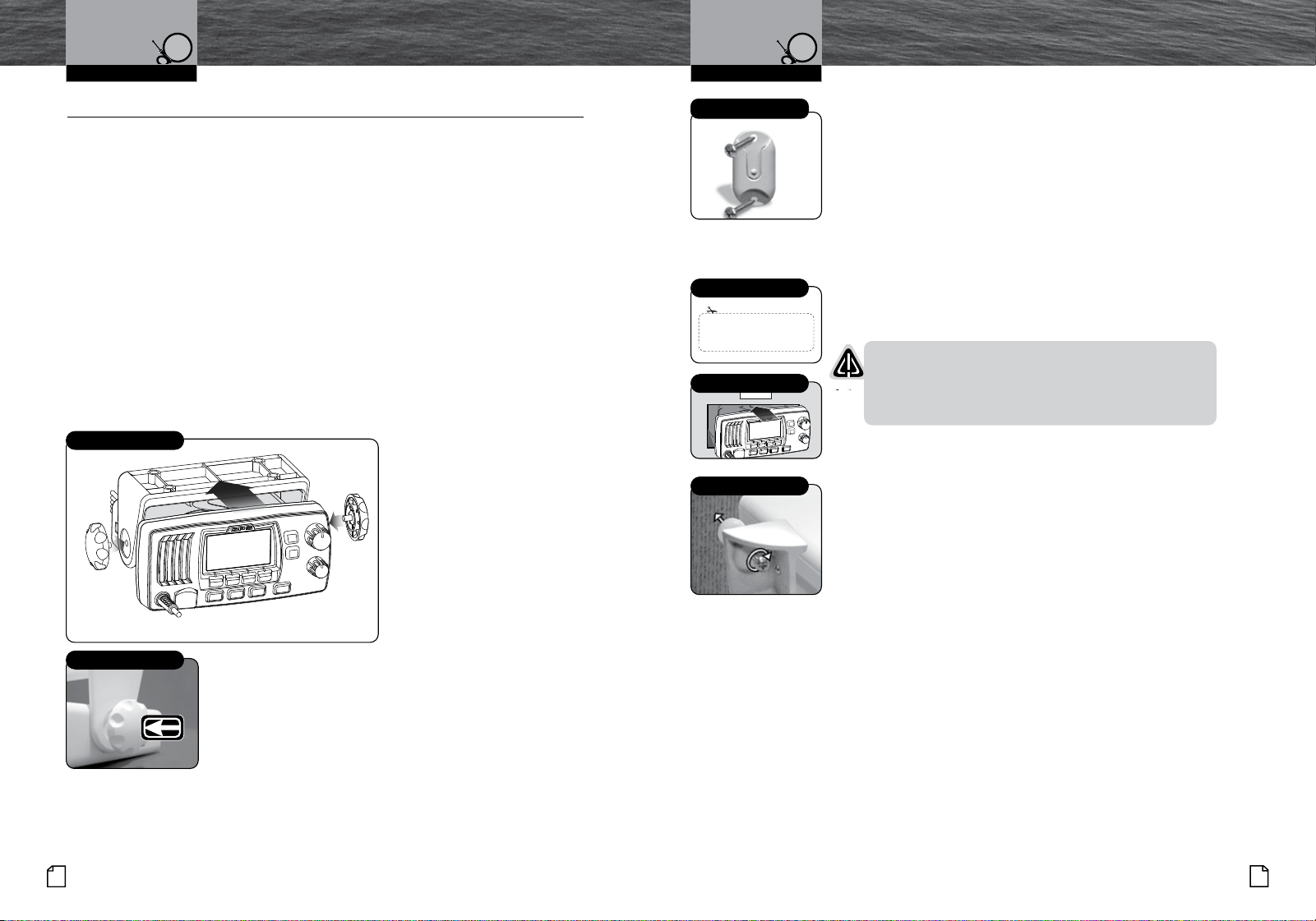
Surface Mount
A Surface Mounting kit is included with your Cobra Marine VHF radio to allow its
installation on almost any flat surface.
To Mount The Transceiver
On Almost Any Flat Surface:
1. Use the mounting bracket
as a template to drill holes
for the mounting screws.
2. Attach the mounting bracket
to the chosen surface.
3. Attach the transceiver to
the mounting bracket with
the locking knobs.
4. Tilt the transceiver to
a convenient angle and
tighten the locking knobs.
Surface Mounting Kit
Tilt Lock Knobs
Microphone Bracket
To Install The Microphone Bracket:
1. Install the microphone bracket
on a vertical surface near the transceiver
using the supplied stainless steel screws.
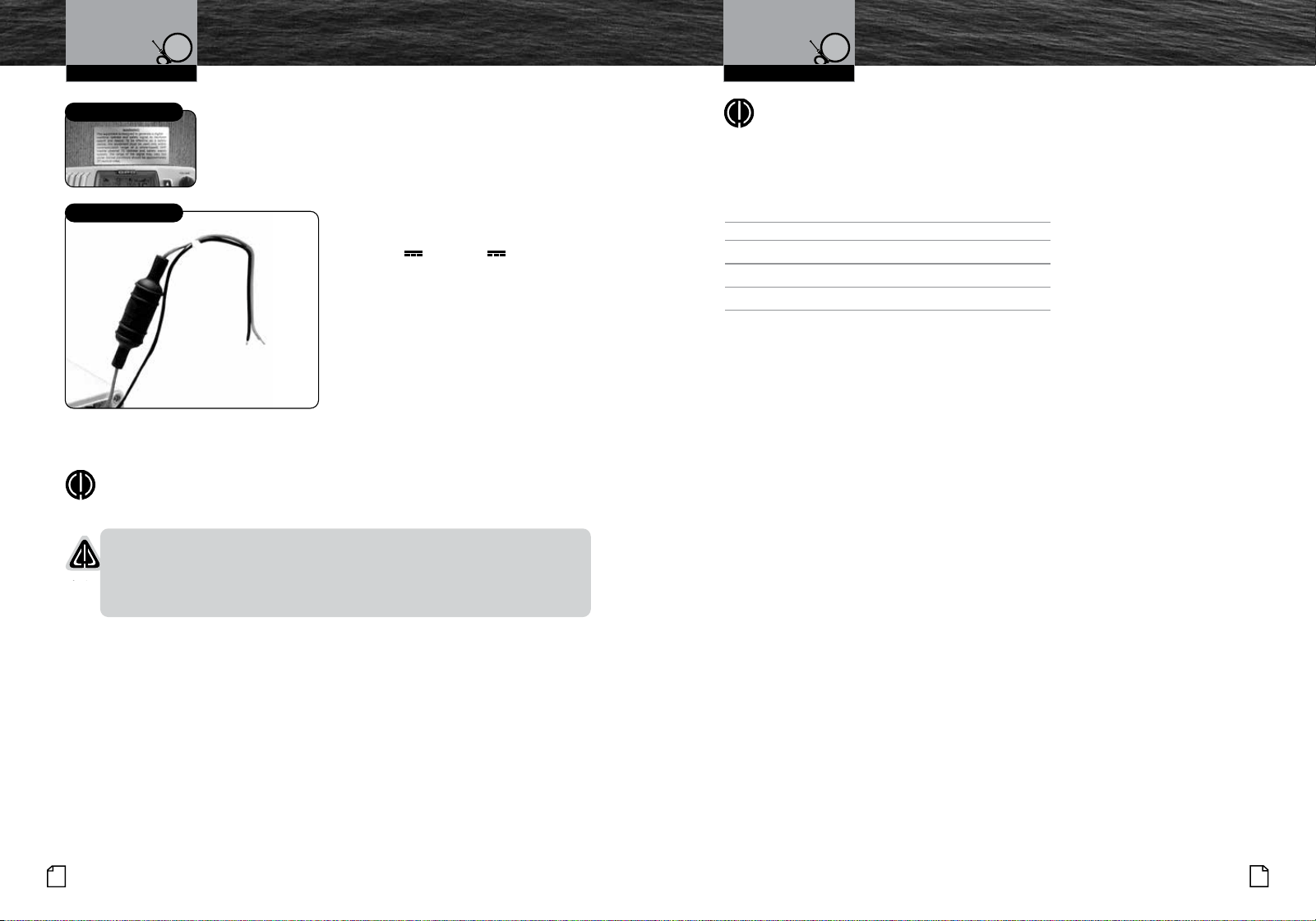
Flush Mount
A Flush Mounting kit is included with your Cobra Marine
VHF radio to allow its installation in almost any flat surface.
To Mount The Transceiver Flush In Almost Any Flat Surface:
1. Use the supplied template to mark and cut an opening
in the flat surface. See page 85 for template.
CAUTION
Before cutting, be sure the area behind the flat
surface is clear of any instruments or wires that
might be damaged in the process.
2. Insert the transceiver into the opening.
3. Attach the flush mounting brackets to the sides of the
transceiver with the adjusting screw flanges facing
the back of the flat surface.
4. Tighten the adjusting screws against the back of the flat
surface until the flange on the front of the transceiver
is tight against the flat surface.
Installation And Start-Up
Mounting And
Powering The Radio
Use Supplied Template
Insert Transceiver
Adjust Screws
See page 85
for template.
Microphone Bracket
Mounting And
Powering The Radio
Nothing Comes Close to a Cobra
®
19
18
English
Installation And Start-Up Installation And Start-Up
Mounting And
Powering The Radio
NOTE
All wiring is best kept as short as possible. If the power leads must be
extended, use a high-quality, marine-grade cable sized for up to 10 amps
of current. To minimize voltage drop, choose a wire gauge as follows:
Length Wire Gauge
Up to 1.5m(4.9ft) 1.6 mils(#14)
Up to 3.0m(9.8 ft) 2.0 mils(#12)
Up to 5.0m(16.4 ft) 2.6 mils(#10)
Up to 6.0m(19.7 ft) 3.3 mils(#8)
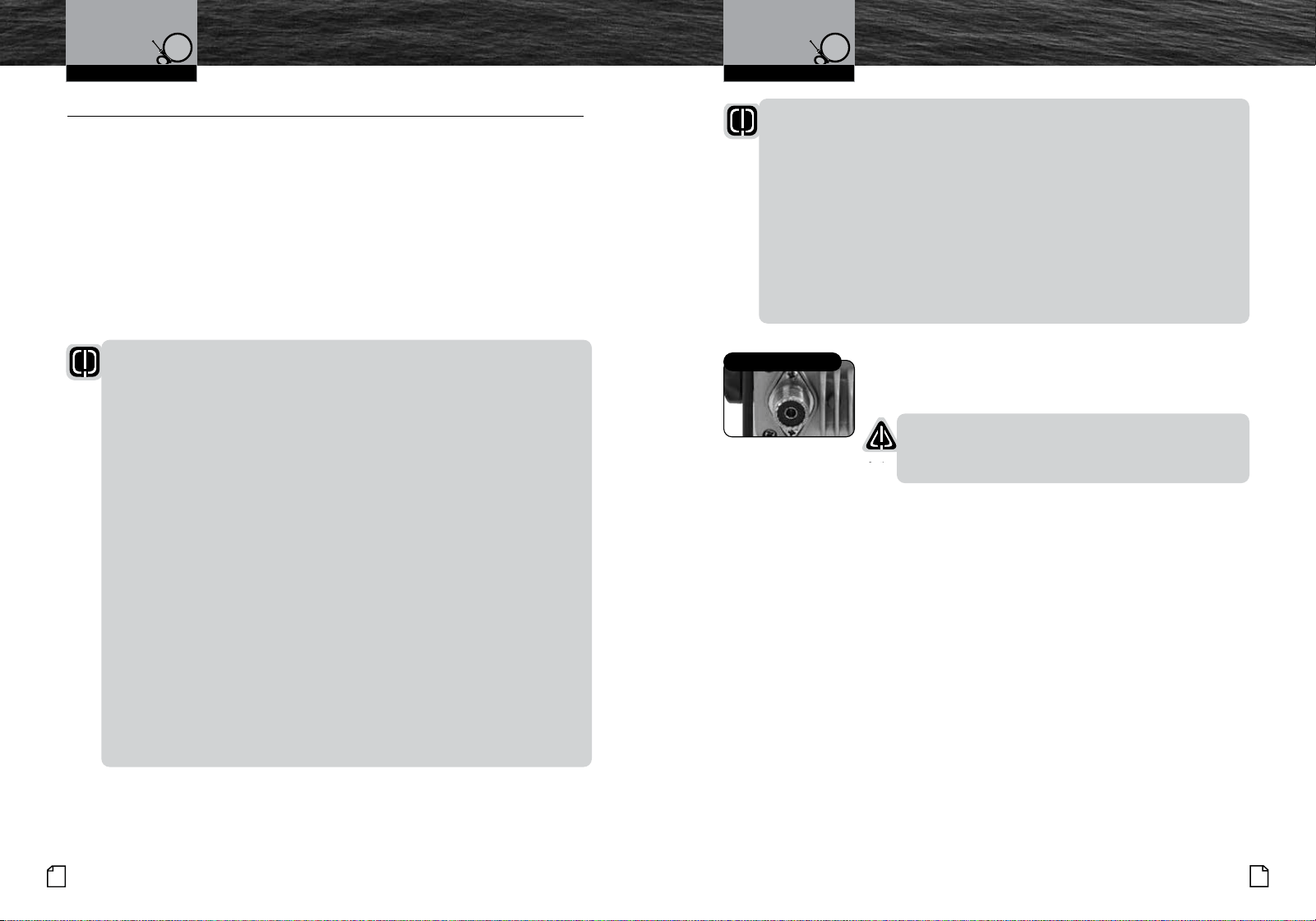
Warning Sticker
FCC regulations require that the Warning Sticker
supplied with this radio be applied to a spot where
it is easily seen by the radio operator. Be sure the
location is clean and dry before applying the sticker.
Electrical Power Connection
Your Cobra Marine VHF radio is powered
from +10.0V to
+16.0V vessel direct
current electrical, negative ground
systems (12-volt nominal). A fused
power connection lead is provided at the
back of the transceiver.
To Connect To A Power Source:
1. Attach the black (-) wire to a negative
(-) ground.
2. Attach the fused red power (+) wire
to the positive (+) side of the power
system.
NOTE
This radio will draw up to 8 amps when transmitting at full power.
NOTICES
A reverse polarity connection will damage the radio.
When replacing the fuse in your transceiver, use only the size and type
originally provided.
Warning Sticker
Power Connection Cables
Red Cable
Positive (+)
Black Cable
Negative (-)
– +
Antenna Requirements
And Attachment
Nothing Comes Close to a Cobra
®
21
20
English
Antenna Requirements
And Attachment
Installation And Start-Up Installation And Start-Up
Antenna Requirements And Attachment
•
Antenna Requirements
Your Cobra Marine VHF radio requires an external marine antenna
to send signals into the air and to receive them. The radio is arranged
to use any of the popular marine VHF antennas, but it is up to you to
choose which antenna to use.
Since it represents the link between your radio and the outside world,
Cobra
®
suggests you purchase the best quality antenna, coaxial cable,
and connectors you can. This is best accomplished with the advice
and guidance of a knowledgeable dealer who can assess the variables
involved with your particular boat and preferences.
WARNING
Compliance with FCC requirements for Radio Frequency Exposure is
the responsibility of both the antenna installer and the radio operator.
Safe Maximum Permissible Exposure (MPE) Radius
To avoid health hazards from excessive exposure to RF energy, FCC OET Bulletin
65 establishes an MPE radius of 10’ (3 m) for the maximum power
of your radio with an antenna having a maximum power gain of 9 dBi.
This means that all persons must be at least 10’ (3 m) away from the
antenna when the radio is transmitting.
Installation Requirements
A) An omnidirectional antenna with a gain not greater than 9 dBi must
be mounted at least 16.4’ (5 m) above the highest deck where people
may be during radio transmissions, measured vertically from the lowest point
of the antenna. This provides the minimum separation distance
to comply with RF exposure requirements and is based on the MPE
radius of 10’ (3 m) plus the 6.6’ (2 m) height of an adult.
B) For vessels without structure to mount the antenna as described in A,
it must be mounted as follows AND all persons must be outside the
10’ (3 m) MPE radius during radio transmissions. The antenna must
be mounted so that its lowest point is at least 3.3’ (1 m) vertically above
the heads of all persons during radio transmissions.
Radio Operator Requirements
Do not transmit when anyone is within the MPE radius of the antenna unless
that person or persons are shielded from the antenna by a grounded metallic
barrier. This is especially important on vessels with antennas mounted as
described in B where no one may be within 9’ (2.8 m) horizontally from the base
of the antenna during transmissions.
FAILURE TO OBSERVE THE ABOVE LIMITS MAY EXPOSE THOSE WITHIN
THE MPE RADIUS TO RF ENERGY ABSORPTION IN EXCESS OF THE FCC
MAXIMUM PERMISSIBLE EXPOSURE. IT IS THE RADIO OPERATOR’S
RESPONSIBILITY TO INSURE THAT MPE LIMITS ARE HEEDED AND THAT
NO ONE IS WITHIN THE MPE RADIUS DURING TRANSMISSIONS.
Antenna Lead Attachment
Once the antenna is installed, the Coaxial Cable Lead can
be attached to the socket at the back of the transceiver.
CAUTION
Attempting to transmit without an antenna attached will
damage your Cobra Marine VHF radio.
Coaxial Cable Socket
External Devices
And Connections
Nothing Comes Close to a Cobra
®
23
22
English
External Devices
And Connections
External Devices And Connections
•
Your Cobra Marine VHF radio is set up to connect auxiliary devices for navigation,
convenience, and added versatility. As is the case with the antenna, choosing these
devices is best done with the advice and guidance of a knowledgeable dealer.
Standard connectors are provided on the front and back of the transceiver.
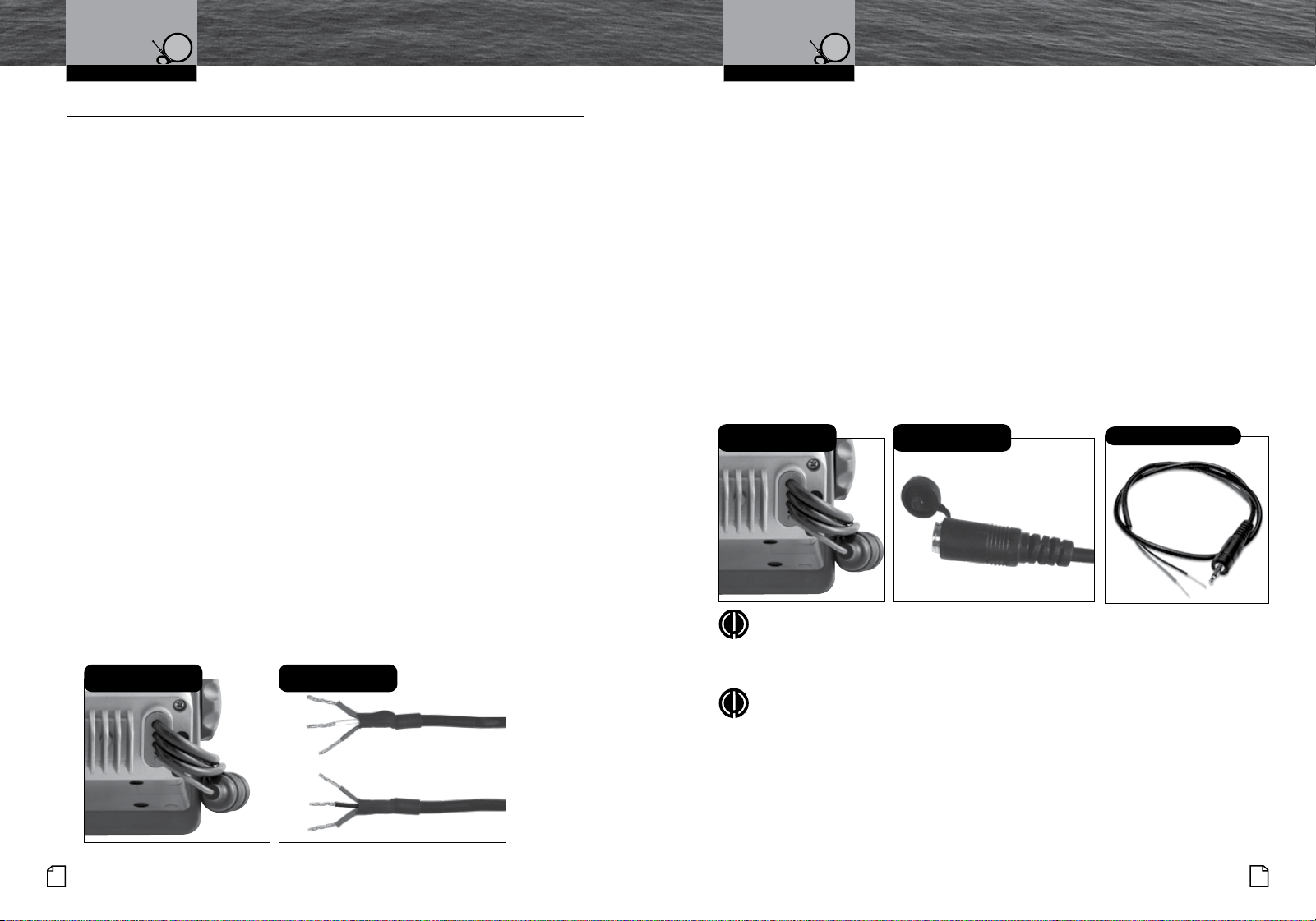
External Speaker (Not Included)
An External Speaker can provide greater volume to hear messages than the speaker
incorporated in the Cobra Marine.
To Install An External Speaker:
1. Connect the wires to the External Speaker as follows:
Orange wire - +Positive connection
Black wire - -Negative connection (Black wire is common shared -Negative for
the External Speaker and PA output)
2. Make sure to solder, crimp, or twist the wires together firmly and use shrink
tubing or electrical tape to waterproof the connection.
Public Address Speaker (Not Included)
At times, it may be handy to hail other boats or give instructions to line handlers
on the dock. Your Cobra Marine VHF radio can be switched to operate in the Public
Address mode through an attached PA speaker.
To Install A Public Address Speaker:
1. Connect the wires to the External Speaker as follows:
Red wire - +Positive connection
Black wire - -Negative connection (Black wire is common shared -Negative for the
External Speaker and PA output)
2. Make sure to solder, crimp, or twist the wires together firmly and use shrink
tubing or electrical tape to waterproof the connection.
Installation And Start-Up Installation And Start-Up
Wiring Located at Back
of Radio
Wiring for External and
Public Address Speakers
Global Positioning System (GPS) Device
Your Cobra Marine radio includes a built-in GPS receiver. Your position will be
continuously indicated on the LCD and, most importantly, it will be included
automatically with any DSC Distress message you may need to send. That will take the
“search” out of “search and rescue.
An external GPS input connector has been provided to allow connection to a
back-up GPS receiver.
To Install an External GPS Device:
1. Install the GPS device in a convenient location according to its manufacturer’s
directions.
2. Plug-in the optional Cobra C.P.S. (Cobra Positioning System) into the provided
2.5mm jack.
3. Or using the supplied 2-wire adapter wire as follows:
Yellow wire - NMEA 0183 +Data in
Green wire - NMEA 0183 -Data in.
NOTE
Satellite acquisition time is dependent on the antenna mounting location. If the
acquisition takes too long, relocate the radio or use an external GPS receiver.
NOTE
GPS data input is as follows:
• Input voltage (peak to peak): 10V
• Maximum data rate: 4800 baud
• Impedance: 4KΩ
Wiring Located at Back
of Radio
Cobra Positioning
System Plug
GPS Interface Cable
Getting Started
Nothing Comes Close to a Cobra
®
25
24
English
Getting Started
Getting Started
•
Refer to the foldout on the front cover of this manual to identify the various
controls and indicators on your radio.
Throughout this manual you will be instructed to press or to press and hold
buttons on the transceiver. Press means a momentary press, then release; press and
hold means to hold the button.
Tones And Alarms
When your Cobra Marine VHF radio is On, you can expect to hear the following tones
and alarms. The volume of these sounds is controlled by the circuitry in the radio and
is not affected by the volume set with the On-Off Power/Volume knob.
Confirmation Tone
Single high-pitched beep confirms all button presses except the Talk button.
It can be turned On or Off. See set-up routines on page 30.
Error Tone
Three low-pitched beep indicates an invalid button press.
DSC Distress Alarm
High—low—high—low—high. Pause, then repeat. The volume of all alarms will
increase after 10 seconds. Press any button to turn it Off.
NOTE
This alarm sounds only for DSC distress calls on Channel 70.
It does not sound for voice calls on Channel 16 — you still
must listen for those.
Distress Acknowledgement Alarm
High—low—high—low—high. Pause, then repeat. The volume of all alarms will
increase after 10 seconds. Press any button to turn it Off.
DSC Routine Call Alarm
High—pause—high—pause—high. Long pause, then repeat. Press any button to turn
it Off.
DSC Geographical Alarm
Loud, continuous, medium-pitched, high-low tones (warble) — sounds
when a geographical call is received. Press any button to turn it Off.
DSC Position Request Alarm
Medium-loud, continuous, low-pitched series of closely spaced, four (4) beeps [three
(3) short – one (1) long] groups — sounds when a position request call
is received. Press any button to turn it Off.
DSC Individual Alarm
High—pause—high—pause—high. Long pause, then repeat. Press any button to turn
it Off.
Weather Alarm
Medium-loud, continuous, medium-pitched series of one-half (
1
⁄2) second beeps
spaced one-half (
1
⁄2) second apart — sounds when weather alert is turned On
and NOAA sends a 1050 Hz weather alert tone on the selected weather channel. Press
any button to turn it Off.
Power On-Off
Transceiver power can be turned On or Off by the On-Off Power/Volume
knob on the transceiver.
To Turn Your Radio On Or Off:
1. Rotate the Off Power/Volume knob clockwise to turn on
the transceiver. To turn off the transceiver, rotate the Off
Power/Volume counter clockwise until a “click” is heard.
When the radio is powered On, the confirmation tone
will sound.
The radio will return to the settings in effect when it was
last powered Off, the LCD will show the corresponding
information, and all controls will be operative. The radio
will then be in Standby mode.
Volume
The On-Off Power/Volume knob on the transceiver controls the
speaker volume. The volume adjustment applies only to what
you hear from the speaker and does not affect the volume of
your outgoing messages. That is controlled by the circuitry of
your radio. The volume bar graph will be shown to indicate
the volume setting. 2 seconds after finishing the volume
adjustment, the radio will return to the Standby mode.
To Increase The Volume:
• Turn the On-Off Power/Volume knob clockwise.
To Decrease The Volume:
• Turn the On-Off Power/Volume knob counter-clockwise.
Squelch
Squelch control filters weak signals and radio frequency noise so that you can more
clearly hear the signals you want. You can think of it as a variable barrier that blocks
what you don’t want to hear.
Operating Your Radio Operating Your Radio
On-Off Power/
Volume Knob
VOlume
On-Off Power/
Volume Knob
On-Off Power/
Volume Knob
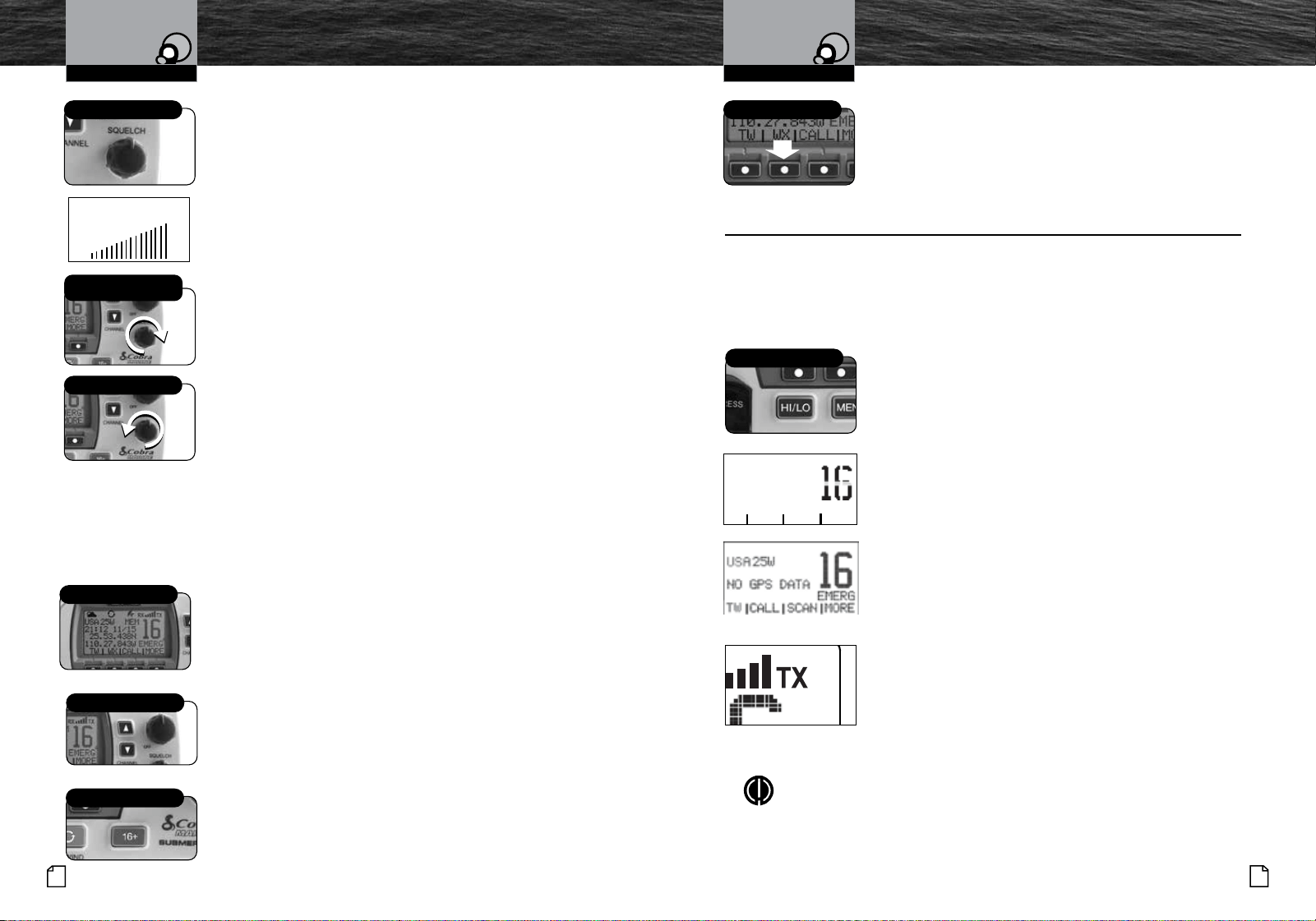
To Squelch Your Radio:
1. With the Squelch knob turned fully counter-clockwise, turn
the On-Off/Volume knob clockwise until you hear
a hissing (noise) sound.
2. Turn the Squelch knob clockwise until the hissing
sound stops.
Turning the Squelch knob further clockwise (higher barrier)
will filter weak and medium strength signals until only the
strongest signal can get through at the highest squelch setting.
The Squelch bar graph will be shown to indicate the Squelch
setting. 2 seconds after finishing the Squelch adjustment, the
radio will return to the Standby mode.
To Receive Weaker Signals:
1. Turn the Squelch knob counterclockwise (lower barrier).
If the squelch is set so that you can hear a continuous hissing
sound, the memory scan and tri-watch functions will be blocked.
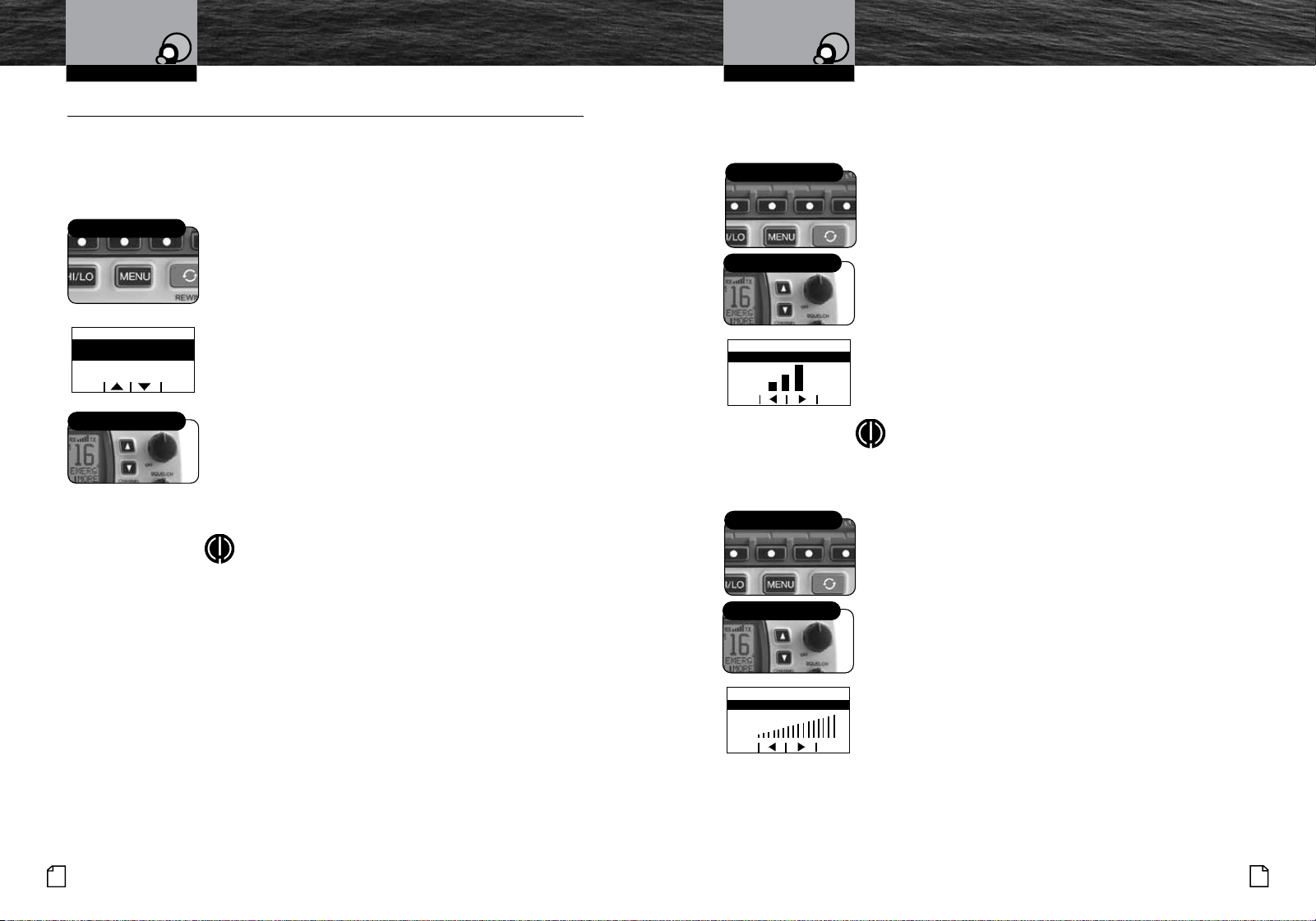
Standby And Receive
Standby mode is the usual mode for the radio whenever it is
turned On.
From Standby Mode, You Can:
n
Change your radio’s settings using set-up routines.
n
Receive messages on the current channel as well
as DSC messages.
n
Listen and Receive NOAA alerts if Weather Alert mode is
turned On.
n
Switch to Transmit mode using the Talk button.
While the radio is in Standby mode, the Receive mode is
entered whenever a strong enough signal to break squelch is
sent to the radio. You will hear the message through whichever
speakers are connected to the radio.
To Change The Channel You Are Listening To,
You Can Choose One Of The Following:
a. Press the Up/Down buttons. This will take you to
the next higher or lower VHF channel. For rapid
advance, press and hold the Up or Down button.
b. Press the Channel 16/9 button. This will take
you to Channel 16 with one (1) press and to Channel 9 with
a second press. Additional presses will toggle between
Channels 16 and 9 and the current user selected channel.
Nothing Comes Close to a Cobra
®
27
26
English
c. To listen to the Weather Radio press the WX (Weather)
soft key. This will activate the weather radio mode. When
in the Weather mode, the Up/Down buttons will change
the weather channel.
d. Press and release the Back softkey to return the radio to
Standby Mode.
HI/LO Transmit Setting
•
Transmit Power Output
Your radio can Transmit selectively at one (1) or 25 watts of power. Cobra
®
suggests
you maintain the low power setting for short-range communications and to avoid
overpowering nearby stations with your signal. Use the high power setting for long-range
communications or when you do not receive a response to a signal sent at one (1) watt.
To Toggle Between The High And Low Power Modes:
1. Press the High/Low Power button. The LCD will show which
mode is in effect.
Some channels are restricted to use at a maximum of one
(1) watt. Your radio will automatically set the power to Low
Power mode when you select those channels.
While using the U.S.A. channel map, if, in an emergency,
you need to increase the output power on Channel 13 and
Channel 67 for your signal to be heard, you can override the
Low Power mode by pressing and holding the High/ Low
Power button.
Transmit a Message
1. Check to see that your unit is set to a proper channel for the
type of message you plan to send.
2. Toggle to the low power setting.
3.
With the microphone about two (2) inches [five (5) cm] from
your mouth, press and hold the Talk button and speak into
the microphone. Transmit will be indicated on the LCD.
4.
Release the Talk button when you are finished speaking. Your
unit can only operate in either the Transmit or the Receive
mode at any given time. You will not hear the response to your
message unless the Talk button is released.
NOTE
If the Talk button is held down for five (5) minutes, the radio will
automatically cease transmitting to prevent unwanted signal generation.
As soon as the Talk button is released, it can be pressed again to
resume transmission.
Weather ButtonSquelch Knob
Lower Barrier
Standby Mode
Getting Started
Getting Started
Operating Your Radio Operating Your Radio
Turn Till Hissing
Sound Stops
Up/Down Buttons
Channel 16/9 Button
Squelch
High/Low Power Button
TW CALL SCAN more
emerg
no gps Data
1WUSA
MRF77W GPS E & MRF77B GPS E LCD POP LABEL 1:1
55mm Wide x 30mm High
REV. 12.9.2014
55.00
30.00
21:12 11/11
25.53.438N
110.27.843W EMERG
SCAN MORE
INT
25W
TW
MEM
CALL
Set-Up Routines
Nothing Comes Close to a Cobra
®
29
28
English
Set-Up Routines
Set-Up Routines
•
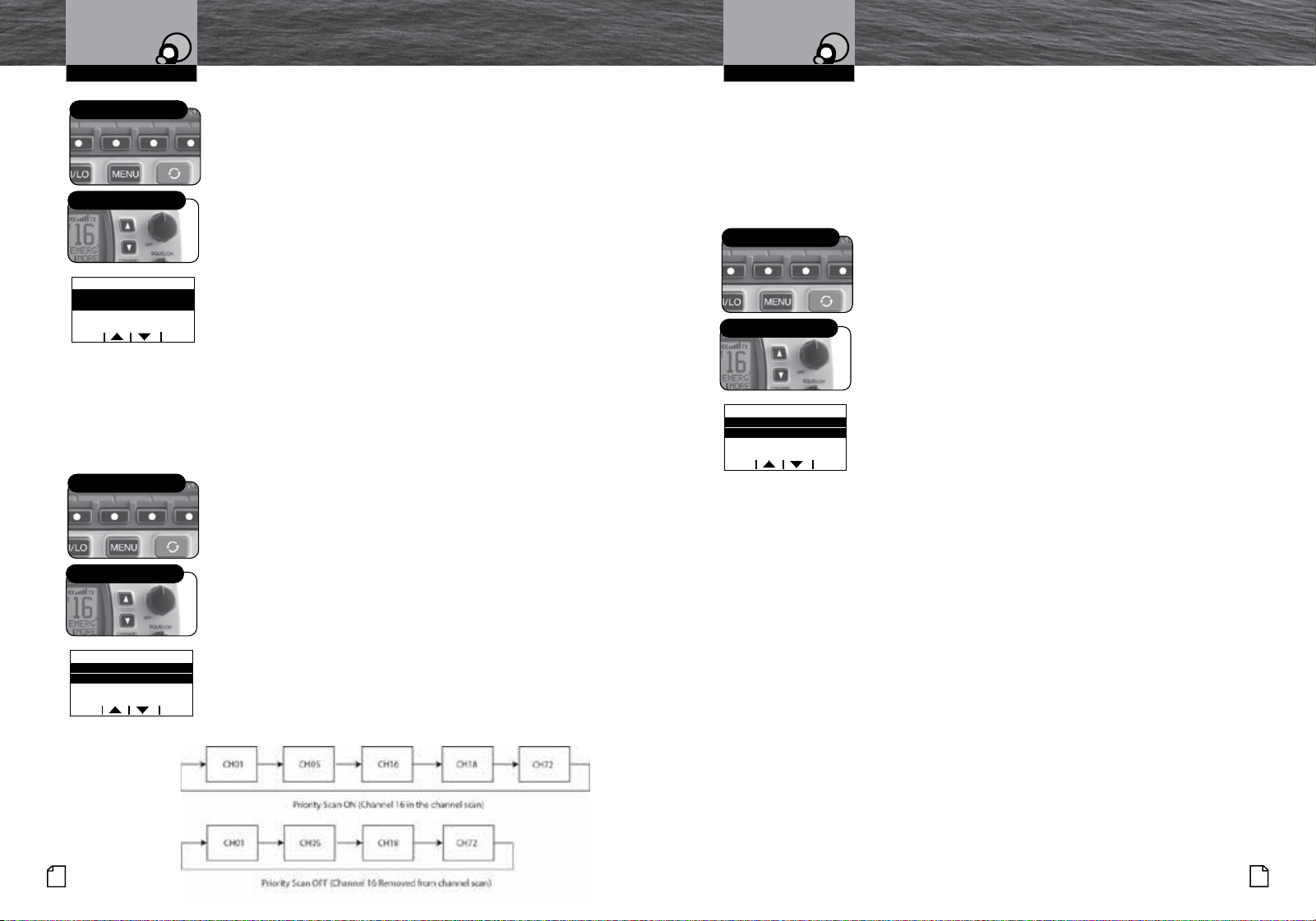
Settings Menu
The Settings menu in the Cobra Marine VHF radio allows you to turn On and Off many
of its features, to adjust other features to suit your preferences, and to enter your user
MMSI number.
To Enter The Settings Menu:
1. Press the Menu button.
The Settings menu will appear on the LCD.
After entering the Settings menu, you can scroll
through it to make as many entries as you like.
Whenever the setting selection highlight appears in a feature
portion of the menu, it will highlight the setting that was in
effect when you entered the menu.
When you are finished with changes, you can exit the
Settings menu by pressing the Exit soft key and return to
Standby mode.
To Exit The Settings Menu:
1. Use the Up/Down buttons to scroll down to
EXIT at the bottom of the menu, or press the Exit soft key
to move up through the menu until the radio returns to the
Standby mode.
NOTE
Basic set-up routines are described here. For set-up
routines that apply specifically to a particular function,
they are included in the section for that function.
Set-Up Routines
•
Settings Menu
The Settings menu in the Cobra Marine VHF radio allows you to turn On and Off many
of its features, to adjust other features to suit your preferences, and to enter your user
MMSI number.
To Enter The Settings Menu:
1. Press the Menu button.
The Settings menu will appear on the LCD.
After entering the Settings menu, you can scroll
through it to make as many entries as you like.
Whenever the setting selection highlight appears in a feature
portion of the menu, it will highlight the setting that was in
effect when you entered the menu.
When you are finished with changes, you can exit the
Settings menu by pressing the Exit soft key and return to
Standby mode.
To Exit The Settings Menu:
1. Use the Up/Down buttons to scroll down to
EXIT at the bottom of the menu, or press the Exit soft key
to move up through the menu until the radio returns to the
Standby mode.
NOTE
Basic set-up routines are described here. For set-up
routines that apply specifically to a particular function,
they are included in the section for that function.
LCD Backlight
The LCD has a Backlight lamp to make it visible in the dark.
This lamp can be adjusted for brightness or turned Off.
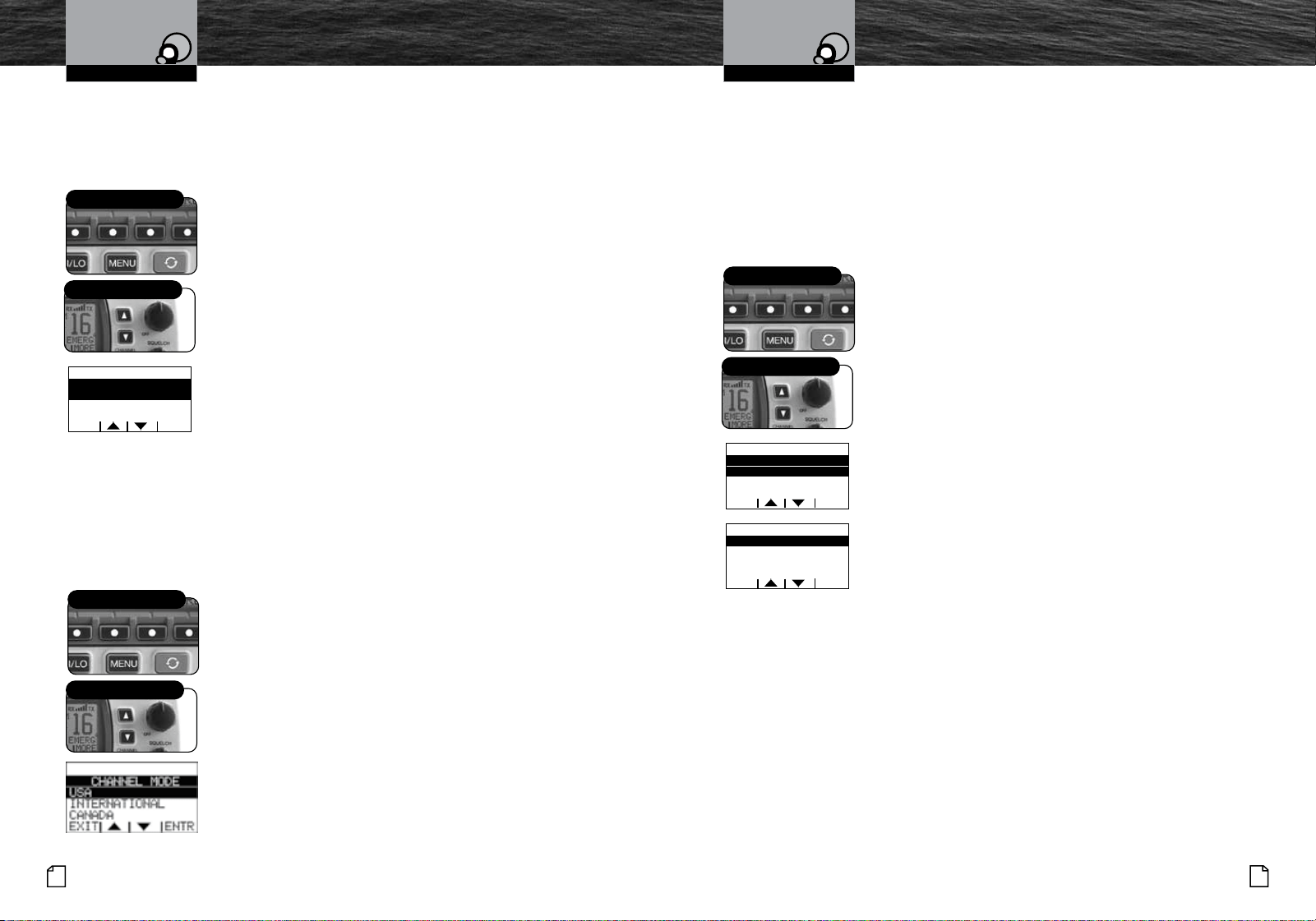
To Adjust The Backlight Level:
1. Enter the Settings menu and scroll to LAMP ADJ with the
Up/Down soft keys or using the Up/Down channel buttons
.
2. Press the ENTR soft key and observe the current backlight
setting —
HIGH, MEDIUM, LOW or OFF.
3. Use the Up/Down buttons or Right/Left soft keys to switch to
the setting you want.
4. Press the ENTR soft key to select the backlight setting. Or
press the EXIT soft key to
EXIT without making changes
to the backlight setting.
5. The radio will return to the Settings menu. The radio will
remember the saved backlight setting, when powering off
the radio, or disconnecting power to the radio.
NOTE
If the backlight is set to off, ANY key press will activate the
backlight at the lowest setting.
LCD Contrast
The LCD backlight will not be visible in daylight, but the LCD
Contrast can be adjusted to make it easier to read in
different light conditions.
To Change The Contrast:
1. Enter the Settings menu and scroll to
CONTRAST
ADJUST
Up/Down soft keys or the UP/Down channel
buttons.
2. Press the ENTR soft key and observe the current contrast
setting — a number between one 0 and 16.
3. Use the Up/Down buttons or the Right/Left soft keys to
change the number up or down
4. Press the ENTR soft key to select a contrast level. Or press
the EXIT soft key to
EXIT without making changes to the
Contrast setting.
5. The radio will return to the settings menu. The radio will
remember the saved contrast level, when powering off the
radio, or disconnecting power to the radio.
LCD Backlight
The LCD has a Backlight lamp to make it visible in the dark.
This lamp can be adjusted for brightness or turned Off.
To Adjust The Backlight Level:
1. Enter the Settings menu and scroll to LAMP ADJ with the
Up/Down soft keys or using the Up/Down channel buttons
.
2. Press the ENTR soft key and observe the current backlight
setting —
HIGH, MEDIUM, LOW or OFF.
3. Use the Up/Down buttons or Right/Left soft keys to switch to
the setting you want.
4. Press the ENTR soft key to select the backlight setting. Or
press the EXIT soft key to
EXIT without making changes
to the backlight setting.
5. The radio will return to the Settings menu. The radio will
remember the saved backlight setting, when powering off
the radio, or disconnecting power to the radio.
NOTE
If the backlight is set to off, ANY key press will activate the
backlight at the lowest setting.
LCD Contrast
The LCD backlight will not be visible in daylight, but the LCD
Contrast can be adjusted to make it easier to read in
different light conditions.
To Change The Contrast:
1. Enter the Settings menu and scroll to
CONTRAST
ADJUST
Up/Down soft keys or the UP/Down channel
buttons.
2. Press the ENTR soft key and observe the current contrast
setting — a number between one 0 and 16.
3. Use the Up/Down buttons or the Right/Left soft keys to
change the number up or down
4. Press the ENTR soft key to select a contrast level. Or press
the EXIT soft key to
EXIT without making changes to the
Contrast setting.
5. The radio will return to the settings menu. The radio will
remember the saved contrast level, when powering off the
radio, or disconnecting power to the radio.
Operating Your Radio Operating Your Radio
Menu Button
Up/Down Buttons
exit entr
menu
lamp adjust
contrast adjust
dsc setup
Soft Keys
Up/Down Buttons
exit entr
High
lamp adjust
Soft Keys
Up/Down Buttons
exit entr
16
level
contrast adjust
Set-Up Routines
Nothing Comes Close to a Cobra
®
31
30
English
Set-Up Routines
Conrmation Tone
The Confirmation Tone sounds when your Cobra Marine VHF radio is turned On
and to confirm all button presses except for the Talk button. If you would prefer
not to hear the Confirmation Tone, you can turn it Off and On as you choose.
To Turn The Confirmation Tone On Or Off:
1. Enter the Settings menu and scroll to
KEY TONE
with the Up/Down soft keys or the Up/Down channel
buttons.
2. Press the ENTR soft key and observe the current
confirmation tone setting —
ON or OFF.
3. Use the Up/Down soft keys or the Up/Down channel
buttons to switch to the setting you want.
4. Press the ENTR soft key to select the setting. Or press the
EXIT soft key to
EXIT without making changes to the Key
Tone setting.
5. The radio will return to the settings menu. The radio will
remember the saved Key Tone setting, when powering off
the radio, or disconnecting power to the radio.
U.S.A./International/Canada Channel Maps
Three (3) sets of VHF Channel Maps have been established for marine use in the
U.S.A., Canada, and the rest of the world (International). Most of the channels are the
same for all three (3) maps, but there are definite differences (see table on pages 66
through 78). Your radio has all three (3) maps built into it and will operate correctly in
whichever area you choose.
To Set Your Radio For The Area In Which You Will Be Using
It:
1.
Enter the Settings menu and scroll to CHANNEL
MODE with
the Up/Down soft keys or the Up/Down channel buttons.
2. Press the ENTR soft key and observe the current channel
mode setting —
USA,INTERNATIONAL, or CANADA.
3. Use the Up/Down soft keys or the Up/Down channel buttons
to switch to the setting you want.
4. Press the ENTR soft key to select the setting. Or press the
EXIT soft key to
EXIT without making changes to the
Channel Mode setting
5. The radio will return to the settings menu. The radio will
remember the saved Key Tone setting, when powering off
the radio, or disconnecting power to the radio
Time Adjust
All VHF, DSC, and GPS activities use a 24-hour clock and Universal Coordinated Time
(UTC) which was formerly known as Greenwich Mean Time (GMT). Time Adjust uses
your built-in GPS to gather time input. Time Adjust will allow the radio to display the
time as Local time or UTC time. For time input to be converted to local time, you need
to enter the hour offset of your local time zone from Greenwich. (See world city time
zone chart on page 80). You can also choose to have the time displayed in a 12 or 24
hour format
To Change The Time Offset:
1. Enter the Settings menu and scroll to
TIME ADJUST
with the Up/Down soft keys or the Up/Down channel
buttons.
2. Highlight the TIME OFFSET option in the menu.
3. Press the ENTR key and observe the current setting.
4. Use the Up/Down soft keys or the UP/Down channel
buttons to change the setting for your local time zone.
5. Press the ENTR soft key to select the setting. Or press the
EXIT soft key to
EXIT without making changes to the
Local Time Zone setting.
6.
The radio will return to the Time Adjust menu. The radio
will remember the saved Local Time Zone setting, when
powering off the radio, or disconnecting power to the radio.
To Select UTC or Local Time Display:
1. Enter the Settings menu and scroll to
TIME ADJUST
with the Up/Down soft keys or the Up/Down channel
buttons.
2. Highlight the LOCAL TIME option in the menu.
3. Press the ENTR key and observe the current setting.
4. Use the Up/Down soft keys or the UP/Down channel
buttons to change the setting for how the radio will display
the time (UTC or Local).
5. Press the ENTR soft key to select the setting. Or press the
EXIT soft key to
EXIT without making changes to the
Local Time setting.
6.
The radio will return to the Time Adjust menu. The radio
will remember the saved Local Time Zone setting, when
powering off the radio, or disconnecting power to the radio.
Operating Your Radio Operating Your Radio
Soft Keys
Up/Down Buttons
exit entr
key tone
off
on
Soft Keys
Up/Down Buttons
Soft Keys
Up/Down Buttons
exit entr
time adjust
local time
time offset
exit entr
time offset
00:00
set local offset
33
Nothing Comes Close to a Cobra
®
Set-Up Routines
32
English
Set-Up Routines
To Select 12 or 24 Hour Format Time Display:
1. Enter the Settings menu and scroll to
TIME ADJUST
with the Up/Down soft keys or the Up/Down channel buttons.
2. Highlight the 12H/24H TIME DISP option in the menu.
3. Press the ENTR key and observe the current setting.
4. Use the Up/Down soft keys or the UP/Down channel
buttons to change the setting for how the radio will
display the time (12 Hour or 24 Hour format).
5. Press the ENTR soft key to select the setting. Or press the
EXIT soft key to
EXIT without making changes to the
time format display setting.
6. The radio will return to the Time Adjust menu. The radio
will remember the saved 12 or 24 hour radio display
setting, when powering off the radio, or disconnecting
power to the radio.
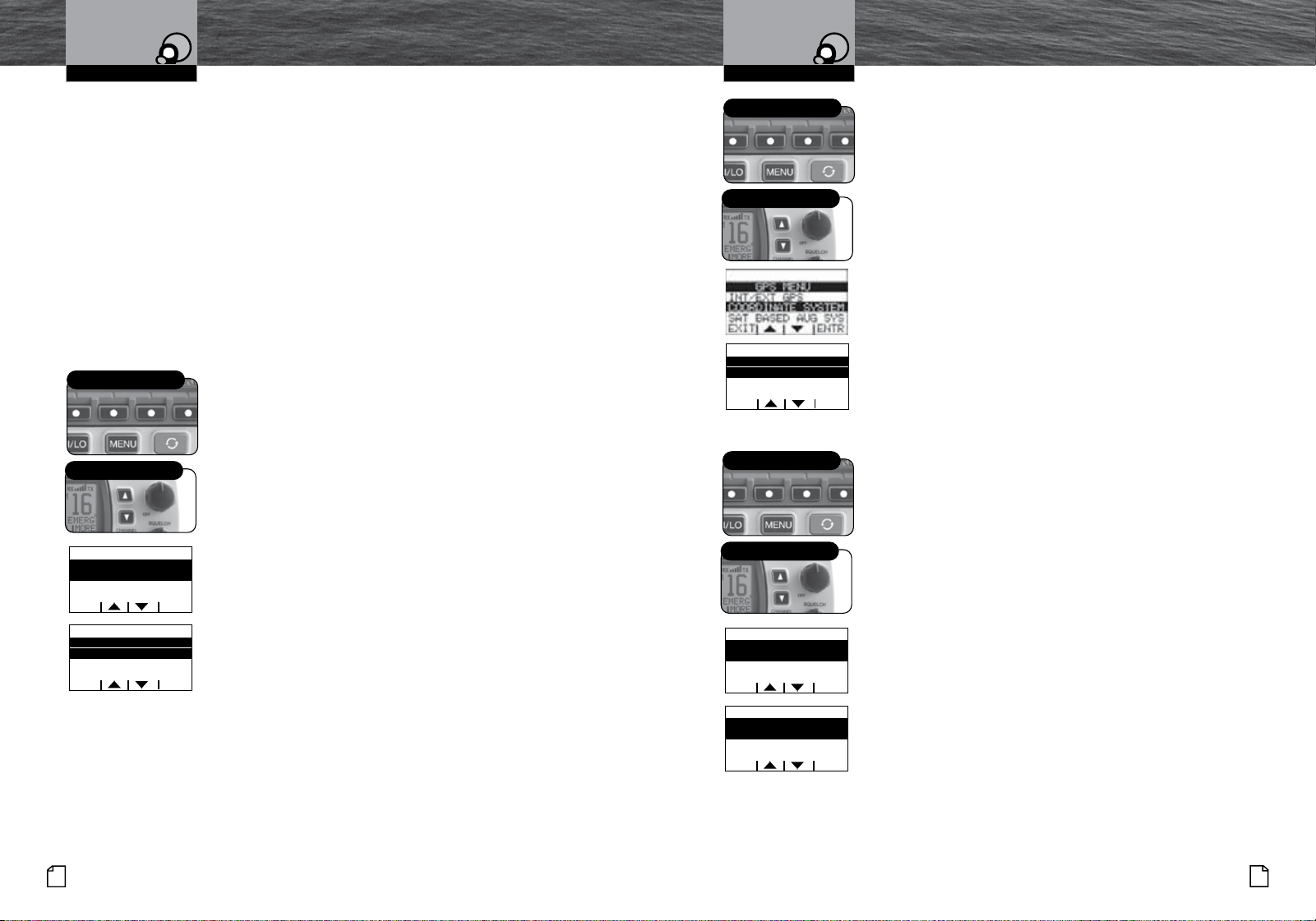
Priority Channel
This setting will allow you to choose whether channel 16 is or is not included when
channel scanning.
To Turn The Priority Channel On Or Off:
1. Enter the Settings menu and scroll to
PRIORITY
CHANNEL
with the Up/Down soft keys or the Up/Down
channel buttons.
2. Press the ENTR soft key and observe the current priority
channel setting — ON or OFF.
3. Use the Up/Down soft keys or the Up/Down channel
buttons to switch to the setting you want.
4. Press the ENTR soft key to select the setting. Or press the
EXIT soft key to
EXIT without making changes to the
priority channel setting.
5.
The radio will return to the settings menu. The radio
will remember the saved priority channel setting, when
powering off the radio, or disconnecting power to the radio.
To Select 12 or 24 Hour Format Time Display:
1. Enter the Settings menu and scroll to
TIME ADJUST
with the Up/Down soft keys or the Up/Down channel buttons.
2. Highlight the 12H/24H TIME DISP option in the menu.
3. Press the ENTR key and observe the current setting.
4. Use the Up/Down soft keys or the UP/Down channel
buttons to change the setting for how the radio will
display the time (12 Hour or 24 Hour format).
5. Press the ENTR soft key to select the setting. Or press the
EXIT soft key to
EXIT without making changes to the
time format display setting.
6. The radio will return to the Time Adjust menu. The radio
will remember the saved 12 or 24 hour radio display
setting, when powering off the radio, or disconnecting
power to the radio.
Priority Channel
This setting will allow you to choose whether channel 16 is or is not included when
channel scanning.
To Turn The Priority Channel On Or Off:
1. Enter the Settings menu and scroll to
PRIORITY
CHANNEL
with the Up/Down soft keys or the Up/Down
channel buttons.
2. Press the ENTR soft key and observe the current priority
channel setting — ON or OFF.
3. Use the Up/Down soft keys or the Up/Down channel
buttons to switch to the setting you want.
4. Press the ENTR soft key to select the setting. Or press the
EXIT soft key to
EXIT without making changes to the
priority channel setting.
5.
The radio will return to the settings menu. The radio
will remember the saved priority channel setting, when
powering off the radio, or disconnecting power to the radio.
Operating Your Radio Operating Your Radio
Weather Alert
This setting will allow you to choose whether activate the Weather Alert feature.
When NOAA broadcasts a Weather Alert Signal and your radio is in the Weather Alert
mode, you will hear a continuous audible tone and the radio will automatically switch
to Weather Radio mode. The alert indicators will sound regardless of what channel
you are operating on as soon as a NOAA alert signal is received
To Turn Weather Alert On Or Off:
1. Enter the Settings menu and scroll to
WEATHER ALERT
with the Up/Down soft keys or the Up/Down channel buttons.
2. Press the ENTR soft key and observe the current Weather
Alert setting —
ON or OFF.
3. Use the Up/Down soft keys or the Up/Down channel
buttons to switch to the setting you want.
4. Press the ENTR soft key to select the setting. Or press the
EXIT soft key to
EXIT without making changes to the
Weather Alert setting. The radio will turn on the Weather
Icon and Weather Alert Icon to indicate that the Weather
Alert is active.
5.
The radio will return to the settings menu. The radio will
remember the saved Weather Alert setting, when powering
off the radio, or disconnecting power to the radio.
Weather Alert
This setting will allow you to choose whether activate the Weather Alert feature.
When NOAA broadcasts a Weather Alert Signal and your radio is in the Weather Alert
mode, you will hear a continuous audible tone and the radio will automatically switch
to Weather Radio mode. The alert indicators will sound regardless of what channel
you are operating on as soon as a NOAA alert signal is received
To Turn Weather Alert On Or Off:
1. Enter the Settings menu and scroll to
WEATHER ALERT
with the Up/Down soft keys or the Up/Down channel buttons.
2. Press the ENTR soft key and observe the current Weather
Alert setting —
ON or OFF.
3. Use the Up/Down soft keys or the Up/Down channel
buttons to switch to the setting you want.
4. Press the ENTR soft key to select the setting. Or press the
EXIT soft key to
EXIT without making changes to the
Weather Alert setting. The radio will turn on the Weather
Icon and Weather Alert Icon to indicate that the Weather
Alert is active.
5.
The radio will return to the settings menu. The radio will
remember the saved Weather Alert setting, when powering
off the radio, or disconnecting power to the radio.
Soft Keys
Up/Down Buttons
exit entr
12h/24h time disp
12 hour format
24 hour format
Soft Keys
Up/Down Buttons
exit entr
priorty channel
off
on
Soft Keys
Up/Down Buttons
exit entr
weather alert
off
on
34
English
Set-Up Routines
To Select the Coordinate System:
1. Enter the Settings menu and scroll to
GPS MENU
with the Up/Down soft keys or the Up/Down channel
buttons.
2. Highlight the
COORDINATE
SYSTEM
option in the menu.
3. Press the ENTR key and observe the current setting.
4. Use the Up/Down soft keys or the UP/Down channel
buttons to change the setting to use the desired
coordinate system.
5. Press the ENTR soft key to select the setting. Or press the
EXIT soft key to
EXIT without making changes to the
Coordinate System setting.
6.
The radio will return to the GPS menu. The radio will
remember the saved Coordinate System setting, when
powering off the radio, or disconnecting power to the radio.
To Select the Satellite Based Augmentation System:
1. Enter the Settings menu and scroll to
GPS MENU
with the Up/Down soft keys or the Up/Down channel
buttons.
2. Highlight the SAT BASED AUG SYS option in the menu.
3. Press the ENTR key and observe the current setting.
4. Use the Up/Down soft keys or the Up/Down buttons to
select the desired setting.
5. Press the ENTR soft key to select the setting. Or press the
EXIT soft key to
EXIT without making changes to the Sat
Based Aug Sys setting.
6. The radio will return to the GPS menu. The radio will
remember the saved Sat Based Aug Sys setting, when
powering off the radio, or disconnecting power to the
radio.
Operating Your Radio
Set-Up Routines
Nothing Comes Close to a Cobra
®
35
Operating Your Radio
Soft Keys
Up/Down Buttons
exit entr
coordinate system
ddd mm.mm
ddd mm.ss
ddd mm.mmm
o
o
o
GPS Menu
All VHF Marine radios SHOULD / NEED to have a GPS receiver connected and operating
to effectively use the DSC (Digital Selective Calling) features built-in to the radios.
In an Emergency you want the rescue authorities and surrounding vessels to know
where you are and to be able to quickly assist you in your time of need. Your MR F77
radio has a GPS receiver built right in!
This menu allows you to select the internal GPS receiver (already selected by default),
select and external GPS receiver, select the coordinate system which is basically the
accuracy (the most accurate setting is already selected by default), Select the Satellite
Based Augmentation System to be enabled or turned off (some areas on Earth need
this turned off for greater accuracy)(defaulted On), and allows you to test the GPS
receiver (will test either the internal or an external GPS receiver) to be sure that you
are receiving good satellite information and check the GPS signal strength.
To Select the Internal or an External GPS Receiver:
1. Enter the Settings menu and scroll to
GPS MENU
with the Up/Down soft keys or the Up/Down channel
buttons.
2. Highlight the INT/EXT GPS option in the menu.
3. Press the ENTR key and observe the current setting.
4. Use the Up/Down soft keys or the UP/Down channel
buttons to change the setting to use the internal GPS or
turn off the internal GPS to use and external GPS.
5. Press the ENTR soft key to select the setting. Or press the
EXIT soft key to
EXIT without making changes to the
GPS setting.
6. The radio will return to the GPS menu. The radio will
remember the saved GPS setting, when powering off the
radio, or disconnecting power to the radio.
Soft Keys
Up/Down Buttons
exit entr
gps menu
Int/Ext gps
coordinate system
true/magnetic
exit entr
Int/Ext GPS
internal gps off
internal GPS on
Soft Keys
Up/Down Buttons
exit entr
gps menu
Int/Ext gps
coordinate system
true/magnetic
exit entr
sat based aug sys
off
on
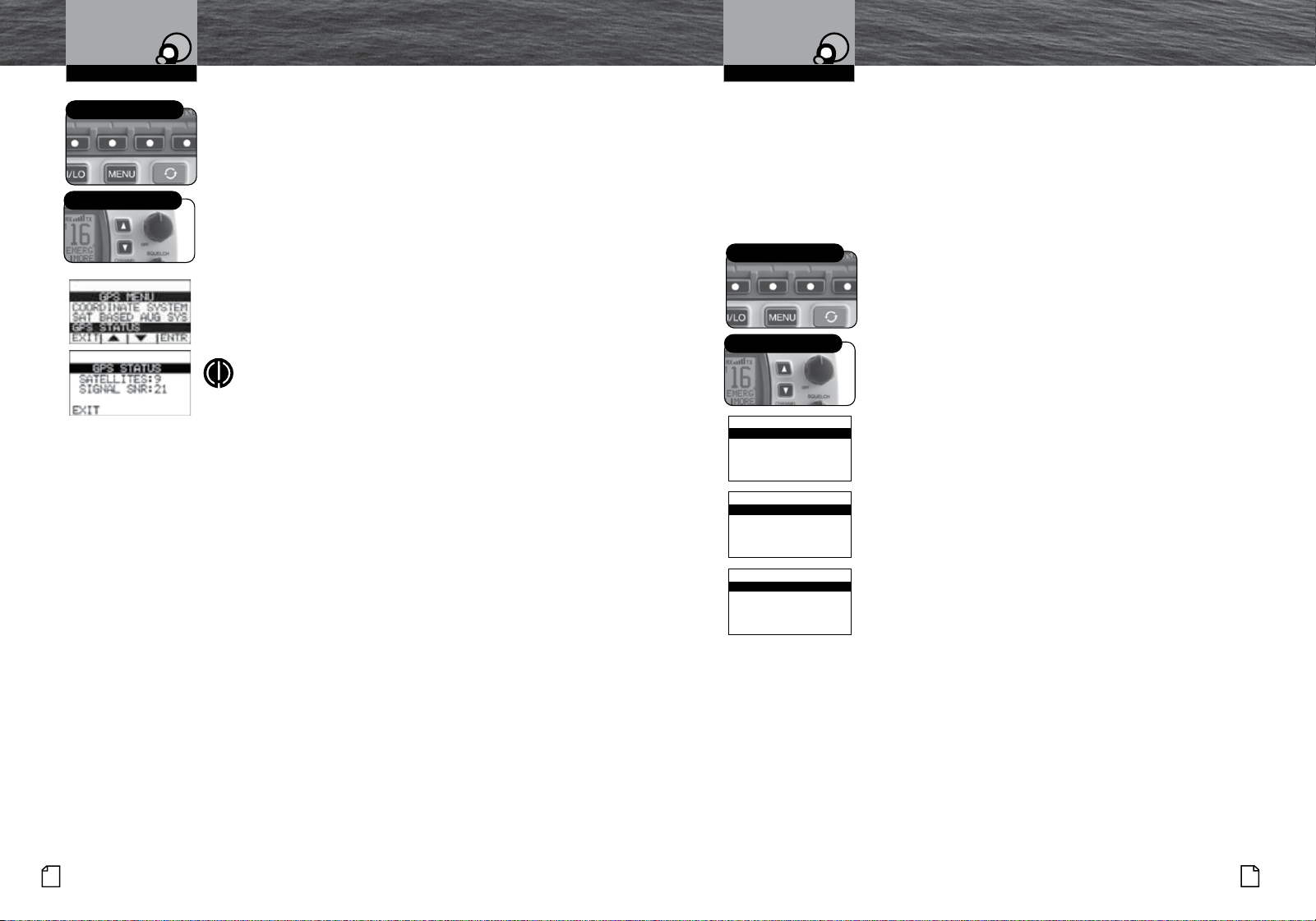
Set-Up Routines
Operating Your Radio
Set-Up Routines
Operating Your Radio
36
English
Nothing Comes Close to a Cobra
®
37
Radio Self Test
Your Cobra Marine radio includes a Self Test feature to allow you to test the input
battery voltage, the output transmit power, and the Antenna! This is the perfect test
before you head out from the dock to insure your radio is fully operational and is
ready, willing, and able to assist you for your communications needs and in case of
emergency.
To Select the Radio Self Test Screen:
1. Enter the Settings menu and scroll to
SELF TEST
with the Up/Down soft keys or the Up/Down channel
buttons.
2. Press the ENTR soft key and observe the current setting.
3. Press and release the Transmit button on the Microphone
to start the test.
4. The Self Test screen reports the following information:
a. Battery input voltage. Shown as a PASS or FAIL. If a
FAIL is reported, then this will show either HIGH
(battery voltage is too high) or LOW (battery voltage is
too low).
b. Radio Transmitter Power. Shown as a PASS or FAIL.
If a FAIL is reported, the RF output power is incorrect.
Check the installation of the radio to ensure proper
solid connections to power and the antenna.
c. Antenna status. Shown as a PASS or FAIL. If a FAIL is
reported, the antenna impedance is incorrect, open or
shorted.
5. Press the EXIT soft key to
EXIT the Self Test screen.
The radio will return to the menu.
Soft Keys
Up/Down Buttons
exit
self test
to start radio
press the ptt key
self test
exit
antenna: pass
TX Power: pass
Battery: pass
self test
exit
antenna: fail
TX Power: fail
Battery: fail low
self test
To Select the GPS Status Screen:
1. Enter the Settings menu and scroll to
GPS MENU
with the Up/Down soft keys or the Up/Down channel
buttons.
2. Highlight the GPS STATUS option in the menu.
3. Press the ENTR key and observe the current setting.
4. The GPS Status screen reports the following information:
a. How many satellites are currently being tracked.
b. The overall health of the GPS satellite signals being
received.
5. Press the EXIT soft key to EXIT the GPS Status screen.
6. The radio will return to the GPS menu.
NOTE
The larger the signal SNR number the better the GPS
signal strength.
Soft Keys
Up/Down Buttons
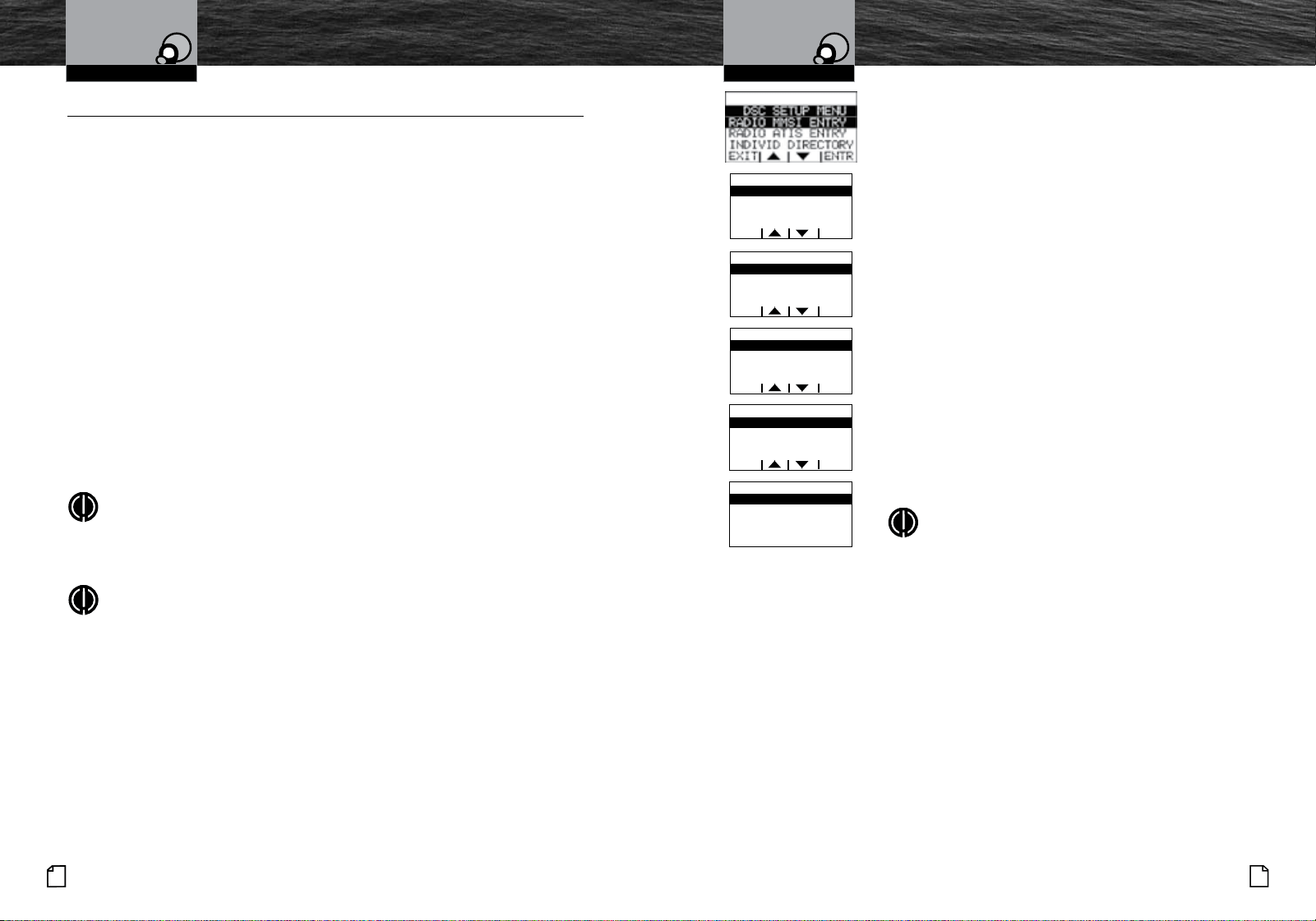
#
English
Product Features
Introduction
Nothing Comes Close to a Cobra
®
39
38
English
Operating Your Radio Operating Your Radio
Digital Select Calling (DSC)
Setup
Digital Select Calling (DSC)
Setup
DSC Set-Up
•
Digital selective calling — DSC — employs digital RF signals which tend to carry
further and be less susceptible to distortion from noise and atmospheric conditions
than analog ones. The result is greater range and more reliable message delivery
per watt of output power.
But, that is not the only advantage of DSC equipped radios. Those radios are set up to
interface with GPS and to automate many of the operations involved in sending and
receiving messages. That results in more compact and accurate messages and less
congestion of the airwaves.
The price of these benefits to the user is the time it takes to do the required set-up
to make the DSC features work. A little time spent when your radio is new will pay
dividends over its life.
These procedures use the Settings menu. Refer to page 28 for information on entering
and exiting the Settings menu.
User MMSI Number
The nine (9) digit MMSI number, similar to a telephone number, is a unique identifier
for a vessel. DSC incorporates this number into every message that is Sent (Tx) or
Received (Rx). Enter the MMSI number as soon as you receive your MMSI number
from the issuing agency listed on page 9.
NOTE
The radio does not operate in the DSC mode until an official MMSI number is
entered. An error tone will sound when attempting to operate in the DSC mode
without an MMSI number.
NOTE
An MMSI number can only be entered one time. To enter a new MMSI number,
please contact Cobra customer service.
To Enter Your MMSI Number:
1. Enter the Settings menu and scroll to
DSC SETUP
with the Up/Down soft keys or the channel Up/Down
buttons.
2. Press the ENTR soft key and scroll to RADIO MMSI
ENTRY with the Up/Down soft keys or the channel Up/
Down buttons.
3. Press the ENTR soft key . The blinking cursor will appear
at the first digit under RADIO MMSI ENTRY.
4. Use the Up/Down soft keys or the channel Up/Down
buttons to scroll through the number list to the first digit
of your number.
5. Press the ENTR soft key to select the digit and the
blinking cursor will move to the next digit of the number.
6. Repeat steps 3 and 4 until all nine (9) digits of your
MMSI number are entered.
7. Check that you have entered the number correctly. The
radio will ask you to re-enter your number to confirm.
8. Press ENTR soft key to save the MMSI number and the
radio will return to the DSC SETUP MENU.
NOTE
After the MMSI number has been entered, the RADIO
MMSI ENTRY menu option will move to the bottom
of the DSC SETUP MENU. This is done because the
MMSI entry is entered only once.
If You Incorrectly Enter Your MMSI Number
YOU CAN DO THIS ONLY ONCE! An attempt to enter an MMSI number again will result
in an error message as shown.
Pressing the EXIT soft key from the error message will return the radio to the DSC
SETUP MENU.
Once the error message appears, the radio will still operate in all non-DSC modes.
But you will have to contact Cobra
®
Electronics (see product service on page 84 for
details) for reset before you can enter a new MMSI number into the radio.
Because the MMSI number is so important to DSC operation, this limitation is imposed
on all DSC capable radios to prevent constant changes and the potential introduction
of errors in the process.
exit entr
radio mmsi entry
mmsi _________
exit entr
radio mmsi entry
mmsi 123456789
exit entr
radio mmsi entry
mmsi _________
re-enter number
exit entr
radio mmsi entry
mmsi 123456789
confirm entry
exit
radio mmsi
mmsi 123456789
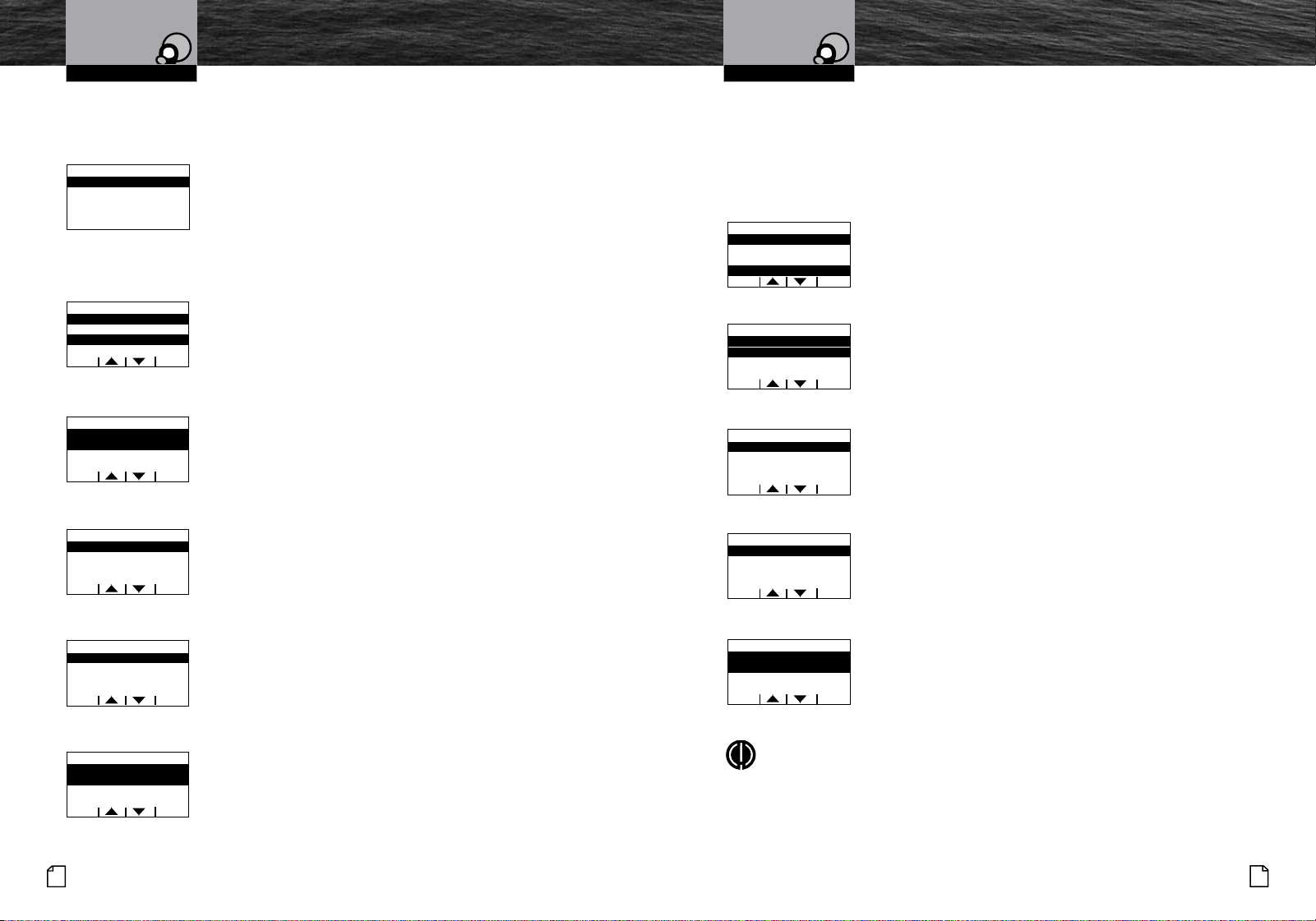
Nothing Comes Close to a Cobra
®
41
40
English
Operating Your Radio Operating Your Radio
Digital Select Calling (DSC)
Setup
Digital Select Calling (DSC)
Setup
If You Transfer Your Radio To A Different Vessel
Contact the MMSI issuing agency from which you obtained your number and change the
information associated with your number to correspond to vessel in which it will be mounted.
To View Your MMSI Number At Any Time:
1. Enter the DSC SETUP MENU menu and scroll to
RADIO MMSI ENTRY with the Up/Down soft keys or
the Up/Down channel buttons.
2. Press the ENTR button and the already entered number
will be displayed.
3.
Press the EXIT soft key to return to the DSC SETUP MENU.
Individual Directory
DSC calling allows you to call another vessel or station directly if
you know its MMSI number. Your Cobra Marine VHF radio allows
you to store up to twenty (20) names and their associated MMSI
numbers for quick access.
To Enter Or Edit Names And MMSI Numbers In The Directory:
1. Enter the DSC SETUP MENU and scroll to INDIVID
DIRECTORY (individual directory) with the Up/Down soft
keys or the Up/Down channel buttons.
2. The ADD option in the menu will be highlighted the first
time this menu is entered. Press the ENTR soft key to
ADD a new Name and MMSI number.
3. The cursor will begin to blink at the first character under
ADD NAME.
4. Use the Up/Down soft keys or the Up/Down channel
buttons to scroll through the character list.
5. Press the ENTR soft key to select a character. This will
also move the blinking cursor to the next character under
ADD NAME.
6. Repeat steps 5 and 6 to enter additional characters — up
to a maximum of eleven (11) — for the name.
7. After entering the name, press the ENTR soft key to move
the blinking cursor to the first character under MMSI.
8. Use the Up/Down soft keys or the Up/Down channel buttons
to scroll through the number list.
9. Press the ENTR soft key to select the number and move the
cursor to the next character under MMSI.
10. Repeat steps 9 and 10 until the ninth (9) digit MMSI is entered.
11. Press the ENTR button to save the entry.
12. Highlight ADD to enter the next new name/MMSI number
entry, or highlight the entry just entered and press the ENTR
soft key to edit or delete the current entry, or press the EXIT
soft key to return to the DSC SETUP MENU.
Group MMSI Number
Nautical organizations such as yacht clubs and the organizers of events such as regattas can
establish Group MMSIs. These allow a message to be sent automatically to all members of
the group without having to call each one individually.
Each member of the group must enter the group MMSI number in his radio in order to
receive group messages.
To Enter A Group MMSI Number:
1. Enter the DSC SETUP MENU and scroll to GROUP MMSI
DIR (group MMSI) with the Up/Down soft keys or the
Up/Down channel buttons.
2. The ADD option in the menu will be highlighted the first
time this menu is entered. Press the ENTR soft key to
ADD a new Name and MMSI number.
3. The cursor will begin to blink at the first character under
ADD NAME.
4. Use the Up/Down soft keys or the Up/Down channel
buttons to scroll through the character list.
5. Press the ENTR soft key to select a character. This will
also move the blinking cursor to the next character under
ADD NAME.
6. Repeat steps 5 and 6 to enter additional characters — up
to a maximum of eleven (11) — for the name.
7.
After entering the name, press the ENTR soft key to move
the blinking cursor to the second character under MMSI
(the first digit of a Group MMSI number always starts with a 0).
8. Use the Up/Down soft keys or the Up/Down channel
buttons to scroll through the number list.
9. Press the ENTR soft key to select the number and move
the cursor to the next character under MMSI.
10. Repeat steps 9 and 10 until the ninth (9) digit MMSI is entered.
11. Press the ENTR button to save the entry.
12. Highlight ADD to enter the next new name/MMSI number
entry, or highlight the entry just entered and press the ENTR
soft key to edit or delete the current entry, or press the EXIT
soft key to return to the DSC SETUP MENU.
NOTE
The group MMSI is established by modifying the MMSI assigned to one (1) of the
group members. The last digit of that member’s MMSI number is dropped and a zero
(0) is inserted at the beginning. For example, member MMSI number 366123456
becomes group MMSI number 036612345.
Group MMSIs can be entered and changed any number of times
without encountering the need to have your radio reset
exit
radio mmsi
mmsi 123456789
exit entr
DSC Setup menu
individ directory
group mmsi dir
radio mmsi entry
exit entr
individual dir
add
exit entr
individual dir
___________
mmsi _________
add name
exit entr
individual dir
friends boat
mmsi 123456789
Add name
exit entr
individual dir
add
friends boat
exit entr
DSC Setup menu
individ directory
group mmsi dir
radio mmsi entry
exit entr
group mmsi
add
exit entr
group mmsi
___________
mmsi _________
add name
exit entr
group mmsi
boat group
mmsi 123456789
Add name
exit entr
group mmsi dir
add
boat group
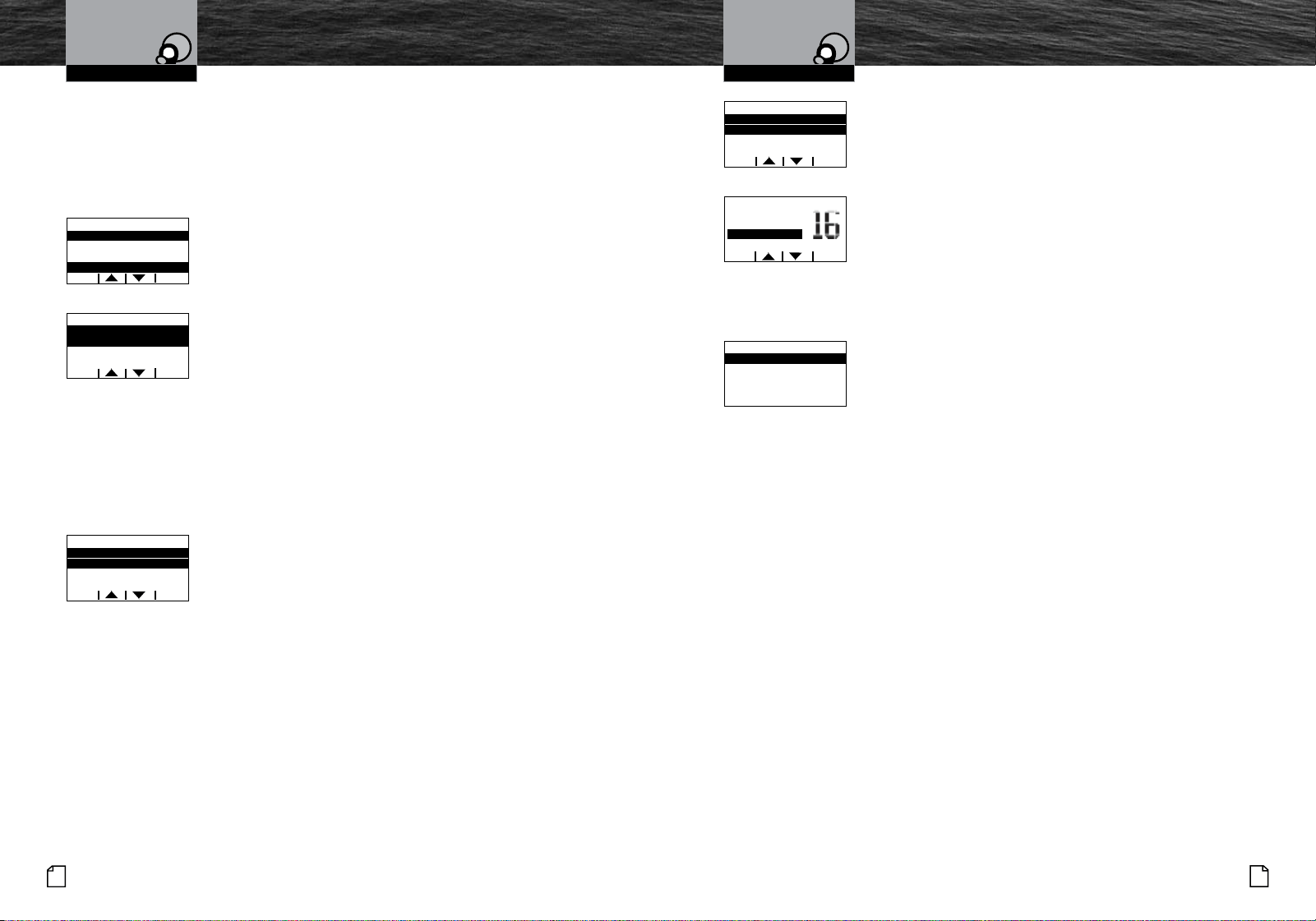
Nothing Comes Close to a Cobra
®
43
42
English
Operating Your Radio Operating Your Radio
Position Request Reply Type
The ability to send your position to another station is an added feature of DSC radios that have
GPS attached. It is handy for rendezvous and rescue situations.
Your Cobra Marine VHF radio allows you to choose whether to have the radio automatically
respond to all Position Requests it receives or to alert you to a Position Request and allow
you to choose whether to respond or not — manual reply.
To Set The Position Request Reply Type:
1. Enter the DSC SETUP MENU menu and scroll to
POSITION REPLY with the Up/Down soft keys or the
UP/Down channel buttons.
2. Press the ENTR soft key and observe the current
highlighted setting — AUTO or MANUAL.
3. Use the Up/Down soft keys or the Up/Down channel
buttons to change the setting.
4. Press the ENTR soft key to select the setting and return
to the DSC SETUP MENU.
Auto Channel Switch
The ability of your radio to automatically switch to the requested channel when receiving
an Individual Call. In some cases, automatically switching channels may not be wanted,
especially if the radio is being used for Bridge to Bridge communications in a busy port
or waterway.
Your Cobra Marine VHF radio allows you to choose whether to have the radio automatically
Change channels to the requested channel in an Individual Call or not.
To Set The Automatic Channel Switch On or Off:
1. Enter the DSC SETUP MENU menu and scroll to AUTO
CHANNL SWITCH (Automatic Channel Switch) with the Up/
Down soft keys or the UP/Down channel buttons.
2. Press the ENTR soft key and observe the current highlighted
setting — ON or OFF.
3. Use the Up/Down soft keys or the Up/Down channel buttons
to change the setting.
4. Press the ENTR soft key to select the setting and return to
the DSC SETUP MENU.
Individual Call Reply
The Individual Call Reply feature is used when receiving Individual DSC calls. When receiving a
Individual DSC Call, you may not want the radio to reply to the call automatically. This features
allows you to disable the automatic reply. The ability to send your position to another station
is an added feature of DSC radios that have GPS attached. It is handy for rendezvous and
rescue situations.
Digital Select Calling (DSC)
Setup
Digital Select Calling (DSC)
Setup
exit entr
DSC Setup menu
group mmsi dir
position reply
individ directory
exit entr
position reply
manual
auto
exit entr
auto chanl switch
off
on
To Set The Individual Reply Auto or Manual:
1. Enter the DSC SETUP MENU menu and scroll to
INDIVID CALL REPLY (Individual Call Reply) with the
Up/Down soft keys or the UP/Down channel buttons.
2. Press the ENTR soft key and observe the current
highlighted setting — AUTO or MANUAL.
3. Use the Up/Down soft keys or the Up/Down channel
buttons to change the setting.
4. Press the ENTR soft key to select the setting and return
to the DSC SETUP MENU.
Manual Entry
The Manual position entry feature allow you to enter the time (UTC time), Latitude and
Longitude.
To Enter the Time, Latitude, and Longitude:
1. Enter the DSC SETUP MENU menu and scroll to MANUAL ENTRY
with the Up/Down soft keys or the UP/Down channel buttons.
2. The cursor will begin to blink at the first number of the
UTC time entry.
3. Use the Up/Down soft keys or the Up/Down channel buttons to scroll through the
number list.
4.
Press the ENTR soft key to select a number. This will also move the blinking cursor to the
next number under UTC Time.
5. Repeat steps 5 and 6 to enter additional numbers.
6. After entering the UTC time, press the ENTR soft key to move the blinking cursor to the
first number under LAT (Latitude).
7. Use the Up/Down soft keys or the Up/Down channel buttons to scroll through the
number list.
8. Press the ENTR soft key to select the first number and move the cursor to the next
number under LAT.
9. Repeat steps 9 and 10 until the seventh (7) digit of the LAT is entered.
10.
After entering the LAT (Latitude), press the ENTR soft key to move the blinking cursor to the
first number under LON (Longitude).
11. Use the Up/Down soft keys or the Up/Down channel buttons to scroll through the
number list.
12. Press the ENTR soft key to select the first number and move the cursor to the next
number under LON.
13.
Repeat steps 9 and 10 until the eighth (8) digit of the LON is entered.
14.
Press the ENTR button to save the entry and the radio will return to the DSC SETUP MENU.
MENU EXIT: You can exit the menu at any time by pressing the EXIT soft key on any screen. This
method will exit to the next highest menu, repeated presses of the EXIT soft key will return the
radio to the radio standby mode. The menu EXIT selection in the menu screen will return the radio
immediately to the radio standby mode. When in the menu, just scroll down until the EXIT option is
highlighted, then press the ENTR soft key.
exit entr
indivi cALL REPLY
manual
auto
exit entr
call reply
manual
unable emerg
exit
lat __ __.___
utc __:__
Manual Entry
entr
lon ___ __.___
o
o
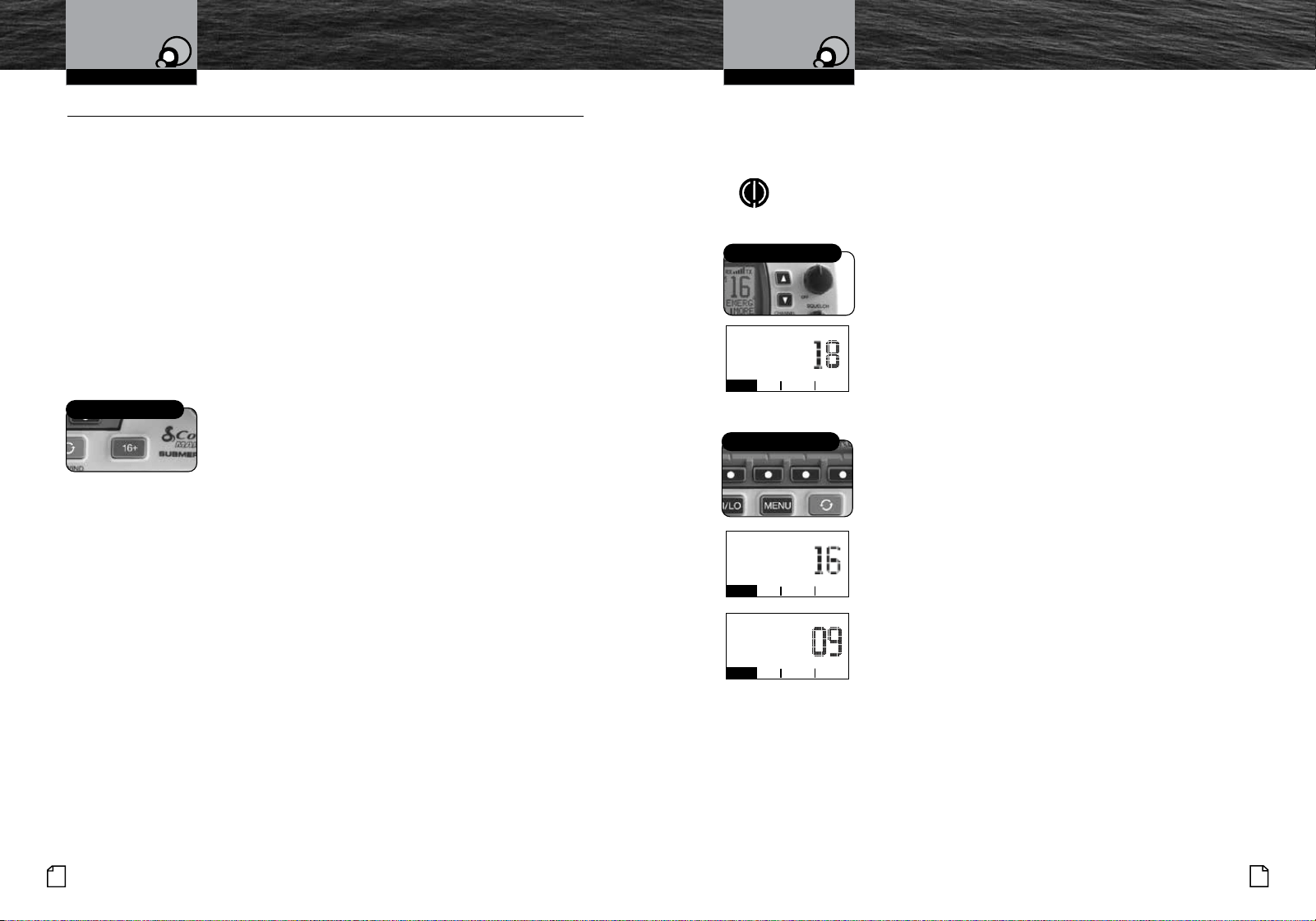
Nothing Comes Close to a Cobra
®
45
44
English
Operating Your Radio Operating Your Radio
Advanced OperationAdvanced Operation
Advanced Operation
•
Cobra
®
has incorporated several features in your Cobra Marine VHF radio to give you quick
access to the voice calling channels and to let you monitor more than one (1) channel at
once.
Weather Alert Signal
When NOAA broadcasts a Weather Alert Signal and your radio is in the Weather Alert mode,
you will hear a continuous audible tone and the radio will automatically switch to Weather
Radio mode. The alert indicators will sound regardless of what channel you are operating on
as soon as a NOAA alert signal is received.
When You Hear The Alert:
1. Press any key to turn Off the alert alarm and LCD indicator.
Channel 16+
This function gives you quick access to calling Channel 16 or Channel 9 from any
operational mode.
To Switch To Channel 16 Or Channel 9:
1. Press the Channel 16+ button to change to Channel 16 from
any channel.
2. Press the Channel 16+ button again to change to Channel 9.
Additional presses of the Channel 16+ button will toggle back to
the original channel and between channels 16 and 9.
Channel 16/9 Button
Tri-Watch
Tri-Watch gives you one (1) soft key access to scan the three (3) channels of most importance
to you. Channel 16 and Channel 9 will always be included as scanned channels. The
remaining channel will be the VHF channel in effect when you enter Tri-Watch mode.
NOTE
The radio must be squelched for tri-watch to function. See page 26 for
squelch procedure.
To Enter Tri-Watch Mode:
1. In Standby mode, use the Up/Down buttons to go to the
channel you want to add as the third location to be scanned.
2. Press the Tri-Watch soft key.
Tri-watch will be indicated on the LCD and the radio will scan
between Channel 16, Channel 9, and the third tri-watch channel
you selected. A signal on any one (1) of the three (3) channels
will stop the scan to allow you to listen to the traffic on the
channel. The channel number will be displayed on the LCD.
To Exit Tri-Watch Mode:
1. Press the Tri-Watch soft key. The radio will return to
Standby mode
During Tri-Watch (while receiving an incoming transmission),
You Can Choose From The Following:
a. Press the Talk button to remain on that tri-watch channel and
return to Standby mode.
If you do not press any buttons, your radio will automatically
resume scanning tri-watch channels when the incoming
transmission is complete.
During Tri-Watch (while not receiving a transmission):
a. Press the Talk button to communicate on the last tri-watch
channel scanned and return to Standby mode.
Up/Down Buttons
110 27.843N comml
25 53.438W
25WUSA
07:30 11/15
o
o
TW WX call more
Soft Keys
110 27.843N comml
25 53.438W
25WUSA
07:30 11/15
o
o
TW WX call more
110 27.843N comml
25 53.438W
25WUSA
07:30 11/15
o
o
TW WX call more
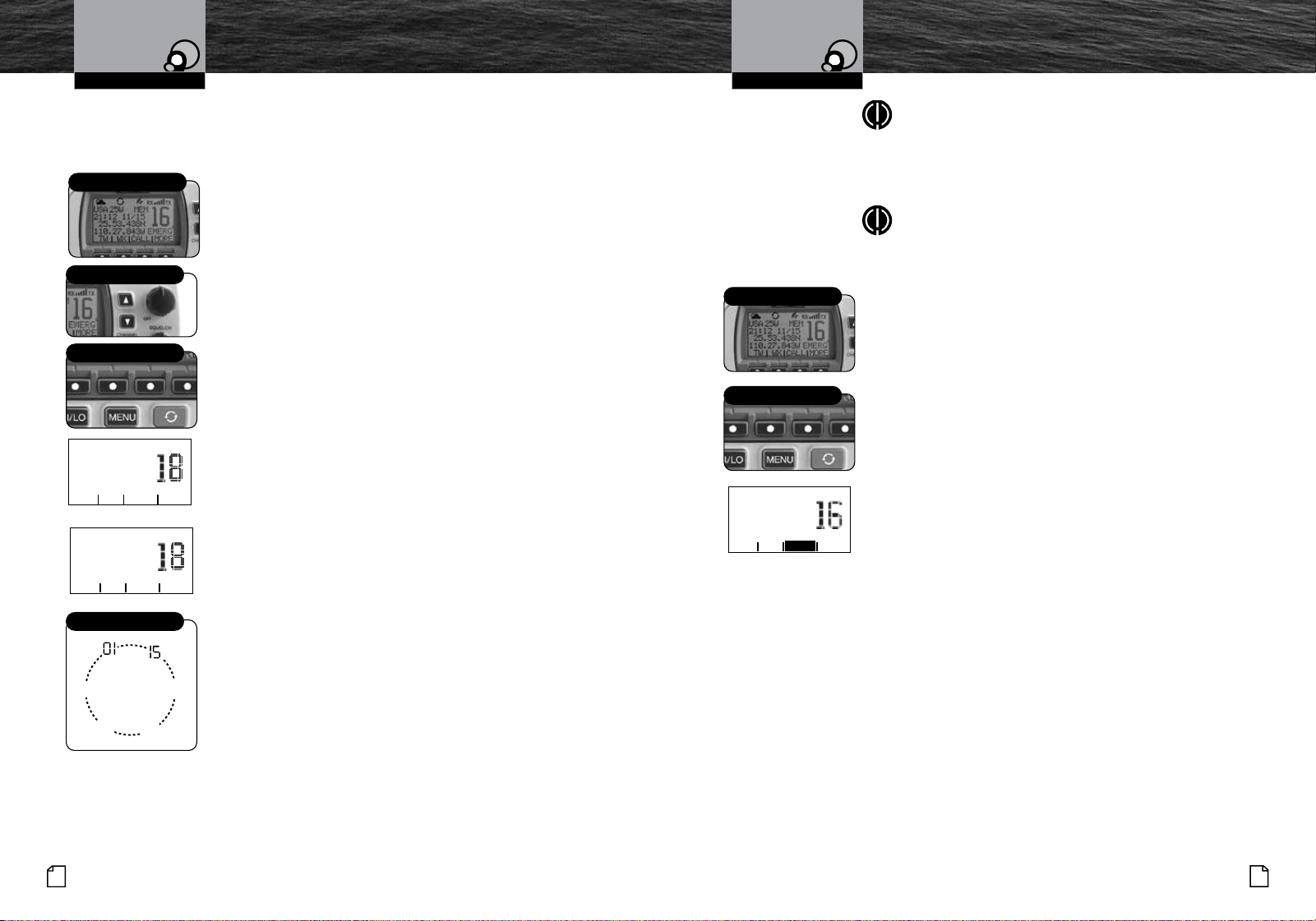
Nothing Comes Close to a Cobra
®
47
46
English
Operating Your Radio Operating Your Radio
Advanced OperationAdvanced Operation
Memory Channels
You can program (or tag) any or all channels to be scanned in the Memory
Scan mode.
To Program Memory Channels:
1. From Standby mode, select a channel to be tagged using
the Up/Down buttons.
2. Press the MORE soft key (if necessary), then the MEM
soft key. The channel will be tagged for scanning and
MEM (memory channel) will appear on the LCD whenever
that channel is selected.
Repeat steps 1 through 2 to add addition memory
channels.
To Clear Memory Channels:
1. From Standby mode, select a channel to be cleared
from a memory tagging using the Up/Down buttons.
2. Press and hold the MORE soft key (if necessary), then
the MEM soft key. The channel will be untagged and
MEM (memory channel) will no longer appear on the LCD
whenever that channel is selected.
Repeat steps 1 through 2 to clear additional channels
from memory locations.
Memory Scan
During Memory Scan, the radio will rapidly switch from
tagged channel to tagged channel. Whenever any activity is
detected, the radio will stop the scan to allow you to listen
to the activity on that channel. The radio will then continue
to scan after 2 seconds of inactivity, unless you switch out of
the Memory Scan mode.
88
14
88
30
60
75
79A
68
69
71
72
78
A
88
15
30
60
75
Scanning
Up/Down Buttons
110 27.843W comml
25 53.438N
25WUSA
07:30 11/15
o
o
TW WX call more
Soft Keys
110 27.843W comml
25 53.438N
25WUSA
07:30 11/15
o
o
TW WX call more
MEM
NOTE
If there are fewer than two (2) channels tagged,
the Memory Scan mode will not be available.
[See page 47 under program memory channels
to tag at least two (2) channels.]
NOTE
The radio must be squelched for the Memory Scan mode
to function. See page 26 for squelch procedure.
To Enter Memory Scan:
1. From Standby mode, press the MORE soft key (if
necessary), then the SCAN soft key.
The radio will immediately begin to scan the channels you
tagged.
SCAN (memory scan) will be highlighted on the LCD.
To Exit Memory Scan:
1. From Memory Scan mode, press the SCAN soft key.
This will return the radio to Standby mode on the last
scanned memory location.
During Memory Scan (while receiving an incoming
transmission), You Can Choose From The Following:
a. Press the Talk button to remain on that memory
location and end scanning. This will return the radio
to Standby mode.
The radio will then continue to scan after 2 seconds of
inactivity, unless you switch out of the Memory Scan
mode.
During Memory Scan (while not receiving a
transmission):
b. Press the Talk button to communicate on the last
channel scanned and return to Standby mode.
Standby Mode
Standby Mode
Soft Keys
110 27.843W comml
25 53.438N
25W USA
07:30 11/15
o
o
TW WX SCAN more
mem
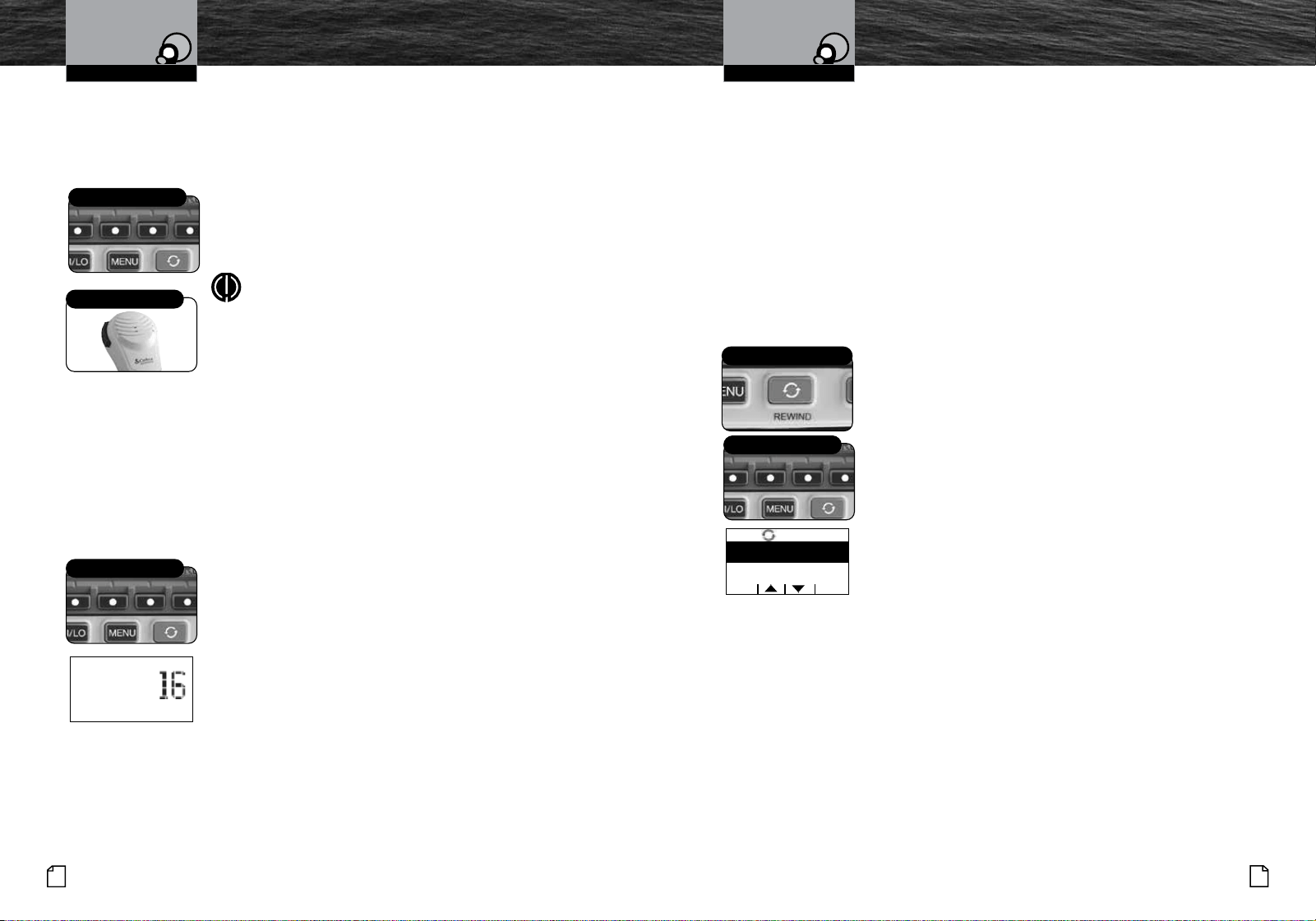
Nothing Comes Close to a Cobra
®
49
48
English
Operating Your Radio Operating Your Radio
Advanced OperationAdvanced Operation
Public Address
Use the Public Address (PA) mode of voice transmission to communicate to other
nearby vessels or people. This feature requires a mounted and connected optional PA
speaker.
To Broadcast on the PA Speaker:
1. Press the PA soft key.
2. Press the Talk button on the microphone and speak into
the microphone.
NOTE
While in the PA mode:
n
When the Talk button is pressed, the output is
directed to the PA speaker and not transmitted
as a radio signal through the antenna.
n
Received radio messages will not be heard while the PA
mode is active.
3. To turn off PA, press PA soft key again.
Burp Feature
Cobra’s Burp feature allows the operator to expel water from inside the speaker
grill. This is especially useful if the radio is Sprayed or during extreme foul weather
conditions. In these conditions, water can become trapped in the speaker grill and
muffle the audio.
To Activate Burp:
1. Press the BURP soft key.
2. The Burp tone(s) at maximum level will sound from the
internal speaker for five seconds.
3. During this time, the matrix will display EXCUSE ME !.
4. After a 5-second interval, the radio will return to standby
Soft Keys
Talk Button
Soft Keys
emerg
excuse me !
burp more
Rewind-Say-Again
®
Feature
The radio has a Cobra exclusive playback feature, Rewind-Say-Again
®
. This feature allows
you to replay the last 20 seconds of an incoming audio transmission. It also allows you to
record call details including position coordinates, call signs, registration numbers and store
details that will help authorities locate a distressed vessel.
Example 1:
When engine noise, music or conversation creates too much noise to hear an inbound
message clearly, press the Rewind-Say-Again
®
button to enter the Rewind-Say-Again
®
menu to be able to hear the message a second time. This feature eliminates asking the
sender to repeat the message.
Example 2:
When listening to an urgent distress of an excited caller with confusing background noise,
press the Rewind-Say-Again
®
button to enter the Rewind-Say-Again
®
menu to be able to
hear the message a second time and get lifesaving information.
Operation of Rewind-Say-Again
®
1. Press the Rewind button after the last inbound audio
transmission.
2. Using the Up/Down soft keys or the channel Up/Down
buttons scroll to the PLAY RECORDING menu option.
3. Press the ENTR key to hear the recording.
4. The radio automatically replays the last 20 seconds of the
previous audio transmission.
5.
Respond to the caller normally, after the message is replayed.
Setup and Advanced Operation of Rewind-Say-Again
®
Operation of Rewind-Say-Again
®
:
1. Press the Rewind button.
a. OFF: EXIT REWIND - When highlighted and the ENTR key is
pressed, exits the Rewind features and when the Rewind
button is pressed again, the screen above will be displayed.
b. PAUSE RECORDING - Pause recording of incoming
audio transmissions.
c. PLAYBACK RECORDING - Playback recorded incoming audio.
d. SAVE RECORDING - Saves recorded incoming audio.
e. ERASE RECORDING - Erases the saved recording.
f. RECORD MESSAGE - Record a message (using the
microphone to record the message, using the PTT key
to start and stop the recording).
g. PLAYBACK MESSAGE - Playback the recorded message.
h. SAVE MESSAGE - Save the recorded message.
i. ERASE MESSAGE - Erases the saved message.
j. TRANSMIT MESSAGE - Transmit the recorded message.
Rewind-Say-Again
®
Button
Soft Keys
exit entr
play recording
pause recording
rewind
off: exit rewind
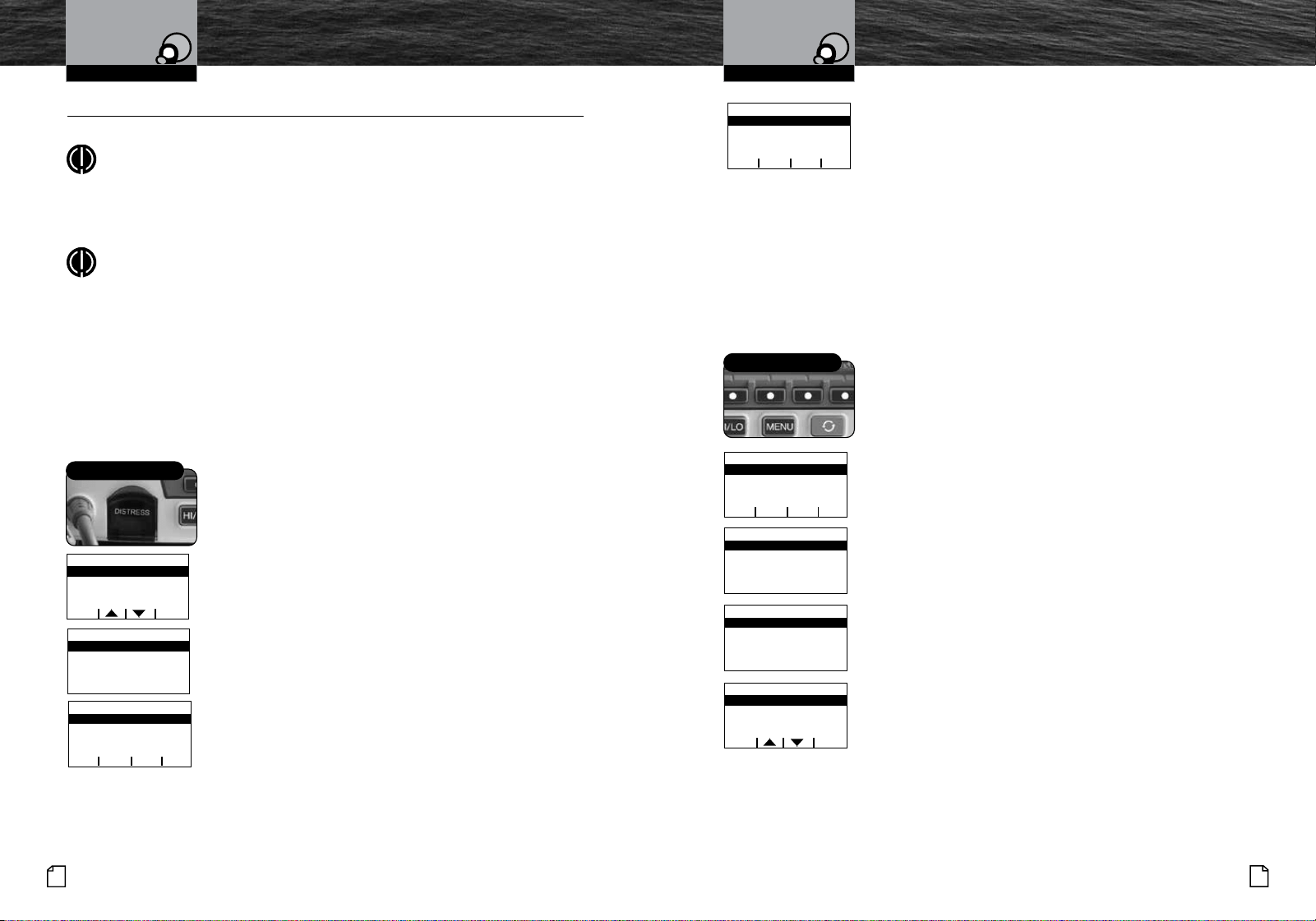
Nothing Comes Close to a Cobra
®
51
50
English
Operating Your Radio Operating Your Radio
Abort The Distress Call Process:
If the Distress button is pressed by mistake:
a. Press the EXIT soft key to return to Standby mode.
The Distress alarm sounds to confirm that the message is
transmitted. At the end of the transmission, the radio
maintains a watch on Channel 16 and Channel 70 for an
acknowledgement. Press any button to turn Off the alarm.
n
If an acknowledgement is received, the Distress alarm
sounds again and the responding party’s MMSI number
displays on the LCD.
n
If no acknowledgement is received, the radio resends
the message at approximately four (4) minute intervals
until an acknowledgement is received or the Distress
call is aborted.
Cancelling a Distress Call
At anytime Before receiving a Distress Call Acknowledgement,
the Distress can be canceled.
1.
From the WAIT FOR ACK screen, press the CANC soft key.
2. From the DISTRESS CANCEL screen, confirm cancelling
the Distress Call by pressing the YES soft key.
3. After the Distress Call Cancel message has been sent,
press the CONT key.
4. After the Distress Cancel has been sent, your are required
to follow-up with a VOICE CANCEL containing the
following information:
“ALL STATIONS” SAY 3 TIMES
“This is (SHIP NAME), (CALL SIGN), (SHIP MMSI #),
(POSITION)” CANCEL MY DISTRESS ALERT OF “(DATE,
UTC TIME)”
5. After completing the VOICE CANCEL procedure, press the
DONE soft key to return to the radio idle screen.
Digital Select Calling (DSC) Operation
•
The Send menu displays when the Distress button is pressed.
NOTE
This radio follows Class-D DSC protocol with a dedicated Channel 70 receiver.
Sending Distress Calls
Sending and receiving distress calls and acknowledgements on Channel 70 can be a
lifesaver for mariners.
NOTE
The DSC call:
n
Sound the distress alarm at all receiving stations.
n
Inform receiving stations of your identity (MMSI).
n
Informs receiving stations of the nature of the emergency.
n
Informs receiving stations of sending position when a GPS device is connected
or a position is manually entered. DSC operation does not provide receiving
stations with information like number of persons aboard or injuries. This
specific information must be communicated by voice on Channel 16 to the
station that acknowledges a DSC Distress call.
To Send a DSC Distress Call:
1. From Standby mode, pull down the spring-loaded red
door on the transceiver and press the Distress button.
You will have three (3) choices:
n
Send a distress call automatically, with your position,
if you are connected to a GPS. Or send the call, without
your position, if not connected to a GPS.
n
Include a Nature of Distress message with the distress call.
n
Cancel the distress call process and return to
Standby mode.
2. Choose one of the following:
Send an Automatic Distress Call:
a. Press and hold the Distress button.
Include a Nature of Distress Message with Distress Call:
a. Press and release the Distress button.
b. Press the Up/Down soft keys or the Channel Up/
Down buttons to manually select from the list of
pre-programmed Nature of Distress calls —
UNDESIGNATED, FIRE, FLOODING, COLLISION,
GROUNDING, more.
c. Press and hold the Distress button for three (3)
seconds to transmit the distress signal.
Advanced OperationAdvanced Operation
Distress Button
exit entr
collision
flooding
fire
undesignated
exit
3 seconds to send
distress key for
press the
undesignated
canc
transmit in 0:00
Transmitting
!! distress !!
rsnd paus info
canc
transmit in 4:11
wait for ack
!! distress !!
rsnd paus info
canc
transmit in 3:05
wait for ack
!! distress !!
rsnd paus info
back yes
cancel distress ?
distress cancel
Soft Keys
cont
transmitted
distrss cancel
rept done
"this is (ship
say 3 times
"all stations"
voice cancel req
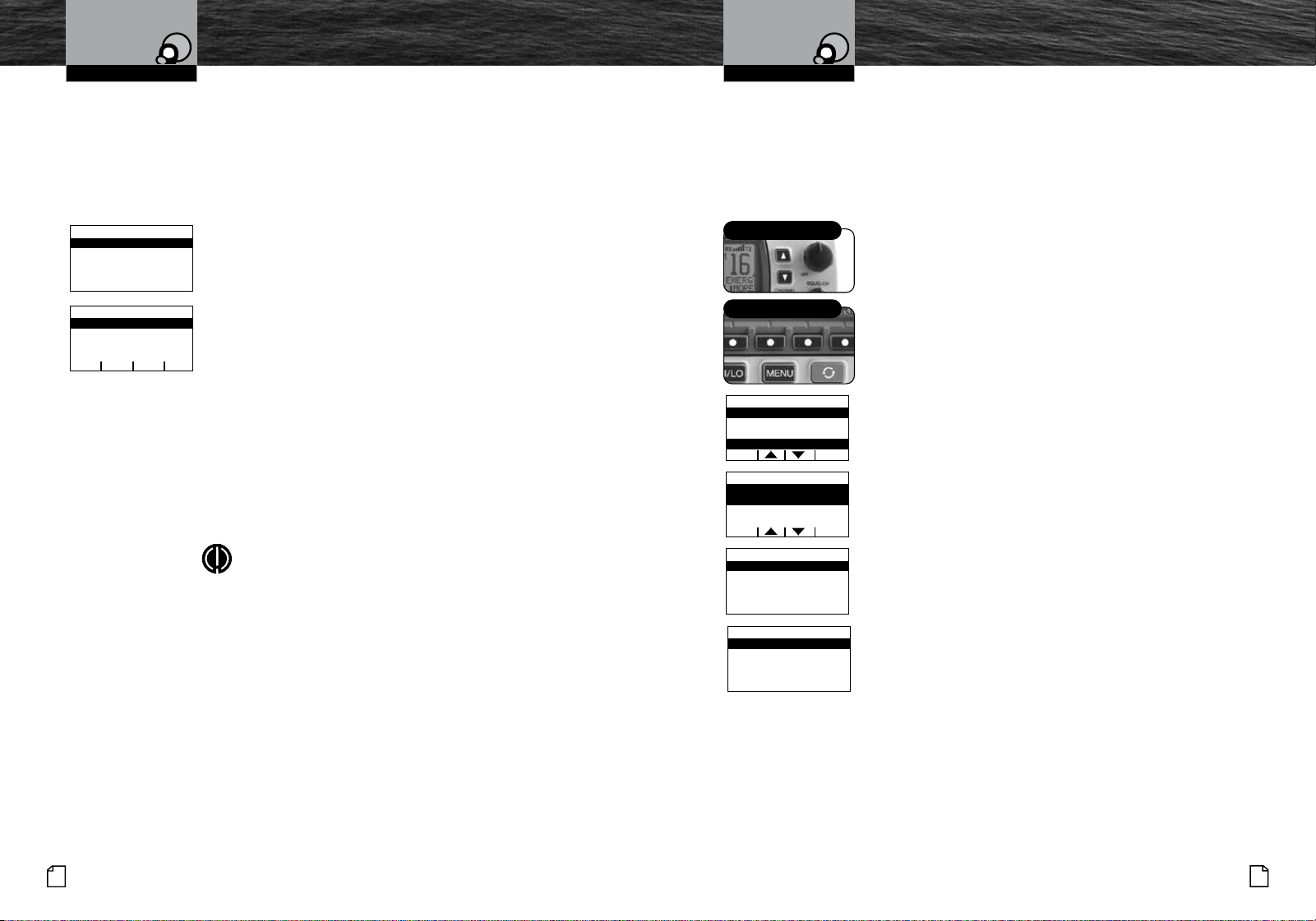
Nothing Comes Close to a Cobra
®
53
52
English
Operating Your Radio Operating Your Radio
Advanced OperationAdvanced Operation
Receiving Distress Calls
When a vessel is within range of a DSC Distress call, the radio receives the call,
sounds the Distress alarm, and switches to Channel 16. All DSC calls that are received
will sound one (1) alert alarm. See pages 10-13 for descriptions of the different
alarms. Press any button to turn Off the alarm. The received call information continues
to display on the LCD.
When A Distress Call Is Received:
1. Press any button to turn Off the alarm.
2. Read and write down the distress information that
displays on the LCD (position data may or may not be
shown); then determine whether to answer the call.
3. Respond, if appropriate, by pressing and holding the Talk
button to transmit on Channel 16.
4.
The received information is placed into the Call Log.
See page 62 for more information on viewing the Call
Waiting Log.
5.
If MMSI (Maritime Mobile Service Identify) matches a
contact from the Individual Directory entry stored in your
radio, the name identification displays and the alarm
sounds to identify the Name of the matching MMSI member.
6. Press ESC after viewing the display to return to normal
Standby mode.
NOTE
The radio automatically switches to Channel 16 upon
receiving a DSC Distress call and the alarm will sound for
approximately two (2) minutes. Press any button to clear
the Distress alarm instantly.
Regarding Distress Relay Calls
This radio cannot send Distress Relay calls. Only large ships and shore stations, with
specially equipped radios, can send Distress Relay calls.
Receiving Distress Relay Calls
This radio does respond to a Distress Relay call just as it responds to a Distress call.
Sending An All Ships Calls
Use the DSC All Ships call for the same urgency and safety purposes as the Pan and
Securite voice calls as well as sending Routine messages to all stations at once.
The DSC All Ships call reaches all stations in radio range. Use the DSC All Ships call
for urgent, but not life-threatening situations or to broadcast a safety warning to all
vessels in the area.
To Send An All Ships Call:
1. Press the CALL soft key and scroll to
ALL SHIPS
CALL
with the UP/Down soft keys or the channel Up/
Down buttons.
2. Select either
SAFETY or URGENCY and press the ENTR
soft key.
3. Using the Up/Down soft keys or the channel Up/Down
buttons, select the voice channel all radios will tune to
after the All Ships message is sent and press the ENTR
key.
4. Press the ENTR soft key to send the All Ships Call.
5. The radio will tune to the voice channel previously
selected.
6. Press the EXIT soft key to exit the All Ships Call mode
and return the radio to the idle screen.
stop alrm any key
Received: 0:34
MMSI: 123456789
not acknowledged
distress Receive
ok
Received: 0:34
MMSI: 123456789
not acknowledged
distress Receive
quit paus info
Up/Down Buttons
exit entr
call menu
individual call
group call
all ships call
Soft Keys
exit entr
select channel
16
06
08
exit entr
all ships call
transmit safety ?
exit
all ships call
safety
channel 16
elasped time 0:50
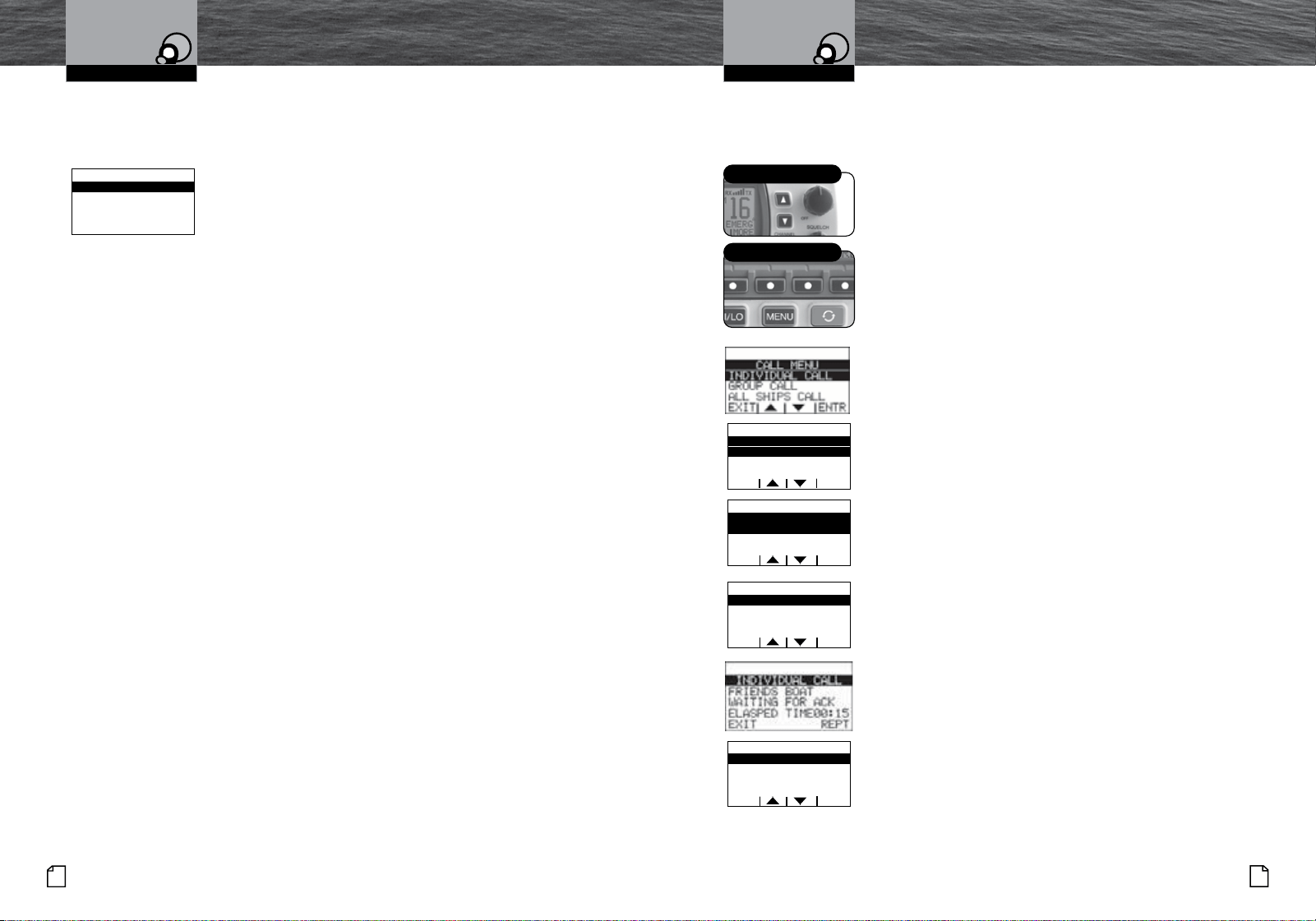
Advanced Operation
Nothing Comes Close to a Cobra
®
55
54
English
Advanced Operation
Operating Your Radio Operating Your Radio
Receiving An All Ships Call
All Ships calls received from stations within range of the radio sound the Distress
alarm and switch the radio to Channel 16.
When An All Ships Call Is Heard:
1. Press any button to turn Off the alarm.
2. Read and write down the MMSI of the vessel sending
the call as well as the date and time of the call.
3. Listen to the incoming voice message on the channel the
radio selects for the incoming All Ships call.
Sending A Geographical Call
This radio does not send Geographical calls. Only large ships and shore stations with
specially equipped radios send Geographical calls.
Sending An Individual Call
Use the DSC Individual call feature to request communication with one (1) exclusive
station. The DSC Individual call does not alert all other stations within range.
To Send An Individual Call:
1. Press the CALL soft key and scroll to
INDIVIDUAL
CALL
with the UP/Down soft keys or the channel Up/
Down buttons and press the ENTR soft key.
2. Using the Up/Down soft keys or the channel Up/Down
buttons to highlight a previously entered directory entry
or use the MANUAL entry option.
3. Press the ENTR key.
4. Using the Up/Down soft keys or the channel Up/Down
buttons, select the voice channel all radios will tune to
after the Individual Call message is sent and press the
ENTR key.
5. Press the ENTR soft key to send the Individual Call.
6. The radio will tune to the voice channel previously
selected.
7. Press the EXIT soft key to exit the Individual Call mode
and return the radio to the idle screen.
n
If the radio called sends back an automatic DSC response
“able to comply,” the individual alarm will sound. Wait for
a voice message from the called station.
_
n
If an “unable to comply” response or no reply is received,
the radio display asks to resend the message or exit the
menu. At the Unavailable menu, Press REPT or EXIT soft
keys.
_
n
If REPT is selected, the radio restarts the individual call.
n
If EXIT is selected, the radio will return to the Call Menu.
Up/Down Buttons
exit entr
individual call
manual
friends boat
Soft Keys
exit entr
select channel
06
08
09
exit entr
individual call
voice call on
channel 06 ?
exit entr
individual call
friends boat
connected
elapsed time00:15
type: urgency
connect time 0:45
mmsi: 123456789
all ships Receive
quit
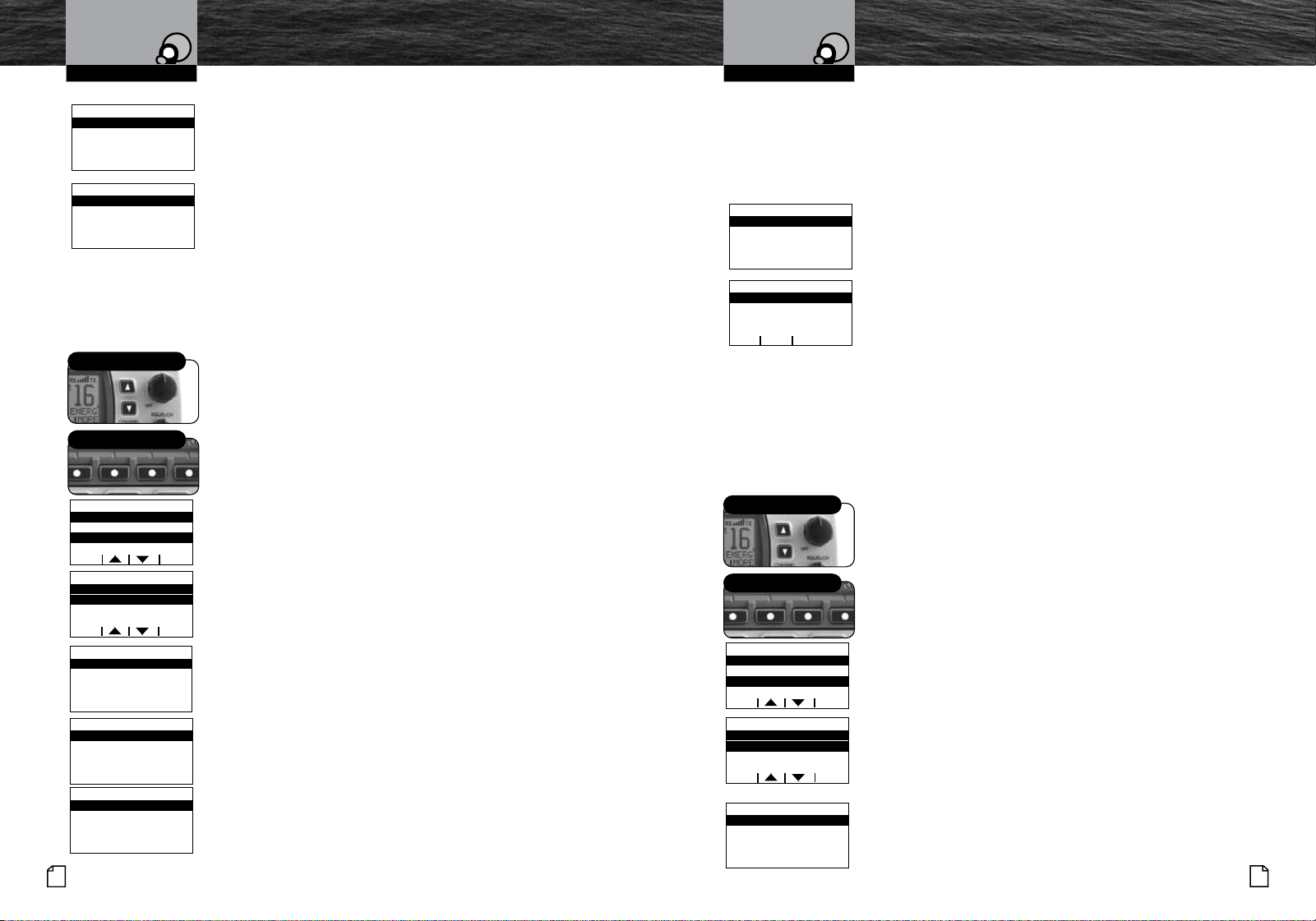
Nothing Comes Close to a Cobra
®
57
56
English
Operating Your Radio Operating Your Radio
Advanced OperationAdvanced Operation
Receiving An Individual Call
When another station makes an Individual call to your radio:
n
The Individual alarm sounds.
_
n
The caller is identified on the LCD.
n
If Automatic Channel Switch is on, the radio switches to
the channel selected by the caller.
n
Call information is placed in the Call Log.
To Receive An Individual Call:
Press the Talk button and greet the caller.
Sending A Group Call
Sending a Group call is like sending an Individual call, but the group MMSI information
is used and the resend and DSC responses do not apply. See pg. 41 for creating and
entering a group MMSI.
To Send A Group Call:
1. Press the CALL soft key and scroll to
GROUP CALL
with the Up/Down soft keys or the channel Up/Down
buttons and press the ENTR soft key.
2. Using the Up/Down soft keys or the channel Up/Down
buttons to highlight a previously entered directory entry
or use the MANUAL entry option.
3. Press the ENTR key.
4. Using the Up/Down soft keys or the channel Up/Down
buttons, select the voice channel all radios will tune to
after the Group Call message is sent and press the
ENTR key.
5. Press the ENTR soft key to send the Group Call.
6.
The radio will tune to the voice channel previously selected.
7. Press the EXIT soft key to exit the Group Call mode and
return the radio to the idle screen.
n
All radios switch to the channel selected in step 1. Press
and hold the Talk button to send a voice message to
everyone in the group.
n
Anyone in the group can transmit on the channel.
Receiving A Group Call
When another station makes a Group call to the radio, the Individual alarm sounds,
the caller is identified on the LCD, call information is placed in the Call Log, and the
radio is switched to the channel selected by the caller, similar to an Individual call.
Press any button to turn Off the alarm.
To Receive A Group Call:
1. Listen for the group voice message.
2. Press the Talk button and respond
only if appropriate.
Sending A Position Request
Position Request mode enables a DSC radio to obtain the position (latitude and
longitude) of a station that has a GPS device connected to the DSC radio at that
station. In most cases, a reply will be forthcoming. If for some reason, your request is
not acknowledged in five (5) minutes, the user will be prompted to Resend the request
or exit the menu.
To Request The Position Of Another Station:
1. Press the CALL soft key and scroll to
POSITION
REQUEST
with the Up/Down soft keys or the channel
Up/Down buttons and press the ENTR soft key.
2. Using the Up/Down soft keys or the channel Up/Down
buttons to highlight a previously entered directory entry
or use the MANUAL entry option.
3. Press the ENTR key.
4. Press the ENTR soft key to send the Position Request
Call.
5. The radio will show the
WAITING FOR ACK screen
while waiting for the acknowledgement from the called
radio. And will show the
ACKNOWLEDGED screen after
the called radio responds.
stop alrm any key
Received: 0:15
not replied
friends boat
individ Receive
rsnd
connect time -:--
connected
friends boat
individ Receive
quit
exit entr
group call
manual
boat group
Up/Down Buttons
Soft Keys
exit entr
group call
voice call on
channel 06 ?
exit
group call
boat group
waiting for ack
elasped time00:15
rept
exit entr
select channel
06
08
09
exit
group call
boat group
connected
elapsed time00:32
stop alrm any key
type: routine
received: 0:19
boat group
group Receive
ok
type: routine
received: 0:24
boat group
group Receive
quit paus
exit entr
position request
manual
friends boat
Up/Down Buttons
Soft Keys
exit entr
position request
safety
urgency
exit entr
position request
friends boat
transmit?
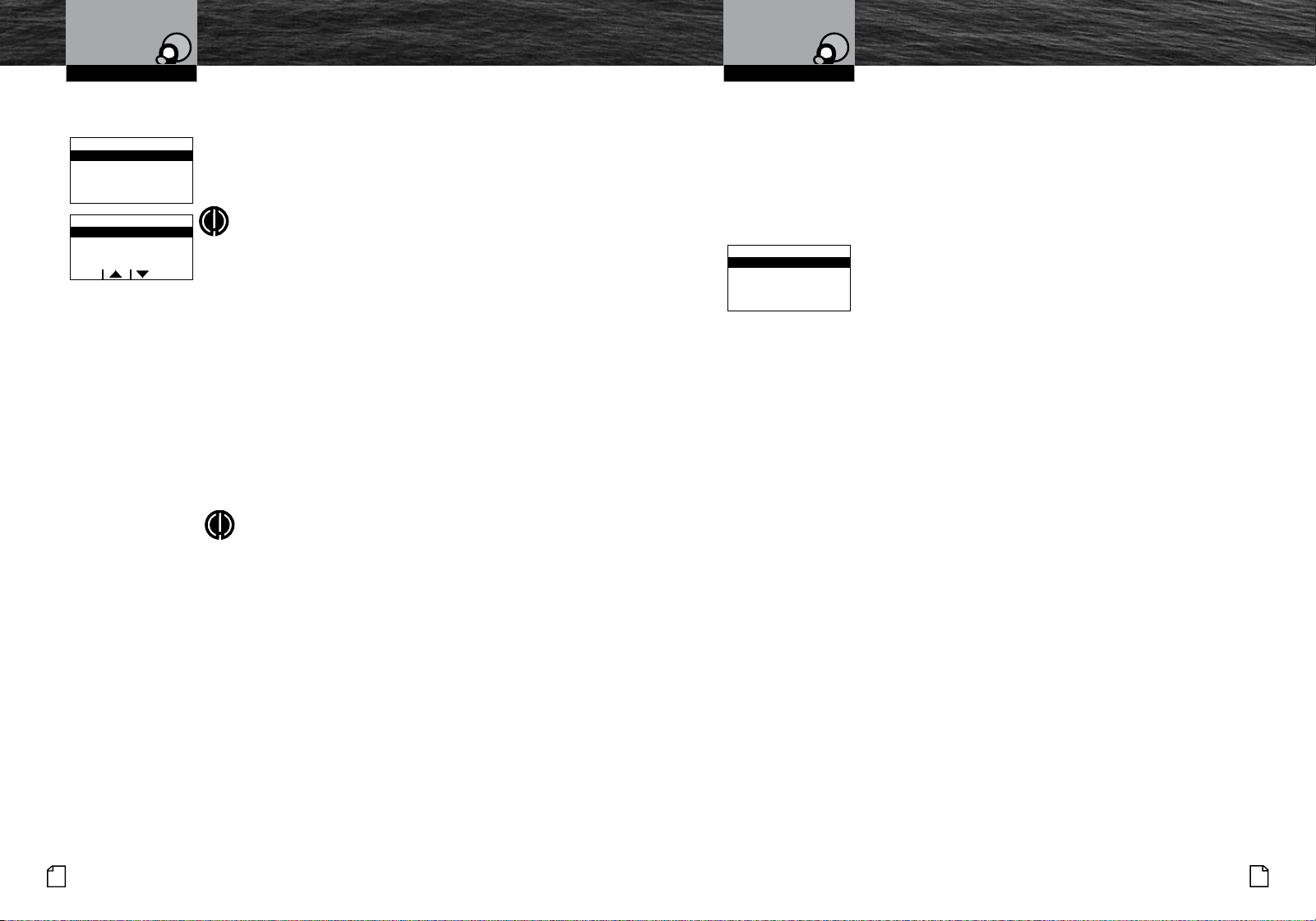
Nothing Comes Close to a Cobra
®
59
58
English
Operating Your Radio Operating Your Radio
Advanced OperationAdvanced Operation
6. After the called radio acknowledges the call, use the
Down soft key to view the called radios current position.
7. Press the EXIT soft key to exit the Position Request mode
and return the radio to the Call Menu.
NOTE
Your radio will send the Position Request and there
will be one (1) of three (3) possible responses:
n
You will receive the position.
n
You will receive a no position data response,
meaning the station you queried is not connected
to a GPS device and cannot send its position.
n
You will receive a no reply response, meaning the
operator of that station has chosen not to reply
to your request.
If You Receive A Position:
The requested position with the station name
and MMSI will show on your screen.
Press the Enter button to return to Standby
mode after you have noted the station’s position.
NOTE
If the radio is connected properly to your chartplotter,
you will see the requested position of the other vessel
indicated on the display.
Sending A Position Request continued Receiving A Position Request
When you went through the DSC set-up process, you set a position request reply type.
(See page 42 to change your setting.) Depending on the setting you chose, when a
Position Request message is received, your radio will enter either:
n
The Auto Reply mode.
n
The Manual Reply mode.
When The Radio Is In Auto Reply Mode:
A position request will sound the Position Request alarm and
show the name of the requesting station on the LCD. Your radio
will automatically respond. It will send your position, if you have
a GPS device connected to your radio, or NO POS. DATA (no
position data), if you do not have a GPS device connected.
Press any button to silence the alarm and exit the display.
When The Radio Is In The Manual Reply Mode:
A position request message will sound the Position
Request alarm and show the name of the requesting
station. You can choose to:
n
Reply and send your position.
n
Exit without sending your position.
If You Choose to Reply with Your Position:
1. Press the ENTR soft key.
If You Choose Not to Reply with Your Position:
2. Press the EXIT soft key.
exit
position request
friends boat
waiting for ack
elasped time 0:25
rept
exit
position request
friends boat
elapsed time 0:42
acknowledged
Replied: 0:23
frIEnds boat
position reply
quit
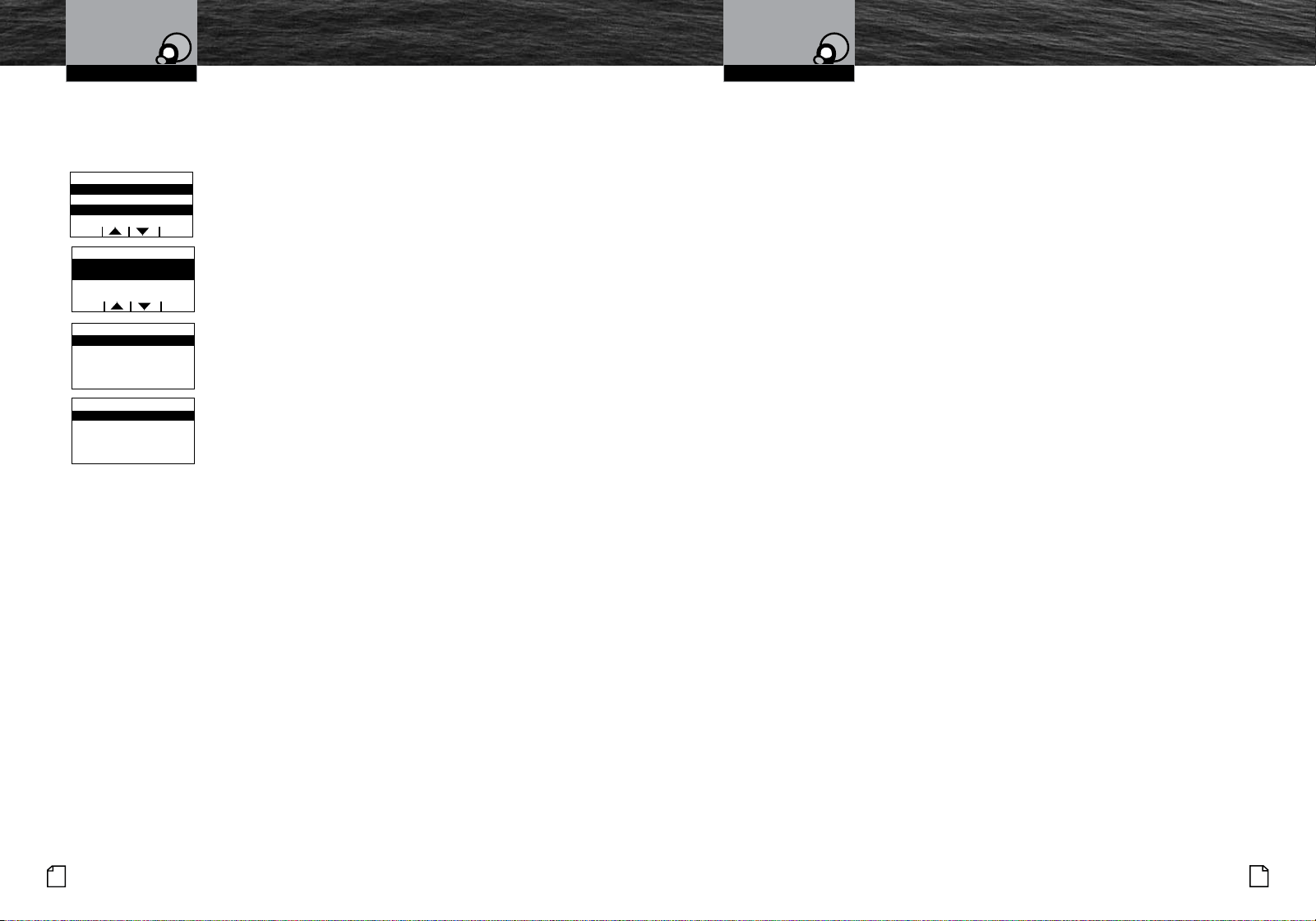
Nothing Comes Close to a Cobra
®
61
60
English
Operating Your Radio Operating Your Radio
Advanced OperationAdvanced Operation
Sending A Position Send
Position Send uses your connected GPS in similar fashion to the Position Request
function, except that you initiate the activity to let another station know where you are.
To Send A Position Send Message:
1. Press the CALL soft key and scroll to
POSITION
SEND
with the Up/Down soft keys or the channel Up/
Down buttons and press the ENTR soft key.
2. Using the Up/Down soft keys or the channel Up/Down
buttons to highlight a previously entered directory entry
or use the MANUAL entry option.
3. Press the ENTR key.
4. Press the ENTR soft key to send the Position SEND Call.
5. Press the EXIT soft key to exit the Position Send mode
and return the radio to the Call Menu.
exit entr
position send
manual
friends boat
exit entr
position send
routine
safety
exit entr
position send
Transmit position
to friends boat?
exit
position send
friends boat
transmitted
elasped time 0:30
Receiving A Position Send
When another station sends you its position in Position Send mode, the Individual
Alarm will sound and the station’s name and position will be shown
on the LCD. Press any button to turn Off the alarm and return to Standby mode.
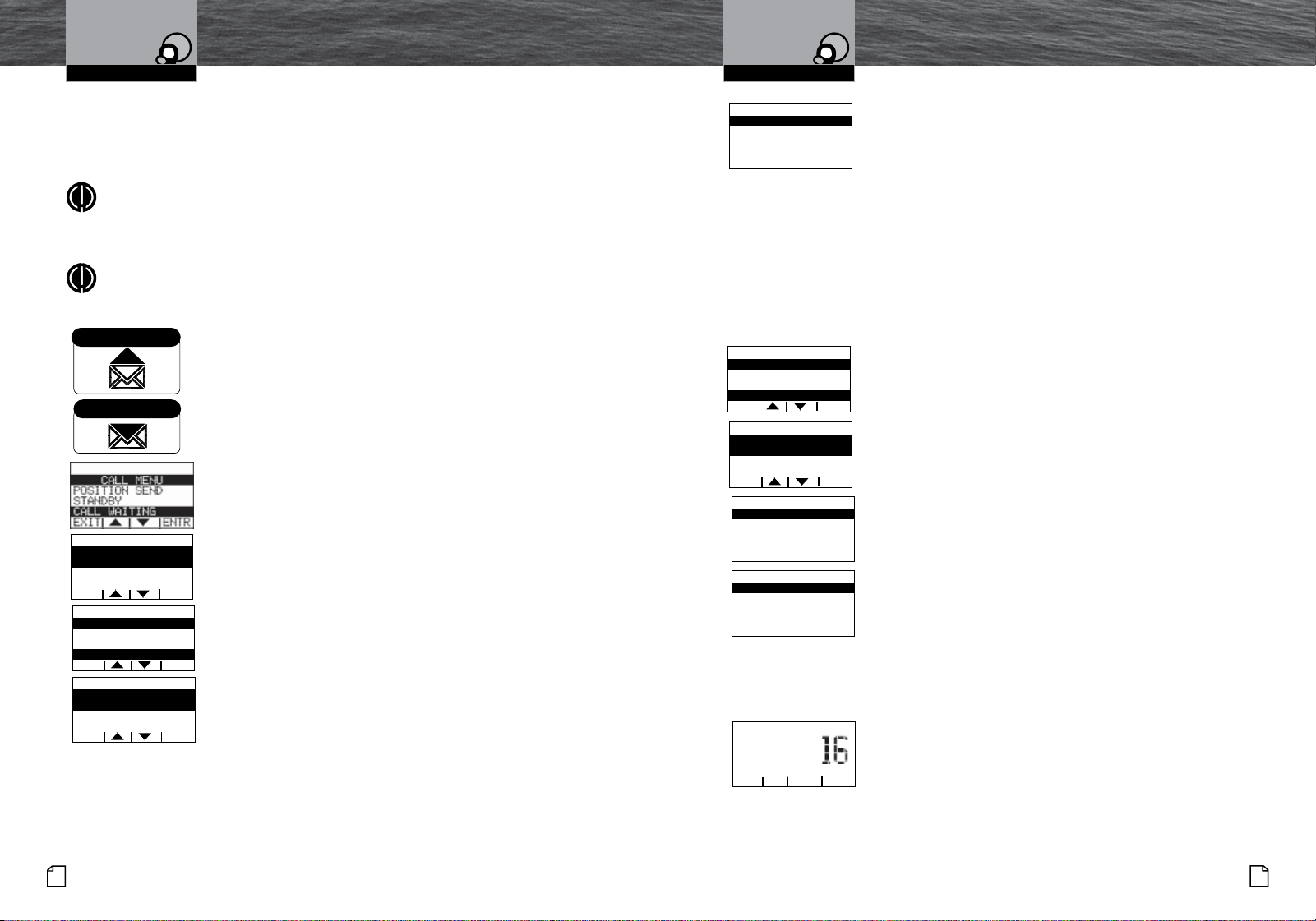
Nothing Comes Close to a Cobra
®
63
62
English
Operating Your Radio Operating Your Radio
Call Log and Distress Log
Call Waiting functions similarly to the Caller ID function on your telephone. It will
capture the caller’s MMSI identification number and any other data included in a DSC
message.
NOTE
Each Call Log memory can hold up to 20 messages. Once the memory becomes
full, each new call will erase the oldest call information on a first-in, first-out
basis.
NOTE
The Envelope Icon will be displayed when calls are received and placed into any
of the call logs.
n
The envelope Icon will be shown closed to indicate
unread messages.
n
The envelope Icon will be shown open to indicate that all
messages have been read.
To Review Call Log Messages Received
While In DSC Standby Mode:
1. Press the CALL soft key and scroll to
CALL WAITING
with the Up/Down soft keys or the channel Up/Down
buttons and press the ENTR soft key.
2. Using the Up/Down soft keys or the channel Up/Down
buttons to highlight DISTRESS LOG or RECEIVED CALLS
logs.
3. Press the ENTR key.
4. Using the Up/Down soft keys or the channel Up/Down
buttons to highlight a log entry.
5. Press the ENTR key to view the log entry.
6. Press the EXIT soft key to exit the Position Send mode
and return the radio to the DSC CALL LOGS Menu.
To Delete Call Log Information:
1. Press the CALL soft key and scroll to
CALL WAITING
with the Up/Down soft keys or the channel Up/Down
buttons and press the ENTR soft key.
2. Using the Up/Down soft keys or the channel Up/Down
buttons to highlight
DELETE CALL LOGS.
Advanced Operation
Advanced Operation
All Messages Viewed
Unread Messages
exit entr
dsc call log
distress
delete call logs
received calls
exit entr
dsc call log
distress
delete call logs
received calls
exit entr
delete call log
distress
received calls
To Delete Call Log Information continued:
3. Press the ENTR key.
4. Using the Up/Down soft keys or the channel Up/Down
buttons to highlight
DISTRESS or RECEIVED CALLS
log entry.
5. Press the ENTR key and confirm delete by pressing the
ENTR key.
6.
Press the EXIT soft key to exit the Position Send mode
and return the radio to the
DELETE CALL LOGS Menu.
Test Call
The Test Call feature allows the user to confirm that the radio is fully operational and
that the DSC call functions are working properly.
1. Press the CALL soft key and scroll to
TEST CALL with
the UP/Down soft keys or the channel Up/Down buttons
and press the ENTR soft key.
2. Using the Up/Down soft keys or the channel Up/Down
buttons to highlight a previously entered directory entry
or use the MANUAL entry option.
3. Press the ENTR key.
4. Press the ENTR soft key to send the Test Call.
5. The radio will tune to the voice channel previously selected.
6. Press the EXIT soft key to exit the Test Call mode and
return the radio to the Call Menu.
Alarm In
Allows connection to the alarm output of your chart plotter to alert you when an
arrival, off-course, etc.alarm has been activated.
1. Connect the Blue wire on the back panel wire harness
to the Alarm Output of your plotter (see the operators
manual of your plotter for connection and use details).
2. When your plotter outputs the alarm signal (the plotter
grounds the alarm output), your Cobra Marine radio will
activate the Alarm screen and sound a loud alarm tone.
3. Pressing any key on your Cobra Marine radio will silence
the alarm.
exit entr
delete dist log
delete distress
log?
exit entr
call menu
standby
call waiting
test call
exit entr
dsc Test call
Manual
mmsi 123456789
friends boat
exit entr
dsc Test call
friends boat
transmit?
exit rept
dsc Test call
friends boat
Elasped time 0:15
waiting for ack
TW WX SCAN more
plotter emerg
check
25WUSA
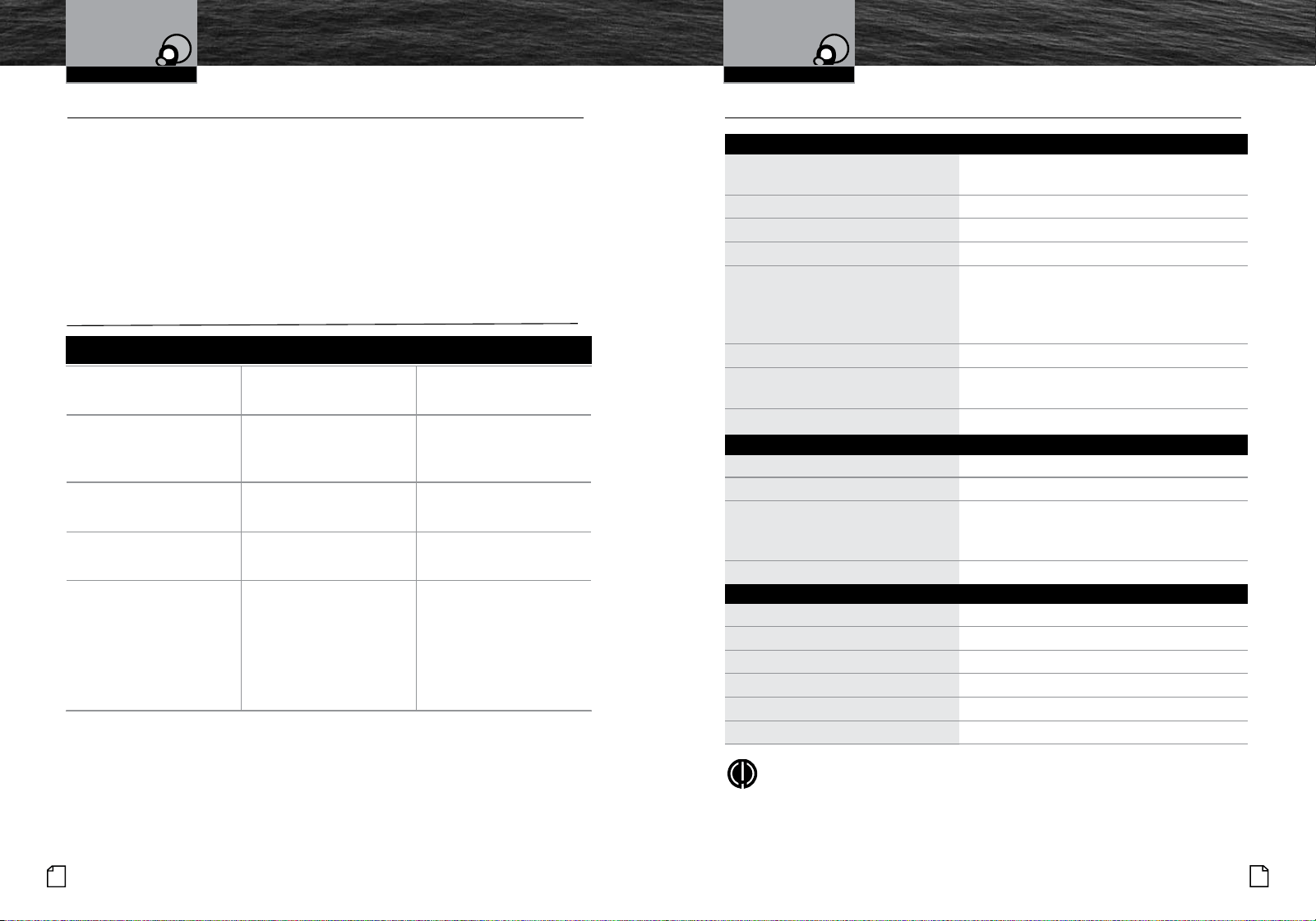
Nothing Comes Close to a Cobra
®
65
64
English
Specications
Specifications
•
General
Number of Channels All U.S.A., Canadian, and International
10 NOAA Weather Channels
Channel Spacing 25 kHz
Modulation 5 kHz Max.
Input Voltage 13.8 VDC
Current Drain:
Stand-by 20 mA
Receive 200 mA
Transmit 5A @ High power 1A @ Low
Temperature Range -20˚ C to 55˚ C
Unit Dimensions 6.25” x 3.0” x 6”
(15.9 cm x 5.7 cm x 18 cm)
Unit Weight 2 lbs., 12.0 oz. (1100 g)
Receiver
Frequency Range 156.050 to 163.275 MHz
Receiver Type Double Conversion Super-Heterodyne
Sensitivity:
20 dB Quieting 0.35 uV
12 dB Sinad 0.30 uV
AF Output 2.5 Watts @ 8 Ohms
Transmitter
Frequency Range: TX 156.025 to 157.425 MHz
RF Output Power 1 and 25 Watts
Spurious Emissions -60 dB High -55 dB Low
Microphone Type Electret
Frequency Stability +/-10 ppm
FM Hum and Noise 40 dB
Operating Your Radio
No display on LCD when
radio is turned On
Improper power
connection
Insure power connections
are proper and secure
Will transmit at
one (1) watt, but not
at 25 watts
Selected channel is
limited to one (1) watt
Switch to
another channel
Will not transmit Selected channel is
limited to receive only
Switch to
another channel
No sound from speaker Volume level is too low or
squelch level is too deep
Readjust volume
and squelch
No answer to calls Out of range of
other station
Signal is blocked
by terrain
Switch to high power
(25 watts) or move closer
Move until you have
a “line-of-sight” to
the other station
Maintenance And
Troubleshooting
Problem Possible Cause(s) Solution(s)
Operating Your Radio
Maintenance
•
Very little maintenance is required to keep your Cobra Marine VHF radio in good
operating condition.
n
Keep the radio clean by wiping with a soft cloth and mild detergent.
Rinse with fresh water. Do not use solvents or harsh or abrasive cleaners,
which could damage the case or scratch the LCD screen.
n
If the radio is exposed to salt water, rinse it in fresh water at least once
a day to prevent build-up of salt deposits, which could interfere with
button operation.
Troubleshooting
•
NOTE
The typical usage for this marine radio is 10% transmitting, 10%
receiving incoming signals, and 80% in standby mode.
Nothing Comes Close to a Cobra
®
67
66
English
VHF Marine
Channel Assignments
Appendix
VHF Marine
Channel Assignments
Appendix
VHF Marine Channel Assignments
•
Three (3) sets of VHF channels have been established for marine use in the U.S.A.,
Canada and the rest of the world (International). Most of the channels are the same for
all three (3) maps, but there are definite differences (see table on the following pages).
Your radio has all three (3) maps built into it and will operate correctly in whichever
area you choose.
The following is a brief outline of the channel assignments in the U.S.A. Channel Map.
Distress, Safety, and Calling
Channel 16
Getting the attention of another station (calling) or in emergencies (distress and safety).
Calling
Channel 9
General-purpose (non-emergency) calling by non-commercial vessels. Recreational boaters are
urged to use this channel to reduce congestion on Channel 16.
Intership Safety
Channel 6
Ship-to-ship safety messages and for search and rescue messages to Coast Guard ships
and aircraft.
Coast Guard Liaison
Channel 22A
To talk to the Coast Guard, Canadian Coast Guard (non-emergency) after making contact on
Channel 16.
Non-Commercial
Channels 68*, 69, 71, 72, 78A, 79A*, 80A*
Working channels for small vessels. Messages must be about needs of the vessel, such as fishing
reports, berthing and rendezvous. Use Channel 72 only for ship-to-ship messages.
Commercial
Channels 1A, 7A, 8, 9, 10, 11, 18A, 19A, 63A, 67, 72, 79A, 80A, 88A*
Working channels for working ships only. Messages must be about business or needs
of the ship. Use Channels 8, 67, 72 and 88A only for ship-to-ship messages.
Channel Assignments (English) Asignaciones de canales (Español)
Asignación de canales de VHF para radiocomunicación marítima
•
Existen tres (3) juegos de canales VHF para uso marítimo en los EE.UU., Canadá y
el resto del mundo (internacional). La mayoría de los canales coinciden en los tres
(3) mapas, pero sin duda existen diferencias (consulte las tablas en las páginas
siguientes). El radio incorpora los tres (3) mapas y funcionará correctamente en
cualquiera de las tres áreas.
A continuación presentamos en forma resumida las asignaciones de canales del
Mapa de canales para EE.UU.
Auxilio, seguridad y llamadas
Canal 16
Para ser oídos por otra estación (llamadas) o en casos de emergencia (auxilio y seguridad).
Llamadas
Canal 9
Llamadas de carácter general (excepto casos de emergencia) para embarcaciones no comerciales.
Se le pide encarecidamente a la tripulación de las embarcaciones recreativas usar este canal
para reducir la congestión del canal 16.
Seguridad entre embarcaciones
Canal 6
Para mensajes de seguridad entre embarcaciones y para mensajes de búsqueda y rescate
enviados a barcos y aviones de la guardia costera.
Enlace con la guardia costera
Canal 22A
Para hablar con las guardias costeras estadounidenses y canadienses (excepto casos de
emergencia) tras haber establecido contacto por el canal 16.
No comerciales
Canales 68*, 69, 71, 72, 78A, 79A*, 80A*
Canales activos para pequeñas embarcaciones. Los mensajes deberán estar relacionados con
necesidades de las embarcaciones, como por ejemplo, informes de pesca, atraques y agrupamientos.
Use el canal 72 solamente para mensajes entre embarcaciones.
Comerciales
Canales 1A, 7A, 8, 9, 10, 11, 18A, 19A, 63A, 67, 72, 79A, 80A, 88A*
Canales activos para embarcaciones activas solamente. Los mensajes deberán estar
relacionados con la actividad comercial o las necesidades de la embarcación. Use los
canales 8, 67, 72 y 88A solamente para mensajes entre embarcaciones.
Nothing Comes Close to a Cobra
®
69
68
English
Appendix
VHF Marine
Channel Assignments
Appendix
VHF Marine
Channel Assignments
Port Operations
Channels 1A*, 5A*, 12*, 14*, 18, 19, 20A, 21, 22, 63A*, 65A, 66A, 73, 74, 75, 76, 77*, 79, 80, 81, 82
Used for directing the movement of ships in or near ports, locks or waterways. Messages
must be about operational handling, movement and safety of ships.
Navigational
Channels 13, 67
Channels are available to all vessels. Messages must be about navigation, including passing
or meeting other vessels. These are also the main working channels for most locks and
drawbridges. You must keep your messages short and power output at no more than 1 watt.
Maritime Control
Channel 17
For talking to vessels and coast stations operated by state or local governments. Messages must
be about regulation and control, boating activities, or assistance.
Digital Selective Calling
Channel 70
This channel is set aside for distress, safety and general calling using only digital selective calling
techniques. Voice communication is prohibited; your radio cannot transmit voice messages on this
channel.
Weather
Channels Wx 1 Thru 10
Receive-only channels for NOAA and Canadian weather broadcasts. You cannot transmit on these
channels.
NOTE
* These channels are restricted to the listed uses in certain parts of the country
or for certain types of users only. Consult FCC rules or a knowledgeable radio
operator before using them.
Channel Assignments (English) Asignaciones de canales (Español)
Operaciones portuarias
Canales 1A*, 5A*, 12*, 14*, 18, 19, 20A, 21, 22, 63A*, 65A, 66A, 73, 74, 75, 76, 77*, 79, 80, 81, 82
Usados para dirigir el movimiento de las embarcaciones dentro de áreas portuarias, esclusas o
canales. Los mensajes deberán estar relacionados con maniobras operacionales, movimientos
y seguridad de las embarcaciones.
Navegación
Canales 13, 67
Estos canales están disponibles para todas las embarcaciones. Los mensajes deberánestar relacionados
con la navegación, incluidas las maniobras para pasar o alcanzar otrasembarcaciones. Éstos también
son los principales canales activos para la mayoría de las esclusas y puentes levadizos. Usted deberá
transmitir mensajes cortos y mantener la potencia de salida en un vatio como máximo.
Control marítimo
Canal 17
Para comunicarse con embarcaciones y estaciones costeras operadas por entidades
gubernamentales locales o estatales. Los mensajes deberán estar relacionados con regulación y
control, asistencia o actividades de navegación.
Llamadas selectivas digitales
Canal 70
Este canal está reservado para solicitudes de auxilio, seguridad y llamadas de carácter general
que usen solamente técnicas de llamadas selectivas digitales. Las comunicaciones verbales están
prohibidas; el radio no puede transmitir mensajes de voz por este canal.
Meteorología
Canales Wx 1 a 10
Canales de recepción únicamente para difusión de información meteorológica NOAA y canadiense.
Usted no puede transmitir por estos canales.
NOTA
* El uso de estos canales está dedicado a las aplicaciones que aparecen en la lista, en
ciertas partes del país o para ciertos tipos de usuario solamente. Consulte las normas de
la FCC o a un operador de radio con experiencia antes de usarlos.
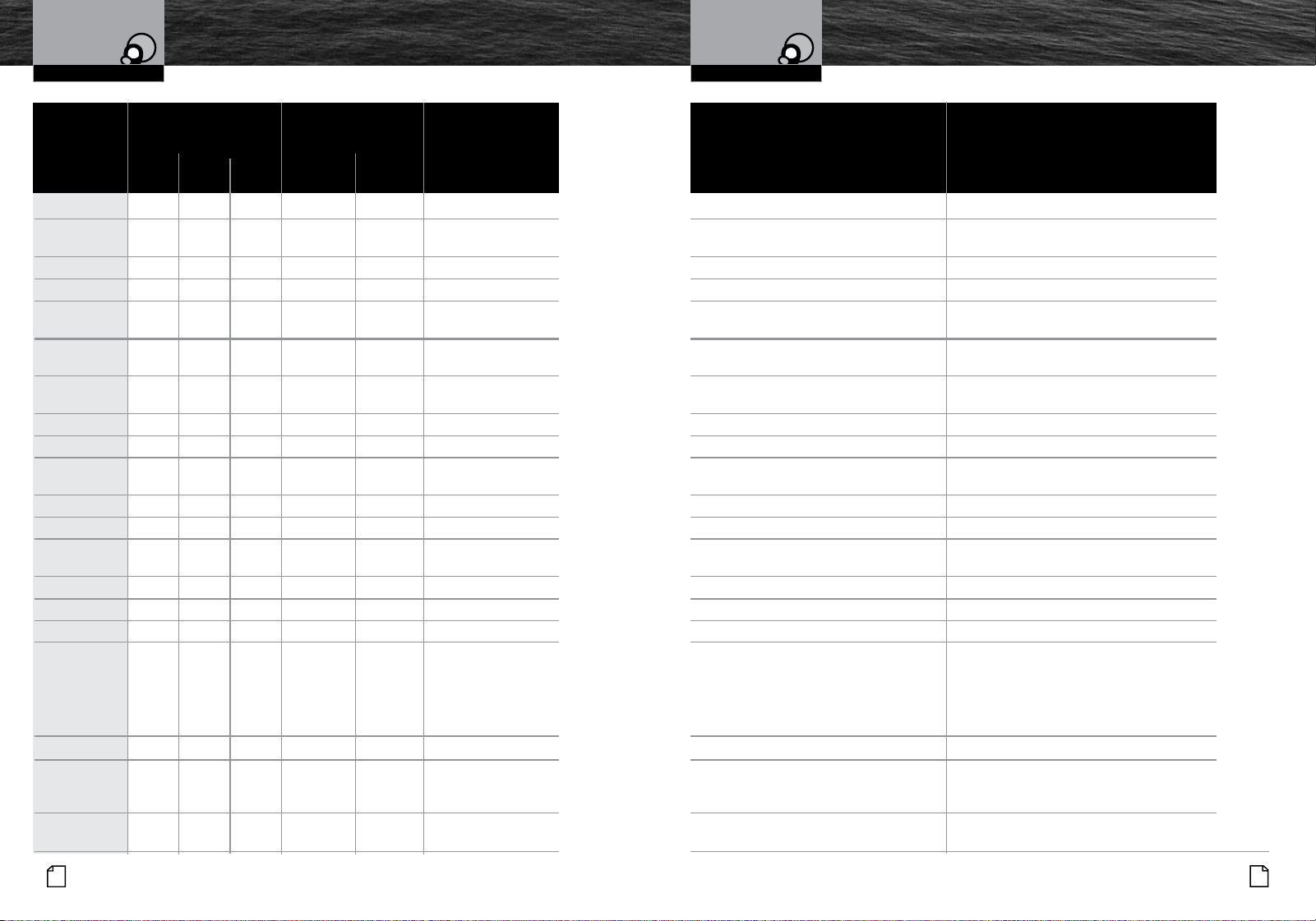
Nothing Comes Close to a Cobra
®
71
70
English
VHF Marine
Channel Assignments
Appendix
VHF Marine
Channel Assignments
Appendix
01
•
•
156.050 160.650 Public Correspondence (Marine Operator) Correspondencia pública (operador marítimo)
01A
•
156.050 156.050 Port Operations and Commercial, Operaciones portuarias y comerciales;
VTS in selected areas VTS en áreas selectas
02 • • 156.100 160.700 Public Correspondence (Marine Operator) Correspondencia pública (operador marítimo)
03 • • 156.150 160.750 Public Correspondence (Marine Operator) Correspondencia pública (operador marítimo)
04 • 156.200 160.800 Public Correspondence (Marine Operator), Correspondencia pública (operador marítimo)
Port Operations, Ship Movement operaciones portuarias,movimiento de embarcaciones
04A • 156.200 156.200 West Coast (Coast Guard Only); Costa occidental (guardia costera solamente);
East Coast (Commercial Fishing) Costa oriental (pesca comercial)
05 • 156.250 160.850 Public Correspondence (Marine Operator), Correspondencia pública (operador marítimo)
Port Operations, Ship Movement operaciones portuarias,movimiento de embarcaciones
05A • • 156.250 156.250 Port Operations, VTS in selected areas Operaciones portuarias; VTS en áreas selectas
06 • • • 156.300 156.300 Intership Safety Seguridad entre embarcaciones
07 • 156.350 160.950 Public Correspondence (Marine Operator), Correspondencia pública (operador marítimo)
Port Operations, Ship Movement operaciones portuarias,movimiento de embarcaciones
07A • • 156.350 156.350 Commercial Comerciales
08 • • • 156.400 156.400 Commercial (Intership Only) Comercial (entre embarcaciones solamente)
09 • • • 156.450 156.450 Boater Calling Channel, Canal de llamada de la tripulación,
Non-Commercial (Recreational) no comercial (recreativo)
10 • • • 156.500 156.500 Commercial Comerciales
11 • • • 156.550 156.550 Commercial, VTS in selected areas Comercial; VTS en áreas selectas
12 • • • 156.600 156.600 Port Operations, VTS in selected areas Operaciones portuarias; VTS en áreas selectas
13 • • • 156.650 156.650
1 watt USA Intership Navigation Safety (Bridge-to-Bridge).
In U.S. waters, large vessels maintain a
listening watch on this channel.
14 • • • 156.700 156.700 Port Operations, VTS in selected areas Operaciones portuarias; VTS en áreas selectas
15 • Rx Only 156.750 Environmental (Receive Only). Medioambiental (recepción solamente).
Usado por radiobalizas de localización
de siniestros (EPIRB) clase C
15 • 156.750 156.750 1 watt CANADA Canada (EPIRB Buoys Only); International Canadá (boyas de EPIRB solamente);
(On-Board Communication) Internacional (comunicación de a bordo)
Channel Use (English) Uso de canales (Español)
Channel Map
Mapa de canales
Channel
Number
Número
de canal
Power Limits
Límites de potencia
Frequency
Frecuencia
1 vatio EE.UU. y Canadá
Seguridad marítima entre embarcaciones (de
puente de mando a puente de mando). En aguas
estadounidenses, las grandes embarcaciones se
mantienen vigilantes con sus radios sintonizados
en este canal
USA Int’l Canada Transmit
Receive
EE.UU. nternac Canadá Transm. Recepción
1 vatio Canadá
Nothing Comes Close to a Cobra
®
73
72
English
VHF Marine
Channel Assignments
Appendix
VHF Marine
Channel Assignments
Appendix
16 • • • 156.800 156.800 International Distress, Safety and Calling Llamadas, seguridad y solicitud
de auxilio internacional
17 • • • 156.850 156.850 1 watt CANADA Search and Rescue Búsqueda y rescate
18 • 156.900 161.500 Port Operations, Ship Movement Operaciones portuarias,
movimiento de embarcaciones
18A • • 156.900 156.900 Commercial Comerciales
19 • 156.950 161.550 Port Operations, Ship Movement Operaciones portuarias,
movimiento de embarcaciones
19A • • 156.950 156.950 Commercial Comerciales
20 • • • 157.000 161.600 1 watt CAN Canada (Coast Guard Only); International Canadá (guardia costera solamente);
(Port Operations, Ship Movement) Internacional (operaciones portuarias,
movimiento de embarcaciones)
20A • 157.000 157.000 Port Operations Operaciones portuarias
21 • 157.050 161.650 Port Operations, Ship Movement Operaciones portuarias,
movimiento de embarcaciones
21A • • 157.050 157.050 U.S. (Government Only); EE.UU. (entidades gubernamentales solamente);
Canada (Coast Guard Only) Canadá (guardia costera solamente)
21B • RX only 161.650 Coast Guard Only – Weather Broadcasts Solamente Guardacostas –
Transmisiones Meteorológicas
22 • 157.100 161.700 Port Operations, Ship Movement Operaciones portuarias,
movimiento de embarcaciones
22A • • 157.100 157.100 U.S. and Canadian Coast Guard Liaison and Enlace entre las guardias costeras
Maritime Safety Information Broadcasts that y canadienses, y difusión de información sobre
are announced on Channel 16 seguridad marítima anunciada por el canal 16
23
•
•
157.150 161.750 Public Correspondence (Marine Operator) Correspondencia pública (operador marítimo)
23A
•
157.150 157.150 Coast Guard Only Solamente Guardacostas
23B
•
RX Only 161.750 Coast Guard Only Solamente Guardacostas
24
•
•
•
157.200 161.800 Public Correspondence (Marine Operator) Correspondencia pública (operador marítimo)
25
•
•
•
157.250 161.850 Public Correspondence (Marine Operator) Correspondencia pública (operador marítimo)
25B
•
RX only 161.850 Safety: Continuous Marine Broadcast (CMB) Seguridad: Transmisión Marítima Continua (CMB)
service by MCTS Canada servicio por MCTS Canadá
Channel Use (English) Uso de canales (Español)
Channel Map
Mapa de canales
Channel
Number
Número
de canal
Frequency
Frecuencia
USA Int’l Canada Transmit
Receive
EE.UU. nternac Canadá Transm. Recepción
1 vatio Canadá y Internac
1 vatio Canadá
Power Limits
Límites de potencia
1 vatio Canadá
Nothing Comes Close to a Cobra
®
75
74
English
VHF Marine
Channel Assignments
Appendix
VHF Marine
Channel Assignments
Appendix
26
•
•
•
157.300 161.900 Public Correspondence (Marine Operator) Correspondencia pública (operador marítimo)
27
•
•
•
157.350 161.950 Public Correspondence (Marine Operator) Correspondencia pública (operador marítimo)
28
•
•
•
157.400 162.000 Public Correspondence (Marine Operator) Correspondencia pública (operador marítimo)
28B
•
RX only 162.000 Safety: Continuous Marine Broadcast (CMB) Seguridad: Transmisión Marítima Continua (CMB)
service by MCTS Canada servicio por MCTS Canadá
60
•
•
156.025 160.625 Public Correspondence (Marine Operator) Correspondencia pública (operador marítimo)
61
•
156.075 160.675 Public Correspondence (Marine Operator) Correspondencia pública (operador marítimo),
Port Operation, Ship Movement operaciones portuarias, movimiento de embarcaciones
61A
•
156.075 156.075
U.S. (Government Only); Canada (Coast
Guard Only); West Coast (Coast Guard
Only); East Coast (Commercial Fishing)
62
•
156.125 160.725 Public Correspondence (Marine Operator), Correspondencia pública (operador marítimo),
Port Operations, Ship Movement operaciones portuarias, movimiento de embarcaciones
62A
•
156.125 156.125 West Coast (Coast Guard Only); Costa occidental (guardia costera
East Coast (Commercial Fishing) solamente); Costa oriental (pesca comercial)
63
•
156.175 160.775 Public Correspondence (Marine Operator), Correspondencia pública (operador marítimo),
Port Operations, Ship Movement operaciones portuarias, movimiento de embarcaciones
63A
•
•
156.175 156.175 Port Operations and Commercial, Operaciones portuarias y comerciales;
VTS in selected areas VTS en áreas selectas
64
•
•
156.225 160.825 Public Correspondence (Marine Operator), Correspondencia pública (operador marítimo),
Port Operations, Ship Movement operaciones portuarias, movimiento de embarcaciones
64A
•
156.225 156.225 U.S. (Government Only); EE.UU. (entidades gubernamentales
Canada (Commercial Fishing) solamente); Canadá (pesca comercial)
65
•
156.275 160.875 Public Correspondence (Marine Operator), Correspondencia pública (operador marítimo),
Port Operations, Ship Movement operaciones portuarias, movimiento de embarcaciones
65A
•
•
156.275 156.275 Port Operations Operaciones portuarias
66
•
156.325 160.925 Public Correspondence (Marine Operator), Correspondencia pública (operador marítimo),
Port Operations, Ship Movement operaciones portuarias, movimiento de embarcaciones
66A
•
•
156.325 156.325
1 watt CAN
Port Operations Operaciones portuarias
Channel Use (English) Uso de canales (Español)
Channel Map
Mapa de canales
Channel
Number
Número
de canal
Power Limits
Límites de potencia
Frequency
Frecuencia
USA Int’l Canada Transmit
Receive
EE.UU. nternac Canadá Transm. Recepción
EE.UU. (entidades gubernamentales
solamente); Canadá (guardia costera
solamente); Costa occidental (guardia costera
solamente); Costa oriental (pesca comercial)
Nothing Comes Close to a Cobra
®
77
English
76
VHF Marine
Channel Assignments
Appendix
VHF Marine
Channel Assignments
Appendix
67
•
•
•
156.375 156.375 1 watt USA
68 • • • 156.425 156.425 Non-Commercial (Recreational) No comercial (recreativo)
69
•
•
•
156.475 156.475
U.S. (Non-Commercial, Recreational); Canada
(Commercial Fishing Only); International
(Intership, Port Operations, Ship Movement)
70
•
•
•
RX only 156.525
Digital Selective Calling Llamadas selectivas digitales (las comunicaciones
(Voice communications not allowed) verbales están prohibidas).
71
•
•
•
156.575 156.575
1 watt USA
U.S. and Canada (Non-Commercial, Recreational); EE.UU. y Canadá (no comercial, recreativo);
International (Port Operations, Ship Movement) Internacional (operaciones portuarias,
movimiento de embarcaciones).
72
•
•
•
156.625 156.625
Non-Commercial (Intership Only) No comercial (entre embarcaciones solamente).
73
•
•
•
156.675 156.675
U.S. (Port Operations); Canada (Commercial EE.UU. (operaciones portuarias); Canadá (pesca
Fishing Only); International (Intership, comercial solamente); Internacional (comunicaciones
Port Operations, Ship Movement) entre embarcaciones, operaciones portuarias,
movimiento de embarcaciones).
74
•
•
•
156.725 156.725
U.S. (Port Operations); Canada (Commercial EE.UU. (operaciones portuarias); Canadá (pesca
Fishing Only); International (Intership, comercial solamente); Internacional (comunicaciones
Port Operations, Ship Movement) entre embarcaciones, operaciones portuarias,
movimiento de embarcaciones).
75
•
•
•
156.775 156.775 1 watt
Port Operations (Intership Only) Operaciones portuarias
(entre embarcaciones solamente).
76
•
•
•
156.825 156.825 1 watt
Port Operations (Intership Only) Operaciones portuarias
(entre embarcaciones solamente).
77
•
•
•
156.875 156.875 1 watt USA
Port Operations (Intership only). Restricted to Operaciones portuarias (entre embarcaciones
communications with pilots for movement and solamente). Restringido a comunicaciones con
docking of ships. pilotos para el movimiento y atraque de
embarcaciones.
78
•
156.925 161.525
Public Correspondence (Marine Operator) Correspondencia pública (operador marítimo).
78A
•
•
156.925 156.925
Non-Commercial (Recreational) No comercial (recreativo).
79 • 156.975 161.575
Port Operations, Ship Movement Operaciones portuarias,
movimiento de embarcaciones.
Channel Use (English) Uso de canales (Español)
Channel Map
Mapa de canales
Channel
Number
Número
de canal
Power Limits
Límites de potencia
Frequency
Frecuencia
USA Int’l Canada Transmit
Receive
EE.UU. nternac Canadá Transm. Recepción
EE.UU. (entidades gubernamentales
solamente); Canadá (guardia costera
solamente); Costa occidental (guardia costera
solamente); Costa oriental (pesca comercial)
1 vatio Canadá
1 vatio EE.UU
1 vatio
1 vatio
1 vatio EE.UU
Internship Navigation Safety (Bridge-to-Bridge).
In U.S. waters, large vessels maintain a listening
watch on thias channel.
Seguridad marítima entre embarcaciones (de
puente de mando a puente de mando). En aguas
estadounidenses, las grandes embarcaciones se
mantienen vigilantes con sus radios sintonizados en
este canal.
Nothing Comes Close to a Cobra
®
79
78
English
VHF Marine
Channel Assignments
Appendix
VHF Marine
Channel Assignments
Appendix
79A
•
•
156.975 156.975 Commercial (Also Non-Comercial Comercial (en los Grandes
only in Great Lakes) Lagos también no comercial)
80
•
157.025 161.625 Port Operations, Ship Movement Operaciones portuarias,
movimiento de embarcaciones
80A
•
•
157.025 157.025 Commercial (Also Non-Commercial Comercial (en los Grandes
only in Great Lakes) Lagos también no comercial)
81
•
157.075 161.675 Port Operations, Ship Movement Operaciones portuarias,
movimiento de embarcaciones
81A
•
•
157.075 157.075 U.S. (Government Only); Canada EE.UU. (entidades gubernamentales solamente);
(Coast Guard Only) Canadá (guardia costera solamente)
82
•
157.125 161.725 Public Correspondence (Marine Operator) Correspondencia pública (operador marítimo)
Port Operation, Ship Movement operaciones portuarias, movimiento de embarcaciones
82A
•
•
157.125 157.125 U.S. (Government Only); Canada EE.UU. (entidades gubernamentales solamente);
(Coast Guard Only) Canadá (guardia costera solamente)
83
•
157.175 161.775 Public Correspondence (Marine Operator) Correspondencia pública (operador marítimo)
Port Operation, Ship Movement operaciones portuarias, movimiento de embarcacione
83A
•
•
157.175 157.175 U.S. (Government Only); Canada EE.UU. (entidades gubernamentales solamente);
(Coast Guard Only) Canadá (guardia costera solamente)
83B
•
RX only 161.775 Coast Guard Only – Weather Broadcasts Solamente Guardacostas –
Transmisiones Meteorológicas
84
•
•
•
157.275 161.875 Public Correspondence (Marine Operator) Correspondencia pública (operador marítimo)
85
•
•
•
157.275 161.875 Public Correspondence (Marine Operator) Correspondencia pública (operador marítimo)
86
•
•
•
157.325 161.925 Public Correspondence (Marine Operator) Correspondencia pública (operador marítimo)
87
•
•
•
157.375 157.375 Public Correspondence (Marine Operator) Correspondencia pública (operador marítimo)
88
•
•
•
157.425 157.425 Public Correspondence (Ship to Coast). Correspondencia pública (entre embarcación y costa).
In U.S. only within 75 miles of Canadian Border. En los EE.UU., solamente dentro de los casi
121 kilómetros (75 millas) de la frontera canadiense
88A • 157.425 157.425 Commercial Intership only Comercial entre embarcaciones solamente
Channel Use (English) Uso de canales (Español)
Channel Map
Mapa de canales
Channel
Number
Número
de canal
Frequency
Frecuencia
USA Int’l Canada Transmit
Receive
EE.UU. nternac Canadá Transm. Recepción
Power Limits
Límites de potencia
Nothing Comes Close to a Cobra
®
81
80
English
Weather Channel
Assignments
Appendix
VHF Marine
Channel Assignments
Appendix
NOTE
Many of the plain-numbered channels, such as 01, 02 and 03, transmit and
receive on different frequencies. This is termed duplex operation. The rest of the
plain-numbered channels and all of the A channels, such as 01A, 03A and
04A, transmit and receive on a single frequency, which is termed simplex
operation. Your radio automatically adjusts to these conditions. When in simplex
operation, the A icon will appear on the LCD (see illustration on page A3).
NOTE
All channels are preprogrammed at the factory according to international
regulations and those of the FCC (U.S.A.) and Industry Canada (Canada).
They cannot be altered by the user nor can modes of operation be changed
between simplex and duplex.
NOTA
Muchos de los canales de números simples, como 01, 02 y 03, transmiten
y reciben en diferentes frecuencias. A esto se le llama operación dúplex. El
resto de los canales de números simples y todos los canales A, como 01A,
03A y 04A, transmiten y reciben en una sola frecuencia, a la que se le llama
operación simple (simplex). Su radio se ajusta automáticamente a estas
condiciones. Cuando esté en operación simple, el icono A aparecerá en la
pantalla de cristal líquido (vea la ilustración de la página A3).
NOTA
Todos los canales vienen programados previamente de fábrica conforme
a los reglamentos internacionales y a los de la FCC (EE. UU) e Industry Canada
(Canadá). No pueden ser alterados por el usuario, así como tampoco pueden
cambiarse los modos de operación entre simple y dúplex.
Weather Channel Assignments
Asignaciones de canales meteorológicos
•
RX Frequency MHz
Frecuencia de recepción (MHz)
Channel
Number
Número
de canal
1 162.550 NOAA
2 162.400 NOAA
3 162.475 NOAA
4 162.425 NOAA
5 162.450 NOAA
6 162.500 NOAA
7 162.525 NOAA
8 161.650 Canada
9 161.775 Canada
10 163.275 NOAA
Weather Channel
Weather Channel
VHF Marine Channel Assignments (English)
Asignación de canales de VHF para radiocomunicación marítima (Español)
Nothing Comes Close to a Cobra
®
83
82
English
Warranty
Warranty
World City Time Zones
Appendix
World City Time Zones
•
In order to set correct local time as compared to different World City Time Zones,
enter the hour “offset” as listed below. The correct local time appears on the VHF for
Cities all over the world. See page 43 for setup information.
Longitudinal Zone Offset City
E172.50 to W172.50 -12 IDLW (International Date Line West)
W172.50 to W157.50 -11 Nome
W157.50 to W142.50 -10 Honolulu
W142.50 to W127.50 -9 Yukon STD
W127.50 to W112.50 -8 Los Angeles STD
W112.50 to W097.50 -7 Denver STD
W097.50 to W082.50 -6 Chicago STD
W082.50 to W067.50 -5 New York STD
W067.50 to W052.50 -4 Caracas
W052.50 to W037.50 -3 Rio de Janeiro
W037.50 to W022.50 -2 Fernando de Noronha
W022.50 to W007.50 -1 Azores Islands
W007.50 to E007.50 GMT +0 London
E007.50 to E022.50 +1 Rome
E022.50 to E037.50 +2 Cairo
E037.50 to E052.50 +3 Moscow
E052.50 to E067.50 +4 Abu Dhabi
E067.50 to E082.50 +5 Maldives
E082.50 to E097.50 +6 Dhuburi
E097.50 to E112.50 +7 Bangkok
E112.50 to E127.50 +8 Hong Kong
E127.50 to E142.50 +9 Tokyo
E142.50 to E157.50 +10 Sydney
E157.50 to E172.50 +11 Solomon Islands
E172.50 to W172.50 +12 Auckland
Warranty Terms:
Cobra warrants your product against all defects in materials and workmanship for a period of
three (3) years from the date of original purchase.
Cobra, at our sole discretion, will repair or replace your product (with the same or comparable
product) free of charge.
Cobra will not pay shipping charges that you incur for sending your product to us. Products
received COD will be refused.
To make a warranty claim, we will require proof or purchase in the form of an invoice or receipt.
No proof of purchase is required for factory direct purchases.
Warranty Exclusions: Warranty does not apply to your product under any of the following
conditions: 1. The serial number has been removed or modified. 2. Your product has been
subjected to misuse or damage (including water damage, physical abuse, and/or improper
installation). 3. Your product has been modified in any way. 4. Your receipt or proof-of-purchase
is from a non-authorized dealer or internet auction site including E-bay, U-bid, or other non-
authorized resellers.
LIMITATION OF WARRANTY: EXCEPT AS EXPRESSLY PROVIDED HEREIN, YOU ARE ACQUIRING
THE PRODUCT “AS IS” AND “WHERE IS”, WITHOUT REPRESENTATION OR WARRANTY. COBRA
SPECIFICALLY DISCLAIMS ANY REPRESENTATION OR WARRANTY INCLUDING, BUT NOT
LIMITED TO THOSE CONCERNING THE MERCHANTABILITY AND SUITABILITY OF THE PRODUCT
FOR A PARTICULAR PURPOSE. COBRA SHALL NOT BE LIABLE FOR CONSEQUENTIAL, SPECIAL
OR INCIDENTAL DAMAGES INCLUDING, WITHOUT LIMITATION, DAMAGES ARISING OUT OF THE
USE, MISUSE OR MOUNTING OF THE PRODUCT.
The above limitations or exclusions shall be limited to the extent they violate the laws of any
particular state. Cobra is not responsible for products lost in shipment between the owner and
our service center.
General Warranty Information
Each product we manufacture is covered by our factory warranty. While each product may have
unique components and policy, the general guideline below will apply to most Cobra products.
All Cobra products purchased factory-direct or from our Authorized Resellers will come with
a full one to three (1-3) year warranty from the date of the original retail purchase (see policy
statement above for full warranty details and exclusions).
Standard accessories packaged with each model will have a one-year factory warranty.
Accessory items have a one-year factory warranty.
Shipping to our facility is not covered in our warranty. Return shipping is included within the US.
This warranty is non-transferrable.
For the sake of clarity, ‘repair or replace the Product or its defective part’ does not include
removal or installation work, costs or expenses which include but are not limited to labor costs
or expenses.
Cobra will not be responsible for lost packages.
Nothing Comes Close to a Cobra
®
85
84
English
Customer Service
Flush Mount Template / Plantilla para montaje empotrado
Customer Service
Use the supplied template to mark and cut an opening in the flat surface.
CAUTION
Before cutting, be sure the area behind the flat surface is clear of any instruments
or wires that might be damaged in the process.
Use la plantilla suministrada para marcar y cortar el agujero en la superficie plana.
PRECAUCIÓN
Antes de cortar, compruebe que no haya instrumentos o cables en el área detrás
de la superficie plana, que puedan resultar dañados durante el proceso.
Product Service
If you have any questions about operation or installing your new Cobra product, PLEASE
CONTACT COBRA FIRST…do not return this product to any retail store.
The contact information for Cobra will vary depending on the country in which you
purchased and utilize the product. For the latest contact information, please go to
www.cobra.com/support
For products purchased in the U.S.A. you may call 800-543-1608.
For products purchased in the U.S.A., if your product should require factory service,
please please go to www.cobra.com/support and follow the instructions for returning
your product to the Cobra Factory Service Department for service.
Should there be any problems with this product or further information is needed on its
features please visit www.cobra.com for support, frequently asked questions, Declarations
of Conformity, and full manuals.
For Products Purchased Outside the U.S.A. or Canada
Please contact your local dealer for product service information.
For Products Used in Canada
Industry Canada Notice
This device complies with Industry Canada license-exempt RSS standard(s). Operation is
subject to the following two conditions:
(1) this device may not cause interference, and
(2) this device must accept any interference, including interference that may cause
undesired operation of the device.
Le présent appareil est conforme aux CNR d’Industrie Canada applicables aux appareils
radio excempts de licence. L;exploitation est autorisée aux deux condtions suivantes:
(1) l’appariel ne doit pas produire de brouillage, et
(2) l’utilisateur de l’appareil doit accepter tout brouillage radioélectrique subi, même
si le brouillage est susceptible d’en compromettre le fonctionnement.

Nothing Comes Close to a Cobra
®
For more information or to order any of our products,
please visit our website: www.cobra.com
©2021 Cobra Electronics Corporation
Cobra®, Cobra Marine®, Nothing Comes Close to a Cobra®, Rewind-Say-Again®, and the
snake design are registered trademarks of Cobra Electronics Corporation, USA.
Cobra Electronics Corporation™ is a trademark of Cobra Electronics Corporation, USA.