
© 202 GeoVision, Inc. All rights reserved.
Under the copyright laws, this manual may not be copied, in whole or in part,
without the written consent of GeoVision.
Every effort has been made to ensure that the information in this manual is
accurate. GeoVision, Inc. makes no expressed or implied warranty of any kind
and assumes no responsibility for errors or omissions. No liability is assumed
for incidental or consequential damages arising from the use of the information
or products contained herein. Features and specifications are subject to
change without notice.
GeoVision, Inc.
9F, No. 246, Sec. 1, Neihu Rd.,
Neihu District, Taipei, Taiwan
Tel: +886-2-8797-8377
Fax: +886-2-8797-8335
http://www.geovision.com.tw
Trademarks used in this manual: GeoVision, the GeoVision logo and GV
series products are trademarks of GeoVision, Inc. Windows is the registered
trademark of Microsoft Corporation.
July 2024
Scan the following QR codes for product warranty and technical support
policy:
[Warranty] [Technical Support Policy]
i
Preface
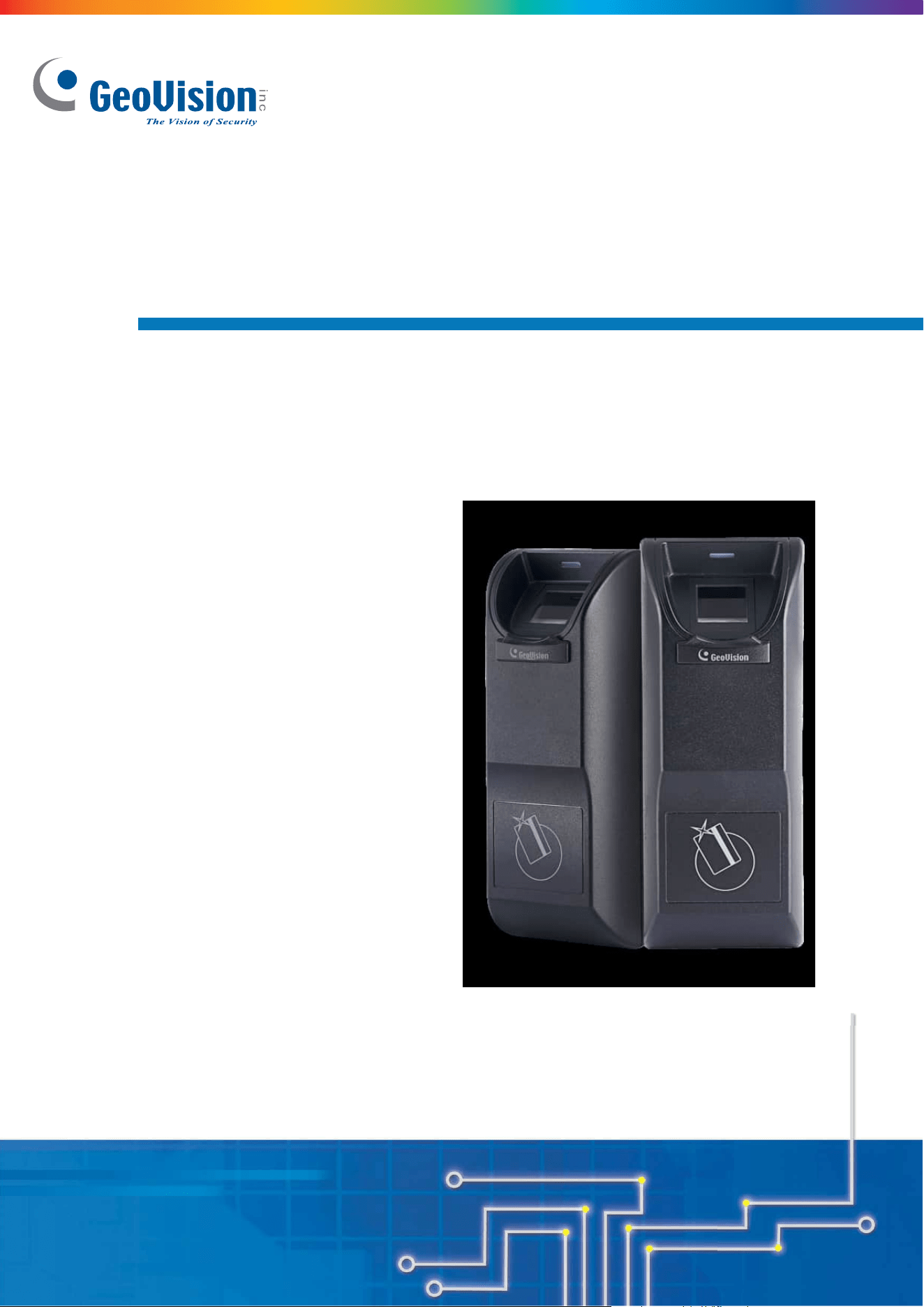
Welcome to the GV-GF Fingerprint Reader User’s Manual.
This Manual applies to the following GV-GF Fingerprint Readers:
Product
Version
GV-GF1911 / 1912
V1.0
GV-GF1921 / 1922
V1.31
GV-GF1922 V2
V2.00

ii
Contents
Preface ........................................................................... i
Regulatory Notices ...................................................... v
Caution ........................................................................ vi
Installation Considerations ....................................... vii
Firmware and Software Compatibility......................viii
Chapter 1 Introduction ............................................... 1
1.1 Packing List ............................................................................................................. 2
1.2 Options .................................................................................................................... 3
1.3 Serial Number / MAC Address ................................................................................. 4
1.4 Rear View ................................................................................................................ 5
1.4.1 1911 / 1912 Models ...................................................................................... 5
1.4.2 1921 / 1922 / 1922 V2 Models ...................................................................... 6
1.5 Installation ............................................................................................................... 7
Chapter 2 Connecting GV-AS Controller .................. 9
2.1 Connecting through Wiegand Interface.................................................................... 9
2.1.1 Physical Connection ...................................................................................... 9
2.1.2 Web Configuration ...................................................................................... 10
2.2 Connecting through RS-485 Interface ....................................................................11
2.2.1 Physical Connection .................................................................................... 11
2.2.2 Web Configuration ...................................................................................... 12
2.3 Connecting through TCP/IP Interface .....................................................................13
2.3.1 Physical Connection .................................................................................... 13
2.3.2 Accessing the Web Interface ....................................................................... 14
2.3.3 Web Configuration ...................................................................................... 15
Chapter 3 Fingerprint Only Mode ............................ 18
3.1 Enrolling Fingerprints ..............................................................................................18
3.1.1 Enrolling Fingerprints Locally ...................................................................... 19
3.1.2 Enrolling Fingerprints Remotely (GV-GF1921 / 1922 / 1922 V2 Only) ......... 22

iii
3.2 Uploading Fingerprints to Readers .........................................................................26
3.3 Uploading Fingerprints Using Door Groups ............................................................30
3.4 Using the Fingerprint Reader ..................................................................................31
Chapter 4 Card + Fingerprint Mode ......................... 32
4.1 Enrollment ..............................................................................................................32
4.2 Deletion ..................................................................................................................35
4.3 Using the Fingerprint Reader ..................................................................................36
Chapter 5 Card Only Mode ....................................... 37
5.1 Enrollment ..............................................................................................................38
5.2 Deletion ..................................................................................................................39
5.3 Using the Fingerprint Reader ..................................................................................39
Chapter 6 Standalone Mode .................................... 40
6.1 Physical Connection ...............................................................................................40
6.2 Enabling the Local Mode ........................................................................................42
6.3 Fingerprints and Card Enrollment ...........................................................................43
6.3.1 Fingerprint Only Mode ................................................................................. 43
Chapter 7 Web Interface for GV-GF1921 / 1922 / 1922
V2 ................................................................................ 44
7.1 Network Settings ....................................................................................................44
7.2 Card Settings..........................................................................................................46
7.3 Other Settings ........................................................................................................47
7.4 Firmware ................................................................................................................50
7.5 Account Settings ....................................................................................................51
Chapter 8 Upgrading Firmware ............................... 52
8.1 GV-GF1911 / 1912 .................................................................................................52
8.1.1 Connecting to a Computer .......................................................................... 52
8.1.2 Installing Software ....................................................................................... 54
8.2 GV-GF1921 / 1922 / 1922 V2 .................................................................................56
8.2.1 Through the Utility ....................................................................................... 56

iv
Chapter 9 LED Indicator ........................................... 57
9.1 GV-GF1911 / 1912 / 1921 / 1922 / 1922 V2 (connected with GV-AS Manager) ......57
9.2 GV-GF1921 / 1922 / 1922 V2 (Standalone) ............................................................59
Appendix .................................................................... 60
v
Regulatory Notices
FCC Notice
This equipment has been tested and found to comply with the limits for a Class A digital
device, pursuant to part 15 of the FCC Rules. These limits are designed to provide
reasonable protection against harmful interference when the equipment is operated in a
commercial environment.
Class A
This equipment generates, uses, and can radiate radio frequency energy and, if not installed
and used in accordance with the instruction manual, may cause harmful interference to radio
communications. Operation of this equipment in a residential area is likely to cause harmful
interference in which case the user will be required to correct the interference at their own
expense.
CE Notice
This is a Class A product. In a domestic environment, this product may cause radio
interference in which case the user may be required to take adequate measures.
RoHS Compliance
The Restriction of Hazardous Substances (RoHS) Directive is to forbid the use of hazardous
materials of production. To meet the RoHS Directive requirements, this product is made to
be RoHS compliant.
WEEE Compliance
This product is subject to the Waste Electrical and Electronic Equipment (WEEE) Directive
and made compliant with the WEEE requirements.

vi
Caution
• The fingerprint reader is designed only for indoor usage. Avoid exposing to sunshine or
rains.
• To keep the fingerprint reader in good working condition, it is recommended to have
regular maintenance and physical cleaning of the reader.

vii
Installation Considerations
Note the distance limitations for Wiegand and RS-485 communications:
• Wiegand interface: 30 meters (98.43 feet)
• RS-485 interface: 600 meters (1968.50 feet)
Recommended RS-485 cable: standard 485 cable (a twisted pair of 24 AWG wires)
viii
Firmware and Software Compatibility
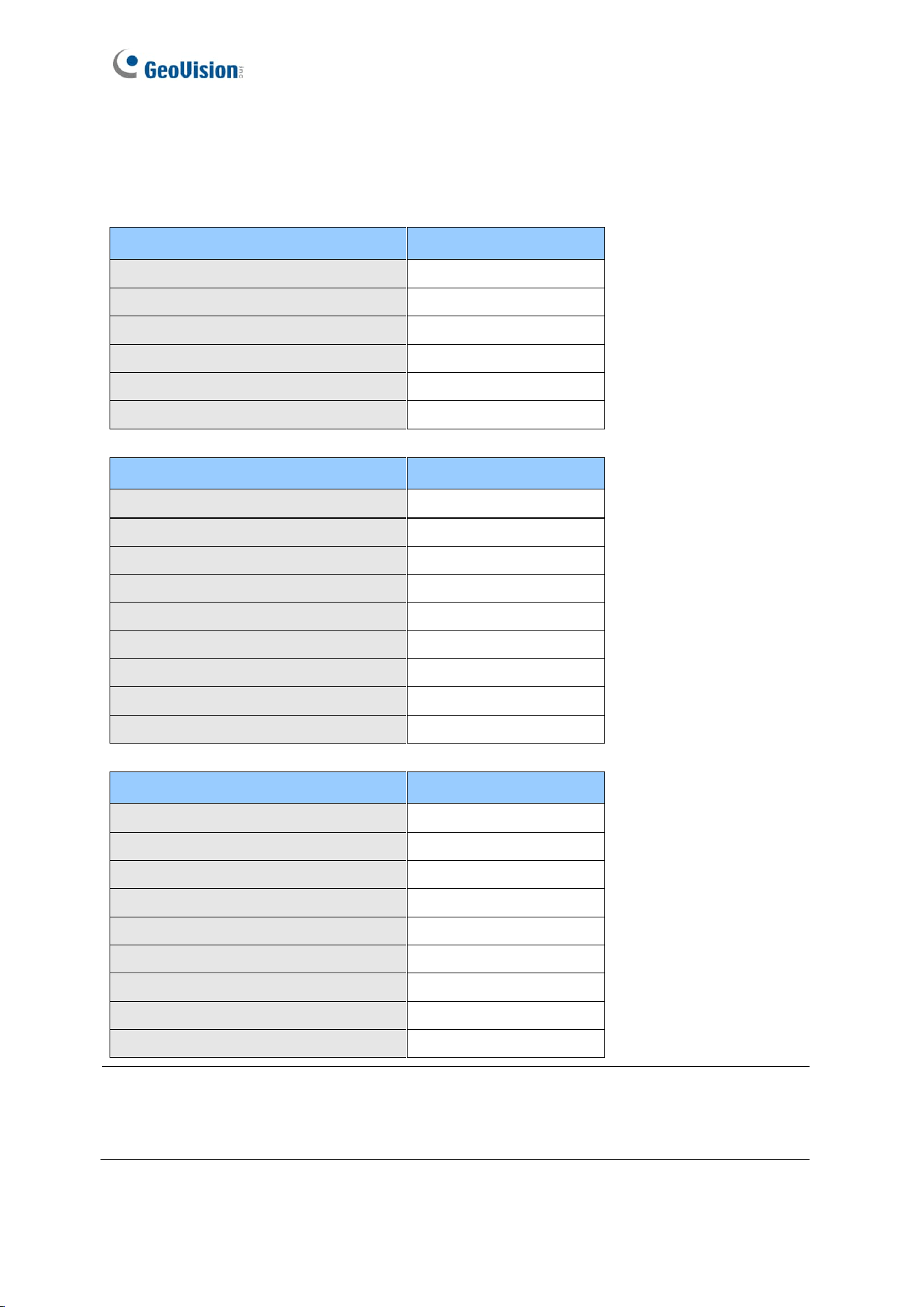
Compatible SW and HW
GV-GF1911 / 1912
GV-ASManager
V4.0 or later
GV-AS100 / 110 / 120
V1.06 or later
GV-AS400
V1.04 or later
GV-AS21 / 81 Series
V1.0 or later
GV-AS41 Series
V1.1 or later
GV-EV48
V1.0 or later
Compatible SW and HW
GV-GF1921 / 1922
GV-ASManager
V4.0 or later
GV-AS100 / 110 / 120
N/A
GV-AS400
N/A
GV-AS1010 / GV-EV48
V1.00 or later
GV-AS1620
V1.00 or later
GV-AS210 / 410 / 810
V1.1 or later
GV-AS2110 / 4110 / 8110
V1.23 or later
GV-AS2120
V1.41 or later
GV-CS1320
V2.00 or later
Compatible SW and HW
GV-GF1922 V2
GV-ASManager
V6.1.0 or later
GV-AS100 / 110 / 120
N/A
GV-AS400
N/A
GV-AS1010 / GV-EV48
V1.00 or later
GV-AS1620
V1.00 or later
GV-AS210 / 410 / 810
V1.1 or later
GV-AS2110 / 4110 / 8110
V1.23 or later
GV-AS2120
V1.41 or later
GV-CS1320
V2.00 or later
IMPORTANT: RS-485 connection support for GV-GF1911 / 1912 has been removed from
GV-AS21 / 41 / 81 series firmware V1.41, GV-EV48 firmware V2.30 and GV-ASManager
V4.4.3.0.

Introduction
1
1
Chapter 1 Introduction
The fingerprint reader can work with GeoVision access controllers and GV-ASManager
software to create a complete access control system. Three types of operation modes are
supported: Card + Fingerprint, Fingerprint Only, and Card Only.
Card + Fingerprint Mode
With the fingerprint reader only, you can enroll and manage users using the supplied
Manager Enroll Card and Delete Card, along with optional MIFARE cards.
The fingerprint templates are stored in the user card. The user gains access by scanning
both his/her finger and the card. The reader compares the presented finger with digital
template stored in the card. When the finger is successfully authenticated, a signal is sent to
activate the door relay of the controller.
Fingerprint Only Mode
The fingerprints are enrolled through a fingerprint reader installed on the GV-ASManager
server via RS-485 or a USB cable, or through a fingerprint reader via network. The
fingerprints are then distributed through GV-ASManager to the fingerprint readers installed
on GeoVision access controllers.
Card Only Mode
The mode requires users to present their cards only to be granted access.
Note: GV-GF1921 / 1922 / 1922 V2 can also work as a standalone device. For details, see
Chapter 6 Standalone Mode.

2
1.1 Packing List
If any of the items are missing or damaged, contact your dealer to arrange a replacement.
GV-GF1911 / 1912
⚫ Fingerprint reader
⚫ Data Cable (of 100 cm / 3.28 feet)
⚫ Manager Enroll Card
⚫ Manager Delete Card
⚫ Self-Tapping Screw (M3 x 6L) x 2
⚫ Self-Tapping Screw (M4 x 15L) x 3
⚫ Plastic Screw Anchor x 4
⚫ Buzzer Hole Plate
⚫ Security Torx
⚫ Software CD
GV-GF1921 / 1922 / GV-GF1922 V2
⚫ Fingerprint reader
⚫ Data Cable (of 30 cm / 0.98 feet)
⚫ Manager Enroll Card
⚫ Manager Delete Card
⚫ Mounting Plate
⚫ Standard Screw x 2
⚫ Plastic Screw Anchor x 2
⚫ Security Screw
⚫ Torx Wrench
⚫ Warranty Card
Introduction
3
1
1.2 Options
You can order the following optional accessories:
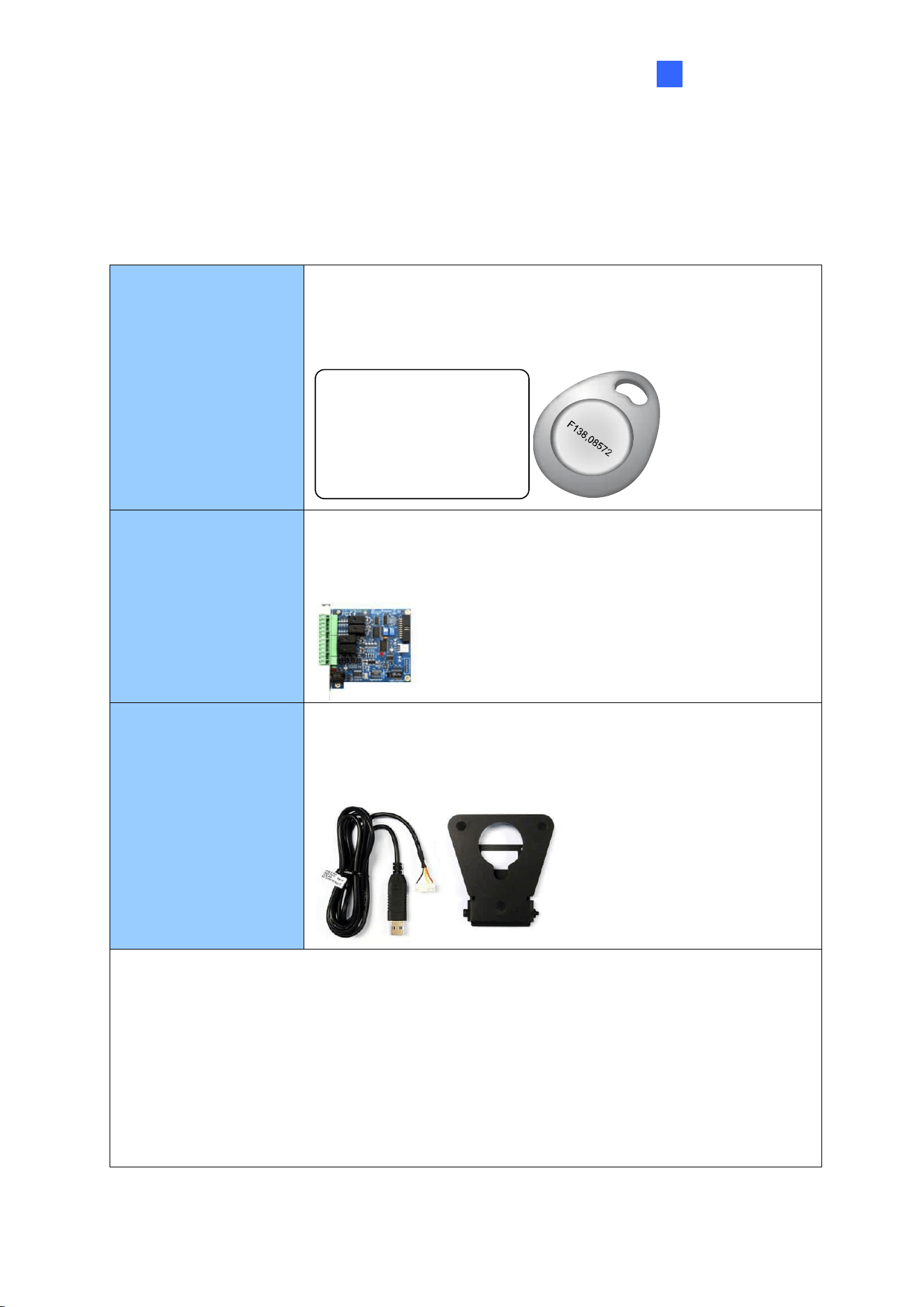
GV-AS ID Card &
GV-AS ID Tag
The GV-AS ID F Card / Tag is required. You can find the serial
number Fxxx,xxxxx at the bottom right corner of the card, or at
the center of the tag.
F138,08572
GV-NET I/O Card V3.2
The GV-NET I/O Card is an RS-485 to RS-232 interface converter
with 4 inputs and 4 relay outputs. You can use the GV-NET I/O
Card to connect the fingerprint reader to your computer.
PC Service Package
The package includes a USB cable for connecting the fingerprint
reader to a computer and a reader mount to hold the reader for
fingerprint enrollment. See Chapter 8 Upgrading Firmware.
Note:
1. For Card + Fingerprint Mode, GV-GF Fingerprint Readers can only work with
GeoVision’s user cards and tags.
2. For Card + Fingerprint Mode, be sure that your user card has the serial number
starting with the letter F; otherwise, you cannot record fingerprints to the user card.
3. GV-NET I/O Card and PC Service Package are only compatible with GV-GF1911 /
1912.
4
1.3 Serial Number / MAC Address
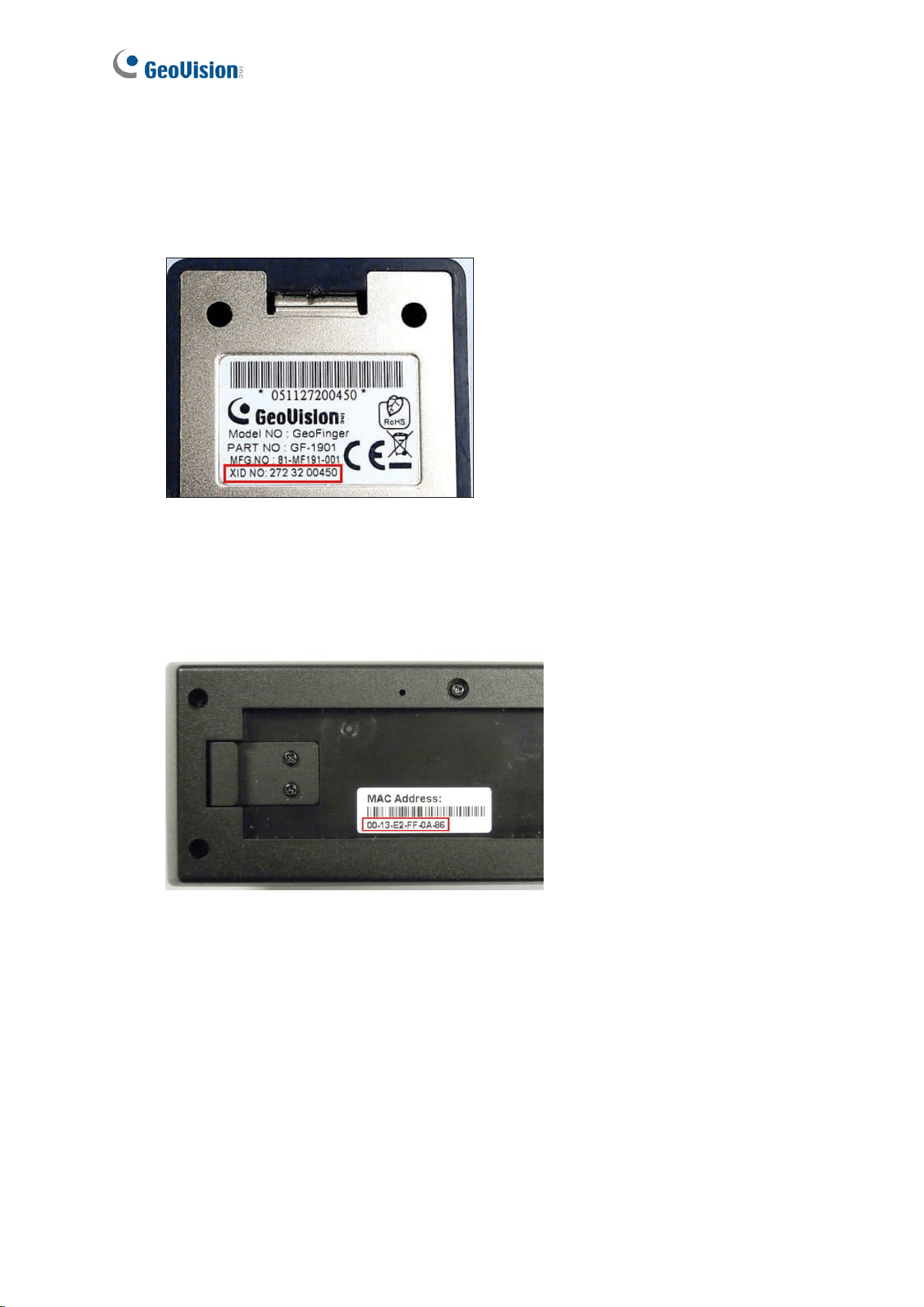
To find the serial number of GV-GF1911 / 1912, see the XID number on the back of the
reader.
Figure 1-1
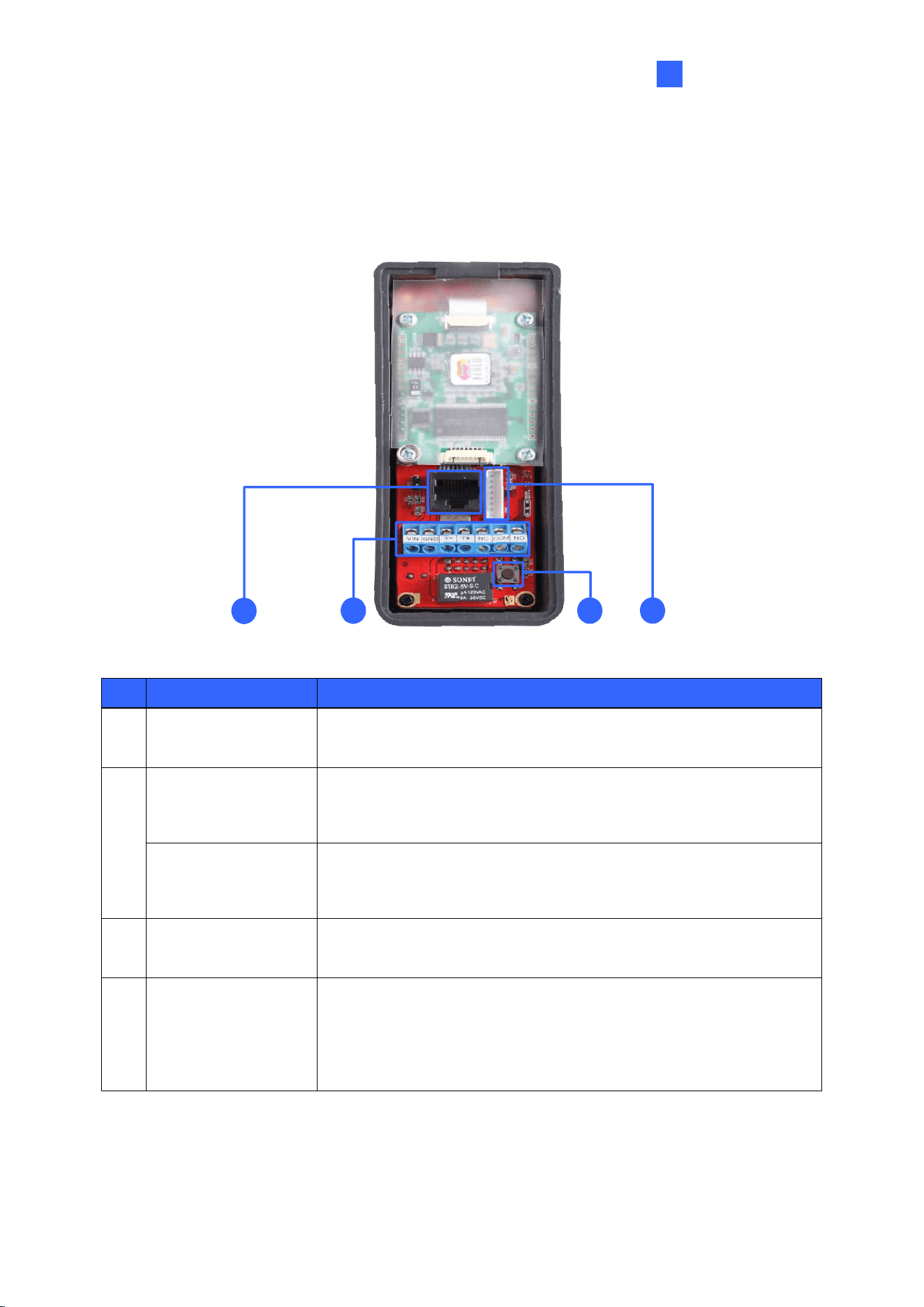
For GV-GF1921 /1922 / GV-GF1922 V2, you can find the MAC address on the back of the
reader.
Figure 1-2
Introduction
5
1
1.4 Rear View
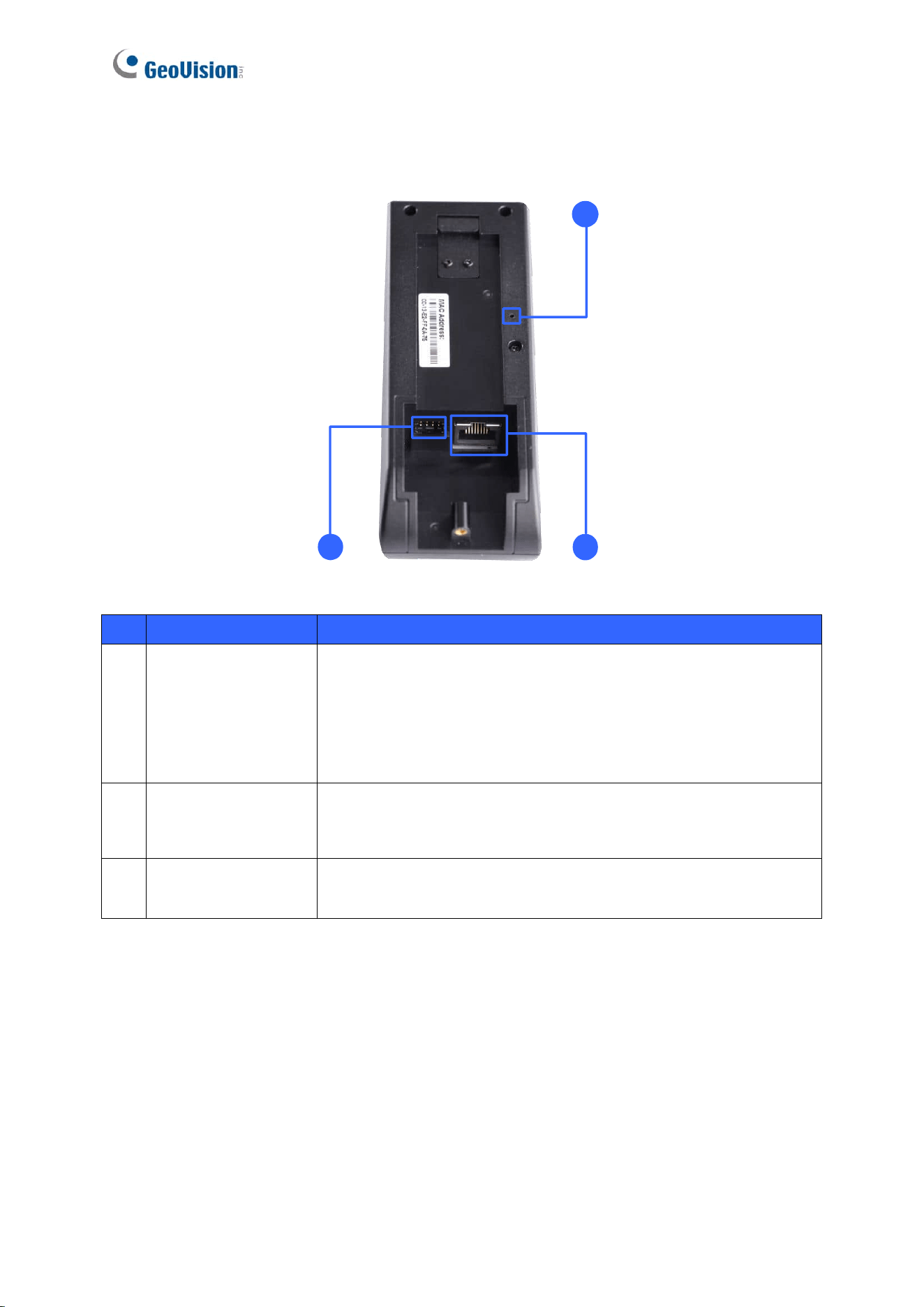
1.4.1 1911 / 1912 Models
3
1
4
2
Figure 1-3
No.
Name
Function
1
Ethernet Port
Connects to network and allows network connection with a GV-
AS Controller. See 2.3 Connecting through TCP/IP Interface.
2
Wiegand Interface
Connects to a GV-AS Controller through Wiegand connection
using the supplied data cable. See 2.1.1 Physical Connection.
Firmware Upgrade
Port
Upgrades firmware with an optional USB cable. See PC Service
Package, 1.2 Options.
3
RS-485 Interface
Connects to a GV-AS Controller through RS-485 connection.
See 2.2 Connecting through RS-485 Interface.
4
Default Button
Resets all configurations to factory defaults.
Press the default button until the steady blue LED light flashes
green and red. When you hear the blinking sound, release the
default button and the light will turn a steady blue, indicating that
the device has been reset to its factory defaults.
6
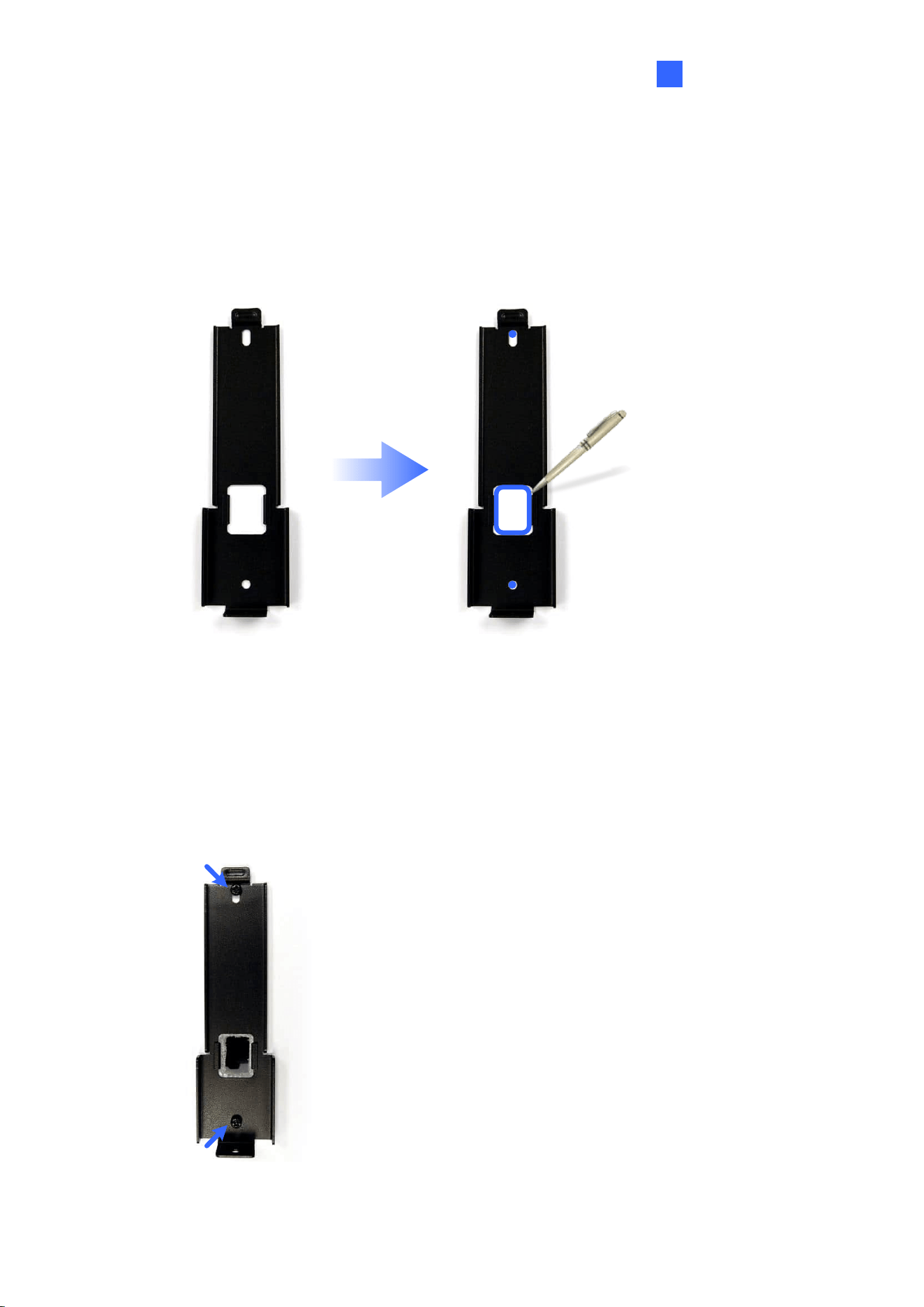
1.4.2 1921 / 1922 / 1922 V2 Models
2
3
1
Figure 1-4
No.
Name
Function
1
Default Button
Resets all configurations to factory defaults.
Use a pin to press the default button until the steady purple LED
light flashes red and blue. When you hear the blinking sound,
release the default button and the light will turn a steady purple,
indicating that the device has been reset to its factory defaults.
2
I/O Interface
Connects the input and output devices in Local Mode with the
supplied data cable. See 6.1 Physical Connection.
3
Ethernet Port
Connects to network and allows network connection with a GV-
AS Controller. See 2.3 Connecting through TCP/IP Interface.
Introduction
7
1
1.5 Installation
Follow the steps below to install the GV-GF1921 / 1922 / 1922 V2 reader on the wall.
1. Place the mounting plate on the wall as illustrated below.
Figure 1-5
2. Mark the location of the 2 holes and the rectangle as labeled above.
3. Drill the rectangle to create a space for running the cables and wires.
4. At the 2 dots, drill a hole slightly smaller than the plastic screw anchors provided.
5. Insert the 2 plastic screw anchors in the drilled holes.
6. Place the mounting plate on the wall and secure with the 2 standard screws provided.
Figure 1-6
8
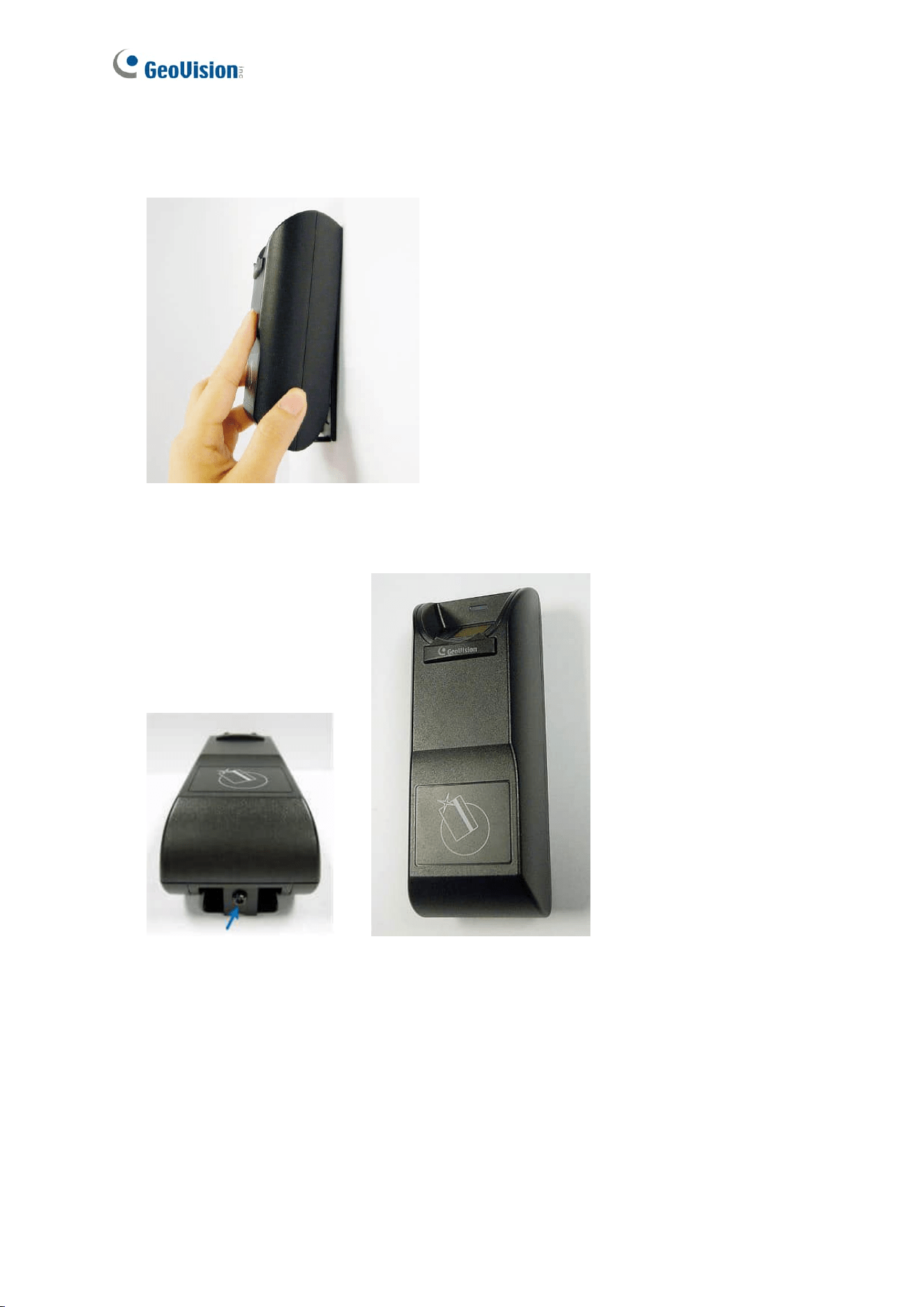
7. Place fingerprint reader on the mounting plate and thread the cables through the
rectangular hole.
Figure 1-7
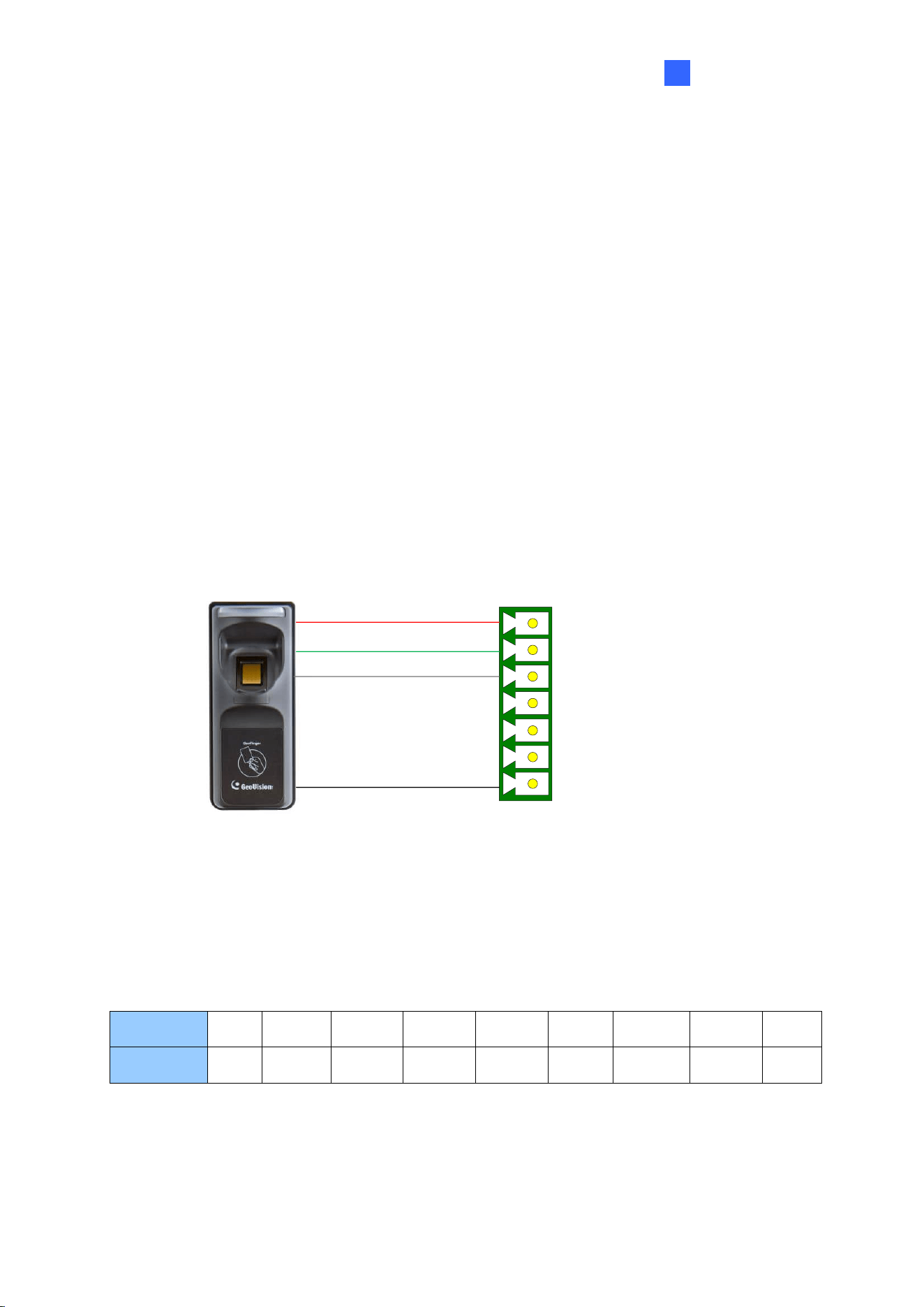
8. Secure the security screw on the bottom.
Figure 1-8
Installation
9
2
Chapter 2 Connecting GV-AS Controller
Depending on the model of the fingerprint reader, three types of communication links are
available: Wiegand, RS-485 and TCP/IP.
2.1 Connecting through Wiegand Interface
Supported models: GV-GF1911 / 1912.
2.1.1 Physical Connection
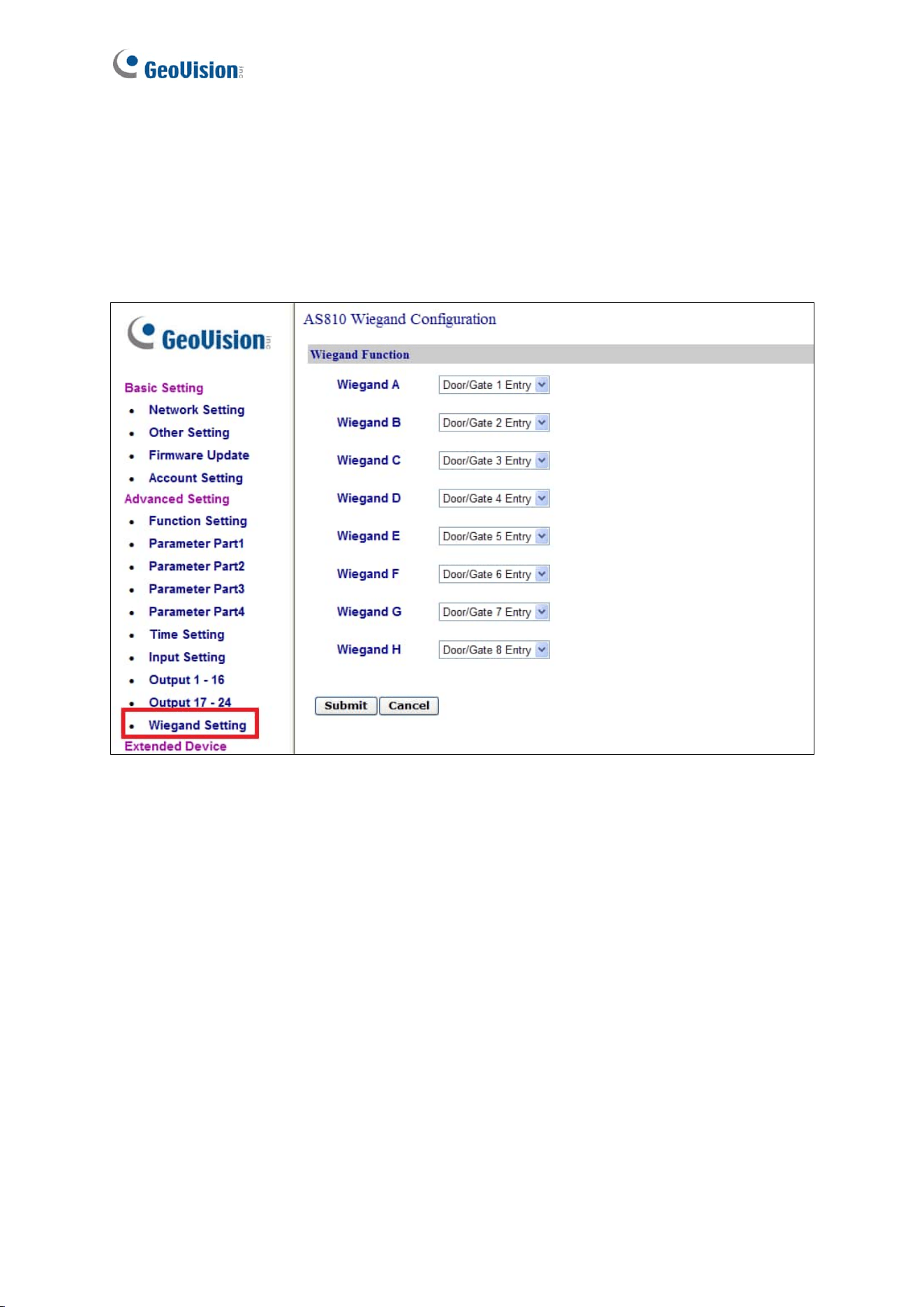
The fingerprint reader is connected with an unshielded 9-wire cable of 100 cm / 3.28 feet.
Connect these 4 unshielded wires to the assigned pins on the Wiegand interface of the GV-
AS Controller: Red, Black, White and Green wires.
12V
D0
D1
GL
RL
BZ
GND
GV-AS Controller
Wiegand Interface
White
Black
Green
Red
Figure 2-1
The table below shows the wire assignments of the fingerprint reader used for Wiegand
connection.
Wire
Red
Black
White
Green
Yellow
Blue
Orange
Brown
Silver
Function
12V
GND
Data-1
Data-0
N/C
N/C
N/C
N/C
N/C
For the wiring of extending distance it is recommended to use the standard RS-485 cable (a
twisted pair of 24 AWG wires). The maximum distance of the Wiegand output cable should
be restricted to a length of 30 meters (98.43 feet).
10
2.1.2 Web Configuration
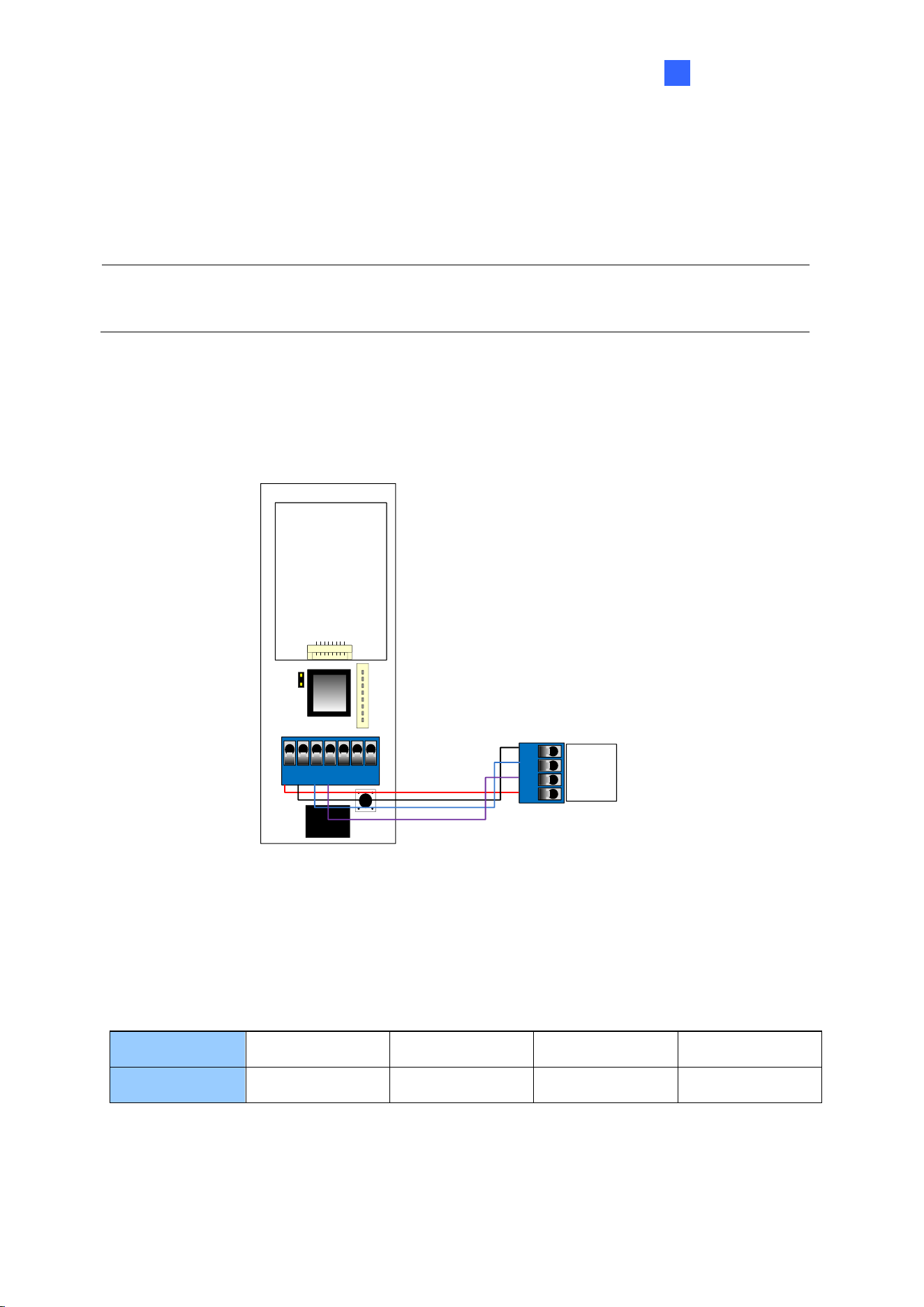
To define the fingerprint reader connected to the GV-AS Controller. On the Web interface of
GV-AS Controller, click Wiegand Setting in the left menu. The Wiegand Configuration page
appears. Select the function, e,g. Door/Gate 1 Entry, that the fingerprint reader is used for,
and click Submit.
Figure 2-2
Installation
11
2
2.2 Connecting through RS-485 Interface
Supported models: GV-GF1911 / 1912.
Note: RS-485 connection support for GV-GF1911 / 1912 has been removed from GV-AS21
/ 41 / 81 series firmware V1.41, GV-EV48 firmware V2.30 and GV-ASManager V4.4.3.0.
2.2.1 Physical Connection
Use the terminal block on the above four reader models for RS-485 connection to the GV-AS
Controller.
GND
RS485 -
RS485 +
12V
GV-GF1911 / 1912
GV-AS Controller
VIN GND T - T +
NC COM NO
Figure 2-3
The table below shows the pin assignments of the fingerprint reader used for RS-485
connection.
Pin
VIN
GND
T-
T+
Function
12V
GND
RS-485 -
RS-485 +
12
2.2.2 Web Configuration
To define the fingerprint reader connected to the GV-AS Controller, on the Web interface of
GV-AS Controller, click Extended Reader in the left menu. The Extended Reader
Configuration page appears.
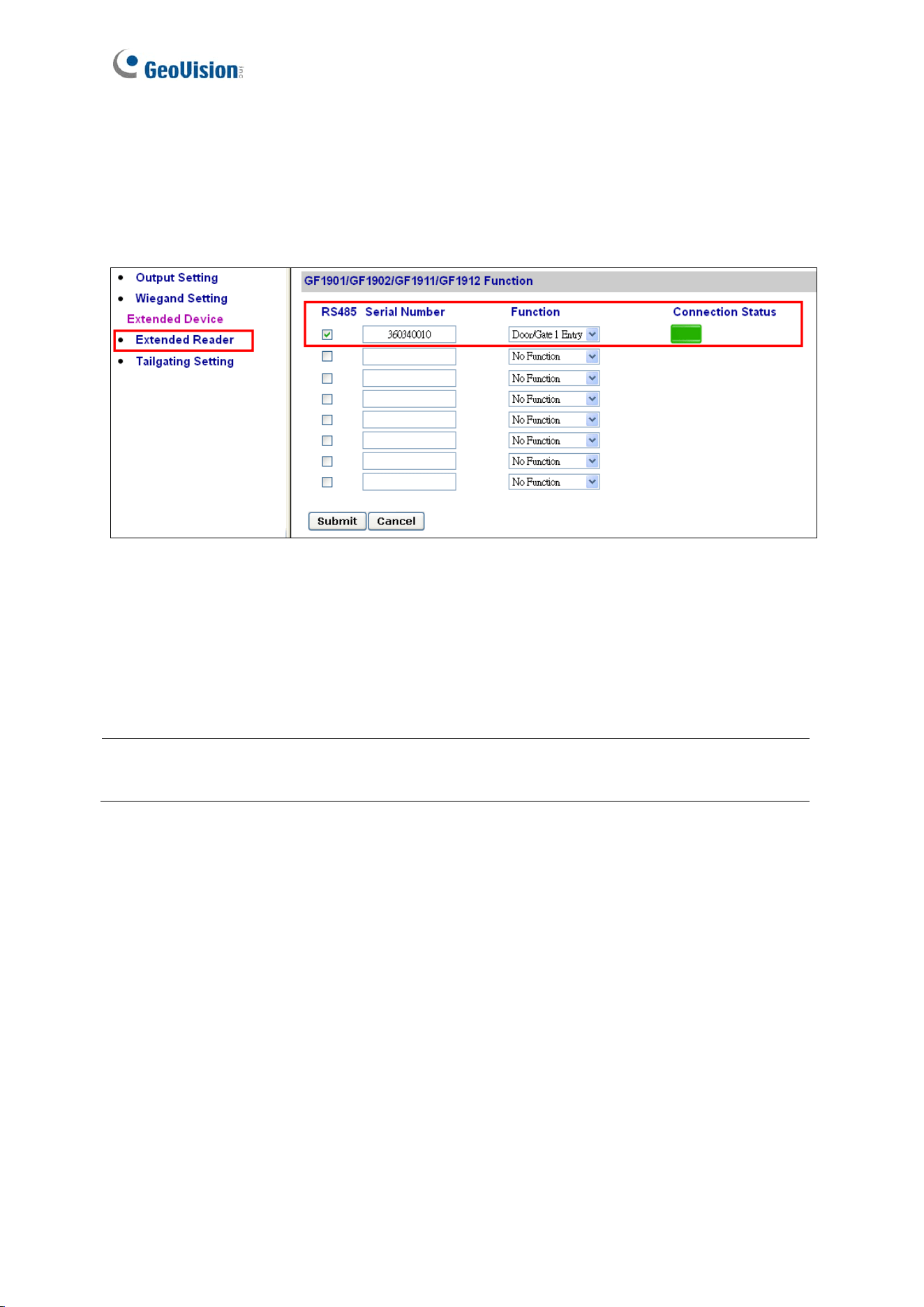
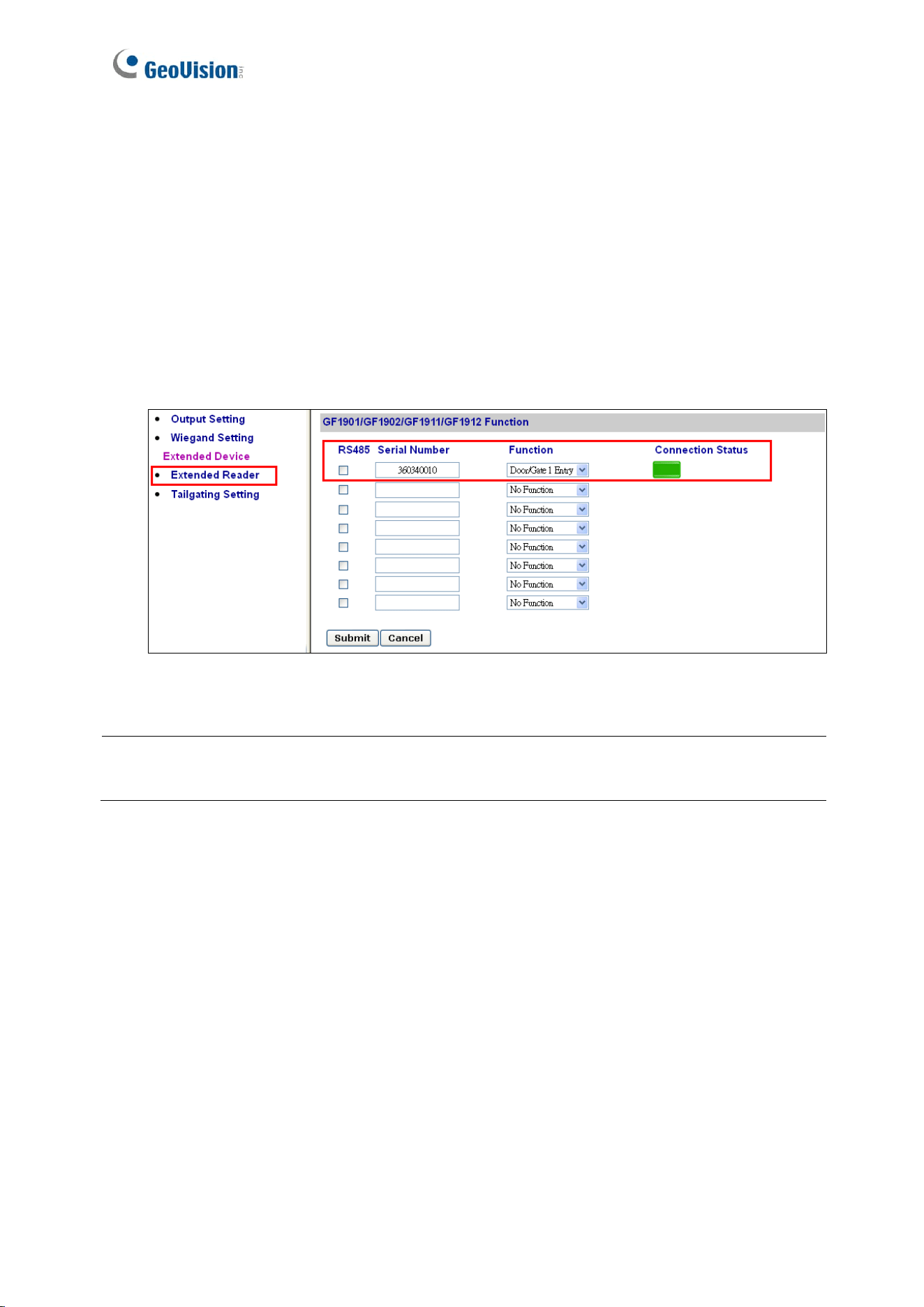
Figure 2-4
Type Serial Number of your fingerprint reader (See 1.3 Serial Number / MAC Address), and
select Function that the fingerprint reader is used for, and click Submit. If the fingerprint
reader is detected, the Connection Status field will be green.
IMPORTANT: For RS-485 connection, make sure to check the RS485 box before the serial
number to establish connection.
Installation
13
2
2.3 Connecting through TCP/IP Interface
Supported models: GV-GF1911 / 1912 / 1921 / 1922 / 1922 V2
2.3.1 Physical Connection
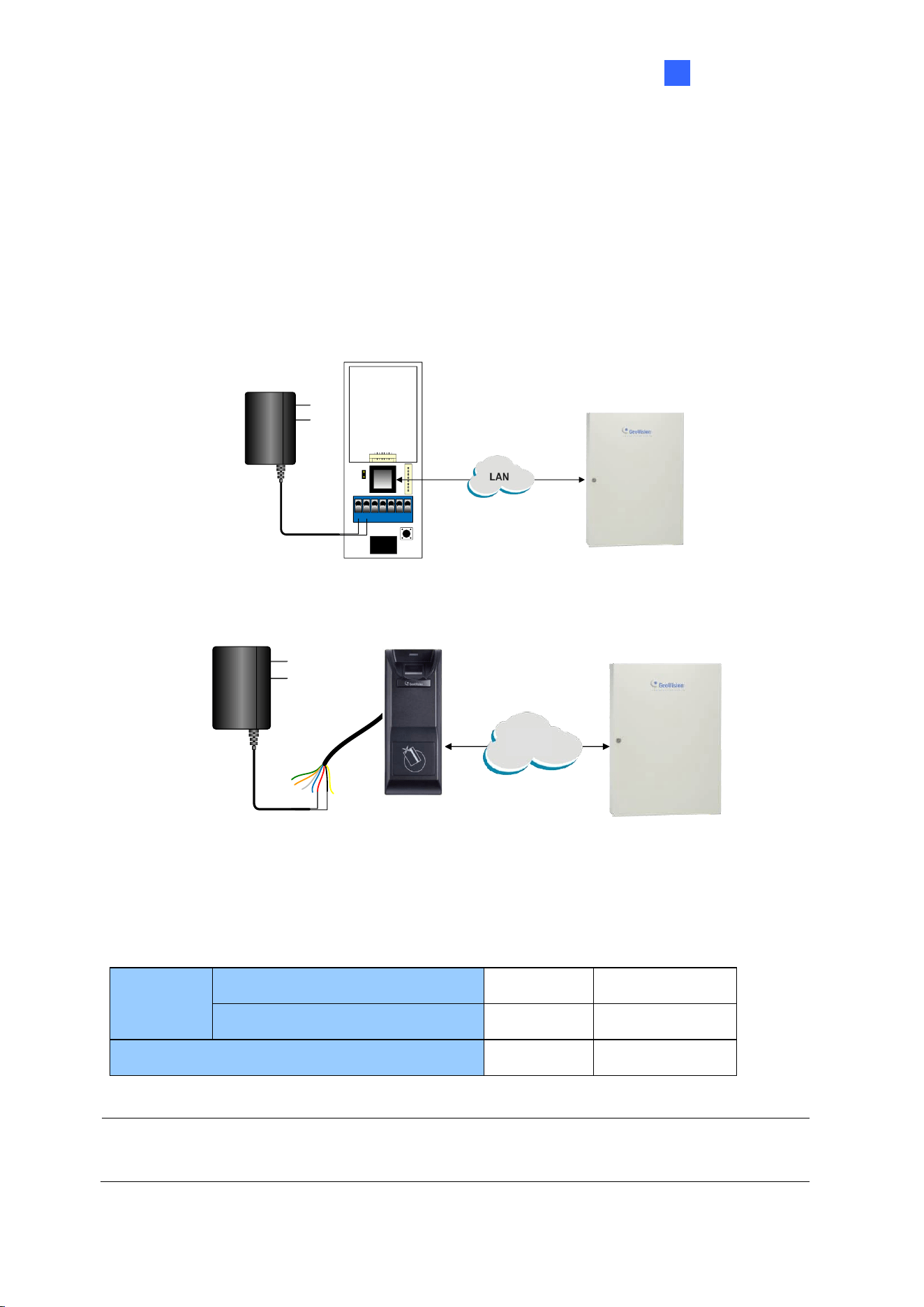
The fingerprint reader and GV-AS Controller can be connected through LAN. Prepare a 12V
DC power adapter to connect the fingerprint reader to a power source.
VIN GND
GV-AS Controller
12V DC
Power Adapter
GV-GF1911 / 1912
Figure 2-5
GV-AS Controller
12V DC
Power Adapter
GV-GF1921 / 1922 / 1922 V2
red black
LAN
WAN
Figure 2-6
The table below shows the pin assignments of the fingerprint reader used for power
connection.
Pin
GV-GF1911 / 1912
VIN
GND
GV-GF1921 / 1922 / 1922 V2
Red wire
Black wire
Function
12V
GND
Note: You can also connect the fingerprint reader to GV-AS Controller for power supply
instead of using the 12V DC power adapter.
14
2.3.2 Accessing the Web Interface
When the fingerprint reader connects to a network, the DHCP server automatically assigns it
an unused IP address. This IP address will remain unchanged unless you unplug or
disconnect your reader from the network.
Note: If your router does not support DHCP, the default IP address is 192.168.0.10. The
default login ID and password are both admin.
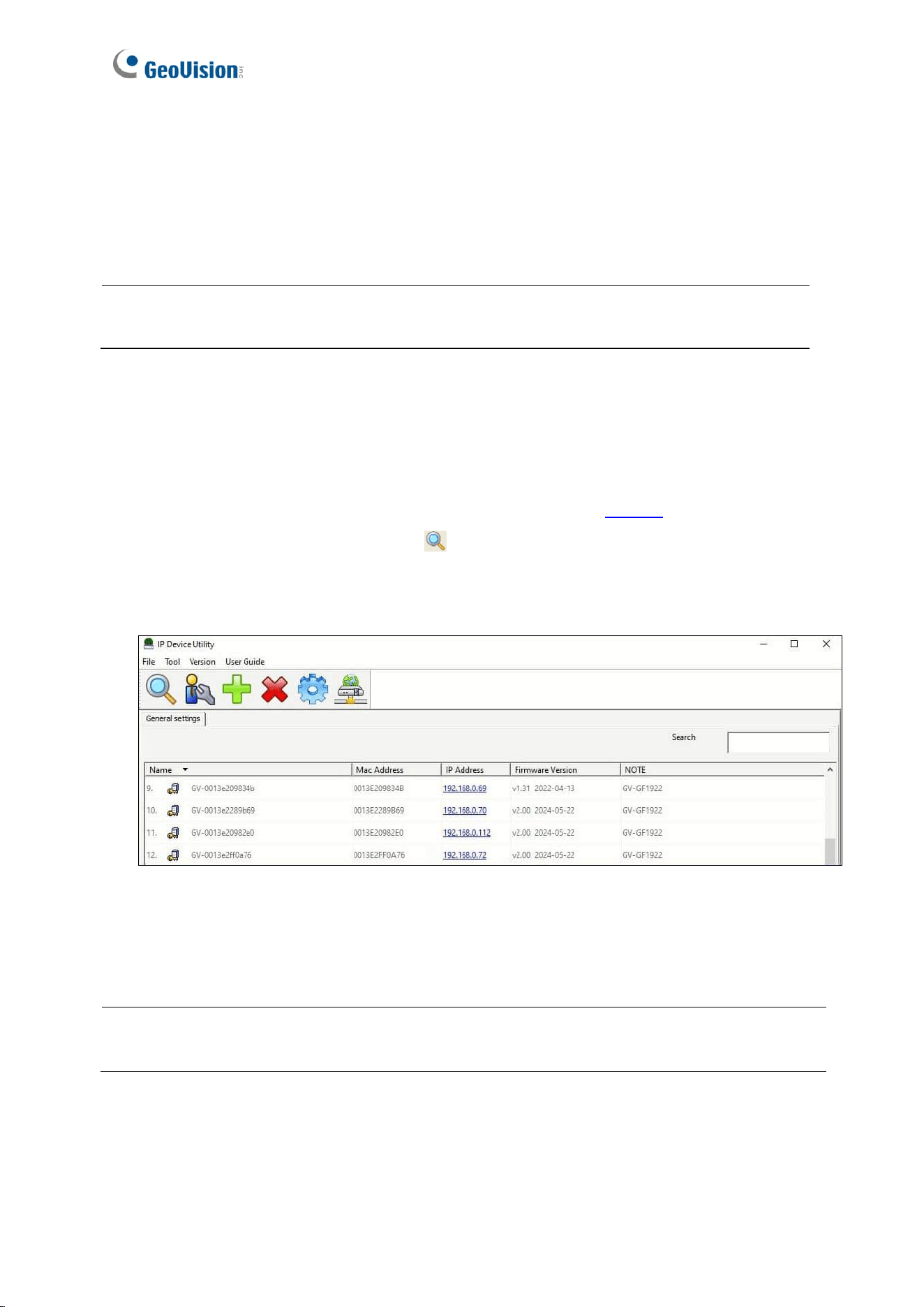
Follow the steps below to look up the IP address of your fingerprint reader and access its
Web interface:
1. Make sure the PC used to configure the IP address is under the same LAN as the reader.
Download and install GV-IP Device Utility from the company website.
2. On the GV-IP Utility window, click the button to search for IP devices connected to the
same LAN. Click the Name or Mac Address column to sort.
3. Find the reader with its Mac Address.
Figure 2-7
4. Click on its IP address and select Web Page to access its Web interface.
5. Type the default ID and password (admin / admin) and click Login.
IMPORTANT: The reader’s Web interface must be accessed using IE mode of Microsoft
Edge. If you cannot access the Web interface, see Appendix for detailed instructions.
Installation
15
2
2.3.3 Web Configuration
To connect the fingerprint reader and GV-AS Controller via network, you need to provide
information such as a serial number, MAC address and IP address for your fingerprint reader
and GV-AS Controller to locate and connect to each other.
A. Define Fingerprint Reader on GV-AS Controller
1. Log in the Web interface of GV-AS Controller.
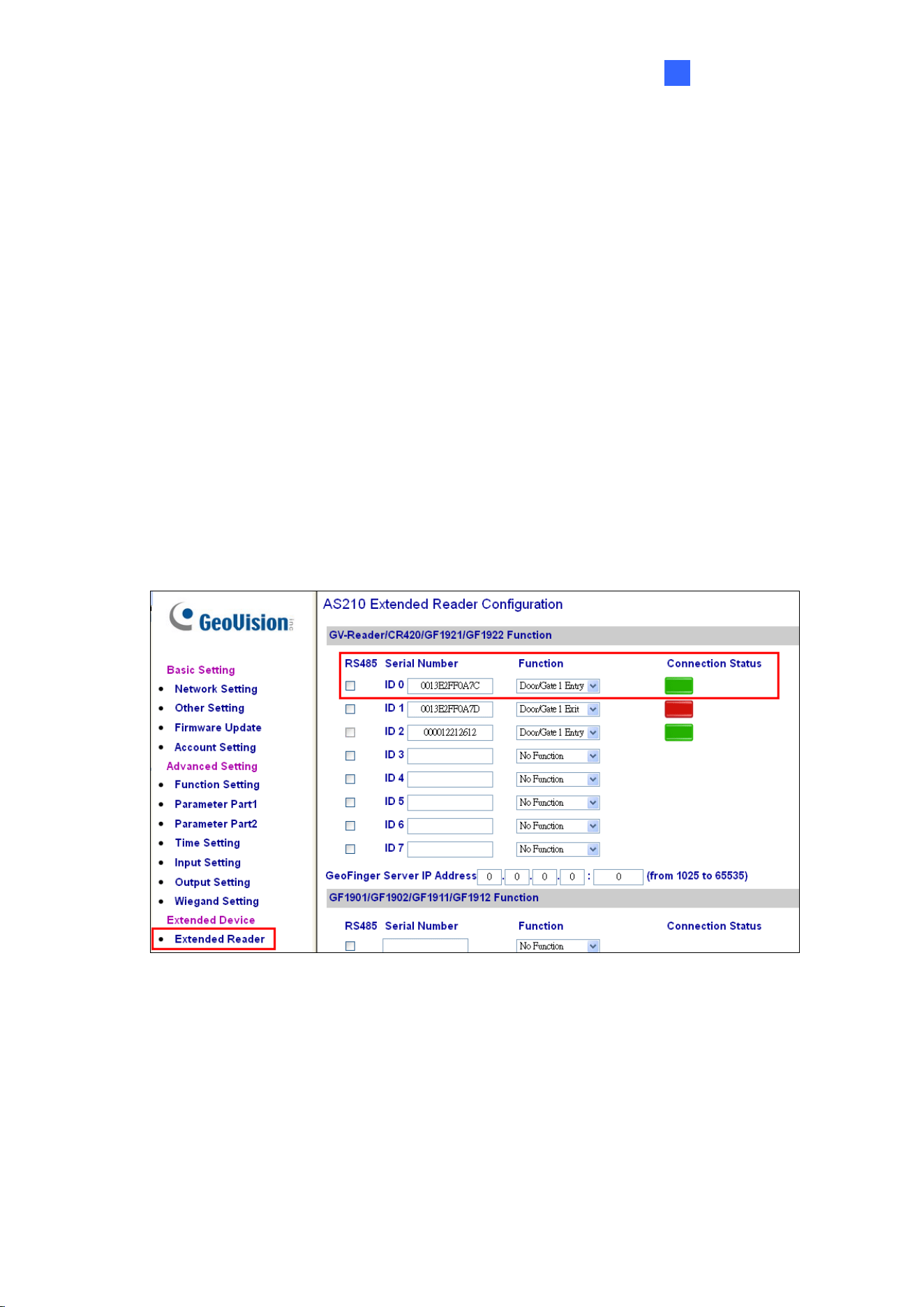
2. Click Extended Reader in the left menu. The Extended Reader Configuration page
appears.
3. To define a reader on GV-AS Controller:
[GV-GF1921 / 1922 / 1922 V2]
Type the MAC address of your fingerprint reader in the Serial Number column under
GV-Reader/CR420/GF1921/GF1922 Function. Do not select the RS-485 box.
Figure 2-8
16
For GeoFinger Server IP Address, type the GV-ASManager’s IP address and port to
allow it to receive data from the fingerprint reader listed on this page for remote
fingerprint enrollment. In addition, GV-AS Controller will also be connected to the
fingerprint reader listed. You can therefore skip the steps in B. Specify GV-AS Controller
on Fingerprint Reader if you fill in the GeoFinger Server IP Address on this page.
[GV-GF1911 / 1912]
Type the Serial Number of your fingerprint reader in the Serial Number column under
the GF1901/GF1902/GF1911/GF1912 Function section.
Figure 2-9
Note: Select the RS-485 checkbox only if the GV-GF1911 / 1912 is connected to the
controller through RS-485 connection. For TCP/IP connection, do not check the RS485 box.
For details on how to look up the serial number or the MAC address, see 1.3 Serial
Number / MAC Address.
4. Use the Function drop-down list to specify which door the fingerprint reader is
connected to.
5. Click Submit. When the fingerprint reader is detected, a green bar appears under the
Connection Status.
Installation
17
2
B. Specify GV-AS Controller on Fingerprint Reader
6. Log in the Web interface of the fingerprint reader. For details, see 2.3.2 Accessing the
Web Interface.
7. To specify a GV-AS Controller on the reader:
[GV-GF1911 / 1912]
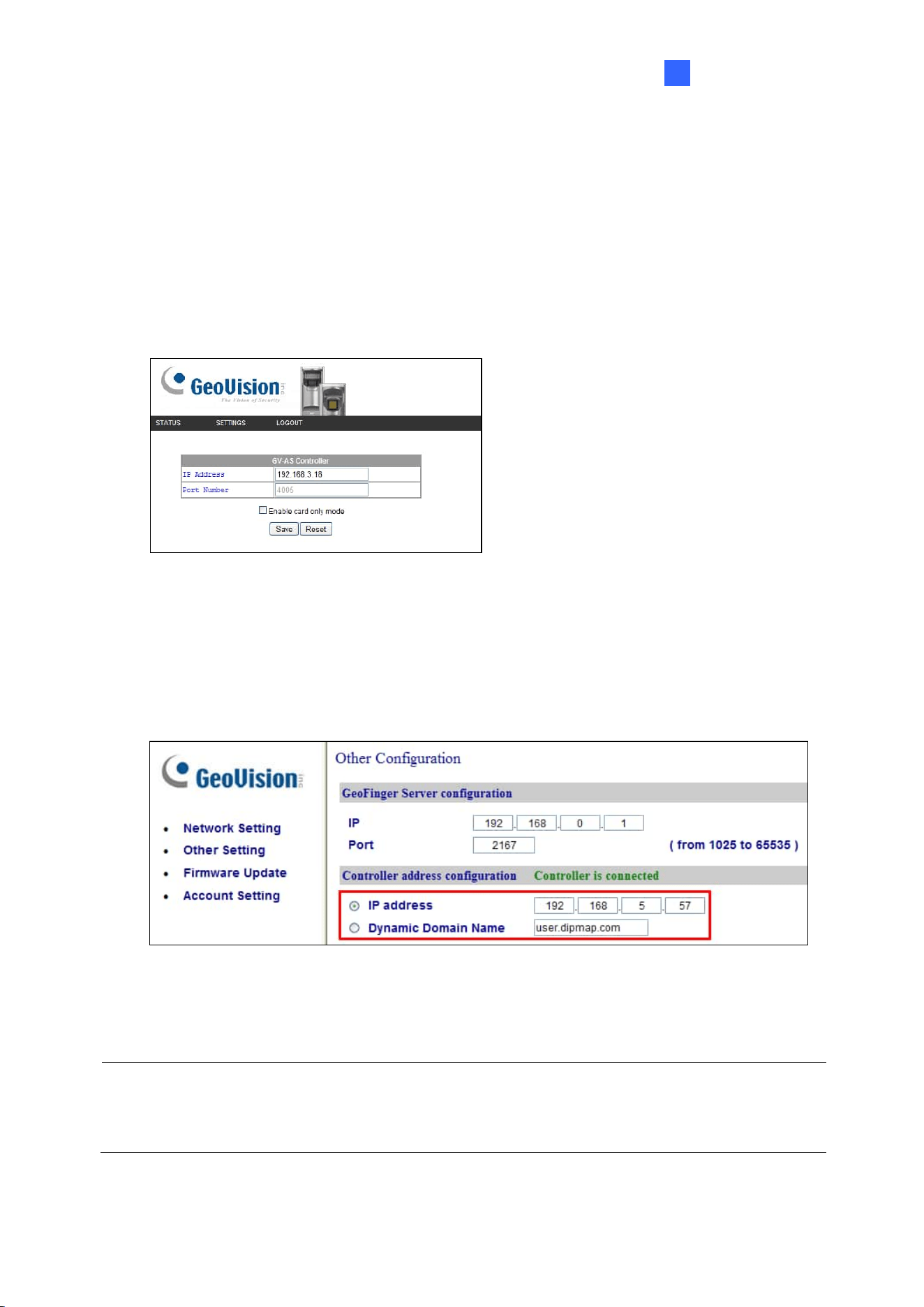
Click SETTINGS and select GV-AS Controller. On this page, type the GV-AS
Controller’s IP address and click Save.
Figure 2-10
[GV-GF1921 / 1922 / 1922 V2]
Select Other Settings. On this page, type the GV-AS Controller’s IP address or domain
name and click Submit.
Figure 2-11
When the connection is established, the message “Controller is connected” appears.
Note: If the fingerprint reader fails to connect to GV-AS Controller, it beeps (for GV-GF1911 /
1912) or the light turns purple (for GV-GF1921 / 1922 / 1922 V2) until the connection is
established.

18
Chapter 3 Fingerprint Only Mode
The Fingerprint Only mode must be used in conjunction with the GV-ASManager software
and the GV-GF1911 / 1921 / 1922 / 1922 V2 reader to enroll fingerprints. You first enroll
fingerprint data in GV-ASManager before uploading it to the fingerprint readers installed on
GeoVision access controllers. To get access, the user's fingerprint must match the registered
one.
3.1 Enrolling Fingerprints
There are two options for enrolling fingerprints: locally and remotely.
To enroll fingerprints locally, connect a GV-GF1911 / 1921 / 1922 / 1922 V2 reader to GV-
ASManager and register fingerprints at the GV-ASManager’s site.
To enroll fingerprints remotely, first enroll blank fingerprints for a user in GV-ASManager.
The user can then register fingerprints on a connected GV-GF1921 / 1922 / 1922 V2 reader
using a given card. This function is helpful when the user is not at the GV-ASManager’s
location.
Note: Local fingerprint enrollment at the GV-ASManager's site requires a separate GV-
GF1911 / 1921 / 1922 / 1922 V2 reader.
Fingerprint Only Mode
19
3
3.1.1 Enrolling Fingerprints Locally
To connect the reader to GV-ASManager:
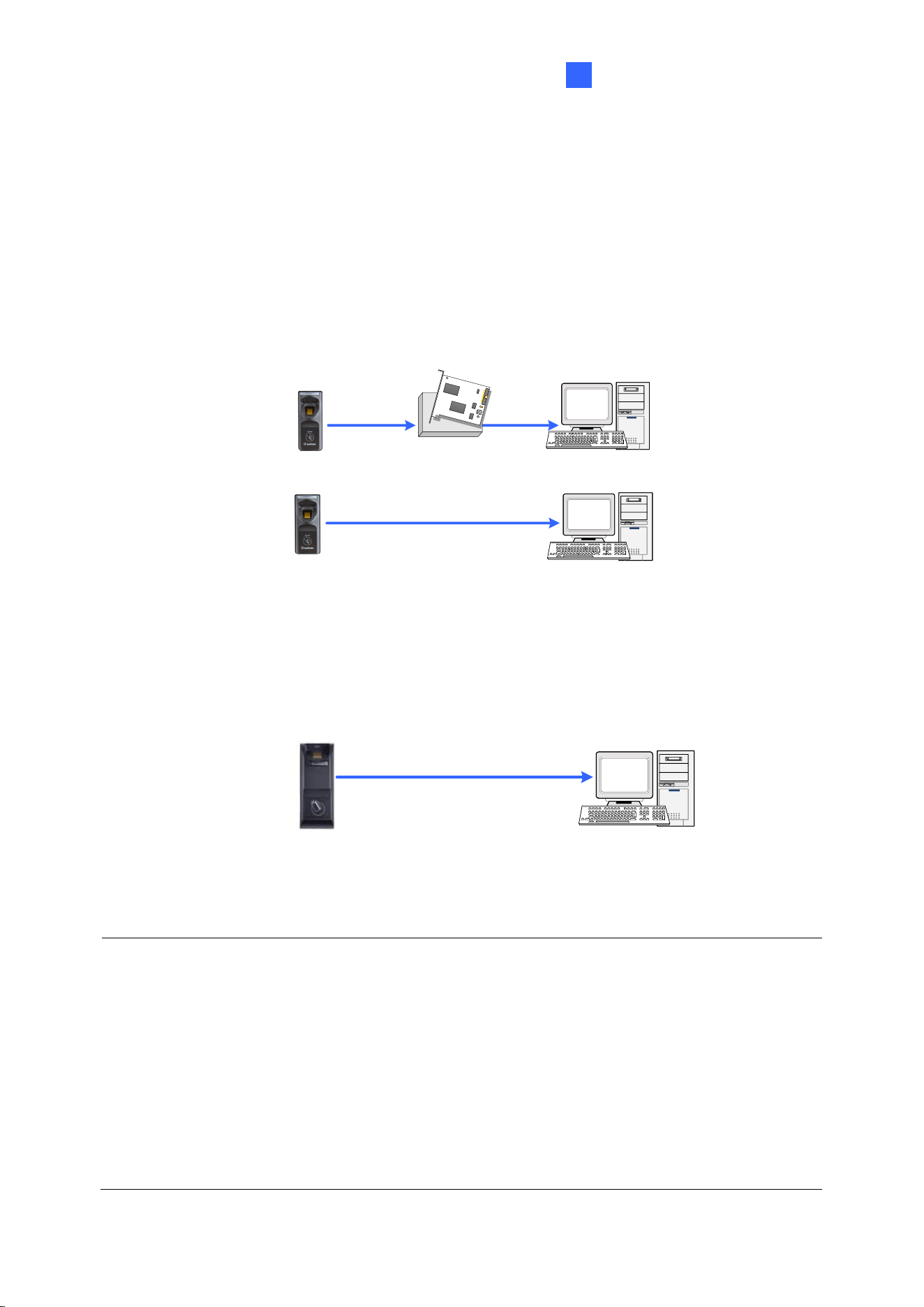
• GV-GF1911: RS-485 or USB Connection with GV-ASManager
Connect GV-GF1911 to the GV-ASManager server via RS-485 or USB connection. To
establish a connection, a RS-485 to RS-232 converter, such as GV-COM, GV-Hub, GV-
NET/IO Card, or the USB cable in PC Service Package (optional accessory), is required.
GV-HUB / GV-COM /
GV-NET/IO Card
RS-485
RS-232
GV-ASManagerGV-GF1911
GV-ASManager
GV-GF1911
USB Cable in PC Service Package
Figure 3-1
• GV-GF1921 / 1922 / 1922 V2: LAN Connection with GV-ASManager
Connect GV-ASManager and GV-GF1921 / 1922 / 1922 V2 over LAN.
GV-GF1921 / 1922 / 1922 V2
TCP/IP
GV-ASManager
Figure 3-2
Note:
1. Fingerprint enrollment does not support a Wiegand connection.
2. After connecting the GV-HUB, GV-COM, GV-NET/IO Card or USB cable to the server,
install the driver from the supplied software.
3. RS-485 connection support for GV-GF1911 has been removed from GV-AS21 / 41 / 81
series firmware V1.41 and GV-ASManager V4.4.3.0.
4. To work with the Fingerprint Only Mode on GV-GF1911, an optionally purchased PC
Service Package, which includes a USB cable, is required.
20
Enrolling Fingerprints Locally on GV-ASManager
Before you begin enrolling fingerprints, ensure that you have added cards, created user
accounts, and assigned cards to users in GV-ASManager. Follow the steps below to enroll
fingerprints on GV-ASManager.
Note: Each user’s fingerprints must be paired with a card number. If you do not have cards,
you can generate virtual card numbers to represent the enrolled fingerprints.
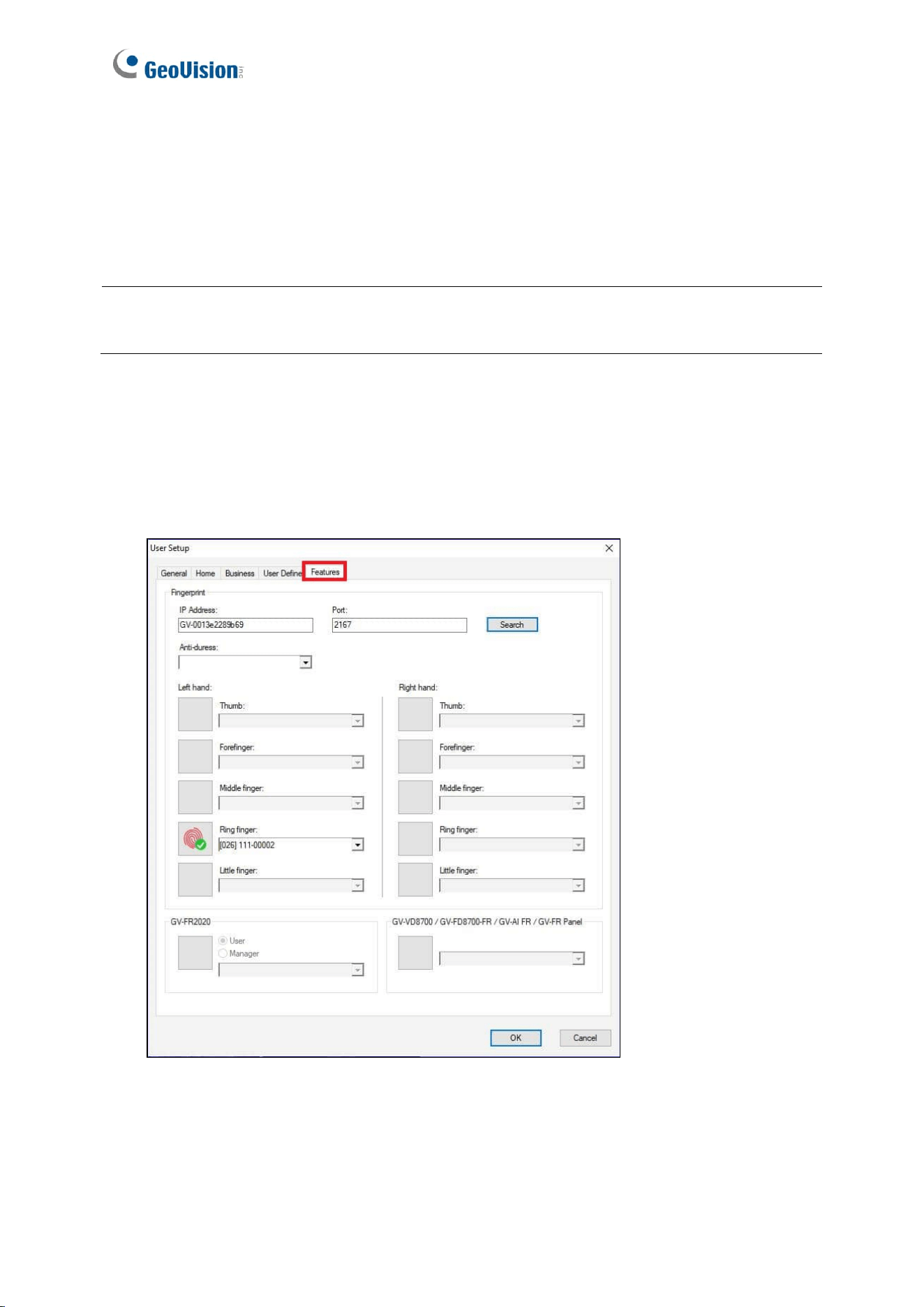
1. On the menu bar of GV-ASManager, click Personnel and select Users. The User List
window appears.
2. Double-click one user listed in the window. The User Setup dialog box appears.
3. Click the Features tab. This dialog box appears.
Figure 3-3
Fingerprint Only Mode
21
3
4. Establish connection between GV-ASManager and the reader.
◼ GV-GF1911: Select COM for Connection Type, and click Search to detect the
reader.
◼ GV-GF1921 / 1922 / 1922 V2: Type the reader’s IP Address and Port , or click
Search to detect the reader under the same LAN.
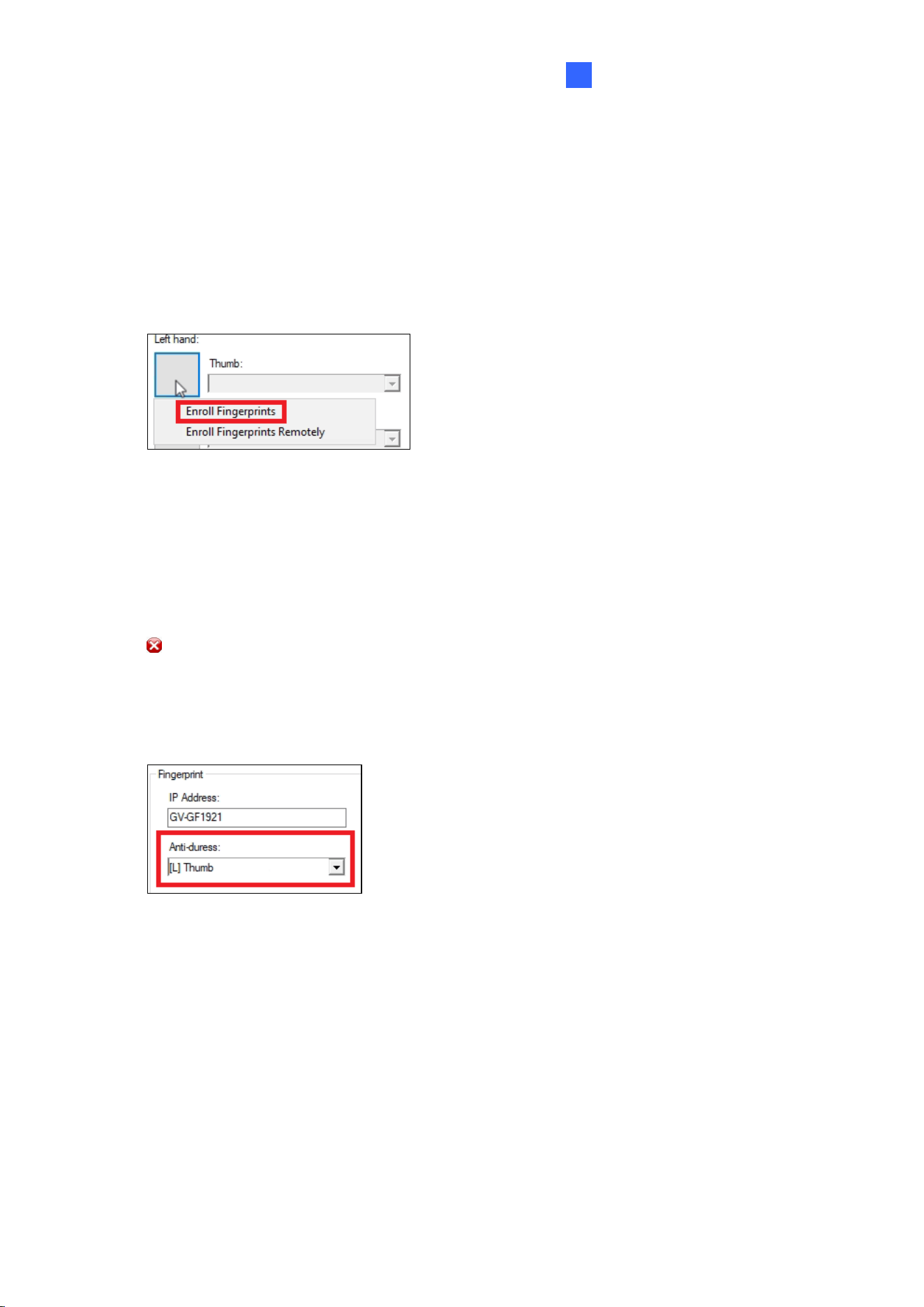
5. Click a finger square and select Enroll Fingerprints.
Figure 3-4
6. Place the finger on the reader. It is required to register the same fingerprint twice to
complete the enrollment. A user’s ten fingerprints can be enrolled.
7. Use the drop-down list to assign a card to the enrolled fingerprint.
8. To delete an enrolled fingerprint, place the mouse pointer on the fingerprint image. The
button appears. Click the button to delete the fingerprint.
9. To use the Anti-duress function, select a fingerprint from the drop-down list. When the
user is threatened and forced to open the door, he/she can use the designated finger to
activate an alarm and send a warning message to GV-ASManager.
Figure 3-5
10. Click OK to apply the settings.
11. To upload the enrolled fingerprints to a connected GV-GF1921 / 1922 / 1922 V2 reader,
see 3.2 Uploading Fingerprints to Readers.
22
3.1.2 Enrolling Fingerprints Remotely (GV-GF1921 / 1922 / 1922 V2
Only)
Before you begin enrolling fingerprints, ensure that you have added cards, created user
accounts, and assigned cards to users in GV-ASManager. Follow the procedures below to
remotely enroll fingerprints on a GV-GF1921 / 1922 / 1922 V2 reader.
1. On the menu bar of GV-ASManager, click Personnel and select Users. The User List
window appears.
2. Double-click one user listed in the window. The User Setup dialog box appears.
3. Click the Features tab.
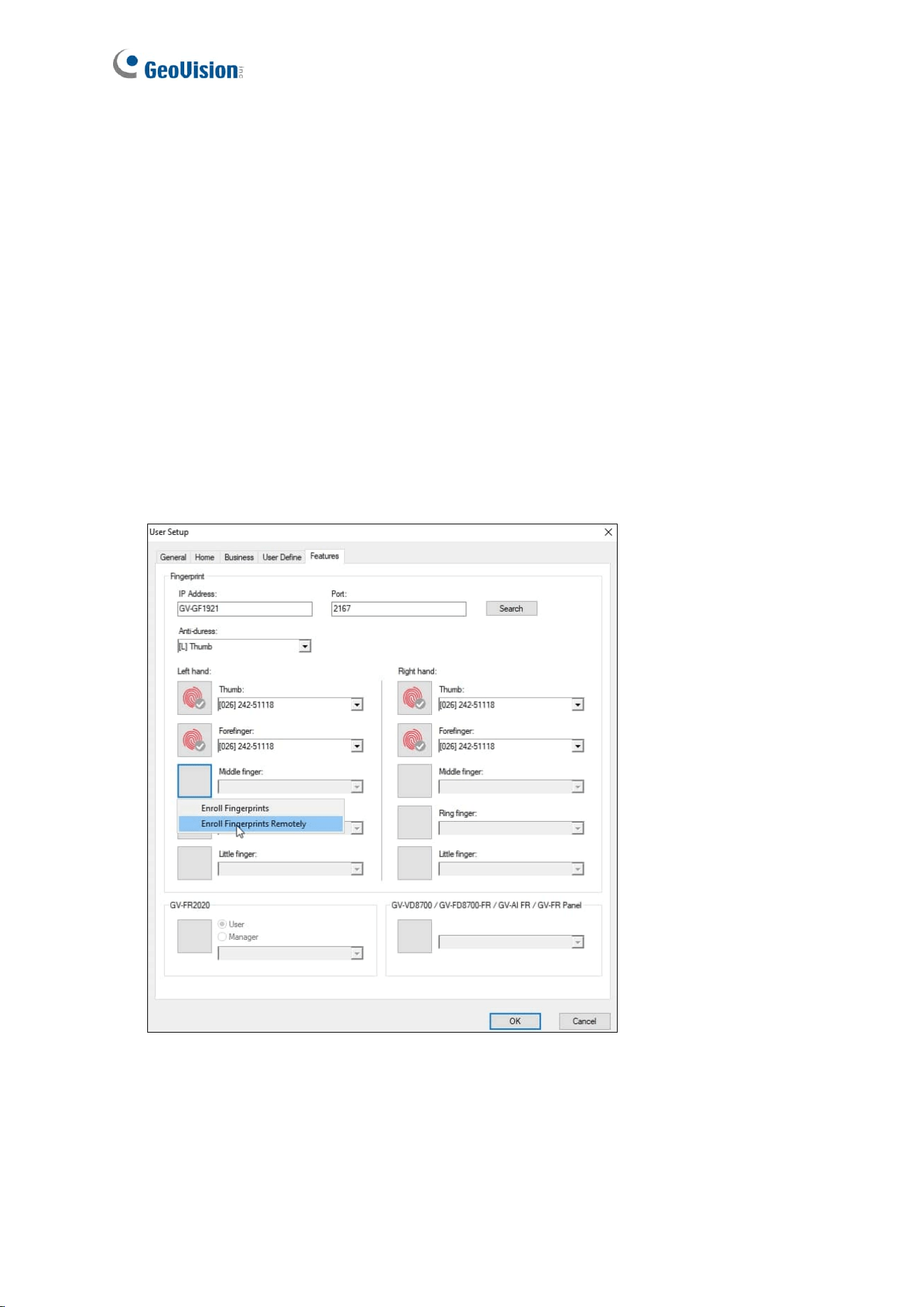
4. Click a finger square and select Enroll Fingerprints Remotely.
Figure 3-6
Fingerprint Only Mode
23
3
5. Use the drop-down list to assign a card to a blank fingerprint.
6. Repeat steps 5 and 6 to create multiple fingerprint data if needed.
7. To delete a blank fingerprint, place the mouse pointer on the finger square. The
button appears. Click the button to delete the fingerprint.
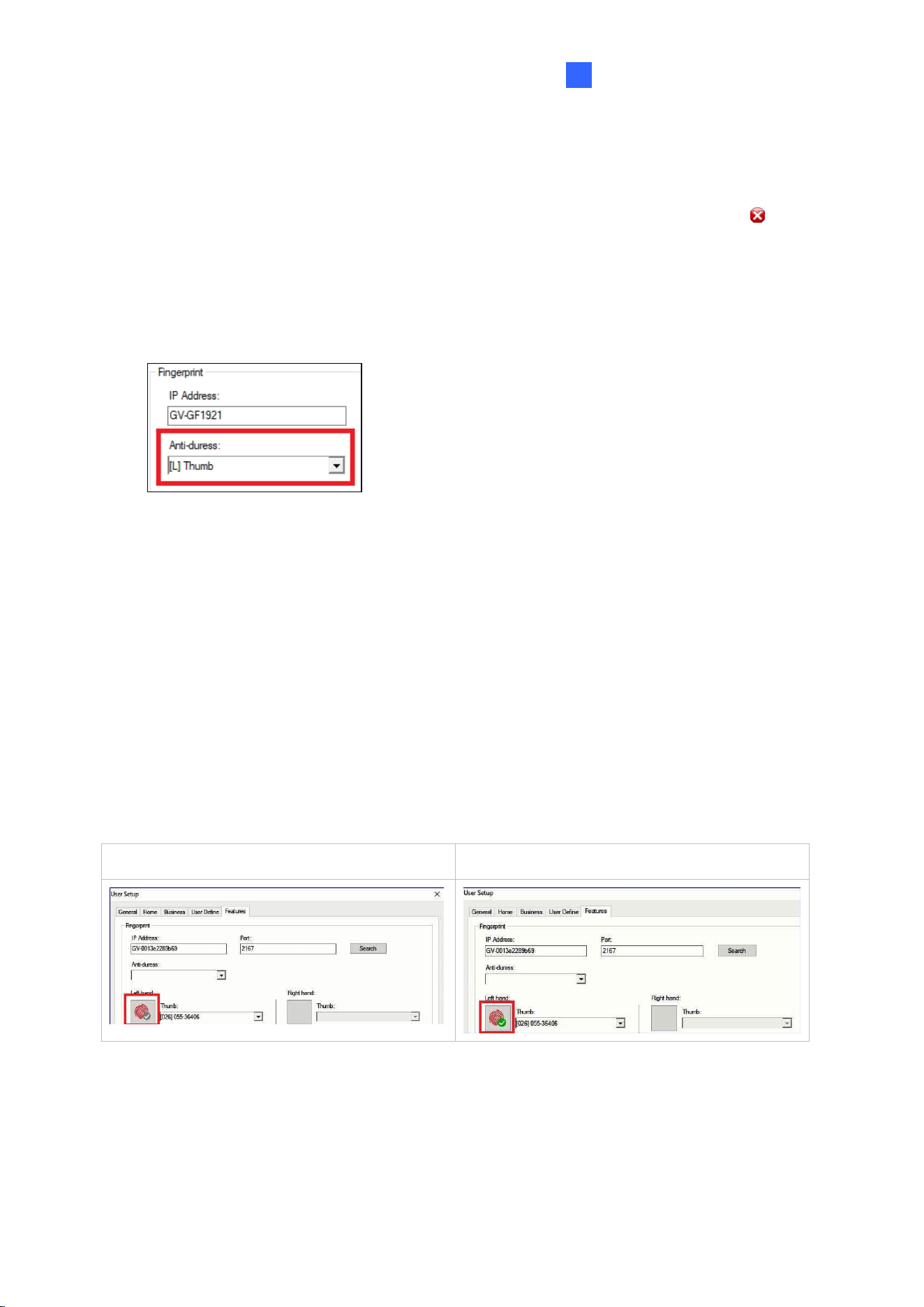
8. To use the Anti-duress function, select a finger from the drop-down list. When the user
is threatened and forced to open the door, he/she can use the designated finger to
activate an alarm and send a warning message to GV-ASManager.
Figure 3-7
9. Click OK to apply the settings.
10. To upload the enrolled blank fingerprints to a connected GV-GF1921 / 1922 / 1922 V2
reader, see 3.2 Uploading Fingerprints to Readers.
The user can then register fingerprints at any time by swiping a given card and using a
connected fingerprint reader. To register a fingerprint, see Step 2 ~5, Enrollment Procedures
in 4.1 Enrollment.
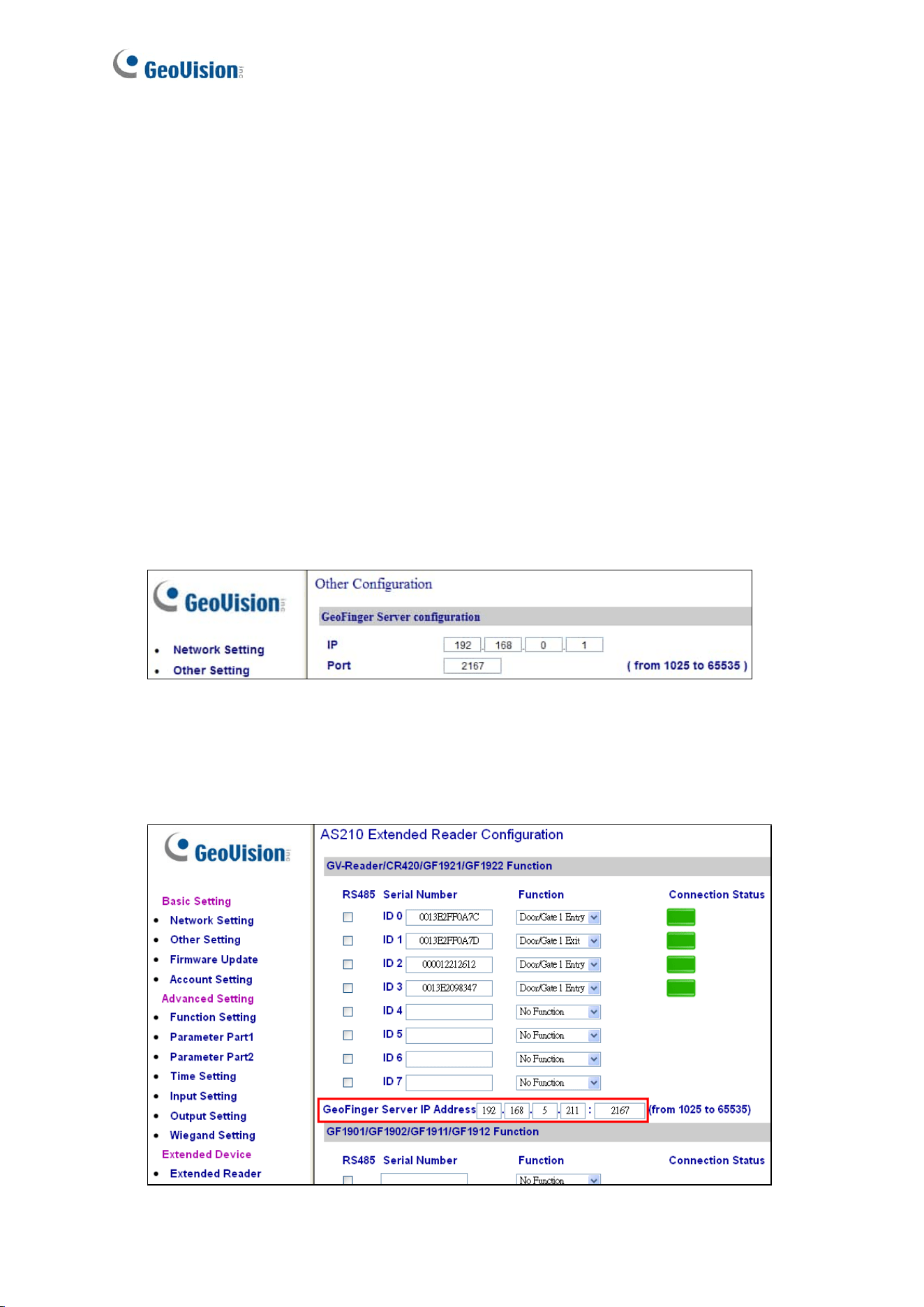
After a fingerprint is successfully enrolled at a connected fingerprint reader, the gray tick icon
in GV-ASManager changes to a green tick.
A blank fingerprint
Fingerprint enrolled at the reader
24
If more than one blank fingerprint has been enrolled for a user, have the user register left
hand first, followed by right hand, in the order of thumb, forefinger, middle finger, ring finger
and little finger, on a connected fingerprint reader. Using Figure 3-6 as an example, register
in the order of left hand thumb, then left hand forefinger, and finally right hand thumb and
forefinger.
Allowing the Reader to Transfer Data Back to GV-ASManager
To allow the GV-GF1921 / 1922 / 1922 V2 reader to transfer data back to GV-ASManager for
remote fingerprint enrollment, you must go to the Web interface of the GV-AS Controller or
the fingerprint reader to complete the settings below.
Complete setting A OR B:
A. Go to the Web interface of the reader, click Other Setting in the left menu, and type the
GV-ASManager’s IP address and Port (2167 by default).
Figure 3-8
B. Go to the Web interface of GV-AS Controller, click Extended Reader in the left menu,
the GV-ASManager’s IP address and Port (2167 by default).
Figure 3-9
Fingerprint Only Mode
25
3
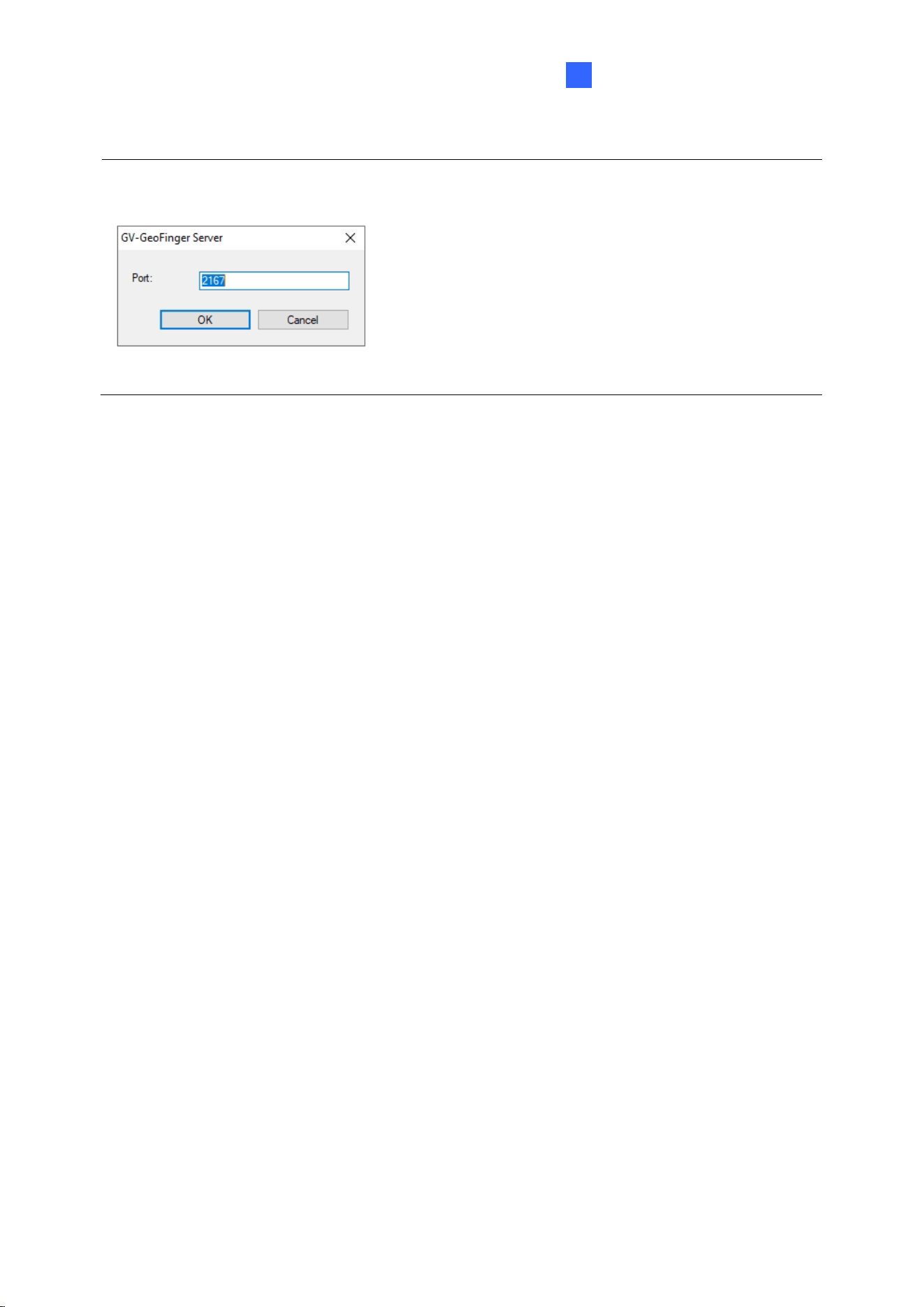
Note: The GeoFinger Server IP Address is the GV-ASManager’s IP address. To find out the
GeoFinger Server port in GV-ASManager, select Tools > Servers > GeoFinger Server.
Figure 3-10
26
3.2 Uploading Fingerprints to Readers
There are two options for uploading enrolled fingerprints from GV-ASManager to fingerprint
readers.
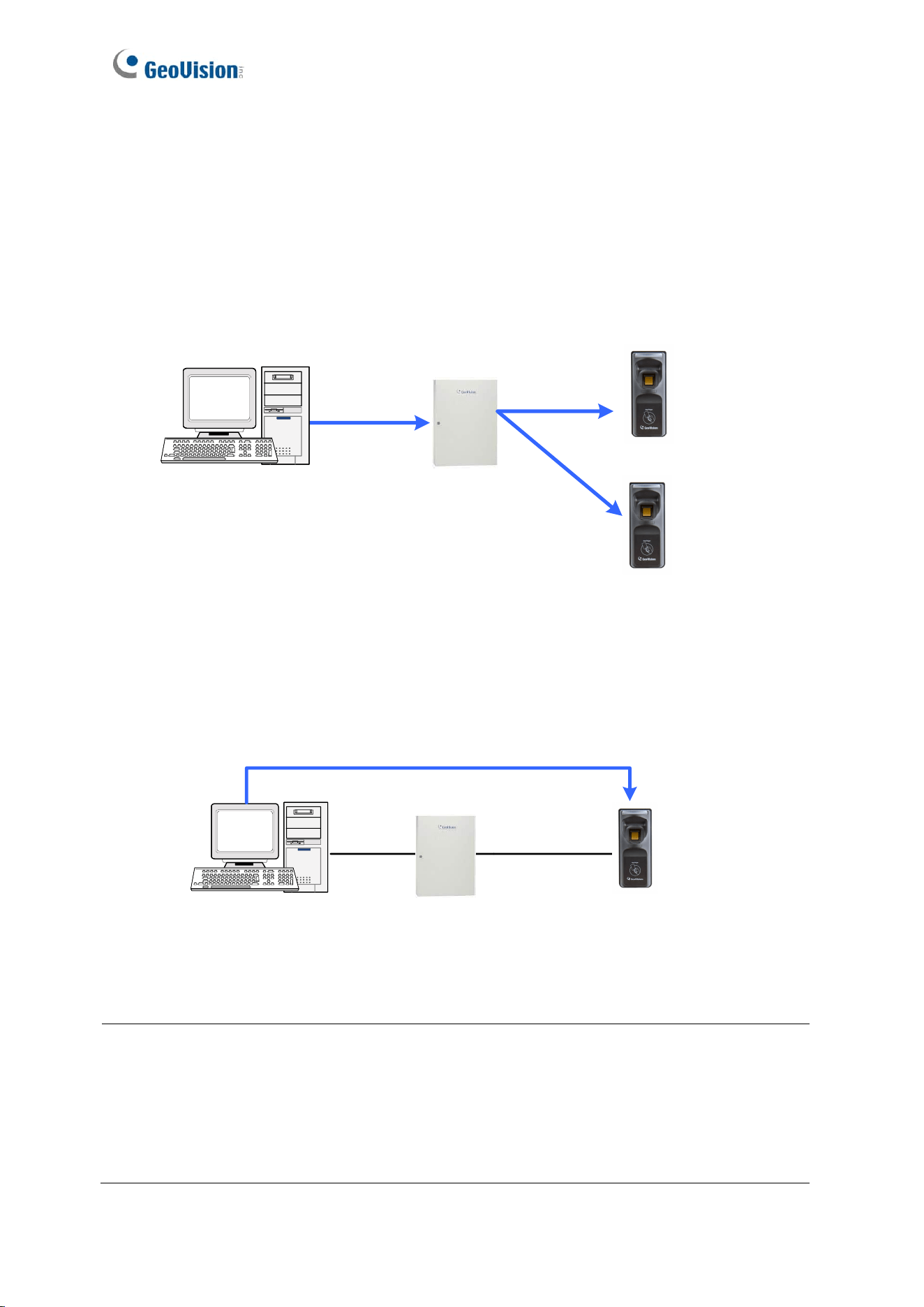
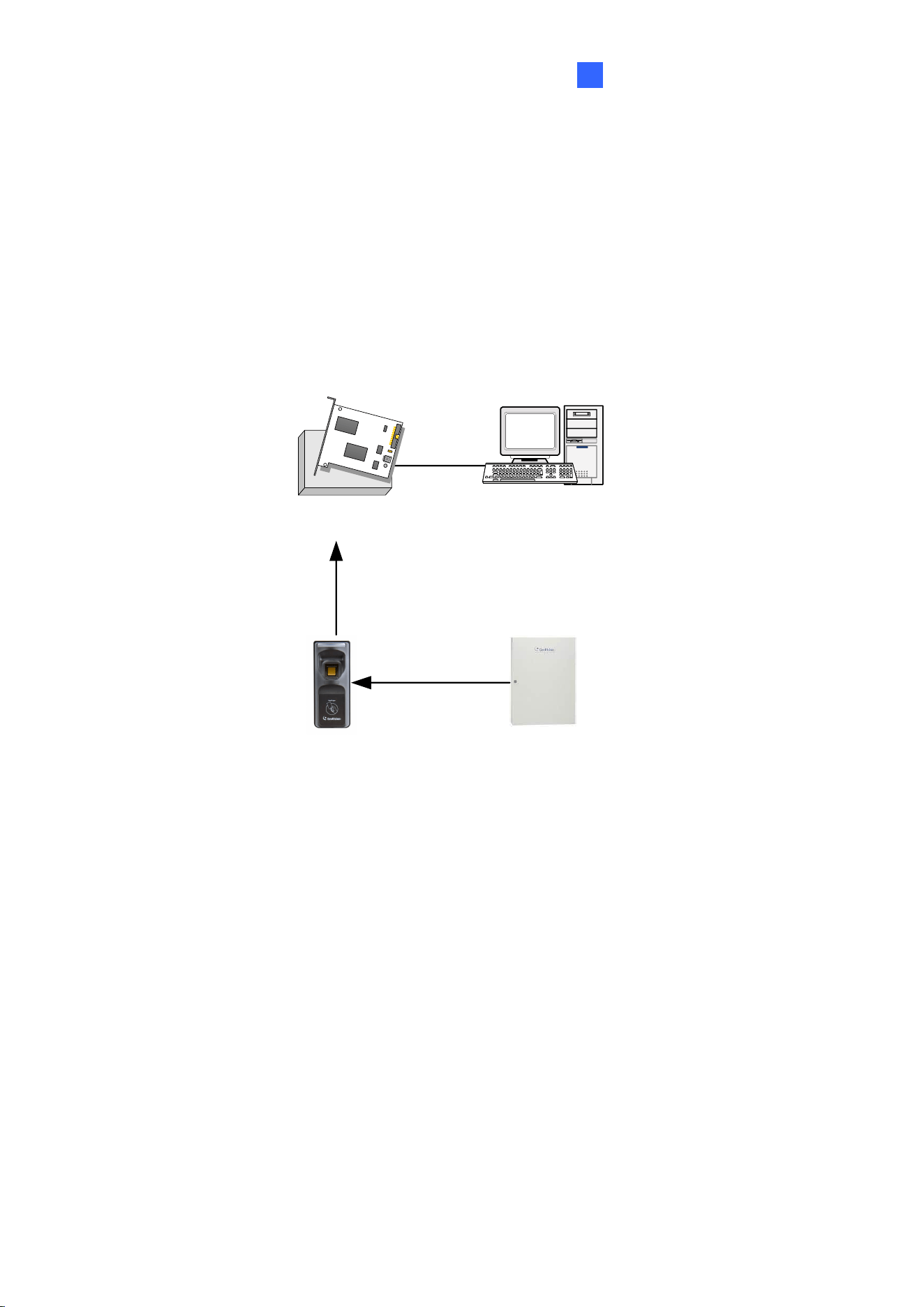
For GV-GF1911 / 1912, data can be transferred to GV-AS Controller over network and then
to GV-GF1911 / 1912 via RS-485. For GV-GF1911, data can also be sent via a USB cable.
GV-AS Controller
TCP/IP
RS-485
GV-GF1911 / 1912
GV-ASManager
GV-GF1911
USB
Figure 3-11
For GV-GF1911 / 1912 / 1921 / 1922 / 1922 V2, data can be transferred straight from GV-
ASManager over network.
GV-ASManager
TCP/IP
GV-GF1911 / 1912 /
1921 / 1922 / 1922 V2
GV-AS Controller
Figure 3-12
Note:
1. RS-485 connection support for GV-GF1911 / 1912 has been removed from GV-AS21 /
41 / 81 series firmware V1.41, GV-EV48 firmware V2.30 and GV-ASManager V4.4.3.0.
2. To upload fingerprints, an optionally purchased PC Service Package, which includes a
USB cable, is required for GV-GF1911.
Fingerprint Only Mode
27
3
To upload data from GV-ASManager to the fingerprint reader, follow the instruction below.
A. Connect GV-ASManager and the Reader
1. On the menu bar of GV-ASManager, click Setup and select Devices.
2. Double-click a controller and select a Door. The Controller Setup dialog box appears.
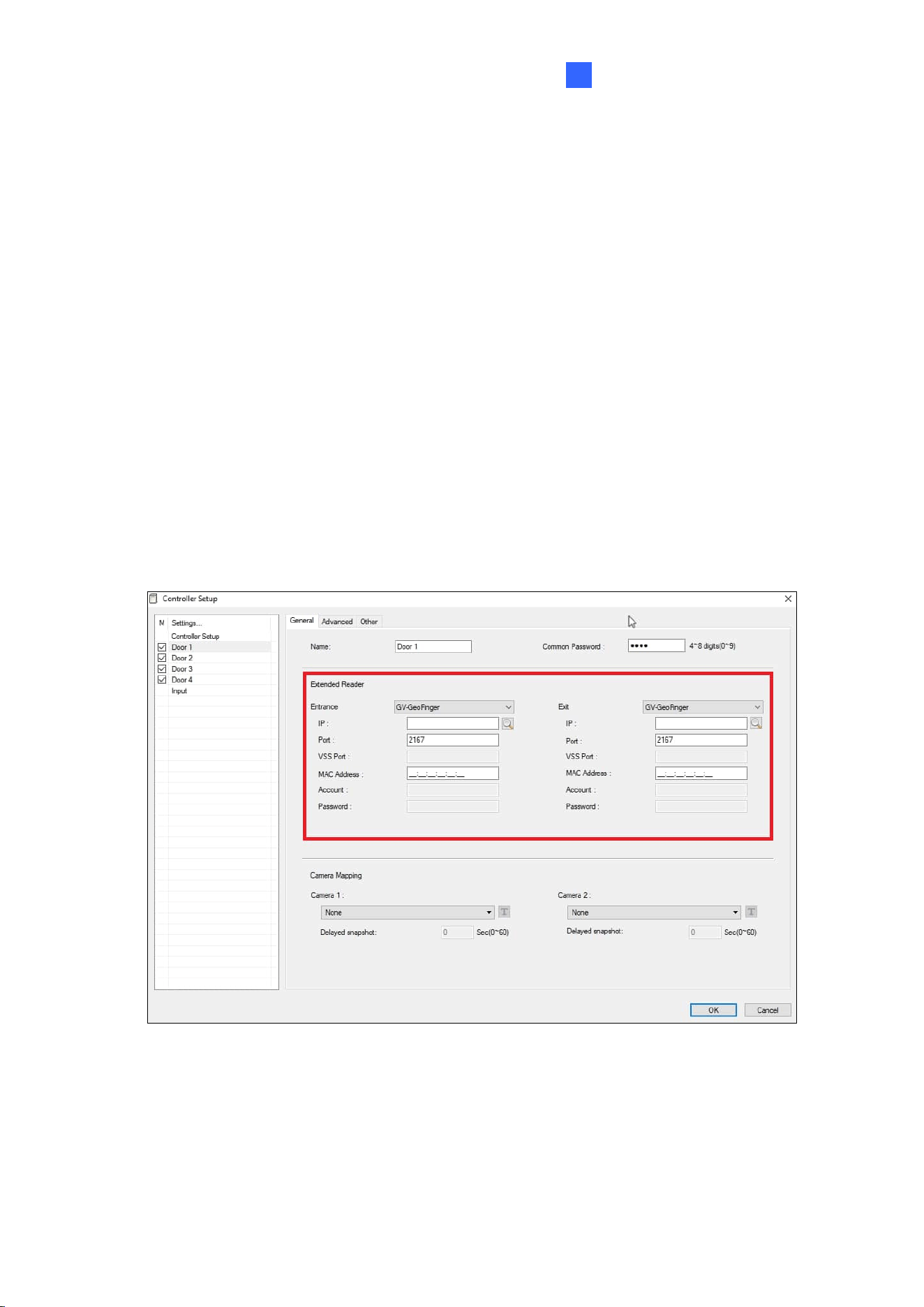
3. If the reader is connected to GV-AS Controller via RS-485, select GV-GeoFinger for
Entrance or Exit under the Extended Reader section, without typing an IP address/MAC
address or serial number.
If the reader is connected to GV-AS Controller through TCP/IP, define the fingerprint
reader. Select GV-GeoFinger for Entrance or Exit under the Extended Reader section,
and type the reader’s IP address and port.
To look up the machine name, see 7.1 Network Settings.
Figure 3-13
28
B. Upload Fingerprints to the Reader
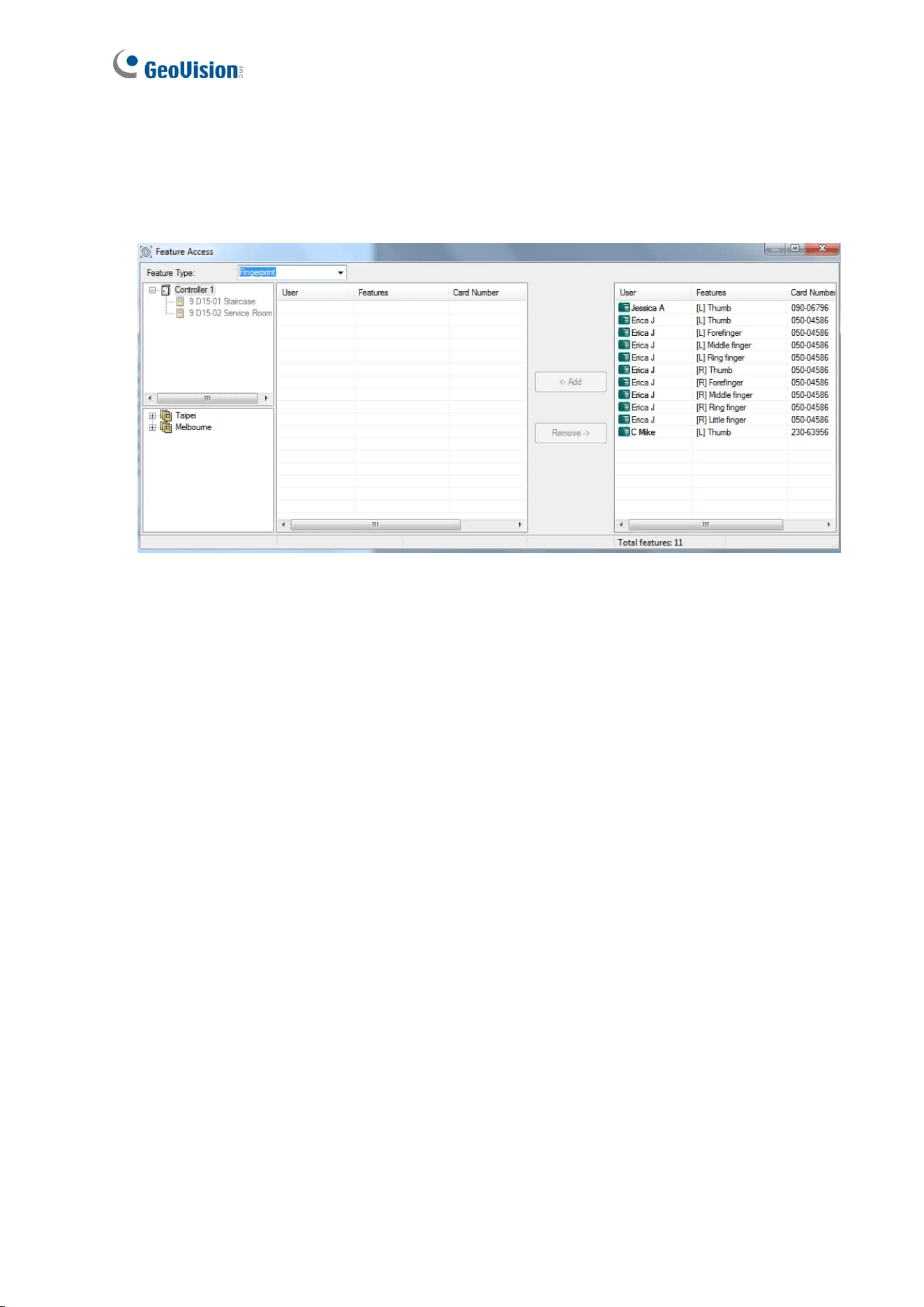
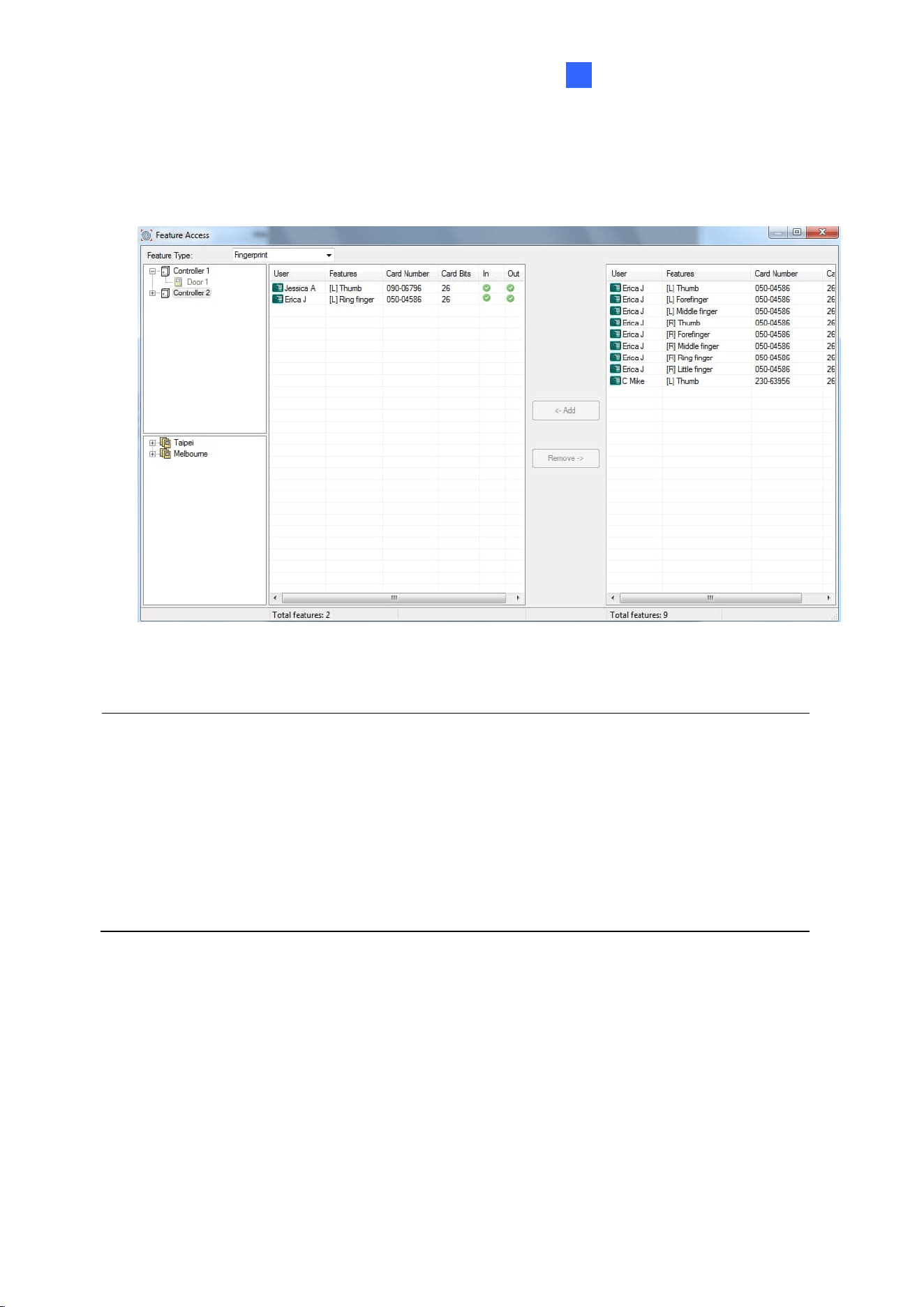
4. On the menu bar of GV-ASManager, click Setup and select Feature Access. This dialog
box appears.
Figure 3-14
5. To upload fingerprints, select the desired doors in the top-left pane. If you have assigned
multiple doors to a group, select the desired group in the bottom-left pane.
6. Select the desired fingerprints on the right pane. The Add button becomes available.
Fingerprint Only Mode
29
3
7. Click the Add button to upload the selected fingerprints to the desired doors or groups.
When the upload is complete, check marks will appear in the In (Entrance door) or Out
(Exit door) columns. The resulting window after uploading may look like this:
Figure 3-15
Note:
1. If green checkmarks are missing in the In or Out columns, right-click the door in the
Controllers View on the main screen, and select Sync GV-GeoFinger to re-upload the
data.
2. Each fingerprint reader can store up to 1,900 fingerprints.GV-GF1922 V2 can store up
to 9,500 fingerprints.
3. For how to create a group, see 3.3 Uploading Fingerprints Using Door Groups.
30
3.3 Uploading Fingerprints Using Door Groups
When a large number of GV-AS Controllers are connected to GV-ASManager, the doors of
different controllers can be organized into different door groups. Using door groups, you can
quickly upload fingerprints to doors installed with fingerprint readers.
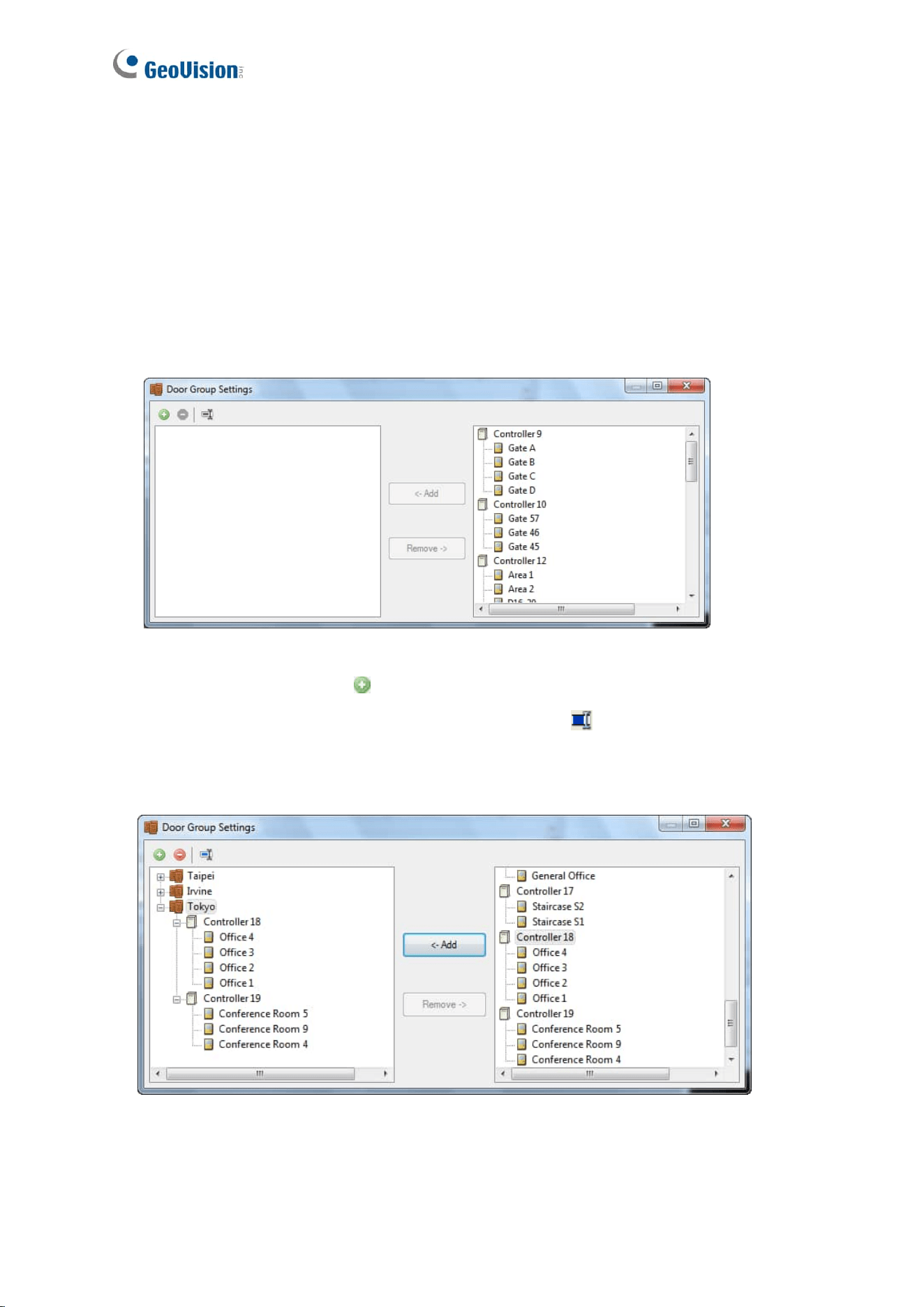
1. On the menu bar of GV-ASManager, click Setup and select Door Groups. This window
appears and the connected controllers are listed on the right.
Figure 3-16
2. Click the Add Group button . A new group is created.
3. Click the new group and click the Rename Group button to rename the group.
4. Select the desired doors from the right pane to add to the new group.
5. Click the Add button. The selected doors are now assigned to the group.
Figure 3-17
6. To add fingerprints to a door group, follow Step 7 in 3.3 Uploading Fingerprints to
Readers.

Fingerprint Only Mode
31
3
3.4 Using the Fingerprint Reader
After you connect the fingerprint reader to a controller and enroll fingerprints, scan your
enrolled finger to gain access.
1. If the presented fingerprint matches any record in the fingerprint reader, the light will
change from blue to green. The access signal will be sent to the controller. Access will
be granted.
2. If the presented fingerprint does not match the record in the fingerprint reader, the light
will change from steady blue to yellow and the reader will beep three times. Then the
light will return to a steady blue. The reader will not send access signal to the controller
Access will be denied.
Note: The light on fingerprint reader turns red if the access does not occur within the GV-
ASManager’s established schedule.
32
Chapter 4 Card + Fingerprint Mode
IMPORTANT: In Card + Fingerprint Mode,
1. The fingerprint reader can only work with GV-AS ID F cards and tags. Each card or
tag can only store two fingerprints.
2. It is required to set card identification to GeoVision Card (UID) or GeoVision Card
(GID). See 7.2 Card Setting.
4.1 Enrollment
The user’s fingerprints are stored in the user card and each user card can store up to two
fingerprints. To gain access, a user must scan both the user card and the enrolled finger.
Cards Required for Enrollment
⚫ Manager Enroll Card (supplied in the package)
⚫ User Card
Enrollment Procedures
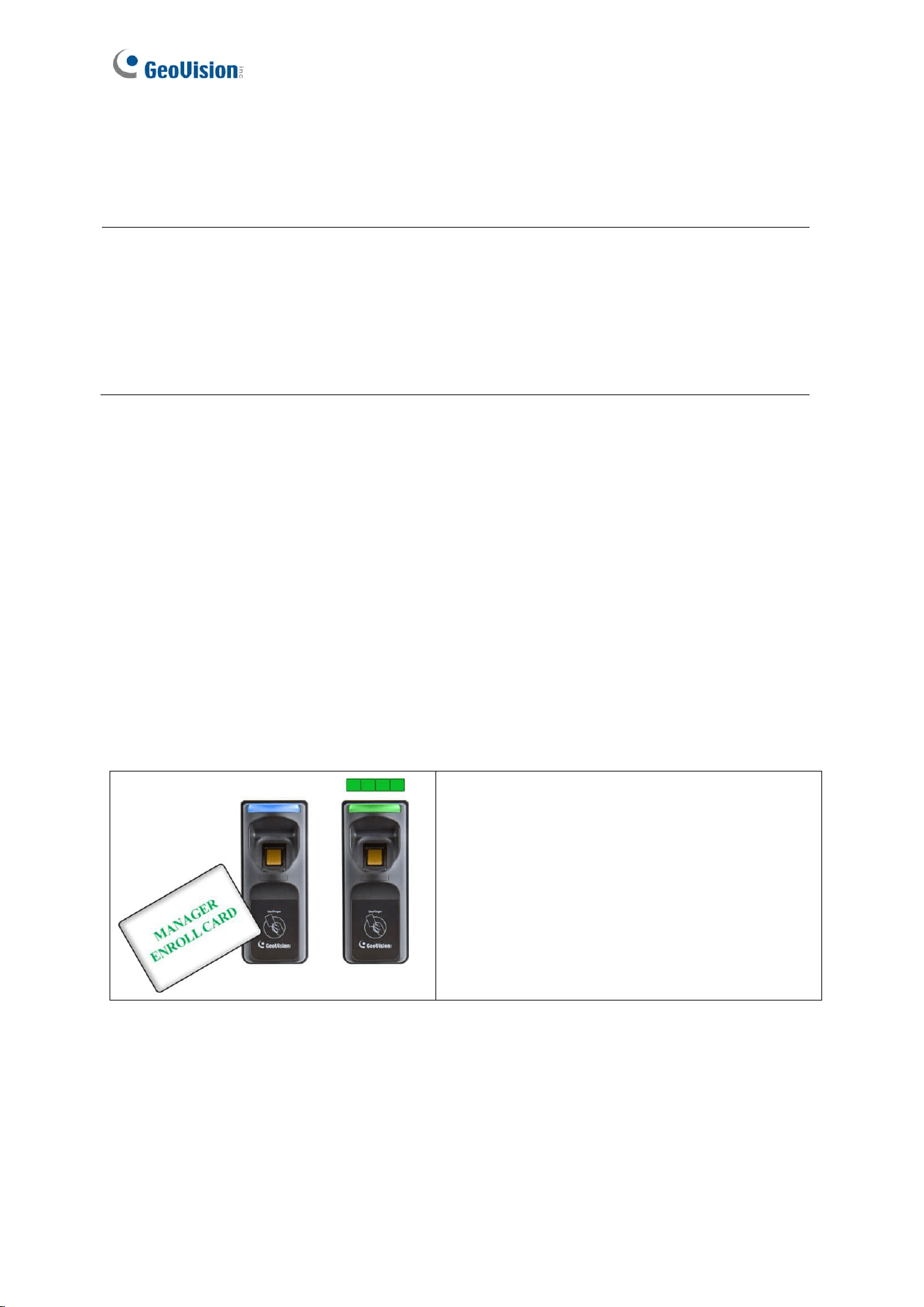
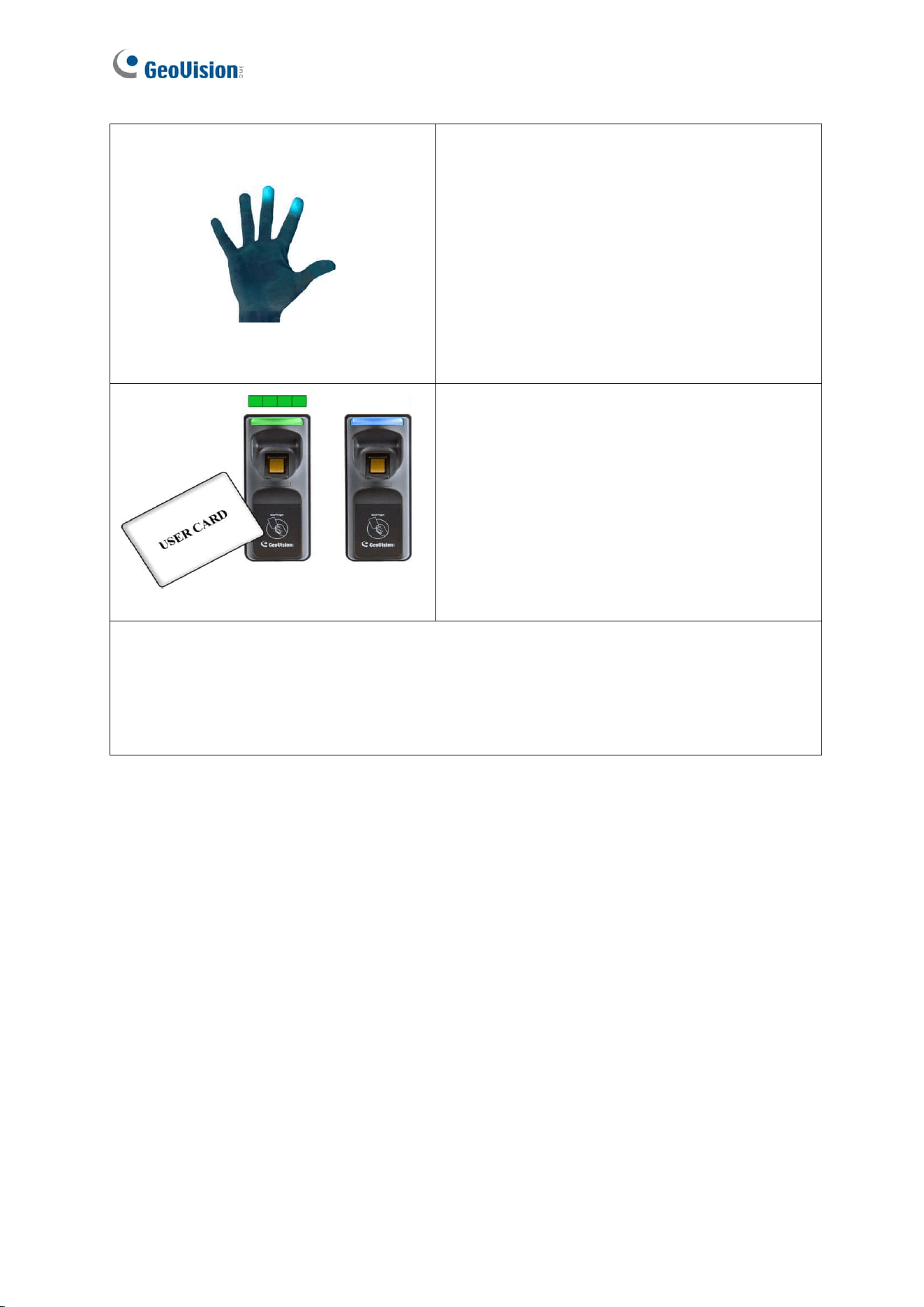
Step 1:
In the standby mode, the light is blue on.
Present the Manager Enroll Card. The light
blinks green.
Card Only Mode
33
5
Step 2:
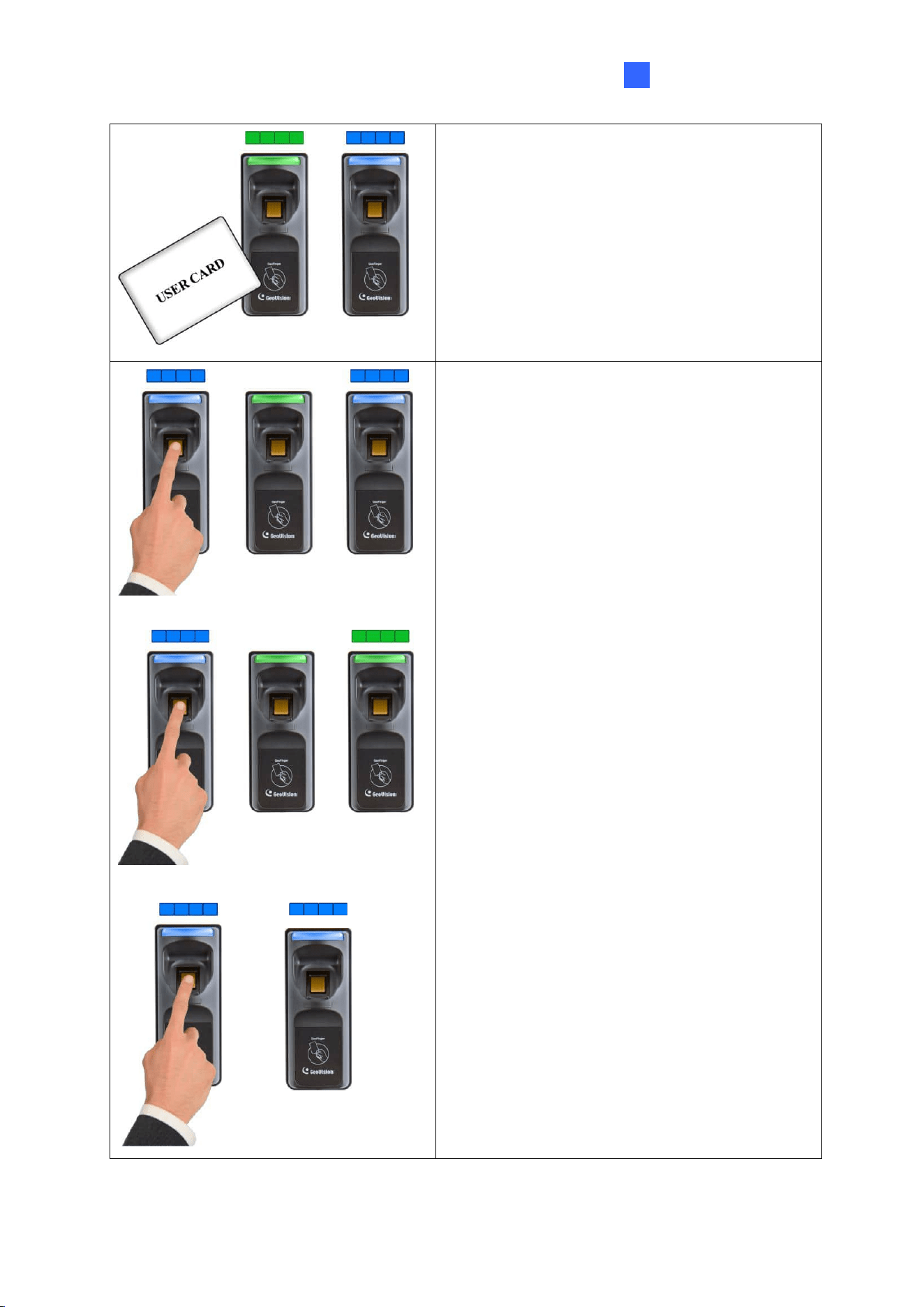
Present the User Card till the light blinks blue.
Or present the Manager Enroll Card to exit the
enroll mode.
Step 3:
GV-GF1911 / 1912
When the light is blinking blue, scan your
fingerprint and withdraw when the reader beeps.
The light turns green and then back to blue
again.
Re-scan the same fingerprint till beep, and
withdraw your finger. The light again turns green
and then blinks green.
GV-GF1921 / 1922 / 1922 V2
While light is blinking blue, scan your fingerprint.
The scan is confirmed by two clicks. Raise the
finger and re-scan it. Only withdraw when you
hear a long beep. The light blinks blue to
indicate that the fingerprint has been enrolled.
34
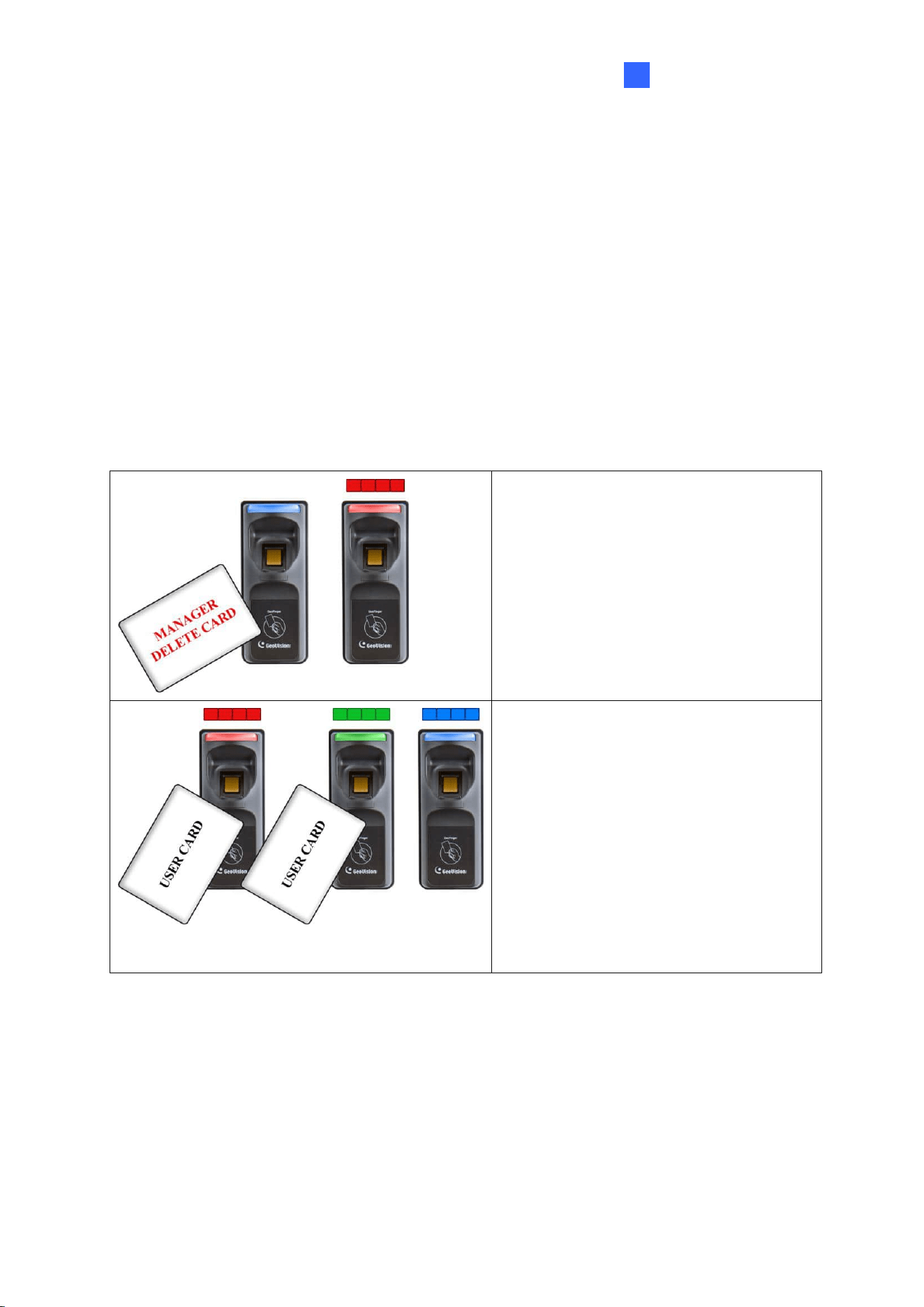
Step 4:
GV-GF1911 / 1912
To enroll the second fingerprint, repeat step 3.
GV-GF1921 / 1922 / 1922 V2
To enroll the second fingerprint, repeat step 3.
Withdraw your finger when you hear a log beep.
The light shall blink green.
Step 5:
Present the User Card to record fingerprints till
beep. The light turns green and then steady
blue.
The enrollment is complete and you can use the
Card Plus Fingerprint on the fingerprint reader.
Note:
1. When deleting a user, you need the corresponding user card. If you lose the user card,
you cannot delete the user from the fingerprint reader.
2. The newly enrolled fingerprints will replace the previously enrolled fingerprints.
Card Only Mode
35
5
4.2 Deletion
Card data will be deleted from the reader and fingerprint templates will be erased from the
user card.
Cards Required for Deletion
⚫ Manager Delete Card (supplied in the package)
⚫ User Card
Deletion Procedure
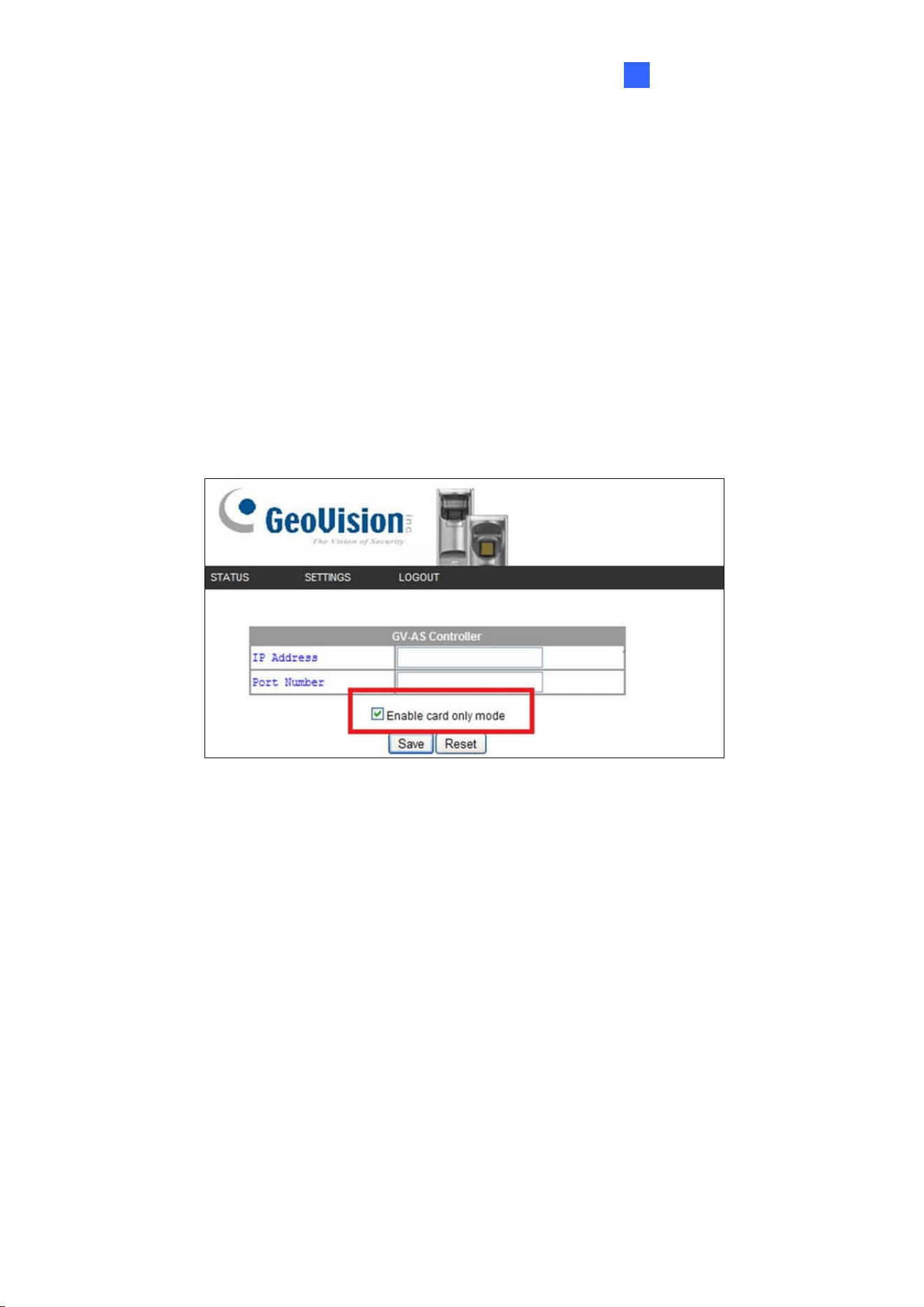
Step 1:
In the standby mode, the light is blue on.
Present the Manager Delete Card. The
light blinks red.
Step 2:
With the light blinking red, present the
User Card. The light blinks green.
Present the User Card again to delete all
fingerprints stored in the card.
When the deletion is complete, the light
turns green and then steady blue.

36
4.3 Using the Fingerprint Reader
After you connect the fingerprint reader to a controller, present a user card. The light on the
reader will blink blue. Then scan your enrolled finger to gain access.
1. If the presented fingerprint matches any record in the card, the light will change from
blue to green. The access signal will be sent to the controller. Access will be granted.
2. If the presented fingerprint does not match the record in the card, the light will change
from steady blue to blinking red, and the reader will beep three times. The light will then
return to a steady blue. The reader will not send an access signal to the controller.
Access will be denied.
Note: The light on the fingerprint reader turns red if the access does not occur within the
GV-ASManager’s established schedule.
Card Only Mode
37
5
Chapter 5 Card Only Mode
This Card Only mode allows the users to gain access with a card. This mode is only
supported by the fingerprint reader using MIFARE cards or GV-AS ID Cards / Tags.
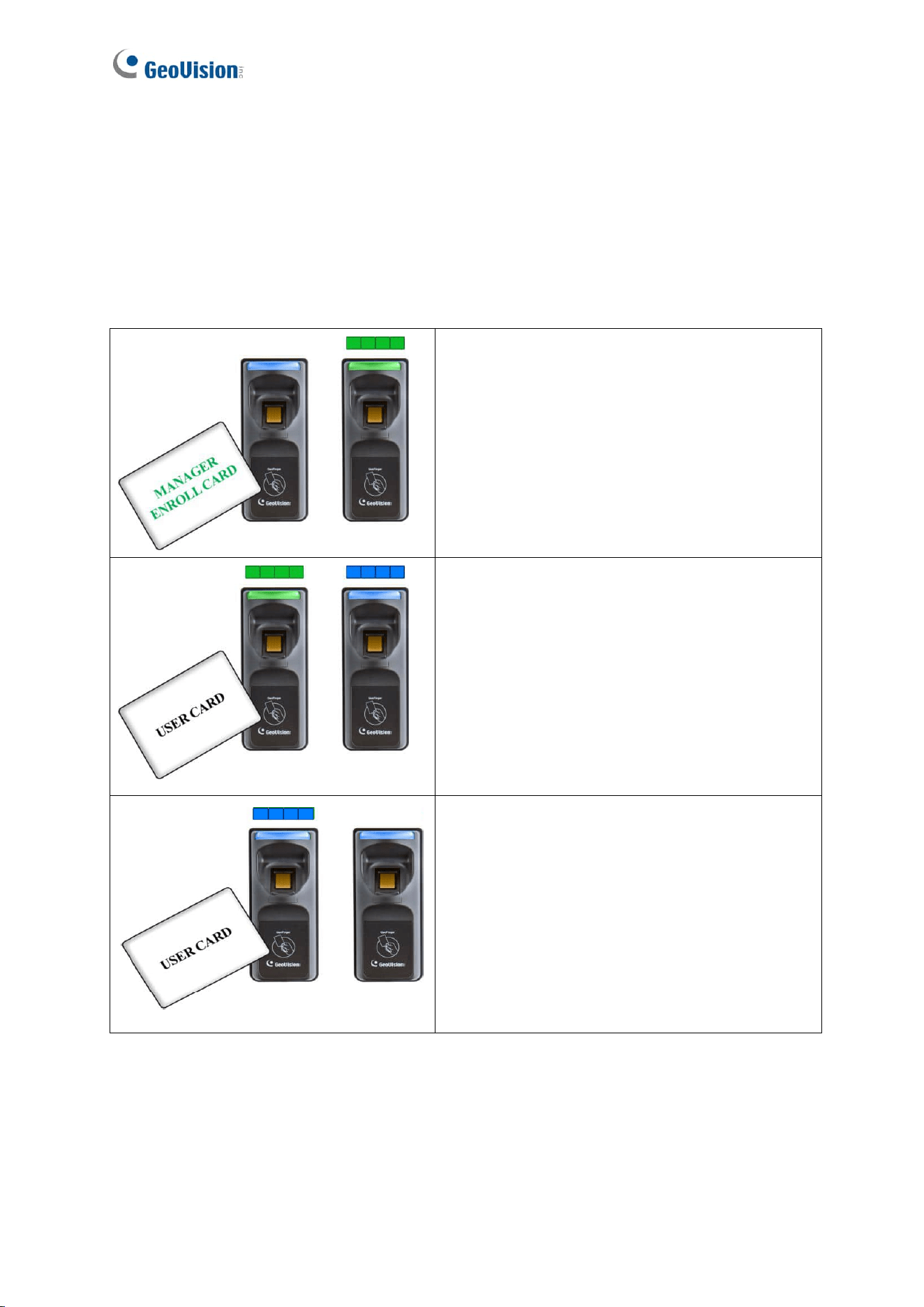
For GV-GF1911 / 1912, if you are not using the GeoVision user card and tag, you need to
access the Web interface and select Enable card only mode to enable the function. To
access the Web interface, see 2.3.2 Accessing the Web Interface to find the fingerprint
reader’s IP address for login.
Figure 5-1
38
5.1 Enrollment
Before enrollment, establish a user account and assign a card to the user on the connected
GV-AS Manager. For details, see 4.3 Setting Cards and 4.6 Setting User in GV-ASManager
User’s Manual.
To enroll, use a MIFARE card and follow the procedure below.
Step 1:
In the standby mode, the light is blue on.
Present the Manager Enroll Card. The light
starts blinking green.
Step 2:
Present the User Card till the light blinks blue.
Or present the Manager Enroll Card to exit the
enroll mode.
Step 3:
With the light blinking blue, present the User
Card again to confirm. The light turns steady
blue and the enrollment is complete.

Card Only Mode
39
5
5.2 Deletion
To delete the access right of a card, inactivate or delete the user account created on the GV-
AS Manager. For details, see 4.3 Setting Cards and 4.6 Setting User in GV-ASManager
User’s Manual.
5.3 Using the Fingerprint Reader
After connecting the fingerprint reader to a controller, present your enrolled card.
1. If the card is detected as an enrolled card, the light will change from blue to green. The
access signal will be sent to the controller. Access will be granted.
2. If the card does not match any of the enrolled cards, the light will change from blue to
red. Access will be denied.
Note: The light on fingerprint reader turns red if the access does not occur within the GV-
ASManager’s established schedule.
40
Chapter 6 Standalone Mode
The GV-GF1921 / 1922 / 1922 V2 can work on its own without connecting to GV-AS
Controller and GV-AS Manager.
6.1 Physical Connection
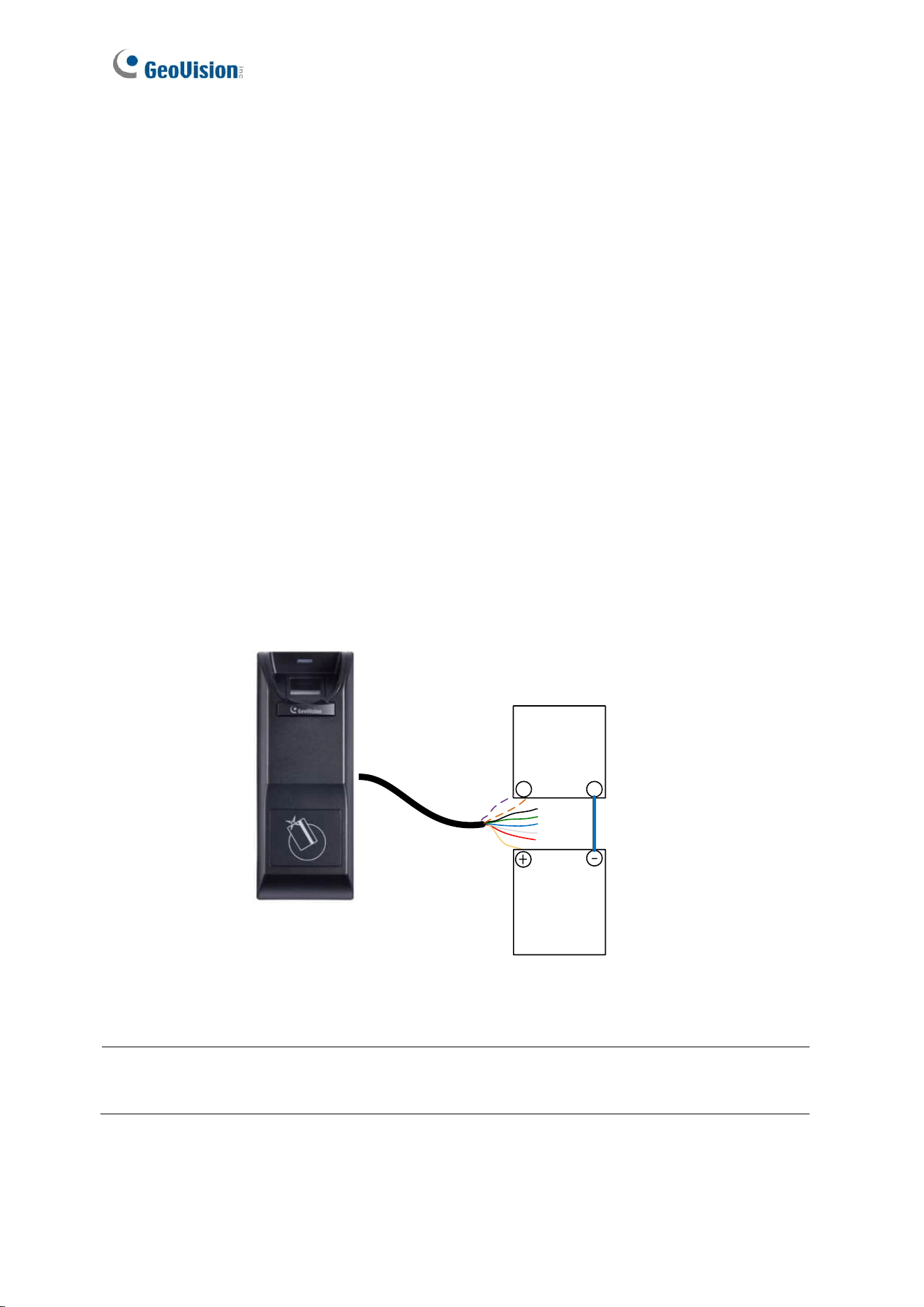
Use the data cable provided to connect input and output devices. Each GV-GF1921 / 1922 /
1922 V2 can be connected to two inputs (door sensor and exit button) and one output (door
relay).
Connect (+) point of the output device to the yellow wire (COM) of the fingerprint reader,
connect the (-) points of the output device and the external power supply together, and
connect the (+) point of the external power supply to the purple/pink wire (NO) or the
brown/orange wire (NC) of the fingerprint reader based on the state of the output device. For
a door sensor, connect the blue wire to the sensor.
External
Power
Supply
+
-
Output
device
Fingerprint Reader
Relay Com (yellow)
Relay NO (purple/pink)
Relay NC (brown/orange)
Figure 6-1
Note: The wire color for Relay NO may be in purple or pink, and in brown or orange for
Relay NC.
Standalone Mode
41
6
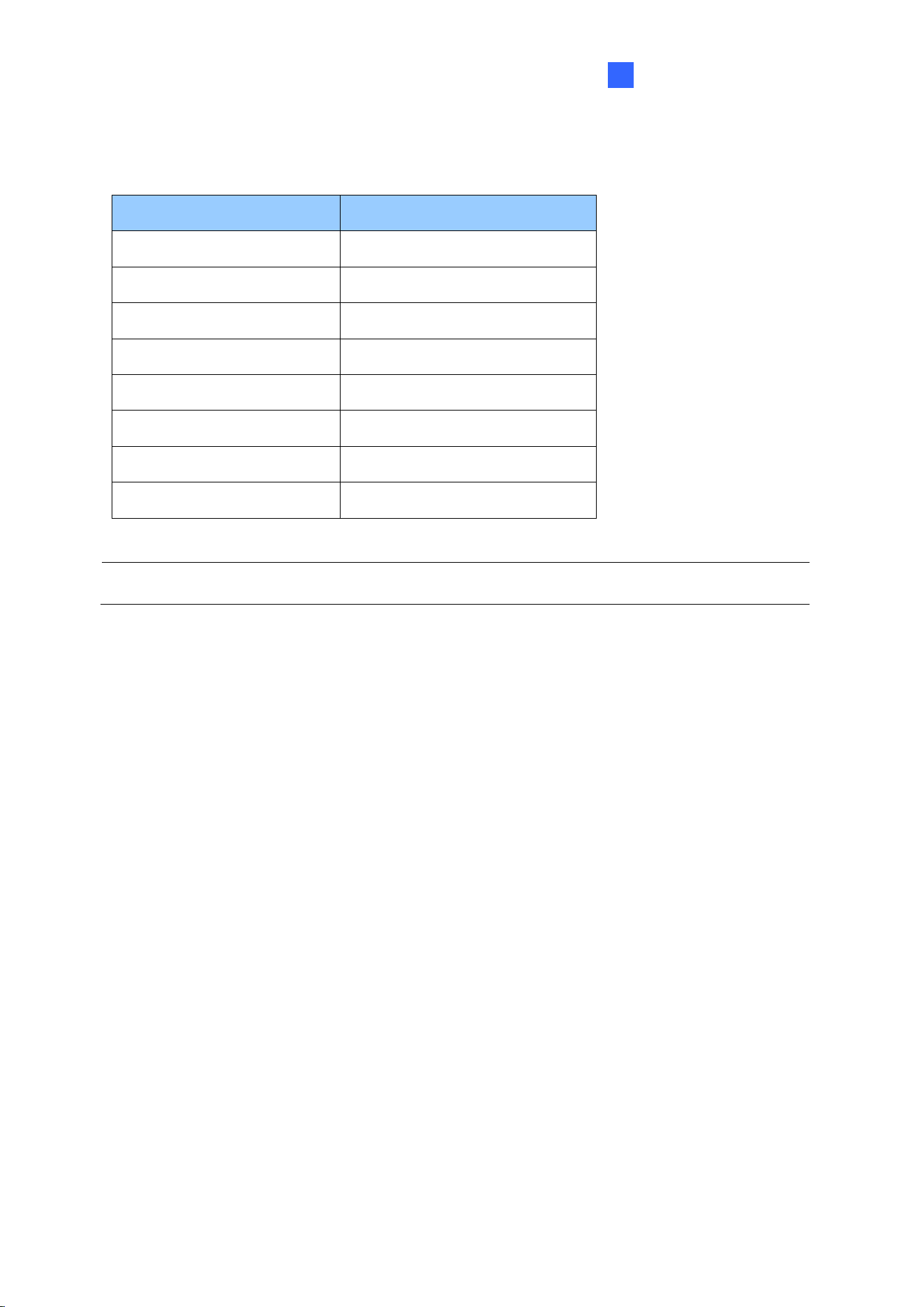
Data Cable
Wire Color
Definition
Red
+12V
Black
GND
Green
IN1 (only for button input)
Blue
IN2 (only for door sensor)
White
IN Com
Brown / Orange
Relay NC
Purple / Pink
Relay NO
Yellow
Relay Com
Note: The I/O interface of GV-GF1921 / 1922 / 1922 V2 only works in Local Mode.
42
6.2 Enabling the Local Mode
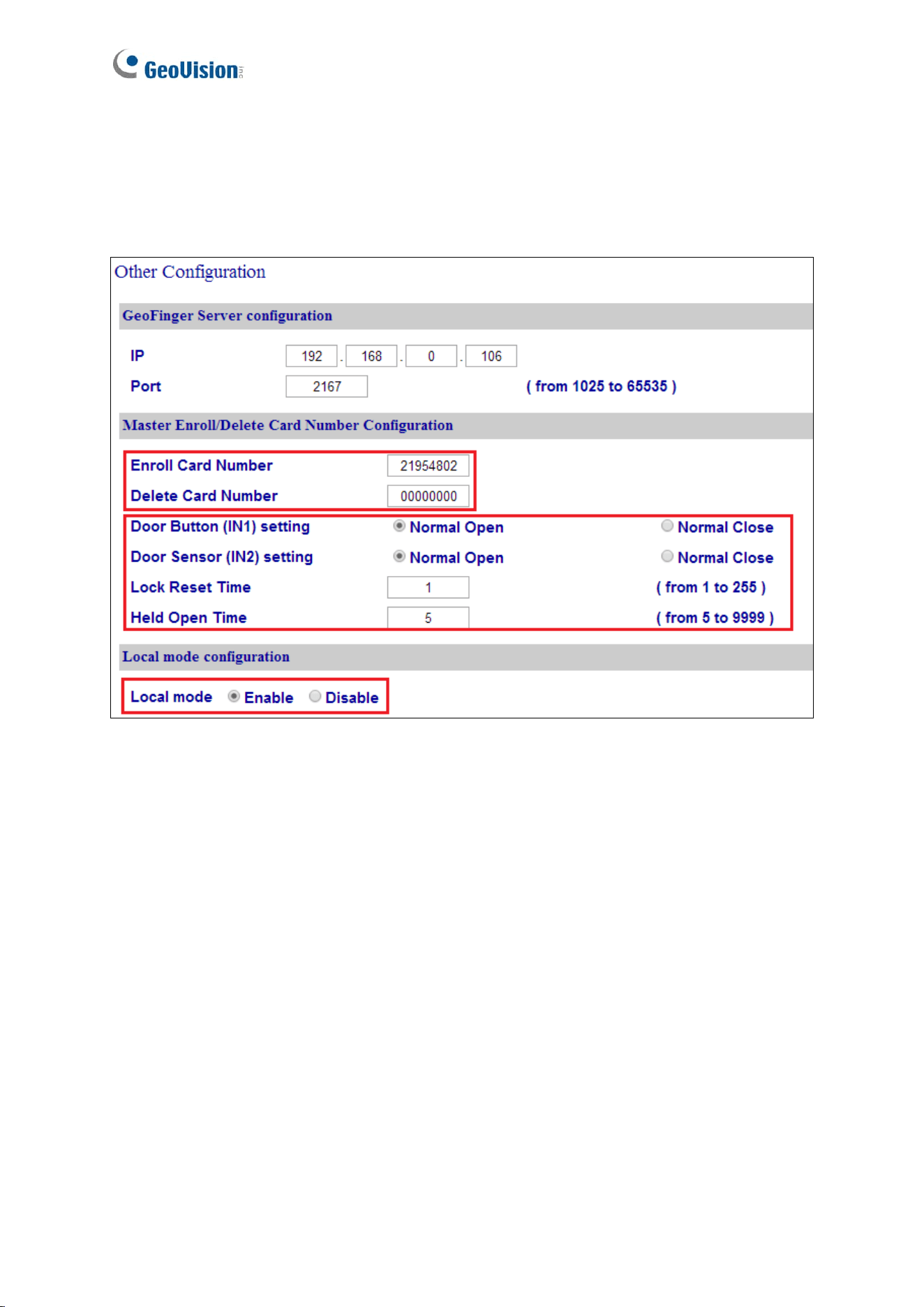
To function as a standalone device, it is required to activate the local mode of the GV-
GF1921 / 1922 / 1922 V2 on its Web interface.
Figure 6-2
To limit enrollment or deletion to one card, type the card’s identification number. To set up
the input and output status as Normal Open or Normal Close, Lock Reset Time, and Help
Open Time, see 7.3 Other Settings.

Standalone Mode
43
6
6.3 Fingerprints and Card Enrollment
After connecting your GV-GF1921 / 1922 / 1922 V2 to power and I/O devices, you can enroll
fingerprints. The standalone fingerprint reader supports the Fingerprint Only Mode.
6.3.1 Fingerprint Only Mode
Use any MIFARE card during enrollment for this mode.
⚫ To enroll fingerprints, follow the steps in 4.1 Enrollment.
⚫ To delete enrolled fingerprints, see 4.2 Deletion.
⚫ To obtain access, see 4.3 Using the Fingerprint Reader.
Note: The fingerprint only mode still requires the usage of User Cards to enroll fingerprints
because each user’s fingerprints need to go along with a card number. However, the
enrolled fingerprints are stored on the reader rather than the cards.
44
Chapter 7 Web Interface for GV-GF1921 / 1922 /
1922 V2
The GV-GF1921 / 1922 / 1922 V2 can be configured through its Web interface. For details
on accessing the Web interface, see 2.3.2 Accessing the Web Interface.
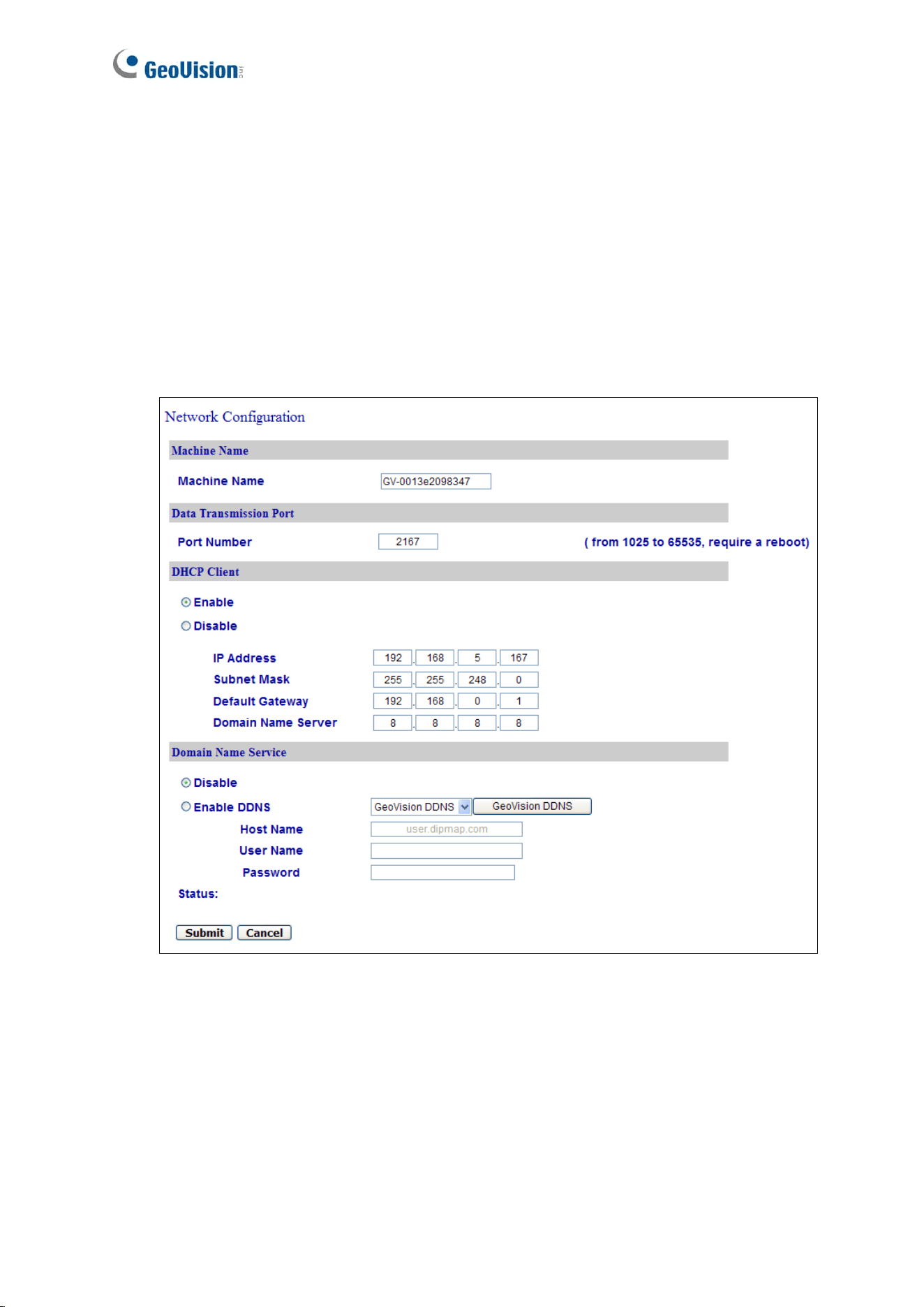
7.1 Network Settings
Figure 7-1
Web Interface for GV-GF1921 / 1922 / 1922 V2
45
7
[Machine Name]
The device name is displayed. Click the space to change the device name.
Note: Valid values for the Machine Name include numerals, letters, and -. No other special
characters, symbols or spaces are allowed.
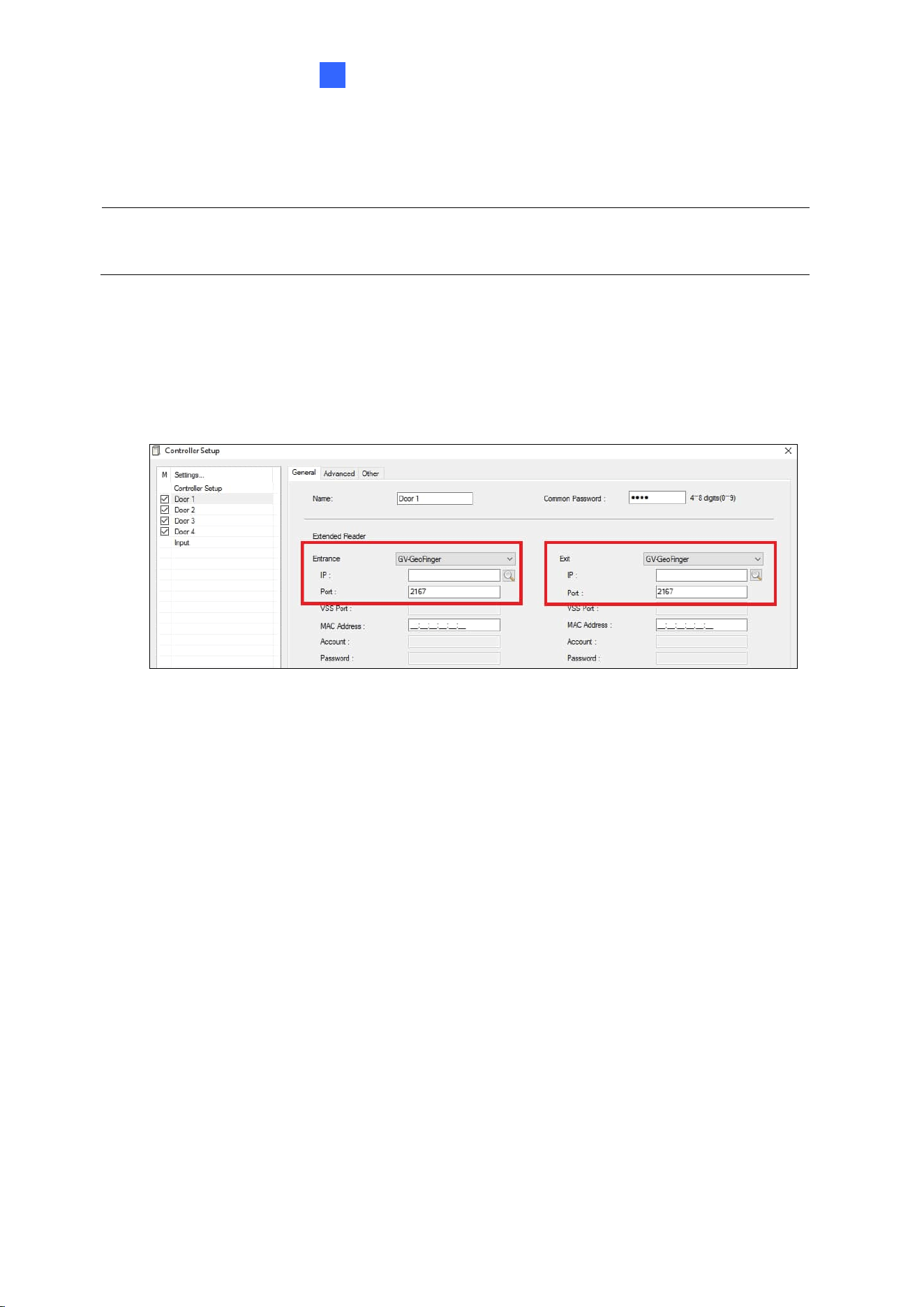
[Data Transmission Port]
The port allows GV-ASManage to transfer fingerprint data to the reader. The default port is
2167. The port corresponds to an entrance or exit reader port in GV-ASManager (Right-click
a door on the Controllers window > Settings), as shown below.
Figure 7-2
[DHCP Client]
By default, the DHCP service is enabled. When the reader is connected to a network, the
DHCP server automatically assigns it an unused IP address. This IP address remains
unchanged unless you unplug or disconnect your reader from the network. If your router
does not support DHCP, the default IP address will be 192.168.0.10.
To designate a fixed IP address, select Disable and specify the IP Address, Subnet Mask,
Default Gateway and Domain Name Server.
46
[Domain Name Service]
The Dynamic Domain Name System (DDNS) provides a convenient way of accessing the
fingerprint reader when using a dynamic IP. The DDNS assigns a domain name to the
fingerprint reader so that the user can log in the Web interface using the domain name,
without checking the IP address every time.
To activate this function:
1. Select Enable DDNS.
2. Click GeoVision DDNS to register for a host name or select the service provider
(GeoVision DDNS or DynDNS.org) you have registered, using the drop-down list.
3. Type the Host Name, User Name and Password to enable the DDNS service.
4. Click Submit.
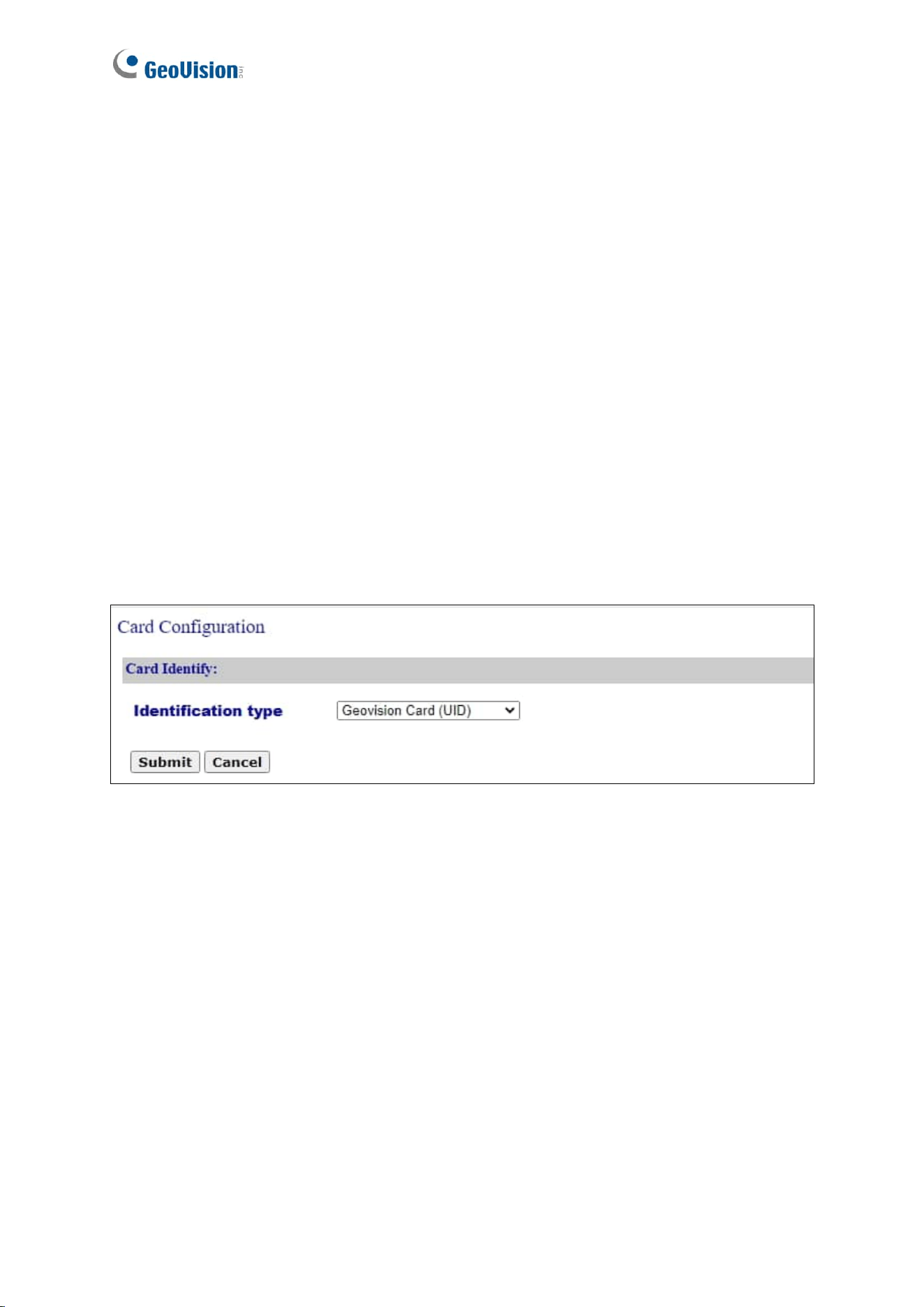
7.2 Card Settings
Figure 7-3
◼ Unique Identification (UID): Select this option when using third-party access cards.
◼ GeoVision Card (GID): Select this option when using the Card + Fingerprint mode. This
option enables the fingerprint reader to read GeoVision Identifier (GID) on GeoVision’s
access cards.
◼ GeoVision Card (UID): Select this option when using the Card + Fingerprint mode. This
option enables the fingerprint reader to read GeoVision Identifier (UID) on GeoVision’s
access cards.
Web Interface for GV-GF1921 / 1922 / 1922 V2
47
7
7.3 Other Settings
Figure 7-4
48
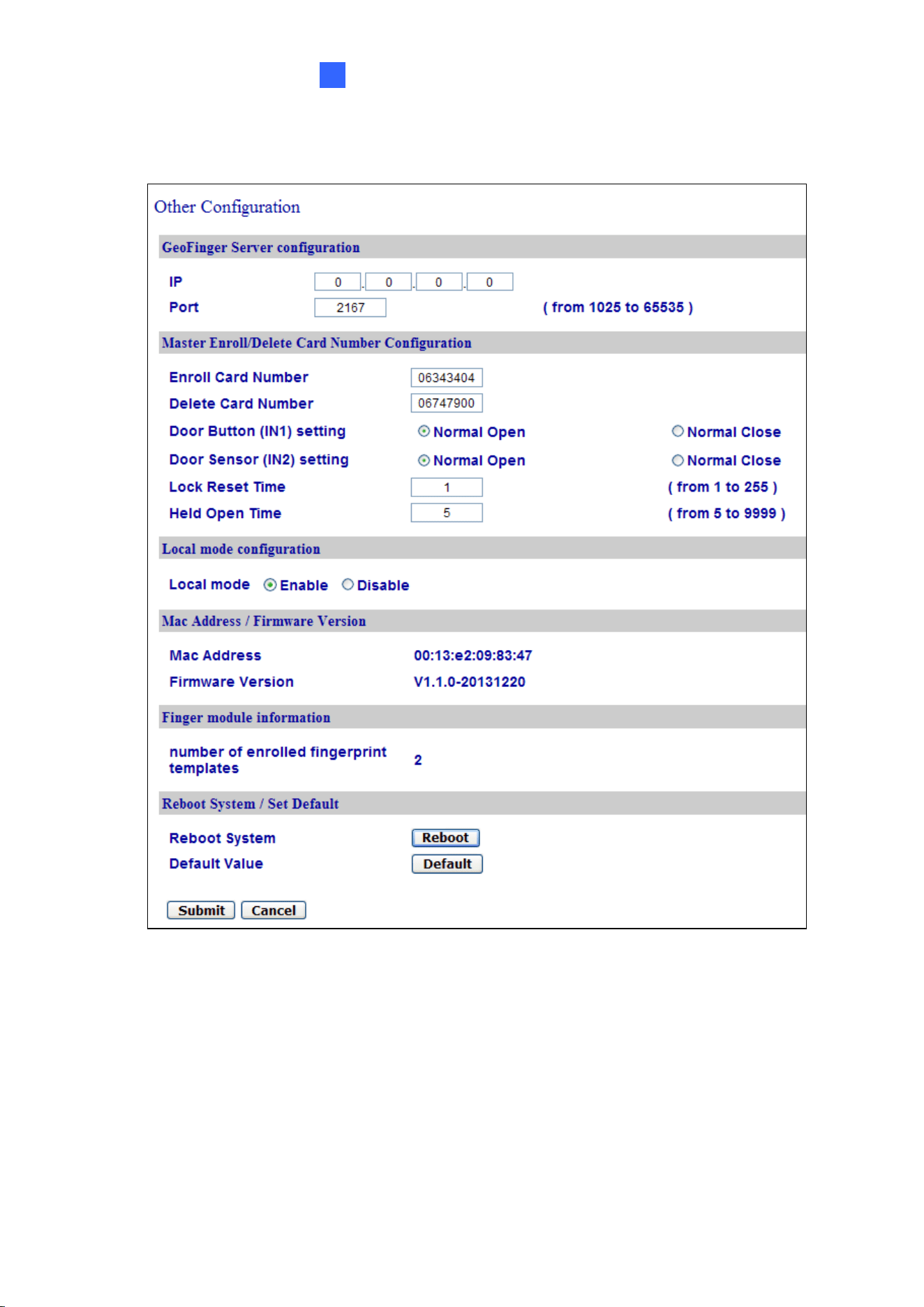
[GeoFinger Server Configuration]
To transfer fingerprint data back to GV-ASManager for remote fingerprint enrollment, provide
the GV-ASManager’s IP address and port number. The default port is 2167.
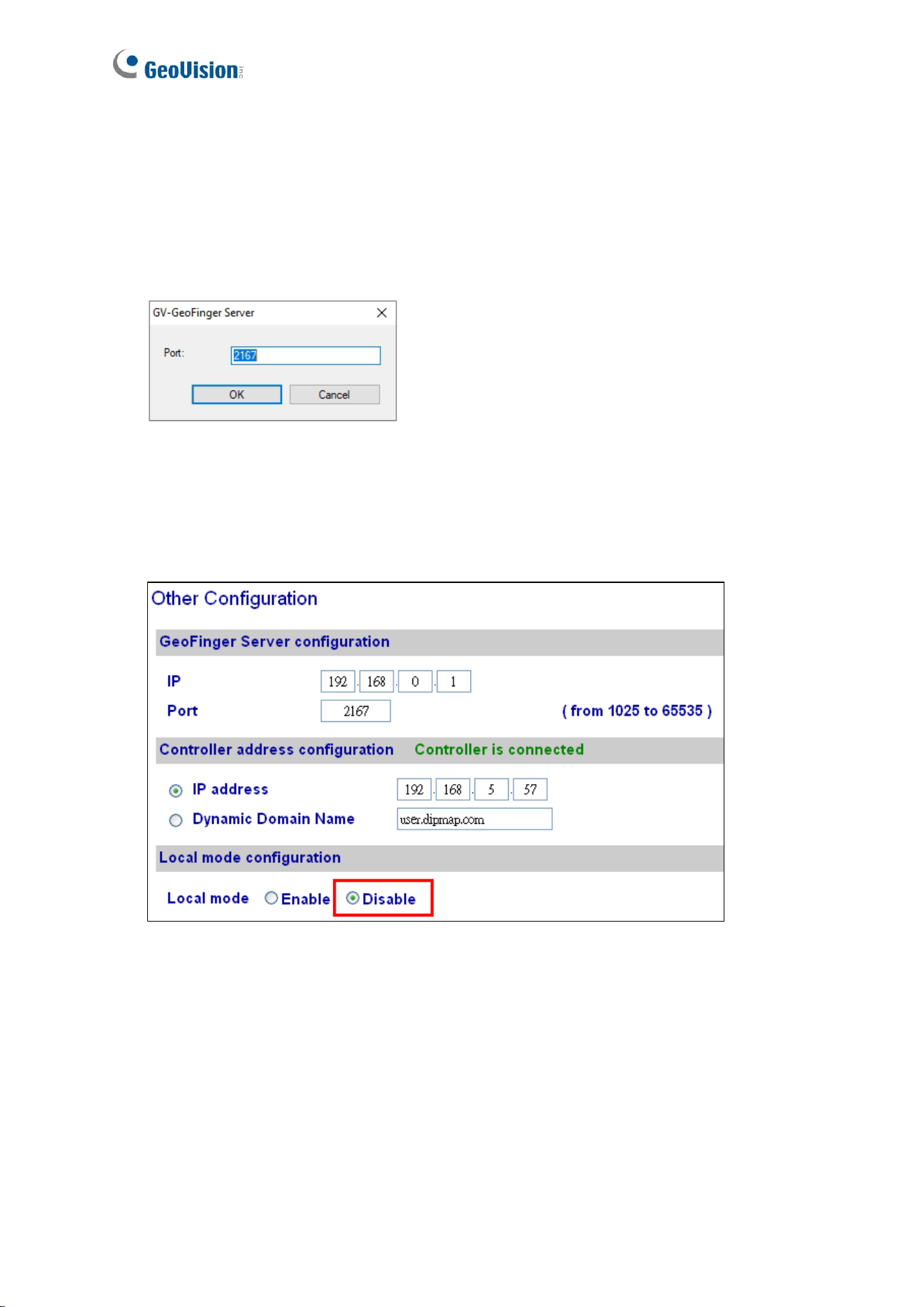
The port corresponds to the GeoFinger Server port in GV-ASManager (Tools > Servers >
GeoFinger Server), as shown below.
Figure 7-5
[Controller address configuration]
To connect, type the GV-AS Controller's IP address or domain name. This option is only
accessible when Local Mode is disabled.
Figure 7-6
[Master Enroll / Delete Card Number Configuration] This section is only available when
Local Mode is enabled.
◼ Enroll / Delete Card Number: To restrict enrollment or deletion to one card, type the
card’s identification number.
◼ Door Button Setting: Select between Normal Open or Normal Close as the input
status.

Web Interface for GV-GF1921 / 1922 / 1922 V2
49
7
◼ Lock Reset Time: Sets the duration (in seconds) that a door/gate remains open until it
is locked again. The default setting is 1 second. For example, if the Lock Reset Time is
5 seconds and access is granted, the door/gate will automatically lock after 5 seconds.
◼ Held Open Time: Sets the duration (in seconds) that the door/gate can be held opened
before an alarm is generated. The default setting is 5 seconds. For example, if the Held
Open Time is 3 seconds, the fingerprint reader will beep when the door is held open for
more than 3 seconds.
[Local mode configuration]
The GV-GF1921 / 1922 / 1922 V2 can function as a standalone device without connecting to
GV-AS Controller and GV-AS Manager. This function is disabled by default. To enable this
function, select Enable.
[MAC Address / Firmware Version]
Shows the device’s MAC address and firmware version.
[Finger module information]
Indicates the number of fingerprints enrolled.
[Reboot System / Set Default]
Click the Reboot button to reboot the device. The fingerprint reader beeps when the reboot
is complete.
To restore the default settings, click the Default option. A confirmation dialog box displays,
requesting that the Web interface be closed. Click Yes to start loading the default settings.
When the restoration is complete, the fingerprint reader will beep.
50
7.4 Firmware
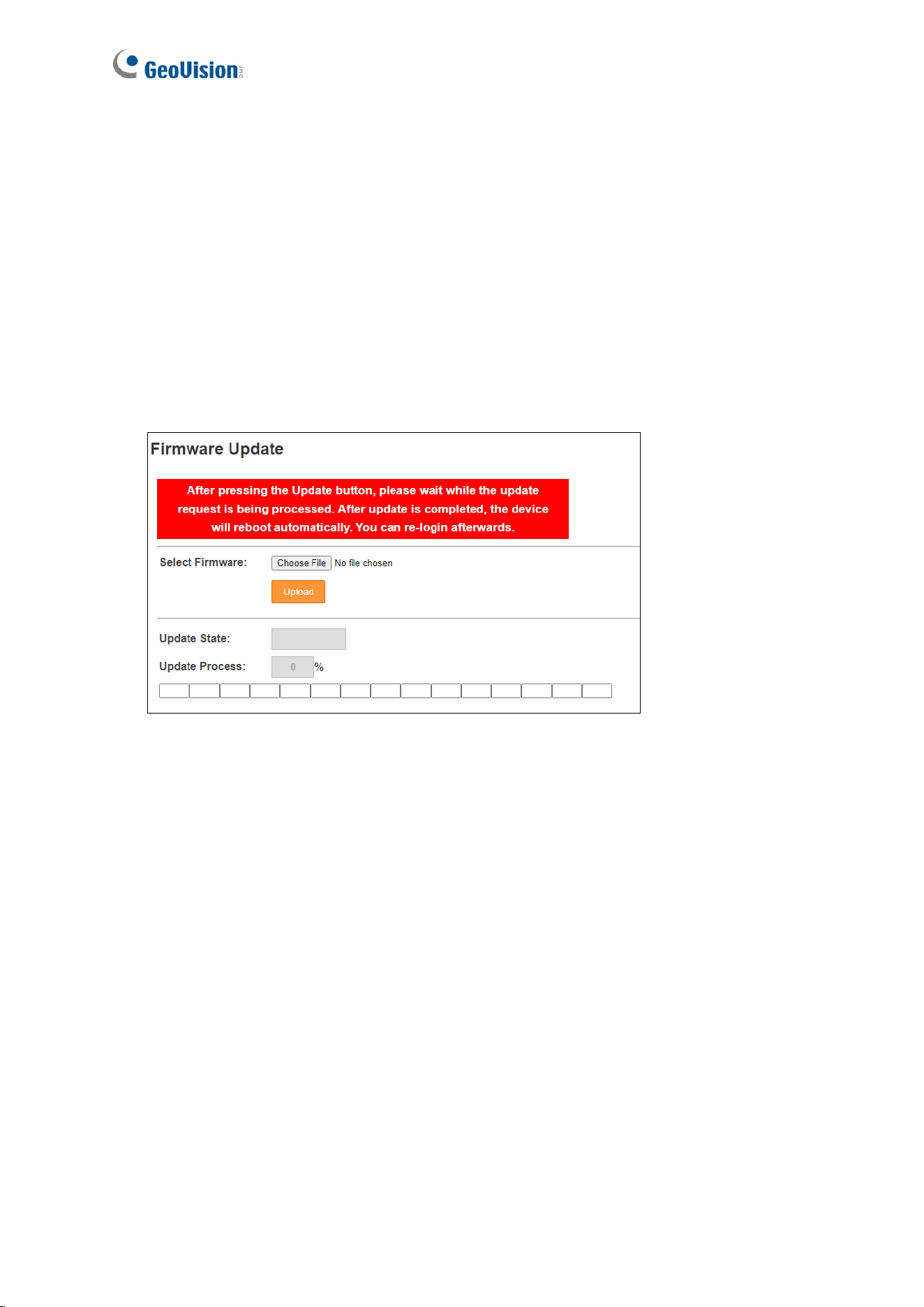
You can upgrade your device firmware through the Web interface. To upgrade firmware by a
utility, see Chapter 8 Upgrading Firmware.
To upgrade firmware:
1. Click Browse and select the firmware file.
2. Click Upload. This update process may take 60 seconds to complete.
3. When the update is complete, you will be asked to reboot the reader.
4. Click OK to restart the reader.
Web Interface for GV-GF1921 / 1922 / 1922 V2
51
7
7.5 Account Settings
Figure 7-7
[Account]
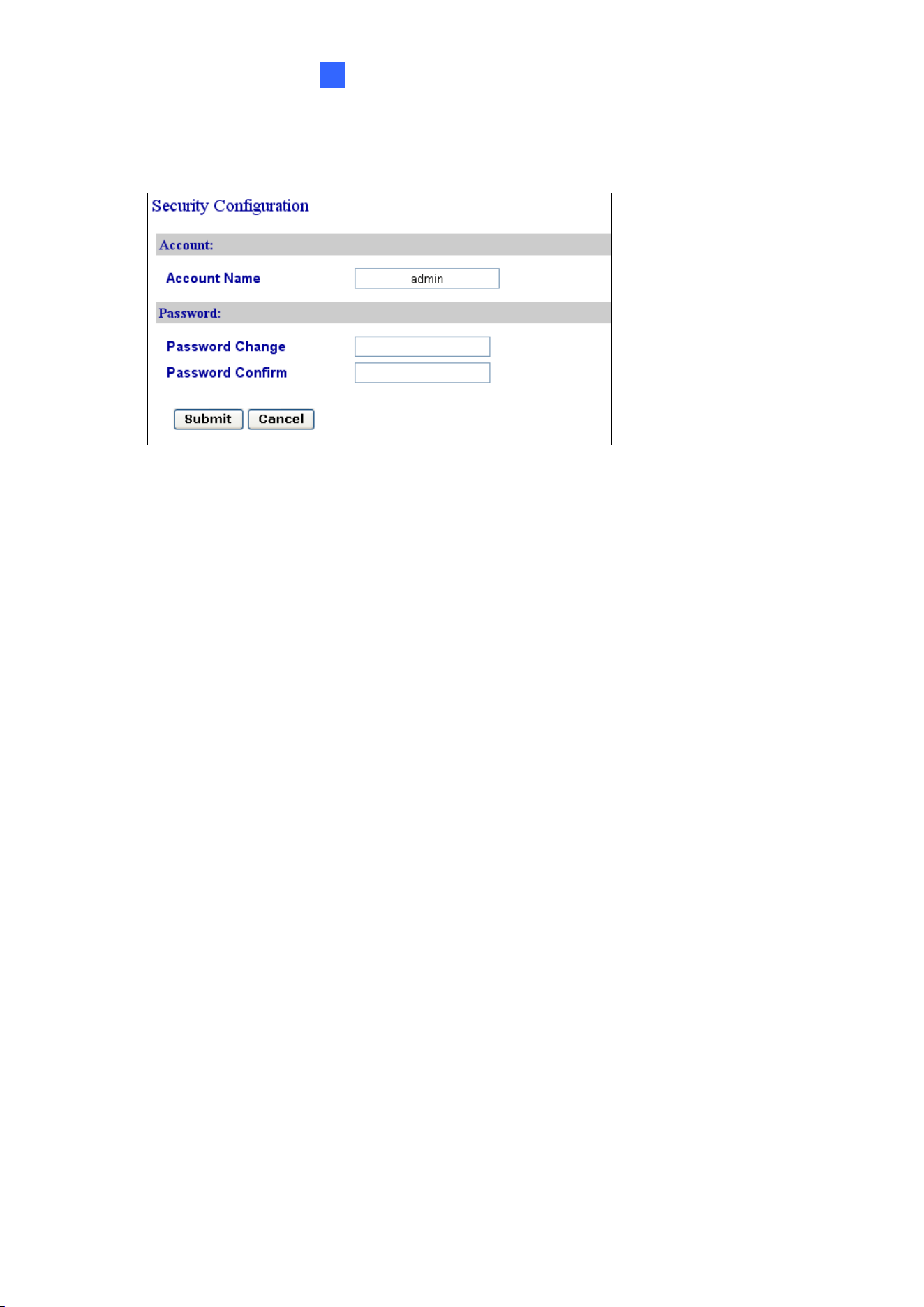
Rename the account (login ID). The default login ID is admin.
[Password]
The default password is admin. To change the password, type a new password in
Password Change, type it again in Password Confirm and click Submit. The password
must be between 4 and 12 characters
52
Chapter 8 Upgrading Firmware
Upgrade your fingerprint reader firmware to a new version.
8.1 GV-GF1911 / 1912
For the user of GV-GF1911 / 1912, firmware upgrade is done through the AutoISP software,
which is available on the software CD. The AutoISP software will detect the current version
of your fingerprint reader and then automatically upgrade it to the new version.
8.1.1 Connecting to a Computer
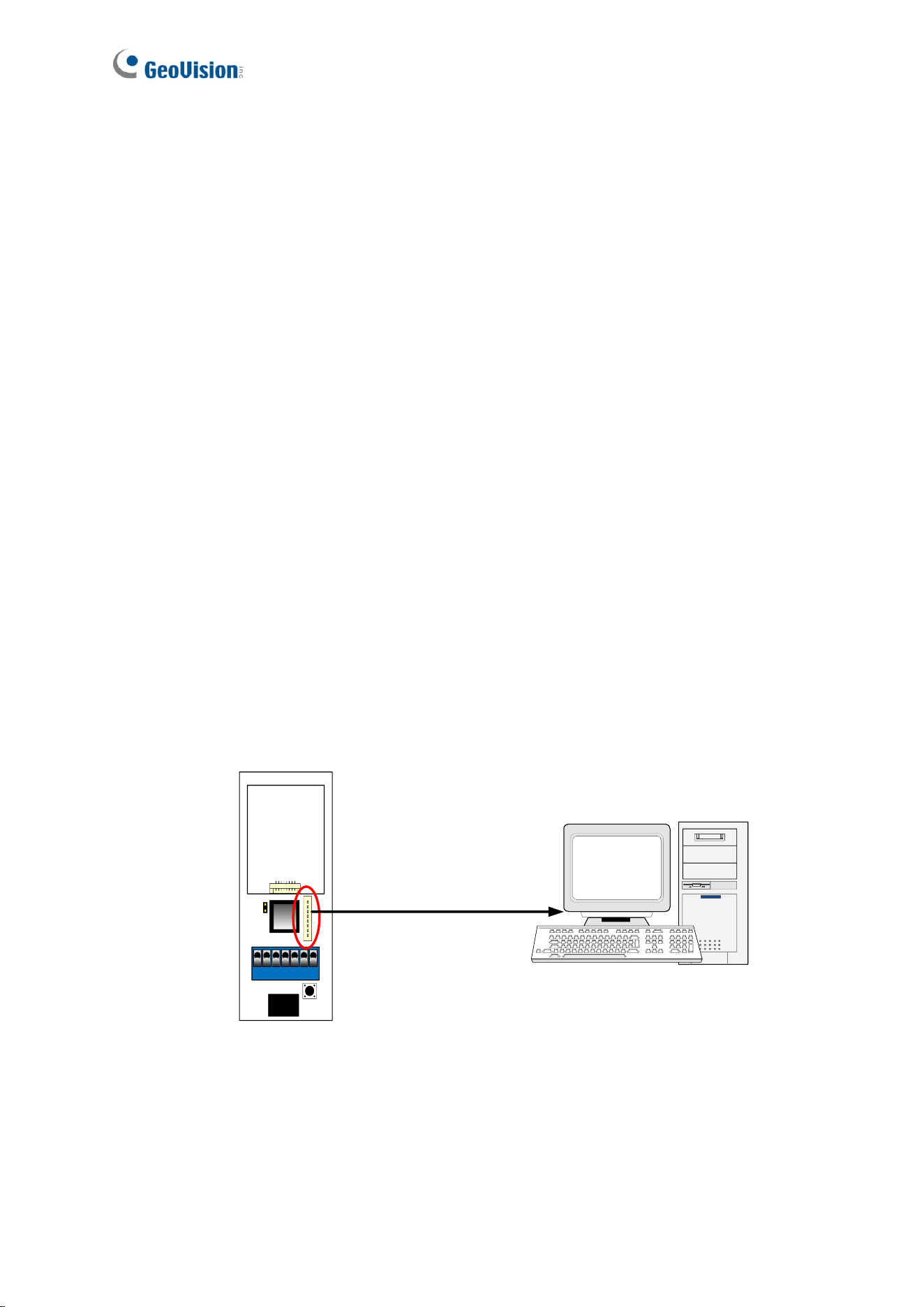
You need to connect the fingerprint reader to a computer for firmware upgrade. For this
connection, one of these optional accessories is required: a USB cable (see PC Service
Package, 1.2 Options), GV-HUB or GV-COM.
Using the USB Cable
Using the USB cable from the optional PC Service Package, connect the fingerprint reader to
a computer as illustrated below.
GV-GF1911 / 1912
PC
PC
USB Cable
VIN GND T - T +
NC COM NO
Figure 8-1
Upgrading Firmware
53
8
Using the GV-HUB or GV-COM
1. Connect the fingerprint reader to a computer through a GV-COM or GV-HUB, which
provides the RS-485 to RS-232 function.
2. Power on the fingerprint reader. You can connect the 12V and GND wires from the GV-
AS Controller to the fingerprint reader. The diagram below illustrates the connection
among fingerprint reader, GV-COM / GV-HUB and a computer. You can also prepare a
12V DC Power Adapter to connect the fingerprint reader to a power source.
PC
GV-GF1911/1912
12V Power
GV-AS Controller
RS- 485
USB
GV-HUB /
GV-COM /
Figure 8-2
54
8.1.2 Installing Software
To upgrade the firmware for the fingerprint readers, you need to install the AutoISP software
from the software CD to the dedicated computer. To install firmware upgrade software, follow
the steps below:
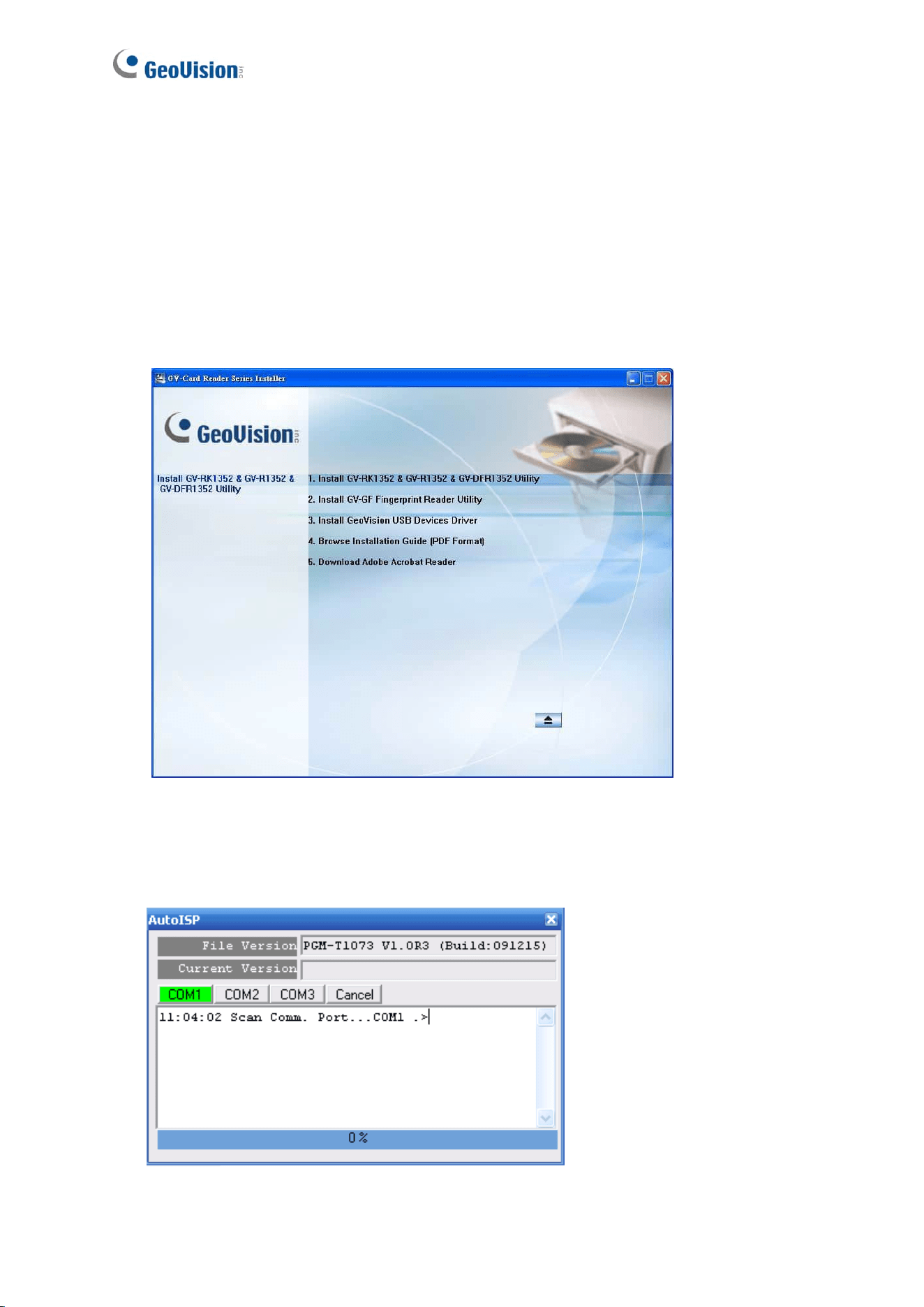
1. Insert the software CD to the computer. It runs automatically and the following window
pops up.
Figure 8-3
2. Select Install GV-GF Fingerprint Reader Utility to install the AutoISP.
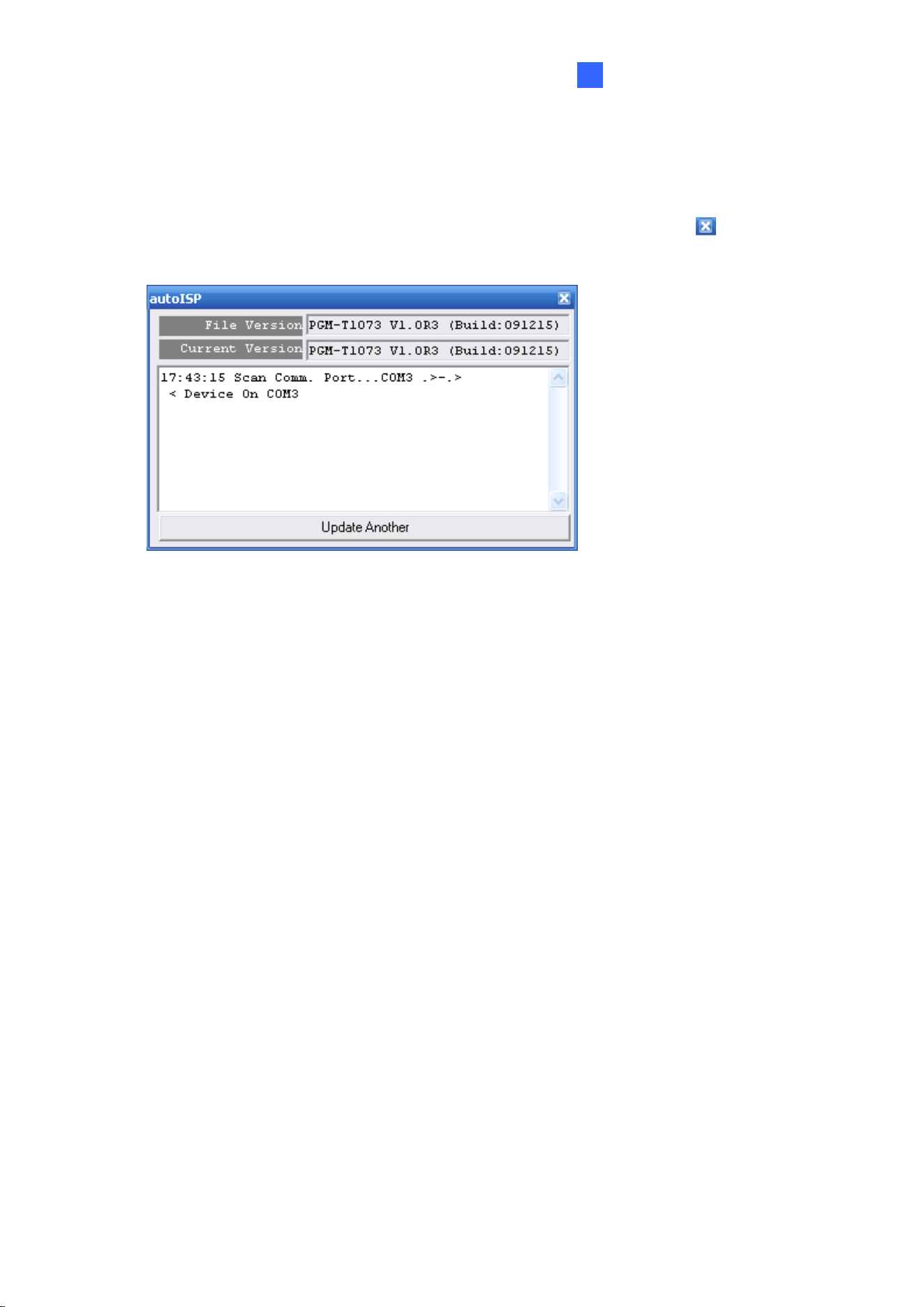
3. Run AutoISP. This dialog box appears.
Figure 8-4
Upgrading Firmware
55
8
4. Wait for the AutoISP detecting the COM port that the fingerprint reader is connected to
and automatically upgrading the firmware.
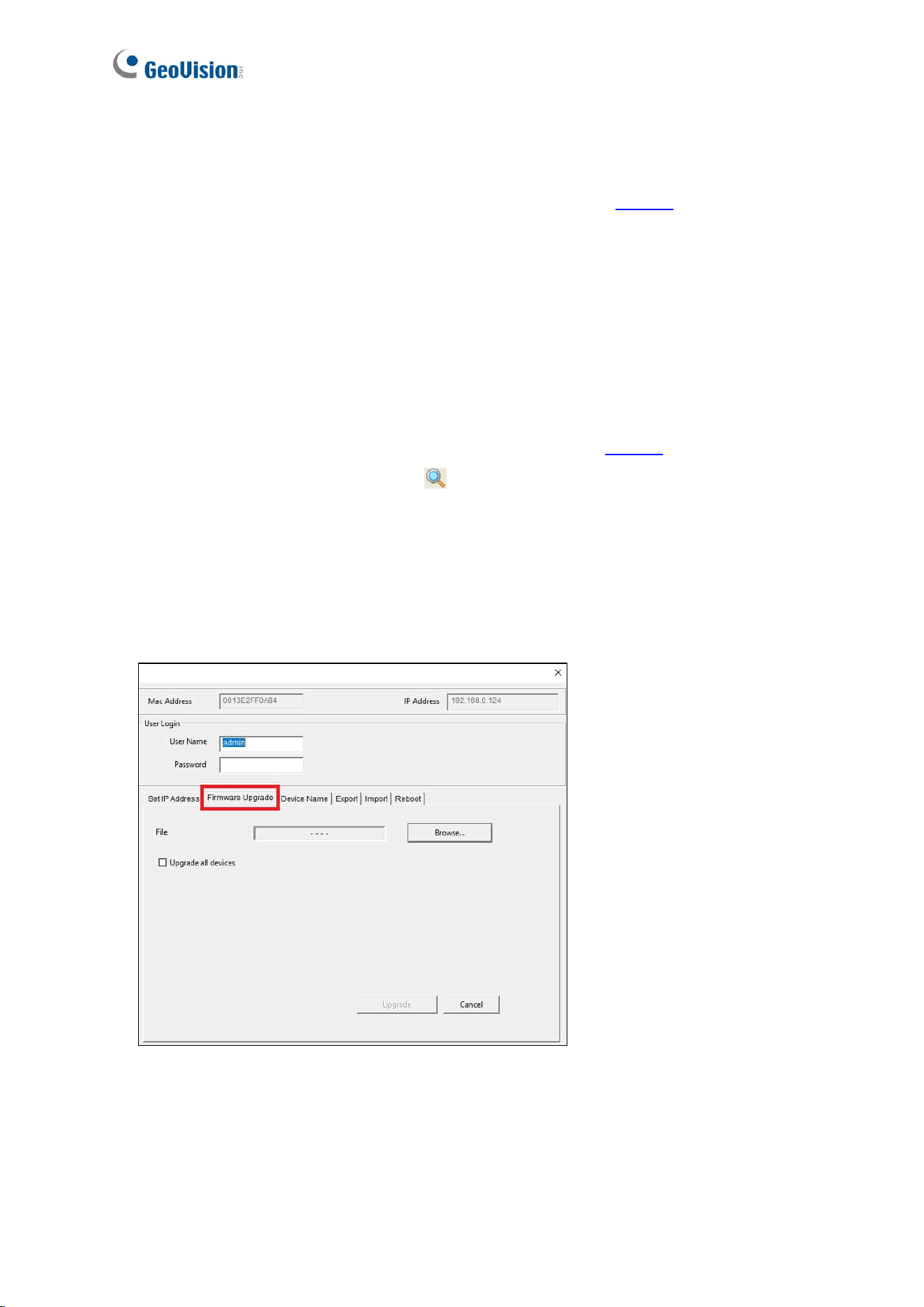
5. When the AutoISP automatically finishes firmware upgrading, the current version
number shown in the dialog box will match the file version number. Click to close the
dialog box.
Figure 8-5
56
8.2 GV-GF1921 / 1922 / 1922 V2
GeoVision periodically releases updated firmware on the company website. To load the new
firmware into the camera, follow the instructions below.
The GV-GF1921 / 1922 / 1922 V2 can be upgraded either through its Web interface or using
GV-IP Device Utility.
8.2.1 Through the Utility
1. Make sure the PC used to configure the IP address is under the same LAN as the reader.
Download and install GV-IP Device Utility from the company website.
2. On the GV-IP Utility window, click the button to search for IP devices connected to the
same LAN. Click the Name or Mac Address column to sort.
3. Find the reader with its Mac Address.
4. Click on its IP address, and select Configure.
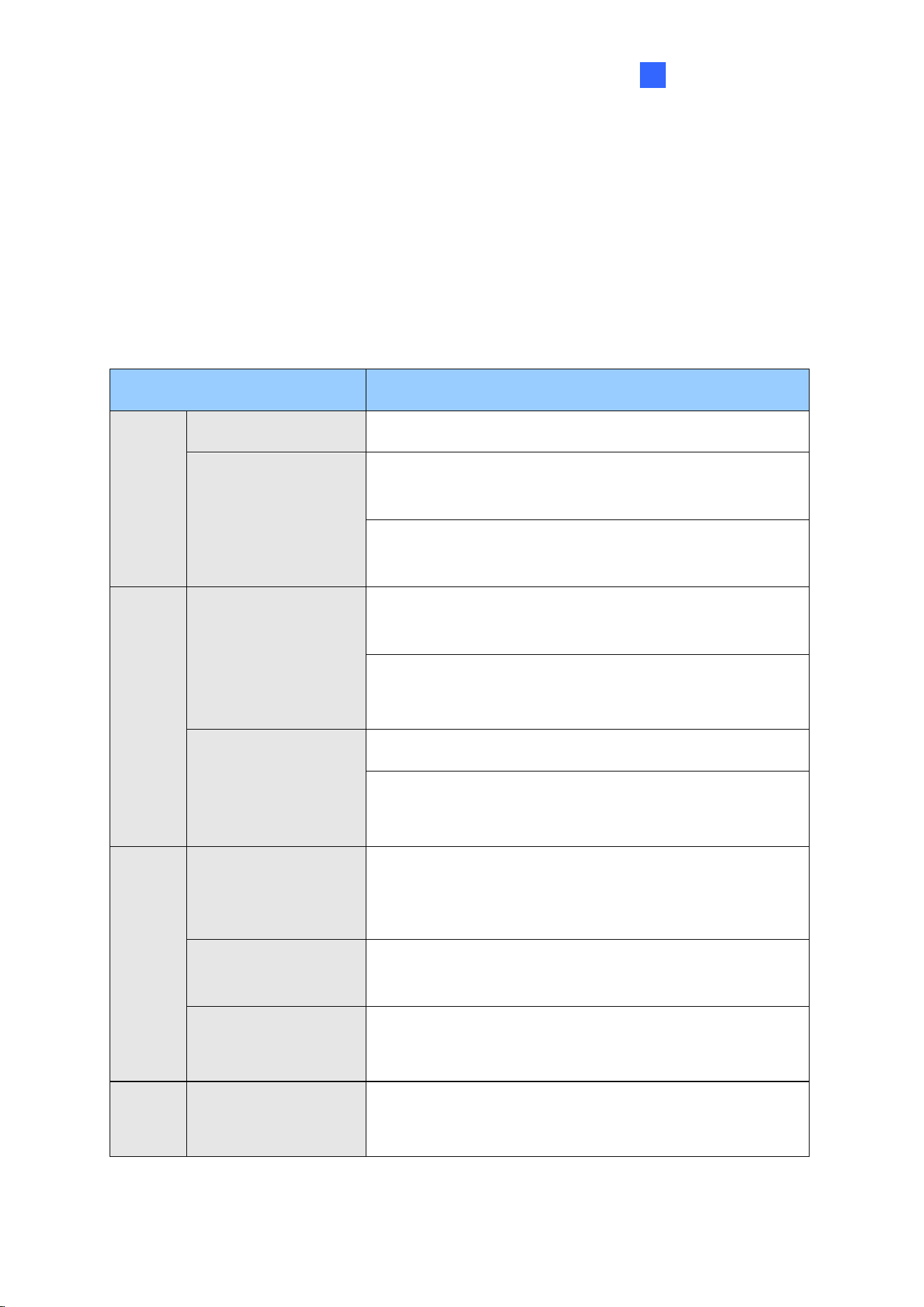
5. Select Firmware Upgrade, and click Browse to select a firmware file from your local
computer.
Figure 8-6
6. At the User Login section, type the user name and password of the reader.
7. Click Upgrade.
LED Indicator
57
9
Chapter 9 LED Indicator
9.1 GV-GF1911 / 1912 / 1921 / 1922 / 1922 V2 (connected
with GV-AS Manager)
LED Status
Description
Blue
Steady
The reader is ready for use.
Flash continuously
The reader is waiting to detect a fingerprint during
enrollment.
The reader is waiting to detect a fingerprint to grant
access under Card + Finger mode.
Green
Flash once
The detected fingerprint or card matches an enrolled
account and the access is granted.
An enrollment is successfully deleted.
*for GV-GF1911 / 1912 only
Flash continuously
The reader is waiting to detect a card during enrollment.
The reader is waiting to detect a card for deletion.
*for GV-GF1911 / 1912 only
Red
Flash once
The detected fingerprint or card does not match any
enrolled account or when the access is not within the
established schedule. The access is denied.
Flash continuously
The reader is waiting to detect a fingerprint or card for
deletion.
Flash rapidly
The fingerprint or card is being deleted.
*for GV-GF1921 / 1922 / 1922 V2 only
Purple
Steady
The reader is not connected to GV-AS Controller.
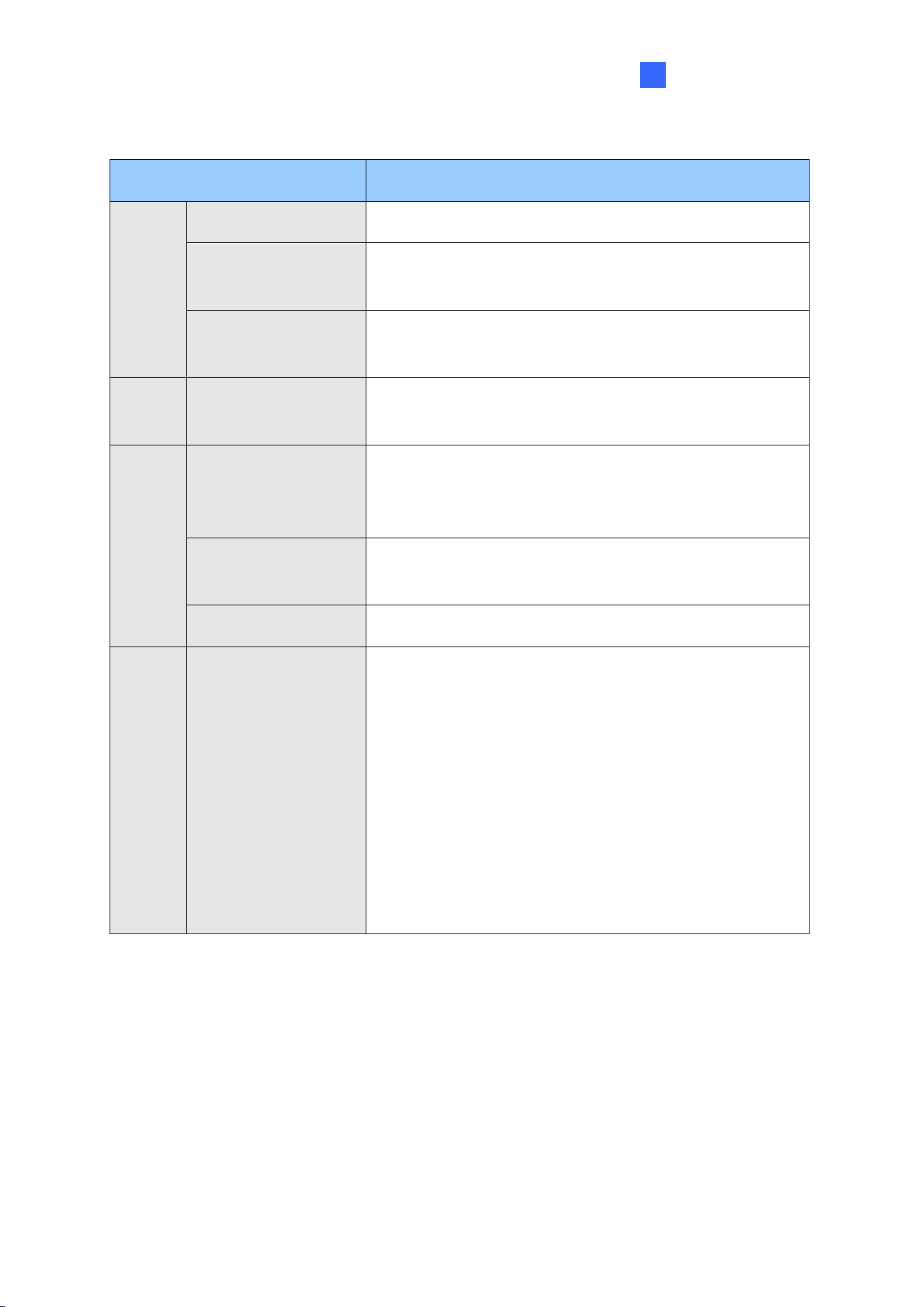
*for GV-GF1921 / 1922 /1922 V2 only
58
Yellow
Flash once
The fingerprint is not found.
*for GV-GF1921 / 1922 / 1922 V2 only
White
Steady
The IP and Gateway addresses do not match. (The first
three sets of numbers should match).
For example, the white light appears when the device’s
IP address is configured to 10.10.0.100 and gateway is
192.168.0.1. Log in the device with 10.10.0.100 in this
case, and modify the IP address or gateway to the same
networked section. After the modification, the device will
reboot automatically and display a purple or blue light
indicating that it is ready to use.
*for GV-GF1921 / 1922 only
LED Indicator
59
9
9.2 GV-GF1921 / 1922 / 1922 V2 (Standalone)
LED Status
Description
Blue
Steady
The reader is ready for use.
Flash once
The reader is downloading, deleting or checking the
fingerprint.
Flash continuously
The reader is waiting to detect a fingerprint during
enrollment.
Green
Flash once
The detected fingerprint or card matches an enrolled
account and the access is granted.
Red
Flash once
The detected fingerprint or card does not match any
enrolled account or when the access is not within the
established schedule. The access is denied.
Flash continuously
The reader is waiting to detect a fingerprint or card for
deletion.
Flash rapidly
The fingerprint or card is being deleted.
White
Steady
The IP and Gateway addresses do not match. (The first
three sets of numbers should match).
For example, the white light appears when the device’s
IP address is configured to 10.10.0.100 and gateway is
192.168.0.1. Log in the device with 10.10.0.100 in this
case, and modify the IP address or gateway to the same
networked section. After the modification, the device will
reboot automatically and display a purple or blue light
indicating that it is ready for use.
*for GV-GF1921 / 1922 only
60
Appendix
How to access the reader’s Web interface?
The reader’s Web interface must be accessed using Internet Explorer mode in Microsoft
Edge.
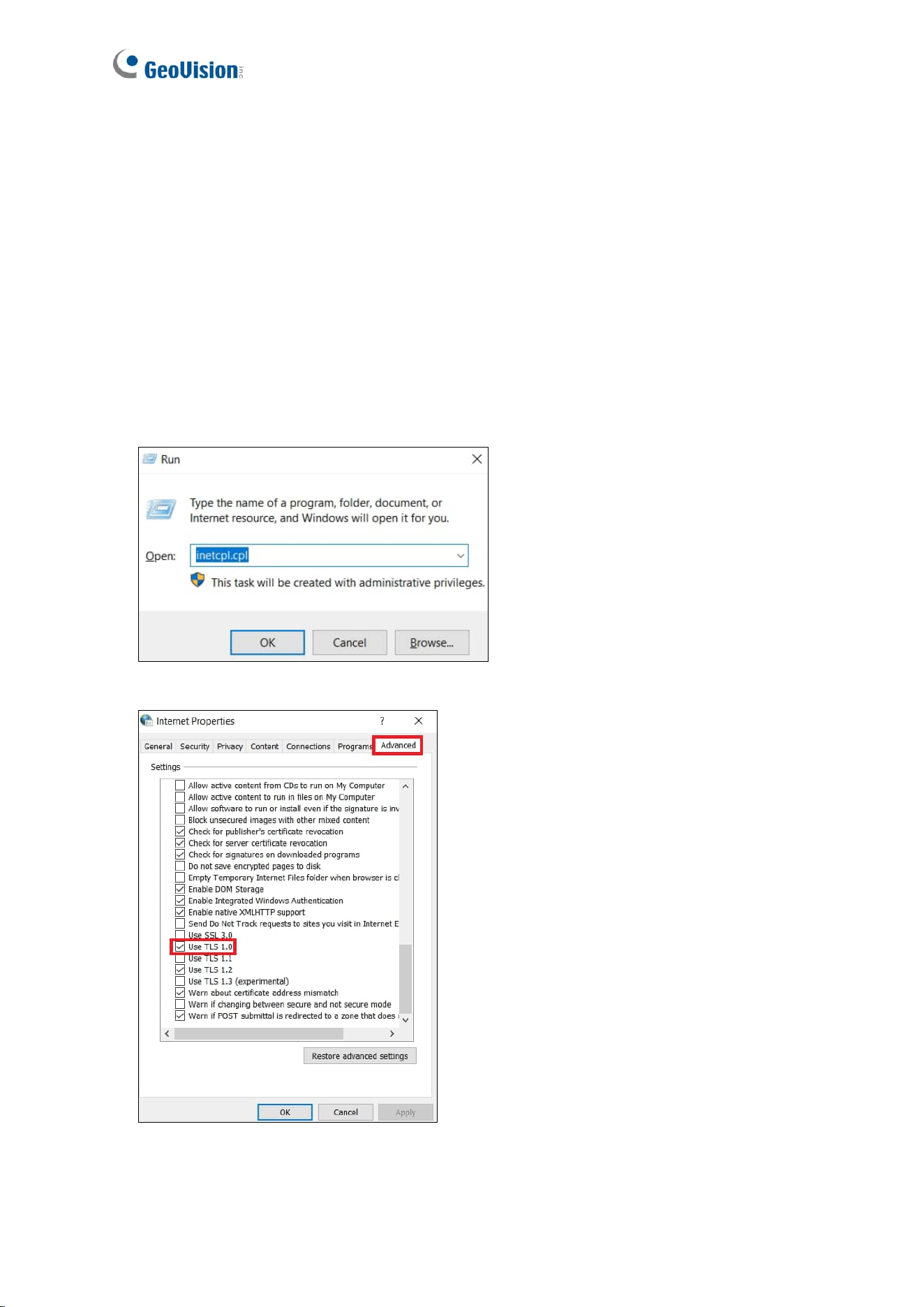
1. Open Internet Properties from the Run dialog box. Press Win + R to bring up the Run
dialog, type inetcpl.cpl and click OK.
2. Select Advanced > Use TLS 1.0 and click OK.
3. In the address bar for Microsoft Edge, type edge://settings/defaultbrowser and press
Enter.
Appendix
61
4. Select Allow for Slide the Allow sites to be reloaded in Internet Explorer. Restart
Microsoft Edge.
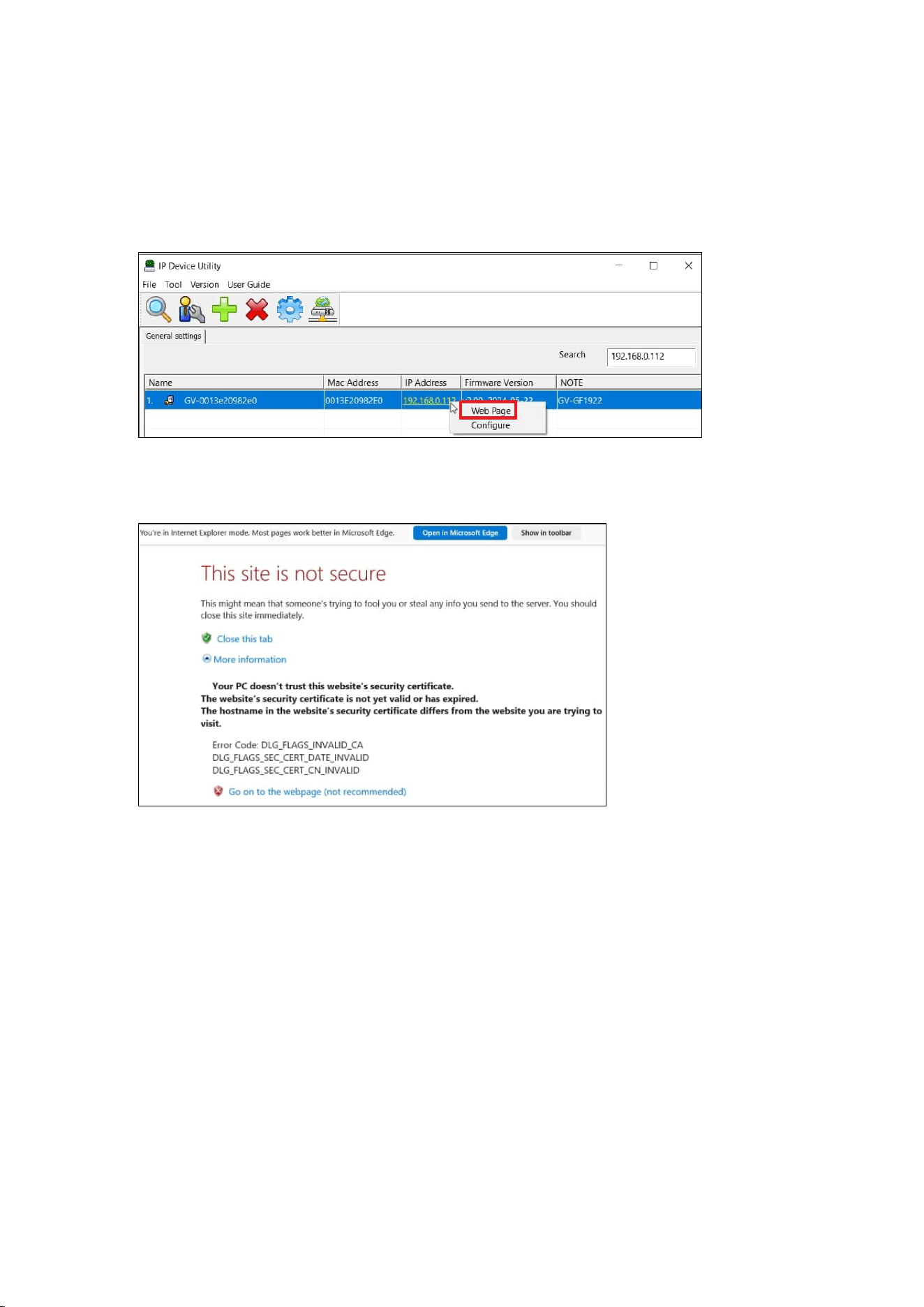
5. Select Web Page for the reader found using GV-IP Device Utility. Alternatively, enter its
IP address into Edge’s address bar.
6. On this page, select More Information and then Go to the webpage (not
recommended).
7. Enter the reader’s ID and password to log in its Web interface. The default login
credentials are admin / admin.